MPK8854AUK - Mp3 player CURTIS - Free user manual and instructions
Find the device manual for free MPK8854AUK CURTIS in PDF.


| Product Type | MP3 Player |
| Brand | Curtis |
| Model | MPK8854AUK |
| Display | 2.8-inch Touch TFT Screen |
| Power Supply | Built-in 3.7V Li-polymer Rechargeable Battery |
| Memory | Built-in Flash (512MB/1GB/2GB/4GB/8GB options) |
| Expandable Memory | Micro-SD Card Slot |
| Audio Formats | MP3, WMA, APE |
| Video Formats | AVI (XVID) - Requires conversion using AVI Converter |
| Photo Formats | JPEG |
| Game Formats | RKP (Rockchip format) |
| Interface | USB 2.0 |
| Speaker | High Quality Built-in Speaker |
| Earphone Output | (L) 10mW + (R) 10mW (32Ω) |
| Frequency Range | 20Hz - 20KHz |
| Signal-to-Noise Ratio | ≥85dB |
| Operating Temperature | -5°C to 35°C |
| Languages Supported | English, Spanish, Chinese |
| Battery Charging Time | Approximately 4 hours via USB |
| Touch Calibration | Required on first use; accessible via Settings > System |
| Cleaning Instructions | Do not use water or chemical substances; use dry cloth only |
| Safety Warnings | Do not disassemble, expose to water, high temperatures (>35°C), or magnetic objects |
| Reparability | No user-serviceable parts; refer to qualified service for repairs |
Frequently Asked Questions - MPK8854AUK CURTIS
User questions about MPK8854AUK CURTIS
0 question about this device. Answer the ones you know or ask your own.
Ask a new question about this device
Download the instructions for your Mp3 player in PDF format for free! Find your manual MPK8854AUK - CURTIS and take your electronic device back in hand. On this page are published all the documents necessary for the use of your device. MPK8854AUK by CURTIS.
USER MANUAL MPK8854AUK CURTIS
Before using this product, initial touch screen adjustment is required.
- Press “Settings” option on the main menu, enter into submenu.
- Press “System” option on the submenu and choose “Touch Calibration, use pen to proofread cross center for three times.
For your safety
Read the manual carefully to ensure proper use of the player and to avoid any danger or physical damage.
Product Use
Improper use can result in explosion, fire or electric shock.
- Do not disassemble, repair or modify this player on your own.
- Do not get the play wet or drop it in water.
- Do not place the player in damp, dusty or sooty areas, as it could result in fire or electric shock.
- Do not leave the player in areas above 35°C (such as a sauna or inside a parked car)
To avoid your hearing damage
- Avoid using your player at high volume levels, as it may result in permanent hearing damage. If you experience ringing in your ears while using the earphone, remove the earphone immediately and lower the volume.
To avoid a risk of traffic accident
- Do not use the earphones when you driving a bicycle, automobile or motorcycle.
● Take care not to tangle the earphone cable around your arms or neighboring objects while driving, working out or walking, as it result in a car accident or other injuries.
Avoid malfunction
- Do not cause excessive impact on the player by dropping it. Do not place heavy objects on top of the player.
● Prevent any foreign particles or dust from entering into the player.
● Always use the accessories provided by or approved by your supplier. - Do not spray water on the player. Never clean the player with chemical substances such as benzene or thinner, as it may cause fire, electronic shock or deteriorate the surface.
- Do not place the player near magnetic objects, as it may cause a malfunction.
Contents
Chapter 1. Basic Information
Products features
Button Functions
Charging the Battery
Basic Use
Chapter 2. Multimedia Function
Listening to Music
Playing Video
Photo Viewing
Reading Text
Voice Recording
Settings
Explorer
Game
Next
Chapter 3. Settings
Music
Record
System
Display
Auto Play
Upgrade
Power Off
Default Set
Chapter 4. Troubleshooting
Troubleshooting
Chapter 5. Appendix
Products Specifications
Converting Video Files
Button Definition
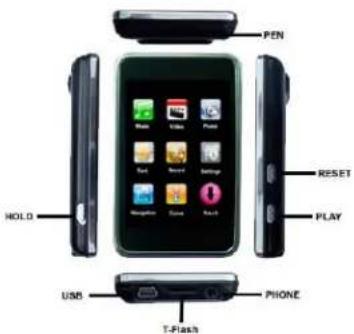
Charger (FCC,CUL)
Chapter 1. Basic Information
Products features
● Display: 2.8-inch touch TFT screens.
● Operation interface: Friendly operation interface, easy for operation.
● Memory: Built-in flash memory
- Card slot: Micro-SD card slot to expand memory.
● Speaker: A high quality speaker.
- Interface: USB2.0.
● Language: Multi-languages.
● Audio: MP3, WMA format files, etc.
● Video: AVI format files.
● Photo: JPEG format files.
● Game: RKP format files.
Button Functions
1) PLAY: Power on / off, hold the button in three seconds.
2) Hold: Lock the buttons, unlock the buttons
3) Res: system Reset
Charging the Battery:
Fully charge the rechargeable battery before using the player for the first time or when it has not been used for a while.
Method of charging on the player by USB port on your PC:
Connect the USB cable to the USB port on your PC; It takes about 4 hours for the player to fully charge.
Usage of the Battery:
● Recharge and store the battery within the temperature range of -5°C 35°C
- Do not over charge (Longer than 12 hours). Excessive charging or discharging may shorten the battery's life.
● Battery life naturally shortens slowly over time.
Basic Use
Switch On & Off the player
Turning the electric system ON:
Press and hold the button PLAY for 3 seconds, the player is turned on.
Turning the power OFF:
Press and hold the button PLAY for 3 seconds again, the player is turned off.
Note: Power is automatically turned off when none of the buttons have been pressed for a preset period of time.
Chapter 2. Multimedia Function
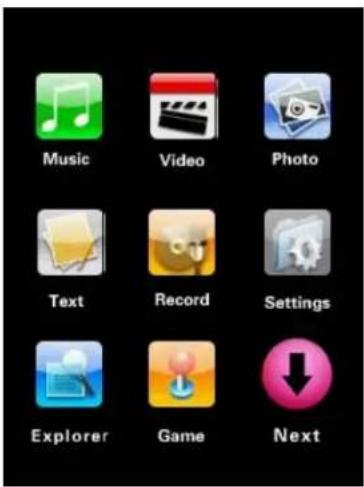
Listening to Music
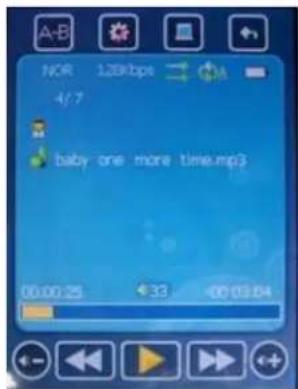
- Play a music file:
a) Power on and move to the main menu.
b) Press to select
Play your select file: In music playing status, Press (or) to select a file.
Long press for the fast forward (or fast Backward) of the current Music
c) Press ☐ to Increase volume; Press ☐ to Decrease volume.
- A-B repeat:
a) When you play the music, press A-B to enter the A-B repeat mode. The player records this position as 'A' point.
b) Press A-B again, the player records this position as B point. Then the player starts repeat from A to B.
c) Exit A-B repeat mode: Press to exit.
- Pause
1) Press ▶ while the music is playing, the music playback will be paused.
2) Press ▶ again; the music will be played from the point where it stopped.
-
Music Setup: Press 📄 to select EQ and play mode
-
Main menu: Press to Exit to main menu
-
Backward: Press to Exit to upper level
Playing Video
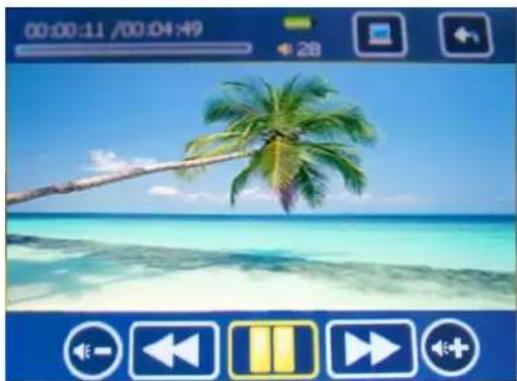
(All video files need to be change into the mp4 AVI format using AVI convertor)
-
Power on and move to the main menu.
-
Press to select < Video >. Enter flash memory, enter selected a Video. The Player plays the Video
-
Press (or ▶) to select a video file long press for the fast forward (or fast Backward) of the current video
Note: The player can only play AVI format files, for other kinds of video files; you have to convert them into AVI format files by converting tooling.
Photo Viewing

-
Power on and move to the main menu.
-
Press ☐ to select < Photo >, enter flash memory, enter selected pictures. Press ☐ The player plays the Photo
-
Press (or) to select forward and backward.
-
Play Set: Press to select play time
-
Press M to return to the main menu.
Reading Text
(The player can only display TXT format files)
![say you say me.it [00:15:01]Say you, say me; say it for always [00:23:85]That's the way it should be [00:29:62]Say you, say me; say it together [00:39:29]Naturally [00:45:76]I had a dream I had an awesome dream [00:51:80]People in the park.](/content/2026/06/1195137/images/7fe5bb72be590bdcb507cdb4ce7bad94272855377b9828aa5b8b44c409653bdd.jpg)
-
Download the TXT format files: Connect the player to the computer by USB cable, choose the files you need, save the file as TXT format to the player.
-
Power on and move to the main menu.
-
Press to select < Text >, enter selected file.
a) Press (or ▶) to begin reading.
b) Press to save Bookmark or Load Bookmark.
c) Press to return to the main menu.
Voice Recording
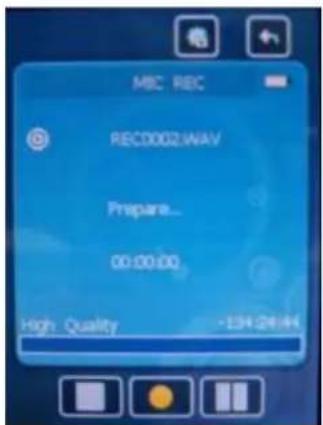
- Power on and move to the main menu.
- Press to select < Record > Enter the < Record>. Press to start recording.
- In recording status, press to pause the recording.
-
In pause status, press again to continue the recording.
-
Press to save recording and exit.
- In prepare status. Press enter into Voice Recording setting.
Explorer
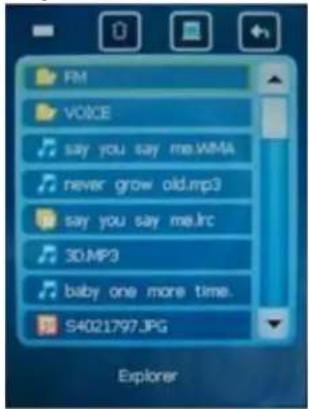
(Using Explorer menu you can play any file type on one screen.)
- Move to the main menu.
- Press to enter submenu and select a file you want.
Games
- Move to the main menu.
- Press to select
- select a game
- Button Functions

MOVE UP

MOVE DOWN

SELECT

MOVE LEFT

MOVE RIGHT
To exit the game mode, do as follows:
• Under the browsing mode:
Click "M" to return to main Menu
- When playing the game:
Press "PLAY" button to pause the game. Select "QUIT" using the left/right arrows and press "PLAY" or "M" to quit the game. In the ensuing screen, select "Exit" using the up/down arrows and click "M" to return to browsing mode. Repeat the operation to return to main menu
In some games, one may have to long press "M" after pause to quit the game. The procedure thereafter remains same.
NOTE: The player can only support .RKP format games created by Rockchip Company. The game files must go into a folder called "Game" on your player.
Next
(Using Next menu you can enter settings mode.)
Chapter 3. Settings
(Menu Adjustment Setting for MP4 player)
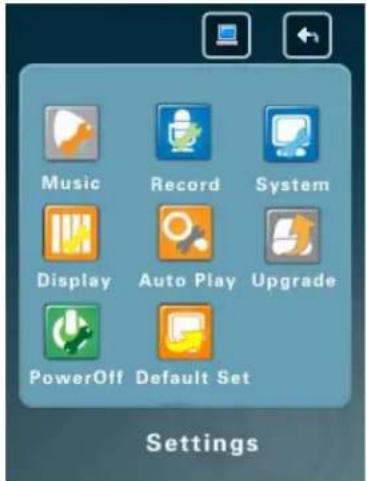
1. Music:
a) Repeat mode
1) Once Stop after playing all the songs in each directory
2) Repeat one Repeat playing a single song
3) Folder once play all the songs in the folder
4) Folder repeat repeatedly play all the songs in the folder
5) All once play randomly the songs in the current folder
6) All repeat repeatedly play all the songs
7) Introduction play all the songs of the songs of the first 10 seconds in the current folder
b) Play mode
1) Order
2) Shuffle
c) EQ Select
a) REC quality
1) High Quality
2) General Quality
b) REC Volume
1) +1 (low)
2) +2
3) +3 (middle)
4) +4
5) +5 (high)
3. System:
a) Language selection
b) Products Information
c) Touch screen adjustment
4. Display:
A) Backlight time:
1) 5 seconds
2) 10 seconds
3) 15 seconds
4) 20 seconds
5) 30 seconds
6) Always on
b) Luminosity:
1) 1 (bright)
2) 2
3) 3 (middle)
4) 4
5) 5 (dark)
c) Backlight mode:
1) Normal
2) Power saving
5. Auto Play:
a) Text:
1) 1 seconds
2) 2 seconds
3) 3 seconds
4) 4 seconds
5) 5 seconds
b) Jpeg:
1) 1 seconds
2) 2 seconds
3) 3 seconds
4) 4 seconds
5) 5 seconds
6. Upgrade.
7. Power Off :
a) Off
b) 10 minutes
c) 15 minutes
d) 30 minutes
e) 60 minutes
f) 120 minutes
8. Default Set.
In this menu, eject out the dialog box, confirm whether to resume the defaulted value, select "YES" or "No".
Chapter 4. Troubleshooting
If you experience problems with the MP4 player, please check the following.
| Problem Check | Points & Troubleshooting |
| ICE1000 fail to turn on | - Power will not turn off if the battery is fully discharged. Recharge the battery and turn the power on again.- Press the Res Button |
| Buttons do not work | - Check if you press the right button, then press again.- Press the Res Button |
| Screen display is blank | - Ifis selected from/the LCD will be turn off. Press any button to turn on the LCD or check the Display Settings.- The screen may not be visible under direct sunlight. |
| Power is turning off all the time | - Check the battery status.- The power is automatically turned off when the battery is fully discharged. Recharge the battery. |
| Battery life is inconsistent | - The battery time may vary, depending on the sound mode, display setting and what files you are playing- The battery life may be shortened when left for extended periods in low or high temperatures. |
| AVI Converter fail to install | - Please check if your PC requirements are met. |
| PC fail to detect ICE 1000 | -Pleaseon the toolbar of your PC to run Windows update. Select Key Updates and Service Packs, and then update all. Reboot your PC and reconnect.- Check if the USB cable is securely connected. Reconnect if necessary |
| Cannot play files | - Check if the available file has been saved in the memory.- Check if the media file is not damaged or not compatible. |
| - Check if there is enough battery power. | |
| File fail to upload into ICE1000 | - Check if the USB cable is securely connected. Reconnect if necessary- Check if the memory is full.- Press the Res Button. |
| Files or data are missing | - Check if the USB cable has been disconnected during the file or data transmission. If this is the case, it may cause serious damage not only to file/data but also to the player. You have to be extra careful as we are not responsible for data loss. |
| Abnormal display of file name.(Different language display) | - Move to/ in the Manual screen and set an appropriate language. |
| The player is very warm | - Heat may be generated during recharging. This has no effect on the player life or functions. |
Chapter 5. Appendix
Products Specifications
| Display 2.8 inch Touch TFT screen | |
| Power Supply Built-in 3.7V Li-polymer rechargeable battery | |
| Memory Built-in flash memory (512MB/1GB/2GB/4GB/8GB) | |
| Earphone Output | (L) 10mW + (R) 10mW (32Ω) |
| Output Frequency Range 20Hz~20KHz | |
| SNR | ≥85dB |
| Audio format MP3, WMA ,APE etc. | |
| Video format | AVI (XVID) " AVI converted by AVI converter" |
| Picture format JPEG | |
| Game format RKP | |
| Data Transmission Speed High speed USB2.0 | |
| Temperature Range for operation | -5°C ~ 35°C |
| Language | English, Spanish, |
| Operation System | Windows98/SE/ME/2000/XP/VISTA、Mac OS 10、Linux 2.4.2 |
- The contents of this Manual are subject to change without prior notice for further improvement.
Chinese,
Converting Video Files
All files need to be change into the mp4 AVI format using AVI convertor
1. Install the converting tool
a) Insert the allocation CD drive in the CD-ROM of your PC.
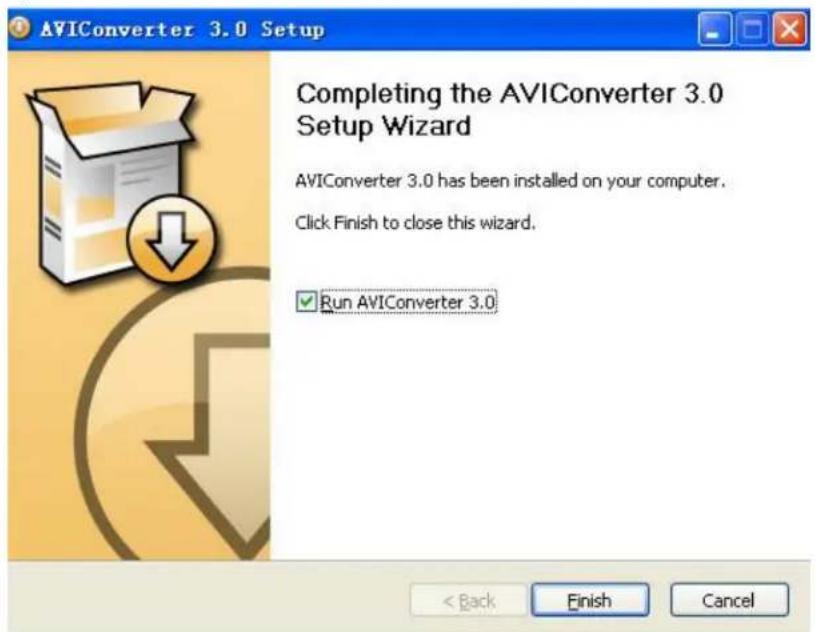
b) Run the "AVI Converter Setup.exe" program: Enter the install menu, click on the "NEXT" button, it will appear the figure as follows:
c) Choose the route of installation, and then click on the "Install" button, until the end of the installation.
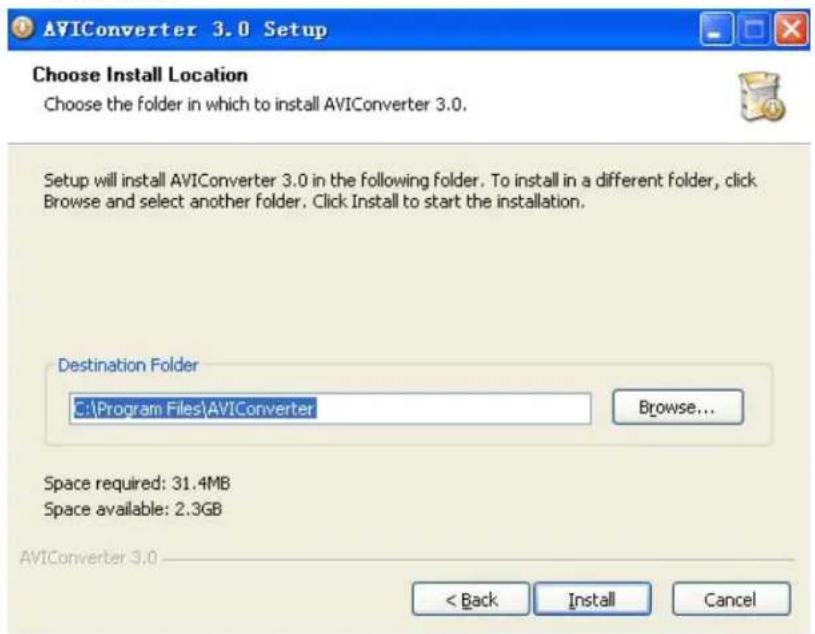
d) At the end of the installation, click on the "Finish" button to finish the installation.
- Converting other format files to AVI format ones.
(All video files need to be change into the mp4 AVI format using AVI convertor)
a) Click and run the "AVI Converter.exe" program, choose the video file which needs to be converted and also choose the route of the result. Picture as follows:
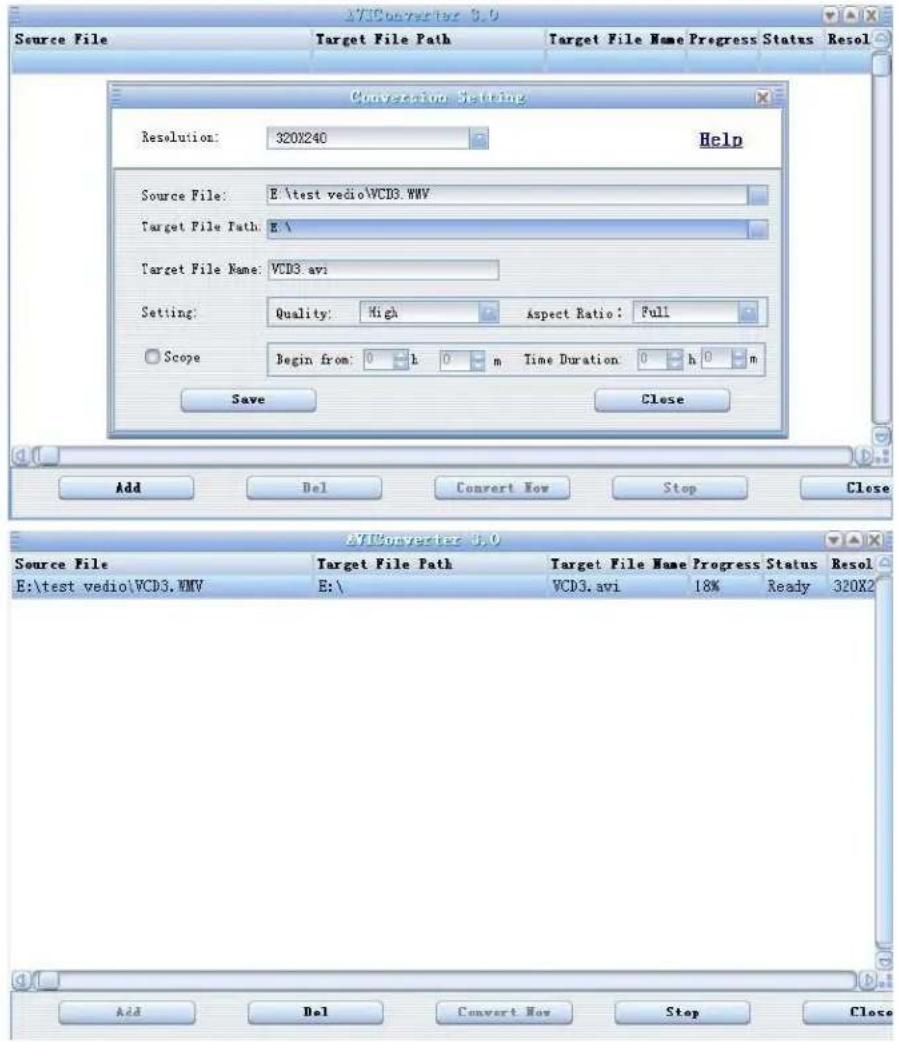
b) Choose and setup the parameter of the file (video format: 320*240), and then click on the "Start" button, to convert the "AVI" file.
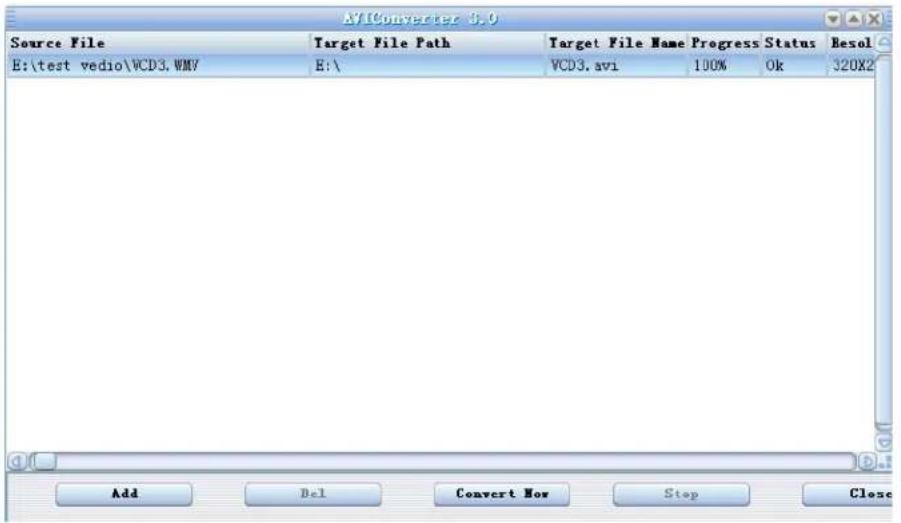
c) The player may play the video which is saved in the player when it finishes the conversion.
***************************SAVE THESE INSTRUCTIONS***************************
- FOR YOUR SAFETY
- PRODUCT USE
- TO AVOID YOUR HEARING DAMAGE
- TO AVOID A RISK OF TRAFFIC ACCIDENT
- AVOID MALFUNCTION
- CONTENTS
- CHAPTER 1. BASIC INFORMATION
- CHAPTER 2. MULTIMEDIA FUNCTION
- CHAPTER 3. SETTINGS
- CHAPTER 4. TROUBLESHOOTING
- CHAPTER 5. APPENDIX
- BUTTON DEFINITION
- CHARGER (FCC,CUL)
- PRODUCTS FEATURES
- BUTTON FUNCTIONS
- CHARGING THE BATTERY
- USAGE OF THE BATTERY
- BASIC USE
- SWITCH ON & OFF THE PLAYER
- LISTENING TO MUSIC
- PLAYING VIDEO
- PHOTO VIEWING
- READING TEXT
- VOICE RECORDING
- GAMES
- NEXT
- MUSIC
- REPEAT MODE
- PLAY MODE
- EQ SELECT
- SYSTEM
- DISPLAY
- AUTO PLAY
- UPGRADE
- POWER OFF
- DEFAULT SET
- CONVERTING VIDEO FILES
- INSTALL THE CONVERTING TOOL
Brand : CURTIS
Model : MPK8854AUK
Category : Mp3 player