MP256E - Mp3 player CURTIS - Free user manual and instructions
Find the device manual for free MP256E CURTIS in PDF.


| Brand | Curtis |
| Model | MP256E |
| Product Type | Portable MP3 Player |
| Dimensions | 90 x 30 x 10 mm |
| Weight | 30 g (with battery) |
| Power Source | Built-in rechargeable lithium-ion battery (3.7V, 200 mAh) |
| Charging Time | Approximately 2 hours via USB |
| Playback Time | Up to 10 hours on a full charge |
| Storage Capacity | 2 GB internal memory (expandable via microSD up to 16 GB) |
| Supported Audio Formats | MP3, WMA, WAV |
| Display | 1.5-inch LCD screen |
| Main Functions | Music playback, voice recording, FM radio, folder navigation |
| Connectivity | USB 2.0 for data transfer and charging |
| Headphone Jack | 3.5 mm stereo |
| Included Accessories | USB cable, earphones, user manual |
| Maintenance | Clean with a soft dry cloth; avoid liquids and extreme temperatures |
| Safety | Do not disassemble; avoid prolonged direct sunlight; keep away from water |
| Spare Parts & Repairability | Battery and microSD slot are replaceable; contact Curtis support for service |
| General Information | Designed for personal audio enjoyment; compatible with Windows and macOS |
Frequently Asked Questions - MP256E CURTIS
User questions about MP256E CURTIS
0 question about this device. Answer the ones you know or ask your own.
Ask a new question about this device
Download the instructions for your Mp3 player in PDF format for free! Find your manual MP256E - CURTIS and take your electronic device back in hand. On this page are published all the documents necessary for the use of your device. MP256E by CURTIS.
USER MANUAL MP256E CURTIS
Portable MP3 Player MP256
User's Guide
Introduction
Installing the MP3 Player
Transfer data to and from the MP3 Player
Listening to your WMA/MP3 music
MP3 Player Controls
LCD Display
Voice Recorder
Hold Function
Navigation
Advanced Settings
Upgrade the Firmware
Removing the MP3 Player from your computer
Trouble Shootings
Specifications
Safety
Introducing the MP256 MP3 Player
The MP3 Player incorporates a portable WMA/MP3 Player, Voice Recorder and USB 2.0 Mass Storage Device.
MP3 Player Features:
- WMA/MP3 player.
- Synchronous lyric display with WMA/MP3 music.
- Voice recorder.
- WMA DRM support.
- USB mass storage device.
- Integrated USB connector.
- Backlit display.
- Superb audio quality.
- No cable required.
- Requires 1 AAA / LR03 battery (supplied).
System support:
• Supports Windows Me/2000/XP.
Note for Windows Me/2000/XP users: Installation of the MP3 Player drivers is required only if you wish to upgrade the firmware of the player.
Note for Windows 2000 users: Windows Service Pack 3 must be installed before installing MP3 Player drivers.
• Supports Windows 98 SE after installation of drivers (see below).
• Supports Mac OS X (version 10.2.6 or above) without driver.
Note:
• To minimize static electricity, avoid operating the player in an extremely dry environment.
- Under the environment with electrostatic discharge, the product may malfunction and requirement user to reset the product.
Installing the MP3 Player
Installation of drivers for computers using Windows Me/2000/XP is not necessary.
Note for Windows Me/2000/XP users: Installation of the MP3 Player drivers is required only if you wish to upgrade the firmware of the player.
Note for Windows 2000 users: Windows Service Pack 3 must be installed before installing MP3 Player drivers.
Windows 98 SE users will need to install the MP3 Player on their system:
- Click on the link below to open the folder containing the MP3 Player installation program.
- Click on the Setup icon to begin the installation.
- Follow the on-screen instructions to complete the installation.
Click here to install the MP3 Player driver
Transfer data to and from the MP3 Player.
- Make sure that the MP3 Player is turned off.
- Remove the USB port cover & disconnect the earphone.
-
Plug the MP3 Player into the USB port of your computer. The built-in LCD displays "READY", indicating that the MP3 Player is in USB mode. The MP3 Player is then automatically recognized (in 'My Computer') as a removable media device.
-
Transfer files to or from the internal Flash RAM using Windows explorer.
-
Unplug the MP3 Player from your computer (click here to see how to do this safely), WMA/MP3 files can now be listened to and all data stored can be transferred to another computer.
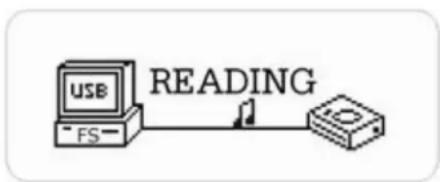
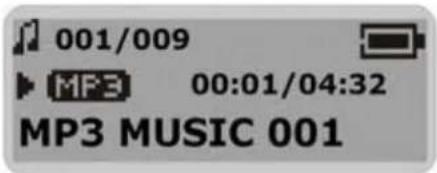
Listen to WMA/MP3 music files with the MP3 Player
- Follow the instructions for the transfer of data to and from the MP3 Player to copy WMA/MP3 music files to the MP3 Player.
- Install 1 AAA/LR03 battery into the battery compartment.
- Connect the supplied headphones to the headphone socket.
- Press the Play button.
- Use the MP3 Player controls to adjust playback and volume level to listen to your WMA/MP3 music.
Note: Installing the battery:
- Push and slide out the battery compartment door.
- Install the battery.
Lyric display function
The MP3 Player supports lyric files in LRC format.
- Prepare a MP3 or WMA music, for example, happymusic.mp3;
- Download a lyric file from internet. The lyric file must have to be with an extension file name LRC. For example, happymusic-2004.lrc.
- Rename the lyric file. For example, happymusic.lrc. It is to make sure the lyric filename is same as the corresponding music filename.
- Copy the lyric file & music file to the MP3 player.
- Disconnect the MP3 player.
- Use Skip buttons to select the music file, for example, abc.mp3. Press Play button to play.
- The LRC icon would appears, and the lyric would display Synchronously on LCD while the music is being playback.
Note: The MP3 player supports LRC format only.
Note: If the lyric does not synchronize with the music, please download one better lyric file from internet and try again.
Note: Make sure the MP3 music and LRC file is located in same directory and the filename is same. If not, the MP3 player can not recognize the lyric file.
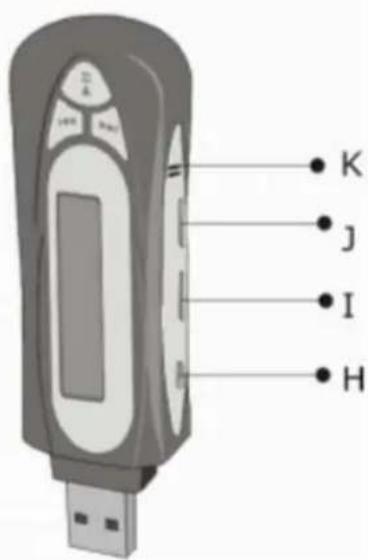
MP3 Player Controls
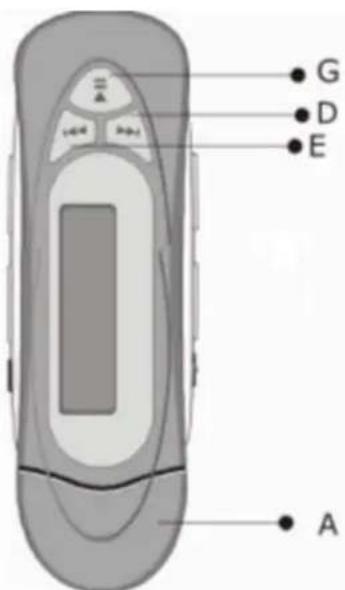
A. USB Port Cover
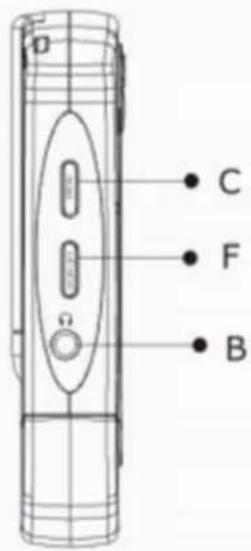
B. Headphone Socket
C. A-B / Menu Button
D. Skip Next / Fast Forward
E. Skip Previous / Fast Rewind
F. Power Off/Stop
G. Power On/Play/Pause
H. Hold Switch
I. Volume Down
J. Volume Up
K. Microphone
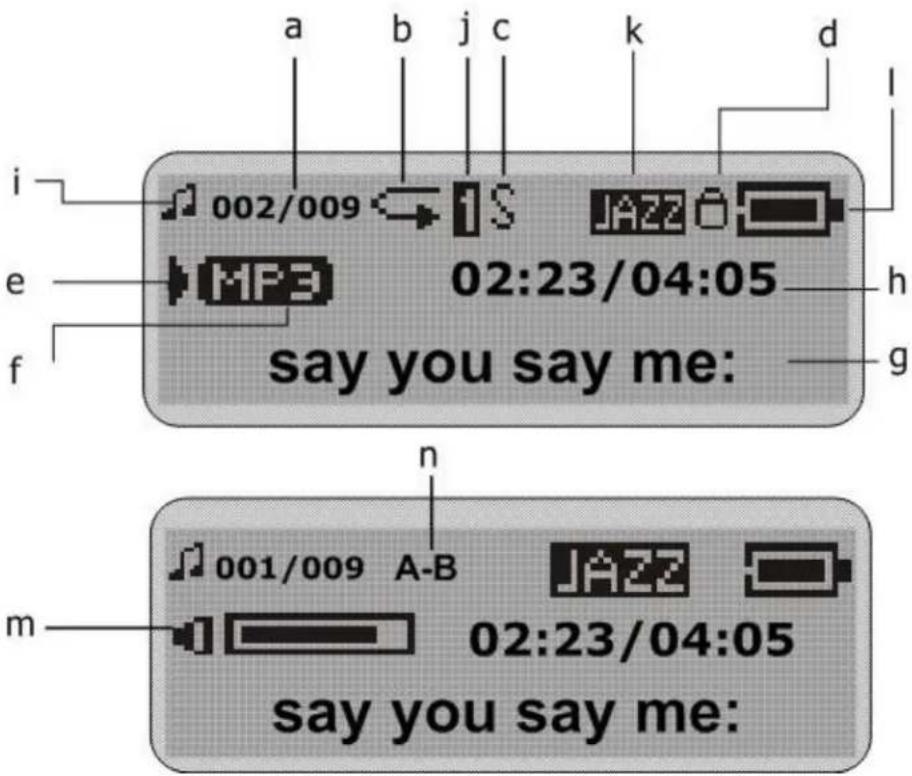
LCD Display
a. Track Number / Total Tracks
b. Repeat all
c. Shuffle
d. Hold
c. Play/Pause/Stop/Rec.
f. Music Type (MP3/WMA/WAV)
g. ID3 Tag (track name) display
h. Elapsed Time/ Track Time
i. Music Mode/ Voice Mode
j. Repeat one
k. Equaliser
- Battery Indicator
m. Volume
n. A-B Repeat
Voice Recorder
Record voice
- Select Record in the LCD menu list to begin recording.
- Press the Stop or Menu button to stop the recording and enter Voice mode.

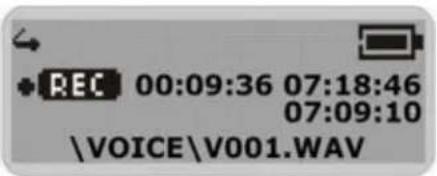
The voice recording will have been saved as a file named Vxxx.WAV in the Voice folder.
Note that the LCD display will read MEMORY FULL when all available memory has been used.
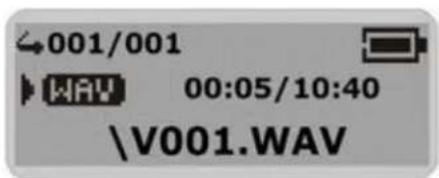
Playback voice
This operation is similar to the playback of music.
- Select Voice in the LCD menu to enter Voice mode.
- Select a recording to listen to by pressing the Skip buttons.
- Press the Play button to playback the recording.
Hold Function
Use the Hold function to deactivate the MP3 Player controls (to avoid accidental activation).
- To activate the Hold function, slide the Hold switch.
- Slide the Hold switch back to turn off the Hold function.
Note: The MP3 Player will turn off automatically if the key is hold when turning on the power.
Locked
Navigation
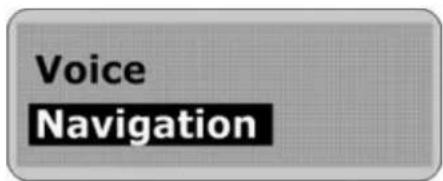
Use [Menu] button to enter Menu.
1 Select [Navigation] and press Menu button to enter navigation mode.
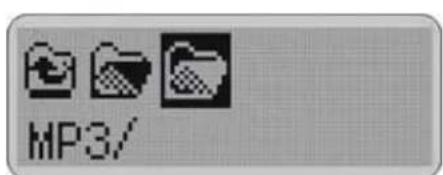
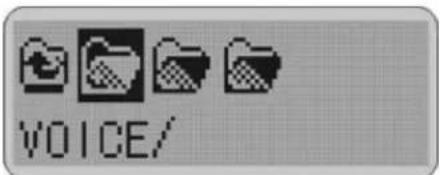
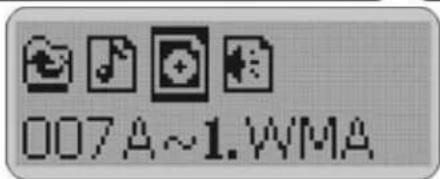
1.1 Line 1: Folder icon / MP3 music icon / WMA music icon / WAV file icon / Upper directory icon
1.2 Line 2: Filename / Folder name / Return to previous level
2 Use [Skip] button to select a file or folder and use Play button to play the music or enter the folder.
3 Use Stop button in Navigation mode to backward to upper level.
Navigation...continued
Note: When a folder is selected in navigation mode, press on Menu button, a sub-menu window will pop-up. To enter the folder, select Enter. To play music located in the folder, select Play.
When a file is selected in navigation mode, press on Menu button, a sub-menu window will pop-up. To play this file, select Play. To erase, select Delete.
• Note: The player supports music files & folders up to 240 maximally.
• Note: The player supports folders up to 13 levels maximally.
- Note: If the number of total music files (WMA/MP3/WMA format only) and/or folders exceeds 240, or the folder is more than 13 levels, some files/folders would be ignored.
Advanced Settings
To navigate the settings menu.
-
Press & hold the A-B/Menu button for a while and release it to enter the settings menu.
-
Press the Skip buttons to choose a setting.
-
Press the A-B/Menu button to select that setting.
-
After setting is finished, press & hold the A-B/Menu button for a while and release it to exit the Menu.
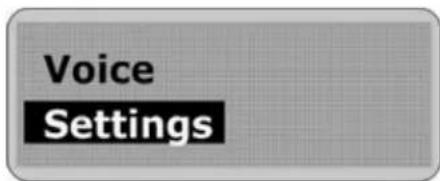
Equalizer Setting
The Equalizer (Eq) setting is to adjust the music playback effect. There are six Eq presets available: Normal, X-Bass, Rock, Jazz, Classical and Pop.
- Select Equalizer in the settings menu.
- Press the Skip buttons to select a preset Eq.
- Press the A-B/Menu button to activate.
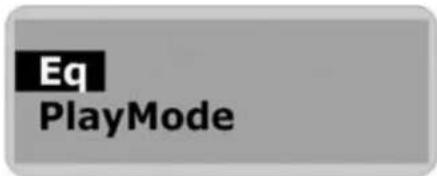
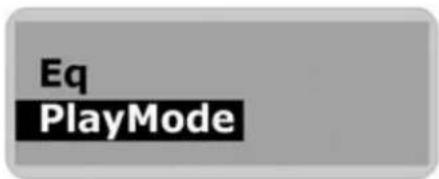
Play mode Setting
The available Play modes are:
- Normal
- Repeat Track
- Repeat All
- Shuffle
-
Shuffle Repeat
-
In the settings menu, select Play Mode.
- Press the Skip buttons to select a play mode.
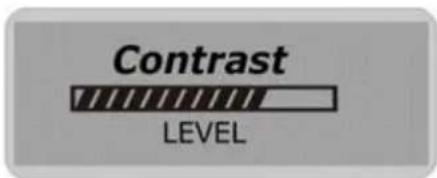
Adjust LCD Contrast
To adjust the LCD contrast
- In the settings menu, select Contrast.
- Press the Skip buttons to adjust the contrast level.
- Press the A-B/Menu button to go back to setting menu.
Backlight
To adjust the backlight
- In the settings menu, select Back Light.
- Press the Skip buttons to adjust the delay before the backlight is switched off.
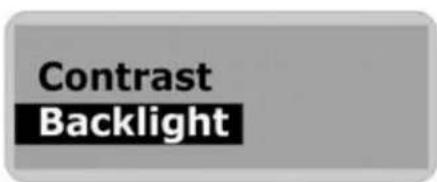
Note: Selecting "Disable" would turn off the backlight. Selecting "On" would always turn on the
backlight.
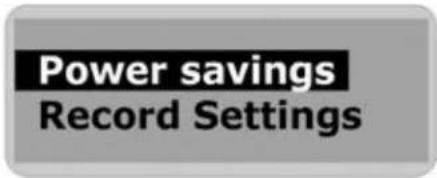
Power Savings
Use the Power Saving function to automatically turn the MP3 Player off after a predetermined length of inactivity.
- In the settings menu, select Power Savings.
- Press the Skip buttons to select time.
Note: Selecting "Disable" would never turn off the MP3 Player automatically.
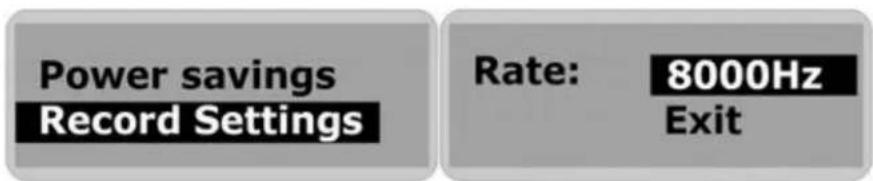
Record Settings
A high record sampling frequency brings an increase in sound quality but also a corresponding increase in memory usage.
- In the settings menu, select Record settings.
- Press the Skip buttons to select "Source". Press the A-B/Menu button repeatedly to select a record source which you want to change its sampling frequency or recording format settings.
- Press the Skip buttons to select "Encoder". Press the A-B/Menu button repeatedly to select a recording format.
- Press the Skip buttons to select "Rate". Press the A-B/Menu button repeatedly to cycle through the available Recording Sampling Frequencies.
- Press the Skip buttons to select "Exit" and press the A-B/Menu button to exit the Record Setting menu.
Note: A higher recording sampling frequency brings better recording quantity, but takes more memory space.
Sampling Frequency Maximum Recording Time per 128MB
8000 Hz 8 hours
11025 Hz 5.8 hours
16000 Hz 4 hours
22050 Hz 2.9 hours
32000 Hz 2 hours
Note: The recording format options in "Encoder" are only a bit different. User need not to change this setting.
Load default
To reset all setting to factory default setting,
- In the settings menu, select "Load default"
- Press the A-B/Menu button. The default settings are loaded to the MP3 Player.

Erasing files
Warning: Erased files cannot be recovered.
- Stop playback or recording before attempting to erase files.
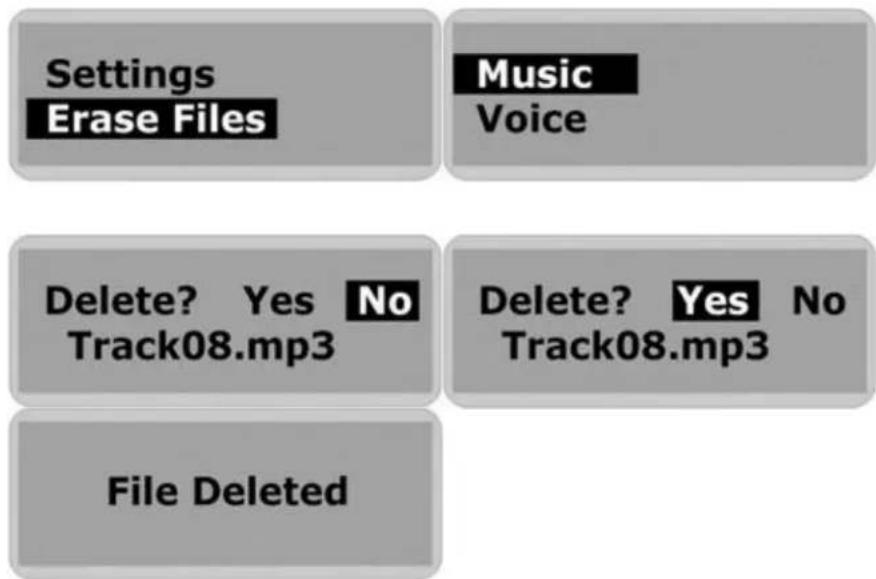
- Press and hold the A-B/Menu button and release it to enter menu and select Erase Files.
- There are two options to choose from. To erase music files, select Music. To erase voice recordings, select Voice.
- You will be asked if you are sure you want to erase the listed music file or voice memo.
- If you are sure you want to erase the listed file, press the Skip buttons to choose Yes. Then press the A-B/Menu button to confirm.
- The file is erased. Another file will be listed on the screen and you will be asked again if you want to erase this file.
- When you have finished erasing the file, the player will automatically exit to Erase Files screen.
- Select Exit to exit to menu list.
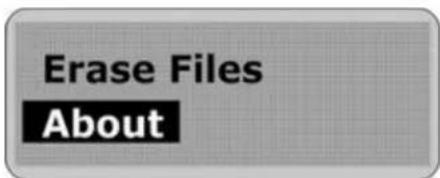
About
Information is available regarding the firmware version, built-in memory size and free memory size.
- Select About in menu list.
- The firmware version and Internal Media info appears.
- Press the Skip buttons to read the Free memory space.
- Press A-B/Menu button to exit to menu list screen.
Upgrade the Firmware
The firmware in the player can be updated through the Firmware Download utility running on your PC. To update the firmware, run the Firmware Download utility. The MP3 Player driver must be installed to use the Software Utility.
- Plug the MP3 Player into the USB port of your computer. The built-in LCD displays "READY", indicating that the MP3 Player is in USB mode.
- To run the Player Update utility go to: Start > Programs > SigmaTel MSCN Audio Player > Firmware Download.
- Check the Current Firmware Version and Upgrade Firmware Version. If you are sure it is the correct version to update, click on the Start button.
- The firmware will be transferred to the player. Please wait until it has finished.
- Click on the Close button to exit.
Format Data Area option: When not selected (default): Updates the firmware only. If selected(recommended): Updates the firmware and formats the storage space.
To Format the MP3 Player
- Connect the MP3 Player to the computer.
- Format the MP3 Player (removable disk) using the Windows format tool.
Note: Do not select NTFS from the File System menu. Otherwise, the MP3 Player can not work and need to format it again.
Removing the MP3 Player from your computer
Windows Me, 2000 & XP user:
- Click on the Safely Remove Hardware icon 📋 in the taskbar (next to the clock).
- Click on Safely remove USB Mass Storage Device.
- Wait until a Safe to Remove Hardware message is displayed.
- Remove the MP3 Player.
Windows 98/98SE user:
- Please wait until the player LCD displays "IDLE" for a moment.
- Remove the MP3 Player.
Trouble Shooting
Q The LCD displays nothing after turning on the MP3 player.
A
1 Check to see if the battery has been inserted;
2 Check to see if the battery needs replacement: Try reinserting the battery correctly or replace it.
3 If it still does not work, go to next step.
Put the player in recovery mode
1 Take out the battery from battery compartment.
2 Press and hold the play button. Do not release it until step 4.
3 Plug the MP3 player into the USB port of your computer.
4 Hold for 5 seconds and release the play button.
5 Leave the MP3 player in the USB port for the next step.
Refresh the firmware
1 On your computer run the Firmware Download utility go to:
Start > Programs > SigmaTel MSCN Audio Player > Firmware Download
2 The utility will start to search the MP3 player. Please wait until the Firmware Download window appears.
3 Select "Format Data Area".
4 Click on the Start button to start.
5 The firmware will be transferred to the player. Please wait until it has finished.
6 Click on the Close button to exit.
Note: If the utility can not find the MP3 player even after searching for several minutes, please cancel the searching, and redo the steps from step 1 and make sure that the MP3 player is put into Recovery mode.
Q The LCD displays "Error! Reformat media" and power off.
A
Incorrect format Reformat the player!
If you format the MP3 player to NTFS format, it will show "Error! Reformat media" and power off. You must reformat it to FAT or FAT32 format in Windows Explore.
Q Why can't I play DRM protected files?
DRM-protected files will only play if you copy them to the player through Windows Media Player or through the music management software provided by the online music store where you purchased the files.
Q How to Play WMA and DRM protected Files
WMA files “can” have DRM protection. In this case the file content is encrypted with a key. For playback and decoding it is necessary to have DRM license files on your computer. DRM license can limit your rights for using these functions. For instance, it can allow only playback and prohibit conversion into other formats. When you download music from the internet sites that require you to pay per song, these licenses may be included with the download.
In order to play these encrypted WMA files in your MP3 player, you will need to use the Windows Media player to copy them to your MP3 player. The traditional “Drag & Drop” method will not work. Here is what you have to do:
A
- Open your WMA file using your Windows Media Player.
- Click "Copy to CD or Device"
• Select the MP3 player as your device.
If you don't have a Windows Media player or if your version of Windows Media Player is outdated, you can download the latest version for free from Microsoft's website:
MP3 Player Specifications
- Internal Memory
○ Built-in 128MB, 256 MB, 512 MB or 1024 MB (10 MB reserved for firmware and system management)
- Interface
- USB Rev. 2.0
- Power
○ 1 x AAA Battery
o Battery continuous playing time: Up to 8 hours
• Equaliser
o Normal, XBass, Rock, Jazz, Classical, Pop
- Display
- 128 x 32 dots Dot-matrix LCD with backlight
- ID3 Tag display
- Controls
- Power On / Play / Pause
- Stop / OFF
- Skip Next
- Skip Previous
○ A-B/Menu button
○ Volume +
○ Volume -
○ Hold Switch
- Processor
- 75 MIPS DSP
- Audio Playback
- Windows Media Audio (WMA)
o MPEG Audio Layer 3 (MP3)
- Voice Recording
- ADPCM encoding
- 8 KHz to 32 KHz sampling rate
○ Each 128 MB memory provides about 8 hours recording (at default setting, 8 KHz)
• Signal to Noise Ratio
○ >90 dB
• Frequency Response
- 20 Hz \~ 20 kHz
- Output
○ < 11 mW (each output)
• Total Harmonic Distortion Output
○ 0.01%\~0.5%
- Ports
- USB Port
○ Phone Out
- Firmware
- Flash based. User upgradeable.
Safety
Listening to loud sounds for prolonged periods may permanently damage your hearing. Before putting on the headphones, place them around your neck and turn the volume down. Then put the headphones on and slowly increase the volume until you find a comfortable listening level.
- PORTABLE MP3 PLAYER MP256
- USER'S GUIDE
- INTRODUCING THE MP256 MP3 PLAYER
- MP3 PLAYER FEATURES
- SYSTEM SUPPORT
- NOTE
- INSTALLING THE MP3 PLAYER
- TRANSFER DATA TO AND FROM THE MP3 PLAYER
- LISTEN TO WMA/MP3 MUSIC FILES WITH THE MP3 PLAYER
- LYRIC DISPLAY FUNCTION
- MP3 PLAYER CONTROLS
- LCD DISPLAY
- VOICE RECORDER
- RECORD VOICE
- PLAYBACK VOICE
- HOLD FUNCTION
- NAVIGATION
- NAVIGATION...CONTINUED
- ADVANCED SETTINGS
- EQUALIZER SETTING
- PLAY MODE SETTING
- ADJUST LCD CONTRAST
- BACKLIGHT
- POWER SAVINGS
- RECORD SETTINGS
- LOAD DEFAULT
- ERASING FILES
- WARNING: ERASED FILES CANNOT BE RECOVERED
- ABOUT
- UPGRADE THE FIRMWARE
- TO FORMAT THE MP3 PLAYER
- WINDOWS 98/98SE USER
- TROUBLE SHOOTING
- Q THE LCD DISPLAYS NOTHING AFTER TURNING ON THE MP3 PLAYER
- PUT THE PLAYER IN RECOVERY MODE
- REFRESH THE FIRMWARE
- Q THE LCD DISPLAYS "ERROR! REFORMAT MEDIA" AND POWER OFF
- A
- INCORRECT FORMAT REFORMAT THE PLAYER
- Q WHY CAN'T I PLAY DRM PROTECTED FILES
- Q HOW TO PLAY WMA AND DRM PROTECTED FILES
- MP3 PLAYER SPECIFICATIONS
- SAFETY
Brand : CURTIS
Model : MP256E
Category : Mp3 player