USER MANUAL HMX-U100BN SAMSUNG
natural_image
Red Samsung 12.2 Mega Fixed LCD camera with visible lens and control panel (no text or symbols on body)
natural_image
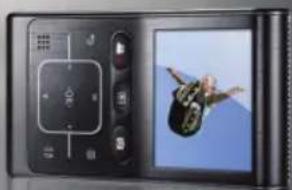
Close-up of a black digital camera with a screen displaying a small object, no visible text or symbols.
imagine the possibilities
Thank you for purchasing this Samsung product.
To receive more complete service, please
register your product at
www.samsung.com/register

key features of your camcorder
10 Mega pixel CMOS (1/2.3")
This camcorder's 10 mega pixel CMOS sensor catches your important moments and records them in fine detail. Unlike traditional CCD imagers, CMOS sensors require less power, providing efficient battery performance.
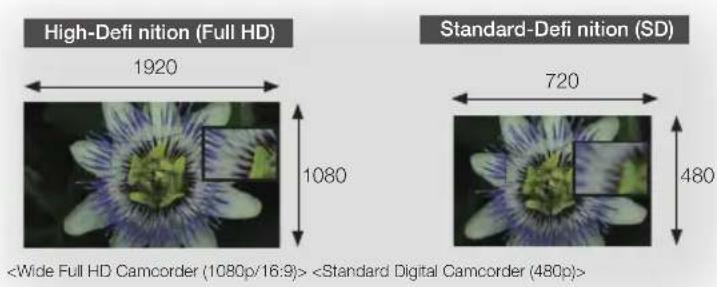
This camcorder uses advanced H.264 compression technology to realize the clearest video quality. Its full HD resolution displays your videos clearer than normal standard (SD)-quality.
10 Mega Pixel Photo Quality
Samsung's Pixel Rising technology yields high resolution still images that retain colors and resolution in extraordinary detail. The result is the 10 mega pixel image quality that is equivalent to a digital camera.

ii\_English
Shooting Custom Scenes
In Scene mode, appropriate options are already set for each scene so that you can select any of them for easy shooting.


High Speed Recording
This camcorder can record at 120 frames per second (fps). In addition, the recorded video can be played back at low speed (x1/2).

natural_image
Illustration of a group of baseball players in action, wearing blue uniforms and white helmets (no text or symbols visible)
Simple & Easy User Interface
Designed to provide optimized and easy use with an ergonomic design. An improved Graphics User Interface offers a new and fresh look as well as easy operation.
Time Lapse Recording Catches the Moment
You can record a long scene in short intervals. Record artistic, documentary videos including the passage of clouds, blooming flowers etc. Use this function to make UGC (User-Generated Contents) videos, educational programs or for other purposes.

flowchart
graph TD
    A["Top Image"] --> B["Top Row"]
    C["Bottom Image"] --> D["Bottom Row"]
    E["Top Row"] --> F["Top Row"]
    G["Bottom Row"] --> H["Bottom Row"]
Direct Upload of Your Videos to the Web!
The built-in editing software Intelli-studio installs directly from this camcorder to your PC, when you simply connect your camcorder to a PC via USB cable. Intelli-studio also allows direct uploading of your contents to YouTube with the press of a button. Sharing the contents with your friends is simpler than ever before.

flowchart
graph TD
    A["Computer with photo"] -->|Data Transfer| B["Audio Interface"]
    B --> C["Video Display"]
    C --> D["Handheld Device"]
English\_iii
safety warnings
What the icons and signs in this user manual mean :
 | Death or risk of serious personal injury. |
 | Potential risk of personal injury or material damage. |
 | To reduce the risk of fire, explosion, electric shock, or personal injury when using your camcorder, follow these basic safety precautions: |
 | Hints or referential pages that may be helpful when operating the camcorder. |
These warning signs are here to prevent injury to you and others.
Please follow them explicitly. After reading this section, keep it in a safe place for future reference.
precautions
Warning!
This camcorder should always be connected to an AC outlet with a protective grounding connection.
Caution!
If this power supply is used at 240V ac, a suitable plug adaptor should be used.
important safety instructions

CAUTION
RISK OF ELECTRIC SHOCK
DO NOT OPEN

CAUTION: TO REDUCE THE RISK OF ELECTRIC SHOCK, DO NOT REMOVE COVER (OR BACK).
NO USER-SERVICEABLE PARTS INSIDE REFFER
SERVICING TO QUALIFIED SERVICE PERSONNEL.

This symbol indicates that dangerous voltage consisting a risk of electric shock is present within this unit.

This symbol indicates that there are important operating and maintenance instructions in the literature accompanying this unit.
Warning
To Reduce The Risk Of Fire Or Electric Shock, Do Not Expose This Apparatus To Rain Or Moisture.
Caution
Apparatus shall not be exposed to dripping or splashing and no objects filled with liquids, such as vases, shall be placed on the apparatus. To disconnect the apparatus from the mains, the plug must be pulled out from the mains socket, therefore the mains plug shall be readily operable.
1. Read these instructions.
2. Keep these instructions.
3. Heed all warnings.
4. Follow all instructions.
5. Do not use this apparatus near water.
6. Clean only with dry cloth.
7. Do not block any ventilation openings. Install in accordance with the manufacturer's instructions.
8. Do not install near any heat sources such as radiators, heat registers, stoves, or other apparatus (including amplifiers) that produce heat.
9. Do not defeat the safety purpose of the polarized or grounding-type plug. A polarized plug has two blades with one wider than the other. A grounding type plug has two blades and a third grounding prong. The wide blade or the third prong are provided for your safety. If the provided plug does not fit into your outlet, consult an electrician for replacement of the obsolete outlet.
10. Protect the power cord from being walked on or
pinched particularly at plugs, convenience receptacles, and the point where they exit from the apparatus.
11. Only use attachment/accessories specified by the manufacturer.
12. Use only with the cart, stand, tripod, bracket, or table specified by the manufacturer, or sold with the apparatus. When a cart is used, use caution when moving the cart/apparatus combination to avoid injury from tipping over.
13. Unplug this apparatus during lightning storms or when unused for long periods of time.
14. Refer all servicing to qualified service personnel. Servicing is required when the apparatus has been damaged in any way, such as power-supply cord or plug is damaged, liquid has been spilled or objects have fallen into the apparatus, the apparatus has been exposed to rain or moisture, does not operate normally, or has been dropped.

English\_v
important safety instructions
15. Apparatus shall not be exposed to dripping or splashing and no objects filled with liquids, such as vases, shall be placed on the apparatus.
16. VENTILATION:
Slots and openings in the cabinet are provided for ventilation to ensure reliable operation of the CAMCORDER and to protect it from overheating. These openings must not be blocked or covered. Never place your CAMCORDER on a bed, sofa, rug, or other similar surface: on or near a radiator or heat register. This CAMCORDER should not be placed in a built-in installation such as a bookcase or rack unless proper ventilation is provided or the manufacturer's instructions have been adhered to.
17. POWER SOURCES:
The CAMCORDER should be operated only from the type of power source indicated on the label. If you are not sure of the type of power supply at your home, consult your appliance dealer or local power company. A CAMCORDER is intended to be operated from battery power, or other sources, refer to the operating instructions.
18. GROUNDING OR POLARIZATION:
This CAMCORDER may be equipped with either a polarized 2-wire AC line plug (a plug having one blade wider than the other) or a 3-wire grounding type plug, a plug having a third (grounding) pin. If you are unable to insert the plug fully into the outlet, try reversing the plug. If the plug still fails to fit, contact your electrician to replace your outlet. Do not defeat the safety purpose of the polarized plug.
19. POWER-CORD PROTECTION:
Power-supply cords should be routed so that they are not likely to be walked on or pinched by items placed upon or against them, paying particular attention to cords or plugs, convenient receptacles, and the point where they exit from the unit.
20. OUTDOOR ANTENNA GROUNDING: CAMCORDER, be sure the antenna or cable system is grounded to provide some protection against voltage surges and built-up static charges, Section 810 of the National Electrical Code, ANSI/NFPA No. 70-1984, provides information with respect to proper grounding of the mast and supporting structure, grounding of the lead-in wire and supporting structure, grounding of the mast and supporting structure, grounding of the lead-in wire to an antenna discharge unit, size of grounding to conductors, location of antenna-discharge unit, connection to grounding electrodes and requirements for the grounding electrode. See figure below.

21. LIGHTNING:
For added protection of this CAMCORDER during a lightning storm or when it is left unattended and unused for long periods of time, unplug it from the wall outlet and disconnect the antenna or cable system. This will prevent damage to the CAMCORDER due to lightning and powerline surges.
22. POWER LINES:
An outside antenna system should not be located in the vicinity of overhead power lines or other electric light or power circuits where it can fall into such power lines or circuits. When installing an outside antenna system, extreme care should be taken to keep from touching such power lines or circuits as contact with them might be fatal.
23. OVERLOADING:
Do not overload wall outlets and extension cords as this can result in a risk of fire or electric shock.
24. OBJECTS AND LIQUIDS:
Never push objects of any kind into this CAMCORDER through openings as they may touch dangerous voltage points or short out a part that could result in a fire or electric shock. Never spill liquids of any kind onto the CAMCORDER. Should spillage occur, unplug unit and have it checked by a technician before use.
25. SERVICING:
Do not attempt to service this CAMCORDER yourself. Opening or removing covers may expose you to dangerous voltage or other hazards. Refer all servicing to qualified service personnel.
26. DAMAGE REQUIRING SERVICE:
Unplug this CAMCORDER from the wall outlet and refer servicing to qualified service personnel under the following conditions:
a. When the power-supply cord or plug is damaged.
b. If any liquid has been spilled onto, or objects have fallen into the CAMCORDER.
c. If the CAMCORDER has been exposed to rain or water.
d. If the CAMCORDER does not operate normally by following the operating instructions, adjust only those controls that are covered by the operating instructions. Improper adjustment of other controls may result in damage and will often require extensive work by a qualified technician to restore the CAMCORDER to its normal operation.
e. If the CAMCORDER has been dropped or the cabinet has been damaged.
f. When the CAMCORDER exhibits a distinct change in performance, this indicates a need for service.
27. REPLACEMENT PARTS:
When replacement parts are required, be sure the service technician has used replacement parts specified by the manufacturer and has the same characteristics as the original part. Unauthorized substitutions may result in fire, electric shock or other hazards.
28. SAFETY CHECK:
Upon completion of any service or repairs to this CAMCORDER, ask the service technician to perform safety checks to determine that the CAMCORDER is in safe operating order.
29. To prevent damage which may result in fire or shock hazard, do not expose this appliance to rain or moisture.
30. If this power supply is used at 240V ac, a suitable plug adaptor should be used.
important safety instructions
31. This product is covered by one or more of the following U.S. patents:
5,060,220 5,457,669 5,561,649 5,705,762 5,987,417
6,043,912 6,222,983 6,272,096 6,377,524 6,377,531
6,385,587 6,389,570 6,408,408 6,466,532 6,473,736
6,477,501 6,480,829 6,556,520 6,556,521 6,556,522
6,578,163 6,594,208 6,631,110 6,658,588 6,674,697
6,674,957 6,687,455 6,697,307 6,707,985 6,721,243
6,721,493 6,728,474 6,741,535 6,744,713 6,744,972
6,765,853 6,765,853 6,771,890 6,771,891 6,775,465
6,778,755 6,788,629 6,788,630 6,795,637 6,810,201
6,862,256 6,868,054 6,894,963 6,937,552
USER INSTALLER CAUTION:
Your authority to operate this FCC certified equipment could be voided if you make changes or modifications not expressly approved by this party responsible for compliance to part 15 FCC rules.
NOTE:

LAMP(S) INSIDE THIS PRODUCT CONTAIN MERCURY AND MUST BE RECYCLED OR DISPOSED OF ACCORDING TO LOCAL, STATE OR FEDERAL LAWS. For details see lamprecycle.org, eiae.org, or call 1-800-Samsung (7267864)
CALIFORNIA USA ONLY
This Perchlorate warning applies only to primary CR (Manganese Dioxide) Lithium coin cells in the product sold or distributed ONLY in California USA
"Perchlorate Material - special handling may apply, See www.dtsc.ca.gov/hazardouswaste/perchlorate."
NOTE: This equipment has been tested and found to comply with the limits for a Class B digital device, pursuant to part 15 of the FCC Rules.
These limits are designed to provide reasonable protection against harmful interference in a residential installation. This equipment generates, uses and can radiate radio frequency energy and, if not installed and used in accordance with the instructions, may cause harmful interference to radio communications. However, there is no guarantee that interference will not occur in a particular installation. If this equipment does cause harmful interference to radio or television reception, which can be determined by turning the equipment off and on, the user is encouraged to try to correct the interference by one or more of the following measures:
- Reorient or relocate the receiving antenna.
- Increase the separation between the equipment and receiver.
- Connect the equipment into an outlet on a circuit different from that to which the receiver is connected.
- Consult the dealer or an experienced radio/TV technician for help and for additional suggestions. The user may find the following booklet prepared by the Federal Communications Commission helpful: "How to Identify and Resolve Radio-TV Interference Problems." This Booklet is available from the U.S. Government Printing Office, Washington, D.C. 20402, Stock No. 004-000-00345-4.
FCC Warning
The user is cautioned that changes or modifications not expressly approved by the manufacturer could void the user's authority to operate the equipment.
This device complies with Part 15 of FCC Rules.
Operation is subject to the following two conditions;
(1) This device may not cause harmful interference, and
(2) This device must accept any interference received, including interference that may cause undesired operation.
BEFORE USING THIS CAMCORDER
- This camcorder records video in H.264 Main Profile format and in High Definition Video (HD-VIDEO) or Standard Definition Video (SD-VIDEO).
- Please note that this camcorder is not compatible with other digital video formats.
• Before recording important video, make a trial recording.
- Play back your trial recording to make sure the video and audio have been recorded properly.
• The recorded contents cannot be compensated for:
\- Samsung cannot compensate for any damages caused when recording is not made normally or recorded contents cannot be played back because of a defect in the camcorder or memory card.
Also, Samsung cannot be held responsible for your recorded video and audio.
\- Recorded contents may be lost due to an error when handling this camcorder or memory card, etc.
Samsung shall not be held responsible for the loss of recorded contents, and cannot compensate for any damages.
• Make a backup of important recorded data.
\- Protect your important recorded data by copying the files to a PC. We recommend copying the data to your PC or other recording media for storage. Refer to the software installation and USB connection guide.
• Copyright: Please note that this camcorder is intended for consumer use only.
Data recorded on a card in this camcorder from other digital/analog media or devices is protected by the copyright act and cannot be used without permission of the copyright owner except for personal enjoyment. Even if you record an event such as a show, performance or exhibition for personal enjoyment, it is strongly recommended that you obtain permission beforehand.
ABOUT THIS USER MANUAL
Thank you for purchasing this Samsung Camcorder. Please read this user manual carefully before you use the camcorder and keep it handy for future reference. Should your camcorder fail to operate correctly, refer to Troubleshooting.
This User Manual covers model HMX-U10/U100.
• Illustrations of model HMX-U10 are used in this user manual.
- The displays in this user manual may not be exactly the same as those you see on the LCD screen.
- Designs and specifications of the camcorder and other accessories are subject to change without any notice.
• The following terms are used in this manual:
\- The terms 'video' and 'movie images' refer to one video unit from the point you press the Record start/stop button to start recording until you press again to pause the recording.
\- The terms 'photo' and 'still image' are used interchangeably with the same meaning.
\- In this user manual's function descriptions, the icon on the on-screen display section means that it will appear on the screen when you set the corresponding function.
Ex) Submenu item of "Video Quality"→ page 44
| item contents on-screen display | |
| Super Fine Records in the best possible quality. | |
(If set, corresponding icon (Will appear on the screen.)
English\_ix
NOTES REGARDING TRADEMARK
- All the trade names and registered trademarks mentioned in this manual or other documentation provided with your Samsung product are trademarks or registered trademarks of their respective holders.
• The SD logo is a trademark. The SDHC logo is a trademark.
- Microsoft®, Windows®, Windows Vista® and DirectX® are either registered trademarks or trademarks of the Microsoft Corporation in the United States and/or other countries.
- Intel ^® , Core ^™ , and Pentium ^® are the registered trademarks or trademarks of the Intel Corporation in the United States and other countries.
- Macintosh, Mac OS are either registered trademarks or trademarks of Apple Inc. in the United States and/or other countries.
• YouTube is a trademark of Google Inc.
- Flickr™ is a trademark of Yahoo! Inc.
- Adobe, the Adobe logo, and Adobe Acrobat are either registered trademarks or trademarks of Adobe Systems Incorporated in the United States and/or other countries.
- All the other product names mentioned here in may be the trademark or registered trademarks of their respect companies. Furthermore, "TM" and "®" are not mentioned in each case in this manual.
precautions during use
The safety precautions illustrated below are to prevent personal injury or material damage. Heed all instructions carefully.

WARNING
Death or risk of serious personal injury.


Unplug from power supply.Do not touch p

CAUTION
Means that there is a potential risk of personal injury or material damage.


This precaution must be kept.Do not disassemble product.

WARNING


Do not overload outlets or extension cords as this may result in abnormal heat or fire.


Using the camcorder at temperatures over 140^ F ( 60^ C) may result in fire. Keeping the battery at a high temperature may cause an explosion.


Do not allow water or metal and inflammable matter to enter the camcorder or AC power adaptor. Doing so may pose a fire hazard.


No sand or dust! Fine sand or dust entering the camcorder or AC power adaptor could cause malfunctions or defects.


No oil! Oil entering the camcorder or AC power adaptor could cause electric shock, malfunctions or defects.


Do not aim the LCD screen directly into the sun. Doing so could cause eye injuries, as well as lead to malfunctioning of internal parts of the product.


Do not bend the power-cord or damage the AC power adaptor by pressing on it with a heavy object. There may be a risk of fire or electric shock.


Do not disconnect the AC adaptor by pulling on its power-cord, as this could damage the power-cord.
precautions during use


Do not use the AC adaptor if it has damaged, split or broken cords or wires. Doing so may cause fire or electric shock.


Do not connect the AC adaptor unless the plug can be fully inserted with no part of the blades exposed.


Never use cleaning fluid or similar chemicals. Do not spray cleaners directly on the camcorder.


Keep the camcorder away from water when used near the beach or pool or when it rains. There is a risk of malfunction or electric shock.


Keep the used lithium battery or memory card out of the reach of children. If the lithium battery or memory card is swallowed by children, consult a physician immediately.


Do not attempt to disassemble, repair, or reform the camcorder or the AC adaptor to avoid a risk of fire or electric shock.


Do not plug or unplug the power cord with wet hands. There is a risk of electric shock.


Keep the power-cord unplugged when not in use or during lightning storms to prevent fire hazard.


When cleaning the AC adaptor, unplug the power-cord to avoid a risk of a malfunction or electric shock.


If the camcorder makes an abnormal sound, or smells or smokes, unplug the power-cord immediately and request service from a Samsung service center. There is a risk of fire or personal injury.


If the camcorder malfunctions, immediately detach the AC adaptor or battery from the camcorder immediately to avoid fire or injury.

CAUTION


Do not press the surface of the LCD with force, or hit it with a sharp object. If you push the LCD surface, display unevenness may occur.


Do not expose the camcorder to sand or water when recording at the beach or pool, or recording on a rainy day. Doing so may cause a malfunction or electric shock.


Do not use the camcorder near dense exhaust gas generated by gasoline or diesel engines, or corrosive gas such as hydrogen sulphide. Doing so may corrode the external or internal terminals, disabling normal operation.


Do not drop or expose the camcorder, battery, AC adaptor or other accessories to severe vibrations or impact. This may cause a malfunction or injury.


Do not leave the camcorder in a closed vehicle where the temperature is very high for a long time.


Do not expose the camcorder to insecticide. Insecticide entering the camcorder could cause the product to operate abnormally. Turn the camcorder off and cover it with vinyl sheet, etc. before using insecticide.


Do not use the camcorder on a tripod (not supplied) in a place where it is subject to severe vibrations or impact.


Do not expose the camcorder to soot or steam. Thick soot or steam could damage the camcorder case or cause a malfunction.


Do not expose the camcorder to sudden changes in temperature or a humid places. There is also a risk of defect or electric shock when using outdoors during lightning storms.
precautions during use


Do not wipe the camcorder body with benzene or thinner. The exterior coating could peel off or the case surface could deteriorate.


Do not use the camcorder near TV or radio. This could cause noise on the TV screen or to radio broadcasts.


Do not use the camcorder near strong radio waves or magnetism such as speakers or large motors. Noise could enter video or audio that are being recorded.


Use Samsung-approved accessories only. Using products from other manufacturers may cause overheating, fire, explosion, electric shock or personal injuries due to abnormal operation.


Place the camcorder on a stable surface and a place with ventilation openings.


Keep important data separately.
Samsung is not responsible for data loss.
contents
QUICK START GUIDE
06
GETTING TO kNOW YOUR CAMCORDER
10
PREPARATION
13
27
06 You can record videos in H.264 format!
10 What's included with your camcorder
11 Front & right side
12 Rear/left/top side
13 Using the wrist strap
13 Installing the camcorder on a tripod
14 Connecting a power source
19 Basic operation of your camcorder
19 Using the touch buttons
20 LCD screen indicators
23 Using the shortcut menu (OK guide)
25 Initial setting : date and time & OSD language
27 Inserting / ejecting the memory card
28 Selecting a suitable memory card
30 Recordable time and capacity
31 Basic camcorder positioning
contents
RECORDING
32
PLAYBACK
35
RECORDING OPTIONS
40
PLAYBACK OPTIONS
48
32 Recording videos or photos
34 Zooming in and out
35 Changing the playback mode
36 Playing videos
38 Viewing photos
40 Changing the menu settings
41 Recording menu items
42 Using the recording menu items
48 Playback menu items
49 Delete
50 Protect
51 Edit: divide
53 Share mark
54 Slide show
54 File info
55 Changing the menu settings in "settings"
56 Setting menu items
56 Using the setting menu items
55
USING WITH A WINDOWS COMPUTER
62
CONNECTING TO OTHER DEVICES
73
MAINTENANCE & ADDITIONAL INFORMATION
77
TROUBLESHOOTING
79
SPECIFICATIONS
8
62 Checking your computer type
63 What you can do with a Windows computer
64 Using the Intelli-studio program
71 Transferring videos/photos from the camcorder to your computer
73 Connecting to a TV
75 Viewing on a TV screen
76 Recording (dubbing) images on a VCR or DVD/HDD recorder
77 Maintenance
78 Additional information
78 Using your camcorder abroad
79 Troubleshooting
88 Specifications
quick start guide

natural_image
Exterior view of a modern digital camera with a circular lens (no visible text or symbols)
This quick start guide introduces the basic operation and features of your camcorder. See the reference pages for more information.
You can record videos in H.264 format, which enables you to conveniently email and share videos with your friends and family. You can also take photos with your camcorder.
Step1: Get ready
1. Insert a memory card. →page 27
\- You can use commercially available SDHC (SD High Capacity) or SD memory cards with this camcorder.

natural_image
Illustration of a handheld electronic device with an attached card and a scroll (no text or symbols visible)
2. Check the charge status of the battery.
- After turning on the camcorder by pressing the Power ( ⏻ ) button, check the battery level on the LCD screen.
- If you necessary, charge it by using the AC power adaptor.
→page 14

This camcorder features a built-in battery that can be charged by connecting the AC power adaptor. There is no need to replace batteries.

natural_image
Person relaxing on a purple floating platform in a pool (no visible text or symbols)
Step 2: Record with your camcorder

RECORDING VIDEOS WITH HD (HIGH DEFINITION) IMAGE QUALITY
Your camcorder uses advanced H.264 compression technology to realize the clearest video quality.
1. Press the Power (⏻) button.
2. Press the Recording start/stop (button.
\- To stop recording, press the Recording start/stop (button.

natural_image
Person relaxing on a purple inflatable raft in a pool, with a blue arrow pointing to the camera (no text or symbols on the image itself)
RECORDING PHOTOS
Your camcorder can record a high quality photo with a 4:3 or 16:9 aspect ratio.
1. Press the Power ( ⏻ ) button.
2. Press the Photo (☐) button halfway down to check the target image.
3. Press the Photo (☐) button fully when you are ready.

natural_image
Two people sitting together, one holding a baby's headband, with timestamp and camera icon visible (no readable text or symbols in the image)

- Your camcorder is compatible with H.264 recording format, which achieves efficient coding of high quality video with less capacity.
- The default setting is "1080/30p (Fine)". You can also record with SD (standard definition) video quality. page 43
• You can not take photos while you are recording videos.
quick start guide
Step 3: Play back videos or photos
VIEWING THE LCD SCREEN OF YOUR CAMCORDER
You can find your desired recordings quickly by using the thumbnail index view.
1. Press the Play (▶) button to select the Play mode.
\- The recorded videos and photos appear in the thumbnail index view. The thumbnail of the latest created or played file is highlighted.
2. Touch the ▲/▼/◄/► button to select the desired video or photo, then touch the OK button.

This camcorder provides one play mode for both video and photo recordings. You can easily play videos or photos in the same mode without having to switch modes.


VIEWING ON A HIGH DEFINITION TV
You can enjoy HD (High Definition) videos on a connected HDTV. page 73
Step 4: Save recorded videos or photos
Simple and fun! Enjoy the various features of Intelli-studio on your Windows computer.
Using the Intelli-studio program built-in your camcorder, you can import videos/photos into your computer, edit or share the videos/photos with your friends. page 64
IMPORTING AND VIEWING VIDEOS/PHOTOS FROM THE CAMCORDER TO YOUR PC
1. Launch the Intelli-studio program by connecting the camcorder to your PC via the USB cable.
\- A new file saving screen appears with the Intelli-studio main window. Click "Yes", the uploading procedure will start.
2. Click "Import folder" to import the videos or photos from the PC to the Intelli-studio, you will see the fi les location on the Intelli-studio browser.
3. You can double-click on the file you would like to start playing.

SHARING VIDEOS/PHOTOS ON Youtube/Flickr
Share your contents with the world, by uploading videos and photos directly to a web site with a single click. Click on the "Share" → "Upload to Share Site" tab on the browser. ➔ page 67

The Intelli-studio runs automatically once the camcorder is connected to a Windows computer (when you specify "PC Software: On"). page 60
Step 5: Delete videos or photos
If the storage media is full, you cannot record new videos or photos. Delete videos or photos data that have been saved on a computer from the storage media. Then you can record new videos or photos on newly freed-up space.
Press the Play (▶) button to switch the Play mode → touch the Menu (☑button → touch the ▲/▼/◀/▶/OK button to select "Delete." ➕page 49
getting to know your camcorder
WHAT'S INCLUDED WITH YOUR CAMCORDER
Your new camcorder comes with the following accessories. If any of these items are missing from your box, call Samsung's Customer Care Center.
| Model name Color Memory card slot LCD screen Lens | | |
| HMX-U10BN/U100BN Black | 1 slot Color | | x3.5 ~ x4(Digital zoom ratio) |
| HMX-U10RN/U100RN Red |
| HMX-U10EN/U100EN Green |
| HMX-U10UN/U100UN Purple |
| HMX-U10SN/U100SN Silver |

natural_image
Illustration of a silver digital camera with a circular lens and control buttons (no text or symbols visible)
• The shape is the same for all models. Only the color is different.
 |  | 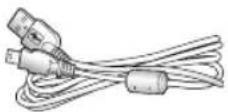 | 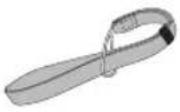 | 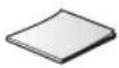 |
| AC power adaptor (AA-MA9 type) AD44-00151A | Component / AV cable AD39-00142D | USB cable AD82-00589A | Wrist strap AD82-00587A | Quick start guide AD82-00581A |


• The contents may vary depending on the sales region.
- Parts and accessories are available for purchase at your local Samsung dealer.
SAMSUNG is not responsible for reduced built-in battery life time or malfunctions caused by any unauthorized use of accessories such as the AC power adaptor.
• A memory card is not included. See page 28 for memory cards compatible with your camcorder.
- Your camcorder includes a user manual CD and a quick start guide (printed).
10\_English
FRONT & RIGHT SIDE

① LCD screen
② Photo (☐) button
3 Play (▶ button
4 Recording start/stop (button
⑤ Built-in speaker
6 Touch sensitive buttons
a Back (button
(b) ▲ (zoom-Wide) / ▼ (zoom-Tele) / ◀ / ▶ / OK button
© Share (U) button
d Menu (button
⑦ Power (⏻) button
⑧ CHG (changing) lamp
⑨ DC IN jack / Memory card cover
10 Reset button
11 DC IN jack
12 Memory card slot
13 Wrist strap hook
getting to know your camcorder
REAR/LEFT/TOP SIDE

① Internal microphone
2 Lens
③ Component/AV jack
4 USB jack
⑤ Jack cover (Component/AV jack, USB jack)
⑥ Tripod receptacle

Be careful not to cover the internal microphone and lens during recording.
preparation
This section provides information that you should know before using this camcorder; such as how to use the provided accessories, how to charge the battery, and how to setup the operation mode and initialize setup.
USING THE WRIST STRAP
Attach the strap and place your hand through the loop to prevent the camcorder from damage by being dropped.

natural_image
Illustration showing a device being connected to a handheld device via cable, with no visible text or symbols.
INSTALLING THE CAMCORDER ON A TRIPOD
When making high speed or self recordings, use the tripod for stable shooting. Use the tripod gender provided with the camcorder to install it on the tripod as shown in the figure.

The tripod is not supplied.

English\_13
preparation
CONNECTING A POWER SOURCE
- Be sure to charge the battery before you start using your camcorder.
- This camcorder features a built-in battery that can be charged by connecting the AC power adaptor. There is no need to replace batteries.
• The battery may be charged a little at the time of purchase.
Charging the battery
You can charge the battery using the AC power adaptor or USB cable.
1. Press the Power ( ⏻ ) button to turn off the camcorder.
2. Open the jack cover of the camcorder.
3. Charge the battery using the AC power adaptor or USB cable.
\- The CHG (charge) lamp lights up and charging starts. When the battery is fully charged, the charging (CHG) lamp turns green. → page 15
| Using the AC power adaptor | Connect the AC power adaptor to the camcorder properly and plug the AC Power adaptor in the wall outlet. |
| Using the USB cable | Connect the USB cable to the camcorder properly and connect the other end to a USB port of a PC. |


\- Charging the battery at low temperature may take longer or fail to fully charge (green indicator will not turn on).
- Please make sure that there are no foreign substances in the plug and socket when you connect the AC power supply to the camcorder.

\- When recording indoors with an available wall outlet, it is convenient to use the AC power supply.
- It is recommended to charge the battery in a place with ambient temperature of 32^ 113^ ( 0^ 45^ ).
- When charging, if both the USB cable and AC power adaptor are connected, the AC power adaptor will override the USB.
- If the camcorder is turned on and connected to an AC outlet, the battery will still charge, but more charging time will be needed. We recommend keeping the camcorder turned off while charging.
Charging (CHG) indicator
Tips for battery identification
The LED color indicates the charge status.
- If the battery has been fully charged, the charging indicator is green.
- While the battery is being charged, the charging indicator lights orange.
- If an error occurs while the battery is being charged, the charging lamp is off.

The Charging indicator color shows the charge status.
| Charging state Charging Fully Charged Error | | | |
| LED Color | (Orange) | (Green) | (Off) |
preparation
Battery Level Display
The Battery Level Display shows the amount of battery power remaining in the battery.
| Battery Level Indicator | State Message | |
| Fully charged - | |
| 20%~40% used - | |
| 40%~60% used - | |
| 60%~80% used - | |
| 80%~99% used - | |
| Exhausted (fl ickers): The device will soon turn off. Charge the battery as soon as possible. | - |
| - | The device will be forced to turn off after 3 seconds. | "Low battery" |

Above figures are based on a fully charged battery at normal temperature. Low ambient temperature may affect the use time.

Charging, recording and playback times with fully charged battery (with no zoom operation, etc.)
\- For your reference, the approximate time with fully charged battery:
| Charging time 3hr. (AC power adaptor) / 6hr. (USB cable) |
| Video resolution 1920x1080 30p |
| Mode | Continuous recording time 90min. |
| Playback time 120min. |
- The time is only for reference. Figures shown above are measured under Samsung's test environment, and may differ according to user and condition.
- We recommend using the AC power adaptor when using the Time Lapse REC function.
Continuous Recording (without zoom)
The continuous recording time of the camcorder in the table shows the available recording time when the camcorder is in the recording mode without using any other function. When actually recording, the battery may discharge 2-3 times faster than this reference, since the record start/stop and zoom functions are being operated, and playback is performed. Note that the battery discharges faster in a cold environment.
About the battery
- This camcorder features a built-in battery that can be charged by connecting the AC power adaptor. There is no need to replace batteries.
- The benefits of the battery: the battery is small but has a large power capacity. It should be recharged at temperatures between 32°F \~ 113°F (0°C \~ 45°C). However, when it is exposed to cold temperatures (below 32°F (0°C)), its usage time is reduced and it may cease to function.
preparation
Maintaining the battery
- Frequent use of the LCD screen or using the fast forward or rewind buttons wears out the battery faster.
- A battery which is completely discharged may not turn on the recharging LED during charging.
It is designed to protect the battery. When charge starts but the charge indicator does not light even within 5 minutes, contact your local dealer.
• The batteries have to be dealt with as chemical waste. Do not throw them in the trash.
- When fully discharged, a battery damages the internal cells. The battery may be prone to leakage when fully discharged.
- When not using the camcorder for an extended period: it is recommended to keep your camcorder with the battery fully charged. In this case, charge it every 2 months.
About the battery life
- Battery capacity decreases over time and through repeated use. If decreased usage time between charges becomes significant, it is probably time to replace it with a new one. Please contact your local dealer.
• Each battery's life is governed by storage, operating and environmental conditions.
Using the camcorder with the AC power adaptor
It is recommended that you use the AC power adaptor to power the camcorder when you perform settings on it, play back, or edit images, or use it indoors. Make the same connections as you do when charging the battery. page 14

- Use a nearby wall outlet when using the AC power adaptor. Disconnect the AC power adaptor from the wall outlet immediately if any malfunction occurs while using your camcorder.
- Do not use the AC power adaptor in a narrow space, such as between a wall and furniture.

\- Be sure to use the specified AC power adaptor to power the camcorder. Using other AC power adaptors could cause electric shock or result in fi re.
\- The AC power adaptor can be used around the world. An AC plug adaptor is required in some foreign countries. If you need one, purchase it from your distributor.
To save battery power:
- Keep your camcorder turned off when you are not operating it.
- When there is no operation for more than 2 minutes in the STBY mode or during recording, the power saving mode starts with the LCD screen dimmed. (When you specify "Auto LCD Off: On"), page 58
- You can set the "Auto Power Off" function which turns off the camcorder if there is no operation for 5 minutes. page 59
BASIC OPERATION OF YOUR CAMCORDER
This section explains the basic techniques of recording videos or photos and also basic settings on your camcorder. Set the appropriate operation mode according to your preference using the Power (☐) button and Play (☑) buttons
Turning the camcorder on or off
You can turn the power on or off by pressing the Power ( ) button.
1. Press the Power (☐) button to turn on the camcorder.
2. To turn off the camcorder, press the Power (⏻) button.
Setting the operating modes
\- You can switch the operating mode in the following order each time you press the Play (■button: Record mode ↔ Play mode
| Mode Functions |
| Record mode To | record videos or photos. |
| Play mode To play videos or photos, or edit them. |


- This camcorder provides one record mode for both video and photo recordings. You can easily record videos or photos in the same mode without having to switch modes.
• One play mode is also provided for video and photo recordings.
- When the camcorder is turned on, the self-diagnosis function operates and a message may appear. In this case, refer to "Warning indicators and messages" (on pages 79-80) and take corrective action.
This camcorder has touch sensitive button technology to conveniently navigate menus and functions.
Touch on the touch button with your fi ngertip.

- Do not use any object other than your fingers to operate it.
The touch buttons may not function if you use a fingernail or other instruments such as a ballpoint pen.
- Do not touch the touch buttons if your fingers are not clean.
- Do not touch the touch buttons with gloves on.

natural_image
Hand holding a handheld mobile phone with a screen and keypad (no visible text or symbols)
English\_19
preparation
LCD SCREEN INDICATORS


- The above screen is an example for explanation: It is different from the actual display.
- The on-screen indicators are based on an 8GB SDHC memory card.
- Functions marked with \* will not be kept when the camcorder is turned off and on again.
- For enhanced performance, the display indications and the order are subject to change without prior notice.
- This camcorder provides one combined video and photo record mode. You can easily record videos or photos in the same mode without having to change it.
- The total number of recordable photos is counted based on available space on the storage media.
- The number of recordable photos on the OSD is a maximum of 9999.
- You can check the selected mode indicator only when the on-screen information mode is set to full display. →page 24
Record mode
① Video record mode
② Remaining recordable time
③ Operating mode (STBY (Standby) / ● (Recording))
④ Photo counter (total number of recordable photos)
⑤ Photo record mode
⑥ Photo resolution
⑦ TV Out (when the component/AV cable is connected.)
⑧ Digital zoom
⑨ Battery information (remaining battery level)
⑩ No memory card display
⑪ Date/Time display
⑫ iSCENE
13 Back light
14 Digital effect
15 Time Lapse REC \*
16 Video quality
17 Video resolution


① Quick View
② Back light
③ Shortcut menu (OK Guide) / Return
4 Display
⑤ iSCENE

The shortcut menu (OK guide) represents the most frequently accessed functions according to the selected mode. Touching the Ok button will display a shortcut menu of frequently used functions on the LCD screen.
Play mode : Thumbnail View
① Play mode
② Recorded video time
③ Video fi le
4 Photo fi le
⑤ Error fi le
6 Image counter
(current file/total number of recorded files)
⑦ Scroll bar
⑧ Button guide
⑨ Share mark
10 Protection

This camcorder provides one play mode for both video and photo recordings. You can easily play videos or photos in the same mode without having to switch modes.
preparation


22\_English
Video play mode : Single View
① Video play mode
② Operating status (▶: Play / ||: Pause)
3 Time code (elapsed time/recorded time)
4 File name (fi le number)
⑤ TV Out (when the component/AV cable is connected.)
6 Battery information (remaining battery level)
7 Recorded date/time display
⑧ Shortcut menu (OK Guide)
/ : Move to previous fi le / REW (rewind)
▶▶ / ▶▶ : Move to next file / FF (fast forward)
+/−: Volume up/volume down
▶/ ||: Play/pause
9 Share mark
10 Protection
[1] Video resolution
Photo play mode : Single View
① Photo play mode
② Slide show
③ File name (fi le number)
4 TV Out (when the component/AV cable is connected.)
⑤ Battery information (remaining battery level)
6 Recorded date/time display
7 Shortcut menu (OK Guide)
/ Previous/next photo
: Playback zoom
8 Protection
9 Photo resolution
The Shortcut menu (OK guide) represents the most frequently accessed functions according to the selected mode. Touching the Ok button will display a shortcut menu of frequently used functions on the LCD screen.
1. Touch the OK button in STBY mode.
• The Shortcut menu is displayed.
2. Touch the ▲ button to select "iSCENE".
• The iSCENE icon is highlighted.
3. Each time touch the ▲ button, the iSCENE mode changes.
Select the desired mode, then touch the Ok button to confirm your selection.
\- The selected mode indicator (s) will display on the screen.
\- Touch the Ok button to exit the shortcut menu.

• Before selecting a menu item, please check that you set the appropriate mode first.
\- You can check the selected mode indicator only when the on-screen information mode is set to full display. ▶page 24

preparation
| Button Record mode | Play mode | Menu selection |
| Video play mode: Single view | Photo play mode: Single view |
 OK OK |  - Access the shortcut menu- Confirm selection- Exit the shortcut menu - Access the shortcut menu- Confirm selection- Exit the shortcut menu | 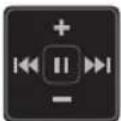 | - Access the shortcut menu- Playback / Pause | 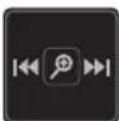 - Access the shortcut menu- Playback / Playback zoom (x2.0 - x5.0) - Access the shortcut menu- Playback / Playback zoom (x2.0 - x5.0) | Confirms selection |
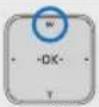 ▲(W) ▲(W) | - Digital zoom (wide)- iSCENE(in the shortcut menu)Each time the ▲ button is touched, the iSCENE mode changes. | Increases the volume | - | Moves the cursor up |
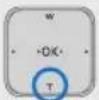 ▼(T) ▼(T) | - Digital zoom (tele)- Back Light(in the shortcut menu)Touching the ▼ button toggles the back light on or off. | Decreases the volume | - | Moves the cursor down |
 ◀(•) ◀(•) | - Display(in the shortcut menu)Each time the ◀ button is touched, the following on-screen information display modes appear: simple display → full display → display off | - Search playback RPS (Reverse Playback Search) rate: x2→x4→x8→x16→x32- Previous skip playback- Frame-by- frame playback- Reverse slow motion playback rate: x1/2→x1/4→x1/8 | Previous image | Moves to the previous menu |
 ▶(•) ▶(•) | - Quick View(in the shortcut menu)You can view the most recently recorded video or photo right after your recording.→page 33 | - Search playback FPS (Forward Playback Search) rate: x2→x4→x8→x16→x32- Next skip playback- Frame-by- frame playback- Forward slow motion playback rate: x1/2→x1/4→x1/8 | Next image | Moves to the next menu |
INITIAL SETTING : DATE AND TIME & OSD LANGUAGE
- Initial setting is available in all operating modes.
• To read the menus or messages in your desired language, set the OSD language.
• To store the date and time during recording, set the date/time.
Turning the power on and setting the date and time
Set the date and time of your local area when turning on this camcorder for the first time. If you do not set date and time, the date and time screen appears every time you turn on your camcorder.
1. Press the Power ( ⏻ ) button to turn on the camcorder.
\- When you turn on your camcorder for the first time, the Date/Time Set screen appears.
2. Select the date and time information and change the setting values by using the ▲/▼/◄/► button.
3. Make sure the date/time is correctly set, then touch the Ok button.


• After setting, the date and time are automatically recorded on a special data area of the storage media.
• The year can be set up to 2039.
- This camcorder adopts a built-in battery. When its charged capacity decreases, saved user settings may be reset so be sure to charge the battery after use.
- When the battery use time is significantly decreased, the battery is near the end of its useful life and must be replaced by a Samsung authorized service center.
- When keeping your camcorder with the battery fully charged, the user settings remain for 2 months or more.
- When the battery is discharged, the date/time is initialized to "JAN/01/2009 12:00 AM."
preparation
Selecting the OSD language
You can select the desired language to display the menu screen and the messages.
1. Touch the Menu (☐) button.
• The menu screen appears.
2. Touch the ◀/▶ button to select "Settings."
• The settings menu appears.
3. Touch the ▲/▼ button to select "Language," then touch the Ok button.
4. Touch the ▲/▼ button to select the desired OSD language, then touch the Ok button.
\- English / 한국어 / Français / Deutsch / Italiano / Español / Português / Русский / 中文 ايراني
5. To exit, touch the Menu (button.
• The OSD language is refreshed in the selected language.


• Even though you turn the camcorder off and on, the current language setting is preserved.
- The "Language" options may be changed without prior notice.
- The date and time format may change depending on the selected language.
- This camcorder adopts a built-in battery. When its charged capacity decreases, saved user settings may be reset so be sure to charge the battery after use.
\- When the battery use time is significantly decreased, the battery is near the end of its useful life and must be replaced by a Samsung authorized service center.
\- When keeping your camcorder with the battery fully charged, the user settings remain for 2 months or more.
- You can record on a memory card, so you should insert the desired storage media before starting recording or playback.
- You can use SDHC and SD cards on your camcorder.
(Some cards are not compatible depending on the memory card manufacturer and memory card type.)
- Before inserting or ejecting the memory card, turn the camcorder off.
INSERTING / EJECTING THE MEMORY CARD
Inserting a memory card
1. Turn the camcorder off.
2. Open the memory card cover as shown in the figure.
3. Insert the memory card into the memory card slot until it softly clicks in the direction of the arrow shown in the figure.
4. Close the cover.
Ejecting a memory card
1. Turn the camcorder off.
2. Open the memory card cover as shown in the fi gure.
3. Slightly push the memory card inwards to pop it out.
4. Pull the memory card out of the memory card slot and close the cover.

As shown in the figure, be sure to slide the memory card inwards with the label facing down.

\- Never format a memory card using a PC.
- Do not eject a memory card while it is being used in the camcorder. The memory card and its data may be damaged.

English\_27
SELECTING A SUITABLE MEMORY CARD
A memory card is a compact portable storage media.
• You can use an SDHC memory card.
(Memory cards must be purchased separately.)
\- You can also use an SD memory card, but recommended that you use an SDHC memory card with your camcorder. (SD cards up to 2GB are supported with this camcorder. Normal operation is not guaranteed with SD cards bigger than 2GB.)
\- In this camcorder, you can use memory cards (SD/SDHC) of the following capacity.
\- S D: 1GB\~2GB, SDHC: 4GB\~32GB
• Compatible recording media
\- The following recording media have been recommended for use with this camcorder. Others are not recommended, so buy such products with caution. SDHC or SD memory cards: by Panasonic, SanDisk, and TOSHIBA
\- If other media are used, they may fail to record data correctly, or they may lose data that has already been recorded. For video recording, use a memory card that supports faster write speed.
\- Write speed: 5MB/sec is recommended.
SDHC/SD memory cards

SDHC (Secure Digital High Capacity) memory card
• The SDHC card is a higher version (Ver.2.00) SD card and supports capacity above 4GB.
- An SDHC card has a mechanical write protection switch. Setting the switch prevents accidental erasure of fi les recorded on the card. To enable writing, move the switch up towards the terminals. To set write protection, move the switch down.
- Due to changes In File Allocation System and physical specifications, SDHC memory cards can not be used with current SD enabled host devices. SDHC memory cards can only be used with only SDHC enabled host devices.
Common cautions for memory card use
- Damaged data may not be recovered. It is recommended you make a back-up of important data on the hard disk of your PC.
- Turning the power off or removing a memory card during operations such as formatting, deleting, recording, and playback may cause data loss.
- After you modify the name of a file or folder stored in the memory card using your PC, your camcorder may not recognize the modified file.
28\_English
Handling a memory card
- It is recommended that you power off before inserting or removing the memory card to avoid data loss.
- It is not guaranteed that you can use a memory card formatted by other devices. Be sure to format your memory card using this camcorder.
- You have to format newly-purchased memory cards, memory cards with data that your camcorder cannot recognize or are saved by other devices. Note that formatting erases all data on the memory card.
- If you cannot use a memory card that has been used with another device, format it with your camcorder. Note that formatting erases all information on the memory card.
- A memory card has a certain life span. If you cannot record new data, you have to purchase a new memory card.
• A memory card is a precision electronic media. Do not bend, drop, or cause strong impact to the card.
- Do not use or store at high temperatures, in humidity or a dusty environment.
- Do not bring foreign substances on the memory card terminals. Use a soft, dry cloth to clean the terminals if required.
- Do not paste anything other than the label supplied with the card on the label pasting portion.
- Be careful to keep the memory card out of the reach of children, who might swallow it.
• Samsung is not responsible for data loss due to misuse.
• We recommend using a memory card case to avoid losing data from moving and static electricity.
• After a period of use, the memory card may get warm. This is normal and is not a malfunction.
The camcorder supports SDHC/SD memory cards for data storage.
• The data storage speed may differ, depending on the manufacturer and production system.
- Using a lower write speed memory card when recording a video may cause problems when storing the video on the memory card. You may even lose your video data during the recording.
- In an attempt to preserve every bit of the recorded video, the camcorder forcibly stores the video on the memory card and displays a warning: "Low speed card. Please record at lower quality."
- If you are forced to use a low speed memory card, resolution of the recording may be lower than the set value. However, the higher the resolution, the more memory will be used.
- For optimal performance of the camcorder, ensure that you purchase a fast speed memory card.
To facilitate video recording, you are recommended to use a memory card that supports faster write speed.
Actual formatted capacity may be less as the internal firmware uses a portion of the memory.
RECORDABLE TIME AND CAPACITY
- The following shows the camcorder's maximum recording time and number of images according to the resolution / memory capacity.
- For recording videos and photos, please note the approximate maximum limits.
Recordable time for videos
| Media Memory Card (SDHC/SD) |
| Capacity | 1GB 2GB | 4GB 8GB 16GB | 32GB | | | |
| Resolution Quality |
| 1080/30p | Super Fine | 7 min. 15 min. 31 min. 63 min. 126 min. 254 min. | | |
| Fine | 11 min. 21 min. 45 min. 90 min. 179 min. 360 min. | | |
| 720/60p | Super Fine | 11 min. 21 min. 45 min. 90 min. 179 min. 360 min. | | |
| Fine | 16 min. 32 min. 67 min. 134 min. 269 min. 541 min. | | |
| 720/30p | Super Fine | 16 min. 32 min. 67 min. 134 min. 269 min. 541 min. | | |
| Fine | 22 min. 43 min. 90 min. 180 min. 359 min. 721 min. | | |
| 480/60p | Super Fine | 29 min. 58 min. 120 min. 240 min. 479 min. 962 min. | | |
| Fine | 45 min. 87 min. 180 min. 260 min. 719 min. 1444 min. | | |
| Slow Motion Super Fine | 67 min. 131 min. 270 min. 540 min. 1079 min. 2165 min. | | |
(Unit: Approximate minutes of recording)
1GB ÷ 1,000,000,000 bytes : actual formatted capacity may be less as the internal firmware uses a portion of the memory.
Recordable number of photos
| Media Memory Card (SDHC/SD) |
| Resolution\Capacity | 1GB 2GB | 4GB 8GB | 16GB 32GB | | | |
| 3648X2736 | 379 | 740 | 1529 | 3058 | 6103 | 9999 |
| 3648X2052 | 458 892 | | 1843 | 3686 | 7352 | 9999 |
| 2816X2112 | 680 | 1324 | 2734 | 5468 | 9999 | 9999 |
| 2816X1584 | 889 | 1731 | 3572 | 7144 | 9999 | 9999 |
| 2048X1536 | 1363 | 2651 | 5470 | 9999 | 9999 | 9999 |
| 2048X1152 | 1759 | 3421 | 7058 | 9999 | 9999 | 9999 |
(Unit: Approximate number of images)

- The previous figures are measured under Samsung's standard recording test conditions and may differ depending on the test or use condition.
• The higher the resolution and quality settings, the more memory is used.
- High resolution images occupy more memory space than low resolution images. If the higher resolution is selected, there is less space to record videos in the memory.
- When recording complex videos with a lot of action and color, the file size will be larger.
• Memory cards of bigger than 32GB in capacity may not work properly.
- The maximum size of a video file that can be recorded at one time is 3.5GB (HD resolution) and 1.3GB (SD resolution).
• You can store up to 9999 videos and photos in one folder.
- The recording length of a Time Lapse REC may vary depending on settings.
BASIC CAMCORDER POSITIONING
Hold your camcorder properly while recording to avoid covering the lens and the internal microphone with your fingers and pressing any button without purpose.
Adjusting the shooting angle
Aim the camcorder as shown in the illustration.
1. Hook up the wrist strap to your hand.
2. Make sure your footing is stable and there is no danger of colliding with another person or object.
3. Aim and focus as shown in the illustration.

It is recommended to keep the sun behind you while shooting.

natural_image
Illustration of a person taking a photo with a sun in the background (no text or symbols)
English\_31
recording
Basic procedures to record a video or photo image are described below and on the following pages.
This camcorder provides one combined video and photo record mode. You can easily record videos or photos in the same mode without having to change it.
RECORDING VIDEOS OR PHOTOS
- This camcorder supports both High Defi nition (HD) and Standard Defi nition (SD) resolutions. You can also record photos with various resolutions.
- Before recording, set the resolution for your purpose. ➕ pages 43-44
PRECHECK
- Insert the memory card. page 27
- Press the Power (⏻) button to turn on the camcorder.
- Check the subject on the LCD screen.

To record videos
1. Press the Recording start/stop (oo) button.
\- The recording indicator (●) will display and recording will start.
\- To stop recording, press the Recording start/stop (button again.
2. When recording is finished, turn the camcorder off.

natural_image
Person relaxing in a purple inflatable raft on water, with no visible text or symbols
To record photos
1. Press the Photo (button halfway down (half press).
\- Check the target image.
2. Press the Photo (☐) button down fully (full press).
\- A shutter sound is heard. When the capturing (▶▶▶) indicator disappears, the photo is recorded.
\- While saving the photo on the storage media, you cannot proceed with the next recording.
3. When recording is fi nished, turn the camcorder off.

natural_image
Two children sitting together indoors, one holding a white headband, with timestamp and video frame visible (no readable text or symbols)
32\_English

Do not operate the Power ( ⏻ ) button or remove the memory card while accessing the storage media. Doing so may damage the storage media or the data on the storage media.

\- For on-screen information display. page 20
\- For various functions available when you record videos and photos. ➕ pages 42-47
\- During recording, some button operations are unavailable. (Play (▶) button, Menu (■button, etc.)
\- Sound is recorded from the internal stereo microphone on the top of the camcorder. Take care that this microphone is not blocked.
\- Before recording an important video and photo, make sure to test the recording function to check if there is any problem with the audio and video recording.
\- You cannot use a locked memory card for recording. You will see a message saying recording is disabled due to the lock.
\- You can switch the play mode to the record mode by pressing the Recording start/stop (播放), Photo (Play) or Back (播放) button.
• Audio will not be recorded with the photo on the storage media.
\- Photo files recorded by your camcorder conform to the "DCF (Design rule for Camera File system)" universal standard established by the JEITA (Japan Electronics and Information Technology Industries Association).
\- DCF is an integrated image-file format for digital cameras: Image files can be used on all digital devices conforming to DCF.
• Using the Quick View function, you can view the most recently recorded video or photo image right after your recording.
QUICK VIEW
Using the Quick View function, you can view the most recently recorded video or photo image right after your recording.
1. Touch the OK button in STBY mode right after your recording.
\- Shortcut menu is displayed on the LCD screen.
2. Touch the ▶ button to view the most recent video (or photo) you have recorded.
- During a quick view, use the ▲/▼/◄/►/OK buttons for playback search the current file.
- Touch the Menu (☐) button to delete the recording which is being played back.
3. After the quick view is finished, your camcorder switches back to the STBY mode.

recording
ZOOMING IN AND OUT
• Use the zoom function for close-up or wide-angle recording.
• This camcorder allows you to record using the digital zoom.
To zoom in
Touch the ▼(T) button to zoom in.
Digital Zoom is available from 3.5 to 4 times according to the video resolution.
To zoom out
Touch the ▲(W) button to zoom out.

\- The digital zoom function is not available in the following conditions:
- When recording a video at "Video Resolution: 1080/30p."
- When connecting to a TV.
- During slow motion recording
- Note that the image quality decreases when you use the digital zoom. The image quality may deteriorate depending on how much you zoom in on the subject.
- Frequent use of the digital zoom function consumes more power.
- If you use the digital zoom while recording, the operation noises such as button touch sound can be recorded.
- The minimum focal length between the camcorder and the subject is 1.3m.


natural_image
Group of people celebrating with colorful ribbons in a blue background (no visible text or symbols)
playback
- You can view recorded videos and photos in thumbnail index view and play them in various ways.
- This camcorder provides one combined video and photo play mode. You can easily play videos or photos in the same mode without having to change it.
CHANGING THE PLAYBACK MODE
- Record/play mode can be switched with the Play (Button)
- Single view screen can be moved to thumbnail index view screen with the Back (button.

playback
PLAYING VIDEOS
You can find desired videos quickly using the thumbnail index view.
PRECHECK
- Insert the memory card. page 27
- Press the Power (⏻) button to turn on the camcorder.
1. Press the Play (▶) button to select the Play mode.
• The thumbnail index view appears.
- In thumbnail index view, a video is displayed with a film border and a photo is displayed with its screen ratio.
- The thumbnail highlight is on the latest created or played file.
- When a video file is selected, the playing time appears on the screen.
2. Touch the ▲/▼/◄/► button to select the desired video, then touch the OK button.
- The Shortcut menu for playback is displayed and the selected video is played.
- When a playback is complete, the thumbnail index view appears.
- To return to thumbnail index view while playing, touch the Back (←) button.

Do not power off or eject the memory card during video playback. Doing so may damage the recorded data.

• Video files may not playback on the camcorder in the following cases:
- Video files were edited or renamed on a PC
- Video files were recorded by devices other than the camcorder
- Video file formats that are not supported
- The built-in speaker and LCD screen automatically turn off when the component/AV cable is connected to the camcorder. (When connected to external devices, volume adjustment should be done on the connected external device.)
• You can playback recorded video on a TV or a PC. ➞ pages 73, 64
• You can upload recorded videos or photos to YouTube or Flickr using Intelli-studio. →page 67
- For various functions available during playback, see "playback options." page 37


natural_image
Two unrelated photos: a filmstrip showing a white animal and a purple inflatable raft with a baby (no text or symbols)

Adjusting the volume
1. Touch the OK button to display the shortcut menu.
2. Touch the ▲/▼ button to increase or decrease the volume.
• The volume bar disappears after 3\~4 seconds.
• You can hear the recorded sound from the built-in speaker.
• The level can be set to anywhere between 0 and 10.
Various playback operations
Still playback (pause) (▶/Ⅱ)
- Touch the OK button during playback.
- To resume normal playback, touch the OK button again.
Search playback ( ◀◀ / ▶▶ )
- During playback, place and hold your finger on the ◀/▶ button for reverse search/forward search.
- Touching the ◀/▶ button repeatedly increases the search speed for each direction.
\- RPS (Reverse Playback Search) rate: x2 →x4→x8→x16→x32
\- FPS (Forward Playback Search) rate: x2 →x4→x8→x16→x32
• To resume normal playback, touch the OK button.
Skip playback (◀◀◀)
- During playback, touch the ▶ button to locate the start point of the next file. Touching the ▶ button repeatedly skips files in the forward direction.
- During playback, touch the ◀/▶ button to locate the start point of the current file. Touching the ◀/▶ button repeatedly skips files in the reverse direction.
- Touch the ◀/▶ button within 3 seconds from the start point, and the first image of the previous file is skipped.
Frame-by-frame playback (◀)
- During pause, touching the ◀/▶ button makes play go reverse/forward one frame at a time.
- To resume normal playback, touch the OK button.
Slow motion playback (◀)
- During pause, place and hold your finger on the ◀/▶ button for reverse/forward slow playback.
- During slow motion playback, touching the ◀/▶ button changes the playback speed.
- Reverse/forward slow playback rate: x1/2 → x1/4 → x1/8
- To resume normal playback, touch the OK button.


Playing back for search, skip, slow motion or frame-by-frame except normal playback, it does not support the audio function.
playback
VIEWING PHOTOS
You can find and view desired photos quickly using the thumbnail index view.
PRECHECK
- Insert the memory card. page 27
- Press the Power (⏻) button to turn on the camcorder.
1. Press the Play (▶) button to select the Play mode.
• The thumbnail index view appears.
- In thumbnail index view, a video is displayed with a film border and a photo is displayed with its screen ratio.
- The thumbnail highlight is on the latest created or played file.
2. Touch the ▲/▼/◄/► button to select the desired photo, then touch the OK button.
- The Shortcut menu for playback is displayed and the selected photo is displayed in the full screen view.
• To view the previous/next file, touch the ◀/▶ button.
- To return to the thumbnail index view, touch the Back (←) button.

Do not power off or eject the memory card during photo playback. Doing so may damage the recorded data.

- Your camcorder may not playback the following photo fi les normally;
- A photo with its file name changed on a PC.
- A photo recorded on other devices.
- A photo with a file format not supported on this camcorder (does not conform to DCF standards).
- Loading time may vary depending on the size and quality of the selected photo.


natural_image
Two unrelated photos: a filmstrip-style photo of a woman in grayscale and a purple inflatable raft floating on water (no text or symbols)

Zooming during photo playback
You can magnify the playback photo image from the original size. Magnifi cation can be adjusted with the OK button on the camcorder.
1. Select the photo you want to magnify.
2. Adjust the magnification with the OK button.
- The screen is framed and the image is magnified starting from the center of image.
• You can zoom in from x2.0 to x5.0 by touching the OK button.
- While the playback zoom is in use, other images cannot be selected.
3. Touch the ▲/▼/◄/► button to get the part you want in the center of the screen.
4. To cancel, touch the Back (←) button.

- You cannot apply the playback zoom function to the images that are recorded on other devices.
• The playback zoom function is available only in photo single view.


natural_image
Person relaxing on a purple lounge chair during January 2009 (no visible text or symbols)
recording options
- You can change the menu settings to customize your camcorder.
- Access the desired menu screen by following the steps below, then change the various settings.
- Follow the instructions below to use each of the menu items listed after this page.
For example: Setting the iSCENE in Record mode.
1. Press the Power ( ⏻ ) button to turn on the camcorder.
2. Touch the Menu (☐) button.
• The menu screen appears.
3. Touch the ◀/▶ button to select "iSCENE."
4. Select the desired submenu item with the ▲/▼ button, then touch the OK button.
5. To exit, touch the Menu (☐) or Back (◀) button.

• The selected item is applied and the indicator is displayed.
- However, if "Auto" is selected in the iSCENE mode, the item's indicator may not be displayed on the screen.
- You can check the selected mode indicator only when the on-screen information mode is set to full display. ➕ page 24
- You can also access the shortcut menu using the OK button. page 23

a. Menu (button : Use it to enter or exit the menu.
b. ▲/▼/◄/► button : Use it to move up/down/left/right.
c. OK button : Use it to select or confirm the menu.
40\_English
- Accessing items in the menu depends on the operation mode.
- For operation details, see the corresponding page. ➤ pages 42-47
| Items Default value Page | | |
| iSCENE Auto 42 | | |
| Video Resolution 1080/30p 43 | | |
| Video Quality Fine 44 | | |
| Photo Resolution 3648x2736 (4:3) 44 | | |
| Back Light Off 45 | | |
| Digital Effect Off 45 | | |
| Time Lapse REC Off 46 | | |

There are some functions you cannot activate simultaneously in the menu. You cannot select the grey menu items. Refer to the troubleshooting for examples of unworkable combinations of functions and menu items. page 87
recording options
You can the menu items for video or photo images recording.
iSCENE
This camcorder automatically sets the shutter speed according to the subject's brightness for optimal recording: You can also specify one of various modes depending on subject conditions, recording environment or purpose of filming.
| item contents on-screen display | |
| Auto - | You can shoot images in Auto adjustment mode. None | |
| Sports | - Reduces blurring when recording rapidly moving subjects such as in golf or tennis. If the Sports mode is used under a fluorescent light, the image may flicker. In this case, use the Auto mode for recording. |  |
| Beach/Snow | - Prevents underexposure of subject's face, etc. in a place where light reflection is intense, such as at the beach in midsummer or on a ski slope. |  |

The iSCENE also can be set in the shortcut menu. ➕page 23
Video Resolution
You can select the resolution of video to be recorded.
| item contents on-screen display | |
| 1080/30p Records in the HD (1920x1080 30p) format. | HD |
| 720/60p Records in the HD (1280x720 60p) format. | HD |
| 720/30p Records in the HD (1280x720 30p) format. | HD |
| 480/60p Records in the SD (720x480 60p) format. | SD |
| Slow Motion | Records in the slow motion (320x240 120fps).This camcorder can record by 120 frames per second (fps). In addition, the recorded video can be played back at low speed (x1/2). | SD |

- "60p"/"30p" indicates the camcorder will record in progressive scan mode at 60/30 frames per second.
- Recorded files are encoded with Variable Bit Rate (VBR). VBR is an encoding system that automatically adjusts the bit rate according to the recording image.
- High resolution images occupy more memory space than low resolution images. If the higher resolution is selected, there is less space to record videos in the memory.
- Zoom can not be performed slow motion recording.
• The recording times depend on the resolution of a video to be recorded. → page 30
• Audio is not recorded while recording in slow motion.
- The image quality of "Slow Motion" is not as good as that of normal recording.

English\_43
recording options
Video Quality
You can select the quality of a video to be recorded.
| item contents on-screen display | |
| Super Fine | Records in the best possible quality. | |
| Fine | Records in high quality. | |

- The lower quality of a video is, the higher compression rate is. The recordable time of a video is increased, but its quality is decreased.
• Regarding detailed image capacity, see page 30
Photo Resolution
You can select the resolution of the photo to be recorded.
| item contents on-screen display | | |
| 3648x2736 Records in 3648x2736 resolution with 4:3 aspect ratio. | 10M |
| 3648X2052 | Records in 3648X2052 resolution with 16:9 aspect ratio. | 7.5M |
| 2816X2112 | Records in 2816X2112 resolution with 4:3 aspect ratio. | 6M |
| 2816X1584 | Records in 2816X1584 resolution with 16:9 aspect ratio. | 4M |
| 2048X1536 | Records in 2048X1536 resolution with 4:3 aspect ratio. | 3M |
| 2048X1152 Records in 2048X1152 resolution with 16:9 aspect ratio. | 2M |

- For photo development, the higher the resolution, the finer the image quality.
• The number of recordable images varies depending on the recording environment.
- High resolution images occupy more memory space than low resolution images. If a higher resolution is selected, there is less space to store photos in the memory.
- For detailed information image capacity. page 31
Back Light
When the subject is lit from behind, this function will compensate for lighting so that the subject is not too dark.
| item contents on-screen display | |
| Off | Disables the function. None | |
| On | - Backlight compensation is executed.- Backlight compensation brightens the subject quickly. |  |
Back lighting influences recording when the subject is darker than the background:
• The subject is in front of a window.
• The subject is against a snowy background.
• The subject is outdoors and the background is overcast.
• The light sources are too bright.
- The person to be recorded is wearing white or shiny clothes and is placed against a bright background:
The person's face is too dark to distinguish his/her features.

natural_image
Black-and-white photo of a smiling child outdoors, no visible text or symbols

natural_image
Black-and-white photo of a smiling child sitting indoors (no text or symbols visible)

This function also can be set in the shortcut menu. →page 23
Digital Effect
- The digital effect enables you to give a creative look to your recording.
- Select the appropriate digital effect for the type of picture that you wish to record and the effect you wish to create.
• There are 4 different digital effect options.
| item contents | on-screen display |
| Off | Disables the function. | None |
| 1 B&W | Changes the images into Black and White. | |
| 2 Sepia | This mode gives the images a reddish brown pigment. | |
| 3 Negative | Reverses the colors and the brightness, creating the look of a negative. | |
| 4 Art | Adds artistic effects to an image. | |


English\_45
recording options
Time Lapse REC
- Time Lapse REC records still images at specific intervals you can set, and plays them as one video file.
- This function is useful for observing the movement of clouds, the changes in daylight or blooming flowers, etc.
| Settings Contents On-screen display | |
| Off | Disables the function. | None |
| On | When you start video recording, images of the subject are captured and saved to the storage media by set interval and total recording period. | |
Setting the Time Lapse REC mode:
To record in the Time Lapse REC mode, you need to set the recording interval and total recording time in the menu.
1. Touch the Menu (☐) button.
2. Touch the ◀/▶ button to select "Time Lapse REC."
3. Touch the ▲/▼ button to select "On," then touch the OK button.
• The recording interval and total time for recording items are displayed.
("Sec": seconds, "Hr": hours)
4. Set a desired recording interval ("Sec") with the ▲/▼ button. ("1 Sec" → "10 Sec" → "30 Sec")
5. Move to the next setting with the ▶ button and set a desired total recording time ("Hr") in the same way. ("24 Hr" → "72 Hr" → "48 Hr")
\- While you set the preparatory settings (recording interval and total recording time), the approximate time-lapse recording time will be displayed on the menu screen.
6. Touch the OK button to finish the setting and touch the Menu (☐) or Back (←button to exit the menu.
7. After setting the Time Lapse REC mode, press the Recording start/stop ( ) button.
• The Time Lapse REC starts.
- For Time Lapse REC, the [HD]720/60p resolution and Super Fine quality are supported only.


Example of Time Lapse REC

Time Lapse REC records image frames at a predefined interval to produce a time-lapse video.
Time Lapse REC is useful for filming in the following situations:
- Blooming flowers
• Clouds rolling by in the sky

natural_image
Close-up of a green flower with multiple petals and blossoms, surrounded by dark foliage (no text or symbols visible)
→

natural_image
Close-up of a pale yellow flower with five petals against a dark background (no text or symbols)
→

natural_image
Close-up of a white flower with green center and blue stamens, no visible text or symbols
→

natural_image
Close-up of a blooming passion flower with purple and green stamens (no text or symbols visible)

• This function is shut off after being used one time.
- 60 captured images compose a video of 1 second length. Since the minimum length of a video to be saved by your camcorder is one second, the interval defines how long the Time Lapse Recording should be set for. For example, if you set the interval to "30 Sec," Time Lapse Recording should be set for at least 30 minutes to record a minimum video length of 1 second (60 images).
- Once the Time Lapse REC finishes recording for its total recording time, it switches to standby mode.
- Press the Recording start/stop (💡) button if you want to stop the Time Lapse REC.
• Audio is not recorded during Time Lapse Recording.
- When a video recording fills up 3.5GB of storage media, a new recording file is automatically started at that point.
- When the battery is discharged during Time Lapse REC, it saves the recording up to that point and switches to standby mode. After a while, it displays a warning message, then turns off automatically.
- When memory runs out while performing Time Lapse REC, the camcorder switches to standby mode after saving what was recorded so far.
• We recommend using the AC power adaptor when using the Time Lapse REC function.
- When a time lapse recording starts, the "Time Lapse Recording" message blinks on the screen and it appears that the screen has stopped. This is a normal operation; do not remove the power source or memory card from the camcorder.
English\_47
playback options
- Accessible items in the menu vary depending on the operation mode.
• See page 40 for playback information and button operation.
• See pages 49-54 for details on menu items during playback.
● : Possible
X: Not possible
| Items | Thumbnail index view | Video single view | Photo single view Page |
| Delete | ●●● | | |
| Protect | ●●● | | |
| Edit Divide | | ●●× | | |
| Share Mark | ●(Video only) | ● | × |
| Slide Show | ××● | | |
| File Info | ×●● | | |

Depending on the mode selected, not all items can be selected and changed. Before selecting a menu item, set the appropriate operation mode first. page 19
DELETE
You can erase your recordings one by one, or all at once.
1. Insert the memory card and press the Power (☐) button to turn on the camcorder.
2. Press the Play (▶) button to select the Play mode.
3. Touch the Menu (☐) button → touch the ◀/▶ button to select "Delete."
4. Select the option by touching the ▲/▼ button, then touch the Ok button.
| item contents |
| Select Files | Deletes individual selected videos or photos.Select the desired videos or photos to delete by touching the Ok button, then touch the Menu (☐) button. Select "Yes" and touch the Ok button to delete.The indicator is displayed on the selected videos or photos.Touching the Ok button toggles between selecting the videos or photos to be deleted or not. |
| All Files Deletes all videos and photos. |
5. The pop-up selection menu will appear depending on the selected menu item. Select the desired item with the ◀/▶ button and the Ok button.

- When the battery's charged capacity is insufficient, the delete function may not operate. To prevent an unexpected power off while deleting, use the AC power adaptor if possible.
- Note that disconnecting the AC power adaptor while you delete files may damage the storage media.
- To protect important images from accidental deletion, activate the image protection.
→page 50
- The protect ( ) indicator will blink if you try to delete an image that was previously protected.
page 50
- You must release the protect function to delete the image.
- If the write protection tab on the memory card is set to lock, you cannot delete.
page 28
- You can also format the storage media to delete all the images at once. Be aware that all fi les and data including protected fi les will be erased.

playback options
PROTECT
- You can protect saved important videos or photos from accidental deletion.
- Protected images will not be deleted unless you release the protection or format the memory.
1. Insert the memory card and press the Power (⏻) button to turn on the camcorder.
2. Press the Play (▶) button to select the Play mode.
3. Touch the Menu (☐) button → touch the ◀/▶ button to select "Protect."
4. Select the option by touching the ▲/▼ button, then touch the Ok button.
| item contents |
| Select Files | Protects selected videos or photos from deletion.Select the desired videos or photos to protect by touching the Ok button, then touch the Menu (☐) button. Select "Yes" and touch the Ok button to confirm.The indicator (☐) is displayed on the selected videos or photos.Touching the Ok button toggles the selection between protection and release. |
| All On | Protects all videos and photos. |
| All Off | Cancels the protection for all videos and photos. |
5. The pop-up selection menu will appear depending on the selected menu item. Select the desired item with the ◀/▶ button and the Ok button.

- Protected videos or photos will show the indicator ( ) when they are displayed.
- If the write protection tab on the memory card is set to lock, you cannot set image protection.

EDIT: DIVIDE
You can divide a video as many times as you want in order to delete a section you no longer need. The videos will be divided in groups of two.
1 Insert the memory card and press the Power ( ⏻ ) button to turn on the camcorder.
2. Press the Play (▶) button to select the Play mode.
3. Touch the Menu (☐) button → touch the ◀/▶ button to select "Edit" → touch the Ok button to select "Divide."
4. Select the desired video using the ▲/▼/◄/► button, then touch the Ok button.
• The selected video will be paused.
5. Search the point of division by using the ◀/▶ button.
6. Touch the Menu (☐) button to pause at the point of division.
• A message appears asking for your confirmation.
7. Select "Yes."
- The selected video is divided into two videos.
- The second image of the divided image will be displayed at the end of the thumbnail index.


playback options
Example: You can divide a video into two in order to delete a section you no longer need.
1. Before dividing

natural_image
Black and white photo of a blooming water lily flower on a textured rock surface (no text or symbols)
0\~60 seconds 0\~30 seconds 31\~60 seconds
2. After image is divided at 30 second point.

natural_image
Black and white photo of a blooming water lily flower on a lily pad (no text or symbols)

natural_image
Close-up of a textured, spiky spherical object resembling a desert cactus or geological formation (no text or symbols visible)
The video is divided into two videos.
3. After deleting first video.

natural_image
Close-up of a textured, spiky spherical object resembling a cactus or geological formation (no visible text or symbols)
0\~30 seconds

• The Divide function is not available in the following conditions:
- If the total recorded time of the video is less than 6 seconds.
- If you trying to divide sections without leaving 3 seconds at the beginning and the end.
- If the remaining section of the storage media space is less than 15MB.
- Videos recorded or edited by other devices.
- Videos transferred to this camcorder by using Samsung Intelli-studio.
\- You can not delete a protected image. You must first release the protect function to delete it.→page 50
• The division point may drift before or after the designated point by approximately 0.5 seconds.
\- When a share marked video is divided, two divided videos also have the share marking.
SHARE MARK
You can set the share mark on the video. Then you can directly upload the marked file to the YouTube site.
1. Insert the memory card and press the Power ( ⏻ ) button to turn on the camcorder.
2. Press the Play (▶) button to select the Play mode.
• The thumbnail index screen appears.
3. Touch the Menu (☐) button → touch the ◀/▶ button to select "Share Mark" → touch the OK button to select "Select Files."
4. Touch the ▲/▼/◄/► button to select the desired videos, then touch the OK button.
\- The indicator ( [icon] ) is displayed on the selected videos.
\- You can also set the share mark on the video by simply touching the Share (按钮.
5. Touch the Menu (☐) button.
• A message appears asking for your confirmation.
6. Select "Yes."

\- By using the software Intelli-studio embedded in the camcorder, you can easily upload videos marked with share marks. page 67
\- The Share Mark is not available in the following conditions:
- Videos longer than 10 minutes


Share marking procedure for a video longer than 10 minutes
When uploading a video file to a website such as YouTube, the one-time upload capacity is a maximum of 100MB or 10 minutes. To upload a video over 10 minutes long, follow the procedure below to automatically divide it into 10 minute segments with a share mark added:
1. Move to the desired file by touching the ▲/▼/◄/► button and touch the OK button.
2. Touch the Share (L) button.
3. Move to "Yes" by touching the ◀/▶ button and touch the OK button.
• After dividing the video file into 10 minute segments, move to the thumbnail index view.
• The share mark (I) appears on each divided video file.
playback options
SLIDE SHOW
You can playback all the photos stored in the storage media automatically.
1. Insert the memory card and press the Power ( ⏻ ) button to turn on the camcorder.
2. Press the Play (▶) button to select the Play mode.
• The thumbnail index screen appears.
3. Touch the ▲/▼/◄/► button to select the desired photo, then touch the OK button.
• The selected photo appears in the single view.
4. Touch the Menu (☐) button → touch the ◀/▶ button to select "Slide Show" → touch the OK button to select "Start."
\- The indicator (☐) is displayed and the slide show starts from the current image.
• All photos are played back consecutively for 3 seconds each.
• To stop the slide show, touch the ▲, ▼, OK, or Back (←) button.

This function works only in the photo single view.


natural_image
Person relaxing on a purple inflatable raft in a pool, with no visible text or symbols in the image itself.
FILE INFO
You can see the image information for all images.
1. Insert the memory card and press the Power ( ⏻ ) button to turn on the camcorder.
2. Press the Play ( ) button to select the Play mode.
• The thumbnail index screen appears.
3. Touch the ▲/▼/◄/► button to select the desired image, then touch the OK button.
• The selected image appears in the single view.
4. Touch the Menu (☐) button.
5. Touch the ◀/▶ button to select "File Info," then touch the OK button.
\- The information of the selected image is displayed as shown below.
- Date, Duration, Size, Resolution
6. To exit, touch the Back (←) button.

This function is available only in the video or photo single view.


54\_English
settings options
- You can change the menu settings to customize your camcorder.
- Access the desired menu screen by following the steps below and change the various settings.
1. Press the Power ( ⏻ ) button to turn on the camcorder.
2. Touch the Menu (☐) button.
• The menu screen appears.
3. Touch the ◀/▶ button to select "Settings."
• The settings menu appears.
4. Select the desired submenu and menu item with the ▲/▼/◄/► button and the OK button.
\- To return to the normal screen, touch the Menu (☐) or Back (◀) button.

- If there is no storage media inserted, the menu item cannot be selected and will be dimmed in the menu: "Storage Info", "Format", etc.
- The pop-up selection menu will appear depending on the selected menu item. In this case, select the desired item with the ◀/► button and the OK button.
a. Menu (Ebutton : Use to enter or exit the menu.
b. ▲/▼/◄/► button : Use to move up/down/left/right.
c. OK button : Use to select or confirm the menu.

settings options
- You can setup the date/time, OSD language and display settings of the camcorder.
- For operation details, see the corresponding page. ➕ pages 56-61
| Items Default values Page | | |
| Storage Info - 56 | | |
| Format - 57 | | |
| File No. Series 57 | | |
| Date/Time Set - 57 | | |
| LCD Brightness Bright 58 | | |
| Auto LCD Off On 58 | | |
| Beep Sound On 58 | | |
| Shutter Sound On 59 | | |
| Auto Power Off 5 Min | 59 | |
| PC Software On 60 | | |
| NTSC/PAL | NTSC | 60 |
| TV Out | Component Auto | 60 |
| TV Connect Guide | - 61 | |
| TV Display | On | 61 |
| Default Set | - 61 | |
| Language | - 61 | |

These items and default values may be changed without notice.
Storage Info
It shows you the storage information. You can view the storage media, used memory space and available memory space.

If there is no storage media inserted, it cannot be selected and will be dimmed on the menu.

pie
| Category | Value |
|---|---|
| Used | 62KB |
| Free | 7.68GB |
| Time (min) | 90 |
| HDI | 1080/30p |
The format function completely deletes all files and options on the storage media, including protected files. You can format (initialize) recording data in the storage media. You have to format the pre-used storage media or newly purchased memory cards with this camcorder before using them. This enables stable speeds and operation when accessing the storage media.
Be aware that all files and data including protected files will be erased.

Make sure to format the storage media on the camcorder.

- Do not remove the storage media or perform any other operation (such as turning off the power) during formatting. Also, be sure to use the provided AC power adaptor, as the storage media may be corrupted if the battery becomes exhausted during formatting. If the storage media becomes corrupted, format it again.
- A memory card with the protection tab set to lock will not be formatted. page 28
- If there is no storage media inserted, it cannot be selected and will be dimmed on the menu.
File No.
File numbers are assigned to recorded files in the order they were recorded.
| settings contents on-screen display | |
| Series | Assigns file numbers in sequence even if the memory card is replaced with another one or after formatting or deleting all files. The file number is reset when a new folder is created. | None |
| Reset | Resets the file number to 0001 even after formatting, deleting all files or inserting a new memory card. | None |

When you set "File No." to "Series," each file is assigned with a different number so as to avoid duplicating file names. This is convenient when you want to manage your files on a PC.
Date/Time Set
Set the current date and time so they can be recorded correctly. ➔ page 25
settings options
LCD Brightness
You can adjust the brightness of the LCD screen to compensate for ambient lighting conditions.
| settings contents on-screen display | |
| Normal Standard brightness. None | |
| Bright Brightens the LCD screen. None | |

• A brighter LCD screen setting consumes more battery power.
- If you adjust the LCD brightness when the ambient lighting is too bright, it is hard to see the LCD screen indoors.
• LCD Brightness does not affect the brightness of images to be stored.
Auto LCD Off
To reduce power consumption, the brightness of the LCD screen is automatically dimmed if the camcorder is idle for more than 2 minutes.
| settings contents on-screen display | |
| Off Disables the function. None | |
| On | When there is no operation for more than 2 minutes in the STBY mode or during recording, the power saving mode starts with the LCD screen dimmed. | None |

- When this "Auto LCD Off" function is enabled, you can press any button on the camcorder to return LCD brightness to normal.
• Auto LCD Off will be disabled in the following cases:
- If the DC power cable (AC power adaptor) is connected.
Beep Sound
You can set the beep sound to on/off. If there is a beep sound when operating the menu settings, the setting is turned on.
| settings contents on-screen display | |
| Off | Disables the function. None | |
| On | When on, a beep will sound every time a button is pressed. None | |

The Beep sound function is canceled in the following cases:
- During recording, playing
- When the camcorder has a cable connection. (component/AV cable)
58\_English
Shutter Sound
You can turn the shutter sound on or off.
| settings contents on-screen display | |
| Off | Disables the function. None | |
| On | When on, the shutter will sound with each press of the Photo ( ) button. None | |
Auto Power Off
To save battery power, you can set the "Auto Power Off" function which turns off the camcorder if there is no operation for a certain period of time.
| settings contents on-screen display | |
| Off The camcorder does not turn off automatically. None | |
| 5 Min | For power saving purpose, the camcorder will automatically turn power off if there is no operation for 5 minutes in STBY mode or in thumbnail index view. | None |

• Auto Power Off will be disabled in the following cases:
- If the DC power cable (AC power adaptor, USB cable) is connected.
- During recording, playing (pause excluded), or a slideshow.
- Press the Power (⏻) button to restart the camcorder.
Auto LCD Off / Auto Power Off

< In the STBY mode>


- CD Brightness: Normal


settings options
PC Software
If you set PC Software to on, you can simply use the PC software by connecting the USB cable between the camcorder and your PC. You can download the stored videos and photos stored on the camcorder to your PC's hard disk. Editing videos/photos is also available using the PC software.
| settings contents on-screen display | |
| Off | Disables the function. | None |
| On | You can simply use the PC software by connecting the USB cable between the camcorder and your PC. | None |

The PC Software is compatible with the Windows OS only.
NTSC/PAL
TV color systems differ depending on the country or region. Sets the video output signal according to the TV color system of the connected video equipment.
| settings contents on-screen display | |
| NTSC | Sets the video output signal to NTSC mode. None | |
| PAL | Sets the video output signal to PAL mode. None | |

• To view your recordings on a TV, check the TV color system of the country or region where the camcorder is used. ➔ page 78
- This function is for setting the video output method and does not affect the original recorded video source.
TV Out
- You can set the component or composite video output to match the TV you have connected.
- This camcorder provides the two-in-one component/AV cable that fits the purpose of the component and the AV cable. Therefore, when using the component/AV cable, you must check the right method for the TV output by setting the "TV Out" menu.
| settings contents on-screen display | |
| Component Auto | Select it to set the resolution to that of the recording. | |
| Component 480p | Select it when connecting to an SD resolution TV that supports progressive scan. | |
| Component 480i | Select when connecting to an SD resolution TV that does not support progressive scan. | |
| Composite | Select it when you connected the camcorder to a TV that only has a composite jack.(Video, Audio L/R). | |

• The on-screen display indicators for the TV Out setting are displayed only when the component/AV cable is connected.
- For more information about the connected TV, refer to your TV's user manual.
60\_English
TV Connect Guide
• Following the TV Connect Guide, use an appropriate connection method for your TV type.
• Shows information on cables and jacks used to connect the camcorder to a TV.
| settings contents on-screen display | |
| Component | Select it when you want to know how to connect a component (Y/PB/PR, Audio L/R) cable to TV. | None |
| Composite | Select it when you want to know how to connect a composite (Video, Audio L/R) cable to TV. | None |
TV Display
When the camcorder is connected to a TV, the OSD (on screen display) of the camcorder can be turned on and off on the TV screen.
| settings contents on-screen display | |
| Off | The OSD of the camcorder does not appear on the screen of the connected TV. | None |
| On | The OSD of the camcorder appears on the screen of the connected TV. | None |

The "TV Display" function sets whether to display camcorder's screen indicators on the TV screen. Hence, setting it to "Off" does not remove screen indicators from the camcorder's LCD monitor.
Default Set
You can initialize your camcorder settings to the factory defaults (initial settings at the factory). Initializing the camcorder settings to factory defaults does not affect recorded images.

• After resetting the camcorder, set "Date/Time Set." →page 25
- Do not turn off the power while initializing the settings. The "Default Set" function does not affect the files recorded on the storage media.
Language
You can select the desired language to display the menu and messages. ➔ page 26
using with a Windows computer
CHECKING YOUR COMPUTER TYPE
This chapter explains how to connect the camcorder to a computer using the USB cable.
Check your computer type before using!!!
To view your recordings on a computer, you need to check your computer type fi rst. Then, take the steps below according to your computer type.
| Using with Windows Using with Macintosh OS | |
| Connect your camcorder to the computer using the USB cable.The built-in editing software Intelli-studio, runs on the PC automatically once the camcorder is connected to a Windows computer. (When you specify “PC Software: On”). ➔ page 60 | 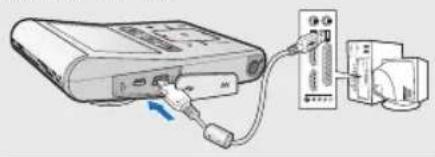  | The built-in software on your camcorder, ‘Intelli-studio’, is not Macintosh compliant. |
| Play back or edit your recordings on the computer using the built-in, Intelli-studio application ➔ page 66 |
| You can also upload your recordings to YouTube or other web sites using Intellistudio. ➔ page 67 |

62\_English
WHAT YOU CAN DO WITH A WINDOWS COMPUTER
You can enjoy the following operations by connecting your camcorder to your Windows computer by using a USB cable.
Main Functions
\- By using the built-in editing software, ‘Intelli-studio’ on your camcorder, you can enjoy the following operations:
- Playing back recorded videos or photos. → page 66
- Editing recorded videos or photos. →page 66
- Uploading the recorded videos and photos to YouTube or Flickr, etc. ↘page 67
\- You can transfer or copy the files (videos and photos) saved on the storage media to your computer.
(Mass storage function) → page 71
System Requirements
The following requirements must be met for using the built-in editing software (Intelli-studio):
| Items System Requirements |
| OS (Operating System) | Microsoft XP SP2, Vista |
| CPU | Intel® Core 2 Duo® 1.66 GHz or higher recommended,AMD AthlonTM X2 Dual-Core 2.2 GHz or higher recommended |
| RAM 512 MB (1 | GB or higher recommended) |
| Video Card | nVIDIA Geforce 7600GT or higher,Ati X1600 series or higher |
| Display 1024 x 768, 16-bit color or higher (1280 x 1024, 32-bit color recommended) |
| USB USB 2.0 support |
| Direct X DirectX 9 | 0c or higher |

- System requirements mentioned above are recommendations. Even on a system that meets the requirements, operations may not be ensured depending on the system.
- On a slower computer than recommended, video playback may skip frames or operate unexpectedly.
- When the version of DirectX on your computer is lower than 9.0c, install the program in version 9.0c or higher.
using with a Windows computer
USING THE Intelli-studio PROGRAM
Using the built-in Intelli-studio program in your camcorder, you can transfer video/photo files onto your PC and edit them on your computer. The Intelli-studio offers the most convenient way for you to manage video/photo files by using the simple USB cable connection between the camcorder and your PC.
Starting the Intelli-studio program
Step 1. Connecting the USB cable
1. Set the menu setting to "PC Software: On". →page 60
\- You will find the default menu settings are set as shown at right.
2. Connect the camcorder and the PC with the USB cable.
\- A new file saving screen appears with the Intelli-studio main window.
\- According to your computer type, the corresponding removable disk window appears.
3. Click "Yes", the uploading procedure will start.
\- Uploading to the computer is finished.
\- If you do not want to save a new file, select "No."
Disconnecting the USB cable
After completing the data transfer, make sure to disconnect the cable in the following way:
1. Click on the "Safely Remove Hardware icon" icon on the taskbar.
2. Select "USB Mass Storage Device", and then click "Stop".
3. If the "Stop a Hardware device" window appears, click "OK."
4. Disconnect the USB cable from the camcorder and PC.


• Use the provided USB cable. (Supplied by Samsung)
\- Don't apply excessive force when inserting or extracting the USB cable into/from a USB jack.
\- Insert the USB after checking the correct direction of its insertion.
• We recommend using the AC power adaptor as the power supply instead of the battery.
\- When the USB cable is connected, turning the camcorder on or off may cause the PC to malfunction.
• If you disconnect the USB cable from the PC or the camcorder while transferring data, the data transfer will stop and the data may be damaged.
\- If you connect the USB cable to a PC via a USB HUB or simultaneously connect the USB cable along with other USB devices, the camcorder may not work properly. If this occurs, remove all USB devices from the PC and reconnect the camcorder.
\- According to your computer type, the Intelli-studio program may not run automatically. In this case, open the desired CD-ROM drive that has the Intelli-studio program in My Computer and run iStudio.exe.
\- When a USB cable is connected, if you have EmoDio (Samsung's MP3 player software) installed on your computer, the EmoDio software may load first.
\- While the camcorder and the PC with the USB cable, the built-in battery are use as the camcorder power. And so we recommend using the AC power adaptor as the power supply instead of the battery.
64\_English
Step 2. About the Intelli-studio main window
When the Intelli-studio starts up, thumbnails of videos and photos are displayed in the main window.

1. Menu items
2. Selects the Desktop or Favorite on the PC.
3. Slide show of the photo files from the PC or camcorder.
Playback of the video files from the PC or camcorder.
4. Switches to Library of the PC and connected camcorder.
5. Switches to Edit mode.
6. Switches to Share mode.
7. Changes the size of thumbnails.
Displays all files (videos and photos)/Displays video files only.
Displays photo files only.
Sorts the files.
8. Imports folders from PC.
9. Selects the connected camcorder or storage.
10. Saves new files to PC.
11. Slide show of the photo files from the connected camcorder.
Playback of the video files from the connected camcorder.
12. Saves the selected file to PC.
Saves the selected file to connected camcorder.
13. Moves the file selected in the PC to the Edit mode. Moves the file(s) selected in the PC to the Share mode.
14. Moves the file(s) selected in the connected camcorder to the Share mode.
using with a Windows computer
Step 3. Playing back videos (or photos)
- You can play back the recordings conveniently using the Intelli-studio application.
1. Run the Intelli-studio program. →page 64
2. Click the desired folder to display your recordings.
• Video (or photo) thumbnails appear on the screen, according to the selected source.
3. Select the video (or photo) that you want to play, and then double-click to play back.
\- Playback starts and the playback controls appear.

Videos recorded at the 1920 X 1080 30p resolution may not play back if software other than Intelli-studio is used.

natural_image
Scenic view of a forested hillside with dense green trees and misty valleys (no text or symbols visible)
Step 4. Editing videos (or photos)
With Intelli-studio, you can edit videos or photos in various ways. (Movie Effect, Fine-Tuning, Transition Effect, Insert Text etc.)
\- Select the video (or photo) you want to edit, and then click on the "EDIT" icon.

Step 5. Sharing the video/photo images online
Share your contents with the world by uploading photos and videos directly to a web site with one click.
1. To do this, select "Share" in the main Video window.
2. Click "Add" and move the video or photo (drag and drop) to the sharing window for upload.
• The selected file appears in the sharing window.
3. Click on the website you would like to upload files to.
\- You can choose "YouTube," "Flickr," or the specified website you want to set for your uploading management.
4. Click "Upload to Share Site" to start uploading.
\- A pop-up window appears asking for your ID and the password.
5. Enter your ID and password to access.
\- Access to the web site contents can be limited depending on your web access environment.

- For more information about the Intelli-studio use, see the Help Guide by clicking the "Menu" → "Help".
- You can simply upload share marked videos onto YouTube by touching the Share (L) button.


using with a Windows computer
Direct uploading your videos onto YouTube
One-Touch Share (LP) button lets you directly upload and share your videos onto YouTube. Just touch the Share (LP) button while your camcorder is connected to a Windows computer using the supplied USB cable.
Step 1
Set the Share mark on the desired videos which you want to upload directly onto the YouTube site. Touch the ▲/▼/◄/► button to select the desired video in the video thumbnail index view, then touch Share (◀) button.
• The Share mark (☐) is displayed on the selected videos.
- You can also set the Share mark on selected videos using the menu. page 53
Step 2
Connect the camcorder and a PC with the supplied USB cable. ➕ page 64
\- The Intelli-studio runs automatically once the camcorder is connected to a Windows computer (when you specify "PC Software: On").
Step 3
Touch the Share (I) button while your camcorder is connected to a computer using the supplied USB cable.
- Selected videos with the Share marks are displayed on the sharing screen.
- Click "Yes" on the PC screen to begin uploading your videos to YouTube.
- If you want to upload directly without showing a pop-up sharing window, check "Intelli-studio does not show a list of share marked files from the connected device."


natural_image
Illustration of a device with cable and connector, showing ports and wiring (no text or symbols)

- When uploading to the YouTube, the selected video will be converted into a format playable by YouTube before uploading. Time spent for uploading may vary depending on the user's conditions including computer and network performance.
- There is no guarantee of uploading operation in all environments, and YouTube server-side changes in the future may disable this function.
- For more information on YouTube, visit the YouTube website: http://www.youtube.com/
- This product's YouTube uploading functionality is provided under the license from YouTube LLC. The presence of YouTube uploading functionality of this product is not an endorsement or recommendation of the product by YouTube LLC.
- If you do not have an account of the specified website, you can register first before proceeding with the authorization.
- According to YouTube's policy, direct video uploading may not be available in your nation / region.
Other functions with the Intelli-Studio
Importing and viewing the video/photo images from your PC
1. Launch the Intelli-studio program by double-clicking the program icon on the desktop screen or connect the camcorder to your PC.
2. Click "Import Folder" to import the video or photo files from your PC.
3. The selected video or photo files are imported from your PC, and you can see the files' location on the Intelli-studio browser.
4. You can double-click on the file you would like to start playback.

The following is the file format supportable in Intelli-studio:
- Video formats: MP4 (Video: H.264, Audio: AAC), WMV (WMV 7/8/9)
- Photo formats: JPG, GIF, BMP, PNG, TIFF
Exporting the videos to your camcorder.
1. Select the desired files to export.
2. Click on the (☐) icon to export the files to your camcorder.
3. The following pop-up window appears.
4. Click on the "Ok" to export files. The files are saved to your camcorder.

While transferring any file, do not disconnect the USB cable.
It may cause damage to the camcorder or computer.

- When storing a video through Intelli-studio, it is automatically stored into an MP4 file that can be played back. However, only video file formats supported in Intelli-studio can be converted and stored in the camcorder.
- According to the resolution and type of the video, the storing time may differ.
- Photos cannot be stored on the camcorder through Intelli-studio.
Folders directory on your PC


using with a Windows computer
Installing Intelli-studio application on a Windows computer
- When the Intelli-studio application is installed on a Windows computer, it will run faster after connecting the camcorder to your computer. Moreover, the application can be updated automatically and run directly on the Windows computer.
- The Intelli-studio application can be installed on a Windows computer as follows: Click on "Menu" → "Install Intelli-studio on PC." in the Intelli-studio screen.


TRANSFERRING VIDEOS/PHOTOS FROM THE CAMCORDER TO YOUR COMPUTER
You can transfer or copy recorded data to a Windows computer by connecting the USB cable to the camcorder.
Step 1. Viewing the contents of storage media (memory card)
1. Check the "PC Software: Off" setting. → page 60
2. Insert the memory card.
3. Connect the camcorder to the PC with the USB cable. →page 64
- The "Removable Disk" or "Samsung" window appears on the PC's screen after a moment.
- The removable disk appears when connecting a USB.
- Select "Open folders to view files using Windows Explorer" and click "OK."
4. The folders in the storage media appear.
\- Different file types are stored in different folders.
5. Save the desired files on the storage media to your PC.

- If the "Removable Disk" window does not appear, confirm the connection (→page 64) or repeat steps 1 and 3 again.
- When the removable disk does not appear automatically, open the removable disk folder of My Computer.
- If the connected camcorder's disk drive does not open or the context menu that appears when right-clicking your mouse (open or browse) appears broken, your computer may be infected by an Autorun virus. Be sure to update your antivirus software to the latest version.
- While the camcorder and the PC with the USB cable, the built-in battery are use as the camcorder power. And so we recommend using the AC power adaptor as the power supply instead of the battery.


using with a Windows computer
• The folder and fi le structure for storage media is as follows.
- Don't arbitrarily change or remove the folder or file name. It may not be playable.
Videos (H.264) ①
- The HD-quality (1920x1080 30p, 1280x720 60p, or 1280x720 30p) videos have HDV\_#####.MP4 format.
• The SD-quality videos have SDV\_###.MP4 format.
- The HD and SD quality videos will be named as HDE\_####.MP4 and SDE\_####.MP4 respectively when you edit videos using the PC software.
- The file number automatically increases when a new video file is created.
- Up to 9,999 fi les can be created in one folder. A new folder is created when more than 9,999 fi les are created.

flowchart
graph TD
    A["VIDEO"] --> B["100VIDEO"]
    A --> C["100PHOTO"]
    B --> D["HDV_0001.MP4"]
    B --> E["HDV_0002.MP4"]
    B --> F["SDV_0001.MP4"]
    B --> G["SDV_0002.MP4"]
    B --> H["HDE_0001.MP4"]
    B --> I["SDE_0001.MP4"]
    C --> J["100PHOTO"]
    C --> K["SAM_0001.JPG"]
    C --> L["SAM_0002.JPG"]
Photos ②
- As with video files, the file number automatically increases when a new photo file is created.
- The maximum file number allowed is the same as in video files. A new folder stores files starting with SAM\_0001.JPG.
• The folder name increases in the order of 100PHOTO → 101PHOTO etc.
\- Up to 9,999 files can be created in one folder. A new folder is created when more than 9,999 files are created.
Videos
- Videos are compressed in H.264 format. The file extension is ".MP4."
• Refer to page 43 for video resolution.
Photos
- Photos are compressed in JPEG (Joint Photographic Experts Group) format. The file extension is ".JPG."
• Refer to page 44 for photo resolution.

- When the 9,999th file is created in the 999th folder (i.e. HDV\_9999.MP4 is created in the 999 VIDEO folder), no more folders can be created. Backup your files to a PC and format the storage media, then reset the file numbering from the menu.
- We don't recommend you modify the name of a file/folder stored in the storage media using a PC. If you modify it, this camcorder may not recognize the modified files.
72\_English
connecting to other devices
You can view the recorded videos and photos on a large screen by connecting the camcorder to an HDTV or Standard TV.
CONNECTING TO A TV
PRECHECK
- Set the video signal output according to the TV color system of the connected TV (NTSC/PAL). -page 60
- Set the video signal output for TV using the "TV Out" function. page 60
• We recommend that you use the AC power adaptor as power source for the camcorder.
Connecting to a high definition TV
To play back the HD-quality (1080/30p, 720/60p, or 720/30p) videos, you need a HDTV (high definition TV).
Connect your camcorder to a HDTV with the provided Component/AV (Y/P _B /PR, Audio L/R) cable.


• Do not use excessive force when connecting the cables.
- When connecting the component/AV, make sure to match the color of the cable plugs to the TV jacks.
- For more information about the connection, refer to your TV's user manual.
- If you have an SD digital TV, the cable connections are the same as above mentioned but the recorded files are played back in SD quality. (When you specify "TV Out: Component 480p or Component 480i"). → page 60
connecting to other devices
Connecting to a SD (standard definition) TV (16:9/4:3)
This connection is used when downconverting recorded HD-quality images to SD-quality images for playback. When playing back HD-quality (1080/30p, 720/60p, or 720/30p) videos on a SDTV, the images are downconverted to 480/60p standard definition images.
1. Set "TV Out" to "Composite." →page 60
2. Connect your camcorder to a TV with the Component/AV (Video, Audio L/R) cable.

When connecting the component/AV, make sure to match the color of the cable plugs to the TV jacks. The Blue plug must be connected to the Video input on your TV (usually Yellow).


VIEWING ON A TV SCREEN
1. Turn on the TV and set the input selector to the Input connection the camcorder is connected to.
\- This is often referred to as "line." Refer to the TV instruction manual for how to switch the TV input.
2. Turn the camcorder on.
\- Press the Play (▶) button to select the Play mode.
→ page 19
• The camcorder image will appear on the TV screen.
3. Perform playback.
\- You can perform playback, recording or setting the menu while viewing on a TV screen.

natural_image
Illustration of a family watching television in a living room (no text or symbols)

\- When "TV Display" is set to "Off", OSD (On-Screen-Display) does not appear on the TV screen. page 61
\- When the component/AV cable is connected to the camcorder, the built-in speaker and LCD screen will automatically turn off and you cannot adjust the volume bar.
Image display depending on LCD and TV screen ratio
| Record Photo LCD | | TV |
| 16:9 4:3 | |
| 16:9 |  |  |  |  |  |
| 4:3 |  |  |  |  |  |
connecting to other devices
RECORDING (DUBBING) IMAGES ON A VCR OR DVD/HDD RECORDER
You can record (dub) images played back on this camcorder onto other video devices, such as VCRs or DVD/HDD recorders.
PRECHECK
- Set the video signal output according to the TV color system of the connected video device (NTSC/PAL).
▶page 60
- Set "TV Out" to "Composite." →page 60
Use the provided Component/AV (Video, Audio L/R) cable to connect the camcorder to another video device as shown in the following figure:
1. Press the Play (▶) button to select the Play mode. ➕page 19
2. Choose the recorded (dubbed) images on the thumbnail view and then touch the Ok button.
3. Press the record button on the connected device.
\- The camcorder will start playback and the recording device will record (dub) it.

Be sure to use the AC adaptor to power the camcorder from a household AC outlet to prevent battery power from shutting off during recording on another video device.

maintenance & additional information
MAINTENANCE
Your camcorder is a product of superior design and craftsmanship and should be treated with care.
The suggestions below will help you fulfil any warranty obligations and allow you to enjoy this product for many years.
For safekeeping of the camcorder, be sure to turn it off.
- Remove the AC power adaptor. ➕page 14
- Remove the memory card. ➞page 27
Cautions on storing
\- Do not leave the camcorder in a place where the temperature is very high for a long period of time:
The temperature inside a closed vehicle or trunk can become very high in a hot season. If you leave the camcorder in such a place, it could malfunction or the case could be damaged. Do not expose the camcorder to direct sunlight or place it near a heater.
\- Do not store the camcorder in a place where the humidity or dust level is high:
Dust entering the camcorder could cause a malfunction. If humidity is high, the lens could become moldy, and the camcorder could become inoperative. It is recommended that you put the camcorder in a box together with a desiccant packet to help protect it from humidity when storing it in a closet, etc.
\- Do not store the camcorder in a place subject to strong magnetism or intense vibrations:
This could cause malfunctions.
Cleaning the camcorder
Before cleaning, turn off the camcorder and remove the AC power adaptor.
• To clean the exterior
- Wipe gently with a soft dry cloth. Do not apply excessive force when cleaning, gently rub the surface.
- Do not use benzene or thinner to clean the camcorder. The coating of exterior could peel off or the case could deteriorate.
• To clean the LCD monitor
Wipe gently with a soft dry cloth. Be careful not to damage the monitor.
• To clean the lens
Use an optional air blower to blow out dirt and other small objects. Do not wipe the lens with cloth or your fingers. If necessary, wipe gently with lens cleaning paper.
- Mold may form if the lens is left dirty.
- If the lens looks dimmer, turn off the camcorder and leave it for about 1 hour.
English\_77
maintenance & additional information
LCD screen
• To prevent damage to the LCD screen
\- Do not push it too hard or knock it on anything.
\- Do not place the camcorder with LCD screen facing down.
• To prolong service life, avoid rubbing it with a coarse cloth.
\- Be aware of the following phenomena for LCD screen use. They are not malfunctions.
\- While using the camcorder, the surface around the LCD screen may heat up.
\- If you leave power on for a long time, the surface around the LCD screen becomes hot.
USING YOUR CAMCORDER ABROAD
• Each country or region has its own electric and color systems.
- Before using your camcorder abroad, check the following items.
Power sources
The provided AC adaptor enables you to use your camcorder in any country/region within the AC 100 V to 240 V, 50/60 Hz range. Use a commercially available AC plug adaptor, if necessary, depending on the design of the wall outlet.
On TV color systems
Your camcorder is an NTSC-system-based camcorder. When playing back or copying the NTSC formed recordings in an external device, set the video output signal according to the TV color system of the connected video equipment.
→page 60
NTSC-compatible countries/regions
Bahamas, Canada, Central America, Japan, Korea, Mexico, Philippines, Taiwan, United States of America, etc.
PAL-compatible countries/regions
Australia, Austria, Belgium, Bulgaria, China, CIS, Czech Republic, Denmark, Egypt, Finland, France, Germany, Greece, Great Britain, Netherlands, Hong Kong, Hungary, India, Iran, Iraq, Kuwait, Libya, Malaysia, Mauritius, Norway, Romania, Saudi Arabia, Singapore, Slovak Republic, Spain, Sweden, Switzerland, Syria, Thailand, Tunisia, etc.

You can make recordings with your camcorder and view pictures on the LCD screen from anywhere in the world.
troubleshooting
TROUBLESHOOTING
Before contacting a Samsung authorized service center, perform the following simple checks.
They may save you the time and expense of an unnecessary call.
Warning indicators and messages
Power source
| Message Icon | Informs that... Action | |
| Low Battery | - | The battery is almost discharged. |
Storage media
| Message Icon | Informs that... Action | |
| Insert Card | [wTc3] | There is no memory card inserted in the card slot. | Insert a memory card.• |
| Card Full |  | There is not enough space to record on the memory card. | • Delete unnecessary files on the memory card.• Back-up files to your PC or another storage media and delete files.• Change to another memory card which has enough free space. |
| Card Error |  | The memory card has some problem and cannot be recognized. | • Format the memory card or replace it with a new one. |
| Card Locked |  | The write protection tab on an SDHC/SD card has been set to lock. | Release the write protection tab.• |
| Not Supported Card |  | The memory card is not supported in this camcorder. | Change to a memory card that we recommended.• |
| Not Formatted |  | The memory card is not formatted. Format | the memory card using the menu.• |
| Not Supported Format |  | The memory card may have been formatted by another device and may still have existing images on it. | • The image format is not supported.• Check the supported file format. ➔ page 72• Format the memory card using menu item. |
| Low speed card.Please record at lower quality. | - | The memory card does not have enough speed to record. | • Change the memory card to a faster one. ➔ page 29• Change to a lower resolution.• Change to a lower quality. |
English\_79
troubleshooting
Recording
| Message Icon Informs that... Action | |
| Write Error - | | Some problems occurred while writing data to storage media. | • Format storage media using menus after backing-up important files to your PC or another storage media. |
| The Number of video files is full. Cannot record video. | - | Folder and files have reached capacity and you can not record. | • Format the storage media using the menu after backing up important files to your PC or another storage device. Set "File No." to "Reset." |
| The Number of photo files is full. Cannot take photo. | - | Folder and files have reached their capacity and you cannot take a picture. | • Format storage media using the menu item after backing up important files to your PC or another storage device. Set "File No." to "Reset." |
Playback
| Message Icon Informs that... Action | |
| Read Error - | | Some problems occurred during reading data from storage media. | • Format storage media using menus after backing up important files to PC or another storage device. |

When there is condensation, put aside for a while before using
• What is condensation?
Condensation occurs when a camcorder is moved to a place where the temperature differs significantly from the previous place. In other words, the water vapor in the air turns into dew because of the temperature difference, and it condensates like dew on the external or internal lenses of the camcorder and on the reflection lens.
When this happens, you temporarily may not use the record or play functions of the camcorder. Also, it may cause a malfunction or damage to the camcorder when using the device with the power on while there is condensation.
• What can I do?
Turn the power off and leave it in a dry area for 1\~2 hours before using it.
\- When does condensation occur?
When the device is relocated to a place with a higher temperature than the previous location, or when using it in a hot area suddenly.
\- When recording outdoors in cold weather during the winter and then using it in indoors.
\- When recording outdoors in hot weather after being indoors or inside a car where the air conditioner was running.
Note before sending your camcorder for repair.
\- If these instructions do not solve your problem, contact your nearest Samsung authorized service center.
If you encounter any problems using your camcorder, check the following before asking for service repair. If these instructions do not solve your problem, contact the nearest Samsung authorized service center.
Symptoms and solutions
Power
| Symptom Explanation/Solution |
| The camcorder does not turn on. | Charge the battery.If you use an AC power adaptor, make sure it is properly connected to the wall outlet.Unplug the AC power adaptor, and reconnect the power supply to the camcorder before turning it on. |
| The power automatically turns off. | Is "Auto Power Off" set to "5 Min"? If no button is pressed for about 5 minutes, the camcorder is automatically turned off. To disable this option, change the setting of "Auto Power Off" to "Off."→page 59The battery is almost discharged. Charge the battery.Use the AC power adaptor. |
| Power cannot be turned off. | Unplug the AC power adaptor, and reconnect the power supply to the camcorder before turning it on. |
| The battery is quickly discharged. | The temperature is too low.The battery is not fully charged. Recharge the battery.The battery reached the end of its lifespan and cannot be recharged.Contact your nearest Samsung authorized service center. |
Displays
| Symptom Explanation/Solution |
| The recorded image is more narrow or fat than original image. | You should check the resolution before you record. ➔ pages 43-44• |
| Unknown indicator appears on the screen. | A warning indicator or message appears on the screen. ➔ pages 79-80• |
| The after image remains on the LCD screen. | This occurs if you disconnect the AC power adaptor before turning the power off.• |
| The image on the LCD screen looks dark. | • Ambient light is too bright. Adjust the brightness and angle of the LCD. |
troubleshooting
Storage media
| Symptom Explanation/Solution |
| Memory card functions are not operable. | Insert a memory card into your camcorder properly. ➔ page 27If you use a memory card formatted on a computer, format it again directly on your camcorder. ➔ page 57 |
| Image cannot be deleted. | You cannot delete the images protected by another device.Release the protection of the image on the device. ➔ page 50Release the lock on the write-protect tab of the memory card (SDHC memory card, etc.), if any. ➔ page 28 |
| You cannot format the memory card. | Release the lock on the write-protect tab of the memory card (SDHC memory card, etc.), if any. ➔ page 28Copy all important recorded files to your PC before formatting.Samsung shall not be responsible for any loss of data. (It is recommended that you copy the data to your PC or other storage media.) |
| The data file name is not indicated correctly. | The file may be corrupted.The file format is not supported by your camcorder.Only the file name is displayed, if the directory structure does not comply with the international standard. |
Recording
| Symptom Explanation/Solution |
| Pressing the Recording start/stop ( ) button does not start recording. | There is not enough free space to record on the storage media.Make sure the memory card is inserted and write-protect tab is set to unlock.The internal temperature of your camcorder is unusually high.Turn off your camcorder and leave it for a while in a cool place.Your camcorder is damp and moist inside (condensation).Turn off your camcorder and leave it for about 1 hour in a cool place. |
| The actual recording time is less than the estimated time. | The estimated recording time may vary depending on contents and features used.Recording a fast-moving subject increases the bit rate and consequently the amount of storage space required for the recording, which can lead to a shorter available recording time. |
| The recording stops automatically. | There is no more free space for recording on the storage media.Back up important files on your PC and format the storage media or delete the unnecessary files.If you use a memory card with a low writing speed, the camcorder automatically stops recording the videos and the corresponding message appears on the LCD screen. |
| When recording a subject illuminated by bright light, vertical lines appear. | The camcorder is unable to record these levels of brightness. |
| When the screen is exposed to direct sunlight during recording, the screen turns red or black for an instant. | Do not leave the camcorder with the LCD screen exposed to direct sunlight. |
| During recording, the date/time does not display. | "Date/Time Set" is set to off. Set the "Date/Time Set" to on. ➔ page 25 |
| The beep sound is not heard. | Set the "Beep Sound" to "On." ➔ page 58The beep sound is temporally off while recording videos.When the component/AV cable jack is connected to the camcorder, the beep sound will automatically turn off. |
| There is a time difference between the point where you press Recording start/stop (💡_) button and the point where the recorded video starts/stops. | On your camcorder, there may be a slight time delay between the point when you press Recording start/stop (💡_) button and the actual point where the recorded video starts/stops. This is not an error. |
| The recording stops. | The internal temperature of your camcorder is unusually high. Turn off your camcorder and leave it for a while in a cool place.Your camcorder is damp and moist inside (condensation). Turn off your camcorder and leave it for about 1 hour in a cool place. |
| You cannot record a photo | Set your camcorder to Record mode. ➔ page 19Release the lock on the write-protection tab of the memory card if set.The storage media is full. Use a new memory card or format the storage media. ➔ page 57 Or remove unnecessary images. ➔ page 49 |
| The digital zoom function is not available. | When the video resolution is set to 1080/30p or Slow Motion, the digital zoom function is not available.Choose another video resolution. |
troubleshooting
Adjusting the image during recording
| Symptom Explanation/Solution |
| It is out of focus. | This camcorder has no user-adjustable focus control function.The minimum focal length between the camcorder and the subject is 1.3m. |
| The image appears too bright or flickering, or changes in color. | This occurs when recording images under a fluorescent lamp, sodium lamp, or mercury lamp. Cancel "iSCENE" to minimize these phenomena. ➔page 42 |
Playback on your camcorder
| Symptom Explanation/Solution |
| Pressing the playback (play/pause) button did not start playing. | Press the Play (▶) button to set the Play mode.Image files recorded on another camcorder may not play on your camcorder.Check out the memory card compatibility. ➔page 28 |
| The skip or search function does not work properly. | If the temperature inside the camcorder is too high, it cannot function properly.Turn the camcorder off, wait for a few moments, and turn it on again. |
| Playback is interrupted unexpectedly. | Check if the AC power adaptor is properly connected and stable. |
| You cannot hear sound when playing a Time Lapse recording. | The Time Lapse REC function does not support sound. • |
| Photos stored on a storage media are not displayed in the actual size. | Photos recorded on other devices may not appear at actual size.This is not an error. |
Playback on other devices (TV, etc.)
| Symptom Explanation/Solution |
| You cannot view the image or hear the sound on the connected device. | Connect the audio of the component/AV to your camcorder or connected device (TV, HD recorder, etc). (Red color- right, White color- left)The component/AV cable is not connected properly.Make sure that the connection cable is connected to the proper jack ➔ pages 73-74This camcorder provides the two-in-one component/AV cable that fits the purpose of the component and the AV cable. Therefore, when using the component/AV cable, you must check the right method for the TV output by setting the “TV Out” menu ➔ page 60 |
| The image does not appear on the TV. | Set the video output signal according to the TV color system of the connected TV ➔ page 60 |
| The image appears distorted on TV or PC player. | The display mode of the recorded video does not match that of playback device.A video recorded in 16:9 wide mode should be played back on a TV or PC that supports 16:9 screen mode. |
84\_English
Connecting to a computer
| Symptom Explanation/Solution |
| When using the videos, a computer does not recognize your camcorder. | Disconnect the USB cable from the computer and camcorder, restart the computer, then reconnect it correctly. |
| Cannot play a video file properly on a PC. | A video codec is needed to play the file recorded on your camcorder. Install or run the built-in edit software (Intelli-studio).Make sure you insert the connector in the correct direction, and connect the USB cable to the USB jack on your camcorder firmly.Disconnect the cable from the computer and camcorder, restart the computer. Reconnect it properly.Your computer may not have the necessary performance specifications to playback a video file. Check the recommended computer specifications. |
| Intelli-studio does not function properly. | Exit the Intelli-studio application, and restart the Windows computer.Intelli-studio is not Macintosh compliant.Set “PC Software” to “On” in the Settings menu.According to your computer type, the Intelli-studio program may not run automatically. In this case, open the desired CD-ROM drive that has the Intelli-studio program in My Computer and run iStudio.exe. |
| The image or sound on your camcorder is not played on your computer properly. | video playback or sound may stop temporarily depending on your computer.The video or sound copied to your computer is not affected.If your camcorder is connected to a computer that does not support Hi-speed USB (USB2.0), the images or sound may not be played back correctly.The images and sound copied to your computer are not affected. |
| The playback screen is paused or distorted. | Check the system requirements to play a video. ➤page 63Exit all other applications running on the current computer.If a recorded video is played on your camcorder when it is connected to a computer, the image may not play smoothly, depending on the transfer speed. Please copy the file to your PC, and then play it back. |
troubleshooting
Connecting/Dubbing with other devices (TV, DVD recorder, etc.)
| Symptom Explanation/Solution |
| You cannot dub correctly using the component/AV (Video, Audio L/R) cable. | The component/AV (Video, Audio L/R) cable is not connected properly.Make sure that the component/AV (Video, Audio L/R) cable is connected to the proper jack, i.e. to the input jack of the device used for dubbing images from your camcorder.page 76This camcorder provides the two-in-one Component/AV cable that fi ts the purpose of the component and the AV cable. Therefore, when using the component/AV cable, you must check the right method for the TV output by setting the “TV Out” menu.page 60 |
General operations
| Symptom Explanation/Solution |
| The date and time are incorrect. | Has the camcorder been left unused for a long period of time?The backup built-in rechargeable battery may be discharged.→page 25 |
| Your camcorder does not turn on or the buttons do not operate normally.Your camcorder is not recognized by a computer. | Unplug the AC power adaptor, and reconnect the power supply to the camcorder before turning it on.Press the Reset button with a pointed object such as a safety clip to initialize the system.When the system initialization is complete, your camcorder automatically turns on. The system reset function does not affect the recorded images and custom settings. | 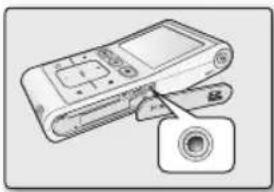 |
Menu
| Symptom Explanation/Solution |
| Menu items are grayed out. | You cannot select grayed items in the current recording/playback mode.If there is no storage media inserted, it cannot be selected and will be dimmed on the menu : "Storage Info", "Format", etc.There are some functions you cannot activate simultaneously. The following list shows examples of unworkable combinations of functions and menu items.If you want to set the desired functions, do not set the following items first. |
| Cannot Use Because of the following setting |
| Digital Zoom "Video Resolution: 1080/30p, Slow Motion" |
| "Video Resolution" "Video Quality" "Time Lapse REC: On" |
| "Video Quality" "Video Resolution: Slow Motion" |
specifications
Model Name: HMX-U10BN/U100BN/U10RN/U100RN/U10EN/U100EN/U10UN/U100UN/U10SN/U100SN
| System |
| Video signal | Recording NT$C |
| Output NTSC / PAL |
| Picture compression format H.264 (MPEG-4.AVC) |
| Audio compression format AAC (Advanced Audio Coding) |
| Image device | 1/2.3" CMOS (Complementary Metal-Oxide Semiconductor) (Max: 10M pixels) |
| Lens F3.0, 1x (Optical), 3.5x~4x (Digital) (Video resolution 1080/30, Slow Motion excluded) |
| Focal length 7.9mm | |
| LCD screen |
| Size/dot number 2 inch 154k | |
| LCD screen method TFT LCD |
| Connectors |
| Composite output | 1Vp-p (75Ω terminated) |
| Component output | Y: 1Vp-p, 75Ω, PB/PH, Cb/Cr: 0.350Vp-p, 75Ω |
| Audio output -7.5dBs (600Ω terminated) |
| USB output Mini-B type connector |
| General |
| Power source 5.0V (using AC power adaptor), 3.7V (using built-in lithium lon battery) |
| Power source type Lithium Ion battery (built-in type), Power supply (100V~240V) 50/60Hz |
| Power consumption 2.4W | |
| Operating temperature 32°F~104°F (0°~40°C) |
| Operating humidity 10% ~80% |
| Storage temperature | -4°F ~ 140°F (-20°C ~ 60°C) |
| Dimensions (WxHxD) | 2.21" x 4.06" x 0.61" (56 mm x 103mm x 15.5 mm) |
| Weight | 0.21 lb (95g, 3.35 oz) (battery included, built-in type) |
| Internal MIC | Omni-directional stereo microphone |
| Storage media | memory card (SD/SDHC) |
- These technical specifications and design may be changed without notice.
warranty
SAMSUNG LIMITED WARRANTY
SAMSUNG Electronics America Inc. (SEA), warrants that this product is free from defective material and workmanship.
SEA further warrants that if product fails to operate properly within the specified warranty period and the failure is due to improper workmanship or defective material, SEA will repair or replace the product at its option.
All warranty repairs must be performed by a SEA authorized service center. The name and address of the location nearest you can be obtained by calling toll free: 1-800 SAMSUNG (1-800-726-7864).
Labor
90 days carry-in
Parts
1 year
On carry-in models, transportation to and from the service center is the customer's responsibility.
The original dated sales receipt must be retained by the customer and is the only acceptable proof of purchase. It must be presented to the authorized service center.
EXCLUSIONS (WHAT IS NOT COVERED)
This warranty does not cover damage due to accident, fire, flood and/or other acts of God; misuse, incorrect line voltage, improper installation, improper or unauthorized repairs, commercial use, or damage that occurs in shipping. Exterior and interior finish, lamps, and glass are not covered under this warranty.
Customer adjustments which are explained in the instruction manual are not covered under the terms of this warranty.
This warranty will automatically be voided for any unit found with a missing or altered serial number. This warranty is valid only on products purchased in the United States and Puerto Rico.
Some States do not allow the exclusions or limitations of incidental or consequential damages, or allow limitations on how long an implied warranty lasts, so the above limitations or exclusions may not apply to you.
This warranty gives you specific legal rights, and you may also have other rights which vary from State to State.
SAMSUNG
If you have any questions or comments relating to
Samsung products, please contact the SAMSUNG
customer care center Samsung Electronics America, inc.
1-800-SAMSUNG (726-7864)
www.samsung.com/us

RoHS compliant
Our product complies with “The Restriction Of the use of certain Hazardous Substances in electrical and electronic equipment”, and we do not use the 6 hazardous materials-Cadmium(Cd), Lead (Pb), Mercury (Hg), Hexavalent Chromium (Cr +6), Poly Brominated Biphenyls (PBBs), Poly Brominated Diphenyl Ethers(PBDEs)- in our products.


