AC731 - External hard drive Apacer - Free user manual and instructions
Find the device manual for free AC731 Apacer in PDF.


User questions about AC731 Apacer
0 question about this device. Answer the ones you know or ask your own.
Ask a new question about this device
Download the instructions for your External hard drive in PDF format for free! Find your manual AC731 - Apacer and take your electronic device back in hand. On this page are published all the documents necessary for the use of your device. AC731 by Apacer.
USER MANUAL AC731 Apacer
1. Introduction......2
1.1 System Requirements....2
2. Getting Started with Data Manager ....3
2.1 Installing Data Manager .... 3
2.2 Launching Data Manager....3
3. Managing Files with Data Manager....5
3.1 Navigating Home Screen 5
3.2 Backing up Data 6
3.3 Syncing Files 10
3.4 Viewing Device Info....12
1. Introduction
Thank you for choosing Apacer's external hard drives and USB flash drives as data storage devices!
Apacer Data Manager is a user-friendly backup management utility that offers backup and sync solutions to prevent data loss. With Data Manager installed on your computer, it allows you to not only back up data locally to your computer and externally to Apacer's storage device, but also perform unilateral file synchronization as well as bilateral sync between your computer and the device attached to your computer.
1.1 System Requirements
Data Manager can only work with Apacer's external hard drive or USB drive. See below for more detailed information.
| Item | Description |
| Operating system | Windows 10, Windows 8.1, Windows 8, Windows 7 |
| File system | NTFS, FAT32, FAT, exFAT, ReFS |
2. Getting Started with Data Manager
Being a backup management tool, Data Manager provides an intuitive backup and synchronization solution to help you retain and retrieve copies of your precious data. It supports backing up and syncing data stored on your computer and an external storage device attached to your computer.
Before using Data Manager, make sure the device attached to your computer is Apacer's external hard drive or USB flash drive.
This chapter explains how to install and launch Data Manager.
2.1 Installing Data Manager
Before managing files with Data Manager, you need to download it from Apacer's website and install it on your computer. Follow the steps below to install the utility.
To install Data Manager:
- Go to Apacer's website, and go to Support > Downloads.
- Click Utility > External Storage. Find Data Manager and click ↓ to download the utility. The compressed file will be downloaded to your computer.
- Extract the zipped file. Find and double click the setup.exe file, then follow the onscreen
instructions to install the utility. Once the installation is complete, the app icon will appear on the desktop of your computer.
2.2 Launching Data Manager
Once the installation is complete, follow the steps below to launch Data Manager and you may start managing your files.
To launch Data Manager:

- Double click to launch Data Manager.
- Depending on whether any Apacer's storage device is detected, do either of the following:
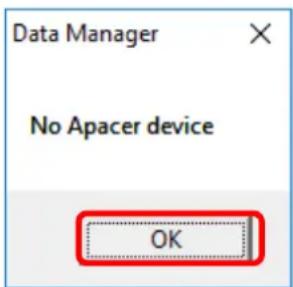
No device detected: The error message below will appear. Click OK and check if the attached device is Apacer's product or if it is properly attached. Once the problem is solved, launch Data Manager again.
Apacer
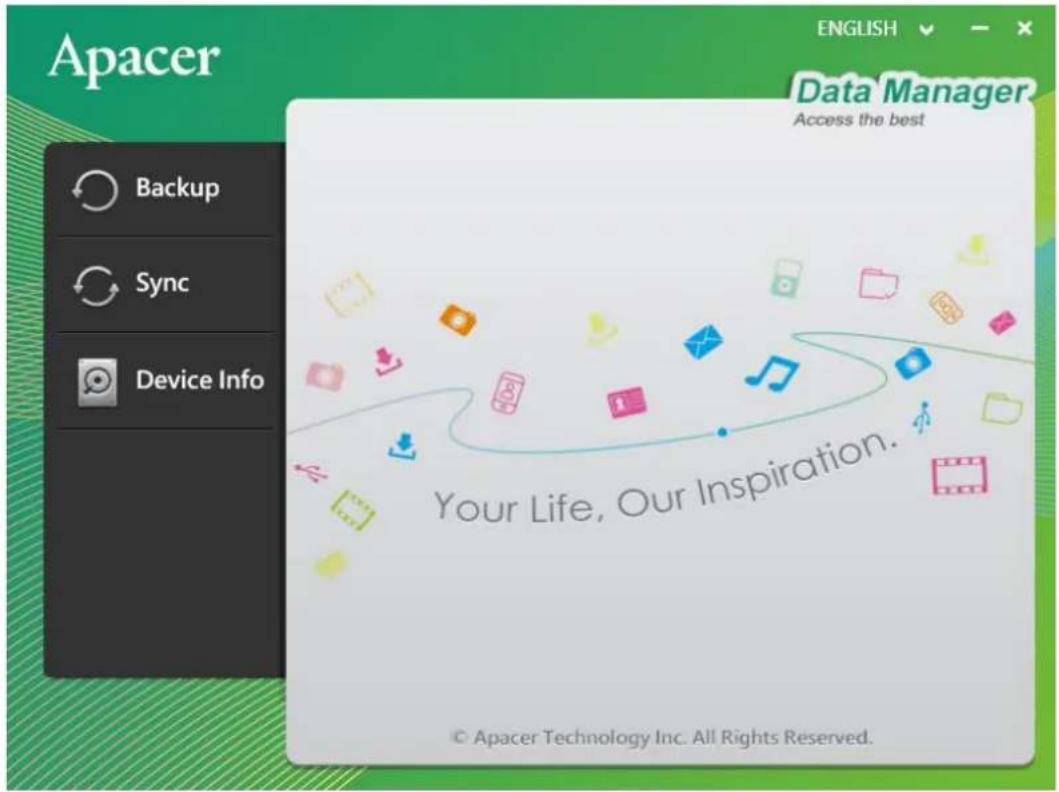
■ Device detected: You will see the Data Manager interface below. Click any of the tabs on the left side to start manage backup/sync tasks or view the information of your attached device. See "3. Managing Files with Data Manager" for more information.
3. Managing Files with Data Manager
Unexpected data loss from hard drive failures, natural disasters, and ransomware attacks pose potential threats to your paramount data. To avoid data loss caused by such unfortunate situations, Data Manager offers backup and sync features to maintain multiple versions of backup data, thereby providing extra protection in case the current version crashes or gets infected by ransomware.
This chapter introduces you to the interface of Data Manager and guides you through the process of creating and managing backup/sync tasks and viewing information of the attached storage device.
3.1 Navigating Home Screen
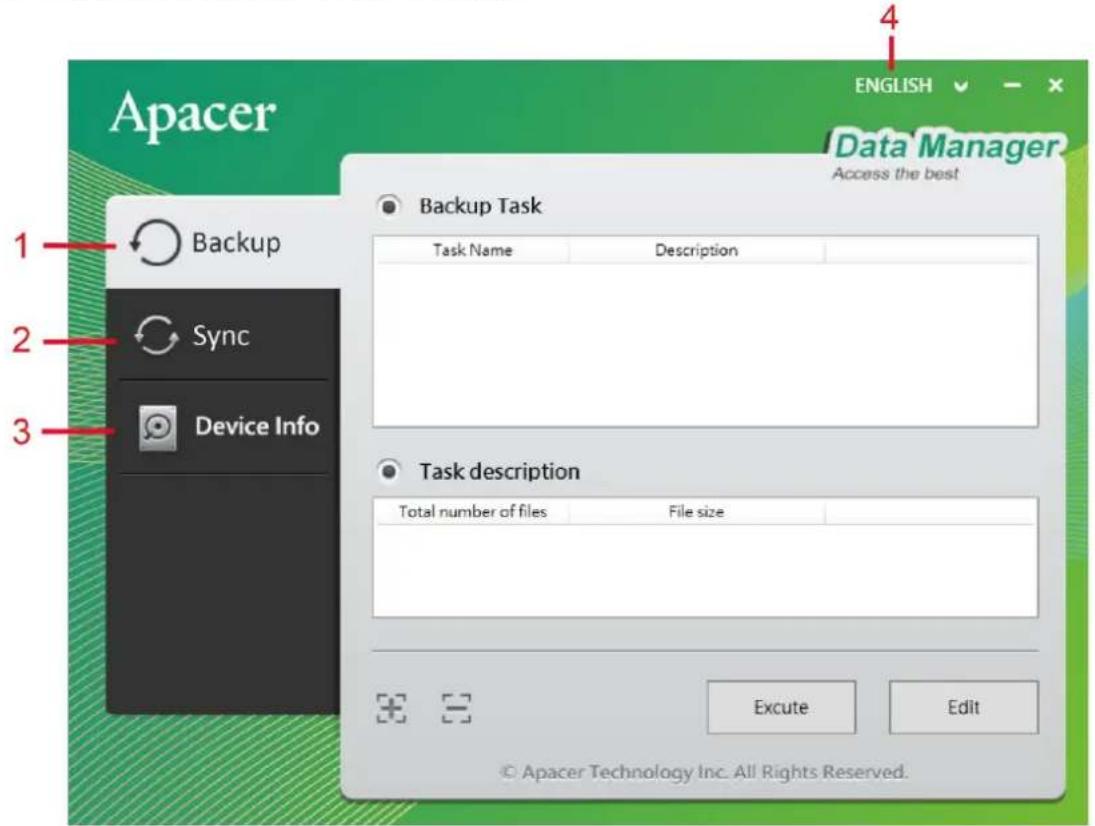
When Data Manager is launched, you can see three main tabs on the left side and the language switcher at the top displayed on the home screen.
Below is a general introduction to Data Manager:
| No. | Item | Description |
| 1. | Backup | Click to create and manage backup tasks. See “3.2 Backing up Data” for more information. |
| 2. | Sync | Click to create and manage sync tasks. See “3.3 Syncing Files” for more information. |
| 3. | Device Info | Click to view information of the storage device attached to your computer. See “3.4 Viewing Device Info” for more information. |
| 4. | Language switch | Click to switch display languages for Data Manager. Supported languages include English, Traditional Chinese and Simplified Chinese. |
3.2 Backing up Data
This section explains how to create and manage backup tasks on your computer and external storage device.
Under the Backup tab, multiple backup tasks can be created as a contingency plan to avoid data loss. Files to be backed up and the backup destination can be altered whenever you want.
To create a backup task:
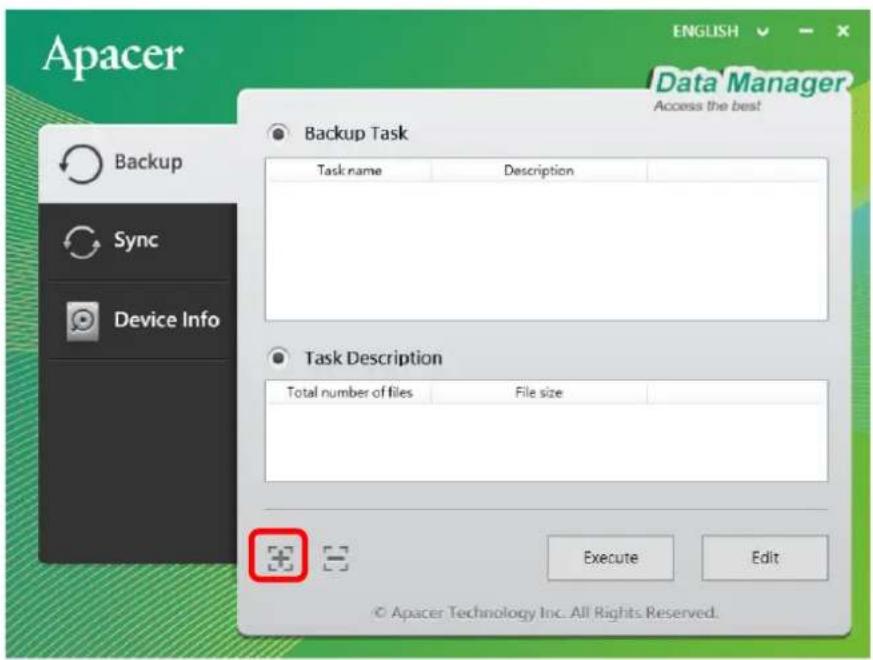
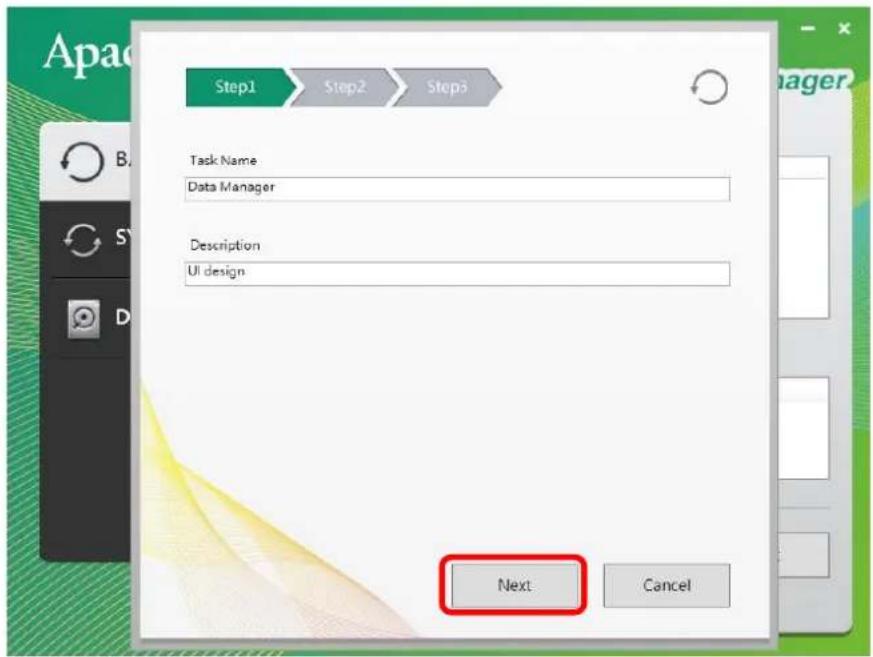
- Click Add task (+) to launch the three-step backup wizard.
- In the window that appears, name the backup task and give it a description. Then click Next.
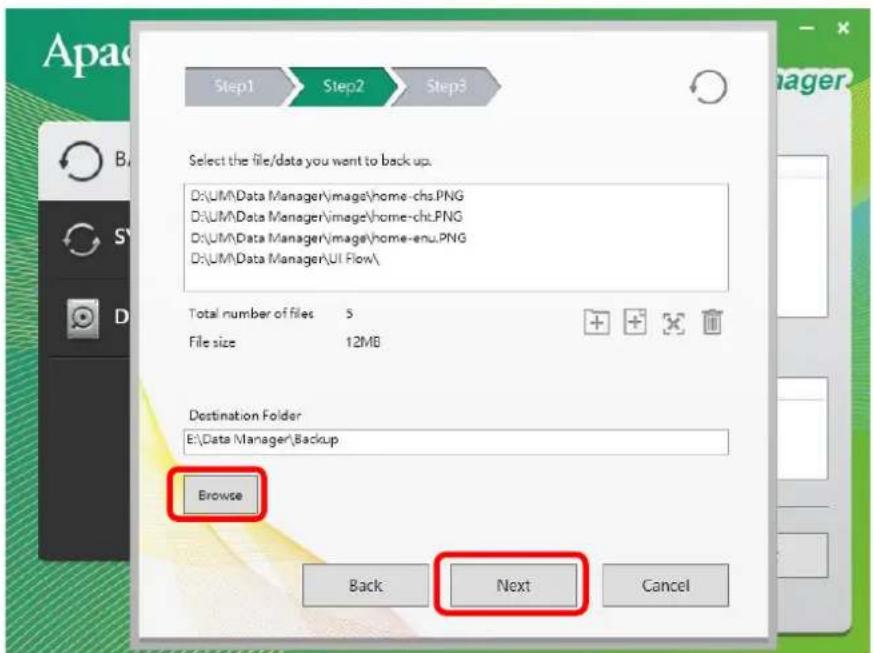
- Select the data you want to back up by clicking Select folder or Select file. To remove any item from the backup list, select the item(s) and click Delete selected items or Delete all
Next, choose a backup destination by clicking Browse. The destination folder can be chosen from either your computer or the attached device. Once finished, click Next.
-
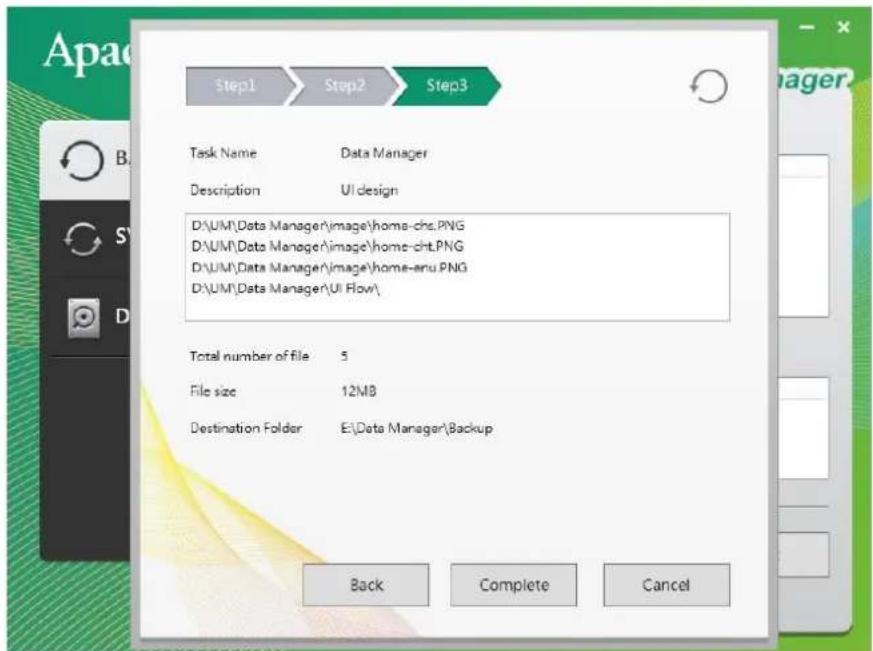
Check the overview information of the backup task just created and do any of the following:
-
Click Back if you want to modify task name, task description or destination folder.
■ Click Complete to create the backup task. The task will appear in the Backup Task section. - Click Cancel to cancel the backup task. You will be directed back to the home screen.
To perform a backup task:
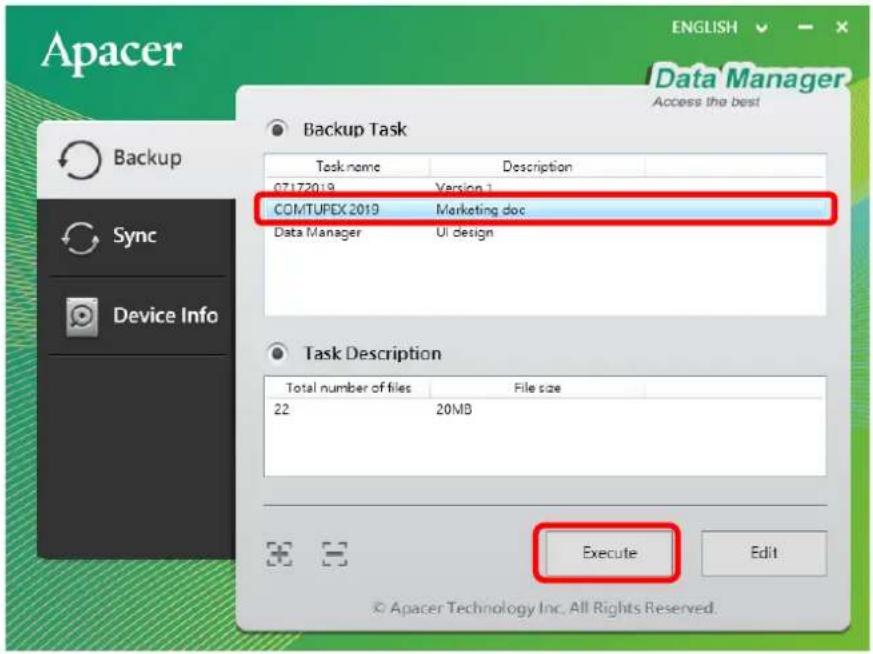
- Once a backup task is created, select the task from the Backup Task section and click Execute.
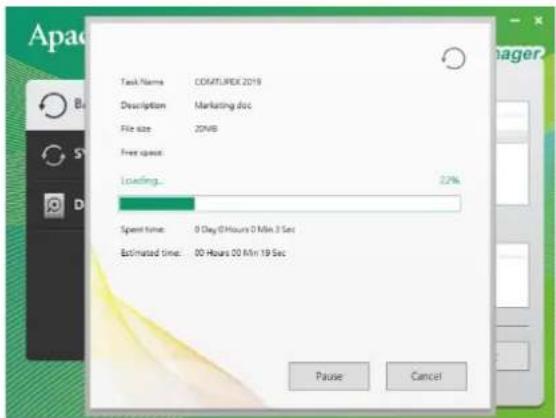
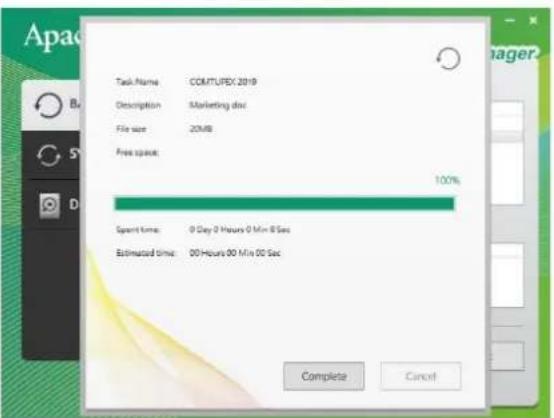
- You can monitor the backup progress with the progress bar and the percentage of completion indicated below. Click Pause/Cancel if you wish to pause/cancel the backup task.
Once the backup is complete, click Complete to close the window.
Apacer
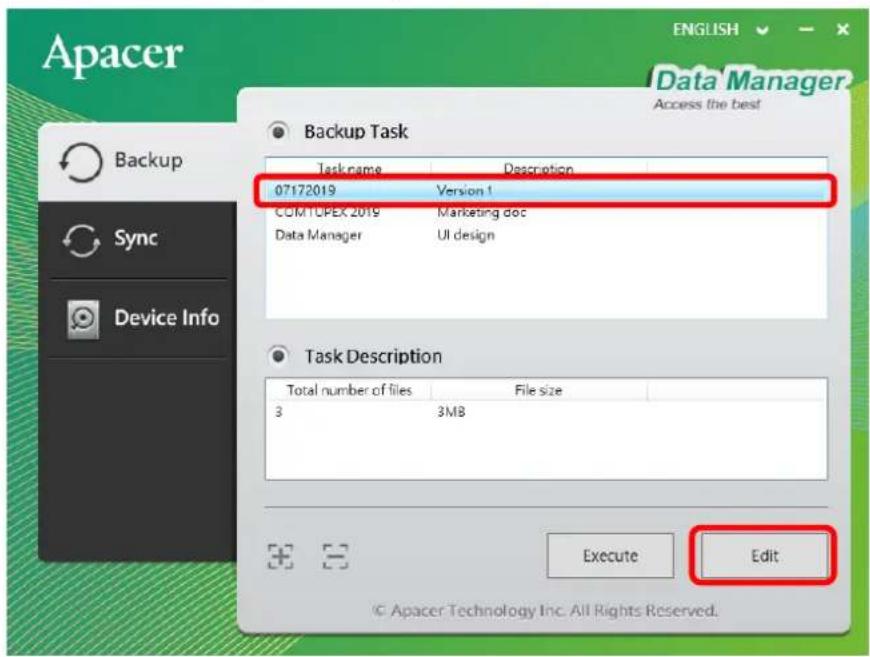
To edit a backup task:
Select the backup task you want to edit from the Backup Task section and click Edit. Then you can modify the task name, task description or destination folder.
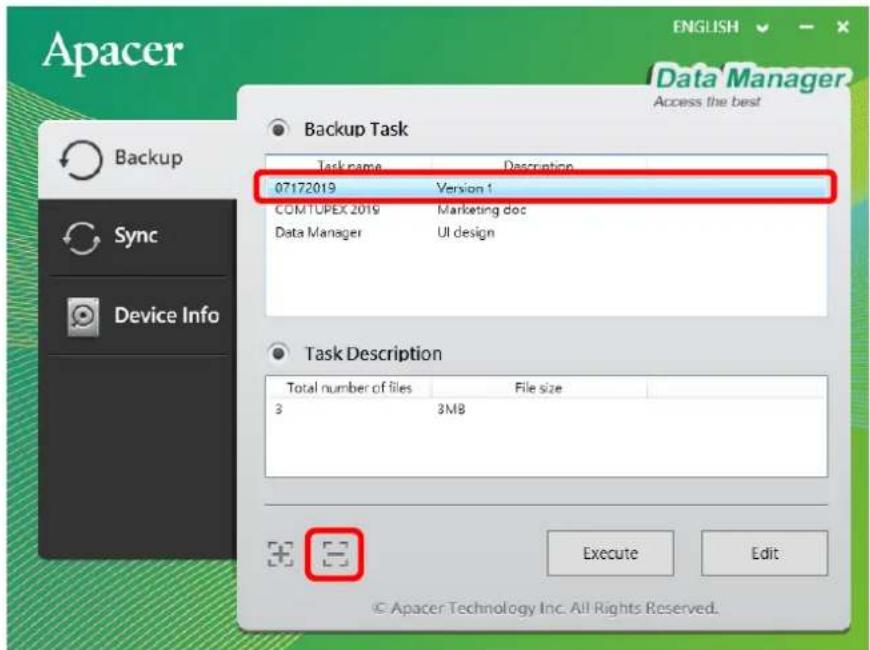
To delete a backup task:
Select the backup task you want to delete from the Backup Task section and click Delete task (—).
3.3 Syncing Files
This section explains how to sync data between your computer and external storage device.
Under the Sync tab, files stored in two different locations, i.e. source and destination folders, can be synced unilaterally and bilaterally according to your setting.
To sync files:
- Select source and destination folders by clicking Browse. Both folders can be selected locally or externally from the attached device.
Depending on your needs, choose either of the following for syncing:
■ One-way Sync 🖼️: Files in the source folder will be synced to the destination folder.
■ Two-way Sync 📁: Files in both source and destination folders will be bilaterally synced.
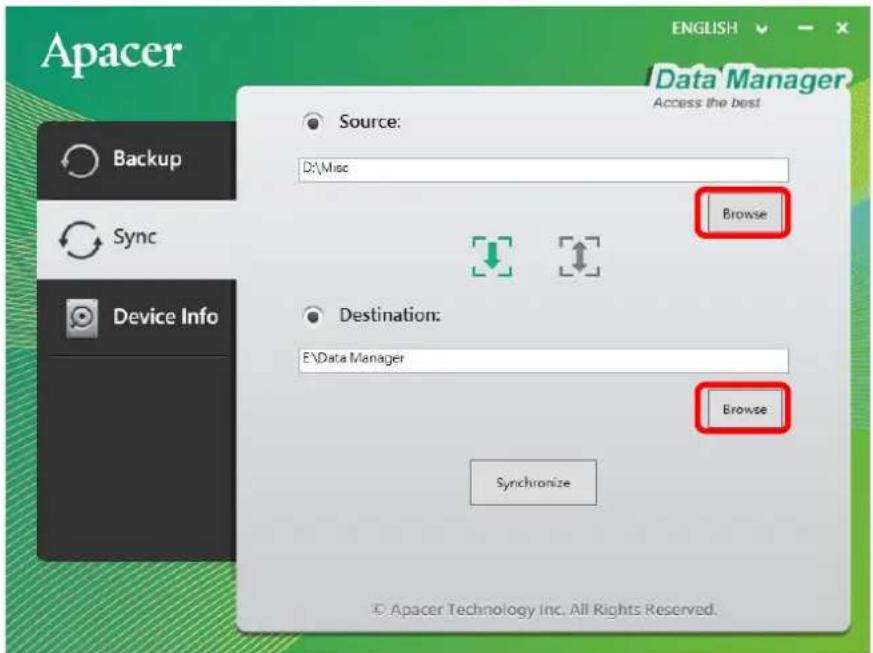
- Once the source and target folders are chosen, click Synchronize to start syncing.
Apacer
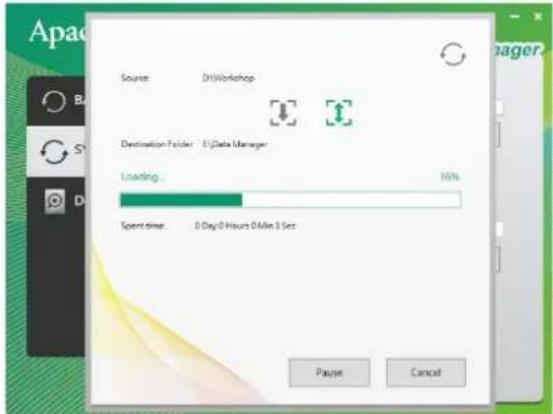
- You can monitor the progress of syncing files with the progress bar and the percentage of completion indicated below. Click Pause/Cancel if you wish to pause/cancel the sync task.
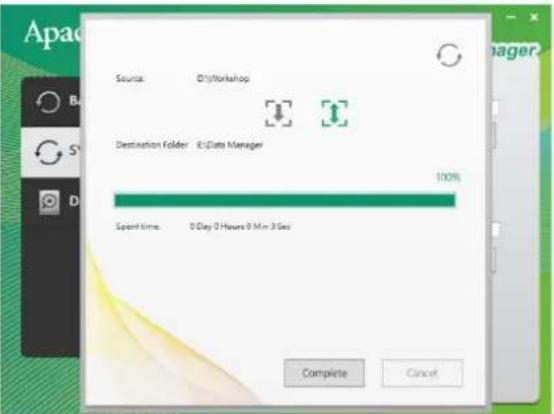
Once the sync is complete, click Complete to close the window.
3.4 Viewing Device Info
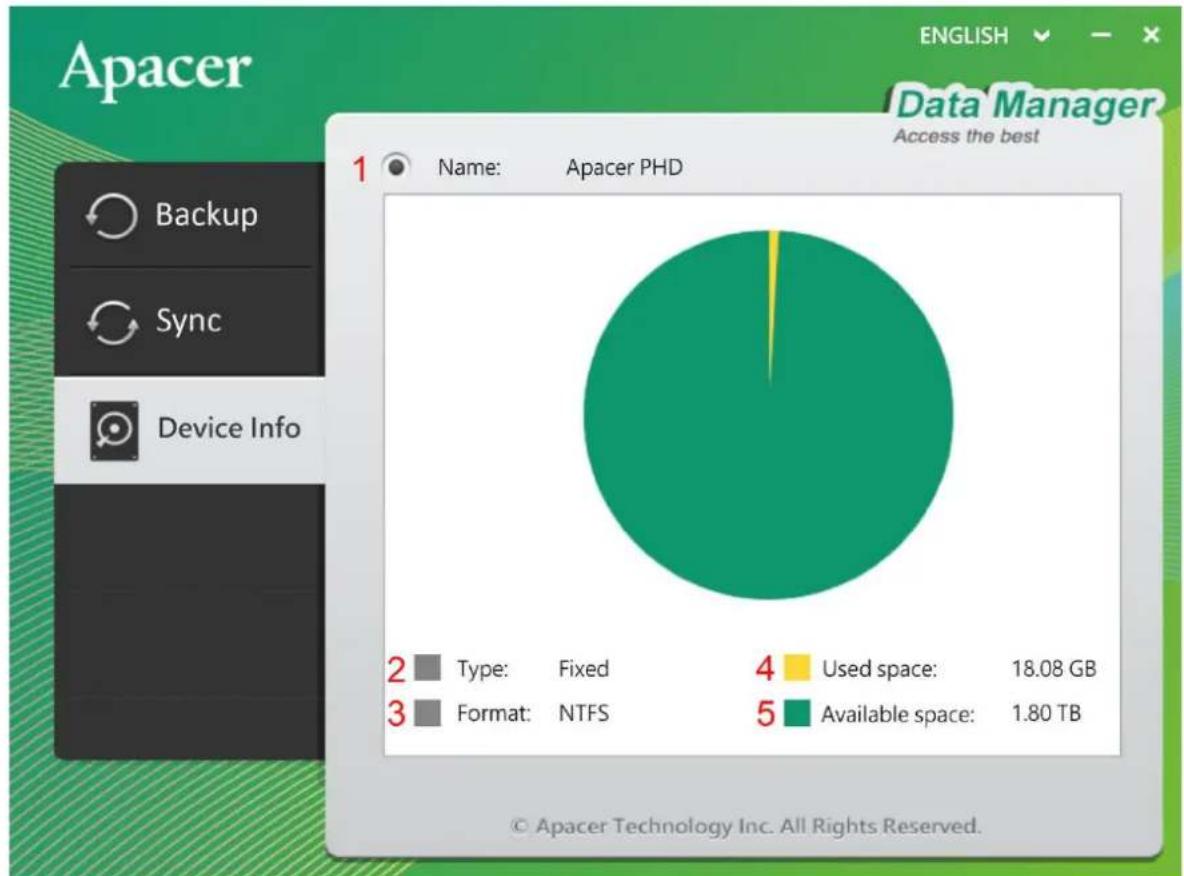
Under the Device Info tab, you can view the general information of Apacer's storage device attached to your computer.
pie
| Category | Value | | -------------- | --------- | | Available space | 1.80 TB | | Used space | 18.08 GB | | Type | Fixed | | Format | NTFS || No. | Item | Description |
| 1. | Name | Displays the name of the device attached to your computer. |
| 2. | Type | Depending on the type of the attached device, either of the following will appear:■ Fixed: Indicates that the attached device is external hard drive.■ Removable: Indicates that the attached device is USB drive. |
| 3. | Format | Displays the supported file system of the attached device. |
| 4. | Used space | Displays the storage space that has already been used on the attached device. |
| 5. | Available space | Displays the available storage space of the attached device. |
Global Presence
Taiwan (Headquarters)
Apacer Technology Inc.
1F., No.32, Zhongcheng Rd., Tucheng Dist.,
New Taipei City 236, Taiwan R.O.C.
Tel: 886-2-2267-8000
Fax: 886-2-2267-2261
amtsales@apacer.com
Japan
Apacer Technology Corp.
6F, Daiyontamachi Bldg., 2-17-12, Shibaura, Minato-Ku,
Tokyo, 108-0023, Japan
Tel: 81-3-5419-2668
Fax: 81-3-5419-0018
jpservices@apacer.com
China
Apacer Electronic (Shanghai) Co., Ltd
Room D, 22/FL, No.2, Lane 600, JieyunPlaza,
Tianshan RD, Shanghai, 200051, China
Tel: 86-21-6228-9939
Fax: 86-21-6228-9936
sales@apacer.com.cn
U.S.A.
Apacer Memory America, Inc.
46732 Lakeview Blvd., Fremont, CA 94538
Tel: 1-408-518-8699
Fax: 1-510-249-9551
sa@apacerus.com
Europe
Apacer Technology B.V.
Science Park Eindhoven 5051 5692 EB Son,
The Netherlands
Tel:31-40-267-0000
Fax: 31-40-290-0686
sales@apacer.nl
India
Apacer Technologies Pvt Ltd,
1874, South End C Cross, 9 ^th Block Jayanagar,
Bangalore-560069, India
Tel: 91-80-4152-9061/62
Fax: 91-80-4170-0215
sales_india@apacer.com