EVF50 - Monitor Ikan - Free user manual and instructions
Find the device manual for free EVF50 Ikan in PDF.


| Product Type | 5-inch 4K HDMI Electronic Viewfinder LCD Monitor Kit |
| Screen Size | 5 in |
| Resolution | 1920x1080 (Full HD) |
| Brightness | 450 cd/m² |
| Contrast Ratio | 1000:1 |
| Aspect Ratio | 16:9 |
| Color Depth | 16.7 million colors |
| Viewing Angle | 160° horizontal / 160° vertical |
| Response Time | 20 ms |
| Input Voltage | DC 7V – 24V |
| Power Consumption | 6W |
| Weight (Monitor Only) | 0.2 lbs (90 g) |
| Dimensions (Monitor) | 5.5 x 3.2 x 0.7 in |
| Build Material | Heavy-duty plastic |
| Operating Temperature | 0°C – 50°C (32°F – 122°F) |
| Inputs | HDMI |
| Outputs | HDMI, 3.5mm headphone jack |
| Supported Video Signals | 720p, 1080i/p, 2160p (4K up to 30Hz), 4096x2160p@24Hz |
| Touch Functions | Tap for status, pinch-to-zoom |
| Key Features | Guide masks, crosshair, peaking, false color, histogram, audio wave, pixel-to-pixel, EVF mode, DSLR scaling, flip modes, function buttons assignable |
| Included Accessories | DH5e monitor, AC adapter, Canon E6 battery plate, monitor cage with viewfinder, screen cleaning wipe, screen protection film, sunhood, Bluestar eye cushion, hex tool, screws, retaining brackets |
| Optional Accessories | Articulating arms (MA207, MA211, MA211-R), various battery plates (Canon, Panasonic, Sony, Nikon, etc.) |
| Warranty | 1 year free service for manufacturing defects; does not cover abuse, misuse, dismantling, or natural disasters |
Frequently Asked Questions - EVF50 Ikan
User questions about EVF50 Ikan
0 question about this device. Answer the ones you know or ask your own.
Ask a new question about this device
Download the instructions for your Monitor in PDF format for free! Find your manual EVF50 - Ikan and take your electronic device back in hand. On this page are published all the documents necessary for the use of your device. EVF50 by Ikan.
USER MANUAL EVF50 Ikan
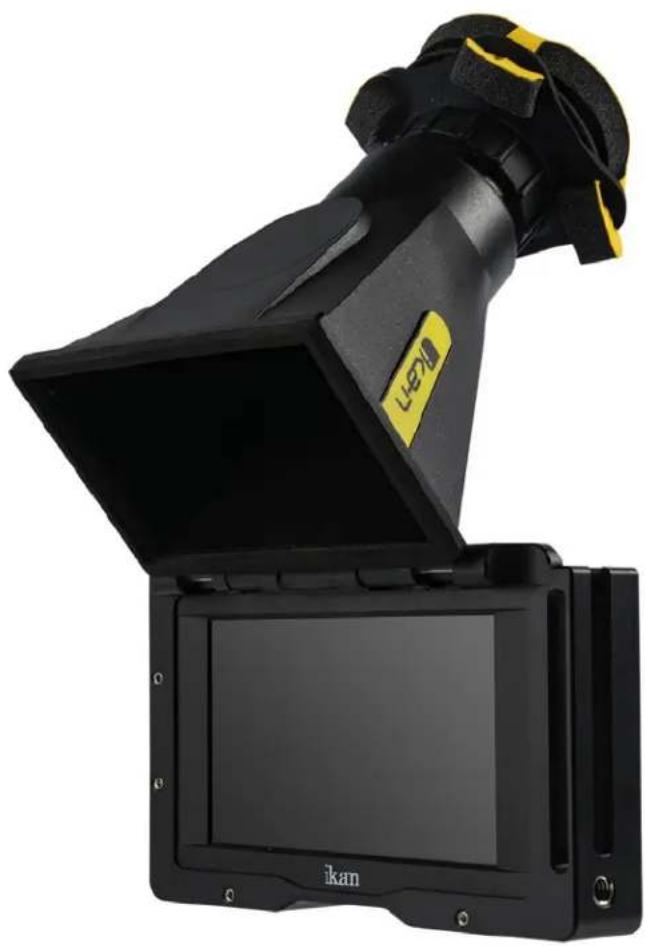
5" 4K Support HDMI Electronic Viewfinder LCD Monitor Kit with Canon LP-E6 Battery Plate
natural_image
Black I-200 camera module with open lid and black frame, no visible text or symbols on device bodyWhat's Included
□ 1 x DH5e Monitor
□ 1 x AC Adapter
□ 1 x Canon E6 Battery Plate
☐ 1 x Monitor Cage with Viewfinder
□ 1 x Screen Cleaning Wipe
□ 1 x Screen Protection Film
□ 1 x Sunhood
□ 1 x Bluestar Eye Cushion
CHECKED BY
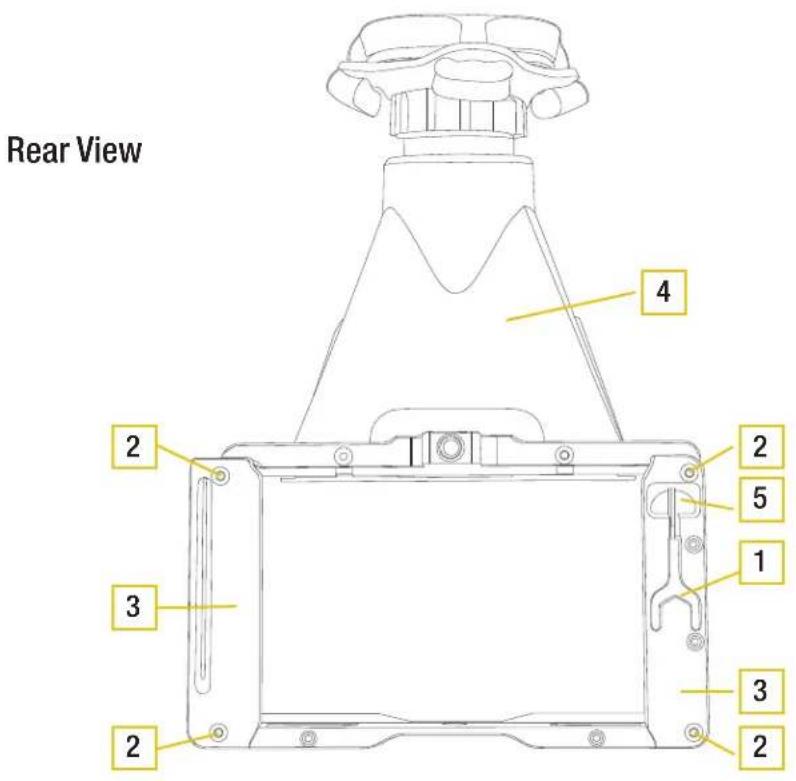
1 Removable Hex Tool
2 Hex Screws for Monitor Installation
3 Monitor Retaining Brackets
4 Viewfinder
5 Hex Tool Retaining Magnet
Installation
natural_image
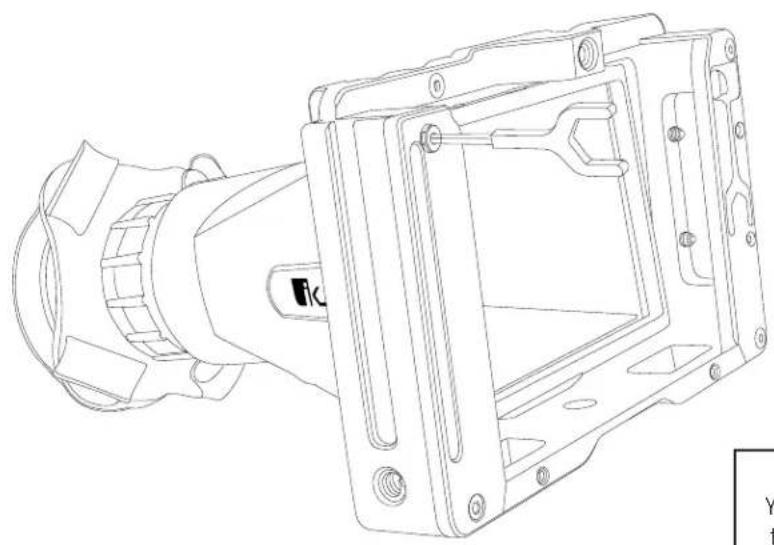
Technical line drawing of a mechanical device with mounting flanges and internal components (no text or symbols)NOTE:
You can also use the hex tool to tighten the cable lock screw.
- Remove monitor retaining brackets with included hex tool
- Slide in DH5e monitor from the rear
- Re-install monitor retaining bracket
Getting Started
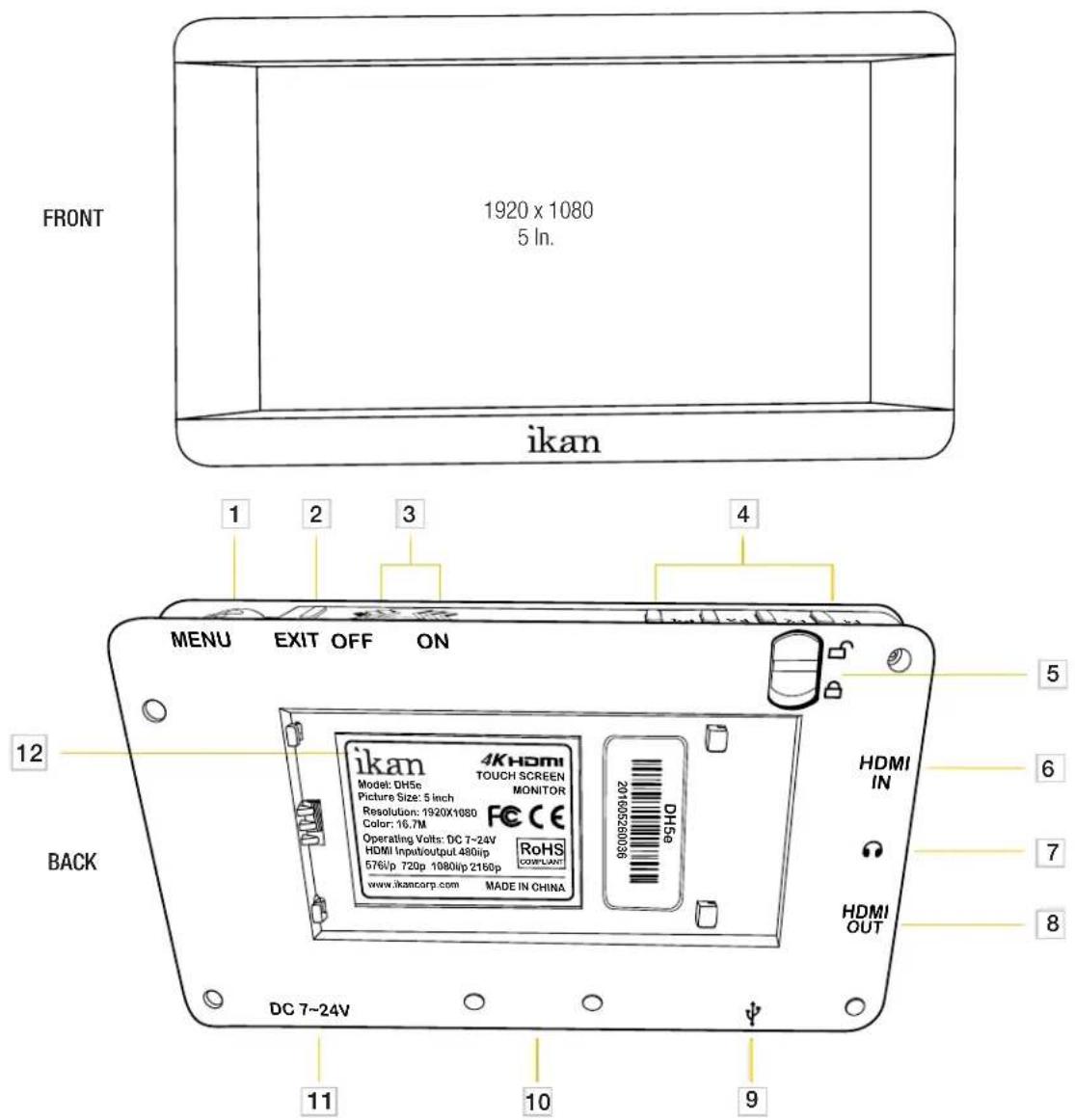
1 Menu Button - Scroll Wheel Used to enter and navigate the menu.
2 Exit / Aspect Used to exit the menu.
3 Power Button
Power ON/OFF
4 Function Buttons
Functions can be selected in the menu
5 Battery Plate Lock
Locks Battery Plate
6 HDMI Input Terminal
7 3.5mm Headphone Output
8 HDMI Output Terminal
9 USB Connector Used for Software Updates
10 1/4"-20 Threaded Insert
11 DC 7-24V Power Terminal Standard DC Connection
12 DV Battery Plate Slot
Used for mounting DV Battery plate
Touch Functions
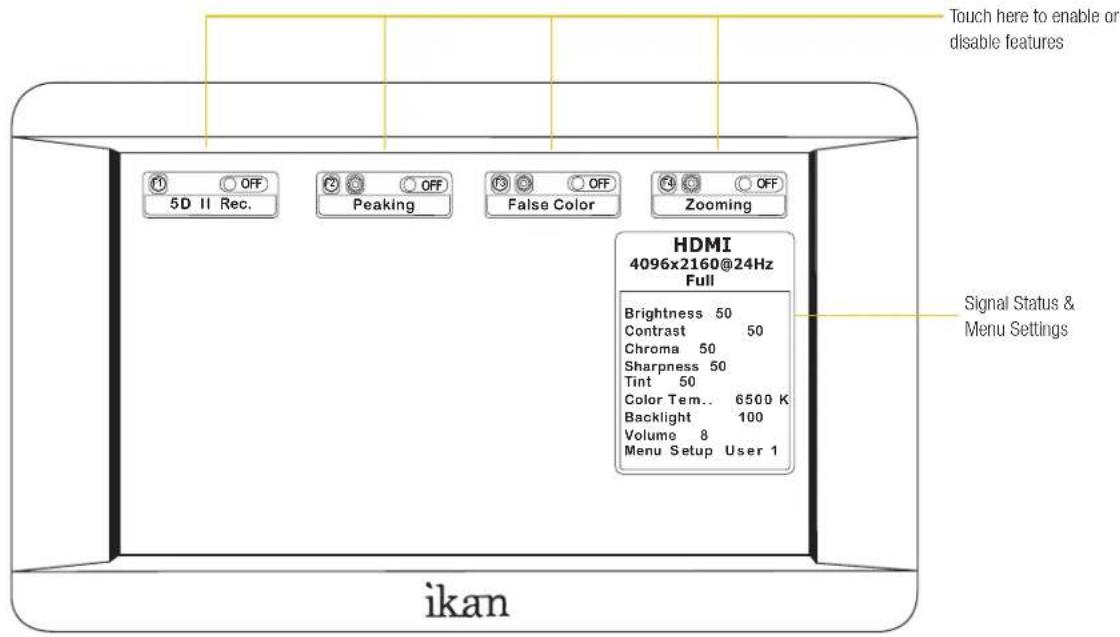
1 Tap the screen to bring up the status display. From here you can check various settings. You can also see current menu settings. In addition, you can enable and disable features mapped to the function buttons.
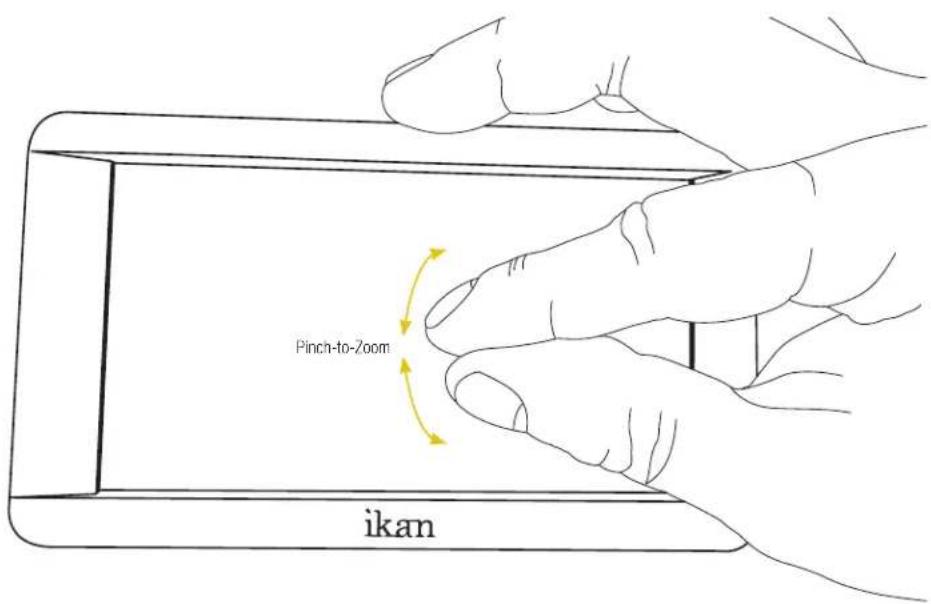
2 Pinch-to-Zoom allows you to zoom into your image by using your fingertips, similar to your smartphone!
Configuration of Setting Menus
Guide Masks — Toggle between the following: 80%, 90%, 15:9, 4:3, 1.5:1, 1.85:1, 2:1, 2.35:1, Custom
Crosshair — Activates Crosshair on center of screen.
Grids — Activates grid on the screen to assist with framing.
Video Config —Brightness: 0-100
Contrast: 0-100
Chroma: 0-100
Sharpness: 0-100
Tint: 0-100
Color Temperature — 5600K, 6500K, 9300K, Manual
Backlight — Allows user to fine tune the intensity of the LCD Panel's backlight.
Aspect — Allows user to change the aspect ratio of the image.
System Config—OSD—Language: Choose between English & Chinese for OSD.
OSD - Duration: Choose how long the menu stays active without activity.
OSD - Transparency: Choose from low, medium, high, or off.
MENU Setup - Allows 5 users to save menu settings.
System Reset - Reset Settings to factory defaults.
Display Flip Mode—On/Off—
H Flip - Horizontal Flip On/Off
V Flip - Vertical Flip On/Off
OSD - Flip Mode - On/Off - Allows you to flip the On-Screen display to match the video.
H Flip - Horizontal Flip On/Off
V Flip - Vertical Flip On/Off
Touch Control — On/Off - Allows you to enable or disable the touch screen.
Function Set Up on following page.
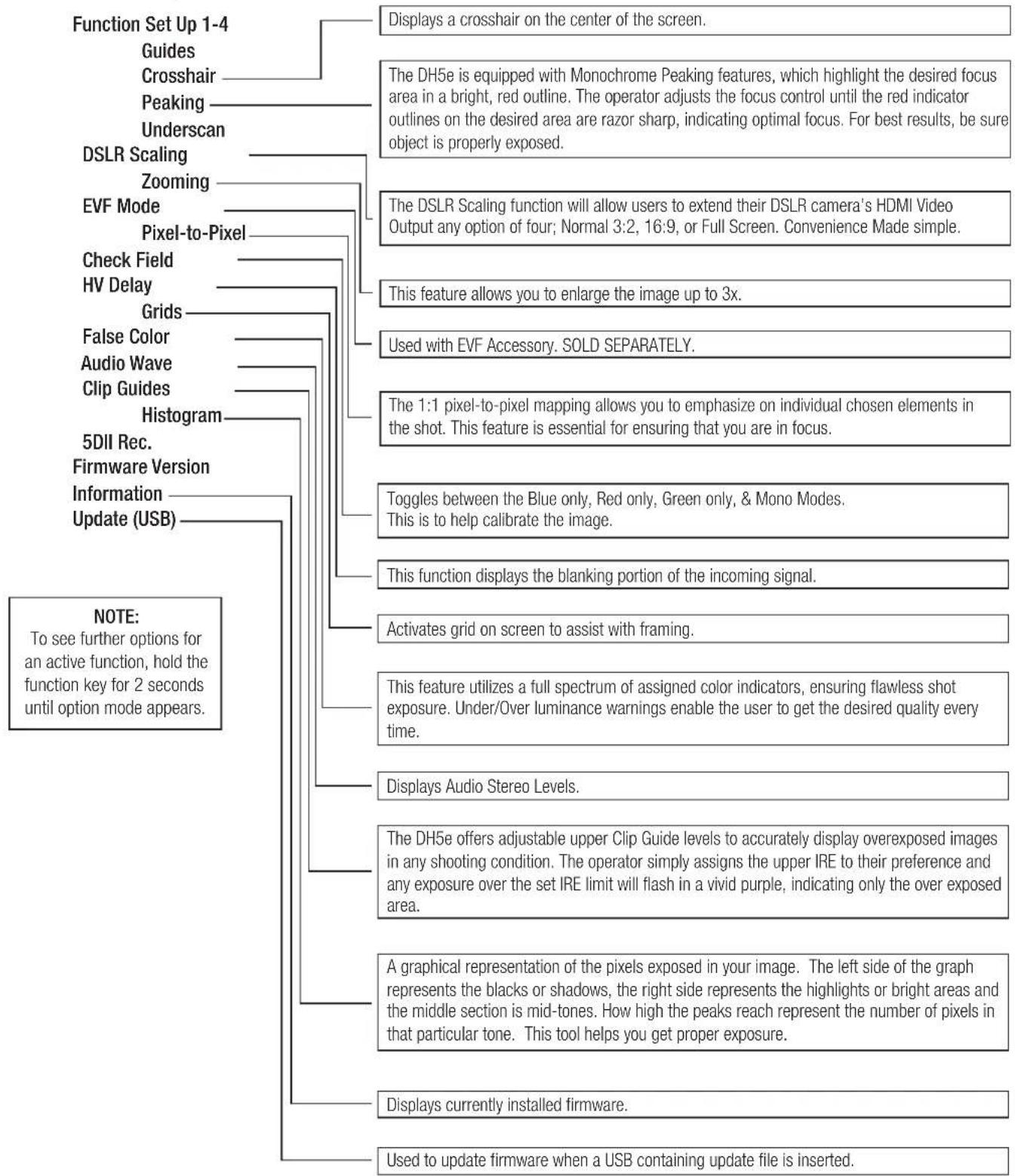
Function Set Up
flowchart
graph TD
    A["Function Set Up 1-4"] --> B["Guides"]
    A --> C["Crosshair"]
    A --> D["Peaking"]
    A --> E["Underscan"]
    A --> F["DSLR Scaling"]
    A --> G["Zooming"]
    A --> H["EVF Mode"]
    A --> I["Pixel-to-Pixel"]
    A --> J["Check Field"]
    A --> K["HV Delay"]
    A --> L["Grids"]
    A --> M["False Color"]
    A --> N["Audio Wave"]
    A --> O["Clip Guides"]
    A --> P["Histogram"]
    A --> Q["5DII Rec. Firmware Version"]
    A --> R["Information Update (USB)"]

    B --> S["Displays a crosshair on the center of the screen."]
    C --> T["The DH5e is equipped with Monochrome Peaking features, which highlight the desired focus area in a bright, red outline. The operator adjusts the focus control until the red indicator outlines on the desired area are razor sharp, indicating optimal focus. For best results, be sure object is properly exposed."]
    D --> U["The DSLR Scaling function will allow users to extend their DSLR camera's HDMI Video Output any option of four; Normal 3:2, 16:9, or Full Screen. Convenience Made simple."]
    E --> V["This feature allows you to enlarge the image up to 3x."]
    F --> W["Used with EVF Accessory. SOLD SEPARATELY."]
    G --> X["The 1:1 pixel-to-pixel mapping allows you to emphasize on individual chosen elements in the shot. This feature is essential for ensuring that you are in focus."]
    H --> Y["Toggles between the Blue only, Red only, Green only, & Mono Modes. This is to help calibrate the image."]
    I --> Z["This function displays the blanking portion of the incoming signal."]
    J --> AA["Activates grid on screen to assist with framing."]
    K --> AB["This feature utilizes a full spectrum of assigned color indicators, ensuring flawless shot exposure. Under/Over luminance warnings enable the user to get the desired quality every time."]
    L --> AC["Displays Audio Stereo Levels."]
    M --> AD["A graphical representation of the pixels exposed in your image. The left side of the graph represents the blacks or shadows, the right side represents the highlights or bright areas and the middle section is mid-tones. How high the peaks reach represent the number of pixels in that particular tone. This tool helps you get proper exposure."]
    N --> AE["Displays currently installed firmware."]
    O --> AF["Used to update firmware when a USB containing update file is inserted."]

    note bottom
        NOTE: To see further options for an active function, hold the function key for 2 seconds until option mode appears.
    end
Specifications
| Aspect Ratio | 16 x 9 |
| Backlight | LED |
| Brightness | 450 cd/m2 |
| Build Material | Heavy Duty Plastic |
| Color Depth | 16.7 Millions |
| Color System | PAL/NTSC/SECAM (Auto-Detected) |
| Contrast Ratio | 1000:1 |
| Dimensions | 5.5 x 3.2 x 0.7 In. |
| Input Voltage | DC 7V - 24V |
| Inputs | HDMI |
| Operating Temperature | 0°C~50° (32°F~122°F) |
| Outputs | HDMI |
| Pixel Pitch | 0.01925x0.05775 mm |
| Power Consumption | 6W |
| Resolution | 1920x1080 |
| Response Time | 20ms |
| Screen Size | 5 In. |
| Shipping Dimensions | 3 x 14.75 x 7.75 In. |
| Shipping Weight | 2 lbs |
| Viewing Angle | 160° Horizontal / 160° Vertical |
| Weight | 0.2 lbs |
Supported Video Signals
| HDMI | 720x480i & 720x480p @ 59.94, 60 Hz |
| 720x576i @ 50 Hz | |
| 1280x720p @ 23.97, 24, 25, 29.94, 30, 50, 59.94, 60 Hz | |
| 1920x1080i @ 50, 59.94, 60 Hz | |
| 1920x1080psf @ 24, 25, 29.97, 30 Hz | |
| 1920x1080p @ 23.97, 24, 25, 29.94, 30, 50, 59.94, 60 Hz | |
| 3840x2160p @ 24, 25, 30 Hz | |
| 4096x2160p @ 24 Hz |
Optional Accessories
MOUNTS
MA207 7 In. Articulating Arm
MA211 11 In. Articulating Arm
MA211-R 11 In. Articulating Arm w/ Single Rod Mount
BATTERY PLATES
BP5-C Canon 900 Battery Plate
BP5-E6 Canon LP-E6+ Battery Plate
BP5-P Panasonic D54 Battery
BP5-S Sony L Series Battery Plate
BP5-N Nikon EN-EL15 Battery Plate
BP5-PG6 Panasonic G6 Battery Plate
BP5-SU Sony BP-U Series Battery Plate
Learn More
More dynamic information at official website: www.ikancorp.com
Support
Contact email: support@ikancorp.com
CONDITIONS OF WARRANTY SERVICE
- Free service for one year from the day of purchase if the problem is caused by manufacturing errors.
- The components and maintenance service fee will be charged if the warranty period is expired.
Free Service will not be Provided in the Following Situations:(*Even if the product is still within the warranty period.)
- Damage caused by abuse or misuse, dismantling, or changes to the product not made by the company.
- Damage caused by natural disaster, abnormal voltage, and environmental factors, etc.
©2018 ikan Corporation. All rights reserved
Brand : Ikan
Model : EVF50
Category : Monitor