DP603-PEC D - Piano ROLAND - Free user manual and instructions
Find the device manual for free DP603-PEC D ROLAND in PDF.


User questions about DP603-PEC D ROLAND
0 question about this device. Answer the ones you know or ask your own.
Ask a new question about this device
Download the instructions for your Piano in PDF format for free! Find your manual DP603-PEC D - ROLAND and take your electronic device back in hand. On this page are published all the documents necessary for the use of your device. DP603-PEC D by ROLAND.
USER MANUAL DP603-PEC D ROLAND
IMPORTANT: THE WIRES IN THIS MAINS LEAD ARE COLOURED IN ACCORDANCE WITH THE FOLLOWING CODE.
BLUE: NEUTRAL
BROWN: LIVE
As the colours of the wires in the mains lead of this apparatus may not correspond with the coloured markings identifying the terminals in your plug, proceed as follows:
The wire which is coloured BLUE must be connected to the terminal which is marked with the letter N or coloured BLACK.
The wire which is coloured BROWN must be connected to the terminal which is marked with the letter L or coloured RED.
Under no circumstances must either of the above wires be connected to the earth terminal of a three pin plug.
-For the USA
DECLARATION OF CONFORMITY Compliance Information Statement
Model Name : DP603
Type of Equipment : Digital Piano
Responsible Party: Roland Corporation U.S.
Address: 5100 S. Eastern Avenue Los Angeles, CA 90040-2938
Telephone : (323) 890-3700
Owner's Manual
Play the Piano
Play various sounds
page 8
This unit contains a wide variety of tones (sounds). You can freely select and perform using these tones.
Play two layered tones (Dual Play)
page 9
You can layer two tones on a single key.
Play different tones with your left and right hands (Split Play)
page 9
You can divide the keyboard into left and right zones, and select a different tone for each zone.
Save your performance settings (Registration)
page 16
You can save tone settings and settings for Dual Play or Split, and recall them easily.
Practice Songs
Sound a metronome
You can sound a metronome.
page 10
Practice along with the built-in songs
This unit contains numerous built-in songs.
For the song titles, refer to "Internal Song List" at the end of this manual.
page 11
Recording the Song You're Practicing
You can record your own playing.
page 12
Adjust Your Piano
Adjust the keyboard touch
page 8
You can adjust the touch sensitivity of the keyboard to match your own playing style.
Match the pitch to other instruments
page 20
When playing together with other instruments, you can match the unit's reference pitch to that of the other instruments (Master Tuning).
♪ Create your own piano (Piano Designer)
page 15
You can customize the sound to your own taste by adjusting the sonic elements of the grand piano sound.
Provision of Bluetooth functionality
Please be aware that depending on the country in which you purchased the unit, Bluetooth functionality might not be included.
If Bluetooth functionality is included
The Bluetooth logo appears when you turn on the power.

Bluetooth®
Selecting a Tone
This unit lets you enjoy performing with a variety of piano tones and other tones.
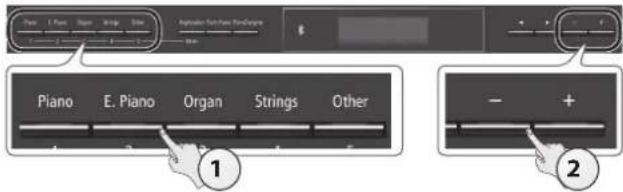
- Press one of the tone buttons.
Select a tone group.
| Button Explanation | |
| [Piano] button Grand piano tones | |
| [E. Piano] button Electric piano tones | |
| [Organ] button Organ tones | |
| [Strings] button | The tones of string instruments such as violins, as well as other instruments used in orchestras. |
| [Other] button | Selects a variety of sounds such as bass or accompaniment sounds. |
- Use the [-] [+] buttons to select a tone.
MEMO
For more about the sounds, refer to "Tone List" at the end of this manual.
page 8
Using the Metronome
You can perform while hearing a metronome.
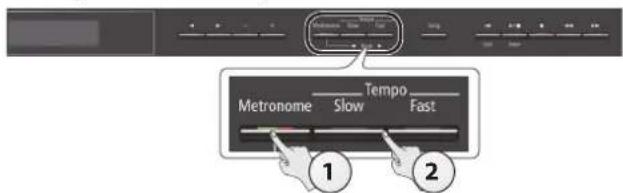
- Press the [Metronome] button.
- Press the [Slow] [Fast] buttons.
The metronome tempo changes.
page 10
Selecting and Playing Songs
You can perform along with a song.
Selecting a song
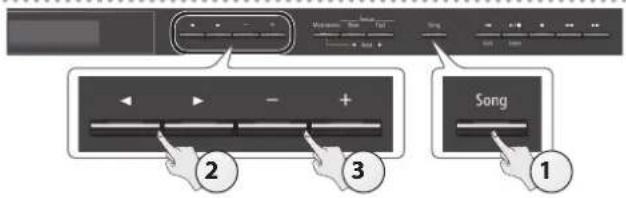
- Press the [Song] button.
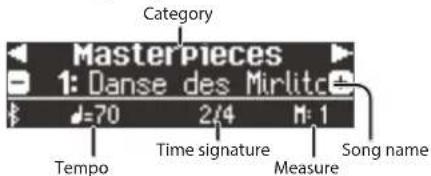
- Use the [◀] [▶] buttons to select a category.
| Category Explanation | ||
| USB Memory | Songs saved on a USB flash drive | |
| Internal Memory | Songs saved in internal memory | |
| Listening | This unit'sinternal songs | Piano songs recommended for listening |
| Masterpieces | Piano MasterpiecesSongs corresponding to the included collection of scores, "Roland Classical Piano Masterpieces." | |
| Easy Piano | Famous popular songs and classical compositionsSongs corresponding to the included collection of scores, "Let's Enjoy Piano." | |
| Scales | Scales in all keys(major scales, minor scales)Songs corresponding to the included collection of scores, "Let's Enjoy Piano." | |
| Hanon | The Virtuoso Pianist No.1-20 | |
| Beyer | Vorschule im Klavierspiel Op.101No.1-106 | |
| Burgmüller | 25 Études faciles et progressives Op.100 | |
| Czerny100 | 100 Übungsstücke Op.139 | |
- Use the [-] [+] buttons to select a song.
MEMO
For details on the internal songs, refer to "Internal Song List" at the end of this manual.
Playing a song
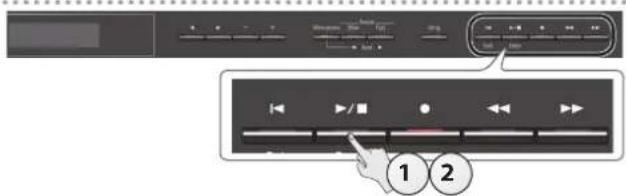
- Press the [▶/■] button.
The song plays.
- Press the [▶/■] button once again.
The song stops.
Song operations
| Return to the beginning of the song | Press the [◀] button. |
| Play/stop | Press the [▶/■] button. |
| Rewind | Press the [◀◀] button. |
| Fast-forward | Press the [▶▶] button. |
| Play all songs in the selected category (All Song Play) | Hold down the [Song] button and press the [▶/■] button. |
| Change the song tempo Press the [Slow] [Fast] buttons. | |
Easy Quick Guide 2
Selecting a Tone 2
Using the Metronome 2
Selecting and Playing Songs.... 2
Main Specifications.... 3
Before You Play 4
Opening/Closing the Lid 4
Turning the Power On/Off.... 5
Panel Descriptions.... 6
Connecting Your Equipment.... 7
Operation Guide.... 8
Selecting a Tone 8
Adjusting the Overall Volume.... 8
Adding Reverberation to the Sound (Ambience) ..... 8
Adjusting the Brightness of the Sound (Brilliance) ..... 8
Making Various Settings (Function Mode) 8
Changing the Playing Feel of the Keyboard (Key Touch). 8
Transposing the Pitch (Transpose)....8
Dividing the Keyboard for Two People (Twin Piano) .... 9
Saving Your Performance Settings (Registration) ..... 9
Playing Different Tones with the Left and Right Hands .. 9
Creating Your Own Piano Tone (Piano Designer) .....
Layering Two Sounds (Dual Play) 9
Display 10
Using the Bluetooth Function.... 10
Selecting an Item/Editing a Value 10
Sounding the Metronome.... 10
Selecting a Song 11
Playing Back or Recording.... 11
Disabling the Buttons (Panel Lock) 11
Selecting the Part(s) to Play (Part Mute).... 11
Advanced Operation 12
Recording Your Performance.... 12
SMF Recording 12
Recording a New Song.... 12
Overdubbing a Recorded Song 12
Recording Audio 13
Renaming a Song (Rename Song) 13
Copying a Saved Song (Copy Song) 14
Deleting a Saved Song (Delete Song) 14
Personalizing Your Piano Sound (Piano Designer).... 15
Saving Your Performance Settings (Registration) 16
Recalling a Registration 16
Saving Current Settings into a Registration 16
Saving a Registration Set (Registration Export) ..... 17
Loading a Saved Registration Set (Registration Import) . 17
Loading/Saving Piano Setups 18
Saving Piano Settings (Piano Setup Export) 18
Loading Piano Settings (Piano Setup Import).... 18
Convenient Functions.... 19
Initializing the Memory (Format Media).... 19
Restoring the Factory Settings (Factory Reset).... 19
Various Settings (Function Mode).... 20
Basic Operations in Function Mode.... 20
Matching the Pitch with Other Instruments
(Master Tuning) 20
Changing the Tuning Method (Temperament) 20
Specifying the Tonic Note (Temperament Key) 20
Adjusting the Song (SMF) Volume (Song Volume SMF).. 20
Adjusting the Song (Audio) Volume
(Song Volume Audio) 20
Adjusting the Volume of an Audio Playback Device
(Input Volume).... 20
Specifying the Song (SMF) Playback Mode
(SMF Play Mode) 21
Selecting the Format for Recording (Recording Mode) .. 21
Changing How the Pedal Effects Are Applied
(Damper Pedal Part) 21
Changing How the Pedals Work (Center Pedal) 21
Changing the Effect of the Pedal (Left Pedal) 21
Using a Pedal to Switch Registrations (Reg. Pedal Shift) . 21
Adjusting the Brightness of the Display
Preventing Doubled Notes When Connected to a
Sequencer (Local Control) 22
MIDI Transmit Channel Settings (MIDI Transmit Ch) ..... 22
Changing the Language Displayed in the Screen
(Language) 22
Making the Power Automatically Turn off After a Time
(Auto Off) 22
Saving Settings Automatically (Auto Memory Backup).. 22
Using the Bluetooth® Functionality 23
Here's What You Can Do.... 23
Using Bluetooth Audio.... 23
Registering a Mobile Device (Pairing) 23
Connecting an Already-Paired Mobile Device 23
Adjusting the Volume of Bluetooth Audio 23
Using the Pedal to Turn Pages on a Music Score App .... 24
Connecting an Already-Paired Mobile Device 24
Changing the Operating Keys of the Page Turning
Function 24
Changing the Page-Turn Operation 24
Transferring MIDI Data.... 25
Troubleshooting.... 26
Error Messages 27
USING THE UNIT SAFELY 28
IMPORTANT NOTES.... 28
Main Specifications
RolandDP603: Digital Piano
| Sound Generator Piano Sound: SuperNATURAL Piano Modeling | |
| Keyboard | PHA 50 Keyboard: Wood and Plastic Hybrid Structure, with Escapement and Ebony/Ivory Feel (88 keys) |
| Bluetooth | Audio: Bluetooth Ver 3.0 (Supports SCMS-T content protection)MIDI, Turning music sheet: Bluetooth Ver 4.0 |
| Power Supply AC Adaptor | |
| Power Consumption | 9 W |
| Dimensions(including piano stand) | With lid closed:1,398 (W) x 311 (D) x 783 (H) mm55-1/16 (W) x 12-1/4 (D) x 30-13/16 (H) inchesWith lid opened:1,398 (W) x 377 (D) x 975 (H) mm55-1/16 (W) x 14-13/16 (D) x 38-3/8 (H) inches* Measurements include stabilizer components attached. |
| Weight (including piano stand) | DP603-CB: 45.9 kg, 101 lbs 7 ozDP603-PE: 47.0 kg, 103 lbs 22 ozDP603-PW: 47.8 kg, 105 lbs 13 oz |
| Accessories | Owner's Manual, Leaflet "Stand Assembly", Leaflet "USING THE UNIT SAFELY", Roland Classical Piano Masterpieces, Roland Piano Arrange Collections"Let's Enjoy Piano", AC Adaptor, Power cord, Headphone hook, Cord clamps, Stabilizers |
| Option (sold separately) | Headphones, USB Flash Memory (*1)*1: Use a commercially available USB flash drive or a USB flash drive sold by Roland. However, we cannot guarantee that all commercially available USB flash drives will work with this unit. |
* This document explains the specifications of the product at the time that the document was issued. For the latest information, refer to the Roland website.
Opening/Closing the Lid
Opening the Lid
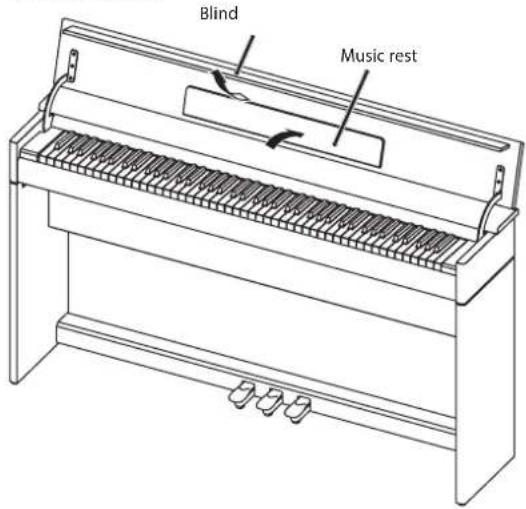
1. Grasp and lift the lid with both hands.
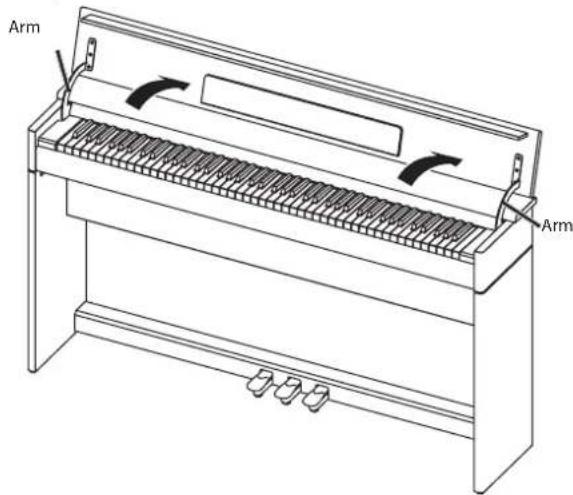
NOTE
- Always use two hands to open and close the lid. Although the unit's lid is designed to close slowly and gently when it is released, the lid immediately closes if it has been opened only slightly. Take care not to allow your fingers to become pinched by the lid.
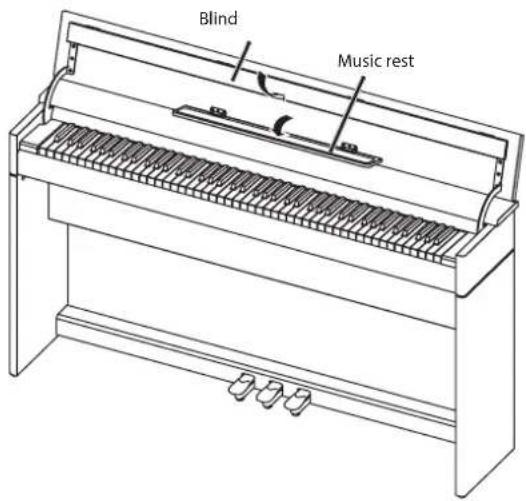
2. Close the blind and open the music rest as shown in the figure.
Closing the Lid
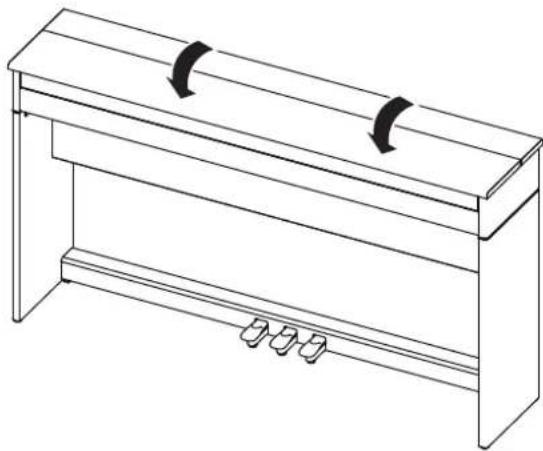
1. When closing the lid, be sure to close the music rest and open the blind.
2. Grasp and gently lower the lid with both hands.
natural_image
Line drawing of a three-tiered shelf or rack unit with two curved arrows indicating compression or force application (no text or symbols)NOTE
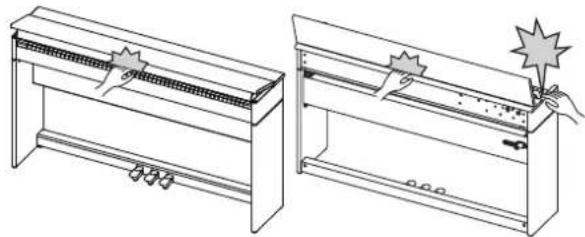
When opening or closing the lid, take care not to pinch your finger in the lid or the arms.
natural_image
Line drawings of two piano frames with decorative elements and a starburst effect (no text or symbols)Turning the Power On/Off
* Once everything is properly connected (p. 7), be sure to follow the procedure below to turn on their power. If you turn on equipment in the wrong order, you risk causing malfunction or equipment failure.
Turning the power on
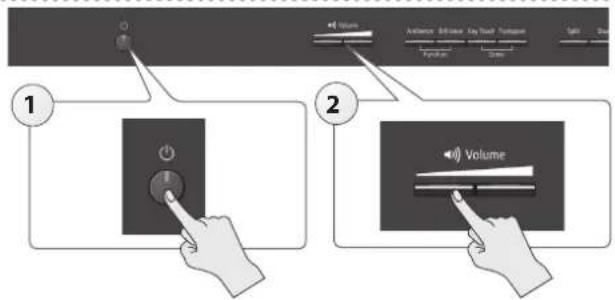
- Press the [⏻] button.
After a brief interval, you'll be able to produce sounds by playing the keyboard. - Use the [Volume] buttons to adjust the volume.
Turning the power off
- Long-press the [◎] button.
The power turns off.
Concerning the Auto Off function
The power to this unit will be turned off automatically after a predetermined amount of time has passed since it was last used for playing music, or its buttons or controls were operated (Auto Off function).
If you do not want the power to be turned off automatically, disengage the Auto Off function (p. 22).
- Settings that are not saved will be lost when the power is turned off. If you have any settings that you want to keep, you should save them beforehand.
• To restore power, turn the power on again.
[⊕] Button
If you want to turn the power on/off, press the [∅] button.
To turn the power off, long-press the [⏻] button.
* Never disconnect the power cord while the screen indicates "Don't disconnect the power."
![ROLAND DP603-PEC D - [⊕] Button - 1](/content/2026/06/1194521/images/2a0b93887aef32a4a7576e6464f915b1d9989add43828f6d94262784326e83b1.jpg)
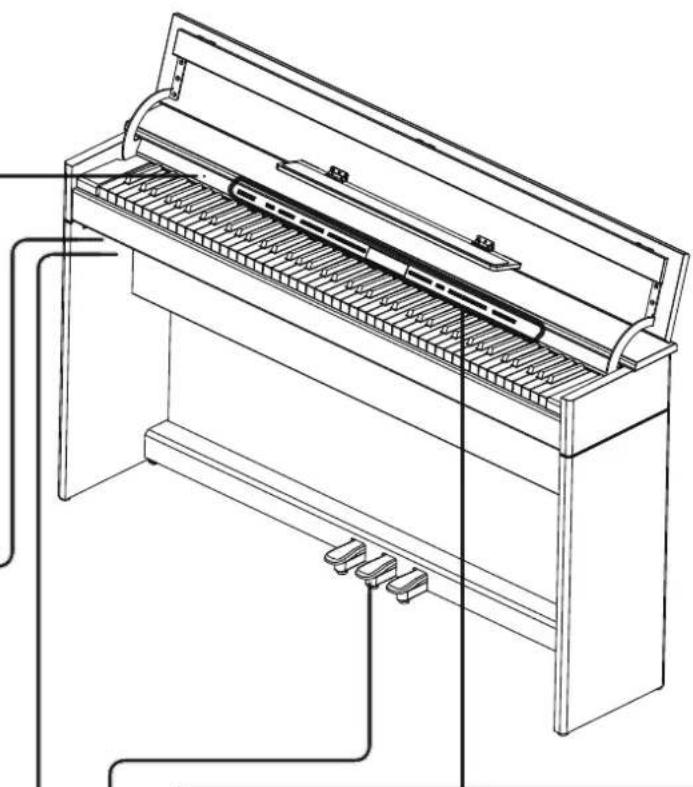
Bottom Panel
Connect headphones and USB flash drive.

page 7
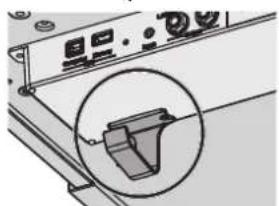
Headphone Hook
Whenever you are not using the headphones, you can hang them on the headphone hook.
natural_image
Technical diagram showing a mechanical component with an inset close-up view of a bracket (no text or symbols)* Don't hang anything other than headphones on this hook, and don't apply excessive force to it. Doing so may damage the headphone hook.
natural_image
Technical line drawing of a piano with a rack and ventilation slots (no text or symbols)Front Panel
This is where you operate the unit.
page 8
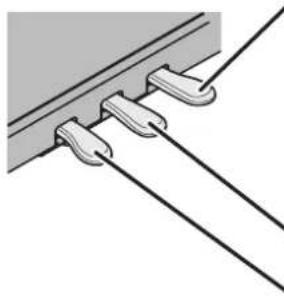
Pedal
natural_image
Pure diagram of three metal clips attached to a wall, no text or symbols presentDamper Pedal
Use this pedal to sustain the sound. While this pedal is held down, notes will be sustained for an extended time even if you release your fingers from the keyboard.
On an acoustic piano, when you step on the damper pedal, you'll first hear the sound of the dampers releasing the strings. Then, you should also be able to hear the sound of strings adjacent to the ones for the notes actually played resonate sympathetically, resulting in a rich, resounding tone.
Additionally, when using half-pedaling techniques, the core of the sound disappears rapidly while a rich, spacious resonance remains, producing a unique form of reverberation. On the unit, the unique, lingering tones produced by the half-pedaling technique are reproduced in addition to released-string sounds (Damper Noise) and resonating sounds (Damper Resonance).
Sostenuto Pedal
The notes you are pressing when this pedal is depressed will be sustained.
Soft Pedal
This pedal is used to make the sound softer. Playing with the soft pedal depressed produces a sound that is not as strong as when otherwise played with the equivalent strength. This is the same function as the left pedal of a grand piano. The softness of the tone can be varied subtly by the depth to which you press the pedal.
* When operating the pedal, take care not to pinch your fingers between the moving part and the body of the unit. Pay special attention to this when using the unit where children are present.

Connecting Your Equipment
Input Jack
By connecting an audio player or other audio playback device here, you can play back the sound of the audio playback device via the unit. Use the Input Volume (p. 20) to adjust the volume of the device that's connected to the Input jack.
Output Jacks
If you connect these jacks to amplified speakers, the sound of the unit will be heard through them.
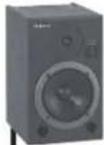
Before turning off the power of the unit, you must first turn off the power of the devices that are connected to the Output jacks.
USB Memory Port
You can do the following things using a USB flash drive.
- WAVE files or MIDI files (SMF) data copied from your computer can be played back by the unit.
- You can make audio recordings of your performances on the unit.
- The audio recordings of songs that you've made can be played on your computer.
* Never turn off the power or disconnect a USB flash drive or the power cord while the USB memory access indicator is blinking.
* Use a commercially available USB flash drive or a USB flash drive sold by Roland. However, we cannot guarantee that all commercially available USB flash drives will work with this unit.
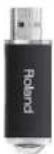
Phones Jacks

Here you can connect stereo headphones. This unit has two headphone jacks, two people can also use headphones simultaneously.
A Headphones 3D Ambience effect will be applied, producing the sensation that the sound is emanating from the piano itself even when using headphones.
The Headphones 3D Ambience effect applies only to piano sounds; it does not apply to other sounds.
* You can also turn the Headphones 3D Ambience effect off (p. 8).
You can use the [Ambience] button to adjust the Headphones 3D Ambience effect.
USB Computer Port
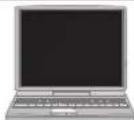
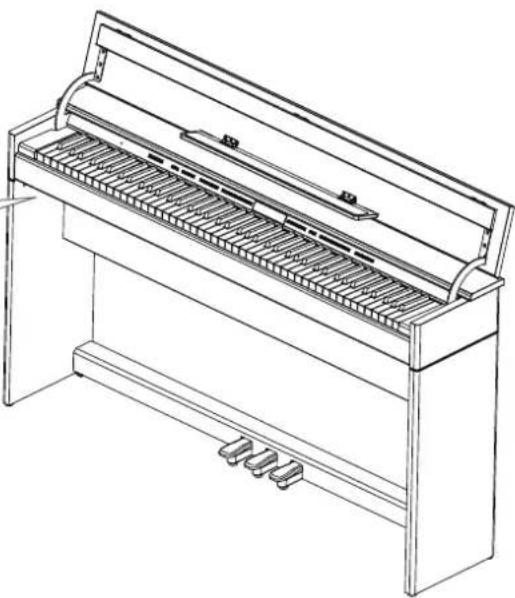
If you use a commercially available USB cable to connect the unit's USB Computer port to your computer's USB connector, you'll be able to do the following things.
- SMF data played back by MIDI-compatible software can be sounded by the unit.
- MIDI data can be transferred between the unit and your sequencer software, opening up a wide range of possibilities for music production and editing.
natural_image
Line drawing of a piano with slats and control panel (no text or symbols)Selecting a Tone
In addition to piano sounds, the unit lets you enjoy performing with many other sounds.
These sounds are called "Tones." The Tones are divided into five groups, each of which is assigned to a different Tone button.
| To select a tone | Press a tone button (e.g., [Piano]) and then use the [-] [+] buttons. |
Viewing the display
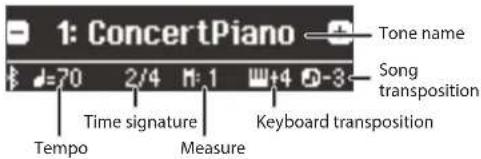
Auditioning the tones (Tone Demo)
- Hold down the [Key Touch] button and press the [Transpose] button.
- Select a tone.
You can hear a tone demo of the first tone in each tone group. - To end the tone demo, press the [I◄] button.
MEMO
For more about the sounds, refer to "Tone List" at the end of this manual.
Tone groups
| Button Explanation | |
| [Piano] button Grand piano tones | |
| [E. Piano] button Electric piano tones | |
| [Organ] button | Organ tones* If you've selected an organ sound that provides a rotary effect (*1), such as a Combo Jz. Org or a Ballad Organ, pressing the [Organ] button will switch the speed of the rotary effect. |
| [Strings] button | The tones of string instruments such as violins, as well as other instruments used in orchestras. |
| [Other] button | Selects a variety of sounds such as bass or accompaniment sounds.MEMOYou can use the [◀] [▶] buttons to select sounds of the next category. |
*1 Rotary is an effect which simulates the sound of rotating speakers. There is a choice of two settings: Fast and Slow.
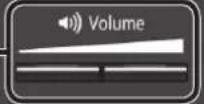
Adjusting the Overall Volume
You can adjust the speaker volume when using the internal speakers, or the headphone volume when headphones are connected.
Adjusting the volume 0–100
Ambience Brilliance Key Touch Transpose
Function
Demo
Split
Dual
Adding Reverberation to the Sound (Ambience)
The reverberation that is characteristic of a performance in a concert hall can be added to the sound.
| Adjusting the reverberation (Ambience) | 0-10 (default value: 2)* If Headphones 3D Ambience is “on,” you can adjust the depth of the Headphones 3D Ambience effect. |
| Headphones 3D Ambience | You can apply a Headphones 3D Ambience effect that creates the impression that the sound is being heard from the piano itself even when you’re using headphones. |
| Off, On (default value: On) |
* The reverberation effect is not applied to audio files.
Adjusting the Brightness of the Sound (Brilliance)
You can adjust the brightness of the sound when you play the keyboard or when you play back a song.
| Adjusting the brightness of the sound | -10-0-10 (default value: 0) |
Making Various Settings (Function Mode)
You can make detailed settings for the unit.
- Simultaneously press the [Ambience] button and [Brilliance] button.
- Use the [◀] [▶] buttons to select the item that you want to set.
- Use the [-] [+] buttons to edit the setting.
Transposing the Pitch (Transpose)
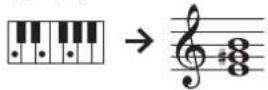
The keyboard or song can be transposed in semitone steps.
For example if a song is in the key of E major but you want to play it using the fingering of the C major scale, you would set the keyboard transpose setting to "4."
If you play C E G → It will sound E G B
| Kbd Transpose | -6-0-5 (default value: 0)MEMOYou can also change the keyboard transpose setting by holding down the [Transpose] button and pressing the note that will be the tonic (root note) of the transposed key. |
| Song Transpose -12-0-12 (default value: 0) | |
Changing the Playing Feel of the Keyboard (Key Touch)
You can change the playing feel (touch) of the keyboard.
| Adjusting the key touch | Fix, 1–100 (default value: 50)* If this is set to “Fix,” each note sounds at the same volume regardless of how strongly you play the keyboard. |
| Hammer Response | Adjusts the time from when you play the key until the piano sound is heard. Higher values produce a greater delay. |
| Off, 1–10 (default value: 1) |
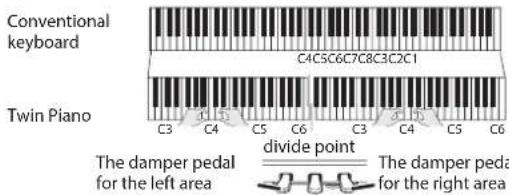
Dividing the Keyboard for Two People (Twin Piano)
You can divide the keyboard into left and right areas so that two people can play the same range of pitches.
| Turning Twin Piano on | Turn the [Twin Piano] button on. | |
| Changing the Twin Piano tone | 1. Press a tone button.2. Use the [-] [+] buttons. | |
| Changing the way the sound is heard (Mode) | Pair | Notes played in the right area are louder in the right speaker; notes played in the left area are louder in the left speaker.When using headphones, you'll be able to hear the other person's playing. |
| Individual | Notes played in the right area are heard only from the right speaker; notes played in the left area are heard only from the left speaker.When using headphones, you won't be able to hear the other person's playing. | |
Saving Your Performance Settings (Registration)
You can save tone settings and performance settings such as Dual Play or Split Play, and easily recall them when you wish.
page 16
Creating Your Own Piano Tone (Piano Designer)
You can create your own piano tone by customizing the elements of the grand piano sound to your taste.
- Press the [Piano Designer] button.
- Use the [◀] [▶] buttons to select the item that you want to edit.
- Use the [-] [+] buttons to edit the value.
MEMO
Piano Designer can be used to customize the sound only for [Piano] button tones.

page 15
*
Playing Different Tones with the Left and Right Hands
(Split Play)
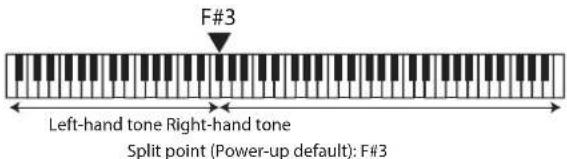
You can play different tones in the areas at the left and right of a specified key. For example, you can use your left hand to play a bass tone and use your right hand to play a piano tone.
This feature is called "Split Play," and the point at which the keyboard is divided is called the "split point."
| Turning Split on Turn the [Split] button on. | |
| Changing the right-hand tone and left-hand tone | 1. Use the [◀] [▶] buttons to select "right-hand tone" or "left-hand tone."2. Press a tone button.3. Use the [-] [+] buttons. |
| Split Point | Changes the split point.MEMOYou can also specify the split point by holding down the [Split] button and pressing the key where you want to split the keyboard. |
| B1-B6 (default value: F#3) | |
| Balance | Changes the volume balance of Split Play. |
| 9:1-9:9-1:9 (default value: 9:9) | |
| Left Shift | Changes the pitch of the left-hand tone in units of one octave. |
| -2-0-2 (default value: 0) | |
* If you select a sound from the [Piano] button as the left-hand tone, it might sound different than usual.
Layering Two Sounds (Dual Play)
You can play two tones simultaneously from a single key. This function is called "Dual Play."
| Turning Dual on | Turn the [Dual] button on.MEMOYou can also use Dual Play by pressing two tone buttons simultaneously. |
| Changing tone 1 and tone 2 | 1. Use the [◀] [▶] buttons to select "tone 1" or "tone 2."2. Press a tone button.3. Use the [-] (+) buttons. |
| Balance | Adjusts the volume balance (tone 1: tone 2) for Dual Play. |
| 9:1-9:9-1:9 (default value: 9:4) | |
| Tone 2 Shift | Changes the pitch of tone 2 in units of one octave.-2-0-2 (default value: 0) |
* Depending on the combination of tones, the effect might not apply to tone 2, causing the sound to appear differently than usual.
* If you select a sound from the [Piano] button as tone 2, it might sound different than usual.
Reading the note name (e.g., C4)
The alphabetical indication for settings such as Split Point shows the name of the note.
For example, the indication "C4" means "the fourth 'C' from the left edge of the keyboard."


Display
This shows information such as the tone name, song name, tempo, and time signature.
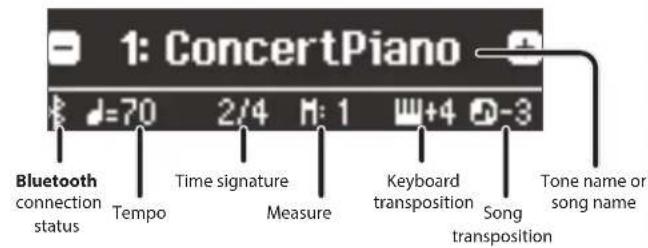
Selecting an Item/Editing a Value
| Select a setting item | Use the [◀] [▶] buttons. |
| Edit a value Use the [-] (+) buttons. | |
| Change a value consecutively | Hold down the [-] button or [+] button. |
| Return to the default value | Hold down the [-] button and [+] button simultaneously. |
Using the Bluetooth Function
Sound from a Bluetooth-equipped audio playback device can be played through this unit, and use the pedal of this unit to turn pages of a music score shown on a Bluetooth-equipped display device.
When you turn on the power of this instrument, the Bluetooth indicator lights.
When pairing is taking place, or when connected or disconnected, the Bluetooth indicator blinks.

Sounding the Metronome
You can sound a metronome while you perform. You can also change the tempo and time signature of the metronome.
If a song is playing, the metronome sounds at the tempo and time signature of that song.
| Sound the metronome Turn | the [Metronome] button on. |
| Change the tempo | Use the [Slow] [Fast] buttons. |
| 10-500 | |
| Beat | Changes the time signature of the metronome.MEMOYou can also change the time signature by holding down the [Metronome] button and use the [Slow] [Fast] buttons. |
| 2/2, 3/2, 2/4, 3/4, 4/4, 5/4, 6/4, 7/4, 3/8, 6/8, 8/8, 9/8, 12/8 (default value: 4/4) | |
| Down beat | Sounds a down beat. |
| Off, On (default value: On) | |
| Pattern | Changes the pattern of the metronome. |
| Off, Eighth note, Eighth-note triplet, Shuffle, Sixteenth note, Quarter-note triplet, Quarter note, Dotted eighth (default value: Off) | |
| Volume | Changes the volume of the metronome. |
| Off, 1-10 (default value: 5) | |
| Tone | Changes the tone of the metronome.Click, Electronic, Voice (Japanese), Voice (English)(default value: Click) |
Selecting a Song
You can select songs in the Song screen.
- Press the [Song] button to access the Song screen.
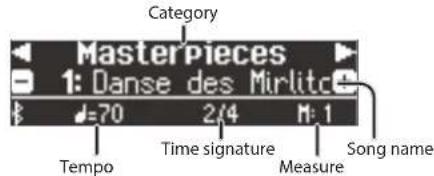
- Use the [◀] [▶] buttons to select a category.
- Use the [-] [+] buttons to select a song.
- Press the [▶/■] button to play the song.
MEMO
To select a song from a folder on a USB flash drive, proceed as follows.
| Enter the folder | Use the [-] [+] buttons to select the folder, and press the [▶/■] (Enter) button. |
| Exit the folder | Use the [-] button to select “(up)” and then press the [▶/■] (Enter) button. |
Category list
| Category Explanation | ||
| USB Memory Songs saved on a USB flash drive | ||
| Internal Memory Songs saved in internal memory | ||
| Listening | This unit'sinternal songs | Piano songs recommended for listening |
| Masterpieces | Piano MasterpiecesSongs corresponding to the includedcollection of scores, "Roland Classical PianoMasterpieces." | |
| Easy Piano | Famous popular songs and classicalcompositionsSongs corresponding to the includedcollection of scores, "Let's Enjoy Piano." | |
| Scales | Scales in all keys(major scales, minor scales)Songs corresponding to the includedcollection of scores, "Let's Enjoy Piano." | |
| Hanon The Virtuoso Pianist No.1-20 | ||
| Beyer Vorschule im Klavierspiel Op.101 | No.1-106 | |
| Burgmüller 25 Études faciles et progressives Op.100 | ||
| Czerny100 100 Übungsstücke Op.139 | ||
MEMO
For details on the internal songs, refer to "Internal Song List" at the end of this manual.

Playing Back or Recording
Here's how to play back or record a song.
| Return to the beginning of the song | Press the [◀] button. |
| Play/stop | Press the [▶/■] button. |
| Enter record-ready condition | While stopped, press the [●] button. |
| Record | In record-ready condition, press the [▶/■] button. |
| Rewind | Press the [◀◀] button. |
| Fast-forward | Press the [▶▶] button. |
| Play all songs in the selected category (All Song Play) | Hold down the [Song] button and press the [▶/■] button. |
| Change the song tempo Press the [Slow] [Fast] buttons. | |
| Play back the song at a constant tempo (Tempo Mute) | Hold down the [▶/■] button and press the [Slow] button or [Fast] button.To clear the tempo mute function, hold down the [▶/■] button once again and press the [Slow] button or [Fast] button. |
| Sound a count-in (*1) | Hold down the [Metronome] button and press the [▶/■] button. |
*1 A series of sounds rhythmically played to indicate the tempo before a song starts is called a "count-in." If you sound a count-in, it will be easier for you to synchronize your own performance to the tempo of the playback.
To make a new recording
- Select the tone that you want to play.
- Press the [●] button.
- Press the [▶/■] (Play/Stop) button to start recording.
- Press the [▶/■] (Play/Stop) button to stop recording.
To overdub
- Select the song to be dubbed.
- Press the [●] button.
- Press the cursor [▶] button.
- Press the button of the part that you want to record, making it blink.
- Press the [▶/■] (Play/Stop) button to start recording.
- Press the [▶/■] (Play/Stop) button to stop recording.
Disabling the Buttons (Panel Lock)
By disabling the buttons other than the [∅] button and the [Volume] buttons, you can prevent unintended operation.
| Lock the panel | Hold down the [Right] button until the screen shows the " 🔊" symbol. |
| Unlock the panel | Hold down the [Right] button until the " 🔊" symbol disappears, or turn off the power. |
Selecting the Part(s) to Play (Part Mute)
This unit's songs consist of three parts: accompaniment, left hand, and right hand.
You can mute a specific part so that it will not sound; only the parts that you want to hear will play.
| Let a part play | Make the button light for parts that you want to play. |
| Mute a part | Make the button go dark for parts that you want to mute. |
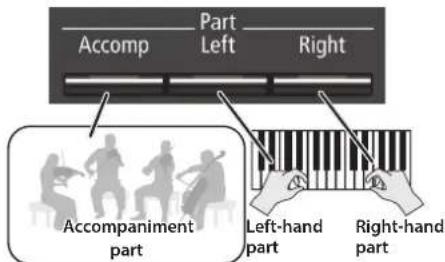
* Some songs don't contain a left-hand part or an accompaniment part. If so, pressing the corresponding part button does not make it light.
* The Part Mute function is not available when playing an audio file.
Song formats that can be played by the unit
The unit can play back data in the following formats.
- SMF formats 0/1
• Audio files: WAV format, 44.1 kHz, 16-bit linear
Recording Your Performance
It's easy to record your own performances.
You can play back a recorded performance to check your playing, or play along with a recorded performance.
Type of recording
| SMF recording | Parts will be separate.You can re-record a specific portion of the song.You can overdub. |
| Audio recording | Your performance will be recorded as audio data.The recorded song can be used on your computer.In order to use audio recording, you must connect a USB flash drive (sold separately) to the USB Memory port. |
SMF Recording
Recording a New Song
* If you want to record with Twin Piano turned on, set SMF Play Mode (p. 21) to "External."
Getting ready to record
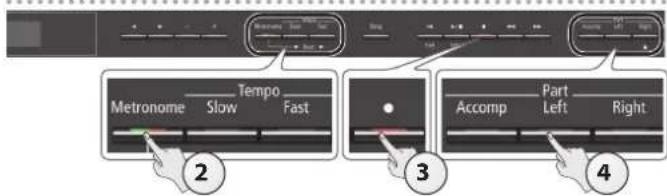
- Select the tone that you want to play (p. 8).
- You can sound the metronome if you like (p. 10).
You can specify the tempo and time signature of the metronome.
MEMO
The metronome's tempo and time signature settings are stored in the song, so that the metronome plays correctly even when you play back the song.
- Press the [●] button.
The [●] button lights, the [▶/■] button blinks, and the unit enters record-standby mode. If you decide to cancel recording, press the [●] button once again.
- Press the part button of the part that you want to record, making it blink.
MEMO
For example you can record your performance separately for each hand by pressing the [Left] button to record your left-hand performance or pressing the [Right] button to record your right-hand performance. You can also re-record each part after recording.
* If you don't select a part at this time, your performance is recorded to the following buttons.
| When playing a single tone | Right] button |
| Split Play | [Right] button and [Left] button |
| Twin piano play | |
| Dual Play [Right] button and | [Accomp] button |
Starting your recording and saving it
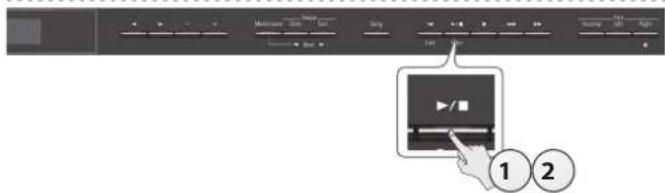
- Press the [▶/■] button.
After a two-measure count is sounded (the measure number in the lower right of the display indicates "-2" and then "-1"), recording starts.
When recording starts, the [●] button and [▶/■] button light.
MEMO
You can also start recording by playing the keyboard. In this case, a count is not sounded.
- Press the [▶/■] button.
Recording stops, and your performance is automatically saved.
MEMO
• You can change the name of the song (p. 13).
• You can delete the song (p. 14).
NOTE
Never turn off the power while "Saving..." is shown in the display.
Listening to the recorded performance
After you record, the newly recorded song is selected.
- Press the [▶/■] button.
Playback starts from the beginning of your recorded performance.
Overdubbing a Recorded Song
You can overdub additional parts onto an SMF recording. For example, you can separately record the left-hand and right-hand performances, or record along with an existing song.
* When overdubbing different tones, set the SMF Play Mode (p. 21) to "External."
- Select the song onto which you want to overdub (p. 11).
MEMO
If you want to rerecord only a portion of the song, use the [◀◀]
[▶▶] buttons to move to the measure at which you want to start recording.
- Press the [●] button.
The [●] button lights, and the unit enters record-standby mode. In this case, New Song is selected.
If you decide to cancel recording, press the [●] button once again.
- Press the cursor [▶] button.
The song you selected in step 1 is selected.
MEMO
The song's tempo and time signature follow the settings of the song you select.
- Press the part button of the part that you want to record, making it blink.
Parts whose button is lit will play back during recording.
- Start recording as described in "Starting your recording and saving it" (p. 12).
Recording Audio
Here's how to record your performance on the unit as audio. The recorded song can be used on your computer.
Getting ready to record
-
Connect your USB flash drive to the USB Memory port (p. 7).
* Audio data can't be stored in internal memory. -
Select the tone that you want to play (p. 8).
-
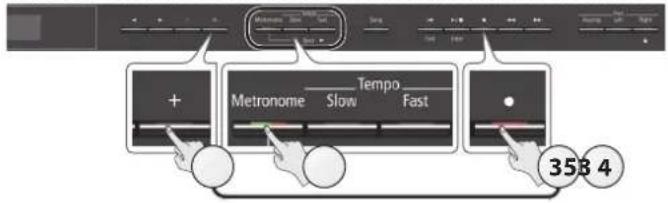
Hold down the [●] button and press the [+] button to select "Audio."
MEMO
You can also specify this via the Function mode "Recording Mode" setting (p. 21).
- Press the [●] button.
The [●] button lights, the [▶/■] button blinks, and the unit enters record-standby mode.
If you decide to cancel recording, press the [●] button once again.
NOTE
Never turn off the power or disconnect the USB flash drive during recording.
- You can sound the metronome if you like (p. 10).
Starting your recording and saving it
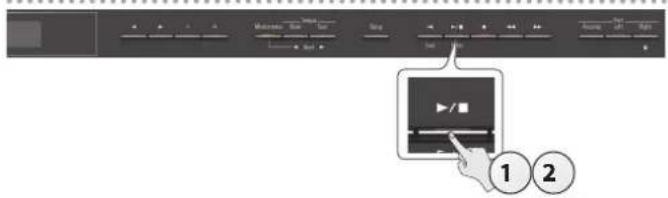
- Press the [▶/■] button.
Recording starts.
When recording starts, the [●] button and [▶/■] button light.
- Press the [▶/■] button.
Recording stops, and your performance is automatically saved.
MEMO
• You can change the name of the song (p. 13).
• You can delete the song (p. 14).
Listening to the recorded performance
After you record, the newly recorded song is selected.
- Press the [▶/■] button.
Playback starts from the beginning of your recorded performance.
Converting an SMF-recorded song to audio
A song recorded as SMF can be re-recorded as audio so that you can play it back on your computer.
- Select the song that you want to convert to audio (p. 11).
- Getting ready for audio recording ("Getting ready to record" (p. 13)).
- Connect your USB flash drive.
- Hold down the [●] button and use the [+] button to select "Audio."
-
Press the [●] button.
-
Press the cursor [▶] button to select the song of step 1.
-
Press the [▶/■] button to start audio recording ("Starting your recording and saving it" (p. 13)).
* During recording, any sounds that you produce by playing the keyboard or that are input to the unit via the USB port, the Input jack, or Bluetooth audio are included in the audio that is recorded during this conversion. Muted parts are not recorded.
* Depending on the SMF, it might not be possible to convert it into the identical audio as when the song was recorded.
Renaming a Song (Rename Song)
Here's how to rename a previously-saved song.
- Press the [Ambience] button and [Brilliance] button simultaneously.
- Use the [◀] [▶] buttons to select "Rename Song," and then press the [▶/■] (Enter) button.
The Rename Song screen appears.
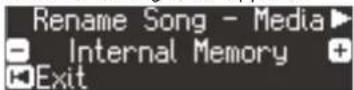
-
Use the [-] [+] buttons to select the media (internal memory or USB flash drive) that contains the song that you want to rename.
-
Press the [▶] button.
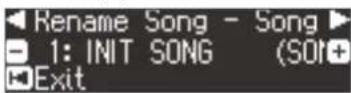
-
Use the [-] [+] buttons to select the song that you want to rename, and then press the [▶] button.
-
Rename the song.
| [◀] [▶] buttons | Select the position at which you want to change the character. |
| [-] [+] buttons Change the character. | |
If you decide to cancel, press the [◀] (Exit) button.
- Press the [▶/■] (Enter) button.
A confirmation message appears.
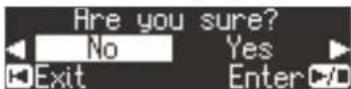
If you decide to cancel, press the [I◀] (Exit) button.
- Use the [▶] button to select "Yes," and then press the [▶/■] (Enter) button.
The song is renamed.
NOTE
Never turn off the power or disconnect the USB flash drive while the screen indicates "Executing..."
- Simultaneously press the [Ambience] button and [Brilliance] button to exit Function mode.
Copying a Saved Song (Copy Song)
Songs that have been saved in internal memory can be copied to USB flash drive. Alternatively, songs stored on a USB flash drive can be copied to internal memory.
* Audio files cannot be copied.
* If a USB flash drive is not connected, you won't be able to perform this operation.
- Press the [Ambience] button and [Brilliance] button simultaneously.
- Use the [◀] [▶] buttons to select "Copy Song," and then press the [▶/■] (Enter) button.
The Copy Song screen appears.
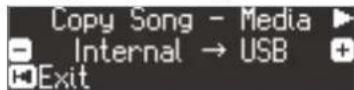
- Use the [-] [+] buttons to select the copy-source and copy-destination memory locations (internal memory or USB flash drive).
- Press the [▶] button.
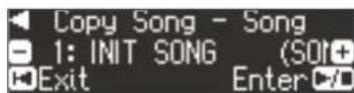
- Use the [-] [+] buttons to select the song that you want to copy.
If you decide to cancel, press the [◀] (Exit) button.
- Press the [▶/■] (Enter) button.
The copy is executed.
NOTE
Never turn off the power or disconnect the USB flash drive while the screen indicates "Executing..."
- Simultaneously press the [Ambience] button and [Brilliance] button to exit Function mode.
Deleting a Saved Song (Delete Song)
Here's how to delete a song that you saved on an internal memory or USB flash drive.
MEMO
If you want to delete all songs that have been saved to internal memory, initialize the memory.
* If you want to delete a song on the USB flash drive, connect your USB flash drive to the USB Memory port before you continue.
- Press the [Ambience] button and [Brilliance] button simultaneously.
- Use the [◀] [▶] buttons to select "Delete Song," and then press the [▶/■] (Enter) button.
The Delete Song screen appears.
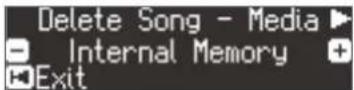
- Use the [-] [+] buttons to select the memory location (internal memory or USB flash drive) that contains the song you want to delete.
- Press the [▶] button.
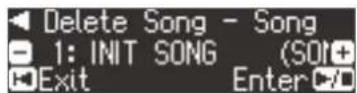
- Use the [-] [+] buttons to select the song that you want to delete.
- Press the [▶/■] (Enter) button.
A confirmation message appears.
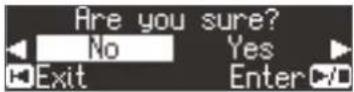
If you decide to cancel, press the [◀] (Exit) button.
- Use the [▶] button to select "Yes," and then press the [▶/■] (Enter) button.
The deletion is executed.
NOTE
Never turn off the power or disconnect the USB flash drive while the screen indicates "Executing..."
- Simultaneously press the [Ambience] button and [Brilliance] button to exit Function mode.
Personalizing Your Piano Sound (Piano Designer)
What is Piano Designer?
This unit allows you to personalize your piano sound by adjusting various factors that affect the sound, such as the piano's strings, the resonance produced using the pedals, and the sound of the hammers striking the strings. This function is called "Piano Designer."
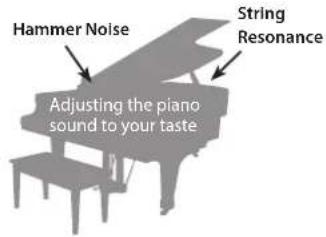
MEMO
- Piano Designer can be used to customize the sound only for tones of the [Piano] button.
- Your settings are saved for each tone of the [Piano] button.
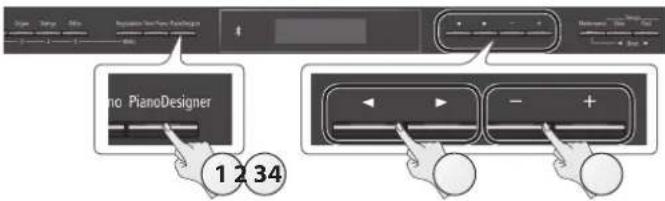
1. Press the [Piano Designer] button.
The Piano Designer screen appears.
![ROLAND DP603-PEC D - Press the [Piano Designer] button. - 1](/content/2026/06/1194521/images/5788cbbd3fc539bac062694a3e98956ddaee665f2a031943668819c40613be20.jpg)
- Use the [◀] [▶] buttons to select the item that you want to edit.
- Use the [-] [+] buttons to adjust the value.
- When you're finished using Piano Designer, press the [Piano Designer] button or [I◀] (Exit) button.
A confirmation message appears.
![ROLAND DP603-PEC D - Press the [Piano Designer] button. - 2](/content/2026/06/1194521/images/e5bd7ff348f833f05ade4ce98284951abe97547e68991993e4c55eab47e8f941.jpg)
If you decide to cancel, press the [◀] (Exit) button.
- Use the [▶] button to select "Yes," and then press the [▶/■] (Enter) button.
The Piano Designer settings are saved.
MEMO
If you decide to exit without saving the settings, use the [◀] button to select "No" and then press the [▶/■] (Enter) button.
Piano designer parameter
| Parameter Value | Explanation | |
| Lid 0–6 | Adjusts the extent to which the lid of the grand piano is open.The sound will become more mellow as you close the lid of the piano in the screen. The sound will become brighter as you open the lid of the piano in the screen. | |
| Key Off Noise Off, 1–10 | Adjusts the action noise that is heard when you release a key.Higher settings produce a louder action noise. | |
| Hammer Noise -2–0–2 | Adjusts the sound produced when the hammer of an acoustic piano strikes the string.Higher settings will produce a louder sound of the hammer striking the string. | |
| Parameter Value | Explanation | |
| Duplex Scale Off. | 1-10 | Adjusts the sympathetic vibrations of an acoustic piano's Duplex Scale.Higher settings will make the sympathetic vibration louder. |
| Full Scale String Res. | Off, 1-10 | Adjusts the resonant sound of an acoustic piano (the sound produced by the strings of previously-pressed keys vibrating in sympathy with newly played notes, or the sound of other strings vibrating in sympathy with the notes you play while pressing the damper pedal).Higher settings produce louder sympathetic resonance. |
| Damper Resonance | Off, 1-10 | Adjusts the overall resonance of the acoustic piano when its damper pedal is pressed (the sound of other strings vibrating in sympathy when you press the damper pedal, and the resonance of the entire instrument).Higher settings produce louder sympathetic resonance. |
| Key Off Resonance | Off, 1-10 | Adjusts sympathetic vibrations such as an acoustic piano's key-off sound (the subtle sound that occurs when you release a note).Higher settings produce greater tonal change during the decay. |
| Cabinet Resonance | Off, 1-10 | Adjusts the body resonance of the grand piano itself. Higher values will produce a larger body resonance. |
| Soundboard Type | 1-5 | Selects how the soundboard of the acoustic piano will resonate.You can choose from five different types of resonance. |
| Damper Noise | Off, 1-10 | This adjusts the damper noise of the acoustic piano sound (the sound of the damper releasing the strings when you press the damper pedal). |
| Single Note Tuning | -50-0-+50 | Specifies a method of tuning (stretch tuning) that is distinctive to the piano, in which the high register is tuned slightly sharper and the low register is tuned slightly flatter. |
| Single Note Volume | -50-0 | Adjusts the volume of each key. Higher settings increase the volume. |
| Single Note Character | -5-0-+5 | Adjusts the tonal character of each key. Higher settings produce a harder sound, and lower settings produce a softer tone. |
| Reset Setting | Here's how the Piano Designer settings of the selected sound can be returned to their factory-set state.1. Press the [▶/■] (Enter) button.If you decide to cancel, press the [i◀] (Exit) button.2. Use the [▶] button to select "Yes," and then press the [▶/■] (Enter) button.The settings return to their factory-set state. | |
88-key settings
(Single Note Tuning, Single Note Volume, Single Note Character)
- Select an 88-key parameter, and press the [▶/■] (Enter) button.
- Play the key that you want to edit, and use the [-] [+] buttons to adjust the settings for that key.
MEMO
You can use the [◀] [▶] buttons to move to a different 88-key parameter.
- Press the [◀] (Exit) button to return to the previous screen.
What is the duplex scale?
The Duplex Scale is a system of sympathetically vibrating strings sometimes included in grand pianos.
These sympathetically vibrating strings are not struck directly with hammers, but sound by vibrating in sympathy with the vibrations of other strings. By resonating with the overtones, these strings add richness and brilliance to the sound. These sympathetic strings are added only to the high register above approximately C4. Since they do not have a damper (a mechanism that stops them from sounding), they will continue sounding even after you play a note and then release it to stop the sound of the string that was actually struck.
Saving Your Performance Settings (Registration)
Tone settings and settings such as Dual Play or Split Play can be saved and recalled easily.
Such settings are called a "registration."
You can save a total of 25 registrations, five each in buttons [1]–[5].
These 25 registrations are collectively called a "registration set."
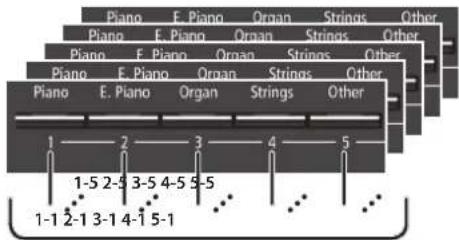
25 registrations
Ⅱ Registration set
Settings that are saved in a registration
| Setting Page | |
| Ambience p. 8 | |
| Rotary Speed p. 8 | |
| Key Touch p. 8 | |
| Transpose p. 8 | |
| The selected tone (including Split or Dual tones) p. 8 | |
| Split on/off p. 9 | |
| Split point p. 9 | |
| Left Shift p. 9 | |
| Dual on/off | p. 9 |
| Tone 2 Shift | p. 9 |
| Balance (Split, Dual) | p. 9 |
| Twin Piano on/off | p. 9 |
| Twin Piano Mode | p. 9 |
| Damper Pedal Part | p. 21 |
| Center Pedal | p. 21 |
| Left Pedal | p. 21 |
| MIDI Transmit Ch | p. 22 |
Recalling a Registration
- Press the [Registration] button.
- Press a number button ([1] to [5]) to choose the location where the desired registration is saved.
- Press the [-] [+] buttons to select the registration variation.
The settings change accordingly.
You can press the [▶] button to edit the selected registration.
MEMO
- You can also use a pedal to recall registrations (p. 21).
- If you press the [Registration] button to exit the Registration screen, you will return to the state prior to recalling the registration.
Saving Current Settings into a Registration
NOTE
When you save a registration into a location, it will overwrite any registration already stored at that location.
- While holding down the [Registration] button, press a button from [1] to [5] to select a registration and then press the [-] (+) buttons to select a registration variation.
- Rename the registration.
| [◀] [▶] buttons | Select the position at which you want to change the character. |
| [-] (+) buttons | Change the character. |
If you decide to cancel, press the [◀] (Exit) button.
- Press the [▶/■] (Enter) button.
The registration is saved.
NOTE
Never turn off the power while the screen indicates "Executing..."
Saving a Registration Set (Registration Export)
You can save all registrations held in registration memory into a registration set on a USB flash drive.
- Connect your USB flash drive to the USB Memory port (p. 7).
- Press the [Ambience] button and [Brilliance] button simultaneously.
- Use the [◀] [▶] buttons to select "Registration Export," and then press the [▶/■] (Enter) button.
The Registration Export screen appears.
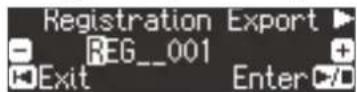
- Rename the registration set.
| [◀] [▶] buttons | Select the position at which you want to change the character. |
| [-] (+) buttons Change the character. | |
If you decide to cancel, press the [◀] (Exit) button.
- Press the [▶/■] (Enter) button.
The settings are saved.
NOTE
Never turn off the power while the screen indicates "Executing..."
- Simultaneously press the [Ambience] button and [Brilliance] button to exit Function mode.
Loading a Saved Registration Set (Registration Import)
Here's how a registration set that's saved on a USB flash drive can be loaded into the [Registration] button.
NOTE
When you load a registration set, the registrations that were saved in the [Registration] button are overwritten and lost. If you don't want to lose these registrations, save them to a USB flash drive.
- Connect your USB flash drive to the USB Memory port (p. 7).
- Press the [Ambience] button and [Brilliance] button simultaneously.
- Use the [◀] [▶] buttons to select "Registration Import," and then press the [▶/■] (Enter) button.
The Registration Import screen appears.
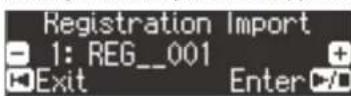
- Use the [-] [+] buttons to select the registration set that you want to load.
- Press the [▶/■] (Enter) button.
A confirmation message appears.
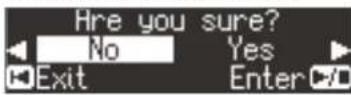
If you decide to cancel, press the [◀] (Exit) button.
- Use the [▶] button to select "Yes," and then press the [▶/■] (Enter) button.
The settings are loaded.
NOTE
Never turn off the power while the screen indicates "Executing..."
- Simultaneously press the [Ambience] button and [Brilliance] button to exit Function mode.
Loading/Saving Piano Setups
This unit lets you load a piano setup that you've saved on a USB flash drive, or save your piano setup to a USB flash drive.
MEMO
Only piano setups that were created on the unit can be loaded.
Settings that are saved as piano settings
| Setting Page | |
| Speaker volume p. 8 | |
| Headphone volume p. 8 | |
| Ambience p. 8 | |
| Headphones 3D Ambience p. 8 | |
| Brilliance p. 8 | |
| Key Touch p. 8 | |
| Hammer Response p. 8 | |
| Piano Designer settings p. 15 | |
| Master Tuning p. 20 | |
| Temperament p. 20 | |
| Temperament Key p. 20 | |
| Volume Limit p. 21 |
Saving Piano Settings (Piano Setup Export)
- Connect your USB flash drive to the USB Memory port (p. 7).
- Press the [Ambience] button and [Brilliance] button simultaneously.
- Use the [◀] [▶] buttons to select "Piano Setup Export," and then press the [▶/■] (Enter) button.
The Piano Setup Export screen appears.
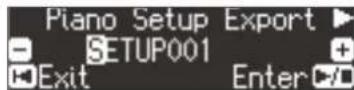
- Rename the piano settings.
| [◀] [▶] buttons | Select the position at which you want to change the character. |
| [-] (+) buttons | Change the character. |
- Press the [▶/■] (Enter) button.
The settings are saved.
NOTE
Never turn off the power or disconnect the USB flash drive while the screen indicates "Executing..."
- Simultaneously press the [Ambience] button and [Brilliance] button to exit Function mode.
Loading Piano Settings (Piano Setup Import)
- Connect your USB flash drive to the USB Memory port (p. 7).
- Press the [Ambience] button and [Brilliance] button simultaneously.
- Use the [◀] [▶] buttons to select "Piano Setup Import," and then press the [▶/■] (Enter) button.
The Piano Setup Import screen appears.
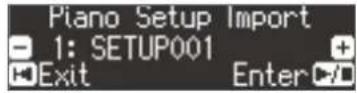
- Use the [-] [+] buttons to select the piano settings that you want to load.
- Press the [▶/■] (Enter) button.
A confirmation message appears.
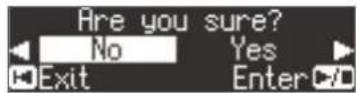
If you decide to cancel, press the [◀] (Exit) button.
- Use the [▶] button to select "Yes," and then press the [▶/■] (Enter) button.
The settings are loaded.
NOTE
Never turn off the power or disconnect the USB flash drive while the screen indicates "Executing..."
- Simultaneously press the [Ambience] button and [Brilliance] button to exit Function mode.

Convenient Functions
Initializing the Memory (Format Media)
Here's how to erase all of the files that you saved in internal memory or on a USB flash drive (sold separately).
NOTE
- When you initialize, all registrations or songs that you saved in internal memory or on a USB flash drive are lost.
-
If you want settings other than the internal memory settings to be returned to their factory-set state, execute a Factory Reset (p. 19).
-
If you want to initialize a USB flash drive, connect the USB flash drive to the USB Memory port (p. 7).
-
Press the [Ambience] button and [Brilliance] button simultaneously.
-
Use the [◀] [▶] buttons to select "Format Media," and then press the [▶/■] (Enter) button.
The Format Media screen appears.
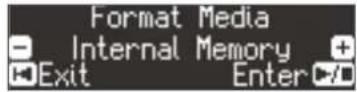
If you decide to cancel, press the [◀] (Exit) button.
-
Use the [-] [+] buttons to select the media (internal memory or USB flash drive) that you want to format.
-
Press the [▶/■] (Enter) button.
A confirmation message appears.
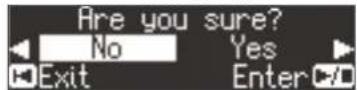
If you decide to cancel, press the [◀] (Exit) button.
- Use the [▶] button to select "Yes," and then press the [▶/■] (Enter) button.
The memory is formatted.
NOTE
Never disconnect the USB flash drive or turn off the power while the screen indicates "Executing..."
- Simultaneously press the [Ambience] button and [Brilliance] button to exit Function mode.
Restoring the Factory Settings (Factory Reset)
Here's how to restore all registrations and internally saved settings to the factory-set condition. This function is called "Factory Reset."
NOTE
Factory Reset erases all settings that you have stored, and returns them to the factory-set condition.
MEMO
Executing this function does not erase the songs in internal memory or on a USB flash drive (sold separately). If you want to erase all songs from internal memory or from a USB flash drive, refer to "Initializing the Memory (Format Media)" (p. 19).
- Press the [Ambience] button and [Brilliance] button simultaneously.
- Use the [◀] [▶] buttons to select "Factory Reset," and then press the [▶/■] (Enter) button.
A confirmation message appears.
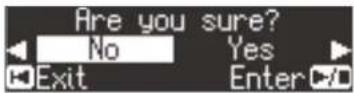
If you decide to cancel, press the [I◀] (Exit) button.
- Use the [▶] button to select "Yes," and then press the [▶/■] (Enter) button.
The memory is reset to its factory values.
NOTE
Never turn off the power while the screen indicates "Executing..."
- Turn the power off, then on again (p. 5).
Settings that are saved automatically
On the unit, the following settings are saved automatically.
| Setting Page | |
| Speaker volume p. 8 | |
| Headphone volume p. 8 | |
| All settings for the Bluetooth function p. 23 | |
| Auto Off p. 22 |
Settings that are saved by Auto Memory Backup
Auto Memory Backup saves the following settings.
| Setting Page | |
| Ambience p. 8 | |
| Headphones 3D Ambience p. 8 | |
| Brilliance p. 8 | |
| Key Touch p. 8 | |
| Hammer Response p. 8 | |
| Balance (Split, Dual) | p. 9 |
| Twin Piano Mode | p. 9 |
| Metronome (volume, tone, down beat) | p. 10 |
| Master Tuning | p. 20 |
| Temperament | p. 20 |
| Temperament Key | p. 20 |
| Input Volume | p. 20 |
| SMF Play Mode | p. 21 |
| Damper Pedal Part | p. 21 |
| Reg. Pedal Shift | p. 21 |
| MIDI Transmit Ch | p. 22 |
| Display Contrast | p. 21 |
| Volume Limit | p. 21 |
| Language | p. 22 |
Various Settings (Function Mode)
Basic Operations in Function Mode
-
Simultaneously press the [Ambience] button and [Brilliance] button. The unit is in Function mode.
-
Use the [◀] [▶] buttons to select the item that you want to set.
MEMO
Depending on the item that you select, another screen may appear, allowing you to select additional items.
-
Use the [-] [+] buttons to edit the value of the setting.
-
Simultaneously press the [Ambience] button and [Brilliance] button to exit Function mode.
| Indication Value Explanation | ||
| Master Tuning | Matching the Pitch with Other Instruments (Master Tuning)When playing ensemble with other instruments and in other such instances, you can match the standard pitch to another instrument.The standard pitch generally refers to the pitch of the note that's played when you finger the middle A key. For a cleaner ensemble sound while performing with one or more other instruments, ensure that each instrument's standard pitch is in tune with that of the other instruments. This tuning of all the instruments to a standard pitch is called "master tuning." | |
| 415.3 Hz-440.0 Hz-466.2 Hz | ||
| Temperament | Changing the Tuning Method (Temperament)You can play classical styles such as Baroque using historic temperaments (tuning methods).Most modern songs are composed for and played in equal temperament, the most common tuning in use today. But at one time, there were a wide variety of other tuning systems in existence.By playing in the temperament that was in use when a composition was created, you can experience the sonorities of chords originally intended for that song. | |
| Equal | This temperament divides the octave into twelve equal steps. It is the temperament that is most commonly used on today's pianos. Every interval has the same slight amount of dissonance. | |
| Just Major | In these temperaments, the primary triads are perfectly consonant. It is unsuited to playing melodies and cannot be transposed, but is capable of beautiful sonorities.The Just tunings differ from major and minor keys. | |
| Just Minor | ||
| Pythagorean | This tuning, devised by the philosopher Pythagoras, eliminates dissonance in fourths and fifths.Although triadic chords are slightly dissonant, this tuning is suitable for songs that have a simple melody. | |
| Kirnberger I | As in the Just temperaments, the primary triads are consonant in this tuning. Beautiful sonorities are obtained when playing songs that are written in keys appropriate for this tuning. | |
| Kirnberger II | This is a revision of Kirnberger I that reduces the limitations on the usable keys. | |
| Kirnberger III | This is an improvement of the Meantone and Just tunings that provides a high degree of freedom of modulation. Performances are possible in all keys. Since the resonance differs depending on the key, chords played in this temperament resonate in diverse ways when compared to equal temperament. | |
| Meantone | This temperament slightly narrows the fifth relative to Just temperaments. While the Just temperaments contains two types of whole tone (major whole tone and minor whole tone), meantone temperament uses only one type of whole tone (mean whole tone). Transposition within a limited range of keys is possible. | |
| Werckmeister | This temperament consists of eight perfect fifths and four narrowed fifths. Performance in all keys is possible. Since different keys produce different sonorities, chords will resonate in diverse ways when compared to equal temperament (Werckmeister I (III)). | |
| Arabic This tuning is suitable for the music of Arabia. | ||
| Temperament Key | Specifying the Tonic Note (Temperament Key)When playing with tuning other than equal temperament, you need to specify the temperament key for tuning the song to be performed (that is, the note that corresponds to C for a major key or to A for a minor key).If you choose an equal temperament, there's no need to select a temperament key. | |
| C-B | ||
| Bluetooth Audio | Refer to "Using Bluetooth Audio" (p. 23). | |
| Bluetooth Page Turn/MIDI | Refer to "Using the Pedal to Turn Pages on a Music Score App" (p. 24). | |
| Bluetooth ID | Refer to "Specifying the Bluetooth ID" (p. 23). | |
| Song Volume SMF | Adjusting the Song (SMF) Volume (Song Volume SMF)Adjusts the volume of the song (SMF).* If the SMF Play Mode is set to "Internal," there will be some parts whose volume does not change when you adjust the Song Volume SMF value. If the SMF Play Mode is set to "External," the volume of all parts will change. | |
| 0-10 | ||
| Song Volume Audio | Adjusting the Song (Audio) Volume (Song Volume Audio)Adjusts the volume of the song (audio). | |
| 0-10 | ||
| Input Volume | Adjusting the Volume of an Audio Playback Device (Input Volume)You can adjust the volume of an audio playback device that's connected to the Input jacks. | |
| 0-10 | ||
| Indication Value Explanation | ||
| SMF Play Mode | Specifying the Song (SMF) Playback Mode (SMF Play Mode)When playing back a song (SMF), select the appropriate setting depending on whether you're playing an internal song or external data.MEMOYou can also switch the SMF Play Mode by holding down the [▶/■] button and using the [-] [+] button. | |
| Auto Select Automatically switches the SMF Play Mode to either "Internal" or "External" depending on the song that is being played. | ||
| Internal The most suitable tone for the song that's playing is selected.This setting is ideal when playing back an internal song or a song that was recorded on this unit. | ||
| External The currently selected tone is used when you play back the song.This setting is ideal when playing back external data such as commercially available music data. | ||
| Recording Mode | Selecting the Format for Recording (Recording Mode)You can choose whether to record as SMF or as audio.MEMOYou can also switch the Recording Mode by holding down the [●] button and using the [-] [+] button. | |
| SMF SMF parts will be recorded separately. This allows you to re-record just a single part, or to overdub different parts. | ||
| Audio The recording will be made as audio data. The recorded song can be used in your computer. | ||
| Rename Song | Refer to "Renaming a Song (Rename Song)" (p. 13). | |
| Copy Song | Refer to "Copying a Saved Song (Copy Song)" (p. 14). | |
| Delete Song | Refer to "Deleting a Saved Song (Delete Song)" (p. 14). | |
| Piano Setup Export | Refer to "Saving Piano Settings (Piano Setup Export)" (p. 18). | |
| Piano Setup Import | Refer to "Loading Piano Settings (Piano Setup Import)" (p. 18). | |
| Damper Pedal Part | Changing How the Pedal Effects Are Applied (Damper Pedal Part)When you press the damper pedal during Dual Play or Split Play, the pedal effect is normally applied to both tones, but you can also select the tone to which the effect is to be applied. | |
| Right & Left All enabled | ||
| Right Applied only to the Tone 1 (in dual mode)/Right-hand Tone (in split mode)Left Applied only to the Tone 2 (in dual mode)/Left-hand Tone (in split mode) | ||
| Center Pedal | Changing How the Pedals Work (Center Pedal)When you turn on the power, the center pedal functions as the sostenuto pedal (p. 6).You can change the function of the pedal to a variety of other operations.* Pedal function settings take priority in the following order: "Reg. Pedal Shift" → "Page Turn (p. 24)" → "Center/Left Pedal." | |
| Sostenuto Sets function to sostenuto pedal. | ||
| Play/Stop The pedal will have the same function as the [▶/■] button. | ||
| Layer Pressing the pedal will layer on Tone 2, used for Dual Play.* The Layer function can be applied only when using Dual Play. | ||
| Left Pedal | Changing the Effect of the Pedal (Left Pedal)When you turn on the power, the left pedal functions as a soft pedal (p. 6).You can change this to perform other functions.* Pedal function settings take priority in the following order: "Reg. Pedal Shift" → "Page Turn (p. 24)" → "Center/Left Pedal" | |
| Soft The pedal function as a soft pedal. | ||
| Play/Stop The pedal has the same function as the [▶/■] button. | ||
| Layer Pressing the pedal adds tone 2 of the Dual Play function.* This is available only when using Dual Play. | ||
| Reg. Pedal Shift | Using a Pedal to Switch Registrations (Reg. Pedal Shift)You can assign a pedal to successively switch registrations Each time you press the pedal, you will switch to the next registration.* Pedal function settings take priority in the following order: "Reg. Pedal Shift" → "Page Turn (p. 24)" → "Center/Left Pedal" | |
| Off Pressing the pedal does not change the registration. | ||
| Left Pedal The soft pedal can be used only for switching registrations In this case, the function assigned to the soft pedal cannot be used. | ||
| Center Pedal The sostenuto pedal can be used only for switching registrations In this case, the function assigned to the sostenuto pedal cannot be used. | ||
| Registration Export | Refer to "Saving a Registration Set (Registration Export)" (p. 17). | |
| Registration Import | Refer to "Loading a Saved Registration Set (Registration Import)" (p. 17). | |
| Display Contrast | Adjusting the Brightness of the Display (Display Contrast)You can adjust the brightness of the unit's display. | |
| 1-10 | ||
| Volume Limit | Specifying a Maximum Volume (Volume Limit)You can specify a maximum volume value. This prevents an unnecessarily high volume from sounding even if you inadvertently operate the [Volume] buttons. | |
| 20, 40, 60, 80, 100 | ||
| Indication Value Explanation | ||
| Local Control | Preventing Doubled Notes When Connected to a Sequencer (Local Control) | |
| When you have a MIDI sequencer connected, set this parameter to Local Off.Since most sequencers have their Thru function turned on, notes you play on the keyboard may be sounded in duplicate, or get dropped. To prevent this, you can enable the "Local Off" setting so that the keyboard and internal sound generator will be disconnected. | ||
| Off | Local Control is off.The keyboard is disconnected from the internal sound generator. Playing the keyboard will not produce sound. | |
| On | Local Control is on.The keyboard is connected to the internal sound generator. | |
| MIDI Transmit Ch | MIDI Transmit Channel Settings (MIDI Transmit Ch) | |
| This setting specifies the MIDI channel on which the unit will transmit.This unit will receive all sixteen channels (1-16). | ||
| Off, 1-16 | ||
| Language | Changing the Language Displayed in the Screen (Language) | |
| You can change the language that is displayed in the screen. | ||
| English, Japanese | ||
| Auto Off | Making the Power Automatically Turn off After a Time (Auto Off)With the factory settings, the unit's power will automatically be switched off 30 minutes after you stop playing or operating the unit.If you don't want the power to turn off automatically, change the "Auto Off" setting to "Off" as follows. | |
| Off, 10, 30, 240 (min) | ||
| Auto Memory Backup | Saving Settings Automatically (Auto Memory Backup) | |
| You can make settings be saved automatically so that the settings will not change when you turn the power off and on again. | ||
| Off | Settings are not saved.When you turn the power off and on again, settings will return to their default values. | |
| On | Settings are saved automatically.For details on the settings that are saved, refer to "Settings that are saved by Auto Memory Backup" (p. 19). | |
| Format Media | Refer to "Initializing the Memory (Format Media)" (p. 19). | |
| Factory Reset | Refer to "Restoring the Factory Settings (Factory Reset)" (p. 19). | |
| Version | Displays the version of the unit's system program. | |
Using the Bluetooth® Functionality
Bluetooth
Provision of Bluetooth functionality
Please be aware that depending on the country in which you purchased the unit, Bluetooth functionality might not be included.
If Bluetooth functionality is included
The Bluetooth logo appears when you turn on the power.
Here's What You Can Do
Bluetooth functionality creates a wireless connection between a
mobile device such as a smartphone or tablet (subsequently referred to as the "mobile device") and this unit, allowing you to do the following.
Bluetooth audio
page 23
Music data played back by the mobile device can be heard through this unit's speakers.
Page-turning
page 24
A music score display app on the mobile device can be controlled from this unit.
MIDI data transmission and reception
page 25
MIDI data can be exchanged between this unit and the mobile device.
Using Bluetooth Audio
Registering a Mobile Device (Pairing)
"Pairing" is the procedure by which the mobile device that you want to use is registered on this unit (the two devices recognize each other).
Make settings so that music data saved on the mobile device can be played wirelessly via this unit.
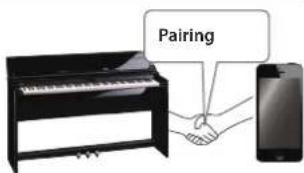
MEMO
- Once a mobile device has been paired with this unit, there is no need to perform pairing again. If you want to connect this unit with a mobile device that has already been paired, refer to "Connecting an Already-Paired Mobile Device" (p. 23).
- Pairing is required again if you execute a Factory Reset (p. 19).
-
The following steps are one possible example. For details, refer to the owner's manual of your mobile device.
-
Place the mobile device that you want to connect nearby this unit.
MEMO
If you have more than one unit of this model, power-on only the unit that you want to pair (power-off the other units).
- Press the [Ambience] button and [Brilliance] button simultaneously.
- Use the [◀] [▶] buttons to select "Bluetooth Audio," and then press the [▶/■] (Enter) button.
The Bluetooth Audio screen appears.
- Use the [◀] [▶] buttons to select "Bluetooth Pairing," and then press the [▶/■] (Enter) button.
The display indicates "Now pairing...", and this unit waits for a response from the mobile device.
MEMO
If you decide to cancel pairing, press the [◀] (Exit) button.
- Turn on the Bluetooth function of the mobile device.
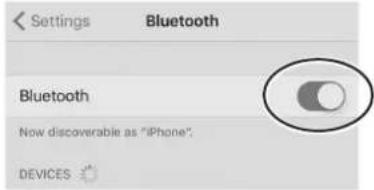
MEMO
The explanation here uses the iPhone as an example. For details, refer to the owner's manual of your mobile device.
- Tap "DP603 Audio" that is shown in the Bluetooth device screen of your mobile device.
This unit is paired with the mobile device. When pairing succeeds, "DP603 Audio" is added to the list of "Paired Devices" on your mobile device.
MEMO
If the mobile device's screen asks you to enter a "Pass Key," enter "0000" (four zeros).
- Simultaneously press the [Ambience] button and [Brilliance] button to exit Function mode.
Specifying the Bluetooth ID
You can specify a number that is added following the device name of this unit when it is displayed by a Bluetooth-connected application. If you own multiple units of the same instrument, this is a convenient way to distinguish them.
- Press the [Ambience] button and [Brilliance] button simultaneously.
-
Use the [◀] [▶] buttons to select "Bluetooth ID," and then press the [▶/■] (Enter) button.
-
Use the [-] [+] buttons to edit the value of the setting.
| Value Explanation | |
| 0-99 | Set to "0":"DP603 Audio","DP603" (default value) Set to "1":"DP603 Audio1","DP603_1" |
Connecting an Already-Paired Mobile Device
- Turn on the Bluetooth function of the mobile device.
MEMO
- If you were unable to establish a connection using the procedure above, tap "DP603 Audio" that is displayed in the Bluetooth device screen of the mobile device.
- To disconnect, either turn this unit's Bluetooth Audio function "Off" (Function mode "Bluetooth Audio" "Bluetooth Audio" Off) or turn the mobile device's Bluetooth function off.
Adjusting the Volume of Bluetooth Audio
Normally you'll adjust the volume on your mobile device. If this does not provide the volume adjustment you want, you can adjust the volume as follows.
- Proceed with steps 2–3 of "Registering a Mobile Device (Pairing)" (p. 23).
- Use the [◀] [▶] buttons to select "Bluetooth Volume," and use the [-] [+] buttons to adjust the volume.
Using the Pedal to Turn Pages on a Music Score App
Here's how to use this unit's pedal to operate (turn pages on) a music score app on your mobile device.
Note when using an already-paired iOS device
iOS
The following operation is required after each time that you switch the Bluetooth page-turning/MIDI function or execute a factory reset.
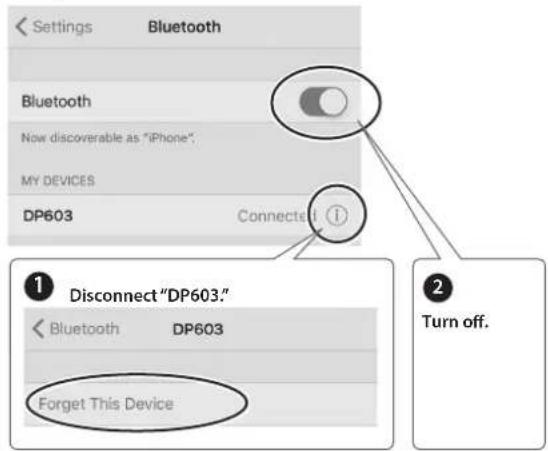
For details, refer to the owner's manual of your iOS device.
- Place the mobile device that you want to connect nearby this unit.
MEMO
If you have more than one unit of this model, power-on only the unit that you want to pair (power-off the other units).
- Press the [Ambience] button and [Brilliance] button simultaneously.
- Use the [◀] [▶] buttons to select "Bluetooth Page Turn/MIDI," and then press the [▶/■] (Enter) button.
- Use the [◀] [▶] buttons to select "Bluetooth Turn/MIDI," and use the [-] [+] buttons to select "Page Turn."
MEMO
By selecting "Page Turn&MIDI" here, you can use the page-turning function and the MIDI transmit/receive function simultaneously. For example, this lets you use the pedal to operate the page-turning function while receiving MIDI to play from this instrument.
- Turn on the Bluetooth function of the mobile device.
- On your mobile device, tap "DP603."
This unit will be paired with the mobile device. When pairing succeeds, the model name of this unit ("DP603") is added to the "Paired Devices" list of the mobile device.
MEMO
- If you're using an iOS device (iPhone or iPad), the screen of the iOS device indicates "Bluetooth Pairing Request." Tap the [Pair] button.
-
If the screen of the mobile device requests you to enter a "Pass Key," enter "0000" (four zeros).
-
Simultaneously press the [Ambience] button and [Brilliance] button to exit Function mode.
Start the music score app on your mobile device; now you can use the sostenuto pedal to turn to the next page, or the soft pedal to turn to the previous page.
* Pedal function settings take priority in the following order: "Reg. Pedal Shift (p. 21)" → "Page Turn" → "Center/Left Pedal (p. 21)."
If the keyboard is no longer shown on the mobile device
In some cases, depending on the mobile device app that you're using, the keyboard might stop being displayed (i.e., the keyboard might become unavailable).
If you want the mobile device's keyboard to be shown while you're using the page turning function, hold down this unit's [Accomp] button and press the [Left] button.
To hide the mobile device's keyboard, once again hold down the [Accomp] button and press the [Left] button.
Connecting an Already-Paired Mobile Device
- Turn on the Bluetooth function of the mobile device. This unit will be wirelessly connected to the mobile device.
MEMO
- If the above steps do not succeed in establishing a connection, tap the model name ("DP603") that is shown in the Bluetooth device screen of the mobile device.
- To disconnect, either turn this unit's Bluetooth Page Turn function "Off" (Function mode → "Bluetooth Turn/MIDI" → "Bluetooth Turn&MIDI (*1)" Off) or turn the mobile device's Bluetooth function off.
(*1) Depending on the Function mode "Bluetooth Turn/MIDI" setting, the screen might indicate "Bluetooth Page Turn" or "Bluetooth MIDI."
Changing the Operating Keys of the Page Turning Function
The key operations for turning pages will differ depending on the music score display app that you're using. You can choose which keys of this unit will operate the page turning function.
- Proceed with steps 2–3 of "Using the Pedal to Turn Pages on a Music Score App" (p. 24).
- Use the [◀] [▶] buttons to select "Page Turn Assign," and use the [-] [+] buttons to select the function.
| Setting Explanation | |
| Cursor Up/Down | The [↑][↓] keys of the keyboard are used by the page turning app. |
| Page Up/Down | The [Page Up] [Page Down] keys of the keyboard are used by the page turning app. |
| Cursor Left/Right | The [←][→] keys of the keyboard are used by the page turning app. |
- Simultaneously press the [Ambience] button and [Brilliance] button to exit Function mode.
Changing the Page-Turn Operation
You can select the type of pedal operation that turns pages.
- Proceed with steps 2–3 of "Using the Pedal to Turn Pages on a Music Score App" (p. 24).
- Use the [◀] [▶] buttons to select "Page Turn Mode" and use the [-] (+] buttons to select the function.
| Value Explanation | |
| Once The page turns when you press the pedal once. | |
| Twice | The page turns when you press the pedal twice in quick succession.If you press the pedal once, it performs the usual pedal function. |
- Simultaneously press the [Ambience] button and [Brilliance] button to exit Function mode.
Transferring MIDI Data
Here's how to make settings for transmitting and receiving MIDI data between this unit and the mobile device.
Note when using an already-paired iOS device
iOS
The following operation is required after each time that you switch the Bluetooth page-turning/MIDI function or execute a factory reset.
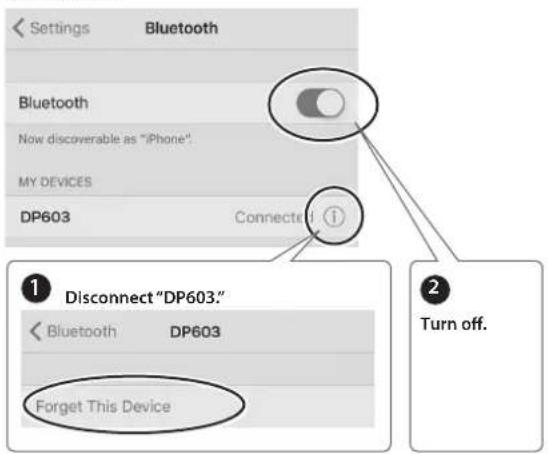
For details, refer to the owner's manual of your iOS device.
- Place the mobile device that you want to connect nearby this unit.
MEMO
If you have more than one unit of this model, power-on only the unit that you want to pair (power-off the other units).
- Press the [Ambience] button and [Brilliance] button simultaneously.
- Use the [◀] [▶] buttons to select "Bluetooth Page Turn/MIDI," and then press the [▶/■] (Enter) button.
- Use the [◀] [▶] buttons to select "Bluetooth Turn/MIDI," and use the [+] button to select "MIDI."
- Turn on the Bluetooth function of the mobile device.
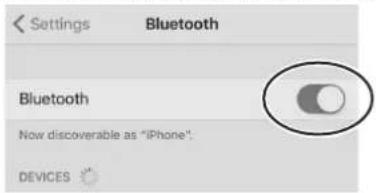
MEMO
The explanation here uses the iPhone as an example. For details, refer to the owner's manual of your mobile device.
- In the mobile device's app (e.g., GarageBand), establish a connection with this unit.
NOTE
Do not tap the "DP603" that is shown in the Bluetooth settings of the mobile device.
Connection status between this unit and the mobile device
Depending on the functionality of the mobile device that's connected, this unit's display will show the following icons.
| Function Displayed Icon | |
| Bluetooth audio function | AUDIO(AUDIO) |
| Page turning function | PAGE(PAGE) |
| MIDI data transmit/receive | MIDI(MIDI) |
| Page turning function and MIDI data transmit/receive | P+MID(P+MID) |
| Problem Items to | check Action | Page | |
| Even though you're using headphones and the sound is muted, a thumping sound is heard when you play the keyboard | Could you be hearing the sound of the hammers inside the keyboard, or vibrations in the floor or walls? | Playing the keyboard causes internal hammers to operate, and the vibrations may be transmitted to the floor or walls. To minimize such vibrations, you can move the piano away from the wall, or lay down a commercially available anti-vibration mat designed for use with pianos. | - |
| Power turns off on its own | Could the auto-off setting be something other than "Off"? | If you don't need the power to turn off automatically, turn the Auto Off setting "Off." | p. 22 |
| Power does not turn on | Is the AC adaptor connected correctly? - | ||
| Can't perform operations | Could Panel Lock be activated? | Disengage the Panel Lock setting. | p. 11 |
| Pedal does not work, or is "stuck" | Is the pedal connected correctly? | - | |
| Could you have disconnected or connected the pedal cord while the power was on? | Power-off the unit before you connect or disconnect the pedal cord. | - | |
| Could the Damper pedal part be set to "Right" or "Left"? | p. 21 | ||
| Could Twin Piano be turned on? If Twin Piano is on, the right pedal will affect only the right-hand keyboard zone and the left pedal will affect only the left-hand keyboard zone. | p. 9 | ||
| Could you have changed the function of the pedal? | Return the pedal function (Center Pedal, Left Pedal, Reg. Pedal Shift) to its previous setting. | p. 21 | |
| Unable to read from/write to USB flash drive | Are you using (optional) Roland USB flash drive? | Use a USB flash drive sold by Roland. | - |
| "Buzz" is heard from external devices | Are the external devices connected to more than one AC power outlet? | If you connect external devices, be sure to connect them to the same AC outlet. | - |
| The volume level of the unit connected to Input jack is too low | Could the Input Volume be turned down? | p. 20 | |
| Could the volume of the connected device be turned down? | - | ||
| No sound | Are your amp, speakers, headphones, etc., connected correctly? | p. 7 | |
| Is the volume turned down? | p. 8 | ||
| Could headphones or an adaptor plug be inserted in the Phones jacks? The speakers will not produce sound if headphones or plug are connected to the Phones jacks. | - | ||
| Has Local Control been set to "Off"? | Set Local Control to "On." | p. 22 | |
| Could Twin Piano mode be set to "Individual"? If headphones are connected when Twin Piano is On and the mode is set to Individual, notes played in the left-hand keyboard zone will not be heard from the headphones connected to the right Phones jack. Similarly, notes played in the right-hand keyboard zone will not be heard from the headphones connected to the left Phones jack. | p. 9 | ||
| No sound when you play back a song | Could the song volume be set to "0"? p. 20 | ||
| Notes don't sound right | |||
| Sound is not loud enough | Is the speaker cable connected correctly? | - | |
| Only the high sounds are heard | |||
| Pitch of the keyboard or song is incorrect | Could you have made Transpose settings? | p. 8 | |
| Is the Master Tune setting appropriate? | p. 20 | ||
| Is the setting for the Temperament correct? | p. 20 | ||
| Is the Single Note Tuning setting appropriate? p. 15 | |||
| Notes are interrupted | Could you be holding down the damper pedal and sounding a large number of notes? Could you be using Dual Play or playing along with a song? | - | |
| Sounds are heard twice (doubled) when the keyboard is played | Is the unit in Dual Play? | Press the [Dual] button to turn off Dual Play. | p. 9 |
| Could the unit be connected to an external sequencer? | If you don't want the other sound module to produce sound, turn your DAW's soft thru function "off." | - | |
| If Local Control is turned "On," set Local Control to "Off." | p. 22 | ||
| Effect does not apply | For some combinations of tones, the effect does not apply to Dual Play tone 2 or to the left-hand tone of Split Play. | - | |
| Problem Items to | check Action | Page | |
| Reverberation remains even if you defeat the Ambience effect | Even if the Ambience effect is off, the acoustic piano's own resonance remains.You can reduce this reverberation by adjusting the Cabinet Resonance. | p. 15 | |
| The sound of the higher notes suddenly changes from a certain key | This simulates the characteristics of an acoustic piano, and is not a malfunction.The sound will change where there is a change in the number of strings per key or a transition from wound strings to unwound strings. | - | |
| High-pitched ringing is heard | Is the speaker cable connected correctly? -If you don't hear it through headphones: It may be that the unit has malfunctioned. Please contact your dealer or a Roland customer service center.If you also hear it through headphones: To decrease the metallic ringing, adjust the following settings.Duplex Scale (p. 15)Full Scale String Res. (p. 15)Ambience (p. 8) | - | |
| Low notes sound wrong, or are buzzy | Could the volume be set to maximum? | Lower the volume. | p. 8 |
| If you also hear it through headphones: It may be that the unit has malfunctioned. Please contact your dealer or a Roland customer service center.If you don't hear it through headphones: Objects near the unit are resonating because of the high volume of sound coming from the speakers. You can take the following measures to minimize resonances.Locate the speakers 10–15 cm (4–6 inch) away from walls or other surfaces.Keep the volume down.Move away from the objects that are resonating. | - | ||
| The selected sound changes when you play back a song | Could the SMF Play Mode be set to "Internal"? | Set the SMF Play Mode to "External." p. 21 | |
| Song does not play correctly | |||
| The piano's tonal character changes when you record | Could you be recording with a tone that you created in Piano Designer? | Some of the Piano Designer settings might not be reproduced when you play back a song. | - |
| Could you be playing back the audio-recorded sound? | Record as SMF. | p. 12 | |
| Only the sound of a particular instrument in a song does not play | Could the part button be unlit? | Press the part button so the indicator is illuminated. | p. 11 |
| Song volume is too low / Volume differs between recording and playback | Could the song volume be set too low? p. 20 | ||
| Can't play back a song saved in USB flash drive | Could the Audio files of the format be played?Audio files of the following format can be played back.File extension ".WAV"16-bit linear"44.1 kHz" sampling rate | - | |
| Is the filename extension ".MID"? | - | ||
| Song name in USB flash drive is not shown | Could the song name information in the file be blank or consist of only spaces? | - | |
| Is the filename extension ".MID"? | - | ||
| Can't record | |||
| Can't record SMF | Has one of the part buttons for recording been selected? | p. 12 | |
| Can't record audio | Is a USB flash drive connected to the USB Memory port? | - | |
Problems with Bluetooth functionality
| Problem Items to check/Act | on Page | ||
| This unit does not appear in the Bluetooth device list of your mobile device | Could theBluetoothfunction be turned “Off”? | Turn theBluetoothfunction “On.”BluetoothAudio function:Function mode → “Bluetoothaudio” → turn“Bluetoothaudio” OnBluetooth Turn/MIDI function:Function mode → “BluetoothTurn/MIDI” → turn “BluetoothTurn & MIDI (*1)” On(*1) Depending on the Function mode “BluetoothTurn/MIDI” setting, the screen might indicate “BluetoothPage Turn” or “BluetoothMIDI.” | p. 23 |
| If BluetoothAudio function is “On” A device named | “DP603 Audio” appears. | - | |
| If theBluetoothPage Turn function is “On” and theBluetoothTurn/MIDI function is “Page Turn” or “Page Turn&MIDI” | A device named “DP603” appears. | ||
| If theBluetoothPage Turn function is “On” and theBluetoothTurn/MIDI function is set to “MIDI” or “Page Turn&MIDI” | You can check this from a setting inside your app such as GarageBand. | ||
| Can’t connect to Bluetooth audio | If this unit is visible as a device in the mobile device’sBluetoothsettings | Delete the device’s registration, turn theBluetoothAudio function “Off” and then “On” again, and establish pairing once again. | p. 23 |
| If this unit is not visible as a device | Turn the mobile device’sBluetoothfunction off and then on again, and initiate pairing from this unit to re-establish pairing. | ||
| Can’t connect to Bluetooth page turning | In some cases, the connection with the mobile device might become unavailable when you switch theBluetoothTurn/MIDI function. | - | |
| If this unit is not visible as a device in the mobile device’sBluetoothsettings | After unpairing the “DP603” that is registered on the mobile device, turn the mobile device’sBluetoothfunction off and then on again, and reconnect it. | ||
| If this unit is not visible as a device | Turn the mobile device’sBluetoothfunction off and on again, and then reestablish the connection. | ||
| Can’t connect to Bluetooth MIDI | In some cases when you switch theBluetoothTurn/MIDI function, the connection with the mobile device might become unavailable. | ||
| After unpairing the “DP603” that is registered on the mobile device, turn the mobile device’sBluetoothfunction off and then on again, and reconnect it. | |||
| Can’t connect via MIDI | You must make the connection not from the mobile device’sBluetoothsetting but from the setting within GarageBand or other app that you’re using. | ||
| Can’t establish pairing with the page turning function and MIDI function | The page turning function and MIDI function are paired when you first select a device on the mobile device and establish a connection. There is no need to initiate pairing from this unit. | ||
| Can’t use the page turning function and MIDI function simultaneously | Set theBluetoothTurn/MIDI function to “Page Turn&MIDI.” | ||
| Can’t connect a paired mobile device | If the connection breaks immediately after it is established, or when you switch the page turning function and MIDI data transmit/receive function, turning theBluetoothdevice’sBluetoothswitch off and then on again may allow connection to occur. | ||
| Keyboard no longer appears (becomes unavailable) on the mobile device | When using the page turning function, the keyboard might not be shown (might be unavailable) depending on the mobile device that you’re using.If you want the mobile device’s keyboard to be shown while you’re using the page turning function, hold down this unit’s [Accomp] button and press the [Left] button.To hide the mobile device’s keyboard, hold down the [Accomp] button and press the [Left] button. | ||

Error Messages
| Indication Meaning | |
| Error 2 | An error occurred during writing. The external media may be corrupted.Insert other external media and try again. Alternatively, you can initialize the external media (p. 19). |
| The internal memory might be damaged. Format the internal memory (p. 19). | |
| Error 10 | No external media is inserted. Insert the external media and try again. |
| The internal memory might be damaged. Format the internal memory (p. 19). | |
| Error 11 | There is not sufficient free memory in the save destination.Either insert other external media or delete unneeded files and try again. |
| Error 14 | An error occurred during reading. The external media may be corrupted.Insert other external media and try again. Alternatively, you can initialize the external media (p. 19). |
| The internal memory might be damaged. Format the internal memory (p. 19). | |
| Error 15 The file is unreadable. The data format is not compatible with the unit. | |
| Error 18 | This audio format is not supported.Please use 44.1 kHz 16-bit linear WAV format audio files. |
| Error 30 Internal memory capacity of the unit is full. | |
| Error 40 | The unit cannot deal with the excessive MIDI data sent from the external MIDI device.Reduce the amount of MIDI data sent to the unit. |
| Error 43 | A MIDI transmission error has occurred. Check the MIDI cable and connected MIDI device. |
| Error 51 | There may be a problem with the system. Repeat the procedure from the beginning. If it is not solved after you have tried several times, contact the Roland service center. |
| Error 65 | The USB flash drive connector was subjected to excessive current. Make sure that there is no problem with the external media, then turn the power off, then on again. |

WARNING
Concerning the Auto Off function
The power to this unit will be turned off automatically after a predetermined amount of time has passed since it was last used for playing music, or its buttons or controls were operated (Auto Off function). If you do not want the power to be turned off automatically, disengage the Auto Off function (p. 22).

Use only the supplied AC adaptor and the correct
voltage
Be sure to use only the AC adaptor supplied with the unit. Also, make sure the line voltage at the installation matches the input voltage specified on the AC adaptor's body. Other AC adaptors may use a different polarity, or be designed for a different voltage, so their use could result in damage, malfunction, or electric shock.

Use only the supplied power cord
Use only the attached power cord. Also, the supplied power cord must not be used with any other device.


CAUTION
Cautions when moving this unit
If you need to move the instrument, take note of the precautions listed below. At least two persons are required to safely lift and move the unit. It should be handled carefully, all the while keeping it level. Make sure to have a firm grip, to protect yourself from injury and the instrument from damage.
- Check to make sure the screws securing the unit to the stand have not become loose. Fasten them again securely whenever you notice any loosening.
- Disconnect the power cord.
- Disconnect all cords coming from external devices.
- Close the lid.
Take care so as not to get fingers pinched
When handling the following moving parts, take care so as not to get fingers, toes, etc., pinched. Whenever a child uses the unit, an adult should be on hand to provide supervision and guidance.
• Lid (p. 4)
• Pedals (p. 6)


CAUTION
Precautions concerning use of bench
When using the bench, please observe the following points:
- Do not use the bench as a toy, or as a stepping stool.
- Do not allow two or more persons to sit on the bench.
- Do not adjust the height while sitting on the bench.
- Do not sit on the bench if the bolts holding the bench legs are loose. (If the bolts are loose, immediately re-tighten them using the supplied tool.)
- Never insert your hand into the gap (the metal height adjustment mechanism) under the seat lid. Doing so may cause your hand to be pinched or injured.

Keep small items out of the reach of children
To prevent accidental ingestion of the parts listed below, always keep them out of the reach of small children.
- Included Parts
Cord clamps, Stabilizers
• Included Parts/Removable Parts
Screws


IMPORTANT NOTES
Placement
- Do not allow lighting devices that normally are used while their light source is very close to the unit (such as a piano light), or powerful spotlights to shine upon the same area of the unit for extended periods of time. Excessive heat can deform or discolor the unit.
- Do not allow objects to remain on top of the keyboard. This can be the cause of malfunction, such as keys ceasing to produce sound.
- Depending on the material and temperature of the surface on which you place the unit, its rubber feet may discolor or mar the surface.
Maintenance
• To clean the unit, use a dry, soft cloth; or one that is slightly dampened. Try to wipe the entire surface using an equal amount of strength, moving the cloth along with the grain of the wood. Rubbing too hard in the same area can damage the finish.
- The pedal of this unit are made of brass. Brass eventually darkens as the result of the natural oxidization process. If the brass becomes tarnished, polish it using commercially available metal polisher.
Care of the Keyboard
- Do not write on the keyboard with any pen or other implement, and do not stamp or place any marking on the instrument. Ink will seep into the surface lines and become unremovable.
- Do not affix stickers on the keyboard. You may be unable to remove stickers that use strong adhesives, and the adhesive may cause discoloration.
- To remove stubborn dirt, use a commercially available keyboard cleaner that does not contain abrasives. Start by wiping lightly. If the dirt does not come off, wipe using gradually increasing amounts of pressure while taking care not to scratch the keys.
Concerning the Care of the Unit (Mirror Finish)
- The surface of this unit has been polished so as to create a high-gloss, mirror-like finish. Since this beautiful finish is as delicate as that of the highest quality, wood-crafted furniture, it needs to be cared for at regular intervals. Please make sure to observe the following when caring for the unit.
- For routine care, gently clean the surface using a soft cloth or a piano-use feather duster. You must avoid applying any force, since even the tiniest particles of sand or grit can produce scratches if you wipe too hard.
- If the finish loses its luster, use a soft cloth dampened with some polishing liquid to evenly wipe the surface of the unit.
- Avoid using detergents or other cleaners, as they can cause the surface finish to deteriorate. This may lead to the formation of cracks or other imperfections. Also, do not use chemically-enhanced cleaning cloths.
• Precautions concerning the use of polishing agents
• Refer to the instructions that came with the polishing agent for instructions on its proper use.
- Use only polishing agents that are designed specifically for use on the mirror finishes of pianos. By using any other product, you risk causing scratches, deformation, discoloration, etc. To purchase an appropriate product, please consult the nearest musical instrument store.
- Use the product only on the portions of this unit that have a mirror-like finish, and using an even touch, apply it equally over the entire surface. If you apply more force in one place over another, you risk losing some of the luster of the finish.
- Store in a location that is out of the reach of small children. If accidentally ingested, induce vomiting immediately. Then, see a doctor to obtain a diagnosis.
Repairs and Data
- Before sending the unit away for repairs, be sure to make a backup of the data stored within it; or you may prefer to write down the needed information. Although we will do our utmost to preserve the data stored in your unit when we carry out repairs, in some cases, such as when the memory section is physically damaged, restoration of the stored content may be impossible. Roland assumes no liability concerning the restoration of any stored content that has been lost.
Additional Precautions
- Note when placing a mobile device such as a smartphone or tablet on this unit
- Handle your device with care to avoid scratching the unit or the mobile device.
• To prevent your mobile device from overturning or falling, do not move the music rest or the cover. - Any data stored within the unit can be lost as the result of equipment failure, incorrect operation, etc. To protect yourself against the irretrievable loss of data, try to make a habit of creating regular backups of the data you've stored in the unit.
- Roland assumes no liability concerning the restoration of any stored content that has been lost.
- Never strike or apply strong pressure to the display.
• The sound of keys being struck and vibrations produced by playing an instrument can be transmitted through a floor or wall to an unexpected extent. Please take care not to cause annoyance to others nearby. - Do not apply undue force to the music stand while it is in use.
- Do not use connection cables that contain a built-in resistor.
Using External Memories
- Please observe the following precautions when handling external memory devices. Also, make sure to carefully observe all the precautions that were supplied with the external memory device.
- Do not remove the device while reading/writing is in progress.
• To prevent damage from static electricity, discharge all static electricity from your person before handling the device.
Caution regarding radio frequency emissions
• The following actions may subject you to penalty of law.
• Disassembling or modifying this device.
- Removing the certification label affixed to the back of this device.
Intellectual Property Right
- It is forbidden by law to make an audio recording, video recording, copy or revision of a third party's copyrighted work (musical work, video work, broadcast, live performance, or other work), whether in whole or in part, and distribute, sell, lease, perform, or broadcast it without the permission of the copyright owner.
- Do not use this product for purposes that could infringe on a copyright held by a third party. We assume no responsibility whatsoever with regard to any infringements of third-party copyrights arising through your use of this product.
- The copyright of content in this product (the sound waveform data, style data, accompaniment patterns, phrase data, audio loops and image data) is reserved by Roland Corporation.
- Purchasers of this product are permitted to utilize said content (except song data such as Demo Songs) for the creating, performing, recording and distributing original musical works.
- Purchasers of this product are NOT permitted to extract said content in original or modified form, for the purpose of distributing recorded medium of said content or making them available on a computer network.
- This product contains eParts integrated software platform of eSOL Co., Ltd. eParts is a trademark of eSOL Co., Ltd. in Japan.
- The Bluetooth ^® word mark and logos are registered trademarks owned by Bluetooth SIG, Inc. and any use of such marks by Roland is under license.
- This Product uses the Source Code of T-Kernel under T-License 2.0 granted by the T-Engine Forum (www.tron.org).
- Roland, SuperNATURAL, BOSS are either registered trademarks or trademarks of Roland Corporation in the United States and/or other countries.
- Company names and product names appearing in this document are registered trademarks or trademarks of their respective owners.
- This product is using the Jansson (http://www.digip.org/jansson/) source code. Copyright © 2009-2014 Petri Lehtinen petri@digip.org Released under the MIT license http://opensource.org/licenses/mit-license.php
Piano
| No. | Tone | Name |
| 1 | Concert | Piano |
| 2 | Ballad | Piano |
| 3 | Mellow | Piano |
| 4 | Bright | Piano |
MEMO
Piano Designer can be used to customize the sound only for tones of the [Piano] button.
E. Piano
| No. | Tone | Name |
| 1 | Tremolo | EP |
| 2 | Pop | EP |
| 3 | Vintage | EP |
| 4 | FM | E.Piano |
| 5 | EP | Belle |
| 6 | '60s | EP |
| 7 | Clav. | |
| 8 | Stage | Phaser |
| 9 | '70s | EP |
| 10 | E.Grand |
Organ
| No. | Tone | Name |
| 1 | Pipe Organ | |
| 2 | Nason flt 8' | |
| 3 | Combo Jz.Org | |
| 4 | Ballad Organ | |
| 5 | Church Organ1 | |
| 6 | Church Organ2 | |
| 7 | Gospel Spin | |
| 8 | Full Stops | |
| 9 | Mellow Bars | |
| 10 | Light Organ | |
| 11 | Lower Organ | |
| 12 | '60s Organ |
Strings
| No. | Tone | Name |
| 1 | Symphonic Str 1 | |
| 2 | Epic Strings | |
| 3 | Rich Strings | |
| 4 | Orchestra Str | |
| 5 | Orchestra | |
| 6 | Chamber Winds | |
| 7 | Harp | |
| 8 | Violin | |
| 9 | Velo Strings | |
| 10 | Flute | |
| 11 | Cello | |
| 12 | OrchestraBrs | |
| 13 | Pizzicato Str | |
| 14 | Symphonic Str 2 | |
| 15 | Soft Pad | |
| 16 | Magical Piano | |
| 17 | Jazz Scat |
Other
| No. | Tone | Name |
| 1 | Upright | Piano |
| 2 | Mellow | Uprght |
| 3 | Bright | Uprght |
| 4 | Rock | Piano |
| 5 | Ragtime | Piano |
| 6 | Fortepiano | |
| 7 | Mellow | Forte |
| 8 | Bright | Forte |
| 9 | Harpsichord | |
| 10 | Harpsi | 8'+4' |
* If you select tone numbers 11–19, you'll be able to use the keyboard to play the sounds of a drum set.
- Tones numbered 20 and higher are accompaniment-use GM2 tones.
* In the tone group "Other" when you hold down the [-] [+] buttons to switch tone in succession, the tones will stop changing at number 6, number 11, and number 20.
* To select the next sound, release the [-] [+] buttons, then press it again.
| No. Song Title Composer | ||
| Listening | ||
| 1 Widmung S.566 R.253 | Robert Alexander Schumann, Arranged by Franz Liszt | |
| 2 Étude, op.10-12 Fryderyk Franciszek Chopin | ||
| 3 Floral Pursuits * Léo Delibes, Arranged by John Maul | ||
| 4 The Nutcracker "Waltz of the Flowers" (Jazz Arrangement) * | Peter Ilyich Tchaikovsky | |
| 5 The Marriage of Figaro "Overture" (Piano Arrangement) * | Wolfgang Amadeus Mozart | |
| 6 Barcarolle Fryderyk Franciszek Chopin | ||
| 7 Zhavoronok | Mikhail Ivanovich Glinka, Arranged by Mily Alexeyevich Balakirev | |
| 8 Sonate für Klavier Nr.23 1 Ludwig van Beethoven | ||
| 9 Sonate für Klavier Nr.23 2 Ludwig van Beethoven | ||
| 10 Sonate für Klavier Nr.23 3 Ludwig van Beethoven | ||
| 11 Valse op.34-1 Fryderyk Franciszek Chopin | ||
| 12 Polonaise op.53 Fryderyk Franciszek Chopin | ||
| 13 Nocturne No.2 Fryderyk Franciszek Chopin | ||
| 14 Die Forelle | Franz Peter Schubert, Arranged by Franz Liszt | |
| 15 Reflets dans l'Eau Claude Achille Debussy | ||
| 16 La Fille aux Cheveux de Lin Claude Achille Debussy | ||
| 17 La Campanella Franz Liszt | ||
| 18 Scherzo No.2 Fryderyk Franciszek Chopin | ||
| Masterpieces | ||
| 1 Danse des Mirlitons * | Peter Ilyich Tchaikovsky | |
| 2 Salut d'amour * Edward Elgar | ||
| 3 Menuett G Dur BWV Anh.114 Johann Sebastian Bach | ||
| 4 Präludum C Dur BWV846 Johann Sebastian Bach | ||
| 5 The Harmonious Blacksmith Georg Friedrich Händel | ||
| 6 Le Coucou Louis Claude Daquin | ||
| 7 Türkischer Marsch Wolfgang Amadeus Mozart | ||
| 8 Sonate Nr.16 C Dur Wolfgang Amadeus Mozart | ||
| 9 Türkischer Marsch Ludwig van Beethoven | ||
| 10 Für Elise Ludwig van Beethoven | ||
| 11 Moments Musicaux op.94-3 Franz Peter Schubert | ||
| 12 Gavotte François Joseph Gossec | ||
| 13 Sonatine op.36-1 Muzio Clementi | ||
| 14 Sonatine op.20-1 Friedrich Kuhlau | ||
| 15 Jägerlied Felix Mendelssohn | ||
| 16 Frühlingslied Felix Mendelssohn | ||
| 17 Auf Flügeln des Gesanges Felix Mendelssohn | ||
| 18 Nocturne, op.9-2 Fryderyk Franciszek Chopin | ||
| 19 Étude, op.10-3 Fryderyk Franciszek Chopin | ||
| 20 Prélude, op.28-15 Fryderyk Franciszek Chopin | ||
| 21 Valse op.64-1 Fryderyk Franciszek Chopin | ||
| 22 Valse op.64-2 Fryderyk Franciszek Chopin | ||
| 23 Fantaisie-Impromptu Fryderyk Franciszek Chopin | ||
| 24 Radetzky Marsch Johann Baptist Strauss | ||
| 25 Träumherei Robert Alexander Schumann | ||
| 26 Fröhlicher Landmann Robert Alexander Schumann | ||
| 27 La prière d'une Vierge Tekla Badarzewska | ||
| 28 Dolly's Dreaming Awakening Theodor Oesten | ||
| 29 Brautchor Wilhelm Richard Wagner | ||
| 30 Liebesträume Nr.3 Franz Liszt | ||
| 31 Blumenlied Gustav Lange | ||
| 32 Course en Troika Peter Illyich Tchaikovsky | ||
| 33 Ungarische Tänze Nr.5 Johann Strauss, Sohn | ||
| 34 An der schönen, blauen Donau Antonin Dvořák | ||
| 35 Humoreske Claude Achille Debussy | ||
| 36 Clair de Lune Claude Achille Debussy | ||
| 37 Ière Arabesque Claude Achille Debussy | ||
| 38 Golliwog's Cakewalk Claude Achille Debussy | ||
| 39 Je te veux Erik Satie | ||
| 40 Ière Gymnopédie Erik Satie | ||
| Easy Piano | ||
| 1 Twinkle Twinkle Little Star French Folk Song | ||
| 2 Mary Had a Little Lamb Traditional | ||
| 3 Bear Song American Folk Song | ||
| 4 Ich Bin Ein Musikante German Folk Song | ||
| 5 Grand Father's Clock Henry Work | ||
| 6 Maple Leaf Rag Scott Joplin | ||
| 7 Le Quattro Stagioni "La Primavera" Antonio Vivaldi | ||
| 8 Marche Militaire Nr.1 Franz Peter Schubert | ||
| Scales | ||
| 1–36 Major Scales, Minor Scales – | ||
| Hanon | ||
| 1–20 Hanon 1–20 Charles-Louis Hanon | ||
| Beyer | ||
| 1–106 Beyer 1–106 Ferdinand Beyer | ||
| No. Song Title Composer | ||
| Burgmüller | ||
| 1 Openness | Johann Friedrich Franz Burgmüller | |
| 2 Arabesque | ||
| 3 Pastoral | ||
| 4 A Small Gathering | ||
| 5 Innocence | ||
| 6 Progress | ||
| 7 The Clear Stream | ||
| 8 Gracefulness | ||
| 9 The Hunt | ||
| 10 Tender Flower | ||
| 11 The Young Shepherdess | ||
| 12 Farewell | ||
| 13 Consolation | ||
| 14 Austrian Dance | ||
| 15 Ballad | ||
| 16 Sighing | ||
| 17 The Chatterbox | ||
| 18 Restlessness | ||
| 19 Ave Maria | ||
| 20 Tarantella | ||
| 21 Angelic Harmony | ||
| 22 Gondola Song | ||
| 23 The Return | ||
| 24 The Swallow | ||
| 25 The Knight Errant | ||
| Czerny100 | ||
| 1-100 | Czerny100 1-100 | Carl Czerny |
* All rights reserved. Unauthorized use of this material for purposes other than private, personal enjoyment is a violation of applicable laws.
* If the SMF Play Mode is set to "Internal," there will be some parts whose volume does not change when you adjust the Song Volume SMF value. If the SMF Play Mode is set to "External," the volume of all parts will change.
* Songs marked by an asterisk (*) are arranged by Roland Corporation. The copyrights to these songs are owned by the Roland Corporation.
* Listening 1, 2, 6–18 are piano solos. They have no accompaniment.
This transmitter must not be co-located or operated in conjunction with any other antenna or transmitter.
(FCC Part15 Subpart C §15.247, 15.253, 15.255)
This equipment complies with FCC radiation exposure limits set forth for an uncontrolled environment and meets the FCC radio frequency (RF) Exposure Guidelines. This equipment has very low levels of RF energy that it deemed to comply without maximum permissive exposure evaluation (MPE).
(FCC Part15 Subpart C §15.247, 15.253, 15.255)
For Canada
This device complies with Industry Canada licence-exempt RSS standard(s). Operation is subject to the following two conditions: (1) this device may not cause interference, and (2) this device must accept any interference, including interference that may cause undesired operation of the device.
This equipment complies with IC radiation exposure limits set forth for an uncontrolled environment and meets RSS-102 of the IC radio frequency (RF) Exposure rules. This equipment has very low levels of RF energy that it deemed to comply without maximum permissive exposure evaluation (MPE).
European Community Declaration of Conformity
Hereby, Roland Corporation, declares that this DP603 is in compliance with the essential requirements and other relevant provisions of Directive 2014/53/EU.
| English | Hereby, Roland Corporation, declares that this DP603 is in compliance with the essential requirements and other relevant provisions of Directive 2014/53/EU. |
| Bulgarian | С настоящето, Roland Corporation, декларира, че DP603 е в съответствие със съществените изисквания и другителприложими разпоредби на Директива 2014/53/EU. |
| Czech | Roland Corporation tímto prohlašuje, že DP603 splňuje základní požadavky a všechna příslušná ustanoveni Směrnice 1999/5/ES. |
| Danish | Undertegnede Roland Corporation erklærer herved, at følgende udstyr DP603 overholder de væsentlige krav og øvrige relevante krav i direktiv 1999/5/EF. |
| German | Hiermit erklärt Roland Corporation, dass sich das Gerät DP603 in Übereinstimmung mit den grundlegenden Anforderungen und den übrigen einschlägigen Bestimmungen der Richtlinie 1999/5/EG befindet,. |
| Estonian | Käesolevaga kinnitab Roland Corporation seadme DP603 vastavust direktiivi 1999/5/ΕÜ põhinõuetele ja nimetatud direktiivist tulenevatele teistele asjakohastele sätetele. |
| Greek | ME THN ΠΑΡΟΥΣΑ Roland Corporation ΔΗΛΩΝΕΙ ΟΤΙ DP603 ΣΥΜΜΟΡΦΩΝΕΤΑΙ ΠΡΟΣ ΤΙΣ ΟΥΣΙΩΔΕΙΣ ΑΠΑΙΤΗΣΕΙΣ ΚΑΙ ΤΙΣ ΛΟΙΠΕΣ ΣΧΕΤΙΚΕΣ ΔΙΑΤΑΞΕΙΣ ΤΗΣ ΟΔΗΓΙΑΣ 1999/5/EK |
| Spanish | Por la presente, Roland Corporation, declara que este DP603 cumple con los requisitos esenciales y otras exigencias relevantes de la Directiva 2014/53/EU. |
| French | Par la présente, Roland Corporation déclare que l'appareil DP603 est conforme aux exigences essentielles et aux autres dispositions pertinentes de la directive 1999/5/CE. |
| Italian | Con la presente Roland Corporation dichiara che questo DP603 è conforme ai requisiti essenziali ed alle altre disposizioni pertinenti stabilite dalla direttiva 1999/5/CE. |
| Latvian | Ar šo Roland Corporation deklarė, ka DP603 atbilst Direktīvas 1999/5/EK bütiskajām prasībām un citiem ar to saistītajiem noteikumiem. |
| Lithuanian | Šiuo Roland Corporation deklaruoja, kad śis DP603 atitinka esminius reikalavimus ir kitas 1999/5/EB Direktyvos nuostatas |
| Hungarian | A Roland Corporation ezzennel kijelenti, hogy a DP603 tipusú beren-dezés teljesíti az alapvető követelményeket és más 1999/5/EK irányelvben meghatározott vonatkozó rendelkezéseket. |
| Dutch | Hierbij verklaart Roland Corporation dat het toestel I DP603 in overeenstemming is met de essentiële eisen en de andere relevante bepalin-gen van richtlijn 1999/5/EG. |
| Polish | Niniejszym Roland Corporation deklaruje že DP603 jest zgodny z zasadniczymi wymaganiami i innymi właściwymi postanowieniami Dyrektywy 2014/53/EU. |
| Portuguese | Eu, Roland Corporation, declaro que o DP603 cumpre os requisitos essenciais e outras provisões relevantes da Directiva 2014/53/EU. |
| Romanian | Prin prezenta, Roland Corporation, declară că aparatul DP603 este în conformitate cu cerințele esențiale și cu alte prevederi pertinente ale Directivei 1999/5/CE.. |
| Slovak | Roland Corporation týmto vyhlasuje, že DP603 splňa základné požiadavky a všetky príslušné ustanovenia Smernice 1999/5/ES. |
| Slovenian | Roland Corporation izjavlja, da je ta DP603 v skladu z bistvenimi zahtevami in drugimi relevantnimi določili direktive 1999/5/ES. |
| Finish | Roland Corporation vakuuttaa täten että DP603 tyyppinen laite on direktiivin 1999/5/EY oleellisten vaatimusten ja sitä koskevien direktiivin muiden ehtojen mukainen. |
| Swedish | Härmed intygar Roland Corporation att denna DP603 står I överensstämmelse med de väsentliga egenskapskrav och övriga relevanta bestämmelser som framgår av direktiv 1999/5/EG. |
The Declaration of Conformity may be consulted in Downloads menu of this product at www.roland.com.
This unit has an RF transmitter(s) with the following specification.
- Operating frequency: 2400–2483.5 MHz
• Maximum RF transmit power: 2.5 mW
Roland