GWMHDRX - Émetteur AV IOGEAR - Free user manual and instructions
Find the device manual for free GWMHDRX IOGEAR in PDF.


User questions about GWMHDRX IOGEAR
0 question about this device. Answer the ones you know or ask your own.
Ask a new question about this device
Download the instructions for your Émetteur AV in PDF format for free! Find your manual GWMHDRX - IOGEAR and take your electronic device back in hand. On this page are published all the documents necessary for the use of your device. GWMHDRX by IOGEAR.
USER MANUAL GWMHDRX IOGEAR
Expandable Wireless TV Connection Receiver
GWMHDRX
PART NO. Q1558
Package Contents
1
1 x HDMI Extender Receiver
1 x 3 ft. HDMI cable
1 x IR Extender Cable
1 x 5 VDC/2A Switching Power Supply
1 x Quick Start Guide
1 x Warranty Card
System Requirements
• 1 HDMI display device (SDTV, HDTV, projector with HDMI port, etc.)
- IOGEAR Expandable Wireless TV Connection Kit GWMHDKIT22 or GWMRHDKIT
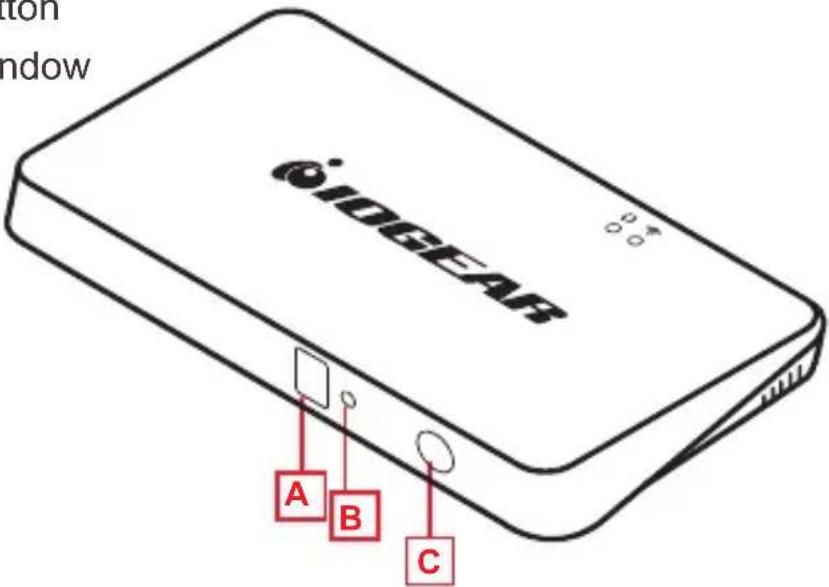
Receiver Front
A. Input Channel indicator
B. Channel selector button
C. IR remote control window
text_image
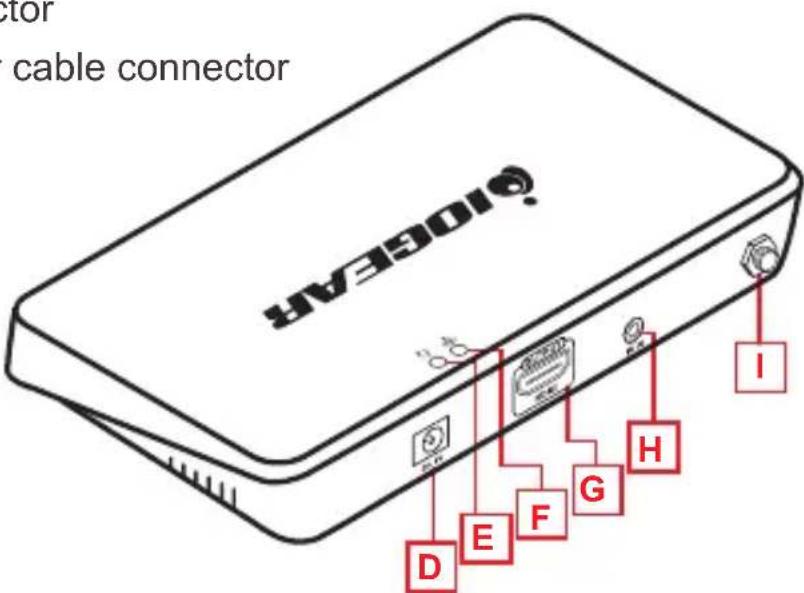
iOGEAR A B CReceiver Back
D. Power input
E. Data transmission indicator
F. Wireless connection indicator
G. HDMI output connector
H. IR receiver extender cable connector
I. Antenna connector
text_image
10694 I G H F E DHardware Installation
3
Please read safety instructions carefully before installation and operation:
- Please pay attention to all the warnings and hints for this device.
- Do not expose this unit to rain, moisture or liquid.
- Do not insert any foreign object into the device.
- Opening the enclosure will void the warranty.
- Place the device in a well ventilated area.
- Use DC5V/2A power adapter only. Make sure the specification matched if using 3rd party DC adapters.
Note:
1) Transmission distance will vary due to the environment.
2) Obstructions such as wall, brick or glass will shorten the signal cover range or cause signal degradation.
3) It is recommended that the distance between each unit should be more than 15 feet.
Connection Options
1 Transmitter 1 Receiver
1 Transmitter 2 Receivers
2 Transmitters 1 Receiver
2 Transmitters 2 Receivers
Receiver
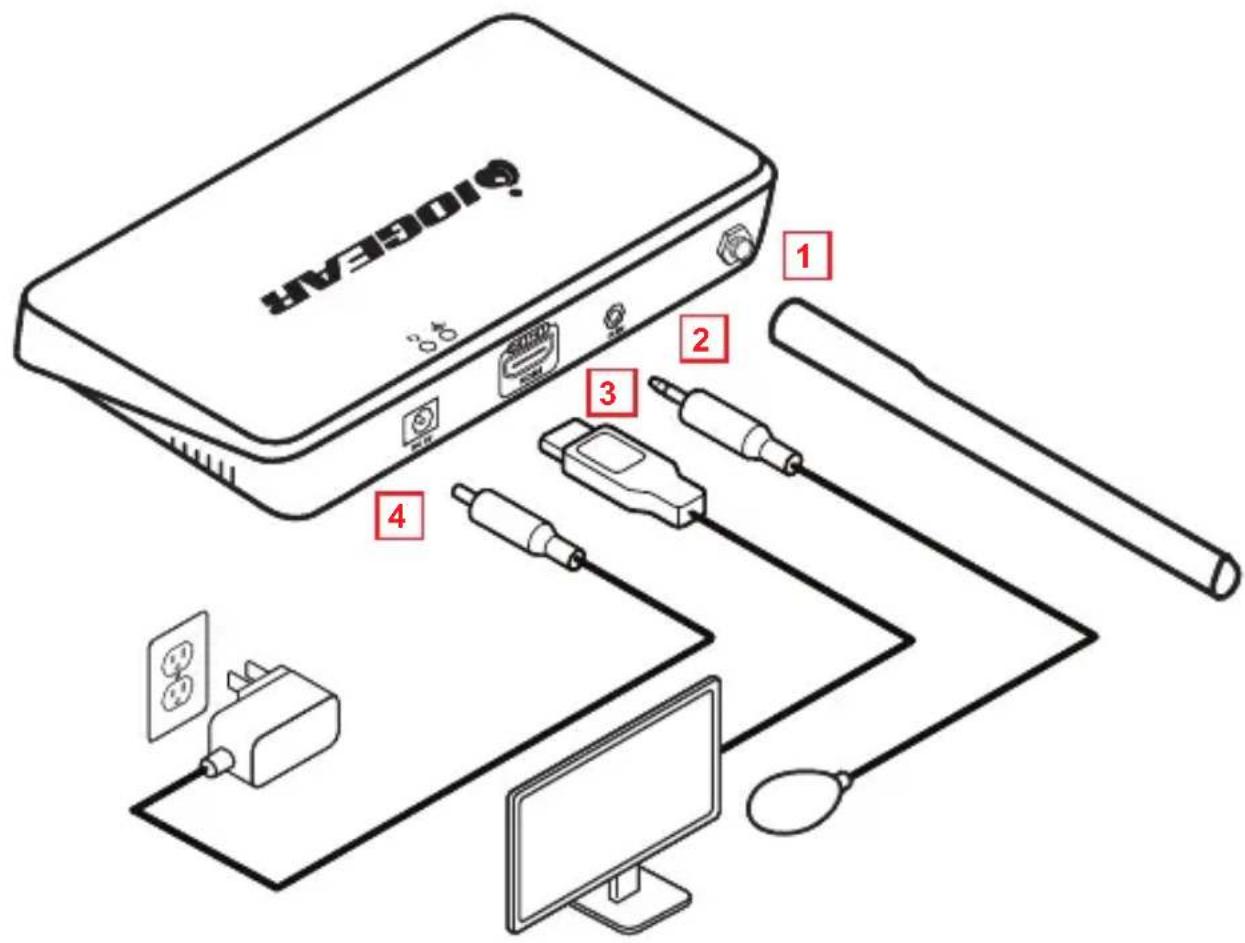
STEP 1
Install the antenna to the receiver
STEP 2
Connect the IR receiver extender cable to the connector
STEP 3
Connect one side of the HDMI cable to the receiver and the other side to your HDMI display device
STEP 4
Connect DC5V/2A power adapter to the Receiver power input port
text_image
Hy3601 1 2 3 4STEP 5
You can now connect to the transmitter by selecting the same channel number as the transmitter from either of the receiver(s) connected to your TV(s)

text_image
5 2 CHANGES CHANNEL 2ReceiverTransmitter
STEP 6
Wireless connection indicator of the transmitter and receiver will light up when the transmitter and receiver connection is established wirelessly
If your video source and your display is on, you should be able to see the content of the source on your display
NOTE: When the wireless signal is transmitted through walls, glass or other obstacles there could be signal degradation. It is advisable to install this device in a clear environment with few or no obstacles if possible
FAQ
6
Q Transmitter and receiver will not connect wirelessly
A 1. Please check if the wireless connection light is on and blinking
2. Restart both transmitter and receiver
3. Reconnect HDMI cables
Q My transmitter and receiver are not connecting
A Make sure the channel numbers are the same on the receiver to the transmitter that you want to connect to
Q The wireless indicator is on but nothing on the display
A Please check and see if the video source is working correctly by connecting the HDMI cable directly to the display and see if the operation is now normal
Q Video is flickering or not stable
A 1. Change the position of the transmitter and receiver and make sure that they are within the specified operating distance
2. Restart the transmitter and receiver
3. Reconnect the HDMI cables
4. Check for any obstacles that may block the wireless signal from the transmitter to the receiver
Compliance Information
FCC Statement
This equipment has been tested and found to comply with the limits for a Class B digital device, pursuant to Part 15 of the FCC Rules. These limits are designed to provide reasonable protection against harmful interference in a residential setting. This product generates, uses, and can radiate radio frequency energy and, if not installed and used as directed, it may cause harmful interference to radio communications. Although this product complies with the limits for a Class B digital device, there is no guarantee that interference will not occur in a particular installation.
CE Statement
This device has been tested and found to comply with the following European Union directives: Electromagnetic Capability (2004/108/EC), Low Voltage (2006/95/EC) and R&TTED (1999/5/EC).
Limited Warranty
This product carries a 1 Year Limited Warranty. For the terms and conditions of this warranty, please go to http://www.iogear.com/support/warranty
Register online at http://www.iogear.com/register
Important Product Information
Product Model
Serial Number ____
Contact
WE'RE HERE TO HELP YOU!
NEED ASSISTANCE SETTING UP THIS PRODUCT?
Make sure you:
- Visit www.iogear.com for more product information
- Visit www.iogear.com/support for live help and product support
IOGEAR
iogear.custhelp.com
support@iogear.com
www.iogear.com