Nüvifone G60 - Phone GARMIN - Free user manual and instructions
Find the device manual for free Nüvifone G60 GARMIN in PDF.


User questions about Nüvifone G60 GARMIN
0 question about this device. Answer the ones you know or ask your own.
Ask a new question about this device
Download the instructions for your Phone in PDF format for free! Find your manual Nüvifone G60 - GARMIN and take your electronic device back in hand. On this page are published all the documents necessary for the use of your device. Nüvifone G60 by GARMIN.
USER MANUAL Nüvifone G60 GARMIN
© 2009 Garmin Ltd. or its subsidiaries
Garmin International, Inc. 1200 East 151st Street, Olathe, Kansas 66062, USA Tel. (913) 397.8200 or (800) 800.1020 Fax (913) 397.8282
Garmin (Europe) Ltd. Liberty House Houndown Business Park, Southampton, Hampshire SO40 9LR UK Tel. +44 (0) 870.8501241 (outside the UK) 0808 2380000 (within the UK) Fax +44 (0) 870.8501251
Garmin Corporation No. 68, Jangshu 2nd Road, Shijr, Taipei County, Taiwan Tel. 886/2.2642.9199 Fax 886/2.2642.9099
All rights reserved. Except as expressly provided herein, no part of this manual may be reproduced, copied, transmitted, disseminated, downloaded or stored in any storage medium, for any purpose without the express prior written consent of Garmin. Garmin hereby grants permission to download a single copy of this manual onto a hard drive or other electronic storage medium to be viewed and to print one copy of this manual or of any revision hereto, provided that such electronic or printed copy of this manual must contain the complete text of this copyright notice and provided further that any unauthorized commercial distribution of this manual or any revision hereto is strictly prohibited.
Information in this document is subject to change without notice. Garmin reserves the right to change or improve its products and to make changes in the content without obligation to notify any person or organization of such changes or improvements. Visit the Garmin Web site (www.garmin.com) for current updates and supplemental information concerning the use and operation of this and other Garmin products.
Garmin ^® and the Garmin logo are trademarks of Garmin Ltd. or its subsidiaries, registered in the USA and other countries. Ciao! ^™ , nüMaps Guarantee ^™ , nüvifone ^™ , and myGarmin ^™ are trademarks of Garmin Ltd. or its subsidiaries. These trademarks may not be used without the express permission of Garmin.
The Bluetooth ^® word mark and logos are owned by the Bluetooth SIG, Inc., and any use of such name by Garmin is under license. Microsoft ^® and Windows ^® are registered trademarks of Microsoft Corporation in the United States and/or other countries. Mac ^® is a registered trademark of Apple Computer, Inc. microSD ^™ is a trademark of SanDisk or its subsidiaries. Wi-Fi ^® is a registered mark of the Wi-Fi Alliance. Yahoo ^® is a registered trademark of Yahoo! Inc. Linux ^® is the registered trademark of Linus Torvalds in the U.S. and other countries.
September 2009 Part Number 190-01063-00 Rev. B Printed in China
Table of Contents
Set Up Your nüvifone ...... 1
Look at Your nüvifone .... 1
Understand the Home Screen Icons 2
Understand the Scrolling Icons .... 3
Tips and Shortcuts ...... 3
Understand the Status Bar Icons 4
Install the SIM Card and the Battery 6
Charge the Battery 7
Install the microSD Card ...... 8
Remove the microSD Card...... 8
Orient the Screen 9
Scroll the Screen 9
Lock the Screen....9
Mount Your nüvifone 10
Acquire Satellites 11
Use Your Phone ...... 12
Dial a Number...... 12
Call a Contact 12
Set Up Voice Mail 12
Call Voice Mail 12
Use Call History 13
Do a Reverse Lookup 14
Receive a Call 14
Use In-Call Options 15
End a Call 15
Redial a Number...... 15
Set Your Ringtones ..... 16
Forward a Call 16
Use Call Waiting 17
Make a Conference Call ...... 17
Table of Contents
Search for Locations ..... 18
Find an Address.... 18
Use the Location Page ...... 19
Find a Point of Interest ..... 19
Call a Location 19
Navigate to a Contact 20
Search Near Another Location 20
Set a Home Location 20
Go Home 20
Search with Yellowpages.com .... 21
Save Favorite Locations ..... 21
Find Favorite Locations ...... 22
Find Recently Found Locations .... 22
Search the White Pages ...... 23
Find Movie Times 23
Find Upcoming Events ...... 24
Find Cities.... 24
Find Gas Prices 24
Enter Coordinates...... 25
Find a Location Using the Map 25
Plan and Save a Route...... 26
Follow Your Route ...... 27
View the Next Turn Page ...... 28
View the Turn List Page 28
View the Trip Computer Page 29
Use the Compass 30
Take a Detour 30
Add a Stop 30
About Usage Modes 31
View Traffic 32
About Traffic 32
Understand Traffic on Your Route 32
Use the Traffic Menu 33
Work with Contacts ...... 34
Add a Contact 34
Edit a Contact 34
Assign a Picture to a Contact 34
Assign a Location to an Existing Contact 35
Work with the SIM Phone Book 35
Delete a Contact 35
Use SMS/Text Messaging 36
Send a Text Message 36
Read a Text Message 36
Send a Location Message ..... 37
Use Text Messaging Options ... 37
Delete Text Messages ...... 38
Use the Camera 39
Take a Picture 39
Add Location Information to a Picture 39
View a Picture 40
View a Slideshow 40
Set Your Wallpaper 40
Share a Picture 41
Navigate to a Picture 41
Use the Music Player...... 42
Play a Song 42
Create a Playlist 42
Play a Playlist 42
Save the Current Playlist ..... 43
Edit a Playlist 43
Table of Contents
Browse the Web 44
Enter a URL 44
Use the Browser 44
Set Your Browser Home Page 45
Save Bookmarks 45
Clear Your History...... 45
Use E-mail 46
Set Up E-mail 46
Send an E-mail Message ..... 47
Check E-mail Messages ...... 48
Delete E-mail Messages...... 48
Use E-mail Options...... 49
Use Ciao!™ 51
Register with Ciao! 51
Join Ciao! 52
Invite a Friend 52
Accept an Invitation 53
Remove a Friend 54
Hide/Show Your Location ..... 54
View My Details 55
View Ciao! Networks 55
Disable Ciao! 55
Connect to Other Devices 56
About Bluetooth Technology .... 56
Synchronize Your nüvifone ..... 58
Transfer Files 59
Set Up a Wi-Fi Connection ..... 59
View the Weather
Forecast...... 61
View a Weather Forecast for Another Location 61
Update Weather Manually ..... 61
Use the Calendar ...... 62
View the Calendar 62
Schedule an Appointment...... 62
View an Appointment 63
Delete an Appointment ...... 63
Use the Tools 64
Use Where Am I? 64
Use the Calculator 64
Use the Clock 64
Check Flight Status 66
Use the Converter 67
Use Notes 68
Work with Checklists ...... 68
Customize Your nüvifone 70
Change General Settings ..... 70
Change Security Settings ..... 70
Change SIM Card Security Settings 71
Change Language Settings ..... 72
Change Date/Time Settings .... 72
Change Audio Settings 73
Change Phone Settings...... 74
Change Navigation Settings .... 75
Change Application Settings.... 76
Change Browser Settings ..... 77
Change the Main Menu Order 78
Change Display Settings ..... 78
Restore Settings 79
Clear All User Data 79
Table of Contents
Appendix 80
Access AT&T Service Numbers 80
Register Your Product...... 80
View Software Information ..... 80
nüMaps Guarantee™ 81
Additional Maps 81
Update the Software 81
Reset the nüvifone.... 81
About GPS Satellite Signals .... 81
About the Battery 82
Replace the Battery 82
Change the Fuse in the Vehicle Power Cable 83
Mount on Your Dashboard ..... 83
Troubleshooting 84
Specifications 86
Index 88
Set Up Your nüvifone
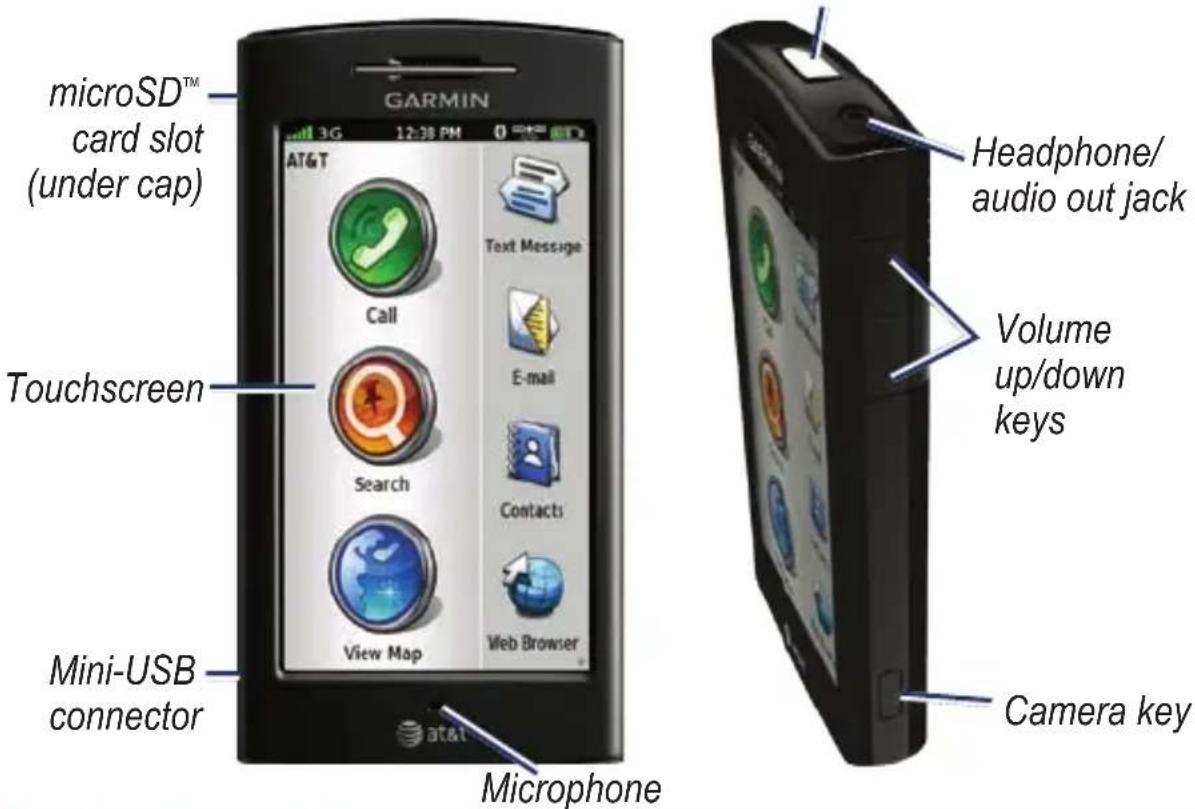
Look at Your nüvifone
Power key: press and hold to turn on/off; press and release to lock and unlock the screen.
text_image
microSD™ card slot (under cap) Touchscreen Mini-USB connector GARMIN AT&T 3G 12:30 PM Text Message Call E-mail Search Contacts View Map Web Browser Microphone Headphone/ audio out jack Volume up/down keys Camera key
See the Important Safety and Product Information guide in the product box for product warnings and other important information.
Understand the Home Screen Icons

text_image
3G 12:38 PM AT&T Call Search View Map Text Message E-mail Contacts Web BrowserThe nüvifone Home screen has scrollable icons. Touch and drag to view all the icons. For more information, see page 3.
2 nüvifone G60 user's guide
Main Icons
| Icon Description | |
 | Touch to make a phone call. |
 | Touch to search for locations, including restaurants, hotels, and auto services. |
 | Touch to view the map. |
Call Icon
 | Missed call icon showing the number of missed calls. |
| Voice mail icon showing the number of new voice mails. |
Understand the Scrolling Icons
| Icons | Application Icons Application | ||
 | Browse the web. |  | Use the camera. |
 | Access text messages. Acc |  | tools, such as checklists and the alarm clock. |
 | Access your e-mail account(s). |  | Open Ciao!. |
 | Access your calendar. Oper |  | music player. |
 | View weather information for your area. |  | Access the settings for your phone. |
 | Access your contacts. | ||
Tips and Shortcuts
- Touch return to the previous screen.
• To quickly return to the Home screen, touch and hold from any screen. - Touch and to see more choices. Quickly tap these buttons to scroll faster.
Understand the Status Bar Icons
| Icon Description | |
 | Mobile signal strength. The more colored bars that appear, the stronger the signal. A red “X” indicates no mobile signal strength. |
 | Network connectivity. This icon appears when the nüvifone is connected for Internet access. If the icon is white, the connection is in use. If the icon is gray, your nüvifone is trying to establish the data connection with the network. The connection types are as follows: G—GPRS, E—Edge, 3G—3G. |
 | Wi-Fi® connectivity. This icon appears in place of the network connectivity icon when the nüvifone is using Wi-Fi. |
[DWKG] | An alarm is set.Satellite connectivity. The more colored bars that appear, the stronger the satellite signal. If there is no satellite signal or the nüvifone is in simulator mode, a red “X” appears. |
 | Current time. The time is based on the location of the device or the selected time zone. |
 | The nüvifone is connected to a device using Bluetooth® wireless technology. If the icon is white, Bluetooth wireless technology is enabled but the nüvifone is not connected to a device. |
 | Teletypewriter (TTY) mode is activated. |
| [20AA] | Battery charge. See page 7 for more information. |
Install the SIM Card and the Battery
- Press down firmly on the battery cover and slide it off the back of your nüvifone.
Battery cover

natural_image
Black flip phone with orange arrow pointing to screen (no visible text or symbols)- Insert the SIM card in the slot at the top of the battery compartment. Insert the notched corner of the SIM card first with the gold contacts facing up. The SIM card clicks into place.

text_image
SIM card-
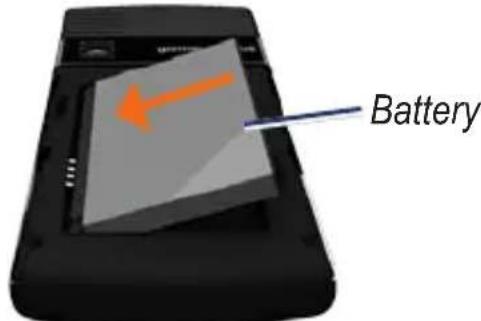
Locate the lithium-ion battery that came in the product box.
-
Locate the metal contacts on the end of the lithium-ion battery.
-
Insert the battery so that the metal contacts on the battery match up with the metal contacts inside the battery compartment.
text_image
Battery- Slide the battery cover onto the back of your nüvifone.
Charge the Battery
- Insert the appropriate plug adapter into the AC adapter.
- Connect the small end of the USB cable to the mini-USB connector on the side of your nüvifone.
- Connect the large end of the USB cable to the AC adapter.
- Plug the AC adapter into a power outlet.
Alternate Charging Methods
- (Preferred) Insert your nüvifone into the cradle, and connect the vehicle power cable to the cradle.
- Connect the vehicle power cable to your nüvifone.
- Connect your nüvifone to a computer using the USB cable included in the box.
- Insert the battery into the battery charger (accessory). For more information about accessories, go to www.garmin.com.
Battery Icons
| Icon Meaning | |
 | Battery life. The more colored bars that appear, the greater the remaining battery charge. |
 | Battery is charging. |
 | External power is connected, and the battery is fully charged. |
WARNING: This product contains a lithium-ion battery. To prevent damage, remove the device from the vehicle when exiting or store it out of direct sunlight.
NOTICE: Your nüvifone will not charge if it has exceeded the maximum charging temperature. If the nüvifone is mounted in the windshield, remove it from the mount and place it somewhere out of direct sunlight.
Install the microSD Card
The use of a microSD card is optional.
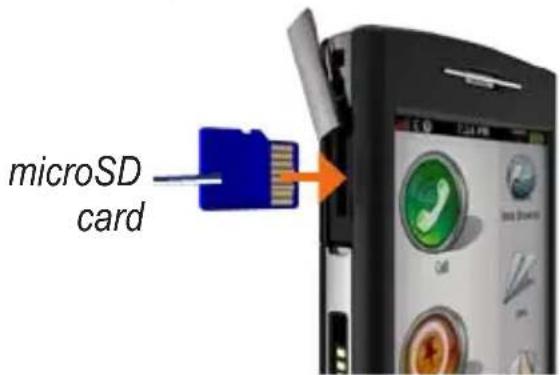
- On the side of your nüvifone, flip up the rectangular plastic cap and slide it over to reveal the microSD card slot.
- Insert the microSD card with the contacts facing the nüvifone screen. The microSD card will lock into place.
text_image
microSD card- Push the plastic cap back into place.
Remove the microSD Card
- On the side of your nüvifone, flip up the rectangular plastic cap and slide it over to reveal the microSD card slot.
- Push the microSD card in until it clicks.
- Pull out the microSD card.
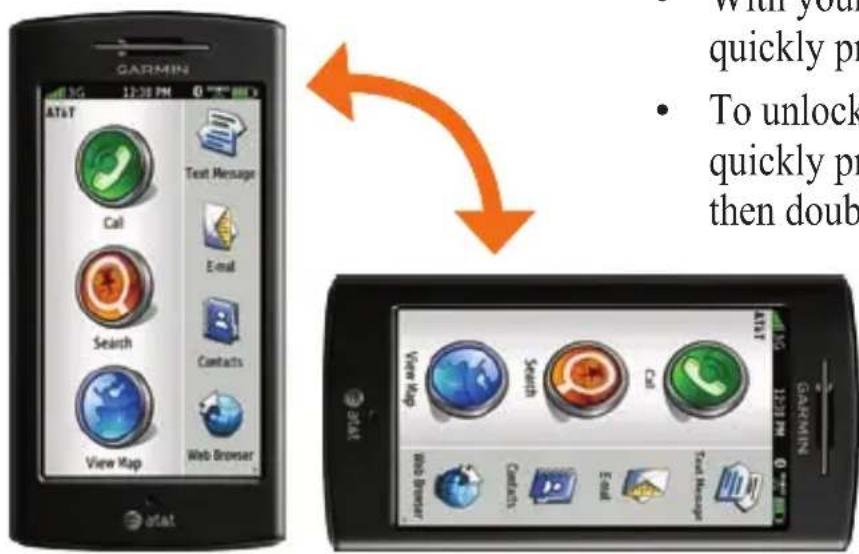
Orient the Screen
- Rotate your nüvifone to the left or the right to view in horizontal (landscape) mode.
- From horizontal mode, rotate your nüvifone to the left or the right to view in vertical (portrait) mode.
Scroll the Screen
- Touch and slide your finger to slowly scroll the menu.
- Touch, quickly slide, and lift your finger to continue scrolling the menu after removing your finger.
- Touch the screen to stop scrolling, or wait for the image to slow to a stop.
text_image
GARMIN AT&T Call Text Message E-mail Search Contacts View Map Web Browser AT&T View Map Call Text Message Web Browser GARMINLock the Screen
- With your nüvifone turned on, quickly press the Power key.
- To unlock the touchscreen, quickly press the Power key and then double-tap
Mount Your nüvifone
Before mounting the nüvifone, see the Important Safety and Product Information guide for information about laws pertaining to windshield mounting.
- Plug the vehicle power cable into the power connector on the back of the cradle.

text_image
Cradle Vehicle power cable- Remove the clear plastic from the suction cup. Clean and dry your windshield and the suction cup with a lint-free cloth.
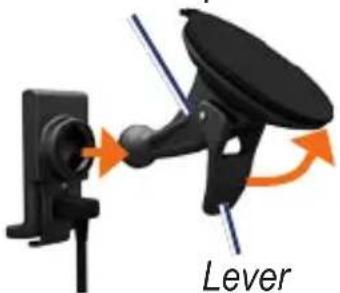
- Place the suction cup on the windshield.
- Flip the lever back, toward the windshield.
- Snap the cradle onto the suction cup arm.
Suction cup arm
natural_image
Diagram of a lever mechanism with directional arrows indicating motion (no text or symbols)- Fit the gold contacts on the left side of your nüvifone into the cradle.
- Tilt the nüvifone back until it snaps into the cradle.

natural_image
Close-up of a black car head-mounted device with an orange arrow pointing to the handle (no text or symbols visible)NOTICE: If you encounter a problem charging your nüvifone, the battery might have exceeded the maximum charging temperature. If the nüvifone is mounted, remove it from the mount and place it somewhere out of direct sunlight.
Acquire Satellites
Before you can navigate with your nüvifone, you need to acquire satellites.
- Go outdoors to an open area, away from tall buildings and trees.
- Turn on your nüvifone.
Acquiring satellite signals can take a few minutes. The 📄ellite icon indicates satellite strength. When at least one of the lines is green, your nüvifone has acquired satellite signals.
If you are having trouble acquiring satellites, ensure the data connection is turned on. From the Home screen, touch Settings > Phone > Data Connection > On.
Use Your Phone
Dial a Number
The first time you touch the call icon, the system defaults to the Dial page.
- Touch Call (> Dial).
- Enter the phone number using the touch keypad.
- Touch 📋 to dial the phone number.
Call a Contact
- Touch Call > Contacts.
- Select a contact, and touch Call.
For more information about adding and editing contacts, see page 34.
Set Up Voice Mail
- From the Home screen, touch Settings > Phone > Voice Mail Number, and verify that your voice mail number is correct.
- Touch Call > Contacts > Voice Mail, and follow the prompts.
Call Voice Mail
The voice mail icon appears on the Home screen when you have new voice mail.
Select one of following methods to call your voice mail:
- Touch Call > Contacts > Voice Mail.
- Touch Call > Dial, and touch and hold "1."
- Touch Contacts > Voice Mail.
Use Call History
- Touch Call > Call History. Calls are organized into four categories:

text_image
Dialed call Received call Missed call Voice mail- Select a call.
-
Select an option:
-
Call—call the number.
• Text—send a text message. - Go!—navigate to the location assigned to the number, if available.
Delete All Calls
- Touch Call > Call History.
- Touch □ > Clear All History.
Delete a Call
- Touch Call > Call History.
- Select a call.
- Touch □ > Delete from Call History.
- Touch Yes.
View Related Calls
Related calls are calls made to or received from the same number.
- Touch Call > Call History.
- Select a call.
- Touch > View Related Calls.
A list of related calls appears displaying the length of each call or a status message.
Do a Reverse Lookup
This service is available as a paid subscription. Reverse lookup is not available in all areas.
A reverse lookup allows you to search for the address of a phone number that called you.
- Touch Call > Call History.
- Select a call.
- Touch ≡ > Reverse Lookup.
Receive a Call
Select from the following options when you receive a call:
- Answer—touch to answer the call.
- Ignore—touch to ignore a call.
NOTE: With some mobile phone plans, touching Ignore will send the call to your voice mail.
• double-tap to answer a call when the screen is locked.
• Power key—press to ignore a call when the screen is locked.
• Volume down key—touch to silence a call.
Use In-Call Options
When you are on a call, you can perform other tasks. The following options are available on the In-Call page:
- Speaker—activate the speakerphone.
- Mute—silence the audio input to the microphone. The other caller will not be able to hear you speak.
- Add—select a number to add to the current call when placing a conference call.
- Hold—place the current call on hold.
• End Call—end the current call.
End a Call
During a call, your nüvifone screen dims and then fades to black.
-
If the screen is dimmed, double-tap
If the screen is black, press and release the Power key. -
Touch End Call.
Redial a Number
- Touch Call > Dial.
- Touch 📋. The last-dialed call appears in the white bar.
- Touch 📋 again to call the number.
Set Your Ringtones
You can set a default ringtone and assign different ringtones to contacts.
If you have loaded music onto your nüvifone, the songs are also available as ringtones. For more information on transferring music files to your nüvifone, see page 59.
Set a Default Ringtone
- From the Home screen, touch Settings > Audio > Sounds.
- Touch the button under Phone.
- Touch Ringtones.
- Select a ringtone, and touch OK.
Set a Ringtone for a Contact
- Touch Call > Contacts.
- Select a contact.
- Touch > Edit Contact.
- Scroll down to the Personal category, and touch Ringtone.
- Select a ringtone, and touch OK.
Forward a Call
You can forward incoming calls to another number.
- From the Home screen, touch Settings > Phone.
- Touch the button under Call Forward.
- Touch the button under Forwarding.
- Touch On > OK.
- Select an option:
• History—select a number from your call history. - Contacts—select a number from your contacts.
- Enter Number—enter a number.
Use Call Waiting
- From the Home screen, touch Settings > Phone.
- Touch the button under Call Waiting.
- Touch On > OK.
Make a Conference Call
- Dial the first phone number.
- When the caller answers, touch Add.
- Select an option to dial the second phone number.
- Touch
- When the caller answers, touch Join.
Speak Privately During a Conference Call
- While in a conference call, touch ▶ A list appears with the participating callers.
- Touch Private next to the caller you want to speak privately with. Other members of the conference call can continue to speak to each other.
Disconnect a Participating Call
-
While in a conference call, touch ▶A list appears with the participating callers.
-
Touch Drop next to the caller you want to disconnect.
Search for Locations
Use the Search menu to find addresses, Points of Interest (restaurants, hotels, attractions), and other items included in the built-in map data.
NOTE: Before you can navigate with your nüvifone, you need to acquire satellites. See page 11.
Find an Address
NOTE: Depending on the version of the built-in map data on your device, the button names and the order of steps could be different than the steps below.
- Touch Search > Address.
-
Change the state, country, or province, if necessary.
-
Touch Spell City, enter the city/postal code, and touch Done. Select the city/postal code in the list. (Not all map data provides postal code searching.) If you are unsure of the city, touch Search All.
- Enter the number of the address, and touch Done.
- Enter the street name, and touch Done.
- Select the correct street in the list, if necessary.
- Touch the address, if necessary.
- Touch Go!, or touch View Map to view the location on the map.
Touch ☐ to save the location or to send a location message.
Use the Location Page
When you select a location, the Location page appears.

text_image
Fiorella's Jack Stack Bar-B-Q 13441 Holmes Rd Kansas City, MO 64145 (816) 942-9141 Call View Map Go!- Call—touch to call the location.
• View Map—touch to view the location on the map. - Go!—touch to create a route to the location.
- —touch to save the location or to send the location in a location message.
Find a Point of Interest
The detailed maps loaded in your nüvifone contain millions of points of interest, such as restaurants, hotels, and auto services.
- Touch Search > Points of Interest.
- Select a category and a subcategory, if necessary.
- Select a destination.
Call a Location
Phone numbers are not included for all locations.
- Touch Search.
- Touch a category and a subcategory, if necessary.
- Select a location.
- Touch Call.
Navigate to a Contact
If you have entered address information for a contact, you can create a route to the contact's address.
- Touch Search > Contacts.
- Select a contact from the list.
- Touch Go!.
Search Near Another Location
By default, your nüvifone finds places near your current location.
- Touch Search > Near.
- Select an option:
• Where I Am Now
• A Different City
• My Current Route
• My Destination
My Current Route and My Destination options are only available if you are navigating a route.
Set a Home Location
Set your home location for the place you return to most often.
- Touch Search > Home.
-
Select an option:
-
Enter My Address
• Use My Current Location - Choose from Recently Found
Go Home
To navigate home after you have set your home location, touch Search > Home > Go!. Your home location is also stored in your Favorites. See page 22 for more information.
Edit Your Home Location
- Touch Search > Home.
- Touch ≡ > Edit.
-
Select an option:
-
Change Name
- Attach Picture or Change Picture
- Change Map Symbol
- Change Phone Number
- Change Categories
Delete Your Home Location
- Touch Search > Home.
- Touch ≡ > Edit.
- Touch ≡ > Delete.
- Touch Yes.
TIP: To enter a new home location, touch Search > Set Home
Location. Select an option.
Search with Yellowpages.com
Businesses listed with Yellowpages.com include ratings based on Yellowpages.com user reviews. A data connection is required for this feature.
- Touch Search > Yellowpages.com.
- Select a category, or touch Spell Name.
- Select a location.
Save Favorite Locations
You can save locations in your Favorites so you can quickly find them and create routes to them. Your nüvifone can store about 3,000 favorite locations.
- After you select a location, touch 📄 > Save to save the location to your Favorites.
- Touch OK.
Find Favorite Locations
- Touch Search > Favorites. Your saved locations are listed by category.
- Touch All Categories to search all your saved locations.
Find a Favorite Location by Spelling the Name
- Touch Search > Favorites.
- Select a category, if necessary.
- Touch Spell.
- Enter the name of the location, and touch Done.
Find Recently Found Locations
Your nüvifone stores the last 50 locations you have found.
- Touch Search > Recently Found.
- Select a location.
Clear the Recently Found List
- Touch Search > Recently Found.
- Touch > Clear.
- Touch Yes.
This process clears the list of recently found locations. These locations will not be deleted from your nüvifone.
Search the White Pages
This service is available as a paid subscription. You can find names and numbers that are listed in the current AT&T White Pages. A data connection is required for this feature.
Search by Name in White Pages
- Touch Search > White Pages > By Name.
- Enter the last name, and touch Next.
- Enter the first name, if necessary, and touch Done.
To re-enter the name, touch Retry.
Search by Phone Number in White Pages
- Touch Search > White Pages > By Phone Number.
- Enter the area code and phone number, and touch OK.
Find Movie Times
This service is available as a paid subscription. Movie times are not available in all areas. A data connection is required for this feature.
- Touch Search > Movie Times.
- Touch the date to select a new date, if necessary.
- Touch Find by Movie Title or Find by Theater Name.
- Select a movie title and a theatre. A list of show times appears.
Add a Movie Time to Your Calendar
- Find a movie.
- From the Location page, touch > Add to Calendar.
- Select a movie time, and touch OK.
Find Upcoming Events
This service is available as a paid subscription. Local events are not available in all areas. A data connection is required for this feature.
You can search for upcoming events, including art shows, musical performances, and sporting events.
- Touch Search > Upcoming Events.
- Select a category.
- Touch the arrows at the top of the screen to select a different date, if necessary.
-
Select an event to view more information.
-
Touch View Map to view the location of the event on the map.
- Touch Remind Me to add the event to your calendar and to receive a reminder.
Find Cities
- Touch Search > Cities. Nearby cities are listed by distance with the nearest cities listed first.
- Touch Spell to find a city by spelling the name.
Find Gas Prices
This service is available as a paid subscription. Fuel prices are not available in all areas. A data connection is required for this feature.
- Touch Search > Gas Prices. A list of gas stations near your current location appears.
- To display prices for a specific fuel type, touch 📋 and select a fuel type.
Enter Coordinates
If you know the geographic coordinates of your destination, you can navigate to your destination using the latitude and longitude coordinates. This can be especially helpful when geocaching.
- Touch Search > Coordinates.
- Touch Format to change the type of coordinates.
- Touch a box to enter part of a coordinate.
- Enter the coordinates, and touch Next.
- —touch Save to save the location. Touch Send Location to send the coordinates in a location message.
Find a Location Using the Map
- Touch Search > Browse Map.
- Touch and drag the map to view different parts of the map.
- Touch anywhere on the map. An arrow appears pointing at the location you selected.
Tips for Browsing the Map
- Touch and to zoom in and zoom out.
- Touch to view the two-dimensional (2D) map.
- Touch to view the three-dimensional (3D) map.
- Touch to rotate the map around your current location.
- Touch Go! to navigate to the location.
- Touch ≡ Save to save the location.
Search for Locations
- Touch 📋 Send Location to send the coordinates of the selected location in a location message. See page 37 for more information.
Plan and Save a Route
You can plan and save custom routes that include multiple via points.
- Touch Search > Routes > New Route.
- Touch OK to search for a starting location.
- Find a location, and touch Select.
- Touch OK to search for a destination location.
- Find a location, and touch Select. The nüvifone calculates the route.
-
Touch ≡ for the following options:
-
Remove Points—select the points to remove, and touch Remove Points.
-
Optimally Reorder Points—allow the nüvifone to reorder the points.
-
Touch 📋. The route is saved.
To add additional points to the route, touch Add Via Points.
To change the order of the points in your route, touch Reorder.
Follow Your Route
After you have selected a location, your nüvifone creates a route to the location. Your route is marked with a magenta line. As you travel, your nüvifone guides you to your destination with voice prompts, arrows on the map, and directions at the top of the map. A checkered flag marks your destination. If you depart from the original route, your nüvifone recalculates the route and provides new directions.
A speed limit icon could appear as you travel on major roadways. This icon displays the current speed limit of the roadway.
Touch anywhere on the Map page to browse the map.
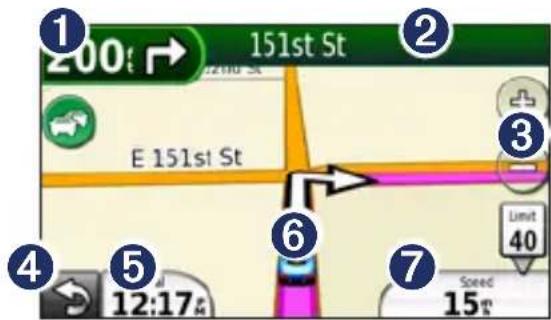
text_image
1 200 151st St E 151st St 3 Limit 40 6 7 Speed 15t 5 12:17① Touch to view the Next Turn page.
② Touch to view the Turn List page.
③ Touch to zoom in and zoom out.
4 Touch to return to the Home screen.
⑤ Touch to view the Trip Computer page.
6 Touch to view the Where Am I? page.
7 Touch to view the Trip Computer page.
View the Next Turn Page
When you are navigating a route, the Next Turn page shows the turn on the map and the distance and time left before you reach the turn.
From the map, touch the turn indicator in the top left corner. The Next Turn page appears.
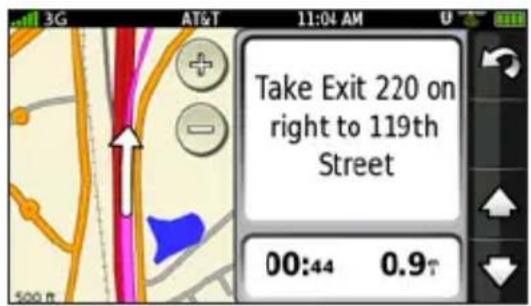
text_image
Take Exit 220 on right to 119th Street 00:44 0.9NOTE: You can also view the Next Turn page by touching any turn from the Turn List page.
View the Turn List Page
When you are navigating a route, the Turn List page displays turn-by-turn instructions for your entire route and the distance between turns.
From the map, touch the text bar on the top of the screen. The Turn List page appears.

text_image
G AT&T 11:04 AM 0.8↑ Exit 220 right to 119th Street 0.4↑ Keepright on 119th St 0.4↑ Via Point: Target 0.1↑ Left on Blackbob RdView the Entire Route on the Map
-
From the map, touch the text bar on the top of the screen.
-
Touch Show Map. The map appears with your route marked in a magenta line.
View the Trip Computer Page
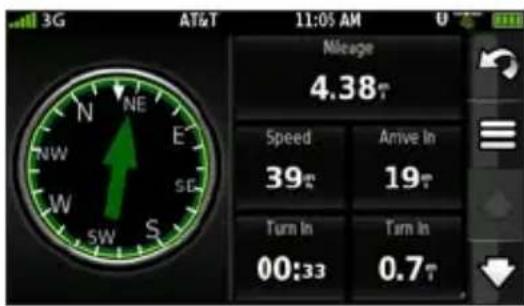
The trip computer displays your current speed and provides helpful statistics about your trip.
From the map, touch the Arrival or Speed field.
text_image
3G AT&T 11:05 AM Mileage 4.38° Speed 39° Arrive In 19° Turn In 00:33 Turn In 0.7°Reset the Trip Computer
Reset the trip computer before beginning a trip.
- From the map, touch the Arrival or Speed field.
- Touch Reset Trip to reset the information on the trip computer.
- Touch Reset Max Speed to reset the maximum speed.
Use the Compass
Your nüvifone contains a multi-axis compass that can be used while driving or walking, in portrait or landscape mode. The compass appears on the Trip Computer page. As you travel, the compass rotates to indicate your direction of travel. The bug indicator, which appears as an inverted triangle at the top of the compass, indicates your current heading. The green arrow indicates the bearing to your destination. When the green arrow points at the bug indicator, you are traveling directly to the destination.
- Touch View Map.
- Touch Speed or Arrival.
Calibrate the Compass
- Touch View Map.
- Touch Speed or Arrival.
- Touch □ > Calibrate Compass.
- Follow the on-screen steps.
Take a Detour
- While navigating a route, touch
- Touch Detour.
Add a Stop
- While navigating a route, touch > Search.
- Search for the extra stop.
- Touch Go!.
- Touch Add as Via Point to add this stop before your final destination.
About Usage Modes
There are two usage modes: Automobile and Pedestrian. In Automobile mode, your nüvifone calculates routes for automobiles. These routes obey traffic laws, such as one-way streets. Your nüvifone uses typical automobile speeds when estimating your arrival time.
In Pedestrian mode, your nüvifone calculates routes for walking. These routes avoid highways in favor of smaller streets. Your nüvifone uses typical walking speeds when estimating your arrival time.
Your nüvifone automatically changes between Automobile mode and Pedestrian mode based on the following criteria:
- If you are not navigating a route, and the nüvifone is in the cradle, it is in Automobile mode.
- If you are not navigating a route, and the nüvifone is not in the cradle, it is in Pedestrian mode.
- If you are navigating a route, the nüvifone remains in the mode in which the route was created.
- If you create a route that is longer than 5 miles, the nüvifone uses Automobile mode.
There are separate route preferences for each usage mode. For more information, see page 75.
View Traffic
About Traffic
This service is available as a paid subscription. A data connection is required for this feature.
When you are receiving traffic information, the traffic icon appears in the upper-left corner of the Map page. The icon changes color to indicate the severity of traffic conditions on your route or on the road you are currently traveling.
—traffic is flowing freely.
—moderate traffic congestion.
—very slow or stop-and-go traffic.
NOTE: Traffic information and delay times are not available in all areas. For more information, go to www.garmin.com/products/g60.
Understand Traffic on Your Route
When calculating your route, the nüvifone examines the current traffic and automatically optimizes the route for the shortest time. If a severe traffic delay occurs on your route while you are navigating, the nüvifone automatically recalculates the route. You might still be routed through traffic if no better alternative routes exist.
If a non-severe traffic delay occurs on your route, the traffic icon shows how much time the delay has added to your route. This time is already included in your estimated arrival time.
Use the Traffic Menu
- From the map, touch to view the Traffic menu.
- Select an option:
- Show Traffic Map—view the traffic map, which displays color-coded traffic on nearby roads. To return to the normal map from the traffic map, touch the traffic icon, and touch Show Normal Map. When driving into traffic, the normal map will automatically change to the traffic map.
- Traffic Search—view a list of traffic delays. To view details, touch an item in the list.
- Traffic On Route—view the traffic delays on your route, including the estimated time of each delay and the distance to each delay. If there are multiple traffic delays on your route, touch the arrows to view other traffic delays.
Avoid Traffic Manually
- From the map, touch the traffic icon.
- Touch Traffic On Route.
- Touch the arrows to select a traffic delay, if necessary.
- Touch ≡ > Avoid to avoid the selected traffic delay.
You might still be routed through traffic if no better alternative routes exist.
Change Traffic Avoidance Settings
- From the Home screen, touch Settings > Navigation.
- Touch Automobile.
- Touch the button under Avoidances.
- Clear the Traffic check box, and touch OK.
Work with Contacts
Add a Contact
Your nüvifone can store up to 5,000 contacts.
- From the Home screen, touch Contacts.
- Touch
- Select a category, and enter the information.
- Touch 📞 to save the contact.
Edit a Contact
- From the Home screen, touch Contacts.
- Select a contact.
- Touch > Edit Contact.
- Select a category to edit information.
Assign a Picture to a Contact
- From the Home screen, touch Contacts.
- Select a contact.
- Touch □ > Edit Contact.
- Touch the picture of the contact.
- Select a picture.
- Touch + and to adjust the zoom level.
- Touch and drag to move the picture.
- Touch Select.
Assign a Location to an Existing Contact
- From the Home screen, touch Contacts.
- Select a contact.
- Touch Go!.
- Select an address type.
- Search for the location you want to assign to the contact.
- Touch Select.
Work with the SIM Phone Book
You can export and import contact information to and from the SIM card.
- From the Home screen, touch Contacts.
- Touch > SIM Phone Book.
- Select an option.
Delete a Contact
- From the Home screen, touch Contacts.
- Select the contact you want to delete.
- Touch ☐ > Delete > Yes.
Delete Multiple Contacts
- From the Home screen, touch Contacts.
- Touch ≡ > Delete Contacts.
- Check the box next to the contacts you want to delete.
- Touch Delete > Yes.
Delete All Contacts
- From the Home screen, touch Contacts.
- Touch ≡ > Delete Contacts.
- Touch > Select All.
- Touch Delete > Yes.
Use SMS/Text Messaging
Send a Text Message
- From the Home screen, touch Text Message > New Message.
- Touch anywhere in the To: box to enter recipient information.
- Touch Use Dial Pad to enter the phone number of the recipient, or touch Add Contact to select a contact as the recipient.
- Touch anywhere in the Message: box to enter a message.
- Enter a message, and touch Done.
- Touch Send.
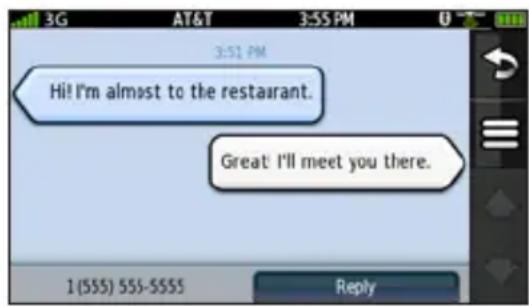
Read a Text Message
When you receive a text message, a number icon appears next to the Text Message icon on the Home screen. The number in the icon indicates the number of unread text messages.
- From the Home screen, touch Text Message.
- Touch the conversation to read the text message.
- Touch Reply to compose a reply to the message.
text_image
Hi! I'm almost to the restaurant. Great! I'll meet you there.Send a Location Message
Location messages contain text and GPS information that other nüvifone users can view. Non-nüvifone users receive a plain text message with location information.
NOTE: Use caution when sharing your location information with others.
- From the Home screen, touch Text Message > New Message.
- Touch > Insert Location.
- Select a location.
- Select a recipient.
- Enter a message, if necessary.
- Touch Send.
Send a Location Message from an Existing Text Message
- From the Home screen, touch Text Message.
- Select an existing message.
- Touch ≡ > Send Location.
- Select a location.
- Enter a message, if necessary.
- Touch Send.
Use Text Messaging Options
Call the Sender
- Select a conversation.
- Touch ≡ > Call.
Add the Sender to Contacts
- Select a conversation.
- Touch ≡ > Add to Contacts.
- Select whether to add the sender as a new contact or to add to existing contact information.
Forward a Text Message
- Select a conversation.
- Select an individual message.
- Touch Forward Message.
- Enter a recipient.
- Touch Send.
Delete Text Messages
You can delete individual text messages, entire conversations, or all messages and conversations in your inbox.
Delete a Text Message
- Select a conversation.
- Select a message marker.
- Touch Delete Message.
The individual message is deleted from the conversation.
Delete a Conversation
- Select a conversation.
- Touch ≡ > Delete Conversation.
- Touch Yes.
Delete All Text Messages
-
Touch Text Message > Delete All.
-
Touch Yes.
Use the Camera
Take a Picture
- Press the Camera key.
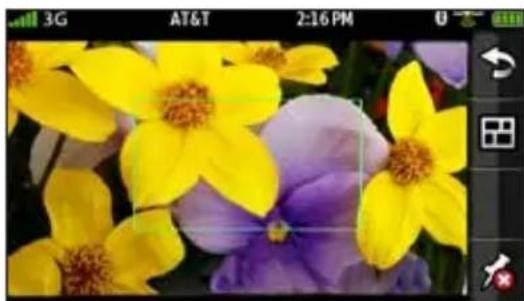
- Press the Camera key halfway to focus on the object. A green box appears on the screen. Your nüvifone focuses on the object inside of the box.
natural_image
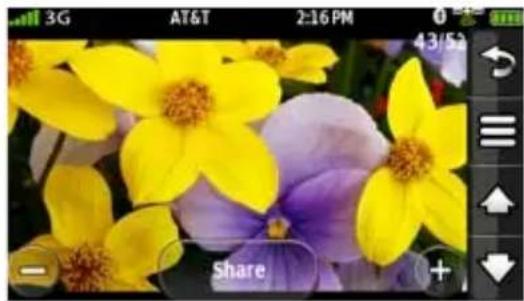
Close-up photo of yellow and purple daffodils with no visible text or symbols- Press and hold the Camera key until you hear the camera click. The picture is saved.
natural_image
Close-up photo of yellow and purple flowers with a 'Share' button, no readable text or symbols in the main image area.nüvifone G60 user's guide 39
Add Location Information to a Picture
If your nüvifone is receiving GPS signals when you take a picture, the current GPS location can be assigned to the picture. When you view the picture, you can also navigate to the location, display the location on the map, or save the location as a Favorite.
- Press the Camera key.
- Touch > Accept, if necessary.
- Follow the steps to take a picture.
When you view the picture, touch ✗ to navigate to the location, to view the location on the map, or to save the location as a favorite.
View a Picture
- Press the Camera key.
- Touch
- Select a picture.
Touch the arrows to view additional pictures.
View a Slideshow
- Press the Camera.
- Touch
- Touch ≡ > Slideshow, or touch a picture, and then touch ≡ Slideshow.
Set Your Wallpaper
- Press the Camera key.
- Touch 📄.
- Select a picture.
- Touch ≡ > Set as Wallpaper.
-
Select from the options below to edit the picture.
-
Touch and to adjust the zoom level.
- Touch and drag to move the picture.
-
Touch to rotate the picture.
-
Touch Set Portrait.
- Repeat the steps to set up the wallpaper for Landscape mode, and touch Set Landscape.
The wallpaper image appears when the nüvifone is locked.
Share a Picture
- Press the Camera key.
- Touch
- Select a picture.
- Touch Share.
Your nüvifone creates an e-mail message with the picture included as an attachment.
Navigate to a Picture
- Press the Camera key.
- Touch
- Select a picture.
- Touch
- Touch ≡ > Go!.
Use the Music Player
You must transfer music files to your nüvifone before playing songs or creating playlists. For more information on transferring files, see page 59.
The music player supports MP3 files.
Play a Song
- From the Home screen, touch Music Player.
- Touch
- Select a category.
-
Select an option:
-
Select a song or a playlist. The selected song or playlist begins playing.
- Touch ≈ All Songs. All the songs in the selected category are added to the current playlist.
Create a Playlist
- From the Home screen, touch Music Player.
- Touch
- Touch Playlists > New Playlist.
- Select a category.
- Select songs to add to the playlist, or touch ☑Select All Songs to add all songs.
- Touch OK. The playlist is saved with a generic name (for example, "Playlist 1").
Playlists are saved as .m3u files on the nüvifone.
Play a Playlist
- From the Home screen, touch Music Player.
- Touch
- Touch Playlists.
- Select a playlist.
-
Select a play mode, if necessary:
-
play the songs in the playlist in random order (shuffle).
• —repeat the playlist after all the songs have played. -
Select a song to begin playing the playlist.
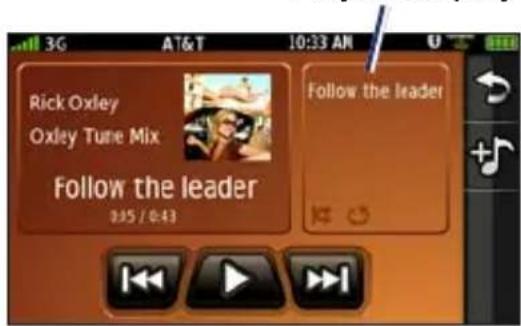
Save the Current Playlist
- From the Music Player, touch the playlist display.
Playlist display
text_image
3G AT&T 10:33 AM Rick Oxley Oxley Tune Mix Follow the leader 0:5 / 0:43 Follow the leader- Touch > Save.
- Enter a name, and touch Done.
Edit a Playlist
- From the Home screen, touch Music Player.
- Touch
- Touch Playlists, and select a playlist.
- Touch
-
Select an option:
-
Rename
- Remove Playlist
- Add Songs
- Remove Songs
Browse the Web
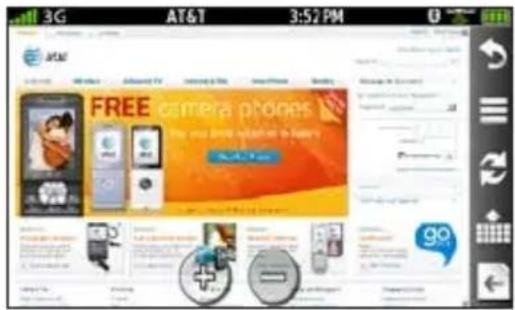
Enter a URL
- From the Home screen, touch Web Browser.
- Touch
- Enter a URL, and touch Done.
text_image
3G AT&T 3:52 PM FREE camera phones The only brief information is available.Use the Browser
Use the following icons when browsing the Internet.
+—zoom in on the center of the screen.
zoom out from the center of the screen.
return to the Home screen.
refresh the current Web page.
stop loading the Web page.
—enter a URL.
←—return to the previous Web page in your history.
Tips for Browsing the Web
- Touch and drag the screen to scroll a Web page.
- Touch links, text-entry boxes, and other interactive items to activate them.
- Touch 📋 view the following options:
• Bookmarks—display a list of bookmarks.
- E-mail To—send the URL to an e-mail recipient.
- History—display a list of Web sites you have visited.
Forward— advance to the next Web page in your History.
Set Your Browser Home Page
- From the Home screen, touch Settings > Applications > Browser.
- Touch the button under Home Page.
- Enter a URL, and touch Done
Save Bookmarks
- Navigate to the Web page you want to save.
- Touch 📋 > Bookmarks > Add Current Page.
Clear Your History
- From the Home screen, touch Settings > Applications > Browser.
- Touch the button under History.
- Touch Yes.
Use E-mail
Your nüvifone can automatically configure account information for some e-mail accounts.
If additional information is required, your nüvifone prompts you to enter the required information. Account information is available from your e-mail account provider.
NOTE: Yahoo!® mail is accessible only if you have subscribed to the Yahoo! Mail Plus service which includes POP access.
Set Up E-mail
- From the Home screen, touch E-mail.
- Touch Add Account.
- Enter the e-mail address, and touch Done.
- Enter the e-mail username (if necessary), and touch Done.
- Enter the e-mail password, and touch Done.
- If prompted, follow the prompts to enter e-mail account information from your e-mail account provider.
- If necessary, touch Mail Settings or SMTP Settings, and enter the e-mail account information.
- Touch Test Settings to test the account settings.
- Touch Save to save the account settings.
Send an E-mail Message

text_image
3G AT&T 1:51 PM From: Mailbox-1 To: Touch to enter Recipients Subject: Touch to enter Subject Attachments: Touch to enter attachments Message: Touch to enter Message Send- From the Home screen, touch E-mail.
- Touch Compose.
- If necessary, touch From: to select the e-mail account from which you want to send the e-mail message. If you do not select an e-mail account, the e-mail message will be sent from the default e-mail account. For more information on setting your default e-mail account, see page 50.
- Touch To: to enter recipient information.
To enter additional recipients, including carbon (cc) and blind carbon (bcc) copies, select one or more of the following options:
- Touch To: > Add To: to enter another recipient.
- Touch To: > Add Cc: to enter carbon copy recipients.
-
Touch To: > Add Bcc: to enter blind carbon copy recipients.
-
Touch the corresponding boxes to enter a subject and to add an attachment.
- Touch Message to enter message text, and touch Done.
- To include your current location information in the message, touch the icon in the lower-right corner.
—Location information will be included.
—Location information will not be included.
- Touch Send.
Check E-mail Messages
When you receive a new e-mail message, a number indicating the number of unread messages appears next to the e-mail icon on the Home screen.
- From the Home screen, touch E-mail.
- Touch > Check E-mail.
- Select an e-mail message to view it.
- Touch Reply or Reply All to write a response. Touch Forward to send the e-mail message to another recipient.
Set an Interval to Check E-mail Messages
You can have your nüvifone automatically check for new e-mail messages at a set interval.
- From the Home screen, touch Settings.
- Touch Applications > E-mail.
- Select an e-mail account.
- Touch Edit Account Settings.
- Touch Mail Settings.
- Touch the button below Check Interval.
- Select an interval, and touch OK.
Delete E-mail Messages
- From the Home screen, touch E-mail.
- Touch ≡ > Delete Messages.
- Select the e-mail message you want to delete, or touch Select All.
- Touch Delete > Yes.
Use E-mail Options
Assign Options to Composed Messages
From the e-mail composition page, touch 📁 for the following options:
- Set Importance—assign an importance of Low, Normal, or High to the e-mail message.
- Save to Drafts—save the current message to your Drafts folder without sending it.
- Send Later—keep the message in the Outbox until the next time the nüvifone is scheduled to check for e-mail.
Change E-mail Accounts
- From the Home screen, touch E-mail.
- Touch □ > Change Folder.
- Touch Change Account.
- Select an account, or touch Add Account to add an e-mail account.
Access Your Drafts Folder
- From the Home screen, touch E-mail.
- Touch ≡ > Change Folder.
- Touch Drafts.
Access Other Folders Within an E-mail Account
- From the Home screen, touch E-mail.
- Touch ≡ > Change Folder.
- Select a folder to view the contents.
Search for an E-mail Message
- From the Home screen, touch E-mail.
- Touch > Search Current Folder.
- Enter the subject or sender of the e-mail message for which you are searching.
- Touch Done.
Set Your Default E-mail Account
- From the Home screen, touch Settings > Applications > E-mail.
- Touch ≡ > Default Account.
- Select an e-mail account.
- Touch OK.
Edit E-mail Account Settings
- From the Home screen, touch Settings > Applications > E-mail.
- Select an e-mail account.
- Touch Edit Account Settings.
- Touch Mail Settings or SMTP Settings to change e-mail account details.
Delete an E-mail Account
- From the Home screen, touch Settings > Applications > E-mail.
- Select an e-mail account.
- Touch > Delete Account.
- Touch Yes.
Use Ciao!™
A data connection is required for this feature.
Ciao! periodically sends your location to our partner networks and downloads the most recent location of your friends. This application only submits your location when you tell it to, unless you enable automatic updates. Ciao! is not available in all areas.
NOTE: Use caution when sharing your location information with others.
Register with Ciao!
Before you join Ciao! for the first time, you must register your device.
NOTE: If you have registered at http://my.garmin.com (see page 80), you are already registered for Ciao!.
- From the Home screen, touch Ciao!.
- Read and accept the on-screen messages.
- Touch Register. The Web browser launches.
- Follow the steps to register your nüvifone. After registering, you receive an SMS/text message for verification.
- Open the SMS/text message, and click the link to complete the verification process.
Join Ciao!
After you register your device, you can join Ciao!.
- From the Home screen, touch Ciao!.
- Read and accept the registration information.
- Select a location update, Manual or Automatic.
- Enter a display name, and touch Done.
- Touch Complete. Your location is updated and sent to your friends.
Invite a Friend
- From the Home screen, touch Ciao! > Invite.
- Select an option to enter a phone number.
- Touch the button under Friend's Country, and select a country.
- Touch Send Invitation.
- Select the network your friend is using. If your friend is using Ciao!, you can select any network in the list. Touch OK.
Accept an Invitation
When you receive an invitation, a message appears on the screen.
- Touch OK or Yes.
- Select the invitation in your list of friends.
- Touch Accept.
- Touch Yes to allow the sender to view your location. The sender's location information appears.
- Touch Go! to create a route to the sender's location, or touch Map to view the sender's location on the map.
After you accept an invitation from a friend, you become a “trusted” friend on your friend’s list, and you can view location information for each other.
View Trusted Friends
If your list of friends shows the distance to the friend, that friend is “trusted.” The friend has accepted an invitation from you, or you have accepted an invitation from the friend.
- From the Home screen, touch Ciao!.
- Touch a friend in the list. The location information for the friend appears, including the amount of time since the last location information update.
- Touch Go! to create a route to the friend, or touch Map to view the friend's location on the map.
View Invited Friends
If your friend is “invited,” you have invited the friend, but he or she has not accepted or declined the invitation.
- From the Home screen, touch Ciao!.
- Select an Invited friend in the list.
- To remove the invitation, touch Remove Invitation.
View Pending Friends
If your friend is “pending,” the friend has invited you, but you have not accepted or declined the invitation.
- From the Home screen, touch Ciao!.
- Select a Pending friend in the list.
- Touch Accept or Decline.
Remove a Friend
You can only remove trusted friends or invited friends.
- From the Home screen, touch Ciao! > Remove.
- Select the friends you want to remove, or touch ▶Select All.
- Touch Remove.
- Touch Yes.
Hide/Show Your Location
-
From the Home screen, touch Ciao! > Hide. Your current location is hidden from your friends.
-
To stop hiding, touch Ciao! > Stop Hiding.
View My Details
- From the Home screen, touch Ciao! > My Details.
- To update your current location information, touch Send Update.
-
To change your status message, touch Change Status, and enter a new status message.
-
Touch ☐ for the following options:
-
Change Name—change your display name.
- Change Updates—touch Auto to update your location information automatically at regular intervals. Touch Manual to update your position only when you touch Send Update.
View Ciao! Networks
- From the Home screen, touch Ciao! > ≧ Privacy.
- Touch > Networks.
- Touch a hyperlink to view a network Web site in the Web browser.
Disable Ciao!
- From the Home screen, touch Ciao! > ≧ Privacy.
- Touch > Disable Ciao!. All the Ciao! information stored on your device is removed. You no longer send any position updates.
To enable Ciao!, you must join Ciao! again. If you join Ciao! again, you do not need to register your device again. For more information, see page 52.
Connect to Other Devices
About Bluetooth Technology
Bluetooth wireless technology establishes a wireless connection between devices, such as another phone with Bluetooth technology and the nüvifone. To pair and connect, both devices must be turned on and be within 10 meters of each other.
Activate Bluetooth Technology
- From the Home screen, touch Settings > System > Bluetooth.
- Touch Bluetooth Off.
- Touch On > OK.
Make Your nüvifone Discoverable
- From the Home screen, touch Settings > System > Bluetooth.
- Touch > Discoverable.
- Touch On > OK.
Pair with a Device
The first time you use two devices together, you must “pair” them by establishing a relationship using a PIN/passkey.
- Verify that the device you want to pair with is in pairing mode.
- On the nüvifone Home screen, touch Settings > System > Bluetooth.
- Touch Add Device. An hourglass icon appears, indicating that the nüvifone is scanning for devices. If you do not see an hourglass icon, touch Scan.
-
Select the device you want to add, and touch Yes.
-
Enter the passkey of the device, and touch OK.
NOTE: The passkey for the nüvifone is 1234.
After the initial pairing, the two devices can connect automatically each time you turn them on.
Connect to a Paired Device
You must pair with a device before you are able to connect to it.
- From the Home screen, touch Settings > System > Bluetooth.
- Select a paired device, and touch Connect Device.
Remove a Paired Device
- From the Home screen, touch Settings > System > Bluetooth.
- Select a paired device, and touch Remove Pairing.
Change Your Friendly Name
A friendly name identifies your nüvifone on devices with Bluetooth technology.
- From the Home screen, touch Settings > System > Bluetooth.
- Touch ≡ > Friendly Name.
- Enter a friendly name, and touch Done.
Deactivate Bluetooth Technology
- From the Home screen, touch Settings > System > Bluetooth.
- Touch Bluetooth On.
- Touch Off > OK.
Synchronize Your nüvifone
By synchronizing your nüvifone with your computer, you can transfer your Microsoft ^® Outlook ^® contacts and calendar events to your nüvifone contact list and calendar.
You must download and install nüvifone Sync Agent on your computer before synchronizing with your computer.
Download and Install nüvifone Sync Agent
Go to www.garmin.com/syncagent to learn how to download nüvifone Sync Agent.
NOTE: nüvifone Sync Agent software is not compatible with Mac® computers.
Synchronize With Your Computer
- Verify that you have downloaded and installed nüvifone Sync Agent software on your computer.
- Connect the nüvifone to your computer using a mini-USB cable.
- Touch No when asked if you want to enter mass storage mode.
- Touch Tools > Synchronize.
Transfer Files
You can transfer files, such as MP3s and JPEGs, to your nüvifone.
- If necessary, insert a microSD card in the memory card slot on the side of the nüvifone.
- Connect the nüvifone (not the cradle) to your computer using a mini-USB cable.
- Touch Yes to change to mass storage mode.
Two additional drives (volumes) appear in the list of drives on your computer. One is the available storage in the internal memory of the nüvifone. The other is the memory card inserted into the nüvifone. - Double-click the My Computer icon (Windows® computers) or the mounted-volume icon (Mac® computers) on your computer.
- Copy and paste the files you want to transfer into the Garmin folder.
NOTE: Your nüvifone cannot send or receive phone calls or text messages while in mass storage mode.
Set Up a Wi-Fi Connection
Turn On Wi-Fi
- From the Home screen, touch Settings > System > Wi-Fi.
- Touch Wi-Fi Off.
- Touch On > OK.
Connect to a Network
- From the Home screen, touch Settings > System > Wi-Fi.
- Select a network. 🔒 indicates networks that require an encryption key.
- Enter an encryption key, if necessary, and touch Done.
Add a Network
If the network you want to connect to is not listed, you can manually add it to your list.
- From the Home screen, touch Settings > System > Wi-Fi.
- Touch ≡ > Add.
- Touch the button under Network Name, enter a name or SSID, and touch Done.
- Touch the button under Security, select a security type, and touch OK.
- Enter a password and select a WEP Key Type, if necessary.
- Touch OK.
Ignore a Network
- From the Home screen, touch Settings > System > Wi-Fi.
- Select a network.
- Touch > Forget this network.
- Touch Yes. The network is removed from the list of Known Networks.
Turn Off Wi-Fi
- From the Home screen, touch Settings > System > Wi-Fi.
- Touch Wi-Fi On.
- Touch Off > OK.
View the Weather Forecast
This service is available as a paid subscription. A data connection is required for this feature.
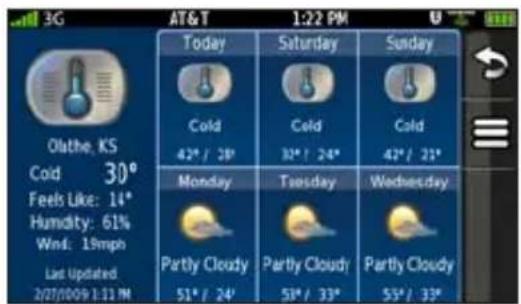
Your nüvifone provides current local weather conditions and a six-day forecast.
Weather information is updated periodically.
- From the Home screen, touch Weather.
- To view a detailed forecast, select a day.
text_image
3G AT&T 1:22 PM Olathe, KS Cold 30° Feels Like: 14° Humidity: 61% Wind: 19mpo Last Updated 2/27/009 1:11 PM Today Cold 42° / 28° Monday Partly Cloudy 51° / 24° Saturday Cold 32° / 24° Tuesday Partly Cloudy 53° / 33° Sunday Cold 42° / 21° Wednesday Partly Cloudy 53° / 33°View a Weather Forecast for Another Location
- From the Home screen, touch Weather.
- Touch ≡ > Weather Near.
- Select an option.
NOTE: You must add a location to your Favorites before you can search for a weather forecast by A Favorite. For more information on adding favorites, see page 21.
Update Weather Manually
- From the Home screen, touch Weather.
- Touch ≡ > Update Weather.
Use the Calendar
Use the calendar to schedule appointments, meetings, and other events. You can also set the calendar to remind you of your appointments. If you use Outlook on your computer, you can synchronize appointments between your nüvifone and your computer.
View the Calendar
- From the Home screen, touch Calendar. The current month appears, with the current date circled in red.
- Touch ▼ or to change the month.
- Touch Today to return to the current day.
- Touch Agenda to view your upcoming appointments.
- Touch Month to return to the calendar view.
Schedule an Appointment
- From the Home screen, touch Calendar.
- Touch or to change the month.
- Select the date on the calendar, and touch New.
- Touch Subject, and enter a subject.
- Touch Location, and select an option.
- Select a start time and an end time.
- Touch Reminder, and select a time.
- Select how often you want the appointment to recur:
- Touch Repeat, and select an option.
- Touch Repeat End, and select the date on which you want the appointment to stop recurring.
- Touch Notes, and enter a note.
- Touch Save.
View an Appointment
- From the Home screen, touch Calendar.
- Touch ▼ or to change the month.
- Select the date on the calendar, and touch Agenda.
- Select an appointment to view details.
- Touch the weather icon to view the weather forecast for the date of the appointment, if available.
- If the appointment includes location information, touch > Go! to create a route to the appointment.
View Free Time
- From the Home screen, touch Calendar.
- Select the date on the calendar, and touch Agenda.
- Touch > Show Free Time.
Delete an Appointment
- From the Home screen, touch Calendar.
- Select a date on the calendar, and touch Agenda.
- Select an appointment.
- Touch ≡ > Delete.
Use the Tools
Use Where Am I?
The Where Am I? page contains information about your current location, including the nearest hospitals, police stations, and fuel. This is a helpful feature if you need to tell emergency personnel your location.
- From the Home screen, touch Tools > Where Am I?.
- Touch an icon to view the nearest locations in that category.
- Touch ≡ > Satellite Info to view GPS signal information.
- Touch □ > Save Location to save your current location.
Use the Calculator
From the Home screen, touch Tools > Calculator to use the calculator.
Use the Clock
View Different Time Zones
The nüvifone automatically detects your time zone. However, you can view the current time in a different time zone, if needed.
NOTE: Viewing the time zone of a different city does not change the time displayed on your nüvifone.
- From the Home screen, touch Tools > Clock.
- Touch a city.
- Enter all or part of a city name, and touch Done.
- Select the city from the list, and touch Select.
To change the time zone displayed on your nüvifone, see page 72.
Set an Alarm
- From the Home screen, touch Tools > Clock > Alarm.
- Touch Add Alarm.
- Touch Alarm Time, and select an alarm time.
- Touch Ringer, and select a ringer, if necessary.
- Touch Repeat, and select how often you want the alarm to repeat. To set the alarm for one time only, touch Never.
- Touch Repeat End, and select an end date, if necessary.
- Touch Save.
- When the alarm sounds, touch Snooze to hear the alarm again in five minutes, or touch Dismiss.
Disable an Alarm
Touch an alarm in the list, and touch Disabled.
Delete an Alarm
Touch an alarm in the list, and touch
Delete > Yes.
View the World Map
The map displays areas of day and night across the world.
From the Home screen, touch Tools > Clock > World Map.
Use the Stop Watch
- From the Home screen, touch Tools > Clock.
- Touch Stop Watch.
- Touch Start to start the timer.
- Touch Lap/Split to record the lap time and the split time.
- Touch Stop to stop the timer.
- Touch the Lap and Split times to view details.
- Touch Reset to reset the lap time and the split time.
Check Flight Status
A data connection is required for this feature.
- From the Home screen, touch Tools > Flight Status. A list of airports near your current location appears. Major airports are listed first, and all other airports are sorted by distance.
- To view flight information from an airport near another city, touch > New City, enter all or part of the city name, and select a city.
- Select an airport.
- Select an option:
- —touch View Map to view the airport on the map, Save to save it as a favorite, Send Location to send the location, or Go! to create a route to the airport.
- Check Flight Number—enter a flight number, and touch OK. Select a flight.
• Search Arrivals—select an airline, and select a flight.
- Search Departures—touch By Destination City, By Airport Code, or All Departures. Enter the appropriate data, and select a flight.
- If your flight has multiple connections, touch ≡ Next Leg, and select the next flight.
Use the Converter
Convert Units
- From the Home screen, touch Tools > Converter.
- Touch the button next to Convert. Select the type of items to be converted, and touch OK.
- Touch a unit of measurement, select the unit type, and touch OK.
- Touch a number, enter the number of units to be converted, and touch OK.
- To clear the number of units, touch ▶ Clear.
Automatically Update the Currency Rates
This service is available as a paid subscription. A data connection is required for this feature.
- From the Home screen, touch Tools > Converter.
- Touch the button next to Convert.
- Touch Currency > OK.
- Touch Update. The nüvifone downloads the current conversion rates.
Manually Update Conversion Rates
- From the Home screen, touch Tools > Converter.
- Touch the button next to Convert.
- Touch Currency > OK.
- Touch ≡ > Custom.
- Touch the currency button at the top of the screen, select a currency, and touch OK.
- Touch a conversion rate.
- Enter a new conversion rate, and touch OK.
- Touch Save.
Use Notes
Write a Note
- From the Home screen, touch Tools > Notes > New.
- Enter the note text, and touch Done.
Send a Note
- From the Home screen, touch Tools > Notes.
- Select a note in the list.
- Touch > Send.
- Touch SMS or E-mail.
- Enter the required information, and touch Send.
Work with Checklists
Create a Checklist
- From the Home screen, touch Tools > Checklist > New Checklist.
- Enter a new checklist name, touch Done.
Edit a Checklist
-
From the Home screen, touch Tools > Checklist.
-
Select a checklist.
-
Touch Add/Remove Items.
-
Edit the checklist:
-
Touch an item to check it or uncheck it.
- Touch New Item, enter the new item, and touch Done.
Use a Checklist
- From the Home screen, touch Tools > Checklist.
- Select a checklist.
- Select items in the checklist.
- Touch
Remove Items from a Checklist
- From the Home screen, touch Tools > Checklist.
- Select a checklist.
- Touch Add/Remove Items.
- Touch ☐ > Delete Items.
- Select the items you want to remove.
- Touch Delete > Yes.
Add Items From a Different Checklist
- From the Home screen, touch Tools > Checklist.
- Select a checklist.
- Touch ≡ > Copy List Items.
- Select the list you want to copy from.
- Select the items you want to copy.
- Touch Copy.
Customize Your nüvifone
Change General Settings
- From the Home screen, touch Settings > System > General.
- Change the following settings:
- Airplane Mode—touch On to deactivate the telephone, network, and Bluetooth technology features. You cannot send or receive new e-mail or SMS/text messages. You can continue using other features of the nüvifone, and you can manually activate Wi-Fi and Bluetooth technology, if needed.
• Distance Units—touch Miles or Kilometers.
- Temperature Units—touch Fahrenheit (°F) or Celsius (°C).
- Safe Mode—touch On to activate safe mode, which prevents you from searching for locations when your vehicle is in motion.
• GPS Simulator—touch On to simulate GPS functions, including simulating routes, when you are not receiving GPS signals.
• Connected Services Feedback
Change Security Settings
Change Device Security Settings
Use these settings to require a PIN to unlock the nüvifone.
- From the Home screen, touch Settings > System > Security > Device.
-
Change the following settings:
-
Locking—prevent the nüvifone from being used unless you enter a PIN. Enter a PIN, and touch OK.
• PIN—touch Change to change your PIN.
Reset Your PIN
If you forget the PIN to unlock your nüvifone, you can reset the PIN.
NOTE: This process restores all settings to factory defaults and deletes all user-entered information. Items that you have saved on your device (such as Favorites) are erased. Map data is not erased. Deleted information cannot be recovered.
- Remove the battery and the SIM card.
- Reinstall the battery. Your nüvifone will turn on.
- Touch OK.
-
Touch Emergency Call.
-
Enter “*GARMIN#1234#” on the touch keypad.
- Touch 📋. Your nüvifone will restart.
You can reinstall your SIM card at any time.
Change SIM Card Security Settings
Use these settings to require a PIN to enable all non-emergency features of the nüvifone. You can still use the nüvifone to contact emergency services without a PIN. You can remove the SIM card to use the non-telephone features of the nüvifone.
- From the Home screen, touch Settings > System > Security > SIM Card.
- Change the following settings:
• SIM PIN Protection—activate SIM PIN protection.
• PIN2—touch Change to change your PIN.
If you forget your SIM PIN, contact your mobile service carrier to obtain a Personal Unblocking Key (PUK).
Change Language Settings
- From the Home screen, touch Settings > System > Language.
- Change the following settings:
• Voice—select a language to use for all voice prompts and messages. Touch Preview to hear a sample of the voice.
- Text—change all on-screen text to the selected language. Changing the text language does not change the language of map data, such as street names, or user-entered data.
- Keyboard—select a language for the default keyboard.
Change Date/Time Settings
- From the Home screen, touch Settings > System > Date/Time.
-
Change the following settings:
-
Date Format
- Time Format
• Time Zone Selection
Change Audio Settings
Turn On Vibrate
- From the Home screen, touch Settings > Audio > Vibrate.
- Select an option. Touch When Muted to set the nüvifone to vibrate with no sound when the volume has been muted.
- Touch OK.
If vibrate is on, the ☑vibrate icon appears when the nüvifone screen is locked.
Change Sound Settings
- From the Home screen, touch Settings > Audio > Sounds.
- Touch a button to set a sound for a notification type.
- Select a sound category.
- Touch Preview to listen to the selected sound.
- Touch OK.
Change Your Ringtone
- From the Home screen, touch Settings > Audio > Sounds.
- Touch the button under Phone.
- Touch Ringtones.
- Select a ringtone.
- Touch Preview to listen to the selected sound.
- Touch OK.
Change Mixer Settings
- From the Home screen, touch Settings > Audio > Mixer.
-
Change the following settings:
-
Navigation—change the volume level of navigation prompts.
• Music—change the volume of MP3 playback.
Change Proximity Points Settings
Proximity points are included with custom POIs. Go to www.garmin.com/poiloader for more information.
- From the Home screen, touch Settings > Audio > Proximity Points.
-
Change the following settings:
-
Proximity Alerts—select to hear an audio alert when you approach proximity points.
- TourGuide—select to automatically play the audio when you approach a TourGuide point.
Change Phone Settings
- From the Home screen, touch Settings > Phone.
- Change the following settings:
- Data Connection—select a data connection activation preference. Enter this information as provided by your phone carrier.
NOTE: Data charges apply if On Demand or On are selected.
- Call Forward
- Call Waiting
- Send My Caller ID—select a preference for sending caller ID information when you make phone calls. Touch Set by Network to send caller ID information according to the settings of your network provider.
• My Number
• Voice Mail Number
- TTY—touch On to enable TTY (teletypewriter) mode.
Change Navigation Settings
Change Navigation Settings Based on Usage Mode
You can use different navigation settings for Automobile usage mode and Pedestrian usage mode.
- From the Home screen, touch Settings > Navigation.
- Touch Automobile or Pedestrian.
-
Change the following settings:
-
Route Preference—select a preference for calculating routes.
-
Avoidances—select the types of roads and maneuvers you want the nüvifone to attempt to avoid when creating routes. (Only available in Automobile usage mode.)
-
Map Detail—select the level of detail you want the map to display. More detail may result in slower map drawing.
- Map View—select the perspective of the Map page. Track Up displays the map in two dimensions (2D) with your direction of travel at the top. North Up displays the map in 2D with North at the top. 3D displays the map in 3D, Track Up orientation (default).
- Vehicle—select a vehicle to represent your position on the map. Go to www.garmingarage.com for more vehicles.
- Trip Log—touch Show to display the trip log on the map.
Change Application Settings
Change E-mail Mail Settings
- From the Home screen, touch Settings > Applications > E-mail.
- Select an account.
- To validate SSL certificates prior to sending or receiving e-mail, select the Validate SSL Certificates check box.
- Touch Edit Account Settings.
- Touch Mail Settings.
-
Change the following settings:
-
User name
- Password
- Mail Server
- Mail Port
- Encryption
- Mail Protocol
- Check Interval
- Base Folder
Change E-mail SMTP Settings
- From the Home screen, touch Settings > Applications > E-mail.
- Select an account.
- Touch Edit Account Settings.
- Touch SMTP Settings.
- Change the following settings:
• E-mail Address—edit the e-mail address.
- Display Name—enter a display name. This name does not have to match your e-mail address.
- SMTP Server, SMTP Port, SMTP Username, SMTP Password, SMTP Authentication, SMTP Encryption—enter this information as provided by your e-mail account provider.
- Reply To—enter a name that will appear when a recipient receives an e-mail message from you.
- Use Signature—touch Yes to include a signature in messages sent from the selected e-mail account.
• Signature—enter an e-mail signature.
Change Browser Settings
- From the Home screen, touch Settings > Applications > Browser.
- Change the following settings:
• Home Page—enter a URL to set your home page.
- JavaScript—touch On to allow JavaScript.
- Accept Cookies—touch Yes to accept cookies.
- Cookies—touch Clear to clear cookies.
• History—touch Clear to clear the browser history.
- Cache—touch Clear to clear the browser cache.
Change the Main Menu Order
You can customize the order of the scrolling icons on the Home screen.
- From the Home screen, touch Settings > Applications > Main Menu Order.
- Touch a menu item.
- Touch the position in the list to which you want to move the item. The item is inserted before the selected item.
- Touch ≡ > Restore to restore the original main menu order.
Change Display Settings
- From the Home screen, touch Settings > Display.
- Change the following settings:
- Brightness—change the brightness of the screen. Decreasing the brightness can save battery power.
- Color Mode—touch Daytime for a light background, Nighttime for a dark background, or Auto to automatically switch between the two based on the sunrise time and the sunset time for your current location.
- Auto Lock—select a time. The screen automatically locks if the nüvifone is inactive for the selected length of time.
- Screen Shot—activate to take a picture of the nüvifone screen. Touch the Camera key to take a picture of a screen. Screen shots are saved in the Garmin\ Screenshot directory on the nüvifone.
Restore Settings
Restore Individual Settings
- From the Home screen, touch Settings.
- Select the setting you want to restore.
- Touch ≡ > Restore.
- From the Home screen, touch Settings.
- Touch ≡ > Restore.
Clear All User Data

NOTICE: This process restores all settings to factory defaults and removes all user data. Any items that you have saved on your nüvifone, such as Favorites, photos, and contacts, are erased. Map data is not erased. Deleted information cannot be recovered.
- From the Home screen, touch Settings.
- Touch > Master Clear.
Appendix
Access AT&T Service Numbers
Use the AT&T service numbers to manage your account, including checking your bill balance, paying your bill, and contacting customer care.
- Touch Call > Contacts.
- Touch □ > AT&T Service Numbers.
- Select an item.
Depending on the item selected, you will either receive a text message with the requested information or your nüvifone will call the phone number listed with the item.
Register Your Product
Register your product at http://my.garmin.com to help us better support you. Keep the original sales receipt, or a photocopy, in a safe place.
NOTE: If you have registered for Ciao! (see page 51), you are already registered at http://my.garmin.com.
View Software Information
- From the Home screen, touch Settings.
- Touch > About.
- Touch Copyrights to view a list of copyrights.
- Touch a copyright to view more information.
nüMaps Guarantee™
To receive one free map update (if available), register your nüvifone at www.garmin.com within 60 days of acquiring satellites and driving with your nüvifone. You are not eligible for the free map update if you register by phone or wait longer than 60 days after the first time you drive with your nüvifone.
Additional Maps
You can purchase additional maps for your nüvifone. To see a list of maps that are compatible with your nüvifone, go to www.garmin.com.
Update the Software
Go to www.garmin.com to download the latest software update.
Reset the nüvifone
If the nüvifone stops functioning, turn off the nüvifone, and then turn on the nüvifone.
About GPS Satellite Signals
Your nüvifone must acquire GPS (Global Positioning System) satellite signals to navigate. The nüvifone automatically attempts to acquire satellite signals.
If you are indoors, near tall buildings or trees, or in a parking garage, your nüvifone might not acquire satellites. To acquire satellite signals more quickly, take your nüvifone outside, to an area free from tall obstructions.
About the Battery
The battery icon in the status bar indicates the status of the internal battery. To increase the accuracy of the battery gauge, fully discharge the battery and then fully charge it; do not unplug the nüvifone until it is totally charged.
Maximize the Battery Life
- Turn down the backlight at Settings > Display. Touch the button under Brightness.
- Lock your nüvifone if you are not using it. See page 9 and page 70 for more information.
- Do not leave your nüvifone in direct sunlight. Avoid prolonged exposure to excessive heat.
Replace the Battery

WARNING: Only use the correct battery type. Using an incorrect battery may present a risk of explosion.
If you need to replace the battery in the nüvifone, use a Garmin-approved lithium-ion battery. For more information on purchasing a replacement battery, go to www.garmin.com.

WARNING: Do not use a sharp object to remove the battery. A sharp object may puncture the battery which may present a risk of fire, chemical burn, electrolyte leak, and/or injury.
Contact your local waste disposal department for information on properly disposing of the battery and device.
Change the Fuse in the Vehicle Power Cable
If your device does not charge in your vehicle, you may need to replace the fuse located at the tip of the vehicle power cable. The vehicle power cable is an optional accessory.
NOTE: When replacing the fuse, do not lose any of the small pieces and make sure they are put back in the proper position.
- Unscrew the end piece, and remove it.
- Remove the fuse (glass and silver cylinder), and replace it with of the same size
- Ensure that the silver tip is located in the end piece. Screw on the end piece.
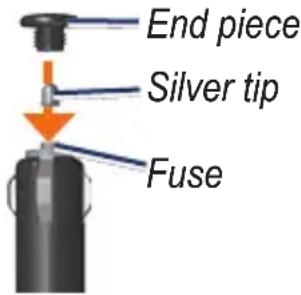
text_image
End piece Silver tip FuseMount on Your Dashboard
Use the enclosed mounting disk to mount your device to the dashboard and comply with certain state and local regulations.
NOTE: The permanent mounting adhesive is extremely difficult to remove after it is installed.
- Clean and dry the dashboard where you are placing the disk.
- Remove the backing from the adhesive on the bottom of the disk.
- Place the disk on the dashboard.
- Remove the clear plastic cover from the top of the disk.
- Place the suction cup mount on top of the disk. Flip the lever down (toward the disk).
Troubleshooting
| Problem/Question Solution/Answer | |
| My nüvifone will not acquire satellites. | Ensure the data connection is turned on.From the Home screen, touch Settings > Phone > Data Connection > On.Ensure that the GPS simulator is turned off.From the Home screen, touch Settings > System > General > GPS Simulator > Off.Ensure that you are receiving satellite signals.Touch View Map.Touch the vehicle icon.Touch → Satellite Info.Verify that the GPS antenna is unobstructed. You must be outdoors or in a vehicle and have a clear view of the sky. Solid materials (except untinted glass), buildings, and dense trees can block satellite signals.Ensure that the GPS has enough time to initialize.When the GPS is turned on for the first time, it may take a few minutes to initialize. |
| My nüvifone will not turn on. | Charge the battery.Replace the battery. See page 82 for more information. |
| I need to turn off the wireless features of my nüvifone (for example, for an airplane flight). | From the Home screen, touch Settings > System > General > Airplane Mode > On. |
| My nüvifone will not charge. | The battery might have exceeded the maximum charging temperature. If the nüvifone is mounted, remove it from the mount and place it somewhere out of direct sunlight. |
Specifications
Physical size (W × H × D): 2.29 × 4.41 × 0.57 in. (58.1 × 112 × 14.6 mm)
Weight: 4.83 oz. (137 g)
Display: 3.5 in. diagonal, 272 × 480 pixels; WQVGA display with white backlight and touchscreen
Case: Not waterproof (IP51)
Operating Temperature range: from 5°F to 131°F (from -15°C to 55°C)
Charging Temperature range: from 32°F to 113°F (from 0°C to 45°C)
Connector: Mini-USB for power or computer, 2.5 mm audio for headphones
Battery type: User-replaceable 1200 mAh lithium-ion battery
Battery life: 4 hours talk time, 250 hours standby time, depending on usage and settings
Charge time: Approximately 3 hours
Power input: DC input using mini USB connector or DC vehicle power using vehicle power cable (accessory)
Usage: 3 W max.
GPS receiver: High-sensitivity
Acquisition times\*:
Warm: <1 sec. Cold: <38 sec. Factory Reset: <45 sec.
*Average acquisition times for a stationary receiver with a clear view of the sky.
Frequency Band: 3G 850/1900/2100; 2G 850/900/1800/1900
Frequency Band for NA: 3G
850/1900; 2G 850/1800/1900
Other connectivity: Wi-Fi,
Bluetooth 2.0+EDR; 802.11
b/g; mini USB 2.0
Operating System: Linux®
Camera/Pictures: 3.0 MP camera
Data storage: Internal memory and
optional removable microSD
card. Data stored indefinitely.
Computer interface: Plug-and-play
USB mass storage
Index
Symbols
2D map view 75
3D map view 75
A
additional maps 81
address 18
airplane mode 70
alarm clock
delete 65
disable 65
set 65
alerts
for proximity points 74
anti-theft feature 71
appointment
delete 63
make 62
navigate to 63
save local event as 24
save movie time as 23
view 63
AT&T service
numbers 80
audio settings 73–74
avoid
edit custom avoidances 75
road types 75
theft 71
traffic 33
B
backlight
adjust to save battery 82
brightness 78
battery
about 82
charge 7
install 6
maximize life 82
replace 82
Bluetooth 56–57
brightness 78
browse the map 25, 27
browse the web 44–45
C
calendar 62–63
call 12
a location 19
answering 14
forwarding 74
muting 15
caller ID 74
call history 13
call options 15–16
call waiting 17, 74
camera 39–41
screen shot 79
Ciao! 51–55
accept invite 53
disable 55
hide location 54
invite 52
join 52
register 51
remove a friend 54
view invited friends 54
view networks 55
view pending
friends 54
view trusted
friends 53
cities, find 24
clock
change time zone 64
in status bar 5
compass 30
calibrate 30
conference call 17
add a call 15, 17
disconnect a
participating
call 17
speak privately 17
contacts
add 34
assign a location
to 35
assign a picture to 34
call 12
delete 35
edit 34
import/export from
SIM 35
navigate to 20
set a ringtone for 16
conversion tool 67
coordinates 25
cradle 10
custom avoids 75
customer support 80
custom POIs 74
D
delete
alarm 65
all user data 79
call history 13
e-mail 48
home location 21
items from
checklist 69
recently-found 22
text message 38
detour 30
display settings 78
E
e-mail 46-50
change mail
settings 76
change SMTP
settings 76
delete 48
send blind carbon
copy 47
send carbon copy 47
set importance 49
set interval to
check 48
emergency assistance 64
emergency mode 71
F
Favorites
finding 22
saving 21
files 59
find locations. See search
for locations
flight status 66
Index
forward
calls 16
e-mail message 48
text message 38
free map update 81
fuse, change 83
G
GPS
acquire signal 81
simulate 70
H
headphone jack 1
hold a call 15
home
phone number 21
set a location 20
home location 20
edit 21
Home screen
change menu order 78
|
import contacts 35
incoming call 14
Internet
browse 44
connection icon 4
K
keyboard
language mode 72
L
language settings 72
lithium-ion battery replace 82
local events 24
location messages 37
Location page 19
lock
the nüvifone 70
lock the phone 9
M
make a phone call 12
map
2D 25
3D 25
additional 81
browse 25
rotate 25
settings 75–76
update 81
view 18
zoom in, zoom out 25
map detail 75
maximum speed, reset 29
microSD card
remove 8
microSD card, install 8
mount
on dashboard 83
on windshield 10
movie times 23
add to calendar 23
mute
phone call 15
N
navigation 27–31
settings 75–76
notes 68
nüMaps Guarantee 81
0
output, audio headphone jack 1
P
pair a mobile phone 56
pay your bill 80
pedestrian navigation mode 31
phone 12–17 settings 74–75
picture 39–41
PIN Bluetooth 57 nüvifone 71 reset 71
playlist 42–43
play music 42
Points of Interest (POIs) view 19
proximity point, settings 74–75
proximity points alerts 74
R
recalculate route 27
recently found locations 22
register 80
reply to an e-mail message 48
to text message 36
reset maximum speed 29 trip computer 29
restore settings 79
ring settings 73
ringtone set 16,73 set for a contact 16
rotate screen 9 route
add a stop 30
next turn 28
take a detour 30
turn list 28
view on map 28
routes
take a detour 30
S
safe mode 70
satellite signals 81
save your current location 64
screen
brightness 78
color mode 78
lock 9
orient 9
scroll 9
use the touch screen 2
screen shot 79
scrolling icons 3
search for locations 18–26
address 18
gas prices 24
navigate to a contact 20
Point of Interest 19
recently found 22
Index
spell name 22
using Local Search 21
White Pages listings 23
security settings 70–71
settings 70–79 restore 79
SIM card import and export 35
SIM card, install 6
slideshow 40
software update 81 view information 80
sound settings 73
speakerphone 15
specifications 86
speed limit 27
status bar 4
stop watch 65
synchronize 58
system settings 70
T
text message 36–38
delete, all 38
delete, conversation 38
delete, single 38
time settings 72
time zone 72
tools 64–69
TourGuide 74
traffic 32–33
transfer files 59
trip computer 29
reset 29
reset trip 29
trip computer page
reset maximum
speed 29
turn list page 28
U
upcoming events 24
update
map 81
update software 81
usage mode 31
user data, delete 79
V
vibrate turn on 73
voice mail 12
volume 1
W
wallpaper 40
weather 61
web browser 44–45
save bookmarks 45
set the home page 45
settings 77
Where Am I? 64
White Pages listings 23
Wi-Fi
set up 59
world map 65
Y
Yellowpages.com
listings 21
CE0682①
www.att.com/mobility
1.866.mobility
September 2009 Part Number 190-01063-00 Rev. B Printed in China