Mars 8 - Tablet Venturer - Free user manual and instructions
Find the device manual for free Mars 8 Venturer in PDF.


| Product Type | Tablet |
| Brand | Venturer |
| Model | Mars 8 |
| Display Size | 8 inches |
| Screen Resolution | 1024 x 768 pixels (typical) |
| Operating System | Android (likely) |
| Processor | Quad-core 1.3 GHz |
| RAM | 1 GB |
| Internal Storage | 16 GB |
| Expandable Storage | microSD up to 32 GB |
| Wi-Fi | 802.11 b/g/n |
| Bluetooth | 4.0 |
| Rear Camera | 2 MP |
| Front Camera | 0.3 MP |
| Battery Capacity | 4000 mAh |
| Battery Life | Up to 6 hours (typical) |
| Dimensions (W x H x D) | 215 x 125 x 10 mm (approx.) |
| Weight | 300 g |
| Charging Port | Micro USB |
| Audio Jack | 3.5 mm |
| Speakers | Built-in mono speaker |
| Care Instructions | Clean with a soft, dry cloth. Avoid liquids and abrasive cleaners. |
| Safety | Do not expose to extreme temperatures or moisture. Use only supplied charger. |
| Repairability | Battery and screen replacement possible by qualified technician. Spare parts available online. |
| General Information | Supports eBooks, video playback, web browsing, and light apps. Ideal for children and basic tasks. |
Frequently Asked Questions - Mars 8 Venturer
User questions about Mars 8 Venturer
0 question about this device. Answer the ones you know or ask your own.
Ask a new question about this device
Download the instructions for your Tablet in PDF format for free! Find your manual Mars 8 - Venturer and take your electronic device back in hand. On this page are published all the documents necessary for the use of your device. Mars 8 by Venturer.
USER MANUAL Mars 8 Venturer
IMPORTANT SAFETY INSTRUCTIONS
PLEASE READ AND SAVE THIS FOR FUTURE REFERENCE
Some of the following information may not apply to your particular product; however, as with any electronic product, precautions should be observed during handling and use.
- Read these instructions.
- Keep these instructions.
- Heed all warnings.
- Follow all instructions.
- Do not use this apparatus near water.
- Clean only with dry cloth.
- Do not block any ventilation openings. Install in accordance with the manufacturer's instructions.
- Do not install near any heat sources such as radiators, heat registers, stoves, or other apparatus (including amplifiers) that produce heat.
- Protect the power cord from being walked on or pinched particularly at plugs, convenience receptacles, and the point where they exit from the apparatus.
- Only use attachments / accessories specified by the manufacturer.
- Unplug this apparatus during lightning storms or when unused for long periods of time.
- Refer all servicing to qualified service personnel. Servicing is required when the apparatus has been damaged in any way, such as power-supply cord or plug is damaged, liquid has been spilled or objects have fallen into the apparatus, the apparatus has been exposed to rain or moisture, does not operate normally, or has been dropped.
ADDITIONAL SAFETY INFORMATION
- The AC adapter and apparatus shall not be exposed to dripping or splashing and no objects filled with liquids, such as vases, shall be placed on the apparatus.
- Always leave sufficient space around the product for ventilation. Do not place product in or on a bed, rug, in a bookcase or cabinet that may prevent air flow through vent openings.
- Do not place lighted candles, cigarettes, cigars, etc. on the product.
- Care should be taken so that objects do not fall into the product.
- Do not attempt to disassemble the cabinet. This product does not contain customer serviceable components.
• To prevent the risk of fire or electric shock, do not expose this apparatus to rain or moisture. - Do not play your headset at high volume. Hearing experts warn against extended high-volume play.
SAR Statement
The SAR limit of Europe is 2.0 W/kg. Laptop has also been tested against this SAR limit. The highest SAR value reported under this standard during product certification for use at the body is 1.506 W/kg. This device was tested for typical body-worn operations with the back of the handset kept 0 cm from the body. To maintain compliance with RF exposure requirements, use accessories that maintain a 0cm separation distance between the user's body and the back of the handset. The use of belt clips, holsters and similar accessories should not contain metallic components in its assembly. The use of accessories that do not satisfy these requirements may not comply with RF exposure requirements, and should be avoided.
Accessory
The following accessory is included.
AC Adapter ....x1
Contents
Important safety instructions .... 1
Getting to know your Tablet 4
Buttons 5
Navigating the Home Screen 6
Connections 9
Battery Management and Charging 9
Headphone 10
USB 11
MicroSD 11
Wi-Fi 12
Bluetooth 13
Basic operation 14
Turning your tablet ON for the first time 14
Basic Operation 14
Google Now ^TM 15
Voice Search & Voice Actions 15
Google Play ^TM 16
GoogleTM 16
Settings 17
Preinstalled apps 18
Additional information 18
Trouble Shooting 18
Copyright and Trademark Notices 19
Specifications 20
Getting to know your Tablet
Tablet
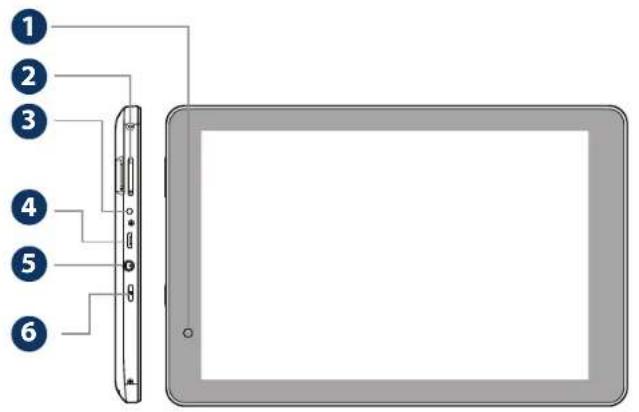
1 Front camera
2 Volume +/- button
Press to increase/decrease the volume.
3 DC jack
Connect with 5V DC charger.
4 Micro-USB
Use to charge the tablet's battery.
For charging at either OFF mode or Standby mode.
5 Headphone jack
Headphone connection for personal listening.
6 Power button 🔊
Press to enter standby/wake up mode.
Press and hold to switch On/Off the unit.
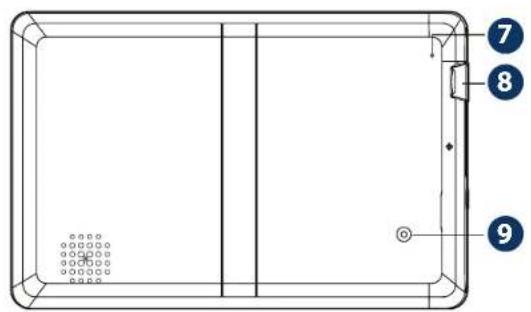
7 Reset
Press to reset the tablet (then press and hold the Power ⏻ \ button for 4\~5 seconds to turn on the unit).
8 MicroSD card slot
Accepts microSD card (up to 128G).
9 Rear camera
Buttons
Power button 🔊
Power the tablet On
Press and hold the Power button for 4\~5 seconds to turn on the tablet.
Power the tablet Off
Press and hold the Power ⏻ button until the" ⏻ Power off" message displays, then tap it and the tablet will be powered off.
Sleep mode
Briefly press the Power ⏻ button to put the tablet in sleep mode. If you don't operate for some time, the tablet will enter sleep mode automatically.
Tip: You can go to Settings -> Device -> Display -> Sleep to set the screen timeout.
Wake the tablet from Sleep mode
Press the Power ⏻ button to wake the tablet from sleep mode.
Volume +/- buttons
Press the Volume +/- buttons to increase or decrease the volume.
Tip: You can go to Settings -> Device -> Sound & notification -> Sound general settings to adjust volume settings.
Navigating the Home Screen
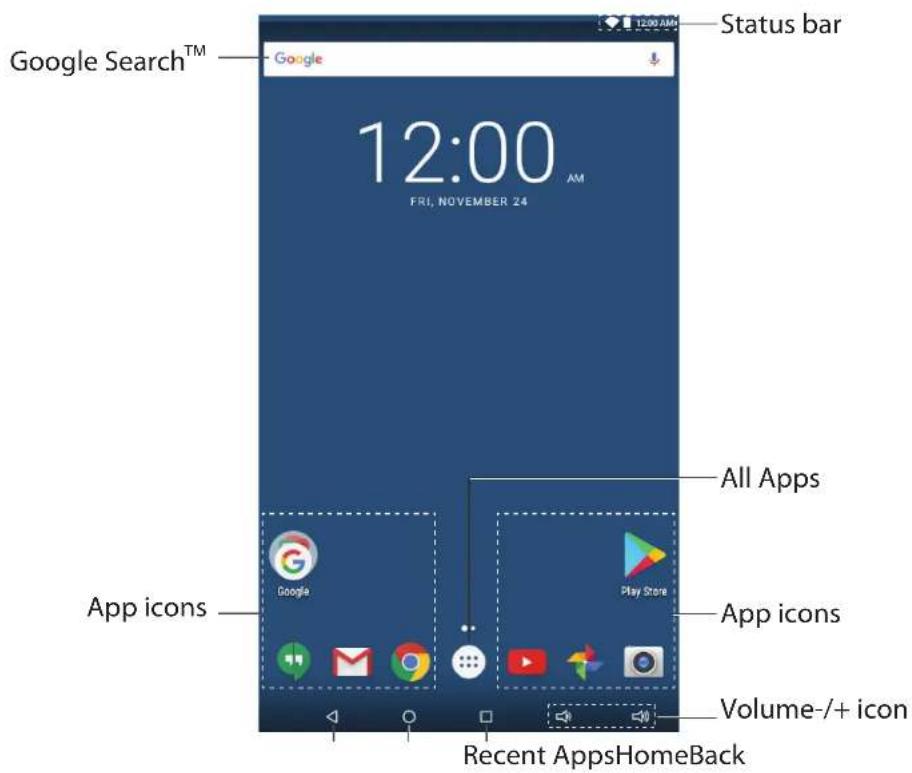
Notification & Status Bar
Some indicators that inform you about the status of your tablet are shown at the top of the screen.
Notification Shade
Notifications may come from the system, a game, an application such as E-mail, or the music player.
When Notifications are available, related icons will appear in the top left corner of the screen. To open the Notification Shade, touch the Notification icon and swipe your finger down. Some notifications allow you to take specific actions by tapping icons within the notification.
After you are finished with a notification, just slide it away to the left or right. If you want to dismiss all notifications, tap the Dismiss icon "Clear All" at the top of the notification.
Status Bar & Quick Settings
The Status Bar in the top right corner shows various indicators, including Wi-Fi connection and battery status. To access "Quick Settings", touch the status bar and swipe down. You can then adjust various settings on the tablet by touching the corresponding square.
Notification & Status Icons
The below table lists some of the frequently used icons in the Notification & Status bar:
Item
Description

Message Received new message.

Music The Google Play Music app is running.

Wi-Fi Has a Wi-Fi Internet connection.

Bluetooth Bluetooth is on.

Play Store An update for an app is available.
Home Screen Icons
All Apps

Tap the All Apps icon ⏻ to enter the All Apps screen. In All Apps screen, you can:
- Move between screens: Slide up or down.
- Open an App: Tap its icon.
- Copy an App icon to the Home screen: Press and hold the icon or widget icon slowly to drag it to the Home screen.
- Get more apps: Tap the Google Play Store icon
- View info about an App: Press and hold it, and drag it to the top of the screen, then drop the app over the App Info icon ⓘ.
Tip: Most apps include a Menu icon near the top or bottom of the screen that lets you control the app's settings.
Back
Tap Back icon ◀ to return to the previous screen.
- The Back icon remains on the bottom of the screen at all times, allowing you to navigate back to the previous screen.
- Once you go back to the Home screen, you can't go back any further in your history.
Home ○
Tap Home icon ○ from anywhere on your tablet to return to the Home screen.
Recent Apps □
Tap Recent Apps icon □ to view recently used apps.
Tap an app to use it again.
You can slide down to see more apps. You can also slide it away to the left or right.
Volume 🔊) & 🔊))
Tap Volume icon 📋) to decrease volume. Tap Volume icon 📋) to increase volume.
Connections
Battery management and charging
The tablet has a built-in rechargeable battery.
Battery icon
The battery icon in the upper-right corner shows the battery level or charging status.
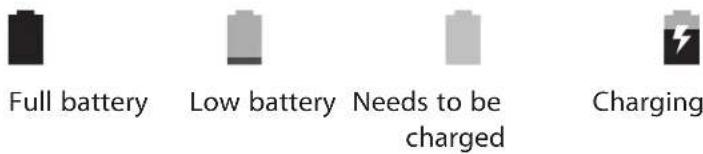
Charging the battery
Use the AC Adapter or the Micro-USB port* to charge the battery.
NOTE: Micro USB port for charging at either OFF mode or Standby mode.
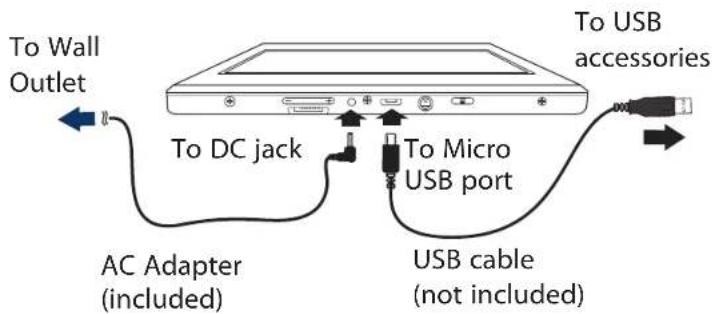
IMPORTANT! Please Read.

We recommend fully charging your tablet before using it for the first time. For optimal operation, please connect the provided AC adaptor to your tablet when it falls below 20% charge.
Charging time will vary depending on remaining battery life. Charging from 0%, should take approximately 4-5 hours. Use ONLY the included AC adapter with the small round port. You may not be able to turn on your tablet for at least 20 minutes if the battery was fully drained.

NOTE:
In order to keep the battery working in best condition, please pay attention to the following:
- The included AC adaptor is for use with this unit only. Do not use it with other equipment.
- Please do not charge the battery in high temperatures.
- Do not wait for the battery to be fully depleted before charging again. Keep the battery charged as needed.
- If tablet has not been used for a long period of time, the battery might be in over discharge protection mode and may take longer to charge.
Prolong the Battery Life
Here are some tips for how to prolong the life of the battery:
- If you aren't using Wi-Fi, go to Settings -> Wireless & networks -> Wi-Fi, turn it off.
- Don't leave the Maps or Navigation apps open on the screen when you're not using them.
- Turn down screen brightness and set a shorter screen timeout: Settings -> Device -> Display.
- If you don't need it, turn off automatic syncing for all apps: Settings -> Personal -> Accounts -> [Google account-name]. This means you need to sync
manually to collect messages, email, and other recent information, and won't receive notifications when updates occur.
Headphones
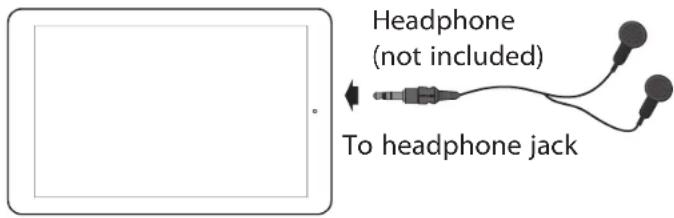
Headphones can be connected to the tablet's headphone jack.
USB
The tablet can be connected to a USB storage device to transfer music, pictures and other files in both directions.

NOTE:
To enter the USB storage device, please go to Settings -> Device -> Storage & USB, and tap ☐.
MicroSD
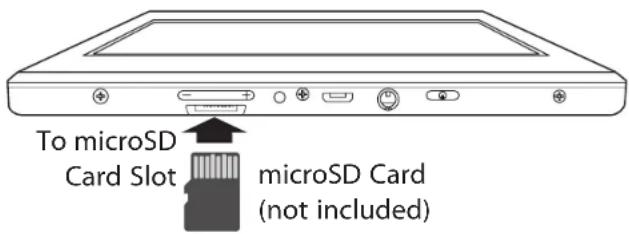
Insert the microSD card into the tablet's microSD slot until it clicks.
To check the storage of the microSD card, go to Settings -> Device -> Storage & USB.
Remove the microSD card by pushing in on the card's edge. The card will pop out and can be removed.

NOTE:
- You can use microSD ^TM card and microSDHC ^TM card (up to 128G, SD card not included).
- Never remove or insert micro SD card in On mode.
Wi-Fi
Connect to a Wi-Fi network
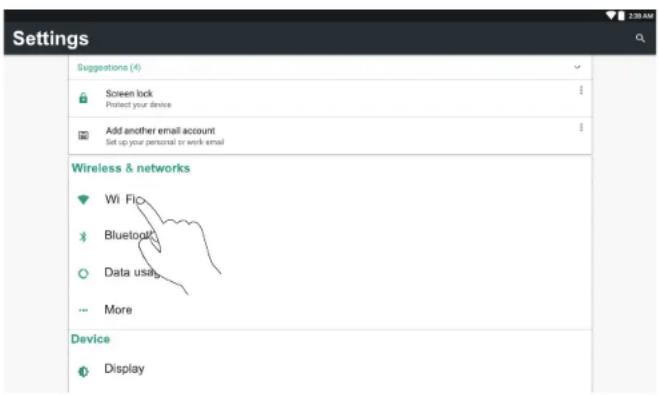
- Go to Settings -> Wireless & networks, tap Wi-Fi to open the Wi-Fi screen and slide Wi-Fi to the ON position.
- The device will scan Wi-Fi networks automatically and display the available names.
-
If the device finds a network that you connected to previously, it will connect to it automatically.
-
Tap a network name to connect to it, and enter a password if necessary.
- Alternatively, if your Wi-Fi router supports Wi-Fi Protected Setup, you can go to the Advanced Wi-Fi screen (tap Menu icon: at the upper right corner and select Advanced) and select WPS Push Button, then press the WPS button on your router.
- If your network does not broadcast its SSID, go to Settings -> Wi-Fi, tap Add network, and enter the Network SSID (name) of the network. If necessary, enter security or other network configuration details.

NOTE:
You can tap Menu icon: at the upper-right corner in the Settings screen for advanced settings.
VPN (Virtual Private Network)
You can create a virtual private network (VPN) and connect to your private network securely through a public network, such as the internet. You must set a lock screen PIN or password before you can use credential storage.
Add VPN network and follow the instructions on the screen.
Bluetooth
You can use Bluetooth to communicate between the unit and other Bluetooth devices, such as a smartphone.
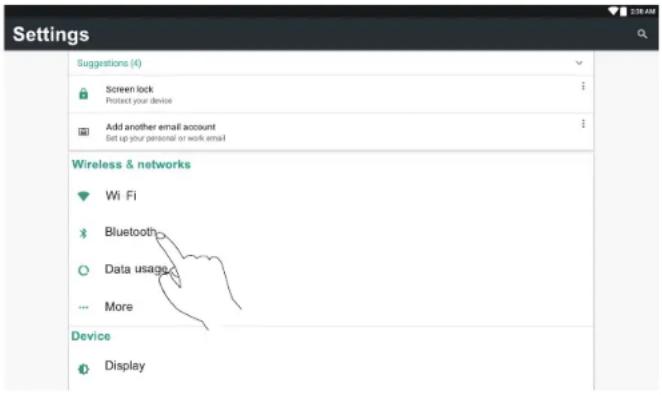
- Go to Settings -> Wireless & networks, tap Bluetooth to open the Bluetooth screen and slide Bluetooth to the ON position.
-
It will scan automatically and display the available bluetooth devices.
-
Tap an available bluetooth device name to pair with it and follow the instructions to complete the pairing.

NOTE:
You can tap Menu icon: at the upper-right corner and select Refresh for scanning again.
Receive Files
When the Bluetooth share icon ✗ is shown in the Notification bar, touch and drag it to open the Notification Shade. Tap the notification and follow the instructions to complete the receiving.
Send Files
- Go to All Apps ➕ File Manager.
- Select a file you want to send, touch & hold it until the Notification bar appears. Touch icon < and select Bluetooth, then follow the instructions to complete the sending.
Basic operation
Turning your tablet ON for the first time
When using the tablet for the first time, you will be required to setup the following:
- Select the language, then tap →.
- Set the Wi-Fi.
- If you have a Google Account, select "Yes". Then tap a network name to see more details or connect to it, and enter a password if necessary.
When prompted, sign in using the email address and password for your Google Account. If you don't have one yet, go ahead and create one. - Follow the onscreen instructions to setup the tablet.
Basic operation
Using the Touchscreen
Here are some basic procedures for interacting with the touchscreen.
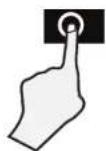
Tap
To select an item on the touchscreen, lightly tap it.
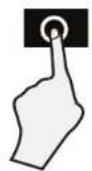
Press & Hold
In some instances, touching the item and holding your finger on it will present other options or menus.
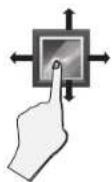
Drag or Swipe
While holding an item such as an icon, it can sometimes be moved by dragging it to another area or screen. You may also be able to swipe your finger across a screen or item to navigate or move it.
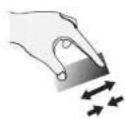
Zoom
By placing two fingers on the screen, you can slide them apart to "Zoom In", or pinch them together to "Zoom Out".
Customizing the Home Screen
- From All Apps screen to Home screen: Tap All Apps icon 🔊 to open All Apps screen, press & hold an icon slowly to drag it to the location of your choice. This makes it much easier to change your Home screen layout.
- View widgets: Press & hold the screen on your Home screen, the widgets icon will display, and then tap it. Widgets are app information displays that can be placed on your Home screen.
- Move apps or widgets: Press & hold an icon or widget, slowly to drag it to the screen edge, the screen will switch.
- Delete apps or widgets: Press & hold an icon or widget, when the "X" icon appears at the top of the screen, drag the icon or widget into it.
- Press & hold the screen on your Home screen, and the wallpaper icon will display, tap it and choose a wallpaper.
Google Now
To create a truly personalized experience, using your location and personal Google account information, use Google Now. Touch and Hold the Home icon, and slide up to the Google Now icon. Follow the instructions to setup your Google Now experience.
Voice Search & Voice Actions
Turn Voice Search or Voice Action On
You can initiate a Voice Search or Voice Action by tapping the Microphone icon on top of the Home screen.
When you're viewing the Google Now screen, you don't have to touch anything. Just say "Google."

NOTE:
To detect when you say "Google" to launch Voice Search or Voice Actions, your tablet analyzes sound picked up by your tablet's microphone in intervals of a few seconds or less.
Using Voice Search
After tapping the microphone icon, just say whatever it is you want Google to search for.
Using Voice Actions
There are many actions that the tablet can perform using "Voice Actions". For example, you can send emails, set alarms, play a song, or navigate to a website. Just tap the Microphone icon, and say what you want the tablet to do. As you speak, Voice Search analyzes your speech and initiates the action.
If Voice Search doesn't understand you, it lists a set of possible meanings. Just tap the one you want.
Google Play
In addition to the apps that come preinstalled on your tablet, you can download Android apps and games, music, movies, TV shows and magazines using the Google Play Store app.
- On the App menu, touch the Google Play Store icon.
- To search for an item from the Google Play Store app, touch the search icon in the upper right corner, and then type a keyword to search.
- Touch an available item to go to its details page. From there you can install or download the item.
A Google Account lets you organize and access your personal information from any computer or mobile device.
Add an Account
You can use multiple Google Accounts and Microsoft Exchange ActiveSync accounts on your tablet.
You may also be able to add other kinds of accounts, depending on your apps. To add some accounts, you may need to obtain details from your system administrator about the service to which the account connects. For example, you may need to know the account's domain or server address.
- Go to Settings -> Personal -> Accounts -> Add account.
- Tap the kind of account to add. And then follow the on-screen instructions.
Remove an Account
To remove a Google account, go to Settings -> Personal -> Accounts -> Google -> [account-name] Menu icon -> Remove account.
Settings
Settings lets you configure the tablet, set app options, add accounts, and change other preferences.
Wireless & networks
Wi-Fi — Enable or disable Wi-Fi, and connect to a wireless network so that you can check email, search the Web, or access social media websites.
Bluetooth — Enable or disable Bluetooth.
Data usage — Set Wi-Fi data usage and Network restrictions.
More... — Enable or disable Airplane mode or VPN.
Device
Display — Set Brightness level, Wallpaper, Sleep, Daydream, Font size, when device is rotated and Cast.
Sound & notifications — Set Sound general settings, Notification & Others.
Storage & USB — View available space in Internal Storage, USB Storage and SD Card /set the related items.
Battery — View battery status.
Apps — View all apps and set preferences for Configure app. To view information or uninstall an app, tap the relevant app.configure app. To view information or uninstall an app, tap the relevant app.
Personal
Location — Set Mode (Battery saving), Recent location requests and Location services.
- Battery saving: use Wi-Fi, Bluetooth to determine location.
Security — Set preferences for Screen security, Passwords, Device administration, Credential storage and Advanced.
Language & input — Set preferences for Language, Keyboard & input methods, Speech and Mouse/trackpad.
Accounts — You can add an email account or another type of account.
Google — Set preferences for Google.
Backup & reset — Set preferences for Backup my data, Network settings reset and Factory data reset.
System
Date & time — Enable or disable Automatic date & time, and select preferences for date, time, time zone, time format, and date format.
Accessibility — Select preferences for Services and System.
Printing — Enable or disable PRINT SERVICES.
About tablet
Check System updates, Status, Legal information, etc.
Preinstalled apps
Your tablet comes with many apps preinstalled to allow you to browse the web, send and receive email, and access entertainment. Spend some time exploring these apps to learn how your tablet can be most useful for you.
Additional information
Trouble Shooting
Tablet displays network or service error message
- When you are located in places with poor signal, your tablet may lose its Wi-Fi connection. Try moving closer to the Wi-Fi router.
Touch screen response is slow or incorrect
If the tablet's touch screen response is incorrect, please try the following:
- Remove any protective film on the touch screen. The protective film may prevent the device recognition input.
- Make sure that your fingers dry and clean before you tap the touch screen.
- Restart the tablet to clear any temporary software bugs.
Tablet is frozen or a serious error appears
- If the tablet is frozen or suspended, you may need to close the app program or reset the tablet.
- If the tablet is frozen or slow to respond, press and hold the power button for 8 seconds to reset the tablet.
- If that doesn't work, insert a paper clip into the RESET hole on the back of the tablet, then press and hold the Power ⏻ button for 4\~5 seconds to turn on the unit.
Tablet gets warm
- When using for a long time, the tablet may be warm. This is normal and will not affect the life or performance of the unit.
Tablet can not show video of opposite side during skype call
- The Wi-Fi signal is poor. Please move closer to your wireless router, or disconnect other devices from your wireless router, or increase bandwidth of internet connection.
- Please check the Wi-Fi setting. It's recommended to use an IEEE 802.11 b/g/n. certified Wi-Fi network.
Insufficient storage
- We recommend to reserve at least 700MB of free space in internal storage for APP download.
Copyright and Trademark Notices
Google, Android, Google Play, the Google Play logo and other marks are trademarks of Google LLC.
The Wi-Fi CERTIFIED Logo is a certification mark of the Wi-Fi Alliance.
The Wi-Fi Protected Setup Mark is a mark of the Wi-Fi Alliance.
The Bluetooth ^® word mark and logos are registered trademarks owned by the Bluetooth SIG Inc. Other trademarks and trade names are those of their respective owners.
Specification
Power: DC IN 5V (operate with AC adapter)
Specifications and external appearance are subject to change without notice.
Environmental Considerations
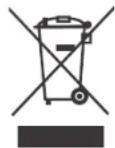
The crossed-out garbage can symbol on your product signifies that it falls into the category of electric/electronic equipment. Products of this type contain substances that are potentially dangerous to the environment and to human health. Therefore, you should not dispose of the Venturer electronic device in a regular trash. As such, the current European directives ask that this device be collected:
- At places of distribution in the case of a purchase of a similar electronic product.
- At locally created disposal areas (waste disposal centers, sorted trash system, etc.)
CE