
24HD5500 - Television VESTEL - Free user manual and instructions
Find the device manual for free 24HD5500 VESTEL in PDF.


| Product Type | LED TV |
| Brand | Vestel |
| Model | 24HD5500 |
| Screen Size (Diagonal) | 24 inches (61 cm) |
| Display Resolution | 1366 x 768 pixels |
| Energy Efficiency Class | A+ |
| On Mode Power Consumption | 19 W |
| Standby Power Consumption | 0.5 W |
| Off Mode Power Consumption | 0 W |
| Annual Energy Consumption | 27 kWh/annum |
| Operating Voltage | 220-240V AC, 50Hz |
| Dimensions (with stand) | 554 x 373 x 134 mm (W x H x D) |
| Dimensions (without stand) | 554 x 339 x 61 mm (W x H x D) |
| TV Tuners | DVB-T/C/S-S2 (Digital terrestrial, cable, satellite) |
| Analog Tuner | PAL B/G D/K K I/I' |
| Number of Preset Channels | 10,000 |
| Audio Output Power | 2 x 2.5 W (RMS, 10% THD) |
| Audio System | German + Nicam Stereo |
| HDMI Inputs | Yes (with ARC support on HDMI1) |
| USB Inputs | Yes (supports devices up to 500mA) |
| SCART Socket | 1 (rear) |
| VGA (PC) Input | 1 (rear) |
| CI Slot | 1 (side) |
| Headphone Output | 1 (side, also configurable as line-out) |
| SPDIF Output | Coaxial (rear) |
| VESA Wall Mount Pattern | 75 x 75 mm; screws M4, length 5-8 mm |
| Remote Control Batteries | 2 x AAA (supplied) |
| Special Features | Teletext, EPG, Parental Lock, Sleep Timer, CEC, ARC, USB Media Playback, Game Mode, PC input, Picture Off, Pixellence |
| Auto Standby | After 3 minutes no signal; after prolonged inactivity |
| Operating Temperature | 0°C to 40°C, humidity <85% |
Frequently Asked Questions - 24HD5500 VESTEL
User questions about 24HD5500 VESTEL
0 question about this device. Answer the ones you know or ask your own.
Ask a new question about this device
Download the instructions for your Television in PDF format for free! Find your manual 24HD5500 - VESTEL and take your electronic device back in hand. On this page are published all the documents necessary for the use of your device. 24HD5500 by VESTEL.
USER MANUAL 24HD5500 VESTEL
natural_image
Two cylindrical batteries with charging leads, one open and one closed, placed on a dark surface with battery terminals (no visible text or symbols)First of all, congratulations for choosing our environment and technology friend product. Taking it as a goal to offer you products beyond your expectations, we present the television which is elaborately manufactured in modern facilities and subjected to strict quality controls for your use.
This user manual will guide you through use of your device; you will realize that your device includes cutting edge technological solutions and is very easy to use.
Your device will serve you for long years as long as you display the necessary care and maintenance. We hope you enjoy using your device.
Your device will serve you for long years as long as you display the necessary care and maintenance. We hope you enjoy using your device.
This product was manufactured in environmentally friendly VESTEL ELEKTRONİK A.Ş. facilities with no harm to the nature.
Important Safety-Related Information
Please read the instructions in this manual carefully to know your device quickly and make use of all of its functions and keep for future reference.
This user manual includes important information regarding first use, installation, safety, intended uses, cleaning and maintenance and troubleshooting of your device.
Follow the instructions in the user manual.

WARNING: Risk of serious injury or death.

RISK OF ELECTRIC SHOCK: Dangerous voltage.

CAUTION: Risk of injury or damage to properties.

IMPORTANT: Running the system properly.

WARNING: Additional remarks are highlighted.

MAINTENANCE: Important maintenance component.
Contents
Safety Information....40
Safety Information to Be Observed During Transport and Shipping....43
Batteries 43
WARNING......43
Liability Limitation....44
Features......44
Accessories Included....44
Standby Notifications 44
TV Control Switch & Operation....45
Inserting the Batteries into the Remote....45
Connect Power 45
Antenna Connection....46
Notification....46
Specification....47
Remote Control....48
Connections 50
Switching On/Off 51
First Time Installation....51
Using SatcoDX Feature....53
Media Playback via USB Input....54
Media Browser Menu....54
CEC and CEC RC Passthrough....54
TV Menu Contents....56
General TV Operation....60
Using the Channel List....60
Configuring Parental Settings....60
Electronic Programme Guide (EPG)....61
Teletext Services....62
Software Upgrade....62
Cleaning and Maintenance 62
Troubleshooting....64
PC Input Typical Display Modes....66
AV and HDMI Signal Compatibility....66
Supported File Formats for USB Mode....67
Supported DVI Resolutions....68
IMPORTANT WARNINGS....69
Optional Rights of Customer....70
Safety Information

CAUTION
RISK OF ELECTRIC SHOCK DO NOT OPEN

CAUTION: TO REDUCE THE RISK OF ELECTRIC SHOCK DO NOT REMOVE COVER (OR BACK). NO USER-SERVICEABLE PARTS INSIDE. REFER SERVICING TO QUALIFIED SERVICE PERSONNEL
To operate your TV in extreme ambient conditions may cause the damage of the device.

In extreme weather (storms, lightning) and long inactivity periods (going on holiday) disconnect the TV set from the mains. The mains plug is used to disconnect the TV set from the mains and therefore it must remain readily operable.

This sign is present wherever there is very important information regarding the operation and maintenance of the appliance in the literature accompanying it.
NOTE: Follow the on screen instructions for operating the related features.
Markings on the Product
The following symbols are used on the product as a marker for restrictions and precautions and safety instructions. Each explanation shall be considered where the product bears related marking only. NOTE such information for security reasons.
Class II Equipment: This appliance is

designed in such a way that it does not require a safety connection to electrical earth.
Class II Equipment With Functional
Earthing: This appliance is designed in such
a way that it does not require a safety connection to electrical earth, the earth connection is used for functional
purposes.
Protective Earth Connection: The marked
terminal is intended for connection of the protective earthing conductor associated with the supply wiring.
Hazardous Live Terminal: The marked

terminal(s) is/are hazardous live under normal operating conditions.
Caution, See Operating Instructions: The

marked area(s) contain(s) user replaceable coin or button cell batteries.
Class 1 Laser Product: This product contains

Class 1 laser source that is safe under reasonably foreseeable conditions of operation.
WARNING
Never place a television set in an unstable or inclined locations. A television set may fall, causing serious personal injury or death. Many injuries, particularly to children, can be avoided by taking simple precautions such as;
Using cabinets or stands recommended by the manufacturer of the television set.
Only using furniture that can safely support the television set.
Ensuring the television set is not overhanging the edge of the supporting furniture.
Not placing the television set on tall furniture (for example, cupboards or bookcases) without acnhoring both the furniture and the television set to a suitable support.
Not standing the television set on cloth or other materials placed between the television and supporting furniture.
Educating children about the dangers of climbing on furniture to reach the television set or its controls. If your existing television set is being retained and relocated, the same considerations as above should be applied.
WARNING
Do not ingest the battery, Chemical Burn Hazard
This product or the accessories supplied with the product may contain a coin/button cell battery. If the coin/button cell battery is swallowed, it can cause severe internal burns in just 2 hours and can lead to death.
Keep new and used batteries away from children.
If the battery compartment does not close securely, stop using the product and keep it away from children.
If you think batteries might have been swallowed or placed inside any part of the body, seek immediate medical attention.
WALL MOUNTING WARNINGS
Read the instructions before mounting your TV on the wall.
The wall mount kit is optional. You can obtain from your local dealer, if not supplied with your TV.
Do not install the TV on a ceiling or on an inclined wall.
Use the specified wall mounting screws and other accessories.
Tighten the wall mounting screws firmly to prevent the TV from fall. Do not over-tighten the screws.
WARNING
Apparatus connected to the protective earthing of the building installation through the MAINS connection or through other apparatus with a connection to protective earthing – and to a television distribution system using coaxial cable, may in some circumstances create a fire hazard. Connection to a television distribution system has therefore to be provided through a device providing electrical isolation below a certain frequency range (galvanic isolator, see EN 60728-11)
IMPORTANT - Please read these instructions fully before installing or operating
WARNING: Never let people (including children) with reduced physical, sensory or mental capabilities or lack of experience and / or knowledge use electrical devices unsupervised.
- Use this TV set at an altitude of less than 2000 meters above the sea level, in dry locations and in regions with moderate or tropical climates.
- The TV set is intended for household and similar general use but may also be used in public places.
- For ventilation purposes, leave at least 5cm of free space around the TV.
- The ventilation should not be impeded by covering or blocking the ventilation openings with items, such as newspapers, table-cloths, curtains, etc.
•
- The power cord plug should be easily accessible. Do not place the TV, furniture, etc. on the power cord. A damaged power cord/plug can cause fire or give you an electric shock. Handle the power cord by the plug, do not unplug the TV by pulling the power cord. Never touch the power cord/plug with wet hands as this could cause a short circuit or electric shock. Never make a knot in the power cord or tie it with other cords. When damaged it must be replaced, this should only be done by qualified personnel.
- Do not expose the TV to dripping or splashing of liquids and do not place objects filled with liquids, such as vases, cups, etc. on or over the TV (e.g., on shelves above the unit).
- Do not expose the TV to direct sunlight or do not place open flames such as lit candles on the top of or near the TV.
- Do not place any heat sources such as electric heaters, radiators, etc. near the TV set.
- Do not place the TV on the floor and inclined surfaces.
- To avoid danger of suffocation, keep plastic bags out of the reach of the babies, children and domestic animals.
- Carefully attach the stand to the TV. If the stand is provided with screws, tighten the screws firmly to prevent the TV from tilting. Do not over-tighten the screws and mount the stand rubbers properly.
- Do not dispose of the batteries in fire or with hazardous or flammable materials.
| Warning | Serious injury or death risk |
| Risk of electric shock | Dangerous voltage risk |
| Caution | Injury or property damage risk |
| Important | Operating the system correctly |
| Notice | Additional NOTES marked |
Safety Information to Be Observed During Cleaning and Maintenance
• Always unplug the device before starting cleaning and maintenance.
- Make sure that device is off and disconnected from all electrical outlets.
- Wipe the cabin with a dry soft cloth.
- Do not use damp cloth, alcohol, ammonia, corrosive material included cleaning liquid or inflammables such as thinner.
- Do not allow liquid or foreign entry bodies to enter into speaker grills or other gaps.
Safety Information to Be Observed During Transport and Shipping
- Your device must be kept in its original package to protect from damage to its accessories during transport and shipping.
Keep the product in normal position during transport.
Do not drop the device during transport and protect it against impacts.
Damages and faults that occur during transport after the delivery of the appliance to the customer are not included in the warranty cover.
Batteries
- Do not expose batteries to direct sunlight, fire etc. factors or extreme temperatures.
- Replace the discharged battery with a battery in shape and type explained in the section “installing the batteries to remote”.
- Do not use rechargeable batteries.
- Do not use remote if there is a leak from the battery.
- Do not touch the liquid leaking from battery. Wash with water in case of contact.
WARNING
- Do not ingest the battery, Risk of Chemical Burn
- (Accompanying accessories or) This product can include a pull/button type battery. If button type battery is ingested, it may cause serious burns within your body and death only within 2 hours.
- Keep new and used batteries away from children.
- If battery housing doesn't close properly, do not use the product and keep away from children.
- If you think that batteries were ingested or exists within your body, please get medical care immediately.
Liability Limitation
Manufacturing company does not assume any responsibility for damages and injuries that might be caused due to not observing the instructions in this user manual,
using the device outside its intended use, unauthorized repairs, unauthorized modifications on the device and using spare parts not approved by the manufacturer.
- not affect the performance of your product. Take care not to scratch the screen with fingernails or other hard objects.
- Specifications shown above are subject to change without notice
- Before cleaning, unplug the TV from the wall socket. Only use a soft, dry cloth while cleaning.
Features
- Remote controlled colour TV
- Fully integrated digital terrestrial/cable/satellite TV (DVB-T/C/S-S2)
- HDMI inputs to connect other devices with HDMI sockets
- USB input
- OSD menu system
- Scart socket for external devices (such as DVD Players, PVR, video games, etc.)
- Stereo sound system
- Teletext
- Headphone connection
• Automatic programming system
- Manual tuning
• Automatic power down after up to eight hours.
- Sleep timer
- Child lock
• Automatic sound mute when no transmission.
- NTSC playback
• AVL (Automatic Volume Limiting)
- PLL (Frequency Search)
- PC input
- Game Mode (Optional)
- Picture off function
- Pixellence
Accessories Included
- Remote Control
- Batteries: 2 x AAA
- Instruction Book
Standby Notifications
If the TV does not receive any input signal (e.g. from an aerial or HDMI source) for 3 minutes, it will go into standby. When you next switch-on, the following message will be displayed: "TV switched to stand-by mode automatically because there was no signal for a long time." Press OK to continue.
If the TV is on and it isn't being operated for a while it will go into standby. When you next switch-on, the following message will be displayed. "TV switched to stand-by mode automatically because no operation was made for a long time." Press OK to continue.
TV Control Switch & Operation

- Up direction
- Down direction
- Volume / Info / Sources List selection and Standby-On switch
The Control button allows you to control the Volume/ Programme/Source and Standby-On functions of the TV.
To change volume: Increase the volume by pushing the button up. Decrease the volume by pushing the button down.
To change channel: Press the middle of the button in, the information banner will appear on the screen. Scroll through the stored channels by pushing the button up or down.
To change source: Press the middle of the button in twice(for the second time in total), the source list will appear on the screen. Scroll through the available sources by pushing the button up or down.
To turn the TV off: Press the middle of the button in and hold it down for a few seconds, the TV will turn into standby mode.
To turn on the TV: Press the middle of the button in, the TV will turn on.
NOTES:
- If you turn the TV off, this circle starts again beginning with the volume setting.
- Main menu OSD cannot be displayed via control buttons.
Operation with the Remote Control
Press Menu button on your remote control to display main menu screen. Use the directional buttons to select a menu tab and press OK to enter. Use the directional buttons again to select or set an item. Press Return/Back button or Menu button to quit a menu screen.
Input Selection
Once you have connected external systems to your TV, you can switch to different input sources. Press Source button on your remote control consecutively to select the different sources.
Changing Channels and Volume
You can change the channel and adjust the volume by using the Volume +/- and Programme +/- buttons on the remote.
Inserting the Batteries into the Remote
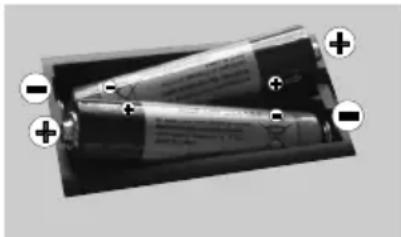
Remove the back cover to reveal the battery compartment. Insert two size AAA batteries. Make sure the (+) and (-) signs match (observe correct polarity). Do not mix old and new batteries. Replace only with same or equivalent type. Place the cover back on.
natural_image
Close-up of a battery cell with two glowing tubes and three black battery cells (no visible text or symbols)Connect Power
IMPORTANT: The TV set is designed to operate on 220-240V AC, 50 Hz socket. After unpacking, allow the TV set to reach the ambient room temperature before you connect the set to the mains. Plug the power cable to the mains socket outlet.
Antenna Connection
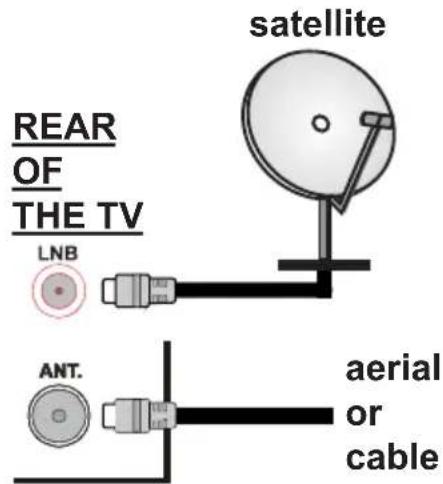
Connect the aerial or cable TV plug to the AERIAL INPUT (ANT) socket or satellite plug to the SATELLITE INPUT (LNB) socket located on the back of the TV.
Notification
TRADEMARK ACKNOWLEDGMENT
The terms HDMI and High-Definition Multimedia Interface, and the HDMI Logo are trademarks or registered trademarks of HDMI Licensing Administrator, Inc. in the United States and other countries.

Manufactured under license from Dolby Laboratories. Dolby, Dolby Audio and the double-D symbol are trademarks of Dolby Laboratories.
Information for Users on Disposal of Old Equipment and Batteries
[European Union only]
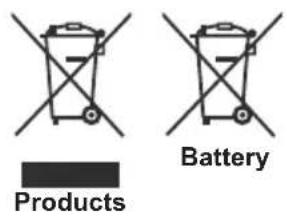
Equipment bearing these symbols should not be disposed as general household waste. You should look for appropriate recycling facilities and systems for the disposal of these products.
NOTICE: The sign Pb below the symbol for batteries indicates that this battery contains lead.
"In conformity with the AEEE Regulation."
Specification
| TV Broadcasting PAL B | /G D/K K I/I' |
| Receiving Channels | VHF (BAND I/III)- UHF (BAND U) -HYPERBAND |
| Digital Reception | Fully integrated digital terrestrial-cable-satellite TV(DVB-T-C-S)(DVB-S2 compliant) |
| Number of Preset Channels | 10.000 |
| Channel Indicator On Screen Display | |
| RF Aerial Input 75 Ohm | (unbalanced) |
| Operating Voltage 220-240V AC, 50Hz. | |
| Audio German+Nicam Stereo | |
| Audio Output Power (WRMS.) (10% THD) | 2 x 2,5W |
| Power Consumption (W) | 45W |
| TV Dimensions DxLxH (with foot) (mm) | 134 x 554 x 373 |
| TV Dimensions DxLxH (without foot) (mm) | 35/61 x 554 x 339 |
| Display 24" | |
| Operation temperature and operation humidity | 0°C up to 40°C, 85% humidity max |
Remote Control
-
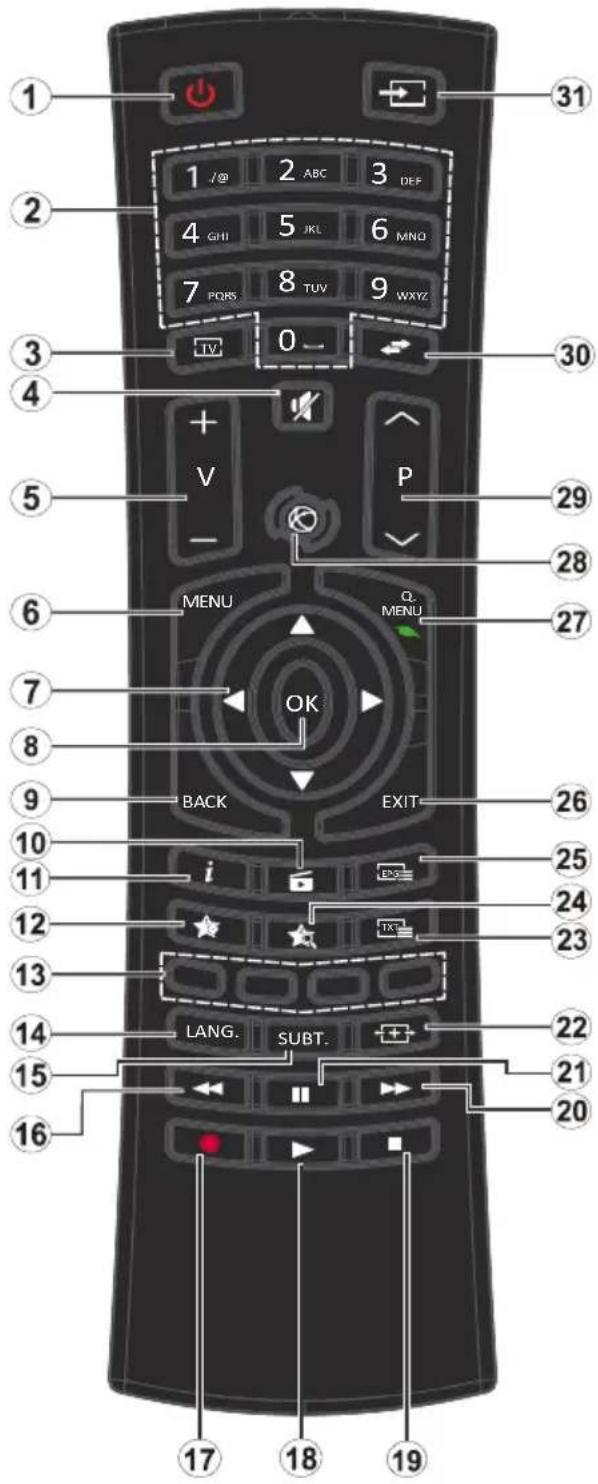
Standby: Switches On / Off the TV
-
Numeric buttons: Switches the channel, enters a number or a letter in the text box on the screen.
-
TV: Displays channel list / Switches to TV Source
-
Mute: Completely turns off the volume of the TV
-
Volume +/-
-
Menu: Displays TV menu
-
Directional buttons: Helps navigate menus, content etc. and displays the subpages in TXT mode when pressed Right or Left
-
OK: Confirms user selections, holds the page (in TXT mode), views channel list (DTV mode)
-
Back/Return: Returns to previous screen, opens index page (in TXT mode)
-
Media browser: Opens the media browsing screen
-
Info: Displays information about on-screen content, shows hidden information (reveal - in TXT mode)
-
My button 1 (*)
-
Coloured Buttons: Follow the on-screen instructions for coloured button functions
-
Language: Switches among sound modes (analogue TV), displays and changes audio/subtitle language (digital TV, where available)
-
Subtitles: Turns subtitles on and off (where available)
-
Rapid reverse: Moves frames backwards in media such as movies
-
No function
-
Play: Starts to play selected media
-
Stop: Stops the media being played
-
Rapid advance: Moves frames forward in media such as movies
- Pause: Pauses the media being played
- Screen: Changes the aspect ratio of the screen
- Text: Displays teletext (where available), press again to superimpose the teletext over a normal broadcast picture (mix)
- My button 2 (*)
- EPG (Electronic programme guide): Displays the electronic programme guide
- Exit: Closes and exits from displayed menus or returns to previous screen
- Quick Menu: Displays a list of menus for quick access
- No function
- Programme +/-
- Swap: Quickly cycles between previous and current channels or sources
- Source: Shows all available broadcast and content sources
(\*) MY BUTTON 1 & MY BUTTON 2:
These buttons may have default functions depending on the model. However you can set a special function to these buttons by pressing on them for five seconds when on a desired source or channel. A confirmation message will be displayed on the screen. Now the selected MY BUTTON is associated with the selected function.
Note that if you perform First Time Installation, MY BUTTON 1&2 will return to their default function.
Connections
| Connector Type Cables Device | |||
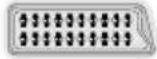 | ScartConnection(back) | 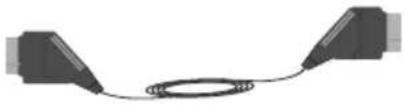 |  |
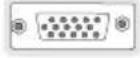 | VGAConnection(back) |  |  |
  | PC/YPbPrAudioConnection(side) | 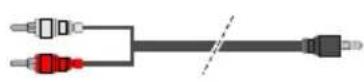 YPbPr/PC Audio Cable YPbPr/PC Audio Cable |  |
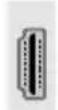 | HDMIConnection(back) |  | 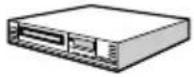 |
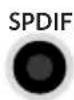 | SPDIF(Coaxial Out)Connection(back) |  | 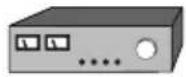 |
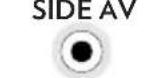
SIDE AV | Side AV(Audio/Video)Connection(side) |  AV Cable AV Cable |  |
  | HeadphoneConnection(side) |  | |
PC to YPbPr | YPbPr VideoConnection(back) |  PC to YPbPr Connection Cable PC to YPbPr Connection Cable |  |
 | USBConnection(side) |  |  |
 | CIConnection(side) |  | 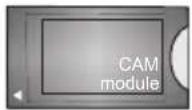 |
NOTE: When connecting a device via the YPbPr or Side AV input, you must use the connection cables to enable connection. See the illustrations on the left side. You can use YPbPr to VGA cable to enable YPbPr signal via VGA input. You cannot use VGA and YPbPr at the same time. To enable PC/YPbPr audio, you will need to use the Side AV input with a YPbPr/PC audio cable for audio connection, using the Side AV connection cable's RED and WHITE inputs. If an external device is connected via the SCART socket, the TV will automatically switch to AV mode. When receiving DTV channels (Mpeg4 H.264) or while in Media Browser mode, output will not be available via the scart socket. When using the wall mounting kit (available from third party in the market, if not supplied), we recommend that you plug all your cables into the back of the TV before mounting on the wall. Insert or remove the CI module only when the TV is SWITCHED OFF. You should refer to the module instruction manual for details of the settings. The/Each USB input of your TV supports devices up to 500mA. Connecting devices that have current value above 500mA may damage your TV. By connecting an HDMI cable to your TV, you have to use only a shielded HDMI cable to guarantee a sufficient immunity against parasitic frequency radiation.

If you want to connect a device to the TV, make sure that both the TV and the device are turned off before making any connection. After the connection is done, you can turn on the units and use them.
Switching On/Off
To Switch the TV On
Connect the power cord to a power source such as a wall socket (220-240V AC, 50 Hz).
To switch on the TV from standby mode either:
- Press the Standby button, Programme +/- or a numeric button on the remote control.
- Press the side function switch on the TV until the TV comes on from standby.
To Switch the TV Off
Press the Standby button on the remote control or press the side function switch on the TV until the TV switches into standby mode.
To power down the TV completely, unplug the power cord from the mains socket.
NOTE: When the TV is switched into standby mode, the standby LED can blink to indicate that features such as Standby Search, Over Air Download or Timer is active. The LED can also blink when you switch on the TV from standby mode.
First Time Installation
When turned on for the first time, the language selection screen is displayed. Select the desired language and press OK.
On the next screen, set your preferences using the directional buttons.
NOTE: Depending on the Country selection you may be asked to set and confirm a PIN at this point. The selected PIN cannot be 0000. You have to enter it if you are asked to enter a PIN for any menu operation later.
About Selecting Broadcast Type
Digital Aerial: If Digital Aerial broadcast search option is turned on, the TV will search for digital terrestrial broadcasts after other initial settings are completed.
Digital Cable: If Digital Cable broadcast search option is turned on, the TV will search for digital cable broadcasts after other initial settings are completed. According to your other preferences a confirmation message may be displayed before starting to search. Select YES and press OK to proceed. To cancel operation, select NO and press OK. You can select Network or set values such as Frequency, Network ID and Search Step. When finished, press OK button.
D-Smart Option
If desired, you can search and store D-Smart cable channels. On the Network channel scan screen set the Network option as DSmart Auto or DSmart Manual. If manual option is selected, the other options can be set as desired. When finished, press OK button.
NOTE: Searching duration will change depending on the selected Search Step.
Satellite: If Satellite broadcast search option is turned on, the TV will search for digital satellite broadcasts after other initial settings are completed. Before satellite search is performed some settings should be made.
D-Smart Option
If desired, you can search and store D-Smart channels. Before the satellite search starts, a menu will be displayed where you can select to install D-Smart channels. Set the Install Type as Operator and then set the Satellite Operator accordingly.
If you select DSmart operator, next menu item will be Apartment Installation. If you are using an individual D-Smart account, you should skip this step by setting as No. If an apartment installation system is
available in your apartment, select Yes and press OK to proceed. Shifting is processed in accordance with the IF frequency values. You can also select one of the Manual channel scan or Automatic channel scan procedures by using the Preferred Scan option.
Tivibu Option
If desired, you can search and store Tivibu channels. Before the satellite search starts, a menu will be displayed where you can select to install Tivibu channels. Set the Install Type as Operator and then set the Satellite Operator accordingly. Press OK to proceed. The TV will start to search for available broadcasts.
If you select Standard as Install Type and press OK, Antenna Type menu will be displayed first. You can select Antenna Type as Direct, Single Satellite Cable or DiSEqC switch by using “◀” or “▶” buttons.
- Direct: If you have a single receiver and a direct satellite dish, select this antenna type. Press OK to continue. Select an available satellite on the next screen and press OK to scan for services.
- Single Satellite Cable: If you have multiple receivers and a single satellite cable system, select this antenna type. Press OK to continue. Configure settings by following instructions on the next screen. Press OK to scan for services.
- DiSEqC switch: If you have multiple satellite dishes and a DiSEqC switch, select this antenna type. Press OK to continue. You can set four DiSEqC options (if available) on the next screen. Press OK button to scan the first satellite in the list.
TKGS (Türksat Kanal Güncelleme Sistemi) installation
If desired, you can start a TKGS Installation if the Satellite broadcast search option is turned on. Before the satellite search starts, a menu will be displayed where you can select to start a TKGS Installation. Set the Install Type as Operator and then set the Satellite Operator as TKGS. Then press the OK button to start TKGS Installation. Set your antenna type as described abow. You can select to install HD or SD channels during the installation. This selection can be done later too using the Preferred List option under the Installation>TKGS Installation menu. The selection will be activated, after switching the TV off and back on again or after a manual update as described below.
If wanted TKGS Installation can be applied manually after the First Time Installation. Press the Menu button. Highlight Installation and press OK. In the sub menu highlight Satellite Settings and press OK. Then select Antenna Installation. After the antenna type is selected and other satellite settings are made press the RED button to start a TKGS Installation.
The second way to apply TKGS installation manually after the First Time Installation is starting an update. To do this press the Menu button and select Installation>TKGS Installation>Start Update. But to be able to do so the Satellite Settings should be done first.
To use the update options of TKGS
TKGS feature keeps your satellite channel lists up-to-date in three different ways.
Standby: While going into standby mode, the TV controls the TKGS table version number whether it is the last version or not. If any changes are detected, TV starts to
update. On the next switch-on a message will be displayed to inform the user about the changes.
Background: When a channel is opened which isn't defined in the TKGS channel lists, the TV controls the TKGS table version number whether it is the last version or not. If any changes are detected, TV starts to update. When the update is completed a message will be displayed to inform the user about the changes.
Manual: An update can be started manually any time. Press the Menu button. Highlight Installation and press OK. In the sub menu highlight TKGS Installation and press OK. Than select Start Update and press OK.
Analogue: If Analogue broadcast search option is turned on, the TV will search for analogue broadcasts after other initial settings are completed.
Additionally you can set a broadcast type as your favourite one. Priority will be given to the selected broadcast type during the search process and the channels of it will be listed on the top of the Channel List. When finished, press OK to continue.
You can activate Store Mode option at this point. This option will configure your TV's settings for store environment and depending on the TV model being used, the supported features of it may be displayed on the top of the screen as an info banner. This option is intended only for store use. It is recommended to select Home Mode for home use. This option will be available in System>Settings>More menu and can be turned off/on later.
Press OK button on the remote control to continue. After the initial settings are completed TV will start to search for available broadcasts of the selected broadcast types.
After all the available stations are stored, scan results will be displayed. Press OK to continue. The Edit Channel List menu will be displayed next. You can edit the channel list according to your preferences or press the Menu button to quit and watch TV.
While the search continues a message may appear, asking whether you want to sort channels according to the LCN(*). Select Yes and press OK to confirm.
(*) LCN is the Logical Channel Number system that organizes available broadcasts in accordance with a recognizable channel number sequence (if available).
NOTE: Do not turn off the TV while initializing first time installation. Note that, some options may not be available depending on the country selection.
In the TKGS system, channels can be blocked by the service provider and Audio/Video transmission will not be available from these channels.
Using SatcoDX Feature
You can perform SatcoDX operations using the Installation>Satelite Settings menu. In the SatcoDX menu, there are two options regarding to the SatcoDx.
You can download or upload SatcoDX data. In order to perform these functions a USB device must be connected to the TV.
You can upload current services and related satellites & transponders in TV, to a USB device.
Additionally you can download one of the SatcoDx files stored in USB device, to the TV. When you select one of these files, all services and related satellites and transponders in the selected file will be stored in the TV. If there are any installed terrestrial, cable and/
or analog services, they will be kept and only satellite services will be removed.
Afterwards, check your antenna settings and make changes if necessary. An error message stating “No Signal” may be displayed if the antenna settings are not configured properly.
Media Playback via USB Input
You can connect 2.5" and 3.5" inch (hdd with external power supply) external hard disk drives or USB memory stick to your TV by using the USB inputs of the TV.
IMPORTANT! Back up the files on your storage devices before connecting them to the TV. Manufacturer will not be responsible for any file damage or data loss. Certain types of USB devices (e.g. MP3 Players) or USB hard disk drives/memory sticks may not be compatible with this TV. The TV supports FAT32 and NTFS disk formatting.
Wait a little while before each plugging and unplugging as the player may still be reading files. Failure to do so may cause physical damage to the USB player and the USB device itself. Do not pull out your drive while playing a file.
You can use USB hubs with your TV's USB inputs. External power supplied USB hubs are recommended in such a case.
It is recommended to use the TV's USB input(s) directly, if you are going to connect a USB hard disk.
NOTE: When viewing image files the Media Browser menu can only display 1000 image files stored on the connected USB device.
Media Browser Menu
You can play photo, music, and movie files stored on a USB disk by connecting it to your TV. Connect a USB disk to one of the USB inputs located on the side of the TV. Pressing
the Menu button while in the Media Browser mode will access the Picture, Sound and Settings menu options. Pressing the Menu button again will exit from this screen. You can set your Media Browser preferences by using the Settings Menu.
| Loop/Shuffle Mode Operation | |
| Start playback with the Play button and activate | All files in the list will be continuously played in original order |
| Start playback with the OK button and activate | The same file will be played continuously (repeat) |
| Start playback with the Play button and activate | All files in the list will be played once in random order |
| Start playback with the Play button and activate | All files in the list will be continuously played in the same random order. |
CEC and CEC RC Passthrough
This function allows to control the CEC-enabled devices, that are connected through HDMI ports by using the remote control of the TV.
The CEC option in the System>Settings>More menu should be set as Enabled at first. Press the Source button and select the HDMI input of the connected CEC device from the Sources List menu. When new CEC source device is connected, it will be listed in source menu with its own name instead of the connected HDMI ports name(such as DVD Player, Recorder 1 etc.).
The TV remote is automatically able to perform the main functions after the connected HDMI source has been selected.
To terminate this operation and control the TV via the remote again, press Quick Menu button on the remote, highlight the CEC RC Passthrough and set as Off by pressing Left or Right button. This feature can also be enabled or disabled under the System>Settings>More menu.
The TV supports also ARC(Audio Return Channel) feature. This feature is an audio link meant to replace other cables between the TV and the audio system (A/V receiver or speaker system).
When ARC is active, TV does not mute its other audio outputs automatically. So you need to decrease TV volume to zero manually, if you want to hear audio from connected audio device only (same as other optical or co-axial digital audio outputs). If you want to change connected device's volume level, you should select that device from the source list. In that case volume control keys are directed to connected audio device.
NOTE: ARC is supported only via the HDMI1 input.
System Audio Control
Allows an Audio Amplifier/Receiver to be used with the TV. The volume can be controlled using the remote control of the TV. To activate this feature set the Speakers option in the System>Settings>More menu as Amplifier. The TV speakers will be muted and the sound of the watched source will be provided from the connected sound system.
NOTE: The audio device should support System Audio Control feature and CEC option should be set as Enabled.
TV Menu Contents
| System - Picture Menu Contents | |
| Mode | You can change the picture mode to suit your preference or requirements. Picture mode can be set to one of these options: Cinema, Game(optional), Sports, Dynamic and Natural.Pixellence Demo Mode: While Mode option is highlighted, Pixellence demo mode will be displayed bottom of the menu screen. Pixellence function optimizes the TV's video settings and helps to acquire a better image quality. Press OK to start Pixellence demo mode to experience Pixellence quality. Press OK button to cancel (except Game Mode). |
| Contrast Adjusts the light and dark values on the screen. | |
| Brightness Adjusts the brightness values on the screen. | |
| Sharpness Sets the sharpness value for the objects displayed on the screen. | |
| Colour | Sets the colour value, adjusting the colors. |
| Energy Saving | For setting the Energy Saving to Custom, Minimum, Medium, Maximum, Auto, Screen Off or Off.NOTE: Available options may differ depending on the selected Mode. |
| Backlight | This setting controls the backlight level. The backlight function will be inactive if the Energy Saving is set to an option other then Custom. |
| Advanced Settings | |
| Dynamic Contrast You can change the dynamic contrast ratio to desired value. | |
| Noise Reduction | If the signal is weak and the picture is noisy, use the Noise Reduction setting to reduce the amount of noise. |
| Colour Temp | Sets the desired colour temperature value. Cool, Normal, Warm and Custom options are available. |
| White Point | If the Colour Temp option is set as Custom, this setting will be available. Increase the 'warmth' or 'coolness' of the picture by pressing Left or Right buttons. |
| Picture Zoom Sets the desired image size format. | |
| Film Mode | Films are recorded at a different number of frames per second to normal television programmes. Turn this feature on when you are watching films to see the fast motion scenes clearly. |
| Skin Tone Skin tone can be changed between -5 and 5. | |
| Colour Shift | Adjust the desired colour tone. |
| RGB Gain(Optional) | You can configure the colour temperature values using the RGB Gain feature. |
| HDMI Full Range | While watching from a HDMI source, this feature will be visible. You can use this feature to enhance blackness in the picture. |
| PC Position | Appears only when the input source is set to VGA/PC. |
| Autoposition Automatically optimizes the display. Press OK to optimize. | |
| H Position | This item shifts the image horizontally to the right hand side or left hand side of the screen. |
| V Position This item shifts the image vertically towards the top or bottom of the screen. | |
| Dot Clock | Dot Clock adjustments correct the interference that appear as vertical banding in dot intensive presentations like spreadsheets or paragraphs or text in smaller fonts. |
| Phase | Depending on the input source(computer etc.) you may see a hazy or noisy picture on the screen. You can use phase to get a clearer picture by trial and error. |
| Reset | Resets the picture settings to factory default settings (except Game Mode). |
| While in VGA (PC) mode, some items in Picture menu will be unavailable. Instead, VGA mode settings will be added to the Picture Settings while in PC mode. | |
| System - Sound Menu Contents | |
| Volume Adjusts the volume level. | |
| Equalizer | Selects the equalizer mode. Custom settings can be made only when in User mode. |
| Balance Adjusts whether the sound comes from the left or right speaker. | |
| Headphone | Sets headphone volume.Please ensure before using headphones that the headphone volume is set to a low level, to prevent damage to your hearing. |
| Sound Mode You can select a sound mode (If the viewed channel supports). | |
| AVL (Automatic Volume Limiting) | Sets the sound to obtain fixed output level between programmes. |
| Headphone/Lineout | When you connect an external amplifier to your TV using the headphone jack, you can select this option as Lineout. If you have connected headphones to the TV, set this option as Headphone.Please ensure before using headphones that this menu item is set to Headphone. If it is set to Lineout, the output from the headphone socket will be set to maximum which could damage your hearing. |
| Dynamic Bass Enables or disables the Dynamic Bass. | |
| Surround sound | Surround sound mode can be changed as On or Off. |
| Digital Out Sets digital out audio type. | |
| System - Settings Menu Contents | |
| Conditional Access Controls conditional access modules when available. | |
| Language You may set a different language depending on the broadcaster and the country. | |
| Parental | Enter correct password to change parental settings. You can easily adjust Menu Lock, Maturity Lock, Child Lock or Guidance in this menu. You can also set a new PIN or change the Default CICAM PIN using the related options.NOTE: Some menu options may not be available depending on the country selection in the First Time Installation. Default PIN can be set to 0000 or 1234. If you have defined the PIN(is requested depending on the country selection) during the First Time Installation use the PIN that you have defined. |
| Timers | Sets sleep timer to turn off the TV after a certain time. Sets timers for selected programmes. |
| Date/Time Sets date and time. | |
| Sources | Enables or disables selected source options. |
| Accessibility | Displays accessibility options of the TV. |
| Hard of Hearing | Enables any special feature sent from the broadcaster. |
| Audio Description | A norration track will be played for the blind or visually impaired audience. Press OK to see all available Audio Description menu options. This feature is available only if the broadcaster supports it. |
| More | Displays other setting options of the TV. |
| Menu Timeout Changes timeout duration for menu screens. | |
| Software Upgrade | Ensures that your TV has the latest firmware. Press OK to see the menu options. |
| Application Version Displays current software version. | |
| Subtitle Mode | This option is used to select which subtitle mode will be on the screen (DVB subtitle / Teletext subtitle) if both is available. Default value is DVB subtitle. This feature is available only for the country option of Norway. |
| Auto TV OFF | Sets the desired time for the TV to automatically go into standby mode when not being operated. |
| Biss Key | Biss is a satellite signal scrambling system that is used for some broadcasts. If you need to enter Biss key on a broadcast, you can use this setting. Highlight Biss Key and press OK to enter keys on the desired broadcast. |
| Store Mode | Select this mode for store display purposes. Whilst Store Mode is enabled, some items in the TV menu may not be available. |
| Power Up Mode | This setting configures the power up mode preference. Last State and Standby options are available. |
| CEC | With this setting you can enable and disable CEC functionality completely. Press Left or Right button to enable or disable the feature. |
| CEC Auto Power On | This function allows the connected HDMI-CEC compatible device to turn on the TV and switch to its input source automatically. Press Left or Right button to enable or disable the feature. |
| Speakers | To hear the TV audio from the connected compatible audio device set as Amplifier. You can use the remote control of the TV to control the volume of the audio device. |
| OSS Displays Open Source Software license information. | |
| Installation Menu Contents | |
| TKGS Installation | Displays TKGS Installation menu options. This option may not be available according to the selected Satellite Operator in the First Time Installation. If not, re-do the First Time Installation and select the Satellite Operator as TKGS. |
| Automatic channel scan (Retune) | Displays automatic tuning options. Digital Aerial: Searches and stores aerial DVB stations. Digital Cable: Searches and stores cable DVB stations. Analogue: Searches and stores analogue stations. Satellite: Searches and stores satellite stations. |
| Manual Channel Scan | This feature can be used for direct broadcast entry. |
| Network Channel Scan | Searches for the linked channels in the broadcast system. Digital Aerial: Searches for aerial network channels. Digital Cable: Searches for cable network channels. |
| Analogue Fine Tune | You can use this setting for fine tuning analogue channels. This feature is not available if no analogue channels are stored. |
| Satellite Settings | Displays satellite settings. Satellite list: Displays available satellites. You can Add, Delete satellites or Edit satellite settings on the list. Antenna installation: You can change satellite antenna settings and/or start a satellite scan. SatcoDX: You can upload or download SatcoDX data using the related options. |
| Installation Settings (Optional) | Displays installation settings menu. Standby Search: Your TV will search for new or missing channels while in standby. Any new found broadcasts will be shown. |
| Clear Service List | Use this setting to clear channels stored. This setting is visible only when the Country option is set to Denmark, Sweden, Norway or Finland. |
| Select Active Network | This setting allows you to select only the broadcasts within the selected network to be listed in the channel list. This feature is available only for the country option of Norway. |
| First Time Installation | Deletes all stored channels and settings, resets TV to factory settings. |
General TV Operation
follow the same steps and set the desired list option to Off.
Using the Channel List
The TV sorts all stored stations in the Channel List. You can edit this channel list, set favourites or set active stations to be listed by using the Channel List options. Press the OK/TV button to open the Channel List. You can filter the listed channels by pressing the Blue button or open the Edit Channel List menu by pressing the Green button in order to make advanced changes in the current list.
NOTES:
The commands Move, Delete and Edit name in the Edit Channel List menu may not be available according to Opreting Mode setting in the TKGS Installation menu. To get rid of all restrictions on configuring the channel list set this option to TKGS Off. Move and Edit Name commands will be still available if this option is set to Customizable.
If you have performed D-Smart or Tivibu installation, Move, Delete and Edit name commands in the Edit Channel List menu will not be available.
Managing the Favourite Lists
You can create four different lists of your favourite channels. Enter the Channel List in the main menu or press the Green button while the Channel List is displayed on the screen in order to open the Edit Channel List menu. Select the desired channel on the list. You can make multiple choices by pressing the Yellow button. Then press the OK button to open the Channel Edit Options menu and select Add/Remove Favourites option. Press the OK button again. Set the desired list option to On. The selected channel/s will be added to the list. In order to remove a channel or channels from a favourite list
You can use the Filter function in the Edit Channel List menu to filter the channels in the Channel list permanently according to your preferences. Using this Filter option, you can set one of your four favourite lists to be displayed every time the Channel list is opened. The filtering function in the Channel list menu will only filter the currently displayed Channel list in order to find a channel and tune in to it. These changes will not remain the next time the Channel list is opened if you don't save them. To save the changes on the list press the Red button after filtering while the Channel list is displayed on the screen.
Furthermore, you can filter channels according to categories using the Channel list filter menu. Highlight Favourites option and select the desired channel category using the left/right directional buttons. The channels will be filtered according to the selected category.
Configuring Parental Settings
The Parental Settings menu options can be used to prohibit users from viewing of certain programmes, channels and using of menus. These settings are located in the System>Settings>Parental menu.
To display parental lock menu options, a PIN number should be entered. After coding the correct PIN number, Parental Settings menu will be displayed.
Menu Lock: This setting enables or disables access to all menus or installation menus of the TV.
Maturity Lock: If this option is set, TV gets the maturity information from the broadcast and if this maturity level is disabled, disables access to the broadcast.
NOTE: If the country option in the First Time Installation is set as France, Italy or Austria, Maturity Lock's value will be set to 18 as default.
Child Lock: If this option is set to ON, the TV can only be controlled by the remote control. In this case the control buttons on the TV will not work.
Set PIN: Defines a new PIN number.
Default CICAM PIN: This option will appear as greyed out if no CI module is inserted into the CI slot of the TV. You can change the default PIN of the CI CAM using this option.
NOTE: Default PIN can be set to 0000 or 1234. If you have defined the PIN(is requested depending on the country selection) during the First Time Installation use the PIN that you have defined.
Some options may not be available depending on the country selection in the First Time Installation.
Electronic Programme Guide (EPG)
Some channels send information about their broadcast schedules. Press the Epg button to view the Programme Guide menu.
There are 3 different types of schedule layouts available, Timeline Schedule, List Schedule and Now/Next Schedule. To switch between them follow the instructions on the bottom of the screen.
Timeline Schedule
Zoom (Yellow button): Press the Yellow button to see events in a wider time interval. Filter (Blue button): Views filtering options. Highlight Genre (Subtitles button): Displays Highlight Genre menu. Using this feature, you can search the programme guide
database in accordance with the genre. Info available in the programme guide will be searched and results matching your criteria will be highlighted.
Options (OK button): Displays event options.
Event Details (Info button): Displays detailed information about selected events.
Next/Prev Day (Programme +/- buttons): Displays the events of previous or next day.
Search (Text button): Displays Guide Search menu.
Now (Source button): Displays current event of the highlighted channel.
List Schedule(\*)
(*) In this layout option, only the events of the highlighted channel will be listed.
Prev. Time Slice (Red button): Displays the events of previous time slice.
Next/Prev Day (Programme +/- buttons): Displays the events of previous or next day.
Event Details (Info button): Displays detailed information about selected events.
Filter (Text button): Views filtering options. Next Time Slice (Green button): Displays the events of next time slice.
Options (OK button): Displays event options.
Now/Next Schedule
Options (OK button): Displays event options.
Event Details (Info button): Displays detailed information about selected events.
Filter (Blue button): Views filtering options.
Event Options
Use the directional buttons to highlight an event and press OK button to display Event Options menu. The following options are available.
Select Channel: Using this option, you can switch to the selected channel.
Set Timer on Event / Delete Timer on Event: After you have selected an event in the EPG menu, press the OK button. Select Set Timer on Event option and press the OK button. You can set a timer for future events. To cancel an already set timer, highlight that event and press the OK button. Then select Delete Timer on Event option. The timer will be cancelled.
NOTES: You cannot switch to any other channel or source while there is an active timer on the current channel.
It is not possible to set timer for two or more individual events at the same time interval.
Teletext Services
Press the Text button to enter. Press again to activate mix mode, which allows you to see the teletext page and the TV broadcast at the same time. Press once more to exit. If available, sections in the teletext pages will become colour-coded and can be selected by pressing the coloured buttons. Follow the instructions displayed on the screen.
Digital Teletext
Press the Text button to view digital teletext information. Operate it with the coloured buttons, cursor buttons and the OK button. The operation method may differ depending on the contents of the digital teletext. Follow the instructions displayed on the digital teletext screen. When the Text button is pressed again, the TV returns to television broadcast.
Software Upgrade
Your TV is capable of finding and updating the firmware automatically via the broadcast signal.
Software upgrade search via user interface
On the main menu select System>Settings and then More. Navigate to Software upgrade and press the OK button. In Upgrade options menu select Scan for upgrade and press OK button to check for a new software upgrade.
If a new upgrade is found, it starts to download the upgrade. After the download is completed confirm the question asking about rebooting the TV by pressing the OK to continue with the reboot operation.
3 AM search and upgrade mode
Your TV will search for new upgrades at 3:00 o'clock if Automatic scanning option in the Upgrade options menu is set to Enabled and if the TV is connected to an aerial signal. If a new software is found and downloaded successfully, it will be installed at the next power on.
NOTE: Do not unplug the power cord while led is blinking during the reboot process. If the TV fails to come on after the upgrade, unplug, wait for two minutes then plug it back in.
Cleaning and
Maintenance
• Always unplug the device before starting cleaning and maintenance.
- Pay attention to the comments stated in "Safety Information to Be Observed During Cleaning and Maintenance".
- Do not apply alcohol, solvent containing chemicals, surface active agents such as thinner, pesticides, air freshener, lubricant or cleaning detergent to the product. These
chemicals might cause product to fade away or crack or removal of labels or instructions.
- As surface or lenses can crack easily, use only a soft cloth such as super thin fibre or cotton cloth to clean the product. As product can be easily scratched by foreign bodies, beat out the dust before using the cloth.
Troubleshooting
When you detect an abnormal condition on your device, you may try to resolve the issue as per the description given on the table.
If your device does not resume normal operation still, contact Vestel Communication Center.
You can find authorized services list and contact information from the web site.
| PROBLEM CAUSE | REMEDY | |
| Device doesn't turn on. | Power cable might be unplugged. | Make sure it's plugged into the wall plug. |
| Batteries of remote controller might be discharged. | Replace the batteries of remote controller with new ones. Press the On/Off button on TV. | |
| Bad image quality. | Correct TV system might not have been selected. | Make sure you have selected right TV system. |
| Signal level might be low. | Low signal level might cause distortion of the image. Please check the antenna connection. | |
| If you're performing a manual search, frequency settings of the channel might be incorrect. | Make sure you entered frequency settings correctly. | |
| Antenna is connected to two external devices simultaneously. | Disconnect either device. | |
| There is shade, reflection on the display. | Tuning might be not performed. | Automatic or manual tuning/ fine tuning must be made. |
| Display contrast, brightness and colour are low. | Display settings might be incorrect. | Adjust contrast, brightness and colour. |
| Displaying, no sound. | TV might be muted. | To cancel the mute option, press the button or turn up the volume. |
| Display is bad in computer mode. | Screen resolution and settings of computer and TV might be incompatible. | Change resolution information on your computer. |
| Sound is received from one speaker only. | Balance set might be adjusted to one direction extreme. | Check from audio menu section. |
| No display. | Means that your TV doesn’t receive any broadcast. | Make sure that you have broadcast on your TV. |
| Antenna might have been connected incorrectly. | Make sure antenna is connected correctly. | |
| Antenna cable might be damaged. | Make sure antenna cable isn’t damaged. | |
| Incorrect connectors might be used for connecting the antenna. | Have an authorized person check antenna connection is made correctly. | |
| Incorrect buttons might have been pressed on the remote control. | Retry and make sure you press the correct buttons. | |
| Correct input source might not have been selected. | Make sure you have selected the correct input. | |
| Remote control does not work. | Battery may have been discharged. | Replace the batteries. |
| Batteries might have been inserted incorrectly. | Check the directions of batteries and make sure you install them correctly. | |
| There might be a barrier between remote and TV. | Remove the barrier. | |
| Input options can’t be selected. | No device might be connected. | Make sure a device is connected to your TV. |
| AV cables and connections might be incorrect if you have tried to connect a device. | Make sure AV cables and connections are correct. | |
| According to the place and position of viewing (up / down / right / left) there might be differences in brightness and color of the panel. | Panel’s feature might cause that. | It is not a problem. It does not affect device’s performance. |
PC Input Typical Display Modes
The following table is an illustration of some of the typical video display modes. Your TV may not support all resolutions. Your TV supports up to 1920x1080.
| Index Resolution Frequency | ||
| 1 | x480 60 Hz | |
| 2 | x600 56 Hz | |
| 3 | x600 60 Hz | |
| 4 | 1024x768 60 Hz | |
| 5 | 1024x768 66 Hz | |
| 6 | 1280x768 60 Hz | |
| 7 | 1280x960 60 Hz | |
| 8 | 1280x1024 60 Hz | |
| 9 | 1360x768 60 Hz | |
| 10 | 1400x1050 60 Hz | |
| 11 | 1600x1200 60 Hz | |
| 12 | 1920x1080 60 Hz | |
AV and HDMI Signal Compatibility
| Source | Supported Signals | Available | |
| EXT(SCART) | PAL 50/60 | ○ | |
| NTSC 60 | ○ | ||
| RGB 50 | ○ | ||
| RGB 60 | ○ | ||
| Side AV | PAL 50/60 | ○ | |
| NTSC 60 | ○ | ||
| PC/YPbPr | 480l, 480P | 60Hz | ○ |
| 576l, 576P | 50Hz | ○ | |
| 720P | 50Hz,60Hz | ○ | |
| 1080l | 50Hz,60Hz | ○ | |
| 1080P 50Hz,60Hz ○ | |||
| HDMI | 480l | 60Hz | ○ |
| 480P | 60Hz | ○ | |
| 576l, 576P | 50Hz | ○ | |
| 720P | 50Hz,60Hz | ○ | |
| 1080l | 50Hz,60Hz | ○ | |
| 1080P | 24Hz, 25Hz30Hz, 50Hz,60Hz | ○ | |
(X: Not Available, O: Available)
In some cases a signal on the TV may not be displayed properly. The problem may be an inconsistency with standards from the source equipment (DVD, Set-top box, etc.). If you do experience such a problem please contact your dealer and also the manufacturer of the source equipment.
Supported File Formats for USB Mode
| Media Extension Format Notes | |||
| Video | g,.mpeg | MPEG1-2 MPEG1: | 768x576 @ 30P, MPEG2:1920x1080 @ 30P |
| .vob MPEG2 | 1920x1080 @ 30P | ||
| .mp4 MPEG4, Xvid,H.264 | |||
| .mkv H.264, | MPEG4,VC-1 | ||
| .avi MPEG2,MPEG4, Xvid,H.264 | |||
| .flv H.264/VP6/Sorenson | H.264/VP6: 1920x1080 @ 30PSorenson: 352x288 @ 30P | ||
| .mp4, .mov,.3gpp, .3gp,MPEGtransportstream,.ts.,trp, .tp,.mkv | HEVC/H.265 1080 | P@60fps - 50Mbps | |
| .3gp MPEG4, H.264 1920x1080 @ 30P | |||
| Audio | .mp3 | MPEG1 Layer2/3 | Layer2: 32Kbps ~ 448Kbps (Bit rate) / 32kHz, 44.1kHz, 48kHz, 16kHz,22.05kHz, 24kHz (Sampling rate)Layer3: 32Kbps ~ 320Kbps (Bit rate) / 32kHz, 44.1kHz, 48kHz, 16kHz,22.05kHz, 24kHz, 8kHz, 11.025kHz, 12kHz (Sampling rate) |
| (worksonly withvideofiles) | AC3 | 32Kbps ~ 640Kbps (Bit rate) / 32kHz, 44.1kHz, 48kHz (Sampling rate) | |
| AAC | 16Kbps ~ 576Kbps (Bit rate) / 48kHz, 44.1kHz, 32kHz, 24kHz, 22.05kHz,16kHz, 12kHz, 11.025kHz, 8kHz (Sampling rate) | ||
| EAC3 | 32Kbps ~ 6Kbps (Bit rate) / 32kHz, 44.1kHz, 48kHz (Sampling rate) | ||
| LPCM | Unsigned 8bit PCM, Signed/Unsigned 16bit PCM (big / little endian),24bit PCM (big endian), DVD LPCM 16/20/24bit (Bit rate)/ 6kHz, 8kHz, 11.025kHz, 12kHz, 16kHz, 22.05kHz, 24kHz, 32kHz, 44.1kHz,48kHz, 88.2kHz, 96kHz, 176.4kHz, 192kHz (Sampling rate) | ||
| IMA-ADPCM/MS-ADPCM | 384Kbps (Bit rate) / 8KHz ~ 48Khz (Sampling rate) | ||
| LBR | 32Kbps ~ 96Kbps (Bit rate) / 32kHz, 44.1kHz, 48kHz (Sampling rate) | ||
| Picture | .jpeg | Baseline | Resolution(WxH): 17000x10000 |
| Progressive Resolution(WxH): 4000x4000 | |||
| .bmp - | Resolution(WxH): 5760x4096 | ||
| Subtitle | .sub, .srt | - | - |
Supported DVI Resolutions
When connecting devices to your TV's connectors by using DVI converter cable(DVI to HDMI cable - not supplied), you can refer to the following resolution information.
| 56Hz60Hz | 66Hz70Hz | 72Hz | 75Hz | |||
| 640x400 | ☑ | |||||
| 640x480 | ☑ ☑ ☑ | ☑ | ||||
| 800x600 | ☑ ☑ ☑ | ☑ ☑ | ||||
| 832x624 | ☑ | |||||
| 1024x768 | ☑ ☑ ☑ | ☑ ☑ | ||||
| 1152x864 | ☑ ☑ ☑ | |||||
| 1152x870 | ☑ | |||||
| 1280x768 | ☑ | ☑ | ||||
| 1360x768 | ☑ | |||||
| 1280x960 | ☑ | ☑ | ||||
| 1280x1024 | ☑ | ☑ | ||||
| 1400x1050 | ☑ | ☑ | ||||
| 1440x900 | ☑ | ☑ | ||||
| 1600x1200 | ☑ | |||||
| 1680x1050 | ☑ | |||||
| 1920x1080 | ☑ |
IMPORTANT WARNINGS
1. Rights reserved by the manufacturer:
The manufacturer reserves the right to change the features stated in the product or in the user's manual of the product without giving any information, when required by the improvements in technology.
2. Warnings about Screen Technology:
LCD screen, in parallel with its technology, consists of millions of high-fidelity pixels. Black and/or bright red, blue or green tiny dots could be observed on the panel. That does not indicate that the product is faulty. It does not affect the product's performance and reliability too. This is a structural feature of the panel, not a fault. This could also be the case with third-party products and not subject to product replacement or refund. These panels could be encountered during production as well as daily usage.
3. A continuous fixed image on the screen:
Due to TFT and Plasma technologies, “burning” effect may arise in the screen after a continuous fixed image on the screen, displaying the same background continuously or watching a 4:3 video on a 16:9 television for a long time. In order to avoid this effect, it is highly recommended that you follow the followings.
- Do not watch a fixed image continuously.
- Do not watch videos in the format of 4:3 in your television which supports the format of 16:9.
- Try to use contrast and brightness at a minimum level.
4. In Full HD products;
The expected performance may not be achieved in TV broadcasts and the broadcasts of satellite receivers which are not supported by other sources in terms of high definition, DVD players or cable television; and in these broadcasts, mosaic images may occur, sharpness and resolution of the image may be low; some effects may arise on the screen. This is not a failure. It is advisable to watch high definition broadcasts for your TV which supports high definition (1920x1080) to work with a high performance as a requirement of the Full HD technology. The expected performance may not be achieved in TV broadcasts and the broadcasts of satellite receivers which are not supported by other sources in terms of high definition, DVD players or cable television; and in these broadcasts, mosaic images may occur, sharpness and resolution of the image may be low; some effects may arise on the screen. This is not a failure. If your appliance supports high definition, it is recommended that you use high definition broadcast sources in order to achieve a high screen performance as a requirement of the high definition (HD) technology.
5. About Working Sound of the Appliance:
A working sound may be generated in the electronic circuits in your appliance as a requirement of its technology depending on the current on it while running or in standby status. This sound can sometimes be heard depending on the sensitivity of human ear and watching distance although it is within the compass of the standards. This sound does not affect the performance of your appliance and it is not a failure.
A click sound may be heard when watching TV or as it is being shut down. This is a result of loosening and contracting thermal plastic due to heat and humidity. Besides the “click” sound, it doesn’t hinder the reliability or the performance.
6. Make sure that the panel (screen) of your appliance is never subjected to any external mechanical impact:
The panels (screens) of the TFT-LCS televisions are not only a piece of glass; on the contrary they are composed of layers. If your appliance is damaged in its panel (screen) which is the front part by an external impact, the inner layer of the screen might be broken / cracked even when no break/crack arises in the layer of the screen which is the closest to the outer environment. This can be technically detected by the authorized service. Therefore, make sure that the panel (screen) of your appliance is never subjected to any external mechanical impact. Otherwise, as any damage “caused by an external hit” is considered as a usage error, the manufacturer will not have any legal responsibility.
7. About the use of the appliance:
The appliance you purchased was produced for home-type use, and it can be used only at home and for the specified purposes, not for commercial or collective use. Otherwise, the manufacturer and the dealer will not be responsible for the failures within the period of warranty and free repair, which is determined in the provisions of the Act on the Protection of Consumers.
Optional Rights of Customer
Consumer may exercise any of his/her optional rights below within two years of expiry period starting with the date of delivery of the good to the consumer if the good is found to be defective as per the provisions of Law on the Protection of Consumers no. 6502, even if the defect is found later;
- To terminate the contract by stating that he is ready to return the sold good,
- To request a discount on the sale price proportional to the defect and keep the defective good, against the Seller;
-
To request the sold good to be repaired at the seller's expense by bringing all repair costs to the seller if such costs are not excessive,
-
If possible, to request the purchased good to be exchanged for a non-defective good, against the Seller, manufacturer or importer.
Consumer may exercise either of its rights to terminate the contract or discount from the price in proportion to the defect if free repair or replacement of the good with a non-defective fungible will bring about disproportional challenges.
Consumer may apply to Consumer Courts and Arbitration Committees for their complaints and concerns.
| A V | ESA WALL MOUNT MEASUREMENTS | ||
| B | Hole Pattern Sizes (mm) | W | H |
| 75 75 | |||
| C Screw Sizes | |||
| D Length (X) | min. (mm) 5 | ||
| max. (mm) 8 | |||
| E Thread (Y) M4 | |||
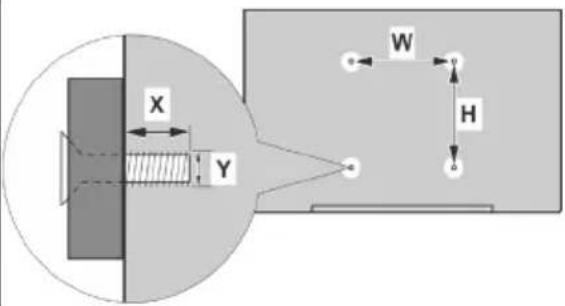
| A B C D E | |||||
| English VESA WA | ALL MOUNT MEASUREMENTS | Hole Pattern Sizes (mm) | Screw Sizes | Length (X) | Thread (Y) |
| Deutsch | MASSANGABEN FUR VESA-WANDMONTAGE | Lochmustergrößen (mm) | Schraubengroßen | Länge (X) | Gewinde (Y) |
| Français | DIMENSIONS DU SUPPORT DE FIXATION MURALE VESA | Dimensions des modèles de trous de montage (mm) | Dimensions des vis | Longueur (X) | Filetage (Y) |
| Italiano | Misurazioni installazione a parete VESA | Dimensioni schema foro (mm) | Dimensioni vite | Lunghezza (X) | Filettatura (Y) |
| Portuquês | MEDICÕES DE MONTAGEM MURAL VESA | Dimensões do molde de furação (mm) | Tamanhos do parafuso | Comprimento (X) | Rosca (Y) |
| Español | MEDIDAS DEL MONTAJE DE PARED VESA | Tamaños de patrón para agujero (mm) | Tamaños de tornillo | Longitud (X) | Rosca (Y) |
| Türkçe | VESA DUVARA MONTAJ APARATI ÖLÇÜLERI | Açılacak Delik Ölçüleri (mm) | Vida Ölçüleri | Uzunluk (X) Yüzey (Y) | |
| Ελληνικ | ΔΙΑΣΤΑΣΕΙΣ ΒΑΖΗΣ ΤΟΙΧΟΥ VESA | Μεγέθη σχήματος οπών (mm) | Μεγέθη βιδών | Μήκος (X) | Σπείρωμα (Y) |
| Polski | WYMIARY DO MONT AŽU NASCIENNEGO VESA | Rozmiary szablonu otworów (mm) | Rozmiary wkrętów | Długość (mm) | Gwint (Y) |
| čeština | ROZMĚRY DRŽÁKU NA ZĚD VESA | Rozměry velikosti děr (mm) | Rozměry śroubů | Délka (X) | Závit (Y) |
| Magyar | VESA FALI TARTO MERETEK | Lyukak méretének nagysága(mm) | Csavar méret | Hossz (X) | Menet (Y) |
| Română | MĂSURĂTORI SUPORT PERETE VESA | Dimensiuni tipar gaură (mm) | Dimensiuni şuruburi | Lungime (X) | Filet (Y) |
| Svenska | VESA VÄGGMONTERINGSMÄTT | Hålmönsterstorlear (mm) | Skruvstorlekar | Längd (X) | Träd (Y) |
| Nederlands | VESA WANDMONTAGE METINGEN | Grootte booropening (mm) | Schroefgroote | Lengte (X) | Draad (Y) |
| Suomi | VESA-SEINÄASENNUKSEN MITAT | Reikäkuvion koot (mm) | Ruuvinkoot | Pituus (x) | Kierre (Y) |
| Norsk | VESA VEGGMONTERINGSMÄL | Hullmønster størrelser (mm) | Skruestørrelser | Lengde (X) | Träd (Y) |
| Dansk | VESA VÆGMONTERINGS-MÄL | Hulmønster-størrelser (mm) | Skruestørrelser | Laengde(X) | Träd (Y) |
| Русский | РАЗМЕРЫ НАСТЕННОГО КРЕПЛЕНИЯ VESA | Размеры системы отверстий | Размеры винтов | Длина(X) Резьба (Y) | |
| беларуская | ПАМЕРЫ НАСЦЕННАГА МАЦАВАННЯ VESA | Памеры сістамы адтулін | Памеры вінтоў | Даўкыня (X) | Разьба (Y) |
| македонски | МЕРКИ ЗА МОНТИРАЊЕ НА БИД ЗА „BECA” | Шема на големини на дупката (мм) | Големина на шрафот | Должина (X) | Навој (Y) |
| український | РОЗМІРИ НАСТИННОГО КРИПЛЕННЯ VESA | Відстань між кріпильними отворами, мм | Розміри гвинтів | Довжина (X) | Діаметр різьби (Y) |
| Srpski | DIMENZIJE VESA ZIDNOG NOSAČA | Dimenzije šablona za bušenje | Dimenzije zavtrtnjeva | Dužina (X) Navoj (Y) | |
| Slovenčina | ROZMERY DRŽIAKA NA STENU VESA | Rozmery velkosti dier (mm) | Rozmery skrutiek | Dížka (X) | Závit (Y) |
| Slovenščina | MERE STENSKEGA NOSILCA VESA | Velikosti vzorca lukanj (mm) | Velikosti vljakov | Dožina (X) | Navoj (Y) |
| Hrvatski | VESA MJERE ZIDNOG DRŽAČA | Veličine uzorka otvora (mm) | Veličine vijka | Dužina (X) Navoji (Y) | |
| Bosanski | DIMENZIJE VESA ZIDNOG NOSAČA | Dimenzije šablona za bušenie | Dimenzije vijaka | Dužina (X) Navoj (Y) | |
| Български | РАЗМЕРИ ЗА КОМПЛЕКТ ЗА МОНТАЖ НА СТЕНА VESA | Размери на отвора (mm) | Размер на болта | Дълкинат (X) | Резба (Y) |
| Lietuvių | VESA TVIRTINIMO PRIE SIENOS MATAVIMAI | Angos šablono dydis (mm) | Varžtu dydis | Ilgis (X) | Srlegis (Y) |
| Latviešu | VESA SIENAS STIPRINAJUMA IZMĚRI | Caurumu šablona izměrs (mm) | Skruyju izměri | Garums (X) Vitne (Y) | |
| Eesti | VESA SEINALE KINNITAMISE MÖÖDUD | Kruvi suuruse mõõt (mm) | Kruvi suurus | Kõrgus(x) | Keere (Y) |
| Shqip | PERMASAT E NJÉSISÉ SE MONTIMIT NĚ MUR VESA | Madhësitë modele të vrimave (mm) | Madhësitë e vidhave | Gjatësia (X) | Filetimi (Y) |
| عربي | مEqaiيس للثثیت على الحدار | (اح Accounting التقوب (ام) | (اح Accounting TYRAC) | (Х) | (У) |
| لاوي | VESA λισόν ταν γιν ταν γιν ταν γιν ταν γιν ταν γιν ταν γιν ταν γιν ταν γιν ταν γιν ταν γιν ταν γιν ταν γιν ταν γιν ταν γιν ταν γιν ταν γιν ταν γιν τα νιν ταν γιν ταν γιν ταν γιν ταν γιν ταν γιν ταν γιν ταν γιν ταν γιν ταν γιν ταν γιν ταν γιν ταν γιν ταν γιν ταν γιν ταν γιν ταν γιν τ αντازه هایانوگی سوراخ (إملي متر) | (α"ο) ο"ο"ο"ο"ο"ο"ο"ο"ο"ο"ο"ο"ο"ο"ο"ο"ο"ο"ο"ο"ο"ο"ο"ο"ο"ο"ο"ο"ο"ο"ο"ο"ο"ο"ο"ο"ο"ο"ο"ο"ο"ο"ο"ο"ο"ο"ο"ο"ο"ο"ο"Ο"Ο"Ο"Ο"Ο"Ο"Ο"Ο"Ο"Ο"Ο"Ο"Ο"Ο"Ο"Ο"Ο"Ο"Ο"Ο"Ο"Ο"Ο"Ο"Ο"Ο"Ο"Ο"Ο"Ο"Ο"Ο"Ο"Ο"Ο"Ο"Ο"Ο"Ο"Ο"Ο"Ο"Ο"Ο"Ο"Ο"Ο"Ο"Ο"Ο" |
| A | Product Fiche | ||
| B | Commercial Brand:VESTEL | ||
| C | Product No. | 10111337 | |
| D | Model No. | SATELLITE 24HD5500 24" LED TV | |
| E | Energy efficiency class | A+ | |
| F | Visible screen size (diagonal,approx.) (inch/cm) | 24 inches | 61 cm |
| G | On mode average power consumption (Watt) | 19 | |
| H | Annual energy consumption (kWh/annum) | 27 | |
| I | Standby power consumption (Watt) | 0,5 | |
| J | Off mode power consumption (Watt) | 0 | |
| K | Display resolution (px) | 1366x768 | |
| A | B | C | D | E | F | ||
| English | Product Fiche Commercial Brand Product No. | Model No. Energy efficiency class | Visible screen size (diagonal, approx.) (inch/cm) | ||||
| Deutsch | Produkt-Datenblatt | Markenzeichen | Produkt-Nr. | Modell-Nr. | Energieeffizienzklasse | Sichtbare Bildschirmgröße (diagonal,ca.) (Zoll /cm) | |
| عرابي | فابس المنتج | رقم ASENT | رقم الموديل | فظة فعلية الطاقة | (بوصّاسيم) | ||
| Български | Справочен лист с техническите данни | Търговска марка | Продукт No | Модел No | Клас на енергийна ефективност | Видим размер на екрана (диагонал,прибл.) (инча /см ) | |
| čeština | Produktový list | Značka výrobce | Číslo produktu | Model č. | Energetická třída | Viditelná velikost obrazovky (ühlopřicka,přibl).(palců /cm) | |
| Dansk | Produktoplysningsskema | Varemærke | Produktnr. | Model nr. | Energieffektivitetsklasse | Synlig skærmstørrelse (diagonalt,ca.) (HK/cm) | |
| Suomi | Tuote fiche | Kaupallinen merkki | Tuote nro. | Malli nro. | Virran tehokkuusluokka | Näkyvän kuvaruudun koko (diagonaalinen,n.) (tuumaa/cm) | |
| Français | Fiche du produit | Marque commerciale | Produit N° | Modèle N° | Classe d'efficacité énergétique | Taille d'écran visible (diagonale,approx. (pouces/cm) | |
| Hrvatski | SAŽETAK PROIZVODA | Trgovačka marka | Br. proizvoda | Br. modela | Klasa energetske učinkovitosti | Vidljiva veličina ekrana (dijagonalna,približno) (inča/cm) | |
| Nederlands | Productfiche | Commercieel merk. | Productnr. | Modelnr. | Energie efficiëntie klasse | Zichibare schermgroote (diagonaal,ca.) (inches/cm) | |
| Español | Ficha del Producto | Marca Comercial | N° de Producto | N° de Modelo | Clasificación Energética | Tamaño de pantalla visible (diagonal,aprox.) (pulgadas/cm) | |
| Svenska | Produktspecifikation | Varumärke | Produktnr. | Modellnr. | Energiklass | Synlig skármstorlek (diagonal,ungefärlig) (tum/cm) | |
| Italiano | Scheda prodotto | Marchio commerciale | Numero prodotto | Numero modello | Classe di efficienza energetica | Dimensioni visibili dello schermc (diagonale,circa)(pollici/cm) | |
| Polski | KARTA PRODUKTU Marka productu Nr produktu Nr modelu | Klasa efektywności energetycznej | Widoczny obraz ekranu (przekątna,około)(cali/cm) | ||||
| Magyar | Termékismertető adatlap | Kereskedelmi márka | Termékszám | Modellszám | Energiahatékonysági osztály | Látható képtartomány (diagonális,kb.) (inches/cm) | |
| Norsk | Produktinformasjon | Kommersiell merkevare | Produkt nr. | Modell nr. | Energieffektivitet klasse | Synlig skjermstørrelse (diagonal, ca.) (tommer/cm) | |
| Português | Ficha do produto | Marca Comercial | Produto N° | Modelo N° | Classificação eficiência energética | Tamanho ecrà visivel (diagonal, aprox.) (polegadas/cm) | |
| Română | Fişă produs | Marcă comercială | Nr. Produs | Nr. Model | Clasa de eficientă energetică | Dimensiunea ecranului vizibil (diagonală, aprox.) (inch/cm) | |
| Русский | Справочный листок технических данных изделия | Торговая марка | Номер изделия | Номер модели | Класс энергопотребления | Видимый размер экрана (по диагонали, приблизительно) (дюймов/см) | |
| беларуская | Справочный листок технических данных изделия | Торговая марка | Номер изделия | Номер модели | Класс энергопотребления | Видимый размер экрана (по диагонали,Около)(дюймов/см ) | |
| македонски | Технички податоци | Комерцијална марка | Производ бр. | Модел бр. | Класа на енергетска ефикасност | Големина на видлив екран (дијагонала, околу) (инчи/см) | |
| український | Технічні дані | Кормеційна марка | Артикул | Модель | Клас енергоспоживання | Видимий розмір екрана (диагональ, Приблизно) (дюймів/см) | |
| Srpski | Tehničke odlike | Komercijalna marka | Proizvod br. | Model br. | Klasa energetske efikasnosti | Veličina vidljivog ekrana (dijagonala, tokom) (inča/cm) | |
| Slovenčina | Produktový list | Značka výrobcu | Číslo produktu | Model č. | Energetická trieda | Viditelná velikost obrazovky (uhlopiečka, zhruba) (palcov/cm) | |
| Slovenščina | Opis izdelka | Komercialna znamka | Št. Izdelka | Št. Modela | Razred energetske učinkovitosti | Vidna velikost zaslona (diagonala, pribl.) (palcev/cm) | |
| Еллянік | Делтіо проїóvtос | Емторіко оńμα | Ар. Проїóvtос | Ар. Movtélou | Катноріа інерүвіацкіς ато́боооңс | Орато юёгөлос одвөнç (діагүйвіоç, птер.) (інтос/см) | |
| Bosanski | Tehnički podaci | Komercijalna marka | Produkt br. | Model br. | Klasa energetske efikasnosti | Vidljiva veličina ekrana (diagonala, približno.) (inča/cm) | |
| لاوي | لاوي | لاوي | لاوي | لاوي | لاوي | لاوي | لاوي |
| Türkçe | Ürün fişi | Ticari Marka | Ürün No. | Model No. | Enerji verimliliği simfi | Görülen ekran boyutu (çapraz, yaklsk.) (inc/cm) | |
| Shqip | Tê dhênat e produktit | Marka tregtare | Nr. I produktit. | Nr. i modelit. | Klasa e eficiencès sè energjisë | Madhésia e ekranit të dukshëm (diagonal, afërsisht) (inc/cm) | |
| Lietuvių | Gaminio etiketė | Gamintojas | Gaminio Nr. | Modelio Nr. | Energetinio efektyvumo klasé | Matomas ekrano dydis (jstrižainė, approx.) (coli/ cm) | |
| Latviešu | Produkta apraksts | Marka | Produkta nr. | Modela nr. | Energoefektivitätes klase | Ekrána izmërs (pa diognăli, ap nçram) (collas/cm) | |
| Eesti | TOOTEKIRJELDUS | Tootja firma | Toote nr. | Mudeli nr. | Energiaklass | Vaadatava ekranai suurus (diagonaal, umbes) (tolli/cm) | |
| فارسی | مشخصات محصول | مارک تجاری | ثمارات محصول | ثمارات منل | گروه کار ابی انترزی | / sandalsی مکر) | |
| G | H | I | J | K | |||
| English | On mode average power consumption (Watt) | Annual energy consumption (kWh/annum) | Standby power consumption (Watt) | Off mode power consumption (Watt) | Display resolution (px) | ||
| Deutsch | Durchschnittlicher Stromverbrauch im eingeschaltetem Zustand (Watt) | Jährlicher Energieverbrauch (kWh/Jahr) Standby-Stromverbrauch | (Watt) | Stromverbrauch im ausgeschaltetem Zustand (Watt) Display-Auflösung (px) | |||
| عربية | متوسط استهلك الم cfalfa عن التشعيل (والمط) | (الاستهلك السنوي تغناة) (كليو واطلاة) | (استهلك الطalfa في wrug الامstdان) (والمط) | (استهلك الطalfa في wrug الامstdان) (والمط) | ( outdoors الشاشة) (كلىل) | ||
| Български | Средна консумация на електроенергия вья включено състояние(Watt) | Годишна консумация на електроенергия (kWh/Годишна) | Консумация на електроенергия в режим на готовност (Watt) | Консумация на електроенергия в изключено състояние (Watt) | Разделителна способност на дисплея(пиксела) | ||
| čeština | Prümérna spotreba elektricke energie v zapnutém režimu (Wattü) | Ročni spotreba energie (kWh/Ročni) | Spotreba elektricke energie v pohotovstním režimu (Wattü) | Spotreba elektricke energie ve vypnutém režimu (Wattü) Rozlišení disp | Jeje (px) | ||
| Dansk | Gennemsnitligt stromforbrug i taendt tilstand (Watt) | Ärligt energiforbrug (kWh/Ärligt) | Strømforbrug (standby)(Watt) | Strømforbrug i slukket tilstand (Watt) | Skæmoplesning (px) | ||
| Suomi | Päällä-tilan keskimääräinen virrankulutus (Wattia) | Vuosittainen sähkönkulutu (kWh/Vuosittainen) | Vakovirran kulutus (Wattia) | Pois-tilan virrankulutus (Wattia) | Näylön erottelukyky (pikselia) | ||
| Français | Consommation énergétique moyenne en mode "marche" (Watt) | Consommation énergétique annuelle (kWh/annuel) | Consommation d'énergie en veille (Watt) | Consommation d'énergie en mode "arrêt" (Watt) | Résolution de l'écran (px) | ||
| Hrvatski | Prosječna potrošnja el. energije kada je proizvod uključen (Watta) | Godišnja potrošnja el. Energije (kWh/Godišnja) | Potrošnja el. energije u modu pripravnosti (Watta) | Potrošnja el. energije kada je proizvod isključen (Watta) | Rezolucija zaslona (piksela) | ||
| Nederlands | Aan-modus gemiddeld stroomverbruik (Watt) | Jaarlijks energieverbruik(kWh/Jaarlijks ) | Stand-by stroomverbruik (Watt) | Uit-modus stroomverbruik (Watt) | Schemresolutie (px) | ||
| Español | Consumo eléctrico medio, en funcionamiento (Vatio) | Consumo eléctrico anual (kWh/anual) Consumo en modo en espera (Vatio) | Consumo eléctrico modo apagado (Vatio) | Consumo eléctrico modo apagado (Vatio) | Resolución de pantalla (px) | ||
| Svenska | Strömkonsumtion i PÄ-läge (Watt) | Energiokonsumtion per år (kWh/Arlig) | Strömkonsumtion i viloläge (Watt) | Strömkonsumtion i AV-läge (Watt) | Skärmupplösning (pixlar) | ||
| Italiano | Consumo di corrente medio da acceso (Watt) | Consumo annuale di energia (kWh/annuo) | Consumo di corrente in modalità standby (Watt) | Consumo di corrente da spenta (Watt) | Risoluzione del display (px) | ||
| Polski | Średnie zużycie energii w trybie włączonym (Watów) | Roczne zużycie energii (kWh/Roczne) | Średnie zużycie energii w trybie oczekiwania (Watów) | Zużycie energii w trybie wyłączonym (Watów) | Rozdzielczość obrazu (pikseli) | ||
| Magyar | Energiafogyasztás bekapcsolva hagyott üzemmódban (Watt) | Éves energiafogyasztás (kWh/Éves) | Energiafogyasztás standby üzemmódban (Watt) | Energiafogyasztás kikapcsolt üzemmódban (Watt) | Képernyőfelbontás (px) | ||
| Norsk | Pàmodus gjennomsnittlig stromforbruk (Watt) | Ärlig stromforbruk (kWh/Arlig) | Hvilemodus stromforbruk (Watt) | Av-modus stromforbruk (Watt) | Skjermopplösning (piksel) | ||
| Português | Consumo energia em modo médio (Watt) | Consumo annual energia (kWh/anual) Consumo energia em stand-by (Watt) | Consumo energy em modo alimentação (Watt) | Consumo energy em modo alimentação (Watt) | Resolução do visor (pixel) | ||
| Română | Consum electric mediu In modul pornit (Watt) | Consum anual de energie (kWh/anual) | Consum electric în stare de repaus (Watt) | Consum electric în modul oprit (Watt) | Rezoluția ecranului (pixel) | ||
| Русский | Средний расход энергии в режиме включения (ватт) | Ежегодный расход энергии (кВтч/Год) | Расход энергии в режиме ожидания (ватт) | Расход энергии в режиме выключения (ватт) | Разрешение экрана (пикселей) | ||
| беларуская | Средний расход энергии в режиме включения (ватт) | Ежегодный расход энергии (kWh/радавое) | Расход энергии в режиме ожидания (ватт) | Расход энергии в режиме выключения (ватт) | Разрешение экрана (пикселей) | ||
| македонски | Просечна потрошувачка кога е вклучен | Годишна потрошувачка на енергија (kWh/Годишна) | Потрошувачка во мирување (вати) | Потрошувачка кога е исклучен (вати) | Резопуција на екран (пиксели) | ||
| український | Середня споживана потужність у робочому режимі (Вт) | Середньорічна споживана потужність (kWh/Річне) | Сложивана потужність у режимі очікування (Вт) | Сложивана потужність у вимкненому стані (Вт) | Роздільна здатність екрана (пикселів) | ||
| Srpski | Prosečna potrošnja kada je uključeni (Vati) | Godišnja potrošnja energije (kWh/Godišnja) | Potrošnja tokom mirovanja (Vati) | Potrošnja kada je isključeni (Vati) | Rezolucija displeja (piks.) | ||
| Slovenčina | Priememă spotreba elektrickej energie v zapnutom režime (Wattov) | Ročnă spotreba energie (kWh/Ročnă) | Spotreba elektrickej energie v pohotovstnom režime (Wattov) | Spotreba elektrickej energie vo vypnutom režime (Wattov) | Rezlišenie displeja (pixl.) | ||
| Slovenščina | Poraba električne energije v povprečnem načinu (Wattov) | Letna poraba energije (kWh/Letna) | Poraba energije v stanju pripravljenosti (Wattov) | Poraba energije načinu izklopa (Wattov) | Resolucija zaslona (piks.) | ||
| Еллѣнік | Мёсян катавăшоїн реúµatoș leioupyrlos (Watt) | Етѣріндік катавăшоїн evépyrлаș (kWh/Eтѣріндік) | Катаюдшоїн реúµatoș стяты аваючи (Watt) | Катаюдшоїн реúµatoș стяты аваючи (Watt) | Аvvішоїн обовнє (Пікел) | ||
| Bosanski | Prosječna potrošnja kada je uključen(Watt) | Godišnja potrošnja energije (kWh/Godišnja) | Potrošnja tokom mirovanja (Watt) | Potrošnja kada je isključen (Watt) | Rezolucija ekrana (piks.) | ||
| Түйкçe | (зм) (зм) (зм) (зм) (зм) (зм) (зм) (зм) (зм) (зм) (зм) (зм) (зм) (зм) (зм) (зм) (зм) (зм) (зм) (зм) (зм) (зм) (зм) (зм) (зм) (зм) | (зм) (зм) (зм) (зм) (зм) (зм) (зм) (зм) (зм) (зм) (зм) (зм) (зм) (зм) (зм) (зм) (зм) (зм) (зм) (зм) (зм) (зм) (зм) (зм) (зm) (зм) (зм) (зм) (зм) (зм) (зм) (зм) (зм) (зм) (зм) (зм) (зм) (зм) (зм) (зм) (зм) (зм) (зм) (зм) (зм) (зм) (зм) (зм) (зм) (зm) | (зм) (зм) (зм) (зм) (зм) (зм) (зм) (зм) (зм) (зм) (зм) (зм) (зм) (зм) (зм) (зм) (зм) (зм) (зм) (зм) (зм) (зм) (зм) (зм) (Зм) (зм) (зм) (зм) (зм) (зм) (зм) (зм) (зм) (зм) (зм) (зм) (зм) (зм) (зм) (зм) (зм) (зм) (зм) (зм) (зм) (зм) (зм) (зм) (зм) (Зм) | (зм) (зм) (зм) (зм) (зм) (зм) (зм) (зм) (зм) (зм) (зм) (зм) (зм) (зм) (зм) (зм) (зм) (зм) (зм) (зм) (зм) (зм) (зм) (зм) | (зм); (зм); (зм); (зм); (зм); (зм); (зм); (зм); (зм); (зм); (зм); (зм); (зм); (зм); (зм); (зм); (зм); (зм); (зм); (зм); (зм); (зм); (зм); (зм); (зм); (зм); | ||
| Türkçe | Açık moddaki ortalama güç tüketimi (Watt) | Yıllık enerji tüketimi (kWh/yıllık) | Beklerne durumunda enerji tüketimi (Watt) | Kapalı moddaki güç tüketimi (Watt) | Ekran çözünürlüğü (piks.) | ||
| Shqip | Konsumi mesatar i energjišė si i ndezur (Watt) | Konsumi vjetor i energjišė (kWh/vjetor) | Konsumi i energjišė si nė gatishmēri (Watt) | Konsumi i energjišė si i fikur (Watt) Rez | Ekruioni i ekranit (piks.) | ||
| Lietuvių | Vidutinės energijos sąnaudos jungus (Vatai) | Metinės energijos sąnaudos (kWh/Metinės) | Energijos sąnaudos budėjimo režimu (Vatai) | Energijos sąnaudos išjungus (Vatai) | Ekranok skiriamoji geba (pikselių) | ||
| Latviešu | Energijas patěrīns aktívā režimā (Vati) | Gada energijas patěrīns (kWh/gada) | Energijas patěrīns gaidīšanas režimā (Vati) | Energijas patěrīns izslēgtā stāvokī (Vati) | Displeja rezolūcija (pikseliem) | ||
| Eesti | Keskmine energiakulu töörežiimil (Vatti) | Aastane energiakulu (kWh/aastane) | Energiakulu ooterežiimil (Vatti) | Energiakulu väljalūlitatud olekus (Vatti) | Ekraani resolutsioon (pikslit) | ||
| فرايسي | (ززززززززززززززززززززززززززززززززززززززززززززززززززززززززززززززززززززززززززززززززززززززززززززززززززززг | (زززززززززززززززززززززززززززززززززززززززززززززززززززززززززززززززززززززززززززززززززززززززززززززززززг | (SASATAT) (SAATAT) (SAATAT) (SAATAT) (SAATAT) (SAATAT) (SAATAT) (SAATAT) (SAATAT) (SAATAT) (SAATAT) (SAATAT) (SAATAT) (SAATAT) (SAATAT) (SAATAT) (SAATAT) (SAATAT) (SAATAT) (SAATAT) (SAATAT) (SASATAT) (SAATAT) (SAATAT) (SAATAT) (SAATAT) (SAATAT) (SAATAT) (SAATAT) (SAATAT) (SAATAT) (SAATAT) (SAATAT) (SAATAT) (SAATAT) (SAATAT) (SAATAT) (SAATAT) (SAATAT) (SAATAT) (SAATAT) | (प्रस्ति प्रस्ति प्रस्ति प्रस्ति प्रस्ति प्रस्ति प्रस्ति प्रस्ति प्रस्ति प्रस्ति प्रस्ति प्रस्ति प्रस्ति प्रस्ति प्रस्ति प्रस्ति प्रस्ति प्रस्वि प्रस्ति प्रस्ति प्रस्ति प्रस्ति प्रस्ति प्रस्ति प्रस्ति प्रस्ति प्रस्ति प्रस्ति प्रस्ति प्रस्ति प्रस्ति प्रस्ति प्रस्ति प्रस्ति प्रश्णिकार्मार्मार्मार्मार्मार्मार्मार्मार्मार्मार्मार्मार्मार्मार्मार्मार्मार्मार्मार्मार्मार्मार्मार्मार्मार्शि प्रस्ति प्रस्ति प्रस्ति प्रस्ति प्रस्ति प्रस्ति प्रस्ति प्रस्ति प्रस्ति प्रस्ति प्रस्ति प्रस्ति प्रस्ति प्रस्ति प्रस्ति प्रस्ति प्रमापर्षा (РКСИЛЯ) | (РКСИЛЯ) (РКСИЛЯ) (РКСИЛЯ) (РКСИЛЯ) (РКСИЛЯ) (РКСИЛЯ) (РКСИЛЯ) (РКСИЛЯ) (РКСИЛЯ) (РКСИЛЯ) (РКСИЛЯ) (РКСИЛЯ) (РКСИЛЯ) (РКСИНЯ) (РКСИНЯ) (РКСИНЯ) (РКСИНЯ) (РКСИНЯ) (РКСИНЯ) (РКСИНЯ) (РКСИНЯ) (РКСИНЯ) (РКСИНЯ) (РКСИНЯ) (РКСИНЯ) (РКСИНЯ) (РКСИНЯ) (РКСИНЯ)(РКСИНЯ) (РКСИНЯ) (РКСИНЯ) (РКСИНЯ) (РКСИНЯ) (РКСИНЯ) (РКСИНЯ) (РКСИНЯ) (РКСИНЯ) (РКСИНЯ) (РКСИНЯ) (РКСИНЯ) (РКСИНЯ) (РКСИНЯ) (РЖСИНЯ) (РЖСИНЯ) (РЖСИНЯ) (РЖСИНЯ) (РЖСИНЯ) (РЖСИНЯ) (РЖСИНЯ) (РЖСИНЯ) (РЖСИНЯ) (РЖСИНЯ) (РЖСИНЯ) (РЖСИНЯ) (РЖСИНЯ) (РЖСИНЯ) (РЖСИНЯ) (РЖСИНЯ) (РЖСИНЯ) (РЖСИНЯ) (РЖСИНЯ) (РЖСИНЯ) (РЖСИНЯ) (РЖСИНЯ) (РЖСИНЯ) (РЖСИНЯ) (РЖСИНЯ) (РЖСИНЯ) (РЖСИНЯ) (РЖСИНЯ) (РЖСИНЯ)(РЖСИНЯ) (РЖСИНЯ) (РЖСИНЯ) (РЖСИНЯ) (РЖСИНЯ) (РЖСИНЯ) (РЖСИНЯ) (РЖСИНЯ) (РЖСИНЯ) (РЖСИНЯ) (РЖСИНЯ) (РЖСИНЯ) (РЖСИНЯ) (РЖСИНЯ) (РХСИНЯ) (РЖСИНЯ) (РЖСИНЯ) (РЖСИНЯ) (РЖСИНЯ) (РЖСИНЯ) (РЖСИНЯ) (РЖСИНЯ) (РЖСИНЯ) (РЖСИНЯ) (РЖСИНЯ) (РЖСИНЯ) (РЖСИНЯ) (РЖСИНЯ) (РЖСНЯ) (РЖСИНЯ) (РЖСИНЯ) (РЖСИНЯ) (РЖСИНЯ) (РЖСИНЯ) (РЖСИНЯ) (РЖСИНЯ) (РЖСИНЯ) (РЖСИНЯ) (РЖСИНЯ) (РЖСИНЯ) (РЖСИНЯ) (РЖСИНЯ) (РЖСИНя) (РЖСИНЯ) (РЖСИНЯ) (РЖСИНЯ) (РЖСИНЯ) (РЖСИНЯ) (РЖСИНЯ) (РЖСИНЯ) (РЖСИНЯ) (РЖСИНЯ) (РЖСИНЯ) (РЖСИНЯ) (РЖСИНЯ) (РЖСИНЯ) (РЖСИНЯ) | (РЖСИНЯ) (РЖСИНЯ) (РЖСИНЯ) (РЖСИНЯ) (РЖСИНЯ) (РЖСИНЯ) (РЖСИНЯ) (РЖСИНЯ) (РЖСИНЯ) (РЖСИНЯ) (РЖСИНЯ) (РЖСИНЯ) (РЖСИНЯ) (РЖСИНЯ) (Ржсихий) (Ржсихий) (Ржсихий) (Ржсихий) (Ржсихий) (Ржсихий) (Ржсихий) (Ржсихий) (Ржсихий) (Ржсихий) (Ржсихий) (Ржсихий) (Ржсихий) (Ржсихий) (Ржсихий) | (РЖСИНЯ) (РЖСИНЯ) (РЖСИНЯ) (РЖСИНЯ) (РЖСИНЯ) (РЖСИНЯ) (РЖСИНЯ) (РЖСИНЯ) (РЖСИНЯ) (РЖСИНЯ) (РЖСИНЯ) (РЖСИНЯ) (РЖСИНЯ) (РЖСИНЯ)(РЖCSINIA) (РЖCSINIA) (РЖCSINIA) (РЖCSINIA) (РЖCSINIA) (РЖCSINIA) (РЖCSINIA) (РЖCSINIA) (РЖCSINIA) (РЖCSINIA) (РЖCSINIA) (РЖCSINIA) (РЖCSINIA) (РЖCSINIA) (РЖCSINIA) (Ржсихий) (Ржсихий) (Ржсихий) (Ржсихий) (Ржсихий) (Ржсихий) (Ржсихий) (Ржсихий) (Ржсихий) (Ржсихий) (Ржсихий) (Ржсихий) (Ржсихий) (Ржсихий) |
TR: İşbu belgede; VESTEL Elektronik Sanayi ve Ticaret A.Ş., telsiz ekipmanı tipi TFT IDTV'nin 2014/53/AB sayılı direktife uygun olduğunu beyan eder. AB uygunluk beyanının tam metni internet adresinde mevcuttur: doc.vosshub.com
EN: Hereby, VESTEL Elektronik Sanayi ve Ticaret A.Ş., declares that the radio equipment type TFT IDTV is in compliance with Directive 2014/53/EU. The full text of the EU declaration of conformity is available at the following internet address: doc.vosshub.com
BG: С настоящото VESTEL Elektronik Sanayi ve Ticaret A.Ş., декларира, че този тип радиосъоръжение TFT IDTV е в съответствие с Директива 2014/53/EC. Цялостният текст на EC декларацията за съответствие може да се намери на следния интернет адрес: doc.vosshub.com
CZ: Tímto VESTEL Elektronik Sanayi ve Ticaret A.Ş., prohlašuje, že typ rádiového zařízení TFT IDTV je v souladu se směrnici 2014/53/EU. Úplné znění EU prohlášení o shodě je k dispozici na této internetové adrese: doc.vosshub.com
DA: Hermed erklærer VESTEL Elektronik Sanayi ve Ticaret A.Ş., at radioudstyrstypen TFT IDTV er i overensstemmelse med direktiv 2014/53/EU. EU-overensstemmelseserklæringens fulde tekst kan findes på følgende internetadresse: doc.vosshub.com
DE: Hiermit erklärt VESTEL Elektronik Sanayi ve Ticaret A.Ş., dass der Funkanlagentyp TFT IDTV der Richtlinie 2014/53/EU entspricht. Der vollständige Text der EU-Konformitätserklärung ist unter der folgenden Internetadresse verfügbar: doc.vosshub.com
EL: Με την παρούσα ο/η VESTEL Elektronik Sanayi ve Ticaret A.Ş., δηλώνει ότι ο radioεξοπλισμός TFT IDTV πληροί την οδηγία 2014/53/ΕΕ. Το πλήρες κείμενο της δήλωσης συμμόρφωσης ΕΕ διατίθεται στην ακόλουθη ιστοσελίδα στο διαδίκτυο: doc.vosshub.com
ES: Por la presente, VESTEL Elektronik Sanayi ve Ticaret A.Ş., declara que el tipo de equipo radioeléctrico TFT IDTV es conforme con la Directiva 2014/53/UE. El texto completo de la declaración UE de conformidad está disponible en la dirección Internet siguiente: doc.vosshub.com
ET: Käesolevaga deklareerib VESTEL Elektronik Sanayi ve Ticaret A.Ş., et käesolev raadioseadme tüüp TFT IDTV vastab direktiivi 2014/53/EL nõuetele. ELi vastavusdeklaratsiooni täielik tekst on kättesaadav järgmisel internetiaadressil: doc.vosshub.com
FI: VESTEL Elektronik Sanayi ve Ticaret A.Ş., vakuuttaa, että radiolaitetyyppi TFT IDTV on direktiivin 2014/53/EU mukainen. EU-vaatimustenmukaisuusvakuutuksen täysimittainen teksti on saatavilla seuraavassa internetosoitteessa: doc.vosshub.com
FR: Le soussigné, VESTEL Elektronik Sanayi ve Ticaret A.Ş., déclare que l'équipement radioélectrique du type TFT IDTV est conforme à la directive 2014/53/UE. Le texte complet de la déclaration UE de conformité est disponible à l'adresse internet suivante: doc.vosshub.com
HR: VESTEL Elektronik Sanayi ve Ticaret A.Ş., ovime izjavljuje da je radijska oprema tipa TFT IDTV u skladu s Direktivom 2014/53/EU. Cjeloviti tekst EU izjave o sukladnosti dostupan je na sljedećoj internetskoj adresi: doc.vosshub.com
HU: VESTEL Elektronik Sanayi ve Ticaret A.Ş., igazolja, hogy a TFT IDTV típusú rádióberendezés megfelel a 2014/53/EU irányelvnek. Az EU-megfelelőségi nyilatkozat teljes szövege elérhető a következő internetes címen: doc.vosshub.com
IT: Il fabbricante, VESTEL Elektronik Sanayi ve Ticaret A.Ş., dichiara che il tipo di apparecchiatura radio TFT IDTV è conforme alla direttiva 2014/53/UE. Il testo completo della dichiarazione di conformità UE è disponibile al seguente indirizzo Internet: doc.vosshub.com
LT: Aš, VESTEL Elektronik Sanayi ve Ticaret A.Ş., patvirtinu, kad radijo jrenginių tipas TFT IDTV atitinka Direktyvą 2014/53/ES. Visas ES atitikties deklaracijos tekstas prieinamas šiuo interneto adresu: doc.vosshub.com
LV: Ar šo VESTEL Elektronik Sanayi ve Ticaret A.Ş., deklarē, ka radioiekārta TFT IDTV atbilst Direktīvai 2014/53/ES. Pilns ES atbilstības deklarācijas teksts ir pieejams šādā interneta vietnē: doc.vosshub.com
MT: B'dan, VESTEL Elektronik Sanayi ve Ticaret A.Ş., niddikjara li dan it-tip ta' taghmir tar-radju TFT IDTV huwa konformi mad-Direttiva 2014/53/UE. It-test kollu tad-dikjarazzjoni ta' konformità tal-UE huwa disponibbli f'dan l-indirizz tal-Internet li ğej: doc.vosshub.com
NL: Hierbij verklaar ik, VESTEL Elektronik Sanayi ve Ticaret A.Ş., dat het type radioapparatuur TFT IDTV conform is met Richtlijn 2014/53/EU. De volledige tekst van de EU-conformiteitsverklaring kan worden geraadpleegd op het volgende internetadres: doc.vosshub.com
PL: VESTEL Elektronik Sanayi ve Ticaret A.Ş., niniejszym oświadcza, że typ urządzenia radiowego TFT IDTV jest zgodny z dyrektywą 2014/53/UE. Pełny tekst deklaracji zgodności UE jest dostępny pod następującym adresem internetowym: doc.vosshub.com
PT: O(a) abaixo assinado(a) VESTEL Elektronik Sanayi ve Ticaret A.Ş., declara que o presente tipo de equipamento de rádio TFT IDTV está em conformidade com a Diretiva 2014/53/UE. O texto integral da declaração de conformidade está disponível no seguinte endereço de Internet: doc.vosshub.com
RO: Prin prezenta, VESTEL Elektronik Sanayi ve Ticaret A.Ş., declară că tipul de echipamente radio TFT IDTV este în conformitate cu Directiva 2014/53/UE. Textul integral al declarației UE de conformitate este disponibil la următoarea adresă internet: doc.vosshub.com
SK: VESTEL Elektronik Sanayi ve Ticaret A.Ş., týmto vyhlasuje, že rádiové zariadenie typu TFT IDTV je v súlade so smernicou 2014/53/EÚ. Úplné EÚ vyhlásenie o zhode je k dispozícii na tejto internetovej adrese: doc.vosshub.com
SL: VESTEL Elektronik Sanayi ve Ticaret A.Ş., potrjuje, da je tip radijske opreme TFT IDTV skladen z Direktivo 2014/53/EU. Celotno besedilo izjave EU o skladnosti je na voljo na naslednjem spletnem naslovu: doc.vosshub.com
SV: Härmed försäkrar VESTEL Elektronik Sanayi ve Ticaret A.Ş., att denna typ av radioutrustning TFT IDTV överensstämmer med direktiv 2014/53/EU. Den fullständiga texten till EU-försäkran om överensstämmelse finns på följande webbadress:doc.vosshub.com

natural_image
Red stylized letter 'V' logo with partial text (no readable document content)MEMNUN ETMEK GÖREViMiZ TEŞEKKÜR ALMAK HEDEFiMiZ



- Important Safety-Related Information
- Contents
- Safety Information
- CAUTION
- RISK OF ELECTRIC SHOCK DO NOT OPEN
- Markings on the Product
- WARNING
- WALL MOUNTING WARNINGS
- IMPORTANT - Please read these instructions fully before installing or operating
- Safety Information to Be Observed During Cleaning and Maintenance
- Safety Information to Be Observed During Transport and Shipping
- Batteries
- Liability Limitation
- Features
- Accessories Included
- Standby Notifications
- TV Control Switch & Operation
- NOTES:
- Operation with the Remote Control
- Input Selection
- Changing Channels and Volume
- Inserting the Batteries into the Remote
- Connect Power
- Antenna Connection
- Notification
- TRADEMARK ACKNOWLEDGMENT
- Specification
- Remote Control
- (\*) MY BUTTON 1 & MY BUTTON 2:
- Connections
- Switching On/Off
- To Switch the TV On
- To Switch the TV Off
- First Time Installation
- About Selecting Broadcast Type
- D-Smart Option
- Tivibu Option
- TKGS (Türksat Kanal Güncelleme Sistemi) installation
- To use the update options of TKGS
- Using SatcoDX Feature
- Media Playback via USB Input
- Media Browser Menu
- CEC and CEC RC Passthrough
- System Audio Control
- TV Menu Contents
- General TV Operation
- Using the Channel List
- Managing the Favourite Lists
- Configuring Parental Settings
- Electronic Programme Guide (EPG)
- Timeline Schedule
- List Schedule(\*)
- Now/Next Schedule
- Event Options
- Teletext Services
- Digital Teletext
- Software Upgrade
- Software upgrade search via user interface
- AM search and upgrade mode
- Cleaning and
- Maintenance
- Troubleshooting
- PC Input Typical Display Modes
- (X: Not Available, O: Available)
- Supported DVI Resolutions
- IMPORTANT WARNINGS
- Rights reserved by the manufacturer:
- Warnings about Screen Technology:
- A continuous fixed image on the screen:
- In Full HD products;
- About Working Sound of the Appliance:
- Make sure that the panel (screen) of your appliance is never subjected to any external mechanical impact:
- About the use of the appliance:
- Optional Rights of Customer
- MEMNUN ETMEK GÖREViMiZ TEŞEKKÜR ALMAK HEDEFiMiZ
Brand : VESTEL
Model : 24HD5500
Category : Television