
PDG-DSU21B - Video projector SANYO - Free user manual and instructions
Find the device manual for free PDG-DSU21B SANYO in PDF.


| Product Type | Video Projector |
| Brand | Sanyo |
| Model | PDG-DSU21B |
| Display Technology | Single 0.55" DLP with 5-segment color wheel |
| Native Resolution | SVGA (800 x 600) |
| Lens | Manual Zoom (1.1x), Focus ring |
| Screen Size | 30" – 300" (diagonal) |
| Lamp Type | 180W, Model POA-LMP118 |
| Input Sources | D-Sub 15-pin (Analog RGB/Component), S-Video, Composite Video, USB, Audio In (stereo phone jack), RS-232C |
| Video Compatibility | NTSC3.58, NTSC4.43, PAL-60, M, N, SECAM, HDTV (480i/p, 576i/p, 720p, 1080i) |
| Scanning Frequency | Horizontal: 31-79 kHz; Vertical: 50-85 Hz |
| Integrated Speaker | 2W x 1 |
| Power Requirement | AC 100-240 V, 50-60 Hz |
| Power Consumption | 230 W |
| Dimensions (W x H x D) | 271 x 218 x 85 mm |
| Weight | 2.5 kg (5.5 lb) |
| Remote Control | IR, battery CR2025, range ±15°/7m |
| Key Features | Keystone correction, ECO mode, Image freeze, No show, Aspect ratio selection, Pointer function (mouse/keyboard via USB), RS-232C control |
| Operating Environment | Temperature: 5°C to 35°C; Humidity: 30%-85% |
| Safety | Class B digital device (FCC); Grounding-type AC plug; Caution: do not stare into lens |
| Maintenance | Clean lens with lens paper; Clean housing with damp cloth; Lamp replacement by qualified service personnel |
| Lamp Life Warning | Replace lamp when message appears or LED turns red; wait 5 min before power-off after on |
Frequently Asked Questions - PDG-DSU21B SANYO
User questions about PDG-DSU21B SANYO
0 question about this device. Answer the ones you know or ask your own.
Ask a new question about this device
Download the instructions for your Video projector in PDF format for free! Find your manual PDG-DSU21B - SANYO and take your electronic device back in hand. On this page are published all the documents necessary for the use of your device. PDG-DSU21B by SANYO.
USER MANUAL PDG-DSU21B SANYO
MODEL/MODÈLE/MODELO/MODELL/MODELLO/MODELO PDG-DSU21N/DSU21E/DSU21B

natural_image
Line drawing of a projector with ventilation slots and a central hub (no text or symbols)PROJECTOR
To the Owner
Before operating this projector, read this manual thoroughly and operate the projector properly. This projector provides many convenient features and functions. Operating the projector properly enables you to manage those features and maintains it in better condition for a considerable time.
Improper operation may result in not only shortening the product-life, but also malfunctions, fire hazard, or other accidents.
If your projector seems to operate improperly, read this manual again, check operations and cable connections and try the solutions in the "Troubleshooting" section in the end of this booklet. If the problem still persists, contact the dealer where you purchased the projector or the service center.
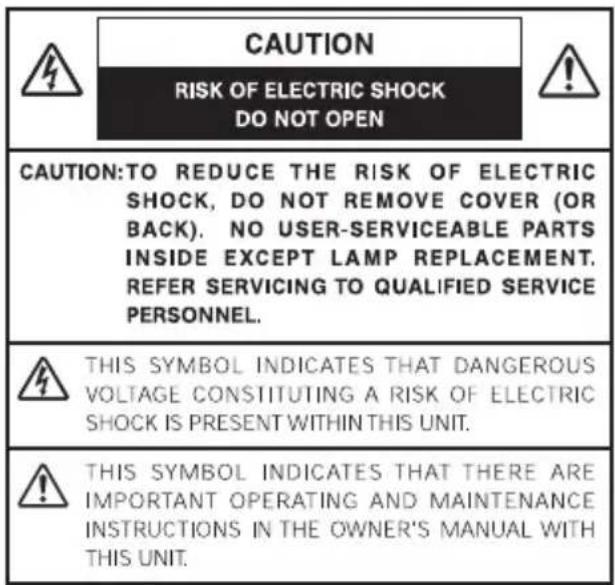
READ AND KEEP THIS OWNER'S MANUAL FOR LATER USE.
Safety Precaution
WARNING: TO REDUCE THE RISK OF FIRE OR ELECTRIC SHOCK, DO NOT EXPOSE THIS APPLIANCE TO RAIN OR MOISTURE.
- This projector produces intense light from the projection lens. Do not stare directly into the lens, otherwise, eye damage could result. Be especially careful that children do not stare directly into the beam.
- Install the projector in a proper position. If not, it may result in a fire hazard.
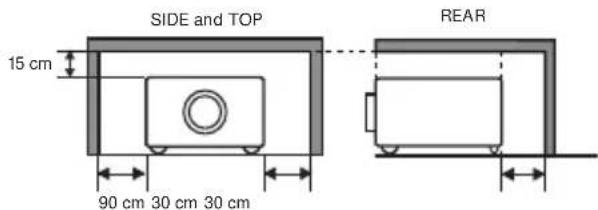
- Provide appropriate space on the top, sides and rear of the projector cabinet for allowing air circulation and cooling the projector. Minimum clearance must be maintained. If the projector is to be built into a compartment or similarly enclosed, the minimum distances must be maintained. Do not cover the ventilation slot on the projector. Heat build-up can reduce the service life of your projector, and can also be dangerous.
- If the projector is not to be used for an extended time, unplug the projector from the power outlet.
CAUTION
DO NOT SET THE PROJECTOR IN GREASY, WET, OR SMOKY CONDITIONS SUCH AS IN A KITCHEN TO PREVENT A BREAKDOWN OR A DISASTER. IF THE PROJECTOR COMES IN CONTACT WITH OIL OR CHEMICALS, IT MAY BECOME DETERIORATED.
NOTE: This symbol and recycle system are applied to EU countries only and not applied to the countries in the other area of the world.

Your SANYO product is designed and manufactured with high quality materials and components which can be recycled and reused.
This symbol means that electrical and electronic equipment, at their end-of-life, should be disposed of separately from your household waste.
Please dispose of this equipment at your local community waste collection/recycling centre. In the European Union there are separate collection systems for used electrical and electronic products.
Please help us to conserve the environment we live in!
CAUTION
Not for use in a computer room as defined in the Standard for the Protection of Electronic Computer/Data Processing Equipment, ANSI/NFPA 75.
This product uses a Lithium Battery which contains Perchlorate Material - special handling may apply.
See www.dtsc.ca.gov/hazardouswaste/perchlorate.
All the safety and operating instructions should be read before the product is operated.
Read all of the instructions given here and retain them for later use. Unplug this projector from AC power supply before cleaning. Do not use liquid or aerosol cleaners. Use a damp cloth for cleaning.
Follow all warnings and instructions marked on the projector.
For added protection to the projector during a lightning storm, or when it is left unattended and unused for long periods of time, unplug it from the wall outlet. This will prevent damage due to lightning and power line surges.
Do not expose this unit to rain or use near water... for example, in a wet basement, near a swimming pool, etc...
Do not use attachments not recommended by the manufacturer as they may cause hazards.
Do not place this projector on an unstable cart, stand, or table. The projector may fall, causing serious injury to a child or adult, and serious damage to the projector. Use only with a cart or stand recommended by the manufacturer, or sold with the projector. Wall or shelf mounting should follow the manufacturer's instructions, and should use a mounting kit approved by the manufacturers.
An appliance and cart combination should be moved with care. Quick stops, excessive force, and uneven surfaces may cause the appliance and cart combination to overturn.

Slots and openings in the back and bottom of the cabinet are provided for ventilation, to ensure reliable operation of the equipment and to protect it from overheating.
The openings should never be covered with cloth or other materials, and the bottom opening should not be blocked by placing the projector on a bed, sofa, rug, or other similar surface. This projector should never be placed near or over a radiator or heat register.
This projector should not be placed in a built-in installation such as a book case unless proper ventilation is provided.
Never push objects of any kind into this projector through cabinet slots as they may touch dangerous voltage points or short out parts that could result in a fire or electric shock. Never spill liquid of any kind on the projector.
Do not install the projector near the ventilation duct of air-conditioning equipment.
This projector should be operated only from the type of power source indicated on the marking label. If you are not sure of the type of power supplied, consult your authorized dealer or local power company.
Do not overload wall outlets and extension cords as this can result in fire or electric shock. Do not allow anything to rest on the power cord. Do not locate this projector where the cord may be damaged by persons walking on it.
Do not attempt to service this projector yourself as opening or removing covers may expose you to dangerous voltage or other hazards. Refer all servicing to qualified service personnel.
Unplug this projector from wall outlet and refer servicing to qualified service personnel under the following conditions:
a When the power cord or plug is damaged or frayed.
b If liquid has been spilled into the projector.
c If the projector has been exposed to rain or water.
d If the projector does not operate normally by following the operating instructions. Adjust only those controls that are covered by the operating instructions as improper adjustment of other controls may result in damage and will often require extensive work by a qualified technician to restore the projector to normal operation.
e If the projector has been dropped or the cabinet has been damaged.
f When the projector exhibits a distinct change in performance-this indicates a need for service.
When replacement parts are required, be sure the service technician has used replacement parts specified by the manufacturer that have the same characteristics as the original part. Unauthorized substitutions may result in fire, electric shock, or injury to persons.
Upon completion of any service or repairs to this projector, ask the service technician to perform routine safety checks to determine that the projector is in safe operating condition.
Air Circulation
Openings in the cabinet are provided for ventilation and to ensure reliable operation of the product and to protect it from overheating, and these openings must not be blocked or covered.

CAUTION
Hot air is exhausted from the exhaust vent. When using or installing the projector, the following precautions should be taken.
- Do not put any flammable object or spray can near the projector, hot air is exhausted from the ventilation holes.
- Keep the exhaust vent at least 90 cm away from any objects.
- Do not touch a peripheral part of the exhaust vent, especially screws and metallic part. This area will become hot while the projector is being used.
- Do not put anything on the cabinet. Objects put on the cabinet will not only get damaged but also cause fire hazard by heat.
Cooling fans are provided to cool down the projector. The fans' running speed is changed according to the temperature inside the projector.

natural_image
Line drawing of a projector with directional arrows indicating flow or movement (no text or symbols)Installing the Projector in Proper Position
Install the projector properly. Improper Installation may reduce the lamp life and cause a fire hazard.

Do not tilt the projector side- ways.

Do not point the projector up to project an image.

Do not point the projector down to project an image.

Do not put the projector on either side to project an image.

Do not pitch the projector more than 6 degrees backward and forward.
Moving the Projector
When moving the projector, replace the lens cap, retract the elevator foot and tilt-adjustment foot to prevent damage to the lens and cabinet. When the projector is not in use for an extended period, put it into a suitable case with the lens side up to protect the projector.
When handling the projector, do not drop, bump, subject it to strong forces, or put other things on the cabinet.

USE CAUTION IN CARRYING OR TRANSPORTING THE PROJECTOR
- Do not drop or bump the projector, otherwise damages or malfunctions may result.
- When carrying the projector, use a suitable carrying case.
- Do not transport the projector by using a courier or transport service in an unsuitable transport case. This may cause damage to the projector. To transport the projector through a courier or transport service, consult your dealer for their information.
- Do not put the projector in a case before the projector is cooled enough.
Compliance
Federal Communications Commission Notice
Note: This equipment has been tested and found to comply with the limits for a Class B digital device, pursuant to Part 15 of the FCC Rules. These limits are designed to provide reasonable protection against harmful interference in a residential installation. This equipment generates, uses, and can radiate radio frequency energy, and if not installed and used in accordance with the instructions, may cause harmful interference to radio communications. However, there is no guarantee that interference will not occur in a particular installation. If this equipment does cause harmful interference to radio or television reception, which can be determined by turning the equipment off and on, the user is encouraged to try to correct the interference by one or more of the following measures:
- Reorient or relocate the receiving antenna.
- Increase the separation between the equipment and receiver.
- Connect the equipment into an outlet on a circuit different from that to which the receiver is connected.
- Consult the dealer or an experienced radio/TV technician for help.
Use of shielded cable is required to comply with class B limits in Subpart B of Part 15 of FCC Rules. Do not make any changes or modifications to the equipment unless otherwise specified in the instructions. If such changes or modifications should be made, you could be required to stop operation of the equipment. Model Number: PDG-DSU21N
Trade Name: Sanyo
Responsible party: SANYO FISHER COMPANY
Address: 21605 Plummer Street, Chatsworth, California 91311
Telephone No.: (818)998-7322
AC Power Cord Requirement
The AC Power Cord supplied with this projector meets the requirement for use in the country you purchased it.
AC Power Cord for the United States and Canada:
AC Power Cord used in the United States and Canada is listed by the Underwriters Laboratories (UL) and certified by the Canadian Standard Association (CSA). AC Power Cord has a grounding-type AC line plug. This is a safety feature to be sure that the plug will fit into the power outlet. Do not try to defeat this safety feature. Should you be unable to insert the plug into the outlet, contact your electrician.

AC Power Cord for the United Kingdom:
This cord is already fitted with a moulded plug incorporating a fuse, the value of which is indicated on the pin face of the plug. Should the fuse need to be replaced, an ASTA approved BS 1362 fuse must be used of the same rating, marked thus ◆ If the fuse cover is detachable, never use the plug with the cover omitted. If a replacement fuse cover is required, ensure it is of the same colour as that visible on the pin face of the plug (i.e. red or orange). Fuse covers are available from the Parts Department indicated in your User Instructions.
If the plug supplied is not suitable for your socket outlet, it should be cut off and destroyed.
The end of the flexible cord should be suitably prepared and the correct plug fitted.
WARNING : A PLUG WITH BARED FLEXIBLE CORD IS HAZARDOUS IF ENGAGED IN A LIVE SOCKET OUTLET.
The Wires in this mains lead are coloured in accordance with the following code:
Green-and-yellow .....Earth
Blue ......Neutral
Brown ......Live
As the colours of the wires in the mains lead of this apparatus may not correspond with the coloured markings identifying the terminals in your plug proceed as follows:
The wire which is coloured green-and-yellow must be connected to the terminal in the plug which is marked by the letter E or by the safety earth symbol or coloured green or green-and-yellow.
The wire which is coloured blue must be connected to the terminal which is marked with the letter N or coloured black.
The wire which is coloured brown must be connected to the terminal which is marked with the letter L or coloured red.
WARNING: THIS APPARATUS MUST BE EARTHED.
THE SOCKET-OUTLET SHOULD BE INSTALLED NEAR THE EQUIPMENT AND EASILY ACCESSIBLE.
Notes on the AC Power Cord
AC Power Cord must meet the requirement of countries where you use this projector. Please confirm your AC plug type with the graphics below and ensure that the proper AC Power Cord is used. If the supplied AC Power Cord does not match your AC outlet, please contact your sales dealer. This projector is equipped with a grounding type AC line plug. Please ensure that your outlet fits the plug. Do not defeat the safety purpose of this grounding type plug. We highly recommend using a video source device also equipped with a grounding type AC line plug to prevent signal interference due to voltage fluctuations.
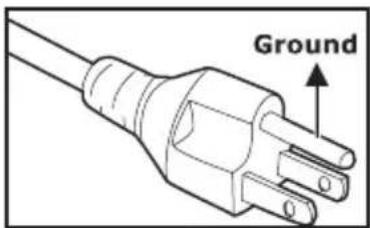
For the U.S.A. and Canada

For Continental Europe

For the U.K.
CONTENTS
Introduction 8
Projector Features 8
Package Contents 9
Projector Overview 10
Using the Product .....12
Control Panel 12
Connection Ports 13
Remote Control 14
Replacing the Battery 15
Remote Control Operation 16
Installation ....17
Connecting the Projector ....17
Powering On/Off the Projector ....18
Adjusting the Projector ....19
Menu Operation ......21
Maintenance 26
Cleaning the Lens 26
Cleaning the Projector Housing 26
Replacing the Lamp 27
Specifications 29
Appendix 30
LED Indicator Messages ....30
Compatibility Modes 31
Troubleshooting 32
Serial Control Interface....33
POINTER function....34
Introduction
Projector Features
The projector integrates high-performance optical engine projection and a user - friendly design to deliver high reliability and ease of use.
The projector offers the following features:
■ Single chip 0.55" Texas Instruments DLP ^® technology
■ SVGA (800 x 600 pixels)
■ Auto image re-sizing (Auto-Sync.) to 800 x 600 full screen with scaling compression compatibility for VGA, SVGA, XGA* and SXGA*
■ Compatibility with Macintosh ^® computers
■ Compatibility with NTSC, PAL, SECAM and HDTV
■ D-Sub 15-pin terminal for analog video connectivity
■ User-friendly, multi-language on-screen display
■ Advanced electronic keystone correction

* means compressed.
■ DLP is a registered trademark of Texas Instruments.
The On-Screen Menu and figures in this manual may differ slightly from the product.
Package Contents
When you unpack the projector, make sure you have all these components:
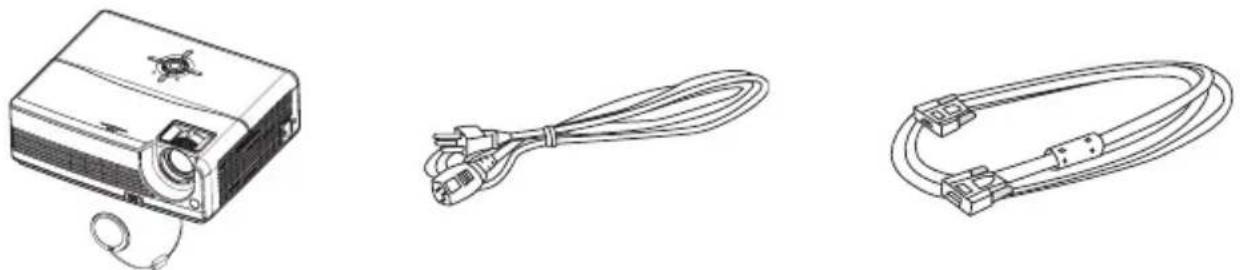
Projector with Lens Cap AC Power Cord
VGA Cable (D-SUB to D-SUB)
(USA: J2552-0109-00) (UK: J2552-0108-00) (J2552-0072-03)
(Europe: J2552-0107-00)
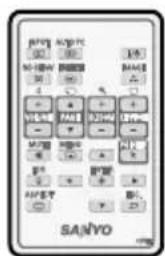
Remote Control (IR) Owner's Manual Quick Start Guide


■ Save the original shipping carton and packing material; they will come in handy if you ever to ship your unit. For maximum protection, repack your unit as it was originally packed at the factory.
■ Accessories and components may vary by retailer and region.
Projector Overview
Front View
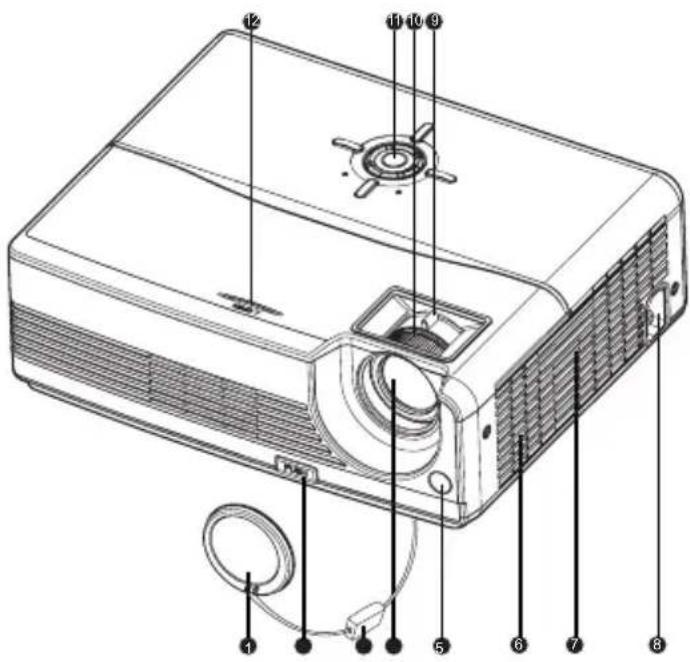
① Lens cap Ventilation holes ⑦
② Elevator button AC power socket ⑧
③ Lens cap strap Zoom ring ⑨
4 Projection lens Focus ring 10
5 Front IR remote control sensor Control panel 11
⑥ Speaker Lamp cover ⑫
Rear View
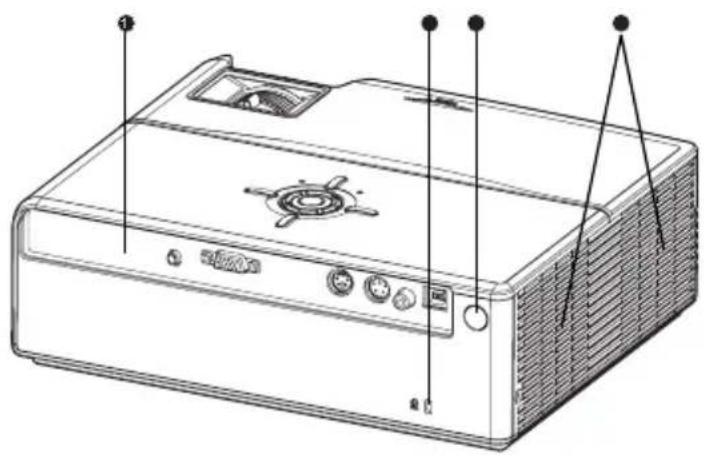
natural_image
Line drawing of a portable electronic device with labeled ports and control buttons (no text or symbols beyond labels)1 Connection ports
② Kensington lock
③ Rear IR remote control sensor
4 Ventilation holes
Bottom View
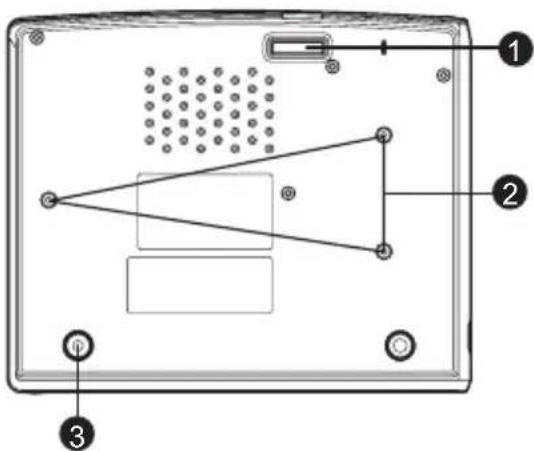
1 Elevator foot
2 Ceiling mount (3-M4*6)
③ Tilt-adjustment foot

This projector can be used with a ceiling mount for support. The ceiling mount is not included in the package.
Using the Product
Control Panel
LED
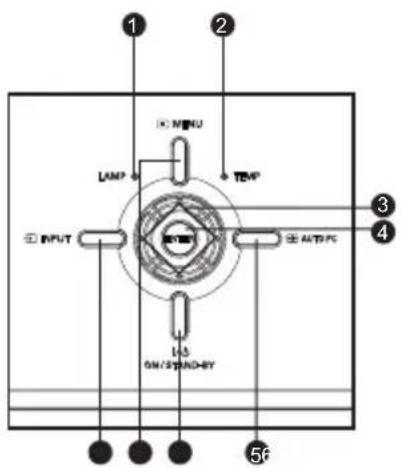
① LAMP (Lamp LED indicator)
Refer to "LED Indicator Messages".
② TEMP (Temperature LED indicator)
Refer to "LED Indicator Messages".
Button Function
③ Four directional buttons
Use four directional buttons to select items or make adjustments to your selection.
4 ENTER
Enter to sub-menu and confirm the menu selection. Activate in Color Setting, Lamp Counter Reset and Factory Default menu operations.
5 AUTO PC
Resynchronize the projector to the input signal from a computer.
6 ON / STAND-BY
Turn the projector on or off.
7 MENU
Display or exit the on-screen display menus.
8 INPUT
Manually select an input source.
Connection Ports
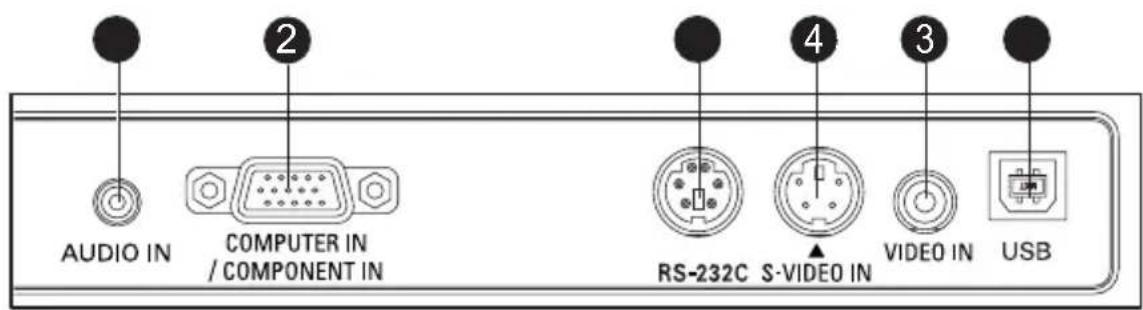
1 AUDIO IN
Connect an audio output from video equipment to this jack.
2 COMPUTER IN / COMPONENT IN
Connect image input signal (Analog RGB or Component) to this jack.
③ RS-232C
Connect RS232C cable to RS232C port when operating the projector via a computer.
4 S-VIDEO IN
Connect S-Video output from video equipment to this jack.
5 VIDEO IN
Connect composite video output from video equipment to this jack.
6 USB
This connector is for page up & down mouse control function and firmware update.
Remote Control
① INPUT Manually select an input source.
② AUTO PC Resynchronize the projector to the input signal from a computer.
③ NO SHOW Hide the screen. Press again to cancel theNO SHOW function.
4 FREEZE Press "FREEZE" to pause the screen image. Press again to cancel the FREEZE function.
⑤ VOLUME + / - Adjust the volume level.
6 PAGE ▲ / ▼(Computer mode only) Scroll back and forth on the screen when giving a presentation. Connect the projector and your computer with a USB cable to use these buttons.
7 MUTE Cut off the sound temporarily. Press again to cancel the MUTE function.
8 MENU Display or exit the on-screen display menus.
⑨ ECO Press this button to activate the eco mode.
10 ASPECT Press this button to switch the image aspect ratio from 4:3 to 16:9.
11 ESC. - Act as computer Esc button when keyboard function is selected. - Act as mouse right button when mouse function is selected.
12 Four directional buttons - Use four directional buttons to select items or make adjustments to your selection. - Act as computer keyboard (four directional buttons) when keyboard function is selected. - Act as mouse navigation when mouse function is selected.

13 ENTER - Enter to sub-menu and confirm the menu selection. Activate in Color Setting, Lamp Counter Reset and Factory Default menu operations. - Act as computer Enter button when keyboard function is selected. - Act as mouse left button when mouse function is selected.
14 POINTER(Computer mode only) Toggle this button to activate keyboard function or mouse function when your projector is connected with a USB cable. (Refer to section titled "POINTER function" for further details.)
- KEYSTONE + / - Correct the keystone distortion.
D-ZOOM + / - Zoom in and out the images.
17 IMAGE Select PC, Movie, sRGB or User mode.
● ON / STAND-BY Turn the projector on or off.
Replacing the Battery
For the first time use:
Remove the transparent insulation tape by pulling it before use.
For battery change:
-
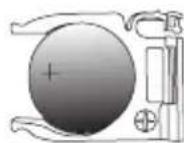
Remove the battery holder.
-
Remove the old Lithium coin cell and install new one (CR2025). Ensure that the side with the mark "+" is up.
-
Push the battery holder back into the remote control until you feel a click.

natural_image
Simple line drawing of a mechanical or electrical component with no text or symbols


- Keep the battery out of the reach of children. There is a danger of death by accidentally swallowing the battery.
■ Do not recharge the used battery or expose the battery to fire or water.
Do not dispose of the used battery along with household waste. Dispose of used batteries according to local regulations.
■ Danger of explosion may happen if batteries are incorrectly replaced. Replace only with the same type recommended by the manufacturer.
Remote Control Operation
Point the remote control at the infrared remote sensor and press a button.
■ Operating the projector from the front
■ Operating the projector from the rear



The remote control may not operate when there is sunlight or other strong light such as a fluorescent lamp shining on the remote sensor.
■ Operate the remote control from a position where the remote sensor is visible.
■ Do not drop the remote control or jolt it.
- Keep the remote control out of locations with excessively high temperature or humidity.
■ Do not get water on the remote control or place wet objects on it.
Do not disassemble the remote control.
Installation
Connecting the Projector
1 Audio Cable VGA (D-SUB) to HDTV (RCA) Cable
② VGA Cable (D-Sub to D-Sub) (supplied) ⑥ S-Video Cable
③ RS-232C Cable Composite Video Cable
4 USB Cable
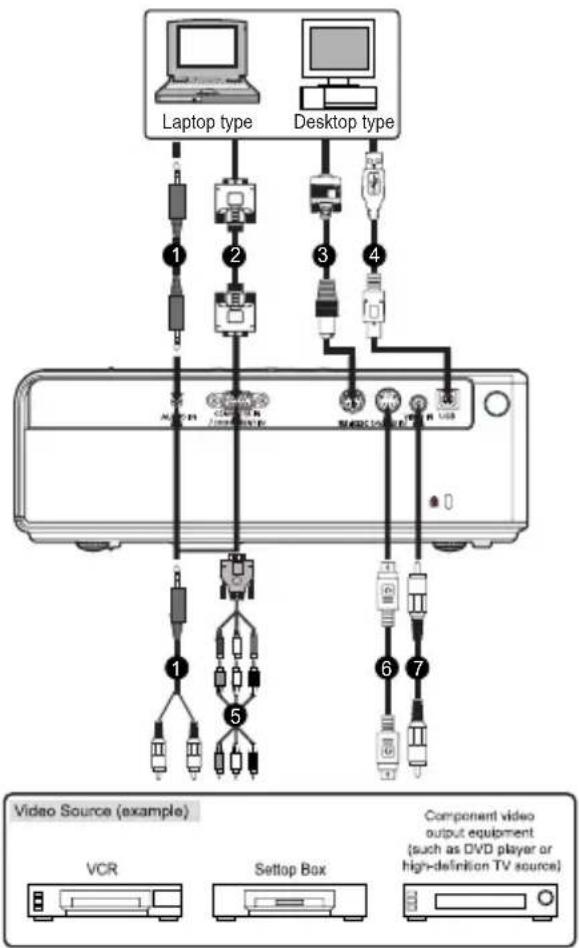

When connecting cable, power cords of both a projector and external equipment should be disconnected from AC outlet.
The figure above is a sample connection. This does not mean that all of these devices can or must be connected simultaneously.
The cables that come with the projector may differ from the above illustration. The included cables are based on actual shipment delivery.
Powering On/Off the Projector
Powering On the Projector:
- Remove the projector lens cap.
- Complete the AC power cord and peripheral signal cable(s) connections.
- Press I/ button to turn on the projector.
The projector takes a minute or so to warm up.
- Turn on your source (computer, notebook, DVD, etc.). The projector automatically detects your source.
If you are connecting multiple sources to the projector simultaneously, press the INPUT button.
Warning:
■ Remove the lens cap first before powering on.
■ Never look into the lens when the lamp is on. This can damage your eyes. It is especially important that children are not allowed to look into the lens.
Powering Off the Projector:
- Press I/ button to turn off the projector lamp. You will see a message "Power off? Press Power again" appear on the screen.
- Press I/ button again to confirm.
■ The cooling fans continue to operate for cooling cycle.
■ When the LAMP LED begins flashing, the projector has entered stand-by mode.
If you want to turn the projector back on, you must wait until the projector has completed the cooling cycle and has entered stand-by mode. Once in stand-by mode, simply press I/ ⏻ button to restart the projector.
- Disconnect the AC power cord from the electrical outlet and the projector.
■ Faster on-off-cycles will damage the lamp and reduce lamp life. Wait at least for 5 minutes to turn off the projector after powering on.
When the projector is in standby mode, LAMP LED and TEMP LED will flash once then go out, and the fan will also turn for one second. This is normal, and not a malfunction.
Adjusting the Projector Adjusting the Projector Height

The projector is equipped with an elevator foot to adjust the image height.
To raise or lower the image:
- To raise or lower the image, press the elevator button and raise or lower the front of the projector. Release the button to lock the adjustment.
- To level the image on the screen, turn the tilt-adjustment foot to fine-tune the height.
To avoid damaging the projector, make sure that the elevator foot and tilt-adjustment foot are fully retracted before placing the projector in its carrying case.
The tilt-adjustment foot in the bottom of the projector will fall from the projector when you loosen the foot to the maximum. In this case, turn it back into position. Do not let the tilt-adjustment foot fall from the projector when making the adjustment.
Adjusting the Projector Zoom and Focus
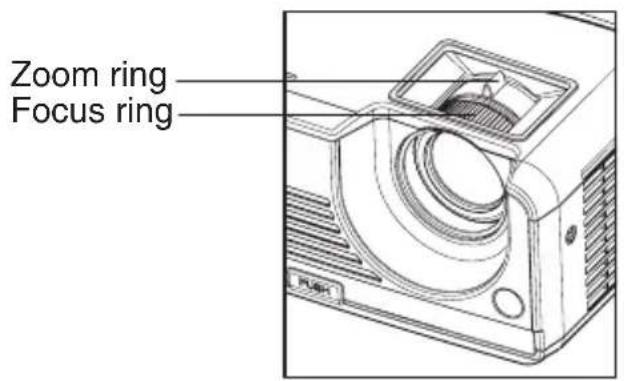
- Focus the image by rotating the focus ring. A still image is recommended for focusing.
- Adjust the image by sliding the zoom ring.
Adjusting Projection Image Size
Refer to the graphic and table below to determine the screen size and projection distance.
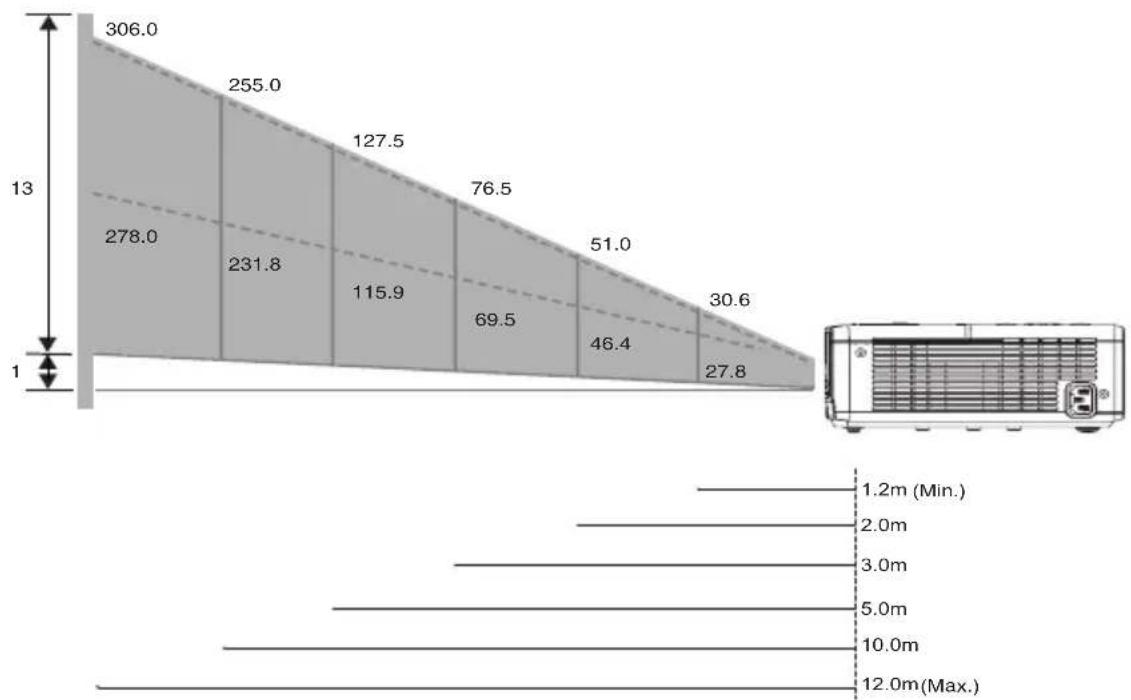
area
| Height (m) | Value | |---|---| | 1.2m (Min.) | 306.0 | | 2.0m | 255.0 | | 3.0m | 127.5 | | 5.0m | 76.5 | | 10.0m | 51.0 | | 12.0m (Max.) | 27.8 || Projection Distance (meters) | Screen Size (for 4:3 aspect ratio diagonal length) | |
| Wide (inches) Tele (inches) | ||
| 1.2 30.6 27.8 | ||
| 2 | 5 | 1 |
| 3 | 7 | 6 |
| 5 127.5 115.9 | ||
| 10 255.0 231.8 | ||
| 12 306.0 278.0 | ||

■ Position the projector in a horizontal position; other positions can cause heat build-up and damage to the projector.
■ Make sure the heat ventilation holes are not blocked.
Do not use the projector in a smoky environment. Smoke residue may cause build-up on critical parts (i.e. DMD, lens assembly, etc.)
Menu Operation
The projector has multilingual on-screen display menus that allow you to make image adjustments and change a variety of settings.

flowchart
graph TD
    A["Picture"] --> B["Brightness"]
    A --> C["Contrast"]
    A --> D["Color Setting"]
    A --> E["Keystone"]
    A --> F["Aspect Ratio"]
    A --> G["Image"]
    A --> H["White Intensity"]
    A --> I["Gamma"]
    J["Computer Image"] --> K["Total dots"]
    J --> L["Fine sync"]
    J --> M["H Position"]
    J --> N["V Position"]
    O["Video Image"] --> P["Color"]
    O --> Q["Sharpness"]
    O --> R["Tint"]
    S["Sound"] --> T["Volume"]
    S --> U["Mute"]
    V["Setting"] --> W["Menu Position"]
    V --> X["Mounting"]
    V --> Y["Logo"]
    V --> Z["Signal Type"]
    V --> AA["Video Standard"]
    V --> AB["Lamp Counter"]
    V --> AC["Lamp Counter Reset"]
    V --> AD["Input Search"]
    V --> AE["ECO Mode"]
    V --> AF["Highland"]
    V --> AG["OSD Timeout"]
    AH["Language"] --> AI["English, Deutsch, Français, Italiano, Español, Português Nederlands, 日本語, 简体中文 繁體中文"]
    AJ["Factory Default"] --> AK["Yes, No"]

    style A fill:#f9f,stroke:#333
    style J fill:#ccf,stroke:#333
    style O fill:#cfc,stroke:#333
    style S fill:#fcc,stroke:#333
How to operate
- Press the Menu button on the control panel or the MENU button on the remote control to open the OSD menu.
- When OSD is displayed, use ▲ / ▼ to select any feature in the main menu.
- After selecting the desired main menu feature, press ▶ to enter sub-menu for feature setting.
- Adjust the settings with ◀/▶.
- Press the Menu button on the control panel or the MENU button on the remote control, the screen will return to the main menu.
- To exit OSD, Press the Menu button on the control panel or the MENU button on the remote control again. The OSD menu will close and the projector will automatically save the new settings.
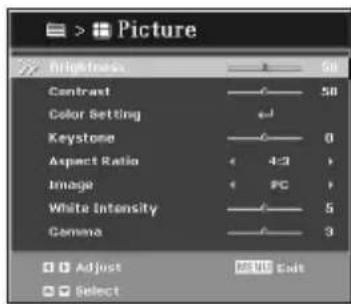
Picture (Computer / Video Mode)
Brightness
Brighten or darken the image.
Contrast
Set the difference between light and dark areas.
Color Setting
Adjust the color temperature. At higher temperature the screen looks colder; at lower temperature, the screen looks warmer. If you select "User", "Red", "Green" and "Blue" can be adjusted.
Keystone
Correct the keystone distortion.
Computer Mode

Video Mode
Aspect Ratio (Computer Mode)
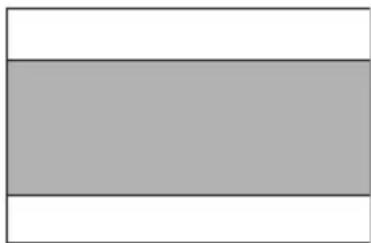
Select how the picture fits on the screen:
■ 1:1 : If input source is bigger than DMD output resolution, it will full all the whole screen and ignore the aspect ratio.
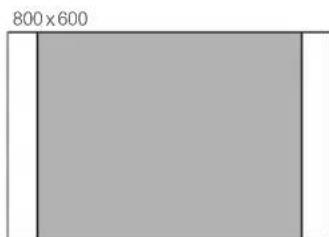
■ 4:3 : The input source will be scaled to fit the projection screen.
800×600

natural_image
Blank gray image with no visible content, text, or symbols■ 16:9 : The input source will be scaled to fit the width of the screen.
800×600
natural_image
Simple diagram with three horizontal gray bars, no text or symbols presentAspect Ratio (Video Mode)
Select how the picture fits on the screen:
■ 4:3 : The input source will be scaled to fit the projection screen.
■ 16:9 : The input source will be scaled to fit the width of the screen.
Image
There are many factory presets optimized for various types of images.
■ PC : For computer or notebook.
■ Movie : For home theater.
■ sRGB : For PC standard color.
■ User : Memorize user's settings.
White Intensity
Increase the brightness of white areas.
Gamma
Effect the represent of dark scenery. With greater gamma value, dark scenery will look brighter.
Computer Image (Computer Mode)
Total dots
Adjust the timing of the projector relative to the computer.
Fine sync
Adjust the phase of the projector relative to the computer.
H Position (Horizontal Position)
Adjust the image left or right within the projection area.
V Position (Vertical Position)
Adjust the image up or down within the projection area.
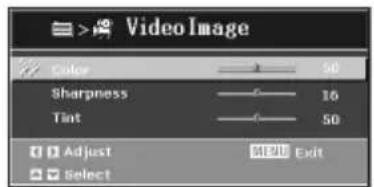
Video Image (Video Mode)
Color
Adjust the intensity of colors.
Sharpness
Sharpen or soften the image.
Tint
Shift colors toward red or green.
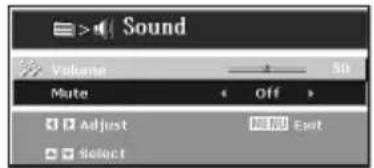
Sound (Computer / Video Mode)
Volume
Adjust the volume level.
Mute
Mute the sound.
Setting (Computer / Video Mode)
Menu Position
Choose the menu location on the display screen.
Mounting
Adjust the picture to match the orientation of the projector: upright or upside-down, in front of or behind the screen. Invert or reverse the image accordingly.
Logo
Choose to display the logo or not.


Signal Type
Specify the source to the COMPUTER IN/COMPONENT IN terminal that you wish to project.
■ YPbPr : For component 480p,576p,720p,1080i signals
RGB : For VGA signal
■ YCbCr : For component 480i,576i signals
Video Standard
Auto
The projector automatically detects an incoming video system, and adjusts itself to optimize its performance.
■ NTSC/PAL/PAL-M/PAL-N/NTSC4.43/SECAM/PAL60
If the projector cannot reproduce proper video image, select a specific broadcast signal format from among NTSC, PAL, PAL-M, PAL-N, NTSC4.43, SECAM, and PAL60.
Lamp Counter
Display the lamp's elapsed operating time (in hours).
Lamp Counter Reset
Reset the lamp counter to 0 hours.
Input Search
Automatically scan the input source.
ECO Mode
Use this function to dim the projector lamp light output which will lower power consumption and increase lamp life.
Highland
Turning on Highland mode operates the fans at full speed continuously to allow for proper high altitude cooling of the projector.
OSD Timeout
Duration OSD menu stays active (at idle state by second).
Language (Computer / Video Mode)
Select the language used by the on-screen menu.

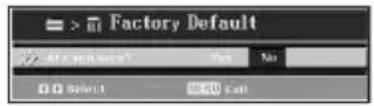
Factory Default (Computer / Video Mode)
Restore menu settings to factory default settings. Mounting, Lamp Counter and Highland menus will not be reset.
Maintenance
The projector needs proper maintenance. You should keep the lens clean as dust, dirt or spots will project on the screen and diminish image quality. If any other parts need replacing, contact your dealer or qualified service personnel. When cleaning any part of the projector, always switch off and unplug the projector first.
Warning:
Never open any of the covers on the projector. Dangerous electrical voltages inside the projector can cause severe injury. Do not attempt to service this product yourself. Refer all servicing to qualified service personnel.
Cleaning the Lens
Gently wipe the lens with lens cleaning paper. Do not touch the lens with your hands.
Cleaning the Projector Housing
Gently wipe with a soft cloth. If dirt and stains are not easily removed, use a soft cloth damped with water, or water and neutral detergent, and wipe dry with a soft, dry cloth.

■ Turn off the projector and remove the AC power cord from the power outlet before beginning maintenance work.
■ Make sure the lens is cool before cleaning.
Do not use detergents or chemicals other than those noted above. Do not use benzene or thinners.
■ Do not use chemical sprays.
■ Use a soft cloth or lens paper only.
Replacing the Lamp
As the projector operates over time, the brightness of the projector lamp gradually decreases and the lamp becomes more susceptible to breakage. We recommend replacing the lamp if a warning message is displayed. Do not attempt to replace the lamp yourself. Contact the qualified service personnel for replacement.
Replace the lamp when:
A warning message "The lamp is approaching the end of its useful life. Replacement suggested!" appears on the screen.
The projector lamp LED indicator turns into red. Refer to section titled "LED Indicator Messages" for further details.

The lamp becomes high temperature after turning off the projector with the power button. If you touch the lamp, you may scald your finger. When you replace the lamp, wait for at least 45 minutes for the lamp to cool down.
Do not touch the lamp glass at any time. The lamp may explode due to improper handling, including the touching of the lamp glass.
Lamp lifetime may differ from lamp to lamp and according to the environment of use. There is no guarantee of the same lifetime for each lamp. Some lamps may fail or terminate their lifetime in a shorter period of time than other similar lamps.
A lamp may explode as a result of vibration, shock or degradation as a result of hours of use as its lifetime draws to an end. Risk of explosion may differ according to the environment or conditions in which the projector and lamp are being used.
■ Wear protective gloves and eyeglasses when fixing or detaching the lamp.
■ Faster on-off-cycles will damage the lamp and reduce lamp life. Wait at least for 5 minutes to turn off the projector after powering on.
Do not operate the lamp in proximity to paper, cloth, or other combustible material nor cover it with such materials. Otherwise it could cause a fire.
Do not operate the lamp in an atmosphere containing an inflammable substance, such as thinner. Otherwise it could cause a fire or explosion.
Thoroughly ventilate the area or the room when operating the lamp in an oxygen atmosphere (in the air). If ozone is inhaled, it could cause headaches, nausea, dizziness, etc.
The inorganic mercury is involved in the lamp. If the lamp bursts, the mercury inside the lamp will go out of the projector. Leave the area immediately if the lamp shatters while being operated and ventilate the area for at least 30 minutes in order to avoid the inhalation of mercury fumes. Otherwise it could be harmful to user's health.
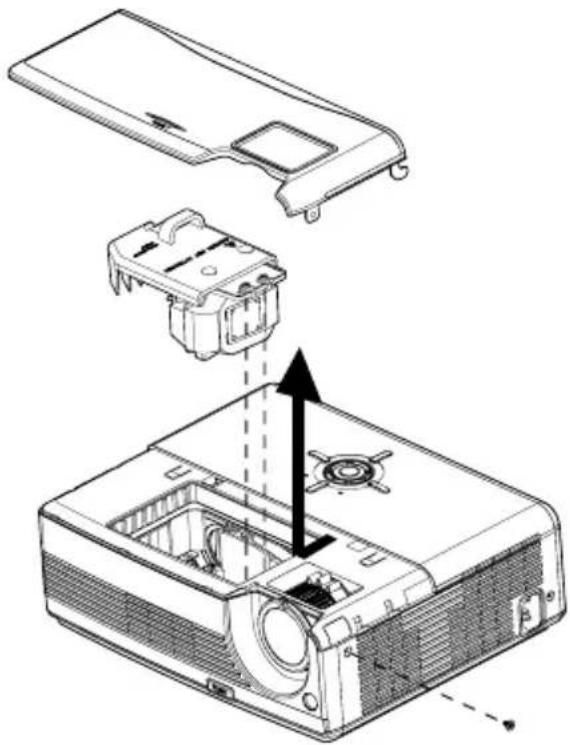
- Turn off the projector.
- If the projector is installed in a ceiling mount, remove it from the mount.
- Unplug the power cord.
- Loosen the screw in the side of the lamp cover and slide forward and remove the cover.
- Remove the screws from the lamp module, raise the handle, and lift out the module.
- Insert the new lamp module into the projector and tighten the screws.
- Replace the lamp cover and tighten the screw.
- Turn on the projector. If the lamp does not turn on after the warm-up period, try reinstalling the lamp.
- Reset the lamp hour. Refer to the "Setting (Computer/Video)" menu.
natural_image
Technical line drawing of an electronic projector internal components, showing exploded view and assembly (no text or symbols)
■ Dispose of the used lamp according to local regulations.
■ Ensure that screws are tightened properly. Screws not tightened fully may result in injury or accidents.
■ Since the lamp is made of glass, do not drop the unit and do not scratch the glass.
Do not reuse the old lamp. This could cause the lamp to explode.
■ Be sure to turn off the projector and unplug the AC power cord before replacing the lamp.
■ Do not use the projector with the lamp cover removed.
ORDER REPLACEMENT LAMP
Replacement lamp can be ordered through your dealer. When ordering a projection lamp, give the following information to the dealer.
● Model No. of your projector : PDG-DSU21N/ DSU21E/ DSU21B
● Replacement Lamp Type No.: POA-LMP118
(Service Parts No. 610 337 1764)
Specifications
| Display Type Single 0.55" DLP | ^ chip, 5-segment color wheel |
| Resolution (Pixels) SVGA (800 × 600) | |
| Lens Manual Zoom (1.1x) | |
| Screen Size 30" – 300" | |
| Lamp 180W | |
| Input Source D-Sub 15 pin, S-video, composite video, USBAUDIO IN (stereo phone jack), RS-232C | |
| Video Compatibility NTSC3.58, NTSC4.43PAL-60, M, NSECAMHDTV (480i/p, 576i/p, 720p, 1080i) | |
| Scanning Frequency Horizontal Freq.Vertical Freq. | 31 - 79 KHz50 - 85 Hz |
| Integrated Speaker 2W x 1 | |
| Environment Operating: | Temperature: 5°C to 35°CHumidity: 30%-85%Storage:Temperature: -20°C to 60°CHumidity: 30%-85% |
| Power Requirement AC 100 - 240 V, 50 - 60 Hz | |
| Power Consumption 230 W | |
| Dimension 271 x 218 x 85 mm | |
| Weight 2.5 kg (5.5lb) | |
Note: Design and Specifications are subject to change without prior notice.
Remote Control
| Battery Lithium battery (CR2025) | |
| Operating Range | ±15°/7m |
| Dimensions | 86.5 x 54 x 8.3mm |
| Net Weight | 26.2g (without batteries) |
Appendix
LED Indicator Messages
| LED Type Color Status Meaning | |||
| LAMP LEDTEMP LED | GreenOff | Flash- | The projector is in standby mode. |
| LAMP LEDTEMP LED | GreenGreen | SolidFlash | The projector system has some problems with its fan, so the projector cannot start up. |
| LAMP LEDTEMP LED | GreenGreen | SolidSolid | The lamp is in good condition and is projecting at maximum brightness. |
| LAMP LEDTEMP LED | AmberGreen | SolidSolid | The lamp has reached its end of life and must be changed soon. The lamp will continue to operate until it fails. Change the lamp. If the lamp is off, then the ballast will become malfunction. |
| LAMP LEDTEMP LED | AmberAmber | SolidSolid | The projector is shutting and the fan motor is cooling the lamp for shutdown. Do not unplug the power cord or turn the power off before the Lamp LED changes to flashing. The fan motor will turn off when the lamp has been cooled. |
| LAMP LEDTEMP LED | GreenRed | SolidFlash | Temperature is too high. The lamp will turn off. The fan motor is cooling the lamp. |
| LAMP LEDTEMP LED | AmberOff | Solid- | The lamp ignition failed. If temperature is too high, the fans will cool the lamp. |
Optional Parts
The parts listed below are optionally available. When ordering those parts, give the item name and Model No. to the sales dealer.
COMPONENT-VGA Cable : POA-CA-COMPVGA
● Soft Carrying Case : POA-CAC-VCL2
● RS232C cable : POA-MCSRL02
Compatibility Modes
Computer:
| Compatibility | Resolution | H-Sync [KHz] | V-Sync [Hz] |
| VGA 640 x 480 | 31.5 59.9 | ||
| 37.9 72.8 | |||
| 37.5 75.0 | |||
| 43.3 85.0 | |||
| SVGA 800 x 600 | 35.2 56.3 | ||
| 37.9 60.3 | |||
| 48.1 72.2 | |||
| 46.9 75.0 | |||
| 53.7 85.1 | |||
| XGA 1024 x 768 | 48.4 60.0 | ||
| 56.5 70.1 | |||
| 60.0 75.0 | |||
| 68.7 85.0 | |||
| SXGA 1152 x 864 | 64.0 70.0 | ||
| 67.5 75.0 | |||
| 1280 x 960 | 60.0 | ||
| 75.0 75.0 | |||
| 1280 x 1024 | 64.0 60.0 | ||
| WXGA 1280 x 768 | 47.8 60.0 | ||
| 60.3 74.9 | |||
| 68.6 84.8 | |||
| 1280 x 800 | 49.7 59.8 | ||
| 62.8 74.9 |
Video:
| Signal | Horizontal Frequency (kHz) | Vertical Frequency (Hz) |
| 480i | 15.8 kHz | 60 Hz |
| 480p | 31.5 kHz | 60 Hz |
| 576i | 15.6 kHz | 50 Hz |
| 576p | 31.3 kHz | 50 Hz |
| 720p | 45.0 kHz | 60 Hz |
| 720p | 37.5 kHz | 50 Hz |
| 1080i | 33.8 kHz | 60 Hz |
| 1080i | 28.1 kHz | 50 Hz |
Troubleshooting
Refer to the symptoms and measures listed below before sending the projector forrepairs. If the problem persists, contact your local reseller or service center. Please refer to "LED Indicator Messages" as well.
Start-up problems
If no lights turn on:
Be sure that the power cord is securely connected to the projector and the other end is plugged into an outlet with power.
■ Press the ON / STAND-BY button again.
■ Unplug the power cord and wait for a short while, then plug it in and press the power button again.
Image problems
If the searching source is displayed:
■ Press the INPUT button one or more times to select another active input source.
■ Be sure the external source is turned on and connected.
For a computer connection, ensure your notebook computer's external video port is turned on. Refer to the computer manual.
If the image is out of focus:
■ Be sure the lens cap is open.
■ While displaying the on-screen menu, adjust the focus ring. (The image size should not change; if it does, you are adjusting the zoom, not the focus.)
■ Check the projection lens to see if it needs cleaning.
If the image is flickering or unstable for a computer connection:
■ Press the AUTO PC button.
■ Press the MENU button, go to Computer Image and adjust Total dots or Fine sync.
If no image appears on screen:
■ Turn the projector on.
■ Check that all connections are setup correctly.
■ Check that all connected devices are functioning properly.
■ Remove the lens cap and turn the projector on.
Remote control problems
If the remote control does not operate:
■ Be sure nothing is blocking the remote control receiver on the front or back of the projector. Use the remote control within the effective range.
Aim the remote control at the screen or at the front or back of the projector.
■ Move the remote control so it is more directly in front of or behind the projector and not as far to the side.
■ The battery could be weak. Replace with a new battery.
Serial Control Interface
This projector provides a function to control the projector's operations by using the RS-232C serial port.
Connection and Operation
- Connect a RS-232C serial cross cable to RS-232C PORT on the projector and serial port on the PC.
- Launch a communication software provided with PC and setup the communication condition as follows:
- Send the command strings by the HEX key (HEX is in the range of 0-9 and a-f) for controlling the projector.
Baud rate : 19200 bps
Parity check : none
Stop bit : 1
Flow control : none
Data bit : 8
Command Format
The command is sent from PC to the projector with the format as below table. The projector decodes the command and returns the confirmation 'ACK' = '06'.
The below table shows the typical command lists for controlling the projector. Please consult your local dealer for further information of another commands.
| Command | Command Strings (HEX) | ||||||||||||
| Power ON | BE | EF | 10 | 05 | 00 | C6 | FF | 11 | 11 | 01 | 00 | 01 | 00 |
| Power OFF | BE | EF | 03 | 06 | 00 | DC | DB | 69 | 00 | 00 | 00 | 00 | 00 |
| Menu | BE | EF | 02 | 06 | 00 | E9 | D3 | 30 | 00 | 00 | 00 | 00 | 00 |
| ▲ UP | BE | EF | 02 | 06 | 00 | 6D | D2 | 34 | 00 | 00 | 00 | 00 | 00 |
| ▼ DOWN | BE | EF | 02 | 06 | 00 | 0B | D2 | 32 | 00 | 00 | 00 | 00 | 00 |
| ◀ Left | BE | EF | 02 | 06 | 00 | DA | D3 | 33 | 00 | 00 | 00 | 00 | 00 |
| ▶ Right | BE | EF | 02 | 06 | 00 | 38 | D2 | 31 | 00 | 00 | 00 | 00 | 00 |
| Input | BE | EF | 02 | 06 | 00 | 57 | D0 | 2E | 00 | 00 | 00 | 00 | 00 |
| Auto PC Adj. | BE | EF | 02 | 06 | 00 | 86 | D1 | 2F | 00 | 00 | 00 | 00 | 00 |
| Mute | BE | EF | 02 | 06 | 00 | 0E | DE | 67 | 00 | 00 | 00 | 00 | 00 |
| Keystone UP | BE | EF | 03 | 06 | 00 | 10 | D8 | 65 | 00 | 00 | 00 | 00 | 00 |
| Keystone DOWN | BE | EF | 03 | 06 | 00 | 23 | DB | 66 | 00 | 00 | 00 | 00 | 00 |
| Volume UP | BE | EF | 02 | 06 | 00 | F1 | DE | 68 | 00 | 00 | 00 | 00 | 00 |
| Volume DOWN | BE | EF | 02 | 06 | 00 | 20 | DF | 69 | 00 | 00 | 00 | 00 | 00 |
| NO Show | BE | EF | 02 | 06 | 00 | DF | DF | 66 | 00 | 00 | 00 | 00 | 00 |
| Freeze | BE | EF | 02 | 06 | 00 | CB | DC | 72 | 00 | 00 | 00 | 00 | 00 |
| Aspect | BE | EF | 03 | 06 | 00 | 0D | DA | 68 | 00 | 00 | 00 | 00 | 00 |
| Select Computer (Analog) | BE | EF | 03 | 19 | 00 | 19 | 29 | 01 | 47 | 02 | CC | CC | 00 |
| Select Component | BE | EF | 03 | 19 | 00 | 89 | E8 | 01 | 47 | 02 | CC | CC | 00 |
| Select S-Video | BE | EF | 03 | 19 | 00 | E8 | 69 | 01 | 47 | 02 | CC | CC | 00 |
| Select Video | BE | EF | 03 | 19 | 00 | 78 | A8 | 01 | 47 | 02 | CC | CC | 00 |
Configuration of RS-232C Terminal
Mini DIN 6 pin
| 1 | GND |
| 2 | GND |
| 3 | RX1 |
| 4 | CTS |
| 5 | TX1 |
| 6 | RTS |

POINTER function
- Connect the projector and PC with USB cable.
- Press POINTER button on the remote control, and its flow follows as below :

flowchart
graph TD
    A["Normal mode"] --> B["Mouse mode"]
    B --> C["Keyboard mode"]
| Icon | Available button on the remote control | Functions |
 | PAGE UP/DOWN Scroll pages | |
| ENTER Left click button | ||
| Directional buttons Move cursor | ||
| ESC Right click button | ||
 | PAGE UP/DOWN Scroll pages | |
| ENTER Enter button | ||
| Directional buttons the same as Keyboard directional buttons | ||
| ESC Esc button | ||
- MODEL/MODÈLE/MODELO/MODELL/MODELLO/MODELO PDG-DSU21N/DSU21E/DSU21B
- To the Owner
- Safety Precaution
- CAUTION
- Air Circulation
- Installing the Projector in Proper Position
- Moving the Projector
- USE CAUTION IN CARRYING OR TRANSPORTING THE PROJECTOR
- Compliance
- Federal Communications Commission Notice
- AC Power Cord Requirement
- AC Power Cord for the United States and Canada:
- AC Power Cord for the United Kingdom:
- Notes on the AC Power Cord
- CONTENTS
- Introduction 8
- Using the Product .....12
- Installation ....17
- Menu Operation ......21
- Maintenance 26
- Specifications 29
- Appendix 30
- Introduction
- Projector Features
- Package Contents
- Projector Overview
- Front View
- Rear View
- Bottom View
- Using the Product
- Control Panel
- Button Function
- Connection Ports
- Remote Control
- Replacing the Battery
- Remote Control Operation
- Installation
- Connecting the Projector
- Powering On/Off the Projector
- Powering On the Projector:
- Warning:
- Powering Off the Projector:
- Adjusting the Projector Adjusting the Projector Height
- Adjusting the Projector Zoom and Focus
- Adjusting Projection Image Size
- Menu Operation
- How to operate
- Picture (Computer / Video Mode)
- Brightness
- Contrast
- Color Setting
- Keystone
- Aspect Ratio (Computer Mode)
- Aspect Ratio (Video Mode)
- Image
- White Intensity
- Gamma
- Computer Image (Computer Mode)
- Total dots
- Fine sync
- H Position (Horizontal Position)
- V Position (Vertical Position)
- Video Image (Video Mode)
- Color
- Sharpness
- Tint
- Sound (Computer / Video Mode)
- Volume
- Mute
- Setting (Computer / Video Mode)
- Menu Position
- Mounting
- Logo
- Signal Type
- Video Standard
- Auto
- ■ NTSC/PAL/PAL-M/PAL-N/NTSC4.43/SECAM/PAL60
- Lamp Counter
- Lamp Counter Reset
- Input Search
- ECO Mode
- Highland
- OSD Timeout
- Language (Computer / Video Mode)
- Factory Default (Computer / Video Mode)
- Maintenance
- Cleaning the Lens
- Cleaning the Projector Housing
- Replacing the Lamp
- ORDER REPLACEMENT LAMP
- Appendix
- Optional Parts
- Compatibility Modes
- Troubleshooting
- Start-up problems
- Image problems
- Remote control problems
- Serial Control Interface
- Connection and Operation
- Command Format
- Configuration of RS-232C Terminal
- POINTER function
Brand : SANYO
Model : PDG-DSU21B
Category : Video projector