Premier - Tablet Visual Land - Free user manual and instructions
Find the device manual for free Premier Visual Land in PDF.


User questions about Premier Visual Land
0 question about this device. Answer the ones you know or ask your own.
Ask a new question about this device
Download the instructions for your Tablet in PDF format for free! Find your manual Premier - Visual Land and take your electronic device back in hand. On this page are published all the documents necessary for the use of your device. Premier by Visual Land.
USER MANUAL Premier Visual Land
natural_image
Colorful circular logo with a green V shape inside, set against a blue sky background (no text or symbols)VISUAL LAND
Bring the World Home
PREMIER
Windows 8 Tablet
User Guide
PREMIER Windows 8 Tablet Guide Book
Copyright © 2015 Visual Land Inc. All rights reserved.
Windows® and the Windows logo are trademarks of the Microsoft group of companies. Intel Inside is a trademark of Intel Corporation in the U.S. and/or other countries. Visual Land and the Visual Land logo are trademarks of Visual Land Inc. All other marks and trademarks are properties of their respective owners.
The content of this guide including images/illustrations may differ in some details from the product or its software. All information in this document is subject to change without notice.
For online Help and support, visit www.visual-land.com.
PREMIER Windows 8 Tablet Guide Book
Table of Contents
- Get Started......Page 3
- Basic Operation......Page 9
- Synchronizing Your Tablet.....Page 13
4.Recovery......Page 14
Safety Information......Page 16
PREMIER Windows 8 Tablet Guide Book
1. Getting Started
Charge the battery
The tablet's battery may not be fully charged out of the box. It's recommended that you fully charge it before attempting to set up the tablet.
A fully discharged battery can take about 4 hours to fully charge. When the battery is being charged, the LED indicator lights red. When the battery has been fully charged, the LED indicator lights orange. Use only the supplied power adapter to charge your tablet. Using unauthorized power adapters may severely damage your tablet.
Note: If the LED indicator light does not light during charging, try another outlet in your home, also try charging with a computer, lastly try charging with another power cable (either USB or power adapter if you have more than one.)
If the tablet is having persistent charging issues please call Visual Land Customer support at 1-562-860-2669. Make a note of the tablet's issue as well as the methods you used to charge the tablet. The more information you provide to the Customer
PREMIER Windows 8 Tablet Guide Book
Support Representative the better he/she will be able to assist you.
Power On & Sign In
To turn on your tablet, press and hold the Power button for 2-3 seconds or until the screen turns on. Release the power button when the screen turns on.
Set up your tablet
The initial boot up will walk you through setting up your tablet for first use. Specify what language you'd like the tablet to use. Devices sold in the United States typically use English as the default.
Decide on a name for your tablet. This can be any combination of letters and numbers but there can't be any spaces. This name is used when other devices encounter your tablet on your home network, or when you're configuring settings for OneDrive syncing.
Next you will be asked to accept the Terms and Conditions. You must agree to them before you proceed with the setup.
PREMIER Windows 8 Tablet Guide Book
Now you'll need to configure your wireless network. If your network has a password set up, you will need that in order to connect to the Internet. Please contact an internet service provider if you would like to have wireless internet set up in your household. Visual Land cannot set up an internet connection for you. Look at the list of available networks for yours and tap on your Wi-Fi network. If your network is password enabled, you will need to enter it now.
Tap on Express Settings if new at using Windows 8, otherwise you can customize the settings to your preference. Add your Microsoft Account to your device or create a new one. This ensures you'll get the latest updates automatically, have OneDrive syncing capabilities and access to the Windows Store to download apps.
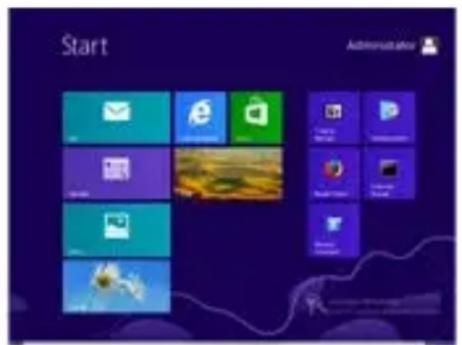
After this set-up process, you'll be taken to the Start Screen.
PREMIER Windows 8 Tablet Guide Book
Subsequent boot ups will go straight to the Windows lock screen. Note: If the login screen is not enabled in Windows 8, you will be taken directly from the lock screen to the start screen. Swipe up with

your finger from the bottom of the display to switch to the login screen and then enter your password to log in to Windows.
Power Off the Tablet
You can turn off the tablet in two ways. 1. Press and hold the power button for at least 4 seconds. A shut down confirmation screen will appear, swipe it down to the bottom edge of the display to turn off the tablet. 2. Swipe in from the right edge of the display to access Charms. Touch Settings -> Power -> Shut Down to turn off the tablet.
Turning On/Off the Screen
You can turn on and off the screen display by pressing the power button once. Alternately you can use the Charms by swiping in
PREMIER Windows 8 Tablet Guide Book
from the right edge of the display. Touch Settings -> Power -> Sleep to turn off the screen.
Inserting/Removing a MicroSD Card
Align the MicroSD Card so that the pins are pointed toward the card slot. Push the MicroSD Card into the card slot.
Caution: Removing the MicroSD Card while it is in use may cause data loss or result in application errors. Make sure all save operations to the MicroSD Card are complete before removing the MicroSD Card. Touch the Desktop tile to enter Desktop mode. Touch Safely Remove Hardware in the notification area at the bottom right corner of the screen. Note: If you do not see Safely Remove Hardware, touch Show Hidden Icons to display all icons in the notification area. Touch Eject SD Memory Card. A message appears confirming that the MicroSD Card can be safely removed. If a warning message appears stating the MicroSD Card cannot be removed, ensure all data transfers involving the MicroSD Card are complete. Press on the MicroSD Card to release it. Slide the card out after it pops out from the slot.
PREMIER Windows 8 Tablet Guide Book
Connecting the Keyboard
For the sake of using convenience, this device is designed to be equipped with a dedicated keyboard. Follow these steps to connect the keyboard to your tablet:
- Place the dedicated keyboard on an even and stable plane (i.e. desk).
- Hold your tablet with two hands, align the connector on the keyboard to the jack and positioning slots at the bottom of the tablet.
- As soon as the keyboard is connected to the tablet, it is ready to use.
Note:
- This keyboard is a plug-and-play device, you can plug/unplug it into the keyboard jack at any time.
- There is no notification for the keyboard connection, except for the appearance of the mouse icon (arrow) as you put your hand onto the touch area.
PREMIER Windows 8 Tablet Guide Book
2. Basic Operation
Touch Commands
There are various methods of touch in which to control your device.
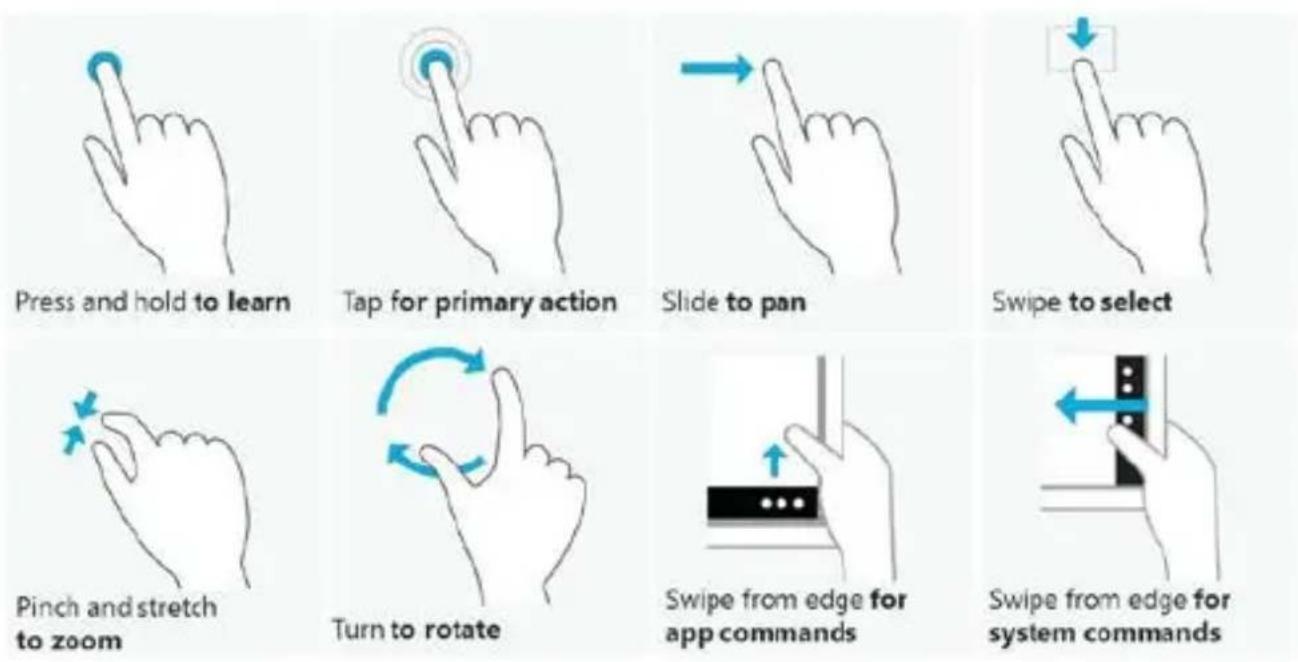
Additionally you can use two fingers and swipe left/right or up down to scroll (a la mouse wheel). Press and hold also works similar to a right mouse click. And double tapping works like double click the left mouse button.
PREMIER Windows 8 Tablet Guide Book
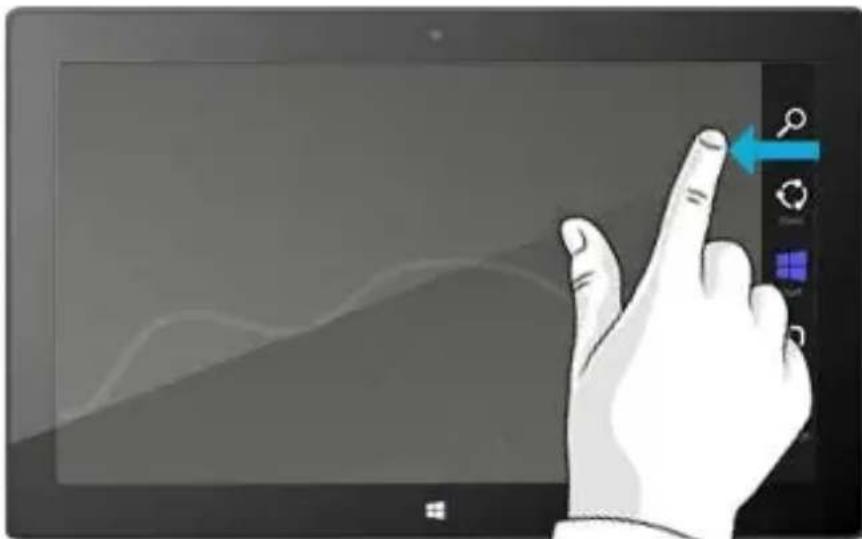
Swiping in from the right edge of the display will bring up the Charms, which allow you to adjust various settings on your device.
natural_image
Illustration of a hand pointing at a tablet screen with icons, no text or symbols presentYou can also swipe in from the right edge of the display to bring up the Charms from any screen and tap the Windows logo to bring you back to the Start Screen.
PREMIER Windows 8 Tablet Guide Book
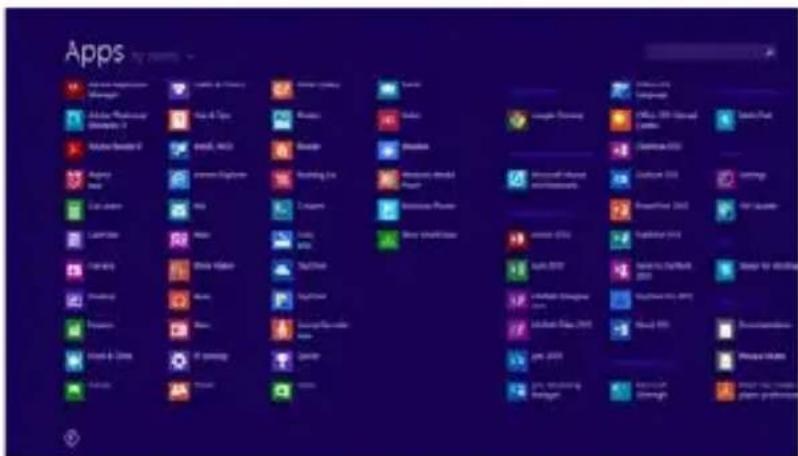
From the start screen, you can swipe up from the bottom edge of the display to bring up all your apps and programs.
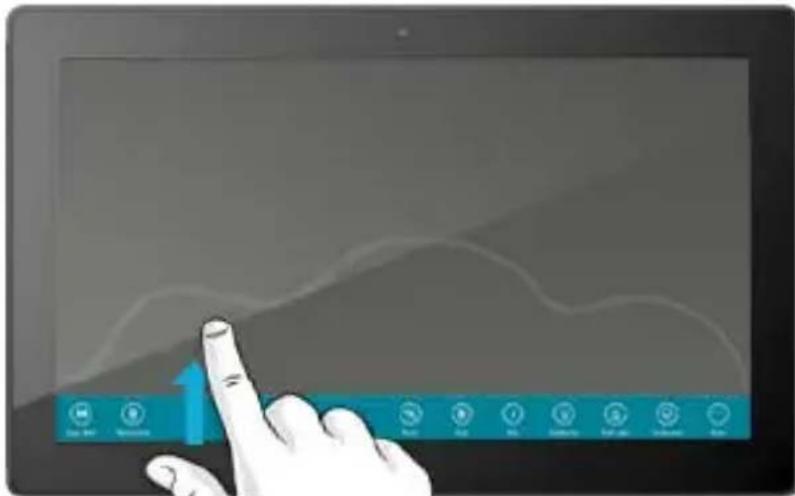
On the home screen you can tap along the bottom edge of the display to bring up a menu with which you can customize your home screen (such as removing and adding apps/tiles).
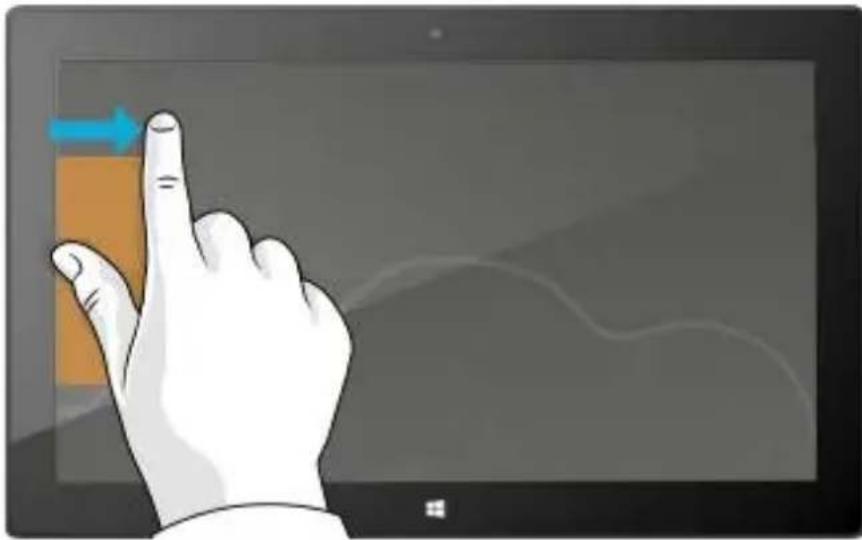
Swiping in from the left edge of the display will allow you to switch between currently running apps/programs.
PREMIER Windows 8 Tablet Guide Book
natural_image
Illustration of a hand pointing at a tablet screen with a blue arrow and orange button (no text or symbols)Wi-Fi Setting
To turn on/off Wi-Fi, swipe in from the right edge of the display to access Charms. Touch Settings -> Network icon. Swipe the Wi-Fi icon left or right to turn Wi-Fi on or off.
To connect to a network, swipe in from the right edge of the display to access Charms. Touch Settings -> Available. Select an available network from the list and touch Connect.
PREMIER Windows 8 Tablet Guide Book
3. Synchronizing Your Tablet
Using a Microsoft Account
If your computer has Microsoft Windows 8 installed, you can synchronize user settings of your tablet with your computer using a Microsoft account. When you sign in with your Microsoft account on your tablet, your settings, including internet browser history, app settings, and personal files etc., are synchronized with other Windows 8 PCs and tablet computers.
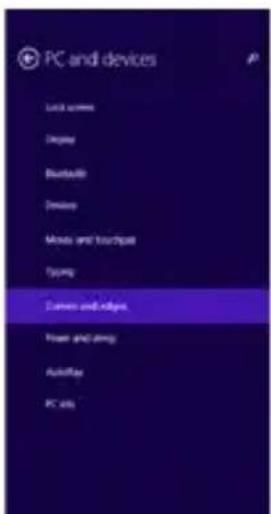
On the tablet, access Charms and tap Settings -> Change PC Settings -> Accounts -> Your account -> Connect to a Microsoft Account.
Tap Settings -> Change PC Settings -> OneDrive -> Sync settings to see the options for synchronizing your data and settings.
Copy music, photos and videos
Connect your tablet to a USB storage device with a MicroUSB to standard USB conversion cable (included), then transfer files to or from the USB storage device. After transferring files, use the Safely Remove Hardware wizard to remove the USB storage device.
PREMIER Windows 8 Tablet Guide Book
4. Recovery
Refreshing Your Tablet
Refreshing your tablet will restore Windows to original factory settings without deleting any of your personal files, installed apps from the Windows Store, or personalization settings.
To restore your tablet swipe in from the right edge of the display to access Charms. Touch Settings -> Change PC Settings -> Update and Recovery -> Recovery. Touch Get started under Refresh your PC without affecting your files. Read the warning and touch Next after you read the warning.
Note: Apps installed from the Windows Store are automatically reinstalled after the refresh is complete. Apps installed from sources other than the Windows Store are removed and have to be manually installed. A list of apps removed during this process is created on the desktop after the process is complete.
Resetting your Tablet
Resetting your tablet will return the system to original factory settings. Swipe in from the right edge of the display to access
PREMIER Windows 8 Tablet Guide Book
Charms. Touch Settings -> Change PC Settings -> Update and Recovery. Touch Get started under Remove everything and reinstall Windows. Read the warning and touch Next after your read the warning.
Caution: Resetting your tablet erases all data from your tablet, including your account configuration, apps, music, pictures, files and so on. Make sure that you back up all the required data before you proceed.
PREMIER Windows 8 Tablet Guide Book
Safety Information
- The battery is not intended to be replaced by the consumer. If you believe the battery is damaged or needs to be replaced, contact Visual Land customer support for inspection and/or replacement.
- Do not let the battery come in contact with liquids.
- Do not place your device near a heat source or leave it in your car in high temperatures.
• Do not dispose of the battery in a fire. - Avoid dropping device.
- Never use any charger or battery that is damaged in any way. Use only the provided charger which is specifically designed for your device.
- Do not use if screen is cracked or broken as this could cause injury to you.
- Please note that a touch screen responds best to a light touch from the pad of your finger or a non-metallic, no sharp stylus. Using excessive force or hard or sharp objects when pressing on the touch screen may damage the tempered glass surface and void the warranty.
- Do not set the volume at its highest levels when using headphones. Prolonged exposure to loud noise could damage your hearing.
FCC Compliance
This device complies with Part 15 of the FCC Rules. Operation is subject to the following two conditions: (1) this device may not cause harmful interference, and (2) this device must accept any interference received, including interference that may cause undesired operation.
FCC Radiation Exposure Statement: This equipment complies with FCC RF radiation exposure limits set forth for an uncontrolled environment. This transmitter must not be co-located or operating in conjunction with any other antenna or transmitter.

natural_image
Illustration of a modern seaport with snow-capped mountains and green hills, featuring a stylized landscape with a blue lake and cloud motifs (no text or symbols)
natural_image
Colorful circular logo with a green V shape inside, no text or symbols present.VISUAL LAND
Bring the World Home
www.visual-land.com