 ManualGo.com
X-CM31-R - Mini Hi-Fi system PIONEER - Free user manual and instructions
Find the device manual for free X-CM31-R PIONEER in PDF.



Download the instructions for your Mini Hi-Fi system in PDF format for free! Find your manual X-CM31-R - PIONEER and take your electronic device back in hand. On this page are published all the documents necessary for the use of your device. X-CM31-R by PIONEER.
USER MANUAL X-CM31-R PIONEER
RISK OF ELECTRIC SHOCK
DO NOT OPEN
The lightning flash with arrowhead symbol, within an equilateral triangle, is intended to alert the user to the presence of uninsulated “dangerous voltage” within the product’s enclosure that may be of sufficient magnitude to constitute a risk of electric shock to persons. CAUTION:
TO PREVENT THE RISK OF ELECTRIC
SHOCK, DO NOT REMOVE COVER (OR
BACK). NO USER-SERVICEABLE PARTS
INSIDE. REFER SERVICING TO QUALIFIED
SERVICE PERSONNEL. The exclamation point within an equilateral triangle is intended to alert the user to the presence of important operating and maintenance (servicing) instructions in the literature accompanying the appliance. D3-4-2-1-1_A1_En WARNING VENTILATION CAUTION This equipment is not waterproof. To prevent a fire or shock hazard, do not place any container filled with liquid near this equipment (such as a vase or flower pot) or expose it to dripping, splashing, rain or moisture. When installing this unit, make sure to leave space around the unit for ventilation to improve heat radiation (at least 25 cm at top, 15 cm at rear, and 5 cm at each side). D3-4-2-1-3_A1_En WARNING Before plugging in for the first time, read the following section carefully. The voltage of the available power supply differs according to country or region. Be sure that the power supply voltage of the area where this unit will be used meets the required voltage (e.g., 230 V or 120 V) written on the rear panel. WARNING Slots and openings in the cabinet are provided for ventilation to ensure reliable operation of the product, and to protect it from overheating. To prevent fire hazard, the openings should never be blocked or covered with items (such as newspapers, table-cloths, curtains) or by operating the equipment on thick carpet or a bed. D3-4-2-1-7b*_A1_En D3-4-2-1-4*_A1_En WARNING To prevent a fire hazard, do not place any naked flame sources (such as a lighted candle) on the equipment. D3-4-2-1-7a_A1_En Operating Environment Operating environment temperature and humidity: +5 °C to +35 °C (+41 °F to +95 °F); less than 85 %RH (cooling vents not blocked) Do not install this unit in a poorly ventilated area, or in locations exposed to high humidity or direct sunlight (or strong artificial light) D3-4-2-1-7c*_A1_En This product is for general household purposes. Any failure due to use for other than household purposes (such as long-term use for business purposes in a restaurant or use in a car or ship) and which requires repair will be charged for even during the warranty period. K041_A1_En CAUTION This product is a class 1 laser product classified under the Safety of laser products, IEC 60825-1:2007. WARNING Store small parts out of the reach of children and infants. If accidentally swallowed, contact a doctor immediately. Information for users on collection and disposal of old equipment and used batteries Symbol for equipment These symbols on the products, packaging, and/or accompanying documents mean that used electrical and electronic products and batteries should not be mixed with general household waste. For proper treatment, recovery and recycling of old products and used batteries, please take them to applicable collection points in accordance with your national legislation. Symbol examples for batteries By disposing of these products and batteries correctly, you will help to save valuable resources and prevent any potential negative effects on human health and the environment which could otherwise arise from inappropriate waste handling. For more information about collection and recycling of old products and batteries, please contact your local municipality, your waste disposal service or the point of sale where you purchased the items. These symbols are only valid in the European Union. For countries outside the European Union: If you wish to discard these items, please contact your local authorities or dealer and ask for the correct method of disposal.
- K058a_A1_En If the AC plug of this unit does not match the AC outlet you want to use, the plug must be removed and appropriate one fitted. Replacement and mounting of an AC plug on the power supply cord of this unit should be performed only by qualified service personnel. If connected to an AC outlet, the cut-off plug can cause severe electrical shock. Make sure it is properly disposed of after removal. The equipment should be disconnected by removing the mains plug from the wall socket when left unused for a long period of time (for example, when on vacation). D3-4-2-2-1a_A1_En POWER-CORD CAUTION Handle the power cord by the plug. Do not pull out the plug by tugging the cord and never touch the power cord when your hands are wet as this could cause a short circuit or electric shock. Do not place the unit, a piece of furniture, etc., on the power cord, or pinch the cord. Never make a knot in the cord or tie it with other cords. The power cords should be routed such that they are not likely to be stepped on. A damaged power cord can cause a fire or give you an electrical shock. Check the power cord once in a while. When you find it damaged, ask your nearest PIONEER authorized service center or your dealer for a replacement. S002*_A1_En CAUTION The STANDBY/ON switch on this unit will not completely shut off all power from the AC outlet. Since the power cord serves as the main disconnect device for the unit, you will need to unplug it from the AC outlet to shut down all power. Therefore, make sure the unit has been installed so that the power plug can be easily unplugged from the AC outlet in case of an accident. To avoid fire hazard, the power cord should also be unplugged from the AC outlet when left unused for a long period of time (for D3-4-2-2-2a*_A1_En example, when on vacation). Thank you for buying this Pioneer product. Please read through these operating instructions so that you will know how to operate your model properly. After you have finished reading the instructions, put them in a safe place for future reference. Contents 01 Contents 06 Disc playback 01 Before you start 02 Part names and functions 08 Using the tuner Connecting iPod/iPhone to the top panel p. 16
- Connecting iPod/iPhone/iPad using supplied stand p. 16
- Watching iPod/iPhone videos on your TV Before you start p. 17
Chapter 1:
Before you start Loading the batteries in the remote control 1 Open the rear lid and load the batteries as illustrated below. Using the remote control The remote has a range of about 7 m at an angle of about 30º from the remote sensor. 30° AUDIO iPod
PTY DIMMER RDS MEMORY /PROGRA MUTE TUNE– ST/MONO
ENTER BLE PRESET RANDOM BASS/TRE MENU
CLOCK/TIM USB OPEN/CL OUT
- Do not use any batteries other than the ones specified. Also, do not use a new battery together with an old one.
- When loading the batteries into the remote control, set them in the proper direction, as indicated by the polarity marks ( and ).
- Do not heat batteries, disassemble them, or throw them into flames or water.
Close the rear lid. 30° Y/ON STANDB
Español Please confirm that the following accessories are in the box when you open it.
- AAA batteries (R03) x 2
- Operating instructions (this document)
- Batteries may have different voltages, even if they are the same size and shape. Do not use different types of batteries together.
- To prevent leakage of battery fluid, remove the batteries if you do not plan to use the remote control for a long period of time (1 month or more). If the fluid should leak, wipe it carefully off the inside of the case, then insert new batteries. If a battery should leak and the fluid should get on your skin, flush it off with large quantities of water.
- When disposing of used batteries, please comply with governmental regulations or environmental public institution’s rules that apply in your country/area.
- WARNING Do not use or store batteries in direct sunlight or other excessively hot place, such as inside a car or near a heater. This can cause batteries to leak, overheat, explode or catch fire. It can also reduce the life or performance of batteries. Français Keep in mind the following when using the remote control:
- Make sure that there are no obstacles between the remote and the remote sensor on the unit.
- Remote operation may become unreliable if strong sunlight or fluorescent light is shining on the unit’s remote sensor.
- Remote controllers for different devices can interfere with each other. Avoid using remotes for other equipment located close to this unit.
- Replace the batteries when you notice a fall off in the operating range of the remote.
Part names and functions
Chapter 2:
Part names and functions
AUDIO IN/LINE
TV OUT CLOCK/TIMER SLEEP
CLOCK/TIMER Use for setting the clock, as well as for setting and checking the timers (page 12). SLEEP
See Using the sleep timer on page 14. P.BASS
DISPLAY FOLDER TUNE+
Numeric buttons (0 to 9) CD Receiver control buttons TV OUT Setting iPod/iPhone video on/off. EQUALIZER
Use to select the input source to this receiver (page 18). OPEN/CLOSE iPod
1 STANDBY/ON Switches the receiver between standby and on (page 18).
CLEAR Use to clear the programmed play (page 20).
CD Receiver control buttons DISPLAY Press to change the display for songs playing back from CD or USB (page 21).
Use to select the folder of the MP3/WMA disc or USB mass storage device (page 20).
ST/MONO RDS ASPM
Use to memory or program the MP3/WMA disc (page 20).
MEMORY/PROGRAM VOLUME TUNE–
Use to select/switch system settings and modes, and to confirm actions. Use TUNE +/– can be used to find radio frequencies (page 24).
PRESET control buttons Use to select preset radio stations (page 24).
MUTE 10 Playback control buttons Use to control each function after you have selected it using the input function buttons (page 18).
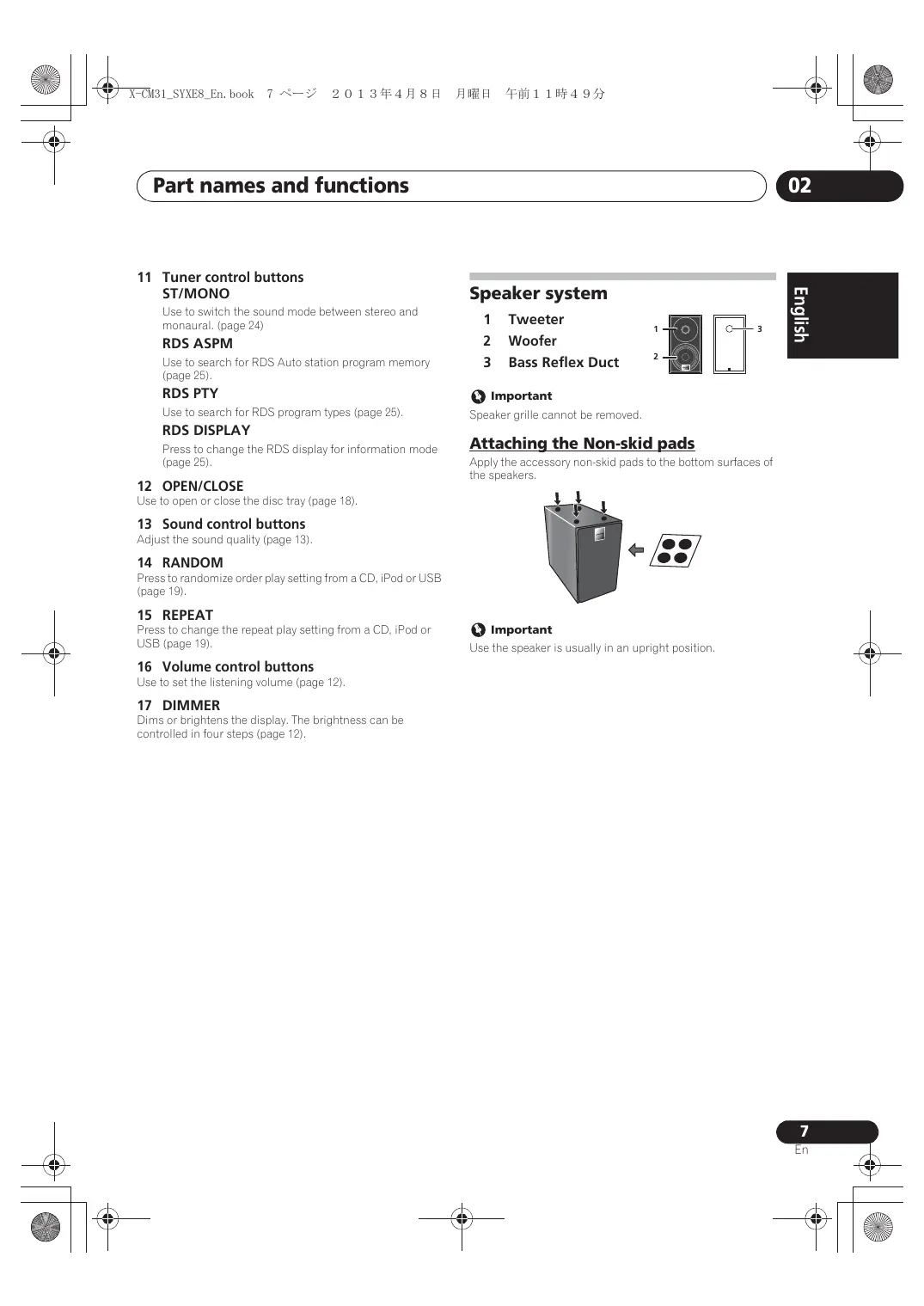
Part names and functions Speaker system Use to switch the sound mode between stereo and monaural. (page 24)
Woofer Use to search for RDS Auto station program memory (page 25).
Bass Reflex Duct Use to search for RDS program types (page 25). RDS DISPLAY Press to change the RDS display for information mode (page 25).
Important Speaker grille cannot be removed. Attaching the Non-skid pads Apply the accessory non-skid pads to the bottom surfaces of the speakers. Español 12 OPEN/CLOSE
English 11 Tuner control buttons ST/MONO
Use to open or close the disc tray (page 18). 13 Sound control buttons Adjust the sound quality (page 13). 14 RANDOM Press to randomize order play setting from a CD, iPod or USB (page 19). 15 REPEAT Press to change the repeat play setting from a CD, iPod or USB (page 19). Important Use the speaker is usually in an upright position. 16 Volume control buttons Use to set the listening volume (page 12). 17 DIMMER Dims or brightens the display. The brightness can be controlled in four steps (page 12).
Part names and functions Front panel
TIMER PHONES AUDIO IN
Volume illumination Light when the power on.
Headphone socket Use to connect headphones. When the headphones are connected, there is no sound output from the speakers.
Use to connect an auxiliary component using a stereo minijack cable (page 27).
VOLUME iPad Use to set the listening volume (page 12).
Remote sensor Receives the signals from the remote control.
Disc tray Lights when the receiver is power off with timer setting.
USB terminal Use to connect your USB mass storage device or Apple iPod/ iPhone/iPad as an audio source (page 22). Part names and functions
Français PUSH OPEN Español
iPod/iPhone connector port Switches the receiver between standby and on (page 18).
INPUT Selects the input source.
Disc tray open/close button Use to open or close the disc tray (page 18). Playback control buttons Selects the desired track or file to be played back. Use to stop the playback. Stops playback or resumes playback from the pause point.
- Be sure to turn off the power and unplug the power cord from the power outlet whenever making or changing connections.
- Connect the power cord after all the connections between devices have been completed. Speaker connection To connect the speaker cord to the connector, insert into the speaker connector of the rear of the receiver. Left speaker Right speaker Connecting a TV
- When an iPod/iPhone is connected to this unit, the TV output setting of iPod/iPhone is automatically set to ‘ON’. Note
- Some iPod allow the TV output setting to be changed while connected.
- When the iPod/iPhone is disconnected from this unit, the iPod/iPhone’s TV output setting returns to its original state. This unit’s rear panel VIDEO LINE OUT SPEAKERS
This unit’s rear panel
Video cable (commercially available) ANTENNA LOOP VIDEO LINE OUT
- These speaker terminals carry HAZARDOUS LIVE voltage. To prevent the risk of electric shock when connecting or disconnecting the speaker cables, disconnect the power cord before touching any uninsulated parts.
- Do not connect any speakers other than those supplied to this system.
- Do not connect the supplied speakers to any amplifier other than the one supplied with this system. Connection to any other amplifier may result in malfunction or fire.
- Do not attach these speakers to the wall or ceiling. They may fall off and cause injury.
- These speakers are magnetically shielded. However, depending on the installation location, color distortion may occur if the speaker system is installed extremely close to the screen of a television set. If this happens, turn off the television set, and then turn it on after 15 to 30 minutes. If the problem persists, move the speaker system away from the television set.
Connect the AM loop antenna and the FM wire antenna as shown below. To improve reception and sound quality, connect external antennas (see Using external antennas below). To improve FM reception Use a PAL connector (not supplied) to connect an external FM antenna. Français fig. b fig. a English Before making or changing the connections, switch off the power and disconnect the power cord from the AC outlet. After you’ve finished making all connections, plug the unit into an AC outlet. This unit’s rear panel
Connect the AM antenna wires. Holding the connector to connect. VIDEO LINE 2 Fix the AM loop antenna to the attached stand. To fix the stand to the antenna, bend in the direction indicated by the arrow (fig. a) then clip the loop onto the stand (fig. b). 3 Place the AM antenna on a flat surface and in a direction giving the best reception. 4 Connect the FM wire antenna into the FM antenna socket. For best results, extend the FM antenna fully and fix to a wall or door frame. Don’t drape loosely or leave coiled up. OUT SPEAKERS
To AC outlet Power cord CAUTION
- Do not use any power cord other than the one supplied with this unit.
- Do not use the supplied power cord for any purpose other than that described below.
Getting started To turn the power on General control Press the 1 STANDBY/ON to turn the power on. After use: Input function Press the 1 STANDBY/ON to enter the power stand-by mode. When the INPUT on main unit is pressed, the current function will change to different mode. Press the INPUT repeatedly to select desired function. Note
- In standby mode, if iPod/iPhone/iPad is connected, the unit turns charge mode. LINE Setting the clock DISPLAY STANDBY/ON OPEN/CLOSE
USB TUNE+ FOLDER Press 1 STANDBY/ON to turn the power on.
Press CLOCK/TIMER on the remote control. “CLOCK” is shown on the main display.
Press HI to set the day, then press ENTER. 5 Press HI to set the hour, then press ENTER. 6 Press HI to set the minute, then press ENTER to confirm. 7 Press ENTER. To confirm the time display: Press the CLOCK/TIMER. The time display will appear for about 10 seconds. To readjust the clock: Perform “Setting the clock” from step 1. Note
- When power supply is restored after unit is plugged in again or after a power failure, reset the clock.
AUDIO IN USB/IPOD IPOD Display brightness control Press DIMMER to dims the display brightness. The brightness can be controlled in four steps. TUNER ENTER
Volume auto set-in If you turn off and on the main unit with the volume set to 17 or higher, the volume starts at 16 and sets in to the last set level. Volume control Turn the volume knob towards VOLUME (on main unit) or press VOLUME +/- (on remote control) to increase or decrease the volume. CAUTION
- The sound level at a given volume setting depends on speaker efficiency, location, and various other factors. It is advisable to avoid exposure to high volume levels. Do not turn the volume on to full at switch on. Listen to music at moderate levels. Excessive sound pressure from earphones and headphones can cause hearing loss. Muting The volume is muted temporarily when pressing the MUTE on the remote control. Press again to restore the volume. Setting the wake-up timer Equalizer Used to change the existing timer setting, or to set a new timer. FLAT Equalizer off. JAZZ For jazz. ROCK For rock. POP For pop music. When the power is first turned on, the unit will enter the P.bass mode which emphasises the bass frequencies. To cancel the P.bass mode, press the P.BASS on the remote control. Bass/treble control Press the BASS/TREBLE, then press HI to adjust the bass or treble. Note EQUALIZER, P.BASS and BASS/TREBLE, the simultaneous operation is not possible. Among the features of these three, one feature will only work you have selected. If you select one of three functions, features that are not selected will be set as follows. 1 If you change the settings of P.BASS (ON/ OFF).
- BASS/TREBLE : BASS=0, TREBLE=0
If you change the settings of EQUALIZER. Press 1 STANDBY/ON to turn the power on.
Press and hold CLOCK/TIMER. 3 Press HI to select “ONCE” or “DAILY”, then press ENTER. ONCE – Once timer play works for one time only at a preset time. DAILY – Daily timer play works at the same preset time and days of week. 4 Press HI to select “TIMER SET”, then press ENTER. 5 Press HI to select the timer playback source, then press ENTER. Español P.bass control
Français When the EQUALIZER is pressed, the current mode setting will be displayed. To change to a different mode, press the EQUALIZER repeatedly until the desired sound mode appears. English Sound controls
- CD, FM, AM, USB/IPOD, IPOD, AUDIO IN and LINE can be selected as the playback source. 6 Press HI to select the timer day, then press ENTER. 7 Press HI to set the hour, then press ENTER. 8 Press HI to set the minute, then press ENTER.
- Set the time to finish as in steps 7 and 8 above. 9 Adjust the volume press VOLUME +/- , then press ENTER. 10 Press 1 STANDBY/ON to enter the power standby mode.
- The TIMER indicator lights up. Calling the wake-up timer It can be used to re-use an existing timer setting. Using Headphones 1 As well as steps 1 through 3 in “Setting the wake-up timer”. Connect to the jack plug of the headphones. When the headphones are connected, there is no sound output from the speakers. Cancelling the wake-up timer It can be used to turn off the timer setting. 1 As well as steps 1 through 3 in “Setting the wake-up timer”. TIMER PHONES AUDIO IN VOLUME iPad 2 Press HI to select “TIMER OFF”, then press ENTER. Using the wake-up timer 1 Press 1 STANDBY/ON to turn the power off. 2 At the wake-up time, this unit will turn on automatically and play the selected input function. Note
- If at the wake-up time iPod/iPhone/iPad is not connected to this unit or a disc is not inserted, this unit will be turned to on and not play back the track.
- Some discs may not be played automatically at the wakeup time.
- If you set the timer, take one minute or more between the start and end time. Using the sleep timer The sleep timer switches off the unit after a specified time so you can fall asleep without worrying about it. 1 Press SLEEP repeatedly to select a switch off time. Choose between 10 min, 20 min, 30 min, 60 min, 90 min, 120 min, 150 min, 180 min or OFF. The newly set value displays for 3 seconds, and then the setting is completed. Note
- The sleep timer can be set by pressing SLEEP while the remaining time is displayed.
- Do not turn the volume on to full at switch on and listen to music at moderate levels. Excessive sound pressure from earphones and headphones can cause hearing loss.
- Before plugging in or unplugging the headphone, reduce the volume.
- Be sure your headphone has a 3.5 mm diameter plug and impedance between 16 : and 50 :. The recommended impedance is 32 :.
- Audio from the iPod/iPhone/iPad cannot be heard via the headphones connected to the unit. “HP MUTE” will be displayed if you connect the headphones when the iPod/iPhone/iPad function is selected. The iPod/iPhone/iPad playable on this unit are shown below.
- Video output for iPod/iPhone is only compatible when connected to the Dock connector. Dock connector (Audio/Video) USB Terminal (Audio only)
- iPod nano 6G is supports audio only. Note Español Confirming what iPod/iPhone/iPad models are supported
- Pioneer cannot under any circumstances accept responsibility for any direct or indirect loss arising from any inconvenience or loss of recorded material resulting from iPod/iPhone/iPad failure.
- For detailed instructions on using the iPod/iPhone/iPad, please refer to the manual supplied with the iPod/ iPhone/iPad.
- This system has been developed and tested for the software version of iPod/iPhone/iPad indicated on the website of Pioneer (http://pioneer.jp/homeav/support/ ios/eu/).
- Installing software versions other than indicated on the website of Pioneer to your iPod/iPhone/iPad may result in incompatibility with this system.
- This unit cannot be used to record CD, tuner or other content on an iPod/iPhone/iPad. Français Merely by connecting your iPod/iPhone/iPad to this unit, you can enjoy high-quality sound from your iPod/iPhone/iPad. This unit can also be connected to a television set, letting you view videos from your iPod/iPhone. Playback setting for iPod/ iPhone/iPad music can be performed from this unit or the iPod/iPhone/iPad itself.
- To connect a TV, see page 10. English
Chapter 5:
Connecting your iPod/iPhone/iPad CAUTION
- Do not use an adaptor that converts into a Lightning connector on the unit's iPod/iPhone connector to connect an iPod/iPhone/iPad. This may lead to malfunction/damage to the connector. Please connect these Lightning connector devices to the USB port on the front of the unit. iPhone 5, iPad (4th generation), iPad mini, iPod touch (5th generation), iPod nano (7th generation)
- When connecting iPod/iPhone devices, always use the dock adapter provided with iPod/iPhone devices, or a commercially available adapter designed to support iPod/iPhone. The iPod/iPhone cannot be connected without a dock adapter; attempting to connect an iPod/ iPhone without it will cause damage or malfunction.
- An iPod/iPhone universal dock adapter is not supplied with this unit. Important
- If you are mounting the protective cover of a commercially available iPod/iPhone/iPad, you may not be able to connect iPod/iPhone/iPad to this unit.
- Pioneer does not guarantee that this unit plays iPod/ iPhone/iPad models other than the ones specified.
- Some functions may be restricted depending on the model or software version.
- iPod/iPhone/iPad is licensed for reproduction of noncopyrighted materials or materials the user is legally permitted to reproduce.
- Features such as the equalizer cannot be controlled using this system, and we recommend switching the equalizer off before connecting.
Connecting iPod/iPhone to the top panel
- When iPod/iPhone is not connected to the unit, close the iPod/iPhone connector port firmly. Press the PUSH OPEN.
Connecting iPod/iPhone/iPad using supplied stand
Open the iPod/iPhone connector port. 1 Connect the iPod/iPhone/iPad cable to the unit. 2 Pass the iPod/iPhone/iPad cable through the bottom of the stand and connect it to the iPod/ iPhone/iPad.
Connect your iPod/iPhone.
Set up to stand the iPod/iPhone/iPad. To watch iPod/iPhone videos on a television, connect it using a video cable. When an iPod/iPhone is connected to this unit, the TV output setting of the iPod/iPhone is automatically set to ‘ON’. Note Playing iPod/iPhone
Connect your iPod/iPhone.
- If an iPod/iPhone is connected when this unit is on, playback of the iPod/iPhone will not begin.
Press iPod or USB as the input source. “IPOD” or “USB/IPOD” is shown on the main display. 3 When the recognition is completed, will begin playing automatically.
- The available iPod/iPhone playback control by this unit is !, + ), *,.
- In the following case, operate your iPod/iPhone directly:
Searching a file by artist name or genre. Playing in the repeat or random mode. Watching videos stored in iPod/iPhone on your television. Connect your iPad.
- If an iPad is connected when this unit is on, playback of the iPad will not begin.
Press USB as the input source. “USB/IPOD” is shown on the main display. 3 When the recognition is completed, will begin playing automatically.
- The available iPad playback control by this unit is
- In the following case, operate your iPad directly:
Searching a file by artist name or genre. Playing in the repeat or random mode. CAUTION
- When your iPod/iPhone/iPad is connected to this unit and you wish to operate the iPod/iPhone/iPad directly, be sure to steady the iPod/iPhone/iPad with the other hand to prevent malfunctions due to faulty contacts. Español
- For detailed instructions on using the iPod/iPhone, please refer to the manual supplied with the iPod/ iPhone.
- Some iPods allow the TV output setting to be changed while connected.
- When the iPod/iPhone is disconnected from this unit, the iPod/iPhone’s TV output setting returns to its original state.
- Before making or changing the connections, switch off the power and disconnect the power cord from the power outlet. Plugging in should be the final step. Playing iPad English Watching iPod/iPhone videos on your
- For detailed instructions on using the iPod/iPhone/iPad, please refer to the manual supplied with the iPod/ iPhone/iPad.
- iPod/iPhone/iPad recharging occurs whenever an iPod/ iPhone/iPad is connected to this unit. (This function is supported in standby mode as well.)
- When input is switched from iPod to another function, iPod/iPhone/iPad playback is temporarily stopped. Important If this unit cannot play your iPod/iPhone/iPad, perform the following troubleshooting checks:
- Check whether the iPod/iPhone/iPad is supported by this unit.
- Reconnect the iPod/iPhone/iPad to the unit. If this doesn’t seem to work, try resetting your iPod/iPhone/ iPad.
- Check the iPod/iPhone/iPad software is supported by this unit. If the iPod/iPhone/iPad cannot be operated, check the following items:
- Is the iPod/iPhone/iPad connected correctly? Reconnect the iPod/iPhone/iPad to the unit.
- Is the iPod/iPhone/iPad experiencing a hangup? Try resetting the iPod/iPhone/iPad, and reconnect it to the unit.
Disc playback This system can play back a standard CD, CD-R/RW in the CD format and CD-R/RW with MP3 or WMA files, but cannot record on them. Some audio CD-R and CD-RW discs may not be playable due to the state of the disc or the device that was used for recording. MP3: MP3 is a form of compression. It is an acronym which stands for MPEG Audio Layer 3. MP3 is a type of audio code which is processed by significant compression from the original audio source with very little loss in sound quality.
- This system supports MPEG-1/2 Audio Layer 3 (Sampling rates: 8 kHz to 48 kHz; Bit rates: 64 kbps to 384 kbps).
- During VBR file playback, time counter in the display may differ from its actual playback time. WMA: WMA (Windows Media Audio) files are Advanced System Format files that include audio files which are compressed with Windows Media Audio codec. WMA is developed by Microsoft as an audio format file for Windows Media Player.
- This system supports WMA (Sampling rates: 32 kHz/44.1 kHz/48 kHz; Bit rates: 64 kbps to 320 kbps).
- During VBR file playback, time counter in the display may differ from its actual playback time. CAUTION
- Do not place two discs in one disc tray.
- Do not play discs of special shapes (heart, octagon, etc). It may cause malfunctions.
- Do not push the disc tray whilst it is moving.
- If the power fails whilst the tray is open, wait until the power is restored.
- Be sure to place 8 cm disc in the middle of the disc tray. Note
- Due to the structure of the disc information, it takes longer to read an MP3/WMA disc than a normal CD (approximately 20 to 90 seconds).
- When the beginning of the first track is reached during fast reverse, the unit will enter the playback mode (only for CD).
- Rewritable multi-session discs with unfinished writing, can still be played.
- If TV or radio interference occurs during CD operation, move the unit away from the TV or radio. Tip
- When no operation has done in CD mode and the audio file is not played for more than 15 minutes, the power will automatically turn off. Various disc functions Playing discs or files
Press 1 STANDBY/ON to turn the power on. 2 Press CD on the remote control or INPUT repeatedly on the main unit to select CD input.
Press $ OPEN/CLOSE to open the disc tray.
Place the disc on the disc tray, label side up. Function Play Stop Pause Track up/ down Fast forward/ reverse
Press $ OPEN/CLOSE to close the disc tray.
Press ! to start playback. After the last track is played, the unit will stop automatically.
Main unit Remote control
Operation Press in the stop mode. Press in the playback mode. Press in the playback mode. Press ! to resume playback from the paused point. Press in the playback or stop
mode. If you press the button in the stop mode, press ! to start the desired track. Press and hold down in the
playback mode. Release the button to resume playback.
ST/MONO RDS ASPM
PTY DISPLAY Direct track search By using the numeric buttons, the desired tracks on the current disc can be played. Use the numeric buttons on the remote control to select the desired track whilst playing the selected disc. Note
- A track number higher than the number of tracks on the disc cannot be selected. To stop playback: Press #. Press REPEAT repeatedly until “RPT ONE” appears. Press ENTER. Press REPEAT repeatedly until “RPT ALL” appears. Press ENTER. To repeat desired tracks: Perform steps 1 - 5 in “Programmed play” section on next page and then press REPEAT repeatedly until “RPT ALL” appears. Press ENTER. To cancel repeat play: Press REPEAT repeatedly until “RPT OFF” appears. Press ENTER. Español
DISPLAY VOLUME TUNE–
To repeat one track: Français EQUALIZER Repeat play can play one track, all tracks or a programmed sequence continuously. To repeat all tracks: TUNER Advanced CD or MP3/WMA disc playback Note
- After performing repeat play, be sure to press #. Otherwise, the disc will play continuously.
- During repeat play, random play is not possible. Random play The tracks on the disc can be played in random order automatically. To random play all tracks: Press RANDOM repeatedly until “RDM ON” appears. Press ENTER. To cancel random play: Press RANDOM repeatedly until “RDM OFF” appears. Press ENTER. Note
- If you press the , during random play, you can move to the track selected next by the random operation. On the other hand, the + does not allow you to move to the previous track. The beginning of the track being played will be located.
- In random play, the unit will select and play tracks automatically. (You cannot select the order of the tracks.)
- During random play, repeat play is not possible.
Programmed play (CD or MP3/WMA) About downloading MP3/WMA You can choose up to 32 selections for playback in the order you like. There are many music sites on the internet that you can download MP3/WMA music files. Follow the instructions from the website on how to download the music files. You can then play back these downloaded music files by burning them to a CD-R/RW disc.
- Your downloaded song/files are for personal use only. Any other usage of the song without owner’s permission, is against the law. 1 Whilst in the stop mode, press MEMORY/ PROGRAM on the remote control to enter the programming save mode. 2 Press +, or the numeric buttons on the remote control to select the desired tracks. 3 Press ENTER to save folder and track number. 4 Repeat steps 2 - 3 for other folder/tracks. Up to 32 tracks can be programmed.
- If you want to check the programmed tracks, press MEMORY/PROGRAM.
- If you make a mistake, the last programmed tracks will be canceled by pressing CLEAR.
Press ! to start playback. To cancel the programmed play mode: To cancel the programmed play, press twice # on the remote control. The display will show “PRG CLR” and all the programmed contents will be cleared. Adding tracks to the program: Press the MEMORY/PROGRAM. Then follow steps 2 - 3 to add tracks. Note
- When a disc is ejected, the program is automatically cancelled.
- If you press the 1 STANDBY/ON to enter the standby mode or change the function from CD to another, the programmed selections will be cleared.
- During the program operation, random play is not possible. About folder playback order If MP3/WMA files are recorded in several folders, a folder number will be set to each folder automatically. These folders can be selected by the FOLDER on the remote control. If there is no supported file formats inside the selected folder, the folder is skipped and the next folder will be selected. Example: How to set folder number if MP3/WMA format files are recorded as below figure.
ROOT folder is set as folder 1. 2 As for folders inside ROOT folder (Folder A and Folder B), the folder which is recorded earlier on the disc will be set as folder 2 and folder 3. 3 As for folder inside Folder A (Folder C and Folder D), the folder which is recorded earlier on the disc will be set as folder 4 and folder 5. 4 Folder E that is inside Folder D will be set as folder 6.
- The folder and file order information which is recorded on the disc depends on the writing software. There maybe possibilities that this unit will playback the files not according to our expected playback order.
- From a disc with MP3/WMA files up to 255 folders and 999 files (including non playable files) can be read. ROOT FOLDER A (FOLDER 1) (FOLDER 2) Specify the folder to play, do the follwing steps.
STANDBY/ON OPEN/CLOSE
USB DISPLAY Number of track, playback time display Title/Artist/Album display P.BASS PRESET
ST/MONO RDS ASPM
PTY DISPLAY Press CD, and load an MP3/WMA disc. 2 Press FOLDER, and press FG to select desired playback folder.
Number of folder/track display Press ENTER. Playback will start from the first song of the selected folder.
- In case of stop, press FG, and the folder can be selected. Note
- “Copyright protected WMA file” or “Not supported playback file” can not be playback. In this case, will be skipped automatically.
- There may be cases where no information can be displayed.
- Displaying title, artist and album name is only supported for MP3 files. Español
TUNE+ Kind of file display
BASS/TREBLE Français EQUALIZER
FOLDER TUNE+ TUNER Press DISPLAY. If the title, artist and album name has been written to the file, that information will be displayed. (You can view this unit is only alphanumeric characters. Non- alphanumeric character are displayed in the ”*”.) English Specify the folder to play
USB playback Repeat play Playing USB storage devices It is possible to listen to two-channel audio using the USB interface on the front of this receiver.
- Pioneer does not guarantee that any file recorded on a USB storage device will play or that power will be supplied to a USB storage device. Also note that Pioneer will accept no responsibility whatsoever for loss of files on USB storage devices caused by connection to this unit.
To repeat one track: Press REPEAT repeatedly until “RPT ONE” appears. Press ENTER. To repeat all tracks: Press REPEAT repeatedly until “RPT ALL” appears. Press ENTER. To repeat desired tracks: Press USB as the input source. “USB/IPOD” is shown on the main display.
Repeat play can play one track, all tracks or a programmed sequence continuously. Connect the USB storage device. The number of folders or files stored on the connected USB storage device appear on the main display automatically.
- This receiver does not support a USB hub.
- If iPod/iPhone/iPad is connected, the unit will begin charging. Perform steps 1 - 5 in “Programmed play” section on next page and then press REPEAT repeatedly until “RPT ALL” appears. Press ENTER. To cancel repeat play: Press REPEAT repeatedly until “RPT OFF” appears. Press ENTER. Note TIMER VOLUME
- After performing repeat play, be sure to press #. Otherwise, the file of USB storage device will play continuously.
- During repeat play, random play is not possible. iPad Random play The file of USB storage device can be played in random order automatically. USB storage device (commercially available)
When the recognition is completed, press ! to start playback.
- When changing to a different input source, stop the USB memory playback first, before changing. 4 Disconnect USB storage device from the USB terminal. Turn the power off before removing the USB storage device. Note
- This unit may not recognize a USB storage device, play files or supply power to a USB storage device. For details, see When a USB storage device is connected on page 29.
- When a USB storage device is not playing and the unit has not been operated for 15 minutes or more, the power will automatically turn off.
To random play all tracks: Press RANDOM repeatedly until “RDM ON” appears. Press ENTER. To cancel random play: Press RANDOM repeatedly until “RDM OFF” appears. Press ENTER. Note
- If you press the , during random play, you can move to the track selected next by the random operation. On the other hand, the + does not allow you to move to the previous track. The beginning of the track being played will be located.
- In random play, the unit will select and play tracks automatically. (You cannot select the order of the tracks.)
- During random play, repeat play is not possible. Specify the folder to play, do the follwing steps. 1 Press USB, and connect the USB storage device.
Press ENTER. Playback will start from the first song of the selected folder.
- In case of stop, press FG, and the folder can be selected. This unit can play repeatedly folders stored in the USB storage device. For details, see Programmed play (CD or MP3/ WMA) on page 20. Français 2 Press FOLDER, and press FG to select desired playback folder. Playing in the desired order (Programmed Play) English Specify the folder to play This unit can switch the information recorded in the USB storage device. For details, see Switch the display contents on page 21.
Chapter 8:
Using the tuner Listening to the radio broadcasts The following steps show you how to tune in to FM and AM radio broadcasts using the automatic (search) and manual (step) tuning functions. Once you are tuned to a station you can memorize the frequency for recall later. See Saving station presets below for more on how to do this. To receive an FM stereo transmission:
- Press ST/MONO to select stereo mode and “AUTO” will be displayed. Improving poor FM reception: 1 Press ST/MONO repeatedly to select MONO. This will change the tuner from stereo to mono and usually improve the reception.
STANDBY/ON OPEN/CLOSE
USB DISPLAY If you often listen to a particular radio station, it’s convenient to have the receiver store the frequency for easy recall whenever you want to listen to that station (Preset tuning). This saves the effort of manually tuning in each time. This unit can memorize up to 45 stations. (FM 30 stations/AM 15 stations) MUTE
BASS/TREBLE Saving station presets DIMMER
ST/MONO RDS ASPM
PTY DISPLAY CLEAR TUNE+ REPEAT RANDOM
FOLDER DISPLAY TUNE+ FOLDER ENTER Tuning PRESET TUNE–
Press and hold TUNE +/–, scanning will start automatically and the tuner will stop at the first receivable broadcast station. Manual tuning: Press the TUNE +/– repeatedly to tune in to the desired station. Note
- When radio interference occurs, automatic tuning may stop automatically at that point.
- Automatic tuning will skip weak signal stations.
- To stop the automatic tuning, press #.
- When an RDS (Radio Data System) station is tuned in, the frequency will be displayed first. Finally, the station name will appear.
- Full auto tuning can be achieved for RDS stations using Auto Station Program Memory (ASPM) mode, see page 26.
3 Press TUNE +/– on the remote control to tune in to the desired station. Automatic tuning: MEMORY /PROGRAM MENU 1 Press the 1 STANDBY/ON to turn the power on. 2 Press TUNER repeatedly to select desired frequency band (FM or AM). ENTER MEMORY /PROGRAM MENU MUTE
Tune to a station you want to memorize. See Tuning above for more on this.
Press MEMORY/PROGRAM. The preset number will flash. 3 Press PRESET +/– to select the preset channel number. 4 Press MEMORY/PROGRAM to store that station in memory. If the preset number has changed from flashing to lighting, before the station is memorised, repeat the operation from step 2.
- Repeat steps 1 - 4 to set other stations, or to change a preset station. When a new station is stored in the memory, the station previously memorised for that preset channel number will be erased. Note
- The backup function protects the memorised stations for a few hours should there be a power failure or the AC power cord become disconnected. Using the tuner 1 Press PRESET +/– to select the desired station. To scan the preset stations
Press and hold PRESET +/–. The preset number will appear and the programmed stations will be tuned in sequentially, for 5 seconds each. 2 Press PRESET +/– again when the desired station is located.
Press TUNER on the remote control.
Press CLEAR until “MEM CLR” appears. Note
- All stations will be erased. Using the Radio Data System (RDS) An introduction to RDS Radio Data System (RDS) is a system used by most FM radio stations to provide listeners with various kinds of information—the name of the station and the kind of show they’re broadcasting, for example. One feature of RDS is that you can search by type of program. For example, you can search for a station that’s broadcasting a show with the program type, JAZZ. SOCIAL – Social affairs RELIGION – Programs concerning religion PHONE IN – Public expressing their views by Phone TRAVEL – Holiday-type travel rather than traffic announcements LEISURE – Leisure interests and hobbies JAZZ – Jazz COUNTRY – Country music NATION M – Popular music in a language other than English OLDIES – Popular music from the ‘50s and’ 60s FOLK M – Folk music DOCUMENT – Documentary TEST – Broadcasting when testing emergency broadcast equipment or receivers. ALARM – Emergency announcement made under exceptional circumstances to give warning of events causing danger of a general nature. Español To erase entire preset memory NEWS – News AFFAIRS – Current Affairs INFO – General Information SPORT – Sport EDUCATE – Educational DRAMA – Radio plays, etc. CULTURE – National or regional culture, theater, etc. SCIENCE – Science and technology VARIED – Usually talk-based material, such as quiz shows or interviews. POP M – Pop music ROCK M – Rock music EASY M – Easy listening LIGHT M – ‘Light’ classical music CLASSICS – ‘Serious’ classical music OTHER M – Music not fitting above categories WEATHER – Weather reports FINANCE – Stock market reports, commerce, trading, etc. CHILDREN – Programs for children Français The stations saved in the memory can be scanned automatically. (Preset memory scan) You can search the following program types: English To recall a memorised station
Searching for RDS programs You can search a program type listed above.
Press TUNER on the remote control.
- RDS is only possible in the FM.
Press RDS PTY on the remote control. “SELECT” will appear for about 6 seconds. 3 Press HI to select the program type you want to hear. Each time the button is pressed, the program type will appear. If the button is held down, the program type will appear continuously. 4 Whilst the selected program type is displayed (within 6 seconds), Press RDS PTY again. After the selected program type has been lit for 2 seconds, “SEARCH” will appear, and the search operation will start. Note
- If the display has stopped flashing, start again from step
2. If the unit finds a desired program type, the
corresponding channel number will lit for about 8 seconds, and then the station name will remain it.
- If you want to listen to the same program type of another station, press the RDS PTY whilst the channel number or station name is flashing. The unit will look for the next station.
- If no station can be found, “NO FOUND” will appear for 4 seconds.
Using the tuner Information provided by RDS Each time the RDS DISPLAY is pressed, the display will switch as follows: STANDBY/ON OPEN/CLOSE
USB FOLDER TUNE+ TUNER Station name (PS)
ST/MONO RDS ASPM
Frequency VOLUME TUNE–
PTY DISPLAY Programme type (PTY) Radio text (RT) When tuning in to a station other than an RDS station or to an RDS station which sends weak signal, the display will change in the following order: No RDS FM 98.80 MHz Using the Auto Station program Memory (ASPM) Whilst in the ASPM operation mode, the tuner will automatically search for new RDS stations. Up to 30 stations can be stored. If you have already stored some stations in memory, the number of new stations you can store will be less.
Press TUNER on the remote control. 2 Press and hold down RDS ASPM on the remote control. After “ASPM” has flashed for about 4 seconds, scanning will start (87.5 - 108 MHz). After scanning, the number of stations stored in memory will be displayed for 4 seconds, and then “END” will appear for 4 seconds. To stop the ASPM operation before it is complete: Press # whilst it is scanning for stations. The stations which are already stored in memory will be kept there.
- If the same station is broadcasting on different frequencies, the strongest frequency will be stored in memory.
- Any station which has the same frequency as the one stored in memory will not be stored.
- If 30 stations have already been stored in memory, the scan will be aborted. If you want to redo the ASPM operation, erase the preset memory.
- If no station have been stored in memory, “END” will appear for about 4 seconds.
- If the RDS signals are very weak, station names may not be stored in memory.
- The same station name can be stored in different channels.
- In a certain area or during certain time periods, the station names may temporarily be different. Notes for RDS operation If any of the following events occur, it does not mean that the unit is faulty:
- “PS”, “No PS” and a station name appear alternately, and properly.
- If a particular station is not broadcasting properly or a station is conducting tests, the RDS reception function may not work properly.
- When you receive an RDS station whose signal is too weak, information like the station name may not be displayed.
- “No PS”, “No PYT” or “No RT” will flash for about 5 seconds, and then the frequency will be displayed. Notes for radio text:
- The first 8 characters of the radio text will appear and then they will scroll across the display.
- If you tune in to an RDS station which is not broadcasting any radio text, “No RT” will be displayed when you switch to the radio text position.
- Whilst radio text data is received or when the text contents change, “RT” will be displayed. Connecting auxiliary components TIMER PHONES AUDIO IN
VOLUME iPad PHONES This unit’s rear panel Español Connect the front panel AUDIO IN mini-plug jack to your auxiliary playback component.
- This method can be used to play music on this unit from iPods/iPhones/iPads that do not support use of an iPod Dock and USB terminal. Connect the rear panel LINE IN audio jacks to your auxiliary playback component. Français CAUTION
- Before making or changing the connections, switch off the power and disconnect the power cord from the AC outlet. English
Chapter 9:
Audio cable (commercially available) 1 Press AUDIO IN/LINE twice as the input source. AUDIO IN Portable audio player, etc. When LINE is selected, “LINE” is displayed on the main display. Press AUDIO IN/LINE as the input source. When AUDIO IN is selected, “AUDIO IN” is displayed on the main display. Note
- If the AUDIO IN mini-plug jack is connected to auxiliary phones jack, the volume of the unit will be adjusted by the volume on the playback component. If the sound is distorted after you lower the volume of the unit, try lowering the volume on the auxiliary playback component.
Additional information Troubleshooting Incorrect operations are often mistaken for trouble and malfunctions. If you think that there is something wrong with this component, check the points below. Sometimes the trouble may lie in another component. Investigate the other components and electrical appliances being used. If the trouble cannot be rectified even after exercising the checks listed below, ask your nearest Pioneer authorized service center or your dealer to carry out repair work.
- If the unit does not operate normally due to external effects such as static electricity disconnect the power plug from the outlet and insert again to return to normal operating conditions. General problem Problem Check Remedy Settings you have made have Was the power cord unplugged? been cleared. When power cord is unplugged, the settings you have made is cleared. Please set the clock again. If you do not want to clear the settings, do not unplug the power cord. Difference in volume between CDs, MP3, WMA, iPod/iPhone/iPad, Tuner, AUDIO IN and LINE. This is not a problem with this unit. The volume may sound differently depending on the input source and recording format. This unit cannot be operated with the remote control. Are you operating from far away? Operate within 7 m, 30º of the remote sensor on the front panel (page 5). Is the remote control sensor exposed The remote control signals may not be received properly if the to direct sunlight or strong artificial remote control sensor is exposed to direct sunlight or strong light from a fluorescent bulb, etc.? artificial light from a fluorescent bulb, etc. Are the batteries dead? Disc cannot be played or disc Is the disc scratched? is ejected automatically. Is the disc dirty? Folder or file names are not recognized. The unit turns off automatically.
Replace the batteries (page 5). Scratched discs may not play. Wipe the dirt off the disc (page 31). Is this unit placed in a humid location? There could be condensation inside. Wait a while for the condensation to evaporate. Do not place this unit near an airconditioner, etc. (page 31). Have you exceeded the maximum number of folder or file names this unit can recognize? Up to 255 folders can be recognized on one disc. Up to 999 files can be recognized within one folder. Depending on the folder structure, however, this unit may not be able to recognize certain folders or files. If no play back and no operation has done for 15 minutes or more, the unit turns off automatically. When a USB storage device is connected Check Remedy USB storage device is not recognized. Is the USB storage device properly connected? Connect the device securely (all the way in). English Problem Is the USB storage device connected This unit does not support USB hubs. Connect the USB storage via a USB hub? device directly. This unit supports portable flash memory and digital audio playback devices. Only the FAT16 and FAT32 file systems are supported. Other file systems (exFAT, NTFS, HFS etc.) are not supported. Turn the power off then back on. Some USB storage devices may not be recognized properly. File cannot be played. Is the file copyright-protected (by DRM)? Copyright-protected files cannot be played. This is not a problem with this unit. Files stored on a computer cannot be played. Español This device does not support the use of external hard disc drives. This is not a problem with this unit. Français This unit only supports USB mass storage class devices. It may not be possible to play some files. Folder or file names are not displayed or are not properly displayed. Do the folder of file names contain more than 30 characters? The maximum number of characters displayable for the folder and file names is 30. Folder or file names are not displayed in alphabetical order. This is not a problem with this unit. The order of the folder and file names displayed depends on the order in which the folders or files were recorded on the USB storage device. Much time is required to recognize the USB storage device. What is the USB storage devices capacity? Some time may be required to load the data when large capacity USB storage devices are connected (this could take several minutes). Power is not supplied to the USB storage device. Is AUTH ERR displayed on the front Turn the power off then back on. panel display? No power is supplied if the power consumption is too high. Turn the power off, then disconnect and reconnect the USB storage device. Press INPUT to switch to the other mode, then switch again to the USB mode. When an iPod/iPhone/iPad is connected Problem Remedy Can’t operate the iPod/iPhone/iPad by the remote control. Make sure the iPod/iPhone/iPad is connected correctly (refer to Connecting your iPod/iPhone/iPad on page 15). Can’t operate the iPod/iPhone/iPad. Make sure the iPod/iPhone/iPad is connected correctly (refer to Connecting your iPod/iPhone/iPad on page 15). If the iPod/iPhone/iPad is experiencing a hangup, try resetting the iPod/iPhone/iPad, and reconnect it to the unit.
Playable discs and formats Audio CD
- Commercially available audio CDs
- CD-R/ -RW/ -ROM discs containing music recorded in the CD-DA format WMA WMA files recorded on CD-R/ -RW/ -ROM discs or USB storage devices MP3 MP3 files recorded on CD-R/ -RW/ -ROM discs or USB storage devices
- Only the discs that have been finalized can be played.
- Discs recorded in packet write mode (UDF format) are not compatible with this unit.
- Corporation and product names mentioned herein are trademarks or registered trademarks of the respective corporations.
- Only discs recorded in ISO9660 Level 1, Level 2 and Joliet can be played.
- Files protected by DRM (Digital Rights Management) cannot be played. Note
- This unit does not support multisession discs or multiborder recording.
- Multisession/multiborder recording is a method in which data is recorded on a single disc in two or more sessions/borders. A “session” or “border” is one recording unit, consisting of a complete set of data from lead-in to lead-out. Regarding copy protected CDs This unit is designed to conform to the specifications of the audio CD format. This unit does not support the playback or function of discs that do not conform to these specifications. Supported audio file formats
- This unit does not support lossless encoding.
Cautions on use When moving this unit When moving this unit, be sure to first check that there is no disc loaded and disconnect the iPod/iPhone/iPad. Then press 1STANDBY/ON, wait for “STANDBY” disappears on main display to turn off, then unplug the power cord. Damage may occur if the unit is transported or moved with a disc inserted, or when another device is connected to the iPod/iPhone/iPad connector port, USB terminal, or AUDIO IN mini-plug jack. Place of installation
- Choose a stable place near the TV or stereo system being used with this unit.
- Do not place this unit on top of a TV or color monitor. Also install it away from cassette decks and other devices easily affected by magnetic forces. Avoid the following locations:
Places exposed to direct sunlight Humid or poorly ventilated places Extremely hot places Places exposed to vibrations Places in which there is much dust or cigarette smoke Places exposed to soot, steam or heat (kitchens, etc.) Do not place any objects on top of this unit. Do not obstruct the ventilation holes. Do not use this unit on shaggy rugs, beds, sofas, etc., or wrapped in cloth, etc. Doing so will prevent the heat from dispersing, leading to damage.
- Always place discs in their cases and store them vertically, avoiding hot, humid places, places exposed to direct sunlight and extremely cold places.
- Be sure to read the cautions included with the disc. Cleaning discs
- Discs may not play if there are fingerprints or dust on them. In this case, use a cleaning cloth, etc., to gently wipe the disc from the inside towards the outside. Do not use dirty cleaning cloths. About condensation If this unit is moved suddenly from a cold place into a warm room (in winter, for example) or if the temperature in the room in which this unit is installed rises suddenly due to heater operation, etc., water droplets (condensation) may form inside (on operating parts and the lens). When condensation is present, this unit will not operate properly and playback is not possible. Let this unit stand at room temperature for 1 or 2 hours with the power turned on (the time depends on the extent of condensation). The water droplets will dissipate and playback will become possible. Condensation can also occur in the summer if this unit is directly exposed to the air flow from an air-conditioner. If this happens, move this unit to a different place. Cleaning the product
- Unplug the power cord from the power outlet when cleaning this unit.
- Clean this unit using a soft cloth. For tough dirt, apply some neutral detergent diluted in 5 to 6 parts water to a soft cloth, wring out thoroughly, wipe off the dirt, then wipe again with a soft, dry cloth.
- Alcohol, thinner, benzene, insecticides, etc., could cause the print or paint to peel off. Also, leaving rubber or vinyl products in contact with this unit for long periods of time could mar the cabinet.
- When using chemical-impregnated wipes, etc., read the cautions included with the wipes carefully. Cleaning the lens Español Do not place this unit on top of an amplifier or other component that generates heat. When rack mounting it, to avoid the heat given off by the amplifier or other audio component, place it on a shelf below the amplifier.
- Turn off the unit’s power when not using it.
- Depending on signal conditions, striped patterns may appear on a TV screen and noise may enter the sound of radio broadcasts when the unit’s power is on. If this happens, turn the unit’s power off. Storing Français Do not expose to heat. Handling discs English Do not place objects on this unit
- Do not use benzene, thinner or other volatile chemicals. Also do not use record spray or antistatic agents.
- For tough dirt, apply some water to a soft cloth, wring out thoroughly, wipe off the dirt, then wipe off the moisture with a dry cloth.
- Do not use damaged (cracked or warped) discs.
- Do not let the signal surface of discs get scratched or dirty.
- Do not attach pieces of paper or stickers to discs. Doing so could warp discs, making it impossible to play them. Also note that rental discs often have labels attached to them, and the label’s glue may have oozed out. Check that there is no glue around the edges of such labels before using rented discs. About specially shaped discs Specially shaped discs (heart-shaped, hexagonal, etc.) cannot be played on this unit. Do not attempt to play such discs, as they could damage this unit.
- This unit’s lens should not become dirty in normal use, but if for some reason it should malfunction due to dust or dirt, consult your nearest Pioneer authorized service center. Although lens cleaners for players are commercially available, we advise against using them since some may damage the lens.
“Made for iPod” and “Made for iPhone” and “Made for iPad” mean that an electronic accessory has been designed to connect specifically to iPod, iPhone, or iPad, respectively, and has been certified by the developer to meet Apple performance standards. Apple is not responsible for the operation of this device or its compliance with safety and regulatory standards. Please note that the use of this accessory with iPod, iPhone or iPad may affect wireless performance. USB works with iPhone 5, iPhone 4S, iPhone 4, iPhone 3GS, iPhone 3G, iPhone, iPad (3rd and 4th generation), iPad 2, iPad, iPad mini, iPod touch (1st through 5th generation) and iPod nano (3rd through 7th generation). The 30-pin connector works with iPhone 4S, iPhone 4, iPhone 3GS, iPhone 3G, iPhone, iPod touch (1st through 4th generation), and iPod nano (3rd through 6th generation). iPad, iPhone, iPod, iPod nano and iPod touch are trademarks of Apple Inc., registered in the U.S. and other countries. Lightning is a trademark of Apple Inc. Restoring all the settings to the defaults Use the steps below to restore the all settings to their defaults.
Press 1STANDBY/ON to turn the power on. 2 Press CD on the remote control or INPUT repeatedly on the main unit to select CD input.
Press $ OPEN/CLOSE to open the disc tray.
Press 1 STANDBY/ON while pressing #. Use the buttons on this unit’s top panel. “DEFAULT” is displayed while the settings are being restored. Power is turned off.
- The specifications are applicable when the power supply is 230 V.
- Specifications and the design are subject to possible modifications without notice, due to improvements.
- iOS is a trademark on which Cisco holds the trademark right in the US and certain other countries. © 2012 PIONEER CORPORATION. All rights reserved.
MEMORY /PROGRA MUTE TUNE– ST/MONO
ENTER BLE PRESET RANDOM BASS/TRE MENU
DISPLAY CLOCK/TIME USB
ST/MONO RDS ASPM
ST/MONO RDS ASPM
ST/MONO RDS ASPM
ST/MONO RDS ASPM
PTY DISPLAY Station name (PS)
ST/MONO RDS ASPM
Frequency VOLUME TUNE–
PTY DISPLAY Programme type (PTY) Radio text (RT) No RDS FM 98.80 MHz LASER KLASSE 1 D58-5-2-2a_A1_De
ST/MONO RDS ASPM
ST/MONO RDS ASPM
ST/MONO RDS ASPM
ST/MONO RDS ASPM
ST/MONO RDS ASPM
Frequency VOLUME TUNE–
PTY DISPLAY Programme type (PTY) Radio text (RT) No RDS FM 98.80 MHz
ST/MONO RDS ASPM
ST/MONO RDS ASPM
ST/MONO RDS ASPM
ST/MONO RDS ASPM
PTY DISPLAY Sintonizzazione Station name (PS)
ST/MONO RDS ASPM
Frequency VOLUME TUNE–
PTY DISPLAY Programme type (PTY) Radio text (RT) No RDS FM 98.80 MHz KLASSE 1 LASERPRODUCT D58-5-2-2a_A1_Nl K041_A1_Nl Bedieningstoetsen CD-receiver DISPLAY FOLDER PRESET MENU VOLUME TUNE–
ST/MONO RDS ASPM
CLEAR AUDIO IN-contact Naar stopcontact Netsnoer
ST/MONO RDS ASPM
PTY DISPLAY ROOT FOLDER A (FOLDER 1) (FOLDER 2)
ST/MONO RDS ASPM
ST/MONO RDS ASPM
- All stations will be erased. Station name (PS)
ST/MONO RDS ASPM
Frequency VOLUME TUNE–
PTY DISPLAY Programme type (PTY) Radio text (RT) No RDS FM 98.80 MHz
ST/MONO RDS ASPM
UNBAL 75 Ω Terminal USB (solo audio) Nederlands Pulse PUSH OPEN.
ST/MONO RDS ASPM
ST/MONO RDS ASPM
ST/MONO RDS ASPM
ST/MONO RDS ASPM
Frequency VOLUME TUNE–
PTY DISPLAY Programme type (PTY) Radio text (RT) No RDS FM 98.80 MHz ɉɭɥɶɬ Ⱦɍ STANDBY/ON
AUDIO IN/LINE
TV OUT CLOCK/TIMER SLEEP
ST/MONO RDS ASPM
DISPLAY MEMORY /PROGRAM PRESET ɇɚɫɬɪɨɣɤɚ ȼɤɥ/ȼɵɤɥ ɜɢɞɟɨ ɧɚ iPod/iPhone.
1 STANDBY/ON Equalizer off. For jazz. ROCK For rock. POP For pop music. 1 ɇɚɠɦɢɬɟ 1 STANDBY/ON, ɱɬɨɛɵ ɜɤɥɸɱɢɬɶ ɩɢɬɚɧɢɟ. Français 2 Ɉɬɤɪɨɣɬɟ ɫɨɟɞɢɧɢɬɟɥɶɧɵɣ ɪɚɡɴɟɦ ɞɥɹ iPod/iPhone. ɉɨɞɤɥɸɱɢɬɟ ɜɚɲ iPod/iPhone.
ST/MONO RDS ASPM
ɇɚɠɦɢɬɟ ɜ ɪɟɠɢɦɟ ɨɫɬɚɧɨɜɤɢ.
1 ɉɚɩɤɚ ROOT (ɤɨɪɧɟɜɚɹ) ɡɚɞɚɟɬɫɹ ɤɚɤ ɩɚɩɤɚ 1. Ɉ ɡɚɝɪɭɡɤɟ ɮɚɣɥɨɜ MP3/WMA
ST/MONO RDS ASPM
ST/MONO RDS ASPM
PTY DISPLAY NEWS – ɧɨɜɨɫɬɢ AFFAIRS – ɬɟɤɭɳɢɟ ɫɨɛɵɬɢɹ INFO – ɢɧɮɨɪɦɚɰɢɹ SPORT – ɫɩɨɪɬ EDUCATE – oɛɪɚɡɨɜɚɬɟɥɶɧɚɹ Nederlands Ɂɧɚɤɨɦɫɬɜɨ ɫ ɫɢɫɬɟɦɨɣ RDS Deutsch
ST/MONO RDS ASPM
Station name (PS) Frequency
PTY DISPLAY Programme type (PTY) Radio text (RT) No RDS FM 98.80 MHz
Ɉɛɳɢɟ ɩɪɨɛɥɟɦɵ ɇɟɩɨɥɚɞɤɚ ɉɪɨɜɟɪɶɬɟ ɍɫɬɪɚɧɟɧɢɟ ɉɨɞɤɥɸɱɢɬɟ ɭɫɬɪɨɣɫɬɜɨ ɧɚɞɟɠɧɨ (ɞɨ ɭɩɨɪɚ). ɉɢɬɚɧɢɟ ɧɟ ɩɨɞɚɟɬɫɹ ɧɚ ɡɚɩɨɦɢɧɚɸɳɟɟ ɭɫɬɪɨɣɫɬɜɨ USB. ɇɟ ɪɚɛɨɬɚɟɬ iPod/iPhone/iPad. 1 ɇɚɠɦɢɬɟ 1STANDBY/ON, ɱɬɨɛɵ ɜɤɥɸɱɢɬɶ ɩɢɬɚɧɢɟ. iPod/iPhone/iPad © PIONEER CORPORATION, 2012. ȼɫɟ ɩɪɚɜɚ ɡɚɳɢɳɟɧɵ.
1-1, Shin-ogura, Saiwai-ku, Kawasaki-shi, Kanagawa 212-0031, Japan PIONEER ELECTRONICS (USA) INC. P.O. BOX 1540, Long Beach, California 90801-1540, U.S.A. TEL: (800) 421-1404 PIONEER ELECTRONICS OF CANADA, INC. 340 Ferrier Street, Unit 2, Markham, Ontario L3R 2Z5, Canada TEL: 1-877-283-5901, 905-479-4411 PIONEER ELECTRONICS ASIACENTRE PTE. LTD. 253 Alexandra Road, #04-01, Singapore 159936 TEL: 65-6472-7555 PIONEER ELECTRONICS AUSTRALIA PTY. LTD. 5 Arco Lane, Heatherton, Victoria, 3202, Australia, TEL: (03) 9586-6300