KX-FLM600E - Fax PANASONIC - Free user manual and instructions
Find the device manual for free KX-FLM600E PANASONIC in PDF.


User questions about KX-FLM600E PANASONIC
0 question about this device. Answer the ones you know or ask your own.
Ask a new question about this device
Download the instructions for your Fax in PDF format for free! Find your manual KX-FLM600E - PANASONIC and take your electronic device back in hand. On this page are published all the documents necessary for the use of your device. KX-FLM600E by PANASONIC.
USER MANUAL KX-FLM600E PANASONIC
Multi-Function Laser FAX
Model No.
KX-FLM600E
Quick Start

To get started, please read the Quick Start section (p. 6–13).
OPERATING INSTRUCTIONS
natural_image
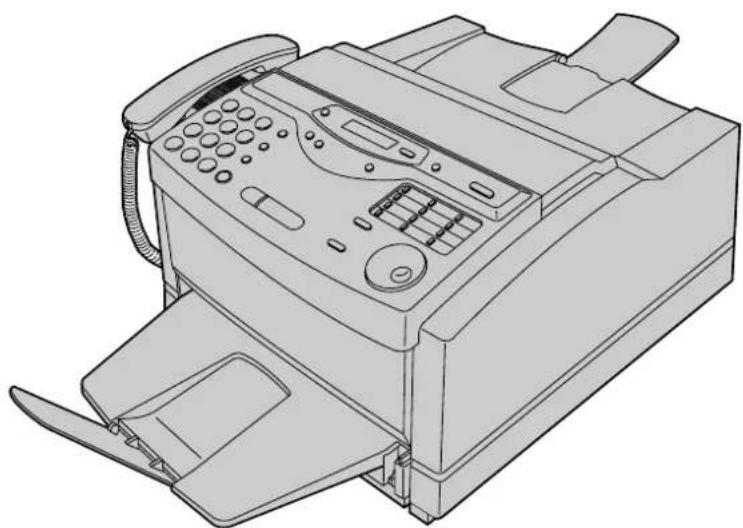
Line drawing of a printer with paper feed and control panel (no text or symbols)Please read these Operating Instructions before using the unit and save for future reference.
- This unit is designed for TONE dialling only, not for PULSE dialling.
- This unit is not designed for making emergency telephone calls when the power fails. Alternative arrangements should be made for access to emergency services.
IMPORTANT
Panasonic
WARRANTY REGISTRATION
Thank you for purchasing your Panasonic facsimile. By filling in the section below, this will ensure the following:
- We will register your unit on our warranty database. Should you ever require a service call under warranty, your call will be dealt with quickly and efficiently.
- We will send you a reply fax to confirm your registration and the correct operation of your unit.
- If you have any problems, please call us on 08701 580560.
Simply follow these instructions:
- Please fill in the section below in block capitals and in ink.
Your name
Company name (if applicable)
Your address
The image contains only a single, continuous horizontal line. According to Rule 2 (Stylistic/Background Lines), since there is no actual text content in the source image, the OCR result must be empty.
Therefore, the corrected OCR text is:
```text [No text detected]
Your postcode
Telephone no. ☐ ☐ ☐ ☐ ☐ ☐ ☐ ☐ ☐ ☐ ☐ ☐ ☐ ☐ ☐ ☐ ☐ ☐ ☐ ☐ ☐ ☐ ☐ ☐ ☐ ☐ ☐ ☐ ☐ ☐ ☐ ☐ ☐ ☐ ☐ ☐ ☐ ☐ ☐ ☐ ☐ ☐ ☐ ☐ ☐ ☐ ☐ ☐ ☐ ☐ ☑ Fax no.
Model no.
Month YearDay
Serial no. Date of purchase
- Fax this form to 08701 583250 and we will fax back to confirm receipt of your details. Please allow 14 working days for this. In addition, we will also send you information of our maintenance contracts.
TERMS AND CONDITIONS
- This Warranty is in addition to and does not in any way affect any statutory or other rights of consumer purchasers. This warranty relates only to product used within Mainland Great Britain, please refer to your dealer for warranty information relating to use elsewhere within the United Kingdom.
- This product is approved for use only on the United Kingdom's Public Switched Telephone Network and should be used only for normal purposes and in accordance with standard operating instructions.
- You should complete the registration form overleaf and fax send it to us within 7 days of purchase; failure to do so may result in delays in providing warranty service.
- This warranty covers breakdowns due to design or manufacturing faults; it does not apply to damage, however caused, wear and tear, neglect, incorrect adjustment or repair, or to any items of limited natural life.
- This warranty does not cover any optional accessories which may have been purchased either at the same time as, or subsequent to, the main unit. Such accessories should be returned to the point of purchase if found to be faulty.
- In the event of a failure, please take the following action:
a. Refer to the "Help" section of your instruction manual in order to identify and possibly correct the problem;
b. If the fault cannot be resolved and you require a trained engineer to call, please contact the service centre on 08701 580560.
Before you telephone have the following information ready:
- Your postcode, telephone number, contact name, model no. and serial no.
- A good description of the fault and any other relevant information.
- State also if the repair is to be carried out under warranty or chargeable (out of warranty).
A trained operator will discuss the nature of the perceived fault over the phone and if still unresolved will arrange for an engineer to visit.
When the operator calls please have ready proof of purchase for under warranty repair. It is your responsibility to prove that the unit is under warranty; if this is not possible the repair will be undertaken on a chargeable basis.
- Your sole and exclusive remedy under this guarantee against us is for repair, or at our option the replacement, of the product or any defective part or parts. No other remedy, including, but not limited to, incidental or consequential damage or loss of whatsoever nature shall be available to the purchaser.
- The warranty period applicable to this product shall be 12 months from the date of purchase.
Thank you for purchasing a Panasonic facsimile.
Welcome to the world of Panasonic facsimiles.
This product combines facsimile, telephone, copier, scanner, PC Fax and printer features to provide you with more efficient office or home use. By utilising these convenient features, you can maximise the effectiveness of this unit.
For future reference
Date of purchase Serial number
(found on the rear of the unit)
Dealer's name and address
Dealer's telephone number
Caution:
- When connecting the fax machine to your computer, use the included printer cable for reliable data communications and compliance with EMC.
- This equipment has been approved in accordance with Council Decision 98/482/EC and 1999/303/EC for pan-European single terminal connection to the public switched telephone network (PSTN). However, due to differences between the individual PSTNs provided in different countries, the approval does not, of itself, give an unconditional assurance of successful operation on every PSTN network termination point.
In the event of problems, you should contact your equipment supplier in the first instance.
This equipment is designed to work only on the UK telephone network.
Note:
- The suffix "E" in the model number is omitted in these instructions.
Trademarks
IBM is a registered trademark of International Business Machines Corporation. Microsoft and Windows are registered trademarks of Microsoft Corporation in the United States and/or other countries.
Visioneer PaperPort is a registered trademark of Visioneer, Inc. All other trademarks identified herein are the property of their respective owners.
Copyright:
This manual is copyrighted by Kyushu Matsushita Electric Co., Ltd. (KME) and its licensee. Under the copyright laws, this manual may not be reproduced in any form, in whole or part, without the prior written consent of KME and its licensee.
© Kyushu Matsushita Electric Co., Ltd. 1999
Important safety instructions
When using this unit, basic safety precautions should always be followed to reduce the risk of fire, electric shock, or personal injury.
- Read and understand all instructions.
- Follow all warnings and instructions marked on this unit.
- Unplug this unit from AC outlets before cleaning. Do not use liquid or aerosol cleaners. Use a damp cloth for cleaning.
- Do not use this unit near water, for example near a bath tub, wash bowl, kitchen sink, or the like.
- Place the unit securely on a stable surface. Serious damage and/or injury may result if the unit falls.
- Do not cover slots and openings on the unit. They are provided for ventilation and protection against overheating. Never place the unit near radiators, or in a place where proper ventilation is not provided.
- Use only the power source marked on the unit. If you are not sure of the type of power supplied to your home, consult your dealer or local power company.
- For safety purposes this unit is equipped with a three prong grounded plug. If you do not have this type of outlet, please have one installed. Do not use any type of adaptor plug to defeat this safety feature.
-
Do not place objects on the power cord. Install the unit where no one can step or trip on the cord.
-
Do not overload wall outlets and extension cords. This can result in the risk of fire or electric shock.
- Never push any objects through slots in this unit. This may result in the risk of fire or electric shock. Never spill any liquid on the unit.
- To reduce the risk of electric shock, do not disassemble this unit. Take the unit to an authorized servicentre when service is required. Opening or removing covers may expose you to dangerous voltages or other risks. Incorrect reassembly can cause electric shock when the unit is subsequently used.
- Unplug this unit from the wall outlet and refer servicing to an authorized servicentre when the following conditions occur:
A. When the power supply cord or plug is damaged or frayed.
B. If liquid has been spilled into the unit.
C. If the unit has been exposed to rain or water.
D. If the unit does not work normally by following the operating instructions. Adjust only controls covered by the operating instructions. Improper adjustment may require extensive work by an authorized servicentre.
E. If the unit has been dropped or physically damaged.
F. If the unit exhibits a distinct change in performance. - During thunderstorms, avoid using telephones except cordless types. There may be a remote risk of an electric shock from lightning.
- Do not use this unit to report a gas leak, when in the vicinity of the leak.
SAVE THESE INSTRUCTIONS
INSTALLATION:
- Never install telephone wiring during a lightning storm.
- Never install telephone jacks in wet locations unless the jack is specifically designed for wet locations.
- Never touch uninsulated telephone wires or terminals unless the telephone line has been disconnected at the network interface.
- Use caution when installing or modifying telephone lines.
WARNING:
- To prevent the risk of fire or electrical shock, do not expose this product to rain or any type of moisture.
CAUTION:
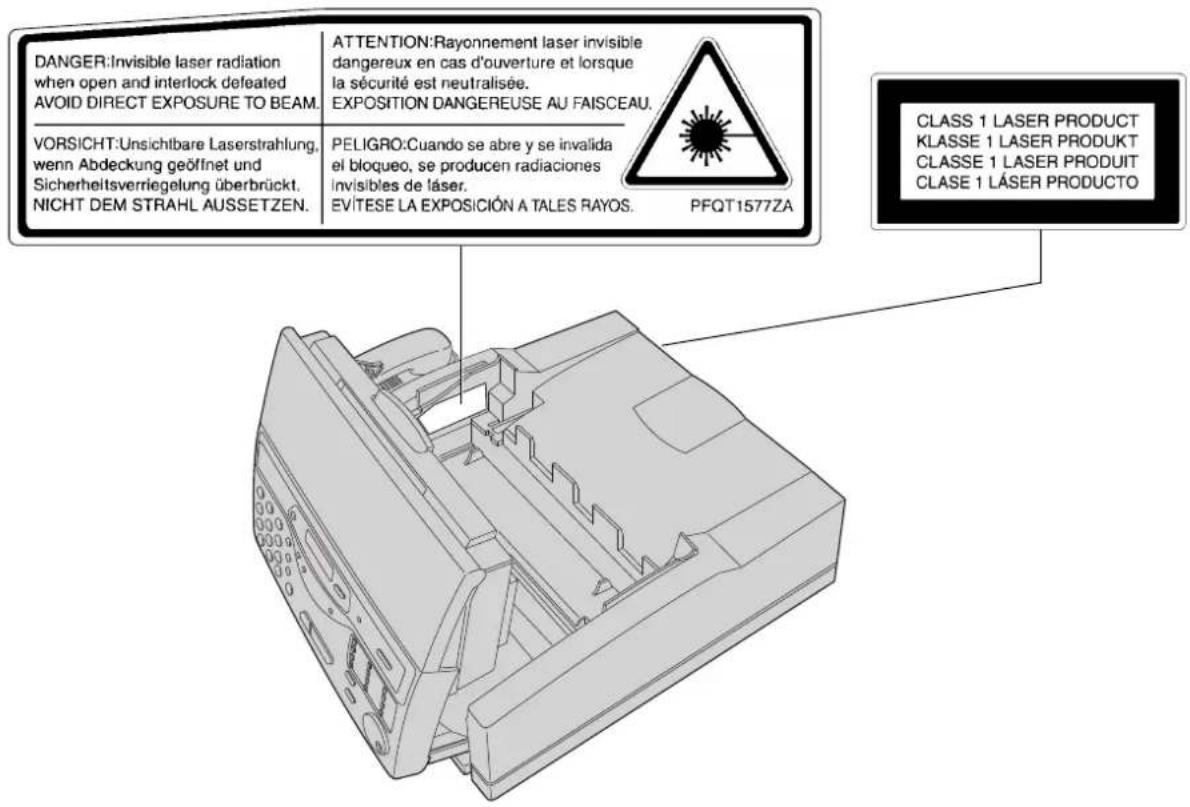
- This printer utilizes a laser. Use of controls or adjustments or performance of procedures other than those specified herein may result in hazardous radiation exposure.
OTHER INFORMATION:
- Keep the unit away from electrical noise generating devices, such as fluorescent lamps and motors.
●The unit should be kept free from dust, high temperature and vibration.
●The unit should not be exposed to direct sunlight. - Do not place heavy objects on top of this unit.
- Do not touch the plug with wet hands.
WASTE DISPOSAL METHOD:
- Waste material may be dumped or incinerated under conditions which meet all federal, provincial and local environmental regulations.
Included accessories
Mains lead......1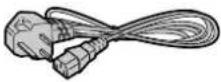 Order No. PQJA10039Z Order No. PQJA87S Order No. PFJXE0305Z Order No. PFJA1029Z Order No. PQJA10039Z Order No. PQJA87S Order No. PFJXE0305Z Order No. PFJA1029Z | Telephone line cord ....1 Handset......1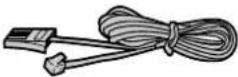 der No. PQJA87S Order No. PFJXE0305Z Order No. PFJXA1029Z der No. PQJA87S Order No. PFJXE0305Z Order No. PFJXA1029Z | Handset......1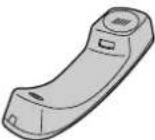 | Handset cord......1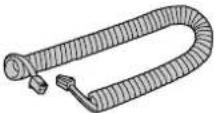 |
Paper tray ......1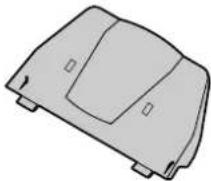 | Ptioner cartridge......1.1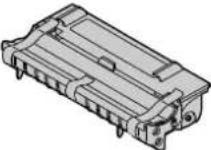 | Drum unit......1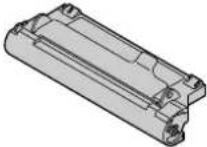 | (Parallel cable)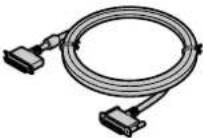 Order No. PFJA1031ZOrder No. PFZ Order No. PFJA1031ZOrder No. PFZ |
Paper cassette ......1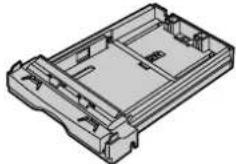 —The paper cassette is pre-installed.Order No. PFZEFLM600E —The paper cassette is pre-installed.Order No. PFZEFLM600E | Panasonic PC software for KX-FLM600(CD-ROM)* ......1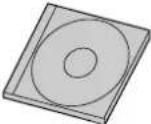 Order No. PFJK201A5131 Order No. PFJK201A5131 | Operating Instructions....1 Order No. PFQX1357Z Order No. PFQX1357Z |
* You will receive the latest software, therefore the order number may be different to the above. However the software is still compatible with your product.
- If any items are missing or damaged, check with the place of purchase.
- Save the original carton and packing materials for future shipping and transporting of the unit.
●The order numbers listed above are subject to change without notice.
- For further accessory orders, please contact your local Panasonic authorised dealer.
Accessory order information
| Description SpecificationsModel No. | ||
| KX-FA75X 1 | Toner cartridge toner cartridge and and drum unit | 1 drum unit |
Installation
Before installation (p. 20)
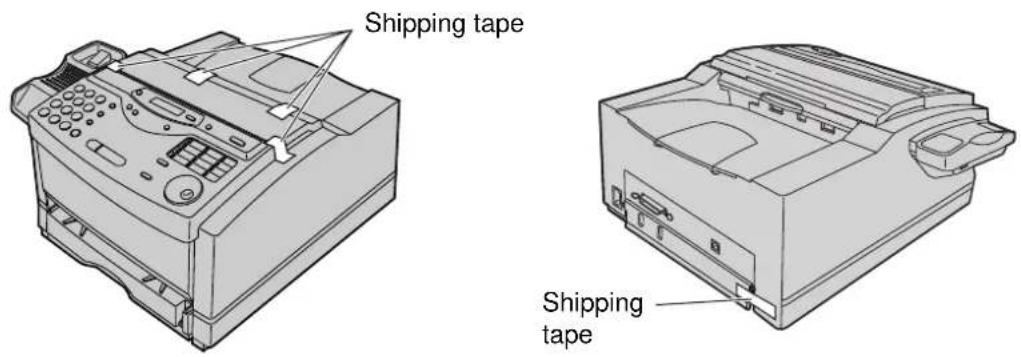
Remove the shipping tape.
1
Toner cartridge (p. 20–22)
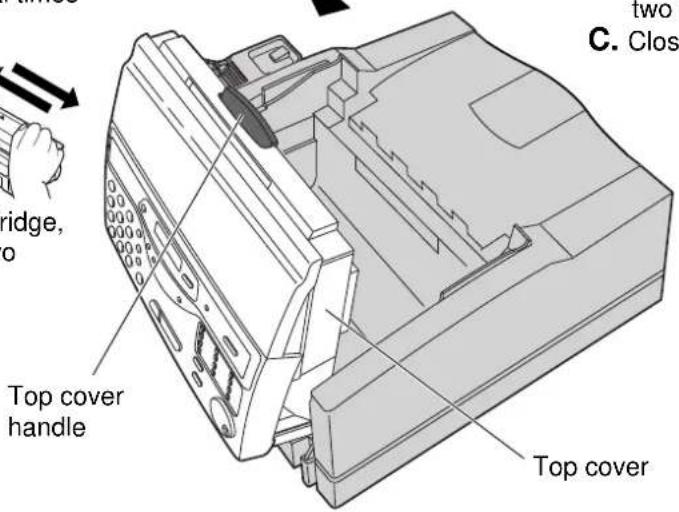
A. Pull the top cover handle forward and open the top cover.
B. Remove the protection cap attached to the cartridge.
Protection cap
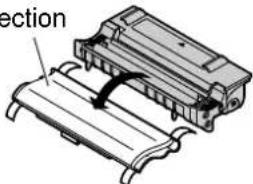
- Do not touch the roller.
C. Rock the cartridge from side to side several times carefully.

D. Install the cartridge, holding the two tabs.
2
Drum unit (p. 20–22)
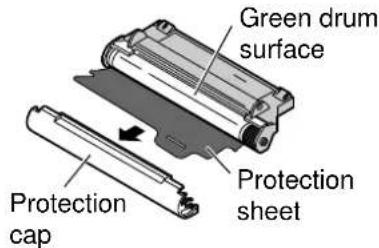
A. Remove the protection cap and protection sheet attached to the drum unit.
- Do not touch or scratch the green drum surface.
- Do not expose the drum unit to light for more than 5 minutes.
B. Install the drum unit on the toner cartridge, holding the two tabs.
C. Close the top cover.
3
Recording paper (p. 23, 24)
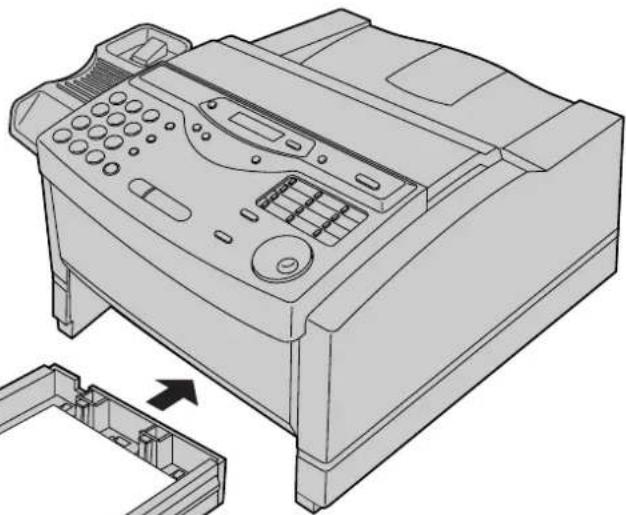
A. Lift the paper cassette up slightly and pull it out of the unit.
B. Fan the stack of paper to prevent a paper jam and place the paper in the paper cassette.
- Put the side to be printed face up.
C. Insert the paper cassette into the unit until it clicks into place.
natural_image
Technical line drawing of a printer with internal components and an open base (no text or symbols)Paper cassette
4
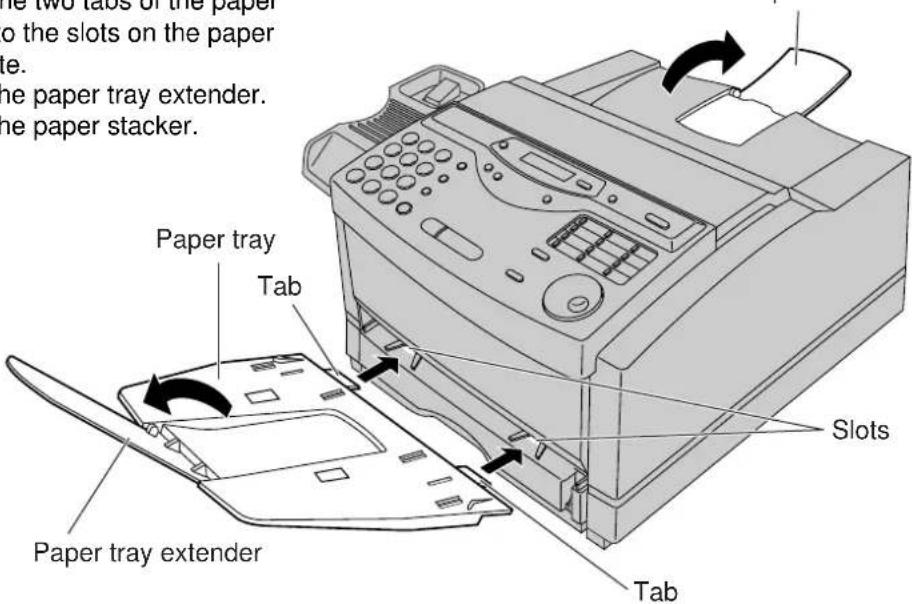
Paper tray and paper stacker (p. 25)
A. Insert the two tabs of the paper tray into the slots on the paper cassette.
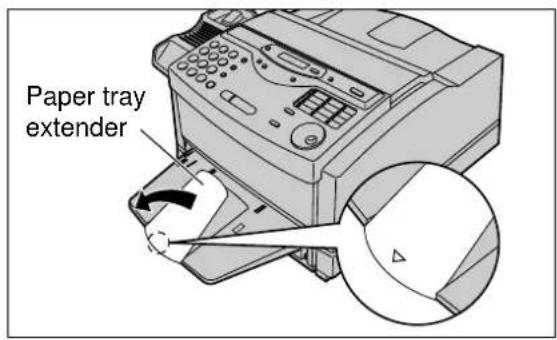
B. Open the paper tray extender.
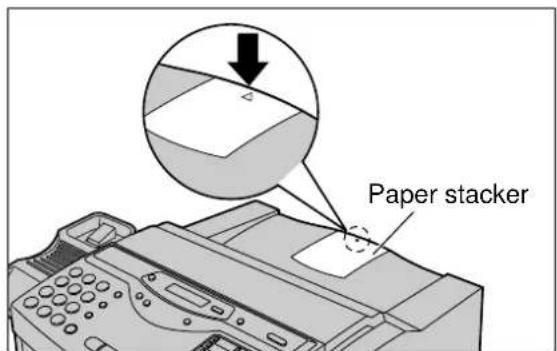
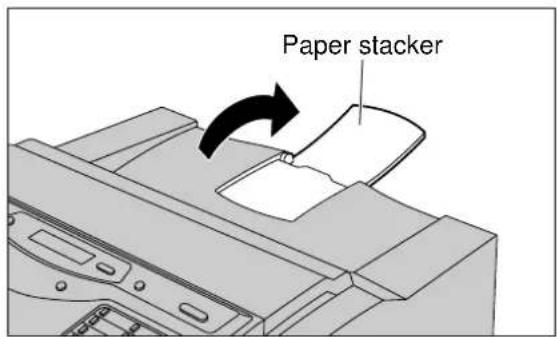
C. Open the paper stacker.
Paper stacker
Connections
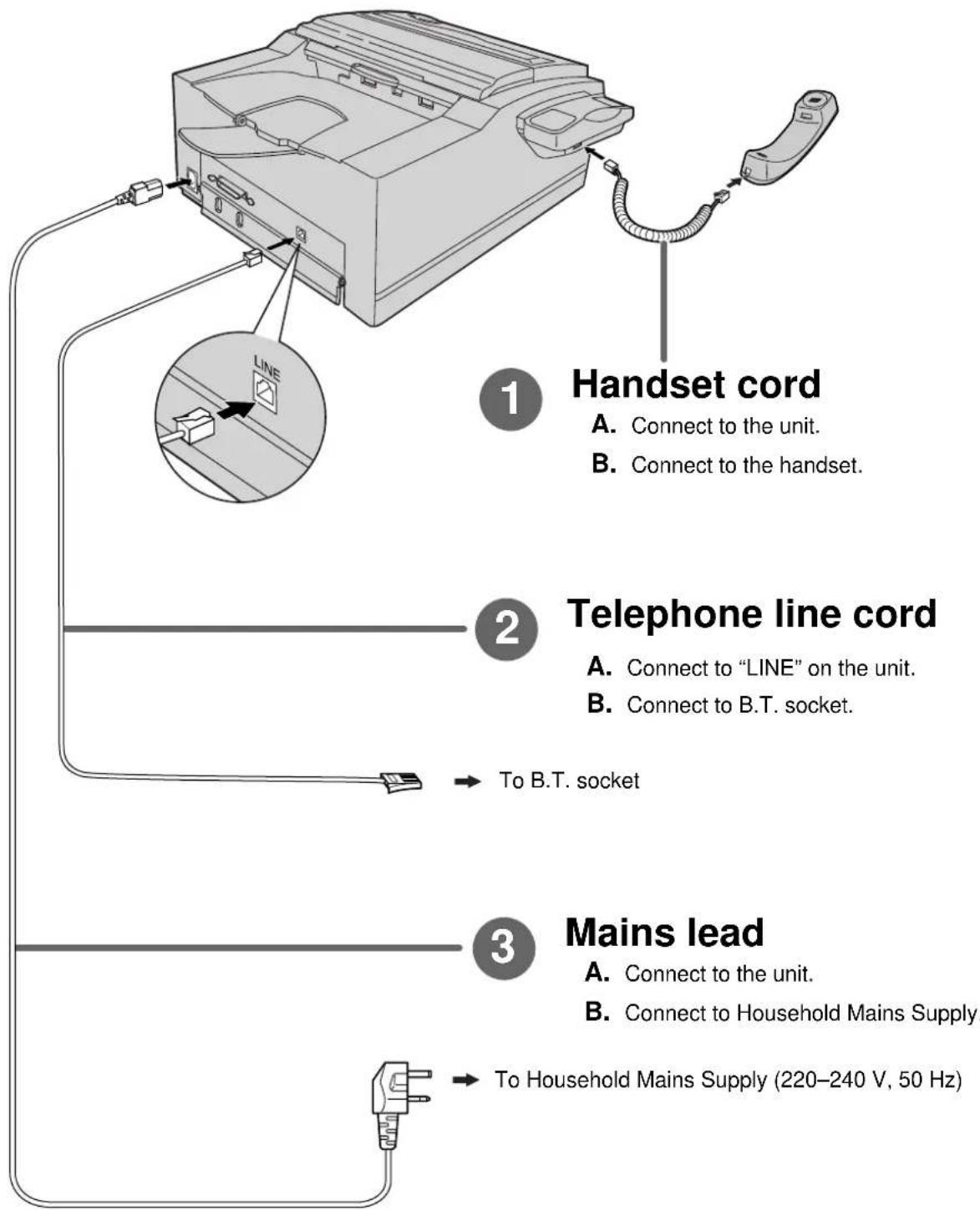
flowchart
graph TD
    A["1 Handset cord"] --> B["2 Telephone line cord"]
    B --> C["3 Mains lead"]
- For further details, see page 26.
Voice calls - making/answering
Voice calls - making
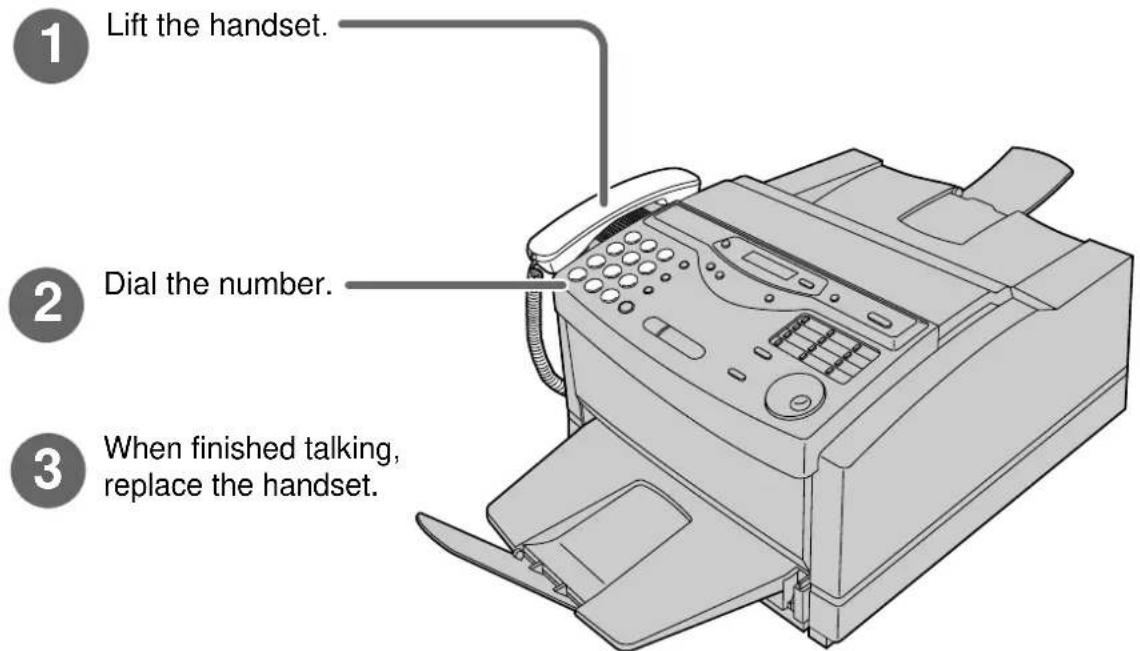
- For further details, see page 32.
- If you are having trouble, see page 103.
Voice calls - answering
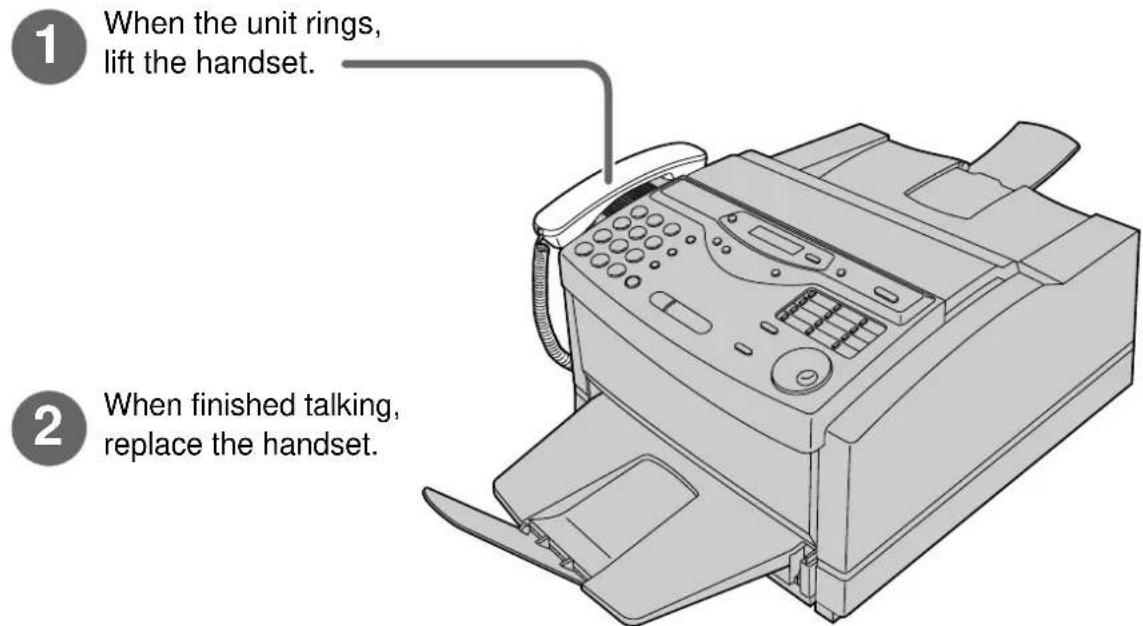
- For further details, see page 32.
- If you are having trouble, see page 103.
Faxes - sending/receiving
Faxes - sending
1 Open the document feeder tray.
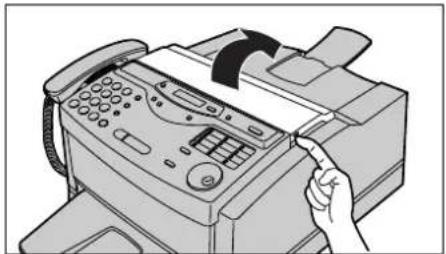
natural_image
Illustration of a hand inserting a button into a printer (no text or symbols visible)2 Adjust the width of the document guides to the size of the document.
3 Insert the document until the unit grabs the document and a single beep is heard.
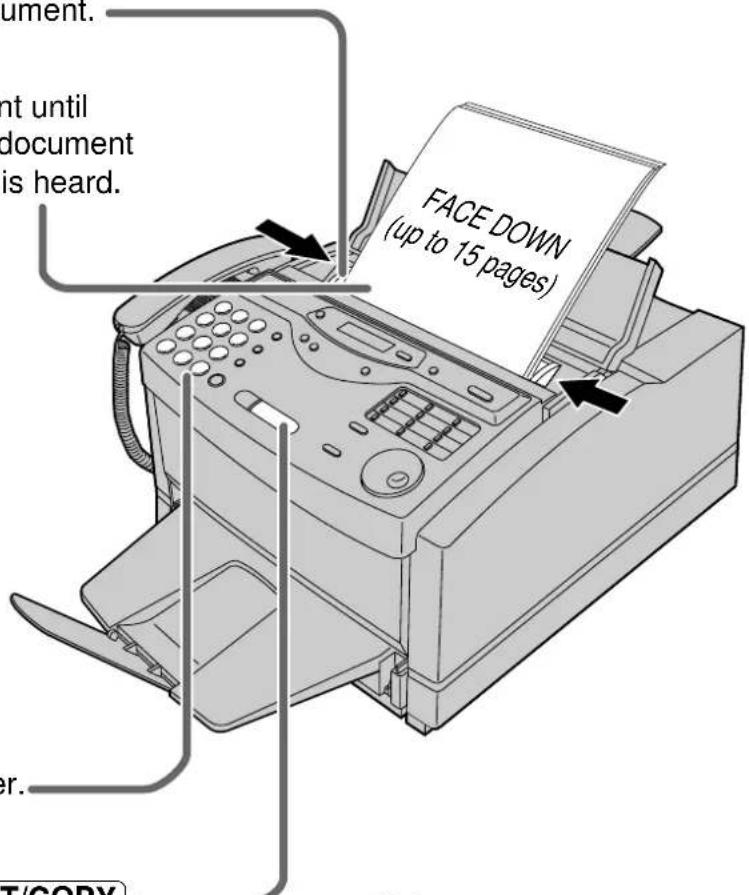
4 Dial the fax number.
5 Press START/SET/COPY.
- For further details, see page 41.
- If you are having trouble, see page 103.
Note:
●While scanning, do not move the pages which have already been ejected. A paper jam may occur. Allow the scanning process to finish before viewing documents.
Faxes - receiving
1 When the unit rings, lift the handset.
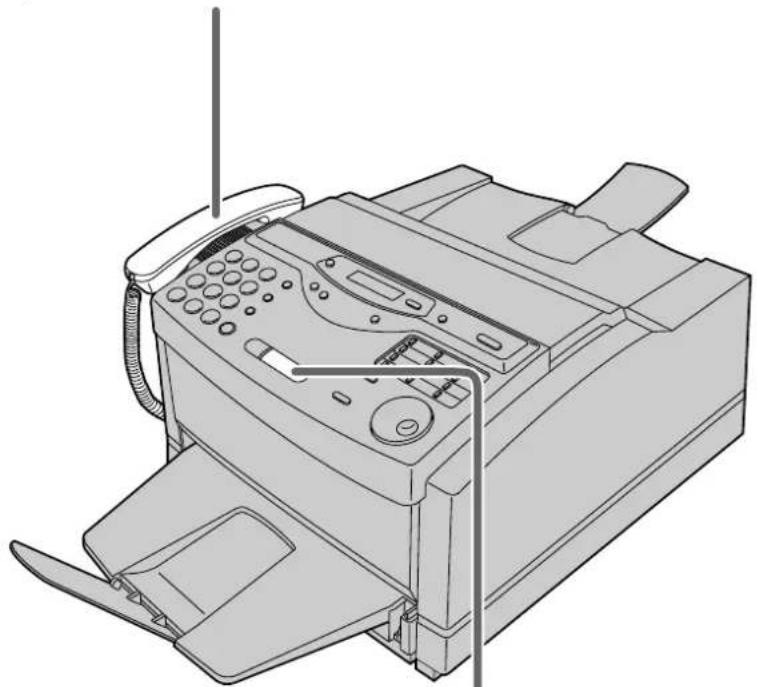
natural_image
Line drawing of a printer with paper feed and control panel (no text or symbols)2 When: — document reception is required, — a fax calling tone (slow beep) is heard, or — no sound is heard, press START/SET/COPY.
3 Replace the handset.
- For further details, see page 56.
- You can select the way to receive calls according to your needs (p. 54, 55).
- If you are having trouble, see page 104.
Copying
Open the document feeder tray.
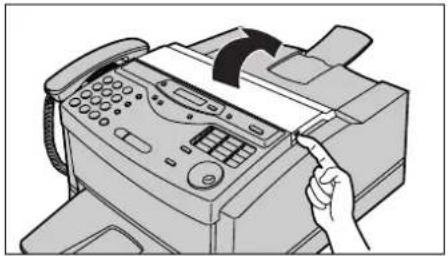
natural_image
Illustration of a hand inserting a button into a printer (no text or symbols visible)2 Adjust the width of the document guides to the size of the document.
3 Insert the document until the unit grabs the document and a single beep is heard.
• Make sure the handset is on the cradle.
4 Press START/SET/COPY
5 Enter the number of copies.
6 Press START/SET/COPY.
- For further details, see page 69.
- If you are having trouble, see page 104.
Note:
- While scanning, do not move the pages which have already been ejected. A paper jam may occur. Allow the scanning process to finish before viewing documents.
PC information
1 Connect to a computer (p. 71).
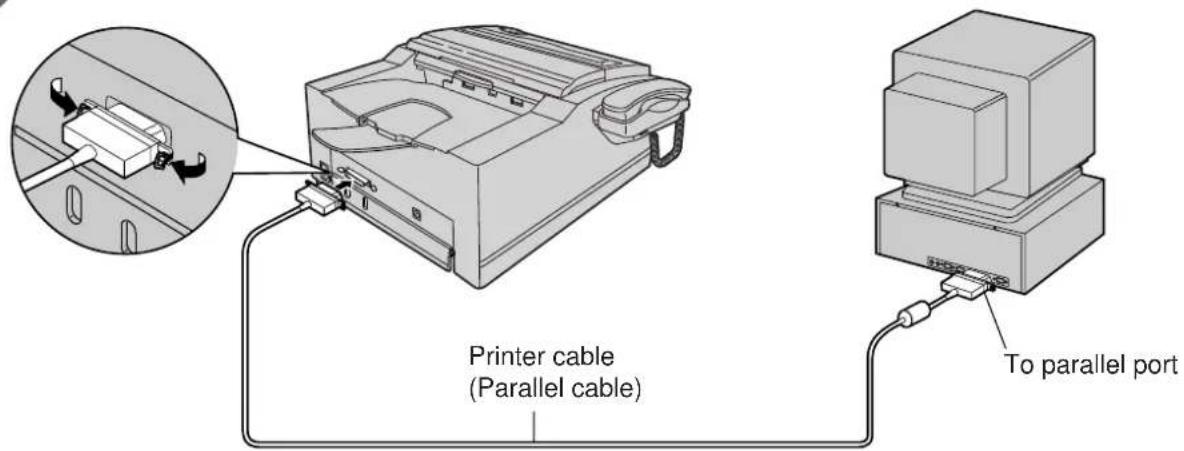
Caution:
- When connecting the fax machine to your computer, use the included printer cable for reliable data communications and compliance with EMC.
2 Install the PANA LINK software (p. 72). 1. Start Windows ^® . 95\* or Windows 98
- Start Windows ^® 95* or Windows 98** and close all applications.
- Insert the included CD into your CD-ROM drive.
●The language dialogue box will appear.
Select the desired language to use with this software. Click OK.
- If the language dialogue box does not appear and the installation does not start automatically:
Click Start, choose Run... . Type "d:\setup" (where d: is the drive letter of your CD-ROM drive). Click OK.
(If you are not sure what the drive letter is for your CD-ROM drive, please use Windows Explorer and look for the CD-ROM drive.)
- The installation will start automatically.
- Follow the instructions on the screen until all files have been installed.
- Be sure to read the README file for more information.
3 Activate the PANA LINK software (p. 73). 1. Click Start.
- Point to Programs, point to PANA LINK and click PANA LINK.
●The PANA LINK main panel will appear.
Table of Contents
| Initial Preparation | Help Button | Help function | 16 |
| Finding the Controls | Overview | 17 | |
| Location | 18 | ||
| Setup Before installation | 20 | ||
| Toner cartridge and drum unit | |||
| Recording paper | |||
| Paper tray | |||
| Paper stacker | |||
| Connections | |||
| Date and time, your logo and facsimile telephone number | |||
| Recording paper size | |||
| Volumes Adjusting volumes | 31 | ||
| Telephone | Making and Answering Calls | Voice calls - making | 32 |
| Voice calls - answering | 32 | ||
| RECALL and PAUSE buttons | 33 | ||
| Setting the melody ringer | 34 | ||
| One-Touch Dial | Storing names and telephone numbers in the One-Touch Dial | 35 | |
| Making a voice call using the One-Touch Dial | 36 | ||
| EASY DIAL | Storing names and telephone numbers in the EASY DIAL directory | 37 | |
| Making a voice call using the EASY DIAL directory | 39 | ||
| Voice Contact | Talking to the caller after fax transmission or reception | 40 | |
| Fax/Copy | Sending Faxes | Sending a fax manually | 41 |
| Sending a fax using the One-Touch Dial | 42 | ||
| Sending a fax using the EASY DIAL directory | 43 | ||
| Documents you can send | 44 | ||
| Sending report for confirmation | 45 | ||
| Automatic journal report | 46 | ||
| Delayed transmission (sending a fax at a specified time) | 47 | ||
| From memory | 48 | ||
| Multiple stations | 49 | ||
| Overseas mode | 52 | ||
| Half-tone setting | 52 | ||
| Error correction mode setting | 53 | ||
| Connecting tone | 53 | ||
| Receiving Faxes | Setting the unit to receive calls | 54 | |
| TEL mode (answering all calls manually) | 56 | ||
| FAX ONLY mode (all calls are received as faxes) | 57 | ||
| Extension telephone | 59 | ||
| Fax activation code | 59 | ||
| TEL/FAX mode (receiving voice calls with rings and fax calls without rings when you are near the unit) | 60 | ||
| Turning the AUTO ANSWER mode on remotely | 64 | ||
| Other size documents | 65 | ||
| Memory reception alert | 66 | ||
| Friendly reception | 66 | ||
| Pager call - when your unit receives a fax | 67 | ||
| Toner save | 68 | ||
| Copying | Making a copy | 69 | |
| PC Software | Setup (PC) | Connecting to a computer....71Installing the PANA LINK software....72Activating the PANA LINK software....73Setting up PANA LINK....74Setting user information....75 | |
| Printer | Printing documents created on the PC....76Printing using the paper tray (manual feeding)....80 | ||
| PC Fax Sending documents created on the PC....84Sending a document from the fax machineusing the PC....87 | |||
| PC Receiving | Receiving faxes on your PC....88 | ||
| Phone Call | Making a phone call....90 | ||
| Address Book | Computerised directory for fax and phone numbers....91 | ||
| Scanning | Using your fax machine as a scanner....92 | ||
| Copier | PC based copying....96 | ||
| More Information | The Communication Log....97Viewer....98PC link (turning PC related functions on/off)....99 | ||
| Help | Error Messages | Reports....100Display....101 | |
| Operations When a function does not work, check herebefore requesting help....103If a power failure occurs....109 | |||
| Jams Clearing paper jams....110Sending document jams....112 | |||
| Cleaning | Cleaning....112 | ||
| Replacement Replacing the toner cartridge and drum unit....113 | |||
| Repacking | Transporting the unit....116 | ||
| General Information | Print Reports | Printing the feature settings, telephone numbers,journal and broadcast list....119 | |
| Display Contrast | Changing the display contrast....120 | ||
| Reset | Resetting the advanced features....120 | ||
| Specifications | Technical data about this product....121 | ||
| Important Information | Important Information....124 | ||
| Information | Fitting a plug to the mains lead....125 | ||
| Guarantee | Condition of guarantee....126 | ||
| Index | Index....127 | ||
| Features Summary | Summary of user programmable features....129 | ||
Help Button
Help function
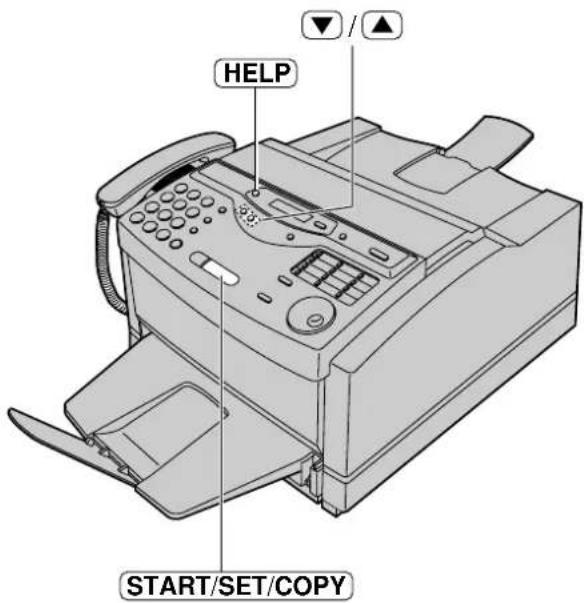
You can print a quick reference for assistance as follows. Before using this function, read the instructions on pages 20 to 26 and set up the unit.
1 Press HELP.
Display: PRESS [▼▲] & [SET]
2 Press ▼ until the desired item is displayed. The following items are available.
-
How to programme your unit
-
HOW TO SET UP
-
How to store names in the EASY DIAL directory and how to dial them
2.EASY DIAL
- Help with problems receiving faxes
3.FAX RECEIVING
-
How to use the copier function
-
COPIER
-
List of available reports
-
REPORTS
3 Press START/SET/COPY.
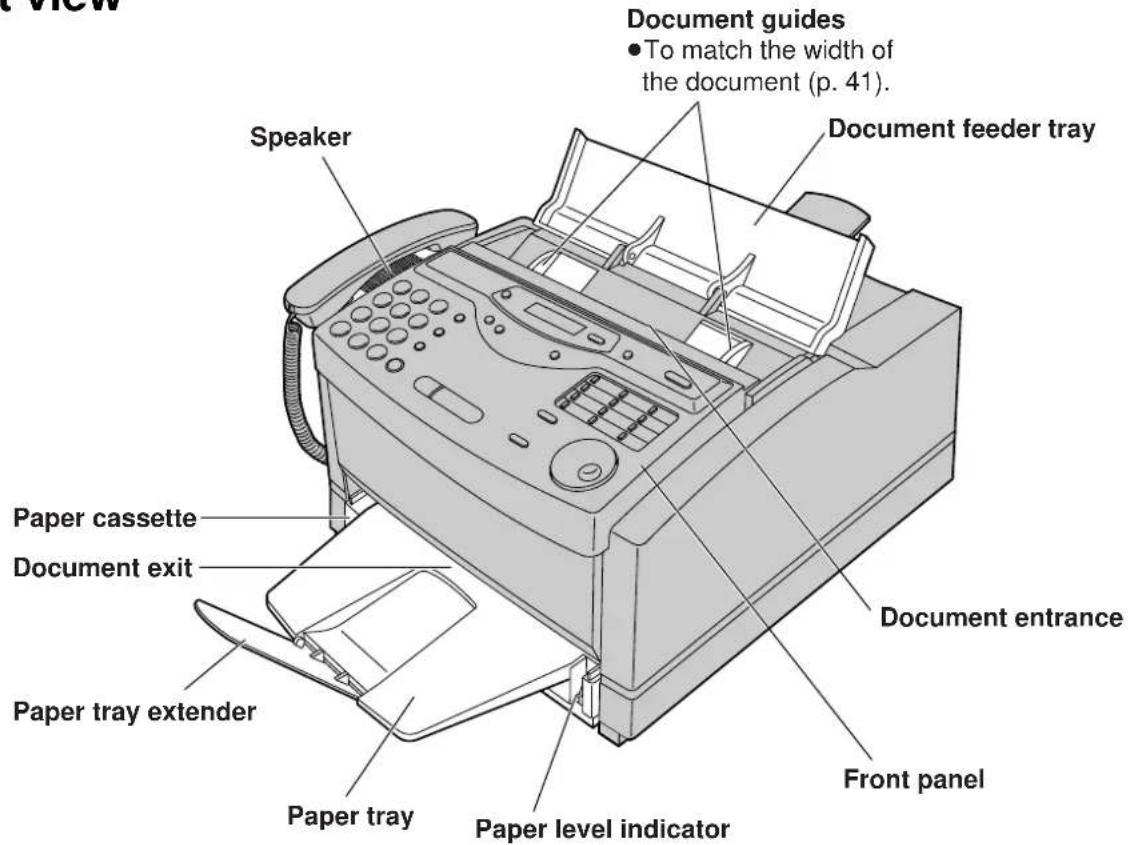
Overview
Front view
Rear view
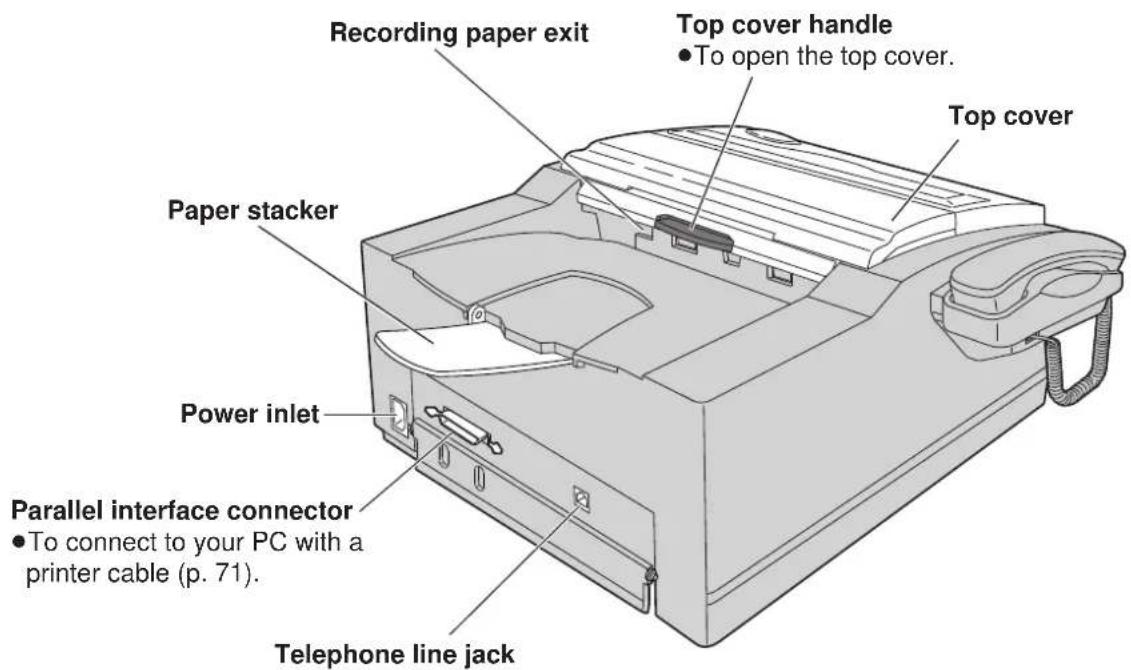
Finding the Controls
Location
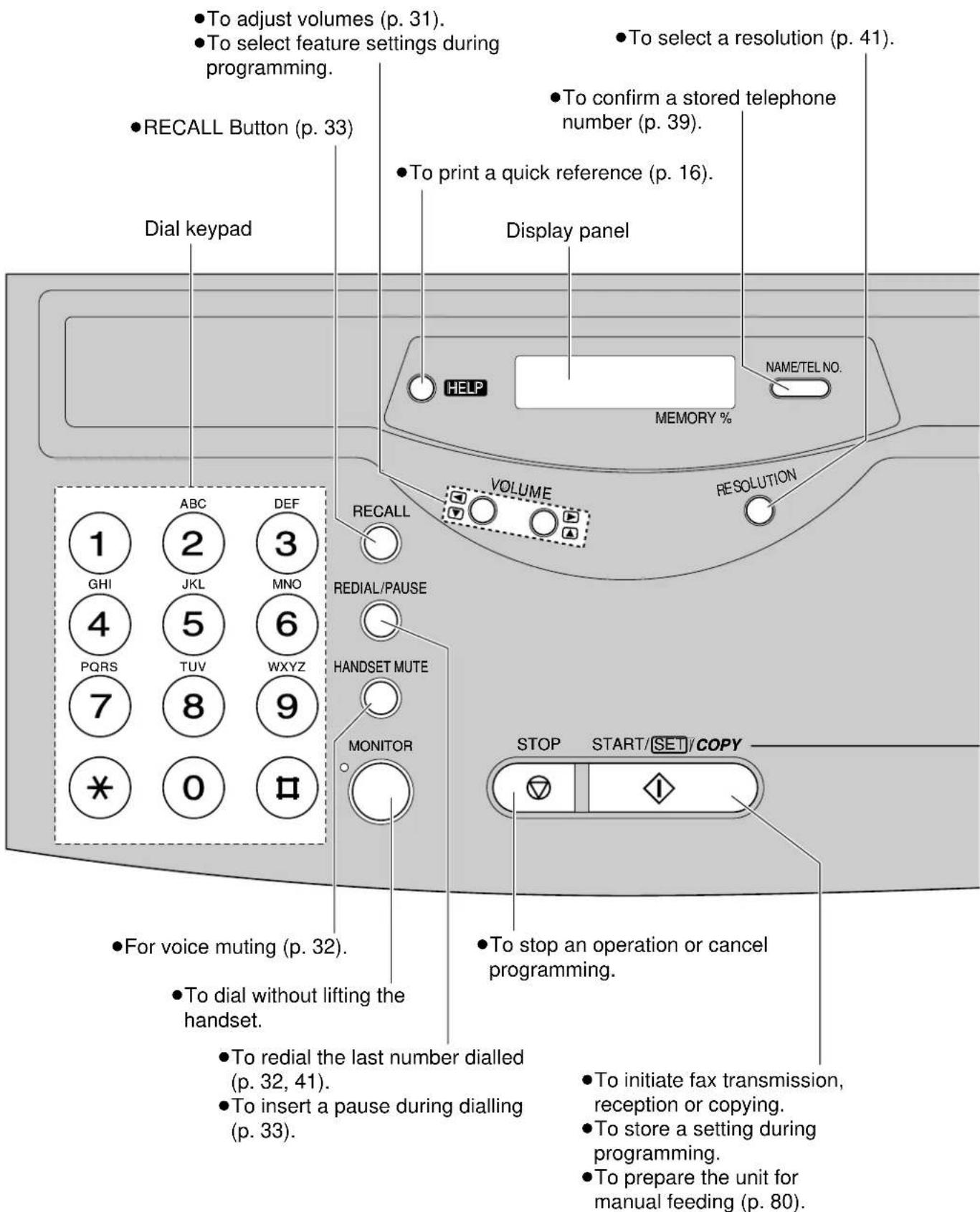
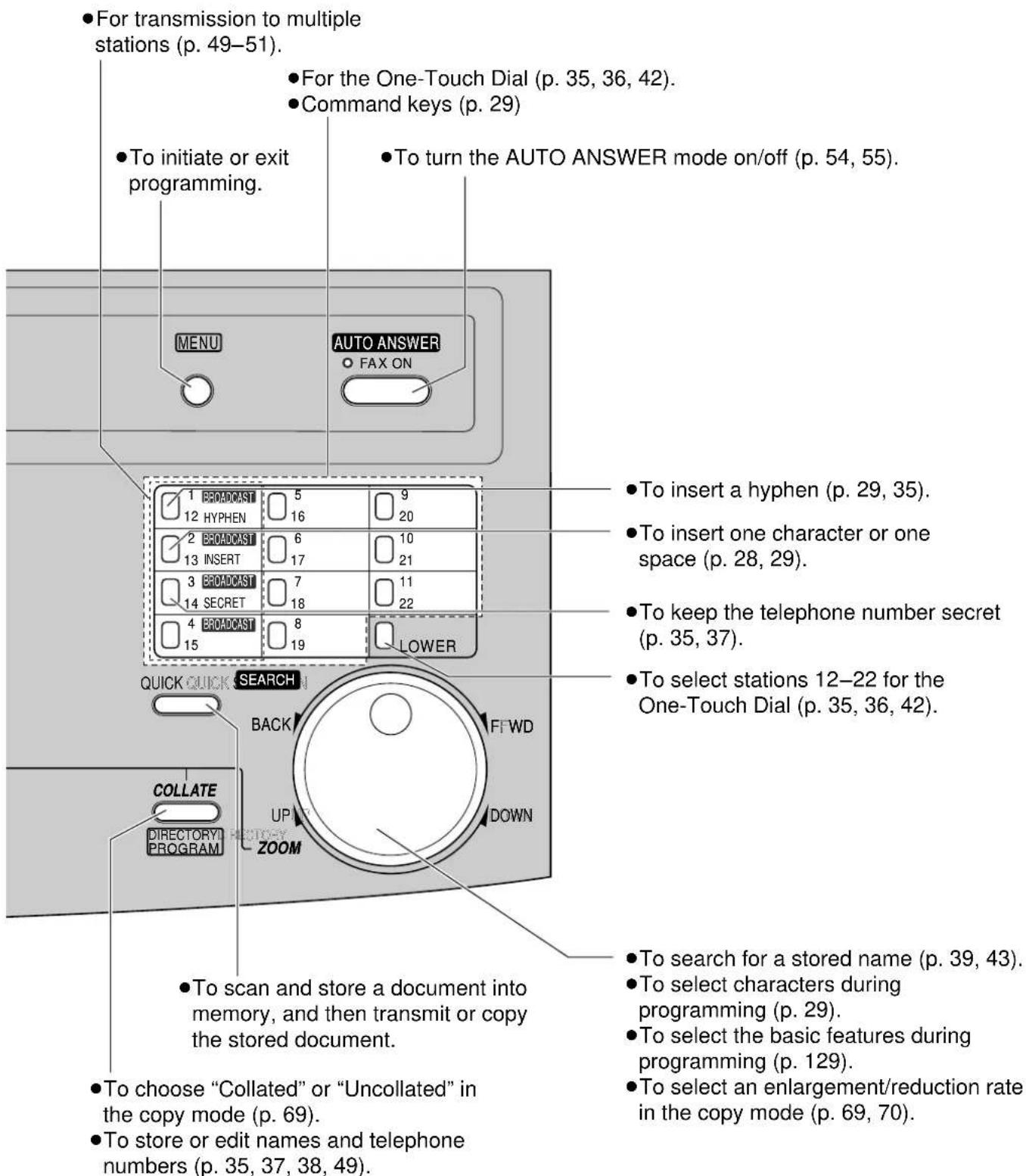
Setup
Before installation
Remove the shipping tape.
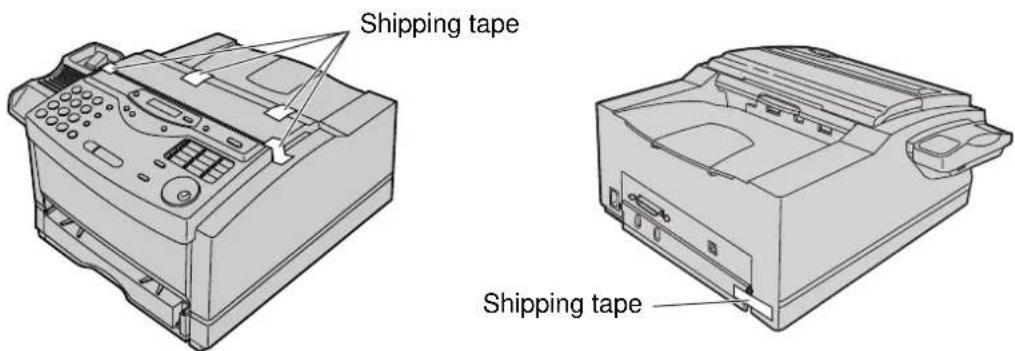
Toner cartridge and drum unit
Caution:
- If ingestion of toner occurs, drink several glasses of water to dilute stomach contents, and seek immediate medical treatment. If toner comes into contact with eyes, flush thoroughly with water, and seek medical treatment. If toner comes into contact with skin, wash thoroughly with soap and water.
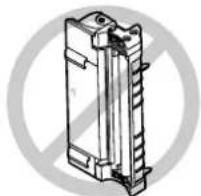
- Do not tip the toner cartridge on its end.
- Do not open the protection bag until you have read the following instructions and are ready to install the drum unit. The drum unit contains a photosensitive drum. Exposing it to light may damage the drum.
Once you have opened the protection bag:
—Do not expose the drum unit to light for more than 5 minutes.
—Do not touch or scratch the green drum surface.
—Do not place the drum unit near dust or dirt.
—Do not place the drum unit in a high humidity area.
—Do not expose the drum unit to direct sunlight.
Important:
- Keep the protection materials in case the fax machine must be repacked and transported.
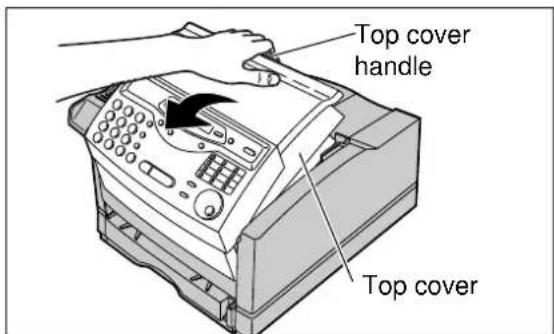
1 Pull the top cover handle forward and open the top cover.
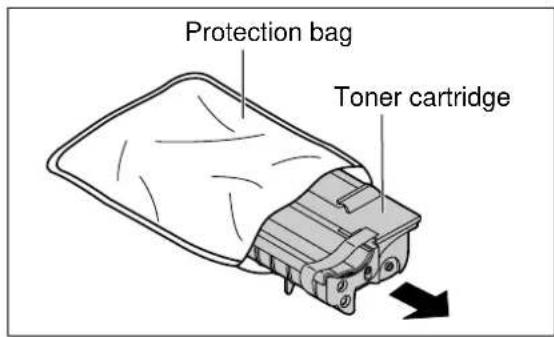
2 Open the protection bag by cutting the end of the bag and remove the toner cartridge.
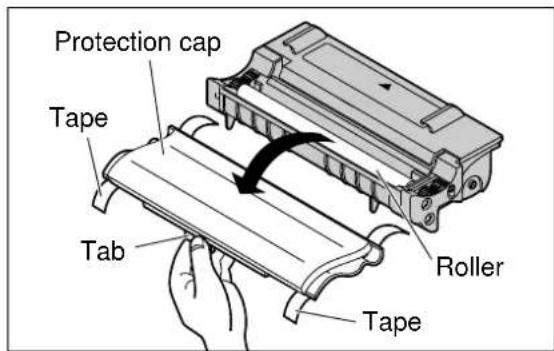
3 Remove the tape and remove the protection cap, holding the tab.
Caution:
- Do not touch the roller.
- Do not tip the toner cartridge on its end.
natural_image
Technical line drawing of a mechanical component with no visible text or symbols4 Carefully rock the toner cartridge from side to side several times.
5 Install the toner cartridge, holding the two tabs and matching the triangles.
6 Open the protection bag by cutting the end of the bag, and remove the drum unit.
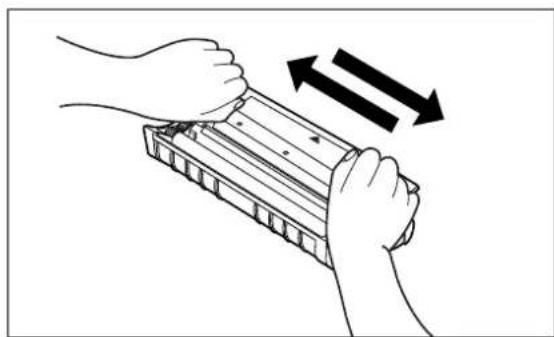
natural_image
Illustration of hands holding a rectangular device with two arrows indicating direction (no text or symbols)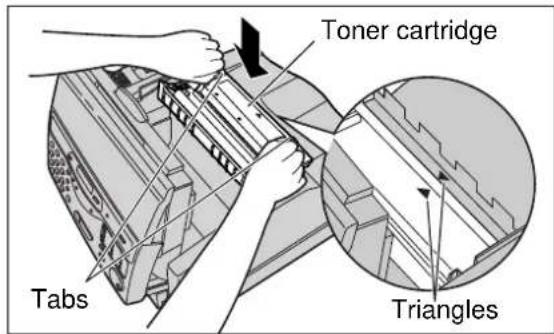
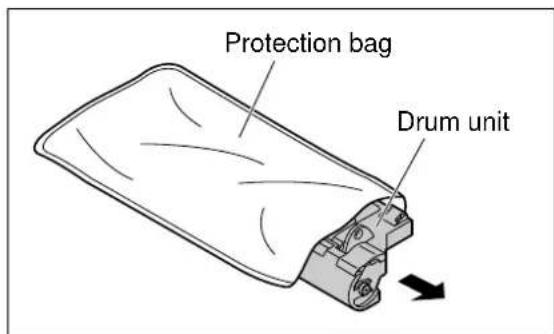
(continued)
Setup
7 Remove the tape and protection cap.
8 Remove the protection sheet.
Caution:
- Do not touch or scratch the green drum surface as this may damage the drum unit.
- Do not expose the drum unit to light for more than 5 minutes as this may damage the drum unit.
9 Install the drum unit on the toner cartridge, holding the two tabs and matching the triangles.
10 Close the top cover securely by pushing down on the dotted area at both ends.
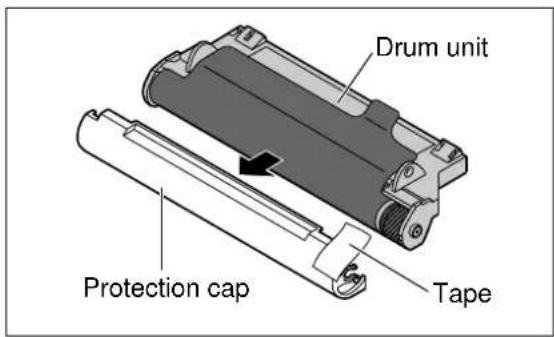
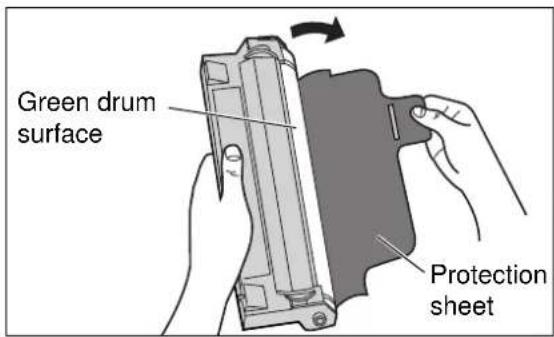
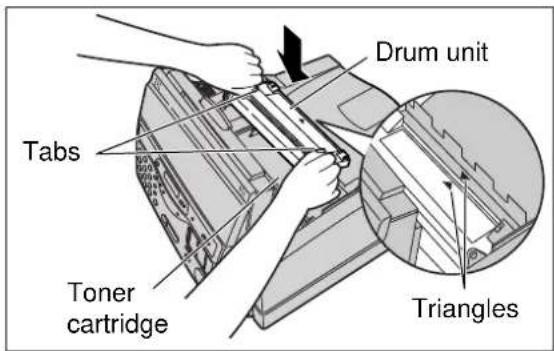
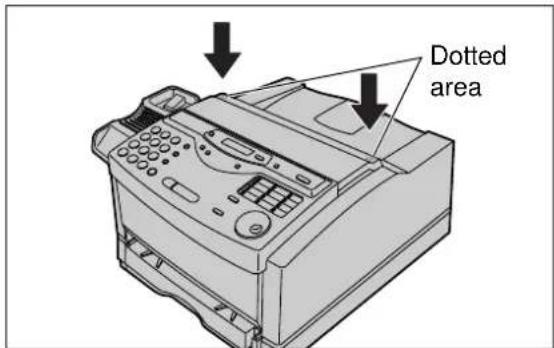
Recording paper
You can load A4 size paper in the paper cassette. The paper cassette can hold up to 250 sheets of 75 g/m^2 paper. You can use 60 g/m^2 to 90 g/m^2 paper.
Loading paper in the paper cassette
1 Lift the paper cassette up slightly and pull it out of the unit.
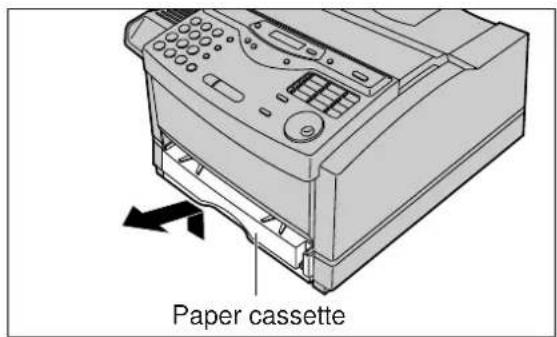
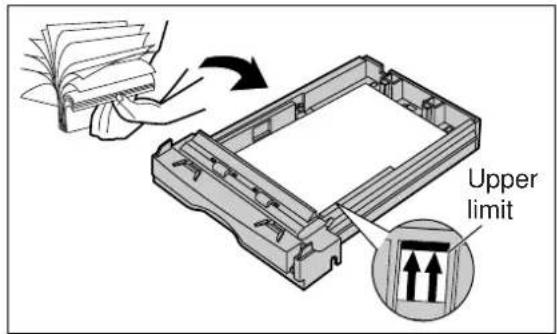
2 Fan the stack of paper to prevent a paper jam and place the paper into the paper cassette.
- Put the side to be printed face up.
- The height of the stack of paper should not exceed the upper limit on the paper cassette, or the paper may jam or multi-feed.
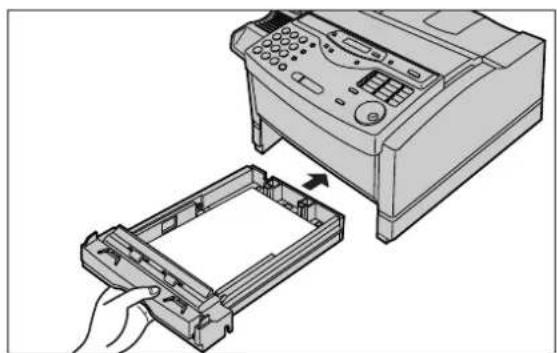
3 Insert the paper cassette into the unit until it clicks into place.
natural_image
Illustration of a printer being inserted into a plastic tray, showing the printer's internal structure and handle (no text or symbols present)Note:
- Do not use different types or thicknesses of paper in the paper cassette at the same time. This may cause a paper jam.
- Avoid double-sided printing.
- Do not use paper printed from this unit for double-sided printing with other copiers or printers, or a paper jam may occur.
Setup
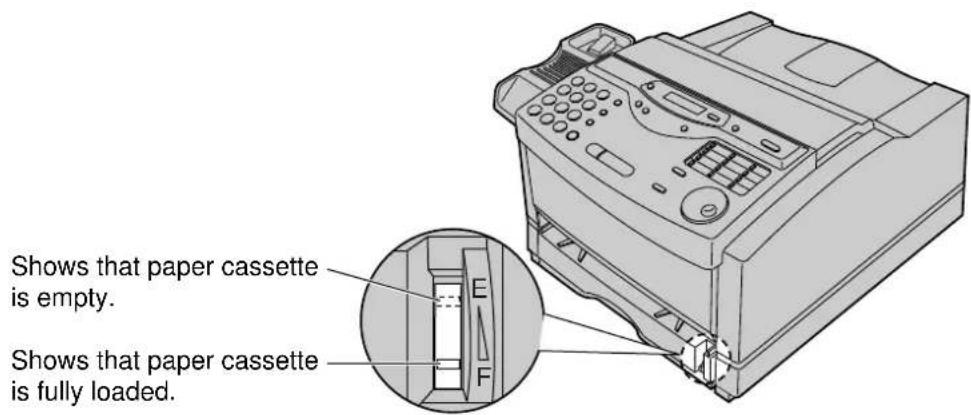
Checking the amount of remaining recording paper
You can see the amount of remaining paper without removing the paper cassette.
Types of paper to avoid
●Extremely smooth or shiny paper, or paper that is highly textured
•Coated papers
- Letterhead imprinted with low temperature or thermography. These materials may transfer onto the fusing roller and cause damage. Any pre-printed paper should use inks compatible with 200°C for 0.1 second
- Damaged or wrinkled paper, or paper with irregularities such as tabs, staples, etc.
- Multipart forms or carbonless paper
●Paper with a cotton and/or fibre content over 25%
- Ink jet paper (It may transfer onto the fuser roller and cause damage.)
Paper tray
1 Insert the two tabs of the paper tray into the slots on the paper cassette.
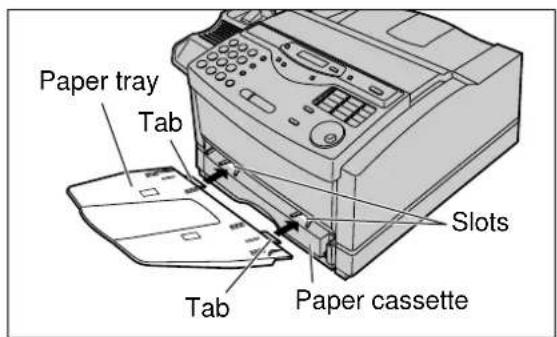
2 Open the paper tray extender by pressing on the area marked "▽".
Paper stacker
1 Press the area marked "▽" on the paper stacker.
2 Open the paper stacker.
SetupSetup
Connections
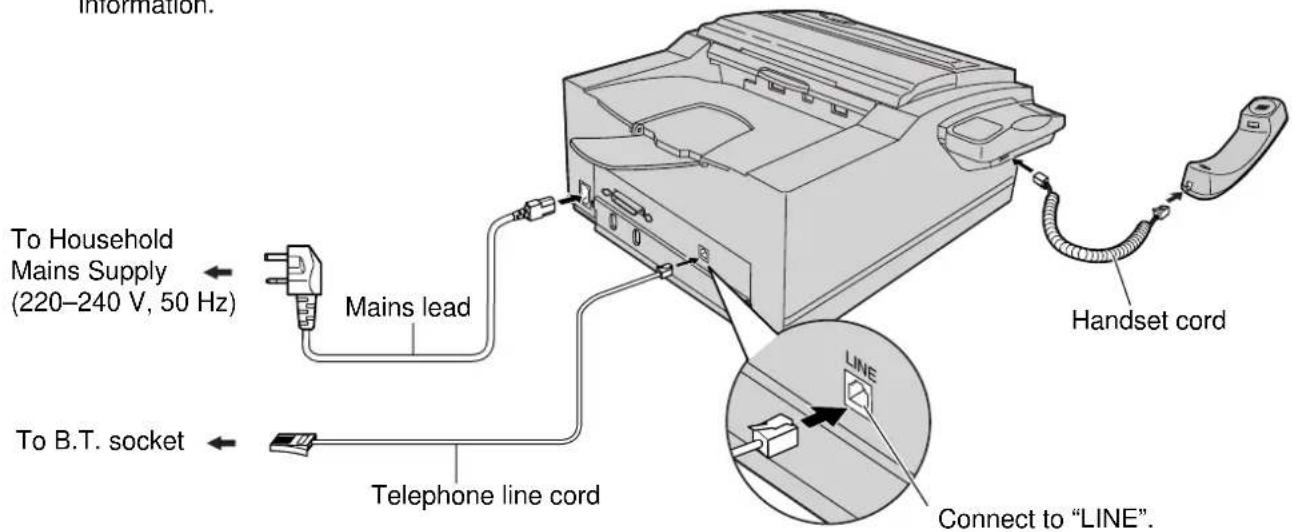
1 Connect the handset cord.
2 Connect the telephone line cord.
Connect the mains lead.
- When the power is turned on for the first time, the unit will eject the protection sheet and print some basic information.
Note:
- When you operate this product, the power outlet should be near the product and easily accessible.
- If you want to connect a personal computer to the unit, see page 71.
Date and time, your logo and facsimile telephone number
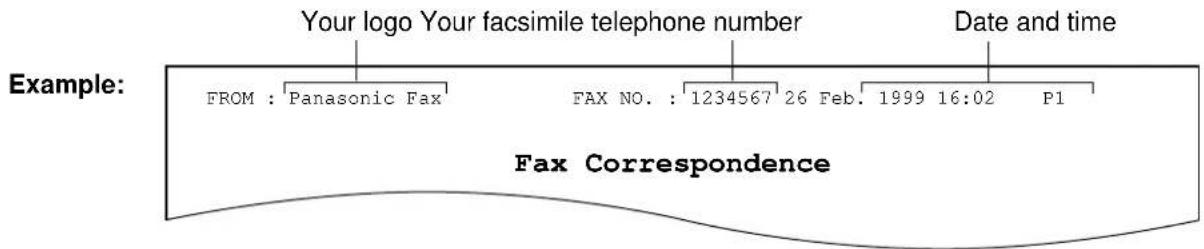
You should programme the date and time, your logo and facsimile telephone number. This information will be printed on each page transmitted from your unit.
Setting the date and time
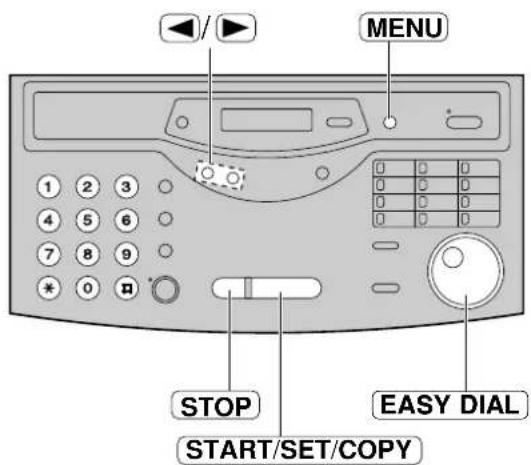
1 Press MENU.
Display: 1.SYSTEM SET UP
2 Press #, then 01.
SET DATE & TIME
3 Press START/SET/COPY.
D:01/M:01/Y:99
Cursor
4 Enter the correct day/month/year by selecting 2 digits for each using the dial keypad.
6 Enter the correct hour/minute by selecting 2 digits for each using the dial keypad.
Example: 15:15
Press 15 15.
TIME: 15:15
7 Press START/SET/COPY.
SETUP ITEM [ ]
8 Press MENU.
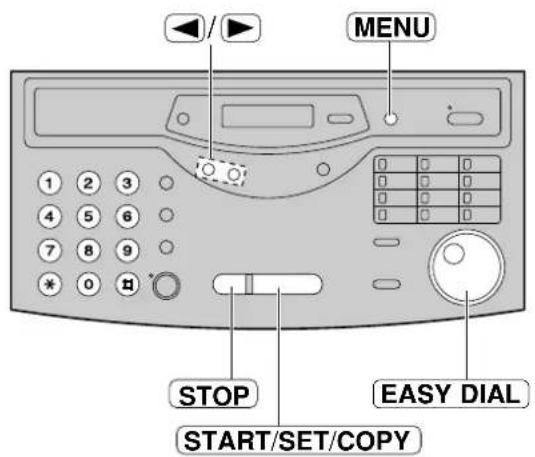
Note:
- To enter the year "2000" in step 4, press 00 for the correct year.
- You can enter the number by rotating EASY DIAL in steps 4 and 6. In this case, press ▶ to move the cursor.
- The accuracy of the clock is approximately ±60 seconds a month.
To correct a mistake
- Press ◀ or ▶ to move the cursor to the incorrect number, and make the correction.
- If you press STOP while programming, the display will return to the previous one.
Setup
Setting your logo
The logo can be your company, division or name.
1 Press MENU.
Display: 1. SYSTEM SET UP
Press #, then 02.
YOUR LOGO
3 Press START/SET/COPY.
LOGO=
4 Enter your logo, up to 30 characters, by using the dial keypad. See next page for details.
Example: Bill
- Press ② twice.
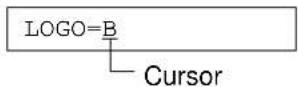
- Press ④ six times.
LOGO=Bi
- Press ⑤ six times.
LOGO=Bil
- Press ▶ to move the cursor to the next space and press 5 six times.
LOGO=Bill
5 Press START/SET/COPY.
SETUP ITEM [ ]
6 Press MENU.
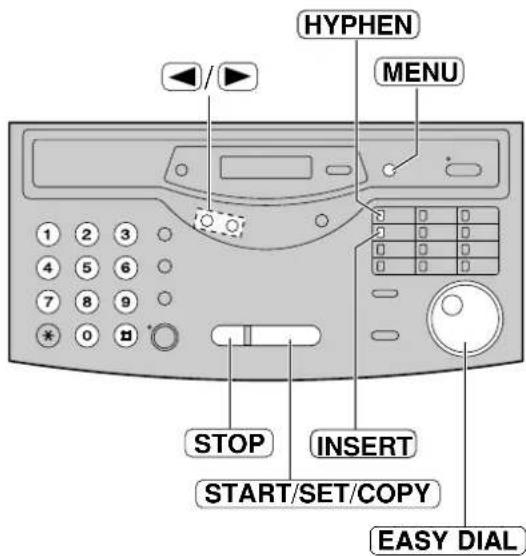
Note:
- You can enter your logo by rotating EASY DIAL (see next page).
To correct a mistake
- Press ◀ or ▶ to move the cursor to the incorrect character, and make the correction.
To delete a character
- Move the cursor to the character you want to delete and press STOP.
To insert a character
-
Press ◀ or ▶ to move the cursor to the right of where you want to insert the character.
-
Press INSERT (One-Touch Dial key 2) to insert a space and enter the character.
To select characters with the dial keypad
Pressing the dial keys will select a character as shown below.
| Keys | Characters | |
 | 1 [ ] { } + - / = , . _ ` : ; ? | | |
 | A B C a b c 2 | |
 | D E F d e f 3 | |
 | G H I g h i 4 | |
 | J K L j k l 5 | |
 | M N O m n o 6 | |
 | P Q R S p q r s 7 | |
 | T U V t u v 8 | |
 | W X Y Z w x y z 9 | |
 | 0 ( ) < > ! " # $ % & ¥ * @ ^ ' → | |
 | HYPHEN key (To insert a hyphen.) | |
| [AXK] | INSERT key (To insert one character or one space.) | |
 | Delete key (To delete a character.) | |
 | ◀ key (To move the cursor to the left.) | |
 | ▶ key (To move the cursor to the right.)To enter another character using the same number key, move the cursor to the next space. | |
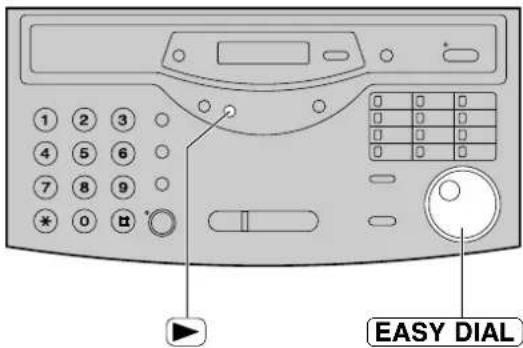
To select characters using the EASY DIAL
Instead of pressing the dial keys, you can select characters using the EASY DIAL.
- Rotate EASY DIAL until the desired character is displayed.
- Press ▶ to move the cursor to the next space. ●The character displayed in step 1 is inserted.
- Return to step 1 to enter the next character.
Display order of characters
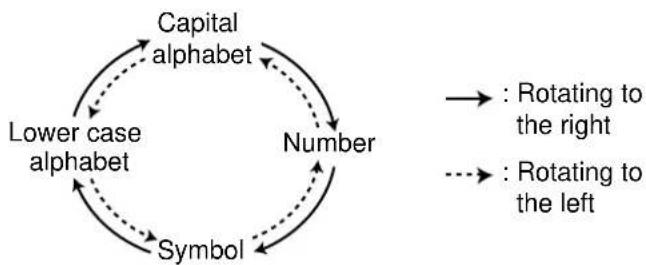
flowchart
graph TD
    A["Number"] --> B["Symbol"]
    B --> C["Lower case alphabet"]
    C --> D["Capital alphabet"]
    D -.-> A
    A -.-> E[": Rotating to the left"]
    E -.-> F[": Rotating to the right"]
Setting your facsimile telephone number
1 Press MENU.
Display: 1.SYSTEM SET UP
2 Press #, then 03.
YOUR FAX NO.
3 Press START/SET/COPY.
NO.=
4 Enter your facsimile telephone number up to 20 digits using the dial keypad.
Example: NO.=1234567
5 Press START/SET/COPY.
SETUP ITEM [ ]
6 Press MENU.
Note:
- You can enter your facsimile telephone number by rotating EASY DIAL. If using EASY DIAL, press to move the cursor.
- The * button replaces the digit with a "+" and the # button replaces it with a space.
Example (using the dial keypad): +234 5678
Press *234#5678.
To correct a mistake
- Press ◀ or ▶ to move the cursor to the incorrect number, and make the correction.
To delete a number
- Move the cursor to the number you want to delete and press STOP.
Recording paper size
Set the size of recording paper depending on the paper you load in the paper cassette and the printer driver setting of PC software (p. 78).
This setting is used when the unit determines the reduction rate for incoming faxes.
The following choices are available.
A4: 210 mm×297 mm
LETTER: 216 mm×279 mm
LEGAL: 216 mm×356 mm
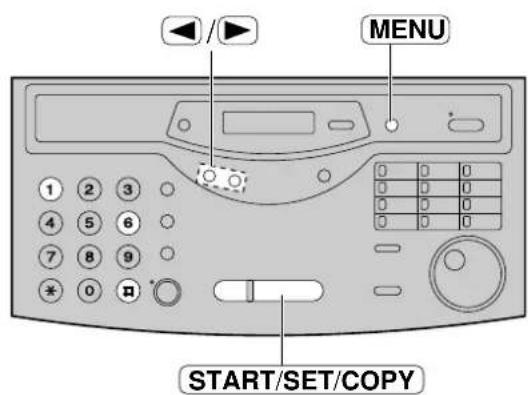
1 Press MENU.
Display: 1.SYSTEM SET UP
2 Press #, then 16.
PAPER SIZE
3 Press START/SET/COPY.
=A4 ▼ ▲
4 Press ▼ to select the size of paper you load.
5 Press START/SET/COPY.
SETUP ITEM [ ]
6 Press MENU.
Adjusting volumes
Ringer volume
4 levels (high/middle/low/off) are available.
While the unit is idle, press ▼.
■ To turn the ringer off:
- Press repeatedly until the following message is displayed.
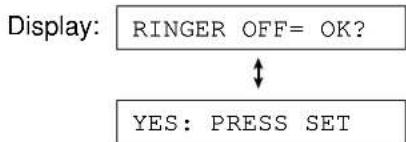
flowchart
graph TD
    A["RINGER OFF= OK?"] --> B{?}
    B -->|Yes| C["YES: PRESS SET"]
    B -->|No| D["↓"]
- Press START/SET/COPY.
- To turn the ringer back on, press ▲
■ While the ringer volume is set to off:
The display will show the following message.
RINGER OFF
When a call is received, the unit will not ring and will display the following.
INCOMING CALL
Monitor volume
8 levels (high to low) are available.
While using the monitor, press ⬇.
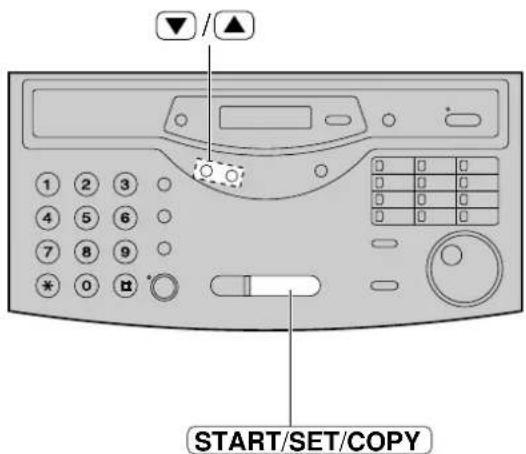
Making and Answering Calls
Voice calls - making
1 Press MONITOR or lift the handset.
Display: TEL=
Dial the telephone number.
Example: TEL=2345678
- If you misdial, hang up and dial again.
3 When the other party answers, talk into the handset.
4 When finished talking, replace the handset.
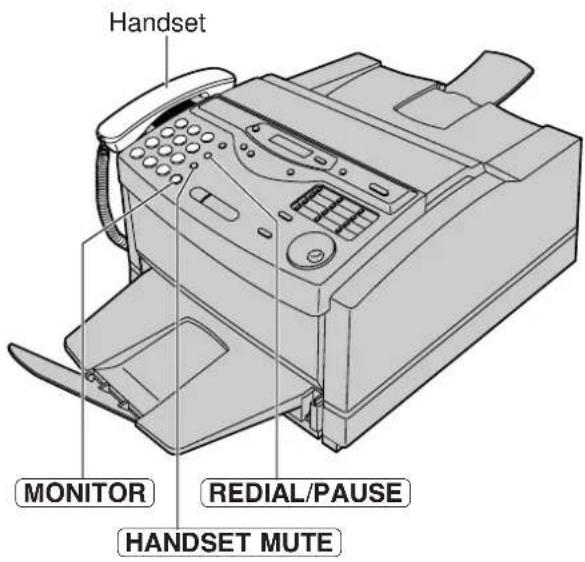
Voice calls - answering
1 When the unit rings, lift the handset.
2 When finished talking, replace the handset.
To redial the last number
-
Press MONITOR or lift the handset.
-
Press REDIAL/PAUSE.
-
When the other party answers, talk into the handset.
- If the line is busy when using the MONITOR button, the unit will automatically redial the number up to 5 times.
●During redial, the following will be displayed.
Display: WAITING REDIAL
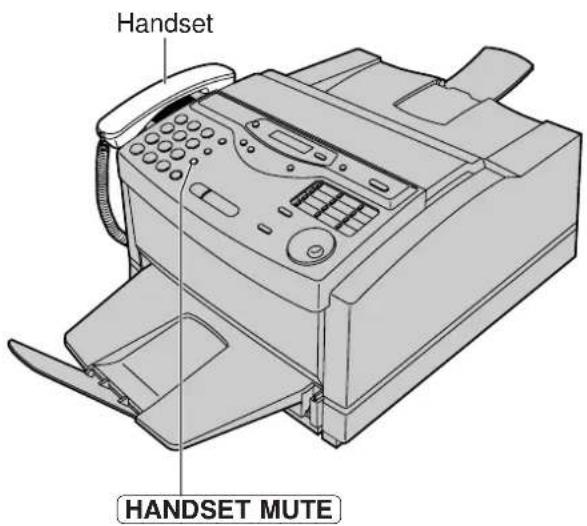
To mute your voice to the other party
- Press HANDSET MUTE during a telephone conversation using the handset.
Display:
- The other party cannot hear you, but you can hear them.
- To resume the conversation, press HANDSET MUTE again.
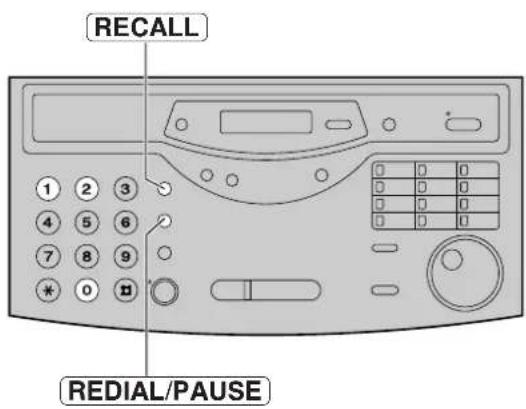
RECALL and PAUSE buttons
RECALL button (to use the recall feature)
RECALL is used to access special telephone services (optional) such as call waiting. Contact your telephone company business office for details.
Example: British Telecom call waiting
- If the call waiting tone is heard during a conversation, press RECALL.
- When the dial tone is heard, dial .2
- The first call is put on hold and you can talk to the second party.
- ■ To keep the present call and return to the first call:
Press RECALL, then dial 2
■ To hang up the first call: Press RECALL, then dial .0
■ To hang up the present call and return to the first call:
Press RECALL, then dial .1
Note:
- RECALL and PAUSE can be stored into a telephone number in the One-Touch Dial and the EASY DIAL directory.
If your unit is connected to a PBX, pressing RECALL allows you to access some features of your host PBX such as transferring an extension call.
PAUSE button (for PBX users)
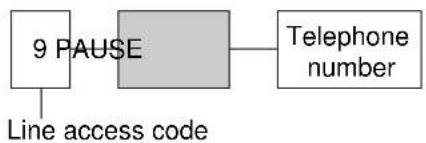
If your unit is connected to a PBX, you need to dial an access number (usually 9) to get an outside line. In this case, inserting a pause between the access number and the telephone number is necessary, especially when redialling or storing the number in memory. Pressing REDIAL/PAUSE creates a dialling delay in the dialling sequence.
Example 1:
If your unit is connected to a host exchange, insert a pause to get an outside line.
flowchart
graph LR
    A["9 PAUSE"] --> B["Line access code"]
    B --> C["Telephone number"]
Example 2:
If a transmission error occurs during an overseas transmission, add two pauses at the end of the telephone number.

flowchart
graph LR
    A["International access code"] --> B["Country code"]
    B --> C["Telephone number"]
    C --> D["PAUSE"]
    D --> E["PAUSE"]
Making and Answering Calls
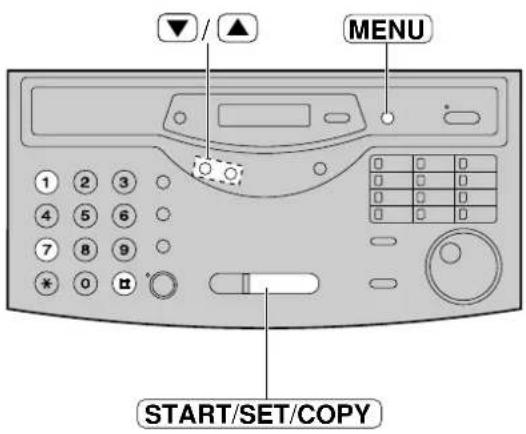
Setting the melody ringer
You can choose from 3 melody rings (A, B or C).
1
Press MENU.
Display: 1.SYSTEM SET UP
2
Press #, then 71.
MELODY RINGER
3
Press START/SET/COPY.
MODE=A

4
Press ▼ to select the desired setting.
- Each time the selected setting is changed, the selected melody ring will be played.
5
Press START/SET/COPY.
SETUP ITEM [ ]
6
Press MENU.
Storing names and telephone numbers in the One-Touch Dial
The unit's memory allows you to use the One-Touch Dial for rapid access to your most frequently dialled numbers. 22 stations are available.
- One-Touch Dial keys 1 to 4 can be used as One-Touch Dial keys (DIAL MODE) or as broadcast keys (BROADCAST). These functions cannot be used at the same time. For the broadcast function, see pages 49 to 51.
1 Press DIRECTORY PROGRAM.
Display: PRESS STATION

OR USE EASYDIAL
For stations 1–4
Press one of the One-Touch Dial keys.
Select the following display by pressing

DIAL MODE

Press START/SET/COPY to go to the next prompt.
For stations 5–11
Press one of the One-Touch Dial keys.
For stations 12–22
Press LOWER, then press one of the One-Touch Dial keys.
3 Enter the station name, up to 10 characters, following the instructions on page 29.
Example: NAME=John
4 Press START/SET/COPY.
Example:
5 Enter the telephone number up to 30 digits.
- If you want to enter a hyphen, press HYPHEN (One-Touch Dial key 1).
Example:
6 Press START/SET/COPY.
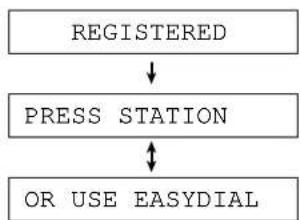
flowchart
graph TD
    A["REGISTERED"] --> B["PRESS STATION"]
    B --> C["OR USE EASYDIAL"]
- To programme other stations, repeat steps 2 to 6.
7 Press DIRECTORY PROGRAM to exit the programme.
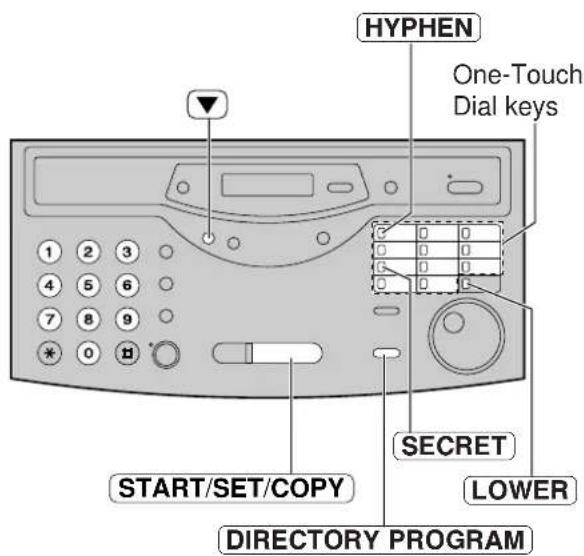
Helpful hint:
- You can confirm the stored items on the display (p. 39), or on the telephone number list (p. 119).
Note:
●A hyphen entered in a telephone number counts as two digits.
To keep a telephone number secret
Press SECRET (One-Touch Dial key 3) after entering the telephone number in step 5.
●A secret number cannot be viewed if this is set.
- The telephone number will not appear on the telephone number list.
- Pressing SECRET does not count as a digit.
To edit a stored station name and number
Enter the desired name in step 3.
Enter the desired number in step 5.
To erase a stored station name and number, see page 38.
One-Touch Dial
Making a voice call using the One-Touch Dial
Before using this feature, programme the desired names and telephone numbers into the One-Touch Dial (p. 35).
1 Press MONITOR or lift the handset.
Display: TEL=
- Check that there are no documents in the document feeder tray.
2 For stations 1–11 Press the desired One-Touch Dial key.
For stations 12–22
Press LOWER, then press the desired One-Touch Dial key.
Example: TEL=
3 When the other party answers, talk into the handset.
4 When finished talking, replace the handset.
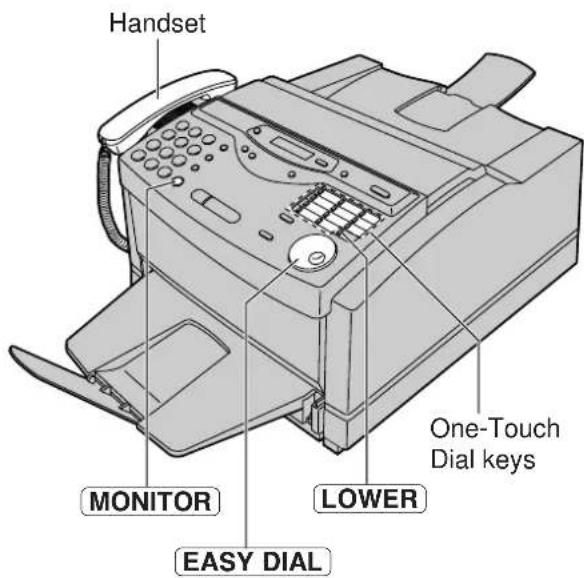
Helpful hints:
- You can confirm the stored items on the display (p. 39), or on the telephone number list (p. 119).
- You can use the EASY DIAL directory to select the station name instead of using the One-Touch Dial keys. Rotate EASY DIAL until the desired name is displayed, then press MONITOR or lift the handset.
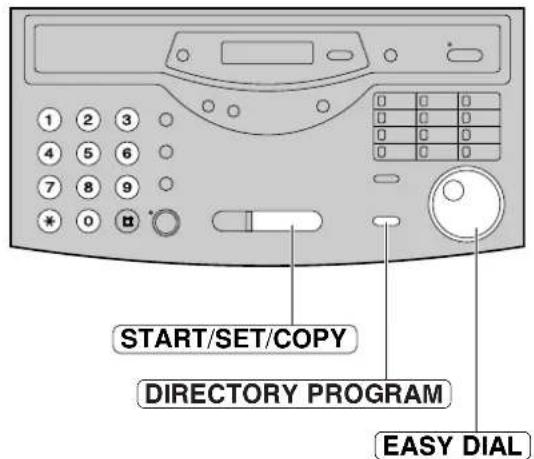
Storing names and telephone numbers in the EASY DIAL directory
For rapid access to frequently dialled numbers, the unit also provides an EASY DIAL directory (100 stations) in addition to the One-Touch Dial.
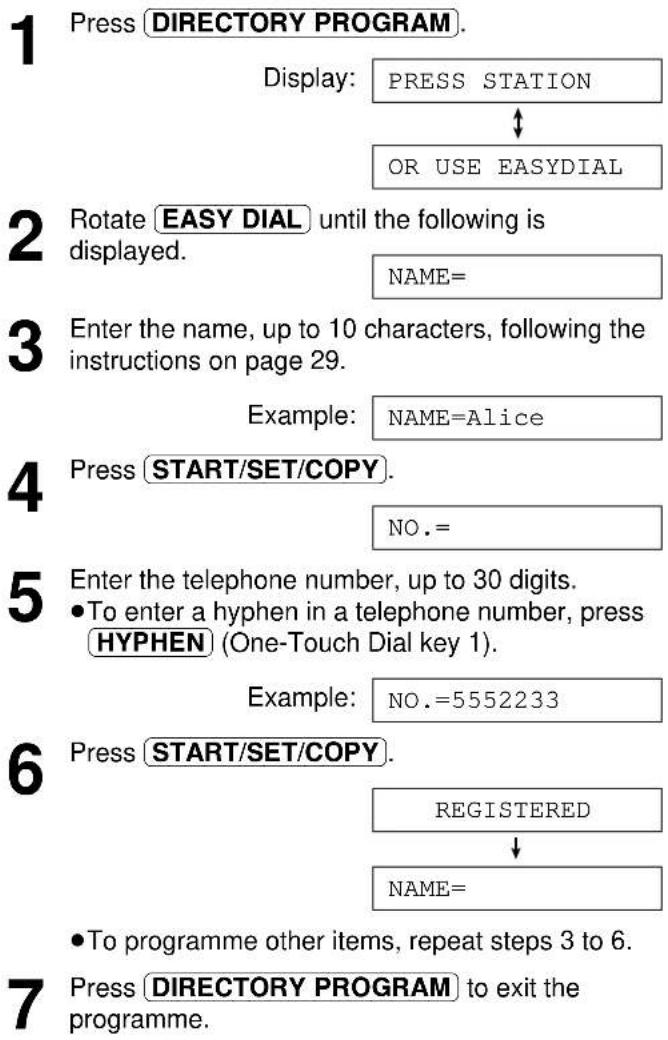
flowchart
graph TD
    A["1 Press DIRECTORY PROGRAM. Display: PRESS STATION"] --> B["2 Rotate EASY DIAL until the following is displayed. NAME="]
    B --> C["3 Enter the name, up to 10 characters, following the instructions on page 29. Example: NAME=Alice"]
    C --> D["4 Press START/SET/COPY. NO.="]
    D --> E["5 Enter the telephone number, up to 30 digits. •To enter a hyphen in a telephone number, press HYPHEN (One-Touch Dial key 1). Example: NO.=5552233"]
    E --> F["6 Press START/SET/COPY. REGISTERED↓ NAME="]
    F --> G["7 Press DIRECTORY PROGRAM to exit the programme. •To programme other items, repeat steps 3 to 6."]
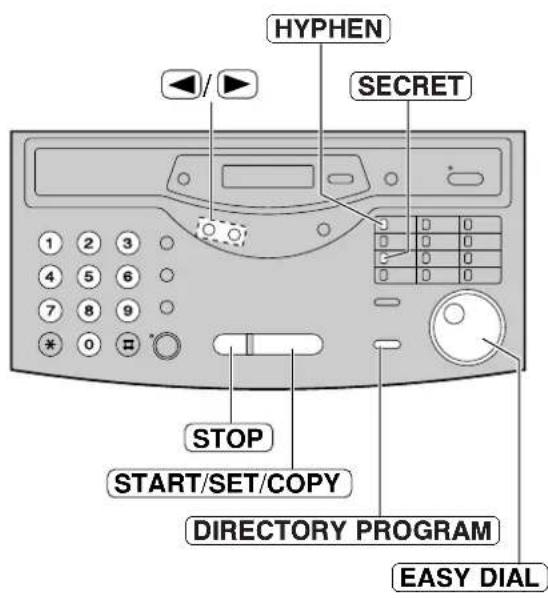
Note:
- You can confirm the stored items on the display (p. 39), or on the telephone number list (p. 119).
- You can store items during a telephone conversation.
- When the following message is displayed in step 6, you can only store 5 more items.
Display: SPACE= 5 DIRS.
- If the unit shows "EASY DIAL FULL" in step 1, there is no space to store new stations. Edit or erase unnecessary stations (p. 38).
●A hyphen entered in a telephone number counts as two digits.
To correct a mistake
- Press ◀ or ▶ to move the cursor to the incorrect character, then make the correction.
To delete a character or number
- Move the cursor to the character or number you want to delete and press STOP.
To keep a telephone number secret
Press SECRET (One-Touch Dial key 3) after entering the telephone number in step 5.
●A secret number cannot be viewed if this is set.
●The telephone number will not appear on the telephone number list.
- Pressing SECRET does not count as a digit.
Editing a stored name and number
1 Rotate EASY DIAL until the desired name is displayed.
Example: Mary
Press DIRECTORY PROGRAM.
EDIT=× DELETE=#
2 Press ✱ to select "EDIT".
NAME=Mary
- If you do not need to edit the name, go to step 5.
4 Edit the name by following the instructions on page 29.
5 Press START/SET/COPY.
Example: NO.=0123456
- If you do not need to edit the telephone number, go to step 7.
6 Edit the telephone number. For further details, see page 37.
7 Press START/SET/COPY.
REGISTERED
Erasing a stored name and number
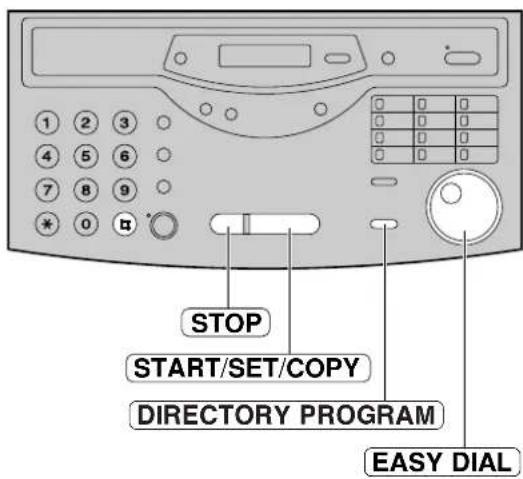
You can erase a name and number stored in the One-Touch Dial and EASY DIAL directory.
1 Rotate EASY DIAL until the desired name is displayed.
Example: Smith
Press DIRECTORY PROGRAM.
EDIT=× DELETE=#
2 Press # to select "DELETE".
DELETE OK?

YES: PRESS SET
- If you do not want to erase the item, press STOP.
Press START/SET/COPY.
DELETED
●The stored name and number are deleted.
Making a voice call using the EASY DIAL directory
Before using this feature, programme the desired names and telephone numbers into the directory (p. 37).
1 Rotate EASY DIAL until the desired name is displayed.
Example: Lisa
2 Press MONITOR or lift the handset.
●The unit will start dialling automatically.
DIALLING
3 When the other party answers, talk into the handset.
TEL=
4 When finished talking, replace the handset.
Helpful hint:
- You can confirm the stored items on the display (see below) or on the telephone number list (p. 119).
Note:
- If the desired name has not been stored, press STOP and dial the number manually.
- If the names and telephone numbers are stored in the One-Touch Dial (p. 35), the station numbers will be shown on the right side of the display.
Example: John
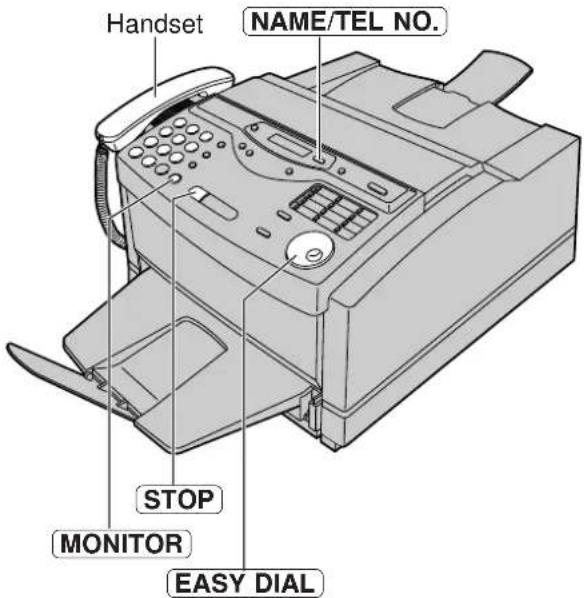
To confirm the stored items on the display
- Rotate EASY DIAL until the desired name is displayed.
Example: Kim
- Press NAME/TEL NO.
4567890
- To stop the operation, press STOP.
- Press MONITOR or lift the handset, and the unit will automatically dial the number.
To search for a name by initial
Example: If you want to search for the name "Lisa"
- Rotate EASY DIAL until any name is displayed.
Example: Alan
- Press 5 repeatedly until any name with the initial “L” is displayed (see the character table on page 29).
Larry
- Rotate EASY DIAL to the right until "Lisa" is displayed.
Lisa
- To stop the operation, press STOP.
- Press MONITOR or lift the handset.
●The unit will automatically dial the number.
Note:
- When you want to search for symbols (not letters or numbers), press ✕ in step 2.
Voice Contact
Talking to the caller after fax transmission or reception
You can talk to the other party after a fax message is completed. This will save the added expense and time of making another call.
This feature only works when the other party's fax machine is equipped with a voice contact feature.
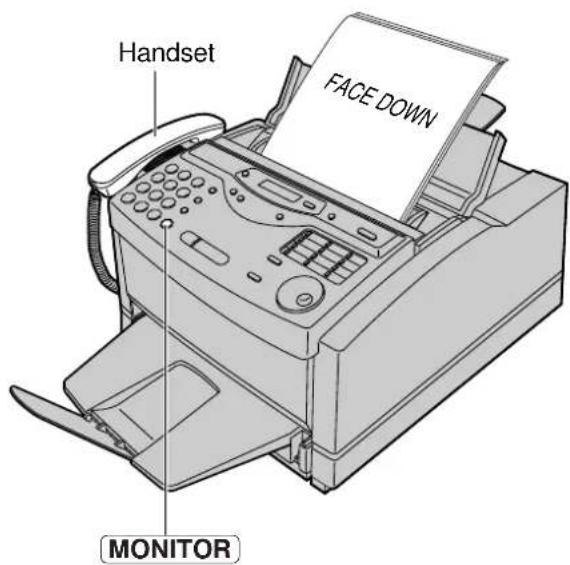
Initiating voice contact
1 Press MONITOR while transmitting or receiving documents.
Display: VOICE STANDBY
- Your unit will call the other party with a distinctive ring.
- When the other party answers, your unit will emit a distinctive ring.
2 Lift the handset to start talking.
Note:
- If you initiate voice contact during transmission, the unit will call you with a distinctive ring after all the documents have been transmitted.
- If you initiate voice contact during reception, the unit will call you with a distinctive ring after the current page of the document is received.
Receiving a request for voice contact
1 If the other party initiates voice contact, your unit will sound a distinctive ring and the following will be displayed.
Display: PLEASE PICK UP
2 Lift the handset within 10 seconds of the distinctive ring to start talking.
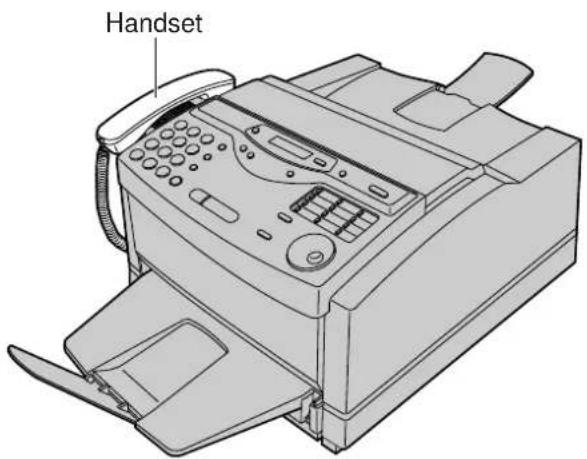
Sending a fax manually
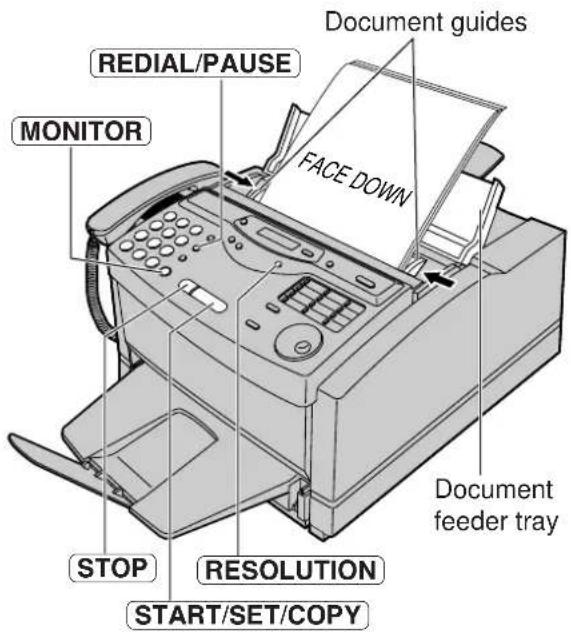
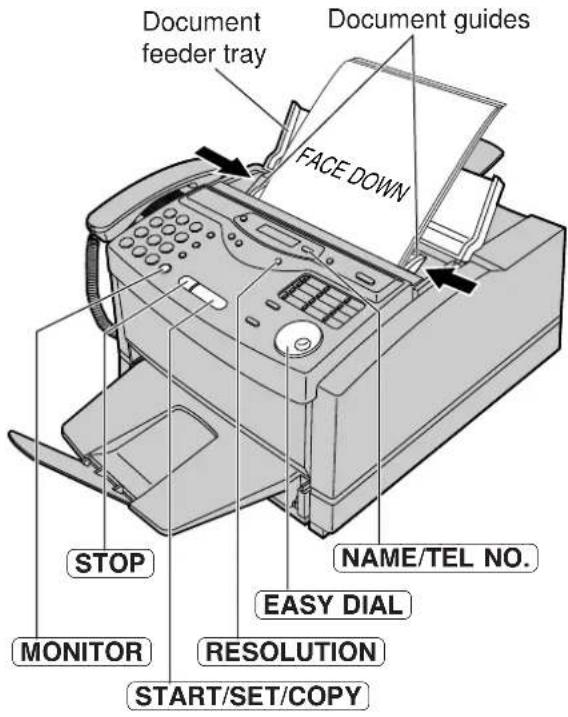
1 Open the document feeder tray.
2 Adjust the width of the document guides to the size of the document.
3 Insert the document (up to 15 pages) FACE DOWN until the unit grabs the document and a single beep is heard.
Display: STANDARD
4 If necessary, press RESOLUTION repeatedly to select the desired setting (see below).
5 Press MONITOR or lift the handset. (This step is optional. See note.)
TEL=
6 Dial the fax number.
Example: TEL=5678901
7 When a fax tone is heard: Press START/SET/COPY, and replace the handset if using it. OR
When the other party answers your call:
Lift the handset if using the monitor and ask them to press their start button. When a fax tone is heard, press your START/SET/COPY and replace the handset.
CONNECTING.....
Note:
- While scanning, do not move the pages which have already been ejected. A paper jam may occur. Allow the scanning process to finish before viewing documents.
- If you cannot send a fax, check the problem by printing a journal report (p. 119) and see page 100 to solve the problem.
- Performing step 5 allows you to identify any possible problems in sending a fax. For the parties with whom you have experienced no problems, you can skip step 5. Dial the fax number and press [START/SET/COPY].
- If the other party's fax number is written on the document, you can enter the number by referring to the document before inserting it.
To feed more than 15 pages at a time
Insert the first 15 pages of the document. Add the extra pages (up to 15) before the last page is fed into the unit.
To redial the last number
Press REDIAL/PAUSE.
- If the line is busy, the unit will automatically redial the number up to 5 times.
● During redial, the following will be displayed.
Display: WAITING REDIAL
To stop transmission
Press STOP.
To eject the document, press STOP again.
To select the resolution
Select the desired resolution according to the type of document.
STANDARD: For printed or typewritten originals with normal-sized characters.
FINE: For originals with small printing.
SUPER FINE: For originals with minute printing.
HALF TONE: For originals containing photographs, shaded drawings, etc.
- Using the fine, super fine or half tone setting will increase the transmission time.
- If the resolution setting is changed during feeding, it will be effective from the next sheet.
●The super fine resolution only works with other compatible fax machines.
Sending Faxes
Sending a fax using the One-Touch Dial
Before using this feature, programme the desired names and telephone numbers into the One-Touch Dial (p. 35).
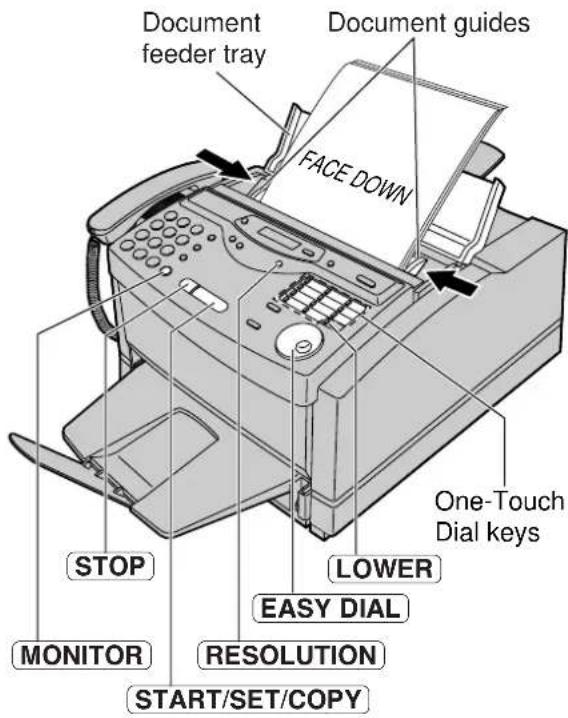
1 Open the document feeder tray.
2 Adjust the width of the document guides to the size of the document.
3 Insert the document (up to 15 pages) FACE DOWN until the unit grabs the document and a single beep is heard.
Display: STANDARD
4 If necessary, press RESOLUTION repeatedly to select the desired setting (p. 41).
5 For stations 1–11
Press the desired One-Touch Dial key.
For stations 12–22
Press LOWER, then press the desired One-Touch Dial key.
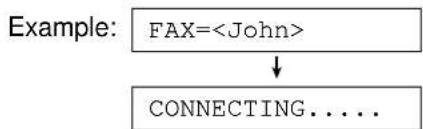
flowchart
graph TD
    A["FAX=<John>"] --> B["CONNECTING...."]
●The unit will start transmission.
Helpful hints:
- You can confirm the stored items on the display (p. 39), or on the telephone number list (p. 119).
- You can use the EASY DIAL directory to select the station name instead of using the One-Touch Dial keys. Rotate EASY DIAL until the desired name is displayed, then press START/SET/COPY.
- The connecting tone will be heard during dialling to tell you the status of the other party's machine (p. 53).
Fax auto redial
If the line is busy or there is no answer, the unit will automatically redial the number up to 5 times.
- This feature is also available for:
— sending faxes using the EASY DIAL directory (p. 43), and
— delayed transmission (p. 47).
●During redial, the following will be displayed.
Display: WAITING REDIAL
- To cancel redialling, press STOP.
Note:
- While scanning, do not move the pages which have already been ejected. A paper jam may occur. Allow the scanning process to finish before viewing documents.
If your unit cannot send a fax
Verify that the number dialled is answered by the other party's machine.
- Press MONITOR.
- For stations 1–11
Press the desired One-Touch Dial key.
For stations 12–22
Press LOWER, then press the desired One-Touch Dial key.
Sending a fax using the EASY DIAL directory
Before using this feature, programme the desired names and telephone numbers into the directory (p. 37).
1 Open the document feeder tray.
2 Adjust the width of the document guides to the size of the document.
3 Insert the document (up to 15 pages) FACE DOWN until the unit grabs the document and a single beep is heard.
Display: STANDARD
4 If necessary, press RESOLUTION repeatedly to select the desired setting (p. 41).
5 Rotate EASY DIAL until the desired name is displayed.
Example: Alice
- To confirm the number, press NAME/TEL NO.
6 Press START/SET/COPY.
FAX=
CONNECTING.....
●The unit will start transmission.
Helpful hints:
- You can confirm the stored items on the display (p. 39) or on the telephone number list (p. 119).
- The connecting tone will be heard during dialling to tell you the status of the other party's machine (p. 53).
Note:
- While scanning, do not move the pages which have already been ejected. A paper jam may occur. Allow the scanning process to finish before viewing documents.
- If the desired name has not been stored, press STOP and dial the number manually.
- For further details about using the EASY DIAL, see page 39.
If your unit cannot send a fax
Verify that the number dialled is answered by the other party's machine.
- Rotate EASY DIAL until the desired name is displayed.
- Press MONITOR.
Documents you can send
Minimum size
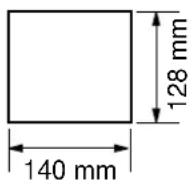
Maximum size
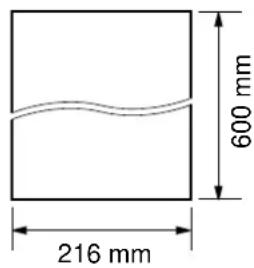
Effective scanning area
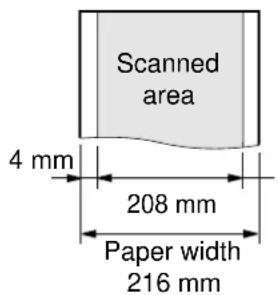
Document weight
Single sheet:
45 g/m² to 90 g/m²
Multiple sheets:
60 g/m² to 80 g/m²
Note:
- Remove clips, staples or other similar fastening objects.
- Check that ink, paste or correction fluid has dried.
- Do not send the following types of document. Use copies for fax transmission.
—Chemically treated paper such as carbon or carbonless duplicating paper
—Electrostatically-charged paper
—Heavily curled, creased or torn paper
—Paper with a coated surface
—Paper with a faint image
—Paper with printing on the opposite side that can be seen through the front (e.g. newspaper)
Sending report for confirmation
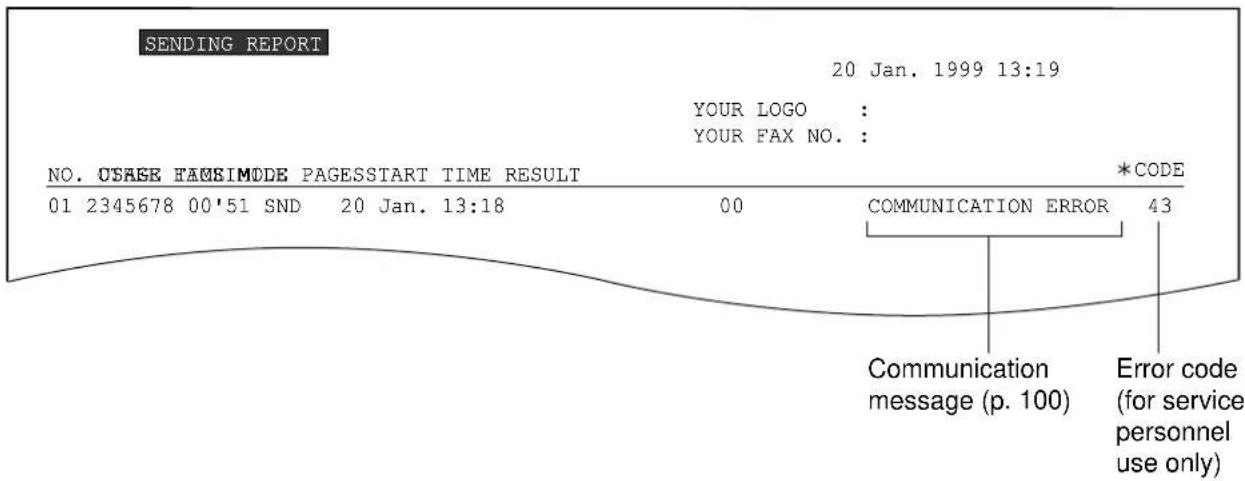
The sending report will provide you with a printed record of fax transmission results. One of the following choices is available.
ERROR: The sending report will print out only when fax transmission fails (pre-selected setting).
ON: The sending report will always print out, indicating whether fax transmission is successful or not. OFF: The sending report will not print.
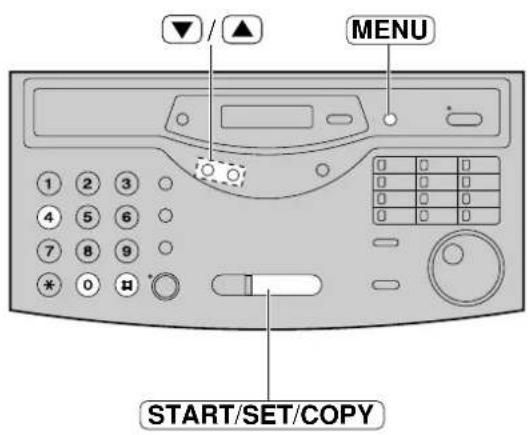
![1 Press MENU. Display: 1.SYSTEM SET UP 2 Press #, then 0 4. SENDING REPORT 3 Press START/SET/COPY. MODE=ERROR ▼▲ 4 Press ▼ to select the desired setting. 5 Press START/SET/COPY. SETUP ITEM [ ] 6 Press MENU.](/content/2026/06/1190728/images/4eb974d6f299254b89a441556578ba66220a2ecfecc3105bb5167445e6827def.jpg)
Sample of a sending report
Sending Faxes
Automatic journal report
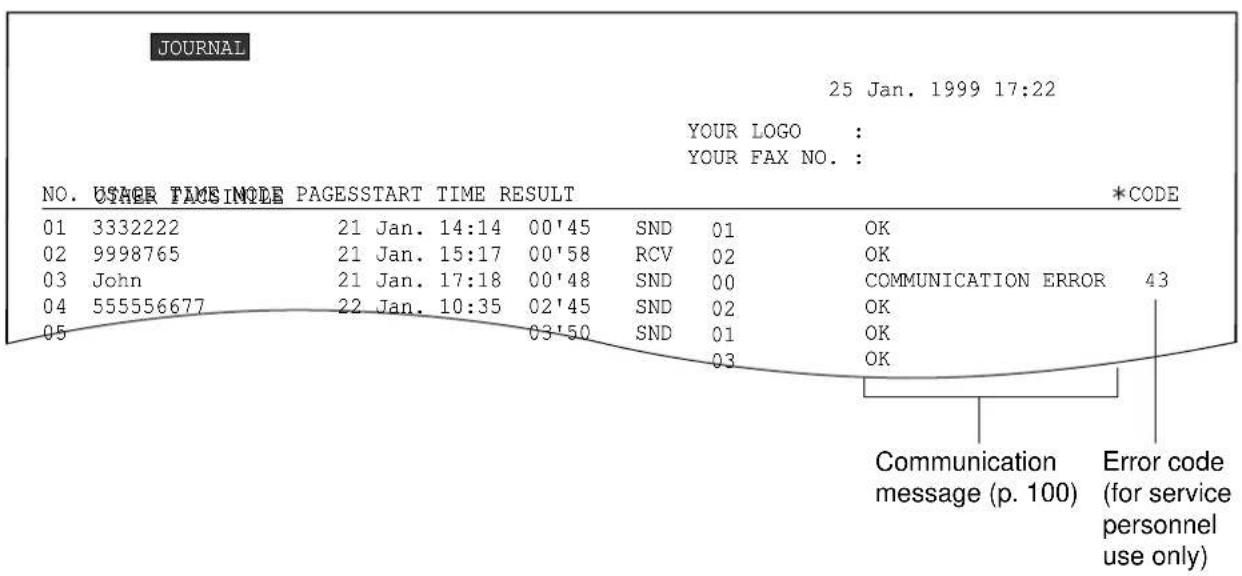
This feature prints a journal report automatically after every 35 new fax communications.
After printing, only the oldest communication result will be erased when a new communication occurs.
If this feature is deactivated, the unit will store the records of the fax communications, but will not print the journal report automatically.
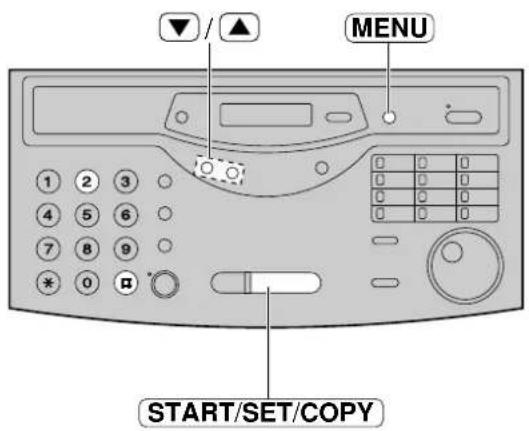
![1 Press MENU. Display: 1.SYSTEM SET UP 2 Press #, then 2 2. AUTO JOURNAL 3 Press START/SET/COPY. MODE=ON ▼▲ 4 Press ▼ to select the desired setting. • If this feature is not required, select "OFF". 5 Press START/SET/COPY. SETUP ITEM [ ] 6 Press MENU.](/content/2026/06/1190728/images/163bf42741178ff9a9585a9947c80d07fec728bf9a9853654d1b859c23ea9cff.jpg)
Sample of a journal report
Note:
- You can also print a journal report manually (p. 119).
Delayed transmission (sending a fax at a specified time)
Using a built-in clock, this unit can send documents automatically at a specified time. This allows you to take advantage of low-cost calling hours offered by your telephone company. The delayed transmission can be reserved to take place up to 24 hours in advance.
1 Insert the document FACE DOWN until the unit grabs the document and a single beep is heard.
Display: STANDARD
2 Press MENU.
- SYSTEM SET UP
2 Press #, then 25.
DELAYED SEND
Press START/SET/COPY.
MODE=OFF ▼ ▲
5 Press ▼ to select "ON".
MODE=ON ▼ ▲
6 Press START/SET/COPY.
FAX=
7 Enter the fax number using the dial keypad, One-Touch Dial or EASY DIAL.
Press START/SET/COPY.
TIME=00:00
9 Enter the transmission start time. Example (using the dial keypad): 23:30 Press 2 3 3 0.
TIME=23:30
10 Press START/SET/COPY.
SETUP ITEM [ ]
11 Press MENU.
SEND AT 23:30
- At the programmed time, the unit will automatically start transmission.
Note:
- While scanning, do not move the pages which have already been ejected. A paper jam may occur. Allow the scanning process to finish before viewing documents.
- You can receive, transmit and copy documents while delayed transmission is set.
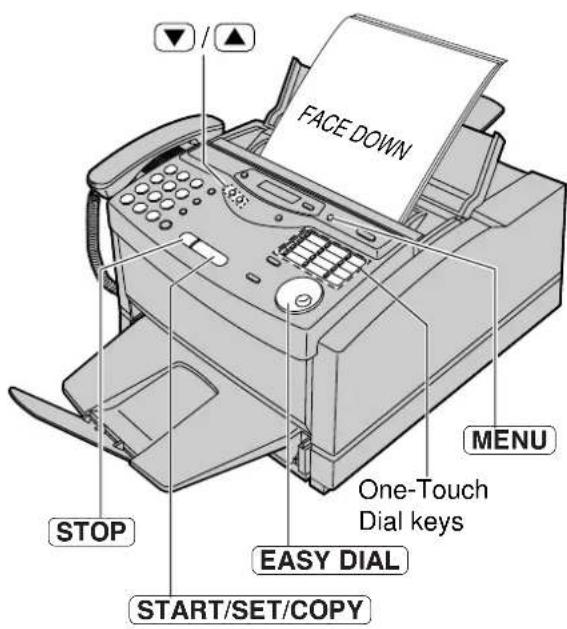
To cancel the delayed transmission setting
- Press STOP while the unit is idle.
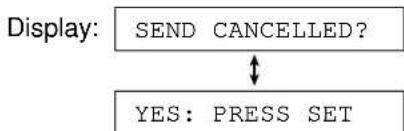
flowchart
graph TD
    A["SEND CANCELLED?"] --> B{?}
    B -->|Yes| C["YES: PRESS SET"]
    B -->|No| D["↓"]
- Press START/SET/COPY.
Sending Faxes
From memory
The unit is able to scan and store documents into memory, and then transmit the stored document. The memory capacity is approx. 120 pages based on the CCITT No. 1 Test Chart in standard resolution. For the CCITT No. 1 Test Chart, see page 121.
Transmitting documents from memory
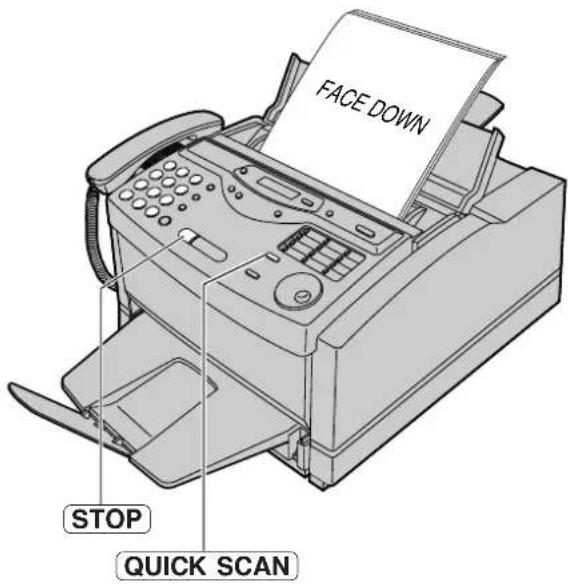
1 Insert the document FACE DOWN.
2 Enter the fax number using the dial keypad.
3 Press QUICK SCAN.
- The document will be fed into the unit and scanned into memory.
- The amount of memory used will be shown as a percentage on the display.
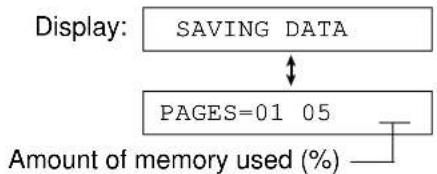
flowchart
graph TD
    A["Display: SAVING DATA"] --> B["PAGES=01 05"]
    B --> C["Amount of memory used (%)"]
●After storing all pages, the unit will transmit the document.
Note:
- While scanning, do not move the pages which have already been ejected. A paper jam may occur. Allow the scanning process to finish before viewing documents.
- The stored document will be automatically erased after transmission.
- To cancel the memory transmission, press STOP while, or after, scanning the document.
- If you select the fine, super fine or half tone resolution, the number of pages that can be sent will decrease.
- If the stored pages exceed the memory capacity, the transmission will be cancelled.
Multiple stations
This feature is useful for sending the same document to selected parties whose telephone numbers are stored in the One-Touch Dial or EASY DIAL directory. You must programme the desired parties into one of the BROADCAST keys (One-Touch Dial key 1, 2, 3 or 4).
Important:
- Before programming, make sure that the desired telephone numbers have been stored in the One-Touch Dial or EASY DIAL directory.
- Each BROADCAST key can be used as a One-Touch Dial key or as a broadcast key. These functions cannot be used at the same time.
Programming telephone numbers into the BROADCAST keys
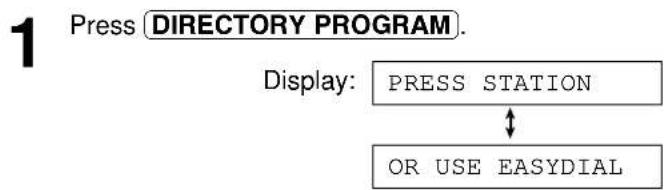
flowchart
graph TD
    A["Press DIRECTORY PROGRAM."] --> B["Display: PRESS STATION"]
    B --> C["OR USE EASYDIAL"]
![2 Press one of the BROADCAST keys. DIAL MODE ▼▲ 3 Press ▼ to select "BROADCAST". Example: BROADCAST 1 ▼▲ 4 Press START/SET/COPY. DIR= [00]](/content/2026/06/1190728/images/ce7dcfc440930dbe69e00c9c3c7074a3634251877793ff6156c8cc591e86fe0c.jpg)
5 Enter the stations.
a: Using the One-Touch Dial:
For stations 1–4, press the preset One-Touch Dial key which is not used as a BROADCAST key.
For stations 5–11, press the preset One-Touch Dial key.
For stations 12–22, press LOWER, then press the preset One-Touch Dial key.
Example: DIR=Luke [01]
b: Using the EASY DIAL directory:
Rotate EASY DIAL until the desired name is displayed.
Example: John [01]
Press START/SET/COPY.
Example: DIR=John [02]
- To enter other stations, repeat this step (up to 20 stations).
6 Press START/SET/COPY after entering all of the desired stations.
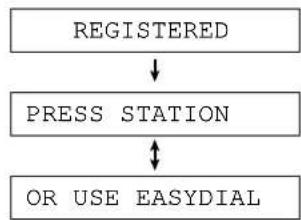
flowchart
graph TD
    A["REGISTERED"] --> B["PRESS STATION"]
    B --> C["OR USE EASYDIAL"]
- To programme another BROADCAST key, repeat steps 2 to 6.
7 Press DIRECTORY PROGRAM to exit the programme.
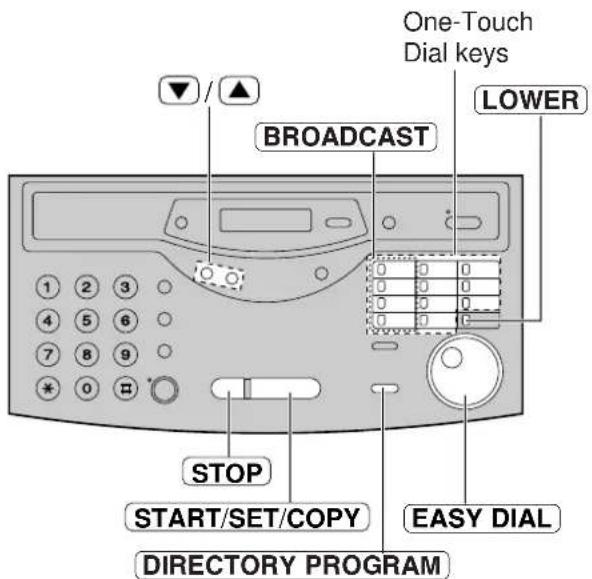
Note:
- If you make a mistake while programming, press STOP, and make the correction.
- Confirm the stored numbers by printing a broadcast list (p. 119).
Sending Faxes
Adding a new name and number
1 Rotate EASY DIAL until the BROADCAST key you want to edit is displayed.
Example:
Press DIRECTORY PROGRAM.
ADD=* DELETE=#
2 Press ✱ to select "ADD".
Example: Alex
4 Rotate EASY DIAL until the desired name is displayed.
Example: Jack
5 Press START/SET/COPY.
REGISTERED
Example: Mike
- To add other stations, repeat steps 4 and 5 (up to 20 stations).
6 Press DIRECTORY PROGRAM to exit the programme.
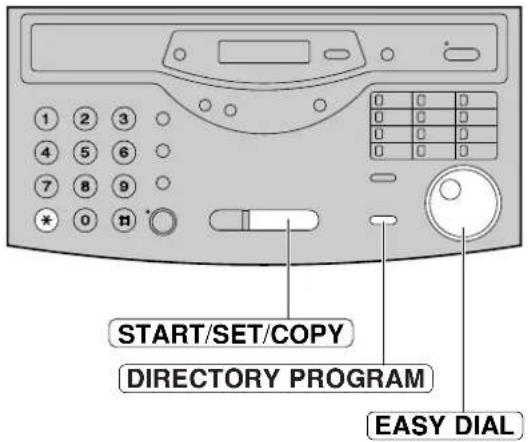
Erasing a stored name and number
1 Rotate EASY DIAL until the BROADCAST key you want to edit is displayed.
Example:
Press DIRECTORY PROGRAM.
ADD=* DELETE=#
Press # to select "DELETE".
●The first name will be shown.
Example: Alex
4 Rotate EASY DIAL until the desired name is displayed.
Example: Dick
- If you do not want to erase the item, press STOP.
5 Press START/SET/COPY.
DELETE OK?

YES: PRESS SET
6 Press START/SET/COPY.
DELETED
Example:
Alex
- To delete other stations, repeat steps 4 to 6.
7 Press DIRECTORY PROGRAM to exit the programme.
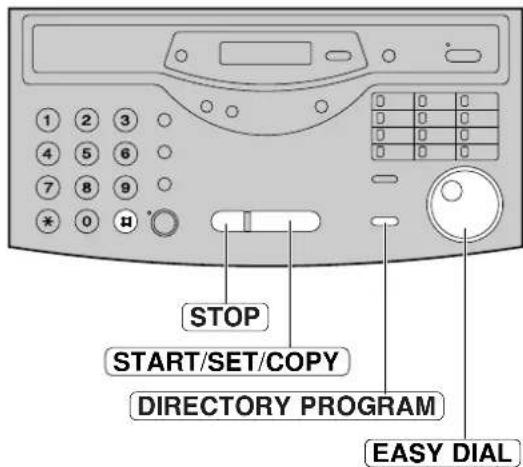
Using BROADCAST keys
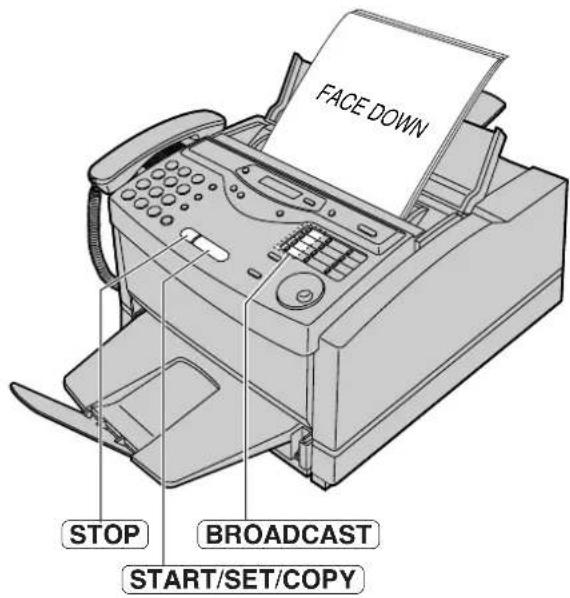
The document will be scanned and stored into memory when using a BROADCAST key. After transmission, the stored document will be erased automatically.
The memory capacity is approx. 120 pages based on the CCITT No. 1 Test Chart in standard resolution.
For the CCITT No. 1 Test Chart, see page 121.
1 Insert the document FACE DOWN.
Press the preset BROADCAST key.
- The document will be fed into the unit and scanned into memory. The unit will then transmit the data to each station, calling each number sequentially.
Note:
- While scanning, do not move the pages which have already been ejected. A paper jam may occur. Allow the scanning process to finish before viewing documents.
- If you select the fine, super fine or half tone resolution, the number of pages that the unit can transmit will decrease.
- If one of the stations is busy or does not answer, the station will be skipped. All skipped stations will be redialed up to 5 times after all other stations have been called.
To cancel the broadcast setting
- Press STOP while the unit displays "BROADCASTING".
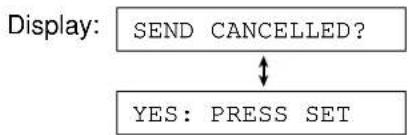
flowchart
graph TD
    A["SEND CANCELLED?"] --> B{↓}
    B -->|Yes: PRESS SET| C["Process"]
- Press START/SET/COPY.
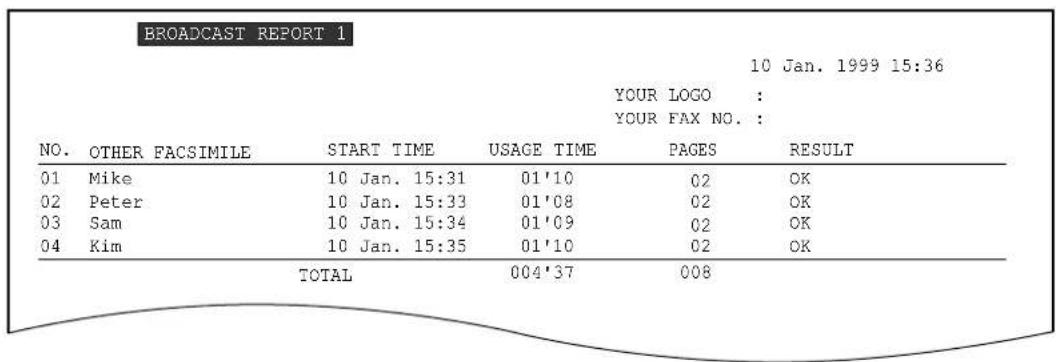
Broadcast report
After all of the transmissions have been completed, the unit will automatically print a broadcast report.
Sample of a broadcast report:
Sending Faxes
Overseas mode
You may experience difficulty when transmitting documents overseas. This feature makes sending documents easier as the transmission speed is slowed down. Before starting transmission, follow the steps below.
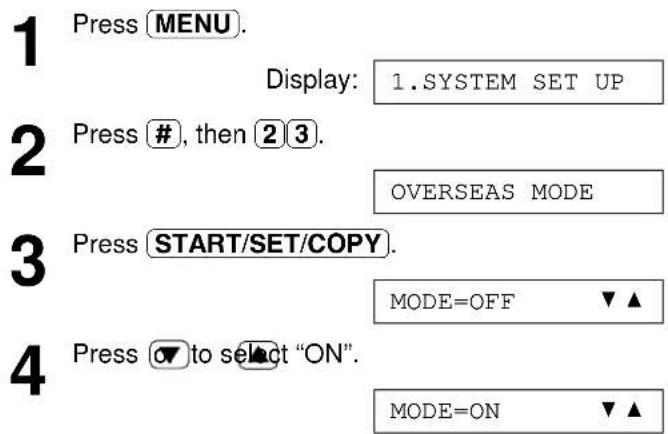
- If this feature is not required, select "OFF".
![5 Press START/SET/COPY. SETUP ITEM [ ]](/content/2026/06/1190728/images/bc9a7fcf6106e66405d76733616c6b1d5103105fa5ae2465bf32ede821c5a86a.jpg)
6 Press MENU.
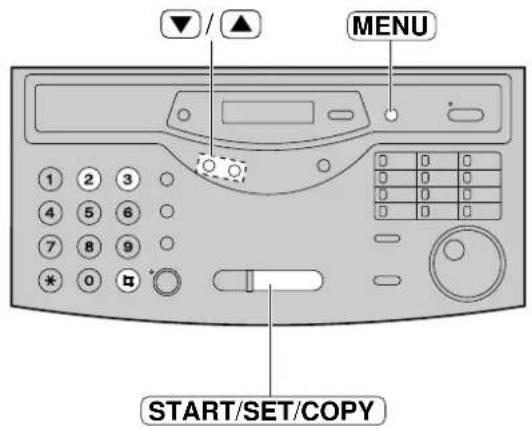
Half-tone setting
You can change the setting of the half-tone resolution according to the image to be scanned. You can choose from the following.
PHOTO: Use this setting when the image to be scanned mainly contains photographs. AUTO: Use this setting when the image to be scanned contains both photographs and words (pre-selected setting).
![1 Press MENU. Display: 1.SYSTEM SET UP 2 Press #, then 3 8. HALFTONE MODE 3 Press START/SET/COPY. MODE=AUTO ▼▲ 4 Press ▼ to select the desired setting. 5 Press START/SET/COPY. SETUP ITEM [ ] 6 Press MENU.](/content/2026/06/1190728/images/64f2af3467e7e77f3a03e9a5f4e488c4282e014faac9e8ae969836e2e70541ab.jpg)
Setting the unit to receive calls
Option A Option B
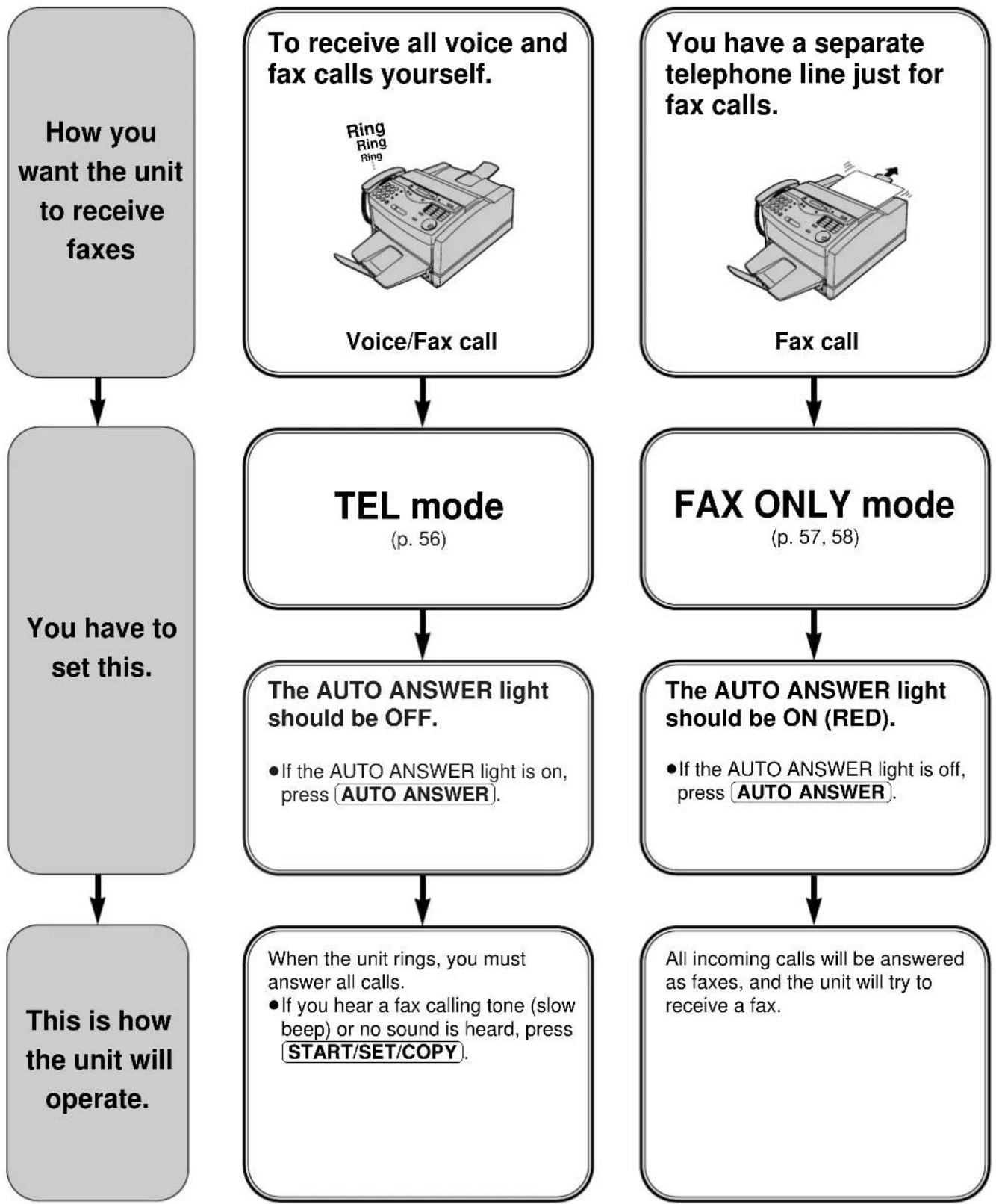
flowchart
graph TD
    A["How you want the unit to receive faxes"] --> B["You have to set this."]
    B --> C["This is how the unit will operate."]

    D["To receive all voice and fax calls yourself."] --> E["Voice/Fax call"]
    E --> F["TEL mode (p. 56)"]
    F --> G["The AUTO ANSWER light should be OFF.<br>• If the AUTO ANSWER light is on, press AUTO ANSWER."]
    G --> H["When the unit rings, you must answer all calls.<br>• If you hear a fax calling tone (slow beep) or no sound is heard, press START/SET/COPY."]

    I["You have a separate telephone line just for fax calls."] --> J["Fax call"]
    J --> K["FAX ONLY mode (p. 57, 58)"]
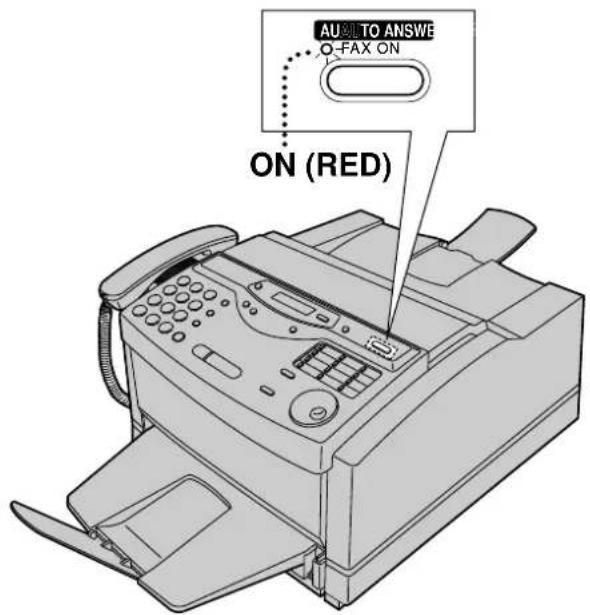
    K --> L["The AUTO ANSWER light should be ON (RED).<br>• If the AUTO ANSWER light is off, press AUTO ANSWER."]
    L --> M["All incoming calls will be answered as faxes, and the unit will try to receive a fax."]
Other options
TEL/FAX mode
If you are near the unit and want to use it to receive your voice calls yourself and fax calls automatically, see pages 60 to 63.
Remote activation
If you answer a telephone in another room and hear the fax tone, you can activate the unit remotely by pressing ✦9 (p. 59).
Receiving Faxes
TEL mode
(answering all calls manually)
If the AUTO ANSWER light is on, turn it off by pressing AUTO ANSWER.
Display:
TEL MODE
1 When the unit rings, lift the handset to answer the call.
2 When: —document reception is required, —a fax calling tone (slow beep) is heard, or —no sound is heard, press [START/SET/COPY].
CONNECTING.....
3 Replace the handset. • The unit will start reception.
Note:
- If you do not answer the call within 10 rings: - if the caller presses *, the unit will switch to the FAX mode. - if the caller presses #, the unit will switch to the TEL/FAX mode.
The caller can then send documents (p. 64).
- Manual feeding is not possible for receiving documents.
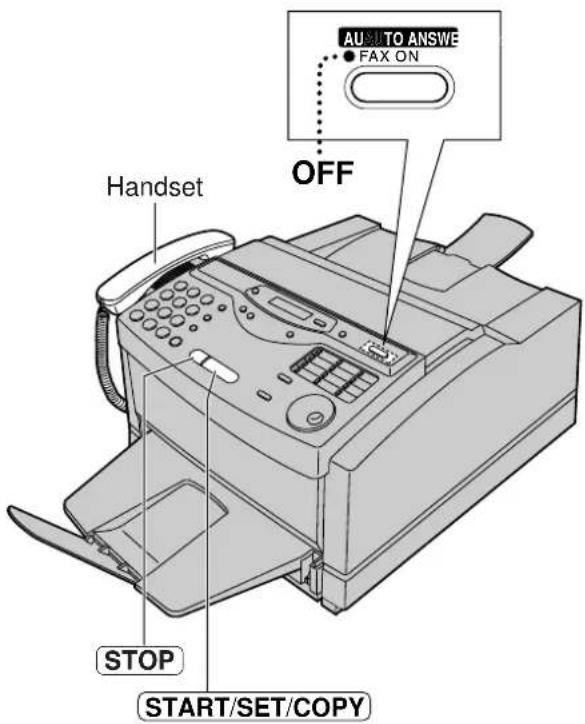
To stop receiving
Press STOP.
Friendly reception feature
When you answer a call and hear a fax calling tone (slow beep), the unit will automatically start receiving.
- If this feature is not required, set to "OFF" (p. 66).
Memory reception
When a printing problem is detected, the unit will temporarily store the received document into memory.
While the document is in memory, the unit will:—display an error message and the following message alternately.
Display: FAX IN MEMORY
—alert you with a slow beep (memory reception alert).
- Follow the instructions on pages 101 and 102 to solve the problem and print the stored document.
- For memory capacity, see page 121.
FAX ONLY mode
(all calls are received as faxes)
Activating the FAX ONLY mode
Press AUTO ANSWER if the AUTO ANSWER light is off.
●The display will show the following.
Display: FAX ONLY MODE
- The unit will automatically answer all calls and only receive fax documents.
- The number of rings before a call is answered can be changed (p. 58).
Note:
- This mode should not be used with a telephone line which is used for both voice and fax calls. When the unit answers the call, fax communication is attempted even if someone is trying to call you.
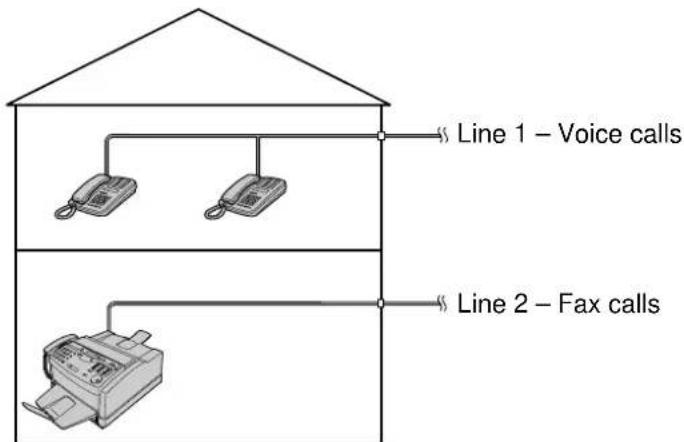
If you have a telephone line just for receiving faxes, we recommend the following setup.
flowchart
graph TD
    A["House with roof"] --> B["Line 1 – Voice calls"]
    A --> C["Line 2 – Fax calls"]
    B --> D["Phone with telephone"]
    C --> E["Phone with fax"]
Only a fax machine is connected.
Example: One telephone line is used for voice calls and a separate telephone line for faxes. If someone sends a fax to Line 2, the fax machine will ring.
Receiving Faxes
Setting the ring count in the FAX ONLY mode
This setting determines the number of rings before the unit answers a call in the FAX ONLY mode. You can choose from 1 to 9 rings.
Helpful hints:
- To answer a call before the unit does, increase the number of rings.
- If you have difficulty receiving faxes, the other parties may have tried to send faxes before confirming if your unit answered or not. Decrease the number of rings.
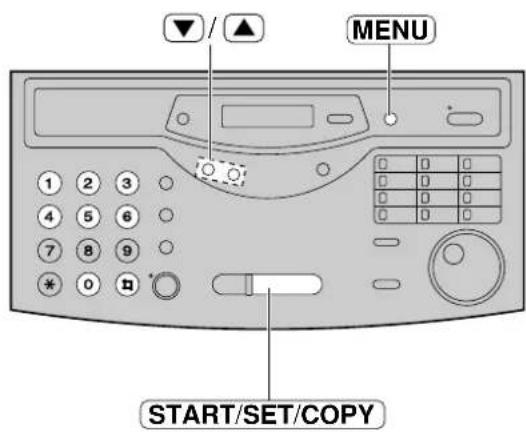
1 Press MENU.
Display: 1.SYSTEM SET UP
2 Press #, then 06.
FAX RING COUNT
3 Press START/SET/COPY.
RING=2

4 Press ▼ to select the desired number, or enter the number using the dial keypad.
5 Press START/SET/COPY.
SETUP ITEM [ ]
6 Press MENU.
Extension telephone
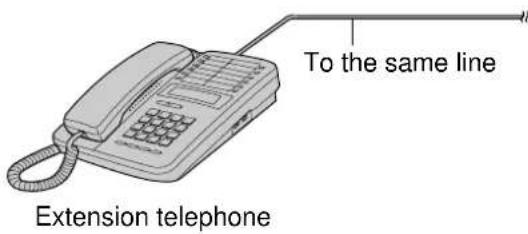
If you connect an extension telephone on the same line, you can receive fax documents using the extension telephone.
You do not have to press START/SET/COPY on the unit.
Important:
- Use a touch tone telephone as the extension telephone and enter the fax activation code firmly.
1 When the extension telephone rings, lift the handset.
When:
document reception is required,
—a fax calling tone (slow beep) is heard, or
—no sound is heard,
press *9 (pre-selected fax activation code)
firmly.
2 Hang up the handset.
●The unit will start reception.
Note:
- You can change the fax activation code (see below).
Fax activation code
The fax activation code is required when receiving faxes using an extension telephone (see above).
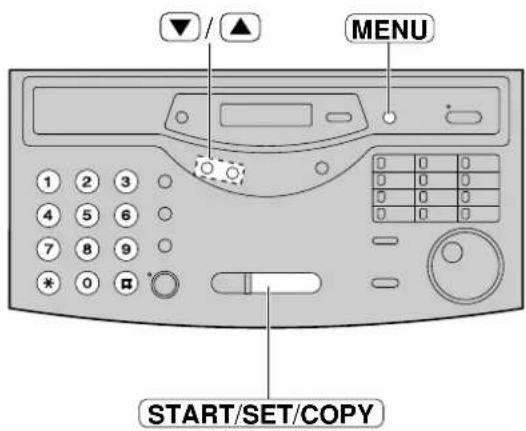
1 Press MENU.
Display: 1.SYSTEM SET UP
Press #, then 41.
FAX ACTIVATION
2 Press START/SET/COPY.
MODE=ON ▼ ▲
4 Press ▼ to select "ON".
- If this feature is not required, select "OFF".
5 Press START/SET/COPY.
CODE=×9
●The display will show the pre-selected code.
6 Enter the new code.
- This code can be from 2 to 4 digits in length using 0–9 and *.
7 Press START/SET/COPY.
SETUP ITEM [ ]
8 Press MENU.
Note:
- If you subscribe to any special telephone company services which require a code, all or part of the fax activation code must be different from the service access code.
- The fax activation code should not be set to "0000".
TEL/FAX mode
(receiving voice calls with rings and fax calls without rings when you are near the unit)
Use this mode when you are always near the unit, are not using an answering machine and want the fax machine to detect faxes without ringing. When a call is received, the unit will work as follows. If you have an extension telephone connected, see next page.
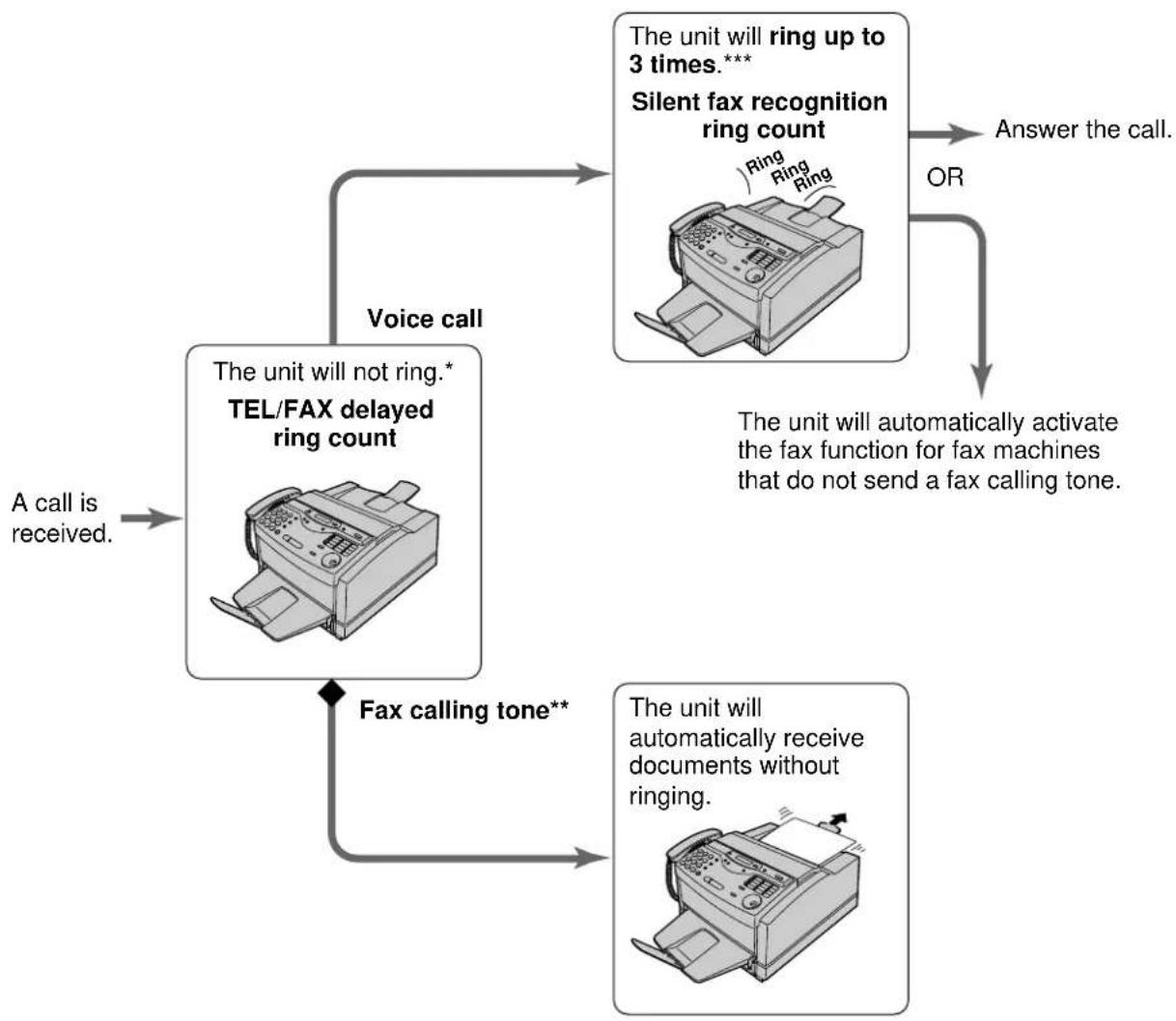
flowchart
graph TD
    A["A call is received."] --> B["Voice call"]
    B --> C["The unit will not ring.* TEL/FAX delayed ring count"]
    C --> D["Fax calling tone**"]
    D --> E["The unit will automatically receive documents without ringing."]
    E --> F["The unit will ring up to 3 times.*** Silent fax recognition ring count"]
    F --> G["Answer the call."]
    G --> H["The unit will automatically activate the fax function for fax machines that do not send a fax calling tone."]
    H --> I["OR"]
* A telephone fee will be charged to the caller from this point.
** A fax calling tone is automatically generated by the sending fax machine. Some fax machines do not have this capability.
*** While ringing, the unit will emit a different ring back tone to the calling party.
Note:
●The unit will display the following when a call is received.
Display:
INCOMING CALL
- Some fax messages that are transmitted manually may not send a fax calling tone. These calls must be received manually.
●The ringer should be on (p. 31).
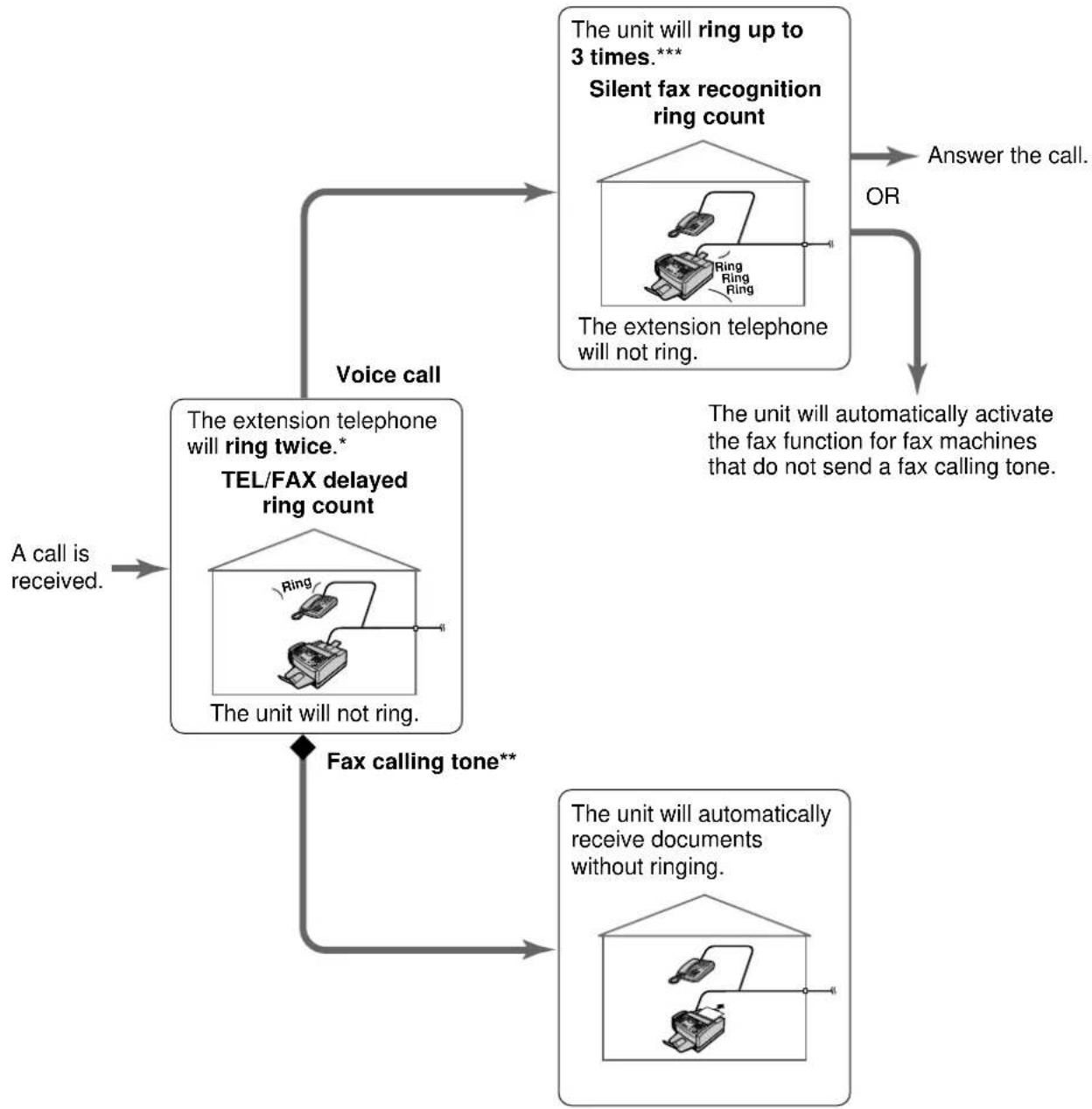
Ring pattern when an extension telephone is connected
flowchart
graph TD
    A["Voice call"] --> B["TEL/FAX delayed ring count"]
    B --> C["A call is received."]
    B --> D["Fax calling tone**"]
    D --> E["The unit will not ring."]
    E --> F["The extension telephone will ring twice.*"]
    F --> G["The unit will ring up to 3 times.***"]
    G --> H["Silent fax recognition ring count"]
    H --> I["Answer the call."]
    H --> J["OR"]
    J --> K["The unit will automatically activate the fax function for fax machines that do not send a fax calling tone."]
TEL/FAX delayed ring count:
Up to 9 ring signals will be generated before the unit answers, depending on feature setting #78 on page 63. In the TEL/FAX mode, the unit will not generate an audible ring during this time.
Silent fax recognition ring count:
The unit generates audible rings to indicate that it is receiving a voice call. 3 to 6 rings will be generated, depending on feature setting #30 on page 63. This signal will not ring at an extension telephone.
Receiving Faxes
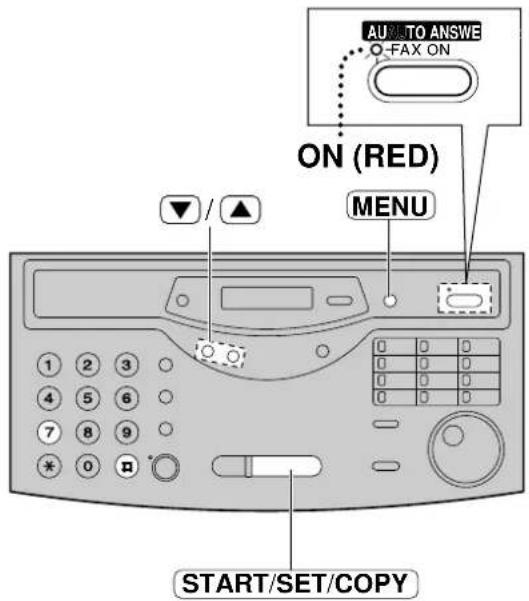
Changing the AUTO ANSWER setting to the TEL/FAX mode
1
Press MENU.
Display:
- SYSTEM SET UP
2
Press #, then 77.
AUTO ANSWER
3
Press START/SET/COPY.
MODE=FAX ONLY ▼▲
4
Press ▼ to select "TEL/FAX".
MODE=TEL/FAX ▼▲
5
Press START/SET/COPY.
SETUP ITEM [ ]
6
Press MENU.
7
If the AUTO ANSWER light is off, turn it on by pressing AUTO ANSWER.
TEL/FAX MODE
Note:
- To return to the FAX ONLY mode, select "FAX ONLY" in step 4.
We recommend the following setup.
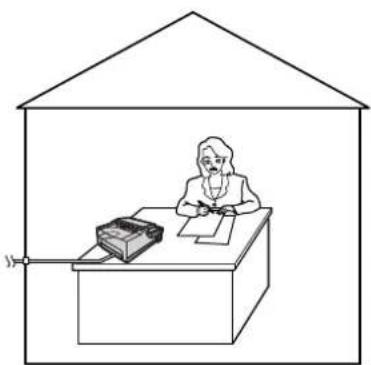
natural_image
Simple line drawing of a person sitting at a desk inside a house outline, with a printer and megaphone nearby (no text or symbols)Only a fax machine is connected and you are always near the fax machine.
TEL/FAX delayed ring count
This setting determines the number of times the extension telephone rings in the TEL/FAX mode. You can choose from 1 to 9 rings.
This setting does not need to be changed if an extension telephone is not connected.
![1 Press MENU. Display: 1.SYSTEM SET UP 2 Press #, then 7 8. TEL/FAX RING 3 Press START/SET/COPY. RING=2 ▼▲ 4 Press ▼ to select the desired number, or enter the number using the dial keypad. 5 Press START/SET/COPY. SETUP ITEM [ ] 6 Press MENU.](/content/2026/06/1190728/images/56fa92dff4cec9bf9169e1d7e90cd0458326f02c8d6fd1e4732a484a57c0004e.jpg)
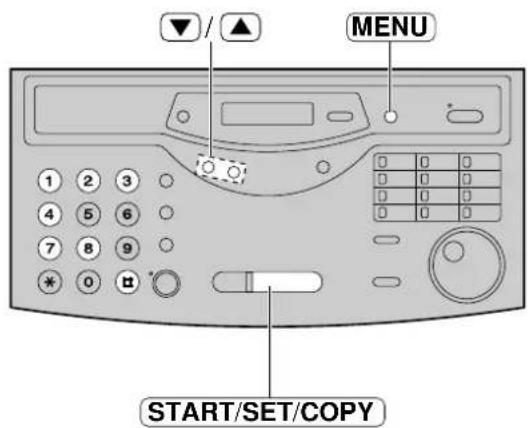
Note:
- If the number of rings is increased, you may not be able to receive documents from some older model fax machines which do not send a fax calling tone.
Silent fax recognition ring count
When the unit detects a voice call in the TEL/FAX mode, it will ring up to 3 times. The number of rings can be changed up to 6.
![1 Press MENU. Display: 1.SYSTEM SET UP 2 Press #, then 30. SILENT FAX RING 3 Press START/SET/COPY. RING=3 ▼▲ 4 Press ▼ to select the desired number, or enter the number using the dial keypad. 5 Press START/SET/COPY. SETUP ITEM [ ] 6 Press MENU.](/content/2026/06/1190728/images/2662610b65337c51c68b56b7eabb77ff29e619c670757bea902b1a83ac906beb.jpg)
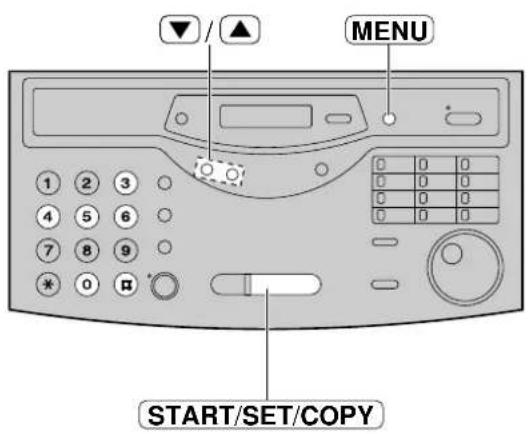
Note:
- If the number of rings is increased, you may not be able to receive documents from some older model fax machines which do not send a fax calling tone.
Receiving Faxes
Turning the AUTO ANSWER mode on remotely =
When you are not in, and the AUTO ANSWER mode of your unit is set to off (TEL mode), you can turn the AUTO ANSWER mode on (FAX or TEL/FAX mode) from a remote location using a touch tone telephone.
- Dial the number of your unit.
- Let it ring 10 times.
-
You will hear a beep signal.
-
To switch to the FAX mode, press *. To switch to the TEL/FAX mode, press #.
-
Hang up the handset.
- Press ✱ or # within 8 seconds after hearing the beep, otherwise the call will be interrupted and the unit will remain in the TEL mode.
Other size documents
When the size of the document sent by the other party is larger than the recording paper, the unit can reduce each page of the document to fit on one page.
ON: The unit will reduce any document larger than A4 (pre-selected setting).
OFF: The unit does not reduce any incoming faxes. Oversized documents will be divided when printed out.
1 Press MENU.
Display: 1.SYSTEM SET UP
2 Press #, then 37.
AUTO REDUCTION
3 Press START/SET/COPY.
MODE=ON
4 Press ▼ to select the desired setting.
5 Press START/SET/COPY.
SETUP ITEM [ ]
6 Press MENU.

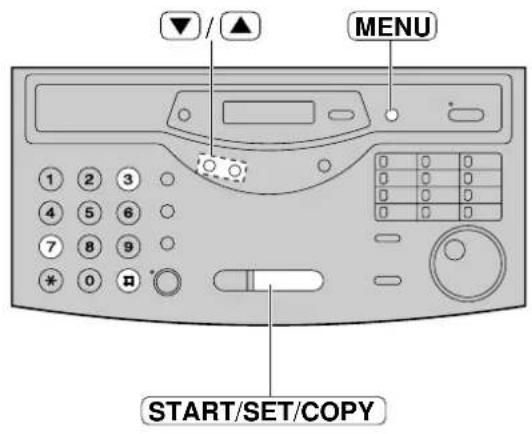
Note:
- Documents usually have a heading on the top of each page which contains the sender's name/telephone number. This increases the length of each page. Therefore using the reduction mode is recommended.
Receiving Faxes
Memory reception alert
When a received document is stored into memory due to a problem, the unit will alert you with beep tones. If you hear slow beeps, clear the printing problem or supply paper to print the stored document. The beep tones will stop.
1 Press MENU.
Display: 1.SYSTEM SET UP
Press #, then 44.
RECEIVE ALERT
Press START/SET/COPY.
MODE=ON ▼ ▲
4 Press ▼ to select the desired setting.
- If this feature is not required, select "OFF".
5 Press START/SET/COPY.
SETUP ITEM [ ]
6 Press MENU.
Friendly reception
The friendly reception feature allows you to receive fax documents automatically without pressing START/SET/COPY (p. 56).
When this feature is deactivated, you have to press [START/SET/COPY] to receive fax documents each time you answer a fax call.
1 Press MENU.
Display: 1. SYSTEM SET UP
Press #, then 46.
FRIENDLY RCV
Press START/SET/COPY.
MODE=ON ▼ ▲
4 Press ▼ to select the desired setting.
- If this feature is not required, select "OFF".
5 Press START/SET/COPY.
SETUP ITEM [ ]
6 Press MENU.

Pager call - when your unit receives a fax
This feature allows your unit to call your pager when your unit receives a fax document.
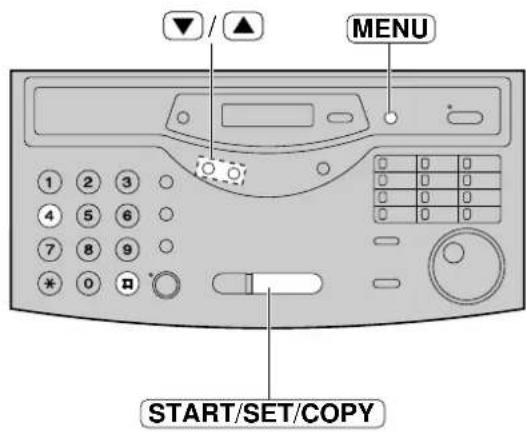
1 Press MENU.
Display: 1.SYSTEM SET UP
2 Press #, then 70.
FAX PAGER CALL
3 Press START/SET/COPY.
MODE=OFF

4 Press ▼ to select "ON".
- If this feature is not required, select "OFF".
5 Press START/SET/COPY.
NO.=
6 Enter your pager number.
- You can enter a total of 46 digits and/or pauses.
Example:
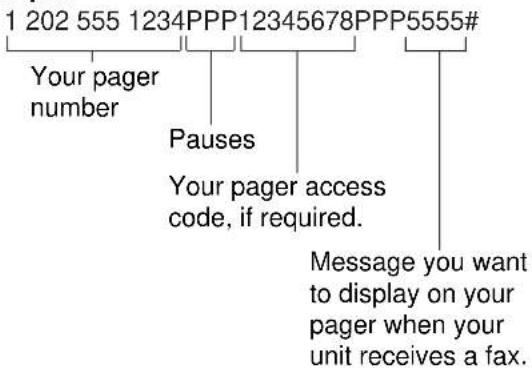
flowchart
graph TD
    A["1 202 555 1234PPP12345678PPP5555#"] --> B["Your pager number"]
    B --> C["Pauses"]
    C --> D["Your pager access code, if required."]
    D --> E["Message you want to display on your pager when your unit receives a fax."]
7 Press START/SET/COPY.
- The unit will dial the stored pager number.
PAGER TEST
8 Check that the message is displayed on your pager.
9 Press MONITOR.
10 If the AUTO ANSWER light is off, turn it on by pressing AUTO ANSWER.
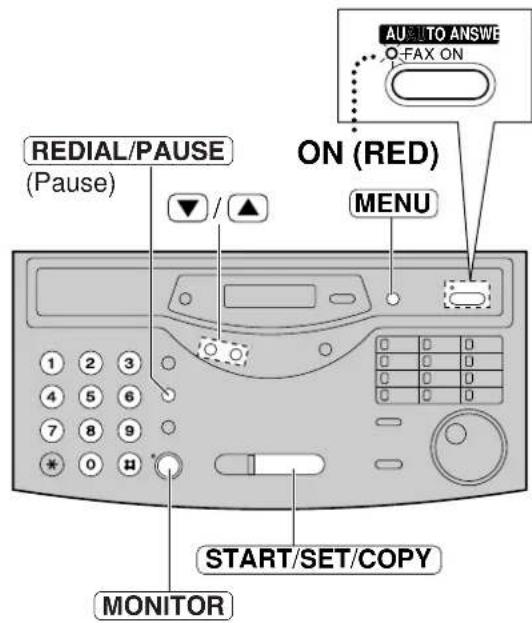
How your unit and pager work
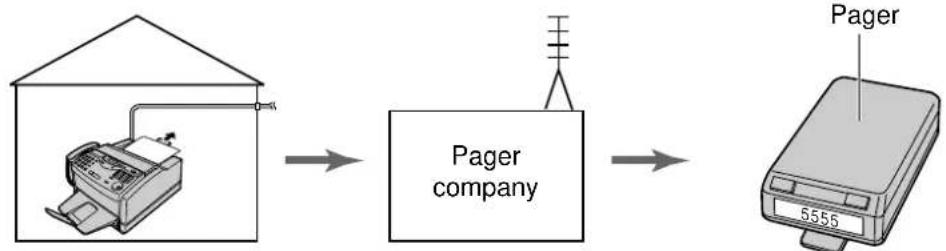
flowchart
graph LR
    A["Printer with printer"] --> B["Pager company"]
    B --> C["Digital ticker 5555"]
When your unit receives a fax document, it will call your pager company.
Your pager company will call your pager.
A few minutes later, your pager will display the same message you entered in step 6 above. (For example: 5555)
Receiving Faxes
Toner save
With the toner save feature on, toner consumption can be decreased, resulting in a longer effective cartridge life.
This feature is available when printing received fax documents, help lists and other reports/lists or copying documents.
![1 Press MENU. Display: 1.SYSTEM SET UP 2 Press #, then 7 9. TONER SAVE 3 Press START/SET/COPY. MODE=OFF ▼▲ 4 Press ▼ to select "ON". MODE=ON ▼▲ 5 Press START/SET/COPY. SETUP ITEM [ ] 6 Press MENU.](/content/2026/06/1190728/images/aef17862660e628b10e1c5872a519b84488581befa9338c665d7ff1b2e86d7bd.jpg)
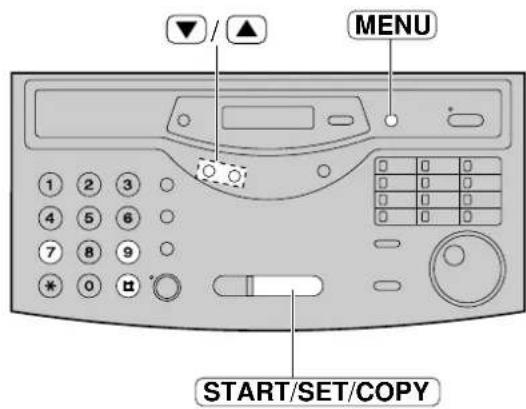
Note:
- Using the toner save feature may reduce print quality.
- When printing from the PC, this setting does not work.
To save toner, use the PANA LINK printer driver setting.
Making a copy
The unit can make single or multiple copies (up to 99). Any transmittable document (p. 44) can be copied.
1 Open the document feeder tray.
2 Adjust the width of the document guides to the size of the document.
3 Insert the document (up to 15 pages) FACE DOWN until the unit grabs the document and a single beep is heard.
Display: STANDARD
● Make sure the handset is on the cradle.
4 If necessary, press RESOLUTION repeatedly to select the desired setting (p. 41).
5 Press START/SET/COPY.
NUMBER=1 [100%]
6 Enter the number of copies (up to 99).
7 If necessary, choose an enlargement/reduction rate by rotating EASY DIAL. See next page.
8 If you want to print collated copies, press COLLATE until the following is displayed (see next page).
COLLATE=ON
9 Press START/SET/COPY.
OR
Press QUICK SCAN if you want to remove the copy document for other uses.
●The unit will feed the documents and scan them into memory, then start printing.
To stop copying
Press STOP.
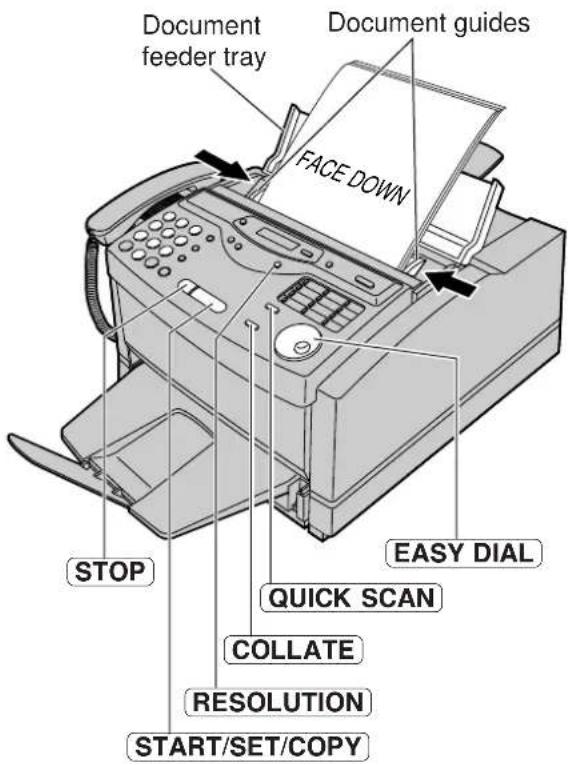
Note:
●While scanning, do not move the pages which have already been ejected. A paper jam may occur. Allow the scanning process to finish before viewing documents.
- If a resolution is not selected, FINE resolution will automatically be selected.
- Once copying has started, the resolution cannot be changed.
- You can make or receive a voice call while making copies.
- After copying, the enlargement/reduction rate setting will return to "100%".
- Manual feeding is not possible when making a copy.
Printing collated copies
The unit will print uncollated copies. You can also print collated copies. See the example below.
Example: Making two copies of a 4-page original document
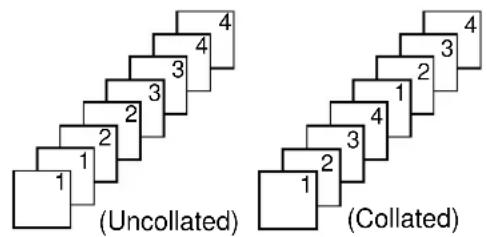
- If you turn the collating feature on, the unit will store the document into memory and print it. If memory becomes full while storing, the unit will not print.
- After copying, the collating feature will turn off automatically.
Choosing an enlargement/reduction rate
The unit can make enlarged or reduced copies of a document.
■ To enlarge a document:
Select the desired enlargement rate by rotating EASY DIAL to the right. The unit will only enlarge the centre part of the document and print it on two pages.
The unit can enlarge copies by 5% to as much as 200% of the original.
Sample of an enlarged copy:
- 200% example
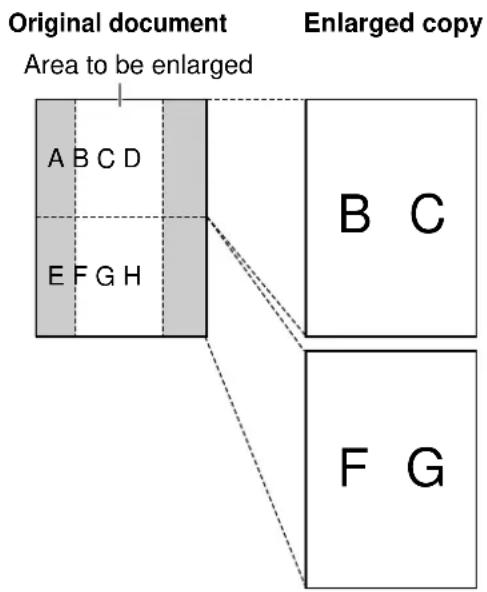
flowchart
graph TD
    A["Original document"] --> B["Area to be enlarged"]
    B --> C["Enlarged copy"]
    C --> D["Final image with labels A, B, C, D, E, F, G, H"]
    D -.-> E["Final image with label B, C"]
    D -.-> F["Final image with label F, G"]
- 150% example
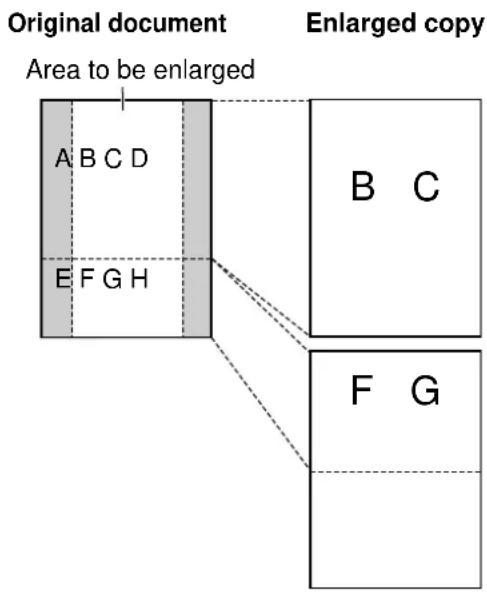
flowchart
graph TD
    A["Original document"] --> B["Area to be enlarged"]
    B --> C["Enlarged copy"]
    C --> D["F G"]
    C --> E["B C"]
    C --> F["F G"]
    style A fill:#f9f,stroke:#333
    style C fill:#ccf,stroke:#333
    style D fill:#cfc,stroke:#333
    style E fill:#fcc,stroke:#333
    style F fill:#cff,stroke:#333
■ To reduce a document:
Select the desired reduction rate by rotating EASY DIAL to the left.
The unit can reduce copies by 5% to as little as 50% of the original.
Note:
- If the appropriate reduction rate is not programmed, the document may be divided and the top of the second sheet will be deleted.
Connecting to a computer
To run the Panasonic Multi-Function software (PANA LINK), you need the following software and hardware.
CPU: An IBM compatible personal computer with a 486 or higher processor (Pentium is recommended.)
Basic Software: Microsoft Windows 95 or Windows 98 (Windows 3.1/3.11*—printer driver only)
Memory Minimum: 16 MB (32 MB or more is recommended)
Hard disk: More than 40 MB available space
Other: Parallel port
Panasonic Multi-Function fax machine
*Microsoft Windows operating system Version 3.1/3.11 (hereafter Windows 3.1/3.11)
Connect your personal computer to the fax machine as follows:
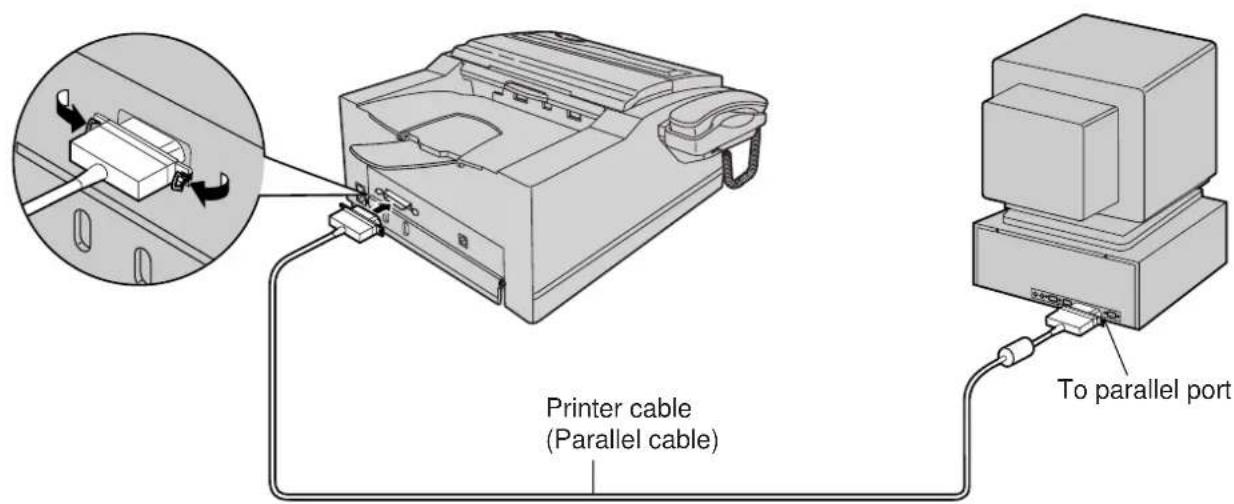
Caution:
- When connecting the fax machine to your computer, use the included printer cable for reliable data communications and compliance with EMC.
- Do not connect the printer cable to the serial port on the computer. This may cause damage to your fax machine and computer.
Installing the PANA LINK software
1 Start Windows 95 or Windows 98 and close all applications.
2 Insert the included CD into your CD-ROM drive.
- The language dialogue box will appear. Select the desired language to use with this software. Click OK.
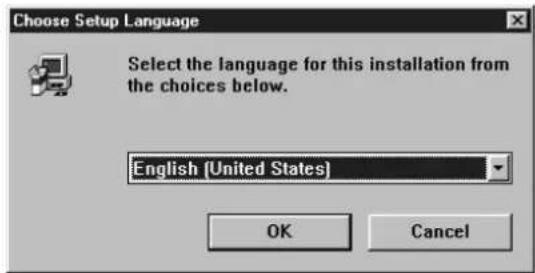
- If the language dialogue box does not appear and the installation does not start automatically: Click Start, choose Run... . Type "d:\setup" (where d: is the drive letter of your CD-ROM drive). Click OK. (If you are not sure what the drive letter is for your CD-ROM drive, please use Windows Explorer and look for the CD-ROM drive.)
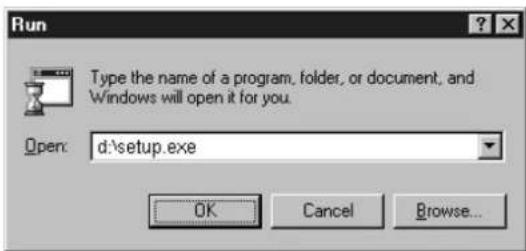
3 The installation will automatically start.
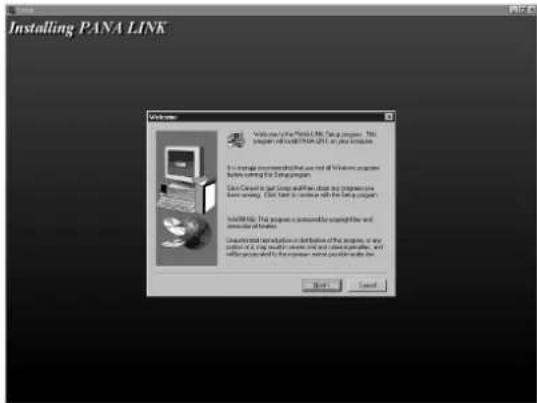
4 Follow the instructions on the screen until all files have been installed.
5 Be sure to read the README file for more information.
●The README file contains the following information:
1. Install/uninstall PANA LINK for Windows 95/98.
2. Install/uninstall KX-FLM600/650 for Windows 3.1.
3. Print and Scan from Windows 3.1.
4. How to feed recording paper manually.
5. How to use Help.
6. ECP Problems
Note:
- For detailed instructions on PANA LINK software, use the Help function.
●The screens shown in these instructions are from Windows 95.
Windows 3.1 or 3.11 users:
- If you are using Windows 3.1 or 3.11, follow these steps to install the software.
- From the Program Manager, click File, choose Run...
- Type "d:\win31\Eng-uk\setup" (where d: is the drive letter of your CD-ROM drive).
- Click OK.
- The printer driver only is available. Please read the README file (README.WRI) on the CD-ROM for more information.
- The display illustrations may differ slightly from the display of the actual product.
- The display details are subject to change without notice for improvement.
Activating the PANA LINK software
1 Click Start.
2 Point to Programs, point to PANA LINK and click PANA LINK.
●The PANA LINK main panel will appear.
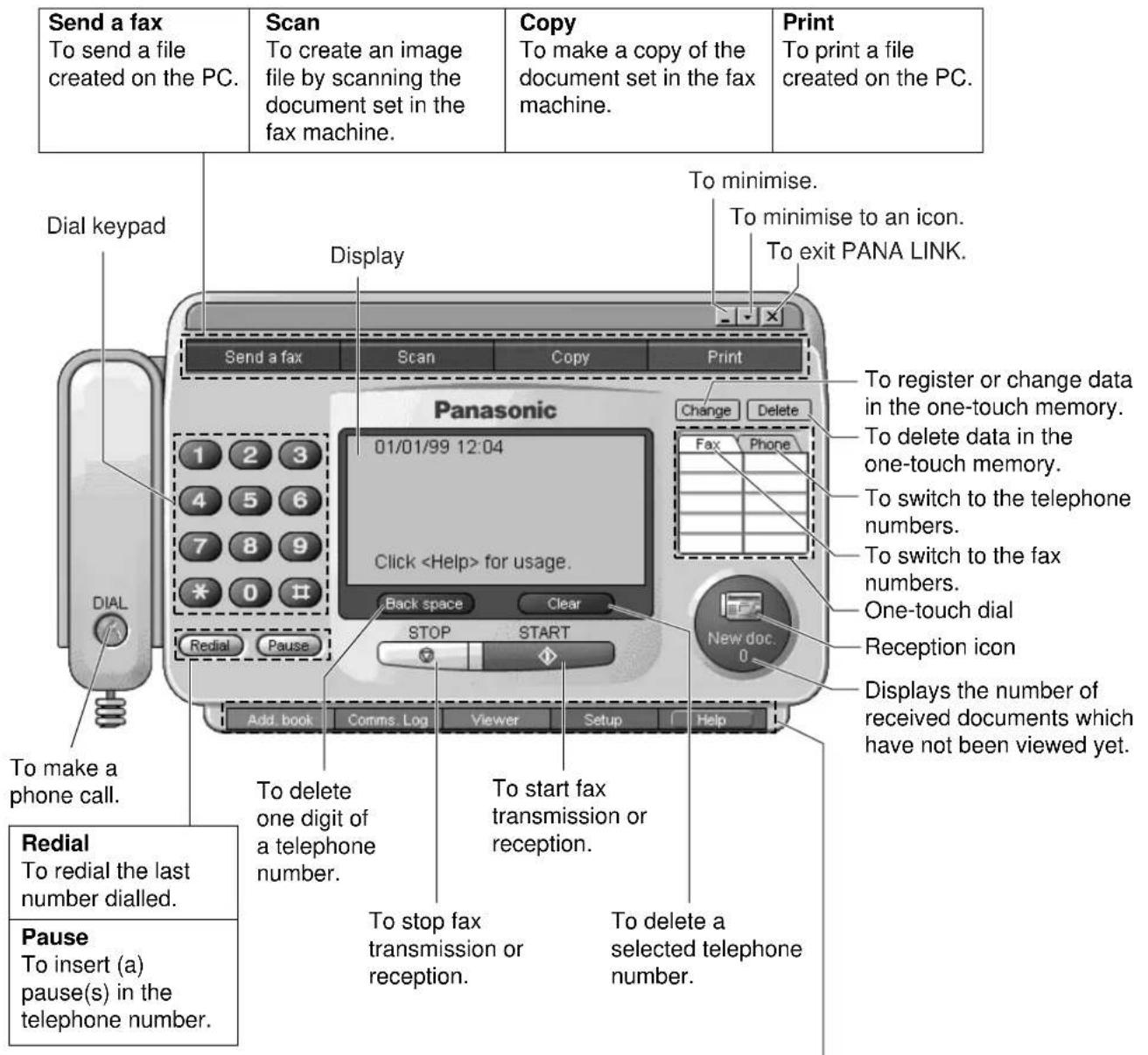
| Add. bookTo store and view information in your address book. | Comms. LogTo display the record of transmitted/received facsimile documents and manage the documents waiting to be sent. | ViewerTo display an image sent or received with PANA LINK. | SetupTo set PANALINK options. | HelpFor detailed instructions on PANA LINK software. |
Setup (PC)
Setting up PANA LINK
The items which can be set are the Line, Transmission, Reception, System, User Information and Cover Page.
1 Open the PANA LINK main panel.
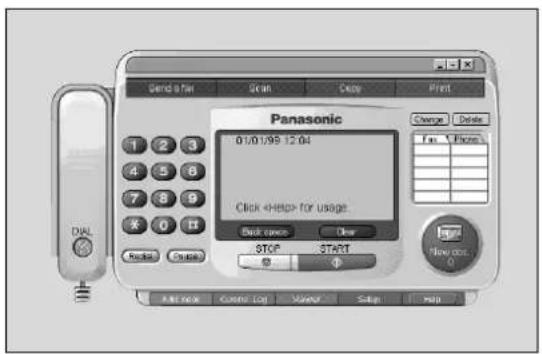
2 Click Setup in the main panel.
- The Setup dialogue box will be displayed.
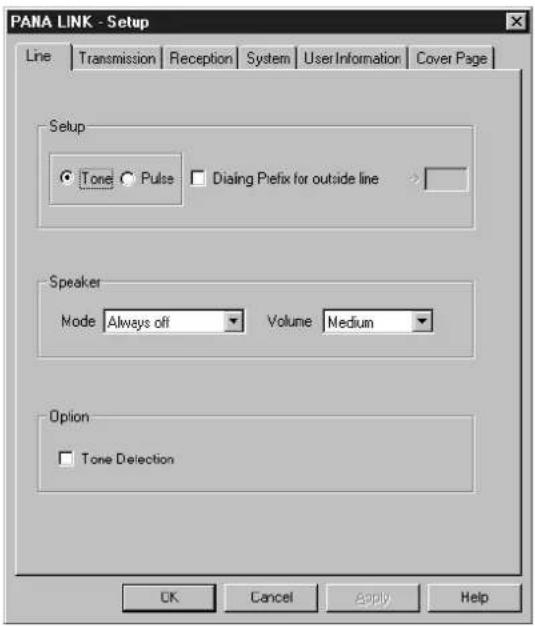
3 Change the set value in the Setup dialogue box.
- To change the value without closing the window, press Apply.
4 Click OK.
Note:
- For further details, use the Help function.
Setting user information
The information set here is used on your cover page and the header that prints on the top of each page you send from the PC.
1 Open the PANA LINK main panel.
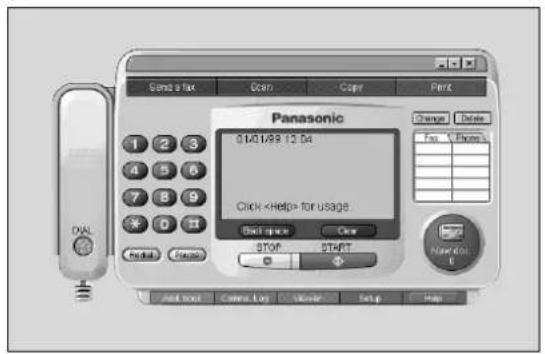
2 Click Setup in the main panel.
●The Setup dialogue box will be displayed.
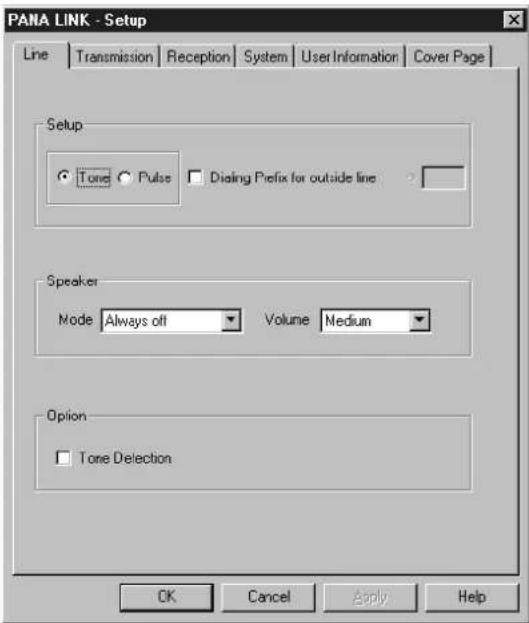
3 Click User Information.
- The User Information dialogue box will be displayed.
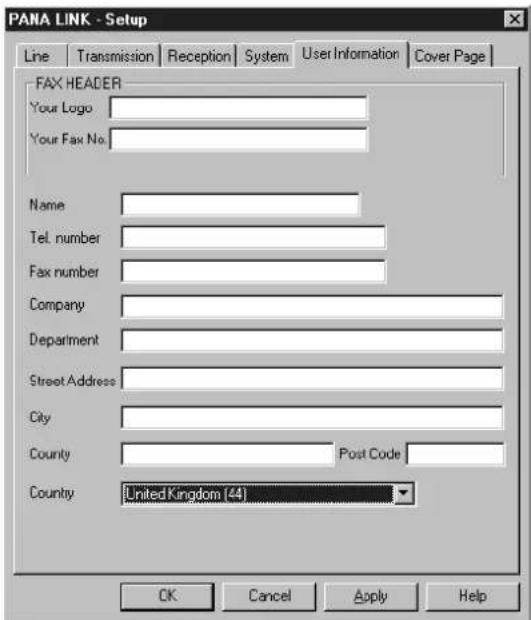
4 Enter the information for each item.
5 Click OK.
Printer
Printing documents created on the PC
You can print documents created from a Windows application.
Select Panasonic Fax Machine "Panasonic KX-FLM600/650" as the active printer.
Printing from Windows applications
For example, to print from Microsoft Word, proceed as follows.
1 Open the document you want to print.
2 Select Print from the File menu. ●The Print dialogue box will app
●The Print dialogue box will appear.
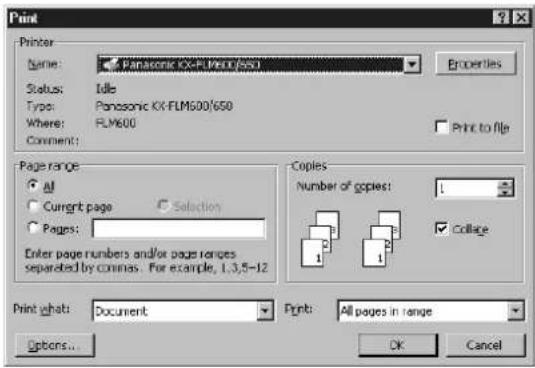
3 Select "Panasonic KX-FLM600/650" as the active printer. • If you want to change the printer setting, click Properties. The printer setup dialogue box will appear. You can change the following settings: Resolution, Orientation, Paper Source, Copies and Paper Size. For details, see page 78.
4 Set the Page range and enter the number of copies.
5 Click OK in the Print dialogue box. • The unit will start printing.
Note:
- For details about the printer driver, use the Help function.
Printing a selected file
You can print a specific file created with an application.
1 Open the PANA LINK main panel.
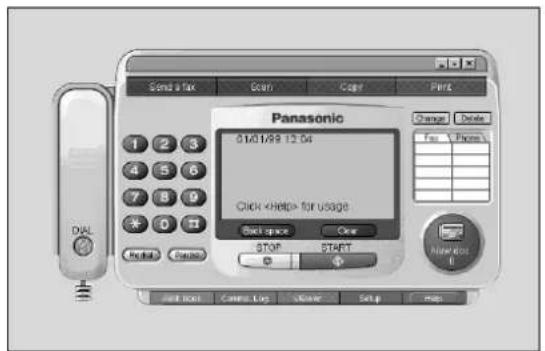
2 Click Print in the main panel.
●The Open dialogue box will appear.
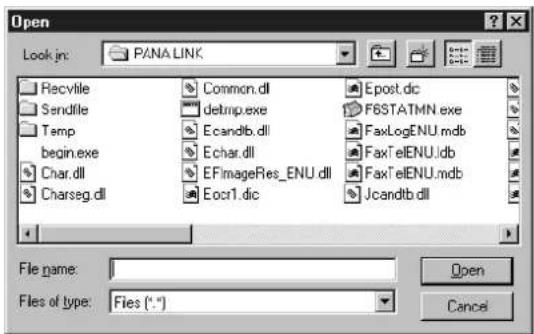
3 Select the file you want to print.
4 Click Open in the Open dialogue box.
- The unit will start printing. - If an application which creates the file starts, follow the instructions for the application to print the file.
Printing from Windows 3.1
You can print documents from Windows 3.1 applications.
For example, to print from Write, use the Print command from the File menu.
1 Open the document you want to print.
Select Print from the File menu.
●The Print dialogue box appears.
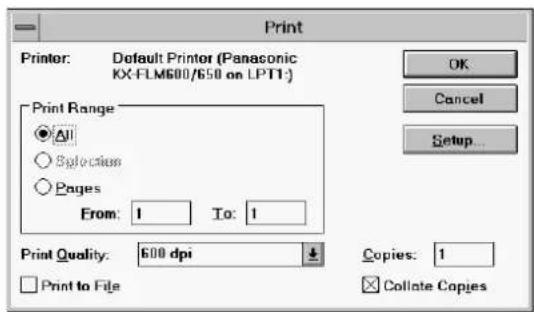
3 Click Setup. • The Print Setup dialogue box appears.
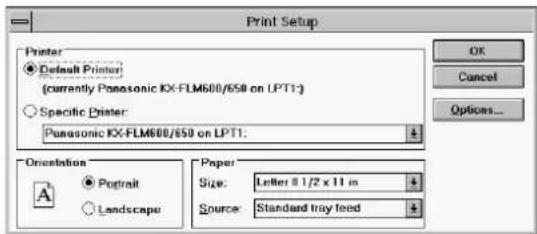
- By clicking Options in the Print Setup dialogue box, the Options dialogue box appears. You can change the following settings: Grayscale Settings, Graphics Options, Toner Save and Halftoned Text.
4 Click OK. • The Print dialogue box appears again.
5 Set the Print Range and the Copies.
6 Click OK. • The unit will start printing.
Printer
Setting up the printer driver
Panasonic KX-FLM600/650 dialogue box
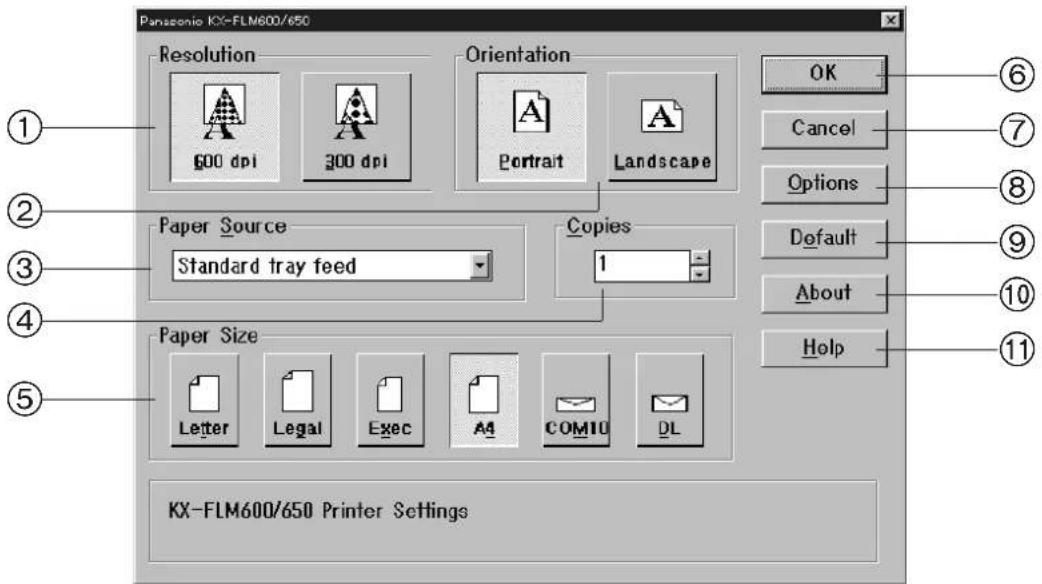
① Resolution: Choose print quality.
600 dpi: Use this setting to print documents with 600 dpi quality. Print speed may be slow.
300 dpi: Use this setting to print documents with 300 dpi quality. (When choosing this, you cannot change "Graphics Options" in the Options dialogue box.)
② Orientation: Click these buttons to set the print orientation.
Portrait: Use this setting to print in tall format.
Landscape: Use this setting to print in wide format.
③ Paper Source: You can choose how to feed the paper. Choose the following options from the Paper Source Setting drop down list box.
Standard tray feed: When selecting this option, you cannot select Exec, COM 10 and DL in the Paper Size.
Manual sheet feed: When selecting this option, you must feed paper into the unit by hand, one sheet at a time
④ Copies: Use this setting to make multiple copies of the same document. Enter the number of copies (up to 250) to be printed.
⑤ Paper Size: You can set the paper size. To choose the paper size, click the following buttons.
Letter: Standard US paper size
Set the recording paper size to "Letter" on the unit
Legal: US legal-sized paper size
Set the recording paper size to "Legal" on the unit
Exec: US executive paper size
A4: Standard European paper size [210 × 297 mm]
Set the recording paper size to "A4" on the unit
COM 10: Standard US envelope size
DL: Standard European envelope size [220 × 110 mm]
⑥ OK: Save all options you changed, and then close the dialogue box.
⑦ Cancel: Cancel the option setting operation for KX-FLM600/650, then close the dialogue box.
⑧ Options: The Options dialogue box appears. You can choose more detailed settings.
⑨ Default: Back to the default settings.
⑩ About: Display the version information of KX-FLM600/650.
⑪ Help: Display help.
Options dialogue box
When clicking the Options button in the Panasonic KX-FLM600/650 dialogue box, the Options dialogue box appears.
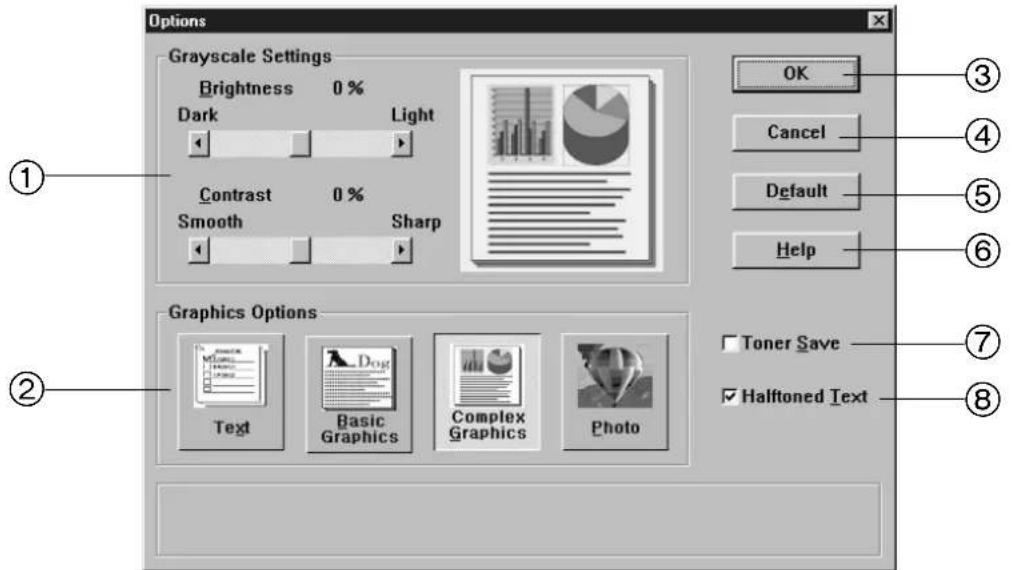
① Grayscale Settings: Adjust contrast and brightness of the printing image.
Brightness: Use this setting to make the printed image lighter or darker overall.
Contrast: Use this setting to control the range of difference between the light and dark areas of the pictures.
Note:
- The Brightness/Contrast settings may not change the print result in some cases. (For example, a text-only document.)
② Graphics Options: Choose one of the following options depending on the original document type or the purpose of printing.
Text: Use this setting when the document is mostly text.
Basic Graphics: Use this setting to print simple charts and graphics.
Complex Graphics: Use this setting to print detailed line art.
Photo: Use this setting to print shaded images.
Note:
- When setting the Resolution at 300 dpi, you cannot change "Graphics Options".
③ OK: Save all options you changed, and then close the dialogue box.
④ Cancel: Cancel the option setting operation for KX-FLM600/650, then close the dialogue box.
⑤ Default: Back to the default settings.
⑥ Help: Display help.
⑦ Toner Save: Use this setting to use less toner. Shaded areas will be lighter.
⑧ Halftoned Text: Use this setting to print color texts as gray.
Printer
Printing using the paper tray (manual feeding) =
With manual feeding, you can print on media other than letter or legal size plain paper.
Media you can print on
■ Media size
| Media Size | Dimension | |
| Paper | Letter | 216 mm×279 mm |
| Legal | 216 mm×356 mm | |
| A4 | 210 mm×297 mm | |
| Executive | 184 mm×267 mm | |
| Transparency | Letter | 216 mm×279 mm |
| A4 | 210 mm×297 mm | |
| Envelope | COM10 | 105 mm×241 mm |
| DL | 220 mm×110 mm |
Paper weight
60 g/m² to 105 g/m²
Loading a sheet manually
Important:
- You cannot load more than one sheet at a time.
1 Close the paper tray extender.
2 Press START/SET/COPY and check that the following message is displayed.
Display: READY TO PRINT
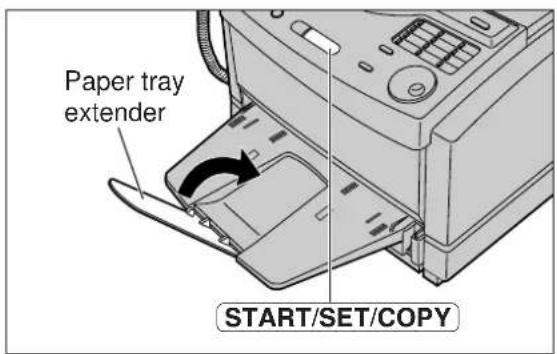
3 Place a sheet on the paper tray, printing side face down and align the edge of the sheet to the guide marks.
- The sheet should not exceed the tabs on either end of the paper tray.
4 Slide the sheet into the unit until it stops.
●A few seconds later, the unit will feed the sheet.
5 To print, change the Paper Source setting in the printer setup dialogue box to Manual Sheet Feed (p. 81).
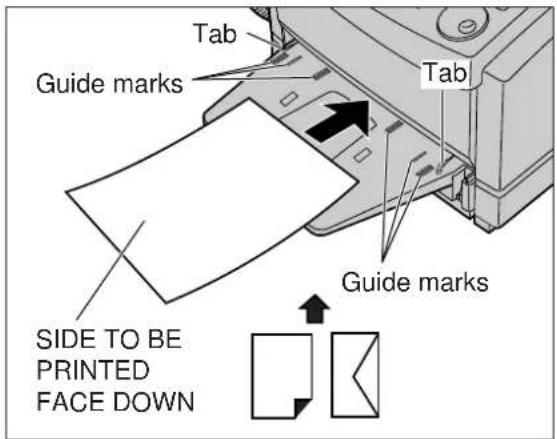
Note:
- Manual feeding is not possible when receiving or copying documents.
- Do not load a sheet while the unit displays the following message.
Display: PLEASE WAIT
- If you load another sheet of paper on the paper tray when the fax machine is feeding the paper, a paper jam may occur. When printing more than one sheet, place the sheets one by one after the message indicating to do so is displayed on your PC.
- Please read the README file (README.WRI) on the CD-ROM for more information.
Printing from Windows applications
You can feed recording paper manually for printing. The procedure is as follows.
1 Open the file you want to print on your computer.
2 Select Print from the File menu. •The Print dialogue box appears.
3 Click Properties. • The Panasonic KX-FLM600/650 dialogue box appears.
4 Select Manual sheet feed from the Paper Source drop-down list box, and click OK. The Print dialogue box appears again. If necessary, set the Page Range and the Number of Copies.
5 Press START/SET/COPY on the fax machine and confirm the LCD message "READY TO PRINT".
6 Place a sheet on the paper tray, printing side down (p. 80). - Feed the sheets of recording paper one by one.
7 Click OK. • The fax machine will start printing.
8 The Manual Feed Required dialogue box appears when printing of each page has been completed.
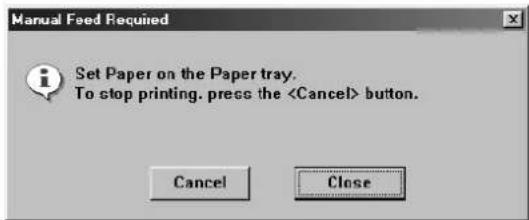
- If you want to cancel printing, click Cancel.
- If you want to continue to print:
A. Place another sheet on the paper tray.
B. Click Close.
The Manual Feed Required dialogue box disappears. Start printing the next page.
*Even without clicking the Close button, printing is started automatically a few seconds after a sheet is placed on the tray.
Printer
Transparencies and labels
You may also print on labels and transparencies that are made for the printer.
Note:
- Labels must completely cover the backing material (see below).
- Re-using transparencies that have been fed through the printer once (for example, after jams or if the transparency is ejected without being printed) can reduce the life of the consumables and paper path components.
- Some types of paper, especially transparencies, are made to print on a specific side. If the print quality is poor, try printing on the other side.
YES NO
Labels cover the entire backing material.
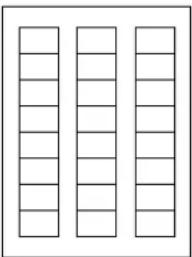
natural_image
Three vertical columns of empty rectangular boxes, no text or symbols present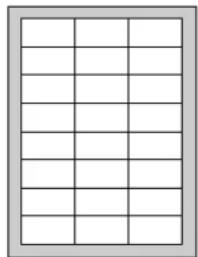
natural_image
Blank grid layout with no text, numbers, or symbols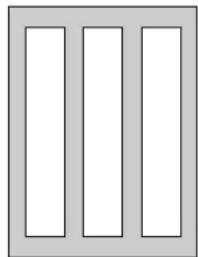
natural_image
Three vertical rectangular panels arranged horizontally, no text or symbols present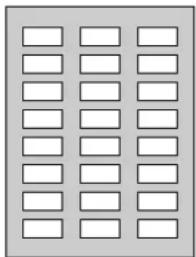
natural_image
Grid of empty rectangular boxes arranged in 4 rows and 5 columns (no text or symbols)The backing material is exposed.
Envelope specifications
We recommend that you purchase only high quality envelopes with diagonal seams, as shown in the diagram below:
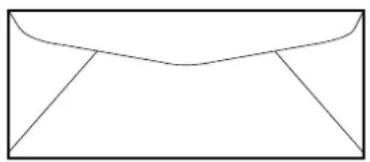
natural_image
Simple line drawing of a closed envelope (no text or symbols)High quality envelopes have the following characteristics:
●A thin, sharply creased leading edge
●Paper weight of 75 g/m²
- Flat, free of curls, wrinkles, nicks, etc.
- No cotton and/or fibre material included
Note:
- Wrinkles may occur in some cases, even if high quality envelopes are used.
We recommend that you do not use envelopes with any of the following characteristics (using these may result in paper jams):
- Irregularly shaped envelopes
- Envelopes with curls, wrinkles, nicks, twists, dog-ears or other damage
●Envelopes with side seam construction - Highly textured envelopes, or envelopes with extremely shiny surfaces
● Envelopes that seal by removing a peel-off strip
● Envelopes with more than one flap to be sealed
●Self-adhesive envelopes
●Envelopes that are baggy or not sharply creased - Embossed envelopes
●Envelopes that have previously been printed on

Side seam construction

Peel-off strip Multiple flaps


Twist Curl Bent-edge




Wave Dog-ears Self adhesive
Do not attempt to print on any of the following types of envelopes (these may cause damage to your printer):
● Envelopes with clasps, snaps or tie strings (see Fig. 1)
●Envelopes with transparent windows (see Fig. 2)
- Envelopes that will melt, discolour, scorch, offset or release hazardous emissions when exposed to 200^ for 0.1 second
- Envelopes that use encapsulated types of adhesive that do not require moistening but rely on pressure to seal them

Fig. 1

Fig. 2
Always test a sample of the envelopes you are thinking of buying. Check that the envelope performs satisfactorily.
For best printing results
- Avoid printing in high humidity i.e., above 70%.
High humidity may cause the envelope to curl and pick up excess toner.
High humidity may also cause the envelope to seal. - Avoid printing below 10^ with less than 30% relative humidity.
Low temperature with low humidity may cause light printing. - Print only one envelope at a time.
Envelope storage is very important. Store them away from moisture and humidity, where they can lay flat and their edges will not be bent or damaged. Humidity should not exceed 70% RH.
Sending documents created on the PC
Sending a document created by an application as a fax message
You can access the fax function from a Windows application by using the Print command in the File menu. Select PANA LINK FAX as the active printer.
For example, to send a document created from Microsoft Word, proceed as follows.
1 Open the document you want to send.
Select Print from the File menu.
●The Print dialogue box will appear.
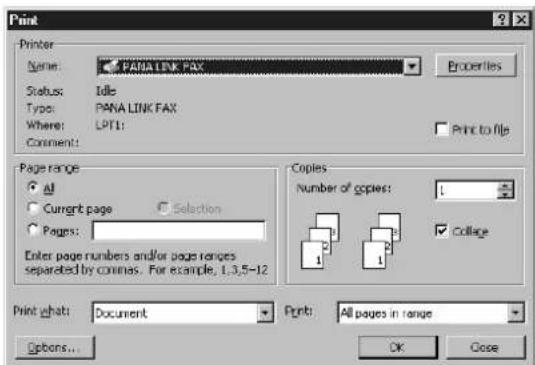
3 Select PANA LINK FAX as the active printer.
Click OK in the Print dialogue box.
- If the PANA LINK application has not started yet, it will start now, and one item will be added to it as the transmission document.
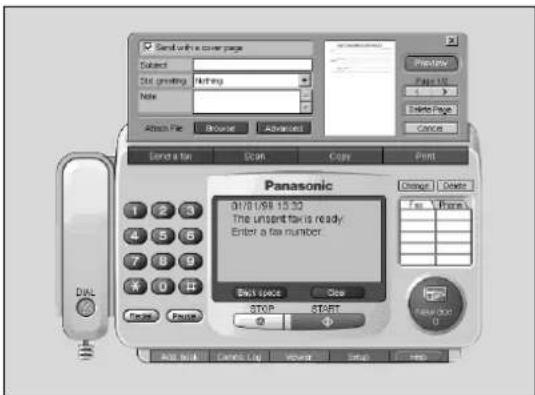
5 Enter the fax number to which you want to send the document.
- To enter the telephone number, you can use the keypad, one-touch dialling or the address book.
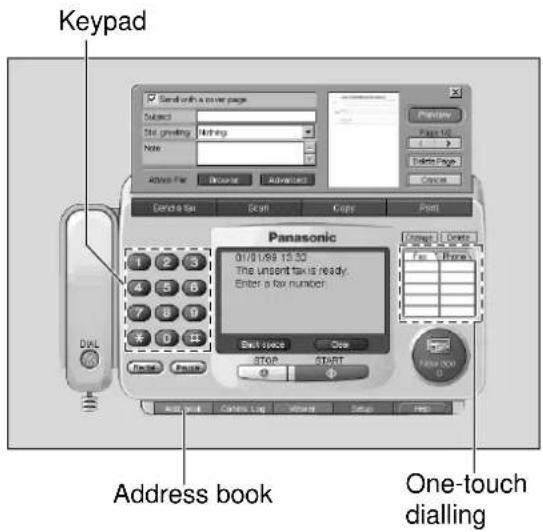
6 Click START in the main panel.
●The document will be sent.
Note:
- If the line is busy or there is no answer, the PANA LINK Fax will automatically redial the number up to 5 times (This can be changed to up to 14 times.). To see fax auto redial information, open the Setup dialog box by pressing Setup in the main panel and click the transmission tab.
- To cancel transmission after dialling, click STOP in the main panel or press STOP on the fax machine.
- When you click START to send the selected file, any document set on the fax machine will also be sent at the same time.
Sending a file from the PANA LINK window
1 Open the PANA LINK main panel.
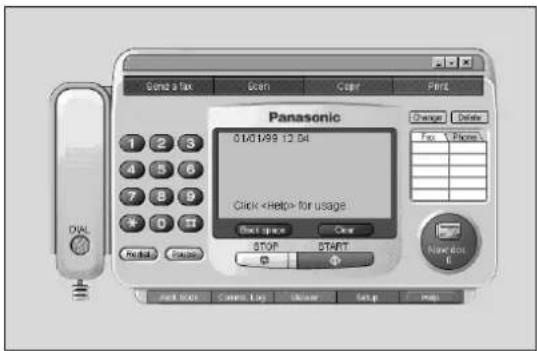
2 Click Send a fax in the main panel. • The Send fax panel will be displayed
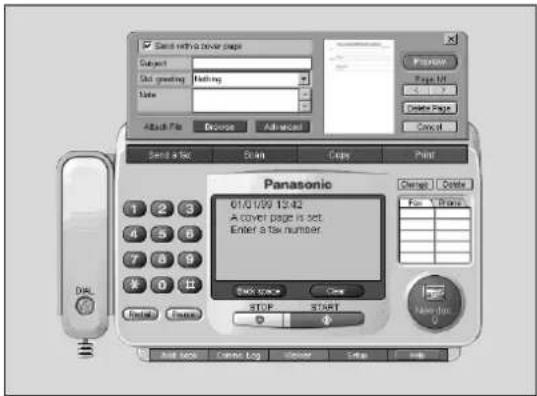
3 Click Browse in the Send fax panel. • The Open file dialogue box will be displayed.
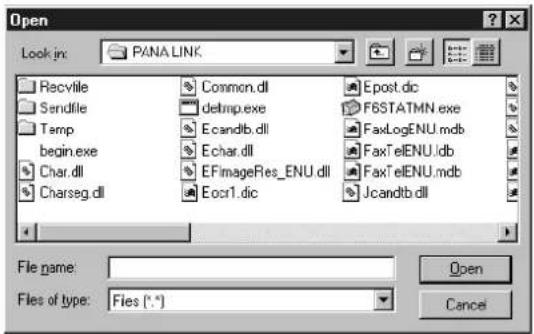
4 Select the file you want to send, and click Open.
- An image of the file will be displayed in the preview window.

5 Enter the fax number to which you are going to send the file.
- To enter the telephone number, you can use the keypad, one-touch dialling or the address book.
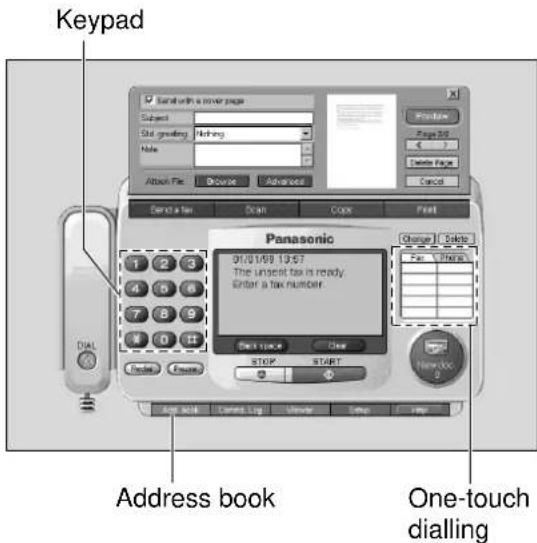
6 Click START in the main panel.
●The document will be sent.
- If an application which creates the file starts, follow the instructions for the application to send the file.
Note:
- If the line is busy or there is no answer, the PANA LINK Fax will automatically redial the number up to 5 times (This can be changed to up to 14 times.). To see fax auto redial information, open the Setup dialog box by pressing Setup in the main panel and click the transmission tab.
- To cancel transmission after dialling, click STOP in the main panel or press STOP on the fax machine.
- When you click START to send the selected file, any document set on the fax machine will also be sent at the same time.
The PANA LINK FAX Properties dialogue box
This dialogue box has three tabs as follows.
Paper tab Graphics tab
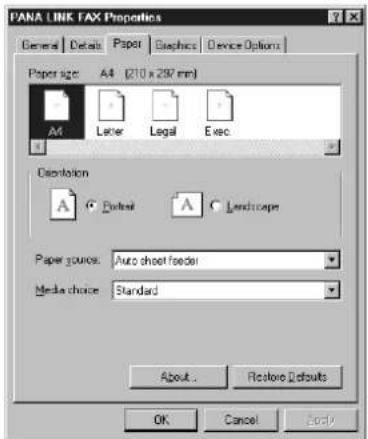
① Paper size: You can set the paper size. To choose the paper size, click the following buttons.
Letter: Standard US paper size
Legal: US legal-sized paper size
A4: Standard European paper size [210 × 297 mm]
Exec.: US executive paper size
② Orientation: Click these buttons to set the print orientation.
Portrait: Use this setting to print in tall format.
Landscape: Use this setting to print in wide format.
③ Paper source: You cannot change the Paper source.
④ Media choice: You cannot change the Media choice.
Device Options tab
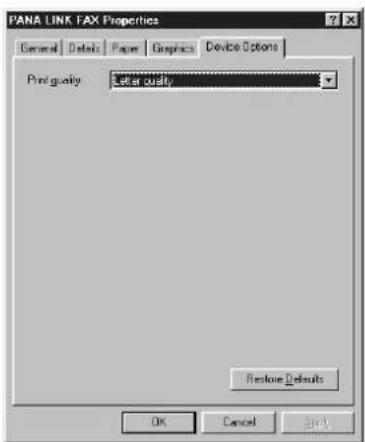
① Print quality
Specifies the text quality you want to use for your printed document.
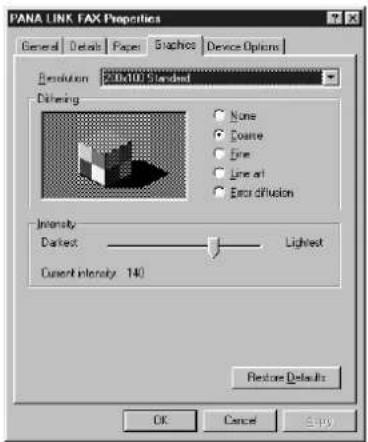
① Resolution
Specifies the resolution you want for graphic images. Generally, higher resolution settings produce higher quality printing; however, your documents may take longer to print. Select the desired resolution according to the type of document.
Standard (200 × 100 dpi)
Fine (200 × 200 dpi)
Super Fine (200 × 400 dpi)
② Dithering
Specifies the type of dithering used in printing. For colour printing, dithering blends pure colours into patterns to simulate a wider range of colours. For example, orange is produced by blending red and yellow. For non-colour printing, dithering produces gray shading in graphics.
None: Click this if you do not want any dithering.
Coarse: Click this if your resolution setting is 300 dpi or higher.
Fine: Click this if your resolution setting is 200 dpi or less.
Line Art: Click this if your graphics include well-defined borders between black, white and gray shadings.
Error
Diffusion: Click this for printing photographs or pictures that do not have sharp, well-defined edges.
③ Intensity
Specifies how dark to print graphics in your document.
Sending a document from the fax machine using the PC
1 Place the document on the fax machine.
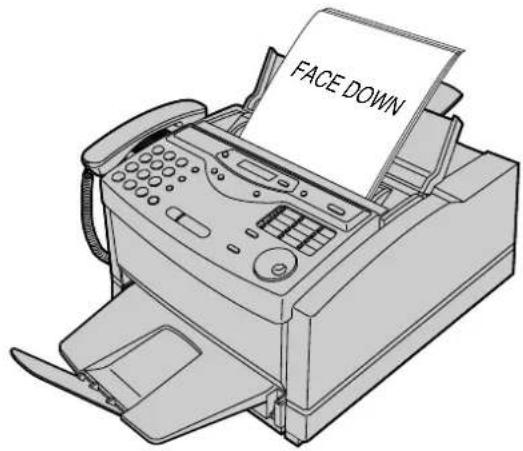
2 Open the PANA LINK main panel.
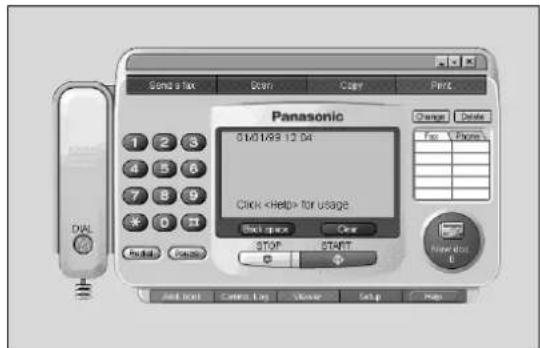
3 Enter the fax number to which you want to send the document in the main panel.
- To enter the telephone number, you can use the keypad, one-touch dialling or the address book.
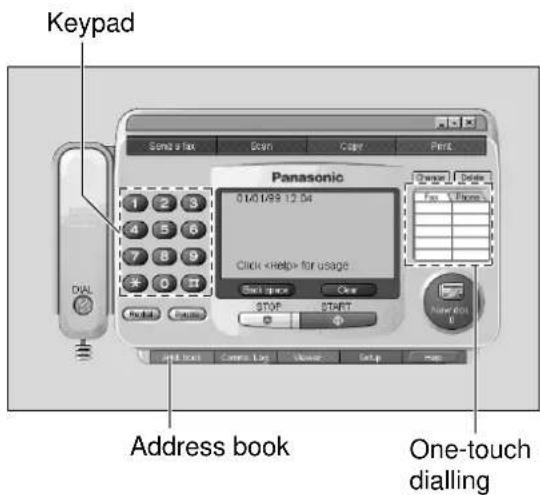
4 Click START.
- A dialogue box to set the image quality, type and brightness will be displayed.
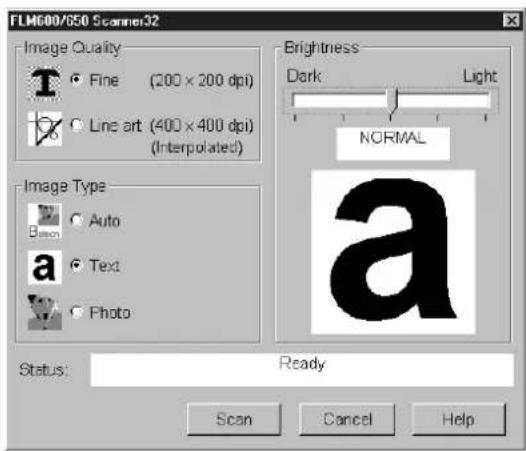
5 Set the image quality, type and brightness, and click Scan.
Note:
- To cancel transmission after dialling, press STOP on the fax machine.
PC Receiving
Receiving faxes on your PC
You can receive a fax on the computer.
The received facsimile document is saved as an image file (TIFF-G4 format), which you can view, print or send again.
To receive manually
You can receive a fax manually during a telephone conversation.
1 Open the PANA LINK main panel.
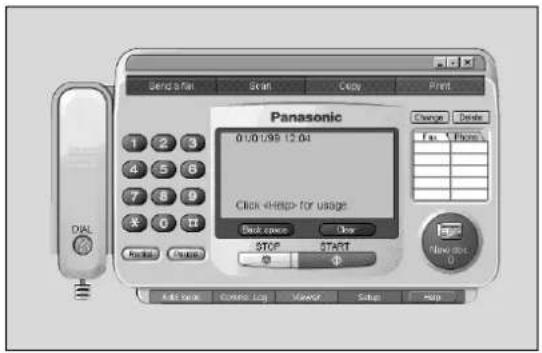
2 Click START in the main panel.
To receive automatically
You can receive faxes on your PC automatically.
1 Set the fax machine to the AUTO ANSWER mode by pressing AUTO ANSWER.
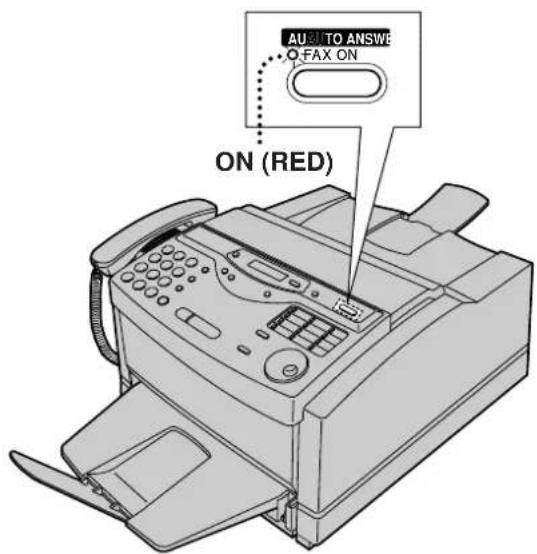
2 Open or minimise the PANA LINK main panel.
To receive directly on the fax machine
If you do not want to be disturbed by incoming faxes when using the PC, but want faxes to go directly to your facsimile machine, follow these steps.
- Click Setup in the main panel.
●The Setup dialogue box will appear. - Click the Reception tab in the dialogue box.
- Click "Receive directly to facsimile unit".
- Click OK.
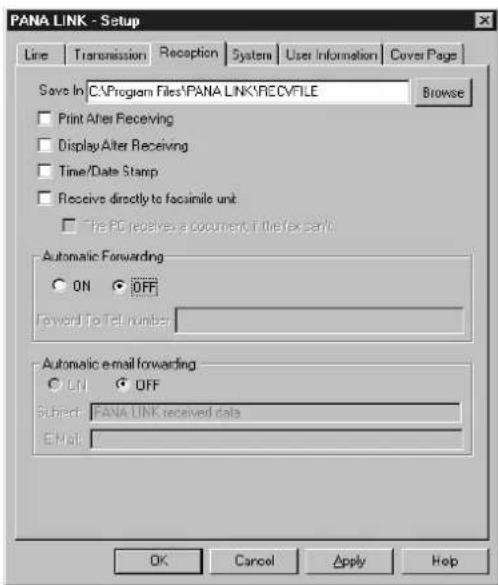
Confirming the result of reception
1 Open the PANA LINK main panel.
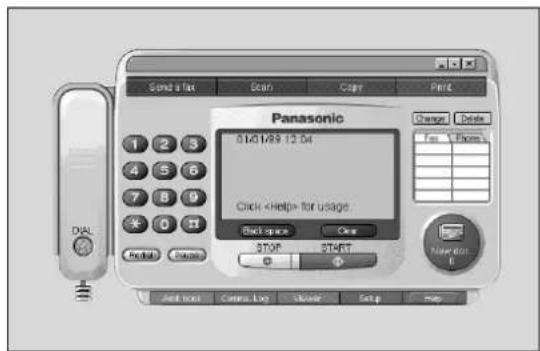
2 Click on the reception icon (New doc.) in the main panel, or click on Comms. Log and switch to the received log.
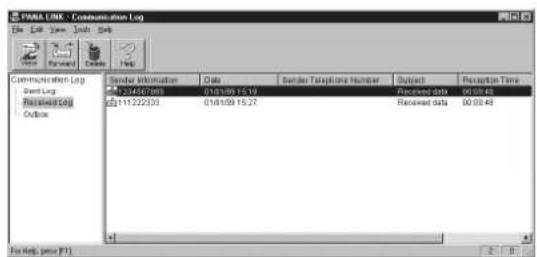
3 Click on the items in the received log which have not been viewed yet (icon).
4 Click on File in the menu bar, then click on View, or click View in the toolbar.
●The Viewer window will appear, and the received fax will be displayed.
![FEMA LIKE Viewer File Edit Page View Tools Help View Environment Help FEMA LIKE ELEK FEMA LIKE ELEK FEMA LIKE ELEK FEMA LIKE ELEK FEMA LIKE ELEK FEMA LIKE ELEK FEMA LIKE ELEK FEMA LIKE ELEK FEMA LIKE ELEK FEMA LIKE ELEK FEMA LIKE ELEK FEMA LIKE ELEK FEMA LIKE ELEK FEMA LIKE ELEK FEMA LIKE ELEK For Help press [F1] 17/36/144 208 x 100 Pages 1 / 1 Think to a comment](/content/2026/06/1190728/images/0493bbfd1cff0c3aa5265d65d6d76fbc92341ada5e76be699418b63905dac3d7.jpg)
Phone Call
Making a phone call
You can make a phone call using PANA LINK. Use the handset on the fax machine to talk.
1 Open the PANA LINK main panel.
2 Enter the telephone number in the main panel.
- You can select the telephone numbers using the following methods: Keypad, one-touch dial, address book or redial.
The main panel indicator will display "Start calling by pressing the
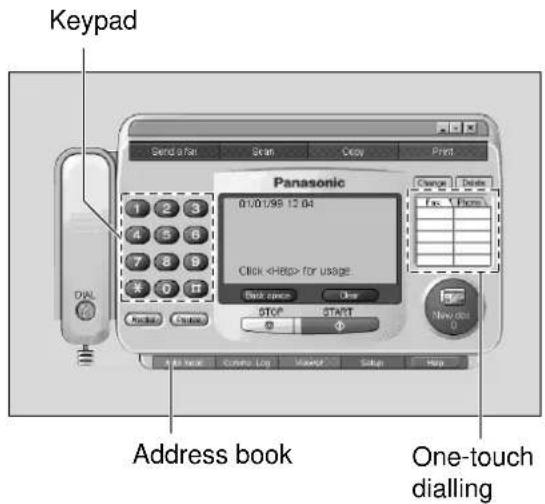
3 Click Dial. The main
- The main panel indicator will display "Lift the fax machine's handset to talk.".
4 Lift the fax machine's handset.
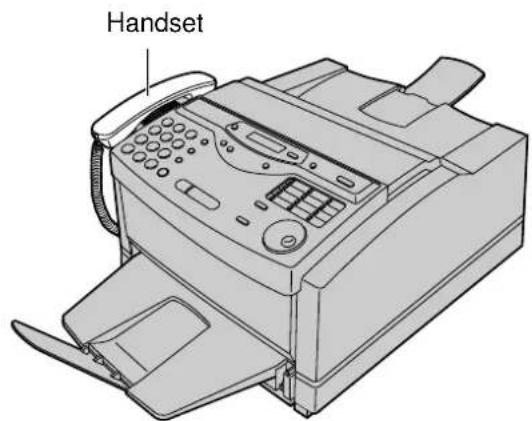
Computerised directory for fax and phone numbers
The Address Book is your personal information database for fax and phone numbers.
1 Open the PANA LINK main panel.
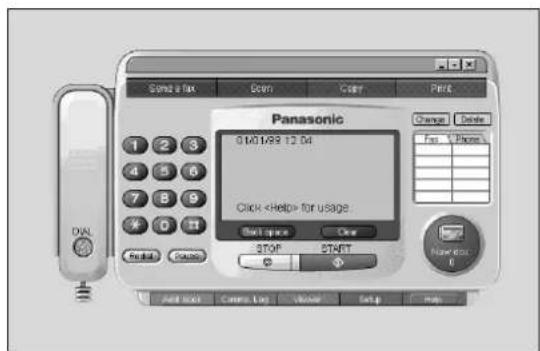
2 Click Add. Book in the main panel.
●The Address Book window will appear.
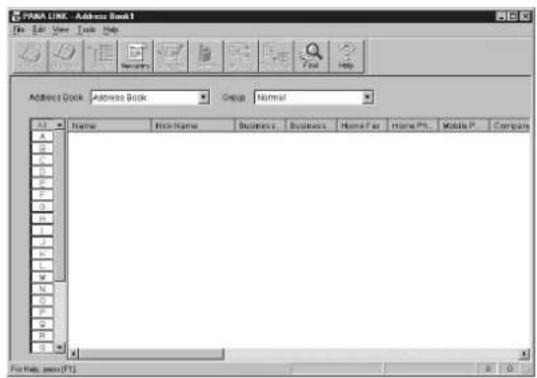
3 Select New entry from Edit menu or click New entry in the toolbar.
●A dialogue box to register personal information will appear.
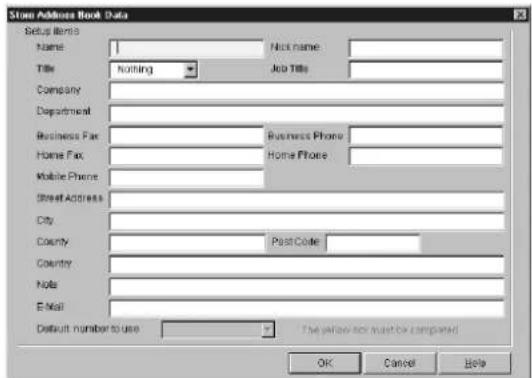
4 Enter the personal information in each space.
- The name is essential.
5 Click OK.
- The registered information will be shown in the list.
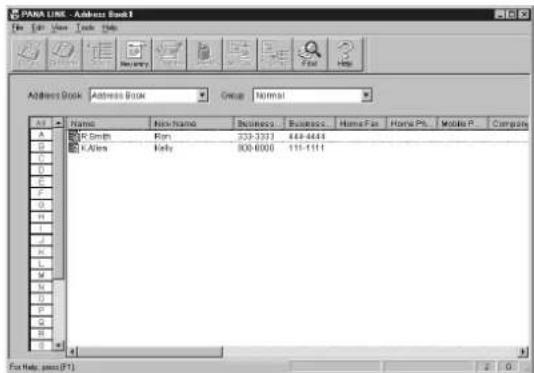
Broadcast
When sending the same document to more than one location, you can use the "Group" function in the Address Book. You may select as many locations as you want from the Address Book.
Scanning
Using your fax machine as a scanner
Scanning from Windows 95/98
Create an image file (TIF format) by scanning the document which is set in the fax machine.
1 Set the document which you are going to scan in the fax machine.
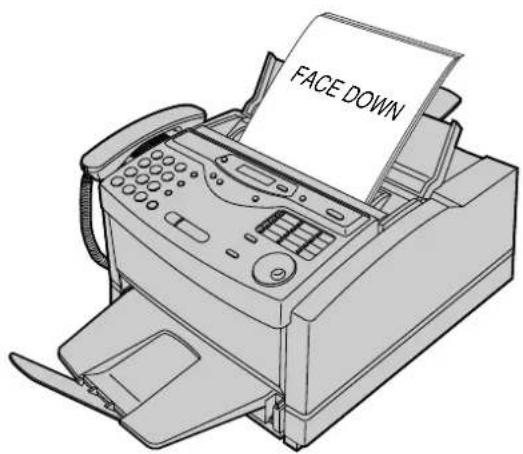
2 Open the PANA LINK main panel.
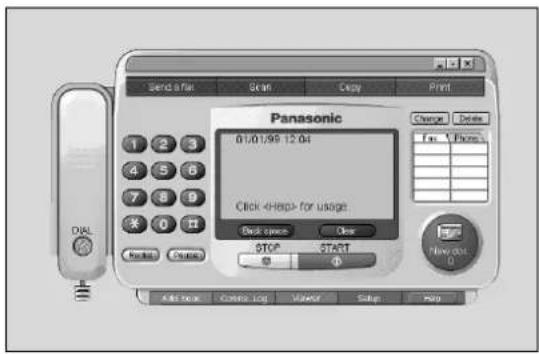
3 Click Scan in the main panel.
●The Scan dialogue box will appear.
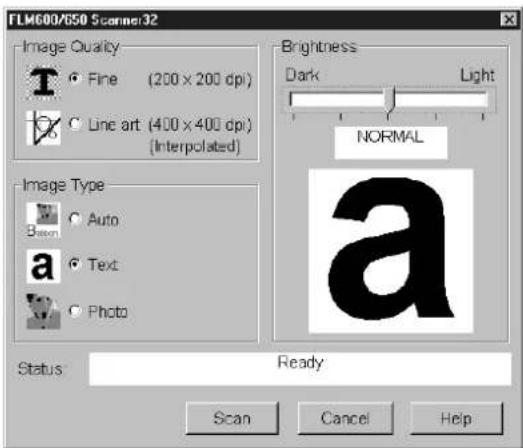
4 If necessary, change the setting of Image Quality, Image Type and Brightness. For details, see pages 94 and 95.
5 Click Scan.
Click Scan. ●The Viewer window will appear after scanning, and the scanned image will be displayed in it.
![PANA LINK Viewer File Edit View/Print/Export/Export Environment Help TYPKLINK CABBAGE COMPANY LIMITED © 2015-03-2016 Copyright: PANA LINKER Copyright: PANA LINKER Copyright: PANA LINKER Copyright: PANA LINKER Copyright: PANA LINKER Copyright: PANA LINKER Copyright: PANA LINKER Copyright: PANA LINKER Copyright: PANA LINKER Copyright: PANA LINKER Copyright: PANA LINKER Copyright: PANA LINKER Copyright: PANA LINKER Copyright: PANA LINKER Copyright: PANA LINKER For Help, press [F1] 17/24/2016 200 x 200 Page 1 / 1 No Comment](/content/2026/06/1190728/images/b9e375145e001b64f624937064d40f4549d5b5c048b339f76b35ce0a9266941b.jpg)
6 To save the scanned image, select Save As from the File menu.
Note:
●While scanning, do not move the pages which have already been ejected. A paper jam may occur. Allow the scanning process to finish before viewing documents.
- To cancel scanning while the document is being scanned, press STOP on the fax machine.
Scanning from Windows 3.1
To scan a document into your PC as an image file, you need an application which contains a scanning feature such as Visioneer PaperPort.
1 Set the document you are going to scan on the unit.
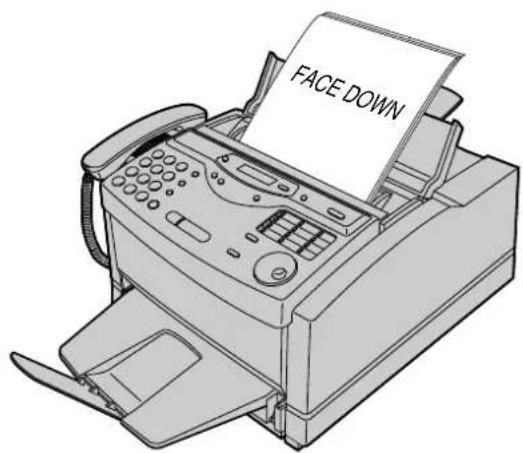
2 Start Visioneer PaperPort. • The Visioneer PaperPort window appears.
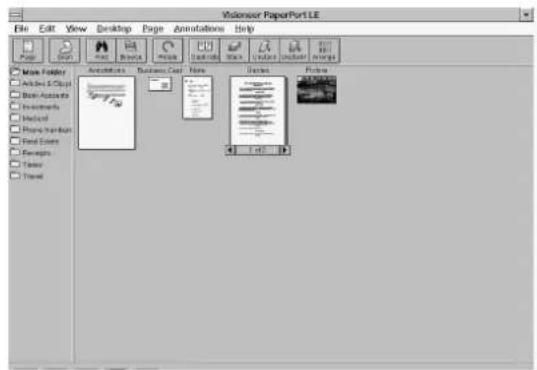
3 Select Select Source from the File menu. • The Select Source dialogue box appears.
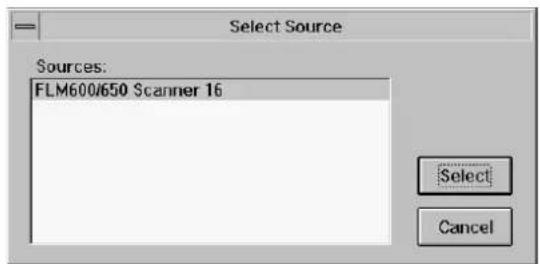
4 Select FLM600/650 Scanner 16 in the Source list box, and click Select.
5 Select Acquire from the File menu. • The FLM600/650 Scanner 16 dialogue box appears. If necessary, change the setting of Image Quality, Image Type and Brightness.
![FLM600/650 Scanner 16 Image Quality Fine [200 × 200 dpi] Line art [400 × 400 dpi] Brightness Dark Light Normal Image Type Auto Text Photo Status: Ready Scan Cancel Help](/content/2026/06/1190728/images/c43b5fd2abab189d7413fa3c8d744e101541520b63bc7957d2a1f5750d92cfb0.jpg)
6 Click Scan. • The scanned document is displayed in the Viewer window after scanning.
7 To save the scanned image, select Save As from the File menu.
Note: • To cancel scanning while the document is being scanned, press STOP on the fax machine.
FLM600/650 Scanner 32
The FLM600/650 Scanner dialogue box is displayed when you click the Scan button on the PANA LINK Main panel.
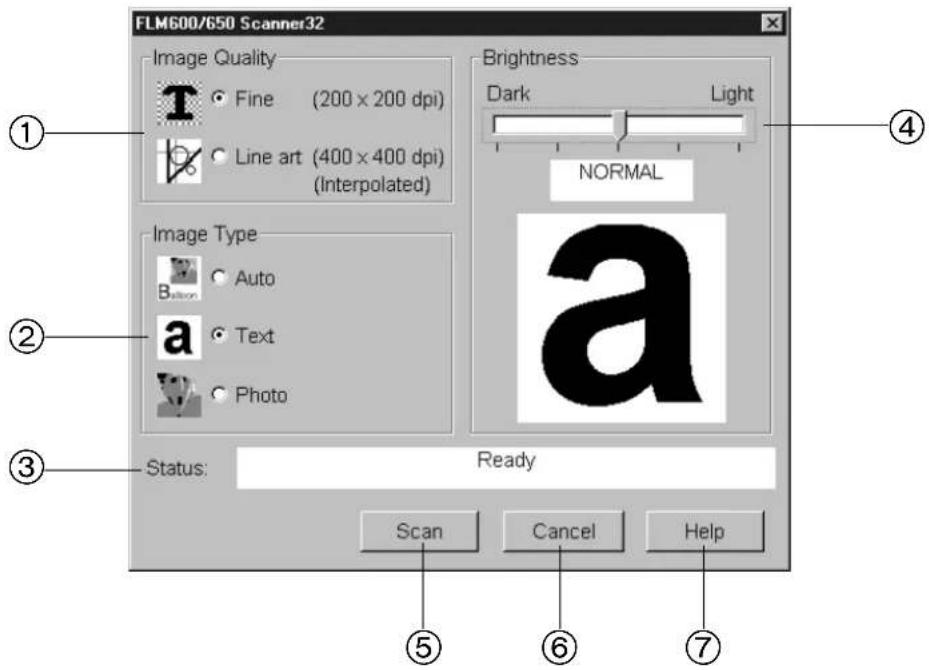
You can set up the following items to improve an image file.
① Image Quality: You can set the image quality to scan.
Fine (200 × 200 dpi): For a text document with small writing or a document with simple graphics. Line art (400 × 400 dpi): For a document with complicated graphics or very small text. (400 × 400 dpi: interpolated)
② Image Type: You can set the image type to scan.
Auto: Sets the image type automatically.
Text: For a text document. (We recommend this as a default.)
Photo: For a photograph.
③ Status: shows the current state of the unit.
The following messages are displayed depending on the state of the unit.
| Message | State |
| Ready | A document is set on the unit. Please click the Scan button for scanning. |
| Please insert document to scan. | A document is not set on the unit. Please set a document on the feeder tray. |
| Scanning | The unit is scanning a document. |
| FLM600/650 unit is powered off. Plug the unit in and try again. | The power of the unit is off or unplugged, or the PC is not connected to the FLM600/650. Please check. |
| FLM600/650 unit is warming up. | The unit is warming up. Please wait for a while. |
④ Brightness: You can adjust the brightness by using the slider.
Normal: Brightness is not adjusted. You can adjust the brightness based on the result of this scan.
Light: Use this when scanning a dark document.
Very Light: Use this when scanning a very dark document.
Dark: Use this when scanning a light document.
Very Dark: Use this when scanning a very light document.
⑤ Scan: To start scanning.
You can use this button only when a document to be scanned is set.
⑥ Cancel: Close the FLM600/650 Scanner dialogue box.
⑦ Help: Display help.
Copier
PC based copying
1 Set the document which you are going to copy in the fax machine.
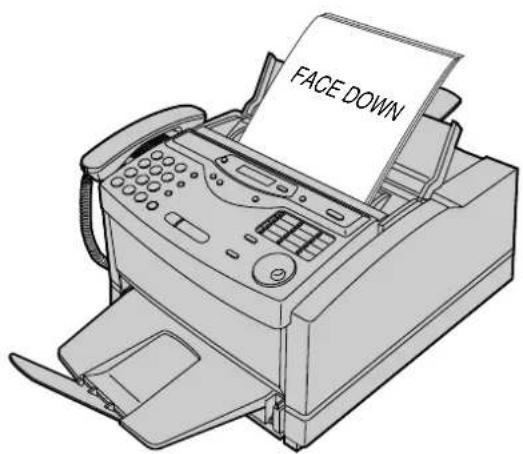
2 Open the PANA LINK main panel.
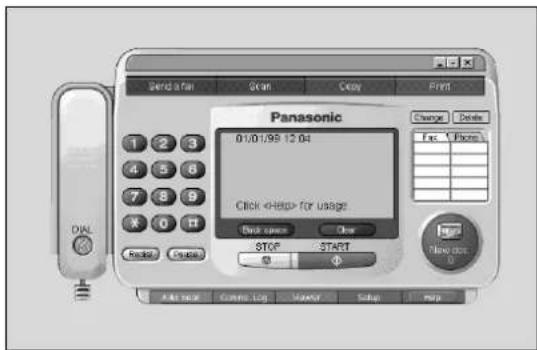
3 Click Copy in the main panel.
●The Copier dialogue box will appear.
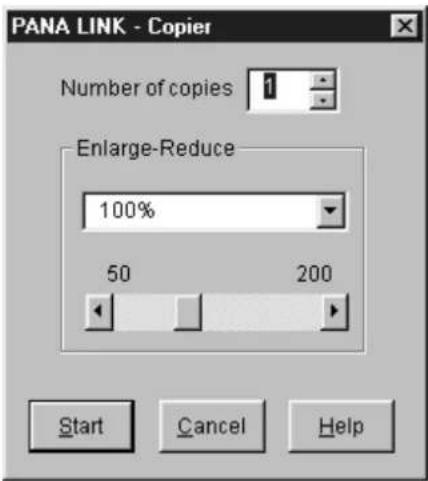
4 Enter the number of copies required in Number of copies.
5 If necessary, change the setting of Enlarge-Reduce.
6 Click Start.
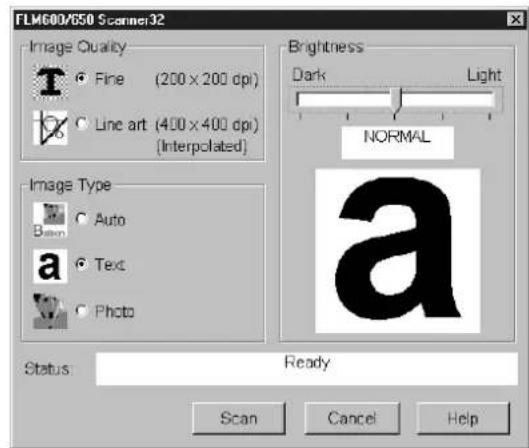
7 If necessary, change the setting of Image Quality, Image Type and Brightness.
8 Click Scan. The fox may
- The fax machine will start scanning the documents, and will then print the copies.
Note:
- While scanning, do not move the pages which have already been ejected. A paper jam may occur. Allow the scanning process to finish before viewing documents.
- To cancel copying while the document is being scanned, press STOP on the fax machine.
The Communication Log
It is possible to view a list of faxes sent from or received on the PC, and to view their contents.
It is also possible to forward or resend these faxes.
1 Open the PANA LINK main panel.
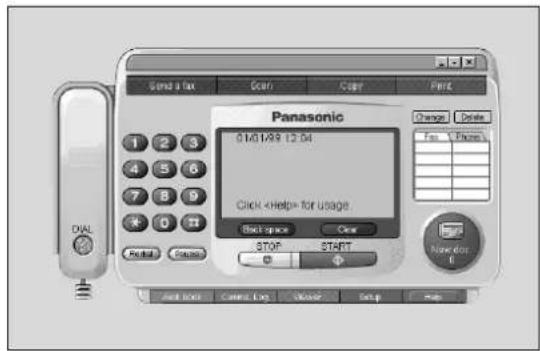
2 Click Comms. Log in the main panel.
●The Communication Log window will appear.
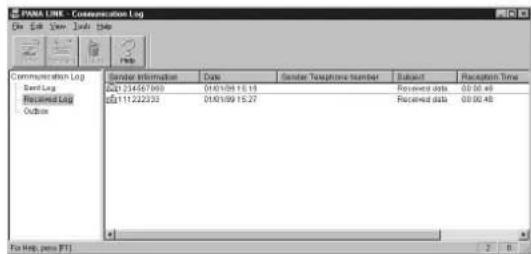
3 Select the Communication Log Folder.
●The content of the selected Communication Log Folder will be displayed in the Communication Log List.
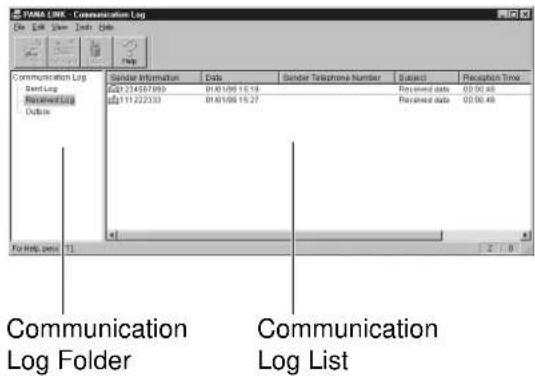
Note:
- As the transmitted image files will remain in the hard disk, please check regularly that there is enough free space.
More Information
Viewer
- It is possible to display the images sent, received, or scanned with PANA LINK.
- It is possible to move, copy and delete a file or page.
- From the Viewer, it is also possible to send an image as a fax.
1 Open the PANA LINK main panel.
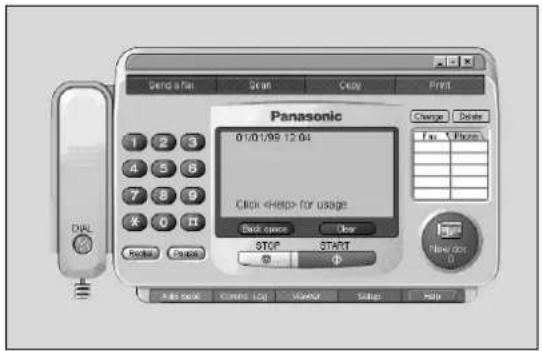
2 Click Viewer in the main panel. • The Viewer window will appear.
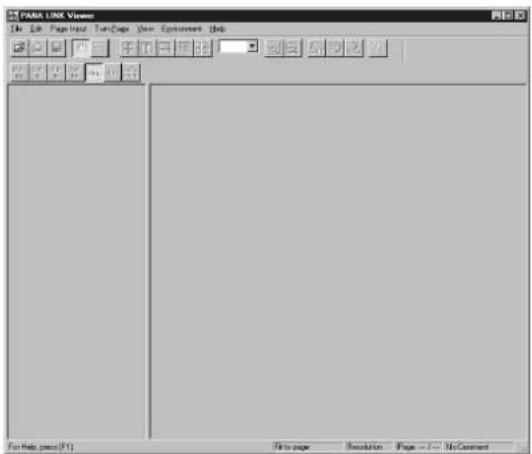
3 Click on File then Open in the menu bar, or click the Open icon in the tool bar in the main panel.
●The Open window will appear.
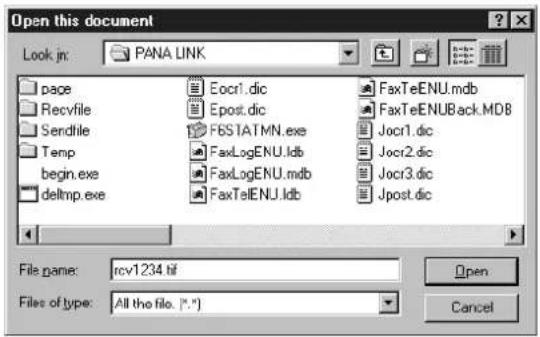
4 Select the file you want to view.
Note:
- Text on the image cannot be edited.
PC link
(turning PC related functions on/off)
The PC LINK feature is "ON" by default.
If the AUTO ANSWER mode is turned on, all faxes will be received at your PC automatically.
If you do not want to be disturbed by incoming faxes when using the PC, but want to receive faxes directly to your fax machine, do one of the following:
—Turn off the PC LINK on the fax machine.
—Select "Receive directly to facsimile unit" on the PC (p. 89).
To turn off the PC LINK on the fax machine
- When this feature is off, operations from your PC, such as fax transmission/reception, scanning or copying are not possible.
1 Press MENU.
Display: 1.SYSTEM SET UP
2 Press #, then 1 4.
PC LINK
3 Press START/SET/COPY.
MODE=ON

4 Press ▼ to select "OFF".
MODE=OFF

- To turn on the PC LINK on the fax machine, select "ON".
5 Press START/SET/COPY.
SETUP ITEM [ ]
6 Press MENU.
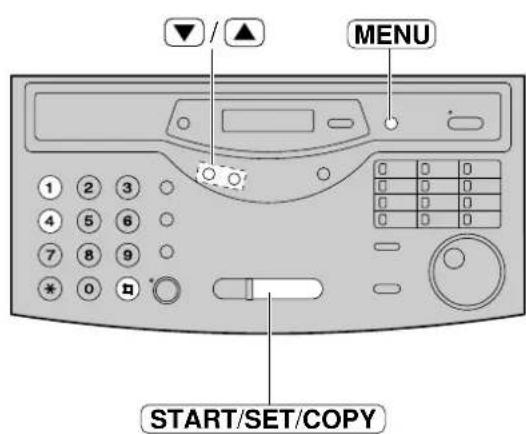
Error Messages
Reports
If your unit cannot send a fax, check the following.
—The number you dialled is correct.
—The other party's machine is a facsimile.
If the problem remains, correct it by following the communication message printed on the sending and journal reports (p. 45, 46).
| Communication message | Error code | Cause & Remedy |
| COMMUNICATION ERROR | 41-72 FF | ●A transmission or reception error occurred. Try again or check with the other party. |
| DOCUMENT JAMMED | — | ●The document is jammed. Remove the jammed document (p. 112).●A sheet of paper was inserted in the paper tray while scanning the document. Remove the paper from the paper tray. |
| ERROR-NOT YOUR UNIT | 54, 59 70 | ●A transmission or reception error occurred because of a problem with the other party's fax machine. Check with the other party. |
| MEMORY FULL | — | ●The document was not received due to memory being full. |
| NO DOCUMENT | — | ●The document was not fed into the unit properly. Reinsert the document and try again. |
| OTHER FAX NOT RESPOND | 40 | ●The other party's fax machine was busy or ran out of recording paper. Try again.●The document was not fed properly. Reinsert the document and try again.●The other party's fax machine rings too many times. To send a fax manually, dial the number, confirm the fax tone, and press [START/SET/COPY].●The other party's machine is not a facsimile. Check with the other party.●The number you dialled is not in service. |
| PC FAIL OR BUSY | — | ●The PC cannot control the fax functions. The printer cable is not connected correctly, or the software is not running on the PC (p. 71-73). |
| PRESSED THE STOP KEY | — | ●[STOP]was pressed and fax communication was cancelled. |
| TOP COVER WAS OPENED | — | ●The top cover was opened. Close it and try again. |
| FRONT PANEL WAS OPENED | — | ●The front panel was opened. Close it and try again. |
| OK | — | ●Fax communication was successful. |
Display
If the unit detects a problem, one or more of the following messages will appear on the display.
| Cause & RemedyDisplay message | |
| CALL SERVICE | ●There is something wrong with the unit. Contact our service personnel. |
| CHANGE DRUM | ●The drum unit is becoming worn out. Replace the drum unit and toner cartridge with new ones as soon as possible (p. 113–115). |
| CHECK DOCUMENT | ●The document is not fed into the unit properly. Reinsert the document. |
| CHECK DRUM | ●The drum unit is not inserted properly. Reinsert it correctly (p. 20–22).●The installed drum is worn out. Replace the drum unit with a new one. |
| CHECK MEMORY | ●Memory (telephone numbers, parameters, etc.) has been erased.Re-programme. |
| CHECK TONER | ●The toner cartridge is not installed properly. Reinsert it correctly (p. 20–22). |
| DRUM LIFE OVER | ●The drum unit has reached the end of its life expectancy. Replace the drum unit and toner cartridge with new ones (p. 113–115). |
| FAILED PICK UP | ●The unit cannot pick up the recording paper loaded in the paper cassette.Remove the paper cassette and clear the jammed paper (p. 111). |
| FAX IN MEMORY | ●The unit has a document in memory. See the other message instructions to print out the document. |
| FAX MEMORY FULL | ●Memory is full of received documents due to a lack of recording paper or arecording paper jam etc. Install paper or clear the jammed paper.When performing memory transmission, the document being stored exceeds thememory capacity of the unit. Transmit the entire document using manual orautomatic transmission. |
| EASY DIAL FULL | ●There is no space to store new stations in the EASY DIAL directory. Edit or eraseunnecessary stations (p. 38). |
| MEMORY FULL | ●When making a copy, the document being stored exceeds the memory capacityof the unit. Press STOP to clear the message. Divide the documents and tryagain. |
| MODEM ERROR | ●There is something wrong with the modem circuit. Contact our service personnel. |
| NO FAX REPLY | ●The other party's fax machine is busy or has run out of recording paper. Tryagain. |
| OUT OF PAPER | ●The recording paper is not installed or the unit has run out of paper. Install paper(p. 23). |
| PANEL OPEN | ●The front panel is open. Close it. |
| PAPER JAMMED | ●A recording paper jam occurred. Clear the jammed paper (p. 110, 111). |
| PC FAIL OR BUSY | ●The fax function cannot be operated by the PC. The printer cable is notconnected correctly, or the software is not running on the PC (p. 71–73). |
(Continued)
| Cause & RemedyDisplay message | |
| PLEASE WAIT | The top cover has just been closed. Wait a while.START/SET/COPYwas pressed during the power save mode. Wait a while. |
| REDIAL TIME OUT | The other party's fax machine is busy or has run out of recording paper. Try again. |
| REMOVE DOCUMENT | The document is jammed. Remove the jammed document (p. 112).Attempted to transmit a document longer than 600 mm. Press the STOPbutton to remove the document. Divide the document into two or more sheets and try again. |
| REMOVE PAPER | Paper was placed on the paper tray for manual feeding without first pressing [START/SET/COPY].Remove the paper. When the “PLEASE WAIT” message disappears, place the paper on the paper tray.The paper cassette is not inserted correctly. Insert it correctly. |
| TONER EMPTY | The toner is empty. Replace the toner cartridge and drum unit with new ones (p. 113–115). |
| TONER LOW | The remaining toner is low. Replace the toner cartridge and drum unit with new ones as soon as possible (p. 113–115). |
| TOP COVER OPEN | The top cover is open. Close it. |
| TRANSMIT ERROR | Transmission error occurred. Try again. |
| UNIT OVERHEATED | The unit is too hot. Let the unit cool down. |
| USE 1 FEED ONLY | When transmitting or copying, another sheet was placed on the paper tray.Remove it from the paper tray and try again. |
| WRONG PAPER | The unit printed on paper which is shorter than A4 size paper. To prevent the drum unit becoming dirty, use A4 size paper. |
When a function does not work, check here before requesting help
Problems with fax machine
General
| Cause & RemedyProblem | |
| I cannot make and receive calls. | ●The power cord or telephone line cord is not connected. Check the connections (p. 26). |
| The unit does not work. | ●Disconnect the unit from the telephone line and connect the line to a known working telephone. If the working telephone operates properly, contact our service personnel to have the unit repaired. If the working telephone does not operate properly, contact your telephone company. |
| The unit does not ring. | ●The ringer volume is set to off. Adjust it to a suitable level (p. 31). |
| The other party complains they only hear a fax tone and cannot talk. | ●The FAX ONLY mode is set. Tell them the number is only used for faxes or change to another mode (p. 54, 55). |
| The [REDIAL/PAUSE] button does not function properly. | ●If this button is pressed during dialling, a pause will be inserted. If pressed immediately after a dial tone is obtained, the last number dialled will be redialled. |
| The receive mode does not function as explained on page 54. | ●The TEL/FAX mode is set (p. 60–63). |
| During programming, I cannot enter a code or ID number. | ●All or part of the numbers are the same. Change the number (p. 59). |
Fax - sending
| Cause & RemedyProblem | |
| I cannot send documents. | The other party's fax machine is busy or has run out of paper. Try again.The other party's machine is not a facsimile. Check with the other party.The other party's fax machine rings too many times. Send the fax manually - dial the number, confirm the fax tone, and press START/SET/COPY. |
| The other party complains that letters on their received documents are distorted. | If your line has special telephone services such as call waiting, the service may have been activated during fax transmission. Connect the unit to a line that does not have these services.The extension telephone on the same line is off the hook. Hang up the extension telephone and try again. |
| The other party complains that white lines or black lines appear on their received documents. | The white roller is dirty. Clean it (p. 112). |
| I cannot make an international fax call. | Use the overseas transmission mode (p. 52).Add two pauses at the end of the telephone number (p. 33) or dial manually. |
Operations
Fax - receiving
| Cause & RemedyProblem | |
| I cannot receive documents automatically. | ●The receive mode is set to the TEL mode. Set to the FAX ONLY or TEL/FAX mode.●The time taken to answer a call is too long. Decrease the number of rings (p. 58, 63). |
| The display shows “CONNECTING......” but faxes are not received. | ●The incoming call is not a fax. Change the receive mode to the TEL mode. |
| The recording image is faint. | ●The sender transmitted a faint document. Ask them to transmit a clearer copy of the document. |
Receive mode
| Cause & RemedyProblem | |
| I cannot select the desired receive mode. | ●If you want to set the FAX ONLY or TEL/FAX mode:—Select the desired mode using feature #77 (p. 62), and—PressAUTO ANSWERTo turn on the AUTO ANSWER light.ON....(RED)AUTO ANSWER●If you want to set the TEL mode:—PressAUTO ANSWERTo turn off the AUTO ANSWER light.OFF....AUTO ANSWERFAX ON |
Copying
| Cause & RemedyProblem | |
| The unit does not make a copy. | ●You cannot make a copy during programming. Make the copy after programming or stop the programming. |
| White lines or black lines appear on the copied document. | ●The white roller is dirty. Clean it (p. 112). |
Print quality
| Cause & RemedyProblem | |
| The printing quality is poor. | Some paper has instructions recommending which side to print on.Try turning the paper over. |
| The printing is faint.Original CopyABC ABC | You may have used paper with a cotton and/or fibre content that is over 25%, such as letterhead or resume paper.The remaining toner is low. Replace the toner cartridge (p. 113–115). |
| A dirty pattern or a black line appears on the printouts. | There are scratches on the drum unit. Replace the drum unit (p. 113–115). |
Problems with PC software
General
| Problem Cause & Remedy | |
| I cannot send a fax from the PC at a specified time. | ●The date and time of the PC may be set incorrectly. Adjust it. If it cannot be set correctly, consult your PC supplier. |
| The date and time that prints on the top of each page sent from the PC is incorrect. | ●The date and time of the PC may be set incorrectly. Adjust it. If it cannot be set correctly, consult your PC supplier. |
| I do not know how to move the PANA LINK Main Panel, because there is no title bar. | ●Point at an area with no buttons or parts and drag it to where you want it to move. |
| I do not know whether the PANA LINK Main Panel is active or not. | ●The brightness of the Main Panel Display shows you whether the PANA LINK Main Panel is active or not. |
| A quick tip does not appear when I hold the mouse pointer over a button in the PANA LINK Main Panel, although I have set this to be displayed. | ●If the PANA LINK Main Panel is non-active, the quick tip does not appear. Check again, after making the PANA LINK Main Panel active, by clicking anywhere on it. |
| The telephone number set in the Main Panel Display disappears, and the display shows, “For storing a phone or fax number.”, explanation of the button and so on. | ●The quick tip is displayed. Move the mouse cursor out of the PANA LINK Main Panel. If you do not need quick tips, open the setup dialogue and select OFF for the Quick Tip in the System tab. |
| The PANA LINK Main Panel disappears. | ●Look in the task tray (in the task bar). If you do not find the PANA LINK icon, it is closed. If you find the icon, the PANA LINK Main Panel is just minimised or reduced to an icon. Double-click the icon in the task tray or open the menu by right-clicking the fax icon, then select Restore. |
| The PANA LINK Main Panel disappears just after initialising. | ●The PANA LINK Main Panel is set to minimise when PANA LINK starts. Double-click the icon in the task tray or open the menu by right-clicking the fax icon, then select Restore. If you do not want this to happen each time you start PANA LINK, press the Setup button in the PANA LINK Main Panel, and check off the Start minimised check box in the Program startup settings in the System tab. |
| I want to delete all of the telephone numbers set in the Main Panel Display. | ●Press the Stop button. |
| I cannot recognise the last part of the entry in the address list of the Address Book or Communication log, because that part ended with... . | ●Put a cursor on the line between the buttons, the cursor changes shape and you can expand the area by dragging or double-clicking. |
| A cover page is sent whenever I send a fax, though I do not want it to be sent. | ●The setting of the cover page is ON by default. To deactivate the setting, open the Setup dialogue box by pressing the Setup button, and click the “Default Add cover page at every transmission” check box in the Cover page tab. |
| I attempted to select a telephone number from the Address Book for the PANA LINK Main Panel, but I selected a fax number by mistake. | ●You can change your selection in the PANA LINK Main Panel. Double click the number you set in the Main Panel Display and the fax number switches to the telephone number. You can also right-click the entry to select a specific number. |
Operations
General (cont.)
| Problem Cause & Remedy | |
| I cannot use the Dial button, even though I specified a telephone number. | ●If there is transmission data or a document is set in the fax, you can only use the fax transmission function. If you want to make a phone call, please delete the transmission data. |
| When I exit PANA LINK, the Viewer does not close. | ●The viewer can be operated separately, so when PANA LINK is closed, it remains open. |
| PANA LINK does not work properly. | ●Click the Button to exit PANA LINK, and restart.If PANA LINK does not close, please force it to close by pressing the Ctrl+Alt+Delete keys. |
| I cannot send or receive a fax through PANA LINK. | ●When you use a PC with an ECP printer port such as a Compaq Deskpro or an IBM Aptiva, you may need to change the ECP port to a standard port:1. Click the Start button, point to Settings, then Control Panel.2. Double-click System.3. Double-click Ports [COM & LPT] from the Device Manager tab.4. Double-click ECP Printer Port (LPT1).5. Click the Update Driver... button on the Driver tab.—The Update Device Driver Wizard starts.6. Click the “NO, select driver from list” button.7. Click Show all hardware and choose Standard Port types from the Manufacturers list, and Printer Port from Models.8. Click the Finish button.If you are required to insert the Windows 95/98 CD-ROM, please do the following.1) Insert the Windows 95/98 CD-ROM. The Copying files dialogue box appears.2) Click the Browse button, and choose the Win95/98 folder from the list.3) Click the OK button. The Version Conflict dialogue box appears. Please check Your version here. If it is 4.00.955, click Yes.You may need to change the ECP port in the BIOS system settings. It varies by PC, so please refer to your PC operating instructions or manufacturer for instructions.Please check that the LPT.VXD version is 4.00.955:1) Click the Start button, point to Settings, then Control Panel.2) Double-click System, and then open the Device Manager tab.3) Double-click Ports [COM & LPT] from the Device Manager tab.4) Double-click Printer Port (LPT1).5) Click the Driver tab. Verify whether the File version is 4.00.955.Note: If it is an old version, you must uninstall PANA LINK first, then reboot the PC, and install it again. |
| I cannot open a TIFF file. | ●You must change the compression format of the file. For example, to convert an image using WANG Imaging, proceed as follows:1. Click on the Start button, point to Programs – Accessories, then click Imaging.2. Open the TIFF file that you cannot open in the PANA Viewer.3. Open the Page menu, then click Convert.—The Convert dialogue box appears.4. Click the Compression tab, then choose [CCITT Group 3 (1d) Modified Huffman] from the Compression drop-down list.5. Click the OK button.—The file’s compression format is changed. |
Printing
| Problem Cause & Remedy | |
| I cannot print. | ●Please check the following.1.Driver settings:If you change the driver settings in the Panasonic KX-FLM600/650 dialogue box, you may be able to print.2.Preview window:If the image is not properly displayed in the Preview window, your file may contain errors. Try printing a different file. Also, there may be a problem with the application you are using.3.Bad connection between PC and printer:Check that the printer is properly connected and plugged in.4.Re-install:Uninstall PANA LINK,reboot your PC, then re-install.5.Port setting:If the printer port is not set to FLM600, you cannot print.1)Click the Start button, point to Settings,then Printer.2)Choose Properties from the printer's pop-up menu.—The Properties dialogue box appears.3)Click the Details tab, and check the Print to the following port drop down list box. If a different port is selected, re-select FLM600 (KX-FLM600 port).4)Click the OK button.6.Bi-Directional Parallel Port.(ECP mode):If using ECP(Extended Capability Port) mode, you may not be able to print.Please change it to a standard port:1)Click the Start button, point to Settings,then Control Panel.2)Double-click System, and open the Device Manager tab.3)Double-click Ports [COM & LPT] from the Device Manager tab.4)Double-click the ECP Printer Port.5)Click the Update Driver... button from the Driver tab.6)Change the ECP port to Printer Port (LPT1).If the same error occurs repeatedly even after changing the printer port, check the BIOS settings or update LPT.VXD. Please consult your computer manufacturer for the latest LPT.VXD and the BIOS settings. LPT.VXD version 4.00.955 is required. If you do not use the correct version, we cannot guarantee that the driver will work properly.Reboot your PC, and try a test print.1)Click the Start button, point to Settings,then Printers.2)Choose Properties from the printer's pop-up menu.—The Properties dialogue box appears.3)Click the Print Test Page button from the General tab.If the same error occurs, please see next.Please check that the LPT.VXD version is 4.00.955:1)Click the Start button, point to Settings,then Control Panel.2)Double-click System, and open the System Properties dialogue box.3)Double-click Ports [COM & LPT] from the Device Manager tab.4)Double-click Printer Port (LPT1).5)Click the Driver tab. Check that the File version is 4.00.955.Note:If it is an old version, you must uninstall PANA LINK first, then restart the PC, and install it again.When you change settings manually, you must reboot your PC. |
Operations
Transmission
| Problem Cause & Remedy | |
| The “Sending a fax failed.” message is displayed. | ●Possible causes are as follows.—Telephone circuit is not good.—You received a call-waiting signal.—The other party stopped reception.—The other party ran out of recording paper.Transmit again after confirming with the other party. |
| The “No response” message is displayed. | ●The other party did not answer the call or the line was busy.Transmit again after waiting a while.●The dialling mode setting (tone or pulse) is not correct.Open the Setup dialogue box and confirm the dialling mode setup check box in the Line tab. |
| I cannot make an international transmission. | ●Set the fax machine to the overseas transmission mode (p. 52). |
Reception
| Problem Cause & Remedy | |
| The fax machine receives a fax, but I want to receive it with the PC. | ●You may have checked the [Receive directly to Facsimile Unit] check box in the Reception tab in the Setup dialogue box. If so, click this check box to deactivate.●The setting of the PC LINK on the fax machine is off. Turn it on (p. 99).●The PANA LINK application is not operating. Start the PANA LINK application. |
| The PC receives a fax, but I want to receive it with the fax machine. | ●Open the Setup dialogue box, and check the [Receive directly to Facsimile Unit] check box in the Reception tab. |
| I want to print out the received fax with another printer. | ●Print after selecting the desired printer from the Print dialogue box. |
| The “Receiving a fax failed.” message is displayed. | ●Possible causes are as follows.—The line condition was not good.—The call waiting signal interfered with reception.Check with the other party and try again. |
Scanning and copying
| Problem Cause & Remedy | |
| I cannot scan. | ●The facsimile unit is probably busy. Try again after the other operation is completed.●There might not be enough free space on the hard disk. Try again after deleting unnecessary files or closing unused applications.●There might not be enough RAM. Try again after closing some applications.●Restart the PC, and try again. |
| The document is not pulled into the document feeder. | ●Confirm that a maximum of 15 pages are set correctly. |
| A document is jammed. | ●If you select Fine (200 × 200 dpi) in the image quality list, make sure the document is less than 655 mm. If you select Line Art (400 × 400 dpi), make sure the document is less than 470 mm. Remove the jammed document and try again. |
| The recording paper is jammed. | Remove the jammed recording paper, reinsert it, and try again. |
| Even after clicking the Cancel button, scanning continues. | Please wait. Sometimes, it takes a while for the cancel request to be accepted. |
| I cannot scan documents using other applications. | Due to compatibility issues, an error may occur when you scan documents using certain applications.Scan from PANA LINK. |
Error message
| Problem Cause & Remedy | |
| “Initialization failed.” is displayed. | ●Check the connections of the PC and the fax machine.●The setting of the PC LINK on the fax machine is off. Turn it on (p. 99). |
If a power failure occurs
●The unit will not function.
●Transmission and reception will be interrupted.
- If fax documents are stored in memory, they will be lost. When power is restored, a power down report will be printed out stating which contents in memory have been erased.
- If delayed transmission is programmed, and the start time passes during a power failure, transmission will be attempted soon after power is restored.
Power down report
The power down report will be automatically printed out after power is restored. The report will not be printed out if there are no documents stored in memory.
Sample of a power down report
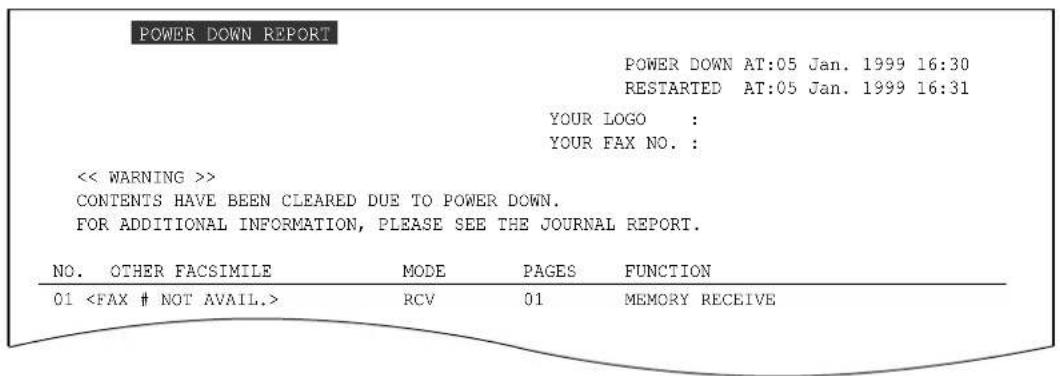
Clearing paper jams
If the unit does not eject any recording paper while printing, the recording paper has jammed. When the unit detects a paper jam, the following messages will be displayed.
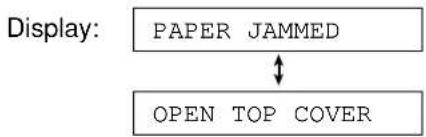
flowchart
graph TD
    A["PAPER JAMMED"] --> B["OPEN TOP COVER"]
    style A fill:#f9f,stroke:#333
    style B fill:#ccf,stroke:#333
Open the top cover by pulling the top cover handle forward and check where the paper has jammed.
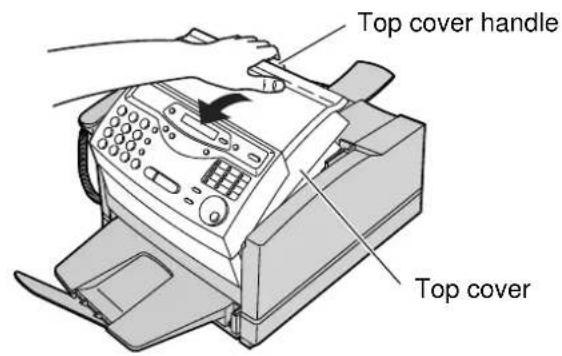
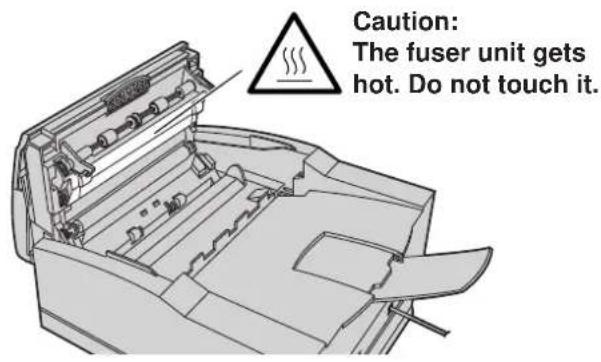
If paper has jammed on the drum unit
1 Remove the jammed paper carefully.
Caution:
- Do not touch or scratch the green drum surface as this may damage the drum unit.
2 Close the top cover securely by pushing down on the dotted area at both ends.
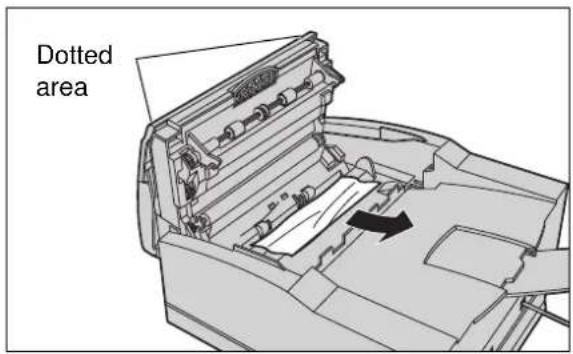
If paper has jammed in the fuser unit
1 Pull the jammed paper out carefully.
Caution:
- Do not touch or scratch the green drum surface as this may damage the drum unit.
2 Close the top cover securely by pushing down on the dotted area at both ends.
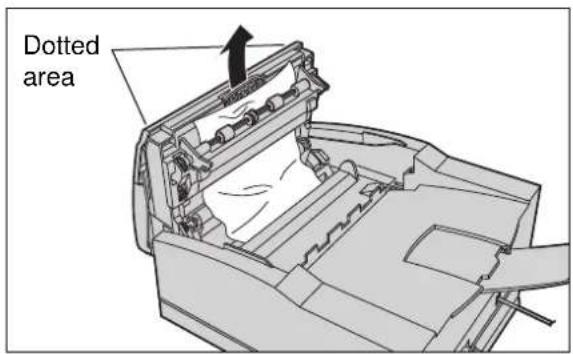
Note:
- If the jammed paper cannot be found, it may have stopped under the drum unit. Follow the instructions on the next page to clear the jammed paper.
If "FAILED PICK UP" is displayed
1 Close the paper tray extender and remove the paper tray by (A) slightly lifting and (B) pulling it out of the unit.
2 Lift the paper cassette up slightly and pull it out of the unit.
3 Remove the jammed recording paper.
4 Insert the paper cassette into the unit until it clicks into place.
5 Replace the paper tray and open the paper tray extender.
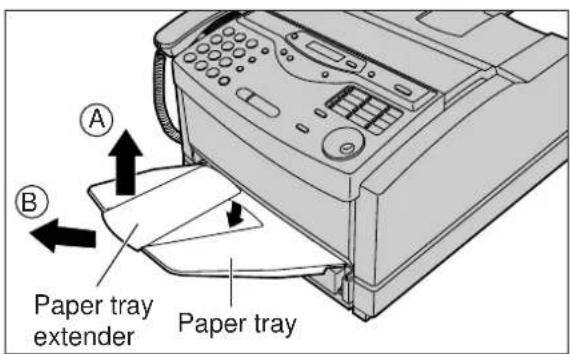
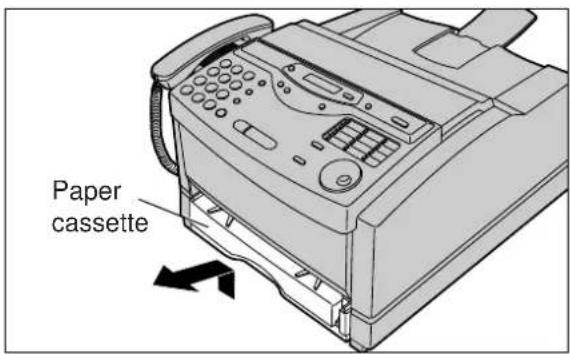
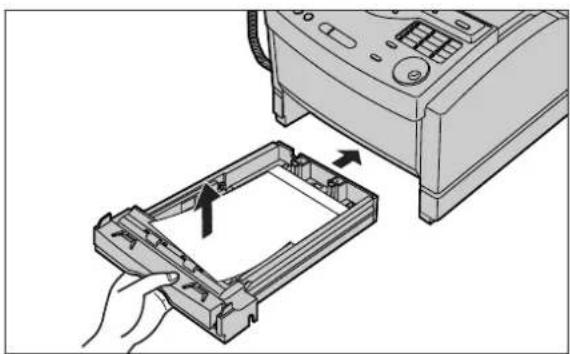
natural_image
Diagram showing a printer presser installing a plastic tray into a plastic case, with arrows indicating the process (no text or symbols present)Jams / Cleaning
Sending document jams
If the unit does not release the document during feeding, remove the jammed document.
1
Open the front panel.
2
Remove the jammed document carefully.
3
Close the front panel securely by pushing down on both ends.
Note:
- Do not pull out the jammed paper forcibly before opening the front panel.
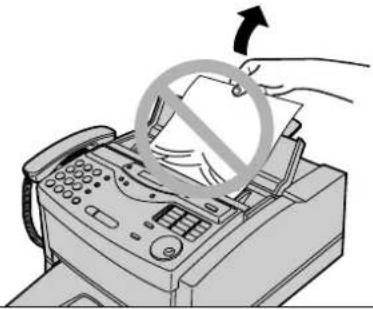
natural_image
Illustration of a hand printing a printer with a circular symbol overlay (no text or symbols present)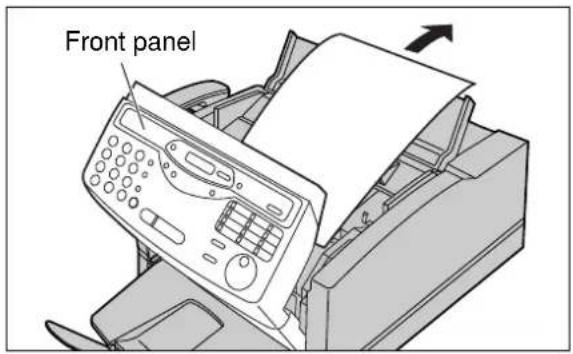
Cleaning
If white or black bands appear on a copied or transmitted document, clean the white roller.
1 Disconnect the printer cable, the mains lead and the telephone line cord.
2 Open the document feeder tray and the front panel.
3 Clean the white roller with a cloth moistened with isopropyl rubbing alcohol by rotating the roller and let it dry thoroughly.
4 Close the front panel securely by pushing down on both ends.
5 Connect the printer cable, the mains lead and the telephone line cord.
Caution:
- Do not use paper products, such as paper towels or tissues, to clean the white roller.
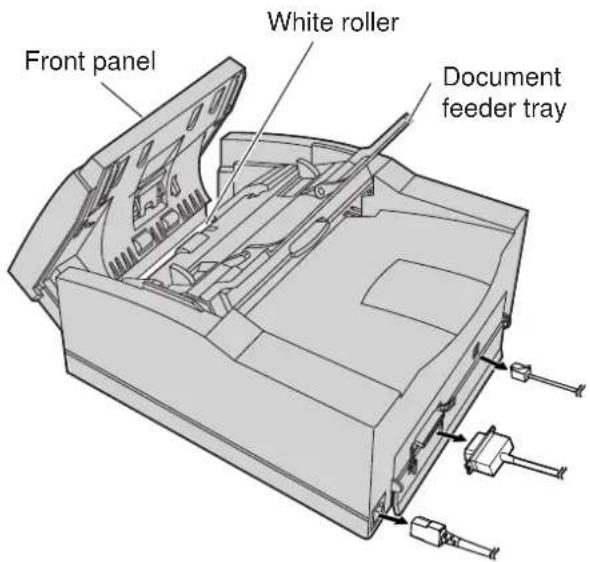
Replacing the toner cartridge and drum unit
When the display shows the following message, replace the toner cartridge and drum unit with new ones.
Display: OR
TONER LOWTONER EMPTY
Depending on usage, the following message may be displayed.
[Non-Text]
OR
CHANGE DRUMDRUM
LIFE OVER
The following is available for replacement. To order, see page 5.
KX-FA75X: Toner cartridge and drum unit
Caution:
- If ingestion of toner occurs, drink several glasses of water to dilute stomach contents, and seek immediate medical treatment. If toner comes into contact with eyes, flush thoroughly with water, and seek medical treatment. If toner comes into contact with skin, wash thoroughly with soap and water.
- Do not tip the toner cartridge on its end.
- The drum unit contains a photosensitive drum. Exposing it to light may damage the drum.
—Do not expose the drum unit to light for more than 5 minutes.
—Do not touch or scratch the green drum surface.
—Do not place the drum unit near dust or dirt.
—Do not place the drum unit in a high humidity area.
—Do not expose the drum unit to direct sunlight.
Important:
- To prevent loss of fax memory, when replacing the toner cartridge and drum unit, do not unplug the fax machine.
- Keep the protection materials in case the unit must be repacked and transported (p. 116–118).
1 Pull the top cover handle forward and open the top cover.

Caution: The fuser unit gets hot. Do not touch it.
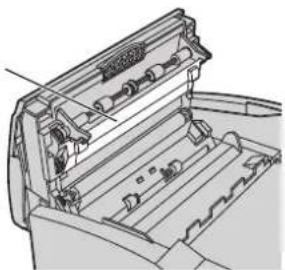
natural_image
Technical line drawing of a mechanical device with internal components (no text or symbols)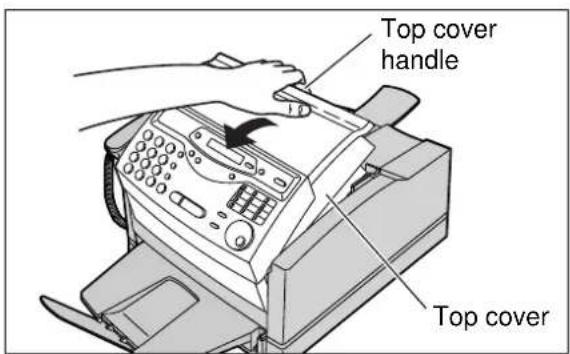
2 Remove the used drum unit by holding the two tabs.
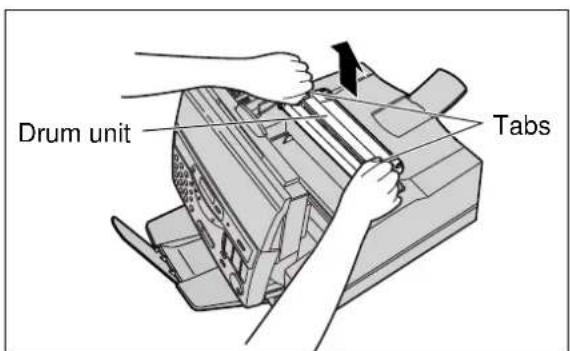
(continued)
Replacement
3 Remove the used toner cartridge by lifting the two tabs.
Caution:
- To avoid getting your hands dirty, do not touch the roller.
4 Open the protection bag by cutting the end of the bag and remove the new toner cartridge.
5 Remove the tape and remove the protection cap, holding the tab.
Caution:
- Do not tip the toner cartridge on its end.
6 Carefully rock the toner cartridge from side to side several times.
7 Install the new toner cartridge, holding the two tabs and matching the triangles.
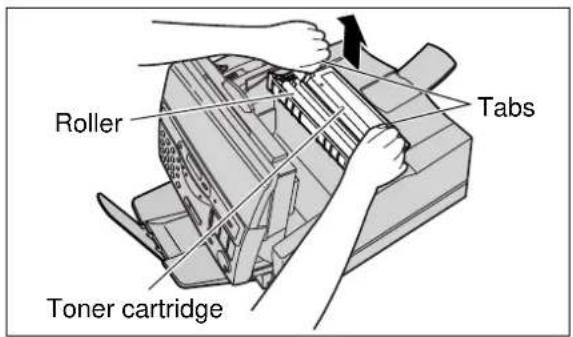
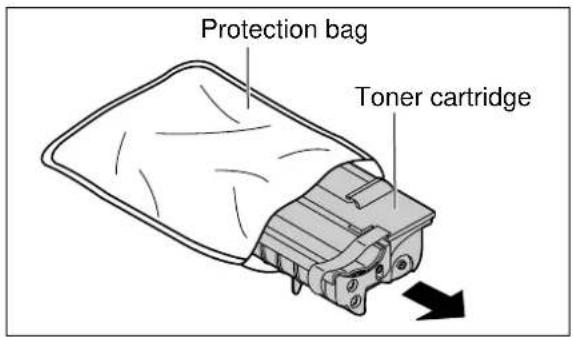
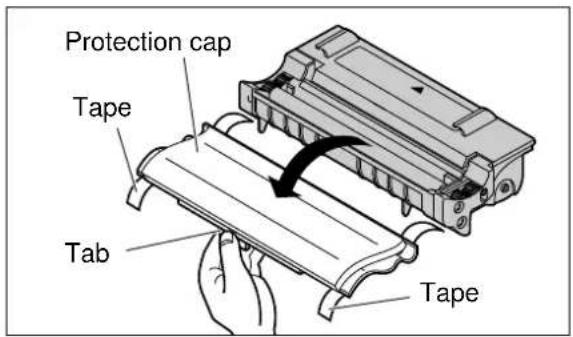
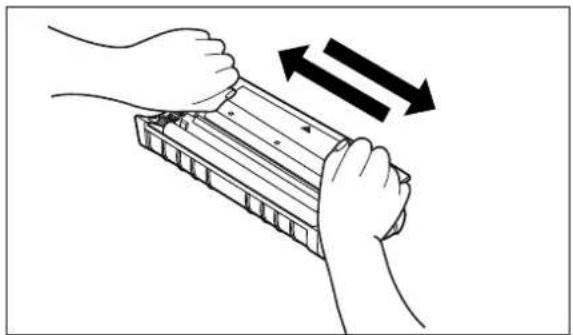
natural_image
Illustration of two hands holding a rectangular device with arrows indicating motion or force direction (no text or symbols)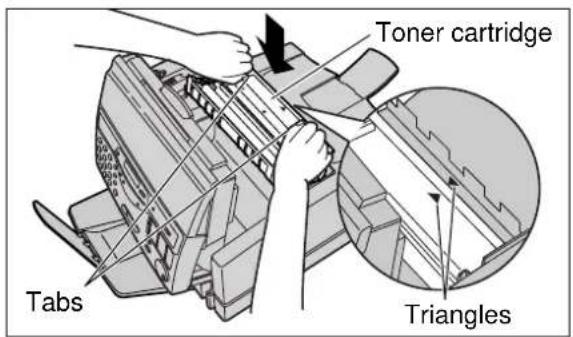
8 Open the protection bag by cutting the end of the bag and remove the drum unit.
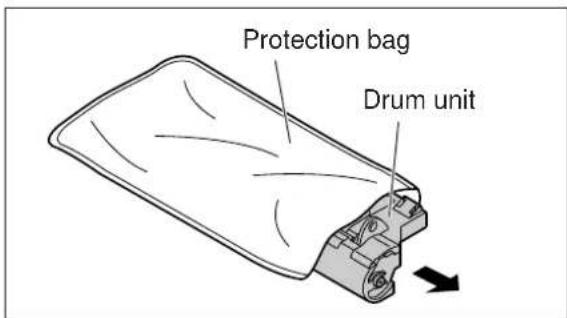
9 Remove the protection cap.
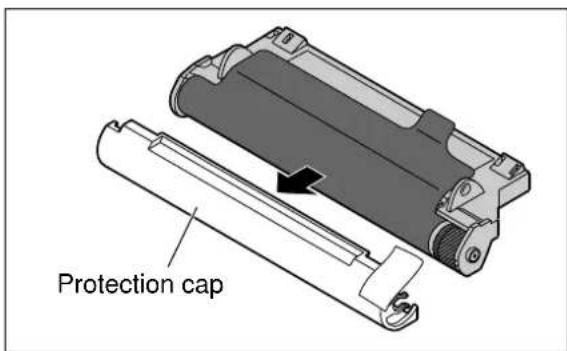
10 Remove the protection sheet.
Caution:
- Do not touch or scratch the green drum surface as this may damage the drum unit.
- Do not expose the drum unit to light for more than 5 minutes as this may damage the drum unit.
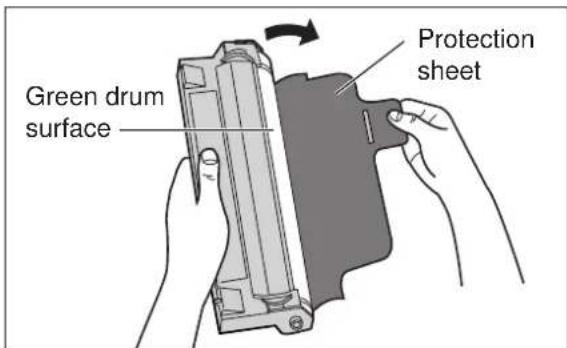
11 Install the new drum unit on the toner cartridge, holding the two tabs and matching the triangles.
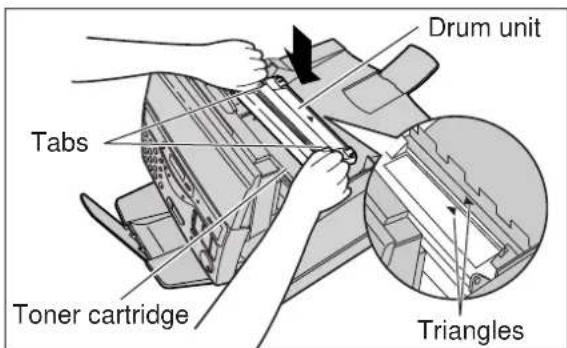
12 Close the top cover securely by pushing down on the dotted area at both ends.
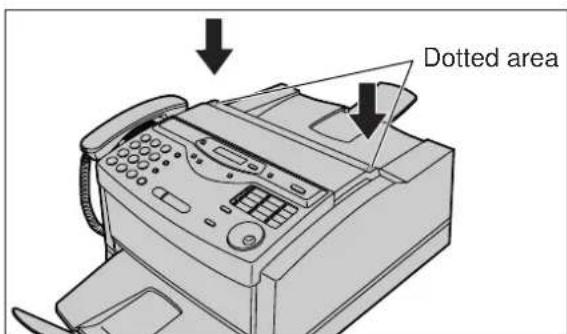
Repacking
Transporting the unit
This unit is not designed to be portable, so please take care when transporting it.
—Use the original carton and all of the original packing materials.
—Improper repacking of the unit may result in a service charge to repair the unit or in a cleaning charge to remove spilled toner.
—Because the unit uses dry toner, extreme care must be taken when handling. The unit should be handled in the upright position until the unit is repacked completely.
If you plan to move the unit from one location to another, or if you want to store it, follow the steps below.
1 Disconnect the mains lead, printer cable, telephone line cord, handset and handset cord.
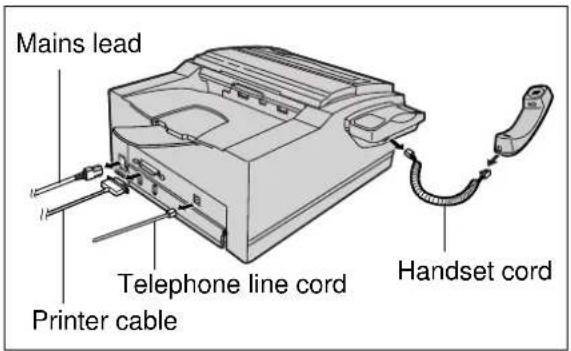
2 Close the paper stacker and the paper tray extender. Remove the paper tray by (A) slightly lifting and (B) pulling it out of the unit.
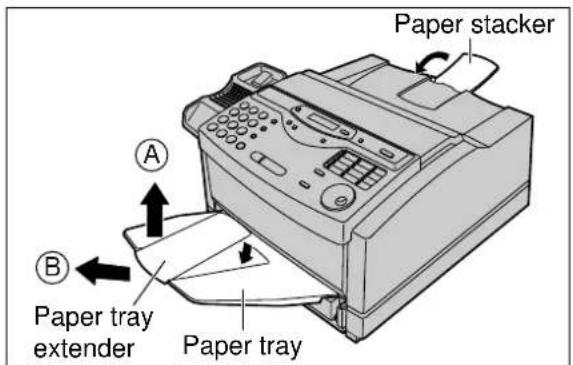
3 Spread a dropcloth or newspaper under the unit to keep the work area clean.
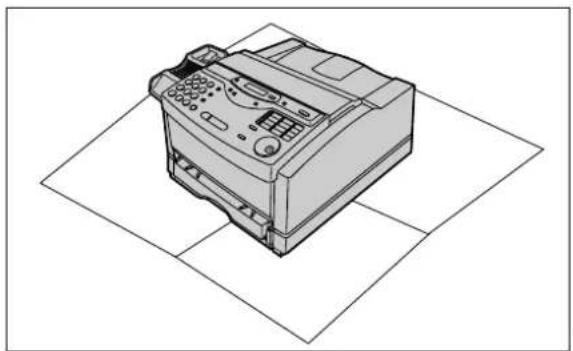
natural_image
Line drawing of a printer with control panel and paper plane overlay (no text or symbols)4 Pull the top cover handle forward and open the top cover.
5 Remove the drum unit by lifting the two tabs.
Caution:
- Do not touch or scratch the green drum surface as this may damage the drum unit.
6 Attach the protection sheet and cover the green drum surface completely.
Caution:
- Do not expose the drum unit to light for more than 5 minutes as this may damage the drum unit. - Do not stick tape to the green drum surface.
7 Attach the protection cap to the drum unit using the tape.
8 Pack the drum unit into the protection bag.
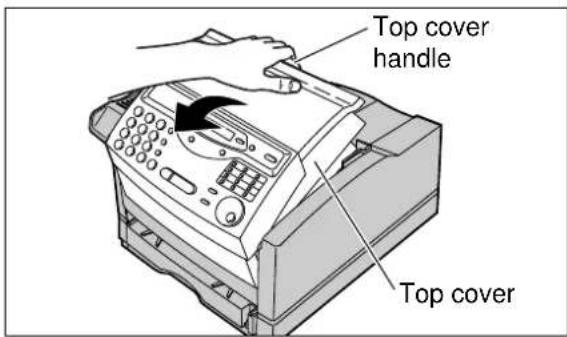
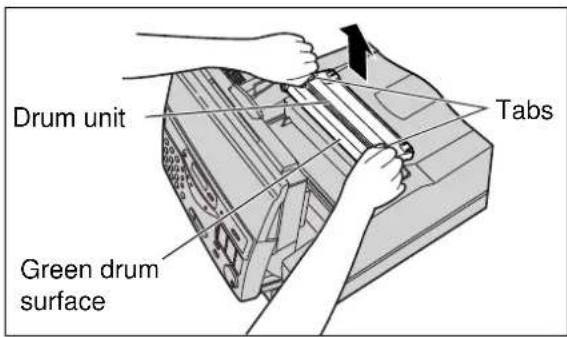
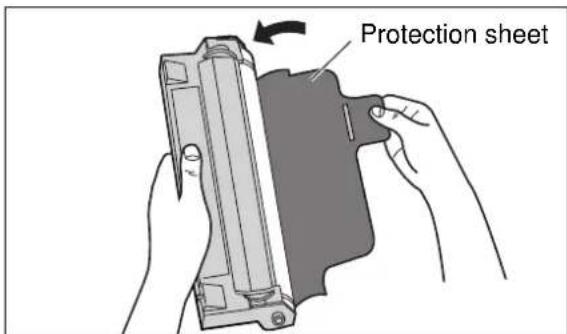
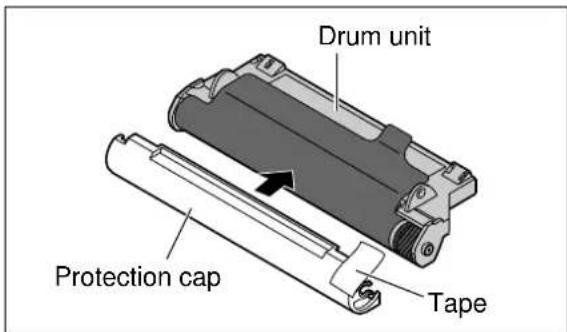
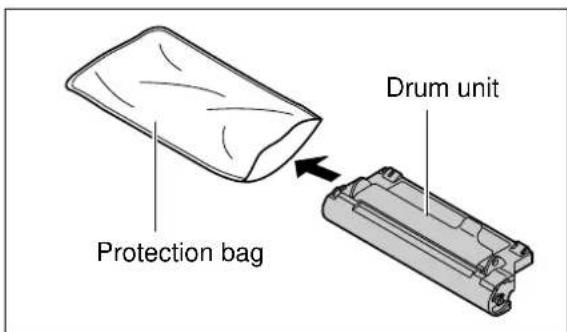
(continued)
Repacking
9 Remove the toner cartridge by lifting the two tabs.
Caution:
- Do not tip the toner cartridge on its end.
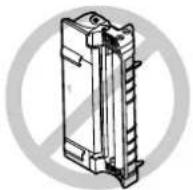
10 Attach the protection cap tightly using the tape.
Caution:
- To avoid getting your hands dirty, do not touch the roller.
11 Pack the toner cartridge into the protection bag.
12 Close the top cover securely by pushing down on the dotted area at both ends.
13 Repack the unit in its original packing materials.
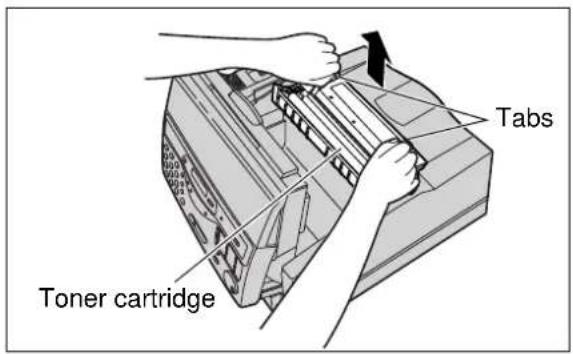
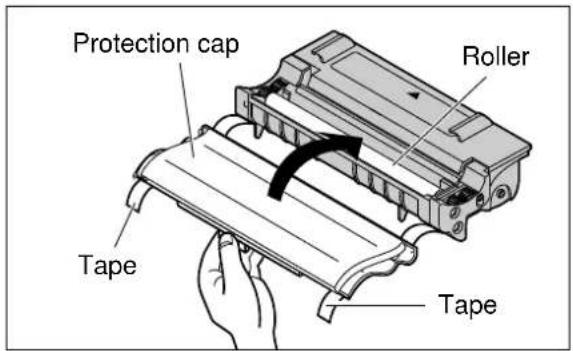
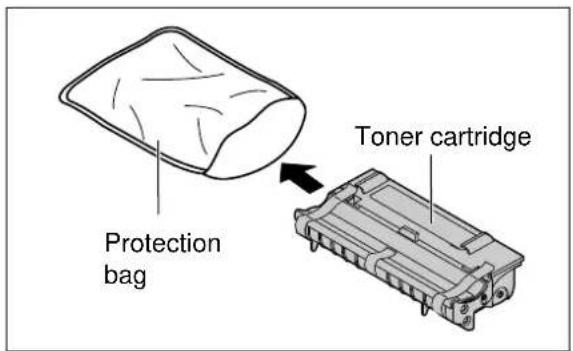
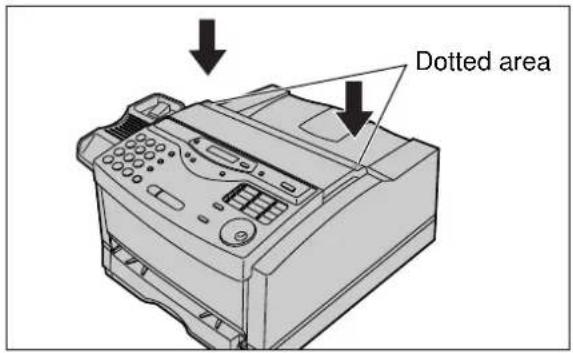
Printing the feature settings, telephone numbers, journal and broadcast list
You can print out the following report and lists.
Feature list: provides you with the current settings of the basic and advanced programming features (p. 129–131).
Telephone number list: provides you with names and telephone numbers which are stored in the One-Touch Dial and EASY DIAL directory. The telephone number codes are as shown below.
P: A pause has been entered.
F: A recall has been entered.
[ ]: A secret telephone number has been entered. (The telephone number is not printed.)
Journal report: keeps records of fax transmissions and receptions. This report will be printed automatically after every 35 fax communications (p. 46).
Broadcast list: provides you with names and telephone numbers which are stored in the BROADCAST keys (p. 49–51).
1 Press MENU two times.
Display: 2.PRINT REPORT
For the feature list, press #, then 1.
SETUP LIST
For the telephone number list, press #, then 3.
TEL NO. LIST
For the journal report, press #, then 4.
JOURNAL REPORT
For the broadcast list, press #, then 6.
BROADCAST LIST
Press START/SET/COPY to start printing.
PRINTING
- To stop printing, press STOP.
●After printing, the following will be displayed.
PRINT ITEM [ ]
4 Press MENU.
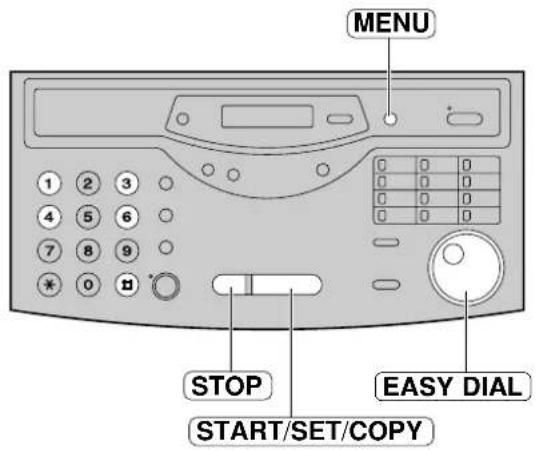
Note:
- In step 2, you can select the desired item by rotating EASY DIAL.
Display Contrast / Reset
Changing the display contrast
Use this feature to adjust the display contrast.
NORMAL: (Pre-selected setting)
DARKER: Used when the display contrast is too light.
1 Press MENU.
Display: 1. SYSTEM SET UP
2 Press #, then 39.
LCD CONTRAST
2 Press START/SET/COPY.
MODE=NORMAL ▼ ▲
4 Press ▼ to select the desired setting.
5 Press [START/SET/COPY].
SETUP ITEM [ ]
6 Press MENU.
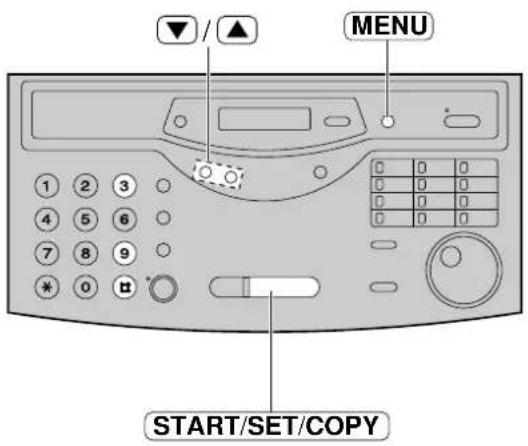
Resetting the advanced features
Use this feature to return the advanced features to their pre-selected settings (p. 130–131).
1 Press MENU.
Display: 1. SYSTEM SET UP
2 Press #, then 80.
SET DEFAULT
3 Press START/SET/COPY.
RESET=NO ▼▲
4 Press ▼ to select "YES".
RESET=YES ▼▲
5 Press START/SET/COPY.
RESET OK?
- If this feature is not required, press STOP.
6 Press START/SET/COPY again for confirmation.
RESET COMPLETED
SETUP ITEM [ ]
7 Press MENU.
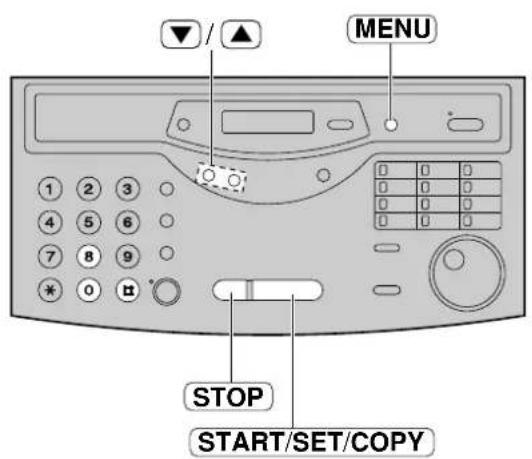
Technical data about this product
Common specifications
Laser Diode Properties: Laser output: 5 mW max
Wave length: 760–800 nm
Emission duration: Continuous
Operating Environment: 10 °C – 32.5 °C, 20 % – 80 % RH (Relative Humidity)
Dimensions (H×W×D): 422 mm×430 mm×212 mm
Mass (Weight): Approx. 12.2 kg
Power Consumption: Standby: Approx. 40 W
Power save*: Approx. 10 W
Transmission: Approx. 12 W (Power save)
Approx. 42 W (Standby)
Print (Copy or Reception): Approx. 200 W
Maximum: Approx. 480 W
Power Supply: 220–240 V AC, 50 Hz
*If this product is not used for 5 minutes, it will change to power save mode.
Fax/Copy feature
Applicable Lines: Public Switched Telephone Network
Document Size: Max. 216 mm in width
Max. 600 mm in length—STANDARD/FINE/HALF TONE mode
Max. 420 mm in length—SUPER FINE mode
Effective Scanning Width: 208 mm
Effective Printing Width: 208 mm
Transmission Time*: Approx. 8 s/page (ECM-MMR)**
Scanning Density: Horizontal: 8 pels/mm
Vertical: 3.85 lines/mm—STANDARD mode
7.7 lines/mm—FINE/HALF TONE mode
15.4 lines/mm—SUPER FINE mode
Halftone Level: 64-level
Scanner Type: CIS (Contact Image Sensor)
Printer Type: Laser beam printer
Data Compression System: Modified Huffman (MH), Modified READ (MR),
Modified Modified READ (MMR)
Modem Speed: 14,400 / 12,000 / 9,600 / 7,200 / 4,800 / 2,400 bps; Automatic Fallback
Memory Capacity: Approx. 120 pages of memory transmission/reception/copy
(Based on the CCITT No. 1 Test Chart in standard resolution.)
CCITT No. 1 Test Chart
*Transmission speed depends upon the contents of the pages, resolution, telephone line conditions and capability of the receiving unit.
**The 8 second speed is based upon the CCITT No. 1 Test Chart.
Printer feature
Printer Type: Laser beam printer
Print Speed: 8 ppm
Printing Resolution: 600×600 dpi
Compatible OS: Windows 3.1/3.11/95/98
Interface: 8-bit parallel (Included)
Paper Specifications:
Media Size: Using the paper cassette
| Media Size | Dimension | |
| A4 210 mm× | 297 mmPaper |
Using the paper tray
| Media Size | Dimension | |
| Paper | Letter | 216 mm×279 mm |
| Legal | 216 mm×356 mm | |
| A4 | 210 mm×297 mm | |
| Executive | 184 mm×267 mm | |
| Transparency | Letter | 216 mm×279 mm |
| A4 | 210 mm×297 mm | |
| Envelope | COM10 | 105 mm×241 mm |
| DL | 220 mm×110 mm |
Paper Weight: Using the paper cassette
60 g/m² to 90 g/m²
Using the paper tray
60 g/m² to 105 g/m²
Note:
- Fax receiving and copying are only possible when using the paper cassette.
Scanner feature
Document Size: Max. 216 mm in width
Max. 600 mm in length
Effective Scanning Width: 208 mm
Scanning Density: Standard 200×100 dpi
Fine 200×200 dpi
S-Fine 200×400 dpi
Halftone Level: 64-level
Scanner Type: CIS (Contact Image Sensor)
Compatible OS: Windows 95/98,
Windows 3.1/3.11 (Need application software which is compatible with TWAIN driver.)
Note:
- Any details given in these instructions are subject to change without notice.
●The pictures and illustrations in these instructions may vary slightly from the actual product.
Toner life
Toner life of the included toner cartridge or KX-FA75X toner cartridge depends on the content amount of a received, copied or printed document. We refer to the content as "image area". Because image area varies in actual usage, so does toner life. The following is the approximate relationship between image area and toner life for the included toner cartridge or KX-FA75X toner cartridge.
■ Toner life for the included toner cartridge or KX-FA75X toner cartridge:
5% image area
10% image area 15% image area
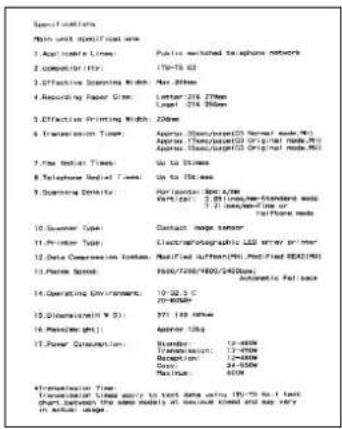
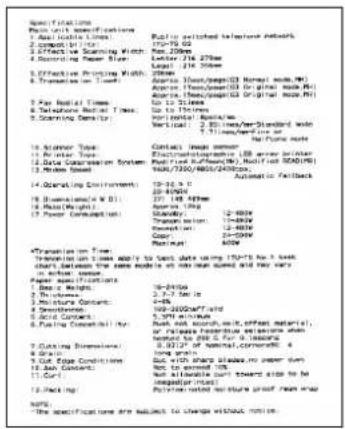
Note:
●The image area changes with the depth, thickness and size of the characters in the document.
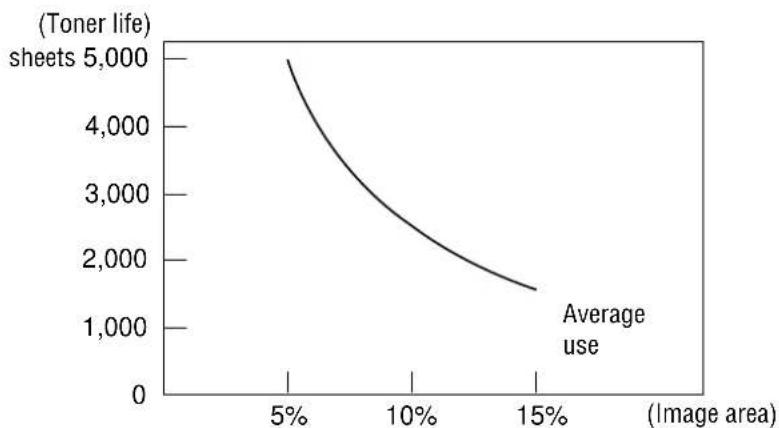
line
| Image area | Toner life | | ---------- | ---------- | | 5% | 5,000 | | 10% | ~3,000 | | 15% | ~1,500 |Note:
- Toner life will vary depending on actual usage.
Drum life
The included drum unit or KX-FA75X drum unit can print approx. 5,000 sheets of A4 size paper regardless of the content of image area.
Important Information
Important Information
The connection to the telecommunication systems must not be hard wired and must be unplugged before the earth is disconnected.
Method of connection
This apparatus is connected to the exchange line or PABX/PMBX extension by the new standard British Telecom plug and socket. Arrangements for provision of this type of termination can be made through the nearest British Telecom Sales Office.
This apparatus may be connected to the following types of installation.
a) For connection to the public switched telephone network (PSTN) and compatible (Private Branch Exchange), which use DTMF signalling. (Please consult your supplier for an up to date list of compatible PBX's.)
b) The apparatus can be used on extension sockets connected to a direct exchange line (D.E.L.).
c) This apparatus is suitable for connection to the telecommunication system directly or via compatible private branch exchange as an extension.
The supplier of the apparatus should be consulted for an up to date list of PBX's with which the apparatus is compatible.
It cannot be guaranteed that the apparatus will operate under all possible conditions of connection to compatible PBX's.
- This apparatus is suitable for connection to a PBX with or without initial proceed indication.
- This apparatus is suitable for connection to a PBX with or without secondary proceed indication.
Any cases of difficulty should be referred in the first instance to the supplier of the apparatus.
d) The apparatus must not be connected in the following manner:
-As an extension to a pay phone
-As a party line with shared service
NOTES:
- If you experience any problems with the normal use of your apparatus, you should unplug it from the telephone outlet and connect a known working telephone in its place. If the known working telephone still gives problems, then please contact the customer service department of your PSTN operator (e.g. BT etc.). If it operates properly, then the problems are likely to be a fault in your apparatus. In this case, consult your supplier for advice.
- Your PSTN operator may charge you if they attend a service call that is not due to apparatus supplied by them.
Fitting a plug to the mains lead
This appliance is supplied with a moulded three pin mains plug for your safety and convenience.
A 5 amp fuse is fitted in this plug.
Should the fuse need to be replaced please ensure that the replacement fuse has a rating of 5 amps and that it is approved by ASTA or BSI to BS1362.
Check for ASTA mark on the BSI
mark on the body of the fuse.
If the plug contains a removable fuse cover you must ensure that it is refitted when the fuse is replaced.
If you lose the fuse cover the plug must not be used until a replacement cover is obtained.
A replacement fuse cover can be purchased from your local Panasonic dealer.
IF THE FITTED MOULDED PLUG IS UNSUITABLE FOR THE SOCKET OUTLET IN YOUR HOME THEN THE FUSE SHOULD BE REMOVED AND THE PLUG CUT OFF AND DISPOSED OF SAFELY.
THERE IS A DANGER OF SEVERE ELECTRICAL SHOCK IF THE CUT OFF PLUG IS INSERTED INTO ANY 13 AMP SOCKET.
If a new plug is to be fitted please observe the wiring code as shown below.
If in any doubt please consult a qualified electrician.
WARNING: THIS APPLIANCE MUST BE EARTHED.
IMPORTANT:
The wires in this mains lead are coloured in accordance with the following code:
Green-and-Yellow: Earth
Blue: Neutral
Brown: Live
As the colours of the wire in the mains lead of this appliance may not correspond with the coloured markings identifying the terminals in your plug, proceed as follows.
The wire which is coloured GREEN-AND-YELLOW must be connected to the terminal in the plug which is marked with the letter E or by the Earth symbol
± or coloured GREEN or GREEN-AND-YELLOW.
The wire which is coloured BLUE must be connected to the terminal in the plug which is marked with the letter N or coloured BLACK.
The wire which is coloured BROWN must be connected to the terminal in the plug which is marked with letter L or coloured RED.
How to replace the fuse: Open the fuse compartment with a screwdriver and replace the fuse and fuse cover.
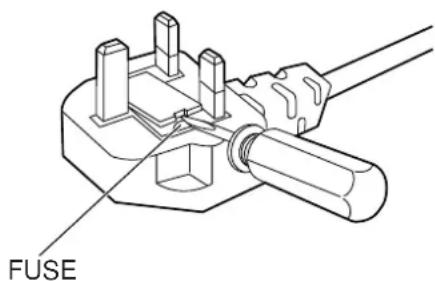
Guarantee
Condition of guarantee
This guarantee is in addition to and does not in any way affect any statutory or other rights of consumer purchasers. If within the applicable guarantee period, the appliance proves to be defective by reason of faulty design, workmanship or materials, we undertake subject to the following conditions to have the defective appliance (or any part or parts there of) repaired or replaced free of charge.
- The appliance shall have been purchased and used solely within the UK and in accordance with standard operating instructions and the technical and/or Safety Standards required in the UK.
- The purchaser will within 7 days of purchase complete the included warranty registration form (folded inside front cover) and fax it to us for registration. Failure to return such a form could result in delay in providing the guarantee service.
- The appliance should be returned together with this guarantee and proof of date of purchase promptly on being found defective at the purchaser's risk and expense to the authorized dealer from whom the appliance was purchased or to the nearest authorized dealer. All enquiries must be through such dealers.
- This guarantee shall not apply to damage caused through fire, accident, lightning, misuse, wear and tear, neglect, incorrect adjustment or repair, to damage caused through installation, adaption, modification or use in an improper manner or inconsistent with the technical and/or safety standards required in the country where this appliance is used, or to damage occurred during transit to or from the purchaser.
- If at any time during the guarantee period any part or parts of the appliance are replaced with a part or parts not supplied or approved by us or of an objective quality safe and suitable for the appliance, or the appliance has been dismantled or repaired by any person not authorised by us, we shall have the right to terminate this guarantee in whole or in part immediately without further notice.
- The purchaser's sole and exclusive remedy under this guarantee against us is for the repair or replacement of the appliance or any defective part or parts and no other remedy, including, but not limited to, incidental or consequential damage or loss of whatsoever nature shall be available to the purchaser.
- This guarantee shall not apply to cassette tapes, batteries and any other items of limited nature life.
- Our decision on all matters relating to complaints shall be final. Any appliance or defective part which has been replaced shall become our property.
- The guarantee period applicable to this product shall be 12 months from the date of purchase.
Please keep these Operating Instructions with your receipt.
Panasonic Business Systems U.K.
| Receipt No. ____ | Date of Purchase ____ |
| Model No. KX-FLM600E____ | Serial No. ____ |
Index
A Accessories 5
Address Book 73,91
Advanced features ..... 130, 131
(Resetting) 120
AUTO ANSWER button ..... 54–57, 62
AUTO ANSWER mode ..... 54–57, 62
Auto reduction 65
B Basic features ..... 129
BROADCAST keys ..... 49, 51
Broadcast list 119
Broadcast report 51
C Character table 29
Cleaning 112
COLLATE button 69
Communication Log 73, 89, 97
Communication messages ..... 100
Connecting tone 53
Connections 8,26
Copier 96
Copy
(Collated) 69,70
(Enlargement/reduction) ..... 69, 70
(Multiple copies) 69
COPY button 12,69
D Date and time 27
Delayed transmission 47
Directory feature 37, 39, 43
DIRECTORY PROGRAM button ..... 35, 37, 38, 49
Display
(Contrast) 120
(Error messages) 101, 102
Document jam 112
Document size 44, 121
Drum life 123
Drum unit
(Installing) 6, 20–22
(Replacing) 113–115
E EASY DIAL
(Making a voice call) 39
(Selecting characters) 29
(Sending faxes) 43
(Storing) 37, 38
Enlarge/Reduce copy 69,70
Envelope specifications 83
Error correction mode setting 53
Error messages .... 100–102
Extension telephone 59, 61
F Facsimile telephone number ..... 30
Fax activation code 59
Fax auto redial 42
FAX ONLY mode ..... 54, 57, 58
FAX ONLY ring count 58
Fax pager 67
Feature list 119
Feeder jam 112
Friendly reception 56, 66
H Half-tone setting 52
Handset cord 8,26
HANDSET MUTE button 32
HELP button 16
HYPHEN key 29,35
I INSERT key 28, 29
J Jam 110–112
Journal auto print 46
Journal report 46,119
L List
(Broadcast) 119
(Feature) 119
(Telephone number) 119
Location panel 18, 19
Logo 28,29
LOWER key 35, 36, 42
M Manual feeding 80
Media size 80,122
Melody ring 34
Memory reception alert ..... 56, 66
Memory transmission 48
MONITOR button 32, 36, 40
Monitor volume 31
N NAME/TEL NO. key 39
One-Touch Dial
(Making a voice call) 36
(Sending faxes) 42
(Storing) 35
Other size documents 65
Overseas transmission mode ..... 52
Overview 17
P Pager call 67
PANA LINK software (Activating)....73 (Installing)....72 (Setup)....74
Paper jam 110, 111
Paper stacker 7,25
Paper tray 7,25,80
PAUSE button 33
PC link 99
Power down report 109
Power failure 109
Power supply/cord 8,26,121
Printing paper size 122
Printing reports 119
Problem solving (Fax machine) ..... 103–104 (PC software) ..... 105–109
Programmable features ..... 129–131
Q QUICK SCAN button .....48, 69
R Receiving
(Fax) 11,56
(Setting) 54, 55
Receiving reduction 65
Recording paper 7, 23, 24, 122
RECALL button 33
Recording paper jam ..... 110, 111
REDIAL button 32,41
Report (Broadcast)....51 (Feature setting)....119 (Journal)....46, 119 (Sending)....45 (Telephone numbers)....119
Reset 120
RESOLUTION button ..... 41-43, 69
Ring count 58,63
Ringer volume 31
S Scanner 92
SECRET key 35, 37
Sending (EASY DIAL) 43
(From memory) 48
(From PC) 84-87
(Manually)....10,41
(Multiple stations) 49–51
(One-Touch Dial) 42
Sending document jam 112
Sending report 45
Set default 120
Silent fax recognition ring 63
Specifications (Common) 121 (Fax/Copy) 121 (Printer) 122 (Scanner) 122
Storing (EASY DIAL) .... 37, 38 (One-Touch Dial) .... 35
T TEL mode 54, 56
TEL/FAX delayed ring count 63
TEL/FAX mode 60-62
Telephone line cord 8,26
Telephone number list 119
Toner cartridge (Installing) 20–22 (Replacing) 113–115
Toner life 123
Toner save 68
Transmission (EASY DIAL) 43 (From memory) 48 (From PC) 84–87 (Manually) 10, 41 (Multiple stations) 49–51 (One-Touch Dial) 42
Transmittable document 44, 121
V Viewer 73,98
Voice call (Answering) ..... 9, 32 (EASY DIAL) ..... 39 (Making) ..... 9, 32 (One-Touch Dial) ..... 36 (PC) ..... 90
Voice contact 40
VOLUME button 31
Summary of user programmable features
Basic features
| Code | Feature & Display Available settings Meaning Page | |||
| #01 | Setting the date and timeSET DATE & TIME | (2 digits for each entry) | dd/mm/yy hh:mm | 27 |
| #02 | Setting your logoYOUR LOGO | (Up to 30 characters) | 28 | |
| #03 | Setting your facsimile telephone numberYOUR FAX NO. | (Up to 20 digits) | 30 | |
| #04 | Printing the sending reportSENDING REPORT | ERRORONOFF | If transmission failsActivateDeactivate | 45 |
| #06 | Setting the ring count in the FAX ONLY modeFAX RING COUNT | 1, 2, 3, 4, 5,6, 7, 8, 9 | 1 to 9 rings | 58 |
| #14 | Setting the PC linkPC LINK | ONOFF | ActivateDeactivate | 99 |
| #16 | Setting the recording paper sizePAPER SIZE | A4LETTERLEGAL | A4 size paperLetter size paperLegal size paper | 30 |
(The pre-selected value is in bold.)
Note:
- You can display the basic features in the order above by rotating [EASY DIAL] instead of entering the code number (#01, #02, etc.).
Features Summary
Advanced features
| Code | Feature & Display Available settings Meaning Page | |||
| #22 | Setting the journal report to print automaticallyAUTO JOURNAL | ONOFF | ActivateDeactivate | 46 |
| #23 | Sending documents overseasOVERSEAS MODE | ONOFF | ActivateDeactivate | 52 |
| #25 | Sending a fax at a specific timeDELAYED SEND | ONOFF | ActivateDeactivate | 47 |
| #30 | Setting the silent fax recognition ring countSILENT FAX RING | 3, 4, 5, 6 | 3 to 6 rings | 63 |
| #37 | Receiving other sizes of documentsAUTO REDUCTION | ONOFF | Reduces any document larger than A4.Deactivate | 65 |
| #38 | Changing the half-tone settingHALFTONE MODE | PHOTOAUTO | For photographsFor photographs and words | 52 |
| #39 | Changing the display contrastLCD CONTRAST | NORMALDARKER | Normal contrastDarker contrast | 120 |
| #41 | Changing the fax activation codeFAX ACTIVATION | ON / CODE= *9*OFF | ActivateDeactivate | 59 |
| #44 | Setting the memory reception alertRECEIVE ALERT | ONOFF | ActivateDeactivate | 66 |
| #46 | Setting the friendly receptionFRIENDLY RCV | ONOFF | ActivateDeactivate | 66 |
| #68 | Setting the error correction modeECM SELECTION | ONOFF | ActivateDeactivate | 53 |
(The pre-selected value is in bold.)
| Code | Feature & Display Available settings Meaning Page | |||
| #70 | Signalling your pager when your unit receives a faxFAX PAGER CALL | ONOFF | ActivateDeactivate | 67 |
| #71 | Setting the melody ringerMELODY RINGER | A, B, C Melody rings | A, B or C 34 | |
| #76 | Setting the connecting toneCONNECTING TONE | ONOFF | ActivateDeactivate | 53 |
| #77 | Changing the AUTO ANSWER settingAUTO ANSWER | FAX ONLYTEL/FAX | Facsimile only modeTelephone/Facsimile mode | 62 |
| #78 | Setting the TEL/FAX delayed ring countTEL/FAX RING | 1, 2, 3, 4, 5,6, 7, 8, 9 | 1 to 9 rings 63 | |
| #79 | Setting the toner saveTONER SAVE | ONOFF | ActivateDeactivate | 68 |
| #80 | Resetting the advanced featuresSET DEFAULT | YESNO | ResetWill not reset | 120 |
(The pre-selected value is in bold.)
CE 0682 X
Kyushu Matsushita Electric Co., Ltd.
1-62, 4-chome, Minoshima, Hakata-ku, Fukuoka 812-8531, Japan