KX-FP330E - Fax PANASONIC - Free user manual and instructions
Find the device manual for free KX-FP330E PANASONIC in PDF.


User questions about KX-FP330E PANASONIC
0 question about this device. Answer the ones you know or ask your own.
Ask a new question about this device
Download the instructions for your Fax in PDF format for free! Find your manual KX-FP330E - PANASONIC and take your electronic device back in hand. On this page are published all the documents necessary for the use of your device. KX-FP330E by PANASONIC.
USER MANUAL KX-FP330E PANASONIC
Plain Paper Facsimile Model No.
KX-FP300E
Plain Paper FAX with Answering Machine
Model No.
KX-FP320E
Multi-Function Plain Paper Facsimile
Model No.
KX-FM330E

To get started, please read the Quick Start section (p. 4 – 13).
OPERATING INSTRUCTIONS
natural_image
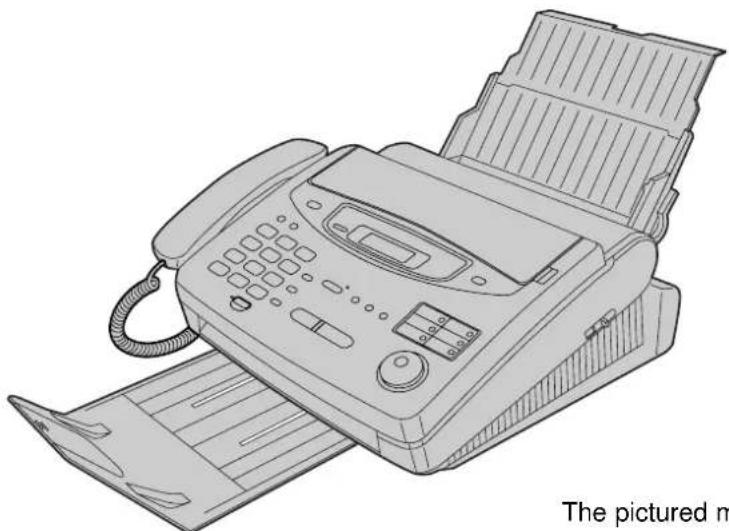
Line drawing of a classic office typewriter with open lid and keypad (no text or symbols on device body)The pictured model is KX-FP300.
Please read these Operating Instructions before using the unit and save for future reference.
This unit is not designed for making emergency telephone calls when the power fails. Alternative arrangements should be made for access to emergency services.
Thank you for purchasing a Panasonic facsimile.
Welcome to the world of Panasonic facsimiles.
This product combines various facsimile and telephone features to provide you with more efficient office or home use.
By utilizing these convenient features, you can maximize the effectiveness of this unit.
For future reference
Date of purchase Serial number
(found on the bottom of the unit)
Dealer's name and address
Dealer's telephone number
Model difference
| Features Model | Facsimile, Telephone and Copier | Answering Device | Scanner, PC-Fax and Printer |
| KX-FP300 | Available | Not available | Not available |
| KX-FP320 | Available | Available | Not available |
| KX-FM330 | Available | Available | Available |
Caution:
- Note that the images of copied or received documents will remain on the used film. Use discretion when disposing of the used film.
- Do not rub or use an eraser on the printed side, as the print may smear.
Note:
- A suffix "E" in the model number is omitted in these instructions.
- Most figures shown in these operating instructions are based on a KX-FP300.
Copyright:
This manual is copyrighted by Kyushu Matsushita Electric Co., Ltd. (KME) and its licensee. Under the copyright laws, this manual may not be reproduced in any form, in whole or part, without the prior written consent of KME and its licensee.
© Kyushu Matsushita Electric Co., Ltd. 1999
IMPORTANT
Panasonic
WARRANTY REGISTRATION
Thank you for purchasing your Panasonic facsimile. By filling in the section below, this will ensure the following:
- We will register your unit on our warranty database. Should you ever require a service call under warranty, your call will be dealt with quickly and efficiently.
- We will send you a reply fax to confirm your registration and the correct operation of your unit.
- If you have any problems, please call us on 08701 580560.
Simply, follow these instructions:
- Please fill in the section below in block capitals and in ink.
Your name
Company name (if applicable)
Your address
The image contains only a single, continuous horizontal line. According to Rule 2 (Stylistic/Background Lines), since there is no actual text or punctuation content present in the source image, the OCR result must be empty.
Therefore, the corrected OCR text is:
```text [No text detected]
Your postcode
Telephone no. Fax no.
Model no.
Month YearDay
Serial no. Date of purchase
- Fax this form to 08701 583250 and we will fax back to confirm receipt of your details. Please allow 14 working days for this. In addition, we will also send you information of our maintenance contracts.
TERMS AND CONDITIONS
- This warranty is in addition to and does not in any way affect any statutory or other right of consumer purchasers. This warranty relates only to product used within Mainland Great Britain, please refer to your dealer for warranty information relating to use elsewhere within the United Kingdom.
- This product is approved for use only on the United Kingdom's Public Switched Telephone Network and should be used only for normal purposes and in accordance with standard operating instructions.
- You should complete the registration form overleaf and fax it to us within 7 days of purchase; failure to do so may result in delays in providing warranty service.
- This warranty covers breakdowns due to design or manufacturing faults; it does not apply to damage, however caused, wear or tear, neglect, incorrect adjustment or repair, or to any items of limited natural life.
- This warranty does not cover consumables i.e., ink films, film refills, ink cartridges, paper and paper trays or any optional accessories which may have been purchased either at the same time, as or subsequent to, the main unit. Such accessories should be returned to the point of purchase if found to be faulty.
- In the event of a failure, please take the following action;
a. Refer to the "Help" section of your instruction manual in order to identify and possibly correct the problem;
b. If the fault cannot be resolved and you require a trained operator, please contact our customer helpline on 08701 580560.
-
In the event the helpline cannot resolve the problem, a like for like exchange fax will be dispatched overnight (if the call is received before 4pm) or, by a mutually convenient arrangement. The helpline operator will give you specific instructions on how the exchange will be executed. Failure to comply with these instructions may result in delay and cost to you.
-
The exchange fax will be delivered in a customised case by courier. It is the customer's responsibility to promptly remove the exchange fax and insert the faulty fax in the case provided for collection, to enable the courier to return it to Panasonic.
-
The exchange fax is to be regarded as a like for like exchange under warranty and the balance of the warranty period will transfer to the exchange unit. The liability of Panasonic under the terms of this warranty is limited to the exchange of the fax, or the repair and return of the original fax (subject to any additional charges, see Condition 4).
-
Where the original fax is found to be faulty as a result of unauthorised repairs or modifications or damage either by accident, misuse or improper installation then Panasonic reserves the right to charge the customer the sum of £50.00 plus Vat, as a contribution towards repair costs.
-
This warranty applies to the original purchaser only and is not transferable.
-
The warranty period applicable to this product shall be 12 months from the date of purchase.
Important safety instructions
When using this unit, basic safety precautions should always be followed to reduce the risk of fire, electric shock or personal injury.
-
Read and understand all instructions.
-
Follow all warnings and instructions marked on this unit.
-
Unplug this unit from the main unit outlets before cleaning. Do not use liquid or aerosol cleaners. Use a damp cloth for cleaning.
-
Do not use this unit near water, for example: near a bath tub, wash bowl, kitchen sink or the like.
-
Place the unit securely on a stable surface. Serious damage and/or injury may result if the unit falls.
-
Do not cover slots and openings on the unit. They are provided for ventilation and protection against overheating. Never place the unit near radiators, or in a place where proper ventilation is not provided.
-
Use only the power source marked on the unit. If you are not sure of the type of power supplied to your home, consult your dealer or local power company.
-
This product is supplied with a moulded plug. This plug has three conductors. If the type of moulded plug does not fit your socket contact an electrician to replace your socket. Do not modify the connection this may make the product unsafe.
-
Do not place objects on the power cord. Install the unit where no one can step or trip on the cord.
-
Do not overload mains outlets and extension cords. This can result in the risk of fire or electric shock.
-
Never push any objects through slots in this unit. This may result in the risk of fire or electric shock. Never spill any liquid on the unit.
-
To reduce the risk of electric shock, do not disassemble this product, but take it to a qualified engineer when maintenance or repair work is required. Opening or removing covers may expose you to dangerous voltages or other risks. Incorrect re-assembly could cause electric shock when the unit is subsequently used.
-
Unplug this unit from the mains outlet and refer servicing to qualified service personnel when the following conditions occur:
A. When the power supply cord or plug is damaged or frayed.
B. If liquid has been spilled into the unit.
C. If the unit has been exposed to rain or water.
D. If the unit does not work normally by following the operating instructions. Adjust only controls covered by the operating instructions. Improper adjustment may require extensive work by a qualified technician.
E. If the unit has been dropped or physically damaged.
F. If the unit exhibits a distinct change in performance.
-
During thunderstorms, avoid using telephones, except cordless types. There may be a remote risk of an electric shock from lightning.
-
Do not use this unit to report a gas leak when in the vicinity of the leak.
SAVE THESE INSTRUCTIONS
INSTALLATION
- Never install telephone wiring during a lightning storm.
- Never install telephone jacks in wet locations unless the jack is specifically designed for wet locations.
- Never touch uninsulated telephone wires or terminals unless the telephone line has been disconnected at the network interface.
- Use caution when installing or modifying telephone lines.
WARNING
- To prevent the risk of fire or electrical shock, do not expose this product to rain or any type of moisture.
OTHER INFORMATION
- Keep the unit away from electrical noise generating devices, such as fluorescent lamps and motors.
- The unit should be kept free from dust, high temperature and vibration.
- The unit should not be exposed to direct sunlight.
- Do not place heavy objects on top of this unit.
Installation
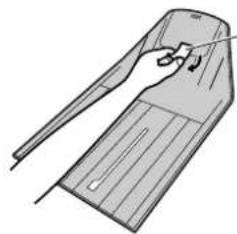
Remove the shipping tape from the unit and paper stacker, and install as follows.

natural_image
Line drawing of a mechanical component with a handle and blade (no text or symbols)Shipping tape
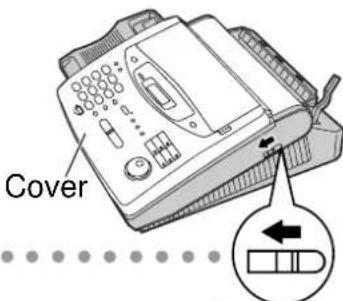
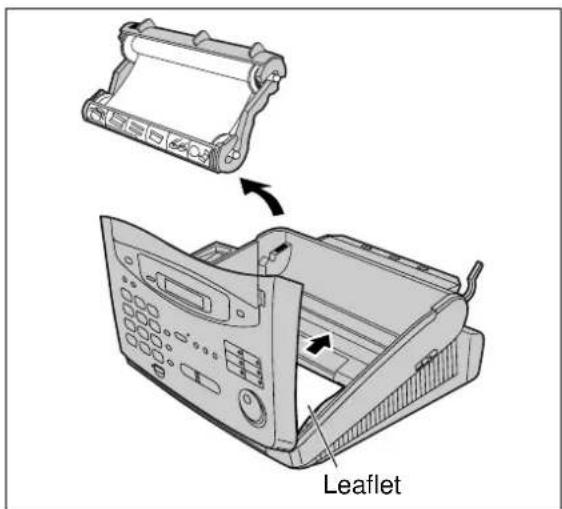
1 Film cartridge (p. 25, 26)
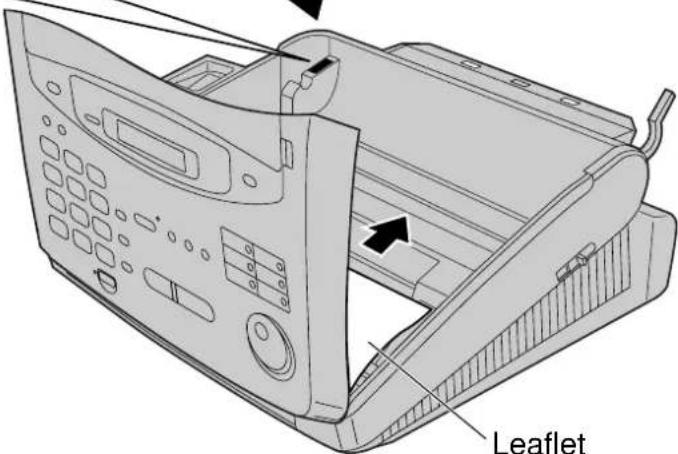
A. Slide the cover open lever forward.
B. The cover is under tension to improve print quality. Pull up hard enough to open.
C. Lift out the film cartridge and remove the leaflet from the unit.
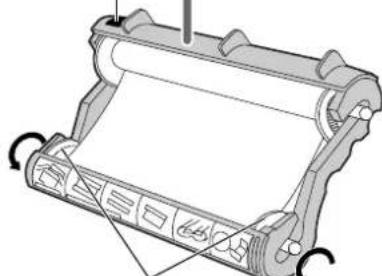
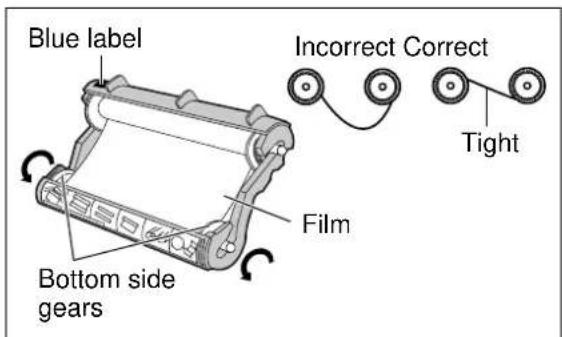
D. If the film in the film cartridge is slack, tighten it by winding the bottom side gears.
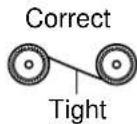
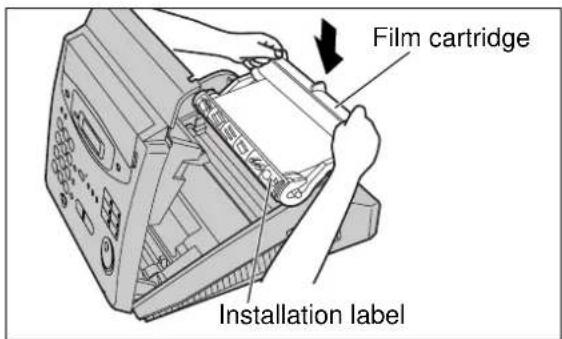
E. Install the film cartridge into the unit.
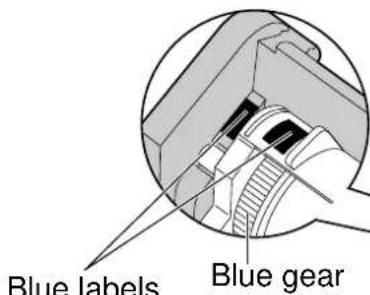
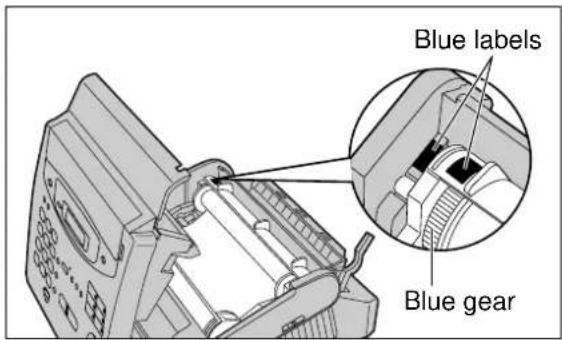
F. Make sure that the blue label on the cartridge matches the one on the unit.
G. Close the cover securely by pushing down on both ends.
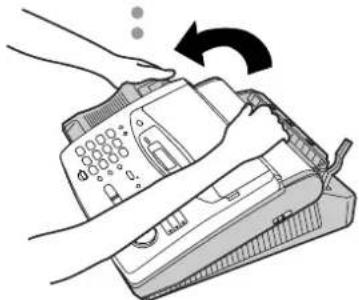
natural_image
Illustration of hands using a handheld device to press or install a device, with no visible text or symbols.Blue label
natural_image
Illustration of a rolled-up scroll or printer with decorative patterns, no visible text or symbolsBottom side gears
2
Paper stacker (p. 27)
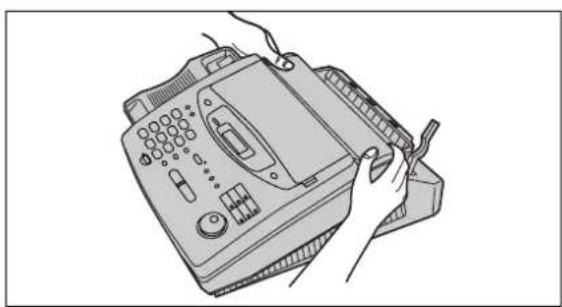
A. Lift the front of the unit, insert the paper stacker into the slots and slide it until it stops.
3
Paper tray (p. 28)
A. Open the paper tray.
B. Insert the two tabs on the paper tray into the slots on the back of the unit.
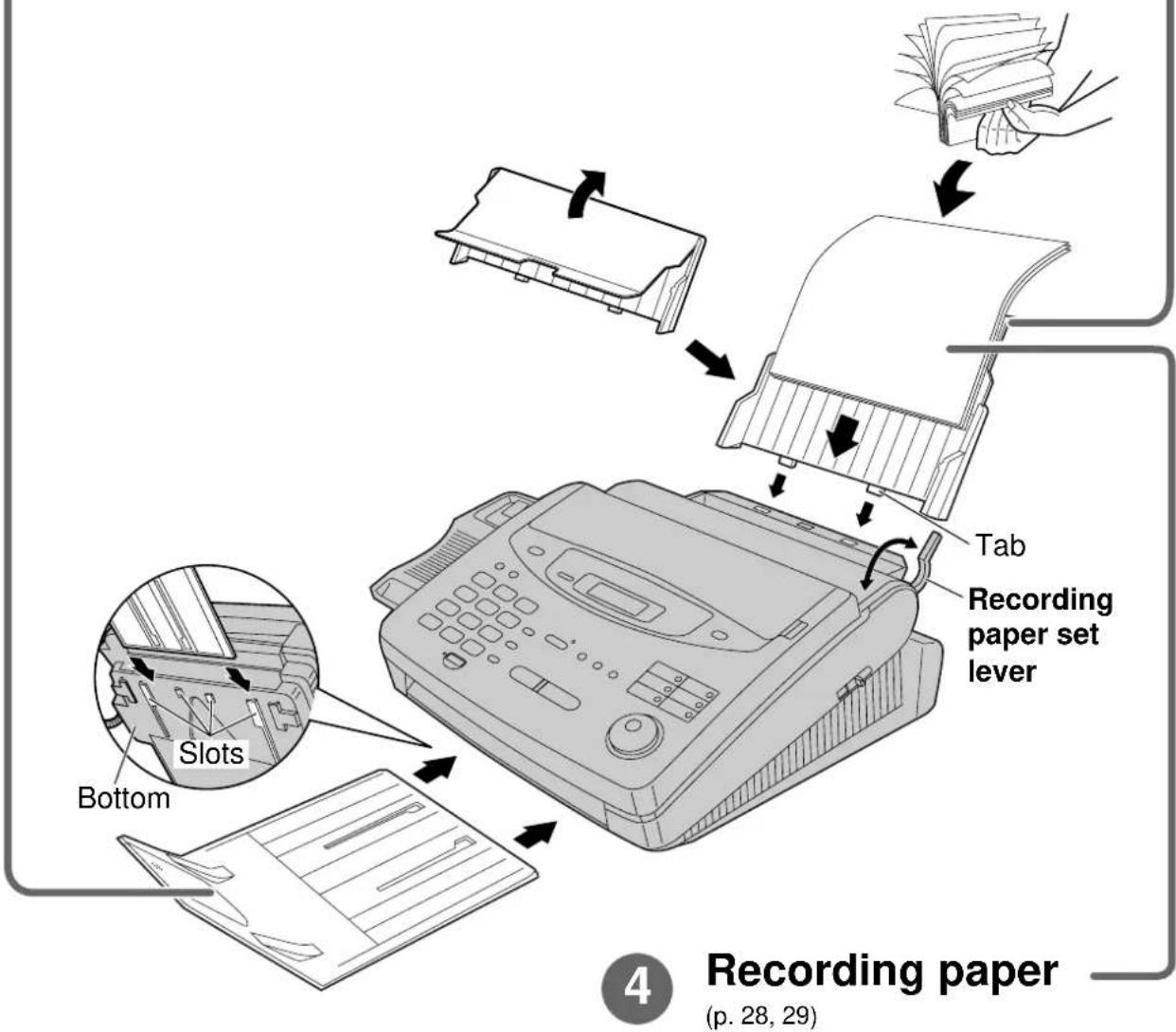
A. Pull the recording paper set lever forward.
B. Fan the stack of paper to prevent a paper jam and insert the paper into the paper tray.
C. Move the recording paper set lever back.
Connections
flowchart
graph TD
    A["Handset cord"] --> B["Answering machine (not included)"]
    B --> C["Telephone line cord"]
    C --> D["Mains lead"]
    A --> E["To B.T. socket"]
    C --> F["To Household Mains Supply (220–240 V, 50 Hz)"]
    A --> G["PEE OFF THE TAPE ON THE EXT jack and connect the cord."]
    A --> H["PEE OFF THE TAPE ON THE EXT jack is only for KX-FP300"]
    style A fill:#f9f,stroke:#333
    style C fill:#ccf,stroke:#333
    style B fill:#cfc,stroke:#333
    style D fill:#fcc,stroke:#333
- For further details, see page 30.
Voice calls - making/answering
Voice calls - making
- For further details, see page 36.
- If you are having trouble, see page 115.
Voice calls - answering
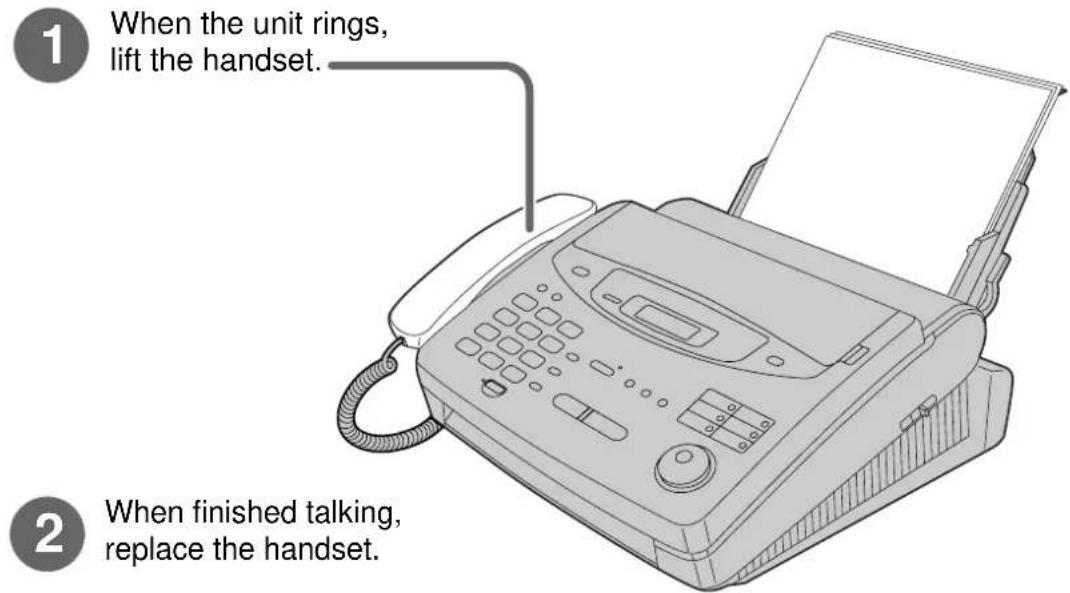
- For further details, see page 37.
- If you are having trouble, see page 115.
Faxes - sending/receiving
Faxes - sending
1 Open the document feeder tray.
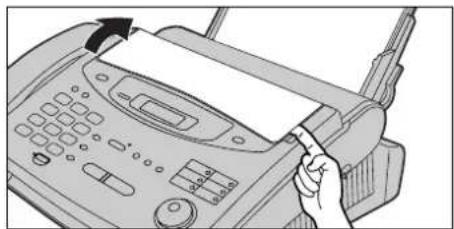
natural_image
Illustration of a hand inserting a paper into a printer's front panel (no text or symbols visible)2 Adjust the width of the document guides to the size of the document.
3 Insert the document until the unit grabs the document and a single beep is heard.
4 Dial the fax number.
5 Press START/SET/COPY
- For further details, see page 54.
- If you are having trouble, see pages 115 and 116.
Faxes - receiving
1 When the unit rings, lift the handset.
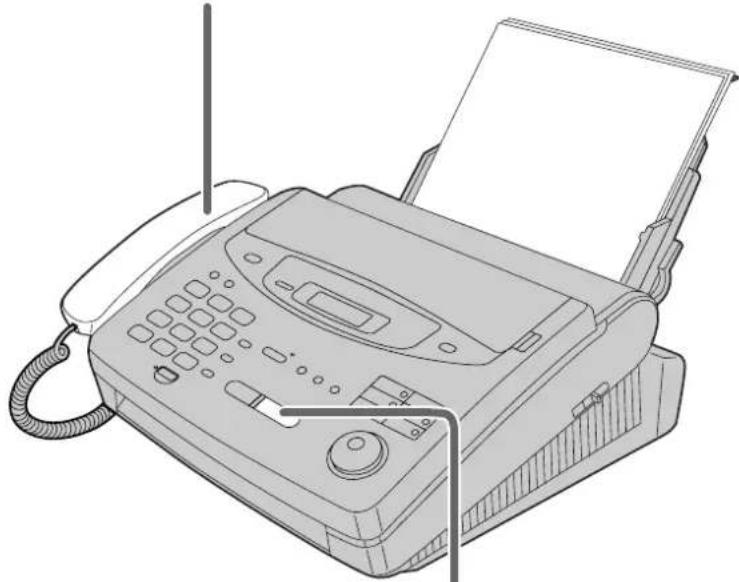
natural_image
Line drawing of a classic digital fax machine with paper feed and keypad (no text or symbols)2 When: — document reception is required, — a fax calling tone (slow beep) is heard, or — no sound is heard, press START/SET/COPY.
3 Replace the handset.
• For further details, see page 70.
- You can select the way to receive calls according to your needs. See pages 66 and 67 for KX-FP300.
See pages 68 and 69 for KX-FP320/KX-FM330.
- If you are having trouble, see page 116.
Copy - making
1 Open the document feeder tray.
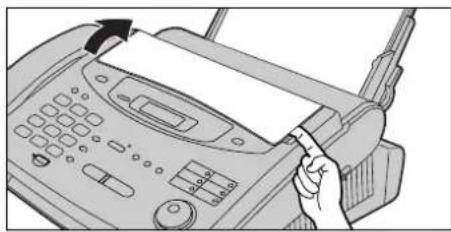
natural_image
Illustration of a hand inserting a card into a telephone receiver (no text or symbols visible)2 Adjust the width of the document guides to the size of the document.
3 Insert the document until the unit grabs the document and a single beep is heard.
• Make sure the handset is on the unit.
4 Press (START/SET/COPY)
5 Enter the number of copies.
6 Press START/SET/COPY.
• For further details, see page 91.
• If you are having trouble, see page 117.
Operating the answering device (KX-FP320/KX-FM330 only)
Setting the unit to receive voice and fax messages automatically
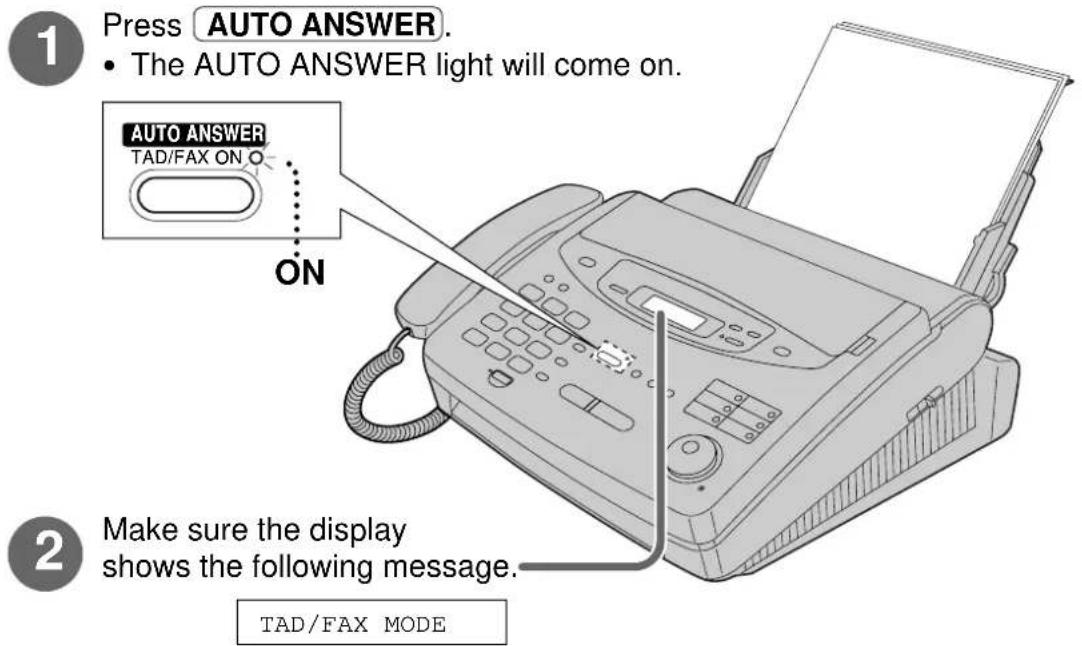
- If the display does not show this message, the setting needs to be changed to the TAD/FAX mode (p. 76).
- For further details, see page 93.
Quick Start
Listening to recorded messages
■ When the PLAY MESSAGES indicator flashes
Press PLAY MESSAGES.
- The new recorded messages will be played.
■ When the PLAY MESSAGES indicator lights
Press PLAY MESSAGES.
- All messages will be played.
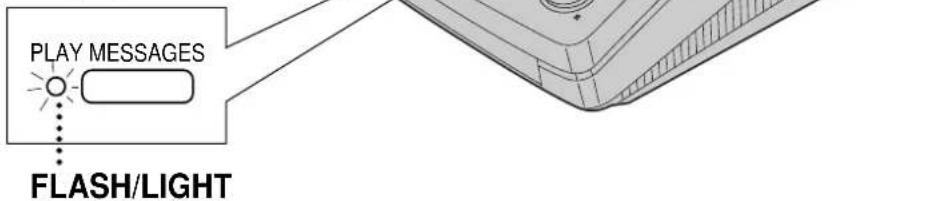
- For further details, see page 98.
Erasing recorded messages
■ Erasing a specific message
Press ERASE while listening to the message you want to erase.
■ Erasing all the messages
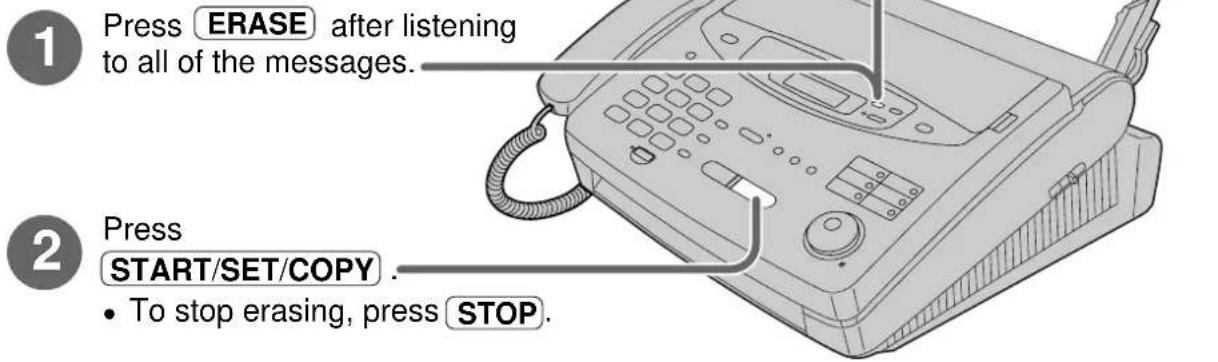
3 Press START/SET/COPY again.
- For further details, see page 98.
Table of Contents
| Initial Preparation | Accessories | Included accessories . . . . . . . . . . . . . . . . . . . . . . . . . . . . . . . . . . . . . . . . . . . . . . . . . . . . . . . . . . . . . . . . . . . . . . . . . . . . . . . . . . . . . . . . . . . . . . . . . . . . |
| Accessory order information . . . . . . . . . . . . . . . . . . . . . . . . . . . . . . . . . . . . . . . . . . . . . . . . . . . . . . . . . . . . . . . . . . . . . . . . . . . . . . . . . . . . . . . . . . . . . . . . . . .. | ||
| Help Button | Help function . . . . . . . . . . . . . . . . . . . . . . . . . . . . . . . . . . . . . . . . . . . . . . . . . . . . . . . . . . . . . . . . . . . . . . . . . . . . . . . . . . . . . . . . . . . . . . . . . . . 18 | |
| Finding the Controls | Location . . . . . . . . . . . . . . . . . . . . . . . . . . . . . . . . . . . . . . . . . . . . . . . . . . . . . . . . . . . . . . . . . . . . . . . . . . . . . . . . . . . . . . . . . . . . . . . . . . .20 | |
| Overview . . . . . . . . . . . . . . . . . . . . . . . . . . . . . . . . . . . . . . . . . . . . . . . . . . . . . . . . . . . . . . . . . . . . . . . . . . . . . . . . . . . . . . . . . . . . . . . . . . .424 | ||
| Setup | Film cartridge . . . . . . . . . . . . . . . . . . . . . . . . . . . . . . . . . . . . . . . . . . . . Paper stacker . . . . . . . . . . . . . . . . . . . . . . . . . . . . . . . . . . . . . . . . . . . . . . . . . . . . . . . . . . . . . . . . . . . . . . . . . . . . . . . . . . . . . . . . . . . . . . . . . . .3728 | |
| Paper tray . . . . . . . . . . . . . . . . . . . . . . . . . . . . . . . . . . . . . . . . . . . . . . . . . . . . . . . . . . . . . . . . . . . . . . . . . . . . . . . . . . . . . . . . . . . . . . . . . . . . Recording paper . . . . . . . . . . . . . . . . . . . . . . . . . . . . . . . . . . . . . . . . . . . . . . . . . . . . . . . . . . . . . . . . . . . . . . . . . . . Connections . . . . . . . . . . . . . . . . . . . . . . . . . . . . . . . . . . . . . . . . . . . . . . . . . . . . . . . Date and time, your logo and facsimile telephone number . . . . . . . . . . . . . . . . . . . . . . . . . . . . . . . . . . . . . . . . . 3031 | ||
| Volumes | Adjusting volumes . . . . . . . . . . . . . . . . . . . . . . . . . . . . . . . . . . . . . . . . . . . . . . . 35 | |
| Telephone | Making and Answering Calls | Voice calls - making 36 |
| Voice calls - answering 37 | ||
| TONE, RECALL and PAUSE buttons 38 | ||
| Dialling mode (touch tone or pulse) 39 | ||
| One-Touch Dial | Storing names and telephone numbers in the One-Touch Dial 40 | |
| Making a voice call using the One-Touch Dial 42 | ||
| EASY DIAL | Storing names and telephone numbers in the EASY DIAL directory 43 | |
| Making a voice call using the EASY DIAL directory 45 | ||
| Caller ID | Caller ID service from your phone company 46 | |
| Viewing the Caller ID list on the display 47 | ||
| Calling back from the Caller ID list 48 | ||
| Storing telephone numbers in the One-Touch Dial and EASY DIAL directory from the Caller ID list 49 | ||
| Erasing a number/name from the Caller ID list 50 | ||
| Automatic Caller ID list 52 | ||
| Voice Contact | Talking to the caller after fax transmission or reception 53 | |
| Fax/Copy | Sending Faxes | Sending a fax manually 54 |
| Sending a fax using the One-Touch Dial 55 | ||
| Sending a fax using the EASY DIAL directory 56 | ||
| Sending a fax by following the voice guide (KX-FP320/KX-FM330 only) 57 | ||
| Documents you can send 58 | ||
| Sending report for confirmation 59 | ||
| Automatic journal report 60 | ||
| Delayed transmission (sending a fax at a specified time) 61 | ||
| From memory 62 | ||
| Multiple stations 63 | ||
| Overseas mode 65 | ||
| Connecting tone 65 | ||
| Fax/Copy | Receiving Faxes | Setting the unit to receive calls . . . . . . . . . . . . . . . . . . . . . . . . . . . . . . . . . . . . . . . . . . . . . . . . . . . . . . . . . . . . . . . . . . . . . . . . . . . . . . . . . . . . . . . . . . . . . . . . . . . . TEL mode (answering all calls manually) . . . . . . . . . . . . . . . . . . . . . . . . . . . . . . . . . . . . . . . . . . . . . . . . . . . . . . . . . . . . . . . . . . . . . . . . . . . . . . . . . . . . . . . . . . . . . . . . . . . Using the unit with an answering machine (KX-FP300 only) . . . . . . . . . . . . . . . . . . . . . . . . . . . . . . . . . . . . . . . . . . . . . . . . . . . . . . . . . . . . . . . . . . . . . . . . . . . . . . . . . . . . . . . . . . . . . . . . . . FAX ONLY mode (all calls are received as faxes) . . . . . . . . . . . . . . . . . . . . . . . . . . . . . . . . . . . . . . . . . . . . . . . . . . . . . . . . . . . . . . . . . . . . . . . . . . . . . . . . . . . . . . . . . . . . . . . . . . TFL/FAX mode (receiving voice calls with rings and fax calls without rings when you are near the unit) . . . . . . . . . . . . . . . . . . . . . . . . . . . . . . . . . . . . . . . . . . . . . . . . . . . . . . . . . . . . . . . . . . . . . . . . . . . Extension telephone . . . . . . . . . . . . . . . . . . . . . . . . . . . . . . . . . . . . . . . . . . . . . . . . . . . . . . . . . . . . . Fax activation code . . . . . . . . . . . . . . . . . . . . . . . . . . . . . . . . . . . . . . . . . . . . . . . . . Other size documents . . . . . . . . . . . . . . . . . . . . . . . . . . . . . . . . . . . . Silent detection (KX-FP300 only) (receiving faxes from older model fax machines) . . . . . . . . . . . . . . . . . . . . . . . . . . . . . . . . Using the unit and a computer on the same line (KX-FP320/KX-FM330 only) . . . . . . . . . . . . . . . . . . . . . . . . . . . Memory reception alert . . . . . . . . . . . . . . . . . . Friendly reception . . . . . . . . . . . . . . . Auto disconnection (KX-FP300 only) . .87 ECM communication .88 Pager call - when your unit receives a fax. 89 Film detection. 90 Polling (retrieving fax documents) .90 |
| Copying | Making a copy. 91 | |
| Answering Device(KX-FP320 KX-FM330 only) | Setup | TAD/FAX mode (using the built-in answering device and receiving voice and fax calls automatically) 93 |
| Greeting | Pre-recorded greeting messages 94 Recording your own greeting messages 95 Checking your own recorded greeting messages 96 Erasing your own recorded greeting messages 96 Recording time for the TAD/FAX greeting message 97 | |
| Playing Messages | Listening to recorded messages 98 Erasing recorded messages 98 Functions while playing a message (repeating, skipping and stopping) 99 | |
| Recording | Memo message (leaving a message for others or yourself) 100 Telephone conversation 100 | |
| Remote Operation | Operating from a remote location 101 Setting the remote operation ID 102 From a remote touch tone telephone 103 | |
| Options | Transferring recorded messages to another telephone 106 Ring count in the TAD/FAX mode 109 Incoming message recording time 110 Message alert (beeps when a voice message is received) 110 Recording time alert (beeps when memory is almost full) 111 Incoming message monitor 111 | |
| Help | Error Messages | Reports . . . . . . . . . . . . . . . . . . . . . . . . . . . . . . . . . . . . . . . . . . . . . . . . . . . . . . . . . . . . . . . . . . . . . . . . . . . . . . . . . . . . . . . . . . . . . . . . . . . . |
| Display . . . . . . . . . . . . . . . . . . . . . . . . . . . . . . . . . . . . . . . . . . . . . . . . . . . . . . . . . . . . . . . . . . . . . . . . . . . . . . . . . . . . . . . . . . . . . . . . . . . 113 | ||
| Operations | When a function does not work, check here before requesting help . . . . . . . . . . . . . . . . . . . . . . . . . . . . . . . . . . . . . . . . . . . . . . . . . . . . . . . . . . . . . . . . . . . . . . . . . . . . . . . . . . . . . . . . . . . . . . . . . . . If a power failure occurs . . . . . . . . . . . . . . . . . . . . . . . . . . . . . . . . . . . . . . . . . . . . . . . . . . . . . . . . . . . . . . . . . . . . . . . . . . . . . . . . . . . . . . . . . . . . . . . . . . . Jams | |
| Recording paper jams . . . . . . . . . . . . . . . . . . . . . . . . . . . . . . . . . . . . . . . . . . . . . . . . . . . . . . . . . . . . . . . . . . . . . . . . . . . . . . . . . . . . . . . . . . . . . . . . . . . Sending document jams . . . . . . . . . . . . . . . . . . . . . . . . . . . . . . . . . . . . . . . . . . . . . . . . . . . . . . . . . . . . . . . . . . . . . . . . . . . . . . . . . . . . . . Ink Film | ||
| How much film you have left . . . . . . . . . . . . . . . . . . . . . . . . . . . . . . . . . . . . . . . . . . . . . . . . . . . . . . . . . . . . . . . . . . . . . . . . . . . . . . . . . . . . . . Replacing the film or film cartridge . . . . . . . . . . . . . . . . . . . . . . . . . . . . . . . . . . . . Cleaning | ||
| Document feeder . . . . . . . . . . . . . . . . . . . . . . . . . . . . . . . . . . . . . . . . . . . Thermal head and black bar . . . . . . . . . . . . . . . . . . . . . 126 | ||
| General Information | Print Reports | Printing the feature settings, telephone numbers, journal, printer test list and Caller ID list. 128 |
| Fax Voice Guidance | Fax voice guidance (KX-FP320/KX-FM330 only) 129 | |
| Display Contrast | Changing the display contrast 130 | |
| Recall Mode | Setting the recall mode 131 | |
| Reset | Resetting the advanced features 132 | |
| Important Information | Important information 133 | |
| Fitting a plug to the mains lead 135 | ||
| Guarantee | Condition of guarantee 136 | |
| Features Summary | Summary of user programmable features 137 | |
| Specifications | Technical data about this product 143 | |
| Index 144 | ||
Included accessories
Mains lead . . . . . . . . . . . . . . . . . . . . . . . . . . . . . . . . . . . . . . . . . . . . . . . . . . . . . . . . . . . . . . . . . . . . . . . . . . . . . . . . . . . . . . . . . . . . . . . . . . . . 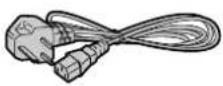 Order No. PQJA10013Z Order No. PQJA10013Z | Telephone line cord . . . . . . . . . . . . . . . . . . . . . . . . . . . . . . . . . . . . . . . . . . . . . . . . . . . . . . . . . . . . . . . . . . . . . . . . . . . . . . . . . . . . . . . . . . . . . . . . . . . Order No. PQJA87S | Handset . . . . . . . . . . . . . . . . . . . . . . . . . . . . . . . . . . . . . . . . . . . . . . . . . . . . . . . . . . . . . . . . . . . . . . . . . . . . . . . . . . . . . . . . . . . . . . . . . . . (DKDZ)Order No. PFJXE0305Z | Handset cord . . . . . . . . . . . . . . . . . . . . . . . . . . . . . . . . . . . . . . . . . . . . . . . . . . . . . . . . . . . . . . . . . . . . . . . . . . . . . . . . . . . . . . . . . . . . . . . . . . Order no. PFJA1029Z |
Paper stacker. . . . . . . . . . . . . . . . . . . . . . . . . . . . . . . . . . . . . . . . . . . . . . . . . . . . . . . . . . . . . . . . . . . . . . . . . . . . . . . . . . . . . . . . . . . . . . . . . . . .. 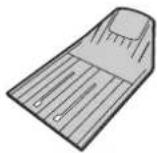 Order No. PFZE1FP300G Order No. PFZE1FP300G | Paper tray . . . . . . . . . . . . . . . . . . . . . . . . . . . . . . . . . . . . . . . . . . . . . . . . . . . . . . . . . . . . . . . . . . . . . . . . . . . . . . . . . . . . . . . . . . . . . . . . . . . 2G8W]Order No. PFYEF1010AL | Film cartridge. . . . . . . . . . . . . . . . . . . . . . . . . . . . . . . . . (with free starter film) 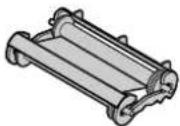 — The film cartridge is pre-installed. Order No. KX-FA135X — The film cartridge is pre-installed. Order No. KX-FA135X | Operating Instructions . . . 1  Order No. PFQX1322Y Order No. PFQX1322Y |
| For KX-FP300 only | For KX-FM330 only | ||
Extension telephone adaptor. . . . . . . . . . . . . . . . . . . . . . . . . . . . . . . . . . . . . . . . . . . . . . . . . . . . . . . . . . . . . . . . . . . . . . . . . . . . . . . . . . . . . . . . .  Order No. PQJA10058Z Order No. PQJA10058Z | Panasonic PC Software for KX-FM330(CD-ROM). . . . 1  Order No. PFJK102A1101* Order No. PFJK102A1101* | PANA LINK Software Guide. . . . . . . . . . . . . . . . . . . . . . . . . . . . . . . . . . . . . . . . . . . . . . . . . . . . . . . . . . . . . . . . . . . . . . . . . . . . . . . . . . . . . . . . . . . . . . . . . . . OrderNo. PFQX1344Z | |
* You will receive the latest software, therefore the order number may be different to the above. However the software is still compatible with your product.
- If any items are missing or damaged, check with the place of purchase.
- Save the original carton and packing materials for future shipping and transportation of the unit.
- The order numbers listed above are subject to change without notice.
- For further accessory orders, please contact either your local Panasonic authorised dealer.
To use this unit with your PC (KX-FM330 only)
- A RS232C cable less than 3 meters long (DB9 Female/DB25 Male) is required to connect to a personal computer. Please purchase at any computer supply store.
Accessory order information
The free starter film cartridge is only 20 meters long. We recommend that you buy a regular film cartridge (100 m) for continuous use of your unit.
For best results, use a Panasonic replacement film cartridge, KX-FA135X or film, KX-FA136X.
| Model No. | Description Specifications | |
| KX-FA135X Film cartridge | 1 cartridge and 1 film (216 mm x 100 m roll)(The film has already been installed in the cartridge.) | |
| KX-FA136X Replacement film | 2 films (216 mm x 100 m rolls)(Film only. Use with your original cartridge.) | |
Note:
- The film is not reusable. Do not rewind and use the film again.
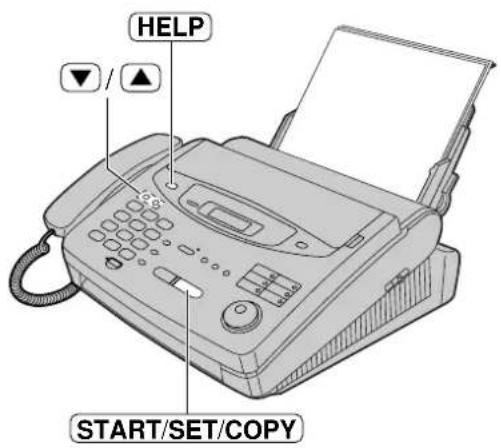
Help function
■ For KX-FP300
You can print a quick reference for assistance as follows.
1 Press HELP.
Display: PRESS [▼▲] & [SET]
2 Press ☑ until the desired item is displayed. The following items are available.
-
How to program your unit
-
HOW TO SET UP
-
How to store names in the EASY DIAL directory and how to dial them
2.EASY DIAL
- Help with problems receiving faxes
3.FAX RECEIVING
-
How to use the copier function
-
COPIER
-
List of available reports
-
REPORTS
-
How to use the Caller ID service
6.CALLER ID
3 Press START/SET/COPY.
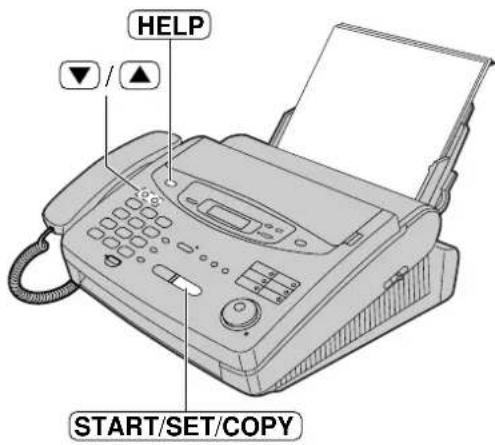
■ For KX-FP320/KX-FM330
You can print a quick reference for assistance as follows.
1 Press HELP.
Display: PRESS [▼▲] & [SET]
2 Press ▼ until the desired item is displayed. The following items are available.
-
How to program your unit
-
HOW TO SET UP
-
How to store names in the EASY DIAL directory and how to dial them
2.EASY DIAL
-
Help with problems operating answering device
-
TAD OPERATION
-
Help with problems receiving faxes
4.FAX RECEIVING
-
How to use the copier function
-
COPIER
-
List of available reports
-
REPORTS
-
How to use the Caller ID service
7.CALLER ID
3 Press START/SET/COPY.
Finding the Controls
Location
■ For KX-FP300
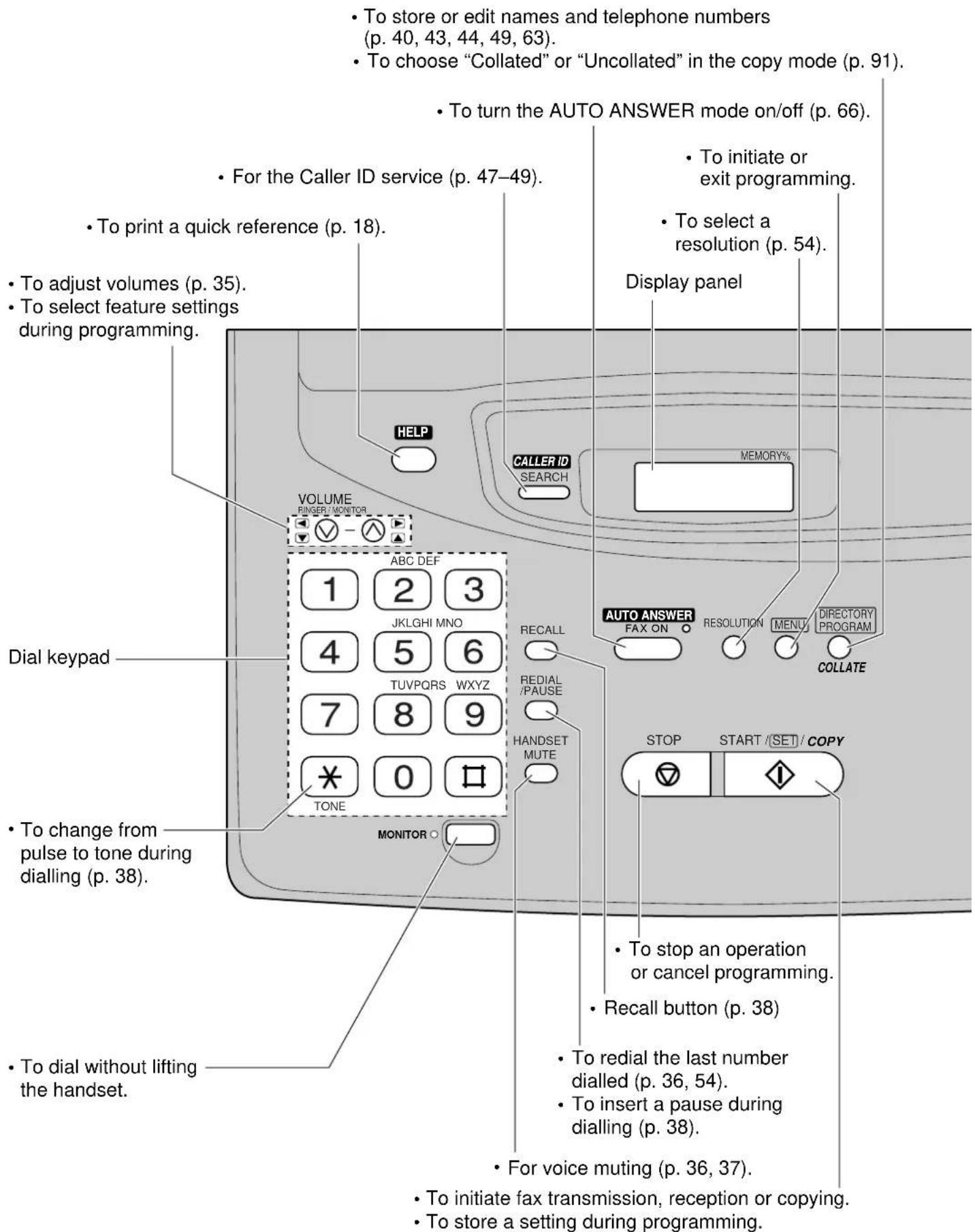
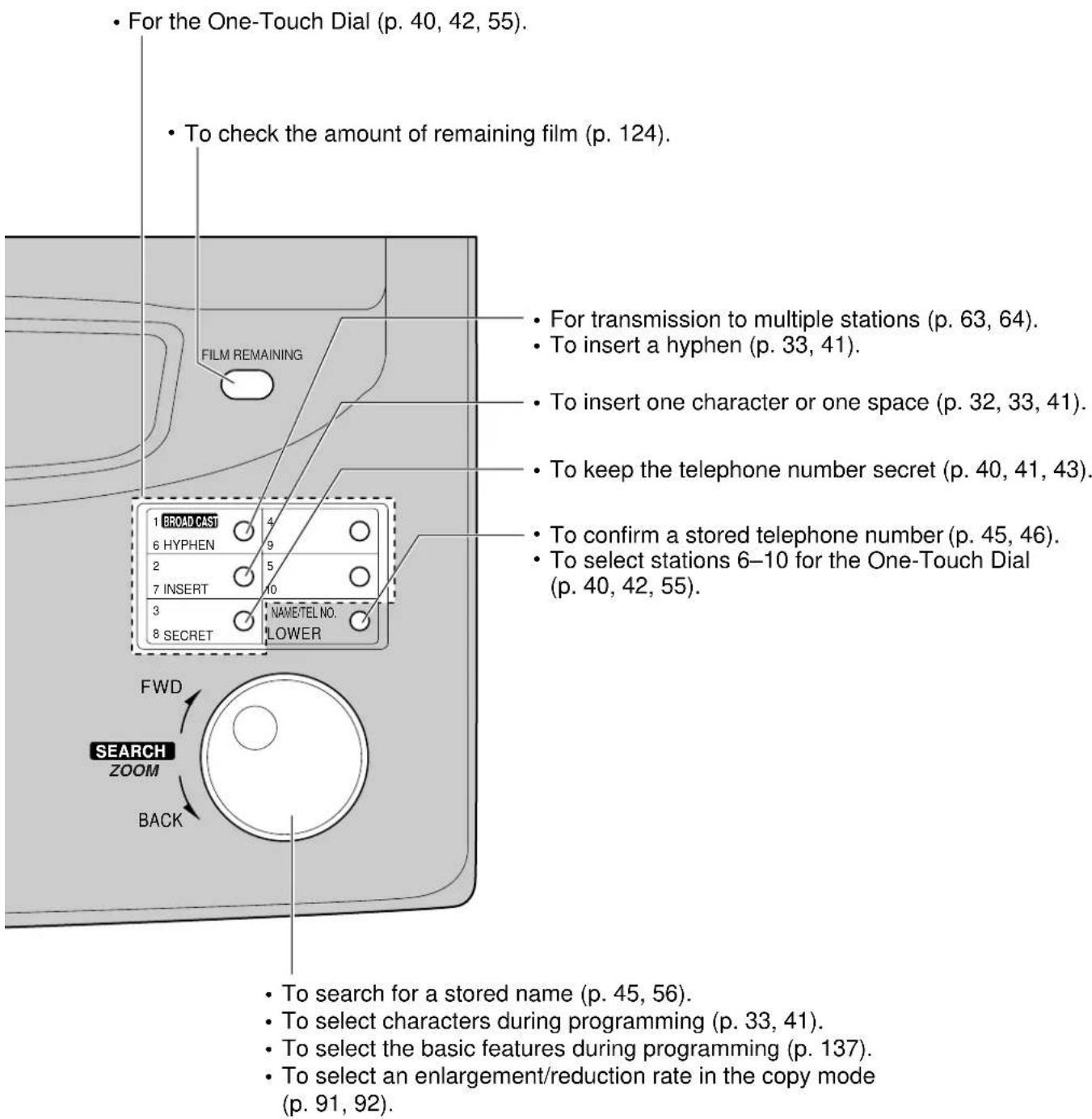
Finding the Controls
Location
■ For KX-FP320/KX-FM330
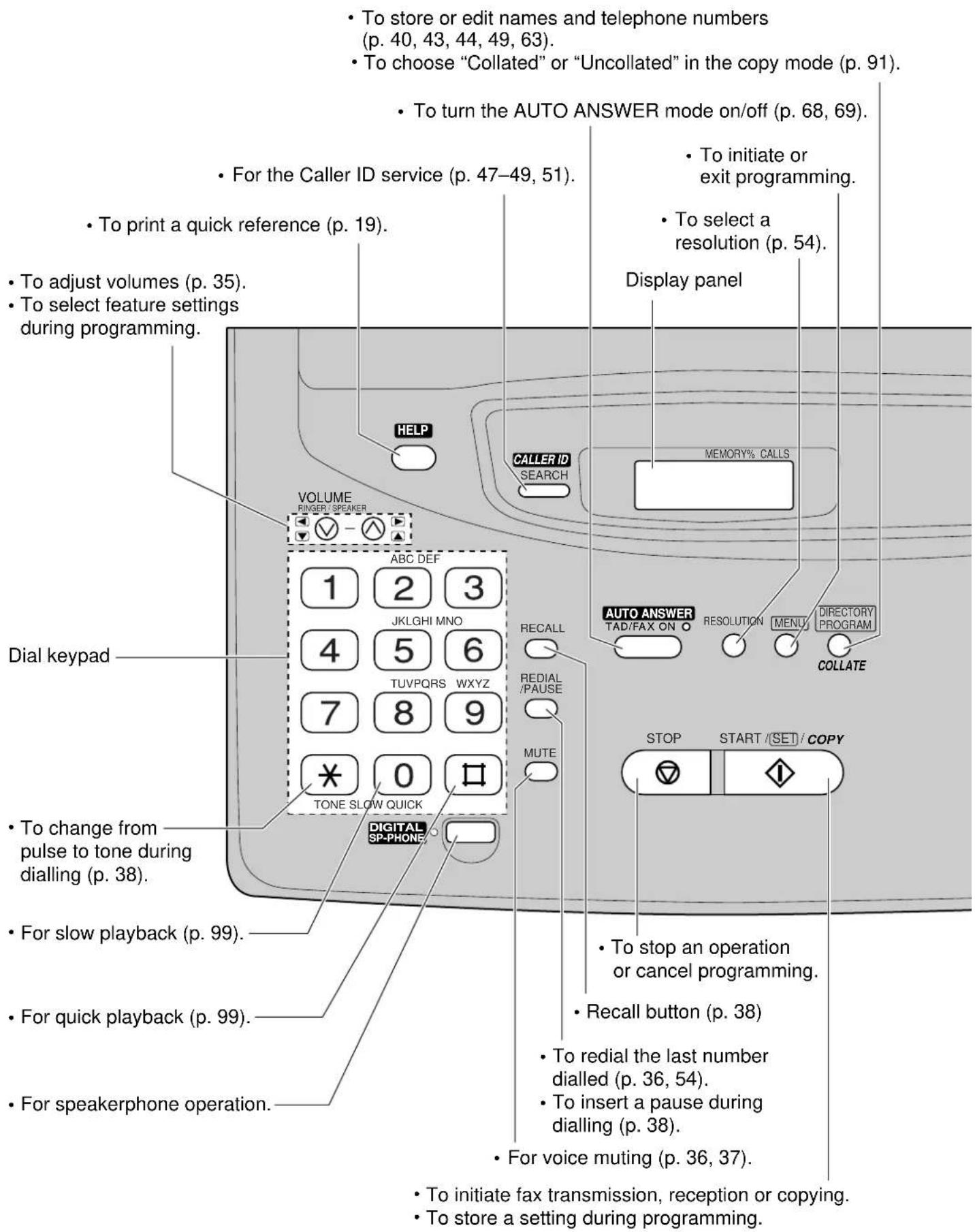
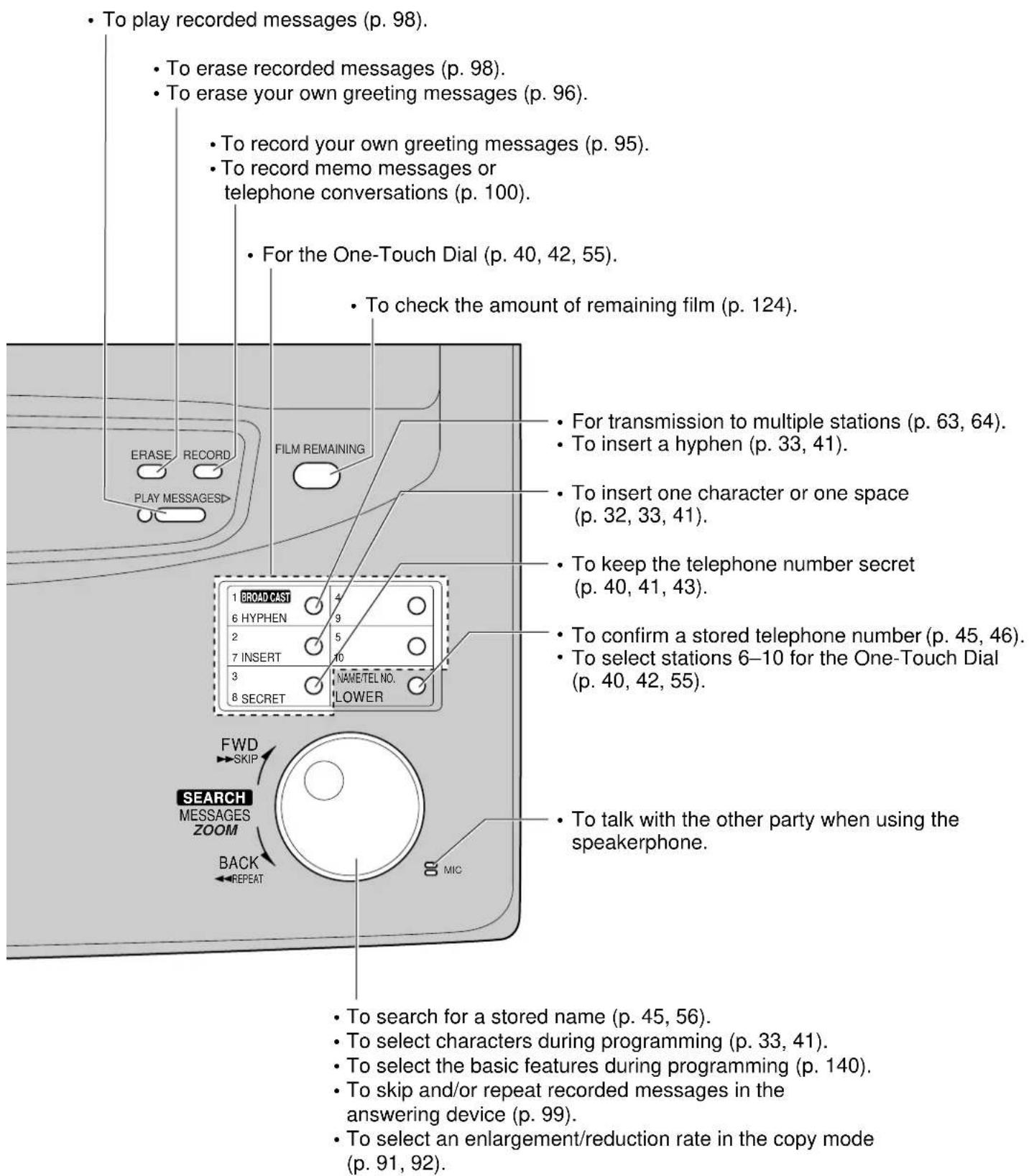
Finding the Controls
Overview
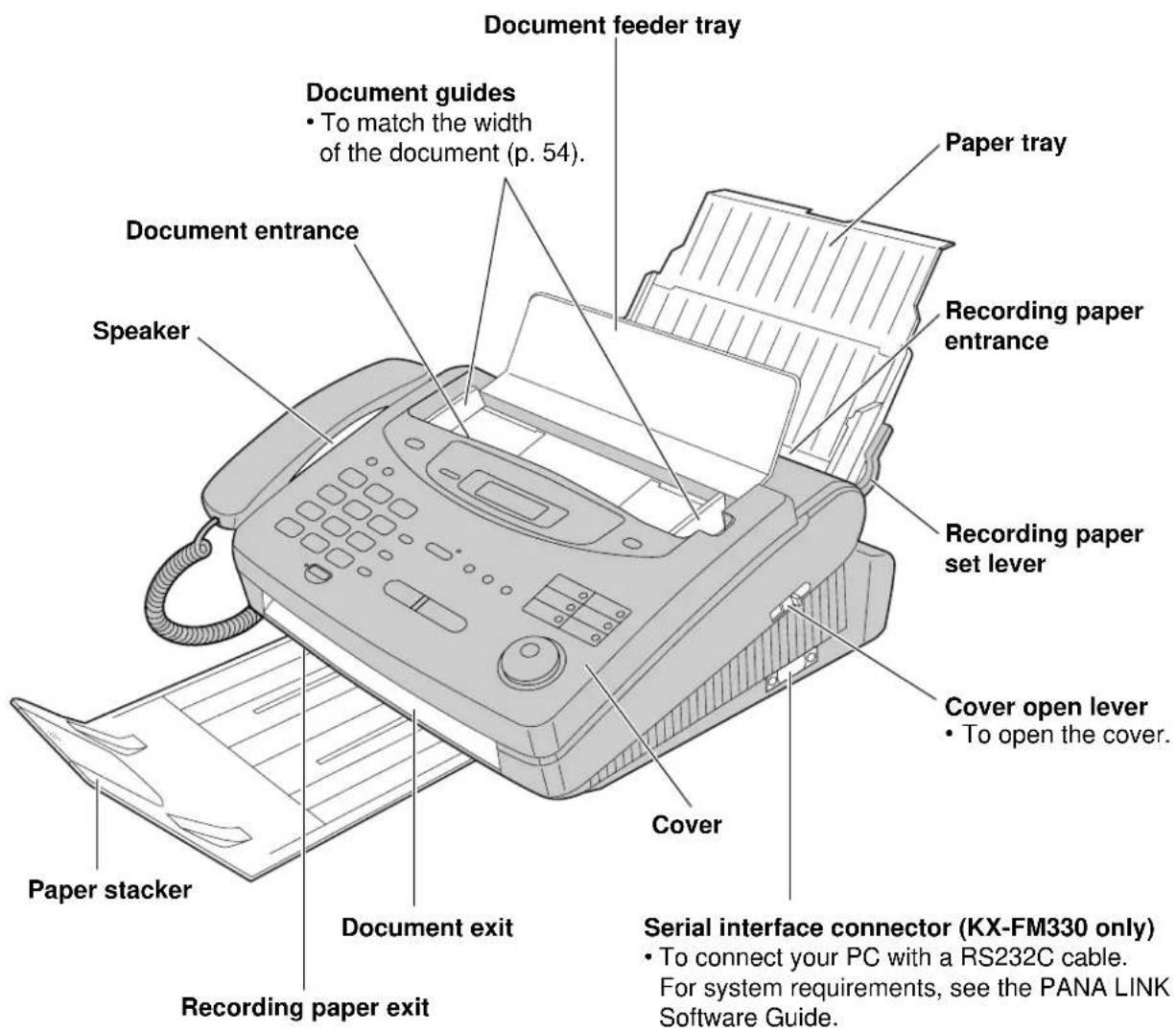
* The pictured model is KX-FP300.
Film cartridge
The free starter film prints about 60 A4 size pages. A normal film roll prints about 310 A4 size pages. Purchase one of the following full size replacement film kits as soon as possible for continuous use of your Panasonic plain paper fax machine.
Full size replacement film kits:
- KX-FA135X Film cartridge Complete kit includes: Film roll, gears and cartridge. (Prints about 310 A4 size pages.)
- KX-FA136X Replacement film Two replacement film rolls only. Use these film rolls to refill the cartridge. (Both rolls print a total of about 620 A4 size pages.)
Caution:
- The film can only be used once. When the unit displays "FILM EMPTY", refill or replace the cartridge. If the film is rewound, the print quality will be greatly reduced, and the unit may jam.
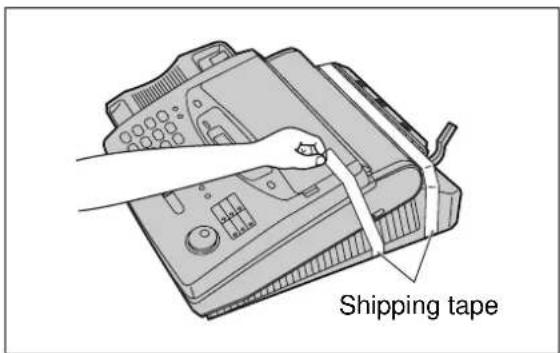
1 Remove the shipping tape from the unit.
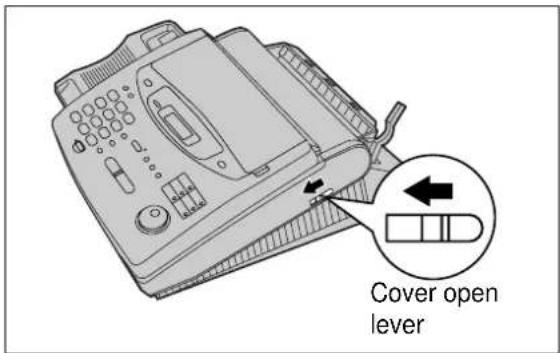
2 Slide the cover open lever forward.
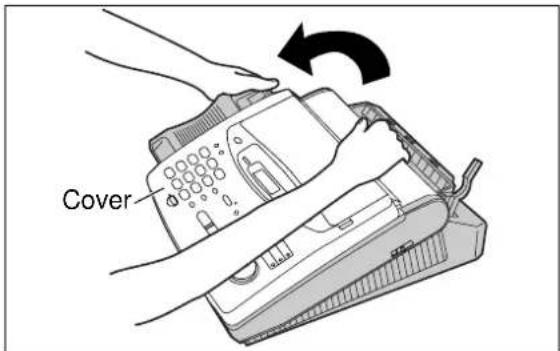
3 The cover is under tension to improve print quality. Pull up hard enough to open.
(continued)
Setup
4 Lift out the film cartridge and remove the leaflet from the unit.
5 If the film in the film cartridge is slack, tighten it by winding the bottom side gears.
6 Install the film cartridge into the unit.
7 Make sure that the blue label on the cartridge matches the one on the unit.
8 Close the cover securely by pushing down on the dotted area on each side.
natural_image
Line drawing of a hand inserting a telephone into a device (no text or symbols present)Paper stacker
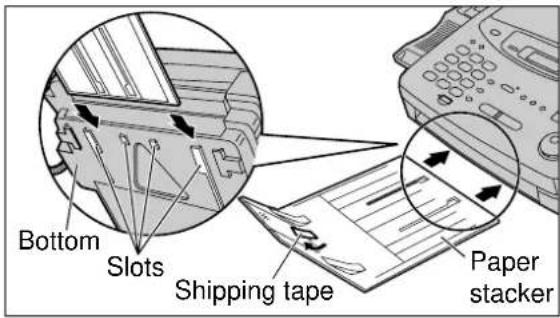
1 Remove the shipping tape from the paper stacker.
2 Lift the front of the unit and insert the paper stacker into the slots.
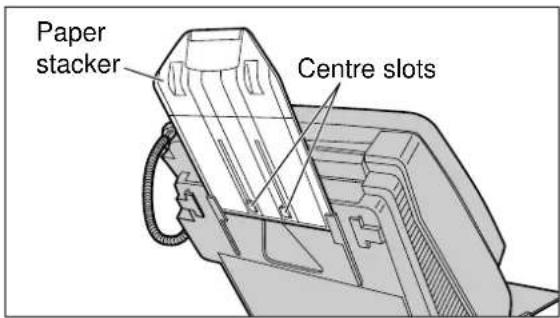
3 Check that the paper stacker is locked into the centre slots.
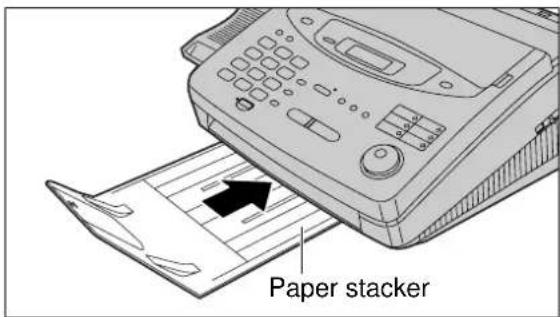
4 Slide the paper stacker until it stops.
Setup
Paper tray
1 Open the paper tray.
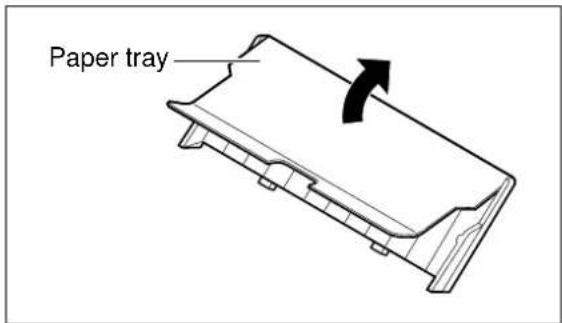
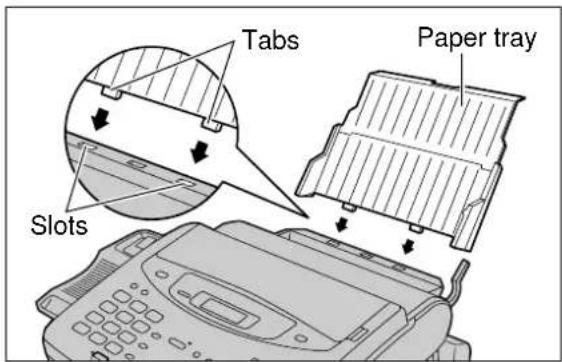
2 Insert the two tabs on the paper tray into the slots on the back of the unit.
- Do not place the unit in areas where the paper tray may be obstructed by a wall etc.
Recording paper
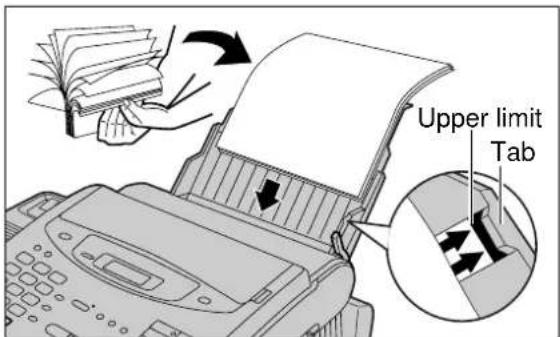
A4 size recording paper can be loaded. The paper tray can hold up to 150 sheets of 75 g/m^2 paper. You may use 60 g/m^2 to 90 g/m^2 paper.
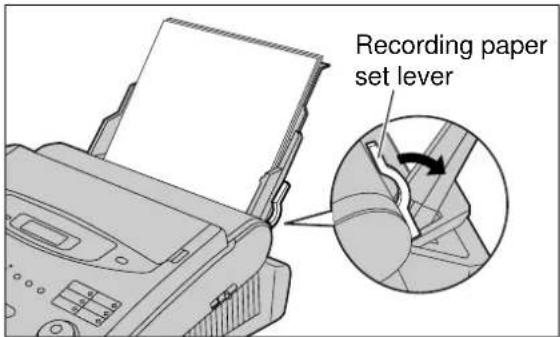
1 Pull the recording paper set lever forward.
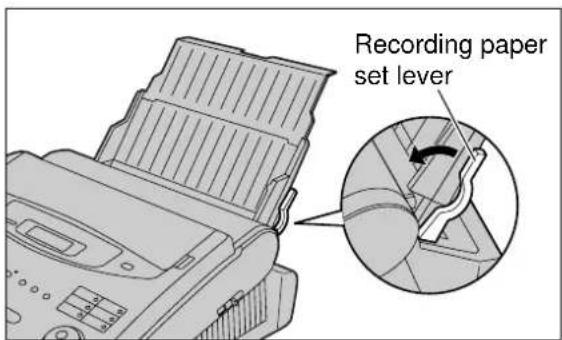
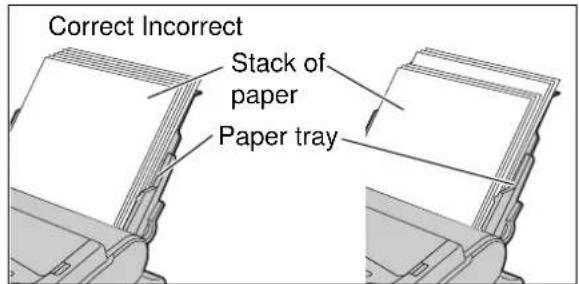
2 Fan the stack of paper to prevent a paper jam and insert the paper into the paper tray.
- The height of the stack of the paper should not exceed the upper limit on the paper tray, otherwise the paper may jam or multi-feed.
• The paper should not be over the tab. - If the paper is not inserted correctly, readjust the paper or the paper may jam.
3 Move the recording paper set lever back.
Note:
- Avoid paper with a cotton and/or fibre content that is over 20%, such as letterhead paper or those used for resumes.
- Do not use different types or thicknesses of paper in the paper tray at the same time. This may cause a paper jam.
- Avoid extremely smooth or shiny paper that is highly textured. Also avoid paper that is coated, damaged or wrinkled.
- Avoid double-sided printing.
- Do not use paper printed from this unit for double-sided printing with other copiers or printers, or the paper may jam.
- Do not reinsert the ejected paper into the recording paper exit.
- Some paper only accepts print on one side. Try using the other side of the paper if you are not happy with the print quality.
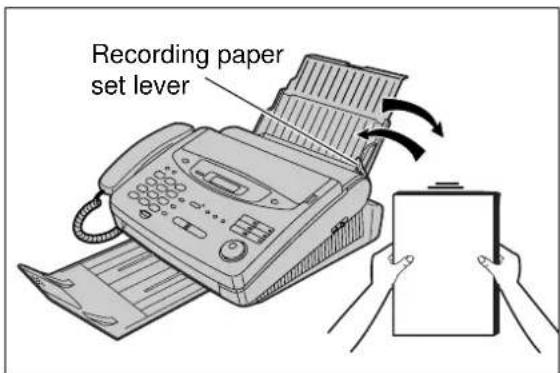
Adding paper to the paper tray
- Pull the recording paper set lever forward.
- The unit will beep and the following message will be displayed.
Display:
CHECK LEVER
- Remove the installed paper.
- Add paper to the removed paper and straighten.
- Fan the stack of paper and insert it into the paper tray.
- Move the recording paper set lever back.
Connections
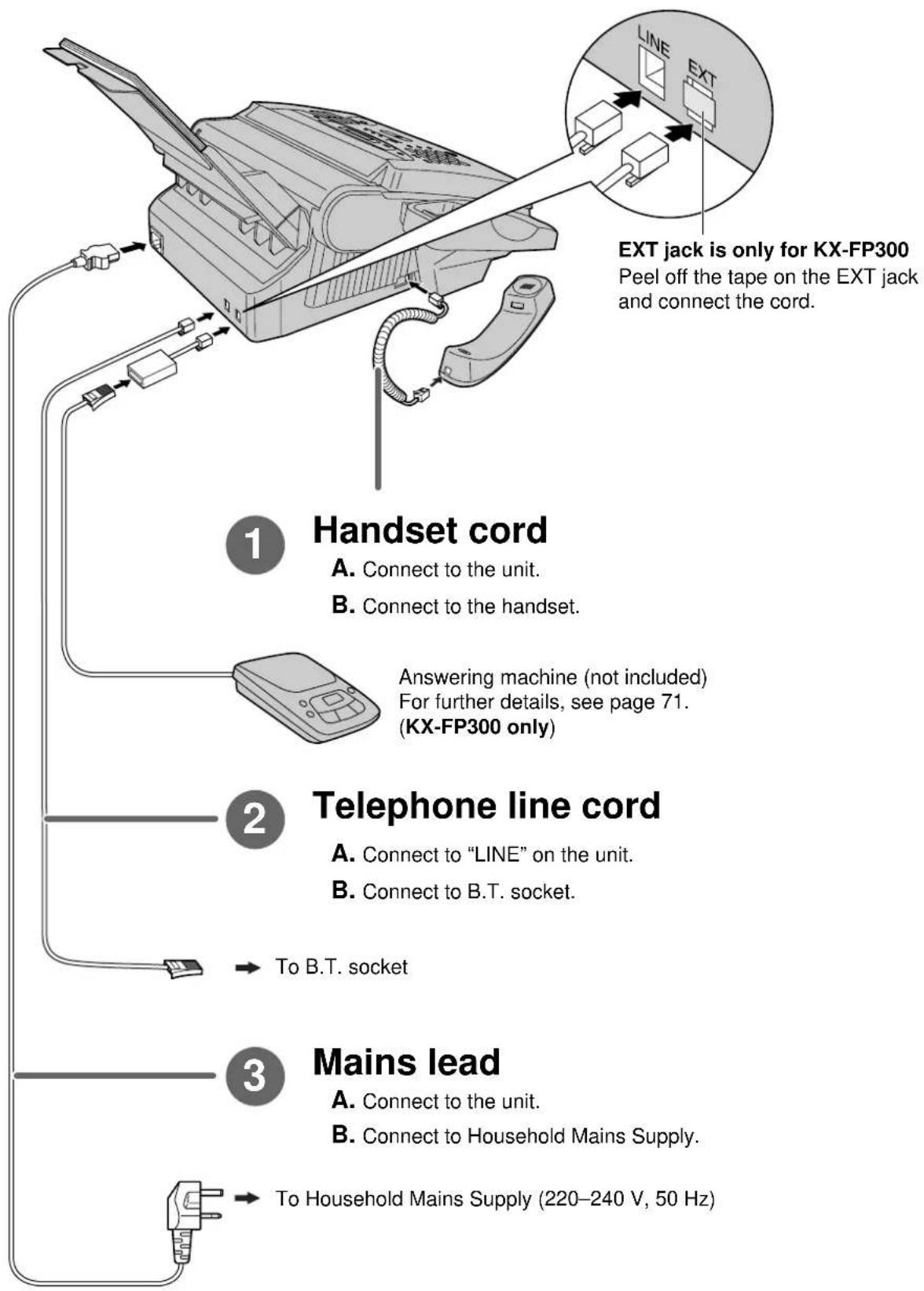
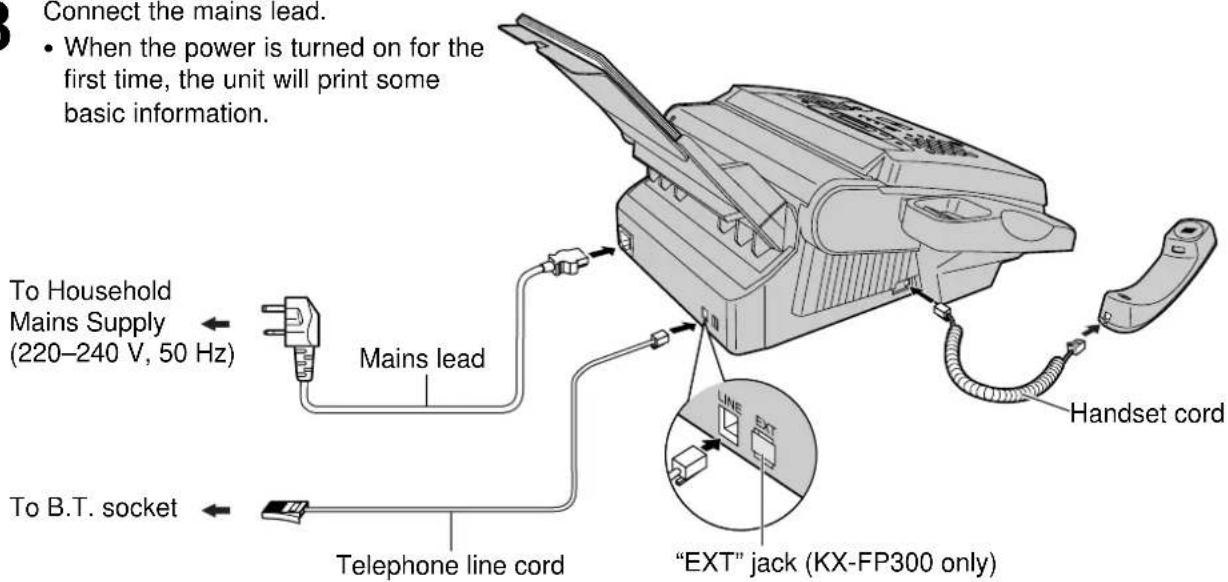
1 Connect the handset cord.
2 Connect the telephone line cord.
2 Connect the mains lead.
- When the power is turned on for the first time, the unit will print some basic information.
Note:
- When you operate this product, the power outlet should be near the product and easily accessible.
- If the following message is displayed when the unit is plugged in, the recording paper set lever will be released.
Display: CHECK LEVER
Move the lever back (see step 3 on page 29).
- Telephone line connection is TNV (Telecommunication Network Voltage).
- KX-FP300 only
You can connect an extension telephone or answering machine to the external telephone jack (EXT) on this unit (p. 71, 83). A voltage drop of 1.15 V at 40 mA will be introduced between the EXT jack and the B.T. socket. If you have difficulty in making a call or experience problems during a telephone conversation, consult your dealer or our service personnel.
Helpful hints when using an extension telephone (KX-FP300 only):
If you connect an extension telephone or answering machine to the facsimile unit, please take note of the following.
- When an extension telephone or answering machine is in use, the facsimile unit will show the following message on the display:
EXT. IN USE
When a call is received and you press the MONITOR button on the facsimile unit, the call is switched to the facsimile unit, and the external device will be disconnected.
- If no sound is heard when you lift the handset of the extension telephone, the facsimile unit is in use.
- In the TEL/FAX mode, only the facsimile unit will ring. You cannot answer a call with the extension telephone.
Date and time, your logo and facsimile telephone number
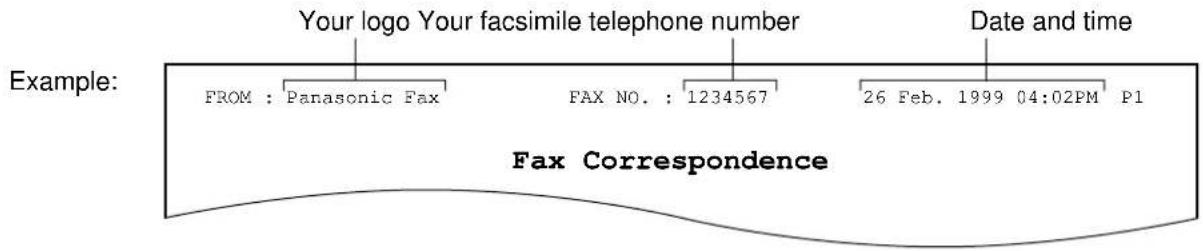
You should program the date and time, your logo and facsimile telephone number. This information will be printed on each page transmitted from your unit.
Setting the date and time
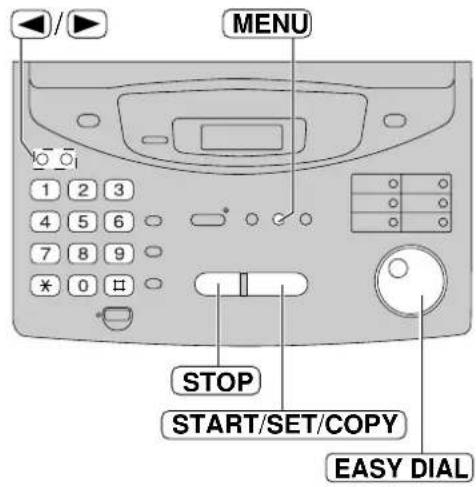
1 Press MENU .
Display: 1.SYSTEM SET UP
2 Press #, the 0n 1
SET DATE & TIME
3 Press START/SET/COPY.
D:01/M:01/Y:99
Cursor
4 Enter the correct day/month/year by selecting each 2 digits using the dial keypad.
6 Enter the correct hour/minute by selecting each 2 digits using the dial keypad.
Press to select "AM" or "PM".
Example: 3:15PM
- Press 0315.
TIME: 03:15AM
- ✉ Press until "PM" is displayed.
TIME: 03:15PM
7 Press START/SET/COPY.
SETUP ITEM [ ]
8 Press MENU.
Note:
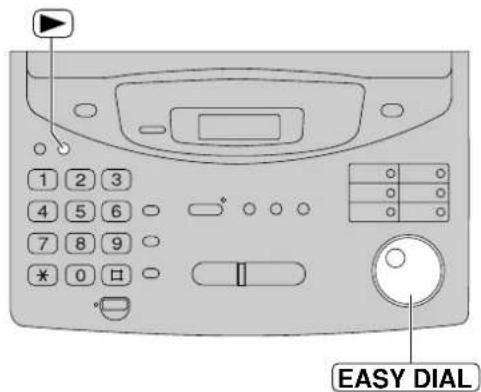
- You can enter the numbers by rotating EASY DIAL in steps 4 and 6. In this case, press ▶move the cursor.
- The accuracy of the clock is approximately ±60 seconds a month.
To correct a mistake
- Press ☐ to move the cursor to the incorrect number, then make the correction.
- If you press STOP while programming, the display will return to the previous one.
Setup
Setting your logo
The logo can be your company, division or name.
1 Press MENU .
Display: 1.SYSTEM SET UP
2 Press ☐, then 2
YOUR LOGO
3 Press START/SET/COPY.
LOGO=
4 Enter your logo, up to 30 characters, using the dial keypad. See next page for details.
Example: Bill
- Press 2 twice.
LOGO=B Cursor
-
Press six times LOGO=Bi
-
Press six times LOGO=Bil
-
Press to move the cursor to the next space and press 5 six times.
LOGO=Bill
5 Press START/SET/COPY.
SETUP ITEM [ ]
6 Press MENU.
Note:
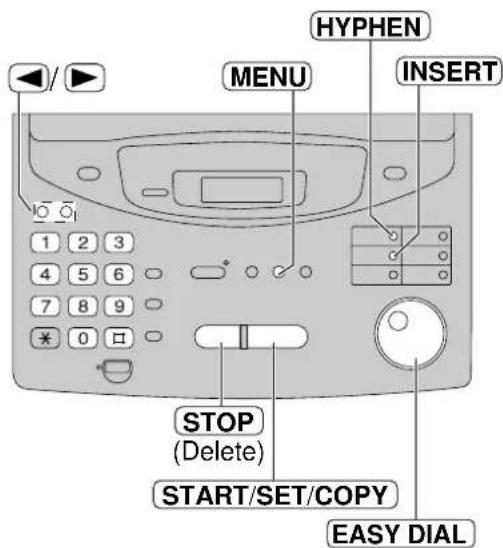
- You can enter characters by rotating EASY DIAL (see next page).
To correct a mistake
- Press 📄 to move the cursor to the incorrect character, then make the correction.
To delete a character
- Move the cursor to the character you want to delete and press STOP
To insert a character
-
Press or to move the cursor to the position to the right of where you want to insert the character.
-
Press (INSERTuch Dial key 2) to insert a space and enter the character.
To select characters with the dial keypad
Pressing the dial keys will select a character as shown below.
 | |
 | 1 [ ] { } + - / = , . _ ` : ; ? | |
 | A B C a b c 2 |
 | D E F d e f 3 |
 | G H l g h i 4 |
 | J K L j k l 5 |
 | M N O m n o 6 |
 | P Q R S p q r s 7 |
 | T U V t u v 8 |
 | W X Y Z w x y z 9 |
 | 0 ( ) < > ! " # $ % & ¥ * @ ^ ' → |
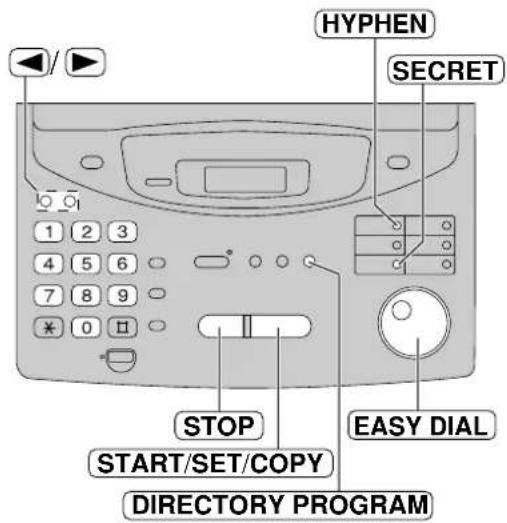
 | HYPHEN key (To insert a hyphen.) |
 | INSERT key (To insert one character or one space.) |
 | Delete key (To delete a character.) |
 | ◀ key (To move the cursor to the left.) |
 | ▶ key (To move the cursor to the right.)To enter another character using the same number key, move the cursor to the next space. |
To select characters using the EASY DIAL
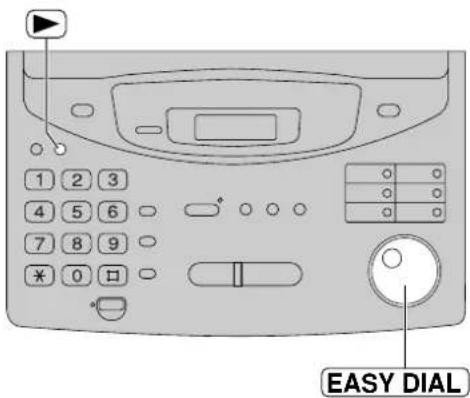
Instead of pressing the dial keys, you can select characters using the EASY DIAL.
- Rotate UASHEDIled character is displayed.
- Press to move the cursor to the next space. • The character displayed in step 1 is inserted.
- Return to step 1 to enter the next character.
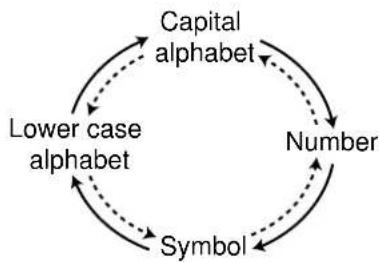
Display order of characters
flowchart
graph TD
    A["Lower case alphabet"] --> B["Symbol"]
    B --> C["Number"]
    C --> D["Capital alphabet"]
    D -.-> A
→ : Rotating to the right
---: Rotating to the left
SetupSetup
Setting your facsimile telephone number
1 Press MENU .
Display: 1.SYSTEM SET UP
2 Press ☐, the ☐ 3
YOUR FAX NO.
3 Press START/SET/COPY
NO.=
4 Enter your facsimile telephone number, up to 20 digits, using the dial keypad.
Example: NO.=1234567
5 Press START/SET/COPY.
SETUP ITEM [ ]
6 Press MENU.
Note:
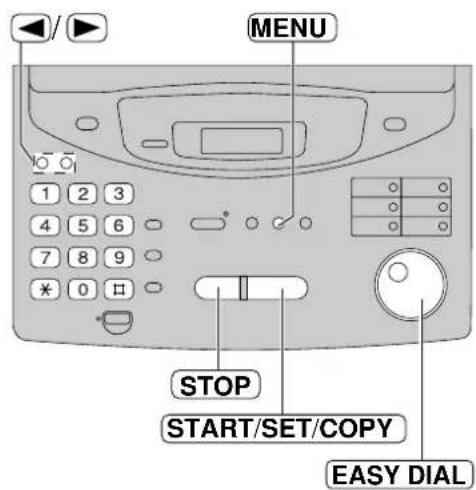
- You can enter your facsimile telephone number by rotating EASY DIAL press EASY DIAL
▶ to move the cursor.
- The button replaces the digit with a "+" and the button replaces it with a space.
Example (using the dial keypad): +234 5678
Press *2435□6□78.
To correct a mistake
- Press 🔍 to move the cursor to the incorrect number, then make the correction.
To delete a number
- Move the cursor to the number you want to delete and press STOP
Adjusting volumes
Ringer volume
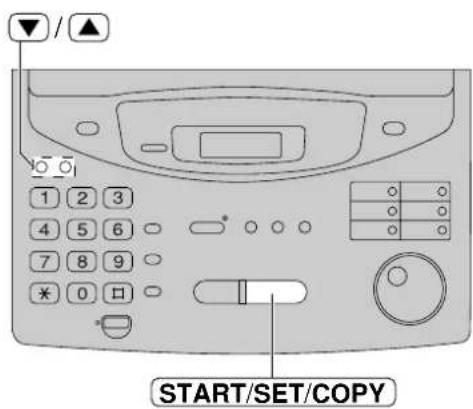
4 levels (high/middle/low/off) are available. While the unit is idle, press ▼ or ▲.
■ To turn the ringer off:
- Press repeatedly until the following message is displayed.
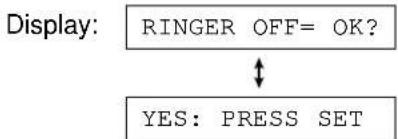
flowchart
graph TD
    A["RINGER OFF= OK?"] --> B{↓}
    B --> C["YES: PRESS SET"]
- Press START/SET/COPY.
• To turn the ringer back on, press ▲
■ While the ringer volume is set to off:
The display will show the following message.
RINGER OFF
When a call is received, the unit will not ring and will display the following.
INCOMING CALL
Monitor/Speaker volume
8 levels (high to low) are available.
While using the monitor/speakerphone, press ▼ or ▲.
Fax voice guidance volume
(KX-FP320/KX-FM330 only)
9 levels (high to off) are available.
While listening to the fax voice guidance, press ▼ or ▲.
Answering device volume
(KX-FP320/KX-FM330 only)
9 levels (high to off) are available.
While listening to the recorded messages, press ▼ or ▲.
Making and Answering Calls
Voice calls - making
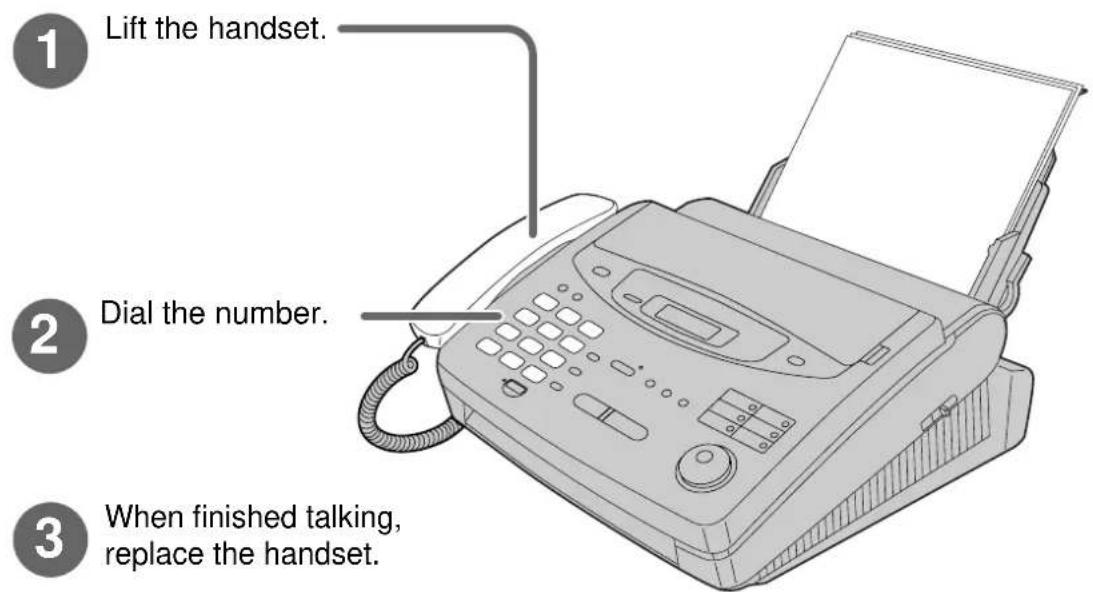
1 Lift the handset.
Display:
TEL=
Dial the telephone number.
Example:
TEL=2345678
- If you misdial, hang up and dial again.
3 When the other party answers, speak with the handset.
4 When finished talking, replace the handset.
Helpful hints:
- For KX-FP300
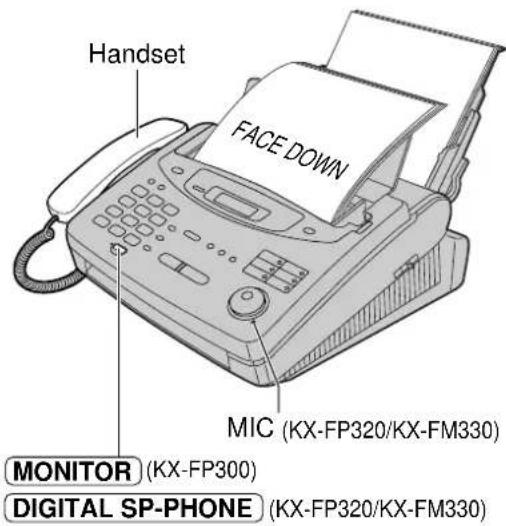
You can press MONATOR lifting up the handset in step 1.
Use the handset when the other party answers.
• For KX-FP320/KX-FM330
You can press DIGITAL SP PHONE the handset.
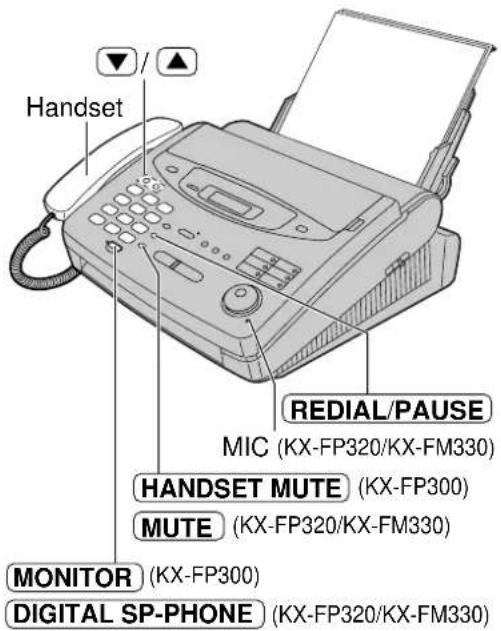
To redial the last number
-
Lift the handset.
-
Press REDIAL/PAUSE.
-
When the other party answers, speak with handset.
- If the line is busy when using the MONITOR DIGITAL SP-PHONE button, the unit will automatically redial the number up to 3 times.
- During redial, the following will be displayed.
Display:
WAITING REDIAL
Hints for the speakerphone operation (KX-FP320/KX-FM330 only)
- Use the speakerphone in a quiet room. - that you have difficulty hearing the other party, adjust the volume using ⬇.
- If you and the other party speak at the same time, parts of your conversation will be cut off.
- To switch to the handset, lift the handset. To switch back to the speakerphone, press DIGITAL SP-PHONE.
To mute your voice to the other party
- Press HANDSETMUTE MUTE
conversation using the handset.
Display:
- The other party cannot hear you, but you can hear them.
- To resume the conversation, press HANDSET MUTE MUTE again.
• For KX-FP320/KX-FM330
You can also mute your voice to the other party when using DIGITAL SP-PHONE.
Voice calls - answering
1 When the unit rings, lift the handset.
2 When finished talking, replace the handset.
Helpful hint:
- You can press DIGITAL/SPEPIONE the handset (KX-FP320/KX-FM330 only).
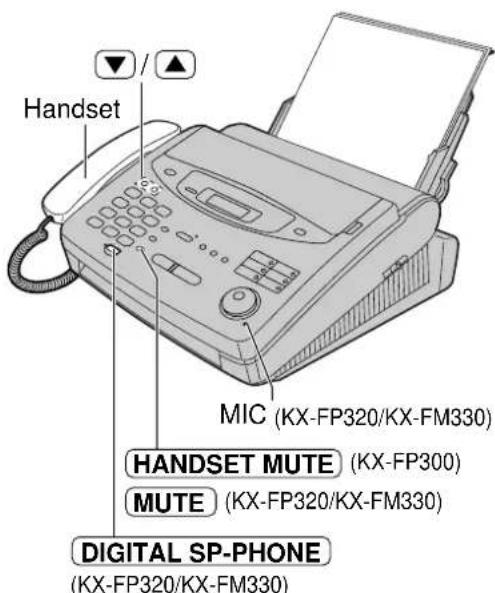
To mute your voice to the other party
- Press HANDSETMUTE MUTE conversation using the handset.
Display:
- The other party cannot hear you, but you can hear them.
- To resume the conversation, press HANDSET MUTE MUTE again.
- For KX-FP320/KX-FM330 You can also mute your voice to the other party when using DIGITAL SP-PHONE.
Hints for the speakerphone operation (KX-FP320/KX-FM330 only)
- Use the speakerphone in a quiet room.
- If you have difficulty hearing the other party, adjust the volume using ⬇.
- If you and the other party speak at the same time, parts of your conversation will be cut off.
- To switch to the handset, lift the handset. To switch back to the speakerphone, press DIGITAL SP-PHONE.
Making and Answering Calls
TONE, RECALL and PAUSE buttons
Temporary tone dialling
If your line has rotary service, pressing TONE * allows you to change the dialling mode temporarily into tone. Then you can dial the numbers or codes needed to operate the answering system or to use electronic banking services and other special services. When you hang up, the dialling mode returns to pulse automatically.
RECALL button (to use the recall feature)
RECALL is used to access special telephone services (optional) such as call waiting. Contact your telephone company business office for details.
Example: British Telecom call waiting
- Ensure that you have set the RECALL MODE to T_BR (Time Break Recall). See page 131.
- If the call waiting tone is heard during a conversation, press .RECALL
- When the dial tone is heard, dial 2 • The first call is put on hold and you can talk to the second party.
If your unit is connected to a PBX, pressing RECADU to access some features of your host PBX such as transferring an extension call.
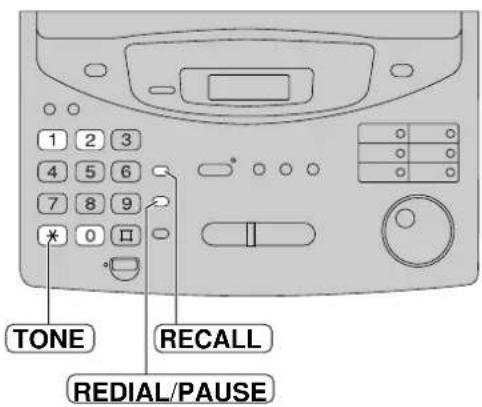
Note:
- TONE, RECALL and PAUSE can be stored into a telephone number in the One-Touch Dial and the EASY DIAL directory.
- ■ To keep the present call and return to the first call: Press RECAIla . 2
■ To hang up the first call:
Press REOADA . 0
■ To hang up the present call and return to the first call:
Press RECAdla . 1
PAUSE button (for PBX users)
If your unit is connected to a PBX, you need to dial an access number (usually 9) to get an outside line. In this case, inserting a pause between the access number and the telephone number is necessary, especially when redialling or storing the number into memory. Pressing REDIAL PAUSE delay in the dialling sequence.
Example 1:
If your unit is connected to a host exchange, insert a pause to get an outside line.
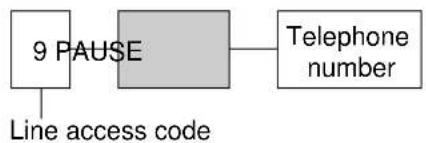
flowchart
graph LR
    A["9 PAUSE"] --> B["Line access code"]
    B --> C["Telephone number"]
Example 2:
If a transmission error occurs during an overseas transmission, add two pauses at the end of the telephone number.

flowchart
graph LR
    A["International access code"] --> B["Country code"]
    B --> C["Telephone number"]
    C --> D["PAUSE"]
    D --> E["PAUSE"]
Dialling mode
(touch tone or pulse)
This feature is set to "TONE" as a pre-selected setting.
If you cannot dial, change the dialling mode setting to "PULSE" by following the instructions below.
1 Press MENU
Display: 1. SYSTEM SET UP
2 Press ☐, then ☐ 3
DIALING MODE
3 Press START/SET/COPY.
MODE=TONE ▼▲
4 Press ▼ to select the desired setting.
5 Press START/SET/COPY.
SETUP ITEM [ ]
6 Press MENU.
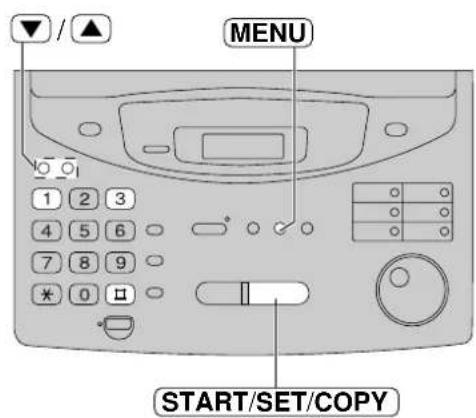
Storing names and telephone numbers in the One-Touch Dial
The unit's memory allows you to use the One-Touch Dial for rapid access to your most frequently dialled numbers. 10 stations are available.
- The One-Touch Dial key 1 can be used as One-Touch Dial key 1 (DIAL MODE) or as a broadcast key (BROADCAST). Both functions cannot be used at the same time. For the broadcast function, see pages 63 and 64.
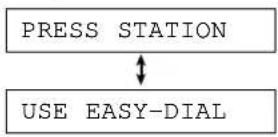
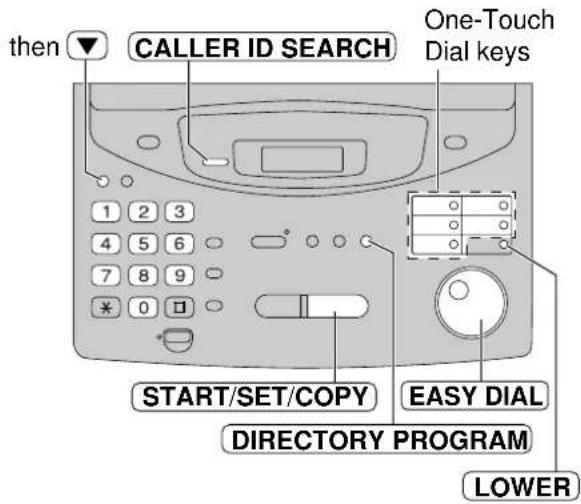
1 Press DIRECTORY PROGRAM.
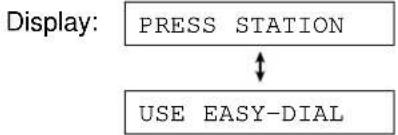
flowchart
graph TD
    A["PRESS STATION"] <--> B["USE EASY-DIAL"]
For stations 1–5
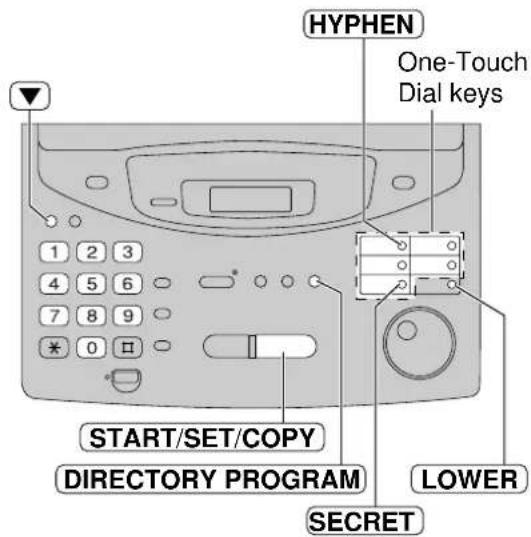
Press one of the One-Touch Dial keys.
- If you select One-Touch Dial 1, select "DIAL MODE" by pressing and press START/SET/COPY to go to the next prompt.
For stations 6–10
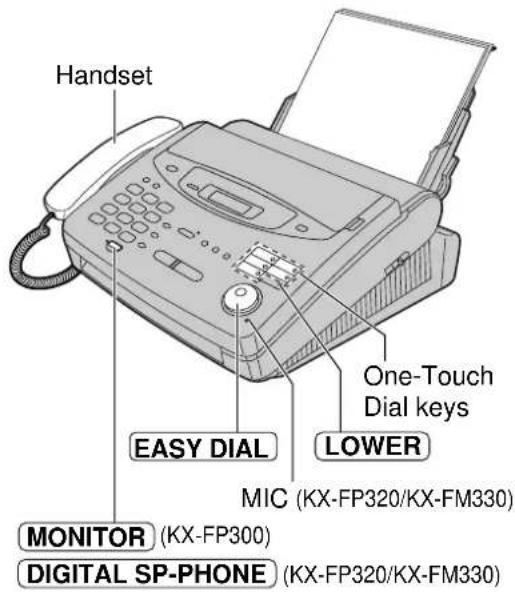
Press LOWER press one of the One-Touch Dial keys.
3 Enter the station name, up to 10 characters, by following the instructions on the next page.
Example: NAME=John
4 Press START/SET/COPY .
Example:
5 Enter the telephone number up to 30 digits.
Example:
- If you want to enter a hyphen, press HYPHEN (One-Touch Dial key 1).
6 Press START/SET/COPY
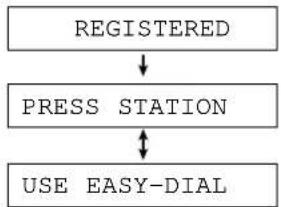
flowchart
graph TD
    A["REGISTERED"] --> B["PRESS STATION"]
    B --> C["USE EASY-DIAL"]
• To program other stations, repeat steps 2 to 6.
7 Press DIRECTORY PROGRAM program.
Helpful hint:
- You can confirm the stored items on the display (p. 45) or on the telephone number list (p. 128).
Note:
- If "DIAL MODE" is not displayed when you select station 1 in step 2, the broadcast function has been set. To use the station as a One-Touch Dial key, press ☑ select "DIAL MODE". The broadcast function will be cancelled.
To keep the telephone number secret
Press (SECRETuch Dial key 3) after entering the telephone number in step 5.
- A secret number cannot be viewed after this is set.
- The telephone number will not appear on the telephone number list.
- Pressing SECRET count as a digit.
To edit a stored station name and number
Enter the desired name in step 3.
Enter the desired number in step 5.
To erase a stored station name and number, see page 44.
To select characters with the dial keypad
Pressing the dial keys will select a character as shown below.
 | |
 | 1 [ ] { } + - / = , . _ ` : ; ? | |
 | A B C a b c 2 |
 | D E F d e f 3 |
 | G H I g h i 4 |
 | J K L j k l 5 |
 | M N O m n o 6 |
 | P Q R S p q r s 7 |
 | T U V t u v 8 |
 | W X Y Z w x y z 9 |
 | 0 ( ) < > ! " # $ % & ¥ * @ ^ ' → |
 | HYPHEN key (To insert a hyphen.) |
 | INSERT key (To insert one character or one space.) |
 | SECRET key (To keep the telephone number secret.) |
 | Delete key (To delete a character.) |
 | ◀ key (To move the cursor to the left.) |
 | ▶ key (To move the cursor to the right.)To enter another character using the same number key, move the cursor to the next space. |
Note:
• A hyphen entered in a telephone number counts as two digits.
To select characters using the EASY DIAL
Instead of pressing the dial keys, you can select characters using the EASY DIAL.
-
Rotate EASMDIAlired character is displayed.
-
Press to move the cursor to the next space.
- The character displayed in step 1 is inserted.
- Return to step 1 to enter the next character.
Display order of characters
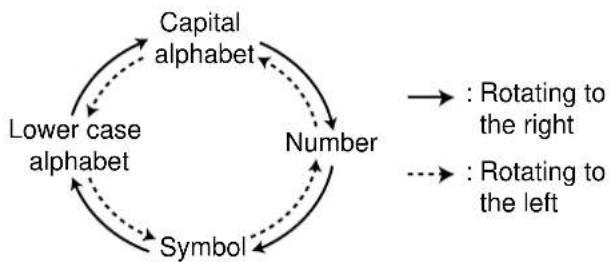
flowchart
graph TD
    A["Number"] --> B["Symbol"]
    B --> C["Lower case alphabet"]
    C --> D["Capital alphabet"]
    D -.-> A
    A -.-> E[": Rotating to the left"]
    E -.-> F[": Rotating to the right"]
One-Touch Dial
Making a voice call using the One-Touch Dial
Before using this feature, program the desired names and telephone numbers into the One-Touch Dial (p. 40).
1 Lift the handset.
Display:
TEL=
- Check that there are no documents in the document feeder tray.
For stations 1–5
Press the desired One-Touch Dial key.
For stations 6–10
Press LOWER press the desired One-Touch Dial key.
Example:
TEL=
3 When the other party answers, speak with the handset.
4 When finished talking, replace the handset.
Helpful hints:
- You can confirm the stored items on the display (p. 45) or on the telephone number list (p. 128).
- You can use the EASY DIAL directory to select the station name instead of using the One-Touch Dial keys. Rotate EASYDIALsired name is displayed, then lift the handset.
- For KX-FP300
You can press MONITOR lifting up the handset in step 1.
Use the handset when the other party answers.
• For KX-FP320/KX-FM330
You can press DIGITAL SR PHONE the handset.
Storing names and telephone numbers in the EASY DIAL directory
For rapid access to frequently dialled numbers, the unit also provides a EASY DIAL directory (100 stations) in addition to the One-Touch Dial.
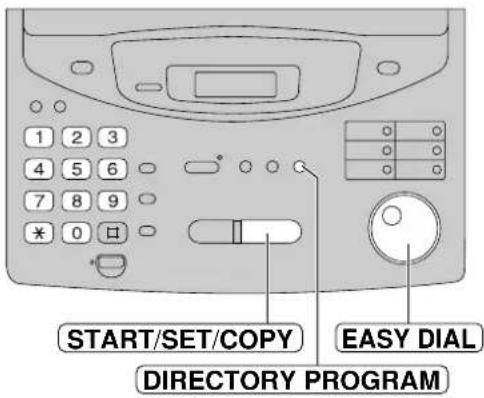
1 Press DIRECTORY PROGRAM.
Display:
PRESS STATION
USE EASY-DIAL
2 Rotate EASYDIALowing is displayed.
NAME=
3 Enter the name, up to 10 characters, by following the instructions on page 41.
Example:
NAME=Alice
4 Press START/SET/COPY.
NO.=
5 Enter the telephone number up to 30 digits.
Example:
NO.=5552233
- If you want to enter a hyphen, press .HYPHEN
6 Press START/SET/COPY.
• To program other items, repeat steps 3 to 6.
7 Press DIRECTORY PROGRAM program.
Helpful hint:
- You can confirm the stored items on the display (p. 45) or on the telephone number list (p. 128).
Note:
- If the following message is displayed in step 6, you can only store 5 items.
Display: SPACE= 5 DIRS.
- If there is no space to store new stations, the following message is displayed in step 1.
DIRECTORY FULL
Edit or erase unnecessary stations (p. 44).
- A hyphen entered in a telephone number counts as two digits.
To correct a mistake
- Press ☑ to move the cursor to the incorrect character, then make the correction.
To delete a character or number
- Move the cursor to the character or number you want to delete and press STOP
To keep the telephone number secret
Press (SECRETCH Dial key 3) after entering the telephone number in step 5.
- A secret number cannot be viewed after this is set.
- The telephone number will not appear on the telephone number list.
- Pressing SECRET count as a digit.
Editing a stored name and number
1 Rotate EASYnDlsired name is displayed.
Example: Mary
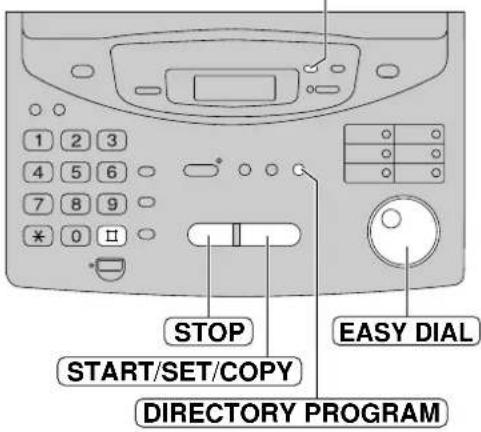
2 Press DIRECTORY PROGRAM.
EDIT=*DELETE=#
3 Press to select "EDIT".
NAME=Mary
- If you do not need to edit the name, skip to step 5.
4 Edit the name by following the instructions on page 41.
5 Press START/SET/COPY.
Example: NO.=0123456
- If you do not need to edit the telephone number, skip to step 7.
6 Edit the telephone number. For further details, see page 43.
7 Press START/SET/COPY.
REGISTERED
Erasing a stored name and number
You can erase a name and number stored in the EASY DIAL directory and One-Touch Dial.
1 Rotate EASYNDAsired name is displayed.
Example: Smith
2 Press DIRECTORY PROGRAM.
EDIT=*DELETE=#
3 Press ☐ select "DELETE".
DELETE OK?

YES: PRESS SET
- If you do not want to erase the item, press STOP.
4 Press START/SET/COPY.
DELETED
• The stored name and number are deleted.
ERASE
(KX-FP320/KX-FM330 only)
Note:
- You can use the following method to erase (KX-FP320/KX-FM330 only).
-
Rotate une Easy Disfired name is displayed.
-
Press ERASE
-
SPART/SET/COPY
Making a voice call using the EASY DIAL directory
Before using this feature, program the desired names and telephone numbers into the directory (p. 43).
1 Rotate EASYnDlsired name is displayed.
Example:
Lisa
2 Lift the handset.
• The unit will start dialling automatically.
DIALING
3 When the other party answers, speak with the handset.
TEL=
4 When finished talking, replace the handset.
Helpful hints:
- You can confirm the stored items on the display (see below) or on the telephone number list (p. 128).
- For KX-FP300
You can press MONITOR lifting up the handset in step 2.
Use the handset when the other party answers.
• For KX-FP320/KX-FM330
You can press DIGITALoSP-PHONE using the handset.
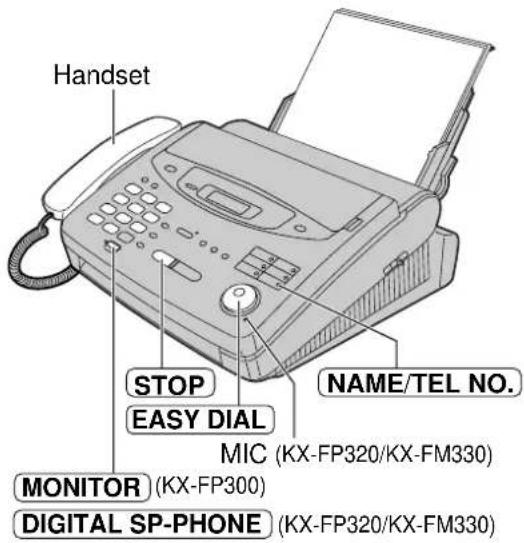
Note:
- If the desired name has not been stored, press STOPal the number manually.
To confirm the stored items on the display
- Rotate EASYDIAlied name is displayed.
Example: Kim
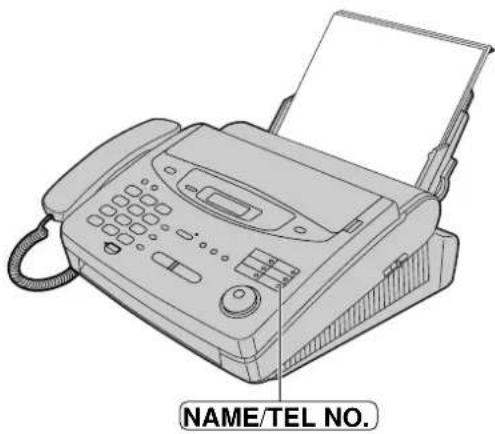
- Press NAME/TEL NO.
4567890
• To stop the operation, press STOP
- Lift the handset.
• The unit will automatically dial the number.
To search for a name by initial
Example: If you want to search for the name "Lisa"
- Rotate BASSYDIALme is displayed.
Example: Alan
- Press repeatedly until any name with the initial "L" is displayed (see the character table on page 41).
Larry
- Rotate tEASYDHAL until "Lisa" is displayed.
Lisa
• To stop the operation, press STOP
- Lift the handset.
- The unit will automatically dial the number.
Note:
- If you want to search for symbols (not letters or numbers), press step 2.
Caller ID service from your phone company
This unit is compatible with a Caller ID service offered by your local telephone company. To use this feature, you must subscribe to a Caller ID service.
Caller ID and its capabilities
Caller ID allows you to view the telephone number or name of the caller before you answer the call. The calling party information (telephone number has priority) will be displayed.
By using Caller ID, you have the option of whether or not to answer the call depending on the caller.
The unit also stores the caller's information and prints a list automatically after every 35 calls (p. 52).
• To print out the Caller ID list manually, see page 128.
Important:
- Depending on the service of the local telephone company, the date/time of the call or caller's name may not be displayed. For further details, contact your local telephone company.
- When you subscribe to a Caller ID service, set the following ring count settings to 2 or more rings:
— FAX ONLY mode ring count (p. 75, 77),
— TEL/FAX delayed ring count (p. 82), and
— TAD/FAX mode ring count (p. 109) (KX-FP320/KX-FM330 only).
How Caller ID is displayed
1 When a call is received, the display will show the caller's telephone number.
Example: 1234567890
2 You can display the caller's number and name respectively by pressing NAME/TEL NO.
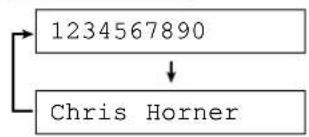
flowchart
graph TD
    A["1234567890"] --> B["Chris Horner"]
3 After hanging up, the caller's information (telephone number, the time of the call and name) will automatically be saved in the Caller ID list (p. 52).
Note:
- If the unit is connected to a PBX system, you may not receive the caller's information. Consult your PBX supplier.
- The Caller ID service is currently provided in calling areas by caller identification technology. If the caller's information cannot be received, the display will show as follows.
Display: OUT OF AREA
The caller dialled from an area which does not provide the Caller ID service.
PRIVATE CALLER
The caller has requested not to send their information.
LONG DISTANCE
The caller made a long distance call.
Viewing the Caller ID list on the display
The unit stores the caller's information and makes a list of up to 35 callers in chronological order. When the memory is full and the unit receives a new call, the oldest data will be automatically erased.
With the Caller ID list, the following convenient features are available.
— Viewing who has called you on the display (See below.)
— Dialling a telephone number from the list (p. 48)
— Storing a telephone number for automatic dialling from the list (p. 49)
— Printing out a Caller ID list (p. 128)
Important:
- Depending on the service of the local telephone company, the date/time of the call or caller's name may not be displayed. For further details, contact your local telephone company.
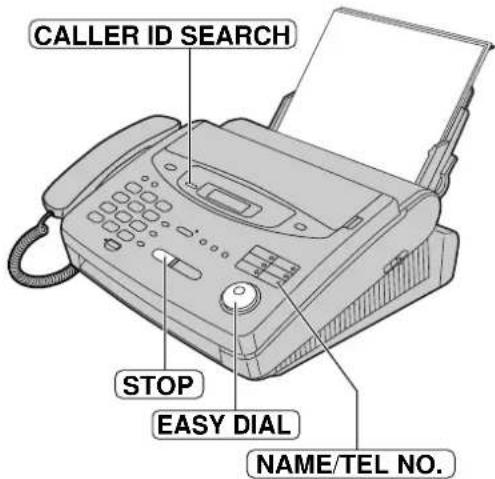
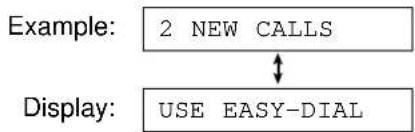
1 Press CALLER ID SEARCH.
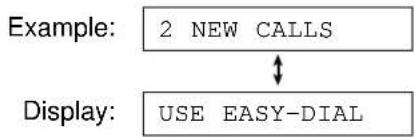
flowchart
graph TD
    A["Example: 2 NEW CALLS"] --> B["Display: USE EASY-DIAL"]
    B --> A
2 Rotate EASYDHAe Caller ID list (see below).
3 If you want to know the date/time of the call and the caller's name, press NAME/TEL NO. repeatedly while the display is showing the desired number.
- The display will alternate the number, date/time and name by pressing NAME/TEL NO.
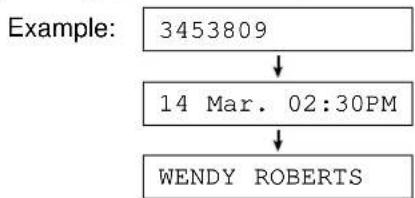
flowchart
graph TD
    A["3453809"] --> B["14 Mar. 02:30PM"]
    B --> C["WENDY ROBERTS"]
Note:
- If the caller's name cannot be received, the following message will be displayed.
Display: NO NAME RCVD
4 Press STOP the Caller ID list.
Ex. When you search from the most recent call/oldest call
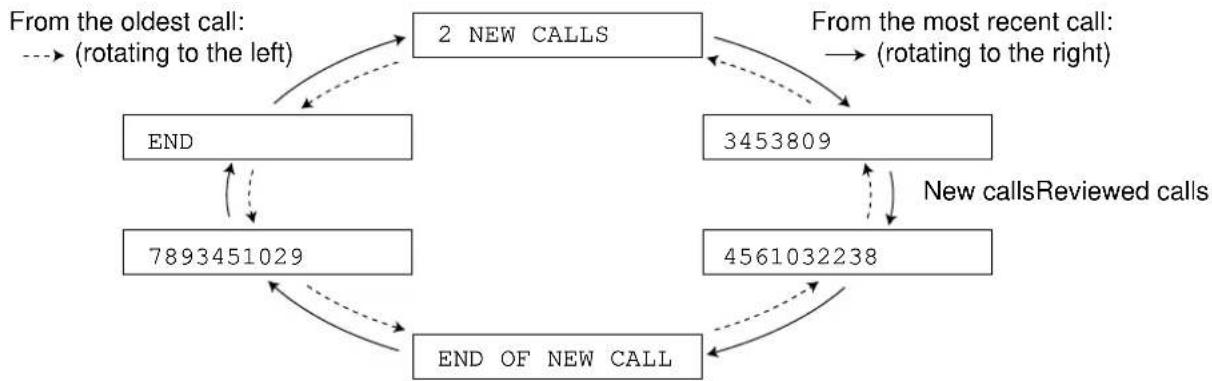
flowchart
graph TD
    A["2 NEW CALLS"] -->|From the oldest call: (rotating to the left)| B["END"]
    B --> C["7893451029"]
    C --> D["END OF NEW CALL"]
    D --> E["4561032238"]
    E --> F["3453809"]
    F --> G["End"]
    G --> A
    style A fill:#f9f,stroke:#333
    style B fill:#ccf,stroke:#333
    style C fill:#cfc,stroke:#333
    style D fill:#fcc,stroke:#333
    style E fill:#cff,stroke:#333
    style F fill:#ffc,stroke:#333
    style G fill:#cfc,stroke:#333
Note:
• To move between calls, rotate EASY DIAL
- The display will show "END OF NEW CALL" after the last new call in the list.
- The display will show "END" after the last call in the list.
- If the display shows "NO CALLER DATA" and a beep sounds, the Caller ID list is empty.
Calling back from the Caller ID list
You can easily call back a telephone number recorded in the Caller ID list.
Important:
• This feature is not available in the following cases.
— The telephone number includes data other than numbers (e.g. or #).
— The telephone number information was not received.
- Depending on the service of the local telephone company, the date/time of the call or caller's name may not be displayed. For further details, contact your local telephone company.
1 Press CALLER ID SEARCH.
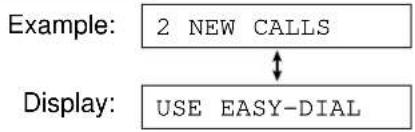
flowchart
graph TD
    A["Example: 2 NEW CALLS"] --> B["Display: USE EASY-DIAL"]
    B --> A
2 Rotate EASYnDlsired telephone number or name is displayed.

3 Lift the handset.
• The unit will automatically dial the number.
4 When finished talking, replace the handset.
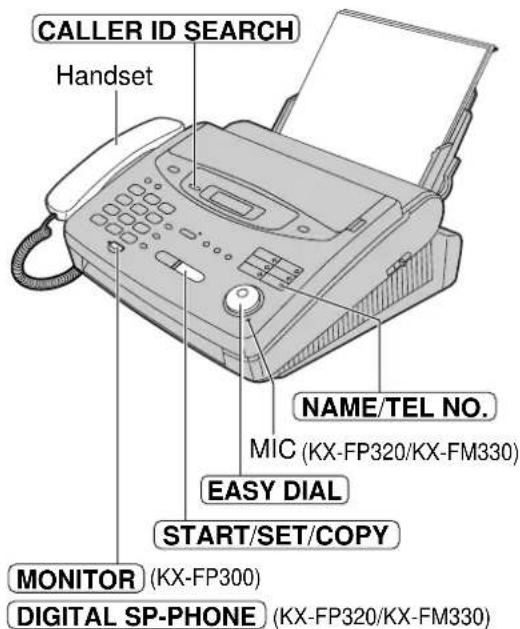
Helpful hints:
- For KX-FP300
You can press MONATOR lifting up the handset in step 3.
Use the handset when the other party answers.
• For KX-FP320/KX-FM330
You can press DIGITAL SP PHONE the handset.
Note:
- You can send a fax by pressing START/SET/COPY with a document on the document feeder tray after step 3.
- If a telephone number is not displayed when pressing (NAME/TEL NO.), you cannot call back that caller.
Storing telephone numbers in the One-Touch Dial and EASY DIAL directory from the Caller ID list
You can store telephone numbers and names in the One-Touch Dial and EASY DIAL directory from the Caller ID list.
Important:
• This feature is not available in the following cases.
— The telephone number includes data other than numbers (e.g. or #).
— The telephone number information was not received.
- Depending on the service of the local telephone company, the date/time of the call or caller's name may not be displayed. For further details, contact your local telephone company.
1 Press CALLER ID SEARCH.
flowchart
graph TD
    A["Example: 2 NEW CALLS"] --> B["Display: USE EASY-DIAL"]
    B --> A
2 Rotate EASYDIALmber you want to store is displayed.

3 Press DIRECTORY PROGRAM.
4 a: To store in the One-Touch Dial memory:
- For station 1, press One-Touch Dial key 1, select "DIAL MODE" by pressing and press START/SET/COPY.
For stations 2–5, press one of the One-Touch Dial keys.
For stations 6–10, press LOWER, press one of the One-Touch Dial keys.

-
Enter the name, up to 10 characters, by following the instructions on page 41.
-
Press START/SET/COPY

- A new entry will overwrite any previous information.
- If you are using One-Touch Dial key 1 as BROADCAST key (p. 63), One-Touch Dial key 1 cannot be used for this feature.
- You can only store a name up to 10 characters long. To edit the number and name, see the instructions on pages 40 and 41.
b: To store in the EASY DIAL directory:
- Rotate EASY DIAL.
Example: NAME=
-
Enter the name, up to 10 characters, by following the instructions on page 41.
-
Press START/SET/COPY
NO.=3453809
- If the directory is full, a number and name cannot be stored.
- You can only store a name up to 10 characters long. To edit the number and name, see the instructions on page 44.
5 Press START/SET/COPY.
REGISTERED
Note:
- You cannot store caller information in the One-Touch Dial and EASY DIAL directory if a telephone number is not displayed.
Erasing a number/name from the Caller ID list =
You can erase all or some of the entries in the Caller ID list.
Erasing all callers' information
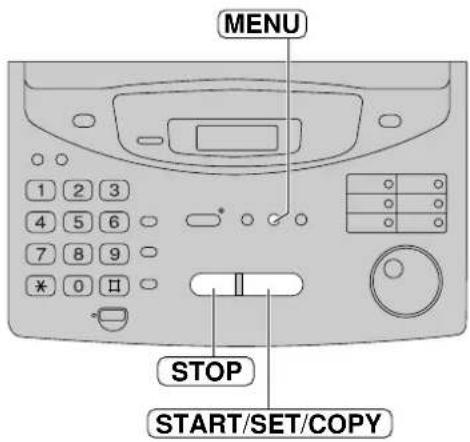
1 Press tMENUmes.
Display: 3.CALLER SET UP
2 Press START/SET/COPY.
CALL LIST ERASE
3 Press START/SET/COPY.
ALL ERASE OK?
- If you do not want to erase the information, press STOP.
4 Press START/SET/COPY
ERASE COMPLETED
5 Press STOP the program.
Erasing a specific caller's information (KX-FP320/KX-FM330 only)
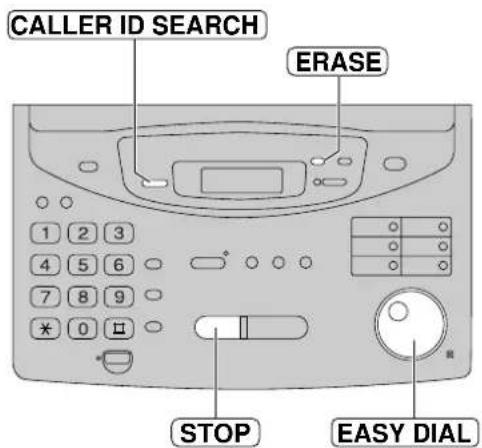
1 Press CALLER ID SEARCH.
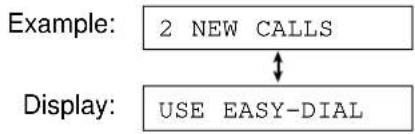
flowchart
graph TD
    A["Example: 2 NEW CALLS"] --> B["Display: USE EASY-DIAL"]
    B --> A
2 Rotate EATSHDIASired number is displayed.

3 Press ERASE.
• The caller's information will be erased.
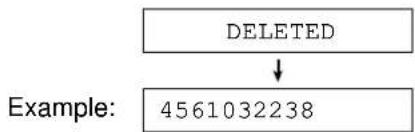
flowchart
graph TD
    A["DELETED"] --> B["Example: 4561032238"]
- To erase other callers' information, repeat steps 2 to 3.
4 Press STOR the program.
Automatic Caller ID list
This feature will print a Caller ID list automatically after every 35 new calls.
After printing, only the oldest caller information will be erased when a new call is received.
When this feature is turned off, the unit will store the records of caller information, but will not print the Caller ID list automatically.
Important:
- Depending on the service of the local telephone company, the date/time of the call or caller's name may not be displayed. For further details, contact your local telephone company.
1 Press MENU
Display: 1.SYSTEM SET UP
2 Press ☐, then ☑ 6
AUTO CALL. LIST
3 Press START/SET/COPY.
MODE=ON ▼▲
4 Press ▼ to select the desired setting.
- If this feature is not required select "OFF".
5 Press START/SET/COPY
SETUP ITEM [ ]
6 Press MENU.

Sample of a Caller ID list
| CALLER ID LIST | 04 Jan. 1999 04:37PM | |||
| 【NEW】 | ||||
| NO. | NAME | TELEPHONE NUMBER | TIME OF CALL | ANSWER |
| 01 | WENDY ROBERTS | 3453809 | 04 Jan. 02:35PM | FAX |
| 02 | 4561032238 | TAD | ||
| 【OLD】 | ||||
| NO. | NAME | TELEPHONE NUMBER | TIME OF CALL | ANSWER |
| 01 | 7893451029 | TEL | ||
Note:
- The NAME/TELEPHONE NUMBER/TIME OF CALL information is received through a Caller ID service.
• ANSWER: How the call was received by the unit.
— TEL: Telephone
— FAX: Facsimile
— TAD: Telephone answering device (KX-FP320/KX-FM330 only)
— PC: Received by the PC (KX-FM330 only)
If the unit did not respond to the call, the ANSWER column will be blank.
- You can also print a Caller ID list manually (p. 128).
Talking to the caller after fax transmission or reception
You can have a conversation with the same call after the fax message is completed. This will save the added expense and time of making another call.
This feature only works when the other party's fax machine is equipped with a voice contact feature.
Initiating voice contact
1 Press MONITOR / DIGITAL SP/PHONE transmitting or receiving documents.
Display:
VOICE STANDBY
- Your unit will call the other party with a distinctive ring.
- When the other party answers, your unit will emit a distinctive ring.
2 Lift the handset to start talking.
Helpful hint:
- You can press DIGITALoSPTPHONE up the handset in step 2 (KX-FP320/KX-FM330 only).
Note:
- If you initiate voice contact during transmission, the unit will call you with a distinctive ring after all of the documents have been transmitted.
- If you initiate voice contact during reception, the unit will call you with a distinctive ring after the current page of the document is received.
Receiving a request for voice contact
1 If the other party initiates voice contact, your unit will sound a distinctive ring and the following will be displayed.
Display:
PLEASE PICK UP
2 Lift the handset within 10 seconds of the distinctive ring to start talking.
Helpful hint:
- You can press DIGITALO/SPHONE up the handset in step 2 (KX-FP320/KX-FM330 only).
Note:
- If you do not answer within 10 seconds of the distinctive ring;
— If in the FAX ONLY, TEL or TEL/FAX mode, the line will be disconnected.
— If in the TAD/FAX mode, your unit will play a greeting message and record an incoming voice message (KX-FP320/KX-FM330 only).
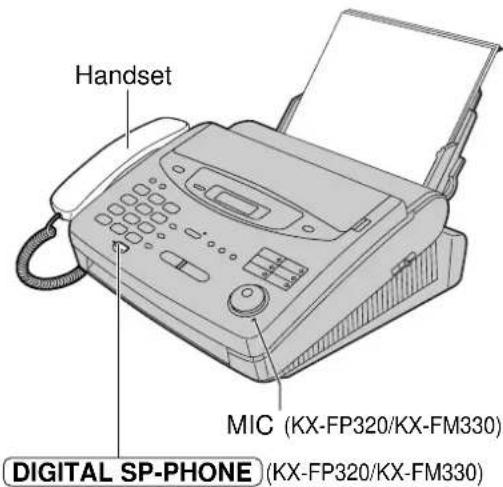
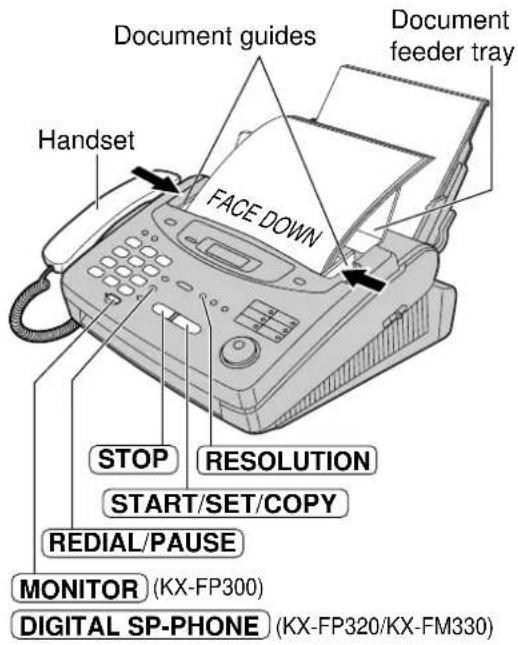
Sending a fax manually
1 Open the document feeder tray.
2 Adjust the width of the document guides to the size of the document.
3 Insert the document (up to 15 pages) FACE DOWN until the unit grabs the document and a single beep is heard.
Display: STANDARD
4 If necessary, press RESOLUTION select the desired setting (see below).
5 Lift the handset or press MONITOR DIGITAL SP-PHONE. (This step is optional. See note.).
TEL=
6 Dial the fax number.
Example: TEL=5678901
7 When a fax tone is heard: Press START/SETCOPY
handset if using it. OR
When the other party answers your call:
Lift the handset if using the monitor and ask them to press their start button. When a fax tone is heard, press STARTSETCOPY handset.
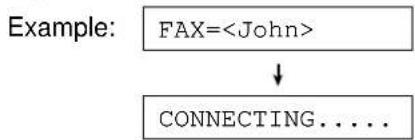
CONNECTING.....
Note:
- If you cannot send a fax, confirm the problem by printing a journal report (p. 128) and see page 112 to solve the problem.
- Performing step 5 allows you to identify any possible problems in sending a fax. For the parties with whom you have experienced no problems, you can skip step 5. Dial the fax number and press START/SET/COPY
To feed more than 15 pages at a time
Insert the first 15 pages of the document. Add the extra pages (up to 15) before the last page is fed into the unit.
To redial the last number
Press REDIAL/PAUSE.
- If the line is busy, the unit will automatically redial the number up to 3 times.
- During redial, the following will be displayed.
Display: WAITING REDIAL
• To cancel redialling, press STOP
To stop transmission
Press STOP.
To eject the document, press STOP.
To select the resolution
Select the desired resolution according to the type of document.
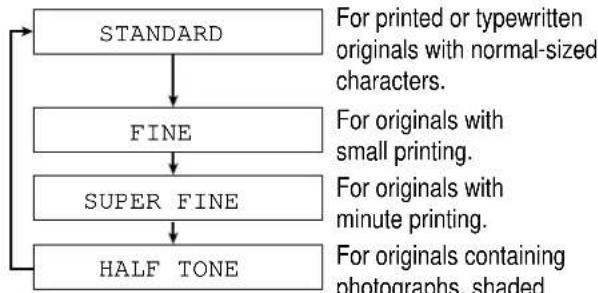
flowchart
graph TD
    A["STANDARD"] --> B["FINE"]
    B --> C["SUPER FINE"]
    C --> D["HALF TONE"]
    style A fill:#f9f,stroke:#333
    style B fill:#ccf,stroke:#333
    style C fill:#cfc,stroke:#333
    style D fill:#fcc,stroke:#333
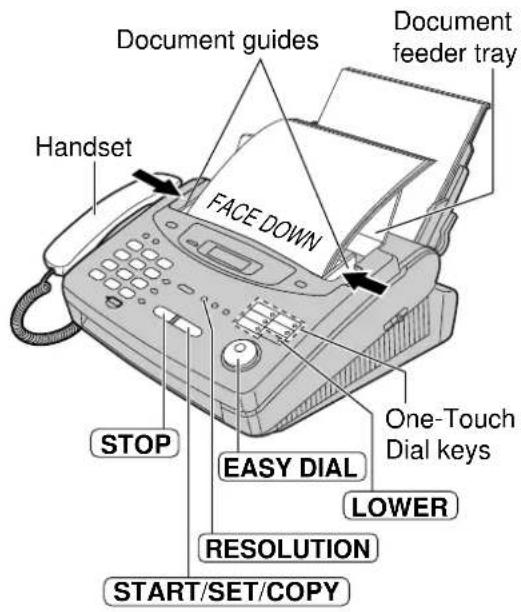
- Using the fine, super fine or half tone setting will increase the transmission time.
- If the resolution setting is changed during feeding, it will be effective from the next sheet.
- The super fine resolution only works with other compatible fax machines.
Sending a fax using the One-Touch Dial
Before using this feature, program the desired names and fax numbers into the One-Touch Dial (p. 40).
1 Open the document feeder tray.
2 Adjust the width of the document guides to the size of the document.
3 Insert the document (up to 15 pages) FACE DOWN until the unit grabs the document and a single beep is heard.
Display:
STANDARD
4 If necessary, press RESOLUTION select the desired setting (p. 54).
5 For stations 1–5
Press the desired One-Touch Dial key.
For stations 6–10
Press LOWER press the desired
One-Touch Dial key.
flowchart
graph TD
    A["FAX=<John>"] --> B["CONNECTING...."]
• The unit will start transmission.
Helpful hints:
- You can confirm the stored items on the display (p. 45) or on the telephone number list (p. 128).
- You can use the EASY DIAL directory to select the station name instead of using the One-Touch Dial keys. Rotate EASY DIAL until the desired name is displayed, then press START/SET/COPY
- The connecting tone will be heard during dialling to tell you the status of the other party's machine (p. 65).
If your unit does not send a fax
Verify that the number dialled is answered by the other party's machine.
- Lift the handset.
- For stations 1–5
Press the desired One-Touch Dial key.
For stations 6–10
Press LOWER press the desired
One-Touch Dial key.
Fax auto redial
If the line is busy or there is no answer, the unit will automatically redial the number up to 3 times.
• This feature is also available for;
— sending a fax using the EASY DIAL directory (p. 56).
— delayed transmission (p. 61).
- During redial, the following will be displayed.
Display: WAITING REDIAL
• To cancel redialling, press STOP
Sending a fax using the EASY DIAL directory
Before using this feature, program the desired names and fax numbers into the directory (p. 43).
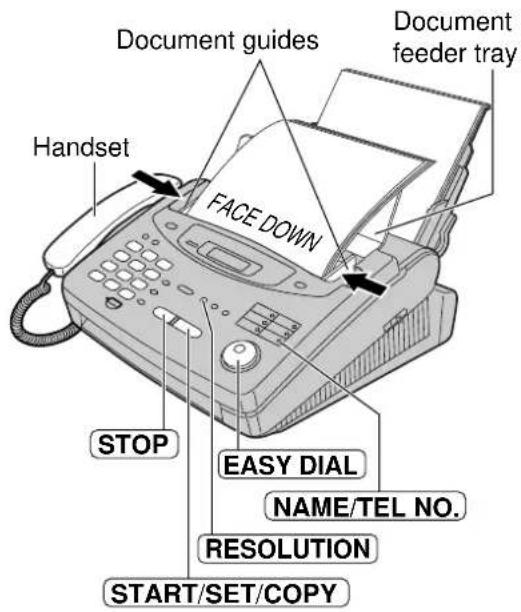
1 Open the document feeder tray.
2 Adjust the width of the document guides to the size of the document.
3 Insert the document (up to 15 pages) FACE DOWN until the unit grabs the document and a single beep is heard.
Display:
STANDARD
4 If necessary, press RESECTION select the desired setting (p. 54).
5 Rotate EASYnDlsired name is displayed.
Example:
Alice
• To confirm the number, press NAME/TEL NO.
6 Press START/SET/COPY.
• The unit will start transmission.
Helpful hints:
- You can confirm the stored items on the display (p. 45) or on the telephone number list (p. 128).
- The connecting tone will be heard during dialling to tell you the status of the other party's machine (p. 65).
Note:
- If the desired name has not been stored, press STOP and dial the number manually.
- For further details about using the EASY DIAL, see page 45.
If your unit does not send a fax
Verify that the number dialled is answered by the other party's machine.
- Rotate EASMEDIared name is displayed.
- Lift the handset.
Sending a fax by following the voice guide (KX-FP320/KX-FM330 only)
You can send documents by following the voice guide. After transmission, the voice guide will turn off automatically.
1
Press MENU five
times.
Display:
- SEND GUIDE
2
Press HELP.
Voice guide:

To transmit, insert the document face down until you hear the beep.
3
Insert the document FACE DOWN until the unit grabs the document and a single beep is heard.

Press the speaker phone button, then dial the phone number. When the fax tone is heard, press the start button.
4
Press DIGITAL SP-PHONE.
5
Dial the fax number.
6
When a fax tone is heard, press START/SET/COPY.

Start transmission.
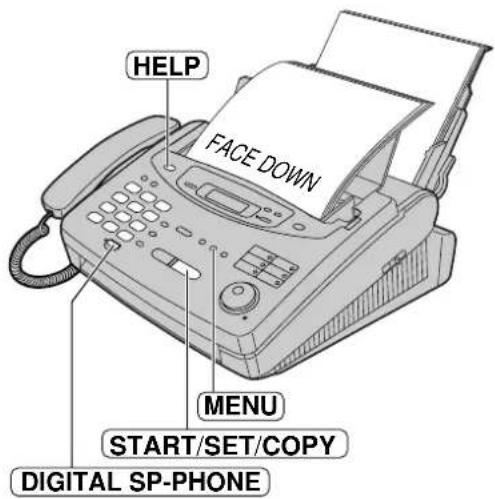
Note:
- You can lift the handset instead of pressing DIGITAL SP-PHONE in step 4.
Documents you can send
Minimum size
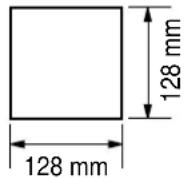
Maximum size
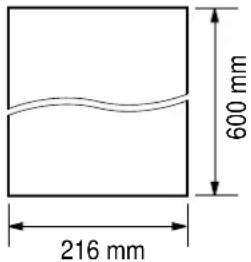
Effective scanning area
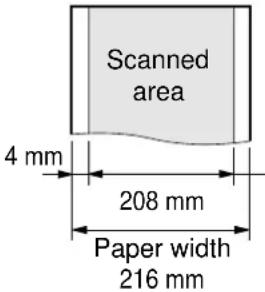
Document weight
Single sheet: 45 g/m² to 90 g/m²
Multiple sheets: 60 g/m² to 80 g/m²
Note:
- Remove clips, staples or other similar fastening objects.
- Check that ink, paste or correction fluid has dried.
- Do not send the following types of documents. Use copies for fax transmission.
— Chemically treated paper such as carbon or carbonless duplicating paper
— Electrostatically charged paper
— Heavily curled, creased or torn paper
— Paper with a coated surface
— Paper with a faint image
— Paper with printing on the opposite side that can be seen through the front (e.g. newspaper)
Sending report for confirmation
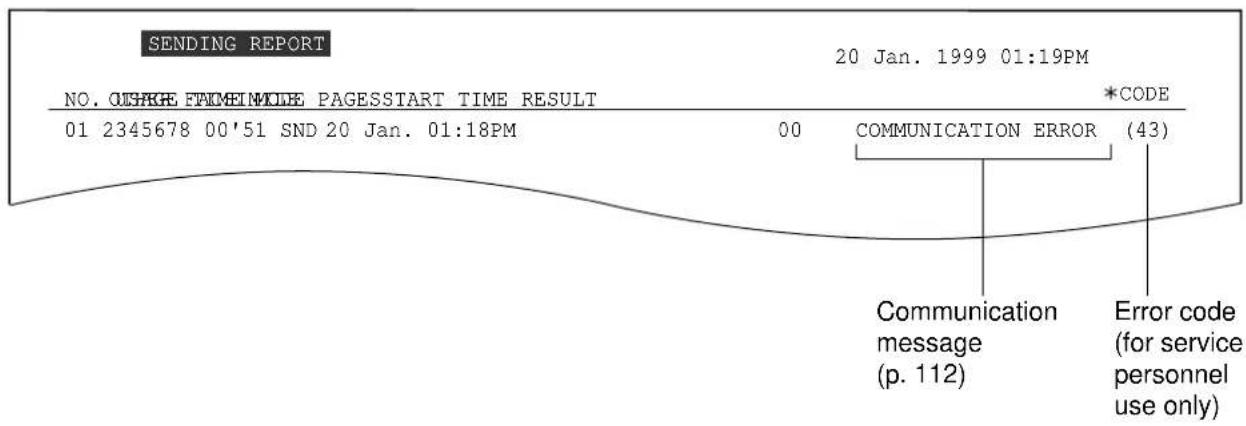
The sending report will provide you with a printed record of fax transmission results.
One of the following choices is available.
ERROR: The sending report will print out only when fax transmission fails (pre-selected setting).
ON: The sending report will always print out, indicating whether fax transmission is successful or not.
OFF: The sending report will not print.
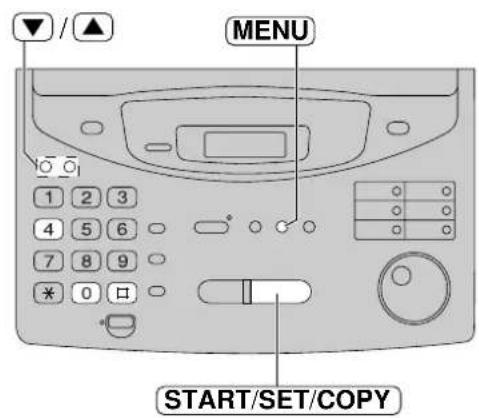
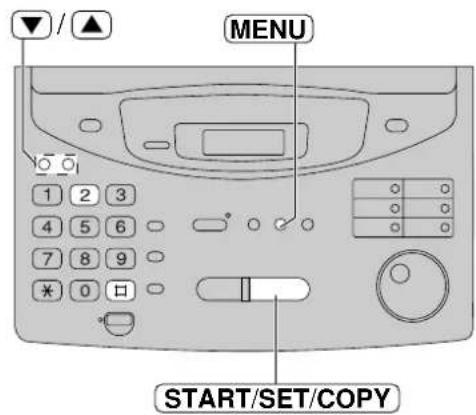
![1 Press MENU. Display: 1.SYSTEM SET UP 2 Press #, then 4 . SENDING REPORT 3 Press START/SET/COPY. MODE=ERROR ▼▲ 4 Press ▼ to select the desired setting. 5 Press START/SET/COPY. SETUP ITEM [ ] 6 Press MENU.](/content/2026/06/1190727/images/348b6e25077e459ab340fca18093a14f781f6b6984aa6676eecdb14fb75cde5a.jpg)
Sample of a sending report
Sending Faxes
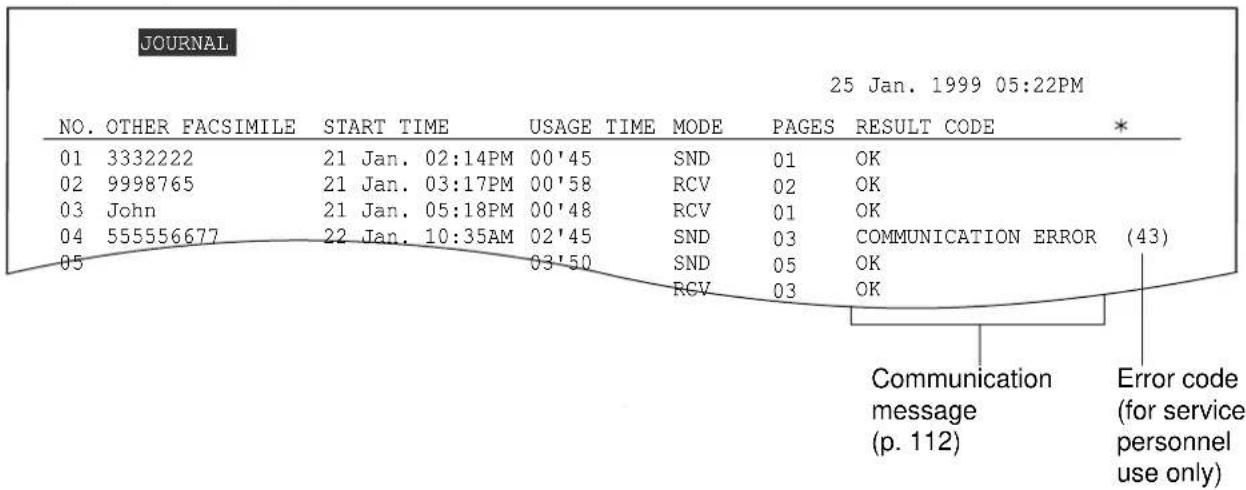
Automatic journal report
This feature prints a journal report automatically after every 35 new fax communications.
After printing, only the oldest communication result will be erased when a new communication occurs.
When this feature is deactivated, the unit will store the records of the fax communications, but will not print the journal report automatically.
1 Press MENU .
Display: 1. SYSTEM SET UP
2 Press □, then 2
AUTO JOURNAL
3 Press START/SET/COPY.
MODE=ON ▼▲
4 Press ▼ to select the desired setting.
- If this feature is not required, select "OFF".
5 Press START/SET/COPY.
SETUP ITEM [ ]
6 Press MENU.
Sample of a journal report
Note:
- You can also print a journal report manually (p. 128).
Delayed transmission
(sending a fax at a specified time)
Using a built-in clock, this unit can send documents automatically at a specified time. This allows you to take advantage of low-cost calling hours offered by your telephone company. The delayed transmission can be reserved to take place up to 24 hours in advance.
1 Insert the document FACE DOWN until a single beep is heard.
Display:
STANDARD
2 Press MENU .
- SYSTEM SET UP
3 Press ☐, the ☐ 5
DELAYED SEND
4 Press START/SET/COPY.
MODE=OFF

5 Press ▼ or ▲ to select "ON".
MODE=ON

6 Press START/SET/COPY.
FAX=
7 Enter the fax number using the dial keypad, One-Touch Dial or EASY DIAL
8 Press START/SET/COPY.
TIME=12:00AM
9 Enter the transmission start time. Press to select "AM" or "PM".
Example: 11:30PM
Press , then press until "PM" is* displayed.
TIME=11:30PM
10 Press START/SET/COPY.
SETUP ITEM [ ]
11 Press MENU .
SEND AT 11:30PM
- At the programmed time, the unit will automatically start transmission.
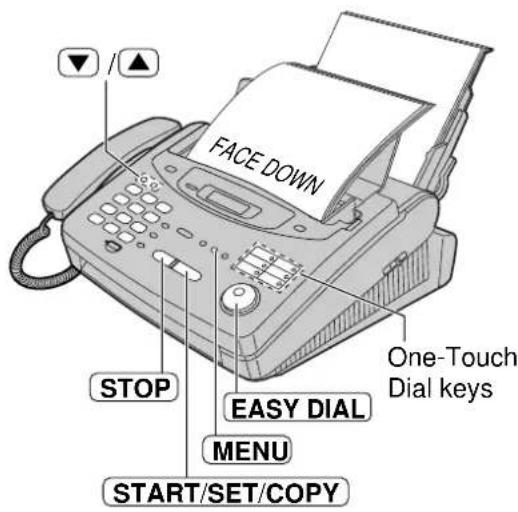
Note:
- You can receive, transmit and copy documents while delayed transmission is set.
To cancel the delayed transmission setting
- Press where the unit is idle.
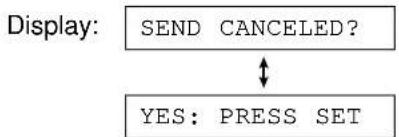
flowchart
graph TD
    A["SEND CANCELED?"] --> B{↓}
    B --> C["YES: PRESS SET"]
- Press START/SET/COPY.
From memory
The unit is able to scan and store documents into memory, and then transmit the stored document. The memory capacity is approx. 25 pages based on the CCITT No. 1 Test Chart in standard resolution. For the CCITT No. 1 Test Chart, see page 143.
Setting memory transmission
1 Press MENU .
Display: 1.SYSTEM SET UP
Press □, then 5
SEND BY MEMORY
2 Press START/SET/COPY.
MODE=OFF ▼▲
4 Press ▼ or ▲ to
select "ON".
MODE=ON ▼▲
- If this feature is not required, select "OFF".
5 Press START/SET/COPY.
SETUP ITEM [ ]
6 Press MENU.
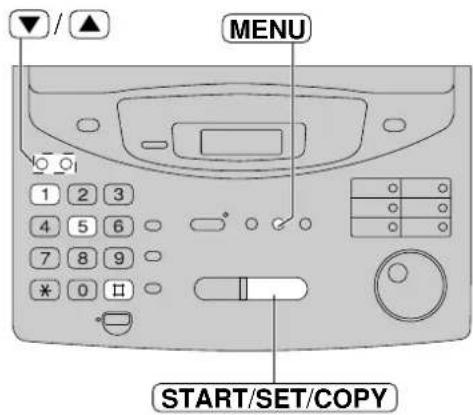
Transmitting documents from memory
1 Insert the document FACE DOWN.
2 Enter the fax number using the dial keypad, One-Touch Dial or EASY DIAL
3 When using the dial keypad or EASY DIAL press START/SET/COPY
- The document will be fed into the unit and scanned into memory. After storing all of the pages, the unit will transmit the documents.
- The amount of memory used will be shown as a percentage on the display.
Display: PAGES=01 05 Amount of memory used (%)
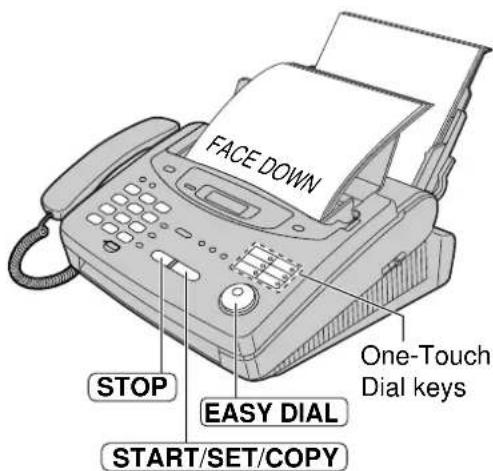
Note:
- The stored documents will be automatically erased after transmission.
- To cancel the memory transmission, press STOP or after scanning the document.
- If you select the fine, super fine or half tone resolution, the number of documents that can be sent will decrease.
- If the stored pages exceed the memory capacity, the transmission will be cancelled.
Multiple stations
This feature is useful for sending the same document to selected parties whose fax numbers are stored in the One-Touch Dial or EASY DIAL directory. You must program the desired parties into the BROADCAST key (One-Touch Dial key 1).
Important:
- Before programming, make sure that the desired fax numbers have been stored into the One-Touch Dial key or EASY DIAL directory.
- The BROADCAST key can be used as One-Touch Dial key 1 or as a broadcast key. Both functions cannot be used at the same time.
Programming the BROADCAST key with fax numbers
1 Press DIRECTORY PROGRAM.
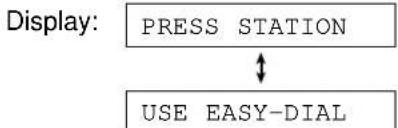
flowchart
graph TD
    A["PRESS STATION"] --> B["USE EASY-DIAL"]
    style A fill:#f9f,stroke:#333
    style B fill:#ccf,stroke:#333
2 Press BROADCAST.

3 Press ▼ or ▲ to select "BROADCAST". BROADCAST ▼▲
4 Press START/SET/COPY.

5 Enter the station.
a: Using the One-Touch Dial:
For stations 2–5, press the preset One-Touch Dial key.
For stations 6–10, press LOWER press the preset One-Touch Dial key.
Example: DIR=Luke [001]
b: Using the EASY DIAL directory:
Rotate EASVODSired name is displayed (up to 100 stations).
Example: John [001]
Press START/SET/COPY.
Example: DIR=John [002]
- To enter other stations, repeat this step (up to 109 stations).
6 Press START/SET/COPY after all of the desired stations.
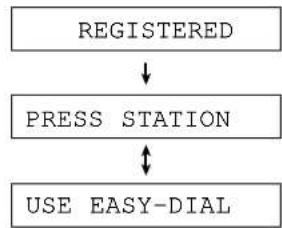
flowchart
graph TD
    A["REGISTERED"] --> B["PRESS STATION"]
    B --> C["USE EASY-DIAL"]
7 Press DIRECTORY PROGRAM to the program.
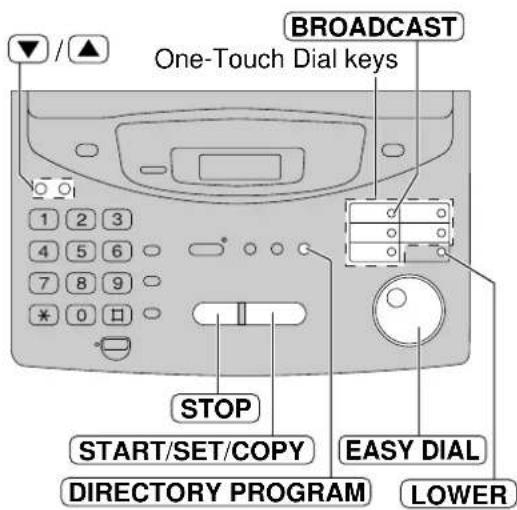
Note:
- If you make a mistake while programming, press STOP make the correction.
- Confirm the stored numbers by printing a telephone number list (p. 128).
Sending Faxes
Using the BROADCAST key
The document will be scanned and stored into memory when using the BROADCAST key. After transmission, the stored document will be erased automatically.
The memory capacity is approx. 25 pages based on the CCITT No. 1 Test Chart in standard resolution.
For the CCITT No. 1 Test Chart, see page 143.
1 Insert the document FACE DOWN.
2 Press BROADCAST.
- The document will be fed into the unit and scanned into memory. The unit will then transmit the data to each station, calling each number sequentially.
Note:
- If you select the fine, super fine or half tone resolution, the number of pages that the unit can transmit will decrease.
- If one of the stations is busy or does not answer, the station will be skipped. All skipped stations will be redialed up to 3 times after all of the other stations have been called.
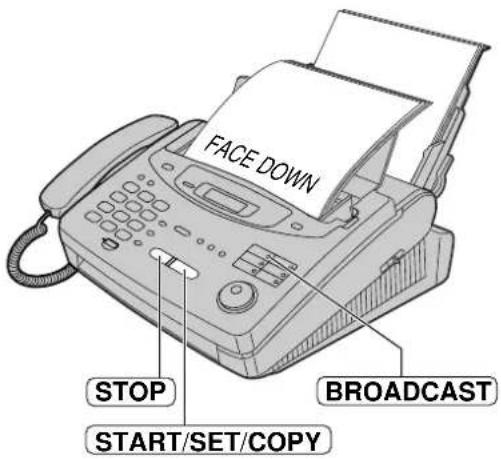
To cancel the broadcast setting
- Press wSTOP the unit displays "BROADCASTING".
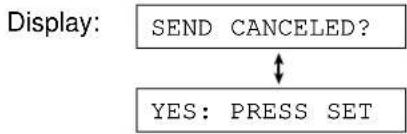
flowchart
graph TD
    A["SEND CANCELED?"] --> B{↓}
    B -->|Yes: PRESS SET| C
- Press START/SET/COPY.
Broadcast report
After all of the transmissions have been completed, the unit will automatically print the following report.
Sample of a broadcast report:
BROADCAST REPORT
| 10 Jan. 1999 03:36PM | |||||
| NO. | OTHER FACSIMILE | START TIME | USAGE TIME | PAGES | RESULT |
| 001 | Mike | 10 Jan. 03:31PM | 01'10 | 02 | OK |
| 002 | Peter | 10 Jan. 03:33PM | 01'08 | 02 | OK |
| 003 | Sam | 10 Jan. 03:34PM | 01'09 | 02 | OK |
| 004 | Kim | 10 Jan. 03:35PM | 01'10 | 02 | OK |
| TOTAL | 004'37 | 008 | |||
Overseas mode
You may experience difficulty when transmitting documents overseas. This feature makes sending documents easier as the transmission speed is slowed down. Before starting transmission, follow the steps below.
1 Press MENU.
Display: 1. SYSTEM SET UP
2 Press 11, the2 3
OVERSEAS MODE
3 Press START/SET/COPY.
MODE=OFF ▼▲
4 Press ▼ or ▲ to select "ON".
MODE=ON ▼▲
- If this feature is not required, select "OFF".
5 Press START/SET/COPY.
SETUP ITEM [ ]
6 Press MENU.
Connecting tone
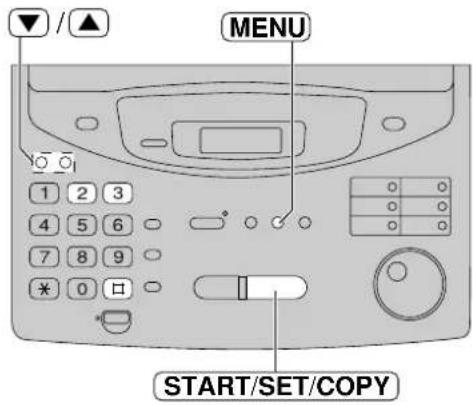
Note:
• After transmission, this feature will turn off automatically.
- A slower transmission speed will lengthen the call duration. Therefore the calling charge may be higher.
- This feature is not available for transmission using the BROADCAST key.
This feature allows you to hear connecting tones, such as a fax tone, ring back tone or busy tone for several seconds when you send a fax using the One-Touch Dial or EASY DIAL directory. This will tell you the status of the other party's machine.
— Fax tone: The other party's machine is ready for reception.
— Ring back tone: If this tone continues, the other party's machine may not be a facsimile or may have run out of paper. Check with the other party.
— Busy tone: The other party's machine is busy. Let the unit continue redialling or press and stop again later.
This feature is set to "ON" as a pre-selected setting. If this feature is not required, you may turn it off.
1 Press MENU .
Display: 1. SYSTEM SET UP
Press #, the7 6
CONNECTING TONE
2 Press START/SET/COPY.
MODE=ON ▼▲
4 Press ▼ to select the desired setting.
- If this feature is not required, select "OFF".
5 Press START/SET/COPY.
SETUP ITEM [ ]
6 Press MENU .
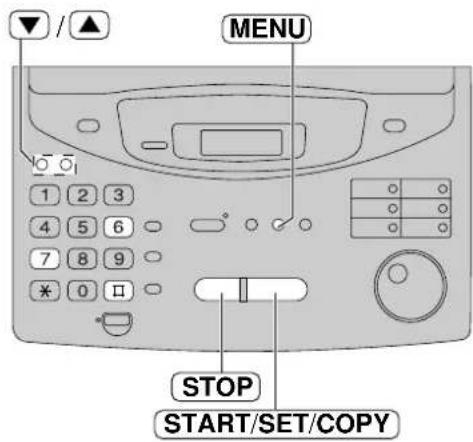
Note:
- The connecting tone volume cannot be adjusted.
Setting the unit to receive calls
■ For KX-FP300
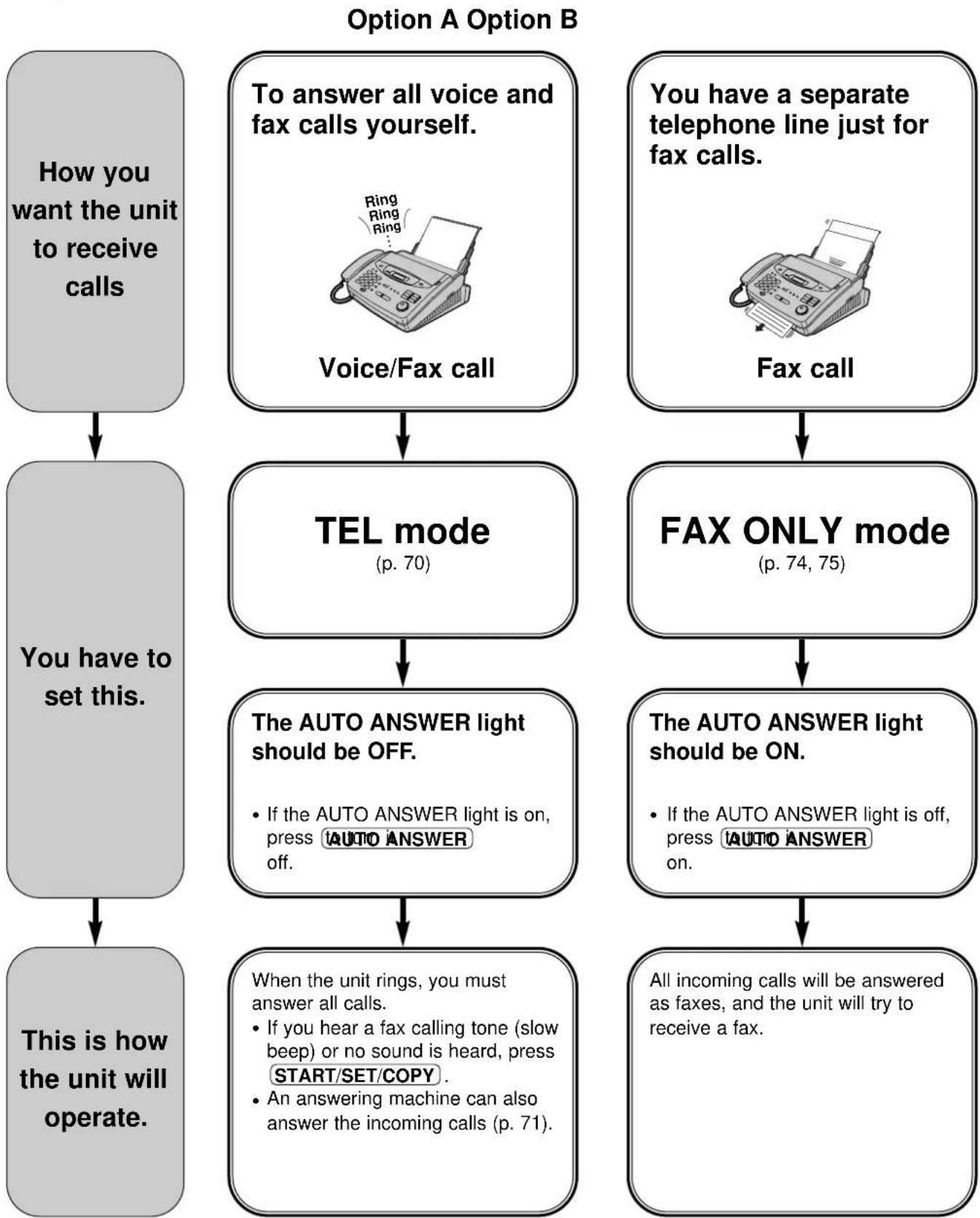
flowchart
graph TD
    A["How you want the unit to receive calls"] --> B["You have to set this."]
    B --> C["This is how the unit will operate."]

    A --> D["To answer all voice and fax calls yourself."]
    D --> E["Voice/Fax call"]
    E --> F["TEL mode (p. 70)"]
    F --> G["The AUTO ANSWER light should be OFF."]
    G --> H["When the unit rings, you must answer all calls."]
    H --> I["If you hear a fax calling tone (slow beep) or no sound is heard, press START/SET/COPY."]
    I --> J["An answering machine can also answer the incoming calls (p. 71)."]

    A --> K["You have a separate telephone line just for fax calls."]
    K --> L["Fax call"]
    L --> M["FAX ONLY mode (p. 74, 75)"]
    M --> N["The AUTO ANSWER light should be ON."]
    N --> O["All incoming calls will be answered as faxes, and the unit will try to receive a fax."]
Option C Other options
You want to use the fax machine with an answering machine.
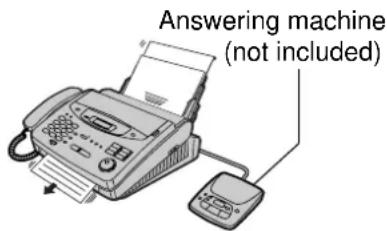
Voice/Fax call
With PC
If you have a computer connected to the same telephone line, see page 72.
TEL/FAX mode
If you are near the unit and want to use it to receive your voice calls yourself and fax calls automatically, see pages 78 to 80 and 82.
- Connect an answering machine to the EXT jack.
- Set the number of rings on the answering machine to less than 4.
- Record a greeting message on the answering machine.
- Turn on the answering machine.
- Program the remote activation ID into your fax machine.
For further details, see pages 71 to 73.
Use with TEL mode or FAX ONLY mode.
If you use with FAX ONLY mode, set the FAX ONLY mode ring count to "5 EXT.TAM" (p. 75).
Remote activation
If you answer a telephone in another room and hear a fax tone, you can activate the unit remotely by pressing Ⓞ (p. 83).
When receiving voice calls:
The answering machine will record voice messages.
When receiving fax calls:
The fax machine will receive documents.
Setting the unit to receive calls
■ For KX-FP320/KX-FM330
Option A Option B
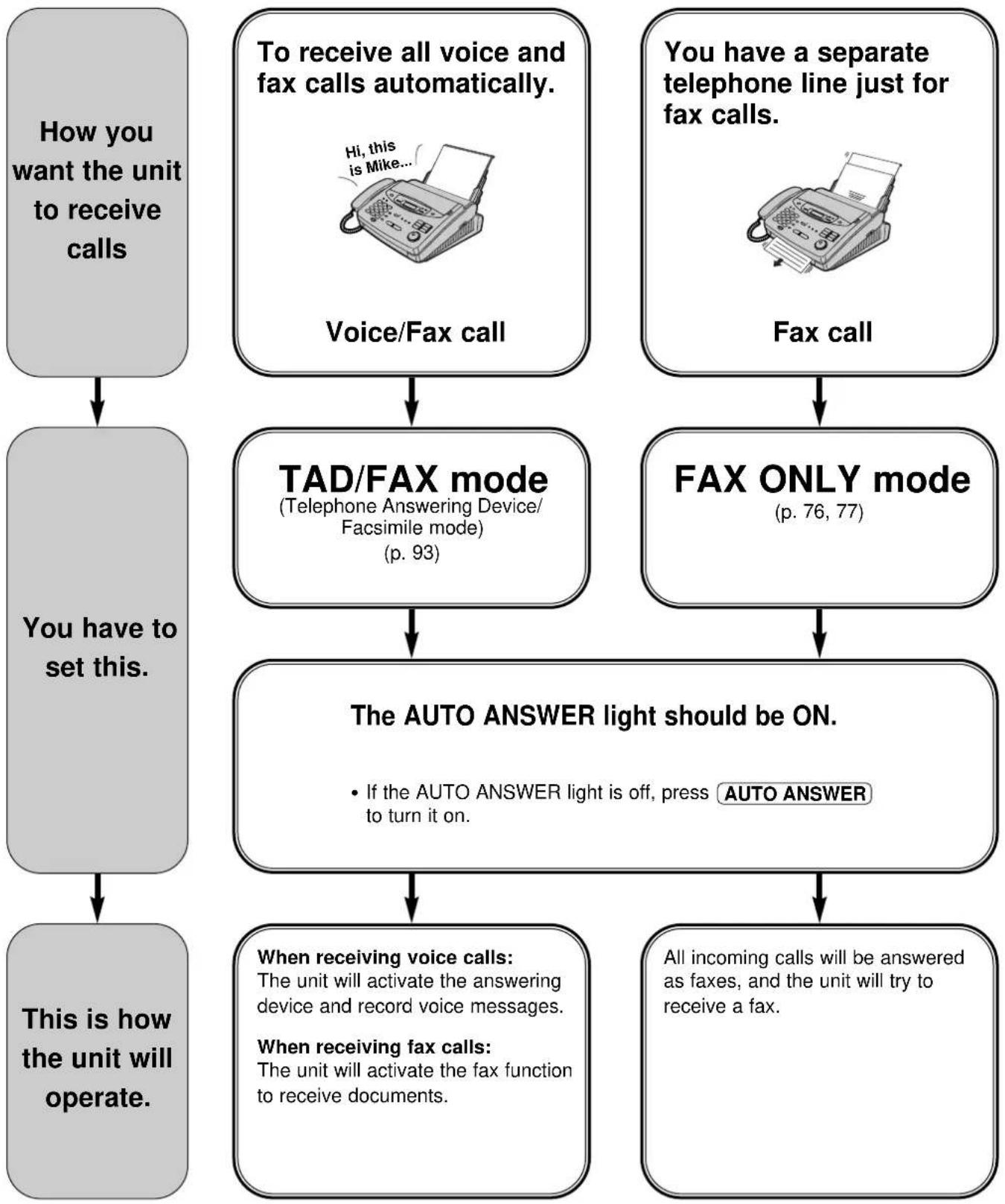
flowchart
graph TD
    A["How you want the unit to receive calls"] --> B["You have to set this."]
    B --> C["This is how the unit will operate."]

    A --> D["To receive all voice and fax calls automatically."]
    D --> E["TAD/FAX mode (Telephone Answering Device/Facsimile mode) (p. 93)"]
    E --> F["The AUTO ANSWER light should be ON."]
    F --> G["When receiving voice calls: The unit will activate the answering device and record voice messages."]
    F --> H["When receiving fax calls: The unit will activate the fax function to receive documents."]

    D --> I["You have a separate telephone line just for fax calls."]
    I --> J["FAX ONLY mode (p. 76, 77)"]
    J --> K["All incoming calls will be answered as faxes, and the unit will try to receive a fax."]
Option C
To answer all voice and fax calls yourself.
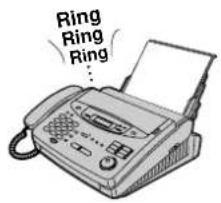
Voice/Fax call
TEL mode
(p. 70)
The AUTO ANSWER light should be OFF.
- If the AUTO ANSWER light is on, press tAUTO ANSWER off.
When the unit rings, you must answer all calls.
- If you hear a fax calling tone (slow beep) or no sound is heard, press START/SET/COPY.
Other options
With PC
If you have a computer connected to the same telephone line, see page 85.
TEL/FAX mode
If you are near the unit and want to use it to receive your voice calls yourself and fax calls automatically, see pages 78, 79, 81 and 82.
Remote activation
If you answer a telephone in another room and hear a fax tone, you can activate the unit remotely by pressing Ⓞ (p. 83).
TEL mode
(answering all calls manually)
If the AUTO ANSWER light is on, turn it off by pressing AUTO ANSWER.
Display: TEL MODE
1 When the unit rings, lift the handset to answer the call.
2 When: — document reception is required, — a fax calling tone (slow beep) is heard, or — no sound is heard,
press START/SET/COPY.
CONNECTING.....
3 Replace the handset. • The unit will start reception.
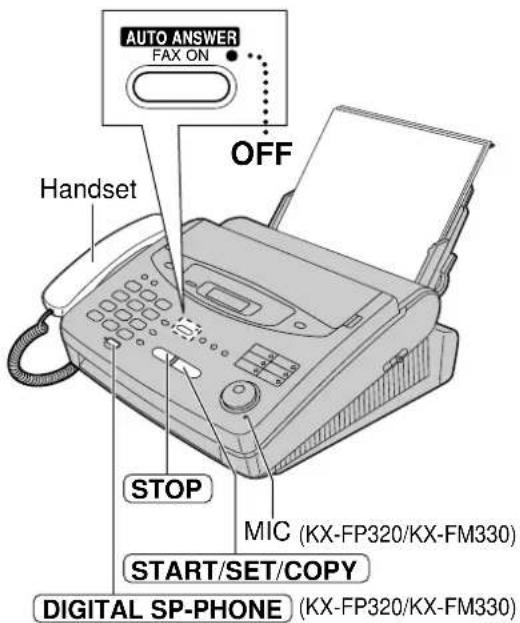
Helpful hint:
- You can press DIGITAL'SRPHONE the handset (KX-FP320/KX-FM330 only).
Note:
- KX-FP300 If you do not answer the call within 20 rings, the unit will temporarily switch to the fax and the caller can send documents.
• KX-FP320/KX-FM330
If you do not answer the call within 20 rings, the unit will temporarily activate the answering device. The greeting message will then be played. If the remote operation ID (p. 102) is entered during the greeting message, the unit will change to the TAD/FAX mode.
To stop receiving the document
Press STOP.
Friendly reception feature
When you answer a call and hear a fax calling tone (slow beep), the unit will automatically start receiving.
- If this feature is not required, set to "OFF" (p. 86).
Memory reception
When a printing problem is detected, the unit will temporarily store the received document into memory.
While the document is in memory, the unit will:
— display an error message and the following message alternately.
Display: FAX IN MEMORY
— alert you with slow beeps (memory reception alert).
- Follow the instructions on pages 113 and 114 to solve the problem and print the stored document.
- For memory capacity, see page 143.
Using the unit with an answering machine (KX-FP300 only) = Setting up the fax machine and an answering machine
1 Connect the answering machine to the EXT jack on the back of the fax machine.
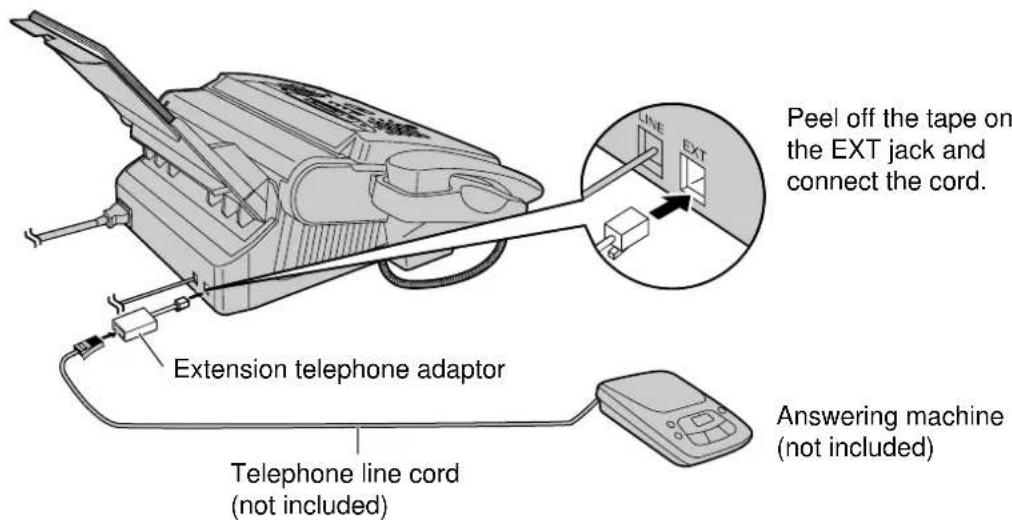
2 If you plan to use the FAX ONLY mode on the fax machine, set the number of rings on the answering machine to less than 4.
- This will allow the answering machine to answer the call first.
2 Record a greeting message on the answering machine.
Example: "This is (your name, business and/or telephone number). We are unable to answer the phone right now. To send a fax, start transmission. To leave a message, please speak after the beep. Thank you."
4 Turn on the answering machine.
5 Set the receive mode of the fax machine to the TEL mode (p. 70) or FAX ONLY mode (p. 74).
- When you set the FAX ONLY mode, set the ring count in the FAX ONLY mode (feature setting #07) to "5 EXT.TAM" (p. 75). The number of rings on the answering machine should be less than the FAX ONLY mode ring count so that the answering machine will answer a call first. Using the FAX ONLY mode will allow you to receive faxes if the answering machine is full.
6 Check the remote access code of your answering machine and program the same code into the remote operation ID of the fax machine (feature setting #12). See page 73.
Note:
- Do not pause for more than 4 seconds during the greeting message. If a 4-second pause is stored in the greeting message, all incoming calls will be routed to the unit from the answering machine even while the greeting message is playing.
- We recommend you keep the greeting message around 10 seconds long. If the greeting message is too long, some incoming fax calls may not be answered by the fax machine.
- Every time the unit receives a document, a silent pause or fax tone may be recorded on the answering machine.
Receiving Faxes
How the fax machine and answering machine work
Receiving voice calls
The answering machine will record voice messages automatically.
Receiving fax calls
The fax machine will receive documents automatically.
Receiving a voice message and fax document in one call
The answering machine will record the voice message first. The fax machine will then be activated by the caller's request and receive the document. For further details, see next page.
To use with an answering machine and computer, we recommend the following setup.
We recommend you use separate wall jacks for the unit and the computer.
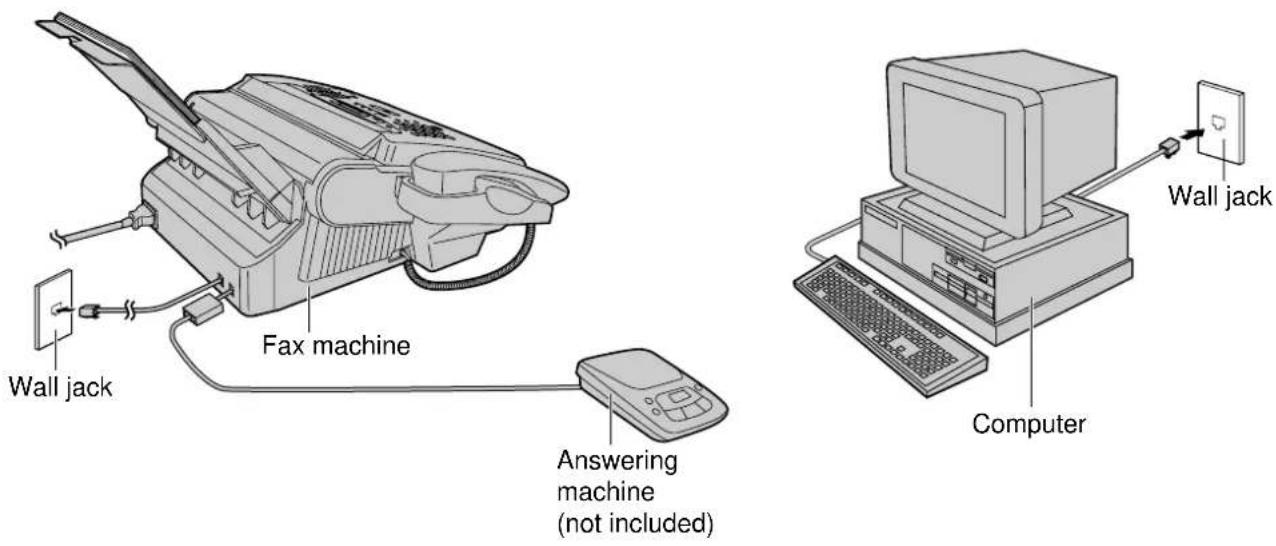
Note:
- Set the TEL mode on the fax machine.
- The device which has the shortest ring count will answer a call first. Confirm the ring count for each device.
- If you use your computer as an answering machine, connect the telephone line cord from the EXT jack on the back of the fax machine to the computer.
Remote operation of your answering machine (remote activation ID)
Some answering machines will allow you to retrieve voice messages from a remote location. To deactivate the fax machine while you are checking your messages, set the remote activation ID code for the answering machine.
Important:
- This ID must be different from the fax activation code (p. 83) and the auto disconnection code (p. 87).
1 Press MENU.
Display: 1. SYSTEM SET UP
2 Press #, then 2
REMOTE TAM ACT.
3 Press START/SET/COPY.
MODE=OFF ▼▲
4 Press ▼ or ▲ to select "ON".
MODE=ON ▼▲
5 Press START/SET/COPY.
ID=11
- The display will show the pre-selected ID.
6 Enter your ID number.
- This ID can be from 1 to 5 digits in length using 0 - 9, and #.
7 Press START/SET/COPY.
SETUP ITEM [ ]
8 Press MENU.
Receiving a voice message and fax document in one call
The caller can leave a voice message and send a fax document during the same call. Inform the caller of the following procedures beforehand.
- The caller calls your fax machine.
• The answering machine will answer the call.
-
The caller can leave their message after the greeting message.
-
The caller presses (pre-selected fax activation code).
- The fax machine will activate the fax function.
- The caller presses their start button to send a document.
Note:
• The fax activation code can be changed (p. 83).
- If the wrong fax activation code is entered, the caller must wait at least 5 seconds to reenter the correct code.
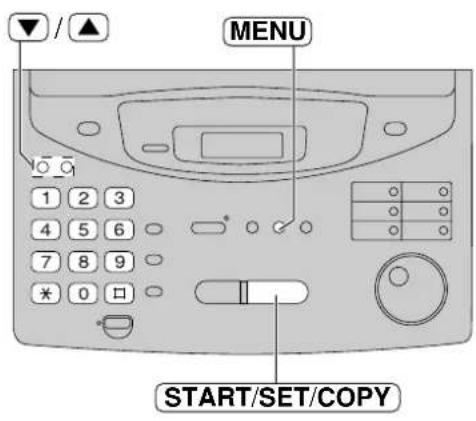
FAX ONLY mode
(all calls are received as faxes)
■ For KX-FP300
Activating the FAX ONLY mode
1 Select "FAX ONLY" in step 4 of feature setting #77 (p. 80).
2 If the AUTO ANSWER light is off, turn it on by pressing AUTO ANSWER.
• The display will show the following.
Display: FAX ONLY MODE
- The number of rings before a call is answered can be changed (see next page).
Note:
- This mode should not be used with a telephone line which is used for both voice and fax calls. When the unit answers the call, fax communication is attempted with the other fax machine even if someone is trying to call you.
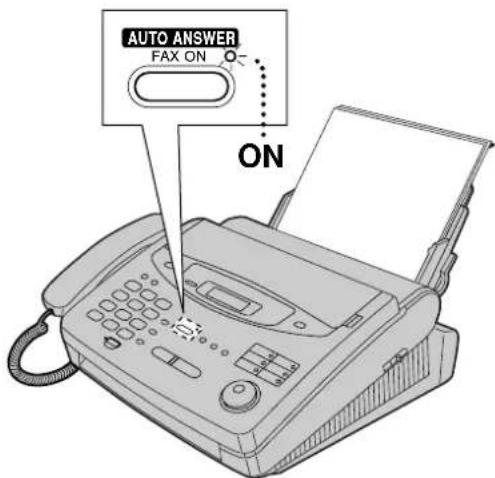
If you have a telephone line just for receiving faxes, we recommend the following setup.
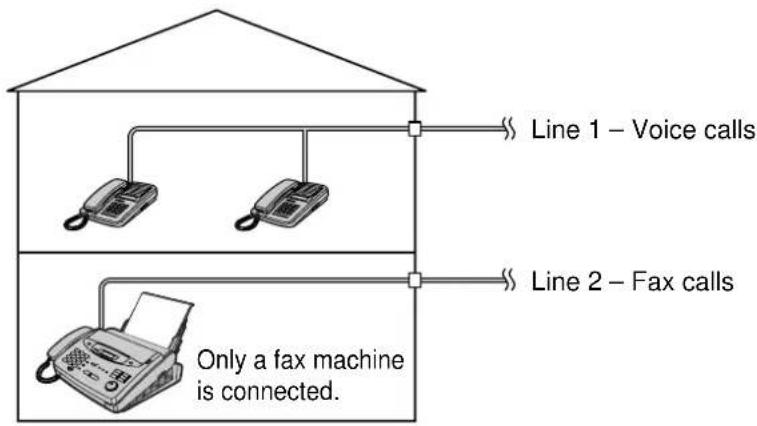
flowchart
graph TD
    A["House with roof"] --> B["Line 1 – Voice calls"]
    A --> C["Line 2 – Fax calls"]
    B --> D["Phone with radio"]
    C --> E["Phone with fax machine"]
    style A fill:#f9f,stroke:#333
    style B fill:#ccf,stroke:#333
    style C fill:#ccf,stroke:#333
    style D fill:#dfd,stroke:#333
    style E fill:#dfd,stroke:#333
    note right of A: Only a fax machine is connected.
Example: One telephone line is used for voice calls and a separate telephone line for faxes. If someone sends a fax to Line 2, the fax machine will ring.
FAX ONLY mode ring count
This setting determines the number of rings before the unit answers a call in the FAX ONLY mode. You can choose from 1 to 5 rings. If you use the unit with an answering machine, select "5 EXT.TAM" and see pages 71 to 73.
Helpful hints:
- To answer a call before the unit does, increase the number of rings.
- If you have difficulty receiving faxes, the other parties may have tried to send faxes before confirming if your unit answered or not. Decrease the number of rings.
1 Press MENU.
Display: 1. SYSTEM SET UP
2 Press ☐, the ☐ 7
FAX RING COUNT
3 Press START/SET/COPY.
RING=2 ▼▲
4 Press ▼ to select the desired number, or enter the number using the dial keypad.
5 Press START/SET/COPY.
SETUP ITEM [ ]
6 Press MENU.
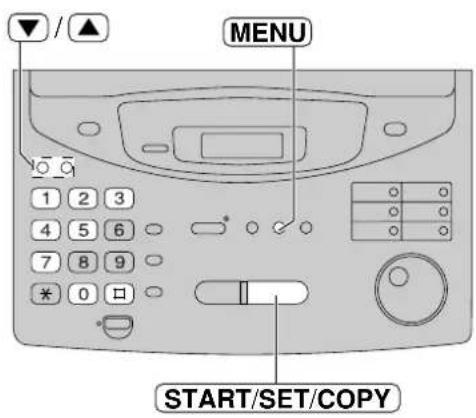
Note:
- If you subscribe to a Caller ID service, set this ring count to 2 or more rings.
■ For KX-FP320/KX-FM330
Changing the AUTO ANSWER setting to the FAX ONLY mode
1 Press MENU .
Display: 1.SYSTEM SET UP
Press □, then 7
AUTO ANSWER
3 Press START/SET/COPY.
MODE=TAD/FAX ▼▲
4 Press ▼ to select "FAX ONLY".
MODE=FAX ONLY ▼▲
5 Press START/SET/COPY.
SETUP ITEM [ ]
6 Press MENU.
7 If the AUTO ANSWER light is off, turn it on by pressing AUTO ANSWER.
FAX ONLY MODE
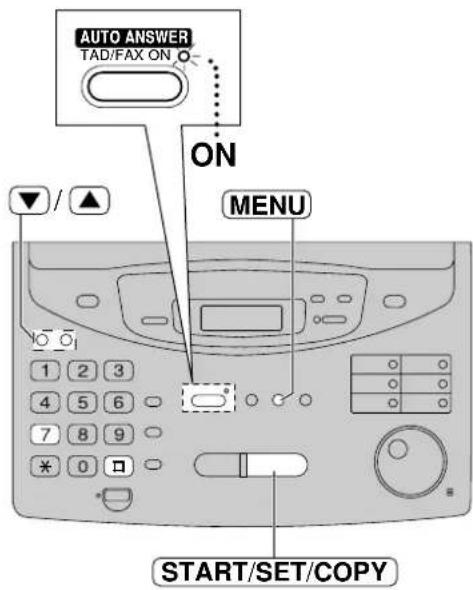
Note:
- This mode should not be used with a telephone line which is used for both voice and fax calls. When the unit answers the call, fax communication is attempted with the other fax machine even if someone is trying to call you.
- The number of rings before a call is answered can be changed (see next page).
- To change to the TAD/FAX or TEL/FAX mode, select "TAD/FAX" or "TEL/FAX" in step 4.
FAX ONLY mode ring count
This setting determines the number of rings before the unit answers a call in the FAX ONLY mode. You can choose from 1 to 4 rings.
Helpful hints:
- To answer a call before the unit does, increase the number of rings.
- If you have difficulty receiving faxes, the other parties may have tried to send faxes before confirming if your unit answered or not. Decrease the number of rings.
1 Select "FAX ONLY" in step 4 of feature setting #77 (p. 76).
2 Press MENU.
3 Press Ⅱ, the ① 6
4 Press START/SET/COPY.
5 Press ☑ to select the desired number, or enter the number using the dial keypad.
6 Press START/SET/COPY.
7 Press MENU.
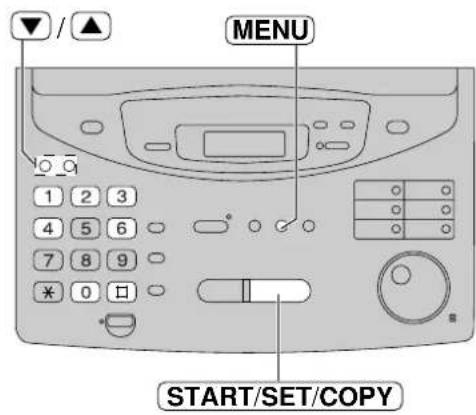
Note:
- If you subscribe to a Caller ID service, set this ring count setting to 2 or more rings.
If you have a telephone line just for receiving faxes, we recommend the following setup.
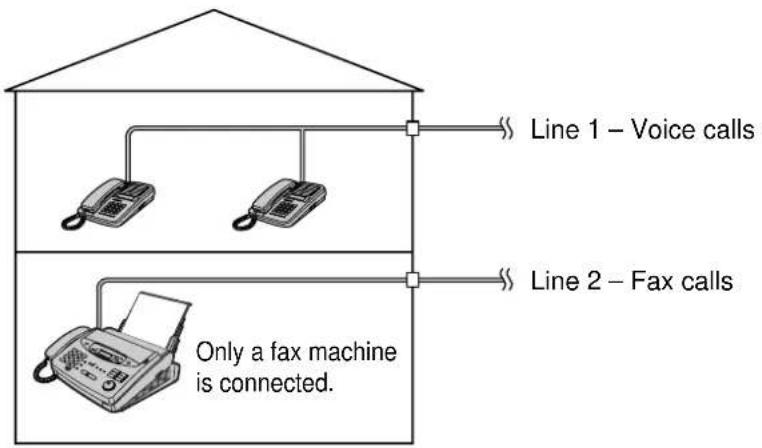
flowchart
graph TD
    A["Line 1 – Voice calls"] --> B["Phone 1"]
    C["Line 2 – Fax calls"] --> D["Phone 2"]
    B --> E["Only a fax machine is connected."]
    D --> E
Example: One telephone line is used for voice calls and a separate telephone line for faxes. If someone sends a fax to Line 2, the fax machine will ring.
Receiving FaxesReceiving FaxesReceiving Faxes
TEL/FAX mode
(receiving voice calls with rings and fax calls without rings when you are near the unit)
Use this mode when you are not using an answering machine (KX-FP300 only), are always near the unit and want the fax machine to detect faxes without ringing. When a call is received, the unit will work as follows. If you have an extension telephone connected, see next page.
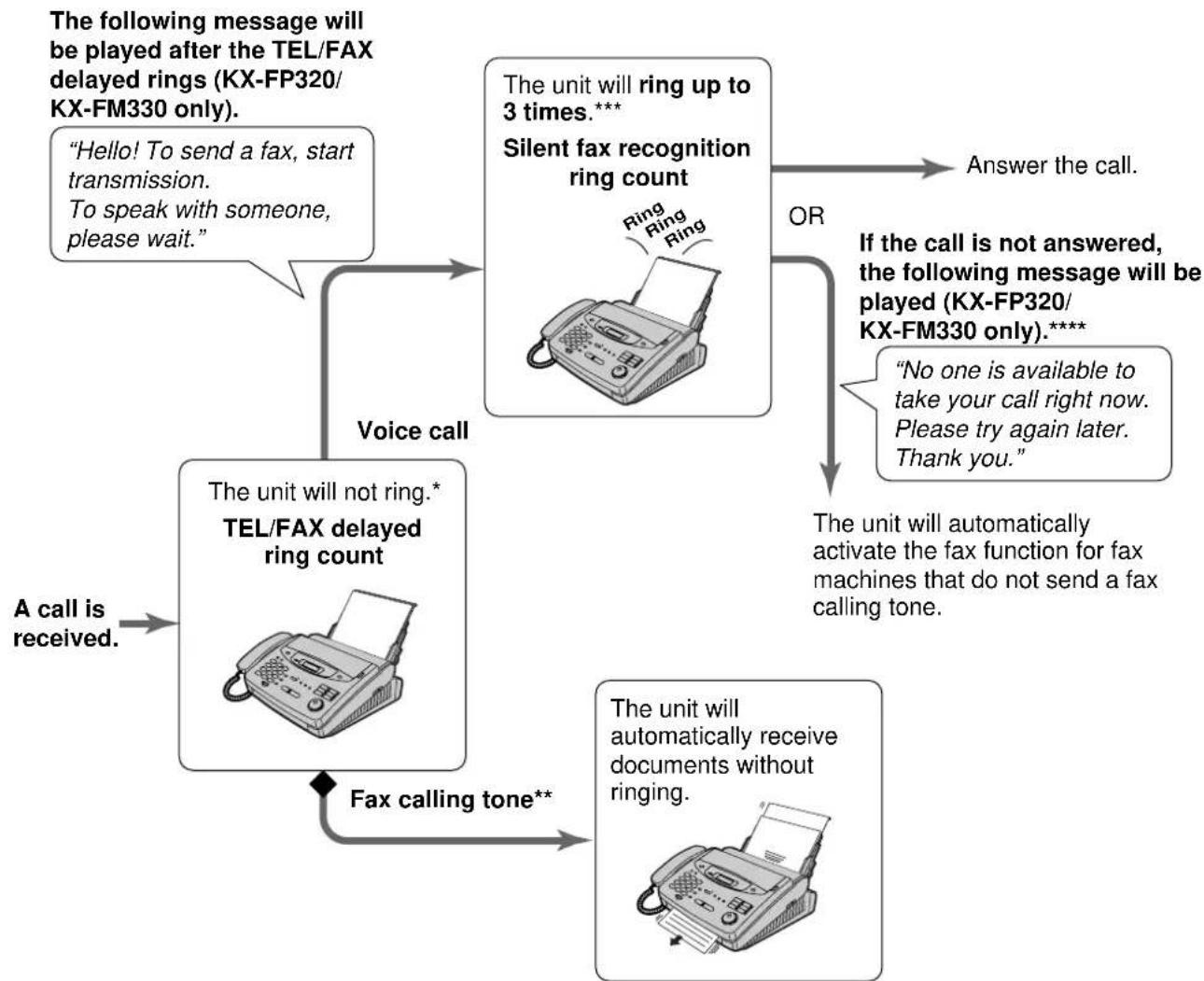
flowchart
graph TD
    A["The following message will be played after the TEL/FAX delayed rings (KX-FP320/KX-FM330 only). "Hello! To send a fax, start transmission. To speak with someone, please wait.""] --> B["Voice call"]
    B --> C["The unit will not ring.* TEL/FAX delayed ring count"]
    C --> D["A call is received."]
    D --> E["Fax calling tone**"]
    E --> F["The unit will automatically receive documents without ringing."]
    F --> G["The unit will automatically activate the fax function for fax machines that do not send a fax calling tone."]
    G --> H["If the call is not answered, the following message will be played (KX-FP320/KX-FM330 only).**** "No one is available to take your call right now. Please try again later. Thank you.""]
    H --> I["Answer the call."]
    I --> J["Silent fax recognition ring count"]
    J --> K["OR"]
    K --> L["The unit will ring up to 3 times.***"]
* A telephone fee will be charged to the caller from this point.
** A fax calling tone is automatically generated by the sending fax machine. Some fax machines do not have this capability.
*** While ringing, the unit will emit a different ring back tone to the calling party.
**** You can record your own greeting message (p. 95).
Note:
- The unit will display the following when a call is received.
Display:
INCOMING CALL
• The ringer should be ON (p. 35).
Ring pattern when an extension telephone is connected
■ For KX-FP300: If you absolutely must use another phone on the same phone line, you can disengage the TEL/FAX mode on a call by call basis by pressing before the fax machine begins communicating.
Once the fax machine has activated, the only way to turn it off is by pressing STOP the unit.
■ For KX-FP320/KX-FM330: See the instructions below.
The following message will be played after the TEL/FAX delayed rings (KX-FP320/KX-FM330 only).
"Hello! To send a fax, start transmission. To speak with someone, please wait."
The unit will ring up to 3 times.***
Silent fax recognition ring count
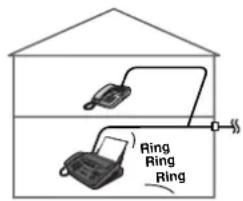
■ For KX-FP300
The extension telephone will not ring but you can answer the call with the extension telephone as shown below.
-
Lift the handset.
-
Enter ✦ 0 (pre-selected code) while the ring back tone is heard.
- The code number can be changed (p. 87).
■ For KX-FP320/KX-FM330
The extension telephone will not ring.
Answer the call.
OR
A call is received.
Voice call
The extension telephone will ring twice.*
TEL/FAX delayed ring count
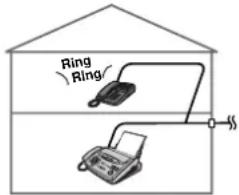
The unit will not ring.
If the call is not answered, the following message will be played (KX-FP320/KX-FM330 only).****
"No one is available to take your call right now. Please try again later. Thank you."
The unit will automatically activate the fax function for fax machines that do not send a fax calling tone.
Fax calling tone**
The unit will automatically receive documents without ringing.
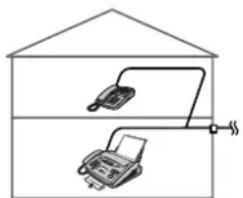
natural_image
Simple line drawing of a house with two devices, one emitting smoke from a pipe (no text or symbols)TEL/FAX delayed ring count:
Up to 4 ring signals will be generated before the unit answers, depending on feature setting #78 on page 82. In the TEL/FAX mode, the unit will not generate an audible ring during this time.
Silent fax recognition ring count:
The unit generates audible rings to indicate that it is receiving a voice call. 3 to 6 rings will be generated, depending on feature setting #30 on page 82. This signal will not ring at an extension telephone.
■ For KX-FP300
Changing the AUTO ANSWER setting to the TEL/FAX mode
1 Press MENU .
Display: 1.SYSTEM SET UP
2 Press ☐, then 7
AUTO ANSWER
3 Press START/SET/COPY.
MODE=FAX ONLY ▼▲
4 Press ▼ or ▲ to
select "TEL/FAX".
MODE=TEL/FAX ▼▲
5 Press START/SET/COPY.
SETUP ITEM [ ]
6 Press MENU.
7 If the AUTO ANSWER light is off, turn it on by pressing AUTO ANSWER.
TEL/FAX MODE
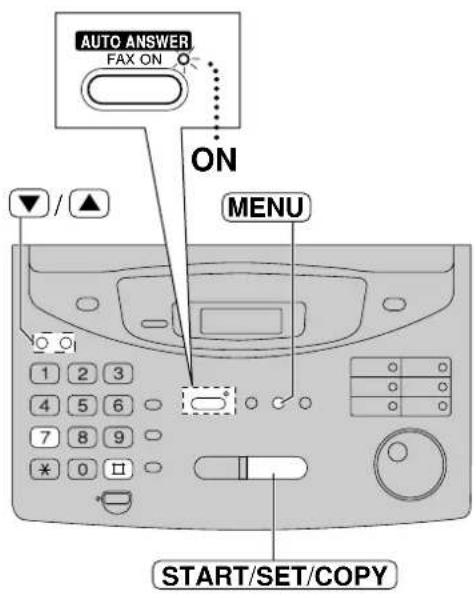
Note:
- To return to the FAX ONLY mode, select "FAX ONLY" in step 4.
- Do not connect an answering machine when using the TEL/FAX mode.
If you use the unit with an answering machine, see page 71.
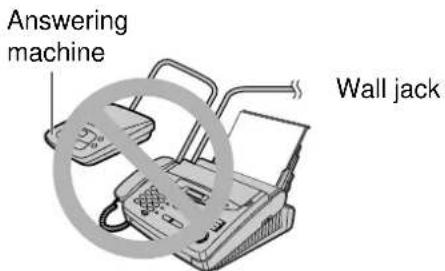
■ For KX-FP320/KX-FM330
Changing the AUTO ANSWER setting to the TEL/FAX mode
1 Select "TEL/FAX" in step 4 of feature setting #77 (p. 76).
2 If the AUTO ANSWER light is off, turn it on by pressing AUTO ANSWER.
Display:
TEL/FAX MODE
- The unit will play the TEL/FAX greeting message.
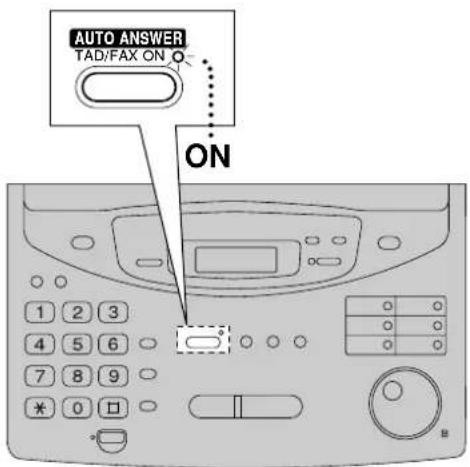
Receiving Faxes
TEL/FAX delayed ring count
This setting determines the number of times the extension telephone rings in the TEL/FAX mode. You can choose from 1 to 4 rings.
This setting does not need to be changed if an extension telephone is not connected.
![1 Press MENU. Display: 1.SYSTEM SET UP 2 Press □, then 8 . TEL/FAX RING 3 Press START/SET/COPY. RING=2 ▼▲ 4 Press ▼ to select the desired number, or enter the number using the dial keypad. 5 Press START/SET/COPY . SETUP ITEM [ ] 6 Press MENU.](/content/2026/06/1190727/images/1c60a649fa91d21caf658692c71ef1342fb7ffa882568ebedca90241add0bfd7.jpg)
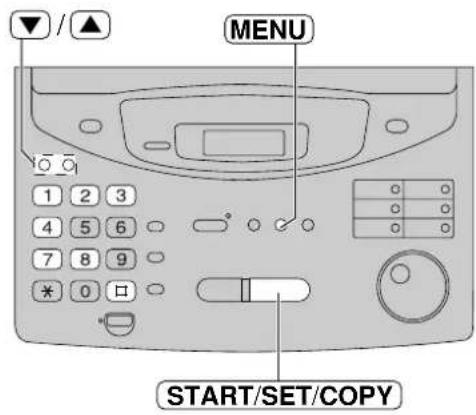
Note:
- If the number of rings is increased, you may not be able to receive documents from some older model fax machines which do not send a fax calling tone.
- If you subscribe to a Caller ID service, set this ring count setting to 2 or more rings.
Silent fax recognition ring count
When the unit detects a voice call in the TEL/FAX mode, it will ring up to 3 times. The number of rings can be changed up to 6.
![1 Press MENU. Display: 1.SYSTEM SET UP 2 Press □, the□ 0 . SILENT FAX RING 3 Press START/SET/COPY. RING=3 ▼▲ 4 Press ▼ to select the desired number, or enter the number using the dial keypad. 5 Press START/SET/COPY. SETUP ITEM [ ] 6 Press MENU.](/content/2026/06/1190727/images/ba241c284ecd48d3bd5653d6b43fb011ad7e52b567ffaa6c4e1eee82b7cadfdc.jpg)
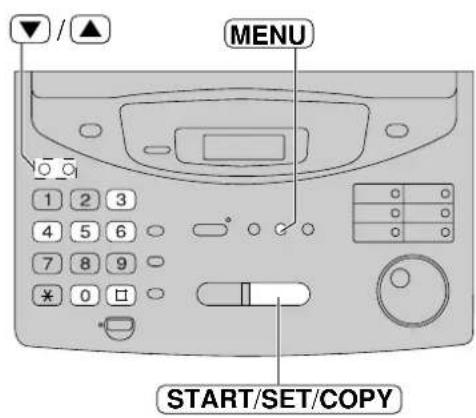
Note:
- If the number of rings is increased, you may not be able to receive documents from some older model fax machines which do not send a fax calling tone.
Extension telephone
If you connect an extension telephone to your unit or the same line, you can receive fax documents using the extension telephone. You do not have to press START/SET/COPY
Important:
- Use a touch tone telephone as the extension telephone and enter the fax activation code firmly.
1 When the extension telephone rings, lift the handset of the extension telephone.
2 When: — document reception is required, — a fax calling tone (slow beep) is heard, or — no sound is heard, press (pre-selected fax activation code) firmly.
3 Hang up the handset. • The unit will start reception.
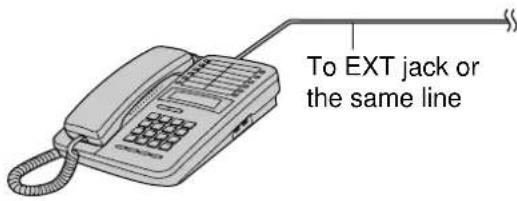
Extension telephone
Note:
- You can change the fax activation code (see below).
Fax activation code
The fax activation code is required in the following cases;
— to receive faxes using an extension telephone (see above).
— to receive a voice message and fax document in the same call (p. 73). (KX-FP300 only)
Important:
- This code should be different from the remote activation ID (p. 73), the auto disconnection code (p. 87) and remote operation ID (p. 102).
1 Press MENU.
Display: 1. SYSTEM SET UP
2 Press #, the 4 1
FAX ACTIVATION
3 Press START/SET/COPY
MODE=ON ▼▲
4 Press ▼ or ▲ to select "ON".
- If this feature is not required, select "OFF".
5 Press START/SET/COPY.
CODE=*9
• The display will show the pre-selected code.
6 Enter the new code.
- This code can be from 2 to 4 digits in length using 0 - 9, and *
7 Press START/SET/COPY.
SETUP ITEM [ ]
8 Press MENU.
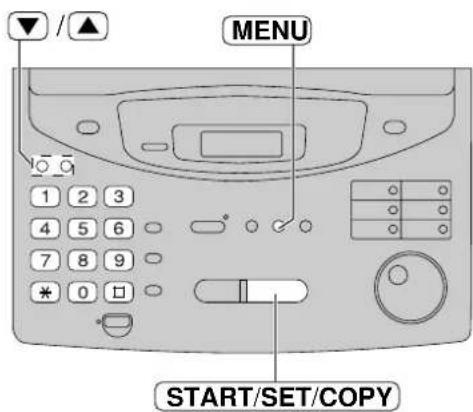
Note:
- If you subscribe to any special telephone company services which require a code, all or part of the fax activation code must be different from the service access code.
- The fax activation code should not be set to "0000".
Receiving Faxes
Other size documents
When the size of the document sent by the other party is as large as, or larger than the recording paper, the unit can reduce each page of the document and print it out on the recording paper by programming a suitable reduction rate.
The reduction rate is determined by a combination of the size of the recording paper and received document.
Recommended reduction rates:
| Mode | Size of recording paper | Size of original document |
| 100% | A4 | Letter |
| 92%(pre-selected) | A4 | A4 |
| 86% | A4 | A4 |
| 72% | A4 | Legal |
A4 = 210 mm × 297 mm
Legal = 216 mm × 356 mm
Letter = 216 mm x 279 mm
1 Press MENU.
Display: 1.SYSTEM SET UP
Press ☐, then ☑ 6
RCV REDUCTION
3 Press START/SET/COPY
MODE=92% ▼▲
4 Press ▼ to select the desired setting.
- If this feature is not required, press to select "100%".
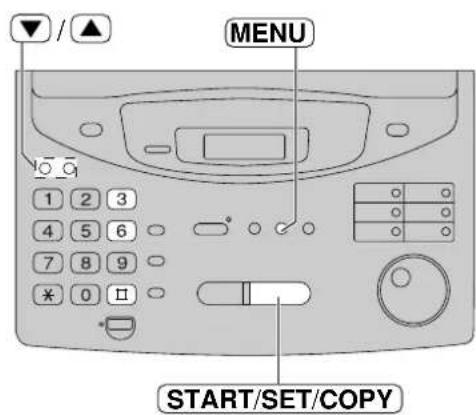
5 Press START/SET/COPY
SETUP ITEM [ ]
6 Press MENU.
Note:
- Documents usually have a heading on the top of each page which contains the sender's name/telephone number. This increases the length of each page. Using the reduction mode is recommended.
- If the appropriate reduction rate is not programmed, the document will be divided.
- If most documents sent from the other party are as long as your recording paper and they have a long heading using a few lines, we recommend selecting 86%.
Silent detection (KX-FP300 only)
(receiving faxes from older model fax machines)
This feature allows the unit to activate the fax function automatically if a silent pause longer than 4 seconds is detected when using an answering machine.
Helpful hints:
- If you wish to receive documents from fax machines that do not send a fax calling tone, activate this feature.
- If you use an answering machine to give greeting messages and record incoming messages on a single cassette tape, deactivate this feature.
1 Press MENU.
Display: 1.SYSTEM SET UP
2 Press ☐, the ☑ 0
SILENT DETECT.
3 Press START/SET/COPY.
MODE=ON ▼▲
4 Press ▼ to select the desired setting.
- If this feature is not required, select "OFF".
5 Press START/SET/COPY.
SETUP ITEM [ ]
6 Press MENU.
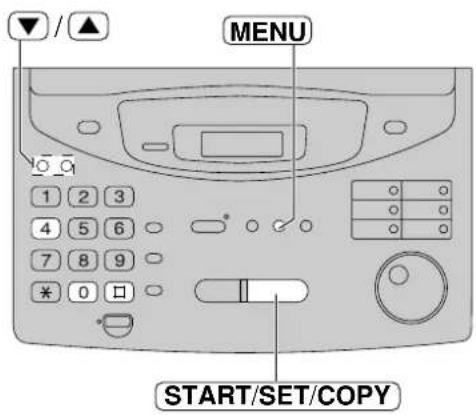
Using the unit and a computer on the same line
(KX-FP320/KX-FM330 only)
We recommend you use separate wall jacks for the unit and the computer.
If you use the Multi-Function software (PANA LINK), follow the instructions on PANA LINK Software Guide (KX-FM330 only).
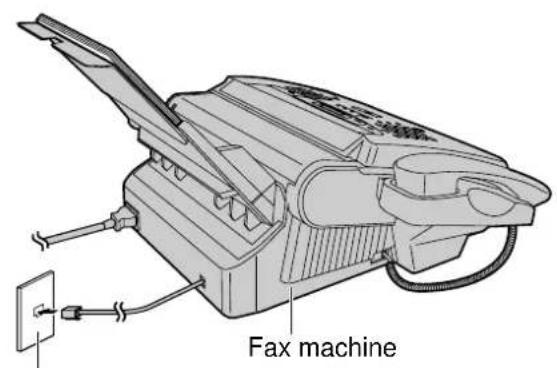
Wall jack
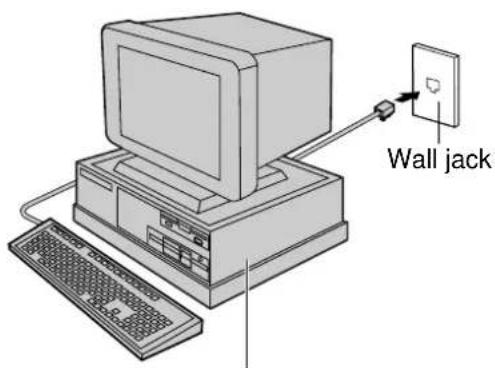
Computer
Note:
- Set the TEL mode on the fax machine.
- The device which has the shortest ring count will answer a call first.
Memory reception alert
When a received document is stored into memory due to a problem, the unit will alert you with beep tones. If you hear slow beeps, clear the printing problem or supply paper to print the stored document. The beep tones will stop.
1 Press MENU .
Display: 1. SYSTEM SET UP
2 Press □, then 4
RECEIVE ALERT
3 Press START/SET/COPY.
MODE=ON ▼▲
4 Press ▼ to select the desired setting.
- If this feature is not required, select "OFF".
5 Press START/SET/COPY.
SETUP ITEM [ ]
6 Press MENU.
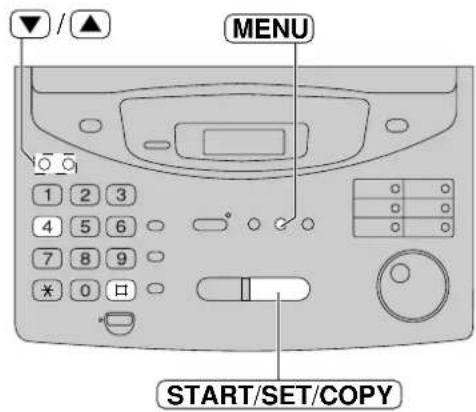
Friendly reception
The friendly reception feature allows you to receive a fax document automatically without pressing START/SET/COPY (p. 70).
When this feature is deactivated, you have to press STARTSETCOPYdocument each time you answer a fax call.
1 Press MENU .
Display: 1. SYSTEM SET UP
2 Press ☐, the☐ 6
FRIENDLY RCV
2 Press START/SET/COPY
MODE=ON ▼▲
4 Press ▼ to select the desired setting.
- If this feature is not required, select "OFF".
5 Press START/SET/COPY.
SETUP ITEM [ ]
6 Press MENU.
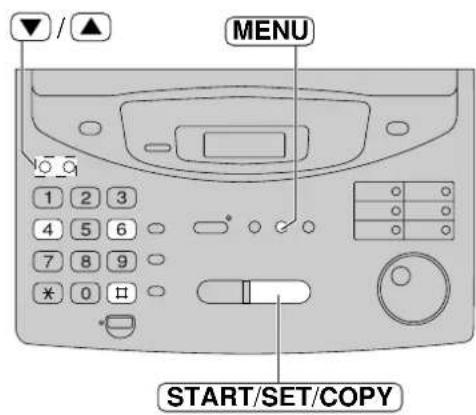
Auto disconnection (KX-FP300 only):
This feature allows you to answer a call with the extension telephone during the silent fax recognition rings in the TEL/FAX mode (p. 79). If you lift the handset of the extension telephone and enter (preselected code) while the ring back tone is heard, the unit will be disconnected and you can talk with the other party.
Important:
- This code should be different from the remote activation ID (p. 73) and the fax activation code (p. 83).
1 Press MENU.
Display: 1. SYSTEM SET UP
2 Press #, the 4 9
AUTO DISCONNECT
2 Press START/SET/COPY.
MODE=ON ▼▲
4 Press ▼ or ▲ to select "ON".
- If this feature is not required, select "OFF".
5 Press START/SET/COPY.
CODE= *0
- The display will show the pre-selected code.
6 Enter the new code.
- This code can be from 2 to 4 digits in length using 0 - 9, and *
7 Press START/SET/COPY.
SETUP ITEM [ ]
8 Press MENU.
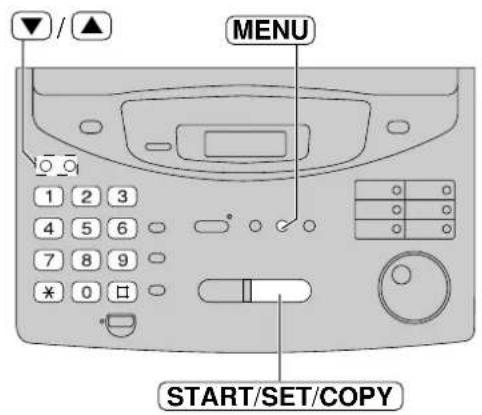
Receiving Faxes
ECM communication
ECM stands for Error Correction Mode.
You can receive and send documents even if there is static interference on the telephone line, provided both the receiving and transmitting stations are ECM compatible.
ON: The unit functions with ECM communication (pre-selected setting).
OFF: The unit does not function with ECM communication.
1 Press MENU.
Display: 1. SYSTEM SET UP
Press □, the6 8
ECM COMMUNI.
Press START/SET/COPY.
MODE=ON ▼▲
4 Press ▼ to select the desired setting.
5 Press START/SET/COPY.
SETUP ITEM [ ]
6 Press MENU.
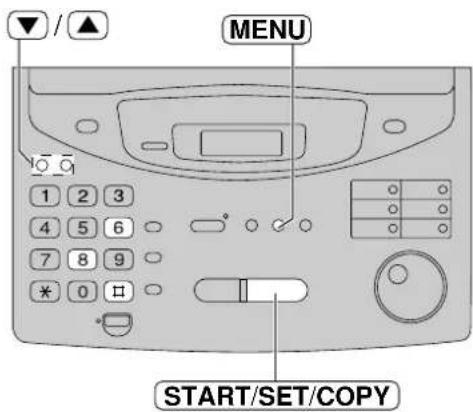
Note:
- You cannot change the setting of this feature if there are stored documents in memory. Clear the stored documents first.
Pager call - when your unit receives a fax
This feature allows your unit to call your pager when your unit receives a fax document.
1 Press MENU.
Display: 1. SYSTEM SET UP
2 Press ☐, then ☐
FAX PAGER CALL
3 Press START/SET/COPY.
MODE=OFF ▼▲
4 Press ▼ or ▲ to select "ON".
- If this feature is not required, select "OFF".
5 Press START/SET/COPY.
NO.=
6 Enter your pager number.
- You can enter a total of 46 digits and/or pauses.
Example:
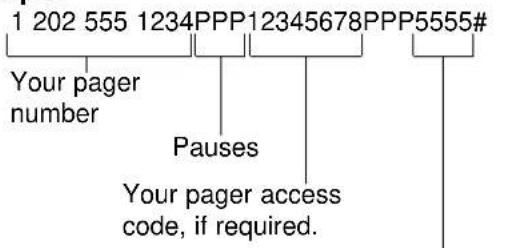
Message you want displayed on your pager when your unit receives a fax.
7 Press START/SET/COPY.
• The unit will dial the stored pager number.
PAGER TEST
8 Check that your pager receives a pager test call.
9 Press MONITOR/ DIGITAL SP-PHONE
10 If the AUTO ANSWER light is off, turn it on by pressing .AUTO ANSWER
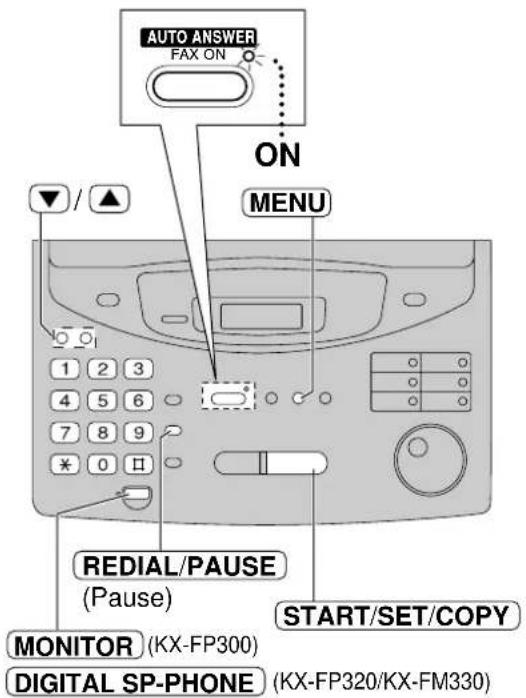
How your unit and pager work
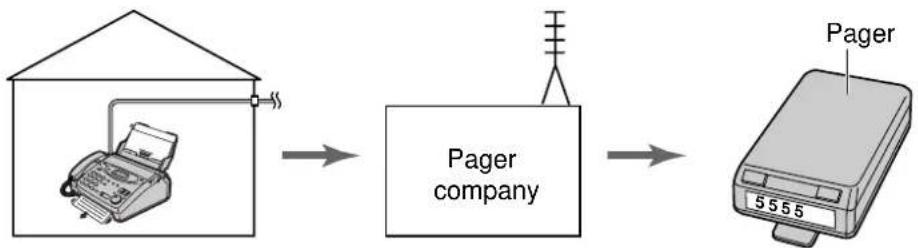
flowchart
graph LR
    A["Input Printer"] --> B["Pager company"]
    B --> C["Output Pager Device"]
When your unit receives a fax document, it will call your pager company.
Your pager company will call your pager.
A few minutes later, your pager will display the same message you entered in step 6 above. (For example: 5555)
Film detection
If this feature is activated, the display will show the following message when the remaining film will only print about 10 A4 size documents.
Display: FILM NEAR EMPTY
- If you are using a regular film cartridge with 100 m roll (p. 17) when the above message is displayed, the unit will also print a report.
1 Press MENU .
2 Press □, then 7 9
3 Press START/SET/COPY
4 Press ▼ to select the desired setting.
- If this feature is not required, select "OFF".
5 Press START/SET/COPY
6 Press MENU.
Polling
(retrieving fax documents)
The polling feature allows you to receive a document from another compatible machine where you pay for the call. This saves the sending party the call charges.
Receiving polling
To place a call and recover a document from another machine follow the steps below. Make sure that no documents have been fed into your unit and that the other party's machine is ready for your call.
1 Press MENUE following is displayed: Display: 4.000
Display: 4.POLLING
2 Press START/SET/COPY.
NO.=
3 Enter the fax number using the dial keypad, One-Touch Dial or EASY DIAL
4 Press START/SET/COPY.
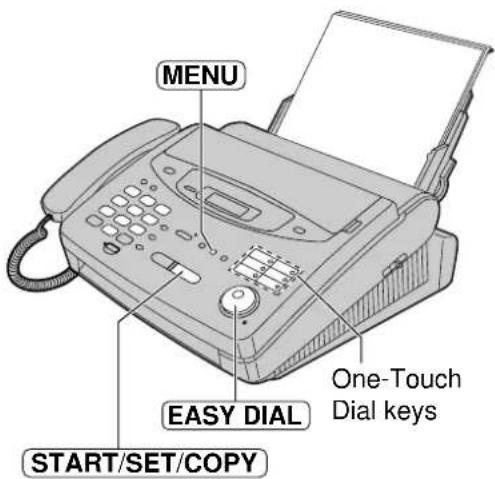
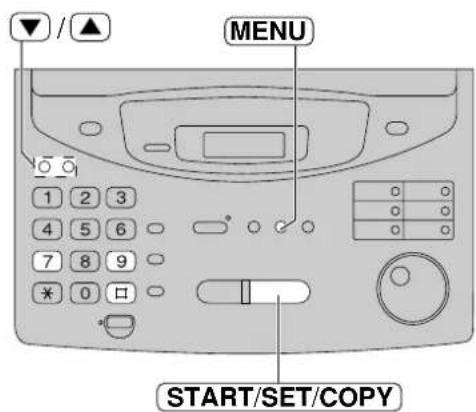
Making a copy
The unit can make single or multiple copies (up to 99). Any transmittable document (p. 58) can be copied.
1 Open the document feeder tray.
- If the display shows "CHECK PAPER", make sure you pull the recording paper set lever forward when installing paper.
2 Adjust the width of the document guides to the size of the document.
3 Insert the document (up to 15 pages) FACE DOWN until the unit grabs the document and a single beep is heard.
Display:
STANDARD
- Make sure the handset is on the cradle.
4 If necessary, press RESOLUTION to select the desired setting (p. 54).
5 Press START/SET/COPY
6 Enter the number of copies (up to 99).
7 If necessary, choose an enlargement/reduction rate by rotating EASY)DEAe page 92.
- If you select "200%", you cannot make multiple copies (see the instructions on the right) or change the resolution.
COLLATE=ON
8 If you want to print collated copies, press COLLATE until the following is displayed (see below).
Press START/SET/COPY.
• The unit will start printing.
COPYING
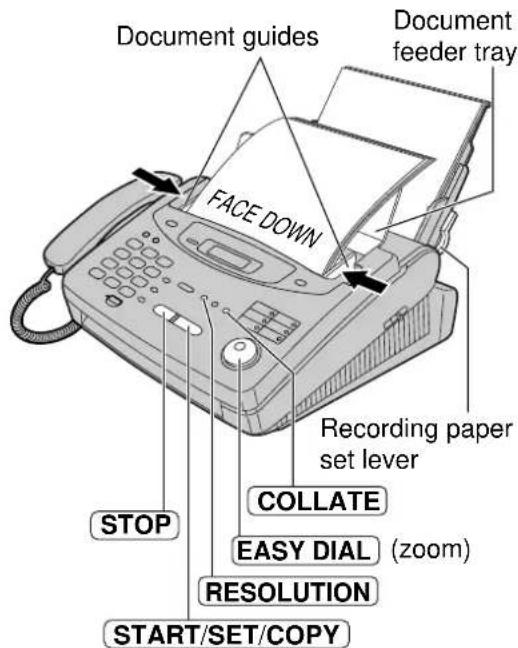
Note:
- If a resolution is not selected, FINE resolution will be selected automatically.
- You can make or receive a voice call while making copies.
- After copying, the enlargement/reduction rate setting will return to "100%".
To stop copying
Press STOP.
To make multiple copies of an enlarged document
First make a single enlarged copy by rotating EASY DIAL (zoom) to the right and select "200%". Then make multiple copies of the enlarged document.
Printing collated copies
The unit will print uncollated copies. You can also print collated copies. See the example below. Example: Making two copies of a 4-page original document
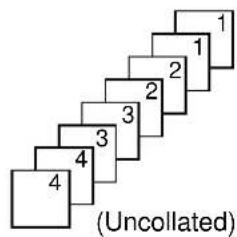
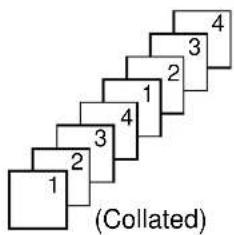
Note:
- If you turn the collating feature on, the unit will store the document into memory and print it. If memory becomes full while storing, the unit will only print out the stored pages.
• After copying, the collating feature will turn off automatically.
Choosing an enlargement/reduction rate
The unit can make enlarged or reduced copies of a document.
■ To enlarge a document:
Select "200%" by rotating (EASY)DIALe right, then insert the document into the unit from the top side. The unit will only enlarge the centre part of the top half of the document. See the example below.
Sample of an enlarged copy:
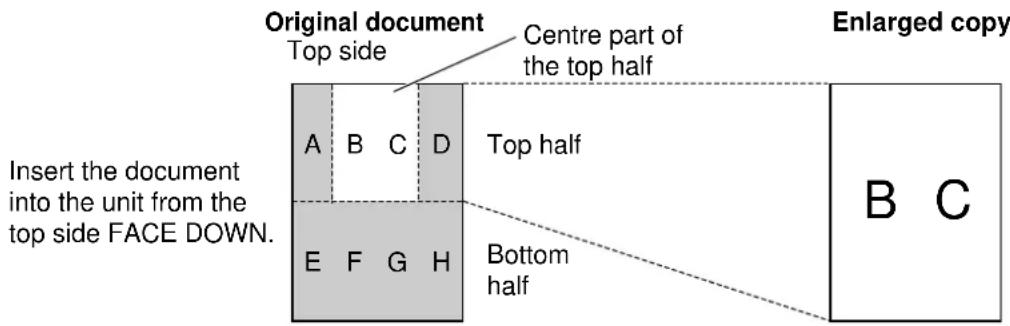
■ To reduce a document:
When you copy a document that is longer than the recording paper, the unit can reduce the original document by programming a suitable reduction rate. The reduction rate is determined by the size of the recording paper and the original document. Select from 92%, 86% and 72% by rotating EASY DIAL (zoom) to the left.
Recommended reduction rates:
| Mode | Size of recording paper | Size of original document |
| 100%(pre-selected) | A4 | A4, Letter |
| 92% | A4 | A4 |
| 86% | A4 | A4 |
| 72% | A4 | Legal |
A4 = 210 mm x 297 mm Legal = 216 mm x 356 mm Letter = 216 mm x 279 mm
Note:
- If the appropriate reduction rate is not programmed, the document may be divided and the top of the second sheet will be deleted.
- If the image at the bottom of the document is not copied when you copy a document as long as the recording paper, try 92% or 86%.
TAD/FAX mode
(using the built-in answering device and receiving voice and fax calls automatically)
When the TAD/FAX mode is set, the unit will work as a fax machine and/or answering device.
If a fax call is detected, the unit will automatically receive faxes.
If a voice call is detected, the answering device will play a greeting message and the caller can leave a voice message.
- You can use either the pre-recorded greeting message (p. 94) or your own greeting message (p. 95).
Setting up the voice message and document reception
1 Select "TAD/FAX" in step 4 of feature setting #77 (p. 76).
2 If the AUTO ANSWER light is off, turn it on by pressing AUTO ANSWER.
Display: TAD/FAX MODE
- The unit will play the TAD/FAX greeting message and the remaining time for recording incoming messages will be displayed.
Example: TIME = 10m13s
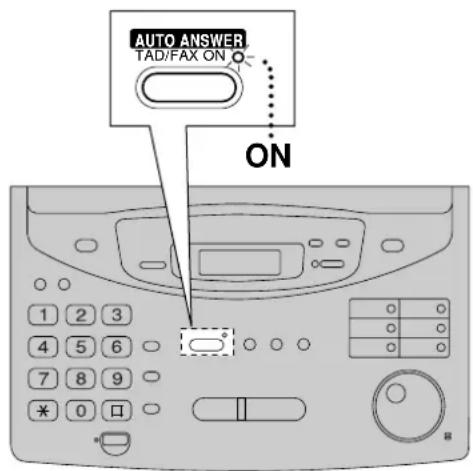
Note:
- The recording time for incoming messages can be set (p. 110).
- For the total recording time, see "Memory Capacity" on page 143.
- When the remaining time is low, erase unnecessary messages from memory (p. 98, 104).
- While an incoming call is being recorded, the other party's voice will be heard through the speaker. If this feature is not required, set the incoming message monitor feature to "OFF" (p. 111).
Pre-recorded greeting messages
The unit has pre-recorded greeting messages. Depending on the situation, one of the following messages will be played to the caller.
■ When the unit is ready to receive voice and fax calls:
Hello! We are unable to answer right now.
To send a fax, please start transmission.
To leave a voice message, please speak after the beep.
Thank you.
■ When you record your own greeting message (see next page):
(Your own TAD/FAX greeting message)
Note:
- If you erase your own greeting message, the pre-recorded greeting message above will be played automatically.
■ When the unit detects a problem:
MESSAGE FULL
Hello! We are unable to answer right now.
To send a fax, please start transmission.
To leave a voice message, please try again later.
Thank you.
FAX MEMORY FULL
Hello! We are unable to answer right now.
To send a fax, please try again later.
To leave a voice message, please speak after the beep.
Thank you.
MESSAGE FULL
and
FAX MEMORY FULL
Hello! We are unable to answer right now.
Please try again later.
Thank you.
Note:
• To clear the problem, see pages 113 and 114.
Recording your own greeting messages
The recording time is limited to 16 seconds for the TEL/FAX greeting message. Record your message within 12 seconds for best performance.
You can choose either 16 seconds or 60 seconds of recording time for the TAD/FAX greeting message (p. 97).
Suggested messages
| TAD/FAX greeting message | “This is (your name, business and/or telephone number). We are unable to answer right now. To send a fax, start transmission. To leave a message, speak after the beep. Thank you.” |
| TEL/FAX greeting message | “This is (your name, business and/or telephone number). We are unable to answer right now. Please try again later. Thank you.” |
Note:
- If you do not record any messages, the pre-recorded messages will be played (p. 78, 94).
1 Make sure that the AUTO ANSWER setting is set to the desired mode (TAD/FAX or TEL/FAX mode) where you want to record a greeting message (p. 76).
2 Press RECORD two times.
- The display will show one of the following according to your selection in step 1.
For the TAD/FAX greeting:
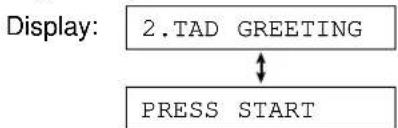
flowchart
graph TD
    A["2.TAD GREETING"] --> B["PRESS START"]
    style A fill:#f9f,stroke:#333
    style B fill:#ccf,stroke:#333
For the TEL/FAX greeting:
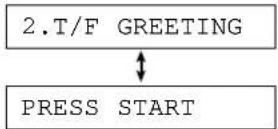
Press START/SET/COPY.
- A long beep will sound. - The display will show one of the following according to your selection in step 1.
For the TAD/FAX greeting:

For the TEL/FAX greeting:

4 Speak clearly about 20 cm away from the microphone.
- The display will show the remaining recording time.
Example: TAD/FAX greeting

5 When finished recording, press STOP
- The unit will repeat your message. You can adjust the volume using ⬇.
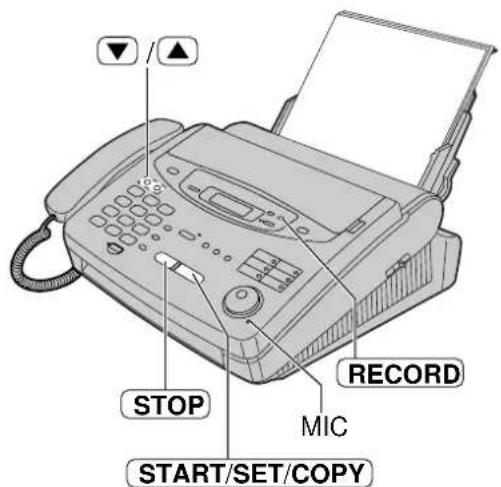
Note:
- If you make a mistake while recording, start again from step 2.
Checking your own recorded greeting messages
To check your TAD/FAX greeting message
- Select "TAD/FAX" in step 4 of feature setting #77 (p. 76).
- If the AUTO ANSWER light is off, turn it on by pressing .AUTO ANSWER If the AUTO ANSWER light is on, turn it off once then on again.
Display: TAD/FAX MODE
- The unit will play the TAD/FAX greeting message.
To check your TEL/FAX greeting message
- Select "TEL/FAX" in step 4 of feature setting #77 (p. 76).
- If the AUTO ANSWER light is off, turn it on by pressing .AUTO ANSWER If the AUTO ANSWER light is on, turn it off once then on again.
Display: TEL/FAX MODE
- The unit will play the TEL/FAX greeting message.
Erasing your own recorded greeting messages =
1 Make sure that the AUTO ANSWER setting is set to the desired mode (TAD/FAX or TEL/FAX mode) where you want to erase the greeting message (p. 76).
2 Press ERASE two times.
- The display will show one of the following according to your selection in step 1.
For the TAD/FAX greeting:
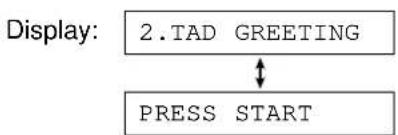
flowchart
graph TD
    A["2. TAD GREETING"] --> B["PRESS START"]
    style A fill:#f9f,stroke:#333
    style B fill:#ccf,stroke:#333
For the TEL/FAX greeting:
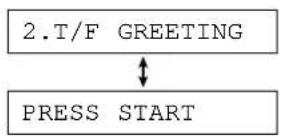
3 Press START/SET/COPY.
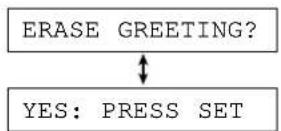
• To stop erasing, press STOP
4 Press START/SET/COPY.

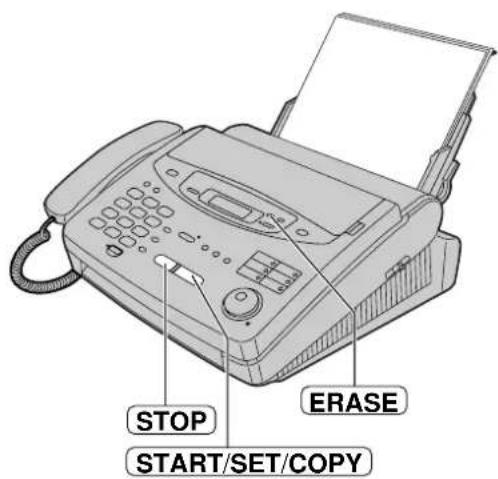
Note:
- If you erase your own recorded greeting messages, the pre-recorded greeting messages will be played (p. 78, 94).
Recording time for the TAD/FAX greeting message
You can choose either 16 seconds or 60 seconds of recording time.
1 Press .MENU
Display: 1. SYSTEM SET UP
2 Press ☐, the ☐ 4
GREETING TIME
3 Press START/SET/COPY.
MODE=16s ▼▲
4 Press ▼ to select the desired setting.
5 Press START/SET/COPY.
SETUP ITEM [ ]
6 Press MENU.
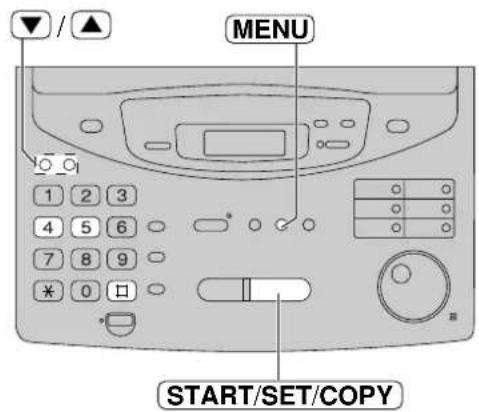
Note:
- If you change the greeting message time to 60 seconds, we recommend that you tell the caller in your own TAD/FAX greeting message to press * before starting fax transmission.
- If you change the greeting message time to 16 seconds from 60 seconds, your own recorded TAD/FAX greeting message will be deleted and return to the pre-recorded message. If necessary, re-record your own greeting message (p. 95).
Listening to recorded messages
When the unit has recorded new voice messages;
— the PLAY MESSAGES indicator will flash,
— the call counter will show the total number of recorded messages, and
— slow beeps will sound if message alert (p. 110) is set to "ON".
When the PLAY MESSAGES indicator flashes
Press PLAY MESSAGES.
- Only the new recorded messages will be played.
When the PLAY MESSAGES indicator lights
Press PLAY MESSAGES.
• All messages will be played.
Note:
- During playback, the display shows the recorded order of the messages.
- You can adjust the speaker volume using 📂.
- The number of calls in the call counter will not decrease until you erase the recorded messages.
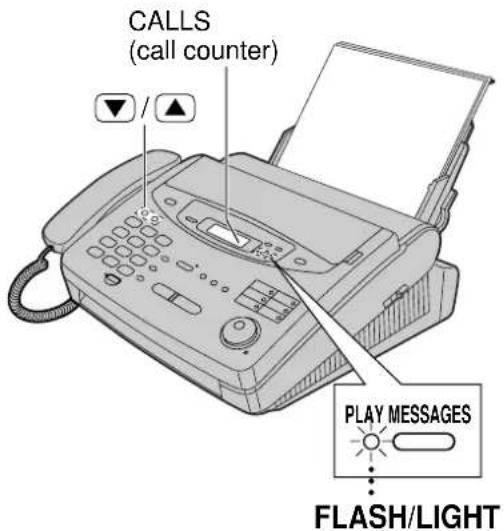
Voice time/day stamp
During playback, a synthesised voice will announce the time and day of the week when each message was recorded.
Erasing recorded messages
Erase unnecessary messages to prevent memory from becoming full.
Erasing a specific message
Press ERASEstening to the message you want to erase.
Erasing all the messages
- Press aEBASEening to all of the messages.
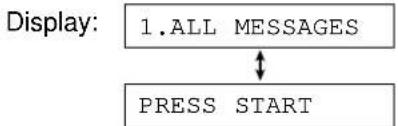
flowchart
graph TD
    A["1. ALL MESSAGES"] --> B["PRESS START"]
- Press START/SET/COPY.
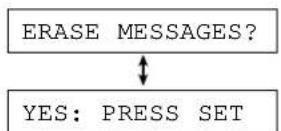
• To stop erasing, press STOP
- Press START/SET/COPY.
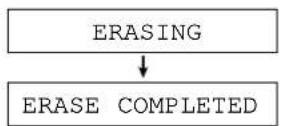
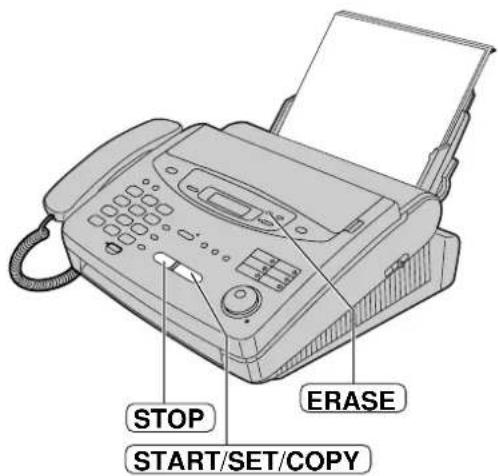
Functions while playing a message
(repeating, skipping and stopping)
Repeating a message
Rotate EASYiCHAL the left while listening to the message you want to repeat.
- If you rotate EASY IDIA within 5 seconds of the beginning of the message, the previous message will be played.
- To play back a specific message, rotate EASY DIAL to the left until you hear the message you want to repeat.
Skipping a message
Rotate EASYCNAL the right to play the next message.
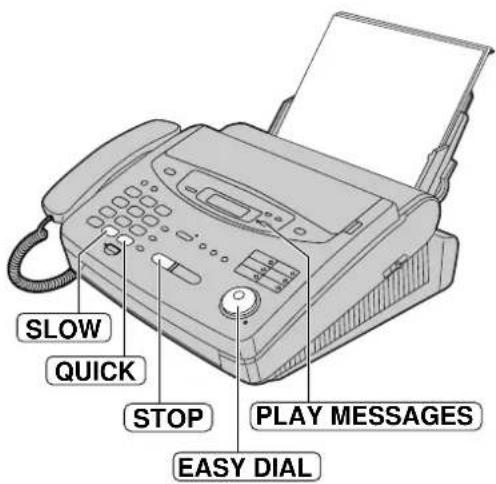
Changing the playback speed
Press QUICKay messages at one and a half times the original speed.
Press (SLOW)ay messages at half the original speed.
- To return to the original speed, press QUICK SLOW again during quick or slow playback.
Stopping playback
Press STOP.
• To resume playing the recorded messages, press PLAY MESSAGES within 1 minute.
Memo message
(leaving a message for others or yourself)
To leave a private message for yourself or someone else, you can record a voice memo. This memo can be played back later, either directly or remotely.
1 Press RECORD
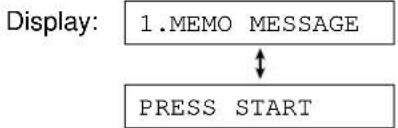
flowchart
graph TD
    A["1.MEMO MESSAGE"] <--> B["PRESS START"]
2 Press START/SET/COPY . A long beep will sound.
• A long beep will sound.
MEMO RECORDING
3 Speak clearly about 20 cm away from the microphone.
4 When finished, press STOP
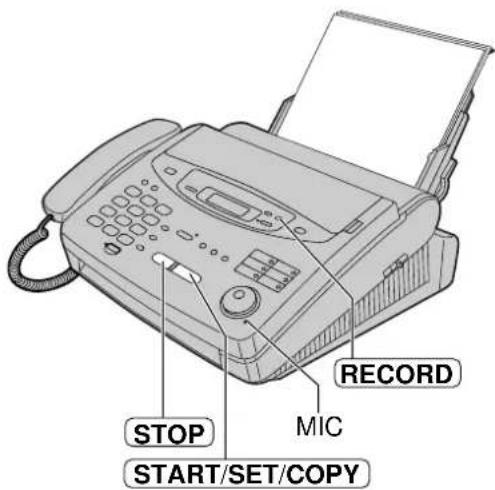
Telephone conversation
You can record a telephone conversation.
1 During the telephone conversation, press RECORD.
Display: 2WAY RECORDING
2 To stop recording, press STOP place the handset.
Note:
- This feature is not available when using the DIGITAL SP-PHONE button.
- There may be legal restrictions in your area on recording two-way telephone conversations. Inform the other party that the conversation is being recorded.
- A beep sounds every 15 seconds to notify the caller that the conversation is being recorded.
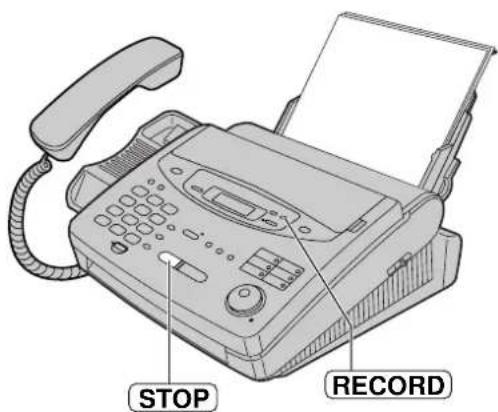
Operating from a remote location
The following operations can be performed from a remote location using a touch tone telephone.
Program the remote operation ID (p. 102) and set the unit to the TAD/FAX mode before going out (p. 93).
| Dial Key | Remote command Page Page | |
| 0 | Skips the greeting message | 105 |
| 1 | Repeats a message | 103 |
| 2 | Skips a message | 103 |
| 4 | New message playback | 103 |
| 5 | All message playback | 103 |
| 7 | Re-records a greeting message | 104 |
| 8 | Continues operation | See note |
| Dial Key | Remote command | |
| 9 | Stops re-recording of a greeting message | 104 |
| * 4 | Erases a specific message | 104 |
| * 5 | Erases all messages | 104 |
| 6 0 | Changes to the TEL mode | 105 |
| 6 1 | Turns ON message transfer/pager call for incoming messages | 105 |
| 6 2 | Turns OFF message transfer/pager call for incoming messages | 105 |
Note:
- During remote operation, the unit will stop and two beeps will be heard in the following conditions:
— 2 minutes 40 seconds after your unit answered.
— Every 2 minutes 40 seconds after pressing any command key.
To listen to further messages, press ☑ within 10 seconds after hearing the two beeps.
Remote operation card
Please cut out and carry this card for assistance when using the remote operation.
Answering Device Remote Operation
- Call your unit.
- Enter the remote operation ID ☐☐☐ during the greeting message.
- The new recorded messages will be played automatically.
- Press the remote command key(s) (see the reverse side) within 10 seconds.
If there are no new messages in step 2, press the remote command key(s) within 4 seconds or wait for 4 seconds, and all the recorded messages will be played back.
Notice of Remote Operation
- The remote operation is available only from a touch tone telephone when the unit is in the TAD/FAX mode.
- When the unit is in the TEL mode, call your unit and wait for 20 rings. The answering device will temporarily answer the line. Enter the remote operation ID during the greeting message. The unit will switch to the TAD/FAX mode.
- When you press a key, press firmly.
• To send a document, press ☐ 9. When a fax tone is heard, start transmission.
Remote Operation (KX-FP320/KX-FM330 only)
Setting the remote operation ID
The remote operation ID is used to access the answering device.
Choose any 3-digit number except a number using digits 0 or 7.
1 Press MENU
Display: 1. SYSTEM SET UP
2 Press #, then 1
REMOTE TAD ID
Press START/SET/COPY.
ID=111
4 Enter the desired number.
5 Press START/SET/COPY.
6 Press MENU.
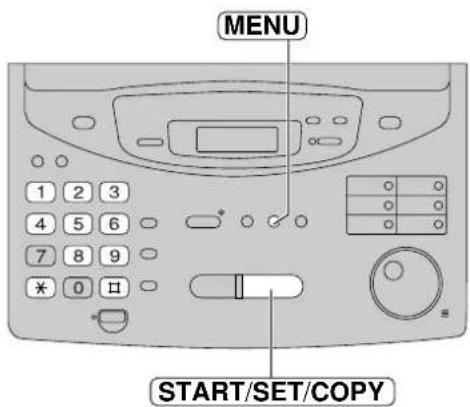
| Key | Remote command |
| 0 | Skips the greeting message |
| 1 | Repeats a message |
| 2 | Skips a message |
| 4 | New message playback |
| 5 | All message playback |
| 7 | Re-records a greeting message |
| 8 | Continues operation |
| Key | Remote command |
| 9 | Stops re-recording of a greeting message |
| *4 | Erases a specific message |
| *5 | Erases all messages |
| 60 | Changes to the TEL mode |
| 61 | Turns ON message transfer/pager call |
| 62 | Turns OFF message transfer/pager call |
From a remote touch tone telephone
Listening to recorded messages
1 Call your unit.
2 Enter the remote operation ID during the TAD/FAX greeting playback.
- The voice guide will tell you the number of new recorded messages and they will be played automatically.
- To repeat the new recorded messages, press 4
- To listen to all of the recorded messages, press 5.
Voice guide example:
3 new messages.
When there are no new recorded messages
The voice guide will be heard.
Press ☑ wait for 4 seconds to listen to all of the recorded messages.
When memory is full
The voice guide will be heard after playing the messages. Erase some or all of the messages (p. 98, 104).
No new messages.
Sorry, no more memory.
Please erase unnecessary messages.
During playback
Repeating a message
Press ▶ play the current message.
- If you press within 5 seconds of the beginning of a message, the previous message will be played.
Skipping a message
Press 2.
Erasing incoming messages from memory
Erasing a specific message
Press ☐ while listening to the message you want to erase.
- A long beep and the voice guide will be heard. Then the unit will continue with the next message.
Erasing all messages
Press to ease all messages.
- A long beep and the voice guide will be heard.
Voice guide example:
The message has been erased.
All messages have been erased.
Other remote operations
Recording a marker message
After playing back the recorded messages, you can leave an additional message.
- Wait for the voice guide to tell you that the remote operation has ended.
- Wait about 10 seconds for the voice guide to prompt you to leave a message.
- Leave a message after the beep.
All messages have been played.
Please leave your name and message after the beep.
Re-recording a greeting message
You can change the contents of the greeting message for the TAD/FAX mode.
- Press to start recording.
• A long beep will sound.
- Speak clearly up to 16 seconds.
- If you pause for over 2 seconds, 6 beeps will sound and the recording will stop. Repeat from step 1 within 10 seconds.
- When finished, press 9
- The new greeting message will be played.
Skipping the greeting message
Press ☐ during the greeting message playback.
- The unit will skip the rest of the greeting message.
Turning the message transfer/pager call on or off
You must pre-program a transfer telephone number or a pager number (p. 107) before using this feature.
Press t6 turn ON the message transfer/pager call.
Press ☐ turn OFF the message transfer/pager call.
- If a transfer telephone number or a pager number is not programmed, you cannot turn this feature ON. The voice guide will prompt you.
Voice guide example:
Message transfer is set.
Transfer phone number is 123456789.
or
Pager call is set.
Pager number is 098765432.
Message transfer is off.
or
Pager call is off.
Transfer phone number is not set.
or
Pager number is not set.
Changing the receive mode to the TEL mode
Press 6 change the setting of the receive mode from TAD/FAX to TEL.
- You cannot return to the TAD/FAX mode in the same call. To return to the TAD/FAX mode, see below.
Returning the receive mode to the TAD/FAX mode
You can change the setting of the receive mode from TEL to TAD/FAX from a remote location.
- Call your unit and wait for 20 rings.
- The answering device will temporarily answer the line.
- Enter the remote operation ID during the greeting message.
- The unit will switch to the TAD/FAX mode.
Transferring recorded messages to another telephone
This feature allows your unit to call a designated telephone or pager number each time an incoming voice message is recorded.
You can choose Message transfer or Pager call.
Message transfer: Program the transfer telephone number first. When an incoming message is recorded in your unit, the message will be transferred. You can retrieve the message during the same call using the remote operation.
Pager call: Program the pager number first. When an incoming call is recorded, your pager will be called. Call your unit and retrieve the message using the remote operation.
• This feature operates in the TAD/FAX mode.
- For details on the remote operation, see page 101.
- Use a touch tone telephone to access your unit.
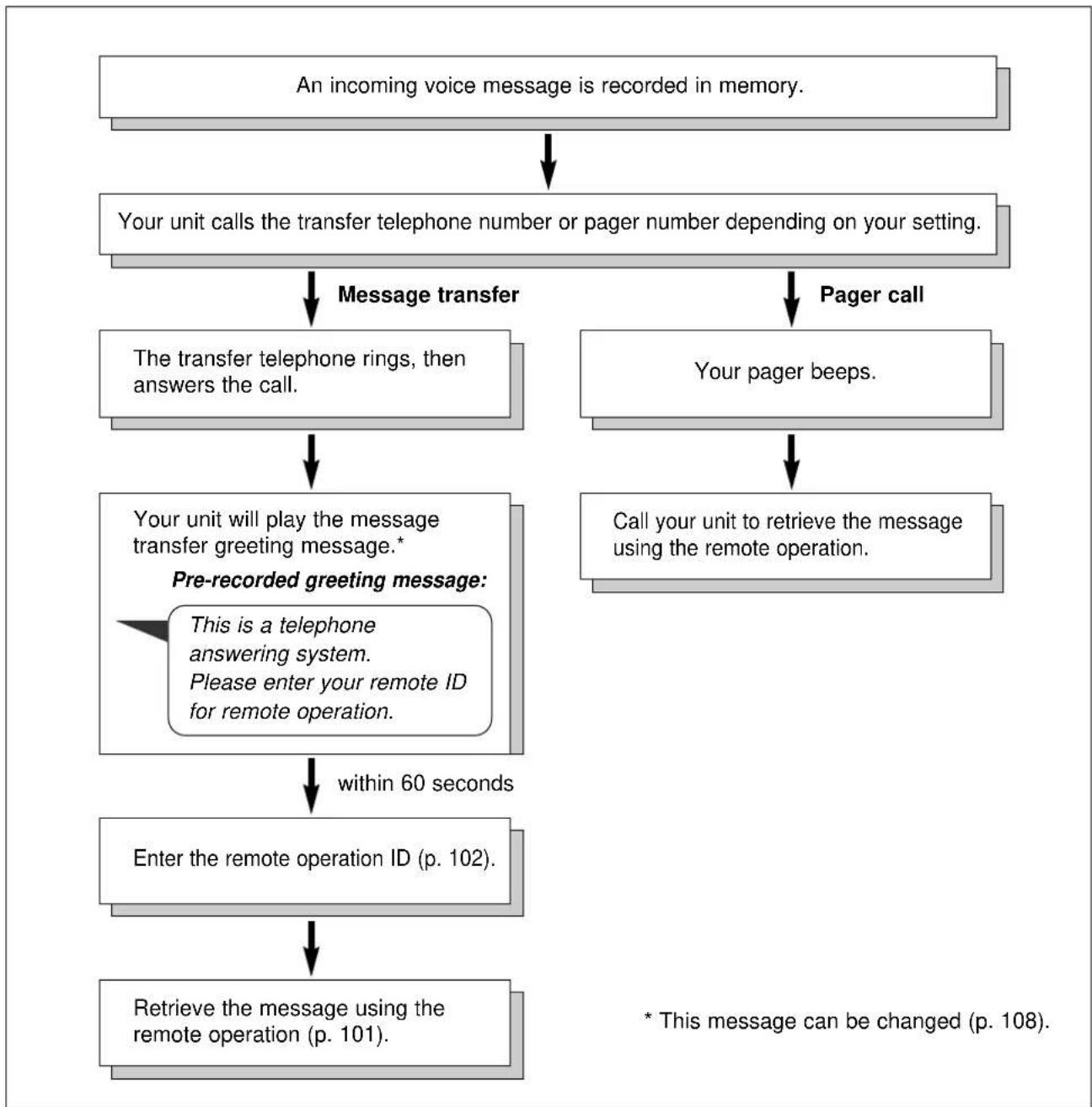
flowchart
graph TD
    A["An incoming voice message is recorded in memory."] --> B["Your unit calls the transfer telephone number or pager number depending on your setting."]
    B --> C["Message transfer"]
    B --> D["Pager call"]
    C --> E["The transfer telephone rings, then answers the call."]
    D --> F["Your pager beeps."]
    E --> G["Your unit will play the message transfer greeting message.*"]
    F --> H["Call your unit to retrieve the message using the remote operation."]
    G --> I["Pre-recorded greeting message: This is a telephone answering system. Please enter your remote ID for remote operation."]
    H --> J["within 60 seconds"]
    I --> K["Enter the remote operation ID (p. 102)."]
    J --> L["Retrieve the message using the remote operation (p. 101)."]
    K --> L
    L --> M["* This message can be changed (p. 108)."]
Setting the message transfer/pager call
1 Press .MENU
Display: 1. SYSTEM SET UP
2 Press □, the 60
MESSAGE TRANS.
3 Press START/SET/COPY.
MODE=OFF ▼▲
4 Press or to select "MESSAGE" or "PAGER".
MESSAGE: transfer incoming messages.
PAGER: calls your pager.
OFF: turns off this feature.
- If this feature is not required, select "OFF".
5 Press START/SET/COPY.
NO.=
6 a: If you selected "MESSAGE" in step 4: Enter the transfer telephone number.
b: If you selected "PAGER" in step 4:
Enter your pager number.
- You can enter a total of 46 digits and/or pauses.
Example:
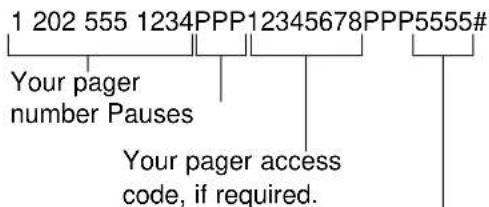
Message you want displayed on your pager when your unit receive a fax.
7 Press START/SET/COPY.
SETUP ITEM [ ]
8 Press MENU.
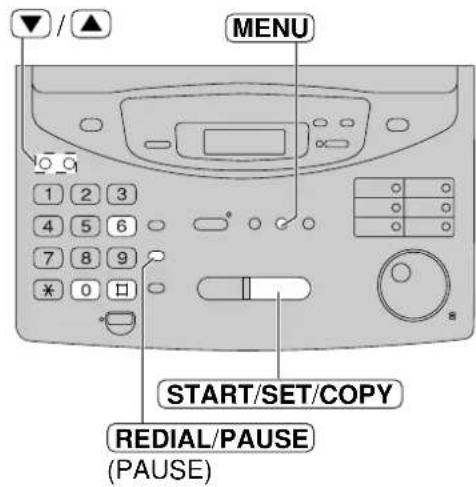
Note:
- This feature can be turned on/off remotely from a touch tone telephone (p. 105).
How your unit and pager work
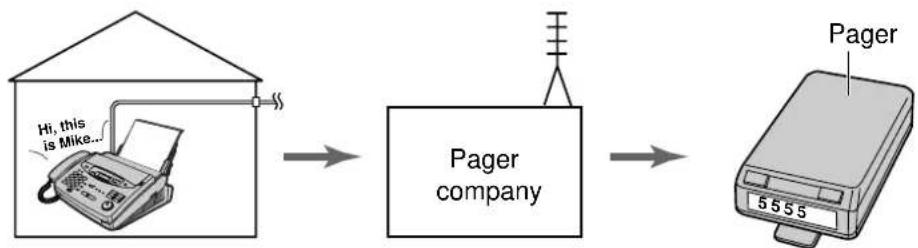
flowchart
graph LR
    A["Printer Application"] --> B["Pager company"]
    B --> C["Printer Product"]
When your unit receives a voice message, it will call your pager company.
Your pager company will call your pager.
A few minutes later, your pager will display the same message you entered in step 6. (For example: 5555)
Recording a message transfer greeting message
The recording time is limited to 16 seconds. Record your message within 12 seconds for best performance.
Suggested message
"This is a transferred message from (your name, business and/or telephone number). Please enter your remote ID for the remote operation."
Note:
- If you do not record a message, the pre-recorded message will be played (p. 106).
1 Press MENU
Display: 1. SYSTEM SET UP
2 Press #, the 1
TRNS-GREETING
3 Press START/SET/COPY.
CHECK ▼▲
4 Press ▼ or ▲ to select "RECORD".
5 Press START/SET/COPY.
TRNS REC. 16s
6 Speak clearly about 20 cm away from the microphone.
- The display will show the remaining recording time.
Example: TRNS REC. 15s
7 When finished recording, press STOP.
- The unit will repeat your message. You can adjust the volume using ▼ ▲.
8 Press .MENU
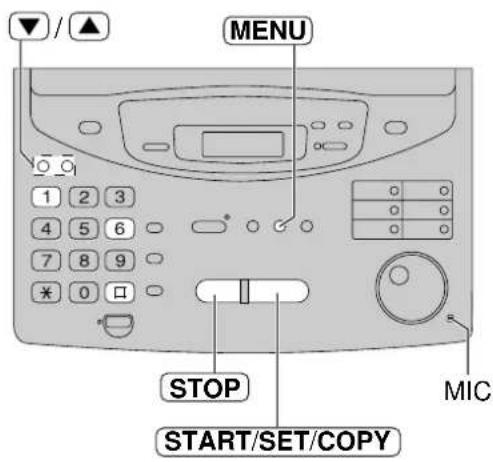
To check your message
- Press MENU, #61, then START/SET/COPY.
- Press ▼ to select "CHECK" in the display.
- Press START/SET/COPY. • The unit will play your message.
- To exit the program, press .MENU
To erase your message
- Press MENU, 61, then START/SET/COPY.
- Press ▼ to select "ERASE" in the display.
- Press START/SET/COPY.
- Your own message will be erased.
- To exit the program, press .MENU • The pre-recorded greeting message will be played when transferring a call.
Ring count in the TAD/FAX mode
This feature determines the number of rings before the unit answers a call in the TAD/FAX mode.
You can choose from 1, 2, 3, 4, TOLL SAVER and RINGER OFF.
TOLL SAVER: When you call the unit from a remote location, the number of rings will tell you if there are any new voice messages. If the unit answers on the second ring, there is at least one new recorded message. If the unit answers on the fourth ring, there are no new recorded messages. To save the toll charge for the call, hang up immediately when you hear the third ring. The third ring indicates that there are no new recorded messages.
RINGER OFF: The unit will answer without ringing.
Helpful hints:
- To answer a call before the unit does, increase the number of rings.
- If you have difficulty in receiving faxes from machines that have an automatic transmission feature, decrease the number of rings.
1 Select "TAD/FAX" in step 4 of feature setting #77 (p. 76).
2 Press MENU.
Display: 1.SYSTEM SET UP
Press ☐, the☐ 6
TAD RING COUNT
4 Press START/SET/COPY.
RING=2 ▼▲
5 Press ▼ to select the desired setting.
6 Press START/SET/COPY.
SETUP ITEM [ ]
7 Press MENU.
Note:
- If you subscribe to a Caller ID service, set this ring count setting to 2 or more rings.
- Two rings may be referred to as "NORMAL", as it enables the unit to answer incoming calls in a reasonably short time. This position should be selected unless you specially wish to take advantage of the "toll saver facility".
- Callers generally expect their calls to be answered within 10 seconds and most callers would abandon a call in under 45 seconds if no reply is obtained. This unit will answer incoming calls in under 10 seconds if required.
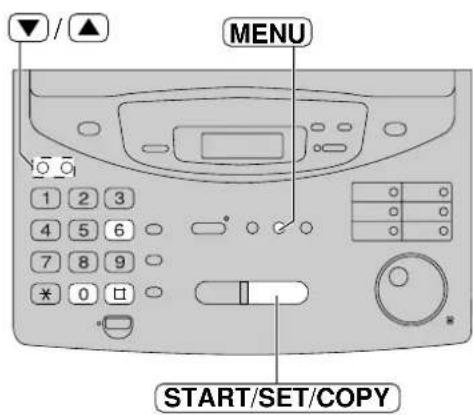
Incoming message recording time
You can choose from two recording times for an incoming message.
LONG: The unit will record an incoming message of up to 2 minutes 30 seconds (pre-selected setting).
SHORT: The unit will record an incoming message of up to 1 minute.
1 Press MENU
Display: 1. SYSTEM SET UP
Press #, theh 0
RECORDING TIME
2 Press START/SET/COPY.
MODE=LONG ▼▲
4 Press ▼ to select the desired setting.
5 Press START/SET/COPY.
SETUP ITEM [ ]
6 Press MENU .
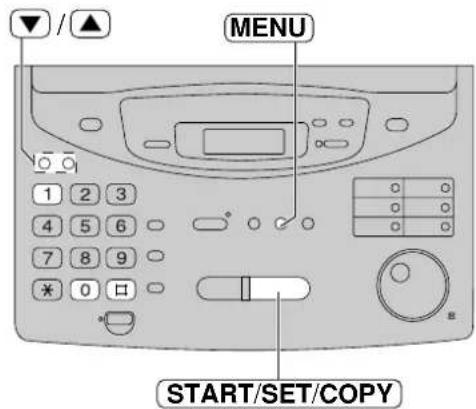
Message alert
(beeps when a voice message is received)
When this feature is on, the unit will let you know with slow beeps that a caller's message has been recorded.
1 Press MENU
Display: 1.SYSTEM SET UP
Press #, the4n 2
MESSAGE ALERT
Press START/SET/COPY.
MODE=OFF ▼▲
4 Press ▼ or ▲ to select "ON".
MODE=ON ▼▲
- If this feature is not required, select "OFF".
5 Press START/SET/COPY.
SETUP ITEM [ ]
6 Press MENU.
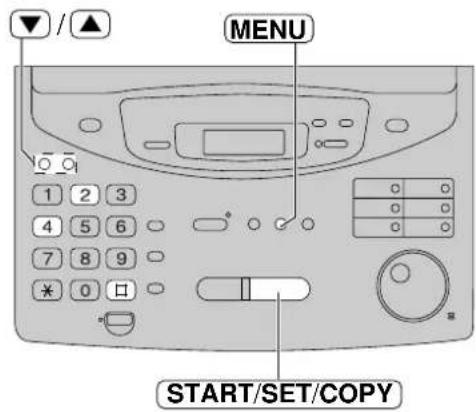
Recording time alert
(beeps when memory is almost full)
When there is less than 60 seconds of recording time for incoming messages, the unit will alert the user with slow beeps.
1 Press .MENU
Display: 1. SYSTEM SET UP
2 Press ☐, the ☑ 3
REC. TIME ALERT
3 Press START/SET/COPY.
MODE=OFF ▼▲
4 Press ▼ or ▲ to select "ON".
- If this feature is not required, select "OFF".
5 Press START/SET/COPY.
SETUP ITEM [ ]
6 Press MENU.
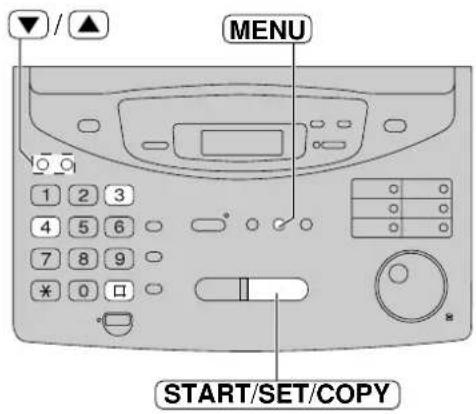
Incoming message monitor
When calls are received with the answering device, the incoming messages (ICM) will be heard from the speaker during the call. If you do not want the messages to be heard by other persons who share your unit, set this feature to "OFF".
1 Press .MENU
Display: 1. SYSTEM SET UP
2 Press ☐, the6 7
ICM MONITOR
3 Press START/SET/COPY.
MODE=ON ▼▲
Press ▼ to select the desired setting.
- If this feature is not required, select "OFF".
5 Press START/SET/COPY.
SETUP ITEM [ ]
6 Press MENU.
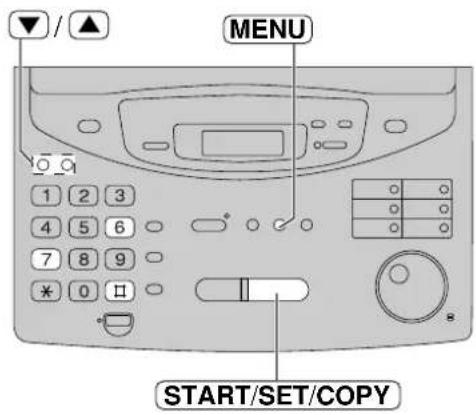
Error Messages
Reports
If your unit cannot send a fax, check the following.
– The number you dialled is correct.
- The other party's machine is a facsimile.
If the problem remains, correct it by following the communication message printed on the sending and journal reports (p. 59, 60).
| Communication message | Error code | Cause & Remedy |
| COMMUNICATION ERROR | 41-72 FF | A transmission or reception error occurred. Try again or check with the other party. |
| DOCUMENT JAMMED | — | The document is jammed. Remove the jammed document (p. 122). |
| ERROR-NOT YOUR UNIT | 54, 59 70 | A transmission or reception error occurred because of a problem with the other party's fax machine. Check with the other party. |
| MEMORY FULL | — | The document was not received due to memory being full. |
| NO DOCUMENT | — | The document was not fed into the unit properly. Reinsert the document and try again. |
| OTHER FAX NOT RESPOND | — | The other party's fax machine is busy or has run out of recording paper. Try again.The document was not fed properly. Reinsert the document and try again.The other party's fax machine rings too many times. To send a fax manually, dial the number, confirm the fax tone, and press START/SET/COPY.The other party's machine is not a facsimile. Check with the other party.The number you dialled is not in service. |
| PC FAIL OR BUSY (KX-FM330 only) | — | The PC cannot control the fax functions. The printer cable is not connected correctly, or the software is not running on the PC. |
| PRESSED THE STOP KEY | — | STOPwas pressed and fax communication was cancelled. |
| THE COVER WAS OPENED | — | The cover was opened. Close it and try again. |
| OK | — | Fax communication was successful. |
Display
If the unit detects a problem, one or more of the following messages will appear on the display.
| Display message Cause & Remedy | |
| CALL SERVICE | There is something wrong with the unit. Contact our service personnel. |
| CHECK COVER | The cover is open. Close it. |
| CHECK DOCUMENT | The document is not fed into the unit properly. Reinsert the document. If misfeeding occurs frequently, clean the document feeder rollers and try again (p. 126). If the problem remains, adjust the feeder pressure (p. 123). |
| CHECK FILM | The film cartridge is not installed properly. Reinsert it correctly (p. 124, 125). |
| CHECK LEVER | The recording paper set lever is released. Push it back to set the lever (p. 29). |
| CHECK MEMORY | Memory (telephone numbers, parameters, etc.) has been erased. Re-program. |
| CHECK PAPER | The recording paper is not installed or the unit has run out of paper. Install paper and pressSTART/SET/COPY.The recording paper is not fed into the unit properly or has jammed near the recording paper entrance. Clear the jammed paper and pressSTART/SET/COPYto clear the message (see “When paper has jammed near the recording paper entrance” on page 121).Do not install folded or heavily curled paper in the paper tray. |
| DIRECTORY FULL | There is no space to store new stations in the EASY DIAL directory. Edit or erase unnecessary stations (p. 44). |
| FAX IN MEMORY | The unit has a document in memory. See the other displayed message instructions to print out the document. |
| FAX MEMORY FULL | Memory is full of received documents due to a lack of recording paper or a recording paper jam, etc. Install paper or clear the jammed paper.When performing memory transmission, the document being stored exceeds the memory capacity of the unit. Transmit the entire document using manual or automatic transmission. |
| FILM EMPTY | The film is empty. Replace the film cartridge (p. 124, 125).The film is slack. Tighten it (see step 9 on page 125) and install again. |
| FILM NEAR EMPTY | The remaining film can print about 10 pages of A4 size documents. Prepare a new film or film cartridge (p. 17). |
| FREE FILM EMPTY | The free starter film is empty. Replace the film or film cartridge (p. 124, 125). |
| MODEM ERROR | There is something wrong with the modem circuit. Contact our service personnel. |
| NO FAX REPLY | The other party's fax machine is busy or has run out of recording paper. Try again. |
| PAPER JAMMED | A recording paper jam occurred under the film cartridge. Clear the jammed paper (p. 120). |
(continued)
Error Messages
| Display message Cause & Remedy | |
| PLEASE WAIT | The unit is checking that there is no slack on the film. Wait a while. |
| POLLING ERROR | The other party's fax machine does not provide the polling function. Check with the other party. |
| REDIAL TIME OUT | The other party's fax machine is busy or has run out of recording paper. Try again. |
| REMOVE DOCUMENT | The document is jammed. Remove the jammed document (p. 122).Attempted to transmit a document longer than 600 mm. Press $STOPremove the document. Divide the document into two or more sheets and try again. |
| TRANSMIT ERROR | A transmission error occurred. Try again. |
| UNIT OVERHEATED | The unit is too hot. Let the unit cool down. |
The following will be shown on the KX-FP320/KX-FM330 only.
| Display message Cause & Remedy | |
| MESSAGE FULL | There is no room left in memory to record a voice message. Erase some or all of the messages (p. 98, 104). |
| KX-FM330 onlyPC FAIL OR BUSY | The fax function cannot be operated by the PC. The RS232C cable is not connected correctly, or the software is not running on the PC. |
When a function does not work, check here before requesting help
General
| Problem Cause & Remedy | |
| I cannot make and receive calls. | The power cord or telephone line cord is not connected. Check the connections (p. 30). |
| I cannot make calls. | The dialling mode setting is wrong. Check the setting (p. 39). |
| The unit does not work. | Disconnect the unit from the telephone line and connect the line to a known working telephone. If the working telephone operates properly, contact our service personnel to have the unit repaired. If the working telephone does not operate properly, contact your telephone company. |
| The unit does not ring. | The ringer volume is off. Adjust it to a suitable level (p. 35). |
| The other party complains they only hear a fax tone and cannot talk. | The FAX ONLY mode is set. Tell them the number is only used for faxes or change to another receive mode on your unit (p. 66, 68). |
| The speakerphone is not working.(KX-FP320/KX-FM330 only) | Use the speakerphone in a quiet room.If you have difficulty hearing the other party, adjust the volume using ▼ or ▲.If parts of your conversation are cut off, you and the other party are speaking at the same time. Speak alternately. |
| TheREDIAL/PAUSEbuttonnot function properly. | If this blden is pressed while dialling, a pause will be inserted. If pressed immediately after a dial tone is obtained, the last number dialled will be redialled. |
| The receive mode does not function as explained on pages 66 to 69. | The TEL/FAX mode is set (p. 78–82). |
| During programming, I cannot enter a code or ID number. | All or part of their numbers are the same. Change the number (p. 73, 83, 87, 102). |
| The film runs out quickly. | The HELP button, copy function and reports use more film. |
Fax - sending
| Problem Cause & Remedy | |
| I cannot send documents. | The telephone line cord is connected to the EXT jack on the unit. Connect to the LINE jack (p. 30). (KX-FP300 only)The other party's fax machine is busy or has run out of paper. Try again.The other party's machine is not a facsimile. Check with the other party.The other party's fax machine rings too many times. Send the fax manually – dial the number, confirm the fax tone, then pressSTART/SET/COPY. |
(continued)
Operations
Fax - sending (cont.)
| Problem Cause & Remedy | |
| The other party complains that letters on their received document are distorted. | ·If your line has special telephone services such as call waiting, the service may have been activated during fax transmission. Connect the unit to a line that does not have these services. ·The extension telephone on the same line is off the hook. Hang up the extension telephone and try again. |
| The other party complains that dirty patterns or black lines appear on their received documents. | ·The glass or rollers are dirty. Clean them (p. 126). |
| I cannot make an international fax call. | ·Use the overseas transmission mode (p. 65). ·Add two pauses at the end of the telephone number (p. 38) or dial manually. |
Fax – receiving
| Problem Cause & Remedy | |
| I cannot receive documents automatically. | The receive mode is set to the TEL mode. Set to one of the other modes.The time taken to answer a call is too long. Decrease the number of rings (p. 75, 77, 82, 109).The telephone line cord is connected to the EXT jack on the unit. Connect to the LINE jack (p. 30). (KX-FP300 only)The greeting message is too long. Shorten the message (p. 95). (KX-FP320/KX-FM330 only) |
| The display shows “CONNECTING......” but faxes are not received. | The incoming call is not a fax. Change the receive mode. |
| The recording image is faint. | The sender transmitted a faint document. Ask them to transmit a clearer copy of the document.The thermal head is dirty. Clean it (p. 127). |
| The printing quality is poor. | Some paper has instructions recommending which side to print on. Try turning the paper over. |
| A blank sheet is ejected after the received documents are printed out. | The receiving reduction rate is not programmed correctly. Program the proper rate (p. 84). |
Receive mode
| Problem Cause & Remedy | |
| I cannot select the desired receive mode. | If you want to set the FAX ONLY, TEL/FAX or TAD/FAX (KX-FP320/KX-FM330 only) mode:Select the desired mode using feature #77 (p. 76, 80), andPress AUTOANSWERTO ANSWER light. If you want to set the TEL mode:Press AUTOANSWERTO ANSWER light. If you want to set the TEL mode:Press AUTOANSWERTO ANSWER light. |
Copying
| Problem Cause & Remedy | |
| When I try to make a copy, the unit beeps and the display shows “CHECK PAPER”. | • Pull the recording paper set lever forward, make sure the paper is inserted correctly and push the recording paper set lever back. |
| The unit does not make a copy. | • You cannot make a copy during programming. Make the copy after programming or stop the programming. |
| A dirty pattern or a black line appears on the copied documents. | • The glass or rollers are dirty. Clean them (p. 126). |
| The copied image is distorted. | • The thermal head is dirty. Clean it (p. 127). |
| The document is not copied properly. | • The film is not inserted correctly. Insert it correctly (p. 124, 125). |
| The copied image is blank. | • The film is not inserted correctly. Insert it correctly (p. 124, 125). |
| The printing quality is poor. | • Some paper has instructions recommending which side to print on. Try turning the paper over. |
| The printing is faint.Original CopyABC ABC | • You may have used paper with a cotton and/or fibre content over 20%, such as letterhead or resume paper. |
| A paper jam occurs when copying. | • The film is not inserted correctly. Insert it correctly (p. 124, 125). |
Operations
Answering device (KX-FP320/KX-FM330 only)
| Problem Cause & Remedy | |
| No voice messages have been recorded in the TAD/FAX mode. | The memory is full. Erase some or all of the messages (p. 98, 104). |
| I cannot retrieve recorded messages from a remote telephone. | Make sure that you use the remote operation ID correctly (p. 102). |
Using an answering machine (KX-FP300 only)
| Problem Cause & Remedy | |
| I cannot receive documents automatically. | ·Your greeting message on the answering machine is too long. Shorten the message (up to 10 seconds). ·The answering machine rings too many times. Set to 1 or 2 rings. ·The silent detection feature is deactivated. Activate this feature (p. 85). |
| I cannot receive voice messages. | ·Check that the answering machine is turned on and connected to the unit properly (p. 71). ·Set the number of rings on the answering machine to 1 or 2. |
| I cannot retrieve recorded voice messages on the answering machine from a remote location. | ·The remote access code on your answering machine is the same as your fax activation code. Use a different number for each code. ·You did not program your remote access code in your fax machine correctly. Program the same code that is programmed on the answering machine (p. 73). |
| The greeting message on the answering machine is interrupted halfway and the caller cannot leave a voice message. | ·The greeting message has a silent pause longer than 4 seconds. Re-record the greeting message. |
| I pressed the remote access code to access the answering machine remotely, but the line was disconnected. | ·The code may include “#” which is used for certain features provided by the telephone company. Change the code on the answering machine to another number which does not include “#” (p. 73). |
| Callers complain that their voice message is interrupted halfway and they cannot leave a message. | ·Advise the caller not to pause for over 4 seconds while recording their voice message. |
| Callers complain that they cannot send a document. | ·Your answering machine has run out of recording tape. Rewind the tape to record messages. ·You set the answering machine to only give a greeting message. |
| When I answer a call with the extension telephone, the unit switches to the fax mode and I cannot talk with the other party. | ·You paused for over 4 seconds during the conversation. Do not pause for more than 4 seconds, or turn the #40 silent detection feature (p. 85) off. |
If a power failure occurs
- The unit will not function.
- Fax transmission and reception will be interrupted.
- If delayed transmission is programmed and the start time has passed during a power failure, transmission will be attempted soon after power is restored.
- If fax documents are stored in memory, they will be lost. When power is restored, a power down report will be printed out stating which contents in memory have been erased.
- If an extension telephone/answering machine is connected to the unit, you can use it during a power failure. (KX-FP300 only)
Power down report
The power down report will be automatically printed out after power is restored. The report will not be printed out if there are no documents stored in memory.
Sample of a power down report
POWER DOWN REPORT
FOR ADDITIONAL INFORMATION, PLEASE SEE THE JOURNAL REPORT.
| NO. | OTHER FACSIMILE | MODE | PAGES | FUNCTION |
| 01 | RCV | 01 | MEMORY RECEIVE |
Recording paper jams
If the unit does not eject any recording paper during reception or copying, the recording paper has jammed. Remove the jammed paper.
When paper has jammed under the film cartridge
The display will show the following message.
Display:
PAPER JAMMED
Remove the jammed paper as follows.
1 Slide the cover open lever forward.
2 The cover is under tension to improve print quality. Pull up hard enough to open.
3 Remove the film cartridge.
4 Remove the jammed recording paper.
5 If the film is slack, tighten it by winding the bottom side gears.
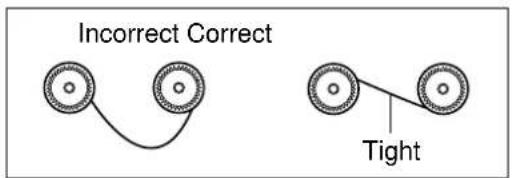
6 Replace the film cartridge by matching the blue label side of the cartridge with the one on the unit.
7 Close the cover securely by pushing down on the dotted area on each side.
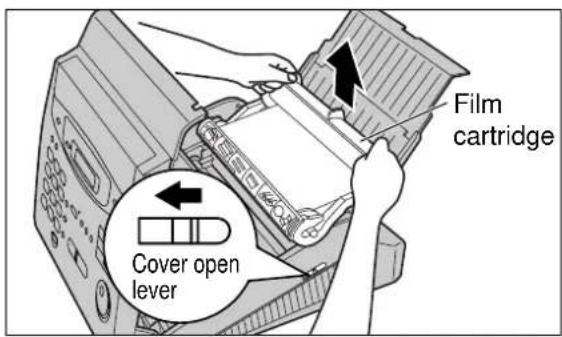
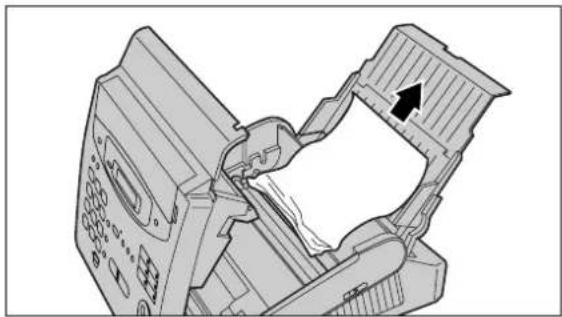
natural_image
Technical line drawing of a mechanical device with an arrow indicating direction (no text or symbols present)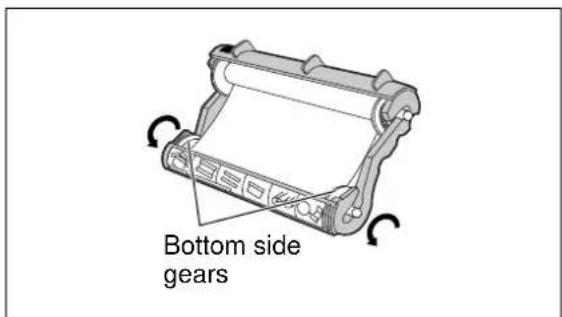
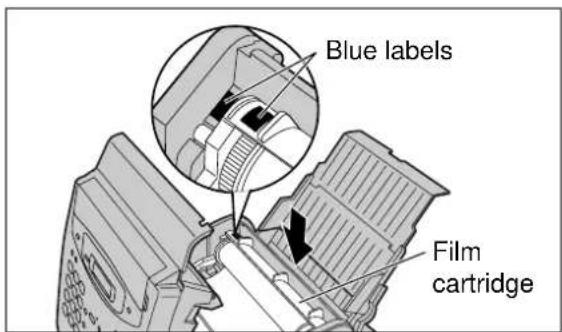
When paper has jammed near the recording paper entrance
The display will show the following message.
Display:
CHECK PAPER
Remove the jammed paper as follows.
1 Pull the recording paper set lever forward, then pull out the jammed recording paper from the recording paper entrance. Push the set lever back.
2 Press START/SETNOGBYage.
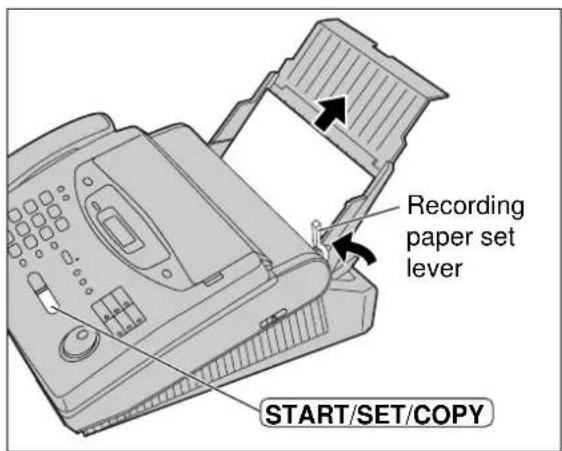
When paper has not been ejected even though “PAPER JAMMED” or “CHECK PAPER” is not displayed
Check the recording paper exit. If there is any jammed paper, remove it as follows.
1 First lift the front of the unit. Pull the paper stacker forward until it stops, then press the centre slots to unlock and remove the paper stacker.
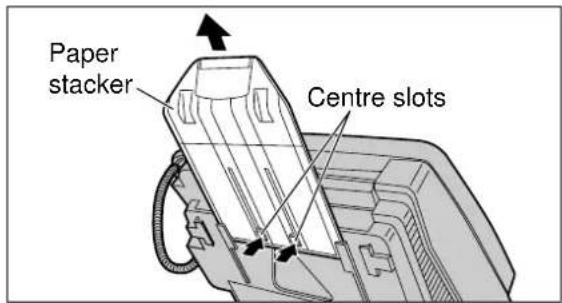
2 Tilt the unit up and push the jammed recording paper out through the triangular window on the bottom of the unit.
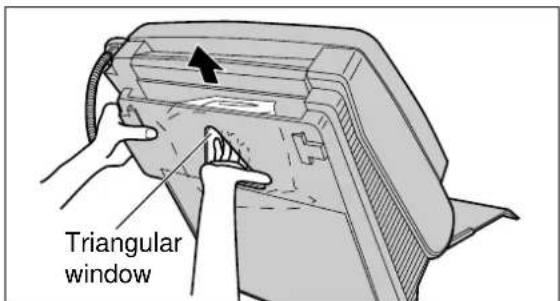
3 Remove the jammed recording paper from the recording paper exit.
- If you cannot remove the jammed paper, remove it by following the instructions on page 120.
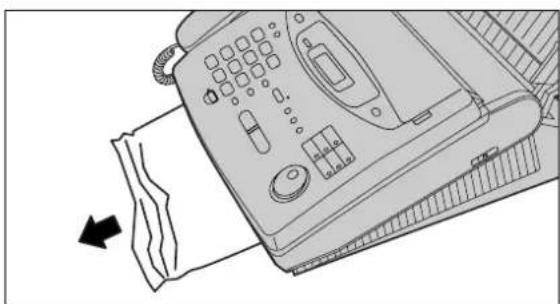
natural_image
Line drawing of a classic office telephone handset with a paper feed and scroll, showing no text or symbols.Sending document jams
If the unit does not release the document when feeding, remove the document.
1 Slide the cover open lever forward.
2 The cover is under tension to improve print quality. Pull up hard enough to open.
3 Remove the jammed document carefully.
4 Close the cover securely by pushing down on the dotted area on each side.
Note:
- Do not forcibly pull out the jammed paper, before opening the cover.
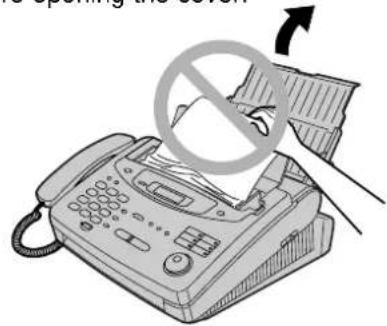
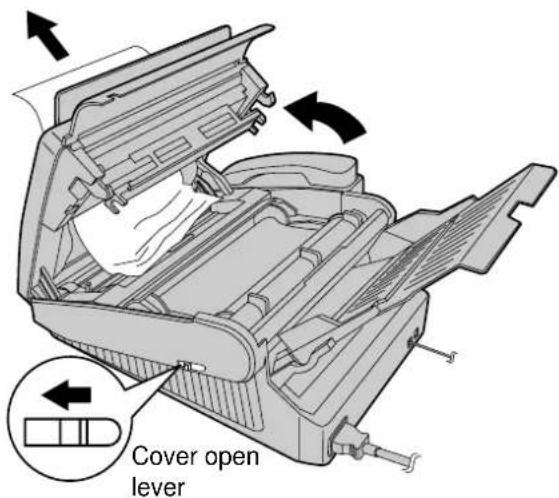
Sending document does not feed, or multi-feeds
If no feeding or multiple feeding occurs frequently, adjust the feeder pressure.
1 Slide the cover open lever forward.
2 The cover is under tension to improve print quality. Pull up hard enough to open.
3 Shift the position of the lever using an instrument with a pointed end, such as a paper clip.
Position A: When documents do not feed.
Position B: Standard position (pre-selected)
Position C: When documents multiple feed.
4 Close the cover securely by pushing down on the dotted area on each side.
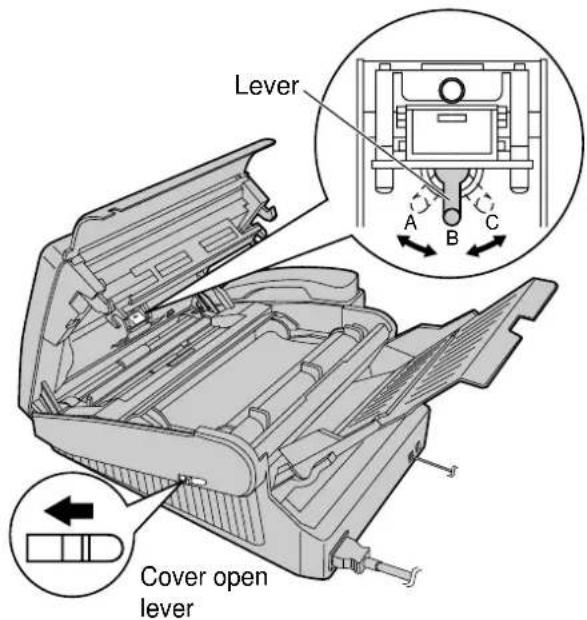
How much film you have left
To check the amount of remaining film, press FILM REMAINING. The display indicates the approximate amount of remaining film.
Display:
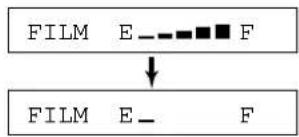
flowchart
graph TD
    A["FILM"] --> B["↓"]
    B --> C["FILM E_ F"]
When the film indicator points to this position, the remaining film will print up to 20 pages of A4 size documents. Prepare a new film or film cartridge for replacement.
Replacing the film or film cartridge
When the unit detects the end of the film, the following message will be displayed.
Display:
FILM NEAR EMPTY
The remaining film prints about 10 pages of A4 size document.
Prepare a new film cartridge.
FILM EMPTY
The film is empty. Install a new film or film cartridge.
The following are available for replacement.
KX-FA135X: Film cartridge (1 cartridge and 1 film)
KX-FA136X: Replacement film (2 films)
To order, see page 17.
1 Slide the cover open lever forward.
2 The cover is under tension to improve print quality. Pull up hard enough to open.
3 Remove the film cartridge.
- If you have purchased a film cartridge (Model no. KX-FA135X) for replacement, go to step 10.
• To replace only the film, go to step 4.
4 Unlock the four gears by ( Ⓐ pulling the top side gears (blue and green gears) forward and ( Ⓑ pushing back the bottom side gears (green gears). Remove the used film.
4 Unlock the four gears by ( Ⓐ pulling the top side gears (blue and green gears) forward and ( Ⓑ pushing back the bottom side gears (green gears). Remove the used film.
5 Remove the four gears from the used film cores.
Caution:
- The film is not reusable. You can order a new film for replacement through your nearest Panasonic dealer.
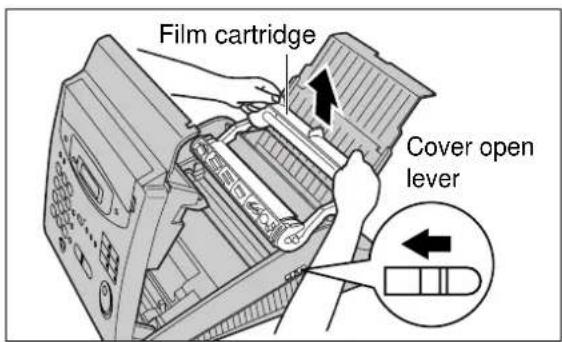
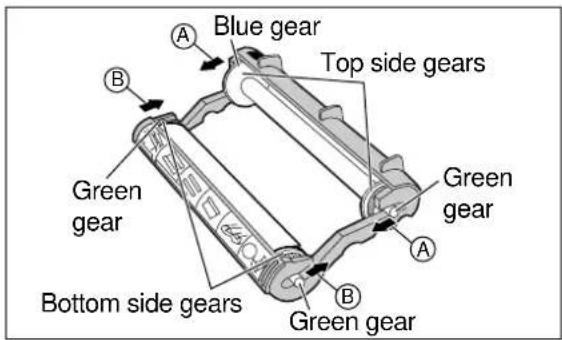
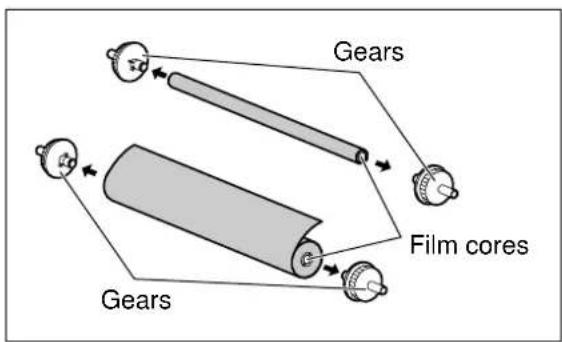
6 Insert the blue gear into the blue core of the new film.
7 Insert the three green gears into the remaining cores of the new film.
8 Insert the film into the cartridge so that the blue gear matches the blue label on the cartridge.
• The shiny side should be facing up.
9 Lock the four gears of the film by (A)pushing back the top side gears and (B)pulling the bottom side gears forward until they lock into place.
- If the film is slack, tighten it by winding the bottom side gears.
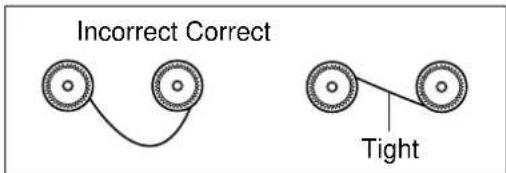
10 Insert the film cartridge by matching the blue label on the cartridge with the one on the unit.
11 Close the cover securely by pushing down on the dotted area on each side.
- The unit will check whether the film is installed correctly. The following message will be displayed.
Display:
PLEASE WAIT
- If the following message is displayed, the film is not inserted correctly.
CHECK FILM
Reinsert it correctly.
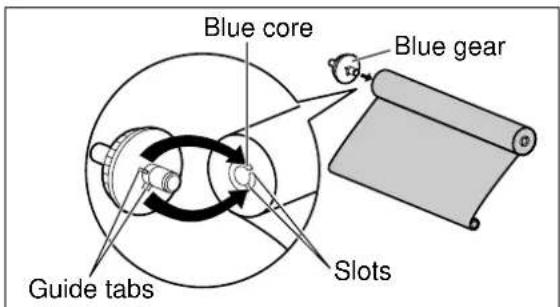
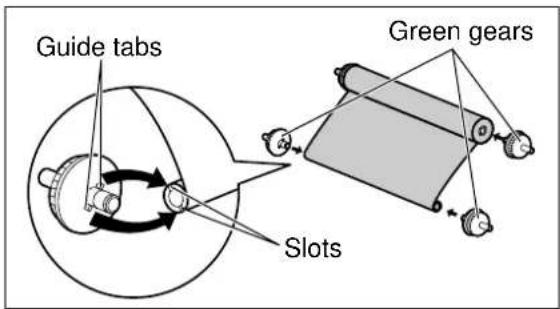
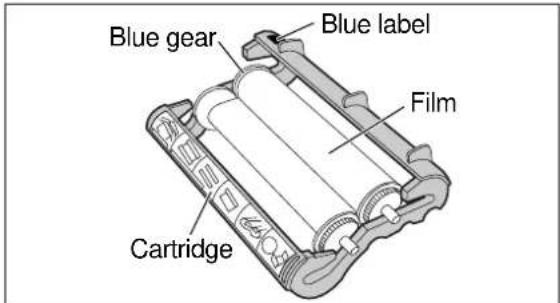
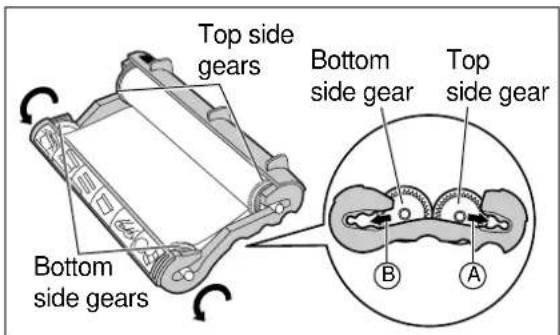
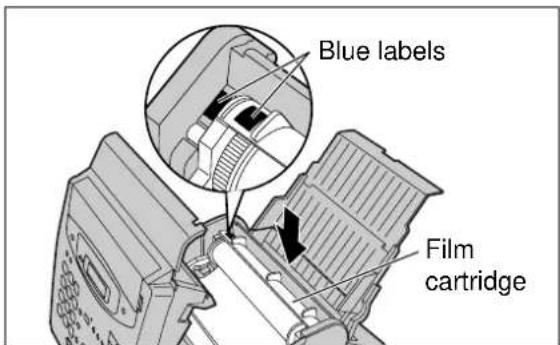
Cleaning
Document feeder
If misfeeding occurs frequently or if dirty patterns or black bands appear on a copied or transmitted document, clean the document feeder.
1 Disconnect the power cord and the telephone line cord.
2 Slide the cover open lever forward.
3 The cover is under tension to improve print quality. Pull up hard enough to open.
4 Clean the document feeder rollers, sub roller and rubber flap with a cloth moistened with isopropyl rubbing alcohol, and let all parts dry thoroughly.
5 Clean the white plate and glass with a soft dry cloth.
6 Close the cover securely by pushing down on the dotted area on each side.
7 Connect the power cord and the telephone line cord.
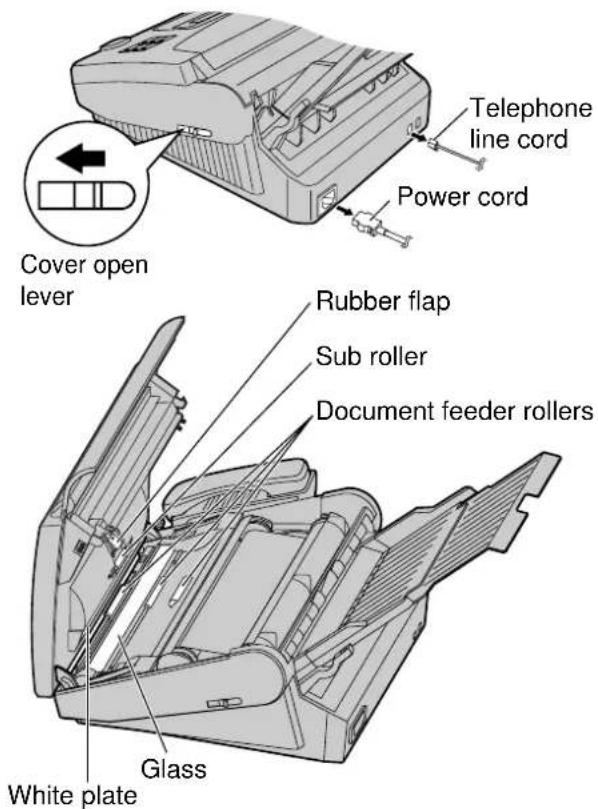
Caution:
- Do not use paper products, such as paper towels or tissues, to clean the inside of the unit.
Thermal head and black bar
If dirty patterns or black or white bands appear on a copied or received document, clean the thermal head and black bar.
1 Disconnect the power cord and the telephone line cord.
2 Slide the cover open lever forward.
3 The cover is under tension to improve print quality. Pull up hard enough to open.
4 Clean the thermal head and black bar with a cloth moistened with isopropyl rubbing alcohol, and let it dry thoroughly.
5 Close the cover securely by pushing down on the dotted area on each side.
6 Connect the power cord and the telephone line cord.
Caution:
- To prevent a malfunction due to static electricity, do not use a dry cloth and do not touch the thermal head directly with your fingers.
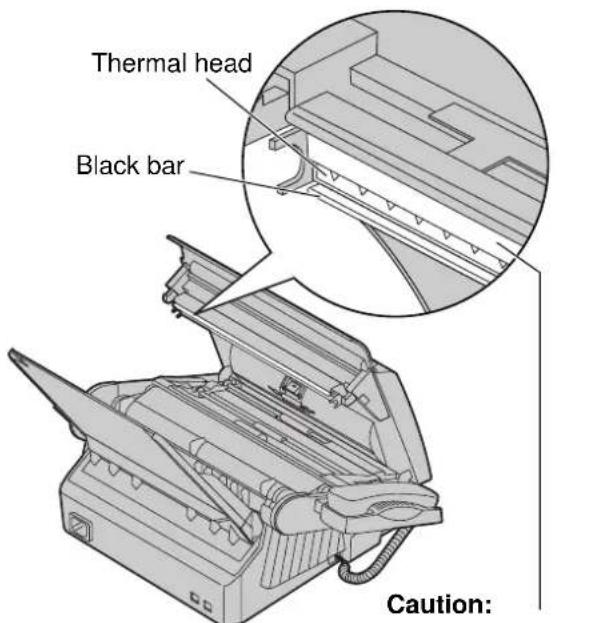
- Do not push on the black cover.
Print Reports
Printing the feature settings, telephone numbers, journal, printer test list and Caller ID list
You can print out the following report and lists.
Feature list: provides you with the current settings of the basic and advanced programming features (p. 137–142).
Telephone number list: provides you with names and telephone numbers which are stored in the One-Touch Dial and EASY DIAL directory. The telephone number codes are as shown below.
P: A pause has been entered.
F: A recall has been entered.
[ ]: A secret telephone number has been entered. (The telephone number is not printed.)
Journal report: keeps record of fax transmissions and receptions. This report will be printed automatically after every 35 fax communications (p. 60).
Printer test list: allows you to check the print quality of your unit. If the test print has a dirty pattern, or blurred points or lines, clean the thermal head (p. 127).
Caller ID list: keeps record of the last 35 callers after subscribing to a Caller ID service. Also, this list will be printed automatically after every 35 callers (p. 52).
1
Press MENU two
Display:
times.
2.PRINT REPORT
2
For the feature list, press ☐ then . 1
SETUP LIST
For the telephone number list, press ☐, the☐
TEL NO. LIST
For the journal report, press ☐, then.
JOURNAL REPORT
For the printer test list, press #, the
PRINTER TEST
For the Caller ID list, press 🔊, the 🔊.
CALLER ID LIST
3
Press START/SET COPY
PRINTING
• To stop printing, press STOP
• After printing, the following will be displayed.
PRINT ITEM [ ]
4
Press MENU.
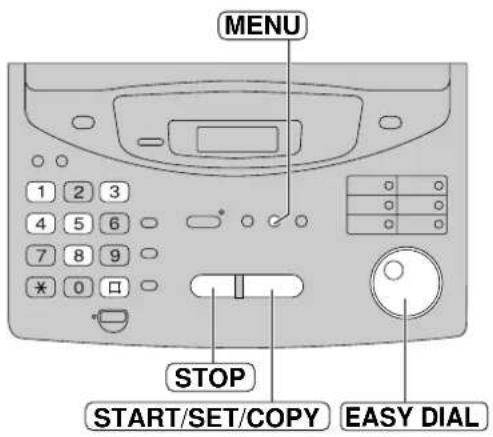
Note:
- In step 2, you can select the desired item by rotating EASY DIAL.
Fax voice guidance (KX-FP320/KX-FM330 only)
You will hear the following voice guidance if this feature is set to on.
Fax transmission start:
Start transmission.
Fax transmission result:
Transmission is complete. Transmission has failed. Transmission has been interrupted.
Fax reception start:
Start reception.
Fax reception result:
Reception is complete. Reception has failed. Reception has been interrupted.
If friendly reception (p. 86) is activated, one of the following messages will also be heard.
Please hang up the handset for reception.
Start reception.
You can change this setting. The following choices are available.
ON: The fax voice guidance will be heard at each transaction (pre-recorded setting).
OFF: The fax voice guidance will not be heard.
ERROR: The fax voice guidance will only be heard when fax transmission/reception and friendly reception fail.
1 Press MENU .
Display: 1.SYSTEM SET UP
Press 11, the417
FAX GUIDANCE
3 Press START/SET/COPY.
MODE=ON ▼▲
4 Press ▼ to select the desired setting.
5 Press START/SET/COPY.
SETUP ITEM [ ]
6 Press MENU.
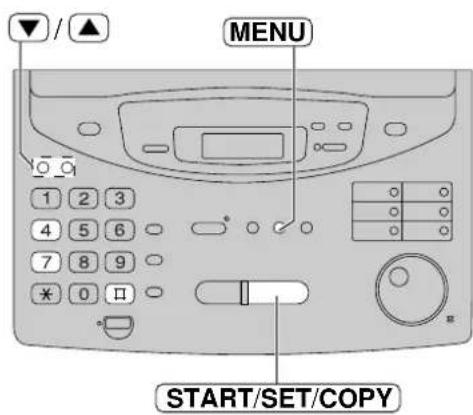
Display Contrast
Changing the display contrast
Use this feature to adjust the display contrast.
NORMAL: (Pre-selected setting)
DARKER: Used when the display contrast is too light.
1 Press MENU.
Display: 1.SYSTEM SET UP
2 Press ☐, the ☐ 9
LCD CONTRAST
3 Press START/SET/COPY.
MODE=NORMAL ▼▲
4 Press ▼ to select the desired setting.
5 Press START/SET/COPY
SETUP ITEM [ ]
6 Press MENU.
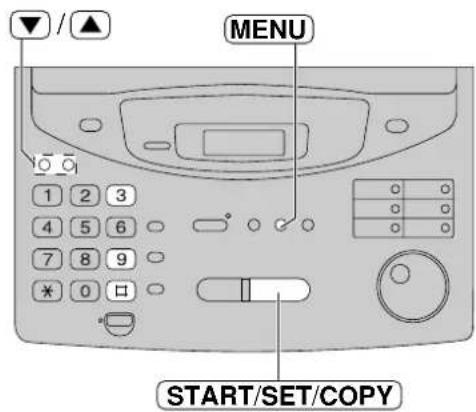
Setting the recall mode
When this unit is used as an extension of a PABX (Private Automatic Branch Exchange), the RECALL button will allow access to PABX functions such as call transfer and hold.
Depending on your PABX, select one of the following choices
T_BR: Time Break Recall (pre-selected setting)
E_RE: Earth Recall
- For British Telecom "Star Services", set to Time Break Recall.
- If you are unsure of which setting to use, consult the supplier of the PABX.
1 Press MENU .
Display: 1.SYSTEM SET UP
2 Press 11, the415
RECALL MODE
3 Press START/SET/COPY.
MODE=T_BR ▼▲
4 Press ▼ to select the desired setting.
5 Press START/SET/COPY.
SETUP ITEM [ ]
6 Press MENU.
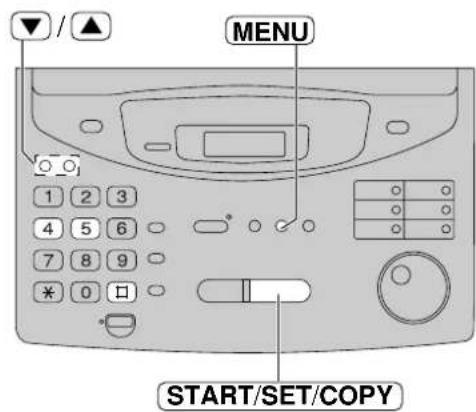
Resetting the advanced features
Use this feature to return the advanced features (p. 138, 139 for KX-FP300, p. 141, 142 for KX-FP320/KX-FM330) to their pre-selected settings, except the ECM communication (#68).
1 Press MENU .
Display: 1.SYSTEM SET UP
2 Press □, then 0
SET DEFAULT
3 Press START/SET/COPY.
RESET=NO ▼▲
4 Press ▼ or ▲ to
select "YES".
RESET=YES ▼▲
5 Press START/SET/COPY.
RESET OK?
- If this feature is not required, press STOP
6 Press STARTOSETCOPY.
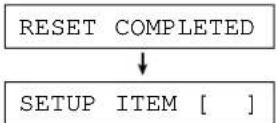
7 Press MENU .
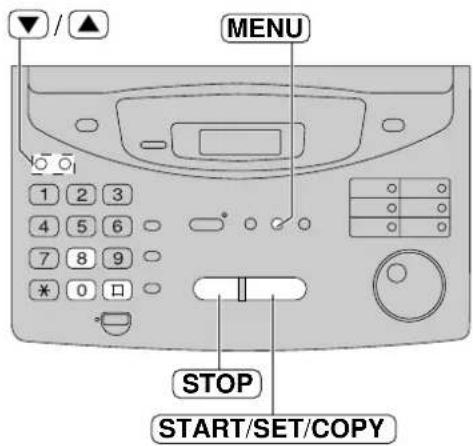
Important information
For KX-FP300E
APPROVED for connection to telecommunication systems specified in the instructions for use subject to the conditions set out in them.
610101
For KX-FP320E
APPROVED for connection to telecommunication systems specified in the instructions for use subject to the conditions set out in them.
610103
For KX-FM330E
APPROVED for connection to telecommunication systems specified in the instructions for use subject to the conditions set out in them.
610102
The connection to the telecommunication systems must not be hard wired and must be unplugged before the earth is disconnected.
Method of connection
This apparatus is connected to the exchange line or PABX/PMBX extension by the new standard British Telecom plug and socket. Arrangements for provision of this type of termination can be made through the nearest British Telecom Sales Office.
This apparatus may be connected to the following types of installation. This apparatus has been approved for use under the following conditions;
a) For connection to the public switched telephone network (PSTN) and compatible (Private Branch Exchange), which use loop disconnect signalling and DTMF signalling. (Please consult your supplier for an up to date list of compatible PBX's.)
b) The apparatus can be used on extension sockets connected to a direct exchange line (D.E.L.).
c) This apparatus is suitable for connection to the telecommunication system directly or via compatible private branch exchange as an extension.
The supplier of the apparatus should be consulted for an up to date list of PBX's with which the apparatus is compatible.
It cannot be guaranteed that the apparatus will operate under all possible conditions of connection to compatible PBX's.
- This apparatus is suitable for connection to a PBX with or without initial proceed indication.
- This apparatus is suitable for connection to a PBX with or without secondary proceed indication.
Any cases of difficulty should be referred in the first instance to the supplier of the apparatus.
d) The apparatus must not be connected in the following manner:
-As an extension to a pay phone
-As a party line with shared service
This apparatus has been approved for the use of the following facilities:
Integrated Telephone System
1) Simple telephone facility
2) Auto-calling
3) Last number redial
4) PBX time break: Selectable time break/earth recall for PBX
5) Loop disconnect signalling
6) DTMF signalling
7) Speaker-phone (KX-FP320E and KX-FM330E only)
Answering and Recording System
(KX-FP320E and KX-FM330E only)
1) 2-step caller's recording time: LONG/SHORT
2) Monitoring a telephone call
3) Remote turning on the TAD/FAX mode
4) Auto disconnect
Facsimile System
1) MODEM facility
Any other usage will invalidate the approval of the apparatus if as a result, it then ceases to conform to the standards against which approval was granted.
(continued)
Important Information
Ringer Equivalence Number (REN)
This relates to the performance of the apparatus when used in combination with other items of apparatus. It enables the calculation of the maximum number of items of apparatus that may be connected simultaneously to the line by summing the REN values of each item. A BT supplied instrument has a REN value of 1 unless otherwise marked. A maximum REN value of 4 should not be exceeded. The REN value of this apparatus is 1.0.
The approval of this apparatus for connection to the telecommunication systems is invalidated if the apparatus is subject to any modification in any material way not authorised by BABT or it is used with or connected to internal software that has not been formally accepted by BABT.
All apparatus connected to the facsimile machine and thereby connected directly or indirectly to telecommunication systems must be approved apparatus as defined in Section 22 of the British Telecommunication Act 1984.
999 or 112 can be dialled on the apparatus for the purposes of making outgoing calls to the BT Emergency (999 or 112) Service.
NOTES:
- If you experience any problems with the normal use of your apparatus, you should unplug it from the telephone outlet and connect a known working telephone in its place. If the known working telephone still gives problems, then please contact the customer service department of your PSTN operator (e.g. BT etc.). If it operates properly, then the problems are likely to be a fault in your apparatus. In this case, consult your supplier for advice.
- Your PSTN operator may charge you if they attend a service call that is not due to apparatus supplied by them.
Fitting a plug to the mains lead
This appliance is supplied with a moulded three pin mains plug for your safety and convenience.
A 5 amp fuse is fitted in this plug.
Should the fuse need to be replaced please ensure that the replacement fuse has a rating of 5 amps and that it is approved by ASTA or BSI to BS1362.
Check for ASTA mark on the BSI
mark on the body of the fuse.
If the plug contains a removable fuse cover you must ensure that it is refitted when the fuse is replaced.
If you lose the fuse cover the plug must not be used until a replacement cover is obtained.
A replacement fuse cover can be purchased from your local Panasonic dealer.
IF THE FITTED MOULDED PLUG IS UNSUITABLE FOR THE SOCKET OUTLET IN YOUR HOME THEN THE FUSE SHOULD BE REMOVED AND THE PLUG CUT OFF AND DISPOSED OF SAFELY.
THERE IS A DANGER OF SEVERE ELECTRICAL SHOCK IF THE CUT OFF PLUG IS INSERTED INTO ANY 13 AMP SOCKET.
If a new plug is to be fitted please observe the wiring code as shown below.
If in any doubt please consult a qualified electrician.
WARNING: THIS APPLIANCE MUST BE EARTHED.
IMPORTANT:
The wires in this mains lead are coloured in accordance with the following code:
Green-and-Yellow: Earth
Blue: Neutral
Brown: Live
As the colours of the wire in the mains lead of this appliance may not correspond with the coloured markings identifying the terminals in your plug, proceed as follows.
The wire which is coloured GREEN-AND-YELLOW must be connected to the terminal in the plug which is marked with the letter E or by the Earth symbol or coloured GREEN or GREEN-AND-YELLOW.
The wire which is coloured BLUE must be connected to the terminal in the plug which is marked with the letter N or coloured BLACK.
The wire which is coloured BROWN must be connected to the terminal in the plug which is marked with letter L or coloured RED.
How to replace the fuse: Open the fuse compartment with a screwdriver and replace the fuse and fuse cover.
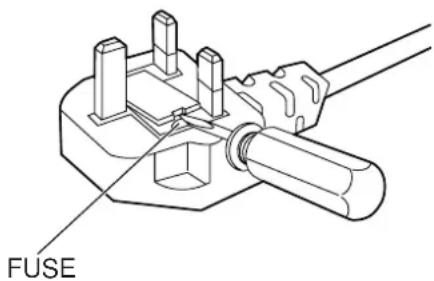
Guarantee
Condition of guarantee
This guarantee is in addition to and does not in any way affect any statutory or other rights of consumer purchasers. If within the applicable guarantee period, the appliance proves to be defective by reason of faulty design, workmanship or materials, we undertake subject to the following conditions to have the defective appliance (or any part or parts there of) repaired or replaced free of charge.
- The appliance shall have been purchased and used solely within the UK and in accordance with standard operating instructions and the technical and/or Safety Standards required in the UK.
- The purchaser will within 7 days of purchase complete the included warranty registration form (folded inside front cover) and fax it to us for registration. Failure to return such a form could result in delay in providing the guarantee service.
- The appliance should be returned together with this guarantee and proof of date of purchase promptly on being found defective at the purchaser's risk and expense to the authorised dealer from whom the appliance was purchased or to the nearest authorised dealer. All enquiries must be through such dealers.
- This guarantee shall not apply to damage caused through fire, accident, lightning, misuse, wear and tear, neglect, incorrect adjustment or repair, to damage caused through installation, adaption, modification or use in an improper manner or inconsistent with the technical and/or safety standards required in the country where this appliance is used, or to damage occurred during transit to or from the purchaser.
- If at any time during the guarantee period any part or parts of the appliance are replaced with a part or parts not supplied or approved by us or of an objective quality safe and suitable for the appliance, or the appliance has been dismantled or repaired by any person not authorised by us, we shall have the right to terminate this guarantee in whole or in part immediately without further notice.
- The purchaser's sole and exclusive remedy under this guarantee against us is for the repair or replacement of the appliance or any defective part or parts and no other remedy, including, but not limited to, incidental or consequential damage or loss of whatsoever nature shall be available to the purchaser.
- This guarantee shall not apply to cassette tapes, batteries and any other items of limited nature life.
- Our decision on all matters relating to complaints shall be final. Any appliance or defective part which has been replaced shall become our property.
- The guarantee period applicable to this product shall be 12 months from the date of purchase.
Please keep these Operating Instructions with your receipt.
Panasonic Business Systems U.K.
| Receipt No. ____ | Date of Purchase ____ |
| Model No. KX-FP300E, KX-FP320E, KX-FM330E | Serial No. ____ |
Summary of user programmable features
■ For KX-FP300
Basic features
| Code | Feature & Display Available settings | Page | ||
| #01 | Setting the date and timeSET DATE & TIME | (2 digits for each entry) | dd/mm/yy hh:mm 31 | |
| #02 | Setting your logoYOUR LOGO | (Up to 30 characters) | 32 | |
| #03 | Setting your facsimile telephone numberYOUR FAX NO. | (Up to 20 digits) 34 | ||
| #04 | Printing the sending reportSENDING REPORT | ERROR | If transmission fails | 59 |
| ON | Activate | |||
| OFF | Deactivate | |||
| #07 | Setting the ring count in the FAX ONLY modeFAX RING COUNT | 1, 2, 3, 4,5 EXT.TAM | 1 to 5 rings(5 rings for use with an answering machine) | 75 |
| #12 | Securing the remote operation for the answering machineREMOTE TAM ACT. | ON / ID=11 | Activate | 73 |
| OFF | Deactivate | |||
| #13 | Setting the dialling modeDIALING MODE | TONE | Set to TONE | 39 |
| PULSE | Set to PULSE | |||
| #15 | Setting the memory transmissionSEND BY MEMORY | ON | Activate | 62 |
| OFF | Deactivate | |||
(The pre-selected setting is in bold.)
Note:
- You can display basic features in the order above by rotating EASYDBAL entering the code number (#01, #02, etc.).
Advanced features
| Code | Feature & Display Available settings Meaning | Page | ||
| #22 | Setting the journal report to print automaticallyAUTO JOURNAL | ON | Activate | 60 |
| OFF | Deactivate | |||
| #23 | Sending documents overseasOVERSEAS MODE | ON | Activate | 65 |
| OFF | Deactivate | |||
| #25 | Sending a fax at a specified timeDELAYED SEND | ON | Activate | 61 |
| OFF | Deactivate | |||
| #26 | Setting the Caller ID list to print automaticallyAUTO CALL. LIST | ON | Activate | 52 |
| OFF | Deactivate | |||
| #30 | Setting the silent fax recognition ring countSILENT FAX RING | 3, 4, 5, 6 3 to 6 rings | 82 | |
| #36 | Receiving documents of other sizesRCV REDUCTION | 100% | Deactivate reduction | 84 |
| 92% | 92% reduction | |||
| 86% | 86% reduction | |||
| 72% | 72% reduction | |||
| #39 | Changing the display contrastLCD CONTRAST | NORMAL | Normal contrast | 130 |
| DARKER | Darker contrast | |||
| #40 | Setting the silent detectionSILENT DETECT. | ON | Activate | 85 |
| OFF | Deactivate | |||
| #41 | Changing the fax activation codeFAX ACTIVATION | ON / CODE=∅ | Activate | 83 |
| OFF | Deactivate | |||
| #44 | Setting the memory reception alertRECEIVE ALERT | ON | Activate | 86 |
| OFF | Deactivate | |||
| #45 | Setting the recall modeRECALL MODE | T_BR | Time Break Recall | 131 |
| E_RE | Earth Recall | |||
| #46 | Setting the friendly receptionFRIENDLY RCV | ON | Activate | 86 |
| OFF | Deactivate | |||
(The pre-selected setting is in bold.)
Advanced features
| Code | Feature & Display Available settings Meaning | Page | ||
| Setting the auto disconnectionAUTO DISCONNECT | ON / CODE= Ⓧ | Activate | 87#49 | |
| OFF | Deactivate | |||
| #68 | Setting the ECM communicationECM COMMUNI. | ON | Activate | 88 |
| OFF | Deactivate | |||
| #70 | Signalling your pager when your unit receives a faxFAX PAGER CALL | ON | Activate | 89 |
| OFF | Deactivate | |||
| Setting the connecting toneCONNECTING TONE | ON | Activate | 65#76 | |
| OFF | Deactivate | |||
| #77 | Changing the AUTO ANSWER settingAUTO ANSWER | FAX ONLY | Facsimile only mode | 80 |
| TEL/FAX | Telephone/Facsimile mode | |||
| #78 | Setting the TEL/FAX delayed ring countTEL/FAX RING | 1, 2, 3, 4 1 to 4 rings | 82 | |
| #79 | Setting the film detectionFILM DETECTION | ON | Activate | 90 |
| OFF | Deactivate | |||
| #80 | Resetting the advanced featuresSET DEFAULT | YES | Reset | 132 |
| NO | Will not reset. | |||
(The pre-selected setting is in bold.)
■ For KX-FP320/KX-FM330
Basic features
| Code | Feature & Display Available settings Meaning | Page | ||
| #01 | Setting the date and timeSET DATE & TIME | (2 digits for each entry) | dd/mm/yy hh:mm | 31 |
| #02 | Setting your logoYOUR LOGO | (Up to 30 characters) | 32 | |
| #03 | Setting your facsimile telephone numberYOUR FAX NO. | (Up to 20 digits) | 34 | |
| #04 | Printing the sending reportSENDING REPORT | ERROR | If transmission fails | 59 |
| ON | Activate | |||
| OFF | Deactivate | |||
| #06 | Setting the ring count in the TAD/FAX modeTAD RING COUNT | 1, 2, 3, 4 | 1 to 4 rings | 109 |
| TOLL SAVER | Saves you the charge for the call. | |||
| RINGER OFF | Does not ring. | |||
| Setting the ring count in the FAX ONLY modeFAX RING COUNT | 1, 2, 3, 4 1 to 4 rings | 77 | ||
| #10 | Setting the caller's recording timeRECORDING TIME | LONG | 2 minutes 30 seconds | 110 |
| SHORT | 1 minute | |||
| #11 | Setting the remote operation IDREMOTE TAD ID | ID=111 | Any 3-digit number except a number using digits 0 or 7 | 102 |
| #13 | Setting the dialling modeDIALING MODE | TONE | Set to TONE | 39 |
| PULSE | Set to PULSE | |||
| #15 62 | Setting the memory transmissionSEND BY MEMORY | ON | Activate | |
| OFF | Deactivate | |||
(The pre-selected setting is in bold.)
Note:
- You can display basic features in the order above by rotating EASYIDAL entering the code number (#01, #02, etc.).
The following feature is available for KX-FM330 only. See PANA LINK Software Guide.
| Code | Feature & Display Available settings Meaning | ||
| #14 | Setting the PC linkPC LINK | ON | Activate |
| OFF | Deactivate | ||
Advanced features
| Code | Feature & Display Available settings Meaning | Page | ||
| #22 | Setting the journal report to print automaticallyAUTO JOURNAL | ON | Activate | 60 |
| OFF | Deactivate | |||
| #23 | Sending documents overseasOVERSEAS MODE | ON | Activate | 65 |
| OFF | Deactivate | |||
| #25 | Sending a fax at a specified timeDELAYED SEND | ON | Activate | 61 |
| OFF | Deactivate | |||
| #26 | Setting the Caller ID list to print automaticallyAUTO CALL. LIST | ON | Activate | 52 |
| OFF | Deactivate | |||
| #30 | Setting the silent fax recognition ring countSILENT FAX RING | 3, 4, 5, 6 3 to 6 rings | 82 | |
| #36 | Receiving documents of other sizesRCV REDUCTION | 100%92%86%72% | Deactivate reduction92% reduction86% reduction72% reduction | 84 |
| #39 | Changing the display contrastLCD CONTRAST | NORMAL | Normal contrast | 130 |
| DARKER | Darker contrast | |||
| #41 | Changing the fax activation codeFAX ACTIVATION | ON / CODE= 9OFF | ActivateDeactivate | 83 |
| #42 | Setting the message alertMESSAGE ALERT | ON | Activate | 110 |
| OFF | Deactivate | |||
| #43 | Setting the recording time alertREC. TIME ALERT | ON | Activate | 111 |
| OFF | Deactivate | |||
| #44 | Setting the memory reception alertRECEIVE ALERT | ON | Activate | 86 |
| OFF | Deactivate | |||
| #45 | Setting the recall modeRECALL MODE | T_BR | Time Break Recall | 131 |
| E_RE | Earth Recall | |||
| #46 | Setting the friendly receptionFRIENDLY RCV | ON | Activate | 86 |
| OFF | Deactivate | |||
(The pre-selected setting is in bold.)
Advanced features
| Code | Feature & Display Available settings Meaning | Page | ||
| #47 | Setting the fax voice guidanceFAX GUIDANCE | ON | Activate | 129 |
| OFF | Deactivate | |||
| ERROR | If transmission/reception error occurs | |||
| #54 | Setting the recording time for the TAD/FAX greeting messageGREETING TIME | 16s | 16 seconds long | 97 |
| 60s | 60 seconds long | |||
| #60 | Setting the message transfer/pager callMESSAGE TRANS. | MESSAGE | Transfers incoming messages | 107 |
| PAGER | Calls your pager | |||
| OFF | Deactivate | |||
| #61 | Recording the message transfer greeting messageTRNS-GREETING | CHECK | Checks the greeting message | 108 |
| RECORD | Records the greeting message | |||
| ERASE | Erases the greeting message | |||
| #67 | Setting the Incoming message monitorICM MONITOR | ON | Activate | 111 |
| OFF | Deactivate | |||
| #68 | Setting the ECM communicationECM COMMUNI. | ON | Activate | 88 |
| OFF | Deactivate | |||
| #70 | Signalling your pager when your unit receives a faxFAX PAGER CALL | ON | Activate | 89 |
| OFF | Deactivate | |||
| #76 | Setting the connecting toneCONNECTING TONE | ON | Activate | 65 |
| OFF | Deactivate | |||
| #77 | Changing the AUTO ANSWER settingAUTO ANSWER | TAD/FAX | Telephone Answering Device/Facsimile mode | 76 |
| FAX ONLY | Facsimile only mode | |||
| TEL/FAX | Telephone/Facsimile mode | |||
| #78 | Setting the TEL/FAX delayed ring countTEL/FAX RING | 1, 2, 3, 4 to 4 rings | 82 | |
| #79 | Setting the film detectionFILM DETECTION | ON | Activate | 90 |
| OFF | Deactivate | |||
| #80 | Resetting the advanced featuresSET DEFAULT | YES | Reset | 132 |
| NO | Will not reset. | |||
(The pre-selected setting is in bold.)
Technical data about this product
Applicable Lines: Public Switched Telephone Network
Document Size: Max. 216 mm in width
Max. 600 mm in length
Effective Scanning Width: 208 mm
Recording Paper Size: A4: 210 mm · 297 mm
Effective Printing Width: 202 mm
Transmission Time*:
■ KX-FP300: Approx. 12 s/page (Original mode)** Approx. 30 s/page (G3 Normal mode)
■ KX-FP320/KX-FM330: Approx. 8 s/page (Original mode)*** Approx. 20 s/page (G3 Normal mode)
Scanning Density: Horizontal: 8 pels/mm
Vertical: 3.85 lines/mm —STANDARD mode
7.7 lines/mm —FINE/HALF TONE mode
15.4 lines/mm —SUPER FINE mode
Halftone Level: 64-level
Scanner Type:
CCD image sensor
Printer Type:
Thermal Transfer Printing
Data Compression System:
Modified Huffman (MH), Modified READ (MR), Modified Modified READ (MMR)
Modem Speed:
■ KX-FP300: 9,600 / 7,200 / 4,800 / 2,400 bps; Automatic Fallback
■ KX-FP320/KX-FM330:
14,400 / 12,000 / 9,600 / 7,200 / 4,800 / 2,400 bps; Automatic Fallback
Operating Environment:
5^ - 35^, 20% - 80% RH (Relative Humidity)
Standby: ■ KX-FP300: Approx. 5.0 W
■ KX-FP320/KX-FM330: Approx. 6.0 W
Transmission: ■ KX-FP300: Approx. 13 W
■ KX-FP320/KX-FM330: Approx. 14 W
Reception: Approx. 37 W (When receiving a 20% black document)
Copy: Approx. 48 W (When copying a 20% black document)
Maximum: Approx. 160 W (When copying a 100% black document)
Power Supply:
220 - 240 V AC, 50 Hz
Memory Capacity:
Voice memory (KX-FP320/KX-FM330 only):
Approx. 18 minutes of recording time including the greeting message****
Fax memory: Approx. 28 pages of memory reception
Approx. 25 pages of memory transmission
(Based on the CCITT of No. 1 Test Chart in standard resolution, without using the Error Correction Mode.)
* Transmission speed depends upon the contents of the pages, resolution, telephone line conditions and capability of the receiving unit.
** The 12 second speed is based upon the CCITT No. 1 Test Chart.
*** The 8 second speed is based upon the CCITT No. 1 Test Chart.
**** Recording time may be reduced by the calling party's background noise.
Note:
- Any details given in these instructions are subject to change without notice.
- The pictures and illustrations in these instructions may vary slightly from the actual product.
CCITT No. 1 Test Chart
A Accessories 17
Advanced features .....138, 139, 141, 142
(Resetting) 132
Alert
(Memory reception) .....86
(Message) 110
(Recording time)....111
AUTO ANSWER button .....66, 68, 69, 93
AUTO ANSWER setting .....70, 74, 76, 80
Auto disconnection .....87
B Basic features .....137, 140
BROADCAST key .....63, 64
Broadcast report ....64
C Call counter .....98
Caller ID 46
Caller ID list .....52, 128
CALLER ID SEARCH button ... 47-49, 51
Caller's recording time .....110
Character table .....33, 41
Cleaning .....126, 127
COLLATE button .....91
Communication messages .....112
Connecting tone ....65
Connections 6,30
Copy
(Collated)....91
(Enlargement/reduction) .....91, 92
(Multiple copies) .....91
COPY button .....10, 91
D Date and time .....31
Delayed transmission .....61
Dialling mode .....39
DIGITAL SP-PHONE button . .36, 37, 53, 54
Directory feature .....43, 45, 56
DIRECTORY
PROGRAM button ..... 40, 43, 44, 63
Display
(Contrast)....130
(Error messages) .....113, 114
Document feeder cleaning .....126
Document jam 122
Document size .....58, 143
E EASY DIAL
(Making a voice call) .....45
(Repeating the recorded messages) . .99
(Selecting characters) .....33, 41
(Sending faxes) .....56
(Skipping the recorded messages) ...99
(Storing) 43, 44
ECM communication .....88
Enlarge/Reduce copy .....91, 92
ERASE button .....51, 96, 98
Error messages 112–114
Extension telephone 79, 83
F Facsimile telephone number .....34
Fax activation code ....83
Fax auto redial .....55
FAX ONLY mode .....66, 68, 74–77
FAX ONLY ring count .....75, 77
Fax pager 89
Fax voice guidance .....129
Fax voice guide .....57
Feature list .....128
Feeder cleaning .....126
Feeder jam 122
Feeder pressure .....123
Film/Film cartridge
(Installing) 4, 25, 26
(Replacing)....124, 125
Film detection .....90
FILM REMAINING button .....124
Friendly reception .....70, 86
G Greeting message
(Message transfer) .....106, 108
(TAD/FAX) 94, 95
(TEL/FAX) 78, 79, 95
H Handset cord .....6, 30
HELP button .....18, 19
HYPHEN key .....33, 40, 41, 43
I ICM monitor .....111
Ink film 124, 125
INSERT key .....32, 33, 41
J Jam 120-123
Journal auto print 60
Journal report ....60, 128
L LCD contrast .....130
List
(Broadcast) 64
(Caller ID) 52, 128
(Feature) 128
(Journal) 60, 128
(Printer test)....128
(Sending) 59
(Telephone number) .....128
Location panel .....20-23
Logo .32, 33
LOWER key .....40, 42, 55
M Memory reception alert .....70, 86
Memory transmission .....62
Message alert 110
Message transfer ..... 106–108
MONITOR button . . . . . . . . . . . . . . . . . . . 36, 53, 54
MUTE 36,37
N NAME/TEL NO. key 45, 46
One-Touch Dial
(Making a voice call) .....42
(Sending faxes) 55
(Storing) 40, 41
Other size documents 84
Overseas transmission mode .....65
Overview 24
P Pager call .....89
Paper jam 120, 121
Paper stacker 5,27
Paper tray 5,28
PAUSE button 38
PLAYMESSAGESbutton.98
Polling 90
Power down report .....119
Power failure .....119
Power supply/cord . . . . . . . . . . . . . . . . . . . . . . . . . . . . . . . . . . . . . . . . . . . . . . 6, 30, 143
Printing paper size .....28, 143
Printing reports 128
Problem solving 115–118
Programmable features ..... 137–142
Pulse 39
Q QUICK button 99
R RECALL button .....38
Recall mode .....131
Receiving
(Fax) 9,70
(Setting) 66–69
Receiving reduction .....84
RECORD button .....95, 100
Recording
(Greeting message) .....95, 108
(Memo message) .....100
(Telephone conversation) .....100
Recording paper .....5, 28, 29, 143
Recording paper jam .....120, 121
Recording time alert ....111
Recording time for TAD/FAX greeting message 97
REDIAL button .....36, 54
Remote activation ID 73
Remote operation ID ....102
Report
(Broadcast) 64
(Caller ID) .....52, 128
(Feature setting)....128
(Journal)....60,128
(Printer test list) .....128
(Sending)....59
(Telephone numbers) .....128
Reset 132
RESOLUTION button ..... 54-56, 91
Ring count
(FAX ONLY) 75, 77
(TAD/FAX) 109
(TEL/FAX) 82
Ringer volume .....35
S SECRET key .....40, 41, 43
Sending
(Broadcast) 63, 64
(EASY DIAL) 56
(From memory) 62
(Manually) 8,54
(One-Touch Dial) .....55
Sending document (Does not feed or
multi-feeds) 123
Sending jam 122
Sending report ....59
Set default 132
Silent detection .....85
Silent fax recognition ring .....82
SLOW button 99
Speaker volume .....35
Specifications 143
Stacker 5,27
Storing
(Broadcast) 63, 64
(Caller ID list) .....52, 128
(EASY DIAL) 43, 44
(One-Touch Dial) .....40, 41
T TAD/FAX mode .....93
TAD/FAX ring count .....109
TEL mode .....66, 69, 70
TEL/FAX delayed ring count .....82
TEL/FAX mode 78-82
Telephone line cord . . . . . . . . . . . . . . . . . . . . . . . . . . . . . . . . . . . . . . . . . . . . . 6, 30
Telephone number list .....128
Thermal head cleaning .....127
Toll saver 109
TONE button . . . . . . . . . . . . . . . . . . . . . . . . . . . . . . . . . . . . . . . . . . . . . 38
Transmission
(Broadcast) 63, 64
(EASY DIAL) 56
(From memory) 62
(Manually) 8,54
(One-Touch Dial) .....55
Transmittable document .....58, 143
V Voice call
(Answering) 7,37
(EASY DIAL) 45
(Making) 7,36
(One-Touch Dial) 42
Voice contact ....53
Voice time/day stamp .....98
VOLUME button .....35

73/23/EEC
89/336/EEC
92/31/EEC
93/68/EEC
Kyushu Matsushita Electric Co., Ltd.
1-62, 4-chome, Minoshima, Hakata-ku, Fukuoka 812-8531, Japan