KX-MC6260E - Printer PANASONIC - Free user manual and instructions
Find the device manual for free KX-MC6260E PANASONIC in PDF.


User questions about KX-MC6260E PANASONIC
0 question about this device. Answer the ones you know or ask your own.
Ask a new question about this device
Download the instructions for your Printer in PDF format for free! Find your manual KX-MC6260E - PANASONIC and take your electronic device back in hand. On this page are published all the documents necessary for the use of your device. KX-MC6260E by PANASONIC.
USER MANUAL KX-MC6260E PANASONIC
natural_image
Line drawing of a printer with control panel and paper tray (no text or symbols)Panasonic
Operating Instructions
Colour Laser Multi-Function Printer
Model No. KX-MC6260E
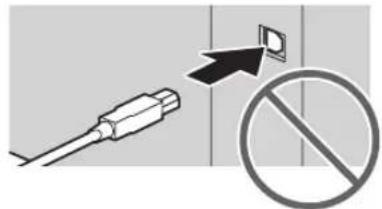
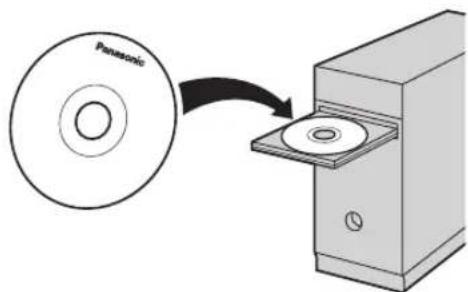
Do NOT connect the unit to a computer with the USB cable until prompted by the Multi-Function Station (CD-ROM).
1
2
Designed to be used only in the United Kingdom and Ireland.
- This unit is compatible with Caller ID. You must subscribe to the appropriate service offered by your service provider/telephone company.
- Be sure to use the telephone line cord supplied with this unit.
Thank you for purchasing a Panasonic Multi-Function Printer.
Caution:
- Do not rub or use an eraser on the printed side of recording paper, as the print may smear.
Trademarks:
- Microsoft, Windows, Windows Vista and Internet Explorer are either registered trademarks or trademarks of Microsoft Corporation in the United States and/or other countries.
- Pentium is a trademark of Intel Corporation in the U.S. and other countries.
- Screen shots reprinted with permission from Microsoft Corporation.
- Adobe and Reader are either registered trademarks or trademarks of Adobe Systems Incorporated in the United States and/or other countries.
- 3M is a trademark or registered trademark of 3M Company.
- Avery is a registered trademark of Avery Dennison Corporation.
●PCL is a trademark of Hewlett-Packard Company. - SD and the SD logo are trademarks.
- SDHC and the SDHC logo are trademarks.
- miniSD and the miniSD logo are trademarks.
- miniSDHC and the miniSDHC logo are trademarks.
- microSD and the microSD logo are trademarks.
- microSDHC and the microSDHC logo are trademarks.
- All other trademarks identified herein are the property of their respective owners.
Copyright:
- This material is copyrighted by Panasonic Communications Co., Ltd., and may be reproduced for internal use only. All other reproduction, in whole or in part, is prohibited without the written consent of Panasonic Communications Co., Ltd.
© Panasonic Communications Co., Ltd. 2008
For your safety
Laser radiation
CLASS 1 LASER PRODUCT

The printer of this unit utilises a laser. Use of controls or adjustments or performance of procedures other than those specified herein may result in hazardous radiation exposure.
Laser diode properties
Laser output : Max. 6.5 mW
Wavelength : 770 nm - 800 nm
Emission duration : Continuous
Fuser unit

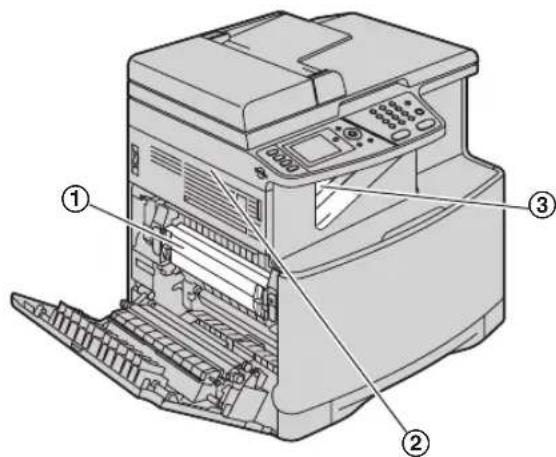
During or immediately after printing, the fuser unit (①) gets hot. This is normal. Do not touch the fuser unit.
Note:
- The left side of the unit (②) and the area near the recording paper exit (③) also get warm. This is normal.
For best performance
Toner cartridge and drum cartridge
- When replacing the toner cartridge or drum cartridge, do not allow dust, water, or liquids to come in contact with the drum. This may affect print quality.
- For optimal performance, genuine Panasonic toner cartridges and drum cartridges are recommended. We cannot be responsible for problems that may be caused by a non-Panasonic toner cartridge or drum cartridge:
- Damage to the unit
– Poor print quality - Improper operation
Toner cartridge
- Do not leave the toner cartridge out of the protection bag for a long time. It will decrease the toner life.
Drum cartridge
- Read the instructions on page 12 before you begin installation of the drum cartridge. After you have read them, open the drum cartridge protection bag. The drum cartridge contains a photosensitive drum. Exposing it to light may damage the drum. Once you have opened the protection bag:
- Do not expose the drum cartridge to light for more than 45 seconds.
- Do not touch or scratch the green drum surface.
- Do not place the drum cartridge near dust or dirt, or in a high humidity area.
- Do not expose the drum cartridge to direct sunlight.
● To extend the life of the drum cartridge, the power switch should never be turned OFF immediately after printing. Leave the power turned ON for a minimum of 30 minutes after printing.
Location
- To avoid malfunction, do not position the unit near appliances such as TVs or speakers which generate an intense magnetic field.
Static electricity
- To prevent static electricity damage to the interface connectors or other electrical components inside the unit, touch a grounded metal surface before touching the components.
Environment
- Keep the unit away from electrical noise generating devices, such as fluorescent lamps and motors.
● The unit should be kept free from dust, high temperature and vibration.
●The unit should not be exposed to direct sunlight. - Do not place heavy objects on top of the unit. When you leave the unit unused for a long period of time, unplug this unit from the power outlet.
● The unit should be kept away from heat sources such as heaters, kitchen stoves, etc. Damp basements should also be avoided. - In the printing process, heat is used to fuse toner onto the page. As a result, it is normal for the machine to produce an odour during and shortly after printing. Be sure to use this unit in an area with proper ventilation.
- Do not place any objects within 10 cm of the right, left and back sides of the unit.
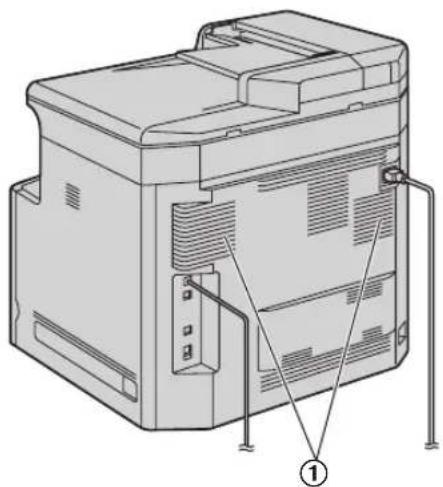
- Do not cover slots or openings on the unit. Inspect the air circulation vents regularly and remove any dust build-up with a vacuum cleaner (①).
natural_image
Technical line drawing of a computer chassis with labeled components (no text or symbols present)Routine care
● Wipe the outer surface of the unit with a soft cloth. Do not use benzine, thinner, or any abrasive powder.
Moving the unit
The unit weighs approximately 30 kg. It is highly recommended that two people handle this unit. When moving the unit, hold both of the side grips (②).
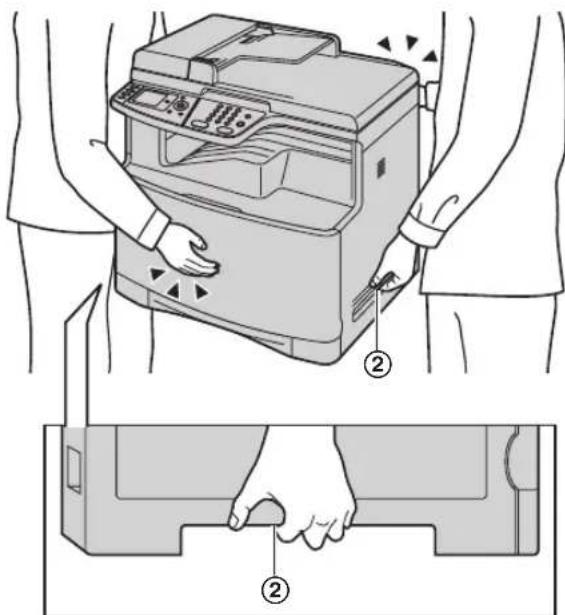
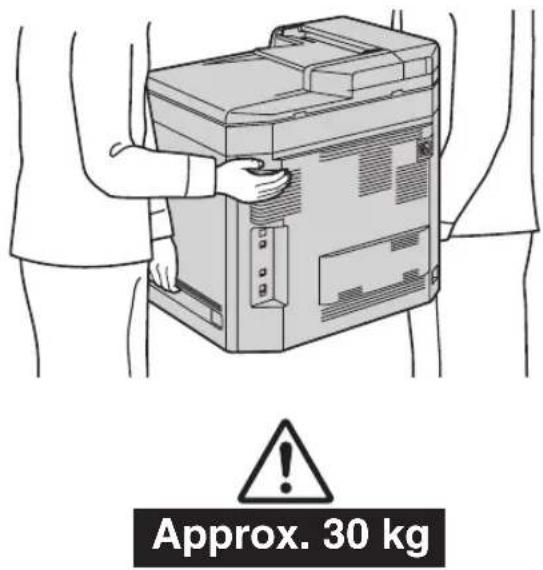
Illegal copies
- It is unlawful to make copies of certain documents.
Copying certain documents may be illegal in your country. Penalties of fines and/or imprisonment may be imposed on those found guilty. The following are examples of items that may be illegal to copy in your country.
- Currency
– Bank notes and cheques
– Bank and government bonds and securities - Passports and identification cards
– Copyright material or trademarks without the consent of the owner
– Postage stamps and other negotiable instruments
This list is not inclusive and no liability is assumed for either its completeness or accuracy. In case of doubt, contact your legal counsel.
Notice:
● Install your machine near a supervised area to prevent illegal copies from being made.
1. Introduction and Installation
Accessories
1.1 Supplied accessories .... 7
1.2 Accessory information.... 8
Finding the Controls
1.3 Button descriptions....9
1.4 Display descriptions ...... 10
1.5 Overview 11
Installation
1.6 Toner cartridge and drum cartridge..... 12
1.7 Recording paper.... 16
2. Preparation
Connections and Setup
2.1 Connections 19
2.2 Turning the power switch ON.... 20
2.3 Selecting the operation mode (Scan/Copy/Fax/Print).... 20
Document Requirements
2.4 Setting the original.... 21
Volume
2.5 Adjusting the volume 22
Initial Programming
2.6 Date and time 23
2.7 Your logo.... 23
2.8 Your fax number 24
2.9 Configuring the unit to access the LAN..... 24
2.10 Installing Multi-Function Station 25
2.11 Starting Multi-Function Station 27
3. Printer
Printer
3.1 Printing from Windows applications ..... 29
3.2 Direct printing from an SD card 31
3.3 Direct printing from an FTP server (LAN connection only) 33
3.4 Printing a received e-mail attachment automatically (LAN connection only) ..... 34
4. Scanner
Scanner
4.1 Scanning from the unit (Push Scan)...... 35
4.2 Scanning from a computer (Pull Scan)...... 37
5. Copier
Copy
5.1 Making a copy 39
5.2 More copying features 41
6. Fax
Sending Faxes
6.1 Sending a fax manually 44
6.2 Storing items for the navigator directory..... 45
6.3 Sending a fax using navigator directory ..... 46
6.4 Broadcast transmission.... 46
6.5 Sending a computer document as a fax message from your computer ....48
Receiving Faxes
6.6 Selecting the way to use your unit.....48
6.7 Receiving a fax automatically – Auto answer ON....49
6.8 Receiving a fax manually – Auto answer OFF 50
6.9 Displaying a received fax document.....51
6.10 Using the unit with an answering machine...53
6.11 Receive polling (retrieving a fax placed on another fax machine) ....53
6.12 Junk fax prohibitor (preventing fax reception from undesired callers)....54
6.13 Receiving a fax on your computer....55
7. Caller ID
Caller ID
7.1 Caller ID service....56
7.2 Viewing and calling back using caller information ....56
7.3 Editing a caller's telephone number before calling back/storing....56
7.4 Erasing caller information....57
7.5 Storing caller information ....57
8. Programmable Features
Features Summary
8.1 Programming....58
8.2 Basic features .....59
8.3 Fax features 62
8.4 Copy features....67
8.5 PC print features 68
8.6 Scan features .....71
8.7 LAN features ......73
8.8 Direct print feature....75
8.9 Network features (LAN connection only).....76
9. Useful Information
Useful Information
9.1 Character entry .....78
9.2 Status of the unit 79
9.3 Cancelling the operations....80
9.4 Changing the colour calibration....80
9.5 SD card 81
Option
9.6 Optional automatic duplex unit....82
9.7 Optional input tray 82
9.8 Setting the optional input tray/optional automatic duplex unit ....83
10.Help
Error Messages
10.1 Error messages – Reports .....84
10.2 Error messages – Display 85
Troubleshooting
10.3 When a function does not work 89
11.Paper Jams
Jams
11.1 Recording paper jam....99
11.2 Document jams (Automatic document feeder) 104
12.Cleaning
Cleaning
12.1 Cleaning the white plates and glass..... 105
12.2 Cleaning the document feeder rollers..... 106
12.3 Cleaning the paper chute 107
13.General Information
Printed Reports
13.1 Reference lists and reports 108
Specifications
13.2 Specifications 109
Copyrights
13.3 Information of copyrights and licences ..... 112
14.Index
14.1 Index.... 122
1.1 Supplied accessories
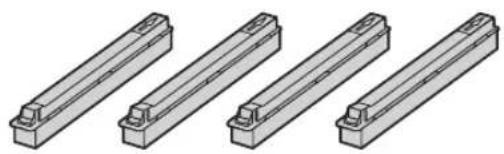
①Toner cartridge (starter) (Cyan/Magenta/Yellow/Black) ^*1
natural_image
Four identical mechanical components with flanged ends, shown in 3D rendering without any text or symbols.②Colour drum cartridge (KX-FADC510X) ^2
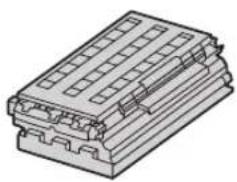
③Monochrome drum cartridge (KX-FADK511X) ^4
natural_image
Isometric line drawing of a multi-layered plastic housing or enclosure (no text or symbols)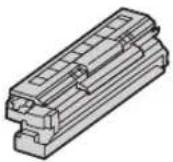
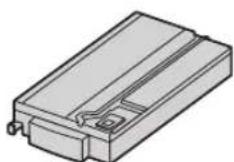
④Waste toner cartridge (pre-installed inside the unit) (KX-FAW505X) ^2
⑤CD-ROM (PNJKMC6020Z) ^*2
⑥Quick reference guide (PNQW1386Z) ^4
⑦Quick installation guide (PNQW1047Y) ^2

⑧Mains lead (PFJA03A008Y) ^*2
⑨Telephone line cord (PQJA87S) ^2*3
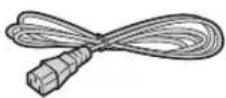
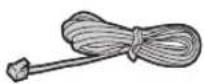
*1 Prints about 1,000 A4-size pages with a 5 % coverage (page 110).
*2 Part numbers are subject to change without notice.
*3 For UK.
Note:
- Save the original carton and packing materials for future shipping and transportation of the unit.
● After unpacking the product, take care of the power plug cap and/or packing materials appropriately.
- Do not remove the drum cartridges and toner cartridges from the unit when repacking the unit for shipping and transportation.
1.2 Accessory information
To ensure that the unit operates properly, we recommend the use of Panasonic toner cartridge and drum cartridge.
1.2.1 Sales and Support Information
Customer Care Centre
- For customers within the UK: 0844 844 3878 (for fax machine) 0844 844 3867 (for MFP)
- For customers within the Republic of Ireland: 01 6130082 (for fax machine) 01 2898255 (for MFP)
- Visit our website for product information
• E-mail: customer.care@panasonic.co.uk
Direct Sales at Panasonic UK
- Order accessory and consumable items for your product with ease and confidence by phoning our Customer Care Centre Monday - Thursday 9:00am - 5:30pm, Friday 9:30am - 5:30pm (Excluding public holidays).
- Or go on line through our Internet Accessory ordering application at www.panasonic.co.uk
- Most major credit and debit cards accepted.
● All enquires transactions and distribution facilities are provided directly by Panasonic UK Ltd. - It couldn't be simpler!
- Also available through our Internet is direct shopping for a wide range of finished products, take a browse on our website for further details.
■ Replacement accessories
- Toner cartridge
| Colour Model No. (Part No.) |
| Cyan KX-FATC501X |
| Magenta KX-FATM502X |
| Yellow KX-FATY503X |
| Black KX-FATK504X |
- Prints about 2,000 sheets of A4-size pages with a 5 % coverage using KX-FATC501X/KX-FATM502X/KX-FATY503X and about 2,500 sheets using KX-FATK504X.
- Toner cartridge (high capacity)
| Colour Model No. (Part No.) | |
| Cyan KX-FATC506X | |
| Magenta KX-FATM507X | |
| Yellow KX-FATY508X | |
| Black KX-FATK509X | |
- Prints about 4,000 sheets of A4-size pages with a 5 % coverage.
- Colour drum cartridge • Model No. (Part No.): KX-FADC510X
- Monochrome drum cartridge • Model No. (Part No.): KX-FADK511X
- Waste toner cartridge • Model No. (Part No.): KX-FAW505X
■ Optional accessories
- Optional lower input tray
- Model No. (Part No.): KX-FAP317X
- Automatic duplex unit • Model No. (Part No.): KX-FAB318X
1.3 Button descriptions
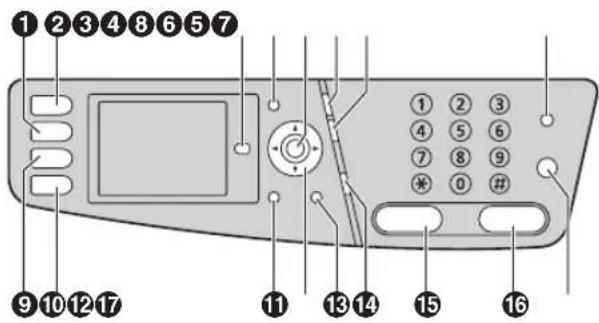
①[Copy]
● To switch to copy mode (page 20, 39).
②[Scan]
● To switch to scan mode (page 20, 35).
③【Advance】*1
- To switch to the basic/advance settings.
④[Menu]
- To start or exit programming.
⑤[Set] *1
● To store a setting during programming.
⑥ [Redial][Pause]
- To redial the last number dialled. If the line is busy when you send a fax, the unit will automatically redial the number 5 times.
● To insert a pause during dialling.
⑦[Recall]
- To access special telephone services or for transferring extension calls.
⑧[Fax Auto Answer]
- To turn the auto answer setting ON/OFF (page 49).
⑨[Fax]
● To switch to fax mode (page 20, 44).
10[Print]
● To switch to print mode (page 20, 31, 33).
⑪[Back] *1
● To return to the previous display.
- To erase a character/number.
12 Navigator key *1
● To select desired settings.
●To adjust the volume (page 22).
● To search for a stored item (page 46).
⑬[Caller ID]
- To use Caller ID features (page 56).
14[Monitor]
- To initiate dialling.
When you press [Monitor] while receiving a call, you will be able to hear the other party, but the other party will not be able to hear you.
15[Black]
●To copy a document in monochrome (page 39).
- To scan a document in monochrome (push scan) (page 35).
- To print a document in monochrome (direct print) (page 31, 33).
- To send or receive a fax (page 44).
● To print a received fax document (page 52).
16[Colour]
● To copy a document in colour (page 39).
- To scan a document in colour (push scan) (page 35).
- To print a document in colour (direct print) (page 31, 33).
17[Stop]
- To stop an operation or programming session.
*1 See page 10 for details.
Recall button (to use the recall feature)
[Recall] is used to access optional telephone services. Contact your telephone company business office for details.
Note:
- If your unit is connected to a PBX, pressing [Recall] allows you to access some features of your host PBX such as transferring an extension call.
1.4 Display descriptions
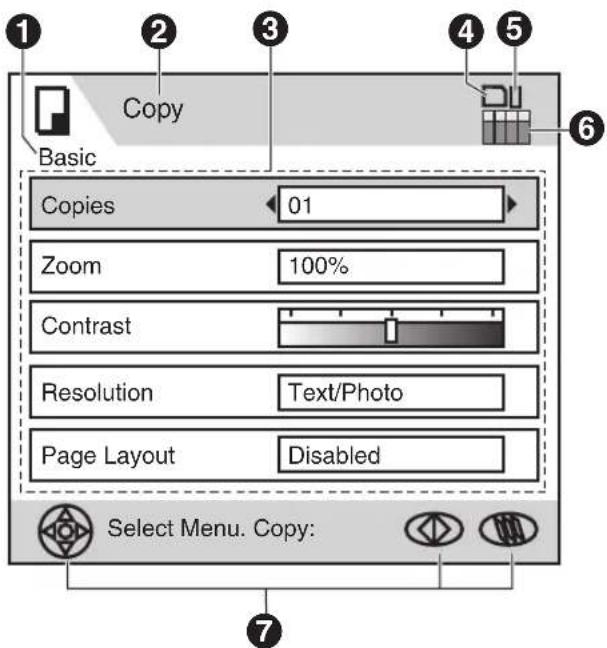
①Feature mode
● Displays the feature mode status.
②Status bar
● Displays the operation mode (page 20).
● Displays date and time (page 23).
- Displays error messages (page 85).
③Main display
● Displays the feature settings.
- Displays thumbnail images saved on an SD™ card (page 31) or received fax documents (page 51).
- Displays error messages (page 85).
④SD card icon
- This icon is displayed when an SD card is inserted (page 81).
⑤SD card access icon
- This icon is displayed when an SD card is inserted (page 81).
- This icon turns green when the SD card is being accessed.
⑥Toner cartridge life
● Displays the remaining toner level for each colour.
⑦Button operation guide
● Displays the available buttons for the corresponding operations.
Note:
- The displayed menu items may be different depending on the operation. To select a menu item not shown on the current page, scroll up or down by using navigator key.
1.4.1 Display and buttons
The following buttons can be used to navigate through operations or to select items shown on the display.
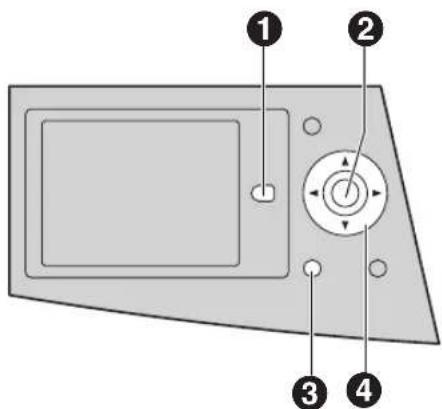
①[Advance]
- To change the display between basic and advanced feature modes.
- To change the feature settings during operation.
②[Set]
- To store a setting during programming.
- To place “√” and select the item, or remove “√” and cancel the selected item.
③[Back]
- To return to the previous display.
- To exit an operation while maintaining the settings.
④ Navigator key
●To select the item shown on the display.
● To select features or feature settings during programming.
● To navigate to the next operation.
● To scroll a displayed image (page 51).
1.5 Overview
1.5.1 Front view
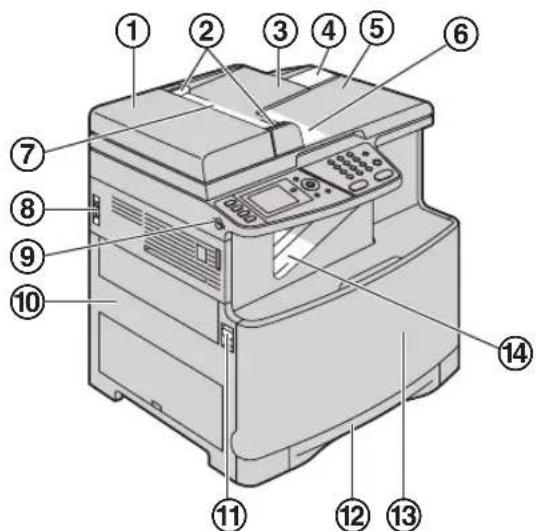
①ADF (Automatic Document Feeder) cover
②Document guides
③Document tray
④Document tray extender
⑤Document cover
⑥Document exit
⑦Document entrance
⑧Power switch
⑨SD card slot
⑩ Left cover
⑪ Left cover open lever
⑫Standard input tray
⑬Front cover
⑭Recording paper exit *1
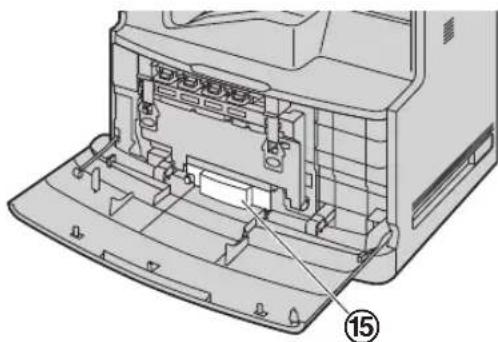
natural_image
Technical diagram of a computer chassis showing internal components and base plate (no text or symbols)⑮ Waste toner cartridge (pre-installed inside the unit) ^2
*1 The unit can hold up to approximately 100 sheets of printed paper. Remove the printed paper before the recording paper exit becomes full.
*2 The waste toner cartridge stores toner that is discharged during printing. See page 111 for information on the waste toner cartridge life.
1.5.2 Rear view
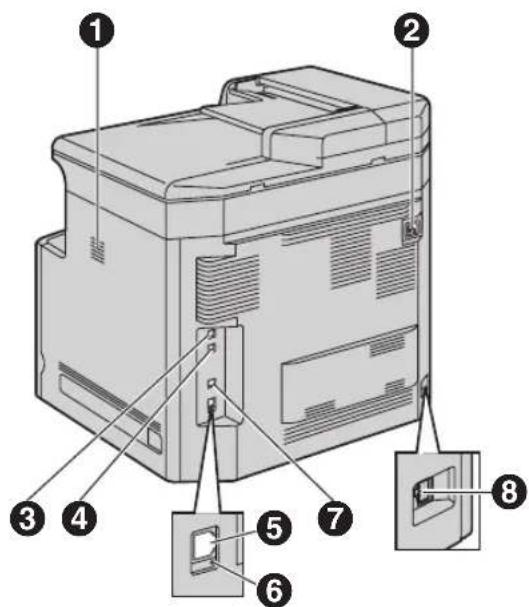
①Speaker
②AC-in socket
③Telephone line socket
④External telephone socket
⑤LAN interface connector
⑥LED
⑦USB interface connector
⑧Automatic duplex unit (optional) connector
Removing the shipping tape
Remove the shipping tape (①).
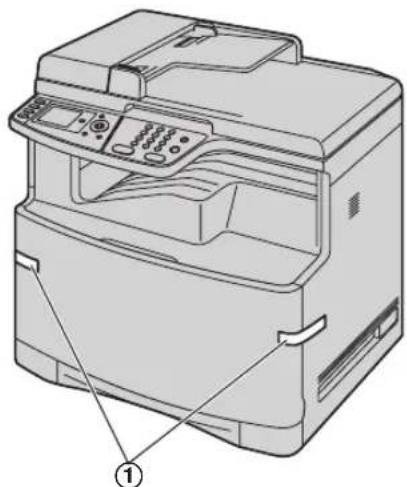
natural_image
Line drawing of a printer with control panel and paper feed (no text or symbols)Note:
- Shipping tape positions are subject to change without notice.
1.6 Toner cartridge and drum cartridge
The supplied toner cartridge is a starter toner cartridge.
Caution:
- Read the following instructions before you begin installation. After you have read them, open the drum cartridge protection bag. The drum cartridge contains a photosensitive drum. Exposing it to light may damage the drum. Once you have opened the protection bag:
- Do not expose the drum cartridge to light for more than 45 seconds.
- Do not touch or scratch the green drum surface at the bottom of the drum cartridge.
- Do not place the drum cartridge near dust or dirt, or in a high humidity area.
-
Do not expose the drum cartridge to direct sunlight.
-
Do not leave the toner cartridge out of the protection bag for a long time. It will decrease the toner life.
- We cannot be responsible for any damage to the unit or degradation of print quality which may occur from the use of a non-Panasonic toner cartridge and drum cartridge.
- Do not add toner to the toner cartridge.
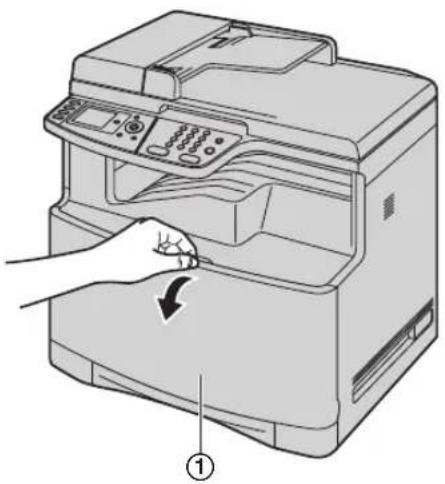
1 Open the front cover (①) by holding the centre part.
natural_image
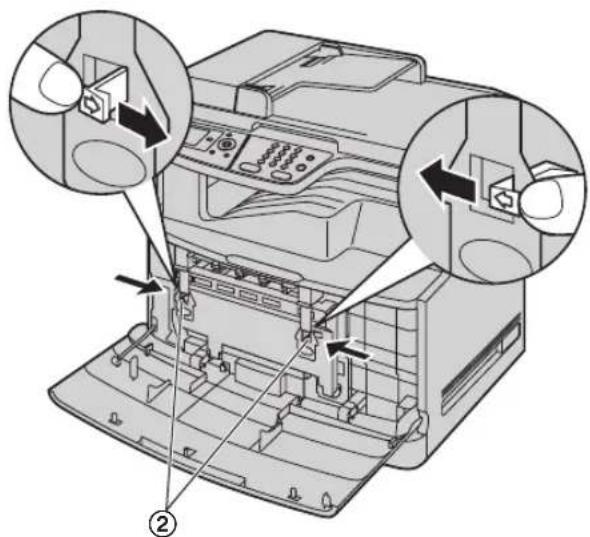
Illustration of a printer with a hand inserting a button into the cover (no text or symbols present)2 Unlock the drum cartridge cover by pushing the tabs (②) in the direction of the arrows.
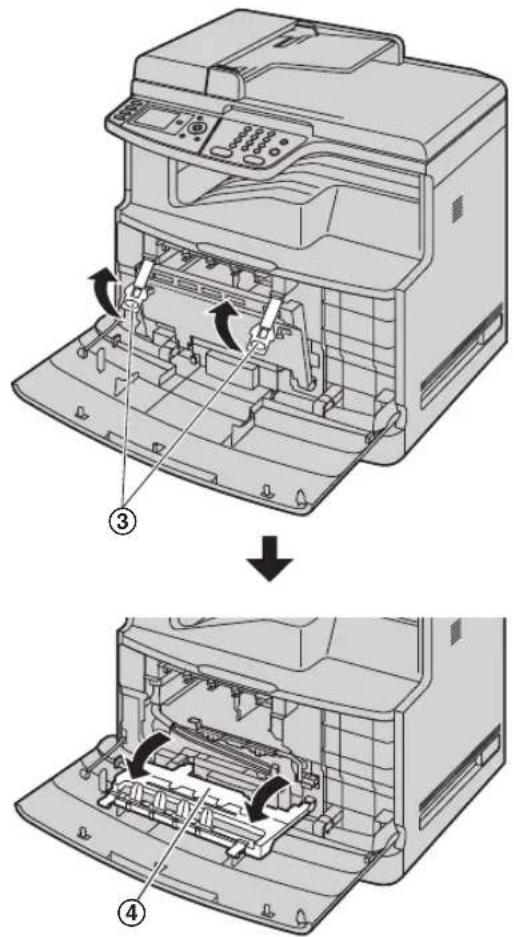
3 Lift up the levers (③) and open the drum cartridge cover (④).
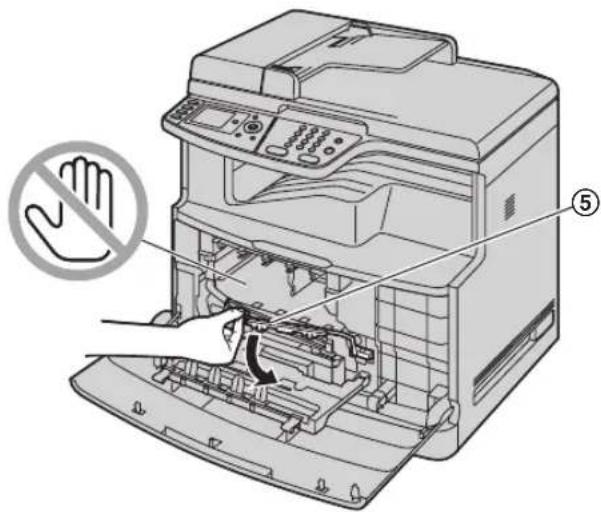
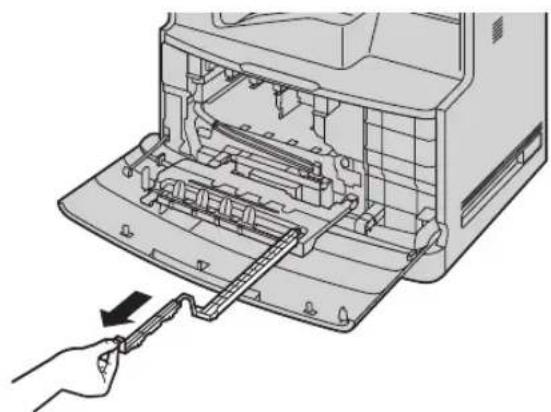
4 Remove the orange protector (⑤) by pulling it toward you, then pull it completely out from the unit.
↓
natural_image
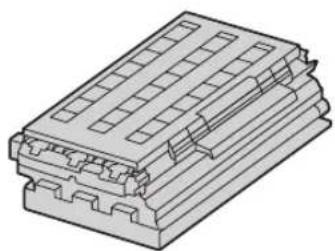
Illustration of a printer's internal structure with a hand holding a tool, showing no text or symbols.5 Remove the colour drum cartridge from the protection bag.
natural_image
3D technical illustration of a stacked electronic component with slots and mounting holes (no text or symbols)- Remove the shipping tape.
- Do not remove the monochrome drum cartridge from the protection bag before installing the colour drum cartridge in step 8.
- When holding the colour drum cartridge, be sure to handle it over a table to prevent damage caused by dropping it from a high position.
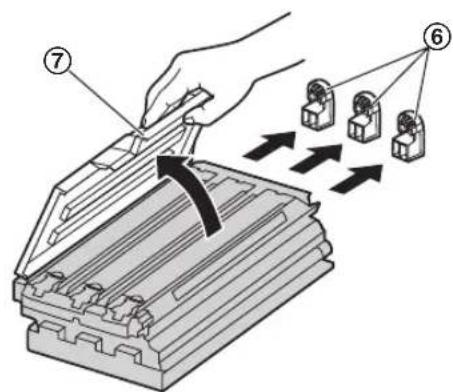
6 Detach the protective caps (⑥), then detach the upper seal cover by holding the tab (⑦).
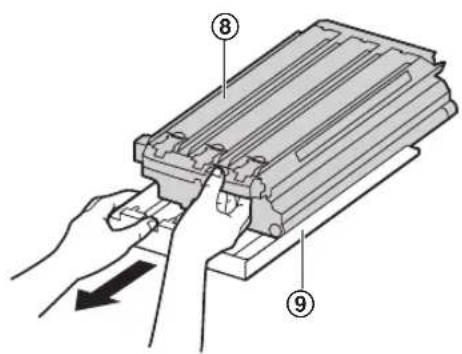
7 Firmly grip the colour drum cartridge (⑧) and remove the protective tray (⑨) by sliding it toward you.
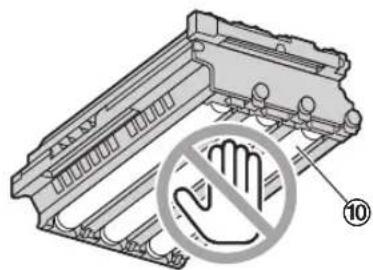
- Do not touch or scratch the green drum surfaces (⑩) at the bottom of the drum cartridge.
natural_image
Technical illustration of a mechanical component with a hand symbol indicating no protection (no text or labels present)1. Introduction and Installation
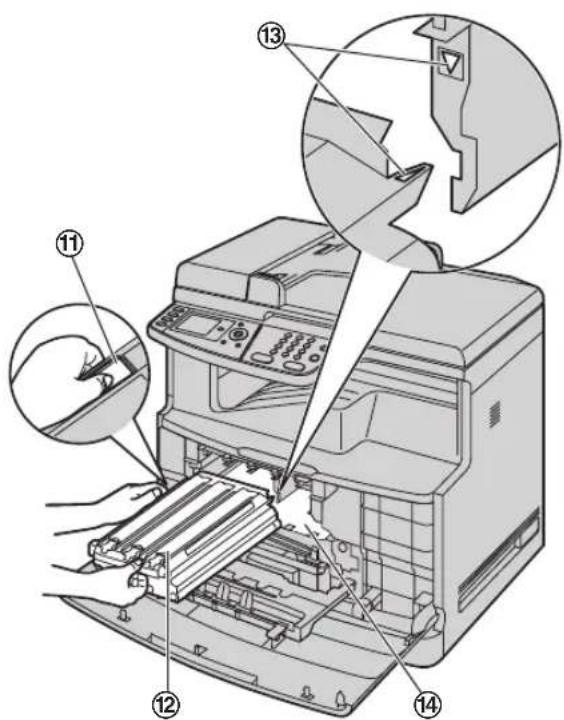
8 Hold the green lever (11) of the colour drum cartridge (12) using your left hand, and hold the front part using your right hand. Then insert it into the left side of the unit.
- Make sure that the arrows (⑬) match to insert the drum cartridge correctly.
- Do not touch or scratch the accumulator unit (14).
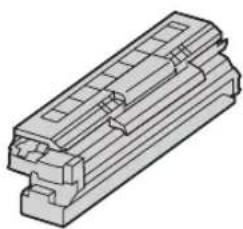
9 Remove the monochrome drum cartridge from the protection bag.
natural_image
Isometric line drawing of a mechanical component with internal channels (no text or symbols)- Remove the shipping tape.
10 Detach the protective cap (⑮), then detach the upper seal cover by holding the tab (⑯).
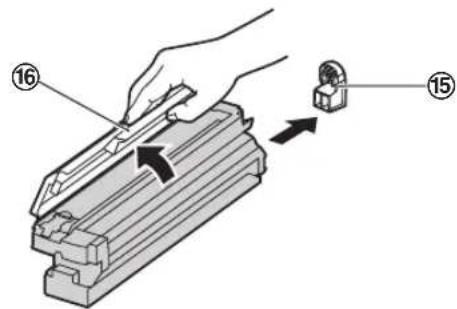
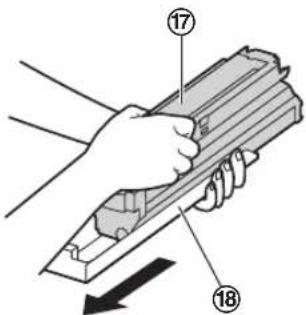
11 Firmly grip the monochrome drum cartridge (⑰) and remove the protective tray (⑱) by sliding it toward you.
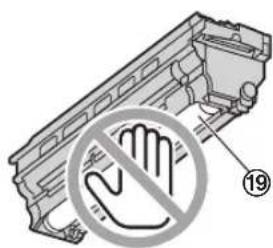
- Do not touch or scratch the green drum surface (19) at the bottom of the drum cartridge.
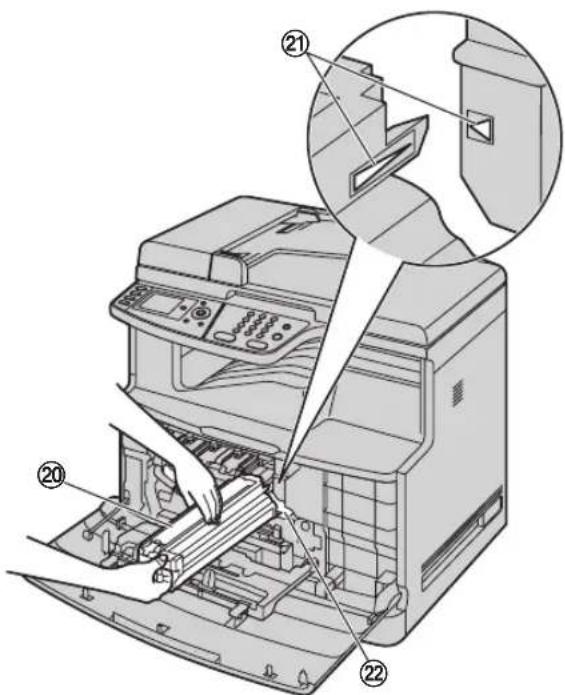
12 Insert the monochrome drum cartridge (⑳) into the right side of the unit.
- Make sure that the arrows (21) match to insert the drum cartridge correctly.
- Do not touch or scratch the accumulator unit (22).
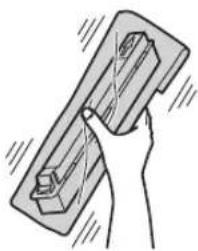
13 Before opening the protection bag of the new toner cartridges, shake them vertically more than 10 times.
natural_image
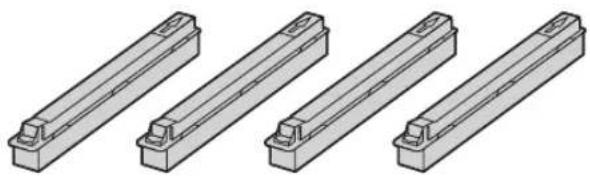
Illustration of a hand holding a rectangular object with motion lines indicating movement (no text or symbols)14 Remove the 4 toner cartridges from the protection bags.
natural_image
Four identical 3D mechanical parts with flanged ends, shown in isometric view (no text or symbols)- Remove the shipping tape.
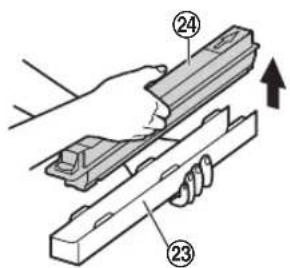
15 Remove each protective tray (23) by lifting up the toner cartridge (24).
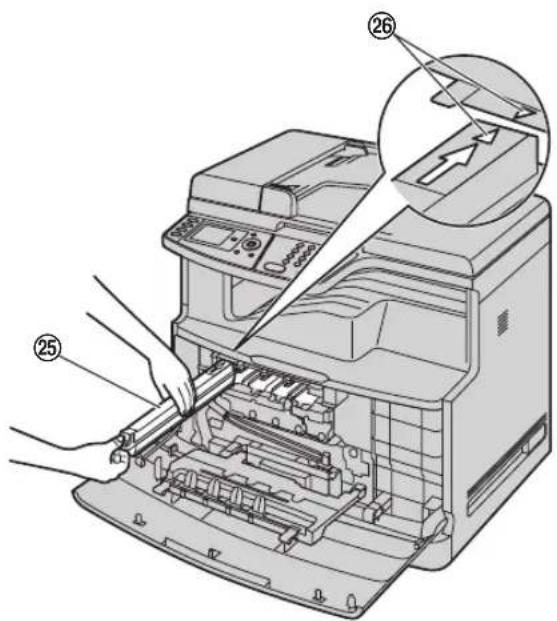
16 Insert each toner cartridge (25) in the appropriate colour slot.
From left to right, yellow, magenta, cyan, black.
- Make sure that the arrows (26) match to insert the toner cartridge correctly.
- Do not touch the toner cartridge shutter at the bottom of the toner cartridge. The toner may spill out of the toner cartridge.
17 Lift the drum cartridge cover (27) and push down on the levers (28) to close.
- Push the levers down until you hear a click to ensure that the cover is locked.
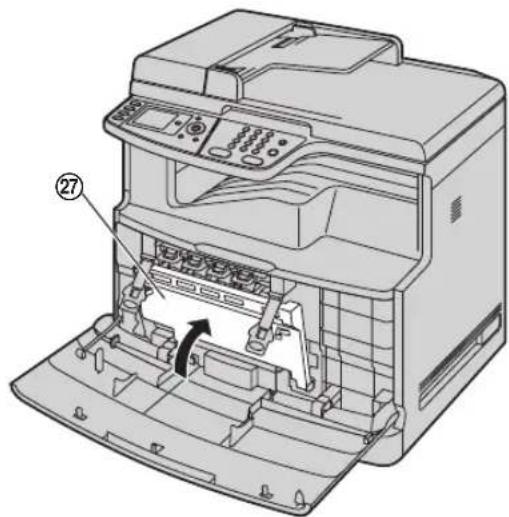

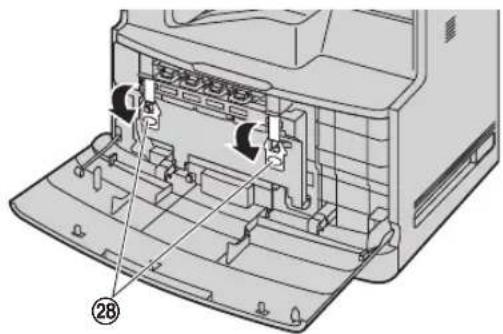
18 Close the front cover.
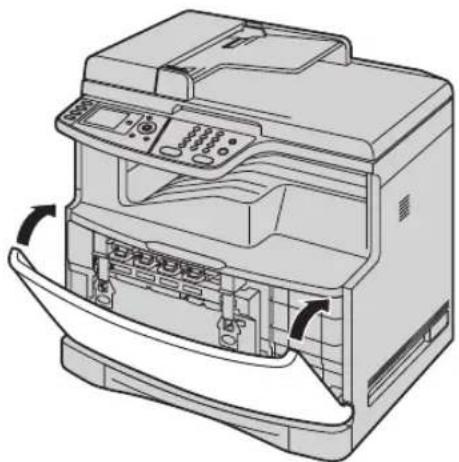
natural_image
Line drawing of a printer with internal components and a curved base, showing no text or symbols.When to replace the toner cartridge and the drum cartridge
When the display shows the following, replace the toner cartridge.
- "Change Supplies Toner Low"
- "Change Supplies Black :Low"
- "Change Supplies Cyan :Low"
- "Change Supplies Magenta:Low"
-
"Change Supplies Yellow :Low"
-
"Change Supplies Toner Empty"
- "Change Supplies Black :Empty"
- "Change Supplies Cyan : Empty"
- "Change Supplies Magenta: Empty"
- "Change Supplies Yellow : Empty"
When the display shows the following, replace the drum cartridge.
- "Colour Drum Life Low"
- "Monochrome Drum Life Low"
- "Colour Drum Replace"
- "Monochrome Drum Replace"
Note:
- When replacing a toner cartridge, be sure to seal the used toner cartridge in a plastic bag or other container so that toner does not spill out of it.
- When replacing the colour drum cartridge, hold the green lever using your left hand same as installing it. See step 8 on page 14 for instructions.
- To ensure that the unit operates properly, we recommend the use of Panasonic toner cartridge and drum cartridge. See page 8 for accessory information.
- See page 110 for information on toner life and drum life.
Waste disposal method
Waste material should be disposed of under conditions which meet all national and local environmental regulations.
Toner save feature
If you want to reduce toner consumption, set the toner save setting to ON (feature #482 on page 61). The toner cartridge will last approximately 40 % longer. This feature may lower the print quality.
1.7 Recording paper
The standard input tray unit can hold:
- Up to 250 sheets of 75g / m^2 paper.
- Up to 230 sheets of 80g / m^2 paper.
- Up to 200 sheets of 90g / m^2 paper.
- Up to 180 sheets of 105g / m^2 paper.
- Up to 25 transparencies.
- Up to 25 labels.
- Up to 10 envelopes. *1
- Up to 10 card stocks. *1
*1 Only when using the unit as a printer. See page 30 for details.
- Please refer to page 110 for information on recording paper.
-
The unit is set for printing A4-size plain paper by default.
-
To use letter or legal-size paper, change the recording paper size setting (feature #380 on page 60).
- To use thin or thick paper, change the recording paper type setting (feature #383 on page 60).
1 Pull the standard input tray (①) until it clicks into place, then pull it completely out, lifting the front part of the tray.
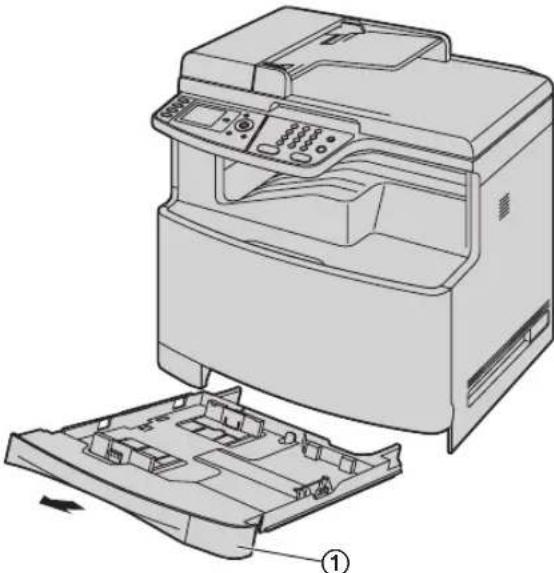
natural_image
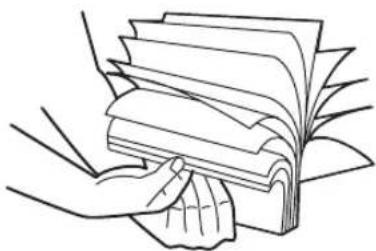
Line drawing of an open printer with internal components and a base cover, showing no text or symbols.2 Before loading a stack of paper, fan the paper to prevent paper jams.
natural_image
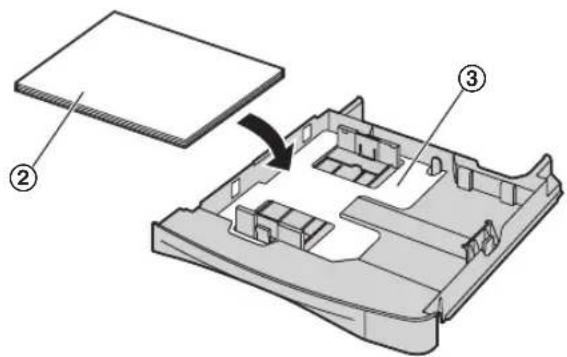
Line drawing of a hand holding a stack of books (no text or symbols visible)3 Load the paper, print-side up (②).
Important:
- Push and lock the plate (③) in the standard input tray, if it has come up.
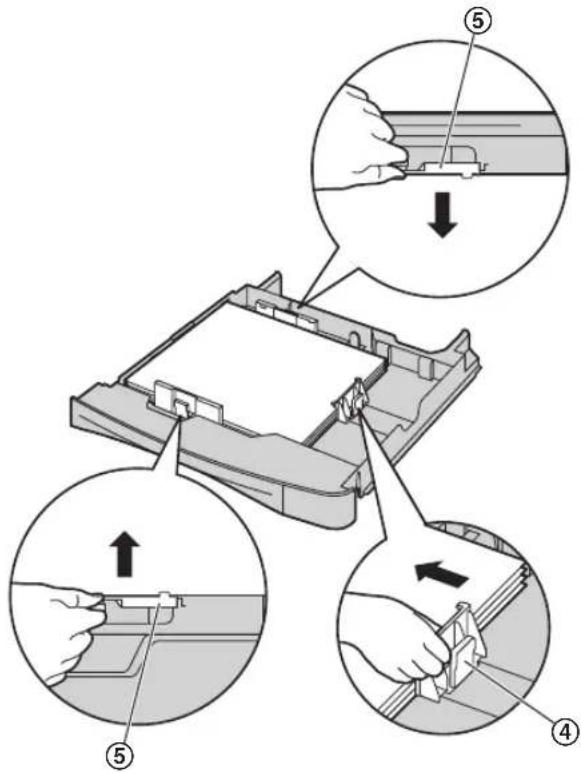
4 Pinch the right side of the recording paper guide (④), then slide it to match the paper size mark. Pinch the front and back recording paper guides (⑤) at the same time, then slide them together to match the paper size mark.
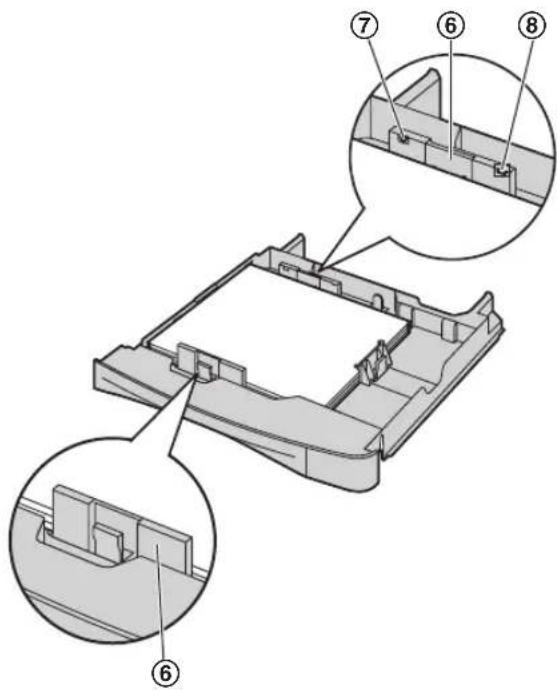
- Make sure that the recording paper guides (⑥) are at the paper size mark and the recording paper is under the paper limit mark (⑦). The paper should not be loaded over the tab (⑧).
5 Insert the standard input tray to the unit, lifting the front part of the tray. Then push it completely into the unit.
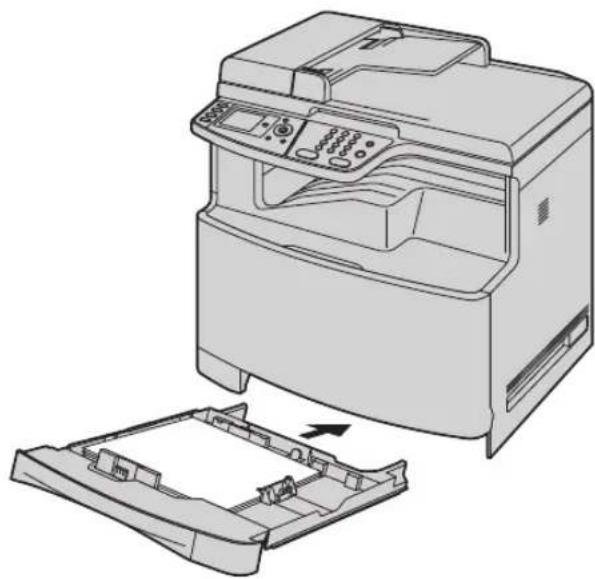
natural_image
Line drawing of a printer with internal components and an open lid (no text or symbols)Note:
- If the paper is not loaded correctly, re-adjust the paper guides, or the paper may jam.
- If the standard input tray does not close, the plate in the standard input tray may be lifted. Push the paper and make sure that the paper is laid flat in the standard input tray.
Caution for the standard input tray
- Do not drop the standard input tray.
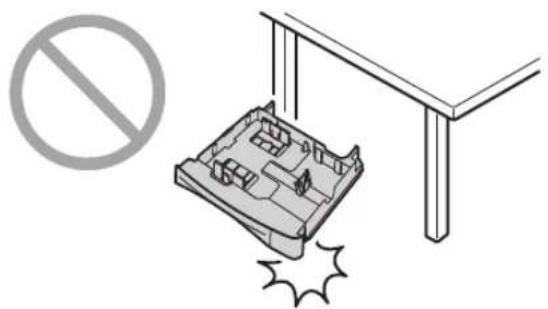
natural_image
Illustration of a cluttered device with a prohibition symbol and explosion effect (no text or symbols present)- Hold the standard input tray with both hands when removing or installing. The standard input tray weighs approximately 2.9 kg when the recording paper is fully loaded.
Do not touch the plate (①) on the left side of the standard input tray.
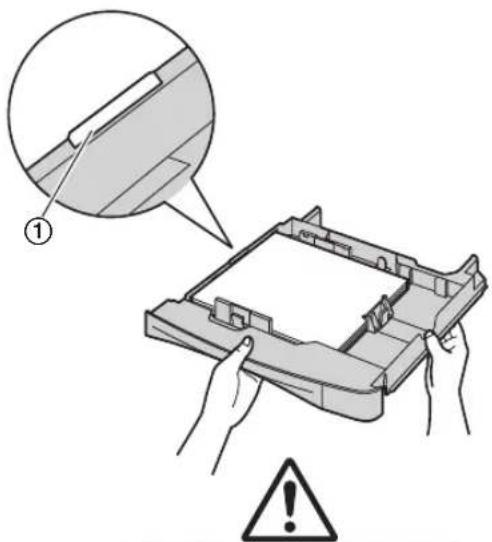
Approx. 2.9 kg
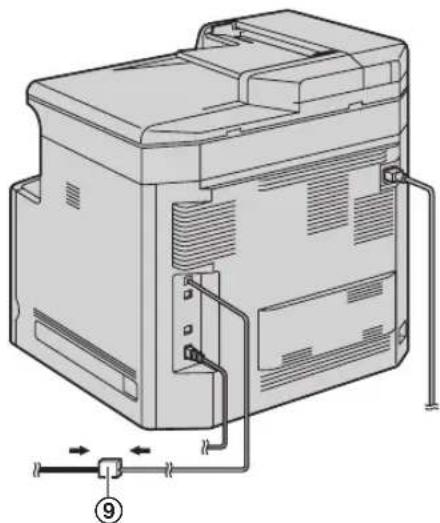
2.1 Connections
Caution:
●The mains lead must remain connected at all times.
- Never install telephone wiring during a lightning storm.
- When you operate this product, the power outlet should be near the product and easily accessible.
- Be sure to use the telephone line cord supplied with this unit.
- Do not extend the telephone line cord.
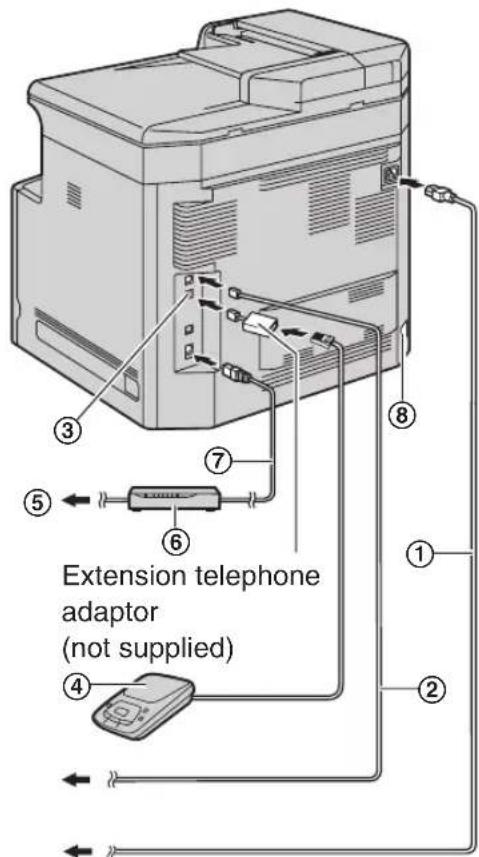
①Mains lead
- Connect to Household Mains Supply (220–240 V, 50 Hz).
②Telephone line cord
- Connect to telephone network.
③[EXT] socket
- You can connect an answering machine or an extension telephone. Remove the stopper if attached.
④Answering machine (not supplied)
⑤To the internet
⑥Network router/Network hub (not supplied)
- Also connect networked computers.
⑦LAN cable (not supplied)
- To assure continued emission limit compliance, only use a shielded LAN cable (category 5 straight cable).
⑧Automatic duplex unit (optional) connector
IMPORTANT NOTICE FOR THE USB CONNECTION
- DO NOT CONNECT THE UNIT TO A COMPUTER WITH THE USB CABLE UNTIL PROMPTED BY THE MULTI-FUNCTION STATION (page 25).
Note:
- If any other device is connected to the same telephone line, this unit may disturb the network condition of the device.
- If you use the unit with a computer and your internet provider instructs you to install a filter (⑨), please connect it as follows.
natural_image
Technical line drawing of a computer tower with attached cables and connectors (no text or symbols)- A telephone handset cannot be connected directly to this unit. To talk to the other party, please connect an extension telephone.
Using network router/network hub
- We recommend using network routers/network hubs (⑥) under secure network environments. Consult your network administrator for firewall settings, etc.
● The warranty does not cover damage due to security problems or any disadvantages relating to it.
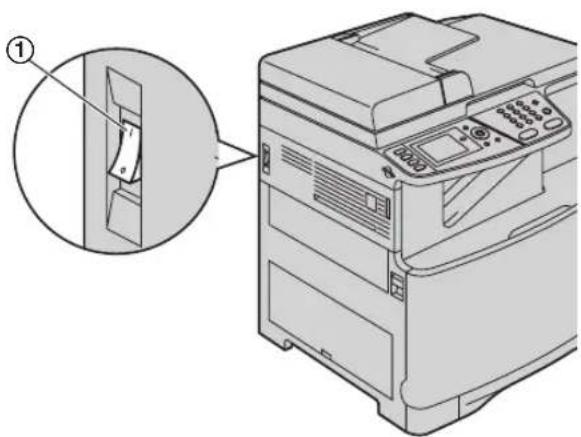
2.2 Turning the power switch ON
Turn the power switch to the ON position (①).
2.3 Selecting the operation mode (Scan/Copy/Fax/Print)
You can select the desired mode by pressing one of the following buttons.
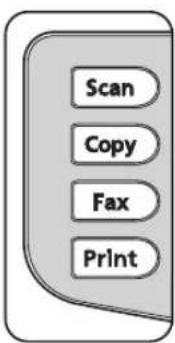
- 【Scan】: Select this mode when using the unit as a scanner (page 35).
- 【Copy】: Select this mode when using the unit as a copier (page 39).
- [Fax]: Select this mode when using the unit as a fax machine (page 44).
- 【Print】: Select this mode when using the unit as a printer (page 31).
Note:
●The default operation mode is the copy mode.
- You can change the default operation mode (feature #463 on page 61) and the timer before returning to the default operation mode (feature #464 on page 61).
2.4 Setting the original
2.4.1 Using the scanner glass
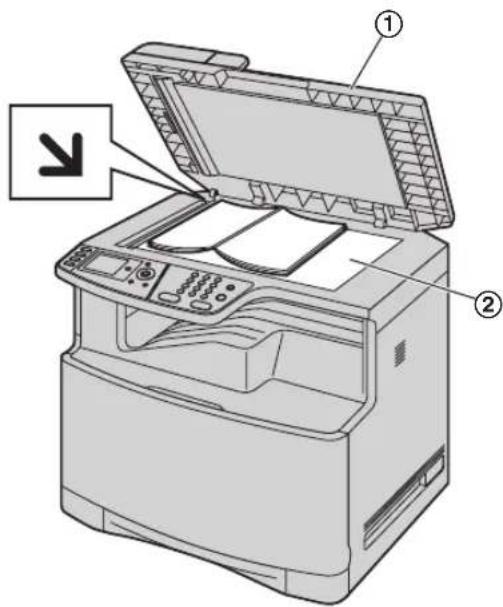
1 Open the document cover (①).
2 Place the document FACE DOWN on the scanner glass (②), aligning the top left of the document with the corner to which the ▼ mark points.
3 Close the document cover.
Note:
- Confirm that there are no documents in the automatic document feeder.
- Place the original onto the scanner glass gently. Do not press down too firmly to avoid malfunction.
- If the original is a thick book, do not close the document cover.
- Check that any ink, paste or correction fluid has dried completely.
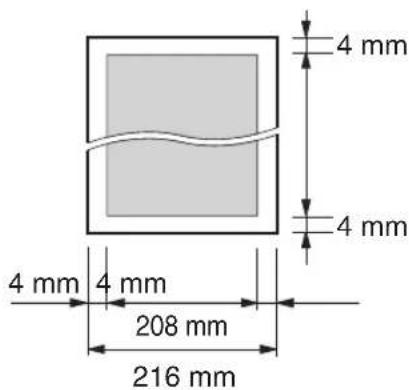
●Effective scanning area is as follows: Effective scanning area
●Shaded area will be scanned.
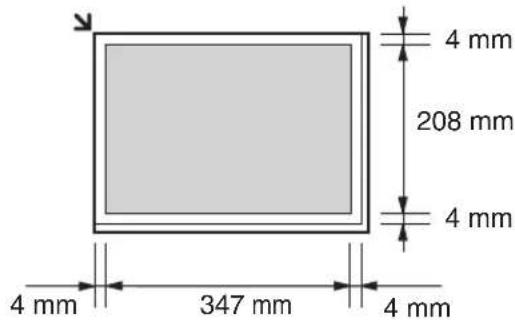
2.4.2 Using the automatic document feeder
natural_image
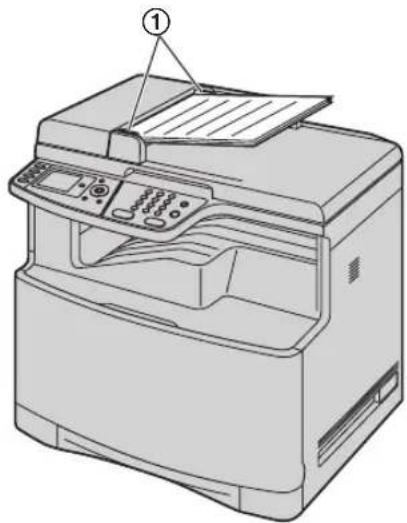
Line drawing of a printer with control panel and paper tray (no text or symbols)1 Insert the document (up to 50 pages) FACE UP into the feeder until a single beep is heard.
2 Adjust the width of the document guides (①) to fit the actual size of the document.
Note:
- Confirm that there are no documents on the scanner glass.
- Check that any ink, paste or correction fluid has dried completely.
- Remove clips, staples or other fasteners.
- Do not insert the following types of documents (Make a copy of the document using the scanner glass and set the copy instead.):
- Chemically treated paper such as carbon or carbonless duplicating paper
– Electrostatically charged paper
– Badly curled, creased or torn paper
– Paper with a coated surface
– Paper with printing on the opposite side that can be seen through the other side, such as newsprint
● The total height of the documents when laid flat, must be less than 5 mm. If the documents exceed the capacity of the automatic document feeder, they may fall or cause a jam in the feeder.
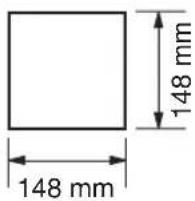
- To set a document with a width of less than 210 mm, we recommend using the scanner glass to copy the original document onto A4 or letter-size paper, then setting the copied document.
- Do not set documents that do not satisfy the requirements of size and weight. Make a copy of the document using the scanner glass and set the copy.
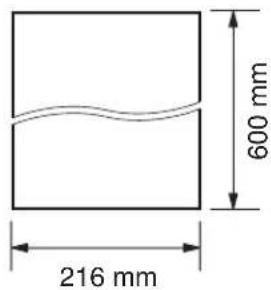
● Available document size, document weight and effective scanning area are as follows:
Minimum document size
Maximum document size
Effective scanning area
●Shaded area will be scanned.
Document weight
- Single sheet: 45 ~g / m^2 to 90 ~g / m^2
●Multiple sheets: 60 g/m² to 80 g/m²
2.5 Adjusting the volume
Important:
- Before adjusting the volume, set the operation mode to fax mode. If the [Fax] light is OFF, turn it ON by pressing [Fax].
![[Fax][▼][▲][◀][▶]](/content/2026/06/1190721/images/4b2fe543ea0be91e31852f997f3eb796554dfb91f3032906d6c021f207ad0ba3.jpg)
Ringer volume
- Press [▼] or [▲] repeatedly to select "Ringer Volume".
- Press [◀] or [▶].
To turn the ringer OFF
- Press [▼] or [▲] repeatedly to select "Ringer Volume".
- Press [◀] repeatedly to display "Ringer Off" in the status bar.
●The unit will not ring.
- To turn the ringer back ON, press [▶].
Monitor volume
- While using the monitor, press [▼] or [▲] repeatedly to select "Monitor Volume".
- Press [◀] or [▶].
2.6 Date and time
![[Menu] [Set][▼][▲][◀][▶]](/content/2026/06/1190721/images/7a3b36087bbe79e3b8d5c700bb3be1845324b4f745201722967d375eeb5149a8.jpg)
1 [Menu] → [#][1][0][1] → [Set]
2 Enter the current date/month/year/hour/minute.
Press 【*】 repeatedly to select 12-hour time entry or 24-hour time entry.
- If you selected 12-hour time entry, press [▼] or [▲] repeatedly to select "AM" or "PM".
Example: 10 August, 2008 10:15 PM (12 hour clock format)
- Press [▼] or [▲] repeatedly to select "Date". → [◀]/[▶]
- Press [1][0] [0][8] [2][0][0][8].
D:10/M:08/Y:2008
-
[Set]
-
Press [▼] or [▲] repeatedly to select "Time". → [◀]/[▶]
- Press [★], then press [1][0][1][5].
- Press [▼] or [▲] repeatedly to select "PM".
10:15PM
- [Set]
3 Press [Menu] to exit.
Note:
- The other party's fax machine will print the date and time on the top of each page you send according to your unit's date and time setting.
To correct a mistake
Press [◀] or [▶] to move the cursor to the incorrect number, and make the correction.
If you have subscribed to a Caller ID service
The date and time will be automatically set according to the received caller information.
- If the time has not previously been set, Caller ID will not adjust the clock.
2.7 Your logo
You can program your logo (name, company name, etc.) so that it appears on the top of each page sent.
![[Menu] [Back] [◀][▶] [Set]](/content/2026/06/1190721/images/eb7ff37494fe9c2a03ef44509aadfe4e5c60c14b1bb337a0fbe3c46201567b9d.jpg)
1 [Menu] → [#][1][0][2] → [Set]
2 Enter your logo, up to 30 characters (see page 78 for character entry). → [Set]
3 Press [Menu] to exit.
To correct a mistake
Press [◀] or [▶] to move the cursor to the incorrect character, and make the correction.
- To erase all characters, press and hold [Back].
2.8 Your fax number
You can program your fax number so that it appears on the top of each page sent.
![[Menu][Recall] [1 2 3 4 5 6 7 8 9 * 0 # [Back] [◀][▶] [Set]](/content/2026/06/1190721/images/4b72a52e484612a5555467c58c019d62fc09210add16f7112f6da4211cd9ba9e.jpg)
1 [Menu] → [#][1][0][3] → [Set]
2 Enter your fax number, up to 20 digits.
- To enter a “+”, press [※].
- To enter a space, press [#].
• To enter a hyphen, press [Recall]. - To erase a number, press [Back].
3 [Set]
4 Press [Menu] to exit.
To correct a mistake
Press [◀] or [▶] to move the cursor to the incorrect number, and make the correction.
- To erase all numbers, press and hold [Back].
2.9 Configuring the unit to access the LAN
You can print documents, scan documents, receive faxes or send faxes using a computer on the LAN. To enable these features, you need to set the IP address, subnet mask, and default gateway for the unit.
Important:
- Consult your network administrator when setting the IP address, subnet mask, and default gateway.
2.9.1 Setting up automatically with a DHCP server
Your situation:
- When only one unit is connected to the LAN.
If your network administrator manages the network with a DHCP (Dynamic Host Configuration Protocol) server, it will automatically assign an IP (Internet Protocol) address, subnet mask, and default gateway to the unit.
1 After connecting the LAN cable to the unit and the computer, turn the power switch ON.
●The IP address, subnet mask, and default gateway will be set automatically.
2 Install Multi-Function Station on the computer that you want to use it with. See page 25 for details.
Note:
- You can connect two or more units and assign IP addresses automatically with a DHCP server, but we recommend assigning static IP addresses manually for each unit to avoid unnecessary trouble.
2.9.2 Setting up manually
Your situation:
- When your network administrator does not manage the network with a DHCP server.
- When two or more units are connected to the LAN.
You need to assign an IP address, subnet mask, and default gateway manually.
1 [Menu]
2 Press [#][5][0][0] to display "DHCP".
3 Press [0] to select "Disabled". → [Set]
4 Set each item.
For the IP address:
- Press [5][0][1] to display "IP Address".
- [Set] → Enter the IP address of the unit. → [Set]
For the subnet mask:
- Press [5][0][2] to display "Subnet Mask".
- [Set] → Enter the subnet mask of the network. → [Set]
For the default gateway:
- Press [5][0][3] to display "Default Gateway".
- [Set] → Enter the default gateway of the network. → [Set]
5 Press [Menu] to exit.
6 Install Multi-Function Station on the computer that you want to use it with. See page 25 for details.
To correct a mistake in the IP address, subnet mask, or default gateway
Press [◀] or [▶] to move the cursor to the incorrect number, and make the correction.
2.9.3 Setting the computer for PC fax reception
You need to select the computer that will be used for receiving faxes.
- Make sure the PC fax setting is turned ON beforehand (feature #442 on page 65).
- Make sure the fax preview mode is turned OFF beforehand (feature #448 on page 65).
1 [Menu] → [#][4][4][3] → [Set]
2 Press [▼] or [▲] repeatedly to select the desired computer. → [Set]
3 Press [Menu] to exit.
Note:
- If the unit is not connected to the LAN, the computer connected to the unit by USB is assigned as the default computer for PC fax reception.
- To select the desired computer easily, change the PC name beforehand (page 28).
2.10 Installing Multi-Function Station
2.10.1 Required computer environment
Panasonic Multi-Function Station software enables the unit to carry out the following functions:
– Printing on plain paper, thin and thick paper, transparencies, labels, envelopes and card stock
- Scanning documents and converting an image into text with Readiris OCR software
- Scanning from other applications for Microsoft ^ Windows ^ that support TWAIN scanning and WIA scanning (Windows XP/Windows Vista ^ , USB connection only)
- Storing, editing or erasing items in directories using your computer
- Programming the features using your computer
– Sending, receiving fax documents using your computer
To use Multi-Function Station on your computer, the following are required:
Operating System:
Windows 98/Windows Me/Windows 2000/Windows XP/Windows Vista
CPU:
Windows 98/Windows Me/Windows 2000: Pentium® II or higher processor Windows XP: Pentium III or higher processor Windows Vista: Pentium 4 or higher processor
RAM:
Windows 98/Windows Me: 64 MB (128 MB or more recommended)
Windows 2000/Windows XP: 128 MB (256 MB or more recommended)
Windows Vista: 512 MB (1,024 MB or more recommended)
Other Hardware:
CD-ROM drive
Hard disk drive with at least 150 MB of available space USB interface
LAN interface (10Base-T/100Base-TX)
Other:
Internet Explorer ^® 5.0 or later
Warning:
- To assure continued emission limit compliance; – use only shielded USB cable (example: Hi-Speed USB 2.0 certified cable).
– use only shielded LAN cable (category 5 straight cable). - To protect the unit, use only shielded USB cable in areas where thunderstorms occur.
Note:
- A USB cable is not supplied. Please purchase a shielded Type-A male/Type-B male USB cable.
2.10.2 Installing Multi-Function Station on a computer
- Install Multi-Function Station (CD-ROM) before connecting the unit to a computer with the USB cable. If the unit is connected to a computer with the USB cable before installing Multi-Function Station, the [Found New Hardware Wizard] dialogue box will appear. Click [Cancel] to close it.
- The screenshots shown in these instructions are for Windows XP and are included for reference only.
- The screenshots shown in these instructions may differ slightly from those of the actual product.
- Software features and appearance are subject to change without notice.
- If you are using KX-MB200/KX-MB700/KX-FLB880 series, see page 98.
1 Start Windows and exit all other applications.
- For Windows 2000, Windows XP and Windows Vista users, you must be logged in as an administrator in order to install Multi-Function Station.
2 Insert the supplied CD-ROM into your CD-ROM drive.
- If the [Select Language] dialogue box appears, select the language that you want to use with this software. Click [OK].
- If the installation does not start automatically: Click [Start]. Choose [Run...]. Type "D:\Install" (where "D" is the drive letter of your CD-ROM drive). Click [OK].
(If you are not sure what the drive letter is for your CD-ROM drive, use Windows Explorer and look for the CD-ROM drive.)
3 [Easy Installation]
●The installation will start automatically.
4 When the setup program starts, follow the on-screen instructions.
- Readiris OCR software (page 36) and Device Monitor (page 79) will also be installed.
5 The [Connect Type] dialogue box appears.
For USB connection:
-
[Connect directly with a USB cable.] → [Next]
• The [Connect Device] dialogue box will appear -
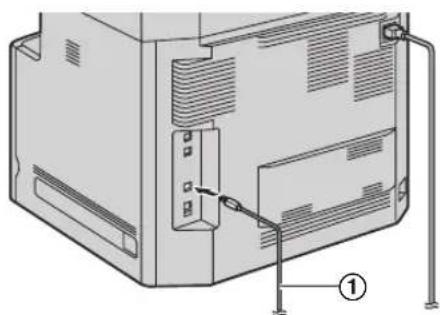
Connect the unit to a computer with the USB cable (①), then click [Next].
natural_image
Diagram of a computer tower with labeled components and connection lines (no text or symbols)- If the unit is connected to your computer, the model name will be automatically detected.
-
You can change the name of the unit if necessary.
-
Click [Install], then follow the on-screen instructions.
●The files will be copied to your computer.
For LAN connection:
- [Connect via the Network.] → [Next]
- The [Select a Network Device] dialogue box will appear.
- Check [Select in the searched list] and select the unit from the list.
- If the name of the desired unit is not displayed on the list, and the IP address for the unit has been assigned, check [Direct input] and enter the IP address.
- [Next]
- You can change the name of the unit if necessary.
- Click [Install], then follow the on-screen instructions.
●The files will be copied to your computer.
Important notice
If you use Windows XP or Windows Vista, a message may appear after connecting the unit with the USB cable. This is normal and the software will not cause any difficulties with your operating system. You can continue the installation with no problem. This kind of message is displayed:
●For Windows XP users
"The software you are installing for this hardware has not passed Windows Logo testing to verify its compatibility with Windows XP."
- For Windows Vista users
"Would you like to install this device software?"
To view or install the operating instructions data
- Start Windows and insert the supplied CD-ROM into your CD-ROM drive.
- Click [Operating Instructions], then follow the on-screen instructions to view or install the operating instructions in PDF format.
- Adobe ^ Reader ^ is required to view the operating instructions.
Note:
- If the screen prompts you to insert the CD-ROM for the operating system when installing Multi-Function Station, insert it into your CD-ROM drive.
- If you install the operating instructions, you can view them anytime by clicking [?] on the Multi-Function Station launcher.
To use another unit with the computer
You need to add the printer driver for each unit, as follows.
- Start Windows and insert the supplied CD-ROM into your CD-ROM drive.
- [Modify] → [Add Multi-Function Station Driver]. Then follow the on-screen instructions.
Note:
- You cannot connect more than one unit to the same computer at the same time (USB connection only).
To modify the software (To add or uninstall each component)
You can select the components to install or uninstall anytime after the installation.
For Windows 2000, Windows XP and Windows Vista users, you must be logged in as an administrator in order to modify Multi-Function Station.
- Start Windows and insert the supplied CD-ROM into your CD-ROM drive.
- [Modify]→ [Modify Utilities]. Then follow the on-screen instructions.
To uninstall the software
For Windows 2000, Windows XP and Windows Vista users, you must be logged in as an administrator in order to uninstall Multi-Function Station.
[Start] → [All Programs] or [Programs] → [Panasonic] → the unit's name → [Uninstall]. Then follow the on-screen instructions.
2.11 Starting Multi-Function Station
[Start] → [All Programs] or [Programs] → [Panasonic] → the unit's name → [Multi-Function Station]
●Multi-Function Station will appear.
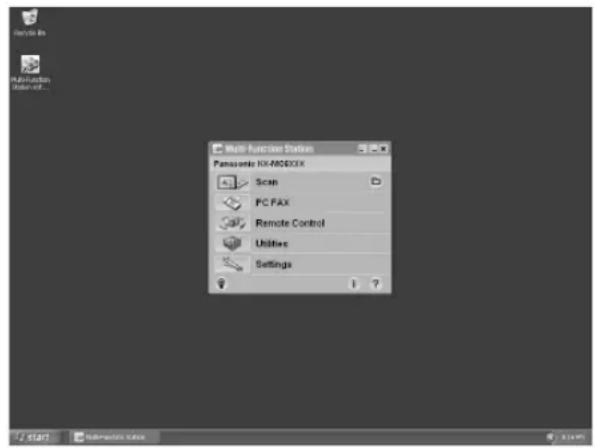
[Scan] (page 37)
●To scan and display the scanned images.
- To scan and create an image file.
● To scan and send by e-mail.
- To scan and convert an image into editable text data.
[PC FAX]
- To send a document created on the computer as a fax message (page 48).
- To display a fax document received on the computer (page 55).
[Remote Control] (page 79)
- To program the features.
- To store, edit or erase items in directories.
- To view items in the journal report or Caller ID list.
- To store caller information into directories.
- To store or erase items for broadcast transmission.
[Utilities]
- To start Multi-Function Viewer (page 37).
●To start Device Monitor (page 79). - To start OCR application (page 36).
- To start the configuration web page (page 58, 79) (LAN connection only).
[Settings] (page 28)
- To change the general settings.
- To change the settings for scanning.
- To change the folder for saving the received fax documents (page 52).
[?]
- For detailed instructions on Multi-Function Station.
- To view operating instructions.
[●]
- To display usage tips.
[i]
- To display information about Multi-Function Station.
Note:
- You can confirm if the unit is connected to your computer by using Device Monitor (page 79).
- Computer features (printing, scanning, etc.) may not function properly in the following situations:
- When the unit is connected to a computer that was custom-built by the user.
- When the unit is connected to the computer via a PCI card or other expansion card.
- When the unit is connected to another piece of hardware (such as a USB hub or interface adapter) and not connected directly to the computer.
To change the settings
You can change the settings for Multi-Function Station beforehand.
- Select [Settings] from Multi-Function Station.
- Click the desired tab and change the settings. → [OK]
[General]
- [Launcher display setting]: To select the display type of the launcher.
- [OCR Path]: To select the OCR software.
- [PC name list up on device] (LAN connection only): To select whether or not your computer name is displayed on the unit.
- [PC name] (LAN connection only): The computer name that will be displayed on the unit.
[Scan]
- [Save to]: To select the folder where the scanned image or the received fax document will be saved.
- [Viewer][File][E-Mail][OCR][Custom]: To change scanning settings for Multi-Function scan application.
Note:
- Assign a unique name for the [PC name] to avoid overlapping, or the scanned image may be sent to an undesired computer.
To select the default E-mail software
The default E-mail software is used when using "4.1.3 Scan to E-mail", page 35. You can select the default E-mail software as follows.
For Windows 98/Windows Me/Windows 2000:
- [Start] → [Settings] → [Control Panel] → [Internet Options] → [Programs] → [E-mail]
- Select the desired MAPI-compliant E-mail software such as [Outlook Express], etc. → [OK]
For Windows XP:
- [Start] → [Control Panel] → [Internet Options] → [Programs] → [E-mail]
- Select the desired MAPI-compliant E-mail software such as [Outlook Express], etc. → [OK]
For Windows Vista:
- [Start] → [Control Panel] → [Internet Options] → [Programs] → [Set programs] → [Set program access and computer defaults]
- If the [User Account Control] dialogue box appears, click [Continue].
2. [Custom]
- Select the desired MAPI-compliant E-mail software such as [Windows Mail], etc. from [Choose a default e-mail program]. → [OK]
3.1 Printing from Windows applications
You can print a file created in a Windows application. For example, to print from WordPad, proceed as follows.
1 Open the document you want to print.
2 Select [Print...] from the [File] menu.
- The [Print] dialogue box will appear. For details about the [Print] dialogue box, click [?], then click the desired item.
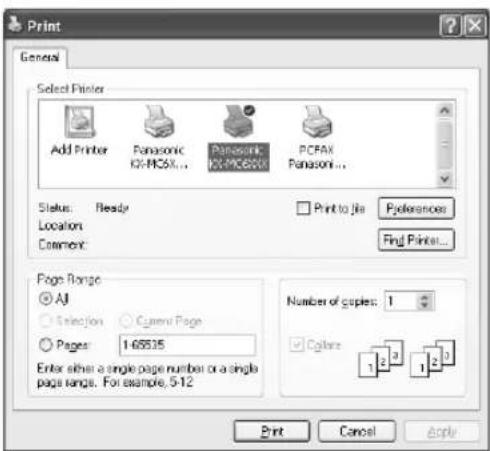
3 Select the unit's name as the active printer.
- If you have changed the name of the unit when installing, select that name from the list.
- For easier greyscale printing, select the unit's name with [B/W] attached to the name.
- To change the printer settings, proceed as follows.
For Windows 98/Windows Me:
Click [Properties], then click the desired tab. Change the printer settings, then click [OK].
For Windows 2000:
Click the desired tab and change the printer settings.
For Windows XP/Windows Vista:
Click [Preferences], then click the desired tab. Change the printer settings, then click [OK].
4 Click [Print] or [OK].
●The unit will start printing.
Note:
● To stop printing from the unit, see page 80.
● To load paper, see page 16, 30.
- For details about the paper specifications, see page 110.
- If a printing error occurs, the Device Monitor (page 79) will start automatically and display the error information.
Setting the printer properties
You can change the printer setting in step 3. We recommend that you test paper (especially special sizes and types of paper) on the unit before purchasing large quantities.
You can change or display the settings on the following tabs.
[Basic]: Paper size, media type, pages per sheet, etc.
[Output]: Number of prints, collate, etc.
[Quality]: Colour mode, colour management, toner save feature, etc.
[Effects]: Watermark, overlay.
[Profile]: Saving the desired settings, selecting the saved settings, etc.
[Support]: Version information.
Note:
- Select the desired media type on the [Basic] tab according to the recording paper.
| Recording paper type Media type | |
| Plain paper75 g/m2 to 105 g/m2 | [Plain Paper] |
| Thin paper60 g/m2 to 74 g/m2 | [Thin Paper] |
| Thick paper106 g/m2 to 165 g/m2 | [Thick Paper] |
| Transparency [Transparency] | |
| Label [Label] | |
| Envelope*1 | —— |
| Card stock163 g/m2 | [Card Stock] |
*1 Select [Envelope #10] or [Envelope DL] for paper size.
- When printing from a computer, the printer properties setting overrides the following unit's programming features:
– Media type setting (feature #383 on page 60) - Toner save setting (feature #482 on page 61)
- When printing on envelopes, press [Black]/[Colour] on the unit after step 4. Change the colour mode on the [Quality] tab beforehand.
3.1.1 Printing on special media
You can print not only on plain paper but also on special media (transparencies/labels/envelopes/card stocks).
- Please refer to page 110 for information on recording paper.
● To load paper, see page 16.
To print on transparencies
Use transparencies designed for laser printing.
We recommend the following:
3M® CG3300/PP2500
- Do not stack more than 25 transparencies at a time.
● After printing, place transparencies on a flat surface to cool and to prevent them from curling.
- Do not re-use transparencies that have already been fed through the unit. This includes transparencies that have been fed through and ejected without being printed on.
- Some types of transparencies have instructions recommending which side to print on. If the print quality is poor, try printing on the other side of a new transparency.
To print on labels
Use labels designed for laser printing. We recommend the following:
Avery®
5160/5163/5660/5663/L7159/L7164
- Do not stack more than 25 labels at a time.
-
Do not use the following types of labels:
-
Labels that are wrinkled, damaged or separated from the backing sheet.
– Any sheet of labels that has spaces in it where some of the labels have been removed. - Labels that do not completely cover the backing sheet as follows:
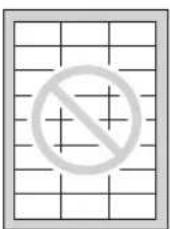
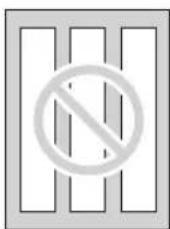
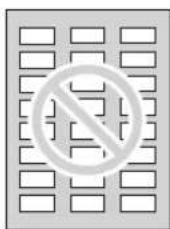
To print on envelopes
Use envelopes designed for laser printing. We recommend the following:
– High quality envelopes of 90 g/m ^2 paper,
- Envelopes that have thin, sharply creased leading edges,
- Envelopes that have diagonal seams, and
- Envelopes with a moisture content of 4 % to 6 % by weight.
- Load envelopes with the sealing flap FACE DOWN.
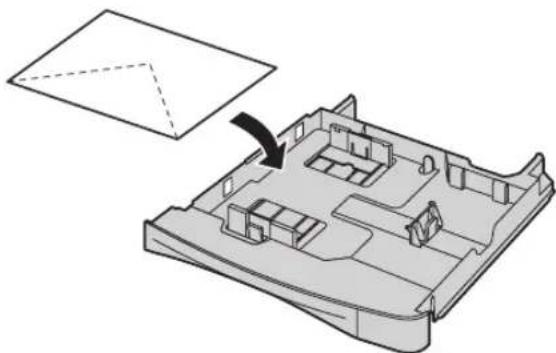
natural_image
3D architectural diagram of a building interior with internal compartments and a highlighted section (no text or symbols)- Do not stack more than 10 envelopes at a time.
Note:
- Wrinkles and waving may occur in some cases, even if high quality envelopes are used.
- Avoid printing in high humidity. High humidity may cause the envelope to curl or seal the envelope.
- Store envelopes away from moisture and humidity, where they can lay flat and their edges will not be bent or damaged.
Do not use envelopes with any of the following characteristics (using these may result in paper jams):
- Irregularly shaped envelopes
- Envelopes with curls, wrinkles, nicks, twists, dogears or other damage
● Envelopes with side seam construction
● Highly textured envelopes, or envelopes with extremely shiny surfaces
● Envelopes that seal by removing a peel-off strip
● Envelopes with more than one sealing flap
● Self-adhesive envelopes
● Envelopes that are baggy or not sharply creased - Embossed envelopes
● Envelopes that have previously been printed on
● Envelopes that include cotton and/or fibre material
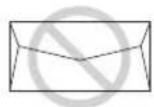
Side seam construction

Peel-off strip Multiple flaps

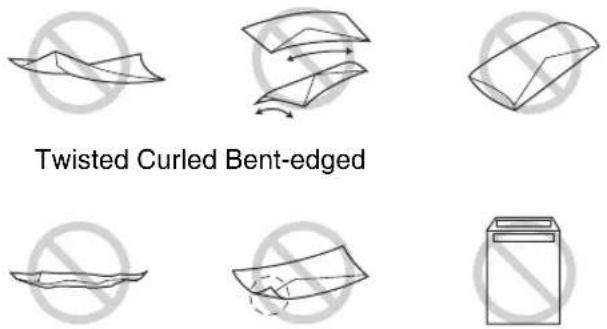
Waved Dog-eared Self adhesive
Do not attempt to print on any of the following types of envelopes (these may cause damage to the unit):
● Envelopes with clasps, snaps or tie strings
● Envelopes with transparent windows
- Envelopes that use encapsulated types of adhesive that do not require moistening but rely on pressure to seal them


Clasp Transparent window
3.1.2 Duplex printing (optional)
Connecting the optional automatic duplex unit allows duplex printing (page 82). For example, to print from WordPad, proceed as follows.
1 Open the document you want to print.
2 Select [Print...] from the [File] menu.
3 Select the unit's name as the active printer.
- For Windows 2000 users, go to step 5.
4 For Windows 98/Windows Me:
[Properties]
For Windows XP/Windows Vista:
[Preferences]
5 Click the [Basic] tab.
6 Select the desired duplex layout. → [OK]
- Select [None] to deactivate this feature.
- You can also change the duplex margin.
7 Click [Print] or [OK].
Booklet feature
You can print the document, then fold in half to create booklets. The documents will be reduced to fit the recording paper.
To use this feature, select the [Booklet] icon for the [Layout Print] after step 5 on "3.1.2 Duplex printing (optional)", page 31.
3.2 Direct printing from an SD card
You can directly print a file stored on an SD card without using your computer.
![[Print] [Advance] [Back] [Set][▼][▲][◀][▶] [Black] [Colour][Stop]](/content/2026/06/1190721/images/6fc986b17bbd0ffa6d4c6c23a937d0a14a01410f3cf82934ea40fb3df69f0f28.jpg)
1 Insert the SD card in the SD card slot of the unit (page 81).
●An SD card is not supplied.
2 [Print]
3 Press [▼] or [▲] repeatedly to select "SD Card". → [Set]
●The printable files stored on the SD card will be displayed.
4 Press [▼] or [▲] repeatedly to select the desired file. → [Set]
- To select a file inside a folder, press [▼] or [▲], and then press [Set]. Repeat this until the desired file is selected.
- To select the desired file in thumbnail display mode, press [◀] or [▶], and then press [Set].
- You can select up to 40 files. To select multiple files, repeat this step.
- If you press [Stop], you will return to step 3, and the selection will be cancelled.
- If you press [Back], you will return to step 3, and the selection will be maintained.
5 If necessary, change the direct print settings (page 32).
6 [Black]/[Colour]
Note:
- To switch between the file name display and thumbnail display, press [★]. You can change the default display mode (feature #673 on page 75).
●The file formats that can be printed are as follows:
- T I F F
- JPEG
– PDF (files scanned from the unit, files scanned from the computer using Multi-Function Viewer, or received fax documents saved to an SD card)
●The up to 8 characters are displayed for the file name.
- For details about the SD card, see page 81.
- To stop printing, see page 80.
What “√” means
“√” next to a file name or thumbnail means the file is selected.
3.2.1 Setting direct print features
You can change the direct print settings. The settings are reset after each printing.
To change the number of copies to print
1. [Advance]
-
Press [▼] or [▲] repeatedly to select "Copies".
-
Enter the number of copies (up to 99). → [Set] → [Advance]
To change the orientation
You can change the print orientation.
1. [Advance]
-
Press [▼] or [▲] repeatedly to select "Orientation".
-
Press [◀] or [▶] repeatedly to select the desired setting.
-
"Portrait": For portrait orientation.
- “Landscape”: For landscape orientation.
4. [Set] → [Advance]
To select the page layout (N in 1)
You can save paper by printing 2, 4 or 8 pages onto 1 page. The documents' size will be reduced to fit the recording paper.
1. [Advance]
-
Press [▼] or [▲] repeatedly to select "N in 1".
-
Press [◀] or [▶] repeatedly to select the desired setting.
-
“Off”: Deactivates this feature.
- “2 in 1”: 2 pages will be printed onto 1 page.
- “4 in 1”: 4 pages will be printed onto 1 page.
- “8 in 1”: 8 pages will be printed onto 1 page.
4. [Set] → [Advance]
To select a page border for N in 1
You can select whether or not to print a line between the pages in N in 1 printing.
1. [Advance]
-
Press [▼] or [▲] repeatedly to select "Nin1 Page Border".
-
Press [◀] or [▶] repeatedly to select the desired setting.
-
“None”: For printing without a line.
- "Solid Line": For printing with a line.
4. [Set] → [Advance]
To select duplex print
Connecting the optional automatic duplex unit allows duplex printing (page 82). You can also select the type of binding.
1. [Advance]
-
Press [▼] or [▲] repeatedly to select "Duplex".
-
Press [◀] or [▶] repeatedly to select the desired setting.
-
"Off": Deactivates this feature.
- “Long Edge”: For long edge binding.
- "Short Edge": For short edge binding.
4. [Set] → [Advance]
To select continuous print
You can select whether or not documents in different file formats are printed onto 1 page in layout printing or duplex printing.
1. [Advance]
-
Press [▼] or [▲] repeatedly to select "Continuous Print".
-
Press [◀] or [▶] repeatedly to select the desired setting.
-
"Disabled": Only the same file formats can be printed.
- “Enabled”: Different file formats can be printed.
4. [Set] → [Advance]
To adjust the brightness
You can adjust the brightness setting depending on the document. 7 levels are available.
1. [Advance]
- Press [▼] or [▲] repeatedly to select "Image Adjustment". → [Set]
- Press [▼] or [▲] repeatedly to select "Brightness".
- Press [◀] or [▶] repeatedly to select the desired brightness. → [Set] → [Back] → [Advance]
To adjust the saturation
You can adjust the saturation setting depending on the document. 7 levels are available.
1. [Advance]
- Press [▼] or [▲] repeatedly to select "Image Adjustment". → [Set]
- Press [▼] or [▲] repeatedly to select "Saturation".
- Press [◀] or [▶] repeatedly to select the desired saturation. → [Set] → [Back] → [Advance]
To adjust the tint
You can adjust the tint setting depending on the document. 7 levels are available.
- [Advance]
- Press [▼] or [▲] repeatedly to select "Image Adjustment". → [Set]
- Press [▼] or [▲] repeatedly to select "Tint".
- Press [◀] or [▶] repeatedly to select the desired tint. → [Set] → [Back] → [Advance]
3.3 Direct printing from an FTP server (LAN connection only)
You can directly print a file stored on an FTP server.
Important:
- Program the FTP server settings beforehand (page 75).
1 [Print]
2 Press [▼] or [▲] repeatedly to select "FTP Server". → [Set]
3 Press [▼] or [▲] repeatedly to select the desired FTP server. → [Set]
- The printable files on the FTP server will be displayed.
4 Press [▼] or [▲] repeatedly to select the desired file. → [Set]
- To select a file inside a folder, press [▼] or [▲], and then press [Set]. Repeat this until the desired file is selected.
- You can select up to 40 files. To select multiple files, repeat this step.
- If you press [Stop] or [Back], you will return to step 3, and the selection will be cancelled.
5 If necessary, change the direct print settings (page 32).
6 [Black]/[Colour]
Note:
●The file formats that can be printed are as follows:
- T I F F
- JPEG
– PDF (files scanned from the unit, files scanned from the computer using Multi-Function Viewer, or received fax documents saved in a folder on an FTP server)
- Only file names are displayed in the list.
● To stop printing, see page 80.
3.4 Printing a received e-mail attachment automatically (LAN connection only)
If you configure the POP server settings beforehand, the unit will automatically print files attached to an e-mail that are sent from a compatible unit via the Internet (scan to e-mail print). This is useful if you want to print only attached files, without checking your e-mails.
Important:
●The unit does not print e-mail messages.
- The unit will only print attached files sent from a compatible unit, which can send e-mails directly (without using a computer).
- The attachment file formats that can be printed are as follows:
- TIFF
- JPEG
- PDF (files scanned from the unit, files scanned from the computer using Multi-Function Viewer, or received fax documents saved as an e-mail attachment)
- Received e-mails and the attached files will be deleted automatically after printing.
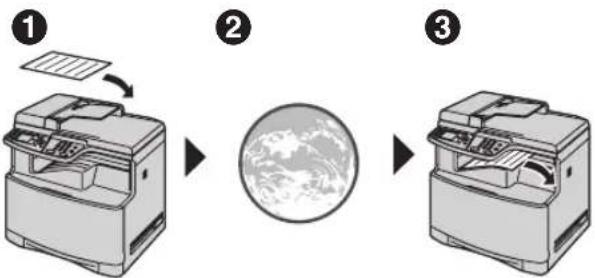
flowchart
graph LR
    A["① Image Printer"] --> B["② Earth Observation"]
    B --> C["③ Exporting Paper"]
① Send from a compatible multi-function unit (example:
"4.1.5 Scan to e-mail server (LAN connection only)", page 36)
② E-mail is sent via the Internet (e-mail server)
③ Receiving unit prints attached files
1 Start Multi-Function Station.
2 [Utilities] → [Configuration Web Page] → [Network Configuration]
3 Type "root" as the user name, then enter the password (feature #155 on page 59). → [OK]
4 Click the [Scan to E-Mail Print] tab.
5 Set each item.
To activate this feature:
Select [Enabled] next to [Scan to E-Mail Print]. → [Submit]
To set the e-mail server information:
-
Click [Edit] next to [E-Mail Server].
-
Enter the e-mail server and POP server information. → [Submit]
6 Close the web browser.
Note:
- Printing will not stop even if you press [Stop].
● This feature can be programmed only through the web browser interface (page 58). - To view the recent scan to e-mail print information, click [List] next to [E-Mail Print Log] (page 77).
- If the attached file is too large or is in an unsupported format, it will not be printed properly.
- You can change the e-mail checking interval (page 77) or header print setting (page 77).
- Consult your service provider or network administrator for details.
4.1 Scanning from the unit (Push Scan)
You can easily scan the document by using the operation panel on the unit. You can select one of the following scanning modes depending on how you intend to use the scanned image.
- Viewing using Multi-Function Viewer (Viewer)
- Saving as a file to your computer (File)
– Sending as an attached file to e-mail destination from your computer (E-mail) - Using OCR software (OCR)
- Sending as an attached file to e-mail destination directly from your server (E-mail server)
- Sending to an FTP server (FTP)
- Saving to an SD card (SD card)
Note:
- You can hold the previous scan settings (feature #494 on page 71).
- To select the scan type for monochrome scanning (black/white or greyscale), set the desired type beforehand (feature #495 on page 71).
- When scanning a document, we recommend using the scanner glass rather than the automatic document feeder for better results.
- Do not open the document cover when scanning a document with the automatic document feeder.
![[Scan] [Black] [Colour] [Stop] [Set][▼][▲][◀][▶]](/content/2026/06/1190721/images/7125be58d9268674da071d9d9597225915d8691f79e1e62ff5dceae5df0af404.jpg)
4.1.1 Scan to Multi-Function Viewer
1 Set the original (page 21).
2 [Scan]
3 Press [▼] or [▲] repeatedly to select "PC". → [Set]
4 For USB connection:
Press [▼] or [▲] repeatedly to select "USB Host". → [Set]
For LAN connection:
Press [▼] or [▲] repeatedly to select the computer to which you want to send the scanned image. → [Set]
5 Press [▼] or [▲] repeatedly to select "Viewer". → [Set]
6 If necessary, change the scanning settings. Press [▼] or [▲] repeatedly to select the desired setting, then press [◀] or [▶]. → [Set]
7 [Black]/[Colour]
- The scanned image will be displayed in the [Multi-Function Viewer] window after scanning. However, when you select PDF as a file format, the software that is associated to open PDF file will start.
Note:
● To stop scanning, see page 80.
- You can save the images in TIFF, JPEG, BMP or PDF formats.
- You can set the desired scan mode for scanning to your computer beforehand (feature #493 on page 71).
● The scanned image will be automatically saved in the folder selected in the [Settings] window (page 28).
4.1.2 Scan to save as a file
1 Set the original (page 21).
2 [Scan]
3 Press [▼] or [▲] repeatedly to select "PC". → [Set]
4 For USB connection:
Press [▼] or [▲] repeatedly to select "USB Host".
→ [Set]
For LAN connection:
Press [▼] or [▲] repeatedly to select the computer to which you want to send the scanned image. →
[Set]
5 Press [▼] or [▲] repeatedly to select "File". → [Set]
6 If necessary, change the scanning settings. Press [▼] or [▲] repeatedly to select the desired setting, then press [◀] or [▶]. → [Set]
7 [Black]/[Colour]
- The scanned image will be automatically saved in the folder selected in the [Settings] window. To change the folder, see page 28.
Note:
● To stop scanning, see page 80.
- You can save the images in TIFF, JPEG, BMP or PDF formats.
- You can set the desired scan mode for scanning to your computer beforehand (feature #493 on page 71).
4.1.3 Scan to E-mail
You can send the scanned image as an e-mail attachment using e-mail software on your computer.
1 Set the original (page 21).
2 [Scan]
3 Press [▼] or [▲] repeatedly to select "PC". → [Set]
4 For USB connection:
Press [▼] or [▲] repeatedly to select "USB Host". → [Set]
For LAN connection:
Press [▼] or [▲] repeatedly to select the computer to which you want to send the scanned image. → [Set]
5 Press [▼] or [▲] repeatedly to select "E-Mail". → [Set]
6 If necessary, change the scanning settings. Press [▼] or [▲] repeatedly to select the desired setting, then press [◀] or [▶]. → [Set]
7 [Black]/[Colour]
- The e-mail software will automatically start and the scanned image will be attached to a new e-mail message.
Note:
● To select the default e-mail software, see page 28.
- To stop scanning, see page 80.
- You can save the images in TIFF, JPEG or PDF formats.
- You can set the desired scan mode for scanning to your computer beforehand (feature #493 on page 71).
- The scanned image will be automatically saved in the folder selected in the [Settings] window (page 28).
4.1.4 Scan to OCR
With OCR software, you can convert an image into text data that can be edited with word processing software. Readiris OCR software can be installed when installing Multi-Function Station.
1 Set the original (page 21).
2 [Scan]
3 Press [▼] or [▲] repeatedly to select "PC". → [Set]
4 For USB connection:
Press [▼] or [▲] repeatedly to select "USB Host". → [Set]
For LAN connection:
Press [▼] or [▲] repeatedly to select the computer to which you want to send the scanned image. → 【Set】
5 Press [▼] or [▲] repeatedly to select "OCR". → [Set]
6 If necessary, change the scanning settings. Press [▼] or [▲] repeatedly to select the desired setting, then press [◀] or [▶]. → [Set]
7 [Black]/[Colour]
- The scanned image will be displayed in the OCR window after scanning.
Note:
- To stop scanning, see page 80.
- You can save the images in TIFF, JPEG or BMP formats.
- For detailed instructions about OCR, select [Help].
- You can set the desired scan mode for scanning to your computer beforehand (feature #493 on page 71).
- The scanned image will be automatically saved in the folder selected in the [Settings] window (page 28).
4.1.5 Scan to e-mail server (LAN connection only)
You can send the scanned image as an attachment without using e-mail software.
Important:
- Program the e-mail server and SMTP server settings (page 71) or the e-mail destinations (page 71) beforehand.
1 Set the original (page 21).
2 [Scan]
3 Press [▼] or [▲] repeatedly to select "E-Mail Server". → [Set]
4 Enter the destination e-mail address.
Using navigator key:
Press [▼], [▲], [◀] or [▶] repeatedly to select the desired destination.
Using dial keypad:
- Press [▼] or [▲] repeatedly to select "Temporary Address". → [Set]
- Enter the e-mail address using the dial keypad (page 78).
5 [Set]
6 If necessary, change the scanning settings. Press [▼] or [▲] repeatedly to select the desired setting, then press [◀] or [▶]. → [Set]
7 [Black]/[Colour]
- The scanned image will be sent as an attachment via an e-mail server.
Note:
-
You can search for an e-mail address by initial.
Example: "Lisa" -
Perform steps 1 to 3 on "4.1.5 Scan to e-mail server (LAN connection only)", page 36.
- Press [5] repeatedly to display any name with the initial “L” (see page 78 for character entry).
- To search for symbols, press [★].
- Press [▼], [▲], [◀] or [▶] repeatedly to select "Lisa".
- To stop the search, press [Stop].
● To stop scanning, see page 80.
- You can save the images in TIFF, JPEG or PDF formats.
4.1.6 Scan to FTP server (LAN connection only)
You can send the scanned image to a folder on an FTP server.
Important:
- Program the FTP server settings beforehand (page 72).
1 Set the original (page 21).
2 [Scan]
3 Press [▼] or [▲] repeatedly to select "FTP Server". → [Set]
4 Press [▼] or [▲] repeatedly to select the destination to which you want to send the scanned image. → [Set]
5 If necessary, change the scanning settings. Press [▼] or [▲] repeatedly to select the desired setting, then press [◀] or [▶]. → [Set]
6 [Black]/[Colour]
● The scanned image will be saved in the folder on the FTP server.
Note:
- To stop scanning, see page 80.
- You can save the images in TIFF, JPEG or PDF formats.
- To print scanned images, see page 33 for details.
4.1.7 Scan to SD card
You can save scanned images to an SD card.
1 Insert the SD card in the SD card slot of the unit (page 81).
●An SD card is not supplied.
2 Set the original (page 21).
3 [Scan]
4 Press [▼] or [▲] repeatedly to select "SD Card". → [Set]
- "SD Card" is displayed only when the SD card is inserted into the unit.
5 If necessary, change the scanning settings. Press [▼] or [▲] repeatedly to select the desired setting, then press [◀] or [▶]. → [Set]
6 [Black]/[Colour]
●The scanned image will be saved to the SD card.
Note:
- To stop scanning, see page 80.
- You can save the images in TIFF, JPEG or PDF formats.
- To print scanned images, see page 31 for details.
- For details about the SD card, see page 81.
4.2 Scanning from a computer (Pull Scan)
Note:
- When scanning a document, we recommend using the scanner glass rather than the automatic document feeder for better results.
- Do not open the document cover when scanning a document with the automatic document feeder.
4.2.1 Using Multi-Function scan application
By clicking an application icon, the selected application starts automatically after scanning.
1 Set the original (page 21).
2 Start Multi-Function Station. → [Scan]
3 Click the desired application icon.
- When you click [Custom], the pre-programmed application starts.
- To cancel scanning while the documents is being scanned, click [Cancel].
Note:
- You can change the scanning settings beforehand for each application (page 28).
- When you point to an application icon, the scanning settings for that application are displayed as a tooltip.
- The scanned image will be automatically saved in the folder selected in the [Settings] window (page 28).
4.2.2 Using Multi-Function Viewer
1 Set the original (page 21).
2 Start Multi-Function Station.
3 [Utilities] → [Viewer]
• [Multi-Function Viewer] will appear.
4 Click the [Scan] icon in the [Multi-Function Viewer] window.
- The unit's name dialogue box will appear.
5 If necessary, change the scanning settings on your computer.
- To preview the scanned image, click [Preview]. You can drag the frame to specify the scanning area. If you change the scan settings, click [Preview] to refresh the scanned image. If you use the automatic document feeder, only the first page will be previewed. When you need to refresh the scanned image, set the document to preview again.
6 [Scan]
- If you preview the scanned image using the automatic document feeder in step 5, set the document again and click [Scan].
- The scanned image will be displayed in the [Multi-Function Viewer] window after scanning.
- To save the scanned image, select [Save As ...] from the [File] menu.
- To cancel scanning while the document is being scanned, click [Cancel].
Note:
- You can display images in applications that support TIFF, JPEG, PCX, DCX and BMP formats.
- You can save images in TIFF, JPEG, PCX, DCX, BMP or PDF formats.
- If the [Select...] button is displayed in [Target Device], click [Select...] to select the unit from the list, and then click [OK].
The [Select...] button will not be displayed when there is only one printer driver installed. - You can move, copy and delete a file or page.
4.2.3 Using other applications
Multi-Function Station includes a TWAIN and WIA compliant scanner driver. You can also scan using other applications that support TWAIN or WIA scanning. For scanning example, proceed as follows.
1 Set the original (page 21).
2 Start an application that supports TWAIN or WIA scanning.
3 For TWAIN scanning:
Select [Acquire Image...] from the [File] menu.
For WIA scanning:
Select [From Scanner or Camera...] from the [File] menu.
- The unit's name dialogue box will appear.
4 If necessary, change the scanning settings on your computer. → [Scan]
●The scanned image will be displayed in the application window after scanning.
- To cancel scanning while the document is being scanned, click [Cancel].
Note:
- Scanning from WIA compliant applications is only available for Windows XP and Windows Vista, and via a USB connection.
- Depending on the application used, the appearance may differ slightly.
- If the [Select...] button is displayed in the [Target Device] when performing TWAIN scanning, click [Select...] to select the unit from the list, then click [OK].
The [Select...] button will not be displayed when there is only one printer driver installed.
5.1 Making a copy
5.1.1 Using the scanner glass
![[Copy] [Black] [Colour] [Set][▼][▲][◄][►] [Stop] [Fax Auto Answer]](/content/2026/06/1190721/images/3078b2e79c969a5c2eb8b5690b3883e6ff49c61251eaedac829ca83bf6539c67.jpg)
1 If the [Copy] light is OFF, turn it ON by pressing [Copy].
2 Set the original (page 21).
3 If necessary, change the copy settings according to the type of document.
●To change the number of copies, see page 39.
●To select the contrast, see page 39.
●To select the resolution, see page 39.
- To select the zoom rate, see page 39.
4 [Black]/[Colour]
● The unit will start copying.
5 After you finish copying, press [Stop] to reset the settings you set in step 3.
Note:
●To stop copying, see page 80.
- You can change the default operation mode (feature #463 on page 61) and the timer before returning to the default operation mode (feature #464 on page 61).
- If the [Fax Auto Answer] light is ON, the unit can receive faxes automatically even when in the copy mode.
To change the number of copies
- Press [▼] or [▲] repeatedly to select "Copies".
- Enter the number of copies (up to 99).
- [Set]
To select the contrast
Adjust this setting depending on the darkness or lightness of the document. 5 levels (low to high) are available.
-
Press [▼] or [▲] repeatedly to select "Contrast".
-
Press [◀] or [▶]. → [Set]
Note:
- You can hold the previous contrast setting (feature #462 on page 60).
To select the resolution
- Press [▼] or [▲] repeatedly to select "Resolution".
- Press [◀] or [▶] repeatedly to select the desired resolution.
- "Text/Photo": For both text and photographs.
- "Text": For text only.
- “Photo”: For photographs, shaded drawings, etc.
3. [Set]
Note:
- You can change the default resolution (feature #461 on page 67).
To select zoom rate (enlargement/reduction)
- Press [▼] or [▲] repeatedly to select "Zoom".
- Press [◀] or [▶] repeatedly to select the zoom rate that fits the size of your document and recording paper.
- “100%”
-“50%” - “200%”
- “Letter→A4”*1
- “A4→Letter”*2
- “Legal→A4”*1
- “Legal→Letter”*2
*1 Make sure A4-size recording paper is installed. *2 Make sure letter-size recording paper is installed. - You can enter the desired percentage from "25%" to "400%" specifically by using the dial keys.
3. [Set]
Note:
- Zoom copy is not available for the following features:
– Quick ID copy feature (page 41)
– Easy repeat feature (page 41) - Poster feature (page 42)
- N in 1 feature (page 42)
- Separate N in 1 feature (page 42)
- Booklet feature (page 43)
- You can hold the previous zoom setting (feature #468 on page 67).
- When using the scanner glass, the unit will only enlarge the right top corner of the document starting from the mark on the unit.
- When using the automatic document feeder, the unit will only enlarge the centre of the upper part of the document. To make an enlarged copy of the bottom of the document, turn the document around, and then make a copy.
Example: 150 % enlarged copy Using the scanner glass (①):
Original document Enlarged copy
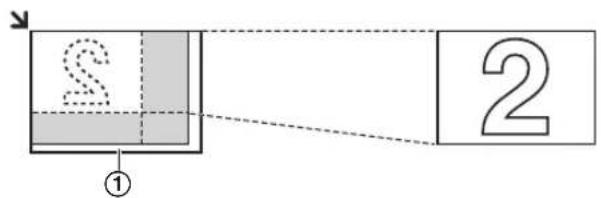
Using the automatic document feeder:
Original document Enlarged copy
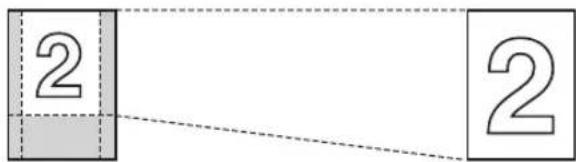
Example: 70 % reduced copy Using the scanner glass (①):
Original document Reduced copy
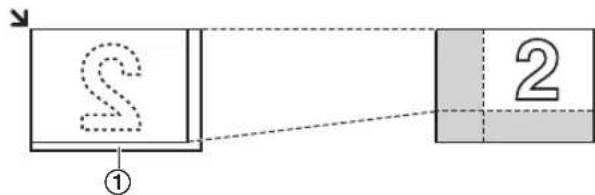
Using the automatic document feeder:
Original document Reduced copy
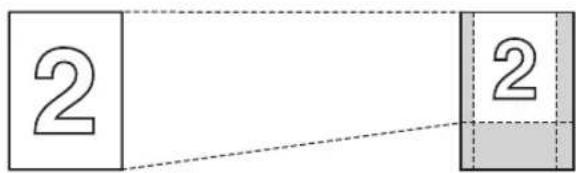
5.1.2 Using the automatic document feeder
![[Copy] [Black] [Stop] [Colour]](/content/2026/06/1190721/images/cb3e2edcd85b908d336161afec7b838974cb12b5f9f7925c311c1f28abaccbe3.jpg)
1 If the [Copy] light is OFF, turn it ON by pressing [Copy].
2 Set the original (page 21).
3 If necessary, change the copy settings according to the type of document.
- To change the number of copies, see page 39.
- To select the contrast, see page 39.
- To select the resolution, see page 39.
- To select the zoom rate, see page 39.
4 [Black]/[Colour]
●The unit will start copying.
5 After you finish copying, press [Stop] to reset the settings you set in step 3.
Note:
- To stop copying, see page 80.
5.2 More copying features
- Make sure that the [Copy] light is ON.
5.2.1 Collate copy
The unit can collate multiple copies in the same order as the original document pages.
1 Set the original (page 21).
2 Press [▼] or [▲] repeatedly to select "Copies".
3 Enter the number of copies (up to 99). → [Set]
4 [Advance]
5 Press [▼] or [▲] repeatedly to select "Collate".
6 Press [◀] or [▶] repeatedly to select "On". → [Set] → [Advance]
7 When using the scanner glass:
- [Black]/[Colour]
●The unit will scan 1 page.
- Place the next document on the scanner glass and press [Set]. Repeat this until you have scanned all pages, and then press [Black]/[Colour].
●The unit will start copying.
When using the automatic document feeder: [Black]/[Colour]
8 After you finish copying, press [Stop] to reset this feature.
Example: Making 2 copies of a 4-page original document
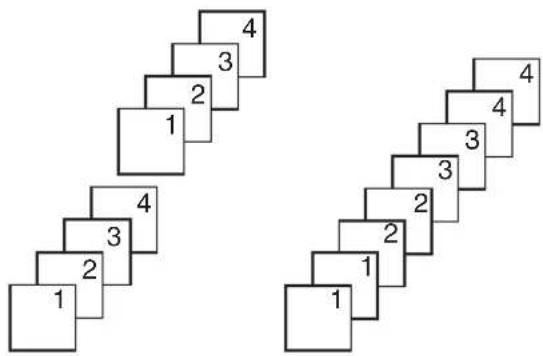
Collated pages Uncollated pages
Note:
- The unit will store the documents into memory while collating the copies. If memory becomes full while storing, the unit will only print out the stored pages.
- You can hold the previous collate setting (feature #469 on page 67).
Proof set feature
To make 1 set of a collated copy first, press [◀] or [▶] repeatedly to display "Proof Set" (step 6 on
"5.2.1 Collate copy", page 41). The unit will make 1 set of a collated copy and stop temporarily so you can check whether the copy was made as you expected. If the copy is correct, press [Black]/[Colour] to continue copying. If the copy is not correct, press [Stop] and start again from the beginning.
5.2.2 Quick ID copy feature/Easy repeat feature (Scanner glass only)
Quick ID copy feature: To copy 2-sided documents onto one page.
Easy repeat feature: To copy a single document repeatedly onto one page.
Note:
- The copied documents will not be reduced to fit the recording paper, and useful for copying small sized documents such as business cards.
1 Press [▼] or [▲] repeatedly to select "Page Layout". → [◀]/[▶]
2 Press [▼] or [▲] repeatedly to select "Quick ID Copy" or "Easy Repeat". → [Set]
3 Press [▼] or [▲] repeatedly to select the desired page layout.
Quick ID copy feature:
- “2 in 1 (Landscape)”
- “2 in 1 (Portrait)”
- “4 in 1 (Landscape)”
- “4 in 1 (Portrait)”
- “8 in 1 (Landscape)”
- “8 in 1 (Portrait)”
Easy repeat feature:
- “2 in 1”
-“4 in 1” - "8 in 1"
4 Set the original (page 21).
- To make a landscape copy, set the original in landscape direction. To make a portrait copy, set the original in portrait direction.
- The scanning area changes according to the selected setting in step 3. Follow the on-screen instructions.
5 [Set]
6 If necessary, enter the number of copies (page 39).
- Other copy settings are also available. See page 39 for details.
7 Quick ID copy feature:
1. [Black]/[Colour]
●The unit will scan 1 page.
- Place the next document on the scanner glass and press [Set]. Repeat this until all the documents are scanned.
●The unit will start copying.
- You can press [Black]/[Colour] anytime to start copying.
Easy repeat feature:
[Black]/[Colour]
8 After you finish copying, press [Stop] to reset this feature.
Note:
- You can save the previous page layout setting (feature #467 on page 67).
5.2.3 Poster feature (Scanner glass only)
You can make copies divided into 4 ("2×2") or 9 ("3×3") sections to make enlarged copies of the individual sections. You can then glue them together to make a poster.
1 Set the original (page 21).
2 Press [▼] or [▲] repeatedly to select "Page Layout". → [◀]/[▶]
3 Press [▼] or [▲] repeatedly to select "Poster". → [Set]
4 Press [▼] or [▲] repeatedly to select “2×2” or “3×3”. → [Set]
5 If necessary, enter the number of copies (page 39).
- Other copy settings are also available. See page 39 for details.
6 [Black]/[Colour]
7 After you finish copying, press [Stop] to reset this feature.
Note:
- You can save the previous page layout setting (feature #467 on page 67).
5.2.4 N in 1 feature
You can save paper by copying 2, 4 or 8 pages onto 1 page. The documents will be reduced to fit the recording paper.
1 Set the original (page 21).
- To make a portrait copy, set the original in portrait direction. To make a landscape copy, set the original in landscape direction.
2 Press [▼] or [▲] repeatedly to select "Page Layout". → [◀]/[▶]
3 Press [▼] or [▲] repeatedly to select "N in 1". → [Set]
4 Press [▼] or [▲] repeatedly to select the desired page layout.
- “2 in 1 (Portrait)”
- “2 in 1 (Landscape)”
- “4 in 1 (Portrait)”
- “4 in 1 (Landscape)”
- “8 in 1 (Portrait)”
- “8 in 1 (Landscape)”
5 [Set]
6 If necessary, enter the number of copies (page 39). - Other copy settings are also available. See page 39 for details.
7 When using the scanner glass:
1. [Black]/[Colour]
●The unit will scan 1 page.
- Place the next document on the scanner glass and press [Set]. Repeat this until all the documents are scanned.
●The unit will start copying.
- You can press [Black]/[Colour] anytime to start copying.
When using the automatic document feeder:
[Black]/[Colour]
8 After you finish copying, press [Stop] to reset this feature.
Note:
- You can save the previous page layout setting (feature #467 on page 67).
Separate N in 1 feature (Scanner glass only)
You can separate an N in 1 copied document back into its original, separate pages. This feature is available for documents created using the "2 in 1" and "4 in 1" settings.
- Set the original (page 21).
- Press [▼] or [▲] repeatedly to select "Page Layout". → [◀]/[▶]
- Press [▼] or [▲] repeatedly to select "Separate N in 1". → [Set]
-
Press [▼] or [▲] repeatedly to select the desired page layout.
-
“2 in 1 (Portrait)”
- “2 in 1 (Landscape)”
- “4 in 1 (Portrait)”
- “4 in 1 (Landscape)”
5. [Set]
- If necessary, enter the number of copies (page 39).
- Other copy settings are also available. See page 39 for details.
7. [Black]/[Colour]
- After you finish copying, press [Stop] to reset this feature.
5.2.5 Copy reservation
You can make a copy reservation under the following conditions:
- while the unit is printing documents from your computer.
– while the unit is printing received fax documents.
– while the unit is performing direct printing.
1 Set the original (page 21).
2 While "PC Printing", "Printing" or "Loading" is displayed, press [Copy].
3 Make necessary settings such as number of copies, resolution, zoom features and page layout features (page 39). → [Black]/[Colour]
- "Copy Reserved" will be displayed. The unit will start copying after the current printing job.
5.2.6 Duplex copy (optional)
You can make a duplex copy if the optional automatic duplex unit is connected (page 82). This allows you to make 2-sided copies of 1-sided documents.
1 Set the original (page 21).
2 [Advance]
3 Press [▼] or [▲] repeatedly to select "Duplex".
4 Press [◀] or [▶] repeatedly to select the desired binding.
- "Long Edge"
- "Short Edge"
- Select "Off" to deactivate this feature.
5 [Set] → [Advance]
6 If necessary, enter the number of copies (page 39). ● Other copy settings are also available. See page 39 for details.
7 When using the scanner glass:
- [Black]/[Colour]
●The unit will scan 1 page.
- Place the next document on the scanner glass and press [Set].
●The unit will start copying.
When using the automatic document feeder: [Black]/[Colour]
8 After you finish copying, press [Stop] to reset this feature.
Note:
- Duplex copy is not available for the quick ID copy feature (page 41), easy repeat feature (page 41) or poster feature (page 42).
- You can save the previous duplex setting (feature #470 on page 67).
Booklet feature
You can make copies, and then fold them in half to create booklets. The documents will be reduced to fit the recording paper.
- Set the original (page 21).
- Press [▼] or [▲] repeatedly to select "Page Layout". → [◀]/[▶]
- Press [▼] or [▲] repeatedly to select "Booklet". → [Set]
-
Press [▼] or [▲] repeatedly to select the desired binding direction and pages.
-
"Left Binding(1)"
- "Left Binding(All)"
- "Right Binding(1)"
-
"Right Binding(All)"
-
“(1)”: To print 4 documents as separate blocks.
- “(A11)”: To print all documents as 1 block (monochrome printing only).
5. [Set]
-
If necessary, enter the number of copies (page 39).
-
Other copy settings are also available. See page 39 for details.
● Multiple copies will be collated automatically.
7. When using the scanner glass:
- [Black]/[Colour]
●The unit will scan 1 page.
- Place the next page on the scanner glass and press [Set]. Repeat this until you have scanned all pages.
-
If "Left Binding (1)" or "Right Binding (1)" is selected in step 4, the unit will start copying.
-
You can press [Black]/[Colour] anytime to start copying.
- For multiple copies, press [Black]/[Colour] to start copying.
If "Left Binding(All)" or "Right Binding(All)" is selected in step 4, press [Black] to start copying.
When using the automatic document feeder: [Black]/[Colour]
- After you finish copying, press [Stop] to reset this feature.
Note:
- If "Left Binding (All)" or "Right Binding (All)" is selected in step 4, only monochrome copy is available, so press [Black] in step 7. If you press [Colour], steps 2 to 6 will be reset.
- You can save the previous page layout setting (feature #467 on page 67).
6.1 Sending a fax manually
Important:
- You can only send faxes in monochrome.
6.1.1 Using the scanner glass
By using the scanner glass, you can send a page from booklets or small size paper that cannot be sent with the automatic document feeder.
![[Fax] [Black] [Redial] [Set][▼][▲][◀][▶]](/content/2026/06/1190721/images/a7564ec8d48377f037128398b9cf2ed67e4b56dad75158157e4901a99a7970a3.jpg)
1 If the [Fax] light is OFF, turn it ON by pressing [Fax].
2 Set the original (page 21).
3 If necessary, change the resolution and contrast according to the type of document.
- To select the resolution, see page 44.
● To select the contrast, see page 44.
4 Dial the fax number.
- To send a single page, go to step 7.
- To send multiple pages, go to the next step.
5 Press [▼] or [▲] repeatedly to select "Quick Scan", then press [◀] or [▶] repeatedly to select "On". → [Black]
- Wait until "Scan: Press
." "Send: Press ." is displayed. - Press [◀] or [▶] repeatedly to change the resolution during scanning, and then press [Set]. The setting will be applied starting with the next page.
6 Place the next page on the scanner glass. → [Set]
- To send more pages, repeat this step.
7 [Black]
Note:
● To stop sending, see page 80.
- You can change the default operation mode (feature #463 on page 61) and the timer before returning to the default operation mode (feature #464 on page 61).
To select the resolution
- Press [▼] or [▲] repeatedly to select "Resolution".
-
Press [◀] or [▶] repeatedly to select the desired resolution. → [Set]
-
"Standard": For normal-sized characters.
- “Fine”: For small-sized characters.
- "Super Fine": For very small-sized characters.
- "Photo": For photographs, shaded drawings, etc.
- Using the "Fine", "Super Fine" and "Photo" settings will increase transmission time.
To select the contrast
Adjust this setting depending on the darkness or lightness of the document. 5 levels (low to high) are available.
- Press [▼] or [▲] repeatedly to select "Contrast".
- Press [◀] or [▶]. → [Set]
Note:
- You can save the previous contrast setting (feature #462 on page 60).
To redial the last number
[Redial]
- If the line is busy, the unit will automatically redial the number up to 5 times.
Note:
● To stop sending, see page 80.
Reserving the fax transmission (Dual Access)
You can reserve a fax transmission even when the unit is just receiving a fax or sending a fax from memory.
- Up to 3 reservations when sending
-
Up to 4 reservations when receiving
-
Set the original during fax reception or fax memory transmission.
- Enter the fax number using the dial keypad or navigator directory.
3. When using the scanner glass:
- [Black]
●The unit will scan 1 page.
- Place the next document on the scanner glass. → [Set]
- Repeat this until all the documents are scanned.
3. [Black]
When using the automatic document feeder: [Black]
- If the document exceeds the memory capacity, transmission will be cancelled. You must send the entire document manually.
Printing a sending report
A sending report provides you with a printed record of transmission results. To print sending reports, make sure feature #401 is activated (page 62). For an explanation of error messages, see page 84.
Printing a journal report
A journal report provides you with a printed record of the 30 most recent faxes. To print it manually, see page 108. To print it automatically after every 30 new fax transmissions and receptions, make sure feature #402 is activated (page 62). For an explanation of error messages, see page 84.
6.1.2 Using the automatic document feeder
![[Fax] [Monitor][Black] [▼][▲][◄][►]](/content/2026/06/1190721/images/dfdfb4a1d23835193764ebb0bf6c3bfdf63b2a9b08ffb3235c29b2f77df9c583.jpg)
1 If the [Fax] light is OFF, turn it ON by pressing [Fax].
2 Set the original (page 21).
3 If necessary, change the resolution and contrast according to the type of document.
- To select the resolution, see page 44.
- To select the contrast, see page 44.
4 [Monitor]
5 Dial the fax number. → [Black]
Note:
● To stop sending, see page 80.
- Do not open the document cover when sending a fax with the automatic document feeder.
Pre-dialling a fax number
- Enter the fax number.
- Set the original (page 21). → [Black]
Sending from memory (Quick scan feature)
- Set the original (page 21).
- Enter the fax number.
- Press [▼] or [▲] repeatedly to select "Quick Scan", then press [◀] or [▶] repeatedly to select "On". → [Black]
6.2 Storing items for the navigator directory
The unit provides a navigator directory (300 items).
![[Menu] [Stop] [▼][▲][◄][►] [Set]](/content/2026/06/1190721/images/3e1509afaa047fc77185573b351335bfe33b1dda126a27cd2e50f10fdf91f0e2.jpg)
6.2.1 Storing navigator directory items
1 [Menu]
2 Press [▼] or [▲] repeatedly to select "Directory Set".
3 Press [◀] or [▶] repeatedly to select "New Addition". → [Set]
4 Enter the name, up to 20 characters (see page 78 for character entry). → [Set] → [▼]/[▲]
5 Enter the telephone number, up to 32 digits. → [Set] → [Set]
● To program other items, repeat steps 4 to 5.
6 [Menu]
6.2.2 Editing a stored item
1 [Menu]
2 Press [▼] or [▲] repeatedly to select "Directory Set".
3 Press [◀] or [▶] repeatedly to select "Edit". → [Set]
4 Press [▼], [▲], [◀] or [▶] repeatedly to select the desired item. → [Set]
5 Edit the name if necessary. → [Set] → [▼]/[▲]
6 Edit the telephone number if necessary. [Set] [Set] [Menu]
6.2.3 Erasing a stored item
1 【Menu】
2 Press [▼] or [▲] repeatedly to select "Directory Set".
3 Press [◀] or [▶] repeatedly to select "Edit". → [Set]
4 Press [▼], [▲], [◀] or [▶] repeatedly to select the desired item. → [#]
- To cancel erasing, press [Stop], then press [Menu].
5 [Set] → [Menu]
6.3 Sending a fax using navigator directory
Before using this feature, store the desired names and telephone numbers into the navigator directory (page 45).
- Make sure that the [Fax] light is ON.
6.3.1 Using the scanner glass
1 Set the original (page 21).
2 Press [◀] or [▶] to initiate the navigator directory.
3 Press [▼], [▲], [◀] or [▶] repeatedly to select the desired item. → [Set]
4 If necessary, change the resolution (page 44) and the contrast (page 44).
- To send a single page, go to step 7.
● To send multiple pages, go to the next step.
5 Press [▼] or [▲] repeatedly to select "Quick Scan", then press [◀] or [▶] repeatedly to select "On". → [Black]
6 Place the next page. [Set] To send more pages, repeat this step.
7 [Black]
To search for a name by initial
Example: "Lisa"
- Press [◀] or [▶] to initiate the navigator directory.
- Press [5] repeatedly to display any name with the initial "L" (see page 78 for character entry).
- To search for symbols, press [★].
- Press [▼], [▲], [◀] or [▶] repeatedly to select "Lisa".
- To stop the search, press [Stop].
Fax auto redial
If the line is busy or if there is no answer, the unit will automatically redial the number up to 5 times.
Note:
● To stop sending, see page 80.
6.3.2 Using the automatic document feeder
1 Set the original (page 21).
2 Enter the fax number using navigator directory.
3 If necessary, change to the desired resolution (page 44) and the desired contrast (page 44).
4 [Black]
6.4 Broadcast transmission
You can send the same document to multiple parties (up to 20). To use this feature, store the fax numbers into broadcast memory using the navigator directory (page 45).
Your programmed items will remain in the broadcast memory, allowing frequent re-use.
6.4.1 Programming items into the broadcast memory
1 [Menu]
2 Press [▼] or [▲] repeatedly to select "Directory Set".
3 Press [◀] or [▶] repeatedly to select "Broadcast". → [Set]
4 Press [▼] or [▲] repeatedly to select the desired broadcast memory location (“
- When you do not wish to change the broadcast memory name, press [◀] or [▶] and go to step 8.
5 Press [Set] to change the broadcast memory name.
6 【◀】/【▶】→ Change the name, up to 20 characters (see page 78 for character entry).
7 Press [Set] 2 times.
8 Press [▼], [▲], [◀] or [▶] repeatedly to select the desired item. → [Set]
●The number in the upper right indicates the number of registered items.
- To program other items, repeat this step (up to 20 items).
- If you have programmed the wrong item, press [Set] again to remove “√” and cancel the selected item.
9 [Back] [Menu]
6.4.2 Adding a new item into the broadcast memory
1 [Menu]
2 Press [▼] or [▲] repeatedly to select "Directory Set".
3 Press [◀] or [▶] repeatedly to select "Broadcast". → [Set]
4 Press [▼] or [▲] repeatedly to select the desired broadcast memory location ("
- If you changed the broadcast memory name when programming, select that name.
5 Press [▼], [▲], [◀] or [▶] repeatedly to select the item that you want to add. → [Set]
- To add other items, repeat this step (up to 20 items).
6 [Back] → [Menu]
Note:
- When adding new items to the broadcast memory, you can only select stored items.
6.4.3 Erasing a stored item from the broadcast memory
1 [Menu]
2 Press [▼] or [▲] repeatedly to select "Directory Set".
3 Press [◀] or [▶] repeatedly to select "Broadcast". → [Set]
4 Press [▼] or [▲] repeatedly to select the desired broadcast memory location (“
- If you changed the broadcast memory name when programming, select that name.
5 Press [▼], [▲], [◀] or [▶] repeatedly to select the item that you want to erase.
- To cancel erasing, press [Stop], then press [Menu].
6 [#] → [Menu]
Note:
- If you erase all programmed items, the broadcast memory name will return to the default name.
6.4.4 Sending the same document to pre-programmed parties
- Make sure that the [Fax] light is ON.
To send the same document using the scanner glass
- Set the original (page 21).
- Press [◀] or [▶] to initiate the navigator directory.
- Press [▼] or [▲] repeatedly to select the desired broadcast memory location. → [Set]
- If necessary, change the resolution (page 44) and the contrast (page 44). → [Black]
- To send a single page, go to step 6.
- To send multiple pages, go to the next step.
- Place the next page. → [Set]
- To send more pages, repeat this step.
6. [Black]
Note:
- To stop sending, see page 80.
- If you select "Fine", "Super Fine" or "Photo" resolution, the number of pages that the unit can send will decrease.
-
If the document exceeds the memory capacity, sending will be cancelled.
-
If a party is busy or does not answer, it will be skipped and redialled later up to 5 times.
- After transmission, the unit will automatically print a report (broadcast sending report).
To send the same document using the automatic document feeder
- Set the original (page 21).
- Press [◀] or [▶] to initiate the navigator directory.
- Press [▼] or [▲] repeatedly to select the desired broadcast memory location. → [Set]
- If necessary, change the resolution (page 44) and the contrast (page 44).
- [Black]
6.5 Sending a computer document as a fax message from your computer
You can access the fax function from a Windows application using Multi-Function Station. For example, to send a document created from WordPad, proceed as follows.
1 Open the document you want to send.
2 Select [Print...] from the [File] menu.
- The [Print] dialogue box will appear.
3 Select the PCFAX unit's name as the active printer.
4 Click [Print] or [OK].
- The [Send a Fax] dialogue box will appear.
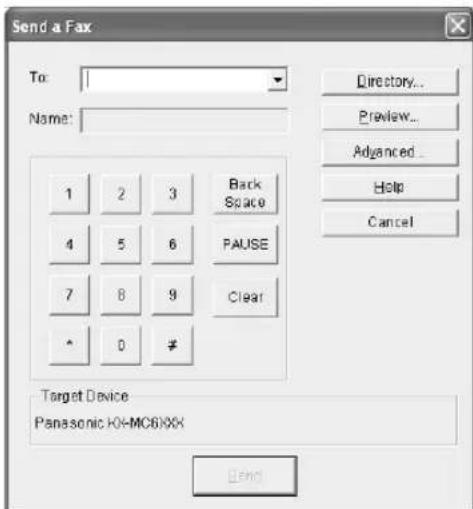
5 Enter the fax number using the keypad display or the directory.
- To stop the operation, click [Cancel].
6 [Send]
●The document will be sent through the unit from your computer.
Note:
- To stop sending, see page 80.
- If the document exceeds the memory capacity of the unit, sending will be cancelled.
- For details, see the help file by selecting [💡] from Multi-Function Station.
- Click [Select...] to change the active unit.
6.6 Selecting the way to use your unit
Depending on your situation, select the way you prefer to use your unit.
- Use only as a fax (FAX ONLY mode)
- Use mostly as a telephone (TEL mode)
- Use as a telephone and/or fax (TEL/FAX mode)
- Use with answering machine
6.6.1 Use only as a fax (FAX ONLY mode)
Your situation
You have a separate telephone line just for faxes, or you want to use the unit only for receiving faxes.
Setup
Set the unit to FAX ONLY mode (page 49) by pressing [Fax Auto Answer] repeatedly.
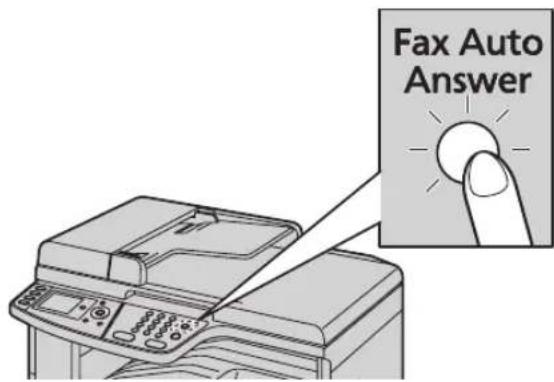
How faxes are received
All incoming calls will be answered as faxes.
6.6.2 Use mostly as a telephone (TEL mode)
Your situation
You want to answer calls by yourself. If a fax call is received, you must receive the fax manually.
Setup
Set the unit to TEL mode (page 50) by pressing [Fax Auto Answer] repeatedly.
Note:
- Make sure feature #404 is set to "Tel" beforehand (page 62).
How to receive phone calls and faxes
You have to answer all calls manually.
To receive a fax document, press [Black].
6.6.3 Use as a telephone and/or fax (TEL/FAX mode)
Your situation
You want to answer phone calls yourself and receive faxes automatically without rings.
Setup
Set the unit to TEL/FAX mode (page 50) by pressing
【Fax Auto Answer】repeatedly.
Note:
- Make sure feature #404 is set to "Tel/Fax" beforehand (page 62).
How phone calls and faxes are received
If the call is a phone call, the unit will ring.
If a fax calling tone is detected, the unit will receive the fax automatically without ringing.
6.6.4 Use with answering machine
Your situation
You want to use the unit with an answering machine.
Setup
Connect an external telephone answering machine and set the ring count of the answering machine to less than 4.
- Set the ring count in FAX ONLY mode of the unit to more than 4, if you use with auto answer ON.
How to receive calls
When receiving phone calls, the answering machine will record voice messages.
6.7 Receiving a fax automatically – Auto answer ON
Important:
- You can only receive faxes in monochrome.
6.7.1 Activating FAX ONLY mode
Press [Fax Auto Answer] repeatedly to display "Fax Only Mode".
• The [Fax Auto Answer] light turns ON.
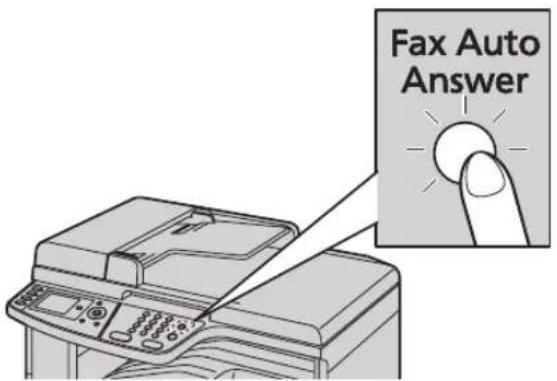
How faxes are received
When receiving calls, the unit will automatically answer all calls and only receive fax documents.
Note:
- The number of rings before a call is answered in FAX ONLY mode can be changed (feature #210 on page 60).
6.8 Receiving a fax manually – Auto answer OFF
Important:
- Use this mode with an extension telephone.
- You can only receive faxes in monochrome.
6.8.1 Activating TEL mode
1 Make sure feature #404 is set to "Tel" beforehand (page 62).
2 Press [Fax Auto Answer] repeatedly to display "Tel Mode".
- The [Fax Auto Answer] light turns OFF.
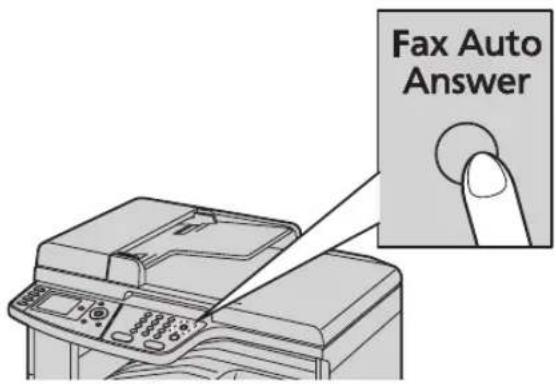
How to receive faxes with an extension telephone
If you have another telephone connected to the [EXT] socket or the same line (extension telephone), you can use the extension telephone to receive faxes.
- When the extension telephone rings, lift the handset of the extension telephone.
- When:
– document reception is required,
- a fax calling tone (slow beep) is heard, or
- no sound is heard,
press [★] [‡] [9] (default fax activation code) firmly.
- Replace the handset.
Note:
- To stop receiving, see page 80.
- To receive fax documents using the extension telephone, make sure remote fax activation is turned ON (feature #434 on page 64) beforehand. The default setting is ON.
6.8.2 Activating TEL/FAX mode
1 Make sure feature #404 is set to "Tel/Fax" beforehand (page 62).
2 Press [Fax Auto Answer] repeatedly to display "Tel/Fax Mode".
- The [Fax Auto Answer] light turns OFF.
3 The ringer volume setting should be ON (page 22).
![Fax Auto Answer [Stop]](/content/2026/06/1190721/images/c4611fe75c5ae7e28b075c6ed8a1179981300255a6b9f1a4466a7d37e915e8c9.jpg)
How phone calls and faxes are received
- "Incoming Call" will be displayed but the unit will not ring.
-
The unit will wait for the duration of 2 rings before answering the call.
-
The number of rings is determined by the "TEL/FAX delayed ring setting" (feature #212 on page 62).
● During this time, an extension telephone will ring. -
The unit will answer the call and try to detect a fax calling tone.
When a fax calling tone is detected
The unit receives the fax automatically without ringing.
When a fax calling tone is not detected
① The unit will ring 3 times. You may answer the call.
- To answer using another telephone (①) connected to the [EXT] socket of this unit (②), lift the handset, then press [Stop] on the unit to talk to the other party.
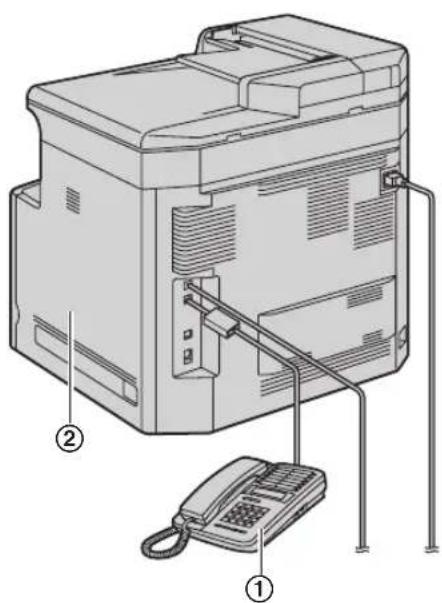
- To answer using the handset of the unit (if connected) or another telephone (③) connected to the same telephone line as this unit (④), lift the handset and talk to the other party.
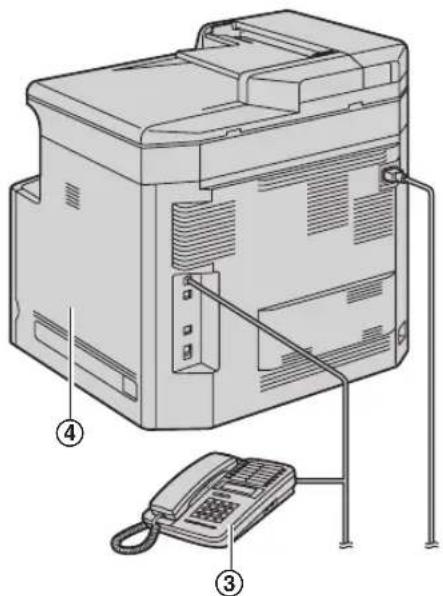
- See "1.1 Supplied accessories", page 7 and "1.2 Accessory information", page 8 if your unit includes a handset, or if an optional handset is available.
- The number of rings is determined by the “Silent fax recognition ring setting” (feature #436 on page 64).
- Callers will hear a ring back tone different from the one generated by the telephone company.
② If you do not answer the call, the unit will activate the fax function.
- Some fax machines do not generate fax calling tones when sending faxes, therefore the unit will try to receive a fax even if no fax calling tone is detected.
6.9 Displaying a received fax document
You can display a received fax document on the unit. You can print or save the necessary document after you confirm the image.
Make sure the fax preview mode setting is turned ON beforehand (feature #448 on page 65).
- Make sure that the [Fax] light is ON.
● Make sure that the unit is idle.
![[Advance] [Set][Stop][Fax] [▼][▲][◄][►] [Black][Back]](/content/2026/06/1190721/images/e71f25c4bab4292d0f10d0cbc491ea714ea3c4ffd0d3cd2018b72b32690a10bc.jpg)
Important:
- You can only receive faxes in monochrome.
6.9.1 Viewing a fax document
1 [Advance]
2 Press [▼] or [▲] repeatedly to select "Fax Preview". → [Set]
3 Press [▼] or [▲] repeatedly to select the desired fax document. → [Set]
●The selected fax document will be displayed.
• To stop viewing, press [Back].
- To print the fax document, press [Black].
4 [Back] → [Advance]
Note:
- The display speed depends on the contents and size of the document.
What "√" means
“√” on the display means the image has already been viewed, printed or saved.
To adjust the image
The following keypad is used to adjust the image.
| Keypad Action | |
| [4]Returns to the previous page(only available for multiple pages) | |
| [6]Goes to the next page (onlyavailable for multiple pages) | |
| [2]Enlarges an image | |
| [8]Reduces an image | |
| [5] | Rotates an image ( 90^ , 180^ , 270^ ) |
| [▲][▼][◀][▶] | Scrolls an image |
6.9.2 Printing a fax document
1 【Advance】
2 Press [▼] or [▲] repeatedly to select "Fax Preview". → [Set]
3 Press [▼] or [▲] repeatedly to select the desired fax document. → [Black]
●The received fax document will be printed.
4 [Advance]
Note:
- You can delete the received fax document automatically after printing (feature #449 on page 65).
6.9.3 Saving a fax document
Important:
- When you save a fax document as an e-mail attachment, program the e-mail server and SMTP server settings (page 66) or the e-mail destinations (page 66) beforehand.
- When you save the fax document in a folder on an FTP server, program the FTP server settings beforehand (page 66).
1 [Advance]
2 Press [▼] or [▲] repeatedly to select "Fax Preview". → [Set]
3 Press [▼] or [▲] repeatedly to select the desired fax document. → [∗]
4 Select the desired destination. Saving to your computer:
-
Press [▼] or [▲] repeatedly to select "PC". → [Set]
-
Press [▼] or [▲] repeatedly to select "USB Host" or the computer on which you want to save the data. → [Set]
- The fax document will be automatically saved in the folder selected in the [Settings] window. To change the folder, see page 28.
- The software that is associated to open PDF files will automatically start.
Saving as an e-mail attachment:
-
Press [▼] or [▲] repeatedly to select "E-Mail Server". → [Set]
-
Press [▼], [▲], [◀] or [▶] repeatedly to select the destination e-mail address. → [Set]
- To enter the e-mail address using the dial keypad, select "Temporary Address".
●The fax document will be sent as an attachment via an e-mail server.
Saving in a folder on an FTP server:
-
Press [▼] or [▲] repeatedly to select "FTP Server". → [Set]
-
Press [▼] or [▲] repeatedly to select the desired FTP server. → [Set]
● The fax document will be saved in the folder on the FTP server.
Saving to an SD card:
- Insert an SD card in the SD card slot of the unit (page 81).
●An SD card is not supplied.
- Press [▼] or [▲] repeatedly to select "SD Card". → [Set]
- If a file with the same name already exists on the SD card, a message will appear (page 85).
●The fax document will be saved in a predefined folder on the SD card (page 81).
5 [Advance]
Note:
●The received fax document is saved as an image file (PDF format). Adobe Reader is required to view it.
- For details about the SD card, see page 81.
- To stop saving a fax document, see page 80.
6.9.4 Erasing a fax document
1 【Advance】
2 Press [▼] or [▲] repeatedly to select "Fax Preview". → [Set]
3 Press [▼] or [▲] repeatedly to select the desired fax document. → [#]
- To cancel erasing, press [Stop], then press [Advance].
4 [Set] → [Advance]
Note:
- To erase the fax document, you need to view or print the data beforehand (page 51).
6.10 Using the unit with an answering machine
6.10.1 Setting up the unit and an answering machine
1 Connect the answering machine (①).
●An answering machine is not supplied.
- Please purchase an extension telephone adaptor.
- Remove the stopper (②) if attached.
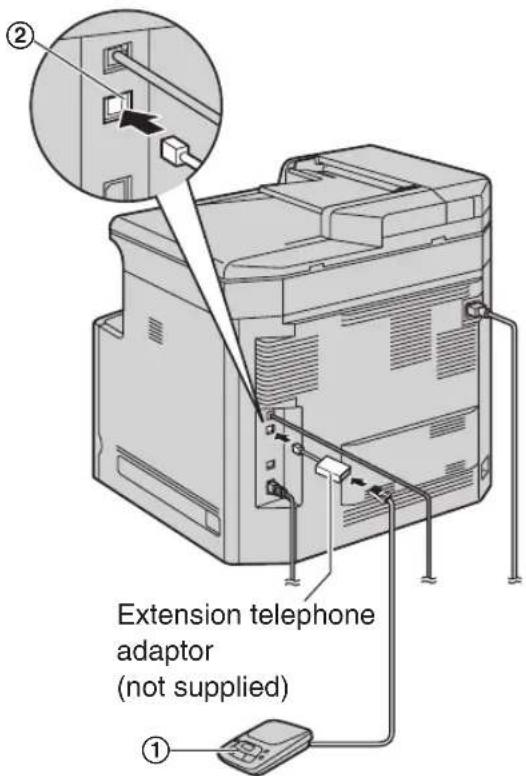
2 Set the number of rings on the answering machine to 4 rings or less.
● This will allow the answering machine to answer the call first.
3 Record a greeting message on the answering machine.
- We recommend you record a message that is under 10 seconds long, and not to pause for more than 4 seconds during the message. Otherwise, both machines will not function correctly.
4 Activate the answering machine.
5 Set the unit to the desired receiving mode (page 49).
- If you set it to FAX ONLY mode, change the ring setting in FAX ONLY mode to more than 4 (feature #210 on page 60).
6 Make sure each of the following are unique:
– the remote access code of the answering machine
– the fax activation code (feature #434 on page 64)
Note:
- If the call is a phone call, the answering machine will record voice messages. If a fax calling tone is detected, the fax machine will receive a fax automatically.
- Regarding the remote access code for the answering machine, see the operating instructions of the answering machine.
Receiving a voice message and fax document in one call
The caller can leave a voice message and send a fax document during the same call. Inform the caller of the following procedure beforehand.
-
The caller calls your unit. ●The answering machine will answer the call.
-
The caller can leave a message after the greeting message.
-
The caller presses [∗][#][9] (pre-selected fax activation code). ●The unit will activate the fax function.
-
The caller presses the start button to send a document.
Note:
- To use this feature, make sure remote fax activation is turned ON (feature #434 on page 64). The fax activation code can also be changed. - If there is no room left in the memory of your answering machine, the unit may not be able to receive documents. See the operating instructions of the answering machine and erase unnecessary messages.
6.11 Receive polling (retrieving a fax placed on another fax machine)
This feature allows you to retrieve a document from another compatible machine. Therefore you pay for the call.
Make sure that no documents are fed into your unit and that the other party's machine is ready for your call.
- Make sure that the [Fax] light is ON.
1 [Advance]
2 Press [▼] or [▲] repeatedly to display "Polling". → [Set]
3 Dial the fax number. → [Set] → [Black]
6.12 Junk fax prohibitor (preventing fax reception from undesired callers)
If you subscribe to Caller ID service (page 56), this feature prevents fax reception from calls that do not show caller information.
Additionally, the unit will not accept faxes originating from numbers that match the ones on a programmable junk fax prohibitor list.
- Make sure that the [Fax] light is ON.
Important:
- This feature does not work if you receive faxes manually.
6.12.1 Activating the junk fax prohibitor
1 [Advance]
2 Press [▼] or [▲] repeatedly to select "Junk Fax Prohibitor". → [Set]
3 Press [▼] or [▲] repeatedly to select "Prohibitor".
4 Press [◀] or [▶] repeatedly to select "On". → [Set]
5 Press [Advance] to exit.
6.12.2 Storing undesired callers
You can register up to 20 undesired numbers from the Caller ID list (page 56) if you do not wish to receive faxes from them.
1 [Advance]
2 Press [▼] or [▲] repeatedly to select "Junk Fax Prohibitor". → [Set]
3 Press [▼] or [▲] repeatedly to select "Junk List Set". → [Set]
4 Press [▼] or [▲] repeatedly to display the party you do not want to receive faxes from. → [Set]
• If you have programmed the wrong item, press [Set] again to remove “√” and cancel the item.
5 [Back] → [Advance]
To display the junk fax prohibitor list
- [Advance]
- Press [▼] or [▲] repeatedly to select "Junk Fax Prohibitor". → [Set]
- Press [▼] or [▲] repeatedly to select "Junk List Display". → [Set]
- Press [▼] or [▲] to display the items on the list.
- Press [Advance] to exit.
To print the junk fax prohibitor list
-
[Advance]
-
Press [▼] or [▲] repeatedly to select "Junk Fax Prohibitor". → [Set]
- Press [▼] or [▲] repeatedly to select "Junk List Print". → [Set]
- Press [Advance] to exit.
To erase an item from the junk fax prohibitor list
- [Advance]
- Press [▼] or [▲] repeatedly to select "Junk Fax Prohibitor". → [Set]
- Press [▼] or [▲] repeatedly to select "Junk List Display". → [Set]
- Press [▼] or [▲] repeatedly to select the desired item. → [卍]
- To cancel erasing, press [Stop], then press [Advance].
- [Set] [Advance]
6.13 Receiving a fax on your computer
You can receive a fax document on your computer. The received fax document is saved as an image file (TIFF-G4 format).
To receive a fax document using your computer, make sure the following features are set beforehand.
- PC fax reception (feature #442 on page 65)
- Computer setting for the PC fax reception (feature #443 on page 25)
- Make sure the fax preview mode is turned OFF beforehand (feature #448 on page 65).
1 Press [Fax Auto Answer] repeatedly to turn the auto answer setting ON (page 49).
2 Start Multi-Function Station. → [PC FAX]
3 When a fax call is received, your computer will receive a document through the unit.
Note:
- You can view, print or transfer the received document using your computer.
Viewing a received document
-
Select [PC FAX] from Multi-Function Station.
-
Select [Received Log] in [Communication Log].
![Multi-Function PC FAX - Communication Log File Edit View Tools Help Communication Log Bent Log Received Log (1) Outlook Sender Inform... Date Subject Reception Time Page No Communication Rate TEST MDD... 1/30/2008 2:30 AM Received data 00:00:00 OK For Help, press [F1] 1 4](/content/2026/06/1190721/images/f9fd4b57b4cdc5c5c2c3c91600e45cddfa837303b5385e06a9201337d6747cdb.jpg)
-
Click the item you want to view.
-
Click [File] in the menu bar, then select [View], or click the [View] icon in the toolbar.
●The received fax will be displayed.
If a received fax document is stored in the unit's memory
You can load the document into your computer.
-
Select [PC FAX] from Multi-Function Station.
-
Select [Received Log] in [Communication Log].
-
Click [File] in the menu bar. → [Receive a Fax]
- If feature #442 is activated, the received fax document will be automatically transferred to the computer.
7.1 Caller ID service
This unit is compatible with the Caller ID service offered by your local telephone company. To use this unit's Caller ID features, you must subscribe to a Caller ID service.
Important:
- This unit is designed in accordance with the ETS (European Telecommunication Standard) and only supports the basic CLIP (Calling Line Identification Presentation) features.
- This unit will only display the caller's telephone number and name.
●This unit will not support future additional telephone services. - Depending on the service of the local telephone company, the date/time of the call or the caller's name may not be displayed.
Make sure the following ring count is set to 2 or more rings beforehand.
- FAX ring count (feature #210 on page 60)
- TEL/FAX ring count (feature #212 on page 62)
- The name display service may not be available in some areas. For further information, please contact your telephone company.
7.1.1 How Caller ID is displayed
The calling party's name or telephone number will be displayed after the 1st ring. You have the option of whether or not to answer the call.
The unit will automatically store caller information (name, telephone number and date and time of the call) from the 30 most recent calls. It is possible to view caller information on the display (page 56) or print the entire Caller ID list (page 108).
- When caller information is received and it matches a telephone number stored in the unit's navigator directory, the stored name will be displayed.
- If the unit is connected to a PBX (Private Branch Exchange) system, caller information may not be received properly. Consult your PBX supplier.
- If the unit cannot receive caller information, the following will be displayed:
"Out of Area": The caller dialled from an area which does not provide Caller ID service.
"Private Caller": The caller requested not to send caller information.
"Long Distance": The caller made a long distance call.
To confirm caller information by printing the Caller ID list
- To print manually, see page 108.
- To print automatically after every 30 new calls, activate feature #216 (page 60).
7.2 Viewing and calling back using caller information
Important:
- If the area code of the received telephone number is the same as yours, the area code may need to be deleted before calling back. This may only apply to some areas. To edit the number, see page 56.
[Caller ID] → Press [▼] to search from the recently received caller information.
- If you press [▲], the display order will be reversed.
● To send a fax, see page 44.
To change the way caller information is displayed While displaying the desired caller information, press [◀] or [▶] repeatedly to change name/telephone number information.
7.2.1 Symbols and operations for caller information
What “√” means
“√” on the display means the call has already been highlighted or answered.
To stop viewing
Press [Stop].
7.3 Editing a caller's telephone number before calling back/storing
1 [Caller ID]
2 Press [▼] or [▲] repeatedly to display the desired entry.
3 Press [◀] or [▶] to display the telephone number.
4 Press dial key (0 to 9) or [★] to enter the editing mode and edit the telephone number.
● To send a fax, see page 44.
Note:
- The edited telephone number will not be saved in the caller information. To save in the directory, see page 57.
To correct a mistake
- Press [◀] or [▶] to move the cursor to the incorrect number.
- Press [Back] to delete the number.
- Enter the correct number.
To delete a number
Press [◀] or [▶] to move the cursor to the number you want to delete and press [Back].
7.4 Erasing caller information
7.4.1 Erasing all caller information
1 [Menu]
2 Press [▼] or [▲] repeatedly to select "Caller Setup". → [Set]
- “Erase All OK?” will be displayed.
- To cancel erasing, press [Stop], then press [Menu].
3 [Set]
4 Press [Menu] to exit.
7.4.2 Erasing specific caller information
1 [Caller ID]
2 Press [▼] or [▲] repeatedly to select the desired item. → [#] → [Set] → [Stop]
7.5 Storing caller information
1 [Caller ID]
2 Press [▼] or [▲] repeatedly to select the desired item.
3 [Set]
4 Edit the name if necessary. → [Set] → [▼]/[▲]
5 Edit the telephone number if necessary. → [Set] → [Set] → [Stop]
Note:
- To edit a name or number, see page 45.
8.1 Programming
![[Menu] [Set]](/content/2026/06/1190721/images/72ffbc20bfbd3d27901b67391271215d278f1cfc0cc04f62a2be12b2b55735c8.jpg)
1 [Menu]
2 Press【#】and the 3-digit code (page 59 to page 75).
3 Press the appropriate selection to display the desired setting.
● This step will vary depending on the feature.
4 [Set]
5 Press [Menu] to exit.
To select features through the web browser interface (LAN connection only)
You can change features through the web browser interface instead of the unit.
- Start Multi-Function Station. → [Utilities] → [Configuration Web Page]
- You can also access the unit by entering its IP address on the web browser.
- Select the desired category from the menu bar. [Device Configuration]: features of the unit [Advance Configuration]: advanced features for each mode [Network Configuration]: network features
- Type "root" as the user name, then enter the password (feature #155 on page 59). → [OK]
- Select the desired feature tab at the top of the right frame.
- Change the settings or edit information.
●This step will vary depending on the feature.
- [Submit]
●The new data will be transferred to the unit.
- Close the web browser.
Note:
- The settings displayed in the web browser will be updated by clicking [Reload].
8.2 Basic features
| Feature/Code Selection | |
| Setting the date and time [#][1][0][1] | Enter the date and time using the dial keypad. See page 23 for details. |
| Setting your logo [#][1][0][2] | Enter your logo using the dial keypad. See page 23 for details. |
| Setting your fax number [#][1][0][3] | Enter your fax number using the dial keypad. See page 24 for details. |
| Setting recall/flash time [#][1][2][1] | The recall/flash time depends on your telephone exchange or host PBX.[0] “900ms”[1] “700ms”[2] “600ms”[3] “400ms”[4] “300ms”[5] “250ms”[6] “200ms”[7] “160ms”[8] “110ms”[9] “100ms” (default)[※] “90ms”[#] “80ms”Note:●If the unit is connected via a PBX, PBX functions (transferring a call, etc.) might not work correctly. Consult your PBX supplier for the correct setting. |
| Changing the password for feature programming via remote operation [#][1][5][5] | 1. [Menu] → [#][1][5][5] → [Set]2. Enter the current password. → [Set]● The default password is “1234”.3. Enter a new 4-digit password using 0–9. → [Set]4. Enter the new password again. → [Set] → [Menu]Note:●It is recommended that you change this password from the default password.●This password is also used for feature programming via a web browser. |
| Setting the toner maintenance time [#][1][5][8] | The unit will automatically activate for maintenance, once every 24 hours. Because this is to prevent the toner from solidifying, the noise that the unit makes during maintenance cannot be stopped. However, if the unit’s noise bothers you, you can change the start time.1. [Menu] → [#][1][5][8] → [Set]2. Enter the maintenance start time.●If you selected 12-hour time entry (page 23), the default time is “12 : 00AM”. Press [※] repeatedly to select AM or PM.●If you selected 24-hour time entry (page 23), the default time is “00 : 00”.3. [Set] → [Menu] |
| Setting the ringer pattern [#][1][6][1] | [1] “A” (default)[2] “B”[3] “C” |
| Changing the ring count in FAX ONLY mode[‡][2][1][0] | [1] “1”[2] “2” (default)[3] “3”[4] “4”[5] “5”[6] “6”[7] “7”[8] “8”[9] “9”●If you are using the unit with an answering machine, set to more than 4 (page 53). |
| Setting the Caller ID list to print automatically[‡][2][1][6] | [0] “Off” (default): The unit will not print the Caller ID list, but will keep records of the information for the last 30 callers.[1] “On”: The unit will print the Caller ID list automatically after every 30 new calls (page 56). |
| Setting the recording paper size in the standard input tray[‡][3][8][0] | [1] “Letter”: Letter-size paper[2] “A4” (default): A4-size paper[3] “Legal”: Legal-size paper |
| Setting the recording paper size in the optional input tray[‡][3][8][2] | This feature will be displayed only when the optional input tray is installed.[1] “Letter”: Letter-size paper[2] “A4” (default): A4-size paper[3] “Legal”: Legal-size paper |
| Setting the recording paper type[‡][3][8][3] | [1] “Plain Paper” (default): 75 g/m^2 to 105 g/m^2 paper. [2] “Thin Paper”: 60 g/m^2 to 74 g/m^2 paper. [3] “Thick Paper”: 106 g/m^2 to 165 g/m^2 paper. Note:●This setting is valid for both the standard input tray and the optional input tray.●“Thick Paper” will be displayed only when “#1” is selected for the following:- Paper input tray setting for fax (feature #440 on page 64).- Paper input tray setting for copy (feature #460 on page 67).- Paper input tray in PCL ® (feature #760 on page 68).- Paper input tray setting for the scan to e-mail print feature (feature #565 on page 74).- Paper input tray setting for direct print (feature #669 on page 75). |
| Setting the waiting time for the power save mode[‡][4][0][3] | To set the length of time before the unit enters power save mode.[1] “5min”: 5 minutes[2] “15min” (default): 15 minutes[3] “30min”: 30 minutes[4] “1h”: 1 hourNote:●When in power save mode, the unit needs to preheat the fuser unit before it can begin printing. |
| Holding the previous contrast setting[‡][4][6][2] | [0] “Disabled” (default): Deactivates this feature.[1] “Enabled”: The unit will hold the previous setting.Note:●The previous setting will be held individually for copying and sending faxes. |
| Setting the default operation mode[1][4][6][3] | To select the default operation mode when the selected time of the mode timer (feature #464) passes.[1] “Copy” (default): Copy mode is selected as default.[2] “Fax”: Fax mode is selected as default.Note:●You cannot select the scan mode or print mode using this feature. |
| Setting the default operation mode timer[1][4][6][4] | To set the timer before returning to the default operation mode (feature #463).[0] “Off”: Deactivates this feature.[1] “30s”: 30 seconds[2] “1min” (default): 1 minute[3] “2min”: 2 minutes[4] “5min”: 5 minutes |
| Cleaning the drum[1][4][8][0] | Clean the drum cartridge automatically. See page 108 for details. |
| Setting toner save feature[1][4][8][2] | [0] “Off” (default): Deactivates this feature.[1] “On”: The toner cartridge will last longer.Note:●This feature may lower the print quality by reducing toner consumption. |
| Changing the colour calibration for all colours (cyan, magenta, yellow and black)[1][4][8][5] | Change the colour calibration if colour printing is too dark or too light. See page 80 for details. |
| Changing the colour calibration for cyan[1][4][8][6] | Change the colour calibration if colour printing is too dark or too light. See page 80 for details. |
| Changing the colour calibration for magenta[1][4][8][7] | Change the colour calibration if colour printing is too dark or too light. See page 80 for details. |
| Changing the colour calibration for yellow[1][4][8][8] | Change the colour calibration if colour printing is too dark or too light. See page 80 for details. |
| Changing the colour calibration for black[1][4][8][9] | Change the colour calibration if colour printing is too dark or too light. See page 80 for details. |
8.3 Fax features
| Feature/Code Selection | |
| Changing the TEL/FAX delayed ring count[‡][2][1][2] | If you use an extension telephone in TEL/FAX mode, select the desired number of times the extension telephone rings before the unit answers the call.[1] “1”[2] “2” (default)[3] “3”[4] “4”[5] “5”[6] “6”[7] “7”[8] “8”[9] “9”Note:See page 50 for details. |
| Printing a sending report[‡][4][0][1] | [0] “Off”: Sending reports will not be printed.[1] “On”: A sending report will be printed after every fax transmission.[2] “Error” (default): A sending report will be printed only when fax transmission fails. |
| Setting the journal report to print automatically[‡][4][0][2] | [0] “Off”: The unit will not print a journal report, but will keep a record of the last 30 fax transmissions and receptions.[1] “On” (default): The unit will print a journal report automatically after every 30 new fax transmissions and receptions (page 45). |
| Changing the receiving mode in the manual answer setting[‡][4][0][4] | [1] “Tel” (default): Telephone mode (page 50)[2] “Tel/Fax”: Telephone/Fax mode (page 50) |
| Sending documents overseas[‡][4][1][1] | If you cannot send a fax overseas even if the number is correct and the line is connected, activate this feature before sending the fax.This feature improves the reliability by reducing the transmission speed.[0] “Off”: Deactivates this feature.[1] “Next Fax”: This setting is effective only for the next attempted fax transmission. After transmission, the unit will return to the previous setting.[2] “Error” (default): When the previous fax transmission fails and you wish to re-send the document.Note:This feature is not available for broadcast transmission.Calling charges may be higher than usual. |
| Sending a fax at a specific time[1][4][1][2] | This feature allows you to take advantage of low-cost calling hours offered by your telephone company. This feature can be set up to 24 hours in advance of the desired time.[0] “Off” (default)[1] “On”To send a document:If the [Fax] light is OFF, turn it ON by pressing [Fax].Set the original (page 21).[Menu] → [1][4][1][2]Press [1] to select “On”. → [Set]Enter the fax number.To enter an item using navigator directory, see steps 2 to 3 on “6.3.1 Using the scanner glass”, page 46.[Set]Press [▼] or [▲] repeatedly to select “Time”. → [◀]/[▶]Enter the transmission start time.If you selected 12-hour time entry (page 23), press [◀] or [▶] repeatedly to move the cursor, and then press [▼] or [▲] repeatedly to select “AM” or “PM”.If you selected 24-hour time entry (page 23), the time is set using 24-hour time entry.[Set]If necessary, change the resolution (page 44) and the contrast (page 44).When using the scanner glass, press [Black]. → [Black]When using the automatic document feeder, press [Black].The document will be fed into the unit and scanned into memory. The unit will then send the data at the specified time. You cannot use this feature for another fax transmission until the former sending is completed.Note:To cancel this setting after programming, press [Stop] while the unit is idle, and then press [Set]. |
| Setting the Error Correction Mode (ECM)[1][4][1][3] | This feature is available when the sending/receiving fax machines are ECM compatible.[0] “Off”: Deactivates this feature.[1] “On” (default): Fax transmission/reception will be carried out so that the errors do not occur. |
| Setting the connecting tone [1][4][1][6] | If you often have trouble when sending faxes, this feature allows you to hear connecting tones: fax tone, ring back tone and busy tone. You can use these tones to confirm the status of the other party’s machine.[0] “Off”: Deactivates this feature.[1] “On” (default): You will hear connecting tones.Note:If the ring back tone continues, the other party’s machine may not be a fax machine or may have run out of paper. Check with the other party.The connecting tone volume cannot be adjusted. |
| Setting the maximum fax speed[1][4][1][8] | [1] “14.4Kbps”[2] “33.6Kbps” (default)Note:The fax speed maybe lower than the selected speed depending on your line. |
| Setting auto reduction feature【#】【4】【3】【2】 | To receive a fax document that is longer than your recording paper.【0】“off”: The unit will print received documents at their original size.【1】“on” (default): The unit will scale received documents to fit your recording paper. |
| Changing the fax activation code【#】【4】【3】【4】 | If you wish to use an extension telephone to receive faxes, activate this feature and program the activation code.Important:●The fax activation code must be different from the code that you programmed on the answering machine.【0】“off”【1】“on” (default)1. 【Menu】→【#】【4】【3】【4】2. Press【1】to select “on”. →【Set】3. Enter your code from 2 to 4 digits, using 0–9,【*】and【#】.●The default code is “*#9”.●Do not enter “0000”.4.【Set】→【Menu】 |
| Changing the silent fax recognition ring setting【#】【4】【3】【6】 | To change the number of times the unit rings while in TEL/FAX mode.【3】“3” (default)【4】“4”【5】“5”【6】“6”【7】“7”【8】“8”【9】“9”Note:●See page 50 for details. |
| Setting the memory reception alert【#】【4】【3】【7】 | To alert you with a beeping sound when a received fax document is stored into memory due to some existing problem.【0】“off”: Deactivates this feature.【1】“on” (default): You will hear a beeping sound.Note:●The slow beeps will continue until you solve the printing problem and make sure the unit is supplied with enough paper to print the stored document. |
| Setting friendly reception【#】【4】【3】【8】 | To receive a fax automatically when you answer a call and hear a fax calling tone (slow beep).【0】“off”: You have to press【Black】for fax reception.【1】“on” (default): You do not have to press【Black】for fax reception. |
| Setting the paper input tray to use for printing received faxes【#】【4】【4】【0】 | This feature will be displayed only when the optional input tray is installed.【1】“#1” (default): Standard input tray【2】“#2”: Optional input tray【3】“#1+#2”Note:●If you select “#1+#2”, make sure the same paper size is selected for the following:– Standard input tray (feature #380 on page 60)– Optional input tray (feature #382 on page 60)If either is changed, “#1” will be selected automatically. |
| Receiving a fax into the computer[#][4][4][2] | If you wish to receive a fax into the computer, activate this feature and run [PC FAX] from Multi-Function Station.This feature is available when feature #448 is deactivated.[0] “Off”: Deactivates this feature.[1] “Always”: If the unit recognizes the connection to the computer, it will transfer received documents to the computer. If the unit cannot recognize the connection, it will store received documents in memory, and then transfer the data after recognition of the connection.[2] “Connected” (default): If the unit recognizes the connection to the computer, it will transfer received documents to the computer. If the unit cannot recognize the connection, it will print the data. |
| Setting the computer for PC fax reception[#][4][4][3] | To select the computer that will be used for receiving a fax. See page 25 for details. |
| Sending legal size documents using the scanner glass[#][4][4][5] | [0] “Off” (default): Deactivates this feature.[1] “Next Fax”: Legal-size documents can be sent for the next fax transmission using the scanner glass. After transmission, this setting will turn OFF automatically.[2] “Always”: Legal-size documents can be sent using the scanner glass anytime. |
| Setting the fax preview mode[#][4][4][8] | If you wish to display the received fax document, activate this feature.[0] “Off” (default): Deactivates this feature.[1] “On”: The unit will store the received fax document in memory. You can display the fax document before printing or saving (page 51).Note:If you select “On”, the PC fax setting (feature #442 on page 65) will be deactivated. |
| Deleting received fax documents automatically[#][4][4][9] | This feature is available when feature #448 is activated.[0] “Off”: Deactivates this feature.[1] “On” (default): The received fax document will be deleted automatically after printing (page 52). |
| Resetting fax features to their default settings[#][4][5][9] | [0] “No” (default)[1] “Yes”To reset the fax features:1. [Menu] → [#][4][5][9]2. Press [1] to select “Yes”. → [Set] → [Set] → [Menu]Note:The PC fax reception (feature #443 on page 25) will not be reset.If you select “Yes”, the unit will print the received fax documents that have been stored into memory. |
| Setting the information for saving a fax document as an e-mail attachment (via an e-mail server) (LAN connection only)●This feature can be programmed only through the web browser interface. | When you save the fax document as an e-mail attachment, you need to program the e-mail server and SMTP server settings beforehand. Consult your service provider or network administrator for details.1. Start Multi-Function Station.2. [Utilities] → [Configuration Web Page] → [Network Configuration]3. Type “root” as the user name, then enter the password (feature #155 on page 59). → [OK]4. Select the [E-Mail Feature] tab.5. Click [Edit] next to [E-Mail Server].6. Enter the e-mail server and SMTP server information. → [Submit]7. Close the web browser. |
| Registering the e-mail destinations (via an e-mail server) (LAN connection only)●This feature can be programmed only through the web browser interface. | When you save the fax document as an e-mail attachment, you can register e-mail destinations (up to 300 destinations) for the unit through the web browser interface in advance.1. Start Multi-Function Station.2. [Utilities] → [Configuration Web Page] → [Network Configuration]3. Type “root” as the user name, then enter the password (feature #155 on page 59). → [OK]4. Select the [E-Mail Feature] tab.5. Click [Edit] next to [Send User].6. Click [Edit] next to the desired e-mail user.7. Enter the name and e-mail address. → [Submit]8. Close the web browser. |
| Setting the FTP server information for saving a fax document (LAN connection only)●This feature can be programmed only through the web browser interface. | When you save the fax document in the folder on the FTP server, you can register FTP destinations (up to 6 destinations) to the unit through the web browser interface.1. Start Multi-Function Station.2. [Utilities] → [Configuration Web Page] → [Network Configuration]3. Type “root” as the user name, then enter the password (feature #155 on page 59). → [OK]4. Select the [FTP Feature] tab.5. Click [Edit] next to [FTP Server].6. Click [Edit] next to the desired FTP server.7. Enter the server name, IP address, folder directory, etc. → [Submit]8. Close the web browser.Note:●If you do not enter a folder directory in step 7, the fax document will be saved in the root folder. |
8.4 Copy features
| Feature/Code Selection | |
| Setting the paper input tray to use for copy【#】【4】【6】【0】 | This feature will be displayed only when the optional input tray is installed.【1】“#1” (default): Standard input tray【2】“#2”: Optional input tray【3】“#1+#2”Note:If you select “#1+#2”, make sure the same paper size is selected for the following:- Standard input tray (feature #380 on page 60)- Optional input tray (feature #382 on page 60)If either is changed, “#1” will be selected automatically. |
| Changing the default copy resolution【#】【4】【6】【1】 | To change the default resolution setting for copying.【1】“Text/Photo” (default): For documents containing both text and photographs.【2】“Text”: For documents containing only text.【3】“Photo”: For documents containing photographs, shaded drawings, etc. |
| Holding the previous page layout setting【#】【4】【6】【7】 | 【0】“Disabled” (default): Deactivates this feature.【1】“Enabled”: The unit will hold the previous setting. |
| Holding the previous zoom setting【#】【4】【6】【8】 | 【0】“Disabled” (default): Deactivates this feature.【1】“Enabled”: The unit will hold the previous setting. |
| Holding the previous collate setting【#】【4】【6】【9】 | 【0】“Disabled” (default): Deactivates this feature.【1】“Enabled”: The unit will hold the previous setting. |
| Holding the previous duplex setting【#】【4】【7】【0】 | This feature will be displayed only when the automatic duplex unit is installed.【0】“Disabled” (default): Deactivates this feature.【1】“Enabled”: The unit will hold the previous setting. |
8.5 PC print features
| Feature/Code Selection | |
| Setting the paper input tray in PCL[#][7][6][0] | This feature will be displayed only when the optional input tray is installed.[1] “#1” (default): Standard input tray[2] “#2”: Optional input tray[3] “#1+#2”Note:If you select “#1+#2”, make sure the same paper size is selected for the following:- Standard input tray (feature #380 on page 60)- Optional input tray (feature #382 on page 60)If either is changed, “#1” will be selected automatically. |
| Setting the number of copies in PCL[#][7][6][2] | [Menu] → [#][7][6][2] → [Set]Enter the number of copies from “001” to “999”, using the dial keypad.The default setting is “001”.[Set] → [Menu] |
| Setting the recording paper size in PCL[#][7][6][3] | [1] “Letter”: Letter-size paper[2] “A4” (default): A4-size paper[3] “Legal”: Legal-size paper |
| Setting the image reduction feature in PCL[#][7][6][4] | [0] “Off”: Deactivates this feature.[1] “On” (default): The document resolution will be automatically reduced when the data size is too large to print.Note:This feature may lower the print quality by reducing the resolution. |
| Setting the recording paper direction in PCL[#][7][6][5] | [1] “Portrait” (default): The document will be printed in portrait direction.[2] “Landscape”: The document will be printed in landscape direction. |
| Setting the A4 wide feature in PCL[#][7][6][6] | You can change the margin and printable area of A4-size recording paper so that 80 characters in 10 cpi font may be printed on a line.[0] “Off” (default): Deactivates this feature.[1] “On”: The margin and printable area of A4 recording paper will be changed. |
| Setting the line per page in PCL[#][7][6][7] | To set the number of lines per page in PCL printing.[Menu] → [#][7][6][7] → [Set]Enter the number of lines per page from “005” to “128”, using the dial keypad.The default setting is “064”.[Set] → [Menu] |
| Setting the font source in PCL[#][7][6][8] | This feature is available when the downloaded font is registered to the unit.[1] “Resident” (default): The document will be printed using resident font.[2] “Download Font”: The document will be printed using download font. |
| Setting the font number in PCL[#][7][6][9] | To set the font number to be used in PCL printing. The unit assigns a number to each font.1. [Menu] → [#][7][6][9] → [Set]2. Enter the font number from “000” to “054”, using the dial keypad.The default setting is “000”.3. [Set] → [Menu]Note:If feature #768 is set to “Download Font”, the default setting is “001”.To print the font list, see page 108. |
| Setting the font pitch/point in PCL[#][7][7][0] | To set the font pitch/point to be used in PCL printing.1. [Menu] → [#][7][7][0] → [Set]2. Enter the font pitch from “00 . 44” to “99 . 99”, or the point from “004 . 00” to “999 . 75”, using the dial keypad.The default pitch is “10 . 00” and the default point is “012 . 00”.3. [Set] → [Menu] |
| Setting the symbol set in PCL[#][7][7][1] | To set the symbol set to be used in PCL printing.1. [Menu] → [#][7][7][1]2. Press [▼] or [▲] repeatedly to display the desired symbol set. → [Set]→ [Menu] |
| Setting the line breaks in PCL[#][7][7][2] | To set each behaviour when receiving CR, LF, and FF codes.[1] “CR/LF/FF” (default): CR=CR, LF=LF, FF=FF[2] “CR+LF/LF/FF”: CR=CR+LF, LF=LF, FF=FF[3] “CR/CR+LF/CR+FF”: CR=CR, LF=CR+LF, FF=CR+FF |
| Setting the waiting time for auto continue mode[#][7][7][3] | To set the length of time before the unit recovers if a memory overflow occurs.[1] “Off” (default): Deactivates this feature.[2] “20s”: 20 seconds[3] “30s”: 30 seconds[4] “60s”: 60 seconds[5] “90s”: 90 seconds[6] “120s”: 120 seconds |
| Changing the data timeout setting[#][7][7][4] | The unit will automatically print the remaining data in memory when the computer does not send data to the unit during the set time.[1. [Menu] → [#][7][7][4] → [Set]2. Enter the desired data timeout setting from “005” seconds to “600” seconds, using the dial keypad.The default setting is “060” seconds.3. [Set] → [Menu] |
| Detecting monochrome pages[#][7][7][5] | [0] “Off”: When you make a colour printout, all pages including monochrome pages will be printed using colour toner cartridges and the colour drum cartridge. This will increase consumable usage for colour toner cartridges and the colour drum cartridge.[1] “On” (default): When you make a colour printout, this feature automatically detects the monochrome pages of your document and prints only using the black toner cartridge and monochrome drum cartridge. This will decrease consumable usage for colour toner cartridge and colour drum cartridge, but will require time to automatically switch between monochrome printing and colour printing.Note:Depending on the type of document, this feature may not be activated even when “On” is selected. |
8. Programmable Features
| Feature/Code Selection | |
| Setting mutual A4/letter print【#】【7】【7】【6】 | This feature allows printing in A4-size even if letter-size recording paper is installed, and vice versa.【0】“Off”: Deactivates this feature.【1】“On” (default): Printing is possible between A4/letter-size. |
8.6 Scan features
| Feature/Code Selection | |
| Setting the scan mode for scanning to your computer [#][4][9][3] | [1] “Viewer” (default): The scanned image will be displayed in the [Multi-Function Viewer] window.[2] “File”: The scanned image will be saved as a file.[3] “E-Mail”: The scanned image will be saved for e-mail attachment.[4] “OCR”: The scanned image will be displayed in the OCR window. |
| Holding the previous scanning parameter for Push Scan [#][4][9][4] | [0] “Disabled” (default): Deactivates this feature.[1] “Enabled”: The unit will hold the previous scan settings for each mode of push scan; scan size, resolution, file format, brightness, colour contrast/contrast. |
| Setting the monochrome scan type for Push Scan [#][4][9][5] | [1] “Black/White” (default): To scan as black lines, select this for text contents.[2] “Greyscale”: To scan as black lines and grey shades, select this for images. |
| Setting the information for scan to e-mail (via an e-mail server) (LAN connection only)●This feature can be programmed only through the web browser interface. | When you send scanned files via an e-mail server, you need to program the e-mail server and SMTP server settings beforehand. Consult your service provider or network administrator for details.1. Start Multi-Function Station.2. [Utilities] → [Configuration Web Page] → [Advance Configuration]3. Type “root” as the user name, then enter the password (feature #155 on page 59). → [OK]4. Select the [Scan Feature] tab.5. Click [Edit] next to [E-Mail Server].6. Enter the e-mail server and SMTP server information. → [Submit]7. Close the web browser. |
| Registering the scan to e-mail destinations (via an e-mail server) (LAN connection only)●This feature can be programmed only through the web browser interface. | When you send scanned files via an e-mail server, you can register e-mail destinations (up to 300 destinations) for the unit through the web browser interface in advance.1. Start Multi-Function Station.2. [Utilities] → [Configuration Web Page] → [Advance Configuration]3. Type “root” as the user name, then enter the password (feature #155 on page 59). → [OK]4. Select the [Scan Feature] tab.5. Click [Edit] next to [Send User].6. Click [Edit] next to the desired e-mail user.7. Enter the name and e-mail address. → [Submit]8. Close the web browser. |
| Setting the information for scan to FTP (LAN connection only)●This feature can be programmed only through the web browser interface. | When you send scanned files to an FTP server, you can register FTP destinations (up to 6 destinations) to the unit through the web browser interface.1. Start Multi-Function Station.2. [Utilities] → [Configuration Web Page] → [Advance Configuration]3. Type “root” as the user name, then enter the password (feature #155 on page 59). → [OK]4. Select the [Scan Feature] tab.5. Click [Edit] next to [FTP Server].6. Click [Edit] next to the desired FTP server.7. Enter the server name, IP address, folder directory, etc. → [Submit]8. Close the web browser.Note:●If you do not enter a folder directory in step 7, the scanned image will be saved in the root folder. |
8.7 LAN features
| Feature/Code Selection | |
| LAN setting with a DHCP server[#][5][0][0] | [0] “Disabled”: Deactivates this feature.[1] “Enabled” (default): The following will be allocated automatically using a DHCP (Dynamic Host Configuration Protocol) server.- IP address- Subnet mask- Default gateway |
| Setting the IP address for the LAN connection[#][5][0][1] | This feature is available when feature #500 is deactivated.1. [Menu] → [#][5][0][1] → [Set]2. Enter the IP address of the unit on the LAN using the dial keypad. → [Set] → [Menu] |
| Setting the Subnet mask for the LAN connection[#][5][0][2] | This feature is available when feature #500 is deactivated.1. [Menu] → [#][5][0][2] → [Set]2. Enter the subnet mask of the network on the LAN using the dial keypad. → [Set] → [Menu] |
| Setting the default gateway for the LAN connection[#][5][0][3] | This feature is available when feature #500 is deactivated.1. [Menu] → [#][5][0][3] → [Set]2. Enter the default gateway of the network on the LAN using the dial keypad. → [Set] → [Menu] |
| Setting the primary DNS server for the LAN connection[#][5][0][4] | This feature is available when feature #500 is deactivated.1. [Menu] → [#][5][0][4] → [Set]2. Enter the primary DNS server of the network on the LAN using the dial keypad. → [Set] → [Menu] |
| Setting the secondary DNS server for the LAN connection[#][5][0][5] | This feature is available when feature #500 is deactivated.1. [Menu] → [#][5][0][5] → [Set]2. Enter the secondary DNS server of the network on the LAN using the dial keypad. → [Set] → [Menu] |
| Setting the machine name[#][5][0][7] | 1. [Menu] → [#][5][0][7] → [Set]2. Enter the name of the unit to recognize on the LAN, up to 15 characters, using the English alphabet and numbers (see page 78 for character entry). → [Set] → [Menu]Note:●In order to recognize the unit on the LAN, the default name of the unit is assigned automatically. If you change the name, assign a unique name to avoid overlapping. |
| Displaying the MAC address of the unit[#][5][0][8] | 1. [Menu] → [#][5][0][8] → [Set]2. The MAC address of the unit will be displayed. → [Menu] |
| IP filtering for the LAN connection[#][5][3][2] | [0] “Disabled” (default): Deactivates this feature.[1] “Enabled”: The unit will deny/approve access from the pre-programmed IP patterns. Whether to deny or approve, and up to 4 patterns can be programmed through the web browser interface.1. Start Multi-Function Station.2. [Utilities] → [Configuration Web Page] → [Network Configuration]3. Type “root” as the user name, then enter the password (feature #155 on page 59). → [OK]4. Select the [LAN Feature] tab.5. Click [Edit] next to [IP Filtering].6. Click [Edit] next to [Filter].7. Change the mode and edit IP filtering information. → [Submit]8. Close the web browser. |
| Setting the IP address automatically for the LAN connection[#][5][3][3] | This feature will be displayed only when feature #500 is activated.[0] “Disabled” (default): Deactivates this feature.[1] “Enabled”: IP address will be allocated automatically without using a DHCP (Dynamic Host Configuration Protocol) server. |
| Setting HTTPD for the LAN connection[#][5][3][4] | [0] “Disabled”: Denies access to the web browser.[1] “Enabled” (default): Allows access to the web browser. |
| IPv6 protocol[#][5][3][5] | [0] “Disabled” (default): Deactivates this feature.[1] “Enabled”: IPv6 protocol can be used. After installing the printer driver, be sure to change the port to IPv6 protocol. You can check the IPv6 protocol address by printing the “Setup List” (page 108).Note:●To activate this feature, you need to turn the power switch of the unit OFF, then ON. |
| Setting the paper input tray to use for the scan to e-mail print feature[#][5][6][5] | This feature will be displayed only when the optional input tray is installed.[1] “#1” (default): Standard input tray[2] “#2”: Optional input tray[3] “#1+#2”Note:●If you select “#1+#2”, make sure the same paper size is selected for the following:- Standard input tray (feature #380 on page 60)- Optional input tray (feature #382 on page 60)If either is changed, “#1” will be selected automatically. |
8.8 Direct print feature
| Feature/Code Selection | |
| Paper input tray setting for direct print【#】【6】【6】【9】 | This feature will be displayed only when the optional input tray is installed.【1】“#1” (default): Standard input tray【2】“#2”: Optional input tray【3】“#1+#2”Note:If you select “#1+#2”, make sure the same paper size is selected for the following:- Standard input tray (feature #380 on page 60)- Optional input tray (feature #382 on page 60)If either is changed, “#1” will be selected automatically. |
| Setting the display sort【#】【6】【7】【2】 | [0] “Off”: Deactivates this feature.【1】“Name Order”: The files will be sorted alphabetically by name.【2】“Date Order” (default): The files will be sorted by date.Note:Using the “Name Order” or “Date Order” setting will increase display time. |
| Setting the display mode for direct printing from an SD card【#】【6】【7】【3】 | [1] “File List” (default): The file name for each file will be displayed.【2】“Thumbnail”: A thumbnail image of each file will be displayed.Note:Using the “Thumbnail” setting will increase display time. |
| Setting the information for direct printing from an FTP server (LAN connection only)●This feature can be programmed only through the web browser interface. | When you print files on an FTP server, you can register FTP server (up to 6 servers) to the unit through the web browser interface.1. Start Multi-Function Station.[Utilities] → [Configuration Web Page] → [Network Configuration]3. Type “root” as the user name, then enter the password (feature #155 on page 59). → [OK]4. Select the [FTP Feature] tab.Click [Edit] next to [FTP Server].Click [Edit] next to the desired FTP server.Enter the server name, IP address, etc. → [Submit]8. Close the web browser. |
8.9 Network features (LAN connection only)
These features can be programmed only through the web browser interface.
| Feature Tab Selection | ||
| Setting the LAN features | [LAN Feature] | Enter the LAN feature settings. See page 73 for details. |
| Setting the community name for SNMP | [SNMP]Enter the SNMP community name. Consult your service provider or network administrator for details. | |
| Setting the location where you use this unit | [SNMP]Enter the location information of the unit. | |
| Displaying the link local address | [IPv6]The link local address will be displayed. | |
| Displaying the IP address for auto configuration | [IPv6] | The IP address for auto configuration will be displayed. |
| Setting the IP address for IPv6 | [IPv6] | Enter the IP address for IPv6. Consult your service provider or network administrator for details. |
| Setting the default router for IPv6 | [IPv6] | Enter the default router address for IPv6. Consult your service provider or network administrator for details. |
| Setting the FTP server information | [FTP Feature] | Enter the FTP server information to carry out the following functions:– Printing a file stored on an FTP server (page 33).– Sending scanned images to a folder on an FTP server (page 37).– Saving the fax document in a folder on an FTP server (page 52). |
| Setting the e-mail server information | [E-Mail Feature] | Enter the e-mail server and SMTP server information to carry out the following functions:– Sending scanned images from the unit via an e-mail (page 36).– Saving the fax document as an e-mail attachment (page 52). |
| Registering the e-mail destinations (via an e-mail server) | [E-Mail Feature] | Register e-mail destinations (up to 300 destinations) for the unit. See page 66, 71 for details. |
| Setting the error notify feature | [Error Notify] | [Enabled]: The unit will send an e-mail to registered destinations when a problem occurs.[Disabled] (default): Deactivates this feature. |
| Setting the information for the error notify feature | [Error Notify] | Enter the e-mail server and SMTP server information to send error notification e-mails to. |
| Registering destinations for the error notify feature | [Error Notify] | Enter the e-mail address to which error notifications will be sent and select the types of problems.[Life Warning]: A warning indicating that the toner cartridge, drum cartridge or waste toner cartridge needs to be replaced soon.[Media Path Error]: An error indicating that there is a problem with the paper input tray.[Life Error]: An error indicating that the toner cartridge, drum cartridge or waste toner cartridge needs to be replaced. |
| Setting the scan to e-mail print feature | [Scan to E-Mail Print] | [Enabled]: The unit will automatically print e-mail attachments that it receives.[Disabled] (default): Deactivates this feature.See page 34 for details. |
| Setting the e-mail checking interval for the scan to e-mail print feature | [Scan to E-Mail Print] | Enter the desired e-mail checking interval. |
| Setting the header print option for the scan to e-mail print feature | [Scan to E-Mail Print] | [Enabled] (default): The unit will print the header information along with the received e-mail attachments.[Disabled]: Deactivates this feature. |
| Setting the information for the scan to e-mail print feature | [Scan to E-Mail Print] | When you use the scan to e-mail print feature, you need to program the POP server settings beforehand. See page 34 for details. |
| Displaying the scan to e-mail print information | [Scan to E-Mail Print] | The information for the 30 most recently received e-mails will be displayed. |
9.1 Character entry
The dial keypad is used to enter characters and numbers.
- Press (◀) or (▶) to move the cursor.
- Press dial keys to enter characters and numbers.
- Press [Back] to erase the character or number highlighted by the cursor. Press and hold [Back] to erase all characters or numbers.
- To enter another character located on the same dial key, press [▶] to move the cursor to the next space, then press the appropriate dial key.
| Keypad Characters | |
| [1]1 . _ - [ | ] { } +/ = , ` : ; ? l |
| [2]A B C 2 | |
| a b c 2 | |
| [3]D E F 3 | |
| d e f 3 | |
| [4]G H I 4 | |
| g h i 4 | |
| [5]J K L 5 | |
| j k l 5 | |
| [6]M N O 6 | |
| m n o 6 | |
| [7]P Q R S 7 | |
| p q r s 7 | |
| [8]T U V 8 | |
| t u v 8 | |
| [9]W X Y Z 9 | |
| w x y z 9 | |
| [0] | 0 @ ( ) < > ! " #$ % & ¥ * ^ ' → |
| [*] | To switch between uppercase or lowercase letters. |
| [Recall] | Hyphen |
| [Caller ID] | To insert a space. |
| [Back] | To delete a character. |
To select characters using [▼] or [▲]
Instead of pressing the dial keys, you can select characters using [▼] or [▲].
- Press [▼] repeatedly to display the desired character. Characters will be displayed in the following order:
① Uppercase letters
② Numbers
③ Symbols
④ Lowercase letters
- If you press [▲], the order will be reversed.
-
Press [▶] to insert the displayed character.
-
Return to step 1 to enter the next character.
9.2 Status of the unit
9.2.1 Using Remote Control
You can easily operate the following functions from your computer.
- Programming the features (page 59)
- Storing, editing or erasing items in directories (page 45)
- Storing or erasing items for broadcast transmission (page 46)
– Viewing items in the journal report (page 45)
– Saving the journal report to your computer - Viewing items in the Caller ID list (page 56)
- Storing caller information into directories (page 57)
– Saving the Caller ID list on your computer
1 Start Multi-Function Station. → [Remote Control]
- The [Multi-Function Remote Control] window will appear.
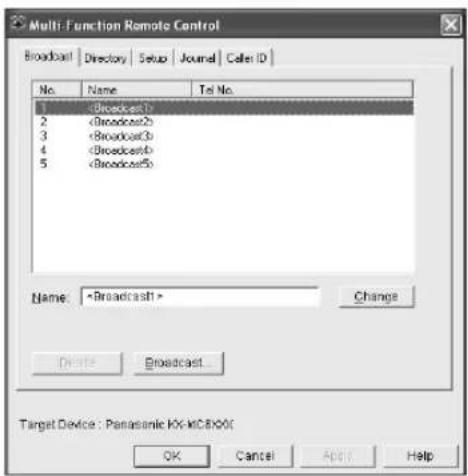
2 Select the desired tab.
●The latest data in the unit will be displayed.
3 Perform the desired operation.
- For details about each function, click [Help].
- To stop the operation, click [Cancel].
4 [OK]
- You can also click [Apply] to continue the next operation without closing the window.
5 Enter the password (feature #155 on page 59). → [OK]
●The new data will be transferred to the unit and the window will close.
Note:
- Some of the features cannot be programmed from your computer.
- For details, see the help file by selecting [💡] from Multi-Function Station.
- When another person is adjusting stored data in the unit, it may be overwritten. Make sure the unit is not currently being used for the same function.
9.2.2 Using Device Monitor
You can confirm the setting information and current status of the unit from your computer.
1 Start Multi-Function Station.
2 [Utilities] → [Device Monitor]
- The [Device Monitor] window will appear.
3 Confirm the status of the unit.
[Status]: Current status of the unit
Note:
- Additional information (toner and recording paper status, unit information, etc.) will be displayed in [Status] tab by clicking [Advanced Information].
- You can update the status of the unit by clicking [Refresh].
- If a printing error occurs, the Device Monitor will start automatically and display the error information.
- For details, see the help file by selecting [💡] from Multi-Function Station.
9.2.3 Using the web browser (LAN connection only)
You can confirm the setting information and status of the unit from the web browser.
1 Start Multi-Function Station. → [Utilities] → [Configuration Web Page]
- You can also access the unit by entering its IP address in a web browser.
2 Select a category from the menu bar.
[Status]: Toner and paper information, etc.
[Device]: Current status of the unit, etc.
[Advance]: Feature settings information, etc.
[Network]: Network information, etc.
- When you select [Device], [Advance] or [Network], you can change which features are displayed by clicking the feature tabs at the top of the right frame.
3 Confirm the status of the unit.
Note:
- You can update the status of the unit by clicking [Reload].
9.3 Cancelling the operations
You can cancel the current operation from the unit. You can also select the desired operation to cancel.
1 [Stop]
●The current operation will be cancelled.
- If the operation is not cancelled, go to step 2.
2 When a cancel confirmation message is displayed:
Press [Set] to cancel the operation.
When some operations are displayed:
Press [▼] or [▲] repeatedly to select the operation that you want to cancel. → [Set]
9.4 Changing the colour calibration
If colour printing is too dark or too light, change the colour calibration.
1 Select the desired colour to change the calibration.
- To change the colour density for cyan, magenta, yellow and black, press [Menu]. → [#][4][8][5]
- To change the colour calibration for cyan, press [Menu]. [☐][4][8][6]
- To change the colour calibration for magenta, press [Menu]. [#][4][8][7]
- To change the colour calibration for yellow, press [Menu]. [#][4][8][8]
- To change the colour calibration for black, press [Menu]. [☐][4][8][9]
2 Select the desired colour calibration.
[0]“-5”
[1]“-4”
[2]“-3”
[3]“-2”
[4]“-1”
【5】“0” (default)
[6] "1"
[7] "2"
[8] "3"
[9] "4"
【*】“5”
3 [Set]
4 Press [Menu] to exit.
Printing a colour test
You can print the colour test to check the colour density for each colour (page 108).
9.5 SD card
You can print files stored on an SD card and save files to an SD card.
This unit supports the following commercially available memory cards. These are referred to as SD cards in the operating instructions.
- SD Memory Card (up to 2 GB) *1
- SDHC™ Memory Card (up to 32 GB) *1
- miniSD™ Card (up to 2 GB) (adaptor required) *2
- miniSDHC™ Card (up to 16 GB) (adaptor required) *2
- microSD™ Card (up to 2 GB) (adaptor required) *2
- microSDHC™ Card (up to 16 GB) (adaptor required) ^2
*1 Equipped with a write-protect switch that can prevent data from being written to the card.
*2 First insert the card into the adaptor, and then insert the adaptor into the SD card slot. The card adaptor is equipped with a write-protect switch that can prevent data from being written to the card.
●To ensure that the unit operates properly, we recommend the use of Panasonic SD cards.
Important:
- Do not remove the SD card or turn the power switch off while reading or writing data to avoid damage to the data.
- Be sure to make a backup copy of the data.
- We are not responsible for any damages incurred to your SD card resulting from corrupted, or lost data.
- When the write-protect switch is in the lock position, it is not possible to write data to the card. Be sure that the switch is unlocked (①) to ensure correct operation.
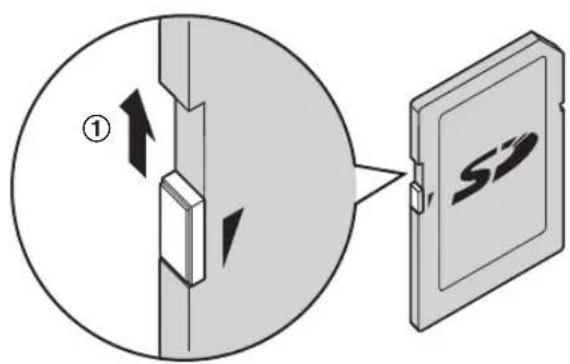
Note:
- Confirm the SD card icon and the SD card access icon on the display (page 10). If the SD access icon is green, the SD card is working correctly.
- An SD card is not supplied. Please purchase a supported SD card.
●The access speed may be slightly different depending on the kind of SD card.
- For details on the SD card, see the operating instructions of the SD card.
9.5.1 Inserting an SD card
Insert the SD card (①) with the labelled surface facing upward into the SD card slot (②).
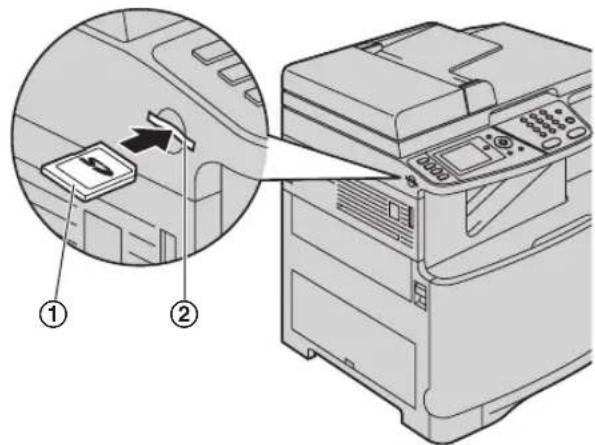
9.5.2 Removing an SD card
1 Push the SD card in (①).
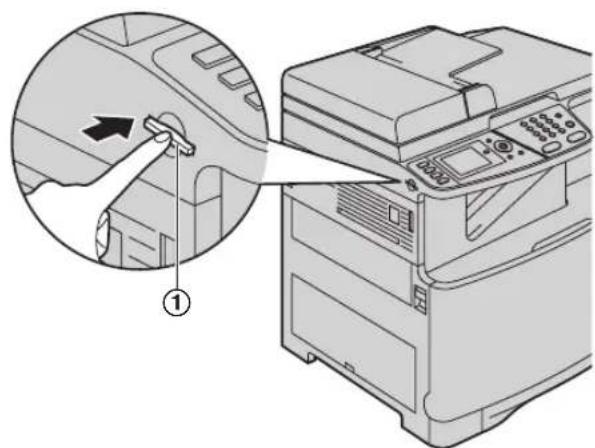
2 Pull the SD card (②) straight out.
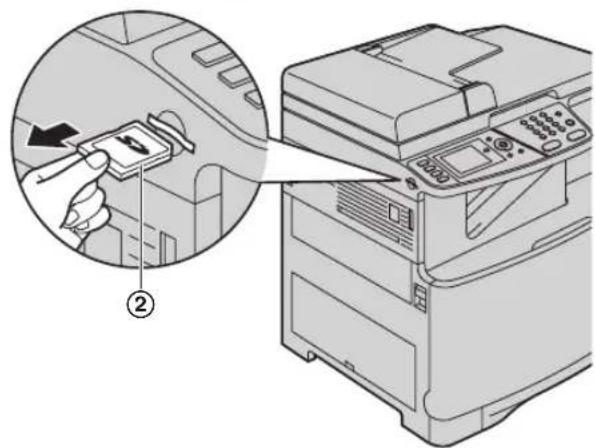
File folder in an SD card
When you save files into the SD card, the following folder is made on the SD card.
SD:/PRIVATE/MEIGROUP/PCC/MFP/IMAGE/XXXXXX ("XXXXXX" will vary depending on the unit.)
Note:
- Do not delete or change the folder name on your computer.
- If you use the SD card with 2 or more units at the same time, a different folder is made on the SD card for each unit. To view data that was saved using a different unit, you need to select the folder that was created by the different unit.
9.6 Optional automatic duplex unit
You can add an optional automatic duplex unit. See page 8 for accessory information.
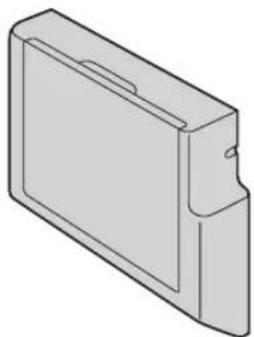
natural_image
Technical line drawing of a rectangular mechanical part with mounting holes (no text or symbols)A4, letter or legal-size recording paper (plain and thin) can be used.
Important:
- Before starting installation of the optional automatic duplex unit, be sure to turn the power switch OFF. For more details about the installation, please refer to the installation guide for the optional automatic duplex unit.
- To use the optional automatic duplex unit with your computer, you need to change the printer properties. See page 83 for details.
9.7 Optional input tray
You can add an optional input tray. See page 8 for accessory information.
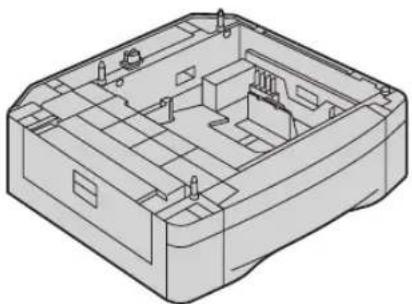
natural_image
Isometric line drawing of a mechanical housing or enclosure with internal compartments and mounting points (no text or symbols)A4, letter or legal-size recording paper (plain and thin) can be used.
The optional input tray can hold:
- Up to 520 sheets of 75g / m^2 paper.
- Up to 470 sheets of 80g / m^2 paper.
- Up to 410 sheets of 90g / m^2 paper.
-
Up to 360 sheets of 105g / m^2 paper.
-
The unit is set for printing A4-size plain paper by default.
- To use letter or legal-size paper, change the recording paper size setting (feature #382 on page 60).
- To use thin paper, change the recording paper type setting (feature #383 on page 60).
Important:
- Before starting installation of the optional input tray, be sure to turn the power switch OFF. For more details about the installation, please refer to the installation guide for the optional input tray.
● After installation, you can select the optional input tray to be used for the following:
– Paper input tray setting for faxing (feature #440 on page 64).
– Paper input tray setting for copying (feature #460 on page 67).
– Paper input tray in PCL (feature #760 on page 68).
– Paper input tray setting for the scan to e-mail print feature (feature #565 on page 74).
– Paper input tray setting for direct print (feature #669 on page 75).
- To use the optional input tray with your computer, you need to change the printer properties. See page 83 for details.
Caution for the optional input tray
- Do not drop the optional input tray.
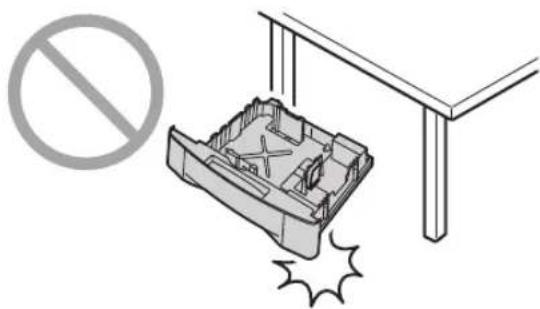
natural_image
Diagram showing a plastic bed with a broken handle and a prohibition symbol (no text or labels)- Hold the optional input tray with both hands when removing or installing. The optional input tray weighs approximately 4.8 kg when the recording paper is fully installed.
Do not touch the plate (①) on the left side of the optional input tray.
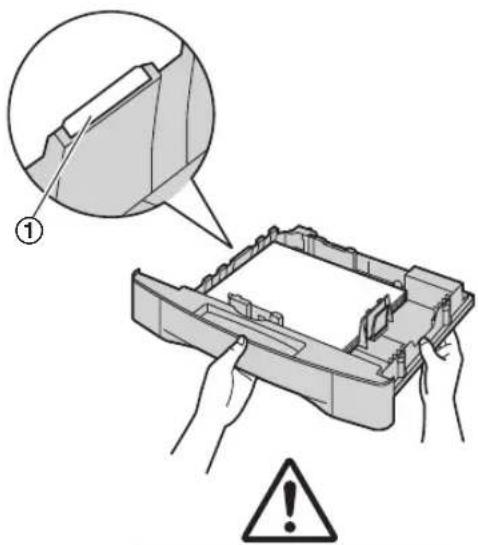
Approx. 4.8 kg
- Do not position the unit in a location where it is unstable or subject to vibrations. The unit weighs approximately 40 kg when the optional input tray is installed and the recording paper is fully installed.
9.8 Setting the optional input tray/optional automatic duplex unit
To use the optional input tray/optional automatic duplex unit with your computer, proceed as follows.
●This setting is necessary for both the colour and monochrome printer drivers.
1 [Start]
2 Open the printer window.
For Windows 98/Windows Me/Windows 2000:
[Settings] → [Printers]
For Windows XP Professional:
[Printers and Faxes]
For Windows XP Home:
[Control Panel] → [Printers and Other
Hardware] → [Printers and Faxes]
For Windows Vista:
[Control Panel] → [Printers]
3 Select the unit's name.
4 For Windows 98/Windows Me/Windows 2000/Windows XP:
Select [Properties] from the [File] menu.
●The printer properties window will appear.
For Windows Vista:
Select [Properties] from the [Organize] menu.
●The printer properties window will appear.
5 Click [Auto Configuration] on the [Device] tab. → [OK]
- The optional input tray and/or optional automatic duplex unit will be automatically detected.
- For [Number of Input Tray], [2] will be selected.
- For [Automatic Duplex Unit], [Installed] will be selected.
If the setting is not changed automatically, change it manually.
6 [OK]
10.1 Error messages – Reports
If a problem occurs during fax transmission or reception, one of the following messages will be printed on the sending and journal reports (page 45).
| Message Code Cause & Solution | ||
| Communication Error 40-42 | 46-72FF | ●A transmission or reception error occurred. Try again or check with the other party. |
| 4344 | ●A line problem occurred. Connect the telephone line cord to a different socket and try again.●An overseas transmission error occurred. Try using the overseas mode (feature #411 on page 62). | |
| Document Jammed | ---- | ● Remove the jammed document (page 104). |
| Error-Not Your Unit 53 | 545970 | ●A transmission or reception error occurred because of a problem with the other party's fax machine. Check with the other party. |
| Junk Fax Proh. Reject | ---- | ● The junk fax prohibitor feature of this unit rejected fax reception. |
| Memory Full | ---- | ● The memory is full of received documents due to a lack of recording paper or a recording paper jam. Install paper (page 16) or remove the jammed paper (page 99).● If feature #442 is set to “Always” (page 65), check the connection between the computer and the unit.● If feature #448 is set to “On” (page 65), the memory is full of received documents. View, print or save the documents, and then erase unnecessary documents (page 51). |
| No Document/Failed Pickup | ---- | ● The document was not fed into the unit properly. Re-insert it and try again. |
| Other Fax not responding | ---- | ● The other party's fax machine is busy or has run out of recording paper. Try again.●The other party's fax machine rings too many times. Send the fax manually (page 44).●The other party's machine is not a fax machine. Check with the other party.●The number you dialled is not in service. |
| Pressed the ‘Stop’ key | ---- | ● [Stop] was pressed and fax communication was cancelled. |
| The cover was opened | ---- | ● The front or left cover was opened. Close it and try again. |
| OK | ---- | ● Fax transmission or reception was successful. |
10.2 Error messages – Display
If the unit detects a problem, one or more of the following messages will appear on the display.
| Display Cause & Solution | |
| “Access Error” | The access to an SD card did not work correctly due to some existing problem. Press [Stop] to clear the message, or remove the SD card, and then try again. |
| “Call Service” | There is something wrong with the unit. Contact our service personnel. |
| “Change Supplies Toner Empty”“Change Supplies Black :Empty” | The toner cartridge life is finished (page 10). Replace the toner cartridge immediately.Note:“Black”: Black toner“Cyan”: Cyan toner“Magenta”: Magenta toner“Yellow”: Yellow toner |
| “Change Supplies Toner Low”“Change Supplies Black :Low” | The toner cartridge life is near its end (page 10). Replace the toner cartridge as soon as possible.Note:“Black”: Black toner“Cyan”: Cyan toner“Magenta”: Magenta toner“Yellow”: Yellow toner |
| “Change Supplies Replace Waste Toner”“Change Supplies Replace Waste Toner Cartridge” | The waste toner cartridge life is finished. Replace the waste toner cartridge immediately (page 11, 111). |
| “Change Supplies Waste Toner Full” | The waste toner cartridge life is near its end. Replace the waste toner cartridge as soon as possible. |
| “Check Document” | The document was not fed into the unit properly. Remove the document, and then press [Stop] to clear the message. Re-insert the document. If misfeeding occurs frequently, clean the document feeder rollers (page 106) and try again. |
| “Check Install Input Tray #1” | The paper input tray is not installed correctly. Pull out the paper input tray and re-insert it.Note:“#1”: Standard input tray“#2”: Optional input tray“#1+#2”: Standard input tray and optional input tray |
| “Check Paper” | You are printing on envelopes. Check the standard input tray to be sure that envelopes are installed, and then press [Black]/[Colour].The recording paper size is not the same as the size selected for copy. Change the recording paper size setting (feature #380 on page 60 or feature #382 on page 60), and install the appropriate recording paper.The recording paper size is not the same as the size selected when printing from the PC. Change the recording paper size setting (feature #380 on page 60 or feature #382 on page 60), and install the appropriate recording paper.The recording paper size is not the same as the size selected for receiving a fax. Change the recording paper size setting (feature #380 on page 60 or feature #382 on page 60), and install the appropriate recording paper. |
| “Check Pick Up Input Tray #1” | ●Recording paper was not fed into the unit properly. Re-insert the recording paper (page 103).Note:●“#1”: Standard input tray●“#2”: Optional input tray |
| “Colour Drum Life Low”“Monochrome Drum Life Low” | ●The drum cartridge life is near its end. Replace the drum cartridge as soon as possible. |
| “Colour Drum Replace”“Monochrome Drum Replace” | ●The drum cartridge life is finished. Replace the drum cartridge immediately.Note:●The continuous use of an old drum cartridge may cause malfunction. To prevent this, when the drum life is finished, the unit will stop printing after a while, and printing will not be possible until a new drum cartridge is installed. |
| “Cool Down Fuser” | ●The unit is cooling down the fuser unit. Wait for a while. |
| “Directory Full” | ●There is no space to store new items in navigator directory. Erase unnecessary items (page 45). |
| “Drum Not Installed” | ●The colour drum cartridge or the monochrome drum cartridge is not installed. Install it (page 12). |
| “E-Mail Size Over” | ●When performing scan to e-mail server, the total file size of scanned data exceeded the file size limitation. Divide the document into sections. |
| “Fax in Memory” | ●The unit has a document in memory. See the other displayed message instructions to print out the document. For fax memory capacity, see page 109.●If feature #442 (page 65) is set to “Always”,- check the connection between the computer and the unit.- check the computer is turned ON.●If feature #448 (page 65) is set to “On”,- view, print or save the received fax documents (page 51), and then erase the unnecessary documents (page 52).- turn the setting to “Off”. The fax documents stored in memory will be printed automatically.- set feature #449 (page 65) to “On”, and then print the received fax documents (page 52). |
| “File Size Over” | ●When performing scan to FTP server, the total file size of scanned data exceeded the file size limitation. Divide the document into sections.●When printing a file on an FTP server, the total print file size exceeded the file size limitation. Divide the document into sections. |
| “Front or Left Cover Open” | ●The front or left cover is open. Close it. |
| “Keep Copying” | ●Copying has stopped due to some existing problem (example: a lack of recording paper or a recording paper jam). See the other displayed message instructions to continue copying. |
| “Keep Printing” | ●Direct printing has stopped due to some existing problem (example: a lack of recording paper or a recording paper jam). See the other displayed message instructions to continue printing. |
| “Low Temperature” | ●The inside of the unit is extremely cold and cannot be operated. Use the unit in a warmer area. |
| “Memory Full” | When performing memory transmission, the document being stored exceeded the memory capacity of the unit. Send the entire document manually.When making a copy, the document being stored exceeded the memory capacity of the unit. Press [Stop] to clear the message. Divide the document into sections. |
| “Memory Overflow” | When printing a file, the document being stored exceeded the memory capacity of the unit. Press [Stop] to clear the message. Change the printer settings (page 29). |
| “Modem Error” | There is something wrong with the unit's modem. Contact our service personnel. |
| “No Fax Reply” | The other party's fax machine is busy or has run out of recording paper. Try again. |
| “No Printable Data” | There is no printable data on the SD card or FTP server. Store the data in a supported format. |
| “Not Support Format” | The files on the SD card are in an unsupported format. Use one of the supported formats (page 31).The SD card is not formatted correctly. With your computer, format the SD card, selecting FAT for the file system. By formatting the card, all data stored on the SD card will be erased. |
| “Not Support Media” | The inserted SD card could not be read. Use a supported SD card (page 81). |
| “Out of Paper Input Tray #1” | Recording paper is not installed or the paper input tray has run out of paper. Install paper (page 16, 30).Recording paper was not fed into the unit properly. Reinstall the paper (page 16, 30).Note:“#1”: Standard input tray“#2”: Optional input tray“#1+#2”: Standard input tray and optional input tray |
| “Paper Jammed” | A recording paper jam occurred. See the other displayed message instructions to remove the jammed paper (page 99). |
| “PC Fail or Busy.” | The cable or the computer mains lead is not connected correctly. Check the connections (page 19, 26).The software is not running on the computer. Restart the software and try again. |
| “Please Wait” | The unit is warming up. Wait for a while. |
| “Polling Error” | The other party's fax machine does not offer the polling function. Check with the other party. |
| “Redial Time Out” | The other party's fax machine is busy or has run out of recording paper. Try again. |
| “Remove Document” | The document is jammed. Remove the jammed document (page 104).Attempted to send or copy a document longer than 600 mm using the automatic document feeder. Press [Stop] to remove the document. Divide the document into two or more sheets and try again. |
| “RX Memory Full” | The memory is full of received documents due to a lack of recording paper or a recording paper jam. Install paper (page 16) or remove the jammed paper (page 99).If feature #442 (page 65) is set to “Always”,- check the connection between the computer and the unit.- check the computer is turned ON.If feature #448 (page 65) is set to “On”,- view, print or save the received fax documents (page 51), and then erase the unnecessary documents (page 52).- turn the setting to “Off”. The fax documents stored in memory will be printed automatically.- set feature #449 (page 65) to “On”, and then print the received fax documents (page 52). |
| “Same name already exists.” | The same file name already exists in the SD card folder. See the other displayed message instructions to continue saving the data. |
| “Scanner Position Error” | There is something wrong with the scanner position. Turn the power switch OFF, then ON. If the problem cannot be solved, contact our service personnel. |
| “SD Card is pulled out.” | The SD card has been removed from the unit. Reinsert it (page 81). |
| “SD Card not installed.” | There is no SD card inserted in the unit. Insert one (page 81). |
| “SD Card Write Protection” | The write-protect switch of the SD card is in the lock position. Unlock the switch to allow write access (page 81). |
| “SD Size Over” | There is no space to save new data on the SD card. Erase unnecessary data. |
| “Self Calibration” | The unit is changing the colour calibration. Wait for a while. |
| “Transmit Error” | A transmission error occurred. Try again. |
| “Toner Cartridge Not Installed” | The toner cartridge is not installed. Install it (page 12). |
| “Tray #2 Left Cover Open” | The left cover of the optional input tray is open. Close it. |
| “Waste Toner Not Installed”“Waste Toner Cartridge Not Installed” | The waste toner cartridge is not installed. Install it (page 11). |
10.3 When a function does not work
10.3.1 General
| Problem Cause & Solution | |
| The unit does not work. | Check the connections (page 19, 26). |
| The recording paper exit becomes full quickly or the recording paper does not stack properly at the recording paper exit. | High humidity may cause the recording paper to curl. Try turning the paper over and re-inserting it. If the curl on the paper is heavy, please remove it from the recording paper exit. If you still have this problem, contact our service personnel. |
| I cannot adjust the volume, display items stored in navigator directory. | The unit is set to scan mode, copy mode or print mode. Press [Fax] to switch modes. If you still have this problem, contact our service personnel. |
| A printing error is displayed while using PC FAX and Remote Control. | The printer driver is used for PC FAX and Remote Control. Transmission errors will be displayed as printing errors. |
| Multi-Function Station does not work properly. | If the USB cable is connected to a USB hub, connect the cable directly to the USB port on your computer.Make sure you have installed the latest Service Pack available for the version of Windows installed on your computer. See the Microsoft web site for details.If you have any other multifunction software installed on your computer, uninstall it.Check that your computer has enough memory and hard disk space. If your computer warns that there is insufficient memory, close other applications. If there is not enough space on the hard disk, delete unnecessary files.Uninstall Multi-Function Station once, and re-install it. |
| I cannot install or uninstall Multi-Function Station. | Some of the files needed to install or uninstall Multi-Function Station may be corrupted. Use the MfsCleaner utility (found on the supplied CD-ROM) to solve the problem.Insert the supplied CD-ROM into your CD-ROM drive.The setup program will start automatically.[Tools] → [Cleanup Tool]The [MfsCleaner] window will appear.Click [Clean], and then click [Yes] to restart the computer.Note:To install Multi-Function Station again, see page 25. |
| I cannot view the operating instructions using Multi-Function Station. | Install the operating instructions on your computer beforehand (page 27). |
| I cannot find the unit in the [Target Device] or [Device Select] dialogue box when operating the following functions.- Scanning- Remote Control- PC FAX- Device Monitor | The printer driver has not been installed. Install it on your computer (page 25). |
| I forgot the password for feature programming via remote operation. | ●You may have changed the feature programming password. If you do not remember it, assign a new password using feature #155 (page 59). When required to enter the current password, enter “0101” instead. |
10.3.2 Printing problems
| Problem Cause & Solution | ||
| I cannot print in monochrome.ORI cannot print in colour. | ●When using the unit as a printer, change the colour mode from the [Quality] tab (page 29).●When printing on envelopes, even if you press [Black]/[Colour], the printing colour will follow the colour mode setting.●When using the unit as a printer;– select the monochrome printer driver to print in monochrome.– select the colour printer driver to print in colour.●When performing direct printing;– press [Black] to print in monochrome.– press [Colour] to print in colour.●When using the unit as a copier;– press [Black] to copy in monochrome.– press [Colour] to copy in colour.●When using the unit as a fax, sending/receiving colour faxes is not possible.●One or more colour toner cartridge(s) is empty. Replace the toner cartridge according to the displayed message. Even if cyan, magenta, yellow is empty, you can still print in monochrome. | |
| I cannot print a file on an FTP server. | ●The FTP server settings are not registered. Program the FTP server settings beforehand (page 75).●The file is too large or is in an unsupported format. Use a supported file format (page 33). | |
| Colour printing is too dark or too light. | ●Change the colour calibration (page 80). | |
| Vertical, white lines appear on the printed documents. | ●The drum cartridge may be the cause. Print the colour test, then the printer test pages to clean the drum cartridge (feature #480 on page 108). | |
The printing quality is poor (e.g. has smudges, blurred points or lines).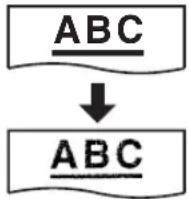 | ●Some paper has instructions recommending which side to print on. Try turning the recording paper over.●You may have used paper with a cotton and/or fibre content that is over 20 %, such as letterhead or resume paper.●The recording paper is too damp. Use new paper. | |
| I changed the recording paper, but the printing quality is still poor. | ●The glass or rollers are dirty with correction fluid, etc. Clean them (page 105, 106). Please do not insert a document before correction fluid has dried completely.●The paper chute is dirty with toner, etc. Clean it (page 107).●The toner save mode of feature #482 is ON (page 61).●The unit may not be the cause. Print the printer test list to find out the problem (page 108). | |
| A blank sheet is ejected. | ●You placed the document facing the wrong way when using the copier.●The other party placed the document in their fax machine the wrong way. Check with the other party. | |
| When using the unit as a printer, the printing result is distorted. | ●Your unit is connected to the computer by USB. After cancelling printing using your computer, you must wait for 60 seconds before re-printing to avoid distorted printing. | |
| I cannot find the PCL driver. | ●The PCL driver can be found in the following folder on the supplied CD-ROM. | |
| Operating system Folder path | ||
| Windows 98/Windows Me “D:\Drivers\Object\Printer\Win98\PCL” | ||
| Windows 2000/Windows XP Home/Windows Vista x32 | “D:\Drivers\Object\Printer\x32\PCL” | |
| Windows XP Professional x64 Edition/Windows Vista x64 | “D:\Drivers\Object\Printer\x64\PCL” | |
| (where “D” is the drive letter of your CD-ROM drive)For more details, refer to: http://panasonic.co.jp/pcc/cs/en/telecom/mfp-faq.htm | ||
| I specified automatic duplex printing using the printer driver, but documents are printed on one side. | ●Install the optional automatic duplex unit (page 82). | |
10.3.3 Scanner
| Problem Cause & Solution | |
| I cannot scan. | When scanning at a high resolution, a large amount of available memory is required. If your computer warns that there is insufficient memory, close other applications and try again.The unit is in use. Try again later.There is not enough space on the hard disk. Delete unnecessary files and try again.Check the connection between the computer and the unit (page 19, 26).Restart the computer, and try again.You attempted to scan a document longer than the paper size which you set. Change the setting or divide the document into the appropriate paper size, and try again. |
| I cannot scan in monochrome.ORI cannot scan in colour. | To scan in monochrome, press [Black]. To scan in colour, press [Colour]. |
| The document is not fed into the unit when using the unit as a scanner. | Remove the document in the automatic document feeder and re-insert it. |
| Even after clicking [Cancel], scanning continues. | Please wait. It may take a while for the cancel request to be accepted. |
| The name of the desired computer is not displayed on the unit when scanning documents from the unit (LAN connection only). | ●The printer driver has not been installed. Install it on your computer (page 25).●The PC name list up feature has been set to [Off]. Set [PC name list up on device] to [On] (page 28).●The maximum number of computers on the LAN is connected to the unit (up to 30 computers). Set [PC name list up on device] to [Off] on the other computers (page 28).●The IP address of the unit may have changed. To detect the IP address, proceed as follows.[Start] → [All Programs] or [Programs] → [Panasonic] → the unit's name → [IP Address Checker]●The IP address for the unit will be detected. |
10.3.4 Copier
| Problem Cause & Solution | |
| The unit will not make a copy. | You cannot make a copy during programming. Make the copy after programming.The document was not fed into the unit properly. Re-insert the document.Recording paper is not installed or the unit has run out of paper. Install paper (page 16). |
| Letters on the copied documents are not clear. | The original document is too dark or too light. Change the contrast (page 39) and try again. |
| The copied documents are too dark and cannot be read. | You used a coloured paper as a document. Change the contrast (page 39) and make a lighter copy of the document, using “Text” resolution (page 39). |
10.3.5 Fax
| Problem Cause & Solution | |
| I cannot send documents. | The telephone line cord is connected to the [EXT] socket on the unit. Connect to the [LINE] socket (page 19).The other party's fax machine is busy or has run out of recording paper. Try again.The other party's machine is not a fax machine. Check with the other party.The other party's fax machine failed to answer the fax automatically. Send the fax manually (page 44).Set the maximum fax speed to “14 . 4Kbps” (feature #418 on page 63). |
| I cannot send a fax overseas. | Use the overseas transmission mode (feature #411 on page 62).Add two pauses at the end of the telephone number or dial manually. |
| The other party complains that letters on their received document are distorted. | If your line has special telephone services such as call waiting, the service may have been activated during fax transmission. Connect the unit to a line that does not have these services.Another telephone on the same line is off the hook. Hang up the extension telephone and try again. |
| The other party complains about the quality of their received documents. | Try copying the document. If the copied image is clear, there may be something wrong with the other party's machine.If the copied image is not clear, too dark, or black and white lines or smudges appear, refer to “10.3.2 Printing problems”, page 90.The original document is too dark or too light. Change the contrast (page 44) and try again. |
| The other party complains that received documents are too dark and cannot be read. | You used a coloured paper as a document. Change the contrast (page 39) and make a lighter copy of the document, using “Text” resolution (page 39), and try again. |
| I cannot receive documents. | The telephone line cord is connected to the [EXT] socket on the unit. Connect to the [LINE] socket (page 19).Feature #442 is activated and the received fax documents are automatically transferred to the computer. View the received documents using the computer (page 55).Feature #448 is activated and the received fax documents are automatically stored in memory. View the received documents on the display (page 51).Set the maximum fax speed to “14 . 4Kbps” (feature #418 on page 63). |
| I cannot receive documents automatically. | The receiving mode is set to TEL mode. Set to FAX ONLY mode (page 49) or TEL/FAX mode (page 50).The time taken to answer the call is too long. Decrease the number of rings before the unit answers a call (feature #210 on page 60). |
| The display shows “Connecting”, but faxes are not received. | The incoming call is not a fax. Change the receiving mode to TEL mode (page 50) or TEL/FAX mode (page 50). |
| The printing quality of the received documents is poor. | If documents can be copied properly, the unit is working normally. The other party may have sent a faint document or there may be something wrong with the other party’s machine. Ask them to send a clearer copy of the document or to check their fax machine.If documents can not be copied properly, refer to “10.3.2 Printing problems”, page 90. |
| The other party complains that they cannot send a document. | The memory is full of received documents due to a lack of recording paper or a recording paper jam. Install paper (page 16) or remove the jammed paper (page 99).If feature #442 is set to “Always” (page 65), check the connection between the computer and the unit.If feature #448 is set to “On” (page 65), the memory is full of received documents. View, print or save the documents, and then erase unnecessary documents (page 51).The unit is not in FAX ONLY mode. Press [Fax Auto Answer] repeatedly to turn ON the [Fax Auto Answer] light. |
| I cannot select the desired receiving mode. | If you want to set FAX ONLY mode:– press [Fax Auto Answer] repeatedly to turn ON the [Fax Auto Answer] light.If you want to set TEL mode or TEL/FAX mode:– select the desired mode using feature #404 (page 62), and press [Fax Auto Answer] repeatedly to turn OFF the [Fax Auto Answer] light. |
| When an extension telephone is connected, I cannot receive documents by pressing [∗][‡][9]. | You must set remote fax activation to ON (feature #434 on page 64) beforehand.Press [∗][‡][9] firmly.You may have changed the remote fax activation code from [∗][‡][9](default setting). Verify the remote fax activation code (feature #434 on page 64). |
| I cannot hear a dial tone. | The telephone line cord is connected to the [EXT] socket on the unit. Connect to the [LINE] socket (page 19).If you use a splitter/coupler to connect the unit, remove the splitter/coupler and connect the unit to the wall socket directly. If the unit operates properly, check the splitter/coupler.Disconnect the unit from the telephone line and connect a known working telephone. If the working telephone operates properly, contact our service personnel to have the unit repaired. If the working telephone does not operate properly, contact your telephone company.The mains lead or telephone line cord is not connected. Check the connections (page 19).If you connected the unit through a computer modem, connect the unit directly to a telephone line socket. |
| The unit does not ring. | The ringer volume is turned OFF. Adjust it (page 22). |
| The other party complains they only hear a fax tone and cannot talk. | FAX ONLY mode is set (page 49). Tell the other party the number is only used for faxes. |
| The [Redial] or [Pause] button does not function properly. | If this button is pressed during dialling, a pause will be inserted. If pressed immediately after a dial tone is obtained, the last number dialled will be redialled. |
| I cannot receive a fax document on the computer. | Make sure the following features are set beforehand.- PC fax reception (feature #442 on page 65)- Computer setting for the PC fax reception (feature #443 on page 25) |
| I cannot display a received fax document. | You must set the fax preview mode to ON (feature #448 on page 65) beforehand.You cannot display a received fax document during printing, copying or scanning. Try again after printing, copying or scanning. |
| I cannot erase a received fax document. | View or print a received fax document before erasing (page 51). |
| Received fax documents do not print automatically. | Feature #448 is activated and the received fax documents are saved into the memory of the unit. View the received documents on the display (page 51). |
10.3.6 Using an SD card
| Problem Cause & Solution | |
| No image are displayed. | There is no SD card inserted in the unit. Insert a supported SD card (page 81).The inserted SD card is not compatible with the unit. Use a supported SD card (page 81).There is no files stored on the SD card. Save files on the SD card in a supported file format beforehand.The file is too large or is in an unsupported format. Use a supported file format (page 31). |
| It takes considerable time to display an image. | It may take some time until the image is displayed, depending on the image format and size of the image. This is normal. |
| I cannot save the data to an SD card. | There is no SD card inserted in the unit. Insert a supported SD card (page 81).The write-protect switch of the SD card is in the lock position. Unlock the switch to allow write access (page 81) and try again.There is not enough space to save new files on the SD card. Delete unnecessary files, and try again. |
| I cannot print a file saved on the SD card. | There is no SD card inserted in the unit. Insert a supported SD card (page 81).You tried to print different file formats onto 1 page. Activate the continuous print setting (page 32).The file may be broken. Try viewing the file on your computer.The file is too large or is in an unsupported format. Use a supported file format (page 31). |
10.3.7 Network
| Problem Cause & Solution | |||
| I cannot operate the following functions.- PC printing- Scanning- Remote Control- PC FAX- Device Monitor | Confirm the LED via the LAN port of the main board. If the LED is glowing or blinking, network access is working correctly.If the LED is not glowing or blinking, confirm the LAN cable (category 5 straight cable) is connected to the LAN port of the main board correctly.If the LED is blinking and you cannot perform the desired operation, the IP address of the unit may have changed.To detect the IP address, proceed as follows.[Start] → [All Programs] or [Programs] → [Panasonic] → the unit's name → [IP Address Checker]The IP address for the unit will be detected.Note:If the IP address cannot be detected, enter it manually (feature #501 on page 73). The IP address of the computer and the unit must be in the same local IP address class as shown below. Set the IP address in the range of the number specified in the class corresponding to your local network scale. | ||
| Class Subnet mask | IP address | ||
| Class A 255.0.0.0 10 | 0.0.1 - | 10.255.255.254 | |
| Class B 255.255.0.0 | 172.xx.0.1 - | 172.xx.255.254^*1 | |
| Class C 255.255.255 | 0 192.168.xx.1 - | 192.168.xx.254^*2 | |
| *1 “xx” should be the same value for the unit and for the computer, as shown in the following example.Example: 172.16.0.1 - 172.16.255.254(The available range of “xx” is 16 - 31)*2 “xx” should be the same value for the unit and for the computer, as shown in the following example.Example: 192.168.0.1 - 192.168.0.254(The available range of “xx” is 0 - 255)Your firewall software is blocking the connection. Disable the firewall software or change the firewall settings to make the Multi-Function Station work properly.LAN features can be used when the unit and the computer are connected in same network segment only. Make sure the network is configured correctly. Consult your network administrator. | |||
| The unit does not appear in the [Select a Network Device] dialogue box when installing Multi-Function Station. | Your firewall software is blocking the connection and the setup program may not list any units. Consult your network administrator and temporarily disable the firewall software.The unit is connected to another network segment and the setup program may not list any units. Make sure the network is configured correctly. Consult your network administrator. | ||
| The [Windows Security Alert] dialogue box appears and asks if I want to block [PCCMFLPD] and I cannot operate the following functions after installing the Microsoft Windows XP Service Pack 2.- PC printing- Scanning- Remote Control- PC FAX- Device Monitor | Click [Keep Blocking] and run the Windows Firewall Setting Tool to allow the data transmission for Multi-Function Station (page 97). | ||
10.3.8 Using an answering machine
| Problem Cause & Solution | |
| I cannot receive documents automatically. | ●Your greeting message on the answering machine is too long. Shorten the message. Record a message less than 10 seconds long.●The answering machine rings too many times. Set to 1 or 2 rings. |
| I cannot receive voice messages. | ●Check if the answering machine is turned ON and connected to the unit properly (page 53).●Set the number of rings on the answering machine to 1 or 2. |
| I pressed the remote access code to access the answering machine remotely, but the line was disconnected. | ●The code may include “#” which is used for certain features provided by telephone companies. Change the code on the answering machine to another number which does not include “#”. |
| Callers complain that they cannot send a document. | ●There is no room left in memory of your answering machine to record voice messages. See the operating instructions of the answering machine and erase unnecessary messages.●You set the answering machine to only give a greeting message. |
10.3.9 If a power failure occurs
●The unit will not function.
- If any documents are stored in the memory (i.e. during copying, PC printing, fax transmission or fax reception), they will be lost.
- The unit is not designed for making emergency telephone calls when the power fails. Alternative arrangements should be made for access to emergency services.
● Fax transmission and reception will be interrupted.
- When power is restored, a power down report will be printed out stating which fax items in the memory have been erased.
10.3.10 Firewall setting tool for Microsoft Windows XP Service Pack 2/Windows Vista users (LAN connection only)
After installing Microsoft Windows XP Service Pack 2/Windows Vista, you will not be able to use the following functions because the Windows Firewall feature will be activated and block the connection.
- Device Monitor
– LPD Manager (Network communication tool)
The Windows Firewall Setting Tool enables you to change the Windows Firewall security settings and to use the above functions properly.
1 Insert the CD-ROM that is supplied with the unit into your CD-ROM drive.
10. Help
- If the [Select Language] dialogue box appears, select the desired language that you want to use with this software. Click [OK].
2 [Tools] → [Windows Firewall Setting]
- The [Windows Firewall Setting Tool] window will appear.
3 [Add to the exceptions list] → [OK] → [OK]
To confirm the security settings (For Windows XP users)
- [Start] → [Control Panel] → [Security Center]
- The [Windows Security Center] window will appear.
- [Windows Firewall]
- The [Windows Firewall] dialogue box will appear.
-
Click the [Exceptions] tab.
-
Confirm that [Panasonic Trap Monitor Service] and [PCCMFLPD] are displayed and checked on the [Programs and Services] list.
To confirm the security settings (For Windows Vista users)
- [Start] → [Control Panel] → [Security Center]
- The [Windows Security Center] window will appear.
- [Windows Firewall]
- The [Windows Firewall] dialogue box will appear.
- [Change settings]
- The [User Account Control] dialogue box will appear.
-
[Continue]
-
Click the [Exceptions] tab.
-
Confirm that [Panasonic Trap Monitor Service], [PCMFSMLM] and [PCCMFLPD] are displayed and checked on the [Program or port] list.
10.3.11 Notice for KX-MB200/KX-MB700/KX-FLB880 series users
If you have already installed KX-MB200/KX-MB700/KX-FLB880 series Multi-Function Station on your computer, the instructions for modifying or adding printer driver change after installing the KX-MC6000 series Multi-Function Station. You can modify or add a printer driver, as follows.
1 Start Windows and insert the KX-MB200/KX-MB700/KX-FLB880 series CD-ROM into your CD-ROM drive.
- If the [Select Language] dialogue box appears, select the desired language that you want to use with this software. Click [OK].
2 [Easy installation]
3 [Modify] → [Next]
4 Select [Modify Utility] or [Add Printer Driver]. → [Next]. Then follow the on-screen instructions.
Important:
- For users of versions prior to 1.12, download the latest software as follows, then activate it. [Start] → [All Programs] or [Programs] → [Panasonic] → the unit's name → [Support Web Page]. Then follow the on-screen instructions.
11.1 Recording paper jam
Caution:
- Do not pull out the jammed paper forcibly before opening the left cover.
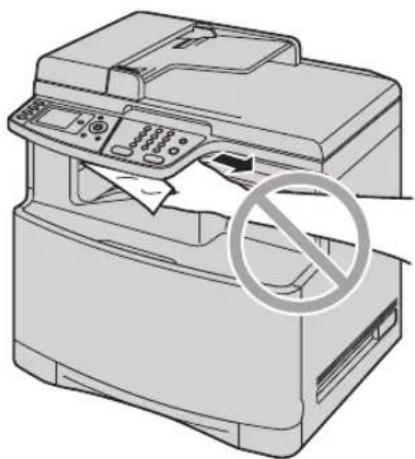
natural_image
Illustration of a printer with a prohibition symbol overlay (no text or symbols present)- Do not open the paper input tray as the jammed paper may be pulled and the jam may get worse.
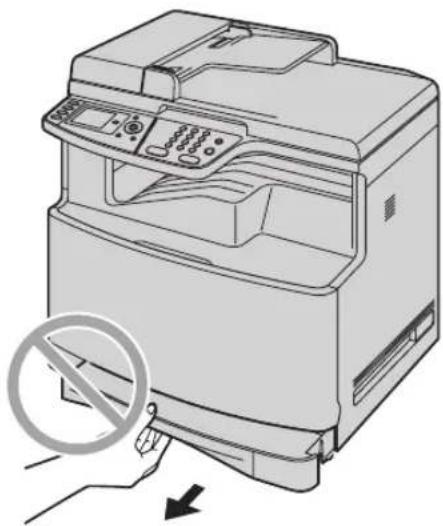
natural_image
Illustration of a printer with a prohibition symbol overlay (no text or symbols on the device itself)11.1.1 When the recording paper has jammed inside of the unit
The display will show the following.
- "Paper Jammed" "Open Left Cover" "Hot Caution" - "Paper Jammed" ↑ "Open Left Cover Hot Caution"
1 Push the left cover open lever (①) upward, then pull open the left cover (②).
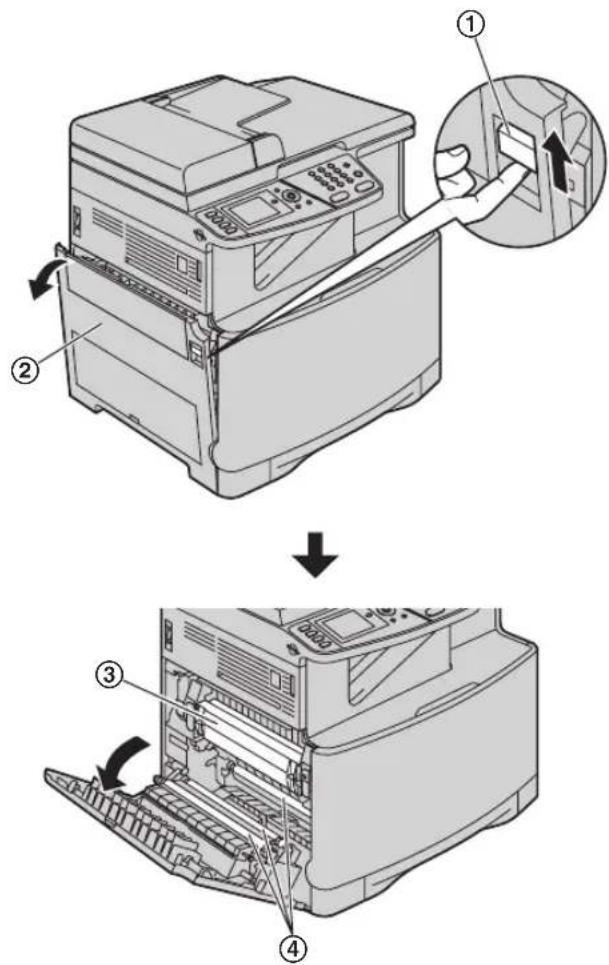
Caution:
- During or immediately after printing, the fuser unit (③) gets hot. Wait until the fuser unit cools down before removing the jammed paper.
Note:
- Do not touch the rollers (④).
11. Paper Jams
2 Remove the jammed paper.
Case 1:
When the recording paper has jammed near the rollers:
- Remove the jammed paper (⑤) carefully by pulling it toward you.
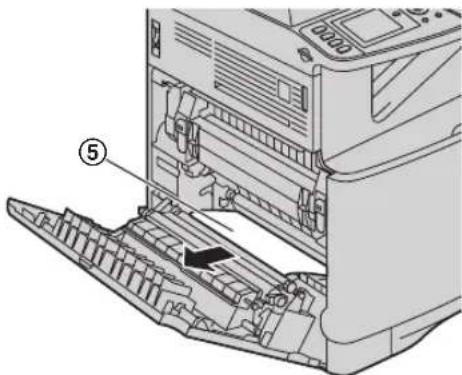
- Close the left cover.
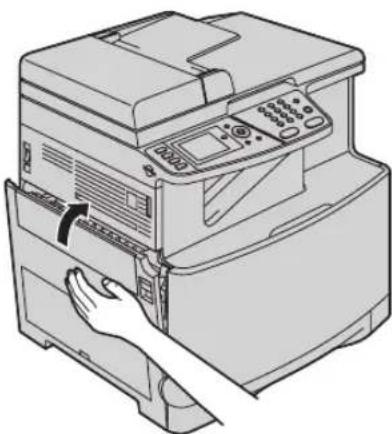
natural_image
Line drawing of a printer with a hand inserting a button to the front panel (no text or symbols present)Case 2:
When the recording paper has jammed near the fuser unit:
- Lift both green levers (⑥) until they stop.
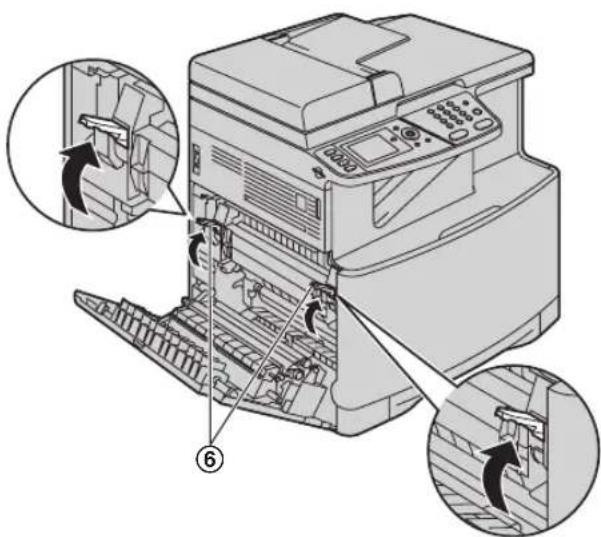
- Remove the jammed paper (⑦) carefully by pulling it toward you.
Example 1:
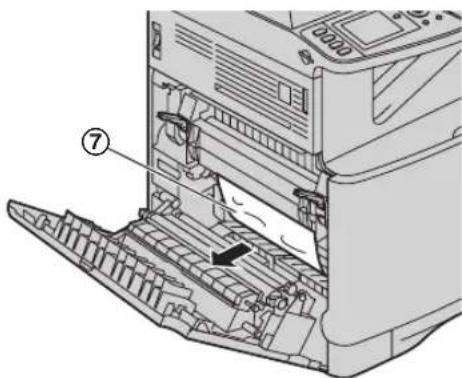
Example 2:
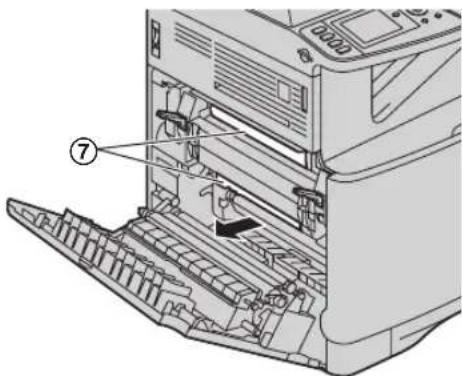
- Push back the green levers (⑧) to their original positions.
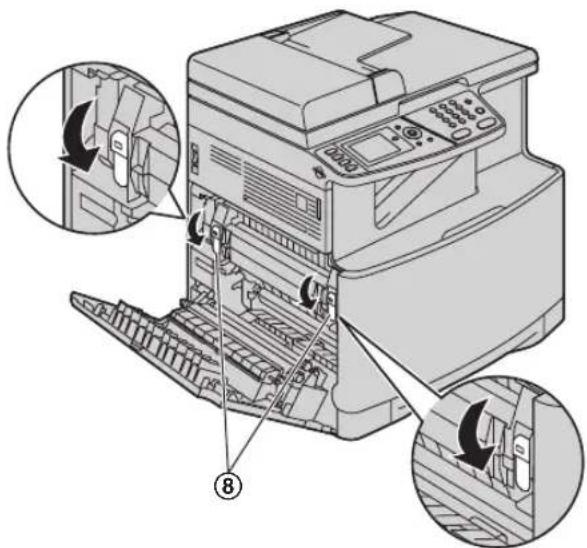
- Close the left cover.
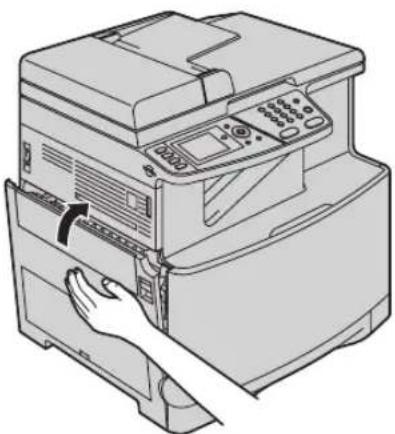
natural_image
Line drawing of a printer with a hand inserting a card into the front panel (no text or symbols present)Case 3:
When the recording paper has jammed inside of the optional automatic duplex unit:
- Close the left cover.
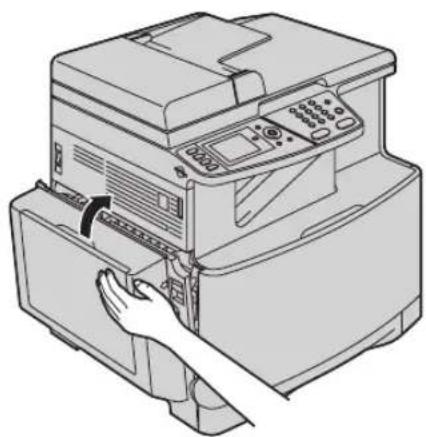
natural_image
Line drawing of a printer with a hand inserting a button to the front panel (no text or symbols present)- Open the automatic duplex unit cover (⑨).
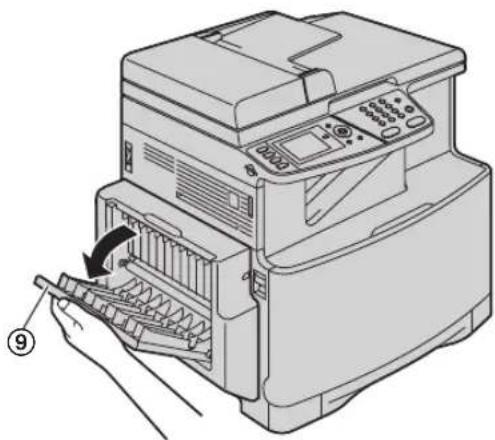
natural_image
Illustration of a printer with a hand inserting a cable into the internal structure (no text or symbols visible)- When the document has jammed near the roller:
Hold the automatic duplex unit cover and remove the jammed paper (⑩) carefully by pulling it upward.
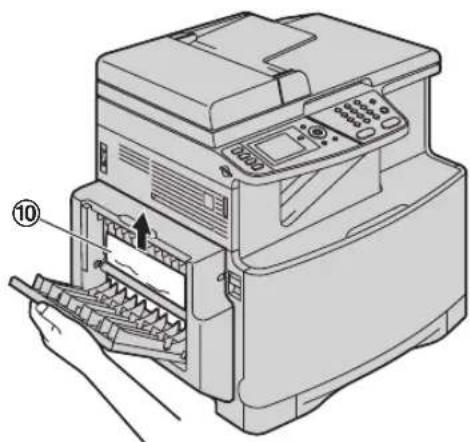
natural_image
Illustration of a printer with a hand inserting a slot into the main frame (no text or symbols visible)When the document has jammed near the recording paper exit of the automatic duplex unit:
Hold the automatic duplex unit cover and remove the jammed paper (⑪) carefully by pulling it toward you.
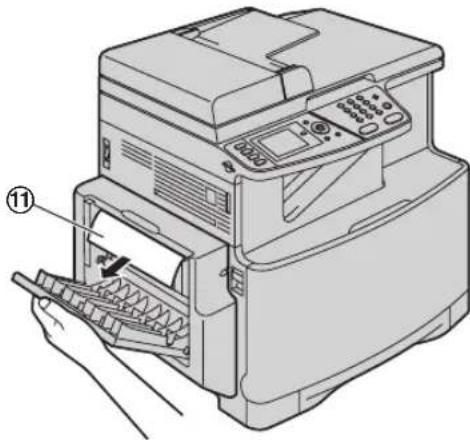
- Close the automatic duplex unit cover.
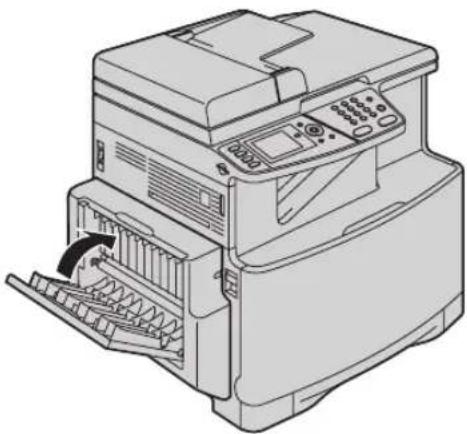
natural_image
Line drawing of a printer with an open drawer and control panel (no text or symbols)11.1.2 When the recording paper has jammed near the optional input tray
The display will show the following.
- "Paper Jammed"
"Open Tray #2"
"Left Cover"
- "Paper Jammed"
↑↓
"Open Tray #2 Left Cover"
1 Open the cover (①) at the left side of the optional input tray.
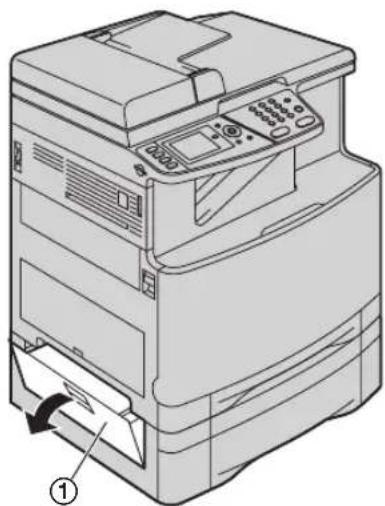
natural_image
Illustration of a printer with a paper clip inserted, showing internal components and control panel (no text or symbols)2 Remove the jammed paper (②).
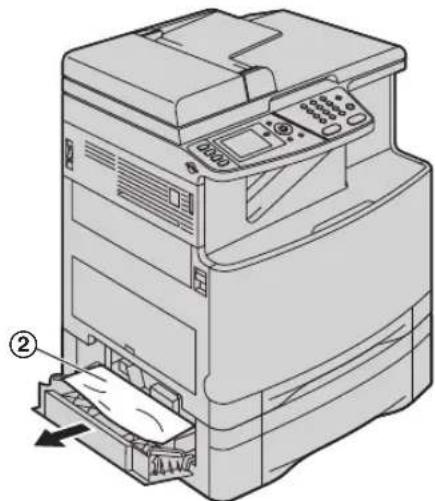
natural_image
Illustration of a printer with internal components and a labeled arrow indicating a file or folder (no text or symbols present)3 Close the cover at the left side of the optional input tray.
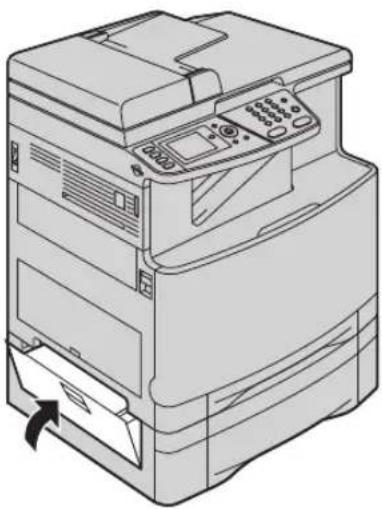
natural_image
Line drawing of a printer with control panel and paper clip (no text or symbols)11.1.3 When the recording paper is not fed into the unit properly
The display will show the following.
- "Check Pick Up Input Tray #1" (standard input tray)
- "Check Pick Up Input Tray #2" (optional input tray)
1 Pull the paper input tray until it clicks into place, then pull it completely out, lifting the front part of the tray. Remove the recording paper and straighten.
2 Re-load the recording paper.
Standard input tray:
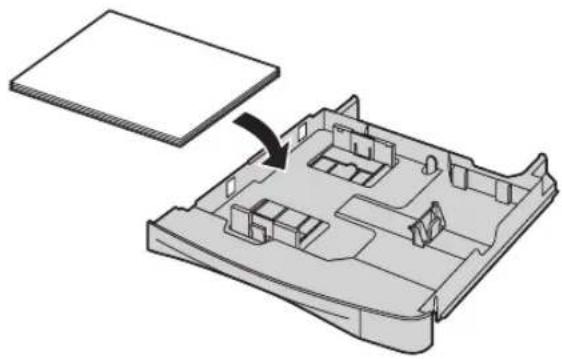
natural_image
3D diagram of a mechanical assembly with a rectangular base and internal compartments, showing a cutaway view (no text or symbols)Optional input tray:
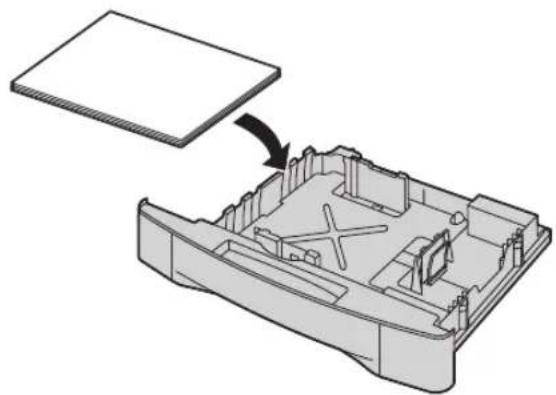
natural_image
3D diagram of a mechanical component with an arrow indicating assembly or transformation (no text or symbols present)3 Insert the paper input tray to the unit, lifting the front part of the tray. Then push it completely into the unit.
Note:
- If the error message is still displayed, check the recording paper specifications and re-install recording paper. See page 16 and page 82 for details.
11.2 Document jams (Automatic document feeder)
Caution:
- Do not pull out the jammed document forcibly before lifting the ADF cover.
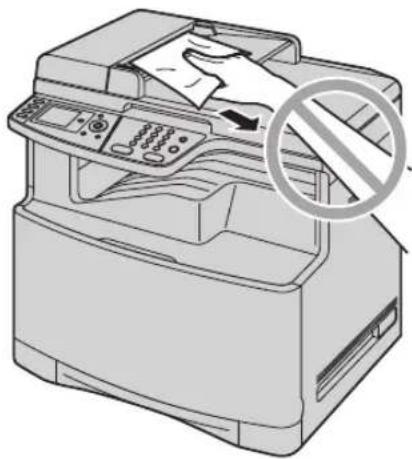
natural_image
Illustration of a printer with a hand holding paper, no text or symbols present1 Open the ADF cover (①) while holding the document cover (②).
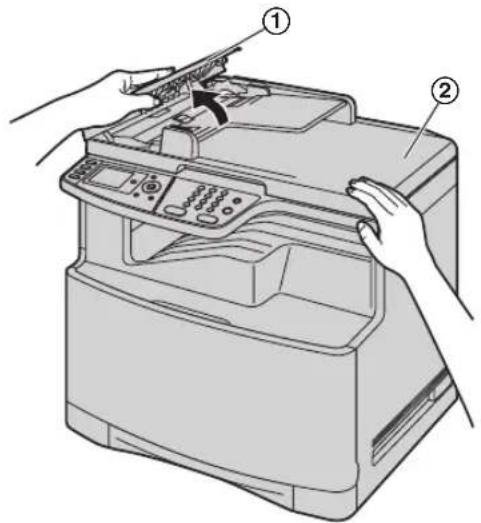
2 Remove the jammed document (③) carefully. When the document has jammed near the document entrance:
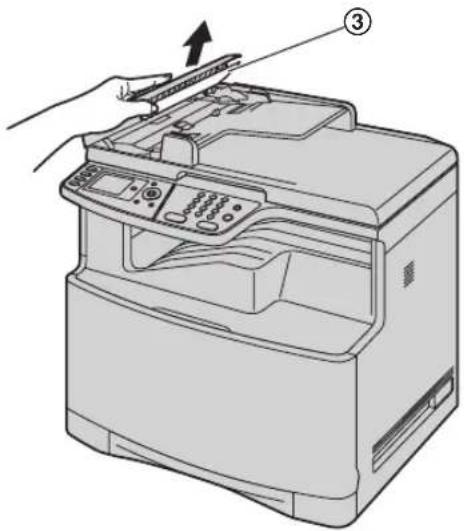
natural_image
Illustration of a printer with a hand operating the top panel and a paperclip inserted, showing internal components (no text or symbols)When the document has jammed near the document exit:
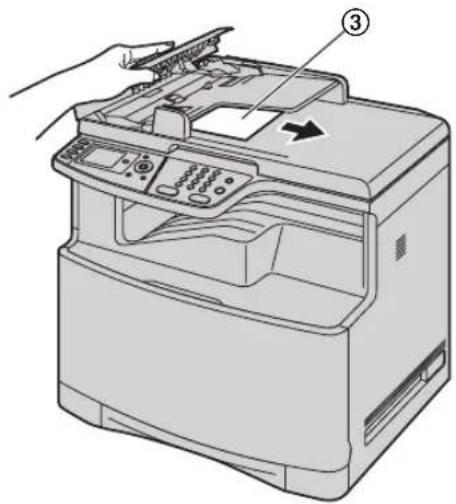
3 Close the ADF cover.
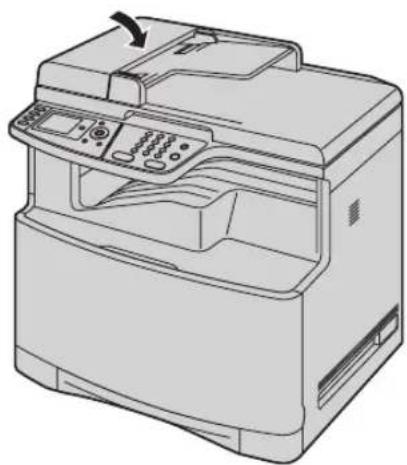
natural_image
Line drawing of a printer with control panel and paper airplane (no text or symbols)12.1 Cleaning the white plates and glass
Clean the white plates and glass when a black line, a white line or a dirty pattern appears on:
- your recording paper,
– the original document,
– the scanned data, or
– the fax document received by the other party.
Caution:
- Do not use paper products, such as paper towels or tissues for cleaning.
1 Open the document cover (①).
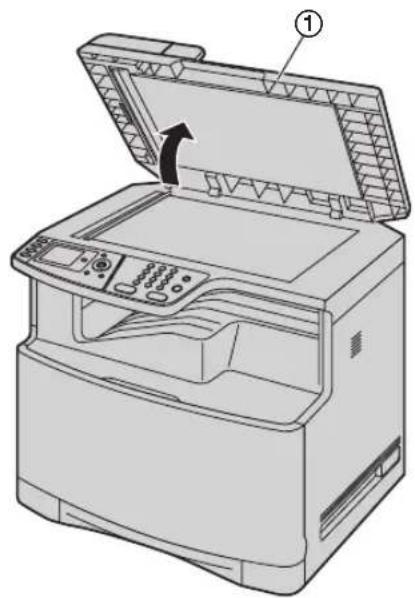
natural_image
Line drawing of a printer with open lid and internal mechanism (no text or symbols)2 Hold the document cover (②) while cleaning the white plates (③) and the scanner glass (④).
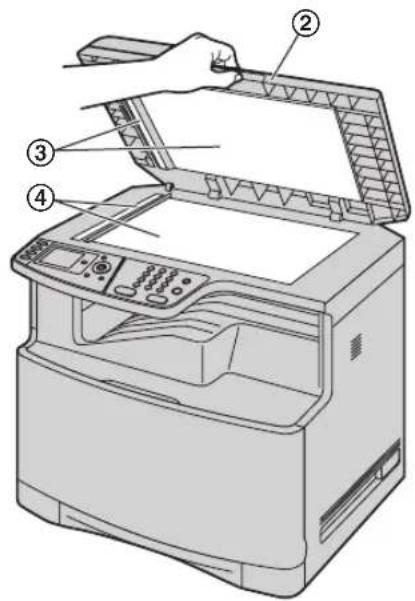
3 Close the document cover (⑤).
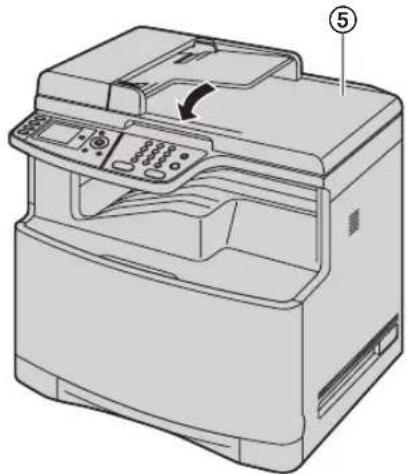
natural_image
Line drawing of a printer with control panel and paper airplane (no text or symbols)12.2 Cleaning the document feeder rollers
Clean the rollers when the document frequently misfeeds.
Caution:
- Do not use paper products, such as paper towels or tissues for cleaning.
1 Turn the power switch OFF.
2 Open the ADF cover (①) while holding the document cover (②).
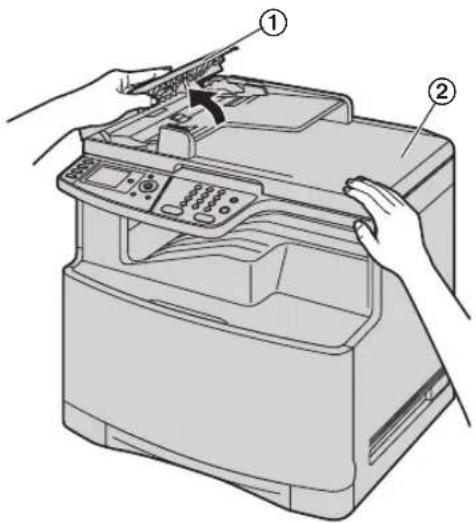
3 Clean the document feeder rollers (③) with a cloth moistened with water, and let all parts dry thoroughly.
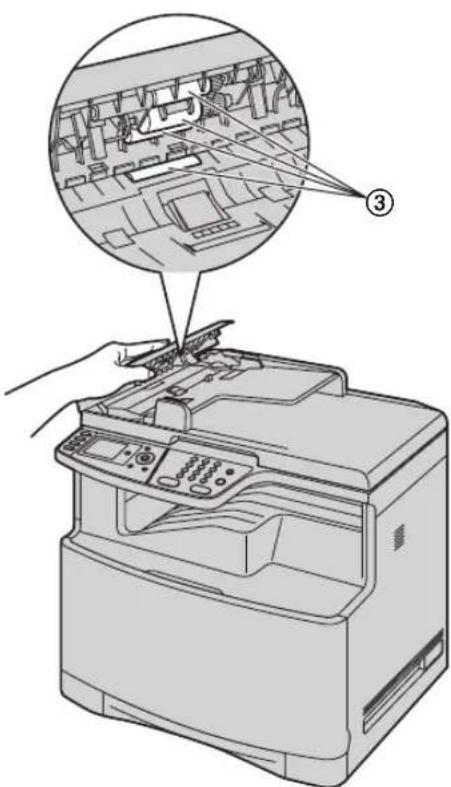
4 Close the ADF cover.
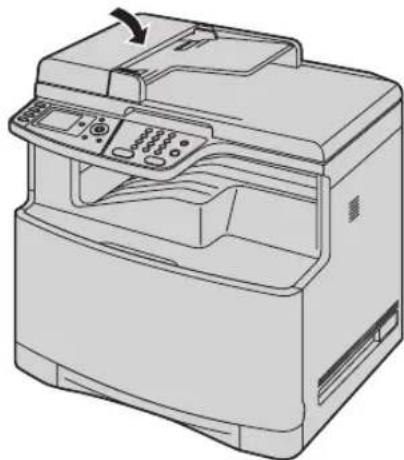
natural_image
Line drawing of a printer with control panel and paper airplane (no text or symbols)5 Turn the power switch ON.
12.3 Cleaning the paper chute
Clean the paper chute inside the unit when a line or a dirty pattern appears at the top or bottom of your recording paper.
1 Turn the power switch OFF.
2 Push the left cover open lever (①) upward, then pull open the left cover (②).
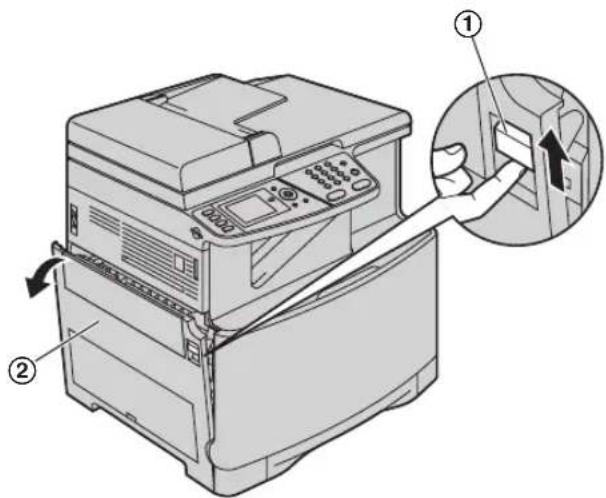
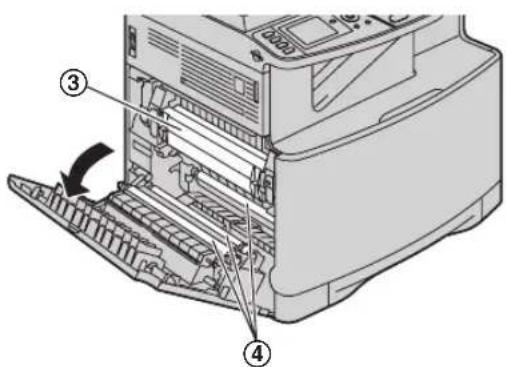

Caution:
- During or immediately after printing, the fuser unit (③) gets hot. Wait until the fuser unit cools down before cleaning the paper chute.
Note:
- Do not touch the rollers (④).
3 Clean the paper chute (⑤) with a dry paper towel or tissue.
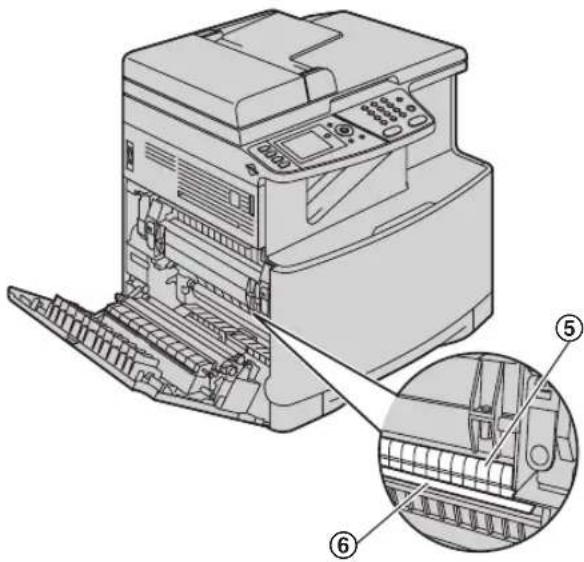
natural_image
Technical illustration of a printer with internal components and exploded view (no text or symbols)Note:
- Do not touch the black belt (⑥), or rub it strongly.
4 Close the left cover.
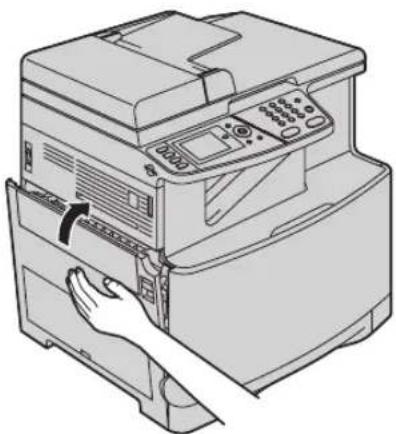
natural_image
Line drawing of a printer with a hand inserting a button to a door (no text or symbols present)5 Turn the power switch ON.
13.1 Reference lists and reports
You can print out the following lists and reports for your reference.
- "Setup List"
- "Tel No. List"
- "Journal Report"
- "Broadcast List"
- "Printer Test"
- "Colour Test"
- "Caller ID List"
- "PCL Font List"
- "Address List"
- "FTP Server List"
![[Menu] [▼][▲][◄][►] [Set]](/content/2026/06/1190721/images/707039aa6aefb147cd0db9002237488706cc3fa53830eeed15b4d242715ff816.jpg)
1 [Menu]
2 Press [▼] or [▲] repeatedly to select "Print Report".
3 Press [◀] or [▶] repeatedly to select the desired item.
4 Press [Set] to start printing. → [Menu]
Colour test
The unit will print a colour test page consisting of black, cyan, magenta and yellow lines so you can specify which drum cartridge has the problem.
If vertical, white lines appear on the colour test page, try the following to solve the problem.
Solution 1: Cleaning the drum cartridge
Important:
- This solution uses at least 3 pages of recording paper. Make sure there is enough recording paper installed in the standard input tray beforehand.
- [Menu] → [#][4][8][0]
- Select the colour which has vertical, white lines in the colour test page.
[1] "Black" (default)
[2] "Cyan"
[3] "Magenta"
[4] "Yellow"
- [Set]
● The drum cartridge will be cleaned automatically by printing out 3 pages of the selected colour.
- Repeat steps 1 to 3 for all lines with vertical, white lines.
- Print the colour test again. If the vertical, white lines remain, try the next solution.
Solution 2: Changing the drum cartridge
- If the black test page has vertical, white lines, change the monochrome drum cartridge.
- If the cyan, magenta or yellow test page has vertical, white lines, change the colour drum cartridge.
- Print the colour test again. If the vertical, white lines remain, contact our service personnel.
13.2 Specifications
■ Applicable lines:
Public Switched Telephone Network
■ Document size:
Max. 216 mm in width, Max. 600 mm in length
■ Effective scanning width:
208 mm
■ Effective printing width:
A4: 202 mm
Letter/Legal: 208 mm
■ Transmission time ^*1 :
Approx. 4 s/page (ECM-MMR Memory transmission) ^2
■ Scanning density:
Scanning resolution:
Up to 600 × 1,200 dpi (Optical)
Up to 9,600 × 9,600 dpi (Interpolated)
Copy resolution:
Up to 600 × 600 dpi
Fax resolution:
Horizontal: 8 pels/mm
Vertical: 3.85 lines/mm -in standard resolution, 7.7 lines/mm -in fine/photo resolution, 15.4 lines/mm -in super fine resolution
■ Photo resolution:
64-level
Scanner type:
Colour Contact Image Sensor
■ Printer type:
Laser Printer
■ Data compression system:
Modified Huffman (MH), Modified READ (MR), Modified Modified READ (MMR)
■ Modem speed:
33,600/31,200/28,800/26,400/24,000/21,600/19,200/16,800/14,400/12,000/9,600/7,200/4,800/2,400 bps; Automatic Fallback
■ Operating environment:
10 °C - 32.5 °C, 20 % - 80 % RH (Relative Humidity)
■ Dimensions:
Approx. width 520 mm × depth 438 mm × height 546 mm
■ Mass (Weight):
Approx. 30 kg
■ Power consumption:
Standby: Approx. 20 W
Preheat: Approx. 40 W
Copy: Approx. 550 W
Maximum: Approx. 1,100 W (When the fuser lamp turns on)
■ Power supply:
220–240 V AC, 50 Hz
■ Memory capacity
(for operation and storing memory):
192 MB
■ Fax memory capacity:
10 MB in total
Approx. 630 pages of memory reception (max. 255 pages per one reception)
Approx. 150 pages of memory transmission
(Based on the ITU-T No. 1 Test Chart in standard resolution, without using the Error Correction Mode.)
■ Scan to e-mail server memory capacity:
5 MB in total (including the e-mail message)
■ Scan to FTP server memory capacity:
20 MB in total
■ Laser diode properties:
Laser output: Max. 6.5 mW
Wave length: 770 nm – 800 nm
Emission duration: Continuous
■ Print speed:
Colour:
A4: Approx. 20 ppm (pages per minute)
Letter: Approx. 21 ppm (pages per minute)
B/W:
A4: Approx. 20 ppm (pages per minute)
Letter: Approx. 21 ppm (pages per minute)
■ Printing resolution:
Up to 1,200 × 1,200 dpi
*1 Transmission speed depends on the contents of the pages, resolution, telephone line conditions and capability of the other party's machine.
*2 Transmission speed is based on the ITU-T No. 1 Test Chart with original mode. If the capability of the other party's machine is inferior to your unit, the transmission time may be longer.
ITU-T No.1 Test Chart
Note:
- Design and specifications are subject to change without notice.
●The pictures and illustrations in these instructions may vary slightly from the actual product. - The accuracy of the clock is approximately ±60 seconds a month.
Recording paper specifications
Plain paper/Thin paper:
A4: 210 mm × 297 mm
Letter: 216 mm × 279 mm
Legal: 216 mm × 356 mm
Thick paper/Transparency/Label/Card stock size:
A4: 210 mm × 297 mm
Letter: 216 mm × 279 mm
Envelope size:
10: 105 mm × 241 mm
DL: 110 mm × 220 mm
Recording paper weight:
60 g/m² to 165 g/m²
Card stock weight:
163 g/m²
Note for recording paper:
- We recommend that you test paper (especially special sizes and types of paper) on the unit before purchasing large quantities.
- Do not use the following types of paper:
– Paper with cotton and/or fibre content that is over 20 %, such as letterhead paper or paper used for resumes
– Extremely smooth or shiny paper, or paper that is highly textured
– Coated, damaged or wrinkled paper
– Paper with foreign objects attached, such as tabs or staples
– Paper that has dust, lint or oil stains
– Paper that will melt, vaporize, discolour, scorch or emit dangerous fumes near 200 °C, such as vellum paper. These materials may transfer onto the fusing roller and cause damage.
- Moist paper
- Inkjet paper
- Some paper is designed to be printed on only one side. Try printing on the other side of the paper if you are not happy with the print quality, or if misfeeding occurs.
- For proper paper feeding and best print quality, we recommend using long-grained paper.
- Do not use paper of different types or thicknesses at the same time. This may cause paper jams.
- Do not use paper printed from this unit for double-sided printing with other copiers or printers. This may cause paper jams.
- To avoid curling, do not open paper packs until you are ready to use the paper. Store unused paper in the original packaging, in a cool and dry location.
Toner life
Toner life depends on the amount of content in a printed document. The following is the approximate relationship between coverage and toner life for replacement toner cartridge. Toner life varies in actual usage.
- The following number of sheets and image sample is for when printing in one colour. As actual colour printing is a combination of several colours, the number of sheets will vary depending on the contents of the original document.
5 % coverage
Approx. 2,000 sheets of A4-size paper using:
- KX-FATC501X
- KX-FATM502X
- KX-FATY503X
Approx. 2,500 sheets using:
- KX-FATK504X
Approx. 4,000 sheets using:
- KX-FATC506X
- KX-FATM507X
- KX-FATY508X
- KX-FATK509X
10 % coverage
Approx. 1,000 sheets of A4-size paper using:
- KX-FATC501X
- KX-FATM502X
- KX-FATY503X
Approx. 1,250 sheets using:
- KX-FATK504X
Approx. 2,000 sheets using:
- KX-FATC506X
- KX-FATM507X
- KX-FATY508X
- KX-FATK509X
15 % coverage
Approx. 650 sheets of A4-size paper using:
- KX-FATC501X
- KX-FATM502X
- KX-FATY503X
Approx. 800 sheets using:
- KX-FATK504X
Approx. 1,400 sheets using:
- KX-FATC506X
- KX-FATM507X
- KX-FATY508X
- KX-FATK509X
Note:
●The coverage changes with the depth, thickness and size of the characters.
- If you turn on the toner save feature, the toner cartridge will last approx. 40 % longer.
Drum life
The drum cartridge needs to be replaced regularly. There are various factors that determine the actual drum life, such as temperature, humidity, type of paper and how much toner you use for the number of sheets per print job. The maximum drum life is approx. 10,000 sheets. The actual number of sheets your drum will print may be significantly less than this estimate if your unit is often used for printing small number sheets per job. Because many of the factors that determine the actual drum life cannot be controlled, we cannot guarantee a minimum number of sheets that will be printed by your drum.
Note:
- The continuous use of an old drum cartridge may cause malfunction. To prevent this, when the drum life is finished, the unit will stop printing after a while, and printing will not be possible until a new drum cartridge is installed.
Waste toner cartridge life
The waste toner cartridge needs to be replaced regularly. The maximum waste toner cartridge life is approx. 32,000 sheets with 5 % coverage for monochrome printing and approx. 8,000 sheets with 5 % cyan, magenta, yellow and black coverage for colour printing. The actual number of sheets may significantly vary depending on the contents of the original document.
Waste disposal method
Waste material should be disposed of under conditions which meet all national and local environmental regulations.
13.3 Information of copyrights and licences
●This product uses a part of NetBSD kernel.
The use of a part of NetBSD kernel is based on the typical BSD style licence below.
Copyright (c)
The Regents of the University of California. All rights reserved.
Redistribution and use in source and binary forms, with or without modification, are permitted provided that the following conditions are met:
- Redistributions of source code must retain the above copyright notice, this list of conditions and the following disclaimer.
- Redistributions in binary form must reproduce the above copyright notice, this list of conditions and the following disclaimer in the documentation and/or other materials provided with the distribution.
- All advertising materials mentioning features or use of this software must display the following acknowledgement:
This product includes software developed by the University of California, Berkeley and its contributors. - Neither the name of the University nor the names of its contributors may be used to endorse or promote products derived from this software without specific prior written permission.
THIS SOFTWARE IS PROVIDED BY THE REGENTS AND CONTRIBUTORS ``AS IS'' AND ANY EXPRESS OR IMPLIED WARRANTIES, INCLUDING, BUT NOT LIMITED TO, THE IMPLIED WARRANTIES OF MERCHANTABILITY AND FITNESS FOR A PARTICULAR PURPOSE ARE DISCLAIMED. IN NO EVENT SHALL THE REGENTS OR CONTRIBUTORS BE LIABLE FOR ANY DIRECT, INDIRECT, INCIDENTAL, SPECIAL, EXEMPLARY, OR CONSEQUENTIAL DAMAGES (INCLUDING, BUT NOT LIMITED TO, PROCUREMENT OF SUBSTITUTE GOODS OR SERVICES; LOSS OF USE, DATA, OR PROFITS; OR BUSINESS INTERRUPTION) HOWEVER CAUSED AND ON ANY THEORY OF LIABILITY, WHETHER IN CONTRACT, STRICT LIABILITY, OR TORT (INCLUDING NEGLIGENCE OR OTHERWISE) ARISING IN ANY WAY OUT OF THE USE OF THIS SOFTWARE, EVEN IF ADVISED OF THE POSSIBILITY OF SUCH DAMAGE.
However, parts of the NetBSD Kernel are provided with the following copyright notices.
Copyright (c) 1980, 1983, 1988, 1993 The Regents of the University of California. All rights reserved.
Copyright (c) 1980, 1986, 1989, 1993 The Regents of the University of California. All rights reserved.
Copyright (c) 1980, 1986, 1991, 1993 The Regents of the University of California. All rights reserved.
Copyright (c) 1980, 1986, 1993 The Regents of the University of California. All rights reserved.
Copyright (c) 1982, 1985, 1986, 1988, 1993, 1994 The Regents of the University of California. All rights reserved.
Copyright (c) 1982, 1986, 1988, 1990, 1993 The Regents of the University of California. All rights reserved.
Copyright (c) 1982, 1986, 1988, 1990, 1993, 1994, 1995 The Regents of the University of California. All rights reserved.
Copyright (c) 1982, 1986, 1988, 1990, 1993, 1995 The Regents of the University of California. All rights reserved.
Copyright (c) 1982, 1986, 1988, 1991, 1993 The Regents of the University of California. All rights reserved.
Copyright (c) 1982, 1986, 1988, 1993 The Regents of the University of California. All rights reserved.
Copyright (c) 1982, 1986, 1988, 1993, 1995 The Regents of the University of California. All rights reserved.
Copyright (c) 1982, 1986, 1989, 1991, 1993 The Regents of the University of California. All rights reserved.
Copyright (c) 1982, 1986, 1989, 1993 The Regents of the University of California. All rights reserved.
Copyright (c) 1982, 1986, 1990, 1991, 1993 The Regents of the University of California. All rights reserved.
Copyright (c) 1982, 1986, 1990, 1993 The Regents of the University of California. All rights reserved.
Copyright (c) 1982, 1986, 1990, 1993, 1994 The Regents of the University of California. All rights reserved.
Copyright (c) 1982, 1986, 1991, 1993 The Regents of the University of California. All rights reserved.
Copyright (c) 1982, 1986, 1991, 1993, 1994 The Regents of the University of California. All rights reserved.
Copyright (c) 1982, 1986, 1991, 1993, 1995 The Regents of the University of California. All rights reserved.
Copyright (c) 1982, 1986, 1993 The Regents of the University of California. All rights reserved.
Copyright (c) 1982, 1986, 1993, 1994 The Regents of the University of California. All rights reserved.
Copyright (c) 1982, 1986, 1993, 1994, 1995 The Regents of the University of California. All rights reserved.
Copyright (c) 1982, 1986, 1993, 1995 The Regents of the University of California. All rights reserved.
Copyright (c) 1982, 1988, 1991, 1993 The Regents of the University of California. All rights reserved.
Copyright (c) 1983, 1990, 1993 The Regents of the University of California. All rights reserved.
Copyright (c) 1983, 1993 The Regents of the University of California. All rights reserved.
Copyright (c) 1985, 1986, 1993 The Regents of the University of California. All rights reserved.
Copyright (c) 1985, 1986, 1993 The Regents of the University of California. All rights reserved.
Copyright (c) 1986, 1989, 1991, 1993 The Regents of the University of California. All rights reserved.
Copyright (c) 1986, 1993 The Regents of the University of California. All rights reserved.
Copyright (c) 1987, 1991, 1993 The Regents of the University of California. All rights reserved.
Copyright (c) 1987, 1993 The Regents of the University of California. All rights reserved.
Copyright (c) 1987, 1993 The Regents of the University of California. All rights reserved.
Copyright (c) 1988 Regents of the University of California. All rights reserved
Copyright (c) 1988 Stephen Deering.
Copyright (c) 1988 University of Utah.
Copyright (c) 1988, 1989, 1993 The Regents of the University of California. All rights reserved.
Copyright (c) 1988, 1991, 1993 The Regents of the University of California. All rights reserved.
Copyright (c) 1988, 1992, 1993 The Regents of the University of California. All rights reserved.
Copyright (c) 1988, 1993 The Regents of the University of California. All rights reserved.
Copyright (c) 1989 The Regents of the University of California. All rights reserved.
Copyright (c) 1989, 1991, 1993 The Regents of the University of California. All rights reserved.
Copyright (c) 1989, 1993 The Regents of the University of California. All rights reserved.
Copyright (c) 1989, 1993, 1994 The Regents of the University of California. All rights reserved.
Copyright (c) 1990, 1991, 1993 The Regents of the University of California. All rights reserved.
Copyright (c) 1990, 1993 The Regents of the University of California. All rights reserved.
Copyright (c) 1991, 1993 The Regents of the University of California. All rights reserved.
Copyright (c) 1991, 1993, 1994 The Regents of the University of California. All rights reserved.
Copyright (c) 1992 Regents of the University of California. All rights reserved.
Copyright (c) 1992, 1993 The Regents of the University of California. All rights reserved.
Copyright (c) 1993 The Regents of the University of California. All rights reserved.
Copyright (c) 1993 Adam Glass
Copyright (C) 1993 by Sun Microsystems, Inc. All rights reserved.
Copyright (c) 1994 Gordon W. Ross
Copyright (c) 1994 Winning Strategies, Inc. All rights reserved.
Copyright (c) 1995 The Regents of the University of California. All rights reserved.
Copyright (C) 1995, 1996, 1997, and 1998 WIDE Project. All rights reserved.
Copyright (c) 1996 The Regents of the University of California. All rights reserved.
Copyright (c) 1996 John S. Dyson All rights reserved.
Copyright (c) 1996 Matt Thomas. All rights reserved.
Copyright (c) 1996 Matthew R. Green. All rights reserved.
Copyright (c) 1996 Paul Kranenburg
Copyright (c) 1996, 1997, 1999, 2001 The NetBSD Foundation, Inc. All rights reserved.
Copyright (c) 1996, 2000 Christopher G. Demetriou. All rights reserved.
Copyright (c) 1996,1999 by Internet Software Consortium.
Copyright (c) 1996-1999 by Internet Software Consortium.
Copyright (c) 1997 Jonathan Stone and Jason R. Thorpe. All rights reserved.
Copyright (c) 1997 Christos Zoulas. All rights reserved.
Copyright (c) 1997 Manuel Bouyer. All rights reserved.
Copyright (c) 1997, 1998 The NetBSD Foundation, Inc. All rights reserved.
Copyright (c) 1997, 1998, 1999, 2000 The NetBSD Foundation, Inc. All rights reserved.
Copyright (c) 1997, 1998, 1999, 2001 The NetBSD Foundation, Inc. All rights reserved.
Copyright (c) 1997, 1998, 1999, 2002 The NetBSD Foundation, Inc. All rights reserved.
Copyright (c) 1997, 1998, 2000, 2001 The NetBSD Foundation, Inc. All rights reserved.
Copyright (c) 1997, 1998, 2001 The NetBSD Foundation, Inc. All rights reserved.
Copyright (c) 1997,98 The NetBSD Foundation, Inc. All rights reserved.
Copyright (C) 1997-2000 Sony Computer Science Laboratories Inc. All rights reserved.
Copyright (c) 1997-2002 The NetBSD Foundation, Inc. All rights reserved.
Copyright (c) 1998 The NetBSD Foundation, Inc. All rights reserved.
Copyright (c) 1998 Todd C. Miller Todd.Miller@courtesan.com All rights reserved.
Copyright (c) 1998, 1999 The NetBSD Foundation, Inc. All rights reserved.
Copyright (c) 1998, 1999, 2000 The NetBSD Foundation, Inc. All rights reserved.
Copyright (c) 1998, 1999, 2000, 2001 The NetBSD Foundation, Inc. All rights reserved.
Copyright (c) 1998, 2000 The NetBSD Foundation, Inc. All rights reserved.
Copyright (c) 1998, 2000, 2001 The NetBSD Foundation, Inc. All rights reserved.
Copyright (c) 1999 The NetBSD Foundation, Inc. All rights reserved.
Copyright (C) 1999 WIDE Project. All rights reserved.
Copyright (c) 1999, 2000 Jason L. Wright (jason@thought.net) All rights reserved.
Copyright (c) 1999, 2000 The NetBSD Foundation, Inc. All rights reserved.
Copyright (c) 1999, 2000, 2001 The NetBSD Foundation, Inc. All rights reserved.
Copyright (c) 1999, 2001 The NetBSD Foundation, Inc. All rights reserved.
Copyright (c) 2000 The NetBSD Foundation, Inc. All rights reserved.
Copyright (c) 2000, 2001 The NetBSD Foundation, Inc. All rights reserved.
Copyright (c) 2000, 2001, 2002 The NetBSD Foundation, Inc. All rights reserved.
Copyright (c) 2001 The NetBSD Foundation, Inc. All rights reserved.
Copyright (c) 2002 The NetBSD Foundation, Inc. All rights reserved.
Copyright 1998 Massachusetts Institute of Technology. All rights reserved.
Copyright 2001 Wasabi Systems, Inc. All rights reserved.
Portions Copyright (c) 1993 by Digital Equipment Corporation.
Portions Copyright (c) 1995 by International Business Machines, Inc.
Copyright (c) 1983, 1989 The Regents of the University of California. All rights reserved.
Copyright (c) 1996 by Internet Software Consortium. All rights reserved.
Copyright (c) 1980, 1986, 1989 Regents of the University of California. All rights reserved.
Copyright (c) 1988 The Regents of the University of California. All rights reserved.
Copyright (c) 1992, 1993 The Regents of the University of California. All rights reserved.
Copyright (c) 1994 Christopher G. Demetriou. All rights reserved.
Copyright (c) 1997 The NetBSD Foundation, Inc. All rights reserved.
Copyright (c) 1999 The NetBSD Foundation, Inc. All rights reserved.
Copyright (c) 2001 The NetBSD Foundation, Inc. All rights reserved.
Copyright (c) 1996 Gardner Buchanan gbuchanan@shl.com All rights reserved.
Parts of the NetBSD Kernel are provided with the licences that are slightly different from the above Berkeley-formed licence. Please refer the source code of the NetBSD Kernel about the details.
The source code of the NetBSD Kernel is provided by the NetBSD CVS Repositories (http://cvsweb.netbsd.org/bsdweb.cgi/), and this product includes parts of the source code in the following directories. http://cvsweb.netbsd.org/bsdweb.cgi/src/sys/kern/ http://cvsweb.netbsd.org/bsdweb.cgi/src/sys/net/ http://cvsweb.netbsd.org/bsdweb.cgi/src/sys/netinet/
- This product contains Net-SNMP software and is using it based on the following licence conditions.
---- Part 1: CMU/UCD copyright notice: (BSD like) ----
Copyright 1989, 1991, 1992 by Carnegie Mellon University
Derivative Work - 1996, 1998-2000
Copyright 1996, 1998-2000 The Regents of the University of California
All Rights Reserved
Permission to use, copy, modify and distribute this software and its documentation for any purpose and without fee is hereby granted, provided that the above copyright notice appears in all copies and that both that copyright notice and this permission notice appear in supporting documentation, and that the name of CMU and The Regents of the University of California not be used in advertising or publicity pertaining to distribution of the software without specific written permission.
CMU AND THE REGENTS OF THE UNIVERSITY OF CALIFORNIA DISCLAIM ALL WARRANTIES WITH REGARD TO THIS SOFTWARE, INCLUDING ALL IMPLIED WARRANTIES OF MERCHANTABILITY AND FITNESS. IN NO EVENT SHALL CMU OR THE REGENTS OF THE UNIVERSITY OF CALIFORNIA BE LIABLE FOR ANY SPECIAL, INDIRECT OR CONSEQUENTIAL DAMAGES OR ANY DAMAGES WHATSOEVER RESULTING FROM THE LOSS OF USE, DATA OR PROFITS, WHETHER IN AN ACTION OF CONTRACT, NEGLIGENCE OR OTHER TORTIOUS ACTION, ARISING OUT OF OR IN CONNECTION WITH THE USE OR PERFORMANCE OF THIS SOFTWARE.
---- Part 2: Networks Associates Technology, Inc copyright notice (BSD) ----
Copyright (c) 2001-2003, Networks Associates Technology, Inc. All rights reserved.
Redistribution and use in source and binary forms, with or without modification, are permitted provided that the following conditions are met:
* Redistributions of source code must retain the above copyright notice, this list of conditions and the following disclaimer.
* Redistributions in binary form must reproduce the above copyright notice, this list of conditions and the following disclaimer in the documentation and/or other materials provided with the distribution.
* Neither the name of the Networks Associates Technology, Inc nor the names of its contributors may be used to endorse or promote products derived from this software without specific prior written permission.
THIS SOFTWARE IS PROVIDED BY THE COPYRIGHT HOLDERS AND CONTRIBUTORS ``AS IS'' AND ANY EXPRESS OR IMPLIED WARRANTIES, INCLUDING, BUT NOT LIMITED TO, THE IMPLIED WARRANTIES OF MERCHANTABILITY AND FITNESS FOR A PARTICULAR PURPOSE ARE DISCLAIMED. IN NO EVENT SHALL THE COPYRIGHT HOLDERS OR CONTRIBUTORS BE LIABLE FOR ANY DIRECT, INDIRECT, INCIDENTAL, SPECIAL, EXEMPLARY, OR CONSEQUENTIAL DAMAGES (INCLUDING, BUT NOT LIMITED TO, PROCUREMENT OF SUBSTITUTE GOODS OR SERVICES; LOSS OF USE, DATA, OR PROFITS; OR BUSINESS INTERRUPTION) HOWEVER CAUSED AND ON ANY THEORY OF LIABILITY, WHETHER IN CONTRACT, STRICT LIABILITY, OR TORT (INCLUDING NEGLIGENCE OR OTHERWISE) ARISING IN ANY WAY OUT OF THE USE OF THIS SOFTWARE, EVEN IF ADVISED OF THE POSSIBILITY OF SUCH DAMAGE.
---- Part 3: Cambridge Broadband Ltd. copyright notice (BSD) ----
Portions of this code are copyright (c) 2001-2003, Cambridge Broadband Ltd. All rights reserved.
Redistribution and use in source and binary forms, with or without modification, are permitted provided that the following conditions are met:
* Redistributions of source code must retain the above copyright notice, this list of conditions and the following disclaimer.
* Redistributions in binary form must reproduce the above copyright notice, this list of conditions and the following disclaimer in the documentation and/or other materials provided with the distribution.
* The name of Cambridge Broadband Ltd. may not be used to endorse or promote products derived from this software without specific prior written permission.
THIS SOFTWARE IS PROVIDED BY THE COPYRIGHT HOLDER ``AS IS'' AND ANY EXPRESS OR IMPLIED WARRANTIES, INCLUDING, BUT NOT LIMITED TO, THE IMPLIED WARRANTIES OF MERCHANTABILITY AND FITNESS FOR A PARTICULAR PURPOSE ARE DISCLAIMED. IN NO EVENT SHALL THE COPYRIGHT HOLDER BE LIABLE FOR ANY DIRECT, INDIRECT, INCIDENTAL, SPECIAL, EXEMPLARY, OR CONSEQUENTIAL DAMAGES (INCLUDING, BUT NOT LIMITED TO, PROCUREMENT OF SUBSTITUTE GOODS OR SERVICES; LOSS OF USE, DATA, OR PROFITS; OR BUSINESS INTERRUPTION) HOWEVER CAUSED AND ON ANY THEORY OF LIABILITY, WHETHER IN CONTRACT, STRICT LIABILITY, OR TORT (INCLUDING NEGLIGENCE OR OTHERWISE) ARISING IN ANY WAY OUT OF THE USE OF THIS SOFTWARE, EVEN IF ADVISED OF THE POSSIBILITY OF SUCH DAMAGE.
---- Part 4: Sun Microsystems, Inc. copyright notice (BSD) ----
Copyright © 2003 Sun Microsystems, Inc., 4150 Network Circle, Santa Clara, California 95054, U.S.A. All rights reserved.
Use is subject to licence terms below.
This distribution may include materials developed by third parties.
Sun, Sun Microsystems, the Sun logo and Solaris are trademarks or registered trademarks of Sun Microsystems, Inc. in the U.S. and other countries.
Redistribution and use in source and binary forms, with or without modification, are permitted provided that the following conditions are met:
* Redistributions of source code must retain the above copyright notice, this list of conditions and the following disclaimer.
* Redistributions in binary form must reproduce the above copyright notice, this list of conditions and the following disclaimer in the documentation and/or other materials provided with the distribution.
* Neither the name of the Sun Microsystems, Inc. nor the names of its contributors may be used to endorse or promote products derived from this software without specific prior written permission.
THIS SOFTWARE IS PROVIDED BY THE COPYRIGHT HOLDERS AND CONTRIBUTORS ``AS IS'' AND ANY EXPRESS OR IMPLIED WARRANTIES, INCLUDING, BUT NOT LIMITED TO, THE IMPLIED WARRANTIES OF MERCHANTABILITY AND FITNESS FOR A PARTICULAR PURPOSE ARE DISCLAIMED. IN NO EVENT SHALL THE COPYRIGHT HOLDERS OR CONTRIBUTORS BE LIABLE
FOR ANY DIRECT, INDIRECT, INCIDENTAL, SPECIAL, EXEMPLARY, OR CONSEQUENTIAL DAMAGES (INCLUDING, BUT NOT LIMITED TO, PROCUREMENT OF SUBSTITUTE GOODS OR SERVICES; LOSS OF USE, DATA, OR PROFITS; OR BUSINESS INTERRUPTION) HOWEVER CAUSED AND ON ANY THEORY OF LIABILITY, WHETHER IN CONTRACT, STRICT LIABILITY, OR TORT (INCLUDING NEGLIGENCE OR OTHERWISE) ARISING IN ANY WAY OUT OF THE USE OF THIS SOFTWARE, EVEN IF ADVISED OF THE POSSIBILITY OF SUCH DAMAGE.
Also this product contains software which includes following notices and licences.
Copyright 1988, 1989, 1990 by Carnegie Mellon University
Copyright 1989 TGV, Incorporated
All Rights Reserved
Permission to use, copy, modify, and distribute this software and its documentation for any purpose and without fee is hereby granted, provided that the above copyright notice appear in all copies and that both that copyright notice and this permission notice appear in supporting documentation, and that the name of CMU and TGV not be used in advertising or publicity pertaining to distribution of the software without specific, written prior permission.
CMU AND TGV DISCLAIMS ALL WARRANTIES WITH REGARD TO THIS SOFTWARE, INCLUDING ALL IMPLIED WARRANTIES OF MERCHANTABILITY AND FITNESS, IN NO EVENT SHALL CMU OR TGV BE LIABLE FOR ANY SPECIAL, INDIRECT OR CONSEQUENTIAL DAMAGES OR ANY DAMAGES WHATSOEVER RESULTING FROM LOSS OF USE, DATA OR PROFITS, WHETHER IN AN ACTION OF CONTRACT, NEGLIGENCE OR OTHER TORTIOUS ACTION, ARISING OUT OF OR IN CONNECTION WITH THE USE OR PERFORMANCE OF THIS SOFTWARE.
- This product contains NetBSD software and is using it based on the following licence conditions.
/*-
* Copyright (c) 1990 The Regents of the University of California.
* All rights reserved.
*
* This code is derived from software contributed to Berkeley by Chris Torek.
*
* Redistribution and use in source and binary forms, with or without modification, are permitted provided
* that the following conditions are met:
* 1. Redistributions of source code must retain the above copyright notice, this list of conditions and the following disclaimer.
* 2. Redistributions in binary form must reproduce the above copyright notice, this list of conditions and
* the following disclaimer in the documentation and/or other materials provided with the distribution.
* 3. Neither the name of the University nor the names of its contributors may be used to endorse or
* promote products derived from this software without specific prior written permission.
*
* THIS SOFTWARE IS PROVIDED BY THE REGENTS AND CONTRIBUTORS ``AS IS'' AND ANY
* EXPRESS OR IMPLIED WARRANTIES, INCLUDING, BUT NOT LIMITED TO, THE IMPLIED
* WARRANTIES OF MERCHANTABILITY AND FITNESS FOR A PARTICULAR PURPOSE ARE
* DISCLAIMED. IN NO EVENT SHALL THE REGENTS OR CONTRIBUTORS BE LIABLE FOR ANY
* DIRECT, INDIRECT, INCIDENTAL, SPECIAL, EXEMPLARY, OR CONSEQUENTIAL DAMAGES
* (INCLUDING, BUT NOT LIMITED TO, PROCUREMENT OF SUBSTITUTE GOODS OR SERVICES;
* LOSS OF USE, DATA, OR PROFITS; OR BUSINESS INTERRUPTION) HOWEVER CAUSED AND
* ON ANY THEORY OF LIABILITY, WHETHER IN CONTRACT, STRICT LIABILITY, OR TORT
* (INCLUDING NEGLIGENCE OR OTHERWISE) ARISING IN ANY WAY OUT OF THE USE OF THIS
* SOFTWARE, EVEN IF ADVISED OF THE POSSIBILITY OF SUCH DAMAGE.
*/
- This product contains NetBSD software and is using it based on the following licence conditions.
/*
* Copyright (c) 1989 The Regents of the University of California.
* All rights reserved.
*
* This code is derived from software contributed to Berkeley by Tom Truscott.
*
* Redistribution and use in source and binary forms, with or without modification, are permitted provided
* that the following conditions are met:
* 1. Redistributions of source code must retain the above copyright notice, this list of conditions and the
* following disclaimer.
* 2. Redistributions in binary form must reproduce the above copyright notice, this list of conditions and
* the following disclaimer in the documentation and/or other materials provided with the distribution.
* 3. All advertising materials mentioning features or use of this software must display the following * acknowledgement:
* This product includes software developed by the University of California, Berkeley and its
* contributors.
* 4. Neither the name of the University nor the names of its contributors may be used to endorse or
* promote products derived from this software without specific prior written permission.
*
* THIS SOFTWARE IS PROVIDED BY THE REGENTS AND CONTRIBUTORS ``AS IS'' AND ANY
* EXPRESS OR IMPLIED WARRANTIES, INCLUDING, BUT NOT LIMITED TO, THE IMPLIED
* WARRANTIES OF MERCHANTABILITY AND FITNESS FOR A PARTICULAR PURPOSE ARE
* DISCLAIMED. IN NO EVENT SHALL THE REGENTS OR CONTRIBUTORS BE LIABLE FOR ANY
* DIRECT, INDIRECT, INCIDENTAL, SPECIAL, EXEMPLARY, OR CONSEQUENTIAL DAMAGES
* (INCLUDING, BUT NOT LIMITED TO, PROCUREMENT OF SUBSTITUTE GOODS OR SERVICES;
* LOSS OF USE, DATA, OR PROFITS; OR BUSINESS INTERRUPTION) HOWEVER CAUSED AND
* ON ANY THEORY OF LIABILITY, WHETHER IN CONTRACT, STRICT LIABILITY, OR TORT
* (INCLUDING NEGLIGENCE OR OTHERWISE) ARISING IN ANY WAY OUT OF THE USE OF THIS
* SOFTWARE, EVEN IF ADVISED OF THE POSSIBILITY OF SUCH DAMAGE.
*/
- This product contains NetBSD software and is using it based on the following licence conditions.
/*
* Copyright (c) 1987, 1993, 1994
* The Regents of the University of California. All rights reserved.
*
* Redistribution and use in source and binary forms, with or without modification, are permitted provided
* that the following conditions are met:
* 1. Redistributions of source code must retain the above copyright notice, this list of conditions and the
* following disclaimer.
* 2. Redistributions in binary form must reproduce the above copyright notice, this list of conditions and
* the following disclaimer in the documentation and/or other materials provided with the distribution.
* 3. All advertising materials mentioning features or use of this software must display the following
* acknowledgement:
* This product includes software developed by the University of California, Berkeley and its
* contributors.
* 4. Neither the name of the University nor the names of its contributors may be used to endorse or
* promote products derived from this software without specific prior written permission.
*
* THIS SOFTWARE IS PROVIDED BY THE REGENTS AND CONTRIBUTORS ``AS IS'' AND ANY
* EXPRESS OR IMPLIED WARRANTIES, INCLUDING, BUT NOT LIMITED TO, THE IMPLIED
* WARRANTIES OF MERCHANTABILITY AND FITNESS FOR A PARTICULAR PURPOSE ARE
* DISCLAIMED. IN NO EVENT SHALL THE REGENTS OR CONTRIBUTORS BE LIABLE FOR ANY
* DIRECT, INDIRECT, INCIDENTAL, SPECIAL, EXEMPLARY, OR CONSEQUENTIAL DAMAGES
* (INCLUDING, BUT NOT LIMITED TO, PROCUREMENT OF SUBSTITUTE GOODS OR SERVICES;
* LOSS OF USE, DATA, OR PROFITS; OR BUSINESS INTERRUPTION) HOWEVER CAUSED AND
* ON ANY THEORY OF LIABILITY, WHETHER IN CONTRACT, STRICT LIABILITY, OR TORT
* (INCLUDING NEGLIGENCE OR OTHERWISE) ARISING IN ANY WAY OUT OF THE USE OF THIS
* SOFTWARE, EVEN IF ADVISED OF THE POSSIBILITY OF SUCH DAMAGE.
*/
- This product contains NetBSD software and is using it based on the following licence conditions.
/*-
* Copyright (c) 1990, 1993
* The Regents of the University of California. All rights reserved.
*
* This code is derived from software contributed to Berkeley by Chris Torek.
*
* Redistribution and use in source and binary forms, with or without modification, are permitted provided
* that the following conditions are met:
* 1. Redistributions of source code must retain the above copyright notice, this list of conditions and the following disclaimer.
* 2. Redistributions in binary form must reproduce the above copyright notice, this list of conditions and
* the following disclaimer in the documentation and/or other materials provided with the distribution.
* 3. Neither the name of the University nor the names of its contributors may be used to endorse or
* promote products derived from this software without specific prior written permission.
*
* THIS SOFTWARE IS PROVIDED BY THE REGENTS AND CONTRIBUTORS ``AS IS'' AND ANY
* EXPRESS OR IMPLIED WARRANTIES, INCLUDING, BUT NOT LIMITED TO, THE IMPLIED
* WARRANTIES OF MERCHANTABILITY AND FITNESS FOR A PARTICULAR PURPOSE ARE
* DISCLAIMED. IN NO EVENT SHALL THE REGENTS OR CONTRIBUTORS BE LIABLE FOR ANY
* DIRECT, INDIRECT, INCIDENTAL, SPECIAL, EXEMPLARY, OR CONSEQUENTIAL DAMAGES
* (INCLUDING, BUT NOT LIMITED TO, PROCUREMENT OF SUBSTITUTE GOODS OR SERVICES;
* LOSS OF USE, DATA, OR PROFITS; OR BUSINESS INTERRUPTION) HOWEVER CAUSED AND
* ON ANY THEORY OF LIABILITY, WHETHER IN CONTRACT, STRICT LIABILITY, OR TORT
* (INCLUDING NEGLIGENCE OR OTHERWISE) ARISING IN ANY WAY OUT OF THE USE OF THIS
* SOFTWARE, EVEN IF ADVISED OF THE POSSIBILITY OF SUCH DAMAGE.
*/
- This product contains thttpd software that ACMELabs developed and is using it based on the following licence conditions.
Copyright 1995,1998,1999, 2000 by Jef Poskanzer jef@acme.com.
All rights reserved.
Redistribution and use in source and binary forms, with or without modification, are permitted provided that the following conditions are met:
-
Redistributions of source code must retain the above copyright notice, this list of conditions and the following disclaimer.
-
Redistributions in binary form must reproduce the above copyright notice, this list of conditions and the following disclaimer in the documentation and/or other materials provided with the distribution.
THIS SOFTWARE IS PROVIDED BY THE AUTHOR AND CONTRIBUTORS ``AS IS'' AND ANY EXPRESS OR IMPLIED WARRANTIES, INCLUDING, BUT NOT LIMITED TO, THE IMPLIED WARRANTIES OF MERCHANTABILITY AND FITNESS FOR A PARTICULAR PURPOSE ARE DISCLAIMED. IN NO EVENT SHALL THE AUTHOR OR CONTRIBUTORS BE LIABLE FOR ANY DIRECT, INDIRECT, INCIDENTAL, SPECIAL, EXEMPLARY, OR CONSEQUENTIAL DAMAGES (INCLUDING, BUT NOT LIMITED TO, PROCUREMENT OF SUBSTITUTE GOODS OR SERVICES; LOSS OF USE, DATA, OR PROFITS; OR BUSINESS INTERRUPTION) HOWEVER CAUSED AND ON ANY THEORY OF LIABILITY, WHETHER IN CONTRACT, STRICT LIABILITY, OR TORT (INCLUDING NEGLIGENCE OR OTHERWISE) ARISING IN ANY WAY OUT OF THE USE OF THIS SOFTWARE, EVEN IF ADVISED OF THE POSSIBILITY OF SUCH DAMAGE.
- This product contains NetBSD software and is using it based on the following licence conditions.
/*-
* Copyright (c) 1990 The Regents of the University of California.
* All rights reserved.
*
* This code is derived from software contributed to Berkeley by Chris Torek.
*
* Redistribution and use in source and binary forms, with or without modification, are permitted provided
* that the following conditions are met:
* 1. Redistributions of source code must retain the above copyright notice, this list of conditions and the
* following disclaimer.
* 2. Redistributions in binary form must reproduce the above copyright notice, this list of conditions and
* the following disclaimer in the documentation and/or other materials provided with the distribution.
* 3. Neither the name of the University nor the names of its contributors may be used to endorse or
* promote products derived from this software without specific prior written permission.
* THIS SOFTWARE IS PROVIDED BY THE REGENTS AND CONTRIBUTORS ``AS IS'' AND ANY
* EXPRESS OR IMPLIED WARRANTIES, INCLUDING, BUT NOT LIMITED TO, THE IMPLIED
* WARRANTIES OF MERCHANTABILITY AND FITNESS FOR A PARTICULAR PURPOSE ARE
* DISCLAIMED. IN NO EVENT SHALL THE REGENTS OR CONTRIBUTORS BE LIABLE FOR ANY
* DIRECT, INDIRECT, INCIDENTAL, SPECIAL, EXEMPLARY, OR CONSEQUENTIAL DAMAGES
* (INCLUDING, BUT NOT LIMITED TO, PROCUREMENT OF SUBSTITUTE GOODS OR SERVICES;
* LOSS OF USE, DATA, OR PROFITS; OR BUSINESS INTERRUPTION) HOWEVER CAUSED AND
* ON ANY THEORY OF LIABILITY, WHETHER IN CONTRACT, STRICT LIABILITY, OR TORT
* (INCLUDING NEGLIGENCE OR OTHERWISE) ARISING IN ANY WAY OUT OF THE USE OF THIS
* SOFTWARE, EVEN IF ADVISED OF THE POSSIBILITY OF SUCH DAMAGE.
*/
- This product contains NetBSD software and is using it based on the following licence conditions.
/*-
* Copyright (c) 1990 The Regents of the University of California.
* All rights reserved.
*
* This code is derived from software contributed to Berkeley by Chris Torek.
*
* Redistribution and use in source and binary forms, with or without modification, are permitted provided
* that the following conditions are met:
* 1. Redistributions of source code must retain the above copyright notice, this list of conditions and the
* following disclaimer.
* 2. Redistributions in binary form must reproduce the above copyright notice, this list of conditions and
* the following disclaimer in the documentation and/or other materials provided with the distribution.
* 3. Neither the name of the University nor the names of its contributors may be used to endorse or
* promote products derived from this software without specific prior written permission.
*
* THIS SOFTWARE IS PROVIDED BY THE REGENTS AND CONTRIBUTORS ``AS IS'' AND ANY
* EXPRESS OR IMPLIED WARRANTIES, INCLUDING, BUT NOT LIMITED TO, THE IMPLIED
* WARRANTIES OF MERCHANTABILITY AND FITNESS FOR A PARTICULAR PURPOSE ARE
* DISCLAIMED. IN NO EVENT SHALL THE REGENTS OR CONTRIBUTORS BE LIABLE FOR ANY
* DIRECT, INDIRECT, INCIDENTAL, SPECIAL, EXEMPLARY, OR CONSEQUENTIAL DAMAGES
* (INCLUDING, BUT NOT LIMITED TO, PROCUREMENT OF SUBSTITUTE GOODS OR SERVICES;
* LOSS OF USE, DATA, OR PROFITS; OR BUSINESS INTERRUPTION) HOWEVER CAUSED AND
* ON ANY THEORY OF LIABILITY, WHETHER IN CONTRACT, STRICT LIABILITY, OR TORT
* (INCLUDING NEGLIGENCE OR OTHERWISE) ARISING IN ANY WAY OUT OF THE USE OF THIS
* SOFTWARE, EVEN IF ADVISED OF THE POSSIBILITY OF SUCH DAMAGE.
*/
- This product contains NetBSD software and is using it based on the following licence conditions.
/*
* Copyright (c) 1989 The Regents of the University of California.
* All rights reserved.
*
* This code is derived from software contributed to Berkeley by Tom Truscott.
*
* Redistribution and use in source and binary forms, with or without modification, are permitted provided
* that the following conditions are met:
* 1. Redistributions of source code must retain the above copyright notice, this list of conditions and the
* following disclaimer.
* 2. Redistributions in binary form must reproduce the above copyright notice, this list of conditions and
* the following disclaimer in the documentation and/or other materials provided with the distribution.
* 3. All advertising materials mentioning features or use of this software must display the following * acknowledgement:
* This product includes software developed by the University of California, Berkeley and its
* contributors.
* 4. Neither the name of the University nor the names of its contributors may be used to endorse or
* promote products derived from this software without specific prior written permission.
* THIS SOFTWARE IS PROVIDED BY THE REGENTS AND CONTRIBUTORS ``AS IS'' AND ANY
* EXPRESS OR IMPLIED WARRANTIES, INCLUDING, BUT NOT LIMITED TO, THE IMPLIED
* WARRANTIES OF MERCHANTABILITY AND FITNESS FOR A PARTICULAR PURPOSE ARE
* DISCLAIMED. IN NO EVENT SHALL THE REGENTS OR CONTRIBUTORS BE LIABLE FOR ANY
* DIRECT, INDIRECT, INCIDENTAL, SPECIAL, EXEMPLARY, OR CONSEQUENTIAL DAMAGES
* (INCLUDING, BUT NOT LIMITED TO, PROCUREMENT OF SUBSTITUTE GOODS OR SERVICES;
* LOSS OF USE, DATA, OR PROFITS; OR BUSINESS INTERRUPTION) HOWEVER CAUSED AND
* ON ANY THEORY OF LIABILITY, WHETHER IN CONTRACT, STRICT LIABILITY, OR TORT
* (INCLUDING NEGLIGENCE OR OTHERWISE) ARISING IN ANY WAY OUT OF THE USE OF THIS
* SOFTWARE, EVEN IF ADVISED OF THE POSSIBILITY OF SUCH DAMAGE.
*/
- JPEG
This software is based in part on the work of the Independent JPEG Group.
14.1 Index
# #101 Date and time: 23
102 Your logo: 23
103 Your fax number: 24
121 Recall/flash time: 59
155 Change password: 59
158 Maintenance time: 59
161 Ringer pattern: 59
210 FAX ring count: 60
212 TEL/FAX ring count: 62
216 Automatic Caller ID list: 60
380 Paper size in the standard input tray: 60
382 Paper size in the optional input tray: 60
383 Paper type: 60
401 Sending report: 45, 62
402 Automatic journal report: 45, 62
403 Power save: 60
404 Manual answer mode: 62
411 Overseas mode: 62
412 Delayed send: 63
413 ECM selection: 63
416 Connecting tone: 63
418 Maximum fax speed: 63
432 Auto reduction: 64
434 Fax activation code: 64
436 Silent fax ring count: 64
437 Memory reception alert: 64
438 Friendly reception: 64
440 Paper input tray setting for fax: 64
442 PC fax setting: 65
443 PC fax reception: 25
445 Legal-size fax send: 65
448 Fax preview mode: 65
449 Automatic deletion: 65
459 Set fax features to default: 65
460 Paper input tray setting for copy: 67
461 Default copy resolution: 67
463 Default operation mode: 61
464 Mode timer: 61
467 Page layout hold: 67
468 Zoom hold: 67
469 Collate hold: 67
470 Duplex hold: 67
480 Drum cleaning: 108
482 Toner save: 16, 61
485 Colour calibration for all colours: 80
486 Colour calibration for cyan: 80
487 Colour calibration for magenta: 80
488 Colour calibration for yellow: 80
489 Colour calibration for black: 80
493 Scan mode: 71
494 Scan parameter hold: 71
495 Monochrome scan type: 71
500 DHCP mode: 73
501 IP address: 73
502 Subnet mask: 73
503 Default gateway: 73
504 DNS server #1: 73
505 DNS server #2: 73
507 Machine name: 73
508 MAC address: 73
532 IP filtering: 74
533 Auto IP: 74
534 HTTPD: 74
535 IPv6 protocol: 74
565 Paper input tray setting for the scan to e-mail print feature: 74
669 Paper input tray setting for direct print: 75
672 File sort: 75
673 File display mode: 75
760 Paper input tray in PCL: 68
762 Number of copies in PCL: 68
763 Paper size in PCL: 68
764 Image reduction in PCL: 68
765 Recording paper direction in PCL: 68
766 A4 wide printing in PCL: 68
767 Line per page in PCL: 68
768 Font source in PCL: 68
769 Font number in PCL: 69
770 Font pitch/point in PCL: 69
771 Symbol set in PCL: 69
772 Line breaks in PCL: 69
773 Auto continue mode: 69
774 Data timeout: 69
775 Monochrome page detect: 69
776 Mutual A4/letter print: 70
A Address list: 108
Answering machine: 53
Auto continue mode (Feature #773): 69
Auto IP (Feature #533): 74
Automatic deletion (Feature #449): 65
Automatic document feeder: 21, 40, 45
Automatic duplex unit (optional): 82
Auto reduction (Feature #432): 64
B Basic features: 59
Broadcast programming list: 108
Broadcast transmission: 46
C Caller ID
Calling back: 56
Storing: 57
Caller ID list (Feature #216): 60
Character entry: 78
Cleaning: 105, 106, 107
Collate hold (Feature #469): 67
Colour calibration
Black (Feature #489): 80
Cyan (Feature #486): 80
Magenta (Feature #487): 80
Offset (Feature #485): 80
Yellow (Feature #488): 80
Colour test: 108
Connecting tone (Feature #416): 63
Connections: 19
LAN: 19
USB: 26
Contrast hold (Feature #462): 60
Copy: 39
Booklet: 43
Collation: 41
Duplex: 43
Easy repeat: 41
N in 1:42
N in 1 (Separate): 42
Poster: 42
Proof set: 41
Quick ID: 41
Reserve: 42
Zoom: 39
Copy features: 67
D Data timeout (Feature #774): 69
Date and time (Feature #101): 23
Default copy resolution (Feature #461): 67
Default gateway (Feature #503): 73
Default operation mode (Feature #463): 61
Delayed transmission (Feature #412): 63
DHCP mode (Feature #500): 73
Directory: 45
Direct print
File display mode (Feature #673): 75
File sort (Feature #672): 75
Paper input tray (Feature #669): 75
Direct print feature: 75
Display
Error messages: 85
DNS server #1 (Feature #504): 73
DNS server #2 (Feature #505): 73
Document size: 21
Drum cartridge: 12
Drum cleaning (Feature #480): 108
Drum life: 111
Duplex hold (Feature #470): 67
E ECM selection (Feature #413): 63
E-mail destinations: 66, 71
E-mail server information: 34, 66, 71
Envelope: 30
Error messages: 84, 85
Extension telephone: 50
F Fax activation code (Feature #434): 64
Fax features: 62
Fax number (Feature #103): 24
FAX ONLY mode: 49
Fax preview mode (Feature #448): 65
Flash time (Feature #121): 59
Friendly reception (Feature #438): 64
FTP server information: 66, 72, 75
FTP server list: 108
H HTTPD (Feature #534): 74
I Input tray (optional): 82
IP address (Feature #501): 73
IP filtering (Feature #532): 74
IPv6 protocol (Feature #535): 74
J Jams
Document: 104
Recording paper: 99
Journal report (Feature #402): 45, 62
Junk fax prohibitor: 54
L Label: 30
LAN features: 73
Legal-size fax send (Feature #445): 65
Logo (Feature #102): 23
M MAC address (Feature #508): 73
Machine name (Feature #507): 73
Maintenance time (Feature #158): 59
Manual answer mode (Feature #404): 62
Maximum fax speed (Feature #418): 63
Memory reception alert (Feature #437): 64
Mode timer (Feature #464): 61
Monochrome page detect (Feature #775): 69
Monochrome scan type (Feature #495): 71
Multi-Function Station software
Activating: 27
Installing: 25
Uninstalling: 27
Mutual A4/letter print (Feature #776): 70
N Navigator directory
Sending faxes: 46
Storing: 45
Network features: 76
OCR software: 36
Optional automatic duplex unit: 82
Optional input tray: 82
Overseas mode (Feature #411): 62
P Page layout hold (Feature #467): 67
Paper input tray setting
Copy (Feature #460): 67
Direct print (Feature #669): 75
Fax (Feature #440): 64
PCL (Feature #760): 68
Scan to e-mail print (Feature #565): 74
Paper size
Optional input tray (Feature #382): 60
Standard input tray (Feature #380): 60
Paper type (Feature #383): 60
Password (Feature #155): 59
PC fax reception (Feature #443): 25
PC fax setting (Feature #442): 65
PCL
A4 wide printing (Feature #766): 68
Font number (Feature #769): 69
Font pitch/point (Feature #770): 69
Font source (Feature #768): 68
Image reduction (Feature #764): 68
Line breaks (Feature #772): 69
Line per page (Feature #767): 68
Number of copies (Feature #762): 68
Paper input tray (Feature #760): 68
Paper size (Feature #763): 68
Recording paper direction (Feature #765): 68
Symbol set (Feature #771): 69
PCL font list: 108
PC print features: 68
Power failure: 97
Power save (Feature #403): 60
Power switch: 20
Duplex: 31
E-mail attachment: 34
FTP server: 33
SD card: 31
Special media: 30
Printer test: 108
Programming: 58
Pull scan: 37
Scan application: 37
Viewer: 37
Push scan: 35
E-mail: 35
E-mail server: 36
File: 35
FTP: 37
OCR: 36
SD card: 37
Viewer: 35
Q Quick scan: 45
R Recall time (Feature #121): 59
Receiving faxes
Automatically: 49
Computer: 55
Display: 51
Manually: 50
Recording paper: 16
Recording paper size: 110
Redialling: 44, 46
Reports
Address: 108
Broadcast programming: 108
Broadcast sending: 47
Caller ID: 60, 108
Colour test: 108
FTP server: 108
Journal: 45, 108
PCL font: 108
Power down: 97
Printer test: 108
Sending: 45, 62
Setup: 108
Telephone number: 108
Reset fax features (Feature #459): 65
Resolution: 39, 44
Ring count
FAX ONLY (Feature #210): 60
Silent fax (Feature #436): 64
TEL/FAX (Feature #212): 62
Ringer pattern (Feature #161): 59
S Scan features: 71
Scan mode (Feature #493): 71
Scanner glass: 21, 39, 44
Scan parameter hold (Feature #494): 71
Scan to e-mail print: 34
SD card: 81
Inserting: 81
Printing: 31
Saving: 37, 52
Sending faxes
Broadcast: 47
Computer document: 48
From memory: 45
Manually: 44
Navigator directory: 46
Sending report (Feature #401): 45, 62
Set fax default (Feature #459): 65
Setup list: 108
Storing
Broadcast: 46
E-mail destinations: 66, 71
Navigator directory: 45
Subnet mask (Feature #502): 73
T Telephone number list: 108
TEL mode: 50
Toner cartridge: 12
Toner life: 110
Toner save (Feature #482): 16, 61
Transparency: 30
V Volume: 22
W Waste toner cartridge: 11
Waste toner cartridge life: 111
Z Zoom hold (Feature #468): 67