
KX-TG8222E - Cordless phone PANASONIC - Free user manual and instructions
Find the device manual for free KX-TG8222E PANASONIC in PDF.


| Type de produit | Digital Cordless Phone with Answering System |
| Marque | Panasonic |
| Modèle | KX-TG8222E |
| Dimensions du socle | Approx. 44 mm × 116 mm × 113 mm |
| Dimensions du combiné | Approx. 143 mm × 47 mm × 32 mm |
| Dimensions du chargeur | Approx. 46 mm × 77 mm × 87 mm |
| Poids du socle | Approx. 190 g |
| Poids du combiné | Approx. 120 g |
| Poids du chargeur | Approx. 70 g |
| Alimentation | 220-240 V, 50 Hz |
| Consommation électrique (socle) | Standby: approx. 2.2 W, Maximum: approx. 6.1 W |
| Types de piles | Rechargeable Ni-MH AAA (R03) – 2 piles fournies |
| Autonomie des piles | Jusqu'à 12 heures en communication, 150 heures en veille |
| Portée | Jusqu'à 50 m à l'intérieur, 300 m à l'extérieur (selon l'environnement) |
| Fonctions principales | Identification de l'appelant, SMS, répondeur (40 min), haut-parleur, répertoire (200 entrées), intercom, transfert d'appel, conférence, mode nuit, alarme, verrouillage des touches, copie de répertoire, registre des appels (50 entrées), messagerie vocale, restriction d'appels, accès à distance |
| Nombre de combinés max. | Jusqu'à 6 combinés par socle |
| Nombre de socles max. | Jusqu'à 4 socles |
| Accessoires fournis | 1 socle, 2 combinés, 2 chargeurs, 2 adaptateurs secteur, 2 câbles téléphonique, 4 piles rechargeables, 2 couvercles de combiné |
| Pièces détachées | Combiné supplémentaire KX-TGA820E, clip ceinture KX-TCA828EX, oreillette KX-TCA94EX, répéteur DECT KX-A272, piles HHR-55AAAB |
| Entretien et nettoyage | Nettoyer les contacts de charge avec un chiffon sec une fois par mois ; essuyer les extrémités des piles avec un chiffon sec |
| Sécurité | Utiliser uniquement l'adaptateur secteur fourni ; ne pas exposer à l'humidité ; ne pas utiliser à proximité d'eau ; utiliser uniquement des piles rechargeables Ni-MH |
| Normes | DECT, GAP |
| Fréquence | 1.88 GHz - 1.90 GHz |
| Température d'utilisation | 5 °C à 40 °C |
| Garantie | 12 mois |
Frequently Asked Questions - KX-TG8222E PANASONIC
User questions about KX-TG8222E PANASONIC
0 question about this device. Answer the ones you know or ask your own.
Ask a new question about this device
Download the instructions for your Cordless phone in PDF format for free! Find your manual KX-TG8222E - PANASONIC and take your electronic device back in hand. On this page are published all the documents necessary for the use of your device. KX-TG8222E by PANASONIC.
USER MANUAL KX-TG8222E PANASONIC
Operating Instructions
Digital Cordless Phone
Model No. KX-TG8200E
KX-TG8202E
Digital Cordless Answering System
Model No. KX-TG8220E
KX-TG8222E

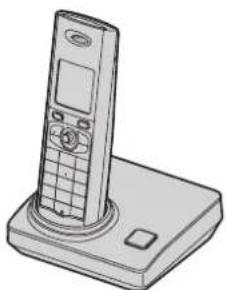
KX-TG8200
SIMS
This unit is compatible with Caller ID and SMS. To use these features, you must subscribe to the appropriate service of your service provider/telephone company.
Charge the batteries for about 7 hours before initial use.
Please read these operating instructions before using the unit and save them for future reference.






Table of Contents
Preparation
Introduction 3
Accessory information.....4
Important information 5
Controls....7
Displays....8
Connections 10
Battery installation and replacement. 11
Battery charge....11
Screen saver mode 12
Turning the power on/off ..... 13
Setting up the unit before use ..... 13
Making/Answering Calls
Making calls....14
Answering calls 15
Useful features during a call ..... 15
Phonebook
Handset phonebook 17
Handset Settings
Handset settings 20
Special instructions for time settings . 22
Special instructions for ringer setup . 22
Base Unit Settings
Base unit settings 24
Special instructions for call options .. 25
→ Caller ID Service
Using Caller ID service ..... 26
Caller list 27
Voice mail service 28
SMS (Short Message Service)
Using SMS 29
Turning SMS on/off 29
Changing SMS message centre numbers
29
Registering mailboxes...30
Sending a message...30
Receiving a message 31
Other settings 32
Answering System Features
Answering system 34
Turning the answering system on/off 34
Greeting message 34
Listening to messages 35
Direct command operation using the handset 36
Remote operation...36
handset. 36
Remote operation.... 36
Answering system settings ..... 38
Multi-unit Operation
Operating additional units. 40
Registering a handset to a base unit 40
Intercom between handsets ..... 42
Transferring calls between handsets,
conference calls 42
Copying phonebook entries ..... 43
Useful Information
Character entry. 44
Error messages 47
Troubleshooting 48
Specifications 53
Conditions of guarantee 54
Index
Index. 55
Preparation
Introduction
Thank you for purchasing a new Panasonic digital cordless phone.
For your future reference
Attach or keep original receipt to assist with any repair under warranty.
| Serial No. (found on the bottom of the base unit) |
| Date of purchase |
| Name and address of dealer |
Note:
- This equipment is designed for use on the UK and Republic of Ireland analogue telephone network.
- In the event of problems, you should contact your equipment supplier in the first instance.
Declaration of Conformity:
- Panasonic Communications Co., Ltd. declares that this equipment is in compliance with the essential requirements and other relevant provisions of Radio & Telecommunications Terminal Equipment (R&TTE) Directive 1999/5/EC. Declarations of Conformity for the relevant Panasonic products described in this manual are available for download by visiting: http://www.doc.panasonic.de
Contact:
Panasonic Services Europe, a Division of Panasonic Marketing Europe GmbH Panasonic Testing Centre, Winsbergring 15, 22525 Hamburg, Germany

Your phone
KX-TG8200/KX-TG8220 KX-TG8202/KX-TG8222
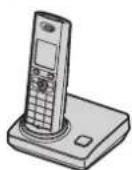
*The pictured model is KX-TG8200.
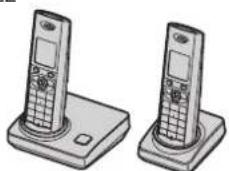
*The pictured model is KX-TG8202.







Preparation
Accessory information
Supplied accessories
| No. | Accessory items Quantity | ||
| KX-TG8200KX-TG8220 | KX-TG8202KX-TG8222 | ||
| 1 | AC adaptor for base unitPart No. PQLV207EZ or PQLV207EY(PQLV207E) | 1 | 1 |
| 2 | Telephone line cordPart No. PQJA87S (for UK) | 1 | 1 |
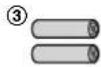
| 3 | Rechargeable batteries AAA (R03) sizePart No. HHR-55AAAB | 2 | 4 |
| 4 | Handset cover *1 Part No. PQYNTG8200E 1 | 2 | |
| 5 | Charger Part No. PQLV30056Z — 1 | ||
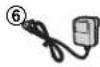
| 6 | AC adaptor for chargerPart No. PQLV209EZ (PQLV209E) | — | 1 |
*1 The handset cover comes attached to the handset.




Additional/replacement accessories
Please contact your nearest Panasonic dealer for sales information.
| No. Model No. Description | |
| 1P03P *1 | 2 rechargeable nickel metal hydride (Ni-MH) batteries, AAA (R03) size |
| 2KX-TGA820E Additional Digital Cordless Handset | |
| 3KX-TCA828EX Belt Clip | |
| 4KX-TCA94EX Headset | |
| 5KX-A272 DECT repeater | |
*1 Replacement batteries may have a different capacity from that of the supplied batteries.
③
④


4
Helpline Tel. No.: U.K. 0844 844 3898 R.O.I. 01289 8333




Preparation
Important information
General
- Use only the AC adaptor supplied with this product, noted on page 4.
- Do not connect the AC adaptor to any AC outlet other than a standard 220–240 V AC outlet.
- This product is unable to make calls when:
- the portable handset battery(ies) need recharging or have failed.
- there is a power failure.
- the key lock feature is turned on.
- Do not open the base unit, charger, or handset other than to replace the battery(ies).
- This product should not be used near emergency/intensive care medical equipment and should not be used by people with pacemakers.
- Care should be taken that objects do not fall onto, and liquids are not spilled into, the product. Do not subject this product to excessive smoke, dust, mechanical vibration or shock.
Environment
- Do not use this product near water.
- This product should be kept away from heat sources such as radiators, cookers, etc. It should also not be placed in rooms where the temperature is less than 5 °C or greater than 40 °C.
Warning:
- To prevent the risk of electrical shock, do not expose this product to rain or any other type of moisture. ● Unplug this product from power outlets if it emits smoke, an abnormal smell, or makes unusual noise. These conditions can cause fire or electric
shock. Confirm that smoke has stopped emitting and contact an authorized service center.
- Do not spill liquids (detergents, cleansers, etc.) onto the telephone line cord plug, or allow it to become wet at all. This may cause a fire. If the telephone line cord plug becomes wet, immediately pull it from the telephone wall jack, and do not use.
- Do not place or use this product near automatically controlled devices such as automatic doors and fire alarms. Radio waves emitted from this product may cause such devices to malfunction resulting in an accident.
- Regularly remove any dust, etc. from the AC adaptor/power plug by pulling it from the power outlet, then wiping with a dry cloth. Accumulated dust may cause an insulation defect from moisture, etc. resulting in a fire.
- Do not damage the power cord/plug. This may cause a short circuit, electric shock, and/or fire.
- Do not touch the plug with wet hands.
- The AC adaptor is used as the main disconnect device. Ensure that the AC outlet is installed near the product and is easily accessible.
Battery caution
- We recommend using the battery(ies) noted on page 4. Use only rechargeable battery(ies).
- Do not mix old and new batteries.
- Do not dispose of the battery(ies) in a fire, as they may explode. Check with local waste management codes for special disposal instructions.
- Do not open or mutilate the battery(ies). Released electrolyte from the battery(ies) is corrosive and may cause burns or injury to the eyes








Preparation
or skin. The electrolyte may be toxic if swallowed.
- Exercise care when handling the battery(ies). Do not allow conductive materials such as rings, bracelets or keys to touch the battery(ies), otherwise a short circuit may cause the battery(ies) and/or the conductive material to overheat and cause burns.
- Charge the battery(ies) provided with or identified for use with this product only in accordance with the instructions and limitations specified in this manual.
- Only use a compatible base unit (or charger) to charge the battery(ies). Do not tamper with the base unit (or charger). Failure to follow these instructions may cause the battery(ies) to swell or explode.
Notice for product disposal, transfer, or return
- This product can store your private/confidential information. To protect your privacy/confidentiality, we recommend that you erase the information such as phonebook or caller list entries from the memory before you dispose, transfer or return the product.
Information on Disposal for Users of Waste Electrical & Electronic Equipment (private households)

This symbol on the products and/or accompanying documents means that used electrical and electronic products should not be mixed with general household waste. For proper treatment, recovery and recycling, please take
these products to designated collection points, where they will be accepted on a free of charge basis. Alternatively, in some countries you may be able to return your products to your local retailer upon the purchase of an equivalent new product.
Disposing of this product correctly will help to save valuable resources and prevent any potential negative effects on human health and the environment which could otherwise arise from inappropriate waste handling. Please contact your local authority for further details of your nearest designated collection point.
Penalties may be applicable for incorrect disposal of this waste, in accordance with national legislation.
For business users in the European Union
If you wish to discard electrical and electronic equipment, please contact your dealer or supplier for further information.
Information on Disposal in other Countries outside the European Union
This symbol is only valid in the European Union.
If you wish to discard this product, please contact your local authorities or dealer and ask for the correct method of disposal.
Routine care
- To clean the product, use a dry soft cloth. The outer surface of the product can be scratched by wiping or rubbing with a hard cloth.
- Do not use benzine, thinner, or any abrasive powder.
Preparation
Controls
Base unit (KX-TG8200/KX-TG8202)
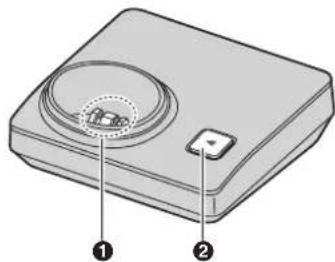
①Charge contacts
②[••] (Page)
Base unit (KX-TG8220/KX-TG8222)
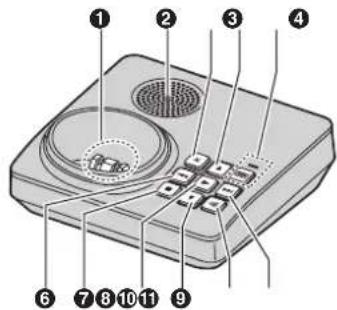
①Charge contacts
②Speaker
③【×】(Erase)
④[▲] (Volume: up)
⑤[oo] (Answer on)/ Answer on indicator
6【1】(Repeat)
⑦[■] (Stop)
⑧[▶] (Play)/Message indicator
⑨[▼] (Volume: down)
⑩[••] (Page)
⑪[▶] (Skip)
Handset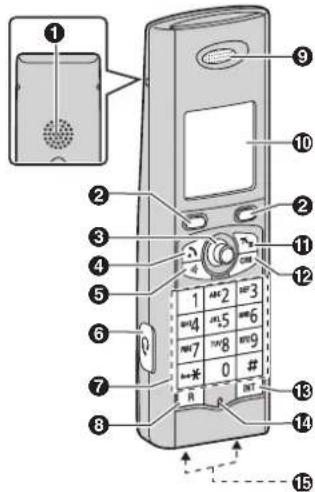
①Speaker
②Soft keys
③Joystick
④[\~] (Talk)
⑤【◀】(Speakerphone)
⑥Headset jack
⑦Dial keypad
⑧[R] (Recall)
⑨Receiver
⑩Display
⑪[×①] (Off/Power)
⑫ [C/∅] (Clear/Mute)
⑬[INT] (Intercom)
⑭Microphone
⑮Charge contacts
Preparation
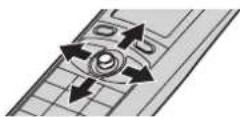
Using the joystick
Push the joystick up, down, left, or right to navigate through menus and to select.
Note:
- When selecting menu or the desired item, these operating instructions use the following indication.
Example: [▲]/[▼]: "Off"
Push the joystick up or down to select the words in quotations.
Adjusting the receiver or speaker volume
Push the joystick up or down while on a call.
Volume down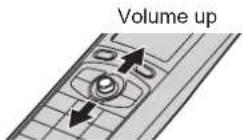
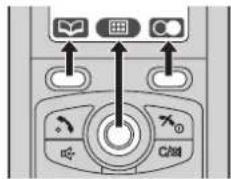
Soft keys
The handset features 2 soft keys and a joystick. By pressing a soft key, or by pressing the centre of the joystick, you can select the feature shown directly above it on the display.
Displays
Display icons
| Icon Meaning | |
| Within range of a base unitWhen flashing:Handset is searching for base unit. (page 48) | |
| Handset is accessing base unit. (intercom, paging, changing base unit settings, etc.) | |
| Handset is on an outside call. | |
| Missed call*1(page 26) | |
| When displayed next to the battery icon:Answering system is on.*2(page 34)When displayed with a number: New messages have been recorded.*2(page 35) | |
| Answering system is full.*2 | |
| Answering system answers calls with a greeting message and caller messages are not recorded.*2(page 38) | |
| Battery level | |
| Alarm is on. (page 22) | |
| Voice enhancer is set. (page 15) | |
| Call privacy mode is on. (page 16) | |
| Ringer volume is off. (page 20) |








Preparation
| Icon Meaning | |
| Night mode is on.(page 22) | |
| [1] Handset number(standby display setting, page 20) | |
| -1- Base unit number(standby display setting, page 20) | |
| New SMS message received3(page 31) | |
| Your written SMSmessage is over 160 characters.*3(page 30) | |
| SMS memory is full.*3 | |
| IN USE | •Line is being used by another handset for calling, registration, etc.•Answering system is being used by another handset or the base unit.*2 |
*1 Caller ID subscribers only *2 KX-TG8220/KX-TG8222 *3 SMS users only
Menu icons
When in standby mode, pressing down on the centre of the joystick reveals the handset's main menu. From here you can access various features and settings.
| Icon Feature | ||
| Caller List | ||
| SMS (Short Message Service) | ||
| Time Settings*1 | ||
| Icon Feature | ||
| Answer System 2 | ||
| Handset Setup | ||
| Base Unit Setup | ||
| Display Setup | ||
*1 KX-TG8200/KX-TG8202 *2 KX-TG8220/KX-TG8222
Soft key icons
| Icon Action |
 |
 |
 |
 |
 |
 |
 |
 |
 |
 |
 |
 |
 |
*1 KX-TG8220/KX-TG8222
Preparation
Connections
Connect the telephone line cord until it clicks into the base unit and telephone line jack (1). Connect the AC adaptor cord (2) by pressing the plug firmly (3).
Base unit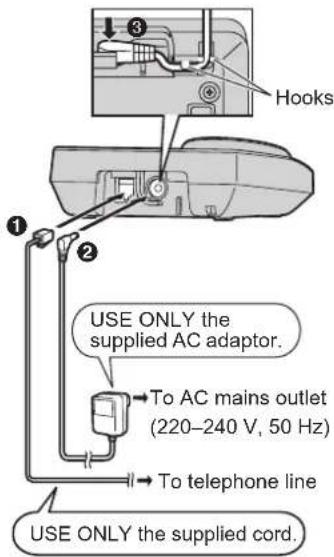
Important:
- If you use a telephone line cord which is not supplied, the unit may not work properly.
Charger (KX-TG8202/KX-TG8222)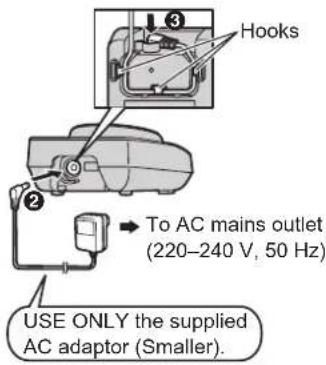
Note:
- Never install telephone wiring during a lightning storm.
- The AC adaptor must remain connected at all times. (It is normal for the adaptor to feel warm during use.) ●The AC adaptor should be connected to a vertically oriented or floor-mounted AC outlet. Do not connect the AC adaptor to a ceiling-mounted AC outlet, as the weight of the adaptor may cause it to become disconnected.
- The unit will not work during a power failure. We therefore recommend you also connect a corded-type telephone (without AC adaptor) to the same telephone line using a T-adaptor. Your Panasonic sales shop can offer you more information about connection possibilities.
Location
- For maximum distance and noise-free operation, place your base unit:
- away from electrical appliances such as TVs, radios, personal computers, or other phones.
Preparation
- in a convenient, high, and central location.
Battery installation and replacement
Important:
- Use only the supplied rechargeable batteries noted on page 4, 5.
- USE ONLY rechargeable Ni-MH batteries AAA (R03) size.
- Do NOT use Alkaline/Manganese/Ni-Cd batteries.
- Ensure correct polarities (⊕, ⊖) when installing the batteries.
- Wipe the battery ends (⊕, ⊖) with a dry cloth.
- When installing the batteries, avoid touching the battery ends (⊕, ⊖) or the unit contacts.
- When replacing batteries, we recommend using the Panasonic rechargeable batteries noted on page 4, 5. 1 Press the notch on the handset cover firmly and slide it in the direction of the arrow.
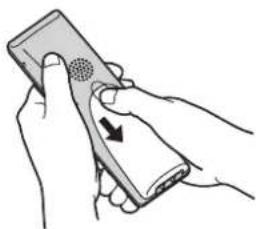
2 Insert the batteries negative (⊖) end first. Close the handset cover.
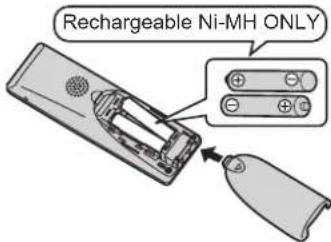
Note:
- When replacing batteries, remove the old batteries.
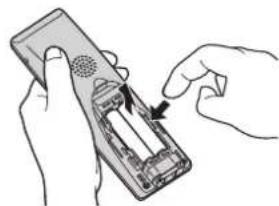
Battery charge
Place the handset on the base unit or charger for about 7 hours before initial use.
When charging, "Charging" will be displayed.
When the batteries are fully charged, "Charge Completed" will be displayed.







Preparation
Base unit⁴
Charger 2
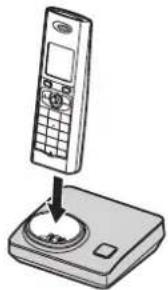
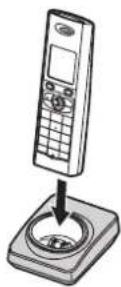
*1 The pictured model is KX-TG8200.
*2 KX-TG8202/KX-TG8222
Note:
- It is normal for the handset to feel warm during charging.
- If you want to use the unit immediately, charge the batteries for at least 15 minutes.
- Clean the charge contacts of the handset, base unit, and charger with a soft, dry cloth once a month. Clean more often if the unit is subject to the exposure of grease, dust, or high humidity.
Battery level
| Battery icon Battery level | |
Panasonic Ni-MH battery performance (supplied batteries)
| Operation Operating time | |
| In continuous use 12 | hours max. |
| In continuous standby mode | 150 hours max. |
Note:
- It is normal for batteries not to reach full capacity at the initial charge. Maximum battery performance is reached after a few complete cycles of charge/discharge (use).
- Actual battery performance depends on a combination of how often the handset is in use and how often it is not in use (standby).
- Even after the handset is fully charged, the handset can be left on the base unit or charger without any ill effect on the batteries. ●The battery level may not be displayed correctly after you replace the batteries. In this case, place the handset on the base unit or charger and let it charge for at least 7 hours.
Screen saver mode
The backlight will turn off completely after 1 minute of inactivity if the handset is not on the base unit or charger. Press [✗①] to turn the display on again.








Preparation
Turning the power on/off
Power on
Press [✗①] for about 1 second.
Power off
Press [✗①] for about 2 seconds.
Setting up the unit before use
Display language
1 [×①] → 2 Select by pushing the joystick in any direction. → OK 3 Push the joystick up or down to select "Display Setup". → OK 4 Push the joystick up or down to select "Select Language". → OK 5 Push the joystick up or down to select the desired language. → OK → [✗①]
Note:
- If you select a language you cannot read: [✗] → 📄 → 🔍 → OK → Push the joystick down 2 times. → OK → Push the joystick down 3 times. → OK → [▲]/[▼]: Select the desired language. → OK → [×①]
Date and time
1 (centre of joystick) 2 Select ☐ by pushing the joystick in any direction. → OK
3 Push the joystick up or down to select "Time Settings". → OK
4 Push the joystick up or down to select "Set Date & Time". → OK
5 Enter the current date, month, and year. Example: 17 May, 2007 [1][7] [0][5] [0][7]
6 Enter the current hour and minute. Example: 3:30 PM [0][3][3][0] → Press [✗] until "03:30 PM" is displayed.
7 OK → [✗①]
Note:
- To correct a digit, use the joystick to move the cursor to the digit, then make the correction.
- The date and time may be incorrect after a power failure. In this case, set the date and time again.
Making/Answering Calls
Making calls
1 Lift the handset and dial the phone number.
- To correct a digit, press [C/⊗].
2 [\~]
3 When finished talking, press [✗①] or place the handset on the base unit or charger.
Speakerphone
1 During a conversation, press [◀] to turn on the speakerphone.
●Speak alternately with the caller.
2 When finished talking, press [✗①].
Note:
- For best performance, use the speakerphone in a quiet environment.
- To switch back to the receiver, press [\~].
Adjusting the receiver or speaker volume
Push the joystick up or down while on a call.
Making a call using the redial list
The last 10 phone numbers dialled are stored in the redial list (each 24 digits max.).
1 (right soft key)
2 [▲]/[▼]: Select the desired number.
3 [\~] / [◀]
- If [✗] is pressed and the other party's line is engaged, the unit will automatically redial multiple times. To cancel, press [✗①].
Editing/erasing/storing
1 (right soft key)
2 [▲]/[▼]: Select the desired number. →
3 Proceed with the desired operation.
■ Editing a number before calling it: [▲]/[▼]: "Edit and Call" → OK → Use the joystick to move the cursor. → Edit the number. → [\~]
■ Erasing numbers:
[▲]/[▼]: "Erase" or "Erase All" → OK → [▲]/[▼]: "Yes" → OK → [×①]
■ Storing a number into the handset phonebook:
[▲]/[▼]: "Add Phonebook" → OK → Enter a name (16 characters max.; page 44). → OK → Edit the phone number if necessary. → OK →
[▲]/[▼]: Select the desired category (page 17). → OK → [▲]/[▼]: "Save" → OK → [★○]
Note:
- When editing:
- To erase a number, place the cursor on the number, then press [C/☑]. - To insert a number, place the cursor to the right of where you want to insert the number, then press the appropriate dial key.
Pause (for PBX/long distance service users)
A pause is sometimes required when making calls using a PBX or long distance service.
Example: If you have to dial [0] before dialling outside numbers manually, you









Making/Answering Calls
will probably need to pause after dialling [0] until you hear a dial tone.
1 [0] → P
2 Dial the phone number. → [↘]
Note:
● A 3 second pause is inserted each time P is pressed. Repeat as needed to create longer pauses.
Answering calls
1 Lift the handset and press [→] or [←] when the unit rings.
- You can also answer the call by pressing any dial key from [0] to [9], [★], or [#]. (Any key answer feature)
2 When finished talking, press [✗①] or place the handset on the base unit or charger.
Auto talk feature
You can answer calls simply by lifting the handset off the base unit or charger. You do not need to press [\~]. To turn this feature on, see page 21.
Adjusting the handset ringer volume when receiving a call
Push the joystick up or down.
Handset locator
Using this feature, you can locate the handset if it has been misplaced.
1 Press [•••] on the base unit.
2 To stop paging, press [•••] on the base unit or press [✗①] on the handset.
Useful features during a call
Mute
While mute is turned on, you will be able to hear the other party, but the other party will not be able to hear you. To mute your voice, press [C/☑].
- To return to the conversation, press [C/×] again.
R button
Pressing [R] allows you to use special features of your host PBX such as transferring an extension call, or accessing optional telephone services.
Note:
- To change the recall time, see page 24.
For Call Waiting service users
To use Call Waiting, you must subscribe to the Call Waiting service of your service provider/telephone company. This feature allows you to receive calls while you are already talking on the phone. If you receive a call while on the phone, you will hear a Call Waiting tone. Please contact your service provider/telephone company for details and availability of this service in your area.
Press [R] to answer the 2nd call.
• To switch between calls, press [R].
Voice enhancer
You can change the tone quality of the receiver while you are on a call.
1 Press ☐ during a call.
2 [▲]/[▼]: "Voice Enhancer" → OK
Making/Answering Calls
3 [▲]/[▼]: "High Tone" or "Low Tone" → OK
is displayed.
Key lock
The handset can be locked so that no calls or settings can be made. Incoming calls can be answered, but all other functions are disabled while key lock is on.
To turn key lock on, press ☐ (centre of joystick) for about 3 seconds.
- is displayed.
- To turn key lock off, press 📄 (centre of joystick) for about 3 seconds.
Note:
- Calls to emergency numbers cannot be made until key lock is turned off.
Recording a telephone conversation (KX-TG8220/KX-TG8222)
Important:
●Before recording a conversation, you should inform the other party that the conversation will be recorded.
1 Press ☐ during an outside call.
●A beep is heard and recording starts. ● A beep sounds every 15 seconds and can be heard by the other party.
3 To stop recording, press □.
Note:
- To listen to the recorded conversation, see page 35.
Call share
A 2nd handset can join an existing outside call.
To join the conversation, press [◀] or [◀] when the other handset is on an outside call.
Call privacy
Call privacy allows you to prevent other users from joining your conversations with outside callers. To allow other users to join your conversations, leave this feature off. The default setting is "Off".
1 Press ☐ during an outside call. 2 [▲]/[▼]: "Privacy" → OK 3 [▲]/[▼]: "On" or "Off" → OK
- When this feature is turned on, ≡ is displayed.
Note:
- This feature will turn off after you hang up the call.
Phonebook
Handset phonebook
The handset phonebook allows you to make calls without having to dial manually. You can add 200 names and phone numbers, assign each handset phonebook entry to the desired category.
Adding entries
1 (left soft key) → 2 [▲]/[▼]: "New Entry" → OK 3 Enter the party's name (16 characters max.; page 44). → OK 4 Enter the party's phone number (24 digits max.). → OK 5 [▲]/[▼]: Select the desired category. → OK 6 [▲]/[▼]: "Save" → OK → [×①]
Categories
Categories can help you find entries in the handset phonebook quickly and easily. When adding an entry to the handset phonebook you can assign it to the desired category. You can change the names of categories assigned for handset phonebook entries ("Friends", "Family", etc.) and then search for handset phonebook entries by category. Additional category features are available for Caller ID subscribers (page 26).
Changing category names
1 (left soft key) → 2 [▲]/[▼]: "Category" → OK 3 [▲]/[▼]: Select the desired category. → OK
4 [▲]/[▼]: "Category Name" → OK 5 Edit the name (10 characters max.; page 44). → OK → [✗①]
Finding and calling a handset phonebook entry
Scrolling through all entries
1 (left soft key) 2 [▲]/[▼]: Select the desired entry. 3 [\~]
Searching by first character (index search)
1 (left soft key) 2 Press the dial key ([0] to [9]) which contains the character you are searching for (page 44).
- Press the same dial key repeatedly to display the first entry corresponding to each letter located on that dial key.
- If there is no entry corresponding to the letter you selected, the next entry will be displayed. • To change the character entry mode:
Press [▲] or [▼] to select "Index Search", then press OK. Use [▲] or [▼] to select the character entry mode, then press OK.
3. Use [▲] or [▼] to scroll through the phonebook if necessary.
4. Press [~].
Searching by category
1. Press the left soft key. 2. Use [▲] or [▼] to select "Category Search", then press OK.
Phonebook
3. Use [▲] or [▼] to select the category you want to search, then press OK. - If you select "All", the unit will end the category search.
4. Use [▲] or [▼] to scroll through the phonebook if necessary.
5. Press [~].
Editing entries
1. Find the desired entry (page 17). 2. Use [▲] or [▼] to select "Edit", then press OK. 3. Edit the name if necessary (16 characters max.; page 44), then press OK. 4. Edit the phone number if necessary (24 digits max.), then press OK. 5. Use [▲] or [▼] to select the desired category, then press OK. 6. Use [▲] or [▼] to select "Save", then press OK. Press [×①].
Erasing entries
Erasing an entry
1. Find the desired entry (page 17). 2. Use [▲] or [▼] to select "Erase", then press OK. 3. Use [▲] or [▼] to select "Yes", then press OK. Press [×①].
Erasing all entries
1 (left soft key) → 2 [▲]/[▼]: "Erase All" → OK 3 [▲]/[▼]: "Yes" → OK 4 [▲]/[▼]: "Yes" → OK → [×①]
One touch dial
Assigning an entry in the handset phonebook to a one touch dial key Dial keys [1] to [9] can each be used as a one touch dial key, allowing you to dial a number from the handset phonebook by simply pressing a dial key.
1 Find the desired entry (page 17). → 2 [▲]/[▼]: "One Touch Dial" → OK 3 [▲]/[▼]: Select the desired dial key number. → OK - When the dial key is already used as a one touch dial key, “*” is displayed next to the dial key number. If you select this dial key, you can overwrite the previous assignment.
4 [▲]/[▼]: "Save" → OK → [×①]
Making a call using a one touch dial key
1 Press and hold the desired one touch dial key ([1] to [9]). - You can view other one touch dial assignments by pushing the joystick up or down.
2 [\~]
Cancelling a one touch dial assignment
1 Press and hold the desired one touch dial key ([1] to [9]). → 2 [▲]/[▼]: "Erase" → OK 3 [▲]/[▼]: "Yes" → OK → [×①]
Handset Settings
Handset settings
To customise the handset:
1 (centre of joystick)
2 Select ☐ by pushing the joystick in any direction. → OK
3 Push the joystick up or down to select the desired item in the handset settings menu. → OK
4 Push the joystick up or down to select the desired item in the sub-menu. → OK
- In some cases, you may need to select from a second sub-menu. → OK
5 Push the joystick up or down to select the desired setting then press OK
- This step may vary depending on the feature being programmed.
- To exit the operation, press [✗①].
Note:
●The current item or setting is highlighted on the display.
| Menu Sub-menu Sub- | menu 2 | Details (default setting) |
| Time Settings Set | Date & Time page 13 | |
| Alarm page 22 | ||
| Ringer Setup Ringer | Volume For handset | (Maximum)*1 |
| Ext. Ringtone(External ringtone) | For outside calls("Ringtone 1")*2, *3 | |
| Night Mode Start/End | (23:00/06:00): page 22 | |
| On/Off("Off"): page 22 | ||
| Ring Delay("60 sec."): page 23 | ||
| Select Categorypage 23 | ||
| Display Setup | Wallpaper | ("Wallpaper1") |
| Display Colour | ("Colour1") | |
| Standby Display | ("Off")*4 | |
| Select Language | ("English"): page 13 | |
| Contrast | ("Contrast 3") | |
| Registration Register | H.set(Register handset) | page 40 |
| Select Base | — | ("Auto"): page 41 |

Handset Settings
| Menu Sub-menu Sub-menu 2 | Details (default setting) | |
| Other Options | Keytones | ("On") |
| Auto Talk | ("Off"): page 15 | |
*1 When the ringer volume is turned off, is displayed and the handset does not ring for outside calls.
However even when the ringer volume is turned off, the handset rings:
- at the minimum level for alarm and intercom calls
– at the maximum level for paging
*2 If you select one of the melody ringtones, the ringtone will continue to sound for several seconds if the caller hangs up before you answer. You may hear a dial tone or no one on the line when you answer a call. *3 The preset melodies in this product are used with permission of © 2006 Copyrights Vision Inc. *4 "Off": Displays the current date and time only. "Handset Number": Displays the handset number such as "[1]". "Base Number": Displays the base unit number such as "-1-".



Handset Settings
Special instructions for time settings
Alarm
An alarm will sound for 3 minutes at the set time once or daily. Set the date and time beforehand (page 13).
1 (centre of joystick) → OK → 2 [▲]/[▼]: "Time Settings" → OK 3 [▲]/[▼]: "Alarm" → OK 2 times 4 [▲]/[▼]: Select an alarm mode. → OK
| Off Turns alarm off. PressOK again, then press【×1】to finish. |
| Once The alarm sounds once at the set time. Enter the desired date and month. |
| Daily Ah alarm sounds daily at the set time. |
5 Enter the desired hour and minute. → OK
6 [▲]/[▼]: Select the desired ringtone. → OK
7 [▲]/[▼]: "Save" → OK → [×①]
- When the alarm is set, ⏱ is displayed.
Note:
- To stop the alarm, press any dial key.
- When in talk or intercom mode, the alarm will not sound until the call has ended.
- If you select "Once", the setting will change to "Off" after the alarm sounds.
Special instructions for ringer setup
Night mode
Night mode allows you to select a block of time during which the handset will not ring for outside calls. This feature is useful for times when you do not want to be disturbed, for example, while sleeping.
Using the handset phonebook's category feature (page 17), you can also select categories of callers whose calls will override night mode and ring the handset (Caller ID subscribers only). Set the date and time beforehand (page 13).
Note:
- We recommend turning the base unit ringer off (page 24) in addition to turning the night mode feature on (KX-TG8220/KX-TG8222).
Setting the start and end time
1 (centre of joystick) → 📁 → OK 2 [▲]/[▼]: "Ringer Setup" → OK 3 [▲]/[▼]: "Night Mode" → OK 4 [▲]/[▼]: "Start/End" → OK 5 Enter the desired hour and minute you wish to start this feature. 6 Enter the desired hour and minute you wish to end this feature. 7 OK → [✗①]
Turning night mode on/off
1 (centre of joystick) → 📞 → OK 2 [▲]/[▼]: "Ringer Setup" → OK 3 [▲]/[▼]: "Night Mode" → OK







Handset Settings
4 [▲]/[▼]: "On/Off" → OK
5 [▲]/[▼]: "On" or "Off" → OK → [✗①]
- When the night mode is set, 🔊 is displayed.
Setting the ring delay
This setting allows the handset to ring during night mode if the caller waits long enough. After the selected amount of time passes, the handset will ring. If you select "No Ringing", the handset will not ring during night mode.
1 (centre of joystick) → F → OK 2 [▲]/[▼]: "Ringer Setup" → OK 3 [▲]/[▼]: "Night Mode" → OK 4 [▲]/[▼]: "Ring Delay" → OK 5 [▲]/[▼]: Select the desired setting. → OK → [✗①]
Note:
- When the answering system answers the call, this feature does not work (KX-TG8220/KX-TG8222).
Selecting categories to bypass night mode
1 (centre of joystick) → ⚙ → OK 2 [▲]/[▼]: "Ringer Setup" → OK 3 [▲]/[▼]: "Night Mode" → OK 4 [▲]/[▼]: "Select Category" → OK 5 Press the desired category numbers. → OK
● The selected category number will flash. - To cancel a selected category number, press the number again. The number will stop flashing.
6 [×①]

Base Unit Settings
Base unit settings
To customise the base unit using the handset:
1 (centre of joystick)
2 Select 📄 by pushing the joystick in any direction. → OK
3 Push the joystick up or down to select the desired item in the base unit settings menu. → OK
4 Push the joystick up or down to select the desired item in the sub-menu. → OK
5 Push the joystick up or down to select the desired setting then press OK
- This step may vary depending on the feature being programmed.
- To exit the operation, press [✗①].
Note:
●The current item or setting is highlighted on the display.
| Menu Sub-menu Details (default setting) | ||
| Ringer Volume*1 | — For base | unit (Medium) |
| Call Options | Recall/Flash | Recall time (“100 msec.”)*2 |
| Call Restrict page 25 | ||
| Other Options | Base Unit PIN | Change base unit PIN (“0000”).*3– Enter the current 4-digit base unit PIN.*4– Enter the new 4-digit base unit PIN. → OK → [✗0] |
| Repeater Mode | (“Off”): page 42 | |
*1 KX-TG8220/KX-TG8222 *2 Change the recall time, if necessary, depending on the requirements of your service provider/telephone company or PBX. *3 If you change the PIN, please make note of your new PIN. The unit will not reveal the PIN to you. *4 If you forget your PIN, see page 50.










Base Unit Settings
Special instructions for call options
Setting call restriction
You can restrict selected handsets from dialling certain numbers. You can assign up to 6 phone numbers to be restricted, and select which handsets will be restricted. Storing area codes here will prevent the restricted handsets from dialling any phone number in that area code.
1 (centre of joystick) → OK →
2 [▲]/[▼]: "Call Options" → OK
3 [▲]/[▼]: "Call Restrict" → OK
4 Enter the base unit PIN (default: "0000").
- If you forget your PIN, see page 50.
5 Set which handsets will be restricted by pressing the desired handset number.
- All the registered handset numbers will be displayed.
- Flashing numbers indicate call restriction is turned on for the corresponding handset.
- To turn call restriction off for a handset, press the number again. The number will stop flashing.
6 OK
7 [▲]/[▼]: Select a memory location. → OK
8 Enter the phone number or area code to be restricted (8 digits max.). → OK → [✗①]
- To erase a restricted number, press [C/☑].









Caller ID Service
Using Caller ID service
Important:
- This unit is Caller ID compatible. To use Caller ID features (such as displaying caller phone numbers), you must subscribe to Caller ID service. Consult your service provider/telephone company for details.
Caller ID features
When an outside call is received, the caller's phone number will be displayed.
- Phone numbers of the last 50 callers will be logged in the caller list. ●While listening to a message recorded by the answering system using the handset, you can call back the caller without having to dial the phone number (KX-TG8220/KX-TG8222; page 36).
- When caller information is received and it matches a phone number stored in the unit's phonebook:
- The stored name will be displayed and logged in the caller list.
- The handset will use the display colour and ringtone assigned to the caller's category.
- If the unit is connected to a PBX system, you may not receive the caller information.
- When the caller dialled from an area which does not provide Caller ID service, "Out of Area" will be displayed.
- When the caller requested not to send caller information, either no information or "Private Caller" will be displayed.
Missed calls
If a call is not answered, the unit treats the call as a missed call. ➤ and the number of missed calls are shown on the display. This lets you know if you should view the caller list to see who called while you were out.
Call Waiting Caller ID display
If you subscribe to both Caller ID and Call Waiting with Caller ID services, the 2nd caller's information is displayed after you hear a Call Waiting tone. Press [R] to answer the 2nd call.
- To switch between calls, press [R]. Note:
- Please contact your service provider/telephone company for details and availability of this service in your area.
Category features for handset phonebook
Categories can help you identify who is calling by using different ringtones and display colours for different categories of callers. When adding an entry to the handset phonebook you can assign it to the desired category (page 17). When a call is received from a caller assigned to a category, the category's display colour and ringtone you selected are used.
Changing category ringtones
If you select "Ext. Ringtone", the unit will use the external ringtone you set on page 20 when calls from this category are received. The default setting is "Ext. Ringtone".
1 (left soft key) → 2 [▲]/[▼]: "Category" → OK 3 [▲]/[▼]: Select a category. → OK







Caller ID Service
4 [▲]/[▼]: Select the current setting of the category ringtone. → OK
5 [▲]/[▼]: Select the desired ringtone. → OK → [✗①]
Changing category display colours If you select "Display Colour", the unit will use the display colour you set on page 20 when calls from this category are received. The default setting is "Display Colour".
1 (left soft key) → 2 [▲]/[▼]: "Category" → OK 3 [▲]/[▼]: Select a category. → OK 4 [▲]/[▼]: Select the current setting of the category colour. → OK 5 [▲]/[▼]: Select the desired colour. → OK → [✗①]
Caller list
Viewing the caller list and calling back
1 (centre of joystick) → → OK
2 Push the joystick down to search from the most recent call, or push the joystick up to search from the oldest call.
- If the item has already been viewed or answered, “√” is displayed, even if it was viewed or answered using another handset.
- To erase the item, press ✗. → [▲]/[▼]: "Yes" → OK
3 [\~]
Editing a caller's phone number before calling back
1 (centre of joystick) → OK → 2 [▲]/[▼]: Select the desired entry. → 3 [▲]/[▼]: "Edit and Call" → OK
4 Edit the number.
- Press dial key ([0] to [9]) to add, [C/⊗] to delete.
5 [\~]
Erasing caller information
1 (centre of joystick) → → OK 2 [▲]/[▼]: Select the desired entry. → 3 [▲]/[▼]: "Erase" or "Erase All" → OK 4 [▲]/[▼]: "Yes" → OK → [×①]
Storing caller information into the handset phonebook
1 (centre of joystick) → → OK 2 [▲]/[▼]: Select the desired entry. → 3 [▲]/[▼]: "Add Phonebook" → OK 4 Continue from step 3, "Adding entries", page 17.
Caller ID Service
Voice mail service
Voice mail is an automatic answering service offered by your service provider/telephone company. If you subscribe to this service, your service provider/telephone company's voice mail system will answer calls for you when you are unavailable to answer the phone or when your line is busy. Messages are recorded by your service provider/telephone company, not your telephone. Please consult your service provider/telephone company for details of this service.
Note:
- To use the voice mail service provided by your service provider/telephone company rather than the unit's answering system, turn off the answering system (page 34). For details, see page 38 (KX-TG8220/KX-TG8222).
☑ SMS (Short Message Service)
Using SMS
SMS allows you to send and receive text messages between other fixed-line and mobile phones that support compatible SMS networks and features.
Important:
To use SMS features, you must: – subscribe to Caller ID and/or appropriate service - confirm SMS is turned on – confirm the correct message centre numbers are stored. Consult your service provider/telephone company for details and availability.
Using the public mailbox and private mailboxes
SMS messages can be sent and received using the public mailbox or any one of the 6 private mailboxes. The public mailbox can be accessed freely. Private mailboxes are password protected to ensure privacy.
Important:
To use the public mailbox, you must: - register the public mailbox with BT Text (page 30) - To send or receive a message using a private mailbox, you must: - first create the private mailbox by storing its name and password (page 32) - register each private mailbox with BT Text (page 30)
Note:
A total of 47 messages (at 160 characters/message) in all mailboxes added together can be saved. Total number may be more than 47 if length of messages is less than 160 characters/message.
If the unit is connected to a PBX system, you may not be able to use SMS features.
Turning SMS on/off
The default setting is "On".
1 (centre of joystick) → ☑ → OK 2 [▲]/[▼]: "Public" → OK 3 [▲]/[▼]: "Settings" → OK 4 [▲]/[▼]: "SMS On/Off" → OK 5 [▲]/[▼]: "On" or "Off" → OK → [×①]
Changing SMS message centre numbers
SMS message centre telephone numbers must be stored in order to send and receive SMS messages.
The message centre numbers (used for SMS services provided by BT Text) are pre-programmed in this unit. You can change them if necessary. Consult your service provider/telephone company for more information.
1 (centre of joystick) → ↙ → OK
2 [▲]/[▼]: "Public" → OK
3 [▲]/[▼]: "Settings" → OK
4 [▲]/[▼]: "Message Centre1" or "Message Centre2" → OK
5 Edit the number as necessary. → OK
6 [▲]/[▼]: "Save" → OK → [✗①]








☑ SMS (Short Message Service)
Note:
- For PBX users:
- You need to add the PBX line access number and a dialling pause to the beginning of the Message Centre 1 phone number.
- If you only use the Message Centre 1 phone number for SMS, store the Message Centre 1 phone number as is (without adding a line access number or dialling pause) to Message Centre 2.
Registering mailboxes
Each SMS mailbox you wish to use must be registered with BT Text. There are two ways you can register a mailbox:
- Send an SMS message to another person.
- Send the text message 'REGISTER' to destination number 00000.
Sending a message
Writing and sending a new message
1 (centre of joystick) → 📎 → OK
2 Proceed with the desired operation.
■To access the public mailbox [▲]/[▼]: "Public" → OK
■To access a private mailbox [▲]/[▼]: Select the desired mailbox. → OK → Enter its password.
3 [▲]/[▼]: "Create" → OK
- If "▲Use Last Text?" is displayed, you can use the text from the last message you
created by pushing the joystick up.
4 Enter the message (page 44). → OK
5 Enter the destination phone number (20 digits max.). → OK
■Using the redial list: Press 📄 repeatedly to select the phone number. → OK 2 times
■Using the caller list: [▲]/[▼]: Select the party. → OK 2 times
■Using the handset phonebook: → [▲]/[▼]: Select the handset phonebook entry. → OK 2 times
- If you wish to send the message to the other party's mailbox, enter the other party's mailbox number after the destination phone number.
Example: The other party's phone number is 123456 and their mailbox number is 1. Enter 1234561.
6 To save the message, select "Yes". → OK
7 To send the message, press OK. • To cancel sending, press [✗①].
Note:
- This unit supports SMS messages of up to 612 characters, however, the maximum number of characters you can send or receive may be limited by your SMS service provider/telephone company. Consult your SMS service provider/telephone company for details.
- If your message contains over 160 characters, the message is a long message and 📋 is displayed. Your service provider/telephone company








☑ SMS (Short Message Service)
may treat long messages differently from other messages. Consult your service provider/telephone company for details.
- If your phone is connected to a PBX, store the PBX line access number (page 33).
Sending a saved message
1 (centre of joystick) → ↙ → OK 2 Proceed with the desired operation. ■To access the public mailbox [▲]/[▼]: "Public" → OK ■To access a private mailbox [▲]/[▼]: Select the desired mailbox. → OK → Enter its password. 3 [▲]/[▼]: "Send List" → OK 4 To read a saved message, push the joystick up or down to select the message. → OK 5 To send the message, press 📄. → [▲]/[▼]: "Send" → OK 6 Press and hold [C/☒] to erase all numbers. 7 Continue from step 5, "Writing and sending a new message", page 30.
Editing and sending a saved message
1 (centre of joystick) → 📎 → OK 2 Proceed with the desired operation. ■To access the public mailbox [▲]/[▼]: "Public" → OK ■To access a private mailbox [▲]/[▼]: Select the desired mailbox. → OK → Enter its password. 3 [▲]/[▼]: "Send List" → OK
4 [▲]/[▼]: Select a message. → OK 5 → [▲]/[▼]: "Edit Message" → OK 6 Continue from step 4, "Writing and sending a new message", page 30.
Erasing saved messages
1 (centre of joystick) → 📎 → OK 2 Proceed with the desired operation.
■To access the public mailbox [▲]/[▼]: "Public" → OK
■To access a private mailbox [▲]/[▼]: Select the desired mailbox. → OK → Enter its password.
3 [▲]/[▼]: "Send List" → OK 4 [▲]/[▼]: Select a message. → OK 5 → [▲]/[▼]: "Erase" or "Erase All" → OK 6 [▲]/[▼]: "Yes" → OK → [×①]
Receiving a message
When an SMS message is received:
- "Receiving SMS Message" is displayed
- a tone is heard (if the handset ringer is turned on)
- ✉ is displayed with the total number of new (unread) SMS messages
Reading a received message
1 (centre of joystick) → ☑ → OK 2 Proceed with the desired operation.
■To access the public mailbox [▲]/[▼]: "Public" → OK









☑ SMS (Short Message Service)
■To access a private mailbox
[▲]/[▼]: Select the desired mailbox. → OK → Enter its password.
- If a mailbox contains new (unread) SMS messages, “*” is displayed next to the total number of messages for that mailbox.
3 [▲]/[▼]: "Receive List" → OK
4 [▲]/[▼]: Select a message.
- Messages which have already been read are indicated by a "√", even if they were read using another handset.
- To erase a message, press ✗ → [▲]/[▼]: "Yes" → OK
5 Press OK to read the message content.
Note:
- To call the message sender, press [→] or [←].
Replying to a message
1 While reading a received message, press 📄. 2 [▲]/[▼]: "Reply" → OK 3 Enter a message (page 44). → OK 4 Edit the destination phone number and/or press OK. 5 Continue from step 6, "Writing and sending a new message", page 30.
Editing/forwarding a message
1 While reading a received message, press 📄. 2 [▲]/[▼]: "Edit Message" → OK 3 Continue from step 4, "Writing and sending a new message", page 30.
Erasing received messages
1 While reading a received message, press 📄. 2 [▲]/[▼]: "Erase" or "Erase All" → OK 3 [▲]/[▼]: "Yes" → OK → [✗①]
Storing the sender's number in the handset phonebook
1 While reading a received message, press 📄. 2 [▲]/[▼]: "Add Phonebook" → OK 3 Continue from step 3, "Adding entries", page 17.
Editing the sender's number before calling back
1 While reading a received message, press 📄. 2 [▲]/[▼]: "Edit and Call" → OK 3 Edit the number. → [~]
Other settings
Creating private mailboxes
Private mailboxes can be used for sending and receiving SMS messages. Each private mailbox is password protected.
1 (centre of joystick) → ☑ → OK 2 [▲]/[▼]: "Public" → OK 3 [▲]/[▼]: "Settings" → OK 4 [▲]/[▼]: "Private Mailbox" → OK







☑ SMS (Short Message Service)
5 [▲]/[▼]: Select the desired new mailbox number ("Mailbox1" to "Mailbox6"). → OK 6 Enter a name for the mailbox (5 characters max.; page 44). → OK 7 Enter a 4-digit password for the mailbox. → OK 8 [▲]/[▼]: "Save" → OK → [×①]
Note:
- To receive SMS messages using a mailbox, inform others of your mailbox number.
- If you forget the password assigned to a mailbox, consult your nearest Panasonic service centre.
Changing private mailbox settings
You can change the password or name of the private mailbox and erase the mailbox.
1 (centre of joystick) → ↙ → OK 2 [▲]/[▼]: "Public" → OK 3 [▲]/[▼]: "Settings" → OK 4 [▲]/[▼]: "Private Mailbox" → OK 5 [▲]/[▼]: Select the desired mailbox name. → OK 2 times 6 Enter the mailbox's 4-digit password. 7 Edit the mailbox name (5 characters max.; page 44). → OK
- To erase the mailbox, press and hold [C/☑]. → OK → [▲]/[▼]: "Yes" → OK → [✗①]
8 Enter a 4-digit password for the mailbox. → OK
9 [▲]/[▼]: "Save" → OK → [×①]
Storing the PBX line access number (for PBX users only)
Store your PBX line access number (4 digits max.) so that SMS messages are sent properly. When sending SMS messages to entries in the handset phonebook or redial list, the PBX line access number will be deleted.
1 (centre of joystick) → ☑ → OK 2 [▲]/[▼]: "Public" → OK 3 [▲]/[▼]: "Settings" → OK 4 [▲]/[▼]: "PBX Access No." → OK 5 [▲]/[▼]: "On" → OK 6 Enter your PBX line access code and a dialling pause, if necessary. → OK 7 [▲]/[▼]: "Save" → OK → [×①]








Answering System Features
Answering system
Available for: KX-TG8220/KX-TG8222
The answering system can answer and record calls for you when you are unavailable to answer the phone. You can also record phone conversations (page 16).
Important:
- Only 1 person can access the answering system (listen to messages, record a greeting message, etc.) at a time.
- When callers leave messages, the unit records the date and time of each message. Make sure the date and time have been set (page 13).
Memory capacity
The total recording capacity (including your greeting message, caller messages, and recorded conversations) is about 40 minutes. A maximum of 64 messages can be recorded.
Note:
- If message memory becomes full:
- "Answer Sys. Full" is shown on the handset display
- The [▶] button on the base unit flashes rapidly
Turning the answering system on/off
Using the base unit
Press [0] to turn on/off the answering system.
- When the answering system is turned on, the answer on indicator lights up.
Using the handset
1 (centre of joystick) → OK → 2 [▲]/[▼]: "Answer On" or "Answer Off" → OK → [✗①]
Note:
- When the answering system is turned on, 📄 is displayed next to the battery icon.
Greeting message
When the unit answers a call, callers are greeted by a greeting message.
Recording a greeting message
You can record your own greeting message (2 minutes and 30 seconds max.).
1 (centre of joystick) → 📄 → OK
2 [▲]/[▼]: "Record Greeting" → OK
- Hold the handset about 20 cm away and speak clearly into the microphone.
3 Press □ to stop recording.
4 [×①]
Using a pre-recorded greeting message
If you erase or do not record your own greeting message, the unit plays a pre-recorded greeting message for callers and asks them to leave messages. If the message recording time (page 38) is set to "Greeting Only", caller messages will not be recorded and the unit will play







Answering System Features
a different pre-recorded greeting message asking callers to call again.
Playing back the greeting message
1 (centre of joystick) → OK →
2 [▲]/[▼]: "Play Greeting" → OK → [✗①]
Erasing the greeting message If you erase your own greeting message, the unit will play a pre-recorded greeting message for callers.
1 (centre of joystick) → OK →
2 [▲]/[▼]: "Erase Message" → OK
3 [▲]/[▼]: "Erase Greeting" → OK
4 [▲]/[▼]: "Yes" → OK → [×①]
If there are no new messages, the base unit plays back all messages.
Using the handset
1 (centre of joystick) → OK →
2 [▲]/[▼]: "Play New Msg." or "Play All Msg." → OK
Operations during playback
■To adjust the speaker volume:
- for the base unit, press [▲] or [▼] – for the handset, push the joystick up or down
■To repeat a message:
- for the base unit, press [◀◀]
- for the handset, push the joystick left. If pressed within the first 5 seconds of a message, the previous message will be played.
■To skip a message:
- for the base unit, press [▶▶]
- for the handset, push the joystick right
■To stop a message:
- for the base unit, press [■]
- for the handset, press □
■To erase a message:
- for the base unit, press [X]
- for the handset, press ✗ → [▲]/[▼]: "Yes" → OK
Erasing all messages
Using the base unit Press [X] 2 times.
Using the handset
1 (centre of joystick) → OK →








Answering System Features
2 [▲]/[▼]: "Erase Message" → OK 3 [▲]/[▼]: "Erase All" → OK 4 [▲]/[▼]: "Yes" → OK → [×①]
Calling back (Caller ID subscribers only)
If caller information was received for the call, you can call the caller back while listening to a message.
1 Press ☐ during playback.
2 [▲]/[▼]: "Call Back" → OK
Editing the number before calling back
1 Press ☐ during playback. 2 [▲]/[▼]: "Edit and Call" → OK 3 Edit the number. → OK
Direct command operation using the handset
You can operate the answering system by pressing dial keys, rather than navigating through the menus.
To use the following commands:
(centre of joystick) → 📄 → OK
| Key Operation | |
| [1]Repeat message(during playback) *1 | |
| [2]Skip message(during playback) | |
| [3] | Enter the “Settings” menu |
| [4]Play new messages | |
| [5]Play all messages | |
| Key Operation | |
| [6]Play greeting message | |
| [7][6] | Record greeting message |
| [8]Turn answering system on | |
| [9]Stop (recording, playback) | |
| [0]Turn answering system off | |
| [*][4]Erase currently playing message | |
| [*][5]Erase all messages | |
| [*][6]Erase greeting message | |
*1 If pressed within the first 5 seconds of a message, the previous message will be played.
Remote operation
Using a touch-tone phone, you can call your phone number from outside and access the unit to listen to messages or change answering system settings. The unit's voice guidance will prompt you to press certain dial keys to perform different operations.
Important:
- In order to operate the answering system remotely, you must first turn on remote operation by setting a remote access code. This code must be entered each time you operate the answering system remotely.
Turning remote operation on
A 3-digit remote access code must be entered when operating the answering system remotely. This code prevents unauthorised parties from listening to your messages remotely.
1 (centre of joystick) → OK → 2 [▲]/[▼]: "Settings" → OK








Answering System Features
3 [▲]/[▼]: "Remote Code" → OK
4 To turn on remote operation, enter a 3-digit remote access code.
- To turn off remote operation, press [★].
5 OK → [✗①]
Using the answering system remotely
1 Dial your phone number from a touch-tone phone.
2 After the greeting message starts, enter your remote access code.
●The unit will announce the number of new messages.
● After 3 seconds, voice guidance starts.
3 Follow the voice guidance prompts as necessary.
Note:
- You can hang up at any time.
Voice guidance
During remote operation, the unit's voice guidance will prompt you to press [1] to perform a specific operation, or press [2] to listen to more available operations.
Remote commands
You can press dial keys to access certain answering system functions without waiting for the voice guidance to prompt you.
| Key Operation | |
| [1]Repeat message(during playback)*1 | |
| [2]Skip message(during playback) | |
| [4]Play new messages | |
| [5]Play all messages | |
| [6]Play greeting message | |
| [7]Record greeting message | |
| [9]Stop (recording, playback) | |
| [0]Turn answering system off | |
| [*][4]Erase currently playingmessage | |
| [*][5]Erase all messages | |
| [*][6]Erase greeting message(during greeting message playback) | |
| [*][#]End remote operation(or hang up) |
*1 If pressed within the first 5 seconds of a message, the previous message will be played.
Turning on the answering system remotely
If the answering system is off, you can turn it on remotely.
1 Dial your phone number from a touch-tone phone.
2 Let the phone ring 20 times.
●A long beep will be heard.
3 Enter your remote access code within 10 seconds after the long beep.
●The greeting message is played back.
- You can hang up, or enter your remote access code again and begin remote operation.









Answering System Features
Answering system settings
| Setting (default setting) Page | |
| Answering system on/off(Answer On) | 34 |
| Remote access code(-) | 36 |
| Number of rings(4 Rings) | 38 |
| Caller's recording time(3 Minutes) | 38 |
| Call screening(On) | 39 |
Number of rings
You can change the number of times the phone rings before the unit answers calls. You can select 2 to 7 rings, or "Auto".
"Auto": The unit answers after 2 rings when new messages have been recorded, and after 5 rings when there are no new messages. If you call your phone from outside to listen to new messages (page 37), you will know that there are no new messages when the phone rings for the 3rd time. You can then hang up without being charged for the call.
1 (centre of joystick) → OK → 2 [▲]/[▼]: "Settings" → OK 3 [▲]/[▼]: "Number of Rings" → OK 4 [▲]/[▼]: Select the desired setting. → OK → [×○]
For voice mail service subscribers Please note the following:
- To receive messages correctly with your voice mail service, we recommend that you do not use the unit's answering system. Make sure that the answering system is turned off (page 34).
- If you would rather use the unit's answering system than the voice mail service provided by your service provider/telephone company, ask your service provider/telephone company to deactivate your voice mail service. If your service provider/telephone company cannot do this, set this unit's "Number of Rings" setting so that this unit's answering system answers calls before your service provider/telephone company's voice mail service tries to answer your calls. It is necessary to check the number of rings required to activate the voice mail service provided by your service provider/telephone company before changing this setting.
Caller's recording time
You can change the maximum message recording time allotted to each caller, or set the unit to greet callers but not record messages.
1 (centre of joystick) → OK → 2 [▲]/[▼]: "Settings" → OK 3 [▲]/[▼]: "Recording Time" → OK 4 [▲]/[▼]: Select the desired setting. → OK → [✗①]








Answering System Features
Call screening
While a caller is leaving a message, you can screen the call through the handset speaker.
1 (centre of joystick) → OK → 2 [▲]/[▼]: "Settings" → OK 3 [▲]/[▼]: "Call Screening" → OK 4 [▲]/[▼]: "On" or "Off" → OK → [×①]







Multi-unit Operation
Operating additional units
Additional handsets
Up to 6 handsets can be registered to a single base unit.
Important:
●The additional handset model recommended for use with this unit is noted on page 4. If other model handset is used, certain operations (handset settings, base unit settings, etc.) may not be available. ●Additional handsets will give you the freedom to, for example, have an intercom call with another handset while a third handset is on an outside call.
Additional base units
Handsets can be registered to up to 4 base units, allowing you to add additional base units and extend the area in which your handset(s) can be used. If a handset moves out of range of its base unit when "Auto" is selected on base unit selection (page 41), it will look for another base unit to make or receive calls. A base unit and the handsets it communicates with is called a "radio cell".
Note:
- Calls will be disconnected when the handset moves from one radio cell to another.
Registering a handset to a base unit
The supplied handset and base unit are pre-registered. When you purchase an additional handset, refer to the additional handset's installation manual for registration. If for some reason the handset is not registered to the base unit (for example, flashes even when the handset is near the base unit), register the handset.
1 (centre of joystick) → OK → 2 [▲]/[▼]: "Registration" → OK 3 [▲]/[▼]: "Register H.set" → OK 4 [▲]/[▼]: Select a base unit number. → OK
- This number is used by the handset as a reference only.
5 Proceed with the operation for your model.
■KX-TG8200/KX-TG8202
Press and hold [•••] on the base unit for about 5 seconds. (No registration tone)
■KX-TG8220/KX-TG8222
Press and hold [•••] on the base unit for about 5 seconds, until the registration tone sounds.
- If all registered handsets start ringing, press [•••] to stop, then repeat this step.
- After pressing [•••], the rest of this procedure must be completed within 90 seconds.
6 Wait until "Enter Base PIN" is displayed. → Enter the base unit PIN (default: "0000"). → OK
- If you forget your PIN, see page 50.
Multi-unit Operation
- When the handset has been registered successfully, Y will stop flashing. If the key tone is turned on (page 21), a confirmation tone will be heard.
Selecting a base unit
When "Auto" is selected, the handset will automatically use any available base unit it is registered to. When a specific base unit is selected, the handset will make and receive calls using that base unit only. If the handset is out of range of that base unit, no calls can be made.
1 (centre of joystick) → OK →
2 [▲]/[▼]: "Select Base" → OK
3 [▲]/[▼]: Select the desired base unit number, or "Auto". → OK
- The handset starts searching for the base unit.
Deregistering a handset
A handset can cancel its own registration (or the registration of another handset) that is stored in the base unit. This will allow the base unit to "forget" the handset.
1 (centre of joystick) → OK →
2 Enter "335".
3 [▲]/[▼]: "Deregistration" → OK
- The numbers of all handsets registered to the base unit are displayed.
4 Select the handset(s) you want to cancel, by pressing the desired handset number. → OK
- The selected handset number(s) will flash.
- To cancel a selected handset number, press the number again. The number will stop flashing.
5 [▲]/[▼]: "Yes" → OK
- A long beep will sound as each handset number disappears.
● The handset does not beep when cancelling its own registration.
6 [×①]
Cancelling a base unit
A handset can cancel a base unit that it is registered to. This allows the handset to "forget" the base unit.
1 (centre of joystick) → OK →
2 [▲]/[▼]: "Registration" → OK
3 Enter "335".
4 [▲]/[▼]: "Cancel Base" → OK
5 Select the base unit(s) you want to cancel, by pressing the desired base unit number. → OK
- The selected base unit number(s) will flash.
- To cancel a selected base unit number, press the number again. The number will stop flashing.
6 [▲]/[▼]: "Yes" → OK → [✗①]
Note:
- To register the handset to another base unit or to the same base unit again, see page 40.
Increasing the range of the base unit
You can increase the signal range of the base unit by using a DECT repeater. Please use only the Panasonic DECT repeater noted on page 4. Consult your Panasonic dealer for details.

Multi-unit Operation
Important:
- Before registering the repeater to this base unit, you must turn the repeater mode on.
- Do not use more than one repeater at a time.
Setting the repeater mode
1 (center of joystick) → OK → 2 [▲]/[▼]: "Other Options" → OK 3 [▲]/[▼]: "Repeater Mode" → OK 4 [▲]/[▼]: "On" or "Off" → OK → [✗①]
Note:
● After turning repeater mode on or off, Y will flash on the handset momentarily. This is normal. The handset can be used once Y stops flashing.
Intercom between handsets
Intercom calls can be made between handsets in the same radio cell.
Example: When handset 1 calls handset 2
1 Handset 1: [INT] → Press [2] (desired handset number).
2 Handset 2: [\~]
3 When finished talking, press [✗①].
Transferring calls between handsets, conference calls
Outside calls can be transferred between 2 people in the same radio cell. 2 people in the same radio cell can have a conference call with an outside party. Example: When handset 1 transfers a call to handset 2
1 Handset 1:
During an outside call, press [INT]. → Press [2] (desired handset number).
- The outside call will be put on hold.
- If there is no answer, press [INT] to return to the outside call.
2 Handset 2:
[\~]
●Handset 2 can talk with handset 1.
3 Handset 1:
To complete the call transfer, press [✗①].
To establish a conference call, press [3].
Transferring a call without speaking to the other handset user
1 During an outside call, press [INT]. → Press the desired handset number.
- flashes to indicate the outside call is on hold.
2 [×①]
● The outside call rings at the other handset.
![PANASONIC KX-TG8222E - [×①] - 1](/content/2026/06/1190704/images/0be0a556021b54aca5d913dfbcedcbd1c90c0aaa5d48b1a9fd7ab7aad0e1eb8e.jpg)
![PANASONIC KX-TG8222E - [×①] - 2](/content/2026/06/1190704/images/addc69675a9b71b60bf9618400cf0b5c64abb567519fe6b7889b9008f683c482.jpg)
![PANASONIC KX-TG8222E - [×①] - 3](/content/2026/06/1190704/images/9e587a1e7eef0a0cbe025de9ee0799b430a52f31edd7292edec6ed1f3c6ab40a.jpg)
![PANASONIC KX-TG8222E - [×①] - 4](/content/2026/06/1190704/images/4d1c6445febb26862afa77af92548296282f4c400717c3474b9136e369966c67.jpg)
![PANASONIC KX-TG8222E - [×①] - 5](/content/2026/06/1190704/images/0a413c5c6aab837448b3d63f968683da2fc9471e74fdbd65668fe1dbe7c8b230.jpg)
![PANASONIC KX-TG8222E - [×①] - 6](/content/2026/06/1190704/images/71a820dfa8d3c3ded88d978569b14db20a8553cb1ef89703593dd0661903254c.jpg)
![PANASONIC KX-TG8222E - [×①] - 7](/content/2026/06/1190704/images/3410267e9f98fa0e6f43cdfdcf3fba5ebc543f1bdf7db1c0d6214edfc7a11f0c.jpg)
![PANASONIC KX-TG8222E - [×①] - 8](/content/2026/06/1190704/images/09d4b216809d95e27195265d8704462f1431e5cd8774ad1d2bcb15d55cb54cf9.jpg)
Multi-unit Operation
Note:
- If the other handset user does not answer the call within 1 minute, the call will ring at your handset again.
Copying phonebook entries
You can copy handset phonebook entries to the handset phonebook of another compatible Panasonic handset.
Note:
- Category settings for phonebook entries are not copied.
Copying one entry
1 Find the desired handset phonebook entry (page 17). →
2 [▲]/[▼]: "Copy" → OK
3 Enter the handset number you wish to send the handset phonebook entry to.
- When an entry has been copied, "Completed" is displayed.
- To continue copying another entry:
[▲]/[▼]: "Yes" → OK → Find the desired handset phonebook entry. → OK
4 [×①]
Copying all entries
1 (left soft key) →
2 [▲]/[▼]: "Copy All" → OK
3 Enter the handset number you wish to send the handset phonebook entry to.
- When all entries have been copied, "Completed" is displayed.








Useful Information
Character entry
The dial keys are used to enter characters and numbers. Each dial key has multiple characters assigned to it. The available character entry modes are Alphabet (ABC), Numeric (0-9), Greek (ABΓ), Extended 1 (AÄÄ), Extended 2 (S§§), and Cyrillic (AßB). For SMS messages, Alphabet (ABC), Numeric (0-9), Greek (ABΓ), and Extended (AÄÄ) modes are available. When in these entry modes except Numeric, you can select which character is entered by pressing a dial key repeatedly.
- Use the joystick to move the cursor.
- Press dial keys to enter characters and numbers.
- Press [C/☑] to erase the character or number highlighted by the cursor. Press and hold [C/☑] to erase all characters or numbers.
- Press 【*】 to switch between uppercase and lowercase.
- To enter another character located on the same dial key, push the joystick right to move the cursor to the next space, then press the appropriate dial key.
Character entry modes
Several character entry modes can be used when entering text. The characters that can be entered depend on the entry mode.

Characters available in each character entry mode
When the unit displays the character entry screen:
1/A? (right soft key) → [▲]/[▼]: Select a character entry mode. → OK
Note:
- For character entry when writing SMS messages, see page 46.
Alphabet character table (ABC)
| 0 | 1 | ABC2 | DEF3 | GHI4 | JKL5 | MNO6 | PQRS7 | TUV8 | WXYZ9 |
| Space 0 | Space # & '() * , . . / 1 | A B C 2 | D E F 3 | G H I 4 | J K L 5 | M N O 6 | P Q R S 7 | T U V 8 | WXYZ 9 |
| a b c 2 | d e f 3 | g h i 4 | j k l 5 | m n o 6 | p q r s 7 | t u v 8 | WXYZ 9 |
Numeric entry table (0-9)
| 0 | 1 | ABC2 | DEF3 | GHI4 | JKL5 | MNO6 | PQRS7 | TUV8 | WXYZ9 |
| 0 | 1 | 2 | 3 | 4 | 5 | 6 | 7 | 8 | 9 |


Useful Information
Greek character table (ABΓ)
| 0 | 1 | ABC2 | DEF3 | GHI4 | JKL5 | MNO6 | PQRS7 | TUV8 | WXY29 |
| Space 0 | Space # & '() * , . / 1 | A B Γ 2 | Δ E Z 3 | H Θ I 4 | K ∧ M 5 | N Σ O 6 | Π P Σ 7 | T Y Φ 8 | X Ψ Ω Χ 9 |
Extended 1 character table (AÄÄ)
| 0 | 1 | ABC2 | DEF3 | GHI4 | JKL5 | MNO6 | PQRS7 | TUV8 | WXYZ9 |
| Space 0 | Space # &'()*, . . / 1 | A À ÀÂ À ÂÂ A E BC Ç 2 | D E ÉÉ É ÉÉF 3 | G G HI I I IÍI I I IÍ4 | J K L5 | M N ÑO Ô ÔÔ Ô ÖÖø 6 | P Q R S§ B 7 | T U ÚÚ Ú ÛÚ V 8 | W Ŵ X Y ŷ Z 9 |
| a à áá á áá á æ bc ç 2 | d e èé ê ë f 3 | g ğ hI I I IÍÍ I I I 4 | j k l 5 | m n ño ô óô ô ö ø6 | p q r S§ B 7 | t u úú û üū v 8 | w Ŵ xy ŷ z 9 |
- The following are used for both uppercase and lowercase: S W y
Extended 2 character table (SŠŠ)
| 0 | 1 | ABC2 | DEF3 | GHI4 | JKL5 | MNO6 | PQRS7 | TUV8 | WXYZ9 |
| Space 0 | Space # &'()*,-./1 | A Á Ä A B C Ć Č 2 | D D E É E Œ F 3 | G H IÍ 4 | J K L Ł L L 5 | M N Ñ Ñ O Ó Ö 6 | P Q R R Ř S S ŝ 7 | T Ť U Ú Ù Û ù V 8 | W X Y ŷ Ÿ Z Z Z Ž 9 |
| a á ä A b c Ć Č 2 | d d e é E Œ f 3 | g h i í 4 | j k l Ł Ł Ł 5 | m n Ñ Ñ o ó ö 6 | p q r R ř s S ŝ 7 | t t u ú ù ū ú v 8 | w x y ŷ ů z Z Z Ž 9 |
●The following are used for both uppercase and lowercase:
A C C E L L N R S S u y Z Z Z
Cyrillic character table (A6B)
| 0 | 1 | ABC2 | DEF3 | GHI4 | JKL5 | MNO6 | PQRS7 | TUV8 | WXYZ9 |
| Space0 r'€Iy | Space #&'( )*, - . / 1 | A B BΓ2 | ДЕЖ33 | И й KЛ4 | М Н ОП5 | Р С TY6 | Ф Х ЦЧ7 | Ш ЩЪ Ы8 | Ь Э ЮЯ9 |








Useful Information
When writing SMS messages
Alphabet character table (ABC)
| 0 | 1 | ABC2 | DEF3 | GHI4 | JKL5 | MNO6 | PQRS7 | TUV8 | WXYZ9 |
| Space 0 | Space . @/ : ; * # + -1 " ' , ! ! ?¿ _ € £ $¥ ( ) [ ] { }& % \ ^ ~ |< > = □ § | A B C2 | D E F3 | G H I4 | J K L5 | M N O6 | P Q R S7 | T U V8 | W X Y Z9 |
| a b c2 | d e f3 | g h i4 | j k l5 | m n o6 | p q r s7 | t u v8 | w x y z9 |
Numeric entry table (0-9)
| 0 | 1 | ABC2 | DEF3 | GHI4 | JKL5 | MNO6 | PORS7 | TUV8 | WXYZ9 |
| 0 | 1 | 2 | 3 | 4 | 5 | 6 | 7 | 8 | 9 |
Greek character table (ABΓ)

| 0 | 1 | ABC2 | DEF3 | GHI4 | JKL5 | MNO6 | PQRS7 | TUV8 | WXYZ9 |
| Space 0 | Space . @/ : ; * # + -1 " ' , ! ↓ ?¿ _ € £ $¥ ( ) [ ] { }& % \ ^ ~ |< > = □ § | A B Γ2 | Δ E Z3 | H Θ I4 | K ∧ M5 | N Ξ O6 | Π P Σ7 | T Y Φ8 | X Ψ Ω9 |

Extended character table (AÄÄ)
| 0 | 1 | ABC2 | DEF3 | GHI4 | JKL5 | MNO6 | PQRS7 | TUV8 | WXYZ9 |
| Space 0 | Space . @ / : ; * # + · 1 " ' , ! i ? ¿ _ € £ $ ¥ ( ) [ ] ( ) & % \ ^ ~ | < > = α § | A À ÁÄ Ä ÄÄÄ AE BC Ç 2 | DE ÉÉÉ ÉÉF 3 | G ğH I li Íï Íï4 | J K L5 | M N ÑO òÓÔ Ö Öø 6 | P Q R S§ B 7 | T U ÚÚ Ù ÛÜÜ V 8 | W X Y Z9 |
| a à áå ä ää æ bc ç 2 | de èé èëf 3 | g ğ hii í í íī : 4 | j k l 5 | m n ño ò óò õ ōø 6 | p q r s §B 7 | t u ùú û üū v 8 | w x y z9 |
- The following are used for both uppercase and lowercase:







Error messages
| Error message Cause & solution | |
| Answer Sys. Full*1 | ●Erase unnecessary messages (page 35). |
| Error*1 | ●Recording was too short. Try again. |
| Failed ●Phonebook copy failed. Confirm the other handset (the receiver) is in standby mode and try again. | |
| Incomplete | ●The receiver's phonebook memory is full. Erase the unnecessary phonebook entries from the other handset (the receiver) and try again. |
| Invalid Number | ●You tried to send an SMS message to a phone number saved in the handset phonebook, caller list, or redial list that is over 20 digits long. |
| Memory Full | ●The handset's phonebook memory is full. Erase unnecessary entries (page 18).●Message memory becomes full. Erase unnecessary messages (page 35).*1 |
| No link to base.Move closer to base, try again. | ●The handset has lost communication with the base unit. Move closer to the base unit and try again.●Unplug the base unit's AC adaptor to reset the unit. Reconnect the adaptor and try again.●The handset's registration may have been cancelled. Re-register the handset (page 40). |
| SMS Full ●Erase unnecessary messages (page 31, 32). | |
| You must first subscribe to Caller ID. | ●You must subscribe to Caller ID service. Once you receive caller information after subscribing to Caller ID service, this message will not be displayed. |
*1 KX-TG8220/KX-TG8222
Useful Information
Troubleshooting
If you still have difficulties after following the instructions in this section, disconnect the base unit AC adaptor and turn off the handset, then reconnect the base unit AC adaptor and turn on the handset.
Telephone
| Problem Cause & solution | |
| Y is flashing. | The handset is not registered to the base unit. Register it (page 40).The handset is too far from the base unit. Move closer.The base unit AC adaptor is not connected. Check the connections.You are using the handset or base unit in an area with high electrical interference. Place the handset and base unit away from interference sources, such as antennas and mobile phones. |
| The handset display is blank. | The handset is in screen saver mode (page 12). Press【×1】to activate the handset display again.The handset is not turned on. Turn the power on (page 13). |
| The handset will not turn on. | Make sure that the batteries are installed correctly (page 11).Fully charge the batteries (page 11).Clean the charge contacts and charge again (page 11). |
| I have changed the display language to a language I cannot read. | Change the display language (page 13). |



Useful Information
| Problem Cause & solution | |
| I cannot make or receive calls. | The base unit AC adaptor or telephone line cord is not connected. Check the connections.If you are using a splitter to connect the unit, remove the splitter and connect the unit to the wall socket directly. If the unit operates properly, check the splitter.Disconnect the base unit from the telephone line and connect the line to a known working telephone. If the working telephone operates properly, contact our service personnel to have the unit repaired. If the working telephone does not operate properly, contact your service provider/telephone company.You dialled a call restricted number (page 25).The key lock feature is turned on. Turn it off (page 16). |
| The unit does not ring. | The ringer volume is turned off. Adjust the ringer volume (page 20, 24).The night mode feature is turned on. Turn it off (page 22). |
| The batteries should be charging but the battery icon does not change. | Clean the charge contacts and charge again (page 11). |
| A busy tone is heard when [~] is pressed. | The handset is too far from the base unit. Move closer and try again.Another handset is in use or the answering system is being used. Wait and try again later. |
| Static is heard, sound cuts in and out.Interference from other electrical units. | Place the handset and the base unit away from other electrical appliances.Move closer to the base unit.Your unit is connected to a telephone line with DSL service (page 52). |
| Noise is heard during a call. | You are using the handset or base unit in an area with high electrical interference. Place the handset and base unit away from interference sources, such as antennas and mobile phones. |
| The handset/base unit stops working while being used. | Disconnect the base unit AC adaptor and turn off the handset. Connect the base unit AC adaptor, turn on the handset and try again. |
| The handset beeps intermittently and/or flashes. | Fully charge the batteries (page 11). |



Useful Information
| Problem Cause & solution | |
| I fully charged the batteries, but still flashes. | Clean the charge contacts and charge again (page 11).It is time to replace the batteries (page 11). |
| I fully charged the batteries, but the operating time seems to be short. | Wipe the battery ends (⊕, ⊖) and the unit contacts with a dry cloth. |
| Caller information is not displayed. | You need to subscribe to Caller ID service.Consult your service provider/telephone company for details.Your unit is connected to a telephone line with DSL service (page 52). |
| I cannot register a handset to a base unit. | The maximum number of base units (4) are already registered to the handset. Cancel unused base unit registrations from the handset (page 41).The maximum number of handsets (6) are already registered to the base unit. Cancel unused handset registrations from the base unit (page 41).You entered the wrong PIN. If you forget your PIN, see “I cannot remember the PIN.” (page 50).Place the handset and the base unit away from other electrical appliances. |
| I cannot remember the PIN. | Change the PIN using the following method.1 centre (centre of joystick)Select by pushing the joystick in any direction. → OK3 [▲]/[▼]: “Other Options” → OK4 [▲]/[▼]: “Base Unit PIN” → OK5 [*][7][0][0][0]6 Enter the new 4-digit base unit PIN. → OK → [×○] |
| I do not know how to erase ➤ (Missed call) from the display. | There are unviewed missed calls remaining. View them using the following method.1 centre (centre of joystick) → ➤ → OK2 Push the joystick down to search from the most recent call, or push the joystick up to search from the oldest call. |








Useful Information
SMS (Short Message Service)
| Problem Cause & solution | |
| I cannot send or receive SMS messages. | ●You have not subscribed to the appropriate service. Consult your service provider/telephone company. ●The SMS message centre number(s) are not stored or are incorrect. Store the correct numbers (page 29). ●Message transmission was interrupted. Wait until the message has been sent before using other telephone functions. ●Your unit is connected to a telephone line with DSL service (page 52). |
| The SMS message centre number is logged in the caller list and the message is not received. | ●Someone tried to send you a message while SMS is turned off. Turn it on (page 29). |
| “FD” is displayed. | ●The unit could not connect to the SMS message centre. Confirm that the correct SMS message centre numbers are stored (page 29). Confirm that SMS is turned on (page 29). |
| “FE” is displayed. | ●An error occurred while sending the message. Try again. |
| “EO” is displayed. | ●Your phone number is permanently withheld or you have not subscribed to the appropriate service. Consult your service provider/telephone company. |
| “√” is not displayed after I read a message. | ●When an error code (“FD”, “FE”, or “EO”) is displayed, “√” will not be displayed even if you have read the message. |
Answering system (KX-TG8220/KX-TG8222)
| Problem Cause & solution | |
| The unit does not record new messages. | ●The answering system is turned off. Turn it on (page 34).●The recording time is set to “Greeting Only”. Select “1 Minute” or “3 Minutes” (page 38).●If you subscribe to the voice mail service, messages are recorded by your service provider/telephone company not your telephone. Change the unit’s “Number of Rings” setting or consult your service provider/telephone company (page 38). |
Useful Information
| Problem Cause & solution | |
| I cannot operate the answering system with the handset. | The base unit or another handset is being used. Wait for the other user to finish.A caller is leaving a message. Wait for the caller to finish.The handset is too far from the base unit. Move closer. |
| When I try to operate the answering system with the base unit, the answer on indicator on the base unit flashes for a few seconds and I cannot operate the answering system. | Another handset is being used. Wait for the other user to finish.A caller is leaving a message. Wait for the caller to finish. |
| I cannot operate the answering system remotely. | You are entering the wrong remote access code. If you forget the remote access code, store a new remote access code (page 36).Press each key firmly.The answering system is turned off. Turn it on (page 37).You are using a rotary/pulse telephone. Try again using a touch-tone phone. |
| While recording a greeting message or listening to messages, the unit rings and recording stops. | A call is being received. Answer the call and try again later. |
For DSL users
We recommend connecting a filter (contact your DSL service provider) to the telephone line between the base unit and the telephone line jack.
Useful Information
Specifications
Standard:
DECT (Digital Enhanced Cordless Telecommunications), GAP (Generic Access Profile)
Number of channels: 120 Duplex Channels
Frequency range:
1.88 GHz to 1.90 GHz
Duplex procedure:
TDMA (Time Division Multiple Access)
Channel spacing: 1,728 kHz
Bit rate:
1,152 kbit/s
■Modulation:
GFSK (Gaussian Frequency Shift Keying)
■RF transmission power:
Approx. 250 mW
■Voice coding:
ADPCM 32 kbit/s
■Power source:
220-240 V, 50 Hz
■Power consumption
Base unit *1 :
Standby: Approx. 2.1 W
Maximum: Approx. 6.0 W
Base unit 2 :
Standby: Approx. 2.2 W
Maximum: Approx. 6.1 W
Charger3:
Standby: Approx. 1.0 W
Maximum: Approx. 5.4 W
■Operating conditions:
5 °C–40 °C, 20 %–80 % relative air humidity (dry)
■Dimensions:
Base unit: Approx. 44 mm × 116 mm × 113 mm
Handset: Approx. 143 mm × 47 mm × 32 mm
Charger3: Approx. 46 mm × 77 mm × 87 mm
■Mass (weight):
Base unit1: Approx. 170 g
Base unit2: Approx. 190 g
Handset: Approx. 120 g
Charger*3: Approx. 70 g
*1 KX-TG8200/KX-TG8202 *2 KX-TG8220/KX-TG8222 *3 KX-TG8202/KX-TG8222
Note:
- Specifications are subject to change. The illustrations used in these operating instructions may differ slightly from the actual product.









Useful Information
Conditions of guarantee
This guarantee is in addition to and does not in any way affect any statutory or other rights of consumer purchasers. If within the applicable guarantee period, the appliance proves to be defective by reason of faulty design, workmanship or materials, we undertake subject to the following conditions to have the defective appliance (or any part or parts thereof) repaired or replaced free of charge.
- The appliance shall have been purchased and used solely within either the UK or ROI and in accordance with standard operating instructions and the technical and/or Safety Standards required in the UK.
- The appliance should be returned together with this guarantee and proof of date of purchase promptly on being found defective at the purchaser's risk and expense to the authorised dealer from whom the appliance was purchased or to the nearest authorised dealer. All enquiries must be through such dealers.
- This guarantee shall not apply to damage caused through fire, accident, lightning, misuse, wear and tear, neglect, incorrect adjustment or repair, to damage caused through installation, adaptation, modification or use in an improper manner or inconsistent with the technical and/or safety standards required in the country where this appliance is used, or to damage occurred during transit to or from the purchaser.
- If at any time during the guarantee period any part or parts of the appliance are replaced with a part or parts not supplied or approved by us or of an objective quality safe and suitable for the appliance, or the appliance has been dismantled or repaired by any person not authorised by us, we shall have the right to terminate this guarantee in whole or in part immediately without further notice.
- The purchaser's sole and exclusive remedy under this guarantee against us is for the repair or replacement of the appliance or any defective part or parts and no other remedy, including, but not limited to, incidental or consequential damage or loss of whatsoever nature shall be available to the purchaser.
- This guarantee shall not apply to batteries and any other items of limited natural life.
- Our decision on all matters relating to complaints shall be final. Any appliance or defective part which has been replaced shall become our property.
- The guarantee period applicable to this product shall be 12 months.
Please keep these operating instructions with your receipt.
Panasonic Business Systems U.K.
| Receipt No. Date of purchase | |
| Model No. Serial No. |
Index
Index
A Additional base units: 40
Additional handsets: 40
Alarm: 22
Answering calls: 15
Answering system: 34
Listening to messages: 35
Remote operation: 36
Settings: 38
Turning on/off: 34
Auto talk: 15, 21
B Base unit
Cancelling: 41
Selecting: 41
Settings: 24
Battery: 11, 12
C Caller ID service: 26
Call privacy: 16
Call restriction: 25
Call share: 16
Call waiting: 15
Category: 17
Display colours: 27
Ringtones: 26
Chain dial: 19
Character entry: 44
Conference calls: 42
D Date and time: 13
Display
Colour: 20
Contrast: 20
Icons: 8
Language: 13
Standby mode: 20
Wallpaper: 20
H Handset
Deregistering: 41
Locator: 15
Registration: 40
Settings: 20
I Intercom: 42
K Key lock: 16
Keytones: 21
M Making calls: 14
Missed calls: 26
Mute: 15
N Night mode
Handset: 22
One touch dial: 18
P Pause: 14
Phonebook
Handset phonebook: 17
Phonebook copy: 43
PIN: 24
Power on/off: 13
R Recall: 15, 24
Recording
Greeting message: 34
Telephone conversations: 16
Redialling: 14
Registration: 40
Repeater: 41
Ringtone: 20
SMS feature: 29
Speakerphone: 14
Transfer calls: 42
Voice enhancer: 15
Voice mail: 28
Volume
Receiver: 8, 14
Sales and support information
Customer Care Centre
- For customers within the UK: 0844 844 3898 ● For customers within the Republic of Ireland: 01289 8333
- Visit our website for product information: www.panasonic.co.uk • E-mail: customer.care@panasonic.co.uk
Direct Sales at Panasonic UK
- Order accessory and consumable items for your product with ease and confidence by phoning our Customer Care Centre Monday - Thursday 9:00am - 5:30pm, Friday 9:30am - 5:30pm (Excluding public holidays).
- Or go online through our Internet Accessory ordering application at www.panasonic.co.uk
- Most major credit and debit cards accepted.
- All enquiries, transactions and distribution facilities are provided directly by Panasonic UK Ltd.
- It couldn't be simpler!
- Also available through our Internet is direct shopping for a wide range of finished products, take a browse on our website for further details.
Customer Care Helpline Tel. No.: U.K. 0844 844 3898 / R.O.I. 01289 8333
CE0470
1999/5/EC
Sales Department:
Panasonic Business Systems U.K.
Panasonic House, Willoughby Road, Bracknell, Berkshire, RG12 8FP
Panasonic Communications Co., Ltd.
1-62, 4-chome, Minoshima, Hakata-ku, Fukuoka 812-8531, Japan
Copyright:
This material is copyrighted by Panasonic Communications Co., Ltd., and may be reproduced for internal use only. All other reproduction, in whole or in part, is prohibited without the written consent of Panasonic Communications Co., Ltd.
© 2007 Panasonic Communications Co., Ltd. All Rights Reserved.
*TG8200E*
PQQX16097ZA
CC0607PW1067





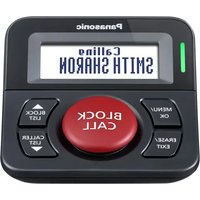


- OPERATING INSTRUCTIONS
- TABLE OF CONTENTS
- PREPARATION
- MAKING/ANSWERING CALLS
- PHONEBOOK
- HANDSET SETTINGS
- BASE UNIT SETTINGS
- → CALLER ID SERVICE
- SMS (SHORT MESSAGE SERVICE)
- ANSWERING SYSTEM FEATURES
- ANSWERING SYSTEM
- MULTI-UNIT OPERATION
- USEFUL INFORMATION
- INDEX
- INTRODUCTION
- NOTE
- YOUR PHONE
- ACCESSORY INFORMATION
- ADDITIONAL/REPLACEMENT ACCESSORIES
- IMPORTANT INFORMATION
- GENERAL
- ENVIRONMENT
- WARNING
- BATTERY CAUTION
- NOTICE FOR PRODUCT DISPOSAL, TRANSFER, OR RETURN
- INFORMATION ON DISPOSAL FOR USERS OF WASTE ELECTRICAL & ELECTRONIC EQUIPMENT (PRIVATE HOUSEHOLDS)
- FOR BUSINESS USERS IN THE EUROPEAN UNION
- INFORMATION ON DISPOSAL IN OTHER COUNTRIES OUTSIDE THE EUROPEAN UNION
- ROUTINE CARE
- CONTROLS
- USING THE JOYSTICK
- ADJUSTING THE RECEIVER OR SPEAKER VOLUME
- SOFT KEYS
- DISPLAYS
- MENU ICONS
- CONNECTIONS
- IMPORTANT
- LOCATION
- BATTERY INSTALLATION AND REPLACEMENT
- BATTERY CHARGE
- SCREEN SAVER MODE
- TURNING THE POWER ON/OFF
- SETTING UP THE UNIT BEFORE USE
- DISPLAY LANGUAGE
- DATE AND TIME
- MAKING CALLS
- SPEAKERPHONE
- MAKING A CALL USING THE REDIAL LIST
- EDITING/ERASING/STORING
- PAUSE (FOR PBX/LONG DISTANCE SERVICE USERS)
- ANSWERING CALLS
- AUTO TALK FEATURE
- ADJUSTING THE HANDSET RINGER VOLUME WHEN RECEIVING A CALL
- HANDSET LOCATOR
- USEFUL FEATURES DURING A CALL
- MUTE
- R BUTTON
- FOR CALL WAITING SERVICE USERS
- VOICE ENHANCER
- KEY LOCK
- RECORDING A TELEPHONE CONVERSATION (KX-TG8220/KX-TG8222)
- CALL SHARE
- CALL PRIVACY
- HANDSET PHONEBOOK
- ADDING ENTRIES
- CATEGORIES
- CHANGING CATEGORY NAMES
- FINDING AND CALLING A HANDSET PHONEBOOK ENTRY
- SCROLLING THROUGH ALL ENTRIES
- SEARCHING BY FIRST CHARACTER (INDEX SEARCH)
- SEARCHING BY CATEGORY
- EDITING ENTRIES
- ERASING ENTRIES
- ERASING AN ENTRY
- ERASING ALL ENTRIES
- ONE TOUCH DIAL
- [\~]
- CANCELLING A ONE TOUCH DIAL ASSIGNMENT
- TO CUSTOMISE THE HANDSET
- SPECIAL INSTRUCTIONS FOR TIME SETTINGS
- ALARM
- SPECIAL INSTRUCTIONS FOR RINGER SETUP
- NIGHT MODE
- SETTING THE START AND END TIME
- TURNING NIGHT MODE ON/OFF
- SETTING THE RING DELAY
- SPECIAL INSTRUCTIONS FOR CALL OPTIONS
- SETTING CALL RESTRICTION
- CALLER ID SERVICE
- USING CALLER ID SERVICE
- CALLER ID FEATURES
- MISSED CALLS
- CALL WAITING CALLER ID DISPLAY
- CATEGORY FEATURES FOR HANDSET PHONEBOOK
- CHANGING CATEGORY RINGTONES
- CALLER LIST
- VIEWING THE CALLER LIST AND CALLING BACK
- EDITING A CALLER'S PHONE NUMBER BEFORE CALLING BACK
- ERASING CALLER INFORMATION
- STORING CALLER INFORMATION INTO THE HANDSET PHONEBOOK
- VOICE MAIL SERVICE
- ☑ SMS (SHORT MESSAGE SERVICE)
- USING SMS
- USING THE PUBLIC MAILBOX AND PRIVATE MAILBOXES
- TURNING SMS ON/OFF
- CHANGING SMS MESSAGE CENTRE NUMBERS
- REGISTERING MAILBOXES
- SENDING A MESSAGE
- WRITING AND SENDING A NEW MESSAGE
- SENDING A SAVED MESSAGE
- EDITING AND SENDING A SAVED MESSAGE
- ERASING SAVED MESSAGES
- RECEIVING A MESSAGE
- READING A RECEIVED MESSAGE
- TO ACCESS A PRIVATE MAILBOX
- REPLYING TO A MESSAGE
- EDITING/FORWARDING A MESSAGE
- ERASING RECEIVED MESSAGES
- STORING THE SENDER'S NUMBER IN THE HANDSET PHONEBOOK
- EDITING THE SENDER'S NUMBER BEFORE CALLING BACK
- OTHER SETTINGS
- CREATING PRIVATE MAILBOXES
- CHANGING PRIVATE MAILBOX SETTINGS
- STORING THE PBX LINE ACCESS NUMBER (FOR PBX USERS ONLY)
- MEMORY CAPACITY
- TURNING THE ANSWERING SYSTEM ON/OFF
- USING THE BASE UNIT
- USING THE HANDSET
- GREETING MESSAGE
- RECORDING A GREETING MESSAGE
- USING A PRE-RECORDED GREETING MESSAGE
- PLAYING BACK THE GREETING MESSAGE
- OPERATIONS DURING PLAYBACK
- TO ADJUST THE SPEAKER VOLUME
- TO REPEAT A MESSAGE
- TO SKIP A MESSAGE
- TO STOP A MESSAGE
- TO ERASE A MESSAGE
- ERASING ALL MESSAGES
- CALLING BACK (CALLER ID SUBSCRIBERS ONLY)
- EDITING THE NUMBER BEFORE CALLING BACK
- DIRECT COMMAND OPERATION USING THE HANDSET
- REMOTE OPERATION
- TURNING REMOTE OPERATION ON
- USING THE ANSWERING SYSTEM REMOTELY
- VOICE GUIDANCE
- REMOTE COMMANDS
- TURNING ON THE ANSWERING SYSTEM REMOTELY
- ANSWERING SYSTEM SETTINGS
- NUMBER OF RINGS
- CALLER'S RECORDING TIME
- CALL SCREENING
- OPERATING ADDITIONAL UNITS
- ADDITIONAL HANDSETS
- ADDITIONAL BASE UNITS
- REGISTERING A HANDSET TO A BASE UNIT
- KX-TG8200/KX-TG
- KX-TG8220/KX-TG
- SELECTING A BASE UNIT
- DEREGISTERING A HANDSET
- CANCELLING A BASE UNIT
- INCREASING THE RANGE OF THE BASE UNIT
- SETTING THE REPEATER MODE
- INTERCOM BETWEEN HANDSETS
- TRANSFERRING CALLS BETWEEN HANDSETS, CONFERENCE CALLS
- HANDSET
- TRANSFERRING A CALL WITHOUT SPEAKING TO THE OTHER HANDSET USER
- [×①]
- COPYING PHONEBOOK ENTRIES
- COPYING ONE ENTRY
- COPYING ALL ENTRIES
- CHARACTER ENTRY
- CHARACTER ENTRY MODES
- CHARACTERS AVAILABLE IN EACH CHARACTER ENTRY MODE
- WHEN WRITING SMS MESSAGES
- TROUBLESHOOTING
- FOR DSL USERS
- SPECIFICATIONS
- STANDARD
- FREQUENCY RANGE
- DUPLEX PROCEDURE
- BIT RATE
- MODULATION
- RF TRANSMISSION POWER
- VOICE CODING
- POWER SOURCE
- POWER CONSUMPTION
- OPERATING CONDITIONS
- DIMENSIONS
- MASS (WEIGHT)
- CONDITIONS OF GUARANTEE
- SALES AND SUPPORT INFORMATION
- CUSTOMER CARE CENTRE
- DIRECT SALES AT PANASONIC UK
- CE
- SALES DEPARTMENT
- PANASONIC COMMUNICATIONS CO., LTD
- COPYRIGHT
Brand : PANASONIC
Model : KX-TG8222E
Category : Cordless phone