
CDJ-900NXS - DJ Mixer PIONEER - Free user manual and instructions
Find the device manual for free CDJ-900NXS PIONEER in PDF.


| Product type | Professional multimedia DJ player |
| Brand | Pioneer |
| Model | CDJ-900NXS |
| Dimensions (W x H x D) | 320 x 106 x 405 mm |
| Weight | 4.4 kg |
| Power supply | 220-240 V AC, 50/60 Hz |
| Power consumption | 28 W |
| Playback media | CD, CD-R/RW, DVD±R/RW, USB key, SD card |
| Compatible audio formats | MP3, AAC, WAV, AIFF, FLAC |
| Display | 6.1-inch color touchscreen |
| Audio outputs | 6.35 mm jack (headphones), RCA (x2) |
| Main functions | Looping, cue, track skip, tempo, loop playback, beat sync, fader start |
| Connectivity | USB (x2), Ethernet (Pro DJ Link), Wi-Fi (via adapter) |
| Software compatibility | Rekordbox |
| Maintenance and cleaning | Clean with a soft, dry cloth. Do not use solvents. |
| Safety | Do not expose to moisture or extreme temperatures. Disconnect before cleaning. |
| Spare parts and repairability | Contact authorized after-sales service for any repairs. |
| General information | Professional device designed for club and studio use. |
Frequently Asked Questions - CDJ-900NXS PIONEER
User questions about CDJ-900NXS PIONEER
0 question about this device. Answer the ones you know or ask your own.
Ask a new question about this device
Download the instructions for your DJ Mixer in PDF format for free! Find your manual CDJ-900NXS - PIONEER and take your electronic device back in hand. On this page are published all the documents necessary for the use of your device. CDJ-900NXS by PIONEER.
USER MANUAL CDJ-900NXS PIONEER
The Pioneer DJ support site shown above offers FAQs, information on software and various other types of information and services to allow you to use your product in greater comfort.
http://rekordbox.com/
For various types of information and services regardingrekordboxTM, see the Pioneer website above.
Operating Instructions




Contents
How to read this manual
- Thank you for buying this Pioneer product.
Be sure to read both this leaflet and Read Before Use (Important)/Quick Start Guide! Both documents include important information that you must understand before using this product.
After you have finished reading the instructions, put them away in a safe place for future reference. - In this manual, names of screens and menus displayed on the computer screen, as well as names of buttons and terminals on the product, etc., are indicated within brackets.
Examples:
Press the [CUE] button.
The [UTILITY] screen is displayed.
- Click on the Windows [Start] menu button, then [All Programs] > [Pioneer] > [rekordbox 2.x.x] > [rekordbox 2.x.x].
Connect the LAN cable properly to the [LINK] terminal.
The Operating Instructions of rekordbox (Mac/Windows) can be viewed from the rekordbox (Mac/Windows) [Help] menu after installing rekordbox (Mac/Windows).
Before start
Features 3
Before you start
Supported sources 5
Usable media 5
Playable music file formats 6
Functions usable in combination with a computer. 7
03 Connections
Descriptions of terminals. 10
Basic style. 10
Using other brands of DJ software 13
Connections for relay play. 13
Part names and functions
Control panel. 14
Rear panel 16
Front panel 16
Main unit display 17
Jog dial display section 18
05 Basic Operation
Turning the power on 19
Turning the power off 19
Loading and ejecting discs 19
Connecting and disconnecting USB devices 19
Playback 20
Operating the jog dial 21
06 Advanced Operation
Setting Cue. 23
Setting loops 23
Storing cue or loop points. 24
Deleting stored cue or loop points 24
Setting the cue point for auto cueing 25
Using the beat divide function 25
Using the slip mode 25
Using the beat sync function. 26
Operating the CDJ-900nexus in combination with other devices. 27
Browsing tracks 27
Other browsing operations 28
Checking the playing history (HISTORY) 29
Editing tag lists 30
Displaying the details of the currently loaded track 31
Changing track ratings 31
Displaying details of tracks loaded in other DJ players 31
07 Changing the settings
Storing settings on USB devices 32
Calling out settings stored on a USB device. 32
Displaying the [UTILITY] screen. 32
Changing the settings 32
Duplicating the settings onto DJ players
connected by PRO DJ LINK. 34
About the driver software (Windows) 34
Using other brands of DJ software
Operating DJ software by MIDI interface 36
09 Additional information
Troubleshooting 37
About the liquid crystal display 38
About iPods/iPhones/iPads 38
Error messages 38
List of icons displayed on the main unit display section. 39
Cautions on use 39
Handling discs 39
Trademarks, licenses, etc. 40
Before start
Features
This unit is a DJ player carrying over the technology of the Pioneer CDJ series, the world standard for club players. It is not only equipped with a wide range of features for DJ performances supporting a variety of sources, including the PRO DJ LINK, quantize and beat sync functions, it also has a high sound quality, high reliability design and a panel layout providing high operability, thereby offering strong support for all types of DJ performances.
MULTI MEDIA, MULTI FORMAT
In addition to discs (CDs), music files stored on USB devices (flash memory devices or hard disks) and on mobile devices can also be played. The formats of music files that are supported include not only the music CD (CD-DA) and MP3 formats, but also AAC, WAV and AIFF. The included rekordbox (Mac/Windows) music management software can be used to carefully prepare the playlists, cues, loops and beat grids you will need for DJ performances at home, so that you can devote your attention to the DJ performance at the disco/club with ease of mind. This makes for a deejaying cycle smoothly integrating all the steps, from acquiring the music files to the actual DJ performance.
rekordbox (Mac/Windows)
rekordbox is a software program allowing users who have purchased a Pioneer DJ player supportingrekordbox to manage music files to be used for DJ performances.
The included rekordbox music management software can be used for the management (analysis, settings, creation, history storage) of music files on computers. Using music files managed with rekordbox in combination with this unit makes it possible to achieve outstanding DJ performances.
- In these operating instructions, the version of rekordbbox for Mac/Windows is referred to as "rekordbbox (Mac/Windows)". "rekordbbox" is used to indicate the versions of rekordbbox (Mac/Windows) and rekordbbox (iOS/Android) simultaneously, as well as when referring to rekordbbox functions directly.
rekordbox (iOS/Android)
rekindbox (iOS/Android), a smartphone application that can be downloaded free of charge, can be used for the management (analysis, settings, creation, history storage) of music files on mobile devices. Using music files managed with rekindbox (iOS/Android) in combination with this unit makes it possible to achieve outstanding DJ performances.
- In these operating instructions, the version of rekordbox for mobile devices is referred to as "rekordbox (iOS/Android)".
PRO DJ LINK
Functions include "USB Export" using USB devices (flash memory drives and hard discs) and "rekordbox LINK Export" using the computer on whichrekordbox is installed.
USB Export
This function can be used to transfer rekordbox music files and management data using USB devices. This eliminates the need to take your computer to the disco or club.
At home or in a studio
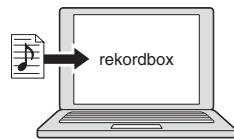
- Add music files to collections and analyze them.
Make the preparations onrekordbox.
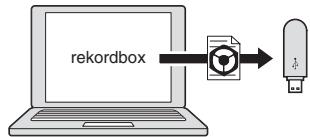
Write the rekordbox data on a USB device.

At the disco or club
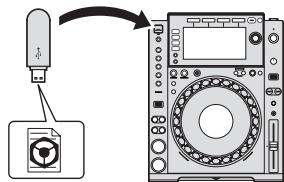
Connect the USB device to the DJ player.
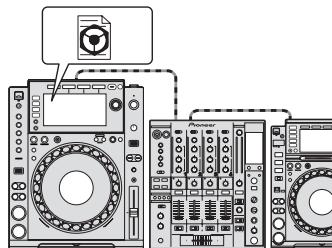
Use the rekordbox data for the performance.
- Share therekordbox data using the PRO DJ LINK function.
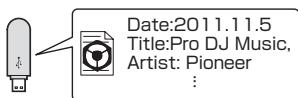
The playing history is stored on the USB device.

At home or in a studio
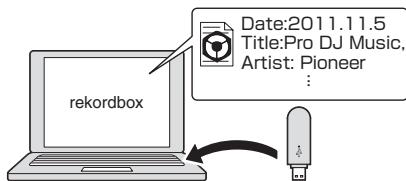
Check and manage the playback history withrekordbox.
rekordboxLINKExport
When this unit and the computer are connected by LAN cable, the rekordbox music files and management can be transferred directly, eliminating the bother of exporting them to a USB device. This unit and the computer can also be connected wirelessly using a wireless LAN router (or wireless LAN access point).
At home or in a studio
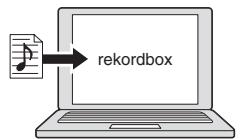
- Add music files to collections and analyze them.
Make the preparations on rekordbox.

At the disco or club
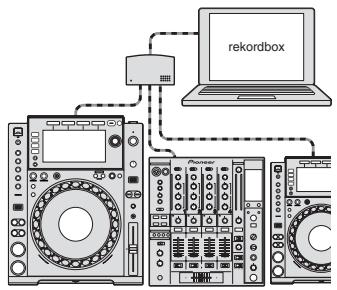
Connect the computer and DJ player.
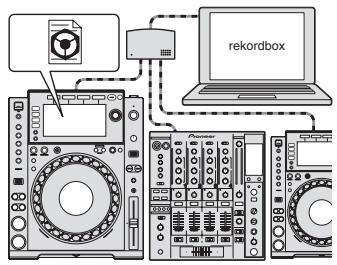
Use therekordbox data for the performance.
- Share therekordbox data using the PRO DJ LINK function.

At home or in a studio
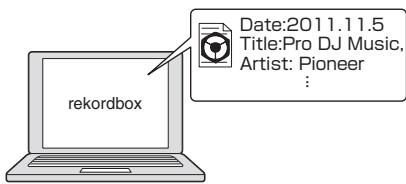
Check and manage the playback history with rekordbox.
DISPLAY
This unit is equipped with a large, high-resolution full-color LCD making the information required for DJ performances easy to see.
BROWSE
The combination of the list display of music files and an easy-to-operate rotary selector lets you select tracks without stress. In addition, the display of track artwork lets you find the desired tracks instinctively.
WAVE/WAVE ZOOM
The overall waveform ("WAVE") can be displayed so that you can grasp the overall composition of the track visually. Also, the frequency bands are color-coded, and a zoomable enlarged waveform ("WAVE ZOOM") can be displayed so that the development of the track can be grasped instantaneously.
BEATCOUNTDOWN
The precise number of beats from the currently playing point to saved cue points can be grasped instantaneously.
BEAT SYNC
Based on the GRID information of tracks analyzed with rekordbox, the tempo (BPM) and beat position of tracks playing on this unit can automatically by synchronized with other DJ players connected by PRO DJ LINK. The beat sync function helps you mix tracks and create mixing and effect performances, greatly expanding the range of DJ performances.
QUANTIZE
This unit is equipped with a quantize function that automatically corrects the timing when using such functions as looping, reversing or slip looping, even if you perform operations off-beat, as long as the track has been analyzed with rekordbox. This enables accurate performances without breaking the rhythm of the currently playing track.
SLIP MODE
This unit is equipped with a slip mode function with which playback of the track continues in the background during looping, reversing, scratching or pausing. This enables DJ performances without changing the track's development, even after you finish looping, reversing, scratching or pausing.
BEAT DIVIDE
The beat pattern of the currently playing track can be changed easily with simple button operation. This lets you improvise a wide range of beat arrangements, without breaking the rhythm of the currently playing track.
MY SETTINGS
The settings of this unit's functions can be stored on USB devices or mobile devices and loaded back onto this unit when necessary. It is also possible to make this unit's settings in rekordbox then transfer them directly to this unit. This lets you quickly switch to the settings you have prepared yourself in advance when replacing another DJ in a club.
HIGH SOUND QUALITY
The audio output circuitry uses low-jitter clocks and high-performance Wolfson D/A converters. Furthermore, undesirable digital noise from the audio power supply is blocked, so the original sound is reproduced faithfully to achieve clear, rich club sound with a strong sense of the sound field.
SOUND CARD
This unit is equipped with exclusive interface and MIDI interface for controlling the DJ software of other brands. There is also a built-in sound card, so other equipment can be connected easily.
Before you start
Supported sources
This unit supports the sources listed below.
Discs (page 5)
USB devices (page 5)
Computers (page 20)
About the included CD-ROM
This unit can be used in combination with a computer when the software is installed onto the computer from the included CD-ROM.
The included CD-ROM contains the following two software programs.
-rekordbox (Mac/Windows) music management software
- Driver software
Usable media
About discs
This unit can play the discs shown below.
| Type | Mark1 | Compatible formats | Supported file systems |
| CD | COMPACT DIGITAL AUDIO | Music CD (CD-DA) | — |
| CD-R | COMPACT DIGITAL AUDIO RECORDABLE | Music CD (CD-DA) CD-ROM | ISO9660 level 1, ISO9660 level 2, Romeo and Joliet |
| CD-RW | COMPACT DIGITAL AUDIO ReWritable | ||
| CD-TEXT2 | COMPACT DIGITAL AUDIO TEXT | Music CD (CD-DA) | — |
1 Discs on which the marks on this table are indicated on the disc label, package or jacket can be played.
2 Titles, album names and artist names recorded in the CD-Text data are displayed. When multiple text data are recorded on the disc, the information for the first text data is displayed.
Discs that cannot be played
DTS-CD
- Photo CDs
Video CDs
CD Graphics (CD-G) discs
- Unfinalized CDs
DVD-Video discs
DVD-Audio discs
DVD-RAM discs
DVD-R/-RW
DVD+R/+RW
DVD-R DL (dual layer)
DVD+R DL (dual layer)
About CD-R/RW discs
Music files (MP3/AAC/WAV/AlFF) recorded on CD-R/-RW discs can be played.
| Folder layers | Max. 8 layers (files in folders beyond the 8th layer cannot be played) |
| Max. number of folders | 1000 folders |
| Max. number of files | 1000 files |
When there are many folders or files, some time may be required for loading.
Playback of discs created on a computer
Depending on the application's settings and the computer's environment settings, it may not be possible to play discs created on a computer. Record discs in a format playable on this unit. For details, contact your application's selling agent.
It may not be possible to play discs created on a computer due to the disc's properties, scratches or dirt, or poor recording quality (dirt on the recording lens, etc.).
See Handling discs on page 39 for instructions on handling discs.
Creating backup discs
When CD-R/-RW discs are paused or left in the pause mode at cue points for long periods of time, it may become difficult to play the disc at that point, due to the properties of the disc. Also, when a specific point is looped repeatedly an extremely large number of times, it may become difficult to play that point.
When playing valuable discs, we recommend making backup discs.
About Copy Control CDs and DualDiscs
This unit is designed to CD standards. Operation and performance of discs with standards other than CD standards is not guaranteed.
About 8 cm discs
8 cm discs cannot be played. Do not mount 8 cm adapters on discs and play the discs on this unit. The adapter could come off while the disc is rotating, damaging both the disc and this unit.
About USB devices
This unit supports USB mass storage class USB devices (external hard disks, portable flash memory devices, digital audio players, etc.).
| Folder layers | Max. 8 layers (files in folders beyond the 8th layer cannot be played) |
| Max. number of folders | Unlimited (filesofers beyond the 10 000th folder within a single folder cannot be displayed) |
| Max. number of files | Unlimited (filesbeyond the 10 000th file within a single folder cannot be displayed) |
| Supported file systems | FAT16, FAT32 and HFS+ (NTFS is not supported.) |
Tracks managed by rekordbox (iOS/Android) can be played by connecting the mobile device on which rekordbox (iOS/Android) is installed via USB. For supported devices, see the Pioneer DJ website (http://pioneerdj.com/support/). For instructions on rekordbox (iOS/Android), see the rekordbox (iOS/Android) user's manual.
When there are many folders or files, some time may be required for loading.
Folders and files exceeding the limits cannot be displayed.
USB devices that cannot be used
- Optical disc type devices such as external DVD/CD drives, etc., are not supported.
- USB hubs cannot be used.
- iPods cannot be used. (Music data on an iPad, iPod touch or iPhone can only be played on this unit if it is added to the rekordbox (iOS/Android) library.)
Cautions on using USB devices
- Some USB devices may not operate properly. Please note that Pioneer will accept no responsibility whatsoever for loss of data stored by the user on USB devices or other direct or indirect problems arising due to connection of USB devices to this unit.
- If a current larger than the allowable value is detected at this unit's USB device insertion slot, it may happen that the [USB STOP] indicator flashes, the supply of power to the USB device is stopped and communications are interrupted. To restore normal operation,
disconnect the USB device from this unit. Avoid using USB devices for which excess currents have been detected. If normal operation is not restored using the method above (if communications cannot be established), turn this unit's power off then back on.
- If multiple partitions are set on the USB device, only the first partition can be used. (When rekordbox library information is present, the partition containing the rekordbox library information has priority.)
- USB devices equipped with flash card readers may not operate.
- Depending on the USB device you are using, the desired performance may not be achieved.
Playable music file formats
This unit supports music files in the formats shown below.
| Type | File extension | Compatible formats | Bit depth | Bit rate | Sampling frequency | Encoding method |
| MP3 | .mp3 | MPEG-1 AUDIO LAYER-3 | 16 bit | 32 kbps to 320 kbps | 32 kHz, 44.1 kHz, 48 kHz | CBR, VBR |
| MPEG-2 AUDIO LAYER-3 | 16 bit | 8 kbps to 160 kbps | 16 kHz, 22.05 kHz, 24 kHz | CBR, VBR | ||
| AAC | .m4a, .aac and .mp4 | MPEG-4 AAC LC | 16 bit | 16 kbps to 320 kbps | 16 kHz, 22.05 kHz, 24 kHz, 32 kHz, 44.1 kHz, 48 kHz | CBR, VBR |
| MPEG-2 AAC LC | 16 bit | 16 kbps to 320 kbps | 16 kHz, 22.05 kHz, 24 kHz, 32 kHz, 44.1 kHz, 48 kHz | CBR, VBR | ||
| WAV | .wav | WAV | 16 bit, 24 bit | — | 44.1 kHz, 48 kHz | Uncompressed PCM |
| AIFF | .aif, .aiff | AIFF | 16 bit, 24 bit | — | 44.1 kHz, 48 kHz | Uncompressed PCM |
About MP3 files
MP3 files can have a constant bit rate (CBR) or a variable bit rate (VBR). Both types of files can be played on this unit, but the search and super fast search functions are slower with VBR files. If your priority is operability, we recommend recording MP3 files in CBR.
About AAC files
- AAC is the abbreviation of "Advanced Audio Coding", a basic format of audio compression technology used for MPEG-2 and MPEG-4.
- The file format and extension of AAC data depends on the application used to create the data.
- On this unit, in addition to AAC files encoded with iTunes® and with the extension ".m4a", files with the extensions ".aac" and ".mp4" files can also be played. However, AAC files that are copyright-protected, such as those purchased from the iTunes Store, cannot be played. Also, depending on the version of iTunes in which the file was encoded, it may not be possible to play the file.
About ID3 tags
The tag information types which can be registered from a music file are ID3 tags (v1, v1.1, v2.2.0, v2.3.0, and v2.4.0) or meta tags.
About music file artwork
The file format for artwork images that can be added to music files is JPEG (extensions: ".jpg" or ".jpeg").
- Files larger than 800 × 800 dots cannot be displayed.
About character displays
CD-TEXT
This unit is compatible with CD-TEXT. Titles, album names and artist names recorded in CD-TEXT are displayed. When multiple text data is recorded, the first text data is displayed. The supported character codes are listed below.
ASCII
ISO-8859
MS-JIS
- Mandarin Chinese character code
MP3/AAC
When displaying track names, etc., to display characters written in local codes other than Unicode, change the [LANGUAGE] setting.
Changing the language (p.33)
Functions usable in combination with a computer
About the included CD-ROM
This unit can be used in combination with a computer when the software is installed onto the computer from the included CD-ROM.
The included CD-ROM contains the following two software programs.
rekordbox (Mac/Windows) music management software
rekordbox is a software program allowing users who have purchased a Pioneer DJ player supportingrekordbox to manage music files to be used for DJ performances.
-rekordbox (Mac/Windows) may be used for classifying and searching for music files stored on your computer as well as creating playlists, all of which can help improve your DJ performance.
-rekordbox (Mac/Windows) allows the detecting, measuring, and editing of beats, tempos (BPM), and other elements of your music files prior to a performance.
- rekordbox (Mac/Windows) may be used to set and store detailed point information (for cueing, looping, hot cueing, etc.) prior to a performance.
Not only can various types of point information and playlists prepared with rekordbox be used for playback on Pioneer DJ players, the playback history, number of times played, point information, etc., can also be fed back to rekordbox after playback.
Driver software
This driver software is an exclusive ASIO driver for outputting audio signals from the computer. To use this unit connected to a computer on which Windows is installed, install the driver software on the computer beforehand.
There is no need to install the driver software when using Mac OS X.
- For details, see Installing the driver software on page 34.
Software end user license agreement
This Software End User License Agreement ("Agreement") is between you (both the individual installing the Program and any single legal entity for which the individual is acting) ("You" or "Your") and PIONEER CORPORATION ("Pioneer").
TAKING ANY STEP TO SET UP OR INSTALL THE PROGRAM MEANS THAT YOU ACCEPT ALL OF THE TERMS OF THIS LICENSE AGREEMENT. PERMISSION TO DOWNLOAD AND/OR USE THE PROGRAM IS EXPRESSLY CONDITIONED ON YOUR FOLLOWING THESE TERMS. WRITTEN OR ELECTRONIC APPROVAL IS NOT REQUIRED TO MAKE THIS AGREEMENT VALID AND ENFORCEABLE. IF YOU DO NOT AGREE TO ALL OF THE TERMS OF THIS AGREEMENT, YOU ARE NOT AUTHORIZED TO USE THE PROGRAM AND MUST STOP INSTALLING IT OR UNINSTALL IT, AS APPLICABLE.
1 DEFINITIONS
1 "Documentation" means written documentation, specifications and help content made generally available by Pioneer to aid in installing and using the Program.
2 "Program" means all or any part of Pioneer's software licensed to You by Pioneer under this Agreement.
2 PROGRAM LICENSE
1 Limited License. Subject to this Agreement's restrictions, Pioneer grants to You a limited, non-exclusive, non-transferable, license (without the right to sublicense):
a To install a single copy of the Program in Your computer or mobile device, to use the Program only for Your personal purpose complying with this Agreement and the Documentation ("Authorized Use");
b To use the Documentation in support of Your Authorized Use; and
c To make one copy of the Program solely for backup purposes, provided that all titles and trademark, copyright and restricted rights notices are reproduced on the copy.
2 Restrictions. You will not copy or use the Program or Documentation except as expressly permitted by this Agreement. You will not transfer, sublicense, rent, lease or lend the Program, or use it for third-party training, commercial time-sharing or service bureau use. You will not Yourself or through any third party modify, reverse engineer, disassemble or decompile the Program, except to the extent expressly permitted by applicable law, and then only after You have notified Pioneer in writing of Your intended activities.
Ownership. Pioneer or its licensor retains all right, title and interest in and to all patent, copyright, trademark, trade secret and other intellectual property rights in the Program and Documentation, and any derivative works thereof. You do not acquire any other rights, express or implied, beyond the limited license set forth in this Agreement.
4 No Support. Pioneer has no obligation to provide support, maintenance, upgrades, modifications or new releases for the Program or Documentation under this Agreement.
3 WARRANTY DISCLAIMER
THE PROGRAM AND DOCUMENTATION ARE PROVIDED "AS IS" WITHOUT ANY REPRESENTATIONS OR WARRANTYES, AND YOU AGREE TO USE THEM AT YOUR SOLE RISK. TO THE FULLEST EXTENT PERMISSIBLE BY LAW, PIONEER EXPRESSLY DISCLAIMS ALL WARRANTYES OF ANY KIND WITH RESPECT TO THE PROGRAM AND DOCUMENTATION, WHETHER EXPRESS, IMplied, STATUTORY, OR ARISING OUT OF COURSE OF PERFORMANCE, COURSE OF DEALING OR USAGE OF TRADE, INCLUDING ANY WARRANTYES OF MERCHANTABILITY, FITNESS FOR A PARTICULAR PURPOSE, SATISFACTORY QUALITY, ACCURACY, TITLE OR NON-INFRINGEMENT.
4 EXPORT CONTROL AND COMPLIANCE WITH LAWS AND REGULATIONS
You may not use or otherwise export or re-export the Program except as authorized by United States law and the laws of the jurisdiction in which the Program was obtained. In particular, but without limitation, the Program may not be exported or re-exported (a) into any U.S.-embargoed countries or (b) to anyone on the U.S. Treasury Department's Specially Designated Nationals List or the U.S. Department of Commerce Denied Persons List or Entity List. By using the Program, you represent and warrant that you are not located in any such country or on any such list. You also agree that you will not use the Program for any purposes prohibited by United States law, including, without limitation, the development, design, manufacture, or production of nuclear, missile, or chemical or biological weapons.
5 U.S. GOVERNMENT RESTRICTED RIGHTS
The Program and Documentations are "commercial computer software" and "commercial computer software documentation" as those terms are defined in 48 C.F.R. §252.227-7014 (a) (1) (2007) and 252.227-7014 (a) (5) (2007). The U.S. Government's rights with respect to the Program and Documentations are limited by this license pursuant to 48 C.F.R. §12.212 (Computer software) (1995) and 48 C.F.R. §12.211 (Technical data) (1995) and/or 48 C.F.R. §227.7202-3, as applicable. As such, the Program and Documentations are being licensed to the U.S. Government end users: (a) only as "commercial items" as that term is defined in 48 C.F.R. §2.101 generally and as incorporated in DFAR 212.102; and (b) with only those limited rights as are granted to the public pursuant to this license. Under no circumstance will the U.S. Government or its end users be granted any greater rights than we grant to other users, as provided for in this license. Manufacturer is Pioneer Corporation, 1-1 Shin-Ogura, Saiwai-ku, Kawasaki-shi, Kanagawa-Ken, 212-0031 Japan
6 DAMAGES AND REMEDIES FOR BREACH
You agree that any breach of this Agreement's restrictions would cause Pioneer irreparable harm for which money damages alone would be inadequate. In addition to damages and any other remedies to which Pioneer may be entitled, You agree that Pioneer may seek injunctive relief to prevent the actual, threatened or continued breach of this Agreement.
7 TERMINATION
Pioneer may terminate this Agreement at any time upon Your breach of any provision. If this Agreement is terminated, You will stop using the Program, permanently delete it from your computer or mobile device where it resides, and destroy all copies of the Program and Documentation in Your possession, confirming to Pioneer in writing that You have done so. Sections 2.2, 2.3, 2.4, 3, 4, 5, 6, 7 and 8 will continue in effect after this Agreement's termination.
8 GENERAL TERMS
1 Limitation of Liability. In no event will Pioneer or its subsidiaries be liable in connection with this Agreement or its subject matter, under any theory of liability, for any indirect, incidental, special, consequential or punitive damages, or damages for lost profits, revenue, business, savings, data, use, or cost of substitute procurement, even if advised of the possibility of such damages or if such damages are foreseeable. In no event will Pioneer's liability for all damages exceed the amounts actually paid by You to Pioneer or its subsidiaries for the Program. The parties acknowledge that the liability limits and risk allocation in this Agreement are reflected in the Program price and are essential elements of the bargain between the parties, without which Pioneer would not have provided the Program or entered into this Agreement.
2 The limitations or exclusions of warranties and liability contained in this Agreement do not affect or prejudice Your statutory rights as consumer and shall apply to You only to the extent such limitations or exclusions are permitted under the laws of the jurisdiction where You are located.
3 Severability and Waiver. If any provision of this Agreement is held to be illegal, invalid or otherwise unenforceable, that provision will be enforced to the extent possible or, if incapable of enforcement, deemed to be severed and deleted from this Agreement, and the remainder will continue in full force and effect. The waiver by either party of any default or breach of this Agreement will not waive any other or subsequent default or breach.
4 No Assignment. You may not assign, sell, transfer, delegate or otherwise dispose of this Agreement or any rights or obligations under it, whether voluntarily or involuntarily, by operation of law or otherwise, without Pioneer's prior written consent. Any purported assignment, transfer or delegation by You will be null and void. Subject to the foregoing, this Agreement will be binding upon and will inure to the benefit of the parties and their respective successors and assigns.
5 Entire Agreement. This Agreement constitutes the entire agreement between the parties and supersedes all prior or contemporaneous agreements or representations, whether written or oral, concerning its subject matter. This Agreement may not be modified or amended without Pioneer's prior and express written consent, and no other act, document, usage or custom will be deemed to amend or modify this Agreement.
6 You agree that this Agreement shall be governed and construed by and under the laws of Japan.
Cautions on copyrights
rekindbox restricts playback and duplication of copyright-protected music contents.
- When coded data, etc., for protecting the copyright is embedded in the music contents, it may not be possible to operate the program normally.
- When rekordbox detects that coded data, etc., for protecting the copyright is embedded in the music contents, processing (playback, reading, etc.) may stop.
Recordings you have made are for your personal enjoyment and according to copyright laws may not be used without the consent of the copyright holder.
- Music recorded from CDs, etc., is protected by the copyright laws of individual countries and by international treaties. It is the full responsibility of the person who has recorded the music to ensure that it is used legally.
- When handling music downloaded from the Internet, etc., it is the full responsibility of the person who has downloaded the music to ensure that it is used in accordance with the contract concluded with the download site.
Cautions on installingrekordbox (Mac/ Windows)
Read Cautions on installing rekordbox (Mac/Windows) carefully before installing rekordbox.
Read Software end user license agreement carefully before installing rekordbox.
- The included CD-ROM contains installation programs and operating instructions in the following 12 languages: English, French, German, Italian, Dutch, Spanish, Portuguese, Russian, Chinese (simplified characters), Chinese (traditional characters), Korean, Japanese.
- When using an operating system in any language besides the ones listed above, select [English] during the installation procedure.
| Supported operating systems | ||
| Mac OS X (10.5.8, 10.6, 10.7 or 10.8) | ✓ | |
| Windows® 8/Windows® 8 Pro | 32-bit version | ✓ |
| 64-bit version | ✓ | |
| Windows® 7 Home Premium/Professional/Ultimate | 32-bit version | ✓ |
| 64-bit version | ✓ | |
| Windows Vista® Home Basic/Home Premium/Business/ Ultimate (SP2 or later) | 32-bit version | ✓ |
| 64-bit version | ✓ | |
| Windows® XP Home Edition/Professional (SP3 or later) | 32-bit version | ✓ |
Minimum operating environment for rekordbox (Mac/Windows)
Check that the computer provides the operating environment described below before starting installation.
| CPU | For Mac OS X | Macintosh computer equipped with a Dual-Core 1.6 GHz or greater Intel® processor |
| For Windows®8, Windows®7, Windows Vista®and Windows®XP | PC/AT compatible computer equipped with a Dual-Core 2.0 GHz or greater Intel®processor | |
| Required memory | 1 GB or more of RAM | |
| Hard disk | 250 MB or more of free space (not including space for storing music files, etc.) | |
| Optical drive | Optical disc drive on which the CD-ROM can be read | |
| Sound | Audio output to speakers, headphones, etc. (internal or external audio device) | |
| Internet connection | For user registration and inquiries, use a web browser supporting 128-bit SSL (Safari 2.0 or greater, Internet Explorer® 6.0 or greater, etc.). | |
| USB port | A USB port for connection of a USB device (flash memory, hard disc, etc.) is required to transfer music files to the USB device. | |
| LAN port | To transfer music files to a Pioneer DJ player, an Ethernet LAN adapter (RJ45 port) is required for communicating with the DJ player. | |
Full functionality is not guaranteed on all computers, even those meeting the operating environment requirements described above.
- Even with the required memory capacity indicated for the operating environment above, in the cases described below the software may not provide full functionality and performance due to lack of memory. In this case, take the necessary measures to ensure sufficient free memory. We recommend adding extra memory in order to achieve stable performance.
- When there are many tracks being managed in the rekordbox library
-
When resident programs and services are running
-
Depending on the computer's power settings and other factors, the CPU and hard disk processing capacity may be insufficient. When using laptop computers in particular, always keep the AC power connected and adjust the computer's settings to maximize performance when using rekordbox.
Note that problems may arise with the functionality of rekordbox depending on other software running on your computer.
Installingrekordbox (Mac/Windows)
Read Cautions on installing rekordbox (Mac/Windows) carefully before installing rekordbox.
Installation procedure (Macintosh)
- Authorization of the computer's administrator is required to install and uninstall rekordbox.
Log on as the user which was set as the computer's administrator before installing.
1 When the CD-ROM is inserted into the computer's optical drive, the optical drive opens on the screen. Double-click the [CD_menu.app] icon.
- If the window containing the [CD_menu.app] icon is not displayed when the CD-ROM is inserted, use Finder to open the optical drive manually and double-click the [CD_menu.app] icon.
2 When the CD-ROM's menu is displayed, select [rekordbox: Install Music Management Software], then click [Start].
- To close the CD-ROM menu, click [Exit].
3 When the license agreement screen appears, select [English], read the Software end user license agreement carefully, then click [Continue].
- You can select the one you desire from multiple languages as long as the language is supported by the system environment of your computer.
4 If you agree to the Software end user license agreement, click [Agree].
- If you do not consent to the provisions of the Software end user license agreement, click [I disagree] and stop installation.
5 Install rekordbox by following the instructions on the screen.
Installation procedure (Windows)
- Authorization of the computer's administrator is required to install and uninstall rekordbox.
Log on as the user registered as the computer's administrator before installing rekordbox (Mac/Windows).
1 Insert the CD-ROM into the computer's optical drive. The CD-ROM menu is displayed.
- If the CD-ROM menu does not appear when the CD-ROM is inserted, open the optical drive from [Computer (or My Computer)] in the [Start] menu, then double-click the [CD_menu.exe] icon.
2 When the CD-ROM's menu is displayed, select [rekordbox: Install Music Management Software], then click [Start].
To close the CD-ROM menu, click [Exit].
3 When the language selection screen appears, select [English] and click [OK].
- You can select the one you desire from multiple languages as long as the language is supported by the system environment of your computer.
4 When the license agreement screen appears, read the Software end user license agreement carefully. If you agree to the Software end user license agreement, click [Agree].
- If you do not consent to the provisions of the Software end user license agreement, click [Cancel] and stop installation.
5 Installrekordbox by following the instructions on the screen.
- Click [Cancel] to cancel installation after it has started.
Launching rekordbox (Mac/Windows)/ Viewing the Operating Instructions
Log on as the user which was set as the computer's administrator before usingrekordbox.
- Whenrekordboxistartedupforthefirsttime,thelicensekeymust beentered.The licensekeyisaffixedto theCD-ROMpackage.
Whenrekordboxistartedup,thoperatinginstructionscanbe viewed from therekordbox[Help]menu. - The Online manual and online support site can be accessed if the computer is connected to the Internet.
For Mac OS X
Open the [Application] folder with Finder, then double-click [rekordbox 2.x.x.app].
The 2.x.x indicates the rekordbox version.
For Windows® 8, Windows® 7, Windows Vista® and Windows® XP
Double-click the [rekordbox 2.x.x] icon (shortcut) on the desktop.
The 2.x.x indicates the rekordbox version.
Installingrekordbox (iOS/Android)
Installrekordbox (iOS/Android) on the mobile device (smartphone, tablet device, etc.). For instructions on installation and supported operating system versions, see our website (http://www.rekordbox.com).
Using the online support site
Before making inquiries on rekordbox operating procedures or technical issues, read the rekordbox (Mac/Windows) operating instructions and online manual and check the FAQ provided on the rekordbox online support site.
http://www.rekordbox.com
- User registration on the rekordbox online support site is required prior to making inquiries concerning rekordbox.
- You will need to enter your license key during user registration, so please have it handy. Also, be sure not to forget the login name (your e-mail address) and the password specified for your user registration, as well as the license key.
PIONEER CORPORATION collects your personal information for the following purposes:
1 To provide customer support for your purchased product
2 To inform you of product or event information by e-mail
3 To obtain feedback collected by survey for product planning purposes
- Your personal information is kept confidential corresponding to the privacy policy set forth by our company.
Pioneer's privacy policy can be viewed on the rekordbox online support site.
- When making inquiries regardingrekordbox, please be sure to furnish your computer type and specifications (CPU, installed memory, other connected peripherals, etc.), the operating system and version used, as well as concrete information regarding the issue at hand.
- To inquire about configuring your computer with non-Pioneer peripheral devices and to obtain the corresponding technical support, contact the specific manufacturer or retailer.
- Further version updates are anticipated for improved functionality and performance of rekordbox. Update programs will be available for download on the rekordbox online support site. We strongly recommend you perform these updates and always use the latest version of rekordbox.
Connections
- Be sure to turn off the power and unplug the power cord from the power outlet whenever making or changing connections.
Refer to the operating instructions for the component to be connected. - Connect the power cord after all the connections between devices have been completed.
- When using a LAN cable for connection, be sure to use either the LAN cable included with this product or an STP (shielded twisted pair) cable.
- Do not disconnect the LAN cable when music files and/or information are being shared using PRO DJ LINK.
Descriptions of terminals
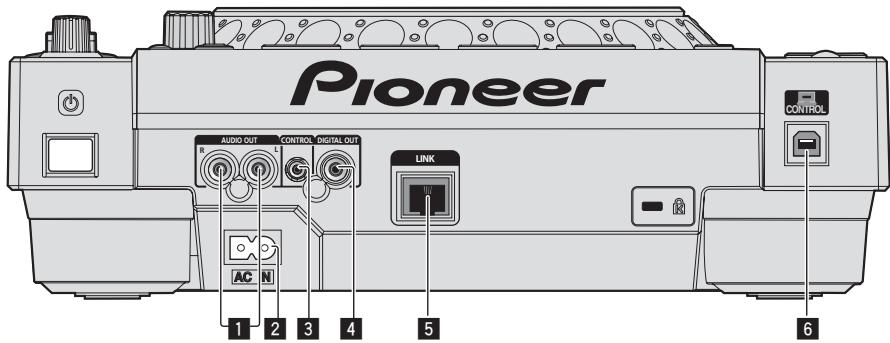
1 AUDIO OUT L/R terminals
Connect the audio cables (included) here.
2 AC IN
Connect this to a power outlet.
Connect the power cord after all the connections between devices have been completed.
Be sure to use the included power cord.
3 CONTROL terminal
This is used to interconnect DJ players with a monaural mini phone plug ( 0.35mm ) cable (commercially available) to send control signals for relay playback.
Connections for relay play (p.13)
4 DIGITAL OUT terminal
Connect a digital coaxial cable here.
LINK terminal
Connect the LAN cable (included) here.
USB port
Connect to a computer.
Basic style
Playback on this unit is performed mainly using tracks prepared with rekordbox installed on a computer.
For instructions on operating rekordbox, see rekordbox (Mac/Windows)'s operating instructions. The rekordbox (Mac/Windows) operating instru cions can be viewed from the rekordbox (Mac/Windows) [Help] menu.
- Also, for DJ players and DJ mixers, up to four PRO DJ LINK-compatible players can be connected with LAN cables (CAT5e) using PRO DJ LINK connections.
- A switching hub (commercially available) may be necessary, depending on the combination of models used. Use a switching hub of 100 Mbps or greater. Some switching hubs may not operate properly.
- A switching hub (commercially available) is necessary to connect to a mixer equipped with only one LAN port. For mixers with enough LAN ports for all the DJ players and computers in the system, connect directly to the LAN ports on the mixer's rear panel, without using a hub.
- Use a wireless router (commercially available) and access point (commercially available) conforming to either IEEE802.11n or IEEE802.11g standards. Depending on the signal conditions in the usage environment and the wireless router or access point, PRO DJ LINK connections may not operate properly.
Connecting to a mixer with only one LAN port
When connecting to a mixer with only one LAN port using a switching hub, in order to use rekordbox's music file management functions to their maximum, set the channel number of the mixer to which the audio or coaxial digital cable is connected and the player number displayed at the bottom left of the main unit display to the same number.
(Ex.: When the audio cable is connected to channel 1)
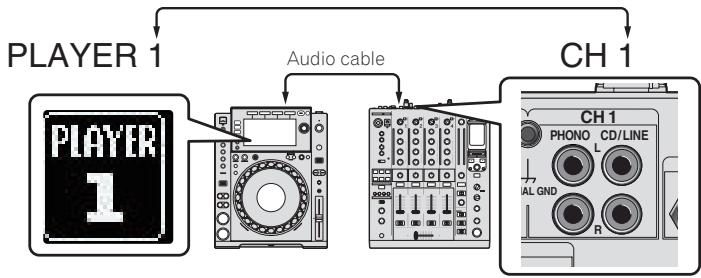
To change the player number, follow the procedure below.
① Disconnect the USB device and LAN cable.
② Press the [MENU (UTILITY)] button for over 1 second to display the [UTILITY] screen.
③ Turn the rotary selector to select [PLAYER No.], then press the rotary selector.
④ Turn the rotary selector to select the player number, then press the rotary selector to enter it.
| UTILITY | |
| LIBRARY CREATOR | FOLDER |
| HISTORY NAME | HISTORY |
| PLAYER No. | 1 |
| LINK STATUS | CONNECTED |
| MIDI CHANNEL | 7 |
| DIGITAL OUT | 24bit |
⑤ Press the [MENU (UTILITY)] button to complete the setting.
PRO DJ LINK (USB Export)
- Without taking a computer into the DJ booth, by using a memory device (flash memory device, hard disk, etc.), rekordbox music files and data can be transferred between this unit and the memory device. This makes it possible to use such information as playlists, cues and loops that have been set ahead of time with rekordbox for performances.
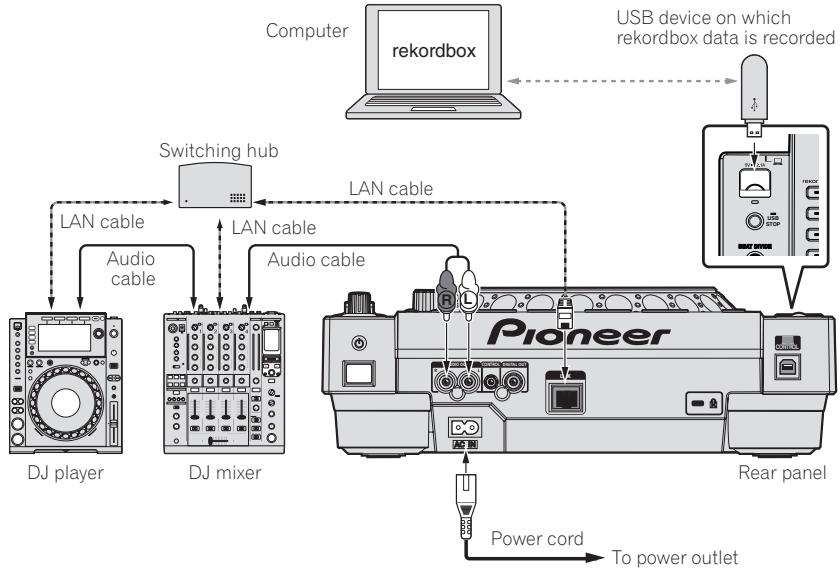
- When a computer on which rekordbox is installed is taken into the DJ booth and connected to this unit using a LAN cable (CAT5e) or wireless LAN (Wi-Fi) router, tracks in rekordbox can be selected and played. This makes it possible to use such information as playlists, cues and loops that have been set ahead of time with rekordbox for performances.
- When a mobile device on which rekordbox (iOS/Android) is installed is connected using a USB cable or wireless LAN (Wi-Fi) router, tracks in rekordbox can be selected and played. This makes it possible to use such information as playlists, cues and loops that have been set ahead of time with rekordbox for performances.
- With wired LAN connections, up to two computers on which rekordbox is installed can be connected.
- With wireless LAN (Wi-Fi) connections, up to four computers or mobile devices on which rekordbox is installed can be connected.
iPods/iPhones/iPads that can be connected to this product
This products supports iPhone 5, iPhone 4S, iPhone 4, iPhone 3GS, iPad (4th generation), iPad mini, iPad (3rd generation), iPad 2, iPad and iPod touch (3rd, 4th, and 5th generation).
- Visit the Pioneer webpage (http://pioneerdj.com/support/) for the latest compatibility information.
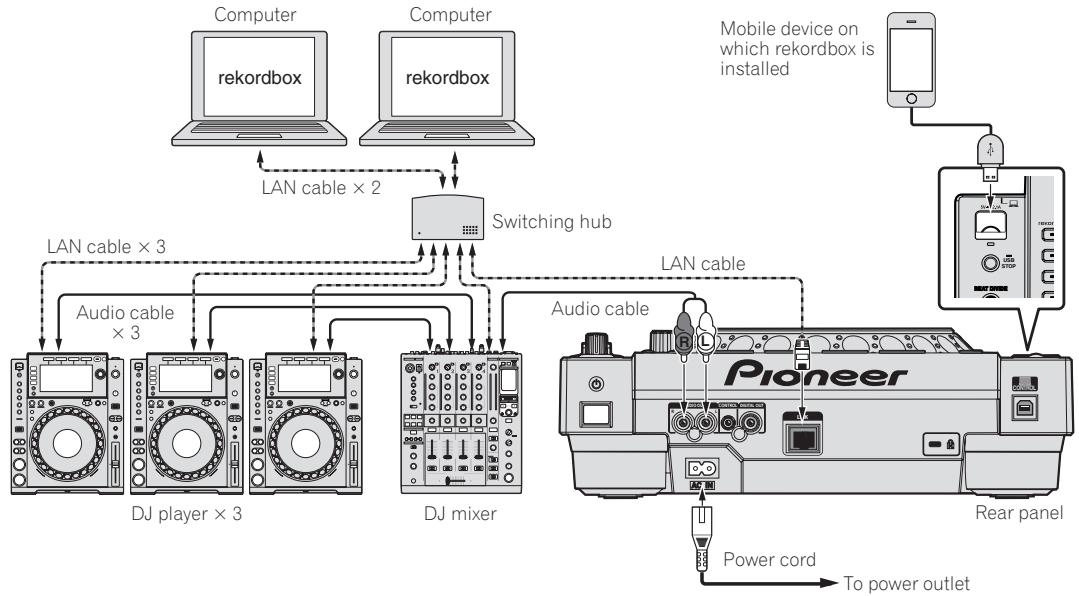
- Use your iPod cable to connect this unit with an iPod, iPhone or iPad.
- A switching hub (commercially available) is necessary to connect to a mixer equipped with only one LAN port. For mixers with enough LAN ports for all the DJ players and computers in the system, connect directly to the LAN ports on the mixer's rear panel, without using a hub.
Using a wireless router and access points
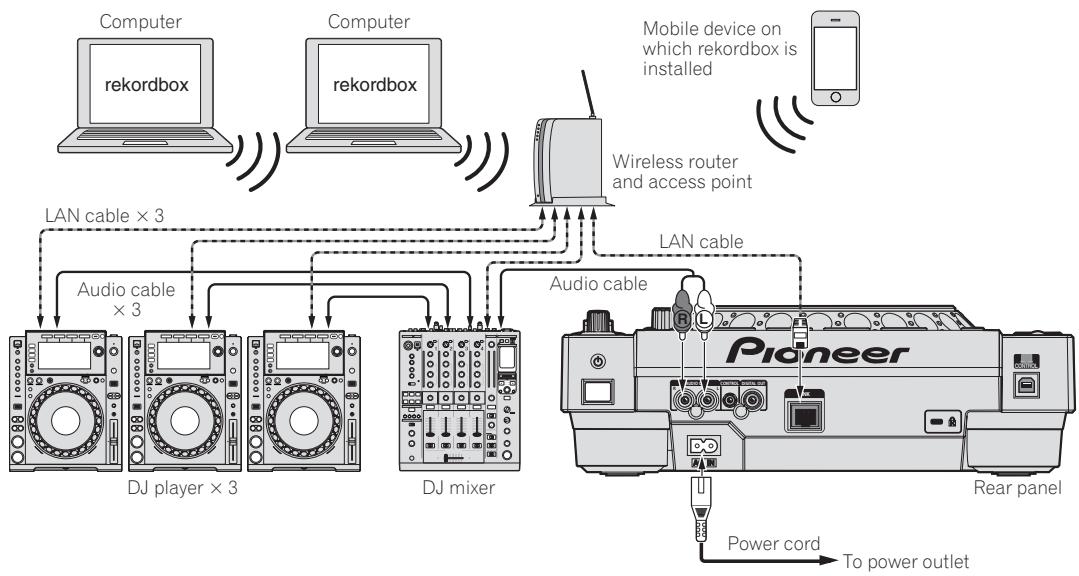
Cautions
To use rekordbox's music file management functions to their maximum, set the channel of the audio or coaxial digital input cable connected to the mixer and the player number to the same number.
If the player number is different, change the [PLAYER No.] setting on the [UTILITY] screen.
- When a storage device is connected to this unit, [PLAYER No.] is displayed in gray and cannot be changed. Disconnect the storage device or LAN cable to turn the link off, then change the setting.
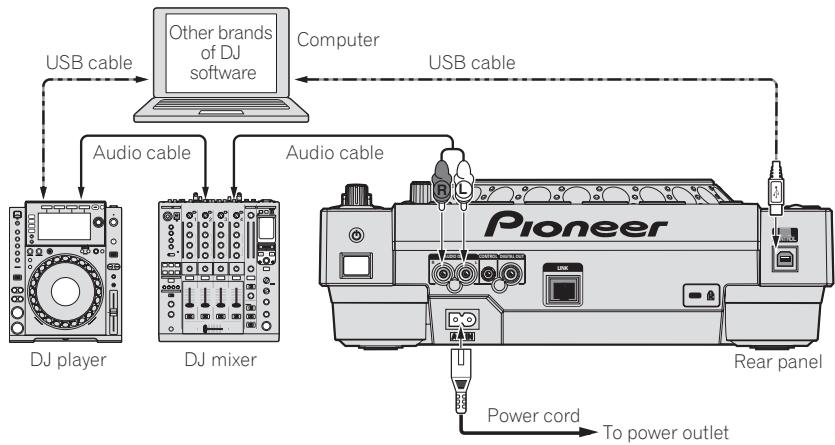
Using other brands of DJ software
With this unit, the operating information of the buttons, tempo adjustment dial, etc., can also be output in universal MIDI format. When connected by USB cable to a computer on which MIDI-compatible DJ software is installed, the DJ software can be operated from the CDJ-900nexus. The sound of music files being played on the computer can also be output from the CDJ-900nexus. For details, see About the driver software (Windows) on page 34 and Using other brands of DJ software on page 36.
- Connect a computer on which Mac OS X (10.5.8, 10.6, 10.7 or 10.8), Windows Vista®, Windows XP, Windows 7 or Windows 8/Windows 8 Pro is installed.
Connections for relay play
When this unit and a Pioneer DJ player are interconnected with their [CONTROL] terminals using a mini phone plug cable (Ø 3.5 mm), relay playback between the two DJ players is possible (page 27).
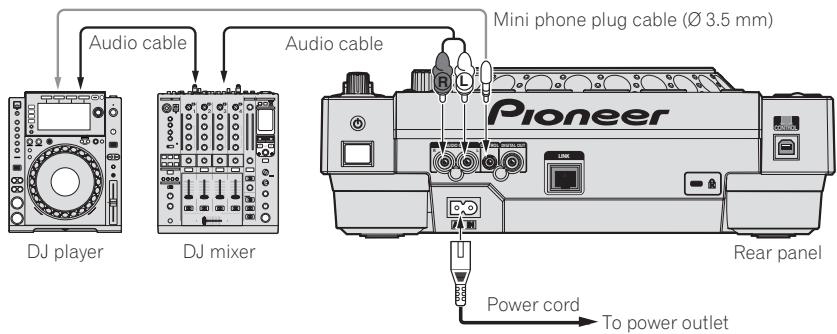
Part names and functions
Control panel
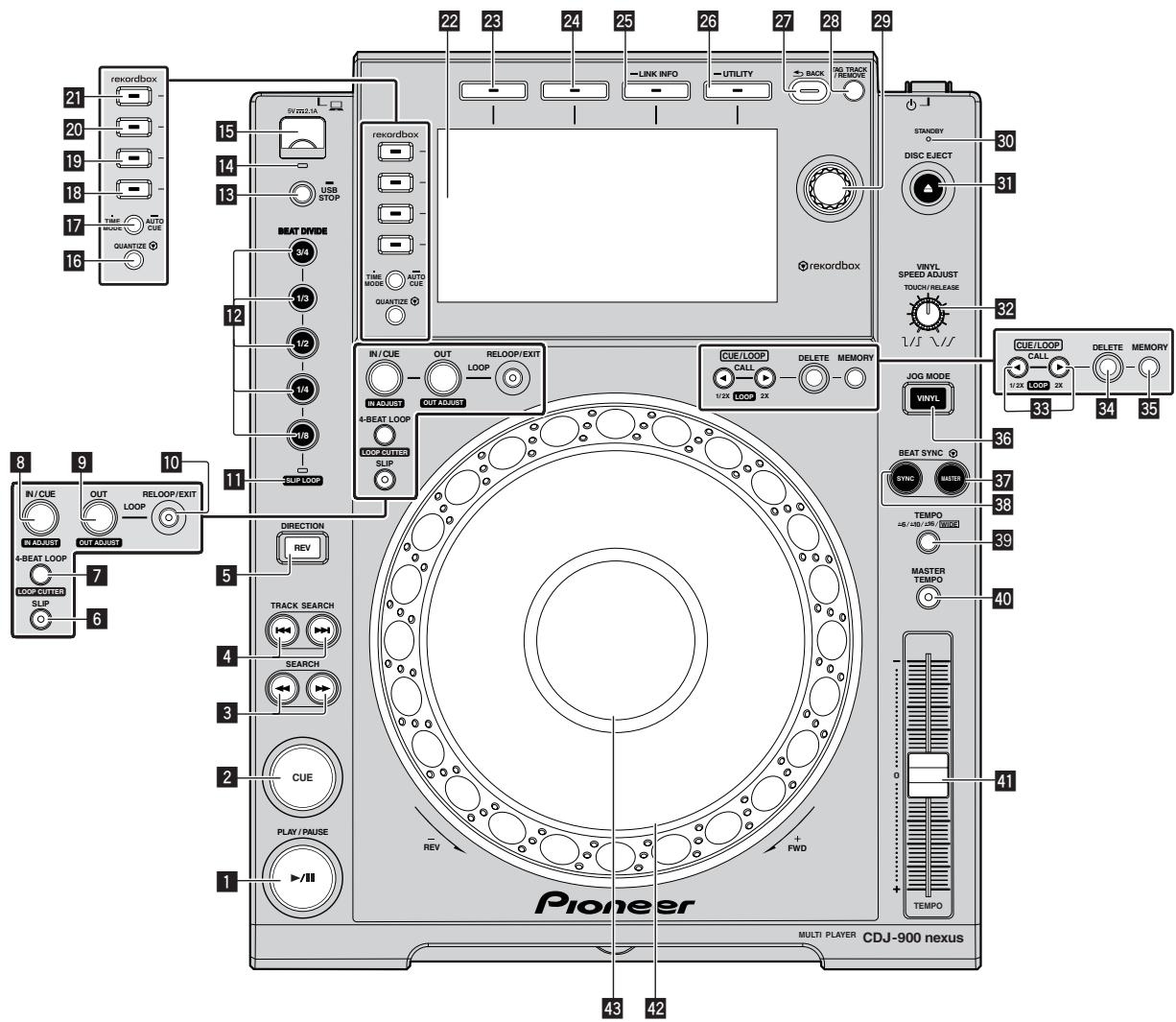
PLAY/PAUSE /II button
This lights when playing tracks and flashes when in the pause mode.
Pausing (p.21)
2 CUE button
This lights when a cue point is set (except during track searching), and flashes when a new cue point can be set in the pause mode.
Setting Cue (p.23)
3 SEARCH , buttons
The track is forwarded/reversed while the button is held in.
Forward and reverse scanning (p.21)
4 TRACK SEARCH |▶,▶| buttons
Use these to search for the beginnings of tracks.
Finding the beginnings of tracks (Track Search) (p.21)
5 DIRECTION REV button
Use this to turn reverse playback on and off.
Playing in reverse (p.21)
6 SLIP button
Using the slip mode (p.25)
7 4-BEAT LOOP (LOOP CUTTER) button
Use this to set loops automatically. When pressed during loop playback, the loop is cut.
Setting loops automatically (4-beat Loop) (p.24)
IN/CUE (IN ADJUST) button
Use this to set and fine-adjust the loop in point.
Setting loops (p.23)
9 OUT (OUT ADJUST) button
Use this to set and fine-adjust the loop out point.
Setting loops (p.23)
10 RELOOP/EXIT button
Use this to return to loop playback (reloop) or cancel loop playback (loop exit).
Returning to Loop playback (Reloop) (p.24)
11 SLIP LOOP indicator
This lights when using the slip function. When the [BEAT DIVIDE] button is pressed while the [SLIP LOOP] indicator is lit, the slip beat loop function turns on.
Slip looping (p.26)
BEAT DIVIDE button
This turns the beat divide function on and off.
Using the beat divide function (p.25)
13 USB STOP button
Press for at least 2 seconds before disconnecting the USB device.
Connecting and disconnecting USB devices (p.19)
14 USB indicator
This flashes when this unit is communicating with the USB device.
Connecting and disconnecting USB devices (p.19)
15 USB device insertion slot
Load the USB device here.
Connecting and disconnecting USB devices (p.19)
QUANTIZE button
Press this to use the quantize function.
When the quantize function is set to on, the point is automatically set to the nearest beat position when a loop in point, loop out point or cue is set.
Also, looping, reversing, slipping, etc., can be used without breaking the beat.
- When the quantize function is set to on, [QUANTIZE] is displayed on the main unit display.
Main unit display (p.17)
The quantize function does not work in the following situations ([QUANTIZE] is displayed in gray):
- When playing tracks recorded on discs
- When playing music files that have not been analyzed with rekordbox
TIME MODE/AUTO CUE button
When pressed once, the main unit display's time display mode (remaining time display or elapsed time display) switches.
When pressed for over 1 second, auto cue turns on and off.
Setting auto cue (p.23)
18 DISC button
Press this to play the music files on a CD or CD-ROM.
Playing media connected to or inserted in this unit (p.20)
19 USB button
Press this to play the music files on a USB device.
Playing media connected to or inserted in this unit (p.20)
20 LINK button
Playing music files on other DJ players
Playing music files on other DJ players (p.20)
21rekordbox button
Press this to play music files in rekordbox.
Playing the rekordbox library on a computer or mobile device (p.20)
22 Main unit display
The screen switches to the normal playback screen when the
[BROWSE], [TAG LIST] and [INFO (LINK INFO)] buttons are all turned off.
Main unit display (p.17)
23 BROWSE button
Press this to display the [BROWSE] screen.
Switching to the browse screen (p.27)
24 TAG LIST button
Press this to display the [TAG LIST] screen.
Editing tag lists (p.30)
25 INFO (LINK INFO) button
Press this to display the [INFO] screen.
When pressed for over 1 second, the details of the tracks loaded in the DJ player are displayed.
Displaying the details of the currently loaded track (p.31)
26 MENU (UTILITY) button
When pressed once, the menu screen is displayed.
The [UTILITY] screen is displayed when this is pressed for over 1 second.
Displaying the [UTILITY] screen (p.32)
27 BACK button
Press this once to return to the previous screen.
Press for over 1 second to move to the top layer.
Playing media connected to or inserted in this unit (p.20)
28 TAG TRACK/REMOVE button
Use these to add and remove tracks from the tag list.
Editing tag lists (p.30)
Rotary selector
When selecting tracks or setting items, the cursor moves when the rotary selector is turned. Press the rotary selector to enter.
30 STANDBY indicator
This lights when in the standby mode.
Setting the auto standby mode (p.33)
31 DISC EJECT button
Use this to eject discs.
Ejecting discs (p.19)
VINYL SPEED ADJUST TOUCH/RELEASE control
Adjusting the speed at which playback slows then stops when the top of the jog dial is pressed and the speed at which playback returns to normal when the top of the jog dial is released. (p.22)
33 CUE/LOOP CALL (LOOP 1/2X), (LOOP 2X) buttons
Use these to call out stored cue and loop points.
Calling out stored cue or loop points (p.24)
When pressed during loop playback, the loop is cut or extended.
Cutting loops (Loop Cut) (p.24)
Extending loops (loop doubling) (p.24)
34 DELETE button
Use this to delete cue and loop points.
Deleting points individually (p.24)
35 MEMORY button
Use this to store cue and loop points in the memory.
Storing cue or loop points (p.24)
36 JOG MODE VINYL button
The mode switches between VINYL and CDJ each time this is pressed. When the VINYL mode is selected, the indicator lights.
Switching the jog dial mode (p.21)
37 BEAT SYNC MASTER button
Use this to set the track loaded in this unit as the master for the beat sync function.
Using the beat sync function (p.26)
38 BEAT SYNC button
Use this to turn on the beat sync function.
Using the beat sync function (p.26)
39 TEMPO ±6/±10/±16/WIDE button
Use this to switch the playing speed adjustment range.
Adjusting the playing speed (Tempo control) (p.21)
40 MASTER TEMPO button
Use this to turn the master tempo function on and off.
Adjusting the playing speed without changing the pitch (Master Tempo) (p.21)
41 TEMPO slider
Use this to adjust the track playing speed.
Adjusting the playing speed (Tempo control) (p.21)
42 Jog dial
This can be used for such operations as scratching, pitch bending, etc.
Operating the jog dial (p.21)
Jog dial display section
Jog dial display section (p.18)
Rear panel
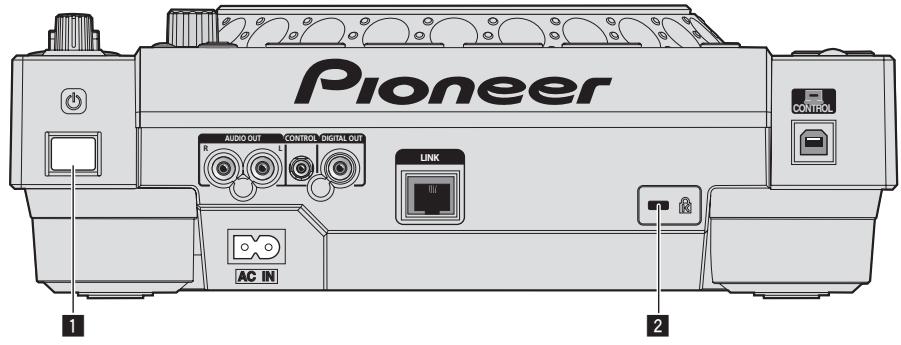
For the terminals used for connections, see Descriptions of terminals on page 10.
1 switch
Turns this unit's power on and off.
2 Kensington security slot
Front panel
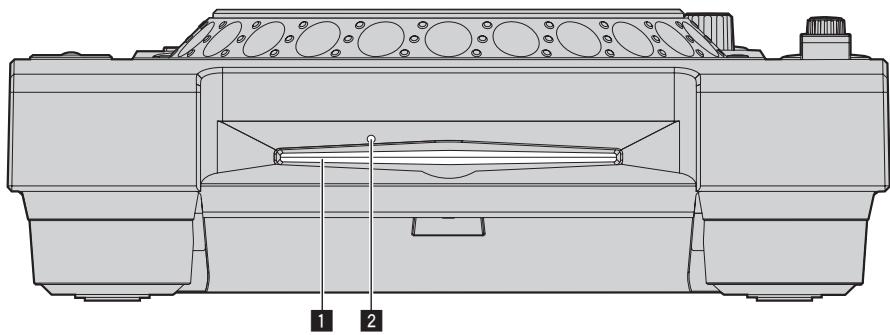
1 Disc insertion slot
2 Disc force eject pin insertion hole
About ejecting discs by force
If the disc cannot be ejected by pressing the [DISC EJECT] button, the disc can be forcibly ejected by inserting the disc force eject pin into the disc force eject pin insertion hole on the main unit's front panel.
- When forcibly ejecting a disc, be sure to do so following the procedure below.
1 Press the [O] switch to turn off this unit's power, unplug the power cord, then wait 1 minute or more.
Never forcibly eject a disc directly after turning off the set's power. Doing so is dangerous for the reasons described below.
The disc will still be spinning when ejected and could hit your fingers, etc., causing injury.
Also, the disc clamp will rotate in an unstable way, and the disc could get scratched.
2 Use the included disc force eject pin. (Do not use anything else.)
The included disc force eject pin is mounted on this unit's bottom panel. When the pin is inserted all the way into the insertion hole, the disc is ejected 5mm to 10mm out of the disc insertion slot. Grasp the disc with your fingers and pull it out.
Main unit display
Normal playback screen
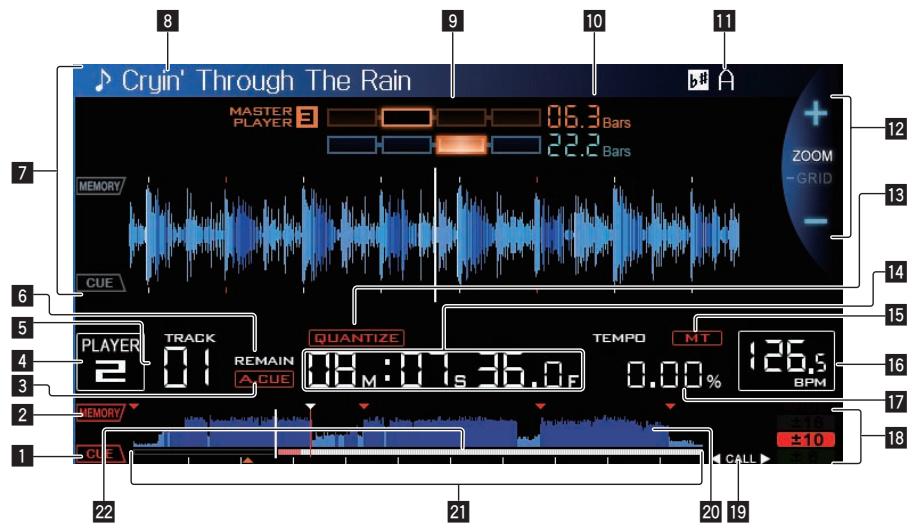
1 CUE
The positions of currently set cue and loop points are displayed as marks.
2 MEMORY
Cue and loop points recorded on USB devices are displayed as marks.
3 A.CUE
This lights when auto cue is set.
Setting auto cue (p.23)
4 PLAYER
This indicates the player number (1 - 4) assigned to this unit.
5 TRACK
This indicates the track number (01 - 99).
6 REMAIN
This lights when the time display is set to the remaining time.
7 Information display section
The enlarged waveform analyzed withrekordbox,etc.,is displayed here.
8 Track name
9 PHASE METER
This indicates the amount of divergence of the bars and beats with the master player when using the beat sync function.
10 BEAT COUNTERD
This indicates the number of bars or beats from the currently playing position to the nearest stored cue point.
KEY
This indicates the track's key.
12 ZOOM and GRID ADJUST mode display
When the rotary selector is pressed for over 1 second, the mode switches between the [ZOOM] mode and the [GRID ADJUST] mode.
- [ZOOM] mode: The waveform zooms in or out when the rotary selector is turned.
- [GRID ADJUST] mode: When the rotary selector is turned, the beat grid is adjusted.
The beat grid can be adjusted using the [MENU (UTILITY)] button.
- [reset]: Resets the adjusted beat grid.
- [snap grid (CUE)]: Moves the first beat to the position of the currently set cue.
[SHIFT GRID]: Reflects the results adjusted during synchronization (pitch bend, etc.) on the beat grid.
QUANTIZE
This is displayed when [QUANTIZE] is on.
14 Time display (minutes, seconds and frames)
There are 75 frames to a second.
15 MT
This lights when the master tempo is set.
Adjusting the playing speed without changing the pitch (Master Tempo) (p.21)
16 BPM
Displays BPM (Beats Per Minute) of the track currently being played.
- The BPM measured by this unit may differ from the BPM indicated on the disc or that of a Pioneer DJ mixer, etc. This is due to the different methods used for measuring the BPM, and is not a malfunction.
17 Playing speed display
The value changes according to the position of the [TEMPO] slider.
18 Playing speed adjustment range display
This indicates the range in which the playing speed can be adjusted with respect to the original playing speed recorded on the medium.
19CALL/LOOP beat display

is displayed anytime other than when in the loop or slip mode.
When it is displayed, cue or loop points can be called out using the [CUE/LOOP CALL (LOOP 1/2X), (LOOP 2X)] button.

is displayed when in the loop mode. The number set [CUE/LOOP CALL (LOOP 1/2X), (LOOP 2X)] button is played in the frame.
When it is displayed, the loop can be cut or doubled using the [CUE/LOOP CALL (LOOP 1/2X), (LOOP 2X)] button.

is displayed when in the slip beat loop mode. The numwith the [CUE/LOOP CALL (LOOP 1/2X), (LOOP 2X)]s displayed in the frame.
When it is displayed, the loop can be cut or doubled using the [CUE/LOOP CALL (LOOP 1/2X), (LOOP 2X)] button.
20 WAVE display
This displays the WAVE display, guidance, etc.
21 Playing address display/scale display (1-minute intervals)
The track is displayed as a bar graph. The current playback position is displayed as a white vertical line. When the elapsed time is displayed, the left edge of the graph lights. When the remaining time is displayed, the display turns off from the left side. The entire graph
flashes slowly when there are less than 30 seconds remaining in the track, then begins flashing rapidly when less than 15 seconds remain.
22 Cache meter
This indicates how much of the currently playing track is cached in the memory.
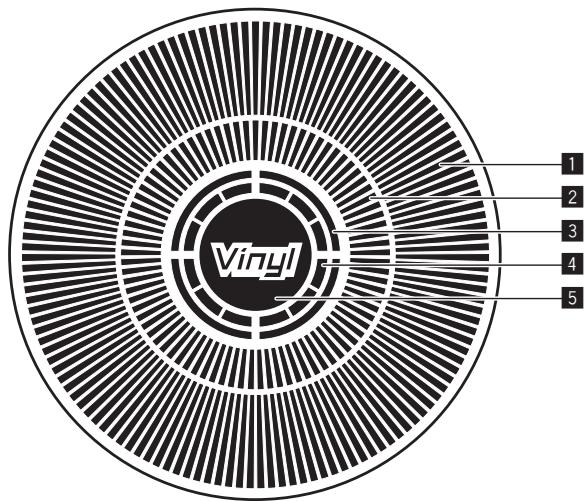
Jog dial display section
1 Operation display
This indicates the playing position, with one revolution equal to 135 frames. It turns during playback and stops in the pause mode.
2 Cue point display/slip play display
3 Audio memory status display
This flashes when the audio memory is being written. It stops flashing, remaining lit, when writing is completed. It may not be possible to perform the real time cue operation while the audio memory is being written. The display also flashes when there is not enough memory due to scratch play.
4 Jog touch detection display
When the jog mode is set to VINYL, the top of the jog dial lights when pressed.
5 VINYL
This lights when the jog mode is set to VINYL.
Operating the jog dial (p.21)
Basic Operation
Turning the power on
1 Make all the connections, then plug the power cord into a power outlet.
Connections (p.10)
2 Press the [] switch.
This unit's indicators light and the power turns on.
Turning the power off
Press the [O] switch.
This unit's power turns off.
- Do not disconnect the USB device or turn off this unit's power while the USB indicator is lit or flashing. Doing so could delete this unit's management data and damage the USB device, making it impossible to read.
Loading and ejecting discs
This unit is a one-disc player. Do not insert multiple disc.
- Do not force discs into the disc insertion slot when this unit's power is off. Doing so could damage the disc and lead to malfunction of this unit.
- When the disc is being drawn in or ejected, do not apply any force to the disc in the direction opposite its movement. Doing so could damage the disc or this unit.
Inserting discs
1 Press the [ ] switch to turn this unit's power on.
2 Insert the disc horizontally into the disc insertion slot, with the printed surface facing up.
Playback starts after the medium's information has been read.
- When a disc containing music files recorded with a hierarchical structure is loaded, playback starts from the tracks in the uppermost layer.
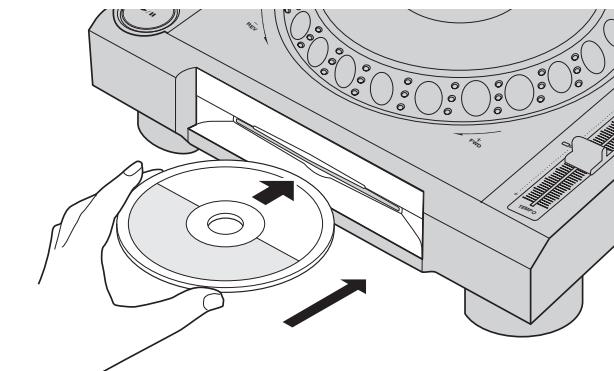
- When auto cue is turned on, the disc pauses at the audio start position. In this case, press the [PLAY/PAUSE▶/II] to start playback.
For details on auto cue, see Setting auto cue on page 23. - When a USB device that has previously been connected to this unit or a to Pioneer DJ player is connected and a disc is inserted, the number of discs for which disc information is stored is displayed for several seconds on the main unit display.
Ejecting discs
1 Press the [DISC EJECT] button to eject the disc.
The disc is ejected from the disc insertion slot.
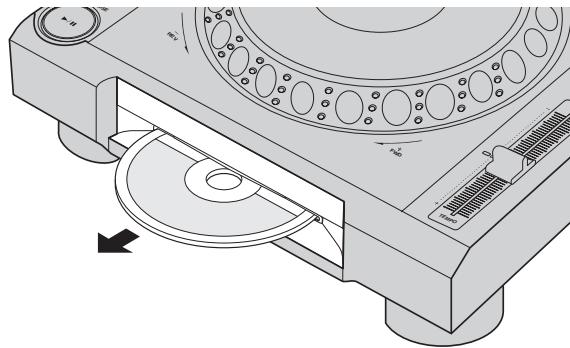
2 Pull the disc out, being careful not scratch its signal surface.
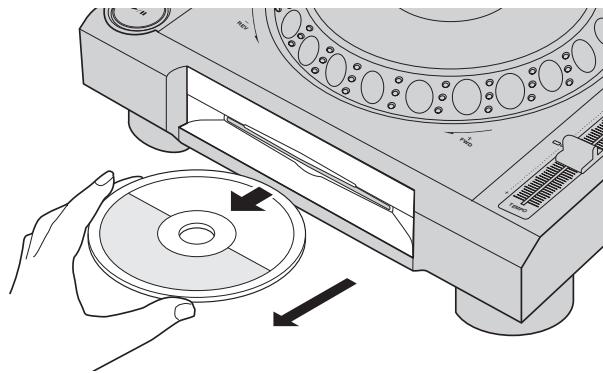
- If the [DISC EJECT] button is pressed accidentally, press the [PLAY/PAUSE▶/II] button immediately. Disc ejection is canceled and the unit is reset to as it was directly before the [DISC EJECT] button was pressed. (No sound is output during the resetting process.)
- When [EJECT/LOAD LOCK] on the [UTILITY] menu is set to [LOCK], discs cannot be ejected during playback. Either set [EJECT/LOAD LOCK] to [UNLOCK] or press the [PLAY/PAUSE▶/II] button to pause playback, then press the [DISC EJECT▲] button.
About the resume function
If a disc is ejected during playback, when that same disc is reloaded, playback resumes from the point playing when the disc was ejected. If a disc is ejected while pausing, when that disc is reloaded, it pauses at the same point as when it was ejected. These points are stored in the memory until this unit's power is turned off or a different disc is loaded.
This function cannot be used with USB devices.
Connecting and disconnecting USB devices
Connecting USB devices
1 Press the [] switch to turn this unit's power on.
2 Connect the USB device to the USB device insertion slot.
Disconnecting USB devices
1 Press the [USB STOP] button until the USB indicator turns off.
Do not disconnect the USB device or turn off this unit's power while the USB indicator is lit or flashing. Doing so could delete this unit's management data and damage the USB device, making it impossible to read.
2 Disconnect the USB device.
Playback
This section describes basic track selection operations and how to switch the screen.
Playing music files on other DJ players (p.20)
Playing the rekordbox library on a computer or mobile device (p.20)
Playing media connected to or inserted in this unit
1 Load the medium in this unit.
Inserting discs (p.19)
Connecting USB devices (p.19)
2 Press one of the medium buttons ([DISC] or [USB]).
The tracks or folders are displayed on a list.
The medium whose contents are displayed on the main unit display can be switched.
[DISC] button: Displays the contents on the inserted disc.
[USB] button: Displays the contents of the connected USB or mobile device.
For details on the [LINK] button, see Playing music files on other DJ players on page 20.
For details on the [rekordbox] button, see Playing therekordbox library on a computer or mobile device on page 20.
- If the rekordbox library information was written on the USB device, the rekordbox library is displayed.
For details on rekordbox library browsing, see Playing the rekordbox library on a computer or mobile device on page 20.
3 Turn the rotary selector.
Move the cursor and select the item.
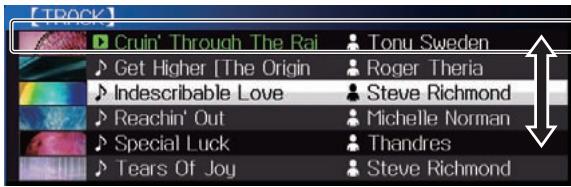
- Press the rotary selector to move to a lower level in the folder. Press the [BACK] button to return to the level above.
- When the [BACK] button is pressed for over 1 second or the medium button for the medium being browsed is pressed, the display moves to the topmost level.
Tracks in the currently playing track's category/folder of can also be selected using the [TRACK SEARCH I▶▶] buttons.
-rekordbox (iOS/Android) tracks operate in the single mode, so they cannot be searched using the [TRACK SEARCH] buttons.
4 Select the track and press the rotary selector.
When the track is loaded, the screen switches to the normal playback screen.
The track is loaded and playback starts.
For details on the normal playback screen, see Main unit display on page 17.
- When [EJECT/LOAD LOCK] on the [UTILITY] menu is set to [LOCK], it is not possible to load other tracks during playback. Either set [EJECT/LOAD LOCK] to [UNLOCK] or press the [PLAY/PAUSE▶/II] button to pause, then load the track.
- When a track has been loaded while pausing, press the [PLAY/PAUSE>II] button to start playback.
- When auto cue is turned on, the disc pauses at the audio start position. In this case, press the [PLAY/PAUSE▶/II] to start playback.
For details on auto cue, see Setting auto cue on page 23.
Playing music files on other DJ players
The contents of a recording medium connected to another PRO DJ LINK-connected player or of a mobile device on whichrekordbox is installed are displayed on this unit's screen.
- The information of discs inserted on other players cannot be browsed.
1 Connect the recording medium or the mobile device on which rekordbox is installed to the other player connected by PRO DJ LINK.
2 Press the [LINK] button.
The tracks and folders of the recording medium connected to another player or of the mobile device on which rekordbox is installed are displayed.
- When multiple media are connected, a screen for selecting the medium appears.
- If the rekordbox library information is written on the recording medium, the rekordbox library is displayed.
For details on rekordbox library browsing, see Playing the rekordbox library on a computer or mobile device on page 20.
3 Turn the rotary selector.
Move the cursor and select the item.
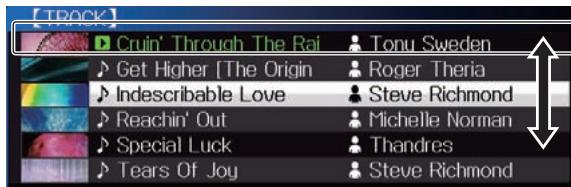
4 Select the track and press the rotary selector.
When the track is loaded, the screen switches to the normal playback screen.
The track is loaded and playback starts.
For details on the normal playback screen, see Main unit display on page 17.
If the medium contains the rekordbox library
If the rekordbox library information is written on this unit or on the recording medium connected to the other PRO DJ LINK-connected player, the rekordbox library is displayed.
- Music files are displayed in the categories (album, artist, etc.) set with rekordbox.
- The types of items on the category menu can be changed in rekord-box's preferences.
Playing the rekordbox library on a computer or mobile device
Music files are displayed in the categories (album, artist, etc.) set with rekordbox.
1 Press the [rekordbox] button.
Therekordbox library is displayed on this unit's main unit display.
- With wireless LAN (Wi-Fi) connections, if [Please push the rotary selector to permit mobile connection.] appears on this unit's main unit display when connecting, connection is possible by pressing the rotary selector.
- To select a mobile device connected by USB, press the [USB] button. Also, to select a mobile device connected to another player that is connected by PRO DJ LINK, press the [LINK] button.
2 Turn the rotary selector.
Move the cursor and select the item.
3 Select the track and press the rotary selector.
When the track is loaded, the screen switches to the normal playback screen.
The track is loaded and playback starts.
For details on the normal playback screen, see Main unit display on page 17.
Load previous tracks
The names of the last six tracks that were played can be displayed and these tracks can be selected.
1 Display the normal playback screen.
2 Press the [MENU (UTILITY)] button.
3 Turn the rotary selector to select the track, then press the rotary selector to set playback.
- The display of the track names is canceled by pressing the [MENU] or [BACK] button.
Pausing
During playback, press the [PLAY/PAUSE /II] button.
The [PLAY/PAUSE▶II] and [CUE] buttons flash. When the
[PLAY/PAUSE>II] button is pressed again, playback resumes.
- When tracks have been loaded from a disc, the disc automatically stops spinning if no operation is performed for 100 minutes while in the pause mode.
Forward and reverse scanning
Press one of the [SEARCH ,▶] buttons.
The track is scanned in the forward or reverse direction while one of the [SEARCH ] buttons is pressed.
It is not possible to move to a different category or folder during forward or reverse scanning.
Finding the beginnings of tracks (Track Search)
Press one of the [TRACK SEARCH I<,▶] buttons.
Press the [ 1] to move to the beginning of the next track.
When [▶] is pressed, playback returns to the beginning of the currently playing track. When pressed twice in a row, playback returns to the beginning of the previous track.
It is not possible to move to a different category or folder with the track search function.
-rekordbox (iOS/Android) tracks operate in the single mode, so searching for the beginnings of other tracks is not possible.
Adjusting the playing speed (Tempo control)
Press the [TEMPO ±6/±10/±16/WIDE] button.
The [TEMPO] slider's adjustment range switches each time the button is pressed. The adjustment range setting is indicated on the main unit display.
| Setting value | Units of adjustment |
| ±6 | 0.02 % |
| ±10 | 0.05 % |
| ±16 | 0.05 % |
| WIDE | 0.5 % |
The [WIDE] adjustment range is ± 100% . When set to -100% , playback stops.
The adjustment range is set to ± 10% when the power is turned on.
Move the [TEMPO] slider forward or backward.
The tempo increases when moved to the [+] side (down), decreases when moved to the [-] side (up). The rate at which the playing speed is changed is indicated on the playing speed display.
Adjusting the playing speed without changing the pitch (Master Tempo)
1 Press the [MASTER TEMPO] button.
The [MASTER TEMPO] button and [MT] indicator on the main unit display light.
2 Move the [TEMPO] slider forward or backward.
The pitch does not change even when the playing speed is changed with the [TEMPO] slider.
The sound is digitally processed, so the sound quality decreases.
Playing in reverse
- When the quantize function is on, there may be a slight delay in operation of this function in order to synchronize the beat.
Press the [DIRECTION REV] button.
The button lights and reverse playback starts.
- When the music files are recorded in a folder structure, only tracks within the same category/folder can be played in reverse. Also note that reverse playback may not start immediately.
- The direction in which the playing speed is increased or decreased according to the direction in which the jog dial is turned is reversed.
- When such operations as track searching and loop playback are performed during reverse playback, the audio memory status display on the jog dial display section flashes and scratch play may not be possible.
Operating the jog dial
- The top of the jog dial has an embedded switch. Do not place objects on the jog dial or subject it to strong forces.
Water or other liquids getting into the set will lead to malfunction.
Switching the jog dial mode
Press the [JOG MODE VINYL] button.
The mode switches between VINYL and CDJ each time the button is pressed.
- VINYL mode: When the top of the jog dial is pressed during playback, playback stops, and when the jog dial is spun at this time sound is produced according to the direction in which the jog dial is spun.
- CDJ mode: Playback does not stop even when the top of the jog dial is pressed. Such operations as scratching cannot be performed.
Pitch bend
During playback, spin the outer section of the jog dial without touching the top.
The playing speed increases when spun clockwise, decreases when spun counterclockwise. When spinning is stopped, playback returns to the normal speed.
- When the jog mode is set to the CDJ mode, the same operation can be performed by spinning the top of the jog dial.
Scratch
When the jog mode is set to the VINYL mode, tracks can be played according to the direction and speed at which the jog dial is spun by spinning the top of the jog dial while pressing it.
1 Press the [JOG MODE VINYL] button.
Set the jog mode to VINYL.
2 During playback, press the top of the jog dial.
Playback slows then stops.
3 Spin the jog dial in the desired direction and at the desired speed.
The sound is played according to the direction and speed at which the jog dial is spun by spinning the top of the jog dial while pressing it.
4 Release your hand from the top of the jog dial.
Normal playback resumes.
Frame search
In the pause mode, spin the jog dial.
The position at which the track is pausing can be moved in units of 0.5 frames.
- The position is moved in the direction of playback when the jog dial is spun clockwise, in the reverse direction when it is spun counterclockwise. The position moves 135 for one revolution of the jog dial.
Super fast search
Turn the jog dial while pressing one of the [SEARCH ], ] buttons.
The track is fast-forwarded/fast-reversed in the direction in which the jog dial is spun.
- When the [SEARCH , ] button is released, this function is canceled.
- When you stop the jog dial from spinning, normal playback resumes.
- The fast-forward/fast-reverse speed can be adjusted according to the speed at which the jog dial is spun.
Super fast track search
Turn the jog dial while pressing one of the [TRACK SEARCH | , ] buttons.
The track is advanced at high speed in the direction in which the jog dial was turned.
Adjusting the speed at which playback slows then stops when the top of the jog dial is pressed and the speed at which playback returns to normal when the top of the jog dial is released.
Turn [VINYL SPEED ADJUST TOUCH/RELEASE].
The speed increases when turned clockwise, decreases when turned counterclockwise.
- When the jog mode set to the VINYL mode, the speed at which playback starts and stops when [PLAY/PAUSE▶/II] is pressed changes simultaneously.
Advanced Operation
Setting Cue
1 During playback, press the [PLAY/PAUSE▶/II] button.
Playback is paused.
2 Press the [CUE] button.
The point at which the track is paused is set as the cue point.
The [PLAY/PAUSE▶/II] indicator flashes and the [CUE] indicator lights.
No sound is output at this time.
- When a new cue point is set, the previously set cue point is canceled.
Adjusting the cue point position
1 Press the [SEARCH , ] buttons while pausing at the cue point.
The [PLAY/PAUSE>II] and [CUE] indicators flash.
2 Press one of the [SEARCH , ] buttons.
The cue point can be fine-adjusted in steps of 0.5 frames.
The same operation is possible using the jog dial.
3 Press the [CUE] button.
The position at which the button was pressed is set as the new cue point.
- When a new cue point is set, the previously set cue point is canceled.
Returning to Cue Point (Back Cue)
During playback, press the [CUE] button.
The set immediately returns to the currently set cue point and pauses.
- When the [PLAY/PAUSE▶/II] button is pressed, playback starts from the cue point.
Checking Cue Point (Cue Point Sampler)
Keep pressing the [CUE] button after returning to the cue point.
Playback starts from the set cue point. Playback continues while the [CUE] button is pressed.
- If the [PLAY/PAUSE II] button is pressed while sampling the cue, playback continues even if the [CUE] button is released.
Setting Cue Point during playback (Real Time Cue)
During playback, press the [IN/CUE (IN ADJUST)] button at the point at which you want to set the cue point.
The point at which the button was pressed is set as the cue point.
Setting auto cue
When a track is loaded or the track search operation is performed, the silent section at the beginning of the track is skipped and the cue point is automatically set at the point immediately before the sound starts.
Press the [TIME MODE/AUTO CUE] button for over 1 second.
[A.CUE] lights.
- When [TIME MODE (AUTO CUE)] is pressed again for at least 1 second, auto cue is set to off.
- The auto cue level setting remains in the memory, even when the power is turned off.
Setting loops
This function can be used to play specific sections repeatedly.
- Loops that include sections in different tracks can only be set for tracks recorded on music CDs (CD-DA).
- When the quantize function is on, there may be a slight delay in operation of this function in order to synchronize the beat. (for reloading, 4-beat looping and 8-beat looping only)
1 During playback, press the [IN/CUE (IN ADJUST)] button at the point at which you want to start loop playback (the loop in point).
Loop In Point is set.
- This operation is not necessary if you want to set the currently set cue point as the loop in point.
2 Press the [OUT (OUT ADJUST)] button at the point at which you want to end loop playback (the loop out point).
The loop out point is set, and loop playback begins.
Fine-adjusting the loop in point (loop in adjust)
1 During loop playback, press the [IN/CUE (IN ADJUST)] button.
The [IN/CUE (IN ADJUST)] button starts flashing rapidly, and the [OUT (OUT ADJUST)] button turns off.
The loop in point's time is displayed on the main unit display.
2 Press one of the [SEARCH , ] buttons.
The loop in point can be adjusted in units of 0.5 frames.
The same operation is possible using the jog dial.
The loop in point's range of adjustment is ± 30 frames.
- The loop in point cannot be set at a point beyond the loop out point.
3 Press the [IN/CUE (IN ADJUST)] button.
Loop playback resumes.
- Normal loop playback also resumes if no operation is performed for over 10 seconds.
Fine-adjusting the loop out point (loop out adjust)
1 During loop playback, press the [OUT (OUT ADJUST)] button.
The [OUT (OUT ADJUST)] button starts flashing rapidly, and the [IN/CUE (IN ADJUST)] button turns off.
The loop out point's time is displayed on the main unit display.
2 Press one of the [SEARCH , ] buttons.
The loop out point can be adjusted in units of 0.5 frames.
The same operation is possible using the jog dial.
- The loop out point cannot be set at a point before the loop in point.
3 Press the [OUT (OUT ADJUST)] button.
Loop playback resumes.
- Normal loop playback also resumes if no operation is performed for over 10 seconds.
Canceling Loop playback (Loop Exit)
During loop playback, press the [RELOOP/EXIT] button.
Playback continues beyond the Loop Out Point without returning to the Loop In Point.
Returning to Loop playback (Reloop)
After canceling loop playback, press the [RELOOP/EXIT] button during playback.
Playback returns to the previously set Loop In Point, and Loop playback resumes.
Setting loops automatically (4-beat Loop)
During playback, press the [4-BEAT LOOP/LOOP CUTTER] button.
A loop of 4 beats starting from the point at which the button was pressed is set automatically according to the BPM of the currently playing track, and loop playback starts.
- If the track's BPM cannot be detected, the BPM is set to 130.
Another way to perform this operation
During playback, press the [IN/CUE (IN ADJUST)] button for over 1 second.
A loop of 4 beats starting from the point at which the button was pressed is set automatically according to the BPM of the currently playing track, and loop playback starts.
- If the track's BPM cannot be detected, the BPM is set to 130.
8-beat loop
During playback, press [4-BEAT LOOP/LOOP CUTTER] for over 1 second.
A loop extending 8 beats from the point at which the button was pressed is set automatically and loop playback begins.
Cutting loops (Loop Cut)
During loop playback, press the [CUE/LOOPCALL< (LOOP 1/2X)] button.
The loop playing time is cut in half each time the button is pressed.
Another way to perform this operation
During loop playback, press the [4-BEAT LOOP/LOOP CUTTER] button.
The loop playing time is cut in half each time the button is pressed.
Extending loops (loop doubling)
During loop playback, press the [CUE/LOOPCALL>(LOOP 2X)] button.
The loop's length is doubled each time the button is pressed.
Another way to perform this operation
During loop playback, press the [4-BEAT LOOP/LOOP CUTTER] button while pressing the [OUT (OUT ADJUST)] button.
The loop playing time is doubled each time the button is pressed.
Using active loops
1 Connect the USB device to this unit.
2 Load a track for which an active loop has been set with rekordbox.
One loop stored in rekordbox can be set as the active loop.
The set active loop point is indicated with a red line on the waveform display, as shown below.

When the set point is reached, the loop is set automatically and loop playback begins.
Emergency loops
With this unit, a 4-beat loop is set automatically to prevent the sound from being interrupted if a track can no longer continue to play.
- DJ playback is restricted during emergency looping. To cancel emergency looping, load the next track.
Storing cue or loop points
1 Connect the USB device to this unit.
2 Set Cue Point or Loop Point.
3 Press the [MEMORY] button.

MEMORY] is displayed on the main unit display for several secs. Then the point information is stored on the USB device.
Stored cue and loop points are indicated [] at the top of the waveform display.
- It is also possible to select media connected to other DJ players connected by PRO DJ LINK.
- To store loop points, press the [MEMORY] button during loop playback. The stored loop points are shown on the playing address display.
Calling out stored cue or loop points
1 Connect the USB device to this unit.
2 Load the track whose cue or loop points you want to call out.
Stored cue and loop points are indicated [] at the top of the waveform display.
3 Press the [CUE/LOOP CALL (LOOP 1/2X)] or [CUE/LOOP CALL (LOOP 2X)] button.
Press [CUE/LOOP CALL (LOOP 1/2X)] to call out a point before the currently playing position, [CUE/LOOP CALL (LOOP 2X)] to call out a point after the currently playing position.
The track cues to the called out point and pauses.
- When multiple points are stored, a different point is called out each time the button is pressed.
- Loops set as active loops can also be called out as stored loops.
4 Press the [PLAY/PAUSE▶II] button.
Normal or loop playback starts from the point that was called out.
Deleting stored cue or loop points
Deleting points individually
1 Connect the USB device to this unit.
2 Load the track containing the cue point or loop points you want to delete.
Stored cue and loop points are indicated [] at the top of the waveform display.
3 Press the [CUE/LOOP CALL (LOOP 1/2X)] or [CUE/LOOP CALL (LOOP 2X)] button to call out the point to be deleted.
The track cues to the called out point and pauses.
- When multiple points are stored, a different point is called out each time the button is pressed.
4 Press the [DELETE] button.
![PIONEER CDJ-900NXS - Press the [DELETE] button. - 1](/content/2025/01/119069/images/ded50fd0b2489fdb78c21efd0effa3b8046fe39f4693c2af0b92f5584b0a60bf.jpg)
point information is deleted.
- When a stored loop set as an active loop is deleted, the active loop is also deleted.
Deleting points in units of discs
1 Load a disc in this unit.
When tracks from a medium other than a disc are loaded, load any track from the disc.
2 Connect the USB device to this unit.
The cue or loop in point is displayed on the playing address display with a mark.
3 Press the [DELETE] button for over 5 second.
[DISC CUE/LOOP DATA-DELETE? PUSH MEMORY] appears on the main unit display.
4 Press the [MEMORY] button.
All cue and loop points for the disc currently loaded in this unit are deleted.
- The delete mode is canceled if any button other than [MEMORY] is pressed.
Deleting all disc information recorded on the USB device
Connect the USB device on which the disc information is stored to this unit.
1 With no disc loaded on this unit, press the [DELETE] button for over 5 seconds.
[DISC CUE/LOOP DATA-DELETE ALL? PUSH MEMORY] appears on the main unit display.
2 Press the [MEMORY] button.
All the disc information stored on the USB device is deleted.
- The delete mode is canceled if any button other than [MEMORY] is pressed.
Setting the cue point for auto cueing
The cue point to be set as the auto cue can be selected using one of the methods below.
Setting the cue point by the acoustic pressure level identified as a silent section (8 levels)
-36 dB, -42 dB, -48 dB, -54 dB, -60 dB, -66 dB, -72 dB and -78 dB
Automatically setting stored cues as cue points
MEMORY: The stored cue point nearest the beginning of the track is set as the cue point for auto cueing.
- When [MEMORY] is set, [A. CUE] lights in white on the main unit display.
The setting of the cue point for auto cueing can be changed using one of the methods below.
Using the [MENU (UTILITY)]button
1 Press the [MENU (UTILITY)] button for over 1 second. The [UTILITY] screen is displayed.
2 Turn the rotary selector then press it. Select [AUTO CUE LEVEL].
3 Turn the rotary selector then press it. Select the acoustic pressure level or [MEMORY].
Using the [TIME MODE (AUTO CUE)]button
1 Press the [TIME MODE/AUTO CUE] button for over 5 second.
The currently set value is displayed on the main unit display.
2 Press the [CUE/LOOP CALL (LOOP 1/2X)] or [CUE/LOOP CALL (LOOP 2X)] button.
Select the acoustic pressure level or [MEMORY].
Using the beat divide function
One beat's worth of sound is divided by the selected beat length and played.
- Turn the slip function off when using the beat divide function.
During playback, press the [BEAT DIVIDE] button.
Beat division starts.
- If the track's BPM cannot be detected, the BPM is set to 130.
- When the quantize function is on, the sound is matched to the beat, so there may be a slight delay in the function's operation.
Canceling the beat divide function
Press the selected [BEAT DIVIDE] button.
The beat divide function is canceled.
- The beat divide function is also canceled when tracks are loaded.
Using the slip mode
When the slip mode is turned on, normal playback in the original rhythm continues in the background while pausing (in the vinyl mode), scratching, playing loops or playing in reverse. When the slip mode is canceled, normal playback resumes from the point reached at the time the slip mode was canceled.
- When the quantize function is on, there may be a slight delay in operation of this function in order to synchronize the beat. (Slip beat looping and slip reversing only)
Display of the position playing in the background
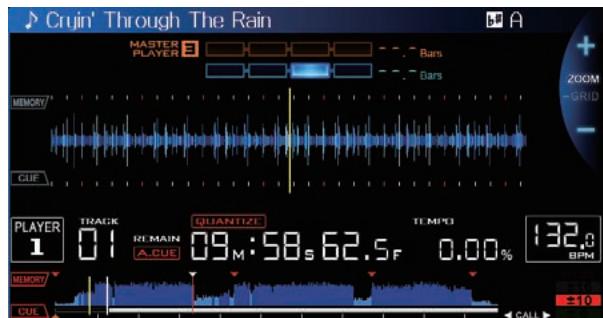
- When in the slip mode, the currently playing position is indicated by a yellow line on the main unit display's waveform display (overall waveform or enlarged waveform). The position playing in the
background is indicated by a white line on the main unit display's waveform display (overall waveform).
It is also displayed on the jog dial's slip play display.
Slip pausing
1 Press the [JOG MODE VINYL] button.
Set the jog mode to VINYL.
2 Press the [SLIP] button.
The mode switches to the slip mode.
3 During playback, press the [PLAY/PAUSE /II] button.
Normal playback continues in the background even while in the pause mode.
The [SLIP] button flashes in beat with the sound playing in the background.
4 Press the [PLAY/PAUSE /II] button to cancel the pause mode.
- When the slip pause mode is canceled, normal playback of the sound that was playing in the background resumes. At this time, the value adjusted with the [VINYL SPEED ADJUSTTOUCH/RELEASE] control is disabled and playback starts at the normal speed.
Slip scratching
1 Press the [JOG MODE VINYL] button.
Set the jog mode to VINYL.
2 Press the [SLIP] button.
The mode switches to the slip mode.
3 During playback, press the top of the jog dial.
The scratch play mode is set.
Normal playback continues in the background even while scratching.
The [SLIP] button flashes in beat with the sound playing in the background.
4 Release your hand from the top of the jog dial.
Normal playback of the sound that was playing in the background resumes.
Slip looping
1 Press the [SLIP] button.
The mode switches to the slip mode.
2 Press the [IN/CUE (IN ADJUST)] button, then press the [OUT (OUT ADJUST)] button.
Loop playback starts.
Normal playback continues in the background even during loop playback.
The [SLIP] button flashes in beat with the sound playing in the background.
- Loops of over 8 seconds cannot be set.
- The same operation is performed when the [IN/CUE (IN ADJUST)] button is pressed for over 1 second and a loop is set.
3 Press the [RELOOP/EXIT] button.
Looping is canceled, and normal playback of the sound that was playing in the background resumes.
Slip beat looping
1 Press the [SLIP] button.
The mode switches to the slip mode.
2 Press and hold the [BEAT DIVIDE] button.
The loop is set automatically and loop playback begins.
Normal playback continues in the background even during loop playback.
The [SLIP] button flashes in beat with the sound playing in the background.
- It is also possible to press another button without releasing your finger from the [BEAT DIVIDE] button to select a different beat.
3 Release your finger from the [BEAT DIVIDE] button.
Normal playback of the sound that was playing in the background resumes.
4 Press the [RELOOP/EXIT] button.
The last loop that was set is played and the slip loop mode is set.
- When slip beat looping is canceled after selecting a different beat without releasing your finger from the [BEAT DIVIDE] button, the loop called out with the [RELOOP/EXIT] button is the loop that was set first (during playback).
Slip reverse
1 Press the [SLIP] button.
The mode switches to the slip mode.
2 During playback, press the [DIRECTION REV] button.
The button lights and reverse playback starts.
Normal playback continues in the background even during reverse playback.
The [SLIP] button flashes in beat with the sound playing in the background.
- Slip reverse play is automatically canceled after 8 beats have elapsed from the position at which [DIRECTION REV] was pressed. Normal playback of the sound that was playing in the background resumes.
- If [DIRECTION REV] is pressed again before 8 beats have elapsed, slip reverse play is canceled and normal playback of the sound that was playing in the background resumes.
Canceling the slip mode
Press the [SLIP] button.
The slip mode is canceled.
- The slip mode is also canceled when a track is loaded.
Using the beat sync function
When beat sync is turned on, the BPM and beat position of tracks played on this unit can automatically be synchronized with the DJ player connected by PRO DJ LINK that is set as the sync master.
- The beat sync function does not operate for tracks that have not been analyzed withrekordbox.
1 Press the [BEAT SYNC MASTER] button on the DJ player you want to set as the sync master.
Set the DJ player you want to be the sync master.
When the beat sync function is on, the BPM display on the DJ player set as the sync master changes to orange.
-rekordbox can also be set as the sync master.
For instructions on setting rekordbox as the sync master, see the rekordbox (Mac/Windows) operating instructions.
2 Press the [BEAT SYNC] button.
The BPM and beat position of the currently playing track are synchronized to the sync master.
- During synchronization, tempo control with the tempo slider is disabled and the playing speed display switches to the tempo slider position's BPM display, displayed in gray.
Changing the DJ player set as the sync master
The sync master can be changed to another DJ player connected by PRO DJ LINK as described below.
- Change or pause the track on the DJ player set as the sync master.
- Press the [BEAT SYNC MASTER] button on the DJ player set as the sync master.
- Press the [BEAT SYNC MASTER] button on a DJ player other than the one set as the sync master.
Canceling synchronization
Press the [BEAT SYNC] button.
- If the synchronized playing tempo (BPM) and the slider position's tempo (BPM) do not match, the synchronized playing tempo is maintained and tempo control with the tempo slider remains disabled. Normal operation is restored when the position of the tempo slider is moved to the synchronized playing tempo position.
Operating the CDJ-900 nexus in combination with other devices
When connected by LAN cable with a Pioneer DJ mixer, such operations as starting playback on this unit can be controlled with the DJ mixer's fader.
- Connect this unit and the Pioneer DJ mixer ahead of time. For instructions on connections, see Connections on page 10.
- For details on player number settings, see PRO DJ LINK on page 3.
- Also refer to the description of the fader start function included in the Pioneer DJ mixer's operating instructions.
Starting playback using a DJ mixer's fader (Fader Start)
1 Connect this unit with the Pioneer DJ mixer using a LAN cable.
For instructions on connecting, see Basic style on page 10.
- If the Pioneer DJ mixer does not have a LAN port, connect a mini phone plug cable (Ø 3.5 mm) to the CONTROL terminal.
2 Turn on the DJ mixer's fader start function.
3 Set cues on this unit.
4 Move the DJ mixer's channel fader or cross fader.
This unit's pause mode is canceled and the track is played instantaneously.
- When the channel fader or cross fader is set back to its original position, playback cues back to the set cue point and the pause mode is set (Back Cue).
Relay play on two DJ players
1 Connect this unit and a DJ mixer.
For instructions on connecting, see Connections for relay play on page 13.
2 Set the DJ mixer's cross fader to the center position.
3 Turn auto cue on for both DJ players.
The DJ players' auto cue indicators light.
4 Start playback on this unit.
The first track on this unit is played, and once it finished playback begins automatically on the other DJ player. This unit cues to the beginning
of the next track and pauses. This operation is repeated for relay play between the two DJ players.
Relay play may not be possible if the two DJ players are not connected to the same DJ mixer.
- If the power of one DJ player is turned off during playback, playback may start on the other DJ player.
Browsing tracks
The various devices and the rekordbox library on the connected computer can be browsed to display a list of the tracks.
- When a USB device that does not contain the rekordbox library information is browsed, the folders and tracks (music files) are displayed in a list with a tree structure.
Switching to the browse screen
Press the device button corresponding to the device you want to display.
When a button is pressed, the contents of the corresponding source are displayed on a list.
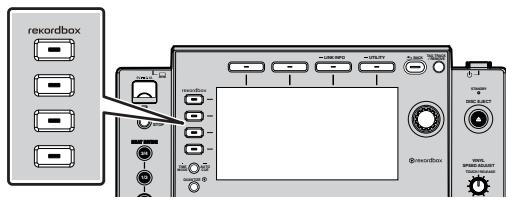
- [DISC] button: Displays the contents on the inserted disc.
- [USB] button: Displays the contents of the connected USB or mobile device.
- [LINK] button: Displays the contents of a recording medium connected to another PRO DJ LINK-connected player or of a mobile device on which rekordbox is installed.
-
[rekordbox] button: Displaysrekordbox connected by PRO DJ LINK (LINK Export).
-
When the [BROWSE] button is pressed while the browse screen is displayed, the browse screen closes and the screen returns to the normal playback screen.
When the [BROWSE] button is pressed again, the previous browse screen opens.
Description of the screen
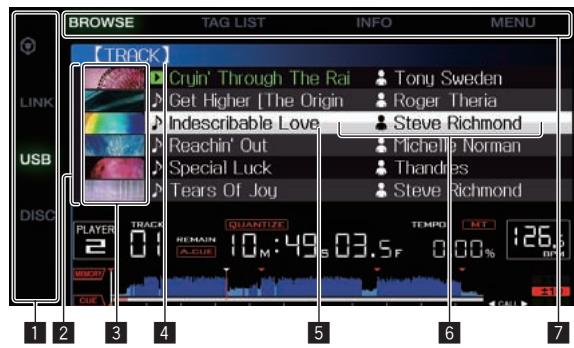

Media select
The indicator corresponding to the medium button that was pressed ([DISC], [USB], [LINK] or [rekordbox]) lights.
The medium on which the track is loaded flashes.

List of contents
The contents of the selected medium are displayed.
| 3 | Jacket photo | Part of the artwork registered in rekordbox is displayed here. When the [INFO (LINK INFO)] button is pressed, the jacket photo turns off and the track names are dis-played along the left edge. For lists of playlists and playing histories, a serial number is displayed. If there is no rekordbox library, the track names are constantly displayed along the left edge. |
| 4 | Uppermost level | Displays the name of the upper folder or media of the displayed item. |
| 5 | Cursor | Turn the rotary selector to move the cursor up and down. |
| 6 | User-set categories | The categories displayed with rekordbox can be selected. When the [INFO (LINK INFO)] button is pressed, the details of the track selected with the cursor are displayed. If there is no rekordbox library, the details of the track selected with the cursor are displayed. |
| 7 | Mode select | The indicator corresponding to the button that was pressed ([BROWSE], [TAG LIST], [INFO] or [MENU]) lights. When the normal playback screen is displayed, all the buttons are off. |
Basic operations on the browse screen
Selecting items
1 Display the browse screen.
Switching to the browse screen (p.27)
2 Turn the rotary selector to select an item.

The jump function can be used by pressing the rotary selector for over 1 second.
For details on the jump function, see Searching using the jump function on page 29.
3 Press the rotary selector to enter the item.
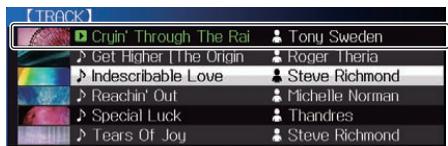
When there is a lower layer, that layer opens. When a menu, etc., is displayed, the selected item is entered.
When the rotary selector is pressed while the cursor is set at a track, that track is loaded in this unit.
Moving back up to a higher layer
Press the [BACK] button while the browser screen is displayed.
The screen moves back to the layer above.
- When the [BACK] button is pressed for over 1 second or the medium button for the medium being browsed is pressed, the display moves to the topmost level.
-
To play a track on a USB device or a track in the rekordbox library on a computer or a mobile device, the information below can be viewed by pressing the [BACK] button at the topmost level.
-
When there is no rekordbox library information on the USB device: That medium's free space and used space
-
When there is rekordbox library information on the USB device: That medium's free space and used space, as well as the number of tracks, number of playlists and last modified dates in the library information
- rekordbox on a computer or mobile device: The number of tracks and playlists in the library information
Other browsing operations
Rearranging tracks (Sort menu)
While browsing, the sort menu can be used to change the order of the tracks.
This function only works in the following cases:
- When browsing the rekordbox library on a computer or mobile device
- When browsing the rekordbox library on a USB device
1 Display the rekordbox library.
Playing music files on other DJ players (p.20)
Playing the rekordbox library on a computer or mobile device (p.20)
2 When a list of the tracks is displayed, press the [MENU (UTILITY)] button.
The sort menu appears on the screen.
3 Use the rotary selector to select and enter the sort item.
The tracks on the list are sorted according to the selected item.
- The sort items displayed on the sort menu can be changed in the rekordbox settings. The rekordbox library on the USB device is reflected once it is re-exported after changing the settings.
Searching for tracks
This function only works in the following cases:
- When browsing the rekordbox library on a computer or mobile device
- When browsing the rekordbox library on a USB device
Searching using the [SEARCH] category
In the library browse mode, tracks can be search for using the [SEARCH] category.
1 Display the rekordbox library.
Playing music files on other DJ players (p.20)
Playing the rekordbox library on a computer or mobile device (p.20)
2 Use the rotary selector to select and enter the [SEARCH] category.
A character appears at the bottom of the main unit display.
3 Using the rotary selector to input characters.
Only the tracks including the character you have input are displayed.
- When more characters are input, only the tracks including the character string you have input are displayed.
- When the [BACK] button is pressed, the category selection screen reappears.
Searching using the currently playing track's key
When the displayed category is the key display, the key icon for tracks whose keys are a good match with the currently playing track's key switches to green.
Searching using the jump function
The jump function can be used to instantaneously move to the track, category or folder you want to play.
The jump function includes the two modes below.
- Letter jumping: Use this when the tracks are arranged or sorted in alphabetical order.
- Page jumping: Use this when tracks are not in alphabetical order or are not sorted.
In the letter jump mode
1 Display a list sorted in alphabetical order.
Display a list sorted in alphabetical order, such as the rekordbox library or the track list on a USB device.
2 Press the rotary selector for at least 1 second.
Switch to the letter jump mode. The first letter of the track or category selected with the cursor is enlarged.
3 Turn the rotary selector to select the character or symbol.
The cursor moves to tracks or categories starting with the selected character or symbol.
- If there are no tracks or categories starting with the selected character on the list, the cursor does not move.
The characters displayed in the letter jump mode are letters A to Z, numbers 0 to 9 and certain symbols.
In the page jump mode
1 Display a list not sorted in alphabetical order.
Display a list that is not sorted in alphabetical order, such as a music CD's tracks, folders on a USB device or disc, etc.
2 Press the rotary selector for at least 1 second.
The mode switches to the page jump mode.
3 Turn the rotary selector to select the page.
The display moves to the selected page.
Using the information jump function
The categories to which tracks belong can be displayed by selecting items displayed in the details. This function is convenient for searching for tracks in the same genre as the loaded track, tracks with similar BPMs, etc.
1 Load a track.
2 At the normal playback screen, press the [INFO] button.
The track's details are displayed.
- For details, see Displaying the details of the currently loaded track on page 31.
3 Select and enter the item.
The screen switches to the browse screen and the category for the selected item is displayed.
- To close the browse screen, press the [BROWSE] button.
- It may not be possible to select items, for example for items with nothing to be displayed on the browse screen, items for which only icons are displayed in the details, etc.
- When a track is selected, the browse screen displayed directly before the track was loaded is displayed.
- For disc tracks or USB devices that do not contain the rekordbox library, the only items that can be selected are tracks.
Checking the playing history (HISTORY)
The track playing history is stored and displayed at the [HISTORY] category on the browse screen.
- Playlists can be created based on the playing history at [HISTORY] usingrekordbox.For details, seerekordbox (Mac/Windows)'s operat ing instructions.
Storing the playing history
1 Connect the USB device to this unit.
2 Play tracks.
Tracks that have been played for approximately 1 minute are stored on the playing history list.
- When a USB device is connected to this unit for the first time or when it is reconnected to this unit, a new playing history is automatically created on the USB device.
- The names of playing history lists can be preset at [UTILITY].
- Setting the playing history list name (p.33)
- When the same track is played two or more times consecutively, it may not be stored in the history.
- The maximum number of tracks that can be stored on a playing history list is 999. From the 1000th track on, the oldest entries on the playing history are deleted to make room for the new entries. Up to 999 playing history lists can be created.
- When tracks are registered on the playing history list, their track names, etc., are displayed in green (indicating that they have been played).
- Tracks at the [PLAYLIST] category can be changed to green (played) using the [MENU] button. When changed, the tracks are registered on the playing history list.
Deleting the playback history
1 Connect the USB device to this unit.
2 Display the rekordbox library.
Playing music files on other DJ players (p.20)
Playing the rekordbox library on a computer or mobile device (p.20)
3 Use the rotary selector to select and enter the [HISTORY] category.
A list of the playing history lists is displayed.
4 Turn the rotary selector and select the playing history list to be deleted.
5 Press the [MENU (UTILITY)] button.
The remove menu is displayed.
6 Turn the rotary selector to select and enter the range to be deleted.
- [DELETE]: The currently selected playing history list is deleted.
- [ALL DELETE]: All the playing history lists are deleted.
- When a USB device's playing history is loaded as a rekordbox playlist, the previously loaded playing history is deleted from the USB device.
- For tracks in the [PLAYLIST] category, the track names can be changed from green (played) to white (not played) using the [MENU] button. When this change is made, the tracks are deleted from the playing history list.
7 Use the rotary selector to select and enter [OK].
Editing tag lists
Tracks to be played next or tracks selected according to DJ situations can be marked and collected on lists. The list of collected tracks is called the "tag list". These tag lists can be shared in real time among multiple DJ players connected by PRO DJ LINK.
- Up to 100 tracks per device can be added to a tag list.
- One tag list can be created per USB device. It is not possible to make a tag list containing tracks on different USB devices.
It is not possible to register the same track in the same folder twice.
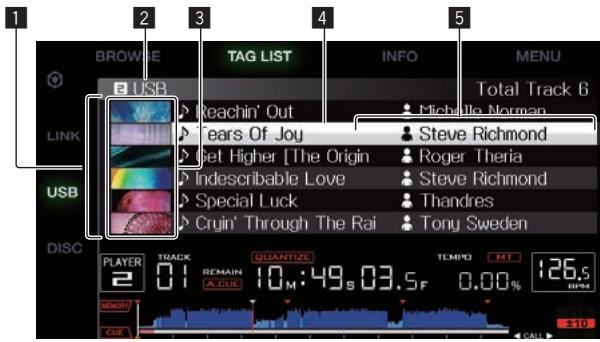
| 1 | List of contents | The contents of the tag list are displayed here. |
| 2 | Medium name | The name of the medium on which the track is recorded is displayed here. |
| 3 | Jacket photo | Part of the artwork registered in rekordbox is displayed here. When the [INFO (LINK INFO)] button is pressed, the jacket photo turns off and serial numbers are displayed. |
| 4 | Cursor | Turn the rotary selector to move the cursor up and down. |
| 5 | User-set categories | The categories displayed with rekordbox can be selected. When the [INFO (LINK INFO)] button is pressed, the details of the track selected with the cursor are displayed. |
Adding tracks to the tag list
Selecting tracks and adding them
1 Switch to the browse screen and display the list of tracks.
2 Set the cursor to the track and press the [TAG TRACK/REMOVE] button.

is displayed to the left of the track and the track is added to that um's tag list.
Tracks can be recorded in the tag list ahead of time usingrekordbox.
For details on this operation, see the rekordbox (Mac/Windows) operating instructions.
Adding loaded tracks
1 Load a track.
2 At the normal playback screen, press the [INFO] button.
3 Press the [TAG TRACK/REMOVE] button.
The track loaded in this unit is added to the tag list.
- Tracks can be added to the tag list by pressing the [TAG TRACK/REMOVE] button at the normal playback screen as well.
Adding entire categories or folders
All the tracks in a selected category or folder can be added to the tag list.
1 Switch to the browse screen and select a category or folder that has tracks directly under it.
A list of the tracks is displayed on the right half of the information display screen.
2 Set the cursor to the category or folder, then press the [TAG TRACK/REMOVE] button.
The category or folder name flashes, and all the tracks in that category or folder are added to the tag list.
- When folders are added while in the folder browse mode, tracks for which ID3 tags, etc., have not been loaded a single time are registered using the file name as the track name. The artist names are not registered.
- After tracks have been added to the tag list, when the registered tracks are displayed on the track list on the browse screen or are loaded in a player and their ID3 tags, etc., are loaded, the file names switch to the track names and the artist names are also registered.
Adding tracks from playlists
All the tracks on a selected playlist can be added to the tag list.
1 Switch to the browse screen and select and enter the [PLAYLIST] category.
A list of the playlists is displayed, and a list of the tracks is displayed on the right half of the information display screen.
2 Set the cursor to the playlist, then press the [TAG TRACK/REMOVE] button.
The playlist name flashes, and all the tracks on that playlist are added to the tag list.
Loading tracks from the tag list
1 Press the [TAG LIST] button.
The tag list is displayed.
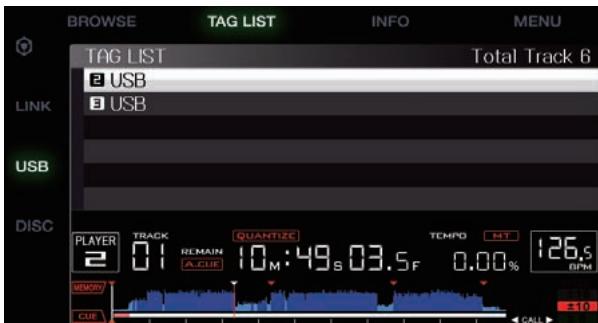
- When multiple mediums are connected to a DJ player, the player number of the player to which that medium is connected and the rekordbox icon are displayed in front of the medium's name.
2 Use the rotary selector to select and enter the medium.
When a medium is selected, that medium's tag list is displayed.
3 Use the rotary selector to select and enter the track you want to load.
The track is loaded and playback starts.
Removing tracks from the tag list
Tracks can be removed from tag lists.
- If a track that has been added to the tag list is removed from the tag list while it is playing, the track is played to the end, then the stop mode is set. The next track is not played.
Removing one track at a time
1 Press the [TAG LIST] button.
The tag list is displayed.
2 Use the rotary selector to select and enter the medium.
When a medium is selected, that medium's tag list is displayed.
3 Use the rotary selector to set the cursor to the track you want to remove.
4 Press the [TAG TRACK/REMOVE] button for over 1 second.
Tracks can be removed from tag lists by pressing the [TAG TRACK/REMOVE] button at the screens and in the situations described below.
- When the cursor is set to a track registered in the tag list on the browse screen
- When the normal playback screen or a track's details screen is displayed while a track registered in the tag list is loaded
Removing all the tracks
1 Press the [TAG LIST] button.
The tag list is displayed.
2 Use the rotary selector to select and enter the medium.
When a medium is selected, that medium's tag list is displayed.
3 Press the [MENU (UTILITY)] button.
[LIST MENU] is displayed.
4 Use the rotary selector to select and enter [TAGLIST MENU].
[TAGLIST MENU] is displayed.
5 Use the rotary selector to select and enter [REMOVE ALL TRACKS].
6 Use the rotary selector to select and enter [OK].
Transforming the tag list into a playlist
Tracks collected in tag lists can be converted into playlists.
- Converted playlists are displayed as items in the [PLAYLIST] category.
1 Press the [TAG LIST] button.
The tag list is displayed.
2 Use the rotary selector to select and enter the medium.
When a medium is selected, that medium's tag list is displayed.
3 Press the [MENU (UTILITY)] button.
[LIST MENU] is displayed.
4 Use the rotary selector to select and enter [TAGLIST MENU].
[TAGLIST MENU] is displayed.
5 Use the rotary selector to select and enter [CREATE PLAYLIST].
6 Use the rotary selector to select and enter [OK].
The contents of the tag list are converted into a playlist with the name [TAG LIST XXX].
- If no rekordbox library information is stored on the medium, the tag list cannot be converted into a playlist.
- When tag lists include both tracks being managed with rekordbox and tracks not being managed with rekordbox, only the tracks being managed with rekordbox are converted into playlists.
Displaying the details of the currently loaded track
The details of the currently loaded track can be checked.
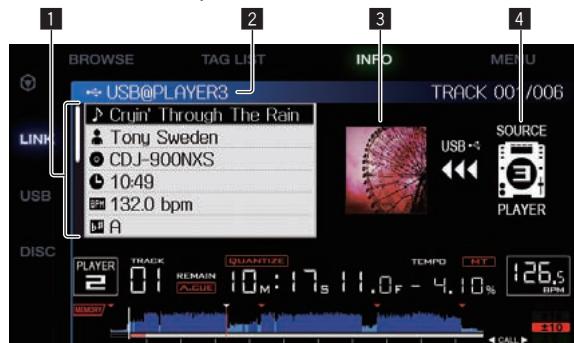
| 1 | Track details | The details of the tracks loaded in the DJ player are displayed here. |
| 2 | Medium/player number | The place where the track information is stored is displayed here. |
| 3 | Jacket photo and comment | The jacket photo and comment about the track loaded in the DJ player are displayed here. |
| 4 | Source indicator | This indicates the location of the currently loaded track. |
The source indicator (4) is not displayed when the disc or medium connected to this unit is loaded.
1 Load a track.
2 At the normal playback screen, press the [INFO] button.
The track's details are displayed.
Changing track ratings
The tracks' ratings can be changed.
1 Select the rating displayed in the detailed information (display example: ☆☆☆☆☆).
2 Press the rotary selector for over 1 second, then turn the rotary selector clockwise or counterclockwise.
The rating of the loaded track is changed.
Displaying details of tracks loaded in other DJ players
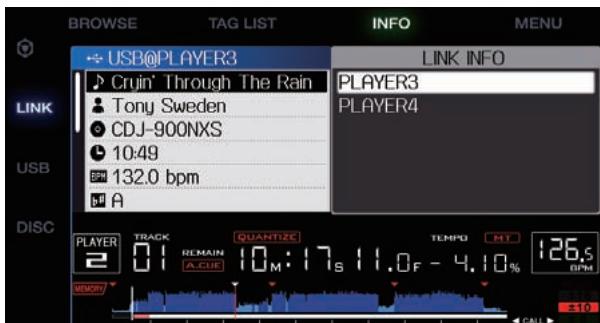
When another DJ player is connected by PRO DJ LINK, the details of the track loaded on the other DJ player can be checked.
1 Connect this unit and the other DJ players by PRO DJ LINK.
2 Press the [INFO] button for over 1 second.
The [LINK INFO] screen appears.
3 Use the rotary selector to select and enter the DJ player whose track details you want to see.
The details of the tracks loaded in the selected DJ player are displayed.
Changing the settings
Storing settings on USB devices
The [UTILITY] settings and other settings can be stored on USB devices. The stored settings can be exported to rekordbox.
It is also possible to store this unit's settings on USB devices after making them with rekordbox then load these settings onto another player.
-
The stored settings are shown below.
-
[UTILITY] settings
PLAY MODE, EJECT/LOAD LOCK, AUTO CUE LEVEL, SLIP FLASHING, ON AIR DISPLAY, LANGUAGE, LCD BRIGHTNESS
Other settings
TIME MODE (how the time is displayed on the main unit display), AUTO CUE, JOG MODE, TEMPO RANGE, MASTER TEMPO, QUANTIZE, SYNC
1 Connect the USB device onto which you want to store the settings.
2 Press the USB medium button.
If the USB device onto which the settings are to be stored is connected to another PRO DJ LINK-connected DJ player, press the [LINK] button to select the recording medium.
3 Press the [MENU (UTILITY)] button.
4 Use the rotary selector to select and enter [SAVE] at [MY SETTINGS].
The settings are stored.
Calling out settings stored on a USB device
[UTILITY] settings and other settings stored on a USB device can be called out.
1 Connect the USB device onto which you want to store the settings.
2 Press the USB medium button.
If the USB device onto which the settings are to be stored is connected to another PRO DJ LINK-connected DJ player, press the [LINK] button to select the recording medium.
3 Press the [MENU (UTILITY)] button.
4 Use the rotary selector to select and enter [LOAD] at [MY SETTINGS].
The settings are called out.
Displaying the [UTILITY] screen
Press the [MENU (UTILITY)] button for over 1 second.
The [UTILITY] screen is displayed.
Description of the screen
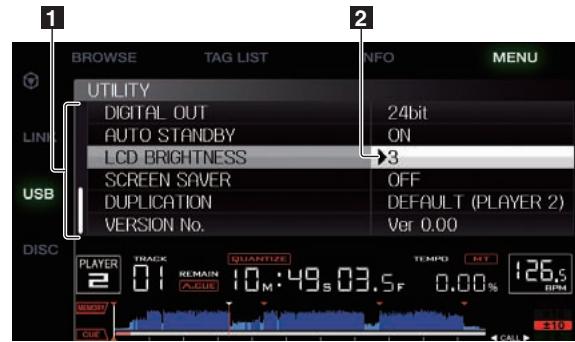
1 Options settings This unit's settings items are displayed here.
2 Setting The settings for the various items are displayed here.
Changing the settings
1 Press the [MENU (UTILITY)] button for over 1 second.
The [UTILITY] screen is displayed.
2 Use the rotary selector to select the setting item.
3 Set the cursor to the item you want to change, then press the rotary selector.
The cursor moves to the setting.
4 Turn the rotary selector and change the setting.
5 Press the rotary selector to enter the setting.
The cursor returns to the setting.
- When the [BACK] button is pressed before entering the setting, the change is aborted.
6 Press the [MENU (UTILITY)] button.
The screen returns to the screen displayed before the [MENU (UTILITY)] button was pressed.
Setting preferences
| Options settings | Setting ranges | Descriptions |
| PLAY MODE | CONTINUE*/SINGLE | Changes the way the tracks loaded in this unit are played. For details, see Changing the play mode on page 33. |
| EJECT/LOAD LOCK | LOCK/UNLOCK* | Sets whether to disable or enable ejecting of discs during playback and loading of new tracks during playback. |
| AUTO CUE LEVEL | -36 dB/-42 dB/-48 dB/-54 dB/-60 dB*/-66 dB/-72 dB/-78 dB/MEMORY | For details, see Setting the cue point for auto cueing on page 25. |
| SLIP FLASHING | ON*/OFF | Sets whether or not the indicators of buttons, etc., for which the slip function is activated when the [SLIP] button is pressed flash. |
| ON AIR DISPLAY | ON*/OFF | Sets whether or not to display the tracks' ON AIR status on the main unit display. When connected by PRO DJ LINK to a mixer supporting the ON AIR DISPLAY function (e.g. DJM-2000nexus), it is possible to display the ON AIR status in association with the operation of the mixer's channel fader and crossfader. Also see the operating instructions of the mixer supporting the ON AIR DISPLAY function. |
| LANGUAGE | — | Sets the main unit display's language. |
| LIBRARY CREATOR | LIBRARY*/FOLDER | Selects whether or not to display Pioneer MEP-7000 libraries. |
| HISTORY NAME | — | For details, see Setting the playing history list name on page 33. |
| PLAYER No. | AUTO*, 1–4 | Sets this unit's player number. The player number cannot be changed when a medium is loaded in this unit. |
| LINK STATUS | — | When PRO DJ LINK connections are made, the connection status is displayed here. |
| MIDI CHANNEL | 1* to 16 | For details, see Changing the MIDI channel setting on page 36. |
| DIGITAL OUT | 16 bit/24 bit* | This switches the number of bits of the audio signals output from the [DIGITAL OUT] terminal. |
| AUTO STANDBY | ON*/OFF | For details, see Setting the auto standby mode on page 33. |
| LCD BRIGHTNESS | 1–3*–5 | Sets the main unit display's brightness. |
| SCREEN Saver | ON*/OFF | When set to [OM], the screensaver starts up in the following cases: · When no track is loaded in this unit for over 5 minutes · When no operation is performed for over 100 minutes while in the pause or cue standby mode or when [END] is displayed on the main unit display. |
| DUPLICATION | DEFAULT*, ALL, PLAYER1–4 | For details, see Duplicating the settings onto DJ players connected by PRO DJ LINK on page 34. |
| VERSION No. | — | Displays this unit's software version. |
*: Setting upon purchase
Changing the play mode
1 Display the [UTILITY] screen.
Displaying the [UTILITY] screen (p.32)
2 Use the rotary selector to select and enter [PLAY MODE].
3 Use the rotary selector to select and enter [CONTINUE] or [SINGLE].
CONTINUE: Moving to the previous or following track is possible in all modes.
SINGLE: The letters [TRACK] on the main unit display switch to [SINGLE] and it is no longer possible to move to the previous or following track other than with the track search and search buttons.
- For tracks on music CDs, operation is the same as in the [CONTINUE] mode, regardless of this setting.
Setting the auto standby mode
1 Display the [UTILITY] screen.
Displaying the [UTILITY] screen (p.32)
2 Use the rotary selector to select and enter [AUTO STANDBY].
3 Use the rotary selector to select and enter [ON] or [OFF].
When [AUTO STANDBY] is set to [ON], the auto standby function is activated and the standby mode is set in the cases described below.
- When absolutely no operation is performed for over 4 hours with no disc or USB device connected, no PRO DJ LINK connections and no computer connected to the USB terminal (on this unit's rear panel)
- When this unit is operated, the standby mode is canceled.
- This unit is shipped with the auto standby function turned on. If you do not want to use the auto standby function, set [AUTO STANDBY] to [OFF].
Setting the playing history list name
Names of playing history stored on USB devices can be preset.
1 Display the [UTILITY] screen.
Displaying the [UTILITY] screen (p.32)
2 Use the rotary selector to select and enter [HISTORY NAME].
3 Using the rotary selector to input characters.
Only the tracks including the character you have input are displayed.
- When more characters are input, only the tracks including the character string you have input are displayed.
- When the [BACK] button is pressed, the category selection screen reappears.
4 Press the rotary selector to enter.
The name is changed to the name you have input.
- When the name of the playing history list is changed, the number after the playing history list name returns to 001. This number is incremented each time a playing history list is created.
- The maximum number of characters that can be set for the [HISTORY] name is 32, including both letters, numbers and symbols.
Changing the language
Select the language to be used for displaying track names and messages on the screen.
- When the language is changed, the messages on the main unit display are displayed in the selected language.
- When displaying track names, etc., to display characters written in local codes other than Unicode, change the [LANGUAGE] setting.
1 Display the [UTILITY] screen.
Displaying the [UTILITY] screen (p.32)
2 Use the rotary selector to select and enter [LANGUAGE].
3 Use the rotary selector to select and enter the language.
The language of the on-screen display is changed.
Duplicating the settings onto DJ players connected by PRO DJ LINK
The [UTILITY] settings and other settings can be duplicated onto DJ players connected by PRO DJ LINK.
The duplicated settings are as shown below.
- [UTILITY] settings
PLAY MODE, EJECT/LOAD LOCK, AUTO CUE LEVEL, SLIP FLASHING, ON AIR DISPLAY, LANGUAGE, LCD BRIGHTNESS
Other settings
TIME MODE (how the time is displayed on the main unit display), AUTO CUE, JOG MODE, TEMPO RANGE, MASTER TEMPO, QUANTIZE, SYNC
1 Select [DUPLICATION] and enter.
2 Stop playback on the DJ player(s) on which you want to reflect the settings.
3 Use the rotary selector to select and enter [PLAYER X] or [ALL].
[PLAYER1]–[PLAYER4]: The settings are duplicated on the specified DJ player. Currently playing DJ players cannot be selected.
[ALL]: The settings are duplicated on all the DJ players connected by PRO DJ LINK. The settings cannot be duplicated on currently playing DJ players.
[DUPLICATED] is displayed on the specified player's display and this unit's [UTILITY] settings and other settings are duplicated on the specified player.
[DEFAULT]: Restores this unit's settings to the settings set upon purchase.
About the driver software (Windows)
Installing the driver software
There is no need to install the driver software when using Mac OS X.
Operating environment
| Supported operating systems | ||
| Windows® 8/Windows® 8 Pro | 32-bit version | ✓ |
| 64-bit version | ✓[1] | |
| Windows® 7 Home Premium/Professional/Ultimate | 32-bit version | ✓ |
| 64-bit version | ✓[1] | |
| Windows Vista® Home Basic/Home Premium/ Business/Ultimate | 32-bit version | ✓ |
| 64-bit version | ✓[1] | |
| Windows® XP Home Edition/Professional (SP2 or later) | 32-bit version | ✓ |
When using a 64-bit version of Windows, the driver software can only be used for 32-bit applications.
Before installing the driver software
- Read Software end user license agreement on page 7carefully.
- If you connect this unit to your computer without installing the driver software first, an error may occur on your computer depending on the system environment.
- If installation of the driver software is interrupted after it has started, start the installation procedure over again from the beginning.
1 Press this unit's switch, then disconnect the USB cable connecting this unit to the computer.
2 Log in as the user set as the computer's administrator.
3 Quit any other programs running on the computer.
4 Insert the CD-ROM into the computer's optical drive.
The CD-ROM menu is displayed.
- If the CD-ROM menu does not appear when the CD-ROM is inserted, open the optical drive from [Computer (or My Computer)] in the [Start] menu, then double-click the [CD_menu.exe] icon.
5 When the CD-ROM's menu is displayed, select [Install Driver Software], then click [Start].
To close the CD-ROM menu, click [Exit].
6 Proceed with installation according to the instructions on the screen.
If [Windows Security] appears on the screen while the installation is in progress, click [Install this driver software anyway] and continue with the installation.
- When installing on Windows XP
If [Hardware Installation] appears on the screen while the installation is in progress, click [Continue Anyway] and continue with the installation. - When the installation program is completed, a completion message appears.
Connecting this unit and a computer by USB
1 Connect this unit to your computer via a USB cable.
For instructions on connecting, see Using other brands of DJ software on page 13.
2 Press the [] switch.
Turn on the power of this unit.
- The message [Installing device driver software] may appear when this unit is first connected to the computer or when it is connected to a different USB port on the computer. Wait a while until the message [Your devices are ready for use] appears.
-
When installing on Windows XP
-
[Can Windows connect to Windows Update to search for software?] may appear while the installation is in progress. Select [No, not this time], then click [Next] to continue installation.
- [What do you want the wizard to do?] may appear while the installation is in progress. Select [Install the software automatically (Recommended)], then click [Next] to continue installation.
If [Hardware Installation] appears on the screen while the installation is in progress, click [Continue Anyway] and continue with the installation.
Adjusting the buffer size (Windows)
This unit functions as an audio device conforming to the ASIO standards.
- If an application using this unit as the default audio device (DJ software, etc.) is running, quit that application before adjusting the buffer size.
Click the Windows [Start] menu>[All Programs]>[Pioneer]>[Pioneer CDJ]>[Pioneer CDJ ASIO Settings Utility].
![PIONEER CDJ-900NXS - Click the Windows [Start] menu>[All Programs]>[Pioneer]>[Pioneer CDJ]>[Pioneer CDJ ASIO Settings Utility]. - 1](/content/2025/01/119069/images/de7b3c8deab330dc058572110711d69af88945c8ef1783b69f057d5e8b484370.jpg)
- If the buffer size is made large, drops in audio data (breaks in the sound) occur less easily, but the time lag due to the delay in the transfer of the audio data (latency) increases.
For the bit number, specify the bit depth during ASIO playback. - Operate referring to the procedure below to adjust the buffer size and kernel buffer.
If there are no interruptions in the sound with the default settings
1 Gradually decrease the buffer size, setting it to the minimum value at which there are no interruptions in the sound.
2 Set the kernel buffer size to [2] and check whether there are interruptions in the sound.
- If there are interruptions in the sound, set the kernel buffer size to [3].
If there are interruptions in the sound with the default settings
Set the kernel buffer size to [4], then set the buffer size to the minimum value at which there are no interruptions in the sound.
Checking the version of the driver software
- You can check the firmware version of this unit on the screen.
Click the Windows [Start] menu>[All Programs]>[Pioneer]>[Pioneer CDJ]>[Pioneer CDJ Version Display Utility].
- The firmware version is not displayed when this unit is not connected to the computer or when this unit and computer are not properly communicating.
Checking the latest information on the driver software
For the latest information on the driver software for exclusive use with this unit, visit our website shown below. http://pioneerdj.com/support/
Using other brands of DJ software
Operating DJ software by MIDI interface
This unit also outputs the operating data for the buttons and controls in MIDI format. If you connect a computer with a built-in MIDI-compatible DJ software via a USB cable, you can operate the DJ software on this unit. The sound of music files being played on the computer can also be output from the CDJ-900nexus.
To use this unit as an audio device, install the driver software on the computer beforehand (page 34). This unit must also be selected in the DJ software's audio output device settings. For details, see your DJ software's operating instructions.
1 Connect the USB port on this unit to your computer.
For instructions on connecting, see Using other brands of DJ software on page 13.
2 Press the [BROWSE] button, then press the [LINK] button.
[Control Mode] and [USB-MIDI] appear on the menu screen.
3 Select [Control Mode] and enter.
The connecting screen is displayed.
4 Select [USB-MIDI] and enter.
This unit switches to the control mode.
5 Launch the DJ software.
Communication with the DJ software starts.
- The DJ software on the computer can be operated using the buttons and rotary selector on this unit.
- It may not be possible to use some buttons to operate the DJ software.
- The control mode is canceled when a track is loaded in this unit.
- For messages output by this unit, see List of MIDI Messages on page 36.
Changing the MIDI channel setting
1 Press the [MENU (UTILITY)] button for over 1 second.
The utility screen appears.
2 Select [MIDI CHANNEL] and enter.
3 Turn the rotary selector.
Select the MIDI channel and change the setting. A setting from 1-16 can be selected.
4 Press the rotary selector to enter.
5 Press the [MENU (UTILITY)] button.
The previous screen reappears.
List of MIDI Messages
| SW Name | SW Type | MIDI Messages | Notes | ||
| MSB | |||||
| JOG (TOUCH) | — | Bn | 10 | dd | A linear value corresponding to the speed, from stop to 4X: 64 for stop, 65 (0.06X) - 127 (4X) in the forward direction, 63 (0.06X) - 0 (4X) in the reverse direction. |
| TEMPO SLIDER | VR | Bn | 1D | dd | 0 - 127, 0 on the - side, 127 on the + side |
| SW Name | SW Type | MIDI Messages | Notes | ||
| MSB | |||||
| TOUCH/RELEASE | VR | Bn | 1E | dd | 0-127, 0 (min.) on the left side, 127 (max.) on the right side |
| JOG RING | — | Bn | 30 | dd | A linear value corresponding to the speed from 0.5X to 4X; 64 when stopped (under 0.49X), 65 (0.5X) to 127 (4X) in the forward direction, 63 (0.5X) to 0 (4X) in the reverse direction. |
| ENCODER | General Purpose Controller | Bn | 4F | dd | 98-127, 1-30 Difference of count from previous time is sent (±1-±30) When over ±30, set at ±30 |
| PLAY/PAUSE | SW | 9n | 00 | dd | OFF=0, ON=127 |
| CUE | SW | 9n | 01 | dd | OFF=0, ON=127 |
| SEARCH FWD | SW | 9n | 02 | dd | OFF=0, ON=127 |
| SEARCH REV | SW | 9n | 03 | dd | OFF=0, ON=127 |
| TRACK | SW | 9n | 04 | dd | OFF=0, ON=127 |
| SEARCH NEXT | |||||
| TRACK | SW | 9n | 05 | dd | OFF=0, ON=127 |
| SEARCH REV | |||||
| LOOP IN | SW | 9n | 06 | dd | OFF=0, ON=127 |
| LOOP OUT | SW | 9n | 07 | dd | OFF=0, ON=127 |
| RELOOP | SW | 9n | 08 | dd | OFF=0, ON=127 |
| QUANTIZE | SW | 9n | 09 | dd | OFF=0, ON=127 |
| MEMORY | SW | 9n | 0A | dd | OFF=0, ON=127 |
| CALL NEXT | SW | 9n | 0B | dd | OFF=0, ON=127 |
| CALL PREV | SW | 9n | 0C | dd | OFF=0, ON=127 |
| DELETE | SW | 9n | 0D | dd | OFF=0, ON=127 |
| TIME/A.CUE | SW | 9n | 0E | dd | OFF=0, ON=127 |
| TEMPORARANGE | SW | 9n | 10 | dd | OFF=0, ON=127 |
| MASTER | SW | 9n | 11 | dd | OFF=0, ON=127 |
| TEMPORO | |||||
| JOG MODE | SW | 9n | 12 | dd | OFF=0, ON=127 |
| MASTER | SW | 9n | 1E | dd | OFF=0, ON=127 |
| SYNC | SW | 9n | 1F | dd | OFF=0, ON=127 |
| JOG TOUCH | SW | 9n | 20 | dd | OFF=0, ON=127 |
| REVERSE | SW | 9n | 21 | dd | OFF=0, ON=127 |
| BEAT DIVIDE3/4 | SW | 9n | 23 | dd | OFF=0, ON=127 |
| BEAT DIVIDE1/3 | SW | 9n | 24 | dd | OFF=0, ON=127 |
| BEAT DIVIDE1/2 | SW | 9n | 25 | dd | OFF=0, ON=127 |
| BEAT DIVIDE1/4 | SW | 9n | 26 | dd | OFF=0, ON=127 |
| BEAT DIVIDE1/8 | SW | 9n | 27 | dd | OFF=0, ON=127 |
| 4 BEAT LOOP | SW | 9n | 2A | dd | OFF=0, ON=127 |
| SLIP | SW | 9n | 2C | dd | OFF=0, ON=127 |
| EJECT | SW | 9n | 2F | dd | OFF=0, ON=127 |
| TAG TRACK | SW | 9n | 30 | dd | OFF=0, ON=127 |
| BACK | SW | 9n | 32 | dd | OFF=0, ON=127 |
| ENCODERPUSH | SW | 9n | 33 | dd | OFF=0, ON=127 |
n is the channel number.
Additional information
Troubleshooting
Incorrect operation is often mistaken for trouble or malfunction. If you think that there is something wrong with this component, check the points below. Sometimes the trouble may lie in another component. Inspect the other components and electrical appliances being used. If the trouble cannot be rectified after checking the items below, ask your nearest Pioneer authorized service center or your dealer to carry out repair work.
This unit may not operate properly due to such external causes as static electricity. If this happens, normal operation can sometimes be restored by turning the power off, waiting for the disc to stop completely, then turning the power back on.
| Problem | Check | Remedy |
| Disc cannot be ejected. | Is [EJECT/LOAD LOCK] set to [LOCK]? | Press the [PLAY/PAUSE▶/II] button to set the pause mode, then press the [DISC EJECT▲] button. |
| Set [EJECT/LOAD LOCK] at [UTILITY] to [UNLOCK], then press the [DISC EJECT▲] button. | ||
| — | If the [DISC EJECT▲] button does not work, insert the pin into the disc force eject hole to eject the disc. | |
| Playback does not start when disc is loaded. | Is the disc or file playable? | See Usable media on page 5. |
| Is the auto cue function activated? | Press [AUTO CUE] for at least 1 second to turn cancel the auto cue function. | |
| File cannot be played. | Is the file copyright-protected (by DRM)? | Copyright-protected files cannot be played. |
| No sound is produced, or sound is distorted or noisy. | Are you operating the connected DJ mixer properly? | Check the operation of the DJ mixer. |
| Is this unit placed near a TV? | Turn the TV's power off or install this unit and TV away from each other. | |
| Loud noise is produced or playback stops when a certain disc is played. | Is the disc scratched? | Scratched discs may not play. |
| Is the disc dirty? | Wipe the dirt off the disc. (page 39) | |
| File information is not properly displayed. | Is [LANGUAGE] properly set? | Set [LANGUAGE] to the proper language. |
| Is the information recorded in a language not supported by this unit? | When creating files using DJ software, etc., record the information in a language supported by this unit. | |
| Track search operation takes too long. | Is the auto cue function activated? | Track searching may take some time when there are long silent sections between tracks. |
| — | If track searching is not possible within 10 seconds, a cue point is set at the beginning of the track. | |
| Back cue function does not work. | Is a cue point set? | Set the cue point (page 23). |
| Loop play function does not work. | Are loop points set? | Set loop points (page 23). |
| Settings are not stored in the memory. | Has the power been turned off directly after changing the setting? | After changing settings, wait at least 10 seconds before turning the power off. |
| USB device is not recognized. | Is the USB device properly connected? | Connect the device securely (all the way in). |
| Is the USB device connected via a USB hub? | USB hubs cannot be used. | |
| Is the USB device supported by this unit? | This player only supports USB mass storage class devices. | |
| This player supports portable flash memory and digital audio playback devices. | ||
| Is the file format supported by this unit? | Check the file format of the connected USB device. For the file formats supported by this unit, see About USB devices on page 5. | |
| — | Turn the power off then back on. | |
| Cue points or loops are not stored on a USB device. | Are you trying to store more points than the limit? | A maximum of 100 cue or loop points can be stored on USB devices per disc. For mediums other than discs, a maximum of 10 points can be stored per track. If you try to store more points than the limit, [CUE/LOOPPOINT FULL] is displayed and the points cannot be stored. In this case, delete some points before storing new ones. |
| Is the USB device write-protected? | If the USB device is write-protected, [USB FULL] is displayed and the points cannot be stored. Disable the write-protection then store the cue or loop points again. | |
| Is there sufficient free space on the USB device? | If there is not enough free space on the USB device, [USB FULL] is displayed and the points cannot be stored. Free up some space then store the cue or loop points again. | |
| Cue or loop points of tracks recorded on USB devices are not displayed. | Was the USB device properly stopped before it was disconnected the last time? | Points may not be displayed if the SD memory card/USB device is removed without performing the proper stopping procedure or if this unit's power is turned off. Check that the USB indicator has turned completely off before disconnecting the USB device and turning this unit's power off. |
| Playback does not start immediately after pressing the button to reloop or play in reverse. | Is the quantize function on? | When the quantize function is on, playback starts from the nearest beat position at the time the button is pressed. If you want the operation to be performed the instant the button is pressed, turn the quantize function off. |
| The playing address display is not displayed in the remaining time mode. | — | When playing files recorded in VBR, it may happen that the set cannot detect the length of the track immediately and that some time is required for the playing address display to appear. |
| Time is required to read USB devices (flash memory drives and hard discs). | Is there a large number of folders or files recorded on the USB device? | When there are many folders or files, some time may be required for loading. |
| Are files other than music files stored on the USB device? | When files other than music files are stored in folders, time is required to read them as well. Do not store files or folders other than music files on the USB device. | |
| Library browsing is not possible. | Is a medium on which library information is recorded loaded? | The library browse mode is only set when media on which library information is recorded are loaded. When a medium on which no library information is recorded is loaded, the folder browse mode is set. |
| [HISTORY] is not displayed. | Is a USB device loaded? | The [HISTORY] function can only be used for DJ players on which a USB device is loaded. |
| Nothing is displayed. | Is the auto standby function activated? | This unit is shipped with the auto standby function set to on. If you do not want to use the auto standby function, set [AUTO STANDBY] on the [UTILITY] menu to [OFF]. (page 33) |
| The scale is not displayed. | Is the track over 15 minutes long? | The scale is not displayed for tracks whose playing time is over 15 minutes. (page 17) |
| PRO DJ LINK does not work well. | Are the player numbers properly set? | Set [PLAYER No.] to [AUTO] or to a number different from the number currently set. (page 32) |
| Is the LAN cable properly connected? | Connect the LAN cable properly to the [LINK] terminal. | |
| Is the switching hub's power turned on? | Turn the switching hub's power on. | |
| Is an unnecessary device connected to the switch- ing hub? | Disconnect the unnecessary device from the switching hub. |
About the liquid crystal display
- Small black or shining points may appear on the liquid crystal display. This is a phenomenon inherent to liquid crystal displays; this is not a malfunction.
- When using in cold places, the liquid crystal display may be dark for a while after this unit's power is turned on. It will reach the normal brightness after a while.
- When the liquid crystal display is exposed to direct sunlight, the light will reflect off it, making it difficult to see. Block the direct sunlight.
This product has been developed and tested based on the iPod/iPhone/iPad software versions indicated on the Pioneer website (http://pioneerdj.com/support/).
- Compatibility with this product may be lost if a version other than one indicated on the Pioneer website is installed on your iPod/iPhone/iPad.
Note that Pioneer does not offer any guarantee regarding operation of iPods/iPhones/iPods.
- Pioneer will accept no responsibility whatsoever for loss of iPod/iPhone/iPad data during use.
- With iPods/iPones/iPads, material that is not copyrighted or material for which duplication and playback is legally permitted may be duplicated and played by individuals on a private basis. Infringement of copyrights is prohibited by law.
Error messages
When this unit cannot operate normally, an error code appears on the display. Check the table below and take the measures indicated. If an error code not shown on the table below is displayed, or if the same error code is displayed again after taking the indicated action, contact your store of purchase or a nearby Pioneer service station.
| Error code | Error type | Description of error | Cause and action |
| E-7201 | CANNOT READ DISC | TOC data cannot be read. | Disc is cracked.→Replace the disc. |
| E-8301 | CANNOT READ DISC | Disc that cannot be played normally is loaded. | Disc is dirty.→Clean the disc. |
| E-8302 | CANNOT PLAY TRACK(****) | If operation is normal with other discs, the problem is with that disc. | |
| E-8303 | CANNOT PLAY TRACK | Track data (files) on discs or USB devices cannot be read normally. | The track data (file) may be corrupt.→Check whether the track (file) can be played on another player, etc., capable of playing the same formats as this unit. |
| E-8304 | UNSUPPORTED FILE FORMAT | Music files that cannot be played normally are loaded. | Format is wrong.→Replace with music files in the proper format. |
| E-8305 | |||
| E-9101 | MECHANICAL TIMEOUT | Mechanical error (time out) during loading or ejecting of disc. | Displayed when mechanism operation is not completed within the specified time. |
List of icons displayed on the main unit display section
| Genre | Player number (1-4) | Computer | Close folder | WAIT |
| Artist | Disc | Year | Remixer | rekordbox |
| Album | Registered in tag list | Label | Original artist | Mixer |
| Track/file name | BPM | Key | Search | |
| Playlist HISTORY | Color | bps | DJ play count | |
| Rating | USB | Playing | Date library added | |
| Time | SD | Open folder | Comment |
Cautions on use
About condensation
Water droplets (condensation) may form inside the unit (on operating parts and lenses) in the winter, for example, if the unit is moved from a cold place into a warm room or if the temperature in the room in which the unit is installed rises suddenly (through heating, etc.). The unit will not operate properly and will not be playable with condensation inside. Let the unit stand for 1 to 2 hours at room temperature (though this time depends on the conditions of the condensation) without turning on the power. The water droplets will evaporate and the unit will become playable. Condensation can occur in the summer as well if the unit is exposed to the direct wind from an air-conditioner, etc. If this happens, move the unit to a different location.
Cleaning the lens
The player's lens should not become dirty in normal use, but if for some reason it should malfunction due to dust or dirt, consult your nearest Pioneer authorized service center. Although lens cleaners for players are commercially available, we advise against using them since some may damage the lens.
Handling discs
Storing
- Always place discs in their cases and store them vertically, avoiding hot, humid places, places exposed to direct sunlight and extremely cold places.
- Be sure to read the cautions included with the disc.
Cleaning discs
- Discs may not play if there are fingerprints or dust on them. In this case, use a cleaning cloth, etc., to gently wipe the disc from the inside towards the outside. Do not use dirty cleaning cloths.
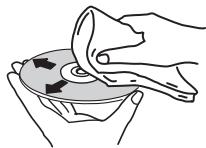
- Do not use benzene, thinner or other volatile chemicals. Also do not use record spray or antistatic agents.
- For tough dirt, apply some water to a soft cloth, wring out thoroughly, wipe off the dirt, then wipe off the moisture with a dry cloth.
- Do not use damaged (cracked or warped) discs.
- Do not let the signal surface of discs get scratched or dirty.
- Do not place two discs in the disc tray, one on top of the other.
- Do not attach pieces of paper or stickers to discs. Doing so could warp discs, making it impossible to play them. Also note that rental discs often have labels attached to them, and the label's glue may have oozed out. Check that there is no glue around the edges of such labels before using rented discs.
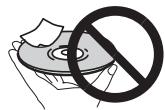
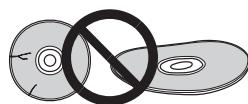
About specially shaped discs
Irregularly shaped discs other than standard 12 cm discs cannot be played on this unit (doing so will lead to damage or accidents). Specially shaped discs (heart-shaped, hexagonal, etc.) cannot be played on this unit. Do not attempt to play such discs, as they could damage the unit.
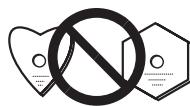
About condensation on discs
Water droplets (condensation) may form on the surface of discs if they are moved from a cold place (particularly in winter) into a warm room. Discs may not play normally if there is condensation on them. Carefully wipe the water droplets off the surface of the disc before loading it.
Trademarks, licenses, etc.
- Pioneer and rekordbox are trademarks or registered trademarks of the PIONEER CORPORATION.
- Microsoft, Windows, Windows Vista and Internet Explorer are either registered trademarks or trademarks of Microsoft Corporation in the United States and/or other countries.
Intel is a trademark of Intel Corporation in the U.S. and/or other countries. - Adobe and Reader are either registered trademarks or trademarks of Adobe Systems Incorporated in the United States and/or other countries.
ASIO is a trademark of Steinberg Media Technologies GmbH. - "Made for iPod," "Made for iPhone," and "Made for iPad" mean that an electronic accessory has been designed to connect specifically to iPod, iPhone, or iPad, respectively, and has been certified by the developer to meet Apple performance standards. Apple is not responsible for the operation of this device or its compliance with safety and regulatory standards. Please note that the use of this accessory with iPod, iPhone, or iPad may affect wireless performance.
Made for

iPod iPhone iPad
- Apple, iPad, iPod, iPod touch, iPhone, iTunes, Safari, Finder, Mac, Macintosh and Mac OS are trademarks of Apple Inc., registered in the U.S. and other countries.
AndroidTM is a trademark of Google Inc.
iOS is a trademark on which Cisco holds the trademark right in the US and certain other countries. - Wi-Fi® is a registered mark of the Wi-Fi Alliance.
- This software is based in part on the work of the Independent JPEG Group.
About using MP3 files
This product has been licensed for nonprofit use. This product has not been licensed for commercial purposes (for profit-making use), such as broadcasting (terrestrial, satellite, cable or other types of broadcasting), streaming on the Internet, Intranet (a corporate network) or other types of networks or distributing of electronic information (online digital music distribution service). You need to acquire the corresponding licenses for such uses. For details, see http://www.mp3licensing.com.
The names of companies and products mentioned herein are the trademarks of their respective owners.
- The articles concerning free repairs, etc., indicated on the warranty do not apply to the rekordbox music management software. Before installing or using rekordbox, carefully read the articles in Software end user license agreement on page 7.
- The specifications and design of this product are subject to change without notice.
© 2013 PIONEER CORPORATION. All rights reserved.
PIONEER CORPORATION
1-1, Shin-ogura, Saiwai-ku, Kawasaki-shi, Kanagawa 212-0031, Japan
- Contents
- How to read this manual
- Before start
- Before you start
- Connections
- Part names and functions
- Basic Operation
- Advanced Operation
- Changing the settings
- Using other brands of DJ software
- Additional information
- Features
- MULTI MEDIA, MULTI FORMAT
- rekordbox (Mac/Windows)
- rekordbox (iOS/Android)
- PRO DJ LINK
- USB Export
- At home or in a studio
- At the disco or club
- rekordboxLINKExport
- DISPLAY
- BROWSE
- WAVE/WAVE ZOOM
- BEATCOUNTDOWN
- BEAT SYNC
- QUANTIZE
- SLIP MODE
- BEAT DIVIDE
- MY SETTINGS
- HIGH SOUND QUALITY
- SOUND CARD
- Supported sources
- About the included CD-ROM
- Usable media
- About discs
- Discs that cannot be played
- About CD-R/RW discs
- Playback of discs created on a computer
- Creating backup discs
- About Copy Control CDs and DualDiscs
- About 8 cm discs
- About USB devices
- USB devices that cannot be used
- Cautions on using USB devices
- Playable music file formats
- About MP3 files
- About AAC files
- About ID3 tags
- About music file artwork
- About character displays
- CD-TEXT
- MP3/AAC
- Functions usable in combination with a computer
- rekordbox (Mac/Windows) music management software
- Driver software
- Software end user license agreement
- DEFINITIONS
- PROGRAM LICENSE
- WARRANTY DISCLAIMER
- EXPORT CONTROL AND COMPLIANCE WITH LAWS AND REGULATIONS
- U.S. GOVERNMENT RESTRICTED RIGHTS
- DAMAGES AND REMEDIES FOR BREACH
- TERMINATION
- GENERAL TERMS
- Cautions on copyrights
- Cautions on installingrekordbox (Mac/ Windows)
- Minimum operating environment for rekordbox (Mac/Windows)
- Installingrekordbox (Mac/Windows)
- Installation procedure (Macintosh)
- When the CD-ROM is inserted into the computer's optical drive, the optical drive opens on the screen. Double-click the [CD_menu.app] icon.
- When the CD-ROM's menu is displayed, select [rekordbox: Install Music Management Software], then click [Start].
- When the license agreement screen appears, select [English], read the Software end user license agreement carefully, then click [Continue].
- If you agree to the Software end user license agreement, click [Agree].
- Install rekordbox by following the instructions on the screen.
- Installation procedure (Windows)
- Insert the CD-ROM into the computer's optical drive. The CD-ROM menu is displayed.
- When the language selection screen appears, select [English] and click [OK].
- When the license agreement screen appears, read the Software end user license agreement carefully. If you agree to the Software end user license agreement, click [Agree].
- Installrekordbox by following the instructions on the screen.
- Launching rekordbox (Mac/Windows)/ Viewing the Operating Instructions
- For Mac OS X
- Open the [Application] folder with Finder, then double-click [rekordbox 2.x.x.app].
- For Windows® 8, Windows® 7, Windows Vista® and Windows® XP
- Double-click the [rekordbox 2.x.x] icon (shortcut) on the desktop.
- Installingrekordbox (iOS/Android)
- Using the online support site
- Connections
- Descriptions of terminals
- AUDIO OUT L/R terminals
- AC IN
- CONTROL terminal
- DIGITAL OUT terminal
- LINK terminal
- USB port
- Basic style
- Connecting to a mixer with only one LAN port
- (Ex.: When the audio cable is connected to channel 1)
- PRO DJ LINK (USB Export)
- iPods/iPhones/iPads that can be connected to this product
- Using a wireless router and access points
- Cautions
- Connections for relay play
- Control panel
- PLAY/PAUSE /II button
- CUE button
- SEARCH , buttons
- TRACK SEARCH |▶,▶| buttons
- DIRECTION REV button
- SLIP button
- 4-BEAT LOOP (LOOP CUTTER) button
- IN/CUE (IN ADJUST) button
- OUT (OUT ADJUST) button
- RELOOP/EXIT button
- SLIP LOOP indicator
- BEAT DIVIDE button
- USB STOP button
- USB indicator
- USB device insertion slot
- QUANTIZE button
- TIME MODE/AUTO CUE button
- DISC button
- USB button
- LINK button
- 21rekordbox button
- Main unit display
- BROWSE button
- TAG LIST button
- INFO (LINK INFO) button
- MENU (UTILITY) button
- BACK button
- TAG TRACK/REMOVE button
- Rotary selector
- STANDBY indicator
- DISC EJECT button
- VINYL SPEED ADJUST TOUCH/RELEASE control
- CUE/LOOP CALL (LOOP 1/2X), (LOOP 2X) buttons
- DELETE button
- MEMORY button
- JOG MODE VINYL button
- BEAT SYNC MASTER button
- BEAT SYNC button
- TEMPO ±6/±10/±16/WIDE button
- MASTER TEMPO button
- TEMPO slider
- Jog dial
- Jog dial display section
- Rear panel
- Front panel
- About ejecting discs by force
- Main unit display
- Normal playback screen
- CUE
- MEMORY
- A.CUE
- PLAYER
- TRACK
- REMAIN
- Information display section
- Track name
- PHASE METER
- BEAT COUNTERD
- KEY
- ZOOM and GRID ADJUST mode display
- Time display (minutes, seconds and frames)
- MT
- BPM
- Playing speed display
- Playing speed adjustment range display
- 19CALL/LOOP beat display
- WAVE display
- Playing address display/scale display (1-minute intervals)
- Cache meter
- Operation display
- Cue point display/slip play display
- Audio memory status display
- Jog touch detection display
- VINYL
- Basic Operation
- Turning the power on
- Turning the power off
- Loading and ejecting discs
- Inserting discs
- Ejecting discs
- About the resume function
- Connecting and disconnecting USB devices
- Connecting USB devices
- Disconnecting USB devices
- Press the [USB STOP] button until the USB indicator turns off.
- Disconnect the USB device.
- Playback
- Playing media connected to or inserted in this unit
- Load the medium in this unit.
- Press one of the medium buttons ([DISC] or [USB]).
- Turn the rotary selector.
- Select the track and press the rotary selector.
- Playing music files on other DJ players
- Connect the recording medium or the mobile device on which rekordbox is installed to the other player connected by PRO DJ LINK.
- Press the [LINK] button.
- If the medium contains the rekordbox library
- Playing the rekordbox library on a computer or mobile device
- Press the [rekordbox] button.
- Turn the rotary selector.
- Select the track and press the rotary selector.
- Load previous tracks
- Turn the rotary selector to select the track, then press the rotary selector to set playback.
- Pausing
- During playback, press the [PLAY/PAUSE /II] button.
- Forward and reverse scanning
- Press one of the [SEARCH ,▶] buttons.
- Finding the beginnings of tracks (Track Search)
- Press one of the [TRACK SEARCH I<,▶] buttons.
- Adjusting the playing speed (Tempo control)
- Press the [TEMPO ±6/±10/±16/WIDE] button.
- Move the [TEMPO] slider forward or backward.
- Adjusting the playing speed without changing the pitch (Master Tempo)
- Press the [MASTER TEMPO] button.
- Move the [TEMPO] slider forward or backward.
- Playing in reverse
- Press the [DIRECTION REV] button.
- Operating the jog dial
- Switching the jog dial mode
- Press the [JOG MODE VINYL] button.
- Pitch bend
- During playback, spin the outer section of the jog dial without touching the top.
- Scratch
- Press the [JOG MODE VINYL] button.
- During playback, press the top of the jog dial.
- Spin the jog dial in the desired direction and at the desired speed.
- Release your hand from the top of the jog dial.
- Frame search
- In the pause mode, spin the jog dial.
- Super fast search
- Turn the jog dial while pressing one of the [SEARCH ], ] buttons.
- Super fast track search
- Turn the jog dial while pressing one of the [TRACK SEARCH | , ] buttons.
- Adjusting the speed at which playback slows then stops when the top of the jog dial is pressed and the speed at which playback returns to normal when the top of the jog dial is released.
- Turn [VINYL SPEED ADJUST TOUCH/RELEASE].
- Advanced Operation
- Setting Cue
- Adjusting the cue point position
- Returning to Cue Point (Back Cue)
- Checking Cue Point (Cue Point Sampler)
- Setting Cue Point during playback (Real Time Cue)
- Setting auto cue
- Setting loops
- Fine-adjusting the loop in point (loop in adjust)
- Fine-adjusting the loop out point (loop out adjust)
- Canceling Loop playback (Loop Exit)
- Returning to Loop playback (Reloop)
- Setting loops automatically (4-beat Loop)
- Cutting loops (Loop Cut)
- Extending loops (loop doubling)
- Using active loops
- Emergency loops
- Storing cue or loop points
- Calling out stored cue or loop points
- Deleting stored cue or loop points
- Deleting points individually
- Press the [CUE/LOOP CALL (LOOP 1/2X)] or [CUE/LOOP CALL (LOOP 2X)] button to call out the point to be deleted.
- Press the [DELETE] button.
- Deleting points in units of discs
- Load a disc in this unit.
- Connect the USB device to this unit.
- Press the [DELETE] button for over 5 second.
- Press the [MEMORY] button.
- Deleting all disc information recorded on the USB device
- With no disc loaded on this unit, press the [DELETE] button for over 5 seconds.
- Press the [MEMORY] button.
- Setting the cue point for auto cueing
- Setting the cue point by the acoustic pressure level identified as a silent section (8 levels)
- Automatically setting stored cues as cue points
- Using the [MENU (UTILITY)]button
- Using the [TIME MODE (AUTO CUE)]button
- Press the [TIME MODE/AUTO CUE] button for over 5 second.
- Press the [CUE/LOOP CALL (LOOP 1/2X)] or [CUE/LOOP CALL (LOOP 2X)] button.
- Using the beat divide function
- During playback, press the [BEAT DIVIDE] button.
- Canceling the beat divide function
- Press the selected [BEAT DIVIDE] button.
- Using the slip mode
- Display of the position playing in the background
- Slip pausing
- Press the [SLIP] button.
- During playback, press the [PLAY/PAUSE /II] button.
- Press the [PLAY/PAUSE /II] button to cancel the pause mode.
- Slip scratching
- During playback, press the top of the jog dial.
- Slip looping
- Press the [SLIP] button.
- Press the [IN/CUE (IN ADJUST)] button, then press the [OUT (OUT ADJUST)] button.
- Press the [RELOOP/EXIT] button.
- Slip beat looping
- Press and hold the [BEAT DIVIDE] button.
- Release your finger from the [BEAT DIVIDE] button.
- Press the [RELOOP/EXIT] button.
- Slip reverse
- During playback, press the [DIRECTION REV] button.
- Canceling the slip mode
- Press the [SLIP] button.
- Using the beat sync function
- Press the [BEAT SYNC MASTER] button on the DJ player you want to set as the sync master.
- Press the [BEAT SYNC] button.
- Changing the DJ player set as the sync master
- Canceling synchronization
- Press the [BEAT SYNC] button.
- Operating the CDJ-900 nexus in combination with other devices
- Starting playback using a DJ mixer's fader (Fader Start)
- Connect this unit with the Pioneer DJ mixer using a LAN cable.
- Turn on the DJ mixer's fader start function.
- Set cues on this unit.
- Move the DJ mixer's channel fader or cross fader.
- Relay play on two DJ players
- Connect this unit and a DJ mixer.
- Set the DJ mixer's cross fader to the center position.
- Turn auto cue on for both DJ players.
- Start playback on this unit.
- Browsing tracks
- Switching to the browse screen
- Press the device button corresponding to the device you want to display.
- Description of the screen
- Basic operations on the browse screen
- Selecting items
- Moving back up to a higher layer
- Press the [BACK] button while the browser screen is displayed.
- Other browsing operations
- Rearranging tracks (Sort menu)
- When a list of the tracks is displayed, press the [MENU (UTILITY)] button.
- Use the rotary selector to select and enter the sort item.
- Searching for tracks
- Searching using the [SEARCH] category
- Use the rotary selector to select and enter the [SEARCH] category.
- Using the rotary selector to input characters.
- Searching using the currently playing track's key
- Searching using the jump function
- In the letter jump mode
- Display a list sorted in alphabetical order.
- Press the rotary selector for at least 1 second.
- Turn the rotary selector to select the character or symbol.
- In the page jump mode
- Display a list not sorted in alphabetical order.
- Turn the rotary selector to select the page.
- Using the information jump function
- Load a track.
- At the normal playback screen, press the [INFO] button.
- Select and enter the item.
- Checking the playing history (HISTORY)
- Storing the playing history
- Connect the USB device to this unit.
- Play tracks.
- Deleting the playback history
- Display the rekordbox library.
- Use the rotary selector to select and enter the [HISTORY] category.
- Turn the rotary selector and select the playing history list to be deleted.
- Press the [MENU (UTILITY)] button.
- Turn the rotary selector to select and enter the range to be deleted.
- Use the rotary selector to select and enter [OK].
- Editing tag lists
- Adding tracks to the tag list
- Selecting tracks and adding them
- Adding loaded tracks
- Adding entire categories or folders
- Adding tracks from playlists
- Loading tracks from the tag list
- Removing tracks from the tag list
- Removing one track at a time
- Removing all the tracks
- Transforming the tag list into a playlist
- Displaying the details of the currently loaded track
- Changing track ratings
- Displaying details of tracks loaded in other DJ players
- Changing the settings
- Storing settings on USB devices
- Calling out settings stored on a USB device
- Displaying the [UTILITY] screen
- Setting preferences
- Changing the play mode
- Setting the auto standby mode
- Setting the playing history list name
- Changing the language
- Duplicating the settings onto DJ players connected by PRO DJ LINK
- About the driver software (Windows)
- Installing the driver software
- Before installing the driver software
- Connecting this unit and a computer by USB
- Connect this unit to your computer via a USB cable.
- Adjusting the buffer size (Windows)
- Click the Windows [Start] menu>[All Programs]>[Pioneer]>[Pioneer CDJ]>[Pioneer CDJ ASIO Settings Utility].
- If there are no interruptions in the sound with the default settings
- Checking the version of the driver software
- Click the Windows [Start] menu>[All Programs]>[Pioneer]>[Pioneer CDJ]>[Pioneer CDJ Version Display Utility].
- Checking the latest information on the driver software
- Operating DJ software by MIDI interface
- Connect the USB port on this unit to your computer.
- Press the [BROWSE] button, then press the [LINK] button.
- Select [Control Mode] and enter.
- Select [USB-MIDI] and enter.
- Launch the DJ software.
- Changing the MIDI channel setting
- Press the [MENU (UTILITY)] button for over 1 second.
- Select [MIDI CHANNEL] and enter.
- Press the rotary selector to enter.
- List of MIDI Messages
- Additional information
- Troubleshooting
- About the liquid crystal display
- Error messages
- List of icons displayed on the main unit display section
- Cautions on use
- About condensation
- Cleaning the lens
- Handling discs
- Storing
- Cleaning discs
- About specially shaped discs
- About condensation on discs
- Trademarks, licenses, etc.
- About using MP3 files
- PIONEER CORPORATION
Brand : PIONEER
Model : CDJ-900NXS
Category : DJ Mixer