
NV-APD1EN - Printer PANASONIC - Free user manual and instructions
Find the device manual for free NV-APD1EN PANASONIC in PDF.


| Product Type | Digital Photo Printer |
| Model | NV-APD1EN |
| Printing System | Thermal sublimation transfer printing system |
| Printing Speed | 9×12 cm paper: approx. 85 sec/sheet; 16 Pre-Cut adhesive: approx. 95 sec/sheet; 10×15 cm paper: approx. 130 sec/sheet |
| Supported Paper Types | 9×12 cm printing paper (with borders), 16 Pre-Cut adhesive paper (overcoat type), 10×15 cm printing paper (borderless, overcoat type) |
| Paper Capacity | 9×12 cm: up to 25 sheets; Other types: up to 36 sheets |
| Print Resolution | 410 × 410 dpi |
| Color Gradations | 256 gradations per color (approx. 16.78 million full colors) |
| Input Sockets | S-VIDEO IN (Y: 1Vp-p, 75 ohm; C: 0.3Vp-p, 75 ohm), VIDEO IN (1 Vp-p, 75 ohm), System Socket (DVC link miniDIN5 pin) |
| Card Slots | SD Memory Card / MultiMedia Card (side), PC Card (TYPE II) (side) |
| LCD Monitor | 4.0 inch TFT, 110,000 pixels |
| Power Supply | AC 220-240 V, 50/60 Hz |
| Power Consumption | During printing: approx. 0.8 A; On (but not printing): approx. 0.13 A; Standby: approx. 0.04 A |
| Dimensions (W×H×D) | Approx. 246×187×155 mm |
| Weight | Approx. 2.4 kg |
| Operating Temperature | 5°C to 35°C |
| Operating Humidity | 35% to 80% |
| Included Accessories | Paper Cassette (VXA7334), Power Cable, Paper Guard (VMP6791-2), Clamp Filters (×2 for VIDEO/EDIT cable, ×1 for S-VIDEO cable) |
| Safety Features | Moulded plug with 5A fuse; recommended accessories only; do not expose to rain/moisture |
| Maintenance | Clean thermal head with cotton swab when lines appear; avoid solvents on outer case |
| Functions (Card Input) | Single/Multi/Album/Calendar/Zoom, Title (Illustrations/Characters/Stamps), Sepia, Batch Print, Index, DPOF, Date Search, Copy/Erase, Slide Show |
| Functions (Video Input) | Single/Multi/Album/Calendar, Title (Illustrations/Characters/Stamps), Sepia, Memory storage, Auto Print (with compatible DVC) |
| Max Number of Files | Up to 65,536 files |
| Max Image Pixels | Up to approximately 25 million (6144×4096) |
Frequently Asked Questions - NV-APD1EN PANASONIC
User questions about NV-APD1EN PANASONIC
0 question about this device. Answer the ones you know or ask your own.
Ask a new question about this device
Download the instructions for your Printer in PDF format for free! Find your manual NV-APD1EN - PANASONIC and take your electronic device back in hand. On this page are published all the documents necessary for the use of your device. NV-APD1EN by PANASONIC.
USER MANUAL NV-APD1EN PANASONIC
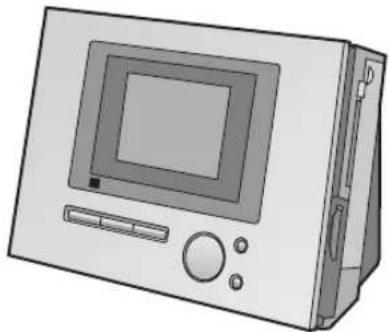
Digital Photo Printer
natural_image
Illustration of a vintage computer monitor with control panel and buttons (no text or symbols)Operating Instructions
Bedienungsanleitung
Mode d'emploi
使用說明書使用語
Model No. NV-APD1E/EN/B
natural_image
Black-and-white artistic illustration of a Gothic church with twin spires and a clock, surrounded by abstract light effects (no text or symbols)


MultiMediaCard™
Before use, please read these instructions completely.
Information for Your Safety
WARNING
TO REDUCE THE RISK OF FIRE OR SHOCK HAZARD AND ANNOYING INTERFERENCE, USE ONLY THE RECOMMENDED ACCESSORIES AND DO NOT EXPOSE THIS EQUIPMENT TO RAIN OR MOISTURE. DO NOT REMOVE THE COVER (OR BACK); THERE ARE NOT USER SERVICEABLE PARTS INSIDE. REFER SERVICING TO QUALIFIED SERVICE PERSONNEL.
- As this equipment gets hot during use, operate it in a well-ventilated place; do not install this equipment in a confined space such as a book case or similar unit.
- Do not open the Ink Cassette Side Cover while printing is in progress. Your fingers could be pinched between the thermal head arms and the Ink Cassette.
IMPORTANT
Please respect all copyrights.
Whatever you have recorded and created can be used for your personal entertainment only. Under copyright laws, other materials cannot be used without obtaining permission from the holders of the copyrights.
- Other names, company names, and product names printed in these instructions are trademarks or registered trademarks of the companies concerned.
natural_image
Diagram showing two cable installation steps: one with a coiled cable and arrow indicating transformation, the other with a plug inserted (no text or symbols)Important Information
(except Clamp Filter for S-VIDEO Cable)
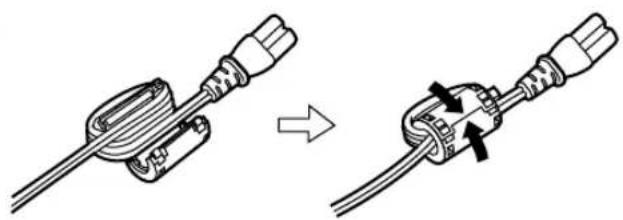
In order to prevent electromagnetic interference, install the Clamp Filter (supplied) on the Cable as shown in the figure above.
●After passing the Cable through the Clamp Filter and looping it around once, close the Clamp Filter until it clicks into place.
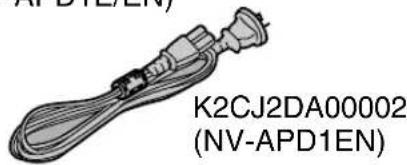
Supplied Accessories
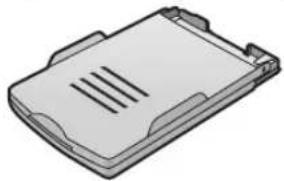
Paper Cassette (VXA7334)
natural_image
Illustration of a plastic clip or holder with internal slot pattern (no text or symbols)Power Cable
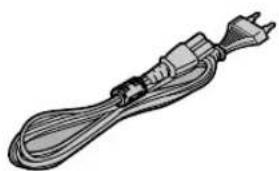
natural_image
Illustration of a straight electrical plug with a terminal outlet (no text or symbols)K2CQ2DA00002 (NV-APD1E/EN)
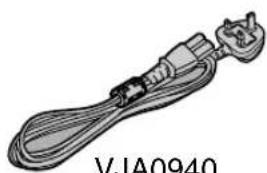
natural_image
Illustration of a cable with plug connectors and a terminal outlet, labeled VJA0940 (no other text or symbols)VJA0940 (NV-APD1B)
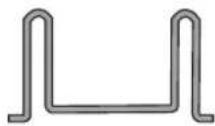
Paper Guard (VMP6791-2)
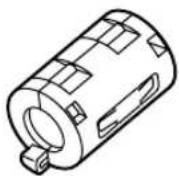
Clamp Filter × 2 (for VIDEO Cable and EDIT Cable) (J0KG00000037)
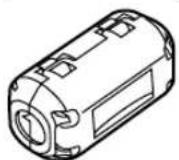
Clamp Filter (for S-VIDEO Cable) (J0KG00000068)
Caution for AC mains lead (NV-APD1B only)
For your safety, please read the following text carefully.
This appliance is supplied with a moulded three-pin mains plug for your safety and convenience. A 5-ampere fuse is fitted in this plug.
Should the fuse need to be replaced, please ensure that the replacement fuse has a rating of 5-amperes and it is approved by ASTA or BSI to BS1362.
Check for the ASTA mark 📍 or the BSI mark 🔗 on the body of the fuse.
If the plug contains a removable fuse cover you must ensure that it is refitted when the fuse is replaced. If you lose the fuse cover, the plug must not be used until a replacement cover is obtained. A replacement fuse cover can be purchased from your local Panasonic Dealer.
IF THE FITTED MOULDED PLUG IS UNSUITABLE FOR THE SOCKET OUTLET IN YOUR HOME THEN THE FUSE SHOULD BE REMOVED AND THE PLUG CUT OFF AND DISPOSED OF SAFELY.
THERE IS A DANGER OF SEVERE ELECTRICAL SHOCK IF THE CUT OFF PLUG IS INSERTED INTO ANY 13-AMPERE SOCKET.
If a new plug is to be fitted, please observe the wiring code as shown below.
If in any doubt, please consult a qualified electrician.
IMPORTANT
The wires in this mains lead are coloured in accordance with the following code:
Blue: Neutral
Brown: Live
As the colours of the wires in the mains lead of this appliance may not correspond with the coloured markings identifying the terminals in your plug, proceed as follows:
The wire which is coloured BLUE must be connected to the terminal in the plug which is marked with the letter N or coloured BLACK.
The wire which is coloured BROWN must be connected to the terminal in the plug which is marked with the letter L or coloured RED.
Under no circumstances should either of these wires be connected to the earth terminal of the three-pin plug, marked with the letter E or the Earth Symbol 12 .
Before Use
Remove the Connector Cover as follows.
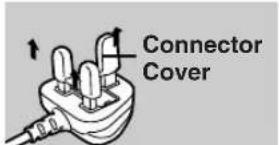
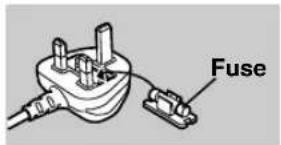
How to replace the Fuse
1) Remove the Fuse Cover with a screwdriver.
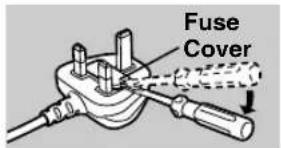
2) Replace the fuse and attach the Fuse Cover.
Contents
Information for Your Safety...... 2
Supplied Accessories 2
Caution for AC mains lead (NV-APD1B only).... 3
IMPORTANT 3
Before Use.... 3
How to replace the Fuse.... 3
Preparation
Controls and Components .... 5
Connections...... 6
Connecting With a VCR or a Video Camera 6
Precautions During Setup.... 6
Setup for Automatic Printing.... 6
Synchronized Functions 6
Paper That Can Be Used For Printing.... 6
Inserting a Card 7
When using an SD Memory Card or a MultiMedia Card 7
When Using a PC Card 7
Inserting Paper/Attaching the Paper Guard..... 7
Inserting the Ink Cassette....8
MENU Interface......8
MENU Controls 8
Basic Functions
Test Print....9
Printing Images From a Card (Card Input) 9
About Multi Page Tiff File 9
Printing an Image From a Tape (Video Input) ..... 10
Forwarding/Backwarding the Screen (For Card Input Only).... 10
Reprinting the Same Image.... 10
Printing Multiple Copies of a Single Image.... 10
Stopping Video Input Screen Shaking.... 10
Paper Jams 10
Printing Batches/Indexing (For Card Input Only).... 11
Printing With a DPOF Card (For Card Input Only).... 11
Using Date Search When Printing (For Card Input Only).... 12
Copying/Erasing Images from a Card (For Card Input Only).... 12
Recording Titles onto Cards 13
Erasing Titles From Cards.... 13
Recording the Video Input Image on the Card (Video Input Only) 14
Viewing Slideshows 14
Multiple Functions
Printing Multiple Screen Shots of the Same Picture (MULTI FRAME MODE).... 15
Card Input.... 15
Video Input 15
Returning a Multiple Screen To a Single screen.... 15
Printing Multiple Screen Shots of Different Pictures ....16
Card Input.... 16
Video Input 16
Creating a Personalized Picture Calendar ..... 17
Card Input.... 17
Video Input 17
Altering the Colour of Holidays and Special Days ..... 17
Enlarging Part of a Picture and Printing (Zoom/Card Input Only) 18
Title Functions
Inserting Illustrations and Printing ....19
Card Input.... 19
Video Input 19
Switching Displays (Indicate/Don't indicate/Clear)...... 20
Inserting Characters and Printing....20
Inserting Stamps and Printing....22
Print in Sepia Tone 22
Settings
Settings....23
Set Number of Prints 23
Setting Dates.... 23
Trimming.... 23
Adjusting Print Picture Quality.... 24
Adjusting LCD Monitor/Configuring Screen saver ..... 24
Others
After Use....24
Precautions ......25
Ink Cassette/Paper Set Notes 25
Ink Cassette Notes 25
Paper/Paper Cassette Notes.... 25
Before, During, and After Printing.... 25
Notes on Using 10 × 15 cm printing paper...... 25
Notes on Handling Finished Prints 26
Notes on Automatic Printing.... 26
Notes on Cards.... 26
Notes on the SD Memory Card Write-Protect Switch.... 26
Notes on Storing Settings to the Photo Printer's Memory.... 26
Notes on the Screen Saver 26
Notes on Handling the Digital Photo Printer 26
Installation Notes...... 26
Maintenance Notes.... 27
Internal Temperature 27
Condensation 27
Notes on the LCD Monitor 27
Q&A......27
About Functions.... 27
About the Digital Photo Printer in General.... 27
About Paper and Ink Cassettes.... 28
About Unclean Thermal Heads 28
Before Requesting Service ....29
Error Messages....30
Specifications 31
Preparation
Controls and Components
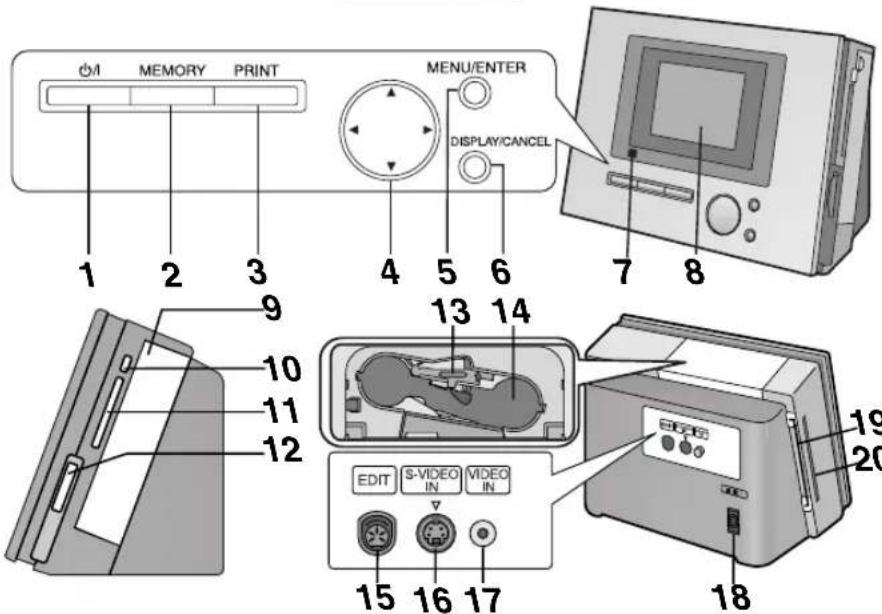
1 Power Button [⏻/l]
Press to turn Digital Photo Printer on/off. When you turn the power on, the LCD Monitor lights up and the STAND BY lamp turns off. When you turn the power off, all images in the Digital Photo Printer's memory are deleted.
2 MEMORY Button
Press this button to store the displayed image in the printer's memory. When storing fast moving images to memory, the memory image may shake. Pressing the button once more will stop the movement, and [FIELD] will display at the lower-left part of the screen.
3 PRINT Button
Press this button to print images.
4 ▶▲▼ Buttons
Use these buttons to select MENU choices and card images.
5 MENU/ENTER Button
Use this button to display the MENU screen. Use also to enter various selections.
6 DISPLAY/CANCEL Button
DISPLAY Button:
Changes the image display on a card between a Single Screen Display and an Index Display.
Use to re-record images to memory.
CANCEL Button:
Use to cancel printing and other such processes.
Use to exit MENU.
7 STAND BY Lamp [◎]
When the Power Cable is connected, the STAND BY lamp lights up. Printer is on STAND BY.
8 LCD Monitor
9 Paper Cassette Insert Location
10 PC Card Eject Button
Use to eject PC cards.
11 PC Card Insert Location
12 SD Memory Card/MultiMedia Card Insert Location
13 Ink Cassette Eject Lever
Pull forward to eject ink cassettes.
14 Ink Cassette Insert Location
15 System Socket
When connected to a Panasonic Digital Video Camera with Edit Cable VW-K5E (sold separately), the printer can automatically search and print a still image marked with a photo index signal. For details, refer to the Digital Video Camera's manual. In addition, when connected to a VCR or a Digital Video Camera that has a system socket, pressing the Memory Button will display the still screen.
16 S-VIDEO IN Socket
Connect the video device's S-VIDEO OUT socket with an S-VIDEO Cable. Pictures with a higher quality than those from the VIDEO IN Socket can be obtained. We recommend using this socket when connecting with devices that have S-VIDEO outputs.
17 VIDEO IN Socket
Connects the video device's VIDEO OUT socket with a VIDEO Cable.
18 Power Socket
Connects the Power Cable (included).
19 Paper Guard Installation Hole
20 Paper Removal Port
Connections
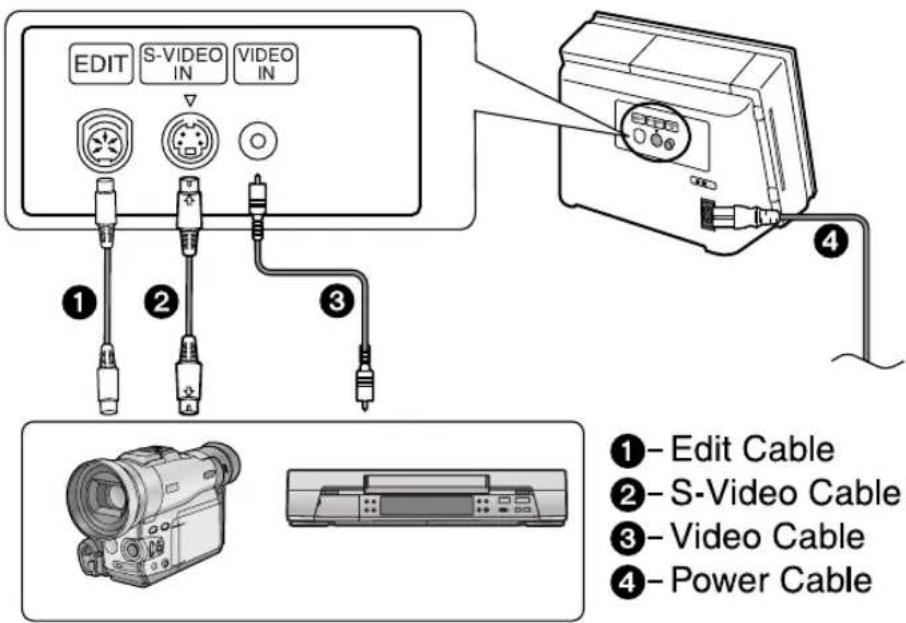
- When inputting a Card, only connect 4.
The socket-outlet shall be installed near the equipment and shall be easily accessible.
■ Connecting With a VCR or a Video Camera (Connect either ② or ③)
- We recommend ② for higher quality images.
- If both ② and ③ are connected, the image from ② is given priority.
- All cables are sold separately. They can be used with accessories to other video devices.
- Read through the manual of the video device you are using as well.
- This printer does not handle wide images. When wide images are inputted, vertically-stretched prints are produced.
■Precautions During Setup
As this printer gets hot during use, operate it in a well ventilated area. Place printer at least 10 cm away from any walls to the left, right, or rear of printer. Do not place any objects on top of printer.
■ Setup for Automatic Printing (Connect both ① and ②)
- When these are connected, the printer is able to automatically search for and print still images marked with photo index signals.
- A Digital Video Camera with a (mini) system socket is required.
[Operating After Connecting]
1 Turn on the printer, and set the [Input] under [BASIC] on the MENU screen to [Video].
2 Turn on the Digital Video Camera.
3 Perform the automatic printing operations from the Digital Video Camera (for details, refer to the Digital Video Camera's manual).
■ Synchronized Functions
When both ① and ② of the above diagram are connected, the following synchronized functions can be performed.
1 Pressing the printer's Memory button: An Image is stored to memory, and the video camera automatically stops.
2 Pressing the printer's DISPLAY button: The image changes, and the video camera automatically starts playing.
- This operation can only be performed when playing tapes.
- Synchronized functions can also be performed using the same system socket connections with a loaded video.
- Pressing the video's stop button will not have any effect.
Paper That Can Be Used For Printing
The Digital Photo Printer can use the following types of paper. Use Ink Cassette/Paper Sets that bear the AP mark. (Print Sets that bear the MP mark, the MP mark, or no mark at all cannot be used.)
- 9 × 12 cm printing paper* *with borders: The Ink Cassette/Paper Set VW-APA50E is required.
- 16 Pre-Cut Adhesive paper (overcoat type): The Ink Cassette/Paper Set VW-APASD16E is required.
- 10 × 15 cm printing paper* (overcoat type) *without borders: The Ink Cassette/Paper Set VW-APKC36E is required.
- Use the Ink Cassette with the paper provided in the same box.
ENGLISH
Inserting a Card
■ When using an SD Memory Card or a MultiMedia Card
1 Open ① (Card Door).
2 Insert the card all the way into the slot.
3 Close ①.
[Removing the Card]
1 Open ①.
2 Push the card.
3 Remove the card.
4 Close ①.
When Using a PC Card
1 Insert CF Card all the way into ③ (PC Card Adaptor/Product Sold Separately).
2 Insert 1 into Digital Photo Printer.
[When Removing the Card Adaptor]
1 Press ②.
2 Remove ③.
- Never take the card out or cut the power while the card is being accessed. This could damage the format of the card and make it unusable.
- Insert/remove cards only when the power is off.
- Card images are formatted as JPEG baselines (JFIF, EXIF, DCF [Design rule for Camera File system], CIFF, SISRIF) TIFF (Baseline TIFF Rev.6.0RGB Full Colour Images compatible). (Some types cannot be fully used)
![PANASONIC NV-APD1EN - [When Removing the Card Adaptor] - 1](/content/2026/06/1190564/images/ee633e18d039bec0ead599387d7ca89f3b436ae9fa7be0ccf62e050e07345238.jpg)
![PANASONIC NV-APD1EN - [When Removing the Card Adaptor] - 2](/content/2026/06/1190564/images/f7f66a239004bcd4c3312a3e2e67bc72cba3d156e18a74324ff2ee9c1440329e.jpg)
natural_image
Illustration of hands holding a device with a screen and a labeled component (no text or symbols present)Inserting Paper/Attaching the Paper Guard
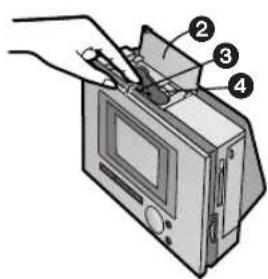
1 Open the lid of the paper cassette (included) ①, spread out ②, and stand up (or push down) ③.
- When using 9 × 12 cm printing paper or 16 Pre-Cut Adhesive paper, stand up ③.
- When using 10 × 15 cm printing paper, push down ③.
2 Face the white (print) side of the paper up, and insert under ④ (⑤ is the perforation line).
- Insert up to 25 sheets of 9 × 12 cm printing paper, or up to 36 sheets of the other types of paper.
- The paper has perforations along both sides. Insert the sheets in such a way that the end where the perforations are more distant to the edge faces toward you.
- Do not fold, bend, or turn paper upside down when inserting into printer.
3 Insert the paper cassette all the way into⑥.
Installing the Paper Guard.
1 Insert the included ⑦ (Paper Guard) into ⑧ one side at a time.
- Close the Paper Guard when not using the Digital Photo Printer.
Inserting the Ink Cassette
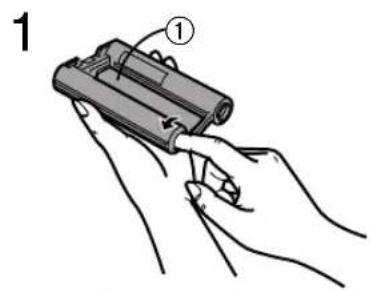
1 Use your finger to push in the hole with the arrow, and turn it in the direction of the arrow. Tighten any slack in ① (Ink Film).
- The Ink Cassette is included in the Ink Cassette/Paper Set (sold separately).
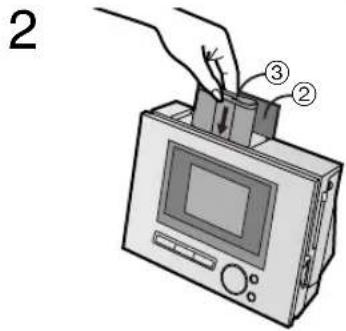
2 Open ② (Ink Cassette Compartment Door), place the side that contains ③ (small hole in Ink Cassette) up, insert the Ink Film all the way into the Ink Cassette, and close ②.
- Do not touch the Ink Film in the Ink Cassette, and do not pull it out of the cassette.
- Close the Ink Cassette Compartment Door.
- Do not peel off the label on the ink cassette.
- When all of the ink film in an Ink Cassette has been used up, replace the Ink Cassette with a new one. Used Ink Cassettes cannot be reused.
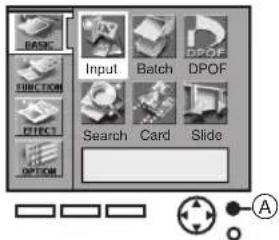
MENU Interface
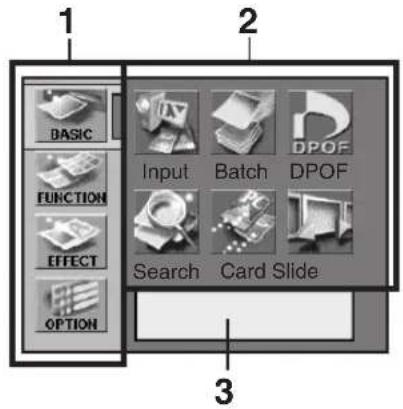
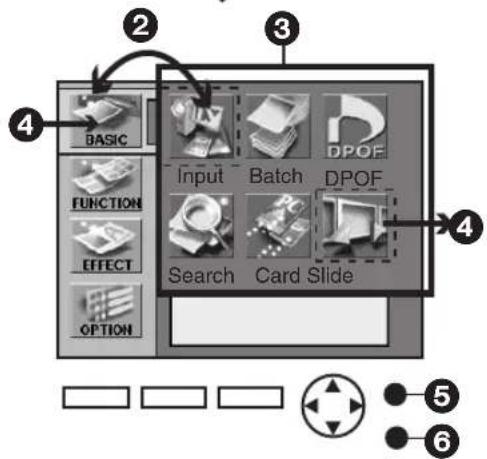
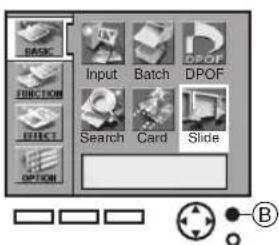
1 MENU Categories
The Digital Photo Printer is divided into 4 major categories.
2 MENU Contents
Select the specific MENU you desire here.
3 Description/Control Display
The presently selected MENU's description as well as control confirmation messages are displayed in this area.
flowchart
graph TD
    A[" "] --> B[" "]
    B --> C[" "]
    C --> D[" "]
    D --> E[" "]
    style A fill:#fff,stroke:#000
    style B fill:#fff,stroke:#000
    style C fill:#fff,stroke:#000
    style D fill:#fff,stroke:#000
    style E fill:#fff,stroke:#000
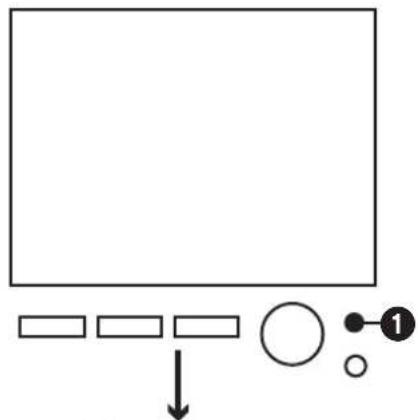
MENU Controls
Use the MENU Mode as follows.
①:Press the MENU button to display the MENU screen.
②: Use the (◀▶) buttons to switch between MENU categories and MENU contents.
③: Use the (◀▶▲▼) buttons to move within the MENU Contents. To enter your selection, press ⑤.
4: Pressing the (▶) button in the lower right corner of the MENU Contents moves you to the MENU Categories.
⑤: Enter your selection.
⑥: Exit the MENU.
1,2
3
4,5(Card Input)
Basic Functions
Test Print
- Make sure that paper, the Paper Cassette and the Ink Cassette are all inserted.
■ Printing Images From a Card (Card Input)
- Insert a card into the Digital Photo Printer.
- Turn on the power.
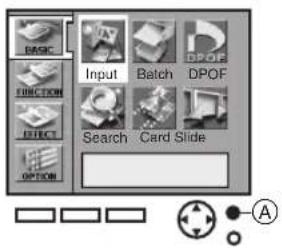
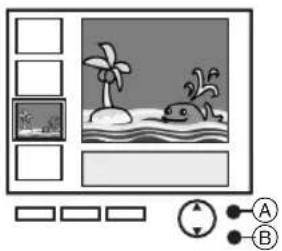
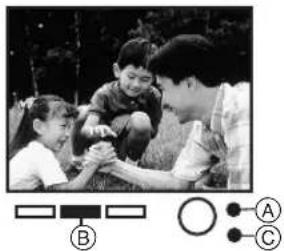
1 Press Ⓐ (MENU button).
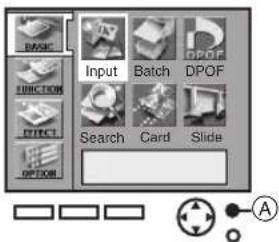
2 Using the (◀▶▲▼) buttons, select [Input] under [BASIC], and press Ⓐ (Enter button).
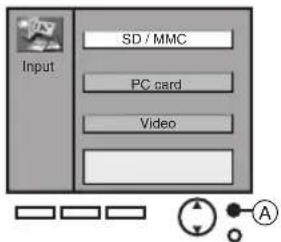
3 Using the (▲▼) buttons, select [SD/MMC] or [PC card], and press Ⓐ (Enter button).
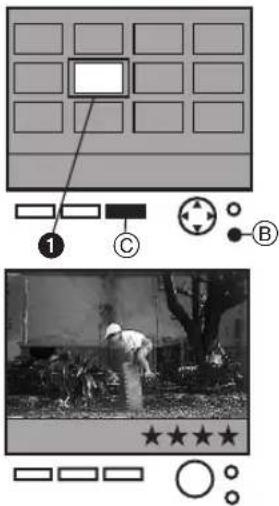
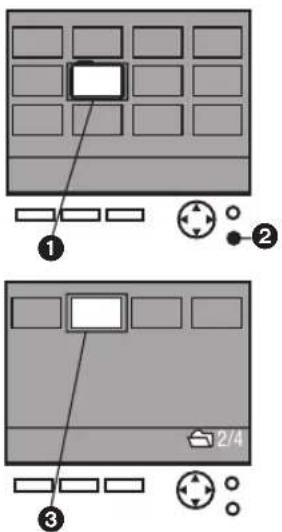
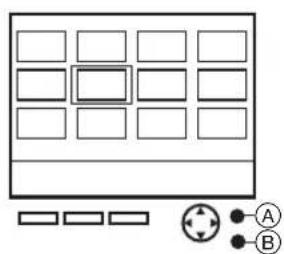
4 Using the (◀▶▲▼) buttons, align ① (blue frame) over the image you wish to print.
- Pressing Ⓑ (DISPLAY button) changes the screen between a Single Screen Display and an Index Display.
5 Press © (Print button).
- Printing begins.
-
The “—” symbols all change to “★” symbols. Once they disappear, printing is complete.
-
Some image on the display may be unsteady depending on the card being used. If "The picture is unreadable." or "The card can't be used." error message appears, or if "x" symbol appears even though the image is stored, turn off the power, remove the card and re-insert it.
- A white border may appear around the card's image, but this will not affect the printed image.
About Multi Page Tiff File
- Multi Page Tiff file is a file containing multiple picture files within it. Multi Page Tiff file is indicated by ① around the file.
- To print pictures in Multi Page Tiff file, first select a Multi Page Tiff file that contains the picture, switch screen by pressing ②, and set ③ to the picture you wish to print.
- The following functions don't work for the pictures within Multi Page Tiff file: copy, delete, batch print, batch print of selected pictures, configure DPOF, slide show.
1,2
3
4,5(Video Input)
natural_image
Black-and-white photo of a person bending over near a building, with no visible text or symbols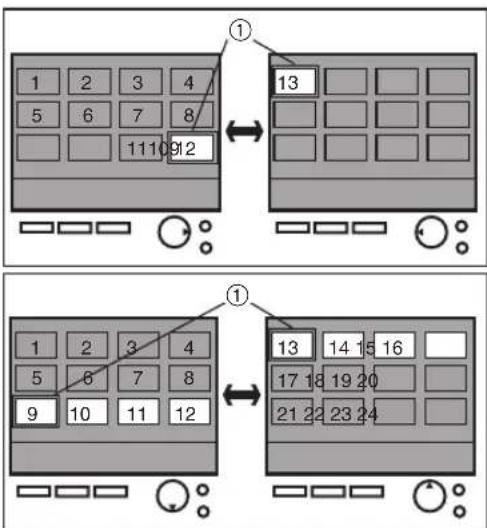
natural_image
Illustration of a hand inserting a card into a device (no text or symbols visible)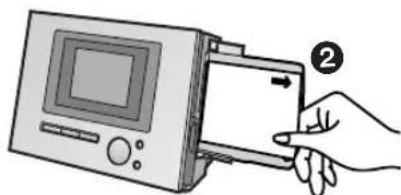
natural_image
Illustration of a hand inserting a device into a device (no text or symbols present)■ Printing an Image From a Tape (Video Input)
- Make sure that the connection is correct.
- Turn on the power.
1 Press Ⓐ (MENU button).
2 Using the (◀▶▲▼) buttons, select [Input] under [BASIC], and press Ⓐ (Enter button).
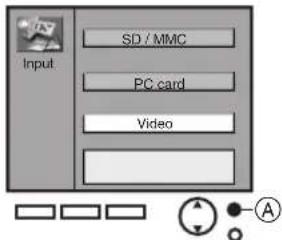
3 Using the (▲▼) buttons, select [Video], and press Ⓐ (Enter button).
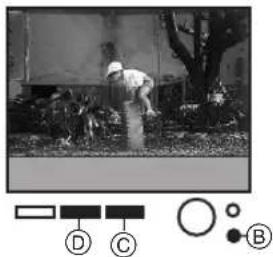
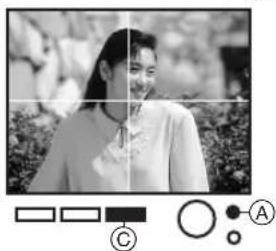
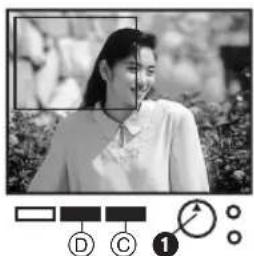
4 While watching the screen, press Ⓓ (Memory button) at the scene you wish to print.
5 After confirming the still image, press © (Print button).
- Printing begins.
- The “—” symbols all change to “★” symbols. Once they disappear, printing is complete.
- To reenter a picture into memory, press Ⓑ. After that, pressing Ⓓ again will memorize a new image.
- If the stored image shakes, press Ⓓ again. The shaking will diminish.
■ Forwarding/Backwarding the Screen (For Card Input Only)
When 13 or more images are recorded on a card, aligning ① (blue frame) on the places indicated in the diagram to the left and pressing the button will forward/backward the screen.
■ Reprinting the Same Image
- For Card Input, a blue frame will appear in the Index Display after printing is complete. Press the print button again. For Video Input, press the DISPLAY button and re-display the stored image. Press the Print button.
- If installing a different Ink Cassette before reprinting when using a card, re-select the image.
■ Printing Multiple Copies of a Single Image
- Enter the number of prints in [Number] under [OPTION] on the MENU. The Digital Photo Printer can continuously print up to 10 copies of the same image.
- The number of pages remaining to be printed (including the currently printing page) appears in the lower left corner of the screen.
■ Stopping Video Input Screen Shaking
- When recording moving images, the recorded image may shake. If this occurs, pressing the Memory button again diminishes the movement. [FIELD] displays on the screen.
Paper Jams
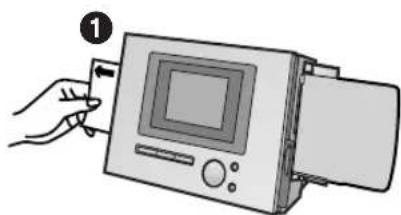
- A "Paper jam has occurred. Remove paper and press [PRINT]." error message appears. Remove paper out of the left side ① or the right side ②, and remove the Ink Cassette. Make sure no more paper is stuck inside, then re-install the Ink Cassette. Press the Print button. The error message will disappear and printing will continue.
- If you have trouble removing the paper, turn the power off, and then back on again. Proceed to remove the paper from either ① or ②.
- If the paper stops moving during print even though no error messages appear, do not remove the paper. Wait for printing to resume automatically.
1
2
3
1
2
ENGLISH
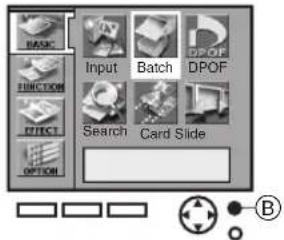
Printing Batches/Indexing (For Card Input Only)
Multiple pictures can be automatically printed from a card. Furthermore, 25 frames of images on a card can be indexed and printed.
- Select the INPUT method
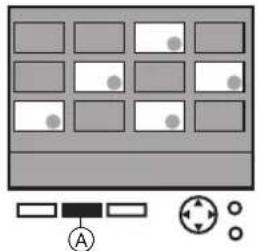
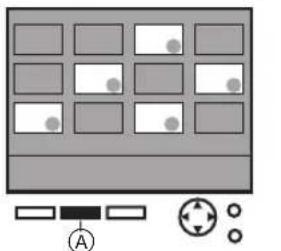
1 Select a picture, and mark it with Ⓐ ( ● ).
2 Select [Batch] under [BASIC] on the MENU, and press Ⓑ.
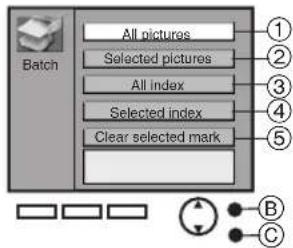
3 Select a MENU you wish to use, and press Ⓑ.
①Print a batch of pictures.
②Print a batch of selected pictures.
③Index all pictures.
④Index selected pictures.
⑤Clear a batch of selected pictures.
- Press © to cancel.
●Pictures will be printed in the order selected.
- When using [Selected pictures], (●) mark will disappear when printing is complete. When using [Selected index], marks will not disappear after printing.
- Individual pictures within a Multi Page Tiff file cannot be selected when printing a batch of pictures or a batch of selected pictures. All pictures within the Multi Page Tiff file will be printed.
- All pictures stored to memory will be lost if the power is turned off.
- If [With date] is selected under [Date], the date will appear on all indexed pictures. However, dates cannot be verified on the LCD Monitor.
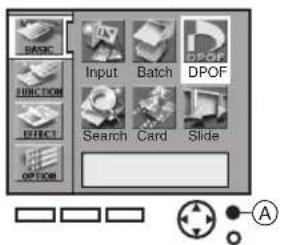
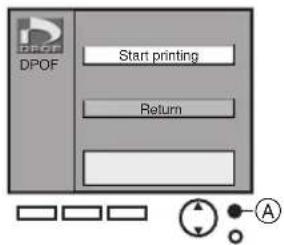
Printing With a DPOF Card (For Card Input Only)
When a DPOF card that contains pictures and print counts set with a Digital Video Camera or a Digital Still Camera is inserted, printing can be automatically be performed.
- Select the INPUT method
1 Select [DPOF] under [BASIC] on the MENU screen, and press Ⓐ.
2 Select [Start printing], and press Ⓐ.
DPOF stands for Digital Print Order Format. Using a Digital Video Camera or a Digital Still Camera, this adds printing information to stored pictures on cards so they can be applied to DPOF systems.
●The Digital Photo Printer cannot configure DPOF.
- Confirm settings on the equipment on which the settings were made.
●Pictures within Multi Page Tiff file cannot be configured.
- Setting the print count in [Number] under [OPTION] will have no effect. Only the DPOF configured print count will be printed.
- If 100 or more copies are set to be printed on the DPOF settings, only 99 will be printed.
- If you do not use the DPOF-configuring device to set the date on cards, they cannot be entered even when printing a batch of pictures.
1
2
3
1
2
3
4
Using Date Search When Printing (For Card Input Only)
Dates are recorded for pictures that were recorded on cards with Digital Video Cameras or Digital Still Cameras. Using this information, pictures taken on the designated date(s) can be printed.
- Select the INPUT method
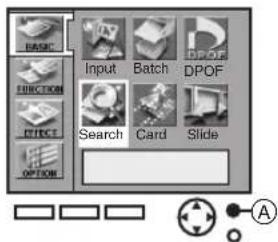
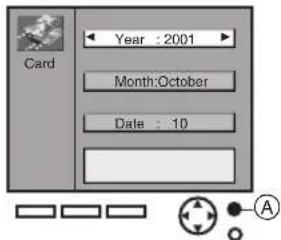
1 Select [Search] under [BASIC] on the MENU screen, and press Ⓐ.
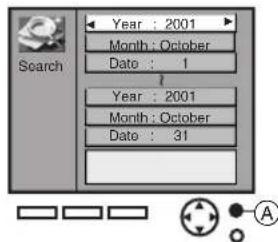
2 Enter the period you wish to search (Begin Search Date/End Search Date), and press Ⓐ.
- The example to the left shows a search beginning from 10/1/2001 and ending on 10/31/2001.
●Years can be entered from 1980 to 2040.
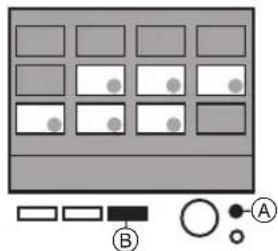
3 Confirm the pictures you found ( ● ), and pres®.
- Press Ⓐ to bring up the MENU screen.
- If no images could be found within the designated search period, a "A picture wasn't found." message will appear.
- To print all images that were found as a batch, return to the MENU screen and select [Selected pictures], under [Batch] in [BASIC].
- The selected pictures can also be viewed as a Slide Show.
Copying/Erasing Images from a Card (For Card Input Only)
Images can be mutually copied to or erased from SD Memory/MultiMedia Cards and PC Cards.
- Select the card that contains the images you wish to copy or erase in the INPUT method.
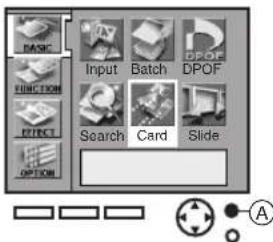
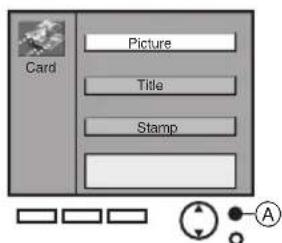
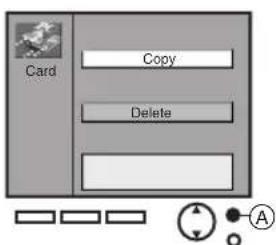
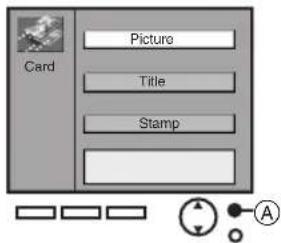
1 Select [Card] under the [BASIC] on the MENU screen, and press Ⓐ.
2 Select [Picture], and press Ⓐ.
3 Select either [Copy] or [Delete], and press Ⓐ.
4 Select an image, press Ⓐ, confirm the screen, and press Ⓐ again.
- Press Ⓑ to cancel.
- Images within Multi Page Tiff file cannot individually copied or deleted. Selecting Multi Page Tiff file in [Copy] or [Delete] shows the images on screen, and pressing Ⓐ then copies or deletes all the images.
- Images will be permanently deleted.
●Multiple copies of images cannot be selected at one time.
ENGLISH
Recording Titles onto Cards
The Digital Photo Printer can create titles through its Title Functions (Illustrations · Characters · Stamps). Created titles can then be recorded onto cards.
1
2
3
4
5
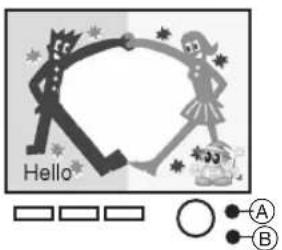
- Display the created title.
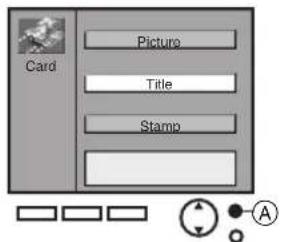
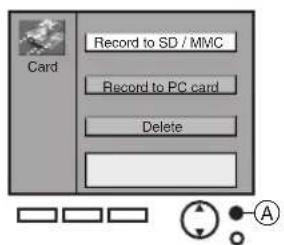
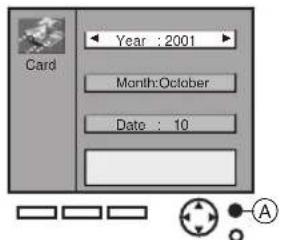
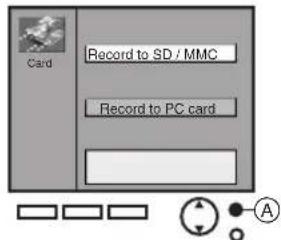
1 Select [Card] under [BASIC] on the MENU screen, and press Ⓐ.
2 Select [Title], and press Ⓐ.
3 Select [Record to SD/MMC] or [Record to PC card], and press Ⓐ.
4 Enter the creation date, and press Ⓐ.
5 Confirm the picture, and press Ⓐ.
- Press Ⓑ to cancel.
- Titles recorded to cards can be used in Panasonic video cameras with Title Functions. (However, some camera types may not be able to use stamps)
- Only titles can be recorded to cards. Pictures containing both titles and images cannot be recorded.
Erasing Titles From Cards
Titles recorded on cards can be deleted.
1 Select [Card] under [BASIC] on the MENU screen, and press Ⓐ.
2 Select [Title], and press Ⓐ.
3 Select [Delete], and press Ⓐ.
4 Select a picture, and press Ⓐ.
- Press Ⓑ to cancel.
- Titles are permanently deleted.
- Titles on separately sold multi media cards cannot be deleted.
- When deleting stamps recorded to cards, select [Stamp] after selecting [Card] under [BASIC] in Step 2.
4(When erasing titles)
natural_image
Illustration of a beach scene with palm trees, water, and a dog (no text or symbols)1
2
3
4
5
natural_image
Black-and-white photo of three children playing outdoors, with a legend and diagrammatic symbols (no readable text or symbols)1
natural_image
Grid of gray rectangular panels with scattered white circles and a small symbol labeled 'A' at the bottom (no text or symbols within panels)2
3
Recording the Video Input Image on the Card (Video Input Only)
Images from the VIDEO or S-VIDEO IN socket can be recorded to cards in the still picture screen.
- Select [Video] for the INPUT method.
1 Select [Card] under [BASIC] on the MENU screen, and press Ⓐ.
2 Select [Picture], and press Ⓐ.
3 Select [Record to SD/MMC] or [Record to PC card], and press Ⓐ.
4 Enter the creation date, and press Ⓐ.
◀▶ buttons: Change numerical value
▲▼ buttons: Move cursors
5 At the scene you wish to record, press Ⓑ. Confirm the still picture and press Ⓐ.
- To reenter a picture into memory, press Ⓑ.
- Press © while the video is playing to cancel.
Viewing Slideshows
The Digital Photo Printer can automatically display a continuous show of selected pictures within a card.
- To view DPOF configured pictures, insert a card with DPOF settings.
- Select the INPUT method.
- To view all pictures or DPOF configured pictures within a card, begin from Step 2.
1 Select the pictures, and mark them with Ⓐ ( ● ).
- To remove a picture, select the picture and press Ⓐ. The ● symbol disappears.
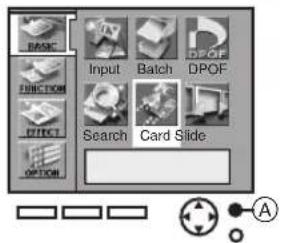
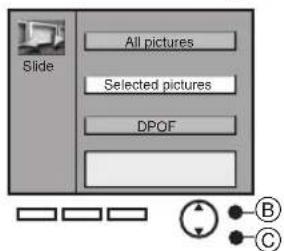
2 Select [Slide] under [BASIC] on the MENU screen, and press Ⓑ.
3 Choose [All pictures], [Selected pictures], or [DPOF], and press Ⓑ.
- Press © to cancel.
- Pictures within Multi Page Tiff file cannot be viewed as individual Slideshows.
●Pictures may take a few moments to load, depending on the picture size. - Do not remove the card during a Slide Show.
1
2
Card Input
3
natural_image
Pure diagram of a grid layout with rectangular cells and small geometric symbols (no text or labels)4
natural_image
Black-and-white photo of a person outdoors with blurred background, no visible text or symbolsVideo Input
3
natural_image
Black-and-white photo of a smiling woman in a light blue shirt, with a selection box and circular icons below (no text or symbols on the main subject)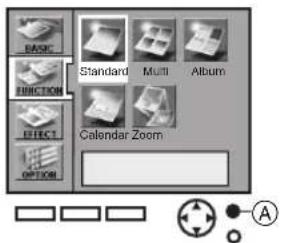
Multiple Functions
Printing Multiple Screen Shots of the Same Picture (MULTI FRAME MODE)
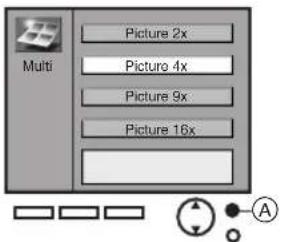
The Digital Photo Printer can divide the screen into 2, 4, 9, or 16 sections, and print multiple screen shots of the same picture.
- Select the INPUT method.
Card Input
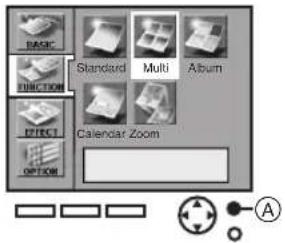
1 Select [Multi] under [FUNCTION] on the MENU screen, and press Ⓐ.
2 Choose [Picture 2 × ], [Picture 4×], [Picture 9×], or [Picture 16 × ], and press.
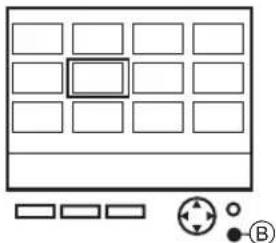
3 Select a picture, and press Ⓑ.
4 Confirm the picture, and press © to print.
- Press Ⓐ to bring up the MENU screen.
- You can also select multiple picture copies and print them as a batch.
- If [With date] is selected under [Date], the date will appear on each printed section of the picture. However, dates cannot be verified on the LCD Monitor.
- When an Ink Cassette for 16 Pre-Cut Adhesive paper is inserted, the screen will automatically be divided into 16 sections. If the Ink Cassette is removed, the screen will not automatically return to a single screen.
Video Input
1 Select [Multi] under [FUNCTION] on the MENU screen, and press Ⓐ.
2 Choose [Picture 2 × ], [Picture 4×], [Picture 9×], or [Picture 16 × ], and press.
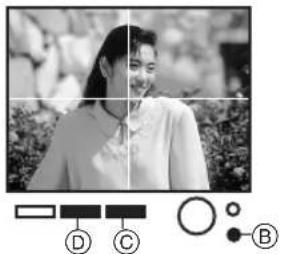
3 While watching the screen, press Ⓓ at the scene you wish to print.
After confirming the still image, press © to print.
- To reenter a picture into memory, press Ⓑ. Pressing Ⓑ afterwards stores a new image into memory.
- When an Ink Cassette for 16 Pre-Cut Adhesive paper is inserted, the screen will automatically be divided into 16 sections. If the Ink Cassette is removed, the screen will not automatically return to a single screen.
Returning a Multiple Screen To a Single screen
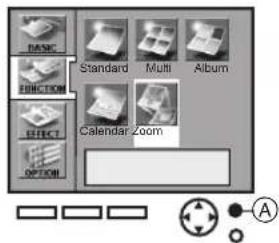
Dividing and Zooming In on screens are performed in [FUNCTION] (Multi/Album/Calendar/Zoom). To undo these functions, select [Standard] under [FUNCTION] on the MENU screen, and press Ⓐ. A single screen will return.
1
2
Card Input
3
4
Video Input
3
natural_image
Black-and-white photo of a person in a floral setting, with no visible text or symbols.Printing Multiple Screen Shots of Different Pictures
The Digital Photo Printer can divide the screen into 2, 4, 9, or 16 sections, and print multiple screen shots of different pictures.
- Select the INPUT method.
Card Input
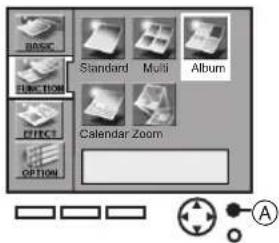
1 Select [Album] under [FUNCTION] on the MENU screen, and press Ⓐ.
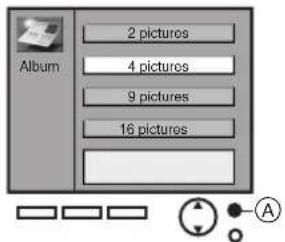
2 Choose [2 pictures], [4 pictures], [9 pictures], or [16 pictures], and press Ⓐ.
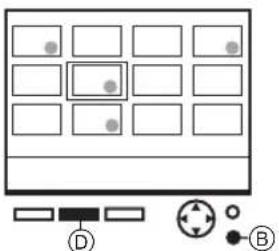
3 Mark the pictures with Ⓓ(●) (repeat for the selected number of pictures on the screen). Then press Ⓗ to return to the screen.
- If Index Display is not selected, press Ⓑ before Step 3.
- Moving the cursor over pictures marked with the ● symbol and pressing Ⓓ again will clear the memory.
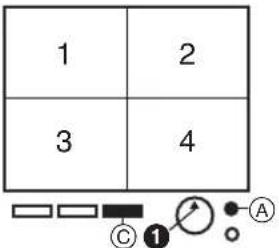
● Pictures will display from the top left of the screen in the order they were selected. (From the right if only 2 pictures) - Reselected images will be positioned last.
4 Confirm the screen, and press ©.
- Press Ⓐ to bring up the MENU screen.
- Pictures stored in memory will be deleted one at a time each time you press 1.
Selecting a Large Amount of Pictures and Printing Multiple ALBUMS as batches (For Card Input Only)
1 Select all necessary pictures in Step 3, and press Ⓐ to go to the MENU screen.
2 Select [Batch] under [BASIC] on the MENU screen, and choose [Selected pictures].
- Ex.) Selecting [4 pictures] and 8 pictures: Selected pictures 1-4 will be printed on the first sheet, and selected pictures 5-8 will be printed on the second sheet.
Video Input
1 Select [Album] under [FUNCTION] on the MENU screen, and press Ⓐ.
2 Choose [2 pictures], [4 pictures], [9 pictures], or [16 pictures], and press Ⓐ.
3 While watching the screen, press Ⓓ at the scene you wish to print.
Repeat for the selected number of pictures on the screen, and press Ⓒ after confirmation to print.
- Pressing 1 in the memory screen after pictures have been stored will delete them one at a time.
Tips for Card Input/Video Input
- Video Input pictures and pictures from various cards cannot be combined together.
- For Card Input, selected images will disappear once printing is complete.
- If you change the Ink Cassette type after selecting pictures in Card Input, you must reselect the pictures.
- For Card Input, if [With date] is set (P23) under [Date], the date will appear on each different picture shot. However, dates cannot be verified on the LCD Monitor.
- When an Ink Cassette for 16 Pre-Cut Adhesive paper is inserted, [16 pictures] will automatically be set in the [Album]. If the Ink Cassette is removed, the screen will not automatically return to a single screen.
ENGLISH
Creating a Personalized Picture Calendar
The Digital Photo Printer can insert a picture and create a 1-month, 2-month, or 12-month personalized calendar.
- Select the INPUT method.
Card Input
1 Select [Calendar] under [FUNCTION] on the MENU screen, and press Ⓐ.
2 Select [Calendar type], and press Ⓐ.
3 Choose [1 month], [2 months], or [12 months], and press Ⓐ.
4 Select the beginning year and month for the calendar, and press Ⓐ.
5 Select a picture, press Ⓓ, then press Ⓑ to switch the screen.
- If you are not in Index Display, press Ⓑ before Step 4.
- When creating 2-month calendars, choose 2 pictures. You cannot change the picture location on the calendar.
6 After confirming the picture, press © to print.
- Press Ⓐ to bring up the MENU screen.
- After storing pictures to memory, they can be deleted one at a time by pressing 1.
Video Input
1 Select [Calendar] under [FUNCTION] on the MENU screen, and press Ⓐ.
2 Select [Calendar type], and press Ⓐ.
3 Choose [1 month], [2 months], or [12 months], and press Ⓐ.
4 Select the beginning year and month for the calendar, and press Ⓐ.
5 While watching the screen, press Ⓓ at the scene you wish to print (repeat once more for 2-month calendars), and press Ⓒ to print.
- To reenter pictures into memory when creating 1-month and 12-month calendars, press Ⓑ. Then press Ⓓ to store a new picture to memory.
- For 2-month calendars, pressing 1 in the memory screen after pictures have been stored will delete them one at a time.
Tips For Card Input/Video Input
- Characters may appear disfigured in the LCD Monitor, but will not be so when printed.
●Video Input pictures and pictures from various cards cannot be combined together. - If you change the Ink Cassette type after selecting pictures in Card Input, you must reselect the pictures.
- When an Ink Cassette for 16 Pre-Cut Adhesive paper is inserted, the screen will automatically be divided into 16 sections. If the Ink Cassette is removed, the calendar screen will not automatically return.
- For Card Input, selected images will disappear once printing is complete.
■ Altering the Colour of Holidays and Special Days
1 Select [Set colour], and press Ⓐ.
2 Select the date on the calendar that you wish to change the colour of, and select the colour, and then press Ⓐ.
◀▶ Buttons: Date/Colour Change
▲▼ Buttons: Move Cursor
- Selecting [Reset] changes the colour settings of all the dates to [Black].
●The colour of Year, Month and Day displays cannot be selected. - Colours set in [Set colour] remain stored even after the power has been turned off.
1
2
natural_image
Pure diagram of a grid layout with rectangular cells and control symbols (no text or labels)3
natural_image
Group of soldiers in uniform seated under a tent, with no visible text or symbols4
natural_image
Black-and-white photo of soldiers in uniform sitting on sand, with a magnified inset showing the group's eyes (no visible text or symbols)5
natural_image
Black-and-white photo of soldiers in a field under a tent, with inset showing group photo and control symbols (no readable text or symbols)Enlarging Part of a Picture and Printing (Zoom/Card Input Only)
The Digital Photo Printer can zoom in on a portion of a picture and print that portion.
- Select the INPUT method.
1 Select [Zoom] under [FUNCTION] on the MENU screen, and press Ⓐ.
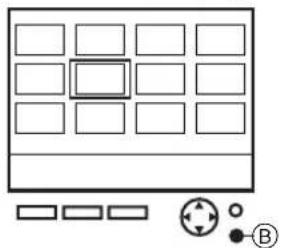
2 Select a picture, and press Ⓑ.
- If the picture you currently wish to zoom in on is already displayed, this action is unnecessary.
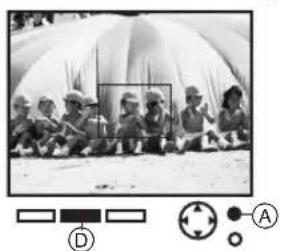
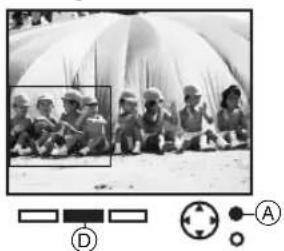
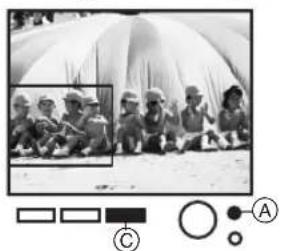
3 Press Ⓓ, confirm the picture, use the cursor buttons to move the frame over the portion you wish to zoom in on, and press Ⓔ.
4 Adjust the size of the frame with the ▲▼ buttons, enclose the portion you wish to zoom in on, select Vertical or Horizontal Print with the ◀▶ buttons, and press Ⓐ.
- Pressing Ⓓ after pressing the Ⓐ button returns you to Step 3.
- The frame alignment displays either Vertical Print or Horizontal Print.
5 Press © to print.
- The picture that was magnified displays on the screen after you press©.
-
Press Ⓐ to bring up the MENU screen.
-
[Zoom] cannot be used simultaneously with any function other than [Standard] under [FUNCTION].
- The ZOOM magnification size is displayed in a red frame. (ZOOM can magnify up to 3 times actual size)
- If the Ink Cassette type is changed after a ZOOM portion is selected, you must reselect the portion again.
●Picture quality may deteriorate when magnified. - When an Ink Cassette for 16 Pre-Cut Adhesive paper is inserted, the screen will automatically be divided into 16 sections. If the Ink Cassette is removed, the ZOOM will not automatically return.
1
2

3

4

5

Card Input
Video Input
5
Title Functions
Inserting Illustrations and Printing
You can insert illustrations stored within the Digital Photo Printer or within cards onto pictures and print.
- Select the INPUT method.
- For Card Input, select the picture you wish to print and enter the Single Screen Display.
Card Input
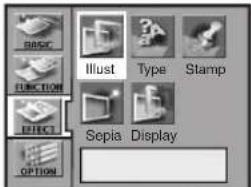
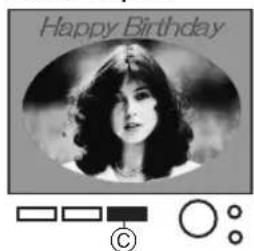
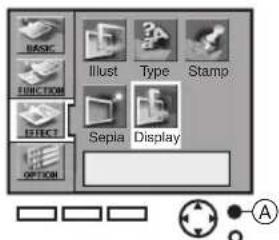
1 Select [Illust] under [EFFECT] on the MENU screen, and press Ⓐ.
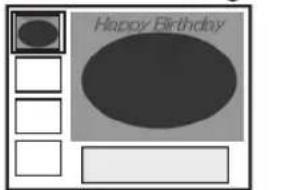
2 Choose an illustration, and press Ⓐ.
●The example to the left shows the [Happy Birthday] illustration.
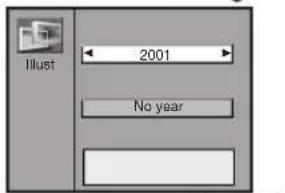
3 Choose a year to display on the print, and press Ⓐ.
- Years can only be chosen for certain stored illustrations.
- If you do not wish a year to be displayed, choose [No year].
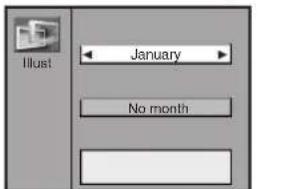
4 Choose a month to display on the print, and press Ⓐ.
●Months can only be chosen for certain stored illustrations.
- If you do not wish a month to be displayed, choose [No month].
5 Press © to print.
- If a title is recorded on a card, it will display after the preset illustration.
- Created titles (Illustrations · Characters · Stamps) can be recorded onto cards.
- To delete created title displays (Illustrations · Characters · Stamps), select [Don't indicate] or [Clear] in [Display] under [EFFECT].
Video Input
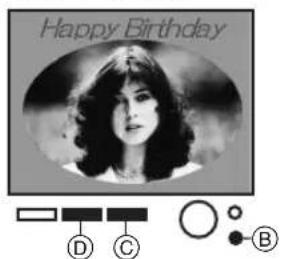
1 Select [Illust] under [EFFECT] on the MENU screen, and press Ⓐ.
2 Choose an illustration, and press Ⓐ.
- The example to the left shows the [Happy Birthday] illustration.
3 Choose a year to display on the print, and press Ⓐ.
- Years can only be chosen for certain stored illustrations.
- If you do not wish a year to be displayed, choose [No year].
4 Choose a month to display on the print, and press Ⓐ.
- Months can only be chosen for certain stored illustrations.
- If you do not wish a year to be displayed, choose [No month].
5 While watching the screen, press Ⓓ at the scene you wish to print.
Confirm the still picture, and press © to print.
- To reenter a picture into memory, press Ⓑ.
- Created titles (Illustrations · Characters · Stamps) can be recorded onto cards.
- To delete created title displays (Illustrations · Characters · Stamps), select [Don't indicate] or [Clear] in [Display] under [EFFECT].
1
2
1
2
A)
B)
Switching Displays (Indicate/Don't indicate/Clear)
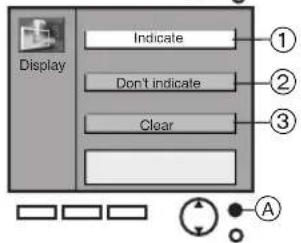
You can switch title displays (Illustrations · Characters · Stamps) used in P19-P22 Indicate/Don't indicate. Also, you can delete displayed titles by selecting [Clear].
1 Select [Display], under [EFFECT] on the MENU screen, and press Ⓐ.
2 Choose [Indicate], [Don't indicate] or [Clear], and press Ⓐ.
①: Displays the selected title on the screen.
②: Temporarily removes the created title from the screen.
③: Deletes the created title, and creates a new one.
Inserting Characters and Printing
You can insert characters stored within the Digital Photo Printer onto pictures and print.
- Select the INPUT method. For Card Input, display the picture you wish to print in the Single Screen Display. For Video Input, use a still picture.
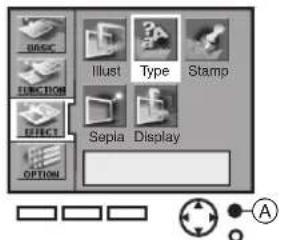
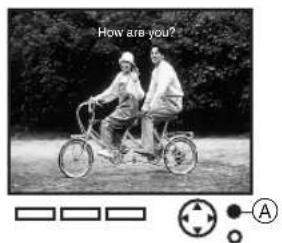
1 Select [Type], under [EFFECT] on the MENU screen, and press Ⓐ.
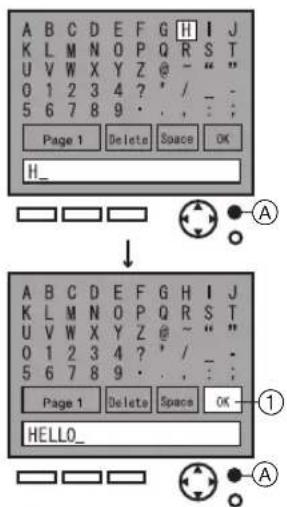
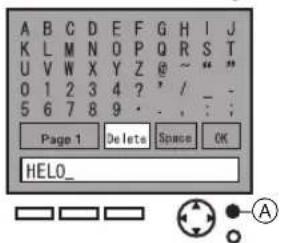
2 Insert characters.
- Press Ⓐ each time you select a character.
●After choosing all the characters, select ①, and press Ⓐ.
A) Erasing Characters
Select [Delete], and press Ⓐ to delete characters one at a time.
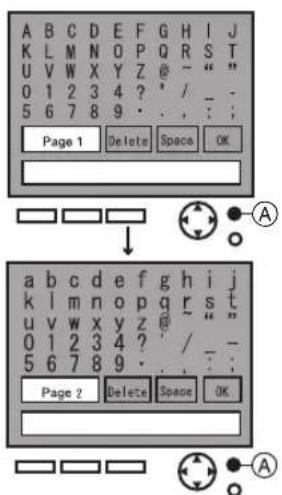
B) Switching Characters
Select either [Page 1] or [Page 2], and press Ⓐ to switch characters.
3
4
natural_image
Black-and-white photo of two people riding a tricycle outdoors, with no visible text or symbols5
6
ENGLISH
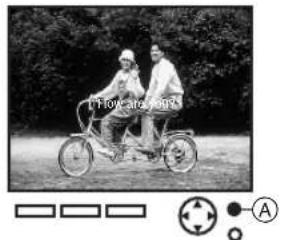
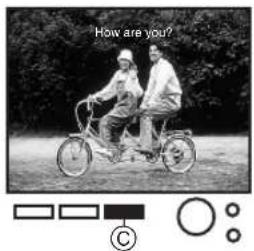
3 Use the ◀▶ buttons to select the character's direction, the ▲▼ buttons to select the character's size and press Ⓐ.
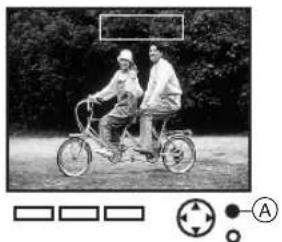
4 Use the ▲▼◀▶ buttons to position the character's location, and press Ⓐ.
5 Use the cursor buttons to choose the character's colour and alignment, and press Ⓐ.
- Buttons: Change Character's Colour
6 Press © to print.
- Turning the power off will delete all inputted characters.
- Characters may appear disfigured in the LCD Monitor, but will not be so when printed.
●The size of characters is restricted by the number of characters. - Character fonts cannot be altered.
- Created titles (Illustrations · Characters · Stamps) can be recorded onto cards.
- To delete created title displays (Illustrations · Characters · Stamps), select [Don't indicate] or [Clear] in [Display] under [EFFECT].

1
2
3
natural_image
Black-and-white photo of a person standing in front of a fountain, holding a soccer ball (no visible text or symbols)4
natural_image
Black-and-white photo of a person standing in a garden with a fountain and decorative plants (no visible text or symbols)5
natural_image
Black-and-white photo of a person standing near a cartoon character and a dog, with no visible text or symbols.1
2
3
natural_image
Black-and-white photo of a smiling woman holding a phone to her ear, with no visible text or symbols.Inserting Stamps and Printing
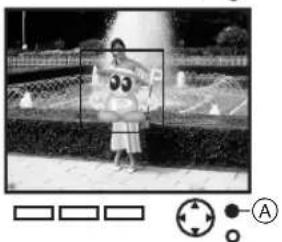
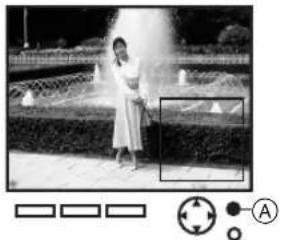
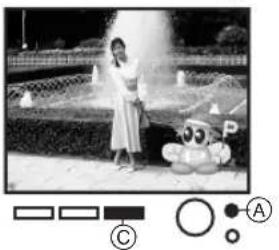
You can insert stamps stored within the Digital Photo Printer onto pictures and print.
- Select the INPUT method. For Card Input, display the picture you wish to print in the Single Screen Display. For Video Input, display a still picture.
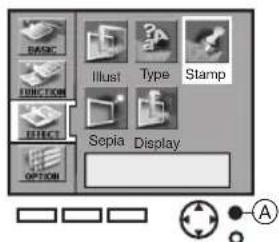
1 Select [Stamp], under [EFFECT] on the MENU screen, and press Ⓐ.
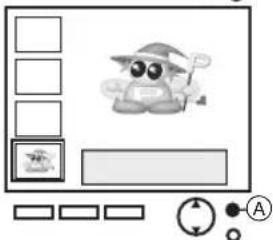
2 Choose a stamp with the ▲▼ buttons, and press Ⓐ.
3 Choose the stamp direction with the ◀▶ buttons, the ▲▼ buttons to select the stamp size and press Ⓐ.
4 Position the stamp location by moving the center frame up, down, left, or right with the cursor buttons, and press Ⓐ.
5 Press © to print.
- Press Ⓐ to bring up the MENU screen.
- Created titles (Illustrations · Characters · Stamps) can be recorded onto cards.
- To delete created title displays (Illustrations · Characters · Stamps), select [Don't indicate] or [Clear] in [Display] under [EFFECT].
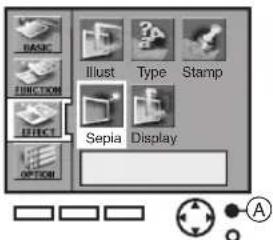
Print in Sepia Tone
The Digital Photo Printer can print pictures in Sepia tone.
- Select the INPUT method. For Card Input, display the picture you wish to print in the Single Screen Display. For Video Input, display a still picture.
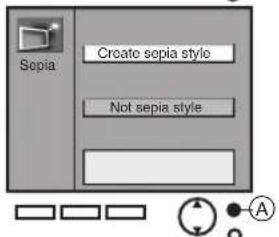
1 Select [Sepia] under [EFFECT] on the MENU screen, and press Ⓐ.
2 Select [Create sepia style], and press Ⓐ.
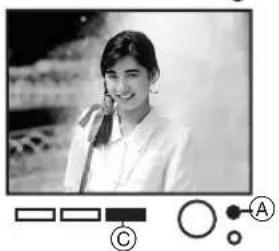
3 Press © to print.
- Press Ⓐ to bring up the MENU screen.
- [COLOUR], [C-BALANCE] and [AWB] cannot be adjusted when [Create sepia style] is selected.
- Titles (Illustrations · Characters · Stamps) do not become Sepia tone.
Settings
Settings
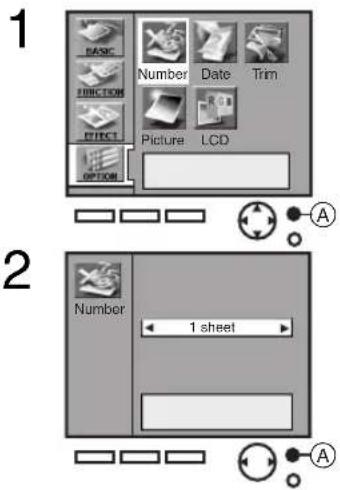
Set Number of Prints
1 Select [Number] under [OPTION] on the MENU screen, and press Ⓐ.
2 Use the ◀▶ buttons to select the number of copies, and press Ⓐ.
- You can choose between 1-10 copies.
Setting Dates
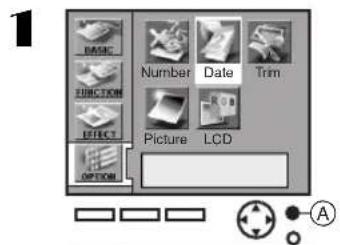
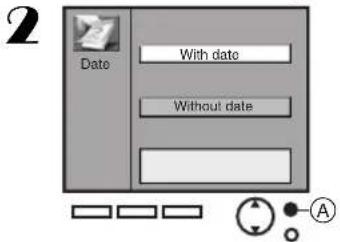
DATE PRINTING
It prints the picture with recorded date in the lower right corner.
1 Select [Date] under [OPTION] on the MENU screen, and press Ⓐ.
2 Select [With date], and press Ⓐ.
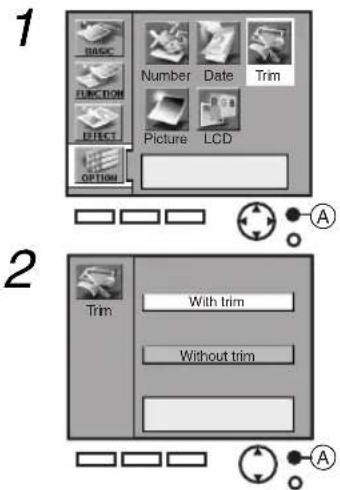
Trimming
The Digital Photo Printer can trim the horizontal or vertical edges of a picture and stretch it so that the picture fills up the entire print space.
1 Select [Trim] under [OPTION] on the MENU screen, and press Ⓐ.
2 Select [With trim], and press Ⓐ.
- When [Without trim] is selected, the entire image data will always be fit within the print paper. (Even borderless paper can contain space)

1
2
1
2
1,2
natural_image
Illustration of a hand inserting a card into a device (no text or symbols visible)3,4
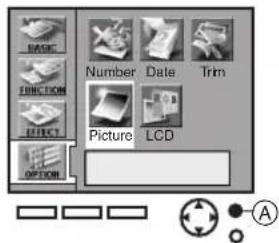
■ Adjusting Print Picture Quality
- Select the picture you wish to adjust, and display it in the Single Screen Display.
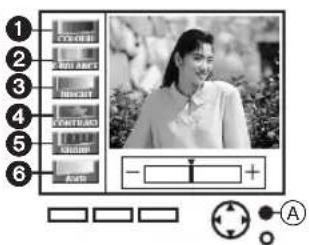
1 Select [Picture] under [OPTION] on the MENU screen, and press Ⓐ.
2 Adjust the quality, and press Ⓐ.
▲▼ Buttons: Item Selection
◀▶ Buttons: Adjust
①Adjust the depth of the colour.
②Adjust the tint of the colour.
③Clarify dark portions.
④Adjust picture brightness and shade.
⑤ Sharpen outline.
⑥Adjust white balance.
- Adjustments on the LCD Monitor are approximations.
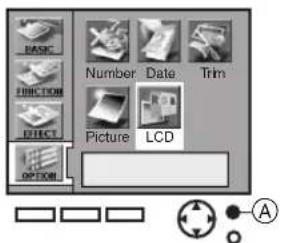
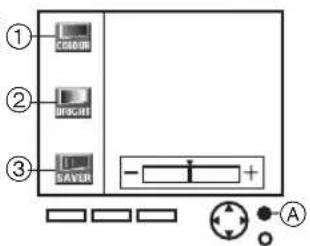
■ Adjusting LCD Monitor/Configuring Screen saver
1 Select [LCD] under [OPTION] on the MENU screen, and press Ⓐ.
2 Adjust the LCD Monitor and/or configure the screen saver, and then press Ⓐ.
▲▼ Buttons: Item Selection
◀▶ Buttons: Adjust/Configure
①Adjust the darkness of the colour.
②Clarify dark portions.
③Set/Remove screen saver.
- All LCD Monitor adjustments will remain in effect until new adjustments are made.
- LCD Monitor adjustments will have no effect on print quality.
- Adjusting the [SHARP] will not cause any changes on the LCD Monitor.
- When adjusted pictures are recorded to cards, all adjustments will be lost.
●Pictures cannot be made black and white by changing the colour darkness to [-]. - When the [SAVER] is set to [ON], the screen saver will appear if no actions are performed within approximately 30 minutes. Press any button to return to the prior screen.
Others
After Use
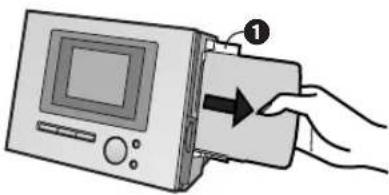
1 Turn the power off, and remove the Paper Cassette.
2 Close ① (Paper Cassette Door).
3 Open ② (Ink Cassette Door), pull ③ (Ink Cassette Eject Lever) forward, pick up ④ (indented portion of the Ink Cassette) and lift it straight up.
4 Close ②.
- If you used a card, remove the card as well.
- Leave ① and ② closed except inserting/removing each cassette.
Precautions
To ensure high quality, precise printing, always observe the following points. Failure to observe these points can not only result in poor quality prints, but also paper jams, malfunctions and breakdowns of the Digital Photo Printer.
Ink Cassette/Paper Set Notes
- Use Ink Cassette/Paper Sets that bear the mark.
- Use the Ink Cassette with the paper provided in the same box. One Ink Cassette is designed to provide enough Ink Film to print the number of sheets provided in that Ink Cassette/Paper Set.
- Do not store the Ink Cassettes or paper under high temperatures, high humidity, or direct sunlight. Doing so could result in a deterioration of printing quality. They may also become unusable.
- Do not forcibly pull the Ink Film or paper. Do not allow finger prints or dust to get attached, and do not get water on them.
- Do not reuse printed paper or Ink Cassettes that have already been used up.
- Do not open the Ink Cassette/Paper Set package immediately, to become familiar with the surrounding temperature before using it. If the Ink Cassette/Paper Set has been stored at a low temperature, condensation could form when brought into a warmer room.
- If the Ink Cassette/Paper Set is defective due to a manufacturing error on the part of Panasonic, we will replace the Ink Cassette/Paper Set with an equivalent Ink Cassette/Paper Set. Panasonic shall not bear any responsibility beyond replacing the product.
Ink Cassette Notes
- Do not remove the label from the Ink Cassette.
- Before inserting an Ink Cassette, take up any slack in the Ink Film. Take up slack by pressing your finger in the hole with the arrow on it, and turning the spool in the direction of the arrow.
- Make sure that the Ink Cassette is oriented properly, and insert it all the way in.
- If you change the Ink Cassette type after selecting pictures in Card Input, you must reselect the pictures.
- If you change the Ink Cassette type after storing pictures in Video Input, the Input screen may return. To display a stored still picture, press the Display button.
- When the power is turned on while a used up Ink Cassette is inserted, it will take some time when the start screen displays. Shutting the power off when the start screen displays may not immediately turn off the printer. (When the start screen appears and the display disappears, then the power can be turned off)
Paper/Paper Cassette Notes
- Do not fold or bend the paper. Lay it flat, smooth it out, and insert it into the Paper Cassette with the print side (the glossy side of the paper with no markings on it) up.
- Do not load too much paper in the Paper Cassette. No more than 25 sheets of 9 × 12 cm printing paper, or 36 sheets of the other types of paper should be loaded.
- Do not dirty the print side (white side) of the paper.
- When printing on the back side of paper with another printer, the ink may not easily dry depending on the type of printer used.
- Dust and humidity damage the paper. Remove all remaining paper from the Paper Cassette, return them to their original bag, and store them flat.
Before, During, and After Printing
- Do not write on the paper before printing on it.
- Do not forcibly pull out the Ink Cassette or paper, shake the printer, or add more paper while printing is in progress.
- Removing the Paper Cassette while printing is in progress could result in a paper jam in which the jammed paper cannot be pulled out. The jammed paper can only be removed when the Paper Cassette is inserted.
- While printing is in progress, no other buttons besides the Display/Cancel button used to cancel multiple prints will work.
- The printer will make a little noise when printing, but this is not malfunction.
- Printing 2 or more pages, or printing in cold or hot temperatures may take a little more time.
- If ink or paper runs out while printing is in progress, it is unnecessary to press the print button again after you replace the ink or paper.
- If you print a dark image with this Digital Photo Printer, it may become a lighter print by the AGC (Auto Gain Control).
- When paper is bent or wrinkled, it may fall out of the paper exit tray (located above the Paper Cassette).
- Do not allow more than 10 sheets of printed paper in the paper exit tray, as doing so may lead to a paper jam.
Notes on Using 10×15 cm printing paper
- When printing borderless prints, select [With trim]. A blank border can be created around the top, bottom, left and right sides of a picture when selecting [Without trim].
- When printing with borderless paper, the top, bottom, left and right sides of the picture will be cut off.
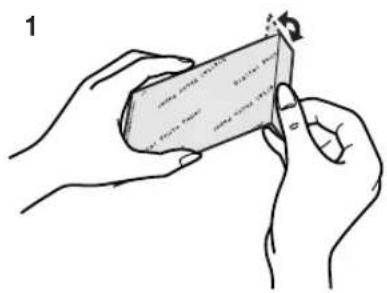
Cutting Borderless Paper After Printing
1 Fold in both directions along the perforation lines.
2 Tear along the perforation lines.
- There are perforation lines on both ends of the borderless paper. Be sure to tear off both sides.
natural_image
Illustration of hands holding a rectangular object with a pointer and arrow, no text or symbols present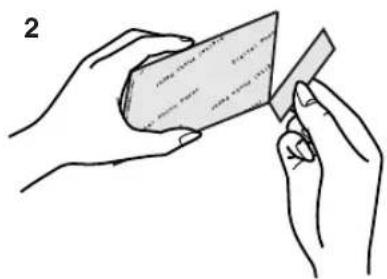
natural_image
Illustration of two hands holding a rectangular object with a ruler, no text or symbols present
Notes on Handling Finished Prints
In order to preserve finished prints in the best condition, always observe the following points. Failure to observe these points could result in a deterioration of print quality or injury.
- Do not affix cellophane tape to the printed surface. Particularly be careful not to let plastic desk pads, business card cases, or plastic erasers come into contact with the printed surface.
- Do not touch the printed surface with your fingers.
- Do not spill or apply volatile solvents such as alcohol to the printed surface. Doing so could result in discolouration or fading.
- Do not leave printed surfaces in contact with one another. Doing so could cause colour transfer between the two images. Colour transfer could also occur if a printed surface is left in contact with any other type of paper under pressure for an extended period of time.
- Do not store prints under conditions of high temperatures or high humidity. Leaving prints under such conditions for an extended period of time could cause a deterioration in print quality. Do not leave prints exposed to direct sunlight.
- When prints are to be stored in an album, select an album that has nylon pockets. Other materials could cause colour transfer or discolouration. (Polypropylene and cellophane are also acceptable materials.)
Notes on Automatic Printing
- Auto Print may stop if the Photo Printer's speed is slowed down due to its cooling mechanisms. In this case, perform the Auto Print through the Digital Video Camera again.
- If several photoshots were recorded consecutively, some prints may be skipped during Auto Print.
- If the ink or paper is replaced while Auto Print is in progress, one image may be inadvertently printed twice.
- The Auto Print function cannot be used to print multiple copies of the same image in succession.
- To stop Auto Print while it is in progress, press the stop button on the Digital Video Camera. Pressing the CANCEL button on the Photo Printer will not stop Auto Printing.
- A continuous photoshot pictures cannot be Auto Printed.
Notes on Cards
- If a card's image does not display properly, turn off the power, remove the card, and reinsert it.
- Titles combined with stamps and other such things recorded to cards may not always display on the Digital Video Camera.
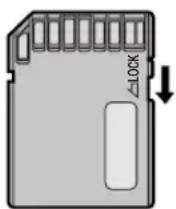
Notes on the SD Memory Card Write-protect Switch
- The SD Memory Card has a write-protect switch. Sliding the switch to [LOCK] prevents the recording of data to the card as well as the deletion of data from the card. Sliding back the switch permits such operations.
Notes on Storing Settings to the Photo Printer's Memory
When the following settings are configured, they will remain stored until they are altered again, even if the power is turned off. (If the Photo Printer's power is turned off by disconnecting the Power Cable instead of pressing the power button, all configurations will be lost.)
•[Input], under [BASIC]
- Creation dates in [Card], under [BASIC]
- The screen division number in [Multi] and [Album] under [FUNCTION]
•[COLOUR] and [BRIGHT] in [LCD], under [OPTION]
•[Trim], under [OPTION]
•[Date], under [OPTION]
- Colour settings in [Set colour], located under [Calendar] in [FUNCTION]
Notes on the Screen Saver
When the same picture displays for an extended period of time, an after-image may be burned into the LCD Monitor depending on the picture. However, the monitor will not be broken. If this occurs, turning off the power and leaving it off for several hours will cause the after-image to disappear. To prevent after-images from occurring, the Photo Printer contains a setting that can cause a screen saver to display if no operations are performed on the printer within 30 minutes.
Notes on Handling the Digital Photo Printer
- When spraying or using insecticides or other volatile solvents in the vicinity of the Photo Printer, be careful not to allow any to come into contact with the printer. If such solvents come into contact with the printer, they can damage the outer case and cause the surface to peel. Do not allow rubber or plastic products to be in contact with the printer for extended periods of time either.
- When not using the Photo Printer for extended periods of time, turn off the power and disconnect the Power Cable from the outlet to conserve energy. (0,04A of electricity are still used when the power button alone is turned off and the computer is on STAND BY.) Since damage to the printer may be incurred, turn on the power at least once every 6 months and use the Photo Printer.
- When transporting this printer, during a move for example, pack the printer back into its original case. If you no longer possess the case, wrap the printer in a blanket or some other such cloth material to prevent any damage. (Remove the Paper Cassette and the Ink Cassette, and close the lid.)
Installation Notes
- Install the Photo Printer away from other devices that generate magnetic fields.
- The magnetic fields generated by stereo speakers or large motors will distort the pictures produced by the Photo Printer. Electromagnetic waves produced in this Photo Printer and in televisions, video games, and other devices can cause mutual interference, disrupting both the display on the television screen and the print picture.
Maintenance Notes
- Do not use Benzene, paint thinner, or other solvents to clean the printer. Most of the printer surface is plastic. Do not use solvents such as Benzene and paint thinner to wipe the printer since they can damage the surface of the printer and cause the surface to peel. To clean the surface, wipe up any dust with a soft, dry cloth. If the Photo Printer is particularly dirty, soak the cloth in kitchen detergent (neutral) diluted with water and wring out thoroughly. Then, wipe off the dust with the cloth and wipe again with a dry cloth. When using a synthetic cloth, follow the precautions in the cloth's usage instructions.
Internal Temperature
- Although it varies with the ambient temperature, if the internal temperature of the Photo Printer rises above a certain level while printing, the error message "The temperature of the device is too high, please wait." will appear on the LCD Monitor. In this situation, the printing operation will halt temporarily. This is not a malfunction. After waiting for a few minutes for the temperature to drop (four or five minutes at the most), the Photo Printer will automatically resume printing. The printing operation may be halted temporarily in any of the following cases, which will result in a longer than normal printing time.
1 When printing images continuously
2 When the ambient temperature is high
3 When the internal temperature of the printer rises quickly because the ventilation holes or other parts are blocked
- Note that if two or more of these conditions exist, printing will take even longer. Therefore, make every effort to find a well-ventilated location for installing this printer.
Condensation
- When a bottle is taken out from a refrigerator in summer and left standing for a while for instance, droplets of water will form on it. This phenomenon is known as condensation. Condensation will form if the printer or Ink Cassette/Paper Set is moved to a location with a considerable difference in temperature or humidity, such as:
1 A high-humidity location, such as one filled with steam
2 When suddenly moved from an air-conditioned environment to one with high temperatures and high humidity
3 A room that has just been heated
If condensation occurs, turn the power on and wait for 2 hours. If the paper or rollers are damp with condensation, the printed surface that is produced may be dirty.
Notes on the LCD Monitor
- If the printer becomes extremely cold as may occur in cold environments, the LCD Monitor may display images darker than usual when the power is turned on. Normal brightness will return once the internal temperature rises.
- The LCD Monitor is made of high-precision technology. It contains over 99,99% quality pixels. However, a minuscule amount of pixels (less than 0,01%) may contain defects or may constantly emit a certain colour (red, blue, or green). This is not a malfunction of the monitor, and will have no effect on prints.
Q&A
About Functions
1: When printing, what is the difference between "Photo Shot" and normal video images?
1: When an image is shot using the "Photo Shot" function of a Digital Video Camera, the result will be a high-quality image with little noise or distortion. Therefore, a print of this image will be of higher quality than a print of a normal video image.
2: What kind of Video Cameras can be connected to the Digital Photo Printer?
2: Any type of Video Camera that is equipped with an S-VIDEO OUT Socket or a VIDEO OUT Socket can be used.
3: Can the Photo Printer print images from HDTV broadcasts?
3: No, because the video signals are different.
4: What should I do about poor colouring?
4: The colour and other parameters can be adjusted by selecting [Picture], under [OPTION] on the MENU screen.
5: Is it possible to insert a title for each [Album] Mode screen?
5: No, it is not possible in normal [Album] Mode. It is possible in [Multi] Mode, but it is not possible to insert a different title for each mini-frame.
6: Why do pictures get cut off when I print them on borderless paper?
6: Borderless paper designed for 10 × 15 cm printing paper pictures have a length-width ratio of 1:√2 The length-width ratios of Digital Video Cameras are 3:4, so the top and bottom portions of pictures will be cut when printing on borderless paper.
■ About the Digital Photo Printer in General
7: What is the "thermal sublimation transfer printing system"?
7: This is a type of printing method offering excellent image quality. Other methods exist, such as the direct thermal printing method.
8: What does "256 colour gradations" mean?
8: It means that the Digital Photo Printer can express 256 gradations of colour between white and the darkest colour formed by the 3 primary colours. Because each of the 3 colours can be expressed in 256 gradations, the total numbers of colours is 256 × 256 × 256 (approximately 16.780.000 full colours).
9: How do the Ink Cassettes and paper work?
9: The Ink Cassettes contain 3 colours in one unit: cyan, magenta, and yellow. The printing paper has a special coating that improves the adhesion of the ink.
10: What is the maximum number of picture files that the Photo Printer can handle?
10: The Photo Printer can handle up to 65.536 files.
11: Regarding cards, how many pixels can the Photo Printer handle in an image?
11: The Photo Printer can deal with up to approximately 25 million (6.144 × 4.096) pixel images.
12: How should I store my prints?
12: We recommend keeping them in an album. When doing so, make sure that the pockets are made of nylon, polypropylene, or cellophane. Using other materials may result in colour transfer or discoloration.
■About Paper and Ink Cassettes
13: How should I store the Ink Cassettes and paper after having opened them?
13: Do not leave the Ink Cassettes or paper in a location exposed to direct sunlight, or in a location subjected to high temperature or high humidity. Place the cassette or paper back in its original bag, and then store them flat. These supplies should be used as soon as possible after they are opened.
14: What kind of paper can the Digital Photo Printer print on?
14: The Digital Photo Printer can print on 9 × 12 cm printing paper, 16 Pre-Cut adhesive paper, and 10 × 15 cm printing paper. Do not use other types of paper, since doing so could cause paper jams or other malfunctions. Use the special Ink Cassette/Paper Set when printing.
15: Can the Digital Photo Printer print images continuously?
15: If [Number] is selected under [OPTION] on the MENU screen, up to 10 sheets can be printed continuously. Do not allow more than 10 sheets of printed paper collect in the paper exit tray, as doing so may lead to a paper jam.
16: How many sheets can be printed with a single Ink Cassette?
16: An Ink Cassette can print the number of sheets that are included in the same Ink Cassette/Paper Set. For example, the Ink Cassette/Paper Set VW-APA50E is intended for 50 sheets, so the Ink Cassette can print 50 sheets. Ink Cassettes cannot be rewound and used again.
17: What kinds of Ink Cassettes and printing paper can I use with the Digital Photo Printer?
17: Use Ink Cassette/Paper Sets that bear the mark.
■ About Unclean Thermal Heads
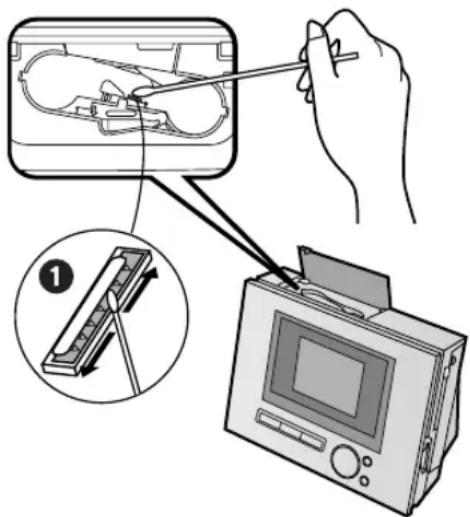
If a line appears across a printed picture and pictures cannot be printed clearly, Thermal head (the ① portion on the below picture), located in the insertion portion of the Ink Cassette, may be dirty. In that case, insert a cotton swab (about 15cm in length) all the way into the Ink Cassette and clean thermal head.
- Be sure to disconnect the Power Cable from the outlet before cleaning thermal head.
- Do not insert your finger into the Ink Cassette Insert Location, as an injury may result.
Before Requesting Service
If the trouble persists even when the action suggested below has been taken, press the Power Button to turn off the power or disconnect and re-connect the Power Cable.
1: The power cannot be switched on.
1: The power plug is not plugged in correctly.
2: No picture appears on the screen.
2-1: The external video source is not connected properly. (Video Input)
2-2: The card is not properly inserted.
2-3: A card with a different format than that which can be used by the Photo Printer is being used.
→ Pictures from the card cannot be printed with the Photo Printer.
3: The printer does not print.
3-1: The Ink Cassette is not oriented properly, or was not pushed all the way in.
3-2: There is slack in the Ink Film.
→ Take up the slack in the Ink Film.
3-3: The Paper Cassette is not oriented properly, or was not pushed all the way in.
3-4: The paper was loaded back and front in the reverse side.
3-5: The internal temperature of the printer is too high. → Wait.
4: Printing is not of the expected quality.
4-1: The paper being used is not of the specified type.
4-2: The paper was not loaded correctly.
4-3: Thermal head is dirty.
4-4: Condensation has formed. → Wait.
5: The printed colours are not right.
5: The print image has not been adjusted correctly.
6: The printed pictures are distorted.
6-1: The printer is located near a television, video game, or other source of electromagnetic waves.
→ Move the printer so that it is at least one meter away from the television, video game, etc.
6-2: The printer is located near a stereo speaker, large motor, or other source of a strong magnetic field.
→ Move the printer away from the device generating the magnetic field.
7: Pressing the MEMORY button does not store the picture in memory.
7: The MEMORY screen is displayed.
→Press the DISPLAY button and change over to the INPUT screen.
8: The printer does not respond when a button is pressed.
8-1: The internal temperature of the printer is too high.
→ Wait.
8-2: Printing is in progress.
→ Wait until printing is complete.
9: Paper jams occur frequently.
9-1: More than 36 sheets of paper (or 25 sheets of 9 × 12 cm printing paper) have been loaded in the Paper Cassette.
9-2: The paper is creased or curled.
10: The MENU screen does not appear.
10: Printing is in progress.
→ Wait until printing is complete.
11: It takes a long time for an image to appear.
11: Depending on the image system for storing images in the card and its capacity, it can take 20 to 30 seconds to display the image.
→ This is not a malfunction.
12: Pictures found using Date Search cannot be printed as a batch.
12: After finding the pictures through Date Search, you did not return to the MENU screen and choose [Batch] on [BASIC] to [Selected pictures].
13: The number is different than that selected in [Number], under [OPTION].
13: The printer is performing a DPOF print. → Only the number of pages configured with DPOF will be printed.
14: Images stored in a card cannot be copied.
14-1: There are no images stored in the card.
14-2: The INPUT method was not correctly selected.
14-3: The card is write-protected.
14-4: The card's memory has been used up.
15: Images in the card cannot be erased.
15-1: There are no images stored in the card.
15-2: The INPUT method was not correctly selected.
15-3: The picture is set to write-protect in the camera or computer.
→ Change the write-protect setting in the camera or computer, and then erase.
16: The video image was stored in the card, but the image is not clear.
16: In some cases, image compression may deteriorate the quality of image when storing.
→ This is not a malfunction.
17: Video images cannot be recorded in the card.
17-1: The INPUT method is not set to [Video].
17-2: The card is set to write-protect.
17-3: The card's capacity is full.
→ Either erase unnecessary images, or use another card with sufficient capacity.
Error Messages
- This function can't be used because there is no picture on the card.
→ Use a card with images recorded on it.
- This function is not available because the card can't be used.
→ An incompatible card is being used. Insert a card that the Photo Printer can use.
●The illustration is unreadable.
- This function can't be used because the card is read only.
→ The card is set to write-protect. Refer to each card's manual for specific instructions on how to remove the card's write-protection.
- This function can't be used because there is no card.
→ Insert the card.
- The stamp is unreadable.
- It can't be deleted because the card is read only.
→ The card is set to write-protect. Refer to each card's manual for specific instructions on how to remove the card's write-protection.
- Set paper cassette.
→ Insert the Paper Cassette.
- There is no ink cassette.
→ Insert the Ink Cassette.
●Paper is incorrect.
Paper jam has occurred.
→ Remove the jammed paper, and insert the specified printing paper.
●Paper jam has occurred.
→ Remove the jammed paper.
- There is no paper cassette.
→ Insert the Paper Cassette.
- Ink cassette is incorrect.
→ Use the specified Ink Cassette.
- There is no ink.
→ Replace the Ink Cassette with a new one.
●Paper is incorrect.
Set properly.
→ Insert the specified printing paper correctly.
- Set paper.
→ Insert paper into the Paper Cassette.
- The temperature is too high, please wait.
→ Wait for a moment.
- Please wait.
→ Wait for a moment.
- Cannot delete.
→ Either the files in the card are set to write-protect, or the files are damaged. They cannot be deleted on the Photo Printer.
- Cannot copy.
→ Either no images are recorded on the card, or the card is set to write-protect. Use each card to remove write-protection.
- Cannot record.
→ An incompatible card is being used. Use a card that is compatible with the Photo Printer.
- The card is full.
→ There is no space left on the card. Either erase unnecessary images or use another card.
- Please wait for a while.
→ Wait for a moment.
- If F00 or other error messages appear, contact your nearest Panasonic dealer.
Specifications
Information for Your Safety
| Power Supply | AC220-240 V 50/60 Hz |
| Input Current | During Printing: Approx. 0,8 AWhen on: Approx. 0,13 A, When off (STAND BY): Approx. 0,04 A |
Printing System Thermal sublimation transfer printing system
| Printing Speed | 9 × 12 cm printing paper: Approx. 85 sec./sheet, 16 Pre-Cut adhesive paper: Approx. 95 sec./sheet, 10 × 15 cm printing paper: Approx. 130 sec./sheet |
| Picture Memory 8 bit, 1 frame | |
| Print Media | |
| Ink Film | Cassette type (exclusive), 3 colour field successive printing (yellow, magenta, cyan) 9 × 12 cm printing paper (yellow, magenta, cyan), 10 × 15 cm printing paper, 16 Pre-Cut adhesive paper (yellow, magenta, cyan, overcoat) |
| Printing Paper | 9 × 12 cm printing paper, 16 Pre-Cut adhesive paper (100 × 148 mm) (postcard size), 10 × 15 cm printing paper (100 × 170 mm, 100 × 150 mm after cut)(Picture dimensions)9 × 12 cm printing paper: 90 × 120 mm, 16 Pre-Cut adhesive paper: 85 × 113 mm10 × 15 cm printing paper: 100 × 150 mm (after cut) |
| Paper Feeding System | Automatic paper feed (holds 25 sheets of 9 × 12 cm printing paper, 36 sheets of 16 Pre-Cut adhesive paper/10 × 15 cm printing paper) |
Picture Quality 256 gradations of each colour
| Number of printing |
| pixels 410 × 410 dpi |
| Number of Copies Video/Card mode: Max. 10 sheets |
| Functions Video mode: Single Screen, Multiple Screen (Album/Multi Frame), Calendar, Title, Character Input, Sepia Print, Stamp |
| Card Mode: Single Screen, Multiple Screen (Album/Multi Frame), Calendar, Zoom, Title, Character Input, Sepia Print, Stamp, Batch Print/Index Date Print, Date Search, Trimming, Card Storage, Card Erase, Card Copy, Slide Show, DPOF (Digital Print Order Format) compatible |
Print Head Film thermal head, 16,13 dots/mm (410 dpi)
| Input Socket | |
| S-VIDEO IN Socket Y (luminance signal) 1Vp-p, 75 ohm, C (colour signal) 0,3Vp-p, 75 ohm (rear:1) | |
| VIDEO IN Socket | 1 Vp-p, 75 ohm (rear:1) |
| System Socket | DVC link miniDIN5 pin (rear:1) |
| Card | SD Memory Card/MultiMedia Card (side:1), PC Card (TYPE II) (side:1) |
| Input Switch | Video mode: S-VIDEO takes precedence when both S-VIDEO and VIDEO are connected. |
| LCD Monitor | 4,0 inch 110.000 pixels TFT |
| Compatible Cards | |
| Cards | SD Memory Card, MultiMedia Card, PC card (PCMCIA2.1/JEIDA4.2 and PCMCIA ATA 1.02 compatible) |
| Format | DOS Format |
| Image Format | JPEG baseline system (JFIF, EXIF, DCF (Design rule for Camera File system), CIFF, SISRIF), TIFF (Baseline TIFF Rev.6.0 RGB Full Colour Images compatible) |
| Number of Pixels | 320 × 240(QVGA)~6144 × 4096, Sampling ratio 4:4:4, 4:2:2, 4:2:0, 4:1:1 |
| Thawing Time | Approx. 7 seconds (1.300.000 pixels) |
| Allowable Temperature | Not in use: -20°C~55°C In use: 5°C~35°C |
| Allowable Humidity | Not in use: 0%~90% In use:35%~80% |
| External Dimensions | Approx. 246(W) × 187(H) × 155(D) mm |
| Weight | Approx. 2,4 kg |
Printed in Japan
VQT9463
S0901Kz0(1100④)
Matsushita Electric Industrial Co., Ltd.
Web site: http://www.panasonic.co.jp/global/
- Information for Your Safety
- WARNING
- IMPORTANT
- Important Information
- Supplied Accessories
- Caution for AC mains lead (NV-APD1B only)
- Before Use
- How to replace the Fuse
- Contents
- Preparation
- Basic Functions
- Multiple Functions
- Title Functions
- Settings
- Others
- Controls and Components
- Power Button [⏻/l]
- MEMORY Button
- PRINT Button
- ▶▲▼ Buttons
- MENU/ENTER Button
- DISPLAY/CANCEL Button
- STAND BY Lamp [◎]
- LCD Monitor
- Paper Cassette Insert Location
- PC Card Eject Button
- PC Card Insert Location
- SD Memory Card/MultiMedia Card Insert Location
- Ink Cassette Eject Lever
- Ink Cassette Insert Location
- System Socket
- S-VIDEO IN Socket
- VIDEO IN Socket
- Power Socket
- Paper Guard Installation Hole
- Paper Removal Port
- Connections
- ■ Connecting With a VCR or a Video Camera (Connect either ② or ③)
- ■Precautions During Setup
- ■ Setup for Automatic Printing (Connect both ① and ②)
- ■ Synchronized Functions
- Paper That Can Be Used For Printing
- ENGLISH
- Inserting a Card
- [Removing the Card]
- [When Removing the Card Adaptor]
- Inserting Paper/Attaching the Paper Guard
- Installing the Paper Guard.
- Inserting the Ink Cassette
- MENU Interface
- MENU Controls
- 1,2
- 3
- 4,5(Card Input)
- Test Print
- ■ Printing Images From a Card (Card Input)
- About Multi Page Tiff File
- 4,5(Video Input)
- ■ Printing an Image From a Tape (Video Input)
- ■ Forwarding/Backwarding the Screen (For Card Input Only)
- ■ Reprinting the Same Image
- ■ Printing Multiple Copies of a Single Image
- ■ Stopping Video Input Screen Shaking
- Paper Jams
- Printing Batches/Indexing (For Card Input Only)
- Printing With a DPOF Card (For Card Input Only)
- Using Date Search When Printing (For Card Input Only)
- - Select the INPUT method
- Copying/Erasing Images from a Card (For Card Input Only)
- Recording Titles onto Cards
- Erasing Titles From Cards
- Recording the Video Input Image on the Card (Video Input Only)
- Viewing Slideshows
- Printing Multiple Screen Shots of the Same Picture (MULTI FRAME MODE)
- Card Input
- Video Input
- Returning a Multiple Screen To a Single screen
- Printing Multiple Screen Shots of Different Pictures
- Confirm the screen, and press ©.
- Selecting a Large Amount of Pictures and Printing Multiple ALBUMS as batches (For Card Input Only)
- Creating a Personalized Picture Calendar
- ■ Altering the Colour of Holidays and Special Days
- Enlarging Part of a Picture and Printing (Zoom/Card Input Only)
- Inserting Illustrations and Printing
- 1
- 2
- A)
- B)
- Switching Displays (Indicate/Don't indicate/Clear)
- Inserting Characters and Printing
- 4
- 5
- 6
- Inserting Stamps and Printing
- Print in Sepia Tone
- Set Number of Prints
- Setting Dates
- DATE PRINTING
- Trimming
- ■ Adjusting Print Picture Quality
- ■ Adjusting LCD Monitor/Configuring Screen saver
- After Use
- Precautions
- Ink Cassette/Paper Set Notes
- Ink Cassette Notes
- Paper/Paper Cassette Notes
- Before, During, and After Printing
- Notes on Using 10×15 cm printing paper
- Cutting Borderless Paper After Printing
- Fold in both directions along the perforation lines.
- Tear along the perforation lines.
- Notes on Handling Finished Prints
- Notes on Automatic Printing
- Notes on Cards
- Notes on the SD Memory Card Write-protect Switch
- Notes on Storing Settings to the Photo Printer's Memory
- Notes on the Screen Saver
- Notes on Handling the Digital Photo Printer
- Installation Notes
- Maintenance Notes
- Internal Temperature
- Condensation
- Notes on the LCD Monitor
- Q&A
- About Functions
- ■ About the Digital Photo Printer in General
- ■About Paper and Ink Cassettes
- ■ About Unclean Thermal Heads
- Before Requesting Service
- Error Messages
- Specifications
Brand : PANASONIC
Model : NV-APD1EN
Category : Printer