Jewel J80 - USB Drive Silicon Power - Free user manual and instructions
Find the device manual for free Jewel J80 Silicon Power in PDF.


User questions about Jewel J80 Silicon Power
0 question about this device. Answer the ones you know or ask your own.
Ask a new question about this device
Download the instructions for your USB Drive in PDF format for free! Find your manual Jewel J80 - Silicon Power and take your electronic device back in hand. On this page are published all the documents necessary for the use of your device. Jewel J80 by Silicon Power.
USER MANUAL Jewel J80 Silicon Power
- Intellectual Property & Copy Rights....4
- Product Introduction......5
- System Requirements....5
- Introduction......6
4.1 Activate SP Widget......6
4.2 Browser Interface....7
4.3 Function Overview......8 - "Project Backup" Function....11
5.1 Project Backup....11
5.2 Project Restore....16
5.3 "Fast-backup" Setting....18
6 "Data Encryption" Function....20
7 "My Favorites Backup" Function....26
8 "Data in the cloud" Function....27
9 “Setup” Function....30
1. Intellectual Property & Copy Rights
The SP Widget Users' Manual is to provide information and services to consumers who buy Silicon Power products. All contents (including but not limited to texts, illustrations, videos, other forms of information, etc) are the intellectual property of Silicon Power and its respective owners. All contents are protected by Copyright Act and Intellectual Property Law. Silicon Power reserves all rights to exclude others from duplicating or distributing this User's Manual without Silicon Power's written consent.
Disclaimer Notice
This software service is provided “AS IS” and is free of charge. The software service does not provide guarantee of any form. Silicon Power shall not be liable for any damage (software data loss, hardware failure, etc.) derived from using this software service nor liable for damages caused directly, indirectly or accidentally.
Silicon Power reserves the right to edit this users' manual at anytime without prior notice.
2. Product Introduction
SP Widget provides various useful software functions for Silicon Power memory storage devices, by which users can easily perform backups and encryption for personal data. By using SP Widget, you are able to carry out following applications for all your portable storage devices :
- Project Backup : Offer regular backup scheduling.
- Data Encryption : Offer encryption function to help keep your data secure.
- My Favorite Backup : Restore or backup your bookmark settings of Internet Explorer and Google Chrome.
- Data in the Cloud : Offer service to manage your data in the cloud.
3. System Requirements
- Operating system: Microsoft Windows 10/8.1/8/7/XP/Vista
• CPU: Intel Pentium III or faster - System memory: 1GB or more
• Hard drive space: 12 MB or more
4. Introduction
4.1 Activate SP Widget
First of all, you have to extract two files from the downloaded file. One is the executable file—SP Widget.exe, and the other is the SP Widget User's Manual. The SP Widget.exe is not restricted to locations of execution, and it will be decompressed automatically once it is activated. As shown in Illustration 4.1.1.
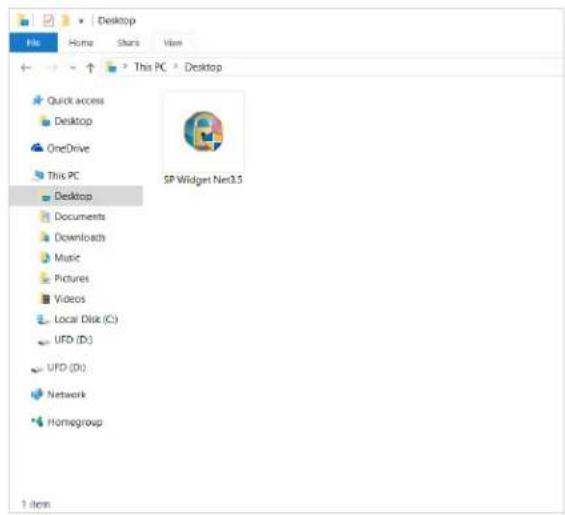
Illustration 4.1.1
SP Widget will be decompressed while it is activated, as shown in Illustration 4.1.2.
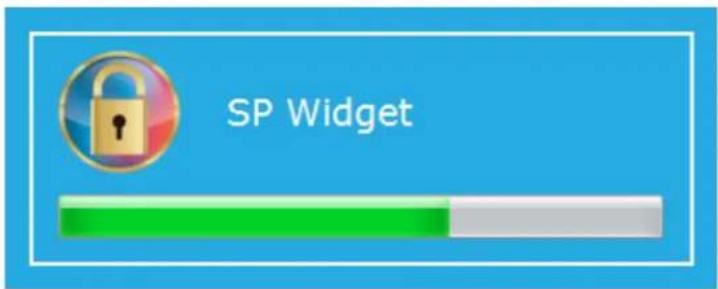
Illustration 4.1.2
4.2 Browser Interface
SP Widget will show the following page upon every startup.
There will be function selections listed on the left and previous project backup result recorded on the right. As shown in illustration 4.2.
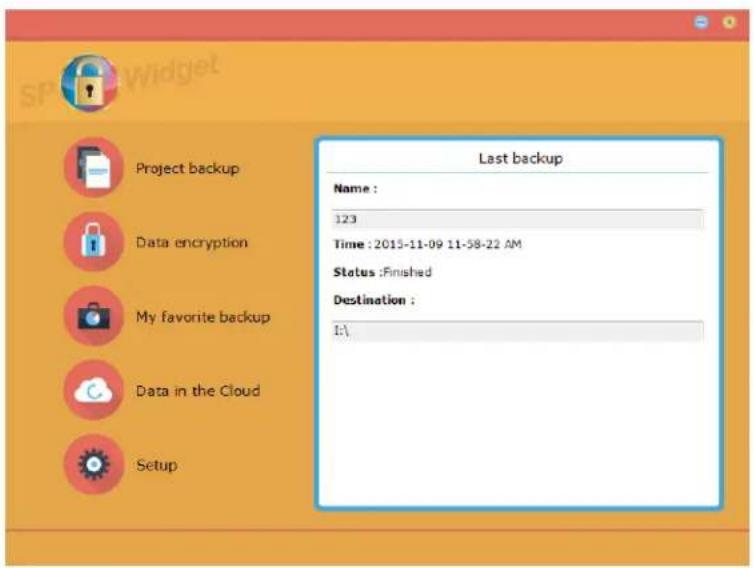
Illustration 4.2
4.3 Function Overview
By clicking on “Project Backup” icon, you can set up the method you prefer to backup or restore your data. Regarding the backup setup, you can choose to backup manually or backup automatically with regular schedule. The setup page is shown in Illustration 4.3.1.
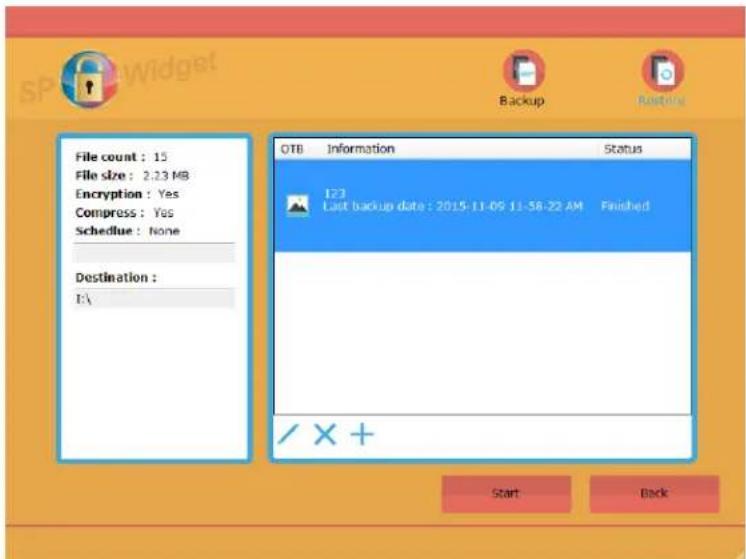
Illustration 4.3.1
Click on “Data Encryption” to encrypt or decrypt your data. By encryption function, you’re able to keep your files secure from other people getting access to them. The “Data Encryption” page is shown as Illustration 4.3.2.
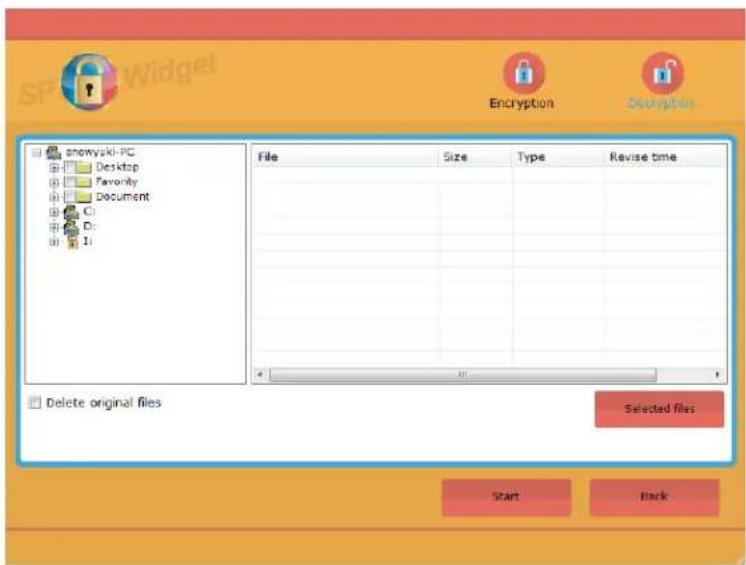
Illustration 4.3.2
Click on “My Favorite backup” to restore and backup your “My Favorite” settings. The page of “My Favorite backup” is shown in illustration 4.3.3.
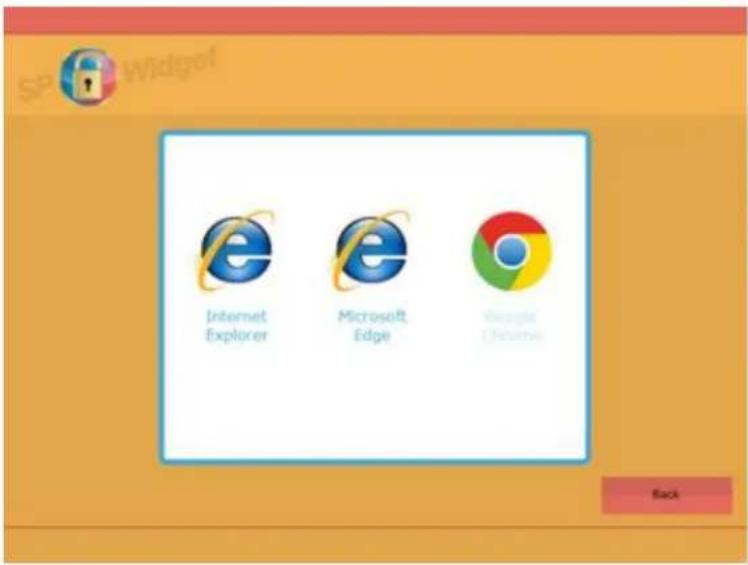
Illustration 4.3.3
Click on “Data in the cloud” to instantly manage your data stored in the cloud. The page of “Data in the cloud” is shown in Illustration 4.3.4.
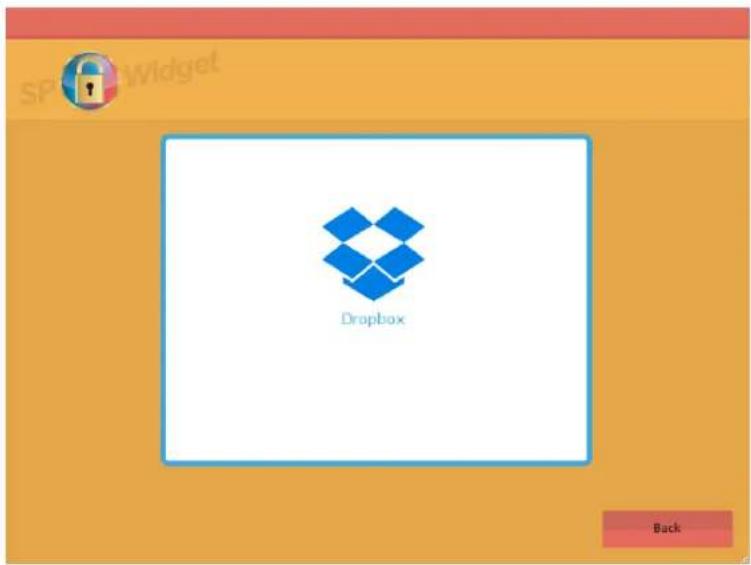
Illustration 4.3.4
Click on "Setup" to select language or to view/download the user manual. The page of "Setup" is shown in Illustration 4.3.5.
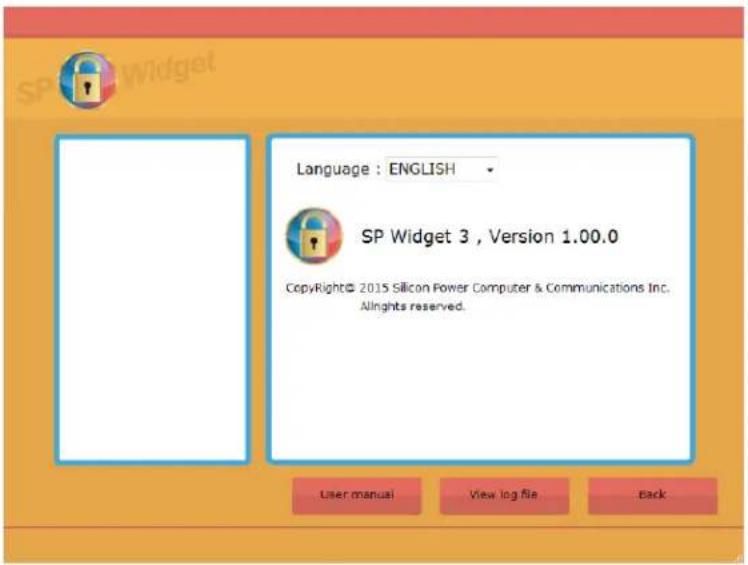
Illustration 4.3.5
5. "Project Backup" Function
5.1 Project Backup
When enter the “Project Backup” page, you can find two icons at the upper-right corner of the window which respectively represent the function of “Backup” and “Restore” (from the left to the right)
Click on "Backup" to view the backup list you've scheduled. Select one backup project from the list and see the brief content of which at the left side of the window. In addition, you can manage your backup schedule by clicking on the three icons shown at the bottom of the window which respectively stands for the function of "Edit", "Delete" and "Add" (from the left to the right). Please select the projects from the list first before you proceed further operation. The page of "Project Backup" is shown in Illustration 5.1.
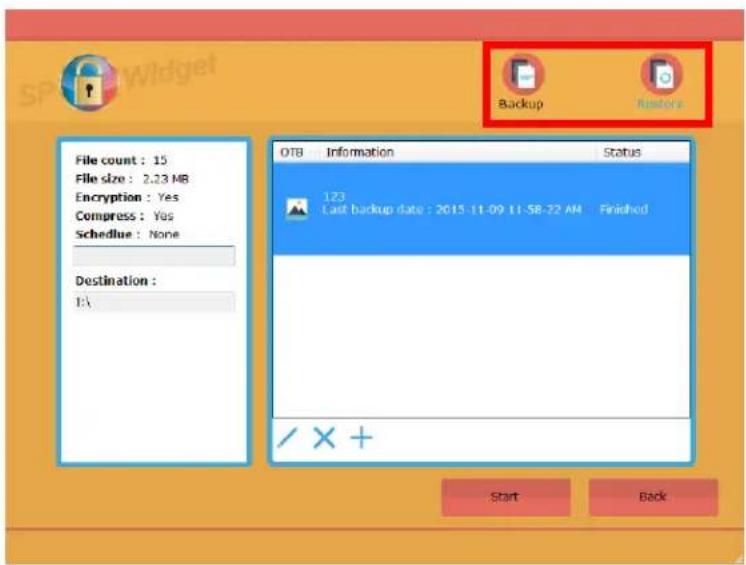
Illustration 5.1
Click on the "Add" icon and follow the 4 steps specified below after the Backup window appears,.
Step1/4: Build the project
Create the project name (please type in the name and required comments) and make five setups as below (As shown in Illustration 5.2). Follows are the descriptions for each setup option.
◆ Option 1 : Delete former copies every time you use this project backup function. If you want to save previous backups, please DO NOT check this box.
◆ Option 2 : Create a quick-backup shortcut on desktop.
◆ Option 3 : Turn on One Touch Backup.
◆ Option 4 : Compress backup.
◆ Option 5 : Setup a password to perform the encryption function during backup.
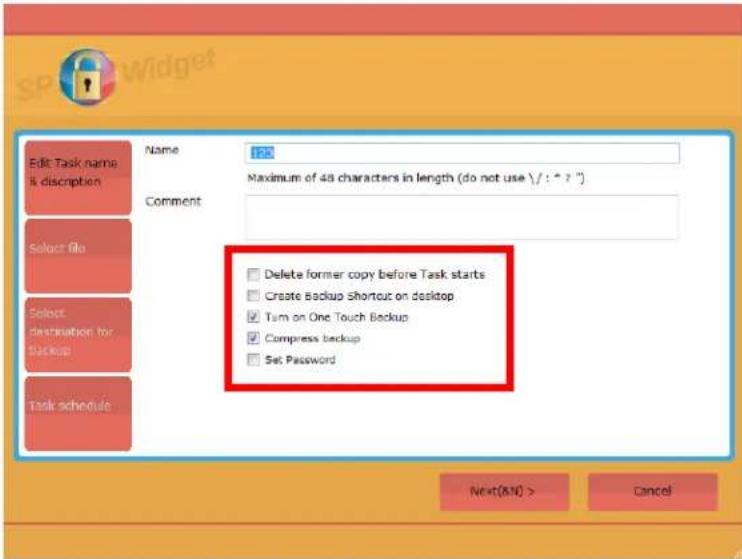
Illustration 5.2
Step2/4: Select files for backup
Select the file(s) or folder(s) you'd like to backup. The "Select File" page is shown as Illustration 5.3.
Click on “Selected files” (marked by the red frame) to view the documents or files you’ve selected.
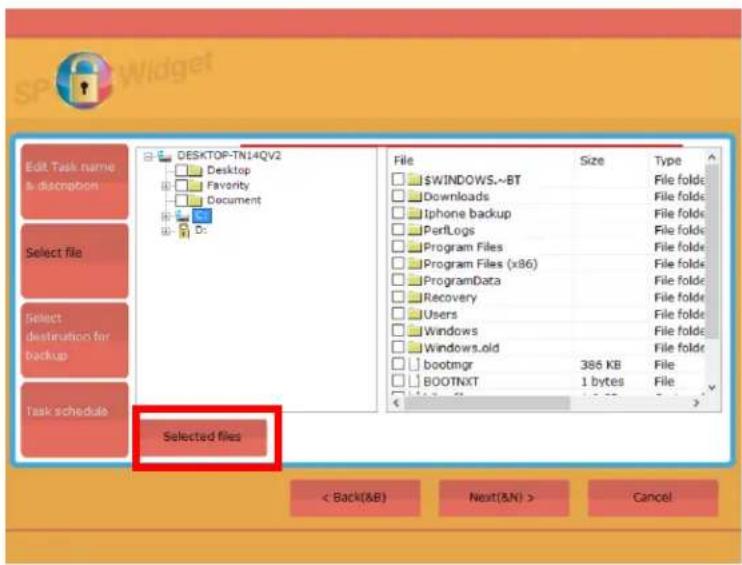
Illustration 5.3
Step3/4: Select a destination for backup
Select the destination for backups. At the right side of the window, there will be a chart showing the current space of the disk you've selected. The page of "Select destination for backup" is shown as Illustration 5.4.
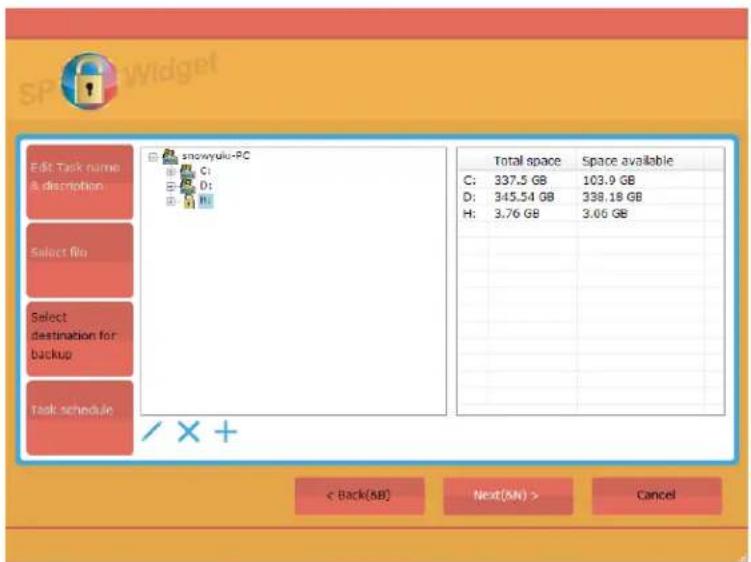
Illustration 5.4
Step4/4: Task schedule
You can set up automatic backup settings to ensure regular backup schedule. If you've never used this function, SP Widget will not create a schedule for you (you have to accomplish all the backups manually.) Here are three schedule settings which you can choose from : Daily (which time to automatically backup everyday), Weekly (which time and day to backup every week) and Monthly (which time and date to backup every month). Click on the “Finished” icon to accomplish the setting. The “Task schedule” page is shown as Illustration 5.5.
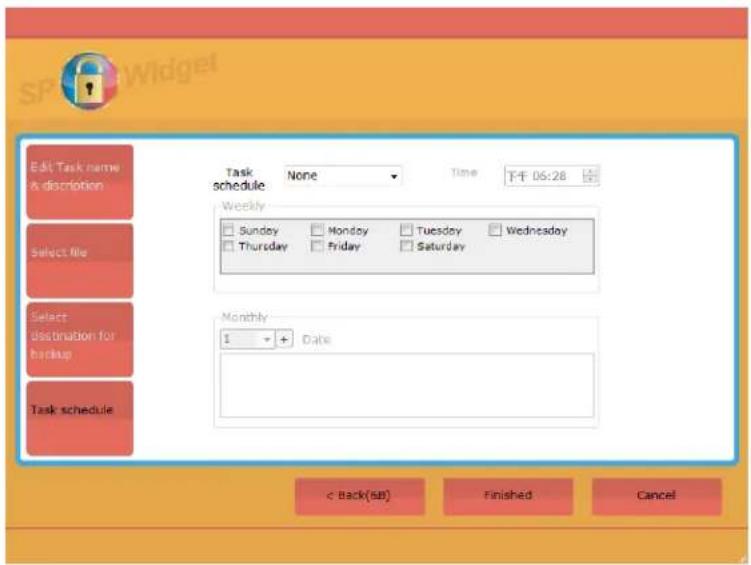
Illustration 5.5
If you want to carry out your backup tasks manually, please go back to the “Project Backup” page, select the project you want to backup and click on “Start”. The operation is shown in Illustration 5.6.
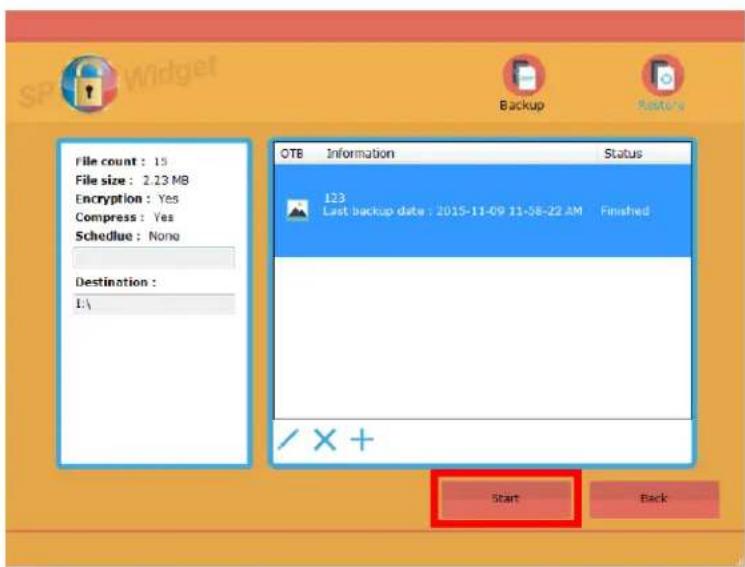
Illustration 5.6
The pop-up window shows to confirm whether you are ready to start the backup. If you're sure to do so, please click on "Yes". The notice window is shown in Illustration 5.7.
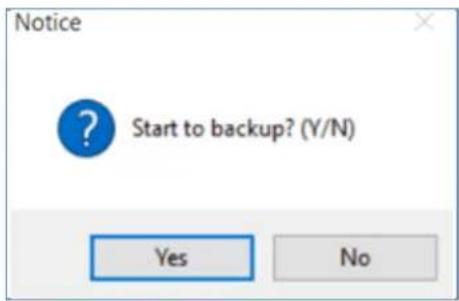
Illustration 5.7
Click on "No" to stop the backup during the process. If an error appears during the backup process, it will be listed in the table as shown in illustration 5.8.
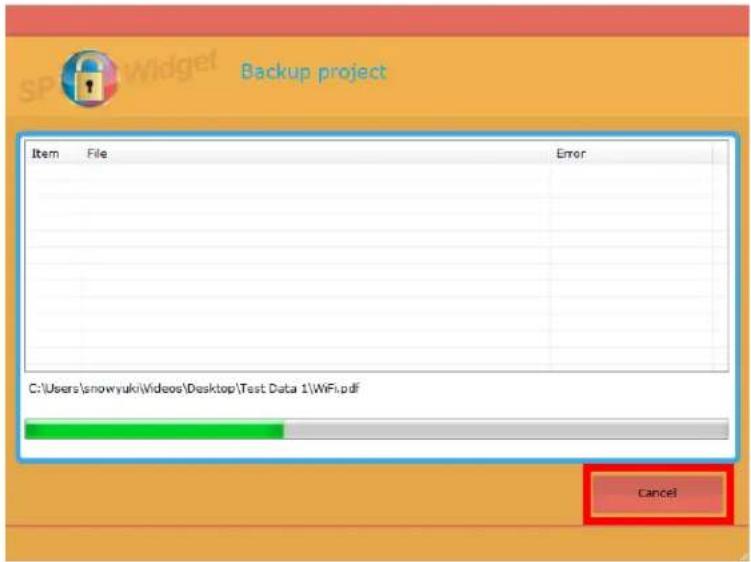
Illustration 5.8
Click on "Finished" when the backup is done. As shown in illustration 5.9.
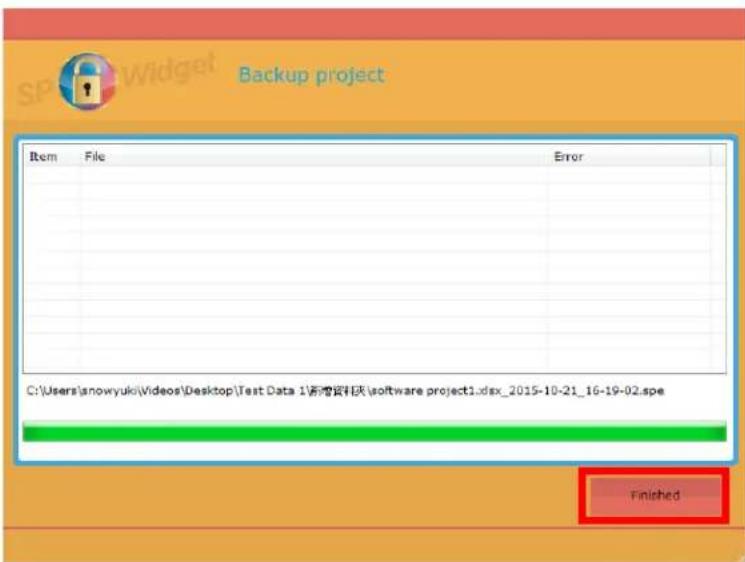
Illustration 5.9
5.2 Project Restore
If you want to restore a project, please click on the “Restore” icon to enter the “Project Restore” page. Select the project you’re about to restore and click on the “Start” icon. As shown in Illustration 5.10.
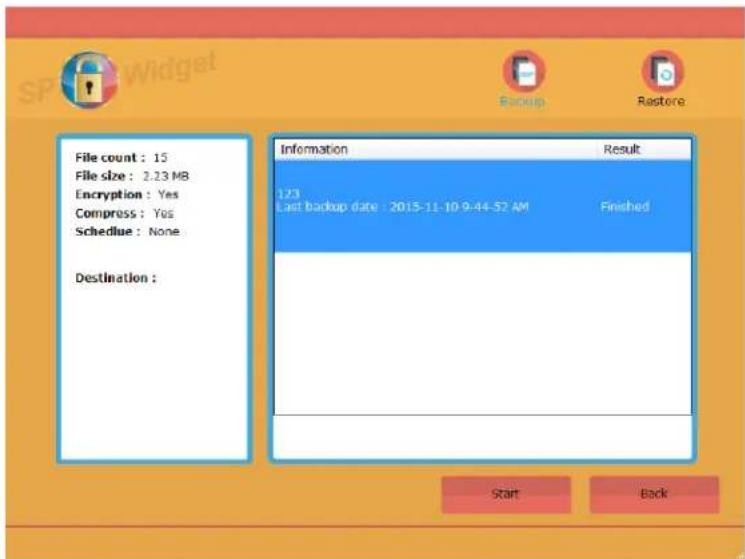
Illustration 5.10
Choose the file(s) you'd like to restore and click on "Restore". The operation is shown in illustration 5.11.
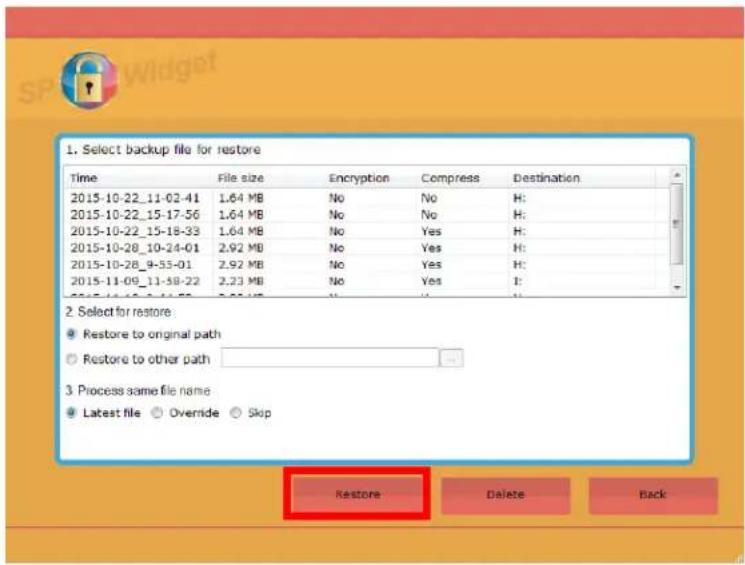
Illustration 5.11
To process your restore settings, please follow the steps specified as below :
- Step1 : Select the backup file(s) that you want to restore
- Step2: There are two paths for restoring files. Please choose the one you prefer:
◆ Restore to the original path
(Restore at the same location according to the original path of the file)
◆ Restore to another path
(Restore at another location by creating, deleting or renaming a folder)
- Step3: When it happens that there are files sharing the same file name, please do one of the following operations:
◆Restore the latest file—Among the existing files which share the same file name, the latest one will be restored.
◆Override—Restore all the backed-up files sharing the same file name.
♦ Skip — If the files you’d like to restore already exist, the restore operation will skip these files for any arrangement.
After finishing all the settings, click on "Restore" to proceed.
Click on “Finished” when the restore operation is done. As shown in Illustration 5.12.
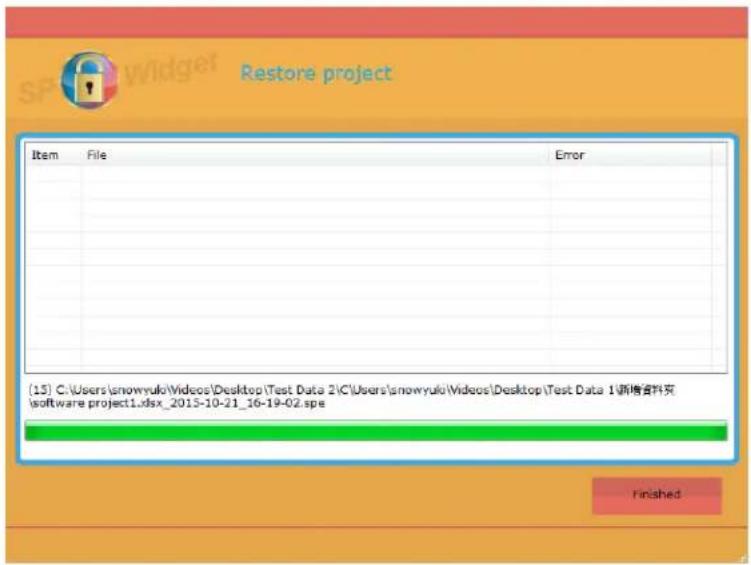
Illustration 5.12
5.3 "Fast-backup" Setting
Click on the square icon in front of the project name to make the fast-backup setting. The projects are set to perform the “Fast-backup” task as soon as the “Fast-backup” function of the device is activated. The setup page is shown as Illustration 5.13.
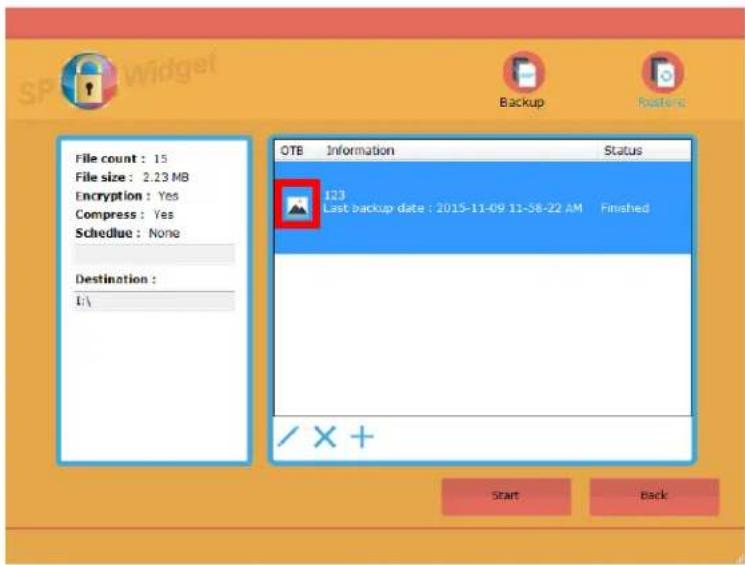
Illustration 5.13
If the “Fast-backup” function is not supported, the icon in front of the project name will change as shown in Illustration 5.14.
Note : This setting only supports products that are equipped with “Fast-Backup” function.
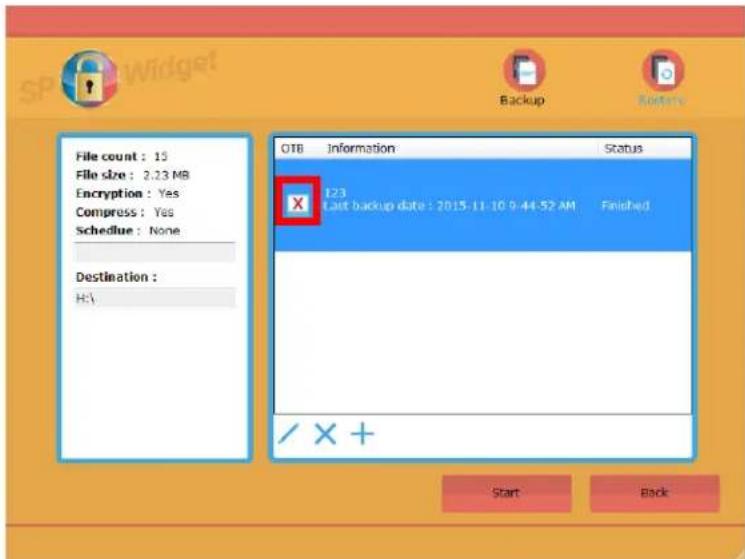
Illustration 5.14
6. "Data Encryption" Function
Click on “Data Encryption” to view all files saved in this device. There are two icons on the right upper side which allow you to switch to “encryption” or “decryption” functions.
The page of “Data Encryption” is shown as Illustration 6.1. The left column shows the disks and folders for selection, and the files in the selected folder are listed in the right column. The information of selected files is shown at the bottom of the two columns.
The "encryption" function can be applied to documents or files. If you select a file for encryption, the documents within will be encrypted to one encrypted file.
Please select the files or folders you'd like to encrypt and click on "Start". The operation is shown as Illustration 6.1.
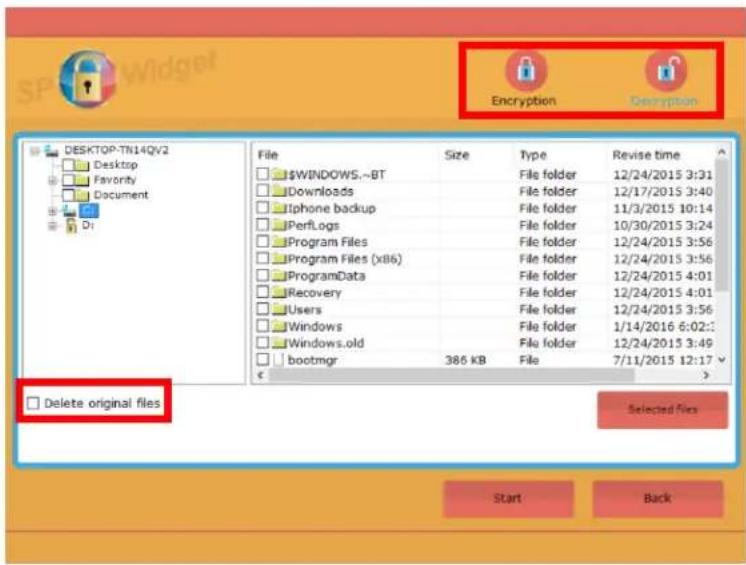
Illustration 6.1
Note: By default, the original files will not be deleted after encryption. If you don't want to save the original files, please tick the checkbox of "Delete Original Files"
You will be prompted for an administrator password or confirmation. Please type the password or provide confirmation. Please note that the password you set here will be used for data decryption afterwards. The prompt window of password setup is shown as Illustration 6.2.
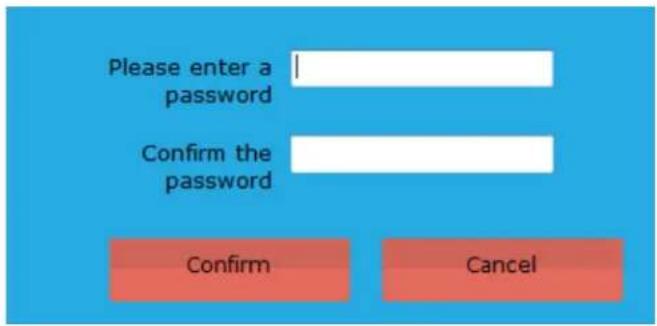
Illustration 6.2
After clicking on "Confirm", the file encryption will start to process, as shown in Illustration 6.3.
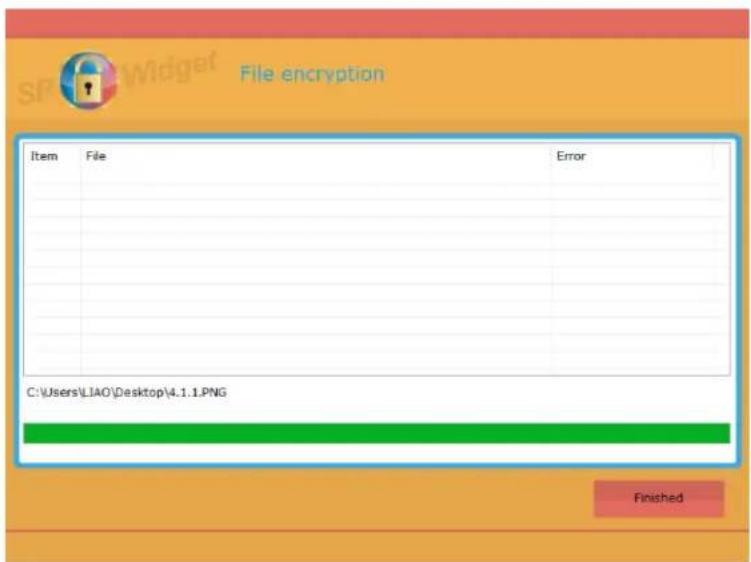
Illustration 6.3
Click on the “Decryption” icon to proceed the function. As shown in Illustration 6.4.
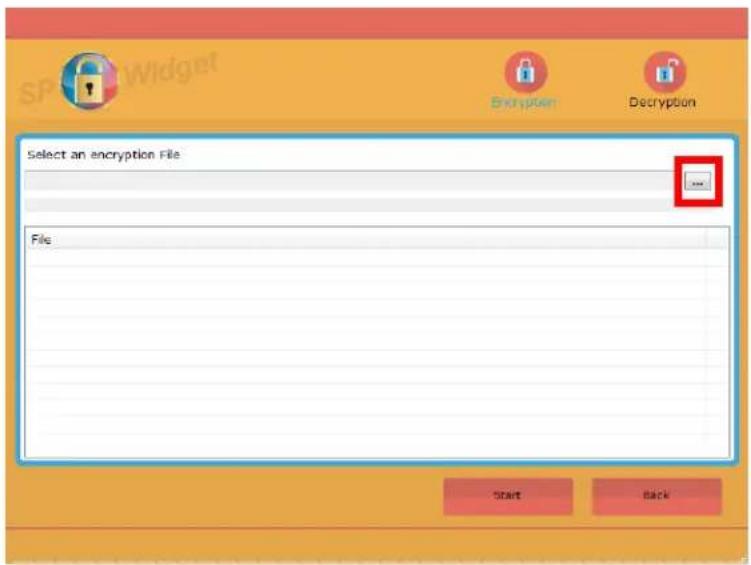
Illustration 6.4
Click on the browse button to select an encrypted file. As shown in Illustration 6.4 and 6.5
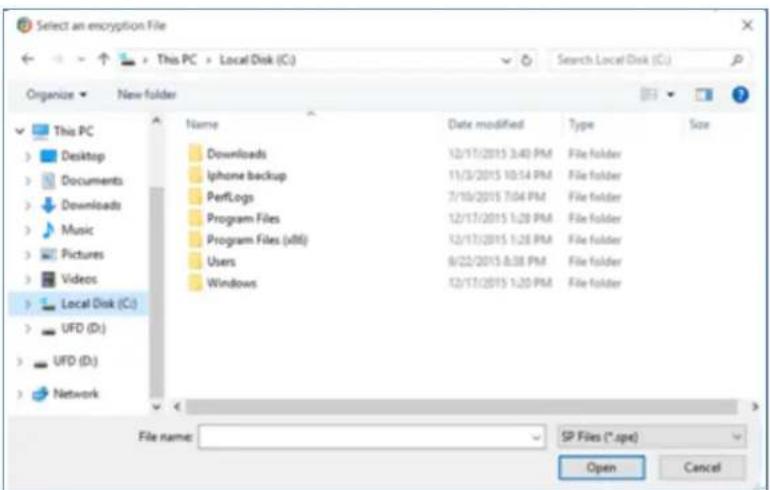
Illustration 6.5
The file will be displayed after it is selected. As shown in illustration 6.6.
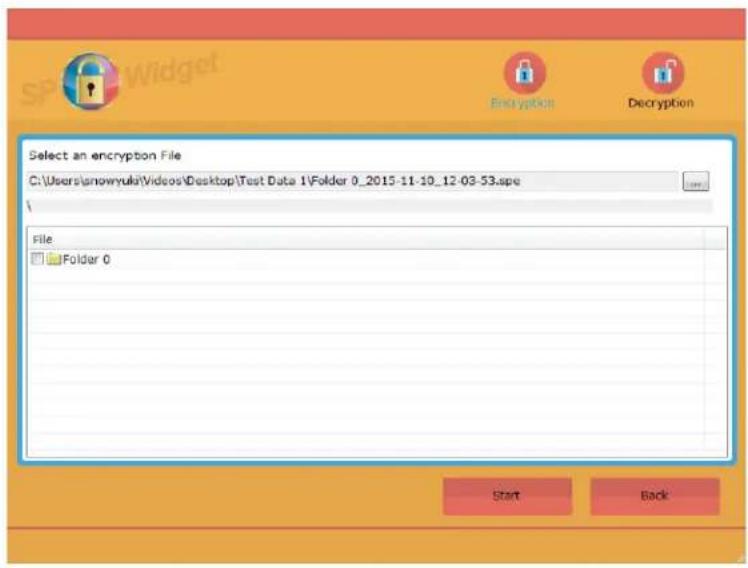
Illustration 6.6
Click on the folder icon to view the contents of the file. As shown in illustration 6.7.
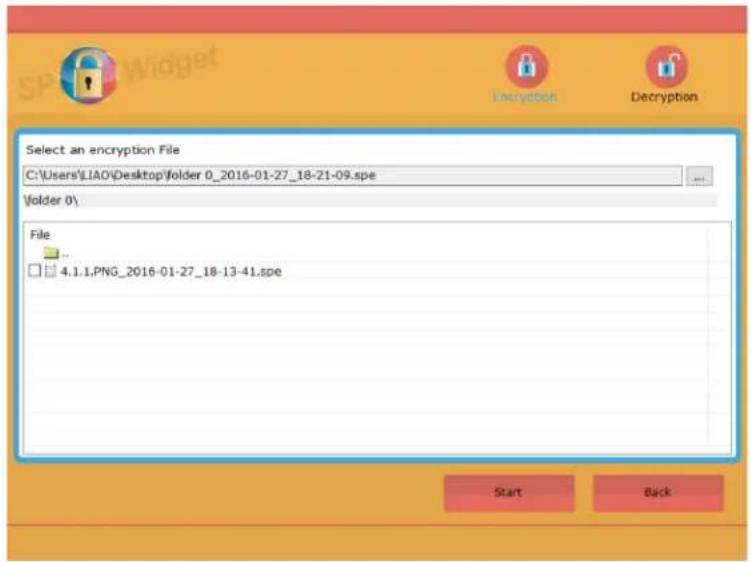
Illustration 6.7
Select a document or file and click on "Start" to decrypt it. As shown in illustration 6.8.
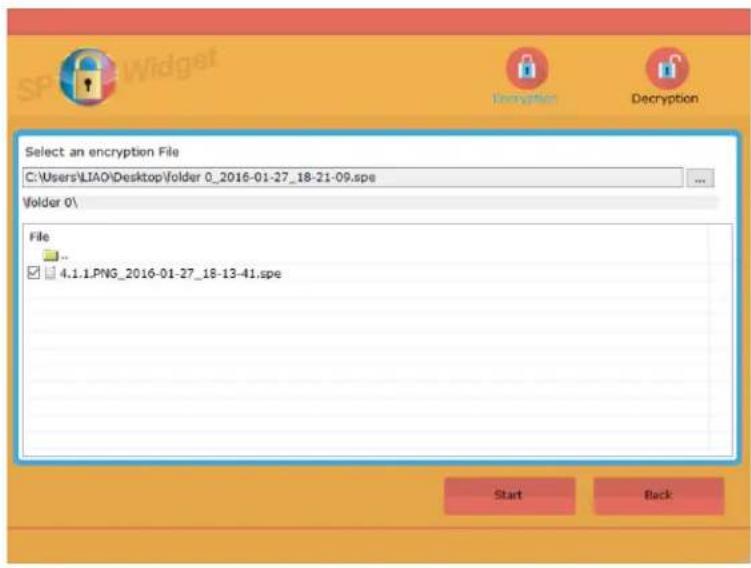
Illustration 6.8
A password requirement window will pop out for confirmation. Please enter your decryption password and click on "Confirm" to proceed. As shown in illustration 6.9.
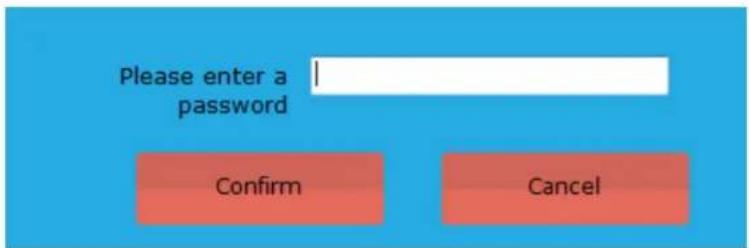
Illustration 6.9
SP widget provides another method for decryption. Select the document with filename extension “spe” to start the decryption program directly. As shown in illustration 6.10.
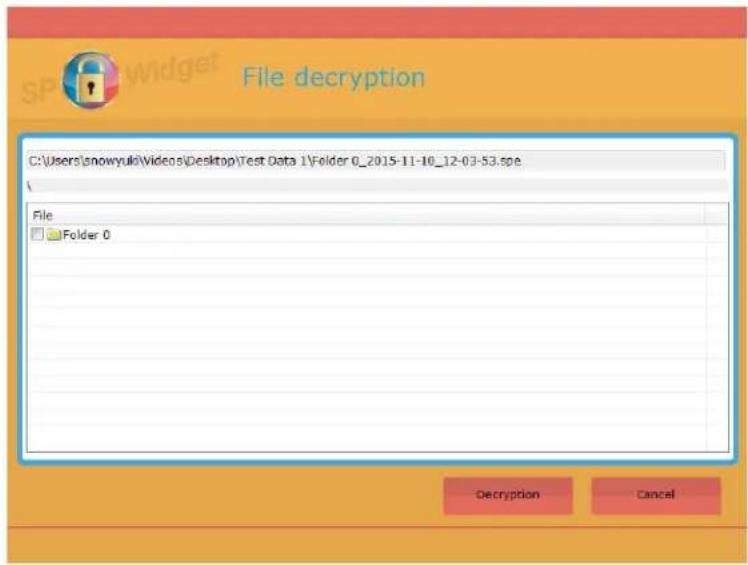
Illustration 6.10
7. "My Favorites Backup" Function
"My Favorites Backup" is designed to backup or restore users' profiles and settings in "My Favorite". Click on "My Favorites Backup" and select the browser you'd like to backup. As shown in Illustration 7.1.
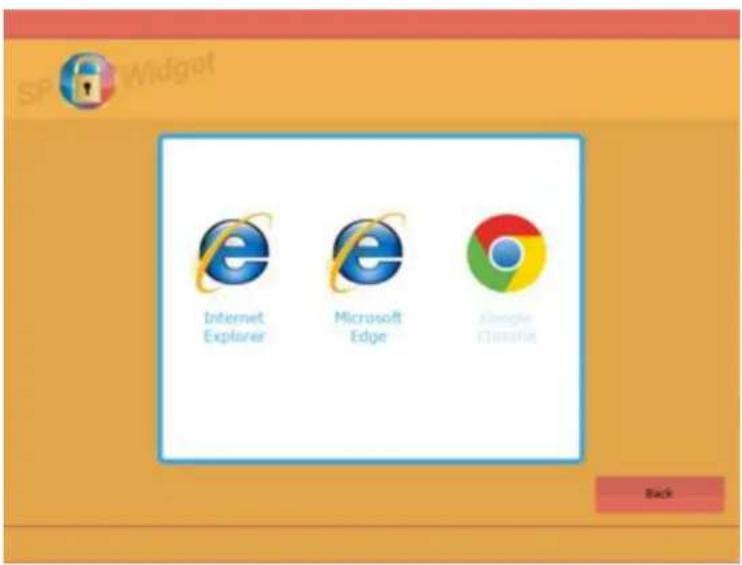
Illustration 7.1
Please make sure to close the browser before you start with the backup and restore procedure. Then select a storage disk and click on “Backup” or “Restore”. You could also tick the checkbox to delete the files saved in the storage devices. As shown in Illustration 7.2.
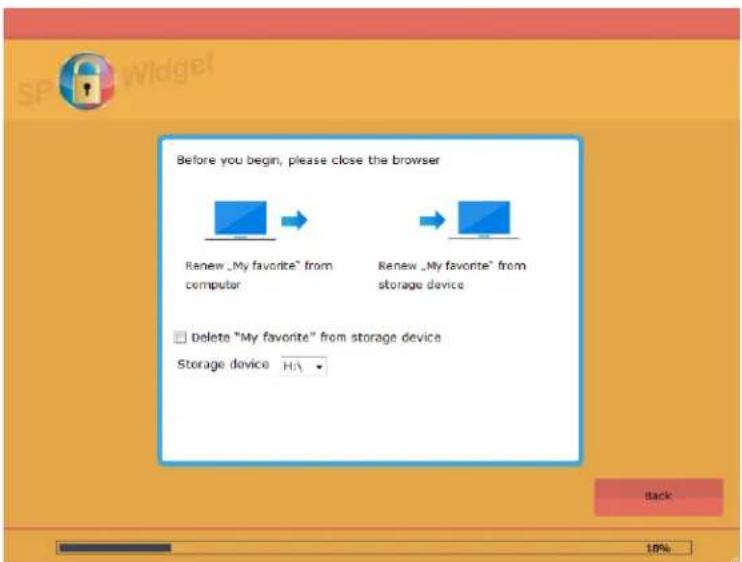
Illustration 7.2
8. "Data in the Cloud" Function
Click on "Data in the Cloud" to show the user interface of DropBox cloud space, as shown in Illustration 8.1.
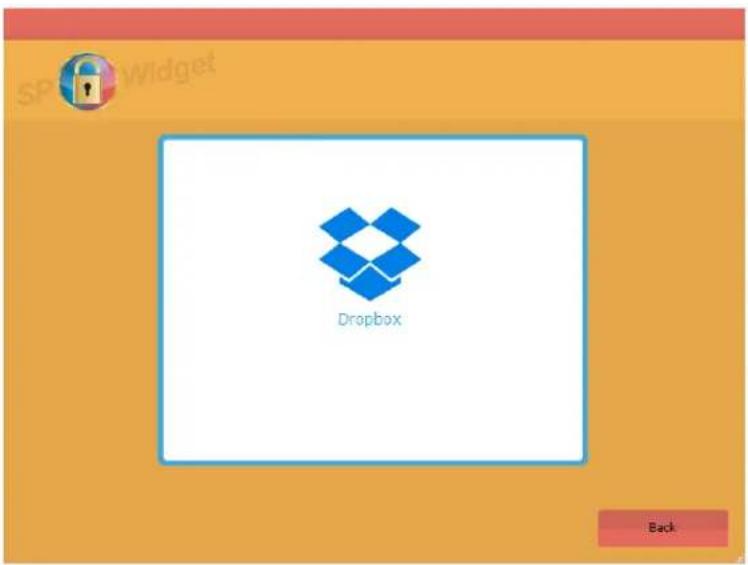
Illustration 8.1
The DropBox login page will prompt for confirmation. Please enter your user account and password to log in. The login window is shown as Illustration 8.2.
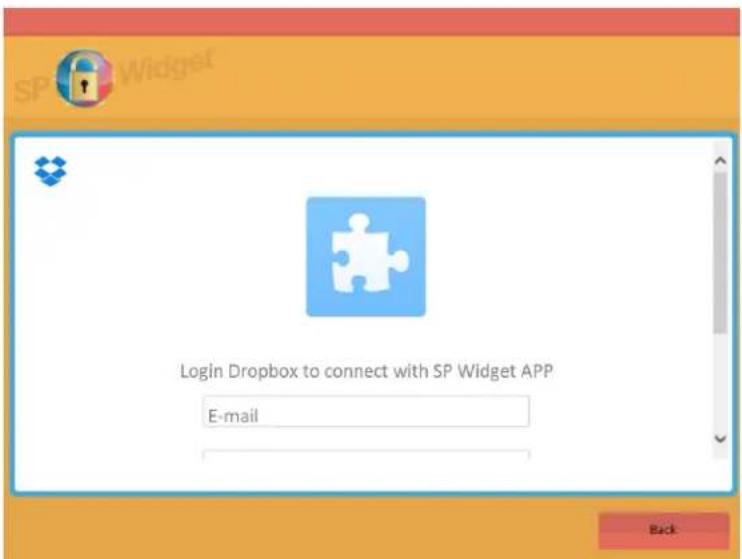
Illustration 8.2
Please click on "Allow" to acquire DropBox authorization as shown in Illustration 8.3.
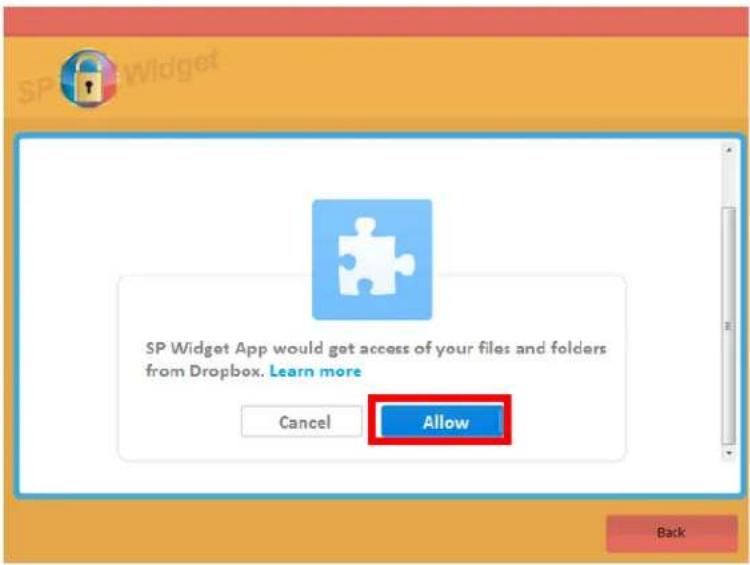
Illustration 8.3
After you log in, please wait until SP Widget acquires the user information. And please be aware that you also need to choose an operation method when it comes to the situation that there are files sharing the same file name. As shown in Illustration 8.4.
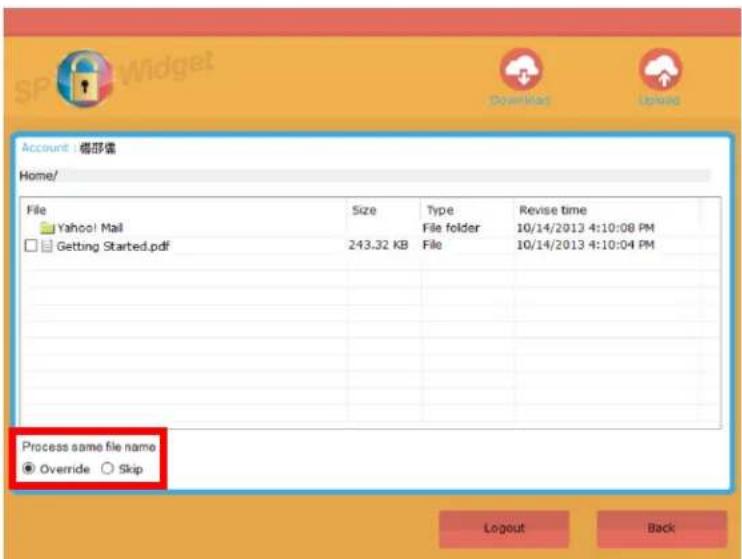
Illustration 8.4
To upload files to DropBox, you can drag the documents or files directly to this program. Or click on "Upload" and then select the files you'd like to upload. As shown in Illustrations 8.5.
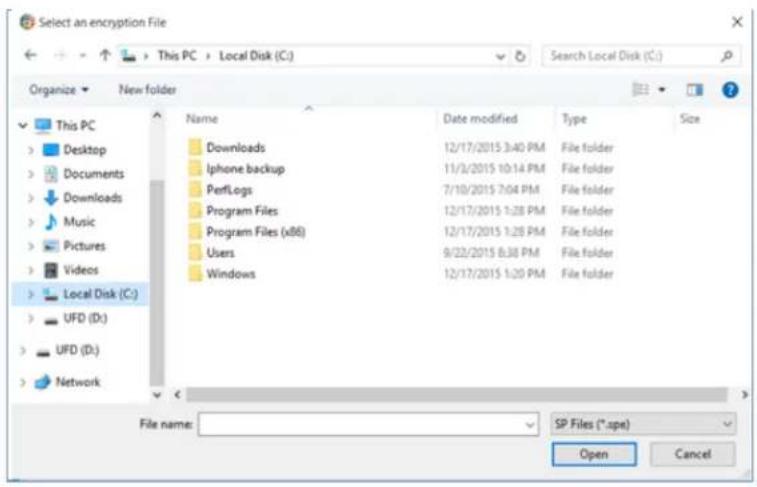
Illustration 8.5
To download files from DropBox, please select the document(s) and click on "Download", as shown in illustration 8.6.
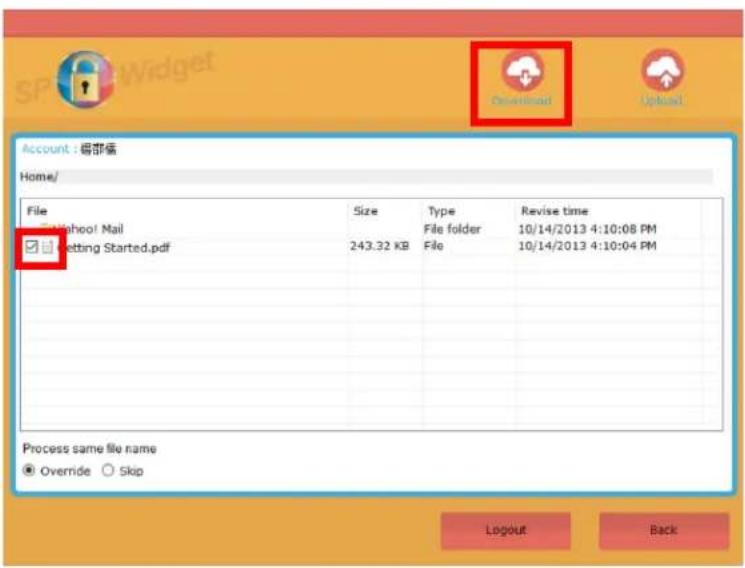
Illustration 8.6
By clicking on "Back", you don't need to go through login procedure next time. By clicking on "Logout", you will need to login again next time.
9. "Setup" Function
Click on the "Setup" icon to view the product information. You can also make the following operations at this section. As shown in illustration 9.1.
◆ Operation 1: Select language
◆ Operation 2: View the user manual or download it from Silicon Power official website.
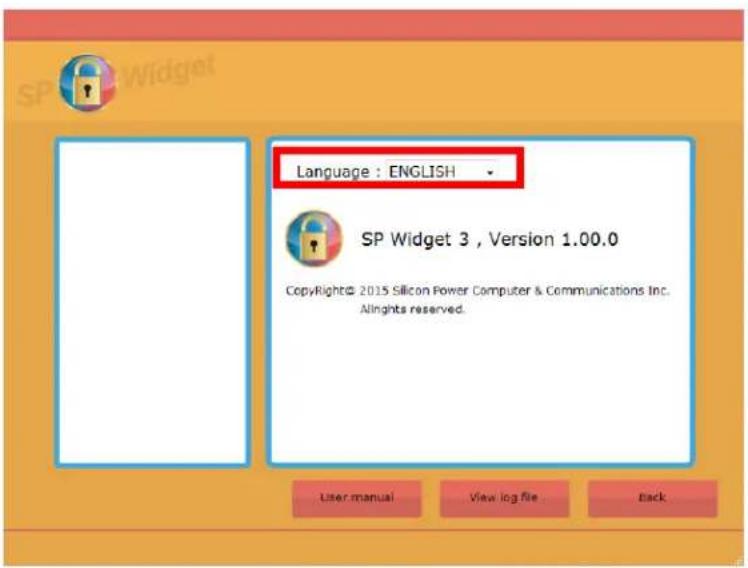
Illustration 9.1