ER1100 - Unspecified SEIKO - Free user manual and instructions
Find the device manual for free ER1100 SEIKO in PDF.


User questions about ER1100 SEIKO
0 question about this device. Answer the ones you know or ask your own.
Ask a new question about this device
Download the instructions for your Unspecified in PDF format for free! Find your manual ER1100 - SEIKO and take your electronic device back in hand. On this page are published all the documents necessary for the use of your device. ER1100 by SEIKO.
USER MANUAL ER1100 SEIKO
ALWAYS press the "RESET" button on the front of the unit after battery replacement or if the unit fails to operate properly.
UKE2G49AA
SII ● Seiko Instruments Inc.
Thank you for purchasing the ER1100. Please read this operation manual carefully before using the product.
This unit is an English Spellchecker using data from Oxford University Press.
The Spellcheck function, Anagram/ Crossword Solver and seven Word Games enable you to effortlessly enhance your knowledge of English vocabulary.
The British English Word List © Oxford University Press 2003
SEIKO is a registered trademark of Seiko Corporation.
SII is a registered trademark of Seiko Instruments Inc.
© 2004 Seiko Instruments Inc.
CE CN681
EC DECLARATION OF CONFORMITY
This is to certify that this equipment fully conforms to the protection requirements of the following EC Council Directives on the approximation of the laws of the member states relating to:-
Directives Title
89/336/EEC Electromagnetic Compatibility
Applicable Standards
EN55022: 1998 Electromagnetic Compatibility - Emissions (Radiated)
EN55024: 1998 Electromagnetic Compatibility - Immunity (Radiated Susceptibility, ESD)
SEIKO UK Limited SC House, Vanwall Road, Maidenhead, Berks. SL6 4UW U.K.
This equipment has been tested and found to comply with the limits for a Class B digital device, pursuant to Part 15 of the FCC Rules. These limits are designed to provide reasonable protection against harmful interference in a residential installation. This equipment generates, uses and can radiate radio frequency energy and, if not installed and used in accordance with the instructions, may cause harmful interference to radio communications. However, there is no guarantee that interference will not occur in a particular installation. If this equipment does cause harmful interference to radio or television reception, which can be determined by turning the equipment off and on, the user is encouraged to try to correct the interference by one or more of the following measures:
- Reorient or relocate the receiving antenna.
- Increase the separation between the equipment and receiver.
- Connect the equipment into an outlet on a circuit different from that to which the receiver is connected.
- Consult the dealer or an experienced radio/TV technician for help.

Note: this device should be disposed of through your local electronic product recycling system - do not throw away in your domestic rubbish.
CONTENTS
Functions and Features 2 Hangman 26
The Keys and their Functions ..... 6 User Hangman ..... 29
Preparation for using the Unit ..... 8 Jumble ..... 30
-
Resetting 8 User Jumble 32
-
Contrast Adjustment ...... 9 Crossword Quiz ...... 34
-
Demo Function 10 Time Bomb 36
Changing the Battery 12 Memory 38
Spellchecker.... 14 Easy Learn .... 40
Solvers 19 Calculator 44
Selecting the solver 19 Converters 46
Anagram Solver 20 Setting function 52
Crossword Solver 22 Help function 58
Games 24 Proper Use / Specifications 62
Selecting a game 24 ONE YEAR LIMITED WARRANTY 63
Functions and Features
1 Spellchecker
Instant phonetic spelling correction for over 130,000 words ensures you will always have the answer at your fingertips.
You can search for a word using wildcards (“?” and “*”) if you are uncertain of the spelling.
2 Solvers
Anagram Solver / Look for new words using the same letters as the word or letters you have entered.
Crossword Solver / Look for the right word by entering letters you know along with question marks for any letters you don't know. The Crossword Solver database is 200,000 words from Oxford University Press.
2
3 Word Games
You can take on the challenge of seven different word games set to any one of three levels of difficulty.
Hangman, User Hangman, Jumble, User Jumble, Crossword Quiz, Time Bomb, Memory
4 Easy Learn
The Easy Learn function allows you to create your own word list from the Spellchecker, Solvers and Games.
5 Calculator
A full function calculator with memory and % is included. 12 digits, 1 Memory
3
6 Converters
The conversion function enables you to convert foreign currencies and metric/imperial units of length, area, volume, weight, capacity, power, and temperature.
You can also convert foreign clothing sizes of shirts, shoes, hats etc. for men, women and children.
7 Setting function
You can customize the following operating conditions:
Demo Message, LCD Contrast, Game Level, Game Scores, Easy Learn, Word List
8 Help function
An explanation of how to operate the various functions is simply explained on the screen at each operational stage in each mode.
4
9 Demo function
A demonstration display explains the contents of the unit.
- Unit will automatically TURN OFF when not used for approximately 3 minutes.
5
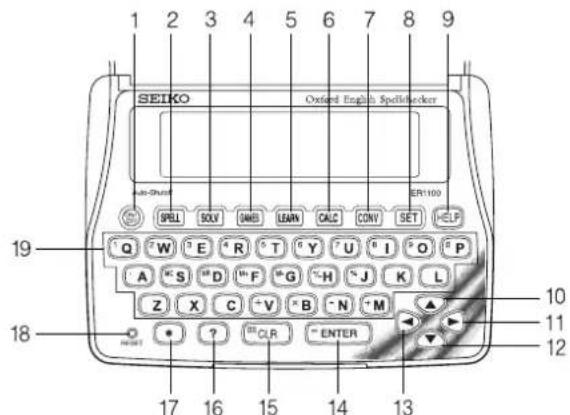
The Keys and their Functions
text_image
1 2 3 4 5 6 7 8 9 SEIKO Oxford English Spellboxer Auto-Chassis ER1100 SPELL SOLV GND LEARN CALC CONV SET HELP Q W E R T Y U I O P A S D F G H J K L Z X C V B N M 18 CLR ENTER 17 16 15 14 13 10 11 126
1 Turns the power ON and OFF.
2 Selects Spellchecker mode.
3 Selects Solver mode.
4 Selects Game mode.
5 Selects Easy Learn mode.
6 Selects Calculator mode.
7 Selects Currency, Metric/Imperial and Clothing Size Converters functions.
8 Activates Setting function.
9 Activates Help function.
10 For scrolling back through the lists in memory. / Cursor key
11 Enters a single blank space when pressed once. / Cursor key
12 For scrolling down through the lists in memory. / Cursor key
13 For deleting the last input character. / Cursor key
14 Executes the functions.
15 Clears all the input characters. / Returns the display to the previous state/levels.
16 Used instead of one letter if you don't know how to spell a word.
17 Used instead of one or more letters if you don't know how to spell a word.
18RESET button
19 Letter, numeral and symbol input keys.
7
Preparation for using the Unit
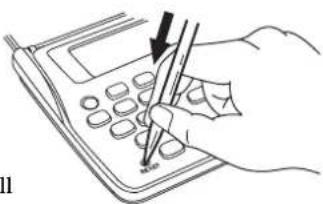
1. Resetting
Before using the unit, press the "RESET" button on the front of the unit.
natural_image
Illustration of a hand using a calculator with a pen and arrow pointing to the screen (no text or symbols)The contrast adjustment display will appear. (See page 9.)
ALWAYS press the "RESET" button on the front of the unit after battery replacement or if the unit fails to operate properly.
NOTE: Pressing the "RESET" button will clear the Easy Learn Memory.
8
2. Contrast Adjustment
-
After resetting, the contrast adjustment display will appear.
-
You can use either ▼ or ▶ to adjust the contrast of the display Level 1 to Level 16. (Initial setting = 10)
3 Press ENTER to finish. The display will enter the Spellchecker mode.
* If you want to adjust the contrast of the display again, press SET. Select "LCD Contrast" by using ▼ or ▲. (See page 53.)
9
LCD Contrast Adjust
↓ ▼ ▲ ↑
LCD Contrast Adjust
3. Demo Function
When you turn on the power, a demonstration display will begin to explain the contents of the unit.
* You can stop the demonstration by pressing any of the keys.
The unit will show the initial display of the mode used before the power was last turned off.
Welcome to the
Oxford English Spellchecker
To end this demo press any key
This product contains over 200,000 words
licensed from Oxford University Press.
:
● To turn off the demonstration display:
1 Press SET.
2 Press ENTER.
3 Select "Disable" by using ▼ ▲ or ▶ ▶.
* If you want to see the demonstration display again, select "Enable".
4 Press ENTER to finish. ( See page 52. )

text_image
SET Demo Message LCD Contrast Demo Message Disable Enable Demo Message Disable Enable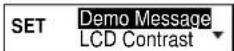
10
11
● Changing the Battery
The battery needs to be changed as soon as the display becomes dim. Make sure that the power is switched off before replacing the battery.
- Turn the unit OFF.
- Remove the screw and the battery cover from the back of the unit.
- Remove the old battery.
- Insert the new (CR2032) battery with the “+” side facing up.
- Replace the battery cover and the screw.
- Press the "RESET" button.

text_image
battery unit. battery .
CAUTION
- The battery may pose a choking hazard to small children.
- Keep the battery and product away from small children.
- Do not expose the battery to open flame or intense heat.
Resetting:
If the unit does not operate properly after the battery has been replaced, or if at any time the unit fails to operate properly, gently press the “RESET” button.
Spellchecker
- If the spelling of a word you enter is correct :
1 Press SPELL.
Spellchecker Enter letters...
2 Type a word to be checked. Example: intellect
Spellchecker intellect.
3 Press ENTER.
After the display “Correctly spelt”, the entered word will be displayed in bold on the upper line.
Phonetically similar words may also be displayed on the lower lines.
Searching
Correctly spelt
intellect intellects
14
4 The list of phonetically similar words can be displayed by pressing ▼ or ▲.
5 To scroll alphabetically up or down through the unit's word list, starting from the displayed word, press ◀ or ▶ followed by ▼ or ▲.
* If you press "ENTER again, the unit will recheck the underlined word to enable you to view further phonetically similar words.
* T o clear the display and spellcheck another word, simply enter your new word. Pressing CLR will also clear the display.
● Entering and Correcting Letters
- Up to 30 letters can be entered.
• Corrections can be made by using
• The entire display can be cleared by pressing
15
:
intellects interlock

Alphabetical list
interlocked

CLR
● If the spelling of a word you enter is incorrect :
1 Type a word to be checked. Example: krokadyle
2 Press "ENTER".
After the display "Correction list", a list of words that are phonetically similar to the entered word will be displayed.
3 Press ▼ to see further candidates.

text_image
Spellchecker krokadyle_ Searching Correction list crocodile crookedly
16
● Using the Wildcard function
If you are unsure of part of the spelling of a word, enter the word using “?” or “★” for the letter(s) of which you are unsure.
Use ☐ to enter “ ? ”.
This is used in place of a single character.
Use ☐ to enter “★”. (Up to two “★” can be used.)
This is used in place of one or more characters.
1 Type a word.
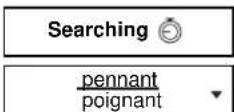
Example: p *na?t
2 Press ENTER.
The first corresponding word will be displayed.

17
3 You may continue to scroll through the corresponding word list by using ▼ or ▲.
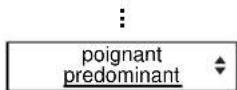
* If the corresponding word list has a great number of words, the unit will check the word list again. In this case you can not return to the first corresponding word.
* T o clear the display and spellcheck another word, simply enter your new word.
18
Solvers
The unit provides two solvers that can help you to solve word games.
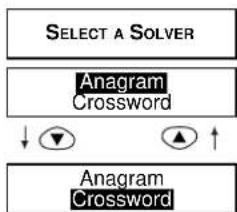
- Selecting the solver
1 Press SOLV.
The unit returns to the last solver used each time you select the solver mode.
2 Select the solver you wish to use by pressing ▼ or ▲.
flowchart
graph TD
    A["SELECT A SOLVER"] --> B["Anagram Crossword"]
    B --> C["↓"]
    B --> D["▲"]
    B --> E["↑"]
19
■ Anagram Solver
Look for anagrams using the same letters or words that you entered. You can enter actual words, or jumbled letters.
1 Select "Anagram" and then press ENTER.
2 Enter letters.
Example: rail
3 Press ENTER.
The corresponding words will be displayed.
Anagram Solver Enter letters...
Anagram Solver rail
Searching
aril lair
4 You may continue to scroll through the corresponding word list by using ▼ or ▲.
■ ■ ■
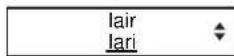
* T o clear the display and enter another word, press ^4 CLR or simply start typing your new word.
* If the word or letters entered do not have any anagrams, the message "No anagrams found" will be displayed.
20
21
■ Crossword Solver
Look for the right word by entering the letters you know along with “?” or “★” for any letters you don’t know.
Use ☐ to enter “?”.
This is used in place of a single character.
Use ☐ to enter “*”. (Up to two “*” can be used.)
This is used in place of one or more characters.
1 Select " Crossword" and then press "ENTER".
2 Enter letters. Example: f*uen??
Crossword Solver Enter letters...
Crossword Solver f*uen??
22
3 Press ENTER
The corresponding words will be displayed.
4 You may continue to scroll through the corresponding word list by using ▼ or ▲.
Searching

fluence fluency
■ ■ ■
fluency frequency
* The corresponding word list includes words with spaces or hyphens.
* If the corresponding word list has a great number of words, the unit will check the word list again. In this case you can not return to the first corresponding word.
* If the letters entered do not have any corresponding words, the message "No words found" will be displayed.
23
Games
There are 7 great word games that will help you to improve your spelling and vocabulary.
- Selecting a game
1 Press

The unit returns to the last game used each time you select the game mode.
2 Select the game you wish to play by pressing ▼ or ▲.

flowchart
graph TD
    A["SELECT A GAME"] --> B["Hangman User Hangman"]
    B --> C["↓"]
    B --> D["▲"]
    B --> E["↑"]
    F["Hangman User Hangman"] --> G["↓"]
:
24
The games are displayed in the following order:
Hangman, User Hangman, Jumble, User Jumble, Crossword Quiz, Time Bomb, Memory
- By pressing the first letter of a game, you can jump directly to the desired game. Further games starting with the same letter can be displayed by pressing the same letter again.
(NOTE)
* T o skip the displayed question, press CLR , then the next question will appear. This will not be counted in your score.
* The Game Levels can be changed from the SET menu. (See page 54.)
25
■ Hangman
This is a game in which you have to find a mystery word whose spelling is unknown to you with a limited number of allowed tries.
1 Select "Hangman" and then press ENTER.
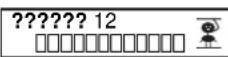
The number of letters in the mystery word is indicated by question marks.
The number of times you can try is shown at the right of the screen.
2 When you enter one of the letters used in the mystery word, the question mark will be replaced by the letter.
Example: Enter "e".
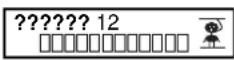
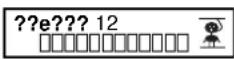

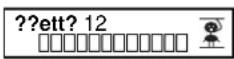
* In some cases, the same letter is used two or more times in the same word:
When you enter the letter, all the corresponding question marks will be replaced by the letter simultaneously. Example: Enter “t”.
* The number of tries you are allowed will decrease progressively every time you enter an incorrect letter.
3 If all the letters in the word are displayed before you have used up all the tries, a congratulatory message will be displayed and counted in the "Won" column.
Then the next mystery word will be displayed.
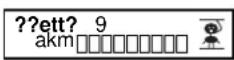
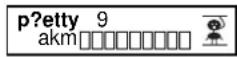


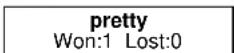

* One letter will be displayed in turn as a "Tip" every time you press
?
* All the letters will be displayed if you press ENTER.
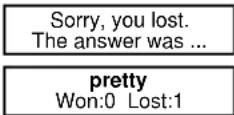
* If you fail to find the word before you have used up all the tries you are allowed, or if you press ENTER half way through a game, "Sorry, you lost." will be displayed and counted in the "Lost" column.
The answer will be displayed on the upper line.
Then the next question will be displayed.

■ User Hangman
This is the Hangman game for 2 players using words that you can select.
1 Select "User Hangman" and then press ENTER.
2 Player 1 enters a word.
You can use up to 12 letters.
Example: wonder
3 Press ENTER.
* The ensuing procedure is the same as that used in the Hangman Game.
4 Player 2 has to guess the mystery word.
User Hangman Enter a game word...
User Hangman wonder.
\*\*\* Tip for Parents \*\*\*
This game is a fun way for you to help your children to learn new words from a list or as part of their homework. Select a suitable level, secretly enter your chosen word and then work with them to spell the mystery word correctly.
Jumble
Using letters displayed at random, you attempt to find a specified number of words.
1 Select "Jumble" and then press ENTER.
The selected letters and the number of answers will be displayed, to the right of the “/”.
Example: blowe
* T o shuffle the letters, pressENTER.
2 Enter the word using all the selected letters.
* If your answer is incorrect, the message “ Please try again.” will appear and the selected letters will be displayed again.
Searching
blowe 0/3 Trya word...
SHUFFLE
elowb 0/3 Trya word...
elowb 0/3 elbow_
30
3 Press ENTER.
If your answer is correct, the selected letters will be displayed again.
Enter the next word and press "ENTER".
* The entered answers can be seen again by using ▼ or ▲. Press CLR to return.
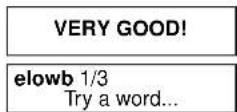
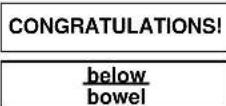
4 If you enter all the answers, a congratulatory message will be displayed and counted in the "Won" column.
* T o give up entering letters, press?
* The answers can be seen by using ▼ or ▲.
31
■ User Jumble
This is a Jumble game using words that you can select.
1 Select "User Jumble" and then press "ENTER".
2 Enter a word.
You can use up to 12 letters.
Example: ascot
3 Press ENTER
The selected word and the number of other words will be displayed.
4 Enter the word using all the selected letters.
User Jumble Enter game letters...
User Jumble ascot_
Searching
ascot 0/3 Try a word...
ascot 0/3 coast.
32
5 Press ENTER
If your answer is correct, the selected letters will be displayed again. Enter the next word and press "ENTER".
VERY GOOD!
ascot 1/3 Trya word...
* The entered answers can be seen again by using ▼ or ▲.
Press CLR to return.
6 If you enter all the answers, a congratulatory message will be displayed and counted in the "Won" column.
* T o give up entering letters, press?
* The answers can be seen by using ▼ or ▲.
coast
CONGRATULATIONS!
*** Tip for Parents ***
This game is a fun way for you to help your children to learn new words. Simply enter your chosen word and then work with them to find the correct anagrams.
33
■ Crossword Quiz
Enter a letter or letters to replace the question marks.
1 Select "Crossword Quiz" and then press ENTER. The question will be displayed.
Example: ???tom
Enter your guess ???tom
2 Enter letters to replace the question marks.
Example: bot
* The entered letter can be changed. Press ◀ to blink the letter and then enter the new letter.
Enter your guess bottom
34
3 Press ENTER
If your answer is correct, a congratulatory message will be displayed and counted in the "Won" column.
Then the next question will be displayed.
EXCELLENT!
bottom Won:1 Lost:0
* One letter will be displayed in turn as a "Tip" every time you press ?
* T o give up entering letters, presSENTER.
* If your answer is incorrect, or if you press "ENTER" "Sorry, you lost." will be displayed and counted in the "Lost" column.
* Then the first correct solution will be displayed, you can check any alternative solutions by pressing ▼ or ▲.
35
■ Time Bomb
This is a game in which you have to find a mystery word with a limited number of tries, in a limited time.
1 Select "Time Bomb" and then press ENTER.
The number of letters in the mystery word is indicated by question marks.
The number of times you can try is shown at the right of the screen.
2 When you enter one of the letters used in the mystery word, the question mark will be replaced by the letter.
Example: Enter "r".
The fuse will also begin to burn down.
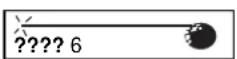
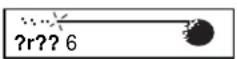

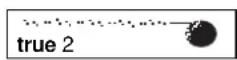
3 If you complete the spelling of the mystery word before you have used up all the tries or the fuse burns out, a congratulatory message will be displayed and counted in the "Won" column.
Then the next mystery word will be displayed.
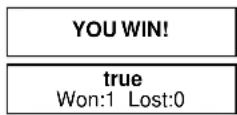
* One letter will be displayed in turn as a "Tip" every time you press ?
* All the letters will be displayed if you press "ENTER"
* If you fail to find the word before you have used up all the tries you are allowed, if the fuse burns out, or if you press ENTER half way through a game, "Sorry, you lost." will be displayed and counted in the "Lost" column. Then the answer and the next mystery word will be displayed.

■ Memory
Correctly enter the spelling of word momentarily displayed.
1 Select "Memory" and then press ENTER.
The word will be displayed for about one second.
Example: bride
bride
Memory Game Enter a guess...
2 Enter the spelling of the word which has just disappeared from the screen.
Memory Game bride_
3 Press ENTER
If your answer is correct, a congratulatory message will be displayed and counted in the "Won" column.
Then the answer and the next word will be displayed.
VERY GOOD!
bride Won:1 Lost:0
* T o give up entering letters, press?
* If your answer is incorrect, or if you press ☐ “Sorry, you lost.” will be displayed and counted in the “Lost” column.
38
39
Easy Learn
The Easy Learn function allows you to create your own word list from the Spellchecker, Solvers and Games, which can then be used in the games.
● Building your word list :
The underlined word will be added to your word list by pressing (See page 14.) The unit can store words between 3 and 12 letters.

* If the word to be added is already contained in memory, the message "Word is already in your list" will appear.
* The unit's memory can store 100 words. When you try to add the 101st word, the message "Sorry, Memory is full" will appear.
40
● Finding a word
1 Press LEARN.
2 Press ENTER to select "List". The word list will be displayed.
3 Press ▼ or ▲ to select a word.

text_image
Easy Learn List Delete List aspect behalf : pace respect\*\*\* Tip for Parents \*\*\*
This is a fun way to help your children learn new words from a list as part of their homework. Enter the words into the list as described above, then set the frequency of use in the SET menu. The words will then appear in the games.
41
- Deleting a word
1 Press LEARN.
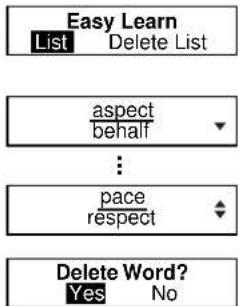
flowchart
graph TD
    A["Easy Learn"] --> B["List"]
    A --> C["Delete List"]
    B --> D["aspect\nbehalf"]
    D --> E["•"]
    E --> F["pace\nrespect"]
    F --> G["Delete Word?\nYes No"]
2 Press "ENTER" to select "List". The word list will be displayed.
3 Press ▼ or ▲ to select the word you wish to delete.
4 Press CLR.
5 Press "ENTER". The selected word will be deleted from the word list.
* If you decide not to delete the word, select "No" then press ENTER.
42
- Deleting all words
1 Press LEARN.
2 Press ▶ to select "Delete List".
3 Press ENTER.
4 Press "ENTER".
* If you decide not to delete the word, select "No" then press ENTER.

text_image
Easy Learn List Delete List Easy Learn List Delete List Delete List? Yes No43
Calculator
● Keys and their Functions
- Schatts Calculator and Unit Converters.
- Cleas last entry with one press, clears all with two presses.
- 1\~0 Number input keys.
- +,-,x, | Mathematical function keys.
- MC Clears memory.
- MR Recalls number from memory.
- M+ Enters number into memory.
- M- Subtracts number from memory.
- +/- Changes sign of number.
- % Percentage key.
* T he number stored in the memory is held when the calculation is changed, the mode is switched or the power is turned off.
44
● Correcting and Clearing Entries
If you enter an incorrect number, press CLR to clear the entire displayed number, then re-enter the correct number. If you press an incorrect mathematical function key, simply press the correct function key afterwards.
If “E” appears in display:
• The answer to a calculation is more than 12 digits.
• The memory is full.
• 0 has been used as a divisor.
Press CLR to remove the "E" and continue.
45
Converters
● Entering or Changing a Conversion Rate
1 Press CONV.
2 Press "ENTER" to select "Money".
3 Press ▼ to select "Exchange Rate".
4 Press ENTER.
5 Enter the new rate and then press "ENTER".
Example: £1=\$1.8
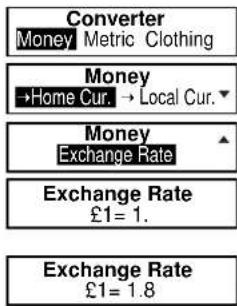
text_image
Converter Money Metric Clothing Money →Home Cur. → Local Cur. Money Exchange Rate Exchange Rate £1= 1. Exchange Rate £1= 1.846
● Currency Conversion
Example: 540 US Dollar to £ (£1=\$1.8)
1 Press CONV.
2 Press "ENTER" to select "Money".
3 Press ▶ to select “ → Local Cur.”
4 Press ENTER
5 Enter the amount you wish to convert and then press ENTER. (\$540=£300)
* Y ou can convert a new amount by entering the new number and pressing ENTER.
47

text_image
Converter Money Metric Clothing Money →Home Cur. →Local Cur. Money →Home Cur. →Local Cur. OC 0.= £0. OC 540.= £300.● Metric / Imperial Conversion Example: Kilometres to Miles
1 Press CONV.
2 Press ▶ to select "Metric" and then ENTER.
3 Press ▶ to select "Length".
4 Press ENTER.
5 Select "Kilometre" by using ▶ or ▼ ▲.
6 Press ENTER.

text_image
Converter Money Metric Clothing Metric Converter Temperature Length Metric Converter Temperature Length Source unit: Centimetre Inch Feet Centimetre Inch Feet Yard Metre Kilometre km → Centimetre Inch Feet48
7 Select "Mile" by using ▶ or ▼ ▲.
8 Press ENTER. Enter the number you wish to convert.
9 Press ENTER. (5 Kilometres = 3.10685596119 miles.)
Categories of the Metric Conversion
Temperature: °C, °F Length: Centimetre, Inch, Feet, Yard, Metre, Kilometre, Mile Area: Centimetre², Inch², Feet², Yard², Metre², Acre, Kilometre², Mile² Volume: Centimetre³, Inch³, Feet³, Yard³, Metre³ Weight: Gram, Ounce, Pound, Kilogram Capacity: Millilitre, Ounce(AM), Ounce(BR), Litre, Quart(AM), Quart(BR), Gallon(AM), Gallon(BR) Power: Kilowatt, Horsepower
49

text_image
Yard Metre Kilometre Mile km → mi. 5.km 5.km= 3.10685596119mi.● Clothing Size Chart
You can easily check foreign clothing sizes: shirts, shoes, hats etc. for men, women and children.
1 Press CONV.
2 Press ▶ to select "Clothing" and then ENTER.
3 Press ▶ to select "Women".
4 Press ENTER.
5 Select "Dresses" by using ▶ or ▼ ▲.

text_image
Converter Money Metric Clothing Clothing Sizes Men Women Children Clothing Sizes Men Women Children Blouses Pullovers Dresses Coats Sits Blouses Pullovers Dresses Coats Sits6 Press ENTER.
7 Press ▼ to see more sizes.


:
Categories of the Clothing Size Chart
Men: Suits, Trousers, Overcoats, Pullovers, Socks, Shoes, Shirts, Hats
Women: Blouses, Pullovers, Dresses, Coats, Suits, Skirts, Trousers, Shoes, Stockings
Children: Dresses, Coats, Suits, Skirts, Trousers - Girls and Boys Shoes - Girls and Boys, Other Items - Girls and Boys
50
51
Setting function
You can customize the operating conditions.
Press SET and then press ▼ ▲ or ▶ ▶ to select an item, when you want to change the default settings.
● Changing the Demo mode
1 Press
SET.
Press ▼ ▲ or ▶ ▶ to select "Demo Message".
2 Press
=ENTER.
3 Press
↓
or
▶
◀
o select
4 Press
-ENTI
R to sc
t it.
[Non-Text]
[Non-Text]
(See page 11.)

SET
Demo Message LCD Contrast

Demo Mess
Disable Enable
Demo Mess
Disable Enable

SET
Demo Message LCD Contrast
52
● Setting the LCD Contrast
1 Press
SET.
Press ▼ ▲ or ▶ ▶ to select "LCD Contrast".
2 Press
"ENTER.
3 Press
or
▶◀ to adjust LCD display.
the contrast of the LCD display.
4 Press
ENTER to set it. page 9.)
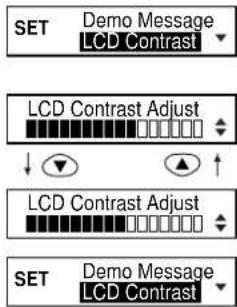
SET
Demo Message LCD Contrast
53
● Setting the Game Level
The unit provides three skill levels for playing games (Beginner, Intermediate and Advanced). The level can be changed as required.
1 Press
SET.
Press ▼ ▲ or ▶ ▶ to select "Game Level".
2 Press
=ENTER.
3 Press
▼ ▲ or
◀◀
to select
4 Press
°ENTER to set it.

flowchart
graph TD
    A["SET"] --> B["LCD Contrast\nGame Level"]
    C["Game Level"] --> D["Beginner\nIntermediate"]
    E["Game Level"] --> F["Beginner\nIntermediate"]
    G["SET"] --> H["Game Level\nGame Scores"]
54
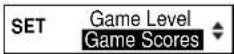
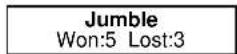
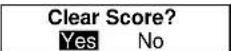
● Score of the Games
The unit can display the score of the games.
1 Press
SET
Press ▼ ▲ or ▶ ▶ to select "Game Scores".
2 Press
-ENTER.
Press ▼ ▲ or ▶ ▶ to select one of the games.
3 Press ENTER to display the score of the selected game.
4 Press ENTER
"Clear Score?" will be displayed. Press ▼ ▲ or ▶ ◀ to select "Yes" or "No" and then press ENTER.

55
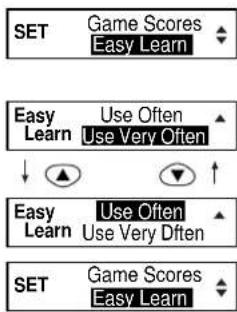
● Setting the frequency for the Easy Learn list
The unit provides four frequency levels to use your user word list (Use Very Often, Use Often, Use Seldom and Never Use) for playing games.
1 Press SET.
Press ▼ ▲ or ▶ ▶ to select "Easy Learn".
2 Press "ENTER".
3 Press ▼ ▲ or ▶ ▶ to select one of the frequency levels.
4 Press "ENTER" to set it.
text_image
SET Game Scores Easy Learn Easy Learn Use Often Use Very Often Easy Learn Use Often Use Very Often SET Game Scores Easy Learn56
● Setting the Word Level for Solvers
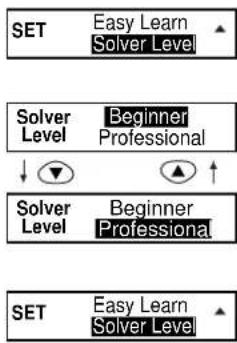
The word list for the Anagram Solver and Crossword Solver can be selected between the Beginner level and Professional level.
1 Press SET.
Press ▼ ▲ or ▶ ▶ to select "Solver Level".
2 Press ENTER.
3 Press ▼ ▲ or ▶ ▶ to select "Beginner" or "Professional". Beginner: 130,000 word from the spellchecker Professional: Full 200,000 word from the solver 4 Press ENTER to set it.
flowchart
graph TD
    A["SET"] --> B["Easy Learn Solver Level"]
    C["Solver Level"] --> D["Beginner Professional"]
    E["Solver Level"] --> F["Beginner Professional"]
    G["SET"] --> H["Easy Learn Solver Level"]
57
Help function
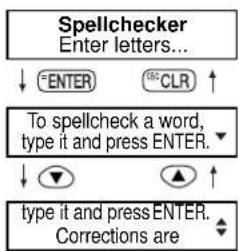
An explanation of how to operate the various functions is simply explained on the screen at each operational stage in each mode.
Example:
1 Press SPELL.
2 Press HELP.
3 Press ▼ to see the rest of the explanation.
Press ▲ to scroll up.
text_image
Spellchecker Enter letters... →ENTER →CLR ↑ To spellcheck a word, type it and press ENTER. →▼ ▲ ↑ type it and press ENTER. Corrections are■ ■ ■
58
| MEMO |
59
MEMO MEMO
60

natural_image
Blank white image with no visible content, text, or symbols61
Proper Use
To ensure a long and useful life from this precision electronic instrument, do not expose the unit to extreme heat or cold, water or other liquids including spray cleaners or extreme pressure (such as carrying in a back pocket). Doing any or all of these things may render the unit inoperable and invalidate the warranty.
Specification
Display: 21 characters x 2 lines
Temperature range: 0°C to +40°C (32°F to 104°F)
Battery: Lithium CR2032 x 1 pc.
Battery life: approx. 600 hours (continuous use)
Automatic power off: approx. 3 minutes
Size: 108 (W) x 77 (H) x 13.5 (D) mm
Weight: approx. 65g (including battery)
* Specifications may change without notice due to our policy of continual product improvement. / The life of the battery will vary depending on how the unit is used.

ONE YEAR LIMITED WARRANTY
- This product is warranted to be free from defects in material or workmanship for one year from date of purchase.
- Repair (or at our option, replacement) will be made on any unit which proves to be defective during this period. Carefully pack the unit along with proof of purchase and a completed copy of the Warranty Record you will find in this manual. Postage, insurance and shipping costs incurred in returning the product for warranty service are your responsibility.
- This warranty does not extend to units which have been subjected to misuse, abuse, neglect, accidents or to units that have been used in violation of the operation instructions. If in our judgement, the unit shows evidence of having been altered, modified or serviced without our authorisation, it will be ineligible for service under this warranty.
- In Europe, this warranty does not affect your statutory rights.
- Battery replacement and broken Liquid Crystal Displays are not covered under this warranty.
Seiko Instruments Inc. shall not be liable for any direct, consequential or incidental damages arising out of use of this product. Seiko Instruments Inc. shall not be responsible for damages to this unit as a result of a natural or unnatural disaster, except to the extent prohibited by applicable law. Any implied warranty of merchantability or fitness for a particular purpose on this product is limited in duration to the duration of the warranty.
