TFTV106HDT - Television Palsonic - Free user manual and instructions
Find the device manual for free TFTV106HDT Palsonic in PDF.


| Product Type | LCD TV |
| Screen Size | 106 cm (42 inches) |
| Resolution | 1366 x 768 (WXGA) |
| Aspect Ratio | 16:9 |
| Contrast Ratio | 3000:1 |
| Pixel Pitch | 0.6810 mm |
| TV System | PAL, NTSC (AV), DVB-T |
| Power Supply | 220-240V~ 50/60Hz |
| Dimensions (W x H x D) | 1060 x 823 x 329 mm |
| Video Inputs | HDMI, Component, Composite (AV1/AV2), S-Video, PC (D-Sub) |
| Audio Output | Optical digital audio |
| Tuner | Analog + Digital (DVB-T) |
| Remote Control | Yes, with batteries |
| Accessories Included | AC cord, user manual, remote control, AAA batteries |
| Picture Modes | Normal, Soft, Movie, User, Sharp |
| Sound Modes | BBE, M.Voice, 3D Panorama, Standard, User |
| Special Features | Teletext, EPG, PIP/POP, Sleep Timer, Child Lock, Parental Guidance |
| Cleaning Instructions | Use soft damp cloth; avoid solvents; wipe water/oil immediately |
| Safety Note | Keep ventilation gaps of at least 10 cm; do not cover |
| Mounting | Wall or ceiling mount compatible using designated tool |
Frequently Asked Questions - TFTV106HDT Palsonic
User questions about TFTV106HDT Palsonic
0 question about this device. Answer the ones you know or ask your own.
Ask a new question about this device
Download the instructions for your Television in PDF format for free! Find your manual TFTV106HDT - Palsonic and take your electronic device back in hand. On this page are published all the documents necessary for the use of your device. TFTV106HDT by Palsonic.
USER MANUAL TFTV106HDT Palsonic
natural_image
Person in white outfit and helmet viewed from above, looking upward against a textured, patchwork-like background (no text or symbols visible)Precaution about
LCD Panel
Precaution with Manipulation
- Refrain from strong mechanical shock and / or any force to the LCD panel. In addition to damage, this may cause improper operation or damage to the module and FFL(CCFL) back-light.
- Note that the surface of LCD panel is very fragile and could be easily damaged. Do neither press nor scratch the surface harder than a HB pencil lead.
- Wipe off water droplets or oil immediately. If you leave the droplets for a long time, staining and discolouration may occur.
- If the surface of the LCD panel is dirty, clean it using some absorbent cotton or soft cloth.
- Desirable cleaners are water, IPA (Isopropyl Alcohol) or Hexane.
- Do not use Ketone type materials (ex. Acetone), Ethyl alcohol, Toluene, Ethyl acid or Methyl chloride. It might permanent damage to the LCD panel due to chemical reaction.
- If the liquid crystal material leaks from the panel, it should be kept away from the eyes or mouth. In case of contact with hands, legs or clothes, it must be washed away thoroughly with soap.
Precaution in Operation
- LCD products should be operated in standard environment. The standard environment which is ;
- Temperature : 20 ± 20^ C;
- Humidity : 65 ± 5%; and
- Picture in Screen : Motion picture (avoid the still picture to prevent some afterimage)
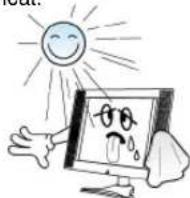
- Avoid a direct ray of the Sun.
Caution

CAUTION RISK OF ELECTRIC SHOCK DO NOT OPEN

CAUTION : TO REDUCE THE RISK OF ELECTRIC SHOCK, DO NOT REMOVE COVER (OR BACK). NO USER-SERVICEABLE PARTS INSIDE. REFER SERVICING TO QUALIFIED SERVICE PERSONNEL.

The lightning flash with arrowhead symbol within an equilateral triangle, is intended to alert the user to the presence of uninsulated “dangerous voltage” within the product’s enclosure that may be of sufficient magnitude to constitute a risk of electric shock.

The exclamation point within an equilateral triangle is intended to alert the user to the presence of important operating and servicing instructions in the literature accompanying the appliance.
WARNING : TO REDUCE THE RISK OF FIRE OR ELECTRIC SHOCK HAZARD, DO NOT EXPOSE THIS APPLIANCE TO RAIN OR MOISTURE.
CAUTION : TO PREVENT ELECTRIC SHOCK, MATCH WIDE BLADE OF PLUG TO WIDE SLOT, FULLY INSERT.
Important Safeguards
Please read the following safeguards for your TV and retain for future reference. Always follow all warnings and instructions marked on the television.
1. Read, Retain and Follow All Instructions
Read all safety and operating instructions before operating the TV. Retain them safely for future reference. Follow all operations and instructions accordingly.
2. Heed Warnings
Adhere to all warnings on the appliance and in the operating instructions.

3. Cleaning
Unplug the TV from the wall outlet before cleaning. Do not use liquid, abrasive, or aerosol cleaners. Cleaners can permanently damage the cabinet and screen. Use a lightly dampened cloth for cleaning.
4. Attachments and Equipment
Never add any attachment and/or equipment without approval of the manufacturer as such additions may result in the risk of fire, electric shock or other personal injury.

5. Water and Moisture
The apparatus shall not be exposed to dripping or splashing and that no object filled with liquids, such as vases, shall be placed on the apparatus.

6. Setting
Do not place this TV on an unstable cart, stand or table. Placing the TV on an unstable base can cause the TV to fall, resulting in serious personal injuries as well as damage to the TV. Use only a cart, stand, bracket or table recommended by the manufacturer or salesperson.
7. Ventilation
Slots and openings in the cabinet are provided for ventilation and to ensure reliable operation of the TV and to protect it from overheating. Do not cover the ventilations openings in the cabinet and never place the set in a confined space such as built-in cabinet unless proper ventilation is provided. Leave a minimum 10 cm gap all around the unit.
8. Power Source
This TV should be operated only from the type of power source indicated on the marking label. If you are not sure of the type of power supplied to your home, consult your appliance dealer or local power company.
9. Grounding or Polarization
This TV is equipped with a polarized alternating current line plug (a plug having one blade wider than the other). This plug will fir into the power outlet only one way. This is a safety feature. If you are unable to insert the plug fully into the outlet, try reversing the plug. If the plug should still fail to fit, contact you electrician to replace your obsolete outlet. Do not defeat the safety purpose of the polarized plug. A warning that an apparatus with CLASS I construction shall be connected to a MAINS socket outlet with a protective earthing connection.
10. Power-Cord Protection
Power-supply cords should be routed so that they are not likely to be walked on or pinched by items placed upon or against them, paying particular attention to cords at plugs, wall outlets, and the point where they exit from the TV. MAINS plug is used as the disconnect device, the disconnect device shall remain readily operable.
11. Lightning
For added protection for this TV during a lightning storm, or when it is left unattended and unused for long periods of time, unplug it from the wall outlet and disconnect the antenna or cable system. This will prevent damage to the TV due to lightning and power-line surges.

12. Wall or Ceiling Mounting
When mounting the product on a wall or ceiling, be sure to install the product using the designated mounting tool according to the method recommended by the manufacturer.
Important Safeguards
13. Power Lines
An outside antenna system should not be located in the vicinity of overhead power lines or other electric light or power circuits, or where it can fall into such power lines or circuits. When installing an outside antenna system, extreme care should be taken to keep from touching such power lines or circuits as contact with them might be fatal.

14. Overloading
Do not overload wall outlets and extension cords as this can result in a risk of fire or electrical shock.
15. Object and Liquid Entry
Never push objects of any kind into this TV through openings as they may touch dangerous voltage points or short-out parts that could result in fire or electric shock. Never spill liquid of any kind on or into the TV.
16. Outdoor Antenna Grounding
If an outside antenna or cable system is connected to the TV, be sure the antenna or cable system is grounded so as to provide some protection against voltage surges and built-up static charges. Section 810 of the National Electric Code, ANSI/NFPA No. 70-1984, provides information with respect to proper grounding of the mast and supporting structure, grounding of the lead in wire to an antenna discharge unit, size of grounding conductors, location of antenna discharge unit, connection to grounding electrodes, and requirements for the grounding electrode.

17. Servicing
Do not attempt to service this TV yourself as opening or removing covers may expose you to dangerous voltage or other hazards. Refer all servicing to qualified service personal.
18. Damage Requiring Service
Unplug the TV from the wall outlet and refer servicing to a qualified service personnel under the following conditions:
(a) When the power-supply cord or plug is damaged.
(b) If liquid has been spilled, or objects have fallen into the TV.
(c) If the TV has been exposed to rain or water.
(d) If the TV does not operate normally by following the operating instructions. Adjust only those controls that are covered by the operating instructions as an improper adjustment of other controls may result in damage and will often require extensive work by qualified technician to restore the TV to its normal operation
(e) If the TV has been dropped or the cabinet has been damaged.
(f) When the TV exhibits a distinct change in performance - this indicates a need for service.
19. Replacement Parts
When replacement part are required, be sure the service technician has used replacement parts specified by the manufacturer or have the same characteristics as the original part. Unauthorised substitutions may result in fire, electric shock or other hazards.
20. Safety Check
Upon completion of any service or repair to the TV, ask the service technician to perform safety checks to determine that the TV is in safe operating condition.

21. Heat
The product should be situated away from heat sources such as radiators, heat registers, stoves, or other products (including amplifiers) that produce heat.
Warning
This section must be read carefully and followed by the user prior to the operation of the product. The manual states important instructions for the user's own safety, and the proper operation of the product.

Warning
Ignoring or disregarding the contents of this section and improper operation of this product may result in the person's death or serious injury
In case of an accident, please unplug the unit from the outlet immediately.
To reduce the risk of electric shock, do not remove cover or back. No user - serviceable parts inside. Refer to qualified service personnel for repair.

natural_image
Cartoon illustration of a person reacting to a computer screen displaying a sad face (no text or symbols present)Do not put any object that contains water - such as flowerpot - near to the unit. The water may penetrate into the unit, and be a cause of fire or hazardous electric shock.

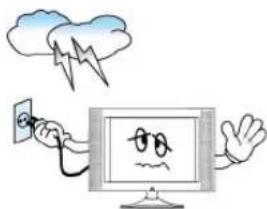
To prevent fire and damages to the product, unplug the unit from the outlet during lightning storm, or when it is left unattended and unused for a long period of time.
natural_image
Cartoon illustration of a computer monitor with an electric shock symbol and a cloud above it (no text or symbols present)Do not put on or use the product near water and moisture-such as in a bathroom, washbowl, etc. It may be a cause of fire and electric shock hazards.

natural_image
Cartoon illustration of a baby in a bathtub reacting to a computer monitor displaying a sad face (no text or symbols present)Slots and openings in the case are provided for ventilation to ensure reliable operation of the product. Never put in any item-such as a coin, paper, match- through these openings since it may touch dangerous voltage points that could result in fire or shock hazard.

natural_image
Cartoon illustration of a child reacting to a computer screen displaying a sad face (no text or symbols present)Do not let children hang on or climb on the product since it may be a cause of serious injury.

natural_image
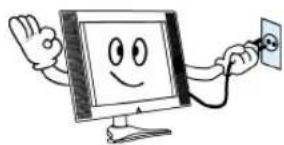
Cartoon illustration of a child on a phone with a car and sad face on screen (no text or symbols)Hold the plug when unplugging the unit from the outlet. The cord may cause fire or electric shock if damaged.
natural_image
Cartoon illustration of a smiling computer monitor with a stethoscope and open mouth (no text or symbols)Do not cause the product to lean or put it in an unstable place since it may cause a serious injury to a person, as well as damage to the product if it falls.

Do not put volatile substance-such as benzene, naphtha- near the product since it may cause a change in the product's colour.

natural_image
Cartoon illustration of a computer monitor character with a spray bottle and a box nearby (no text or symbols)Do not spill water or drop the remote controller since it may be a cause of malfunctioning.

Do not view the TV too closely since it may cause damage in your eyesight.

Refer servicing to qualified service personnel for cleaning at least once a year since dust inside the TV set may be a result or fire and malfunctioning of the product.

Warning
This section must be read carefully and followed by the user prior to the operation of the product.
The manual states important instructions for the user's own safety, and the proper operation of the product.

Caution
Ignoring or disregarding the contents of this section and improper operation of this product may result in the person's death or serious injury
Please keep the user's manual in a safe place for future reference.
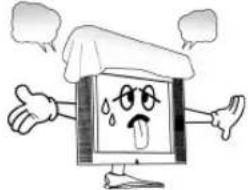
Do not cover the top of the television set. Ventilation will be prevented, and it may be a cause of fire if the product is internally overheated.
natural_image
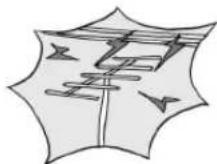
Cartoon illustration of a smiling computer monitor character with arms and legs, surrounded by speech bubbles (no text or symbols)Please be advised of electric wires and cables when installing the antenna. It may be a cause of hazardous electric shock and fire if the antenna touches or falls on the electric wire; thus, it must be installed firmly, and far away from the cables.
Do not expose the product to a dusty or moisturised place since it may be a cause of malfunctioning.
natural_image
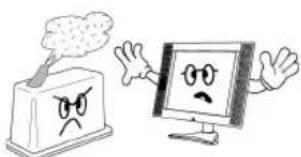
Cartoon illustration of a computer monitor character with a distressed apple and sad face, no text or symbols presentThe product should be situated away from any heat source-such as radiators, heat registers, stoves, or other products that produce heat.
Unplug the power from the outlet and all the related connections from the unit to prevent electric shock. At least two people must work together to move the TV set when transporting to prevent the TV from falling, and consequently, any serious injury or damage.

natural_image
Illustration of two women interacting with a computer monitor displaying a smiling face (no text or symbols present)The screen case of the product (32C1/42C1) is scratched easily. When cleaning, use the micro-fibre sheet which enclosed.
When a force to give it cleans strongly, it will be scratched and the product's colour will be changed. If foreign material gets in the fibre, the product will be scratched.
Shake off the fibre cleanly and use.
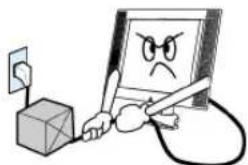
Do not put on any heavy item on the power cord since it may result in fire or hazardous electric shock if the cord is damaged.
natural_image
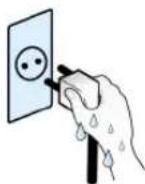
Cartoon illustration of a computer monitor with a sad face and connected devices (no text or symbols)Do not touch the power cord with moisturised or wet hands when plugging to or unplugging from the outlet since it may be a cause of electric shock.

natural_image
Cartoon illustration of a smiling computer monitor with a smiling face, accompanied by a starburst and cloud icon (no text or symbols)- The appliance is not intended for use by young children or infirm persons without supervision.
- Young children should be supervised to ensure that they do not play with the appliance.
Table of Contents
Installation and Maintenance
9Antenna Cor
12Video Conne
13Camcorder 8
14DVD Player
15STB Connec
16PC Connecti
18Cable TV Br
19Connect with
20Name of Eac
Basic Guide
22Parts of the I
24Method To U
25To Watch TV
27Setting Up T
32Selection of ,
Application Guide
35Screen Adjust
37Sound|Adjus
Utilities 41
47PIP (Picture-
Teletext 49
50Channel Ban
51Electronic Pr
52Troubleshoot
55Standard of F
Supplied Accessories
Make sure that the following accessories are provided with the product.

AC cord Instruction manual

natural_image
Simple line drawing of an open book with blank pages (no text or symbols)
natural_image
Illustration of a remote control with buttons and ports (no text or symbols visible)Remote controller
natural_image
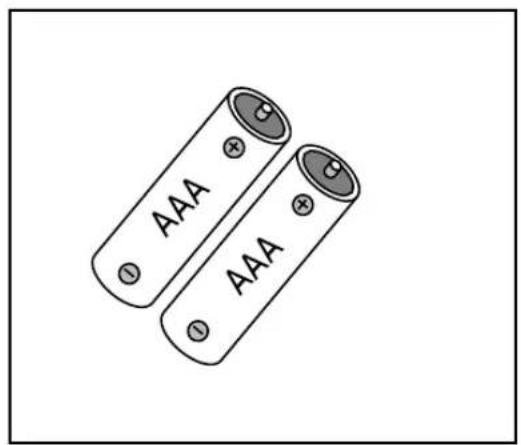
Two cylindrical batteries with 'AAA' labels, no additional text or symbols visibleBatteries
Antenna Connection
Indoor Antenna Connection
- Connect the feeder cable of the antenna to the combining adapter.
WHEN THE IMAGE IS NOT CLEAR : Unclear screen image and bad reception may be a cause of wrong antenna connection. Be sure to check its direction and place when installing.

natural_image
Diagram of a mechanical component with two pins and a tool, no text or symbols present- Connect the combining adapter to the antenna input at the left side of the TV set.
WHEN USING THE COMBINING ADAPTER: You may obtain the combining adapter at your closest Service Centre.

Antenna Input
Antenna Connection
CTV Antenna Connection
Such community TV Antenna installation may be found in most of co-op apartments.
When a coaxial cable is used: Plug the coaxial cable to the antenna socket, and fix it firmly by turning it to the right.
Antenna socket on the wallAntenna socket on the wallAntenna socket at the back of the TV set

natural_image
Pure diagram of a mechanical component with two circular ends and a central shaft, no text or symbols present.When a feeder cable is used: Plug the coaxial cable to the antenna socket, and fix it firmly by turning it to the right.

Feeder cable connection with the combined adapter

Antenna Connection
Outdoor Antenna Connection
Outdoor Antenna connection-such as VHF or/and UHF-may be necessary for installation at private houses
Single Antenna Connection
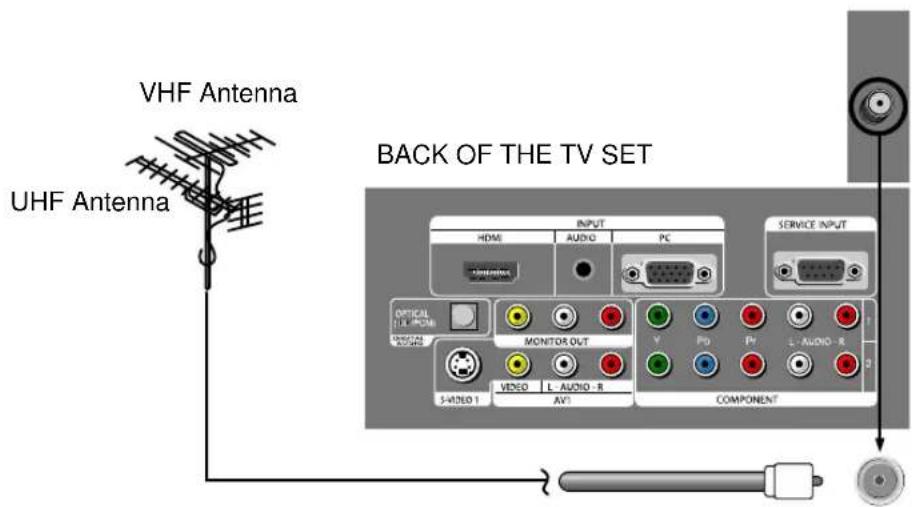
ANT/CABLE
Separate Antenna Connection.

flowchart
graph TD
    A["VHF Antenna"] --> B["In case of coaxial cable"]
    A --> C["In case of feeder cable"]
    D["UHF Antenna"] --> E["In case of coaxial cable"]
    D --> F["In case of feeder cable"]
    G["ANT/CABLE"] --> H["Antenna combining Adaptor (Separate purchase)"]
    H --> I["In case of coaxial cable"]
Video Connection
Connecting with an External Source
You may connect an S-Video 1 (Rear of the TV) or S-Video 2 (Side) input to enjoy clearer and brighter picture images. You can make the connection with the AV1 or AV2 inputs.
BACK OF THE TV SET
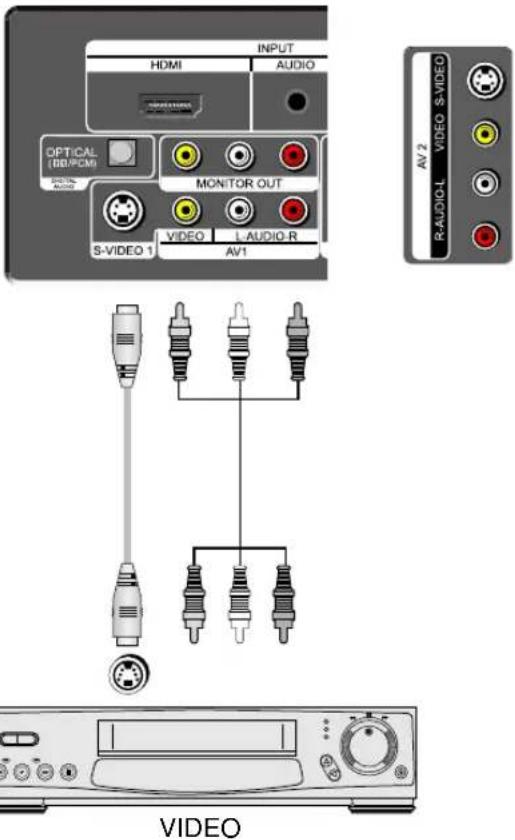
Note: If your AV device has both Video OUT terminal and S-Video OUT terminal, the S-Video connection is recommended for better picture quality.
Camcorder & Video
Game Connection
Watching the Camcorder Recording or Video Game on TV
- Prepare the S-video and RCA connector.
- These connectors connect to AV1 or AV2 (S-Video 1 or 2) like below the picture.
- Turn on the TV set and camcorder/video game.
- Select AV1 or AV2 (S-Video 1 or 2) using the "AV/COMP" button of the Remote controller or "☐/☐" button of the TV set.
BACK AND SIDE OF THE TV SET

Note: If your AV device has both Video OUT terminal and S-Video OUT terminal, S-Video connection is recommended for better picture quality.
DVD Player
connection
When connecting with a component cable
BACK OF THE TV SET

Note: When you connect with the component video, please check the colour of the cable between the DVD and TV set.
When connecting with a S-VHS cable and RCA cable
BACK AND SIDE OF THE TV SET

Note: If your AV device has both Video OUT terminal and S-Video OUT terminal, S-Video connection is recommended for better picture quality.
STB (Set Top Box) Connection
When connecting with a HDMI cable
BACK OF THE TV SET

Set Top Box
Note: When the Set Top Box output is DVI signal, then the Audio cable should be connected.
When connecting with a component cable
BACK OF THE TV SET
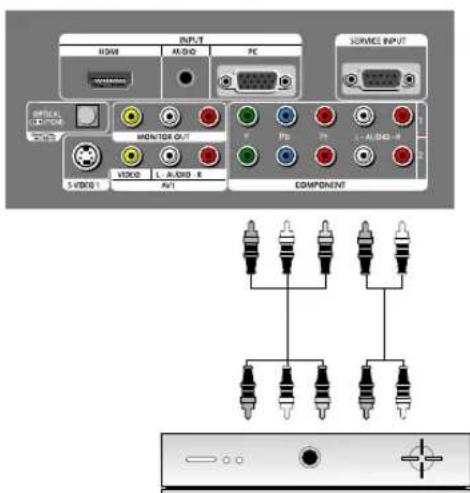
Set Top Box
PC Connection
When connecting with PC (D-Sub) cable.
- Adjust PC resolution to available resolution in LCD TV.
- Connect between PC and TV set using the D-Sub and Audio cable like below the picture.
- Turn on the PC and TV set.
- select PC mode by pressing "HDMI/PC" button on the remote control or "☐/→" button of the TV set.
BACK OF THE TV SET
![PC HDMI AUDIO SERVICE INPUT OPTICAL [1] HDMI ORIGINAL AUDIO MONITOR OUT VIDEO L - AUDIO - R S-VIDEO 1 AVT Y Pb Pr L - AUDIO - R COMPONENT 1 2](/content/2026/06/1190036/images/4d083108ee4e4203670cf8cb7e2b401314baefd14e3367251023b12b32e18ebe.jpg)
When connecting with a HDMI cable.
- Adjust PC resolution to available resolution in LCD TV.
- Connect between PC and TV set using the HDMI and Audio cable like below the picture.
- Turn on the PC and TV set.
- select HDMI mode by pressing "HDMI/PC" button on the remote control or "☐/→" button of the TV set.
BACK OF THE TV SET

Note: If the graphic card of the PC only supports a DVI signal, you must connect the Audio cable like above the picture.
PC
Connection
PC CONNECTION NOTES:
1) The resolution of the TV set is the best at 1360 z 768 (WXGA).
2) In order to display 1360 x 768 resolution, install the latest version of graphic card driver in your PC.
3) If there is a [Vertical Frequency] setting menu in the [Screen] Menu of the PC, adjust the frequency to 60Hz.
4) If the PC resolution is too high, it may be hard to read letters. Select a suitable resolution.
5) HDMI input port receives only digital Signal.
6) Depending on the graphic card when plug & unplug the HDMI connection, the screen may not display correctly. Restart the computer if this happens.
Multi input resolution available in LCD TV.
| Resolution V-freq HDMI PC (D-Sub) Component Standard | |||||
| 640 X 480 72Hz | 60Hz O O | X VESA Standard | |||
| Hz O O X VESA | Standard | ||||
| 75Hz O O | X VESA Standard | ||||
| 800 X 600 72Hz | 60Hz O O | X VESA Standard | |||
| Hz O O X VESA | Standard | ||||
| 75Hz O O | X VESA Standard | ||||
| 1024 X 768 70Hz | 60Hz O O | X VESA Standard | |||
| Hz O O X VESA | Standard | ||||
| 75Hz O O | X VESA Standard | ||||
| 1280 X 1024 60Hz | O O X VESA | Standard | |||
| 1360 X 768 60Hz | O O X VESA | Standard | |||
| 720 X 480P | 60Hz | O X O | |||
| 720 X 576P 50Hz | O O O | ||||
| 1280 X 720P | 50Hz O O | O | |||
| 60Hz O O | O | ||||
| 720 X 480i 60Hz | X X O | ||||
| 720 X 576i 50Hz | X X O | ||||
| 1920 X 1080i | 50Hz O O | O | |||
| 60Hz O O | O | ||||
Note: • When you connect with component, PC (D-Sub), and HDMI, you must check the input resolution of external devices.
Cable TV Broadcasting Connection
External Input Connection Source
Watching cable television is only possible after you have subscribed to the local broadcasting company and installed a cable receiver. You may make the connection to any of the Component input, Video 1 input and Video 2 input.
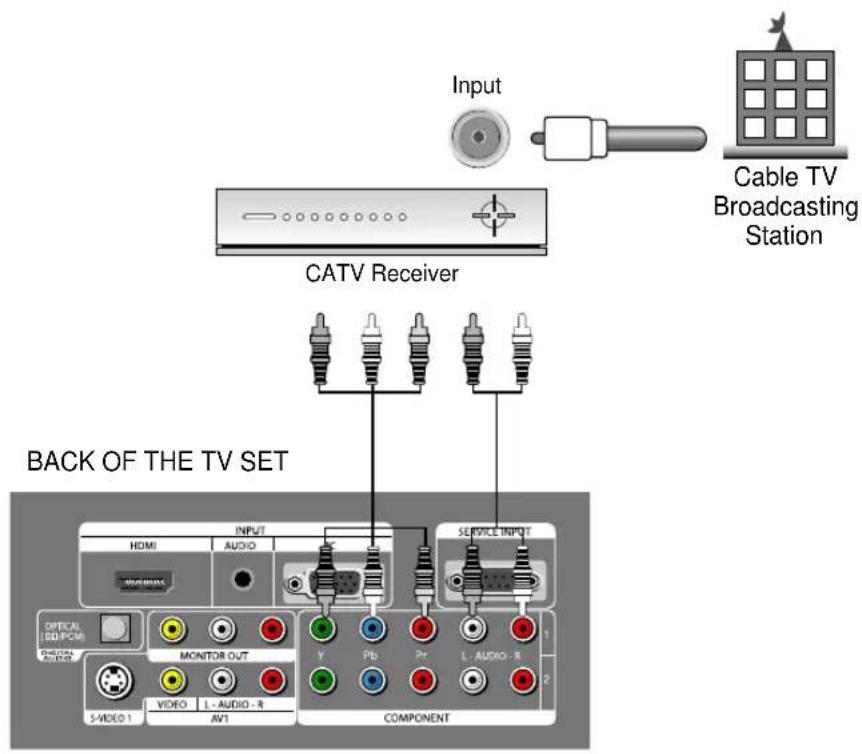
Antenna Input Connection
Watching cable television is only possible after you have subscribed to the local broadcasting company and installed a cable receiver.

Connect with the Dolby Digital AMP.
If you connect the optical output to the Dolby digital AMP, you can listen to better sound.

flowchart
graph TD
    A["BACK OF THE TV SET"] --> B["OPTICAL OUTPUT"]
    B --> C["Dolby Digital AMP"]
    C --> D["RCentrel Woofer"]
    D --> E["SURROUND RSurround L"]
    B --> F["COMPONENT"]
    F --> G["VIDEO"]
    F --> H["L-AUDIO-R"]
    F --> I["AV1"]
    B --> J["DATA INPUT"]
    J --> K["DATA INPUT"]
    style A fill:#f9f,stroke:#333
    style B fill:#ccf,stroke:#333
    style C fill:#cfc,stroke:#333
    style D fill:#fcc,stroke:#333
    style E fill:#ffc,stroke:#333
    style F fill:#cff,stroke:#333
    style G fill:#ffc,stroke:#333
    style H fill:#ffc,stroke:#333
    style I fill:#ffc,stroke:#333
Name of Each Part
Front / Side Panel
Buttons on the TV set have the same functions as those of the remote controller.

natural_image
Pure diagram of a curved channel with circular features and a numbered label (6) in the corner, no readable text or symbols.Front Panel
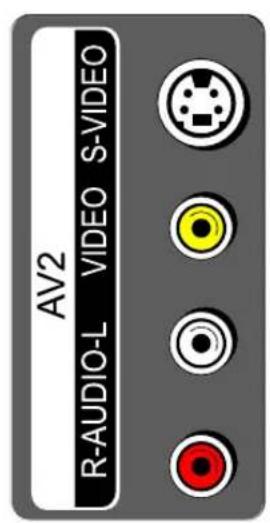
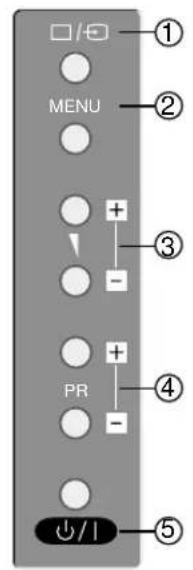
Side Panel (Left) Side Panel (Right)
Control Key Buttons.
① ☐/→ Buttons: Each time you press this button, the TV will cycle through:
TV / Video 1 / Video 2 / Component 1 / Component 2 / HDMI / PC
② MENU Button: Use this button to enter and exit the MENU.
③ Buttons: Use these buttons to change your TV's volume or to move the cursor in the menu.
④ Buttons: Use these buttons to change channels on your TV or to move the cursor in the menu.
⑤ ⏻/| button: Use this button to TV STAND-BY mode/TV ON mode.
⑥ Remote controller signal receiver
The screen contains the remote controller signal receiving window; therefore, point the remote controller towards the screen when using it.
Stand-by
Lights up red in Stand-By mode and Lights up green in TV on mode.
Lights up orange colour in On/Off timer mode.
Name of Each Part
Rear Panel

Parts of the Remote
Controller

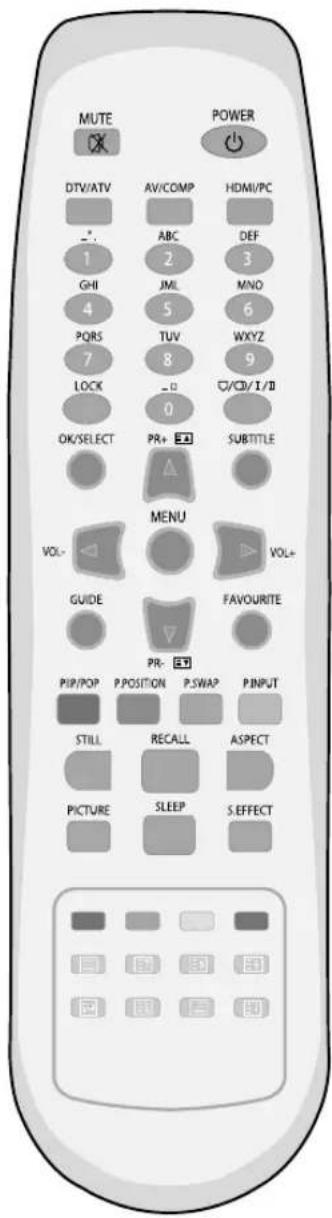
- ☒ (MUTE): Press this button, and the sound goes off. Press again, and the sound returns.
- ⏻ (POWER): TV on/off button in Stand-By mode.
- DTV/ATV: Each time you press this button, the TV will cycle through : ATV => DTV (DVB-T) => ATV
- AV/COMP: Each time you press this button, the TV will cycle through: Video 1 => Video 2 => Comp. 1 => Comp. 2 => Video 1
- HDMI/PC: Each time you press this button, the TV will cycle through : HDMI => PC => HDMI
- NUMBER: Press the numbers on this board, you can select PR directly in TV mode. (EX. When you want to select PR10, you should press down "1" and "0" within 2 second. If you only press down "1", after 2 second, PR1 will be selected.)
Note.: When the current state is Stand-By mode, you can turn on the TV using the digit key.
- LOCK: Prevent the use of the TV set without the remote control.
- ∅/∅/I/II: You can select sound mode in Mono, Stereo.
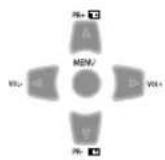
- ▲ PR▼: Change programmes on TV mode.
- ◀ VOL ▶: Adjust the volume.
- MENU: Menu display button.
- OK/SELECT: Confirm to change a part of the menu.
- SUBTITLE : Select the Subtitle Language. It works only in DTV (DVB-T) mode.
- GUIDE : Access Electronic Program Guide (EPG). It works only in DTV (DVB-T) mode.
- FAVOURITE: Each time you press this button, the programme will change selected (favourite) programmes on TV mode. See page 32.
- PIP: Select either PIP/POP On or Off
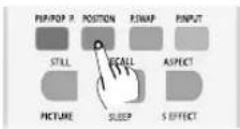
- P.POSITION: Move the sub window position in PIP mode. Position: left bottom => left top => right top => right bottom
- P.SWAP: Swap the main screen for sub screen.
- P. INPUT: Sub Screen input mode change as follows PIP table mode or POP table mode.
- STILL: Press this button to freeze the picture.
Parts of the Remote Controller

- RECALL : Display the present modes (ATV/DTV, Video 1/2, Comp. 1/2, PC/HDMI) and Signal information for 4 seconds. Note: In Analog TV mode, you can see information about the Programme number, Sound, and Clock. In DTV (DVB-T) mode, you can see information about a channel number, name, broadcasting time and more.
- ASPECT: Select screen aspect ratio : Wide [16:9] => Zoom 1 => Zoom 2 => Normal [4:3] => Wide [16:9] Note. : When current mode is multimedia (PC, HDMI, Component), the aspect only work as the 16:9 mode.
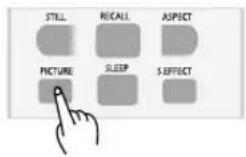
- PICTURE: Picture modes change as follows: Normal => Soft => Movie => User => Sharp => Normal SLEEP: Sleep Timer setting.
- SLEEP TIMER: OFF => 30min => 60min => 90min => 120min => OFF Note.: If an active signal is not present for about 30 minutes, the set will automatically turn to ST-BY mode.
- S.EFFECT: Using this button, Select the desired sound mode. Off => BBE => M. Voice => 3D Panorama => Off
- Red button: Delete the channel in EDIT and teletext.
- Green button: Move the channel in EDIT and teletext.
- Yellow button: Skip the channel in EDIT and teletext.
- Blue button: Teletext.
- Teletext: see page 51.
Inserting Batteries into the Remote Control Unit
To load the batteries, turn the remote control handset over and open the battery compartment. Insert the batteries (Two 1.5v, type AAA).
Make sure that the polarity matches with the (+) and (-) marks inside of the battery compartment.
Note: To avoid damage from possible battery leakage, remove the batteries if you do not plan to use the remote control handset for an extended period of time.

Method To Use
Basic Menu
Basic Menu
- The basic menu appears on the screen if you press the "MENU" button of the remote control.
- There are 5 items Picture, Sound, Install, Utilities and Time in the basic menu.
- Each item has sub-items under it. If the desired item is selected, the relevant sub-items are displayed upward.
1. Press the "MENU" button.
- The main menu appears if you press the "MENU" button.
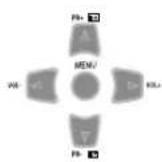

2. Press the "▼ PR ▲" button.
- You may setup according to the directions on the screen after selecting the desired item by pressing the "▼PR▲" button.
- If the setup is completed, exit from the menu by pressing the "MENU" button.




Picture
: Mode (Normal, Soft, Movie, User, Sharp), Brightness, Contrast, Colour, Sharpness, Tint (NTSC only), Noise Reduction and Colour Temp.
Sound
: Balance, AVC, Effect (Off/BBE/M.voice/3D Panorama), Digital Volume and Move (Normal/User/Concert Hall/Live/Theater/Studio).
Install
: Auto Programme, Manual Programme, Programme Setup, Programme Edit, Favourite and Signal Strength.
Utilities
: Aspect ratio, Subtitle, Lock (Set Password, Block programme, Parental guidance), MGDI plus DEMO.
Time
: Auto clock, Set current time, On time/setup, O- time/setup, On time PR/Volume and Time zone (NSW/ACT, VIC, QLD, SA, WA, TAS, NT).
To Watch TV
On/Off, Number, Mute, Recall, ◀ /▶, ▲ /▼
- Buttons with same name in the main body performs the same function.
Press the " 🔊/1 " button of the front or right side of the set or the "Power" button of Remote controller.
- You can also turn on the TV using “▲PR▼” or digit key in the ST-BY mode.
Note:
- The buttons of the remote control and the main body operate only when AC power turn on.
- You must pull out the plug of TV set to shut of the AC Power.
When pressing the Program button
- Select two digits if using the number button for channel selection.
For example, to watch the No.9 channel, Press the number button "0" and "9".
If pressing only number "9" button, it takes longer time to select the channel.
To suddenly turn sound off
- Press the "MUTE" (☐) button.
- No sound is heard if "MUTE (OK)" is displayed on the screen.
- Sound is heard again if you press the "MUTE (OK)" button once again.
For example, please use this button when telephone rings or when guest comes while watching TV.
Check of TV operation status
- If pressing the "RECALL" button, status of channel or clock broadcasting being currently watched or entry status of video component is displayed on the screen.
To Watch TV
- Press the "↓/|POWER)" button of the front or right side of the set or the "POWER" button of Remote controller.
• The Stand-By LED lamp turns on in red colour.
- Press "▲ /▼" buttons of the main body or "POWER" button of the remote control.

natural_image
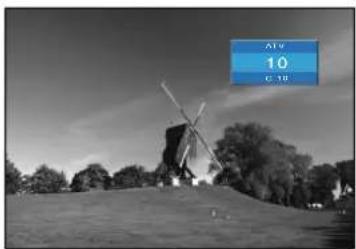
Black-and-white exterior view of a traditional windmill on a hillside under a cloudy sky (no text or symbols visible)- Press the "▲ PR▼" button.
- Select the desired program by pressing the "▲ PR▼" button or the number button.
natural_image
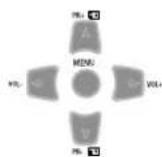
Black-and-white photo of a windmill on a hillside with trees and sky in the background (no visible text or symbols)- Adjust volume.
• Sound reduces by pressing the "◀VOL" button.
- Sound increases by pressing the "VOL ►" button.
Note: Sound mutes by pressing the "MUTE" (OK) button.

- Press the "☐/1 (POWER)" button of the front or right side of the set or the "POWER" button of Remote controller for turning the TV off.
• TV turns off and the power lamp changes to red colour


natural_image
Solid gray rectangle with no visible text, symbols, or features.Setting Up TV Stations
Auto Programme for Analog Channel
- All analog channels that can be received are stored by this method. It is recommended that you use Auto Programme during installation of this set.
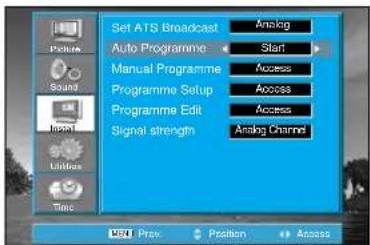
1. Press the "MENU" button to select the Install menu.
- Move the selection bar to the Install menu with "▲PR▼" buttons.


2. Select the "Set ATS Broadcast".
- Place the selection bar on Set ATS Broadcast and select Analog, Digital or Analog+Digital with "◀VOL▶" button.


3. Select the "Auto Programme".
- Place the selection bar on Auto Programme and press the "◀VOL▶" button.

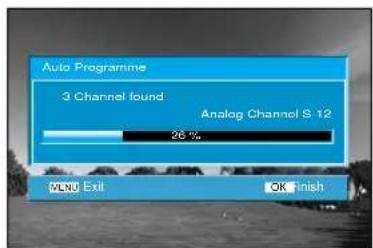
4. Please wait until the Programme Edit menu appears.
- If you don't want to edit the programs now, escape from menu with the "MENU" button.
- Warning
This television has been factory pretuned to channels 2, 7, 9, 10 and 28. If the auto search function is activated, these preset channels will be deleted and new channels tuned.
Setting Up TV
Stations
Manual Programme
The Manual Programme menu shows you information as follows:
- Band, Channel, Search, Programme number
1. Locate the selection bar on the Manual Programme.
- Press the "MENU" button to select the Install menu.
- Move the selection bar to the Install menu with "▲ PR▼" buttons.
- Place the selection bar on Manual Programme and press the "◀VOL▶" buttons.


2. Searching for channel in the Manual Programme Menu
- Move the selection bar to the Band with "▲ PR▼" buttons.
- Select the desired Band with "◀ VOL▶" buttons.
- Move the selection bar to the Channel with "▲PR▼" buttons.
- Select the desired Channel with "◀VOL▶" buttons.
- Move the selection bar to the Search with "▲ PR▼" buttons.
- Press the "◀ VOL▶" buttons to search up or down.
Searching will be stopped automatically after finding the next channel.

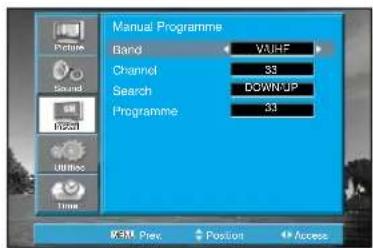
< Analog menu >
Note:
- Band active in Analog TV mode.
• Signal strength active in Digital TV mode. - Programme is fixed (only viewing).

< Digital menu >
Setting Up TV
Stations
Programme Setup (Analog TV mode only)
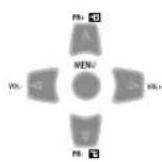
1. Searching for channel -finely
- Move the selection bar to the Analog Pr with "▲PR▼" buttons.
- Select a programme number you want to tune -finely with the "◀VOL▶" buttons.
- Move the selection bar to the Fine.
- Press the "◀VOL▶" buttons to adjust the fine tuning.

Note:
- If you are unable to get a good picture or Sound because of a poor broadcasting signal, adjustment of Frequency might improve it.

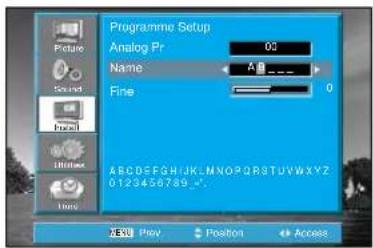
2. Enter a station name
- Move to selection bar to the Name with "▲PR▼" buttons.
- Press the "◀VOL▶" buttons to enter the station name.
- You can enter a station name with the "▲PR▼" and "◀VOL▶" buttons.

Setting Up TV Stations
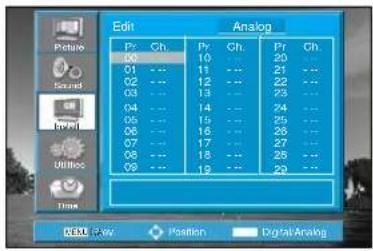
Programme Edit
The Programme Edit menu shows you information as follows:
- Broadcast : Analog / Digital
- Program position assignment: Program number, Station name and Skip.
1. Skipping the program positions
- Move to Programme Edit in the Install menu.
- Move the selection bar to program number to skipping with the "▲PR▼" or "◀VOL▶" buttons.
- Press the "Skip (Red)" button, then the colour of the station name is changed to red.
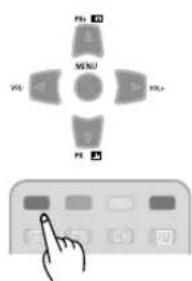
2. Moving the program positions
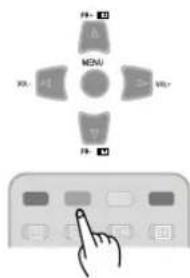
- Move to Programme EDIT in the Install menu.
- Move the selection bar to program number to Move with the "▲PR▼" or "◀VOL▶" buttons.
- Press the "Move (Green)" button.
- Move the selection bar to empty program number.
- Press the "Move (Green)" button, then the programs will be moved.

3. Deleting the Programs
- Move to Programme EDIT in the Install menu.
- Move the selection bar to program number to deleting With the "▲PR▼" or "◀VOL▶" buttons.
- Press the Delete (Yellow) button.


Note :
- You can move the selection bar 1 step with "▲PR▼" buttons and 1 page with the "◀VOL▶" buttons.
Setting Up TV Stations
Favourite
-
Locate the selection bar on the Favourite.
-
Move to Favourite in the Install menu.
- Press the "◀VOL▶" buttons.


-
Setting up the Favourite
-
Move the selection bar to the added/deleted Pr with "▲PR▼" or "◀VOL▶" buttons.
- Add/Delete the Pr with "Favourite" buttons.

- Viewing the Favourite Pr
- Whenever pressing "Favourite" button, the Pr changes as the selected programme order.


Signal Strength (Digital TV mode only)
- Reveals how strong your DTV signal is and whether you need to adjust your antenna.
- The higher the signal strength, the less likely you are to experience picture degradation.
-
Digital TV Signals; May not be available in all areas, nor broadcast all programmes.
-
Locate the selection bar on the Signal strength.
-
Move to Signal strength in the Install menu.
• Display the strength status of digital signal. -
Press the Recall button in DTV mode, then signal strength is also displayed.

![Set ATS Broadcast Auto Programme Manual Programme Programme Setup Programme Edit Signal strength 1 [29] Weak Analog Start Access Access Access 1 [29] Weak ATM Prev. Position](/content/2026/06/1190036/images/1260a21c89f17a17e25d910df8314872fad96d7bf903ed9e1c8499bb8188985e.jpg)
Selection of AV/COMP and
HDMI/PC Input Signal
When watching video, Camcorder, DVD, Cable TV with AV
- When pressing "☐/-→" button on the TV set, screen changes as follows:
DTV => ATV => Video 1 (or S-Video 1) => Video 2 (or S-Video 2) => Comp.1 => Comp.2 => HDMI => PC => DTV
1. Press the "AV/COMP" button on the remote controller.
Screen changes as follows whenever pressing the "AV/COMP" button.
Video 1 => Video 2 => Comp.1 => Comp.2 => Video 1


flowchart
graph TD
    A["Video1"] --> B["Windmill"]
    B --> C["Video2"]
    C --> D["Comp 1 1080I"]
    D --> E["Comp 2 1080I"]
    E --> A
Note:
- If sound signal is mono method, connect it to the L-terminal of the sound input terminal.
Selection of AV/COMP and HDMI/PC Input Signal
When connecting PC, STB, DVD with Multimedia
1. Pressing the "HDMI/PC" button on the remote controller.
- Screen changes as follows whenever pressing the "HDMI/PC" button. HDMI => PC => HDMI

HDMI & PC mode
- For optimum picture quality, use 1360x768 computer at a 60Hz refresh rate. Using other formats or refresh rates may result in reduced picture quality.
- If the message 'No signal' appears on the screen, adjust the PC output to a format listed in the Multimedia Input table.
Multimedia Input Format
| Resolution V-freq HDMI PC (D-Sub) Component Standard | |||||
| 640 X 480 72Hz | 60Hz O O | X VESA Standard | |||
| z O O X VESA | Standard | ||||
| 75Hz O O | X VESA Standard | ||||
| 800 X 600 72Hz | 60Hz | O | O X VESA Standard | ||
| z O O X VESA | Standard | ||||
| 75Hz O O | X VESA Standard | ||||
| 1024 X 768 70Hz | 60Hz | O | O X VESA Standard | ||
| Hz O O X VESA | Standard | ||||
| 75Hz O O | X VESA Standard | ||||
| 1280 X 1024 60Hz | O O X VESA | Standard | |||
| 1360 X 768 60Hz | O O X VESA | Standard | |||
| 720 X 480P 60Hz | O X O | ||||
| 720 X 576P | 50Hz O O | O | |||
| 1280 X 720P | 50Hz O O | O | |||
| 60Hz O O | O | ||||
| 720 X 480i 60Hz | X | O | |||
| 720 X 576i | 50Hz X | X O | |||
| 1920 X 1080i | 50Hz O O | O | |||
| 60Hz O O | O | ||||
Selection of AV/COMP and HDMI/PC Input Signal
Adjustment of Screen in PC mode
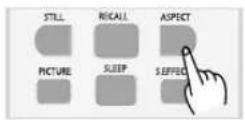
1. Press the "ASPECT" button.
2. Adjustment of the Auto setup
- Press the "ASPECT" button and the PC Menu appears.
- Move to Auto Setup in the PC Menu.
- Press the "◀VOL▶" buttons to detect optimal
- resolution automatically
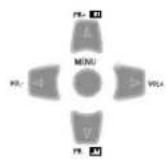
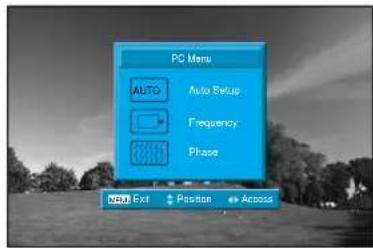

3. Adjustment of the Frequency
- Move to Frequency in the PC Menu.
- Press the "◀VOL▶" buttons to adjust the frequency of display image.


4. Adjustment of the Phase
- Move to Frequency in the PC Menu.
- Press the "◀VOL▶" buttons to adjust the phase to get a clearer picture.
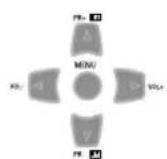
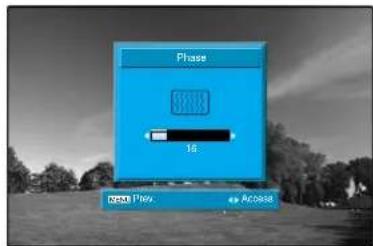
Note:
- During the Auto Adjust, you must not alter a screen on the monitor.
- During the moving picture, Auto Adjust is able to incorrectly work. So you must execute Auto Adjust in still image.
- Auto Adjust incorrectly work at a part graphic card or picture.
- When Auto Adjust is not correctly working, you can adjust with frequency and phase.
Screen Adjustment
When setting up various screen modes
- The user may select various screens designed for a good picture without adjusting the brightness, contrast or colour individually.
1. Pressing the "PICTURE" button.
- Screen changes as follows whenever pressing the "PICTURE" button. Normal => Soft => Movie => User => Sharp
- The screen adjustment status changes as the following screens are displayed sequentially whenever pressing the "PICTURE" button.
- The screen returns to the mode prior to turning power off when then turning power on again.

flowchart
graph TD
    A["Mode"] --> B["Brightness"]
    B --> C["Contrast"]
    C --> D["Colour"]
    D --> E["Tint"]
    E --> F["Sharpness"]
    F --> G["Colour Temp"]
    G --> H["Noise reduction"]
    H --> I["Shift"]

    A --> J["Mode"]
    J --> K["Brightness"]
    K --> L["Contrast"]
    L --> M["Colour"]
    M --> N["Tint"]
    N --> O["Sharpness"]
    O --> P["Colour Temp"]
    P --> Q["Noise reduction"]
    Q --> R["Shift"]

    A --> S["Mode"]
    S --> T["Brightness"]
    T --> U["Contrast"]
    U --> V["Colour"]
    V --> W["Tint"]
    W --> X["Sharpness"]
    X --> Y["Colour Temp"]
    Y --> Z["Noise reduction"]
    Z --> AA["Shift"]

    A --> AB["Mode"]
    AB --> AC["Brightness"]
    AC --> AD["Contrast"]
    AD --> AE["Colour"]
    AE --> AF["Tint"]
    AF --> AG["Sharpness"]
    AG --> AH["Colour Temp"]
    AH --> AI["Noise reduction"]
    AI --> AJ["Shift"]

    A --> AC
    A --> AC
    A --> AC
Note:
• Normal : For a highly defined image in a normally bright room
- Soft : The LCD TV in a dimly lit environment
- Movie : Ideal for movies
- User : Allows the user to customise settings as desired
- Sharp : For a clear-cut image emphasizing high contrast for sports viewing
Screen Adjustment
When adjusting the screen to taste
- You can enjoy various screens by adjusting Brightness, Contrast, Colour, Sharpness, etc to the user's taste.
1. Select "PICTURE" by pressing the "MENU" button.
• The menu screen appears as follows.

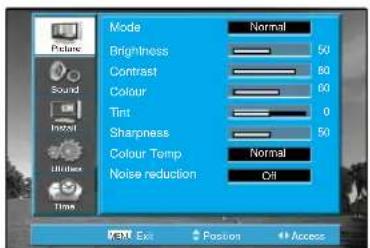
2. Select and adjust each item.
- Move to the PICTURE menu.
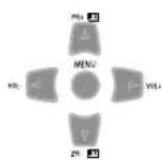
- Whenever pressing the "▲ PR▼" button, you can select in order Brightness, Contrast, Colour, Sharpness and N.R.
- You can adjust all items by pressing the "◀VOL▶" buttons.
Note:
- Brightness : Adjusts the whole of screen brighter or darker.
- Contrast : Adjusts difference between brightness and darkness between objects and background on the screen.
• Colour : Adjusts colour thinly or thickly. - Tint : Adjust the natural tint of the image.
- Sharpness : Adjusts outline of the screen smoothly or sharply.
• N.R. : Reduce the noise in the picture due to poor reception or poor picture quality (Only in TV, AV1/2, S-Video mode).
Note:
- Tint activates when receiving a NTSC signal.
- The adjusted levels are stored automatically in User mode.
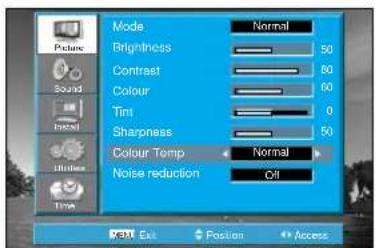
Adjustment of Colour Temperature in TV
- Through colour temperature control, you can change the tone of colour.
1. Move to the Colour Temp menu with "▲PR▼" buttons.
- Using the "◀VOL▶" buttons, select the desired Colour Temperature.
Note:
• Normal : Normal White
- Warm : Reddish White
• Cool : Bluish White
Sound Adjustment
When selecting various sound modes
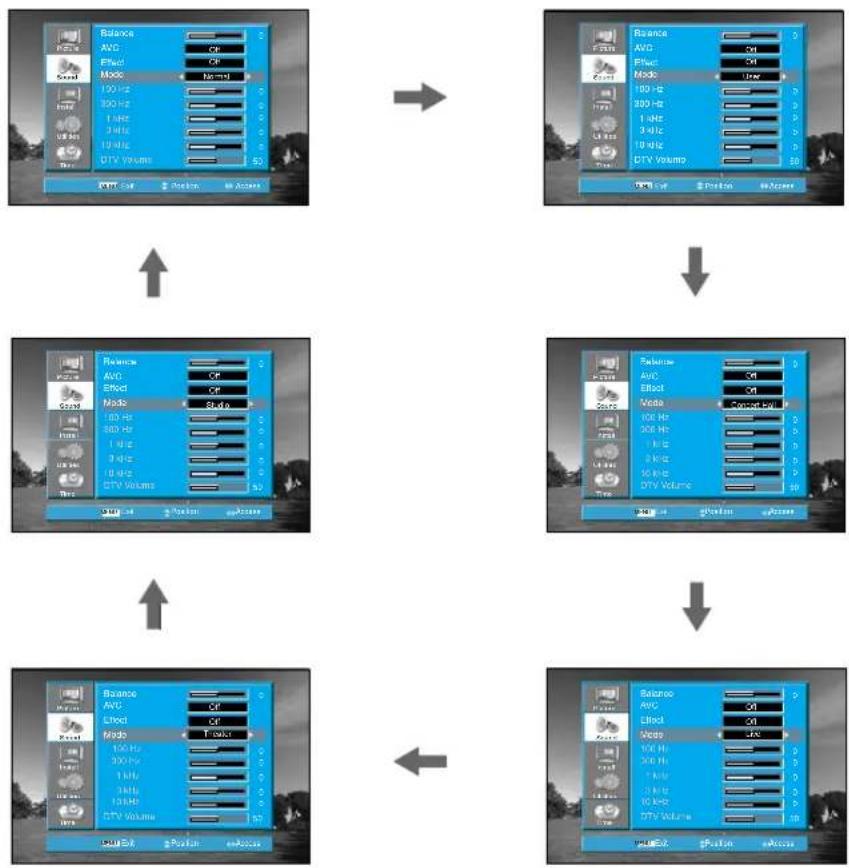
1. Sound mode selects what you want.
- Press the "S-EFFECT" button, then the sound status changes as followed:
Normal => User => Concert Hall => Live => Theater => Studio

flowchart
graph TD
    A["Input Module"] --> B["Data Processing"]
    B --> C["Model: AVG, Mode, TGV Volume"]
    C --> D["Output Module"]

    subgraph Input Modules
        E["Balance"] --> F["AVG, Mode, TGV Volume"]
        G["AC"] --> H["Mode, TGV Volume"]
        I["AC"] --> J["Mode, TGV Volume"]
        K["AC"] --> L["Mode, TGV Volume"]
        M["AC"] --> N["Mode, TGV Volume"]
        O["AC"] --> P["Mode, TGV Volume"]
    end

    subgraph Output Modules
        Q["Balance"] --> R["AVG, Mode, TGV Volume"]
        S["AC"] --> T["Mode, TGV Volume"]
        U["AC"] --> V["Mode, TGV Volume"]
        W["AC"] --> X["Mode, TGV Volume"]
        Y["AC"] --> Z["Mode, TGV Volume"]
        AA["AC"] --> AB["Mode, TGV Volume"]
    end

    subgraph Output Modules
        AC["Balance"] --> AD["AVG, Mode, TGV Volume"]
        AE["AC"] --> AF["Mode, TGV Volume"]
        AG["AC"] --> AH["Mode, TGV Volume"]
        AI["AC"] --> AJ["Mode, TGV Volume"]
        AK["AC"] --> AL["Mode, TGV Volume"]
        AM["AC"] --> AN["Mode, TGV Volume"]
    end

    subgraph Output Modules
        AO["Balance"] --> AP["AVG, Mode, TGV Volume"]
        AQ["AC"] --> AR["Mode, TGV Volume"]
        AS["AC"] --> AT["Mode, TGV Volume"]
        AU["AC"] --> AV["Mode, TGV Volume"]
        AW["AC"] --> AX["Mode, TGV Volume"]
        AY["AC"] --> AZ["Mode, TGV Volume"]
    end

    style Input Modules fill:#f9f,stroke:#333
    style Output Modules fill:#bbf,stroke:#333
Note:
- "Mode" function is available in Effect Off mode.
Sound Adjustment
When adjusting sound to taste
- The user can enjoy various the sound by adjusting Balance, AVC, Effect, Equaliser and Digital Volume.
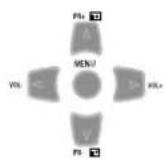
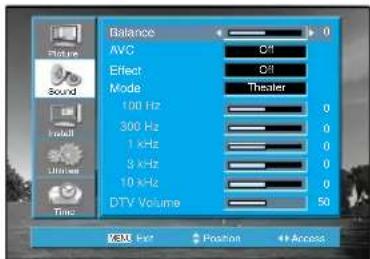
1. Adjust the Balance
- Move to Balance in the Sound menu.
- Adjust the balance level by using the "◀VOL▶" buttons.
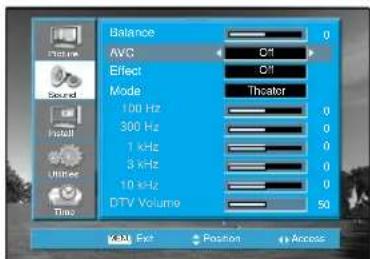
2. Select AVC (Auto Volume Control)
- Move to AVC in the Sound menu.
- Select either AVC ON or OFF using the "◀VOL▶" buttons.

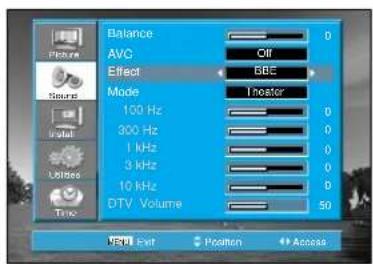
3. Sound mode selects what you want.
- Move to Effect in the Sound menu.
- Select desirable Effect using the "◀VOL▶" buttons. Off => BBE => M.voice => 3D Panorama,




Sound Adjustment
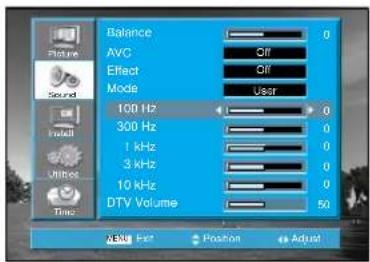
4. Adjust the Audio Equalizer
- Move to Balance in the Sound menu.
- Adjust User mode using the "◀VOL▶" buttons.
- Select and use the relevant frequency by pressing the "▲PR▼" buttons.
- You can adjust the degree of the frequency by using the "◀VOL▶" buttons.

Note:
- Equalizer adjustment is available in User mode.
- Equalizer: High quality sound range adjustment method used for audio product.
100 Hz, 300 Hz: Low sound range
1 kHz, 3 kHz: Middle sound range
10kHz: High sound range
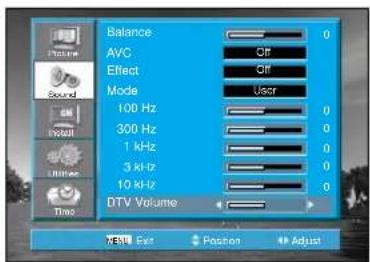
5. Adjust the Digital volume
- Move to Digital volume in the Sound menu.
- Adjust the Digital volume level by using the "◀VOL▶" buttons.
Note:
- Digital volume is available in DTV (DVB-T) mode.
Sound Adjustment
Stereo and MPEG/Dolby Digital (Digital TV mode only)
1. Mono Sound Selection
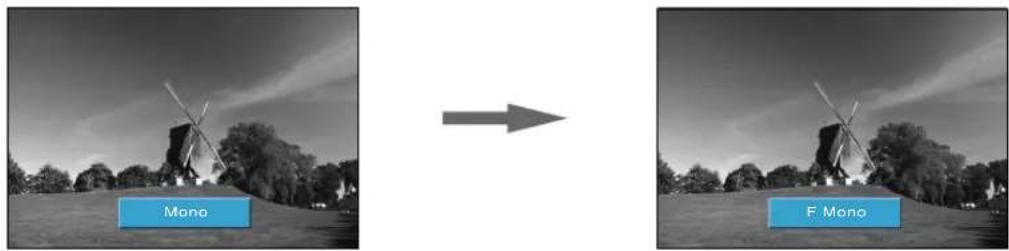
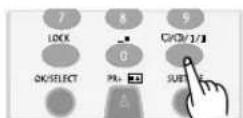
- In Stereo reception if the stereo is weak, you can switch to MONO by pressing the "☐/☐/I/II" button. The OSD character will be change to "F Mono".
In Mono reception, the depth of sound is improved.
- To switch back to stereo, press the "☐/☐/I/I" button again.

natural_image
Two black-and-white photos showing a windmill in a field before and after transformation, labeled 'Mono' (no text or symbols on the images themselves)Note.
- "☐/☐/I/II" only works in RF mode.
2. MPEG/Dolby Sound Selection
- In DTV (DVB-T) broadcast reception, you can switch MPEG to Dolby Digital by pressing the "☐/☐/I/II" button repeatedly.
Utilities
Adjustment of Aspect ratio in TV/Video/Component mode
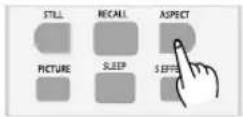
1. Press the "ASPECT" button
- The screen changes as below whenever pressing the "ASPECT" button. Wide [16:9] => Zoom 1 => Zoom 2 => Normal [4:3]
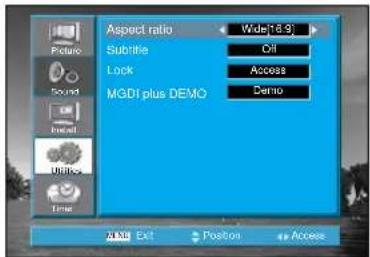
2. Adjust the Aspect ratio
- Move to Aspect Ratio in the Utilities menu.
- Aspect ratio changes as below by pressing the "◀VOL▶" buttons.


Note:
- Wide[16:9] : 16:9 will display a true 16:9 (anamorphic) picture with no aspect distortions.
- Zoom 1 : Enlarge vertical size of the Wide[16:9] picture.
- Zoom2 : Move the Zoom1 picture to the upper direction.
- Normal [4:3] : General TV screen currently broadcasted.
- "Aspect" function is not available in Multimedia (PC and HDMI) mode.
Utilities
Subtitle (Digital TV mode only)
1. Setup of Subtitle
- Move to Subtitle in the Utilities menu.
- Select Subtitle to "On/Off" using the "◀VOL▶" button.

![Aspect ratio Wide[16-9] Subtitle Off Lock Access MGDI plus DEMO Demo MENU Ext Position Access](/content/2026/06/1190036/images/301f769fcd016b9ac0b582c54267d0bdb4fc69e2ca827ad619111106fb5893f1.jpg)
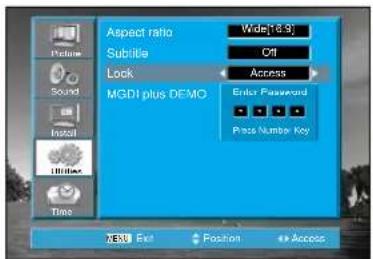
Lock
- Move to Lock in the Utilities menu.
- If Lock is already set, enter the password as requested.
- Whenever pressing the "▲PR▼" buttons, you can select in the order of set password, Block programme, and parental guidance.
- You can adjust all items by pressing the "◀VOL▶" button.


Note:
- The TV is set up with the initial password '0000'.
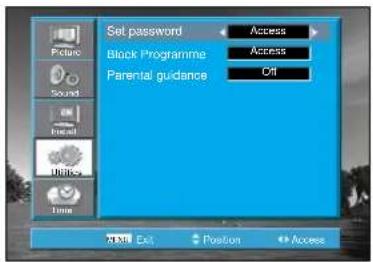
1. Set password
- Move to Set password in the Lock menu.
- Press the "◀VOL▶" buttons to access the Set Password.
- Change the password by inputting a new password twice by pressing the "0 \~ 9" Number buttons.


Utilities
Lock
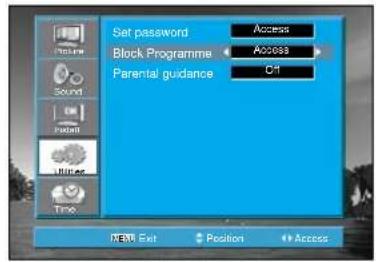
2. Block Programme
- Move to Block Programme in the Lock menu.
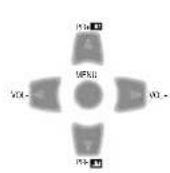
- Press the "◀VOL▶" buttons to access the Block Programme.
- Select a channel number that you wish to block by pressing the "OK/SELECT" key.

3. Parental guidance
- Move to Parental guidance in the Lock menu.
- Press the "◀VOL▶" buttons to access the Parental guidance.
- Select a grade by pressing the "◀VOL▶" key.

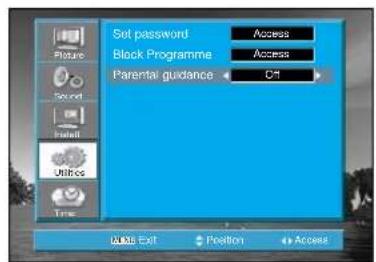
Note:
- Parental guidance (Digital TV mode only) Prevents children from watching certain children's TV programs, according to the ratings limit set.
Blocking Off : Permits all programs
R : Restricted
AV : Adult audiences
MA : Mature adult audiences
M : Mature audiences
PG : Parental guidance suggested
G : General audience

- If you forget your password, you should contact retailer or service agent
Utilities
Child Lock
1. Press the "LOCK" button
- The lock changes either On or Off whenever pressing the "LOCK" button.
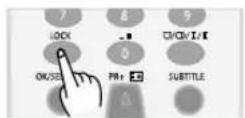
Note.:
- This prevents the use of the TV set without the remote control.
- If the Child Lock is "On", the set can only be switched back on using the remote control.
Hotel Lock
- In the Hotel Lock mode, the Install menu is not displayed and the Volume controls is limited by 60.
- If you want to set up Hotel Lock mode, contact your retailer or service agent.
Adjustment of Time
1. Setup of Auto Clock
- Move to Auto clock in the Utilities menu.
- Select Auto clock to "On/Off" using the "◀VOL▶" button.


2. Setting the Current Time
- Move to Set Current time in the Time menu.
- To go to the Set Current time, press the "◀VOL▶" buttons.
- Place the cursor to Month with "◀VOL▶" buttons.
- Set the Month with the "▲PR▼" buttons and then press the Menu button to complete.
- Place the cursor to Day with "◀VOL▶" buttons.
- Set the Day with the "▲PR▼" buttons and then press the Menu button to complete.
- Place the cursor to Year with "◀VOL▶" buttons.
- Set the Year with the "▲PR▼" buttons and then press the Menu button to complete.
- Place the cursor to Clock with "◀VOL▶" buttons.
- Set the Clock with the "▲PR▼" buttons and then press the Menu button to complete.
- Place the cursor to Minute with "◀VOL▶" buttons.
- Set the Minute with the "▲PR▼" buttons and then press the Menu button to complete.
- Place the cursor to AM/PM with "◀VOL▶" buttons.
- Set the AM/PM with the "▲PR▼" buttons and then press the Menu button to complete.

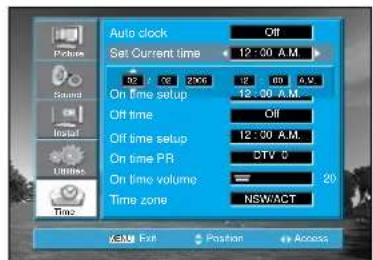
Utilities
3. Setting the On time / On time Setup / On time PR / On time Volume
- Move to On Time in the Time menu.
- Select the On time to "on" using the "◀VOL▶" button.

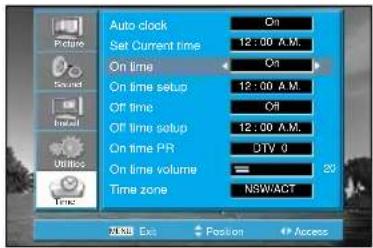
- Move to On time setup with the "▲PR▼" buttons.
- To go to On time setup, press the "◀VOL▶" buttons.
- Place the cursor to Clock with "◀VOL▶" buttons.
- Set the Clock with the "▲PR▼" buttons and then press the Menu button to complete.
- Place the cursor to Minute with "◀VOL▶" buttons.
- Set the Minute with the "▲PR▼" buttons and then press the Menu button to complete.
- Place the cursor to AM/PM with "◀VOL▶" buttons.
- Set the AM/PM with the "▲PR▼" buttons and then press the Menu button to complete.


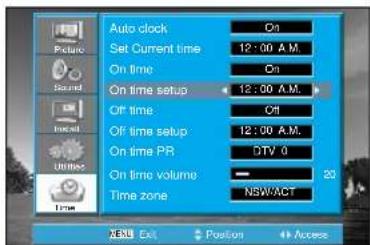
- Move to On time PR in the Time menu.
- Select the On time PR to desirable PR using the "◀VOL▶" button.
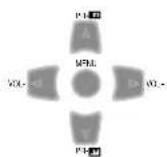

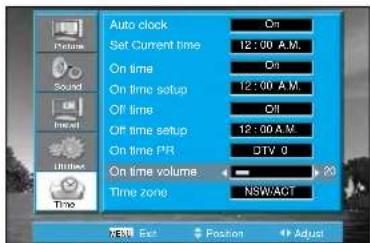
- Move to On time PR in the Time menu.
- Select the On time PR to desirable PR using the "◀VOL▶" button.

Note:
- Confirm the Current Time is set. The On time is only available when the Current Time is set.
• The set will be turned on at selected time. - It is a convenient method to wake you up in the morning.
- LED colour is changed to orange colour in On/Off timer mode.
- If adjusted once, the On time continues to operate everyday unless cancelling setup or turn the AC power off.
Utilities
4. Setting the Off time / Off time Setup
- Move to Off Time in the Time menu
- Select the Off Time to "On using the "◀VOL▶" button.


- Move to On time setup with the "▲PR▼" buttons.
- To go to On time setup, press the "◀VOL▶" buttons.
- Place the cursor to Clock with "◀VOL▶" buttons.
- Set the Clock with the "▲PR▼" buttons and then press the Menu button to complete.
- Place the cursor to Minute with "◀VOL▶" buttons.
- Set the Minute with the "▲PR▼" buttons and then press the Menu button to complete.
- Place the cursor to AM/PM with "◀VOL▶" buttons.
- Set the AM/PM with the "▲PR▼" buttons and then press the Menu button to complete.


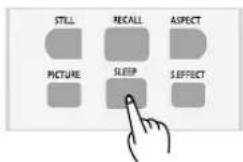
5. Press the "SLEEP" button
- By pressing the "SLEEP" button on the remote controller repeatedly, you can select one of the following settings:
Sleet Timer: Off => 30 => 60 => 90 => 120 => Off
- Then set will turn off after the time you select.
Note:
• Information of Auto clock is required to DTV (DVB-T) signal.
- If an active signal is not present for about 30 minutes, the set will automatically turn to ST-BY mode.
PIP (Picture-In-Picture)/POP (Picture-Of-Picture)
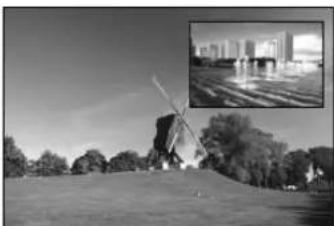
1. Watching PIP/POP
- By pressing the "PIP/POP" button on the remote controller repeatedly, you can select one of the following settings:


natural_image
Black-and-white photo of a traditional windmill on a hillside with trees in the background (no text or symbols visible)

natural_image
Split black-and-white photo showing modern high-rise buildings on the left and a windmill on the right, both with no visible text or symbols.

natural_image
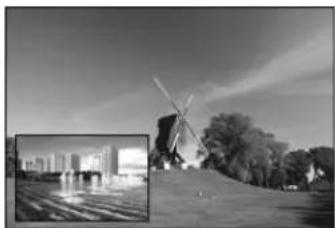
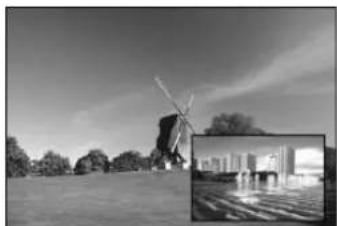
Black-and-white exterior view of a modern windmill and waterfront scene with no visible text or symbols- If you want to change the position of sub picture, press the "P.POSITION" button.
natural_image
Black-and-white photo of a windmill and modern buildings in the background, with no visible text or symbols.

natural_image
Black-and-white exterior view of a modern windmill and waterfront scene with no visible text or symbols

natural_image
Black-and-white photo of a windmill in an open landscape with a close-up inset showing a cityscape under water (no visible text or symbols)
natural_image
Black-and-white landscape photo of a windmill and distant buildings under a clear sky (no visible text or symbols)PIP(Picture-In-Picture)/POP(Picture-Of-Picture)
- If you want to swap main for sub, press the "P.SWAP" button.

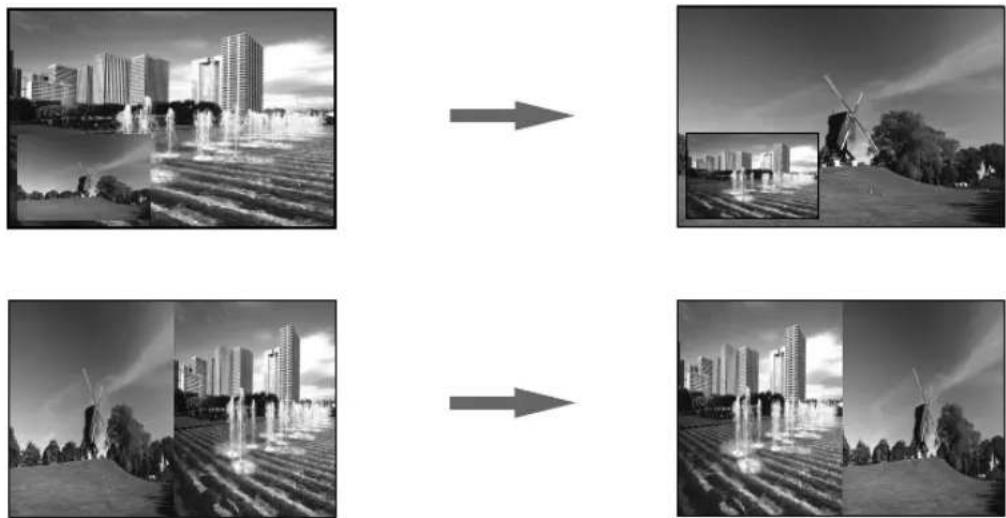
natural_image
Four-panel black-and-white image sequence showing urban landscapes: cityscape, windmill, agricultural fields, and landscape (no text or symbols)- If you want to change sub screen input, press the "P.INPUT" button. Sub screen change as followed: PIP/POP table

PIP/POP mode table.
| Main\Sub | ATV | DTV | Video1 | Video2 | Comp.1 | Comp.2 | HDMI PC | ||
| ATV X X | X | O | O | X | X | ||||
| DTV X X | O | O | O | O | X | ||||
| Video1 X O | X | X | X | X | |||||
| Video 2 | X | O | X | X | X | X | |||
| Comp.1 | O | O | X | X | X | ||||
| Comp.2 | O | O | X | X | X | ||||
| HDMI | X | X | X | X | X | X | |||
| PC | X | X | X | X | X | X |
Teletext
Teletext
SWITCHING TELETEXT ON/OFF
Press the "TELETEXT" button (☐).
The index page or the page viewed last will appear.
Repeatedly press the "TELETEXT" button the mode in the following order:
TV=>TELETEXT => TV
NOTE: Teletext works only in TV/VIDEO mode.
COLOUR BUTTONS IN TOP/FLOF TELETEXT
A red, green, yellow and blue field is shown at the bottom of the screen.
If TOP or FLOF Teletext is transmitted by the station, pressing the corresponding colour button R,G,Y,B on the remote controller, enables you to select the desired page easily.
SELECTING PAGES
The "NUMBER" buttons are used to enter a page number.
The selected page number appears at the top of the screen and the page appears after a short time.
The "PR" buttons increase or decrease the current page number by 1.
INDEX PAGE
You can switch directly to the programme preview (with TOP text) or the overview page of the station you are currently viewing by pressing the "INDEX" button (EI).
PAGE HOLD
Several sub pages can be combined under a page number and are scrolled at an interval determined by the television station. The presence of sub pages is indicated by, for example, 3/6 beneath the time, which means that you are looking at the 3rd page of a total of 6 pages.
If you want to look at a subpage for a longer period of time, press the "HOLD" button (☑).
The HOLD symbol appears and the contents of the subpage shown are kept on the screen and no longer updated or switched to other subpages. Pressing the "HOLD" button again, the current subpage appears.
CALLING UP SUBPAGE DIRECTLY
Pressing the "SUBPAGE" button (☐), "----" appears.
Enter the subpage number that you want to call up with the "NUMBER" button, for example, the 2nd page, sequence 0002.
The desired subpage will eventually be displayed on the screen and holds it there.
Meanwhile whilst you are waiting, it is possible to go back to the TV picture by pressing the "CANCEL" button (Ex) on the remote and after a while, press the "CANCEL" button again to revert back to the saved Teletext sub page.
WATCHING TV DURING TELETEXT MODE
Some pages are continually updated, for example, stock market reports, sports announcements, and the latest news.
If you want to watch television and stay informed at the same time, press "CANCEL" button (☐).
The regular programme is still visible and the updated Teletext page number appears at the top of the screen.
Pressing the "CANCEL" button again, the Teletext page appears with the updated information.
REVEAL ANSWER
This function can be used on certain pages to reveal the solution of riddles.
Press the "REVEAL" button (E?) to reveal a hidden answer and press again to hide it.
DOUBLING CHARACTER SIZE
Repeatedly pressing the "SIZE" button (☐) doubles the character size in the following order:
Upper half of the page => Lower half of the page => Normal size => Upper half of the page
MIX
By pressing the "MIX" button (☐), the teletext pages will be separated with the TEXT on the left of the TV picture.
Press the "MIX" button again to return back to teletext pages.
Channel Banner (Digital TV mode only)
Channel Banner
- The channel banner displays information about a channel number, name, broadcasting time, audio service and more. You can see this banner by pressing "RECALL" button or "▲PR▼" buttons on the Remote Control.
![Digital five [1] MPEG The Streets of San Francisco [P.M. 02:35 ~ P.M. 03:37] Five News Update [A.M. 01:38 ~ A.M. 03:39] Strong English](/content/2026/06/1190036/images/de201699bc6ded31d7d2f189e759cbafce52f1c0fdd549c9489032aea889a831.jpg)
4. General Information
① Channel number: Displays the current channel number
② Channel name: Displays the current channel number
③ Program name: Displays the current Program number
④ Program time: Displays the current / next program time (start \~ end).
⑤ Parental guidance: Displays the current program rating.
⑥ Current time: Displays the current time
⑦ Audio status: Displays the current audio status.
Electronic Program Guide (EPG)
- The DTV Electronic Program Guide (EPG) displays program information about each channel, up to seven days ahead.
- You can edit your own profiles, and record programs.
- By pressing the "GUIDE" button to access EPG directly, you can see all channels broadcasting now.

Note:
- The EPG channel is only available when watching DVB channels.
1. Select a desired channel
- Select a channel with the "▲PR▼" buttons.
- Press the GUIDE button.
- Move a programme with the "▲PR▼" buttons.
- If you need detail information, press the "RECALL" button.
![Channel extension ABC TV Sydney [E] ABC News The 7.00 Report ABC HDTV [20] ABC HDTV The 7.00 Report ABC2 [21] Broad Style or Ablauna Second frame ABC TV [22] No Broadcasting Info No Broadcasting Info ABC DIS Stereo [BVI] No Broadcasting Info No Broadcasting Info ABC DIS Jazz [26] No Broadcasting Info No Broadcasting Info Exit Position Quick Back BRG Su](/content/2026/06/1190036/images/47cc44efcbe6380644a5231c58e02435351303ad79d18b1cdd7df0945b389709.jpg)
Troubleshooting
Symptoms and Solutions
Please check the following items before asking for repair service.
| Check itemsSymptom | ||
| Neither picture nor sound |  | - Check the contact of sockets is all right.- Check the TV main power is on. |
| Picture is OK but no sound |  | - Check the Volume control is set to minimum or mute. |
| Sound is OK, but no colour. |  | - Check the colour control and adjust it properly.- Check the program is in colour and not in black & white. |
| The picture has image. |  | - Check the antenna is installed correctly and if not, adjust the overlapped antenna toward the broadcasting station. |
| Picture has "snow noise". |  | - Check the antenna or its connection is correct and if not, correct the antenna fault or connection cable fault.- Check if car traffic or neon sign disturbs the sound effect. |
| Stripes on picture. |  | - Check the susceptible interference by other electronic devices such as radio and television and keep magnetic or electronic devices away from the TV. |
| Bad stereo or Dual sound. |  | - Long distance from the station or other radio waves can generate bad sound reception. If so, change the mode to Mono. |
| Remote control does not work. |  | - Check if the batteries in the Remote control are dead.- Check if any object between IR sensor of the TV and the Remote control does not obstruct.- Check if the TV is on Teletext mode. |
Troubleshooting
In DVB-T mode
Some Problems will only occur when viewing DVB channels.
Due to the different techniques involved in digital reception, DVB signal quality can be poor even if you appear to have a strong signal when viewing analogue pogrammes.
The DVB system requires a good quality signal to provide the best picture. When viewing analogue pictures, interference such as reflection from nearby buildings or mountains causes 'ghosting' but still provides a viewable picture. For the DVB system, interference such as this can disrupt the flow of data causing the picture to be made up of large blocks, or to freeze intermittently. If the picture disappears completely, this could mean that signal quality is very poor. If this happens often, you may need to improve your aerial system to provide a better signal. This TV contains a complex microprocessor which enables you to view enhanced digital services. Occasionally this device may need to be reset. This can be done by pressing the stand-by button on your remote control or the power switch on the front panel.
| CheckSymptom | |
| No DVB Channels listed in the TV Guide after Auto Programme | Check that DVB transmissions are available from the transmitter you are currently using. If not, try directing the aerial at another local transmitter.Check analogue transmissions. If picture quality is poor, you will need to improve or change your aerial system to receive DVB channels. Consult a local installer. |
| Blocky interference.Picture freezes intermittently | Blocky interference indicates that the signal quality is poor.You should consider improving your aerial system.To check the quality of your signal use the Signal strength (See page 32). |
Troubleshooting
In PC mode
| CheckSymptom | ||
"Not available signal" appears on the screen.  | - Check the resolution and frequency of your PC. Then, adjust them to optimum condition for LCD TV.- Refer to the table of PC mode input format.(If registered resolution and frequency on the table no listed then no picture will be displayed.) | |
"No signal" appears on the screen.  | - Ensure that the signal is firmly connected to PC and TV. | |
Image is not clear.  | - Adjust the PHASE control. | |
Image is not centred.  | - Ensure that the desktop area has no black area in outer side.- Execute Auto Setup. | |
• AFTER SALES SERVICE
Do not hesitate to contact your retailer or service agent if a change in the performance of your product indicates that a faulty condition may be present.
Standard of Product
| Screen Size | 68cm | 81cm | 93cm | 106cm | |
| LCD Panel | Aspect Ratio | 16:9 | 16:9 | 16:9 | 16:9 |
| Resolution 1366 | x1766 (W768 AWXGA) | 1366 x 768 (WXGA) | 1366 x 768 (WXGA) | ||
| Pixel Pitch | 0.4215mm | 0.51075 mm | 0.6000 mm | 0.6810 mm | |
| Contrast Ratio | 3000:1 | 3000:1 | 3000:1 | 3000:1 | |
| Dimension (W x H x D) | Set Dimension | 674 x 550 x 240 mm | 806 x 574.5 x 240 mm | 940 x 720.5 x 329 mm | 1060 x 823 x 329 mm |
| TV System | Receiving System | PAL-B/G, B/H, DVB-T, NTSC(AV) | |||
| Power Source | 220 -240V~, 50/60Hz | ||||
♥ Owing to our policy of continuous improvement, specifications may change.

natural_image
Illustration of a smiling child wearing a hard hat and holding a wrench and backpack (no text or symbols)PALSONIC CORPORATION PTY. LTD.
(Incorporated in NSW)
1 Joynton Avenue
WATERLOO NSW 2017
Telephone: 02 9313 7111 - Fax: 02 9313 7555
- Precaution about
- LCD Panel
- Precaution with Manipulation
- Precaution in Operation
- Caution
- Important Safeguards
- Read, Retain and Follow All Instructions
- Heed Warnings
- Cleaning
- Attachments and Equipment
- Water and Moisture
- Setting
- Ventilation
- Power Source
- Grounding or Polarization
- Power-Cord Protection
- Lightning
- Wall or Ceiling Mounting
- Power Lines
- Overloading
- Object and Liquid Entry
- Outdoor Antenna Grounding
- Servicing
- Damage Requiring Service
- Replacement Parts
- Safety Check
- Heat
- Warning
- Table of Contents
- Installation and Maintenance
- Basic Guide
- Application Guide
- Supplied Accessories
- Antenna Connection
- Indoor Antenna Connection
- CTV Antenna Connection
- Outdoor Antenna Connection
- Video Connection
- Connecting with an External Source
- Camcorder & Video
- Game Connection
- Watching the Camcorder Recording or Video Game on TV
- DVD Player
- connection
- When connecting with a component cable
- When connecting with a S-VHS cable and RCA cable
- STB (Set Top Box) Connection
- When connecting with a HDMI cable
- PC Connection
- When connecting with PC (D-Sub) cable.
- When connecting with a HDMI cable.
- PC
- PC CONNECTION NOTES:
- Cable TV Broadcasting Connection
- External Input Connection Source
- Antenna Input Connection
- Connect with the Dolby Digital AMP.
- Name of Each Part
- Front / Side Panel
- Control Key Buttons.
- Stand-by
- Rear Panel
- Parts of the Remote
- Controller
- Parts of the Remote Controller
- Inserting Batteries into the Remote Control Unit
- Method To Use
- Basic Menu
- Press the "MENU" button.
- Press the "▼ PR ▲" button.
- Picture
- Sound
- Install
- Utilities
- Time
- To Watch TV
- On/Off, Number, Mute, Recall, ◀ /▶, ▲ /▼
- Note:
- Setting Up TV Stations
- Auto Programme for Analog Channel
- Press the "MENU" button to select the Install menu.
- Select the "Set ATS Broadcast".
- Select the "Auto Programme".
- Please wait until the Programme Edit menu appears.
- - Warning
- Setting Up TV
- Stations
- Manual Programme
- Locate the selection bar on the Manual Programme.
- Searching for channel in the Manual Programme Menu
- Programme Setup (Analog TV mode only)
- Searching for channel -finely
- Enter a station name
- Programme Edit
- The Programme Edit menu shows you information as follows:
- Skipping the program positions
- Moving the program positions
- Deleting the Programs
- Note :
- Favourite
- Signal Strength (Digital TV mode only)
- Selection of AV/COMP and
- HDMI/PC Input Signal
- When watching video, Camcorder, DVD, Cable TV with AV
- Press the "AV/COMP" button on the remote controller.
- Selection of AV/COMP and HDMI/PC Input Signal
- When connecting PC, STB, DVD with Multimedia
- Pressing the "HDMI/PC" button on the remote controller.
- HDMI & PC mode
- Adjustment of Screen in PC mode
- Press the "ASPECT" button.
- Adjustment of the Auto setup
- Adjustment of the Frequency
- Adjustment of the Phase
- Screen Adjustment
- When setting up various screen modes
- Pressing the "PICTURE" button.
- When adjusting the screen to taste
- Select "PICTURE" by pressing the "MENU" button.
- Select and adjust each item.
- Adjustment of Colour Temperature in TV
- Move to the Colour Temp menu with "▲PR▼" buttons.
- Sound Adjustment
- When selecting various sound modes
- Sound mode selects what you want.
- When adjusting sound to taste
- Adjust the Balance
- Select AVC (Auto Volume Control)
- Sound mode selects what you want.
- Adjust the Audio Equalizer
- Adjust the Digital volume
- Stereo and MPEG/Dolby Digital (Digital TV mode only)
- Mono Sound Selection
- Note.
- MPEG/Dolby Sound Selection
- Adjustment of Aspect ratio in TV/Video/Component mode
- Press the "ASPECT" button
- Adjust the Aspect ratio
- Subtitle (Digital TV mode only)
- Setup of Subtitle
- Lock
- Set password
- Block Programme
- Parental guidance
- Child Lock
- Press the "LOCK" button
- Note.:
- Hotel Lock
- Adjustment of Time
- Setup of Auto Clock
- Setting the Current Time
- Setting the On time / On time Setup / On time PR / On time Volume
- Setting the Off time / Off time Setup
- Press the "SLEEP" button
- PIP (Picture-In-Picture)/POP (Picture-Of-Picture)
- Watching PIP/POP
- PIP(Picture-In-Picture)/POP(Picture-Of-Picture)
- Teletext
- SWITCHING TELETEXT ON/OFF
- COLOUR BUTTONS IN TOP/FLOF TELETEXT
- SELECTING PAGES
- INDEX PAGE
- PAGE HOLD
- CALLING UP SUBPAGE DIRECTLY
- WATCHING TV DURING TELETEXT MODE
- REVEAL ANSWER
- DOUBLING CHARACTER SIZE
- MIX
- Channel Banner (Digital TV mode only)
- Channel Banner
- General Information
- Electronic Program Guide (EPG)
- Select a desired channel
- Troubleshooting
- Symptoms and Solutions
- In DVB-T mode
- • AFTER SALES SERVICE
- Standard of Product
Brand : Palsonic
Model : TFTV106HDT
Category : Television