
FOX Tx AV MM - AV Transmitter Extron - Free user manual and instructions
Find the device manual for free FOX Tx AV MM Extron in PDF.


| Product Type | Low resolution video, audio, and data fiber optic transmitter |
| Model | Extron FOX Tx AV MM (multimode) |
| Video Input Formats | Composite, S-Video, Component (low resolution) |
| Video Output Formats (via receiver) | Composite, S-Video, Component (low resolution) |
| Fiber Optic Distance | Up to 2 km (6562 ft) over multimode fiber |
| Data Rate | Up to 2 Gbps |
| Audio Input/Output | Stereo or mono, balanced or unbalanced via 5-pole captive screw connector |
| RS-232 Control | Front panel TRS and rear panel captive screw ports; SIS commands and PC software |
| Power Supply | External 12 VDC, 2-pole captive screw connector; unit power consumption approx. 5 W |
| Dimensions (H x W x D) | 1.7 in (4.3 cm) x 4.3 in (10.9 cm) x 3.0 in (7.6 cm) |
| Weight | Approx. 0.5 kg (1.1 lb) |
| Operating Temperature | 0 to +45 °C (+32 to +122 °F) |
| Video Adjustments | Color, tint, contrast, brightness (0–127) |
| Audio Adjustments | Gain (+0 to +10 dB) and attenuation (-18 to 0 dB) |
| Test Patterns | Color bars, grayscale, alternating pixels |
| Daisy Chain Capability | Supports up to 10 receivers in loop-out mode |
| Front Panel Indicators | Power, Video Format (Composite/S-Video/Component/Auto), Audio, Config port |
| Rear Panel Connectors | BNC (Y/VID, B-Y/C, R-Y), 4-pin mini DIN S-Video, audio captive screw, RS-232 captive screw, alarm, LC duplex SFP fiber |
| Warranty | 3 years limited warranty |
Frequently Asked Questions - FOX Tx AV MM Extron
User questions about FOX Tx AV MM Extron
0 question about this device. Answer the ones you know or ask your own.
Ask a new question about this device
Download the instructions for your AV Transmitter in PDF format for free! Find your manual FOX Tx AV MM - Extron and take your electronic device back in hand. On this page are published all the documents necessary for the use of your device. FOX Tx AV MM by Extron.
USER MANUAL FOX Tx AV MM Extron
Safety Instructions • English
WARNING: This symbol, ⚠, when used on the product, is intended to alert the user of the presence of uninsulated dangerous voltage within the product's enclosure that may present a risk of electric shock.
ATTENTION: This symbol, ⚠, when used on the product, is intended to alert the user of important operating and maintenance (servicing) instructions in the literature provided with the equipment.
For information on safety guidelines, regulatory compliances, EMI/EMF compatibility, accessibility, and related topics, see the Extron Safety and Regulatory Compliance Guide, part number 68-290-01, on the Extron website, www.extron.com.
© 2017 Extron Electronics. All rights reserved.
Trademarks
All trademarks mentioned in this guide are the properties of their respective owners.
The following registered trademarks ^® , registered service marks(SM), and trademarks ( ^™ ) are the property of RGB Systems, Inc. or Extron Electronics (see the current list of trademarks on the Terms of Use page at www.extron.com):
| Registered Trademarks® |
| AVTrac, Cable Cubby, ControlScript, CrossPoint, DTP, eBUS, EDID Manager, EDID Minder, Extron, Flat Field, FlexOS, FOX, GlobalViewer, Global Configurator, Global Scripter, Hideaway, Inline, IP Intercom, IP Link, Key Minder, LinkLicense, LockIt, MediaLink, MediaPort, NetPA, PlenumVault, PoleVault, PowerCage, PURE3, Quantum, SoundField, SpeedMount, SpeedSwitch, System INTEGRATOR, TeamWork, TouchLink, V-Lock, VersaTools, VN-Matrix, VoiceLift, WallVault, WindoWall, XTP, and XTP Systems |
| Registered Service Mark(SM): S3 Service Support Solutions |
| Trademarks(TM) |
| AAP, AFL (Accu-Rate Frame Lock), ADSP (Advanced Digital Sync Processing), Auto-Image, CableCover, CDRS (Class D Ripple Suppression), DDSP (Digital Display Sync Processing), DMI (Dynamic Motion Interpolation), Driver Configurator, DSP Configurator, DSVP (Digital Sync Validation Processing), eLink, Entwine, EQIP, EverLast, FastBite, FOXBOX, HyperLane, IP Intercom HelpDesk, MAAP, MicroDigital, Opti-Torque, ProDSP, QS-FPC (QuickSwitch Front Panel Controller), Room Agent, Scope-Trigger, ShareLink, “ShowMe”, SIS, Simple Instruction Set, Skew-Free, SpeedNav, Triple-Action Switching, True4K, VectorTM 4K, WebShare, XTRA, ZipCaddy, and ZipClip |
FCC Class A Notice
This equipment has been tested and found to comply with the limits for a Class A digital device, pursuant to part 15 of the FCC rules. The Class A limits provide reasonable protection against harmful interference when the equipment is operated in a commercial environment. This equipment generates, uses, and can radiate radio frequency energy and, if not installed and used in accordance with the instruction manual, may cause harmful interference to radio communications. Operation of this equipment in a residential area is likely to cause interference. This interference must be corrected at the expense of the user.
Class 1 Laser Product
Any service to this product must be carried out by Extron Electronics and its qualified service personnel.
CAUTION: Using controls, making adjustments, or performing procedures in a manner other than what is specified herein may result in hazardous radiation exposure.
NOTE: For more information on safety guidelines, regulatory compliances, EMI/EMF compatibility, accessibility, and related topics, see the Extron Safety and Regulatory Compliance Guide on the Extron website.
Any service to this product must be carried out by Extron Electronics and its qualified service personnel.
Conventions Used in this Guide
Notifications
In this user guide, the following are used:
WARNING: Potential risk of severe injury or death.
CAUTION: Risk of minor personal injury.
NOTE: A note draws attention to important information.
Software Commands
Commands are written in the fonts shown here:
^AR Merge Scene,,Op1 scene 1,1 ^B 51 ^W^C
[∅1] R∅004∅03∅0∅04∅0∅08∅0∅06∅0 [∅2] 35 [17] [∅3]
Esc X1 * X17 * X20 * X23 * X21 CE ←
NOTE: For commands and examples of computer or device responses mentioned in this guide, the character "0" is used for the number zero and "0" represents the capital letter "0".
Computer responses and directory paths that do not have variables are written in the font shown here:
Reply from 208.132.180.48: bytes=32 times=2ms TTL=32
C:\Program Files\Extron
Variables are written in slanted form as shown here:
ping xxx.xxx.xxx.xxx -t
SOH R Data STX Command ETB ETX
Selectable items, such as menu names, menu options, buttons, tabs, and field names are written in the font shown here:
From the File menu, select New.
Click the OK button.
Specifications Availability
Product specifications are available on the Extron website, www.extron.com.
Extron Glossary of Terms
A glossary of terms is available at www.extron.com/technology/glossary.aspx.
Contents
Introduction .... 1
About the FOX Tx/Rx AV....1
FOX Tx/Rx AV Features....2
Changed....2
Application Diagram....3
Panel Features and Connections......4
FOX Tx/Rx AV Front Panel Features ....4
FOX Tx/Rx AV Rear Panel Connections....5
Changed....6
Configuration....11
RS-232 Ports....11
RS-232 Control of Tx and Rx Units 13
SIS Commands....14
Introduction to SIS 14
Symbols Used in This Guide 14
Command and Response Table for
SIS Commands....16
SIS Command Validity Table....19
FOX Extender Control Program 20
Installing the Software 20
Starting the Program....20
Firmware for FOX Tx/Rx AV 24
Mounting....25
Tabletop Mounting 25
Mounting Kits....25
Underwriters Laboratories Guidelines
for Rack Mounting 25
Introduction
This user guide contains information about the Extron FOX Tx/Rx AV family of signal transmitters and receivers, with information on how to install and operate these units.
In this guide, unless otherwise specified, the terms "FOX Tx/Rx AV" and "FOX AV" refer to the features or operation of all four units. The terms "FOX Tx AV" and "transmitter" refer to both the multimode (MM) and singlemode (SM) transmitters and "FOX Rx AV" or "receiver" refer to both the MM and SM receivers.
About the FOX Tx/Rx AV
The FOX Tx AV and FOX Rx AV are a high performance, low resolution video, audio, and data (RS-232) transmitter (Tx) and receiver (Rx) pairs. Signals are transmitted over fiber optic cable at rates up to 2 Gbps.
There are four different units:
• FOX Tx AV MM (multimode transmitter)
• FOX Tx AV SM (singlemode transmitter)
• FOX Rx AV MM (multimode receiver)
• FOX Rx AV SM (singlemode receiver)
The MM models have 850 nm multimode small form-factor pluggable (SFP) modules and carry signals up to 2 km (6562 feet). The SM models have 1310 nm singlemode SFP modules and carry signals up to 30 km (18.6 miles). The transmitter is connected to the receiver using the appropriate fiber optic cable (SM or MM).
WARNING:
AVERTISSEMENT :
- The transmitter and receiver must be compatible. Both must be MM or both must be SM. It is not possible to mix types.
- Plug the attached dust caps into the optical transceivers when the fiber optic cable is unplugged.
The FOX Tx/Rx AV video units are compatible with the Extron Fiber Matrix units. However, they are not compatible with the following Extron products:
FOXBOX
• FOX 500 (RGB) and FOX 500 DVI
FOX 3G HD-SDI
FOX II
- PowerCage 1600
- Power Cage 401
FOX Tx/Rx AV Features
- Digitized signal transmission — ensures perfect image quality. The non-linearity of the fiber components does not affect signal quality. Light can be distributed and repeated without signal degradation or compression.
- All digital, zero compression technology — delivers uncompressed pixel-for-pixel transmission of video signals to ensure optimal image quality.
- Transmits multiple signal types — transmits video, audio and data signals simultaneously over one fiber. The units transmit composite, S-Video, or component video signals and are compatible with NTSC, PAL, and SECAM standards.
- Auto Input Format Detection — the FOX AV transmitter can be set to detect the incoming video signal format, automatically reconfiguring itself to transmit the signal. This feature can reduce the number of required outputs for a matrix switcher, lowering system cost while improving manageability.
- Encoding and decoding — the FOX Tx AV converts incoming signals to a proprietary format that is passed along the fiber optic cable to the FOX Rx AV. At the other end of the cable, the receiver converts the signal to the low resolution format that matches the needs of the display device.
- Output Video Formatting — the user can set the output video signal format (composite, S-Video, or component) or follow the format of the source device (video follow).
- Picture and audio adjustments — available picture adjustments include color, tint, contrast, and brightness. Audio adjustments include input gain and attenuation, and output level. Both audio and video can be muted.
- Daisy chain capability — the system can be expanded to provide output for up to ten display devices.
- Long distance transmission — signals may be transmitted up to 2 km (6562 feet) over multimode fiber or up to 30 km (18.6 miles) over singlemode fiber.
- Integration friendly — a variety of connectors permits input and output of composite, S-video, or component video signals. Compatibility with Extron Fiber Matrix products allows these units to be integrated into more complex AV systems.
- Troubleshooting features — LED signals and indicators allow easy diagnosis of problems.
- Easy configuration — the units can be configured using the Extron Special Instruction Set (SIS) or the FOX Extender Control Program.
Application Diagram

flowchart
graph TD
    A["Extron FOX Rx AV Fiber Optic Receiver"] -->|Video| B["Extron MPA 152 Mini Power Amplifier"]
    B -->|Audio Output| C["Extron SI 26X Two-way Ceiling Speakers"]
    C -->|Up to 30 km (18.75 miles) on singlemode fiber SM Model| D["Extron FOX Tx AV Fiber Optic Transmitter"]
    D -->|RS-232| E["TouchLink™ Control System"]
    E -->|Audio| F["DVD/VCR Combo"]
    F -->|Video| A
    style A fill:#f9f,stroke:#333
    style B fill:#ccf,stroke:#333
    style C fill:#cfc,stroke:#333
    style D fill:#fcc,stroke:#333
    style E fill:#cff,stroke:#333
    style F fill:#ffc,stroke:#333
Figure 1. Typical Application for the FOX Tx/Rx AV
Panel Features and Connections
This section of the user guide describes:
• FOX Tx/Rx AV Front Panel Features
• FOX Tx/Rx AV Rear Panel Connections
FOX Tx/Rx AV Front Panel Features
Figure 2 shows the front panel features of the FOX Rx AV. The FOX Tx AV is identical except that the Follow LED is replaced by Auto (B) and it does not have a Loop-out LED (D).

Figure 2. FOX Rx AV Front Panel Features
Power LED — lights green when the unit is receiving power.
B Video Format LEDs — these LEDs show signal presence and type. The receiver LEDs are Composite, S-Video, Component, and Follow. The transmitter LEDs are Composite, S-Video, Component, and Auto.
C Audio LED — lights when the transmitter detects an audio signal at or above 35 dB below the nominal level. It stays on until the signal falls below this threshold continuously for 10 seconds.
D Loop-Out LED — this LED is only on the receiver and indicates that the unit is in the Daisy Chain mode.
E Config Port — this 2.5 mm mini jack connector is an alternative to the rear panel RS-232 connections for configuring the units, using SIS Commands (see page 14) or the FOX Extender Control Program (see page 20).
FOX Tx/Rx AV Rear Panel Connections
Figure 3 (below) shows the rear panel features of the FOX Tx AV. The FOX Rx AV rear panel is identical.
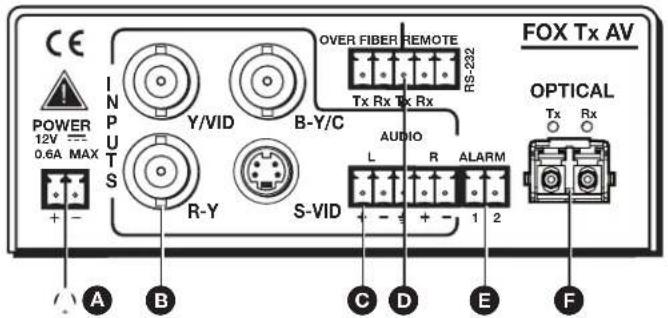
Figure 3. FOX Tx AV Rear Panel Features
| A | Power input (see below) | D | RS-232 connections (see page 8) |
| B | Video connections (see page 7) | E | Alarm (see page 9) |
| C | Audio connections (see page 8) | F | Fiber optic cable connector (see page 9) |
Power input — This 3.5 mm, 2-pole captive screw connector accepts 12 VDC from an external power supply (provided).
NOTE: The FOX Tx/Rx AV does not have a remote powering feature. Both the transmitter and the receiver require their own separate power supply.
- Connect the captive screw connector from the power supply to the power receptacle.

Figure 4. Power Input
Power supply voltage polarity is critical. Incorrect voltage polarity can damage the power supply, the transmitter, the receiver, or all three. Identify the ground wire by the ridges on the side of the cord (see figure 4).
- Connect the AC power cord of the power supply unit to a 110 or 220 VAC electrical source.
- When the transmitter or receiver is getting power, the front panel LED shows an amber light.
ATTENTION:
B Video connections (see figure 3 on page 5) — Three BNC connectors and one 4-pin mini DIN S-video connector for video input and output.
The FOX Tx/Rx AV accepts a single low resolution video signal (composite, S-video and low resolution component video) and outputs a single low resolution video signal (composite, S-video and low resolution component video). It is not compatible with RGB or HDTV 480p, 720p, or 1080i component video signals.
The transmitter converts incoming signals to a proprietary format and passes them along the fiber optic cable to the FOX Rx AV. The receiver converts the signal to a format that matches the display requirements. SIS commands are used to configure the receiver to convert between signal formats (see Command and Response Table for SIS Commands on page 16).
Component Signal
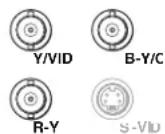
To input a low resolution component signal, or output a component output signal, connect three BNC male connectors to the Y/VID, B-Y/C, and R-Y receptacles on the back panel of the unit as shown in the figure at right.
Component
S-video Signal
There are two alternative methods to input or output an S-video signal:
- Connect BNC male connectors to the Y/VID and B-Y/C receptacles on the back panel of the unit or
- Connect a 4-pin mini DIN to the S-VID receptacle on the back panel of the unit.

NOTE: When a signal is output using BNC connectors, an additional transcoded S-video signal is always output from the S-VID socket of the receiver.
Composite Signal
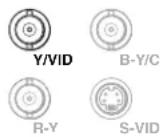
To input or output a composite signal, use a single BNC male connector to the Y/VID receptacle on the back panel of the unit.
Comp
When both the BNC connectors and the 4-pin mini DIN provide simultaneous video input, the signal with the highest priority for video output is shown, highlighted in blue, in the table below:
| BNC Input Mini | DIN Input |
| Component S-Video | |
| S-Video S-Video | |
| Composite S-Video |
Audio connections (see figure 3 on page 5) — A 3.5 mm, 5-pole captive screw connector for audio input and output (see the figure at right). Input and output can be mono or stereo and can be balanced or unbalanced, depending on the wiring connections (see figure 5).


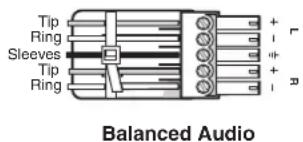

Figure 5. Audio Connections
See the Attention on page 6 for important information about preparing and connecting wires to captive screw connectors.
The table below shows the initial gain differences between audio input/output connectors, using captive screw connectors. The unbalanced output from the captive screw connector is half (-6 dB), regardless of input.
| Input Output Gain | |
| Balanced Balanced 0 dB (unity) | |
| Balanced Unbalanced -6 dB (half) | |
| Unbalanced Balanced 0 dB | |
| Unbalanced Unbalanced -6 dB |
Additional adjustment of audio gain or attenuation can be made using SIS Commands (see page 14).
NOTE: The Audio LED lights up immediately when the transmitter detects an audio signal 35 dB below the nominal level. It remains lit until the audio signal drops below that threshold continuously for 10 seconds.
RS-232 connections (see figure 3) — The Remote RS-232 connections (see the figure at right) allow the transmitter and receiver units to be configured using SIS Commands (see page 14) or the FOX Extender Control Program (see page 20).
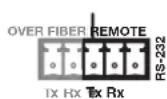
The Over Fiber RS-232 connections (see the figure at right) allow pass-through to remote units.

For more information see RS-232 Ports on page 11.
NOTE: Over fiber RS-232 communications are via a passive pass-through only; the FOX Tx/Rx AV units neither generate nor respond to these signals.
E Alarm (see figure 3 on page 5) — When connected to an alarm, this 3.5 mm 2-pole captive screw connector gives a warning when light signals have been disconnected, lost, or broken.
See the Attention on page 6 for important information about preparing and connecting wires to captive screw connectors.
The alarm pins, labeled 1 and 2, (see the figure at right) on the rear panel of the FOX Tx/Rx AV act as a short when activated. They do not produce any discrete on or off voltage signals but act as an internal relays that either connect or disconnect external alarm circuits.
For the FOX Tx AV, the alarm state is activated when link 2 is absent. For the FOX Rx AV, the alarm state is activated when link 1 is absent.
When power is lost, the alarm state is activated for both units.
Fiber optic cable connector (see figure 3) — An LC duplex SFP connector links the transmitter and receiver. An LED above each port lights when a signal is received. The optical Rx port of the receiver lights when a signal from fiber link 1 reaches the receiver. The optical Rx port or the transmitter lights when a signal from link 2 reaches the transmitter.
WARNING:
AVERTISSEMENT :
Link 1 connects the Tx port of the transmitter and the Rx port of the receiver. It carries video, audio and/or data output from the transmitter to the receiver.
Link 2 is optional. It connects the Tx port of the receiver with the Rx port of the transmitter. It only carries the responses to RS-232 commands and is not required for transmitting video and audio signals.
However, if link 2 is not enabled, the ability to configure the system through SIS commands is limited by the lack of communication from the receiver to the transmitter. All commands issued through the transmitter are valid but responses to status queries may return invalid data.
Signals may be transmitted 2 km (6561 feet) over multimode (MM) fiber and 30 km (18 miles) over singlemode fiber. An MM transmitter must always be connected to a MM receiver and an SM transmitter can only be connected to a SM receiver.
Daisy Chain Capability
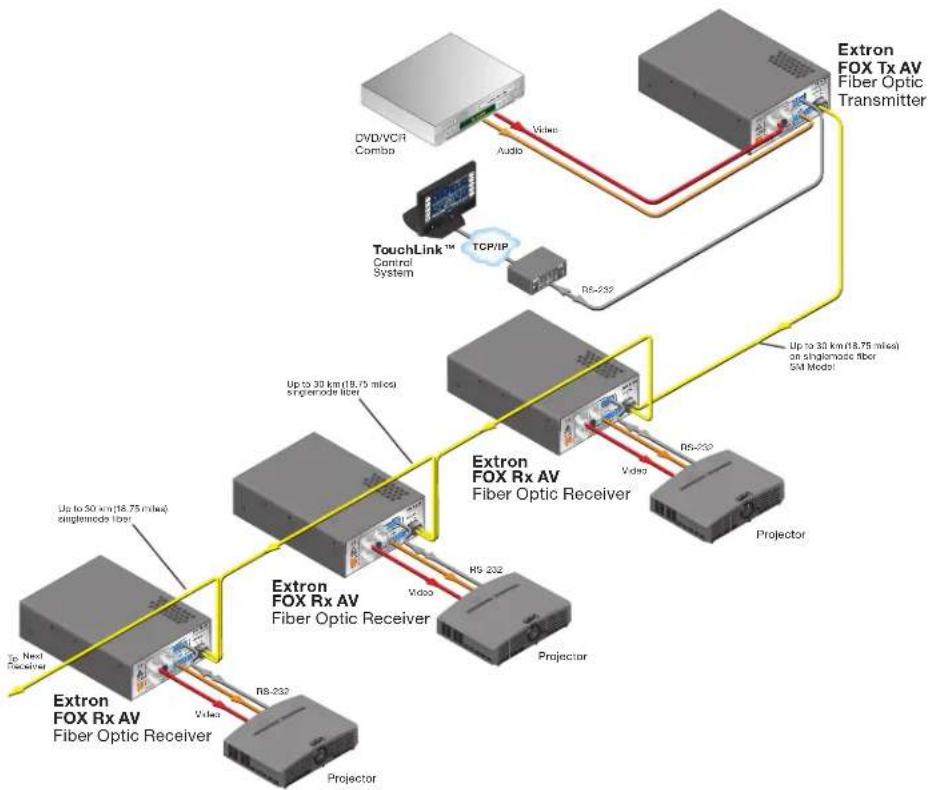
FOX Rx AV receivers have a loop-out mode that allows a signal to be passed along a daisy chain of to up to ten receivers, with a display device attached to each receiver. The loop-out mode is set using RS-232 commands (see SIS Commands on page 14).
All receivers in the daisy chain must be compatible, that is they must all be SM or all be MM models, connected with the appropriate fiber optic cable. Each receiver receives a signal at its Rx fiber optic port and passes the signal to the next unit through its Tx port.
NOTES:
- In daisy chain mode, the Tx port passes audio and video signals to the next receiver in the daisy chain. As a result, the Tx port is not available for bidirectional communication and system configuration with SIS commands is limited.
- When multiple receivers are in daisy chain mode, RS-232 commands issued through the transmitter pass to every receiver but commands issued through a receiver apply only to that receiver. Configuring each receiver independently, matches each output signal to the unique needs of the display device.
flowchart
graph TD
    A["Extron FOX Rx AV Fiber Optic Receiver"] -->|Up to 30 km (8.75 miles) on singlewave fiber SIM Model| B["Extron FOX Rx AV Fiber Optic Receiver"]
    A -->|Up to 30 km (8.75 miles) on singlewave fiber SIM Model| C["Extron FOX Rx AV Fiber Optic Receiver"]
    A -->|Up to 50 km (8.75 miles) singlewave fiber| D["Extron FOX Rx AV Fiber Optic Receiver"]
    A -->|Up to 50 km (8.75 miles) singlewave fiber| E["Extron FOX Rx AV Fiber Optic Receiver"]
    A -->|Up to 30 km (8.75 miles) singlewave fiber| F["Extron FOX Rx AV Fiber Optic Receiver"]
    A -->|Up to 30 km (8.75 miles) singlewave fiber| G["Extron FOX Rx AV Fiber Optic Receiver"]
    A -->|Up to 30 km (8.75 miles) singlewave fiber| H["Extron FOX Rx AV Fiber Optic Receiver"]
    A -->|Up to 30 km (8.75 miles) singlewave fiber| I["Extron FOX Rx AV Fiber Optic Receiver"]
    A -->|Up to 30 km (8.75 miles) singlewave fiber| J["Extron FOX Rx AV Fiber Optic Receiver"]
    A -->|Up to 30 km (8.75 miles) singlewave fiber| K["Extron FOX Rx AV Fiber Optic Receiver"]
    A -->|Up to 30 km (8.75 miles) singlewave fiber| L["Extron FOX Rx AV Fiber Optic Receiver"]
    A -->|Up to 30 km (8.75 miles) singlewave fiber| M["Extron FOX Rx AV Fiber Optic Receiver"]
    A -->|Up to 30 km (8.75 miles) singlewave fiber| N["Extron FOX Rx AV Fiber Optic Receiver"]
    A -->|Up to 30 km (8.75 miles) singlewave fiber| O["Extron FOX Rx AV Fiber Optic Receiver"]
    A -->|Up to 30 km (8.75 miles) singlewave fiber| P["Extron FOX Rx AV Fiber Optic Receiver"]
    A -->|Up to 30 km (8.75 miles) singlewave fiber| Q["Extron FOX Rx AV Fiber Optic Receiver"]
    A -->|Up to 30 km (8.75 miles) singlewave fiber| R["Extron FOX Rx AV Fiber Optic Receiver"]
    A -->|Up to 30 km (8.75 miles) singlewave fiber| S["Extron FOX Rx AV Fiber Optic Receiver"]
    A -->|Up to 30 km (8.75 miles) singlewave fiber| T["Extron FOX Rx AV Fiber Optic Receiver"]
    A -->|Up to 30 km (8.75 miles) singlewave fiber| U["Extron FOX Rx AV Fiber Optic Receiver"]
    A -->|Up to 30 km (8.75 miles) singlewave fiber| V["Extron FOX Rx AV Fiber Optic Receiver"]
    A -->|Up to 30 km (8.75 miles) singlewave fiber| W["Extron FOX Rx AV Fiber Optic Receiver"]
    A -->|Up to 30 km (8.75 miles) singlewave fiber| X["Extron FOX Rx AV Fiber Optic Receiver"]
    A -->|Up to 30 km (8.75 miles) singlewave fiber| Y["Extron FOX Rx AV Fiber Optic Receiver"]
    A -->|Up to 30 km (8.75 miles) singlewave fiber| Z["Extron FOX Rx AV Fiber Optic Receiver"]
    A -->|Up to 30 km (8.75 miles) singlewave fiber| AA["Extron FOX Rx AV Fiber Optic Receiver"]
    A -->|Up to 30 km (8.75 miles) singlewave fiber| AB["Extron FOX Rx AV Fiber Optic Receiver"]
    A -->|Up to 30 km (8.75 miles) singlewave fiber| AC["Extron FOX Rx AV Fiber Optic Receiver"]
    A -->|Up to 30 km (8.75 miles) singlewave fiber| AD["Extron FOX Rx AV Fiber Optic Receiver"]
    A -->|Up to 30 km (8.75 miles) singlewave fiber| AE["Extron FOX Rx AV Fiber Optic Receiver"]
    A -->|Up to 30 km (8.75 miles) singlewave fiber| AF["Extron FOX Rx AV Fiber Optic Receiver"]
    A -->|Up to 30 km (8.75 miles) singlewave fiber| AG["Extron FOX Rx AV Fiber Optic Receiver"]
    A -->|Up to 30 km (8.75 miles) singlewave fiber| AH["Extron FOX Rx AV Fiber Optic Receiver"]
    A -->|Up to 30 km (8.75 miles) singlewave fiber| AI["Extron FOX Rx AV Fiber Optic Receiver"]
    A -->|Up to 30 km (8.75 miles) singlewave fiber| AJ["Extron FOX Rx AV Fiber Optic Receiver"]
    A -->|Up to 30 km (8.75 miles) singlewave fiber| AK["Extron FOX Rx AV Fiber Optic Receiver"]
    A -->|Up to 30 km (8.75 miles) singlewave fiber| AL["Extron FOX Rx AV Fiber Optic Receiver"]
    A -->|Up to 30 km (8.75 miles) singlewave fiber| AM["Extron FOX Rx AV Fiber Optic Receiver"]
    A -->|Up to 30 km (8.75 miles) singlewave fiber| AN["Extron FOX Rx AV Fiber Optic Receiver"]
    A -->|Up to 30 km (8.75 miles) singlewave fiber| AO["Extron FOX Rx AV Fiber Optic Receiver"]
    A -->|Up to 30 km (8.75 miles) singlewave fiber| AP["Extron FOX Rx AV Fiber Optic Receiver"]
    A -->|Up to 30 km (8.75 miles) singlewave fiber| AQ["Extron FOX Rx AV Fiber Optic Receiver"]
    A -->|Up to 30 km (8.75 miles) singlewave fiber| AR["Extron FOX Rx AV Fiber Optic Receiver"]
    A -->|Up to 30 km (8.75 miles) singlewave fiber| AS["Extron FOX Rx AV Fiber Optic Receiver"]
    A -->|Up to 30 km (8.75 miles) singlewave fiber| AT["Extron FOX Rx AV Fiber Optic Receiver"]
    A -->|Up to 30 km (8.75 miles) singlewave fiber| AU["Extron FOX Rx AV Fiber Optic Receiver"]
    A -->|Up to 30 km (8.75 miles) singlewave fiber| AV["Extron FOX Rx AV Fiber Optic Receiver"]
    A -->|Up to 30 km (8.75 miles) singlewave fiber| AW["Extron FOX Rx AV Fiber Optic Receiver"]
    A -->|Up to 30 km (8.75 miles) singlewave fiber| AX["Extron FOX Rx AV Fiber Optic Receiver"]
    A -->|Up to 30 km (8.75 miles) singlewave fiber| AY["Extron FOX Rx AV Fiber Optic Receiver"]
    A -->|Up to 30 km (8.75 miles) singlewave fiber| AZ["Extron FOX Rx AV Fiber Optic Receiver"]
    A -->|Up to 30 km (8.75 miles) singlewave fiber| BA["Extron FOX Rx AV Fiber Optic Receiver"]
    A -->|Up to 30 km (8.75 miles) singlewave fiber| BB["Extron FOX Rx AV Fiber Optic Receiver"]
    A -->|Up to 30 km (8.75 miles) singlewave fiber| BC["Extron FOX Rx AV Fiber Optic Receiver"]
    A -->|Up to 30 km (8.75 miles) singlewave fiber| BD["Extron FOX Rx AV Fiber Optic Receiver"]
    A -->|Up to 30 km (8.75 miles) singlewave fiber| BE["Extron FOX Rx AV Fiber Optic Receiver"]
    A -->|Up to 30 km (8.75 miles) singlewave fiber| BF["Extron FOX Rx AV Fiber Optic Receiver"]
    A -->|Up to 30 km (8.75 miles) singlewave fiber| BG["Extron FOX Rx AV Fiber Optic Receiver"]
    A -->|Up to 30 km (8.75 miles) singlewave fiber| BH["Extron FOX Rx AV Fiber Optic Receiver"]
    A -->|Up to 30 km (8.75 miles) singlewave fiber| BI["Extron FOX Rx AV Fiber Optic Receiver"]
    A -->|Up to 30 km (8.75 miles) singlewave fiber| BJ["Extron FOX Rx AV Fiber Optic Receiver"]
    A -->|Up to 30 km (8.75 miles) singlewave fiber| BK["Extron FOX Rx AV Fiber Optic Receiver"]
    A -->|Up to 30 km (8.75 miles) singlewave fiber| BL["Extron FOX Rx AV Fiber Optic Receiver"]
    A -->|Up to 30 km (8.75 miles) singlewave fiber| BM["Extron FOX Rx AV Fiber Optic Receiver"]
    A -->|Up to 30 km (8.75 miles) singlewave fiber| BN["Extron FOX Rx AV Fiber Optic Receiver"]
    A -->|Up to 30 km (8.75 miles) singlewave fiber| BO["Extron FOX Rx AV Fiber Optic Receiver"]
    A -->|Up to 30 km (8.75 miles) singlewave fiber| BP["Extron FOX Rx AV Fiber Optic Receiver"]
    A -->|Up to 30 km (8.75 miles) singlewave fiber| BQ["Extron FOX Rx AV Fiber Optic Receiver"]
    A -->|Up to 30 km (8.75 miles) singlewave fiber| BR["Extron FOX Rx AV Fiber Optic Receiver"]
    A -->|Up to 30 km (8.75 miles) singlewave fiber| BS["Extron FOX Rx AV Fiber Optic Receiver"]
    A -->|Up to 30 km (8.75 miles) singlewave fiber| BT["Extron FOX Rx AV Fiber Optic Receiver"]
    A -->|Up to 30 km (8.75 miles) singlewave fiber| BU["Extron FOX Rx AV Fiber Optic Receiver"]
    A -->|Up to 30 km (8.75 miles) singlewave fiber| BV["Extron FOX Rx AV Fiber Optic Receiver"]
    A -->|Up to 30 km (8.75 miles) singlewave fiber| BW["Extron FOX Rx AV Fiber Optic Receiver"]
    A -->|Up to 30 km (8.75 miles) singlewave fiber| BX["Extron FOX Rx AV Fiber Optic Receiver"]
    A -->|Up to 30 km (8.75 miles) singlewave fiber| BY["Extron FOX Rx AV Fiber Optic Receiver"]
    A -->|Up to 30 km (8.75 miles) singlewave fiber| BZ["Extron FOX Rx AV Fiber Optic Receiver"]
Figure 6. FOX Rx AV in Daisychain Mode
Configuration
This section of the user guide provides information about:
- RS-232 Ports
• RS-232 Control of Tx and Rx Units - SIS Commands
• Command and Response Table for SIS Commands
• FOX Extender Control Program
RS-232 Ports
Both the FOX Tx AV and FOX Rx AV have a front panel TRS port and a rear panel captive screw port, which can provide SIS commands to configure the transmitter/receiver settings when connected to a control device (see Command and Response Table for SIS Commands on page 16).
NOTE: The two comm ports work in parallel. However, depending on the computer or the communication settings, connecting to both comm ports at once may result in one or both ports not working. Extron recommends that only one comm port (front or back) is used at a time.
The protocol for both ports is 9600 baud, no parity, 8 data bits, 1 stop bit, and no flow control.
NOTE: Both RS-232 Remote and RS-232 Over Fiber signals require fiber optic link 1 and link 2 for full functionality (see RS-232 Control of Tx and Rx Units on page 13).
The front panel Config port uses a 2.5 mm mini jack connector. Extron recommends the 9-pin D Female to 2.5 mm TRS Configuration Cable (see www.extron.com).

2.5 mm TRS connector
| Pin | TRS | Function |
| T_x | Tip | Transmit data |
| R_x | Ring | Receive data |
| Gnd | Sleeve | Signal ground |
Figure 7. Front Panel RS-232 Port
NOTE: Control signal ground pins for Extron products may be labeled as 12 or G. The wiring and function are the same, whichever way your product is labeled.
As an alternative to the front panel TRS port, the RS-232 Remote port, on the rear panel, uses three connectors in a 5-pole captive screw connector.
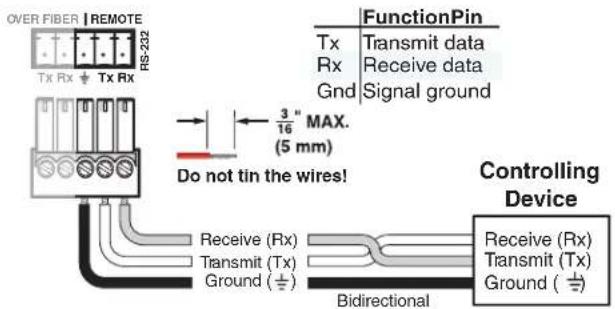
Figure 8. Rear Panel RS-232 Remote Port
In addition, on the rear panel, the units have RS-232 Over Fiber pass-through ports. These ports allow RS-232 commands to be passed from the control device to remote devices over the fiber optic cable with speeds up to 115 kbps.
NOTE: The FOX Tx/Rx AV does not respond to, or generate a response to, any commands passed through the "RS-232 Over Fiber" ports. Refer to the user guide of the device being controlled for the appropriate SIS commands.
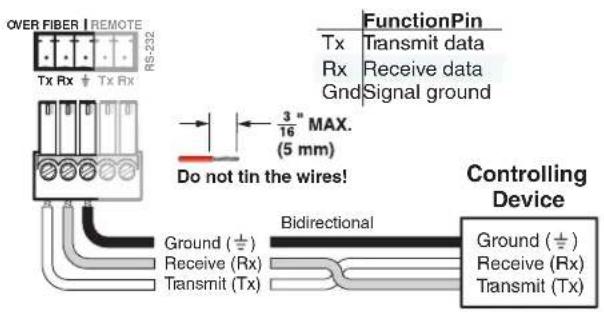
Figure 9. Captive Screw Connection for Rear Panel RS-232 Over Fiber Port
RS-232 Control of Tx and Rx Units
When the FOX Tx/Rx AV is configured by RS-232 commands, some commands are processed by the transmitter and others are processed by the receiver. The SIS commands do not distinguish between the two units. The system routes the commands based on where they are processed.
A system block diagram showing which functions are processed by the transmitter and which are processed by the receiver is shown below:

flowchart
graph LR
    A["Transmitter Receiver"] -->|Fiber Link 1| B["Output Processor"]
    A -->|Fiber Link 2 (optional)| B
    C["Process Input configuration Audio gain"] --> A
    D["Process Color Tint Brightness Contrast Video mute Output configuration Daisy chain/ loop out mode Audio mute Audio output level"] --> B
Figure 10. System Block Diagram
For full functionality, both fiber optic links must be enabled. If only link 1 is enabled, the ability to configure the system through SIS commands is limited by the lack of return communication from the receiver to the transmitter:
All configuration carried out using the transmitter is processed normally because only fiber link 1 is required.
Queries from the transmitter about the status of receiver settings are not processed correctly because fiber link 2 is required to carry the return signal.
The receiver cannot be used to configure the transmitter because fiber link 2 is required.
The lack of communication between the transmitter and the receiver can result in mismatches in the value settings of the two units, which may cause confusion with control systems or software applications. To avoid this, within four seconds of link 2 becoming active, the receiver settings are automatically copied to the transmitter to ensure settings for both units match.
NOTE: When the receiver settings are copied to the transmitter, existing transmitter settings are overwritten and it may be necessary to update those values.
SIS Commands
Introduction to SIS
SIS commands consist of a string (one or more characters per command field). Commands do not require any special characters to begin or end the command string. Each response from the unit ends with a carriage return and a line feed (CR/LF = ←), which signals the end of the response character string.
When the FOX Tx/Rx AV unit is first switched on, depending on the model, it sends one of the following messages:
(c) Copyright 2008, Extron Electronics, FOX 2G Tx AV, Vx.xx, 60-941-11← or
(c) Copyright 2008, Extron Electronics, FOX 2G Tx AV, Vx.xx, 60-941-12← or
(c) Copyright 2008, Extron Electronics, FOX 2G Rx AV, Vx.xx, 60-941-21← or
(c) Copyright 2008, Extron Electronics, FOX 2G Rx AV, Vx.xx, 60-941-22
where V x.xx is the firmware version number and 60-941-xx is the catalog number.
Symbols Used in This Guide
When programming in the field, certain characters are most conveniently represented by the hexadecimal equivalent of their ASCII value. For convenience, the table below shows the hexadecimal equivalent of each ASCII command:
| ASCII to HEX Conversion Table | Esc 1B | CR ∅D | LF ∅A | ||||||
| Space | 20 | ! 21 | “ 22 | # 23 | $ 24 | % 25 | & 26 | ‘ 27 | |
| ( | 28 | ) 29 | * 2A | + 2B | , 2C | - 2D | . 2E | / 2F | |
| ∅ | 30 | 1 31 | 2 32 | 3 33 | 4 34 | 5 35 | 6 36 | 7 37 | |
| 8 | 38 | 9 39 | : 3A | ; 3B | < 3C | = 3D | > 3E | ? 3F | |
| @ | 40 | A 41 | B 42 | C 43 | D 44 | E 45 | F 46 | G 47 | |
| H | 48 | I 49 | J 4A | K 4B | L 4C | M 4D | N 4E | O 4F | |
| P | 50 | Q 51 | R 52 | S 53 | T 54 | U 55 | V 56 | W 57 | |
| X | 58 | Y 59 | Z 5A | [ 5B | \ 5C] | 5D | ^ 5E | _ 5F | |
| ` | 60 | a 61 | b 62 | c 63 | d 64 | e 65 | f 66 | g 67 | |
| h | 68 | i 69 | j 6A | k 6B | l 6C | m 6D | n 6E | o 6F | |
| p | 70 | q 71 | r 72 | s 73 | t 74 | u 75 | v 76 | w 77 | |
| x | 78 | y 79 | z 7A | { 7B | l 7C} | 7D | ~ 7E | DEL 7F | |
Figure 11. ASCII to Hex Conversion Table
NOTE: Apart from G (gain) and g (attenuation), upper and lower case characters can be used interchangeably in SIS commands for this product. For example, either "C" or "c" can be used to (see Adjust color on page 16).
The symbols (Xn values) defined in this section are the variables used in the fields of the Command and Response Table for SIS Commands (see page 16).
← - carriage return with line feed
← — carriage return (no line feed)
- space character
Esc — Escape key
X1 — Input video type
∅ = Auto
4 = Component
5 = S-video
6 = Composite
X2 — Color, tint, contrast, or brightness adjustment (0 to 127)
X3 — Auto Memory, blanking, or audio mute status
∅ = disabled
1 = enabled
X4 — Output video type
∅ = Follow input type
6 = Component
7 = S-video
8 = Composite
X5 — Audio gain (∅ to +1∅ dB)
X6 — Audio attenuation (-18 to ∅ dB)
X7 — Audio level (-18 to +10 dB)
X8 — Audio output level
∅ = Consumer level (-1∅ dBV) (default)
1 = Professional level (+4 dBu)
X9 — Test pattern
∅ = Test pattern off
1 = Color bars
2 = Grayscale
3 = Alternating pixels
X10 — Link #2 transmission status
∅ = disables link #2
1 = enables link #2 from receiver back to transmitter
2 = enables daisy chain mode on receiver
X11 — SM (singlemode) or MM (multimode)
X12 — Tx (transmitter) or Rx (receiver)
X13 — Memory presets (1 to 30)
X14 — Internal temperature in degrees Fahrenheit and Celsius: (xxxF xxC)
Error messages
E10 - Invalid command
E13 — Invalid parameter
E14 — Not valid for this configuration
Command and Response Table for SIS Commands
| Command ASCII Command | (host to unit) | Response(unit to host) | Additional description |
| Input video format | |||
| Specify input setting | X1\ Typ | X1← | Sets format of input video signal (X1)∅ = Auto 4 = Component5 = S-Video 6 = Composite |
| View current input setting | \ | X1← | Displays current input video format. |
| Adjust color | |||
| Specify color value | X2C Col | X2← | Sets color value for video signal (X2 from ∅ to 127). |
| Increment color value | +C | ColX2← | Increases color value by 1. |
| Decrement color value | -C | ColX2← | Decreases color value by 1. |
| View current color value | C | X2← | Displays current color value. |
| Adjust tint | |||
| Specify tint value | X2T Tin | X2← | Sets tint value for video signal (X2 from ∅ to 127). |
| Increment tint value | +T | TinX2← | Increases tint value by 1. |
| Decrement tint value | -T | TinX2← | Decreases tint value by 1. |
| View current tint value | T | X2← | Displays current tint value. |
| Adjust contrast | |||
| Specify contrast value | X2^ Con | X2← | Sets contrast value for video signal (X2 from ∅ to 127). |
| Increment contrast value | +^ | ConX2← | Increases contrast value by 1. |
| Decrement contrast value | -^ | ConX2← | Decreases contrast value by 1. |
| View current contrast value | ^ | X2← | Displays current contrast value. |
| Adjust brightness | |||
| Specify brightness value | X2Y Brt | X2← | Sets brightness value for video signal (X2 from ∅ to 127). |
| Increment brightness value | +Y | BrtX2← | Increases brightness value by 1. |
| Decrement brightness value | -Y | BrtX2← | Decreases brightness value by 1. |
| View current brightness value | Y | X2← | Displays current brightness value. |
| Video mute | |||
| Enable blanking | 1B | Blk1← | Blanks selected input (X3).∅ = Disables blanking or mute.1 = Enables blanking or mute. |
| Disable blanking | 0B | Blk0← | Displays selected input. |
| View current blanking status | B | X3← | Displays current blanking status. |
| Output video format | |||
| Specify output setting | 6*X4# Syn | X4← | Sets format of output video signal (X4).∅ = Follow input type6 = Component 7 = S-Video8 = Composite |
| View current output setting | 6# | X4← | Displays current output video format |
| Memory Presets | |||
| Recall Preset | X13. Rpr | X13← | A period (.) follows X13 in the command. Recalls memory preset (X13) from 1 to 30. |
| Save Preset | X13, Spr | X13← | A comma (,) follows X13 in the command. Saves memory preset (X13). |
| Audio mute | |||
| Enable audio mute | 1Z | Amt1← | Mutes audio (X3).∅ = Disables audio mute.1 = Enables audio mute. |
| Disable audio mute | 0Z | Amt0← | Un-mutes audio. |
| View current audio mute status | Z | X3← | Displays current audio mute status. |
| Audio gain and attenuation | |||
| Specify gain value | X5G Aud | X5← | Sets value of audio gain. Upper case G only for configuring gain (X5 from ∅ to 10 dB). |
| Specify attenuation value | X6g Aud | X6← | Sets value of audio attenuation. Lower case g only for configuring attenuation (X6 from ∅ to -18 dB). |
| Increment audio level | +G +g | AudX7←AudX7← | Increases gain (G) or attenuation (g) by 1 dB. Audio level adjustment range (X7 from -18 to +10 dB). |
| Decrement audio level | -G -g | AudX7←AudX7← | Decreases gain (G) or attenuation (g) by 1 dB. |
| View current audio level | G g | AudX7←AudX7← | Displays current value for gain (G) or attenuation (g). |
| Audio output level | |||
| Set to consumer level | 40*0# Lvl0 | Sets audio output to consumer level (X8).∅ = Consumer level (-10 dBV) - default.1 = Professional level (+4 dBu). | |
| Set to professional level | 40*1# Lvl1 | Sets audio output to professional level. | |
| View current output level status | 40# | X8← | Displays current audio output level. |
| Auto Memory | |||
| Disable Auto Memory | 55*0# | Img0← | Disables Auto Memory. |
| Enable Auto Memory | 55*1# | Img1← | Enables Auto Memory. |
| View current Auto Memory setting | 55# | X3← | View the current Auto Memory setting (X3)∅ = disabled; 1 = enabled. |
| Auto Image | |||
| Trigger | 55*2# | Img← | Returns video adjustments (color, contrast, tint, and brightness) to default values (64). |
| Test Pattern | |||
| Color bars | 1J | Tst1← | Sets color bars test pattern on (X9).∅ = test pattern off 1 = color bars2 = grayscale 3 = alternating pixels |
| Grayscale | 2J | Tst2← | Sets grayscale test pattern on. |
| Alternating pixels | 3J | Tst3← | Sets alternating pixels test pattern on. |
| Off | 0J | Tst0← | Sets test pattern off. |
| View current test pattern status | J | X9← | Displays current test pattern status. |
| Link #2 Transmission | |||
| Disable | 66*0*0# | Rle*0*0← | Disables link #2. Link #2 status (X10):∅ = disables link #2 (receiver to transmitter).1 = enables link #2.2 = enables receiver daisy chain mode. |
| Enable | 66*0*1# | Rle*0*1← | Enables link #2. |
| Daisy chain | 66*0*2# | Rle*0*2← | Enables receiver daisy chain mode. |
| View current link #2 status | 66*0# | 0*X10← | Displays current link #2 status.This command is only available on the reciever unit; the transmitter responds with an E14 error code. |
| Information Request | |||
| General information | I | 1LinkX3•2LinkX3•VidX3•AudX3•X11•X12← | X3 Link #1: active signal present (1) or absent (∅) •X3 Link #2: active signal present (1) or absent (∅) •X3 video output signal enabled (1) or disabled (∅) •X3 audio signal enabled (1) or disabled (∅) •X11 SM or MM •X12 Tx or Rx |
| Query firmware (F/W) version | Q | x.xx← | Displays current F/W version. |
| Query all F/W versions | 0Q | x.xx-x.xx-x.xx-x.xx← | Diplays information about all F/W versions. |
| Query Factory F/W version | 32Q | x.xx← | Displays factory loaded F/W version. |
| Query updated F/W version | 34Q | x.xx← | Displays updated F/W version. |
| Query factory FPGA version | 33Q | x.xx← | Displays factory loaded FieldProgramable Gate Array (FPGA) version. |
| Query updated FPGA version | 35Q | x.xx← | Displays updated FPGA version. |
| Query part number | N | 60-941-zz← | Displays the unit part number. |
| Query other unit part number | 1N | 60-941-zz← | Displays the part number of other connected box. |
| Command ASCII Command (host to unit) | Response (unit to host) | Additional description | |
| Status Request | |||
| View link 1 Status | 1S | X3← | Displays link 1 status (X3)∅ = active signal absent1 = active signal present |
| View link 2 Status | 2S | X3← | Displays link 2 status |
| View input video status | 3S | X3← | Displays input video status |
| View input audio status | 4S | X3← | Displays input audio status |
| View internal temperature | 20S | X14← | Displays internal temperature in degrees F |
| Factory Defaults | |||
| System Reset (factory default) | EscZXXX← | Zpx← | Resets unit to all factory default values |
| Reset audio settings | EscZA← | Zpa← | Resets all audio settings to factory default values |
| Reset presets | EscZG← | Zpg← | Rests all memory presets to factory default values |
SIS Command Validity Table
If only one fiber optic channel is enabled, the ability to configure the system through SIS commands is limited by the lack of return communication from the receiver to the transmitter.
All commands issued through the transmitter are valid because link 1 allows signals to be forwarded to the receiver. However, responses to queries originating from the transmitter about the status of the receiver return invalid data.
All configuration of the receiver by commands issued through the receiver is valid. Attempts to configure the the transmitter through the receiver in the absence of link 2 are invalid.
The following table shows the validity of commands issued through the receiver when only link 1 is active:
| Adjustment | |
| Color Valid | |
| Tint Valid | |
| Brightness Valid | |
| Contrast Valid | |
| Audio gain/attenuation | Invalid |
| Audio mute Valid | |
| Audio output level Valid | |
| Output configuration Valid | |
| Input configuration | Invalid |
| Daisy chain mode Valid | |
| Test pattern Valid | |
| Video mute Valid |
FOX Extender Control Program
The Extron FOX Extender Control Program communicates with the transmitter and receiver pair via the rear panel Remote RS-232 port or front panel configuration port of either unit.
The program is compatible with Windows® 2000, Windows XP and later versions of Windows. Upgrades to the control program can be downloaded from the Extron Website (www.extron.com).
Installing the Software
Insert the disc provided into the DVD-ROM drive of the computer. If the setup program does not start automatically, run Launch.exe from the DVD-ROM directory in Windows My Computer. Select the Software tab, locate the FOX Extender Windows Control Program and click Install. Follow the on screen instructions.
By default, the Installer program creates a C:\Program Files\Extron\
Fox_Extenders folder, containing the FOX Extender control program. An icon may also be placed on the Windows desktop.
Starting the Program
Start the Extron FOX Extender control program as follows:
-
Set up and power on the units as described in Power input (see page 5). Connect the PC to one of the RS-232 Ports (see page 11) on either the transmitter or receiver.
-
Click Start > All Programs > Extron Electronics > FOX Extender WCP > FOX Extender WCP or click on the desktop icon (see icon at right). The Communication Setup window opens:

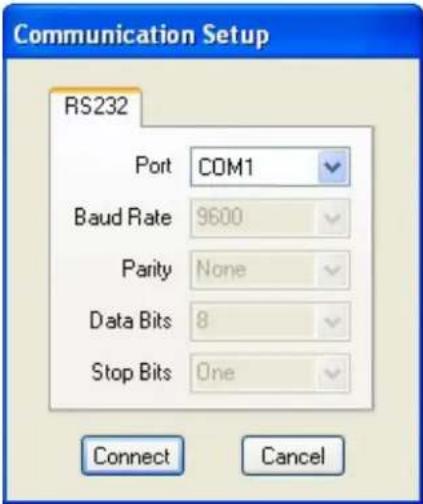
Figure 12. Communication Setup Window
- Select the Com port to which your transmitter or receiver is connected and click Connect.
The Communication Setup window closes and the FOX Extender Windows Control Program window opens (see figure 13 below).
![FOX Extender Windows Control Program File Tools Help Status Video Link 1 Connected to: Transmitter COM1 Audio Link 2 (Optional) Model: FOX 2G AV MM Multi-Mode) Other side: FOX 2G AV MM Input Frequency: Horz 15.7Hz Volt 60.00 kHz Temperature: 116F (47C) Memory Preset Preset Number Save Saved Number Pascal Video Adjustment Color 64 Tint 64 Contrast 64 Brightness 64 Input Video Format Auto Component S-Video Composite Output Video Format Follow input type Component S-Video Composite Audio Adjustment Audio Gain/Alten +10 dB 0 dB -18 dB 0.0 dB Audio Output Level Consumer Level [-10dBV] Professional Level (+4dBu) Test Patterns Off Advanced Configuration Link 2 / Dairy Chain Mode Enable Link 2 Disable Link 2 Enable Dairy Chain Auto Memory On Off Auto Image Auto Image Ready](/content/2026/06/1189895/images/f3915df562c38500c3ad913c13302234977faca87756fdcd215d02a8abd8ffd9.jpg)
Figure 13. FOX Extender Windows Control Program Window
Status area
The Status area provides visual indications of the connection status:
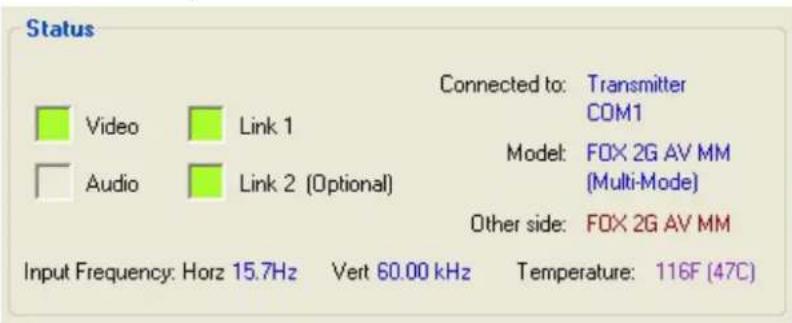
Figure 14. Status Area
NOTE: Only link 1, connecting the Tx port of the transmitter to the Rx port of the receiver, is required for video, audio, and serial command transmission. Link 2 is not required but, if it is not enabled, the ability to configure the system is limited by a lack of communication from the receiver to the transmitter.
Video present indicator — shows green to indicate the presence of composite, S-video, or component video signals.
Audio present indicator — shows green when the transmitter detects an audio signal at or more than 35 dB below the nominal level. Stays on until the signal falls below this threshold continuously for 10 seconds.
Loop-out indicator — only visible if the computer is connected to the receiver.
Link 1 indicator — shows green when the receiver detects light on link 1 (connecting the Tx port of the transmitter to the Rx port of the receiver). The receiver reports the status to the transmitter over link 2.
NOTE: If the computer is connected to either of the transmitter control ports and link 2 is disconnected, the link 1 indicator does not show green because, when the receiver detects light on link 1, it is not able to pass that information to the transmitter.
Link 2 (Optional) indicator — shows green when the transmitter detects light on link 2 (connecting the Tx port of the receiver to the Rx port of the transmitter). The transmitter reports the status to the receiver via link 1.
The Status area also shows the unit type (the transmitter or receiver) and model description for the unit to which the computer is connected, the unit at the other end of the fiber optic cable and the COM port on the computer that is connected to the unit.
It also provides information about the horizontal and vertical frequencies of the input signal and the internal temperature.
Memory Preset area
The Memory Preset area provides tools to save and recall memory presets:

Figure 15. Memory Preset Area
Select a Preset Number from the dropdown menu and click Save. The current values of color, tint, contrast, and brightness are saved as a Memory Preset. Previously saved memory presets can be called by selecting a Saved Number from the dropdown menu and clicking on Recall.
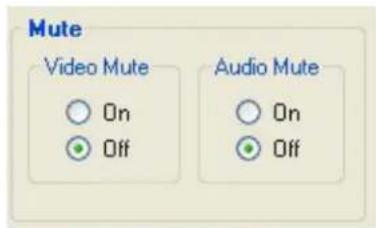
Mute area
Select either the On or Off radio buttons in the Mute area to mute or unmute the video and audio signals.
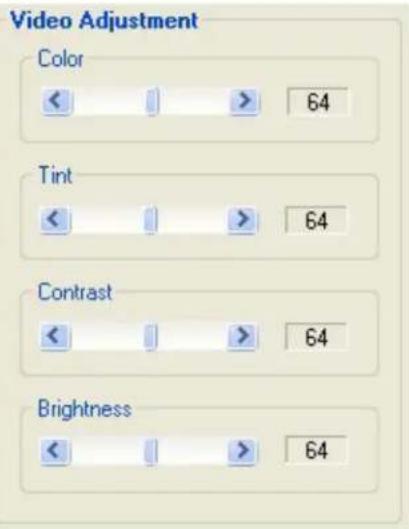
Video Adjustment area
Use the sliders to adjustment the color, tint, contrast, and brightness of the picture that is displayed. All four of these variables can be adjusted between 0 and 127, with the current value displayed in the text box to the right of the corresponding slider.
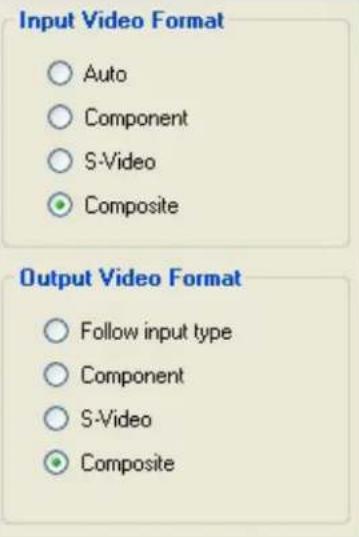
Video Format area
Click the radio buttons in the video format areas to select the input format (Auto, Component, S-video, or Composite) and output format (Follow input type, Component, S-video, or Composite).
NOTE: The transmitter converts the input signal into a proprietary signal type, which passes through link 1 to the receiver. The receiver converts the signal back to the required signal type. This allows the input signal to be transcoded to meet the requirements of the output device.
When there are two video sources, S-video through the 4-pin mini DIN and another format through the BNC connectors, the choice of button determines which input format is transmitted. When Auto is selected, the transmitter automatically detects the input format.
When follow input type is selected for the output format, the output signal is in the same format as the original input signal.
Advanced Configuration area
Link 2/Daisy Chain Mode — provides radio buttons to choose the mode for the Tx port of the receiver. If it is connected to the transmitter, the link may be enabled or disabled. Alternatively, the port may be connected to another receiver with the Daisy Chain mode enabled.
Auto Memory — may be switched On or Off, using radio buttons. When Auto Memory is on, previously saved values such as color, tint, contrast, and brightness are applied whenever the vertical field rate of the input changes.
Auto Image — returns the video adjustment settings of color, tint, contrast, and brightness back to their default values (64).
Test Patterns — allow the user to select one of three built-in test patterns (color bars, grayscale, or alternating pixels), which help calibrate the display device. When Off is selected, the receiver outputs the video signal from the source device.

Audio Adjustment area
Audio Gain/Attenuation — provides a click and drag slider control to select the input audio gain or attenuation value, from -18 dB to +10 dB in 1.0 dB increments.
NOTE: The transmitter converts the input signal into a proprietary signal type, which passes through link 1 to the receiver. The receiver converts the signal back to the required signal type. This allows the input signal to be transcoded to meet the requirements of the output device.
Audio Output Level — provides radio buttons to allow a choice between consumer level (-10 dBV) or professional level (+4 dBu) for the audio output.
Firmware for FOX Tx/Rx AV
Firmware can be downloaded onto the unit from the Extron website (www.extron.com).
The transmitter and receiver require different firmware and must both be upgraded separately.

Mounting
This section describes the mounting options for the FOX Tx/Rx AV
- Tabletop Mounting
- Mounting Kits
Tabletop Mounting
Attach the four provided rubber feet to the bottom of the unit and place it in any convenient location.
Mounting Kits
Use Extron mounting kits to install the FOX Tx/Rx AV on standard equipment racks (see Underwriters Laboratories Guidelines for Rack Mounting, below), under furniture, through tables, or above projectors. See www.extron.com for a list of available mounting kits. Follow the instructions provided with the mounting kits.
Underwriters Laboratories Guidelines for Rack Mounting
The following Underwriters Laboratories (UL) guidelines are relevant to the safe installation of these products in a rack:
- Elevated operating ambient temperature — If the unit is installed in a closed or multi-unit rack assembly, the operating ambient temperature of the rack environment may be greater than room ambient temperature. Therefore, install the equipment in an environment compatible with the maximum ambient temperature (Tma: +122 °F, +45 °C) specified by Extron.
- Reduced air flow — Install the equipment in the rack so that the equipment gets adequate air flow for safe operation.
- Mechanical loading — Mount the equipment in the rack so that uneven mechanical loading does not create a hazardous condition.
- Circuit overloading — Connect the equipment to the supply circuit and consider the effect that circuit overloading might have on overcurrent protection and supply wiring. Give appropriate consideration to the equipment nameplate ratings when addressing this concern.
- Reliable earthing (grounding) — Maintain reliable grounding of rack-mounted equipment. Pay particular attention to supply connections other than direct connections to the branch circuit (such as the use of power strips).
Extron Warranty
Extron Electronics warrants this product against defects in materials and workmanship for a period of three years from the date of purchase. In the event of malfunction during the warranty period attributable directly to faulty workmanship and/or materials, Extron Electronics will, at its option, repair or replace said products or components, to whatever extent it shall deem necessary to restore said product to proper operating condition, provided that it is returned within the warranty period, with proof of purchase and description of malfunction to:
USA, Canada, South America, and Central America:
Extron Electronics
1230 South Lewis Street
Anaheim, CA 92805
U.S.A.
Japan:
Extron Electronics, Japan
Kyodo Building, 16 Ichibancho
Chiyoda-ku, Tokyo 102-0082
Japan
Europe and Africa:
Extron Europe
Hanzeboulevard 10
3825 PH Amersfoort
The Netherlands
China:
Extron China
686 Ronghua Road
Songjiang District
Shanghai 201611
China
Asia:
Extron Electronics Asia Pte. Ltd.
135 Joo Seng Road, #04-01
PM Industrial Bldg.
Singapore 368363
Singapore
Middle East:
Extron Middle East
Dubai Airport Free Zone
F13, PO Box 293666
Dubai, United Arab Emirates
This Limited Warranty does not apply if the fault has been caused by misuse, improper handling care, electrical or mechanical abuse, abnormal operating conditions, or if modifications were made to the product that were not authorized by Extron.
NOTE: If a product is defective, please call Extron and ask for an Application Engineer to receive an RA (Return Authorization) number. This will begin the repair process.
USA: 714.491.1500 or 800.633.9876
Asia: 65.6383.4400
Europe: 31.33.453.4040
Japan: 81.3.3511.7655
Units must be returned insured, with shipping charges prepaid. If not insured, you assume the risk of loss or damage during shipment. Returned units must include the serial number and a description of the problem, as well as the name of the person to contact in case there are any questions.
Extron Electronics makes no further warranties either expressed or implied with respect to the product and its quality, performance, merchantability, or fitness for any particular use. In no event will Extron Electronics be liable for direct, indirect, or consequential damages resulting from any defect in this product even if Extron Electronics has been advised of such damage.
Please note that laws vary from state to state and country to country, and that some provisions of this warranty may not apply to you.
| Extron Headquarters+1,820,633,9976 (Inside USA/Canada Only)Extron USA - West Extron USA - East+1,714,491,1500+1,714,491,1517 FAX +1,819,850,1001 FAX | Extron Europe+800,3987,6673(Inside Europe Only)+31,33,453,4040+31,33,453,4652 FAX | Extron Asia+65,6383,4400+65,6383,4664 FAX | Extron Japan+81,3,3511,7656+81,3,3511,7656 FAX | Extron China+86,21,3760,1568+86,21,3760,1566 FAX | Extron Middle East+971,4,299,1800+971,4,299,1880 FAX | Extron Australia+61,8,813,6800+61,8,8351,2511 FAX | Extron India1800,3070,3777(Inside India Only)+91,80,3055,3777+91,80,3055,3737 FAX |


- Safety Instructions • English
- Trademarks
- FCC Class A Notice
- Class 1 Laser Product
- Conventions Used in this Guide
- Notifications
- Software Commands
- Specifications Availability
- Extron Glossary of Terms
- Contents
- Introduction .... 1
- Panel Features and Connections......4
- Configuration....11
- Mounting....25
- Introduction
- About the FOX Tx/Rx AV
- WARNING:
- AVERTISSEMENT :
- FOX Tx/Rx AV Features
- Panel Features and Connections
- FOX Tx/Rx AV Front Panel Features
- FOX Tx/Rx AV Rear Panel Connections
- ATTENTION:
- Component Signal
- S-video Signal
- Composite Signal
- Daisy Chain Capability
- NOTES:
- Configuration
- RS-232 Ports
- RS-232 Control of Tx and Rx Units
- SIS Commands
- Introduction to SIS
- Symbols Used in This Guide
- Error messages
- SIS Command Validity Table
- FOX Extender Control Program
- Installing the Software
- Starting the Program
- Status area
- Memory Preset area
- Mute area
- Video Adjustment area
- Video Format area
- Advanced Configuration area
- Audio Adjustment area
- Firmware for FOX Tx/Rx AV
- Mounting
- Tabletop Mounting
- Mounting Kits
- Underwriters Laboratories Guidelines for Rack Mounting
- Extron Warranty
- USA, Canada, South America, and Central America:
- Japan:
- Europe and Africa:
- China:
- Asia:
- Middle East:
Brand : Extron
Model : FOX Tx AV MM
Category : AV Transmitter