 ManualGo.com
VSX-521 - AV Receiver PIONEER - Free user manual and instructions
Find the device manual for free VSX-521 PIONEER in PDF.


Download the instructions for your AV Receiver in PDF format for free! Find your manual VSX-521 - PIONEER and take your electronic device back in hand. On this page are published all the documents necessary for the use of your device. VSX-521 by PIONEER.
USER MANUAL VSX-521 PIONEER
Discover the benefits of registering your product online at http://www.pioneer.co.uk (or http:/www.pioneer.eu). Operating Instructions eùt- + ti
The lightning flash nith arrovihead symbol, CAUTION: The exclamation point within an equilteral within an equilateral tnangle, is intended to TO PREVENT THE RISK OF ELECTRIC triangle is intended to alert the user t the Alert the user a the presence of uninsulated | SHOCK, DO NOT REMOVE COVER (OR presence of important operating and “dangerous voltage” within the products BACH. NO USERSERVICEABLE PARTS maintenance (sericing) instructions inthe enclosure that may be of sufficient INSIDE. REFER SERVICING TO QUALIFIED literature accompanying the appliance. magnitude to constiute a risk of electric SERVICE PERSON! Shock to persons. 0342441 A1 En Replacement and mounting of an AC plug on the pawer supply cord of this unit should be performed only by qualified service personnel
IMPORTANT: THE MOULDED PLUG
This appliance is supplied with a moulded three pin mains plug for veur safety and convenience. À 10 amp fuse is fited in this plug. Should the fuse need to be replaced, please ensure that the replacement fuse has a rating of 10 amps and that it is approved by ASTA or BI to BS1382. Gt cr Pa rats Hihe plug contains a removable fuse cover, you must ensure that it is reitted when the fuse is replaced. f you lose the fuse cover the plug must not be used until a replacement couer is obtained. À replacement fuse cover can be obtained from your local dealer the fitted moulded plug is unsuitable for your socket outiet, then the fuse shall be removed and the plug cut off and disposed of safely. There is a danger of severe electrical shock if the eut off plug is inserted into any 13 amp socket. Ha new plug is to be fitted, please observe the wiring code as shown below Ifin any doubt, please consul a qualfied electrician. IMPORTANT The wires in this mains lead are coloured in accordance nith the following code: Blue: Neutral Brown: Live As the colours ofthe wires in the mains lead of his appliance may not correspond with the coloured markings identifying the terminal in your plug, proceed as follows: Me wire which is coloured BLUE must be connected to the terminal which is marked with the letter N or coloured BLACK. he vire which is colaured BROWN must be connected to the terminal which is marked with the letter Lor coloured RED. How to replace the fuse: Open the fuse compartment with a serewdriver and replace the fuse D342422 a2 En WARNING To prevent a fire hazard, do not place any naked flame sources (such as a lighted candle) on the equipment DR42478 A1 En VENTILATION CAUTION When installing this unit, make sure Lo leave space around the unit for ventilation to improve heat radiation (@t least 40 cm at top, 20 cm at rear, and 20 cm at each side) WARNING Slots and openings in the cabinet are provided for ventilation to ensure reliable operation of the product, and to protect it from overheating, To prevent fire hazard, the openings should never be blocked or covered with items (such as newspapers, table-cloths, curtains) or by operating the equipment on thick carpet or à bed a D342470 A1 En & Operating Environment Operating environment temperature and humidity +5 "C to +36 °C (+41 °F to +95 °F); less than 85 %RH (cooling vents not blocked) Do not install this unit in à poorly ventilated area, or in locations exposed to high humidity or direct sunlight (or strong artificial light) D342476 A1 En
2011/Æ2H9H MH Fe 41 6 5 Information for users on collection and disposal of old equipment and used batteries These symbols on the products, packaging, and/or accompanying documents mean that used electrical and electronic products and batteries should not be mixed with For proper treatment, recovery and recycling of old products and used batteries, please take them to applicable collection points in accordance with your national Symbol for ) equipment general household waste. legislation.
By disposing of these products and batteries correct, you wi help to save valable (Ermeel crampes) for batteries
resources and prevent any potential negative effects on human health and the environment which could otherwise arise from inappropriate waste handling. For more information about collection and recycling of old products and batteries, please contact your local municipality, your waste disposal service or the point of sale where you purchased the items. These symbols are only valid in the European Union. For countries outside the European Union: you wish to discard these items, please contact your local authorities or dealer and ask for the correct method of disposal. Kosaa_A1En Ifthe AC plug of this unit does not match the AC outlet you want to use, the plug must be removed and appropriate one fitted. Replacement and mounting of an AC plug on the power supply cord of this unit should be performed only by qualified service personnel. f connected to an AC outlet, the cut-off plug can cause severe electrical shock. Make sure it is properly disposed of after removal, The equipment should be disconnected by removing the mains plug from the wall socket when left unused for à long period of time (for example, when on vacation) D3422-12 A1 En CAUTION The OSTANDBY/ON switch on this unit will not completely shut of all power from the AC outlet. Since the power cord serves as the main disconnect device for the unit, you will need to unplug it from the AC outlet to shut down all power. Therefore, make sure the unit has been installed so that the power cord can be easily unplugged from the AC outlet in case of an accident, To avoid fire hazard, the power cord should also be unplugged from the AC outlet when left unused for à long period of time (for example, when on vacation). D34222+ A1 En WARNING This equipment is not waterproof. To prevent a fire or shock hazard, do not place any container filled with liquid near this equipment (such as a vase or flower pot) or expose it to dripping, splashing, rain or moisture: 034243 A1En WARNING Before plugging in for the first time, read the following caref. section © The voltage of the available power supply differs according to country or region. Be sure that the power supply voltage of the area where this unit will be used meets the required voltage (e.g., 230 V or 120 V) written on the rear panel. ve. At En This product is for general household purposes. Any failure due to use for other than household purposes (such as long-term use for business purposes in a restaurant or use in a car or ship) and which requires. repair will be charged for even during the warranty period KO4t A1 En
F-521_SYXCN_En. book 2011/Æ2H9H MH Fe 41 6 5 Thank you for buying this Pioneer product. Please read through these operating instructions so you will know how to operate your model properly. After you have finished reading the instructions, put them away in a safe place for future reference. Contents Before you start Checking what's in à Installing the receiver .
Flow of settings on the receiver. 91 Controls and displays Front panel . Display. Remote control Loading the batteries Operating range of remote control vowua 02 Connecting your equipment Placing the speakers. Hints on the speaker placement. Connecting the speakers. - Connect the surraund back or front height speakers. Making cable connections HDMI cables . About HDMI. Analog audio cables. Digital audio cables . Video cables. About video autputs connection - Connecting a TV and playback components Connecting using HDMI . : Connecting your component with no HDMI terminal - Connecting a satellite receiver or other digital set-top box... Connecting an HDD/DVD recorder, Blu-ray Disc recorder and other video sources Using the companent video jacks Connecting other audio components . Connecting optional Bluetooth® ADAPTER. Connecting antennas . Using external antennas . Connecting to the front panel audio mini ik. Plugging in the receiver . 03 Basic Setup Canceling the demo display Automatically setting up for surround sound (MCACC). Other problems when using the Auto MCACC setup . 04 Basic playback Playing a source. Selecting the audio input signal . Bluetooth® ADAPTER for Wireless Enjoyment of Music Wireless music play : Pairing the Bluetooth ADAPTER and Bluetooth wireless technology device Listening to Music Contents of Bluetooth wireless technology device with Your System . Listening to the radio . Improving FM sound Saving station presets . Listening to station presets . Naming preset stations An introduction t Searching for RDS programs : Displaying RDS information 05 Listening to your system Choosing the listening mode Auto playback .… Listening in surround sound Using the Advanced surround Using Stream Direct Using the Sound Retriever Listening with Acoustic Calibration EQ. Better sound using Phase Control . Using surround back channel processing . Setting the Up Mix function . Setting the Audio options . Making an audio or a video recording. 06 The System Setup menu Using the System Setup menu. Manual speaker setup . Speaker Setting .… Crossover Network Channel Level . Speaker Distance . The Input Assign menu The Pre Out Setting . : The Auto Power Down menu . The FL Demo Mode menu . 07 Control with HDMI function Making Control with HDMI connections . HDMI Setup. : Before using synchronization. - About synchronized operations - De About connections with a product of a different brand that supports the Control with HDMI function Cautions on the Control with HDMI function 08 Additional information connection . Reselting the main unit Cleaning the unit Specifications .
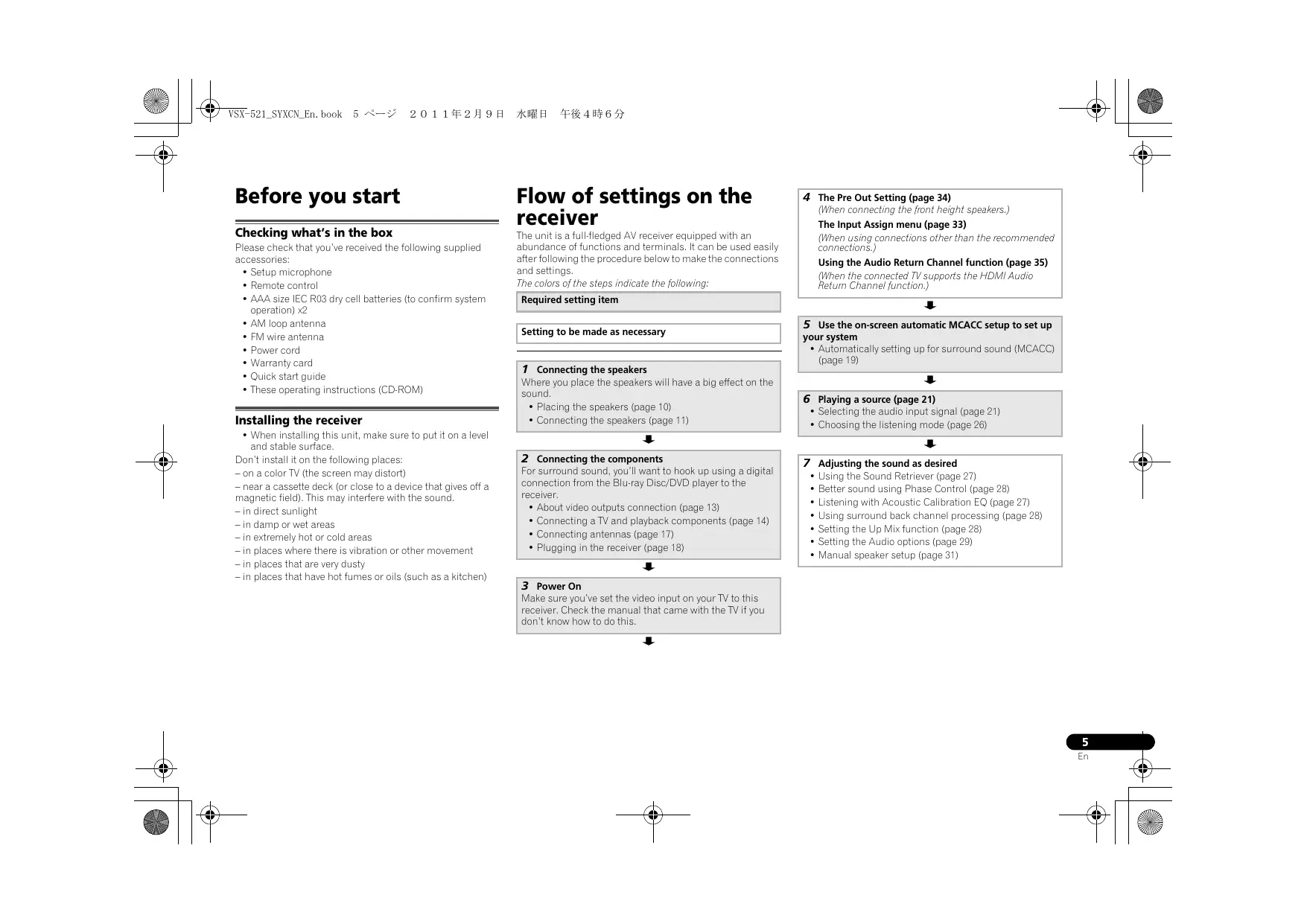
P VSX-521_SYXCN En. book 5 — Before you start 2011#2H9H Checking what's in the box Please check that you've received the following supplied accessories: + Setup microphone + Remote control + AAA size IEC RO3 dry cell batteries (to contirm system operation) x2 + AM loop antenna + FM wire antenna + Power cord + Warranty card + Quick start guide + These operating instructions (CD-ROM) Installing the receiver + When installing this unit, make sure to put it on a level and stable surface Don install it on the following places: — on a color TV (the screen may distort) — near a cassette deck (or close to a device that gives off a magnetic field). This may interfere with the sound! — in direct sunlight — in damp or wet areas — in extremelÿ hot or cold areas — in places where there is vibration or other movement — in places that are very dusty — in places that have hot fumes or oils (such as a kitchen)
Flow of settings on the receiver The unit is a fullfledged AV receiver equipped with an abundance of functions and terminals. I can be used easily after following the procedure below to makethe connections and settings. The colors of the steps indicate the following: Required setting item Setting to be made as necessary 1 Connecting the speakers Where you place the speakers will have a big effect on the sound. + Placing the speakers (page 10) + Connecting the speakers (page 11)
2 Connecting the components For surround sound, you'Il want to hook up using a digital connection from the Blu-ray Disc/DVD player to the receiver. + About video outputs connection (page 13) + Connecting a TV and playback components (page 14) + Connecting antennas (page 17) + Plugging in the receiver (page 18)
3 Power On Make sure you've set the video input on your TV to this receiver. Check the manual that came with the TV if you don't know how to do this.
(When connecting the front height speakers.) The Input Assign menu (page 33) (When using connections other than the recommended connections, Using the Audio Return Channel function (page 35) (When the connected TV supports the HDMI Audio Retum Channel function.)
5. Use the on-screen automatic MCACC setup to set up
your system + Automatically setting up for surround sound (MCACC) (page 19)
7° Adjusting the sound as desired + Using the Sound Retriever (page 27) + Better sound using Phase Control (page 28)
Controls and displays Front panel
1° L T L T l F, PHASE AUTO (RES SETUN) srba 9 [PRESET D ———— cn an du qu Nu. du au Re = — OÙ. M. MU: MN. M: VU. 0 il Er | Gi, Qi: M: MN: UN. UN. Qi UN Grsnoes somnronQnoorexDneun)aove CEA) à _ Es l l nn © © 21 22 23 24 25 2625 10 "1 12.13 14 1 INPUT SELECTOR dial 4 Character display 7° HDMI indicator Selects an input source (page 21). See Display on page 7. Blinks when connecting an HDM-equipped component 2 MCACCindicator S Tuner control buttons lights when the component is cannected (page 14). Lights when Acoustic Calibration EQ (page 27) is on BAND - Switches between AM, FM ST (stereo) and FM 8 MASTER VOLUME dial (Acoustic Calibration EQ is automatically set to an after the MONO radio bands (page 24). d OSTANDEYION Auto MCACC setup (page 19)» TUNER EDIT — Uce with TUNE 1/4, PRESET and : 3 Rech lb ENTER he Pan 10 PHONES jack eceiver control buttons Ro memorge and name slations for recal Use to connuet headphones, When the headphones are SPEAKERS — Use to change the speaker system an or off {page 24) connected, there is no sound output from the speakers. The When the SP OFF is selected, no sound is output from the TUNE 4/4 — Used to find radio frequencies (page 24). listening mode whenthe sounds heard from the headphone speakers connected to this receiver. PRESET 4/=+ — Use to select preset radio stations can be selected only from PHONES SURR, STEREO or DIMMER - Dis or brightens the display. The brightness (page 24) STEREO ALC mode (S.R AIR mode can be also selected with can be cantrolled in four steps. ADAPTER inpu) 6 Remote sensor DISPLAY - Switches the display ofthis unit. The listening Receive the lgnals from the remote control (sce Operating 11 Listening mode buttons mode, sound volume, Pre Out setting or input name can zange of remote control on page 9). AUTO SURROUND/STREAM DIRECT - Switches be checked by selecting an input source. between Auto surround mode (page 26) and Stream + The Pre Out setting may or may not be displayed, Direct playback (page 27) depending on the input source you have selected. NS 7 7 24 LA NA
ALC/STANDARD SURR - Press for standard decoding andto switch between the modes of O0 Pro Logic Il, DO Pro Logic x, D9 Pro Logic Ilz and NEO:6, and the Auto level control stereo mode (page 26). ADVANCED SURROUND - Switches between the various surround modes (page 27)
12 SOUND RETRIEVER AIR
When the button is pressed, the input switches to ADAPTER and the listening mode is automatically set to S.R AIR (page 23) 13 SOUND RETRIEVER Press to restore CD quality sound to compressed audio sources (page 27) 14 PORTABLE/MCACC SETUP MIC jack Use to connect an auxiliary component using a stereo mini jack cable (page 18) or connect a microphone when performing Auto MCACC setup (page 19). Display 15 PHASE Lights when the Phase Control is switched on (page 28). 16 AUTO Lights when the Auto Surround feature is switched on (page 26) 17 Tuner indicators RDS — Lights when an RDS broadcast is received (page 25) ST-Lights when a stereo FM broadcast is being received in auto stereo mode (page 24). TUNE — Lights when a normal broadcast channel PRESET— Shows when a preset radio station is registered or called MEM - Blinks when a radio station is registered kHz/MHz= Lights when the character display is showing the currently received AM/FM broadcast frequency. 18 Speaker indicators Shows if the speaker system is on or not (page 6) SP» A means the speakers are switched on! SP» means the speakers are switched off. 19 Sleep timer indicator Lights when the receiver is in sleep mode (page 8). 20 PRESET information or input signal indicator Shows the preset number of the tuner or the input signal type, etc. 21 Character display Displays various system information. 22 DTS indicators DTS- Lights when a source with DTS encoded audio signals is detected HD - Lights when a source with DTS-EXPRESS or DTS- HD encoded audio signals is detected ES Lights to indicate DTS-ES decoding, 96/24 - Lights when a source with DTS 96/24 encoded audio signals is detected. NEO:6 — \Vhen one of the NEO:6 modes ofthe receiver is. on, this lights to indicate NEO:6 processing (page 26) 23 Dolby Digital indicators DD — Lights when a Dolby Digital encoded signal is detected oD+ — Lights when a source with Dolby Digital Plus encoded audio signals is detected. DHD — Lights when a source with Dolby TrueHD encoded audio signals is detected. EX - Lights to indicate Dolby Digital EX decoding DgPL69 Lights to indicate Dn Pro Logic I/DA Pro Logic 1x decoding. Light will go off during D0 Pro Logic Ilz decoding (see Listening in surround sound on page 26tor more on this) 24 ADVSS. Lights when one of the Advanced Surround modes has been selected (see Using the Advanced surround on page 27 for more on this) 25 SIGNAL SELECT indicators DIGITAL - Lights when a digital audio signal is selected Blinks when a digital audio signal is selected and selected audio input is not provided. HDMI - Lights when an HDMI signal is selected. Blinks vihen an HDMI signal is selected and selected HDMI input is not provided! 26 Up Mix/DIMMER indicator Lights when the Up Mix function is set to ON (page 28). Also, lights when DIMMER is set to off. 27 DIR. Lights when the DIRECT or PURE DIRECT mode is switched on (page 27):
2011#2H9R MH F#4#62 (Controls and displays Remote control As for operating other devices, the remote control codes for the Pioneer products are preset, The settings cannot be changed 1 SLEEP Press to change the amount of time before the receiver Switches into standby (30 min - 60 min — 90 min — Off. You can check the remaining sleep time at any time by pressing SLEEP once. 2 O RECEIVER Switches the receiver between standby and on. 3 RECŒVER Switches the remote to control the receiver (used to select the white commands above the number buttons (MIDNIGHT, etc). Also use this button to set up surround sound (page 31) or Audio parameters (page 29). 4 INPUT SELECT 2 a Use to select the input source (page 21). 5° Input function buttons Use to select the input source to this receiver (page 21). This will enable you to control other Pioneer components with the remote control 6 S.RETRIEVER Press to restore CD quality sound to compressed audio sources (page 27) 7._ Listening mode buttons AUTO/DIRECT - Switches beteen Auto surround mode page 26) and Stream Direct playback (page 27). STEREO - Press to select stereo playback (page 26) ALC/STANDARD SURR - Press for standard decoding andto switch between the modes of DO Pro Logic Il, D Pro Logic Iix, Dn Pro Logic llz and NEO:6, and the Auto level control stereo mode (page 26) ADV SURR - Switches between the various surround modes (page 27) Press BD first to access: BD MENU: - Displays the disc menu of Blu-ray Discs.
8. System Setup and component control buttons
The following button controls can be accessed after you have selected the corresponding input function button (BD, DVD. etc). Press RECEIVER first to access: AUDIO PARAMETER - Use {o access the Audio options (page 29) SETUP - Press to access the System Setup menu (page 31) RETURN - Confirm and ext the current menu screen. Press BD, DVD or DVR/BDR first to access: TOP MENU - Displays the disc ‘top' menu of a Blu-ray. Disc/DVD HOME MENU - Displays the HOME MENU screen RETURN - Confirm and ext the current menu screen. MENU - Displays the TOOLS menu of Blu-ray Disc player. Press TUNER first to access: TUNER EDIT - Memories stations for recall (page 24) also used to change the name (page 24) BAND - Switches between AM, FM ST (stereo) and FM MONO radio bands (page 24) PTY SEARCH - Use to search for RDS program types (page 25) 9 +/4/æ/— (TUNE 1/4, PRESET /=+), ENTER Use the arrow buttons when setting up your surround sound system (page 31). Also used to control Blu-ray Disc/DVD menus/options. Use TUNE #/4 can be used to find radio frequencies and PRESET #/=+ can be used to select preset radio stations (page 24) 10 Component control buttons The main buttons (M, etc.) are used to control a component after you have selectedt usingthe inputtunction buttons The controls above these buttans can be accessed after you have selected the corresponding input function button (BD. DVD, DVR/BDR and CD). These buttons also function as described below Press RECEIVER first to access: BASS -/+, TRE -/+ — Lise to adjust Bass or Treble. + These controls are disabled when the listening mode is set to DIRECT or PURE DIRECT.
2011#2H9H RER FRA 62 (Controls and displays + When the front speaker is set at SMALL in the Speaker Setting (or automatically via the Auto MCACC setup) andthe Crossover Network is set above 150 Hz, the subwoofer channel level will be adjusted by pressing BASS -/+ (page 32) 11 Number buttons and other component controls Use the number buttons to directly select a radio frequency (page 24) or the tracks on a CD, etc. There are other buttons that can be accessed after [RECEIVER| is pressed. (For example MIDNIGHT, ec.) HDD°, DVD*, VCR® - These buttons switch between the hard disk, DVD and VCR controls for HDD/DVD/VCR recorders SB CH Press to select ON, AUTO or OFF the surround back channel (page 28) CH SELECT - Press repeatedly to select a channel, then use LEV +/- to adjust the level (page 32) LEV #/-- Use to adjust the channel level EQ - Press to switch onvoff Acoustic Calibration EQ setting (page 27). MIDNIGHT - Switches to Midnight or Loudness listening (page 29). SPEAKERS - Use to change the speaker system on or off. When the SP OFF is selected, no sound is output from the speakers connected to this receiver. PHASE - Press to switch onvoff Phase Control (page 28). DIMMER — Dims or brightens the display. The brightness can be controlled in four steps. 12 6 SOURCE Turns on or offthe power of the Pioneer DVD/DVR units when BD, DVD, DVR/BDR or CD is selected using the input function buttons. 13 TV CONTROL buttons These buttons can control only be used with Pioneer TVs. © Use to turn onvoff the power of the TV. INPUT — Use to select the TV input signal. CH +/-- Use to select channels. VOL +/-— Use to adjust the volume on your TV. DTV/TV* — Switches between the DTV and analog TV input modes for Pioneer TVs. 14 SIGNAL SEL Press to select the audio input signal of the component ta play back (page 21) 15 MASTER VOLUME +/— Use to set the listening volume. 16 MUTE Mutes/unmutes the sound 17 DISP Switches the display of this unit, The listening mode, sound volume, Pre Out setting or input name can be checked by selecting an input source. + The Pre Out setting may or may not be displayed, depending on the input source you have selected. 18 SHIFT Press ta access the ‘boxed' commands (above the buttons) onthe remote. These buttons are marked with an asterisk (*) in this section. Loading the batteries
The batteries included with the unit are to check initial operations: they may not last over a long period. We recommend using alkaline batteries that have a longer life. À cauTIoN + Incorrect use of batteries may result in such hazards as leakage and bursting. Obsenve the following precautions; - Never use new and old batteries together. - Insert the plus and minus sides ofthe batteries properiy according to the marks in the battery case. - Batteries with the same shape may have different voitages. Do not use different batteries togeter. = When disposing of used batteries, please comply with goxemmental regulations or environmental public instruction's rules that apply in your country or area.
- Do not use or store batteries in direct sunlight or other excessively hot place, such as inside a car or near a heater, This can cause batteries to leak, overheat explode or catch fire. It can also reduce the life or performance of batteries. Operating range of remote control The remote control may not work properly if + There are obstacles between the remote control and the receiver's remote sensor. + Direct sunlight or fluorescent light is shining onto the remote sensor. + The receiver is located near a device that is emitting infrared rays. + The receiver is operated simultaneousiy with another infrared remote control unit.
Connecting your equipment Placing the speakers By connecting the left and right front speakers (L/R), the center speaker (C), the left and right surround speakers (SL/SR), and the subwoofer (SW), a 5.1 ch surround system can be enjoyed Further, by using an external amplifier, you can connect the left and right surround back speakers (SBL/SBR) or the left and right front height speaker (FHL/FHR) to boost your system up to a 7.1 ch surround system + You can also connect one surround back speaker ($B) and enjoy a 6.1 ch surround system To achieve the best possible surround sound, install your speakers as shown below.
(Surround back) system: 4
5.1 channel surround system:
7.1 channel surround
(Front height) system: à
7.1 channel surround
(Surround bach) system: à This layout is available only when the additional amplifier is connected ta the unit and the surround back or front height speakers are connected to the amplifier. For details, see Connect the surround back or frant height speakers on page 11 Hints on the speaker placement Where you put your speakers in the room has a big effect on the quality of the sound. The following guidelines should help you ta get the best sound from your system. + The subwoofer can be placed on the floor. Ideally, the other speakers should be at about ear-level when you're listening to them. Putting the speakers on the floor (except the subwoofer), or mounting them very high an a wall is not recommended + Forthe best stereo effect, place the front speakers 2 mto 3 m apart, atequal distance from the TV. + If you're going to place speakers around your CRT TV, use shielded speakers or place the speakers at a suticient distance from your CRT TV. + If you're using a center speaker, place the front speakers at a wider angle. I not, place them at a narrower angle. + Place the center speaker above or below the TV so that the sound ofthe center channel is localized at the TV screen. Also, make sure the center speaker does not cross the line formed by the leading edge of the front left and right speakers. + It is best to angle the speakers towards the listening position. The angle depends on the size of the room. Use less of an angle for bigger rooms. + Surround and surround back speakers should be positioned 60 cm to 90 em higher than your ears and titled slight downward. Make sure the speakers don't face each other, For DVD-Audio, the speakers should be more directly behind the listener than for home theater playback. + Ifthe surround speakers cannot be set directly to the side of the listening position with a 7.1-channel system, the surround effect can be enhanced by turning off the Up Mix function (see Setting the Up Mix function on page 28). + Try not to place the surround speakers farther away from the listening position than the front and center speakers. Doing so can weaken the surround sound effect + Place the left and right front height speakers at least one meter directly above the left and right front speakers. À caurion + Make sure that all speakers are securely installed. This not only improves sound quality, but also reduces the risk of damage or injury resulting from speakers being knocked over or falling in the event of external shocks such as earthquakes. @ important + To connect the surround back or front height speakers, an additional amplifier is required. Connect the additional amplifier to the PRE OUT SURR BACK/FRONT HEIGHT outpuis of this unit and connect the surround back or front height speakers to the additional ampliier {see Connect he surround back or front height speakers on page 11)
K-521_SYXCN_En. book 11 <—2 20114Æ2H9H MR FHAR6 é Connecting your equipment Connecting the speakers The receiver will work with just two stereo speakers (the front speakers in the diagram) but using at least three speakers is recommended, and a complete setup is best for surround sound Make sure you connect the speaker on the right to the right (R) terminal and the speaker on the left to the left (L) terminal. Also make sure the positive and negative (+/-) terminals on the receiver match those on the speakers. Be sure to complete all connections before connecting this unit to the AC power source. Bare wire connections Front speaker terminal 1 1° Twist exposed wire strands together. D 2 Loosen terminal and insert exposed wire. © 3° Tighten terminal. 10mm Center and sumound speaker terminals: 1 1° Twist exposed wire strands together.
2. Push open the tabs and insert exposed 7h,
wire. 3° Release the tabs. À caurion + These speaker terminals carry HAZARDOUS LIVE voltage. To prevent the risk of electric shock when connecting or disconnecting the speaker cables, disconnect the power cord before touching any uninsulated parts. + Make sure that all the bare speaker wire is tisted together and inserted fully into the speaker terminal. H any of the bare speaker wire touches the back panel it may cause the power to cut off as a safety measure. Connect the surround back or front height speakers Connect the PRE OUT SURR BACK/FRONT HEIGHT outputs of the unit and additional amplifier to add a surround back or frant height speaker. + The Pre Out setting must be set if the above connections are performed. Select SURR.BACK if the surround back speaker is connected and HEIGHT if the front height speaker is connected (If neither the surround back speaker nor the front height speaker is connected, either setting will suffice) (see The Pre Out Setting on page 34). + You can use the additional amplifier on the surround back channel pre-outs for a single speaker as well. In this case plug the amplifier into the left (L (Single) terminal only. Front right
TSX-521_SYXCN_En. book 12 <— 20114Æ2H9H AH ‘FH4R6 7 é Connecting your equipment Making cable connections Make sure not to bend the cables over the top of this unit (as shown in the illustration). K this happens, the magnetic field produced by the transformers in this unit may cause a humming noise from the speakers, Q important + Before making or changing connections, switch off the power and disconnect the power cord from the AC outiet. + Before unplugging the power cord, switch the power into standby. HDMI cables Both video and sound signals can be transmitted simultaneousy with one cable. f connecting the player and the TV via this receiver, for both connections, use HDMI cables Be careful to connect the terminal in the proper direction: # Note Set the HDMI parameter in Setting the Audio options on page 29 to THRU (THROUGH) and set the input signal in Selecting the audio input signal on page 21 to HDMI. if you want to hear HDMI audio output from your TV (no sound will be heard from this receiven) + Ifthe video signal does not appear on your TV, try adjusting the resolution settings on your component or display. Note that some components (such as video game units) have resolutions that may not be displayed. In this case, use a (analog) composite connection. + When the video signal from the HDMI is 480i, 480p, 576i or 576p, Mutti Ch PCM sound and HD sound cannot be received About HDMI The HDMI connection transfers uncompressed digital video, as well as almost every kind of digital audio that the connected component is compatible with, including DVD- Video, DVD-Audio, SACD, Dolby Digital Plus, Dolby TrueHD, DTS-HD Master Audio (see below for limitations), Video CD/ Super VCD and CI This receiver incorporates High-Definition Multimedia Interface (HDMIŸ) technology. This receiver supports the functions described belowthrough HDMI connections. + Digital transfer of uncompressed video (contents protected by HDCP (1080p/24, 1080p/60, etc.}) + 3D signal transter + Deep Color signal transfer + xv.Color signal transfer + Audio Return Channel + Input of multi-channel linear PCM digital audio signals (192 kHz or less) for up to 8 channels + Input of the following digital audio formats: - Dolby Digital, Dolby Digital Plus, DTS, High bitrate audio (Dolby TrueHD, DTS-HD Master Audio), DVD- Audio, CD, SACD (DSD 2 ch only), Video CD, Super VCD + Synchronized operation with components using the Control with HDMI function (see Control with HDMI function on page 35) 4 Note + Use a High Speed HDMI® cable. If HDMI cable otherthan a High Speed HDMI® cable is used, it may not work proper. + When an HDMI cable with a built-in equalizer is connected, it may not operate proper. + 3D, Deep Color, xv.Color signal transfer and Audio Return Channel are only possible when connected to a compatible component + HDMI format digital audio transmissions require a longer time to be recognized. Due to this, interruption in the audio may occur when switching between audio formats or beginning playback + Turning orvof the device connected ta this unit s HDMI OUT terminal during playback, or discannecting/ connecting the HDMI cable during playback, may cause noise or interrupted audio. HDMI, the HDMI Logo and High-Definition Multimedia Interface are trademarks or registered trademarks of HDMI Licensing, LLC in the United States and other countries. are trademarks of Sony x.Color “xv.Color and Corporation.
K-521_SYXCN_En. book 13 <—2 20114Æ2H9H MR F&Al62 (Connecting your equipment ) Analog audio cables 0 cables Use stereo RCA phono cables to connect analog audio components, These cables are typically red and white, and you should connect the red plugs to R (righÿ terminals and white plugs to L (let) terminal.
White (Left) Abo Red (Right) Digital audio cables Commercial available coaxial digital audio cables or optical cables should be used to connect digital components t receiver. Coaxal digital AU
po) eat 62 Note + When connecting optical cables, be careful when inserting the plug not to damage the shutter protecting the optical socket + When storing optical cable, co loosely. The cable may be damaged if bent around sharp corners. + You can also use a standard RCA video cable for coaxial digital connections. Standard RCA video cables These cables are the most common type of video connection and are used to connect to the composite video terminals The yellow plugs distinguish them from cables for audio.
Yellow Vbeo Component video cables Use component video cables to get the best possible color reproduction of your video source. The color signal of the TV. is divided into the luminance (Y) signal and the color (P8 and PR) signals and then output. Inthiswaÿ, interference between the signals is avoided Blue (Pa) Red (PR) About video outputs connection This receiver is not loaded with a video converter. When you use component video cables or HDMI cables for connecting to the input device, the same cables should be used for connecting ta the TV. The signals input from the analog (composite and component) video inputs of this unit will not be output from the HDMI OUT. Playback component
‘Terminal for connection with source device "00e COMPONENT VIDEO “p.000 ei | Gr
DM COMPONENT VIDEO VIDEO
Terminal for connection win TV monitor
The OSD wall not appear. | Video lgnals can be output
(Connecting your equipment ) Connecting a TV and playback components Connecting using HDMI I you have an HDMI or DVI (with HDCP) equipped component (Blu-ray Disc player, etc.) you can connect it ta this receiver using a commercially available HDMI cable. Hthe TV and playback components support the Control with HDMI feature, the convenient Control with HDMI functions can be used (see Control with HDMI function on page 35). + The following connection/setting is required to listen to the sound of the TV over this receiver. - Hthe TV does not supportthe HDMI Audio Return Channel function, connect the receiver and TV with audio cables (as shown) = Hthe TV supports the HDMI Audio Return Channel function, the sound of the TV is input to the receiver via the HDMI terminal, so there is no need to connect an audio cable. In 5 case, set ARC at HDMI Setup to ON (see HDMI! Setup on page 85). Q important + Ifthe receiver is connected to a TV using an HDMI cable, the on-screen display (OSD) will not be displayed. Be sure to use a standard RCA analog video cable to connect. In this
case, switch the TV input to analag to see the OSD screen (for setup, etc.) on the T/ A || 4 + When the Control with HDMI function is ON and the receiver is connected to a compatible HDM/DV-compatible a f ï Ÿ TVwith an HDMI cable, and you switch the input ofthe TV to composite or component, the Blu-ray Disc player = © © input of the receiver may automatically switch to TW/SAT. this happens, switch the 5 ep | | Lune receiver's input back to the original input, or turn OFF the Control with HDMI function (see on Son AMALOG AUDIO QU" DHGTALAUDIG OUT HDMI Setup on page 35) 4 Select one This connection is necessar in rer to de DVI And Retee see the OSD of the ni on the TV, Channel function, this connection is required to listen to the TV sound over the receive. HOMPDV compatible TV En L
20114Æ2H9H AH ‘FH4R6 7 é Connecting your equipment Connecting your component with no HDMI terminal This diagram shows connections of a TV and DVD player (or other playback component) with n0 HDMI terminal to the receiver. + Ifboth TV and player has a component video jacks, you can connect these too. See Using the component video jacks on page 16 for mare on this. ae er Ê) 16 €
er Lune J Select one og Mpeoour Uauocauoioour À vita aunioour Select one ‘This connection is required in order to listen to the sound of the TV over the receiver, m DVD player 4 Note + In order ta listen to the audio from the DVD player that is connected to this receiver using an optical cable or a coaxial cable, first, switch to the DVD input, then press SIGNAL SEL to choose the audio signal O2 (OPTICAL2) ar €1 (COAXIAL) (see Selecting the audio input signal on page 21) Connecting a satellite receiver or other digital set-top box Satellite and cable receivers, and terrestrial digital TV tuners are all examples of so-called ‘set top boxes + Ifthe set-top box or video component also has an HDMI or a component video output, you can connect this too. See Connecting using HDMI on page 14 or Using the component video jacks on page 16 for more on this ou ne son fan en
Select one Séftop box, etc. 4 Note + In order to listen to the audio from the source component that is connected to this receiver using a coakial cable, first, switch to the TV/SAT, then press SIGNAL SEL to choose the audio signal C1 (COAXIAL1) (see Selecting the audio input signal on page 21).
F-521_SYXCN_En. book 16 <— 20114Æ2H9H AH ‘FH4R6 7 é Connecting your equipment Connecting an HDD/DVD recorder, Blu-ray Disc recorder and other video sources This receiver has audiaWideo inputs and outputs suitable for connecting analog or digital video recarders, including HDD/DVD recorders and Blu-ray Disc recorders + Oniythe signals that are inputta the VIDEO IN terminal can be output from the VIDEO OUT terminal. + Audio signals that are input through the digital terminal wl not be output from the analog terminal. ou cm cenl fe CAE ALOG AUDIO
AMMLOGAUDIDOUT GTA AUDIOOUT
Select one HDD/DVD recorder, Blu-ray Disc recorder, etc. 4 Note + Inorderto listen to the audio from the source component that is connected to this receiver using an optical cable, first, switch to the DVR/BDR input, then press SIGNAL SEL to choose the audio signal O2 (OPTICAL2) (see Selecting the audio input signal on page 21). Using the component video jacks Component video should deliver superior picture quality when compared to composite video. À further advantage (if your source and TV are both compatible) is progressive-scan video, which delivers a very stable, lickerfree picture. See the manuals that came with your TV and source companent to check whether they are compatible with progressive-scan video. + Forthe audio connection, refer to Connecting your component with no HDMI terminal on page 15. © important + If you connect any source component to the receiver using a companent video input, you must also have your TV connected ta this receiver"s COMPONENT VIDEO MONITOR OUT jack. + If necessary, assign the component video inputs to the input source you've connected This only needs to be done if you didn't connect according to the following defaults:
- COMPONENT VIDEO IN 1: DVD
- COMPONENT VIDEO IN 2: DVR/BDR
See The Input Assign menu on page 33 for more on this.
F-521_SYXCN_En. book 17 — 20114Æ2H9H AH ‘FH4R6 7 é Connecting your equipment Connecting other audio components The number and kind of connections depends an the kind of component you're connecting. Follow the steps below to connect a CD-R, MD, DAT, tape recorder or other audio component + Notethat you must connect digital components to analog audio jacks if you want to record ta/from digital components (like an MD) to/from analog components.
eee Connecting optional Bluetooth® ADAPTER When the Bluetooth ADAPTER (Pioneer Model No. AS-BT100 or AS-BT200) is connected to this unit, a product equipped with Bluetooth wireless technology (portable cell phone digital music player, etc.) can be used to listen to music wirelessiy. © Connect a Bluetooth ADAPTER to the ADAPTER PORT terminal on the rear panel. + For instructions on playing the Bluetooth wireless technology device, see Pairing the Bluetooth ADAPTER and Bluetooth wireless technology device on page 23. Q important + Do not move the receiver with the Bluetooth ADAPTER connected. Doing so could cause damage or faulty contact
CDR, MD, DAT, Tape recorder, êtc. 4 Note In order to listen to the audio from the CD player that is connected to this receiver using a coaxial cable, first, switch ta the CD-R input, then press SIGNAL SEL to choose the audio signal C1 (COAXIAL1) (see Selecting the audio input signal on page 21) Bluetooth® ADAPTER Connecting antennas Connect the AM loop antenna and the FM wire antenna as shown below To improve reception and sound quality connect external antennas (see Using extemal antennas below) 1° Push open the tabs, then insert one wire fully into each terminal, then release the tabs to secure the AM antenna wires. x the AM loop antenna to the attached stand. To fixthe stand to the antenna, bend in the direction indicated by the arrow fig. a) then clip the loop onto the stand (fig. b)
3. Place the AMantenna on a flat surface andin a di
giving the best reception.
4. Connect the FM wire antenna into the FM antenna
socket. For best results, extend the FM antenna fully and fixto a wall or door frame. Don't drape loosely or leave coiled up.
F-521_SYXCN_En. book 18<—2 2011#Æ2H9H KE FAR 62 é Connecting your equipment Using external antennas To improve FM reception Use a PAL connector (not supplied) to connect an external FM antenna, One-teuch PAL connector ANTENNA Pme — TE codiacatie To improve AM reception Connect a 5 m to 6 m length of inyl-coated wire to the AM antenna terminal without disconnecting the supplied AM loop antenna. For the best possible reception, suspend horizontally outdoors. Outdoor antenna Emioëm Indoof antenna Ginÿtcoated wire) Connecting to the front panel audio mini jack Front audio connections are accessed via the front panel using the INPUT SELECTOR or PORTABLE button on the remote contral. Use a stereo mini-jack cable to connect a digital audio player, etc. = Ti Q | This receiver 2 ( Digital audio player, etc. Plugging in the receiver Only plug in after you have connected all your components to this receiver, including the speakers À caurion + Handle the power cord by the plug part. Do not pull out the plug by tugging the cord, and never touch the power cordwhen your hands are wet, as this could cause a short circuit or electric shock, Do not place the unit, a piece of furniture, or ather object on the power card or pinch the cord in any other way. Never make a knot inthe cord ortie itwith other cables. The power cards should be routed 50 that they are not likely ta be stepped on. À damaged power cord can cause a fire or gie yau an electric shock Check the power cord once in a while. I you find it damaged, ask your nearest Pioneer authorized independent service company for a replacement + Do not use any power cord other than the one supplied with this unit + Do not use the supplied power cord for any purpose other than that described below. + The receiver should be disconnected by remouing the mains plug from the wall socket when not in regular use, eg. when on vacation. Note + After this receiver is connected to an AC outlet, a 2 secand to 10 second HDMI initialization process begins. You cannot carry out any operations during this process, The HDMI indicator in the front panel display blinks during this process, and you can turn on this receiver once it has stopped blinking. When you set the Control with HDMI to OFF, you can skip this process, For details about the Control with HDMI feature, see Contro! with HDMI function an page 36. 1 Plug the supplied power cord into the AC IN socket on the back of the receiver. 2 Plug the other end into a power outlet.
Basic Setup Canceling the demo display The display on the front panel shows various information (demo displays) when the receiver is not operating, You can turn off the demo display. For details, see The FL Demo Mode menu on page 34. + The dem mode is canceled automatically when the Auto MCACC setup is performed (see below) Automatically setting up for surround sound (MCACC) The Auto Multi-Channel Acoustic Calibration (MCACC) setup measures the acoustic characteristics of your listening area, taking into account ambient noise, speaker size and distance, and tests for both channel delay and channel level After you have set upthe microphone provided with your system, the receiver uses the information from a series oftest tones to optimize the speaker settings and equalization for your particular room. À caurion + The testtones used in the Auto MCACC setup are output at high volume: Q important + The OSD wil not appear if you have connected using the HDMI output to your TV. Use composite connections for system setup. + The Auto MCACC setup will overwrite any existing speaker settings you've made. + Ifyou connected either the surround back speaker orthe front height speaker, make sure that the Pre Out setting is correct set before performing the Auto MCACC setup (ee page 84). (Here is an explanation using the OSD screen for a surround back speaker connection.) 1° Switch on the receiver and your TV. 2 Switch the TV input to the input that connects thi receiver to the TV through the corresponding composite or component cable. 3 Connectthe on the front panel. Make sure there are no obstacles between the speakers and the microphone. rophone to the MCACC SETUP MIC jack Microphone Tripod H you have a tripod, use it to place the microphone so that 's about ear level at your normal listening position. Otherwise. place the microphone at sar level using a table or a chair. 4 Press RECEIVER) on the remote control, then press the SETUP button. The System Setup menu appears on your TV. Use #/4/<=/=+ and ENTER on the remote control to navigate through the screens and select menu items. Press RETURN to exit the current menu + Press SETUP at any time to exit the System Setup menu. K you cancel the Auto MCACC setup at any time, the receiver automatically exits and no settings will be made: + The screensaver automatically starts after three minutes of inactivity, 5 Select ‘Auto MCACC' from the System Setup menu, then press ENTER. + MICIN blinks when the microphone is not connect MCACC SETUP MIC jack Try to be as quiet as possible after pressing ENTER. The system outputs a series oftest tones to establish the ambient noise level 6 Follow the instructions on-screen. + Make sure the microphone is connected. + Make sure the subwoofer is on and the volume is turned up. + When using surround back or front height speakers, turn on the power to the amplifier to which the surround back or front height speakers are connected, and adjust the sound level ta the desired level + See below for notes regarding background noise and other possible interference.
(Basic Setup ) 7 Wait for the test tones to finish. 9 Make sure ‘OK'is selected, then press ENTER. = A progress report is displayed on-screen while the receiver …Ifthe screen in step 7 is left touches for 10 seconds and Other problems when using the Auto MCACC autputs test tones to determine the speakers present in your ENTER is not pressed in step 8, the Auto MCACC setup will setup setup. Try to be as quiet as possible while Hs doing this. Start automatically as shown. Ithe room environment is not optimal for the Auto MCACC. ——— setup (too much background noise, echo off the walls, “e (Ame MEACE obstacles blocking the speakers from the microphone) the Now Anetyaieg Now Analyzing final settings may be incorrect. Check for household DS Surouné amsbins appliances (air conditioner, fridge, fan, etc.) that may be genes 0 affecting the environment and switch them off if necessary. Rite ESf'ea there are any instructions showing in the front panel display: Ram please follow them. + Some older TVs may interfère with the operatian of the + For correct speaker settings, do not adjust the volume À progress report is displayed on-screen wile the receiver microphone. this seems to be happening, switch off the during the test tones. autputs mare test tanes to determine the optimum receiver TV when doing the Auto MCACC setup. 8 Confirm the speak, settings for channel level, speaker distance, and Acoustic onfirm the speaker configuration. DATES The configuration shown an-screen should reflect the actual speakers you have Again, try ta be as quiet as possible while this is happening may take 1 to 3 minutes. pas MENEE 10 The Auto MCACC setup has finished! You return to the System Setup menu. a The settings made in the Auto MCACC setup should give you & excellent surround sound fram yeur system, but is also possible to adjust these settings manually using the System Setup menu (Starting on page 81). see re 7 Note + With error messages (such as Too much ambient noise) + Depending on the characteristics of your room, select RETRY after checking for ambient naise (see Oher sometimes identical speakers with cone sizes of around problems when using the Auto MCACC setup below) 12 cm wil end up with different size settings. You can Hthe speaker configuration displayed isn't correct, use #/$ correct the setting manual} using the Speaker Setting on to select the speaker and /mp to change the setting. When page 31 you're finished, go to the next step. + The subwoofer distance setting may be farther than the H you see an error message (ERR) in the right side column actual distance from the listening position. This setting there may be a problem with the speaker cannection. If should be accurate (taking delay and room selecting RETRY doesn't fix the problem, turn off the power characteristics inta account) and generally does not need and check the speaker connections. ta be changed
Basic playback Playing a source Here are the basic instructions for playing a source (such as a DVD disc) with your home theater system. 1° Switch on your system components and receiver. Start by switching on the playback companent (for example a DVD player), your TV and subwoofer (f you have one), then the receiver (press © RECEIVER) + Make sure the setup microphone is disconnected. 2 Switch the TV input to the input that connects this receiver. For example, if you connected this receiver to the VIDEO jacks on your TV, make sure that the VIDEO input is now selected. 3° Press input function buttons to select the input function you want to play. + The input of the receiver will switch over, and you will be able to operate other components using the remote cantral. To operate the receiver, first press he remote control, then press le appropriate buton to operate + The input source can also be selected by using INPUT SELECT 2 a buttons on the remote control, or by using the front panel INPUT SELECTOR dial. In this case, the remote control won't switch operational modes. H you selected the proper input source and there is still no sound, select the audio input signal for playback (see Selecting the audio input signal below) 4 Press AUTO/DIRECT to select ‘AUTO SURROUND" and start playback of the source. H you're playing a Dolby Digital or DTS surround sound DVD dise, with a digital audio connection, you should hear surround sound. I you're playing a stereo source or ifthe connection is an analog audio connection, you will only hear sound from the front left/right speakers in the default listening mode. H is possible to check on the front panel display whether or not surround sound playback is being performed properh. When using a surround back speaker, DOD4+PLIx is displayed when playing Dolby Digital 5.1-channel signals, and DTS#NEO:6 is displayed when playing DTS 5.1-channel signals. When not using a surround back speaker, DD is displayed when playing Dolby Digital signals. Hthe display does not correspond to the input signal and listening mode, check the connections and settings. 4 Note + You may need to check the digital audio output settings on your DVD player or digital satellite receiver. should be set to output Dolby Digital, DTS and 88.2 kHz/06 kHz PCM (2 channel) audio, and # there is an MPEG audio option, set this to convert the MPEG audio to PCM + Depending on your DVD player or source discs, you may only get digital ? channel stereo and analog sound. In this case, the receiver must be set to a multichannel listening mode if you want multichannel surround sound 5 Use MASTER VOLUME to adjust the volume level. Turn down the volume of your TV s0 that all sound is coming from the speakers connected to this receiver. Selecting the audio input signal The audio input signal can be selected for each input source. Once it is set, the audio input that was selected will be applied whenever you select the input source using the input function buttons. © Press SIGNAL SEL to select the audio input signal corresponding to the source component. Each press cycles through the following + H-Selects an HDMI signal. H can be selected for BD, DVD, DVR/BDR or VIDEO input, For other inputs, H cannot be selected - When the HDMI option in Setting the Audio options on page 29 is set to THRU, the sound will be heard through your TV, not from this receiver. + A-Selects the analog inputs. + C1/01/02 - Selects the digital input, The coaxial 1 input is selected for C1, and the optical 1 or 2 audio input is selected for O1 or O2. When H (HDMI) or €1/01/02 (digital) is selected and the selected audio input is not provided, À (analog) is automatically selected 4 Note + VIDEO input is fixed to H (HDMI). It cannot be changed. + Forthe TV/SAT input, only A (analog) or C1/01/02 (digital) can be selected. However, the ARC at HDMI Setup is set to ON, the input is fixed to H (HDMI) and cannot be changed + When set to H (HDMI) or C1/01/02 (digital), O0 lights vihen a Dolby Digital signal is input, and DTS lights when a DTS signal is input + When the H (HDMI) is selected, the À and DIGITAL indicators are off (see page 1).
20114Æ2H9H AH ‘FH4R6 7 (Basic playback + You may get digital noise when a LD or CD player. compatible with DTS is playing an analog signal. To prevent noise, make the proper digital connections (page 13) and set the signal input to C1/01/02 (digital) + Some DVD players don output DTS signals. For more details, refer to the instruction manual supplied with your DVD player. + When digital input (optical or coaxial) is selected, this receiver can only play back Dolby Digital, PCM (82 kHz to 96 kHz) and DTS (including DTS 96 kHz/24 bit) digital signal formats, The compatible signals via the HDMI terminals are: Dolby Digital, DTS, SACD (DSD 2 ch only) PCM (32 kHz to 192 kHz sampling frequencies), Dolby TrueHD, Dolby Digital Plus, DTS-ÉXPRESS, DTS-HD Master Audio and DVD Audio (including 192 kHz). With other digital signal formats, set to A (analog). L'A + In order to enjoy the picture and/or sound from devices connected to each terminal, select the input by doing the following, Audio Audio
© © © SAT nou) Bluetooth® ADAPTER for Wireless Enjoyment of Mu: Bluetooth wireless technology enabled device: ell phone
over Reassignable (page 33) Video/Audio (HDMI) 2. Oterthan CD put 2, Otherthan TV/SAT input Ÿ æ a Su Music data Ÿ Bhetoant ovagmR vo gp voeo sou ë 6 ÿ opncat| = AE S LE c assaua Audio ) ( (Cam) A AT CD con o = (me ES 1. © ru Remote control This receiver operation Wireless music play When the Bluetooth ADAPTER (Pioneer Model No. AS-BT100 or AS-BT200) is connected to this unit, a product equipped with Bluetooth wireless technology (portable cell phone, digital music player, etc.) can be used to listen to music wirelessiy, Also, by using à commercially available transmitter supporting Bluetooth wireless technology, you can listen to music on a device not equipped with Bluetooth wireless technology. The AS-BT100 and AS-BT200 model supports SCMS-T contents protection, so music can also be enjoyed on devices equipped with SCMS-T type Bluetooth wireless technology: + It must be necessary that the Bluetooth wireless technology enabled device supports A2DP profiles.
20114Æ2H9H HA LP 4 8 6 5 (Basic playback @ important + Pioneer does not guarantee proper connection and operation of this unit with all Bluetooth wireless fechnology enabled devices. Remote control operation The remote control supplied with this unit allows you to play and stop media, and perform other operations, + It must be necessary that the Bluetooth wireless technology enabled device supports AVRCP profiles. + Remote control operations cannot be guaranteed for all Bluetooth wireless technology enabled devices, ing the Bluetooth ADAPTER and Bluetooth wireless technology device Pairing” must be done before you start playback of Bluetooth wireless technology content using Bluetooth ADAPTER. Make sure to perform pairing first time you operate the system or any time pairing data is cleared. “Pairing” is the step necessary to register Bluetooth wireless technology device to enable Bluetooth communications. For more details, see also the operating instructions of your Bluetooth wireless technology device.
- Pairing is required when you first use Bluetooth wireless technology device and Bluetooth ADAPTER, + To enable Bluetooth communication, pairing should be done with both of your system and Bluetooth wireless technology device. + Ifthe Bluetooth wireless technology device's security code is "0000", there is no need to make the security code setting on the receiver. Press ADAPTER to switch the ADAPTER input, then conduct the pairing operation on the Bluetooth wireless technology device. f pairing is successful there is no need to performing the pairing operation below. When using the AS-BT200 only: I the Bluetooth wireless technology device supports SSP (Secure Simple Pairing) there is no need to make the security code setting. Press ADAPTER to switch the ADAPTER input, then conduct the pairing operation on the Bluetooth wireless technology device. f pairing is successful there is no need to performing the pairing operation below: 1 Press TOP MENU.
2. Press ENTER to enter PAIRING.
3 Select the PIN code to be used from 0000/1234/8888 using </=+, then press ENTER. PAIRING links; + You can use any of 0000/1234/8888 PIN codes. Bluetooth wireless technology device using any other PIN code cannot be used with this system.
4. Switch on the Sluetooth wireless technology device
that you want to make pairing, place it near the system and set it into the pairing mode. 5 Check to see thatthe Suetooth ADAPTER is detected by the Bluetooth wireless technology device. When Bluetooth wireless technology device is connected: Bluetooth wireless technology device name appears in the receiver display. + The system can display alphanumeric characters only Other characters may not be displayed correctiy When Bluetooth wireless technology device is not connected: NODEVICE appears in the receiver display. In this case. perform the connection operation from the side of the Bluetooth wireless technology device. 6 From the Suetooth wireless technology device list, ect &luetooth ADAPTER and enter the PIN code selecte in the step 4. + PIN code may in some case be referred to as PASSKEY. Listening to Music Contents of Bluetooth wireless technology device with Your System 1° Press ADAPTER to switch the receiver to ADAPTER input. The ADAPTER input can also be selected by pressing SOUND RETRIEVER AIR on the front panel. In this case, S.R AIR, the optimum listening mode, is selected automatically
2. Perform the connection operation from the side of the
Bluetooth wireless technology device to the Bluetooth ADAPTER. + When the Bluetooth ADAPTER is not plugged into the ADAPTER PORT terminal, NO ADAPTER vil! be displayed if ADAPTER input is selected 3° Start playback of music contents stored in Bluetooth wireless technology device. This receiver's remote control buttons can be used for basic: playback offiles stared on the Blyetooth wireless technology device. + Bluetooth wireless technology device should be compatible with AVRCP profile. + Depending on Biuetooth wireless technology device you use, operation may differ from what is shown in the remote control buttons. The Bluetooth® word mark and logos are registered trademarks owned by Bluetooth SIG, Inc. and any use of such marks by PIONEER CORPORATION is under license. Other trademarks and trade names are those of their respective owners.
2011#2H9H KE FAR 62 (Basic playback Listening to the radio The following steps show you how to tune in to FM and AM radio broadcasts using the automatic (search) and manual (step) tuning functions. Once you are tuned to a station you can memorize the frequency for recall later—see Saving station presets below for mare on how to do this. 1° Press TUNER to select the tuner. 2 Use BAND to change the band (FM or AM), if necessary. Each press switches the band between FM (stereo or mono) and AM 3° Tune to a station. There are three ways to do this: Automatic tuning To search for stations in the currently selected band press and hold TUNE #/4 for about a second The receiver will start searching for the next station, stopping when it has found one. Repeat to search for other stations. Manual tuning To change the frequency one step at a time, press TUNE t/4 h speed tuning Press and hald TUNE #/4 for high speed tuning. Release the button at the frequency you want. Improving FM sound Hthe TUNE or ST indicators don't light wien tuning to an FM station because the signal is weak, set the receiver to the mono reception mode. ‘© Press BAND to select FM MONO. This should improve the sound quality and allow you to enjoy the broadcast Saving station presets H you often listen to a particular radio station, it's convenient to have the receiver store the frequency for easy recall wihenever you want to listen to that station. This saves the effort of manually tuning in each time. This unit can memorize up to 30 stations.
1 Tune to a station you want to memorize. See Listening to the radio above for more on this. 2 Press TUNER EDIT. The display shows PRESET, then à blinking MEM and station preset 3 Press PRESET 4/=+ to select the station preset you want. You can also use the number buttons. 4 Press ENTER. The preset number stop blinking and the receiver stores the station # Note + Ifthe receiver is left disconnected from the AC power outlet for over a month, the station memories will be lost and will have to be reprogrammed. + Stations are stored in stereo. When the station is stored in the FM MONO mode, it shows as ST when recalled. Listening to station presets You will need to have some presets stored to do this, See Saving station presets aboue if you haven't done this already, ‘© Press PRESET 4/=+ to select the station preset you want. + You can also use the number buttons on the remote control to recall the station preset Naming preset stations For easier identification, yau can name all of your preset Stations. 1 Choose the station preset you want to name. See Listening to station presets above for how to do this.
2. Press TUNER EDIT twice.
The cursor at the first character position is blinking on the display: 3° inputthe name you want. Choose a name up to eight characters long. + Use PRESET 4/= to select character position + Use TUNE 1/4 to select characters. + The name is stored when ENTER is pressed Q me + To erase a station name, follow steps 1 and 2, and press ENTER while the display is blank. Press TUNER EDIT while the display is blank, to keep the previous name. + Once you have named a station preset, Press DISP to showthe name. When you want to returnta the frequency display, press DISP several times to show the frequency.
20114Æ2H9H AH ‘FH4R6 7 (Basic playback An introduction to RDS Radio Data System (RDS) is a system used by most FM radio stations to provide listeners with various kinds of information—the name of the station and the kind of show theyre broadcasting, for example. One feature of RDS is that you can search by type of program: For example, you can search for station that's broadcasting a show with the program type, JAZZ. You can search the following program types: NEWS - News FINANCE - Stock market AFFAIRS - Current Affairs reports, commerce, trading, INFO - General Information tc. SPORT - Sport CHILDREN - Programs for EDUCATE - Educational children SOCIAL - Social affairs. RELIGION - Programs. ncerning religion PHONE IN - Public expressing their views by phone TRAVEL - Holidaÿ-type travel rather than traffic announcements DRAMA - Radio plays, etc. CULTURE - National or regional culture, theater etc. SCIENCE - Science and technoiog VARIED — Usuall talk-based material, such as quiz Shows or interviews. POP M - Pop music LEISURE Leisure Interests ROCK M - Rock music and hobbies JAZZ Jar EASY M Easy listening LIGHT M Light classcal COUNTRY Country music NATION M - Popular music in music CLASSICS - ‘Serious’ classical à language other than English music OLDIES - Popular music from the ‘505 and "60 FOLK M Folk music DOCUMENT - Documentary OTHER M - Music not fiting above categories WEATHER - Weather reports # Note + In addition, there are three other program types, ALARM, ALARMTST, and NO TYPE. ALARM and ALARMTST are used for emergency announcements. NO TYPE appears when a program type cannot be found.
lÉESTS Searching for RDS programs You can search for a program type listed above. 1 Press TUNER then press BAND to select the FM band. + RDS is only possible in the FM band. 2 Press PTY SEARCH. SEARCH shows in the display. 3° Press PRESET #/=+ to select the program type you want to hear. 4 Press ENTER to search for the program type. The system starts searching through the station presets for a match, stopping when it was found one. Repeat to search for other stations. HNO PTY is displayed it means the tuner couldn't find that program type at the time of the search + RDS searches station presets only. If no stations have been preset, or if the program type could not be found among the station presets NO PTY is displayed FINISH means the search is complete. Displaying RDS information Use the DISP button to display the different types of RDS information available. ‘© Press DISP for RDS information. Each press changes the display as follows: + Listening mode Master volume + Radio Text (RT) - Messages sent by the radio station. For example, atalk radio station may provide a phone number asRT. + Program Service Name (PS) The name of the radio station. + Program Type (PTY) — This indicates the kind of program currently being broadcast + Current tuner frequency (FREQ) 4 Note any noise is picked up while displaying the RT scroll, some characters may be displayed incorrecthy. + you see NO TEXT inthe RT display, it means no RT data is sent from the broadcast station. The display will automatically switch to the PS data display (ifno PS data, NO NAME is displayed). + Inthe PTY display, NO PTY may be shown.
Listening to your system Choosing the listening mode This receiver offers a variety of listening modes to accommodate playback of various audio formats. Choose one according to your speaker environment or the source. While listening to a source, press the listening mode button repeatedly to select a listening mode you want. ane, rues ue | Auto playback ago “exe en] The simplest, most direct listening option is the AUTO SURROUND feature. With this, the receiver automatically detects what kind of source you're playing and selects multichannel or stereo playback as necessary + Press AUTO/DIRECT repeatedly until AUTO SURROUND shows brieflyin the display (twillthen show the decoding or playback format). Check the digital format indicators in the display to see how the source is being processed. 4 Note + Stereo surround (matrix) formats are decoded accordingly using NEO:6 CINEMA or DOLBY PLIIx MOVIE (see Listening in suround sound below for more on these decoding formats) + When listening to the ADAPTER input, the S.R AIR feature is selected automatically (see Using the Advanced surround on page 27 for more on this). Type of surround modes Suitable sources Surround back
Front height speakers + The listening mode is shown on the display on the front panel @ important + The listening modes and many features described in this section may not be available depending on the current source, settings and status of the recever Listening in surround sound AG. muti£am Using this receiver, you can listen to any source in surround sound. However, the options available will depend on your speaker setup and the type of source you're listening to. + Ifthe source is Dolby Digital, DTS, or Dolby Surround encoded, the proper decoding format will automatically be selected and shows in the display When you select STEREO ALC (Auto Level Control stereo mode), this unit equalizes playback sound levels if each sound level varies with the music source recorded in a portable audio player When you select STEREO, you will hear the source through just the front left and right speakers (and possibly your subwoofer depending on your speaker settings). Dolby Digital and DTS multichannel sources are downmi stereo. The following modes provide basic surround sound for stereo and multichannel sources. Explanatory notes No: No connected / Yes: Connected / Two: To speakers are connected / -: Whether connected or no
F-521_SYXCN_En. book 27 <— 20114Æ2H9H AH ‘FH4R6 7 é Listening to your system a. lfsurroundback channel processing (page 28) is switched off, or the surround back speakers are set to NO, DOLBY PLIIX becomes DOLBY PLI (5.1 channel sound). b.. You can also adjust the C'WIDTH, DIMEN., and PNRM. effect (see Setting the Audio options on page 29). €: You can also adjust the H.GAIN effect (see Seting the Audio options on page 29) d.. You can also adjust the C.IMG effect (see Sefting the Audio options on page 29) annot be selected when 1he Pre Outis set 10 Sur. Back (see The Pre Out Setting on page 34). + You can choose the STEREO mode by using STEREO button on the remote control. + The audio is heard with your surround settings and you can still use the Midnight, Loudness, Phase Control, Sound Retriever and Tone functions. # Note In modes that give 6.1 channel sound, the same signal is heard from both surround back speakers. Using the Advanced surround im 2%
The Advanced surround feature creates a variety of surround effects. Try different modes with various soundtracks to see which you like. ACTION Designed fer action movies with dynamic soundtracks. DRAMA Designed for movies wiln lots of dialog ENT-SHOW Suitable for musical sources. ADVANCED GAME Suifable for video gares. SPORTS Suitable for sports programs. CASSICAL Give a large concert halriype sound ROCK/POP Treaies ave concert sound for rock andPor pop music. UNPLUGGED Suiable for acousile MUSIC Sources. EXT-STEREO Gives mulichannel sound lo a stereo source, using all of your speakers FS.S.ADVANCE Allows you Lo create natural surround (Front Stage sound effects using just the front speakers Surround and the subwoofer. ADVANCE) Use to provide a rich surround sound effect directed to the center of where the front left and right speakers sound projection area converge. Front left Front right Spock "5 £ 2 SRAR Suitable for Hstening 10 he sound from à (Sound Retriever Bluetooth wireless technology device. AR) The S.R AIR listening mode can only selected when the ADAPTER input PHONES SURR When Islening Urough headphones, jou ‘can still get the effect of overall surround Using Stream Direct aura
Use the Stream Direct modes when you want to hear the truest possible reproduction of a source. All unnecessany signal processing is bypassed AUTO SURROUND See Auto playback on page 26 DIRECT Sources are heard according lo the settings made in the Manual SP Setup (speaker setting, channel level, speaker distance), as well as with dual mono settings. You will hear sources according te the number of channels in the signal. Phase Control, Acoustic Calibration EQ, Sound Delay, Auto Delay, LFE Attenuate and Center image functions are available. PURE DIRECT Analog and PCM sources are heard Nour any digital processing Using the Sound Retriever When audio data is removed during the compression process, sound quality often suffers fram an uneven sound image. The Sound Retriever feature employs new DSP technology that helps bring CD quality sound back to compressed 2-channel audio by restoring sound pressure and smoothing jagged artacts left over after compression OO 016 O © O © Press S.RETRIEVER to switch the S.RTV (Sound Retriever) ON or OFF. 4 Note + The Sound Retriever is only applicable to 2-channel sources. Listening with Acoustic Calibration EQ You can listen to sources using the Acoustic Calibration Equalization set in Automatically setting up for surround sound (MCACC) on page 19. Referta these pages for more on Acoustic Calibration Equalization istening to a source, press IRECEIVER, then press h the ËQ (Acoustic Calibration EQ) ON or OFF. The MCACC indicator on the front panel lights when Acoustic Calibration EQ is active.
- You can't use Acoustic Calibration EQ with Stream Direct mode and it has no effect with headphones.
VSX-521_SYXCN_En. book 28 <— 2011#2H9H KE FAR 62 é Listening to your system Better sound using Phase Control This receiver's Phase Control feature uses phase correction measures to make sure your sound source arrives at the listening position in phase, preventing unwanted distortion and/or coloring of the sound Phase Control technology provides coherent sound reproduction through the use of phase matching for an optimal sound image at your listening position. The default setting is on and we recommend leaving Phase Control switched on for all sound sources.
S'S S æ © CCS ©) © Press RECEIVER|, then press PHASE to switch the P.CTL {Phase Control) ON or OFF. Note Phase matching is a very important factor in achieving proper sound reproduction. If two waveforms are ‘in phase’, they crest and trough together, resulting in increased amplitude, clarty and presence of the sound signal. Ifa crest of a wave meets a trough, then the sound will be ‘out of phase’ and an unreliable sound image will be produced + If your subwoofer has a phase control switch, set it tothe plus (+) sign (or 0°). However, the effect you can actually feel when Phase Control is set to ON on this receiver depends on the type of your subwoofer. Set your subwoofer to maximize the effect. t is also recommended you try changing the orientation or the place of your subwoofer, + Set the built-in lowpass filter switch of your subwoofer to OFF. H this cannot be done on your subwoofer, set the cutoff frequency to a higher value. + Ifthe speaker distance is not properiy set, you may not have a maximized Phase Control effect. + The Phase Control mode cannot be set to ON in the following cases: - When the PURE DIRECT mode is switched on When the headphones are connected Using surround back channel processing You can have the receiver automatically use 6.1 or 7.1 decoding for 6.1 encoded sources (far example, Dolby Digital EX or DTS-ES), or you can choose to always use 6.1 or 7.1 decoding (for example, with 5.1 encoded material). With 5.1 encoded sources, a surround back channel will be generated, but the material may sound better in the 5.1 format forwhich it was originally encoded (in which case, you can simply switch surround back channel processing off) + With a 7.1-channel surround system, audio signals that have undergone matrix decoding processing through surround back channel processing to which the Up Mix function is added are output from he surround back speakers. © Press RECEIVER, then press SB CH repeatedly to cycle the surround back channel options. Each press cycles through the options as follows: + SB ON - Matrix decoding processing far generating the surround back component from the surround component is tumed on + $B AUTO - Matrix decoding processing for generating the surround back component from the surround component is switched automatically. Matrix decoding processing is only performed when surraund back channel signals are detected in the input signals. + SB OFF - Matrix decoding processing far generating the surround back component from the surround component is turned off. Setting the Up Mix function In a 7.1-channel surround system with surround speakers placed directly at the sides of the listening position, the surround sound of 5.1-channel sources is heard from the side. The Up Mix function mixes the sound of the surround speakers with the surround back speakers so that the surround sound is heard from diagonally to the rear as it should be. + Using the Up Mixfunction is effective when the speakers in the 7.1-channel surround system are set up as recommended in the example on page 10. + Depending on the positions of the speakers and the sound source, in some cases it may not be possible to achieve good results. In this case, set the setting to OFF BUS | 02 Ep AE AE m-e-G|m.e.n E E © 1 Switch the receiver into standby.
2. While holding down PRESET = on the front panel, and
hold the © STANDBY/ON for about two seconds. UP MIX: OFF appears and the Up Mix function turns off. 1f you want to turn this function on, perform steps 1 and 2 again + When set to ON, the #4 (Up Mix) indicator an the front panel lights, Note + Setto ON regardless ofthis setting when playing DTS-HD signals. + May automatically be set to OFF even when set to ON depending on the input signal and listening mode.
é Listening to your system Setting the Audio options There are a number of additional sound settings you can make using the AUDIO PARAMETER menu. The defaults, not stated, are listed in bold @ important + Note that if a setting doesn't appear in the AUDIO PARAMETER menu, i is unavailable due to the current source, settings and status of the receiver. 1 Press RECEIVER|, then press AUDIO PARAMETER button. 2 Use +/4 to select the setting you want to adjust. Depending on the current status/mode of the receiver certain options may not be able to be selected. Check the table below for notes on this. 3° Use æ/=+ to set it as necessary. See the table below for the options available for each setting. 4° Press RETURN to co irm and exit the menu. Setting/What it does Option(s) EQ (Acoustic Calibrtion EQ) où Switches onfoff the effect of Acoustic — Calibration EQ. Ca S-DELAY (Sound Delay) 001690 Some monitors have à slight delay when (frames) Showing video, so the soundtrack will be 1 second = 25 Slightl out of syne with the picture. By adding frames (PAL) 2 bit of delay, you can adjust the sound to Default: 0.0 match the presentation of the video.
MIDNIGHT/LOUDNESS® MUL OFF
The MIDNIGHT allows you to hear effective surround sound of movies at low volumes. The LOUDNESS is used lo gel good bass and trebie from music sources at low volumes, MIDNIGI TOUDNESS Setting/What it does Option(s) SRTV (Sound Retriever)? OFF When audio data is removed during the Setting/What it does Option(s) LFE ATT (LFE Attenuate) Some Dolby Digital and DTS audio sources include ultra-low bass tones. Set the LFE attenuator as necessary to prevent the ultra low bass tones from distorting the sound from the speakers: The LFE is not limited when set to 0 dB, which is the recommended value, When set to -15 dB, the LFE is limited by the respective degree. When OFF is selected, no sound is output from the LFE channel. (dB) SACD G. (SCD Gain)f Brings out detail in SACDS by maximizing the dynamic range (during digital processing). oUdE) +6 (+608) HDMI (HDMI Audio) Specifies the routing of the HDMI audio signal out of this receiver (AMP) or through to a TV CTHRU). When THRU is selected, no sound is output from this receiver. AMP THRU
compression process, sound quality often on suffers from an uneven sound image, Th Sound Retriever feature employs new D technology that helps bring CD quality sound back to compressed 2-channel audio by restoring sound pressure and smoothing jagged arifacts left over after compression. DUAL MONOŸ CH1 = Channel 1 Specifies how dual mono encoded Dolby Ishear only Digital soundtracks should be played GE Chnnale is heard only CH1 CH2- Both Channels heard from front speakers EPCM (Fe PCM] OFF This is useful if you find there is a slight delay before OFF recognizes 1ne PCM signal on à ow CD, for instance. When ON is selected, noise may be output during playback of non-PCM sources. Please select another input signal if this is a problem. DRC (Dynamic Range Control) AUTOS Adjusts the level of dynamic range for moi soundtracks optimized for Dolby Digital, DTS MAX Dolby Digital Plus, Dolby TrueHD, DTS-HD T5 and DTS-HD Master Audio (jou may need to use this feature when listening to surround Gr sound at low volumes).
ADLY (Auto Delaÿ)® This feature automatically corrects the audio- toxvideo delay between components. connected with an HDMI cable, The audio delay time is set depending on the operational status of the display connected with an HDMI cable. The video delay time is automatically adjusted according to the audio delay time. OFF
CWIDTH (Center Width)} {Applicable only when using a center speaker) Spreads the center channel between the front right and left speakers, making it sound wie {higher settings) or narrower (lower settings).
Default: 3 DIMEN (Dimension)" Adjusts the surround sound balance from front to back, making the sound more distant {minus settings), or more forward (positive settings)
Istening to your system ) 7 p Refer to the instructions that came with the recorder if you Setting/What it di opti n n " SRE Eine) Making an audio or a video recording are unsure how to do this. Most video recorders setthe audio PNRM. (Panorama OFF You can make an audio or a video recording from the butin "2Cording level automatically—check the component s Extends the front stereo image to include gg tuner, or from an audio or video source connected to the instruction manual you're unsure. surround speakers for awraparound' effect receiver (such as a CD player or TV) 5 Start recording, then start playback of the source Oniy video signals that were input t this recever through a component. ï 0to 10 9 CIM (Center Image} : Des composite video cable or analog audio inputs can be Note Apelicable only when using a center speak) y ic) recorded. Signals that were input through an HDMI cable, : Adjustthe center image to create a wider component video cable ar digital audio cable (optical / * Me recevere volume. balance tone (bass treble stereo effect mith vocals. Adjust the effect 10 (NEOS ponent ia able (optical/ loudness), and surround effects have no effect on the rec . CINEMA) coaxial) cannot be recorded (see Connecting other audio from @ {all center channel sent Lo front right components on page 17 for more on connes Lions) recorded signal and left speakers) to 10 (center channel sent L + Some video sources are copy-protected. These cannot be {a the center speaker on) recorded. H.GAIN (HeiQnt Gain) LtLow) Adjusts the utput from the front height speaker when listening in DOLBY PLiz M Mic) HEIGHT mode. set to H, the sound from the TR {op will be more emphasized. Fan 2 You can change ie MIDNIGHT/LOUDNESS oplions at any time by using MIDAIGHT button / b._ You can change the Sound Retriever feature at any time by ke using SLRETRIEVER button ‘The default setting when the ADAPTER input is selected is RTS où e0e d._ This setting works only mith dual mono encoded Dolby Digital and DTS soundtrack. 1 Press input function buttons to select the input function The initial set AUTO is oniy valable for Dolby TrueHD signals. you want to record. Select MAX or MID for ignals other than Dolby TrueHD. The input ofthe receiver will switch over, and you will be able £._ You shoulan't have any problems using this with most SACD to operate other components using the remote control dises, but ithe sound distorts, it is best Lo switch the gain « The input source can also be selected by using INPUT setting back to 0 dB. SELECT 2 a buttons on the remote contral, or by g._ This feature is only available when the connected display using the front panel INPUT SELECTOR dial. supports {he automalc audichideo symehroniing capablly 2 ns Clip-sync' for HDMI. IF you find the automatically set delay Select the audio input signal (ff necessary). time unsuitable, set A.DLY to OFF and adjust the delay time Press SIGNAL SEL and select the analog inputs (A) for the manual. For more details about the lip-syne feature of your Source component of which you want to record (see page : display, contact the manufacturer direct. or more on this) h. Oniy available with 2-channel sources in DOLBY PLI MUSIC 3. Prepare the source you want to record. mode. Tune to the radio station, load the CD, video, DVD etc, à Oniywen listening to Zehannel sources in NEOHS CINEMA 4 and NEO:6 MUSIC mode. Prepare the recorder. Insert a blank tape, MD, video etc. into the recording device and set the recording levels En /
The System Setup menu Using the System Setup menu The following section shows you how to make detailecl settings to specify how you're using the receiver, and also explains how to fine-tune individual speaker system settings to your liking. Q important + The OSD will not appear if you have connected using the HDMI output to your TV. Use component or composite connections for system setup
- Hheadphones are connected to the receiver, disconnect them 1° Switch on the receiver and your TV. Press © RECEIVER to switch on. 2 Switch the TV input to the input that connects this receiver to the TV through the corresponding composite or component cable. 3 Press RECEIVER, then press SETUP. The System Setup menu appears on your TV. Use #/4/%=/+ and ENTER on the remote control to navigate through the screens and select menu items. Press RETURN to confirm and exit the current menu + Press SETUP at any time to exit the System Setup menu. 4 Select the setting you want to adjust. + Auto MCACC This is a quick and effective automatic surround setup (see Automatically setting up forsumound sound (MCACC) on page 19). + Manual SP Setup - Speaker Setting - Specify the size and number of speakers you've connected (see below). - Crossover Network-Specifywhich frequencies will be sent to the subwoofer (page 32) - Channel Level - Adjust the overall balance of your speaker system (page 32) - Speaker Distance - Specify the distance of your speakers from the listening position (page 33). + Input Assign — Specify what you've connected to the component video inputs (see 7he Input Assign menu on page 33). + Pre Out Setting -Specify how to use the PRE OUT SURR BACK/FRONT HEIGHT outputs (see The Pre Out Setting on page 34) HDMI Setup — Sets synchronized operations when connected to a device/TV that supports the Control with HDMI function (see HDMI Setup on page 35). + Auto Power Down - Sets to automatically turn off the power when the receiver has not operated for several hours (see The Auto Power Down menu on page 34). + FL Demo Mode - Sets the demo display on the front panel display (see The FL Demo Mode menu on page 34). Manual speaker setup This receiver allows you to make detailed settings to optimize the surround sound performance. You only need to make these settings once (unless you change the placement of your current speaker system or add new speakers) These settings are designed to fine-tune your system, but if you're satisfied with the settings made in Automatically setting up for surround sound (MCACC) on page 19, it isn't necessary to make all of these settings. À caurion + The test tones used in the System Setup are output at high volume. Q important + Depending on the Pre Out Setting, there wil be differences inthe speaker items that can be adjusted. The OSD display for these operating instructions is an example of when the Pre Out Setting is set to Sur. Back Speaker Setting Use this setting to specify your speaker configuration (size, number of speakers). is a good idea to make sure that the settings made in Automatically setting up for surround sound (MCAËC) on page 19 are correct. 1 Select ‘Manual SP Setup’ from the System Setup menu. 2 Select ‘Speaker Setting' from the Manual SP Setup menu. 3° Choose the set of speakers that you want to set then select a speaker size. Use %/»+ to select the size (and number) of each ofthe following speakers:
20114Æ2H9H HA LP 4 8 6 5 (The System Setup menu + Front - Select LARGE if your front speakers reproduce bass frequencies effectively, or i you didn't connect a subwoofer, Select SMALL to send the bass frequencies to the subwoofer. + Center- Select LARGE if your center speaker reproduces bass frequencies effectively, or select SMALL to send bass frequencies to the other speakers or subwoofer. If you didn't connect a center speaker, choose NO (the center channel is sent to the other speakers) + Front Height - Select LARGE if your front height speakers reproduce bass frequencies effectively. Select SMALL to send bass frequencies to the other speakers or subwoofer If you didn't connect front height speakers choose NO. - You can only adjust the Front Heïght setting when Pre Out Setting is set to Height + Surr-Select LARGE if your surround speakers reproduce bass frequencies effectively. Select SMALL to send bass frequencies to the other speakers or subwoofer. I you din't connect surround speakers choose NO (the sound ofthe surround channels is sent ta the other speakers) + Sur. Back - Select the number of surround back speakers you have (one, two or none). Select LARGE if your surround back speakers reproduce bass frequencies effectively. Select SMALL to send bass frequencies to the other speakers or subwoofer. I you didn't connect surround back speakers choose NO. - You can only adjust the Surr. Back setting when Pre Out Setting is set to Surr. Back - Hyou select one surround back speaker only, make sure that additional amplifier is hooked up to the PRE OUT L (Single) terminal. + Subwoofer — LFE signals and bass frequencies of channels set to SMALL are output from the subwoofer when YES is selected (see notes below). Choose the PLUS setting if you want the subwoofer to output bass sound continuously or you want deeper bass (the bass frequencies that would normally come out the front and center speakers are also routed to the subwoofer). If you did not connect a subwoofer choose NO (the bass frequencies are output from other speakers) 4 When you're finished, press RETURN. You return to the Manual SP Setup menu! Note + you select SMALL forthe front speakers, the subwoofer will automatically be fixed to YES. Also, the center, surround, surround back and front height speakers can't be set to LARGE if the front speakers are set to SMALL. In this case, all bass frequencies are sent to the subwoofer. + Ifthe surround speakers are set to NO, the surround back speakers will automatically be set to NO. + Ifyou have a subwoofer and like lots of bass, it may see logical to select LARGE for your front speakers and PLUS or the subwoofer. This may not, however, ield the best bass results. Depending on the speaker placement of your room you may actually experience a decrease in the amount of bass due to low frequency cancellations. In this case, try changing the position or direction of speakers. you can't get good results, listen to the bass response with it setto PLUS and YES or the front speakers set to LARGE and SMALL alternatively and let your ears iudge which sounds best. If you're having problems, the easiest option is to route all the bass sounds to the subwoofer by selecting SMALL for the front speakers. Crossover Network + Defauit setting: 100Hz This setting decides the cutoff between bass sounds playing back from the speakers selected as LARGE, or the subwoofer. and bass sounds playing back from those selected as SMALL. t also decides where the cutoff will be for bass sounds in the LFE channel + For more on selecting the speaker sizes, see Speaker Setting on page 31 1 Select ‘Manual $P Setup’ from the System Setup menu.
2. Select “Crossover Network! from the Manual SP Setup
menu. 3° Choose the frequency cutoff point. Frequencies below the cutoff point will be sent to the subwoofer (or LARGE speakers) 4 When you're finished, press RETURN. You return ta the Manual SP Setup menu. Channel Level Using the channel level settings, you can adjust the overall balance of your speaker system, an important factor when setting up a home theater system. 1 Select ‘Manual $P Setup’ from the System Setup menu. 2 Select ‘Channel Level from the Manual SP Setup menu. 3° Select a setup option. + Manual - Move the test tone manually from speaker to speaker and adjust individual channel levels. + Auto — Adjust channel levels as the test tone moves from speaker to speaker automatically 4 Confirm your selected setup option. The test tones will start after you press ENTER. After the volume increases to the reference level, test tones will be output. Fest Tone {Manual}
(The System Setup menu ) 5 Adjust the level of each channel using <=/=. " H you didn't make component video connections according If you selected Manual, use #/4 to switch speakers. The Speaker Distance tothe defaults above, you must assign the numbered input ta Auto setup will output test tones in the order shown on. For good sound depth and separation from your system, you the companent you've connected (or else you may see the screen: need to spechiy the distance of your speakers from the video signal of a different component). For more on this, see listening position. The recever can then add the proper delay Using the component video jacks on page 16. Fe channer Laver needed far effective surround sound 1 Select input Assign' from the System Setup menu. 1 Select Manual SP Setup’ from the System Setup menu. 2 Select ‘Speaker Distance’ from the Manual SP Setup ce Eur Beer e menu. L'hema &n Adjust the level of each speaker as the test tone is emitted Note Return + IFyou are using a Sound Pressure Level (SPL) meter, take 2. Select Component Input’ from the Input Assign menu. the readings from your main listening position and adjust qu the level of each speaker to 75 dB SPL (Cweighting/slow input Aesign Fscomponent Input ï ï Companert-1 «RM reading) 3° Adjust the distance of each speaker using EnRnncs e + The subwoofer test tone is output at low volumes. You You can adjust the distance of each speaker in 0.1 m à may need to adjust the level after testing with an actual increments, soundtrack “ 4 When you're finished, press RETURN. 6 When you're finished, press RETURN. You return to the Manual SP Setup menu au Return You return to the Manual SP Setup menu = 3 Select the number of the component video input to Le The Input Assign menu which you've connected your video component. + You can change the channel levels at any time by press You only need to make settings in the Input Assign menu if The numbers correspond with the numbers beside the inputs , on you didn't ook up your equipment according to the default on the rear ofthe receiver. RECHVER then press CH SELECT and LEV +/-on the Re co pont idee pute h | remote contral. You can also press CH SELECT and use Ne Select the component that corresponds with the one #/4 to select the channel, and then use %/=b to adjust fault settings: you connected to that input. the channel levels. - Component-1: DVD Select between BD, DVD, TV (TV/SAT), DVR (DVR/BDR) or - Component-2: DVR (DVR/BDR) OFF. Q important + Use æ/m+ and ENTER to do this. + lfyou assign a component input ta a certain function, any + you connect any source component to the receiver component inputs previously assigned to that function using a component video input, you shauld also have your will automatically be switched of. Ty connected to this receiver s COMPONENT VIDEO eg + Make sure you have connected the audio from the MONITOR OUT output (down converting component component to the corresponding inputs on the rear of the video is nat possible after assigning an input) recelver. 5 When you're finished, press RETURN. You return to the Input Assign menu. + Forthe assignment of the digital signal inputs, see Selecting the audio input signal on page 21 N 7 h A A œ 4 & NZ
(The System Setup menu The Pre Out Setting Specify either using the surround back speaker or the front height speaker connection with the PRE OUT SURR BACK/ FRONT HEIGHT outputs. An additional amplifier is required for the speaker connection. + Default setting: Surr. Back 1 Select ‘Pre Out Setting' from the System Setup menu. 2 Select which speaker to connect to the PRE OUT SURR BACK/FRONT HEIGHT outputs using +=/=. + Surr. Back - Connect the surround back speaker + Heïght— Connect the front height speaker
3. When you're finished, press RETURN.
You return to the System Setup menu The Auto Power Down menu Setto automatically turn off the receiver after a specified time has passed (when the power has been on with no operation for several hours. + Default setting: OFF 1 Select ‘Auto Power Down' from the System Setup menu.
2. Specify the amount of time to allow before the power
is turned off (when there has been no operation). + You can select 2, 4 or 6 hours, or OFF (if no automatic shutoff is desire
3. When you're finished, press RETURN.
You return to the System Setup menu The FL Demo Mode menu Set whether or not various demos are to be shown on the front panel display. 1 Select ‘FL Demo Mode’ from the System Setup menu. 2 Choose ON or OFF for the demo display.
3. When you're finished, press RETURN.
Control with HDMI function Synchronized operations below with a Control with HDMI- compatible Pioneer TV or Blu-ray Disc player or with a component of another make that supports the Control with HDMI functions are possible when the component connected ta the receiver using an HDMI cable. + Synchronized amp mode The receivers volume can be set and the sound can be muted using the TV's remote control + Power synchronization with TV + Automatic switching of inputs The receiver's input switches over automatically when the TV's input is changed or a Control with HDMI-compatible component is played Q important + With Pioneer devices, the Control with HDMI functions are referred to as “KURO LINK" + You cannot use this function with components that do not support Control with HDMI + We only guarantee this receiver will work with Pioneer made Control with HDM-compatible components and components of other makes that support the Control with HDMI function. However, we do not guarantee that all synchronized operations will work with components of other makes that support the Control with HDMI function. Use a High Speed HDMI® cable when you want to use the Control sin HDMI function. The Control with HDMI function may not work properiyi a different type of HDMI cable is used + For details about concrete operations, settings, etc. refer to also the operating instructions for each component. Making Control with HDMI connections You can use synchronized operation for a connected TV and up to four other components. + Be sure to connectthe TV's audio cable tothe audio inpi of this unit. When the TV and receiver are connected by HDMI connections, if the TV supports the HDMI Audio Return Channel function, the sound of the TV is input to the receiver via the HDMI terminal, so there is no need to connect an audio cable. In this case, set ARC at HDMI Setup to ON (see HDMI Setup below For details, see Connecting using HDMI on page 14. © important + When connecting this system or changing connections, be sure to switch the power off and disconnect the power cord from the wall socket After completing all connections, connect the power cards to the wall socket. + After this receiver is connected to an AC outlet, a 2 second to 10 second HDMI initialization process begins You cannot carry out any operations during initialization. The HDMI indicator on the display unit blinks during initialization, and you can tum this receiver on once it has stopped blinking + To get the most out of this function, we recommend that you connect your HDMI component not to a TV but rather directiy to the HDMI terminal on this receiver. + While the receiver is equipped with four HDMI inputs, the Control with HDMI function can only be used with up to three DVD or Blu-ray Disc players or up to three DVD or Blu-ray Disc recorders. HDMI Setup You must adjust the settings of this receiver as well as the connected Control with HDMI-compatible components in arder to make use of the Contral with HDMI function. Far more information see the operating instructions for each component 1 Switch on the receiver and your TV. Press RECEIVER to switch on.
2. Switch the TV input to the input that connects this
receiver to the TV through the corresponding composite or component cable. 3 Press RECEIVER|, then press SETUP. The System Setup menu appears on your TV. Use /4/%=/=+ and ENTER on the remote control to navigate through the screens and select menu items. Press RETURN to confirm and exit the current menu + Press SETUP at any time to exit the System Setup menu 4 Select'HDMI Setup” from the System Setup menu. Convei <uime ire sua 5 Select the ‘Control setting you want. Choose whether to set this unit's Control with HDMI function ON or OFF. You will need to set it to ON to use the Control with HDMI function When using a component that does not support the Control with HDMI function, set this to OFF. + ON Enablesthe Control with HDMI function. When this units power is turned off and you have à supported source begin playback while using the Control with HDMI function, the audio and video outputs from the HDMI connection are output from the TV. + OFF - The Control with HDMI is disabled. Synchronized operations cannot be used. When this unit's power is tumed off, audio and video of sources connected via HDMI are not output.
20114Æ2H9H AH ‘FH4R6 7 (Control with HDMI function 6 Select the ‘ARC' setting you want. When a TV supporting the HDMI Audio Return Channel function is connected to the receiver, the sound of the TV can be input via the HDMI terminal. + ON The TV's sound is input via the HDMI terminal, This can only be selected when Control is set to ON + OFF - The TV's sound is input from the audio input terminal other than HDMI inputs. 7 When you're finished, press RETURN. You return ta the System Setup menu Before using synchronization Once you have finished all connections and settings, you must 1 Put all components into standby mode. 2 Tum the power on for all components, with the power or the TV being turned on last. 3° Choose the HDMI input to which the TV is connected to this receiver, and see if video output from connected components displays properly on the screen or not. 4 Check whether the components connected to all HDMI inputs are properly displayed. About synchronized operations The Control with HDM-compatible component connected ta the receiver operates in sync as described below. + Synchronized amp mode - From the menu screen of the Control with HDMI compatible TV, set audio to be played through this receiver, andthe receiverwillswitchtothe synchronized amp mode When in the synchronized amp mode, the synchronized amp mode is canceled when the receiver s power is turned off, To turn the synchronized amp mode back on, set audio to be playedthrough the receiver from the TV's menu screen, etc. This recewver will poer up and switch the synchronized amp mode. When in the synchronized amp mode, the synchronized amp mode is canceled if an operation that produces sound from the TV is performed from the TV's menu screen, etc. When the synchronized amp mode is canceled, the receiver's power turs off if you were viewing an HDMI input or a TV program on the TV. + Power synchronization with TV When the TV's power is set to standby, the receiver's power is also set to standby. (Only when the input for a component connected ta the receiver by HDMI connection is selected ar when watching the TV.) + Automatic s g of inputs = The receivers input switches automatically when the Control with HDMI-compatible component is played - The receivers input switches automatically when the TV input is switchedi. = The synchronized amp mode remains in effect even if the receivers input is switched to a component other than one connected by HDMI About connections with a product of a different brand that supports the Control with HDMI function The synchranized operations below can be used when the recevers Control with HDMI function is connected ta a TV of a brand other than Pioneer that supparts the Control with HDMI function. (Depending on the TV, however, some of the Control with HDMI functions may not work} + When the TV's power is set to standby, the receiver's power is also set ta standby. (Only when the input for a component connected ta the receiver by HDMI connection is selected ar when watching the TV) The sound of TV programs ar an external input connected he TV can also be output from the speakers connected ta the receiver.(Ifthe TV does not support the HDMI Audio Return Channel function, this requires connection of an optical digital cable, etc. in addition ta the HDMI cable.) The synchronized operations below can be used when the receivers Control with HDMI function is connected to a player or recorder of a brand other than Pioneer that supports the Control with HDMI function + When playback starts on the player or recorder, the receivers input switches tothe HDMI input to which that component is connected See the Pioneer website for the latest information on the models of non-Pioneer brands and products that support the Control with HDMI function Cautions on the Control with HDMI function + Connect the TV and components (Blu-ray Disc player, etc.) directly to this receiver. Interrupting a direct connection with other amps or an AV converter (such as an HDMI switch) can cause operational errors, + When the receiver s Control is tumed ON, even if the receiver's power is in the standby mode, i is possible to output the audio and video signals from a player via HDMI to the TV without producing sound from the receiver, but only when a Control with HDMI-compatible component Blu-ray Disc player, etc.) and compatible TV are connected In this case, the receiver's powerturns on and the power and HDMI indicators light
Chapter Additional information Troubleshooting Incorrect operations are often mistaken for trouble and malfunctions. you think that there is something wrong with this component, check the points below. Take a look at the other components and electrical appliances being used, because sometimes the problem may lie there. Ifthe trouble isn't sorted out even after going through the checks below, ask your nearest Pioneer autharized independent service company to carry out repair work + IFthe unit does not operate normally due to external effects such as static electricity disconnect the power plug from the outlet and insert again to return to normal operating conditions. General The power does not turn on. — Disconnect the power plug from the outiet, and insert again — Make sure there are no loose strands of speaker wire touching the rear panel. This could cause the receiver to Shut off automatically. The receiver suddenly switches off. —+ When the Auto Power Doun function is working, the power will automatically turn of if the réceiver has not operated for several hours. Check the setting for the Auto Power Doun function (see The Auto Power Down menu on page 34) —+ After about a minute (jou won't be able to switch the unit on during this time), switch the receiver back on. Ifthe message persists, call à Pioneer authorized independent serice company The power suddenly turns on or off, or the input suddenly changes (When the Control with HDMI is ON). —+ This happens because of the synchronized operation due to the Control with HDMI function. H synchronized operations: are not needed, set the Control with HDMI Lo OFF (see HDI! Setup on page 35). OVERHEAT shows in the display and the power turns off. —+ The temperature within the unit has exceeded the allowable value. Try moving the unit for better ventilation (see page 2). — Lowerthe volume level TEMP shows in the display and the volume level drops. —+ The temperature within the unit has exceeded the allowable value. Try moving the unit for better ventilation (see page 2). — Lowerthe volume level No sound is output when an input function is selected. — Use MASTER VOLUME Lo turn up the volume. — Press MUTE on the remote control to turn muting off — Set he SIGNAL SEL 10 H (HDMD), C1/01/02 (digital) or A analog) according to the type of connections made (refer to page 21) — Make sure the component is connected correctiy(refer to Connecting your equipment on page 10) — Check the audio output settings of the source component — Refer to the instruction manual supplied with the source component No image is output when an input function is selected. — Make sure the component is connected correctiy(refer to Connecting your equipment on page 10) —+ Use the same type of video cables for the source component and TV to connect lo this recelver (see About video output connection on page 13) — Check The input Assign menu on page 33 to make sure you're assigned the correct input —+ The video input selected on the TV monitor is incorrect. Refer to the instruction manual supplied with the TV. No sound from subwoofer. — Make sure the subwoofer is switched on. —+ IFthe subwoofer has a volurne knob, make sure I turned up. —+ The Dolby Digital or DTS source you are listening to may not have an LFE channel —+ Smiteh the Subwoofer setting in Speaker Setting on page 81 to YES or PLUS. —+ Smitchthe LFE ATT (LFE Attenuate) on page 29 to LFEATT 0 or LFEATT 5 No sound from surround or center speakers. —+ Connect the speakers properiy (refer to page 11) — Refer to Speañer Setting on page 81 to check the speaker settings — Refer to Channel Level on page 32 to check the speaker levels. The Phase Control feature doesn't seem to have an audible effect. — Iapplicable, check that the lowpass filter switch on your subwoofer is of, or the lowpass cutoff is set to the highest frequency setting. H there is à PHASE setting on your subwoofer set it to 0° (or depending on the subwoofer the setting where you think it has the best overall effect on the sound). — Make sure the speaker distance setting is correct for all speakers (see Speaker Distance on page 33) Considerable noise in radio broadcasts. — Connect the antenna (page 17) and adjust the position for best reception — Route any loose cables away from the antenna terminals and wires. —+ Fully extend the FM wire antenna, position for best reception, and secure to a wall (or connect an outdoor FM antenna) — Connect an adeitional internal or external AM antenna {page 18). —+ Turn off equipment causing interterence or move it away from the receiver (or move antenns farther away from equipment causing noise) Broadcast stations cannot be selected automatically. —+ Connect an outdoor antenna (refer to page 18). Noise during playback of a cassette deck. — Move the cassette deck away from your receiver, until the noise disappears. No sound is output or a noise is output when software with DTS is played back. — Make sure the players settings are correct and/or the DTS Signal out is on. Refer to the instruction manual supplied with the DVD player. There seems to be a time lag between the speakers and the output of the subwoofer. — See Automatically setting up for surround sound (MCACC) on page 19 to set up your system again using MCACC (this wil automatically compensate for a delay in the subwoofer output} After using the Auto MCACC setup, the speaker size setting {LARGE or SMALL) is incorrect. — Lowréquency noise could have been caused by an air conditioner ar motor. Switch of al appliances in the room and rerun the Auto MCACE setup.
Can't operate the remote control. — Replace the batteries (rer to page 9) —+ Operate within 7 m, 30° of the remote sensor (refer to page 9). —+ Remove the obstacle ar operate from another position —+ Avoid exposing the remote sensor on the front panel t direct light The display is dark or off. — Press DIMMER on the remote control repeatecly to return to the default The front panel display switches over for no apparent reason to various different displays. —+ This happens because the demo display is in operation. To turn of the demo display, press any button to go back to the original display, or set the FL Demo Mode 1 OFF (see Jhe F1 Demo Mode menu on page 34) The Bluetooth wireless technology device cannot be connected or operated. Sound from the Setooth wireless technology device is not emitted or the sound is interrupted. — Check that no object that emits éléctromagnetic waves in the
2.4 GHz band (microwave oven, wireless LAN device or
Bluetooth wireless technology apparatus) is near the unit. If such an object is near the unit, set the unit far from it. Or stop using the object emitting the electromagnetic waves. — Check that the Bluetooth wireless technology device is not too far from the unit and that obstructions are not set between the Bluetooth wireless technology device and the unit. Set the Bluetooth wireless technology device and the unit so that the distance between them is less than about 10 m and no obstructions exist behween them —+ Check that the Bluetooth ADAPTER and {ne ADAPTER PORT terminal of the unit are correctiy connected ‘The Bluetooth wireless technology device may not be set tothe communication mode supporting the Bluetooth wireless technology. Check the setting of the Bluetooth wireless technology device. —+ Check that pairing is correct. The pairing setting was deleted from this unit or the Bluetooth wireless technology device Reset the pairing Check that the profil is correct. Use a Bluetooth wireless technology device that supports A2DP profile and AVRCP profile
No picture or sound. —+ the problem still persists when connecting your HDMI component directly to your monitor, please consult the component or monitor manual or contact the manufacturer for support. No picture. — Video signals that are input from the analog video terminal will not output from the HDMI terminal. Signals that are input from the HDMI terminal wall not output from the analog video terminal. Be consistent with the type of cable between input and output — Depending in the output settings of the source component, it may be outputting a video format that can't be displayed Change the output settings of the source, or connect using the component or composite jacks ‘his recelver is HDCP-compatible. Check that the components you are connecting are also HDCP-compatible. I they are not please connect them using the component or composite video jacks. Depending on the connected source component, ls possible that wall not work with this receiver (even if it is HDCP- compatible). In this case, connect using the component or composite video jacks between source and receiver. —+ If video images do not appear on your TK try adjusting the resolution, Deep Color or other setting for your component To output signals in Deep Color use an HDMI cable (High Speed HDMI® Cable) to connect this receiver to a component orTV with the Deep Color feature. The OSD screen (System Setup menu, etc. isn't displayed. —+ The OSD wall not appear if you have connected using the HDMI output to your TV. Use component or composite connections when setting up the system No sound, or sound suddenly ceases. — Check that the Audio Parameter setting is set to HDMI AMP/ THRU (refer lo page 29) —+ Ifthe component is a DVI device, use a separate connection for the audio. — HDMI format digital audio transmissions require a longer time to be recognized. Due to this, interruption in the auclio may oceur when switching between audio formats or beginning playback
—+ Turning onof the device connected to this unit's HDMI OUT terminal during playback, or disconnecting/connecting the HDMI cable during playback, may cause noise or interruptecl audio. Synchronized operation not possible using Control with HDMI function. — Check the HDMI connections. —+ The cable may be damaged. — Select ON for the Control with HDMI setting (see HDMI Setup on page 35) —+ Turn the TV's power on before turning on this receiver s power. —+ Setthe TV side Control with HDMI setting to on (see TV's operating instructions) Important information regarding the HDMI connection There are cases where you may not be able to route HDMI signals through this receiver (this depends on the HDMI equipped component you are connecting-check with the manufacture for HDMI compatibility information) H you aren't receiving HDMI signals proper} through this receiver (from your component), please try the following configuration when connecting up. Configuration Connect your HDM-equipped companent directly ta the display using an HDMI cable. Then use the most convenient connection (digital is recommended) for sending audio to the receiver. See the operating instructions for more on audio connections. Setthe display volume to minimum when using this configuration. 4 Note + Depending on the component, audio output may be limited to the number of channels available from the connected display unit (for example audio output is reduced to 2 channels for a monitor with stereo audio limitations) + If you want to switch the input source, you’ have to switch functions on both the receiver and your display unit + Since the sound is muted on the display when using the HDMI connection, you must adjust the volume on the display every time you switch input sources.
20114Æ2H9H AH ‘FH4R6 7 CAdditional information Resetting the main ui Use this procedure to reset al the recelvers settings to the factory default. Use the front panel controls to do this. 1 Switch the receiver into standby. 2 While holding down BAND, press and hold © STANDBY/ON for about two seconds.
3. When you see RESET? appearin the display, press AUTO
SURROUND/STREAM DIRECT. OK? shows in the display. 4 Press ALC/STANDARD SUR to confirm. OK appears in the display to indicate that the receiver has been reset to the factory default settings. @ important + Ifthe Control with HDMI function is set to ON, you may not be able to reset the unit. In this case, reset either by turming OFF the Control with HDMI function, or by putting the unit into standby mode by turning off the power ofall the connected devices, and resetting afterthe HDMI indicator on the front panel turns off. Cleaning the unit + Use a polishing cloth ar dry cloth to wipe off dust and dirt + When the surface is dirty, wipe with a soft cloth dipped in some neutral cleanser diluted five or six times with water, and wrung out well, and then wipe again with a dry cloth. Do not use furniture wax or cleansers. + Never use thinners, benzine, insecticide sprays or other chemicals on or near this unit, since these will corrode the surface. Specifications Audio section Rated power output Front, Center, Surround 180 W per channel (1 kHz, 6, 1 %) 100 W per channel (20 Hz to 20 kHz, 8 0, 0.09 %e) Total Harmonie Distrtion
75 Q unbalanced 881 kHz to 1602 kHz Loop antenna Type À (19-pin) 5 V, 100 mA 6 V, 100 mA Power Requirements AC 220 V to 280 V, 50 Hz/60 Hz Power Consumption A5W In standby 0.45 W (Control with HDMI function: OFF) Dimensions .… .435 mm (W) x 168 mm (H) x 362.5 mm (D) Weight (without package) 9.0 kg Furnished Parts Microphone (for Auto MCACC setup) 1 Remote control 1 Dry cell batteries (AAA size IEC RO3) 2 AM loop antenna. 1 FM wire antenna 1 Warranty card 1 Power cord Quick start guide These operating instructions 4 Note + The specifications are applicable when the power supply is 230 V. + Specifications and the design are subject to possible modifications without notice, due to improvements. Manufactured under license from Dolby Laboratories. “Dolby” ‘Pro Logic”, “Surround EX, and the double-D symbol are trademarks of Dolby Laboratories. Manufactured under license under US. Patent # 5:956,674; 5,974,380; 8,978,762; 6,226,516: 6487,536 7,212,872; 7,333,9% 95; 7,272,567 & other US. and worldwide patents issued & pending. DTS and the Symbol are registered trademarks, & DTS-HD, DTS-HD Master Audio, and he DTS logos are trademarks of DTS, inc. Product includes are. © DTS, Inc. Al Rights Reserved. 451,942)