Lite XVR4204AN - Video recorder Dahua Technology - Free user manual and instructions
Find the device manual for free Lite XVR4204AN Dahua Technology in PDF.


User questions about Lite XVR4204AN Dahua Technology
0 question about this device. Answer the ones you know or ask your own.
Ask a new question about this device
Download the instructions for your Video recorder in PDF format for free! Find your manual Lite XVR4204AN - Dahua Technology and take your electronic device back in hand. On this page are published all the documents necessary for the use of your device. Lite XVR4204AN by Dahua Technology.
USER MANUAL Lite XVR4204AN Dahua Technology
Dahua HDCVI Standalone DVR User's Manual
V1.8.2
Table of Contents
1 FEATURES AND SPECIFICATIONS .... 1
1.1 Overview....1
1.2 Features....1
1.3 Specifications....2
1.3.1 HCVR5104C Series 2
1.3.2 HCVR51XXC-V2 Series 6
1.3.3 HCVR7104C-V2 Series 8
1.3.4 HCVR410XC-S2 Series 9
1.3.5 HCVR510XC-S2 Series....11
1.3.6 HCVR7104C-S2 Series 12
1.3.7 HCVR2108C-S2 Series 13
1.3.8 HCVR410XC-S3 Series....15
1.3.9 HCVR510XC-S3 Series....16
1.3.10 HCVR7104C-S3 Series....18
1.3.11 HCVR51XXH Series....19
1.3.12 HCVR51XXH-V2 Series....23
1.3.13 HCVR51XXHC Series 25
1.3.14 HCVR51XXHC-V2 Series....29
1.3.15 HCVR51XXHE Series 30
1.3.16 HCVR51HE-V2 Series 34
1.3.17 HCVR71XXH-V2 Series....36
1.3.18 HCVR71XXHC-V2 Series 37
1.3.19 HCVR71XHE-V2 Series....38
1.3.20 HCVR41XXHE-S2 Series 40
1.3.21 HCVR51XXH-S2 Series....41
1.3.22 HCVR51XXHE-S2 Series 43
1.3.23 HCVR710XH-S2 Series 44
1.3.24 HCVR710XHE-S2 Series 45
1.3.25 HCVR41XXHE-S3 Series 47
1.3.26 HCVR51XXHE-S3 Series 48
1.3.27 HCVR71XXHE-S3 Series 50
1.3.28 HCVR71XXH-S3 Series....52
1.3.29 HCVR41XXHS-S2 Series 54
1.3.30 HCVR21XXHS-S2 Series 56
1.3.31 HCVR21XXHS-S3 Series 57
1.3.32 HCVR41XXHS-S3 Series 58
1.3.33 HCVR51XXHS-S3 Series 60
1.3.34 HCVR71XXHS-S3 Series 62
1.3.35 HCVR52XXA-V2 Series....64
1.3.36 HCVR72XXA-V2 Series 65
1.3.37 HCVR42XXA-S2/4216AN-S2 Series 66
1.3.38 HCVR4224/4232AN-S2 Series 67
1.3.39 HCVR52XXA-S2/HCVR5216AN-S2 Series 69
1.3.40 HCVR720XA-S2 Series 70
1.3.41 HCVR42XXA-S3 Series 72
1.3.42 HCVR42XXAN-S3 Series 74
1.3.43 HCVR52XXA-S3 Series....76
1.3.44 HCVR52XXAN-S3 Series 78
1.3.45 HCVR72XXA-S3/HCVR7216AN-S3 Series 79
1.3.46 HCVR52XXL-V2 Series 82
1.3.47 HCVR54XXL-V2 Series 83
1.3.48 HCVR4224/32L-S2 Series 85
1.3.49 HCVR44XXL-S2 Series 86
1.3.50 HCVR48XXS-S2 Series 89
1.3.51 HCVR58XXS-V2 Series....92
1.3.52 HCVR71XXH-4M Series 93
1.3.53 HCVR72XXAN-4M Series 95
1.3.54 XVR410XC Series 97
1.3.55 XVR510XC Series 98
1.3.56 XVR7104C Series 100
1.3.57 XVR41XXHE Series 101
1.3.58 XVR51XXH Series 103
1.3.59 XVR51XXHE Series 105
1.3.60 XVR71XXHE Series 107
1.3.61 XVR71XXH Series 109
1.3.62 XVR21XXHS Series 111
1.3.63 XVR41XXHS Series 113
1.3.64 XVR51XXHS Series 114
1.3.65 XVR7104HS Series 116
1.3.66 XVR42XXA Series 118
1.3.67 XVR42XXAN Series 120
1.3.68 XVR52XXA Series 122
1.3.69 XVR52XXAN Series 124
1.3.70 XVR72XXA Series 126
1.3.71 XVR72XXAN Series 128
2 OVERVIEW AND CONTROLS....131
2.1 Front Panel....131
2.1.1 HCVR5104C/HCVR51XXC-V2/HCVR71XXC-V2/HCVR4104/4108C-S2/ HCVR5104 5108C-S2/HCVR7104C-S2/HCVR2108C-S2/ HCVR410XC-S3/HCVR510XC-S3/7104C-S3/XVR410XC/XVR510XC/7104C Series.....131
2.1.2 HCVR51XXH/HCVR51XXHE/HCVR51XXH-V2/ HCVR51XXHE-V2/HCVR71XXH-V2 / HCVR71XXHE-V2 Series .... 131
2.1.3 HCVR51XXHC/ HCVR51XXHC-V2/ HCVR71XXHC-V2 Series.... 132
2.1.4 HCVR41XXHE-S2/ HCVR51XXH-S2/ HCVR51XXHE-S2/ HCVR710XH-S2/ HCVR710XHE-S2/ HCVR41XXHE-S3/HCVR51XXHE-S3/HCVR71XXH-S3/HCVR71XXHE-S3 /HCVR41XXHS-S2/ HCVR21XXHS-S2/ HCVR21XXHS-S3/HCVR41XXHS-S3/51XXHS-S3/7104HS-S3/ XVR41XXHE/XVR51H/XVR51XXHE/XVR71XXH/XVR71XXHE /HCVR41XXHS-S2/ HCVR21XXHS-S2/ XVR21XXHS/XVR41XXHS/51XXHS/7104HS/HCVR71XX-4M Series 133
2.1.5 HCVR52XXA-V2/ HCVR72XXA-V2 Series....134 2.1.6 HCVR42XXA-S2/ HCVR42XXAN-S2/ HCVR52XXA-S2/ HCVR5216AN-S2/HCVR720XA-S2/ HCVR42XXA-S3/HCVR42XXAN-S3/HCVR52XXA-S3/HCVR52XXAN-S3/HCVR72XXA-S3 /HCVR7216AN-S3/XVR42XXA/XVR42XXAN/XVR52XXA/XVR52XXAN/XVR72XXA/XVR7 216AN/HCVR 72XXAN-4M Series....135
2.1.7 HCVR42XXL-S2/HCVR44XXL-S2 Series....136 2.1.8 HCVR52XXL-V2/ HCVR54XXL-V2 Series....137 2.1.9 HCVR58XXS-V2 Series....138 2.1.10 HCVR48XXS-S2 Series....141
2.2 Rear Panel....141
2.2.1 HCVR5104C Series .... 141 2.2.2 HCVR5104C-V2/HCVR5108C-V2 Series .... 142 2.2.3 HCVR7104C-V2 Series .... 144 2.2.4 HCVR4104/HCVR4108C-S2/HCVR2108C-S2 Series .... 145 2.2.5 HCVR5104/5108C-S2 Series .... 146 2.2.6 HCVR7104C-S2 Series .... 147 2.2.7 HCVR410XC-S3/HCVR510XC-S3/7104C-S3/XVR410XC/XVR510XC/7104C Series 148
2.2.8 HCVR5104H/HCVR5108H Series ..... 150 2.2.9 HCVR5104H-V2/HCVR5108H-V2/HCVR5116H-V2 Series ..... 151 2.2.10 HCVR5104HC/HCVR5108HC Series ..... 153 2.2.11 HCVR5104HC-V2/HCVR5108HC-V2/HCVR5116HC-V2 Series ..... 154 2.2.12 HCVR5104HE/HCVR5108HE Series ..... 156 2.2.13 HCVR5104HE-V2/HCVR5108HE-V2/HCVR5116HE-V2 Series ..... 157 2.2.14 HCVR7104H-V2/HCVR7108H-V2 Series ..... 159 2.2.15 HCVR7104HC-V2/HCVR7108HC-V2 Series ..... 161
2.2.16 HCVR7104HE-V2/HCVR7108HE-V2 Series 162
2.2.17 HCVR4104/4108/4116HE-S2 Series 164
2.2.18 HCVR5104/5108/5116H-S2 Series....166
2.2.19 HCVR5104/5108/5116HE-S2 Series 168
2.2.20 HCVR7104/7108H-S2 Series....170
2.2.21 HCVR7104/7108HE-S2 Series 172
2.2.22 HCVR41XXHE-S3/HCVR51XXHE-S3/HCVR71XXH-S3/HCVR71XXHE-S3
/XVR41XXHE/XVR51XXH/XVR51XXHE/XVR71XXH/XVR71XXHE Series....174
2.2.23 HCVR41XXHS-S2/HCVR2108HS-S2/HCVR2116HS-S2 Series 176
2.2.24 HCVR21XXHS-S3/HCVR41XXHS-S3/51XXHS-S3/7104HS-S3
/XVR21XXHS/XVR41XXHS/51XXHS/7104HS Series 178
2.2.25 HCVR52XXA-V2/HCVR72XXA-V2 Series....180
2.2.26 HCVR42XXA-S2/HCVR4216AN-S2 Series....181
2.2.27 HCVR4224/HCVR4232AN-S2 Series....183
2.2.28 HCVR52XXA-S2/HCVR5216AN-S2 Series 184
2.2.29 HCVR720XA-S2 Series 186
2.2.30
HCVR42XXA-S3/HCVR42XXAN-S3/HCVR52XXA-S3/HCVR52XXAN-S3/HCVR
72XXA-S3/HCVR7216AN-S3/XVR42XXA/XVR42XXAN/XVR52XXA/XVR52XXAN/XVR72X
XA/XVR7216AN Series....188
2.2.31 HCVR52XXL-V2/HCVR54XXL-V2/HCVR44L-S2 Series....190
2.2.32 HCVR42XXL-S2 Series 193
2.2.33 HCVR58XXS-V2/HCVR48XXS-S2 Series 195
2.2.34 HCVR71XXH-4M Series....198
2.2.35 HCVR72XXAN-4M Series 199
2.3 Connection Sample....200
2.3.1 Smart Box Series....200
2.3.2 Smart 1U Series....201
2.3.3 Compact 1U Series 202
2.3.4 Mini 1U Series....203
2.3.5 1U Series ......203
2.3.6 1.5U Series....204
2.3.7 2U Series 205
2.4 Remote Control....206
2.5 Mouse Control....208
2.6 Virtual Keyboard & Front Panel....210
2.6.1 Virtual Keyboard 210
2.6.2 Front Panel 210
3 INSTALLATION AND CONNECTIONS 211
3.1 Check Unpacked DVR....211
3.2 About Front Panel and Rear Panel....211
3.3 HDD Installation....211
3.3.1 Smart Box Series....211
3.3.2 Smart 1U Series....212
3.3.3 Compact 1U and Mini 1U Series 213
3.3.4 The 1U Series ......214
3.3.5 The 1.5U Series 215
3.3.6 The 2U Series ...... 216
3.3.7 Rack Installation....216
3.4 Connecting Power Supply....217
3.5 Connecting Video Input and Output Devices 217
3.5.1 Connecting Video Input....217
3.5.2 Connecting Video Output 217
3.6 Connecting Audio Input & Output, Bidirectional Audio 218
3.6.1 Audio Input....218
3.6.2 Audio Output....218
3.7 Alarm Input and Output Connection 218
3.7.1 Alarm Input and Output Details 219
3.7.2 Alarm Input Port 220
3.7.3 Alarm Output Port 220
3.8 RS485 221
3.9 Other Interfaces 221
4 OVERVIEW OF NAVIGATION AND CONTROLS....222
4.1 Boot up and Shutdown 222
4.1.1 Boot up 222
4.1.2 Shutdown 222
4.1.3 Auto Resume after Power Failure 222
4.1.4 Replace Button Battery 222
4.2 Set/Reset Password 222
4.2.1 Set Password 223
4.2.2 Reset Password 224
4.3 Startup Wizard 224
4.4 Live Viewing 230
4.5 Right-Click Menu 232
4.5.1 Window Switch 233
4.5.2 Previous Screen/Next Screen 234
4.5.3 PTZ Control 234
4.5.4 Auto Focus 239
4.5.5 Color 239
4.6.8 Color 243
4.6.9 Search 243
4.6.10 Alarm Status 243
4.6.11 Channel Info 244
4.6.12 Remote Device 244
4.6.13 Network 244
4.6.14 HDD Manager 244
4.6.15 USB Manager 244
4.7 USB Device Auto Pop-up 245
4.8 Main Menu 245
4.9 Operation 246
4.9.1 Search 246
4.9.2 Human Face Search 255
4.9.3 Backup 256
4.9.4 Shut Down 258
4.10 Information 259
4.10.1 System Info 259
4.10.2 Event 265
4.10.3 Network 266
4.10.4 Log 268
4.11 Setting 270
4.11.1 Camera 270
4.11.2 Network 287
4.11.3 Event 306
4.11.4 Storage 333
4.11.5 System 346
5 WEB OPERATION 372
5.1 Network Connection 372
5.2 Login 372
5.3 LAN Mode 374
5.4 Real-time Monitor 376
5.5 PTZ 377
5.6 Image/Relay-out 378
5.6.1 Image 378
5.6.2 Relay output 379
5.7 WAN Login 379
5.8 Setup 380
5.8.1 Camera 380
5.8.2 Network 389
5.8.3 Event 405
5.8.4 Storage 425
5.8.5 Setting 429
5.9 Information 447
5.9.1 Version 447
E09 1:00
5.13 Log out 457
5.14 Un-Install Web Control 458
6 PROFESSIONAL SURVEILLANCE SYSTEM....459
7 FAQ 460
APPENDIX A HDD CAPACITY CALCULATION 468
APPENDIX B COMPATIBLE BACKUP DEVICES....470
Appendix B-1 Compatible USB list 470
Appendix B-2 Compatible SD Card list 471
Appendix B-3 Compatible Portable HDD list 471
APPENDIX F COMPATIBLE WIRELESS MOUSE LIST....479
APPENDIX G EARTHING 480
Welcome
Thank you for purchasing our HDCVI DVR!
This user's manual is designed to be a reference tool for the installation and operation of your system.
Here you can find information about this series standalone DVR features and functions, as well as a detailed menu tree.
Before installation and operation please read the following safeguards and warnings carefully!
Important Safeguards and Warnings
1. Electrical safety
All installation and operation here should conform to your local electrical safety codes.
The product must be grounded to reduce the risk of electric shock.
We assume no liability or responsibility for all the fires or electrical shock caused by improper handling or installation.
2. Transportation security
Heavy stress, violent vibration or water splash are not allowed during transportation, storage and installation.
3. Installation
Keep upwards. Handle with care.
Do not apply power to the DVR before completing installation.
Do not place objects on the DVR.
4. Qualified engineers needed
All the examination and repair work should be done by the qualified service engineers. We are not liable for any problems caused by unauthorized modifications or attempted repair.
5. Environment
The DVR should be installed in a cool, dry place away from direct sunlight, inflammable, explosive substances and etc.
6. Accessories
Be sure to use all the accessories recommended by manufacturer.
Before installation, please open the package and check all the components are included.
Contact your local retailer ASAP if something is broken in your package.
7. Lithium battery
Improper battery use may result in fire, explosion, or personal injury!
When replace the battery, please make sure you are using the same model!
RISK OF EXPLOSION IF BATTERY IS REPLACED BY AN INCORRECT TYPE.
DISPOSE OF USED BATTERIES ACCORDING TO THE INSTRUCTIONS.
CAUTION FOR YOUR OWN SAFETY, PLEASE CHANGE SYSTEM DEFAULT PASSWORD AFTER YOU FIRST LOGIN!
1 FEATURES AND SPECIFICATIONS
1.1 Overview
The standalone series DVR is an excellent digital monitor product designed for security field.
It adopts embedded Linux OS to maintain reliable operation. Popular H.264 compression algorithm and G.711 audio compression technology realize high quality, low bit stream. Unique frame by frame play function is suitable for detailed analysis. It has various functions such as record, playback, monitor at the same time and can guarantee audio video synchronization. This series product has advanced technology and strong network data transmission function.
This series device adopts embedded design to achieve high security and reliability. It can work in the local end, and at the same time, when connecting it to the professional surveillance software (PSS), it can connect to the security network to realize strong network and remote monitor function.
This series product can be widely used in various areas such as banking, telecommunication, electric power, interrogation, transportation, intelligent resident zone, factory, warehouse, resources, and water conservancy.
1.2 Features
This series product has the following features:
Real-time surveillance
Support VGA port and HDMI port. Realize the surveillance through displayer. Support HDMI, VGA, and TV output at the same time.
Storage function
Special data format to guarantee data security and can remove the risk of the vicious data modification. Support digital watermark.
□ Compression format
Support multiple-channel audio and video. An independent hardware decodes the audio and video signal from each channel to maintain video and audio synchronization.
□ Backup function
Support backup operation via USB port (such as U disk, portable HDD, burner) Client-end user can download the file to local HDD to backup via network.
Record & playback function
Support each channel real-time record independently, and at the same time it can support search, forward play, network monitor, record search, download and etc.
Support various playback modes: slow play, fast play, backward play and frame by frame play.
Support time title overlay so that you can view event accurate occurred time
Support customized zoom function during the preview.
● Network operation
Support network remote real-time monitor, remote record search and remote PTZ control.
● Alarm activation function
Several relay alarm outputs to realize alarm activation and on-site light control.
The alarm input port and output has the protection circuit to guarantee device safety.
- Communication port
RS485 port can realize alarm input and PTZ control.
RS232 port can connect to keyboard to realize central control, and can also connect to PC
COM to upgrade system and realize maintenance, and matrix control.
Standard Ethernet port can realize network access function.
The dual-network port has the multiple-access, fault-tolerance, load-balance setup mode.
- PTZ control
Support PTZ decoder via RS485.
- Intelligent operation
Mouse operation function
In the menu, support copy and paste setup function
- UPNP (Universal Plug and Play)
Establish mapping connection between LAN and WAN via UPNP protocol.
Slight function differences may be found due to different series.
1.3 Specifications
1.3.1 HCVR5104C Series
| Parameter | HCVR5104C | |
| System | Main | High-performance industrial embedded micro controller |
| Processor | ||
| OS | Embedded LINUX | |
| System | Multiplex operations: Multiple-channel record, multiple-channel playback | |
| Resources | and network operation simultaneously | |
| Interface | User-friendly graphical user interface | |
| Input Devices | USB mouse | |
| Input Method | Arabic number, English character, donation and extension Chinese (optional) | |
| Shortcut Function | Copy/paste operation, USB mouse right-key shortcut menu, double click USB mouse to switch screen. | |
| Compression Standard | Video Compression | H.264 |
| Audio Compression | G711A, G711U, PCM | |
| Video monitor | Video Input | 4-CH composite video input: (NTSC/PAL) BNC ( 1.0V_P-P , 75 ) |
| Video Output | 1-ch VGA output.1-ch HDMI output.Support VGA/HDMI video output at the same time. | |
| Video Standard | Support PAL/NTSC. | |
| Record Speed | Real-time Mode: PAL 1f/s to 25f/s per channel and NTSC 1f/s to 30f/s per channel | |
| Video Partition | 1/4 windows(Optional) | |
| Monitor Touring | Support monitor tour functions such as motion detection, and schedule auto control. | |
| Resolution (PAL/NTSC) | PAL/NTSCReal-time monitor:720P 1280*720 | |
| Playback:All-ch: 720P 1280*720, 960H 960 × 576/960× 480, D1704×576/704×480, HD1 352×576/352×480, 2CIF 704×288/704×240,CIF 352×288/ 352×240 , QCIF 176× 144/176× 120 | ||
| Support dual streams: extra stream resolution CIF 352×288/ 352×240,QCIF 176× 144/176× 120. | ||
| Image Quality | 6-level image quality (Adjustable) | |
| Privacy mask | Support one privacy mask of user-defined size in full screen.Support max 4 zones. | |
| Image Information | Channel information, time information and privacy mask zone. | |
| TV Adjust | Adjust TV output zone suitable to anamorphic video. | |
| Channel Lock | Cover secret channel with black screen though system is encoding normally.Screen-lock function to prevent unauthorized user seeing secret video. | |
| Channel Information | Channel name, recording status, screen lock status, video loss status and motion detection status are shown on the bottom left of display screen. | |
| Color Configuration | Hue, brightness, contrast, saturation and gain setup for each channel. | |
| Audio | Audio Input | N/A |
| Audio Output | N/A | |
| Bidirectional Audio | N/A | |
| Hard disk | Hard Disk | 1 built-in SATA port. Support 1 HDD. |
| One HDD Space | 4T | |
| Hard Disk Occupation | Audio: PCM 28.8MByte/hVideo: 56-900MByte/h | |
| Record and playback | Recording Mode | Manual recording, motion detection recording, schedule recording and alarm recordingPriority: Manual recording> alarm recording>motion detection recording>schedule recording. |
| Storage Mode | Support channel record quota setup | |
| Recording Length | 1 to 120 minutes single record duration (Default setup is 60 minutes) | |
| Playback Repeat Way | When hard disk is full, system can overwrite previous video file. | |
| Record Search | Various search engines such as time, type and channel. | |
| Playback Mode | Various fast play, slow play speeds, manual frame by frame playback and reverse play mode. | |
| Various File Switch Ways | Can switch to previous or next file or any file in current play list.Can switch to file on other channel of the same time. (If there is a file)Support file continuous play, when a file is end system auto plays the next file in the current channel | |
| Playback Way | Support mark playback | |
| Multi-channel El Playback | There is 1/4-channel playback mode. | |
| Window Zoom | Switch between self-adaptive screen/full screen when playback | |
| Partial Enlargement | When in one-window full-screen playback mode, you can select any zone to activate partial enlargement function. | |
| Backup function | Backup Mode | HDD backup |
| Support peripheral USB backup device. (Flash disk, portable disk and etc.) | ||
| Support peripheral USB burner. | ||
| Support network download and save | ||
| Network Function | Network control | View monitor channel remotely. |
| DVR configuration through client-end and web browser | ||
| Upgrade via client or browser to realize remote maintenance. | ||
| View alarm information such as motion detection and video loss via client. | ||
| Support network PTZ lens control | ||
| File download backup and playback | ||
| Multiple devices share information via corresponding software such as professional surveillance software (PSS) | ||
| Duplex transparent COM | ||
| Network alarm input and output | ||
| Zero-channel encoding | ||
| Bidirectional audio. | ||
| Motion Detection and Alarm | Motion Detection | Zone setup: support 396((PAL 22×18, NTSC 22×15)) detection zones. Various sensitivity levels. Alarm can activate record or external alarm or screen message prompt. |
| Video Loss | Alarm can activate screen message prompt. | |
| External Alarm | N/A | |
| Manual Alarm Control | N/A | |
| Alarm Input | N/A | |
| Alarm Output | N/A | |
| Alarm Relay | N/A | |
| Interface | USB Interface | 2 USB 2.0 port. |
| Network connection | 1 RJ45 10M/100M self-adaptable Ethernet port | |
| RS485 | N/A | |
| RS232 | N/A | |
| System Information | Hard Disk Information | Display HDD current status |
| Data Stream Statistics | Data stream statistics for each channel (in wave mode) | |
| Log statistics | Backup to 1024 log files.Support various search engines such as time and type. | |
| Version | Display version information: channel amount, system version and release date. | |
| On-line user | Display current on-line user | |
| User Management | User Management | Multi-lever user management; various management modesIntegrated management for local user, serial port user and network user.Configurable user power. |
| Support user /group and its corresponding rights modification.No limit to the user or group amount. | ||
| Password Authentication | Password modificationAdministrator can modify other user's password. | |
| Account lock strategyFive times login failure in thirty minutes may result in account lock. | ||
| Upgrade | Web browser, client-end and update tool. | |
| Login, Logout and Shutdown | Password login protection to guarantee safety | |
| User-friendly interface when login. Provide the following options: Logout /shutdown/ restart. | ||
| Right authentication when shut down to make sure only those prope people can turn off DVR | ||
| General Parameter | Power | DC 12V |
| Power Consumption | ≤15W (With adapter, no HDD) | |
| Working Temperature | -10°C - +55°C | |
| Working Humidity | 10% - 90% | |
| Air Pressure | 86kpa - 106kpa | |
| Dimension | SMART 1U case 270(W) x205 (D) x41mm(H) | |
| Weight | 1.25KG(no HDD) | |
| Installation Mode | Desktop installation | |
1.3.2 HCVR51XXC-V2 Series
| Parameters | HCVR5104C-V2 | HCVR5108C-V2 | |
| System | Main Processor | Industrial embedded micro controller | |
| OS | Embedded LINUX | ||
| Video Parameters | Video Encode Standard | H.264 | |
| Encode Resolution | 720P/D1/HD1/2CIF/CIF/QCIF | ||
| Video Frame Rate | PAL:1~25f/s; NTSC: 1~30f/s | ||
| Video Bit Rate | 1536Kbps-4096Kbps, For 720P: default setup is 2Mbps, max supports 4Mbps | ||
| Bit Stream Type | Video stream/composite stream | ||
| Dual-Stream | Support | ||
| Audio Parameters | Encode Standard | G.711A/G.711U/PCM | |
| Audio Sampling Rate | 8KHz, 16Bit | ||
| Audio Bit Rate | 64Kbps | ||
| Video Port | Analog Video Input | 4-channel, BNC port | 8-channel, BNC port |
| Network Video Input | N/A | ||
| Video Output | 1-channel VGA output, 1-channel HDMI output (of the same video source), HDMI/ VGA video output at the same time. | ||
| Loop Output | N/A | ||
| Matrix Output | N/A | ||
| Audio Port | Audio Input | N/A | |
| Audio Output | N/A | ||
| Bidirectional Talk Input | N/A | ||
| Record | Record Mode | Schedule record/manual record/MD record/Alarm record | |
| Record Playback | Max 4-channel playback | Max 8-channel playback | |
| Backup Mode | HDD, burner, USB device, network backup | ||
| Alarm | Alarm Input | N/A | |
| Alarm Output | N/A | ||
| HDD | HDD Port | 1 SATA port, does not support eSATA port | |
| One HDD Space | 4T | ||
| Communication Port | Network | 1 RJ45 port, 100Mbps Ethernet port | |
| Communication | N/A | ||
| USB | 2 USB ports | ||
| Others | Power | DC12V | |
| Power | ≤15W (With power adapter, no HDD) | ||
| Consumption | |||
| Working Temperature | -10°C—+55°C | ||
| Working Humidity | 10%~90% | ||
| Dimensions | SMART 1U case, 270mm (W) ×205mm (D) ×41mm (H) | ||
| Weight | 1.25KG (No HDD) | ||
| Installation Mode | Desk | ||
1.3.3 HCVR7104C-V2 Series
| Parameters | HCVR7104C-V2 | |
| System | Main Processor | Industrial embedded micro controller |
| OS | Embedded LINUX | |
| Video Parameters | Video Encode Standard | H.264 |
| Encode Resolution | 1080P /720P/D1/HD1/2CIF/CIF/QCIF | |
| Video Frame Rate | PAL:1~25f/s; NTSC: 1~30f/s | |
| Video Bit Rate | 2048Kbps-6144Kbps, For 1080P: default setup is 4Mbps, max supports 6Mbps | |
| Bit Stream Type | Video stream/composite stream | |
| Dual-Stream | Support | |
| Audio Parameters | Encode Standard | G.711A/G.711U/PCM |
| Audio Sampling Rate | 8KHz, 16Bit | |
| Audio Bit Rate | 64Kbps | |
| Video Port | Analog Video Input | 4-channel, BNC port |
| Network Video Input | N/A | |
| Video Output | 1-channel VGA output, 1-channel HDMI output (of the same video source), HDMI/ VGA video output at the same time. | |
| Loop Output | N/A | |
| Matrix Output | N/A | |
| Audio Port | Audio Input | N/A |
| Audio Output | N/A | |
| Bidirectional | N/A | |
| Talk Input | ||
| Record | Record Mode | Schedule record/manual record/MD record/Alarm record |
| Record Playback | Max 4-channel playback | |
| Backup Mode | HDD, burner, USB device, network backup | |
| Alarm | Alarm Input | N/A |
| Alarm Output | N/A | |
| HDD | HDD Port | 1 SATA port, does not support eSATA port |
| One HDD Space | 4T | |
| Communication Port | Network | 1 RJ45 port, 100Mbps Ethernet port |
| Communication | N/A | |
| USB | 2 USB ports | |
| Others | Power | DC12V |
| Power Consumption | ≤20W (With power adapter, no HDD) | |
| Working Temperature | -10°C - +55°C | |
| Working Humidity | 10%~90% | |
| Dimensions | SMART 1U case, 270mm (W) ×205mm (D) ×41mm (H) | |
| Weight | 1.25KG (No HDD) | |
| Installation Mode | Desk |
1.3.4 HCVR410XC-S2 Series
| Parameters | HCVR4104C-S2 | HCVR4108C-S2 | |
| System | Main Processor | Industrial embedded micro controller | |
| OS | Embedded LINUX | ||
| Video Parameters | Video Encode Standard | H.264 | |
| Encode Resolution | 720P/960H/D1/HD1/2CIF/CIF/QCIF | 720P(1~15fps)/960H/D1/HD1/2CIF/CIF/QCIF | |
| Video Frame Rate | HDCVI: 1~25f/s (PAL); 1~30f/s (NTSC)CVBS: 1~25f/s (PAL); 1~30f/s (NTSC) | HDCVI: 1 ~ 15f/s (The 1^st channel supports 25/30f)CVBS: 1~25f/s (PAL); 1~30f/s (NTSC) | |
| Video Bit Rate | 2048Kbps-4096Kbps,For 720P: default setup is 2Mbps, max supports 4Mbps.For 960H: default setup is 1Mbps, max supports 3Mbps. | 1024Kbps-4096Kbps,For 720P: default setup is 1Mbps, max supports 4Mbps.For 960H: default setup is 1Mbps, max supports 3Mbps. | |
| Bit Stream Type | Video stream/composite stream | ||
| Dual-Stream | Support | ||
| Audio Parameters | Encode Standard | G.711A/G.711U/PCM | |
| Audio Sampling Rate | 8KHz, 16Bit | ||
| Audio Bit Rate | 64Kbps | ||
| Video Port | Analog Video Input | 4-channel, BNC port | 8-channel, BNC port |
| Network Video Input | Max 2-channel IPC connections (8M) | ||
| Video Output | 1-channel VGA output,1-channel HDMI output (of the same video source),HDMI/ VGA video output at the same time. | ||
| Loop Output | N/A | ||
| Matrix Output | N/A | ||
| Audio Port | Audio Input | 1-channel RCA port. | |
| Audio Output | 1-channel RCA port. | ||
| Bidirectional Talk Input | Reuse the audio input/output port. | ||
| Record | Record Mode | Schedule record/manual record/MD record/Alarm record | |
| Record Playback | Max 4-channel playback | Max 8-channel playback | |
| Backup Mode | HDD, burner, USB device, network backup | ||
| Alarm | Alarm Input | N/A | |
| Alarm Output | N/A | ||
| HDD | HDD Port | 1 SATA port, does not support eSATA port | |
| One HDD Space | 4T | ||
| Communication Port | Network | 1 RJ45 port, 100Mbps Ethernet port | |
| Communication | N/A | ||
| USB | 2 USB ports | ||
| Others | Power | DC12V | |
| Power Consumption | ≤15W (With power adapter, no HDD) | ||
| Working Temperature | -10°C—+55°C | ||
| Working Humidity | 10%~90% | ||
| Dimensions | SMART 1U case, 270mm (W) ×205mm (D) ×41mm (H) | ||
| Weight | 1.25KG (No HDD) | ||
| Installation Mode | Desk | ||
| Parameters | HCVR5104C-S2 | HCVR5108C-S2 | |
| System | Main Processor | Industrial embedded micro controller | |
| OS | Embedded LINUX | ||
| Video Parameters | Video Encode Standard | H.264 | |
| Encode Resolution | 1080P(1~15fps) /720P/960H/D1/HD1/2CIF/CIF/QCIF | ||
| Video Frame Rate | HDCVI: 1~25f/s (PAL); 1~30f/s (NTSC)CVBS: 1~25f/s (PAL); 1~30f/s (NTSC) | ||
| Video Bit Rate | 2048Kbps-4096Kbps,For 1080P/720P: default setup is 2Mbps, max supports 4Mbps.For 960H: default setup is 1Mbps, max supports 3Mbps. | ||
| Bit Stream Type | Video stream/composite stream | ||
| Dual-Stream | Support | ||
| Audio Parameters | Encode Standard | G.711A/G.711U/PCM | |
| Audio Sampling Rate | 8KHz, 16Bit | ||
| Audio Bit Rate | 64Kbps | ||
| Video Port | Analog Video Input | 4-channel, BNC port | 8-channel, BNC port |
| Network Video Input | Max 2-channel IPC connections (8M) | ||
| Video Output | 1-channel VGA output,1-channel HDMI output (of the same video source),HDMI/ VGA video output at the same time. | ||
| Loop Output | N/A | ||
| Matrix Output | N/A | ||
| Audio Port | Audio Input | 1-channel RCA port. | |
| Audio Output | 1-channel RCA port. | ||
| Bidirectional Talk Input | Reuse the audio input/output port. | ||
| Record | Record Mode | Schedule record/manual record/MD record/Alarm record | |
| Record Playback | Max 4-channel playback | Max 8-channel playback | |
| Backup Mode | HDD, burner, USB device, network backup | ||
| Alarm | Alarm Input | N/A | |
| Alarm Output | N/A | ||
| HDD | HDD Port | 1 SATA port, does not support eSATA port | |
| One HDD Space | 4T | ||
| Communication Port | Network | 1 RJ45 port, 100Mbps Ethernet port | |
| Communication | N/A | ||
| USB | 2 USB ports | ||
| Others | Power | DC12V | |
| Power Consumption | ≤15W (With power adapter, no HDD) | ||
| Working Temperature | -10°C - +55°C | ||
| Working Humidity | 10%~90% | ||
| Dimensions | SMART 1U case, 270mm (W) ×205mm (D) ×41mm (H) | ||
| Weight | 1.25KG (No HDD) | ||
| Installation Mode | Desk | ||
1.3.6 HCVR7104C-S2 Series
| Parameters | HCVR7104C-S2 | |
| System | Main Processor | Industrial embedded micro controller |
| OS | Embedded LINUX | |
| Video Parameters | Video Encode Standard | H.264 |
| Encode Resolution | 1080P/720P/960H/D1/HD1/2CIF/CIF/QCIF | |
| Video Frame Rate | HDCVI: 1~25f/s (PAL); 1~30f/s (NTSC)CVBS: 1~25f/s (PAL); 1~30f/s (NTSC) | |
| Video Bit Rate | 2048Kbps-6144Kbps,For 1080P: default setup is 4Mbps, max supports 6Mbps.For 720P: default setup is 2Mbps, max supports 4Mbps. | |
| Bit Stream Type | Video stream/composite stream | |
| Dual-Stream | Support | |
| Audio Parameters | Encode Standard | G.711A/G.711U/PCM |
| Audio Sampling Rate | 8KHz, 16Bit | |
| Audio Bit Rate | 64Kbps | |
| Video Port | Analog Video Input | 4-channel, BNC port |
| Network Video Input | Max 2-channel IPC connections (16M) | |
| Video Output | 1-channel VGA output,1-channel HDMI output (of the same video source), | |
| HDMI/ VGA video output at the same time. | ||
| Loop Output | N/A | |
| Matrix Output | N/A | |
| Audio Port | Audio Input | 1-channel RCA port. |
| Audio Output | 1-channel RCA port. | |
| Bidirectional Talk Input | Reuse the audio input/output port. | |
| Record | Record Mode | Schedule record/manual record/MD record/Alarm record |
| Record Playback | Max 4-channel playback | |
| Backup Mode | HDD, burner, USB device, network backup | |
| Alarm | Alarm Input | N/A |
| Alarm Output | N/A | |
| HDD | HDD Port | 1 SATA port, does not support eSATA port |
| One HDD Space | 4T | |
| Communication Port | Network | 1 RJ45 port, 100Mbps Ethernet port |
| Communication | N/A | |
| USB | 2 USB ports | |
| Others | Power | DC12V |
| Power Consumption | ≤15W (With power adapter, no HDD) | |
| Working Temperature | -10°C - +55°C | |
| Working Humidity | 10%~90% | |
| Dimensions | SMART 1U case, 270mm (W) ×205mm (D) ×41mm (H) | |
| Weight | 1.25KG (No HDD) | |
| Installation Mode | Desk |
1.3.7 HCVR2108C-S2 Series
| Parameters | HCVR2108C-S2 | |
| System | Main Processor | Industrial embedded micro controller |
| OS | Embedded LINUX | |
| Video Parameters | Video Encode Standard | H.264 |
| Encode Resolution | 720P(1~15fps) /960H/D1/HD1/2CIF/CIF/QCIF | |
| Video Frame Rate | HDCVI: 1~12f/sCVBS: 1~20f/s (PAL); 1~20f/s (NTSC) | |
| Video Bit Rate | 1024Kbps-4096Kbps, | |
| For 720P: default setup is 1Mbps, max supports 4Mbps. For 1080P: default setup is 1Mbps, max supports 2Mbps. | ||
| Bit Stream Type | Video stream/composite stream | |
| Dual-Stream | Support | |
| Audio Parameters | Encode Standard | G.711A/G.711U/PCM |
| Audio Sampling Rate | 8KHz, 16Bit | |
| Audio Bit Rate | 64Kbps | |
| Video Port | Analog Video Input | 8-channel, BNC port |
| Video Output | 1-channel VGA output, 1-channel HDMI output (of the same video source), HDMI/ VGA video output at the same time. | |
| Loop Output | N/A | |
| Matrix Output | N/A | |
| Audio Port | Audio Input | 1-channel RCA port. |
| Audio Output | 1-channel RCA port. | |
| Bidirectional Talk Input | Reuse the audio input/output port. | |
| Record | Record Mode | Schedule record/manual record/MD record/Alarm record |
| Record Playback | Max 8-channel playback | |
| Backup Mode | HDD, burner, USB device, network backup | |
| Alarm | Alarm Input | N/A |
| Alarm Output | N/A | |
| HDD | HDD Port | 1 SATA port, does not support eSATA port |
| One HDD Space | 4T | |
| Communication Port | Network | 1 RJ45 port, 100Mbps Ethernet port |
| Communication | N/A | |
| USB | 2 USB ports | |
| Others | Power | DC12V |
| Power Consumption | ≤15W (With power adapter, no HDD) | |
| Working Temperature | -10°C—+55°C | |
| Working Humidity | 10%~90% | |
| Dimensions | SMART 1U case, 270mm (W) ×205mm (D) ×41mm (H) | |
| Weight | 1.25KG (No HDD) | |
| Installation | Desk | |
| Mode |
1.3.8 HCVR410XC-S3 Series
| Parameters | HCVR4104C-S3 | HCVR4108C-S3 | ||
| System | Main Processor | Industrial embedded micro controller | ||
| OS | Embedded LINUX | |||
| Video Parameters | Video Encode Standard | H.264 | ||
| Encode Resolution | 1080N/720P/960H/D1/HD1/2CIF/CIF | 1080N@12f/720P(Non realtime)/960H/D1/HD1/2CIF/CIF | ||
| Video Frame Rate | PAL:1~25f/s; NTSC: 1~30f/s | |||
| Video Bit Rate | 32Kbps-4096Kbps, For 720P: default setup is 1.5Mbps, max supports 4Mbps. For 1080P: default setup is 1.5Mbps, max supports 4Mbps. | |||
| Bit Stream Type | Video stream/composite stream | |||
| Dual-Stream | Support | |||
| Audio Parameters | Encode Standard | G.711A/G.711U/PCM | ||
| Audio Sampling Rate | 8KHz, 16Bit | |||
| Audio Bit Rate | 64Kbps | |||
| Video Port | Analog Video Input | 4-ch BNC port(HDCVI HD video/general standard definition video self-adaptive) | 8-ch BNC port(HDCVI HD video/general standard definition video self-adaptive) | |
| Network Video Input | ● Max add 1 IP channel connection● Analog/digital channel switch. Max 5 IP channel connections● Connection bandwidth:4Mbps-20Mbps | ● Max add 2 IP channel connections● Analog/digital channel switch. Max 10 IP channel connections● Connection bandwidth:8Mbps-56Mbps | ||
| Video Output | 1-channel VGA output, 1-channel HDMI output (of the same video source), HDMI/ VGA video output at the same time. | |||
| Loop Output | N/A | |||
| Matrix Output | N/A | |||
| Audio Port | Audio Input | 1-channel RCA port. | ||
| Coaxial Audio Input | 4-ch | 8-ch | ||
| Audio Output | 1-channel RCA port. | |||
| Bidirectional Talk Input | Reuse the audio input/output port of the 1^st channel. | |||
| Record | Record Mode | Schedule record/manual record/MD record/Alarm record | ||
| Playback Mode | Instant playback, normal playback, event playback, mark playback, smart playback | |||
| Backup Mode | HDD, burner, USB device, network backup | |||
| Alarm | Alarm Input | N/A | ||
| Alarm Output | N/A | |||
| HDD | HDD Port | 1 SATA port, does not support eSATA port | ||
| One HDD Space | 6T | |||
| Communication Port | Network | 1 RJ45 port, 100Mbps Ethernet port | ||
| Communication | RS485 port | |||
| USB | 2 USB2.0 ports( at the rear panel) | |||
| Others | Power | DC12V | ||
| Power Consumption (No HDD) | ≤7W | ≤8W | ||
| Working Temperature | -10°C - +55°C | |||
| Working Humidity | 10%~90% | |||
| Dimensions | SMART 1U case, 270mm (W) ×205mm (D) ×41mm (H) | |||
| Weight ( No HDD) | ≤0.5KG | ≤0.55KG | ||
| Installation Mode | Desk | |||
1.3.9 HCVR510XC-S3 Series
| Parameters | HCVR5104C-S3 | HCVR5108C-S3 | ||
| System | Main Processor | Industrial embedded micro controller | ||
| OS | Embedded LINUX | |||
| Video Parameters | Video Encode Standard | H.264 | ||
| Encode Resolution | 1080P@15f/1080N/720P/960H/D1/HD1/2CIF/CIF/ | |||
| Video Frame Rate | PAL:1~25f/s; NTSC: 1~30f/s | |||
| Video Bit Rate | 32Kbps-6144Kbps, For 720P: default setup is 2Mbps, max supports 4Mbps. For 1080P: default setup is 2Mbps, max supports 6Mbps. | |||
| Bit Stream Type | Video stream/composite stream | |||
| Dual-Stream | Support | |||
| Audio Parameters | Encode Standard | G.711A/G.711U/PCM | ||
| Audio Sampling Rate | 8KHz, 16Bit | |||
| Audio Bit Rate | 64Kbps | |||
| Video Port | Analog Video Input | 4-ch BNC port(HDCVI HD video/general standard definition video self-adaptive) | 8-ch BNC port(HDCVI HD video/general standard definition video self-adaptive) | |
| Network Video Input | Max add 1 IP channel connectionAnalog/digital channel switch.Max 5 IP channel connectionsConnection bandwidth:8Mbps-24Mbps | Max add 2 IP channel connectionsAnalog/digital channel switch. Max 10 IP channel connectionsConnection bandwidth:16Mbps-48Mbps | ||
| Video Output | 1-channel VGA output,1-channel HDMI output (of the same video source),HDMI/ VGA video output at the same time. | |||
| Loop Output | N/A | |||
| Matrix Output | N/A | |||
| Audio Port | Audio Input | 1-channel RCA port. | ||
| Coaxial Audio Input | 4-ch | 8-ch | ||
| Audio Output | 1-channel RCA port. | |||
| Bidirectional Talk Input | Reuse the audio input/output port of the 1st channel. | |||
| Record | Record Mode | Schedule record/manual record/MD record/Alarm record | ||
| Playback Mode | Instant playback, normal playback, event playback, mark playback, smart playback | |||
| Backup Mode | HDD, burner, USB device, network backup | |||
| Alarm | Alarm Input | N/A | ||
| Alarm Output | N/A | |||
| HDD | HDD Port | 1 SATA port, does not support eSATA port | ||
| One HDD Space | 6T | |||
| Communication Port | Network | 1 RJ45 port, 100Mbps Ethernet port | ||
| Communication | RS485 port | |||
| USB | 2 USB2.0 ports( at the rear panel) | |||
| Others | Power | DC12V | ||
| Power Consumption (No HDD) | ≤7W | ≤8W | ||
| Working Temperature | -10°C—+55°C | |||
| Working Humidity | 10%~90% | |||
| Dimensions | SMART 1U case, 270mm (W) ×205mm (D) ×41mm (H) | |||
| Weight ( No HDD) | ≤0.5KG | ≤0.55KG | ||
| Installation Mode | Desk | |||
1.3.10 HCVR7104C-S3 Series
| Parameters | HCVR7104C-S3 | |
| System | Main Processor | Industrial embedded micro controller |
| OS | Embedded LINUX | |
| Video Parameters | Video Encode Standard | H.264 |
| Encode Resolution | 1080P/720P/960H/D1/HD1/2CIF/CIF | |
| Video Frame Rate | PAL:1~25f/s; NTSC: 1~30f/s | |
| Video Bit Rate | 32Kbps-6144Kbps, For 720P: default setup is 2Mbps, max supports 4Mbps. For 1080P: default setup is 4Mbps, max supports 6Mbps. | |
| Bit Stream Type | Video stream/composite stream | |
| Dual-Stream | Support | |
| Audio Parameters | Encode Standard | G.711A/G.711U/PCM |
| Audio Sampling Rate | 8KHz, 16Bit | |
| Audio Bit Rate | 64Kbps | |
| Video Port | Analog Video Input | 4-ch BNC port(HDCVI HD video/general standard definition video self-adaptive) |
| Network Video Input | ● Max add 2 IP channel connections. ● Analog/digital channel switch. Max 6 IP channel connections. ● Connection bandwidth:8Mbps-24Mbps | |
| Video Output | 1-channel VGA output, 1-channel HDMI output (of the same video source), HDMI/ VGA video output at the same time. | |
| Loop Output | N/A | |
| Matrix Output | N/A | |
| Audio Port | Audio Input | 1-channel RCA port. |
| Coaxial Audio Input | 4-ch | |
| Audio Output | 1-channel RCA port. | |
| Bidirectional Talk Input | Reuse the audio input/output port of the 1st channel. | |
| Record | Record Mode | Schedule record/manual record/MD record/Alarm record |
| Playback Mode | Instant playback, normal playback, event playback, mark playback, smart playback | |
| Backup Mode | HDD, burner, USB device, network backup | |
| Alarm | Alarm Input | N/A |
| Alarm Output | N/A | |
| HDD | HDD Port | 1 SATA port, does not support eSATA port |
| One HDD Space | 6T | |
| Communication Port | Network | 1 RJ45 port, 100Mbps Ethernet port |
| Communication | RS485 port | |
| USB | 2 USB2.0 ports( at the rear panel) | |
| Others | Power | DC12V |
| Power Consumption (No HDD) | ≤8W | |
| Working Temperature | -10°C - +55°C | |
| Working Humidity | 10%~90% | |
| Dimensions | SMART 1U case, 270mm (W) ×205mm (D) ×41mm (H) | |
| Weight ( No HDD) | ≤0.5KG | |
| Installation Mode | Desk |
1.3.11 HCVR51XXH Series
| Parameter | HCVR5104H | HCVR5108H | |
| System | Main Processor | High-performance industrial embedded micro controller | |
| OS | Embedded LINUX | ||
| System Resources | Multiplex operations: Multiple-channel record, multiple-channel playback and network operation simultaneously | ||
| Interface | User-friendly graphical user interface | ||
| Input Devices | USB mouse | ||
| Input Method | Arabic number, English character, donation and extension Chinese (optional) | ||
| Shortcut Function | Copy/paste operation, USB mouse right-key shortcut menu, double click USB mouse to switch screen. | ||
| Compression Standard | Video Compression | H.264 | |
| Audio Compression | G711A, G711U, PCM | ||
| Video monitor | Video Input | 4-CH composite video input: (NTSC/PAL) BNC ( 1.0V_P-P , 75 ) | 8-CH composite video input: (NTSC/PAL) BNC ( 1.0V_P-P , 75 ) |
| Video Output | 1-ch VGA output.1-ch HDMI output.Support VGA/HDMI video output at the same time. | ||
| Video Standard | Support PAL/NTSC. | ||
| Record Speed | Real-time Mode: PAL 1f/s to 25f/s per channel and NTSC 1f/s to 30f/s per channel | ||
| Video Partition | 1/4 windows(Optional) | 1/4/8/9 windows | |
| Monitor Touring | Support monitor tour functions such as motion detection, and schedule auto control. | ||
| Resolution (PAL/NTSC) | PAL/NTSCReal-time monitor:720P 1280*720 | ||
| Playback:All-ch: 720P 1280*720, 960H 960 × 576/960× 480, D1704×576/704×480, HD1 352×576/352×480, 2CIF 704×288/704×240,CIF 352×288/ 352×240 , QCIF 176× 144/176× 120 | |||
| Support dual streams: extra stream resolution CIF 352×288/ 352×240,QCIF 176× 144/176× 120. | |||
| Image Quality | 6-level image quality (Adjustable) | ||
| Privacy mask | Support one privacy mask of user-defined size in full screen.Support max 4 zones. | ||
| Image Information | Channel information, time information and privacy mask zone. | ||
| TV Adjust | Adjust TV output zone suitable to anamorphic video. | ||
| Channel Lock | Cover secret channel with black screen though system is encoding normally.Screen-lock function to prevent unauthorized user seeing secret video. | ||
| Channel Information | Channel name, recording status, screen lock status, video loss status and motion detection status are shown on the bottom left of display screen. | ||
| Color Configuration | Hue, brightness, contrast, saturation and gain setup for each channel. | ||
| Audio | Audio Input | 1-ch 200-2000mv 10KΩ(RCA) | |
| Audio Output | 1-ch audio output 200-3000mv 5KΩ(RCA) | ||
| Bidirectional Audio | Reuse the audio input/output channel. | ||
| Hard disk | Hard Disk | 1 built-in SATA port. Support 1 HDD. | |
| One HDD Space | 4T | ||
| Hard Disk Occupation | Audio: PCM 28.8MByte/hVideo: 56-900MByte/h | ||
| Record and playback | Recording Mode | Manual recording, motion detection recording, schedule recording and alarm recordingPriority: Manual recording> alarm recording>motion detection recording>schedule recording. | |
| Storage Mode | Support channel record quota setup | ||
| Recording Length | 1 to 120 minutes single record duration (Default setup is 60 minutes) | ||
| Playback Repeat Way | When hard disk is full, system can overwrite previous video file. | ||
| Record Search | Various search engines such as time, type and channel. | ||
| Playback Mode | Various fast play, slow play speeds, manual frame by frame playback and reverse play mode. | ||
| Various File Switch Ways | Can switch to previous or next file or any file in current play list.Can switch to file on other channel of the same time. (If there is a file)Support file continuous play, when a file is end system auto plays the next file in the current channel | ||
| Playback Way | Support mark playback | ||
| Multi-channel El Playback | There is 1/4-channel playback mode. | ||
| Window Zoom | Switch between self-adaptive screen/full screen when playback | ||
| Partial Enlargement | When in one-window full-screen playback mode, you can select any zone to activate partial enlargement function. | ||
| Backup function | Backup Mode | HDD backup | |
| Support peripheral USB backup device. (Flash disk, portable disk and etc.) | |||
| Support network download and save | |||
| Network Function | Network control | View monitor channel remotely. | |
| DVR configuration through client-end and web browser | |||
| Upgrade via client or browser to realize remote maintenance. | |||
| View alarm information such as motion detection and video loss via client. | |||
| Support network PTZ lens control | |||
| File download backup and playback | |||
| Multiple devices share information via corresponding software such as professional surveillance software (PSS) | |||
| Duplex transparent COM | |||
| Network alarm input and output | |||
| Zero-channel encoding. | |||
| Bidirectional audio. | |||
| Motion Detection and Alarm | Motion Detection | Zone setup: support 396((PAL 22×18, NTSC 22×15)) detection zones. Various sensitivity levels. Alarm can activate record or external alarm or screen message prompt. | |
| Video Loss | Alarm can activate screen message prompt. | ||
| External Alarm | N/A | ||
| Manual Alarm Control | N/A | ||
| Alarm Input | N/A | ||
| Alarm Output | N/A | ||
| Alarm Relay | N/A | ||
| Interface | USB Interface | 2 USB 2.0 ports. | |
| Network connection | 1 RJ45 10M/100M self-adaptable Ethernet port | ||
| RS485 | PTZ control port Support various PTZ control protocols. | ||
| RS232 | N/A | ||
| System Information | Hard Disk Information | Display HDD current status | |
| Data Stream Statistics | Data stream statistics for each channel (in wave mode) | ||
| Log statistics | Backup to 1024 log files.Support various search engines such as time and type. | ||
| Version | Display version information: channel amount, system version and release date. | ||
| On-line user | Display current on-line user | ||
| User Management | User Management | Multi-lever user management; various management modesIntegrated management for local user, serial port user and network user.Configurable user power. | |
| Support user /group and its corresponding rights modification.No limit to the user or group amount. | |||
| Password Authentication | Password modificationAdministrator can modify other user's password. | ||
| Account lock strategyFive times login failure in thirty minutes may result in account lock. | |||
| Upgrade | Web browser, client-end and update tool. | ||
| Login, Logout and Shutdown | Password login protection to guarantee safety | ||
| User-friendly interface when login. Provide the following options: Logout /shutdown/ restart. | |||
| Right authentication when shut down to make sure only those prope people can turn off DVR | |||
| General Parameter | Power | DC 12V | |
| Power Consumption | ≤15W (With adapter, exclude HDD) | ||
| Working Temperature | -10°C - +55°C | ||
| Working Humidity | 10% - 90% | ||
| Air Pressure | 86kpa - 106kpa | ||
| Dimension | 325(W) x245 (D) x45mm(H) | ||
| Weight | 1.25KG(Exclude HDD) | ||
| Installation Mode | Desktop installation | ||
1.3.12 HCVR51XXH-V2 Series
| Parameters | HCVR5104H-V2 | HCVR5108H-V2 | HCVR5116H-V2 | |
| System | Main Processor | Industrial embedded micro controller | ||
| OS | Embedded LINUX | |||
| Video Parameters | Video Encode Standard | H.264 | ||
| Encode Resolution | 720P/D1/HD1/2CIF/CIF/QCIF | |||
| Video Frame Rate | PAL:1~25f/s; NTSC: 1~30f/s | |||
| Video Bit Rate | 1536Kbps-4096Kbps, For 720P: default setup is 2Mbps, max supports 4Mbps | |||
| Bit Stream Type | Video stream/composite stream | |||
| Dual-Stream | Support | |||
| Audio Parameters | Encode Standard | G.711A/G.711U/PCM | ||
| Audio Sampling Rate | 8KHz, 16Bit | |||
| Audio Bit Rate | 64Kbps | |||
| Video Port | Analog Video Input | 4-channel, BNC port | 8-channel, BNC port | 16-channel, BNC port |
| Network Video Input | N/A | |||
| Video Output | 1-channel VGA output, 1-channel HDMI output (of the same video source), HDMI/ VGA video output at the same time. | |||
| Loop Output | N/A | |||
| Matrix Output | N/A | |||
| Audio Port | Audio Input | 1-channel RCA | ||
| Audio Output | 1-channel RCA | |||
| Bidirectional Talk Input | Support (reuse the audio port) | |||
| Record | Record Mode | Schedule record/manual record/MD record/Alarm record | ||
| Record Playback | Max 4-channel playback | Max 8-channel playback | Max 16-channel playback | |
| Backup Mode | HDD, burner, USB device, network backup | |||
| Alarm | Alarm Input | N/A | ||
| Alarm Output | N/A | |||
| HDD | HDD Port | 1 SATA port, does not support eSATA port | ||
| One HDD Space | 4T | |||
| Communication Port | Network | 1 RJ45 port, 100Mbps Ethernet port | ||
| Communication | RS485 port | |||
| USB | 2 USB ports | |||
| Others | Power | DC12V | ||
| Power | ≤30W (With power adapter, no HDD) | |||
| Consumption | ||||
| Working Temperature | -10°C—+55°C | |||
| Working Humidity | 10%~90% | |||
| Dimensions | Mini 1U case, 325mm (W) ×245mm (D) ×45mm (H) | |||
| Weight | 1.25KG (No HDD) | |||
| Installation Mode | Desk | |||
1.3.13 HCVR51XXHC Series
| Parameter | HCVR5104HC | HCVR5108HC | |
| System | Main Processor | High-performance industrial embedded micro controller | |
| OS | Embedded LINUX | ||
| System Resources | Multiplex operations: Multiple-channel record, multiple-channel playback and network operation simultaneously | ||
| Interface | User-friendly graphical user interface | ||
| Input Devices | USB mouse | ||
| Input Method | Arabic number, English character, donation and extension Chinese (optional) | ||
| Shortcut Function | Copy/paste operation, USB mouse right-key shortcut menu, double click USB mouse to switch screen. | ||
| Compression Standard | Video Compression | H.264 | |
| Audio Compression | N/A | ||
| Video monitor | Video Input | 4-CH composite video input: (NTSC/PAL) BNC ( 1.0V_P-P,75 ) | 8-CH composite video input: (NTSC/PAL) BNC ( 1.0V_P-P,75 ) |
| Video Output | 1-ch VGA output.1-ch HDMI output.Support VGA/HDMI video output at the same time. | ||
| Video Standard | Support PAL/NTSC. | ||
| Record Speed | Real-time Mode: PAL 1f/s to 25f/s per channel and NTSC 1f/s to 30f/s per channel | ||
| Video Partition | 1/4 windows(Optional) | 1/4/8/9 windows | |
| Monitor Touring | Support monitor tour functions such as motion detection, and schedule auto control. | ||
| Resolution (PAL/NTSC) | PAL/NTSCReal-time monitor:720P 1280*720 | ||
| Playback:All-ch: 720P 1280*720, 960H 960 × 576/960×480, D1704×576/704×480, HD1 352×576/352×480, 2CIF 704×288/704×240,CIF 352×288/352×240 , QCIF 176×144/176×120 | |||
| Support dual streams: extra stream resolution CIF 352×288/ 352×240,QCIF 176×144/176×120. | |||
| Image Quality | 6-level image quality (Adjustable) | ||
| Privacy mask | Support one privacy mask of user-defined size in full screen.Support max 4 zones. | ||
| Image Information | Channel information, time information and privacy mask zone. | ||
| TV Adjust | Adjust TV output zone suitable to anamorphic video. | ||
| Channel Lock | Cover secret channel with black screen though system is encoding normally.Screen-lock function to prevent unauthorized user seeing secret video. | ||
| Channel Information | Channel name, recording status, screen lock status, video loss status and motion detection status are shown on the bottom left of display screen. | ||
| Color Configuration | Hue, brightness, contrast, saturation and gain setup for each channel. | ||
| Audio | Audio Input | N/A | |
| Audio Output | N/A | ||
| Bidirectional Audio | N/A | ||
| Hard disk | Hard Disk | 1 built-in SATA port. Support 1 HDD. | |
| One HDD Space | 4T | ||
| Hard Disk Occupation | Audio: PCM 28.8MByte/hVideo: 56-900MByte/h | ||
| Record and | Recording Mode | Manual recording, motion detection recording, schedule recording and alarm recordingPriority: Manual recording> alarm recording>motion detection recording>schedule recording. | |
| playback | Storage Mode | Support channel record quota setup | |
| Recording Length | 1 to 120 minutes single record duration (Default setup is 60 minutes) | ||
| Playback Repeat Way | When hard disk is full, system can overwrite previous video file. | ||
| Record Search | Various search engines such as time, type and channel. | ||
| Playback Mode | Various fast play, slow play speeds, manual frame by frame playback and reverse play mode. | ||
| Various File Switch Ways | Can switch to previous or next file or any file in current play list.Can switch to file on other channel of the same time. (If there is a file)Support file continuous play, when a file is end system auto plays the next file in the current channel | ||
| Playback Way | Support mark playback | ||
| Multi-channel El Playback | There is 1/4-channel playback mode. | ||
| Window Zoom | Switch between self-adaptive screen/full screen when playback | ||
| Partial Enlargement | When in one-window full-screen playback mode, you can select any zone to activate partial enlargement function. | ||
| Backup function | Backup Mode | HDD backup | |
| Support peripheral USB backup device. (Flash disk, portable disk anc etc.) | |||
| Support network download and save | |||
| Network Function | Network control | View monitor channel remotely. | |
| DVR configuration through client-end and web browser | |||
| Upgrade via client or browser to realize remote maintenance. | |||
| View alarm information such as motion detection and video loss via client. | |||
| Support network PTZ lens control | |||
| File download backup and playback | |||
| Multiple devices share information via corresponding software such as professional surveillance software (PSS) | |||
| Duplex transparent COM | |||
| Network alarm input and output | |||
| Zero-channel encoding. | |||
| Bidirectional audio. | |||
| Motion Detection and Alarm | Motion Detection | Zone setup: support 396((PAL 22×18, NTSC 22×15)) detection zones.Various sensitivity levels.Alarm can activate record or external alarm or screen message prompt. | |
| Video Loss | Alarm can activate screen message prompt. | ||
| External Alarm | N/A | ||
| Manual Alarm Control | N/A | ||
| Alarm Input | N/A | ||
| Alarm Output | N/A | ||
| Alarm Relay | N/A | ||
| Interface | USB Interface | 2 USB 2.0 port. | |
| Network connection | 1 RJ45 10M/100M self-adaptable Ethernet port | ||
| RS485 | N/A | ||
| RS232 | N/A | ||
| System Information | Hard Disk Information | Display HDD current status | |
| Data Stream Statistics | Data stream statistics for each channel (in wave mode) | ||
| Log statistics | Backup to 1024 log files.Support various search engines such as time and type. | ||
| Version | Display version information: channel amount, system version and release date. | ||
| On-line user | Display current on-line user | ||
| User Management | User Manageme nt | Multi-lever user management; various management modesIntegrated management for local user, serial port user and network user.Configurable user power. | |
| Support user /group and its corresponding rights modification.No limit to the user or group amount. | |||
| Password Authentication | Password modificationAdministrator can modify other user's password. | ||
| Account lock strategyFive times login failure in thirty minutes may result in account lock. | |||
| Upgrade | Web browser, client-end and update tool. | ||
| Login, Logout and Shutdown | Password login protection to guarantee safety | ||
| User-friendly interface when login. Provide the following options: Logout /shutdown/ restart. | |||
| Right authentication when shut down to make sure only those prope people can turn off DVR | |||
| Power | DC 12V | ||
| General Parameter | Power Consumption | ≤slant 15W (With adapter, exclude HDD) | |
| Working Temperature | -10°C - +55°C | ||
| Working Humidity | 10% - 90% | ||
| Air Pressure | 86kpa - 106kpa | ||
| Dimension | 325(W) x245 (D) x45mm(H) | ||
| Weight | 1.25KG(Exclude HDD) | ||
| Installation Mode | Desktop installation | ||
1.3.14 HCVR51XXHC-V2 Series
| Parameters | HCVR5104HC-V2 | HCVR5108HC-V2 | HCVR5116HC-V2 | |
| System | Main Processor | Industrial embedded micro controller | ||
| OS | Embedded LINUX | |||
| Video Parameters | Video Encode Standard | H.264 | ||
| Encode Resolution | 720P/D1/HD1/2CIF/CIF/QCIF | |||
| Video Frame Rate | PAL:1~25f/s; NTSC: 1~30f/s | |||
| Video Bit Rate | 1536Kbps-4096Kbps, For 720P: default setup is 2Mbps, max supports 4Mbps | |||
| Bit Stream Type | Video stream/composite stream | |||
| Dual-Stream | Support | |||
| Audio Parameters | Encode Standard | G.711A/G.711U/PCM | ||
| Audio Sampling Rate | 8KHz, 16Bit | |||
| Audio Bit Rate | 64Kbps | |||
| Video Port | Analog Video Input | 4-channel, BNC port | 8-channel, BNC port | 16-channel, BNC port |
| Network Video Input | N/A | |||
| Video Output | 1-channel VGA output, 1-channel HDMI output (of the same video source), HDMI/ VGA video output at the same time. | |||
| Loop Output | N/A | |||
| Matrix Output | N/A | |||
| Audio Port | Audio Input | N/A | ||
| Audio Output | N/A | |||
| Bidirectional Talk Input | N/A | |||
| Record | Record Mode | Schedule record/manual record/MD record/Alarm record | ||
| Record Playback | Max 4-channel playback | Max 8-channel playback | Max 16-channel playback | |
| Backup Mode | HDD, burner, USB device, network backup | |||
| Alarm | Alarm Input | N/A | ||
| Alarm Output | N/A | |||
| HDD | HDD Port | 1 SATA port, does not support eSATA port | ||
| One HDD Space | 4T | |||
| Communication Port | Network | 1 RJ45 port, 100Mbps Ethernet port | ||
| Communication | RS485 port | |||
| USB | 2 USB ports | |||
| Others | Power | DC12V | ||
| Power Consumption | ≤30W (With power adapter, no HDD) | |||
| Working Temperature | -10°C - +55°C | |||
| Working Humidity | 10%~90% | |||
| Dimensions | Mini 1U case, 325mm (W) ×245mm (D) ×45mm (H) | |||
| Weight | 1.25KG (No HDD) | |||
| Installation Mode | Desk | |||
1.3.15 HCVR51XXHE Series
| Parameter | HCVR5104HE | HCVR5108HE | |
| System | Main Processor | High-performance industrial embedded micro controller | |
| OS | Embedded LINUX | ||
| System Resources | Multiplex operations: Multiple-channel record, multiple-channel playback and network operation simultaneously | ||
| Interface | User-friendly graphical user interface | ||
| Input Devices | USB mouse | ||
| Input Method | Arabic number, English character, donation and extension Chinese (optional) | ||
| Shortcut Function | Copy/paste operation, USB mouse right-key shortcut menu, double click USB mouse to switch screen. | ||
| Compression Standard | Video Compression | H.264 | |
| Audio Compression | G711A, G711U, PCM | ||
| Video monitor | Video Input | 4-CH composite video input: (NTSC/PAL) BNC ( 1.0V_P-P , 75Ω) | 8-CH composite video input: (NTSC/PAL) BNC ( 1.0V_P-P , 75Ω) |
| Video Output | 1-ch VGA output.1-ch HDMI output.Support VGA/HDMI video output at the same time. | ||
| Video Standard | Support PAL/NTSC. | ||
| Record Speed | Real-time Mode: PAL 1f/s to 25f/s per channel and NTSC 1f/s to 30f/s per channel | ||
| Video Partition | 1/4 windows(Optional) | 1/4/8/9 windows | |
| Monitor Touring | Support monitor tour functions such as motion detection, and schedule auto control. | ||
| Resolution (PAL/NTSC) | PAL/NTSCReal-time monitor:720P 1280*720 | ||
| Playback:All-ch: 720P 1280*720, 960H 960 × 576/960× 480, D1704×576/704×480, HD1 352×576/352×480, 2CIF 704×288/704×240,CIF 352×288/ 352×240 , QCIF 176× 144/176× 120 | |||
| Support dual streams: extra stream resolution CIF 352×288/ 352×240,QCIF 176× 144/176× 120. | |||
| Image Quality | 6-level image quality (Adjustable) | ||
| Privacy mask | Support one privacy mask of user-defined size in full screen.Support max 4 zones. | ||
| Image Information | Channel information, time information and privacy mask zone. | ||
| TV Adjust | Adjust TV output zone suitable to anamorphic video. | ||
| Channel Lock | Cover secret channel with black screen though system is encoding normally.Screen-lock function to prevent unauthorized user seeing secret video. | ||
| Channel Information | Channel name, recording status, screen lock status, video loss status and motion detection status are shown on the bottom left of display screen. | ||
| Color Configuration | Hue, brightness, contrast, saturation and gain setup for each channel. | ||
| Audio | Audio Input | 1-ch 200-2000mv 10KΩ(RCA) | |
| Audio Output | 1-ch audio output 200-3000mv 5KΩ(RCA) | ||
| Bidirectional Audio | Reuse the audio input/output channel. | ||
| Hard disk | Hard Disk | 1 built-in SATA port. Support 1 HDD. | |
| One HDD Space | 4T | ||
| Hard Disk Occupation | Audio: PCM 28.8MByte/hVideo: 56-900MByte/h | ||
| Record and playback | Recording Mode | Manual recording, motion detection recording, schedule recording and alarm recordingPriority: Manual recording> alarm recording>motion detection recording>schedule recording. | |
| Storage Mode | Support channel record quota setup | ||
| Recording Length | 1 to 120 minutes single record duration (Default setup is 60 minutes) | ||
| Playback Repeat Way | When hard disk is full, system can overwrite previous video file. | ||
| Record Search | Various search engines such as time, type and channel. | ||
| Playback Mode | Various fast play, slow play speeds, manual frame by frame playback and reverse play mode. | ||
| Various File Switch Ways | Can switch to previous or next file or any file in current play list.Can switch to file on other channel of the same time. (If there is a file)Support file continuous play, when a file is end system auto plays the next file in the current channel | ||
| Playback Way | Support mark playback | ||
| Multi-channel El Playback | There is 1/4-channel playback mode. | ||
| Window Zoom | Switch between self-adaptive screen/full screen when playback | ||
| Partial Enlargement | When in one-window full-screen playback mode, you can select any zone to activate partial enlargement function. | ||
| Backup function | Backup Mode | HDD backup | |
| Support peripheral USB backup device. (Flash disk, portable disk and etc.) | |||
| Support network download and save | |||
| Network Function | Network control | View monitor channel remotely. | |
| DVR configuration through client-end and web browser | |||
| Upgrade via client or browser to realize remote maintenance. | |||
| View alarm information such as motion detection and video loss via client. | |||
| Support network PTZ lens control | |||
| File download backup and playback | |||
| Multiple devices share information via corresponding software such as professional surveillance software (PSS) | |||
| Duplex transparent COM | |||
| Network alarm input and output | |||
| Bidirectional audio. | |||
| Motion Detection and Alarm | Motion Detection | Zone setup: support 396((PAL 22×18, NTSC 22×15)) detection zones. Various sensitivity levels. Alarm can activate record or external alarm or screen message prompt. | |
| Video Loss | Alarm can activate screen message prompt. | ||
| External Alarm | Support record activation function or activate external alarm or scree message in specified period. | ||
| Manual Alarm Control | Enable or disable alarm input channel Support analog alarm signal to specific alarm output channel. | ||
| Alarm Input | 4-ch alarm input (NO/NC) | 8-ch alarm input (NO/NC) | |
| Alarm Output | 3-channel relay output. | ||
| Alarm Relay | 30V DC 2A, 125VAC 1A (activation alarm) | ||
| Interface | USB Interface | 2 USB 2.0 ports. | |
| Network connection | One RJ45 10M/100M self-adaptable Ethernet port | ||
| RS485 | PTZ control port Support various PTZ control protocols. | ||
| RS232 | N/A | ||
| System Information | Hard Disk Information | Display HDD current status | |
| Data Stream Statistics | Data stream statistics for each channel (in wave mode) | ||
| Log statistics | Backup to 1024 log files. Support various search engines such as time and type. | ||
| Version | Display version information: channel amount, system version and release date. | ||
| On-line user | Display current on-line user | ||
| User Management | User Management | Multi-lever user management; various management modes Integrated management for local user, serial port user and network user. Configurable user power. | |
| Support user /group and its corresponding rights modification. No limit to the user or group amount. | |||
| Password Authentication | Password modification Administrator can modify other user's password. | ||
| Account lock strategy Five times login failure in thirty minutes may result in account lock. | |||
| Upgrade | Web browser, client-end and update tool. | ||
| Login, Logout and Shutdown | Password login protection to guarantee safety | ||
| User-friendly interface when login. Provide the following options: Logout /shutdown/ restart. | |||
| Right authentication when shut down to make sure only those prope people can turn off DVR | |||
| General Parameter | Power | DC 12V | |
| Power Consumption | ≤15W (With adapter, exclude HDD) | ||
| Working Temperature | -10°C - +55°C | ||
| Working Humidity | 10% - 90% | ||
| Air Pressure | 86kpa - 106kpa | ||
| Dimension | 325(W) x245 (D) x45mm(H) | ||
| Weight | 1.25KG(Exclude HDD) | ||
| Installation Mode | Desktop installation | ||
1.3.16 HCVR51HE-V2 Series
| Parameters | HCVR5104HE-V2 | HCVR5108HE-V2 | HCVR5116HE-V2 | |
| System | Main Processor | Industrial embedded micro controller | ||
| OS | Embedded LINUX | |||
| Video Parameters | Video Encode Standard | H.264 | ||
| Encode Resolution | 720P/D1/HD1/2CIF/CIF/QCIF | |||
| Video Frame | PAL:1~25f/s; NTSC: 1~30f/s | |||
| Rate | ||||
| Video Bit Rate | 1536Kbps-4096Kbps, For 720P: default setup is 2Mbps, max supports 4Mbps | |||
| Bit Stream Type | Video stream/composite stream | |||
| Dual-Stream | Support | |||
| Audio Parameters | Encode Standard | G.711A/G.711U/PCM | ||
| Audio Sampling Rate | 8KHz, 16Bit | |||
| Audio Bit Rate | 64Kbps | |||
| Video Port | Analog Video Input | 4-channel, BNC port | 8-channel, BNC port | 16-channel, BNC port |
| Network Video Input | N/A | |||
| Video Output | 1-channel VGA output, 1-channel HDMI output (of the same video source), HDMI/ VGA video output at the same time. | |||
| Loop Output | N/A | |||
| Matrix Output | N/A | |||
| Audio Port | Audio Input | 4-channel RCA | ||
| Audio Output | 1-channel RCA | |||
| Bidirectional Talk Input | Support (reuse the audio port) | |||
| Record | Record Mode | Schedule record/manual record/MD record/Alarm record | ||
| Record Playback | Max 4-channel playback | Max 8-channel playback | Max 16-channel playback | |
| Backup Mode | HDD, burner, USB device, network backup | |||
| Alarm | Alarm Input | 4-channel alarm input | 8-channel alarm input | 16-channel alarm input |
| Alarm Output | 3-channel alarm output | |||
| HDD | HDD Port | 1 SATA port, does not support eSATA port | ||
| One HDD Space | 4T | |||
| Communication Port | Network | 1 RJ45 port, 100Mbps Ethernet port | ||
| Communication | RS485 port | |||
| USB | 2 USB ports | |||
| Others | Power | DC12V | ||
| Power Consumption | ≤30W (With power adapter, no HDD) | |||
| Working Temperature | -10°C—+55°C | |||
| Working | 10%~90% | |||
| Humidity | ||||
| Dimensions | Mini 1U case, 325mm (W) ×245mm (D) ×45mm (H) | |||
| Weight | 1.25KG (No HDD) | |||
| Installation Mode | Desk | |||
1.3.17 HCVR71XXH-V2 Series
| Parameters | HCVR7104H-V2 | HCVR7108H-V2 | |
| System | Main Processor | Industrial embedded micro controller | |
| OS | Embedded LINUX | ||
| Video Parameters | Video Encode Standard | H.264 | |
| Encode Resolution | 1080P /720P/D1/HD1/2CIF/CIF/QCIF | ||
| Video Frame Rate | PAL:1~25f/s; NTSC: 1~30f/s | ||
| Video Bit Rate | 2048Kbps-6144Kbps, For 1080P: default setup is 4Mbps, max supports 6Mbps | ||
| Bit Stream Type | Video stream/composite stream | ||
| Dual-Stream | Support | ||
| Audio Parameters | Encode Standard | G.711A/G.711U/PCM | |
| Audio Sampling Rate | 8KHz, 16Bit | ||
| Audio Bit Rate | 64Kbps | ||
| Video Port | Analog Video Input | 4-channel, BNC port | 8-channel, BNC port |
| Network Video Input | N/A | ||
| Video Output | 1-channel VGA output, 1-channel HDMI output (of the same video source), HDMI/ VGA video output at the same time. | ||
| Loop Output | N/A | ||
| Matrix Output | N/A | ||
| Audio Port | Audio Input | 1-channel RCA | |
| Audio Output | 1-channel RCA | ||
| Bidirectional Talk Input | Support (reuse the audio port) | ||
| Record | Record Mode | Schedule record/manual record/MD record/Alarm record | |
| Record Playback | Max 4-channel playback | Max 8-channel playback | |
| Backup Mode | HDD, burner, USB device, network backup | ||
| Alarm | Alarm Input | N/A | |
| Alarm Output | N/A | ||
| HDD | HDD Port | 1 SATA port, does not support eSATA port | |
| One HDD Space | 4T | ||
| Communication Port | Network | 1 RJ45 port, 100Mbps Ethernet port | |
| Communication | N/A | ||
| USB | 2 USB ports | ||
| Others | Power | DC12V | |
| Power Consumption | ≤30W (With power adapter, no HDD) | ||
| Working Temperature | -10°C - +55°C | ||
| Working Humidity | 10%~90% | ||
| Dimensions | Mini 1U case, 325mm (W) ×245mm (D) ×45mm (H) | ||
| Weight | 1.25KG (No HDD) | ||
| Installation Mode | Desk | ||
1.3.18 HCVR71XXHC-V2 Series
| Parameters | HCVR7104HC-V2 | HCVR7108HC-V2 | |
| System | Main Processor | Industrial embedded micro controller | |
| OS | Embedded LINUX | ||
| Video Parameters | Video Encode Standard | H.264 | |
| Encode Resolution | 1080P/720P/D1/HD1/2CIF/CIF/QCIF | ||
| Video Frame Rate | PAL:1~25f/s; NTSC: 1~30f/s | ||
| Video Bit Rate | 2048Kbps-6144Kbps, For 1080P: default setup is 4Mbps, max supports 6Mbps | ||
| Bit Stream Type | Video stream/composite stream | ||
| Dual-Stream | Support | ||
| Audio Parameters | Encode Standard | G.711A/G.711U/PCM | |
| Audio Sampling Rate | 8KHz, 16Bit | ||
| Audio Bit Rate | 64Kbps | ||
| Video Port | Analog Video Input | 4-channel, BNC port | 8-channel, BNC port |
| Network Video Input | N/A | ||
| Video Output | 1-channel VGA output,1-channel HDMI output (of the same video source),HDMI/ VGA video output at the same time. | ||
| Loop Output | N/A | ||
| Matrix Output | N/A | ||
| Audio Port | Audio Input | N/A | |
| Audio Output | N/A | ||
| Bidirectional Talk Input | N/A | ||
| Record | Record Mode | Schedule record/manual record/MD record/Alarm record | |
| Record Playback | Max 4-channel playback | Max 8-channel playback | |
| Backup Mode | HDD, burner, USB device, network backup | ||
| Alarm | Alarm Input | N/A | |
| Alarm Output | N/A | ||
| HDD | HDD Port | 1 SATA port, does not support eSATA port | |
| One HDD Space | 4T | ||
| Communication Port | Network | 1 RJ45 port, 100Mbps Ethernet port | |
| Communication | RS485 port | ||
| USB | 2 USB ports | ||
| Others | Power | DC12V | |
| Power Consumption | ≤30W (With power adapter, no HDD) | ||
| Working Temperature | -10°C - +55°C | ||
| Working Humidity | 10%~90% | ||
| Dimensions | Mini 1U case, 325mm (W) ×245mm (D) ×45mm (H) | ||
| Weight | 1.25KG (No HDD) | ||
| Installation Mode | Desk | ||
1.3.19 HCVR71XHE-V2 Series
| Parameters | HCVR7104HE-V2 | HCVR7108HE-V2 | |
| System | Main Processor | Industrial embedded micro controller | |
| OS | Embedded LINUX | ||
| Video Parameters | Video Encode Standard | H.264 | |
| Encode | 1080P/720P/D1/HD1/2CIF/CIF/QCIF | ||
| Resolution | |||
| Video Frame Rate | PAL:1~25f/s; NTSC: 1~30f/s | ||
| Video Bit Rate | 2048Kbps-6144Kbps, For 1080P: default setup is 4Mbps, max supports 6Mbps | ||
| Bit Stream Type | Video stream/composite stream | ||
| Dual-Stream | Support | ||
| Audio Parameters | Encode Standard | G.711A/G.711U/PCM | |
| Audio Sampling Rate | 8KHz, 16Bit | ||
| Audio Bit Rate | 64Kbps | ||
| Video Port | Analog Video Input | 4-channel, BNC port | 8-channel, BNC port |
| Network Video Input | N/A | ||
| Video Output | 1-channel VGA output, 1-channel HDMI output (of the same video source), HDMI/ VGA video output at the same time. | ||
| Loop Output | N/A | ||
| Matrix Output | N/A | ||
| Audio Port | Audio Input | 4-channel RCA | |
| Audio Output | 1-channel RCA | ||
| Bidirectional Talk Input | Support (reuse the audio port) | ||
| Record | Record Mode | Schedule record/manual record/MD record/Alarm record | |
| Record Playback | Max 4-channel playback | Max 8-channel playback | |
| Backup Mode | HDD, burner, USB device, network backup | ||
| Alarm | Alarm Input | 4-channel alarm input | 16-channel alarm input |
| Alarm Output | 3-channel alarm output | ||
| HDD | HDD Port | 1 SATA port, does not support eSATA port | |
| One HDD Space | 4T | ||
| Communication Port | Network | 1 RJ45 port, 100Mbps Ethernet port | |
| Communication | RS485 port | ||
| USB | 2 USB ports | ||
| Others | Power | DC12V | |
| Power Consumption | ≤30W (With power adapter, no HDD) | ||
| Working Temperature | -10°C - +55°C | ||
| Working Humidity | 10%~90% | ||
| Dimensions | Mini 1U case, 325mm (W) ×245mm (D) ×45mm (H) | ||
| Weight | 1.25KG (No HDD) | ||
| Installation Mode | Desk | ||
1.3.20 HCVR41XXHE-S2 Series
| Parameters | HCVR4104HE-S2 | HCVR4108HE-S2 | HCVR4116HE-S2 | |
| System | Main Processor | Industrial embedded micro controller | ||
| OS | Embedded LINUX | |||
| Video Parameters | Video Encode Standard | H.264 | ||
| Encode Resolution | 720P/960H/D1/ HD1/2CIF/CIF/QCIF | 720P(1~15fps)/960H/ D1/HD1/2CIF/CIF/QCIF | ||
| Video Frame Rate | HDCVI: 1~25f/s (PAL); 1~30f/s (NTSC)CVBS: 1~25f/s (PAL); 1~30f/s (NTSC) | HDCVI: 1~15f/s (The 1^st channel supports 25/30f)CVBS: 1~25f/s (PAL); 1~30f/s (NTSC) | ||
| Video Bit Rate | 2048Kbps-4096Kbps, For 720P: default setup is 2Mbps, max supports 4Mbps.For 960H: default setup is 1Mbps, max supports 3Mbps. | 1024Kbps-4096Kbps, For 720P: default setup is 1Mbps, max supports 4Mbps.For 960H: default setup is 1Mbps, max supports 3Mbps. | ||
| Bit Stream Type | Video stream/composite stream | |||
| Dual-Stream | Support | |||
| Audio Parameters | Encode Standard | G.711A/G.711U/PCM | ||
| Audio Sampling Rate | 8KHz, 16Bit | |||
| Audio Bit Rate | 64Kbps | |||
| Video Port | Analog Video Input | 4-channel, BNC port | 8-channel, BNC port | 16-channel, BNC port |
| Network Video Input | Max 2-channel IPC connections (8M) | |||
| Video Output | 1-channel VGA output, 1-channel HDMI output (of the same video source), HDMI/ VGA video output at the same time. | |||
| Loop Output | N/A | |||
| Matrix Output | N/A | |||
| Audio Port | Audio Input | 4-channel RCA port. | ||
| Audio Output | 1-channel RCA port. | |||
| Bidirectional Talk Input | Reuse the audio input/output port. | |||
| Record | Record Mode | Schedule record/manual record/MD record/Alarm record | ||
| Record Playback | Max 4-channel playback | Max 8-channel playback | Max 16-channel playback | |
| Backup Mode | HDD, burner, USB device, network backup | |||
| Alarm | Alarm Input | 4-channel input | 8-channel input | 16-channel input |
| Alarm Output | 3-channel output | |||
| HDD | HDD Port | 1 SATA port, does not support eSATA port | ||
| One HDD Space | 4T | |||
| Communication Port | Network | 1 RJ45 port, 100Mbps Ethernet port | ||
| Communication | RS485 port | |||
| USB | 2 USB ports | |||
| Others | Power | DC12V | ||
| Power Consumption | ≤15W (With power adapter, no HDD) | |||
| Working Temperature | -10°C - +55°C | |||
| Working Humidity | 10%~90% | |||
| Dimensions | Mini 1U case, 325mm (W) ×245mm (D) ×45mm (H) | |||
| Weight | 1.25KG (No HDD) | |||
| Installation Mode | Desk | |||
1.3.21 HCVR51XXH-S2 Series
| Parameters | HCVR5104H-S2 | HCVR5108H-S2 | HCVR5116H-S2 | |
| System | Main Processor | Industrial embedded micro controller | ||
| OS | Embedded LINUX | |||
| Video Parameters | Video Encode Standard | H.264 | ||
| Encode Resolution | 1080P(1~15fps)/720P/960H/D1/HD1/2CIF/CIF/QCIF | |||
| Video Frame Rate | HDCVI: 1~25f/s (PAL); 1~30f/s (NTSC)CVBS: 1~25f/s (PAL); 1~30f/s (NTSC) | |||
| Video Bit Rate | 2048Kbps-4096Kbps,For 1080P/720P: default setup is 2Mbps, max supports 4Mbps.For 960H: default setup is 1Mbps, max supports 3Mbps. | |||
| Bit Stream Type | Video stream/composite stream | |||
| Dual-Stream | Support | |||
| Audio Parameters | Encode Standard | G.711A/G.711U/PCM | ||
| Audio Sampling Rate | 8KHz, 16Bit | |||
| Audio Bit Rate | 64Kbps | |||
| Video Port | Analog Video Input | 4-channel, BNC port | 8-channel, BNC port | 16-channel, BNC port |
| Network Video Input | Max 2-channel IPC connections (8M) | |||
| Video Output | 1-channel VGA output,1-channel HDMI output (of the same video source),HDMI/ VGA video output at the same time. | |||
| Loop Output | N/A | |||
| Matrix Output | N/A | |||
| Audio Port | Audio Input | 1-channel RCA port. | ||
| Audio Output | 1-channel RCA port. | |||
| Bidirectional Talk Input | Reuse the audio input/output port. | |||
| Record | Record Mode | Schedule record/manual record/MD record/Alarm record | ||
| Record Playback | Max 4-channel playback | Max 8-channel playback | Max 16-channel playback | |
| Backup Mode | HDD, burner, USB device, network backup | |||
| Alarm | Alarm Input | N/A | ||
| Alarm Output | N/A | |||
| HDD | HDD Port | 1 SATA port, does not support eSATA port | ||
| One HDD Space | 4T | |||
| Communication Port | Network | 1 RJ45 port, 100Mbps Ethernet port | ||
| Communication | RS485 port | |||
| USB | 2 USB ports | |||
| Others | Power | DC12V | ||
| Power Consumption | ≤15W (With power adapter, no HDD) | |||
| Working Temperature | -10°C - +55°C | |||
| Working Humidity | 10%~90% | |||
| Dimensions | Mini 1U case, 325mm (W) ×245mm (D) ×45mm (H) | |||
| Weight | 1.25KG (No HDD) | |||
| Installation Mode | Desk | |||
1.3.22 HCVR51XXHE-S2 Series
| Parameters | HCVR5104HE-S2 | HCVR5108HE-S2 | HCVR5116HE-S2 | |
| System | Main Processor | Industrial embedded micro controller | ||
| OS | Embedded LINUX | |||
| Video Parameters | Video Encode Standard | H.264 | ||
| Encode Resolution | 1080P(1~15fps)/720P/960H/D1/HD1/2CIF/CIF/QCIF | |||
| Video Frame Rate | HDCVI: 1~25f/s (PAL); 1~30f/s (NTSC)CVBS: 1~25f/s (PAL); 1~30f/s (NTSC) | |||
| Video Bit Rate | 2048Kbps-4096Kbps,For 1080P/720P: default setup is 2Mbps, max supports 4Mbps.For 960H: default setup is 1Mbps, max supports 3Mbps. | |||
| Bit Stream Type | Video stream/composite stream | |||
| Dual-Stream | Support | |||
| Audio Parameters | Encode Standard | G.711A/G.711U/PCM | ||
| Audio Sampling Rate | 8KHz, 16Bit | |||
| Audio Bit Rate | 64Kbps | |||
| Video Port | Analog Video Input | 4-channel, BNC port | 8-channel, BNC port | 16-channel,BNC port |
| Network Video Input | Max 2-channel IPC connections (8M) | |||
| Video Output | 1-channel VGA output,1-channel HDMI output (of the same video source),HDMI/ VGA video output at the same time. | |||
| Loop Output | N/A | |||
| Matrix Output | N/A | |||
| Audio Port | Audio Input | 4-channel RCA port. | ||
| Audio Output | 1-channel RCA port. | |||
| Bidirectional Talk Input | Reuse the audio input/output port. | |||
| Record | Record Mode | Schedule record/manual record/MD record/Alarm record | ||
| Record Playback | Max 4-channel playback | Max 8-channel playback | Max 16-channel playback | |
| Backup Mode | HDD, burner, USB device, network backup | |||
| Alarm | Alarm Input | 4-channel input | 8-channel input | 16-channel input |
| Alarm Output | 3-channel output | |||
| HDD | HDD Port | 1 SATA port, does not support eSATA port | ||
| One HDD Space | 4T | |||
| Communication | Network | 1 RJ45 port, 100Mbps Ethernet port | ||
| Port | Communication | RS485 port | ||
| USB | 2 USB ports | |||
| Others | Power | DC12V | ||
| Power Consumption | ≤15W (With power adapter, no HDD) | |||
| Working Temperature | -10°C - +55°C | |||
| Working Humidity | 10%~90% | |||
| Dimensions | Mini 1U case, 325mm (W) ×245mm (D) ×45mm (H) | |||
| Weight | 1.25KG (No HDD) | |||
| Installation Mode | Desk | |||
1.3.23 HCVR710XH-S2 Series
| Parameters | HCVR7104H-S2 | HCVR7108H-S2 | |
| System | Main Processor | Industrial embedded micro controller | |
| OS | Embedded LINUX | ||
| Video Parameters | Video Encode Standard | H.264 | |
| Encode Resolution | 1080P/720P/960H/D1/HD1/2CIF/CIF/QCIF | ||
| Video Frame Rate | HDCVI: 1~25f/s (PAL); 1~30f/s (NTSC)CVBS: 1~25f/s (PAL); 1~30f/s (NTSC) | ||
| Video Bit Rate | 2048Kbps-6144Kbps,For 1080P: default setup is 4Mbps, max supports 6Mbps.For 720P: default setup is 2Mbps, max supports 4Mbps. | ||
| Bit Stream Type | Video stream/composite stream | ||
| Dual-Stream | Support | ||
| Audio Parameters | Encode Standard | G.711A/G.711U/PCM | |
| Audio Sampling Rate | 8KHz, 16Bit | ||
| Audio Bit Rate | 64Kbps | ||
| Video Port | Analog Video Input | 4-channel, BNC port | 8-channel, BNC port |
| Network Video Input | Max 2-channel IPC connections (16M) | ||
| Video Output | 1-channel VGA output,1-channel HDMI output (of the same video source),HDMI/ VGA video output at the same time. | ||
| Loop Output | N/A | ||
| Matrix Output | N/A | ||
| Audio Port | Audio Input | 1-channel RCA port. | |
| Audio Output | 1-channel RCA port. | ||
| Bidirectional Talk Input | Reuse the audio input/output port. | ||
| Record | Record Mode | Schedule record/manual record/MD record/Alarm record | |
| Record Playback | Max 4-channel playback | Max 8-channel playback | |
| Backup Mode | HDD, burner, USB device, network backup | ||
| Alarm | Alarm Input | N/A | |
| Alarm Output | N/A | ||
| HDD | HDD Port | 1 SATA port, does not support eSATA port | |
| One HDD Space | 4T | ||
| Communication Port | Network | 1 RJ45 port, 100Mbps Ethernet port | |
| Communication | RS485 port | ||
| USB | 2 USB ports | ||
| Others | Power | DC12V | |
| Power Consumption | ≤15W (With power adapter, no HDD) | ||
| Working Temperature | -10°C - +55°C | ||
| Working Humidity | 10%~90% | ||
| Dimensions | Mini 1U case, 325mm (W) ×245mm (D) ×45mm (H) | ||
| Weight | 1.25KG (No HDD) | ||
| Installation Mode | Desk | ||
1.3.24 HCVR710XHE-S2 Series
| Parameters | HCVR7104HE-S2 | HCVR7108HE-S2 | |
| System | Main Processor | Industrial embedded micro controller | |
| OS | Embedded LINUX | ||
| Video Parameters | Video Encode Standard | H.264 | |
| Encode Resolution | 1080P/720P/960H/D1/HD1/2CIF/CIF/QCIF | ||
| Video Frame Rate | HDCVI: 1~25f/s (PAL); 1~30f/s (NTSC)CVBS: 1~25f/s (PAL); 1~30f/s (NTSC) | ||
| Video Bit Rate | 2048Kbps-6144Kbps,For 1080P: default setup is 4Mbps, max supports 6Mbps.For 720P: default setup is 2Mbps, max supports 4Mbps. | ||
| Bit Stream Type | Video stream/composite stream | ||
| Dual-Stream | Support | ||
| Audio Parameters | Encode Standard | G.711A/G.711U/PCM | |
| Audio Sampling Rate | 8KHz, 16Bit | ||
| Audio Bit Rate | 64Kbps | ||
| Video Port | Analog Video Input | 4-channel, BNC port | 8-channel, BNC port |
| Network Video Input | Max 2-channel IPC connection (16M) | ||
| Video Output | 1-channel VGA output,1-channel HDMI output (of the same video source),HDMI/ VGA video output at the same time. | ||
| Loop Output | N/A | ||
| Matrix Output | N/A | ||
| Audio Port | Audio Input | 4-channel RCA port. | |
| Audio Output | 1-channel RCA port. | ||
| Bidirectional Talk Input | Reuse the audio input/output port. | ||
| Record | Record Mode | Schedule record/manual record/MD record/Alarm record | |
| Record Playback | Max 4-channel playback | Max 8-channel playback | |
| Backup Mode | HDD, burner, USB device, network backup | ||
| Alarm | Alarm Input | 8-channel input | 16-channel input |
| Alarm Output | 3-channel output | ||
| HDD | HDD Port | 1 SATA port, does not support eSATA port | |
| One HDD Space | 4T | ||
| Communication Port | Network | 1 RJ45 port, 100Mbps Ethernet port | |
| Communication | RS485 port | ||
| USB | 2 USB ports | ||
| Others | Power | DC12V | |
| Power Consumption | ≤15W (With power adapter, no HDD) | ||
| Working Temperature | -10°C - +55°C | ||
| Working Humidity | 10%~90% | ||
| Dimensions | Mini 1U case, 325mm (W) ×245mm (D) ×45mm (H) | ||
| Weight | 1.25KG (No HDD) | ||
| Installation Mode | Desk | ||
1.3.25 HCVR41XXHE-S3 Series
| Parameters | HCVR4104HE-S3 | HCVR4108HE-S3 | HCVR4116HE-S3 | |
| System | Main Processor | Industrial embedded micro controller | ||
| OS | Embedded LINUX | |||
| Video Parameters | Video Encode Standard | H.264 | ||
| Encode Resolution | 1080N/720P/960H/D1/HD1/2CIF/CIF | 1080N@12f/720P@15f/960H/D1/HD1/2CIF/CIF | ||
| Video Frame Rate | PAL:1~25f/s; NTSC: 1~30f/s | |||
| Video Bit Rate | 32Kbps-4096Kbps, For 720P: default setup is 1.5Mbps, max supports 4Mbps. For 1080P: default setup is 1.5Mbps, max supports 4Mbps. | |||
| Bit Stream Type | Video stream/composite stream | |||
| Dual-Stream | Support | |||
| Audio Parameters | Encode Standard | G.711A/G.711U/PCM | ||
| Audio Sampling Rate | 8KHz, 16Bit | |||
| Audio Bit Rate | 64Kbps | |||
| Video Port | Analog Video Input | 4-ch BNC port (HDCVI HD video/general standard definition video self-adaptive) | 8-ch BNC port(HDCVI HD video/general standard definition video self-adaptive) | 16-ch BNC port(HDCVI HD video/general standard definition video self-adaptive) |
| Network Video Input | Max add 1 IP channel Connection.Analog /digital channel switch. Max 5 IP channel connectionsConnection bandwidth:4Mbps-20Mbps | Max add 2 IP channel connectionsAnalog /digital channel switch. Max 10 IP channel connectionsConnection bandwidth:8Mbps-40Mbps | Max add 2 IP channel connectionsAnalog /digital channel switch. Max 18 IP channel connectionsConnection bandwidth:8 Mbps-56Mbps | |
| Video Output | 1-channel VGA output, 1-channel HDMI output (of the same video source), HDMI/ VGA video output at the same time. | |||
| Loop Output | N/A | |||
| Matrix Output | N/A | |||
| Audio Port | Audio Input | 4-channel RCA port. | 8-channel RCA port. | 16-channel RCA port. |
| Coaxial Audio Input | 4-ch | 8-ch- | 16-ch | |
| Audio Output | 1-channel RCA port. | |||
| Bidirectional Talk Input | Support (Reuse the audio port of the 1st channel) | |||
| Record | Record Mode Playback Mode | Schedule record/manual record/MD record/Alarm record | ||
| Instant playback, normal playback, event playback, mark playback, smart playback | ||||
| Record Playback | Max 4-channel playback | Max 8-channel playback | Max 16-channel playback | |
| Backup Mode | HDD, burner, USB device, network backup | |||
| Alarm | Alarm Input | 8-channel input | 8-channel input | 16-channel input |
| Alarm Output | 3-channel output | |||
| HDD | HDD Port | 1 SATA port, does not support eSATA port | ||
| One HDD Space | 6T | |||
| Communication Port | Network | 1 RJ45 port, 100Mbps Ethernet port | ||
| Communication | RS485 port | |||
| USB | 2 USB2.0 ports(One at the front panel and one at the rear panel) | |||
| Others | Power | DC12V | ||
| Power Consumption | ≤7W | ≤8W | ≤10W | |
| Working Temperature | -10°C-+55°C | |||
| Working Humidity | 10%~90% | |||
| Dimensions | Mini 1U case, 325mm (W) ×245mm (D) ×45mm (H) | |||
| Weight | ≤1.1KG | ≤1.25KG | ≤1.45KG | |
| Installation Mode | Desk | |||
1.3.26 HCVR51XXHE-S3 Series
| Parameters | HCVR5104HE-S3 | HCVR5108HE-S3 | HCVR5116HE-S3 | |
| System | Main Processor | Industrial embedded micro controller | ||
| OS | Embedded LINUX | |||
| Video Parameters | Video Encode Standard | H.264 | ||
| Encode | 1080P@12f/720P@15f/960H/D1/HD1/2CIF/CIF | |||
| Resolution | ||||
| Video Frame Rate | PAL:1~25f/s; NTSC: 1~30f/s | |||
| Video Bit Rate | 32Kbps-6144Kbps, For 720P: default setup is 2Mbps, max supports 4Mbps. For 1080P: default setup is 2Mbps, max supports 6Mbps. | |||
| Bit Stream Type | Video stream/composite stream | |||
| Dual-Stream | Support | |||
| Audio Parameters | Encode Standard | G.711A/G.711U/PCM | ||
| Audio Sampling Rate | 8KHz, 16Bit | |||
| Audio Bit Rate | 64Kbps | |||
| Video Port | Analog Video Input | 4-ch BNC port (HDCVI HD video/general standard definition video self-adaptive) | 8-ch BNC port(HDCVI HD video/general standard definition video self-adaptive) | 16-ch BNC port(HDCVI HD video/general standard definition video self-adaptive) |
| Network Video Input | Max add 2 IP channel Connection.Analog /digital channel switch. Max 6 IP channel connectionsConnection bandwidth:8Mbps-24Mbps | Max add 4 IP channel connectionsAnalog /digital channel switch. Max 12IP channel connectionsConnection bandwidth:16Mbps-48Mbps | Max add 8 IP channel connectionsAnalog /digital channel switch. Max 24 IP channel connectionsConnection bandwidth:32 Mbps-96Mbps | |
| Video Output | 1-channel VGA output, 1-channel HDMI output (of the same video source), HDMI/ VGA video output at the same time. | |||
| Loop Output | N/A | |||
| Matrix Output | N/A | |||
| Audio Port | Audio Input | 4-channel RCA port. | 8-channel RCA port. | 16-channel RCA port. |
| Coaxial Audio Input | 4-ch | 8-ch- | 16-ch | |
| Audio Output | 1-channel RCA port. | |||
| Bidirectional Talk Input | Support (Reuse the audio port of the 1st channel) | |||
| Record | Record Mode Playback Mode | Schedule record/manual record/MD record/Alarm record | ||
| Instant playback, normal playback, event playback, mark playback, smart playback | ||||
| Record Playback | Max 4-channel playback | Max 8-channel playback | Max 16-channel playback | |
| Backup Mode | HDD, burner, USB device, network backup | |||
| Alarm | Alarm Input | 8-channel input | 8-channel input | 16-channel input |
| Alarm Output | 3-channel output | |||
| HDD | HDD Port | 1 SATA port, does not support eSATA port | ||
| One HDD Space | 6T | |||
| Communication Port | Network | 1 RJ45 port, 100Mbps Ethernet port | ||
| Communication | RS485 port | |||
| USB | 2 USB2.0 ports(One at the front panel and one at the rear panel) | |||
| Others | Power | DC12V | ||
| Power Consumption | ≤7W | ≤8W | ≤10W | |
| Working Temperature | -10°C-+55°C | |||
| Working Humidity | 10%~90% | |||
| Dimensions | Mini 1U case, 325mm (W) ×245mm (D) ×45mm (H) | |||
| Weight | ≤1.1KG | ≤1.25KG | ≤1.45KG | |
| Installation Mode | Desk | |||
1.3.27 HCVR71XXHE-S3 Series
| Parameters | HCVR7104HE-S3 | HCVR7108HE-S3 | HCVR7116HE-S3 | |
| System | Main Processor | Industrial embedded micro controller | ||
| OS | Embedded LINUX | |||
| Video Parameters | Video Encode Standard | H.264 | ||
| Encode Resolution | 1080P/720P/960H/D1/HD1/2CIF/CIF | |||
| Video Frame Rate | PAL:1~25f/s; NTSC: 1~30f/s | |||
| Video Bit Rate | 32Kbps-6144Kbps, For 720P: default setup is 2Mbps, max supports 4Mbps. For 1080P: default setup is 4Mbps, max supports 6Mbps. | |||
| Bit Stream Type | Video stream/composite stream | |||
| Dual-Stream | Support | |||
| Audio Parameters | Encode Standard | G.711A/G.711U/PCM | ||
| Audio Sampling Rate | 8KHz, 16Bit | |||
| Audio Bit Rate | 64Kbps | |||
| Video Port | Analog Video Input | 4-ch BNC port (HDCVI HD video/general standard definition video self-adaptive) | 8-ch BNC port(HDCVI HD video/general standard definition video self-adaptive) | 16-ch BNC port(HDCVI HD video/general standard definition video self-adaptive) |
| Network Video Input | Max add 2 IP channel Connection.Analog /digital channel switch. Max 6 IP channel connectionsConnection bandwidth:8Mbps -24Mbps | Max add 4 IP channel connectionsAnalog /digital channel switch. Max 12IP channel connectionsConnection bandwidth:16Mbps -48Mbps | Max add 8 IP channel connectionsAnalog /digital channel switch. Max 24 IP channel connectionsConnection bandwidth:32 Mbps -96Mbps | |
| Video Output | 1-channel VGA output,1-channel HDMI output (of the same video source), HDMI/ VGA video output at the same time. | |||
| Loop Output | N/A | |||
| Matrix Output | N/A | |||
| Audio Port | Audio Input | 4-channel RCA port. | 8-channel RCA port. | 16-channel RCA port. |
| Coaxial Audio Input | 4-ch | 8-ch- | 16-ch | |
| Audio Output | 1-channel RCA port. | |||
| Bidirectional Talk Input | Support (Reuse the audio port of the 1st channel) | |||
| Record | Record Mode Playback Mode | Schedule record/manual record/MD record/Alarm record | ||
| Instant playback, normal playback, event playback, mark playback, smart playback | ||||
| Record Playback | Max 4-channel playback | Max 8-channel playback | Max 16-channel playback | |
| Backup Mode | HDD, burner, USB device, network backup | |||
| Alarm | Alarm Input | 8-channel input | 8-channel input | 16-channel input |
| Alarm Output | 3-channel output | |||
| HDD | HDD Port | 1 SATA port, does not support eSATA port | ||
| One HDD Space | 6T | |||
| Communication Port | Network | 1 RJ45 port, 100Mbps Ethernet port | ||
| Communication | RS485 port | |||
| USB | 2 USB2.0 ports(One at the front panel and one at the rear panel) | 1 USB2.0 port at the front panel and one USB3.0 port at the rear panel | 1 USB2.0 port at the front panel and one USB3.0 port at the rear panel | |
| Others | Power | DC12V | ||
| Power Consumption | ≤8W | ≤10W | ≤15W | |
| Working Temperature | -10°C-+55°C | |||
| Working Humidity | 10%~90% | |||
| Dimensions | Mini 1U case, 325mm (W) ×245mm (D) ×45mm (H) | |||
| Weight | ≤1.1KG | ≤1.25KG | ≤1.45KG | |
| Installation Mode | Desk | |||
1.3.28 HCVR71XXH-S3 Series
| Parameters | HCVR7104HS3 | HCVR7108H-S3 | HCVR7116H-S3 | |
| System | Main Processor | Industrial embedded micro controller | ||
| OS | Embedded LINUX | |||
| Video Parameters | Video Encode Standard | H.264 | ||
| Encode Resolution | 1080P/720P/960H/D1/HD1/2CIF/CIF | |||
| Video Frame Rate | PAL:1~25f/s; NTSC: 1~30f/s | |||
| Video Bit Rate | 32Kbps-6144Kbps, For 720P: default setup is 2Mbps, max supports 4Mbps. For 1080P: default setup is 4Mbps, max supports 6Mbps. | |||
| Bit Stream Type | Video stream/composite stream | |||
| Dual-Stream | Support | |||
| Audio Parameters | Encode Standard | G.711A/G.711U/PCM | ||
| Audio Sampling Rate | 8KHz, 16Bit | |||
| Audio Bit Rate | 64Kbps | |||
| Video Port | Analog Video Input | 4-ch BNC port (HDCVI HD video/general standard definition video self-adaptive) | 8-ch BNC port(HDCVI HD video/general standard definition video self-adaptive) | 16-ch BNC port(HDCVI HD video/general standard definition video self-adaptive) |
| Network Video Input | Max add 2 IP channel Connection.Analog /digital channel switch. Max 6 IP channel connectionsConnection bandwidth:8Mbps-24Mbps | Max add 4 IP channel connectionsAnalog /digital channel switch. Max 12IP channel connectionsConnection bandwidth:16Mbps-48Mbps | Max add 8 IP channel connectionsAnalog /digital channel switch. Max 24 IP channel connectionsConnection bandwidth:32 Mbps-96Mbps | |
| Video Output | 1-channel VGA output,1-channel HDMI output (of the same video source), HDMI/ VGA video output at the same time. | |||
| Loop Output | N/A | |||
| Matrix Output | N/A | |||
| Audio Port | Audio Input | 4-channel RCA port. | 8-channel RCA port. | 16-channel RCA port. |
| Coaxial Audio Input | 4-ch | 8-ch- | 16-ch | |
| Audio Output | 1-channel RCA port. | |||
| Bidirectional Talk Input | Support (Reuse the audio port of the 1st channel) | |||
| Record | Record Mode Playback Mode | Schedule record/manual record/MD record/Alarm record | ||
| Instant playback, normal playback, event playback, mark playback, smart playback | ||||
| Record Playback | Max 4-channel playback | Max 8-channel playback | Max 16-channel playback | |
| Backup Mode | HDD, burner, USB device, network backup | |||
| Alarm | Alarm Input | 8-channel input | 8-channel input | 16-channel input |
| Alarm Output | 3-channel output | |||
| HDD | HDD Port | 1 SATA port, does not support eSATA port | ||
| One HDD Space | 6T | |||
| Communication Port | Network | 1 RJ45 port, 100Mbps Ethernet port | ||
| Communication | RS485 port | |||
| USB | 2 USB2.0 ports(One at the front panel and one at the rear panel) | 1 USB2.0 port at the front panel and one USB3.0 port at the rear panel | 1 USB2.0 port at the front panel and one USB3.0 port at the rear panel | |
| Others | Power | DC12V | ||
| Power Consumption | ≤8W | ≤10W | ≤15W | |
| Working Temperature | -10°C-+55°C | |||
| Working Humidity | 10%~90% | |||
| Dimensions | Mini 1U case, 325mm (W) ×245mm (D) ×45mm (H) | |||
| Weight | ≤1.1KG | ≤1.25KG | ≤1.45KG | |
| Installation Mode | Desk | |||
1.3.29 HCVR41XXHS-S2 Series
| Parameters | HCVR4104HS-S2 | HCVR4108HS-S2 | HCVR4116HS-S2 | ||
| System | Main Processor | Industrial embedded micro controller | |||
| OS | Embedded LINUX | ||||
| Video Parameters | Video Encode Standard | H.264 | |||
| Encode Resolution | 720P/960H/D1/HD1/2CIF/CIF/QCIF | 720P(1-15f/s)/960H/D1/HD1/2CIF/CIF/QCIF | |||
| Video Frame Rate | HDCVI: 1 ~ 25f/s (PAL); 1~30f/s (NTSC)CVBS: 1~25f/s (PAL); 1~30f/s (NTSC) | HDCVI: 1 ~ 15f/s (The 1^st channel supports 25/30fps/)CVBS: 1~25f/s (PAL); 1~30f/s (NTSC) | |||
| Video Bit Rate | 2048Kbps-4096Kbps, For 720P: default setup is 2Mbps, max supports 4Mbps.For 960H: default setup is 1Mbps, max supports 3Mbps. | 1024Kbps-4096Kbps, For 720P: default setup is 1Mbps, max supports 4Mbps.For 960H: default setup is 1Mbps, max supports 3Mbps. | |||
| Bit Stream Type | Video stream/composite stream | ||||
| Dual-Stream | Support | ||||
| Audio Parameters | Encode Standard | G.711A/G.711U/PCM | |||
| Audio Sampling Rate | 8KHz, 16Bit | ||||
| Audio Bit Rate | 64Kbps | ||||
| Video Port | Analog Video Input | 4-channel, BNC port | 8-channel, BNC port | 16-channel, BNC port | |
| Network Video Input | Max 2-channel IPC connections (8M) | ||||
| Video Output | 1-channel VGA output, 1-channel HDMI output (of the same video source), HDMI/ VGA video output at the same time. | ||||
| Loop Output | N/A | ||||
| Matrix Output | N/A | ||||
| Audio Port | Audio Input | 1-channel RCA port. | |||
| Audio Output | 1-channel RCA port. | ||||
| Bidirectional Talk Input | Reuse the audio input/output port. | ||||
| Record | Record Mode | Schedule record/manual record/MD record/Alarm record | |||
| Record Playback | Max 4-channel playback | Max 8-channel playback | Max 16-channel playback | ||
| Backup Mode | HDD, burner, USB device, network backup | ||||
| Alarm | Alarm Input | N/A | |||
| Alarm Output | N/A | ||||
| HDD | HDD Port | 1 SATA port, does not support eSATA port | |||
| One HDD Space | 4T | ||||
| Communication Port | Network | 1 RJ45 port, 100Mbps Ethernet port | |||
| Communication | RS485 port | ||||
| USB | 2 USB ports | ||||
| Others | Power | DC12V | |||
| Power Consumption | ≤15W (With power adapter, no HDD) | ||||
| Working Temperature | -10°C - +55°C | ||||
| Working Humidity | 10%~90% | ||||
| Dimensions | Compact 1U case, 260mm (W) ×220mm (D) ×44mm (H) | ||||
| Weight | 1.25KG (No HDD) | ||||
| Installation Mode | Desk | ||||
1.3.30 HCVR21XXHS-S2 Series
| Parameters | HCVR2108HS-S2 | HCVR2116HS-S2 | |
| System | Main Processor | Industrial embedded micro controller | |
| OS | Embedded LINUX | ||
| Video Parameters | Video Encode Standard | H.264 | |
| Encode Resolution | 720P(1-15f/s)/960H/D1/HD1/2CIF/CIF/QCIF | ||
| Video Frame Rate | HDCVI: 1~12f/sCVBS: 1~20f/s (PAL); 1~20f/s (NTSC) | ||
| Video Bit Rate | 1024Kbps-4096Kbps,For 720P: default setup is 1Mbps, max supports 4Mbps.For 960H: default setup is 1Mbps, max supports 3Mbps. | ||
| Bit Stream Type | Video stream/composite stream | ||
| Dual-Stream | Support | ||
| Audio Parameters | Encode Standard | G.711A/G.711U/PCM | |
| Audio Sampling Rate | 8KHz, 16Bit | ||
| Audio Bit Rate | 64Kbps | ||
| Video Port | Analog Video Input | 8-channel, BNC port | 16-channel, BNC port |
| Video Output | 1-channel VGA output,1-channel HDMI output (of the same video source),HDMI/ VGA video output at the same time. | ||
| Loop Output | N/A | ||
| Matrix Output | N/A | ||
| Audio Port | Audio Input | 1-channel RCA port. | |
| Audio Output | 1-channel RCA port. | ||
| Bidirectional Talk Input | Reuse the audio input/output port. | ||
| Record | Record Mode | Schedule record/manual record/MD record/Alarm record | |
| Record Playback | 960H: Max 4-channel playback720P: Max 1-channel playback | ||
| Backup Mode | HDD, burner, USB device, network backup | ||
| Alarm | Alarm Input | N/A | |
| Alarm Output | N/A | ||
| HDD | HDD Port | 1 SATA port, does not support eSATA port | |
| One HDD Space | 4T | ||
| Communication Port | Network | 1 RJ45 port, 100Mbps Ethernet port | |
| Communication | RS485 port | ||
| USB | 2 USB ports | ||
| Others | Power | DC12V | |
| Power Consumption | ≤15W (With power adapter, no HDD) | ||
| Working Temperature | -10°C—+55°C | ||
| Working Humidity | 10%~90% | ||
| Dimensions | Compact 1U case, 260mm (W) ×220mm (D) ×44mm (H) | ||
| Weight | 1.25KG (No HDD) | ||
| Installation Mode | Desk | ||
1.3.31 HCVR21XXHS-S3 Series
| Parameters | 2104HS-S3 | 2108HS-S3 | 2116HS-S3 | |
| System | Main Processor | Industrial embedded micro controller | ||
| OS | Embedded LINUX | |||
| Video Parameters | Video Encode Standard | H.264 | ||
| Encode Resolution | 1080N@12f/720P@15f/960H/D1/HD1/2CIF/CIF | |||
| Video Frame Rate | PAL:1~25f/s; NTSC: 1~30f/s | |||
| Video Bit Rate | 32Kbps-4096Kbps, For 720P: default setup is 1.5Mbps, max supports 4Mbps. For 1080N: default setup is 1.5Mbps, max supports 4Mbps. | |||
| Bit Stream Type | Video stream/composite stream | |||
| Dual-Stream | Support | |||
| Audio Parameters | Encode Standard | G.711A/G.711U/PCM | ||
| Audio Sampling Rate | 8KHz, 16Bit | |||
| Audio Bit Rate | 64Kbps | |||
| Video Port | Analog Video Input | 4-ch BNC port(HDCVI HD video/general standard definition video self-adaptive) | 8-ch BNC port(HDCVI HD video/general standard definition video self-adaptive) | 16-ch BNC port(HDCVI HD video/general standard definition video self-adaptive) |
| Network Video Input | Analog/digital channel switch. Max 2 IP channel connections Connection bandwidth:8Mbps | |||
| Video Output | 1-channel VGA output, 1-channel HDMI output (of the same video source),HDMI/ VGA video output at the same time. | |||
| Loop Output | N/A | |||
| Matrix Output | N/A | |||
| Audio Port | Audio Input | 1-channel RCA port. | ||
| Coaxial Audio Input | 4-ch | 8-ch | 16-ch | |
| Audio Output | 1-channel RCA port. | |||
| Bidirectional Talk Input | Reuse the audio input/output port of the 1st channel. | |||
| Record | Record Mode | Schedule record/manual record/MD record/Alarm record | ||
| Playback Mode | Instant playback, normal playback, event playback, mark playback, smart playback | |||
| Backup Mode | HDD, burner, USB device, network backup | |||
| Alarm | Alarm Input | N/A | ||
| Alarm Output | N/A | |||
| HDD | HDD Port | 1 SATA port, does not support eSATA port | ||
| One HDD Space | 6T | |||
| Communication Port | Network | 1 RJ45 port, 100Mbps Ethernet port | ||
| Communication | RS485 port | |||
| USB | 2 USB2.0 ports(One at the front panel and one at the rear panel) | |||
| Others | Power | DC12V | ||
| Power Consumption (No HDD) | ≤10W | |||
| Working Temperature | -10°C - +55°C | |||
| Working Humidity | 10%~90% | |||
| Dimensions | Compact 1U case, 260mm (W) ×220mm (D) ×44mm (H) | |||
| Weight ( No HDD) | ≤1.25KG | ≤1.35KG | ≤1.45KG | |
| Installation Mode | Desk | |||
1.3.32 HCVR41XXHS-S3 Series
| Parameters | HCVR4104HS-S3 | HCVR4108HS-S3 | HCVR4116HS-S3 | |
| System | Main Processor | Industrial embedded micro controller | ||
| OS | Embedded LINUX | |||
| Video Parameters | Video Encode Standard | H.264 | ||
| Encode | 1080N/720P/960H/D1 | 1080N@12f/720P@15f/960H/D1/HD1/2CI | ||
| Resolution | /HD1/2CIF/CIF/ | F/CIF/ | ||
| Video Frame Rate | PAL:1~25f/s; NTSC: 1~30f/s | |||
| Video Bit Rate | 32Kbps-4096Kbps, For 720P: default setup is 1.5Mbps, max supports 4Mbps. For 1080P: default setup is 1.5Mbps, max supports 4Mbps. | |||
| Bit Stream Type | Video stream/composite stream | |||
| Dual-Stream | Support | |||
| Audio Parameters | Encode Standard | G.711A/G.711U/PCM | ||
| Audio Sampling Rate | 8KHz, 16Bit | |||
| Audio Bit Rate | 64Kbps | |||
| Video Port | Analog Video Input | 4-ch BNC port (HDCVI HD video/general standard definition video self-adaptive) | 8-ch BNC port(HDCVI HD video/general standard definition video self-adaptive) | 16-ch BNC port(HDCVI HD video/general standard definition video self-adaptive) |
| Network Video Input | Max add 1 IP channel connection Analog /digital channel switch. Max 5 IP channel connections Connection bandwidth:4Mbps-20Mbps | Max add 1 IP channel connection Analog /digital channel switch. Max 9 IP channel connections Connection bandwidth:8Mbps-40Mbps | Max add 2 IP channel connections Analog /digital channel switch. Max 18 IP channel connections Connection bandwidth:8 Mbps-56Mbps | |
| Video Output | 1-channel VGA output, 1-channel HDMI output (of the same video source), HDMI/ VGA video output at the same time. | |||
| Loop Output | N/A | |||
| Matrix Output | N/A | |||
| Audio Port | Audio Input | 1-channel RCA port. | ||
| Coaxial Audio Input | 4-ch | 8-ch- | 16-ch | |
| Audio Output | 1-channel RCA port. | |||
| Bidirectional | Reuse the audio input/output port. | |||
| Talk Input | ||||
| Record | Record Mode | Schedule record/manual record/MD record/Alarm record | ||
| Playback Mode | Instant playback, normal playback, event playback, mark playback, smart playback | |||
| Record Playback | Max 4-channel playback | Max 8-channel playback | Max 16-channel playback | |
| Backup Mode | HDD, burner, USB device, network backup | |||
| Alarm | Alarm Input | N/A | ||
| Alarm Output | N/A | |||
| HDD | HDD Port | 1 SATA port, does not support eSATA port | ||
| One HDD Space | 6T | |||
| Communication Port | Network | 1 RJ45 port, 100Mbps Ethernet port | ||
| Communication | RS485 port | |||
| USB | 2 USB2.0 ports(One at the front panel and one at the rear panel) | |||
| Others | Power | DC12V | ||
| Power Consumption (No HDD) | ≤7W | ≤8W | ≤10W | |
| Working Temperature | -10°C-+55°C | |||
| Working Humidity | 10%~90% | |||
| Dimensions | Compact 1U case, 260mm (W) ×220mm (D) ×44mm (H) | |||
| Weight (No HDD) | ≤0.85KG | ≤0.95KG | ≤1.05KG | |
| Installation Mode | Desk | |||
1.3.33 HCVR51XXHS-S3 Series
| Parameters | HCVR5104HS-S3 | HCVR5108HS-S3 | HCVR5116HS-S3 | |
| System | Main Processor | Industrial embedded micro controller | ||
| OS | Embedded LINUX | |||
| Video Parameters | Video Encode Standard | H.264 | ||
| Encode Resolution | 1080P@15f/1080N/720P/960H/D1/HD1/2CIF/CIF/1080P@15f/720P@15f/960H/D1/HD1/2CIF/CIF | |||
| Video Frame Rate | PAL:1~25f/s; NTSC: 1~30f/s | |||
| Video Bit Rate | 32Kbps-6144Kbps, For 720P: default setup is 2Mbps, max supports 4Mbps. For 1080P: default setup is 2Mbps, max supports 6Mbps. | |||
| Bit Stream Type | Video stream/composite stream | |||
| Dual-Stream | Support | |||
| Audio Parameters | Encode Standard | G.711A/G.711U/PCM | ||
| Audio Sampling Rate | 8KHz, 16Bit | |||
| Audio Bit Rate | 64Kbps | |||
| Video Port | Analog Video Input | 4-ch BNC port (HDCVI HD video/general standard definition video self-adaptive) | 8-ch BNC port(HDCVI HD video/general standard definition video self-adaptive) | 16-ch BNC port(HDCVI HD video/general standard definition video self-adaptive) |
| Network Video Input | Max add 2 IP channel connections Analog /digital channel switch. Max 6 IP channel connections Connection bandwidth:8Mbps -24Mbps | Max add 4 IP channel connection Analog /digital channel switch. Max 12 IP channel connections Connection bandwidth:16Mbps -48Mbps | Max add 8 IP channel connections Analog /digital channel switch. Max 24 IP channel connections Connection bandwidth:32 Mbps-96Mbps | |
| Video Output | 1-channel VGA output, 1-channel HDMI output (of the same video source), HDMI/ VGA video output at the same time. | |||
| Loop Output | N/A | |||
| Matrix Output | N/A | |||
| Audio Port | Audio Input | 1-channel RCA port. | ||
| Coaxial Audio Input | 4-ch | 8-ch- | 16-ch | |
| Audio Output | 1-channel RCA port. | |||
| Bidirectional Talk Input | Reuse the audio input/output port of the 1^st channel. | |||
| Record | Record Mode | Schedule record/manual record/MD record/Alarm record | ||
| Playback Mode | Instant playback, normal playback, event playback, mark playback, smart playback | |||
| Record Playback | Max 4-channel playback | Max 8-channel playback | Max 16-channel playback | |
| Backup Mode | HDD, burner, USB device, network backup | |||
| Alarm | Alarm Input | N/A | ||
| Alarm Output | N/A | |||
| HDD | HDD Port | 1 SATA port, does not support eSATA port | ||
| One HDD Space | 6T | |||
| Communication Port | Network | 1 RJ45 port, 100Mbps Ethernet port | ||
| Communication | RS485 port | |||
| USB | 2 USB2.0 ports(One at the front panel and one at the rear panel) | |||
| Others | Power | DC12V | ||
| Power Consumption (No HDD) | ≤7W | ≤8W | ≤10W | |
| Working Temperature | -10°C-+55°C | |||
| Working Humidity | 10%~90% | |||
| Dimensions | Compact 1U case, 260mm (W) ×220mm (D) ×44mm (H) | |||
| Weight (No HDD) | ≤0.85KG | ≤0.95KG | ≤1.05KG | |
| Installation Mode | Desk | |||
1.3.34 HCVR71XXHS-S3 Series
| Parameters | HCVR7104HS-S3 | |
| System | Main Processor | Industrial embedded micro controller |
| OS | Embedded LINUX | |
| Video Parameters | Video Encode Standard | H.264 |
| Encode Resolution | 1080P/720P/960H/D1/HD1/2CIF/CIF | |
| Video Frame Rate | PAL:1~25f/s; NTSC: 1~30f/s | |
| Video Bit Rate | 32Kbps-6144Kbps, For 720P: default setup is 2Mbps, max supports 4Mbps. For 1080P: default setup is 4Mbps, max supports 6Mbps. | |
| Bit Stream Type | Video stream/composite stream | |
| Dual-Stream | Support | |
| Audio Parameters | Encode Standard | G.711A/G.711U/PCM |
| Audio Sampling Rate | 8KHz, 16Bit | |
| Audio Bit Rate | 64Kbps | |
| Video Port | Analog Video Input | 4-ch BNC port(HDCVI HD video/general standard definition video self-adaptive) |
| Network Video Input | ● Max add 2 IP channel connections● Analog/digital channel switch. Max 6 IP channel connections● Connection bandwidth:8Mbps-24Mbps | |
| Video Output | 1-channel VGA output,1-channel HDMI output (of the same video source),HDMI/ VGA video output at the same time. | |
| Loop Output | N/A | |
| Matrix Output | N/A | |
| Audio Port | Audio Input | 1-channel RCA port. |
| Coaxial Audio Input | 4-ch | |
| Audio Output | 1-channel RCA port. | |
| Bidirectional Talk Input | Reuse the audio input/output port of the 1^st channel. | |
| Record | Record Mode | Schedule record/manual record/MD record/Alarm record |
| Playback Mode | Instant playback, normal playback, event playback, mark playback, smart playback | |
| Backup Mode | HDD, burner, USB device, network backup | |
| Alarm | Alarm Input | N/A |
| Alarm Output | N/A | |
| HDD | HDD Port | 1 SATA port, does not support eSATA port |
| One HDD Space | 6T | |
| Communication Port | Network | 1 RJ45 port, 100Mbps Ethernet port |
| Communication | RS485 port | |
| USB | 2 USB2.0 ports(One at the front panel and one at the rear panel) | |
| Others | Power | DC12V |
| Power Consumption(No HDD) | ≤8W | |
| Working Temperature | -10°C—+55°C | |
| Working Humidity | 10%~90% | |
| Dimensions | Compact 1U case, 260mm (W) ×220mm (D) ×44mm (H) | |
| Weight ( No HDD) | 0.85KG | |
| Installation Mode | Desk |
1.3.35 HCVR52XXA-V2 Series
| Model | Parameters | HCVR5204A-V2 | HCVR5208A-V2 | HCVR5216A-V2 |
| System | Main Processor | High-performance industrial embedded micro controller | ||
| OS | Embedded LINUX | |||
| Video | Video Encode Standard | H.264 | ||
| Encode Resolution | 720P/960H/D1/HD1/2CIF/CIF/QCIF (for sub-stream only) | |||
| Video Frame Rate | PAL:1~25f/s; NTSC: 1~30f/s | |||
| Video Bit Rate | 1536Kbps-4096Kbps, For 720P:default value is 2Mbps, max value is 4Mbps | |||
| Bit Stream Type | Video stream/composite stream | |||
| Dual-Stream | Support | |||
| Audio | Encode Standard | G.711A, G.711U, PCM | ||
| Audio Sampling Rate | 8KHz, 16Bit | |||
| Audio Bit Rate | 64Kbps | |||
| Video Port | Analog Video Input | 4-ch, BNC port | 8-ch, BNC port | 16-ch, BNC port |
| Network Video Input | Switch 2 analog channels to the IP channels (8Mbps) | |||
| Video Output | 1-ch VGA output, 1-ch HDMI output, HDMI/ VGA video output at the same time (VGA/HDMI of the same video source) | |||
| Loop Output | N/A | |||
| Matrix Output | N/A | |||
| Audio Port | Audio Input | 4-ch, RCA port, audio via coaxial cable | ||
| Audio Output | 1-ch, RCA port | |||
| Bidirectional Talk Input | Support (Reuse the audio port) | |||
| Record | Record Mode | Auto record, manual record, motion detect record, alarm record | ||
| Record Playback | Max 4-ch playback | Max 8-ch playback | Max 16-ch playback | |
| Backup Mode | HDD, burner, flash disk, network backup. | |||
| Alarm | Alarm Input | 4-ch alarm input | 8-ch alarm input | 16-ch alarm input |
| Alarm Output | 3-ch alarm output | |||
| HDD | HDD Port | 2 SATA ports. Does not support eSATA port | ||
| Space/HDD | 4T | |||
| Communication Port | Network | 1 RJ45 port, 1000Mbps Ethernet port | ||
| Communication | RS485 port | |||
| USB | 2 USB ports | |||
| Other | Power | DC12V | ||
| Power Consumption | ≤30W (exclude HDD) | |||
| Working Temperature | -10°C - +55°C | |||
| Working Humidity | 10%~90% | |||
| Dimension | 1U case, 375mm (W) ×280mm (D) ×50mm (H) | |||
| Weight | 1.5kg~2.5kg (exclude HDD) | |||
| Installation Mode | Desk installation | |||
1.3.36 HCVR72XXA-V2 Series
| Model | Parameters | HCVR7204A-V2 | HCVR7208A-V2 |
| System | Main Processor | High-performance industrial embedded micro controller | |
| OS | Embedded LINUX | ||
| Video | Video Encode Standard | H.264 | |
| Encode Resolution | 1080P /720P/960H/D1/HD1/2CIF/CIF/QCIF (for sub-stream only) | ||
| Video Frame Rate | PAL:1~25f/s; NTSC: 1~30f/s | ||
| Video Bit Rate | 2048Kbps-6144Kbps Kbps-4096Kbps, For 1080P:default value is 4Mbps, max value is 6Mbps | ||
| Bit Stream Type | Video stream/composite stream | ||
| Dual-Stream | Support | ||
| Audio | Encode Standard | G.711A, G.711U, PCM | |
| Audio Sampling Rate | 8KHz, 16Bit | ||
| Audio Bit Rate | 64Kbps | ||
| Video Port | Analog Video Input | 4-ch, BNC port | 8-ch, BNC port |
| Network Video Input | Switch 2 analog channels to the IP channels (16Mbps) | ||
| Video Output | 1-ch VGA output, 1-ch HDMI output, HDMI/ VGA video output at the same time (VGA/HDMI of the same video source) | ||
| Loop Output | N/A | ||
| Matrix Output | N/A | ||
| Audio Port | Audio Input | 4-ch, RCA port, audio via coaxial cable | |
| Audio Output | 1-ch, RCA port | ||
| Bidirectional Talk Input | Support (Reuse the audio port) | ||
| Record | Record Mode | Auto record, manual record, motion detect record, alarm record | |
| Record Playback | Max 4-ch playback | Max 16-ch playback | |
| Backup Mode | HDD, burner, flash disk, network backup. | ||
| Alarm | Alarm Input | 4-ch alarm input | 16-ch alarm input |
| Alarm Output | 3-ch alarm output | ||
| HDD | HDD PortSpace/HDD | 2 SATA ports. Does not support eSATA port.4T | |
| Communication Port | Network | 1 RJ45 port, 1000Mbps Ethernet port | |
| Communication | RS485 port | ||
| USB | 2 USB ports | ||
| Other | Power | DC12V | |
| Power Consumption | ≤30W (exclude HDD) | ||
| Working Temperature | -10°C - +55°C | ||
| Working Humidity | 10%~90% | ||
| Dimension | 1U case, 375mm (W) ×280mm (D) ×50mm (H) | ||
| Weight | 1.5kg~2.5kg (exclude HDD) | ||
| Installation Mode | Desk installation | ||
1.3.37 HCVR42XXA-S2/4216AN-S2 Series
| Model | Parameters | HCVR4204A-S2 | HCVR4208A-S2 | HCVR4216A-S2 | HCVR4216AN-S2 |
| System | Main Processor | High-performance industrial embedded micro controller | |||
| OS | Embedded LINUX | ||||
| Video | Video Encode Standard | H.264 | |||
| Encode Resolution | 720P(1-15fps)/960H/D1/HD1/2CIF/CIF/QCIF (for sub-stream only) | ||||
| Video Frame Rate | HDCVI: 1~15f/s (The 1^st channel supports 25/30f/s)CVBS: 1~25f/s (PAL); 1~30f/s (NTSC) | ||||
| Video Bit Rate | 1024Kbps-4096Kbps,For 720P:default value is 1Mbps, max value is 4MbpsFor 960H:default value is 1Mbps, max value is 3Mbps | ||||
| Bit Stream Type | Video stream/composite stream | ||||
| Dual-Stream | Support | ||||
| Audio | Encode Standard | G.711A, G.711U, PCM | |||
| Audio Sampling Rate | 8KHz, 16Bit | ||||
| Audio Bit Rate | 64Kbps | ||||
| Video Port | Analog Video Input | 4-ch, BNC port | 8-ch, BNC port | 16-ch, BNC port | 16-ch, BNC port |
| Network Video Input | Max 2 IPC connections (8Mbps) | ||||
| Video Output | 1-ch VGA output,1-ch HDMI output,HDMI/ VGA video output at the same time (VGA/HDMI of the same video source) | ||||
| Loop Output | N/A | ||||
| Matrix Output | N/A | ||||
| Audio Port | Audio Input | 4-ch, RCA port, | 1-ch,RCA port | ||
| Audio Output | 1-ch, RCA port | ||||
| Bidirectional Talk Input | Support (Reuse the audio port) | ||||
| Record | Record Mode | Auto record, manual record, motion detect record, alarm record | |||
| Record Playback | Max 4-ch playback | Max 8-ch playback | Max 16-ch playback | ||
| Backup Mode | HDD, burner, flash disk, network backup. | ||||
| Alarm | Alarm Input | 8-ch alarm input | 8-ch alarm input | 16-ch alarm input | N/A |
| Alarm Output | 3-ch alarm output | N/A | |||
| HDD | HDD Port | 2 SATA ports. Does not support eSATA port. | |||
| Space/HDD | 4T | ||||
| Communication Port | Network | 1 RJ45 port, 100Mbps Ethernet port | |||
| Communication | RS485 port | ||||
| USB | 2 USB ports | ||||
| Other | Power | DC12V/4A | |||
| Power Consumption | ≤30W (No HDD) | ||||
| Working Temperature | -10°C - +55°C | ||||
| Working Humidity | 10%~90% | ||||
| Dimension | 1U case, 375mm (W) ×280mm (D) ×50mm (H) | ||||
| Weight | 1.5-2.5kg (no HDD) | ||||
| Installation Mode | Desk installation | ||||
1.3.38 HCVR4224/4232AN-S2 Series
| Model | Parameters | HCVR4224AN-S2 | HCVR4232AN-S2 |
| System | Main Processor | High-performance industrial embedded micro controller | |
| OS | Embedded LINUX | ||
| Video | Video Encode Standard | H.264 | |
| Encode Resolution | 720P(1-15fps)/960H/D1/HD1/2CIF/CIF/QCIF (for sub-stream only) | ||
| Video Frame Rate | HDCVI: 1~15f/s (The 1^st / 2^nd channel supports 25/30f/s)CVBS: 1~25f/s (PAL); 1~30f/s (NTSC) | ||
| Video Bit Rate | 1024Kbps~4096Kbps,For 720P realtime (The first two channels):default value is 2Mbps,max value is 4Mbps.For 720P non-realtime: default value is 1Mbps, max value is 2Mbps. | ||
| Bit Stream Type | Video stream/composite stream | ||
| Dual-Stream | Support | ||
| Audio | Encode Standard | G.711A, G.711U, PCM | |
| Audio Sampling Rate | 8KHz, 16Bit | ||
| Audio Bit Rate | 64Kbps | ||
| Video Port | Analog Video Input | 24-ch, BNC port | 32-ch, BNC port |
| Network Video Input | Max 4 IPC connections (16Mbps) | ||
| Video Output | 1-ch VGA output,1-ch HDMI output,HDMI/ VGA video output at the same time (VGA/HDMI of the same video source) | ||
| Loop Output | N/A | ||
| Matrix Output | N/A | ||
| Audio Port | Audio Input | 1-ch, RCA port, Coaxibale audio | 1-ch, RCA port. Coaxibale audio |
| Audio Output | 1-ch, RCA port | ||
| Bidirectional Talk Input | Support (Reuse the audio port) | ||
| Record | Record Mode | Auto record, manual record, motion detect record, alarm record | |
| Record Playback | Max 16-ch playback | ||
| Backup Mode | HDD, burner, flash disk, network backup. | ||
| Alarm | Alarm Input | N/A | |
| Alarm Output | N/A | ||
| HDD | HDD Port | 2 SATA ports. Does not support eSATA port. | |
| Space/HDD | 4T | ||
| Communication Port | Network | 1 RJ45 port, 1000Mbps Ethernet port | |
| Communication | 1 RS485 port | ||
| USB | 2 USB ports | ||
| Other | Power | DC12V/5A | |
| Power Consumption | ≤30W (With adapter, no HDD) | ||
| Working Temperature | -10°C - +55°C | ||
| Working Humidity | 10%~90% | ||
| Dimension | 1U case, 375mm (W) ×280mm (D) ×50mm (H) | ||
| Weight | 1.5-2.5kg (no HDD) | ||
| Installation Mode | Desk installation | ||
1.3.39 HCVR52XXA-S2/HCVR5216AN-S2 Series
| Model | Parameters | HCVR5204A-S2 | HCVR5208A-S2 | HCVR5216A-S2 | HCVR5216AN-S2 |
| System | Main Processor | High-performance industrial embedded micro controller | |||
| OS | Embedded LINUX | ||||
| Video | Video Encode Standard | H.264 | |||
| Encode Resolution | 1080P(1-15fps) /720P/960H/D1/HD1/2CIF/CIF/QCIF | ||||
| Video Frame Rate | HDCVI: 1~25f/s (PAL); 1~30f/s (NTSC)CVBS: 1~25f/s (PAL); 1~30f/s (NTSC) | ||||
| Video Bit Rate | 2048Kbps-4096KbpsFor 1080P/720P:default value is 2Mbps, max value is 4MbpsFor 960H:default value is 1Mbps, max value is 3Mbps | ||||
| Bit Stream Type | Video stream/composite stream | ||||
| Dual-Stream | Support | ||||
| Audio | Encode Standard | G.711A, G.711U, PCM | |||
| Audio Sampling Rate | 8KHz, 16Bit | ||||
| Audio Bit Rate | 64Kbps | ||||
| Video Port | Analog Video Input | 4-ch, BNC port | 8-ch, BNC port | 16-ch, BNC port | 16-ch, BNC port |
| Network Video Input | Max 2 IPC connections (8Mbps) | ||||
| Video Output | 1-ch VGA output, 1-ch HDMI output, HDMI/ VGA video output at the same time (VGA/HDMI of the same video source) | ||||
| Loop Output | N/A | ||||
| Matrix Output | N/A | ||||
| Audio Port | Audio Input | 4-ch, RCA port, audio via coaxial cable | |||
| Audio Output | 1-ch, RCA port | ||||
| Bidirectional Talk Input | Support (Reuse the audio port) | ||||
| Record | Record Mode | Auto record, manual record, motion detect record, alarm record | |||
| Record Playback | Max 4-ch playback | Max 8-ch playback | Max 16-ch playback | ||
| Backup Mode | HDD, burner, flash disk, network backup. | ||||
| Alarm | Alarm Input | 8-ch alarm input | 8-ch alarm input | 16-ch alarm input | N/A |
| Alarm Output | 3-ch alarm output | N/A | |||
| HDD | HDD Port | 2 SATA ports. Does not support eSATA port. | |||
| Space/HDD | 4T | ||||
| Communication Port | Network | 1 RJ45 port, 100Mbps Ethernet port | |||
| Communication | RS485 port | ||||
| USB | 2 USB ports | ||||
| Other | Power | DC12V/4A | DC12V/5A | ||
| Power Consumption | ≤30W (No HDD) | ||||
| Working Temperature | -10°C - +55°C | ||||
| Working Humidity | 10%~90% | ||||
| Dimension | 1U case, 375mm (W) ×280mm (D) ×50mm (H) | ||||
| Weight | 1.5-2.5kg (No HDD) | ||||
| Installation Mode | Desk installation | ||||
1.3.40 HCVR720XA-S2 Series
| Model | Parameters | HCVR7204A-S2 | HCVR7208A-S2 |
| System | Main Processor | High-performance industrial embedded micro controller | |
| OS | Embedded LINUX | ||
| Video | Video Encode Standard | H.264 | |
| Encode Resolution | 1080P /720P/960H/D1/HD1/2CIF/CIF/QCIF | ||
| Video Frame Rate | HDCVI: 1~25f/s (PAL); 1~30f/s (NTSC)CVBS: 1~25f/s (PAL); 1~30f/s (NTSC) | ||
| Video Bit Rate | 2048Kbps-6144KbpsFor 1080P:default value is 4Mbps, max value is 6MbpsFor 720P:default value is 2Mbps, max value is 4Mbps | ||
| Bit Stream Type | Video stream/composite stream | ||
| Dual-Stream | Support | ||
| Audio | Encode Standard | G.711A, G.711U, PCM | |
| Audio Sampling Rate | 8KHz, 16Bit | ||
| Audio Bit Rate | 64Kbps | ||
| Video Port | Analog Video Input | 4-ch, BNC port | 8-ch, BNC port |
| Network Video Input | Max 2 IPC connections 16Mbps) | ||
| Video Output | 1-ch VGA output,1-ch HDMI output,HDMI/ VGA video output at the same time (VGA/HDMI of the same video source) | ||
| Loop Output | N/A | ||
| Matrix Output | N/A | ||
| Audio Port | Audio Input | 4-ch, RCA port, audio via coaxial cable | |
| Audio Output | 1-ch, RCA port | ||
| Bidirectional Talk Input | Support (Reuse the audio port) | ||
| Record | Record Mode | Auto record, manual record, motion detect record, alarm record | |
| Record Playback | Max 4-ch playback | Max 8-ch playback | |
| Backup Mode | HDD, burner, flash disk, network backup. | ||
| Alarm | Alarm Input | 8-ch alarm input | 16-ch alarm input |
| Alarm Output | 3-ch alarm output | ||
| HDD | HDD Port | 2 SATA ports. Does not support eSATA port. | |
| Space/HDD | 4T | ||
| Communication Port | Network | 1 RJ45 port, 100Mbps Ethernet port | |
| Communication | RS485 port | ||
| USB | 2 USB ports | ||
| Other | Power | DC12V/4A | DC12V/5A |
| Power Consumption | ≤30W (No HDD) | ||
| Working Temperature | -10°C - +55°C | ||
| Working Humidity | 10%~90% | ||
| Dimension | 1U case, 375mm (W) ×280mm (D) ×50mm (H) | ||
| Weight | 1.5-2.5kg (No HDD) | ||
| Installation Mode | Desk installation | ||
1.3.41 HCVR42XXA-S3 Series
| Model | Parameters | HCVR4204A-S3 | HCVR4208A-S3 | HCVR4216A-S3 | |||
| System | Main Processor | High-performance industrial embedded micro controller | |||||
| OS | Embedded LINUX | ||||||
| Video | Video Encode Standard | H.264 | |||||
| Encode Resolution | 1080N/720P/960H/D1/HD1/2CIF/CIF/ | 1080N@12f/720P@15f/960H/D1/HD1/2 CIF/CIF | |||||
| Video Frame Rate | PAL:1~25f/s; NTSC: 1~30f/s | ||||||
| Video Bit Rate | 32Kbps~4096Kbps, For 720P:default value is 1.5Mbps, max value is 4Mbps. For 1080P:default value is 1.5Mbps, max value is 4Mbps. | ||||||
| Bit Stream Type | Video stream/composite stream | ||||||
| Dual-Stream | Support | ||||||
| Audio | Encode Standard | G.711A, G.711U, PCM | |||||
| Audio Sampling Rate | 8KHz, 16Bit | ||||||
| Audio Bit Rate | 64Kbps | ||||||
| Video Port | Analog Video Input | 4-ch BNC port (HDCVI HD video/general standard definition video self-adaptive) | 8-ch BNC port(HDCVI HD video/general standard definition video self-adaptive) | 16-ch BNC port(HDCVI HD video/general standard definition video self-adaptive) | |||
| Network Video Input | Max add 1 IP channel connectionAnalog /digital channel switch. Max 5 IP channel connectionsConnection bandwidth:4Mbps-20Mbps | Max add 2 IP channel connectionsAnalog /digital channel switch. Max 10 IP channel connectionsConnection bandwidth:8Mbps-40Mbps | Max add 2 IP channel connectionsAnalog /digital channel switch.Max 18 IP channel connectionsConnection bandwidth:8Mbps-56 Mbps | ||||
| Video Output | 1-ch VGA output,1-ch HDMI output,HDMI/ VGA video output at the same time (VGA/HDMI of the same video source) | ||||||
| Loop Output | N/A | ||||||
| Matrix Output | N/A | ||||||
| Audio Port | External Audio Input | 4-ch, RCA port, | |||||
| Coaxial Audio Input | 4-ch | 8-ch | 16-ch | ||||
| Audio Output | 1-ch RCA port | ||||||
| Bidirectional Talk Input | Support (Reuse the audio port of the 1^st channel) | ||||||
| Record | Record Mode | Auto record, manual record, motion detect record, alarm record | |||||
| Playback Mode | Instant playback, normal playback, event playback, mark playback, smart playback | ||||||
| Record Playback | Max 4-ch playback | Max 8-ch playback | Max 16-ch playback | ||||
| Backup Mode | HDD, burner, flash disk, network backup. | ||||||
| Alarm | Alarm Input | 8-ch alarm input | 8-ch alarm input | 16-ch alarm input | |||
| Alarm Output | 3-ch alarm output | ||||||
| HDD | HDD Port | 2 SATA ports. Does not support eSATA port. | |||||
| Space/HDD | 4T | 6T | |||||
| Communication | Network | 1 RJ45 port, 100Mbps Ethernet port | |||||
| Port | Communication | RS485 port | |||||
| USB | 2 USB2.0 ports(One at the front panel and one at the rear panel) | ||||||
| Other | Power | DC12V | |||||
| Power Consumption (No HDD) | ≤7W | ≤8W | ≤10W | ||||
| Working Temperature | -10°C - +55°C | ||||||
| Working Humidity | 10%~90% | ||||||
| Dimension | 1U case, 375mm (W) ×280mm (D) ×50mm (H) | ||||||
| Weight (No HDD) | ≤1.5KG | ≤1.65KG | ≤1.8KG | ||||
| Installation Mode | Desk installation | ||||||
1.3.42 HCVR42XXAN-S3 Series
| Model | Parameters | HCVR4216AN-S3 | HCVR4232AN-S3 |
| System | Main Processor | High-performance industrial embedded micro controller | |
| OS | Embedded LINUX | ||
| Video | Video Encode Standard | H.264 | |
| Encode Resolution | 1080N@12f/720P@15f/960H/D1/HD1/2CIF/CIF | ||
| Video Frame Rate | PAL:1~25f/s; NTSC: 1~30f/s | ||
| Video Bit Rate | 32Kbps~4096Kbps, For 720P:default value is 1.5Mbps, max value is 4Mbps. For 1080P:default value is 1.5Mbps, max value is 4Mbps. | ||
| Bit Stream Type | Video stream/composite stream | ||
| Dual-Stream | Support | ||
| Audio | Encode Standard | G.711A, G.711U, PCM | |
| Audio Sampling Rate | 8KHz, 16Bit | ||
| Audio Bit Rate | 64Kbps | ||
| Video Port | Analog Video Input | 16-ch BNC port(HDCVI HD video/general standard definition video self-adaptive) | 32-ch BNC port(HDCVI HD video/general standard definition video self-adaptive) |
| Network Video Input | ● Max add 2 IP channel connections● Analog /digital channel switch. Max 18 IP channel connections● Connection bandwidth:8Mbps-56Mbps | ● Analog /digital channel switch. Max 16 IP channel connections● Connection bandwidth: Max 64Mbps | |
| Video Output | 1-ch VGA output,1-ch HDMI output,HDMI/ VGA video output at the same time (VGA/HDMI of the same video source) | ||
| Loop Output | N/A | ||
| Matrix Output | N/A | ||
| Audio Port | External Audio Input | 1-ch, RCA port | |
| Coaxial Audio Input | 16-ch | 32-ch | |
| Audio Output | 1-ch RCA port | ||
| Bidirectional Talk Input | Support (Reuse the audio port of the 1^st channel) | ||
| Record | Record Mode | Auto record, manual record, motion detect record, alarm record | |
| Playback Mode | Instant playback, normal playback, event playback, mark playback, smart playback | ||
| Record Playback | Max 16-ch playback | ||
| Backup Mode | HDD, burner, flash disk, network backup. | ||
| Alarm | Alarm Input | N/A | |
| Alarm Output | N/A | ||
| HDD | HDD Port | 2 SATA ports. Does not support eSATA port. | |
| Space/HDD | 6T | 8T | |
| Communication Port | Network | 1 RJ45 port, 100Mbps Ethernet port | |
| Communication | RS485 port | ||
| USB | 2 USB2.0 ports(One at the front panel and one at the rear panel) | ||
| Other | Power | DC12V | |
| Power Consumption (No HDD) | ≤10 | ≤20W | |
| Working Temperature | -10°C - +55°C | ||
| Working Humidity | 10%~90% | ||
| Dimension | 1U case, 375mm (W) ×280mm (D) ×50mm (H) | ||
| Weight (No HDD) | ≤1.8KG | ≤3.3KG | |
| Installation Mode | Desk installation | ||
1.3.43 HCVR52XXA-S3 Series
| Model | Parameters | HCVR5204A-S3 | HCVR5208A-S3 | HCVR5216A-S3 |
| System | Main Processor | High-performance industrial embedded micro controller | ||
| OS | Embedded LINUX | |||
| Video | Video Encode Standard | H.264 | ||
| Encode Resolution | 1080P@15f/1080N/720P/960H/D1/HD1/2CIF/CIF | |||
| Video Frame Rate | PAL:1~25f/s; NTSC: 1~30f/s | |||
| Video Bit Rate | 32Kbps~6144Kbps, For 720P:default value is 2Mbps, max value is 4Mbps For 1080P:default value is 2Mbps, max value is 6Mbps | |||
| Bit Stream Type | Video stream/composite stream | |||
| Dual-Stream | Support | |||
| Audio | Encode Standard | G.711A, G.711U, PCM | ||
| Audio Sampling Rate | 8KHz, 16Bit | |||
| Audio Bit Rate | 64Kbps | |||
| Video Port | Analog Video InputNetwork Video Input | 4-ch BNC port (HDCVI HD video/general standard definition video self-adaptive)● Max add 2 IP channel connections● Analog /digital channel switch. Max 6 IP channel connections● Connection bandwidth:8Mbps-24Mbps | 8-ch BNC port(HDCVI HD video/general standard definition video self-adaptive)● Max add 4 IP channel connections● Analog /digital channel switch. Max 12 IP channel connections● Connection bandwidth:16Mbps-48Mbps | 16-ch BNC port(HDCVI HD video/general standard definition video self-adaptive)● Max add 8 IP channel connections● Analog /digital channel switch. Max 24 IP channel connections● Connection bandwidth:32Mbps-96Mbps |
| Video Output | 1-ch VGA output,1-ch HDMI output,HDMI/ VGA video output at the same time (VGA/HDMI of the same video source) | |||
| Loop Output | N/A | |||
| Matrix Output | N/A | |||
| Audio Port | External Audio Input | 4-ch, RCA port, | ||
| Coaxial Audio Input | 4-ch | 8-ch- | 16-ch | |
| Audio Output | 1-ch RCA port | |||
| Bidirectional Talk Input | Support (Reuse the audio port of the 1^st channel) | |||
| Record | Record Mode | Auto record, manual record, motion detect record, alarm record | ||
| Playback Mode | Instant playback, normal playback, event playback, mark playback, smart playback | |||
| Record Playback | Max 4-ch playback | Max 8-ch playback | Max 16-ch playback | |
| Backup Mode | HDD, burner, flash disk, network backup. | |||
| Alarm | Alarm Input | 8-ch alarm input | 8-ch alarm input | 16-ch alarm input |
| Alarm Output | 3-ch alarm output | |||
| HDD | HDD Port | 2 SATA ports. Does not support eSATA port. | ||
| Space/HDD | 4T | 6T | ||
| Communication Port | Network | 1 RJ45 port, 100Mbps Ethernet port | ||
| Communication | RS485 port | |||
| USB | 2 USB2.0 ports(One at the front panel and one at the rear panel) | |||
| Other | Power | DC12V | ||
| Power Consumption (No HDD) | ≤7W | ≤8W | ≤10W | |
| Working Temperature | -10°C—+55°C | |||
| Working Humidity | 10%~90% | |||
| Dimension | 1U case, 375mm (W) ×280mm (D) ×50mm (H) | |||
| Weight (no HDD) | ≤1.5KG | ≤1.65KG | ≤1.8KG | |
| Installation Mode | Desk installation | |||
1.3.44 HCVR52XXAN-S3 Series
| Model | Parameters | HCVR5216AN-S3 | HCVR5232AN-S3 |
| System | Main Processor | High-performance industrial embedded micro controller | |
| OS | Embedded LINUX | ||
| Video | Video Encode Standard | H.264 | |
| Encode Resolution | 1080P@15f/1080N/720P/960H/D1/HD1/2CIF/CIF | ||
| Video Frame Rate | PAL:1~25f/s; NTSC: 1~30f/s | ||
| Video Bit Rate | 32Kbps~6144Kbps, For 720P:default value is 2Mbps, max value is 4Mbps For 1080P:default value is 2Mbps, max value is 6Mbps | ||
| Bit Stream Type | Video stream/composite stream | ||
| Dual-Stream | Support | ||
| Audio | Encode Standard | G.711A, G.711U, PCM | |
| Audio Sampling Rate | 8KHz, 16Bit | ||
| Audio Bit Rate | 64Kbps | ||
| Video Port | Analog Video Input | 16-ch BNC port(HDCVI HD video/general standard definition video self-adaptive) | 32-ch BNC port(HDCVI HD video/general standard definition video self-adaptive) |
| Network Video Input | Max add 8 IP channel connections Analog /digital channel switch. Max 24 IP channel connections Connection bandwidth:32Mbps-96Mbps | Analog /digital channel switch. Max 16 IP channel connections Connection bandwidth: Max 64Mbps | |
| Video Output | 1-ch VGA output,1-ch HDMI output,HDMI/ VGA video output at the same time (VGA/HDMI of the same video source) | ||
| Loop Output | N/A | ||
| Matrix Output | N/A | ||
| Audio Port | ExternalAudio Input | 1-ch, RCA port | |
| Coaxial AudioInput | 16-ch | 32-ch | |
| Audio Output | 1-ch RCA port | ||
| BidirectionalTalk Input | Support (Reuse the audio port of the 1stchannel) | ||
| Record | Record Mode | Auto record, manual record, motion detect record, alarm record | |
| Playback Mode | Instant playback, normal playback, event playback, mark playback, smart playback | ||
| RecordPlayback | Max 16-ch playback | ||
| Backup Mode | HDD, burner, flash disk, network backup. | ||
| Alarm | Alarm Input | N/A | |
| Alarm Output | N/A | ||
| HDD | HDD Port | 2 SATA ports. Does not support eSATA port. | |
| Space/HDD | 6T | 8T | |
| CommunicationPort | Network | 1 RJ45 port, 1000Mbps Ethernet port | |
| Communication | RS485 port | ||
| USB | 2 USB2.0 ports(One at the front panel and one at the rear panel) | ||
| Other | Power | DC12V | |
| PowerConsumption(No HDD) | ≤10W | ≤25W | |
| WorkingTemperature | -10°C - +55°C | ||
| WorkingHumidity | 10%~90% | ||
| Dimension | 1U case, 375mm (W) ×280mm (D) ×50mm (H) | ||
| Weight(no HDD) | ≤1.8KG | ||
| InstallationMode | Desk installation | ||
1.3.45 HCVR72XXA-S3/HCVR7216AN-S3 Series
| Model | Parameters | HCVR7204A-S3 | HCVR7208A-S3 | HCVR7216A-S3 | HCVR7216AN-S3 |
| System | Main Processor | High-performance industrial embedded micro controller | |||
| OS | Embedded LINUX | ||||
| Video | Video Encode Standard | H.264 | |||
| Encode Resolution | 1080P@15f/1080N/720P/960H/D1/HD1/2CIF/CIF | ||||
| Video Frame Rate | PAL:1~25f/s; NTSC: 1~30f/s | ||||
| Video Bit Rate | 32Kbps~6144Kbps, For 720P:default value is 2Mbps, max value is 4Mbps For 1080P:default value is 2Mbps, max value is 6Mbps | ||||
| Bit Stream Type | Video stream/composite stream | ||||
| Dual-Stream | Support | ||||
| Audio | Encode Standard | G.711A, G.711U, PCM | |||
| Audio Sampling Rate | 8KHz, 16Bit | ||||
| Audio Bit Rate | 64Kbps | ||||
| Video Port | Analog Video Input | 4-ch BNC port (HDCVI HD video/general standard definition video self-adaptive) | 8-ch BNC port(HDCVI HD video/general standard definition video self-adaptive) | 16-ch BNC port(HDCVI HD video/general standard definition video self-adaptive) | 16-ch BNC port(HDCVI HD video/general standard definition video self-adaptive) |
| Network Video Input | ● Max add 2 IP channel connections● Analog /digital channel switch. Max 6 IP channel connections● Connection bandwidth:8 Mbps-24Mbps | ● Max add 4 IP channel connections● Analog /digital channel switch. Max 12 IP channel connections● Connection bandwidth: 16Mbps-48 Mbps | ● Max add 8 IP channel connections● Analog /digital channel switch. Max 24 IP channel connections● Connection bandwidth:3 2Mbps-96 Mbps | ● Max add 8 IP channel connections● Analog /digital channel switch. Max 24 IP channel connections● Connection bandwidth: 32Mbps-96 Mbps | |
| Video Output | 1-ch VGA output,1-ch HDMI output,HDMI/ VGA video output at the same time (VGA/HDMI of the same video source) | ||||
| Loop Output | N/A | ||||
| Matrix Output | N/A | ||||
| Audio Port | External Audio Input | 4-ch, RCA port, | 1-ch, RCA port | ||
| Coaxial Audio Input | 4-ch | 8-ch- | 16-ch | 16-ch | |
| Audio Output | 1-ch RCA port | ||||
| Bidirectional Talk Input | Support (Reuse the audio port of the 1^st channel) | ||||
| Record | Record Mode | Auto record, manual record, motion detect record, alarm record | |||
| Playback Mode | Instant playback, normal playback, event playback, mark playback, smart playback | ||||
| Record Playback | Max 4-ch playback | Max 8-ch playback | Max 16-ch playback | ||
| Backup Mode | HDD, burner, flash disk, network backup. | ||||
| Alarm | Alarm Input | 8-ch alarm input | 8-ch alarm input | 16-ch alarm input | N/A |
| Alarm Output | 3-ch alarm output | N/A | |||
| HDD | HDD Port | 2 SATA ports. Does not support eSATA port. | |||
| Space/HDD | 4T | 6T | |||
| Communication | Network | 1 RJ45 port, 100Mbps Ethernet port | |||
| Port | Communication | RS485 port | |||
| USB | 2 USB2.0 ports(One at the front panel and one at the rear panel) | ||||
| Other | Power | DC12V | |||
| Power Consumption (No HDD) | ≤8W | ≤10W | ≤15W | ≤15W | |
| Working Temperature | -10°C - +55°C | ||||
| Working Humidity | 10%~90% | ||||
| Dimension | 1U case, 375mm (W) ×280mm (D) ×50mm (H) | ||||
| Weight (no HDD) | ≤1.5KG | ≤1.65KG | ≤1.8KG | ≤1.8KG | |
| Installation Mode | Desk installation | ||||
1.3.46 HCVR52XXL-V2 Series
| Model | Parameters | HCVR5204L-V2 | HCVR5208L-V2 | HCVR5216L-V2 | |
| System | Main Processor | High-performance industrial embedded micro controller | |||
| OS | Embedded LINUX | ||||
| Video | Video Encode Standard | H.264 | |||
| Encode Resolution | 720P/960H/D1/HD1/2CIF/CIF/QCIF (for sub-stream only) | ||||
| Video Frame Rate | PAL:1~25f/s; NTSC: 1~30f/s | ||||
| Video Bit Rate | 1536Kbps-4096Kbps, For 720P:default value is 2Mbps, max value is 4Mbps | ||||
| Bit Stream Type | Video stream/composite stream | ||||
| Dual-Stream | Support | ||||
| Audio | Encode Standard | G.711A, G.711U, PCM | |||
| Audio Sampling Rate | 8KHz, 16Bit | ||||
| Audio Bit Rate | 64Kbps | ||||
| Video Port | Analog Video Input | 4-ch, BNC port | 8-ch, BNC port | 16-ch, BNC port | |
| Network Video Input | Switch 2 analog channels to the IP channels (8Mbps) | ||||
| Video Output | 1-ch VGA output, 1-ch HDMI output, HDMI/ VGA video output at the same time (VGA/HDMI of the same video source) | ||||
| Loop Output | N/A | ||||
| Matrix Output | N/A | ||||
| Audio Port | Audio Input | 4-ch, RCA port, audio via coaxial cable | |||
| Audio Output | 1-ch, RCA port | ||||
| Bidirectional Talk Input | Support (Reuse the audio port) | ||||
| Record | Record Mode | Auto record, manual record, motion detect record, alarm record | |||
| Record Playback | Max 4-ch playback | Max 8-ch playback | Max 16-ch playback | ||
| Backup Mode | HDD, burner, flash disk, network backup. | ||||
| Alarm | Alarm Input | 4-ch alarm input | 8-ch alarm input | 16-ch alarm input | |
| Alarm Output | 3-ch alarm output | ||||
| HDD | HDD Port | 2 SATA ports. Does not support eSATA port | |||
| Space/HDD | 4T | ||||
| Communication Port | Network | 1 RJ45 port, 1000Mbps Ethernet port | |||
| Communication | RS485 port | ||||
| USB | 2 USB ports | ||||
| Other | Power | DC12V | |||
| Power Consumption | ≤30W (exclude HDD) | ||||
| Working Temperature | -10°C - +55°C | ||||
| Working Humidity | 10%~90% | ||||
| Dimension | 1.5U case, 440mm (W) ×410mm (D) ×70mm (H) | ||||
| Weight | 3.0kg~3.5kg (exclude HDD) | ||||
| Installation Mode | Desk installation | ||||
1.3.47 HCVR54XXL-V2 Series
| Model | Parameters | HCVR5404L-V2 | HCVR5408L-V2 | HCVR5416L-V2 |
| System | Main Processor | High-performance industrial embedded micro controller | ||
| OS | Embedded LINUX | |||
| Video | Video Encode Standard | H.264 | ||
| Encode Resolution | 720P/960H/D1/HD1/2CIF/CIF/QCIF (for sub-stream only) | |||
| Video Frame Rate | PAL:1~25f/s; NTSC: 1~30f/s | |||
| Video Bit Rate | 1536Kbps-4096Kbps, For 720P:default value is 2Mbps, max value is 4Mbps | |||
| Bit Stream Type | Video stream/composite stream | |||
| Dual-Stream | Support | |||
| Audio | Encode Standard | G.711A, G.711U, PCM | ||
| Audio Sampling Rate | 8KHz, 16Bit | |||
| Audio Bit Rate | 64Kbps | |||
| Video Port | Analog Video Input | 4-ch, BNC port | 8-ch, BNC port | 16-ch, BNC port |
| Network Video Input | Switch 2 analog channels to the IP channels (8Mbps) | |||
| Video Output | 1-ch VGA output, 1-ch HDMI output, 1-ch TV output, HDMI/ VGA/TV video output at the same time (VGA/HDMI/TV of the same video source) | |||
| Loop Output | N/A | |||
| Matrix Output | N/A | |||
| Audio Port | Audio Input | 4-ch, BNC port, audio via coaxial cable | ||
| Audio Output | 1-ch, BNC port | |||
| Bidirectional Talk Input | Support (Independent bidirectional talk port) | |||
| Record | Record Mode | Auto record, manual record, motion detect record, alarm record | ||
| Record Playback | Max 4-ch playback | Max 8-ch playback | Max 16-ch playback | |
| Backup Mode | HDD, burner, flash disk, network backup. | |||
| Alarm | Alarm Input | 8-ch alarm input | 8-ch alarm input | 16-ch alarm input |
| Alarm Output | 6-ch alarm output | |||
| HDD | HDD Port | 4 SATA ports. Does not support eSATA port | ||
| Space/HDD | 4T | |||
| Communication Port | Network | 1 RJ45 port, 1000Mbps Ethernet port | ||
| Communication | 1 RS232 port, 1 RS422 port, 1 RS485 port | |||
| USB | 3 USB ports (One at the front panel and two at the rear panel) | |||
| Other | Power | AC90~264V 50+2% Hz (4/8-ch max 75W) | ||
| Power Consumption | ≤35W (exclude HDD) | |||
| Working Temperature | -10°C—+55°C | |||
| Working Humidity | 10%~90% | |||
| Dimension | 1.5U case, 440mm (W) ×410mm (D) ×70mm (H) | |||
| Weight | 4.5kg~5.5kg (exclude HDD) | |||
| Installation Mode | Desk/rack installation | |||
1.3.48 HCVR4224/32L-S2 Series
| Model | Parameters | HCVR4224L-S2 | HCVR4232L-S2 |
| System | Main Processor | High-performance industrial embedded micro controller | |
| OS | Embedded LINUX | ||
| Video | Video Encode Standard | H.264 | |
| Encode Resolution | 720P(1-15fps)/960H/D1/HD1/2CIF/CIF/QCIF (for sub-stream only) | ||
| Video Frame Rate | HDCVI: 1~15f/s (The 1^st/2^nd channel supports 25/30f/s)CVBS: 1~25f/s (PAL); 1~30f/s (NTSC) | ||
| Video Bit Rate | 1024Kbps~4096Kbps,For 720P realtime (The first two channels):default value is 2Mbps, max value is 4Mbps.For 720P non-realtime: default value is 1Mbps, max value is 2Mbps. | ||
| Bit Stream Type | Video stream/composite stream | ||
| Dual-Stream | Support | ||
| Audio | Encode Standard | G.711A, G.711U, PCM | |
| Audio Sampling Rate | 8KHz, 16Bit | ||
| Audio Bit Rate | 64Kbps | ||
| Video Port | Analog Video Input | 24-ch, BNC port | 32-ch, BNC port |
| Network Video Input | Max 4 IPC connections (16Mbps) | ||
| Video Output | 1-ch VGA output,1-ch HDMI output,HDMI/ VGA video output at the same time (VGA/HDMI of the same video source) | ||
| Loop Output | N/A | ||
| Matrix Output | N/A | ||
| Audio Port | Audio Input | 4-ch, RCA port, Coaxible audio | 4-ch, RCA port. Coaxible audio |
| Audio Output | 1-ch, RCA port | ||
| Bidirectional Talk Input | Support (Reuse the audio port) | ||
| Record | Record Mode | Auto record, manual record, motion detect record, alarm record | |
| Record Playback | Max 16-ch playback | ||
| Backup Mode | HDD, burner, flash disk, network backup. | ||
| Alarm | Alarm Input | 16-channel alarm input | |
| Alarm Output | 3-channel alarm output | ||
| HDD | HDD Port | 2 SATA ports. Does not support eSATA port. | |
| Space/HDD | 4T | ||
| Communication Port | Network | 1 RJ45 port, 1000Mbps Ethernet port | |
| Communication | 1 RS232 port, 1 RS485 port | ||
| USB | 2 USB ports | ||
| Other | Power | DC12V/5A | |
| Power Consumption | ≤30W (With adapter, no HDD) | ||
| Working Temperature | -10°C - +55°C | ||
| Working Humidity | 10%~90% | ||
| Dimension | 1.5U case, 440mm (W) ×410mm (D) ×70mm (H) | ||
| Weight | 4.5-5.5kg (no HDD) | ||
| Installation Mode | Desk/rack installation | ||
1.3.49 HCVR44XXL-S2 Series
| Model | Parameters | HCVR4404L-S2 | HCVR4408L-S2 | HCVR4416L-S2 | |
| System | Main Processor | High-performance industrial embedded micro controller | |||
| OS | Embedded LINUX | ||||
| Video | Video Encode Standard | H.264 | |||
| Encode Resolution | 720P/960H/D1/HD1/2CIF/CIF/QCIF (for sub-stream only) | ||||
| Video Frame Rate | HDCVI: 1~15f/s (The 1st channel supports 25/30f/s)CVBS: 1~25f/s (PAL): 1~30f/s (NTSC) | ||||
| Video Bit Rate | 1536Kbps-4096Kbps,For 720P:default value is 2Mbps, max value is 4Mbps | ||||
| Bit Stream Type | Video stream/composite stream | ||||
| Dual-Stream | Support | ||||
| Audio | Encode Standard | G.711A, G.711U, PCM | |||
| Audio Sampling Rate | 8KHz, 16Bit | ||||
| Audio Bit Rate | 64Kbps | ||||
| Video Port | Analog Video Input | 4-ch, BNC port | 8-ch, BNC port | 16-ch, BNC port | |
| Network Video Input | Switch 2 analog channels to the IP channels (8Mbps) | ||||
| Video Output | 1-ch VGA output,1-ch HDMI output,1-ch TV output,HDMI/ VGA/TV video output at the same time (VGA/HDMI/TV of the same video source) | ||||
| Loop Output | N/A | ||||
| Matrix Output | N/A | ||||
| Audio Port | Audio Input | 4-ch, BNC port, audio via coaxial cable | |||
| Audio Output | 1-ch, BNC port | ||||
| Bidirectional Talk Input | Support (Independent bidirectional talk port) | ||||
| Record | Record Mode | Auto record, manual record, motion detect record, alarm record | |||
| Record Playback | Max 4-ch playback | Max 8-ch playback | Max 16-ch playback | ||
| Backup Mode | HDD, burner, flash disk, network backup. | ||||
| Alarm | Alarm Input | 8-ch alarm input | 8-ch alarm input | 16-ch alarm input | |
| Alarm Output | 6-ch alarm output | ||||
| HDD | HDD Port | 4 SATA ports. Does not support eSATA port | |||
| Space/HDD | 6T | ||||
| Communication Port | Network | 1 RJ45 port, 1000Mbps Ethernet port | |||
| Communication | 1 RS232 port, 1 RS422 port, 1 RS485 port | ||||
| USB | 3 USB ports (One at the front panel and two at the rear panel) | ||||
| Other | Power | AC90~264V 50+2% Hz (4/8-ch max 75W) | |||
| Power Consumption | ≤35W (exclude HDD) | ||||
| Working Temperature | -10℃—+55℃ | ||||
| Working Humidity | 10%~90% | ||||
| Dimension | 1.5U case, 440mm (W) x410mm (D) x70mm (H) | ||||
| Weight | 4.5kg~5.5kg (exclude HDD) | ||||
| Installation Mode | Desk/rack installation | ||||
| Model | Parameters | HCVR4424L-S2 | HCVR4432L-S2 |
| System | Main Processor | High-performance industrial embedded micro controller | |
| OS | Embedded LINUX | ||
| Video | Video Encode Standard | H.264 | |
| Encode Resolution | 720P/960H/D1/HD1/2CIF/CIF/QCIF (for sub-stream only) | ||
| Video Frame Rate | HDCVI: 1~15f/s (The 1^st / 2^nd channel supports 25/30f/s)CVBS: 1~25f/s (PAL); 1~30f/s (NTSC) | ||
| Video Bit Rate | 1024Kbps-4096Kbps,For 720P realtime (The first two channels):default value is 2Mbps, max value is 4Mbps.For 720P non-realtime: default value is 1Mbps, max value is 2Mbps. | ||
| Bit Stream Type | Video stream/composite stream | ||
| Dual-Stream | Support | ||
| Audio | Encode Standard | G.711A, G.711U, PCM | |
| Audio Sampling Rate | 8KHz, 16Bit | ||
| Audio Bit Rate | 64Kbps | ||
| Video Port | Analog Video Input | 24-ch, BNC port | 32-ch, BNC port |
| Network Video Input | Switch 4 analog channels to the IP channels (16Mbps) | ||
| Video Output | 1-ch VGA output,1-ch HDMI output,1-ch TV output,HDMI/ VGA/TV video output at the same time (VGA/HDMI/TV of the same video source) | ||
| Loop Output | N/A | ||
| Matrix Output | N/A | ||
| Audio Port | Audio Input | 4-ch, BNC port, audio via coaxial cable | |
| Audio Output | 1-ch, BNC port | ||
| Bidirectional Talk Input | Support (Independent bidirectional talk port) | ||
| Record | Record Mode | Auto record, manual record, motion detect record, alarm record | |
| Record Playback | Max 16-ch playback | ||
| Backup Mode | HDD, burner, flash disk, network backup. | ||
| Alarm | Alarm Input | 16-ch alarm input | |
| Alarm Output | 6-ch alarm output | ||
| HDD | HDD Port | 4 SATA ports. Does not support eSATA port | |
| Space/HDD | 6T | ||
| Communication Port | Network | 1 RJ45 port, 1000Mbps Ethernet port | |
| Communication | 1 RS232 port, 1 RS422 port | ||
| USB | 3 USB ports (One at the front panel and two at the rear panel) | ||
| Other | Power | AC110~240V 50+2%HZ (max 220W) | |
| Power Consumption | ≤35W (exclude HDD) | ||
| Working Temperature | -10°C - +55°C | ||
| Working Humidity | 10%~90% | ||
| Dimension | 1.5U case, 440mm (W) ×410mm (D) ×70mm (H) | ||
| Weight | 4.5kg ~ 5.5kg (exclude HDD) | ||
| Installation Mode | Desk/rack installation | ||
1.3.50 HCVR48XXS-S2 Series
| Model | Parameters | HCVR4804S-S2 | HCVR4808S-S2 | HCVR4816S-S2 |
| System | Main Processor | High-performance industrial embedded micro controller | ||
| OS | Embedded LINUX | |||
| Video | Video Encode Standard | H.264 | ||
| Encode Resolution | 720P/960H/D1/HD1/2CIF/CIF/QCIF (for sub-stream only) | |||
| Video Frame Rate | HDCVI: 1~15f/s (The 1st channel supports 25/30f/s)CVBS: 1~25f/s (PAL); 1~30f/s (NTSC) | |||
| Video Bit Rate | 1536Kbps-4096Kbps,For 720P:default value is 2Mbps, max value is 4Mbps | |||
| Bit Stream Type | Video stream/composite stream | |||
| Dual-Stream | Support | |||
| Audio | Encode Standard | G.711A, G.711U, PCM | ||
| Audio Sampling Rate | 8KHz, 16Bit | |||
| Audio Bit Rate | 64Kbps | |||
| Video Port | Analog Video Input | 4-ch, BNC port | 8-ch, BNC port | 16-ch, BNC port |
| Model | Parameters | HCVR4804S-S2 | HCVR4808S-S2 | HCVR4816S-S2 | |
| Network Video Input | Switch 2 analog channels to the IP channels (8Mbps) | ||||
| Video Output | 1-ch VGA output,1-ch HDMI output,1-ch TV output,HDMI/ VGA/TV video output at the same time (VGA/HDMI/TV of the same video source) | ||||
| Loop Output | N/A | ||||
| Matrix Output | N/A | ||||
| Audio Port | Audio Input | 4-ch, BNC port, audio via coaxial cable | 8-ch, BNC port, audio via coaxial cable | 16-ch, BNC port, audio via coaxial cable | |
| Audio Output | 1-ch, BNC port | ||||
| Bidirectional Talk Input | Support (Independent bidirectional talk port) | ||||
| Record | Record Mode | Auto record, manual record, motion detect record, alarm record | |||
| Record Playback | Max 4-ch playback | Max 8-ch playback | Max 16-ch playback | ||
| Backup Mode | HDD, burner, flash disk, network backup. | ||||
| Alarm | Alarm Input | 8-ch alarm input | 8-ch alarm input | 16-ch alarm input | |
| Alarm Output | 6-ch alarm output | ||||
| HDD | HDD Port | 8 SATA ports, does not support eSATA port | |||
| Space/HDD | 6T | ||||
| Communication Port | Network | 1 RJ45 port, 1000Mbps Ethernet port | 2 RJ45 ports, 1000Mbps Ethernet ports | ||
| Communication | 1 RS232 port, 1 RS422 port, 1 RS485 port | ||||
| USB | 4 USB ports (Two at the front panel and two at the rear panel) | ||||
| Other | Power | AC90~264V 50+2% Hz (Max 220W) | |||
| Power Consumption | ≤35W (exclude HDD) | ||||
| Working Temperature | -10°C - +55°C | ||||
| Working Humidity | 10%~90% | ||||
| Dimension | 2U case, 440mm (W) ×460mm (D) ×89mm (H) | ||||
| Weight | 7.0kg~8.0kg (exclude HDD) | ||||
| Installation Mode | Desk/rack installation | ||||
| Model | Parameters | HCVR4824S-S2 | HCVR4832S-S2 |
| System | Main Processor | High-performance industrial embedded micro controller | |
| OS | Embedded LINUX | ||
| Video | Video Encode Standard | H.264 | |
| Encode Resolution | 720P/960H/D1/HD1/2CIF/CIF/QCIF (for sub-stream only) | ||
| Video Frame Rate | HDCVI: 1~15f/s (The 1st/ 2ndchannel supports 25/30f/s)CVBS: 1~25f/s (PAL); 1~30f/s (NTSC) | ||
| Video Bit Rate | 1024Kbps-4096Kbps,For 720P realtime (The first two channels):default value is 2Mbps, max value is 4Mbps.For 720P non-realtime: default value is 1Mbps, max value is 2Mbps. | ||
| Bit Stream Type | Video stream/composite stream | ||
| Dual-Stream | Support | ||
| Audio | Encode Standard | G.711A, G.711U, PCM | |
| Audio Sampling Rate | 8KHz, 16Bit | ||
| Audio Bit Rate | 64Kbps | ||
| Video Port | Analog Video Input | 24-ch, BNC port | 32-ch, BNC port |
| Network Video Input | Switch 4 analog channels to the IP channels (16Mbps) | ||
| Video Output | 1-ch VGA output,1-ch HDMI output,1-ch TV output,HDMI/ VGA/TV video output at the same time (VGA/HDMI/TV of the same video source) | ||
| Loop Output | N/A | ||
| Matrix Output | N/A | ||
| Audio Port | Audio Input | 16-ch, BNC port, audio via coaxial cable | 16-ch, BNC port, audio via coaxial cable |
| Audio Output | 1-ch, BNC port | ||
| Bidirectional Talk Input | Support (Independent bidirectional talk port) | ||
| Record | Record Mode | Auto record, manual record, motion detect record, alarm record | |
| Record Playback | Max 16-ch playback | ||
| Backup Mode | HDD, burner, flash disk, network backup. | ||
| Alarm | Alarm Input | 16-ch alarm input | |
| Alarm Output | 6-ch alarm output | ||
| HDD | HDD PortSpace/HDD | 8 SATA ports6T | |
| Communication Port | Network | 2 RJ45 ports, 1000Mbps Ethernet ports | |
| Communication | 1 RS232 port, 1 RS422 port | ||
| USB | 4 USB ports (Two at the front panel and two at the rear panel) | ||
| Other | Power | AC110~240V 50+2%HZ (Max 220W) | |
| Power Consumption | ≤35W (exclude HDD) | ||
| Working Temperature | -10°C - +55°C | ||
| Working Humidity | 10%~90% | ||
| Dimension | 2U case, 440mm (W) ×460mm (D) ×89mm (H) | ||
| Weight | 7.0kg~8.0kg (exclude HDD) | ||
| Installation Mode | Desk/rack installation | ||
1.3.51 HCVR58XXS-V2 Series
| Model | Parameters | HCVR5804S-V2 | HCVR5808S-V2 | HCVR5816S-V2 | |
| System | Main Processor | High-performance industrial embedded micro controller | |||
| OS | Embedded LINUX | ||||
| Video | Video Encode Standard | H.264 | |||
| Encode Resolution | 720P/960H/D1/HD1/2CIF/CIF/QCIF (for sub-stream only) | ||||
| Video Frame Rate | PAL:1~25f/s; NTSC: 1~30f/s | ||||
| Video Bit Rate | 1536Kbps-4096Kbps, For 720P:default value is 2Mbps, max value is 4Mbps | ||||
| Bit Stream Type | Video stream/composite stream | ||||
| Dual-Stream | Support | ||||
| Audio | Encode Standard | G.711A, G.711U, PCM | |||
| Audio Sampling Rate | 8KHz, 16Bit | ||||
| Audio Bit Rate | 64Kbps | ||||
| Video Port | Analog Video Input | 4-ch, BNC port | 8-ch, BNC port | 16-ch, BNC port | |
| Network Video Input | Switch 2 analog channels to the IP channels (8Mbps) | ||||
| Video Output | 1-ch VGA output, 1-ch HDMI output, 1-ch TV output, HDMI/ VGA/TV video output at the same time (VGA/HDMI/TV of the same video source) | ||||
| Loop Output | N/A | ||||
| Matrix Output | N/A | ||||
| Audio Port | Audio Input | 4-ch, BNC port, audio via coaxial cable | 8-ch, BNC port, audio via coaxial cable | 16-ch, BNC port, audio via coaxial cable | |
| Audio Output | 1-ch, RCA port | ||||
| Bidirectional Talk Input | Support (Independent bidirectional talk port) | ||||
| Record | Record Mode | Auto record, manual record, motion detect record, alarm record | |||
| Record Playback | Max 4-ch playback | Max 8-ch playback | Max 16-ch playback | ||
| Backup Mode | HDD, burner, flash disk, network backup. | ||||
| Alarm | Alarm Input | 8-ch alarm input | 8-ch alarm input | 16-ch alarm input | |
| Alarm Output | 6-ch alarm output | ||||
| HDD | HDD Port | 8 SATA ports, does not support eSATA port | |||
| Space/HDD | 4T | ||||
| Communication Port | Network | 2 RJ45 ports, 1000Mbps Ethernet port | |||
| Communication | 1 RS232 port, 1 RS422 port, 1 RS485 port | ||||
| USB | 3 USB ports (One at the front panel and two at the rear panel) | ||||
| Other | Power | AC90~264V 50+2% Hz (Max 220W) | |||
| Power Consumption | ≤35W (exclude HDD) | ||||
| Working Temperature | -10°C - +55°C | ||||
| Working Humidity | 10%~90% | ||||
| Dimension | 2U case, 440mm (W) ×460mm (D) ×89mm (H) | ||||
| Weight | 7.0kg~8.0kg (exclude HDD) | ||||
| Installation Mode | Desk/rack installation | ||||
1.3.52 HCVR71XXH-4M Series
| Model | Parameters | HCVR7104H-4M | HCVR7108H-4M | HCVR7116H-4M |
| System | Main Processor | Industrial embedded micro controller | ||
| OS | Embedded LINUX | |||
| Video Parameters | Video Encode Standard | H.264+/H.264 | ||
| Encode Resolution | Main stream:2K(2560*1440)@15f/1080P/720P/960H/D1/HD1/BCIF/CIF/QCIF Sub stream: D1/CIF/QCIF | |||
| Video Frame Rate | 2K resolution: PAL:1~15f/s; NTSC: 1~15f/sOther resolutions: PAL:1~25f/s; NTSC: 1~30f/s | |||
| Video Bit Rate | 32Kbps-6144Kbps,For 720P: default setup is 2Mbps, max supports 4Mbps.For 1080N: default setup is 4Mbps, max supports 6Mbps.For 2K: non realtime default setup is 4Mbps, max supports 6Mbps. | |||
| Bit Stream Type | Video stream/composite stream | |||
| Dual-Stream | Support | |||
| Audio Parameters | Encode Standard | G.711A/G.711U/PCM | ||
| Audio Sampling Rate | 8KHz, 16Bit | |||
| Audio Bit Rate | 64Kbps | |||
| Video Port | Analog Video Input | 4-ch BNC port (HDCVI/CVBS) | 8-ch BNC port (HDCVI/CVBS) | 16-ch BNC port (HDCVI/CVBS) |
| Network Video Input | Max add 2 IP channel connection.Analog /digital channel switch. Max 6 IP channel connectionsConnection bandwidth:8Mbps-24Mbps | Max add 4 IP channel connection.Analog /digital channel switch. Max 12 IP channel connectionsConnection bandwidth:16 Mbps-48Mbps | Max add 8 IP channel connection.Analog /digital channel switch. Max 24 IP channel connectionsConnection bandwidth:32Mbps-96Mbps | |
| Video Output | 1-channel VGA output,1-channel HDMI output, max 4K(3840*2160)@30f HDMI/ VGA video output at the same time (of the same video source or different video source). | |||
| Loop Output | N/A | |||
| Matrix Output | When the HDMI and VGA are of different video output, system supports one matrix output. | |||
| Audio Port | Audio Input | 1-channel RCA port. | ||
| Coaxial Audio Input | N/A | |||
| Audio Output | 1-channel RCA port. | |||
| Bidirectional Talk Input | Reuse the audio input/output port | |||
| Record | Record Mode | Schedule record/manual record/MD record/Alarm record/intelligentrecord | ||
| Playback Mode | Instant playback, normal playback, event playback, mark playback, smart playback | |||
| Playback Channel | 4-channel | 8-channel | 16-channel | |
| Backup Mode | HDD, burner, USB device, network backup | |||
| Alarm | Alarm Input | N/A | ||
| Alarm Output | N/A | |||
| HDD | HDD Port | 1 SATA port | ||
| One HDD Space | 8T | |||
| Communication Port | Network | 1 RJ45 port, 1000Mbps Ethernet port | ||
| Communication | 1 RS485 port | |||
| USB | 2 USB ports(One USB2.0 port at the front panel and one USB3.0 port at the rear panel) | |||
| Others | Power | DC12V | ||
| Power Consumption (No HDD) | ≤12W | ≤13W | ≤20W | |
| Working Temperature | -10°C - +55°C | |||
| Working Humidity | 10%~90% | |||
| Dimensions | Mini 1U case, 325mm (W) ×245mm (D) ×45mm (H) | |||
| Weight (No HDD) | ≤1.25KG | ≤1.25KG | ≤1.40KG | |
| Installation Mode | Desk | |||
1.3.53 HCVR72XXAN-4M Series
| Model | Parameters | HCVR7204AN-4M | HCVR7208AN-4M | HCVR7216AN-4M |
| System | Main Processor | Industrial embedded micro controller | ||
| OS | Embedded LINUX | |||
| Video Parameters | Video Encode Standard | H.264+/H.264 | ||
| Encode Resolution | Main stream: 2K(2560*1440)/1080P/720P/960H/D1/HD1/BCIF/CIF/QCIF Sub stream: D1/CIF/QCIF | |||
| Video Frame Rate | 2K resolution: PAL:1~15f/s; NTSC: 1~15f/s Other resolutions: PAL:1~25f/s; NTSC: 1~30f/s | |||
| Video Bit Rate | 32Kbps-6144Kbps, For 720P: default setup is 2Mbps, max supports 4Mbps. For 1080N: default setup is 4Mbps, max supports 6Mbps. For 2K: non realtime default setup is 4Mbps, max supports 6Mbps. | |||
| Bit Stream Type | Video stream/composite stream | |||
| Dual-Stream | Support | |||
| Audio Parameters | Encode Standard | G.711A/G.711U/PCM | ||
| Audio Sampling Rate | 8KHz, 16Bit | |||
| Audio Bit Rate | 64Kbps | |||
| Video Port | Analog Video InputNetwork Video Input | 4-ch BNC port (HDCVI/CVBS) | 8-ch BNC port (HDCVI/CVBS) | 16-ch BNC port (HDCVI/CVBS) |
| ● Max add 2 IP channel connection.● Analog /digital channel switch. Max 6 IP channel connections● Connection bandwidth:8Mbps-24Mbps | ● Max add 4 IP channel connection.● Analog /digital channel switch. Max 12 IP channel connections● Connection bandwidth:16 Mbps-48Mbps | ● Max add 8 IP channel connection.● Analog /digital channel switch. Max 24 IP channel connections● Connection bandwidth:32Mbps-96Mbps | ||
| Video Output | 1-channel VGA output,1-channel HDMI output, max 4K(3840*2160)@30fHDMI/ VGA video output at the same time (of the same video source or different video source). | |||
| Loop Output | N/A | |||
| Matrix Output | When the HDMI and VGA are outputting different video, system supports one matrix output. | |||
| Audio Port | Audio Input | 1-channel RCA port. | ||
| Coaxial Audio Input | N/A | |||
| Audio Output | 1-channel RCA port. | |||
| Bidirectional Talk Input | Reuse the audio input/output port | |||
| Record | Record Mode | Schedule record/manual record/MD record/Alarm record/intelligent record | ||
| Playback Mode | Instant playback, normal playback, event playback, mark playback, smart playback | |||
| Playback Channel | 4-channel | 8-channel | 16-channel | |
| Backup Mode | HDD, burner, USB device, network backup | |||
| Alarm | Alarm Input | N/A | ||
| Alarm Output | N/A | |||
| HDD | HDD Port | 2 SATA ports | ||
| One HDD Space | 8T | |||
| Communication Port | Network | 1 RJ45 port, 1000Mbps Ethernet port | ||
| Communication | 1 RS485 port | |||
| USB | 2 USB ports(One USB2.0 port at the front panel and one USB3.0 port at the rear panel) | |||
| Others | Power | DC12V | ||
| Power Consumption (No HDD) | ≤12W | ≤13W | ≤20W | |
| Working Temperature | -10°C - +55°C | |||
| Working Humidity | 10%~90% | |||
| Dimensions | 1U case, 375mm (W) ×280mm (D) ×50mm (H) | |||
| Weight (No HDD) | ≤1.60KG | ≤1.60KG | ≤1.75KG | |
| Installation Mode | Desk | |||
1.3.54 XVR410XC Series
| Parameters | XVR4104C | XVR4108C | ||
| System | Main Processor | Industrial embedded micro controller | ||
| OS | Embedded LINUX | |||
| Video Parameters | Video Encode Standard | H.264 | ||
| Encode Resolution | 1080N/720P/960H/D1/HD1/2CIF/CIF | 1080N@12f/720P@15f/960H/D1/HD1/2CIF/CIF | ||
| Video Frame Rate | PAL:1~25f/s; NTSC: 1~30f/s | |||
| Video Bit Rate | 32Kbps-4096Kbps | |||
| Bit Stream Type | Video stream/composite stream | |||
| Dual-Stream | Support | |||
| Audio Parameters | Encode Standard | G.711A/G.711U/PCM | ||
| Audio Sampling Rate | 8KHz, 16Bit | |||
| Audio Bit Rate | 64Kbps | |||
| Video Port | Analog Video Input | 4-ch BNC port(CVBS/CVI/AHD/ other analog HD video self-adaptive) | 8-ch BNC port(CVBS/CVI/AHD/other analog HD video self-adaptive) | |
| Network Video Input | There is no IP channel by default.Max add 1 IP channel connectionAnalog/digital channel switch. Max 5 IP channel connectionsConnection bandwidth:0Mbps-20Mbps | There is no IP channel by default.Max add 2 IP channel connectionsAnalog/digital channel switch. Max 10 IP channel connectionsConnection bandwidth:0Mbps-40Mbps | ||
| Video Output | 1-channel VGA output, | |||
| 1-channel HDMI output (of the same video source), HDMI/ VGA video output at the same time. | ||||
| Loop Output | N/A | |||
| Matrix Output | N/A | |||
| Audio Port | Audio Input | 1-channel RCA port. | ||
| Coaxial Audio Input | N/A | |||
| Audio Output | 1-channel RCA port. | |||
| Bidirectional Talk Input | Reuse the audio input/output port of the 1^st channel. | |||
| Record | Record Mode | Schedule record/manual record/MD record/Alarm record | ||
| Playback Mode | Instant playback, normal playback, event playback, mark playback, smart playback | |||
| Backup Mode | HDD, burner, USB device, network backup | |||
| Alarm | Alarm Input | N/A | ||
| Alarm Output | N/A | |||
| HDD | HDD Port | 1 SATA port, does not support eSATA port | ||
| One HDD Space | 6T | |||
| Communication Port | Network | 1 RJ45 port, 100Mbps Ethernet port | ||
| Communication | RS485 port | |||
| USB | 2 USB2.0 ports( at the rear panel) | |||
| Others | Power | DC12V | ||
| Power Consumption (No HDD) | ≤7W | ≤8W | ||
| Working Temperature | -10°C - +55°C | |||
| Working Humidity | 10%~90% | |||
| Dimensions | SMART 1U case, 270mm (W) ×205mm (D) ×41mm (H) | |||
| Weight (No HDD) | ≤0.5KG | ≤0.55KG | ||
| Installation Mode | Desk | |||
1.3.55 XVR510XC Series
| Parameters | XVR5104C | XVR5108C | ||
| System | Main Processor | Industrial embedded micro controller | ||
| OS | Embedded LINUX | |||
| Video Parameters | Video Encode Standard | H.264 | ||
| Encode Resolution | 1080P@15f/1080N/720P/960H/D1/HD1/2CIF/CIF/ | |||
| Video Frame Rate | PAL:1~25f/s; NTSC: 1~30f/s | |||
| Video Bit Rate | 32Kbps-6144Kbps | |||
| Bit Stream Type | Video stream/composite stream | |||
| Dual-Stream | Support | |||
| Audio Parameters | Encode Standard | G.711A/G.711U/PCM | ||
| Audio Sampling Rate | 8KHz, 16Bit | |||
| Audio Bit Rate | 64Kbps | |||
| Video Port | Analog Video Input | 4-ch BNC port(CVBS/CVI/AHD/other analog HD video self-adaptive) | 8-ch BNC port(CVBS/CVI/AHD/other analog HD video self-adaptive) | |
| Network Video Input | There is no IP channel by default. Max add 2 IP channel connectionsAnalog/digital channel switch.Max 6 IP channel connectionsConnection bandwidth:0Mbps-24Mbps | There is no IP channel by default. Max add 4 IP channel connectionsAnalog/digital channel switch. Max 12 IP channel connectionsConnection bandwidth:0Mbps-48Mbps | ||
| Video Output | 1-channel VGA output,1-channel HDMI output (of the same video source),HDMI/ VGA video output at the same time. | |||
| Loop Output | N/A | |||
| Matrix Output | N/A | |||
| Audio Port | Audio Input | 1-channel RCA port. | ||
| Coaxial Audio Input | N/A | |||
| Audio Output | 1-channel RCA port. | |||
| Bidirectional Talk Input | Reuse the audio input/output port of the 1st channel. | |||
| Record | Record Mode | Schedule record/manual record/MD record/Alarm record | ||
| Playback Mode | Instant playback, normal playback, event playback, mark playback, smart playback | |||
| Backup Mode | HDD, burner, USB device, network backup | |||
| Alarm | Alarm Input | N/A | ||
| Alarm Output | N/A | |||
| HDD | HDD Port | 1 SATA port, does not support eSATA port | ||
| One HDD Space | 6T | |||
| Communication Port | Network | 1 RJ45 port, 100Mbps Ethernet port | ||
| Communication | RS485 port | |||
| USB | 2 USB2.0 ports( at the rear panel) | |||
| Others | Power | DC12V | ||
| Power Consumption (No HDD) | ≤7W | ≤8W | ||
| Working | -10°C - +55°C | |||
| Temperature | ||||
| Working Humidity | 10%~90% | |||
| Dimensions | SMART 1U case, 270mm (W) ×205mm (D) ×41mm (H) | |||
| Weight (No HDD) | ≤0.5KG | ≤0.55KG | ||
| Installation Mode | Desk | |||
1.3.56 XVR7104C Series
| Parameters | XVR7104C | |
| System | Main Processor | Industrial embedded micro controller |
| OS | Embedded LINUX | |
| Video Parameters | Video Encode Standard | H.264 |
| Encode Resolution | 1080P/720P/960H/D1/HD1/2CIF/CIF | |
| Video Frame Rate | PAL:1~25f/s; NTSC: 1~30f/s | |
| Video Bit Rate | 32Kbps-6144Kbps | |
| Bit Stream Type | Video stream/composite stream | |
| Dual-Stream | Support | |
| Audio Parameters | Encode Standard | G.711A/G.711U/PCM |
| Audio Sampling Rate | 8KHz, 16Bit | |
| Audio Bit Rate | 64Kbps | |
| Video Port | Analog Video Input | 4-ch BNC port(CVBS/CVI/AHD/other analog HD video self-adaptive) |
| Network Video Input | There is no IP channel by default. Max add 2 IP channel connectionsAnalog/digital channel switch. Max 6 IP channel connectionsConnection bandwidth:0Mbps-24Mbps | |
| Video Output | 1-channel VGA output,1-channel HDMI output (of the same video source),HDMI/ VGA video output at the same time. | |
| Loop Output | N/A | |
| Matrix Output | N/A | |
| Audio Port | Audio Input | 1-channel RCA port. |
| Coaxial Audio Input | N/A | |
| Audio Output | 1-channel RCA port. | |
| Bidirectional Talk Input | Reuse the audio input/output port of the 1st channel. | |
| Record | Record Mode | Schedule record/manual record/MD record/Alarm record |
| Playback Mode | Instant playback, normal playback, event playback, mark playback, smart playback | |
| Backup Mode | HDD, burner, USB device, network backup | |
| Alarm | Alarm Input | N/A |
| Alarm Output | N/A | |
| HDD | HDD Port | 1 SATA port, does not support eSATA port |
| One HDD Space | 6T | |
| Communication Port | Network | 1 RJ45 port, 100Mbps Ethernet port |
| Communication | RS485 port | |
| USB | 2 USB2.0 ports( at the rear panel) | |
| Others | Power | DC12V |
| Power Consumption (No HDD) | ≤8W | |
| Working Temperature | -10°C - +55°C | |
| Working Humidity | 10%~90% | |
| Dimensions | SMART 1U case, 270mm (W) ×205mm (D) ×41mm (H) | |
| Weight ( No HDD) | ≤0.5KG | |
| Installation Mode | Desk |
1.3.57 XVR41XXHE Series
| Parameters | XVR4104HE | XVR4108HE | XVR4116HE | |
| System | Main Processor | Industrial embedded micro controller | ||
| OS | Embedded LINUX | |||
| Video Parameters | Video Encode Standard | H.264 | ||
| Encode Resolution | 1080N/720P/960H/D1/HD1/2CIF/CIF | 1080N@12f/720P@15f/960H/D1/HD1/2CIF/CIF | ||
| Video Frame Rate | PAL:1~25f/s; NTSC: 1~30f/s | |||
| Video Bit Rate | 32Kbps-4096Kbps | |||
| Bit Stream Type | Video stream/composite stream | |||
| Dual-Stream | Support | |||
| Audio Parameters | Encode Standard | G.711A/G.711U/PCM | ||
| Audio Sampling | 8KHz, 16Bit | |||
| Rate | ||||
| Audio Bit Rate | 64Kbps | |||
| Video Port | Analog Video Input | 4-ch BNC port (CVBS/CVI/AHD /other analog HD video self-adaptive) | 8-ch BNC port(CVBS/CVI/AHD /other analog HD video self-adaptive) | 16-ch BNC port(CVBS/CVI/A HD /other analog HD video self-adaptive) |
| Network Video Input | There is no IP channel by default. Max add 1 IP channel connection.Analog /digital channel switch. Max 5 IP channel connectionsConnection bandwidth:0Mbps-20Mbps | There is no IP channel by default. Max add 2 IP channel connectionsAnalog /digital channel switch. Max 10 IP channel connectionsConnection bandwidth:0Mbps-40Mbps | There is no IP channel by default. Max add 2 IP channel connectionsAnalog /digital channel switch. Max 18 IP channel connectionsConnection bandwidth:0 Mbps-56Mbps | |
| Video Output | 1-channel VGA output, 1-channel HDMI output (of the same video source), HDMI/ VGA video output at the same time. | |||
| Loop Output | N/A | |||
| Matrix Output | N/A | |||
| Audio Port | Audio Input | 4-channel RCA port. | 8-channel RCA port. | 16-channel RCA port. |
| Coaxial Audio Input | N/A | |||
| Audio Output | 1-channel RCA port. | |||
| Bidirectional Talk Input | Support (Reuse the audio port of the 1st channel) | |||
| Record | Record Mode | Schedule record/manual record/MD record/Alarm record | ||
| Playback Mode | Instant playback, normal playback, event playback, mark playback, smart playback | |||
| Record Playback | Max 4-channel playback | Max 8-channel playback | Max 16-channel playback | |
| Backup Mode | HDD, burner, USB device, network backup | |||
| Alarm | Alarm Input | 8-channel input | 8-channel input | 16-channel input |
| Alarm Output | 3-channel output | |||
| HDD | HDD Port | 1 SATA port, does not support eSATA port | ||
| One HDD Space | 6T | |||
| Communication Port | Network | 1 RJ45 port, 100Mbps Ethernet port | ||
| Communication | RS485 port | |||
| USB | 2 USB2.0 ports(One at the front panel and one at the rear panel) | |||
| Others | Power | DC12V | ||
| Power Consumption | ≤7W | ≤8W | ≤10W | |
| Working Temperature | -10°C-+55°C | |||
| Working Humidity | 10%~90% | |||
| Dimensions | Mini 1U case, 325mm (W) ×245mm (D) ×45mm (H) | |||
| Weight | ≤1.1KG | ≤1.25KG | ≤1.45KG | |
| Installation Mode | Desk | |||
1.3.58 XVR51XXH Series
| Parameters | XVR5104H | XVR5108H | XVR5116H | ||
| System | Main Processor | Industrial embedded micro controller | |||
| OS | Embedded LINUX | ||||
| Video Parameters | Video Encode Standard | H.264 | |||
| Encode Resolution | 1080P@15fps/1080N/720P/960H/D1/HD1/2CIF/CIF | ||||
| Video Frame Rate | PAL:1~25f/s; NTSC: 1~30f/s | ||||
| Video Bit Rate | 32Kbps-6144Kbps | ||||
| Bit Stream Type | Video stream/composite stream | ||||
| Dual-Stream | Support | ||||
| Audio Parameters | Encode Standard | G.711A/G.711U/PCM | |||
| Audio Sampling Rate | 8KHz, 16Bit | ||||
| Audio Bit Rate | 64Kbps | ||||
| Video Port | Analog Video Input | 4-ch BNC port (CVBS/CVI/AHD /other analog HD video self-adaptive) | 8-ch BNC port(CVBS/CVI/AHD /other analog HD video self-adaptive) | 16-ch BNC port(CVBS/CVI/A HD /other analog HD video | |
| self-adaptive) | |||||
| Network Video Input | There is no IP channel by default. Max add 2 IP channel connectionsAnalog /digital channel switch. Max 6 IP channel connectionsConnection bandwidth:0Mbps-24Mbps | There is no IP channel by default. Max add 4 IP channel connectionsAnalog /digital channel switch. Max 12 IP channel connectionsConnection bandwidth:0Mbps-48Mbps | There is no IP channel by default. Max add 8 IP channel connectionsAnalog /digital channel switch. Max 24 IP channel connectionsConnection bandwidth:0Mbps-96Mbps | ||
| Video Output | 1-channel VGA output,1-channel HDMI output (of the same video source),HDMI/ VGA video output at the same time. | ||||
| Loop Output | N/A | ||||
| Matrix Output | N/A | VGA/HDMI optional | |||
| Audio Port | Audio Input | 1-channel RCA port. | |||
| Coaxial Audio Input | N/A | ||||
| Audio Output | 1-channel RCA port. | ||||
| Bidirectional Talk Input | Support (Reuse the audio port of the 1st channel) | ||||
| Record | Record ModePlayback Mode | Schedule record/manual record/MD record/Alarm record | |||
| Instant playback, normal playback, event playback, mark playback, smart playback | |||||
| Record Playback | Max 4-channel playback | Max 8-channel playback | Max 16-channel playback | ||
| Backup Mode | HDD, burner, USB device, network backup | ||||
| Alarm | Alarm Input | N/A | |||
| Alarm Output | N/A | ||||
| HDD | HDD Port | 1 SATA port, does not support eSATA port | |||
| One HDD Space | 6T | ||||
| Communication Port | Network | 1 RJ45 port, 100Mbps Ethernet port | 1 RJ45 port, 1000Mbps Ethernet port | ||
| Parameters | XVR5104H | XVR5108H | XVR5116H | |
| Communication | RS485 port | |||
| USB | 2 USB2.0 ports(One at the front panel and one at the rear panel) | 1 USB2.0 port and 1 USB3.0 port (One USB2.0 port at the front panel and one USB3.0 port at the rear panel) | ||
| Others | Power | DC12V | ||
| Power Consumption | ≤7W | ≤8W | ≤10W | |
| Working Temperature | -10°C-+55°C | |||
| Working Humidity | 10%~90% | |||
| Dimensions | Mini 1U case, 325mm (W) ×245mm (D) ×45mm (H) | |||
| Weight | ≤1.1KG | ≤1.25KG | ≤1.45KG | |
| Installation Mode | Desk | |||
1.3.59 XVR51XXHE Series
| Parameters | XVR5104HE | XVR5108HE | XVR5116HE | ||
| System | Main Processor | Industrial embedded micro controller | |||
| OS | Embedded LINUX | ||||
| Video Parameters | Video Encode Standard | H.264 | |||
| Encode Resolution | 1080P@15f/720P/960H/D1/HD1/2CIF/CIF | ||||
| Video Frame Rate | PAL:1~25f/s; NTSC: 1~30f/s | ||||
| Video Bit Rate | 32Kbps-6144Kbps | ||||
| Bit Stream Type | Video stream/composite stream | ||||
| Dual-Stream | Support | ||||
| Audio Parameters | Encode Standard | G.711A/G.711U/PCM | |||
| Audio Sampling Rate | 8KHz, 16Bit | ||||
| Audio Bit Rate | 64Kbps | ||||
| Video Port | Analog Video Input | 4-ch BNC port (CVBS/CVI/AHD /other analog HD | 8-ch BNC port(CVBS/CVI/AHD /other analog HD | 16-ch BNC port(CVBS/CVI/A HD /other analog | |
| video self-adaptive) | video self-adaptive) | HD video self-adaptive) | |||
| Network Video Input | There is no IP channel by default. Max add 2 IP channel connectionsAnalog /digital channel switch. Max 6 IP channel connectionsConnection bandwidth:0Mbps-24Mbps | There is no IP channel by default. Max add 4 IP channel connectionsAnalog /digital channel switch. Max 12 IP channel connectionsConnection bandwidth:0Mbps-48Mbps | There is no IP channel by default. Max add 8 IP channel connectionsAnalog /digital channel switch. Max 24 IP channel connectionsConnection bandwidth:0 Mbps-96Mbps | ||
| Video Output | 1-channel VGA output,1-channel HDMI output (of the same video source),HDMI/ VGA video output at the same time. | ||||
| Loop Output | N/A | ||||
| Matrix Output | N/A | VGA/HDMI optional | |||
| Audio Port | Audio Input | 4-channel RCA port. | 8-channel RCA port. | 16-channel RCA port. | |
| Coaxial Audio Input | N/A | ||||
| Audio Output | 1-channel RCA port. | ||||
| Bidirectional Talk Input | Support (Reuse the audio port of the 1st channel) | ||||
| Record | Record ModePlayback Mode | Schedule record/manual record/MD record/Alarm record | |||
| Instant playback, normal playback, event playback, mark playback, smart playback | |||||
| Record Playback | Max 4-channel playback | Max 8-channel playback | Max 16-channel playback | ||
| Backup Mode | HDD, burner, USB device, network backup | ||||
| Alarm | Alarm Input | 8-channel input | 8-channel input | 16-channel input | |
| Alarm Output | 3-channel output | ||||
| HDD | HDD Port | 1 SATA port, does not support eSATA port | |||
| One HDD Space | 6T | ||||
| Communication Port | Network | 1 RJ45 port, 100Mbps Ethernet port | 1 RJ45 port, 1000Mbps Ethernet port | ||
| Communication | RS485 port | ||||
| USB | 2 USB2.0 ports(One at the front panel and one at the rear panel) | 1 USB2.0 port and 1 USB3.0 port (One USB2.0 port at the front panel and one USB3.0 port at the rear panel) | |||
| Others | Power | DC12V | |||
| Power Consumption | ≤7W | ≤8W | ≤10W | ||
| Working Temperature | -10°C-+55°C | ||||
| Working Humidity | 10%~90% | ||||
| Dimensions | Mini 1U case, 325mm (W) ×245mm (D) ×45mm (H) | ||||
| Weight | ≤1.1KG | ≤1.25KG | ≤1.45KG | ||
| Installation Mode | Desk | ||||
1.3.60 XVR71XXHE Series
| Parameters | XVR7104HE | XVR7108HE | XVR7116HE | |
| System | Main Processor | Industrial embedded micro controller | ||
| OS | Embedded LINUX | |||
| Video Parameters | Video Encode Standard | H.264 | ||
| Encode Resolution | 1080P/720P/960H/D1/HD1/2CIF/CIF | |||
| Video Frame Rate | PAL:1~25f/s; NTSC: 1~30f/s | |||
| Video Bit Rate | 32Kbps-6144Kbps | |||
| Bit Stream Type | Video stream/composite stream | |||
| Dual-Stream | Support | |||
| Audio Parameters | Encode Standard | G.711A/G.711U/PCM | ||
| Audio Sampling Rate | 8KHz, 16Bit | |||
| Audio Bit Rate | 64Kbps | |||
| Video Port | Analog Video Input | 4-ch BNC port (CVBS/CVI/AHD /other analog HD video self-adaptive) | 8-ch BNC port(CVBS/CVI/AHD /other analog HD video self-adaptive) | 16-ch BNC port(CVBS/CVI/A HD /other analog HD video self-adaptive) |
| Network Video Input | There is no IP channel by default. Max add 2 IP channel connectionAnalog /digital channel switch. Max 6 IP channel connectionsConnection bandwidth:0Mbps-24Mbps | There is no IP channel by default. Max add 4 IP channel connectionsAnalog /digital channel switch. Max 12 IP channel connectionsConnection bandwidth:0Mbps-48Mbps | There is no IP channel by default. Max add 8 IP channel connectionsAnalog /digital channel switch. Max 24 IP channel connectionsConnection bandwidth:0 Mbps-96Mbps | |
| Video Output | 1-channel VGA output, 1-channel HDMI output (of the same video source), HDMI/ VGA video output at the same time. | |||
| Loop Output | N/A | |||
| Matrix Output | N/A | VGA/HDMI optional | ||
| Audio Port | Audio Input | 4-channel RCA port. | 8-channel RCA port. | 16-channel RCA port. |
| Coaxial Audio Input | N/A | |||
| Audio Output | 1-channel RCA port. | |||
| Bidirectional Talk Input | Support (Reuse the audio port of the 1st channel) | |||
| Record | Record Mode | Schedule record/manual record/MD record/Alarm record | ||
| Playback Mode | Instant playback, normal playback, event playback, mark playback, smart playback | |||
| Record Playback | Max 4-channel playback | Max 8-channel playback | Max 16-channel playback | |
| Backup Mode | HDD, burner, USB device, network backup | |||
| Alarm | Alarm Input | 8-channel input | 8-channel input | 16-channel input |
| Alarm Output | 3-channel output | |||
| HDD | HDD PortOne HDD Space | 1 SATA port, does not support eSATA port6T | ||
| Communication Port | Network | 1 RJ45 port, 100Mbps Ethernet port | 1 RJ45 port, 1000Mbps Ethernet port | |
| Communication | RS485 port | |||
| USB | 2 USB2.0 ports(One at the front panel and one at the rear panel) | 1 USB2.0 port and 1 USB3.0 port (One USB2.0 port at the front panel and one USB3.0 port at the rear panel) | ||
| Others | Power | DC12V | ||
| Power Consumption | ≤8W | ≤10W | ≤15W | |
| Working Temperature | -10°C—+55°C | |||
| Working Humidity | 10%~90% | |||
| Dimensions | Mini 1U case, 325mm (W) ×245mm (D) ×45mm (H) | |||
| Weight | ≤1.1KG | ≤1.25KG | ≤1.45KG | |
| Installation Mode | Desk | |||
1.3.61 XVR71XXH Series
| Parameters | XVR7104H | XVR7108H | XVR7116H | |||
| System | Main Processor | Industrial embedded micro controller | ||||
| OS | Embedded LINUX | |||||
| Video Parameters | Video Encode Standard | H.264 | ||||
| Encode Resolution | 1080P/720P/960H/D1/HD1/2CIF/CIF | |||||
| Video Frame Rate | PAL:1~25f/s; NTSC: 1~30f/s | |||||
| Video Bit Rate | 32Kbps-6144Kbps | |||||
| Bit Stream Type | Video stream/composite stream | |||||
| Dual-Stream | Support | |||||
| Audio Parameters | Encode Standard | G.711A/G.711U/PCM | ||||
| Audio Sampling Rate | 8KHz, 16Bit | |||||
| Audio Bit Rate | 64Kbps | |||||
| Video Port | Analog Video Input | 4-ch BNC port (CVBS/CVI/AHD /other analog HD video self-adaptive) | 8-ch BNC port(CVBS/CVI/AHD /other analog HD video self-adaptive) | 16-ch BNC port(CVBS/CVI/A HD /other analog HD video | ||
| self-adaptive) | ||||||
| Network Video Input | There is no IP channel by default. Max add 2 IP channel connectionsAnalog /digital channel switch. Max 6 IP channel connectionsConnection bandwidth:0Mbps-24Mbps | There is no IP channel by default. Max add 4 IP channel connectionsAnalog /digital channel switch. Max 12IP channel connectionsConnection bandwidth:0Mbps-48Mbps | There is no IP channel by default. Max add 8 IP channel connectionsAnalog /digital channel switch. Max 24 IP channel connectionsConnection bandwidth:0 Mbps-96Mbps | |||
| Video Output | 1-channel VGA output,1-channel HDMI output (of the same video source),HDMI/ VGA video output at the same time. | |||||
| Loop Output | N/A | |||||
| Matrix Output | N/A | VGA/HDMI optional | ||||
| Audio Port | Audio Input | 1-channel RCA port. | ||||
| Coaxial Audio Input | N/A | |||||
| Audio Output | 1-channel RCA port. | |||||
| Bidirectional Talk Input | Support (Reuse the audio port of the 1st channel) | |||||
| Record | Record ModePlayback Mode | Schedule record/manual record/MD record/Alarm record | ||||
| Instant playback, normal playback, event playback, mark playback, smart playback | ||||||
| Record Playback | Max 4-channel playback | Max 8-channel playback | Max 16-channel playback | |||
| Backup Mode | HDD, burner, USB device, network backup | |||||
| Alarm | Alarm Input | N/A | ||||
| Alarm Output | N/A | |||||
| HDD | HDD Port | 1 SATA port, does not support eSATA port | ||||
| One HDD Space | 6T | |||||
| Communication Port | Network | 1 RJ45 port, 100Mbps Ethernet port | 1 RJ45 port, 1000Mbps Ethernet port | |||
| Communication | RS485 port | |||||
| Parameters | XVR7104H | XVR7108H | XVR7116H | |
| USB | 2 USB2.0 ports(One at the front panel and one at the rear panel) | 1 USB2.0 port and 1 USB3.0 port (One USB2.0 port at the front panel and one USB3.0 port at the rear panel) | ||
| Others | Power | DC12V | ||
| Power Consumption | ≤8W | ≤10W | ≤15W | |
| Working Temperature | -10°C-+55°C | |||
| Working Humidity | 10%~90% | |||
| Dimensions | Mini 1U case, 325mm (W) ×245mm (D) ×45mm (H) | |||
| Weight | ≤1.1KG | ≤1.25KG | ≤1.45KG | |
| Installation Mode | Desk | |||
1.3.62 XVR21XXHS Series
| Parameters | XVR2104HS | XVR2108HS | XVR2116HS | |||
| System | Main Processor | Industrial embedded micro controller | ||||
| OS | Embedded LINUX | |||||
| Video Parameters | Video Encode Standard | H.264 | ||||
| Encode Resolution | 1080N@12f/720P@12f/960H/D1/HD1/2CIF/CIF | |||||
| Video Frame Rate | PAL:1~25f/s; NTSC: 1~30f/s | |||||
| Video Bit Rate | 32Kbps-4096Kbps | |||||
| Bit Stream Type | Video stream | |||||
| Dual-Stream | Support | |||||
| Audio Parameters | Encode Standard | N/A | ||||
| Audio Sampling Rate | N/A | |||||
| Audio Bit Rate | N/A | |||||
| Video Port | Analog Video Input | 4-ch BNC port(CVBS/CVI/AHD /other analog HD video self-adaptive) | 8-ch BNC port(CVBS/CVI/AHD /other analog HD video self-adaptive) | 16-ch BNC port(CVBS/CVI/AHD /other analog HD video self-adaptive) | ||
| Network Video Input | There is no IP channel by default. Max add 0 IP channel | There is no IP channel by default. Max add 0 IP channel | There is no IP channel by default. Max add 0 IP channel | |||
| connection● Analog /digital channel switch. Max 2 IP channel connections● Connection bandwidth:0Mbps-8Mbps | connection● Analog /digital channel switch. Max 2 IP channel connections● Connection bandwidth:0Mbps-8Mbps | connection● Analog /digital channel switch. Max 2 IP channel connections● Connection bandwidth:0Mbps-8Mbps | ||||
| Video Output | 1-channel VGA output,1-channel HDMI output (of the same video source),HDMI/ VGA video output at the same time. | |||||
| Loop Output | N/A | |||||
| Matrix Output | N/A | |||||
| Audio Port | Audio Input | N/A | ||||
| Coaxial Audio Input | N/A | |||||
| Audio Output | N/A | |||||
| Bidirectional Talk Input | N/A | |||||
| Record | Record Mode | Schedule record/manual record/MD record/Alarm record | ||||
| Playback Mode | Instant playback, normal playback, event playback, mark playback, smart playback | |||||
| Backup Mode | HDD, burner, USB device, network backup | |||||
| Alarm | Alarm Input | N/A | ||||
| Alarm Output | N/A | |||||
| HDD | HDD Port | 1 SATA port, does not support eSATA port | ||||
| One HDD Space | 6T | |||||
| Communication Port | Network | 1 RJ45 port, 100Mbps Ethernet port | ||||
| Communication | RS485 port | |||||
| USB | 2 USB2.0 ports(One at the front panel and one at the rear panel) | |||||
| Others | Power | DC12V | ||||
| Power Consumption (No HDD) | ≤10W | |||||
| Working Temperature | -10°C - +55°C | |||||
| Working Humidity | 10%~90% | |||||
| Dimensions | Compact 1U case, 260mm (W) ×220mm (D) ×44mm (H) | |||||
| Weight ( No | ≤1.25KG | ≤1.35KG | ≤1.45KG | |||
| HDD) | ||||||
| Installation Mode | Desk | |||||
1.3.63 XVR41XXHS Series
| Parameters | XVR4104HS | XVR4108HS | XVR4116HS | ||
| System | Main Processor | Industrial embedded micro controller | |||
| OS | Embedded LINUX | ||||
| Video Parameters | Video Encode Standard | H.264 | |||
| Encode Resolution | 1080N/720P/960H/D1 /HD1/2CIF/CIF/ | 1080N@12f/720P@15f/960H/D1/HD1/2CIF/CIF/ | |||
| Video Frame Rate | PAL:1~25f/s; NTSC: 1~30f/s | ||||
| Video Bit Rate | 32Kbps-4096Kbps | ||||
| Bit Stream Type | Video stream/composite stream | ||||
| Dual-Stream | Support | ||||
| Audio Parameters | Encode Standard | G.711A/G.711U/PCM | |||
| Audio Sampling Rate | 8KHz, 16Bit | ||||
| Audio Bit Rate | 64Kbps | ||||
| Video Port | Analog Video Input | 4-ch BNC port (CVBS/CVI/AHD /other analog HD video self-adaptive) | 8-ch BNC port(CVBS/CVI/AHD /other analog HD video self-adaptive) | 16-ch BNC port(CVBS/CVI/A HD /other analog HD video self-adaptive) | |
| Network Video Input | There is no IP channel by default. Max add 1 IP channel connectionAnalog /digital channel switch. Max 5 IP channel connectionsConnection bandwidth:0Mbps -20Mbps | There is no IP channel by default. Max add 2 IP channel connections.Analog /digital channel switch. Max 10 IP channel connectionsConnection bandwidth:0Mbps -40Mbps | There is no IP channel by default. Max add 2 IP channel connectionsAnalog /digital channel switch. Max 18 IP channel connectionsConnection bandwidth:0Mbps -56Mbps | ||
| s | |||||
| Video Output | 1-channel VGA output,1-channel HDMI output (of the same video source),HDMI/ VGA video output at the same time. | ||||
| Loop Output | N/A | ||||
| Matrix Output | N/A | ||||
| Audio Port | Audio Input | 1-channel RCA port. | |||
| Coaxial Audio Input | N/A | ||||
| Audio Output | 1-channel RCA port. | ||||
| Bidirectional Talk Input | Reuse the audio input/output port. | ||||
| Record | Record Mode | Schedule record/manual record/MD record/Alarm record | |||
| Playback Mode | Instant playback, normal playback, event playback, mark playback,smart playback | ||||
| Record Playback | Max 4-channel playback | Max 8-channel playback | Max 16-channel playback | ||
| Backup Mode | HDD, burner, USB device, network backup | ||||
| Alarm | Alarm Input | N/A | |||
| Alarm Output | N/A | ||||
| HDD | HDD Port | 1 SATA port, does not support eSATA port | |||
| One HDD Space | 6T | ||||
| Communication Port | Network | 1 RJ45 port, 100Mbps Ethernet port | |||
| Communication | RS485 port | ||||
| USB | 2 USB2.0 ports(One at the front panel and one at the rear panel) | ||||
| Others | Power | DC12V | |||
| Power Consumption (No HDD) | ≤7W | ≤8W | ≤10W | ||
| Working Temperature | -10°C - +55°C | ||||
| Working Humidity | 10%~90% | ||||
| Dimensions | Compact 1U case, 260mm (W) ×220mm (D) ×44mm (H) | ||||
| Weight (No HDD) | ≤0.85KG | ≤0.95KG | ≤1.05KG | ||
| Installation Mode | Desk | ||||
1.3.64 XVR51XXHS Series
| Parameters | XVR5104HS | XVR5108HS | XVR5116HS |
| Parameters | XVR5104HS | XVR5108HS | XVR5116HS | ||
| System | Main Processor | Industrial embedded micro controller | |||
| OS | Embedded LINUX | ||||
| Video Parameters | Video Encode Standard | H.264 | |||
| Encode Resolution | 1080P@15f/1080N/720P/960H/D1/HD1/2CIF/CIF | ||||
| Video Frame Rate | PAL:1~25f/s; NTSC: 1~30f/s | ||||
| Video Bit Rate | 32Kbps-6144Kbps | ||||
| Bit Stream Type | Video stream/composite stream | ||||
| Dual-Stream | Support | ||||
| Audio Parameters | Encode Standard | G.711A/G.711U/PCM | |||
| Audio Sampling Rate | 8KHz, 16Bit | ||||
| Audio Bit Rate | 64Kbps | ||||
| Video Port | Analog Video Input | 4-ch BNC port (CVBS/CVI/AHD /other analog HD video self-adaptive) | 8-ch BNC port(CVBS/CVI/AHD /other analog HD video self-adaptive) | 16-ch BNC port(CVBS/CVI/A HD /other analog HD video self-adaptive) | |
| Network Video Input | There is no IP channel by default. Max add 2 IP channel connections Analog /digital channel switch. Max 6 IP channel connections.Connection bandwidth:0Mbps-24Mbps | There is no IP channel by default. Max add 4 IP channel connection Analog /digital channel switch. Max 12 IP channel connections.Connection bandwidth:0Mbps-48Mbps | There is no IP channel by default.Max add 8 IP channel connections Analog /digital channel switch. Max 24 IP channel connectionsConnection bandwidth:0 Mbps-96Mbps | ||
| Video Output | 1-channel VGA output, 1-channel HDMI output (of the same video source), HDMI/ VGA video output at the same time. | ||||
| Loop Output | N/A | ||||
| Matrix Output | N/A | VGA/HDMI optional | |||
| Audio Port | Audio InputCoaxial Audio Input | 1-channel RCA port. | |||
| N/A | |||||
| Audio Output | 1-channel RCA port. | ||||
| BidirectionalTalk Input | Reuse the audio input/output port of the 1^st channel. | ||||
| Record | Record Mode | Schedule record/manual record/MD record/Alarm record | |||
| Playback Mode | Instant playback, normal playback, event playback, mark playback, smart playback | ||||
| RecordPlayback | Max 4-channel playback | Max 8-channel playback | Max 16-channel playback | ||
| Backup Mode | HDD, burner, USB device, network backup | ||||
| Alarm | Alarm Input | N/A | |||
| Alarm Output | N/A | ||||
| HDD | HDD Port | 1 SATA port, does not support eSATA port | |||
| One HDD Space | 6T | ||||
| CommunicationPort | Network | 1 RJ45 port, 100Mbps Ethernet port | 1 RJ45 port, 1000Mbps Ethernet port | ||
| Communication | RS485 port | ||||
| USB | 2 USB2.0 ports(One at the front panel and one at the rear panel) | 1 USB2.0 port and 1 USB3.0 port (One USB2.0 port at the front panel and one USB3.0 port at the rear panel) | |||
| Others | Power | DC12V | |||
| Power Consumption(No HDD) | ≤7W | ≤8W | ≤10W | ||
| Working Temperature | -10°C—+55°C | ||||
| Working Humidity | 10%~90% | ||||
| Dimensions | Compact 1U case, 260mm (W) ×220mm (D) ×44mm (H) | ||||
| Weight (No HDD) | ≤0.85KG | ≤0.95KG | ≤1.05KG | ||
| Installation Mode | Desk | ||||
1.3.65 XVR7104HS Series
| Parameters | XVR7104HS | |
| System | Main Processor | Industrial embedded micro controller |
| OS | Embedded LINUX | |
| Video Parameters | Video Encode Standard | H.264 |
| Encode Resolution | 1080P/720P/960H/D1/HD1/2CIF/CIF | |
| Video Frame Rate | PAL:1~25f/s; NTSC: 1~30f/s | |
| Video Bit Rate | 32Kbps-6144Kbps | |
| Bit Stream Type | Video stream/composite stream | |
| Dual-Stream | Support | |
| Audio Parameters | Encode Standard | G.711A/G.711U/PCM |
| Audio Sampling Rate | 8KHz, 16Bit | |
| Audio Bit Rate | 64Kbps | |
| Video Port | Analog Video Input | 4-ch BNC port(CVBS/CVI/AHD /other analog HD video self-adaptive) |
| Network Video Input | There is no IP channel by default. Max add 2 IP channel connections.Analog/digital channel switch. Max 6 IP channel connectionsConnection bandwidth: 0Mbps-24Mbps. | |
| Video Output | 1-channel VGA output,1-channel HDMI output (of the same video source),HDMI/ VGA video output at the same time. | |
| Loop Output | N/A | |
| Matrix Output | N/A | |
| Audio Port | Audio Input | 1-channel RCA port. |
| Coaxial Audio Input | N/A | |
| Audio Output | 1-channel RCA port. | |
| Bidirectional Talk Input | Reuse the audio input/output port of the 1^st channel. | |
| Record | Record Mode | Schedule record/manual record/MD record/Alarm record |
| Playback Mode | Instant playback, normal playback, event playback, mark playback, smart playback | |
| Backup Mode | HDD, burner, USB device, network backup | |
| Alarm | Alarm Input | N/A |
| Alarm Output | N/A | |
| HDD | HDD Port | 1 SATA port, does not support eSATA port |
| One HDD Space | 6T | |
| Communication Port | Network | 1 RJ45 port, 100Mbps Ethernet port |
| Communication | RS485 port | |
| USB | 2 USB2.0 ports(One at the front panel and one at the rear panel) | |
| Others | Power | DC12V |
| Power Consumption (No HDD) | ≤8W | |
| Working Temperature | -10°C - +55°C | |
| Working Humidity | 10%~90% | |
| Dimensions | Compact 1U case, 260mm (W) ×220mm (D) ×44mm (H) | |
| Weight ( No HDD) | 0.85KG | |
| Installation Mode | Desk |
1.3.66 XVR42XXA Series
| Model | Parameters | XVR4204A | XVR4208A | XVR4216A |
| System | Main Processor | High-performance industrial embedded micro controller | ||
| OS | Embedded LINUX | |||
| Video | Video Encode Standard | H.264 | ||
| Encode Resolution | 1080N/720P/960H/D1/HD1/2CIF/CIF/ | 1080N@12f/720P@15f/960H/D1/HD1/2 CIF/CIF | ||
| Video Frame Rate | PAL:1~25f/s; NTSC: 1~30f/s | |||
| Video Bit Rate | 32Kbps~4096Kbps | |||
| Bit Stream Type | Video stream/composite stream | |||
| Dual-Stream | Support | |||
| Audio | Encode Standard | G.711A, G.711U, PCM | ||
| Audio Sampling Rate | 8KHz, 16Bit | |||
| Audio Bit Rate | 64Kbps | |||
| Video Port | Analog Video Input | 4-ch BNC port (CVBS/CVI/AHD /other analog HD video self-adaptive) | 8-ch BNC port(CVBS/CVI/AHD /other analog HD video self-adaptive) | 16-ch BNC port(CVBS/CVI/AHD /other analog HD video self-adaptive) |
| Network Video Input | There is no IP channel by default.Max add 1 IP channel connectionAnalog /digital channel switch. Max 5 IP channel connectionsConnection bandwidth:0Mbps-20Mbps | There is no IP channel by default.Max add 2 IP channel connectionsAnalog /digital channel switch. Max 10 IP channel connectionsConnection bandwidth:0Mbps-40Mbps | There is no IP channel by default.Max add 2 IP channel connectionsAnalog /digital channel switch.Max 18 IP channel connectionsConnection bandwidth:0Mbps-56 Mbps | |
| Video Output | 1-ch VGA output,1-ch HDMI output,HDMI/ VGA video output at the same time (VGA/HDMI of the same video source) | |||
| Loop Output | N/A | |||
| Matrix Output | N/A | |||
| Audio Port | External Audio Input | 4-ch, RCA port, | ||
| Coaxial Audio Input | N/A | |||
| Audio Output | 1-ch RCA port | |||
| Bidirectional Talk Input | Support (Reuse the audio port of the 1^st channel) | |||
| Record | Record ModePlayback Mode | Auto record, manual record, motion detect record, alarm recordInstant playback, normal playback, event playback, mark playback, smart playback | ||
| Record Playback | Max 4-ch playback | Max 8-ch playback | Max 16-ch playback | |
| Backup Mode | HDD, burner, flash disk, network backup. | |||
| Alarm | Alarm Input | 8-ch alarm input | 8-ch alarm input | 16-ch alarm input |
| Alarm Output | 3-ch alarm output | |||
| HDD | HDD Port | 2 SATA ports. Does not support eSATA port. | ||
| Space/HDD | 6T | |||
| Communication Port | Network | 1 RJ45 port, 100Mbps Ethernet port | ||
| Communication | RS485 port | |||
| USB | 2 USB2.0 ports(One at the front panel and one at the rear panel) | |||
| Other | Power | DC12V | ||
| Power Consumption (No HDD) | ≤7W | ≤8W | ≤10W | |
| Working Temperature | -10°C - +55°C | |||
| Working Humidity | 10%~90% | |||
| Dimension | 1U case, 375mm (W) ×280mm (D) ×50mm (H) | |||
| Weight (No HDD) | ≤1.5KG | ≤1.65KG | ≤1.8KG | |
| Installation Mode | Desk installation | |||
1.3.67 XVR42XXAN Series
| Model | Parameters | XVR4204AN | XVR4208AN | XVR4216AN |
| System | Main Processor | High-performance industrial embedded micro controller | ||
| OS | Embedded LINUX | |||
| Video | Video Encode Standard | H.264 | ||
| Encode Resolution | 1080N/720P/960H/D1/HD1/2CIF/CIF | 1080N@12fps/720P@15fps/960H/D1/HD1/2CIF/CIF/ | ||
| Video Frame Rate | PAL:1~25f/s; NTSC: 1~30f/s | |||
| Video Bit Rate | 32Kbps~4096Kbps | |||
| Bit Stream Type | Video stream/composite stream | |||
| Dual-Stream | Support | |||
| Audio | Encode Standard | G.711A, G.711U, PCM | ||
| Audio Sampling Rate | 8KHz, 16Bit | |||
| Audio Bit Rate | 64Kbps | |||
| Video Port | Analog Video Input | 4-ch BNC port(CVBS/CVI/AHD /other analog HD video self-adaptive) | 8-ch BNC port(CVBS/CVI/AHD /other analog HD video self-adaptive) | 16-ch BNC port(CVBS/CVI/AHD /other analog HD video self-adaptive) |
| Network Video Input | There is no IP channel by default. Max add 1 IP channel connectionAnalog /digital channel switch. Max 5 IP channel connectionsConnection bandwidth:0Mbps-20Mbps | There is no IP channel by default. Max add 2 IP channel connectionsAnalog /digital channel switch. Max 10 IP channel connectionsConnection bandwidth:0Mbps-40Mbps | There is no IP channel by default. Max add 2 IP channel connectionsAnalog /digital channel switch. Max 18 IP channel connectionsConnection bandwidth:0Mbps-56Mbps | |
| Video Output | 1-ch VGA output, 1-ch HDMI output, HDMI/ VGA video output at the same time (VGA/HDMI of the same video source) | |||
| Loop Output | N/A | |||
| Matrix Output | N/A | |||
| Audio Port | External Audio Input | 1-ch, RCA port | ||
| Coaxial Audio Input | N/A | |||
| Audio Output | 1-ch RCA port | |||
| Bidirectional Talk Input | Support (Reuse the audio port of the 1^st channel) | |||
| Record | Record Mode | Auto record, manual record, motion detect record, alarm record | ||
| Playback Mode | Instant playback, normal playback, event playback, mark playback, smart playback | |||
| Record Playback | Max 16-ch playback | |||
| Backup Mode | HDD, burner, flash disk, network backup. | |||
| Alarm | Alarm Input | N/A | ||
| Alarm Output | N/A | |||
| HDD | HDD Port | 2 SATA ports. Does not support eSATA port. | ||
| Space/HDD | 6T | |||
| Communication Port | Network | 1 RJ45 port, 100Mbps Ethernet port | ||
| Communication | RS485 port | |||
| USB | 2 USB2.0 ports(One at the front panel and one at the rear panel) | |||
| Other | Power | DC12V | ||
| Power Consumption (No HDD) | ≤10W | ≤20W | ||
| Working Temperature | -10°C - +55°C | |||
| Working Humidity | 10%~90% | |||
| Dimension | 1U case, 375mm (W) ×280mm (D) ×50mm (H) | |||
| Weight (No HDD) | ≤1.8KG | ≤3.3KG | ||
| Installation Mode | Desk installation | |||
1.3.68 XVR52XXA Series
| Model | Parameters | XVR5204A | XVR5208A | XVR5216A |
| System | Main Processor | High-performance industrial embedded micro controller | ||
| OS | Embedded LINUX | |||
| Video | Video Encode Standard | H.264 | ||
| Encode Resolution | 1080P@15f/1080N/720P/960H/D1/HD1/2CIF/CIF | |||
| Video Frame Rate | PAL:1~25f/s; NTSC: 1~30f/s | |||
| Video Bit Rate | 32Kbps~6144Kbps | |||
| Bit Stream Type | Video stream/composite stream | |||
| Dual-Stream | Support | |||
| Audio | Encode Standard | G.711A, G.711U, PCM | ||
| Audio Sampling Rate | 8KHz, 16Bit | |||
| Audio Bit Rate | 64Kbps | |||
| Video Port | Analog Video Input | 4-ch BNC port (CVBS/CVI/AHD /other analog HD video self-adaptive) | 8-ch BNC port(CVBS/CVI/AHD /other analog HD video self-adaptive) | 16-ch BNC port(CVBS/CVI/AHD /other analog HD video self-adaptive) |
| Network Video Input | There is no IP channel by default.Max add 2 IP channel connectionsAnalog /digital channel switch. Max 6 IP channel connectionsConnection bandwidth:0Mbps-24Mbps | There is no IP channel by default.Max add 4 IP channel connectionsAnalog /digital channel switch. Max 12 IP channel connectionsConnection bandwidth:0Mbps-48Mbps | There is no IP channel by default.Max add 8 IP channel connectionsAnalog /digital channel switch.Max 24 IP channel connectionsConnection bandwidth:0Mbps-96 Mbps | |
| Video Output | 1-ch VGA output,1-ch HDMI output,HDMI/ VGA video output at the same time (VGA/HDMI of the same video source) | |||
| Loop Output | N/A | |||
| Matrix Output | N/A | VGA/HDMI optional | ||
| Audio Port | External Audio Input | 4-ch, RCA port, | ||
| Coaxial Audio Input | N/A | |||
| Audio Output | 1-ch RCA port | |||
| Bidirectional Talk Input | Support (Reuse the audio port of the 1^st channel) | |||
| Record | Record ModePlayback Mode | Auto record, manual record, motion detect record, alarm recordInstant playback, normal playback, event playback, mark playback, smart playback | ||
| Record Playback | Max 4-ch playback | Max 8-ch playback | Max 16-ch playback | |
| Backup Mode | HDD, burner, flash disk, network backup. | |||
| Alarm | Alarm Input | 8-ch alarm input | 8-ch alarm input | 16-ch alarm input |
| Alarm Output | 3-ch alarm output | |||
| HDD | HDD Port | 2 SATA ports. Does not support eSATA port. | ||
| Space/HDD | 6T | |||
| Communication Port | Network | 1 RJ45 port, 100Mbps Ethernet port | 1 RJ45 port, 1000Mbps Ethernet port | |
| Communication | RS485 port | |||
| USB | 2 USB2.0 ports(One at the front panel and one at the rear panel) | 1 USB2.0 port and 1 USB3.0 port (One USB2.0 port at the front panel and one USB3.0 port at the rear panel) | ||
| Other | Power | DC12V | ||
| Power Consumption (No HDD) | ≤7W | ≤8W | ≤10W | |
| Working Temperature | -10°C - +55°C | |||
| Working Humidity | 10%~90% | |||
| Dimension | 1U case, 375mm (W) ×280mm (D) ×50mm (H) | |||
| Weight (No HDD) | ≤1.5KG | ≤1.65KG | ≤1.8KG | |
| Installation Mode | Desk installation | |||
1.3.69 XVR52XXAN Series
| Model | Parameters | XVR5204AN | XVR5208AN | XVR5216AN |
| System | Main Processor | High-performance industrial embedded micro controller | ||
| OS | Embedded LINUX | |||
| Video | Video Encode Standard | H.264 | ||
| Encode Resolution | 1080P@15f/1080N/720P/960H/D1/HD1/2CIF/CIF | |||
| Video Frame Rate | PAL:1~25f/s; NTSC: 1~30f/s | |||
| Video Bit Rate | 32Kbps~6144Kbps | |||
| Bit Stream Type | Video stream/composite stream | |||
| Dual-Stream | Support | |||
| Audio | Encode Standard | G.711A, G.711U, PCM | ||
| Audio Sampling Rate | 8KHz, 16Bit | |||
| Audio Bit Rate | 64Kbps | |||
| Video Port | Analog Video Input | 4-ch BNC port (CVBS/CVI/AHD /other analog HD video self-adaptive) | 8-ch BNC port(CVBS/CVI/AHD /other analog HD video self-adaptive) | 16-ch BNC port(CVBS/CVI/AHD /other analog HD video self-adaptive) |
| Network Video Input | There is no IP channel by default. Max add 2 IP channel connections Analog /digital channel switch. Max 6 IP channel connections Connection bandwidth:0Mbps-24Mbps | There is no IP channel by default. Max add 4 IP channel connections Analog /digital channel switch. Max 12 IP channel connections Connection bandwidth:0Mbps-48Mbps | There is no IP channel by default. Max add 8 IP channel connections Analog /digital channel switch. Max 24 IP channel connections Connection bandwidth:0Mbps-96Mbps | |
| Video Output | 1-ch VGA output, 1-ch HDMI output, HDMI/ VGA video output at the same time (VGA/HDMI of the same video source) | |||
| Loop Output | N/A | |||
| Matrix Output | N/A | VGA/HDMI optional | ||
| Audio Port | External Audio Input | 1-ch, RCA port | ||
| Coaxial Audio Input | N/A | |||
| Audio Output | 1-ch RCA port | |||
| Bidirectional Talk Input | Support (Reuse the audio port of the 1^st channel) | |||
| Record | Record Mode Playback Mode | Auto record, manual record, motion detect record, alarm record | ||
| Instant playback, normal playback, event playback, mark playback, smart playback | ||||
| Record Playback | Max 16-ch playback | |||
| Backup Mode | HDD, burner, flash disk, network backup. | |||
| Alarm | Alarm Input | N/A | ||
| Alarm Output | N/A | |||
| HDD | HDD Port | 2 SATA ports. Does not support eSATA port. | ||
| Space/HDD | 6T | |||
| Communication Port | Network | 1 RJ45 port, 100Mbps Ethernet port | 1 RJ45 port, 1000Mbps Ethernet port | |
| Communication | RS485 port | |||
| USB | 2 USB2.0 ports(One at the front panel and one at the rear panel) | 1 USB2.0 port and 1 USB3.0 port (One USB2.0 port at the front panel and one USB3.0 port at the rear panel) | ||
| Other | Power | DC12V | ||
| Power Consumption (No HDD) | ≤7W | ≤8W | ≤10W | |
| Working Temperature | -10°C - +55°C | |||
| Working Humidity | 10%~90% | |||
| Dimension | 1U case, 375mm (W) ×280mm (D) ×50mm (H) | |||
| Weight (No HDD) | ≤1.5KG | ≤1.65KG | ≤1.8KG | |
| Installation Mode | Desk installation | |||
1.3.70 XVR72XXA Series
| Model | Parameters | XVR7204A | XVR7208A | XVR7216A |
| System | Main Processor | High-performance industrial embedded micro controller | ||
| OS | Embedded LINUX | |||
| Video | Video Encode Standard | H.264 | ||
| Encode Resolution | 1080P/720P/960H/D1/HD1/2CIF/CIF | |||
| Video Frame Rate | PAL:1~25f/s; NTSC: 1~30f/s | |||
| Video Bit Rate | 32Kbps~6144Kbps | |||
| Bit Stream Type | Video stream/composite stream | |||
| Dual-Stream | Support | |||
| Audio | Encode Standard | G.711A, G.711U, PCM | ||
| Audio Sampling Rate | 8KHz, 16Bit | |||
| Audio Bit Rate | 64Kbps | |||
| Video Port | Analog Video Input | 4-ch BNC port (CVBS/CVI/AHD /other analog HD video self-adaptive) | 8-ch BNC port(CVBS/CVI/AHD /other analog HD video self-adaptive) | 16-ch BNC port(CVBS/CVI/AHD /other analog HD video self-adaptive) |
| Network Video Input | There is no IP channel by default. Max add 2 IP channel connections.Analog /digital channel switch. Max 6 IP channel connectionsConnection bandwidth:0Mbps-24Mbps | There is no IP channel by default. Max add 4 IP channel connectionsAnalog /digital channel switch. Max 12 IP channel connectionsConnection bandwidth:0Mbps-48Mbps | There is no IP channel by default. Max add 8 IP channel connectionsAnalog /digital channel switch. Max 24 IP channel connectionsConnection bandwidth:0Mbps-96Mbps | |
| Video Output | 1-ch VGA output, 1-ch HDMI output, HDMI/ VGA video output at the same time (VGA/HDMI of the same video source) | |||
| Loop Output | N/A | |||
| Matrix Output | N/A | VGA/HDMI optional | ||
| Audio Port | External Audio Input | 4-ch, RCA port, | ||
| Coaxial Audio Input | N/A | |||
| Audio Output | 1-ch RCA port | |||
| Bidirectional Talk Input | Support (Reuse the audio port of the 1^st channel) | |||
| Record | Record Mode Playback Mode | Auto record, manual record, motion detect record, alarm record | ||
| Instant playback, normal playback, event playback, mark playback, smart playback | ||||
| Record Playback | Max 4-ch playback | Max 8-ch playback | Max 16-ch playback | |
| Backup Mode | HDD, burner, flash disk, network backup. | |||
| Alarm | Alarm Input | 8-ch alarm input | 8-ch alarm input | 16-ch alarm input |
| Alarm Output | 3-ch alarm output | |||
| HDD | HDD Port | 2 SATA ports. Does not support eSATA port. | ||
| Space/HDD | 6T | |||
| Communication Port | Network | 1 RJ45 port, 100Mbps Ethernet port | 1 RJ45 port, 1000Mbps Ethernet port | |
| Communication | RS485 port | |||
| USB | 2 USB2.0 ports(One at the front panel and one at the rear panel) | 1 USB2.0 port and 1 USB3.0 port (One USB2.0 port at the front panel and one USB3.0 port at the rear panel) | ||
| Other | Power | DC12V | ||
| Power Consumption (No HDD) | ≤8W | ≤10W | ≤15W | |
| Working Temperature | -10°C - +55°C | |||
| Working Humidity | 10%~90% | |||
| Dimension | 1U case, 375mm (W) ×280mm (D) ×50mm (H) | |||
| Weight (No HDD) | ≤1.5KG | ≤1.65KG | ≤1.8KG | |
| Installation Mode | Desk installation | |||
1.3.71 XVR72XXAN Series
| Model | Parameters | XVR7204AN | XVR7208AN | XVR7216AN |
| System | Main Processor | High-performance industrial embedded micro controller | ||
| OS | Embedded LINUX | |||
| Video | Video Encode Standard | H.264 | ||
| Encode Resolution | 1080P/720P/960H/D1/HD1/2CIF/CIF | |||
| Video Frame Rate | PAL:1~25f/s; NTSC: 1~30f/s | |||
| Video Bit Rate | 32Kbps~6144Kbps | |||
| Bit Stream Type | Video stream/composite stream | |||
| Dual-Stream | Support | |||
| Audio | Encode Standard | G.711A, G.711U, PCM | ||
| Audio Sampling Rate | 8KHz, 16Bit | |||
| Audio Bit Rate | 64Kbps | |||
| Video Port | Analog Video Input | 4-ch BNC port (CVBS/CVI/AHD /other analog HD video self-adaptive) | 8-ch BNC port(CVBS/CVI/AHD /other analog HD video self-adaptive) | 16-ch BNC port(CVBS/CVI/AHD /other analog HD video self-adaptive) |
| Network Video Input | There is no IP channel by default. Max add 2 IP channel connections.Analog /digital channel switch. Max 6 IP channel connectionsConnection bandwidth:0Mbps-24Mbps | There is no IP channel by default. Max add 4 IP channel connectionsAnalog /digital channel switch. Max 12 IP channel connectionsConnection bandwidth:0Mbps-48Mbps | There is no IP channel by default. Max add 8 IP channel connectionsAnalog /digital channel switch. Max 24 IP channel connectionsConnection bandwidth:0Mbps-96Mbps | |
| Video Output | 1-ch VGA output, 1-ch HDMI output, HDMI/ VGA video output at the same time (VGA/HDMI of the same video source) | |||
| Loop Output | N/A | |||
| Matrix Output | N/A | VGA/HDMI optional | ||
| Audio Port | External Audio Input | 1-ch, RCA port, | ||
| Coaxial Audio Input | N/A | |||
| Audio Output | 1-ch RCA port | |||
| Bidirectional Talk Input | Support (Reuse the audio port of the 1^st channel) | |||
| Record | Record Mode | Auto record, manual record, motion detect record, alarm record | ||
| Playback Mode | Instant playback, normal playback, event playback, mark playback, smart playback | |||
| Record Playback | Max 4-ch playback | Max 8-ch playback | Max 16-ch playback | |
| Backup Mode | HDD, burner, flash disk, network backup. | |||
| Alarm | Alarm Input | N/A | ||
| Alarm Output | N/A | |||
| HDD | HDD Port | 2 SATA ports. Does not support eSATA port. | ||
| Space/HDD | 6T | |||
| Communication Port | Network | 1 RJ45 port, 100Mbps Ethernet port | 1 RJ45 port, 1000Mbps Ethernet port | |
| Communication | RS485 port | |||
| USB | 2 USB2.0 ports(One at the front panel and one at the rear panel) | 1 USB2.0 port and 1 USB3.0 port (One USB2.0 port at the front panel and one USB3.0 port at the rear panel) | ||
| Other | Power | DC12V | ||
| Power Consumption (No HDD) | ≤8W | ≤10W | ≤15W | |
| Working Temperature | -10°C - +55°C | |||
| Working Humidity | 10%~90% | |||
| Dimension | 1U case, 375mm (W) ×280mm (D) ×50mm (H) | |||
| Weight (No HDD) | ≤1.5KG | ≤1.65KG | ≤1.8KG | |
| Installation Mode | Desk installation | |||
2 Overview and Controls
This section provides information about front panel and rear panel. When you install this series DVR for the first time, please refer to this part first.
2.1 Front Panel
2.1.1 HCVR5104C/HCVR51XXC-V2/HCVR71XXC-V2/
HCVR4104/4108C-S2/ HCVR5104 5108C-S2/ HCVR7104C-S2/
HCVR2108C-S2/ HCVR410XC-S3/HCVR510XC-S3/7104C-S3/
XVR410XC/XVR510XC/7104C Series
The front panel is shown as below. See Figure 2-7.
Figure 2-1
Please refer to the following sheet for front panel button information.
| SN | Name | Function |
| 1 | HDD status indicator light | The red light becomes on when HDD is abnormal. |
| 2 | Power indicator light | The red light becomes on when the power connection is OK. |
| 3 | Network status indicator light | The red light becomes on when the network connection is abnormal. |
2.1.2 HCVR51XXH/HCVR51XXHE/HCVR51XXH-V2/
HCVR51XXHE-V2/HCVR71XXH-V2 / HCVR71XXHE-V2 Series
The front panel is shown as below. See Figure 2-7.
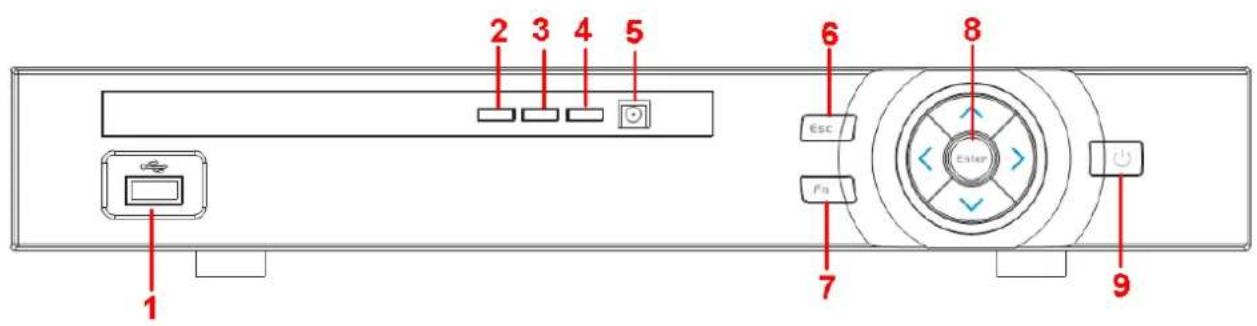
Figure 2-2
Please refer to the following sheet for front panel button information.
| SN | Icon | Name | Function |
| 1 | USB port | To connect USB storage device, USB mouse and etc. | |
| 2 | Alarm | Alarm indicator light | When an alarm occurs, the light becomes red to alert you. |
| 3 | NET | Network abnormal indicator light | Network error occurs or there is no network connection, the light becomes red to alert you. |
| 3 | HDD | HDD abnormal indicator light | HDD error occurs or HDD capacity is below specified threshold value, the light becomes red to alert you. |
| 5 | IR | IR Receiver | It is to receive the signal from the remote control. |
| 6 | ESC | ESC | Go to previous menu, or cancel current operation. |
| When playback, click it to restore real-time monitor mode. | |||
| 7 | FN | Assist | One-window monitor mode, click this button to display assistant function: PTZ control and image color. |
| Backspace function: in numeral control or text control, press it for 1.5seconds to delete the previous character before the cursor. | |||
| In motion detection setup, working with Fn and direction keys to realize setup. | |||
| In text mode, click it to switch between numeral, English character(small/capitalized) and etc. | |||
| Realize other special functions. | |||
| 8 | Enter | ENTER | Confirm current operation |
| Go to default button | |||
| Go to menu | |||
| 9 | Power button | Power button, press this button for three seconds to boot up or shut down DVR. | |
| ▲、▼ | UpDown | Activate current control, modify setup, and then move up and down. | |
| Increase/decrease numeral. | |||
| Assistant function such as PTZ menu. | |||
| ◀、▶ | LeftRight | Shift current activated control, | |
| When playback, click these buttons to control playback bar. |
2.1.3 HCVR51XXHC/ HCVR51XXHC-V2/ HCVR71XXHC-V2 Series
The interface is shown as below. See Figure 2-3.

Figure 2-3
Please refer to the following sheet for front panel button information.
| SN | Icon | Name | Function |
| 1 | NET | Network abnormal indicator light | Network error occurs or there is no network connection, the light becomes red to alert you. |
| 2 | PWR | Power indicator light | The red light becomes on when the power connection is OK. |
| 3 | HDD | HDD abnormal indicator light | HDD error occurs or HDD capacity is below specified threshold value, the light becomes red to alert you. |
2.1.4 HCVR41XXHE-S2/HCVR51XXH-S2/HCVR51XXHE-S2/
HCVR710XH-S2/ HCVR710XHE-S2/
HCVR41XXHE-S3/HCVR51XXHE-S3/HCVR71XXH-S3/HCVR71X
XHE-S3 /HCVR41XXHS-S2/ HCVR21XXHS-S2/
HCVR21XXHS-S3/HCVR41XXHS-S3/51XXHS-S3/7104HS-S3/
XVR41XXHE/XVR51H/XVR51XXHE/XVR71XXH/XVR71XXHE
/HCVR41XXHS-S2/ HCVR21XXHS-S2/
XVR21XXHS/XVR41XXHS/51XXHS/7104HS/HCVR71XX-4M
Series
The front panel is shown as below. See Figure 2-6.

Figure 2-4
Please refer to the following sheet for front panel button information.
| Icon | Name | Function |
| HDD | HDD status indicator light | The blue light is on when the HDD is malfunction. |
| NET | Network status indicator light | The blue light is on when the network connection is abnormal. |
| POWER | Power status indicator light | The blue light is on when the power connection is OK. |
| USB2.0 port | Connect to peripheral USB 2.0 storage device, mouse, burner and etc. |
2.1.5 HCVR52XXA-V2/ HCVR72XXA-V2 Series
The front panel is shown as below. See Figure 2-5.

Figure 2-5
Please refer to the following sheet for front panel button information.
| Name | Icon | Function |
| Power button | Power button, press this button for three seconds to boot up or shut down DVR. | |
| Shift | Shift | In textbox, click this button to switch between numeral, English(Small/Capitalized),donation and etc. |
| Up/1Down/4 | ▲、▼ | Activate current control, modify setup, and then move up and down. |
| Increase/decrease numeral. | ||
| Assistant function such as PTZ menu. | ||
| In text mode, input number 1/4 (English character G/H/I) | ||
| Left/2Right/3 | ◀ ▶ | Shift current activated control, |
| When playback, click these buttons to control playback bar.In text mode, input number 2(English character A/B/C)/3(English character D/E/F) | ||
| ESC | ESC | Go to previous menu, or cancel current operation. |
| When playback, click it to restore real-time monitor mode. | ||
| Enter | ENTER | Confirm current operation |
| Go to default button | ||
| Go to menu | ||
| Record | REC | Manually stop/start recording, working with direction keys or numeral keys to select the recording channel. |
| Slow play/8 | ▶ | Multiple slow play speeds or normal playback.In text mode, input number 8 (English character T/U/V). |
| Assistant | Fn | One-window monitor mode, click this button to display assistant function: PTZ control and image color. |
| Backspace function: in numeral control or text control, press it for 1.5seconds to delete the previous character before the cursor. | ||
| In motion detection setup, working with Fn and direction keys to realize setup. | ||
| In text mode, click it to switch between numeral, English character(small/capitalized) and etc. | ||
| Realize other special functions. | ||
| Fast play/7 | ▶ | Various fast speeds and normal playback.In text mode, input number 7 (English character P/Q/R/S). |
| Play previous/0 | |◀ | In playback mode, playback the previous videoIn text mode, input number 0. |
| Reverse/Pause/6 | ||◀ | In normal playback or pause mode, click this button to reverse playbackIn reverse playback, click this button to pause playback. |
| Play Next/9 | ▶| | In playback mode, playback the next videoIn menu setup, go to down ward of the dropdown list.In text mode, input number 9 (English character W/X/Y/Z) |
| Play/Pause /5 | ▶|| | In normal playback click this button to pause playbackIn pause mode, click this button to resume playback.In text mode, input number 5(English character J/K/L). |
| USB port | To connect USB storage device, USB mouse. | |
| Network abnormal indication light | Net | Network error occurs or there is no network connection, the light becomes red to alert you. |
| HDD abnormal indication light | HDD | HDD error occurs or HDD capacity is below specified threshold value, the light becomes red to alert you. |
| Record light | 1-16 | System is recording or not. It becomes on when system is recording. |
| IR Receiver | IR | It is to receive the signal from the remote control. |
2.1.6 HCVR42XXA-S2/ HCVR42XXAN-S2/ HCVR52XXA-S2/
HCVR5216AN-S2/HCVR720XA-S2/
HCVR42XXA-S3/HCVR42XXAN-S3/HCVR52XXA-S3/HCVR52XXAN-S3/HCVR72XXA-S3/HCVR7216AN-S3/XVR42XXA/XVR42XXAN/XVR52XXA/XVR52XXAN/XVR72XXA/XVR7216AN/HCVR 72XXAN-4M Series
The front panel is shown as below. See Figure 2-6.

Figure 2-6
Please refer to the following sheet for front panel button information.
| Icon | Name | Function |
| STATUS | Status indicator light | The blue light is on when the device is working properly. |
| HDD | HDD status indicator light | The blue light is on when the HDD is malfunction. |
| NET | Network status indicator light | The blue light is on when the network connection is abnormal. |
| POWER | Power status indicator light | The blue light is on when the power connection is OK. |
| USB2.0 port | Connect to peripheral USB 2.0 storage device, mouse, burner and etc. |
2.1.7 HCVR42XXL-S2/HCVR44XXL-S2 Series
The front panel is shown as below. See Figure 2-7.

natural_image
Pure diagram of a rectangular container with dotted pattern and small icons at top (no text or symbols)Figure 2-7
Please refer to the following sheet for front panel button information.
| Icon | Name | Function |
| STATUS | Status indicator light | The blue light is on when the device is working properly. |
| HDD | HDD status indicator light | The blue light is on when the HDD is malfunction. |
| NET | Network status indicator light | The blue light is on when the network connection is abnormal. |
| POWER | Power status indicator light | The blue light is on when the power connection is OK. |
| USB2.0 port | Connect to peripheral USB 2.0 storage device, mouse, burner and etc. |
2.1.8 HCVR52XXL-V2/HCVR54XXL-V2 Series
The front panel is shown as in Figure 2-8.

Figure 2-8
Please refer to the following sheet for front panel button information.
| Name | Icon | Function |
| Power button | Power button, press this button for three seconds to boot up or shut down DVR. | |
| Shift | Shift | In textbox, click this button to switch between numeral, English(Small/Capitalized),donation and etc. |
| Up/1Down/4 | ▲、▼ | Activate current control, modify setup, and then move up and down. |
| Increase/decrease numeral. | ||
| Assistant function such as PTZ menu. | ||
| In text mode, input number 1/4 (English character G/H/I) | ||
| Left/2Right/3 | ◀ ▶ | Shift current activated control, |
| When playback, click these buttons to control playback bar.In text mode, input number 2(English character A/B/C)/3(English character D/E/F) | ||
| ESC | ESC | Go to previous menu, or cancel current operation. |
| When playback, click it to restore real-time monitor mode. | ||
| Enter | ENTER | Confirm current operation |
| Go to default button | ||
| Go to menu | ||
| Record | REC | Manually stop/start recording, working with direction keys or numeral keys to select the recording channel. |
| Slow play/8 | ▶ | Multiple slow play speeds or normal playback.In text mode, input number 8 (English character T/U/V). |
| Assistant | Fn | One-window monitor mode, click this button to display assistant function: PTZ control and image color. |
| Backspace function: in numeral control or text control, press it for 1.5seconds to delete the previous character before the function. | ||
| In motion detection setup, working with Fn and direction keys to realize setup. | ||
| In text mode, click it to switch between numeral, English character(small/capitalized) and etc. | ||
| Realize other special functions. | ||
| Fast play/7 | ▶ | Various fast speeds and normal playback.In text mode, input number 7 (English character P/Q/R/S). |
| Play previous/0 | |◀ | In playback mode, playback the previous videoIn text mode, input number 0. |
| Reverse/Pause/6 | ||◀ | In normal playback or pause mode, click this button to reverse playbackIn reverse playback, click this button to pause playback. |
| Play Next/9 | ▶| | In playback mode, playback the next videoIn menu setup, go to down ward of the dropdown list.In text mode, input number 9 (English character W/X/Y/Z) |
| Play/Pause /5 | ▶|| | In normal playback click this button to pause playbackIn pause mode, click this button to resume playback.In text mode, input number 5(English character J/K/L). |
| USB port | To connect USB storage device, USB mouse. | |
| Network abnormal indication light | Net | Network error occurs or there is no network connection, the light becomes red to alert you. |
| HDD abnormal indication light | HDD | HDD error occurs or HDD capacity is below specified threshold value, the light becomes red to alert you. |
| Record light | 1-16 | System is recording or not. It becomes on when system is recording. |
2.1.9 HCVR58XXS-V2 Series
This series products' front panel is shown as below. See Figure 2-9.
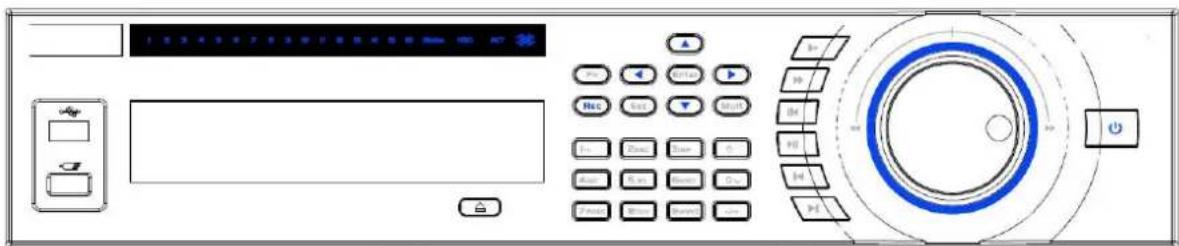
Figure 2-9
Please refer to the following sheet for front panel button information.
| Name | Icon | Function |
| Power button | ⏻ | Power button, press this button for three seconds to boot up or shut down DVR. |
| Number button | 0-9 | Input Arabic numberSwitch channel |
| Input number more than 10 | -/-- | If you want to input a number more than 10, please click this button and then input. |
| Shift | ↑ | In textbox, click this button to switch between numeral, English(Small/Capitalized),donation and etc. |
| Enable or disable tour. | ||
| Fast play | ▸ | Various fast speeds and normal playback. |
| Slow play | ▸ | Multiple slow play speeds or normal playback. |
| Play/Pause | ▸ II | In normal playback click this button to pause playbackIn pause mode, click this button to resume playback. |
| Reverse/Pause | II ◀ | In normal playback or pause mode, click this button to reverse playbackIn reverse playback, click this button to pause playback. |
| Play previous | |◀ | In playback mode, playback the previous video |
| Play Next | ▶| | In playback mode, playback the next videoIn menu setup, go to down ward of the dropdown list. |
| Up/Down | ▲、▼ | Activate current control, modify setup, and then move up and down. |
| Increase/decrease numeral. | ||
| Assistant function such as PTZ menu. | ||
| Left/Right | ◀ ▶ | Shift current activated control, and then move left and right. |
| When playback, click these buttons to control playback bar. | ||
| ESC | ESC | Go to previous menu, or cancel current operation. |
| When playback, click it to restore real-time monitor mode. | ||
| Enter | ENTER | Confirm current operation |
| Go to default button | ||
| Go to menu | ||
| Assistant | Fn | One-window monitor mode, click this button to display assistant function: PTZ control and image color. |
| Backspace function: in numeral control or text control, press it for 1.5 seconds to delete the previous character before the cursor. | ||
| In motion detection setup, working with Fn and direction keys to realize setup. | ||
| In text mode, click it to switch between numeral, English character(small/capitalized) and etc. | ||
| In HDD management interface, you can click it to switch HDD record information and other information (Menu prompt) | ||
| Realize other special functions. | ||
| Record | REC | Manually stop/start recording, working with direction keys or numeral keys to select the recording channel. |
| Window switch | Mult | Click it to switch one-window/multiple-window. |
| Shuttle(outer ring) | In real-time monitor mode it works as left/right direction key.Playback mode, counter clockwise to forward and clock wise to backward. | |
| Jog(inner dial) | Up/down direction key.Playback mode, turn the inner dial to realized frame by frame playback. (Only applies to some special versions.) | |
| USB port | To connect USB storage device, USB mouse, burner and etc. | |
| Record light | 1-32 | For 4/8/16 channel device: indication light on means that the channel is in recording. |
| For 32 channel device:Indication Light on: 1-16 channel is in recordingIndication Light flashes: 17-32 channel is in recordingIndication Light normally on: the corresponding channels are in recording | ||
| Remote control indication light | ACT | Remote control indication light |
| Status indication light | Status | The light is on if device operates properly. |
| Power indication light | PWR | Power indication light |
| IR Receiver | IR | It is to receive the signal from the remote control. |
2.1.10 HCVR48XXS-S2 Series
The front panel is shown as below. See Figure 2-10.
Figure 2-10
Please refer to the following sheet for front panel button information.
| Icon | Name | Function |
| STATUS | Status indicator light | The blue light is on when the device is working properly. |
| HDD | HDD status indicator light | The blue light is on when the HDD is malfunction. |
| NET | Network status indicator light | The blue light is on when the network connection is abnormal. |
| POWER | Power status indicator light | The blue light is on when the power connection is OK. |
| USB2.0 port | Connect to peripheral USB 2.0 storage device, mouse, burner and etc. |
2.2 Rear Panel
2.2.1 HCVR5104C Series
The HCVR5104C rear panel is shown as below. See Figure 2-11.
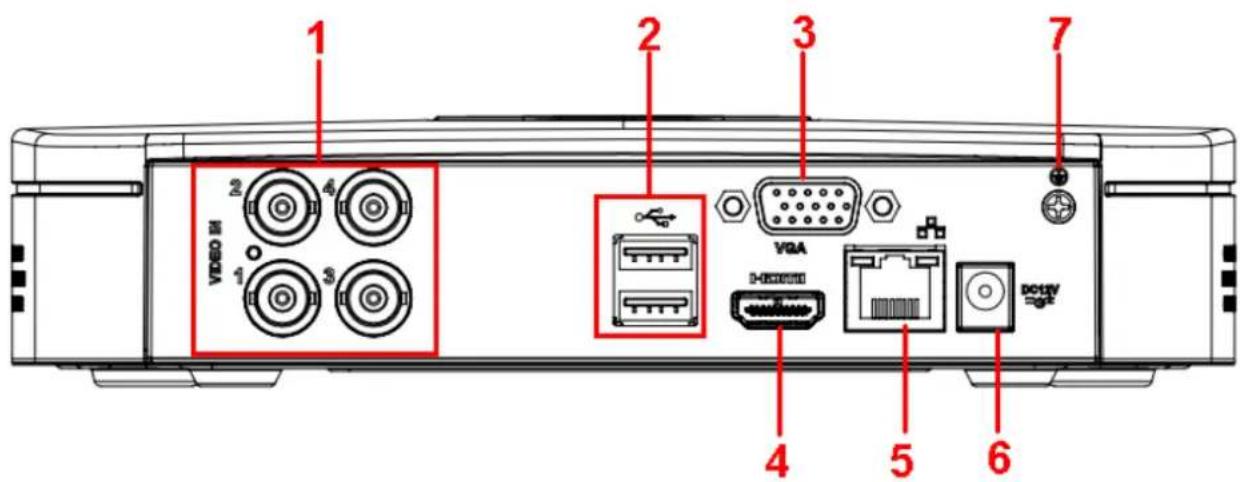
Figure 2-11
Please refer to the following sheet for detailed information.
| SN | Icon | Name | Note |
| 1 | VIDEO IN | Video input port | Connect to analog camera, video input signal. |
| 2 |  | USB2.0 port | Connect to USB storage device, mouse, burning DVD-ROM and etc. |
| 3 | VGA | VGA video output port | VGA video output port. Output analog video signal. Can connect to the monitor to view ananlog video output. |
| 4 | HDMI | High definition media interface | High definition audio and video signal output port. It transmits uncompressed high definition video and multiple-channel data to the HDMI port of the display device. |
| 5 |  | Network port | 100M Ethernet port |
| 6 | DC 12V G | Power input port | Input 12V DC. |
| 7 | [VZH5] | GND | Ground end |
2.2.2 HCVR5104C-V2/HCVR5108C-V2 Series
The HCVR5104C-V2 rear panel is shown as below. See Figure 2-12.
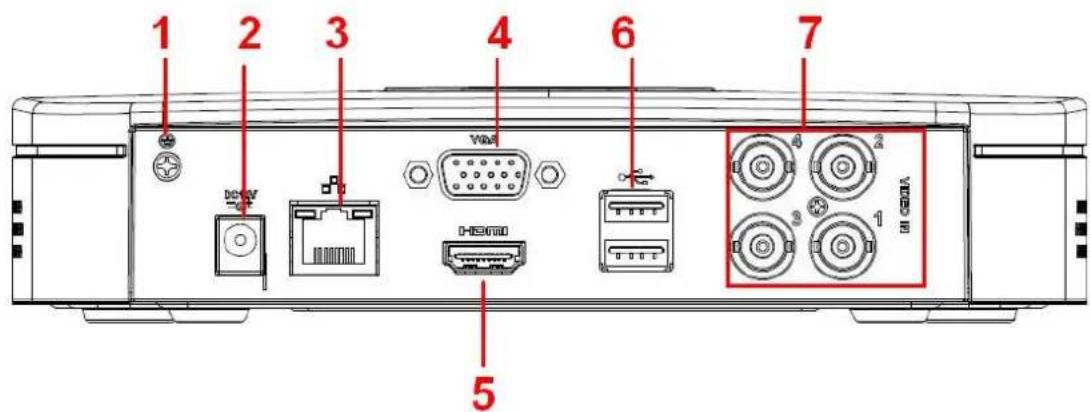
Figure 2-12
The HCVR5108C-V2 rear panel is shown as below. See Figure 2-13.
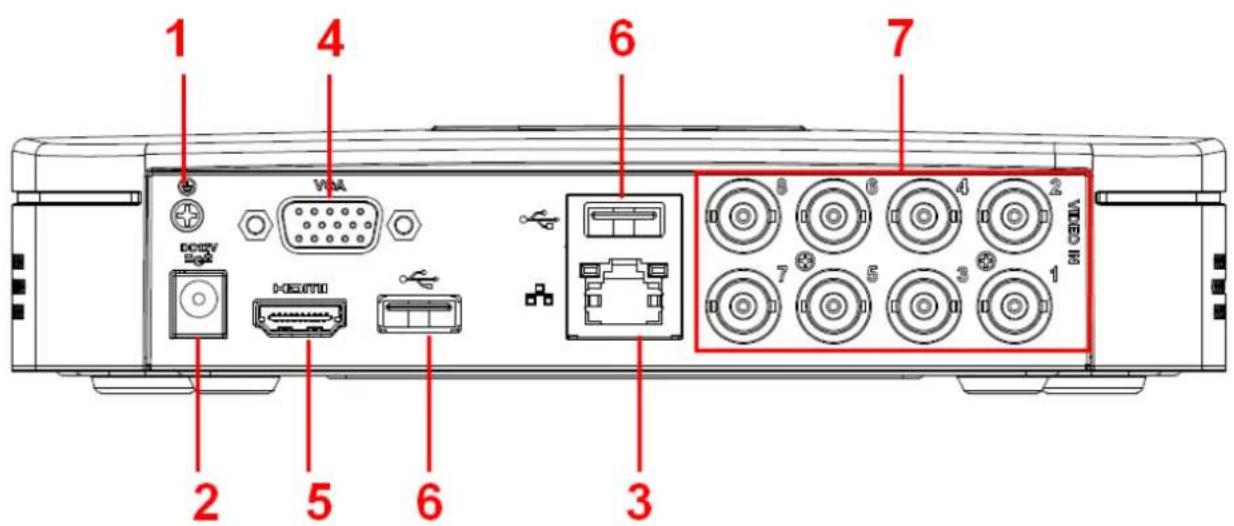
Figure 2-13
Please refer to the following sheet for detailed information.
| SN | Icon | Name | Note |
| 1 | GND | Ground end | |
| 2 | DC 12V | Power input port | Input 12V DC. |
| 3 | Network port | 100M Ethernet port | |
| 4 | VGA | VGA video output port | VGA video output port. Output analog video signal. Can connect to the monitor to view ananlog video output. |
| 5 | HDMI | High definition media interface | High definition audio and video signal output port. It transmits uncompressed high definitionvideo and multiple-channel data to the HDMI port of the display device. |
| 6 |  | USB2.0 port | Connect to USB storage device, mouse, burning DVD-ROM and etc. |
| 7 | VIDEO IN | Video input port | Connect to analog camera, video input signal. |
2.2.3 HCVR7104C-V2 Series
The HCVR7104C-V2 rear panel is shown as below. See Figure 2-14.
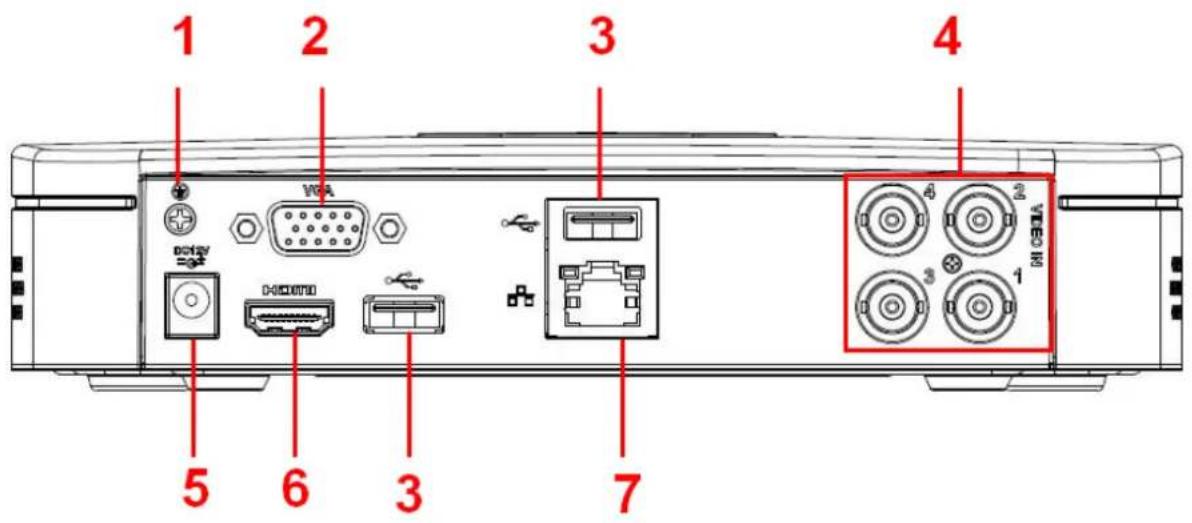
Figure 2-14
Please refer to the following sheet for detailed information.
| SN | Icon | Name | Note | |
| 1 |  | GND | Ground end | |
| 2 | VGA | VGA video output port | VGA video output port. Output analog video signal. Can connect to the monitor to view ananlog video output. | |
| 3 |  | USB2.0 port | Connect to USB storage device, mouse, burning DVD-ROM and etc. | |
| 4 | VIDEO IN | Video input port | Connect to analog camera, video input signal. | |
| 5 |  | Power input port | Input 12V DC. | |
| 6 | HDMI | High definition media interface | High definition audio and video signal output port. It transmits uncompressed high definition | |
| video and multiple-channel data to the HDMI port of the display device. | ||||
| 7 |  | Network port | 100M Ethernet port | |
2.2.4 HCVR4104/HCVR4108C-S2/HCVR2108C-S2 Series
The HCVR4104C-S2 series rear panel is shown as below. See Figure 2-15.
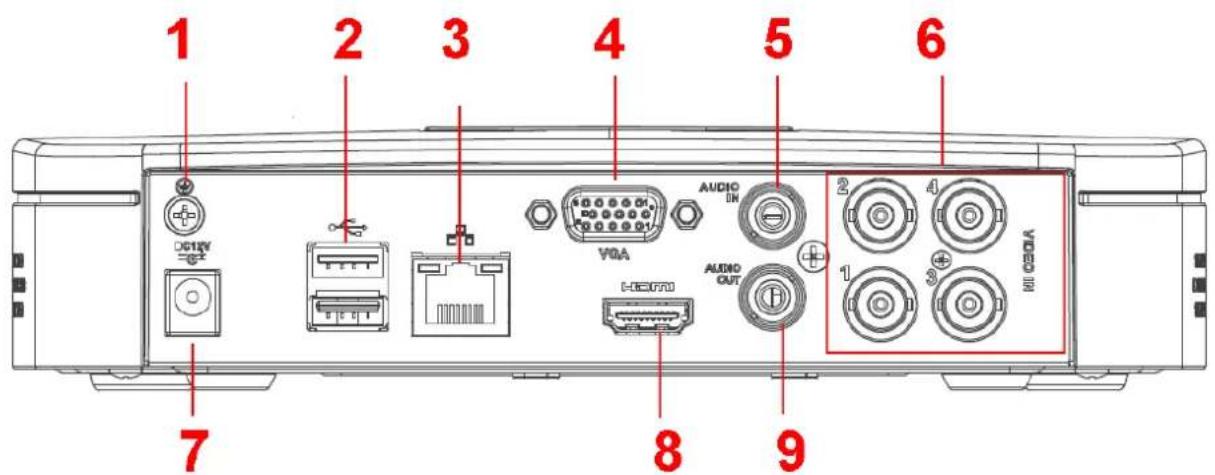
Figure 2-15
The HCVR4108C-S2/HCVR2108C-S2 series rear panel is shown as below. See Figure 2-16.
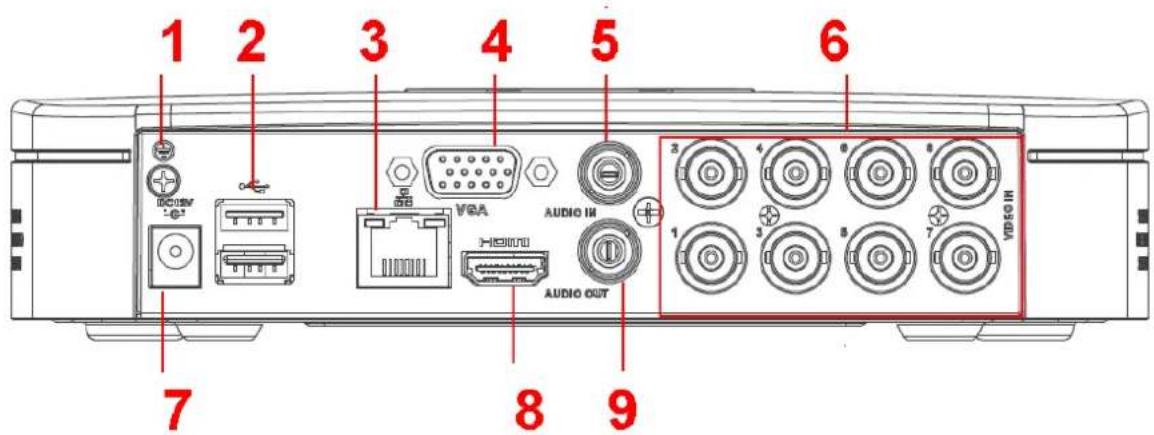
Figure 2-16
Please refer to the following sheet for detailed information.
| SN | Icon | Name | Note |
| 1 | GND | Ground end | |
| 2 | USB2.0 port | Connect to USB storage device, mouse, burning DVD-ROM and etc. | |
| 3 | Network port | 100M Ethernet port | |
| 4 | VGA | VGA video output port | VGA video output port. Output analog video signal. Can connect to the monitor to view ananlog video output. |
| 5 | AUDIO IN | Audio input port | Connect to audio input device such as speaker. |
| 6 | VIDEO IN | Video input port | Connect to analog camera, video input signal. |
| 7 | DC 12V | Power input port | Input 12V DC. |
| 8 | HDMI | High definition media interface | High definition audio and video signal output port. It transmits uncompressed high definition video and multiple-channel data to the HDMI port of the display device. |
| 9 | AUDIO OUT | Audio output port | Connect to video output device such as sound box. |
2.2.5 HCVR5104/5108C-S2 Series
The HCVR5104C-S2 series rear panel is shown as below. See Figure 2-17.
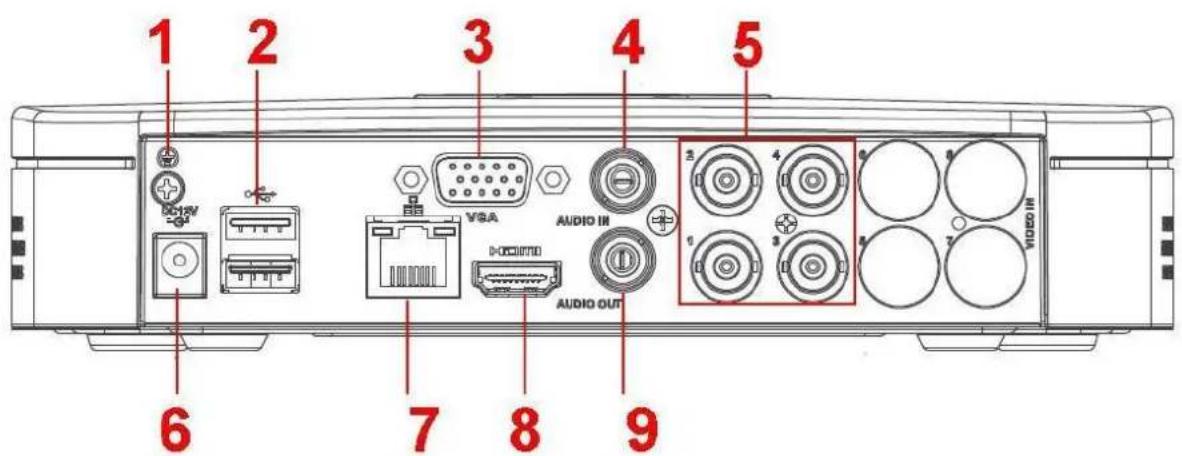
Figure 2-17
The HCVR5108C-S2 series rear panel is shown as below. See Figure 2-18.
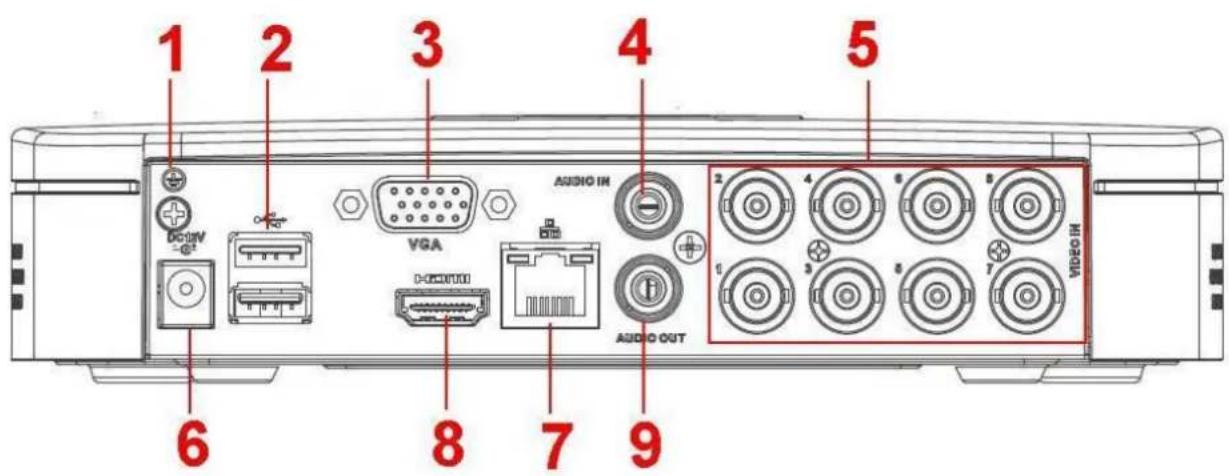
Figure 2-18
Please refer to the following sheet for detailed information.
| SN | Icon | Name | Note |
| 1 |  | GND | Ground end |
| 2 | USB2.0 port | Connect to USB storage device, mouse, burning DVD-ROM and etc. | |
| 3 | VGA | VGA video output port | VGA video output port. Output analog video signal. Can connect to the monitor to view ananlog video output. |
| 4 | AUDIO IN | Audio input port | Connect to audio input device such as speaker. |
| 5 | VIDEO IN | Video input port | Connect to analog camera, video input signal. |
| 6 |  | Power input port | Input 12V DC. |
| 7 | Network port | 100M Ethernet port | |
| 8 | HDMI | High definition media interface | High definition audio and video signal output port. It transmits uncompressed high definition video and multiple-channel data to the HDMI port of the display device. |
| 9 | AUDIO OUT | Audio output port | Connect to video output device such as sound box. |
2.2.6 HCVR7104C-S2 Series
The HCVR7104C-S2 series rear panel is shown as below. See Figure 2-19.
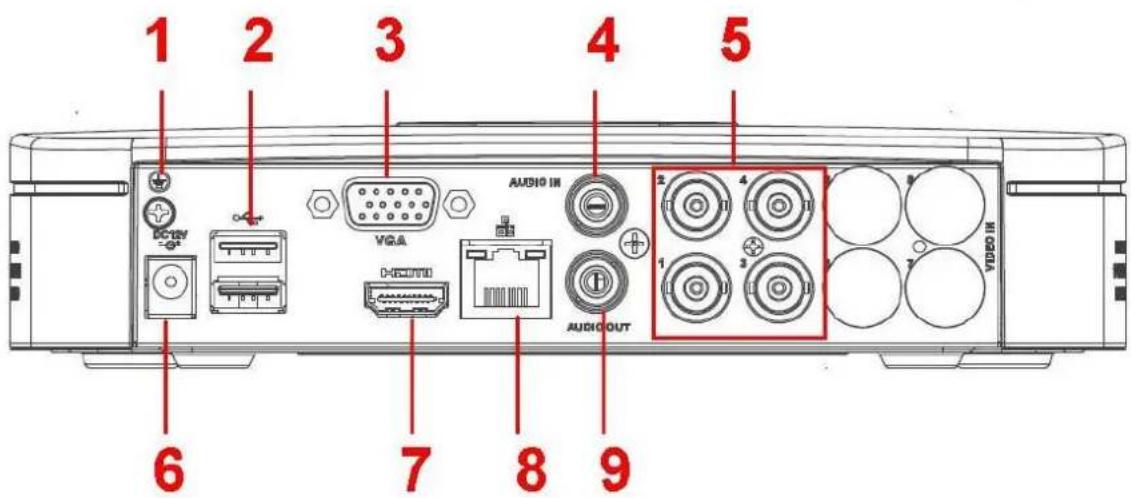
Figure 2-19
Please refer to the following sheet for detailed information.
| SN | Icon | Name | Note |
| 1 |  | GND | Ground end |
| 2 | USB2.0 port | Connect to USB storage device, mouse, burning DVD-ROM and etc. | |
| 3 | VGA | VGA video output port | VGA video output port. Output analog video signal. Can connect to the monitor to view ananlog video output. |
| 4 | AUDIO IN | Audio input port | Connect to audio input device such as speaker. |
| 5 | VIDEO IN | Video input port | Connect to analog camera, video input signal. |
| 6 |  | Power input port | Input 12V DC. |
| 7 | HDMI | High definition media interface | High definition audio and video signal output port. It transmits uncompressed high definition video and multiple-channel data to the HDMI port of the display device. |
| 8 |  | Network port | 100M Ethernet port |
| 9 | AUDIO OUT | Audio output port | Connect to video output device such as sound box. |
2.2.7 HCVR410XC-S3/HCVR510XC-S3/7104C-S3/XVR410XC/XVR510XC/7104C Series
These series rear panel is shown as below. See Figure 4-127.
The following figure is based on the HCVR4108C-S3/5108C-S3/XVR4108C/5108C series.
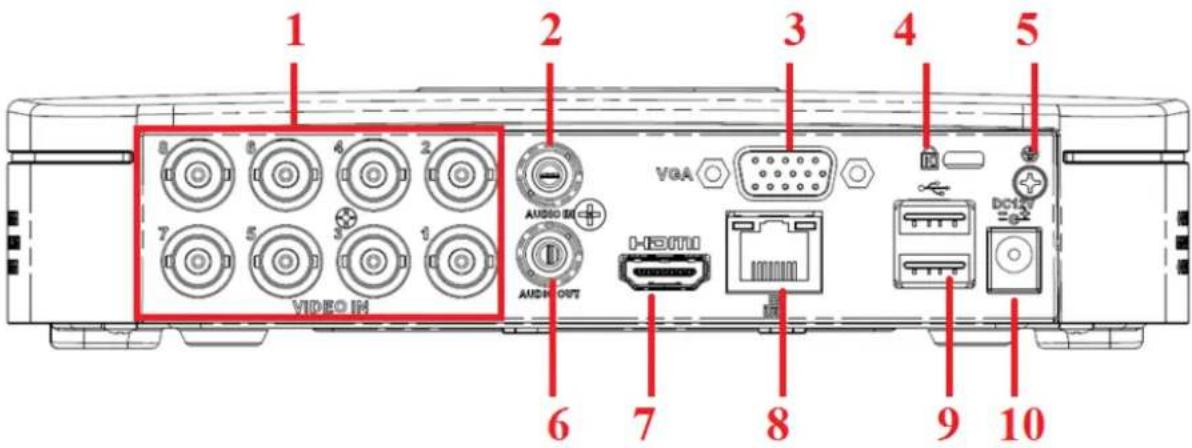
Figure 2-20
Please refer to the following sheet for detailed information.
| SN | Icon | Name | Note |
| 1 | VIDEO IN | Video input port | Connect to analog camera, video input signal. |
| 2 | AUDIO IN | Audio input port | Connect to audio input device such as speaker. |
| 3 | VGA | VGA video output port | VGA video output port. Output analog video signal. Can connect to the monitor to view analog video output. |
| 4 | [0762] | Power cable fastener | Use clamp to secure the power cable on the device in case there is any loss. |
| 5 | [4007] | GND | Ground end |
| 6 | AUDIO OUT | Audio output port | Connect to video output device such as sound box. |
| 7 | HDMI | High definition media interface | High definition audio and video signal output port. It transmits uncompressed high definition video and multiple-channel data to the HDMI port of the display device. |
| 8 |  | Network port | 100M Ethernet port |
| 9 |  | USB2.0 port | Connect to USB storage device, mouse, burning DVD-ROM and etc. |
| 10 | DC 12V=G | Power input port | Input 12V DC. |
2.2.8 HCVR5104H/HCVR5108H Series
The HCVR5104H series rear panel is shown as below. See Figure 2-21.
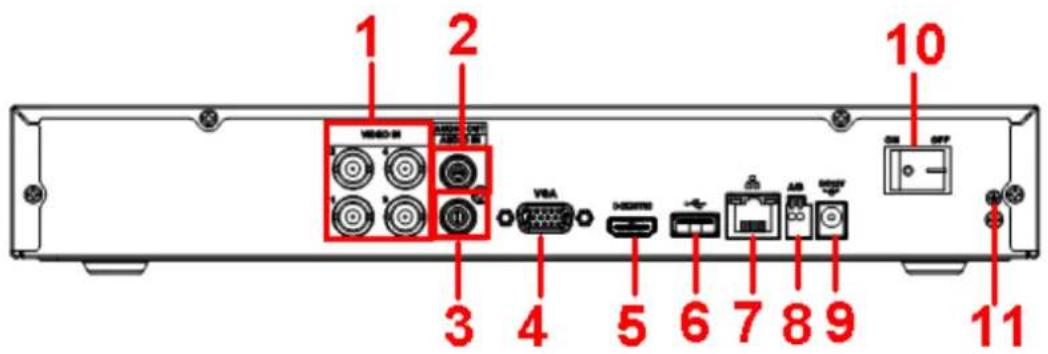
Figure 2-21
The HCVR5108H series rear panel is shown as below. See Figure 2-22.
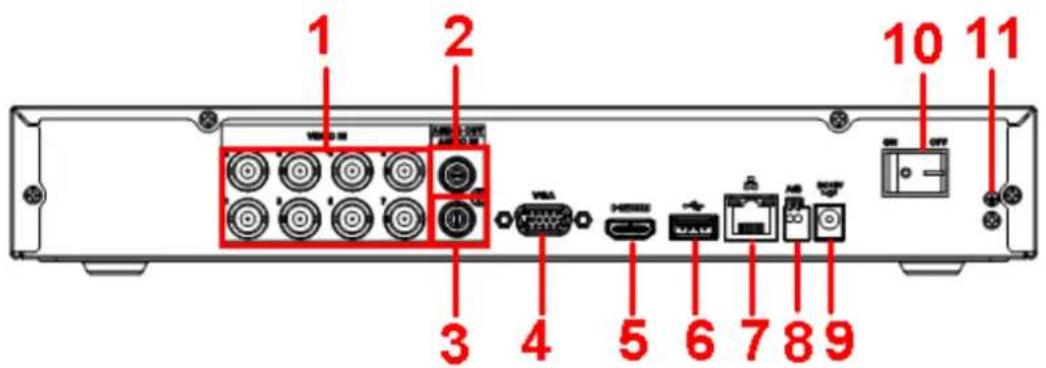
Figure 2-22
Please refer to the following sheet for detailed information.
| SN | Icon | Name | Note | |
| 1 | VIDEO IN | Video input port | Connect to analog camera, video input signal. | |
| 2 | AUDIO OUT | Audio output port | Connect to video output device such as sound box. | |
| 3 | AUDIO IN | Audio input port | Connect to audio input device such as speaker. | |
| 4 | VGA | VGA video output port | VGA video output port. Output analog video signal. Can connect to the monitor to view ananlog video output. | |
| 5 | HDMI | High definition media interface | High definition audio and video signal output port. It transmits | |
| uncompressed high definition video and multiple-channel data to the HDMI port of the display device. | ||||
| 6 |  | USB2.0 port | Connect to USB storage device, mouse, burning DVD-ROM and etc. | |
| 7 |  | Network port | 100M Ethernet port | |
| 8 | A | RS485 (RS-485) communication port | RS485_A port. It is the cable A. You can connect to the control devices such as speed dome PTZ. | |
| B | RS485_B.It is the cable B. You can connect to the control devices such as speed dome PTZ. | |||
| 9 |  | Power input port | Input 12V DC. | |
| 10 |  | Power on-off button | Power on/off button. | |
| 11 |  | GND | Ground end | |
2.2.9 HCVR5104H-V2/HCVR5108H-V2/HCVR5116H-V2 Series
The HCVR5104H-V2 series rear panel is shown as below. See Figure 2-23.
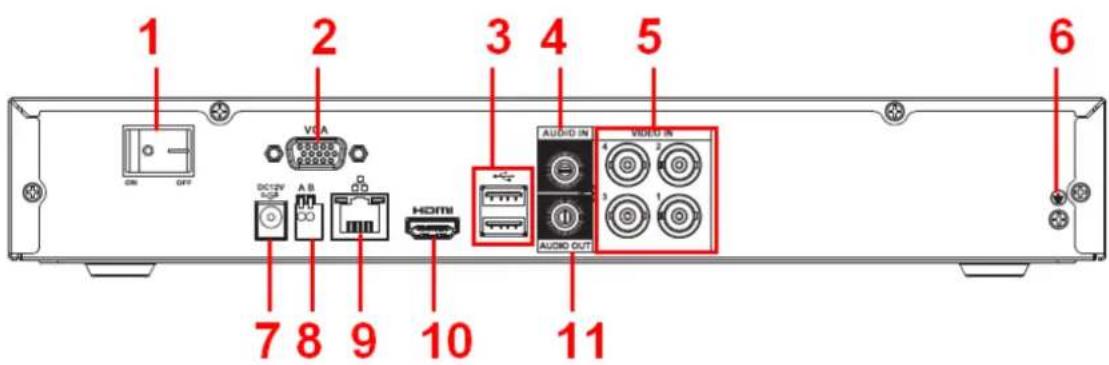
Figure 2-23
The HCVR5108H-V2 series rear panel is shown as below. See Figure 2-24.
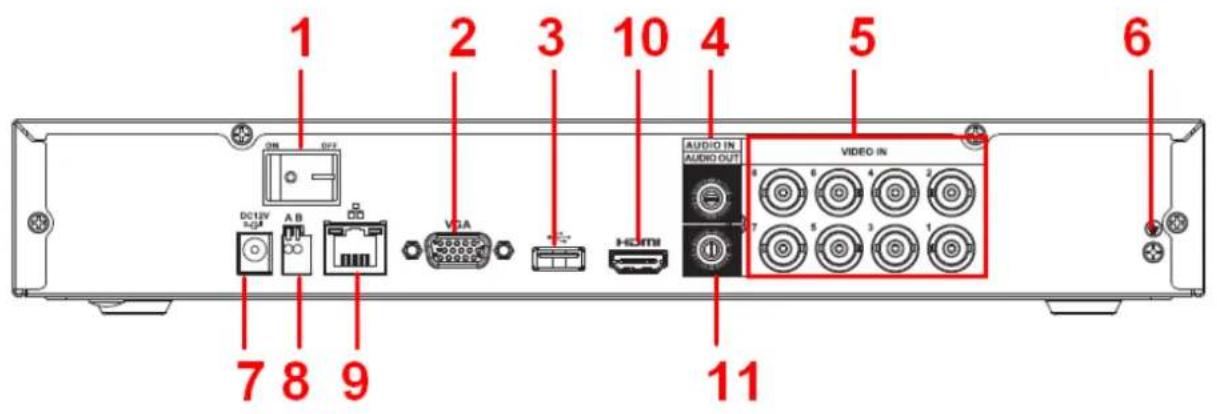
Figure 2-24
The HCVR5116H-V2 series rear panel is shown as below. See Figure 2-25.
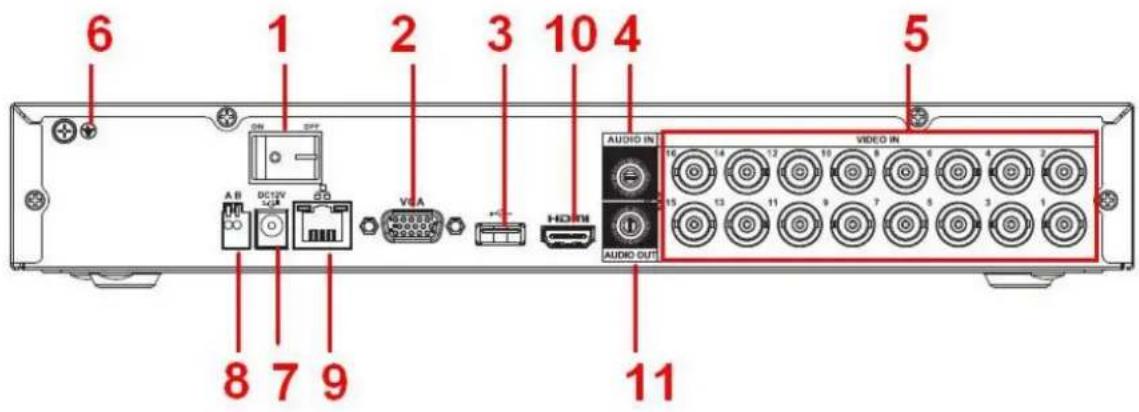
Figure 2-25
Please refer to the following sheet for detailed information.
| SN | Icon | Name | Note |
| 1 |  | Power on-off button | Power on/off button. |
| 2 | VGA | VGA video output port | VGA video output port. Output analog video signal. Can connect to the monitor to view ananlog video output. |
| 3 |  | USB2.0 port | Connect to USB storage device, mouse, burning DVD-ROM and etc. |
| 4 | AUDIO IN | Audio input port | Connect to audio input device such as speaker. |
| 5 | VIDEO IN | Video input port | Connect to analog camera, video input signal. |
| 6 | [4572] | GND | Ground end |
| 7 |  | Power input port | Input 12V DC. |
| 8 | A | RS485 (RS-485) communication port | RS485_A port. It is the cable A. You can connect to the control devices such as speed dome PTZ. |
| B | RS485_B.It is the cable B. You can connect to the control devices such as speed dome PTZ. | ||
| 9 |  | Network port | 100M Ethernet port |
| 10 | HDMI | High definition media interface | High definition audio and video signal output port. It transmits uncompressed high definition video and multiple-channel data to the HDMI port of the display device. |
| 11 | AUDIO OUT | Audio output port | Connect to video output device such as sound box. |
2.2.10 HCVR5104HC/HCVR5108HC Series
The HCVR5104HC series rear panel is shown as below. See Figure 2-26.
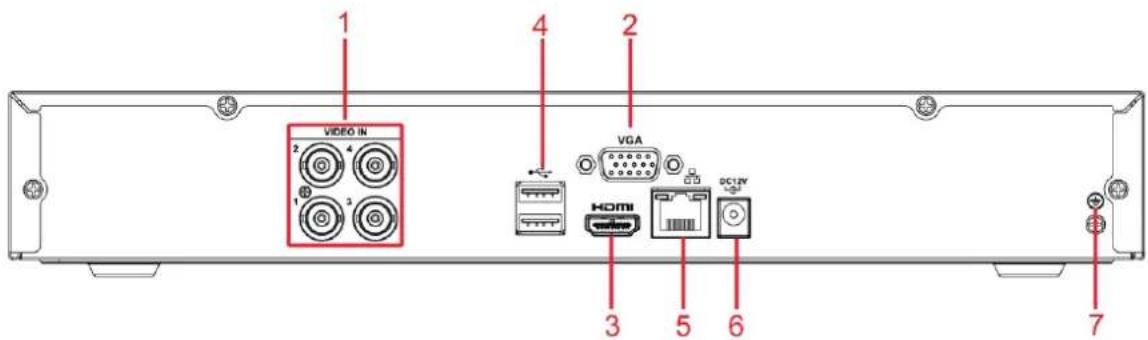
Figure 2-26
The HCVR5108HC series rear panel is shown as below. See Figure 2-27.
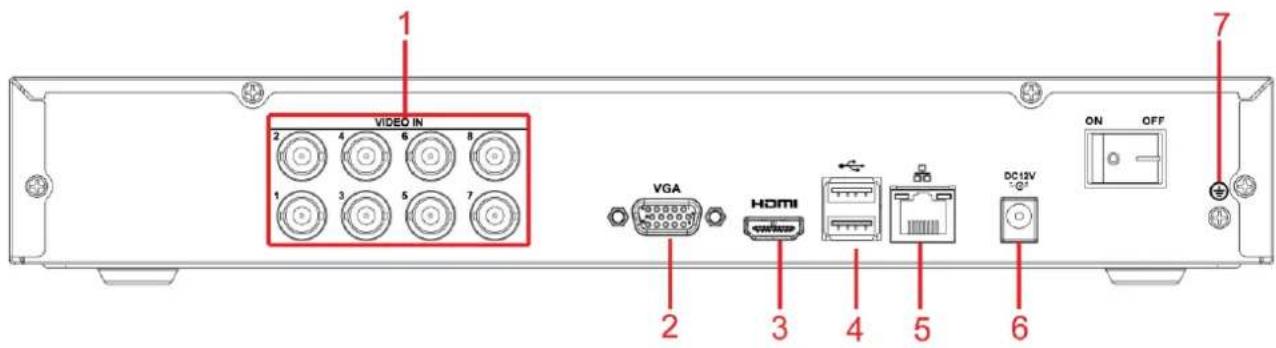
Figure 2-27
Please refer to the following sheet for detailed information.
| SN | Icon | Name | Note |
| 1 | VIDEO IN | Video input port | Connect to analog camera, video input signal. |
| 2 | VGA | VGA video output port | VGA video output port. Output analog video signal. Can connect to the monitor to view ananlog video output. |
| 3 | HDMI | High definition media interface | High definition audio and video signal output port. It transmits uncompressed high definition video and multiple-channel data to the HDMI port of the display device. |
| 4 |  | USB2.0 port | Connect to USB storage device, mouse, burning DVD-ROM and etc. |
| 5 |  | Network port | 100M Ethernet port |
| 6 |  | Power input port | Input 12V DC. |
| 7 |  | GND | Ground end |
2.2.11 HCVR5104HC-V2/HCVR5108HC-V2/HCVR5116HC-V2 Series
The HCVR5104HC-V2 series rear panel is shown as below. See Figure 2-28.
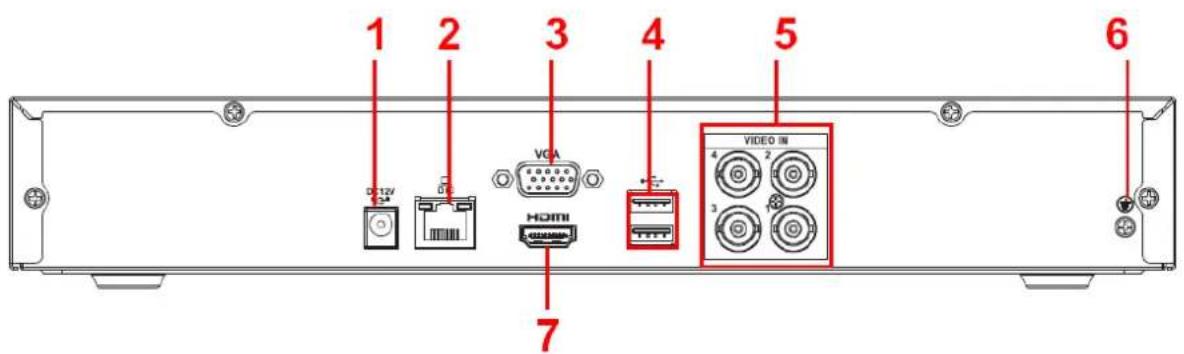
Figure 2-28
The HCVR5108HC-V2 series rear panel is shown as below. See Figure 2-29.
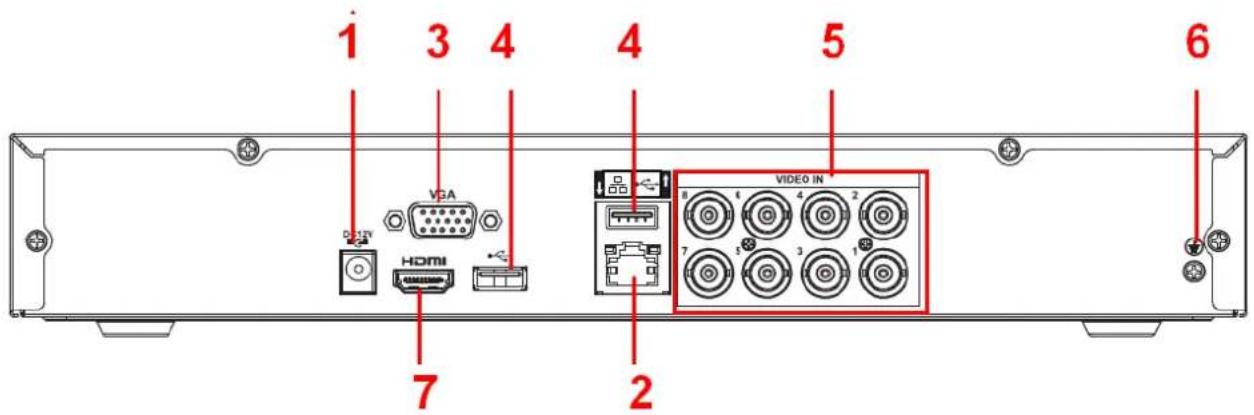
Figure 2-29
The HCVR5116HC-V2 series rear panel is shown as below. See Figure 2-30.
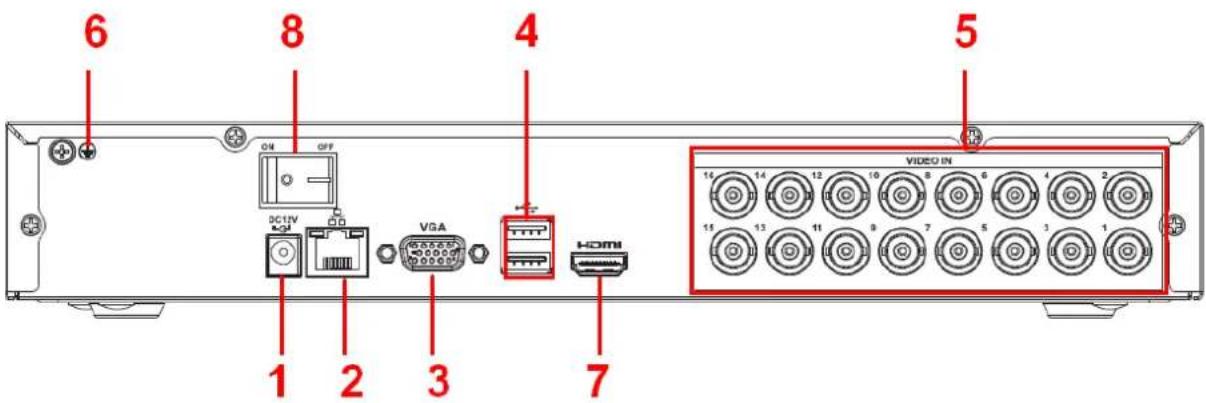
Figure 2-30
Please refer to the following sheet for detailed information.
| SN | Icon | Name | Note |
| 1 |  | Power input port | Input 12V DC. |
| 2 |  | Network port | 100M Ethernet port |
| 3 | VGA | VGA video output port | VGA video output port. Output analog video signal. Can connect to the monitor to view ananlog video output. |
| 4 |  | USB2.0 port | Connect to USB storage device, mouse, burning DVD-ROM and etc. |
| 5 | VIDEO IN | Video input port | Connect to analog camera, video input signal. |
| 6 |  | GND | Ground end |
| 7 | HDMI | High definition media interface | High definition audio and video signal output port. It transmits uncompressed high definition video and multiple-channel data to the HDMI port of the display device. |
| 8 |  | Power on-off button | Power on/off button. |
2.2.12 HCVR5104HE/HCVR5108HE Series
The HCVR5104HE4 series rear panel is shown as below. See Figure 2-33.
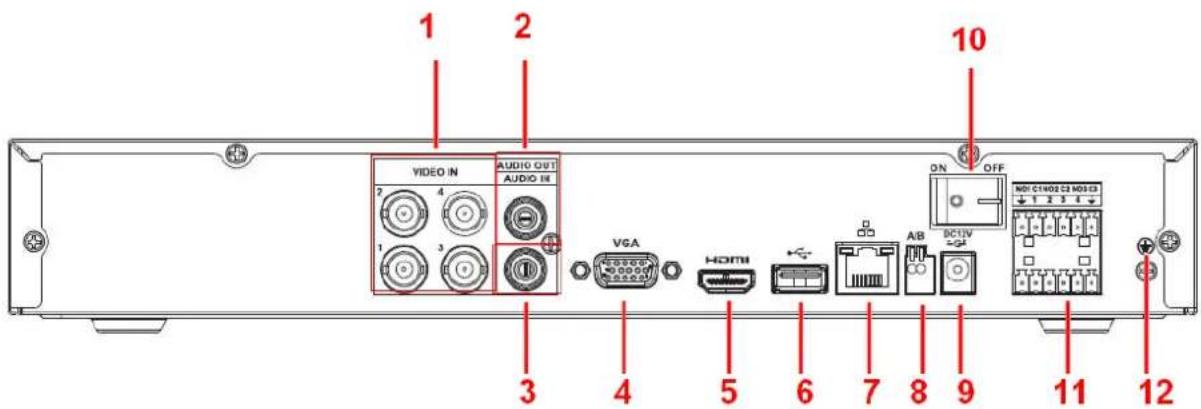
Figure 2-31
The HCVR5108HE series rear panel is shown as below. See Figure 2-67.
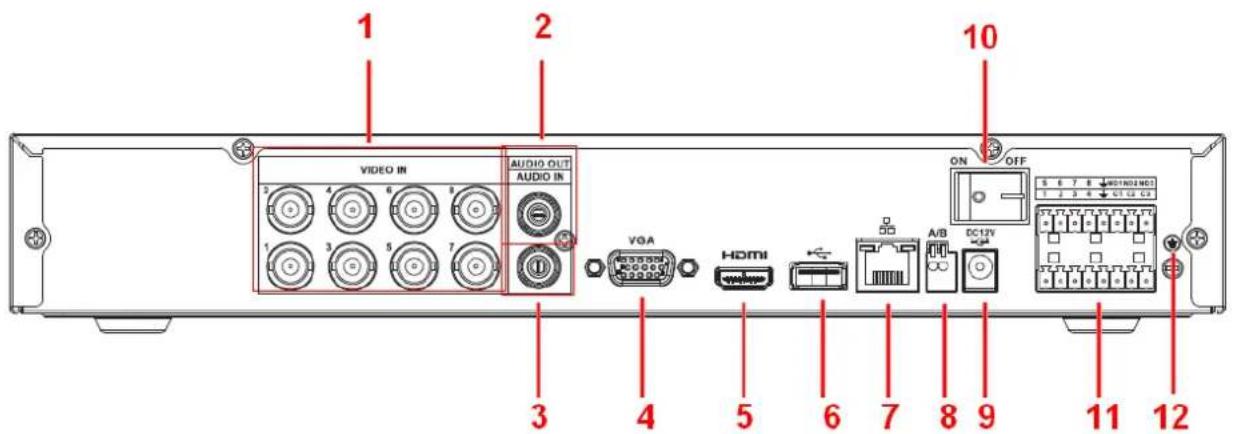
Figure 2-32
Please refer to the following sheet for detailed information.
| SN | Icon | Name | Note |
| 1 | VIDEO IN | Video input port | Connect to analog camera,video input signal. |
| 2 | AUDIO OUT | Audio output port | Connect to video output device such as sound box. |
| 3 | AUDIO IN | Audio input port | Connect to audio input device such as speaker. |
| 4 | VGA | VGA video output port | VGA video output port. Output analog video signal. Can connect to the monitor to view ananlog video output. |
| 5 | HDMI | High definition media interface | High definition audio and video signal output port. It transmits uncompressed high definition video and multiple-channel data to the HDMI port of the display device. |
| 6 |  | USB2.0 port | Connect to USB storage device, mouse, burning DVD-ROM and etc. |
| 7 |  | Network port | 100M Ethernet port |
| 8 | A | RS485 (RS-485) communication port | RS485_A port. It is the cable A. You can connect to the control devices such as speed dome PTZ. |
| B | RS485_B.It is the cable B. You can connect to the control devices such as speed dome PTZ. | ||
| 9 |  | Power input port | Input 12V DC. |
| 10 |  | Power on-off button | Power on/off button. |
| 11 | 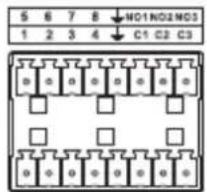 | Alarm input/Alarm output | Input/output alarm signal. |
| 12 | [TOHS] | GND | Ground end |
2.2.13 HCVR5104HE-V2/HCVR5108HE-V2/HCVR5116HE-V2 Series
The HCVR5104HE-V2 series rear panel is shown as below. See Figure 2-33.
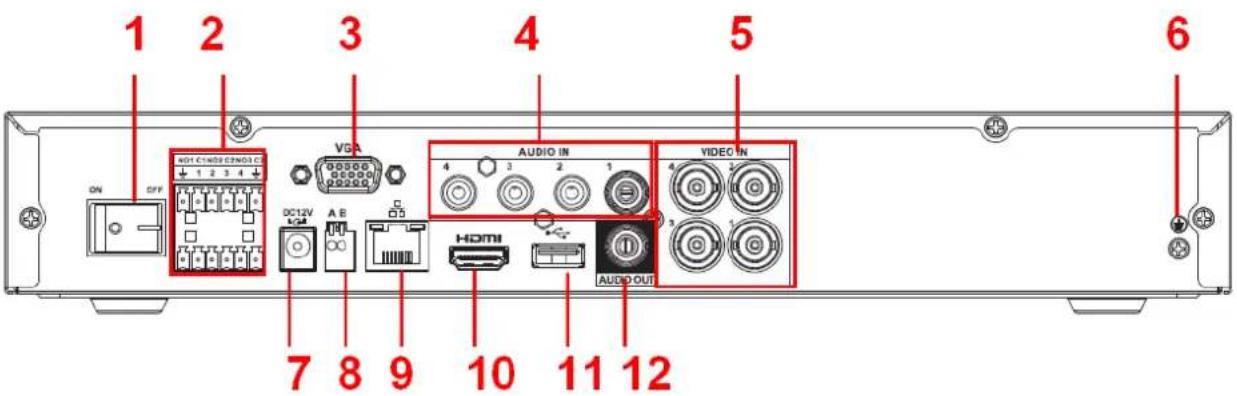
Figure 2-33
The HCVR5108HE-V2 series rear panel is shown as below. See Figure 2-67.
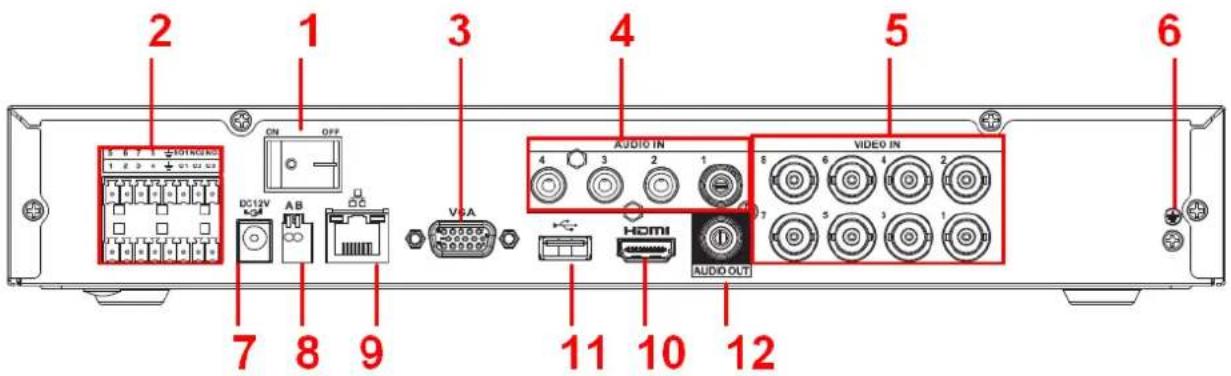
Figure 2-34
The HCVR5116HE-V2 series rear panel is shown as below. See Figure 2-35.
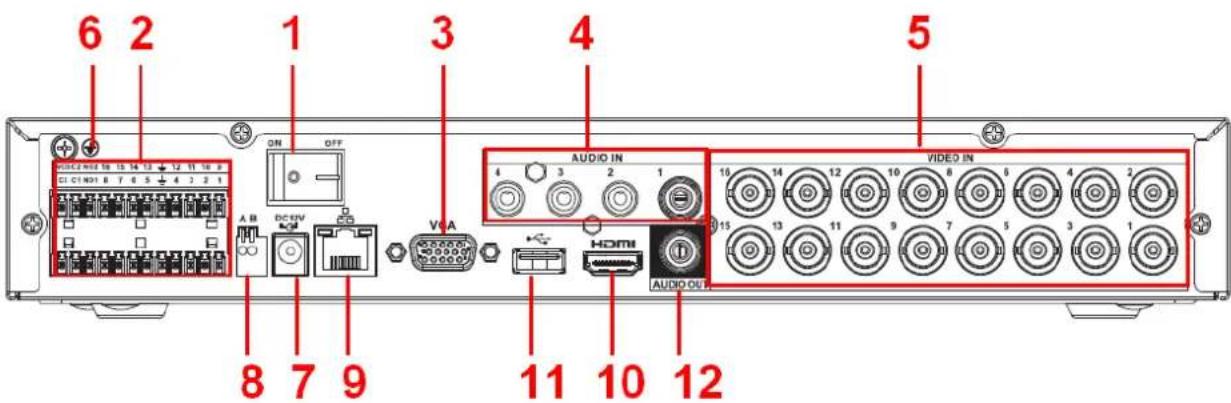
Figure 2-35
Please refer to the following sheet for detailed information.
| SN | Icon | Name | Note |
| 1 | Power on-off button | Power on/off button. | |
| 2 | 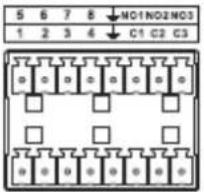 | Alarm input/Alarm output | Input/output alarm signal. |
| 3 | VGA | VGA video output port | VGA video output port. Output analog video signal. Can connect to the monitor to view ananlog video output. |
| 4 | AUDIO IN | Audio input port | Connect to audio input device such as speaker. |
| 5 | VIDEO IN | Video input port | Connect to analog camera, video input signal. |
| 6 | [IMAGE] | GND | Ground end |
| 7 | DC12V=G= | Power input port | Input 12V DC. |
| 8 | A | RS485 (RS-485) communication port | RS485_A port. It is the cable A. You can connect to the control devices such as speed dome PTZ. |
| B | RS485_B.It is the cable B. You can connect to the control devices such as speed dome PTZ. | ||
| 9 |  | Network port | 100M Ethernet port |
| 10 | HDMI | High definition media interface | High definition audio and video signal output port. It transmits uncompressed high definition video and multiple-channel data to the HDMI port of the display device. |
| 11 | [IMAGE] | USB2.0 port | Connect to USB storage device, mouse, burning DVD-ROM and etc. |
| 12 | AUDIO OUT | Audio output port | Connect to video output device such as sound box. |
2.2.14 HCVR7104H-V2/HCVR7108H-V2 Series
The HCVR7104H-V2 series rear panel is shown as below. See Figure 2-36.
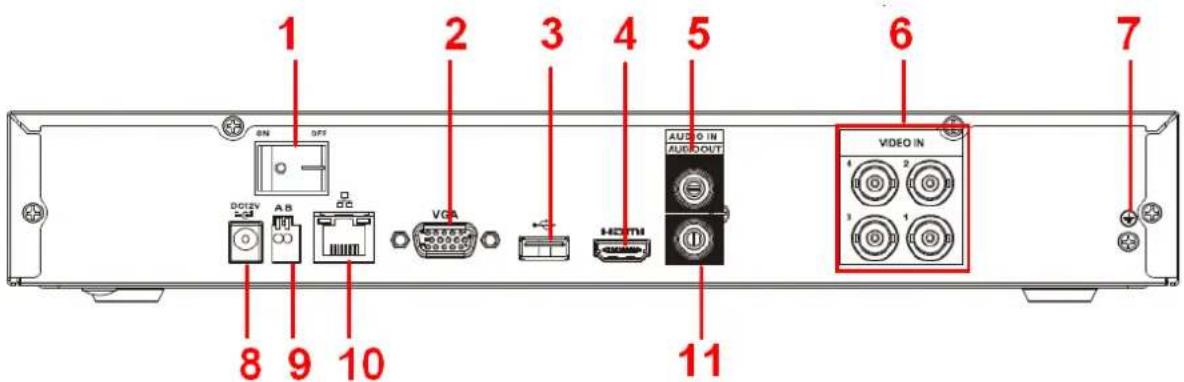
Figure 2-36
The HCVR7108H-V2 series rear panel is shown as below. See Figure 2-37.
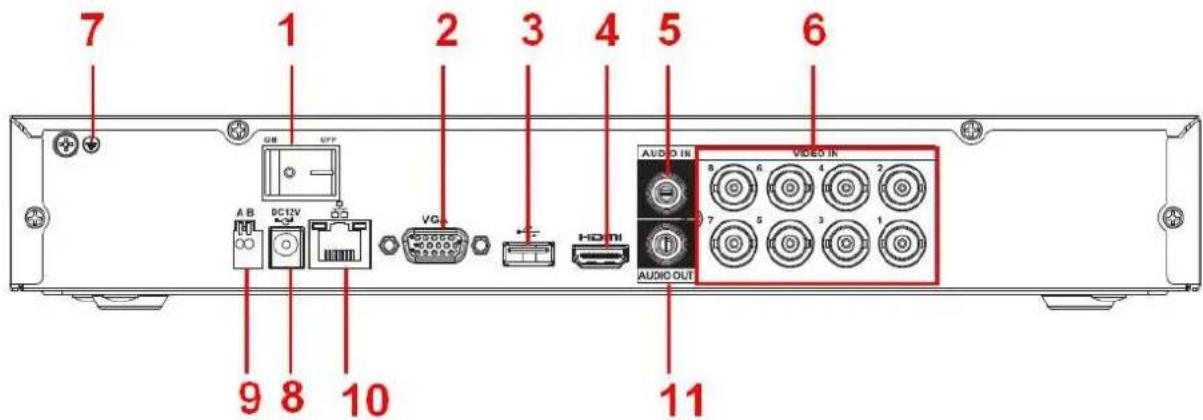
Figure 2-37
Please refer to the following sheet for detailed information.
| SN | Icon | Name | Note |
| 1 |  | Power on-off button | Power on/off button. |
| 2 | VGA | VGA video output port | VGA video output port. Output analog video signal. Can connect to the monitor to view ananlog video output. |
| 3 |  | USB2.0 port | Connect to USB storage device, mouse, burning DVD-ROM and etc. |
| 4 | HDMI | High definition media interface | High definition audio and video signal output port. It transmits uncompressed high definition video and multiple-channel data to the HDMI port of the display device. |
| 5 | AUDIO IN | Audio input port | Connect to audio input device such as speaker. |
| 6 | VIDEO IN | Video input port | Connect to analog camera, video input signal. |
| 7 | [30W7] | GND | Ground end |
| 8 | [xxxx] | Power input port | Input 12V DC. |
| 9 | A | RS485 (RS-485) communication port | RS485_A port. It is the cable A. You can connect to the control devices such as speed dome PTZ. |
| B | RS485_B.It is the cable B. You can connect to the control devices such as speed dome PTZ. | ||
| 10 |  | Network port | 100M Ethernet port |
| 11 | AUDIO OUT | Audio output port | Connect to video output device such as sound box. |
2.2.15 HCVR7104HC-V2/HCVR7108HC-V2 Series
The HCVR7104HC-V2 series rear panel is shown as below. See Figure 2-38.
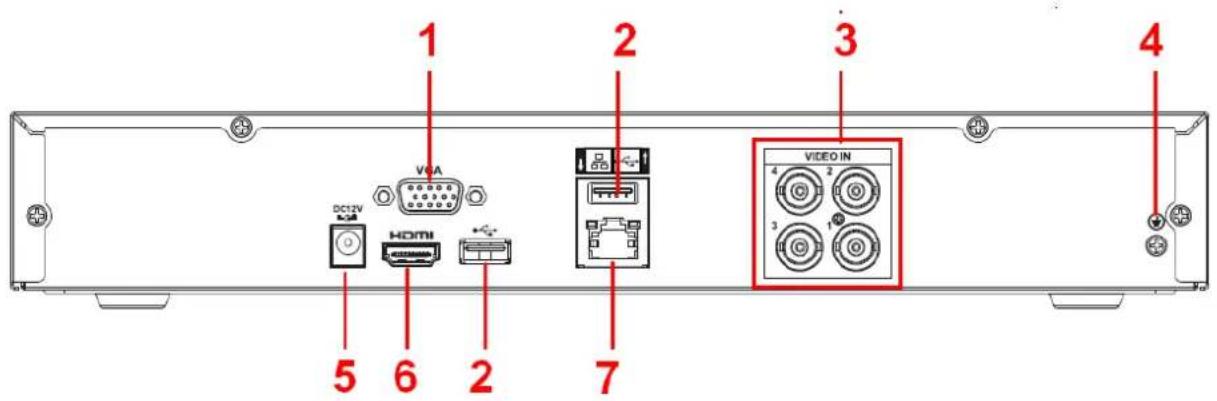
Figure 2-38
The HCVR7108HC-V2 series rear panel is shown as below. See Figure 2-39.
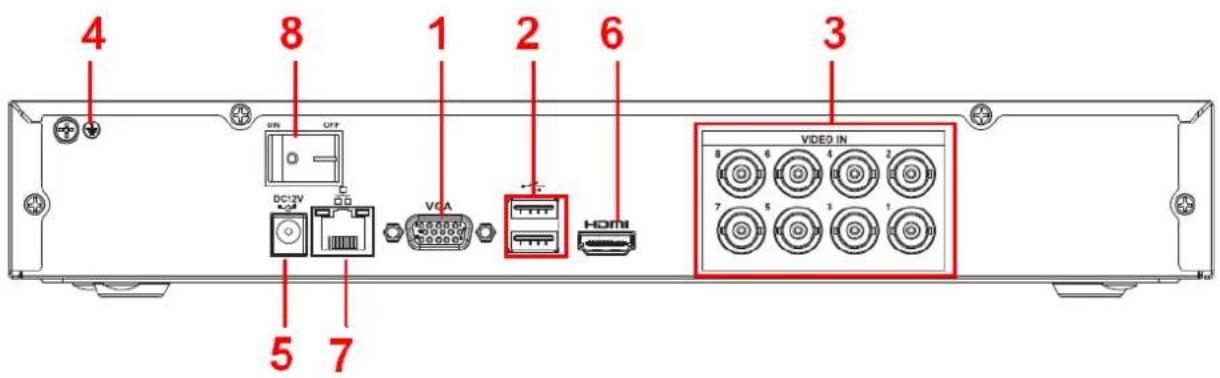
Figure 2-39
Please refer to the following sheet for detailed information.
| SN | Icon | Name | Note | |
| 1 | VGA | VGA video output port | VGA video output port. Output analog video signal. Can connect to the monitor to view ananlog video output. | |
| 2 |  | USB2.0 port | Connect to USB storage device, mouse, burning DVD-ROM and etc. | |
| 3 | VIDEO IN | Video input port | Connect to analog camera, video input signal. | |
| 4 |  | GND | Ground end | |
| 5 | Power input port | Input 12V DC. | ||
| 6 | HDMI | High definition media interface | High definition audio and video signal output port. It transmits uncompressed high definition video and multiple-channel data to the HDMI port of the display device. | |
| 7 |  | Network port | 100M Ethernet port | |
| 8 |  | Power on-off button | Power on/off button. | |
2.2.16 HCVR7104HE-V2/HCVR7108HE-V2 Series
The HCVR7104HE-V2 series rear panel is shown as below. See Figure 2-40.
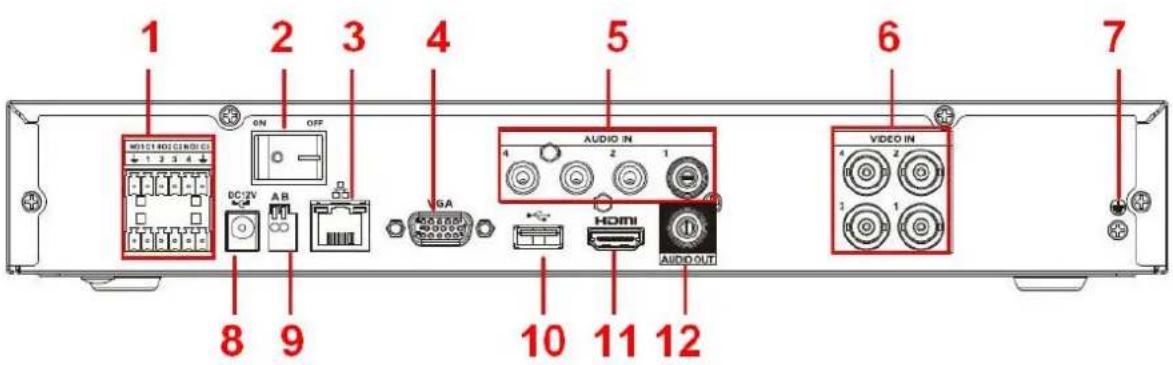
Figure 2-40
The HCVR7108HE-V2 series rear panel is shown as below. See Figure 2-41.
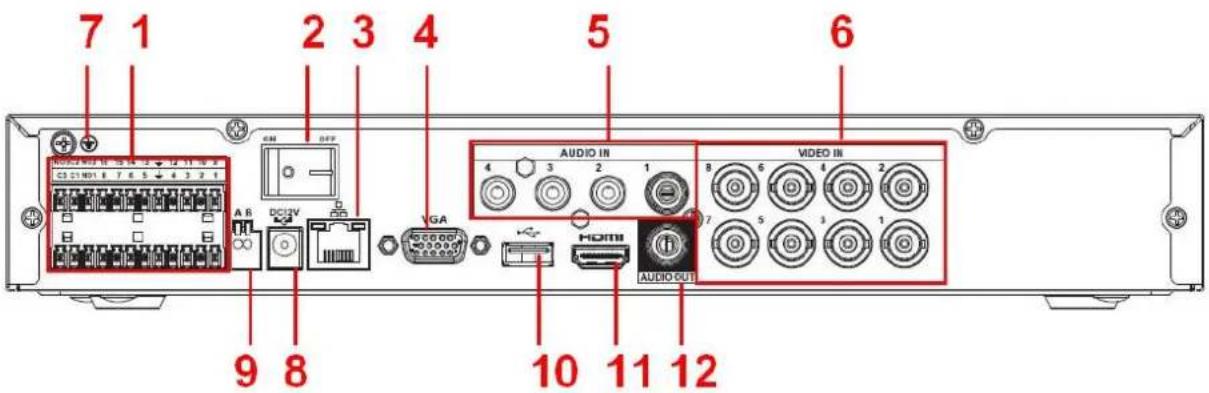
Figure 2-41
Please refer to the following sheet for detailed information.
| SN | Icon | Name | Note |
| 1 | 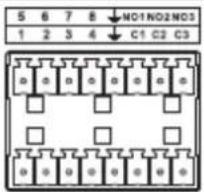 | Alarm input/Alarm output | Input/output alarm signal. |
| 2 |  | Power on-off button | Power on/off button. |
| 3 |  | Network port | 100M Ethernet port |
| 4 | VGA | VGA video output port | VGA video output port. Output analog video signal. Can connect to the monitor to view ananlog video output. |
| 5 | AUDIO IN | Audio input port | Connect to audio input device such as speaker. |
| 6 | VIDEO IN | Video input port | Connect to analog camera, video input signal. |
| 7 |  | GND | Ground end 0 |
| 8 | [ZZCO] | Power input port | Input 12V DC. |
| 9 | A | RS485 (RS-485) communication port | RS485_A port. It is the cable A. You can connect to the control devices such as speed dome PTZ. |
| B | RS485_B.It is the cable B. You can connect to the control devices such as speed dome PTZ. | ||
| 10 | [ZXCY] | USB2.0 port | Connect to USB storage device, mouse, burning DVD-ROM and etc. |
| 11 | HDMI | High definition media interface | High definition audio and video signal output port. It transmits uncompressed high definition video and multiple-channel data to the HDMI port of the display device. |
| 12 | AUDIO OUT | Audio output port | Connect to video output device such as sound box. |
2.2.17 HCVR4104/4108/4116HE-S2 Series
The HCVR4104HE-S2 series rear panel is shown as below. See Figure 2-42.
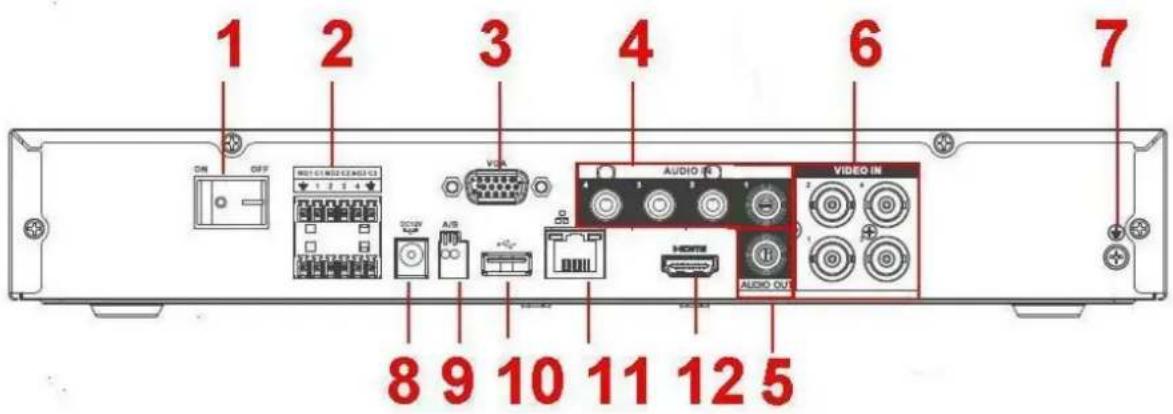
Figure 2-42
The HCVR4108HE-S2 series rear panel is shown as below. See Figure 2-43.
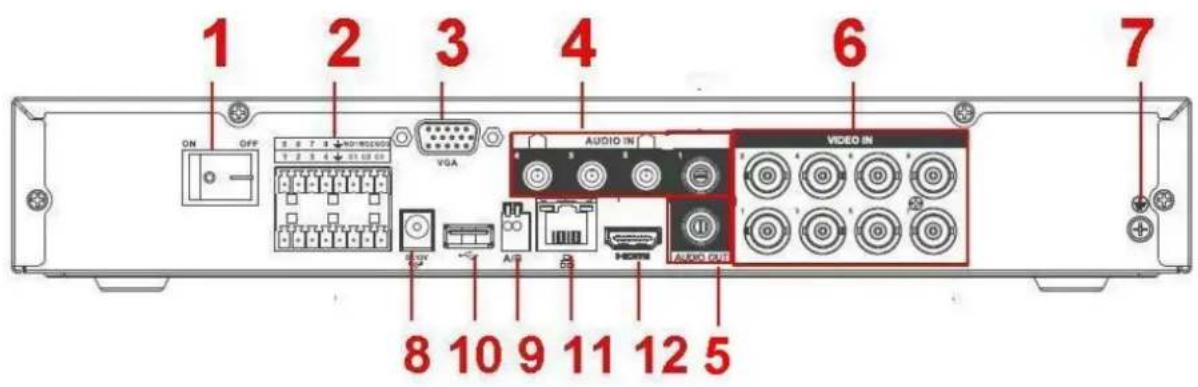
Figure 2-43
The HCVR4116HE-S2 series rear panel is shown as below. See Figure 2-44.
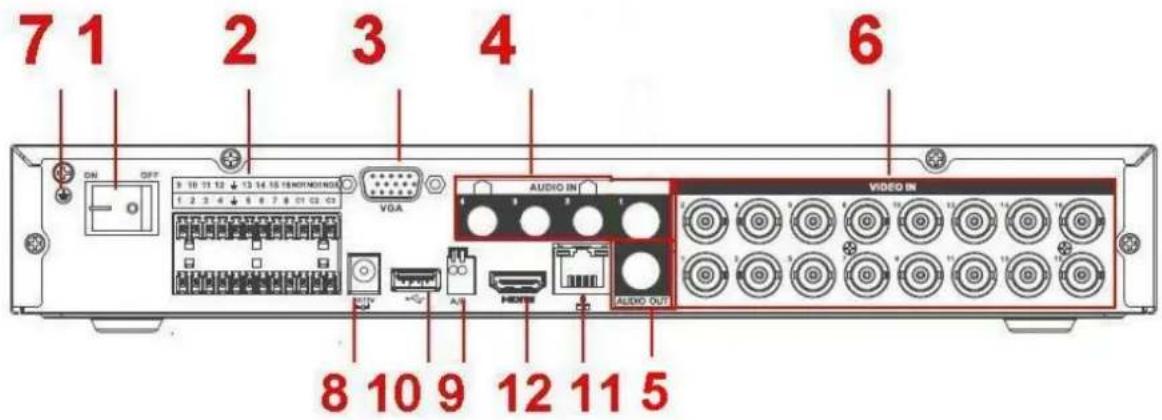
Figure 2-44
Please refer to the following sheet for detailed information.
| SN | Icon | Name | Note |
| 1 |  | Power on-off button | Power on/off button. |
| 2 | 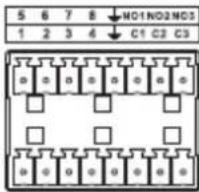 | Alarm input/Alarm output | Input/output alarm signal. |
| 3 | VGA | VGA video output port | VGA video output port. Output analog video signal. Can connect to the monitor to view ananlog video output. |
| 4 | AUDIO IN | Audio input port | Connect to audio input device such as speaker. |
| 5 | AUDIO OUT | Audio output port | Connect to video output device such as sound box. |
| 6 | VIDEO IN | Video input port | Connect to analog camera, video input signal. |
| 7 |  | GND | Ground end 0 |
| 8 |  | Power input port | Input 12V DC. |
| 9 | A | RS485 (RS-485) communication port | RS485_A port. It is the cable A. You can connect to the control devices such as speed dome PTZ. |
| B | RS485_B.It is the cable B. You can connect to the control devices such as speed dome PTZ. | ||
| 10 | [SKAB] | USB2.0 port | Connect to USB storage device, mouse, burning DVD-ROM and etc. |
| 11 |  | Network port | 100M Ethernet port |
| 12 | HDMI | High definition media interface | High definition audio and video signal output port. It transmits uncompressed high definition video and multiple-channel data to the HDMI port of the display device. |
2.2.18 HCVR5104/5108/5116H-S2 Series
The HCVR5104H-S2 series rear panel is shown as below. See Figure 2-45.
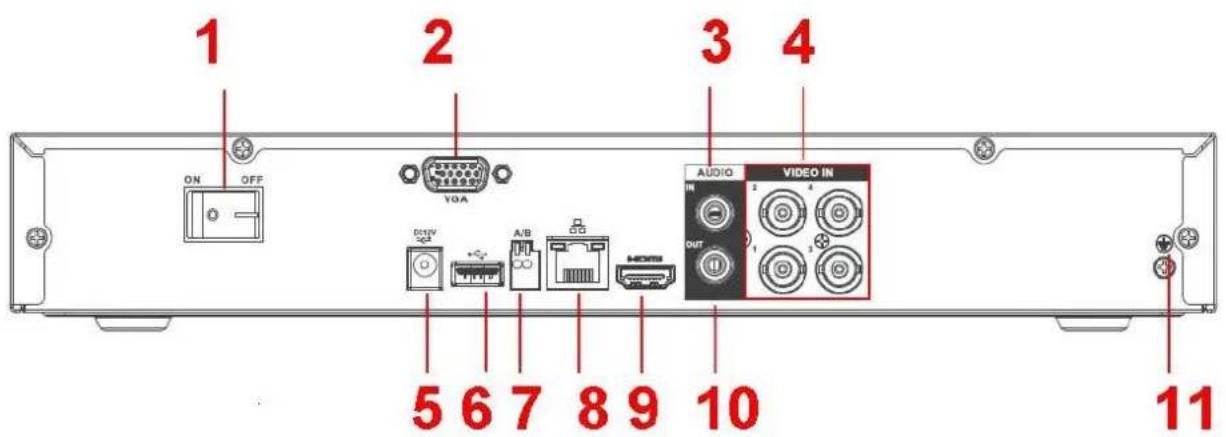
Figure 2-45
The HCVR5108H-S2 series rear panel is shown as below. See Figure 2-46.
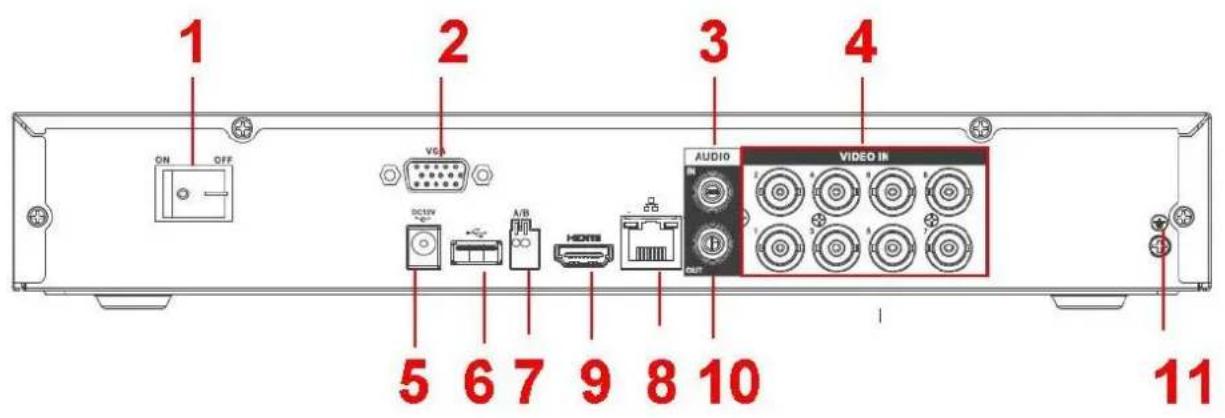
Figure 2-46
The HCVR5116H-S2 series rear panel is shown as below. See Figure 2-47.
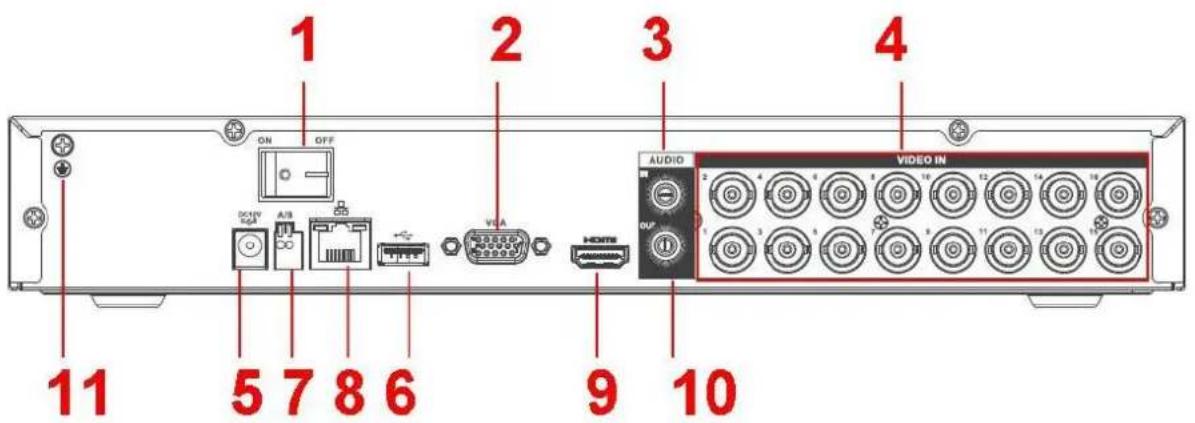
Figure 2-47
Please refer to the following sheet for detailed information.
| SN | Icon | Name | Note |
| 1 |  | Power on-off button | Power on/off button. |
| 2 | VGA | VGA video output port | VGA video output port. Output analog video signal. Can connect to the monitor to view ananlog video output. |
| 3 | AUDIO IN | Audio input port | Connect to audio input device such as speaker. |
| 4 | VIDEO IN | Video input port | Connect to analog camera, video input signal. |
| 5 |  | Power input port | Input 12V DC. |
| 6 |  | USB2.0 port | Connect to USB storage device,mouse, burning DVD-ROM and etc. |
| 7 | A | RS485 (RS-485) communication port | RS485_A port. It is the cable A. You can connect to the control devices such as speed dome PTZ. |
| B | RS485_B.It is the cable B. You can connect to the control devices such as speed dome PTZ. | ||
| 8 |  | Network port | 100M Ethernet port |
| 9 | HDMI | High definition media interface | High definition audio and video signal output port. It transmits uncompressed high definition video and multiple-channel data to the HDMI port of the display device. |
| 10 | AUDIO OUT | Audio output port | Connect to video output device such as sound box. |
| 11 | ± | GND | Ground end |
2.2.19 HCVR5104/5108/5116HE-S2 Series
The HCVR5104HE-S2 series rear panel is shown as below. See Figure 2-48.
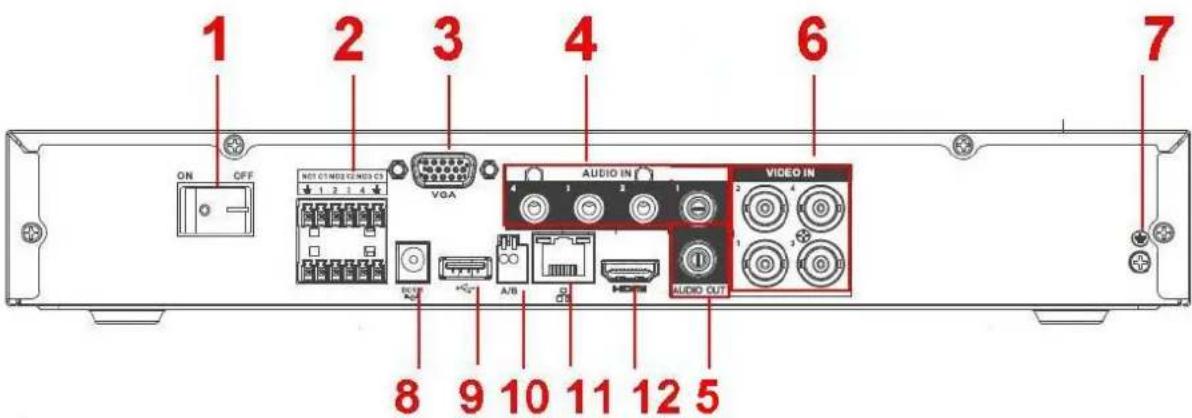
Figure 2-48
The HCVR5108HE-S2 series rear panel is shown as below. See Figure 2-49.
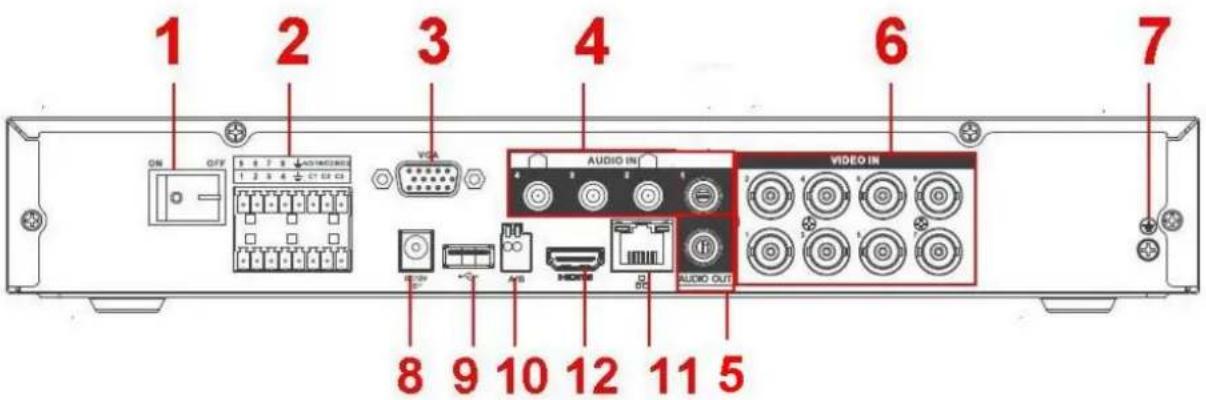
Figure 2-49
The HCVR5116HE-S2 series rear panel is shown as below. See Figure 2-50.
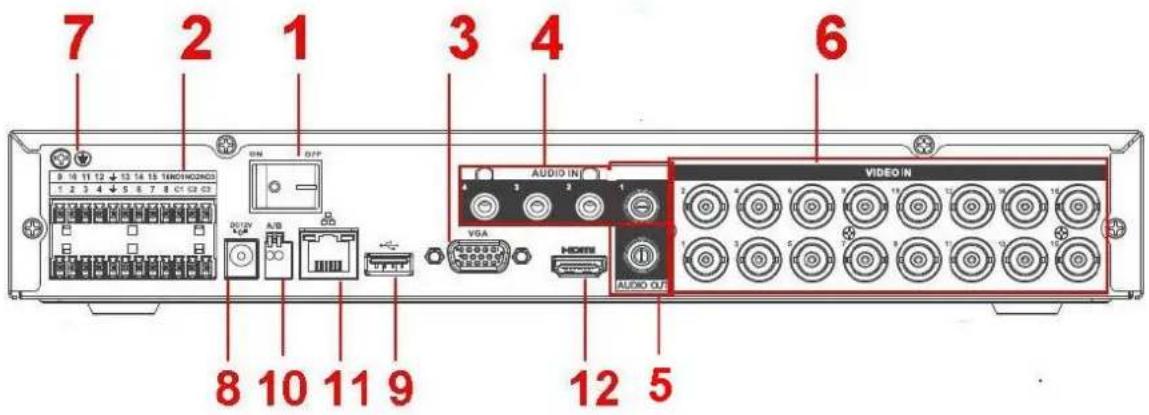
Figure 2-50
Please refer to the following sheet for detailed information.
| SN | Icon | Name | Note |
| 1 |  | Power on-off button | Power on/off button. |
| 2 | 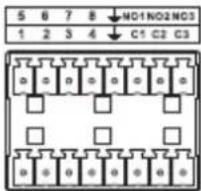 | Alarm input/Alarm output | Input/output alarm signal. |
| 3 | VGA | VGA video output port | VGA video output port. Output analog video signal. Can connect to the monitor to view ananlog video output. |
| 4 | AUDIO IN | Audio input port | Connect to audio input device such as speaker. |
| 5 | AUDIO OUT | Audio output port | Connect to video output device such as sound box. |
| 6 | VIDEO IN | Video input port | Connect to analog camera, video input signal. |
| 7 | [0YHY] | GND | Ground end |
| 8 | [3TST] | Power input port | Input 12V DC. |
| 9 | HDMI | High definition media interface | High definition audio and video signal output port. It transmits uncompressed high definition video and multiple-channel data to the HDMI port of the display device. |
| 10 | A | RS485 (RS-485) communication port | RS485_A port. It is the cable A. You can connect to the control devices such as speed dome PTZ. |
| B | RS485_B.It is the cable B. You can connect to the control devices such as speed dome PTZ. | ||
| 11 |  | Network port | 100M Ethernet port |
| 12 | HDMI | High definition media interface | High definition audio and video signal output port. It transmits uncompressed high definition video and multiple-channel data to the HDMI port of the display device. |
2.2.20 HCVR7104/7108H-S2 Series
The HCVR7104H-S2 series rear panel is shown as below. See Figure 2-51.
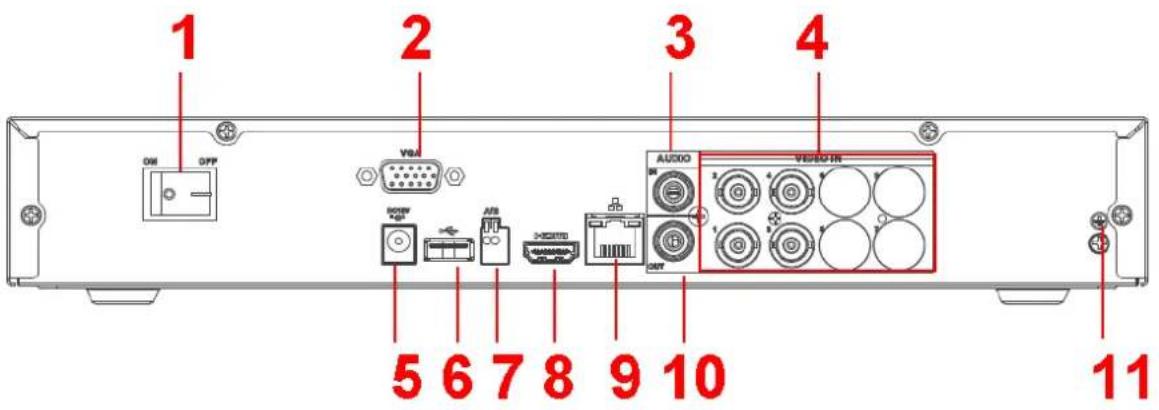
Figure 2-51
The HCVR7108H-S2 series rear panel is shown as below. See Figure 2-52.
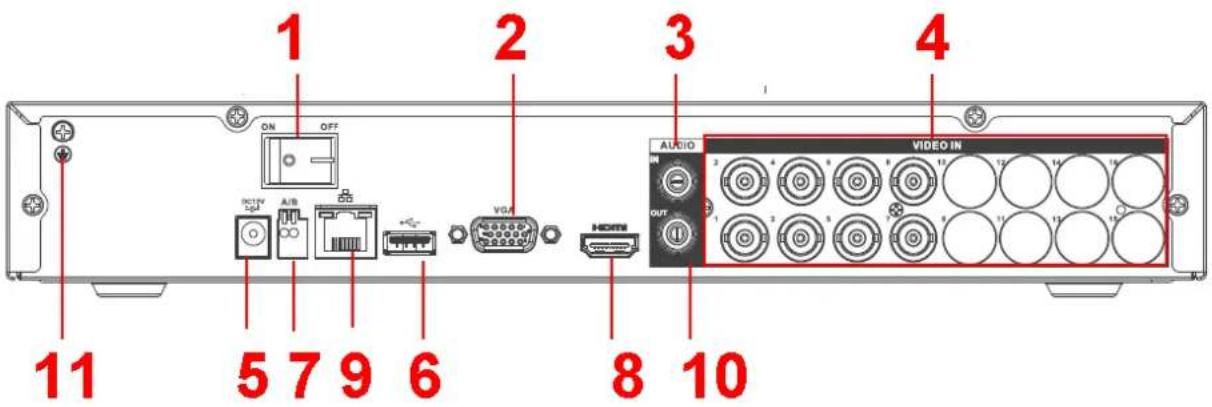
Figure 2-52
Please refer to the following sheet for detailed information.
| SN | Icon | Name | Note |
| 1 |  | Power on-off button | Power on/off button. |
| 2 | VGA | VGA video output port | VGA video output port. Output analog video signal. Can connect to the monitor to view ananlog video output. |
| 3 | AUDIO IN | Audio input port | Connect to audio input device such as speaker. |
| 4 | VIDEO IN | Video input port | Connect to analog camera, video input signal. |
| 5 |  | Power input port | Input 12V DC. |
| 6 |  | USB2.0 port | Connect to USB storage device,mouse, burning DVD-ROM and etc. |
| 7 | A | RS485 (RS-485) communication port | RS485_A port. It is the cable A. You can connect to the control devices such as speed dome PTZ. |
| B | RS485_B.It is the cable B. You can connect to the control devices such as speed dome PTZ. | ||
| 8 | HDMI | High definition media interface | High definition audio and video signal output port. It transmits uncompressed high definition video and multiple-channel data to the HDMI port of the display device. |
| 9 |  | Network port | 100M Ethernet port |
| 10 | AUDIO OUT | Audio output port | Connect to video output device such as sound box. |
| 11 | 12 | GND | Ground end |
2.2.21 HCVR7104/7108HE-S2 Series
The HCVR7104HE-S2 series rear panel is shown as below. See Figure 2-53.
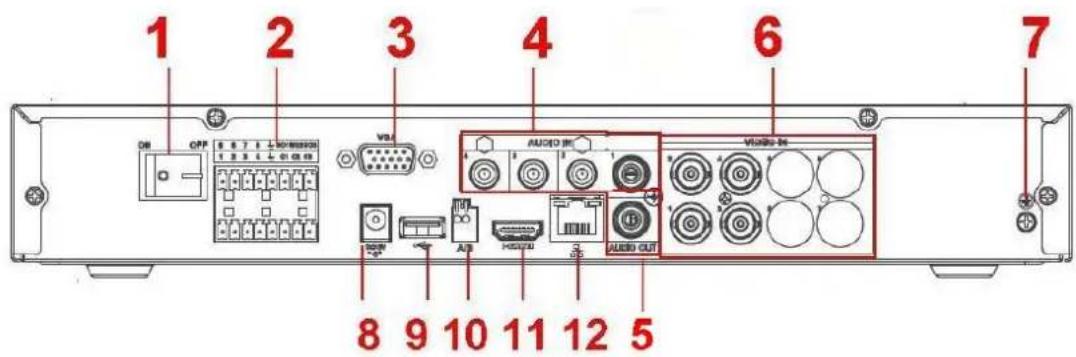
Figure 2-53
The HCVR7108HE-S2 series rear panel is shown as below. See Figure 2-54.
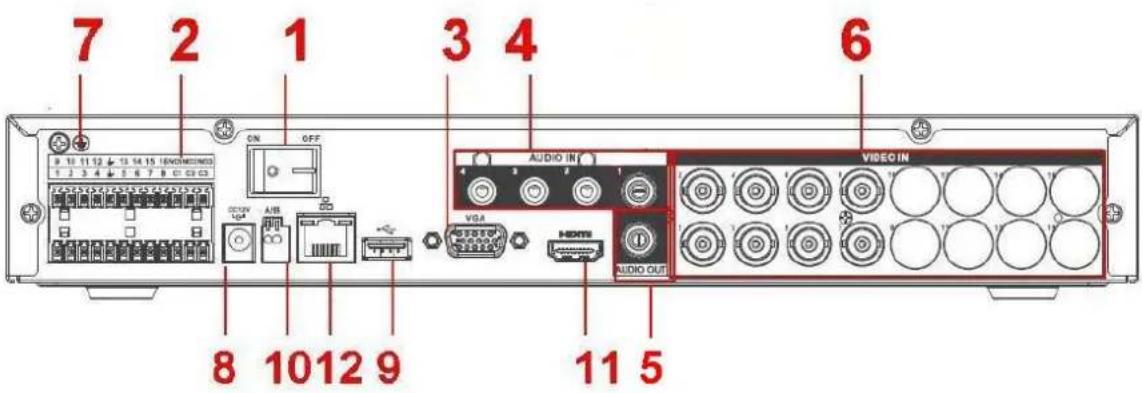
Figure 2-54
Please refer to the following sheet for detailed information.
| SN | Icon | Name | Note |
| 1 |  | Power on-off button | Power on/off button. |
| 2 | 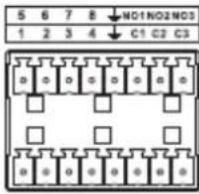 | Alarm input/Alarm output | Input/output alarm signal. |
| 3 | VGA | VGA video output port | VGA video output port. Output analog video signal. Can connect to the monitor to view ananlog video output. |
| 4 | AUDIO IN | Audio input port | Connect to audio input device such as speaker. |
| 5 | AUDIO OUT | Audio output port | Connect to video output device such as sound box. |
| 6 | VIDEO IN | Video input port | Connect to analog camera, video input signal. |
| 7 |  | GND | Ground end |
| 8 | Power input port | Input 12V DC. | |
| 9 | [AD7S] | USB2.0 port | Connect to USB storage device, mouse, burning DVD-ROM and etc. |
| 10 | A | RS485 (RS-485) communication port | RS485_A port. It is the cable A. You can connect to the control devices such as speed dome PTZ. |
| B | RS485_B.It is the cable B. Youcan connect to the control devices such as speed dome PTZ. | ||
| 11 | HDMI | High definition media interface | High definition audio and video signal output port. It transmits uncompressed high definition video and multiple-channel data to the HDMI port of the display device. |
| 12 | Network port | 100M Ethernet port |
2.2.22 HCVR41XXHE-S3/HCVR51XXHE-S3/HCVR71XXH-S3/HCVR71XXHE-S3 /XVR41XXHE/XVR51XXH/XVR51XXHE/XVR71XXH/XVR71XXHE Series
The
HCVR41XXHE-S3/HCVR51XXHE-S3/HCVR71XXHE-S3/XVR41XXHE/XVR51H/XVR51XXHE/XVR71XXHE series rear panel is shown as below. See Figure 4-53.
The following figure is based on HCVR4116HE-S3/HCVR5116HE-S3/HCVR7116HE-S3/XVR4116HE/XVR5116HE/XVR7116HE series.
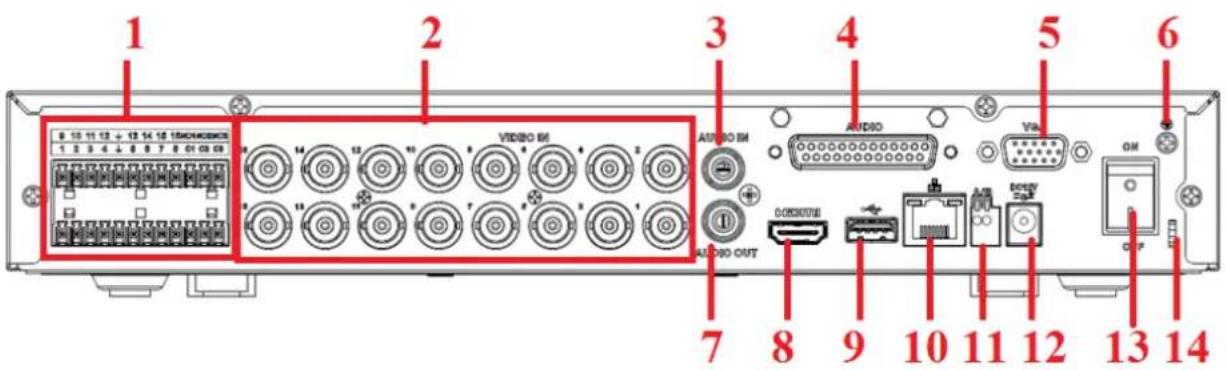
Figure 2-55
The HCVR71XXH-S3/XVR71XXH rear panel is shown as below. See Figure 4-52. The following figure is based on the HCVR7116H-S3/XVR7116H.
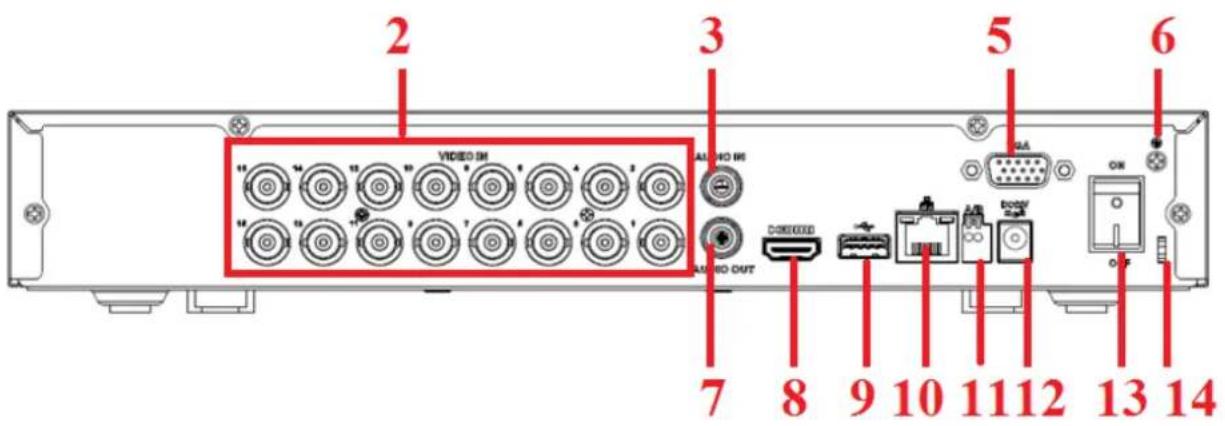
Figure 2-56
Please refer to the following sheet for detailed information.
| SN | Icon | Name | Note |
| 1 | 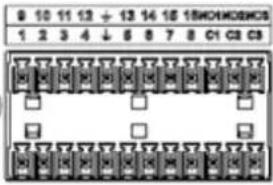 | Alarm input/Alarm output | Input/output alarm signal. |
| 2 | VIDEO IN | Video input port | Connect to analog camera, video input signal. |
| 3 | AUDIO IN | Audio input port | Connect to audio input device such as speaker. |
| 4 |  | DB25 port | The 5th to the 16th-channel audio input port. |
| 5 | VGA | VGA video output port | VGA video output port. Output analog video signal. Can connect to the monitor to view ananlog video output. |
| 6 | [SW44] | GND | Ground end |
| 7 | AUDIO OUT | Audio output port | Connect to video output device such as sound box. |
| 8 | HDMI | High definition media interface | High definition audio and video signal output port. It transmits uncompressed high definition video and multiple-channel data to the HDMI port of the display device. |
| 9 | [02.87] | USB2.0 port | Connect to USB storage device, mouse, burning DVD-ROM and etc. |
| 10 |  | Network port | 100M Ethernet port |
| 11 | A | RS485 (RS-485) communication port | RS485_A port. It is the cable A. You can connect to the control devices such as speed dome PTZ. |
| B | RS485_B.It is the cable B. You can connect to the control devices such as speed dome PTZ. | ||
| 12 | DC 12V | Power input port | Input 12V DC. |
| 13 |  | Power on-off button | Power on/off button. |
| 14 | Power cable fastener | Use clamp to secure the power cable on the device in case there is any loss. |
2.2.23 HCVR41XXHS-S2/ HCVR2108HS-S2/ HCVR2116HS-S2 Series
The HCVR4104HS-S2 series rear panel is shown as below. See Figure 2-57.
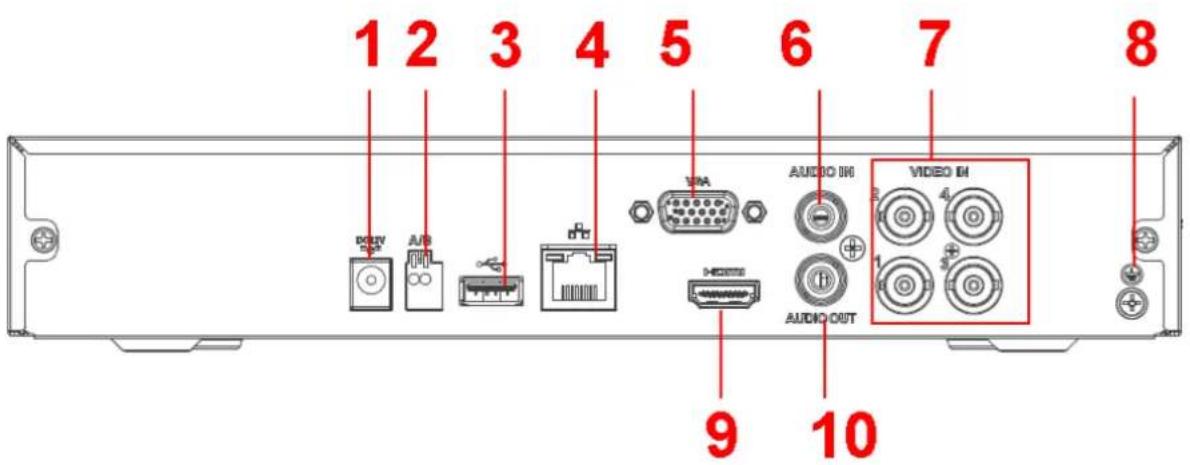
Figure 2-57
The HCVR4108HS-S2/HCVR2108HS-S2 series rear panel is shown as below. See Figure 2-58.
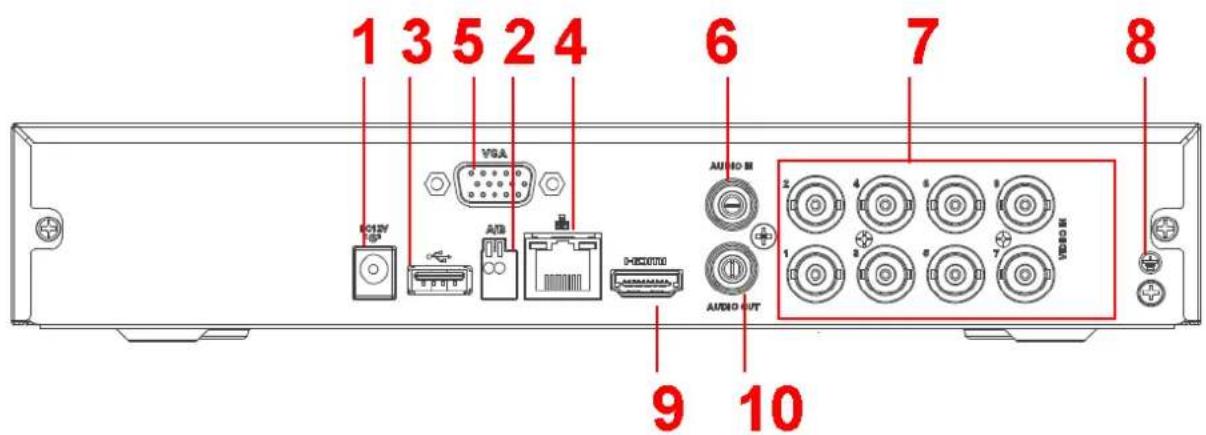
Figure 2-58
The HCVR4116HS-S2/ HCVR2116HS-S2 series rear panel is shown as below. See
Figure 2-59.
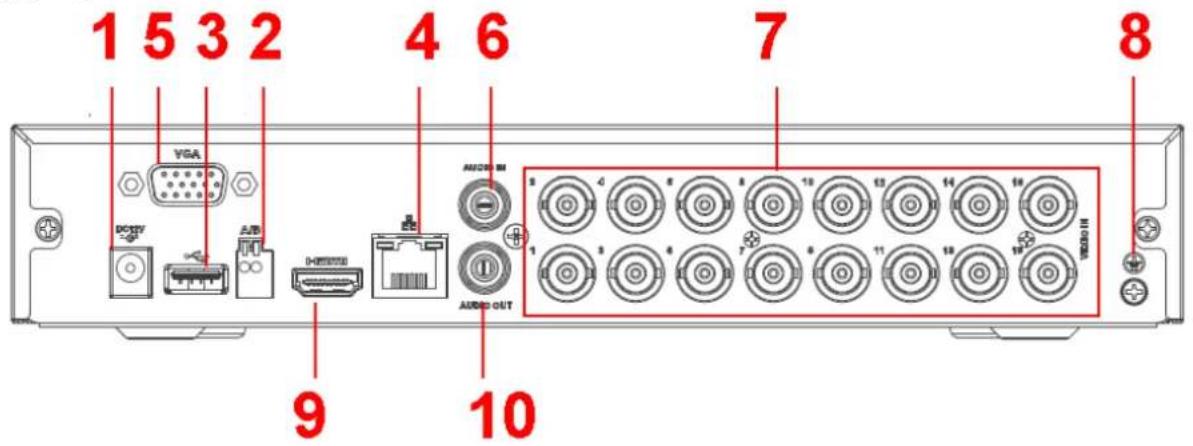
Figure 2-59
Please refer to the following sheet for detailed information.
| SN | Icon | Name | Note |
| 1 | DC 12V | Power input port | Input 12V DC. |
| 2 | A | RS485 (RS-485) communication port | RS485_A port. It is the cable A. You can connect to the control devices such as speed dome PTZ. |
| B | RS485_B.It is the cable B. You can connect to the control devices such as speed dome PTZ. | ||
| 3 | USB2.0 port | Connect to USB storage device, mouse, burning DVD-ROM and etc. | |
| 4 | Network port | 100M Ethernet port | |
| 5 | VGA | VGA video output port | VGA video output port. Output analog video signal. Can connect to the monitor to view ananlog video output. |
| 6 | AUDIO IN | Audio input port | Connect to audio input device such as speaker. |
| 7 | VIDEO IN | Video input port | Connect to analog camera, video input signal. |
| 8 | GND | Ground end | |
| 9 | HDMI | High definition media interface | High definition audio and video signal output port. It transmits uncompressed high definition video and multiple-channel data to the HDMI port of the display device. |
| 10 | AUDIO OUT | Audio output port | Connect to video output device such as sound box. |
2.2.24 HCVR21XXHS-S3/HCVR41XXHS-S3/51XXHS-S3/7104HS-S3/XVR21XXHS/XVR41XXHS/51XXHS/7104HS Series
The
HCVR2116HS-S3/HCVR41XXHS-S3/51XXHS-S3/XVR2116HS/XVR41XXHS/XVR51XX HS series rear panel is shown as below. See Figure 2-60.
The following figure is based on the HCVR2116HS-S3/HCVR4116HS-S3/5116HS-S3/XVR2116HS/XVR4116HS/XVR5116HS series product.
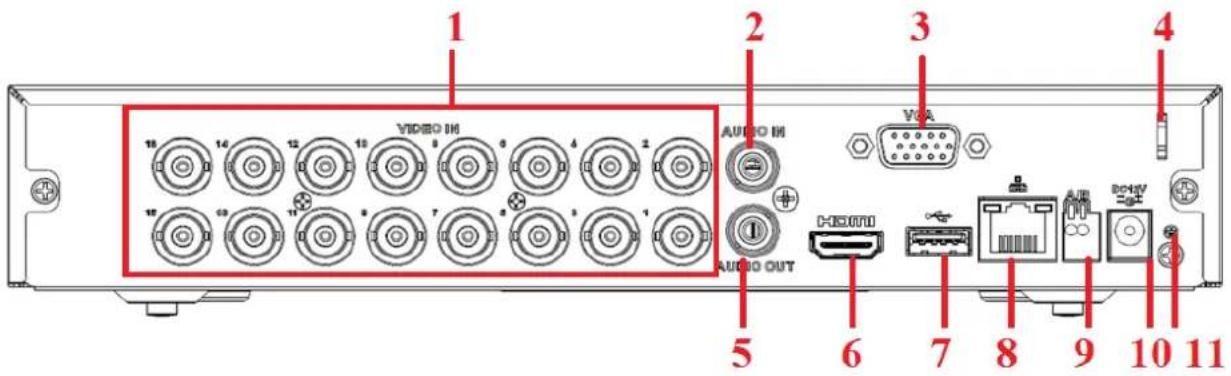
Figure 2-60
The HCVR7104HS-S3/XVR7104HS series rear panel is shown as below. See Figure 2-61.
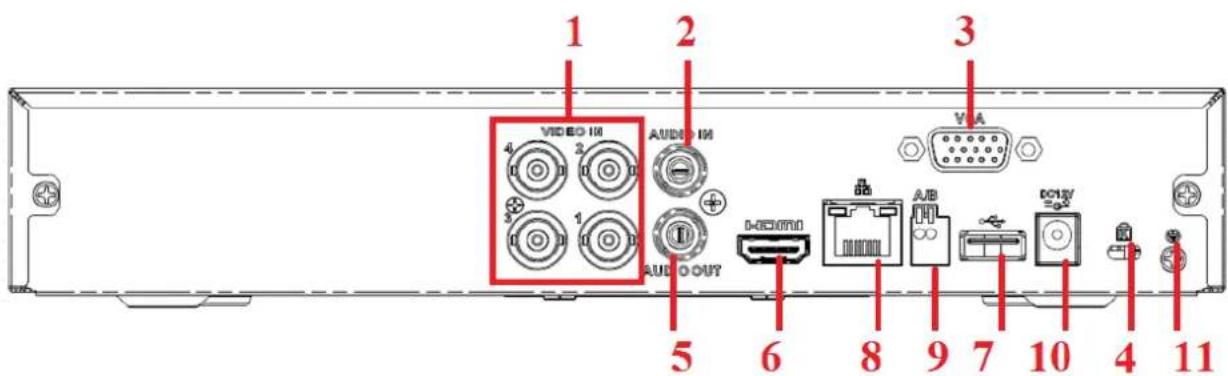
Figure 2-61
Please refer to the following sheet for detailed information.
| SN | Icon | Name | Note |
| 1 | VIDEO IN | Video input port | Connect to analog camera, video input signal. |
| 2 | AUDIO IN | Audio input port | Connect to audio input device such as speaker. |
| 3 | VGA | VGA video output port | VGA video output port. Output analog video signal. Can connect to the monitor to view analog video output. |
| 4 |  | Power cable fastener | Use clamp to secure the power cable on the device in case there is any loss. |
| 5 | AUDIO OUT | Audio output port | Connect to video output device such as sound box. |
| 6 | HDMI | High definition media interface | High definition audio and video signal output port. It transmits uncompressed high definition video and multiple-channel data to the HDMI port of the display device. |
| 7 |  | USB2.0 port | Connect to USB storage device, mouse, burning DVD-ROM and etc. |
| 8 |  | Network port | 100M Ethernet port |
| 9 | A | RS485 (RS-485) communication port | RS485_A port. It is the cable A. You can connect to the control devices such as speed dome PTZ. |
| B | RS485_B.It is the cable B. You can connect to the control devices such as speed dome | ||
| PTZ. | |||
| 10 | DC 12V — | Power input port | Input 12V DC. |
| 11 | 1= | GND | Ground end |
2.2.25 HCVR52XXA-V2/ HCVR72XXA-V2 Series
This series products' rear panel is shown as below. See Figure 2-62.
The following figure is based on HCVR7204A-V2 series product.
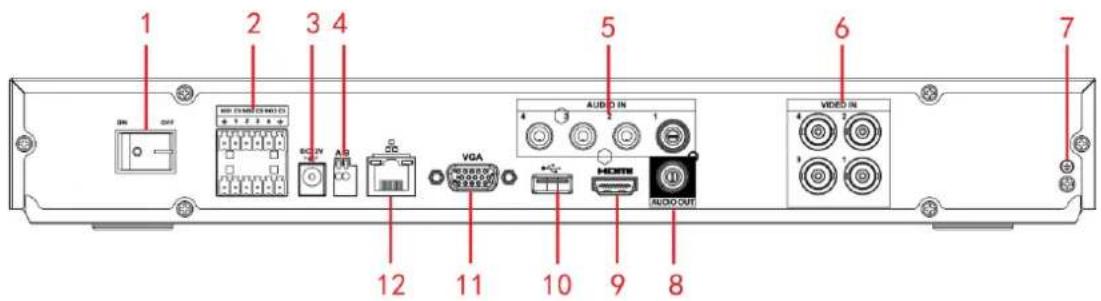
Figure 2-62
Please refer to the following sheet for detailed information.
| SN | Icon | Name | Note |
| 1 |  | Power switch | Power on/off button. |
| 2 | 1~4 | Alarm input port 1~4 | There are two types; NO (normal open)/NC (normal close).When your alarm input device is using external power, please make sure the device and the DVR have the same ground. |
| NO1~NO3 | Alarm output port 1~3 | 3 groups of alarm output ports. (Group 1: port NO1~C1, Group 2: port NO2~C2, Group 3: port NO3~C3). Output alarm signal to the alarm device. Please make sure there is power to the external alarm device.NO: Normal open alarm output port.C: Alarm output public end. | |
| C1~C3 | |||
| 3 | DC12V=C | Power input port | Input DC 12V/5A. |
| 4 | AB | RS-485 communication port | RS485_A port. It is the cable A. You can connect to the control devices such as speed dome PTZ.RS485_B. It is the cable B. You can connect to the control devices such as speed dome PTZ. |
| 5 | AUDIO IN | Audio input port | It is to receive the analog audio signal output from the devices such as mike phone, pickup. |
| 6 | VIDEO IN | Video input port | Connect to analog camera to input video signal. |
| 7 |  | GND | Alarm input ground port. |
| 8 | AUDIO OUT | Audio output port | Audio output port. It is to output the analog audio signal to the devices such as the sound box. |
| 9 | HDMI | High Definition Media Interface | High definition audio and video signal output port. It transmits uncompressed high definition video and multiple-channel data to the HDMI port of the display device. |
| 10 |  | USB2.0 port | USB2.0 port. Connect to mouse, USB storage device, USB burner and etc. |
| 11 | VGA | VGA video output port | VGA video output port. Output analog video signal. It can connect to the monitor to view analog video. |
| 12 |  | Network port | 1000M Ethernet port |
2.2.26 HCVR42XXA-S2/ HCVR4216AN-S2 Series
This HCVR4204A-S2 rear panel is shown as below. See Figure 2-63.
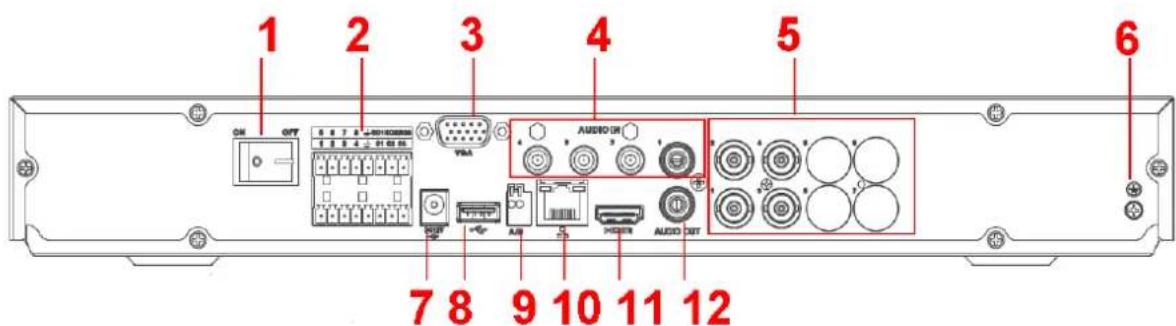
Figure 2-63
This HCVR4208A-S2 rear panel is shown as below. See Figure 2-64.
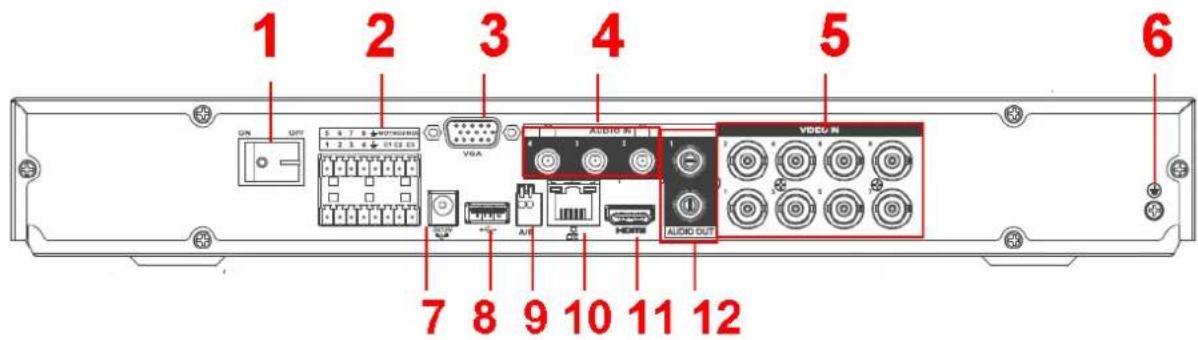
Figure 2-64
This HCVR4216A-S2 rear panel is shown as below. See Figure 2-65.
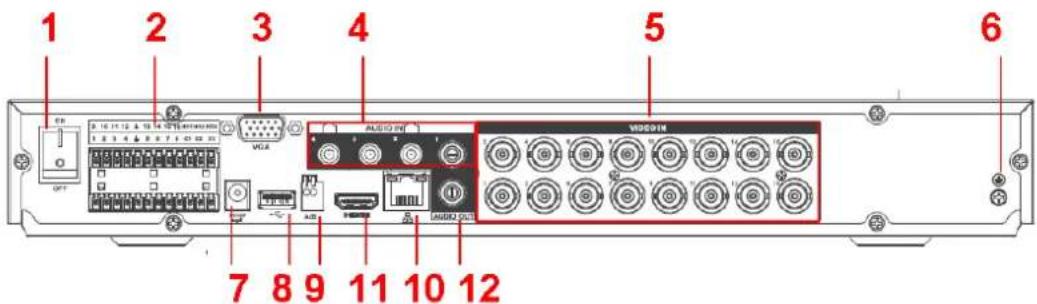
Figure 2-65
This HCVR4216AN-S2 rear panel is shown as below. See Figure 2-66.
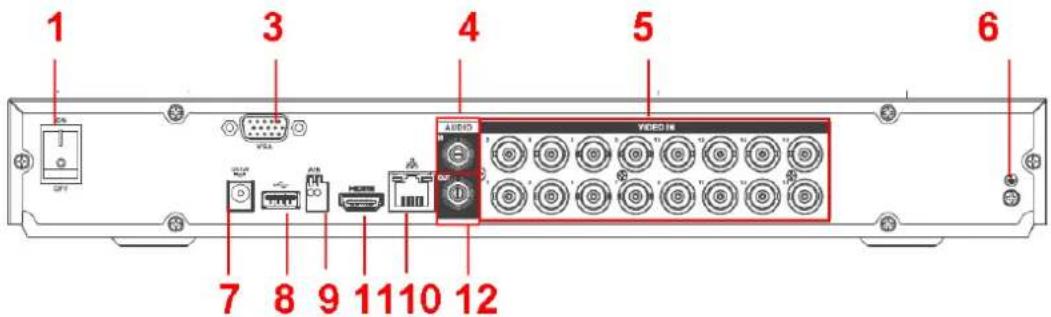
Figure 2-66
Please refer to the following sheet for detailed information.
| SN | Icon | Name | Note |
| 1 |  | Power switch | Power on/off button. |
| 2 | 1~8(16) | Alarm input port 1~8(16) | There are two types; NO (normal open)/NC (normal close).When your alarm input device is using external power, please make sure the device and the DVR have the same ground. |
| NO1~NO3 | Alarm output port 1~3 | 3 groups of alarm output ports. (Group 1: port NO1~C1, Group 2: port NO2~C2, Group 3: port NO3~C3). Output alarm signal to the alarm device. Please make sure there is power to the external alarm device.NO: Normal open alarm output port.C: Alarm output public end. | |
| C1~C3 | |||
| 3 | VGA | VGA video output port | VGA video output port. Output analog video signal. Can connect to the monitor to view ananlog video output. |
| 4 | AUDIO IN | Audio input port | Connect to audio input device such as speaker. |
| 5 | VIDEO IN | Video input port | Connect to analog camera, video input signal. |
| 6 |  | GND | Alarm input ground port. |
| 7 | DC12V-G | Power input port | Input 12V DC. |
| 8 |  | USB2.0 port | Connect to USB storage device, mouse, burning DVD-ROM and etc. |
| 9 | A | RS485 ( RS-485 ) communication port | RS485_A port. It is the cable A. You can connect to the control devices such as speed dome PTZ.RS485_B.It is the cable B. You can connect to the control devices such as speed dome PTZ. |
| B | |||
| 10 |  | Network port | 1000M Ethernet port |
| 11 | HDMI | High Definition Media Interface | High definition audio and video signal output port. It transmits uncompressed high definition video and multiple-channel data to the HDMI port of the display device. |
| 12 | AUDIO OUT | Audio output port | Connect to video output device such as sound box. |
2.2.27 HCVR4224/HCVR4232AN-S2 Series
The rear panel is shown as below. See Figure 2-67.
The following figure is based on the HCVR4232AN-V2 series product.
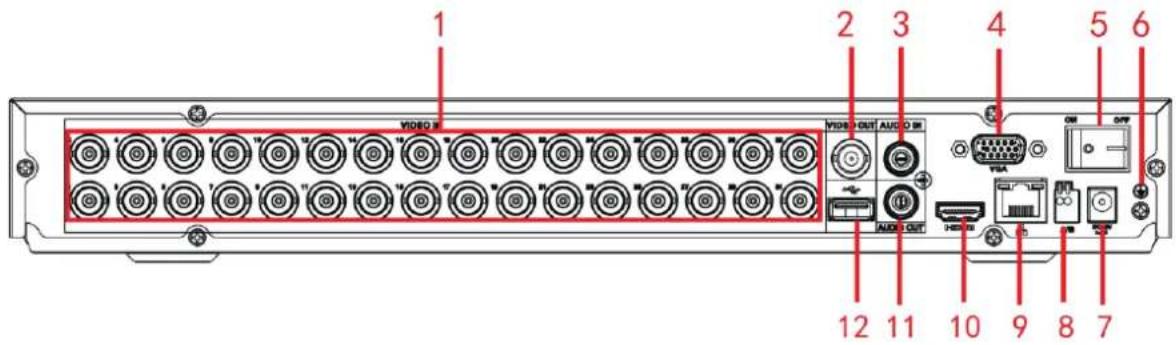
Figure 2-67
Please refer to the following sheet for detailed information.
| SN | Icon | Name | Note |
| 1 | VIDEO IN | Video input port | Connect to analog camera, video input signal. |
| 2 | VIDEO OUT | Video output port | Connect to output devices such as TV. |
| 3 | AUDIO IN | Audio input port | Connect to audio input device such as speaker. |
| 4 | VGA | VGA video output port | VGA video output port. Output analog video signal.Can connect to the monitor to view ananlog video output. |
| 5 |  | Power switch | Power on/off button. |
| 6 |  | GND | Alarm input ground port. |
| 7 | DC12V=C | Power input port | Input 12V/5A DC. |
| 8 | A | RS485 ( RS-485 ) communication port | RS485_A port. It is the cable A. You can connect to the control devices such as speed dome PTZ. |
| B | RS485_B.It is the cable B. You can connect to the control devices such as speed dome PTZ. | ||
| 9 |  | Network port | 1000M Ethernet port |
| 10 | HDMI | High Definition Media Interface | High definition audio and video signal output port. It transmits uncompressed high definition video and multiple-channel data to the HDMI port of the display device. |
| 11 | AUDIO OUT | Audio output port | Connect to video output device such as sound box. |
| 12 |  | USB2.0 port | USB2.0 port. Connect to mouse, USB storage device, USB burner and etc. |
2.2.28 HCVR52XXA-S2/ HCVR5216AN-S2 Series
This HCVR5204A-S2 products' rear panel is shown as below. See Figure 2-68.
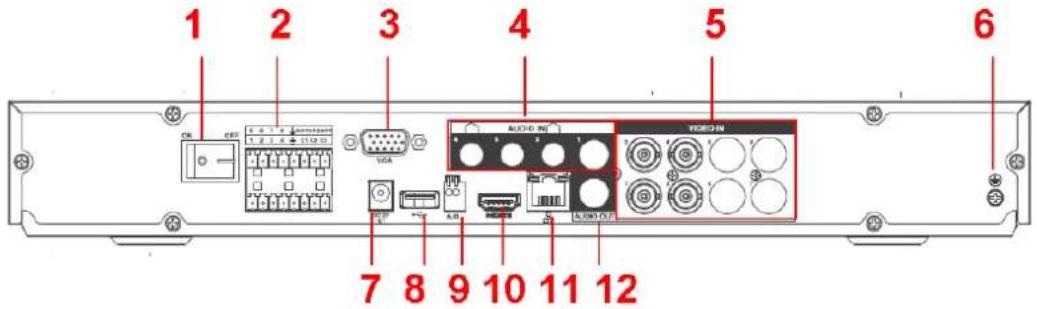
Figure 2-68
This HCVR5208A-S2 products' rear panel is shown as below. See Figure 2-69.
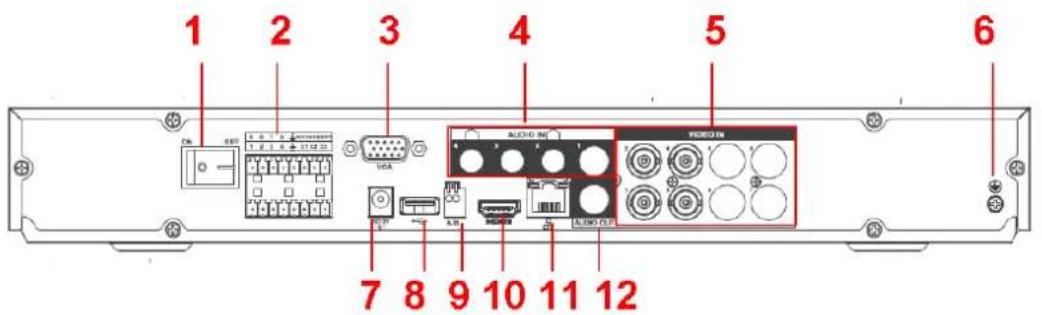
Figure 2-69
This HCVR5216A-S2 products' rear panel is shown as below. See Figure 2-70.
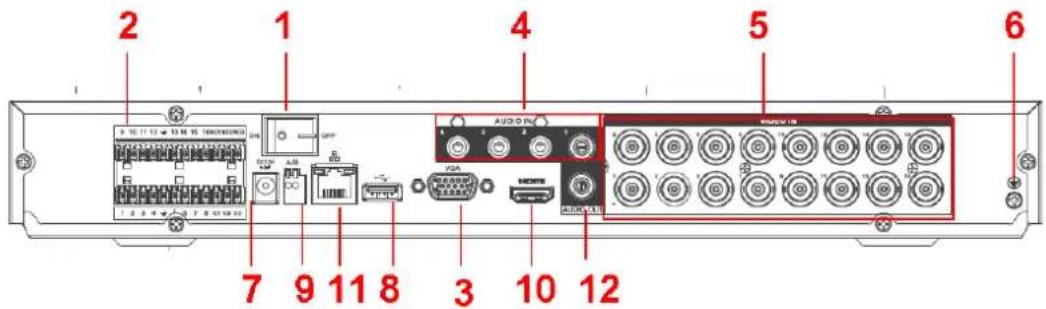
Figure 2-70
This HCVR5216AN-S2 products' rear panel is shown as below. See Figure 2-71.
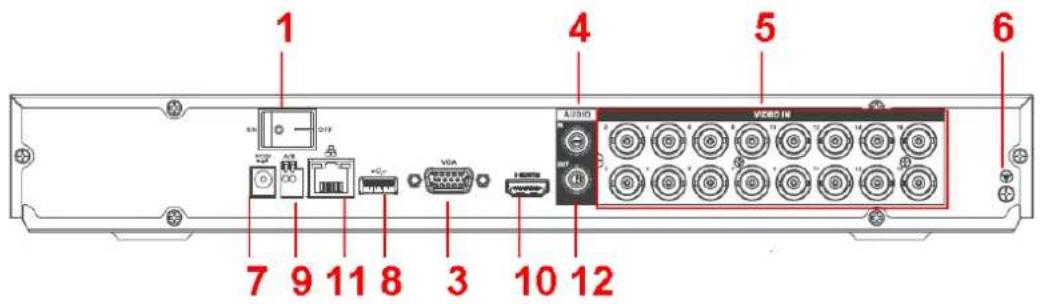
Figure 2-71
Please refer to the following sheet for detailed information.
| SN | Icon | Name | Note |
| 1 |  | Power switch | Power on/off button. |
| 2 | 1~8(16)NO1~NO3 | Alarm input port 1~8(16)Alarm output port 1~3 | ● There are two types; NO (normal open)/NC (normal close).● When your alarm input device is using external power, please make sure the device and the DVR have the same ground.● 3 groups of alarm output ports. (Group 1: port NO1~C1, Group 2: port NO2~C2, Group 3: port NO3~C3). Output alarm signal to the alarm device. Please make sure there is power to the external alarm device.● NO: Normal open alarm output port.● C: Alarm output public end. |
| C1~C3 | |||
| 3 | VGA | VGA video output port | VGA video output port. Output analog video signal. Can connect to the monitor to view ananlog video output. |
| 4 | AUDIO IN | Audio input port | Connect to audio input device such as speaker. |
| 5 | VIDEO IN | Video input port | Connect to analog camera, video input signal. |
| 6 |  | GND | Alarm input ground port. |
| 7 |  | Power input port | Input 12V DC. |
| 8 |  | USB2.0 port | Connect to USB storage device, mouse, burning DVD-ROM and etc. |
| 9 | A | RS485 ( RS-485 ) communication port | RS485_A port. It is the cable A. You can connect to the control devices such as speed dome PTZ.RS485_B. It is the cable B. You can connect to the control devices such as speed dome PTZ. |
| B | |||
| 10 | HDMI | High Definition Media Interface | High definition audio and video signal output port. It transmits uncompressed high definition video and multiple-channel data to the HDMI port of the display device. |
| 11 |  | Network port | 100M Ethernet port |
| 12 | AUDIO OUT | Audio output port | Connect to video output device such as sound box. |
2.2.29 HCVR720XA-S2 Series
The HCVR7204A-S2 products' rear panel is shown as below. See Figure 2-72.
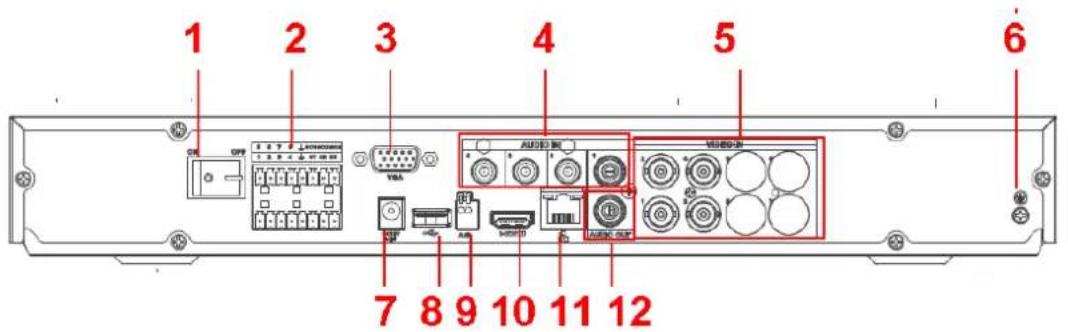
Figure 2-72
The HCVR7208A-S2 products' rear panel is shown as below. See Figure 2-73.
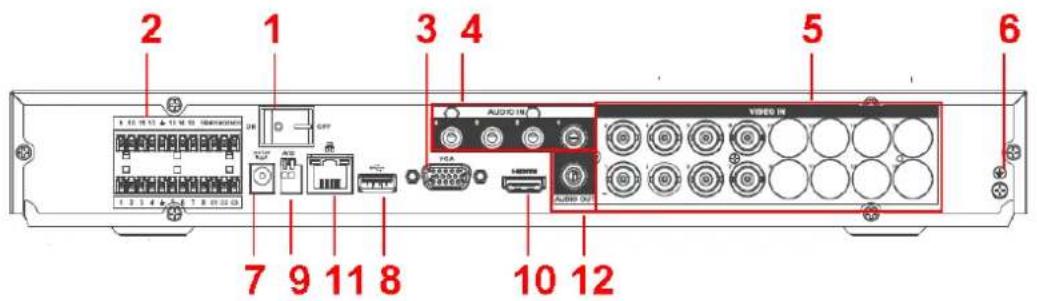
Figure 2-73
Please refer to the following sheet for detailed information.
| SN | Icon | Name | Note |
| 1 |  | Power switch | Power on/off button. |
| 2 | 1~8(16) | Alarm input port 1~8(16) | ● There are two types; NO (normal open)/NC (normal close).● When your alarm input device is using external power, please make sure the device and the DVR have the same ground. |
| NO1~NO3 | Alarm output port 1~3 | ● 3 groups of alarm output ports. (Group 1: port NO1~C1, Group 2: port NO2~C2, Group 3: port NO3~C3). Output alarm signal to the alarm device. Please make sure there is power to the external alarm device.● NO: Normal open alarm output port.● C: Alarm output public end. | |
| C1~C3 | |||
| 3 | VGA | VGA video output port | VGA video output port. Output analog video signal. Can connect to the monitor to view ananlog video output. |
| 4 | AUDIO IN | Audio input port | Connect to audio input device such as speaker. |
| 5 | VIDEO IN | Video input port | Connect to analog camera, video input signal. |
| 6 |  | GND | Alarm input ground port. |
| 7 |  | Power input port | Input 12V DC. |
| 8 |  | USB2.0 port | Connect to USB storage device, mouse, burning DVD-ROM and etc. |
| 9 | A | RS485 ( RS-485 ) communication port | RS485_A port. It is the cable A. You can connect to the control devices such as speed dome PTZ.RS485_B.It is the cable B. You can connect to the control devices such as speed dome PTZ. |
| B | |||
| 10 | HDMI | High Definition Media Interface | High definition audio and video signal output port. It transmits uncompressed high definition video and multiple-channel data to the HDMI port of the display device. |
| 11 |  | Network port | 100M Ethernet port |
| 12 | AUDIO OUT | Audio output port | Connect to video output device such as sound box. |
2.2.30 HCVR42XXA-S3/HCVR42XXAN-S3/HCVR52XXA-S3/HCVR52XXAN-S3/HCVR72XXA-S3/HCVR7216AN-S3/XVR42XXA/XVR42XXAN/XVR52XXA/XVR52XXAN/XVR72XXA/XVR7216AN Series
The
HCVR42XXA-S3/HCVR52XXA-S3/HCVR72XXA-S3/XVR42XXA/XVR52XXA/XVR72XXA products' rear panel is shown as below. See Figure 2-74.
The following figure is based on the
HCVR4216A-S3/5216A-S3/7216A-S3/XVR4216A/XVR5216A/XVR7216A series product.
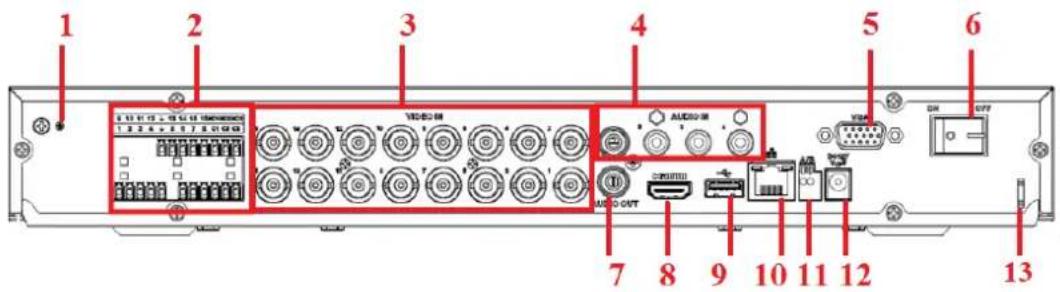
Figure 2-74
The HCVR42XXAN-S3/52XXAN-S3/7216AN-S3/XVR42XXAN/52XXAN/7216AN rear panel is shown as below. See Figure 2-75.
The following figure is based on the
HCVR4216AN-S3/5216AN-S3/XVR4216AN/XVR5216AN series product.
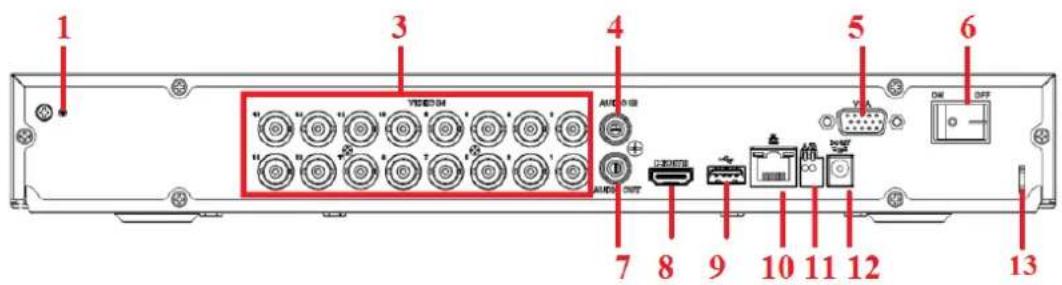
Figure 2-75
Please refer to the following sheet for detailed information.
| SN | Icon | Name | Note |
| 1 |  | GND | Alarm input ground port. |
| 2 | 1~8(16) | Alarm input port 1~8(16) | There are two types; NO (normal open)/NC (normal close).When your alarm input device is using external power, please make sure the device and the DVR have the same ground. |
| NO1~NO3 | Alarm output port 1~3 | 3 groups of alarm output ports. (Group 1: port NO1~C1, Group 2: port NO2~C2, Group 3: port NO3~C3). Output alarm signal to the alarm device. Please make sure there is power to the external alarm device.NO: Normal open alarm output port.C: Alarm output public end. | |
| C1~C3 | |||
| 3 | VIDEO IN | Video input port | Connect to analog camera, video input signal. |
| 4 | AUDIO IN | Audio input port | Connect to audio input device such as speaker. |
| 5 | VGA | VGA video output port | VGA video output port. Output analog video signal.Can connect to the monitor to view ananlog video output. |
| 6 |  | Power switch | Power on/off button. |
| 7 | AUDIO OUT | Audio output port | Connect to video output device such as sound box. |
| 8 | HDMI | High Definition Media Interface | High definition audio and video signal output port. It transmits uncompressed high definition video and multiple-channel data to the HDMI port of the display device. |
| 9 |  | USB2.0 port | Connect to USB storage device, mouse, burning DVD-ROM and etc. |
| 10 |  | Network port | 100M Ethernet port |
| 11 | A | RS485 ( RS-485 ) communication port | RS485_A port. It is the cable A. You can connect to the control devices such as speed dome PTZ.RS485_B.It is the cable B. You can connect to the control devices such as speed dome PTZ. |
| B | |||
| 12 |  | Power input port | Input 12V DC. |
| 13 | Power cable fastener | Use clamp to secure the power cable on the device in case there is any loss. |
2.2.31 HCVR52XXL-V2/HCVR54XXL-V2/HCVR44L-S2 Series
This series products' rear panel is shown as below. See Figure 2-76. The following figure is based on the HCVR5416L-V2 series product.
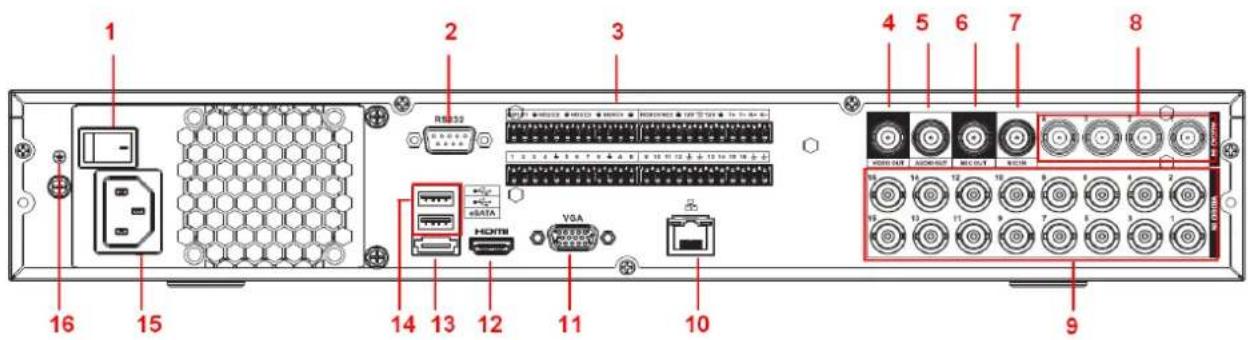
Figure 2-76
The HCVR4432L-S2 rear panel is shown as below. See Figure 2-77.
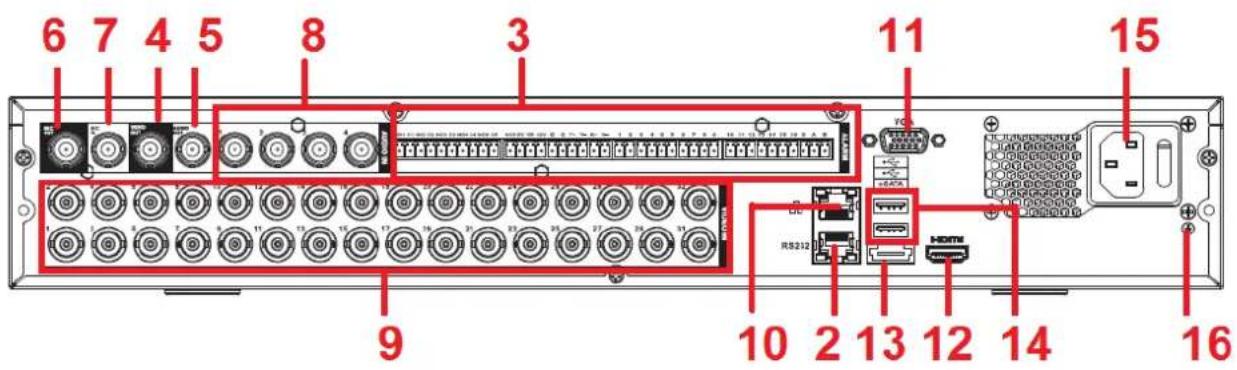
Figure 2-77
Please refer to the following sheet for detailed information.
| SN | Icon | Name | Note |
| 1 | 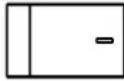 | Power switch | Power on/off button. |
| 2 | RS-232 | RS-232 debug COM. | It is for general COM debug to configure IP address or transfer transparent COM data. |
| 3 | 1~16 | Alarm input port 1~16 | ● There are four groups. The first group is from port 1 to port 4, the second group is from port 5 to port 8, the third group is from 9 to 12, and the fourth group is from 13 to 16. They are to receive the signal from the external alarm source. There are two types; NO (normal open)/NC (normal close).● When your alarm input device is using external power, please make sure the device and the DVR have the same ground. |
| NO1~NO5 | Alarm output port 1~5 | ● 5 groups of alarm output ports. (Group 1: port NO1 ~ C1, Group 2: port NO2 ~ C2, Group 3: port NO3~C3, Group 4: port NO4~C4, Group 5: port NO5, C5, NC5). Output alarm signal to the alarm device. Please make sure there is power to the external alarm device.● NO: Normal open alarm output port.● C: Alarm output public end.● NC: Normal close alarm output port. | |
| C1~C5 | |||
| NC5 | |||
| A | RS-485 communication port | RS485_A port. It is the cable A. You can connect to the control devices such as speed dome PTZ. | |
| B | RS485_B.It is the cable B.You can connect to the control devices such as speed dome PTZ. | ||
| T+、T-、R+、R- | Four-wire full-duplex 485 port | Four-wire full-duplex 485 port.T+, T- is the output wire.R+, R- is the input wire. | |
| CTRL 12V | Control power output | Controller 12V power output.It is to control the on-off alarm relay output. | |
| 4 | VIDEO OUT | Video output port | Connect to video output devices such as TV. |
| 5 | AUDIO OUT | Audio output port | Audio output port. It is to output the analog audio signal to the devices such as the sound box. |
| 6 | MIC OUT | Audio output port | Audio output port. It is to output the analog audio signal to the devices such as the sound box.Bidirectional talk output.Audio output on 1-window video monitor.Audio output on 1-window video playback. |
| 7 | MIC IN | Audio input port | Bidirectional talk input port. It is to receive the analog audio signal output from the devices such as mike phone, pickup. |
| 8 | AUDIO IN | Audio input port | It is to receive the analog audio signal output from the devices such as mike phone, pickup. |
| 9 | VIDEO IN | Video input port | Connect to analog camera to input video signal. |
| 10 |  | Network port | 1000M Ethernet port |
| 11 | VGA | VGA video output port | VGA video output port.Output analog video signal. It can connect to the monitor to view analog video. |
| 12 | HDMI | High Definition Media Interface | High definition audio and video signal output port. It transmits uncompressed high definition video and multiple-channel data to the HDMI port of the display device. |
| 13 | eSATA | eSATA port | External SATA port. It can connect to the device of the SATA port. Please jump the HDD when there is peripheral connected HDD. |
| 14 |  | USB2.0 port | USB2.0 port. Connect to mouse, USB storage device, USB burner and etc. |
| 15 | 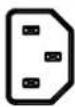 | Power socket | Power socket |
| 16 |  | GND | GND |
2.2.32 HCVR42XXL-S2 Series
The rear panel is shown as in Figure 2-78
The following figure is based on the HCVR4232L-V2 series product.
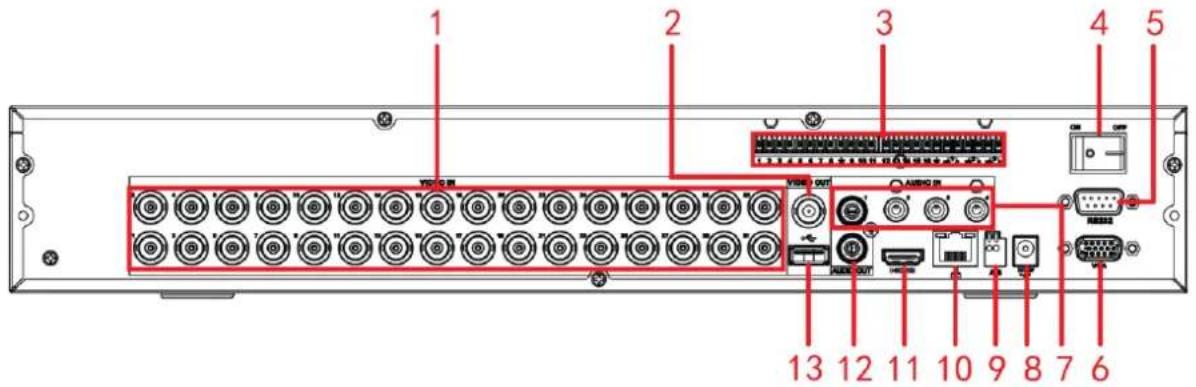
Figure 2-78
Please refer to the following sheet for detailed information.
| SN | Icon | Name | Note |
| 1 | VIDEO IN | Video input port | Connect to analog camera, video input signal. |
| 2 | VIDEO OUT | Video output port | Connect to output devices such as TV. |
| 3 | 1~16 | Alarm input port 1~16 | There are four groups. The first group is from port 1 to port 4, the second group is from port 5 to port 8, the third group is from 9 to 12, and the fourth group is from 13 to 16. They are to receive the signal from the external alarm source. There are two types; NO (normal open)/NC (normal close).When your alarm input device is using external power, please make sure the device and the DVR have the same ground. |
| NO1~NO3 | Alarm output port 1~3 | 3 groups of alarm output ports. (Group 1: port NO1~C1, Group 2: port NO2~C2, Group 3: port NO3~C3). Output alarm signal to the alarm device. Please make sure there is power to the external alarm device.NO: Normal open alarm output port.C: Alarm output public end. | |
| C1~C3 | |||
| ± | GND | Alarm input ground port. | |
| 4 |  | Power switch | Power on/off button. |
| 5 | RS-232 | RS-232 debug COM. | It is for general COM debug to configure IP address or transfer transparent COM data. |
| 6 | VGA | VGA video output port | VGA video output port. Output analog video signal. Can connect to the monitor to view ananlog video output. |
| 7 | AUDIO IN | Audio input port | Connect to audio input device such as speaker. |
| 8 | DC12V=C | Power input port | Input 12V/5A DC. |
| 9 | A | RS-485 communication port | RS485_A port. It is the cable A. You can connect to the control devices such as speed dome PTZ. |
| B | RS485_B. It is the cable B. You can connect to the control devices such as speed dome PTZ. | ||
| 10 |  | Network port | 1000M Ethernet port |
| 11 | HDMI | High Definition Media Interface | High definition audio and video signal output port. It transmits uncompressed high definition video and multiple-channel data to the HDMI port of the display device. |
| 12 | AUDIO OUT | Audio output port | Audio output port. It is to output the analog audio signal to the devices such as the sound box. |
| 13 |  | USB2.0 port | USB2.0 port. Connect to mouse, USB storage device, USB burner and etc. |
2.2.33 HCVR58XXS-V2/HCVR48XXS-S2 Series
The rear panel is shown as in Figure 2-79.
The following figure is based on the HCVR5816S-V2 series product.
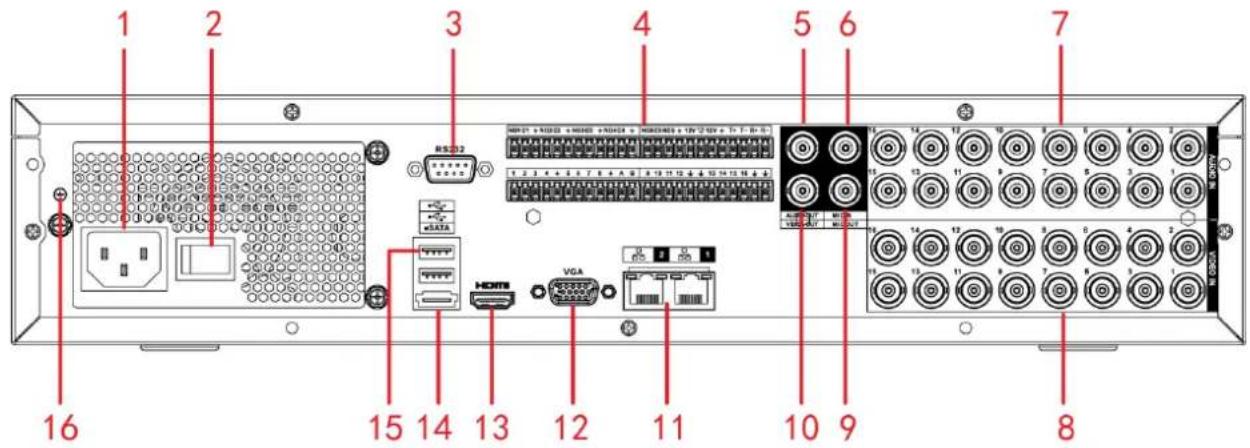
Figure 2-79
The HCVR4832S-S2 rear panel is shown as in Figure 2-80.
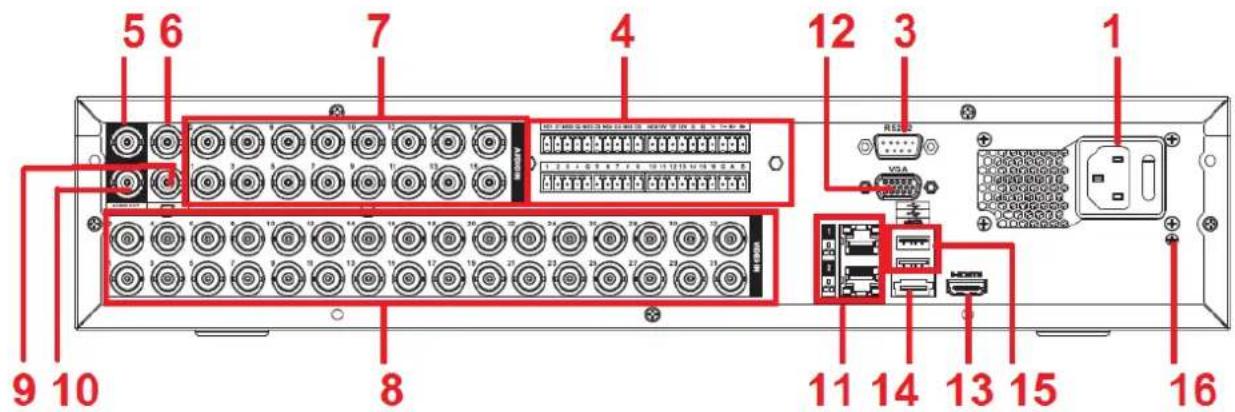
Figure 2-80
Please refer to the following sheet for detailed information.
| SN | Icon | Name | Note |
| 1 |  | Power socket | Power socket |
| 2 |  | Power switch | Power on/off button. |
| 3 | RS-232 | RS-232 debug COM. | It is for general COM debug to configure IP address or transfer transparent COM data. |
| 4 | 1~16 | Alarm input port 1~16 | ● There are four groups. The first group is from port 1 to port 4, the second group is from port 5 to port 8, the third group is from 9 to 12, and the fourth group is from 13 to 16. They are to receive the signal from the external alarm source. There are two types; NO (normal open)/NC (normal close).● When your alarm input device is using external power, please make sure the device and the DVR have the same ground. |
| NO1~NO5 | Alarm output port 1~5 | ● 5 groups of alarm output ports. (Group 1: port NO1 ~ C1, Group 2: port NO2 ~ C2, Group 3: port NO3~C3, Group 4: port NO4~C4, Group 5: port NO5, C5, NC5). Output alarm signal to the alarm device. Please make sure there is power to the external alarm device.● NO: Normal open alarm output port.● C: Alarm output public end.● NC: Normal close alarm output port. | |
| C1~C5 | |||
| NC5 | |||
| A | RS-485 communication port | RS485_A port. It is the cable A. You can connect to the control devices such as speed dome PTZ. | |
| B | RS485_B.It is the cable B. You can connect to the control devices such as speed dome PTZ. | ||
| T+、T-、R+、R- | Four-wire full-duplex 485 port | Four-wire full-duplex 485 port. T+, T- is the output wire. R+, R- is the input wire. | |
| CTRL 12V | Control power output | Controller 12V power output. It is to control the on-off alarmrelay output. | |
| 5 | AUDIO OUT | Audio output port | Audio output port. It is to output the analog audio signal to the devices such as the sound box. |
| 6 | MIC IN | Audio input port | Bidirectional talk input port. It is to receive the analog audio signal output from the devices such as mike phone, pickup. |
| 7 | AUDIO IN | Audio input port | It is to receive the analog audio signal output from the devices such as mike phone, pickup. |
| 8 | VIDEO IN | Video input port | Connect to analog camera to input video signal. |
| 9 | MIC OUT | Audio output port | Audio output port. It is to output the analog audio signal to the devices such as the sound box.● Bidirectional talk output.● Audio output on 1-window video monitor.● Audio output on 1-window video playback. |
| 10 | VIDEO OUT | Video output port | Connect to video output devices such as TV. |
| 11 |  | Network port | 1000M Ethernet port |
| 12 | VGA | VGA video output port | VGA video output port.Output analog video signal. It can connect to the monitor to view analog video. |
| 13 | HDMI | High Definition Media Interface | High definition audio and video signal output port. It transmits uncompressed high definition video and multiple-channel data to the HDMI port of the display device. |
| 14 | eSATA | eSATA port | External SATA port. It can connect to the device of the SATA port. Please jump theHDD when there is peripheral connected HDD. |
| 15 |  | USB2.0 port | USB2.0 port. Connect to mouse, USB storage device, USB burner and etc. |
| 16 | [OK OS] | GND | GND |
2.2.34 HCVR71XXH-4M Series
The rear panel is shown as in Figure 2-81.
The following figure is based on the HCVR7116H-4M series product.
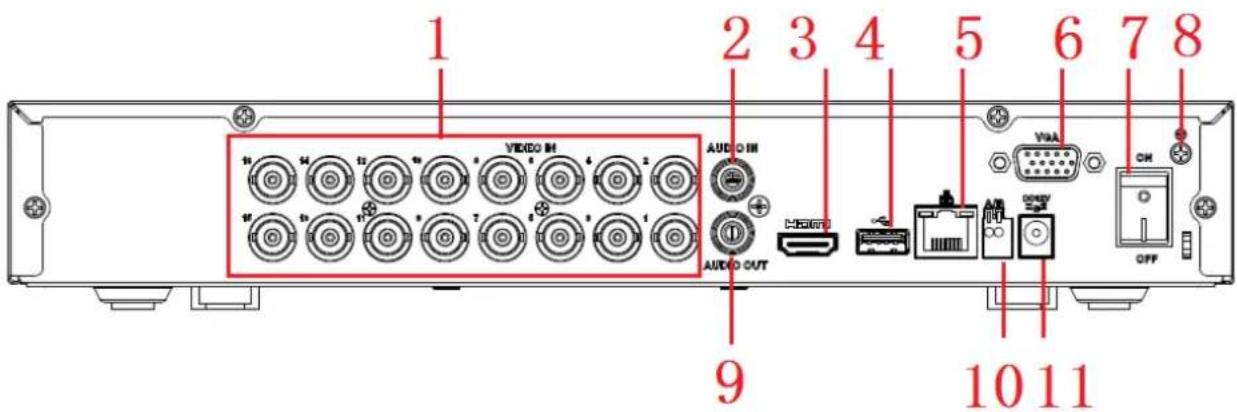
Figure 2-81
Please refer to the following sheet for detailed information.
| SN | Icon | Name | Function |
| 1 | VIDEO IN | Video input port | Connect to analog camera, video input signal. |
| 2 | AUDIO IN | Audio input port | Connect to microphone and etc to input signal. |
| 3 | HDMI | High definition media interface | High definition audio and video signal output port. It transmits the same video signal as that of the VGA/TV or different video signal from that of the VGA/TV (support customized setup).Support mouse operation. |
| 4 |  | USB3.0 port | Connect to mouse, USB storage media, USB-burner and etc. |
| 5 |  | Network port | 1000M Ethernet port |
| 6 | VGA | VGA video output port | VGA video output port. Output analog video signal. It can connect to the monitor to view analog video. |
| 7 |  | Power switch | Power on/off button. |
| 8 |  | GND | Ground port |
| 9 | AUDIO OUT | Audio output port | Connect to sound box and etc to output audio signal. |
| 10 | A | RS485 communication port | RS485_A port. It is the cable A. You can connect to the control devices such as speed dome PTZ. |
| B | RS485_B.It is the cable B. You can connect to the control devices such as speed dome PTZ. | ||
| 11 |  | Power socket | Power input port |
2.2.35 HCVR72XXAN-4M Series
The rear panel is shown as in Figure 2-82.
The following figure is based on the HCVR7208SAN-4M series product.
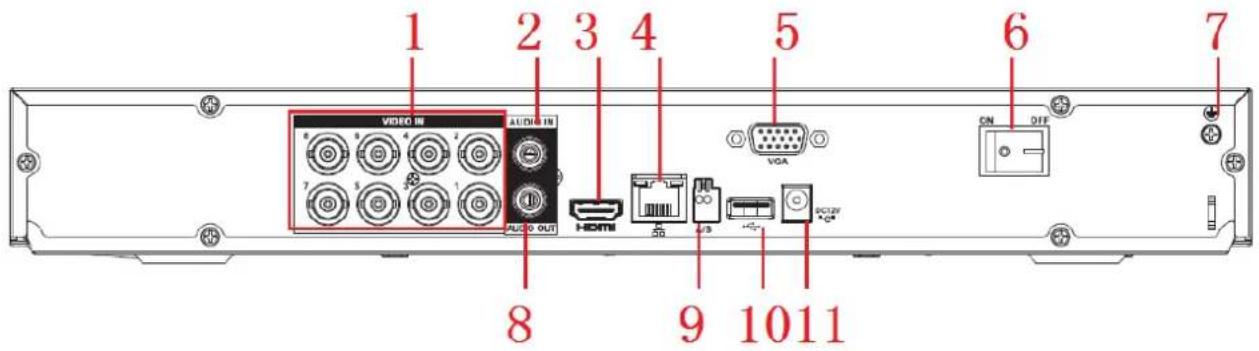
Figure 2-82
Please refer to the following sheet for detailed information.
| SN | Icon | Name | Function |
| 1 | VIDEO IN | Video input port | Connect to analog camera, video input signal. |
| 2 | AUDIO IN | Audio input port | Connect to microphone and etc to input signal. |
| 3 | HDMI | High definition media interface | High definition audio and video signal output port. It transmits the same video signal as that of the VGA/TV or different video signal from that of the VGA/TV (support customized setup).Support mouse operation. |
| 4 | Network port | 1000M Ethernet port | |
| 5 | VGA | VGA | VGA video output port |
| 6 | Power switch | Power on/off button. | |
| 7 | GND | Power switch | Power on/off button. |
| 8 | AUDIO OUT | Audio output port | Connect to sound box and etc to output audio signal. |
| 9 | A | RS485 communication port | RS485_A port. It is the cable A. You can connect to the control devices such as speed dome PTZ. |
| B | RS485_B.It is the cable B. You can connect to the control devices such as speed dome PTZ. | ||
| 10 | USB3.0 port | Connect to mouse, USB storage media, USB-burner and etc. | |
| 11 | Power socket | Power input port |
When connect the Ethernet port, please use crossover cable to connect the PC and use the straight cable to connect to the switch or router.
2.3 Connection Sample
2.3.1 Smart Box Series
Please refer to Figure 2-78 for connection sample.
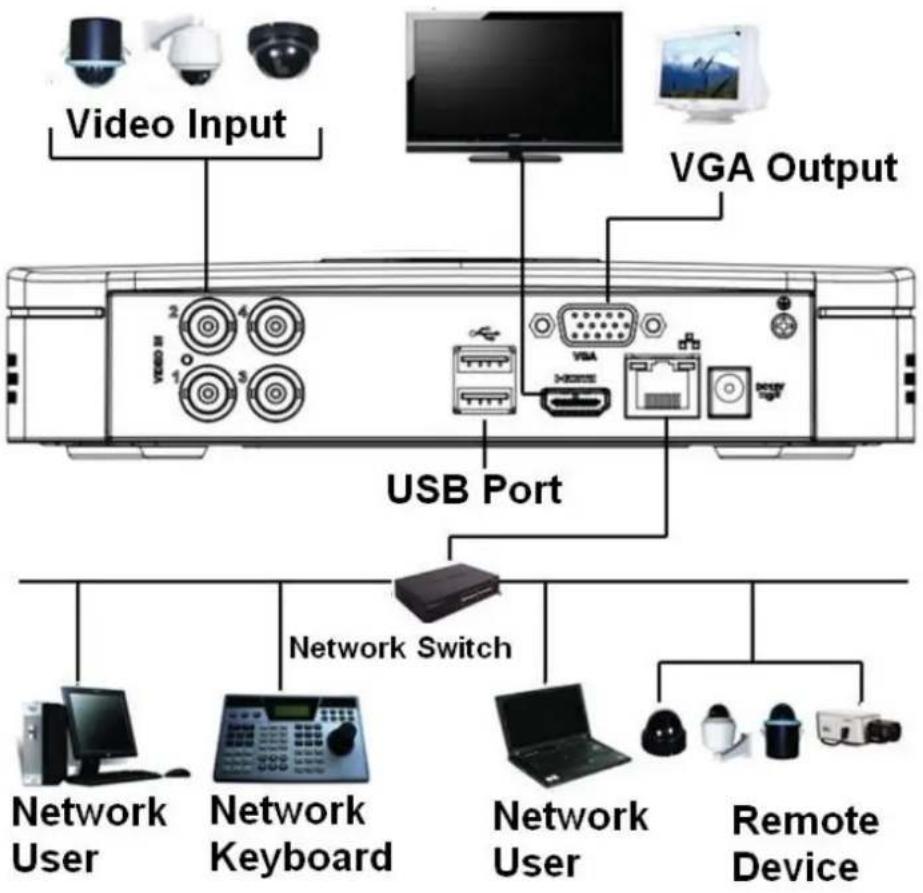
Figure 2-83
2.3.2 Smart 1U Series
Please refer to Figure 2-84 for connection sample.
The following figure is based on the HCVR4108C-S3/5108C-S3/XVR4108C/5108C series.
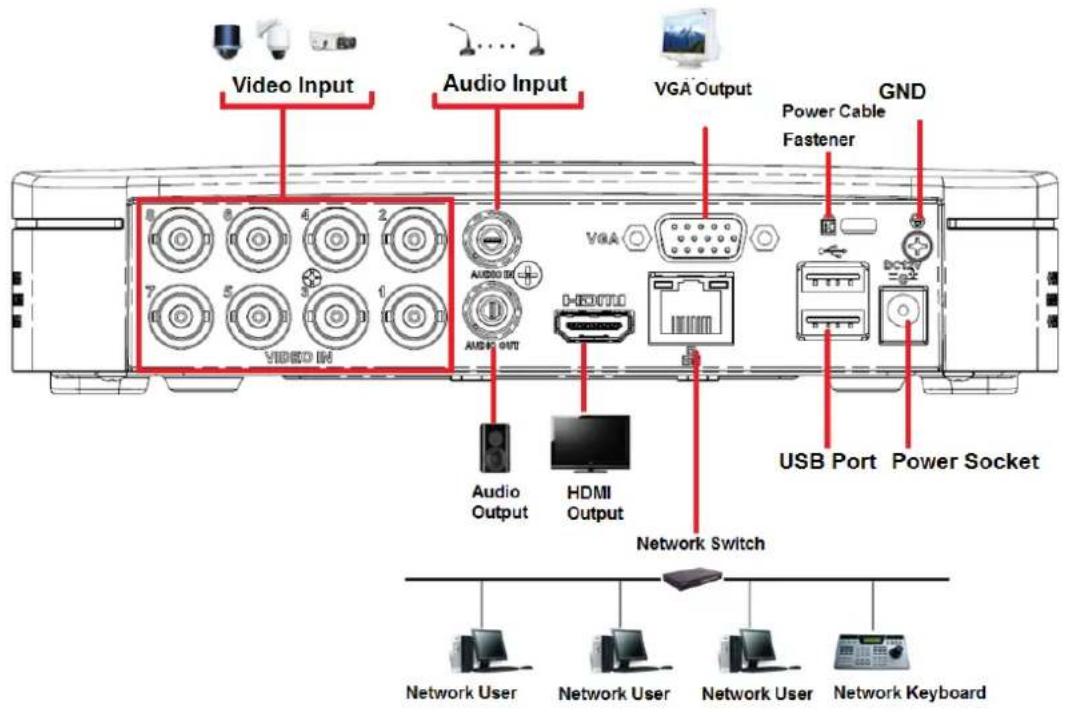
Figure 2-84
2.3.3 Compact 1U Series
Please refer to Figure 2-78 for connection sample.
The following figure is based on the HCVR2116HS-S3/HCVR4116HS-S3/5116HS-S3/XVR2116HS/XVR4116HS/5116HS series product.
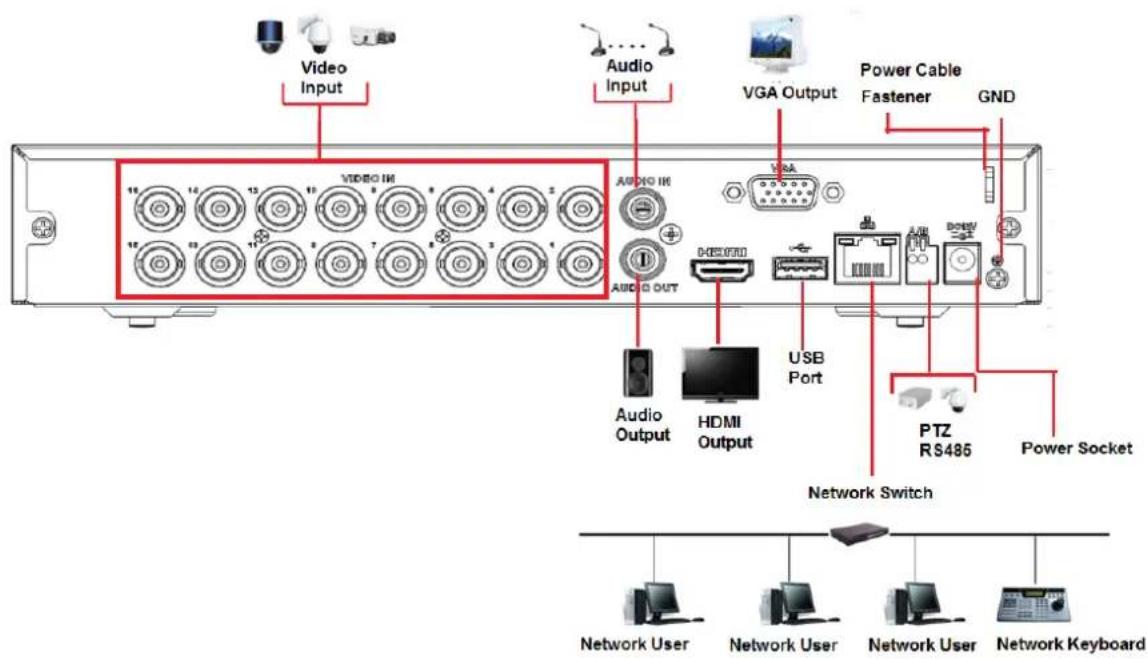
Figure 2-85
2.3.4 Mini 1U Series
Please refer to Figure 2-86 for connection sample.
The following figure is based on HCVR4116HE-S3/HCVR5116HE-S3/HCVR7116HE-S3/XVR4116HE/XVR5116HE/XVR7116HE series.
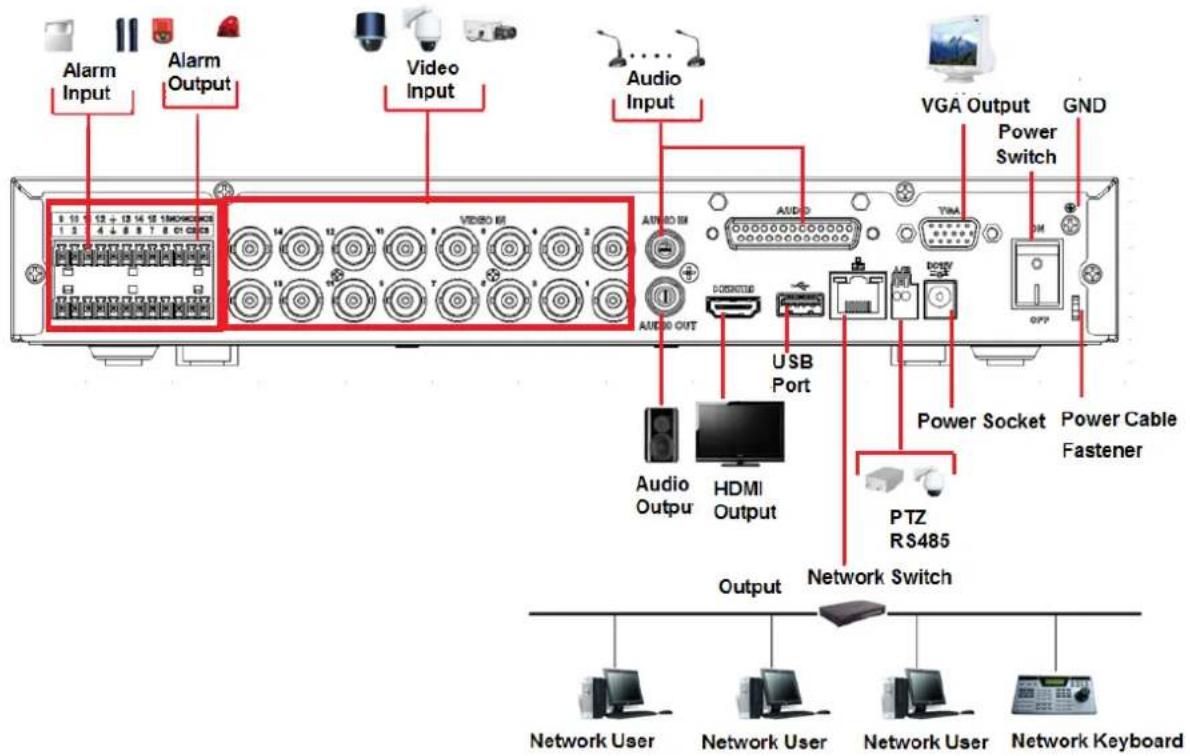
Figure 2-86
2.3.5 1U Series
Please refer to the following figure for detailed information. See Figure 2-87. The following interface is based on the HCVR4216A-S3/HCVR5216A-S3/HCVR7216A-S3/XVR4216A/XVR5216A/XVR7216A series product.
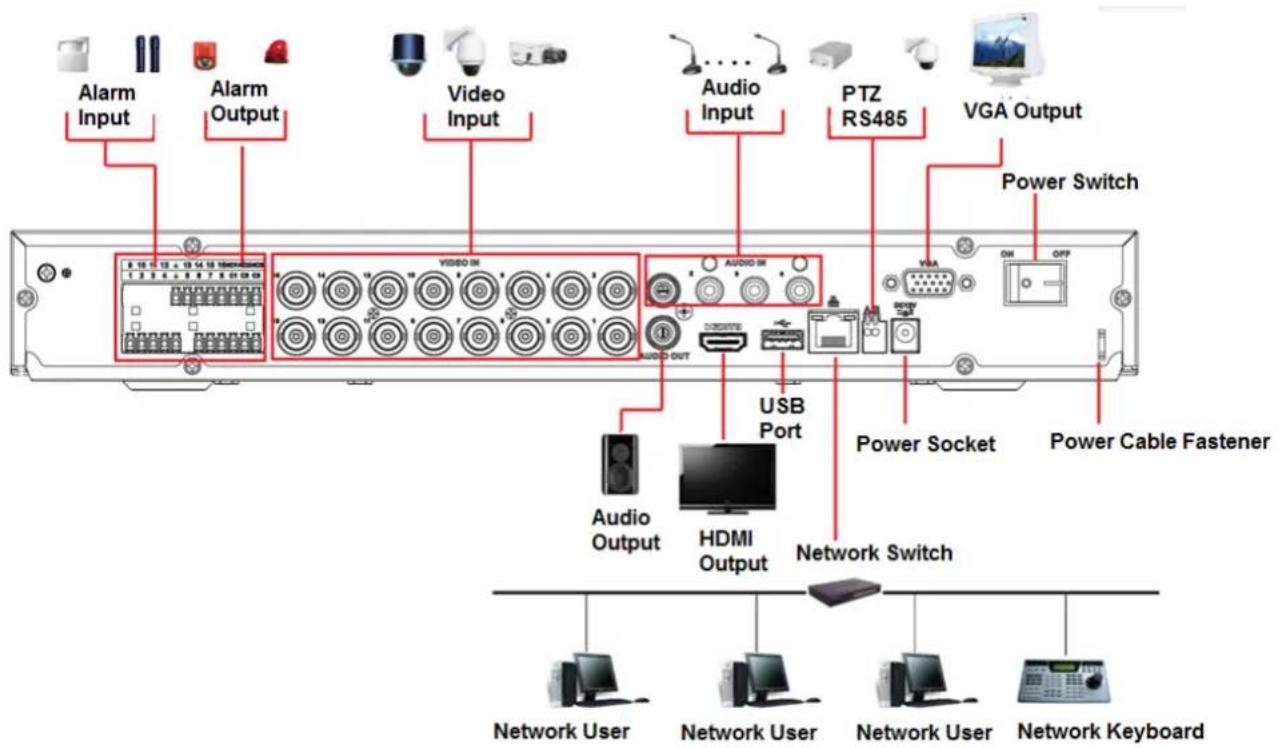
Figure 2-87
2.3.6 1.5U Series
The connection sample is shown as below. See Figure 2-88.
The following interface is based on the HCVR4232L-S2 series product.
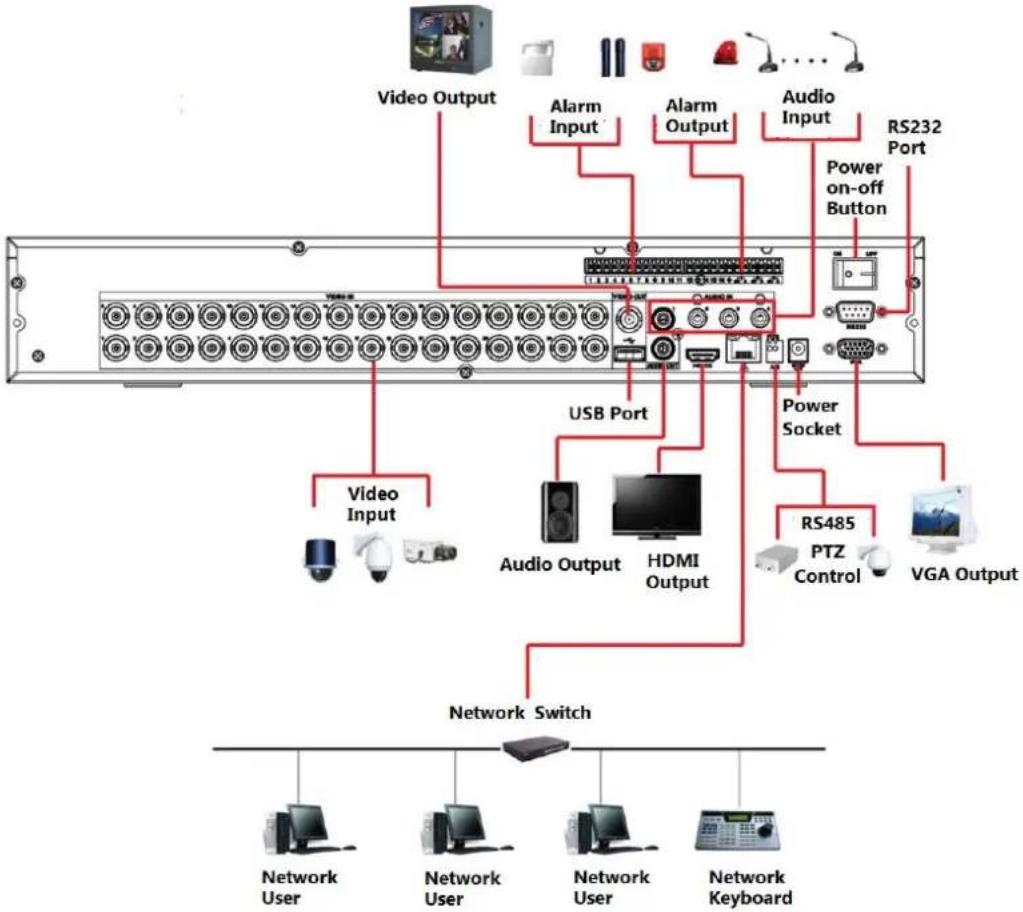
Figure 2-88
2.3.7 2U Series
Please refer to the following figure for detailed information. See Figure 2-89.
The following interface is based on the HCVR5816S-V2 series product.
Figure 2-89
2.4 Remote Control
The remote control interface is shown as in Figure 2-90.
Please note remote control is not our standard accessory and it is not included in the accessory bag.
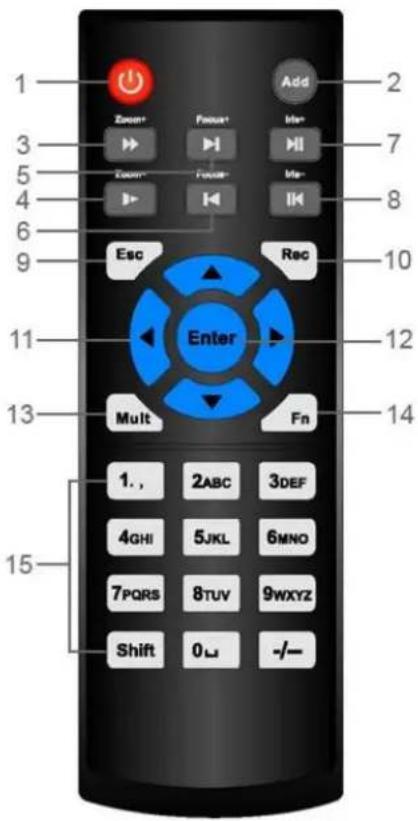
Figure 2-90
| Serial Number | Name | Function |
| 1 | Power button | Click it to boot up or shut down the device. |
| 2 | Address | Click it to input device number, so that you can control it. |
| 3 | Forward | Various forward speeds and normal speed playback. |
| 4 | Slow play | Multiple slow play speeds or normal playback. |
| 5 | Next record | In playback mode, playback the next video. |
| 6 | Previous record | In playback mode, playback the previous video. |
| 7 | Play/Pause | In pause mode, click this button to realize normal playback. |
| In normal playback click this button to pause playback. | ||
| In real-time monitor mode, click this button to enter video search menu. | ||
| Reverse/pause | Reverse playback pause mode, | |
| 8 | click this button to realize normal playback. | |
| In reverse playback click this button to pause playback. | ||
| Esc. | Go back to previous menu or cancel current operation (close upper interface or control) | |
| 9 | ||
| 10 | Record | Start or stop record manually In record interface, working with the direction buttons to select the record channel. Click this button for at least 1.5 seconds, system can go to the Manual Record interface. |
| 11 | Direction keys | Switch current activated control, go to left or right. In playback mode, it is to control the playback process bar. Aux function(such as switch the PTZ menu) |
| 12 | Enter /menu key | go to default button go to the menu |
| 13 | Multiple-window switch | Switch between multiple-window and one-window. |
| 14 | Fn | In 1-ch monitor mode: pop up assistant function: PTZ control and Video color. Switch the PTZ control menu in PTZ control interface. In motion detection interface, working with direction keys to complete setup. In text mode, click it to delete character. |
| 15 | 0-9 number key | Input password, channel or switch channel. Shift is the button to switch the input method. |
2.5 Mouse Control
Left click System pops up password input dialogue box if you have not logged in. mouse In real-time monitor mode, you can go to the main menu.
| When you have selected one menu item, left click mouse to view menu content. | |
| Implement the control operation. | |
| Modify checkbox or motion detection status. | |
| Click combo box to pop up drop down list | |
In input box, you can select input methods. Left click the corresponding button on the panel you can input numeral/English character (small/capitalized). Here← stands for backspace button. _ stands for space button.In English input mode: _stands for input a backspace icon and ← stands for deleting the previous character.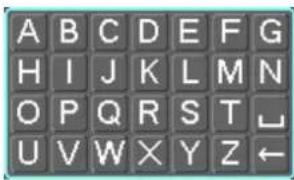 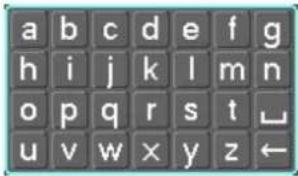 In numeral input mode: _ stands for clear and ← stands for deleting the previous numeral.When input special sign, you can click corresponding numeral in the front panel to input. For example, click numeral 1 you can input“/”, or you can click the numeral in the on-screen keyboard directly. In numeral input mode: _ stands for clear and ← stands for deleting the previous numeral.When input special sign, you can click corresponding numeral in the front panel to input. For example, click numeral 1 you can input“/”, or you can click the numeral in the on-screen keyboard directly.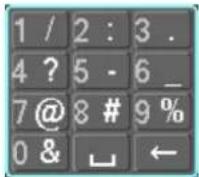 | |
| Double left click mouse | Implement special control operation such as double click one item in the file list to playback the video. |
| In multiple-window mode, double left click one channel to view in full-window.Double left click current video again to go back to previous multiple-window mode. | |
| Right click mouse | In real-time monitor mode, pops up shortcut menu: one-window, four-window, nine-window and sixteen-window, Pan/Tilt/Zoom, color setting, search, record, alarm input, alarm output, main menu. Among which, Pan/Tilt/Zoom and color setting applies for current selected channel. If you are in multiple-window mode, system automatically switches to the corresponding channel. |
Exit current menu without saving the modification.
Press In numeral input box: Increase or decrease numeral value.
middle Switch the items in the check box.
button Page up or page down
Move Select current control or move control
mouse
Drag Select motion detection zone
mouse Select privacy mask zone.
2.6 Virtual Keyboard & Front Panel
2.6.1 Virtual Keyboard
The system supports two input methods: numeral input and English character (small and capitalized) input.
Move the cursor to the text column, the text is shown as blue, input button pops up on the right. Click that button to switch between numeral input and English input (capitalized and small), Use > or < to shift between small character and capitalized character.
2.6.2 Front Panel
Move the cursor to the text column. Click Fn key and use direction keys to select number you wanted. Please click enter button to input.
3 Installation and Connections
Note: All the installation and operations here should conform to your local electric safety rules.
3.1 Check Unpacked DVR
When you receive the DVR from the forwarding agent, please check whether there is any visible damage. The protective materials used for the package of the DVR can protect most accidental clashes during transportation. Then you can open the box to check the accessories.
Please check the items in accordance with the list. Finally you can remove the protective film of the DVR.
Note
Remote control is not a standard accessory and it is not included in the accessory bag.
3.2 About Front Panel and Rear Panel
The model in the front panel is very important; please check according to your purchase order.
The label in the rear panel is very important too. Usually we need you to represent the serial number when we provide the service after sales.
3.3 HDD Installation
Important
Shut down the device and then unplug the power cable before you open the case to replace the HDD!
All figures listed below for reference only!
This series DVR has 1 to 8 HDDs (no limitation for capacity). Please use HDD of 7200rpm or higher. Usually we do not recommend the HDD for the PC. You can refer to the Appendix for recommended HDD brand.
Please follow the instructions listed below to install hard disk.
3.3.1 Smart Box Series
Please make sure the metal surface of the HDD is facing up when you are installing!
This series product has only one 2.5-inch SATA HDD.
Please follow the instructions below to install HDD.
①Draw out the HDD bracket
②Make sure the HDD metal surface is facing up and then put the HDD into the bracket horizontally. After the HDD is in the proper position, the columns on the two sides can lock the screw holes of the HDD to secure it.
③Put the HDD into the device.
When you remove the HDD, please refer to the following figure to pull the spring up and then remove the HDD.
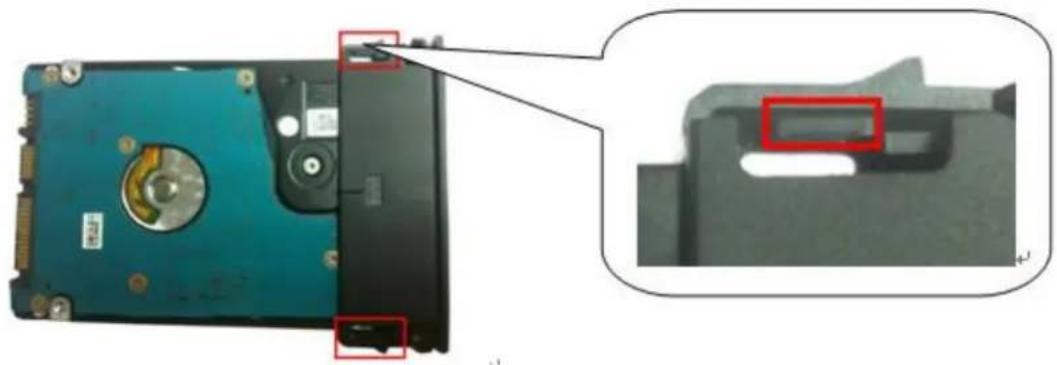
natural_image
Close-up of a hard disk drive head with a close-up inset showing internal components (no text or symbols visible)3.3.2 Smart 1U Series
The smart 1U series includes HCVR5104C/HCVR51XXC-V2/HCVR71XXC-V2/ HCVR4104/4108C-S2/ HCVR5104 5108C-S2/ HCVR7104C-S2/ HCVR2108C-S2/ XVR410XC/XVR510XC/7104C series. The series DVR has one SATA HDD.
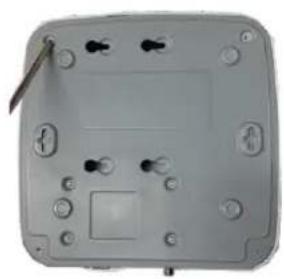
natural_image
Front view of a gray electronic device casing with multiple ports and mounting holes (no visible text or symbols)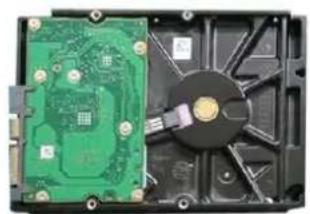
natural_image
Interior view of a computer drive showing green circuit board and black drive casing (no visible text or symbols)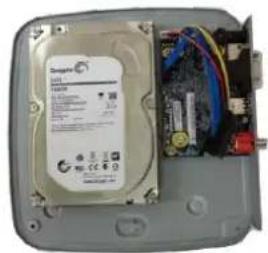
natural_image
Interior view of a computer drive showing internal components including a hard disk, cable, and ports (no visible text or labels)①. Loosen the screws of the upper cover and side panel.
② Fix four screws in the HDD (Turn just three rounds).
③ Place the HDD in accordance with the four holes in the bottom.
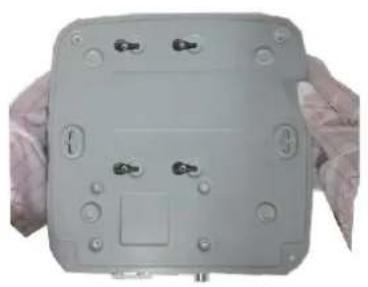
natural_image
Close-up of hands holding a gray electronic device casing with mounting holes and a small square button (no visible text or symbols)④ Turn the device upside down and
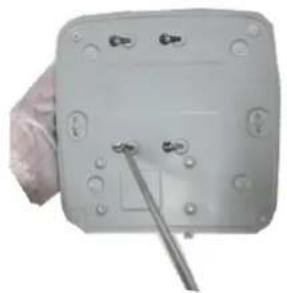
natural_image
Close-up of a hand holding a white electronic device with screwdriver inserted (no visible text or symbols)⑤ Fix the HDD firmly.
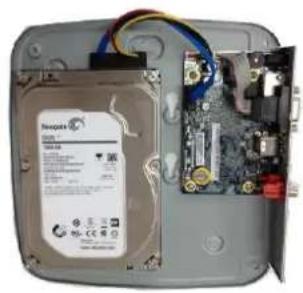
natural_image
Interior view of a hard disk drive showing internal components and wiring (no readable text or symbols)⑥ Connect the HDD cable and power cable.
then turn the screws in firmly.
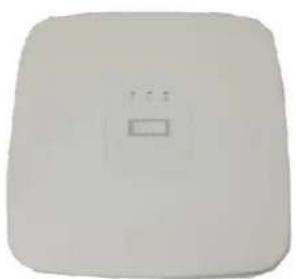
natural_image
Plain white rectangular object with a small square cutout on top (no text or symbols)⑦ Put the cover in accordance with
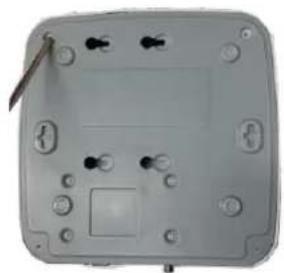
natural_image
Front view of a gray electronic device casing with multiple ports and mounting holes (no visible text or symbols)⑧ Secure the screws in the rear panel and the side panel.
the clip and then place the upper cover back.
3.3.3 Compact 1U and Mini 1U Series
● The mini 1U series includes
HCVR51XXH/51XXHC/51XXHE/51XXH-V2/HC-V2/HE-V2/71XXH-V2/71XXHC-V2/71XXHE-V2/ HCVR41XXHE-S2/ HCVR51XXH-S2/ HCVR51XXHE-S2/
HCVR710XH-S2/ HCVR710XHE-S2/
XVR41XXHE/XVR51XXHE/XVR71XXH/XVR71XXHE and etc.
- The compact 1U series includes HCVR41XXHS-S2/ HCVR2108HS-S2/ HCVR2116HS-S2/HCVR21XXHS-S2/ XVR21XXHS/XVR41XXHS/51XXHS/7104HS and etc..
The series DVR has one SATA HDD.
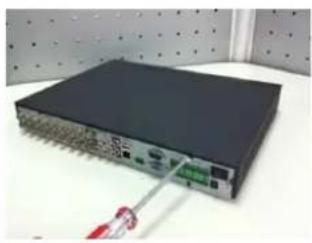
natural_image
Close-up of a black networking device with multiple ports and a red screwdriver inserted, placed on a white surface against a perforated wall (no visible text or symbols)①Loosen the screws of the upper cover and side panel.
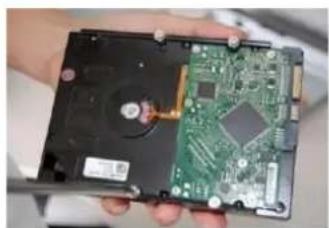
natural_image
Close-up of a hand holding an open hard disk with visible circuit board and drive slots (no text or symbols)② Fix four screws in the HDD (Turn just three rounds).
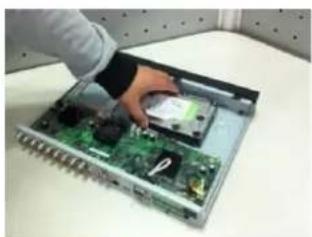
natural_image
Hand placing a CD into an open drive chassis (no visible text or symbols)③ Place the HDD in accordance with the four holes in the bottom.
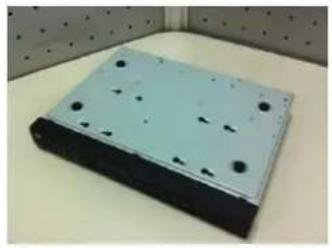
natural_image
Exterior view of a rectangular electronic device with metallic casing and mounting holes (no text or symbols visible)④Turn the device upside down and then turn the screws in firmly.
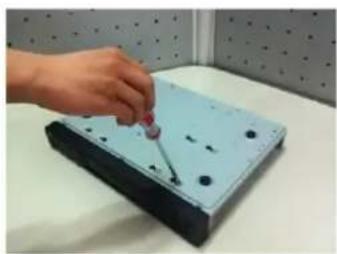
natural_image
Hand placing a small red object onto a light blue electronic device with black holes, placed on a white surface (no text or symbols visible)⑤ Fix the HDD firmly.
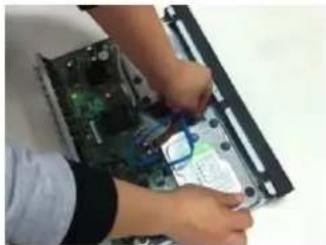
natural_image
Person installing a green circuit board with a plastic clip, no visible text or symbols⑥Connect the HDD cable and power cable.
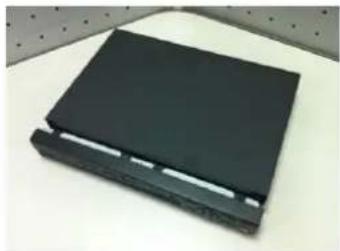
natural_image
Black rectangular electronic device with a flat top and side panel, placed on a white surface with a perforated background (no visible text or symbols)⑦Put the cover in accordance with the clip and then place the upper cover back.
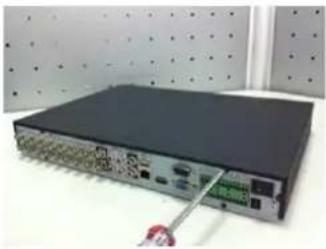
natural_image
Front view of a black network equipment unit with ports and a red cable inserted, placed on a white surface against a perforated wall (no visible text or symbols)⑧Secure the screws in the rear panel and the side panel.
Important:
- You can connect the HDD data cable and the power cable first and then fix the HDD in the device.
- Please pay attention to the front cover. It adopts the vertical sliding design. You need to push the clip first and then put down.
3.3.4 The 1U Series
The 1U series includes HCVR52XXA-V2/HCVR72XXA-V2/HCVR42XXA-S2/HCVR4216AN-S2/HCVR52XXA-S2/ HCVR5216AN-S2/HCVR720XA-S2/XVR42XXA/XVR4216AN/XVR52XXA/XVR5216AN/X VR72XXA/XVR7216AN and etc. This series DVR has two SATA HDDs.
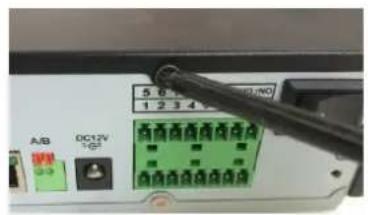
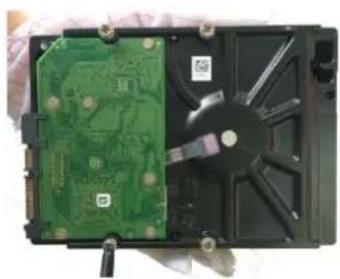
natural_image
Interior view of a computer drive showing green circuit board and black fan (no visible text or symbols)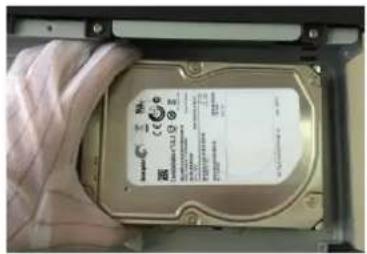
natural_image
Close-up of a hand holding a hard disk drive (no visible text or symbols)① Loosen the screws of the upper cover and side panel. Remove the cover.
② Fix four screws in the HDD (Turn just three rounds).
③Place the HDD in accordance with the four holes in the bottom.
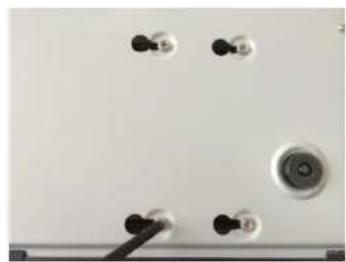
natural_image
Close-up of a wall-mounted electronic device with black connectors and a circular button (no visible text or symbols)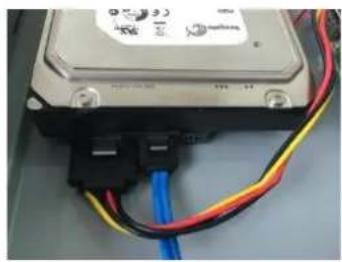
natural_image
Close-up of an electric motor with blue and yellow wires connected to its side panel (no visible text or symbols)
natural_image
Exterior view of a black rectangular electronic device with a flat top and base (no visible text or symbols)④Turn the device upside down and then turn the screws in firmly.
⑤Connect the HDD cable and power cable.
⑥Put the cover in accordance with the clip and then place the upper cover back. Secure the screws in the rear panel and the side panel.
3.3.5 The 1.5U Series
The 1.5U series includes HCVR52XXL-V2/HCVR54XXL-V2/HCVR44L-S2 and etc. This series DVR max has four SATA HDDs. Please use HDD of 7200rpm or higher.
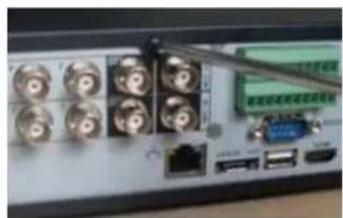
natural_image
Close-up of a server rack with multiple ports and connectors (no visible text or symbols)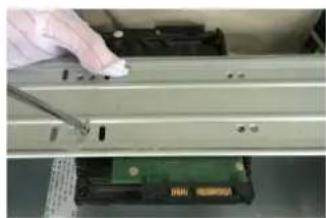
natural_image
Close-up of a hand using a tool to adjust or install electronic components on a device (no visible text or symbols)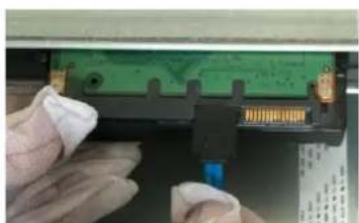
natural_image
Close-up of hands installing a green circuit board component with gold contacts and a blue plastic clip (no visible text or symbols)① Loosen the screws of the
② Line up the HDD to the
③ Connect the one end of the HDD
upper cover. Remove the cover.
four holes of the HDD bracket. Use four screws to fix HDD.
cable to the HDD.
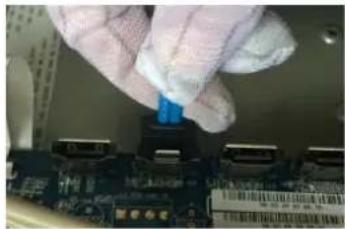
natural_image
Close-up of a gloved hand inserting a blue component into a black electronic device (no visible text or symbols)④ Connect the other end of the HDD cable to the mainboard.
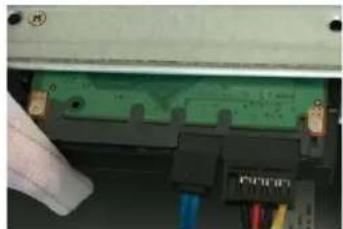
natural_image
Close-up of a computer interface showing a green circuit board with connectors and colored wires (no visible text or symbols)⑤ Connect the power cable to the HDD.
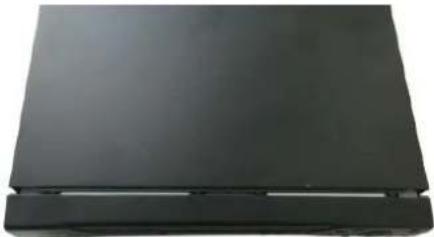
natural_image
Exterior view of a black rectangular electronic device with a flat top and base (no visible text or symbols)⑥ Put the cover back and fix the screws to secure firmly.
3.3.6 The 2U Series
The 2U series includes HCVR58XXS-V2/HCVR48XXS-V2 and etc.
This series DVR max supports 8 SATA HDDs. Please use HDD of 7200rpm or higher.
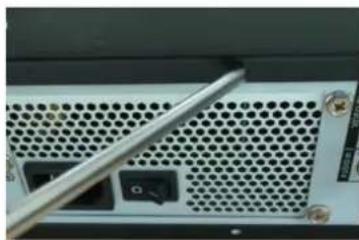
natural_image
Close-up of a server rack with a metallic tool inserted, showing ventilation grille and drive buttons (no readable text or symbols)① Loosen the screws of the upper cover and side panel. Remove the cover.
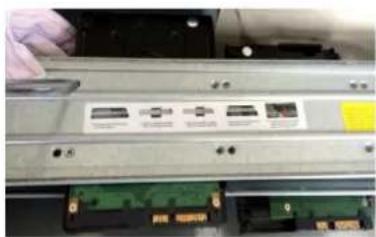
natural_image
Close-up of a computer drive bay with two labeled buttons and a partially visible card (no readable text or symbols)② Fix the HDD(s) on the bracket. Remove the top bracket if you want to install HDD to the bottom bracket.
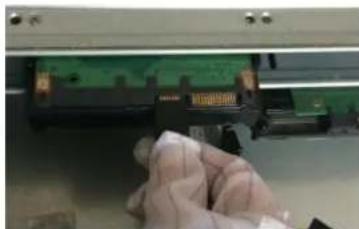
natural_image
Close-up of a gloved hand holding a green electronic component, no visible text or symbols③Connect the one end of the HDD cable to the HDD.
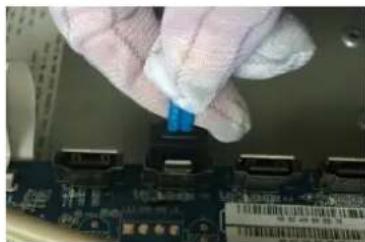
natural_image
Close-up of a gloved hand inserting a blue component into a computer motherboard (no visible text or symbols)④ Connect the other end of the HDD cable to the mainboard.
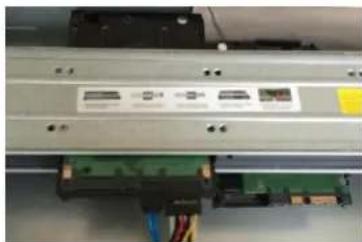
natural_image
Close-up of a mechanical device with attached components and wiring (no visible text or symbols)⑤Connect the power cable to the HDD.
natural_image
Exterior view of a black rectangular electronic device with a flat top and side panel (no visible text or symbols)⑥Put the cover back and fix the screws to secure firmly.
Important:
If the HDD amount is less than four, you do not need to install the HDD bracket.
When there is a bracket, please make sure the installation direction of HDDs is the same.
3.3.7 Rack Installation
The DVR occupies 1.5U/2U rack units of vertical rack space.
- Use twelve screws to fix the unit
-
Please make sure the indoor temperature is below 35°C (95°F).
-
Please make sure there is 15cm (6 inches) space around the device to guarantee sound ventilation.
- Please install from the bottom to the top.
- If there are more accessories connected in the rack, please take precaution measures in case the rack power is overload.
3.4 Connecting Power Supply
Please check input voltage and device power button match or not.
We recommend you use UPS to guarantee steady operation, DVR life span, and other peripheral equipments operation such as cameras.
3.5 Connecting Video Input and Output Devices
3.5.1 Connecting Video Input
The video input interface is BNC. The input video format includes: PAL/NTSC BNC (1.0V _P.P. 75Ω).
The input video format: BNC (0.8VP-P, 75Ω),
The video signal should comply with your national standards.
The input video signal shall have high SNR, low distortion; low interference, natural color and suitable lightness.
Guarantee the stability and reliability of the camera signal:
The camera shall be installed in a cool, dry place away from direct sunlight, inflammable, explosive substances and etc.
The camera and the DVR should have the same grounding to ensure the normal operation of the camera.
Guarantee stability and reliability of the transmission line.
Please use high quality, sound shielded BNC. Please select suitable BNC model according to the transmission distance.
If the distance is too long, you should use twisted pair cable, and you can add video compensation devices or use optical fiber to ensure video quality.
You should keep the video signal away from the strong electromagnetic interference, especially the high tension current.
Keep connection lugs in well contact
The signal line and shielded wire should be fixed firmly and in well connection. Avoid dry joint, lap welding and oxidation.
3.5.2 Connecting Video Output
Video output includes a BNC(PAL/NTSC, 1.0VP-P, 75Ω) output, a VGA output and a HDMI output.
System supports BNC, VGA and HDMI output at the same time.
When you are using pc-type monitor to replace the monitor, please pay attention to the following points:
● To defer aging, do not allow the pc monitor to run for a long time.
● Regular demagnetization will keep device maintain proper status.
- Keep it away from strong electromagnetic interference devices.
Using TV as video output device is not a reliable substitution method. You also need to reduce the working hour and control the interference from power supply and other devices.
The low quality TV may result in device damage.
3.6 Connecting Audio Input & Output, Bidirectional Audio
3.6.1 Audio Input
BNC port is adopted for audio input port.
Due to high impedance of audio input, please use active sound pick-up.
Audio transmission is similar to video transmission. Try to avoid interference, dry joint, loose contact and it shall be away from high tension current.
3.6.2 Audio Output
The audio output signal parameter is usually over 200mv 1KΩ (BNC). It can directly connect to low impedance earphone, active sound box or amplifier-drive audio output device.
If the sound box and the pick-up cannot be separated spatially, it is easy to arouse squeaking. In this case you can adopt the following measures:
- Use better sound pick-up with better directing property.
- Reduce the volume of the sound box.
- Using more sound-absorbing materials in decoration can reduce voice echo and improve acoustics environment.
- Adjust the layout to reduce happening of the squeaking.
3.7 Alarm Input and Output Connection
Please read the followings before connecting.
- Alarm input
a. Please make sure alarm input mode is grounding alarm input.
b. Grounding signal is needed for alarm input.
c. Alarm input needs the low level voltage signal.
d. Alarm input mode can be either NC (normal Open) or NO (Normal Close)
e. When you are connecting two DVRs or you are connecting one DVR and one other device, please use a relay to separate them,
2. Alarm output
The alarm output port should not be connected to high power load directly (It shall be less than 1A) to avoid high current which may result in relay damage. Please use the co- contactor to realize the connection between the alarm output port and the load.
- How to connect PTZ decoder
a. Ensure the decoder has the same grounding with DVR, otherwise you may not control the PTZ. Shielded twisted wire is recommended and the shielded layer is used to connect to the grounding.
b. Avoid high voltage. Ensure proper wiring and some thunder protection measures.
c. For too long signal wires, 120Ω should be parallel connected between A, B lines on the far end to reduce reflection and guarantee the signal quality.
d. "485 A. B" of DVR cannot parallel connect with "485 port" of other device.
e. The voltage between of A,B lines of the decoder should be less than 5v.
4. Please make sure the front-end device has soundly earthed.
Improper grounding may result in chip damage.
3.7.1 Alarm Input and Output Details
Important
Please refer to the specifications for the alarm input and output channel amount. Do not merely count the alarm input and out channel amount according to the ports on the rear panel.
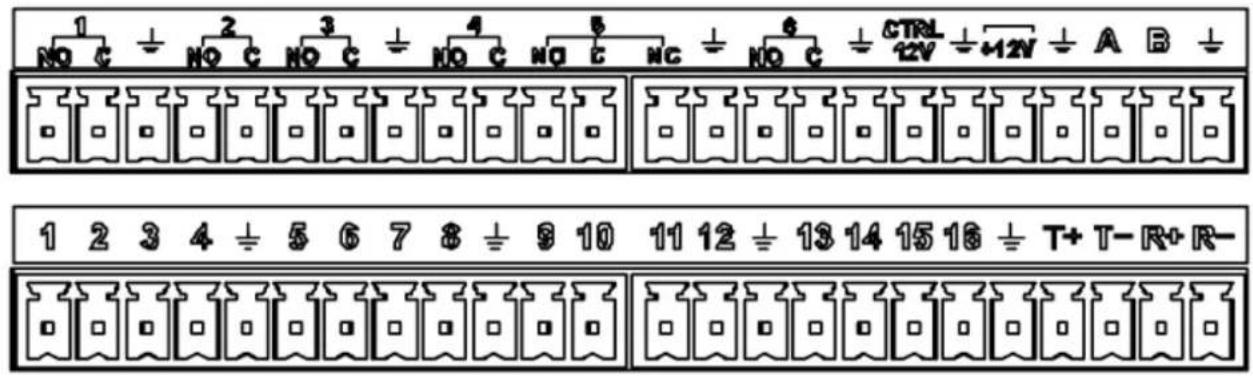
| 1, 2, 3, 4, 5, 6,7, 8, 9, 10, 11,12, 13, 14, 15, 16 | ALARM 1 to ALARM 16. The alarm becomes active in low voltage. |
| In the second line, from the left to the right:NO1 C1,NO2 C2,NO3 C3,NO4 C4,NO5 C5,NO6 C6. | There are six groups of normal open activation output (on/off button) |
| CTRL 12V | Control power output. For external alarm, you need to close the device power to cancel the alarm.Voltage current: 500mA. |
| +12V | Rated current.Voltage current: 500mA. |
| [0000] | Earth cable. |
| 485 A/B | 485 communication port. They are used to control devices such as decoder. 120Ω should be parallel connected between A, B lines if there are too many PTZ decoders. |
| T+, T-, R+, R- | They are four-wire full-duplex RS485 portT+ T-: output wireR+ R-: input wire |
3.7.2 Alarm Input Port
Please refer to the following sheet for more information.
● Grounding alarm inputs. Normal open or Normal close type)
- Please parallel connect COM end and GND end of the alarm detector (Provide external power to the alarm detector).
- Please parallel connect the Ground of the DVR and the ground of the alarm detector.
- Please connect the NC port of the alarm sensor to the DVR alarm input(ALARM)
- Use the same ground with that of DVR if you use external power to the alarm device.
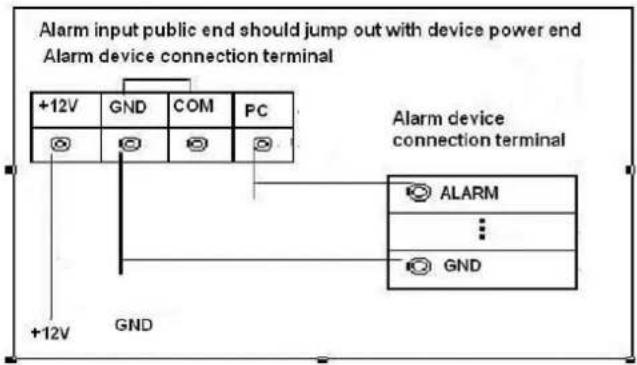
flowchart
graph TD
    A["+12V"] --> B["GND"]
    B --> C["COM"]
    C --> D["PC"]
    D --> E["+12V"]
    E --> F["GND"]
    G["Alarm input public end should jump out with device power end"] --> H["Alarm device connection terminal"]
    I["Alarm device connection terminal"] --> J["ALARM"]
    J --> K["..."]
    K --> L["GND"]
Figure 3-2
3.7.3 Alarm Output Port
- Provide external power to external alarm device.
● To avoid overloading, please read the following relay parameters sheet carefully.
● RS485 A/B cable is for the A/B cable of the PTZ decoder.
● T+,T-,R+,R- are four-wire double duplex RS485 port.
T+ T-: output wire
R+ R-: input wire
Relay Specification
| Model: JRC-27F | ||
| Material of the touch | Silver | |
| Rating (Resistance Load) | Rated switch capacity | 30VDC 2A, 125VAC 1A |
| Maximum switch power | 125VA 160W | |
| Maximum switch voltage | 250VAC, 220VDC | |
| Maximum switch currency | 1A | |
| Insulation | Between touches with same polarity | 1000VAC 1minute |
| Between touches with different polarity | 1000VAC 1minute | |
| Between touch and winding | 1000VAC 1minute | |
| Surge voltage | Between touches with same polarity | 1500V (10×160us) |
| Length of open time | 3ms max | |
| Length of close time | 3ms max | |
| Longevity | Mechanical | 50×106 times (3Hz) |
| Electrical | 200×103 times (0.5Hz) | |
| Temperature | -40°C ~+70°C |
3.8 RS485
When the DVR receives a camera control command, it transmits that command up the coaxial cable to the PTZ device. RS485 is a single-direction protocol; the PTZ device can't return any data to the unit. To enable the operation, connect the PTZ device to the RS485 (A,B) input on the DVR.
Since RS485 is disabled by default for each camera, you must enable the PTZ settings first. This series DVRs support multiple protocols such as Pelco-D, Pelco-P.
To connect PTZ devices to the DVR:
- Connect RS485 A,B on the DVR rear panel.
- Connect the other end of the cable to the proper pins in the connector on the camera.
- Please follow the instructions to configure a camera to enable each PTZ device on the DVR.
485 Port
Figure 3-3
3.9 Other Interfaces
There are still other interfaces on the DVR, such as USB ports.
4 Overview of Navigation and Controls
4.1 Boot up and Shutdown
4.1.1 Boot up
Before the boot up, please make sure:
☐ The rated input voltage matches the device power on-off button. Please make sure the power wire connection is OK. Then click the power on-off button.
□ Always use the stable current, if necessary UPS is a best alternative measure.
Please follow the steps listed below to boot up the device.
☐ Connect the device to the monitor and then connect a mouse.
☐ Connect power cable.
☐ Click the power button at the front or rear panel and then boot up the device. After device booted up, the system is in multiple-channel display mode by default.
4.1.2 Shutdown
Note
When you see corresponding dialogue box “System is shutting down...” Do not click power on-off button directly.
☐ Do not unplug the power cable or click power on-off button to shutdown device directly when device is running (especially when it is recording.)
There are three ways for you to log out.
a) Main menu (RECOMMENDED)
From Main Menu->Shutdown, select shutdown from dropdown list.
Click OK button, you can see device shuts down.
b) From power on-off button on the front panel or remote control Press the power on-off button on the DVR front panel or remote control for more than 3 seconds to shutdown the device.
c) From power on-off button on the rear panel.
4.1.3 Auto Resume after Power Failure
The system can automatically backup video and resume previous working status after power failure.
4.1.4 Replace Button Battery
Please make sure to use the same battery model if possible.
We recommend replace battery regularly (such as one-year) to guarantee system time accuracy.
Note:
Before replacement, please save the system setup, otherwise, you may lose the data completely!
4.2 Set/Reset Password
4.2.1 Set Password
For your own safety, please set your administrator default password after you first boot up the device.
After system booted up, you can see the following interface if it is your first time to use or you have restored default setup. See Figure 4-1. Please input a password and then input again to set a password.
- You can set security questions here to reset the password in case you forgot. System supports customized setup. Please note you need to set two security questions at the same time. When you reset the password, you need to answer these two security questions too.
- For reset information, please refer to chapter 4.2.2.
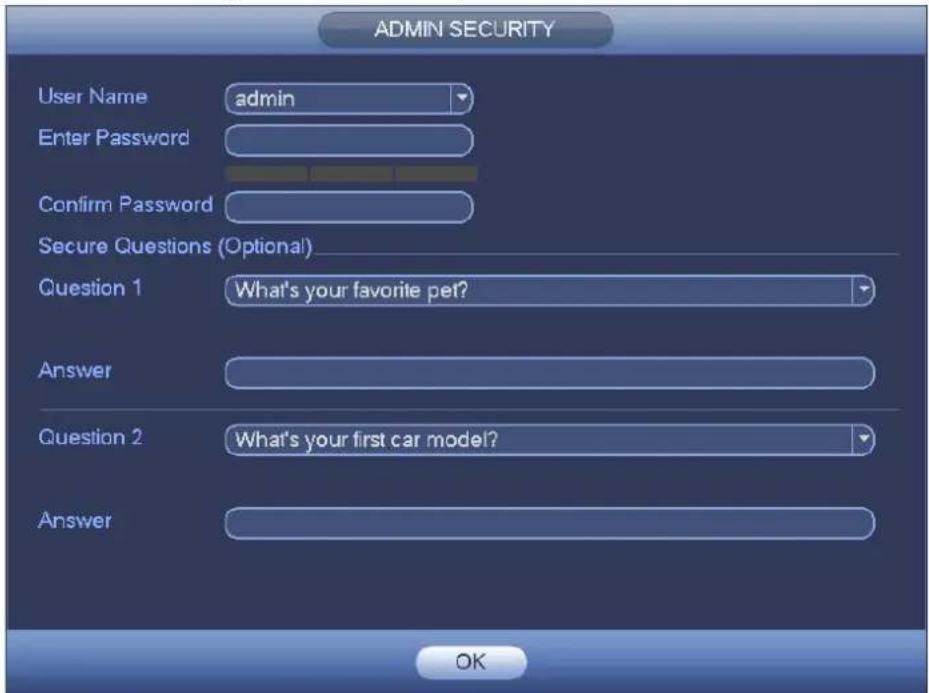
Figure 4-1
After you complete the setup, click OK button, system pops up the following interface for you to confirm. Click OK button to exit. See Figure 4-2.
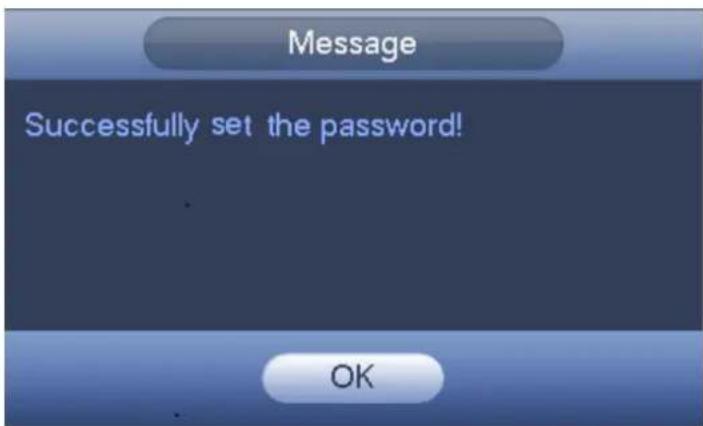
Figure 4-2
4.2.2 Reset Password
Once you forgot password, you can answer the security questions you set in chapter 4.2.1 to reset the password.
In login interface, click. See Figure 4-3.
Figure 4-3
System pops up the following dialogue box, please answer the security questions and then input the new password twice. See Figure 4-4.
Figure 4-4
4.3 Startup Wizard
After device successfully booted up, it goes to startup wizard.
Click Cancel/Next button, you can see system goes to login interface.
Tips
Check the box Startup button here, system goes to startup wizard again when it boots up the next time.
Cancel the Startup button, system goes to the login interface directly when it boots up the next time.
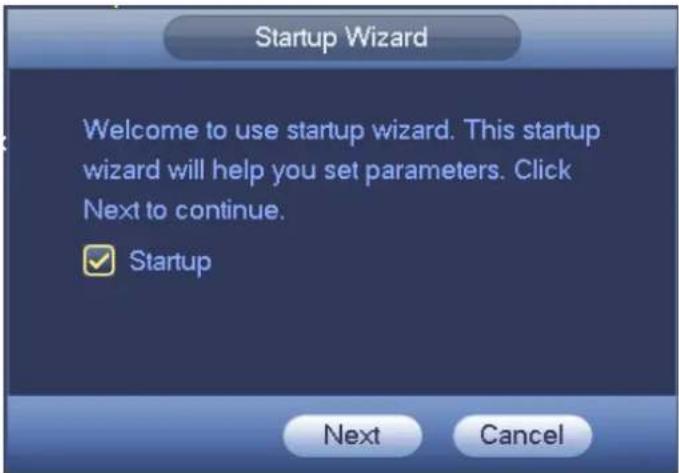
Figure 4-5
Click Cancel button or Next Step button, system goes to login interface. See Figure 4-6. System consists of three accounts:
- Username: admin. Password: admin. (administrator, local and network)
- Username: 888888. Password: 888888. (administrator, local only)
- Username: default. Password: default (hidden user). Hidden user "default" is for system interior use only and can not be deleted. When there is no login user, hidden user "default" automatically login. You can set some rights such as monitor for this user so that you can view some channel view without login.
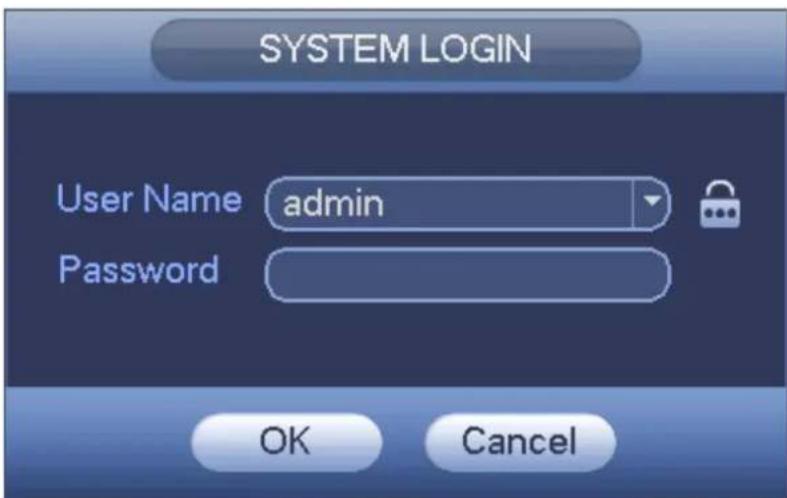
Figure 4-6

Caution
- For security reason, please modify password after you first login.
- Continuous three times login failure will result in system alarm and five times login failure will result in account lock!
- Please reboot the device or wait for 30 minutes to try again if your account has been locked.
After input corresponding user name and password, you can click OK button. System goes to the startup wizard.
- When there are all analog channels, the startup wizard includes general, encode, schedule, record control, network, P2P.
- When there is an IP channel, the startup wizard includes general, network, P2P, remote device and schedule.
Click OK button, you can go to General interface. See Figure 4-7.
For detailed information, please refer to chapter 4.11.5.1.
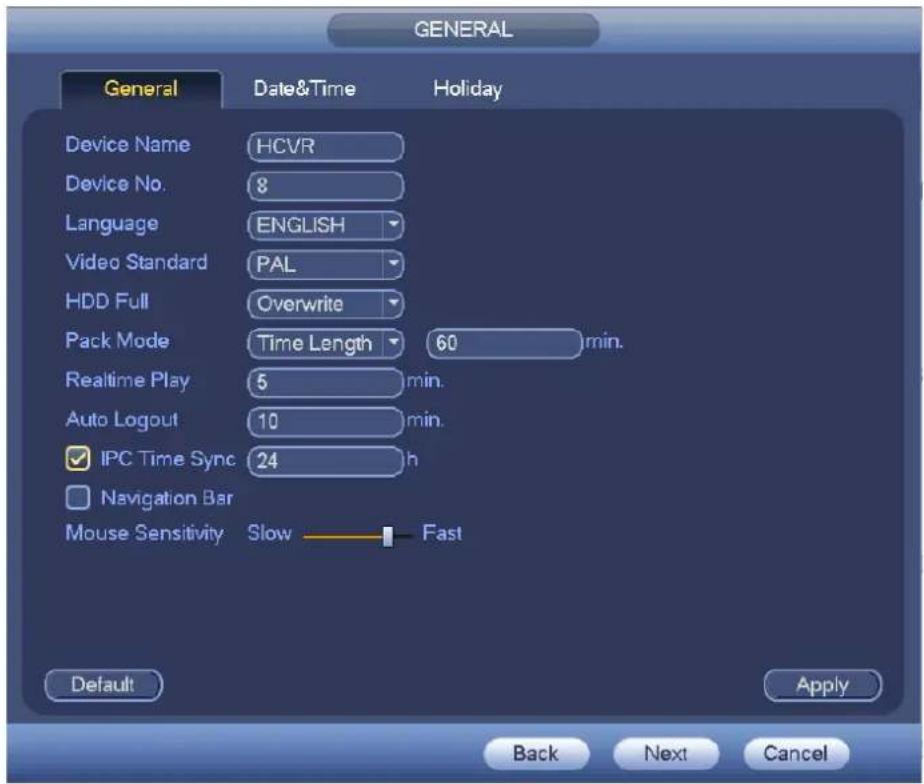
Figure 4-7
Note
You can only see the remote device interface if you have set IP channel (Chapter 4.11.1.3.5)
Click Next button, you can go to network interface. See Figure 4-8.
For detailed information, please refer to chapter 4.10.3.
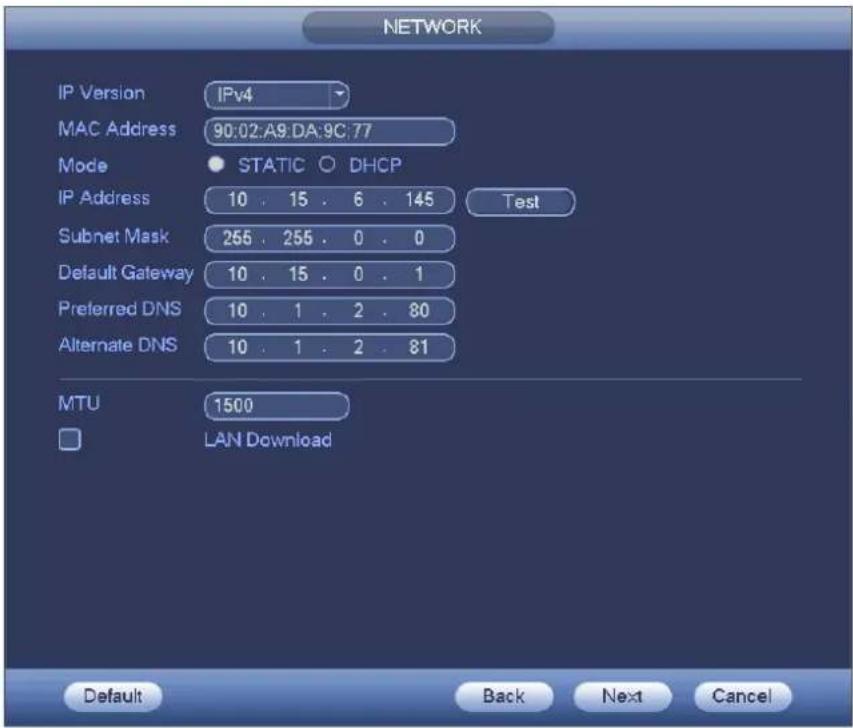
Figure 4-8
Click Next button, you can set P2P function. Scan the QR code, download the App to the cellphone, you can use the smart phone to add the device. See Figure 4-9. For detailed information, please refer to chapter4.11.2.15.
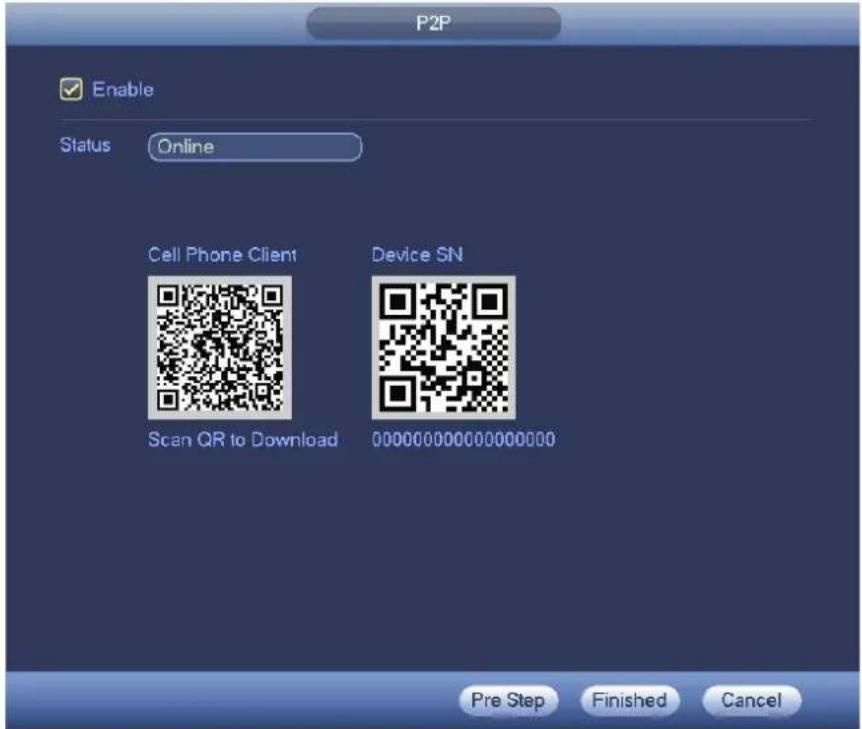
Figure 4-9
Now you can go to the remote device interface to add the camera to the corresponding channel. See Figure 4-10.
For detailed information, please refer to chapter4.11.1.1.
Please note you can not see the following interface if there is no digital channel. You can go to Main menu->Setting->Camera->Channel type to set IP channel first. Please refer to chapter 4.11.1.3.5 for detailed setup information.
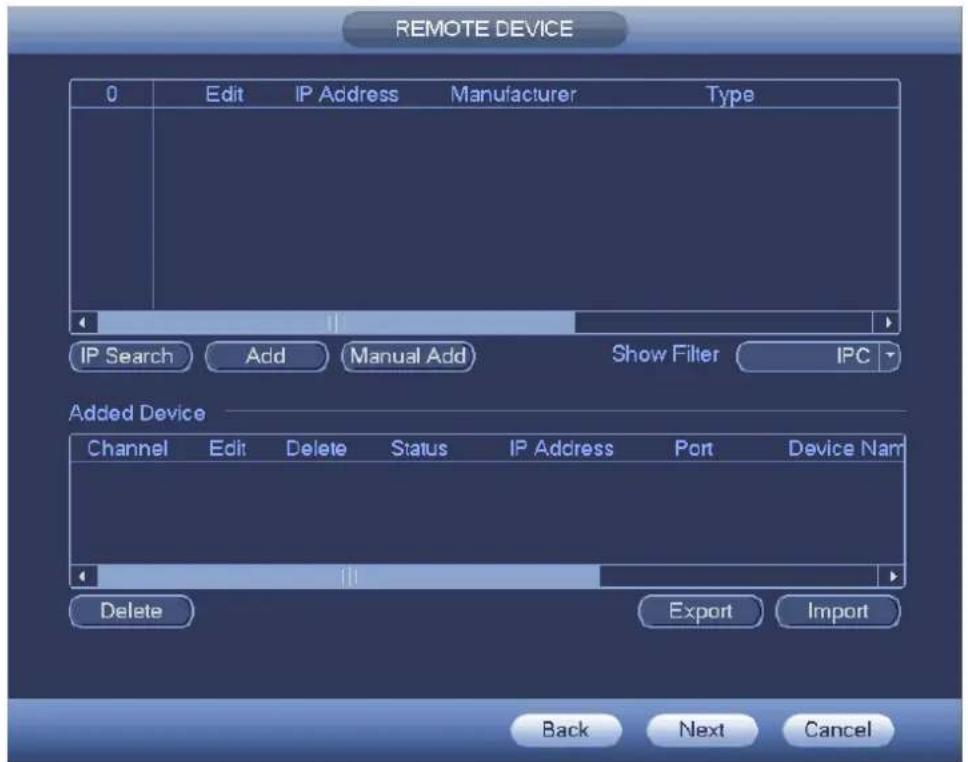
Figure 4-10
Click Next button, you can go to Encode interface. See Figure 4-11.
For detailed information, please refer to chapter 4.11.1.3.
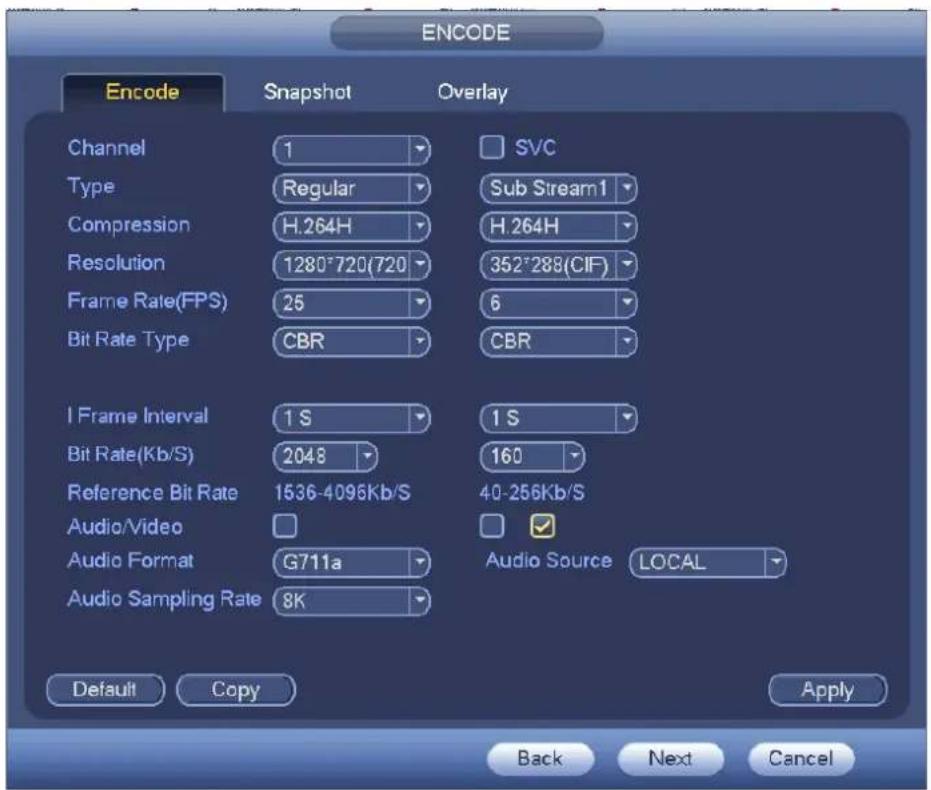
Figure 4-11
Click Next button, you can go to Schedule interface. See Figure 4-12. For detailed information, please refer to chapter 4.11.4.1.
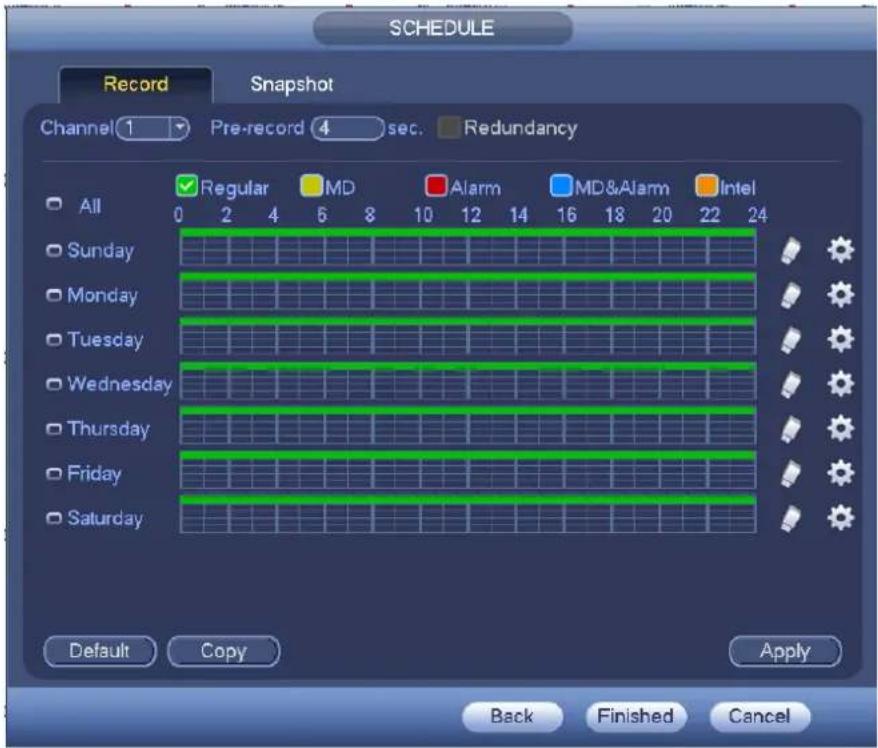
Figure 4-12
Click Finish button, system pops up a dialogue box. Click the OK button, the startup wizard is complete. See Figure 4-13.
Figure 4-13
4.4 Live Viewing
After you logged in, the system is in live viewing mode. You can see system date, time, channel name and window No. If you want to change system date and time, you can refer to general settings (Main Menu->Setting->System->General). If you want to modify the channel name, please refer to the display settings (Main Menu->Camera->CAM name)
| 1 | Recording status | 3 | Video loss | ||
| 2 | Motion detection | 4 | Camera lock |
Time
Right now, system does not support slow playback and backward playback function.
● Support digital zoom function.
● Support real-time backup function.
You can follow the contents listed below for the operation instruction.
Preview control interface
Move you mouse to the top centre of the video of current channel, you can see system pops up the preview control interface. See Figure 4-14 and Figure 4-15. If your mouse stays in this area for more than 6 seconds and has no operation, the control bar automatically hides.
Figure 4-14 Analog Channel
Figure 4-15 Digital Channel
1) Realtime playback
It is to playback the previous 5-60 minutes record of current channel.
Please go to the Main menu->Setting->System->General to set real-time playback time.
System may pop up a dialogue box if there is no such record in current channel.
2) Digital zoom
It is to zoom in specified zone of current channel. It supports zoom in function of multiple-channel.
Click button, the button is shown as.
There are two ways for you to zoom in.
- Drag the mouse to select a zone, you can view an interface show as Figure 4-16.
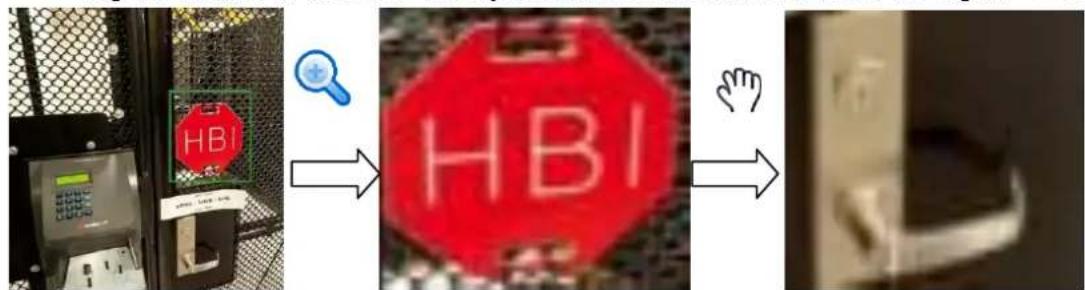
Figure 4-16
- Put the middle button at the centre of the zone you want to zoom in, and move the mouse, you can view an interface shown as in Figure 4-17.
Figure 4-17
Right click mouse to cancel zoom and go back to the original interface.
3) Manual record function
It is to backup the video of current channel to the USB device. System can not backup the video of multiple-channel at the same time.
Click button, system begins recording. Click it again, system stops recording. You can find the record file on the flash disk.
4) Manual Snapshot
Click to snapshot 1-5 times. The snapshot file is saved on the USB device or HDD.
You can go to the Search interface (chapter 4.9.1) to view.
5) Mute (For analog channel only)
Click to mute. Click again to enable audio function when preview.
Please note this function is for one-window mode only.
6) Bidirectional talk (For digital channel only)
If the connected front-end device supports bidirectional talk function, you can click this


After you go to the corresponding interface, right click mouse to go back to the upper-level.
- Window split mode: You can select window amount and then select channels.
- PTZ: Click it to go to PTZ interface.
● Auto focus: Please make sure you connected network camera supports this function.
● Color setting: Set video corresponding information. - Search: Click it to go to Search interface to search and playback a record file.
- Record control: Enable/disable record channel.
- Remote device: Click it to add remote device.
- Main menu: Go to system main menu interface.
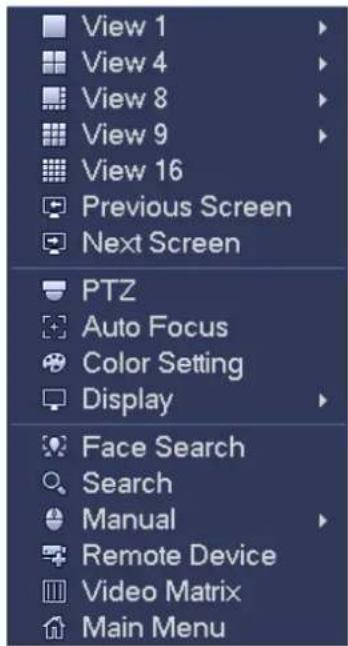
Figure 4-18
4.5.1 Window Switch
System supports 1/4/8/9-window (The options here depend on your product channel amount). You can select from the dropdown list. See Figure 4-19.
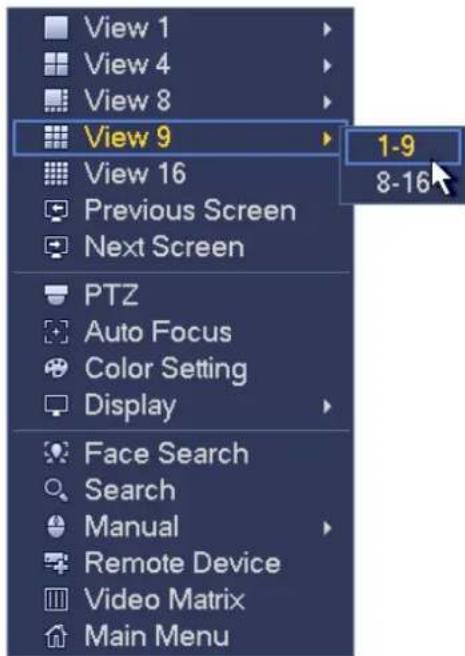
Figure 4-19
4.5.2 Previous Screen/Next Screen
Click it to go to the previous screen/next screen. For example, if you are using 4-split mode, the first screen is displaying the channel 1-4, click Next screen, you can view channel 5-8.
4.5.3 PTZ Control
The PTZ setup is shown as in See Figure 4-20.
Please note the commend name is grey once device does not support this function.
The PTZ operation is only valid in one-window mode.
Here you can control PTZ direction, speed, zoom, focus, iris, preset, tour, scan, pattern aux function, light and wiper, rotation and etc.
Speed is to control PTZ movement speed. The value ranges from 1 to 8. The speed 8 is faster than speed 1. You can use the remote control to click the small keyboard to set.
You can click and of the zoom, focus and iris to zoom in/out, definition and brightness.
The PTZ rotation supports 8 directions. If you are using direction buttons on the front panel, there are only four directions: up/down/left/right.
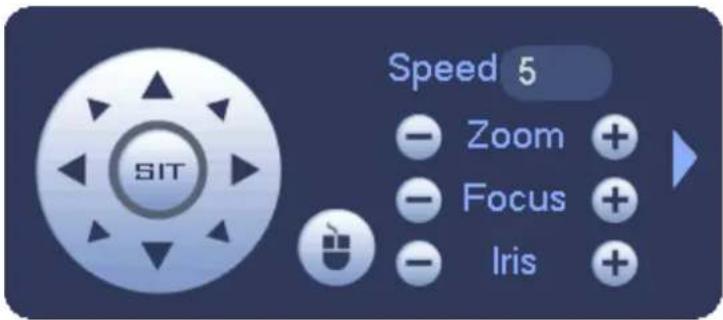
Figure 4-20
In the middle of the eight direction arrows, there is a 3D intelligent positioning key. See Figure 4-21. Please make sure your protocol supports this function and you need to use mouse to control.
Click this key, system goes back to the single screen mode. Drag the mouse in the screen to adjust section size. The dragged zone supports 4X to 16X speeds. It can realize PTZ automatically. The smaller zone you dragged, the higher the speed.

Figure 4-21
| Name | Function key | function | Shortcut key | Function key | function | Shortcut key |
| Zoom |  | Near |  | Far | ||
| Focus |  | Near | |◀ |  | Far | ▶ | |
| Iris |  | close | II◀ |  | Open | ▶ II |
In Figure 4-20, click to open the menu, you can set preset, tour, pattern, scan and etc. See Figure 4-22.
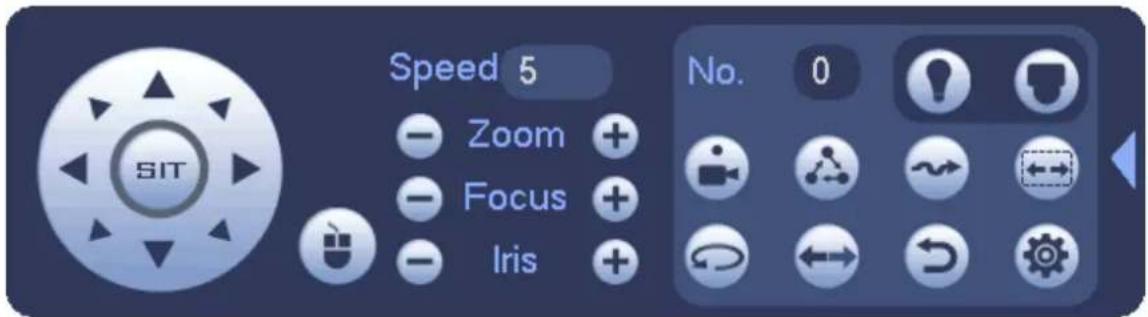
Figure 4-22
Please refer to the following sheet for detailed information.
Please note the above interface may vary due to different protocols. The button is grey and can not be selected once the current function is null.
Right click mouse or click the ESC button at the front panel to go back to the Figure 4-20.
| Icon | Function | Icon | Function |
 | Preset |  | Flip |
 | Tour |  | Reset |
 | Pattern |  | Aux |
 | Scan |  | Aux on-off button |
 | Rotate |  | Go to menu |
4.5.3.1 PTZ Function Setup

Click, you can go to the following interface to set preset, tour, pattern, and scan. See Figure 4-23.
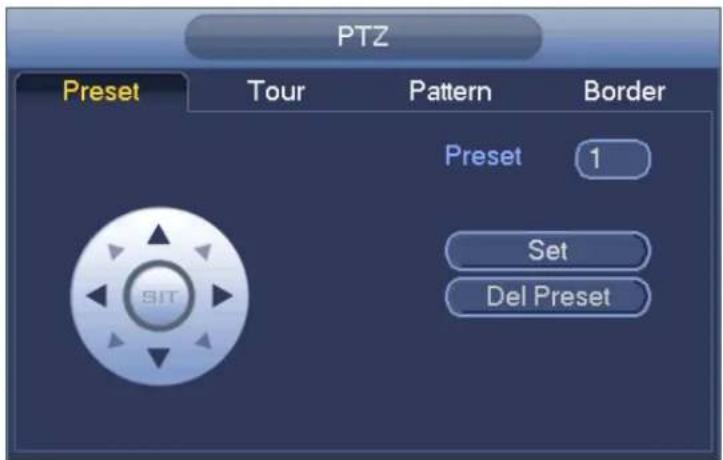
Figure 4-23
Preset Setup
In Figure 4-23, click preset button and use eight direction arrows to adjust camera to the proper position. The interface is shown as in Figure 4-24.
Click Set button and then input preset number.
Click Set button to save current preset.
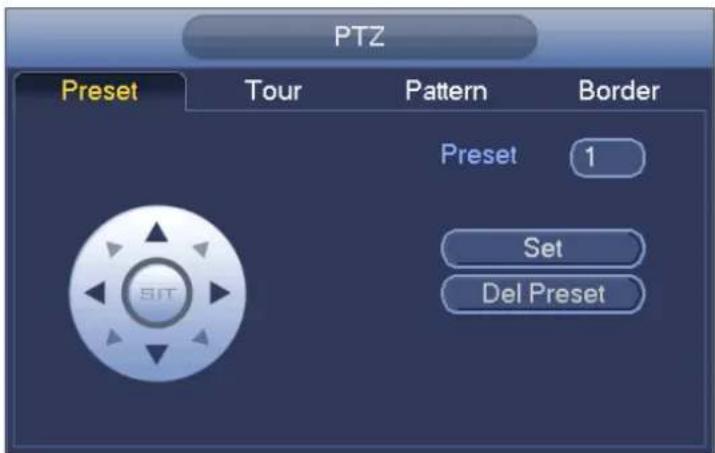
Figure 4-24
Tour Setup
In Figure 4-23, click tour button.
Input tour value and preset No. Click Add preset button to add current preset to the tour.
See Figure 4-25.
Tips
Repeat the above steps to add more presets to the tour. Click Del preset button to remove it from the tour. Please note some protocols do not support delete preset function.
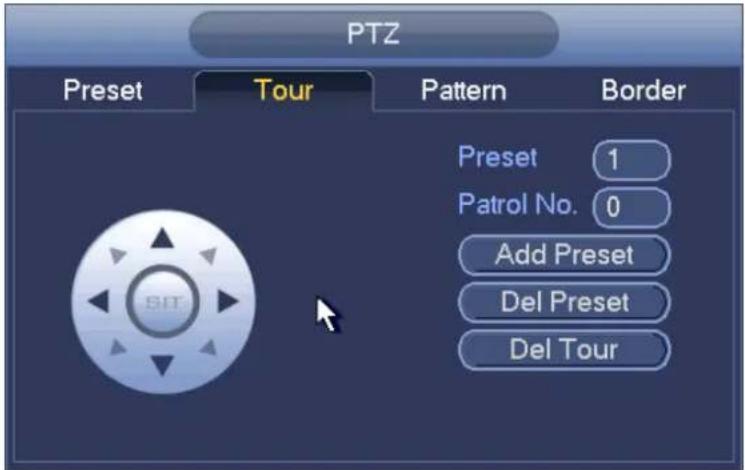
Figure 4-25
Pattern Setup
In Figure 4-23, click Pattern button and input pattern number.
Click Begin button to start direction operation. Or you can go back to Figure 4-20 to operate zoom/focus/iris/direction operation.
In Figure 4-23, click End button.
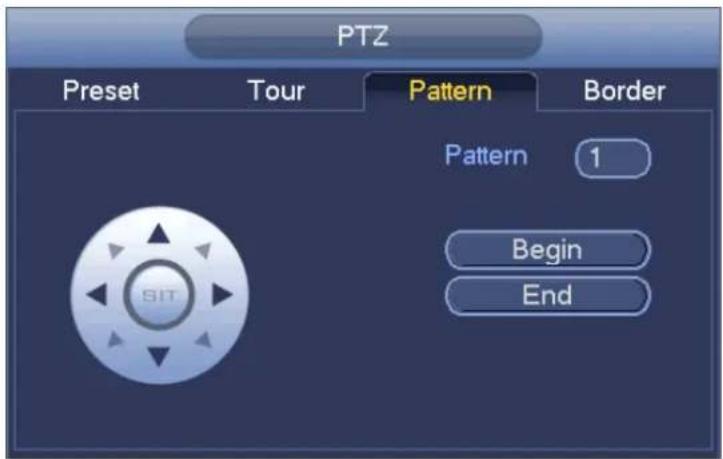
Figure 4-26
Scan Setup
In Figure 4-23, click Scan button.
Use direction buttons to set camera left limit and then click Left button.
Use direction buttons to set camera right limit and then click Right button. Now the scan setup process is complete.
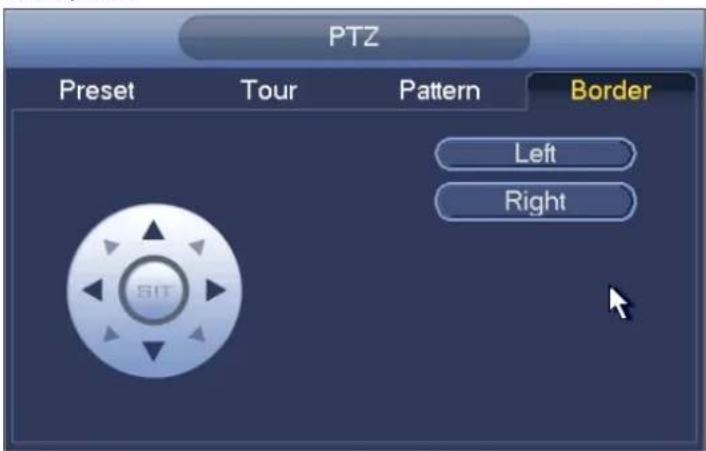
Figure 4-27
4.5.3.2 Call PTZ Function
Call Preset
In Figure 4-22, input preset value and then click again to stop call.

Call Pattern
In Figure 4-22, input pattern value and then click again to stop call.
to call a pattern. Click

Call Tour
In Figure 4-22, input tour value and then click to stop call.

to call a tour. Click again

Call Scan
In Figure 4-22, input Scan value and then click to stop call.

to call a tour. Click again

Rotate
In Figure 4-22, click

to enable the camera to rotate.
System supports preset, tour, pattern, scan, rotate, light and etc function.
Note:
- Preset, tour and pattern all need the value to be the control parameters. You can define it as you require.
- You need to refer to your camera user's manual for Aux definition. In some cases, it can be used for special process.
Aux

Click, system goes to the following interface. The options here are defined by the protocol. The aux number is corresponding to the aux on-off button of the decoder. See Figure 4-28.
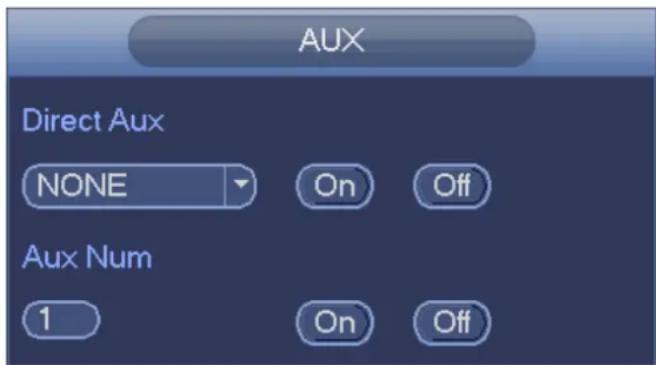
Figure 4-28
4.5.4 Auto Focus
It is to set auto focus function. Please make sure the camera supports this function.
4.5.5 Color
Here you can set hue, brightness, contrast, saturation, gain, white level, color mode and etc. See Figure 4-29.
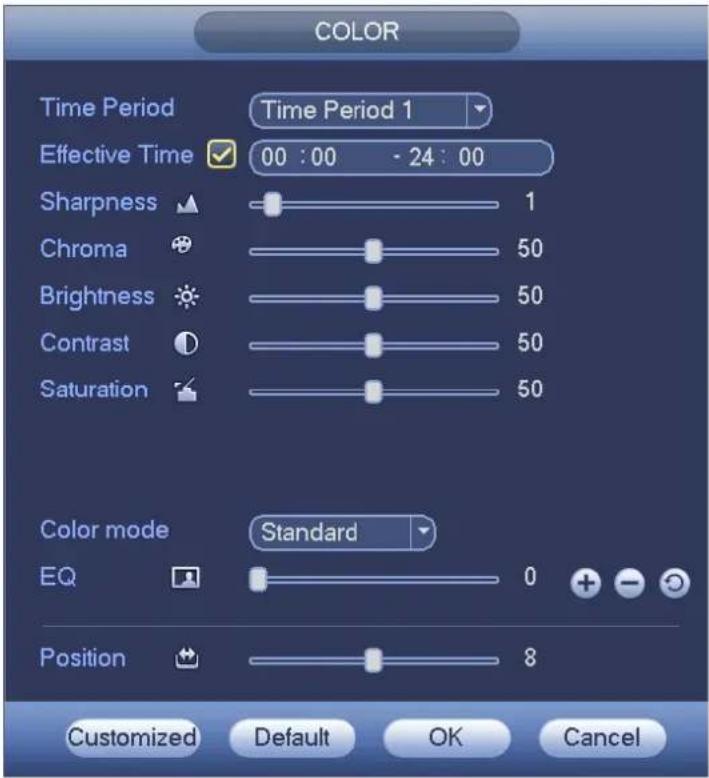
Figure 4-29
Please refer to the following sheet for detailed information.
| Item | Note |
| Period | There are two periods in one day. You can set different sharpness, brightness, and contrast setup for different periods. |
| Effective Time | Check the box here to enable this function and then set period time. |
| Sharpness | The value here is to adjust the edge of the video. The value ranges from 0 to 100. The larger the value is, the clear the edge is and vice versa. Please note there is noise if the value here is too high. The default value is 50 and the recommended value ranges from 40 to 60. |
| Brightness | It is to adjust monitor window bright. The value ranges from 0 to 100. The default value is 50.The larger the number, the bright the video is. When you input the value here, the bright section and the dark section of the video will be adjusted accordingly. You can use this function when the whole video is too dark or too bright. Please note the video may become hazy if the value is too high. The recommended value ranges from 40 to 60. |
| Contrast | It is to adjust monitor window contrast. The value rangesfrom 0 to 100. The default value is 50.The larger the number, the higher the contrast is. You can use this function when the whole video bright is OK but the contrast is not proper. Please note the video may become hazy if the value is too low. If this value is too high, the dark section may lack brightness while the bright section may over exposure .The recommended value ranges from 40 to 60. |
| Saturation | It is to adjust monitor window saturation. The value ranges from 0 to 100. The default value is 50.The larger the number, the strong the color is. This value has no effect on the general brightness of the whole video. The video color may become too strong if the value is too high. For the grey part of the video, the distortion may occur if the white balance is not accurate. Please note the video may not be attractive if the value is too low. The recommended value ranges from 40 to 60. |
| Gain | The gain adjust is to set the gain value. The default value may vary due to different device models. The smaller the value, the low the noise. But the brightness is also too low in the dark environments. It can enhance the video brightness if the value is high. But the video noise may become too clear. |
| Color mode | It includes several modes such as standard, color, bright, gentle. Select a color mode, the sharpness, brightness, contrast and etc can automatically switch to corresponding setup. |
| EQ | Click or to adjust image equalization value.Click reset button system can auto adjust the video to the best effect.This function is for analog channel only. |
| Image position | It is to adjust the image position on the screen. The value here refers to the pixel. The default pixel value is 16.This function is for analog channel only. |
4.5.6 Display
It is to set display output mode. There are two modes: full screen (4:3)/image original rate
(16:9). Icon means current display output mode. See Figure 4-30.
Figure 4-30
4.5.7 Face Search
It is to display human face record list, and view human face recognition record file.
4.5.8 Search
Please refer to chapter 4.9.1 for detailed information.
4.5.9 Record Control
Please refer to chapter 4.11.4.3 for detailed information.
4.5.10 Alarm Output
Please refer to chapter 4.11.3.6 for detailed information.
4.5.11 Remote Device
Please refer to chapter 4.11.1.1 for detailed information.
4.5.12 Video Matrix
Please refer to chapter 4.11.5.3 for detailed information.
4.5.13 Main menu
Please refer to chapter 4.8 for detailed information.
4.6 Navigation Bar
You need to go to the Main menu->Setting->System->General to enable navigation bar function; otherwise you can not see the following interface.
The navigation bar is shown as below. See Figure 4-31.

Figure 4-31
4.6.1 Main Menu
Click button to go to the main menu interface.
4.6.2 Output Screen
Select corresponding window-split mode and output channels.
4.6.3 Previous/Next Screen
Click to go to the previous screen, click to go to the next screen. For example, if you are using 4-split mode, the first screen is displaying the channel 1-4, click you can view channel 5-8.
4.6.4 Tour
Click button to enable tour, the icon becomes, you can see the tour is in process.
4.6.5 Favorites
Click, system pops up add/edit favorites. See Figure 4-32.

Figure 4-32
4.6.6 Channel
It is to pop up channel tree. You can left click to select a channel on the tree and then drag it to the preview window on the left pane.
4.6.7 PTZ
Click , system goes to the PTZ control interface. Please refer to chapter 4.5.3.
4.6.8 Color
Click button 📄, system goes to the color interface. Please refer to chapter 4.5.5.
4.6.9 Search
Click button, system goes to search interface. Please refer to chapter 4.9.1
4.6.10 Alarm Status
Click button, system goes to alarm status interface. It is to view device status and channel status. Please refer to chapter 4.11.3.
4.6.11 Channel Info
Click button, system goes to the channel information setup interface. It is to view information of the corresponding channel. See Figure 4-33.
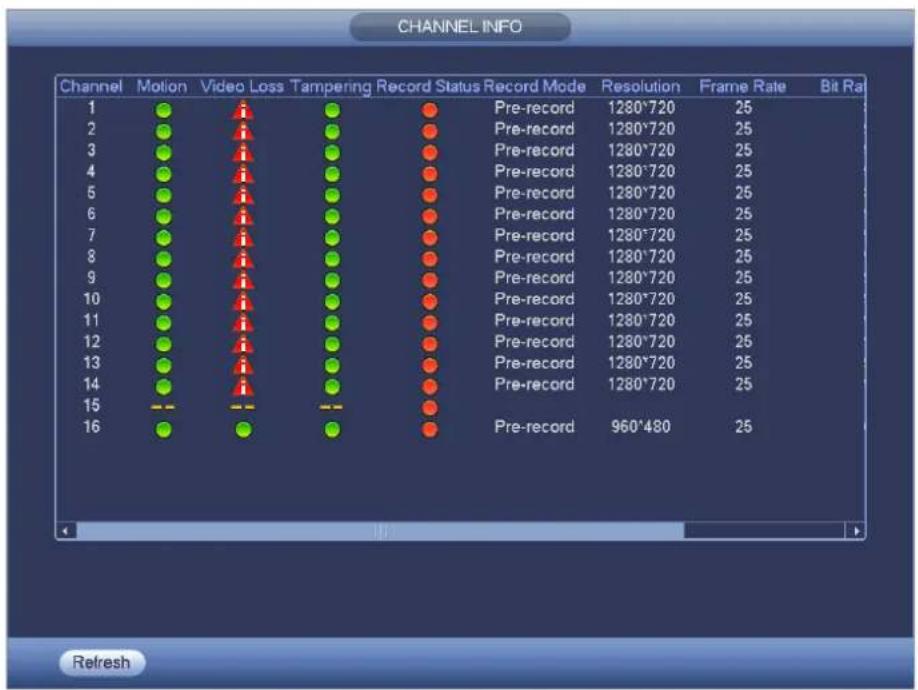
Figure 4-33
4.6.12 Remote Device
Click, system goes to an interface for you to view remote device information. Please refer to chapter 4.11.1.1.
4.6.13 Network
Click, system goes to the network interface. It is to set network IP address, default gateway and etc. Please refer to chapter 4.11.2.
4.6.14 HDD Manager
Click a system goes to the HDD manager interface. It is to view and manage HDD information. Please refer to chapter 4.11.4.2.
4.6.15 USB Manager
Click 📄 system goes to the USB Manager interface. It is to view USB information, backup and update. Please refer to chapter 4.9.3, chapter 4.10.4, chapter 4.11.5.10, and chapter 4.11.5.12 for detailed information.
4.7 USB Device Auto Pop-up
After you inserted the USB device, system can auto detect it and pop up the following dialogue box. It allows you to conveniently backup file, log, configuration or update system. See Figure 4-34. Please refer to chapter 4.9.3, chapter 4.10.4, chapter 4.11.5.10, and chapter 4.11.5.12 for detailed information.
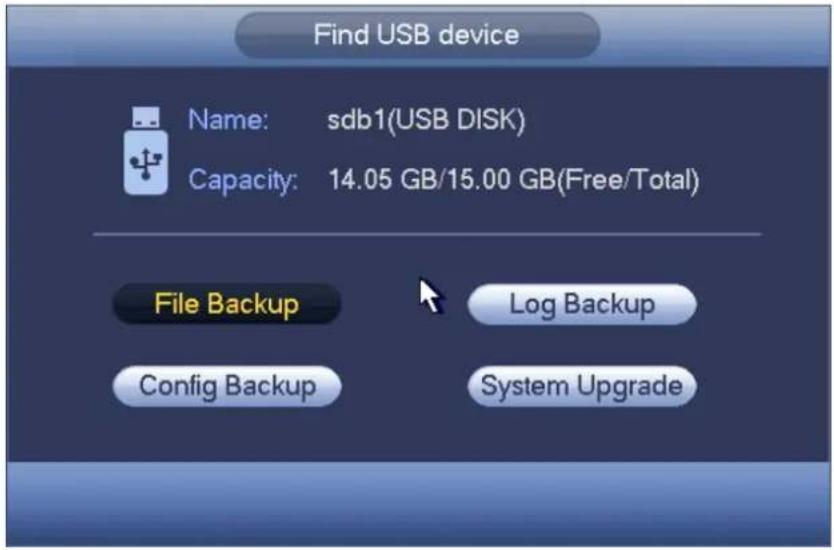
Figure 4-34
4.8 Main Menu
The main menu interface is shown as below. See Figure 4-35.
Figure 4-35
4.9 Operation
4.9.1 Search
Click search button in the main menu, search interface is shown as below. See Figure 4-36.
Usually there are three file types:
☐ R: Regular recording file.
☐ A: External alarm recording file.
M: Motion detection recording file
Orange: Intelligent recording file.
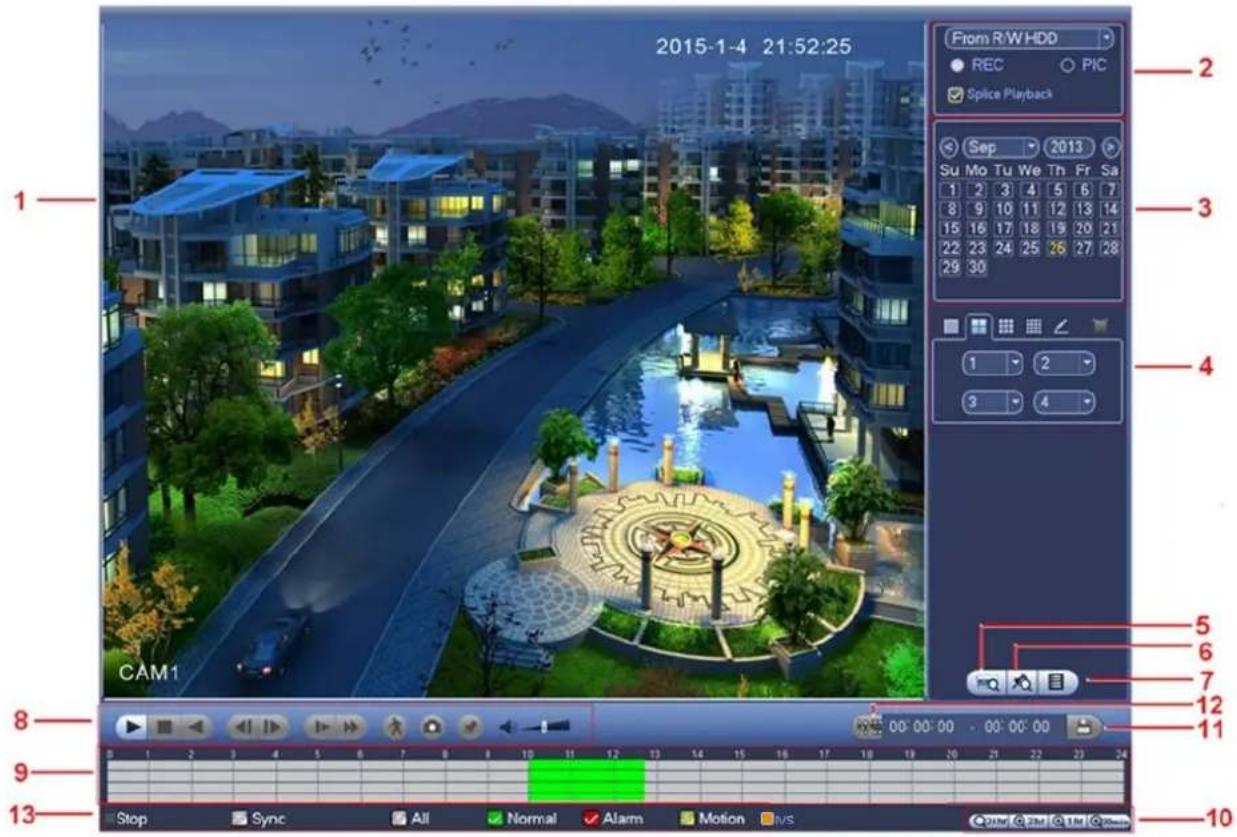
Figure 4-36
Please refer to the following sheet for more information.
| SN | Name | Function | |
| 1 | Display window | ● Here is to display the searched picture or file.● Support 1/4/9/16-window playback. | |
| 2 | Search type | ● Here you can select to search the picture or the recorded file.● You can select to play from the read-write HDD, from peripheral device or from redundancy HDD.● Before you select to play from the peripheral device, please connect the corresponding peripheral device. You can view all record files of the root directory of the peripheral device. Click the Browse button; you can select the file you want to play.● Check the box here; you can enable splice playback function. Please refer to chapter 4.9.1.4 for detailed information.Important● Redundancy HDD does not support picture backup function, but it supports picture playback function. You can select to play from redundancy HDD if there are pictures on the redundancy HDD. | |
| 3 | Calendar | ● The blue highlighted date means there is picture or file. Otherwise, there is no picture or file.● In any play mode, click the date you want to see, you can see the | |
| corresponding record file trace in the time bar. | |||
| 4 | Playback mode and channel selection pane. | ● Playback mode: 1/4/9/16/customized. (It may vary due to different series.)◇ In 1-window playback mode: you can select 1-16 channels.◇ In 4-window playback mode: you can select 4 channels according to your requirement.◇ In 9-window playback mode, you can switch between 1-8 and 9-16 channels.◇ In 16-window playback mode, you can switch between 1-16 and 17-32 channels.◇ In customized mode, you can select one or more channel(s) you want to playback at the same time. See chapter 4.9.1.4.● The time bar will change once you modify the playback mode or the channel option. | |
| 5 | Card number search | The card number search interface is shown as below. Here you can view card number/field setup bar. You cam implement advanced search. | |
| 6 | Mark file list button | Click it to go to mark file list interface. You can view all mark information of current channel by time. Please refer to chapter 4.9.1.3 for detailed information.Please note only the product of this icon supports mark function. | |
| 7 | File list switch button | ● Double click it, you can view the picture/record file list of current day.● The file list is to display the first channel of the record file.● The system can display max 128 files in one time. Use the ◀|and |► or the mouse to view the file. Select one item, and then double click the mouse or click the ENTER button to playback.● You can input the period in the following interface to begin accurate search.● File type: R—regular record; A—external alarm record; M—Motion detect record. ● Lock file. Click the file you want to lock and click the button [E] to lock. The file you locked will not be overwritten.● Search locked file: Click the button ● Lock file. Click the file you want to lock and click the button [E] to lock. The file you locked will not be overwritten.● Search locked file: Click the button  w the locked file. w the locked file. | |
| 8 | Playback control pane. | ▶/II | Play/PauseThere are three ways for you to begin playback.● The play button● Double click the valid period of the time bar.● Double click the item in the file list.In slow play mode, click it to switch between play/pause. |
| ■ | Stop | ||
| ◀ | Backward playIn normal play mode, left click the button, the file begins backward play. | ||
| Click it again to pause current play.In backward play mode, click ▶/II to restore normal play. | |||
| 〔DCCG〕 | In playback mode, click it to play the next or the previous section. You can click continuously when you are watching the files from the same channel. In normal play mode, when you pause current play, you can click ◀| and |▶ to begin frame by frame playback.In frame by frame playback mode, click ▶/II to restore normal playback. | ||
| ▶ | Slow playIn playback mode, click it to realize various slow play modes such as slow play 1, slow play 2, and etc. | ||
| ▶ | Fast forwardIn playback mode, click to realize various fast play modes such as fast play 1,fast play 2 and etc. | ||
| Note: The actual play speed has relationship with the software version. | |||
 | Smart search | ||
 | The volume of the playback | ||
 | Click the snapshot button in the full-screen mode, the system can snapshot 1 picture.System supports custom snap picture saved path. Please connect the peripheral device first, click snap button on the full-screen mode, you can select or create path. Click Start button, the snapshot picture can be saved to the specified path. | ||
 | Mark button.Please note this function is for some series product only. Please make sure there is a mark button in the playback control pane.You can refer to chapter 4.9.1.3 for detailed information. | ||
| 9 | Time bar | ● It is to display the record type and its period in current search criteria.● In 4-window playback mode, there are corresponding four time bars. In other playback mode, there is only one time bar.● Use the mouse to click one point of the color zone in the time bar, system begins playback.● The time bar is beginning with 0 o'clock when you are setting the configuration. The time bar zooms in the period of the current playback time when you are playing the file.● The green color stands for the regular record file. The red color stands for the external alarm record file. The yellow stands for the motion detect record file. | |
| 10 | Time bar unit | ●The option includes: 24H, 12H, 1H and 30M. The smaller the unit, the larger the zoom rate. You can accurately set the time in the time bar to playback the record.● The time bar is beginning with 0 o'clock when you are setting the configuration. The time bar zooms in the period of the current playback time when you are playing the file. | |
| 11 | Backup | Select the file(s) you want to backup from the file list. You can check from the list. Then click the backup button, now you can see the backup menu. System supports customized path setup. After select or create new folder, click the Start button to begin the backup operation. The record file(s) will be saved in the specified folder.Check the file again you can cancel current selection. System max supports to display 32 files from one channel.After you clip on record file, click Backup button you can save it.For one device, if there is a backup in process, you can not start a new backup operation. | |
| 12 | Clip | It is to edit the file.Please play the file you want to edit and then click this button when you want to edit. You can see the corresponding slide bars in the time bar of the corresponding channel. You can adjust the slide bar or input the accurate time to set the file end time.After you set, you can click Clip button again to edit the second period. You can see the slide bar restore its previous position.Click Backup button after clip, you can save current contents in a new file.You can clip for one channel or multiple-channel. The multiple-channel click operation is similar with the one-channel operation.Please note:System max supports 1024 files backup at the same time.You can not operate clip operation if there is any file has been checked in the file list. | |
| 13 | Record type | In any play mode, the time bar will change once you modify the search type. | |
| Other Functions | |||
| 14 | Smart search | When system is playing, you can select a zone in the window to begin smart search. Click the motion detect button to begin play.Once the motion detect play has begun, click button again will terminate current motion detect file play.There is no motion detect zone by default.If you select to play other file in the file list, system switches to motion detect play of other file.During the motion detect play process, you can not implement operations such as change time bar, begin backward playback or frame by frame playback.Please refer to chapter 4.9.1.1 Smart Search for detailed operation. | |
| 15 | Other channel synchronization switch to playwhen playback | When playing the file, click the number button, system can switch to the same period of the corresponding channel to play. | |
| 16 | Sync | In pane 13 of Figure 4-36, click Sync button, you can playback the files of different channels occurred at the same time. | |
| 17 | Digital zoom | When the system is in full-screen playback mode, left click the mouse in the screen. Drag your mouse in the screen to select a section and then left click mouse to realize digital zoom. You can right click mouse to exit. | |
| 18 | Manually switch channel when playback | During the file playback process, you can switch to other channel via the dropdown list or rolling the mouse.This function is null if there is no record file or system is in smart search process. | |
4.9.1.1 Smart Search
During the multiple-channel playback mode, double click one channel and then click the

button, system begins smart search. System supports 396(22*18 PAL) and 330(22*15 NTSC) zones. Please left click mouse to select smart search zones. See Figure 4-37.
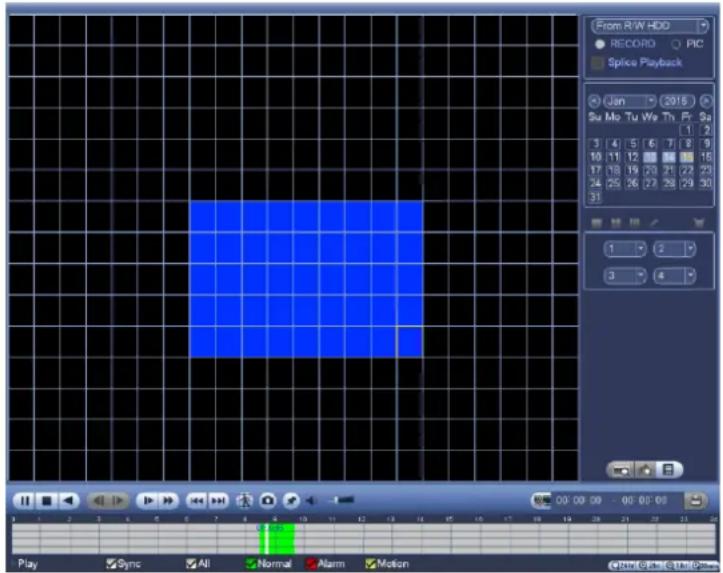
Figure 4-37

Click the, you can go to the smart search playback. Click it again, system stops smart search playback.
Important
- System does not support motion detect zone setup during the full-screen mode.
- During the multiple-channel playback, system stops playback of rest channels if you implement one-channel smart search.
4.9.1.2 Accurate playback by time
Select records from one day, click the list, you can go to the file list interface. You can input time at the top right corner to search records by time. See image on the left side of

the Figure 4-38 For example, input time 11:00.00 and then click Search button
you can view all the record files after 11:00.00 (The records includes current time.). See image on the right side of the Figure 4-38 Double click a file name to playback.
Note
- After you searched files, system implement accurate playback once you click Play for the first time.
- System does not support accurate playback for picture.
- System supports synchronization playback and non-synchronous playback. The synchronization playback supports all channels and non-synchronous playback only supports accurately playback of current select channel.
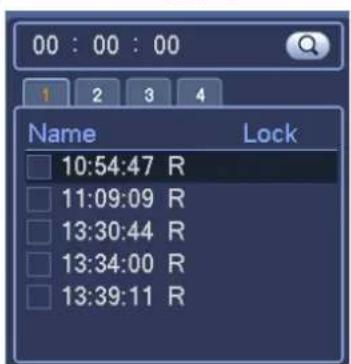
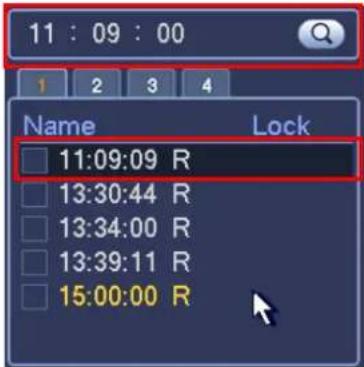
Figure 4-38
4.9.1.3 Mark Playback
Please make sure your purchased device support this function. You can use this function only if you can see the mark playback icon on the Search interface (Figure 4-36).
When you are playback record, you can mark the record when there is important information. After playback, you can use time or the mark key words to search corresponding record and then play. It is very easy for you to get the important video information.
- Add Mark
When system is playback, click Mark button, you can go to the following interface. See Figure 4-39.
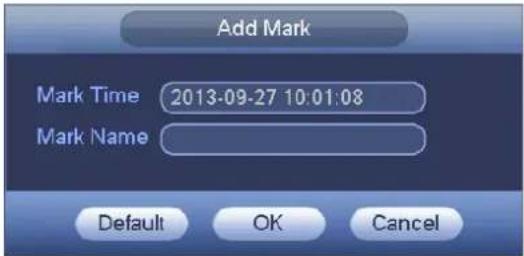
Figure 4-39
- Playback Mark
During 1-window playback mode, click mark file list button in Figure 4-36, you can go to mark file list interface. Double click one mark file, you can begin playback from the mark time.
● Play before mark time
Here you can set to begin playback from previous N seconds of the mark time.
Note
Usually, system can playbacks previous N seconds record if there is such kind of record file. Otherwise, system playbacks from the previous X seconds when there is such as kind of record.
- Mark Manager
Click the mark manager button on the Search interface (Figure 4-36); you can go to Mark Manager interface. See Figure 4-40. System can manage all the record mark information of current channel by default. You can view all mark information of current channel by time.
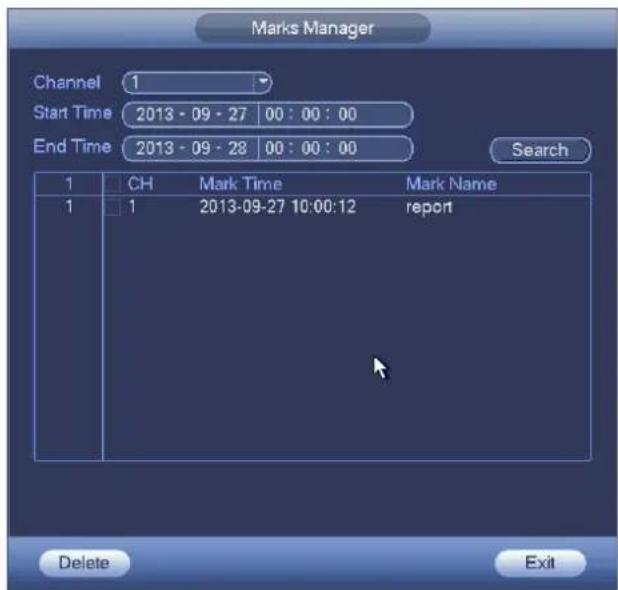
Figure 4-40
- Modify
Double click one mark information item, you can see system pops up a dialogue box for you to change mark information. You can only change mark name here.
- Delete
Here you can check the mark information item you want to delete and then click Delete button, you can remove one mark item.
Note
- After you go to the mark management interface, system needs to pause current playback. System resume playback after you exit mark management interface.
- If the mark file you want to playback has been removed, system begins playback from the first file in the list.
4.9.1.4 Customized Playback
You can select one or more channel(s) to playback at the same time.
From main menu->Search or you can right click mouse on the preview interface and then select Search, you can go to Figure 4-36.
In pane 4, click, you can see the following interface. See Figure 4-41.
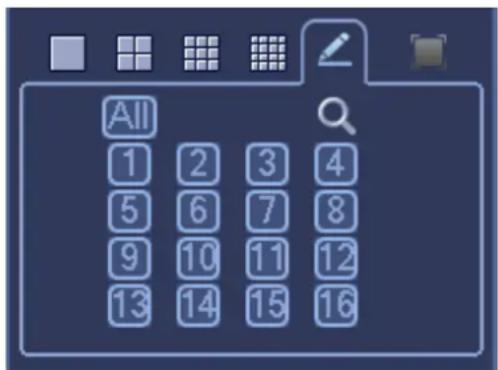
Figure 4-41
Now you can select one or more channel(s) and then click to search record(s).
System supports one or more channels. The window split mode can auto adjust according to the channel amount. System max supports 16-split.
Click button to select all channels at the same time.
Click , system begins playback.
4.9.1.5 Splice Playback
For the large record file, you can use splice playback function to play the same file in several sections at the same time. It is very convenient for you to find the video footages you desire.
On the main menu, click Search button, or right click mouse and then select Search. You can go to the Figure 4-36.
On the right pane, check the box to enable splice playback function, and then set channel, date, split mode. The splice playback interface is shown as below. Each section has a small triangle; you can adjust it to set time. See Figure 4-42.

line
| Time (s) | Value | |---|---| | 0.05 | 0.05 | | 0.10 | 0.10 | | 0.15 | 0.15 | | 0.20 | 0.20 | | 0.25 | 0.25 | | 0.30 | 0.30 | | 0.35 | 0.35 | | 0.40 | 0.40 | | 0.45 | 0.45 | | 0.50 | 0.50 | | 0.55 | 0.55 | 7 |Figure 4-42
Note
Select split mode, so that the record can be spliced in several sections.
Select splice file.
- Click Playback, system playbacks from the first of current date by default.
- Click time bar, system playbacks from the time you click.
- Click, you can select on the file list.
Note
● The splice playback is for 1-window playback mode.
● System supports 1/4/8/16-split mode. Slight different may be found here.
- The min period of each section is 5 minutes. For the record is less than 20 minutes, if you select 4-split mode (or more than 4-split mode), system can auto adjust so that the each section period is 5 minutes. In this situation, some channel may have no video.
4.9.2 Human Face Search
On the preview window, right click mouse and then select face search, or from the main menu, click Face search, you can go to the following interface. See Figure 4-43.
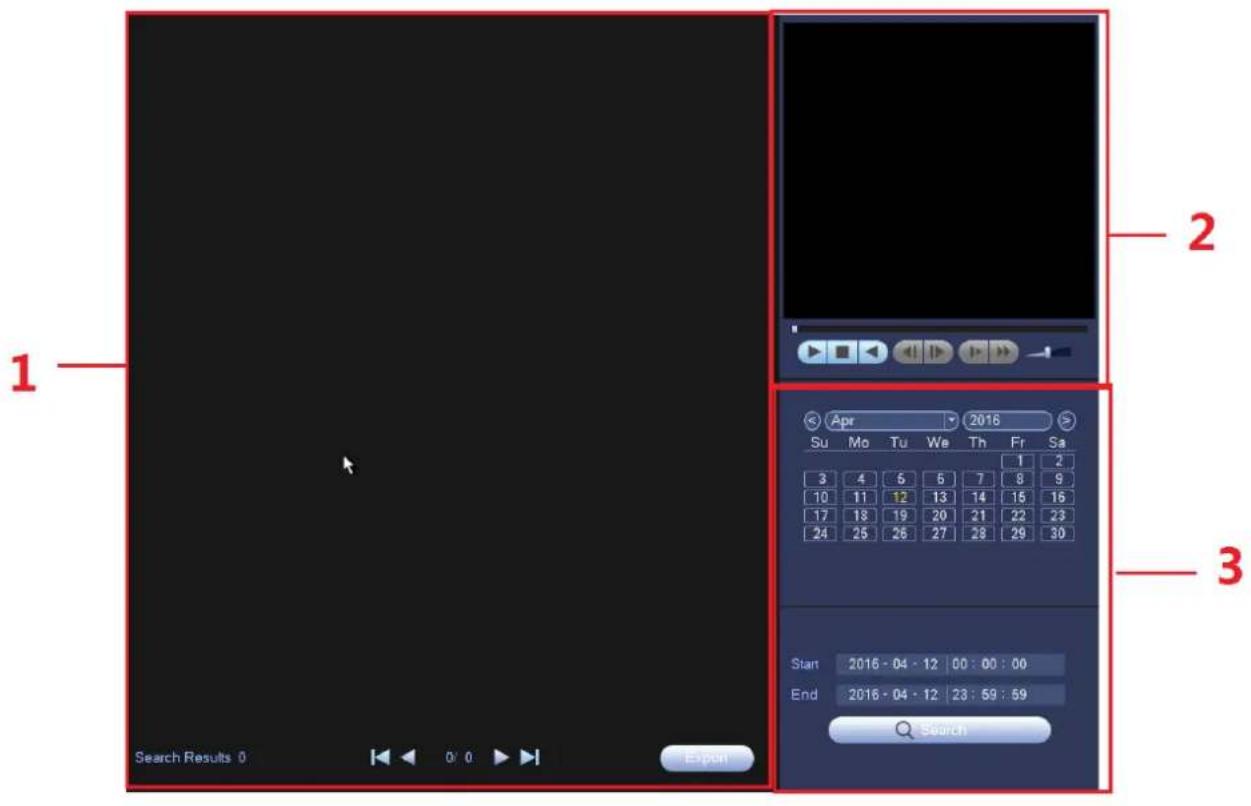
Figure 4-43
Please refer to the following sheet for detailed information.
| SN | Name | Function |
| 1 | Display pan | It is to display human face detection file list. The latest file is at the top. \Click Export, you can export the selected file to the USB device.There are two types: image/record.✧ Image: Export the recognized human face image.✧ Record: Export the record file before and after 10 seconds when the DVR recognizes the human face. |
| 2 | Playback pane | Play the searched record file or image. Double click to playback in full screen. |
| 3 | Search pane | Set date, start time and end time, click Search button, you can view the corresponding file list. |
4.9.3 Backup
DVR support CD-RW, DVD burner, USB device backup, network download and eSATA. Here we introduce USB, eSATA backup. You can refer to Chapter 7 Web Client Operation for network download backup operation.
Click backup button, you can see an interface is shown as in Figure 4-44. Here is for you to view devices information.
You can view backup device name and its total space and free space. The device includes CD-RW, DVD burner, USB device, flash disk, eSATA backup.
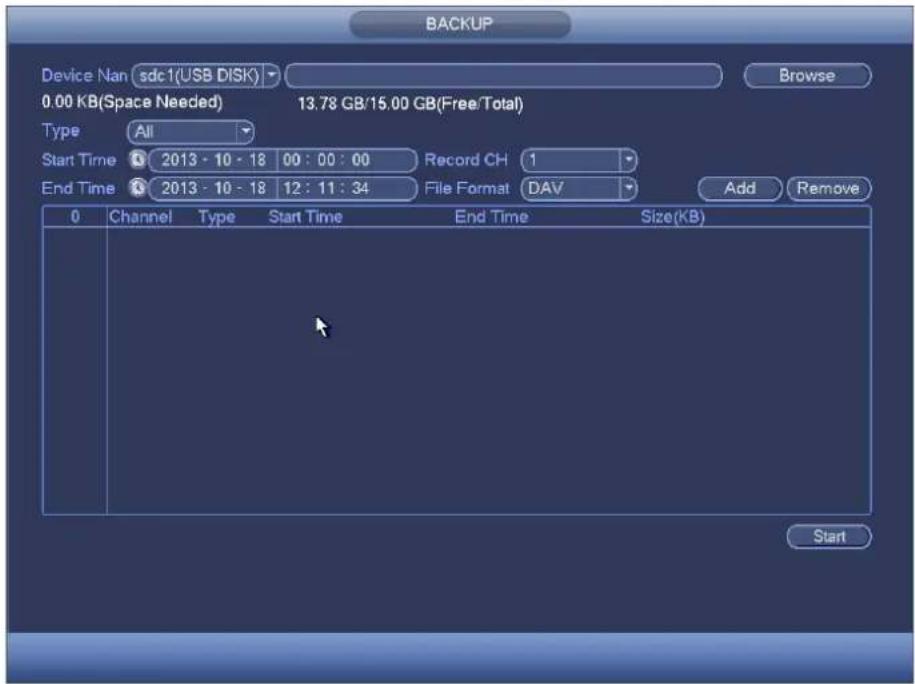
Figure 4-44
Select backup device and then set channel, file start time and end time. Click add button, system begins search. All matched files are listed below. System automatically calculates the capacity needed and remained. See Figure 4-45.
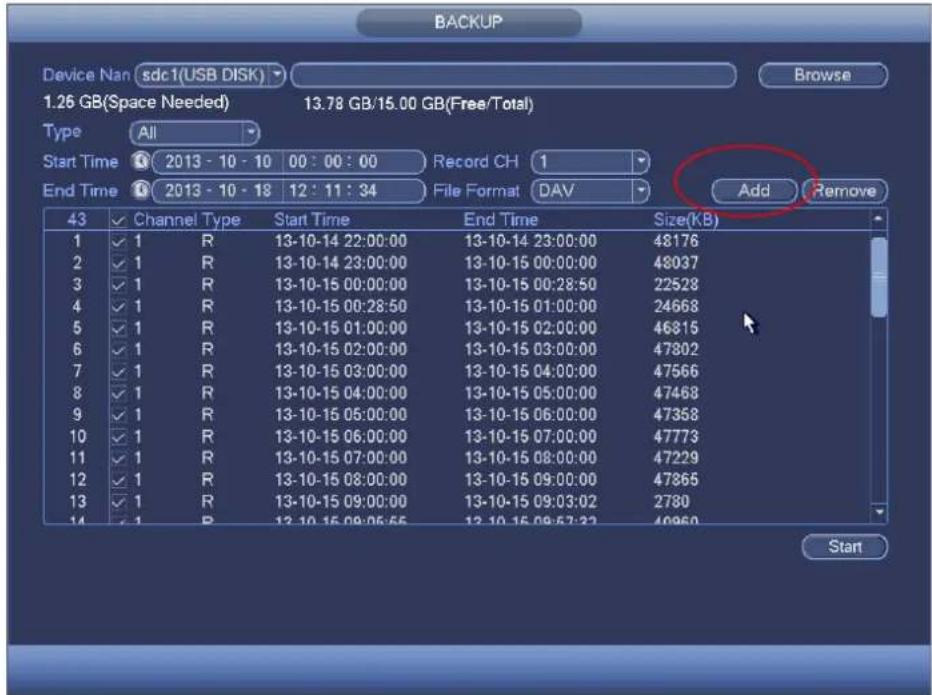
Figure 4-45
System only backup files with a √ before channel name. You can use Fn or cancel
button to delete √ after file serial number.
Click Start button, system begins copy. At the same time, the backup button becomes stop button. You can view the remaining time and process bar at the left bottom. See Figure 4-46.
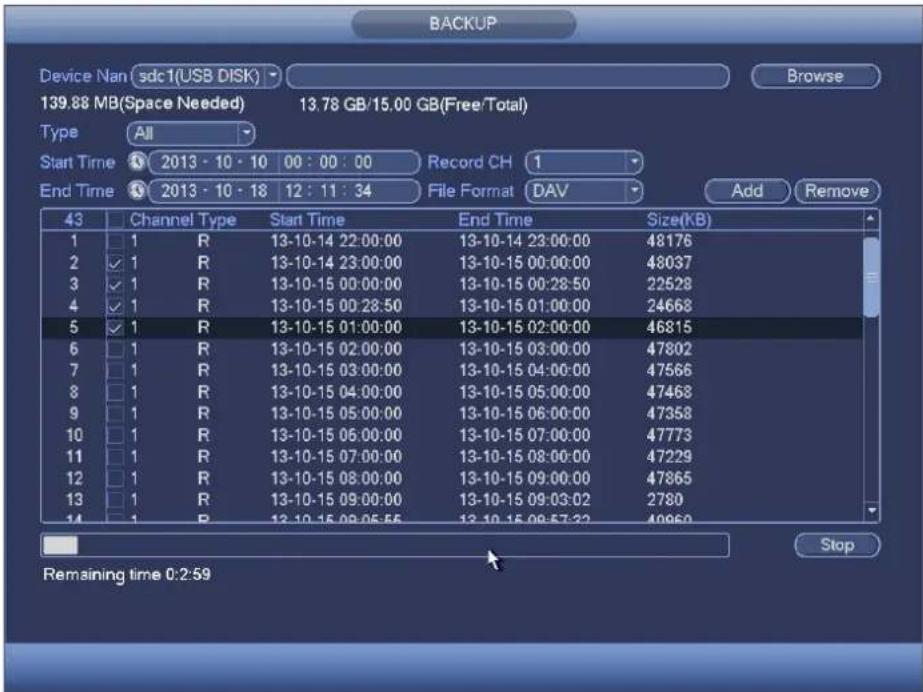
Figure 4-46
When the system completes backup, you can see a dialogue box prompting successful backup.
- File format: Click the file format; you can see there are two options: DAV/ASF.
The file name format usually is: Channel number+Record type+Time. In the file name, the YDM format is Y+M+D+H+M+S. File extension name is .dav.
Tips:
During backup process, you can click ESC to exit current interface for other operation. The system will not terminate backup process.
Note:
When you click stop button during the burning process, the stop function becomes activated immediately. For example, if there are ten files, when you click stop system just backup five files, system only save the previous 5 files in the device (But you can view ten file names).
4.9.4 Shut Down
In Figure 4-35, select Shut Down, you can go to the following interface. See Figure 4-47.
There are three options: Shutdown/logout/reboot.
For the user who does not have the shut down right, please input corresponding password to shut down.
Figure 4-47
4.10 Information
4.10.1 System Info
Here is for you to view system information. There are total four items: HDD (hard disk information), record, BPS (data stream statistics), version. See Figure 4-48.
Figure 4-48
4.10.1.1 HDD Information
Here is to list hard disk type, total space, free space, video start time and status. See Figure 4-49.
☐ SATA: 1-2 here means system max supports 2 HDDS. ○ means current HDD is
normal. X means there is error. - means there is no HDD. If disk is damaged, system shows as “?”. Please remove the broken hard disk before you add a new one.
- SN: You can view the HDD amount the device connected to. * means the second HDD is current working HDD.
● Type: The corresponding HDD properties.
● Total space: The HDD total capacity.
● Free space: The HDD free capacity.
● Status: HDD can work properly or not.
● SMART: Display HDD information. See Figure 4-50.
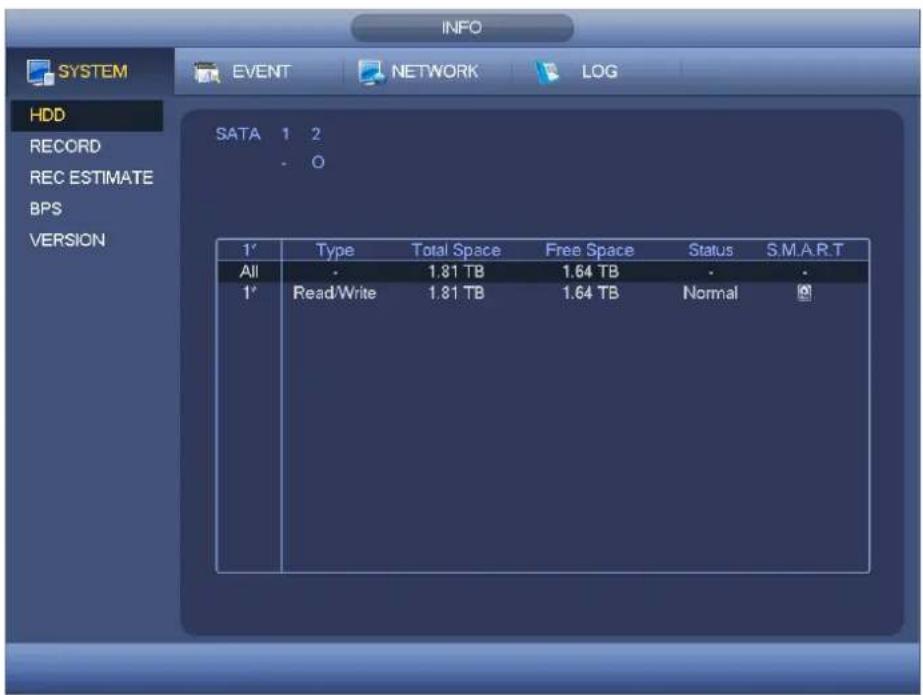
Figure 4-49
Double click one HDD information; you can see the HDD SMART information. . See Figure 4-50.
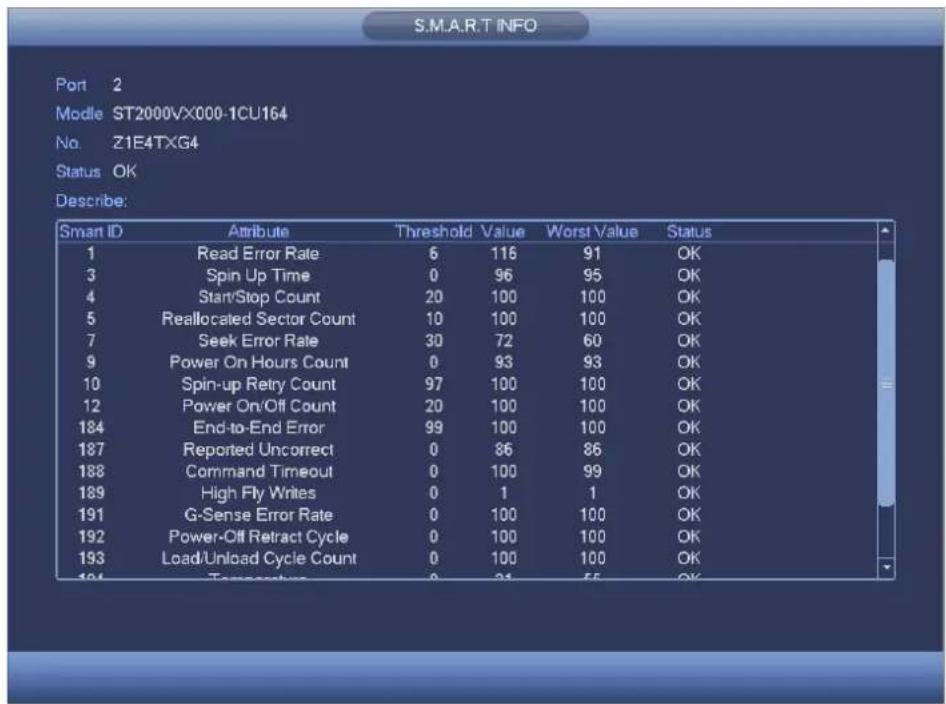
Figure 4-50
4.10.1.2 Record Info
It is to view record start time and end time. See Figure 4-51.
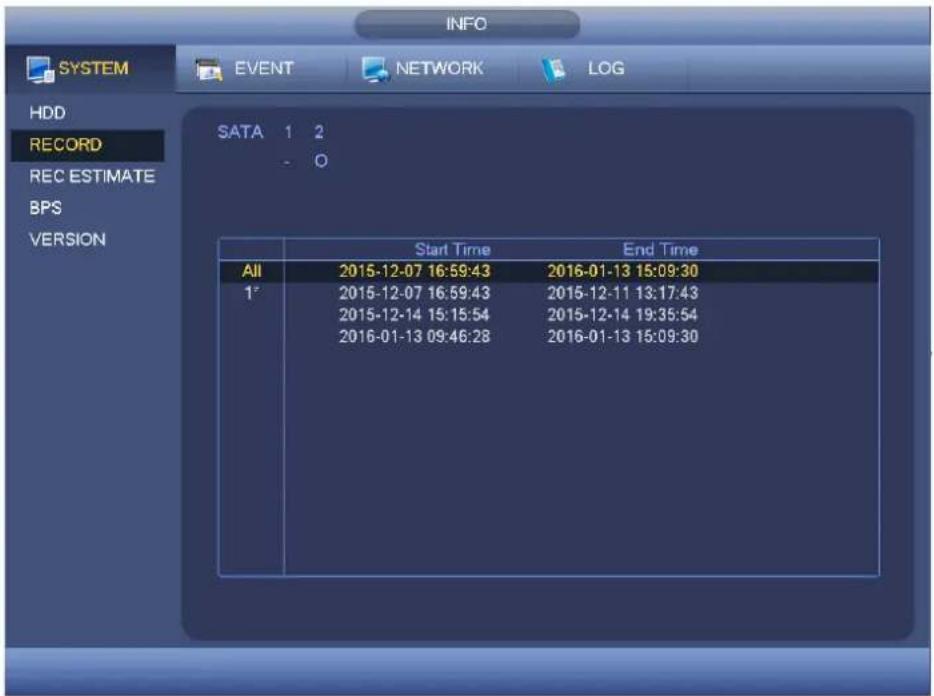
Figure 4-51
4.10.1.3 Record Estimate
System can calculate the record time based on the HDD space, or you can input the
record time you want to calculate the HDD space you need. See Figure 4-52.
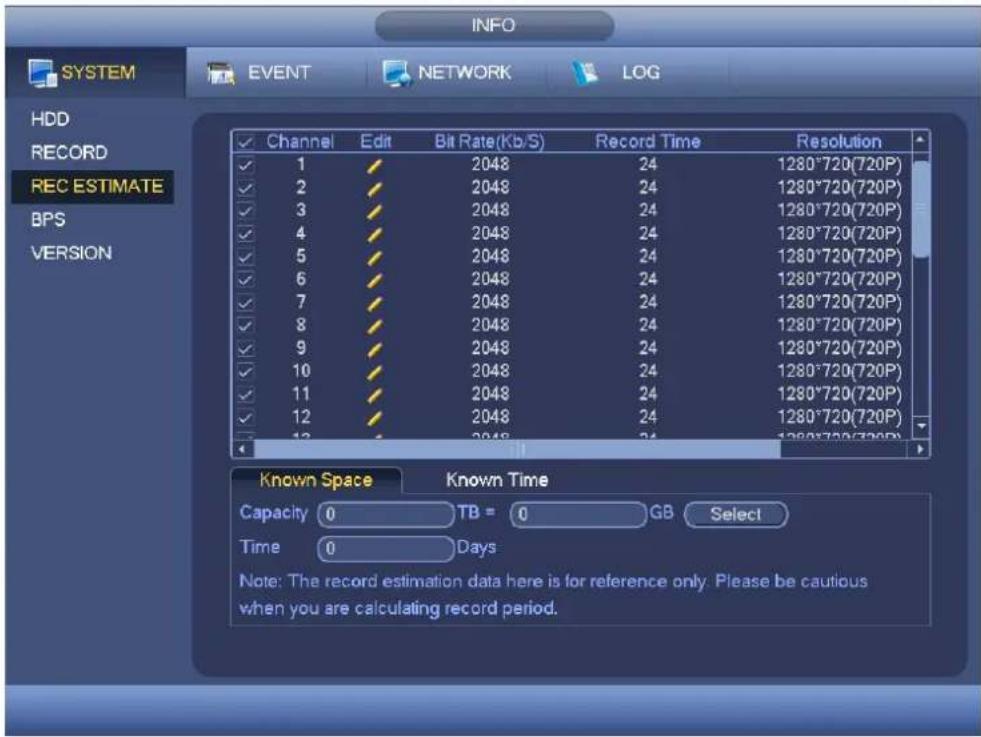
Figure 4-52
Click after the channel name, system pops up Edit dialogue box. See Figure 4-53. You can input resolution, frame rate, bit stream, record time of the corresponding channel, system can calculate the record time based on the channel setup and HDD space.
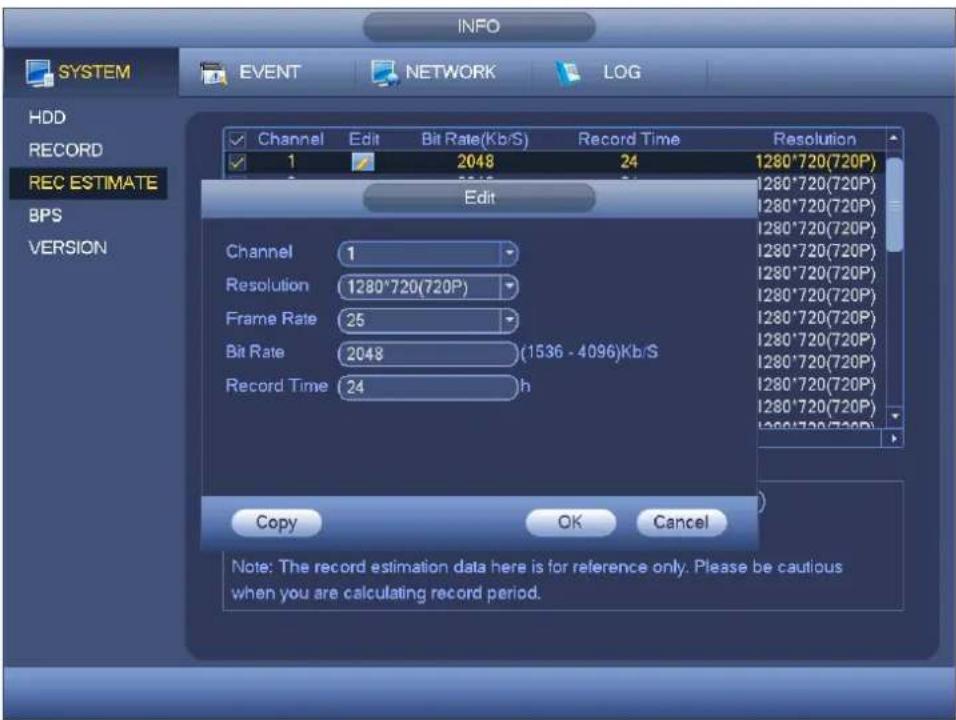
Figure 4-53
● Calculate the record period based on the HDD space
Check the channel you want to record file.
Click Known Space and then click the Select button to set HDD. Click OK button. Now you can see the record period (such as 5 days). See Figure 4-54.
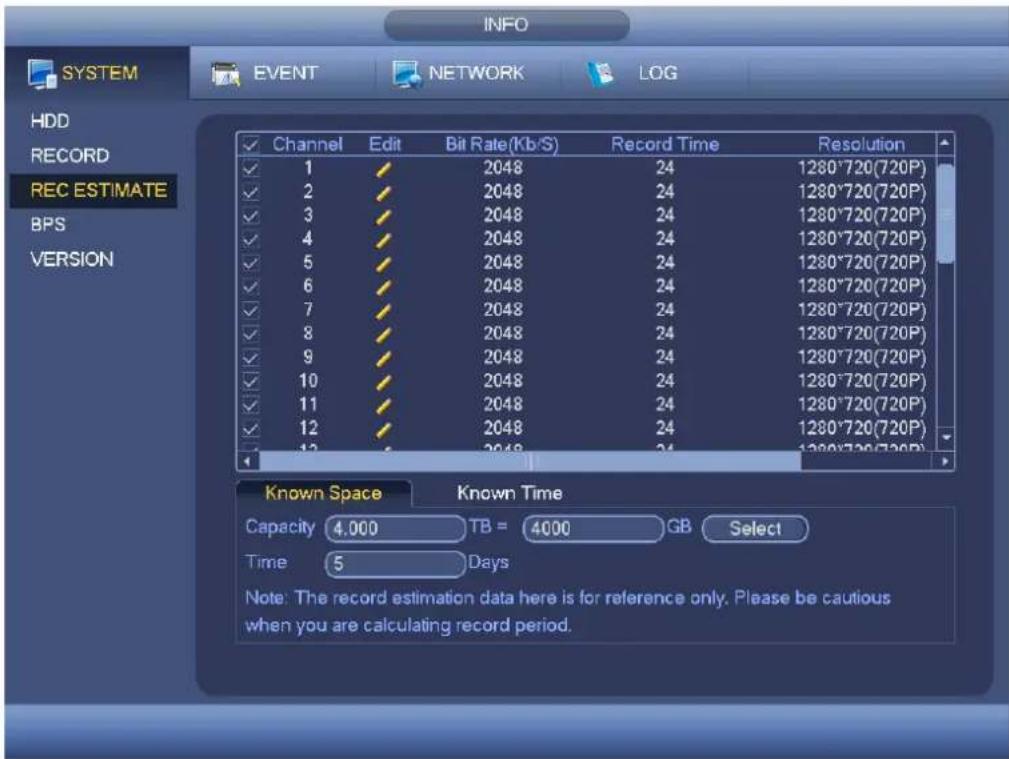
Figure 4-54
● Calculate the HDD space based on the record period
Check the channel you want to record file.
Input days(s) you want to records, system can auto calculate the HDD space needed (such as 5.109TB). See Figure 4-55.
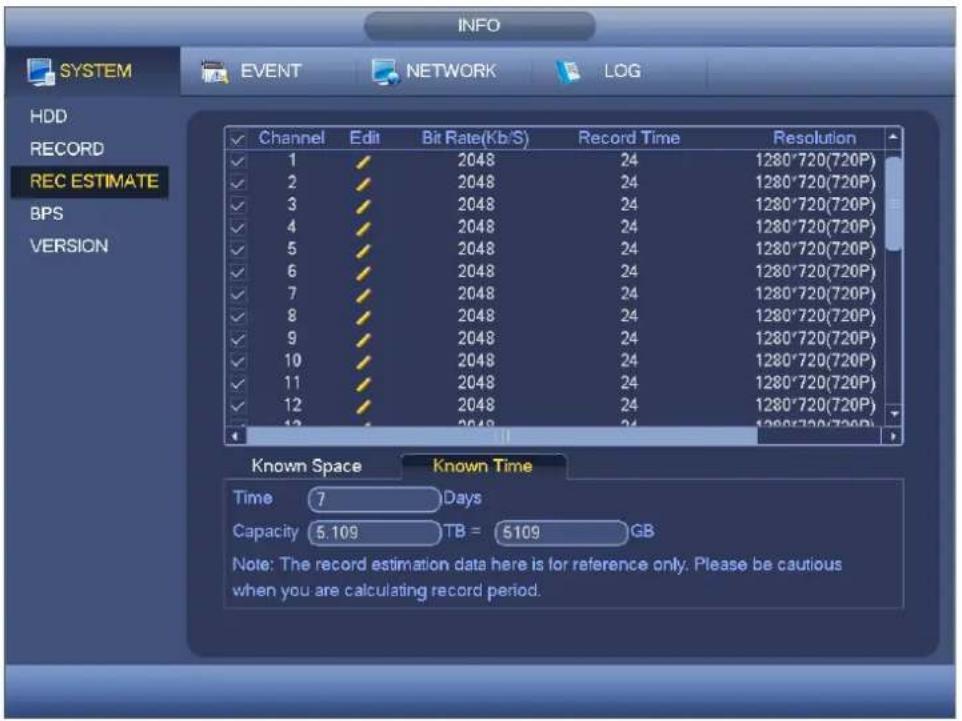
Figure 4-55
4.10.1.4 BPS
Here is for you to view current video data stream (KB/s) and occupied hard disk storage (MB/h). See Figure 4-56.
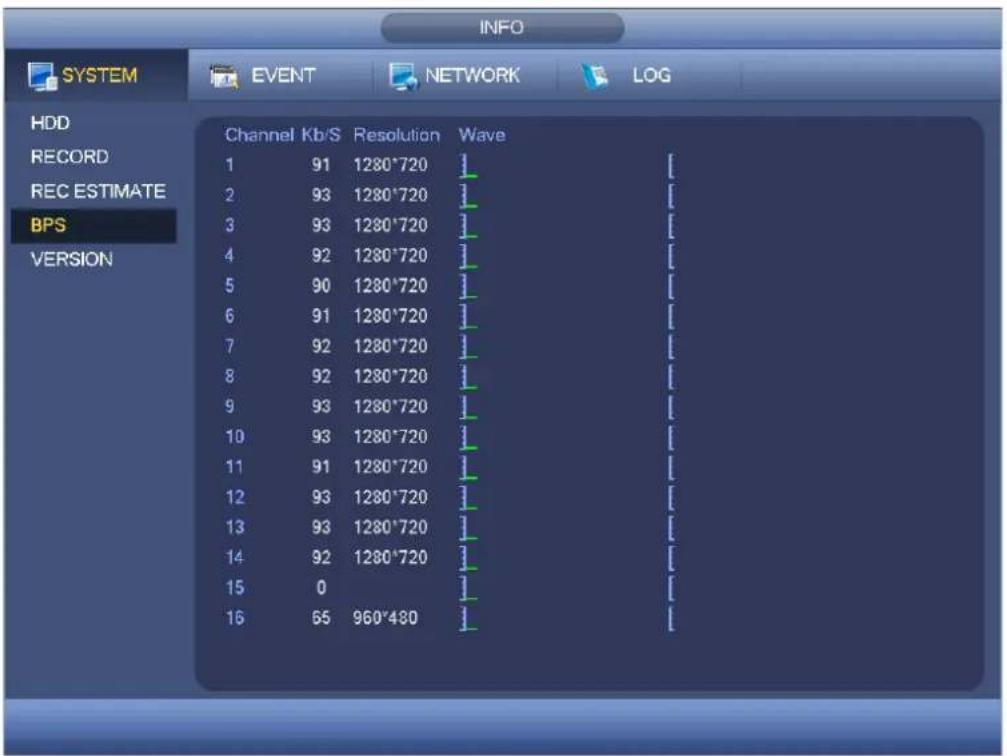
Figure 4-56
4.10.1.5 Version
Here is for you to view some version information such as version number, built date, serial number and etc. See Figure 4-57.
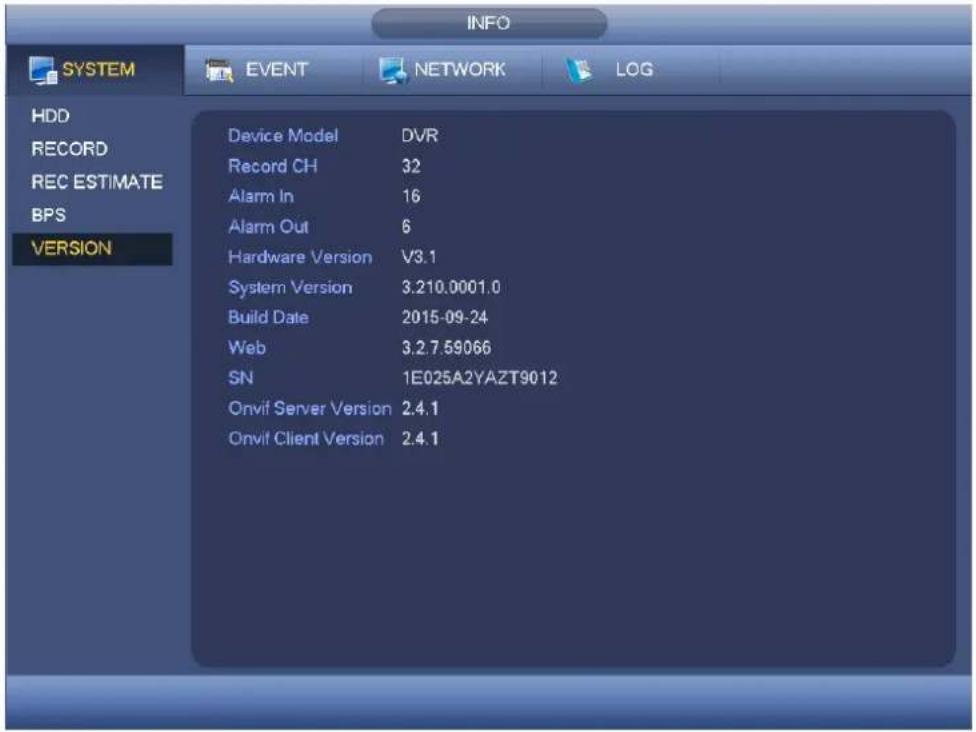
Figure 4-57
4.10.2 Event
It is to display device status and channel status. See Figure 4-58.
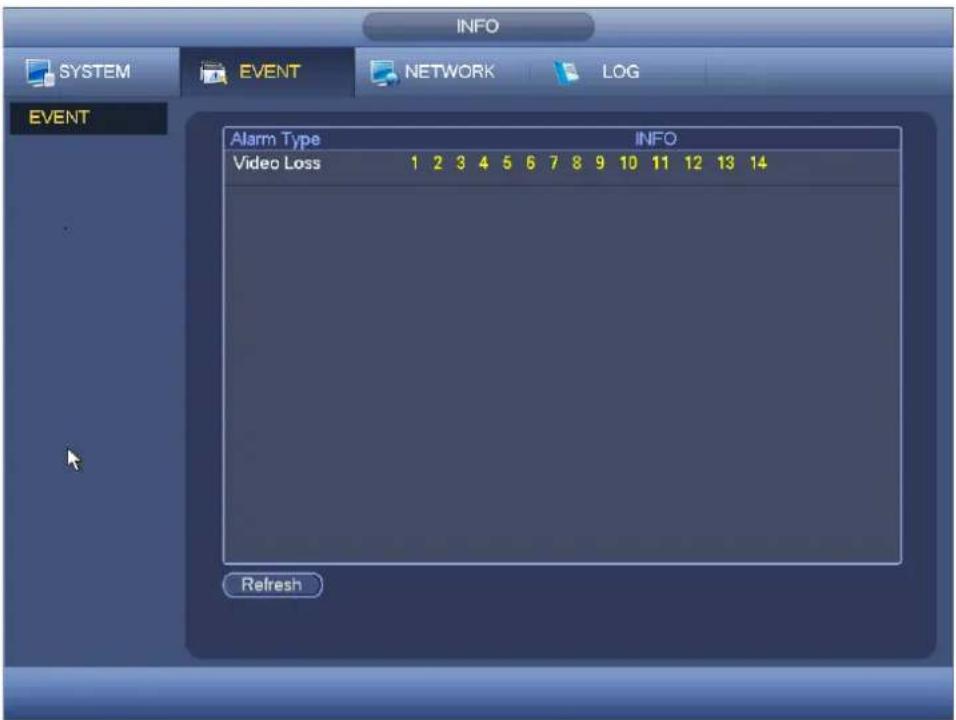
Figure 4-58
4.10.3 Network
4.10.3.1 Online Users
Here is for you to manage online users. See Figure 4-59.
You can disconnect one user or block one user if you have proper system right. Max disconnection setup is 65535 seconds.
System detects there is any newly added or deleted user in each five seconds and refresh the list automatically.
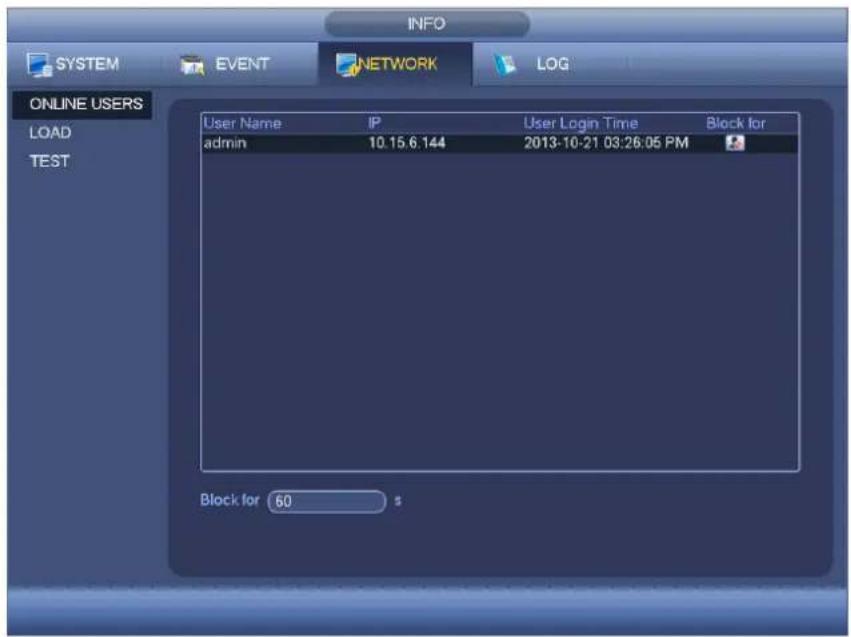
Figure 4-59
4.10.3.2 Network Load
Network load is shown as in Figure 4-60. Here you can view the follow statistics of the device network adapter.
Here you can view information of all connected network adapters. The connection status is shown as offline if connection is disconnected. Click one network adapter, you can view the flow statistics such as send rate and receive rate at the top panel.
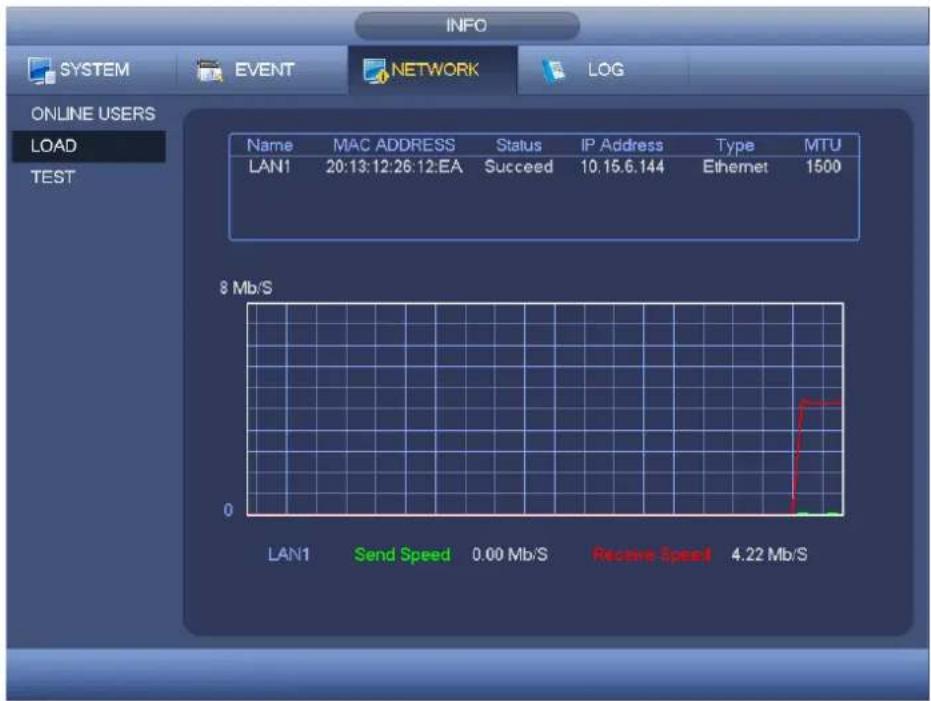
line
| Metric | Value | | ---------------- | --------- | | MAC ADDRESS | 8 Mb/S | | Status | 0 | | IP Address | 0 | | Type | 0 | | MTU | 8 Mb/S | | Ethernet | 0 | | Send Speed | 0.00 Mb/S | | Positive Speed | 4.22 Mb/S |Figure 4-60
4.10.3.3 Network Test
Network test interface is shown as in Figure 4-61.
- Destination IP: Please input valid IPV4 address or domain name.
- Test: Click it to test the connection with the destination IP address. The test results can display average delay and packet loss rate and you can also view the network status as OK, bad, no connection and etc.
- Network Sniffer backup: Please insert USB2.0 device and click the Refresh button, you can view the device on the following column. You can use the dropdown list to select peripheral device. Click Browse button to select the snap path. The steps here are same as preview backup operation.
You can view all connected network adapter names (including Ethernet, PPPoE, WIFI,
and 3G), you can click the button on the right panel to begin Sniffer. Click the grey stop button to stop. Please note system can not Sniffer several network adapters at the same time.
After Sniffer began, you can exit to implement corresponding network operation such as login WEB, monitor. Please go back to Sniffer interface to click stop Sniffer. System
can save the packets to the specified path. The file is named after "Network adapter name+time". You can use software such as Wireshark to open the packets on the PC for the professional engineer to solve complicated problems.
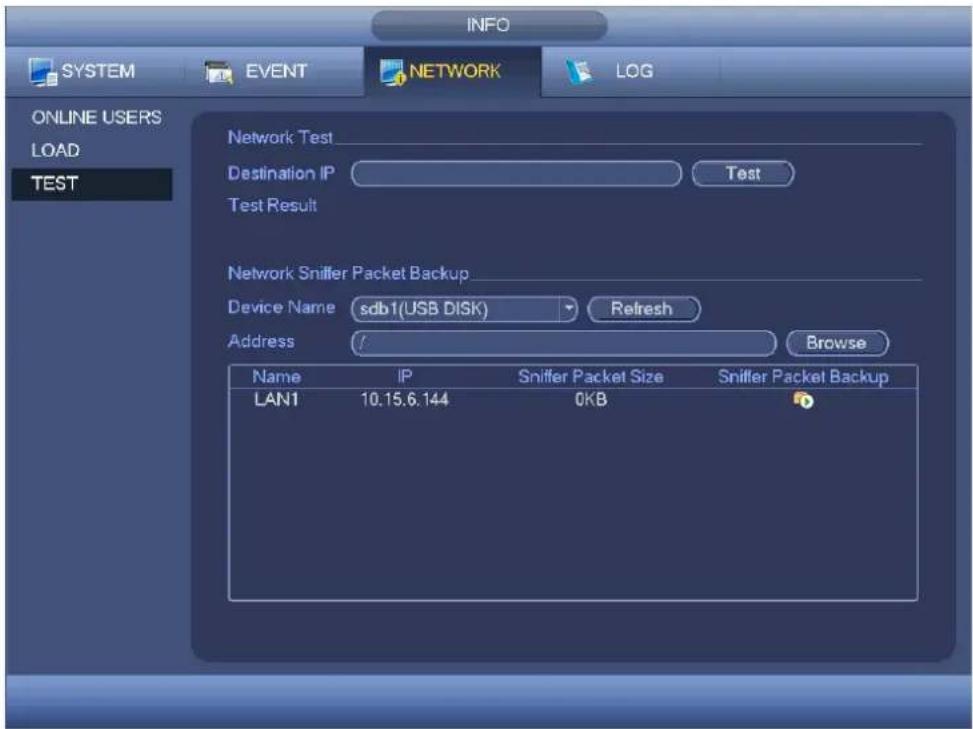
Figure 4-61
4.10.4 Log
4.10.4.1 Local Log
Here is for you to view system log file. System lists the following information. See Figure 4-62.
Log types include system operation, configuration operation, data management, alarm event, record operation, account manager, log clear, file operation and etc. It optimized reboot log. There are only three types: normal reboot, abnormal reboot and protection reboot. 0x02、0x03、0x04 is included in the protection reboot type.
- Start time/end time: Pleased select start time and end time, then click search button. You can view the log files in a list. System max displays 100 logs in one page. It can max save 1024 log files. Please use page up/down button on the interface or the front panel to view more.
- Backup: Please select a folder you want to save; you can click the backup button to save the log files. After the backup, you can see there is a folder named Log_time on the backup path. Double click the folder, you can see the log file
● Details: Click the Details button or double click the log item, you can view the detailed information. See Figure 4-63. Here you can use rolling bar to view information, or you can use Page up/Page down to view other log information.
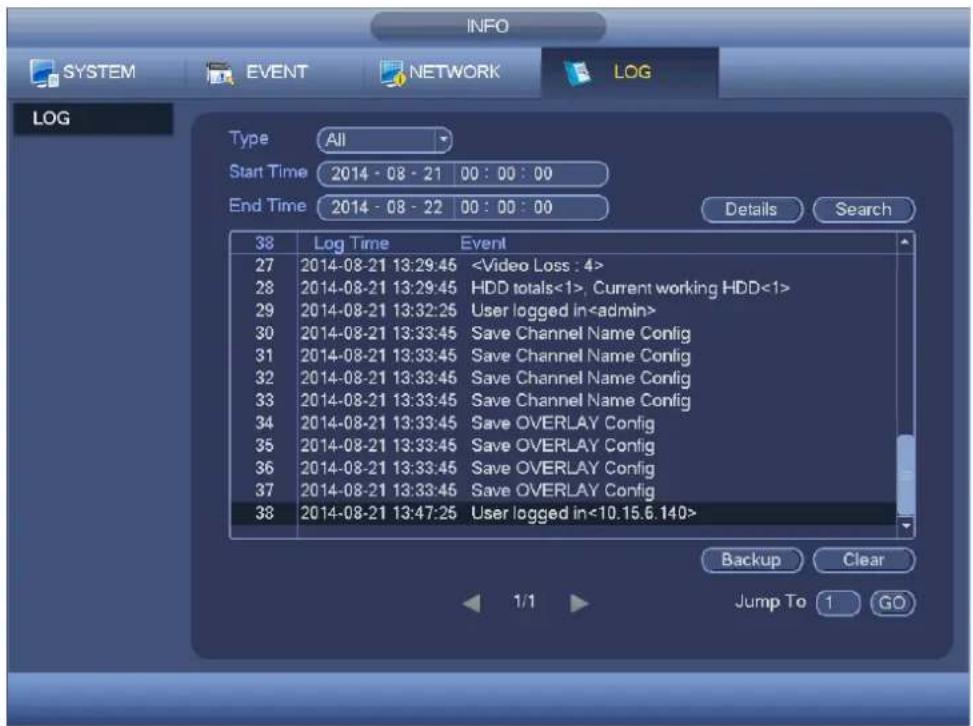
Figure 4-62
Select an item on the list and then click the Details button or double click the log item, you can view the detailed information such as log time, log type, log user, IP address and etc. See Figure 4-63.
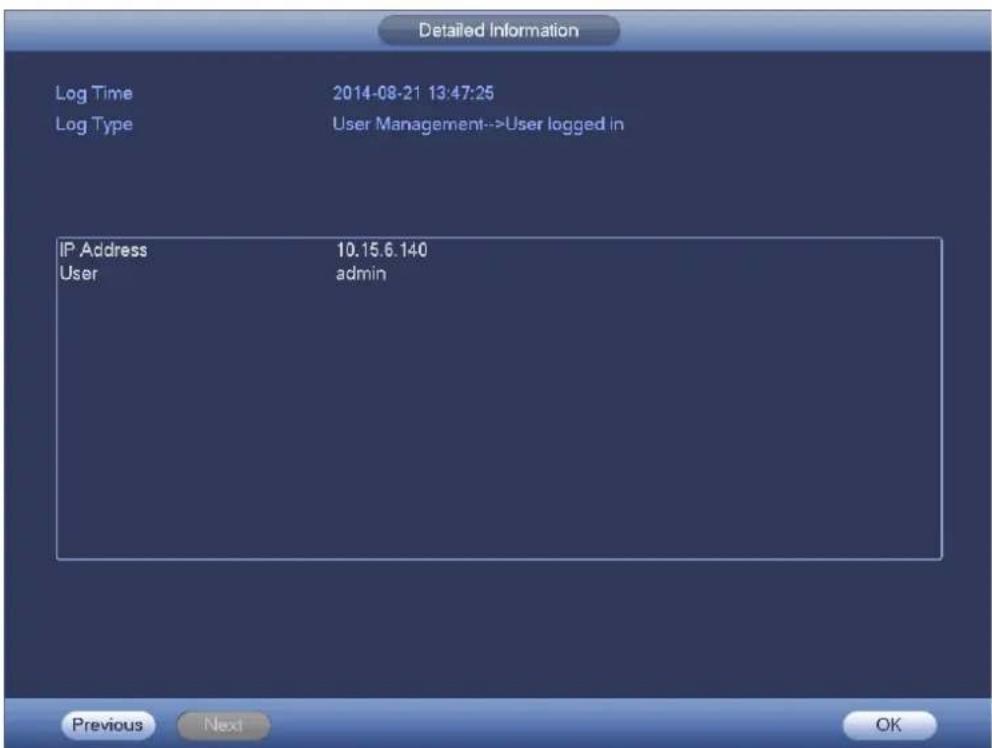
Figure 4-63
Note
- If there is no HDD, system max supports 1024 logs.
- If you have connected to the unformatted HDD, system max supports 5000 logs.
- If you have connected to the formatted HDD, system max supports 500,000 logs.
- System operation logs are saved in system memory. Other types of logs are saved in the HDD. If there is no HDD, other types of logs are saved in the system memory too.
- The logs are safe when you format the HDD. But the logs may become loss once you removed the HDD.
4.11 Setting
4.11.1 Camera
4.11.1.1 Remote Device (For digital channel only)
In the main menu, from Camera ->Remote, you can go to an interface shown as in Figure 4-64. Here you can add/delete remote device and view its corresponding information.
- IP search: Click it to search IP address. It includes device IP address, port, device name, manufacturer, type. Use your mouse to click the item name, you can refresh display order. Click IP address, system displays IP address from small to large. Click IP address again, you can see icon, system displays IP address from large to small. You can click other items to view information conveniently. For the network device already added to the device, you can see there is a small icon “*” after the SN in case there is repeatedly add operation.
- Add: Click it to connect to the selected device and add it to the Added device list. Support Batch add.
You can see the corresponding dialogue box if all digital-channel has connected to the front-end.
System can not add new device if the device you want to add has the same IP and TCP port as the device in the list.
● Show filter: You can use it to display the specified devices from the added device.
- Edit: Click button or double click a device in the list, you can change channel setup.
- Delete: Please select one device in the Added device list and then click to remove.
- Status: means connection is OK and means connection failed.
- Delete ; Select a device on the Added device list, click Delete button, system disconnect device first and then remove its name from the list.
- Manual add: Click it to add the IPC manually. The port number is 37777. The default user name is admin and password is admin.
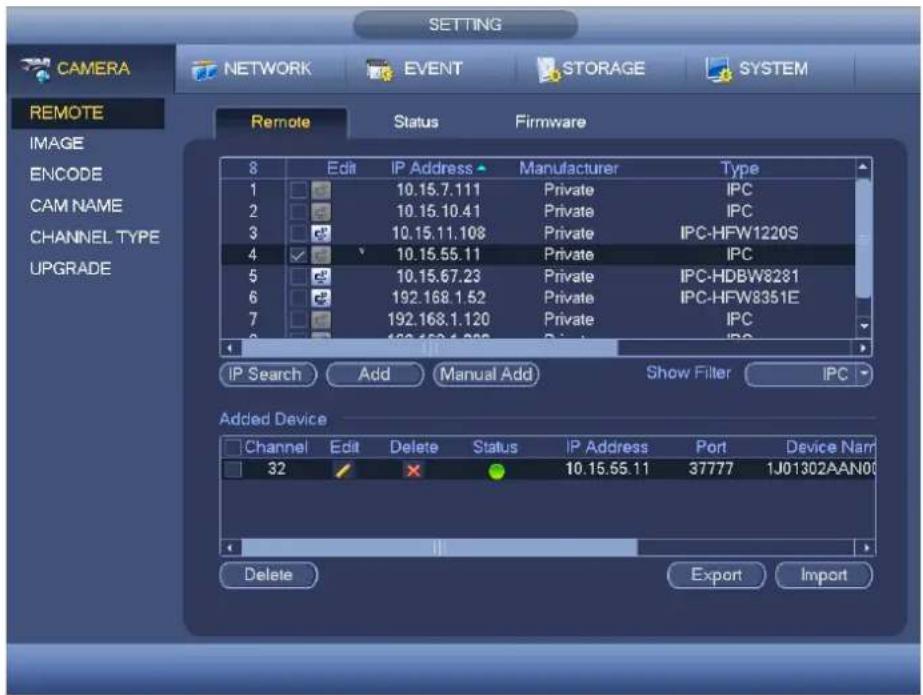
Figure 4-64
Click the Manual Add button; you can go to the following interface. See Figure 4-65.
Channel number: The dropdown list here displays unconnected channel number. You can go to Figure 4-64 to set remote channel connection.
Please note:
- This series product supports the IPC from many popular manufactures such as Sony, Hitachi, Axis, Samsung, Dynacolor, Arecont, Onvif and Dahua.
- System default IP address is 192.168.0.0 if you do not input IP address. System will not add current IP address.
- You can not add two or more devices in the Manual Add interface (Figure 4-65). Click OK button, system connects to the corresponding front-end device of current channel on the interface.
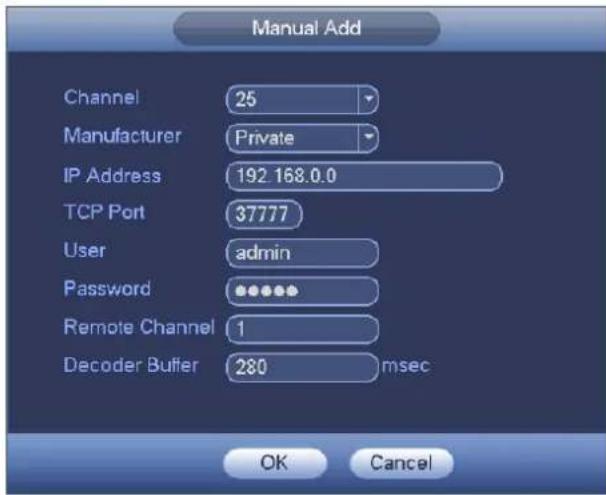
Figure 4-65
● Show filer: It is to filter the searched device.
■ None: it is to display all searched devices.
■ IPC: It is to display all cameras.
■ DVR: It is to display all storage devices such as NVR, DVR.
- Change IP:
Click IP, you can change the information such as IP address, subnet mask, and default gateway, user name, password of the checked device. See Figure 4-66.
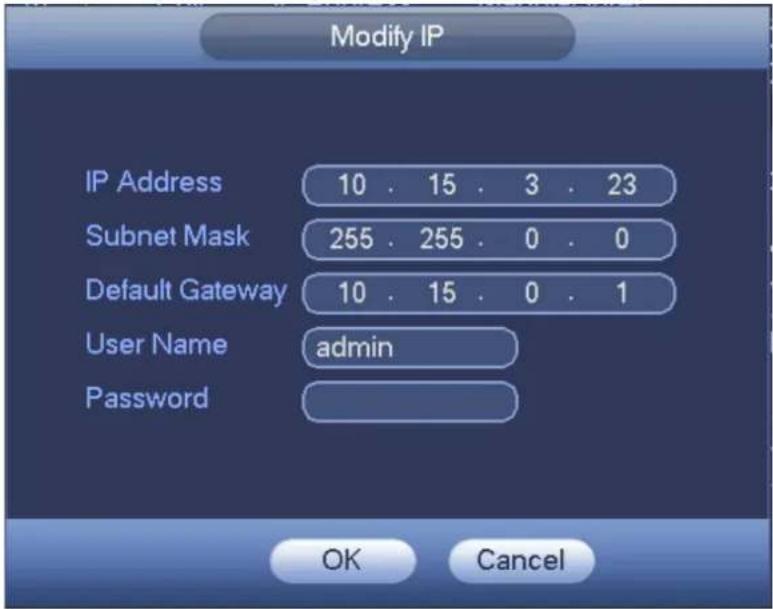
Figure 4-66
You can check several devices at the same time and then click the edit button. See Figure 4-3. Please check Batch modify button and then input start IP, end IP and default gateway.
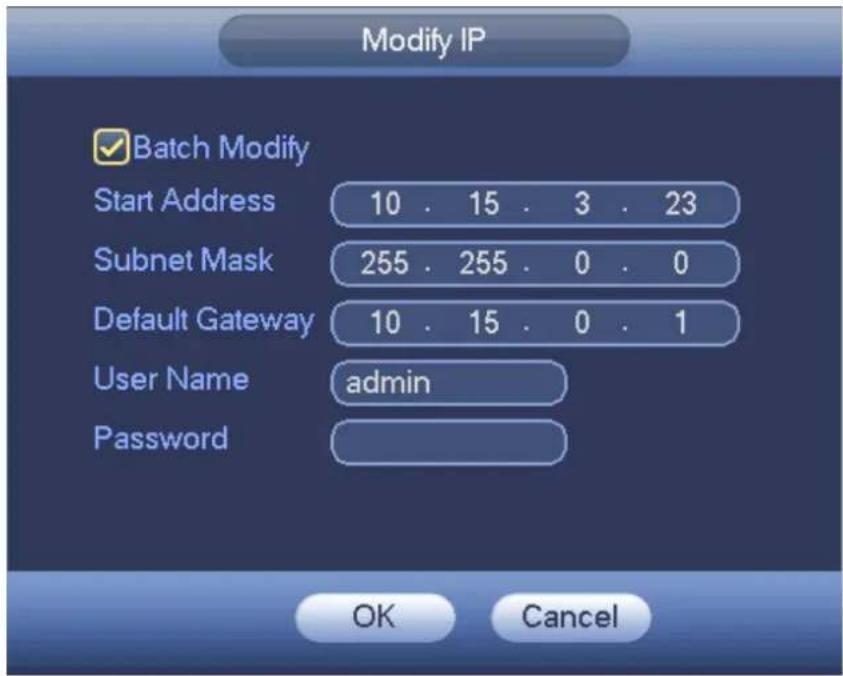
Figure 4-67
- IP Export
System can export the Added device list to your local USB device.
Please insert the USB device and then click the Export button; you can see the following interface. See Figure 4-68.
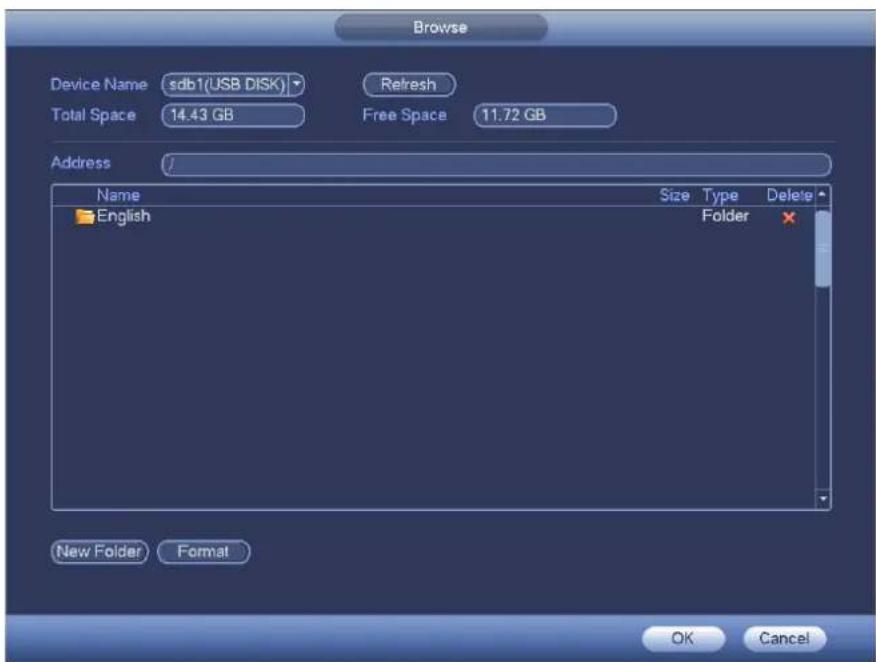
Figure 4-68
Select the directory and then click the OK button. System pops up a dialogue box to remind you successfully exported. Please click OK button to exit.
Note
The exported file extension name is .CVS. The file information includes IP address, port, remote channel number, manufacturer, user name and password.
- IP Import
Click Import button, you can see the following interface. See Figure 4-69.
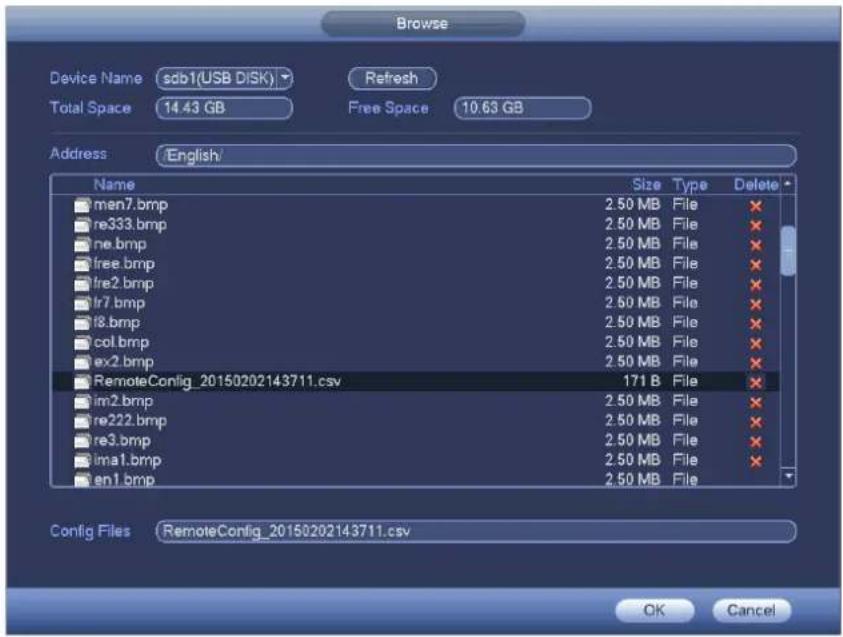
Figure 4-69
Select the import file and then click the OK button. System pops up a dialogue box to remind you successfully exported. Please click OK button to exit.
Note:
If the imported IP has conflicted with current added device, system pops up a dialogue box to remind you. You have two options:
- OK: Click OK button, system uses the imported setup to overlay current one.
- Cancel: Click Cancel button, system adds the new IP setup.

Important
- You can edit the exported .CVS file. Do not change the file format; otherwise it may result in import failure.
- Does not support customized protocol import and export.
● The import and export device shall have the same language format.
4.11.1.1.2 Channel Status
Here you can view the IPC status of the corresponding channel such as motion detect, video loss, tampering, alarm and etc. See Figure 4-70.
- IPC status: : Front-end does not support. : Front-end supports. There is alarm event from current front-end.
- Connection status: : Connection succeeded. : Connection failed.
- Refresh: Click it to get latest front-end channel status.
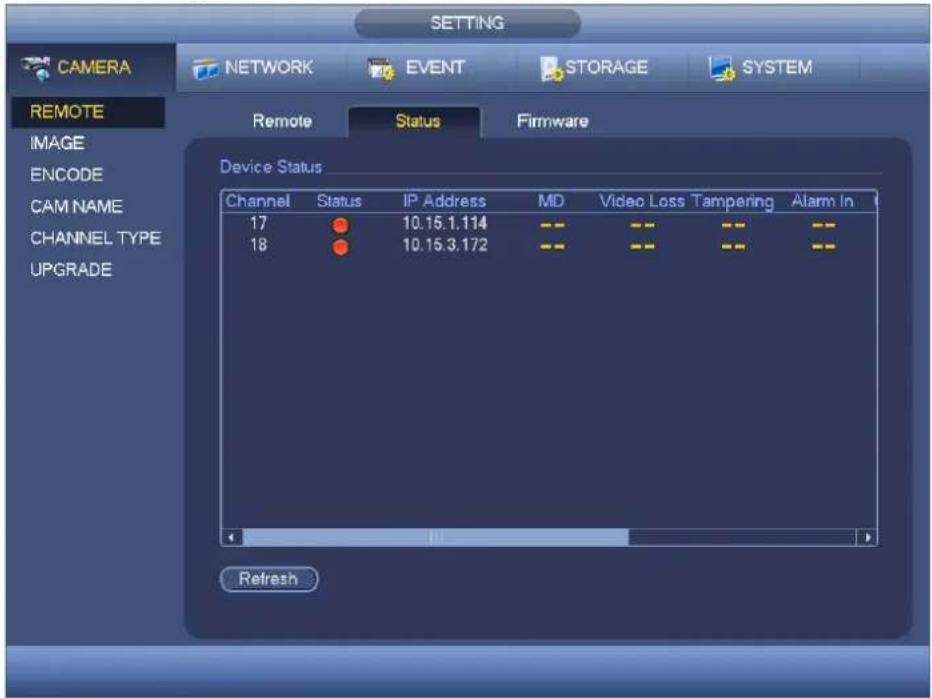
Figure 4-70
4.11.1.1.3 Firmware
It is to view channel, IP address, manufacturer, type, system version, SN, video input, audio input, and etc. See Figure 4-71.
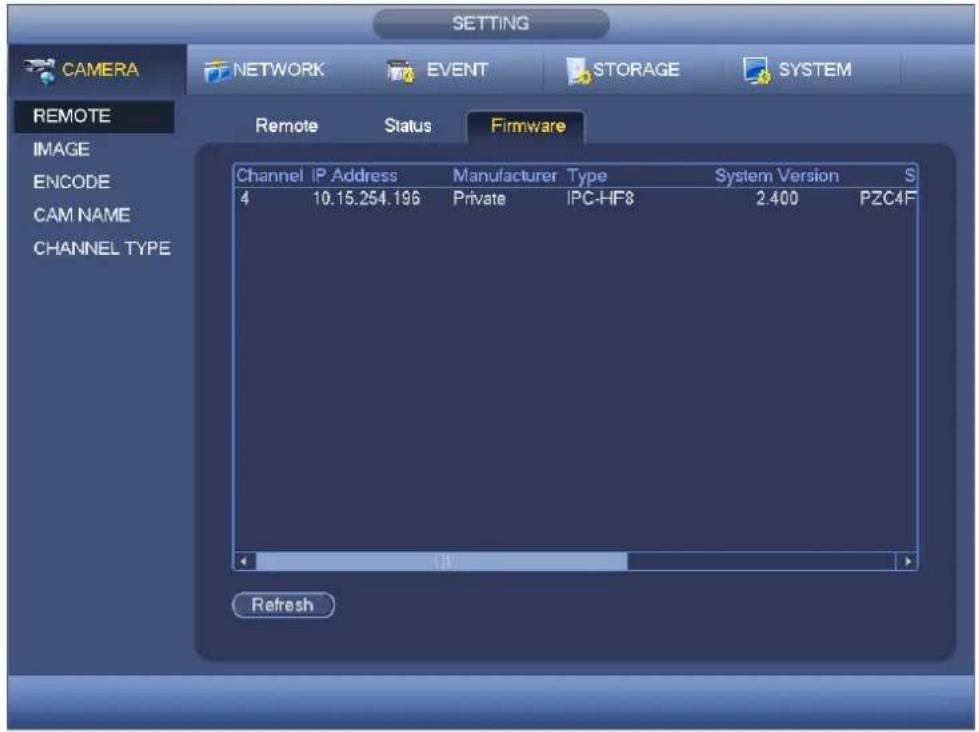
Figure 4-71
4.11.1.2 Image
For analog channel, the camera interface is shown as in Figure 4-72. For digital channel, the camera interface is shown as in Figure 4-73.
- Channel: Select a channel from the dropdown list.
- Cable type: It is to set the cable type of the corresponding analog channel. When the setup here matches the actual cable you are using, you can get the best image effect. The default setup is COAXIAL.
✿ COAXIAL: When the corresponding channel is using coaxial cable, please select COAXIAL.
✿ UTP: When the corresponding channel is using UTP cable, please select UTP. Usually we recommend 10Ohm UTP cable.
- Saturation: It is to adjust monitor window saturation. The value ranges from 0 to 100. The default value is 50. The larger the number, the strong the color is. This value has no effect on the general brightness of the whole video. The video color may become too strong if the value is too high. For the grey part of the video, the distortion may occur if the white balance is not accurate. Please note the video may not be attractive if the value is too low. The recommended value ranges from 40 to 60.
- Brightness: It is to adjust monitor window bright. The value ranges from 0 to 100. The default value is 50. The larger the number is, the bright the video is. When you input the value here, the bright section and the dark section of the video will be adjusted accordingly. You can use this function when the whole video is too dark or too bright. Please note the video may become hazy if the value is too high. The recommended value ranges from 40 to 60.
- Contrast: It is to adjust monitor window contrast. The value ranges from 0 to 100. The default value is 50. The larger the number is, the higher the contrast is. You can use this function when the whole video bright is OK but the contrast is not proper. Please note the video may become hazy if the value is too low. If this value is too high, the dark section may lack brightness while the bright section may over exposure. The recommended value ranges from 40 to 60.
- Sharpness: The value here is to adjust the edge of the video. The value ranges from 0 to 100. The larger the value is, the clear the edge is and vice versa. Please note there is noise if the value here is too high. The default value is 50 and the recommended value ranges from 40 to 60.
- Mirror: It is to switch video up and bottom limit. This function is disabled by default.
- Flip: It is to switch video left and right limit. This function is disabled by default.
● BLC: It includes several options: BLC/WDR/HLC/OFF.
✿ BLC: The device auto exposures according to the environments situation so that the darkest area of the video is cleared
WDR: For the WDR scene, this function can lower the high bright section and enhance the brightness of the low bright section. So that you can view these two sections clearly at the same time. The value ranges from 1 to 100. When you switch the camera from no-WDR mode to the WDR mode, system may lose several seconds record video.
✿ HLC: After you enabled HLC function, the device can lower the brightness of the brightest section according to the HLC control level. It can reduce the area of the halo and lower the brightness of the whole video.
✿ OFF: It is to disable the BLC function. Please note this function is disabled by default.
- Profile: It is to set the white balance mode. It has effect on the general hue of the video. This function is on by default. You can select the different scene mode such as auto, sunny, cloudy, home, office, night, disable and etc to adjust the video to the best quality.
Auto: The auto white balance is on. System can auto compensate the color temperature to make sure the vide color is proper.
✿ Sunny: The threshold of the white balance is in the sunny mode.
Night: The threshold of the white balance is in the night mode.
✿ Customized: You can set the gain of the red/blue channel. The value reneges from 0 to 100.
● Day/night. It is to set device color and the B/W mode switch. The default setup is auto.
✨ Color: Device outputs the color video.
Auto: Device auto select to output the color or the B/W video according to the device feature (The general bright of the video or there is IR light or not.)
✿ B/W: The device outputs the black and white video.
✿ Sensor: It is to set when there is peripheral connected IR light.
- Image enhancement: It is to enhance video quality. The larger the value is, the clearer the video is. But the noise may become large too.
- 2D NR: It is to process the noise of the single image. The video may become soft after process. The larger the value is, the better the effect is.
- 3D NR: it is to process the multiple-frame (at least two frames). It is to use the frame information between the following two frames to reduce noise. The larger the value is, the better the effect is.
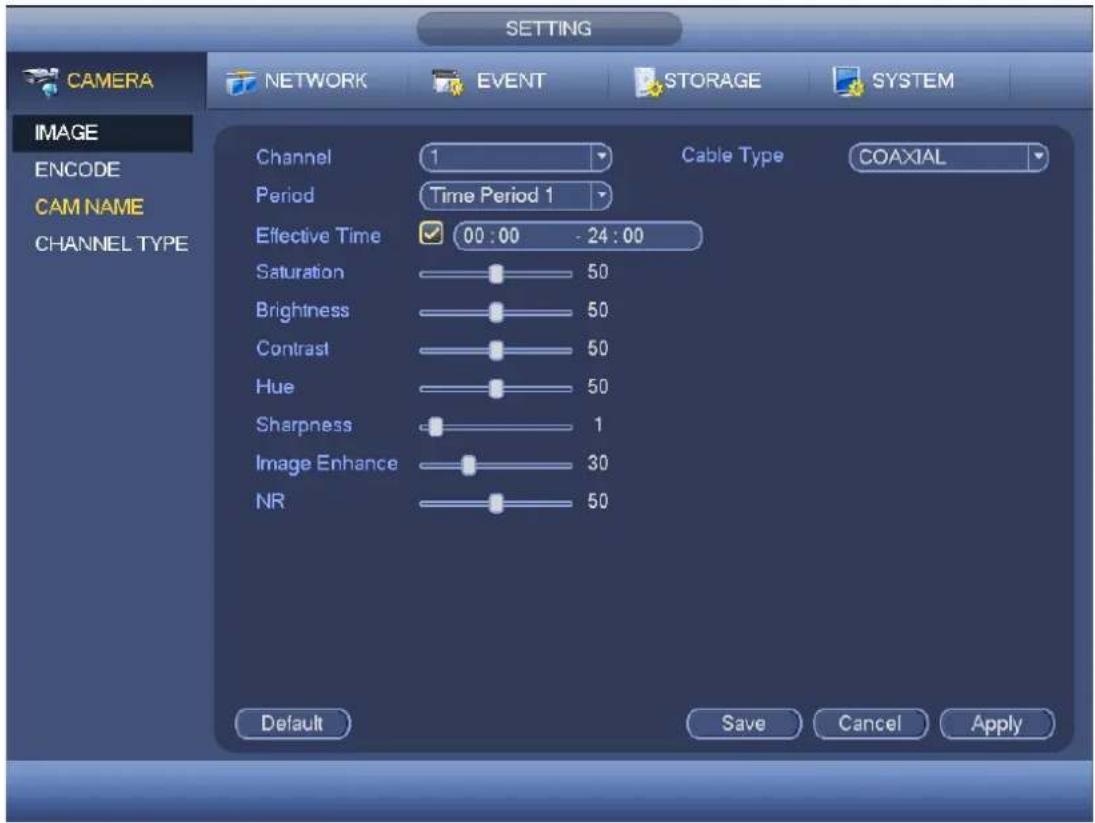
Figure 4-72
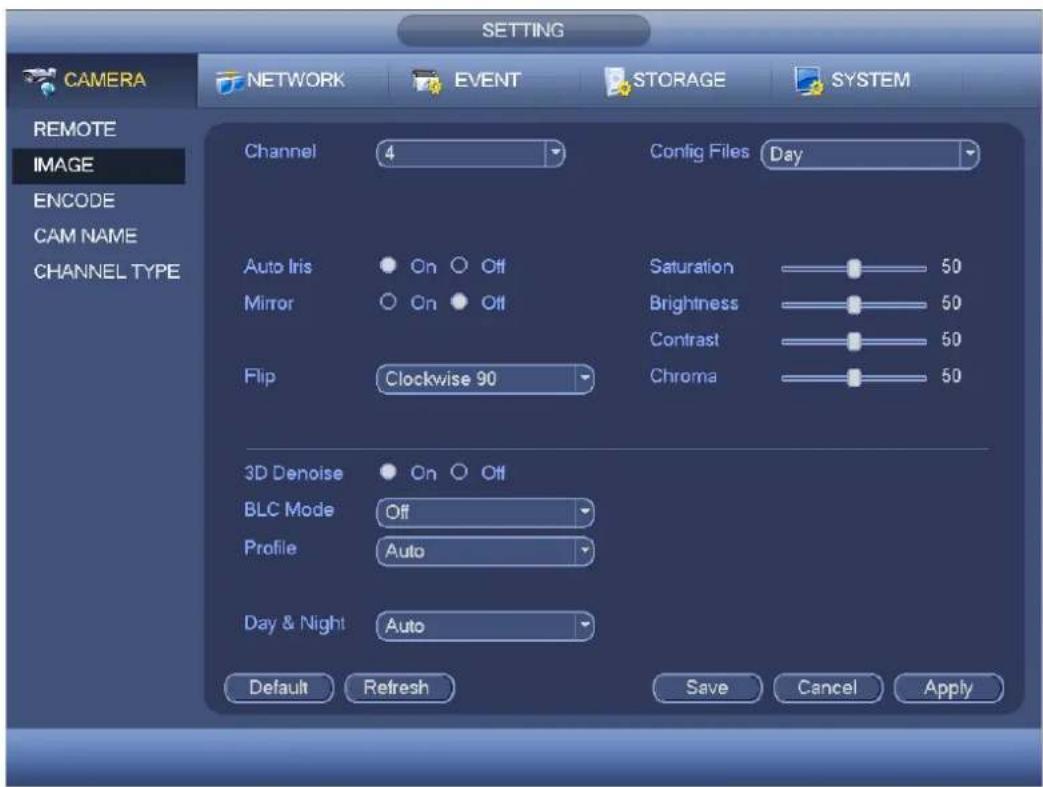
Figure 4-73
4.11.1.3 Encode
It is to set video bit stream, picture bit stream, video overlay parameter and etc.
4.11.1.3.1 Video
Video setting includes the following items. See Figure 4-74.
- Channel: Select the channel you want.
- SVC: SVC is so called scaled video coding. Check the box to enable this function. During the network transmission process, system discards unimportant frames when the bandwidth is not sufficient or the decode capability is low. It is to guarantee video quality and transmission fluency.
- Type: Please select from the dropdown list. There are three options: regular/motion detect/alarm. You can set the various encode parameters for different record types.
● Compression: System supports H.264H, H.264, H.264B, and MJPEG.
H.264H: It is the High Profile compression algorithm. It has the high encode compression rate. It can achieve high quality encode at low bit stream. Usually we recommend this type.
H.264 is the general compression algorithm.
H.264B is the Baseline algorithm. Its compression rate is low. For the same video quality, it has high bit stream requirements.
- Smart codec: Select Start from the dropdown list to enable smart codec function. The DVR can auto reduce the video bit stream of the non-important surveillance object to save the storage space.
- Resolution: For analog channel, system supports various resolutions, you can select from the dropdown list. Please note the option may vary due to different series. For digital channel, the resolution here refers to the capability of the network camera.
- Frame rate: It ranges from 1f/s to 25f/s in NTSC mode and 1f/s to 30f/s in PAL mode.
- Bit rate type: System supports two types: CBR and VBR. In VBR mode, you can set video quality.
● Quality: There are six levels ranging from 1 to 6. The sixth level has the highest image quality. - Video/audio: You can enable or disable the video/audio.
- Audio format: Please select from the dropdown list. There are three options: G711a/G711u/PCM.
- Audio source: Please select from the dropdown list. There are two options: local/HDCVI. For local mode, the audio signal is from the Audio In port. For HDCVI mode, the audio signal is from the coaxial cable of the camera.
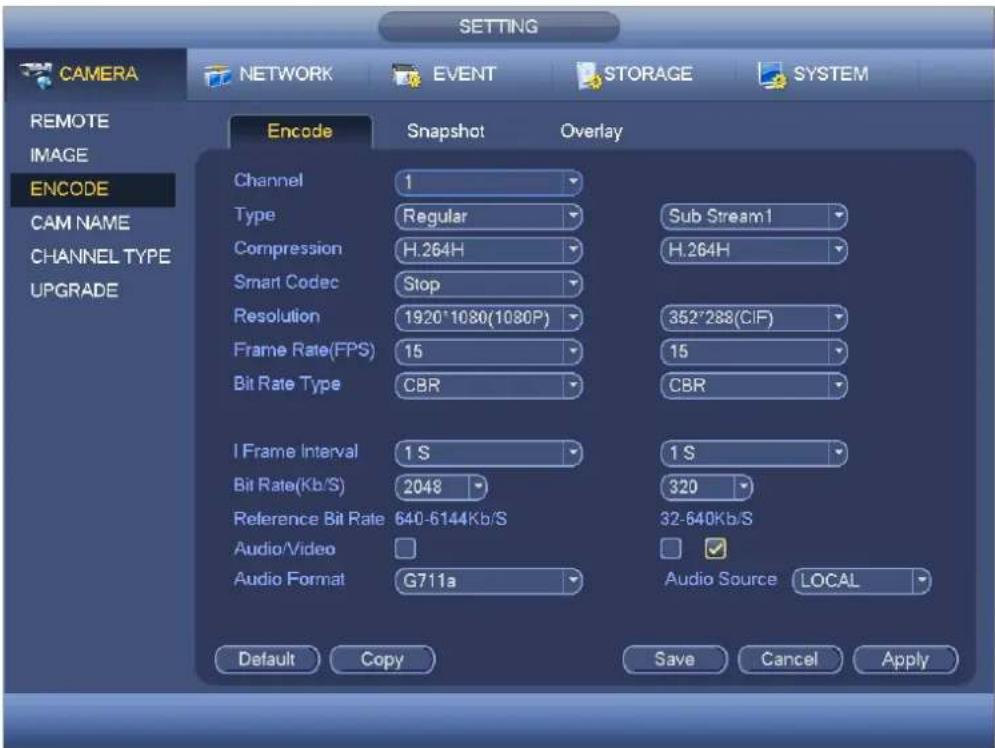
Figure 4-74
4.11.1.3.2 Snapshot
Here you can set snapshot mode, picture size, quality and frequency. See Figure 4-75.
- Snapshot mode: There are two modes: regular and trigger. If you set timing mode, you need to set snapshot frequency. If you set trigger snapshot, you need to set snapshot activation operation.
- Image size: Here you can set snapshot picture size.
- Image quality: Here you can set snapshot quality. The value ranges from 1 to 6.
- Interval: It is for you to set timing (schedule) snapshot interval.
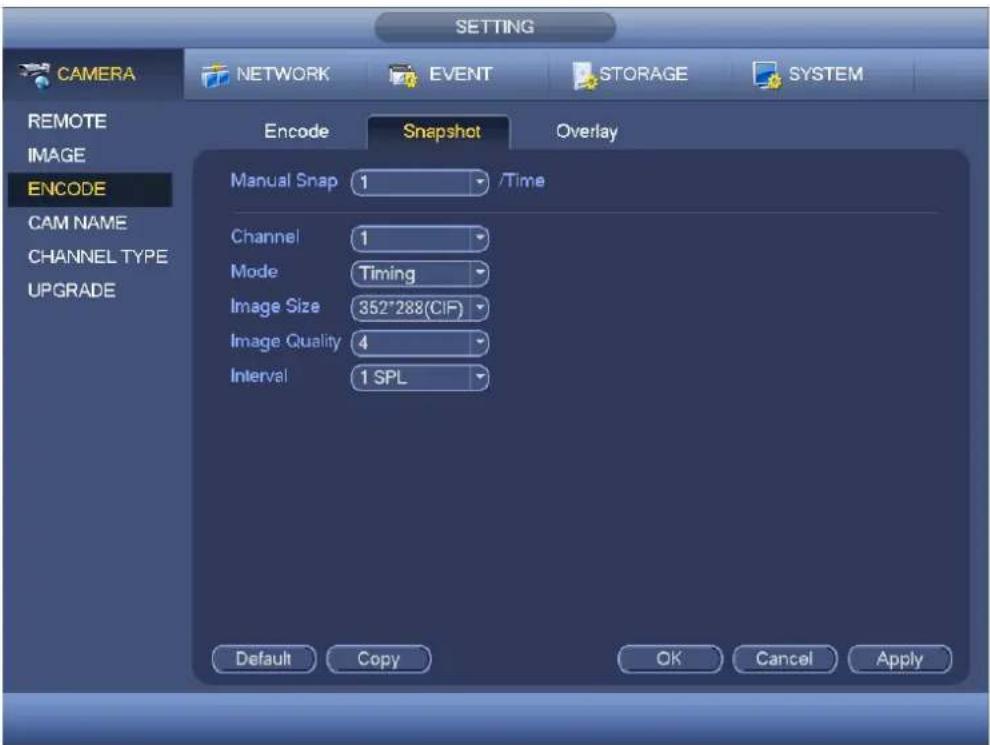
Figure 4-75
4.11.1.3.3 Overlay
Overlay interface is shown as in Figure 4-76.
- Cover area: Here is for you to set cover area. You can drag you mouse to set proper section size. In one channel video, system max supports 4 zones in one channel.
- Preview/monitor: privacy mask has two types. Preview and Monitor. Preview means the privacy mask zone can not be viewed by user when system is in preview status. Monitor means the privacy mask zone can not be view by the user when system is in monitor status.
- Time display: You can select system displays time or not when you playback. Please click set button and then drag the title to the corresponding position in the screen.
- Channel display: You can select system displays channel number or not when you playback. Please click set button and then drag the title to the corresponding position in the screen.
- Copy: After you complete the setup, you can click Copy button to copy current setup to other channel(s). You can see an interface is shown as in Figure 4-77. You can see current channel number is grey. Please check the number to select the channel or you can check the box ALL. Please click the OK button in Figure 4-77 and Figure 4-76 respectively to complete the setup.
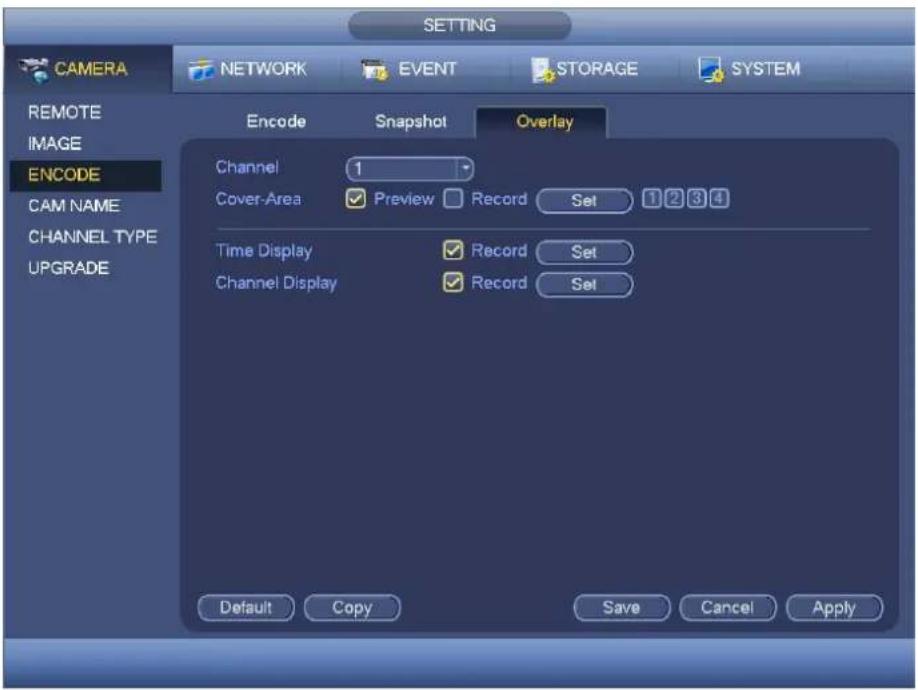
Figure 4-76
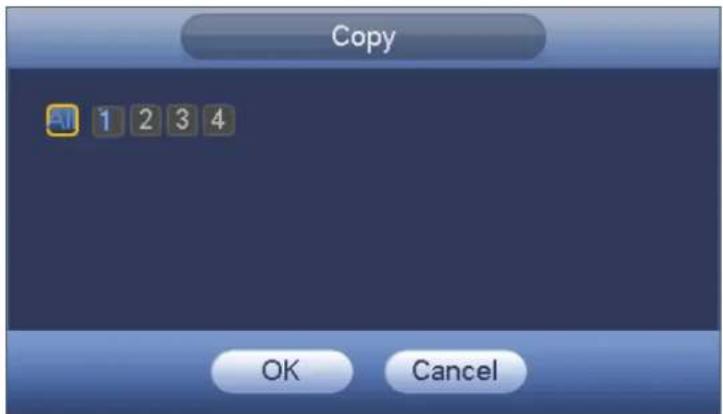
Figure 4-77
4.11.1.3.4 Channel Name
It is to modify channel name. It max supports 31-character. See Figure 4-78.
Please note for digital channel, you can only modify the channel name of the connected network camera.
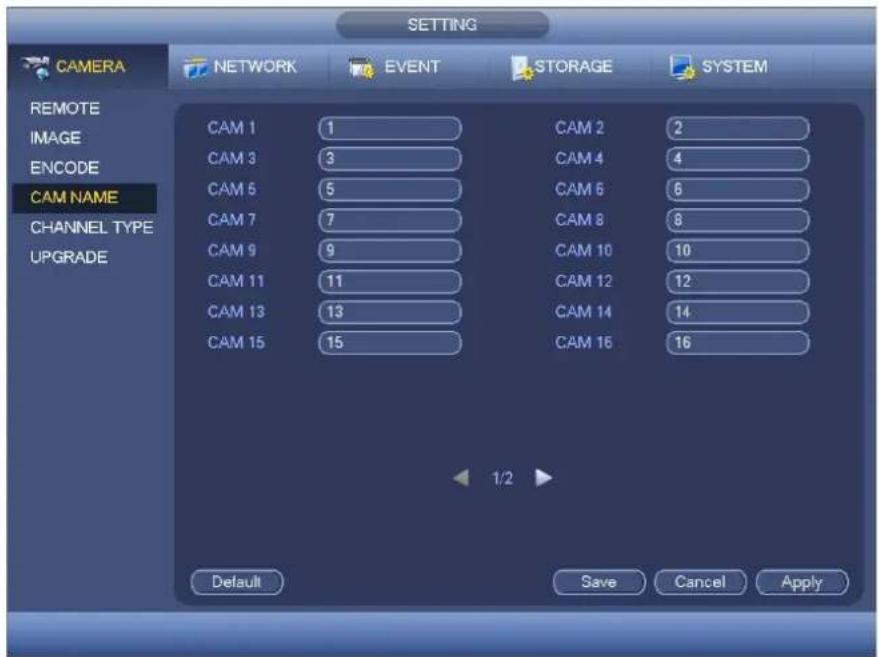
Figure 4-78
4.11.1.3.5 Channel Type
It is to set channel type. Each channel supports analog standard definition connections/analog HD connection/network camera connection (Slight function difference may be found). For the IP channel, you need to set from the last channel. Please note DVR needs to restart to activate new setup.
The interface is shown as in Figure 4-79.
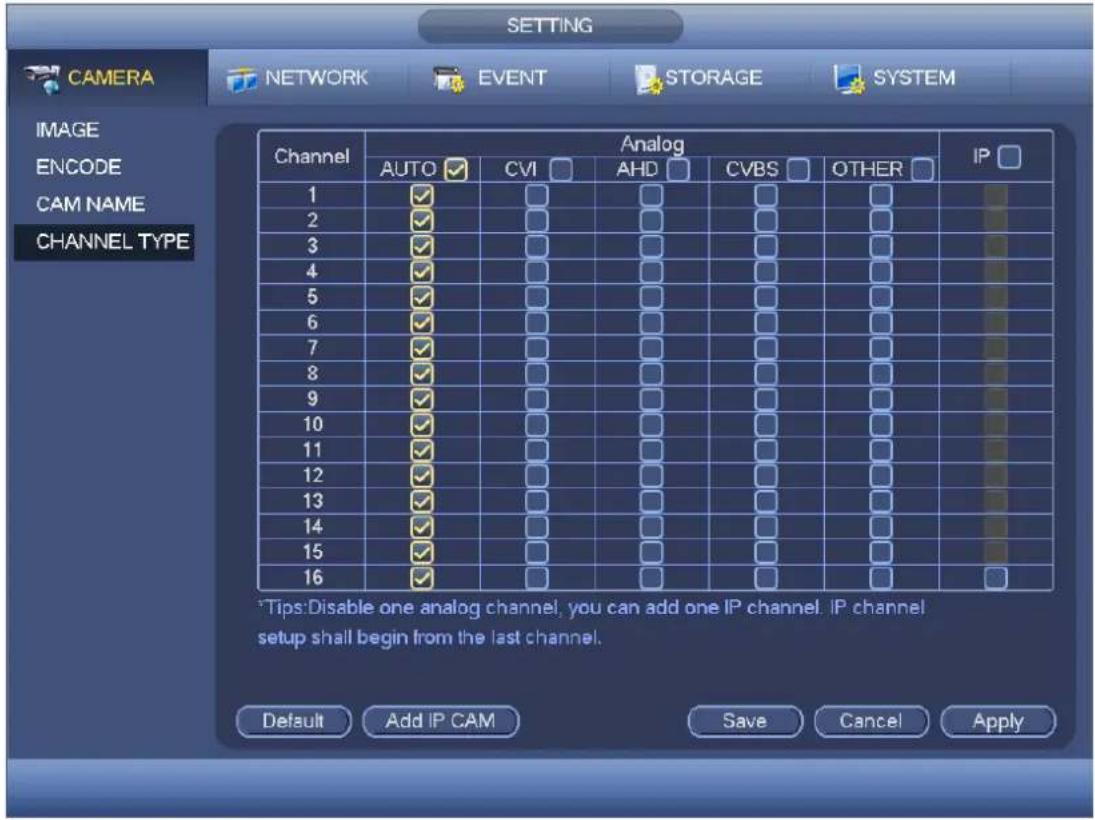
Figure 4-79

Important notice about XVR series product:
- Nowadays, there are mainly two analog signal types on today market: analog standard definition (CVBS) and analog HD (CVI, AHD or Other). For XVR series product, each channel supports all types of signal connection (analog signal/IP signal). For analog signal connection, the default setup is AUTO, that is to say, no matter what analog signal (CVBS, CVI, AHD or other analog HD signal) connected; the XVR can automatically recognize the signal and display the proper image. There is no need to set manually.
- If the auto recognition error occurred, XVR series product supports manual setup too. The manual setup featuring high recognition speed and usually there is no error. For example, in Figure 4-80, you can set channel 1 to connect to CVI camera, channel 2 to connect to AHD camera, channel 3 to connect to CVBS camera.
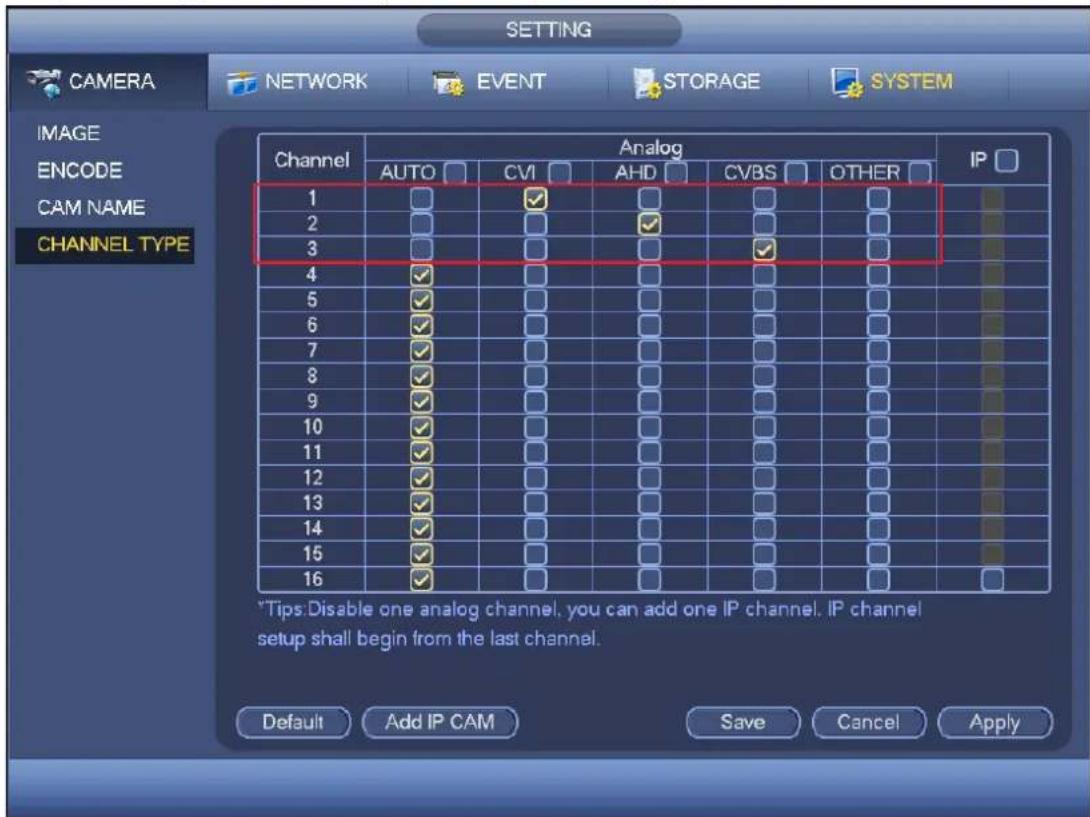
Figure 4-80
Important
Add/cancel IP CAM function is for some 4/8/16-channel series product only.
- Add IP CAM: Click it; you can add corresponding X IP channels. Here X refers to the product channel amount such as 4/8/16. System needs to restart to activate new setup. See Figure 4-81.
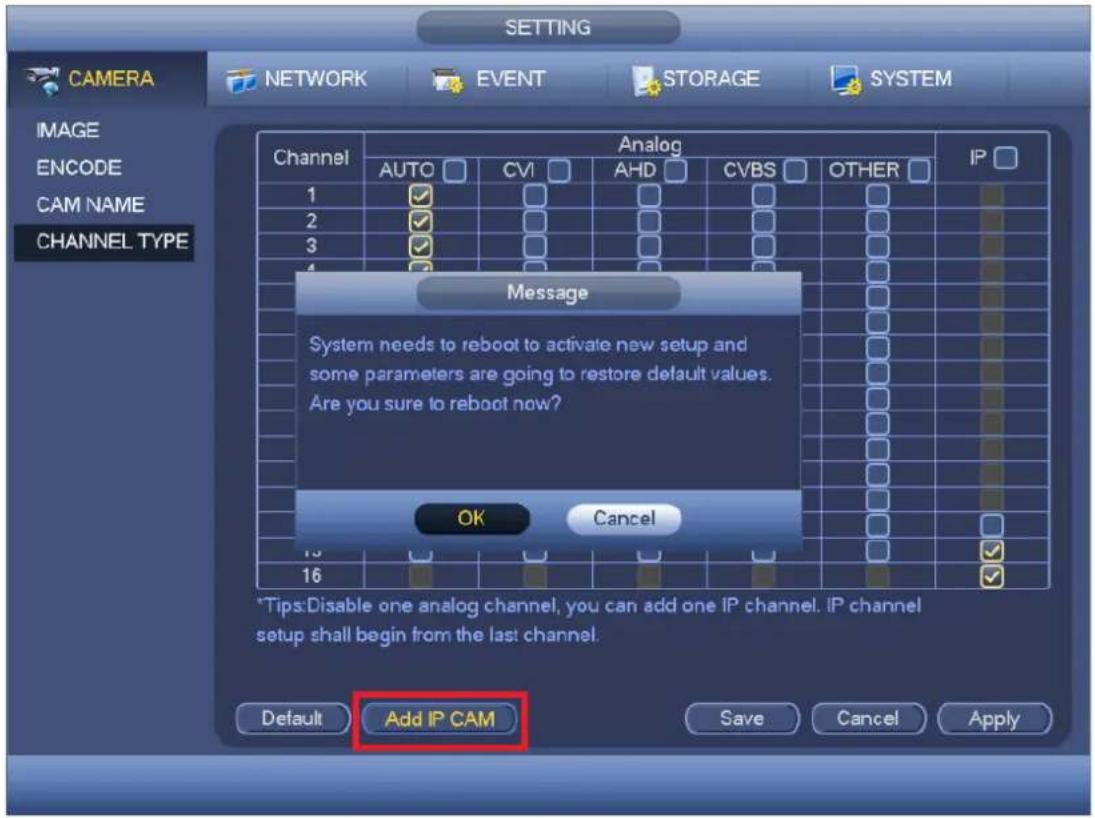
Figure 4-81
For example, there is a 4-channel analog device, after the A/D switch, it can max supports 4 analog channels and 4 IP channels. Once it has become the 3+1 mode (3 analog
Add IP CAM channels+1 IP channel), you click button, system becomes 3+5 mode
(3 analog channels+5 IP channel).
- Cancel IP CAM: Click it, you can cancel IP channel. System needs to restart to restore original status.
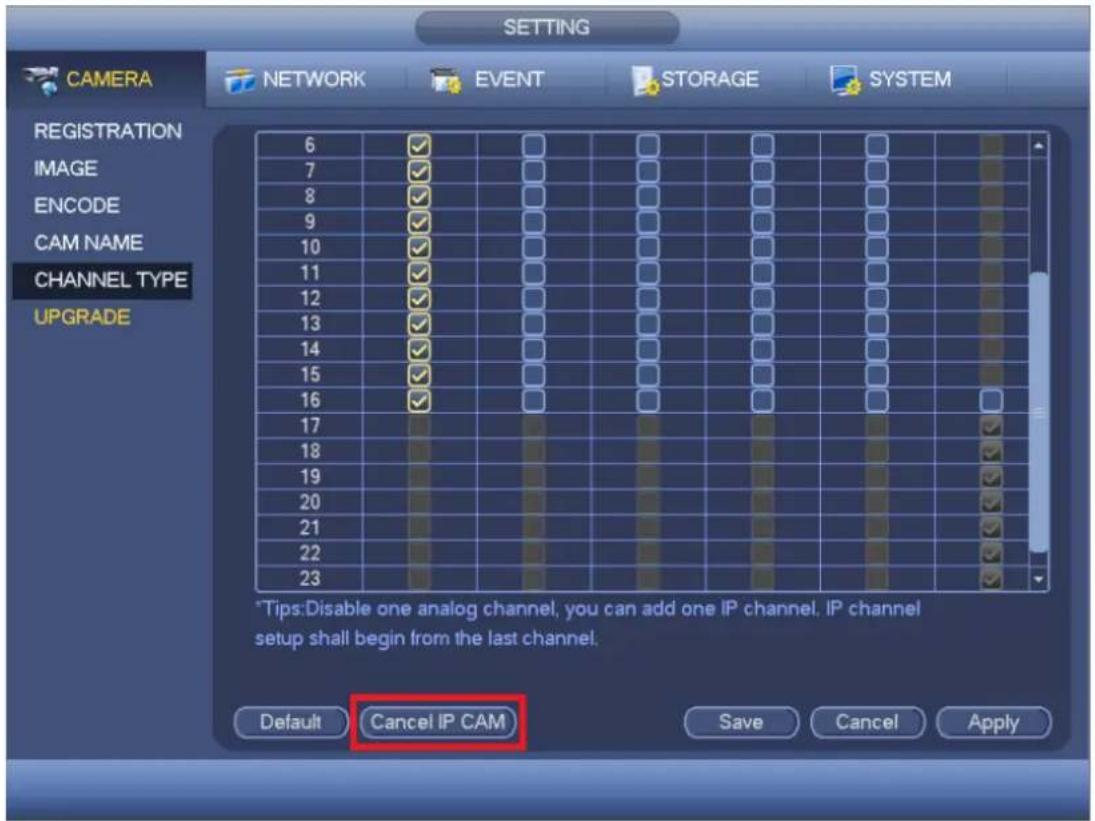
Figure 4-82
4.11.1.3.1 Upgrade

Important
XVR series product does not support upgrade function via coaxible cable. That is to say, you cannot use this interface to upgrade the connected CVI camera if you are using XVR.
It is to update the online camera.
From main menu->setting->camera->remote upgrade, the interface is shown as below.
See Figure 4-83.
Click Browse button and then select the upgrade file. Then select a channel (or you can select device type filter to select several devices at the same time.)
Click Start upgrade button to update. You can see the corresponding dialogue once the upgrade is finish.
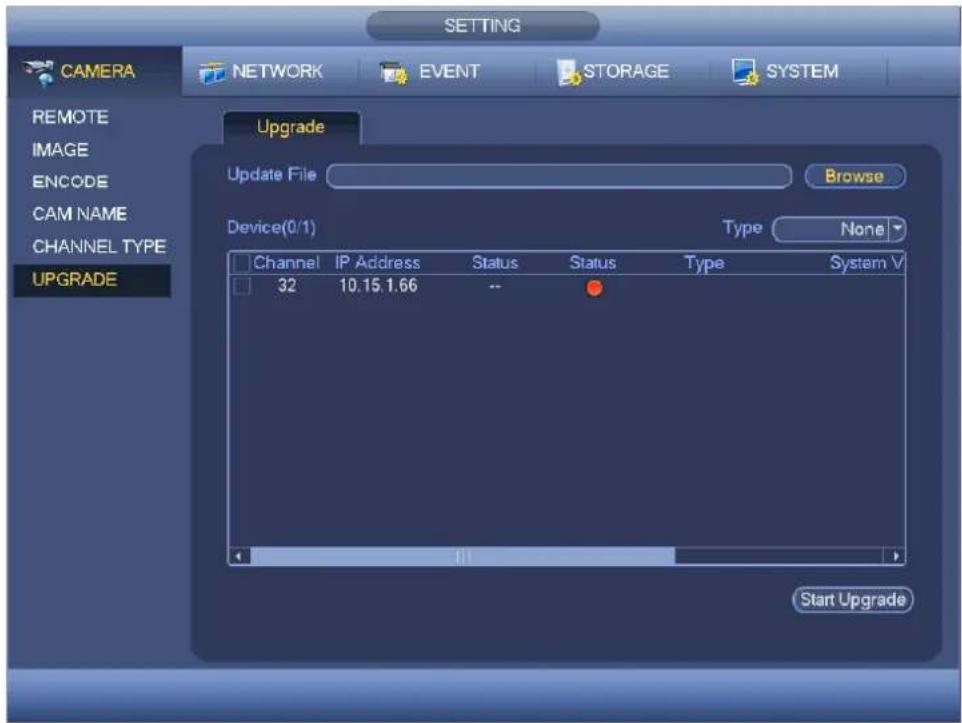
Figure 4-83
4.11.2 Network
4.11.2.1 TCP/IP
The single network adapter interface is shown as in Figure 4-84 and the dual network adapters interface is shown as in Figure 4-85
● Network Mode : Includes multiple access, fault tolerance, and load balancing
✿ Multiple-address mode: eth0 and eth1 operate separately. You can use the services such as HTTP, RTP service via eth0 or the eth1. Usually you need to set one default card (default setup is etho) to request the auto network service form the device-end such as DHCP, email, FTP and etc. In multiple-address mode, system network status is shown as offline once one card is offline.
Network fault-tolerance: In this mode, device uses bond0 to communicate with the external devices. You can focus on one host IP address. At the same time, you need to set one master card. Usually there is only one running card (master card). System can enable alternate card when the master card is malfunction. The system is shown as offline once these two cards are both offline. Please note these two cards shall be in the same LAN.
Load balance: In this mode, device uses bond0 to communicate with the external device. The eth0 and eth1 are both working now and bearing the network load. Their network load are general the same. The system is shown as offline once these two cards are both offline. Please note these two cards shall be in the same LAN.
- Default Network Card: Please select eth0/eth1/bond0(optional) after enable multiple-access function
- Main Network Card: Please select eth0/eth1 (optional).after enable multiple access function.
Note: Some series support the above three configurations and supports functions as multiple-access, fault-tolerance and load balancing.
- IP Version: There are two options: IPv4 and IPv6. Right now, system supports these two IP address format and you can access via them.
- MAC address: The host in the LAN can get a unique MAC address. It is for you to access in the LAN. It is read-only.
- IP address: Here you can use up/down button (▲▼) or input the corresponding number to input IP address. Then you can set the corresponding subnet mask the default gateway.
- Default gateway: Here you can input the default gateway. Please note system needs to check the validity of all IPv6 addresses. The IP address and the default gateway shall be in the same IP section. That is to say, the specified length of the subnet prefix shall have the same string.
- DHCP: It is to auto search IP. When enable DHCP function, you can not modify IP/Subnet mask /Gateway. These values are from DHCP function. If you have not enabled DHCP function, IP/Subnet mask/Gateway display as zero. You need to disable DHCP function to view current IP information. Besides, when PPPoE is operating, you can not modify IP/Subnet mask /Gateway.
- MTU: It is to set MTU value of the network adapter. The value ranges from 1280-7200 bytes. The default setup is 1500 bytes. Please note MTU modification may result in network adapter reboot and network becomes off. That is to say, MTU modification can affect current network service. System may pop up dialog box for you to confirm setup when you want to change MTU setup. Click OK button to confirm current reboot, or you can click Cancel button to terminate current modification. Before the modification, you can check the MTU of the gateway; the MTU of the DVR shall be the same as or is lower than the MTU of the gateway. In this way, you can reduce packets and enhance network transmission efficiency.
The following MTU value is for reference only.
1500: Ethernet information packet max value and it is also the default value. It is the typical setup when there is no PPPoE or VPN. It is the default setup of some router, switch or the network adapter.
✦ 1492: Recommend value for PPPoE.
✦ 1468: Recommend value for DHCP.
- Preferred DNS server: DNS server IP address.
- Alternate DNS server: DNS server alternate address.
● Transfer mode: Here you can select the priority between fluency/video qualities.
● LAN download: System can process the downloaded data first if you enable this function. The download speed is 1.5X or 2.0X of the normal speed.
● LAN download: System can process the downloaded data first if you enable this function. The download speed is 1.5X or 2.0X of the normal speed.
After completing all the setups please click save button, system goes back to the previous menu.
Figure 4-84
Figure 4-85
4.11.2.2 Connection
The connection setup interface is shown as in Figure 4-86.
Max connection: system support maximal 128 users. 0 means there is no connection limit.
☐ TCP port: Default value is 37777.
☐ UDP port: Default value is 37778.
- HTTP port: Default value is 80.
- HTTPS port: Default value is 443.
- RTSP port: Default value is 554.
Important: System needs to reboot after you changed and saved any setup of the above four ports. Please make sure the port values here do not conflict.
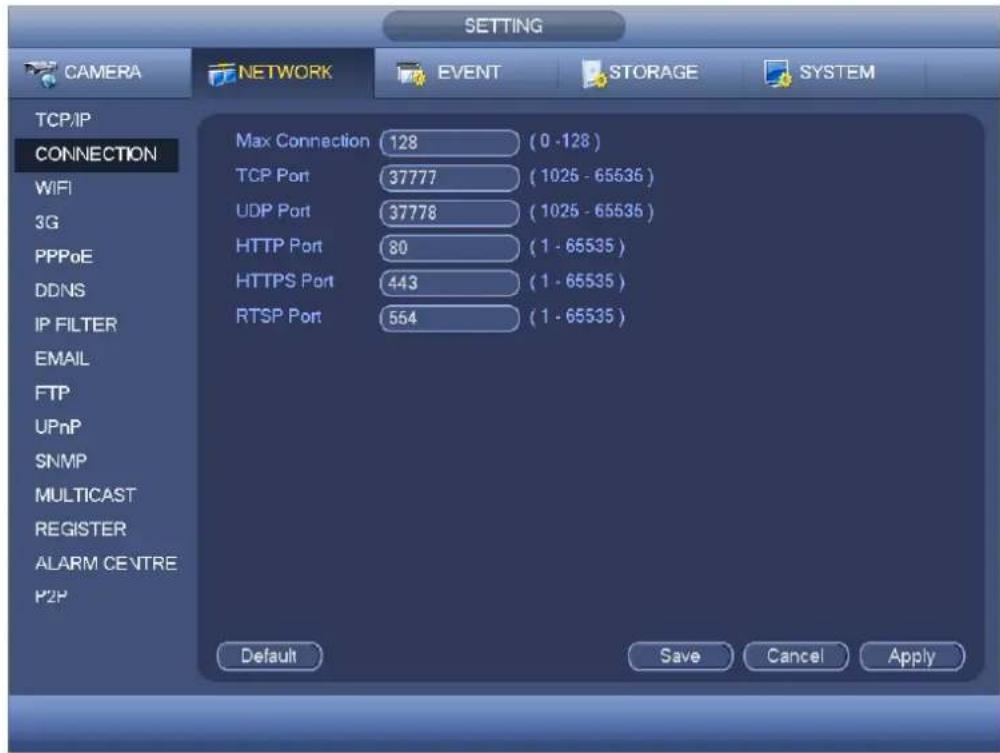
Figure 4-86
4.11.2.3 WIFI
The WIFI interface is shown as below. See Figure 4-87.
- Auto connect WIFI: Check the box here, system automatically connects to the previous WIFI hotspot.
- Refresh: You can click it to search the hotspot list again. It can automatically add the information such as the password if you have set it before.
- Disconnect: Here you can click it to turn off the connection.
- Connect: Here you can click it to connect to the hotspot. System needs to turn off current connection and then connect to a new hotspot if there is connection of you selected one.
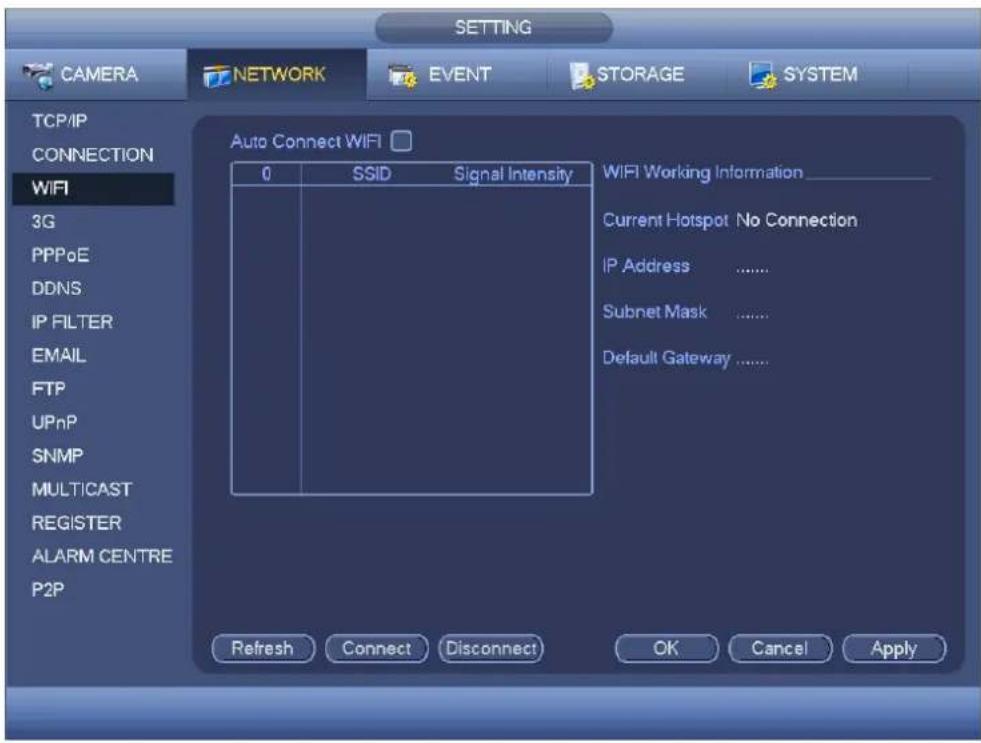
Figure 4-87
● WIFI working status: Here you can view current connection status.
Please note:
- After successful connection, you can see WIFI connection icon at the top right corner of the preview interface.
- When the hotspot verification type is WEP, system displays as AUTO since the device can not detect its encryption type.
- System does not support verification type WPA and WPA2. The display may become abnormal for the verification type and encryption type.
After device successfully connected to the WIFI, you can view the hotspot name, IP address, subnet mask, default gateway and etc.
4.11.2.4 3G
3G setup interface is shown as below. See Figure 4-88.
Please refer to the following contents for the parameter information.
- Pane 1: Display 3G signal intensity after you enabled 3G function.
- Pane 2: Display 3G module configuration information after you enabled 3G function.
- Pane 3: Display 3G module status information after you enabled 3G function.
It is to display current wireless network signal intensity such as EVDO, CDMA1x, WCDMA, WCDMA, EDGE and etc.
- 3G module: It is to display current wireless network adapter name.
- 3G Enable/Disable: Check the box here to enable 3G module.
● Network type: There are various network types for different 3G network modules. You can select according to your requirements.
● APN: It is the wireless connection server. It is to set you access the wireless network via which method.
- AUTH: It is the authentication mode. It supports PAP/CHAP.
- Dial number: Please input 3G network dialup number you got from your ISP.
- User name: It is the user name for you to login the 3G network.
- Password: It is the password for you to login the 3G network.
- Pulse interval: You can set dialup duration. Once you disable the extra stream, the connection time begins. For example, if you input 5 seconds here, then 3G network connection period is 5 seconds. The device automatically disconnect when time is up. If there is no extra stream, 3G network connection is valid all the time. If the alive time is 0, then the 3G network connection is valid all the time.
- Dial: Here you can enable or disable 3G network connection/disconnection manually.
- 3G wireless network: Here is to display wireless network status, SIM card status, dial status. If the 3G connection is OK, then you can see the device IP address the wireless network automatically allocates.
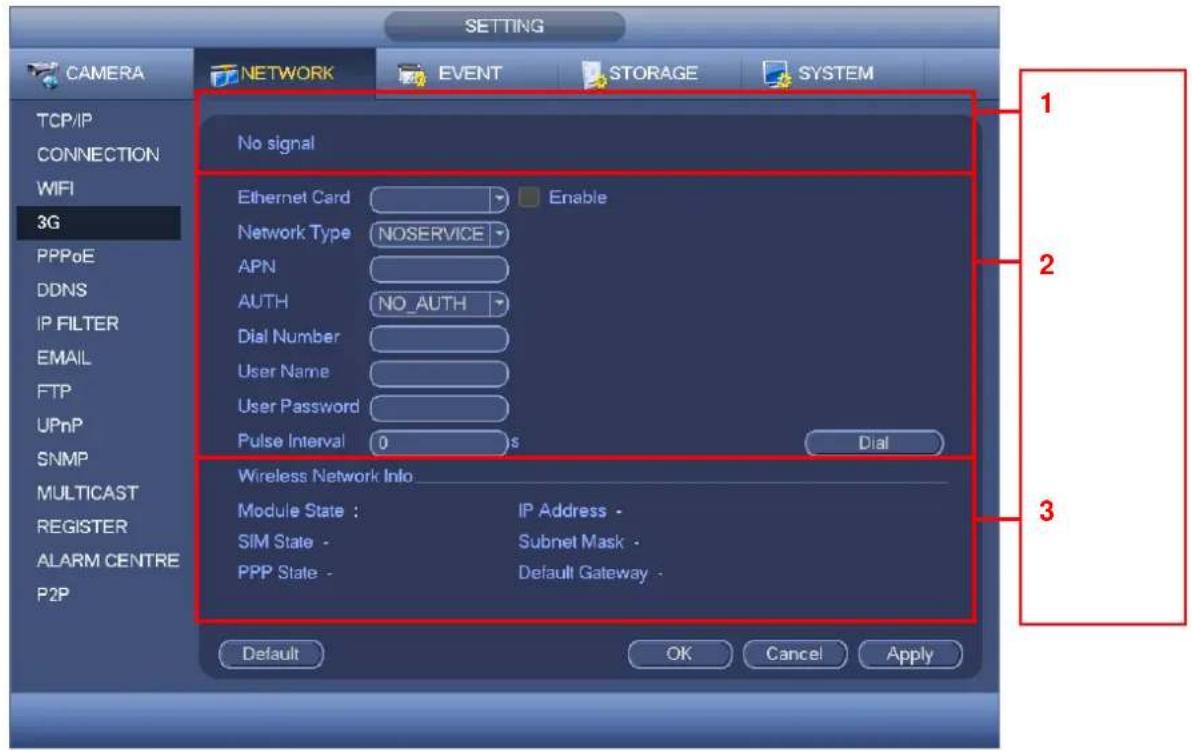
Figure 4-88
4.11.2.5 PPPoE
PPPoE interface is shown as in Figure 4-89.
Input "PPPoE name" and "PPPoE password" you get from your ISP (Internet service provider).
Click save button, you need to restart to activate your configuration.
After rebooting, DVR will connect to internet automatically. The IP in the PPPoE is the DVR dynamic value. You can access this IP to visit the unit.
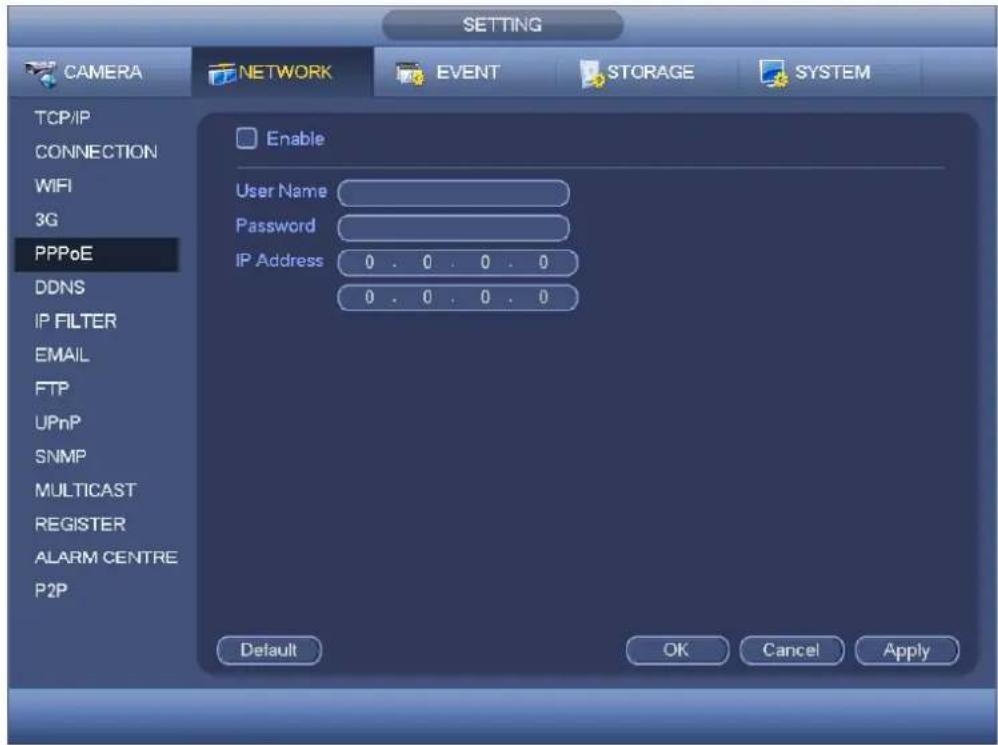
Figure 4-89
4.11.2.6 DDNS Setup
DDNS setup interface is shown as in Figure 4-90.
You need a PC of fixed IP in the internet and there is the DDNS software running in this PC. In other words, this PC is a DNS (domain name server).
In network DDNS, please select DDNS type and highlight enable item. Them please input your PPPoE name you get from you IPS and server IP (PC with DDNS). Click save button and then reboot system.
Click save button, system prompts for rebooting to get all setup activated.
After rebooting, open IE and input as below:
http://(DDNS server IP)/(virtual directory name)/webtest.htm
e.g.: http://10.6.2.85/DVR_DDNS/webtest.htm.)
Now you can open DDNSServer web search page.
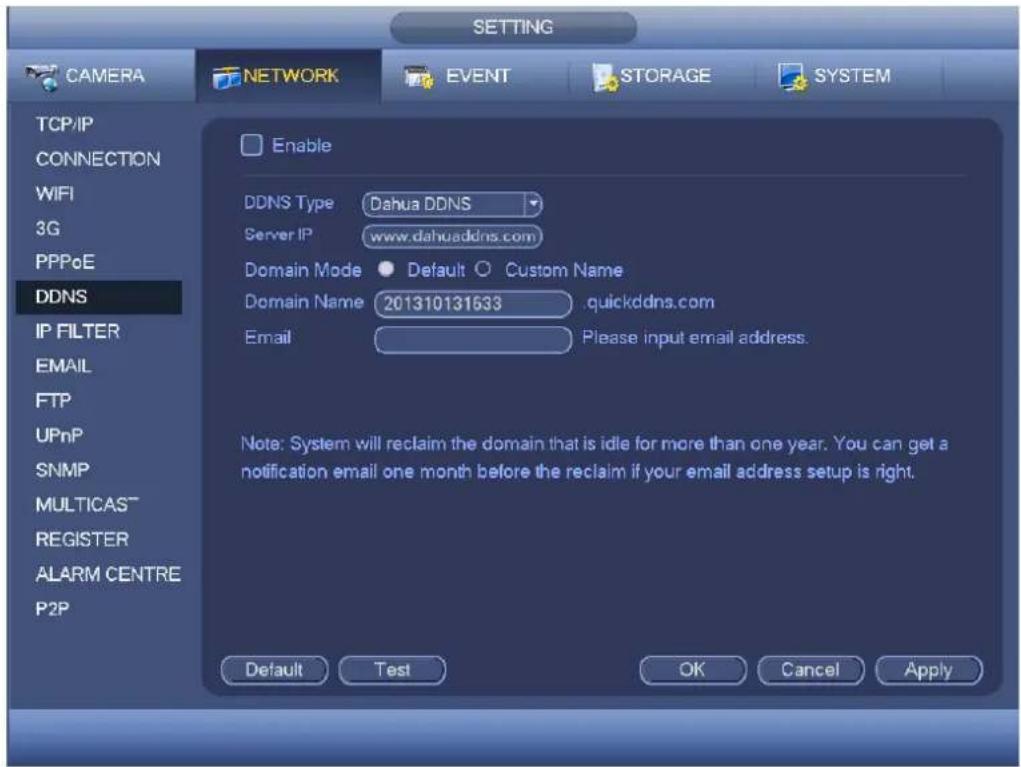
Figure 4-90
Please note DDNS type includes: CN99 DDNS, NO-IP DDNS, Dahua DDNS, Dyndns DDNS and sysdns DDNS. All the DDNS can be valid at the same time, you can select as you requirement.
Private DDNS function shall work with special DDNS server and special Professional Surveillance Software (PSS).
Dahua DDNS and Client-end Introduction
1) Background Introduction
Device IP is not fixed if you use ADSL to login the network. The DDNS function allows you to access the DVR via the registered domain name. Besides the general DDNS, the Dahua DDNS works with the device from the manufacturer so that it can add the extension function.
2) Function Introduction
The Dahua DDNS client has the same function as other DDNS client end. It realizes the bonding of the domain name and the IP address. Right now, current DDNS server is for our own devices only. You need to refresh the bonding relationship of the domain and the IP regularly. There is no user name, password or the ID registration on the server. At the same time, each device has a default domain name (Generated by MAC address) for your option. You can also use customized valid domain name (has not registered.).
3) Operation
Before you use Dahua DDNS, you need to enable this service and set proper server address, port value and domain name.
- Server address: www.dahuaddns.com
- Port number: 80
- Domain name: There are two modes: Default domain name and customized domain name.
Except default domain name registration, you can also use customized domain name (You can input your self-defined domain name.) After successful registration, you can use domain name to login installed of the device IP.
- User name: It is optional. You can input your commonly used email address.
Important
- Do not register frequently. The interval between two registrations shall be more than 60 seconds. Too many registration requests may result in server attack.
- System may take back the domain name that is idle for one year. You can get a notification email before the cancel operation if your email address setup is OK.
4.11.2.7 IP Filter
IP filter interface is shown as in Figure 4-91. You can add IP in the following list. The list supports max 64 IP addresses. System supports valid address of IPv4 and IPv6. Please note system needs to check the validity of all IPv6 addresses and implement optimization.
After you enabled trusted sites function, only the IP listed below can access current DVR. If you enable blocked sites function, the following listed IP addresses can not access current DVR.
- Enable: Highlight the box here, you can check the trusted site function and blocked sites function. You can not see these two modes if the Enable button is grey.
- Type: You can select trusted site and blacklist from the dropdown list. You can view the IP address on the following column.
- Start address/end address: Select one type from the dropdown list, you can input IP address in the start address and end address. Now you can click Add IP address or Add IP section to add.
a) For the newly added IP address, it is in enable status by default. Remove the √ before the item, and then current item is not in the list.
b) System max supports 64 items.
c) Address column supports IPv4 or IPv6 format. If it is IPv6 address, system can optimize it. For example, system can optimize aa:0000: 00: 00aa: 00aa: 00aa: 00aa: 00aa as aa:: aa: aa: aa: aa: aa: aa.
d) System automatically removes space if there is any space before or after the newly added IP address.
e) System only checks start address if you add IP address. System check start address and end address if you add IP section and the end address shall be larger than the start address.
f) System may check newly added IP address exists or not. System does not add if input IP address does not exist.
- Delete: Click it to remove specified item.
- Edit: Click it to edit start address and end address. See Figure 4-92. System can check the IP address validity after the edit operation and implement IPv6 optimization.
- Default: Click it to restore default setup. In this case, the trusted sites and blocked sites are both null.
Note:
- If you enabled trusted sites, only the IP in the trusted sites list can access the device.
- If you enabled blocked sites, the IP in the blocked sites can not access the device.
- System supports add MAC address.
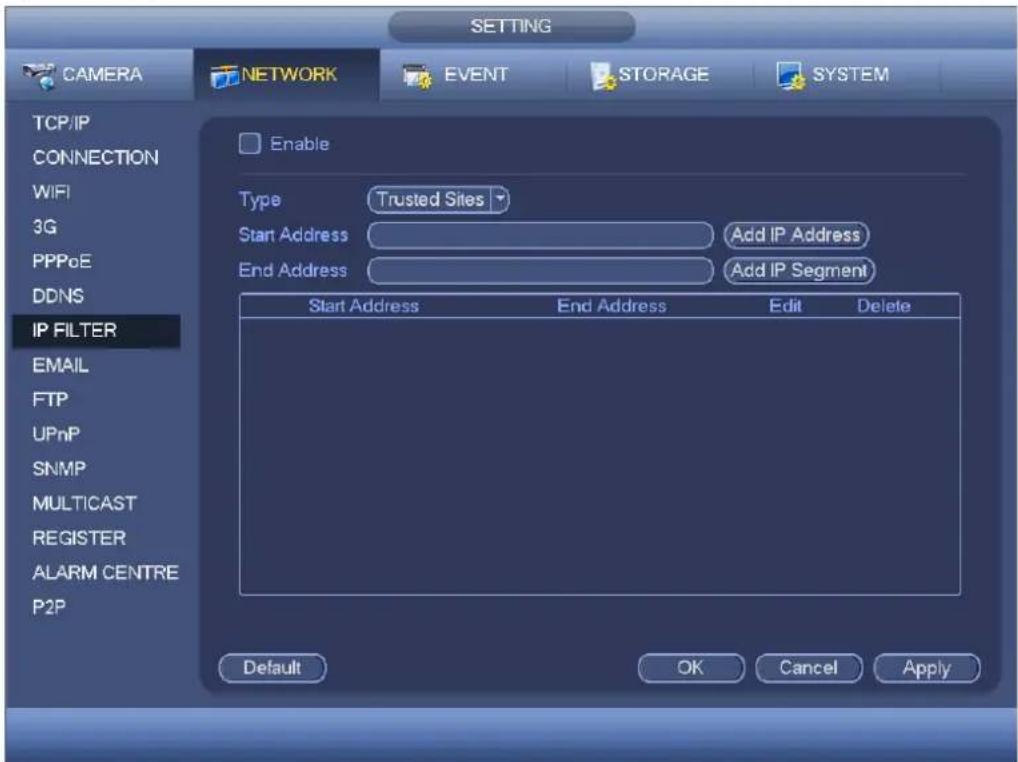
Figure 4-91
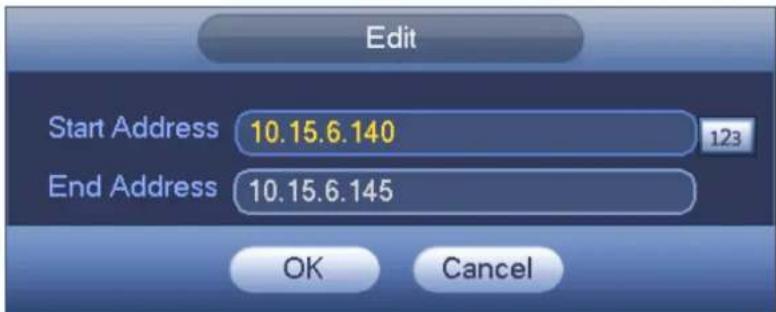
Figure 4-92
4.11.2.8 Email
The email interface is shown as below. See Figure 4-93.
- SMTP server: Please input your email SMTP server IP here.
● Port: Please input corresponding port value here. - User name: Please input the user name to login the sender email box.
- Password: Please input the corresponding password here.
-
Sender: Please input sender email box here.
-
Title: Please input email subject here. System support English character and Arabic number. Max 32-digit.
- Receiver: Please input receiver email address here. System max supports 3 email boxes. System automatically filters same addresses if you input one receiver repeatedly.
- SSL enable: System supports SSL encryption box.
- Interval: The send interval ranges from 0 to 3600 seconds. 0 means there is no interval.
● Health email enable: Please check the box here to enable this function. This function allows the system to send out the test email to check the connection is OK or not. - Interval: Please check the above box to enable this function and then set the corresponding interval. System can send out the email regularly as you set here. Click the Test button, you can see the corresponding dialogue box to see the email connection is OK or not.
Please note system will not send out the email immediately when the alarm occurs. When the alarm, motion detection or the abnormality event activates the email, system sends out the email according to the interval you specified here. This function is very useful when there are too many emails activated by the abnormality events, which may result in heavy load for the email server.
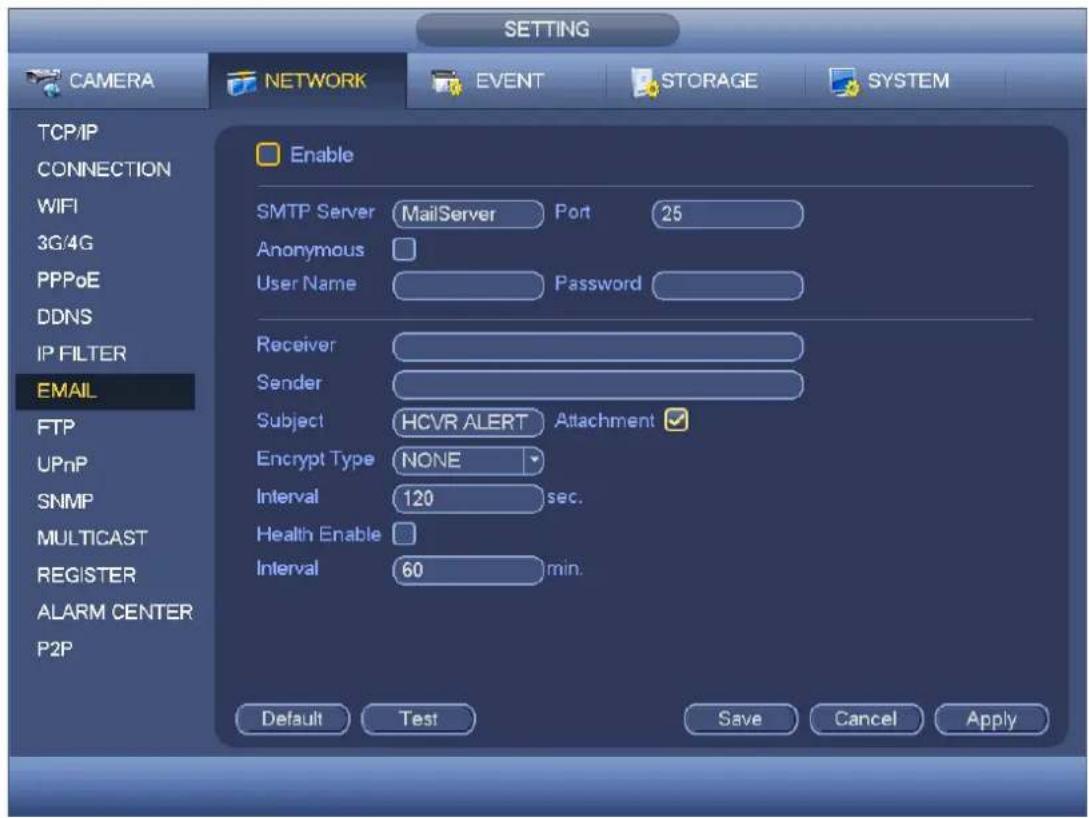
Figure 4-93
4.11.2.9 FTP
You need to download or buy FTP service tool (such as Ser-U FTP SERVER) to establish
FTP service.
Please install Ser-U FTP SERVER first. From "start" -> "program" -> Serv-U FTP Server -> Serv-U Administrator. Now you can set user password and FTP folder. Please note you need to grant write right to FTP upload user. See Figure 4-94.
![Serv-U Administrator - <> File Edit User View Window Help Serv-U Servers << Local Server >> License Settings Activity Domains zhonghy Settings Activity Users dhy Groups Account General Dir Access IP Access UL/DL Rate Path Access Group D:\DVR RWAC-LCRI Files: Read Write Append Delete Execute Directories: List Create Remove sum directories: Inheit Add Delete Edit Apply Restore << Local Server >> [System Administrator] Down: 0.000 KBps / Up: 0.000 KBps 3 of 32767 Sockets 0 (O) Users 0 Xfers](/content/2026/06/1189804/images/d672c6c5e949f744c690dd97653eb2d9a1538ae40db232d537edc16424815c2a.jpg)
Figure 4-94
You can use a PC or FTP login tool to test setup is right or not.
For example, you can login user ZHY to _FTP://10.10.7.7_ and then test it can modify or delete folder or not. See Figure 4-95.
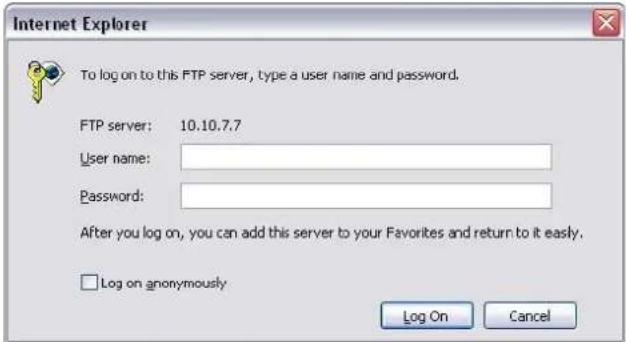
Figure 4-95
System also supports upload multiple DVRs to one FTP server. You can create multiple folders under this FTP.
FTP interface is shown as in Figure 4-96.
Please highlight the icon in front of Enable to activate FTP function.
Here you can input FTP server address, port and remote directory. When remote directory is null, system automatically create folders according to the IP, time and channel.
User name and password is the account information for you to login the FTP.
File length is upload file length. When setup is larger than the actual file length, system will upload the whole file. When setup here is smaller than the actual file length, system only
uploads the set length and auto ignore the left section. When interval value is 0, system uploads all corresponding files.
After completed channel and weekday setup, you can set two periods for one each channel.
Click the Test button, you can see the corresponding dialogue box to see the FTP connection is OK or not.
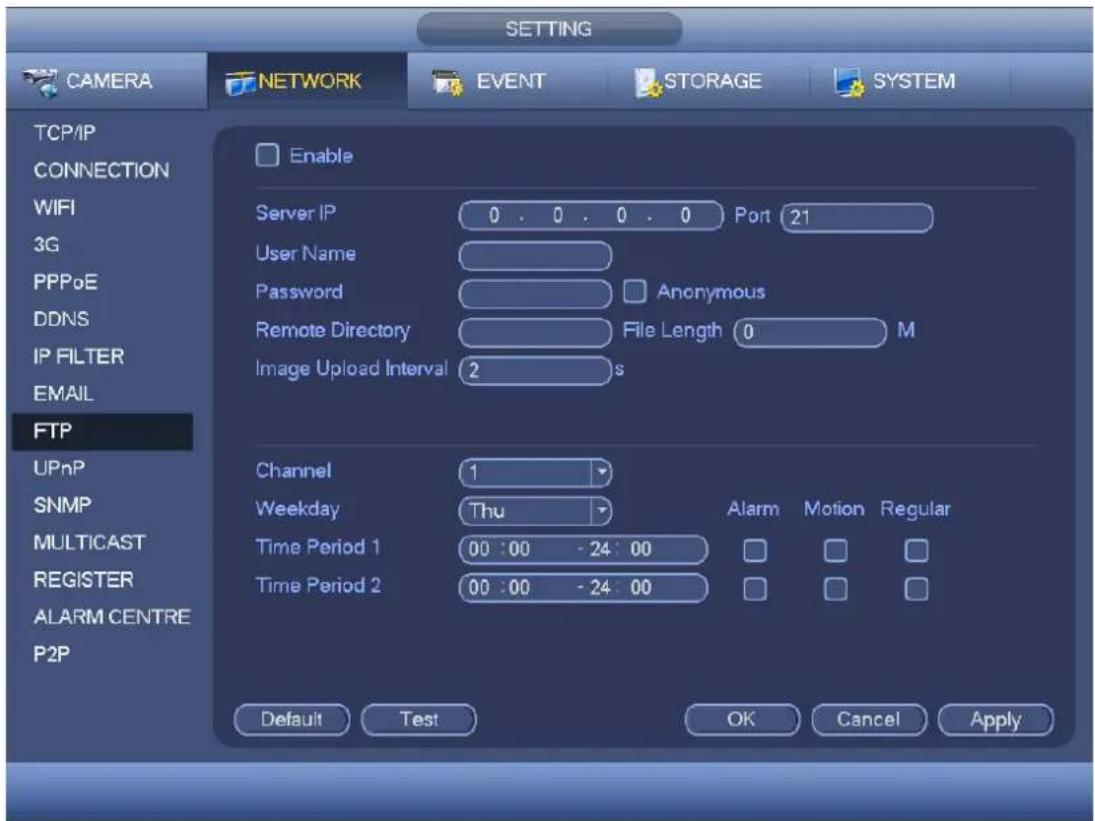
Figure 4-96
4.11.2.10 UPnP
The UPNP protocol is to establish a mapping relationship between the LAN and the WAN. Please input the router IP address in the LAN in Figure 4-84. See Figure 4-97.
- UPNP on/off : Turn on or off the UPNP function of the device.
- Status: When the UPNP is offline, it shows as "Unknown". When the UPNP works it shows "Success"
- Router LAN IP: It is the router IP in the LAN.
- WAN IP: It is the router IP in the WAN.
- Port Mapping list: The port mapping list here is the one to one relationship with the router's port mapping setting.
- List:
Service name: Defined by user.
✨ Protocol: Protocol type
Internal port: Port that has been mapped in the router.
External port: Port that has been mapped locally.
● Default: UPNP default port setting is the HTTP, TCP and UDP of the DVR.
- Add to the list: Click it to add the mapping relationship.
- Delete: Click it to remove one mapping item.
Double click one item; you can change the corresponding mapping information. See Figure 4-98.
Important:
When you are setting the router external port, please use 1024\~5000 port. Do not use well-known port 1\~255 and the system port 256\~1023 to avoid conflict.
For the TCP and UDP, please make sure the internal port and external port are the same to guarantee the proper data transmission.
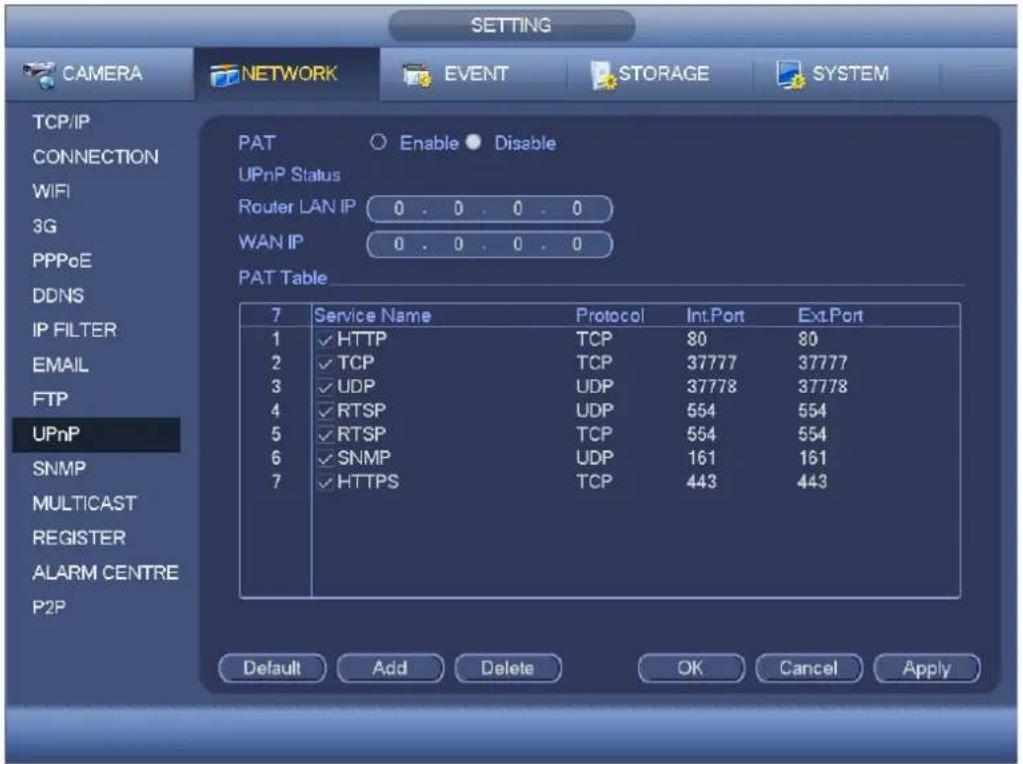
Figure 4-97
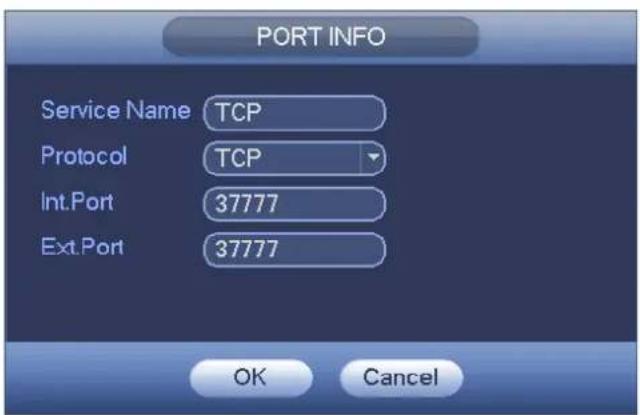
Figure 4-98
4.11.2.11 SNMP
SNMP is an abbreviation of Simple Network Management Protocol. It provides the basic network management frame of the network management system. The SNMP widely used in many environments. It is used in many network device, software and system.
You can set in the following interface. See Figure 4-99.
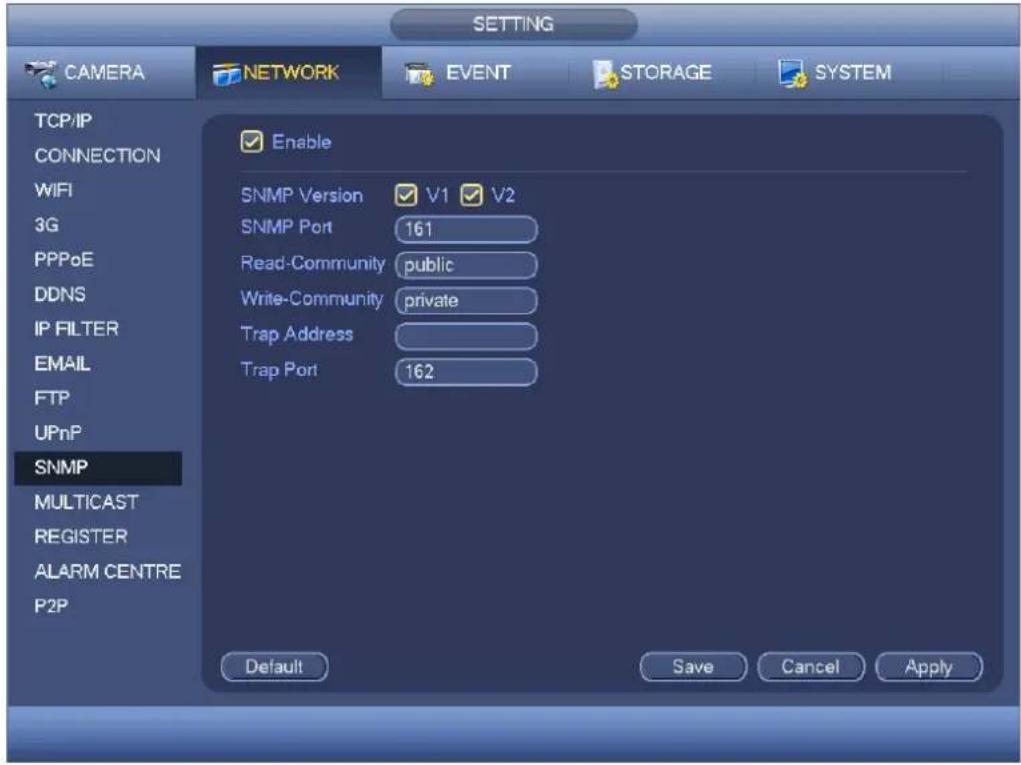
Figure 4-99
Please enable the SNMP function. Use the corresponding software tool (MIB Builder and MG-SOFT MIB Browser. You still need two MIB file: BASE-SNMP-MIB, DVR-SNMP-MIB) to connect to the device. You can get the device corresponding configuration information after successfully connection.
Please follow the steps listed below to configure.
- In Figure 4-99, check the box to enable the SNMP function. Input the IP address of the PC than is running the software in the Trap address. You can use default setup for the rest items.
- Compile the above mentioned two MIB file via the software MIB Builder.
- Run MG-SOFT MIB Browser to load the file from the previous step to the software.
- Input the device IP you want to manage in the MG-SOFT MIB Browser. Please set the corresponding version for your future reference.
- Open the tree list on the MG-SOFT MIB Browser; you can get the device configuration. Here you can see the device has how many video channels, audio channels, application version and etc.
Note
Port conflict occurs when SNMP port and Trap port are the same.
4.11.2.12 Multicast
Multicast setup interface is shown as in Figure 4-100.
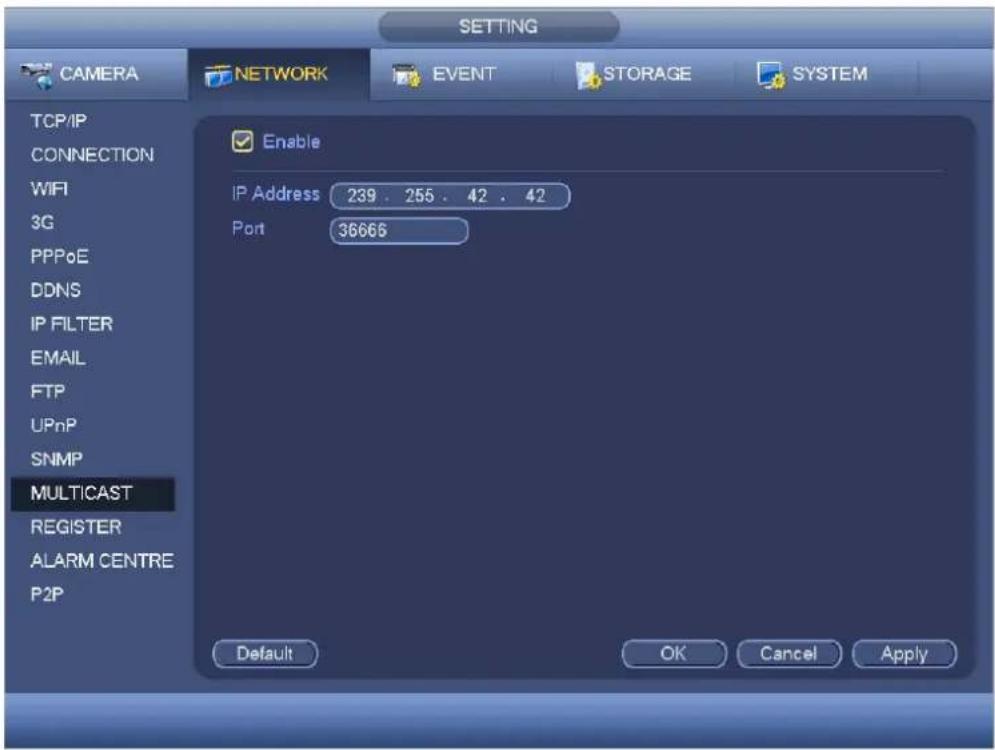
Figure 4-100
Here you can set a multiple cast group. Please refer to the following sheet for detailed information.
- IP multiple cast group address
-224.0.0.0-239.255.255.255
-“D” address space
● The higher four-bit of the first byte="1110"
● Reserved local multiple cast group address
-224.0.0.0-224.0.0.255
-TTL=1 When sending out telegraph
-For example
224.0.0.1 All systems in the sub-net
224.0.0.2 All routers in the sub-net
224.0.0.4 DVMRP router
224.0.0.5 OSPF router
224.0.0.13 PIMv2 router
● Administrative scoped addressees
-239.0.0.0-239.255.255.255
-Private address space
● Like the single broadcast address of RFC1918
- Can not be used in Internet transmission
● Used for multiple cast broadcast in limited space.
Except the above mentioned addresses of special meaning, you can use other addresses.
For example:
Multiple cast IP: 235.8.8.36
Multiple cast PORT: 3666.
After you logged in the Web, the Web can automatically get multiple cast address and add it to the multiple cast groups. You can enable real-time monitor function to view the view.
Please note multiple cast function applies to special series only.
4.11.2.13 Auto register
This function allows the device to auto register to the proxy you specified. In this way, you can use the client-end to access the DVR and etc via the proxy. Here the proxy has a switch function. In the network service, device supports the server address of IPv4 or domain.
Please follow the steps listed below to use this function.
Please set proxy server address, port, and sub-device name at the device-end. Please enable the auto register function, the device can auto register to the proxy server.
1) The setup interface is shown as in Figure 4-101.
Important
Do not input network default port such as TCP port number.
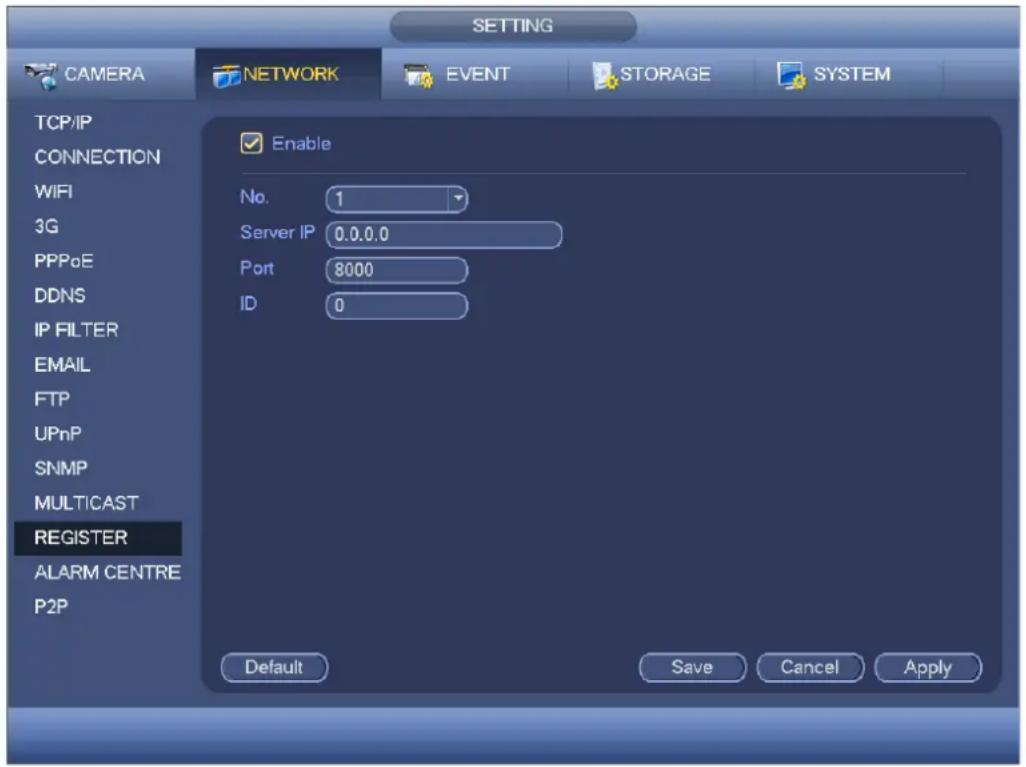
Figure 4-101
2) The proxy server software developed from the SDK. Please open the software and input the global setup. Please make sure the auto connection port here is the same as the port you set in the previous step.
3) Now you can add device. Please do not input default port number such as the TCP port
in the mapping port number. The device ID here shall be the same with the ID you input in Figure 4-101. Click Add button to complete the setup.
4) Now you can boot up the proxy server. When you see the network status is Y, it means your registration is OK. You can view the proxy server when the device is online.
Important
The server IP address can also be domain. But you need to register a domain name before you run proxy device server.
4.11.2.14 Alarm Centre
This interface is reserved for you to develop. See Figure 4-102.
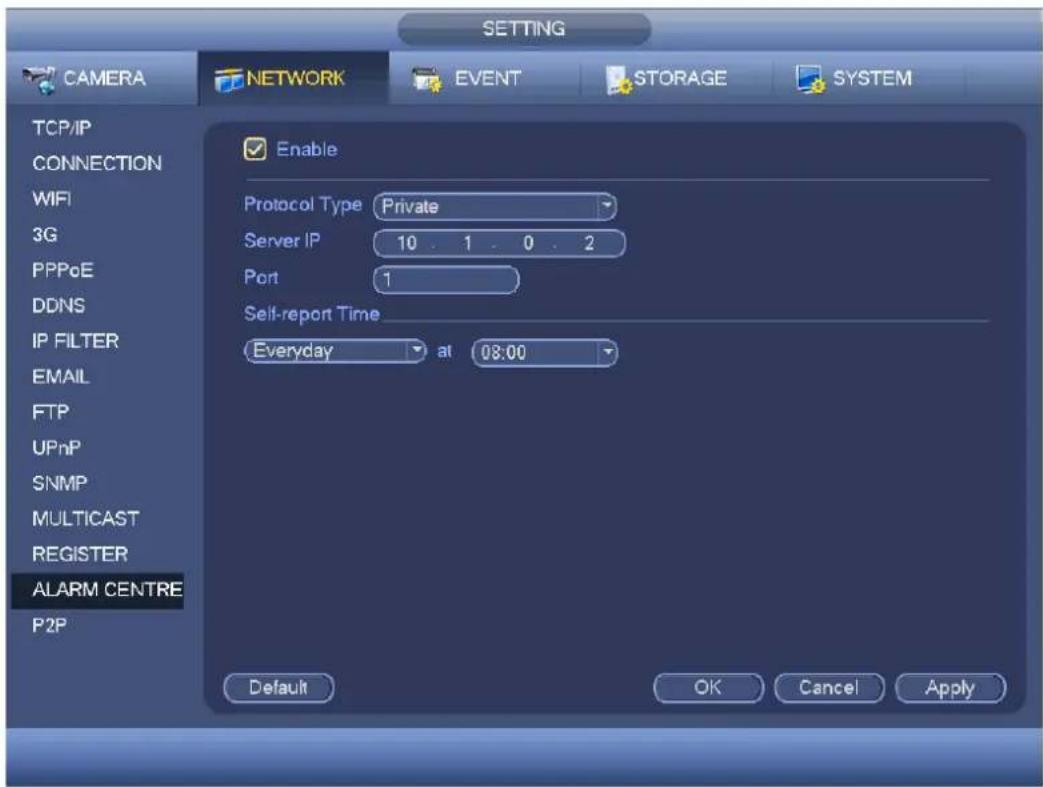
Figure 4-102
4.11.2.15 P2P
You can use your cell phone to scan the QR code and add it to the cell phone client.
Via the SN from scanning the QR code, you can access the device in the WAN. Please refer to the P2P operation manual included in the resources CD.
From main menu->Setting->Network->P2P, you can go to the following interface, the P2P interface is shown as in Figure 4-103.
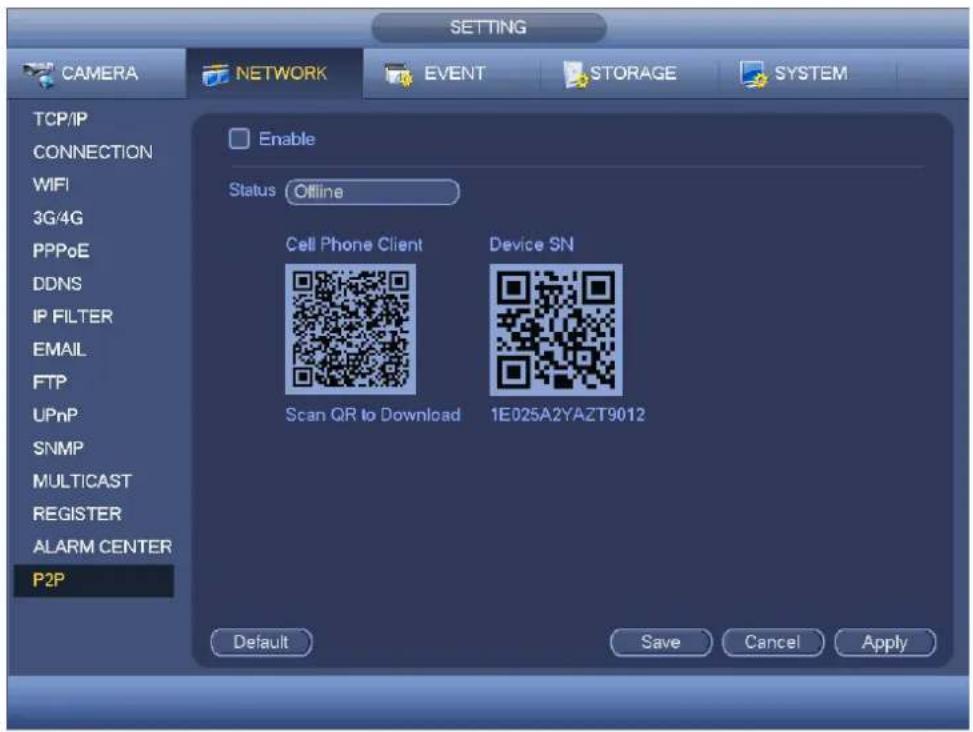
Figure 4-103
- Android:
Open Google Play app in your smart phone. Search gDMSS Lite or gDMSS Plus, download it and install.
- iOS:
Open App Store app in your smart phone. Search iDMSS Lite or iDMSS Plus, download it and install.
Please follow the steps listed below.

- Open App; tap
to go to the Liv preview.
- Tap at the top left corner, you can see the main menu.
- Tap Device manager button, you can use several modes (P2P/DDNS/IP and etc) to
add the device. Click to save current setup. Tap Start Live preview to view all-channel video from the connected device. See Figure 4-104.
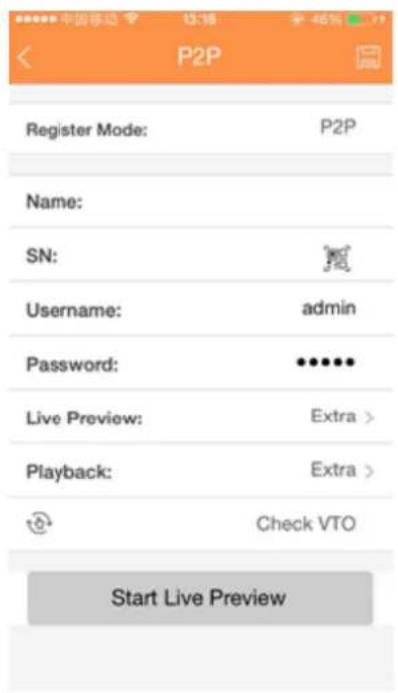
Figure 4-104
4.11.3 Event
4.11.3.1 Detect
In the main menu, from Setting->Event->Detect, you can see motion detect interface. See Figure 4-105.There is three detection types: motion detection, video loss, tampering.
- The video loss has no detection region and sensitivity setup and tampering has no detection region setup.
- You can see motion detect icon if current channel has enabled motion detect alarm.
- You can drag you mouse to set motion detect region. Please click OK button to save current region setup. Right click mouse to exit current interface.
- For digital channel, the detect function refers to support detection function of the front-end and support local activation function. The front-end can get enable/disable status, sensitivity and region setup. You can get corresponding prompt if front-end can not get the above information. You can change front-end setup if it can get.
4.11.3.1.1 Motion Detect
After analysis video, system can generate a video loss alarm when the detected moving signal reached the sensitivity you set here.
Detection menu is shown as below. See Figure 4-105.
- Event type: From the dropdown list you can select motion detection type.
- Channel: Select a channel from the dropdown list to set motion detect function.
- Enable: Check the box here to enable motion detect function.
- Region: Click select button, the interface is shown as in Figure 4-106. Here you can set motion detection zone. There are four zones for you to set. Please select a zone first and then left drag the mouse to select a zone. The corresponding color zone displays different detection zone. You can click Fn button to switch between the arm mode and disarm mode. In arm mode, you can click the direction buttons to move the green rectangle to set the motion detection zone. After you completed the setup, please click ENTER button to exit current setup. Do remember click save button to save current setup. If you click ESC button to exit the region setup interface system will not save your zone setup.
- Sensitivity: System supports 6 levels. The sixth level has the highest sensitivity.
- Anti-dither: Here you can set anti-dither time. The value ranges from 5 to 600s. The anti-dither time refers to the alarm signal lasts time. It can be seen as the alarm signal activation stays such as the buzzer, tour, PTZ activation, snapshot, channel record. The stay time here does not include the latch time. During the alarm process, the alarm signal can begin an anti-dither time if system detects the local alarm again. The screen prompt, alarm upload, email and etc will not be activated. For example, if you set the anti-dither time as 10 second, you can see the each activation may last 10s if the local alarm is activated. During the process, if system detects another local alarm signal at the fifth second, the buzzer, tour, PTZ activation, snapshot, record channel will begin another 10s while the screen prompt, alarm upload, email will not be activated again. After 10s, if system detects another alarm signal, it can generate an alarm since the anti-dither time is out.
- Period: Click set button, you can see an interface is shown as in Figure 4-108. Here you can set motion detect period. System only enables motion detect operation in the specified periods. It is not for video loss or the tampering. There are two ways for you to set periods. Please note system only supports 6 periods in one day.
In Figure 4-108, Select icon of several dates, all checked items can be edited
together. Now the icon is shown as 📊. Click 📆 to delete a record type from one period.
In Figure 4-108. Click button after one date or a holiday, you can see an interface shown as in Figure 4-109. There are four record types: regular, motion detection (MD), Alarm, MD & alarm.
● Alarm output: when an alarm occurs, system enables peripheral alarm devices.
- Latch: when motion detection complete, system auto delays detecting for a specified time. The value ranges from 1-300(Unit: second)
- Show message: System can pop up a message to alarm you in the local host screen if you enabled this function.
- Alarm upload: System can upload the alarm signal to the network (including alarm centre) if you enabled current function.
- Send email: System can send out email to alert you when an alarm occurs.
- Record channel: System auto activates motion detection channel(s) to record once an alarm occurs. Please make sure you have set MD record in Schedule interface(Main Menu->Setting->Schedule) and schedule record in manual record interface(Main Menu->Advanced->Manual Record)
- PTZ activation: Here you can set PTZ movement when an alarm occurs. Such as go to preset, tour &pattern when there is an alarm. Click “select” button, you can see an interface is shown as in Figure 4-107.
- Record Delay: System can delay the record for specified time after alarm ended. The value ranges from 10s to 300s.
● Tour: Here you can enable tour function when alarm occurs. System one-window tour. - Snapshot: You can enable this function to snapshot image when a motion detect alarm occurs.
- Video matrix Check the box here to enable this function. When an alarm occurs, SPOT OUT port displays device video output. It displays video (1-window tour) from alarm activation channel you select at the Record channel item.
- Buzzer: Highlight the icon to enable this function. The buzzer beeps when alarm occurs.
- Log: Check the box here, system can record motion detect log.
- Test: Click it to test current motion detect setup (do not need to save). Click Select button after Region, you can set motion detect area.
- Voice prompts: Check the box here to trigger audio broadcast function. You can select specified audio file here. System can play the audio file once the corresponding event occurs.
Please highlight icon to select the corresponding function. After all the setups please click save button, system goes back to the previous menu.
Note:
In motion detection mode, you can not use copy/paste to set channel setup since the video in each channel may not be the same.
In Figure 4-106, you can left click mouse and then drag it to set a region for motion detection. Click Fn to switch between arm/withdraw motion detection. After setting, click enter button to exit.
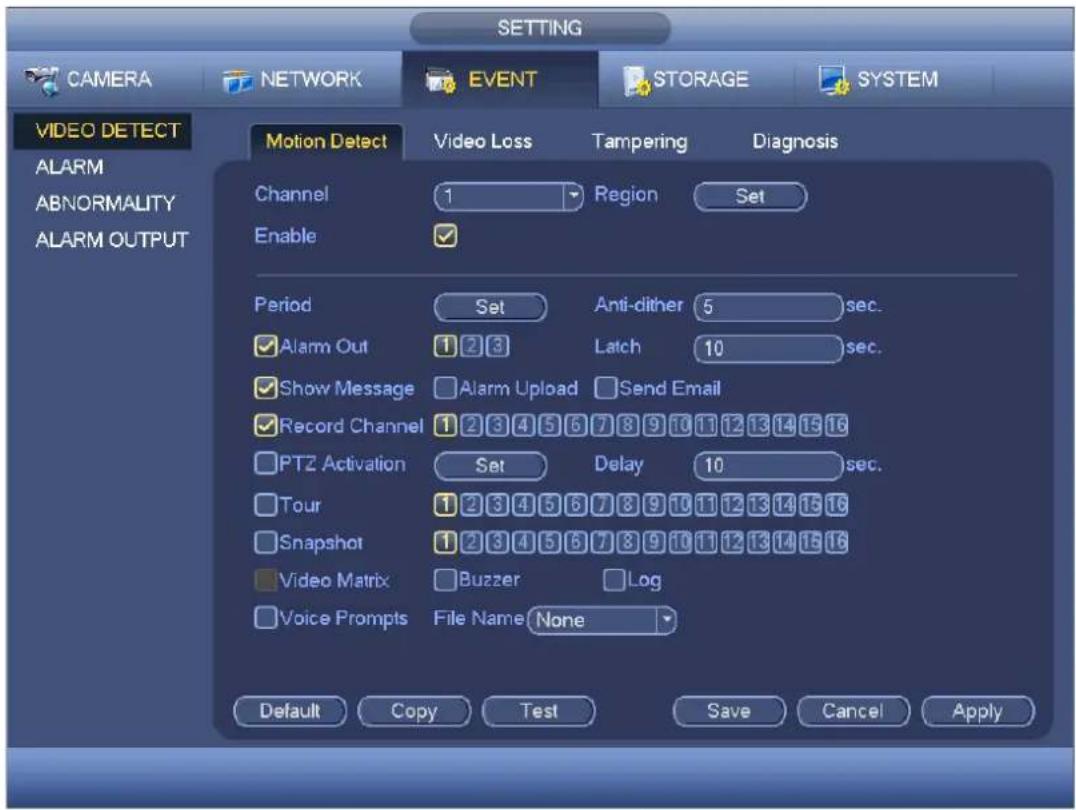
Figure 4-105
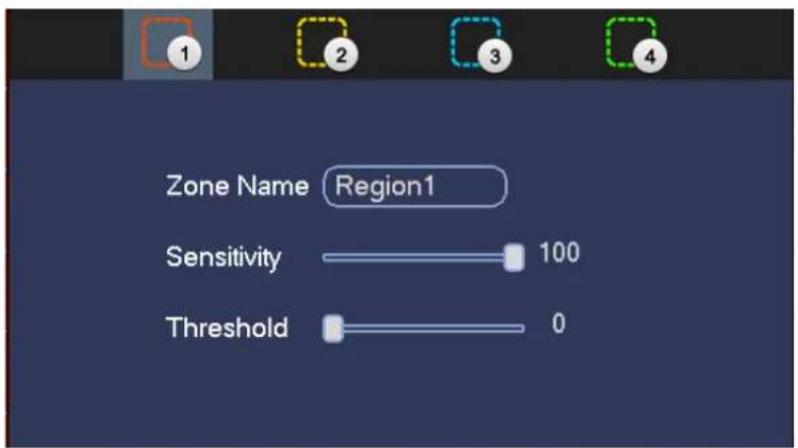
Figure 4-106
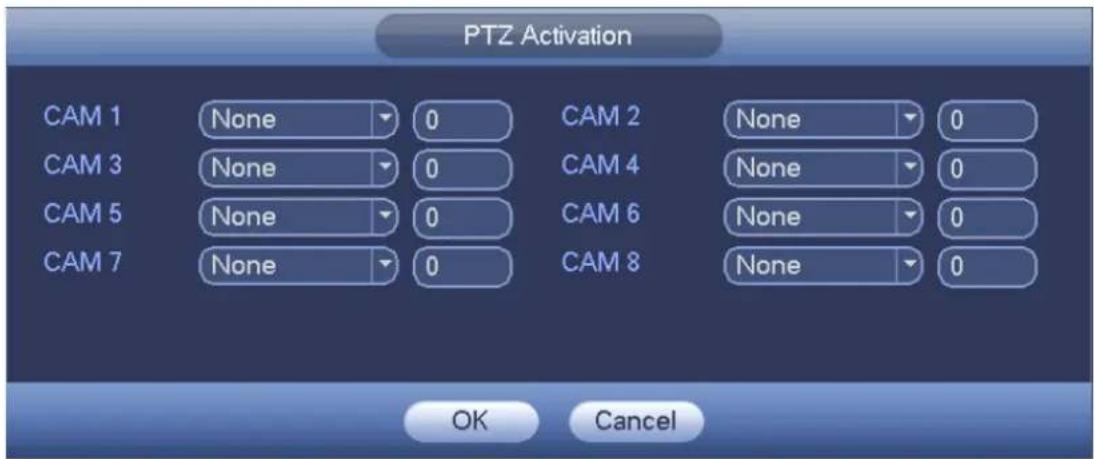
Figure 4-107
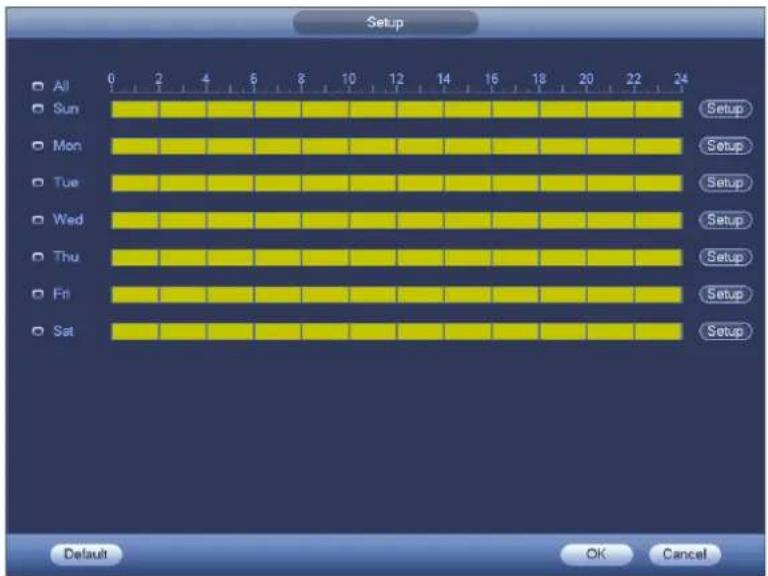
Figure 4-108
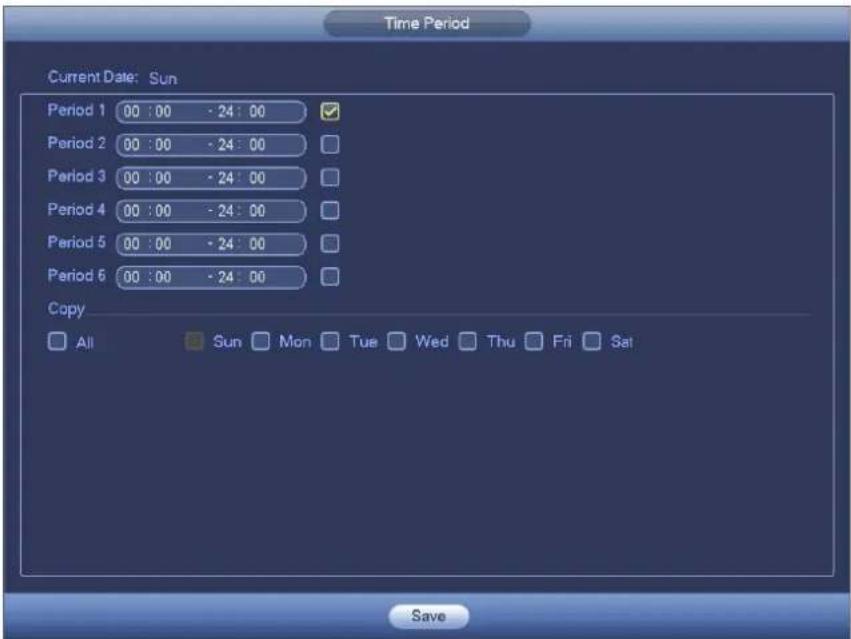
Figure 4-109
Motion detect here only has relationship with the sensitivity and region setup. It has no relationship with other setups.
4.11.3.1.2 Video Loss
In Figure 4-105, select video loss from the type list. You can see the interface is shown as in Figure 4-110. This function allows you to be informed when video loss phenomenon occurred. You can enable alarm output channel and then enable show message function.
Tips:
You can enable preset/tour/pattern activation operation when video loss occurs.
Please refer to chapter 4.11.3.1.1 motion detection for detailed information.
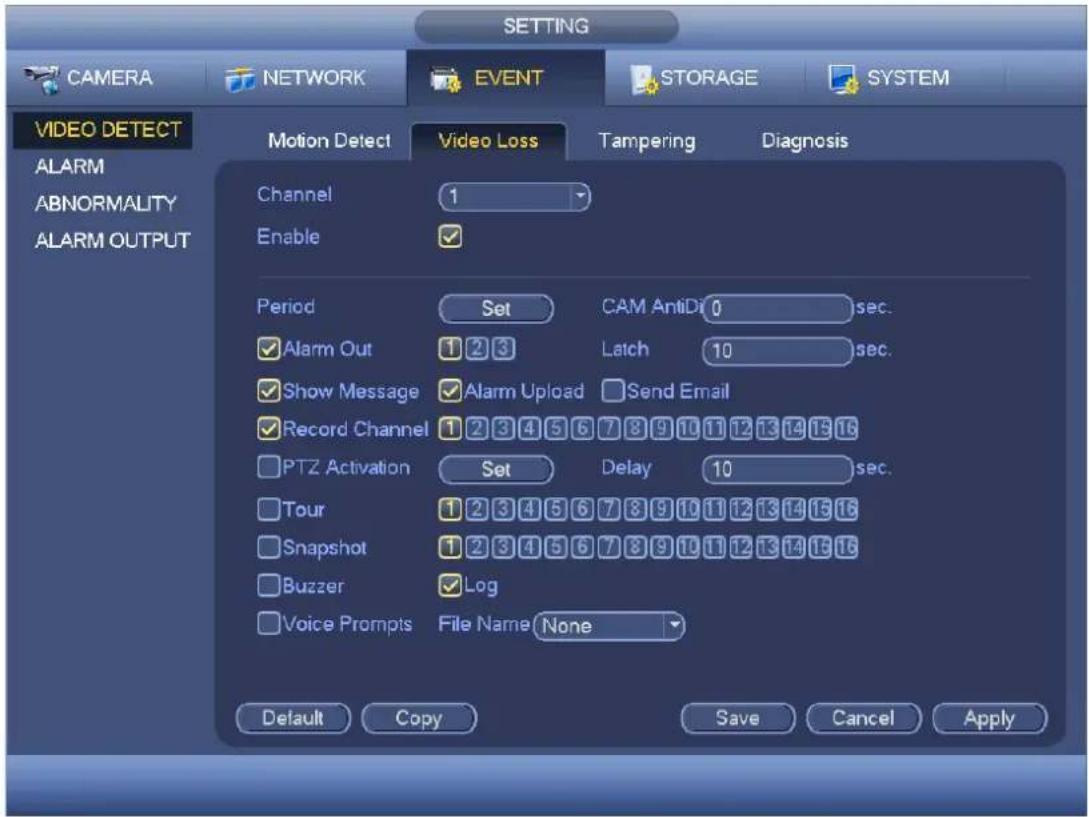
Figure 4-110
When someone viciously masks the lens, or the output video is in one-color due to the environments light change, the system can alert you to guarantee video continuity.
Tampering interface is shown as in Figure 4-111. You can enable "Alarm output" or "Show message" function when tampering alarm occurs.
- Sensitivity: The value ranges from 1 to 6. It mainly concerns the brightness. The level 6 has the higher sensitivity than level 1. The default setup is 3.
Tips:
You can enable preset/tour/pattern activation operation when video loss occurs. Please refer to chapter 4.11.3.1.1 motion detection for detailed information.
Note:
- In Detect interface, copy/paste function is only valid for the same type, which means you can not copy a channel setup in video loss mode to tampering mode.
- About Default function. Since detection channel and detection type may not be the same, system can only restore default setup of current detect type. For example, if you click Default button at the tampering interface, you can only restore default tampering setup. It is null for other detect types.
- System only enables tampering function during the period you set here. It is null for motion detect or video loss type.
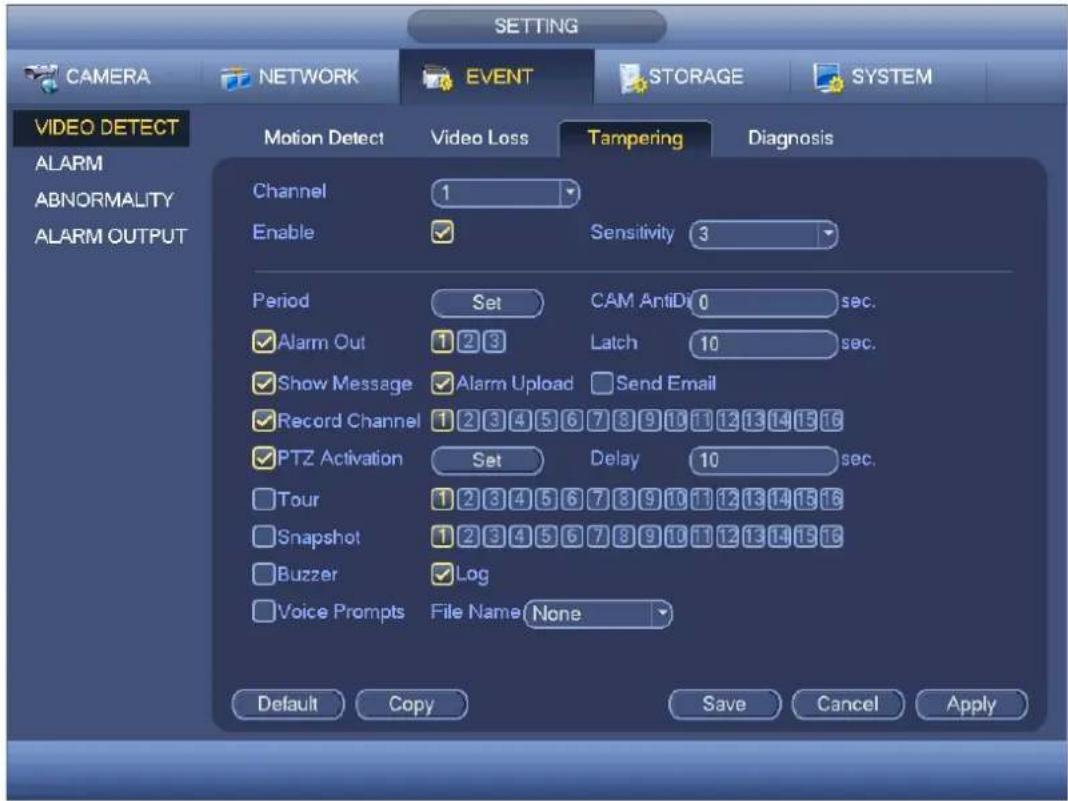
Figure 4-111
4.11.3.1.4 Diagnosis
Note
This function is for some series only.
System can trigger an alarm when the stripe, noise, color cast, out of focus, over exposure event occurred. See Figure 4-112.
Please refer to chapter 4.11.3.1.1 motion detection for detailed information.
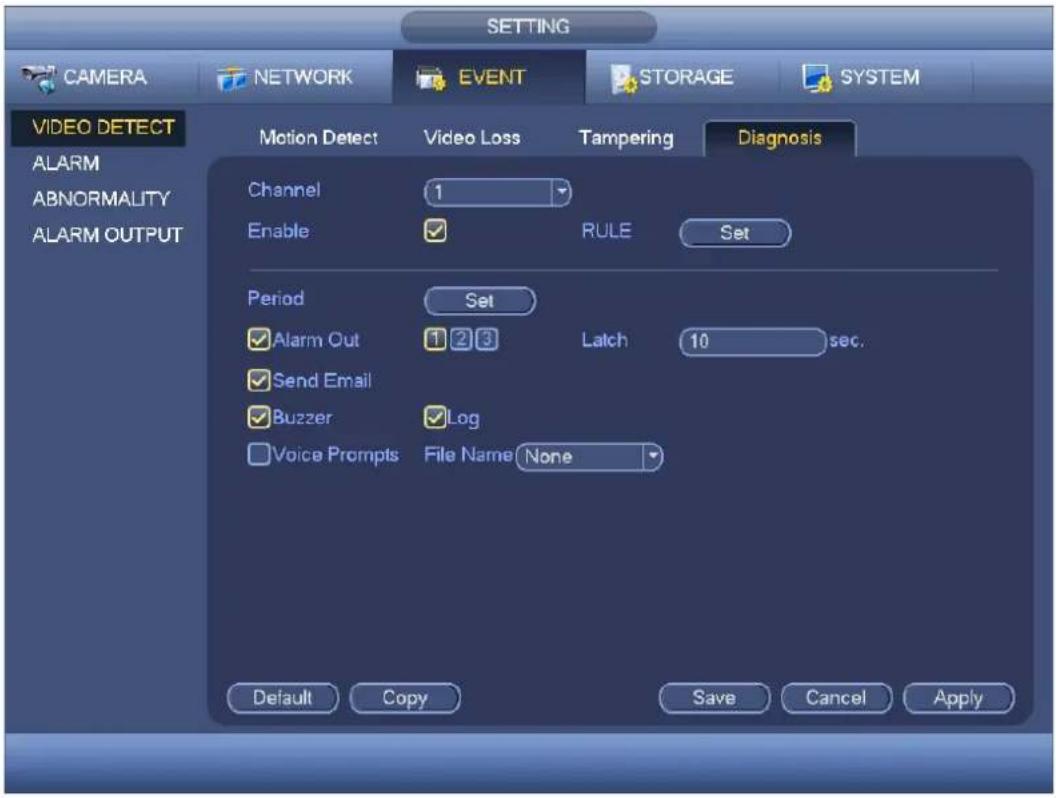
Figure 4-112
This function allows you to be informed when video is blurry, over exposure or color cast occurs. You can enable alarm output channel and then enable show message function. Click the Rule Set button, or move the cursor to Set button and then click the Enter button on the front panel, the interface is shown as below. See Figure 4-113.
You can check corresponding type and then input alarm threshold.
- Stripe: The strip occurs when the device is old or there is electronic interference. There may be cross strip, vertical strip, slanting strip and etc.
- Noise: The video noise refers to the blurry video, poor video quality. It may result from the optical system distortion or the hardware problem during the video transmission when recording.
- Color cast: Usually the video is color containing RGB. When these three colors displayed in abnormal rate, we can say color cast occurred.
- Out of focus: The clear video presents abundant video details. The video definition decreases when the distortion event occurs. The out of focus event may result from many sources such as video transmission, processing and etc.
● Over exposure: The color brightness refers to the image pixel intensity. Black is the darkest and the white is the brightest. We use number 0 to stand for black and use number 255 to stand for white. Once the brightness threshold of the whole image has exceeded the threshold value, it means the image is over exposure.
- Threshold: The value ranges from 1 to 30. System can generate an alarm once the value is higher than the threshold you set here.
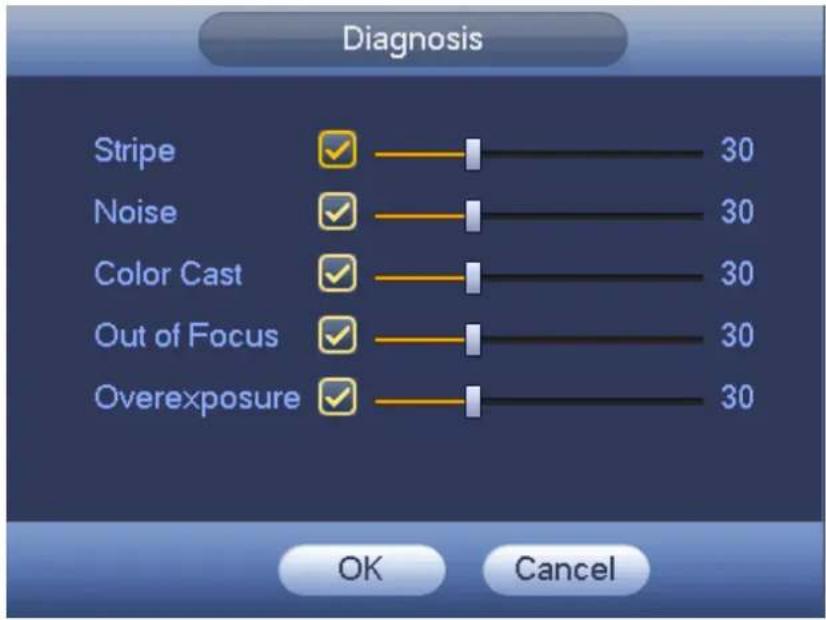
Figure 4-113
Note
Video analysis alarm can trigger PTZ preset, tour, and pattern.
Please refer to chapter 4.11.3.1.1 motion detection for detailed information.
4.11.3.2 Intelligence (Optional)

The intelligence function is optional. The intelligence function and the
human face detection can not be valid at the same time!
From main menu->Setting->Event, you can go to the intelligence interface. It includes four interfaces: Tripwire/intrusion/object/scene.
4.11.3.2.1 Tripwire (Optional)
Note:
- The tripwire function is valid once your network camera or your DVR supports this function.
- If your purchased DVR supports the tripwire function, it supports one analog channel. It is not for the digital channel.
System generates an alarm once there is any object crossing the tripwire in the specified direction.
From main menu->Setting->Event->Intelligence->Tripwire, the interface is shown as below. See Figure 4-114.
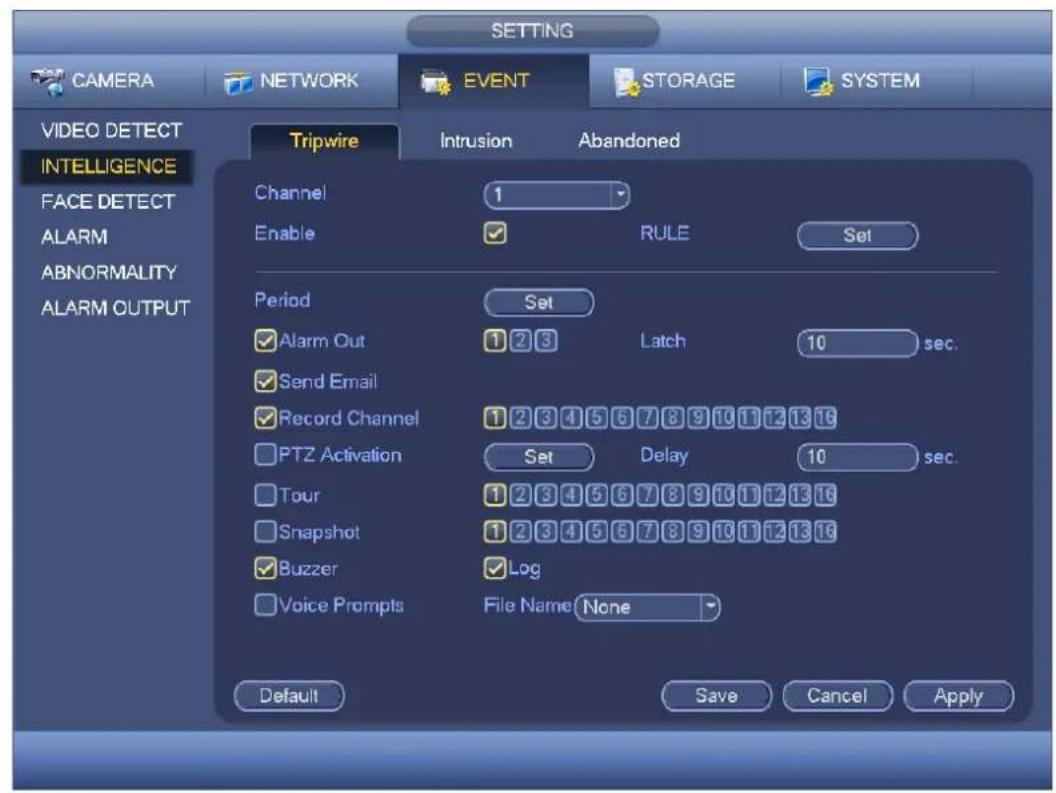
Figure 4-114
Check the Enable box to enable tripwire function.
Click Rule setup to draw the tripwire. See Figure 4-115.
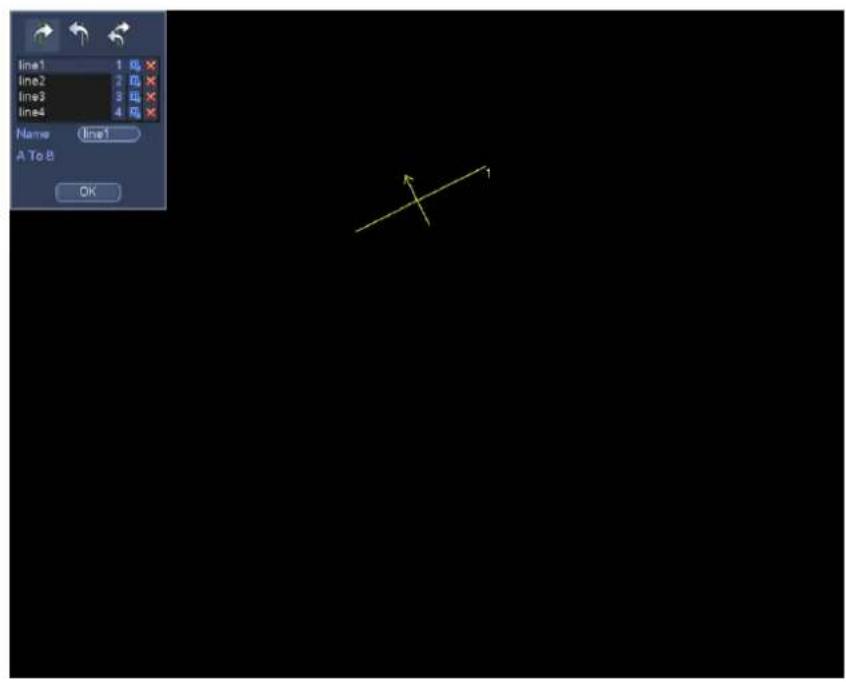
Figure 4-115
Select SN (Line1/2/3/4) and direction, and then input customized rule name.
● Line1/2/3/4: System supports four tripwires. Each SN stands for one tripwire.

- Direction (/). System can generate an alarm once there is any object crossing in the specified direction.
Now you can draw a rule. Left click mouse to draw a tripwire. The tripwire can be a direct line, curve or polygon. Right click mouse to complete.
Click to draw filter object.
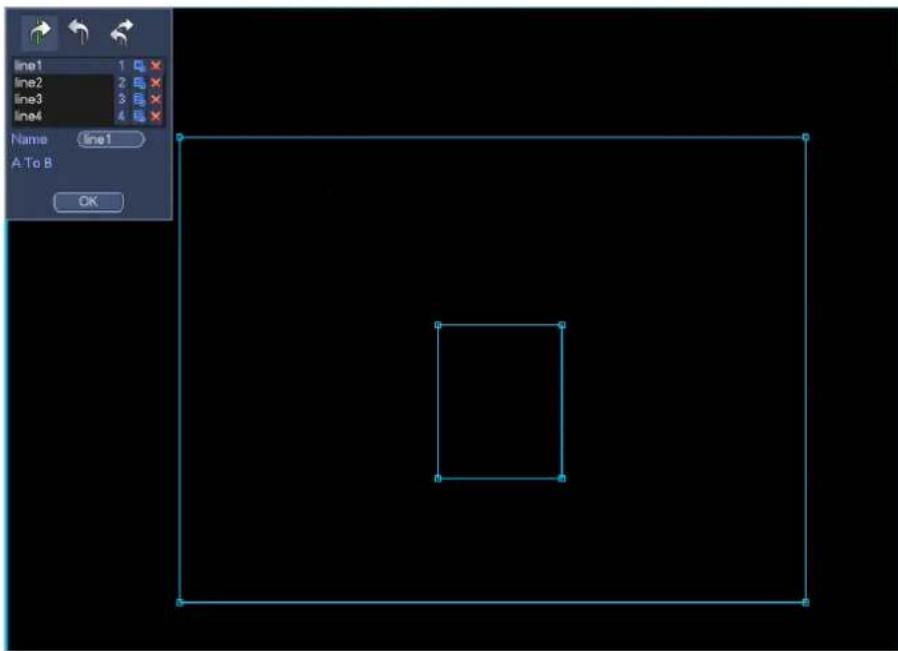
Figure 4-116
Select the blue line and then use mouse to adjust zone size.
Note
Each rule can set two sizes (min size/max size). Once the object is smaller than the min size or larger than the max size, there is no alarm. Please make sure the max size is larger than the min size.
Click Ok to complete the rule setup.
Tips
Click to delete the corresponding rule.
You can refer to the following information to set other parameters.
● Channel: Select a channel from the dropdown list to set tripwire function.
● Enable: Check the box here to enable tripwire function.
- Rule: input customized rule name here.
- Period: Click set button, you can see an interface is shown as in Figure 4-108. Here you can set tripwire period. System only enables tripwire operation in the specified periods. There are two ways for you to set periods. Please note system only supports 6 periods in one day.
In Figure 4-108, Select icon of several dates, all checked items can be edited
together. Now the icon is shown as Click to delete a record type from one period.

In Figure 4-108. Click button after one date or a holiday, you can see an interface shown as in Figure 4-109.
- Alarm output: when an alarm occurs, system enables peripheral alarm devices.
- Latch: when tripwire complete, system auto delays detecting for a specified time. The value ranges from 0-300(Unit: second). The default setup is 10 seconds. The o second means there is no delaying time.
● Show message: System can pop up a message to alarm you in the local host screen if you enabled this function. - Alarm upload: System can upload the alarm signal to the network (including alarm centre) if you enabled current function.
- Send email: System can send out email to alert you when an alarm occurs.
- Record channel: System auto activates tripwire channel(s) to record once an alarm occurs. Please make sure you have set intelligent record in Schedule interface(Main Menu->Setting->Schedule) and schedule record in manual record interface(Main Menu->Advanced->Manual Record)
- PTZ activation: Here you can set PTZ movement when an alarm occurs. Such as go to preset, tour &pattern when there is an alarm. Click "select" button, you can see an interface is shown as in Figure 4-107.
- Record Delay: System can delay the record for specified time after alarm ended. The value ranges from 10s to 300s.
- Tour: Here you can enable tour function when an alarm occurs. System one-window tour.
- Snapshot: You can enable this function to snapshot image when a motion detect alarm occurs.
- Buzzer: Highlight the icon to enable this function. The buzzer beeps when an alarm occurs.
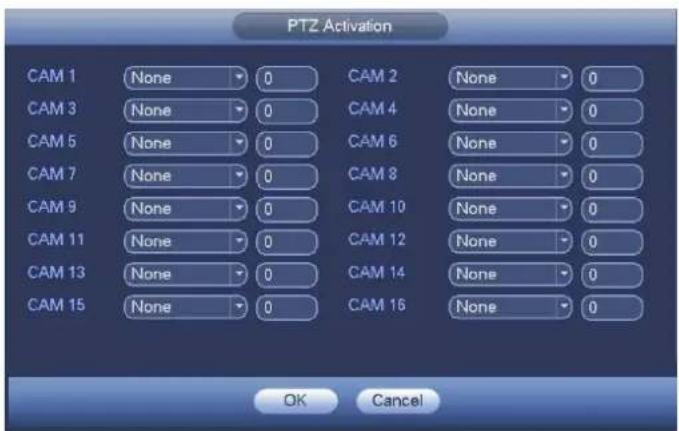
Figure 4-117
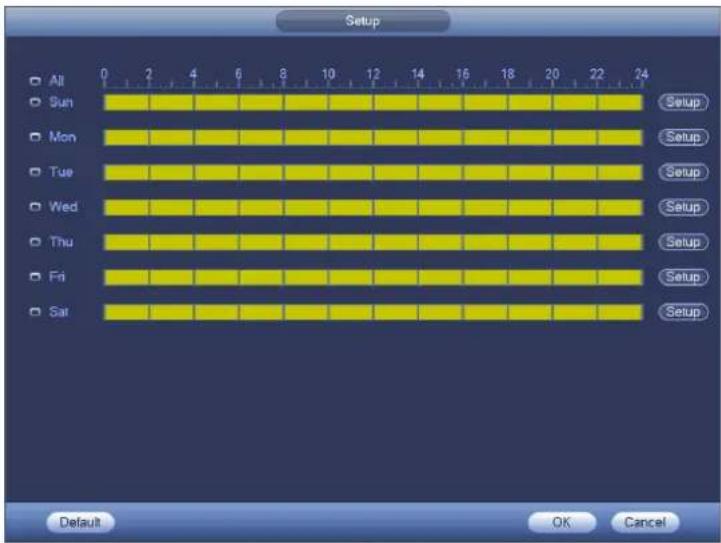
Figure 4-118
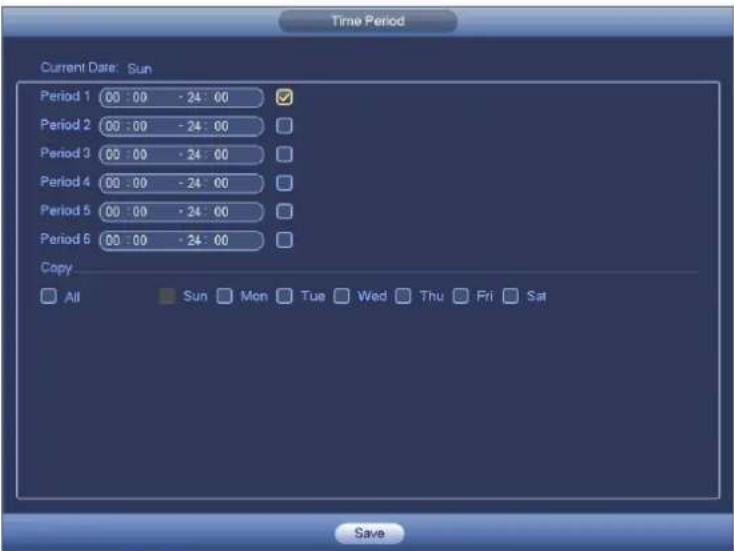
Figure 4-119
4.11.3.2.2 Intrusion (Cross warning zone)
Note:
- The intrusion function is valid once your network camera or your DVR supports this function.
- If your purchased DVR supports the intrusion function, it supports one analog channel. It is not for the digital channel.
System generates an alarm once there is any object entering or exiting the zone in the specified direction.
From main menu->Setting->Event->Intelligence->Intrusion, the intrusion interface is shown as below. See Figure 4-120.
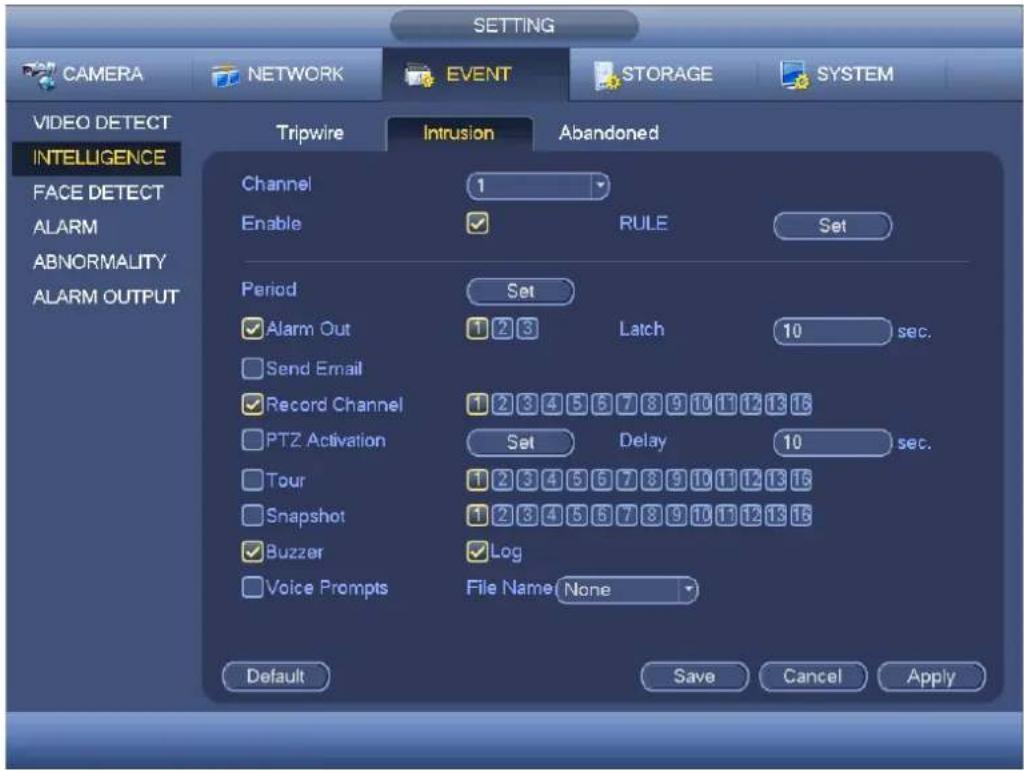
Figure 4-120
Check the enable box to enable intrusion function.
Click Rule setup to draw the zone. See Figure 4-121.
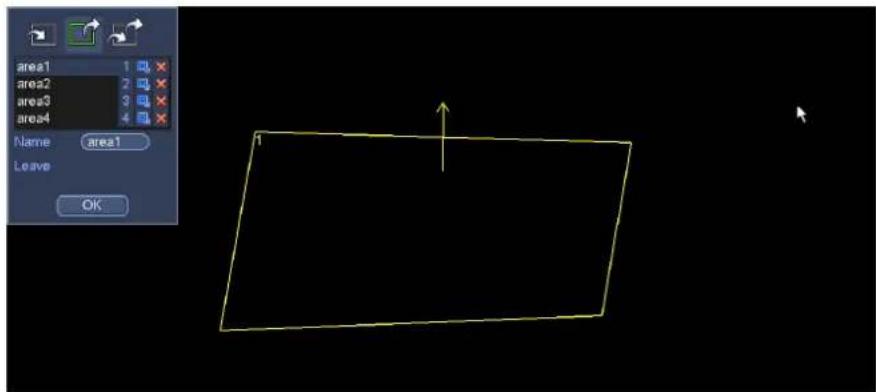
Figure 4-121
Select SN (Area1/2/3/4) and direction, and then input customized rule name.
● Area1/2/3/4: System supports four zones. Each SN stands for one zone.
- Direction (/ /): System can generate an alarm once there is
any object enter/exit (Or both) the zone.
Now you can draw a rule. Left click mouse to draw a line first and then right click mouse to draw another line until you draw a rectangle, you can right click mouse to exit.
Click Ok to complete the rule setup.
Tips
Click ✗ to delete the corresponding rule.
You can refer to the chapter 4.11.3.2.1 to set parameters.
4.11.3.2.3 Object protection (Optional)
Note:
- The object protection function is valid once your network camera or your DVR supports this function.
- If your purchased DVR supports the object protection function, it supports one analog channel. It is not for the digital channel.
System generates an alarm when the object missing/abandoned object alarm occurs.
From main menu->Setting->Event-> Intelligence ->Object, the object protection interface is shown as below. See Figure 4-122.
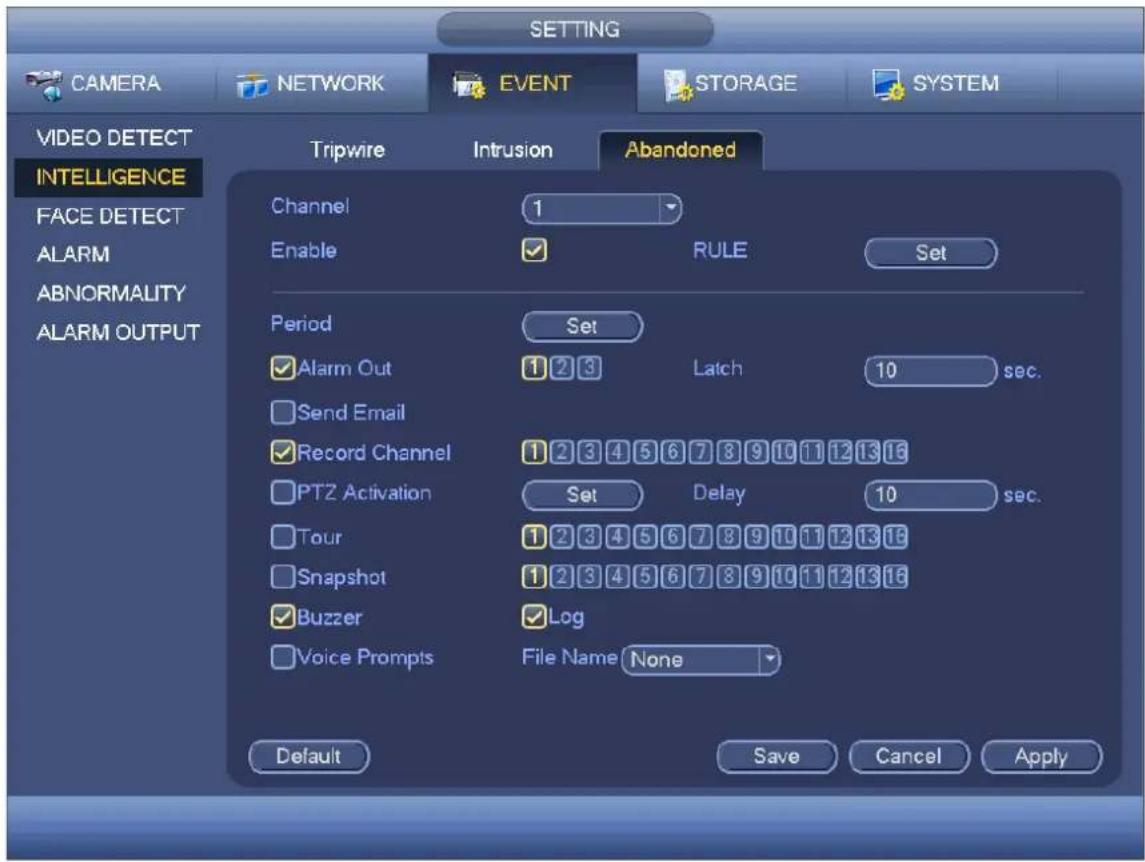
Figure 4-122
Check the enable box to enable object detect function.
Click Rule setup to draw the rule.
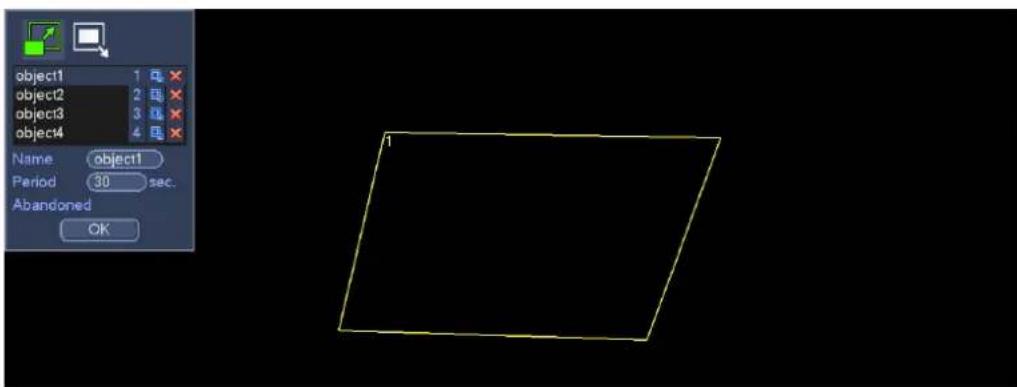
Figure 4-123
Select SN (object1/2/3/4) and direction, and then input customized rule name.
- Object1/2/3/4: System supports four zones. Each SN stands for one zone.
- Direction (/): For icon, system can generate an alarm once the
object left in the one for the specified time. For icon, system can generate an alarm once the object is out of the zone for the specified time.
- Period: It refers to the object in/out the zone time.
Now you can draw a rule. Left click mouse to draw a line, until you draw a rectangle, you can right click mouse.
Click Ok to complete the rule setup.
Tips
Click ✗ to delete the corresponding rule.
You can refer to the chapter 4.11.3.2.1 to set parameters.
4.11.3.3 Face Detect (Optional)

The face detection function is optional. The intelligence function and the
human face detection can not be valid at the same time!
Note
- The face detection function is valid once your network camera or your DVR supports this function.
- If your purchased DVR supports the face detection function, it supports one analog channel. It is not for the digital channel.
System can detect and filter the human face via analyzing the video. When it detects the human face in the specified zone, it can draw the rectangle around the human face
and trigger record, snapshot, alarm operation and etc. See Figure 4-124.
- Channel: Select a channel you want to enable face detect function.
- Alarm face number: Once the detected human face number reaches the threshold you set here, system can generate an alarm.
- Human face RO (region of interest): Check the box, system can highlight the human face region.
- Enable: Check the box here to enable face detect function.
For detailed setup information, please refer to chapter 4.11.3.2.1.
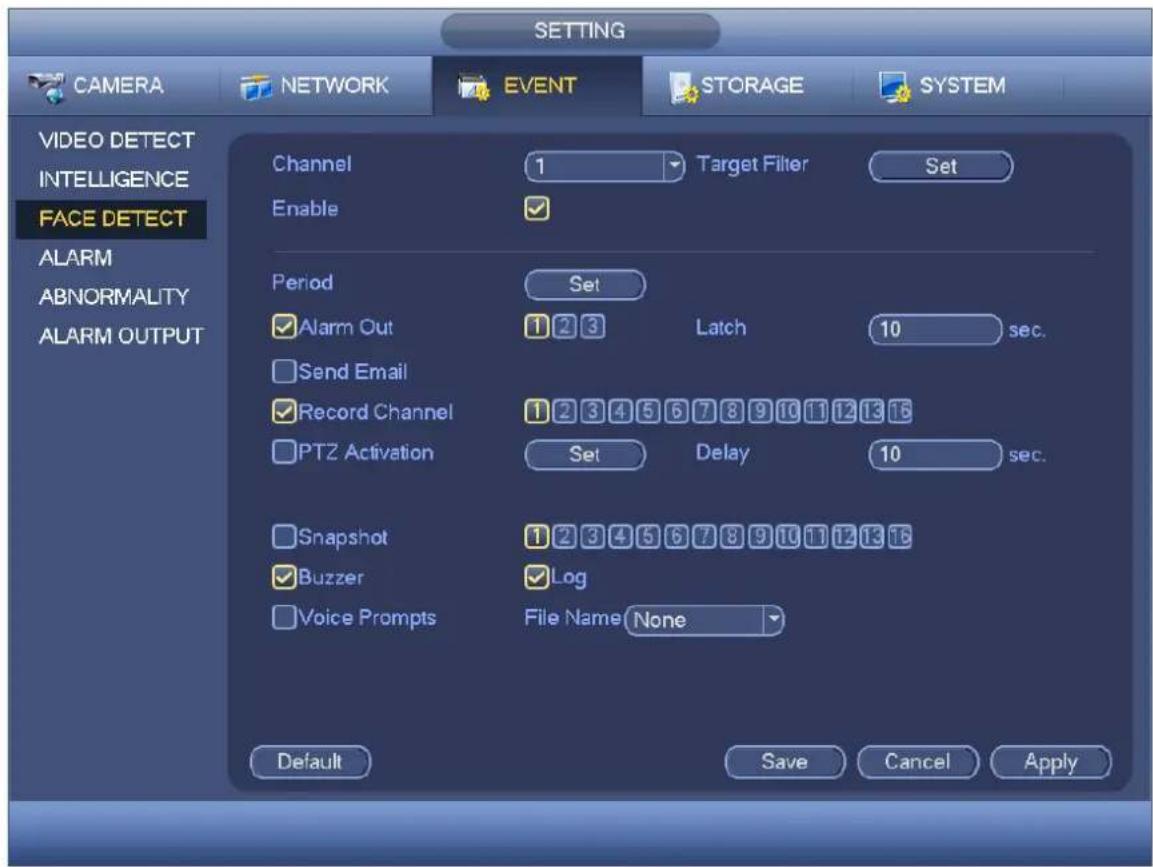
Figure 4-124
4.11.3.4 Alarm

Important
XVR series product does not support HDCVI alarm function (Figure 4-127).
Before operation, please make sure you have properly connected alarm devices such as buzzer.
In the main menu, from Setting->Event->Alarm, you can see alarm setup interface.
For analog channel, the interface is shown as in Figure 4-125 and Figure 4-126
For HDCVI channel, there are three alarm types. See Figure 4-125 to Figure 4-127.
For digital channel, there are four alarm types. See Figure 4-125 to Figure 4-129.
- Local alarm: The alarm signal system detects from the alarm input port.
● Network alarm: It is the alarm signal from the network. - HDCVI: System can get the camera temperature, smoke, external alarm and set corresponding alarm activation operation.
- IPC external alarm: It is the on-off alarm signal from the front-end device and can activate the local HDVR.
- IPC offline alarm: Once you select this item, system can generate an alarm when the front-end IPC disconnects with the local HDVR. The alarm can activate record, PTZ, snap and etc. The alarm can last until the IPC and the HDVR connection resumes.
Important
- If it is your first time to boot up the device, the disconnection status of the front-end network camera will not be regarded as offline. After one successfully connection, all the disconnection events will be regarded as IPC offline event.
-
When IPC offline alarm occurs, the record and snapshot function of digital channel is null.
-
Alarm in: Here is for you to select channel number.
● Type: normal open or normal close. - PTZ activation: Here you can set PTZ movement when alarm occurs. Such as go to preset, tour& pattern when there is an alarm. Click "select" button, you can see an interface is shown as in Figure 4-130.
- Period: Click set button, you can see an interface is shown as in Figure 4-131. There are two ways for you to set periods. There are max 6 periods in one day. There are four record types: regular, motion detection (MD), Alarm, MD & alarm.
In Figure 4-131, Select icon

of several dates, all checked items can be
edited together. Now the icon is shown as type from one period.

Click to delete a record
In Figure 4-131. Click button

after one date or a holiday, you can see an
interface shown as in Figure 4-132. There are four record types: regular, motion detection (MD), Alarm, MD & alarm.
- Anti-dither: Here you can set anti-dither time. Here you can set anti-dither time. The value ranges from 5 to 600s. The anti-dither time refers to the alarm signal lasts time. It can be seen as the alarm signal activation stays such as the buzzer, tour, PTZ activation, snapshot, channel record. The stay time here does not include the latch time. During the alarm process, the alarm signal can begin an anti-dither time if system detects the local alarm again. The screen prompt, alarm upload, email and etc will not be activated. For example, if you set the anti-dither time as 10 second, you can see the each activation may last 10s if the local alarm is activated. During the process, if system detects another local alarm signal at the fifth second, the buzzer, tour, PTZ activation, snapshot, record channel will begin another 10s while the
screen prompt, alarm upload, email will not be activated again. After 10s, if system detects another alarm signal, it can generate an alarm since the anti-dither time is out.
- Show message: System can pop up a message to alarm you in the local host screen if you enabled this function.
- Alarm upload: System can upload the alarm signal to the network (including alarm centre) if you enabled current function.
- Send email: System can send out email to alert you when alarm occurs.
- Record channel: you can select proper channel to record alarm video (Multiple choices). At the same time you need to set alarm record in schedule interface (Main Menu->Setting->Schedule) and select schedule record in manual record interface (Main Menu->Advance->Manual Record).
- Latch: Here is for you to set proper delay duration. Value ranges from 10 to 300 seconds. System automatically delays specified seconds in turning off alarm and activated output after external alarm cancelled.
- Tour: Here you can enable tour function when alarm occurs. System supports 1/8-window tour. Please note the tour setup here has higher priority than the tour setup you set in the Display interface. Once there two tours are both enabled, system can enable the alarm tour as you set here when an alarm occurred. If there is no alarm, system implements the tour setup in the Display interface.
- Snapshot: System can snapshot corresponding channel when an alarm occurs. Please note the activation snapshot has the higher priority than schedule snapshot. If you have enabled these two types at the same time, system can activate the activation snapshot when alarm occurs, and otherwise system just operates the schedule snapshot.
- Video matrix Check the box here to enable this function. When an alarm occurs, SPOT OUT port displays device video output. It displays video (1-window tour) from alarm activation channel you select at the Record channel item.
- Log: Check the box here, system can record local alarm log.
- Buzzer: Highlight the icon to enable this function. The buzzer beeps when alarm occurs.
- Voice prompts: Check the box here to trigger audio broadcast function. You can select specified audio file here. System can play the audio file once the corresponding event occurs.
Please note, network alarm means the alarm signal from the TCP/IP. You can use NET SDK to activate network alarm. Comparing with the local alarm, there is no type, anti-dither, alarm upload function.
Please highlight icon to select the corresponding function. After setting all the setups please click save button, system goes back to the previous menu.
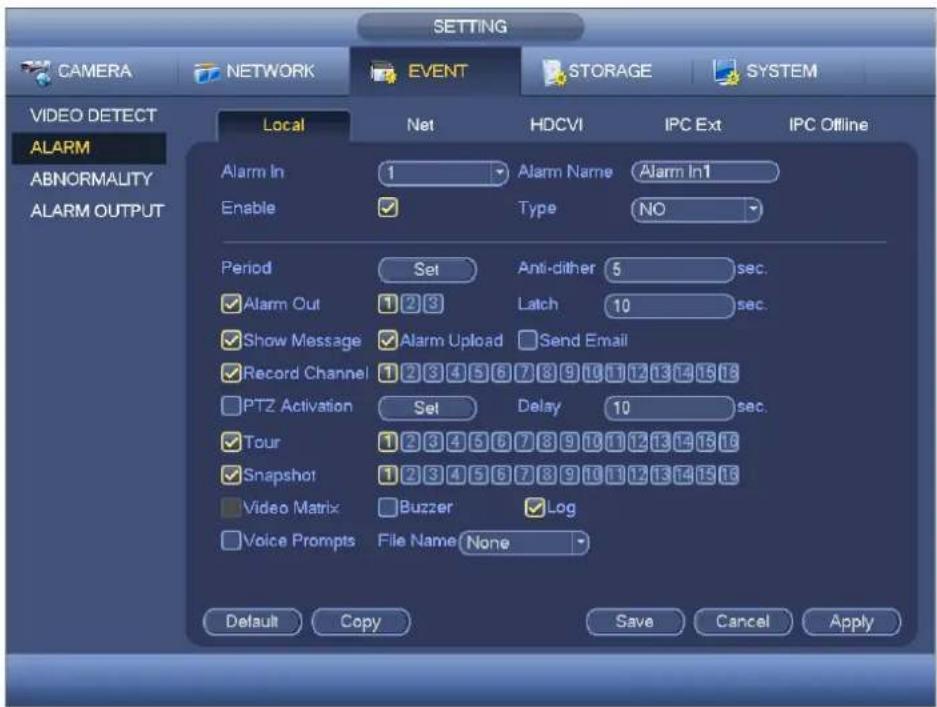
Figure 4-125
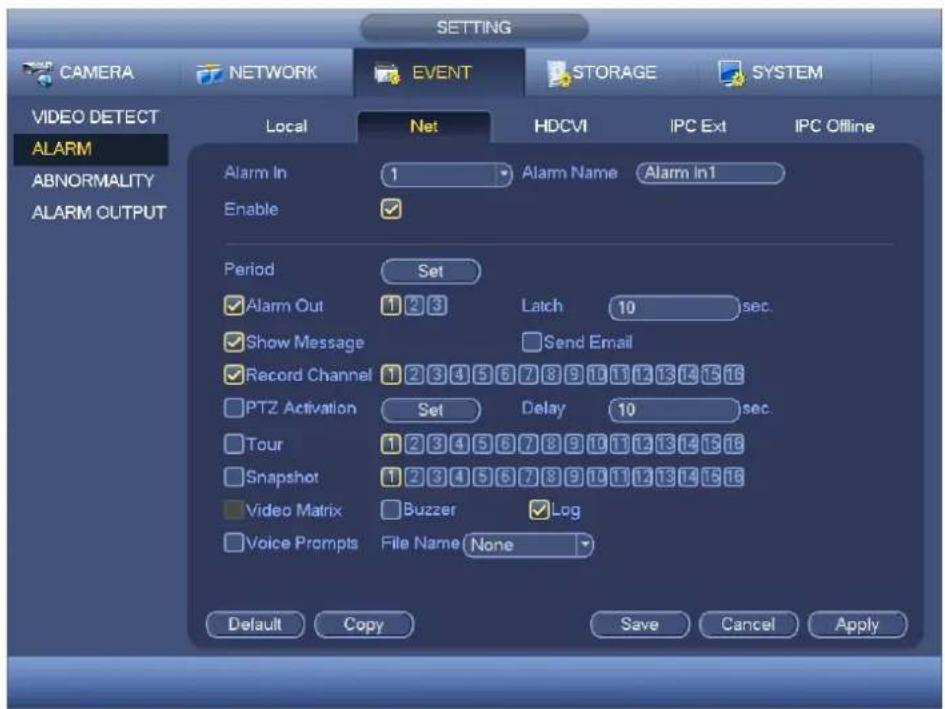
Figure 4-126
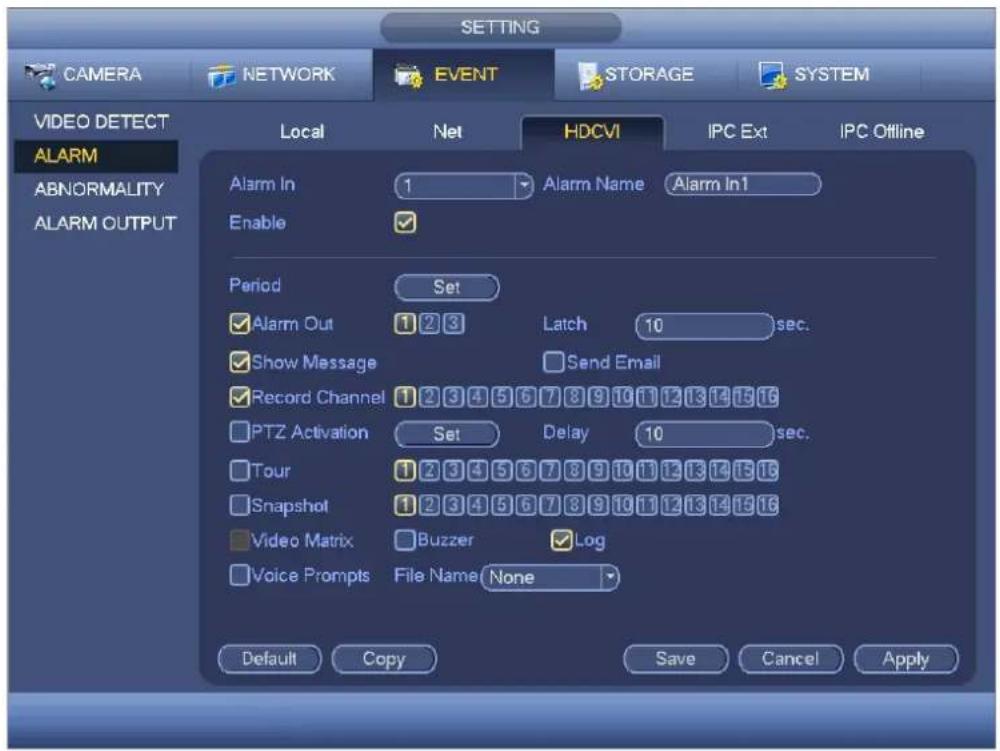
Figure 4-127
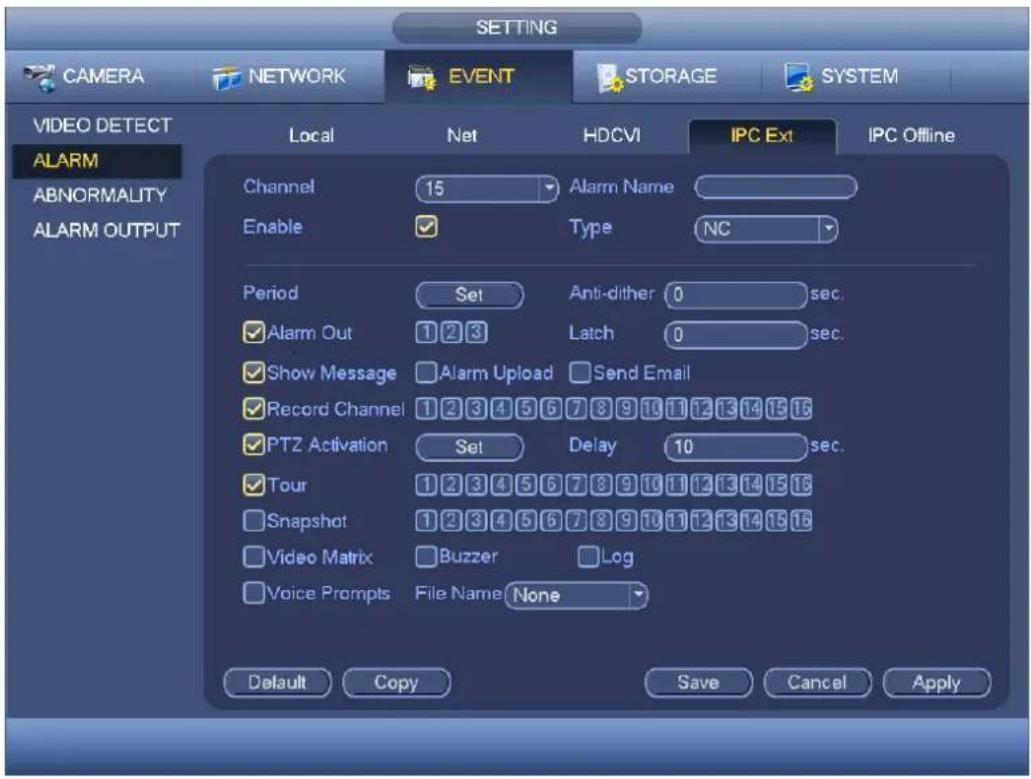
Figure 4-128
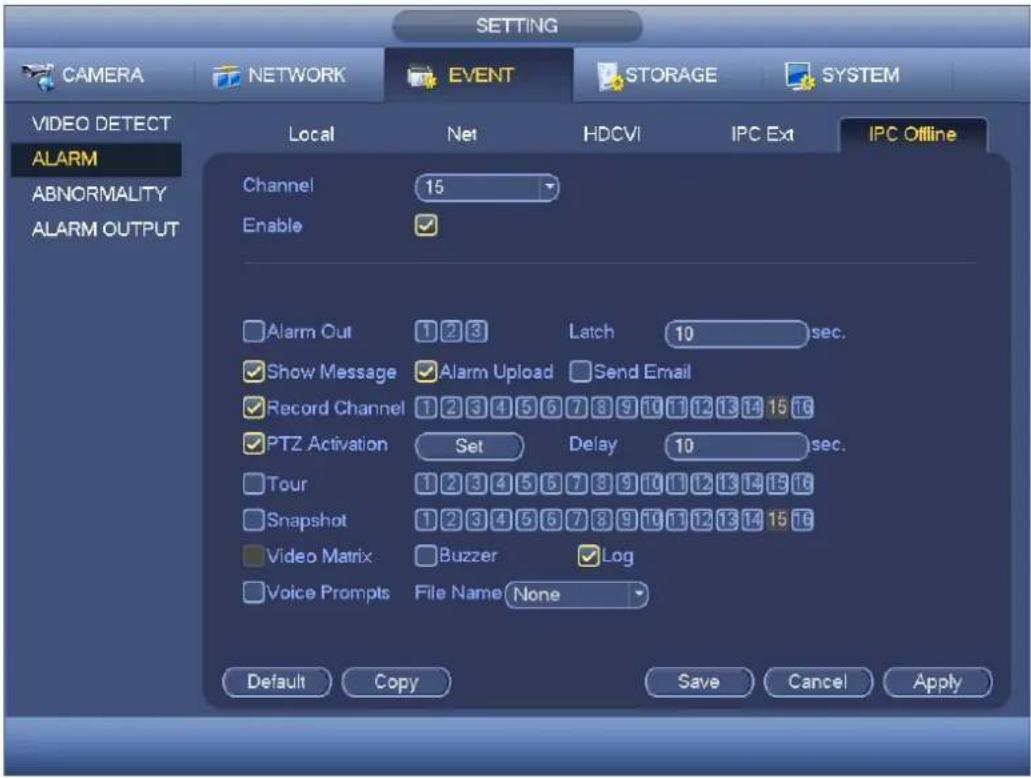
Figure 4-129
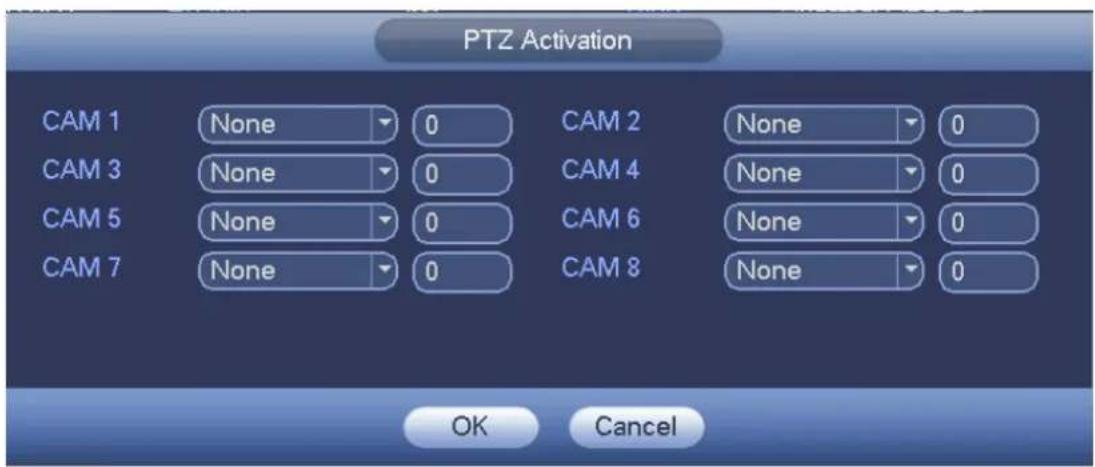
Figure 4-130
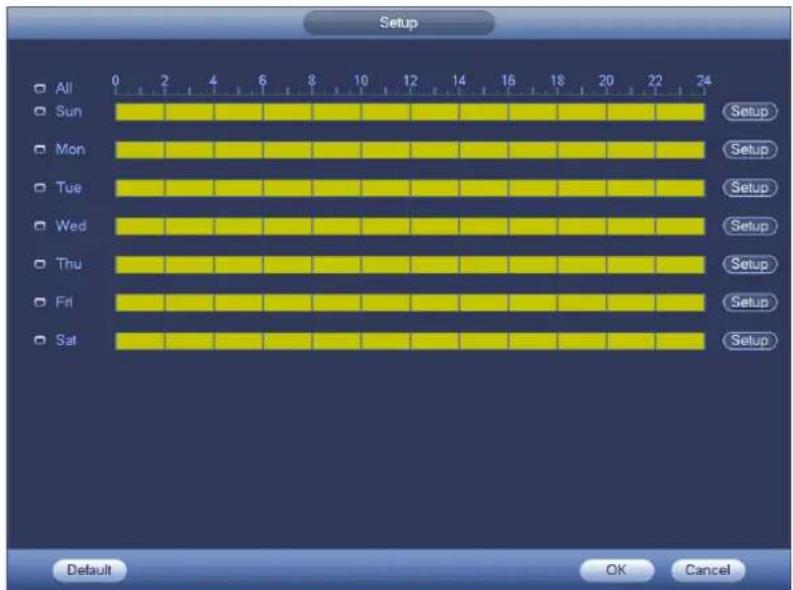
Figure 4-131
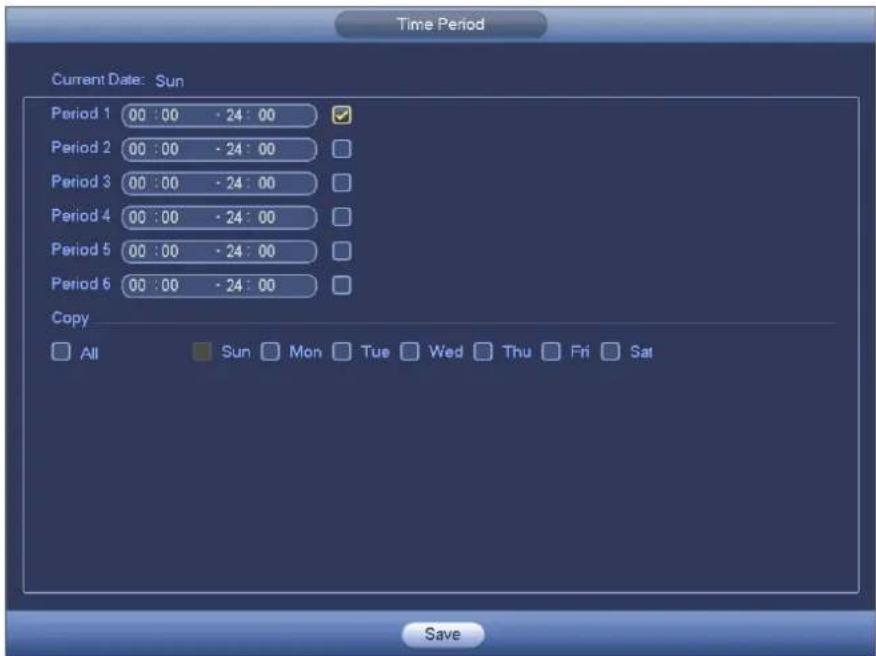
Figure 4-132
4.11.3.5 Abnormality
There are three types: HDD/Network/user.
✿ HDD: HDD error, no disk, no space. See Figure 4-133 and Figure 4-134.
Network: Disconnection, IP conflict, MAC conflict. See Figure 4-135.
✿ User:Illegal login. See Figure 4-136.
● Alarm output: Please select alarm activation output port (multiple choices).
● Less than: System can alarm you when the HDD space is less than the threshold you set here (For HDD no space type only).
- Latch: Here you can set corresponding delaying time. The value ranges from 1s-300s. System automatically delays specified seconds in turning off alarm and activated output after external alarm cancelled.
● Show message: system can pop up the message in the local screen to alert you when alarm occurs. - Alarm upload: System can upload the alarm signal to the network (including alarm centre) if you enabled current function. For disconnection event, IP conflict event and MAC conflict event, this function is null.
- Send email: System can send out email to alert you when alarm occurs.
- Buzzer: Highlight the icon to enable this function. The buzzer beeps when alarm occurs.
- Log: Check the box here, system can record HDD event log.
● Voice prompts: Check the box here to trigger audio broadcast function. You can select specified audio file here. System can play the audio file once the corresponding event occurs.
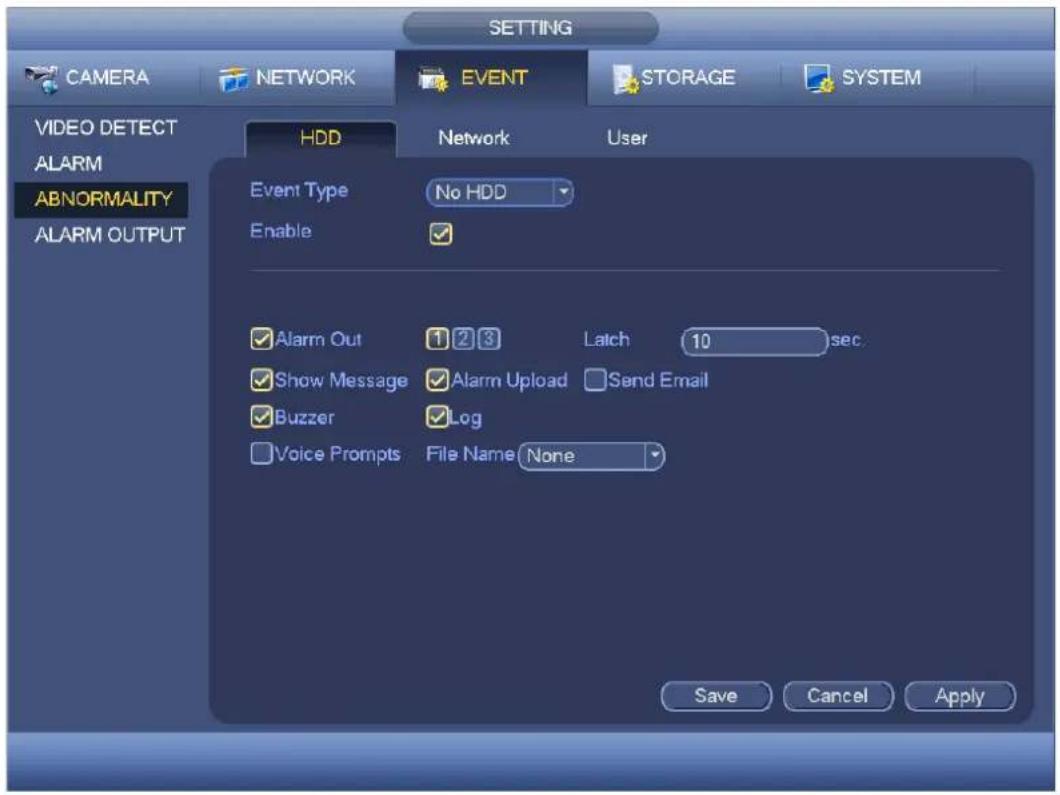
Figure 4-133
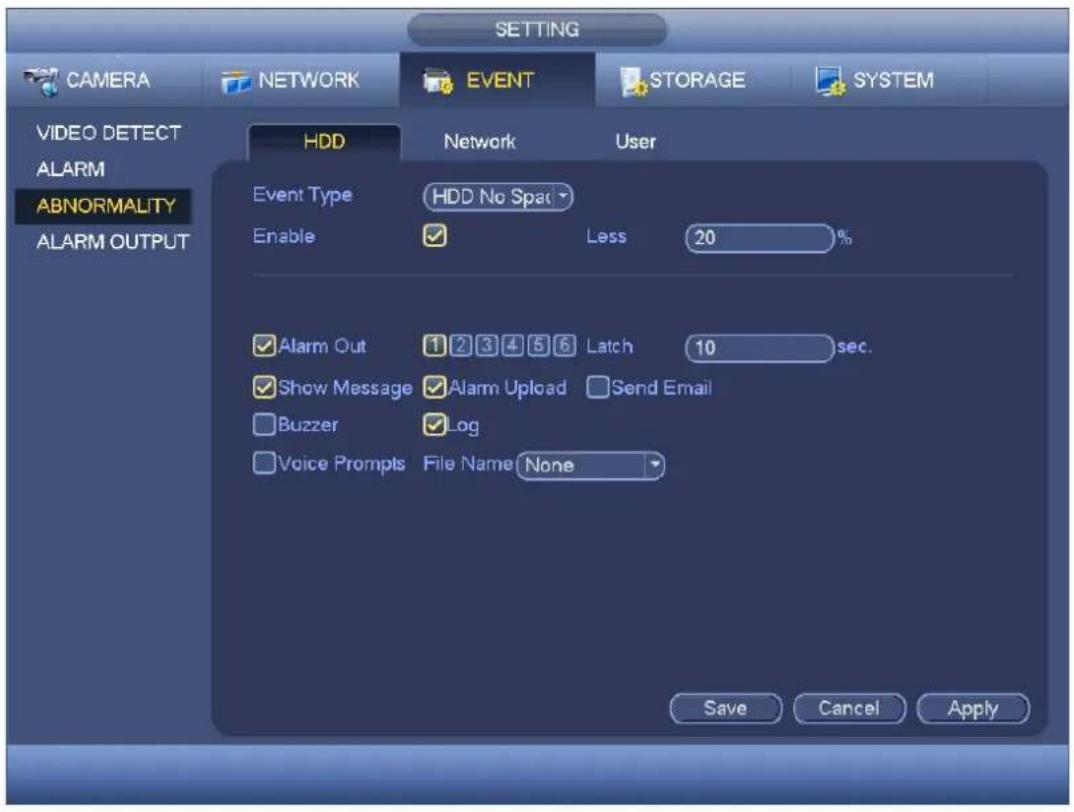
Figure 4-134
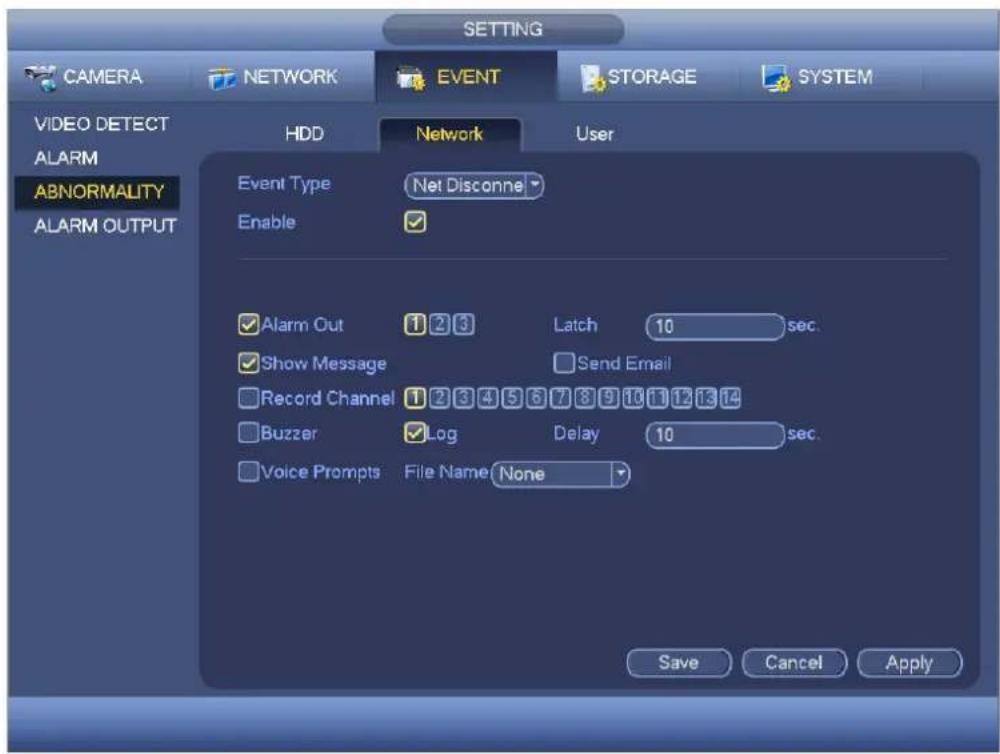
Figure 4-135
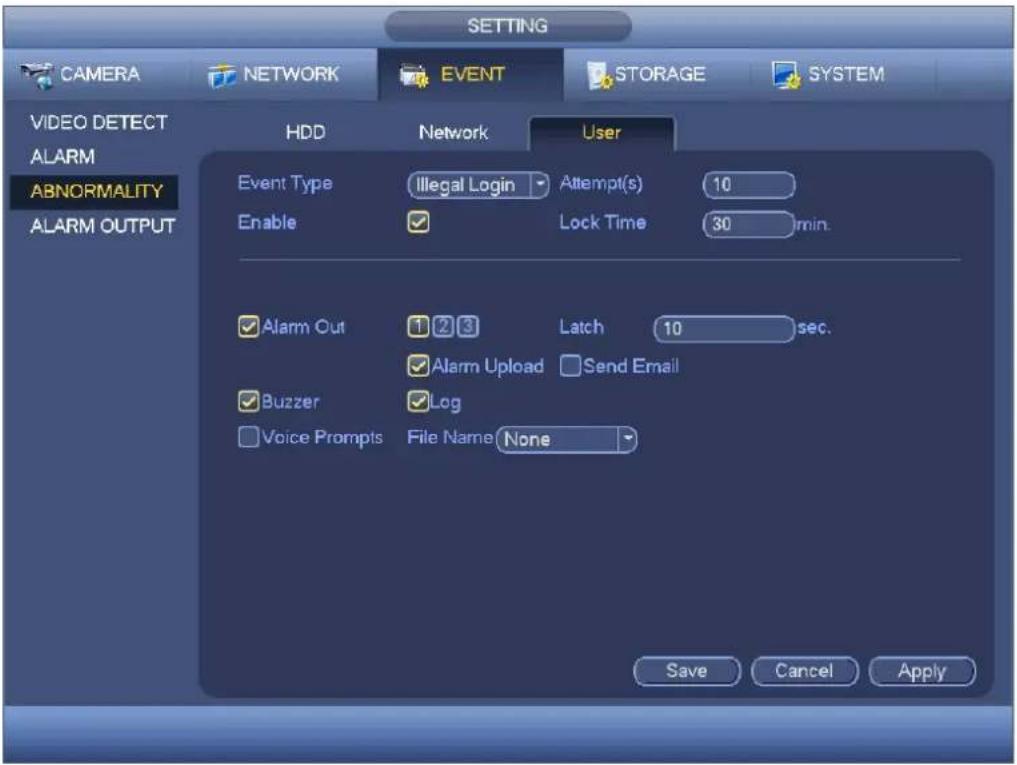
Figure 4-136
4.11.3.6 Alarm Output
Here is for you to set proper alarm output such as schedule, manual.
Please highlight icon to select the corresponding alarm output.
After all the setups please click OK button, system goes back to the previous menu. See Figure 4-137.

Figure 4-137
4.11.4 Storage
4.11.4.1 Schedule
4.11.4.1.1 Record
Note:
You need to have proper rights to implement the following operations. Please make sure the HDDs have been properly installed.
After the system booted up, it is in default 24-hour regular mode. You can set record type and time in schedule interface.
In the main menu, from Setting->Storage->Schedule, you can go to schedule menu.
See Figure 4-141.
Please note you need to go to main menu->Setting->System->General->Holiday to set holiday date first, otherwise, there is no holiday setup item.
- Channel: Please select the channel number first. You can select "all" if you want to set for the whole channels.
✿ Sync connection icon. Select icon of several dates, all checked items can be edited together. Now the icon is shown as
: Click it to delete a record type from one period.
- Record Type: Please check the box to select corresponding record type. There are four types: Regular/MD (motion detect)/Alarm/MD&Alarm.
● Week day: There are eight options: ranges from Saturday to Sunday and all.
- Holiday: It is to set holiday setup. Please note you need to go to the General interface (Main Menu->System->General) to add holiday first. Otherwise you can not see this item.
- Pre-record: System can pre-record the video before the event occurs into the file. The value ranges from 1 to 30 seconds depending on the bit stream.
- Redundancy: System supports redundancy backup function. You can highlight Redundancy button to activate this function. Please note, before enable this function, please set at least one HDD as redundant. (Main menu->Setting->Storage->HDD Manager). Please note this function is null if there is only one HDD.
- Period setup: Click button after one date or a holiday, you can see an interface shown as in Figure 4-142. There are four record types: regular, motion detection (MD), Alarm, MD & alarm.
Please following the steps listed below to draw the period manually.
Select a channel you want to set. See Figure 4-138.

Figure 4-138
Set record type. See Figure 4-139.

Figure 4-139
Please draw manually to set record period. There are six periods in one day. See Figure 4-140.
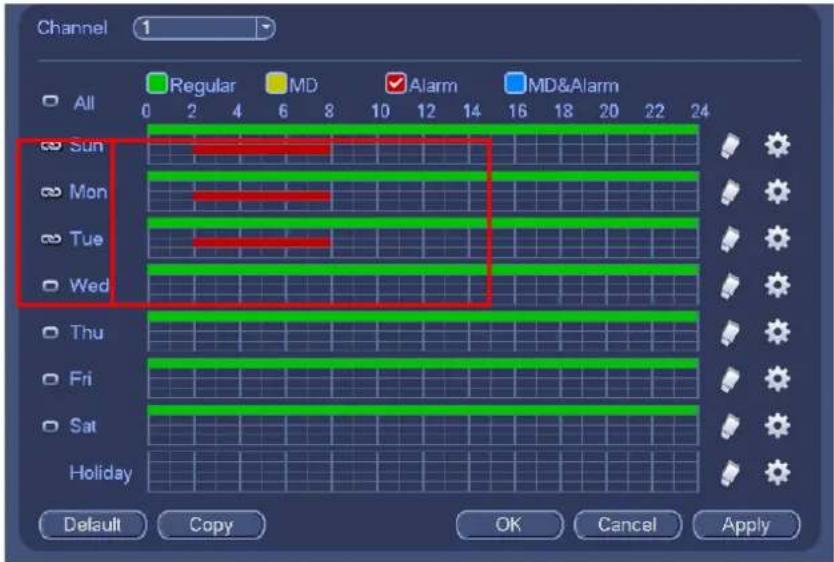
Figure 4-140
Please highlight icon to select the corresponding function. After completing all the setups please click save button, system goes back to the previous menu.
There are color bars for your reference. Green color stands for regular recording, yellow color stands for motion detection and red color stands for alarm recording. The white means the MD and alarm record is valid. Once you have set to record when the MD and alarm occurs, system will not record neither motion detect occurs nor the alarm occurs.
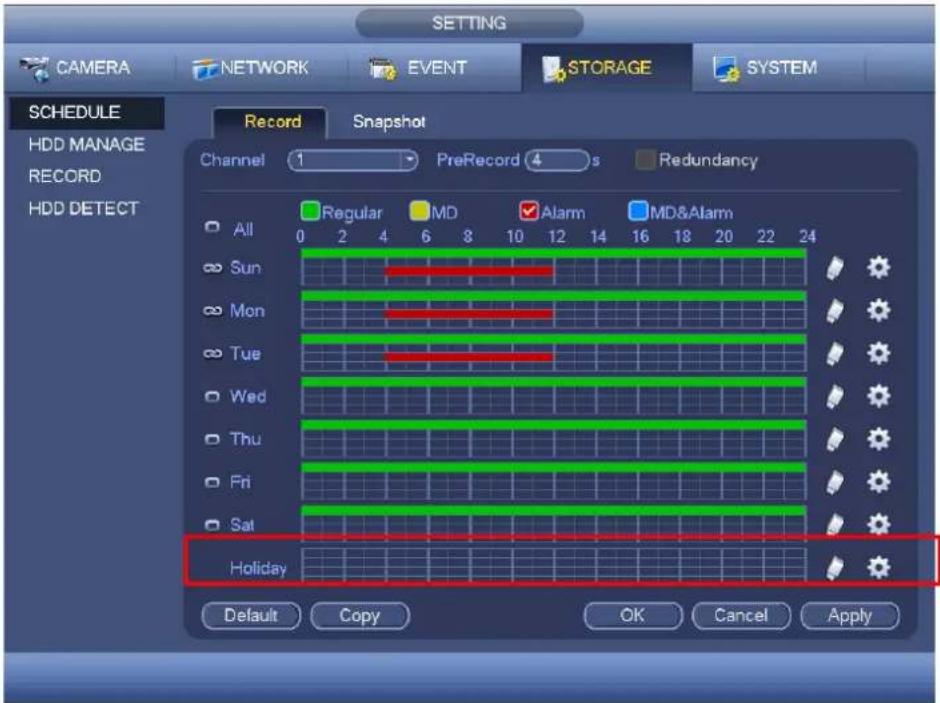
Figure 4-141
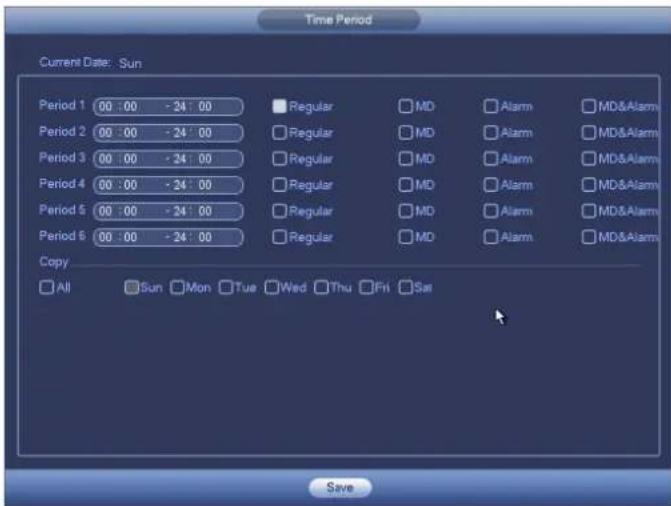
Figure 4-142
Copy function allows you to copy one channel setup to another. After setting in channel 1, click Copy button, you can go to interface Figure 4-143. You can see current channel name is grey such as channel 1. Now you can select the channel you want to paste such as channel 5/6/7. If you want to save current setup of channel 1 to all channels, you can click the first box "ALL". Click the OK button to save current copy setup. Click the OK button in the Encode interface, the copy function succeeded.
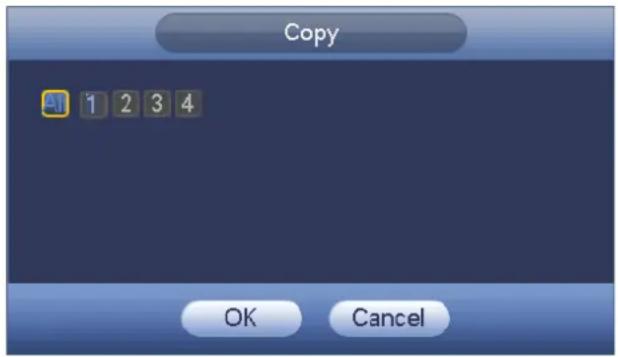
Figure 4-143
Redundancy function allows you to memorize record file in several disks. When there is file damage occurred in one disk, there is a spare one in the other disk. You can use this function to maintain data reliability and safety.
- In the main menu, from Setting->Storage->Schedule, you can highlight redundancy button to enable this function.
- In the main menu, from Main menu->Setting->Storage->HDD Manager, you can set one or more disk(s) as redundant. You can select from the dropdown list. System auto overwrites old files once hard disk is full.
Please note only read/write disk or read-only disk can backup file and support file search function, so you need to set at least one read-write disk otherwise you can not record video.
Note
About redundancy setup:
- If current channel is not recording, current setup gets activated when the channel begin recording the next time.
- If current channel is recording now, current setup will get activated right away, the current file will be packet and form a file, then system begins recording as you have just set.
After all the setups please click save button, system goes back to the previous menu.
Playback or search in the redundant disk.
There are two ways for you to playback or search in the redundant disk.
- Set redundant disk(s) as read-only disk or read-write disk (Main menu->Setting->Storage->HDD Manager)). System needs to reboot to get setup activated. Now you can search or playback file in redundant disk.
- Dismantle the disk and play it in another PC.
4.11.4.1.2 Snapshot
4.11.4.1.2.1 Schedule Snapshot
- On the preview interface, right click mouse and then select Manual->Record, or in the main menu, from Setting->Storage->Record, check the box to enable snapshot function of corresponding channels. See Figure 4-144.
- In main menu, from Setting->Camera->Encode->Snapshot interface, here you can input snapshot mode as regular, size, quality and frequency. See Figure 4-145.
- In main menu, from Setting->Camera->Encode->Schedule interface, please enable snapshot function. See interface on the right of Figure 4-146.
Please refer to the following figure for detailed information.
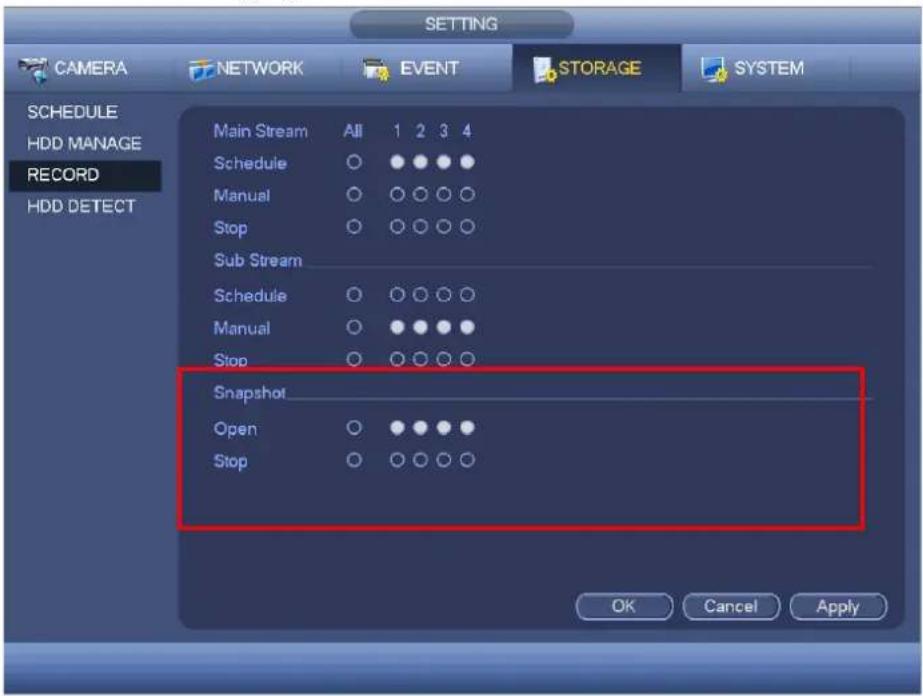
Please follow the steps listed below to enable the activation snapshot function. After you enabled this function, system can snapshot when the corresponding alarm occurred.
- In main menu, from Setting->Camera->Encode->Snapshot interface, here you can input snapshot mode as trigger, size, quality and frequency. See Figure 4-147.
- In main menu, from Setting->Event->Detect, please enable snapshot function for specified channels (Figure 4-148). Or In main menu, from Setting->Event->Alarm (Figure 4-149) please enable snapshot function for specified channels.
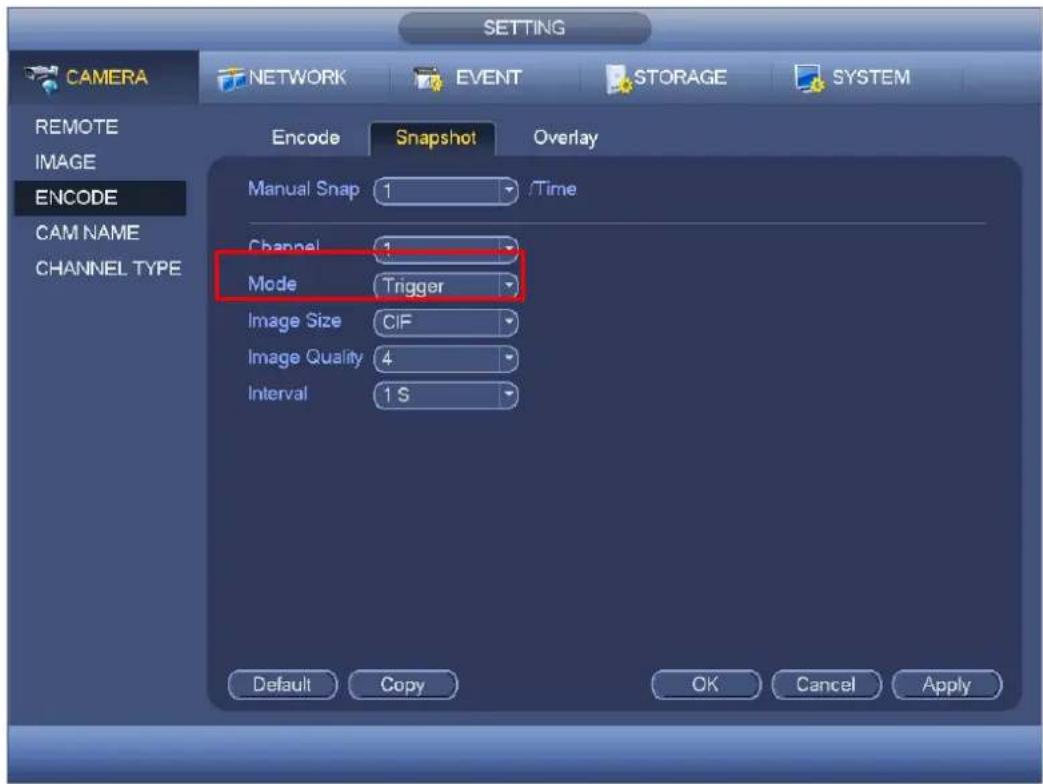
Figure 4-147
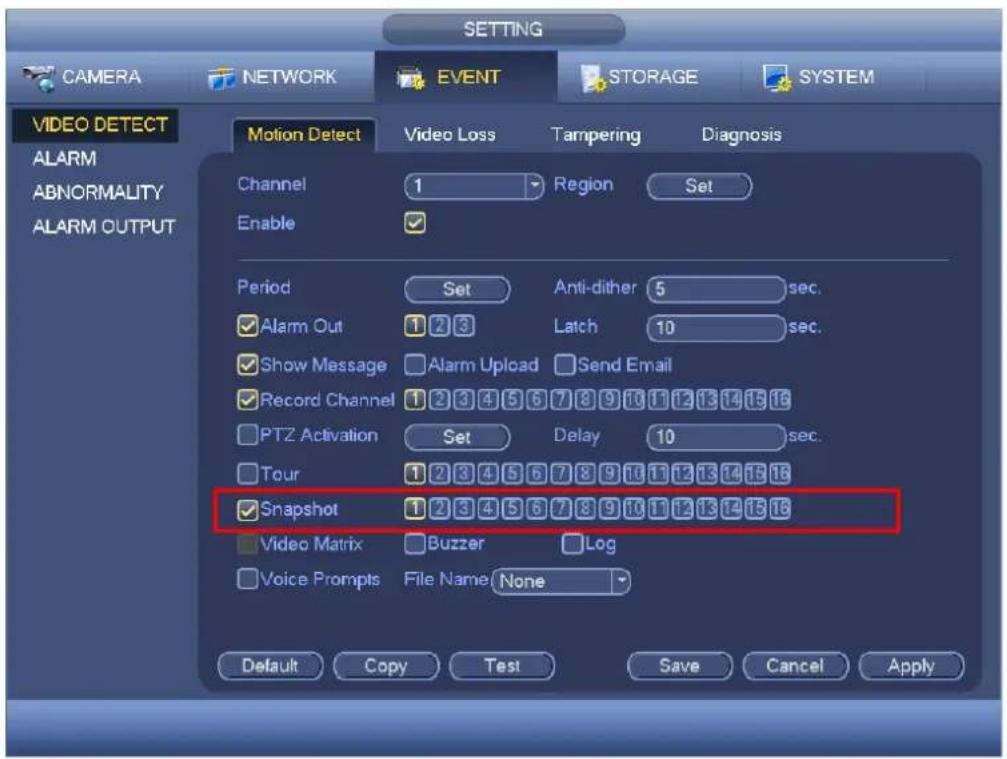
Figure 4-148
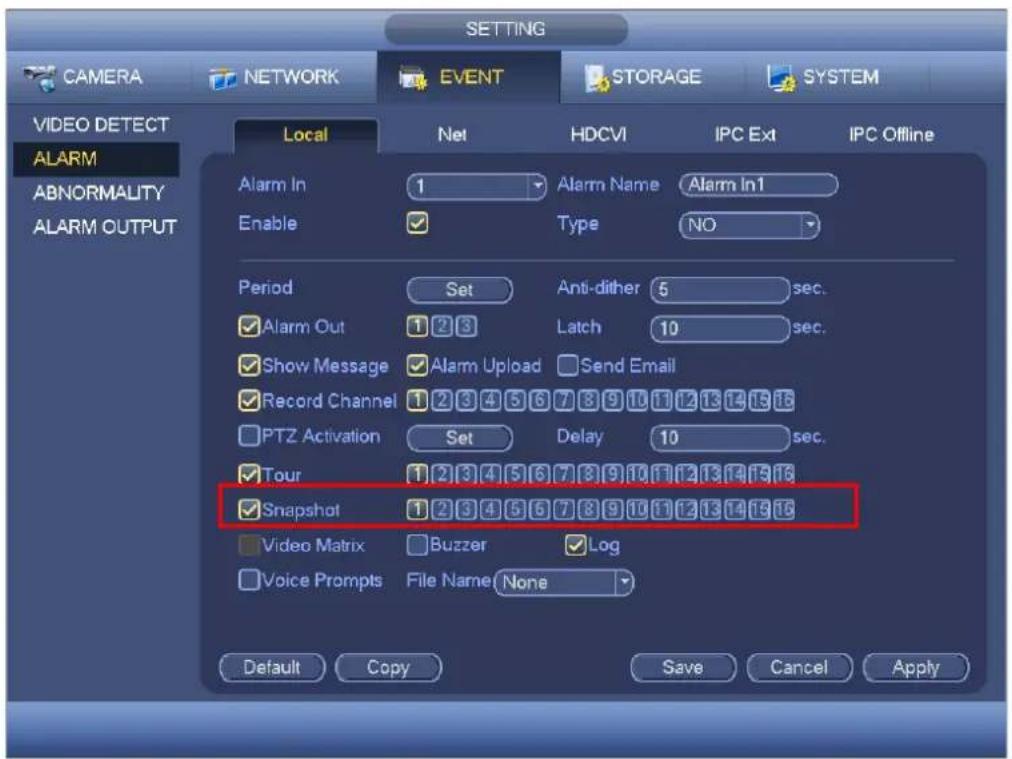
Figure 4-149
4.11.4.1.2.3 Priority
Please note the activation snapshot has the higher priority than schedule snapshot. If you have enabled these two types at the same time, system can activate the activation snapshot when alarm occurs, and otherwise system just operates the schedule snapshot.
4.11.4.1.2.4 Image FTP
In the main menu, from Setting->Network->FTP, you can set FTP server information. Please enable FTP function and then click save button. See Figure 4-150.
Please boot up corresponding FTP server.
Please enable schedule snapshot (Chapter 4.11.4.1.2.1) or activation snapshot (Chapter 4.11.4.1.2.2) first, now system can upload the image file to the FTP server.
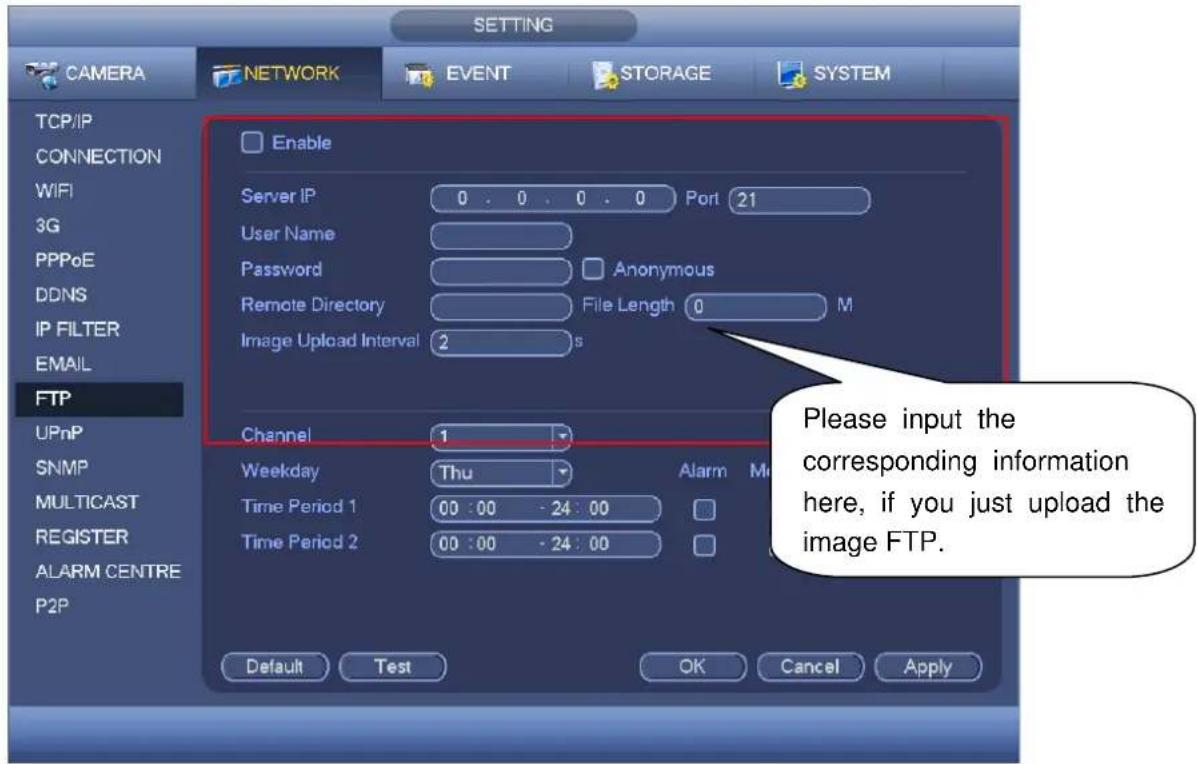
Figure 4-150
4.11.4.2 HDD Manager
Here is for you to view and implement hard disk management. See Figure 4-151.
You can see current HDD type, status, capacity and etc. The operation includes format HDD, and change HDD property (read and write/read-only/redundancy).
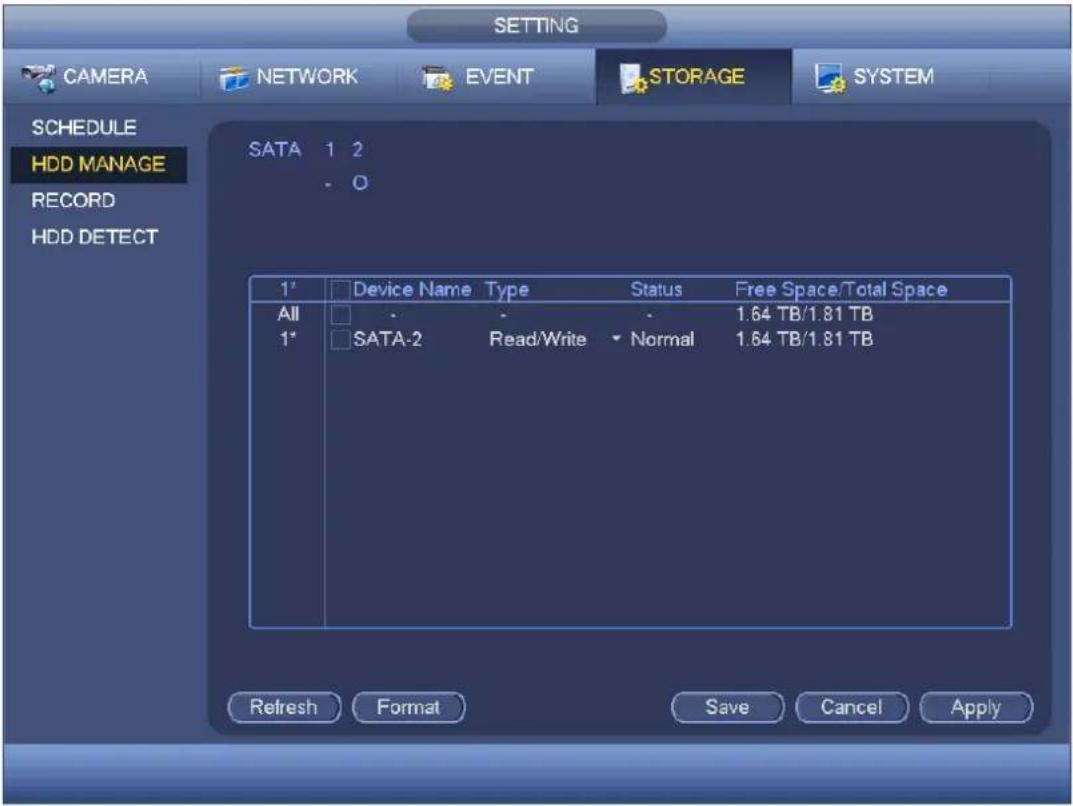
Figure 4-151
4.11.4.3 Record
4.11.4.3.1 Record Control
Note:
You need to have proper rights to implement the following operations. Please make sure the HDD has been properly installed.
There are three ways for you to go to manual record menu.
- Right click mouse and then select Manual->Record.
- In the main menu, from Setting->Storage->Record.
- In live viewing mode, click record button in the front panel or record button in the remote control.
System supports main stream and sub stream. There are three statuses:
schedule/manual/stop. See Figure 4-152. Please highlight icon "O" to select corresponding channel.
- Manual: The highest priority. After manual setup, all selected channels will begin ordinary recording.
- Schedule: Channel records as you have set in recording setup (Main Menu->Setting->System->Schedule)
- Stop: Current channel stops recording.
- All: Check All button after the corresponding status to enable/disable all-channel schedule/manual record or enable/disable all channels to stop record.
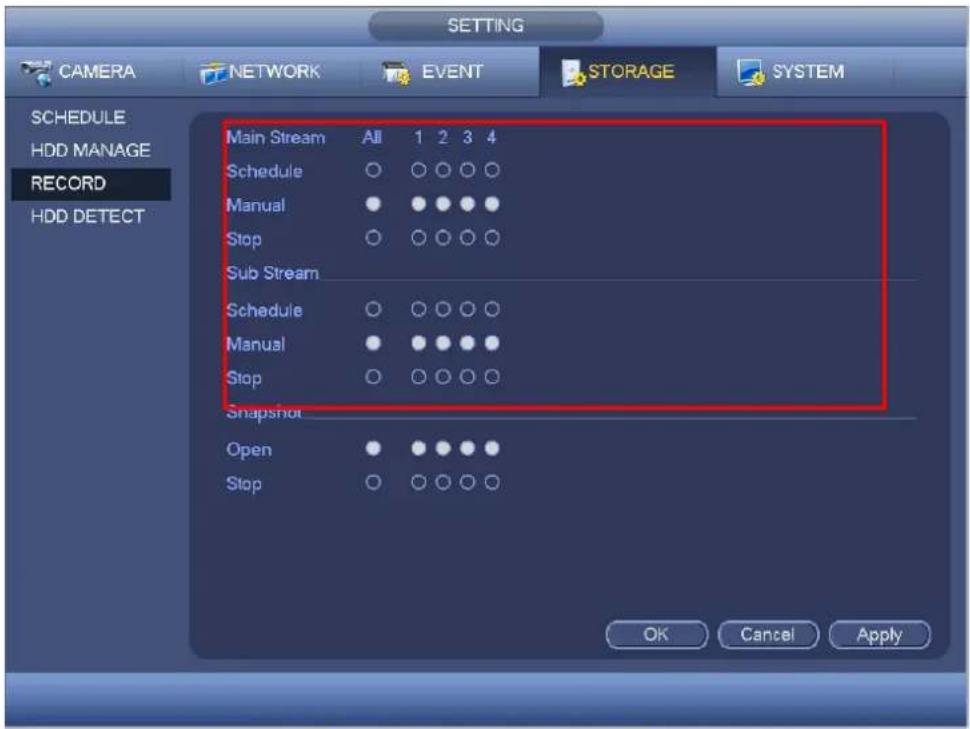
Figure 4-152
4.11.4.3.2 Snapshot Operation
Check the corresponding box to enable/disable schedule snapshot function. See Figure 4-153.
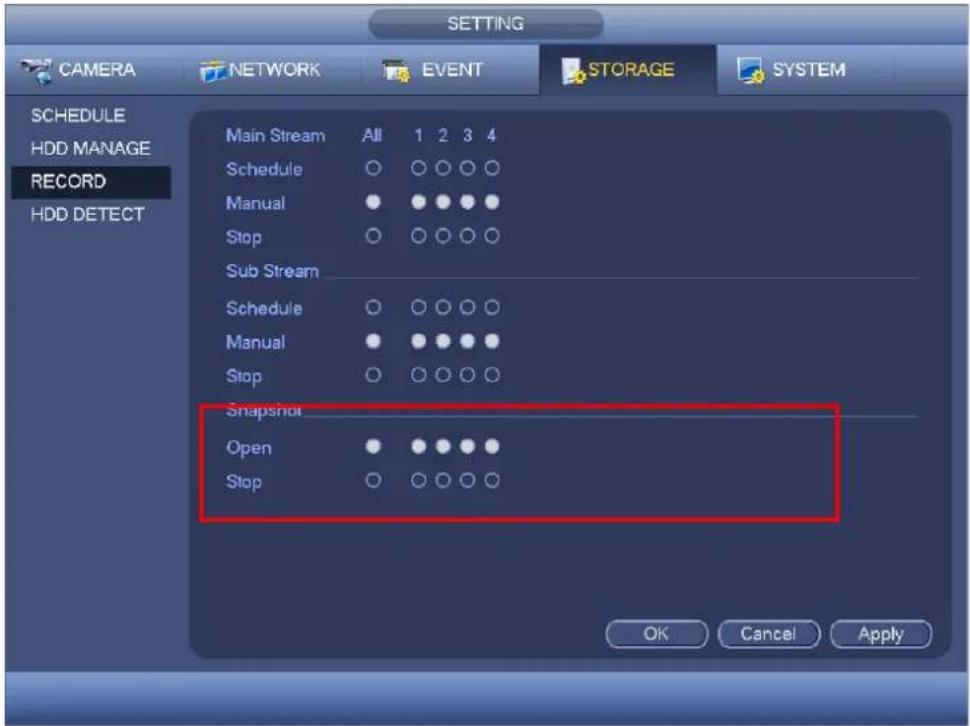
Figure 4-153
Tips
You can check All button after the corresponding status to enable/disable all-channel
snapshot function.
4.11.4.4 HDD Detect
The HDD detect function is to detect HDD current status so that you can clearly understand the HDD performance and replace the malfunction HDD.
There are two detect types:
- Quick detect is to detect via the universal system files. System can quickly complete the HDD scan. If you want to use this function, please make sure the HDD is in use now. If the HDD is removed from other device, please make sure the write-data once was full after it installed on current device.
- Global detect adopts Windows mode to scan. It may take a long time and may affect the HDD that is recording.
4.11.4.4.1 Manual Detect
The manual detect interface is shown as below. See Figure 4-154.
Please select detect type and HDD. Click start detect to begin. You can view the corresponding detect information. See Figure 4-155.
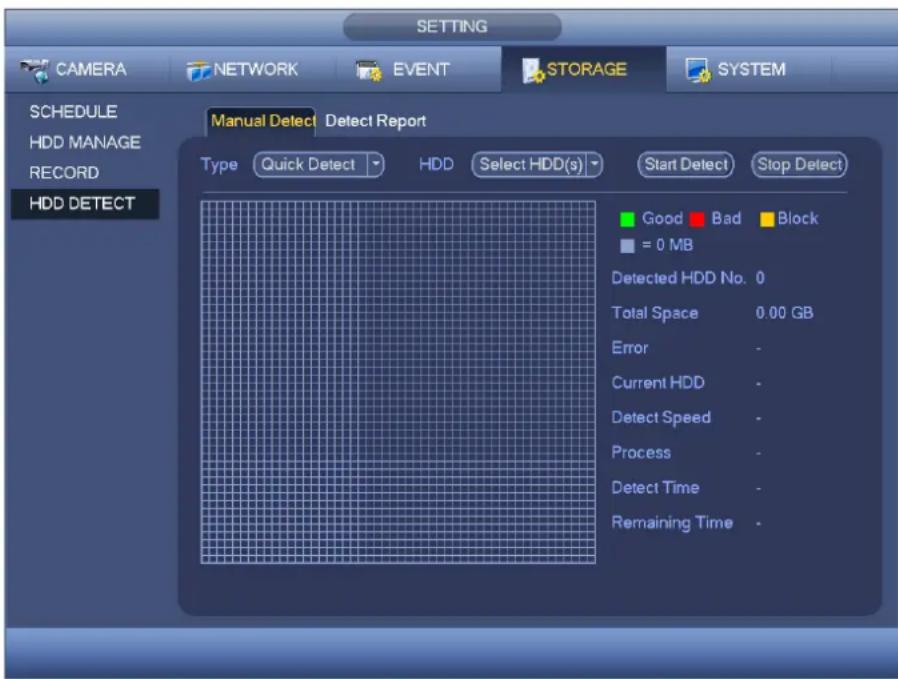
Figure 4-154
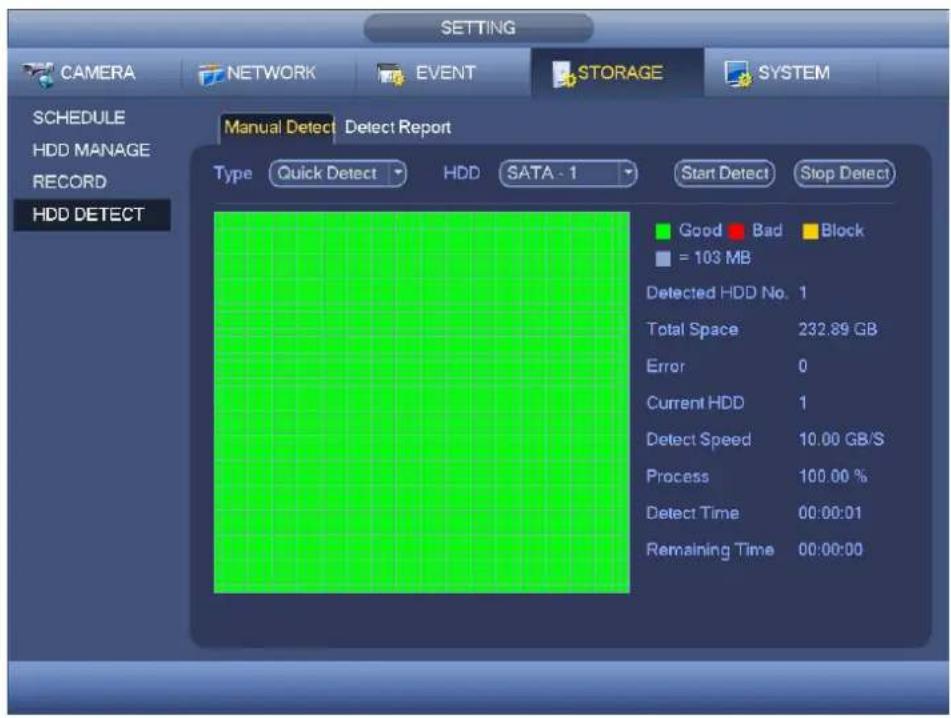
Figure 4-155
4.11.4.4.2 Detect Report
After the detect operation, you can go to the detect report to view corresponding information.
The detect report interface is shown as below. See Figure 4-156.
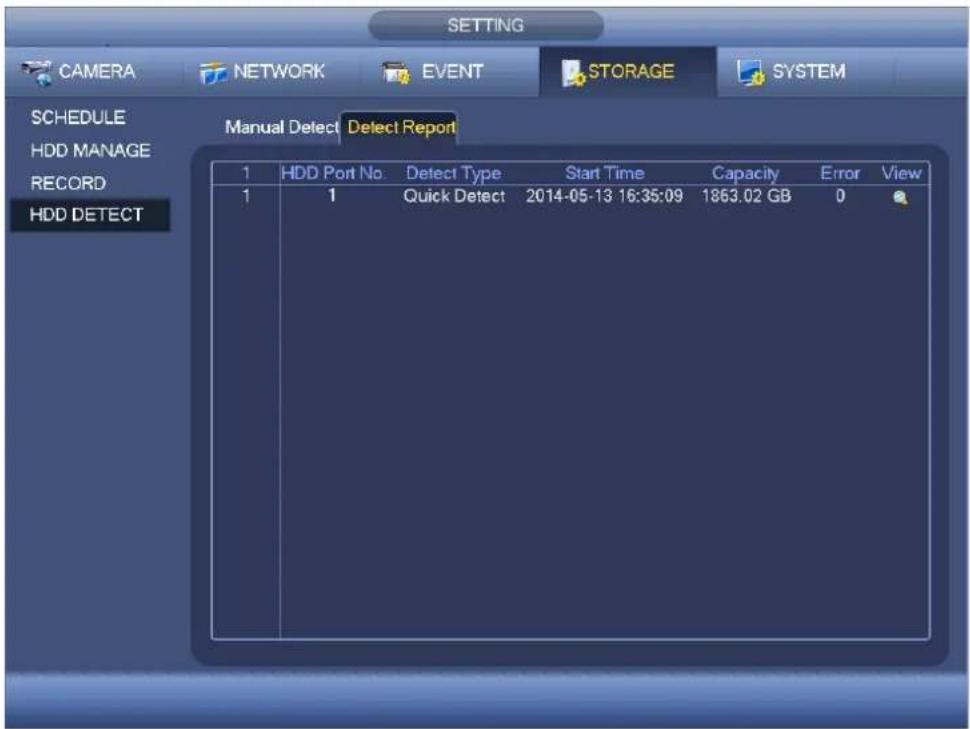
Figure 4-156
Click the item you can see the detailed information such as detect result. See Figure 4-157.
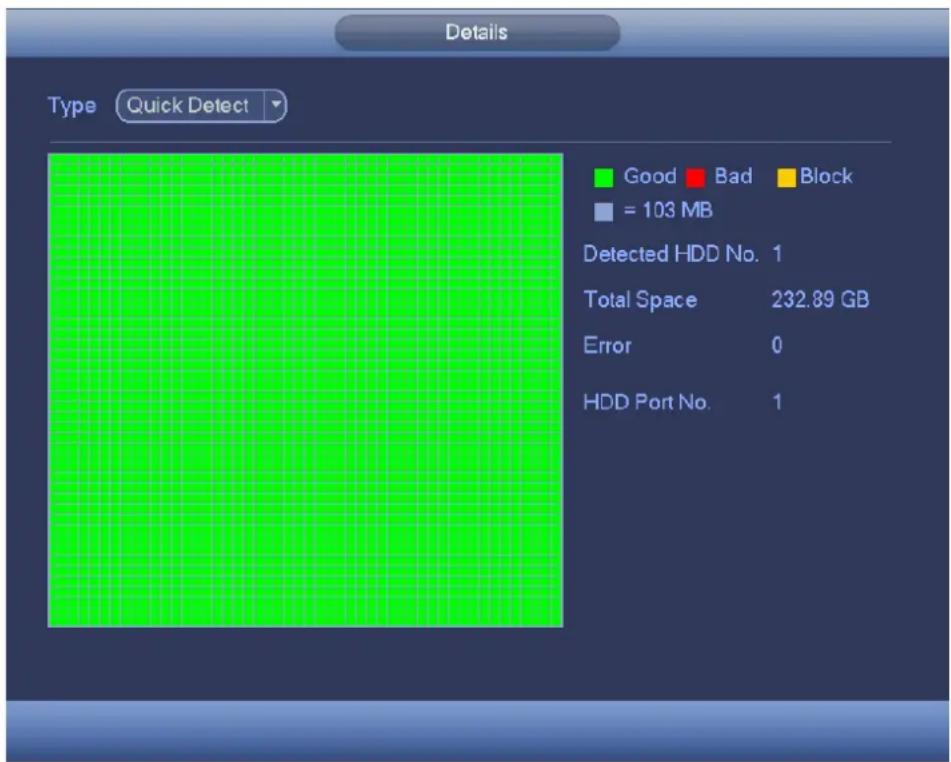
Figure 4-157
4.11.5 System
4.11.5.1 General
4.11.5.1.1 Device
General setting includes the following items. See Figure 4-158.
● Device ID: Please input a corresponding device name here.
● Device No: Here you can set device number.
- Language: System supports various languages: Chinese (simplified), Chinese (Traditional), English, Italian, Japanese, French, Spanish (All languages listed here are optional. Slight difference maybe found in various series.)
● Video standard: There are two formats: NTSC and PAL.
- HDD full: Here is for you to select working mode when hard disk is full. There are two options: stop recording or rewrite. If current working HDD is overwritten or the current HDD is full while the next HDD is no empty, then system stops recording, If the current HDD is full and then next HDD is not empty, then system overwrites the previous files.
- Pack duration: Here is for you to specify record duration. The value ranges from 1 to 120 minutes. Default value is 60 minutes.
● Real-time playback: It is to set playback time you can view in the preview interface. The value ranges from 5 to 60 minutes.
● Auto logout: Here is for you to set auto logout interval once login user remains inactive for a specified time. Value ranges from 0 to 60 minutes.
- IPC Time Sync: You can input an interval here to synchronize the DVR time and IPC time.
- Navigation bar: Check the box here, system displays the navigation bar on the interface.
- Startup wizard: Once you check the box here, system will go to the startup wizard directly when the system restarts the next time. Otherwise, it will go to the login interface.
- Mouse property: You can set double click speed via dragging the slide bard. You can Click Default button to restore default setup.
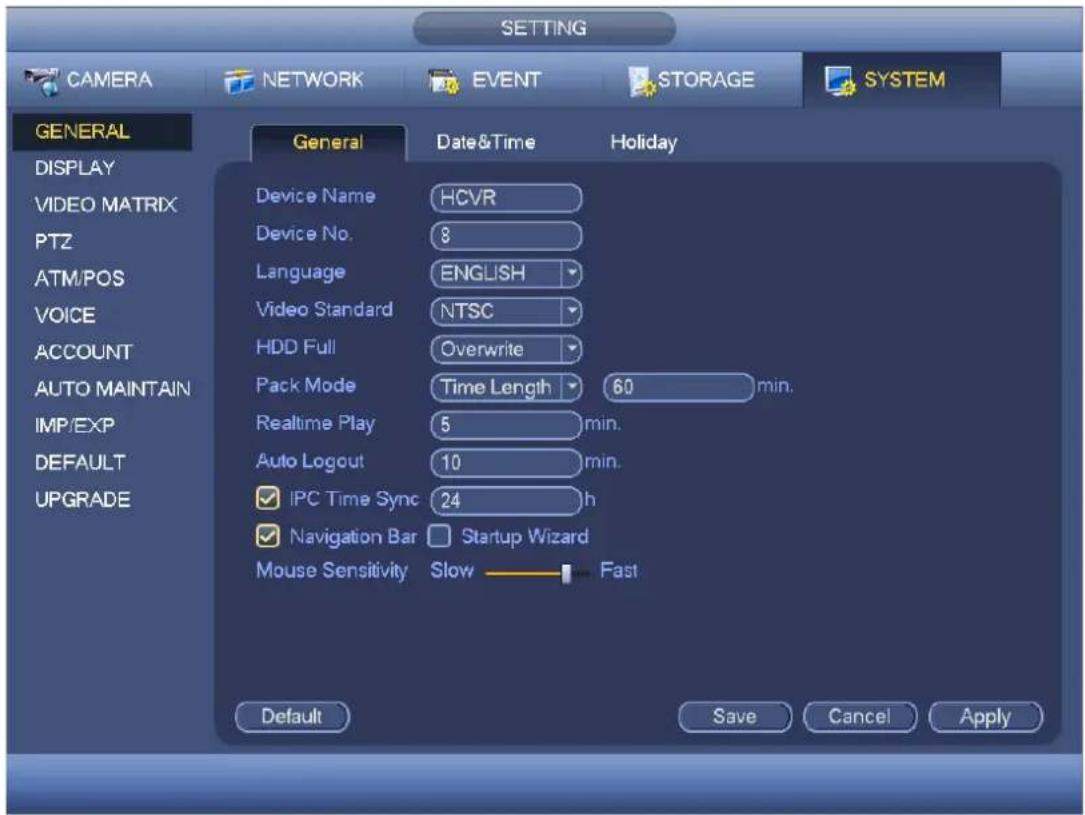
Figure 4-158
4.11.5.1.2 Date and Time
The interface is shown as in Figure 4-159.
- Date format: There are three types: YYYY-MM-DD: MM-DD-YYYY or DD-MM-YYYY.
- Date separator: There are three denotations to separate date: dot, beeline and solidus.
- DST: Here you can set DST time and date. Here you can set start time and end time by setting corresponding week setup or by setting corresponding date setup.
● NTP: It is to set NTP server information.
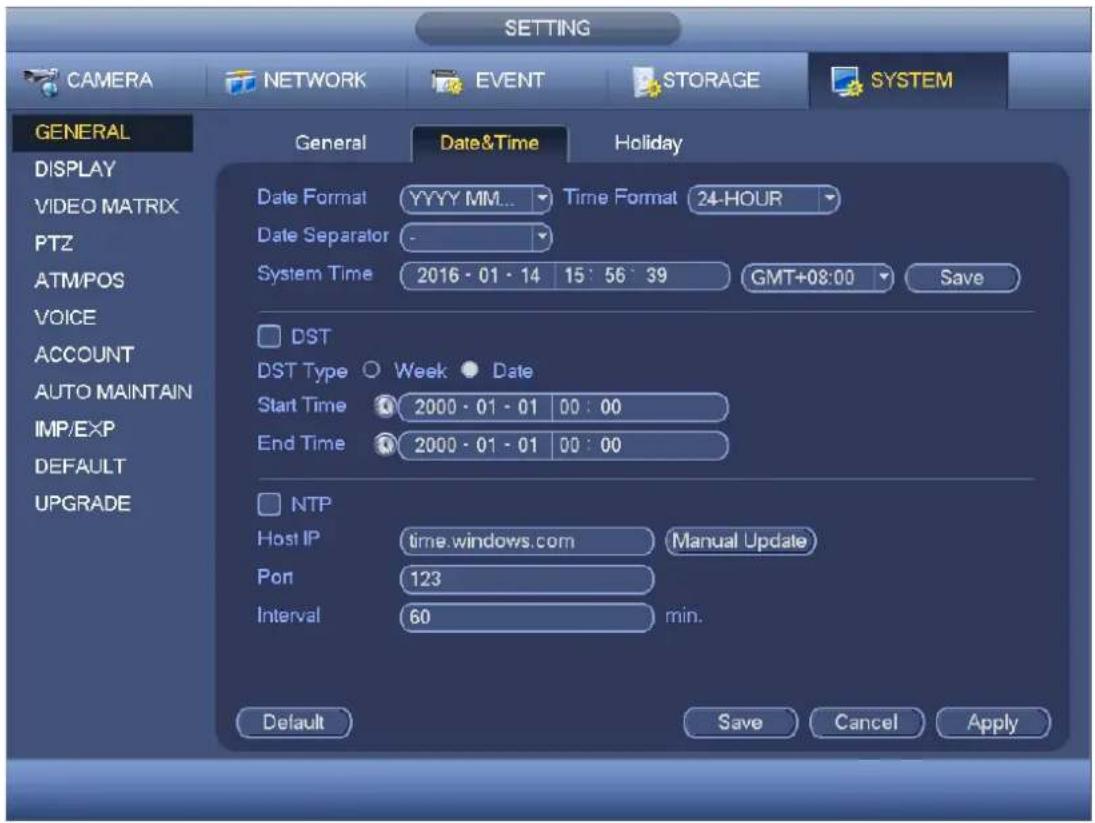
Figure 4-159
4.11.5.1.3 Holiday
Holiday setup interface is shown as in Figure 4-160. Click Add new holiday button, you can input new holiday information. See Figure 4-161. Here you can set holiday name, repeat mode and start/end time.
Note
- When you enable Holiday settings and schedule setup at the same time, holiday setting has the priority. If the selected day is a holiday, then system records as you set in holiday setting. If it is not a holiday, system records as you set in Schedule interface. Please note
- Please note, there is no year setup on the holiday setup. For example, if you set 30th Oct, 2012 as a holiday, then the date of 30th Oct in each year will be set as a holiday.
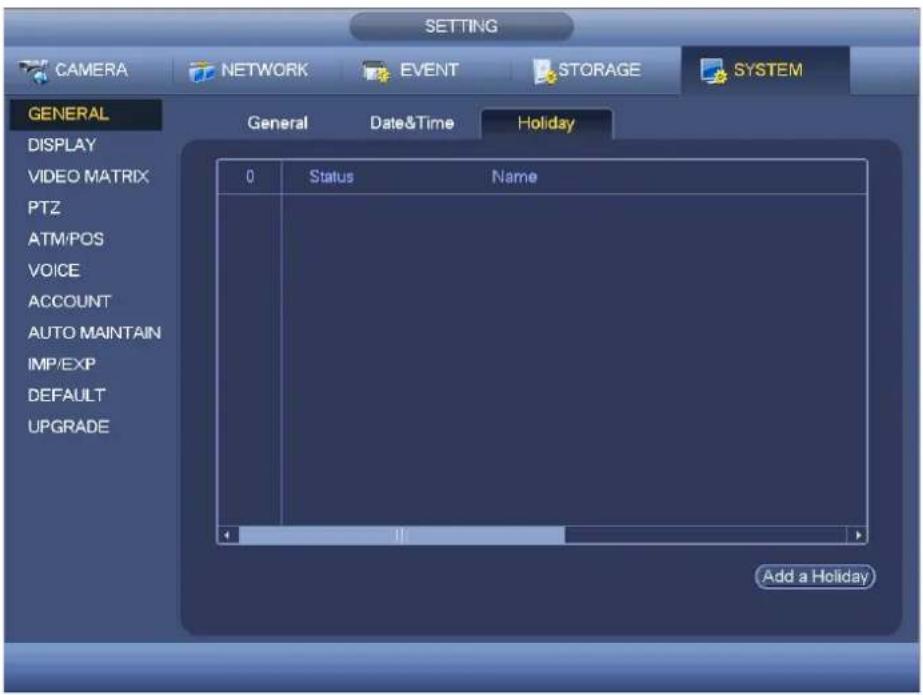
Figure 4-160
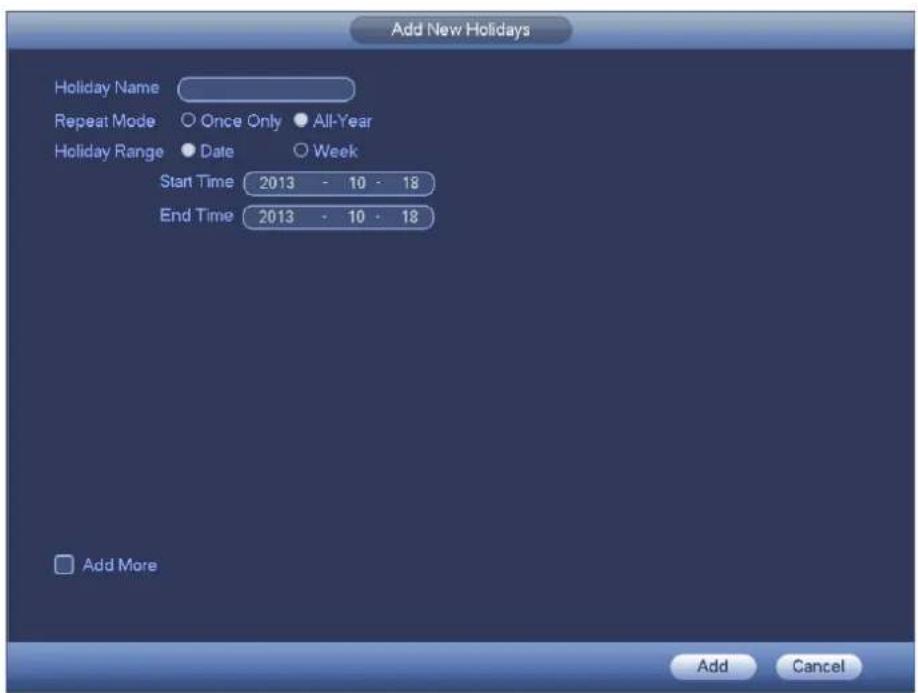
Figure 4-161
4.11.5.2 Display
4.11.5.2.1 Display
Display setup interface is shown as below. See Figure 4-162.
● Time display: You can select to display time or not when system is playback.
- Channel display: You can select to channel name or not when system is playback.
- Image original rate: Check the box here, the video can be displayed at its actual size.
- Transparency: Here is for you to adjust menu transparency. The higher the value is, the more transparent the menu is.
- Resolution: There are four options: 1920×1080, 1280×1024(default), 1280×720, 1024×768. Please note the system needs to reboot to activate current setup.
- Preview enhance: Check the box; it can optimize the video quality of the preview video.
- Video matrix: Check the box to enable video matrix function.
Please highlight icon to select the corresponding function.
After completing all the setups please click save button, system goes back to the previous menu.
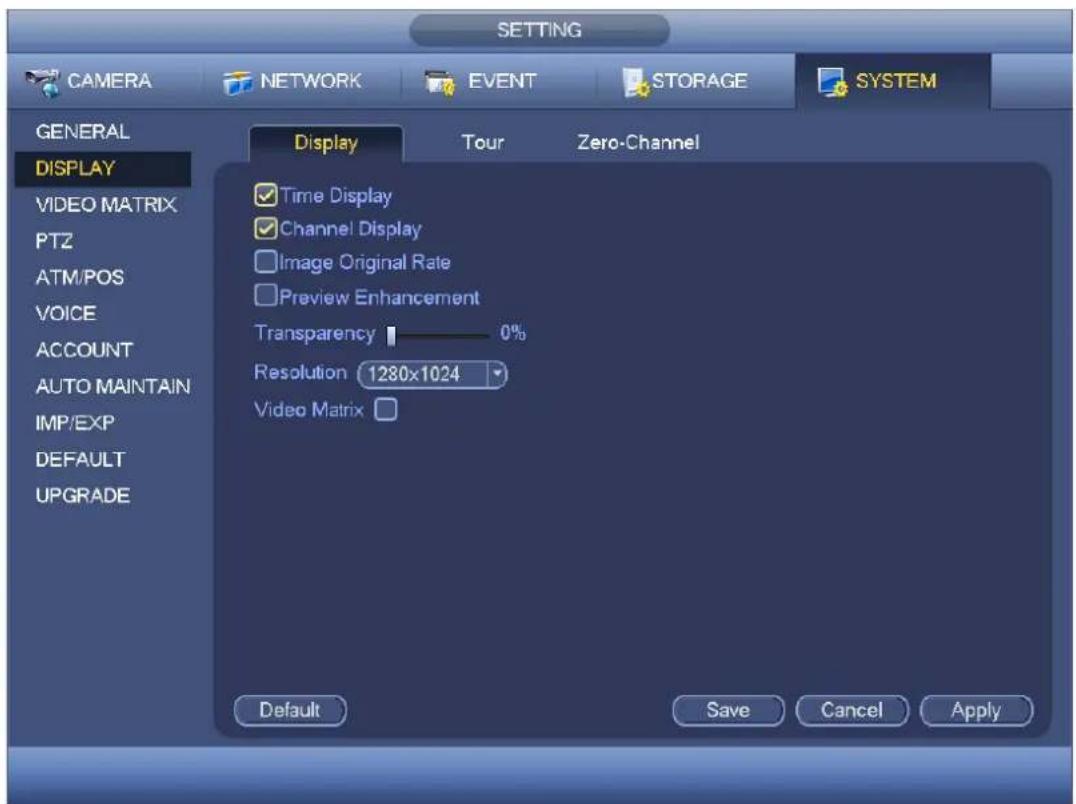
Figure 4-162
This function is for some series only.
Here is for you to adjust TV output setup. See Figure 4-163.
Please drag slide bar to adjust each item.
After all the setups please click OK button, system goes back to the previous menu.
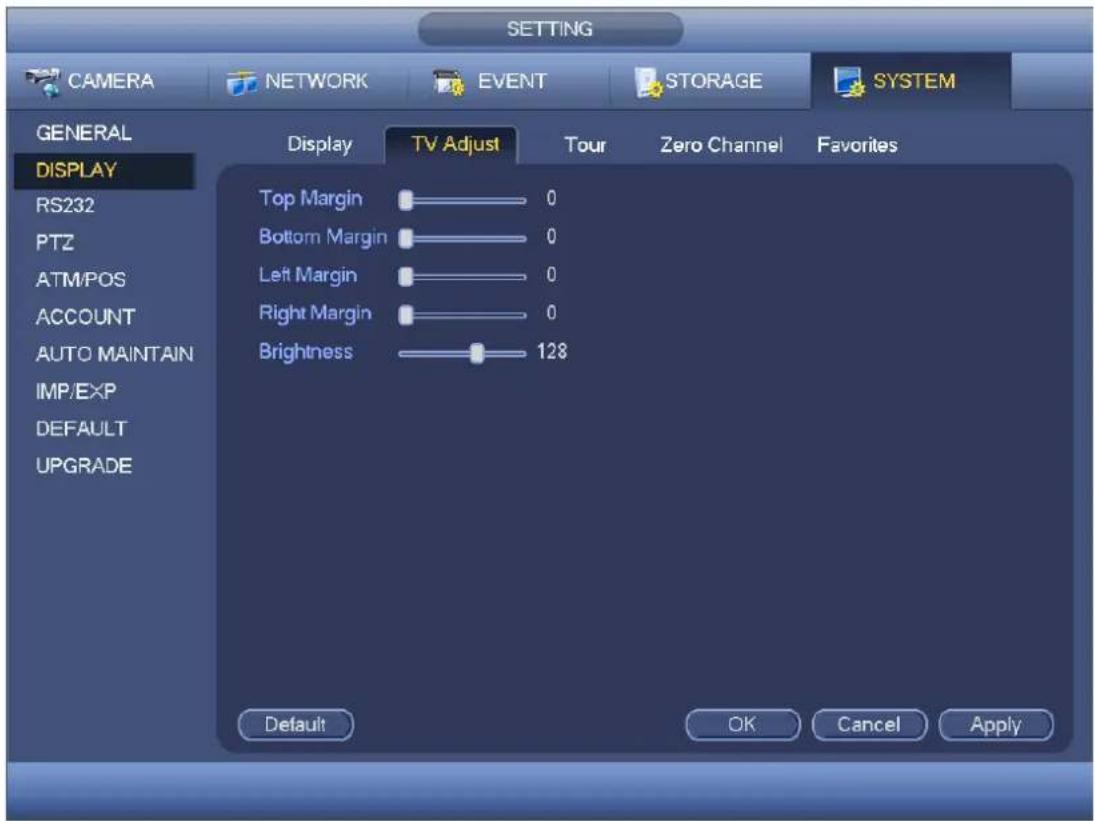
Figure 4-163
4.11.5.2.3 Tour
Here you can activate tour function. Click Setup button, you can see an interface shown as in Figure 4-164
- Enable tour: Highlight box here to enable this function.
- Interval: System supports 1/8/-window tour. Input proper interval value here. The value ranges from 5-120 seconds. It is for schedule tour/alarm/motion detect tour.
- Split: You can select window split mode from the dropdown list.
- Channel group: It is to display all channel groups on current split mode. You can edit and delete a channel group here. Double click an item in the list; you can edit its channel group setup. Right now system max supports 32.
- Add: Under specified window split mode, click it to add channel group.
- Delete: Click it to remove selected channel group.
- Move up: Click it to move current selected channel up.
- Move down: Click it to move current selected channel down.
- Default: Click it to restore default setup.
Tips:
- Use mouse or Shift button to switch 🔒 and ⏻ button to enable /disable tour.
means the tour functon is enabled and G meas tour functon is disabled.
- On the navigation bar, click or to enable/disable tour function.
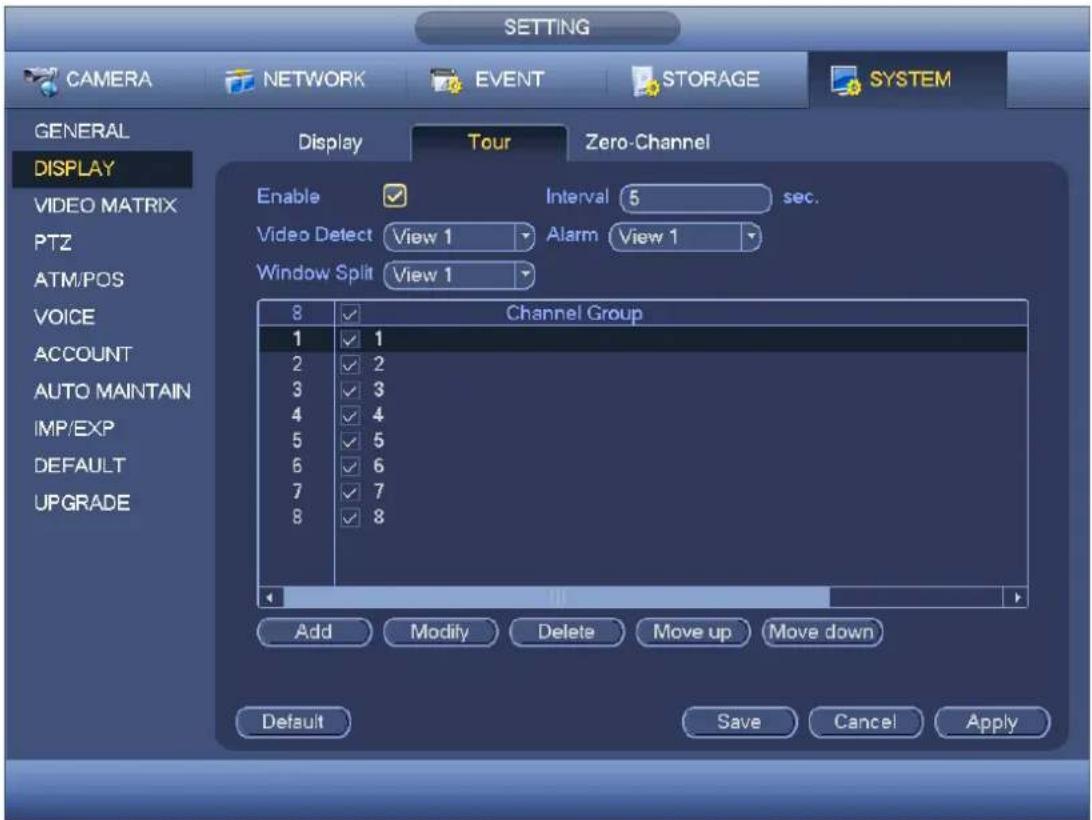
Figure 4-164
4.11.5.2.4 Zero-channel Encoding
Click zero-channel encoding button, you can go to the following interface. See Figure 4-165. Here you can enable and set zero-channel encoding function so that you can view several video sources at one channel.
- Enable: This function is disabled by default. Check the box here to enable this function so that you can control the zero-channel encoding function at the WEB.
- Compression: System default setup is H.264. You can set according to device capability.
- Resolution: The resolution value may vary due to different device capabilities. Please select from the dropdown list.
- Frame rate: The frame rate value may vary due to different device capabilities. Please select from the dropdown list.
- Bit Rate: The bit rate value may vary due to different device capabilities and frame rate setups. Please select from the dropdown list.
- Save: Click the Save button to save current setup. If this function is disabled, you can not operate zero-channel encoding function at the WEB, the video is black or null even you operate when the function is disabled. After you enabled this function, login
the Web and you can select zero-channel encoding mode at the right corner of the
interface. Select a mode; you can view the local preview video.
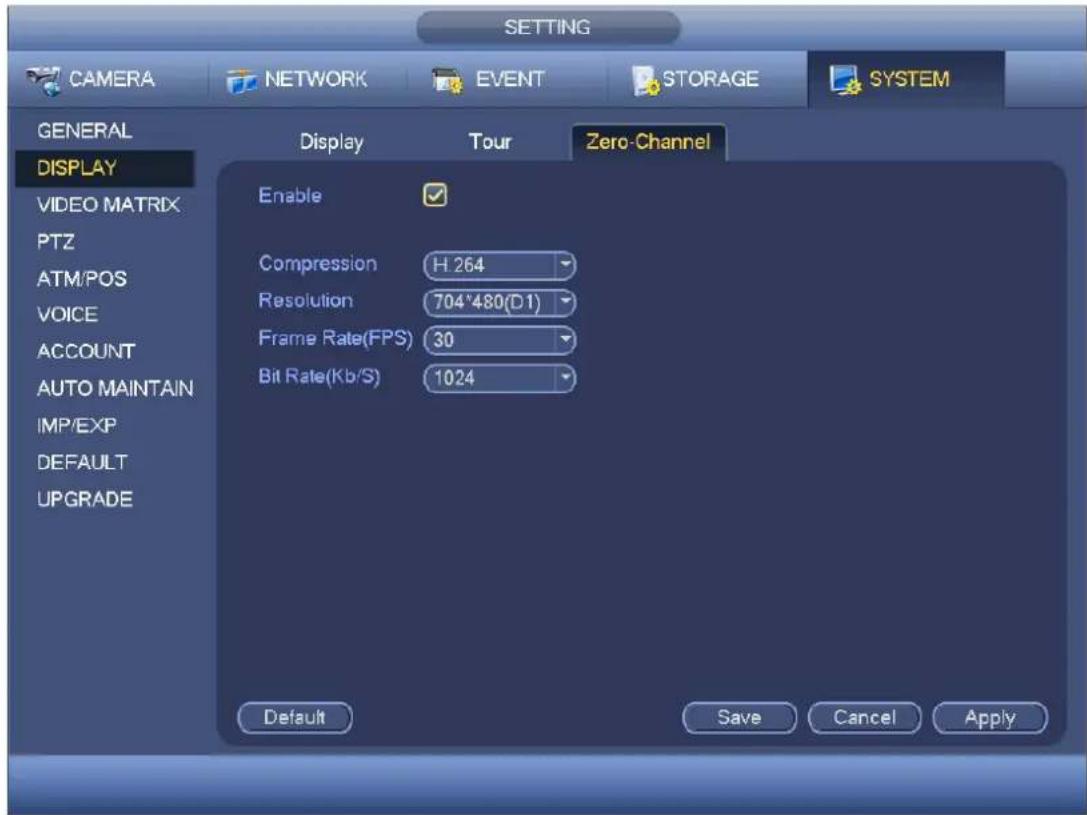
Figure 4-165
4.11.5.3 Video Matrix
Here you can set matrix output channel and its interval. You can set HDMI2 port tour and its interval See Figure 4-166.
- Enable tour: Check the box here to enable this function.
- Interval: Input proper interval value here.
- Resolution: The resolution of the tour window. Please note this function is for HDMI only.
- Split: You can select window split mode from the dropdown list. For BNC, it supports 1-split mode only. For HDMI, it supports 1/4/9/16-split mode. Some series product support 24/36-split. Please refer to the actual product.
- Add: Under specified window split mode, click it to add channel group. See Figure 4-167.
- Modify: Double click a channel or select a channel and then click Modify button, you can change current channel setup. See Figure 4-168.
- Delete: Click it to remove selected channel group.
-
Move up: Click it to move current selected channel up.
-
Move down: Click it to move current selected channel down.
- Default: Click it to restore default setup.
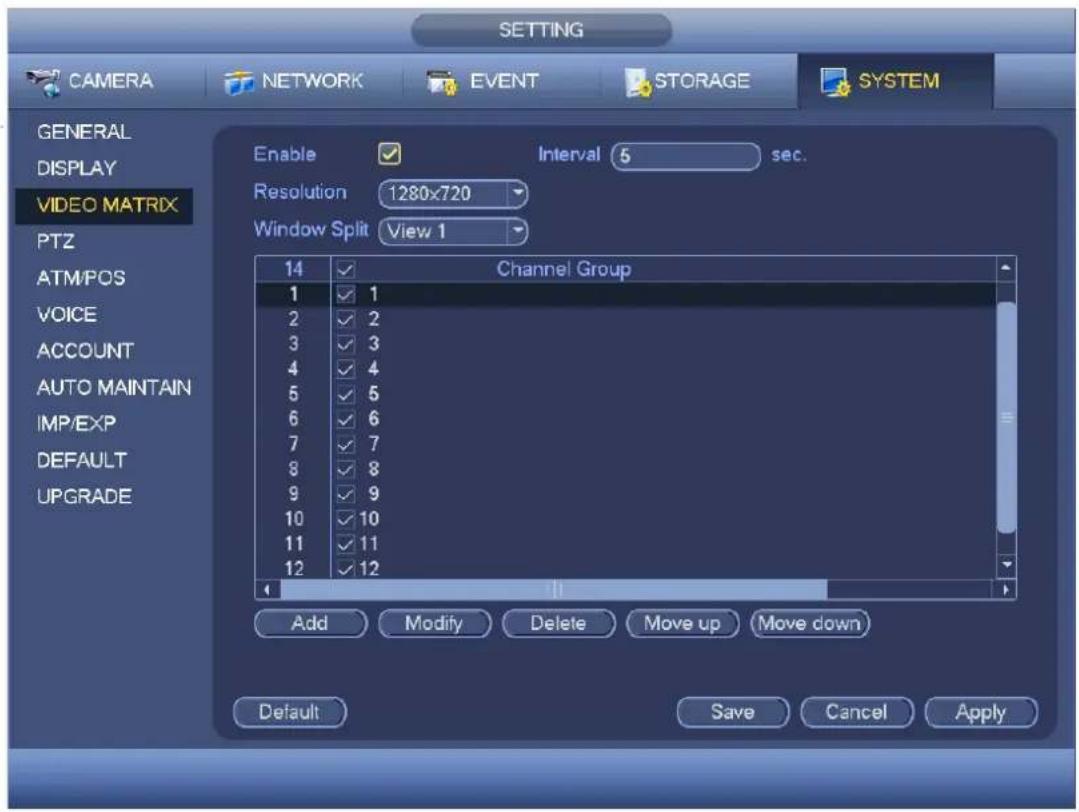
Figure 4-166
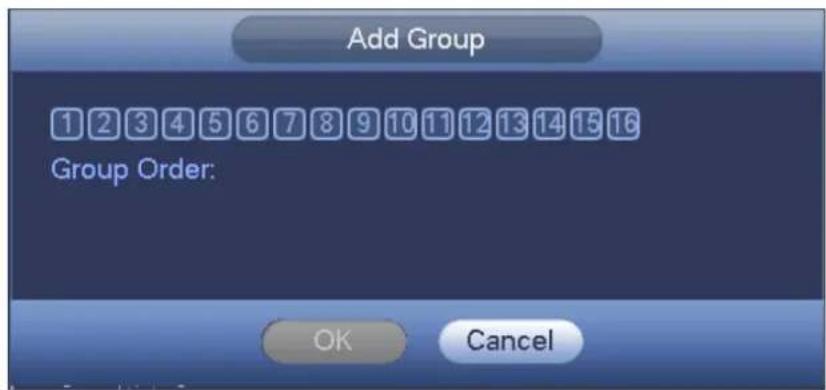
Figure 4-167
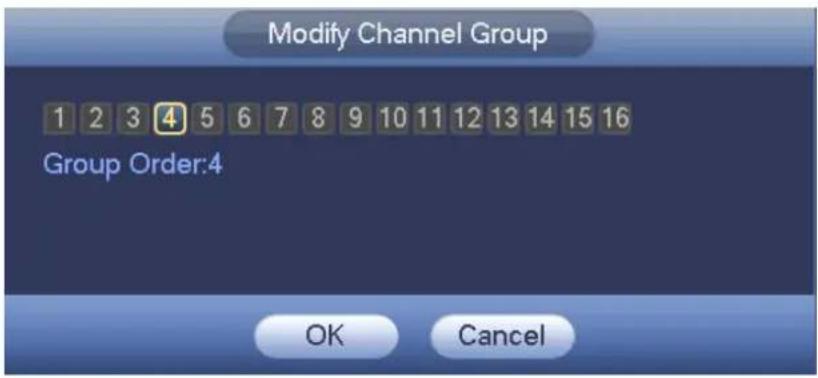
Figure 4-168
4.11.5.4 RS232
RS232 interface is shown as below. There are five items. See Figure 4-169.
- Function: There are various devices for you to select. Console is for you to use the COM or mini-end software to upgrade or debug the program. The control keyboard is for you to control the device via the special keyboard. Transparent COM (adapter) is to connect to the PC to transfer data directly. Protocol COM is for card overlay function. Network keyboard is for you to use the special keyboard to control the device. PTZ matrix is to connect to the peripheral matrix control.
● Baud rate: You can select proper baud rate.
● Data bit: You can select proper data bit. The value ranges from 5 to 8.
- Stop bit: There are two values: 1/2.
- Parity: There are five choices: none/odd/even/space mark.
System default setup is:
- Function: Console
● Baud rate:115200 - Data bit:8
- Stop bit:1
- Parity: None
After completing all the setups please click save button, system goes back to the previous menu.
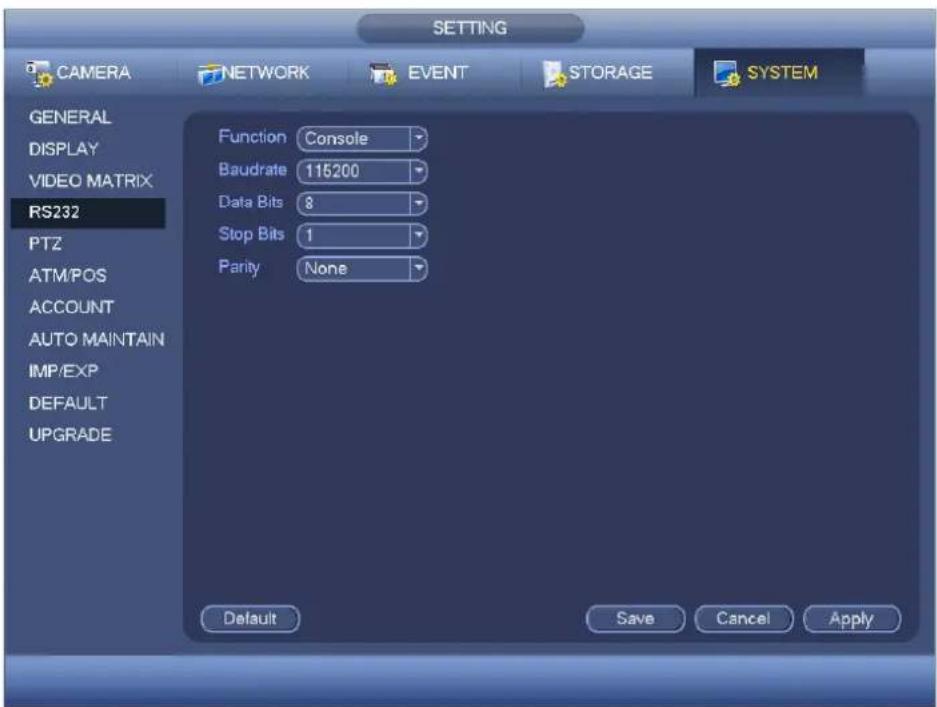
Figure 4-169
4.11.5.5 PTZ
The pan/tilt/zoom setup includes the following items. Please select channel first. See Figure 4-170.
- PTZ type: There are two options: local/remote. Please select remote if you are connecting to the network PTZ.
- Control mode: You can select control mode from the dropdown list. There are two options: Serial/HDCVI. For HDCVI series product, please select HDCVI. The control signal is sent to the PTZ via the coaxial cable. For the serial mode, the control signal is sent to the PTZ via the RS485 port.
- Protocol: If the control mode is HDCVI, please select HDCVI protocol. The default setup is HDCVI3.0
- Address: input corresponding PTZ address.
● Baud rate: Select baud rate.
● Data bit: Select data bit. - Stop bit: Select stop bit.
● Parity: There are three choices: none/odd/even.
After completed all the setups please click save button, system goes back to the previous menu.
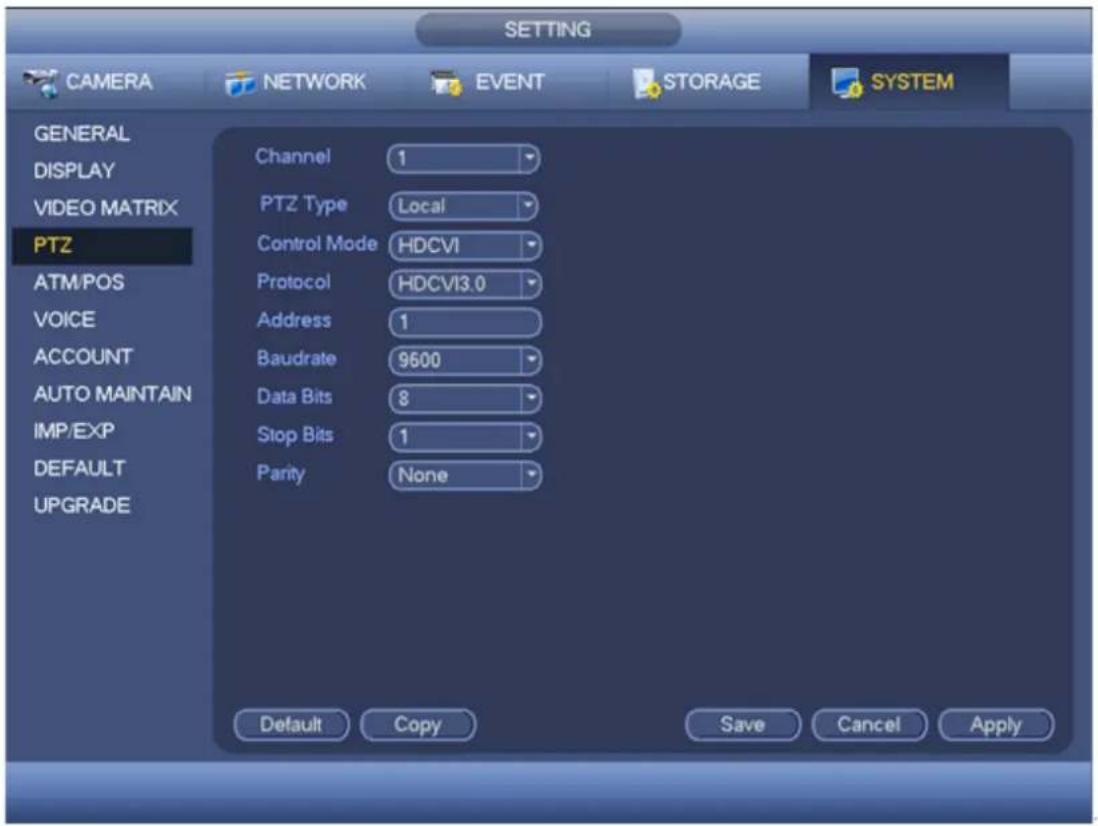
Figure 4-170
For digital channel, the interface is shown as below. See Figure 4-171.

Figure 4-171
4.11.5.6 ATM/POS
The ATM/POS function is for financial areas. It includes Sniffer, information analysis and title overlay function. The Sniffer mode includes COM and network.
4.11.5.6.1 COM Type
The COM interface is shown as below. See Figure 4-172.
- Protocol: Please select from the dropdown list.
- Setting: Click COM setting button, the interface is shown as in RS232 interface. Please refer to Chapter 5.3.4 RS232.
- Overlay channel: Please select the channel you want to overlay the card number.
- Overlay mode: There are two options: preview and encode. Preview means overlay the card number in the local monitor video. Encode means overlay the card number in the record file.
- Overlay Position: Here you can select the proper overlay position from the dropdown list.
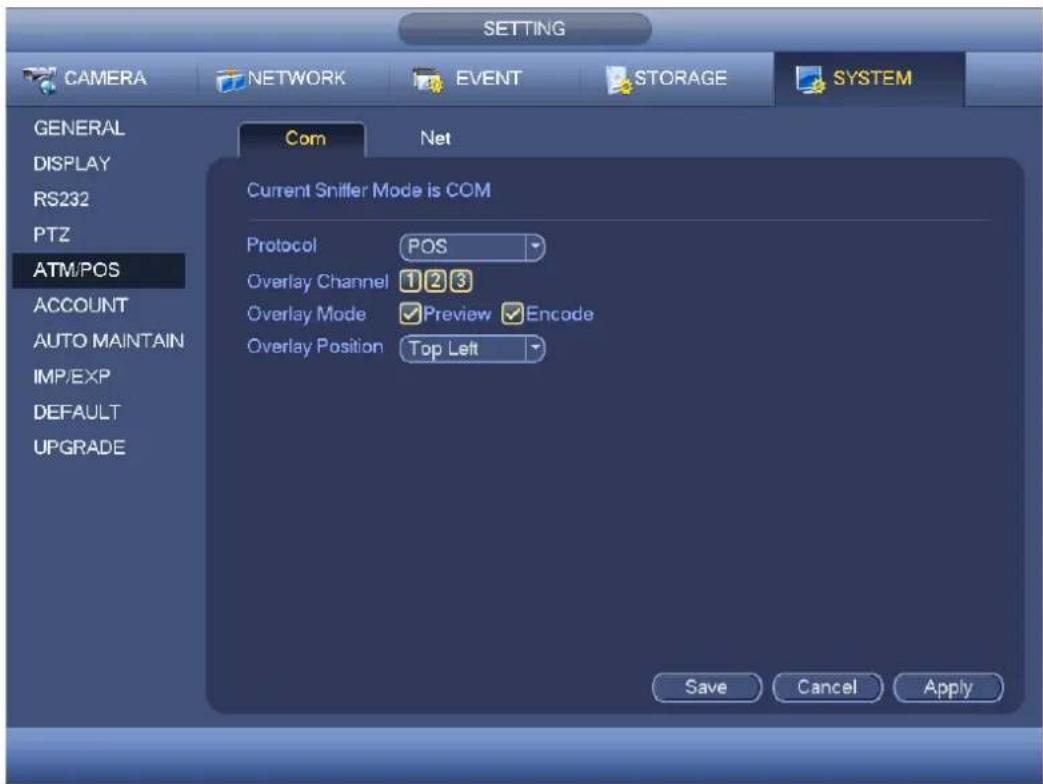
Figure 4-172
4.11.5.6.2 Network Type
The network type interface is shown as below. See Figure 4-173.
Please use network type if you using network to connect to the device. The interface is generally the same as the COM mode. The protocol depends on your self-develop protocol. The setup may vary since connected device or the protocol is not the same. Here we take the ATM/POS protocol to continue.
- Protocol: It is to set COM sniffer protocol. You need to select protocol according to
your own development situation.
- Overlay mode: There are two options: preview and encode. Preview means overlay the card number in the local monitor video. Encode means overlay the card number in the record file. You can view the corresponding information when playback.
- Overlay Position: Here you can select the proper overlay position from the dropdown list.
● Data group: There are total four groups IP. - Source IP: Source IP refers to host IP address that sends out information (usually it is the device host.)
- Destination IP: Destination IP refers to other systems that receive information.
- Source port/destination port: Please input according to your own situation.
- Record channel: It is for you to check record channel. The record channel applies to one group (optional) only.
- Frame ID: Six frame ID groups verification can guarantee information validity and legal. You need to input start position, length, key and etc according to your communication protocol and data packet contents.
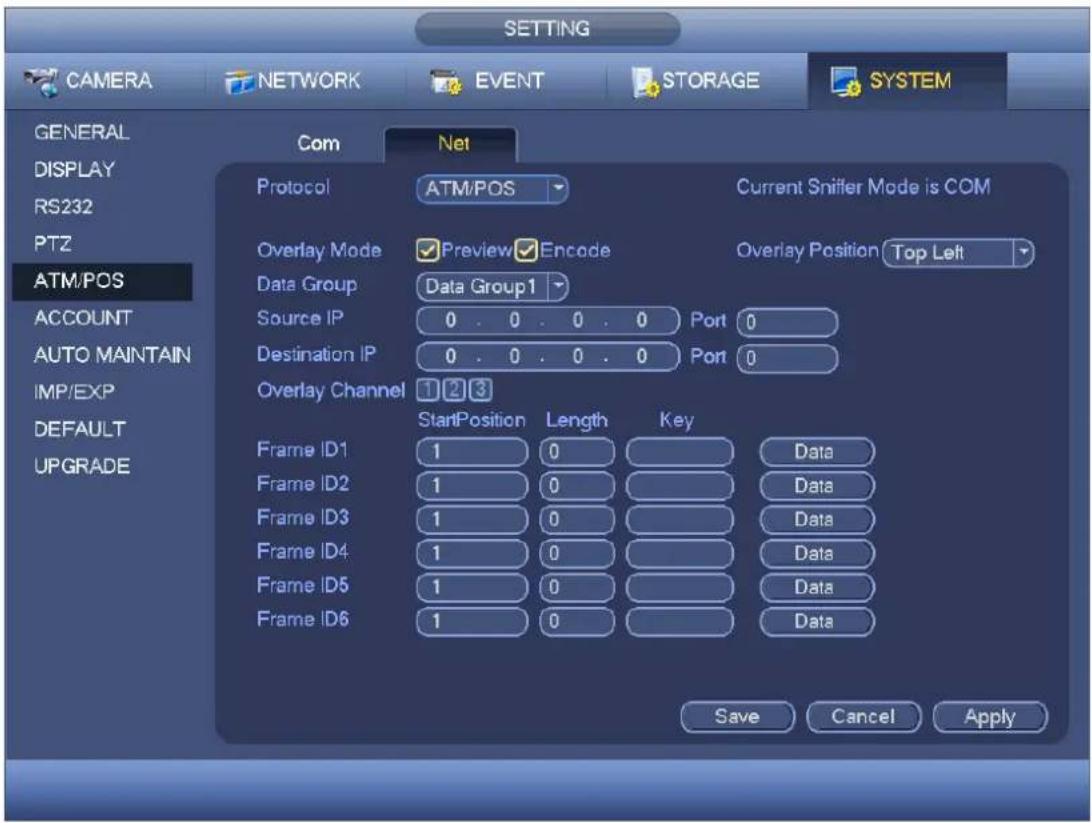
Figure 4-173
In Figure 4-173, click data button after frame ID the interface is shown as in Figure 4-174. Here you can set field start position, length, and overlay title.
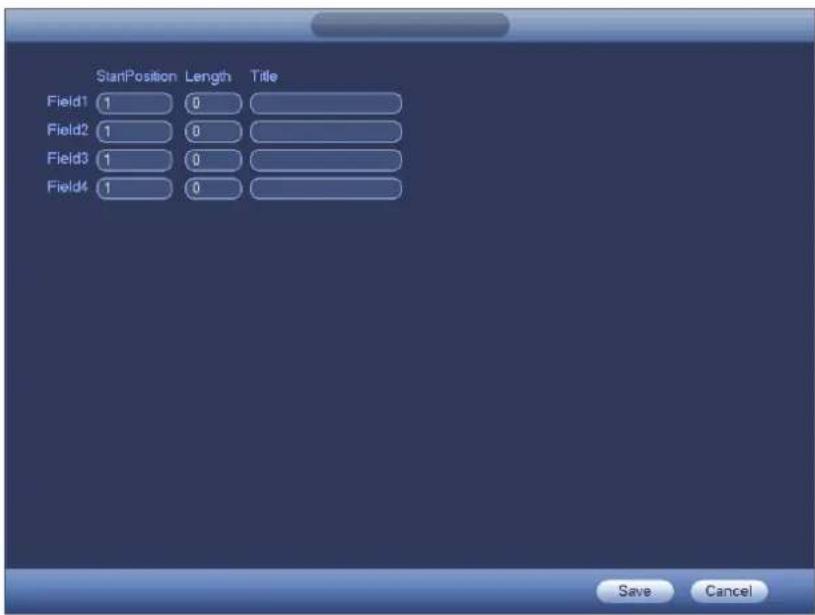
Figure 4-174
4.11.5.7 Voice
The audio function is to manage audio files and set schedule play function. It is to realize audio broadcast activation function.
4.11.5.7.1 File List
Here you can add audio file, listen to the audio file, or rename/delete audio file. Here you can also set audio volume. See Figure 4-175.
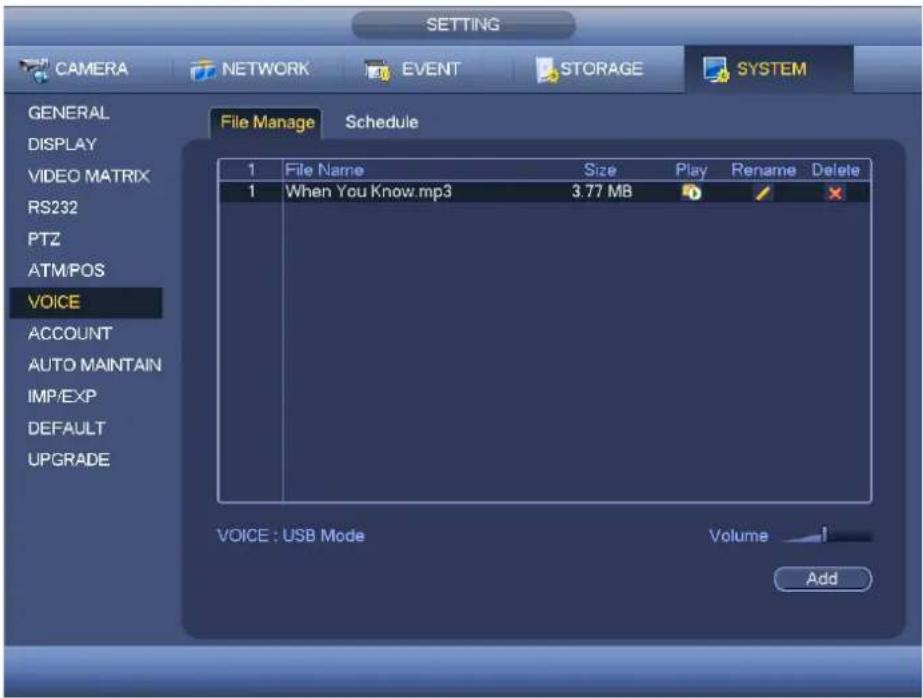
Figure 4-175
Click Add button, you can add audio file and import the audio file via the USB device. See Figure 4-176.
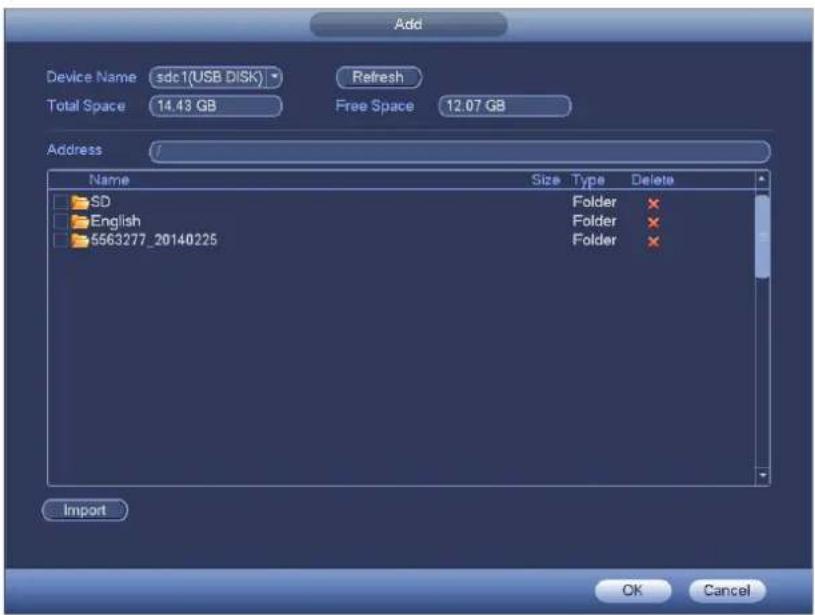
Figure 4-176
The audio file can be saved on the HDD or on the USB device.
- In Figure 4-175, when it is HDD mode, the newly added audio file can be saved on the HDD automatically. You do not need to connect to the USB device if you want to use it the next time.
- In Figure 4-175, when it is USB mode, after you imported, you need to connect the USB device all the time; otherwise, the audio link function may fail. So, if you want to use the audio trigger function, please make sure the audio file is on the UBS device and the USB device has connected to the DVR before the DVR boots up. You need to make sure the USB device connection is always there if you want to manage and use the audio file function.
- If there is a USB device (containing the audio file) and the HDD (containing the audio file) at the same time, the HDD mode has higher priority. That is to say, DVR uses the audio file from the HDD.
4.11.5.8 Account
Here is for you to implement account management. See Figure 4-177. Here you can:
- Add new user
- Modify user
- Add group
- Modify group
- Modify password.
For account management please note:
- For the user account name and the user group, the string max length is 6-byte. The backspace in front of or at the back of the string is invalid. There can be backspace in the middle. The string includes the valid character, letter, number, underline, subtraction sign, and dot.
- The default user amount is 64 and the default group amount is 20. System account adopts two-level management: group and user. No limit to group or user amount.
- For group or user management, there are two levels: admin and user.
- The user name and group name can consist of eight bytes. One name can only be used once. There are three default users: admin/888888 and hidden user "default".
- Hidden user "default" is for system interior use only and can not be deleted. When there is no login user, hidden user "default" automatically login. You can set some rights such as monitor for this user so that you can view some channel view without login.
- One user should belong to one group. User right can not exceed group right.
- About reusable function: this function allows multiple users use the same account to login.
- About user account and MAC. When you add a new user, you can input the MAC address of current user. Only the user of the same MAC address can access the device remotely.(MAC address is for the device of the same LAN.) If you leave MAC address item in blank when you add a new user, the user of any MAC address can access the device remotely. You can set or change MAC address when you add or modify a user. The MAC address function is also valid for PSS login. Please note current function does not support IPV6.
After all the setups please click save button, system goes back to the previous menu.
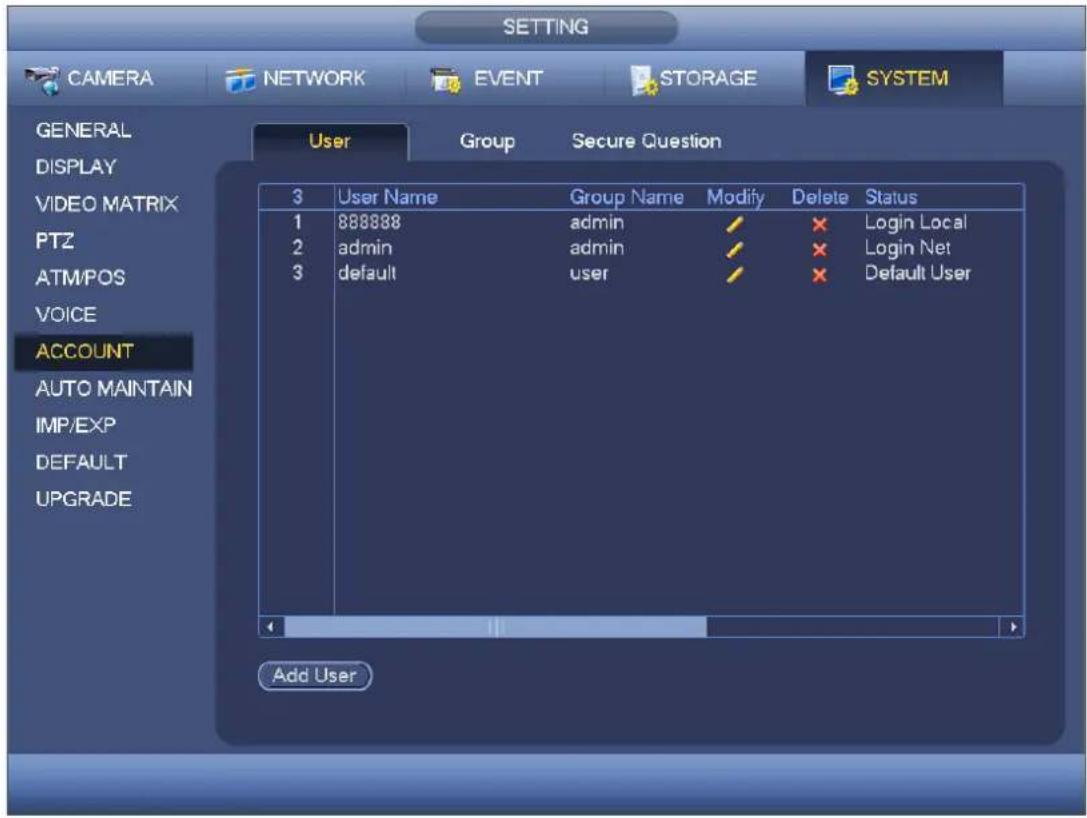
Figure 4-177
4.11.5.8.1 Add User
Click modify user button in Figure 4-177, the interface is shown as in Figure 4-178.
Please input the user name, password, select the group it belongs to from the dropdown list.
Then you can check the corresponding rights for current user.
For convenient user management, usually we recommend the general user right is lower than the admin account.
- Username: admin. Password: admin. (administrator, local and network)
- Username: 888888. Password: 888888. (administrator, local only)
- Username: default. Password: default (hidden user). Hidden user "default" is for system interior use only and can not be deleted. When there is no login user, hidden user "default" automatically login. You can set some rights such as monitor for this user so that you can view some channels without login.
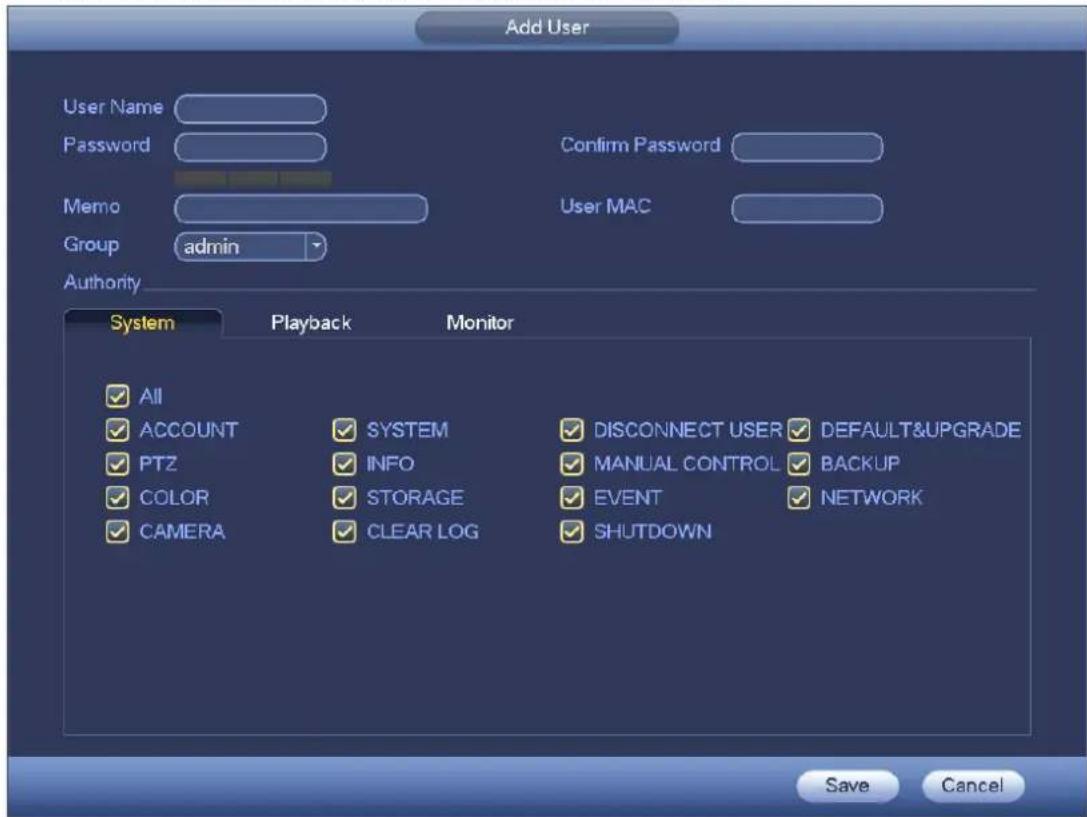
Figure 4-178
When you create a new user, you can input the corresponding MAC address of current user. If you leave this item in blank, any MAC address user can share this user account to login. Please note system needs to check the validity of MAC. Only the 12-digit 0-f format address can pass the validity verification. System only saves small character even you input capitalized one. You can see the corresponding prompt if there is any illegal input.
Click the Set button after the period, you can set valid period to use current account. See Figure 4-179.
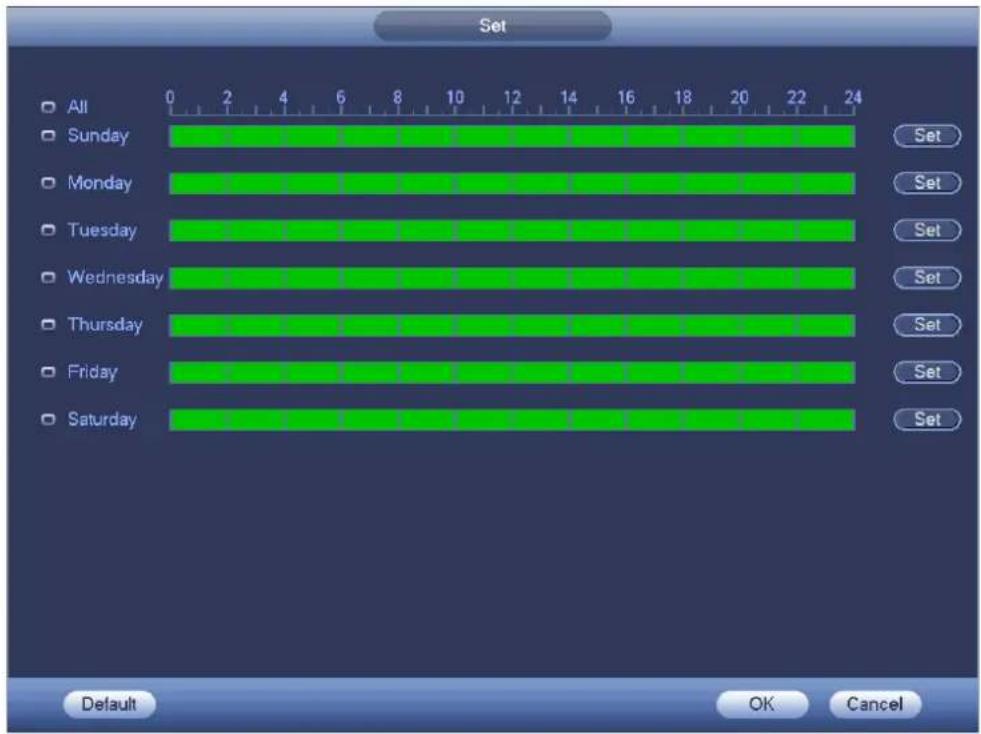
Figure 4-179
Click Set button, you can set six periods in one day. See Figure 4-180.
Check the box after the period, you can enable current setup.
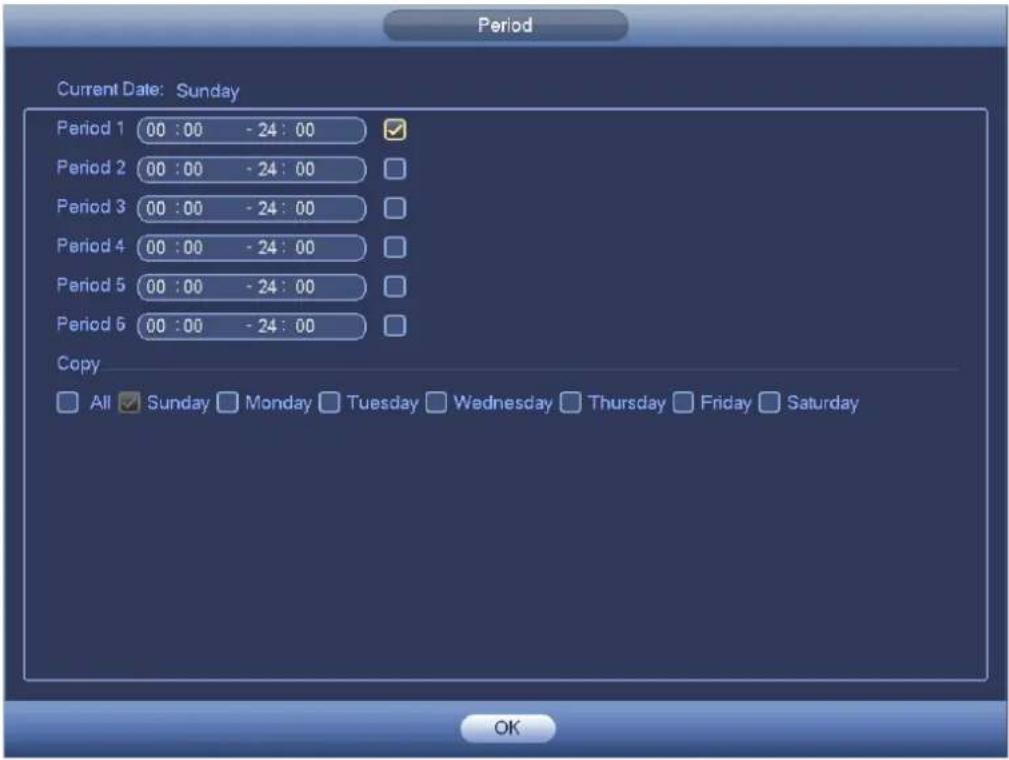
Figure 4-180
4.11.5.8.2 Modify user
Clicks, you can go to the following interface to change user information. See Figure 4-181.
For admin, 888888, and default (hidden user), you can not change period setup.
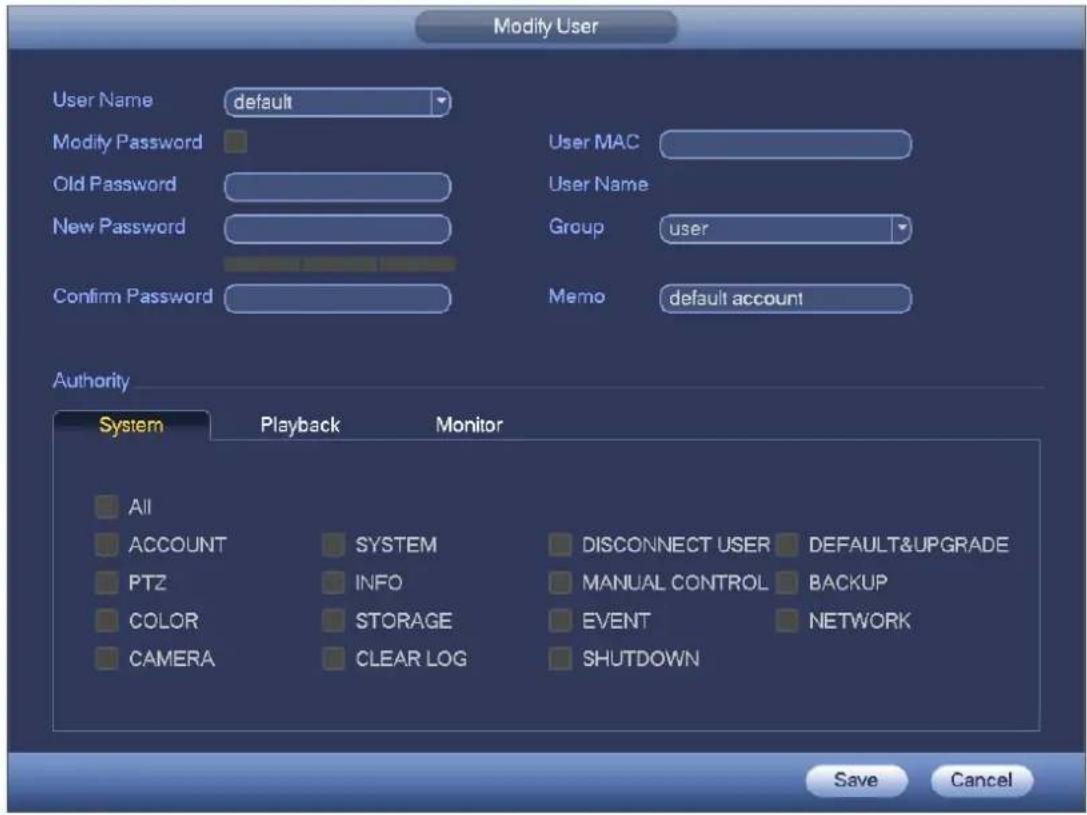
Figure 4-181
4.11.5.8.3 Change Password
In Figure 4-181, check the Modify password box, you can change password. Please input old password, and then input new password twice to confirm.
The password can contain 32-byte and the space at the begin or at the end of the password are null. It can contain in the middle of the password. For the user of account right, it can change the password of other users.
4.11.5.8.4 Add/Modify Group
In Figure 4-177, click Group button, you can see the following interface. See Figure 4-182.
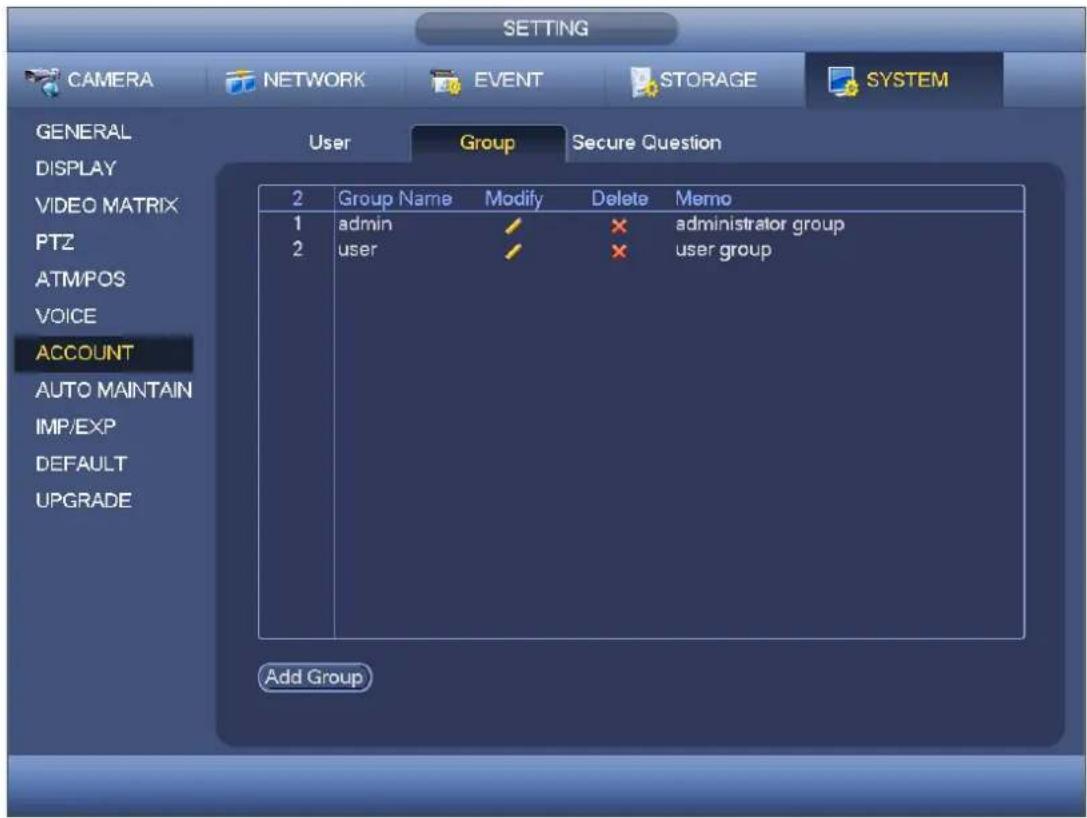
Figure 4-182
Click add group button in Figure 4-182, the interface is shown as below. See Figure 4-183.
Here you can input group name and then input some memo information if necessary. There are total 98 rights such as control panel, shut down, real-time monitor, playback, record, record file backup, PTZ, user account, system information view, alarm input/output setup, system setup, log view, clear log, upgrade system, control device and etc.
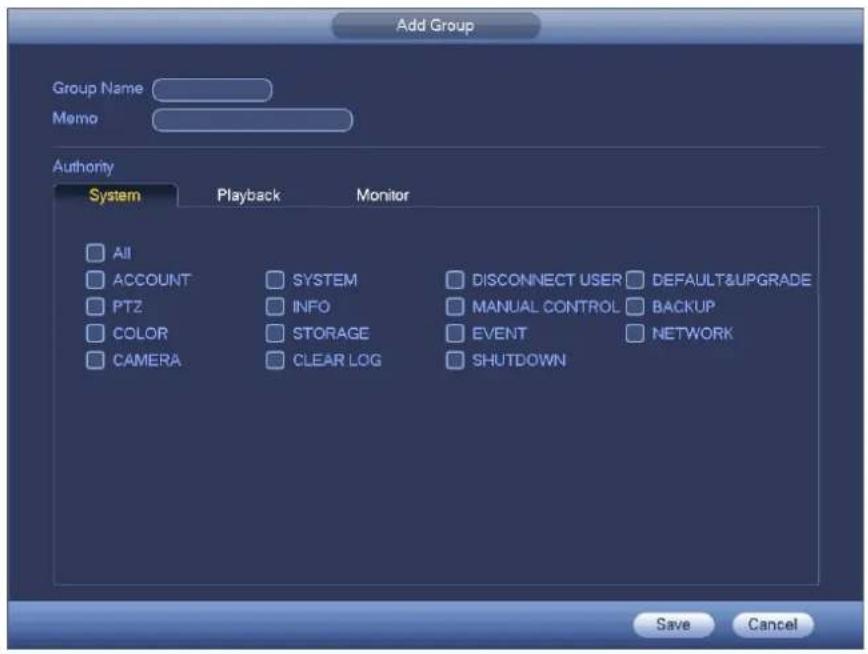
Figure 4-183
4.11.5.8.5 Security Question
The security question is shown as below. See Figure 4-184.
Here you can change security questions.
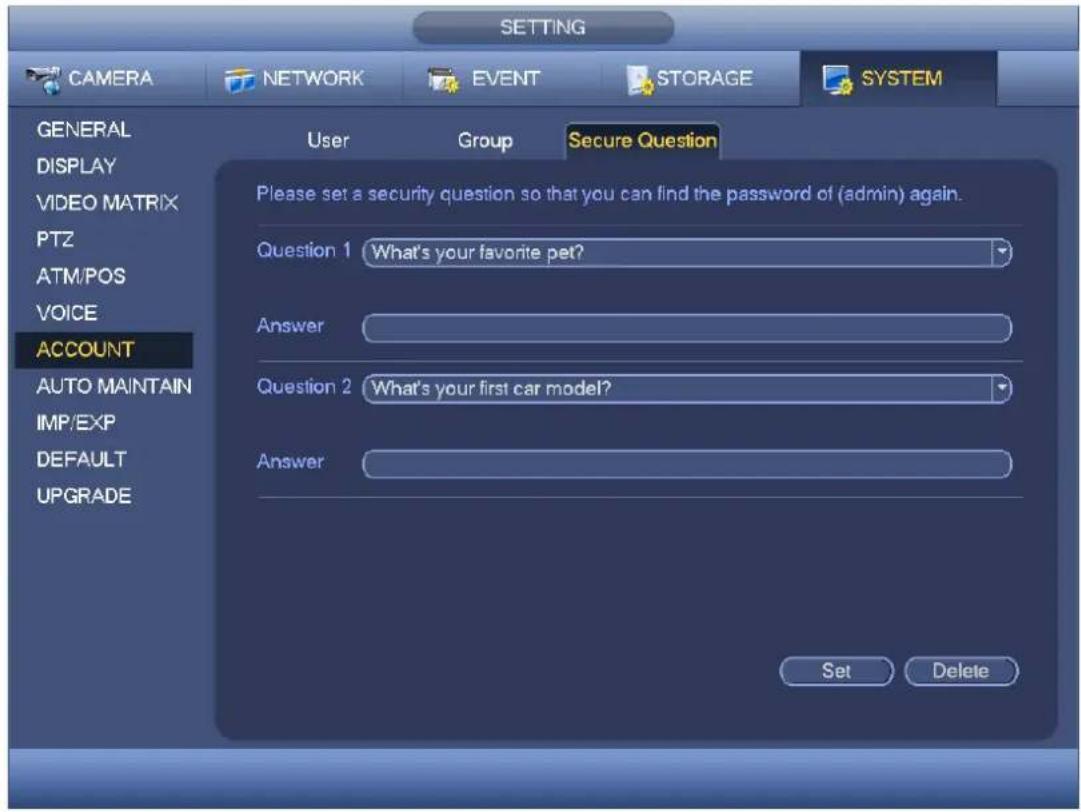
Figure 4-184
4.11.5.9 Auto Maintain
Here you can set auto-reboot time and auto-delete old files setup. You can set to delete the files for the specified days. See Figure 4-185.
You can select proper setup from dropdown list.
After all the setups please click save button, system goes back to the previous menu.
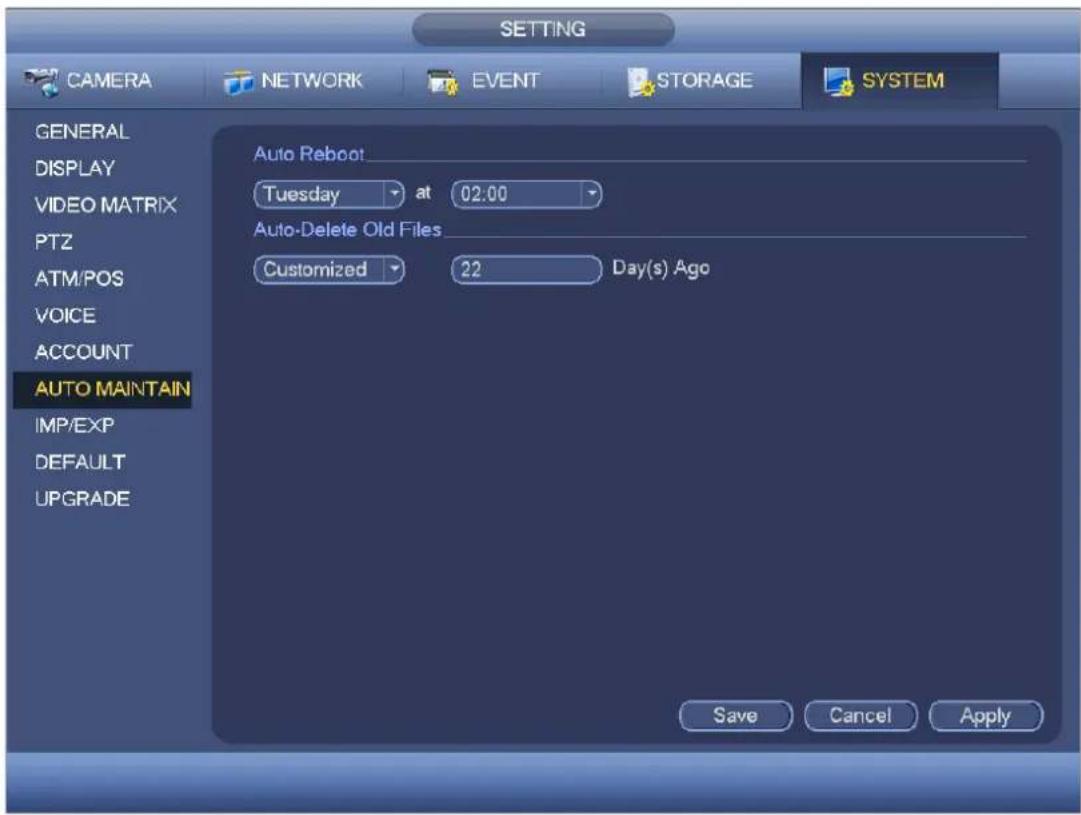
Figure 4-185
4.11.5.10 Config Backup
The configuration file backup interface is shown as below. See Figure 4-186.
This function allows you to import/export system configuration. You can use this function when there are several devices need the same setup.
- Export: Please connect the peripheral device first and then go to the following interface. Click Export button, you can see there is a corresponding "Config_Time" folder. Double click the folder, you can view some backup files.
- Import: Here you can import the configuration files from the peripheral device to current device. You need to select a folder first. You can see a dialogue box asking you to select a folder if you are selecting a file. System pops up a dialogue box if there is no configuration file under current folder. After successfully import, system needs to reboot to activate new setup.
- Format: Click Format button, system pops up a dialogue box for you to confirm current operation. System begins format process after you click the OK button.
Note:
- System can not open config backup interface again if there is backup operation in the process.
- System refreshes device when you go to the config backup every time and set current directory as the root directory of the peripheral device.
- If you go to the configuration backup interface first and then insert the peripheral device, please click Refresh button to view the newly added device.
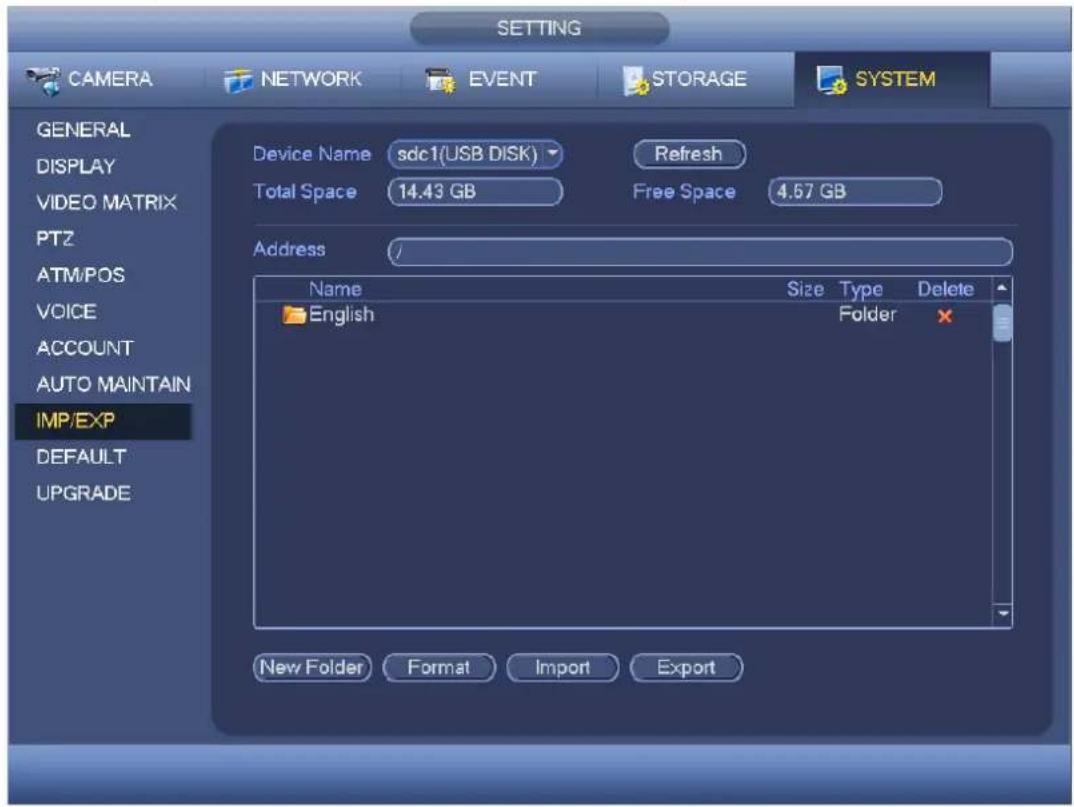
Figure 4-186
4.11.5.11 Default
Click default icon, system pops up a dialogue box. You can highlight to restore default factory setup. See Figure 4-187.
- Camera
- Network
- Event
- Storage
- System
Please highlight icon to select the corresponding function.
Click factory default button, you can restore factory default setup.
After all the setups please click save button, system goes back to the previous menu.
Warning!
System menu color, language, time display mode, video format, IP address, user account will not maintain previous setup after default operation!
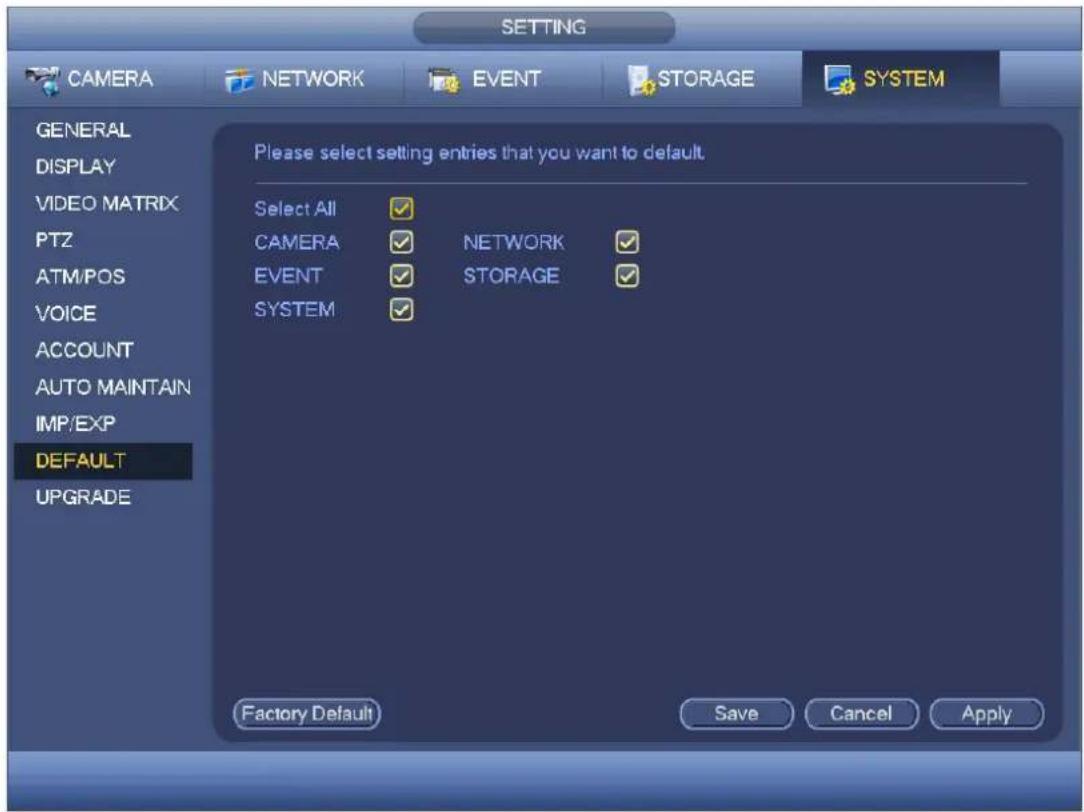
Figure 4-187
4.11.5.12 Update
Here is for you to view hardware features, software version, built date, release SN information and etc. You can also update system here. See Figure 4-188.
- Start: Please insert the USB device that have the update file to the device and then click the Start button to begin the update.
Important
Please make sure the upgrade file name shall be update.bin.
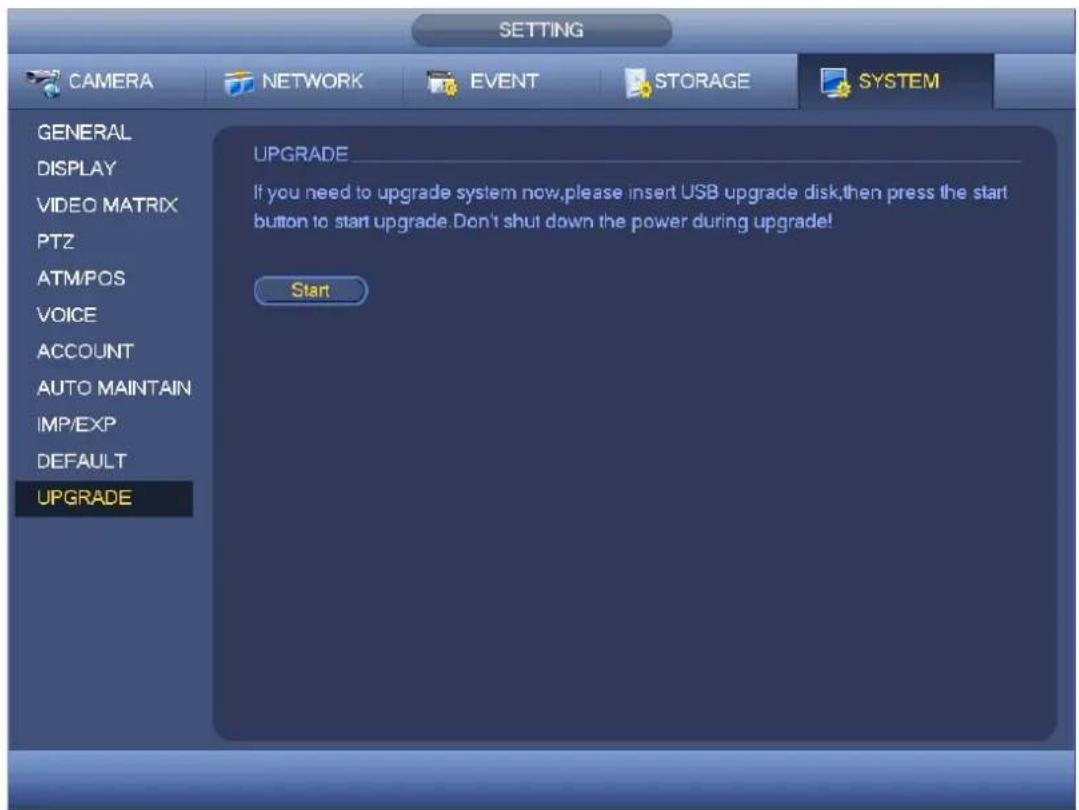
Figure 4-188
5 WEB OPERATION
Slightly difference may be found in the interface due to different series.
5.1 Network Connection
Before web client operation, please check the following items:
• Network connection is right
- DVR and PC network setup is right. Please refer to network setup(main menu->Setting->Network)
- Use order ping **.***.***.**(* DVR IP address) to check connection is OK or not. Usually the return TTL value should be less than 255.
- Current series product supports various browsers such as Safari, fire fox browser, Google browser. Device supports multiple-channel monitor, PTZ control, DVR parameter setup on the Apple PC.
5.2 Login
Open IE and input DVR address in the address column. For example, if your DVR IP is 10.10.3.16, then please input http://10.10.3.16 in IE address column.
System pops up warning information to ask you whether install control or not. Please click Install button. See Figure 5-1.
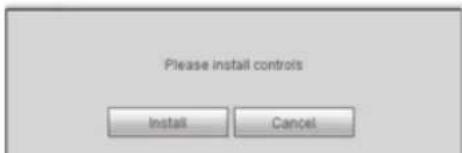
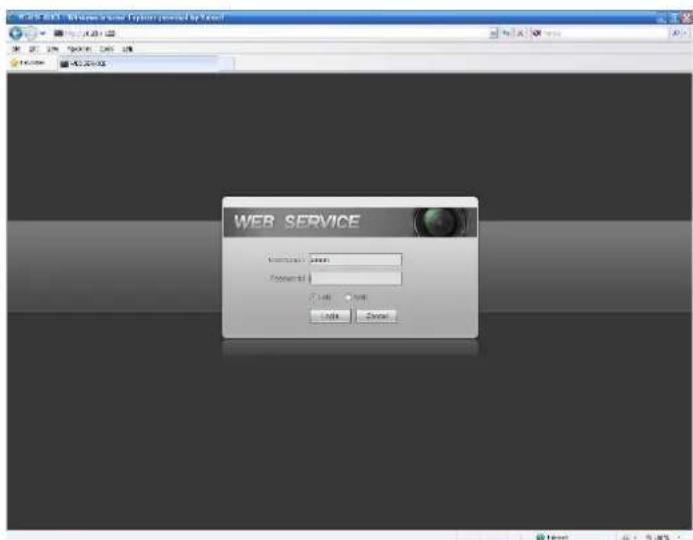
Figure 5-2
System pops up the following dialogue box for you to change default administrator password. See Figure 5-3.
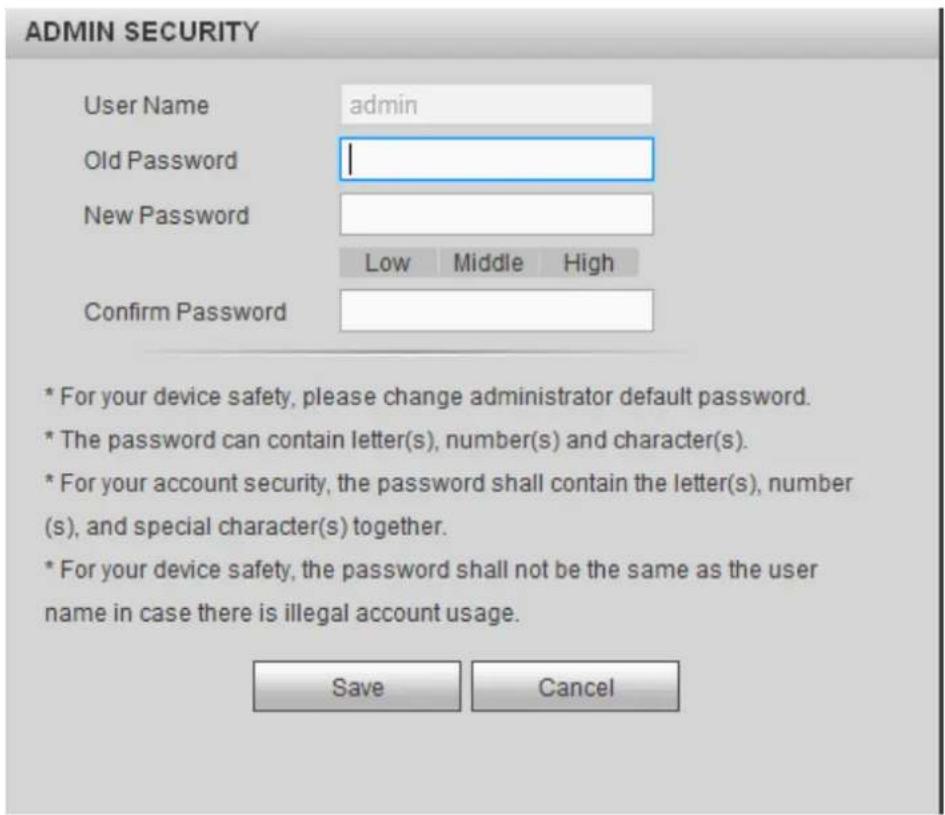
Figure 5-3
For you own safety, please change the default password after you first login.
Click Cancel button, system pops up the following dialogue box to confirm the exit. See Figure 5-4.
Check the box here, system will not pop up the change password interface the next time.
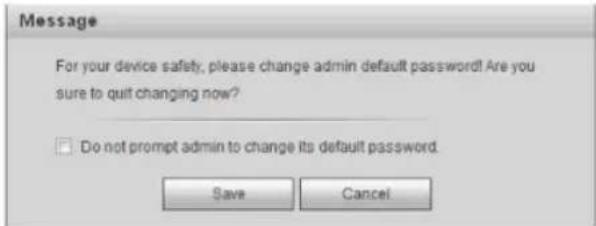
Figure 5-4
5.3 LAN Mode
For the LAN mode, after you logged in, you can see the main window. See Figure 5-5.
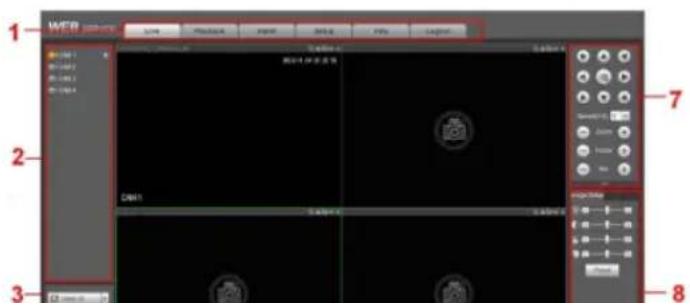
Figure 5-6
Please refer to Figure 5-7 for main stream and extra stream switch information.
Figure 5-7
- Section 3: Start dialogue button.
You can click this button to enable audio talk. Click 【▼】 to select bidirectional talk mode. There are four options: DEFAULT, G711a, G711u and PCM. After you enable the bidirectional talk, the Start talk button becomes End Talk button and it becomes yellow. See Figure 5-8.
Please note, if audio input port from the device to the client-end is using the first channel audio input port. During the bidirectional talk process, system will not encode the audio data from the 1-channel.
Figure 5-8
- Section 4: Instant record button. Click it, the button becomes yellow and system begins manual record. See Figure 5-9. Click it again, system restores previous record mode..
Figure 5-9
- Section 5: Local play button.
The Web can playback the saved (Extension name is dav) files in the PC-end. Click local play button, system pops up the following interface for you to select local play file. See Figure 5-10.
Figure 5-10
- Section 6: From the left to the right, you can see video quality/fluency/ full screen/1-window/4-window/6-window/8-window/9-window/13-window/16-window/20-window/25-window/36-window.. You can set video fluency and real-time feature priority.
- Section 7: PTZ operation panel. Please refer to chapter 5.5 for detailed information.
- Section 8: Image setup and alarm setup. Please refer to chapter 5.6 for detailed information.
- Section 9: From left to right, it is to set video quality, video latency, full screen, 1-window, 4-window.
- Section 10: Zero-channel encoding. This function allows you to view several-channel in one window. It supports 1/4-channel mode. Please go to chapter 4.11.5.2.4 to enable zero-channel encoding function first.
5.4 Real-time Monitor
In section 2, left click the channel name you want to view, you can see the corresponding video in current window.
On the top left corner, you can view device IP, channel number, network monitor bit stream. See Figure 5-11.
1 2 3
Figure 5-11
On the top right corer, there are six unction buttons. See Figure 5-12.
Figure 5-12
- 1: Digital zoom: Click this button and then left drag the mouse in the zone to zoom in. right click mouse system restores original status.
- 2: Local record. When you click local record button, the system begins recording and this button becomes highlighted. You can go to system folder RecordDownload to view the recorded file.
- 3: Snapshot picture. You can snapshot important video. All images are memorized in system client folder PictureDownload (default).
● 4: Audio :Turn on or off audio.(It has no relationship with system audio setup) - 5: Close video.
5.5 PTZ
Before PTZ operation, please make sure you have properly set PTZ protocol. (Please refer to chapter 5.8.5.5).
There are eight direction keys. In the middle of the eight direction keys, there is a 3D intelligent positioning key.
Click 3D intelligent positioning key, system goes back to the single screen mode. Drag the mouse in the screen to adjust section size. It can realize PTZ automatically.
Please refer to the following sheet for PTZ setup information.
Parameter Function
Scan
- Select Scan from the dropdown list.
- Click Set button, you can set scan left and right limit.
- Use direction buttons to move the camera to you desired location and then click left limit button. Then move the camera again and then click right limit button to set a right limit.
Preset
- Select Preset from the dropdown list.
- Turn the camera to the corresponding position and Input the preset value. Click Add button to add a preset.
Tour
- Select Tour from the dropdown list.
- Input preset value in the column. Click Add preset button, you have added one preset in the tour.
- Repeat the above procedures you can add more presets in one tour.
- Or you can click delete preset button to remove one preset from the tour.
Parameter Function
Pattern
- Select Pattern from the dropdown list.
- You can input pattern value and then click Start button to begin PTZ movement such as zoom, focus, iris, direction and etc. Then you can click Add button to set one pattern.
Aux
- Please input the corresponding aux value here.
- You can select one option and then click AUX on or AUX off button.
Light and wiper
You can turn on or turn off the light/wiper.
3D Intelligent Positioning
Key
You can click this icon to
display or hide the PTZ
control platform.
Figure 5-13
5.6 Image/Relay-out
Select one monitor channel video and then click Image button in section 8, the interface is shown as Figure 5-14.
5.6.1 Image
Here you can adjust its brightness, contrast, hue and saturation. (Current channel border becomes green).
Or you can click Reset button to restore system default setup.
Figure 5-14
5.6.2 Relay output
Here you can enable or disable the alarm signal of the corresponding port. See Figure 5-15.
Figure 5-15
5.7 WAN Login
In WAN mode, after you logged in, the interface is shown as below. See Figure 5-16.
Figure 5-16
Please refer to the following contents for LAN and WAN login difference.
1) In the WAN mode, system opens the main stream of the first channel to monitor by default. The open/close button on the left pane is null.
2) You can select different channels and different monitor modes at the bottom of the interface.
Important
The window display mode and the channel number are by default. For example, for the 16-channel, the max window split mode is 16.
3) Multiple-channel monitor, system adopts extra stream to monitor by default. Double click one channel, system switches to single channel and system uses main stream to monitor. You can view there are two icons at the left top corner of the channel number for you reference. M stands for main stream. S stands for sub stream (extra stream).
4) If you login via the WAN mode, system does not support alarm activation to open the video function in the Alarm setup interface.
Important
- For multiple-channel monitor mode, system adopts extra stream to monitor by default. You can not modify manually. All channels are trying to synchronize. Please note the synchronization effect still depends on your network environments.
- For bandwidth consideration, system can not support monitor and playback at the same time. System auto closes monitor or playback interface when you are searching setup in the configuration interface. It is to enhance search speed.
5.8 Setup
5.8.1 Camera
5.8.1.1 Remote Device (For digital channel only)
Remote device interface is shown as below. See Figure 5-17.
Figure 5-17
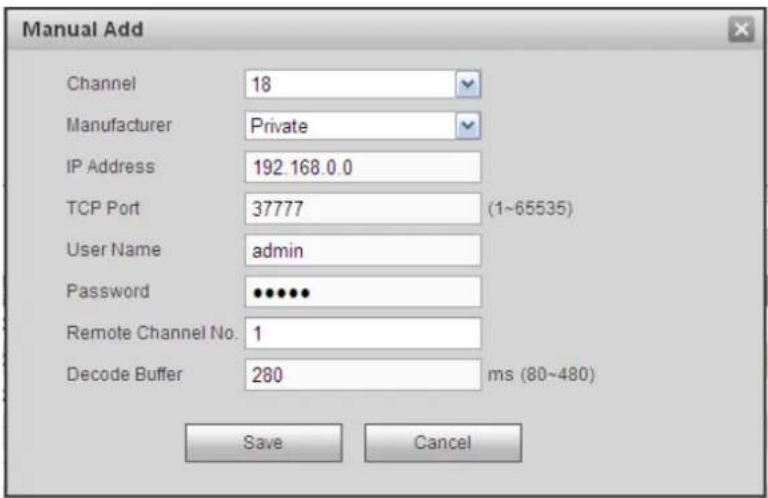
Figure 5-18
Please refer to the following sheet for log parameter information.
| Parameter | Function |
| Device search | Click Device search button, you can view the searched device information on the list. It includes device IP address, port, device name, manufacturer and type. |
| Add | Select a device in the list and then click Add button, system can connect the device automatically and add it to the Added device list. Or you can double click one item in the list to add a device. |
| Modify | Click or any device in the Added device list, you can change the corresponding channel setup. |
| Delete | Click ,you can delete the remote connection of the corresponding channel. |
| Connection status | : Connection succeeded.: Connection failed. |
| Delete | Select a device in the Added device list and then click Delete button, system can disconnect the device and remove it from the Added device list. |
| Manual Add | Click it, the interface is shown as in Figure 5-18. Here you can add network camera manually.You can select a channel from the dropdown list (Here only shows disconnection channel.)Note:System supports manufactures such as Panasonic, Sony, Dynacolor, Samsung, AXIS, Arecont, Dahua and Onvif standard protocol.If you do not input IP address here. System uses default IP 192.168.0.0 and system does not connect to this IP.Can not add two devices at the same time. Click OK button here, system only connect to the corresponding device of current channel. |
5.8.1.2 Conditions
Here you can view device property information. The setups become valid immediately after you set.
The analog channel is shown as in Figure 5-19.
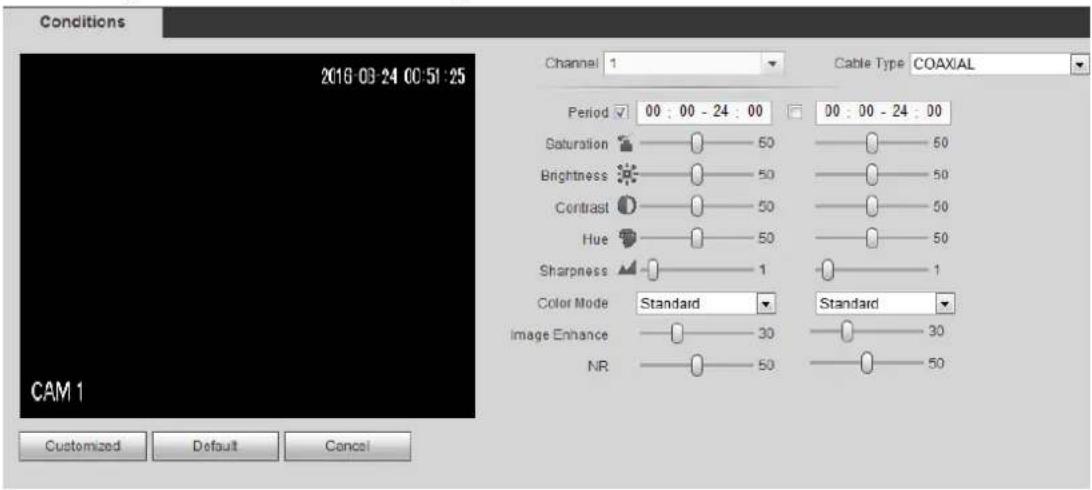
Figure 5-19
The digital channel is shown as in Figure 5-20.
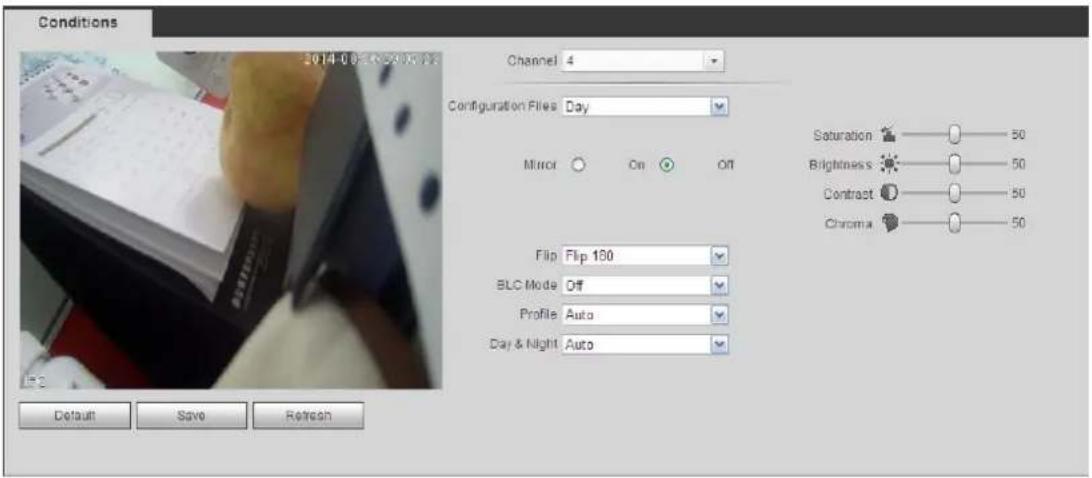
Figure 5-20
Please refer to the following sheet for detailed information.
| Parameter | Function |
| Channel | Please select a channel from the dropdown list. |
| Cable type | It is to set the cable type of the corresponding analog channel.When the setup here matches the actual cable you are using,you can get the best image effect. The default setup is COAXIAL.COAXIAL:When the corresponding channel is using coaxial cable, please select COAXIAL.UTP:When the corresponding channel is using UTP cable,please select UTP. Usually we recommend 10Ohm UTP cable. |
| Period | It divides one day (24 hours) to two periods. You can set different hue, brightness, and contrast for different periods. |
| Hue | It is to adjust monitor video brightness and darkness level. The default value is 50.The bigger the value is, the large the contrast between the bright and dark section is and vice versa. |
| Brightness | It is to adjust monitor window brightness. The default value is 50.The larger the number is , the bright the video is. When you input the value here, the bright section and the dark section of the video will be adjusted accordingly. You can use this function when the whole video is too dark or too bright. Please note the video may become hazy if the value is too high. The value ranges from 0 to 100.The recommended value ranges from 40 to 60. |
| Contrast | It is to adjust monitor window contrast. The value ranges from 0 to 100. The default value is 50.The larger the number is, the higher the contrast is. You can use this function when the whole video bright is OK but the contrastis not proper. Please note the video may become hazy if the value is too low. If this value is too high, the dark section may lack brightness while the bright section may over exposure .The recommended value ranges from 40 to 60. |
| Saturation | It is to adjust monitor window saturation. The value ranges from 0 to 100. The default value is 50.The larger the number is, the strong the color is. This value has no effect on the general brightness of the whole video. The video color may become too strong if the value is too high. For the grey part of the video, the distortion may occur if the white balance is not accurate. Please note the video may not be attractive if the value is too low. The recommended value ranges from 40 to 60. |
| Color mode | It includes several modes such as standard, color. You can select corresponding color mode here, you can see hue, brightness, and contrast and etc will adjust accordingly. |
5.8.1.3 Encode
5.8.1.3.1 Encode
The encode interface is shown as below. See Figure 5-21.
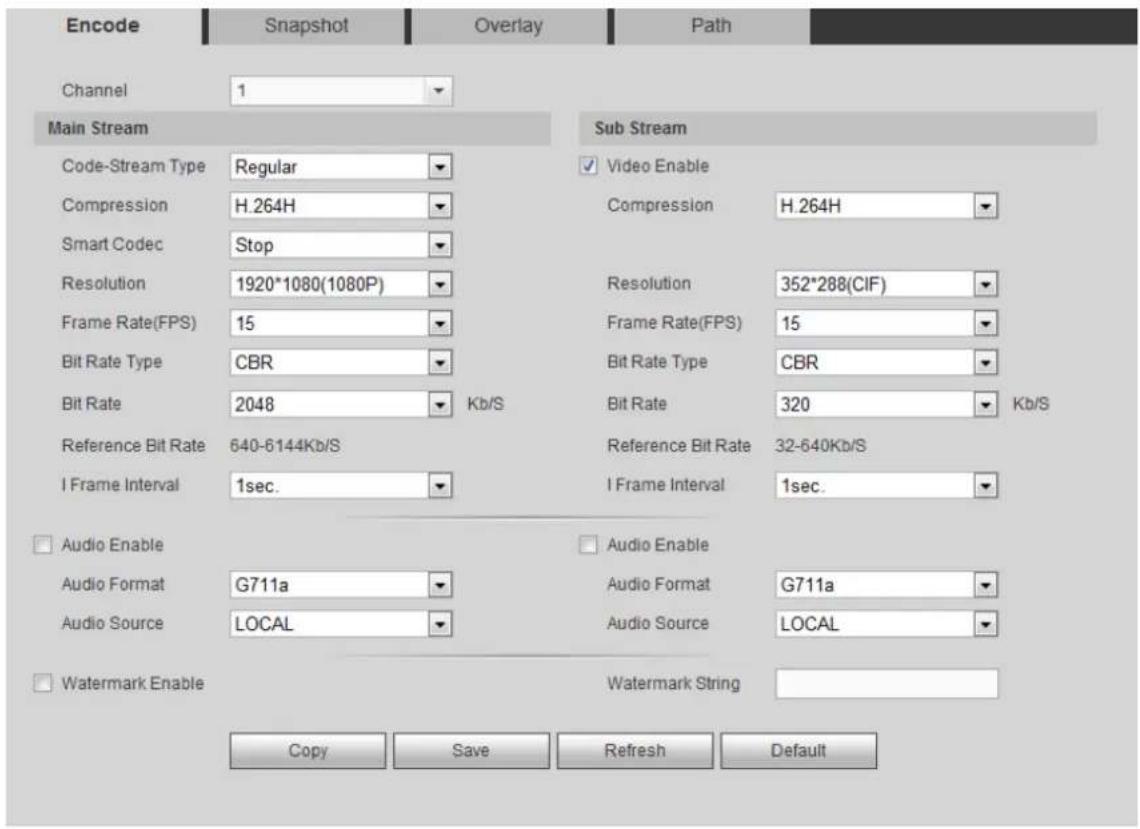
Figure 5-21
Please refer to the following sheet for detailed information.
| Parameter | Function |
| Channel | Please select a channel from the dropdown list. |
| SVC | SVC is so called scaled video coding. Check the box to enable this function. During the network transmission process, system discards unimportant frames when the bandwidth is not sufficient or the decode capability is low. It is to guarantee video quality and transmission fluency. |
| Video enable | Check the box here to enable extra stream video. This item is enabled by default. |
| Code stream type | It includes main stream, motion stream and alarm stream. You can select different encode frame rates form different recorded events.System supports active control frame function (ACF). It allows you to record in different frame rates.For example, you can use high frame rate to record important events, record scheduled event in lower frame rate and it allows you to set different frame rates for motion detection record and alarm record. |
| Smart Codec | Select Start from the dropdown list to enable smart codec function. The DVR can auto reduce the video bit stream of the non-important surveillance object to save the storage space. |
| Compression | Compression: System supports H.264H, H.264, H.264B, and MJPEG.❖ H.264H: It is the High Profile compression algorithm. It has the high encode compression rate. It can achieve high quality encode at low bit stream. Usually we recommend this type.❖ H.264 is the general compression algorithm.❖ H.264B is the Baseline algorithm. Its compression rate is low. For the same video quality, it has high bit stream requirements. |
| Resolution | For analog channel, system supports various resolutions, you can select from the dropdown list. Please note the option may vary due to different series. For digital channel, the resolution here refers to the capability of the network camera. |
| Frame Rate | PAL: 1~25f/s; NTSC: 1~30f/s. |
| Bit Rate | ● Main stream: You can set bit rate here to change video quality. The large the bit rate is , the better the quality is. Please refer to recommend bit rate for the detailed information.● Extra stream: In CBR, the bit rate here is the max value. In dynamic video, system needs to low frame rate or video quality to guarantee the value. The value is null in VBR mode. |
| Reference bit rate | Recommended bit rate value according to the resolution and frame rate you have set. |
| I Frame | Here you can set the P frame amount between two I frames. The value ranges from 1 to 150. Default value is 50. Recommended value is frame rate *2. |
| Audio source | Please select from the dropdown list. There are two options: Normal/HDCVI. In the normal mode, the audio signal comes from the Audio In. In the HDCVI mode, the audio signal comes from the coaxial cable of the camera. |
| Watermark enable | This function allows you to verify the video is tampered or not. Here you can select watermark bit stream, watermark mode and watermark character. Default character is DigitalCCTV. The max length is 85-digit. The character can only include number, character and underline. |
5.8.1.3.2 Snapshot
The snapshot interface is shown as in Figure 5-22.
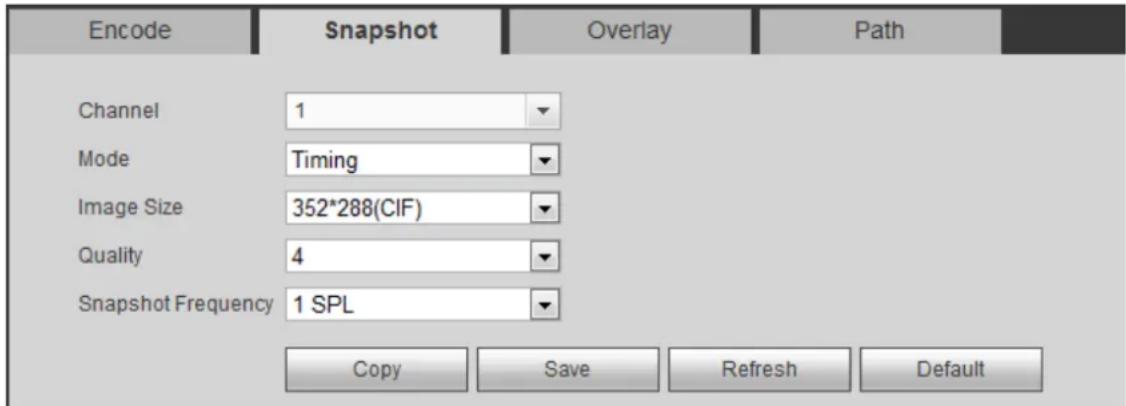
Figure 5-22
Please refer to the following sheet for detailed information.
| Parameter | Function |
| Snapshot type | There are two modes: Regular (schedule) and Trigger.● Regular snapshot is valid during the specified period you set.● Trigger snapshot only is valid when motion detect alarm, tampering alarm or local activation alarm occurs. |
| Image size | It is the same with the resolution of the main stream. |
| Quality | It is to set the image quality. There are six levels. |
| Interval | It is to set snapshot frequency. The value ranges from 1s to 7s. Or you can set customized value. The max setup is 3600s/picture. |
| Copy | Click it; you can copy current channel setup to other channel(s). |
5.8.1.3.3 Video Overlay
The video overlay interface is shown as in Figure 5-23.
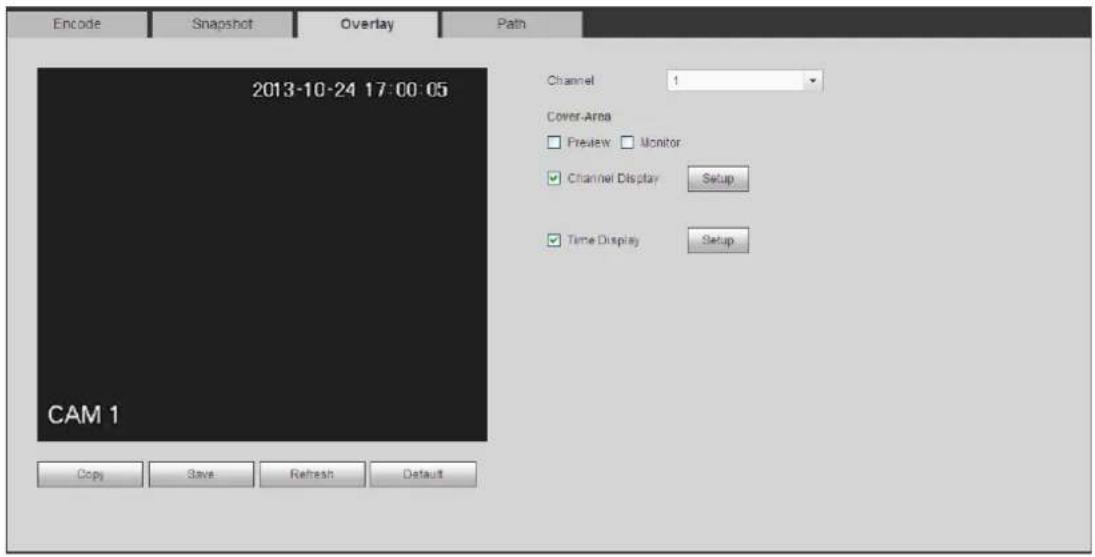
Figure 5-23
Please refer to the following sheet for detailed information.
| Parameter | Function |
| Cover-area | Check Preview or Monitor first.Click Set button, you can privacy mask the specified video in the preview or monitor video.System max supports 4 privacy mask zones. |
| Time Title | You can enable this function so that system overlays time information in video window.You can use the mouse to drag the time title position.You can view time title on the live video of the WEB or the playback video. |
| Channel Title | You can enable this function so that system overlays channel information in video window.You can use the mouse to drag the channel title position.You can view channel title on the live video of the WEB or the playback video. |
5.8.1.3.4 Path
The storage path interface is shown as in Figure 5-24.
Here you can set snap image saved path (in the preview interface) and the record
storage path (in the preview interface).The default setup is C:\PictureDownload and C:\RecordDownload.
Please click the Save button to save current setup.

Figure 5-24
5.8.1.4 Channel Name
Here you can set channel name. See Figure 5-25.
Please note this function is for analog channel only. The digital channel name here is read-only.

Figure 5-25
5.8.1.5 Channel Type
It is to set channel type. Each channel supports analog camera (analog standard definition/HDCVI) /network camera connection. Please note DVR needs to restart to activate new setup. The network camera connection shall begin with the last channel. For the 16-channel (or higher) series product, please go to the next page to set. See Figure 5-26.

Important notice about XVR series product:
- Nowadays, there are mainly two analog signal types on today market: analog standard definition (CVBS) and analog HD (CVI, AHD or Other). For XVR series product, each channel supports all types of signal connection (analog signal/IP signal). For analog signal connection, the default setup is AUTO, that is to say, no matter what analog signal (CVBS, CVI, AHD or other analog HD signal) connected; the XVR can automatically recognize the signal and display the proper image. There is no need to set manually.
- If the auto recognition error occurred, XVR series product supports manual setup too. The manual setup featuring high recognition speed and usually there is no error. For example, you can set channel 1 to connect to CVI camera, channel 2 to connect to AHD camera, channel 3 to connect to CVBS camera.
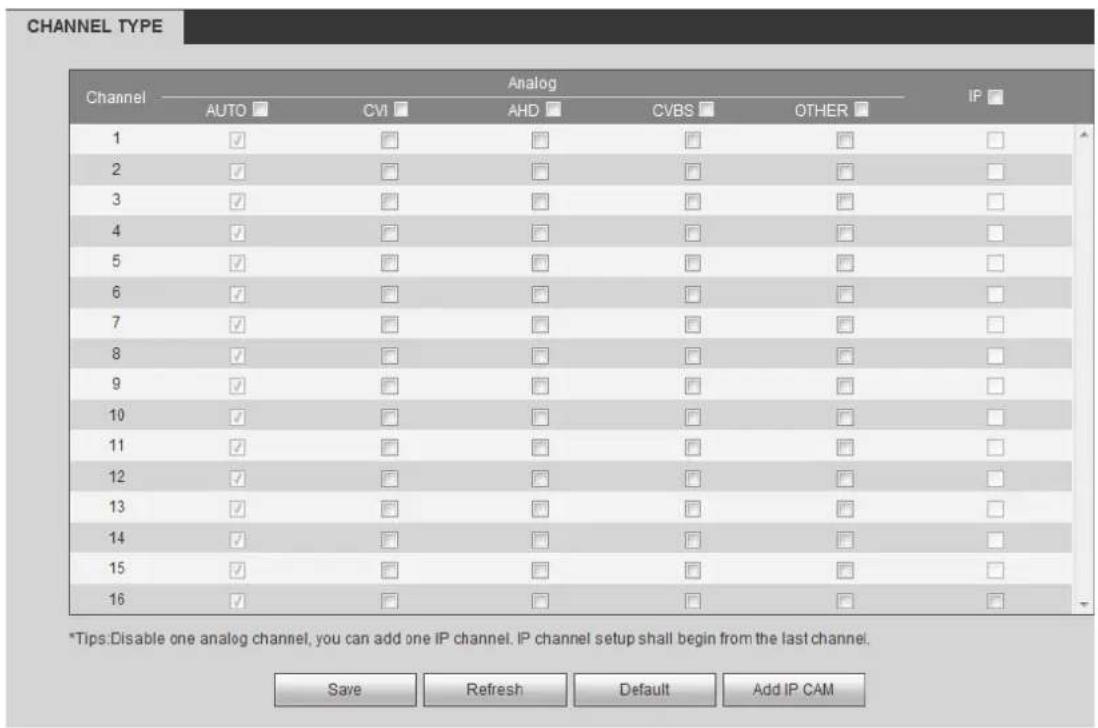
Figure 5-26
5.8.2 Network
5.8.2.1 TCP/IP
The single-Ethernet port interface is shown as in Figure 5-27.
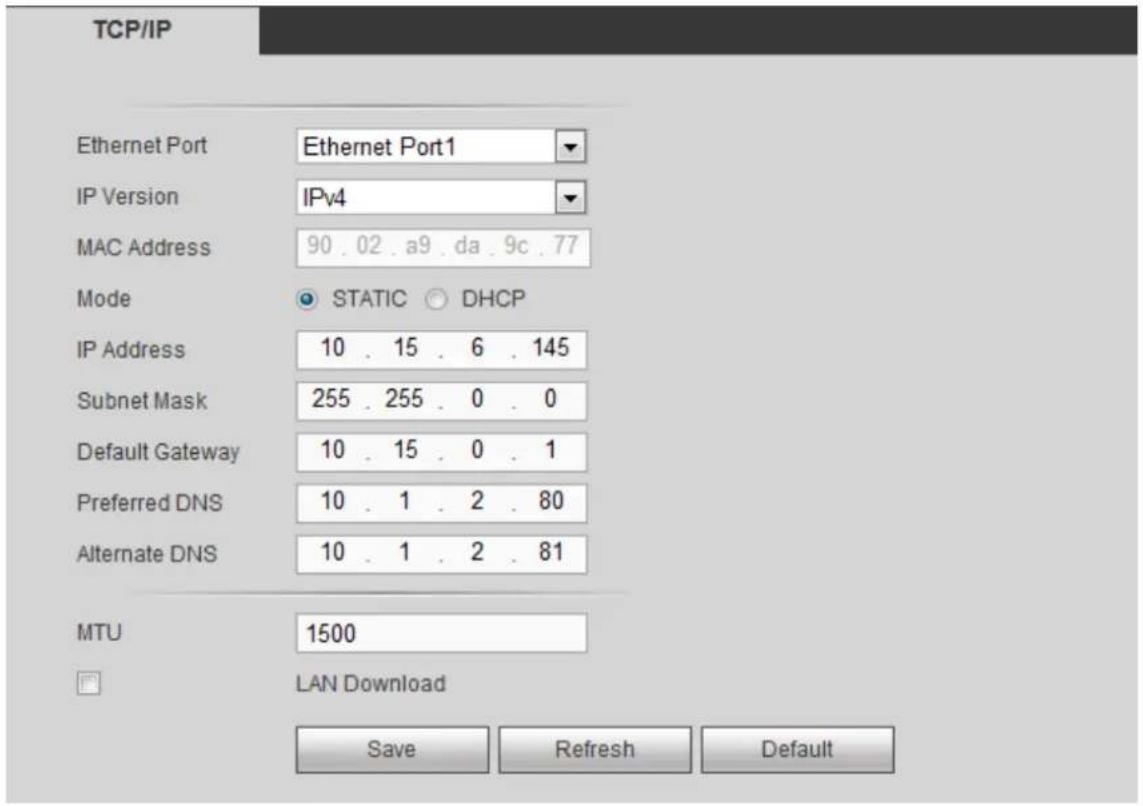
Figure 5-27
The dual-Ethernet port interface is shown as in Figure 5-28.
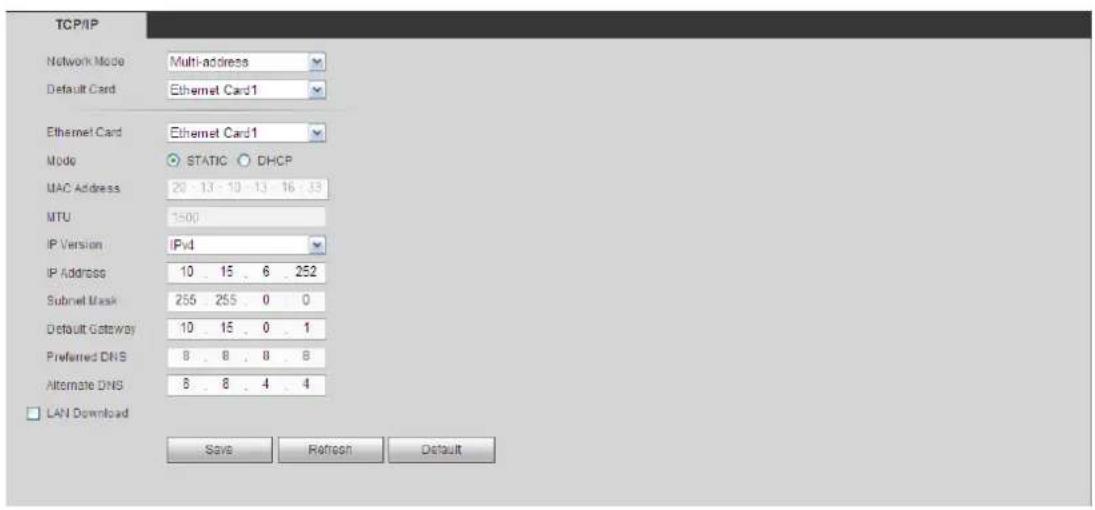
Figure 5-28
Please refer to the following sheet for detailed information.
| Parameter | Function |
| Mode | There are two modes: static mode and the DHCP mode.The IP/submask/gateway are null when you select the DHCP mode to auto search the IP.If you select the static mode, you need to set theIP/submask/gateway manually.● If you select the DHCP mode, you can view the IP/submask/gateway from the DHCP.● If you switch from the DHCP mode to the static mode, you need to reset the IP parameters.● Besides, IP/submask/gateway and DHCP are read-only when the PPPoE dial is OK. |
| Mac Address | It is to display host Mac address. |
| IP Version | It is to select IP version. IPV4 or IPV6.You can access the IP address of these two versions. |
| IP Address | Please use the keyboard to input the corresponding number to modify the IP address and then set the corresponding subnet mask and the default gateway. |
| Preferred DNS | DNS IP address. |
| Alternate DNS | Alternate DNS IP address. |
| For the IP address of IPv6 version, default gateway, preferred DNS and alternate DNS, the input value shall be 128-digit. It shall not be left in blank. | |
| LAN load | System can process the downloaded data first if you enable this function. The download speed is 1.5X or 2.0X of the normal speed. |
5.8.2.2 Connection
The connection interface is shown as in Figure 5-29.
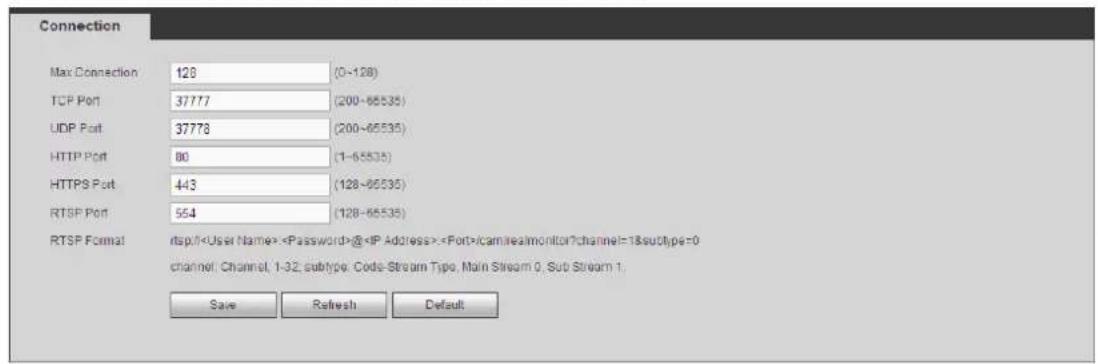
Figure 5-29
Please refer to the following sheet for detailed information.
| Parameter | Function |
| Max connection | It is the max Web connection for the same device. The value ranges from 1 to 120. The default setup is 120. |
| TCP port | The default value is 37777. You can input the actual port number if necessary. |
| UDP port | The default value is 37778. You can input the actual port number if necessary. |
| HTTP port | The default value is 80. You can input the actual port number if necessary. |
| HTTPS | The default value is 443. You can input the actual port number if necessary. |
| RTSP port | The default value is 554. |
5.8.2.3 WIFI
Please note this function is for the device of WIFI module.
The WIFI interface is shown as in Figure 5-30.
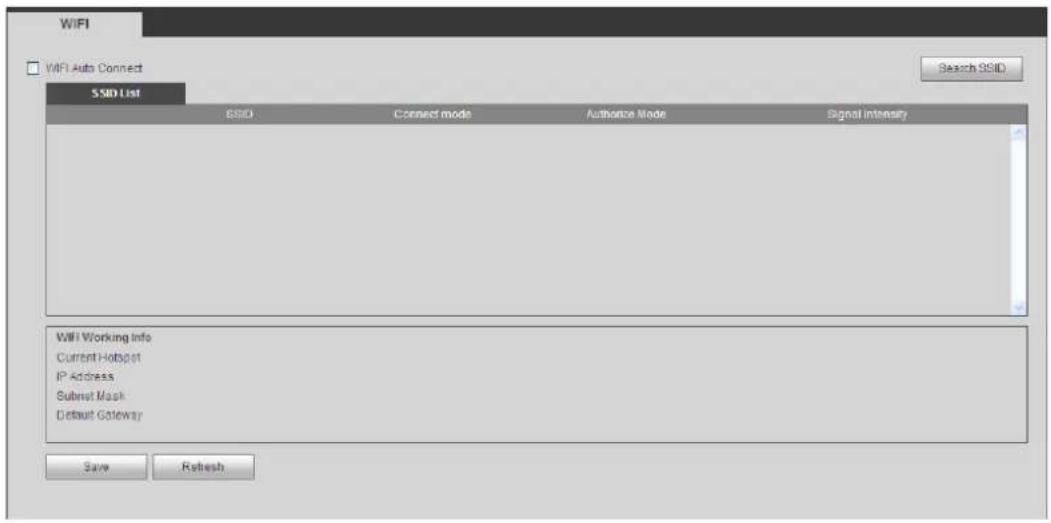
Figure 5-30
Please check the box to enable WIFI function and then click the Search SSID button. Now you can view all the wireless network information in the following list. Double click a name to connect to it. Click Refresh button, you can view latest connection status.
5.8.2.4 3G
5.8.2.4.1 CDMA/GPRS
The CDMA/GPRS interface is shown as in Figure 5-31.
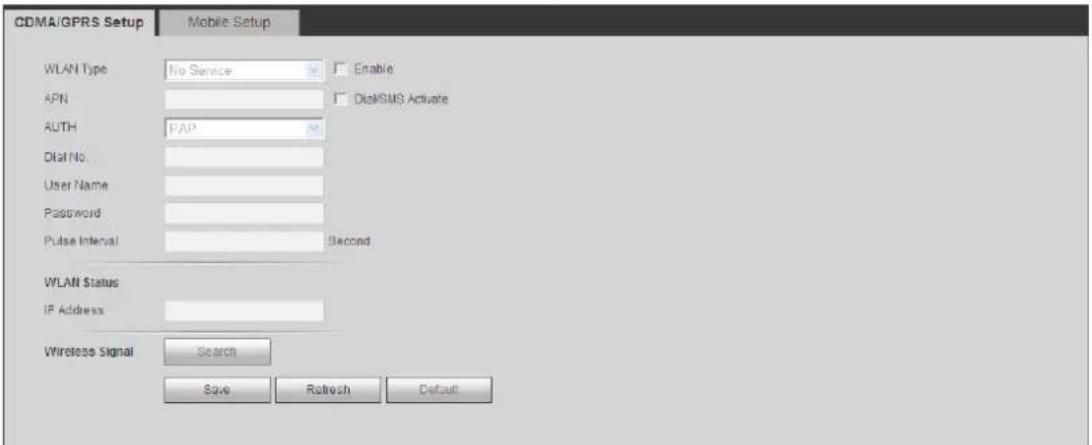
Figure 5-31
Please refer to the following sheet for detailed information.
| Parameter | Function |
| WLAN type | Here you can select 3G network type to distinguish the 3G module from different ISP. The types include WCDMA, CDMA1x and etc. |
| APN/Dial No. | Here is the important parameter of PPP. |
| Authorization | It includes PAP,CHAP,NO_AUTH. |
| Pulse interval | It is to set time to end 3G connection after you close extra stream monitor. For example, if you input 60 here, system ends 3G connection after you close extra stream monitor 60 seconds. |
| ImportantIf the pulse interval is 0, then system does not end 3G connection after you close the extra stream monitor.Pulse interval here is for extra stream only. This item is null if you are using main stream to monitor. | |
5.8.2.4.2 Mobile
The mobile setup interface is shown as in Figure 5-32.
Here you can activate or turn off the 3G connected phone or mobile phone, or the phone you set to get alarm message.
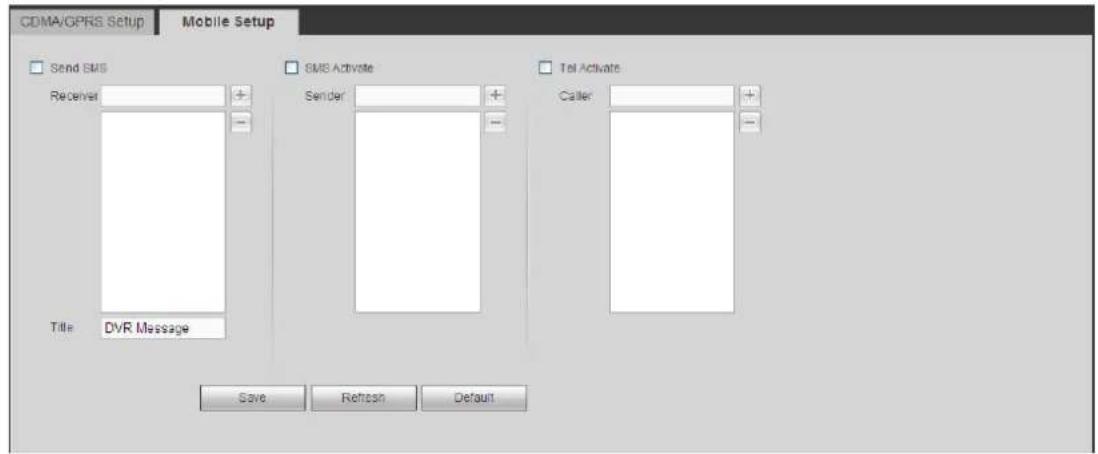
Figure 5-32
5.8.2.5 PPPoE
The PPPoE interface is shown as in Figure 5-33.
Input the PPPoE user name and password you get from the IPS (internet service provider) and enable PPPoE function. Please save current setup and then reboot the device to get the setup activated.
Device connects to the internet via PPPoE after reboot. You can get the IP address in the WAN from the IP address column.
Please note, you need to use previous IP address in the LAN to login the device.
Please go to the IP address item to via the device current device information. You can access the client-end via this new address.
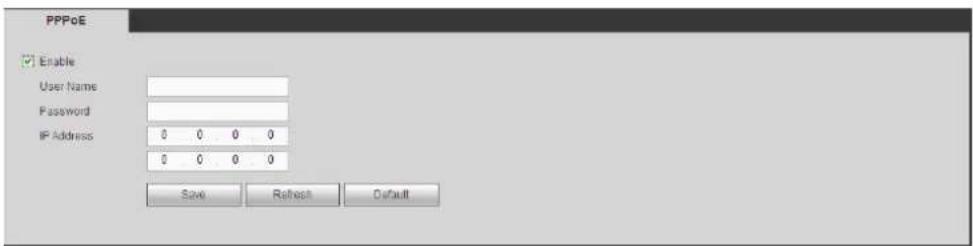
Figure 5-33
5.8.2.6 DDNS
The DDNS interface is shown as in Figure 5-34.
The DDNS is to set to connect the various servers so that you can access the system via the server. Please go to the corresponding service website to apply a domain name and then access the system via the domain. It works even your IP address has changed.
Please select DDNS from the dropdown list (Multiple choices). Before you use this function, please make sure your purchased device support current function.
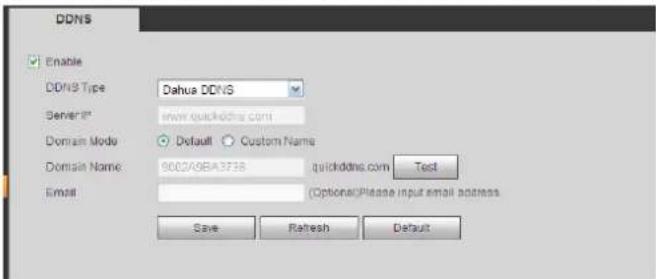
Figure 5-34
Please refer to the following sheet for detailed information.
| Parameter | Function |
| Server Type | You can select DDNS protocol from the dropdown list and then enable DDNS function. |
| Server IP | DDNS server IP address |
| Server Port | DDNS server port. |
| Domain Name | Your self-defined domain name. |
| User | The user name you input to log in the server. |
| Password | The password you input to log in the server. |
| Update period | Device sends out alive signal to the server regularly.You can set interval value between the device and DDNS server here. |
Dahua DDNS and Client-end Introduction
1) Background Introduction
Device IP is not fixed if you use ADSL to login the network. The DDNS function allows you to access the DVR via the registered domain name. Besides the general DDNS, the Dahua DDNS works with the device from the manufacturer so that it can add the extension function.
2) Function Introduction
The Dahua DDNS client has the same function as other DDNS client end. It realizes the bonding of the domain name and the IP address. Right now, current DDNS server is for our own devices only. You need to refresh the bonding relationship of the domain and the IP regularly. There is no user name, password or the ID registration on the server. At the same time, each device has a default domain name (Generated by MAC address) for your option. You can also use customized valid domain name (has not registered.).
3) Operation
Before you use Dahua DDNS, you need to enable this service and set proper server address, port value and domain name.
- Server address: www.dahuaddns.com
- Port number: 80
- Domain name: There are two modes: Default domain name and customized domain name.
Except default domain name registration, you can also use customized domain name (You can input your self-defined domain name.) After successful registration, you can use domain name to login installed of the device IP.
- User name: It is optional. You can input your commonly used email address.
Important
- Do not register frequently. The interval between two registrations shall be more than 60 seconds. Too many registration requests may result in server attack.
- System may take back the domain name that is idle for one year. You can get a notification email before the cancel operation if your email address setup is OK.
5.8.2.7 IP filter
The IP filter interface is shown as in Figure 5-35.
After you enabled trusted sites function, only the IP listed below can access current DVR. If you enable blocked sites function, the following listed IP addresses can not access current DVR.
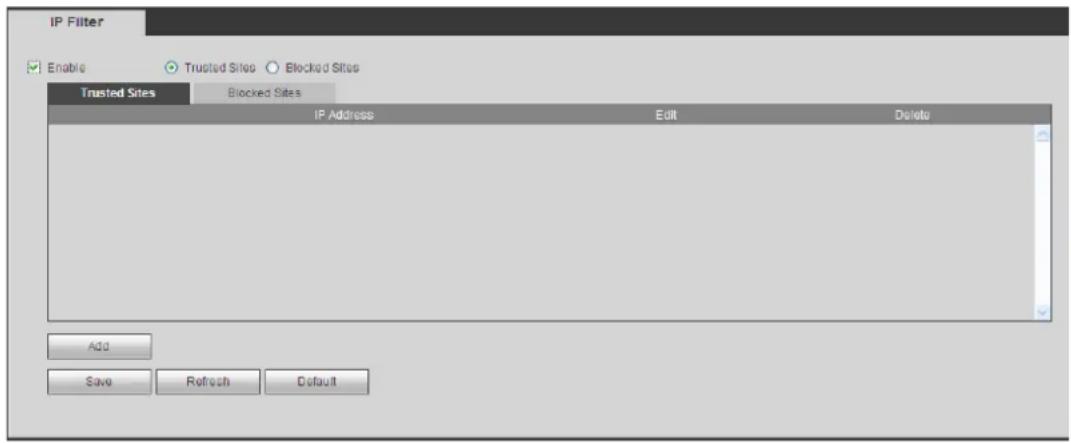
Figure 5-35
5.8.2.8 Email
The email interface is shown as in Figure 5-36.
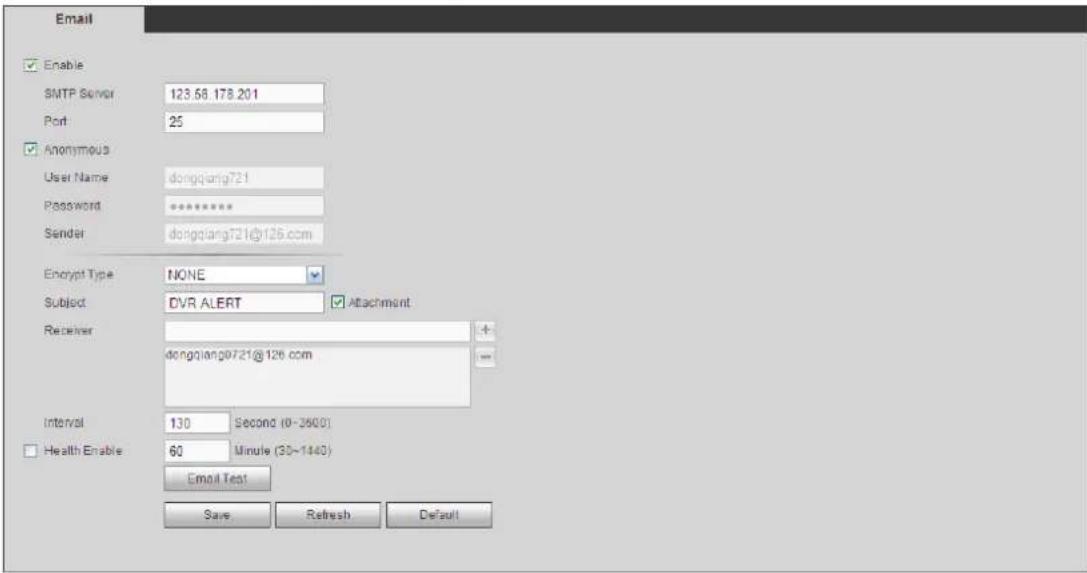
Figure 5-36
Please refer to the following sheet for detailed information.
| Parameter | Function |
| Enable | Please check the box here to enable email function. |
| SMTP Server | Input server address and then enable this function. |
| Port | Default value is 25. You can modify it if necessary. |
| Anonymity | For the server supports the anonymity function. You can auto login anonymously. You do not need to input the user name. password and the sender information. |
| User Name | The user name of the sender email account. |
| Password | The password of sender email account. |
| Sender | Sender email address. |
| Authentication (Encryption mode) | You can select SSL or none. |
| Subject | Input email subject here. |
| Attachment | System can send out the email of the snapshot picture once you check the box here. |
| Receiver | Input receiver email address here. Max three addresses. It supports SSL, TLS email box. |
| Interval | The send interval ranges from 0 to 3600 seconds. 0 means there is no interval.Please note system will not send out the email immediately when the alarm occurs. When the alarm, motion detection or the abnormality event activates the email, system sends out the email according to the interval you specified here. Thisfunction is very useful when there are too many emails activated by the abnormality events, which may result in heavy load for the email server. |
| Health mail enable | Please check the box here to enable this function. |
| Update period (interval) | This function allows the system to send out the test email to check the connection is OK or not.Please check the box to enable this function and then set the corresponding interval.System can send out the email regularly as you set here. |
| Email test | The system will automatically sent out a email once to test the connection is OK or not .Before the email test, please save the email setup information. |
5.8.2.9 FTP
The FTP interface is shown as in Figure 5-37.
It is to set FTP IP, port and etc for remote storage.
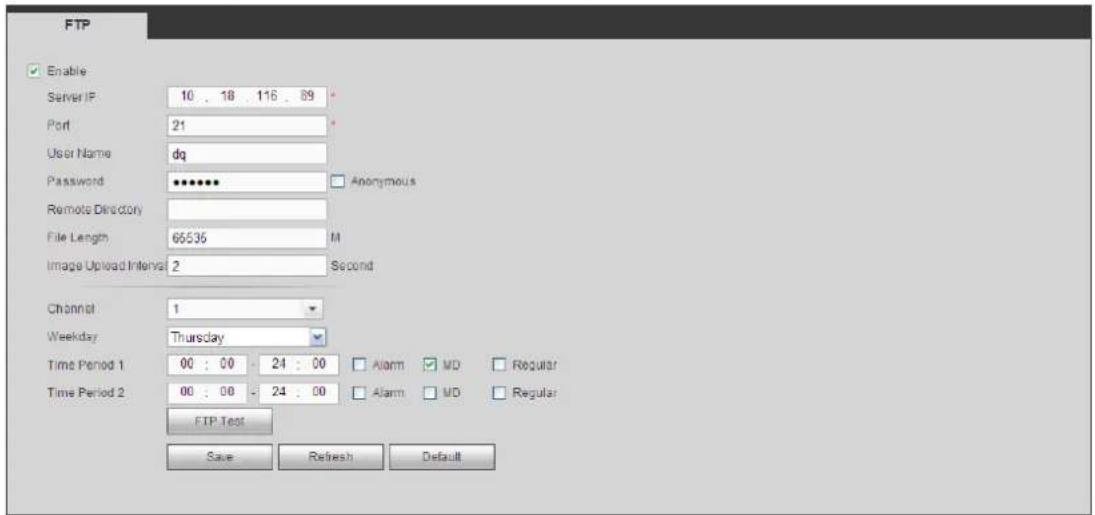
Figure 5-37
5.8.2.10 UPnP
It allows you to establish the mapping relationship between the LAN and the public network.
Here you can also add, modify or remove UPnP item. See Figure 5-38.
- In the Windows OS, From Start->Control Panel->Add or remove programs. Click the "Add/Remove Windows Components" and then select the "Network Services" from the Windows Components Wizard.
- Click the Details button and then check the "Internet Gateway Device Discovery and Control client" and "UPnP User Interface". Please click OK to begin installation.
- Enable UPnP from the Web. If your UPnP is enabled in the Windows OS, the DVR can auto detect it via the "My Network Places"
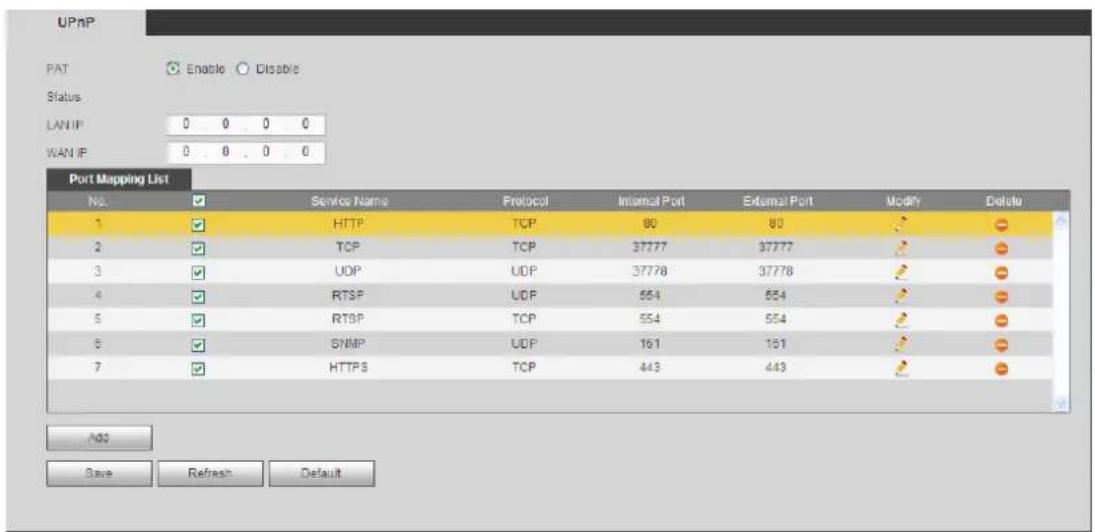
Figure 5-38
5.8.2.11 SNMP
The SNMP interface is shown as in Figure 5-39.
The SNMP allows the communication between the network management work station software and the proxy of the managed device. It is reserved for the 3^rd party to develop.
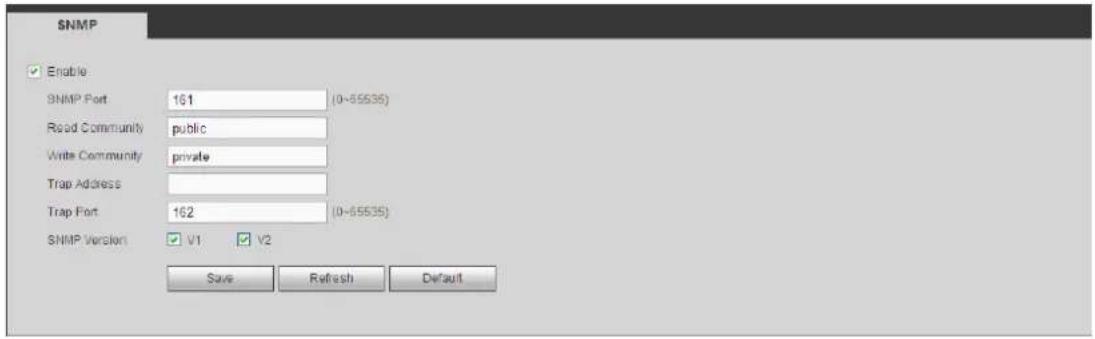
Figure 5-39
Please refer to the following sheet for detailed information.
| Parameter | Function |
| SNMP Port | The listening port of the proxy program of the device. It is a UDP port not a TCP port. The value ranges from 1 to 65535. The default value is 161 |
| Read Community | It is a string. It is a command between the manage process and the proxy process. It defined the authentication, access control and the management relationship between one proxy and one group of the managers. Please make sure the device and the proxy are the same.The read community will read all the objects the SNMP supported in the specified name. The default setup is public. |
| Write Community | It is a string. It is a command between the manage process and the proxy process. It defined the authentication, access control and the management relationship between one proxyand one group of the managers. Please make sure the device and the proxy are the same.The read community will read/write/access all the objects the SNMP supported in the specified name. The default setup is write. |
| Trap address | The destination address of the Trap information from the proxy program of the device. |
| Trap port | The destination port of the Trap information from the proxy program of the device. It is for the gateway device and the client-end PC in the LAN to exchange the information. It is a non-protocol connection port. It has no effect on the network applications. It is a UDP port not TCP port. The value ranges from 1 to 165535. The default value is 162. |
| SNMP version | ● Check V1, system only processes the information of V1.● Check V2, system only processes the information of V2. |
5.8.2.12 Multicast
The multicast interface is shown as in Figure 5-40.
Multicast is a transmission mode of data packet. When there is multiple-host to receive the same data packet, multiple-cast is the best option to reduce the broad width and the CPU load. The source host can just send out one data to transit. This function also depends on the relationship of the group member and group of the outer.
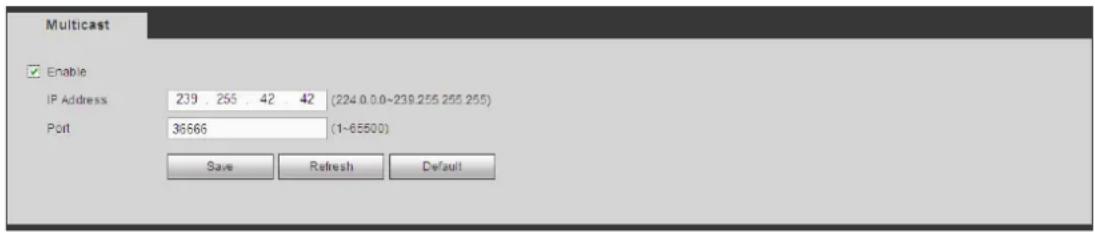
Figure 5-40
5.8.2.13 Auto Register
The auto register interface is shown as below. See Figure 5-41.
This function allows the device to auto register to the proxy you specified. In this way, you can use the client-end to access the DVR and etc via the proxy. Here the proxy has a switch function. In the network service, device supports the server address of IPv4 or domain.
Please follow the steps listed below to use this function.
Please set proxy server address, port, and sub-device name at the device-end. Please enable the auto register function, the device can auto register to the proxy server.
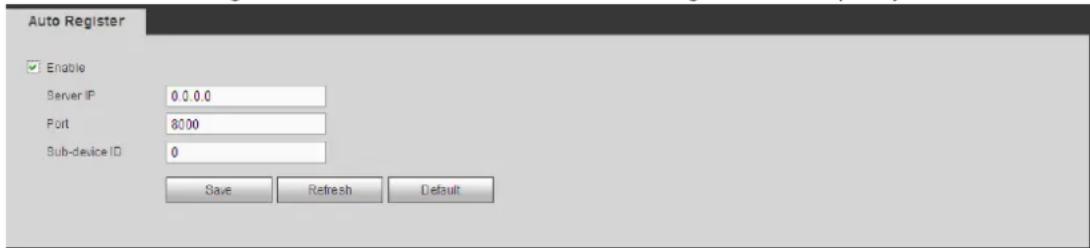
Figure 5-41
5.8.2.14 Alarm Centre
The alarm centre interface is shown as below. See Figure 5-42.
This interface is reserved for you to develop. System can upload alarm signal to the alarm centre when local alarm occurs.
Before you use alarm centre, please set server IP, port and etc. When an alarm occurs, system can send out data as the protocol defined, so the client-end can get the data.
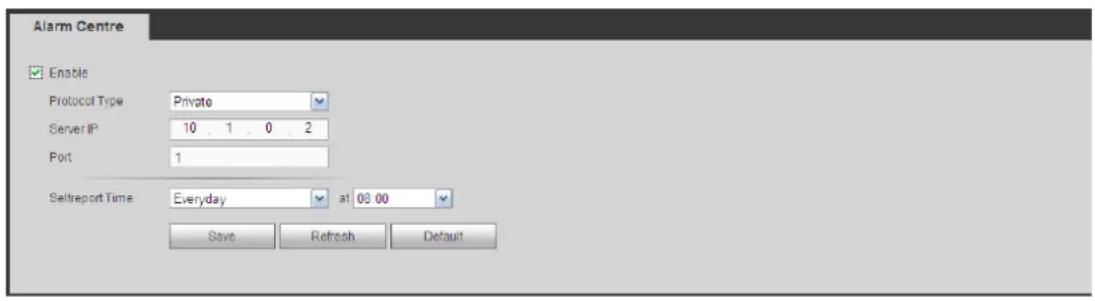
Figure 5-42
5.8.2.15 P2P
You can use your cell phone to scan the QR code and add it to the cell phone client.
Via the SN from scanning the QR code, you can access the device in the WAN. Please refer to the P2P operation manual included in the resources CD.
The P2P interface is shown as in Figure 5-43.
Check the Enable box to enable P2P function and then click the Save button. Now you can view the device status and SN.
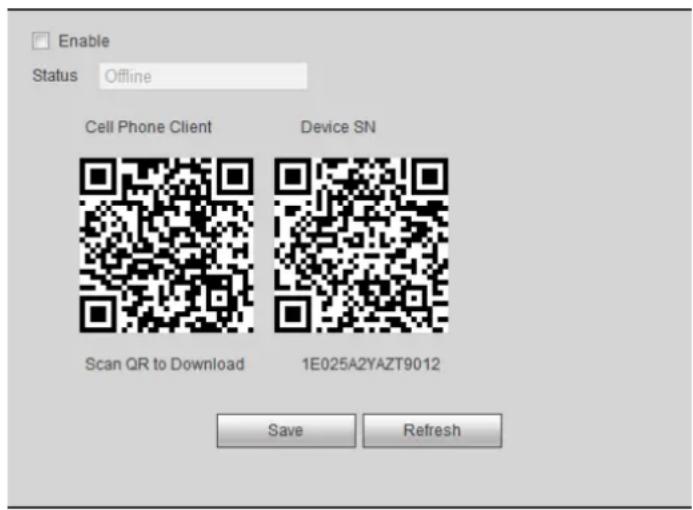
Figure 5-43
5.8.2.16 HTTPS
In this interface, you can set to make sure the PC can successfully login via the HTTPS. It is to guarantee communication data security. The reliable and stable technology can secure the user information security and device safety. See Figure 5-44.
Note
- You need to implement server certificate again if you have changed device IP.
- You need to download root certificate if it is your first time to use HTTPS on current PC.

Figure 5-44
5.8.2.16.1 Create Server Certificate
If it is your first time to use this function, please follow the steps listed below.
In Figure 5-44, click button, input country name, state name and etc. Click Create button. See Figure 5-45.
Note
Please make sure the IP or domain information is the same as your device IP or domain name.
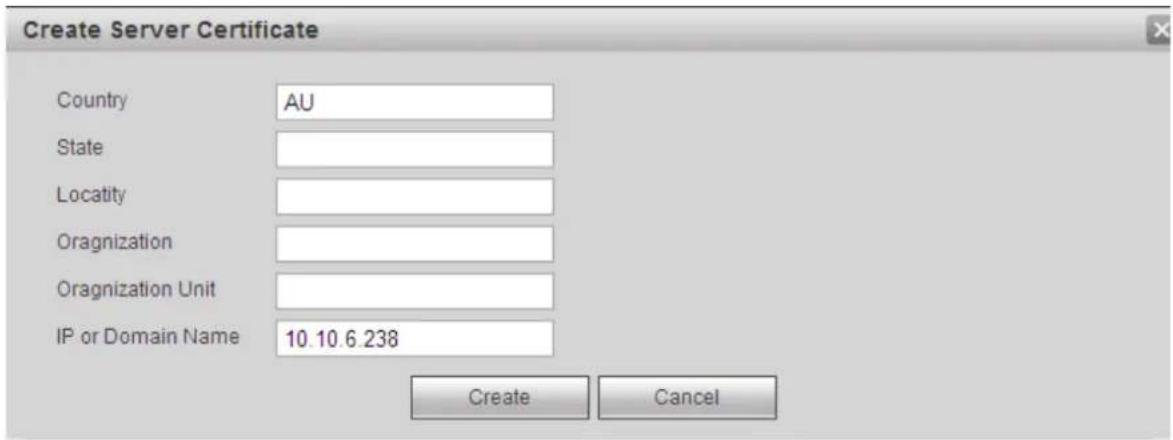
Figure 5-45
You can see the corresponding prompt. See Figure 5-46. Now the server certificate is successfully created.

Figure 5-46
5.8.2.16.2 Download root certificate
In Figure 5-44, click button, system pops up a dialogue box. See Figure 5-47.
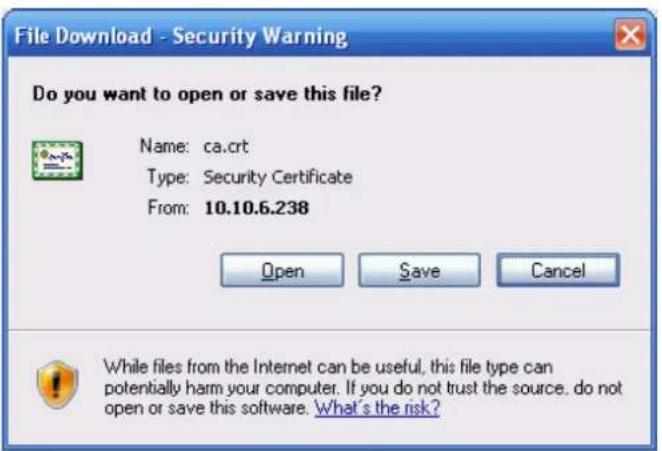
Figure 5-47
Click Open button, you can go to the following interface. See Figure 5-48.
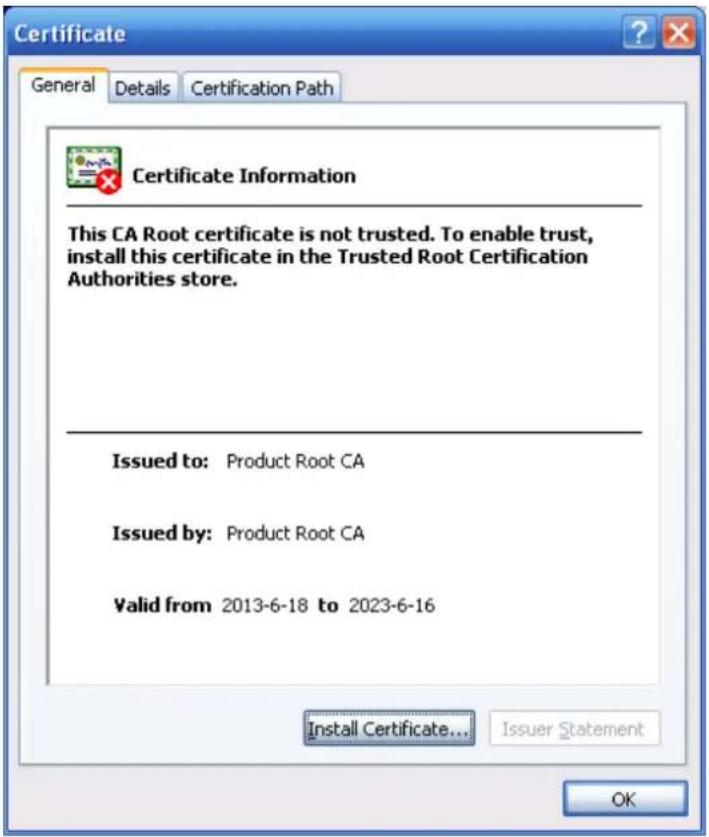
Figure 5-48
Click Install certificate button, you can go to certificate wizard. See Figure 5-49.
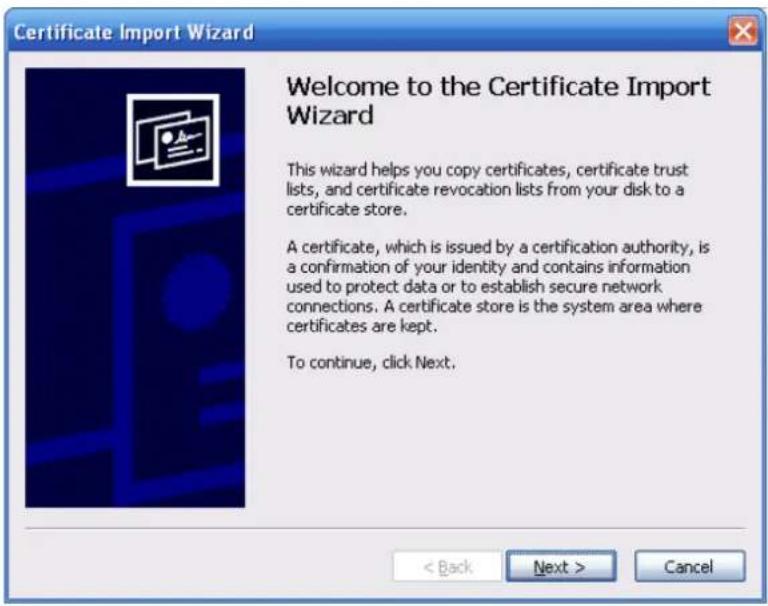
Figure 5-49
Click Next button to continue. Now you can select a location for the certificate. See Figure 5-50.
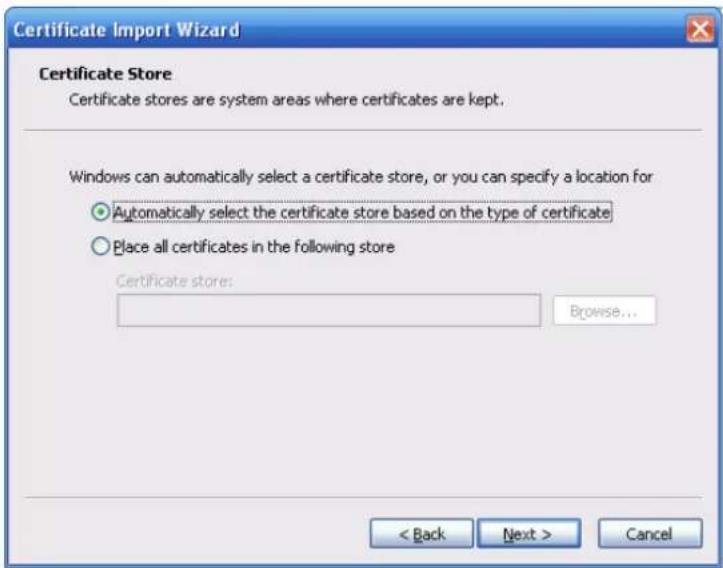
Figure 5-50
Click Next button, you can see the certificate import process is complete. See Figure 5-51.
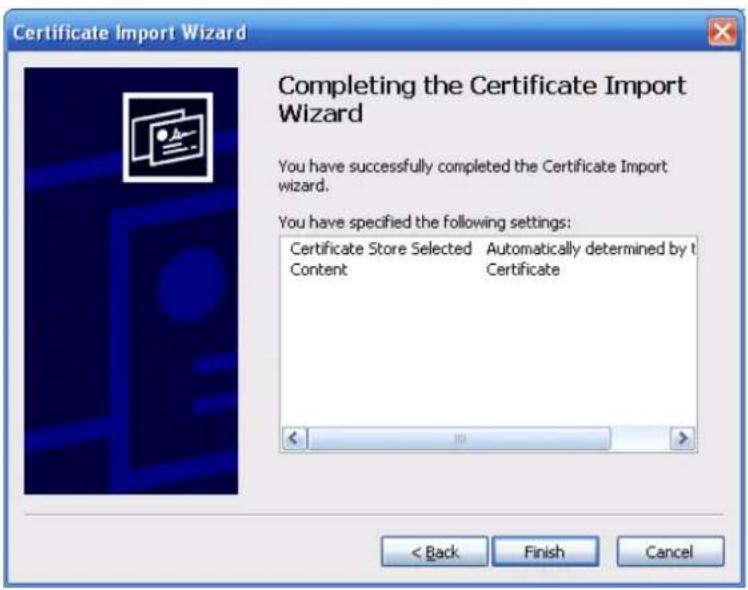
Figure 5-51
Click Finish button, you can see system pops up a security warning dialogue box. See Figure 5-52.
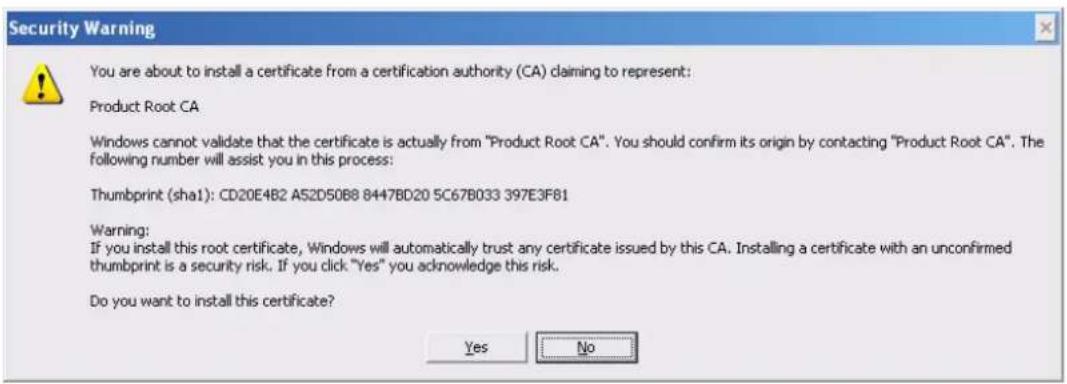
Figure 5-52
Click Yes button, system pops up the following dialogue box, you can see the certificate download is complete. See Figure 5-53.
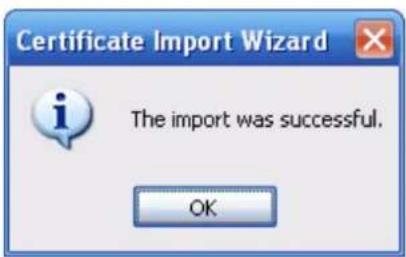
Figure 5-53
5.8.2.16.3 View and set HTTPS port
From Setup->Network->Connection, you can see the following interface. See Figure 5-54.
You can see HTTPS default value is 443.
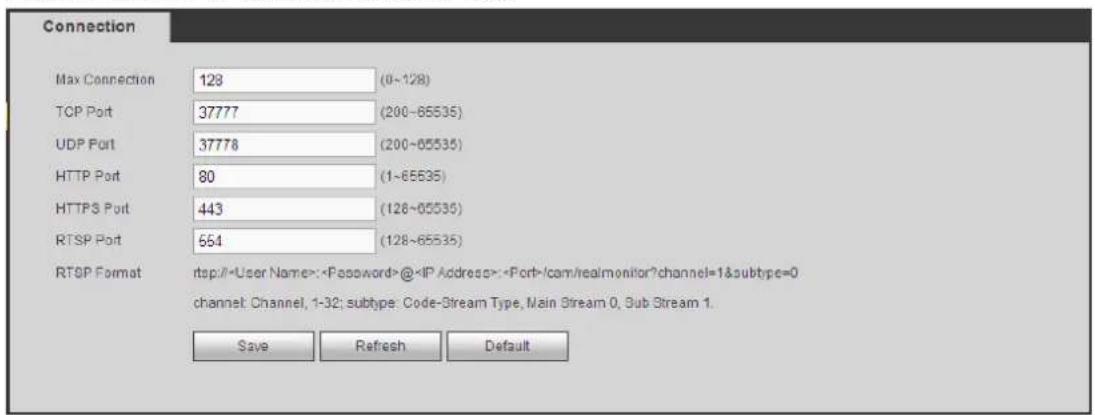
Figure 5-54
5.8.2.16.4 Login
Open the browser and then input https://xx.xx.xx.xx:port.
xx.xx.xx.xx: is your device IP or domain mane.
Port is your HTTPS port. If you are using default HTTPS value 443, you do not need to add port information here. You can input https://xx.xx.xx.xx to access.
Now you can see the login interface if your setup is right.
5.8.3 Event
5.8.3.1 Video detect
5.8.3.1.1 Motion Detect
The motion detect interface is shown as in Figure 5-55.
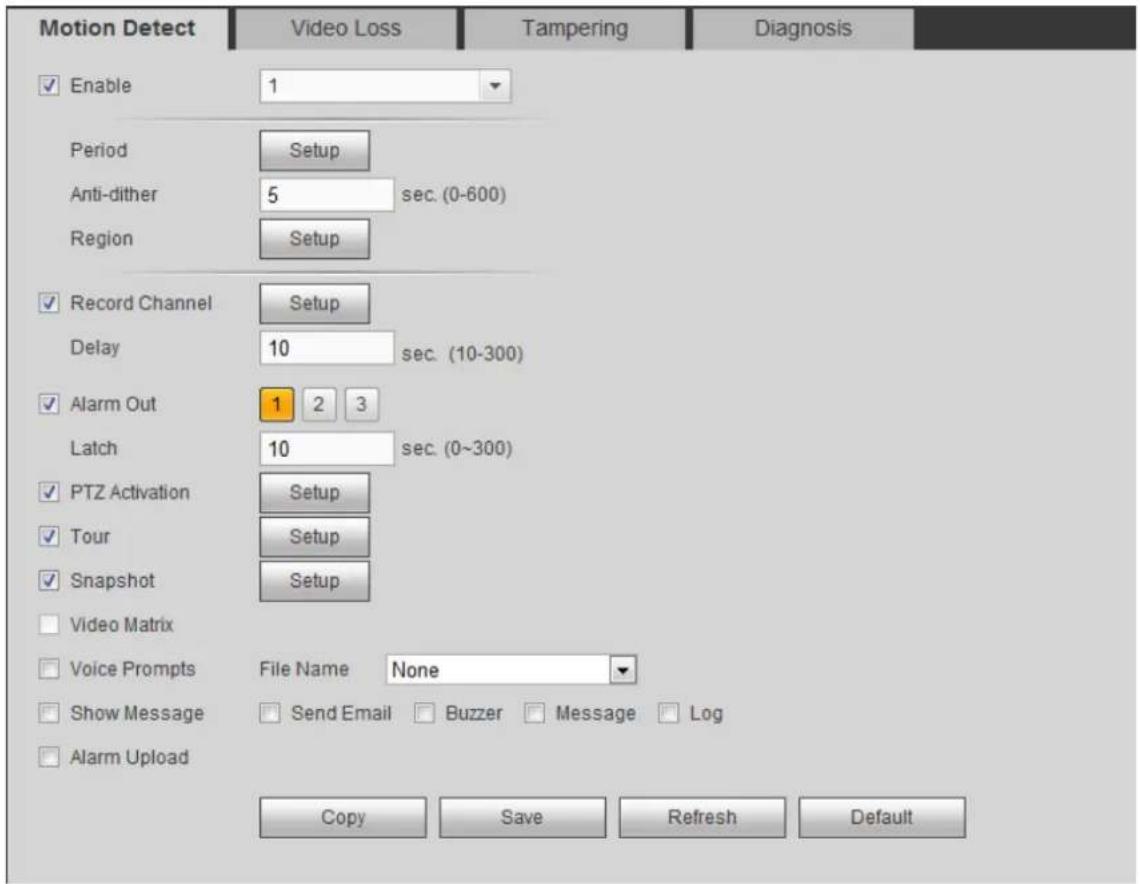
Figure 5-55
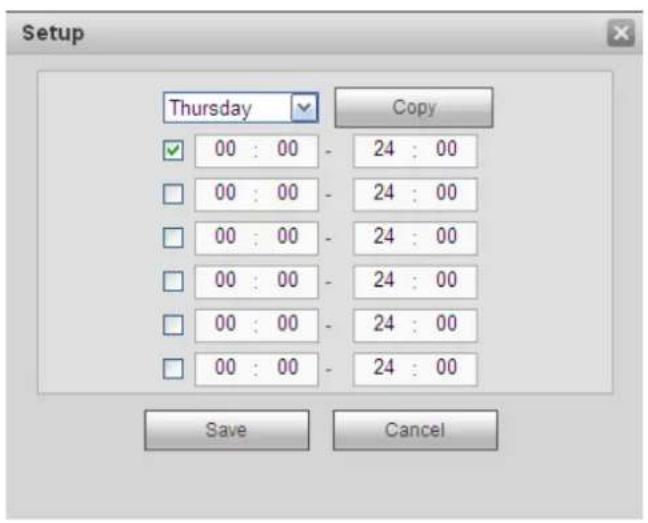
Figure 5-56
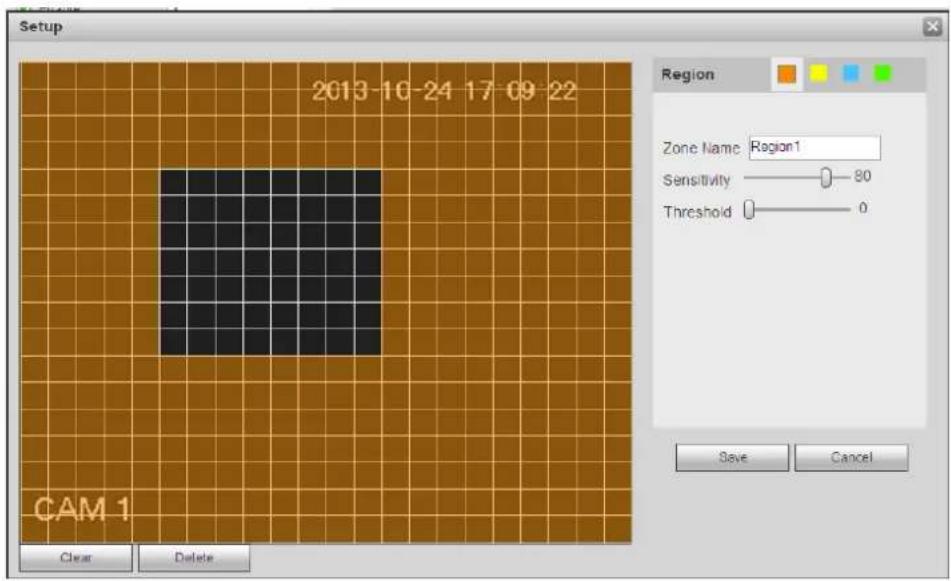
Figure 5-57
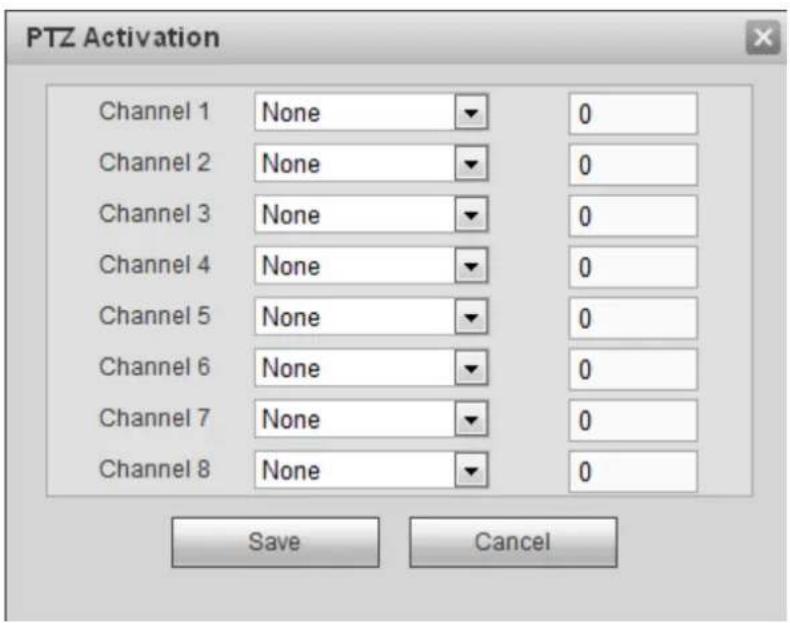
Figure 5-58
Please refer to the following sheet for detailed information.
| Parameter | Function |
| Enable | You need to check the box to enable motion detection function.Please select a channel from the dropdown list. |
| Period | Motion detection function becomes activated in the specified periods. See Figure 5-56.There are six periods in one day. Please draw a circle to enable corresponding period.Click OK button, system goes back to motion detection interface, please click save button to exit. |
| Anti-dither | System only memorizes one event during the anti-dither period. The value ranges from 5s to 600s. |
| Sensitivity | There are six levels. The sixth level has the highest sensitivity. |
| Region | If you select motion detection type, you can click this button to set motion detection zone. The interface is shown as in Figure 5-57. Here you can set motion detection zone. There are four zones for you to set. Please select a zone first and then left drag the mouse to select a zone. The corresponding color zone displays different detection zone. You can click Fn button to switch between the arm mode and disarm mode. In arm mode, you can click the direction buttons to move the green rectangle to set the motion detection zone. After you completed the setup, please click ENTER button to exit current setup. Do remember click save button to save current setup. If you click ESC button to exit the region setup interface system will not save your zone setup. |
| Record channel | System auto activates motion detection channel(s) to record once an alarm occurs. Please note you need to set motion detect record period and go to Storage-> Schedule to set current channel as schedule record. |
| Record Delay | System can delay the record for specified time after alarm ended. The value ranges from 10s to 300s. |
| Alarm out | Enable alarm activation function. You need to select alarm output port so that system can activate corresponding alarm device when an alarm occurs. |
| Latch | System can delay the alarm output for specified time after an alarm ended. The value ranges from 1s to 300s. |
| Video Matrix | This function is for motion detect only. Check the box here to enable video matrix function. Right now system supports one-channel tour function. System takes “first come and first serve” principle to deal with the activated tour. System will process the new tour when a new alarm occurs after previous alarm ended. Otherwise it restores the previous output status before the alarm activation. |
| Snapshot | You need to check the box here to enable this function. You can set corresponding channel to snapshot when motion detect alarm occurs. |
| Show message | System can pop up a message to alarm you in the local host screen if you enabled this function. |
| Buzzer | Check the box here to enable this function. The buzzer beeps when an alarm occurs. |
| Alarm upload | System can upload the alarm signal to the centre (Including alarm centre. |
| Message | When 3G network connection is OK, system can send out a message when motion detect occurs. |
| Send Email | If you enabled this function, System can send out an email to alert you when an alarm occurs. |
| Tour | You need to check the box here to enable this function. System begins 1-window or multiple-window tour display among the channel(s) you set to record when an alarm occurs. |
| PTZ Activation | Here you can set PTZ movement when alarm occurs. Such as go to preset X. See Figure 5-58. |
| Log | Check the box here, system can record motion detect event log. |
5.8.3.1.2 Video Loss
The video loss interface is shown as in Figure 5-59.
After analysis video, system can generate a video loss alarm when the detected moving signal reached the sensitivity you set here.
Please note video loss does not support anti-dither, sensitivity, region setup. For rest setups, please refer to chapter 5.8.3.1.1 motion detect for detailed information.
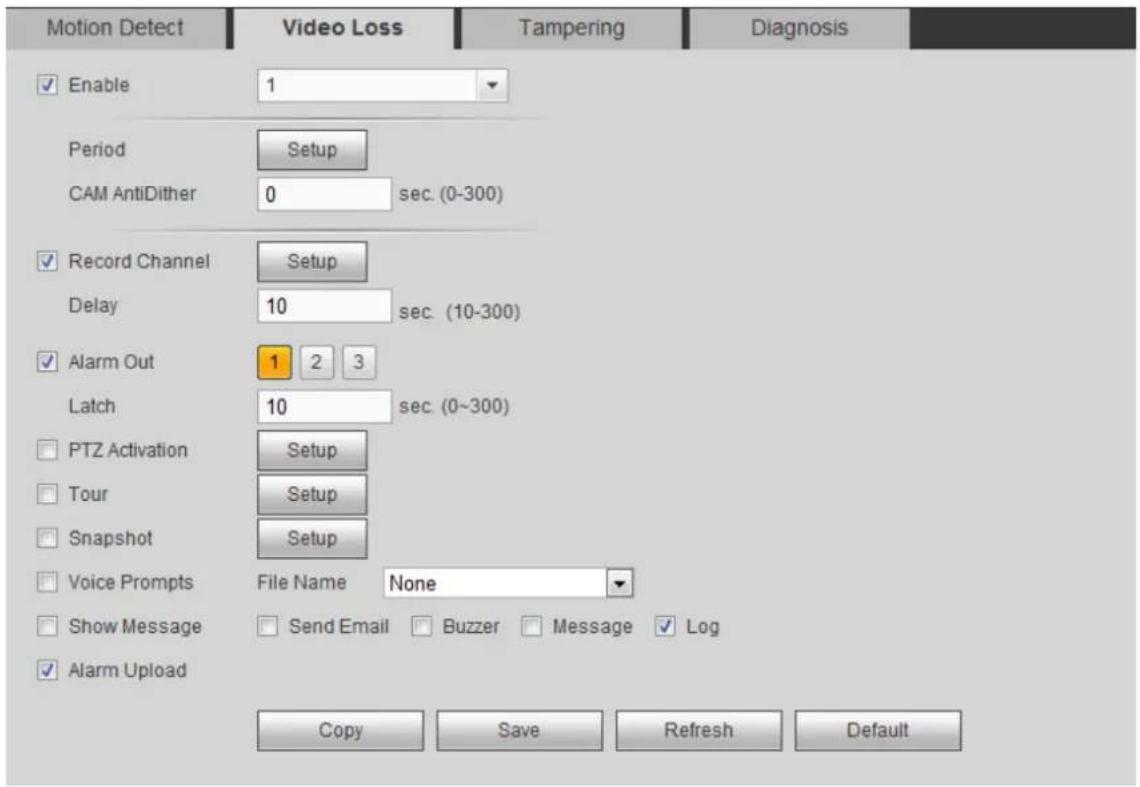
Figure 5-59
5.8.3.1.3 Tampering
The tampering interface is shown as in Figure 5-60.
After analysis video, system can generate a tampering alarm when the detected moving signal reached the sensitivity you set here.
For detailed setups, please refer to chapter 5.8.3.1.1 motion detect for detailed information.
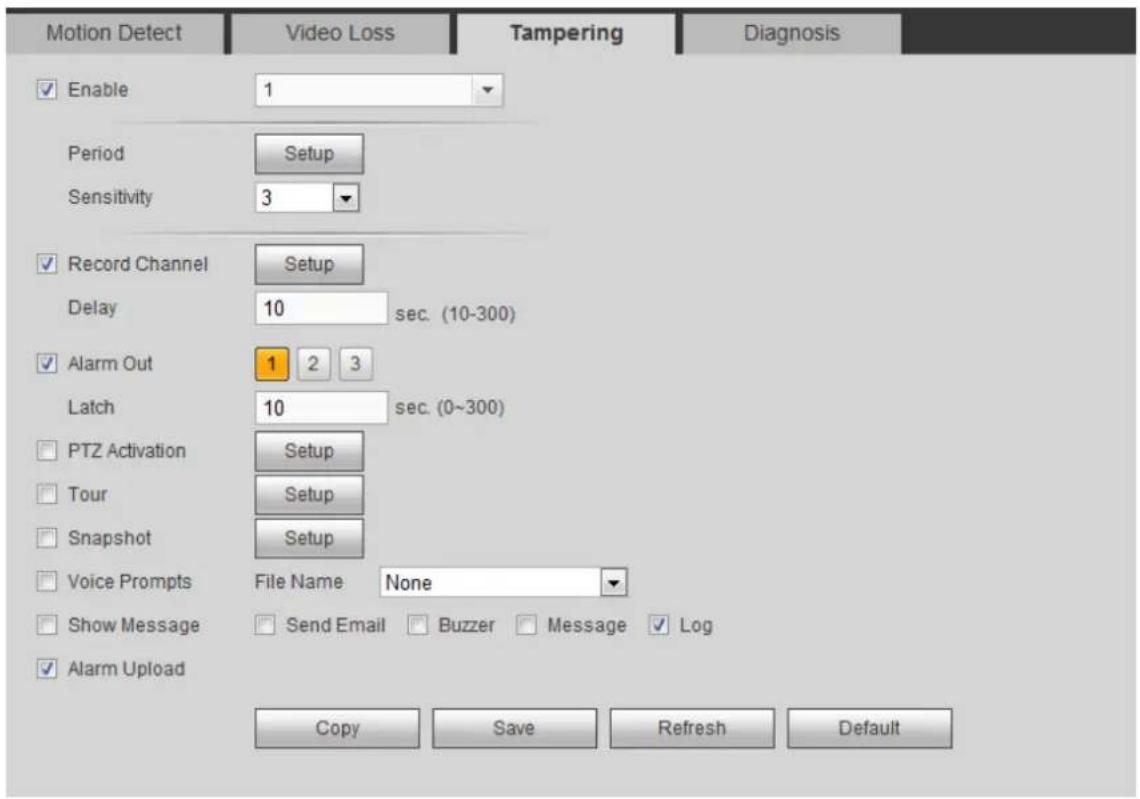
Figure 5-60
5.8.3.1.4 Diagnosis
System can trigger an alarm when the stripe, noise, color cast, out of focus, over exposure event occurred. See Figure 5-61.
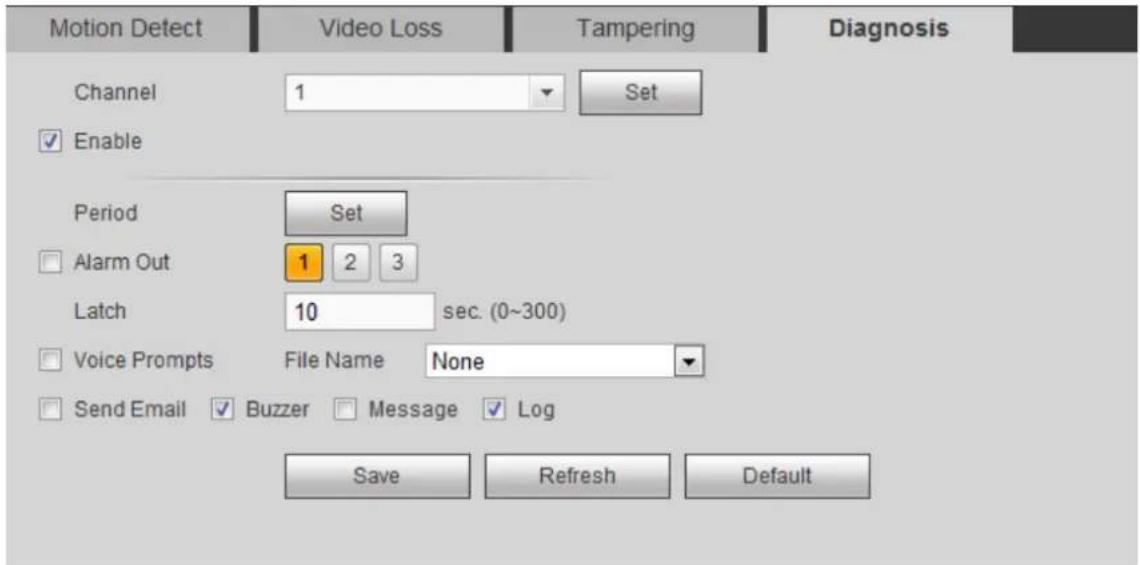
Figure 5-61
Click Set button, you can check the corresponding box to select diagnosis type. See Figure 5-62.
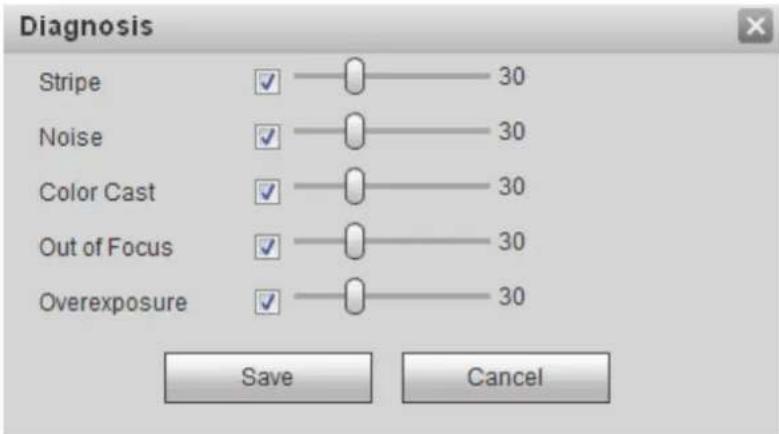
Figure 5-62
Note
Video diagnosis alarm can trigger PTZ preset, tour, and pattern.
For detailed setups, please refer to chapter 5.8.3.1.1 motion detect for detailed information.
5.8.3.2 Intelligence (Optional)

The intelligence function is optional. The intelligence function and the
human face detection can not be valid at the same time!
From main menu->Setup->Event->IVS, you can go to the IVS interface. It includes three interfaces: Tripwire/intrusion/object.
5.8.3.2.1 Tripwire
Note:
- The tripwire function is valid once your network camera or your DVR supports this function.
- If your purchased DVR supports the tripwire function, it supports one analog channel. It is not for the digital channel.
From main menu->Setup->Event->IVS->Tripwire, you can see the following interface. See Figure 5-63.
System generates an alarm once there is any object crossing the tripwire in the specified direction.
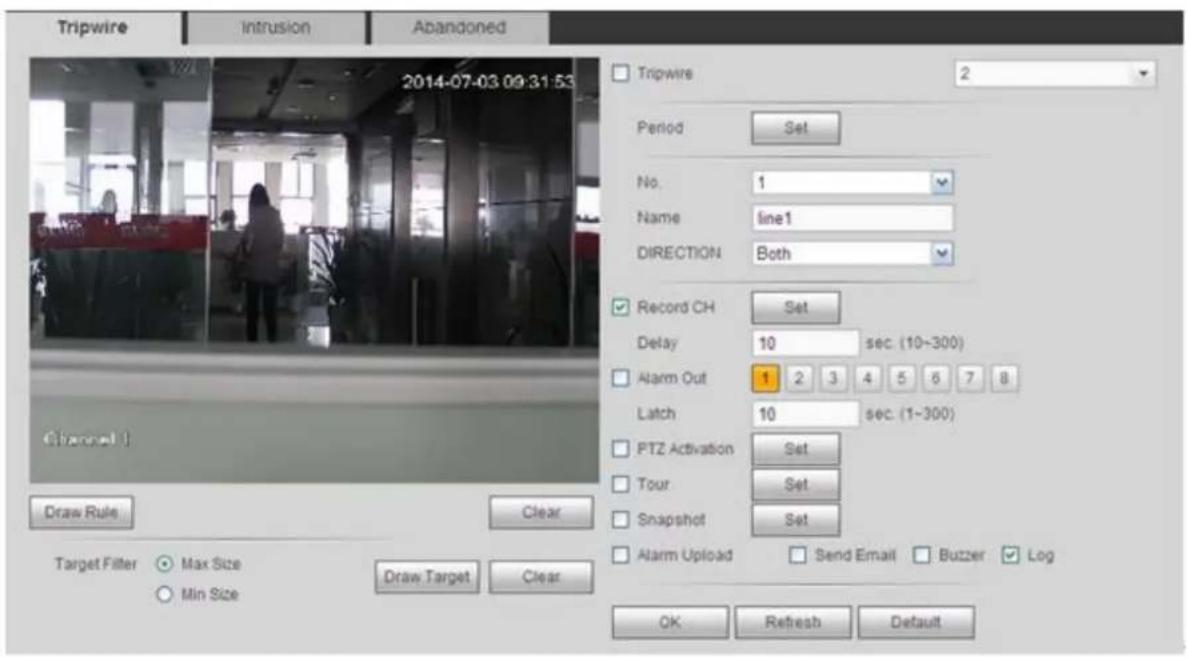
Figure 5-63
Check the Tripwire box to enable tripwire function.
Select SN (Line1/2/3/4) and direction, and then input customized rule name.
- No. and Line1/2/3/4: System supports four tripwires. Each SN stands for one tripwire.
- Direction: There are three options: A->B, B->A, both. System can generate an alarm once there is any object crossing in the specified direction.
Now you can draw a rule. Click Draw rule button and then left click mouse to draw a tripwire. The tripwire can be a direct line, curve or polygon. Right click mouse to complete.
See Figure 5-64.
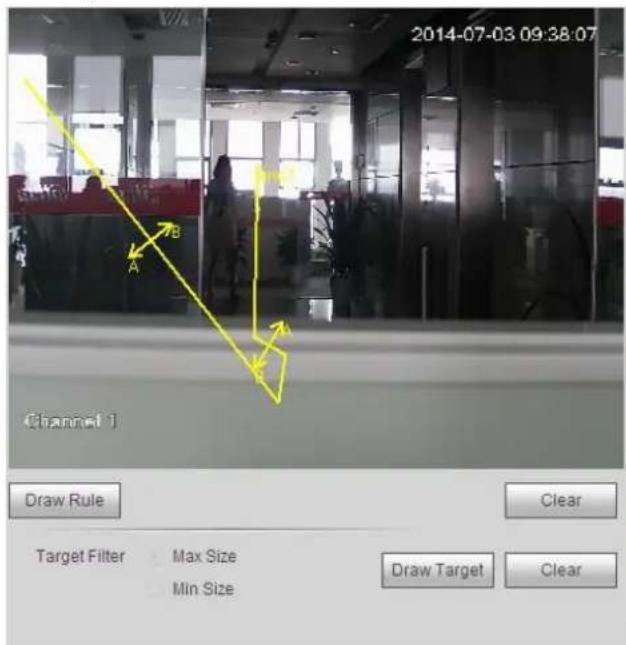
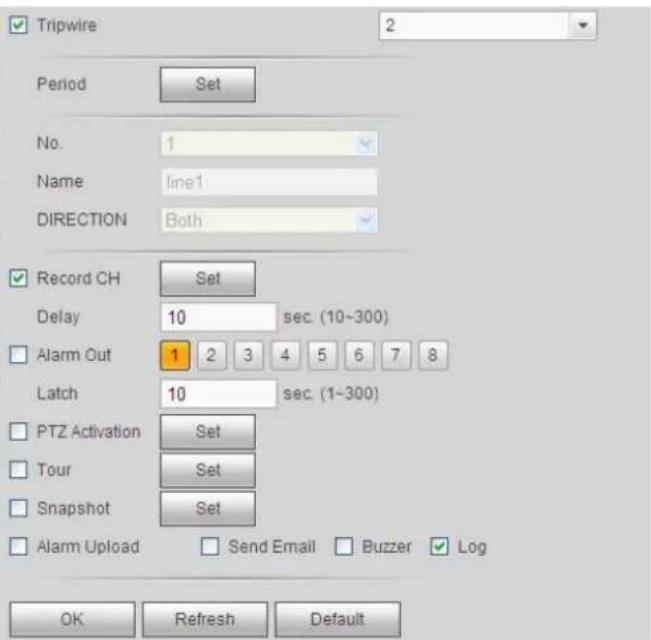
Figure 5-64
Click to draw filter object. See Figure 5-65.
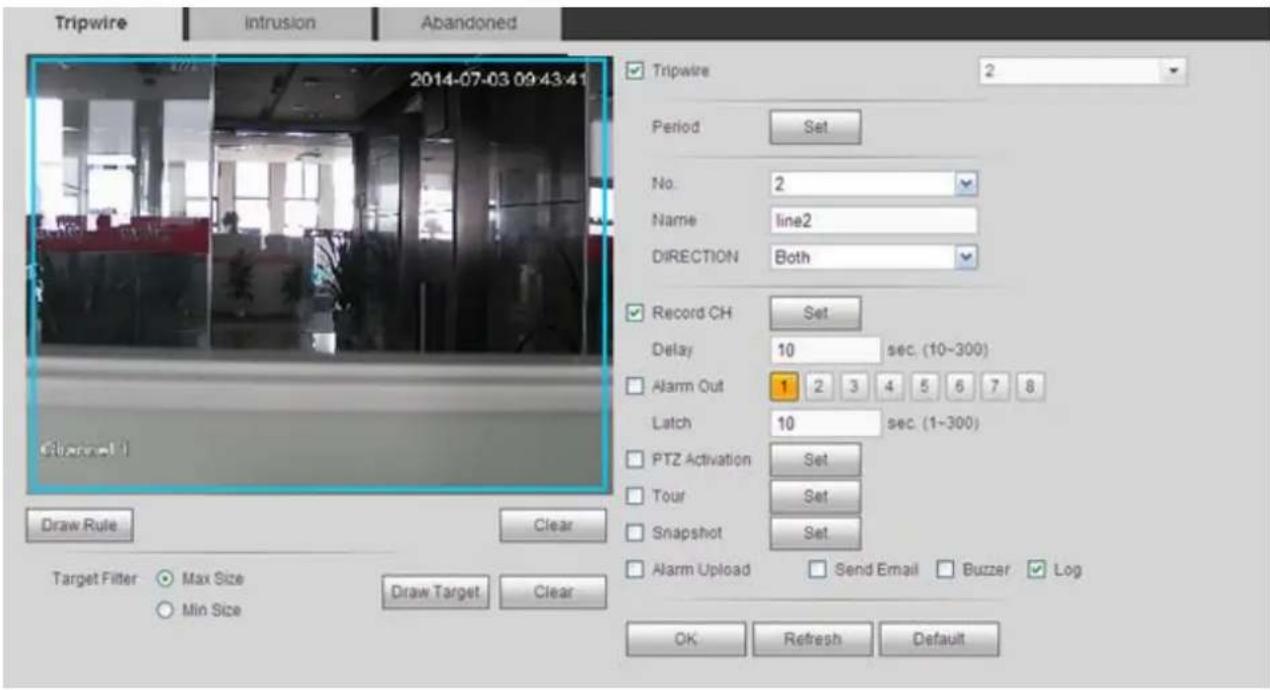
Figure 5-65
Select the blue line and then use mouse to adjust zone size.
Note
Each rule can set two sizes (min size/max size). Once the object is smaller than the min size or larger than the max size, there is no alarm. Please make sure the max size is larger than the min size.
Click Ok to complete the rule setup.
For detailed setups, please refer to chapter 5.8.3.1.1 motion detect for detailed information.
5.8.3.2.2 Intrusion (Cross warning zone)
Note:
- The intrusion function is valid once your network camera or your DVR supports this function.
- If your purchased DVR supports the intrusion function, it supports one analog channel. It is not for the digital channel.
From main menu->Setup->Event->IVS->Intrusion, the intrusion interface is shown as below. See Figure 5-66.
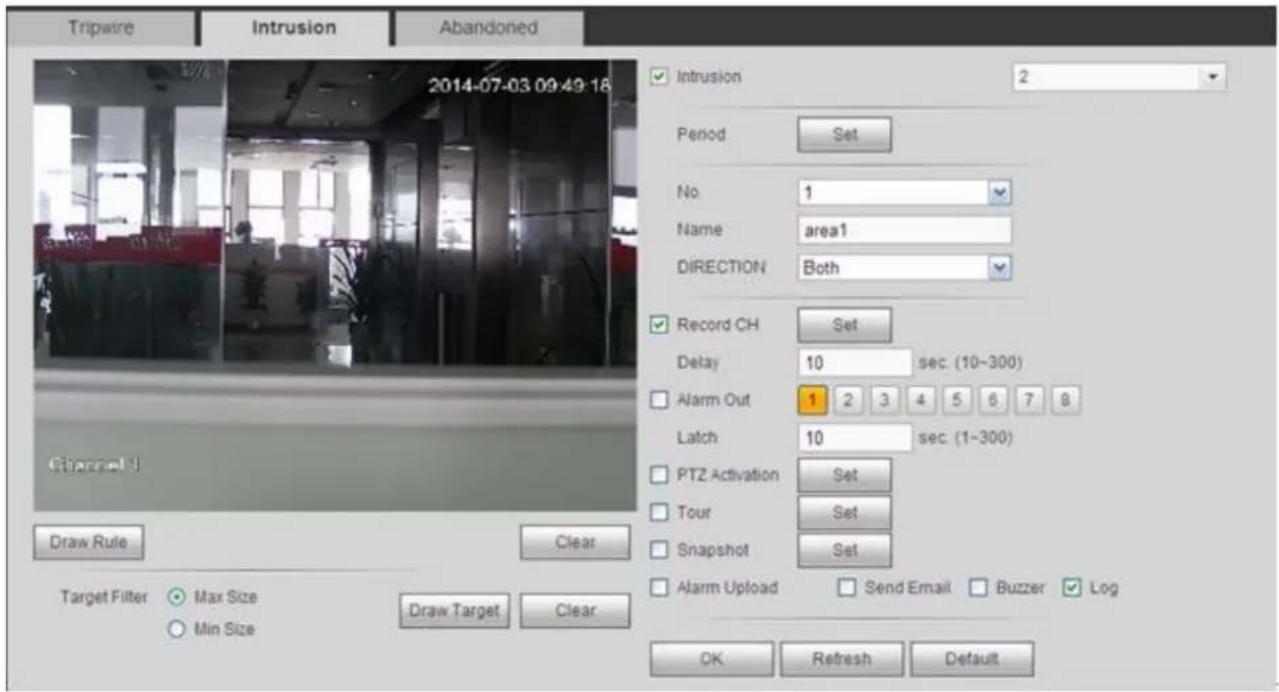
Figure 5-66
Check the Intrusion box to enable intrusion function.
Select SN (Area1/2/3/4) and direction, and then input customized rule name.
- No. and Area1/2/3/4: System supports four zones. Each SN stands for one zone.
- Direction: There are three options: A->B, B->A, both. System can generate an alarm once there is any object enter/exit (Or both) the zone.
Now you can draw a rule. Left click mouse to draw a line first and then right click mouse to draw another line until you draw a rectangle, you can right click mouse to exit.
Click Ok to complete the rule setup.
Draw Rule Click to draw the zone. See Figure 5-67.
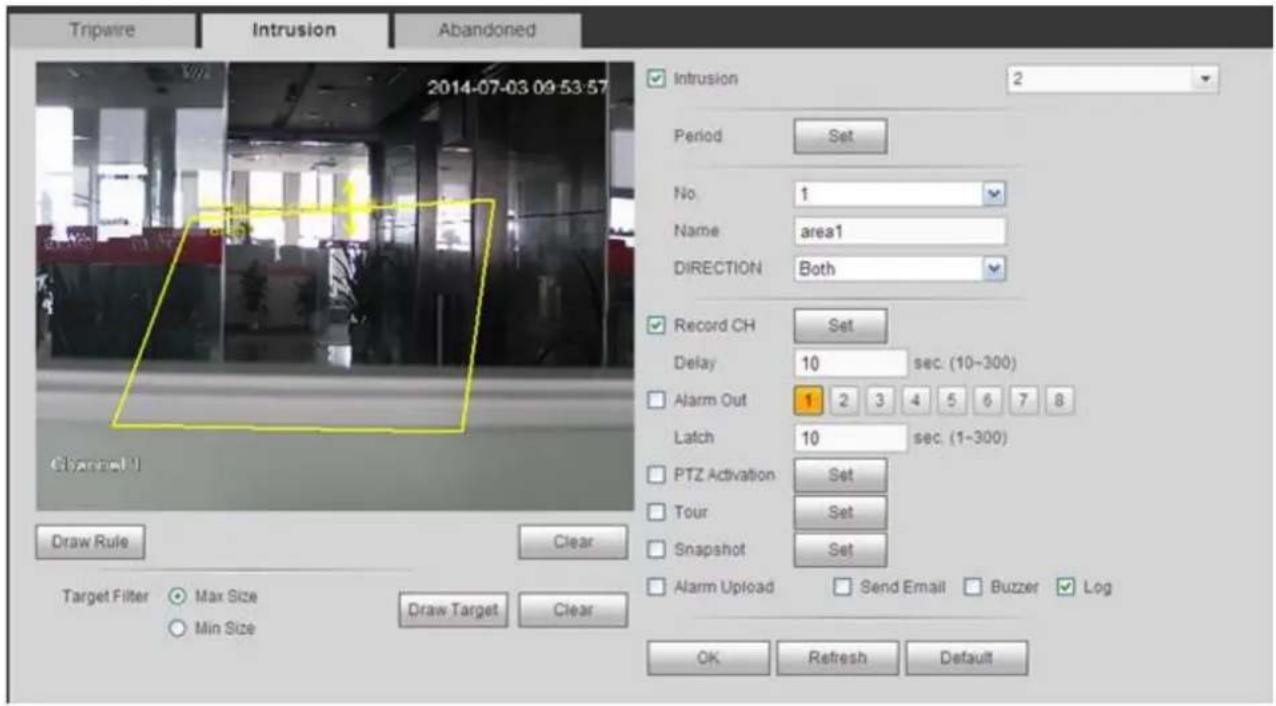
Figure 5-67
For detailed setups, please refer to chapter 5.8.3.1.1 motion detect for detailed information.
5.8.3.2.3 Object Detect
Note:
- The object detection function is valid once your network camera or your DVR supports this function.
- If your purchased DVR supports the object detection function, it supports one analog channel. It is not for the digital channel.
From main menu->Setup->Event->IVS->Object, the object interface is shown as below. See Figure 5-68.
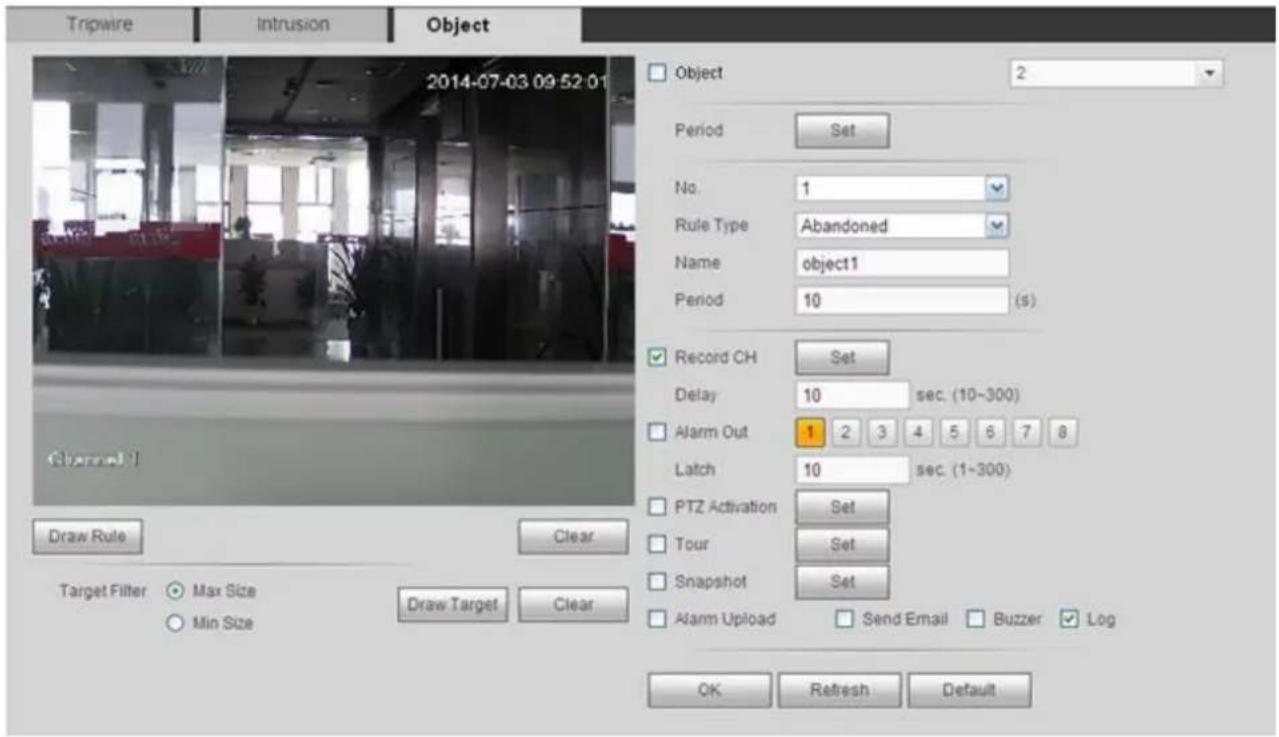
Figure 5-68
Check the Object box to enable object detect function.
Select SN (object1/2/3/4) and rule type, and then input customized rule name.
- No. and Object1/2/3/4: System supports four zones. Each SN stands for one zone.
- Rule type: Please select from the dropdown list. There are two types: Missing object detect/abandoned object detect.
- Period: It refers to the object in/out the zone time.
Click to draw the rule. See Figure 5-69.
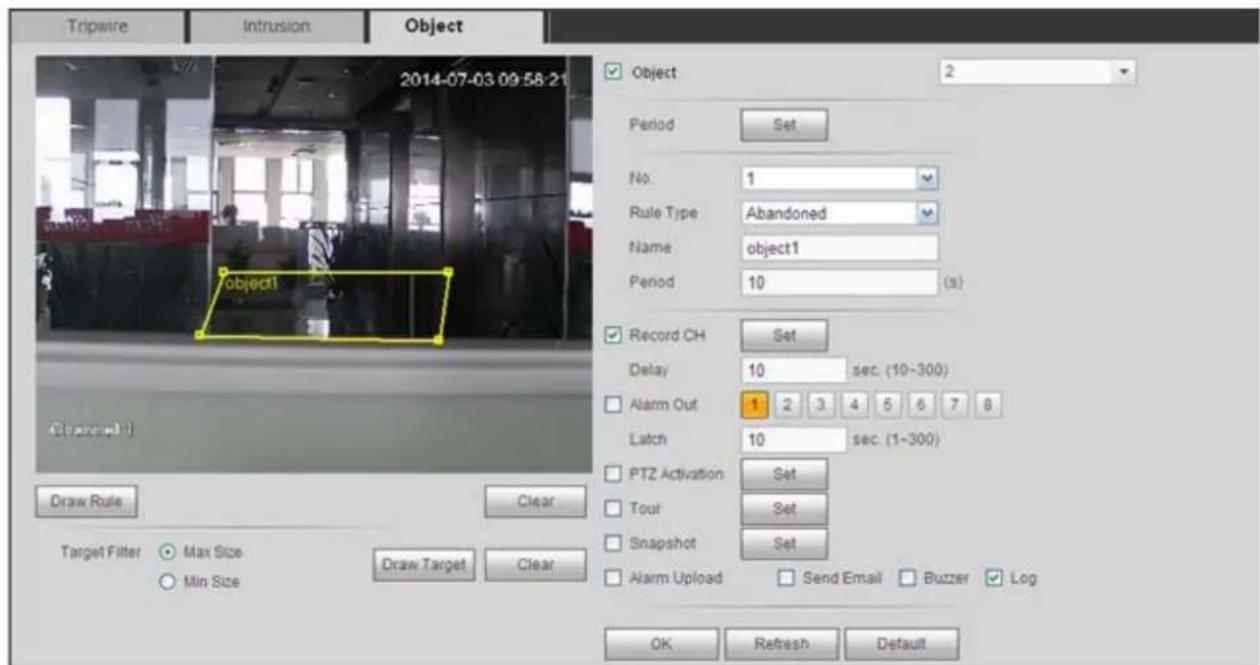
Figure 5-69
Now you can draw a rule. Left click mouse to draw a line, until you draw a rectangle, you can right click mouse.
Click Ok to complete the rule setup.
For detailed setups, please refer to chapter 5.8.3.1.1 motion detect for detailed information.
5.8.3.3 Face Detect (Optional)

The face detection function is optional. The intelligence function and the face detection can not be valid at the same time!
When camera detects human face, system can draw a rectangle around the human face and generate an alarm.
From main menu->Setup->Event->Face detect, the interface is shown as in Figure 5-70.
- Enable face boost: Check the box here, system can enhance the human face display pane.
● Sensitivity: System supports 6 levels. The sixth level has the highest sensitivity.
For detailed setups, please refer to chapter 5.8.3.1.1.
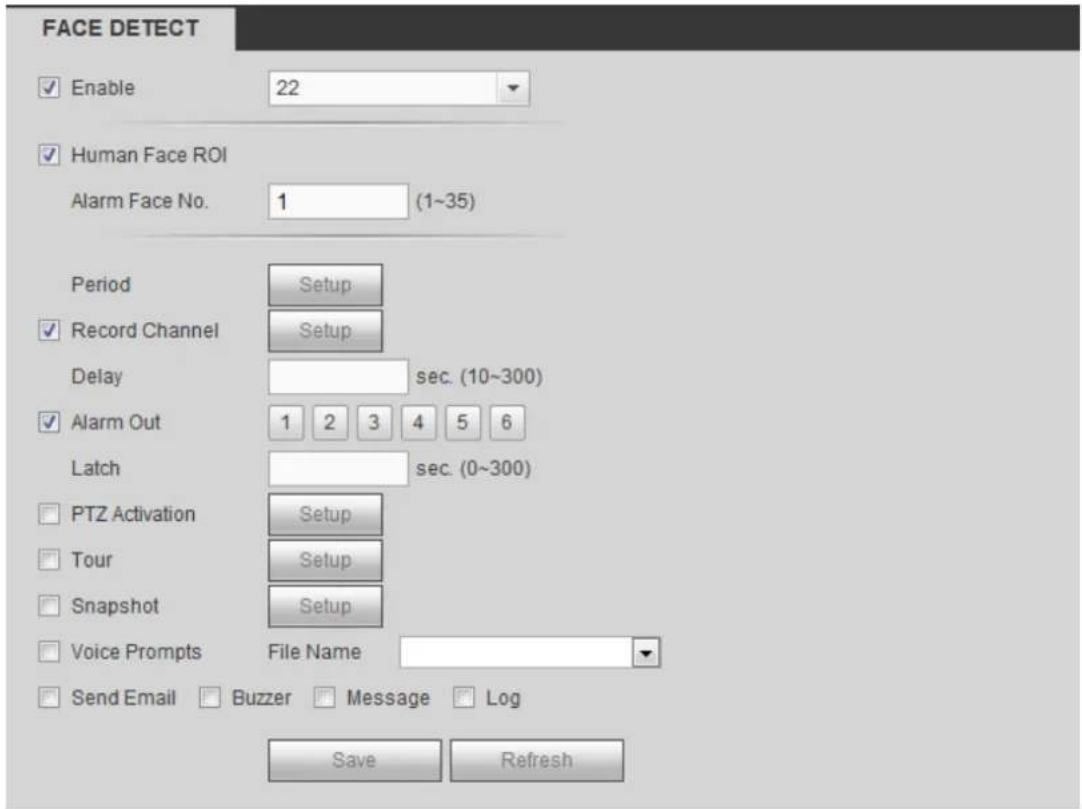
Figure 5-70
5.8.3.4 Alarm
Before operation, please make sure you have properly connected alarm devices such as buzzer. The input mode includes local alarm and network alarm.
5.8.3.4.1 Local Alarm
The local alarm interface is shown as in Figure 5-71. It refers to alarm from the local device.
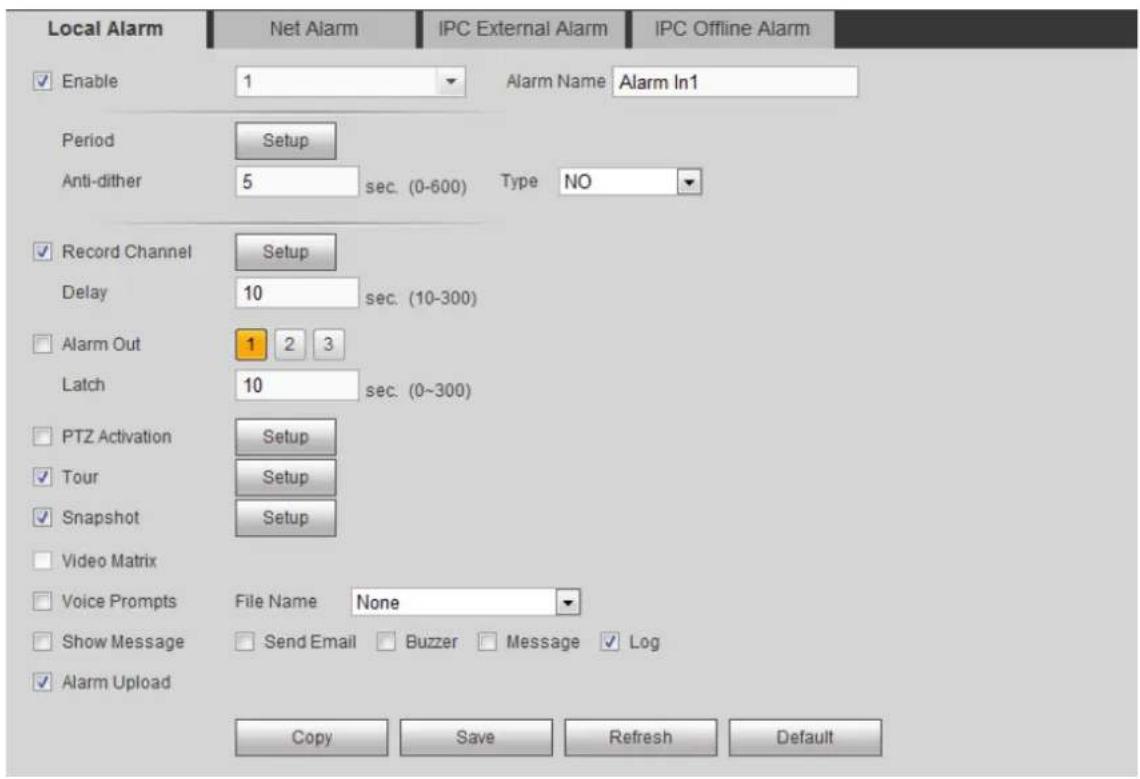
Figure 5-71
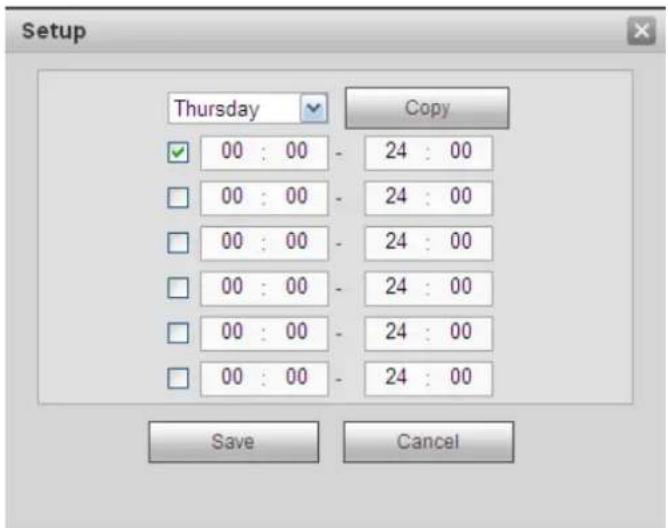
Figure 5-72
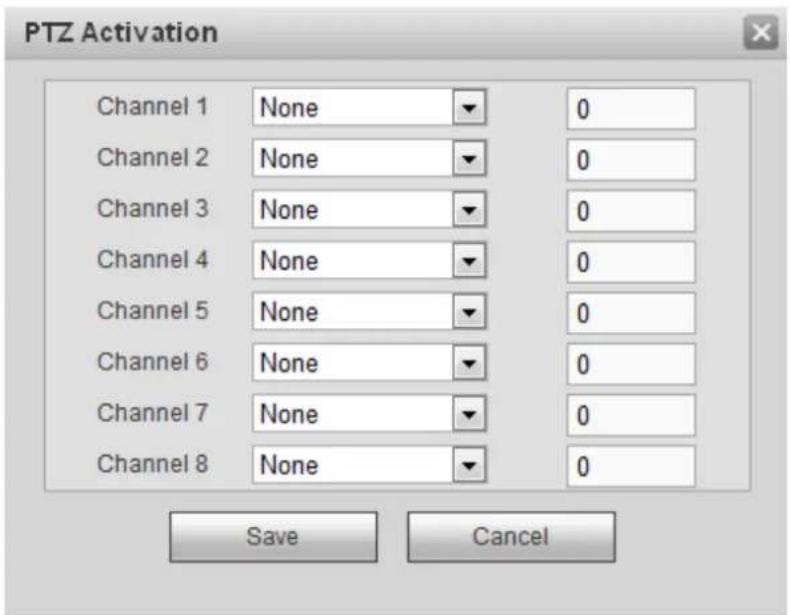
Figure 5-73
Please refer to the following sheet for detailed information.
| Parameter | Function |
| Enable | You need to check the box to enable this function.Please select a channel from the dropdown list. |
| Period | This function becomes activated in the specified periods.There are six periods in one day. Please draw a circle to enable corresponding period.Select date. If you do not select, current setup applies to today only. You can select all week column to apply to the whole week.Click OK button, system goes back to local alarm interface, please click save button to exit. |
| Anti-dither | System only memorizes one event during the anti-dither period. The value ranges from 5s to 600s. |
| Sensor type | There are two options: NO/NC. |
| Record channel | System auto activates motion detection channel(s) to record once an alarm occurs. Please note you need to set alarm record period and go to Storage-> Schedule to set current channel as schedule record. |
| Record Delay | System can delay the record for specified time after alarm ended. The value ranges from 10s to 300s. |
| Alarm out | Enable alarm activation function. You need to select alarm output port so that system can activate corresponding alarm device when an alarm occurs. |
| Latch | System can delay the alarm output for specified time after an alarm ended. The value ranges from 1s to 300s. |
| Show message | System can pop up a message to alarm you in the local host screen if you enabled this function. |
| Buzzer | Check the box here to enable this function. The buzzer beeps when an alarm occurs. |
| Alarm upload | System can upload the alarm signal to the centre (Including alarm centre). |
| Send Email | If you enabled this function, System can send out an email to alert you when an alarm occurs. |
| Tour | You need to check the box here to enable this function. System begins 1-wiindow or multiple-window tour display among the channel(s) you set to record when an alarm occurs. |
| PTZ Activation | Here you can set PTZ movement when alarm occurs. Such as go to preset X. |
| Log | Check the box here, system can record local alarm event log. |
5.8.3.4.2 Net Alarm
The network alarm interface is shown as in Figure 5-74.
Network alarm refers to the alarm signal from the network. System does not anti-dither and sensor type setup. For setup information, please refer to chapter 5.8.3.4.1.
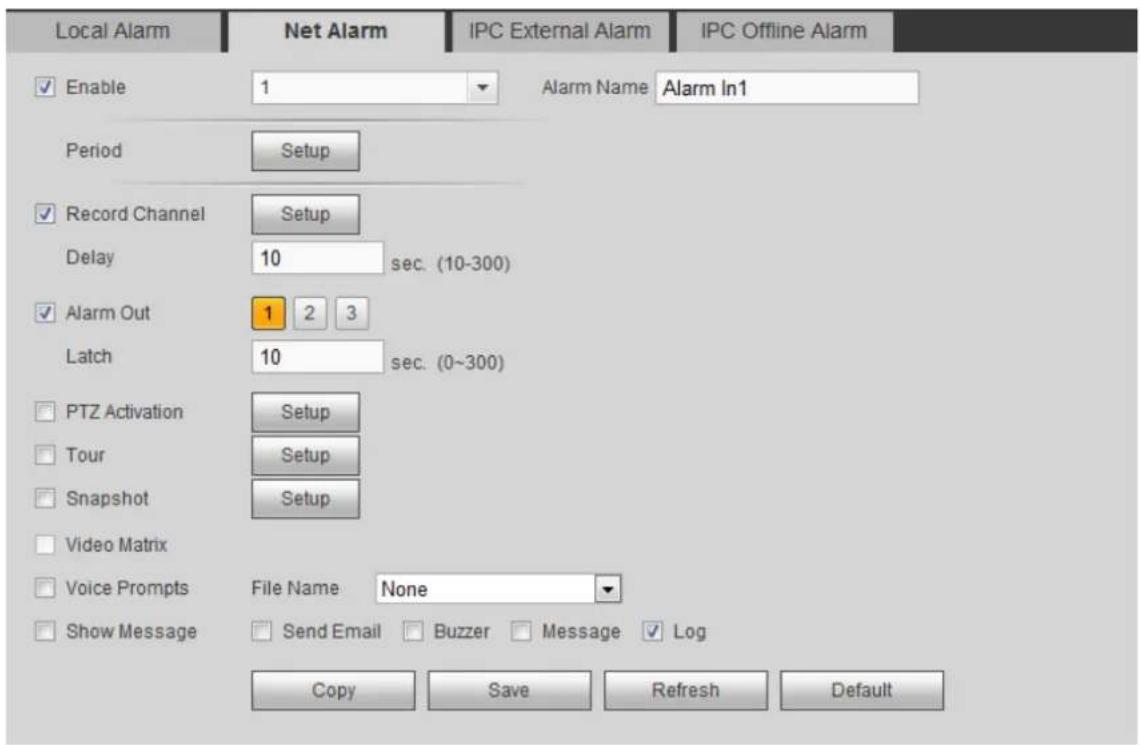
Figure 5-74
5.8.3.4.3 IPC External Alarm
IPC external alarm interface is shown as below. See Figure 5-75. For setup information,
please refer to chapter 5.8.3.4.1.
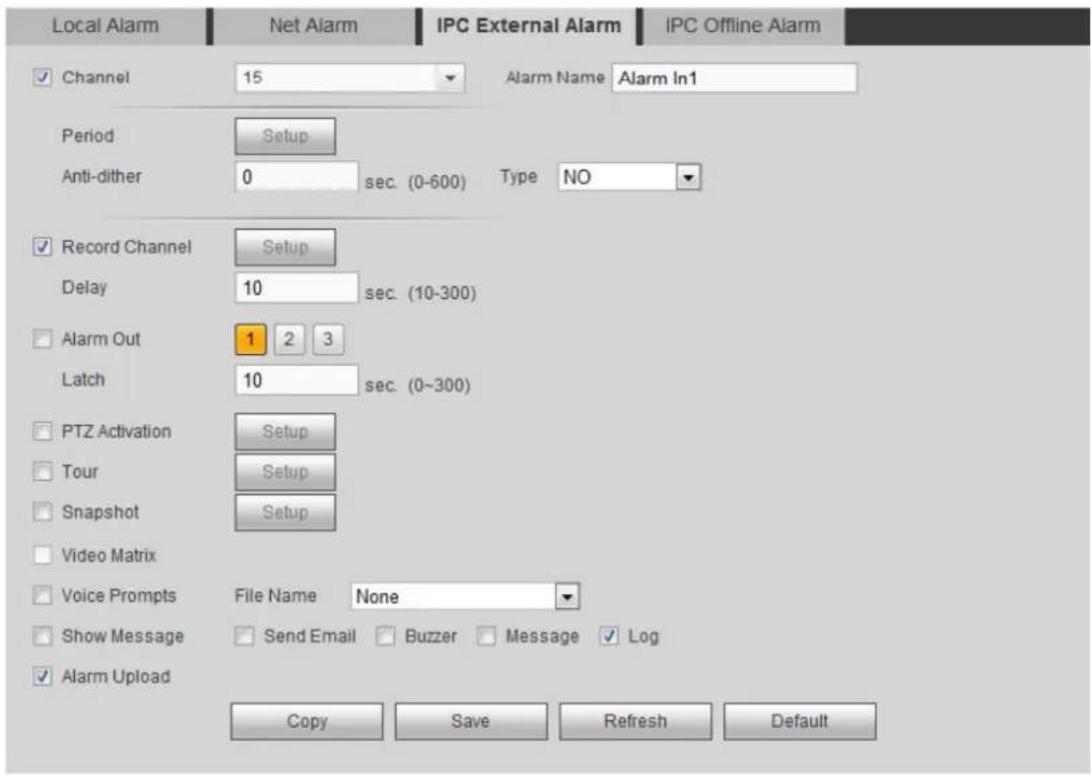
Figure 5-75
5.8.3.4.4 IPC Offline Alarm
IPC offline alarm is shown as in Figure 5-76. For setup information, please refer to chapter 5.8.3.4.1.
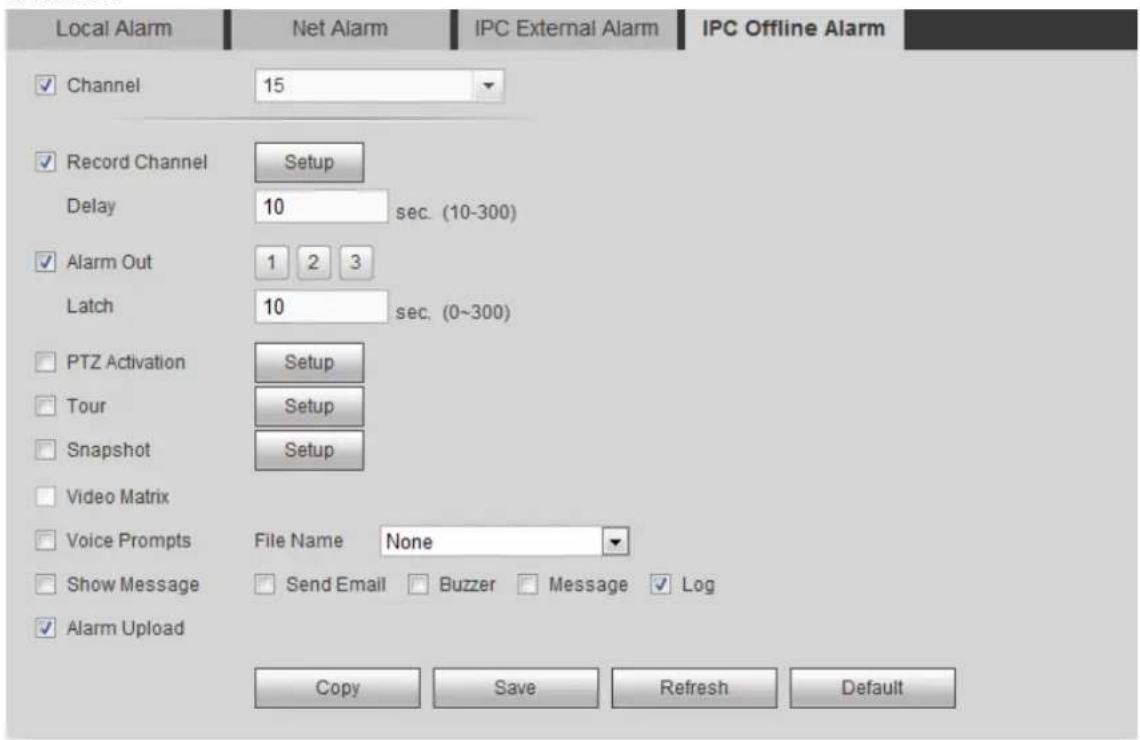
Figure 5-76
5.8.3.5 Abnormality
It includes three types: HDD/Network/User. See Figure 5-77 and Figure 2-77.
- HDD includes: No disk, disk error, disk no space.
● Network includes net disconnection, IP conflict, and MAC conflict. - User: It includes illegal login.
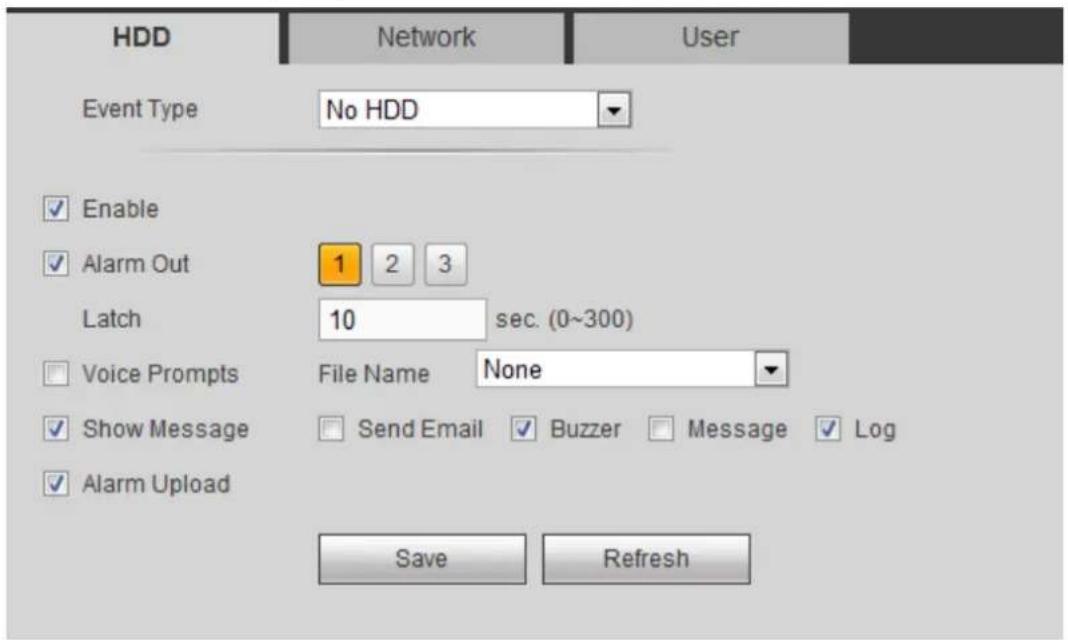
Figure 5-77
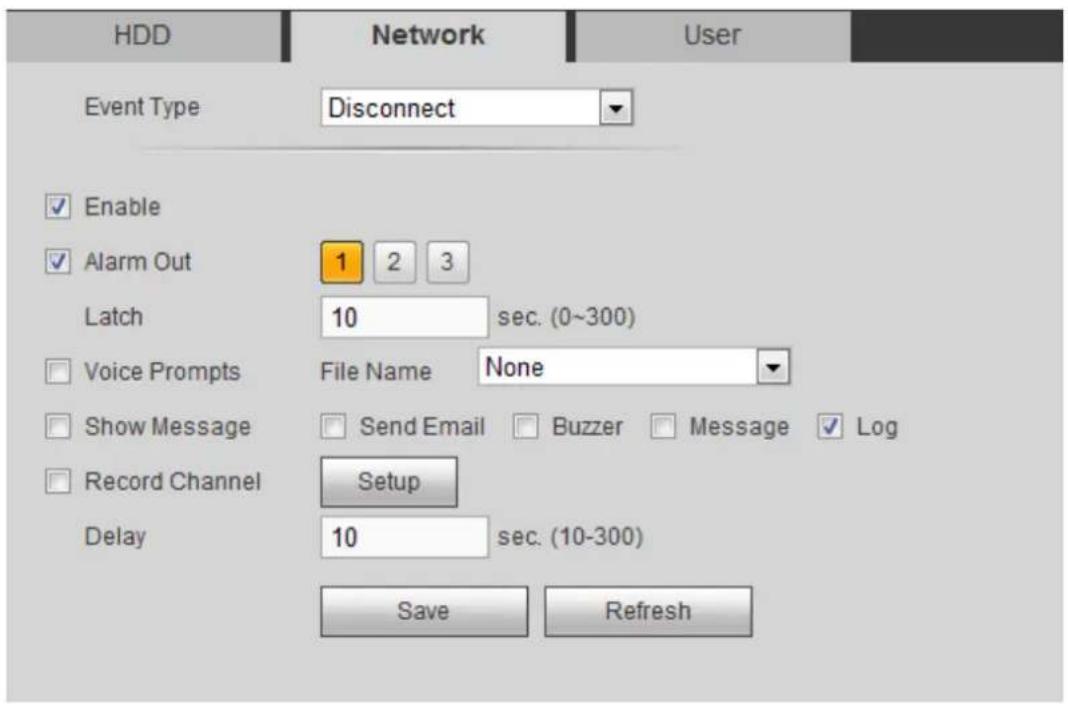
Figure 5-78
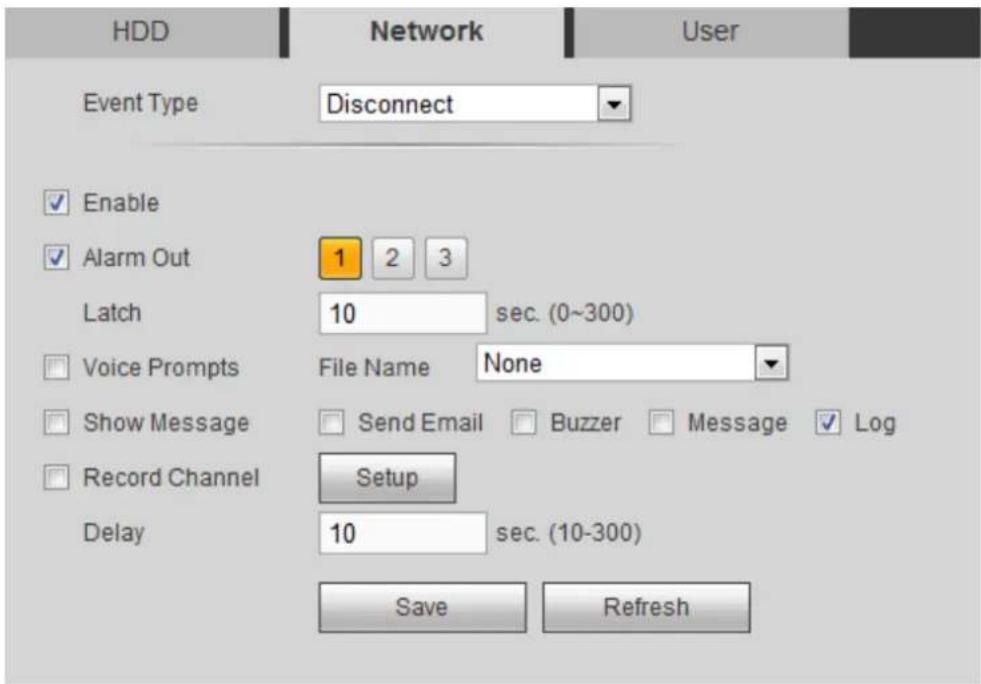
Figure 5-79
Please refer to the following sheet for detailed information.
| Parameter | Function |
| Event Type | The abnormal events include: No disk, disk error, disk no space, net disconnection, IP conflict and MAC conflict.You can set one or more items here.Less than: You can set the minimum percentage value here (For disk not space only). The device can alarm when capacity is not sufficient. You need to draw a circle to enable this function. |
| Enable | Check the box here to enable selected function. |
| Alarm Out | Please select corresponding alarm output channel when an alarm occurs. You need to check the box to enable this function. |
| Latch | The alarm output can delay for the specified time after an alarm stops. Th value ranges from 0s to 300s. The default setup is 10 seconds. The o second means there is no delaying time. |
| Attempt(s) | It is to set login attempt times. Once the login attempt exceeds the threshold you set here, current account will be locked. This function is illegal login only. |
| Lock time | It is to set account lock time once its login attempt has exceeded the threshold you set. This function is for illegal login only. |
| Show message | System can pop up a message to alarm you in the local host screen if you enabled this function. |
| Alarm upload | System can upload the alarm signal to the centre (Including alarm centre. |
| Send Email | If you enabled this function, System can send out an email to alert you when an alarm occurs. |
| Buzzer | Check the box here to enable this function. The buzzer beeps when an alarm occurs. |
| Log | Check the box here, system can record the network event alarm log. |
5.8.3.6 Alarm Output
It is to set alarm output mode. See Figure 5-80.
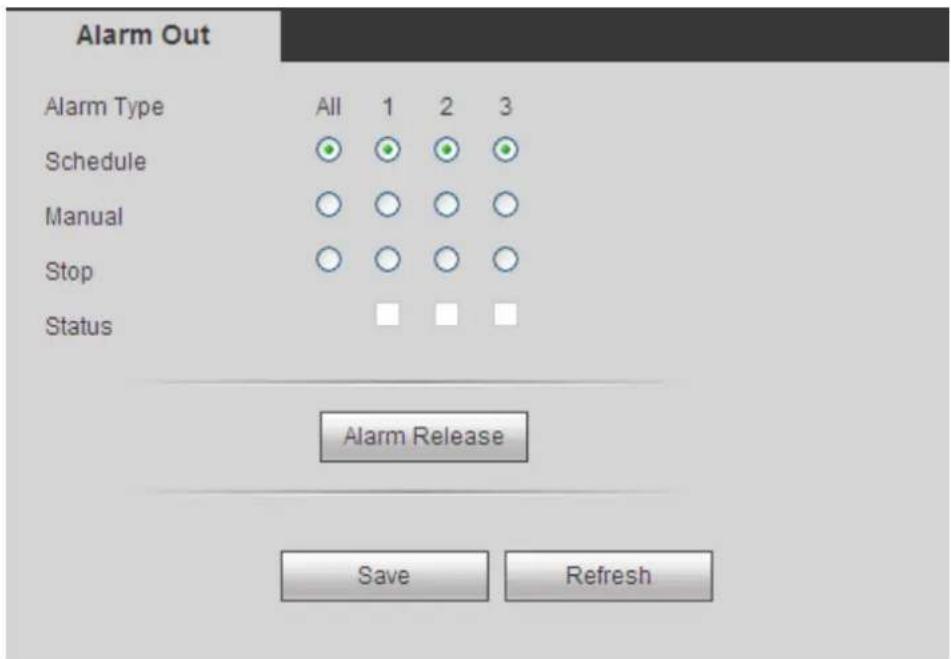
Figure 5-80
5.8.4 Storage
5.8.4.1 Schedule
5.8.4.1.1 Schedule Record
In this interfaces, you can add or remove the schedule record setup. See Figure 5-81.
There are three record modes: general (auto), motion detect and alarm. There are six periods in one day.
You can view the current time period setup from the color bar.
● Green color stands for the general record/snapshot.
● Yellow color stands for the motion detect record/snapshot..
● Red color stands for the alarm record/snapshot.
- Blue color stands for MD&alarm record/snapshot.
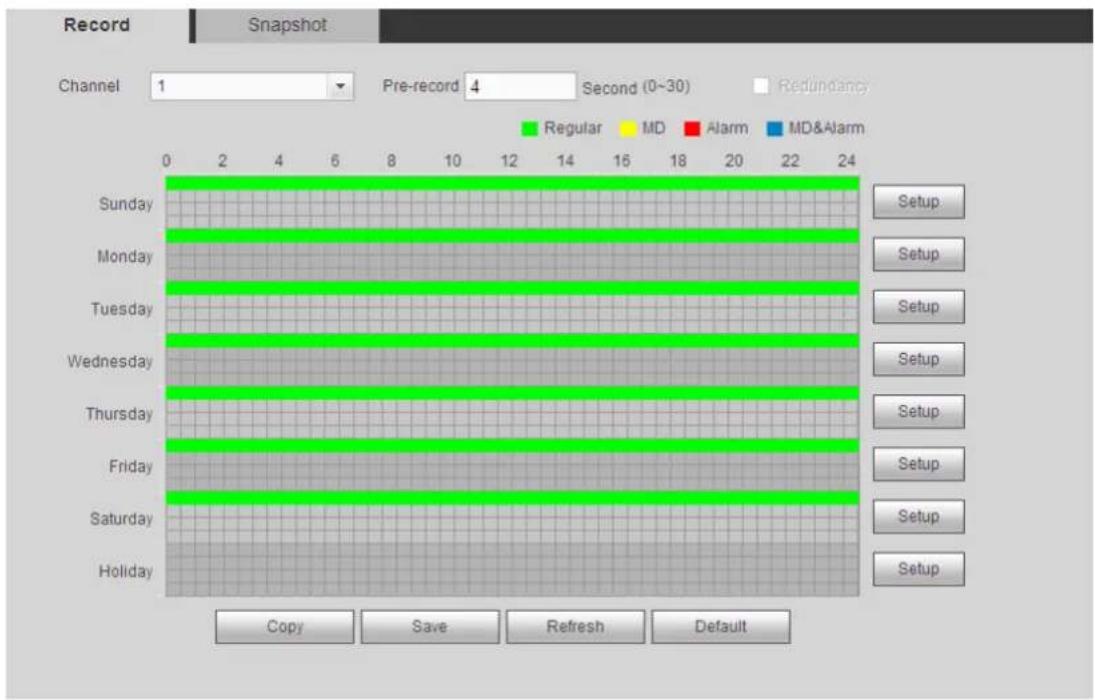
Figure 5-81
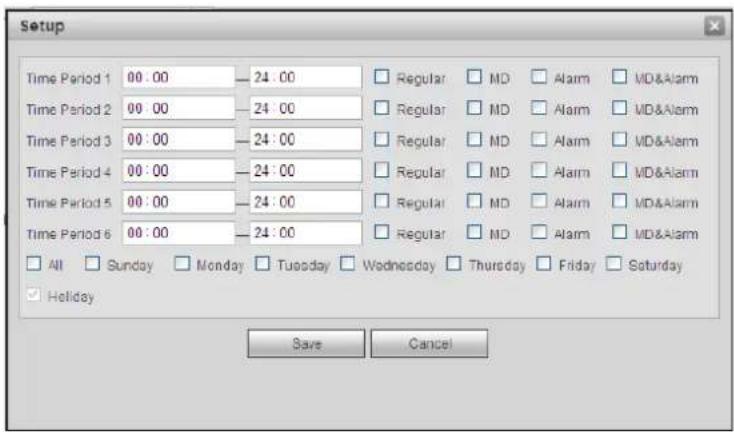
Figure 5-82
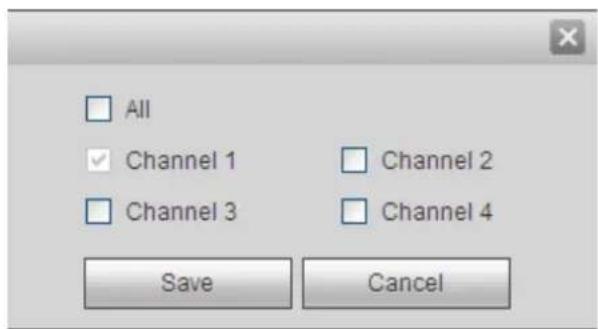
Figure 5-83
Please refer to the following sheet for detailed information.
| Parameter | Function |
| Channel | Please select a channel from the dropdown list. |
| Pre-record | Please input pre-record time here. The value ranges from 0 to 30. |
| Redundancy | Check the box here to enable redundancy function. Please note this function is null if there is only one HDD. |
| Snapshot | Check the box here to enable snapshot function. |
| Holiday | Check the box here to enable holiday function. |
| Setup (Sunday to Saturday) | Click the Setup button, you can set record period. See Figure 5-82. There are six periods in one day. If you do not check the date at the bottom of the interface, current setup is for today only.Please click Save button and then exit. |
| Setup (Holiday) | Click the Setup button, you can set record period. See Figure 5-82. There are six periods in one day. If you check Holiday box, current channel shall record as your holiday setup here. |
| Copy | Copy function allows you to copy one channel setup to another. After setting in channel, click Copy button, you can go to interface Figure 5-83. You can see current channel name is grey such as channel 1. Now you can select the channel you wan to paste such as channel 5/6/7. If you wan to save current setup of channel 1 to all channels, you can click the first box “ALL”. Click the OK button to save current copy setup. Click the OK button in the Encode interface, the copy function succeeded. |
5.8.4.1.2 Schedule snapshot
The schedule snapshot interface is shown as below. See Figure 5-84.
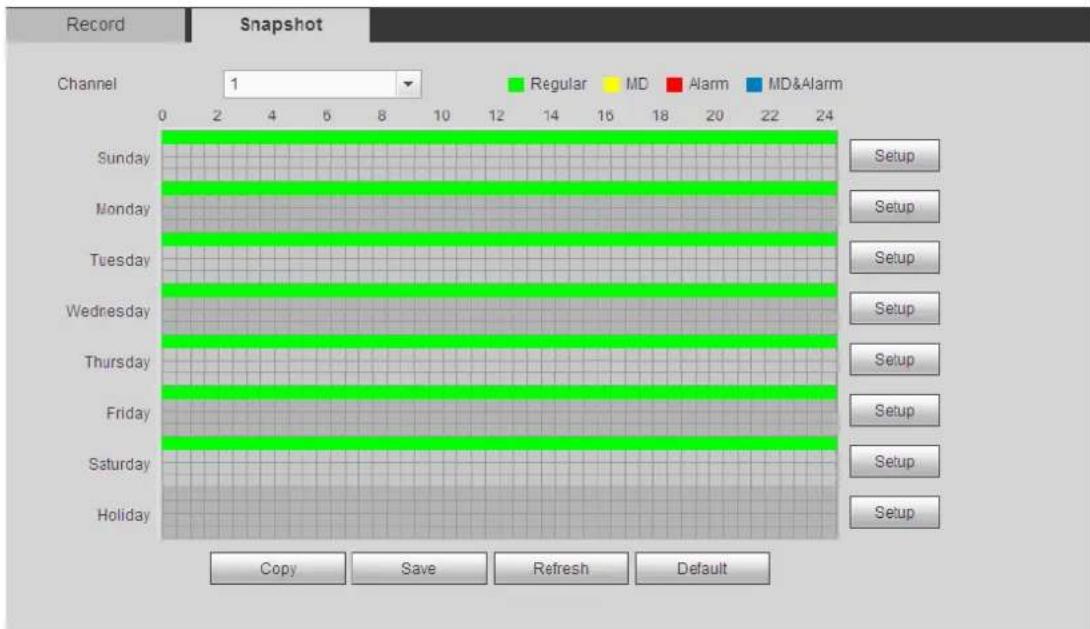
Figure 5-84
For detailed operation information, please refer to chapter 5.8.4.1.1.
5.8.4.2 HDD Manage
The interface is shown as in Figure 5-85. Here you can see HDD information. You can also operate the read-only, read-write, redundancy (if there are more than on HDD) and format operation.
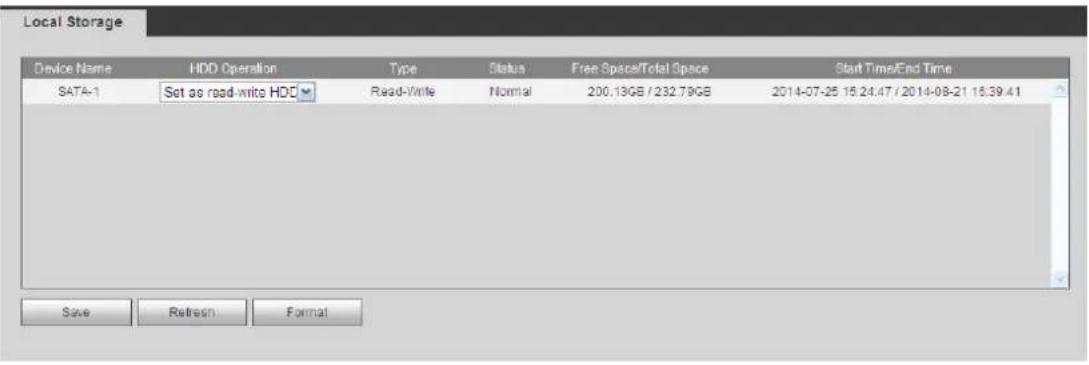
Figure 5-85
5.8.4.3 Manual Record
The interface is shown as in Figure 5-86.
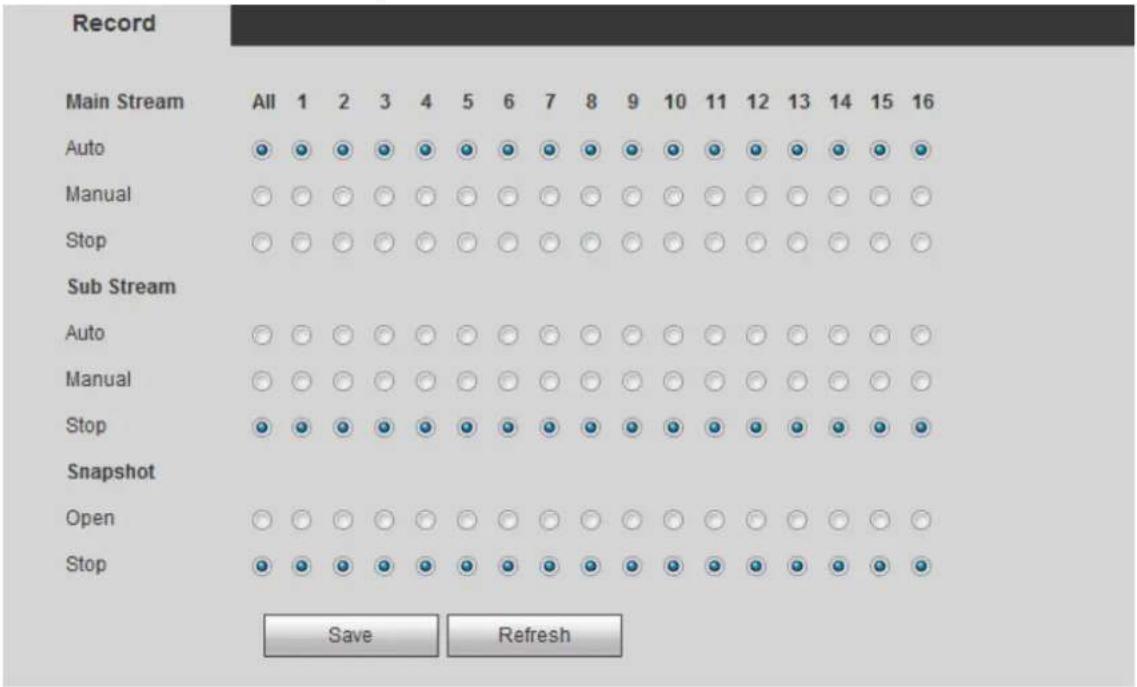
Figure 5-86
Please refer to the following sheet for detailed information.
| Parameter | Function |
| Channel | Here you can view channel number.The number displayed here is the max channel amount of your device. |
| Status | There are three statuses: schedule, manual and stop. |
| Schedule | System enables auto record function as you set in record schedule setup (general, motion detect and alarm). |
| Manual | It has the highest priority. Enable corresponding channel to record no matter what period applied in the record setup. |
| Stop | Stop current channel record no matter what period applied in the record setup. |
| Start all/stop all | Check the corresponding All button, you can enable or disable all channels record. |
5.8.5 Setting
5.8.5.1 General
The general interface includes general, date/time and holiday setup.
5.8.5.1.1 General
The general interface is shown as in Figure 5-87.
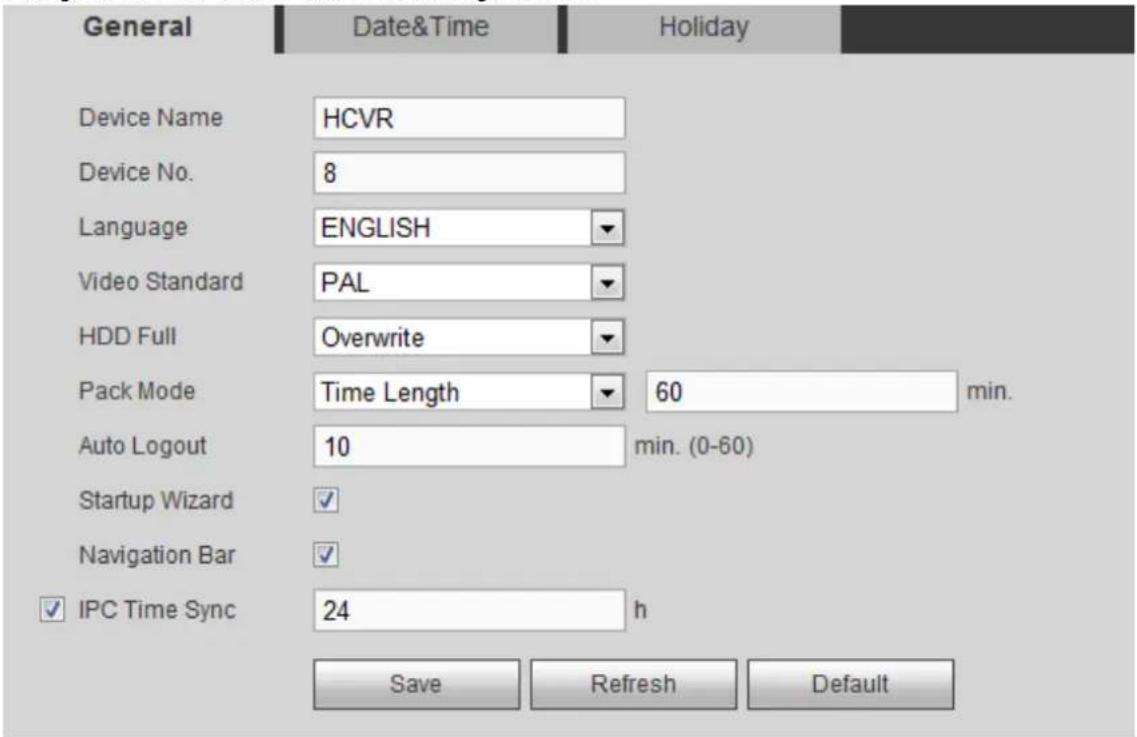
Figure 5-87
Please refer to the following sheet for detailed information.
| Parameter | Function |
| Device ID | It is to set device name. |
| Device No. | It is device channel number. |
| Language | You can select the language from the dropdown list.Please note the device needs to reboot to get the modification activated. |
| Video Standard | This is to display video standard such as PAL. |
| HDD full | Here is for you to select working mode when hard disk is full. There are two options: stop recording or rewrite. If current working HDD is overwritten or the current HDD is full while the next HDD is no empty, then system stops recording, If the current HDD is full and then next HDD is not empty, then system overwrites the previous files. |
| Pack duration | Here is for you to specify record duration. The value ranges from 1 to 120 minutes. Default value is 60 minutes. |
5.8.5.1.2 Date and time
The date and time interface is shown as in Figure 5-88.
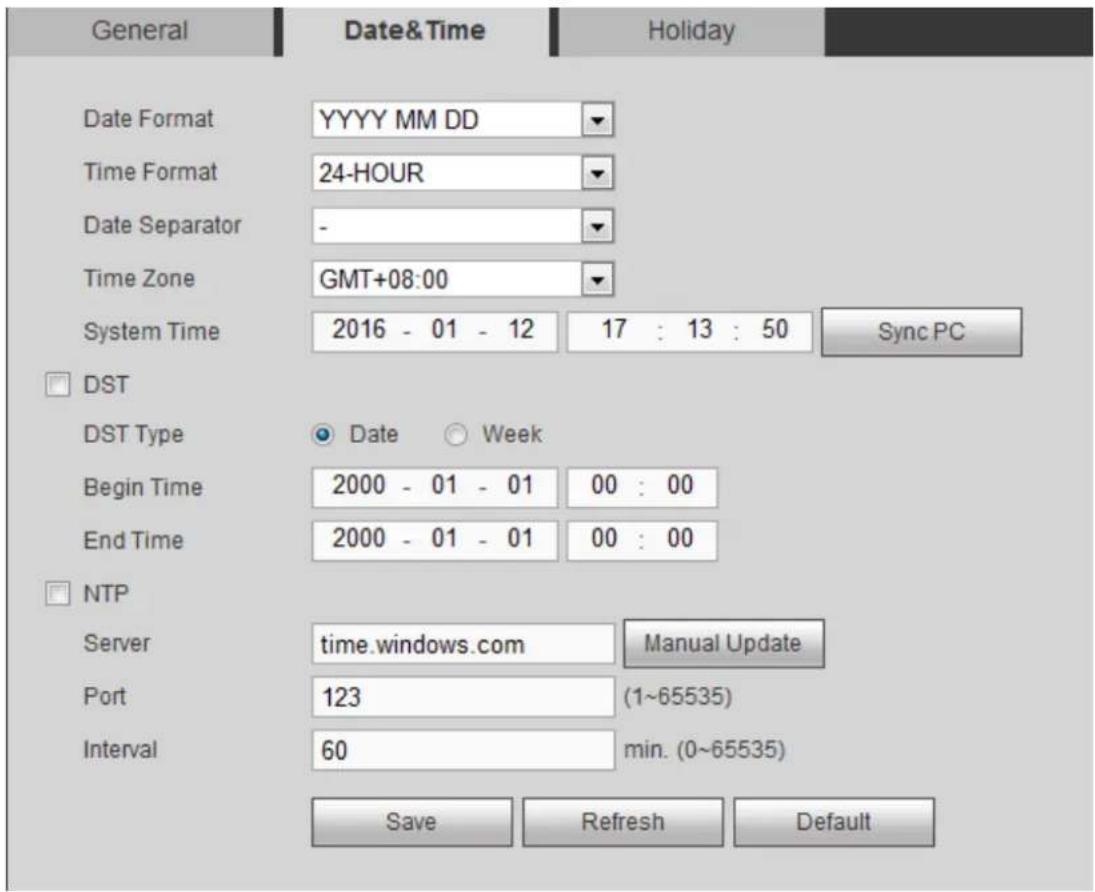
Figure 5-88
Please refer to the following sheet for detailed information.
| Parameter | Function |
| Date format | Here you can select date format from the dropdown list. |
| Time Format | There are two options: 24-H and 12-H. |
| Time zone | The time zone of the device. |
| System time | It is to set system time. It becomes valid after you set. |
| Sync PC | You can click this button to save the system time as your PC current time. |
| DST | Here you can set day night save time begin time and end time. You can set according to the date format or according to the week format. |
| NTP | You can check the box to enable NTP function. |
| NTP server | You can set the time server address. |
| Port | It is to set the time server port. |
| Interval | It is to set the sync periods between the device and the time server. |
5.8.5.1.3 Holiday Setup
Holiday setup interface is shown as in Figure 5-89.
Here you can click Add box to add a new holiday and then click Save button to save.
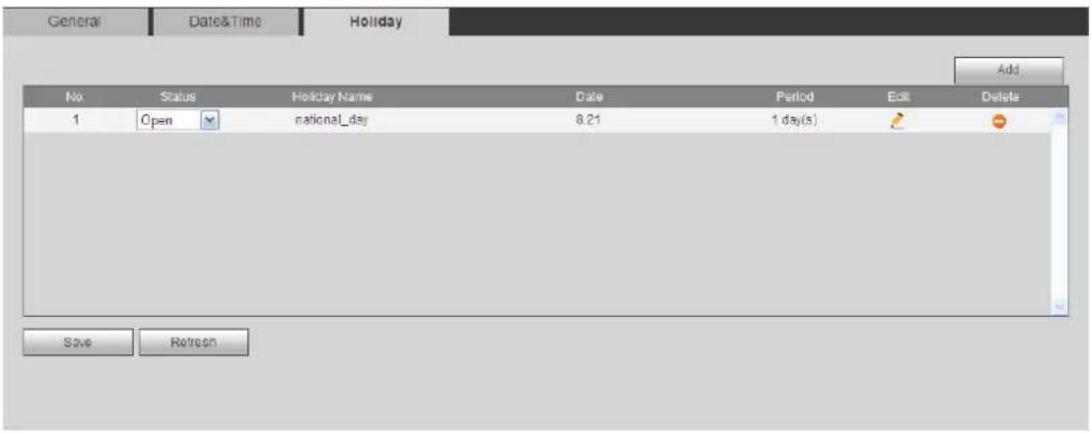
Figure 5-89
5.8.5.2 Display
Display interface includes GUI, TV adjust, Tour and zero-channel encoding.
5.8.5.2.1 Display
Here you can set background color and transparency level. See Figure 5-90.
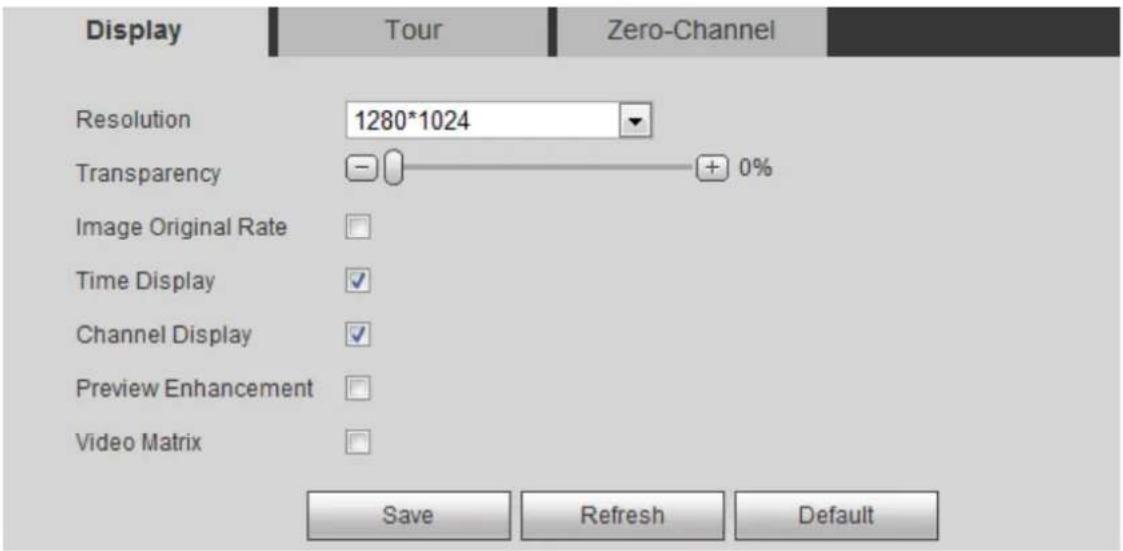
Figure 5-90
Please refer to the following sheet for detailed information.
| Parameter | Function |
| Resolution | There are four options: 1920×1080,1280 × 1024(default),1280 × 720,1024 × 768. Please note the system needs to reboot to activate current setup. |
| Transparency | Here is for you to adjust transparency. The value ranges from 128 to 255. |
| Time title/channel title | Check the box here, you can view system time and channel number on the monitor video. |
| Image enhance | Check the box; you can optimize the margin of the preview video. |
5.8.5.2.2 TV Adjust
Note
This function is for some series product only.
It is to set TV output region. See Figure 5-91.
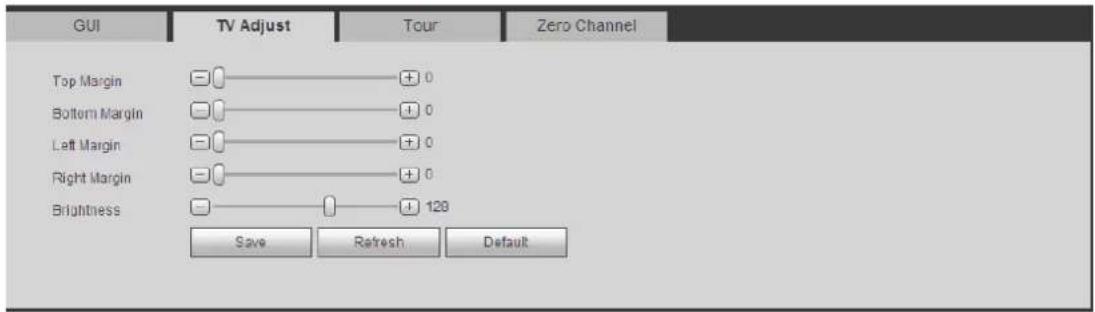
Figure 5-91
5.8.5.2.3 Tour
The tour interface is shown as in Figure 5-92. Here you can set tour interval, split mode, motion detect tour and alarm tour mode.
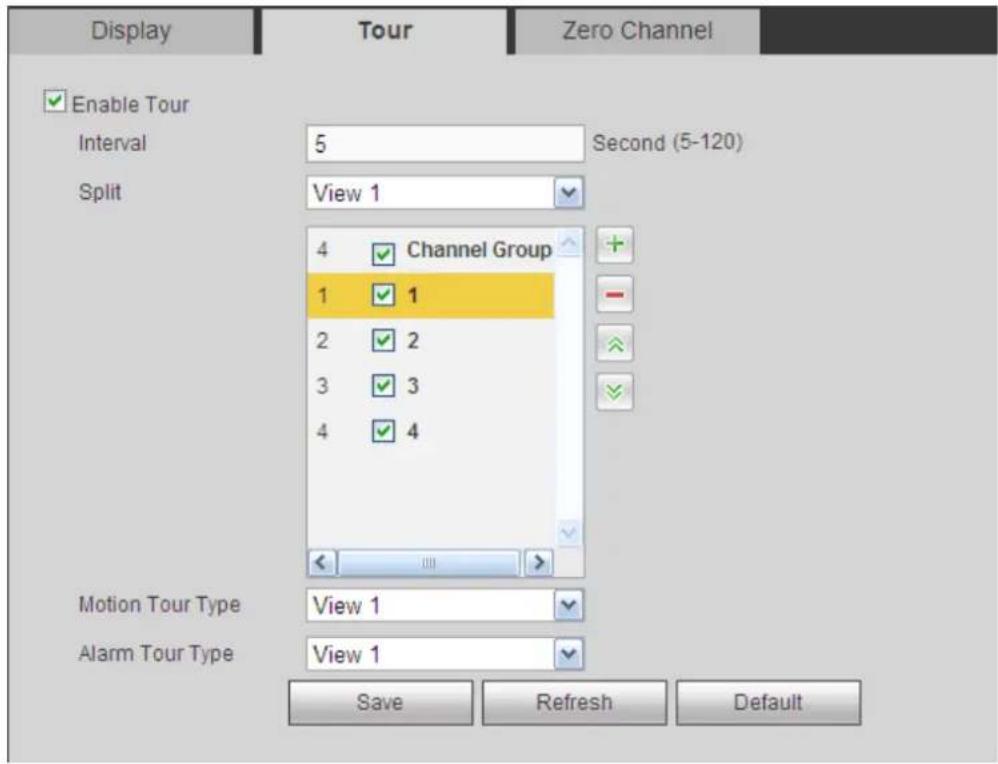
Figure 5-92
Please refer to the following sheet for detailed information.
| Parameter | Function |
| Enable tour | Check the box here to enable tour function. |
| Interval | Here is for you to adjust transparency. The value ranges from 5 to 120s. The default setup is 5s. |
| Split | Here you can set window mode and channel group. System can support 1/4/8/9/16/25/36-window according to device channel amount. |
| Motion tour/Alarm tour | Here you can set motion detect tour/alarm tour window mode. System supports 1/8-window now. |
5.8.5.2.4 Zero-channel Encoding
The interface is shown as in Figure 5-93.
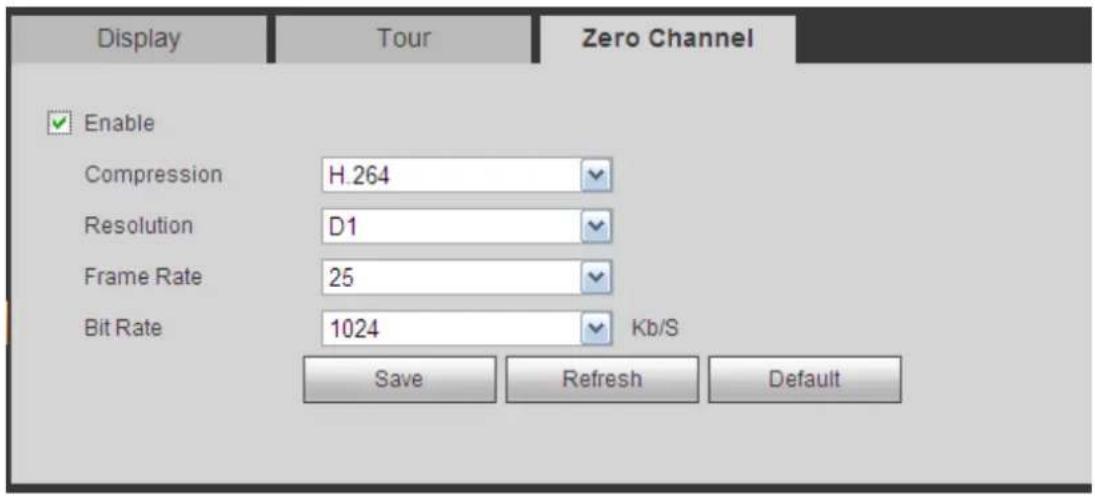
Figure 5-93
Please refer to the following sheet for detailed information.
| Parameter | Function |
| Enable | This function is disabled by default. Check the box here to enable this function so that you can control the zero-channel encoding function at the WEB. |
| Compression | System default setup is H.264. You can set according to device capability. |
| Resolution | The resolution value may vary due to different device capabilities. Please select from the dropdown list. |
| Frame rate | The frame rate value may vary due to different device capabilities. Please select from the dropdown list. |
| Bit Rate | The default setup is 1024Kb/S. The bit rate value may vary due to different device capabilities and frame rate setups. Please select from the dropdown list. |
5.8.5.3 Video Matrix
The interface is shown as in Figure 5-94.
Here you can set video output channel and interval.
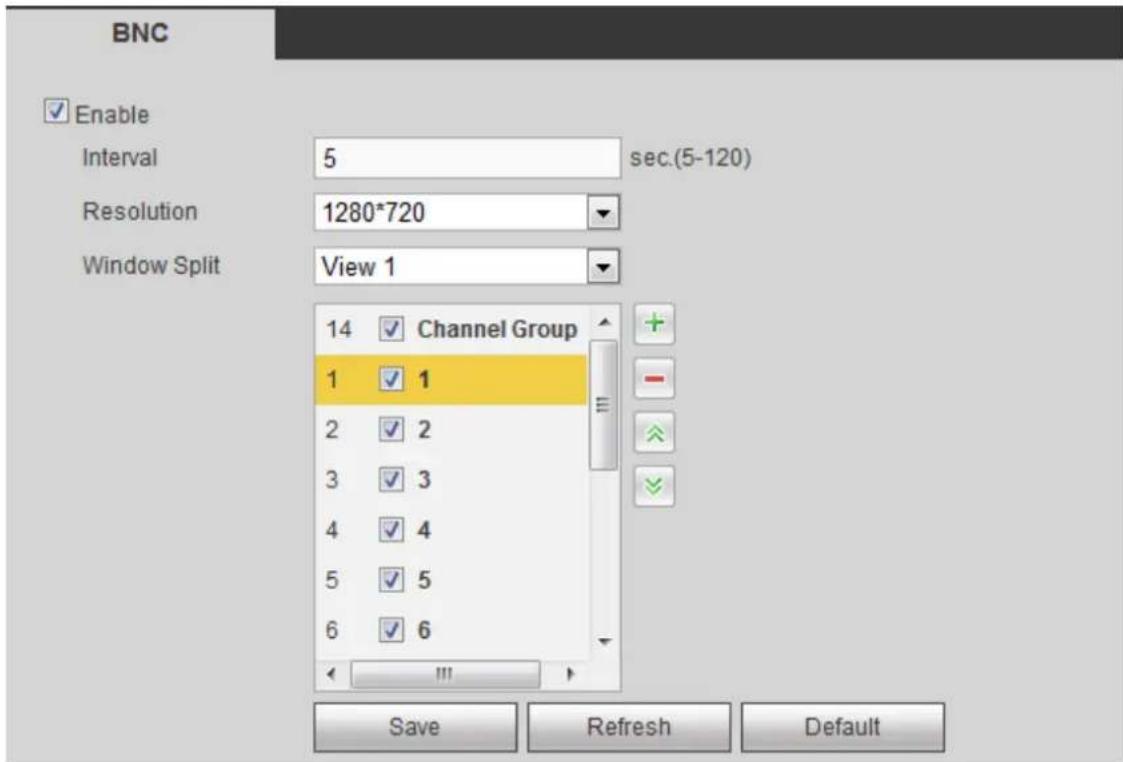
Figure 5-94
Please refer to the following sheet for detailed information.
| Parameter | Function |
| Enable | Check the box here to enable this function. |
| Interval | It is to set the interval from current channel group to the next channel group. |
| Window split | Support 1-window split only. |
| Delete | Select a channel group and then click to delete it. |
| Up/Down | Click or to adjust channel tour sequence. |
Add channel group
Click +, you can see system pops up the following dialogue box. See Figure 5-95. Please select the channels and then click OK button.

Figure 5-95
Delete channel group
Select a channel group and then click ,you can delete it.
Modify channel group
Select a channel group and then double click, you can see the following interface. See
Figure 5-96. You can change the setup and then click OK button.

Figure 5-96
Adjust channel group sequence.
Click or to change channel sequence.
5.8.5.4 RS232
The RS232 interface is shown as in Figure 5-97.
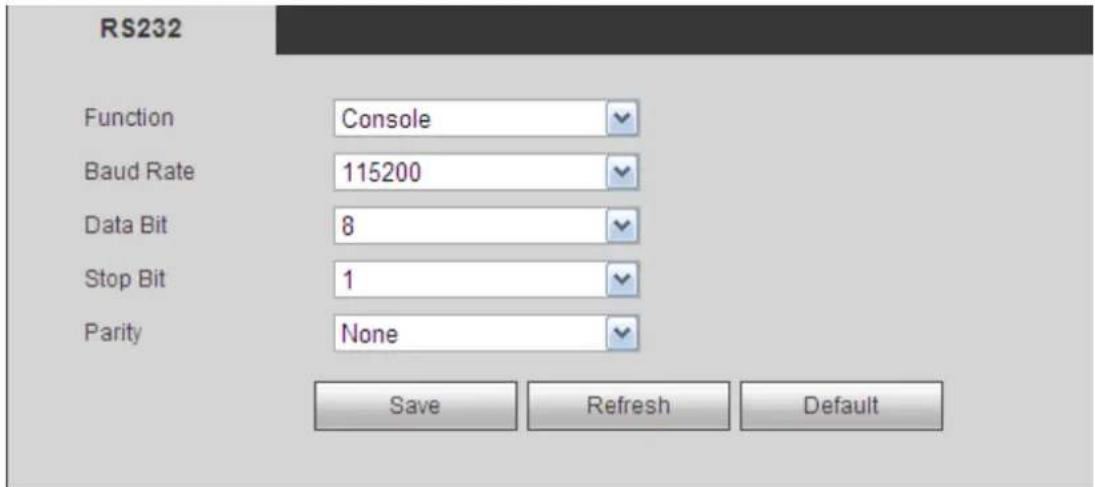
Figure 5-97
Please refer to the following sheet for detailed information.
| Parameter | Function |
| Protocol | Select the corresponding dome protocol.Default setup is console. |
| Baud Rate | Select the baud rate.Default setup is 115200. |
| Data Bit | The value ranges from 5 to 8.Default setup is 8. |
| Stop bit | There are two options: 1/2.Default setup is 1. |
| Parity | There are five options: none/odd/even/space/mark.Default setup is none. |
5.8.5.5 PTZ
The PTZ interface is shown as in Figure 5-98 and Figure 5-99.
Before setup, please check the following connections are right:
- PTZ and decoder connection is right. Decoder address setup is right.
- Decoder A (B) line connects with DVR A (B) line.
Click Save button after you complete setup, you can go back to the monitor interface to control speed dome.

Figure 5-98
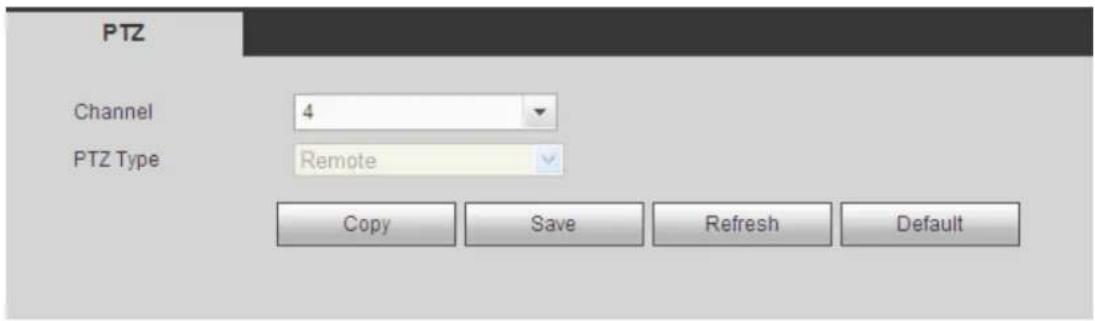
Figure 5-99
Please refer to the following sheet for detailed information.
| Parameter | Function |
| Channel | Select speed dome connected channel. |
| PTZ type | There are two types: local/remote. Please select local mode if you are connect RS485 cable to connect to the Speed dome (PTZ). Please select remote mode if you are connecting to the network PTZ camera. |
| Control mode | You can select control mode from the dropdown list. There are two options: Serial/HDCVI. For HDCVI series product, please select HDCVI. The control signal is sent to the PTZ via the coaxial cable. For the serial mode, the control signal is sent to the PTZ via the RS485 port. |
| Protocol | Please select protocol from the dropdown list.If the control mode is HDCVI, please select HDCVI protocol. The default setup is HDCVI3.0. |
| Address | Set corresponding dome address. Default value is 1.Please note your setup here shall comply with your dome address; otherwise you can not control the speed dome. |
| Baud Rate | Select the dome baud rate. Default setup is 9600. |
| Data Bit | Default setup is 8. Please set according to the speed dome dial switch setup. |
| Stop bit | Default setup is 1. Please set according to the speed dome dial switch setup. |
| Parity | Default setup is none. Please set according to the speed dome dial switch setup. |
5.8.5.6 ATM/POS
The ATM/POS function is for financial areas. It includes Sniffer, information analysis and title overlay function. The Sniffer mode includes COM and network.
5.8.5.6.1 COM Type
The COM interface is shown as below. See Figure 5-100.
- Protocol: Please select from the dropdown list according to your actual situation.
- Overlay channel: Please select the channel you want to overlay the card number.
- Overlay mode: There are two options: preview and encode. Preview means overlay the card number in the local monitor video. Encode means overlay the card number in the record file.
- Overlay Position: Here you can select the proper overlay position from the dropdown list.
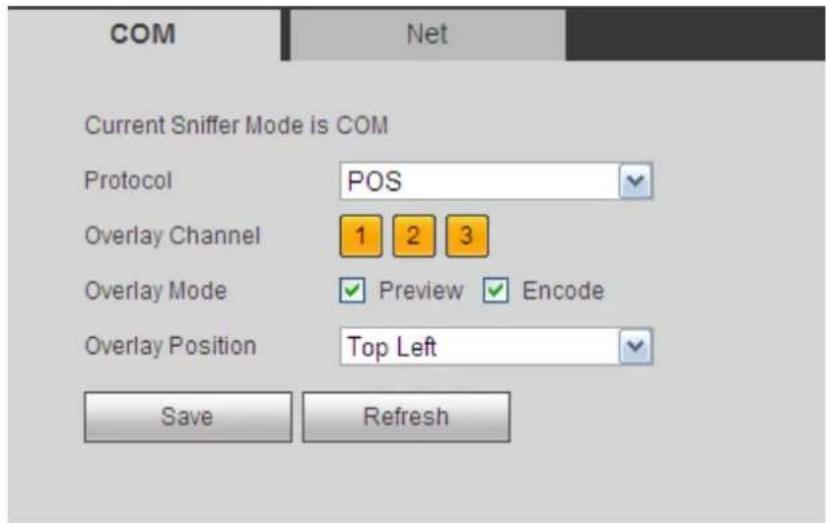
Figure 5-100
5.8.5.6.2 Network Type
The network type interface is shown as below. See Figure 5-101.
Here we take the ATM/POS protocol to continue.
There are two types: with or without the protocol according to client's requirements.
With the protocol
For ATM/POS with the protocol, you just need to set the source IP, destination IP (sometimes you need to input corresponding port number).
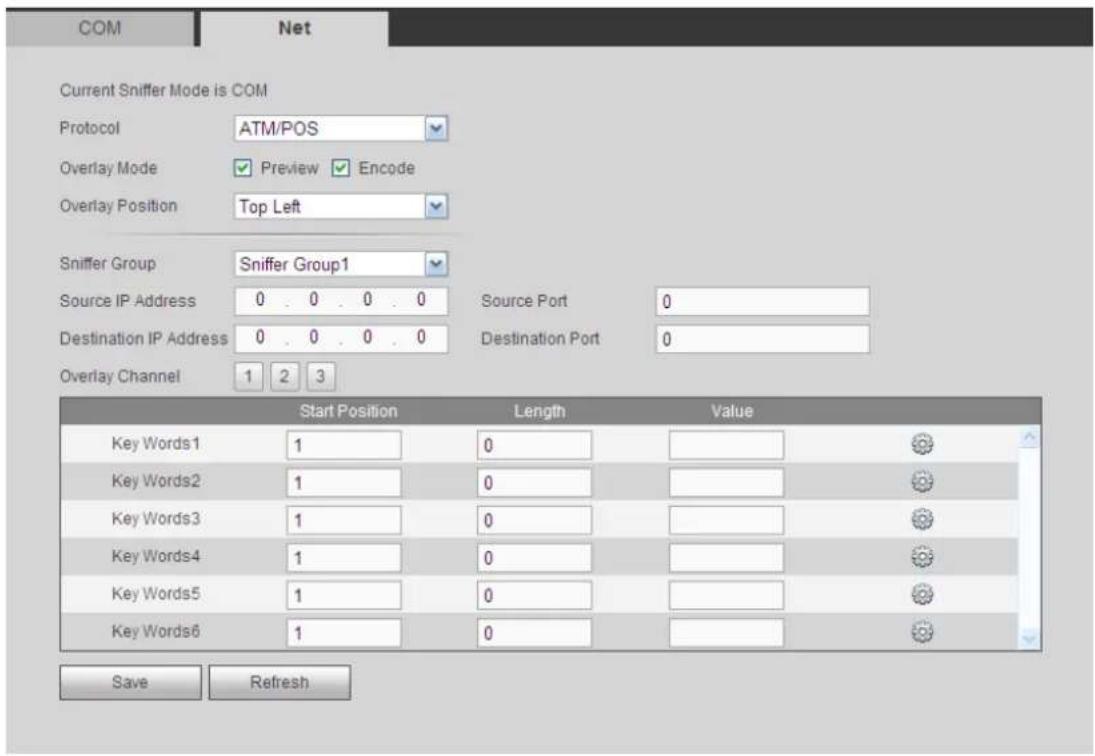
Figure 5-101
Without the protocol
For the ATM/POS without the protocol, the interface is shown as in Figure 5-102.
Source IP refers to host IP address that sends out information (usually it is the device host.)
Destination IP refers to other systems that receive information.
Usually you do not need to set source port and target port.
There are total four groups IP. The record channel applies to one group (optional) only.
Six frame ID groups verification can guarantee information validity and legal.
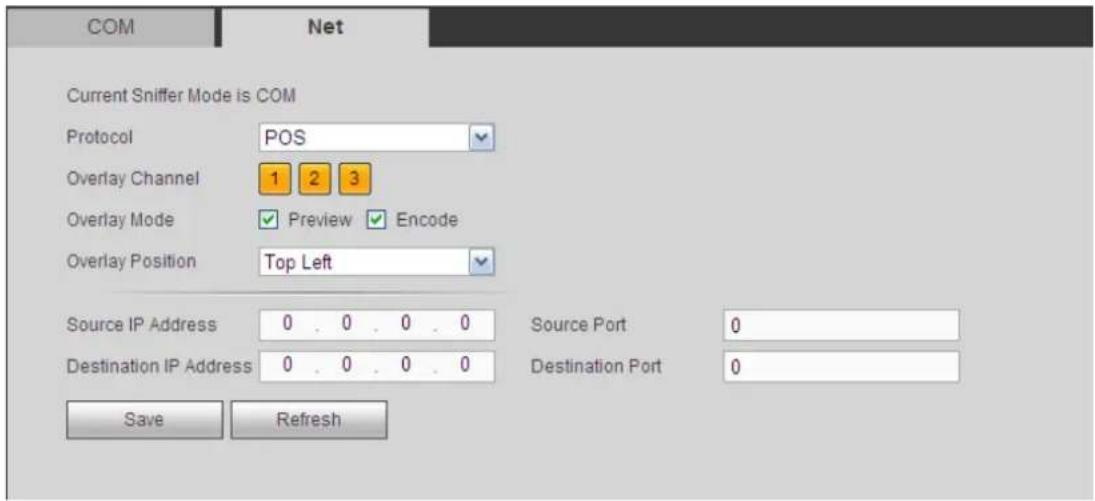
Figure 5-102
5.8.5.7 Voice
The audio function is to manage audio files and set schedule play function. It is to realize audio broadcast activation function.
5.8.5.7.1 File List
Here you can add audio file, or delete audio file. See Figure 5-103.
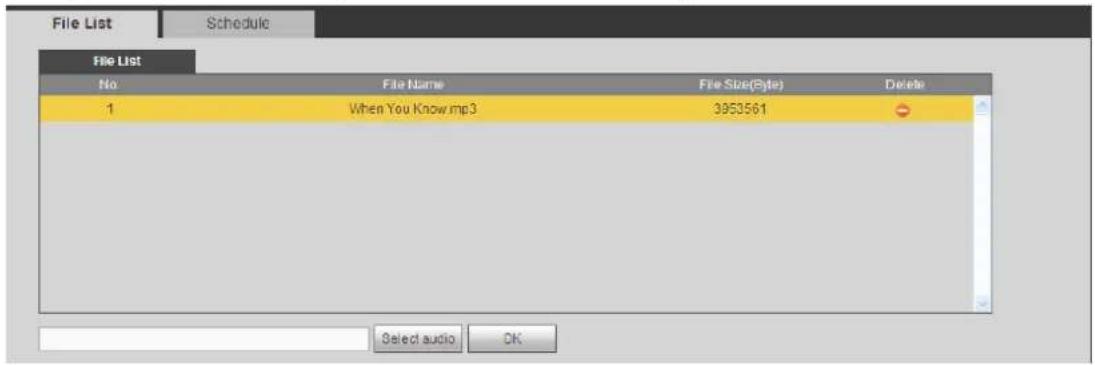
Figure 5-103
Click Add button, you can add audio file and import the audio file via the local computer.
See Figure 5-104.
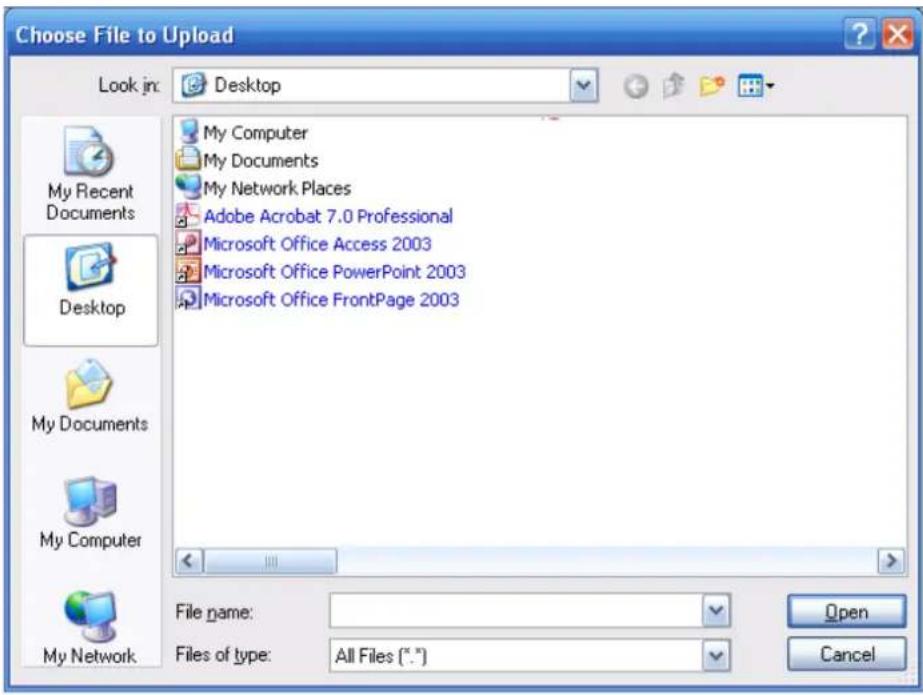
Figure 5-104
5.8.5.7.2 Schedule
It is to set schedule broadcast function. You can play the different audio files in the specified periods.
From main menu->Setup->System->Voice->.Schedule, you can see the following interface. See Figure 5-105.
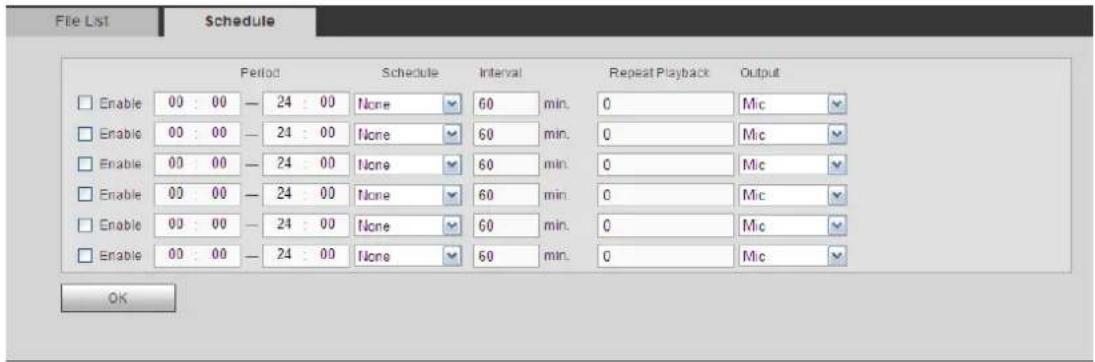
Figure 5-105
Please refer to the following sheet for detailed information.
| Parameter | Function |
| Period | There are six periods. Check the box to enable current setup. |
| Repeat | It is to set audio file repeat times in the specified period. |
| Interval | It is the audio file repeated interval in the specified period. |
| Output port | There are two options: MIC (default)/audio. When reuse the MIC port and bidirectional talk port, the bidirectional port has the higher priority. Please note some series product does not support audio function. |
Note
- The audio file end time depends on the audio file size and the interval setup.
- Priority: Bidirectional talk>Event trigger alarm>Trial listening>Audio schedule broadcast.
5.8.5.8 Account
Note:
- For the character in the following user name or the user group name, system max supports 6-digits. The space in the front or at the end of the string is null. The valid string includes: character, number, and underline.
- The user amount default setup is 64 and the group amount default setup is 20. The factory default setup includes two levels: user and admin. You can set the corresponding group and then set the rights for the respective user in the specified groups.
- User management adopts group/user modes. The user name and the group name shall be unique. One user shall be included in only one group.
5.8.5.8.1 User name
In this interface you can add/remove user and modify user name. See Figure 5-106.
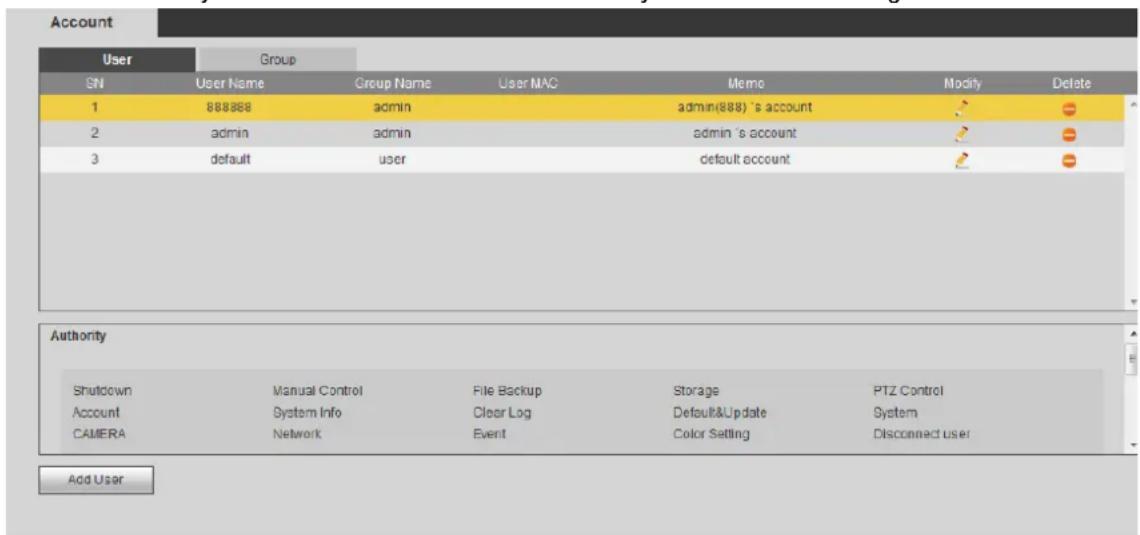
Figure 5-106
Add user: It is to add a name to group and set the user rights. See Figure 5-107.
There are three default users: admin (password: admin)/888888(password: 888888) and hidden user "default".
Hidden user “default” is for system interior use only and can not be deleted. When there is no login user, hidden user “default” automatically login. You can set some rights such as monitor for this user so that you can view some channel view without login.
Here you can input the user name and password and then select one group for current user.
Please note the user rights shall not exceed the group right setup.
For convenient setup, please make sure the general user has the lower rights setup than the admin.
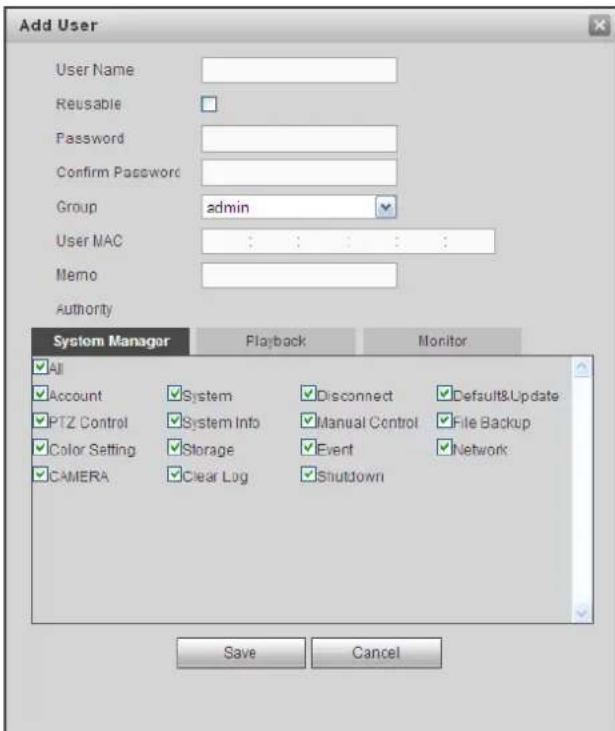
Figure 5-107
Modify user
It is to modify the user property, belonging group, password and rights. See Figure 5-108.
Modify password
It is to modify the user password. You need to input the old password and then input the new password twice to confirm the new setup. Please click the OK button to save.
Please note, the password ranges from 1-digit to 6-digit. It shall include the number only. For the user of the account rights, he can modify the password of other users.
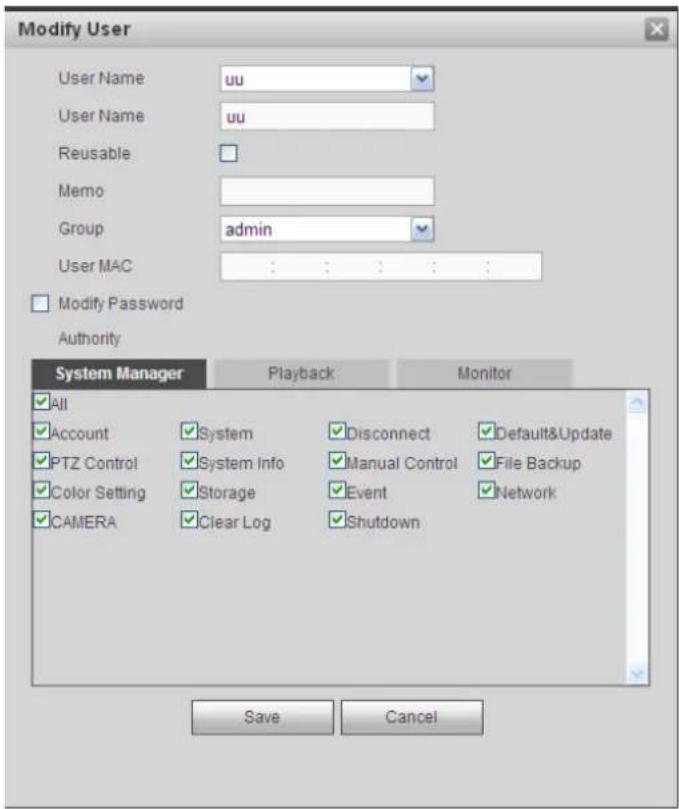
Figure 5-108
5.8.5.8.2 Group
The group management interface can add/remove group, modify group password and etc. The interface is shown as in Figure 5-109.
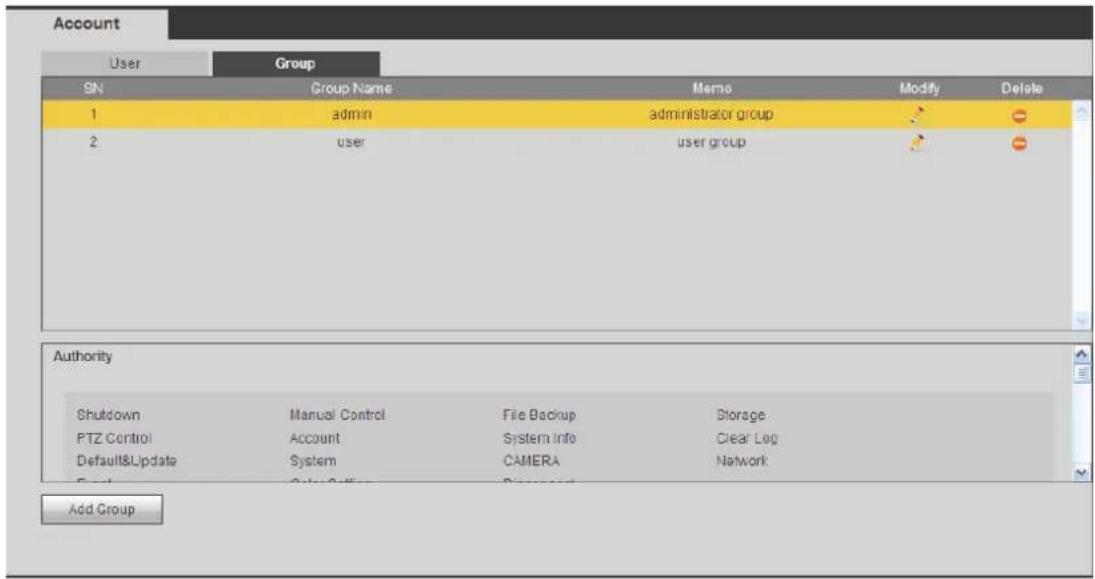
Figure 5-109
Add group: It is to add group and set its corresponding rights. See Figure 5-110. Please input the group name and then check the box to select the corresponding rights. It
includes: shutdown/reboot device, live view, record control, PTZ control and etc.
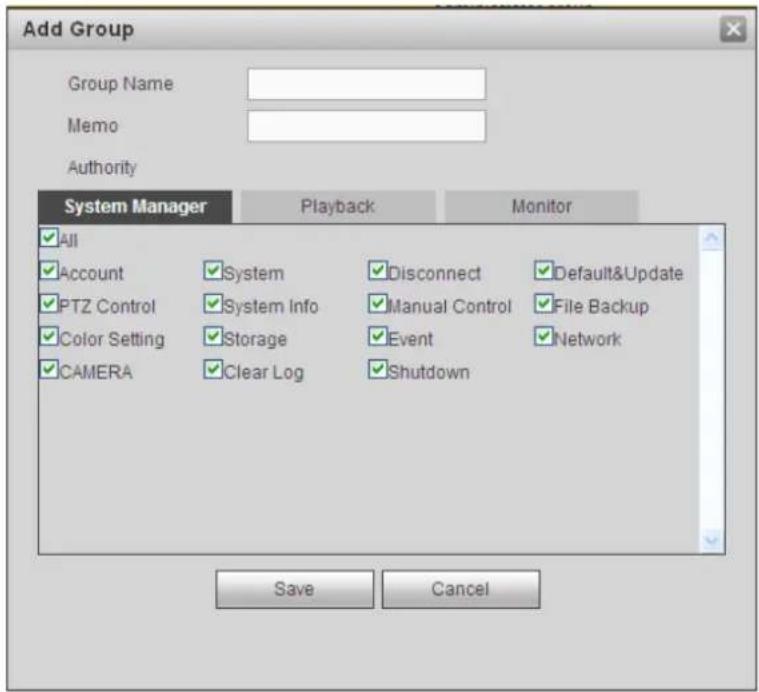
Figure 5-110
Modify group
Click the modify group button, you can see an interface is shown as in Figure 5-111. Here you can modify group information such as remarks and rights.
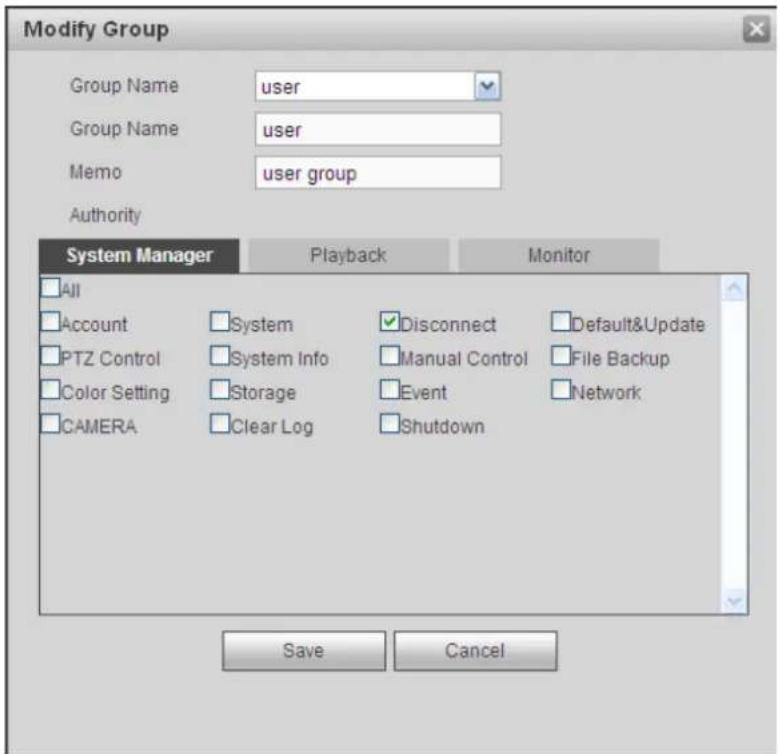
Figure 5-111
5.8.5.9 Auto maintain
The auto maintain interface is shown as in Figure 5-112.
Here you can select auto reboot and auto delete old files interval from the dropdown list.
If you want to use the auto delete old files function, you need to set the file period.
Click Manual reboot button, you can restart device manually.
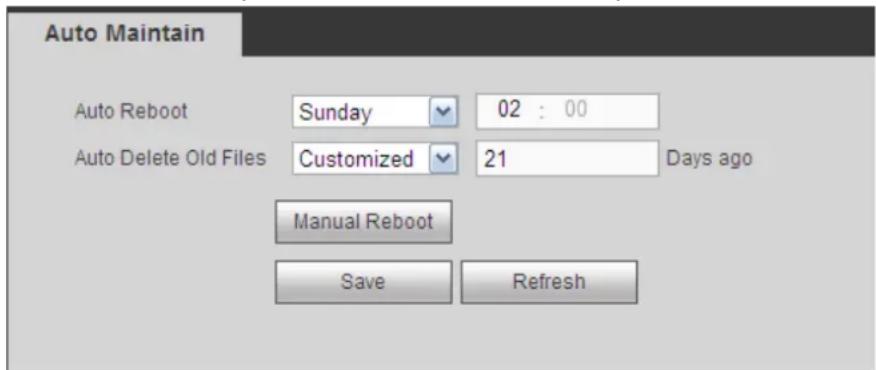
Figure 5-112
The interface is shown as in Figure 5-113.

Figure 5-113
Please refer to the following sheet for detailed information.
| Parameter | Function |
| Import | It is to import the local setup files to the system. |
| Export | It is to export the corresponding WEB setup to your local PC. |
5.8.5.11 Default
The default setup interface is shown as in Figure 5-114.
Here you can select Channel/Network/Event/Storage/System. Or you can check the All box to select all items.
Figure 5-114
5.8.5.12 Upgrade
The upgrade interface is shown as in Figure 5-115.
Please select the upgrade file and then click the update button to begin update. Please note the file name shall be as *.bin. During the upgrade process, do not unplug the power cable, network cable, or shutdown the device.
Important
Improper upgrade program may result in device malfunction!
Figure 5-115
5.9 Information
5.9.1 Version
The version interface is shown as in Figure 5-116.
Here you can view record channel, alarm input/output information, software version, release date and etc. Please note the following information is for reference only.
Figure 5-116
5.9.2 Log
Here you can view system log. See Figure 5-117.
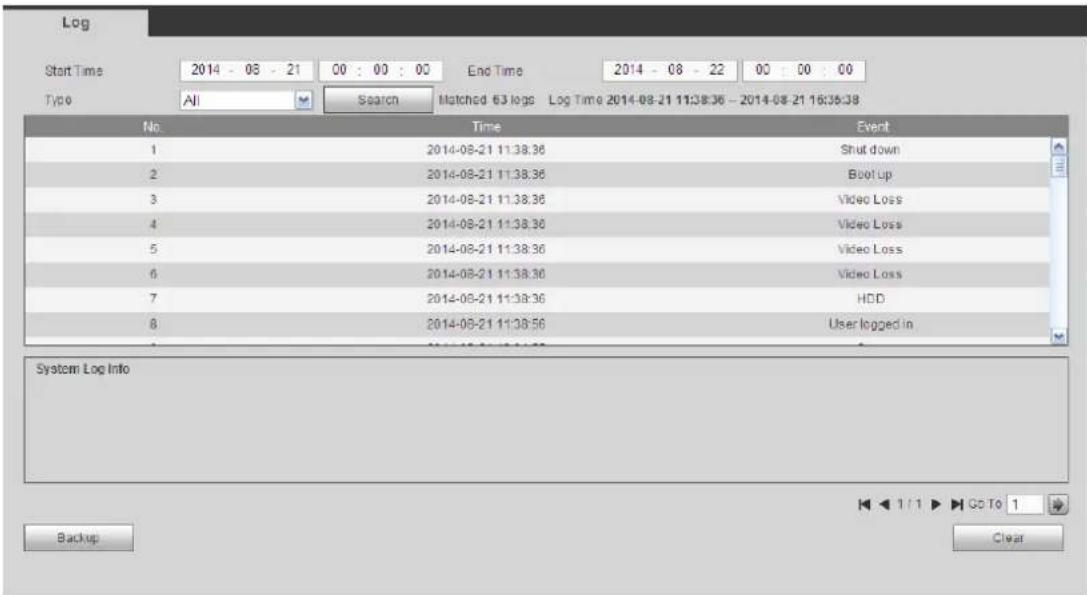
Figure 5-117
Please refer to the following sheet for log parameter information.
| Parameter | Function |
| Type | Log types include: system operation, configuration operation, data operation, event operation, record operation, user management, log clear. |
| Start time | Set the start time of the requested log. |
| End time | Set the end time of the requested log. |
| Search | You can select log type from the drop down list and then click search button to view the list.You can click the stop button to terminate current search operation. |
| Detailed information | You can select one item to view the detailed information. |
| Clear | You can click this button to delete all displayed log files. Please note system does not support clear by type. |
| Backup | You can click this button to backup log files to current PC. |
Note
- If there is no HDD, system max supports 1024 logs.
- If you have connected to the unformatted HDD, system max supports 5000 logs.
- If you have connected to the formatted HDD, system max supports 500,000 logs.
- System operation logs are saved in system memory. Other types of logs are saved in the HDD. If there is no HDD, other types of logs are saved in the system memory too.
- The logs are safe when you format the HDD. But the logs may become loss once you removed the HDD.
5.9.3 Online User
The online user interface is shown as in Figure 5-118.
Figure 5-118
5.9.4 HDD
The HDD interface is shown as in Figure 5-119. Here you can view HDD information.
Figure 5-119
5.10 Playback
Click Playback button, you can see an interface is shown as in Figure 5-120.
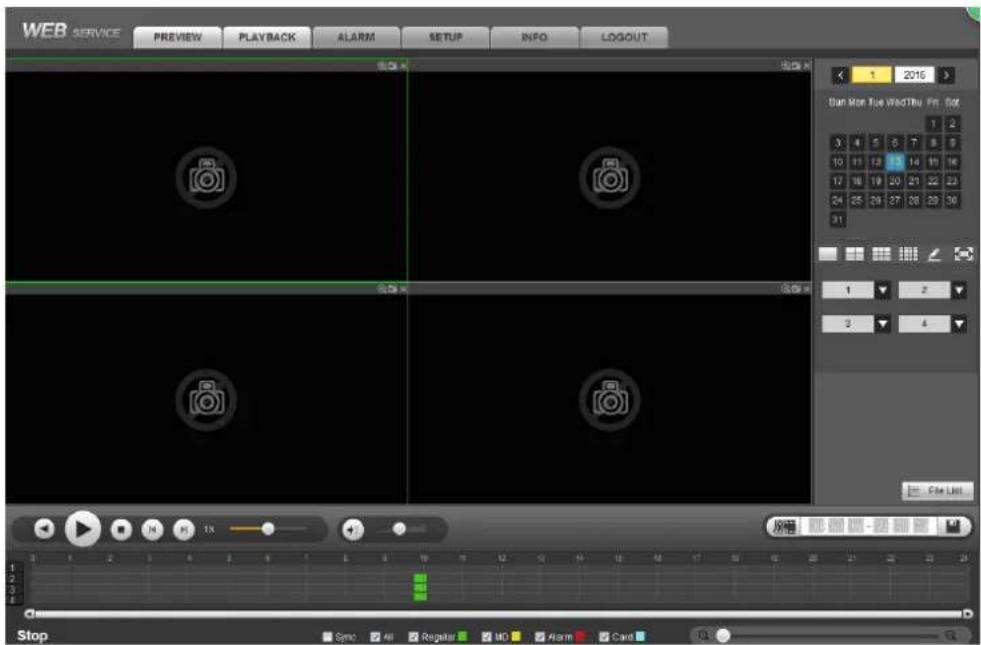
Figure 5-120
5.10.1 Search Record
Please set record type, record date, window display mode and channel name.
- Select Date
You can click the date on the right pane to select the date. The green highlighted date is system current date and the blue highlighted date means it has record files.
- Window Split
Select window split mode. Click to-display in full screen. Click ESC button to exit. See Figure 5-121.
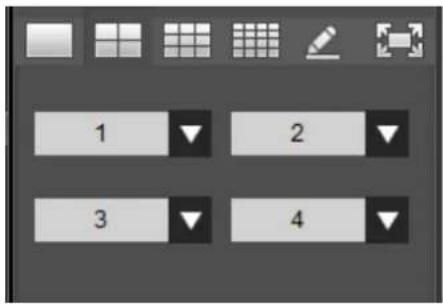
Figure 5-121
- Customized playback
Click, you can see the following interface. See Figure 5-122.
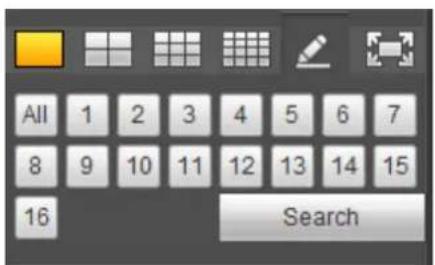
Figure 5-122
Now you can select one or more channel(s) and then click record(s).
Search to search
System supports one or more channels. The window split mode can auto adjust according to the channel amount. System max supports 16-split.
Click button to select all channels at the same time.
Click , system begins playback.
- Select Channel
1\~n(n depends on your product channel amount) means main stream and A1\~An ((n depends on your product channel amount)) means sub stream.
- Select Record Type
Check the corresponding box to select record type. See Figure 5-123.

Figure 5-123
5.10.2 File List
Click File list button, you can see the corresponding file(s) in the list. See Figure 5-124.
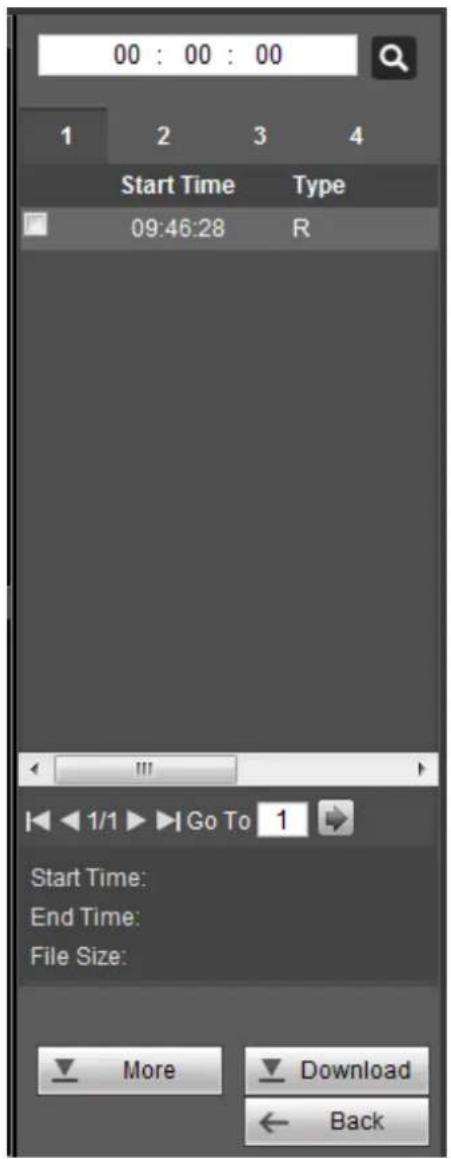
Figure 5-124
5.10.3 Playback
Select a file you want to play and then click Play button, system can begin playback. You can select to playback in full-screen. Please note for one channel, system can not playback and download at the same time. You can use the playback control bar to implement various operations such as play, pause, stop, slow play, fast play and etc.
5.10.4 Download
Select the file(s) you want to download and then click download button, you can see an interface shown as in Figure 5-125. The Download button becomes Stop button and there is a process bar for your reference. Please go to you default file saved path to view the files.
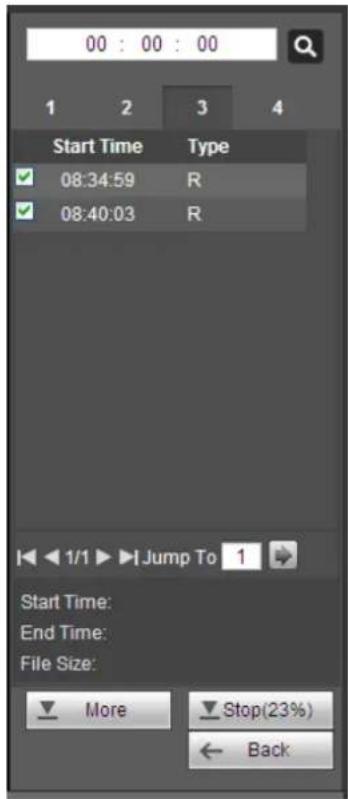
Figure 5-125
5.10.5 Load more
It is for you to search record or picture. You can select record channel, record type and record time to download. Or you can use watermark function to verify file.
5.10.5.1 Download By File
Select channel, record type, bit stream type and then input start time and end time. Click Search button, the download by file interface is shown as in Figure 5-126.
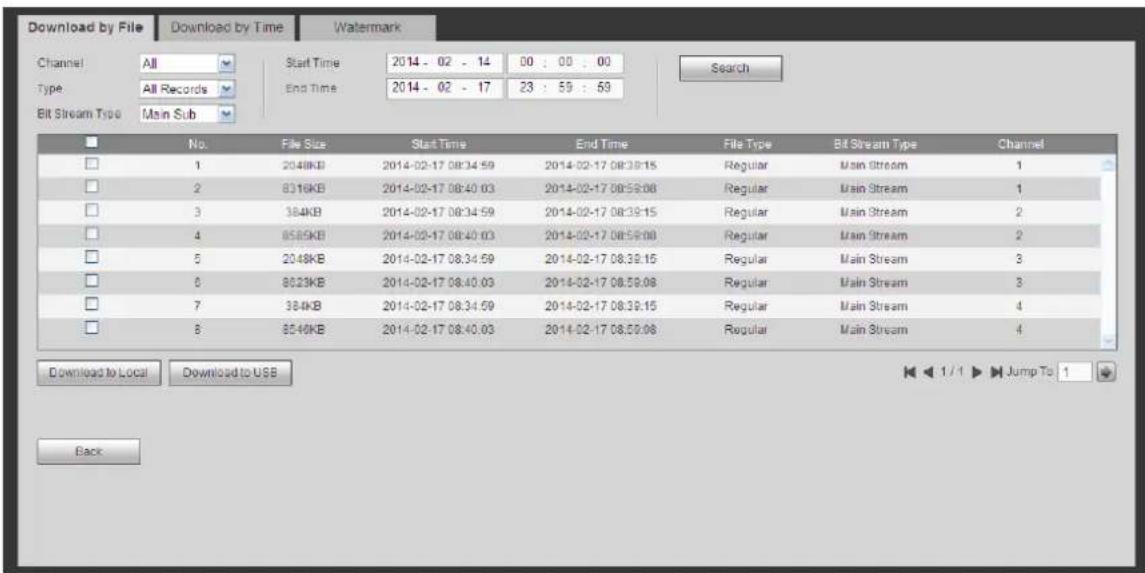
Figure 5-126
Check the file(s) you want to download and there are two options for you to save the file(s).
- Download to local
Click Download to local, system pops up the following interface for you to set record format and saved path. See Figure 5-127.
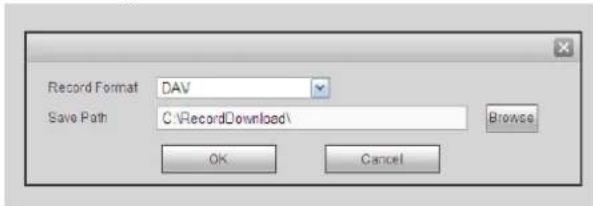
Figure 5-127
You can click OK to download and view the download process. After the download operation, you can see corresponding dialog box.
- Download to USB
Connect the corresponding p peripheral device, and then click Download to USB button, you can see the following interface. See Figure 5-128.
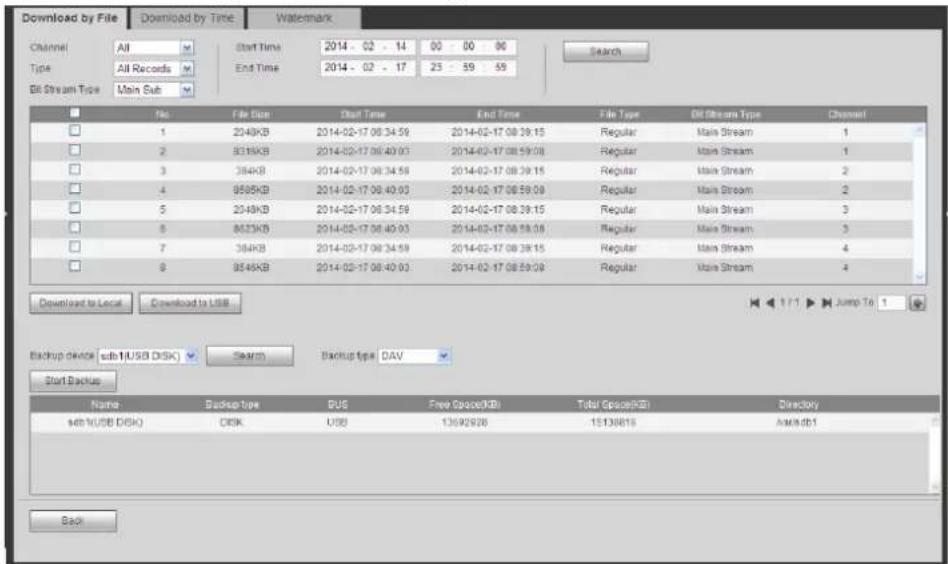
Figure 5-128
Select Backup device and backup type first and then click Start backup button.
After the download operation, you can see corresponding dialogue box.
5.10.5.2 Download by Time
Select channel, bit stream type, start time and end time.
Click Download to Local button, you can see download by time interface is shown as in Figure 5-129.
Figure 5-129
Set record format and saved path, you can click OK to download and view the download process. After the download operation, you can see corresponding dialog box.
5.10.5.3 Watermark
Watermark interface is shown as In Figure 5-130. Please select a file and then click Verify button to see the file has been tampered with or not
Figure 5-130
5.11 Face Search
On the main interface, click Face search button, you can see an interface shown as below. See Figure 5-131.
Figure 5-131
Please refer to the following sheet for detailed information.
SN Name Function
1 Display - It is to display human face detection file list. The latest file is at the pan top. \
- Click Export, you can export the selected file to the USB device.
There are two types: image/record.
✨ Image: Export the recognized human face image.
Record: Export the record file before and after 10 seconds when the DVR recognizes the human face.
2 Playback Play the searched record file or image. Double click to playback in full pane screen.
3 Search pane Set date, start time and end time, click Search button, you can view the corresponding file list.
5.12 Alarm
Click alarm function, you can see an interface is shown as Figure 5-132.
Here you can set device alarm type and alarm sound setup (Please make sure you have enabled audio function of corresponding alarm events.).
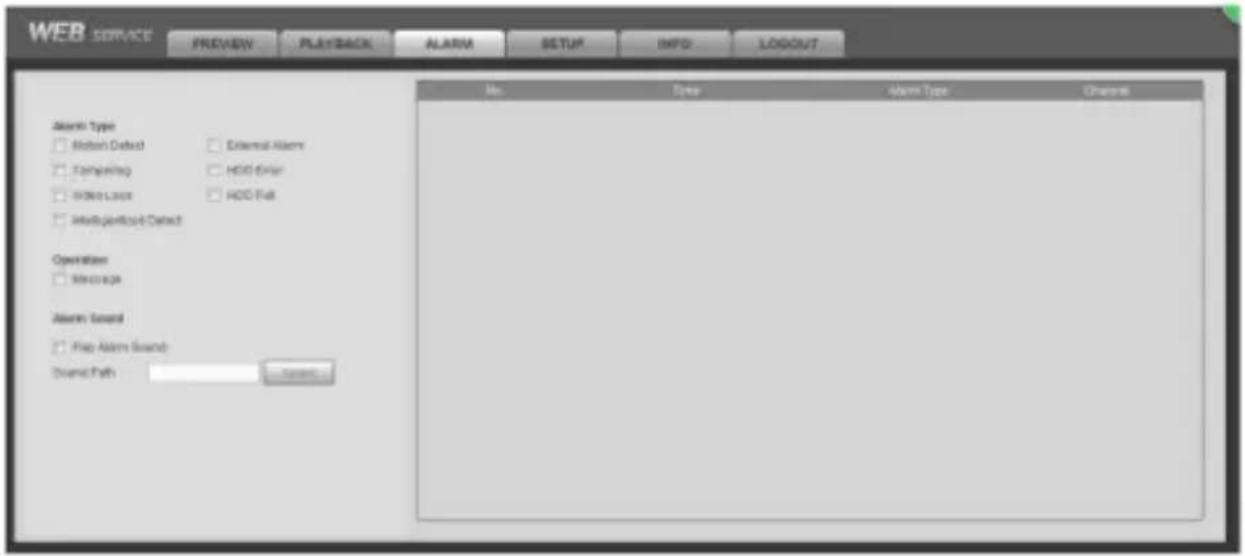
Figure 5-132
Please refer to the following sheet for detailed information.
| Type | Parameter | Function |
| Alarm Type | Video loss | System alarms when video loss occurs. |
| Motion detection | System alarms when motion detection alarm occurs. | |
| Tampering | System alarms when camera is viciously masking. | |
| Disk full | System alarms when disk is full. | |
| Disk error | System alarms when disk error occurs. | |
| External alarm | Alarm input device sends out alarm. | |
| Operation | Prompt | Check the box here, system can automatically pops up an alarm icon on the Alarm button in the main interface when there is an alarm. |
| Alarm Sound | Play alarm sound | System sends out alarm sound when an alarm occurs. You can specify as you wish. |
| Sound path | Here you can specify alarm sound file. |
5.13 Log out
Click log out button, system goes back to log in interface. See Figure 5-133.
You need to input user name and password to login again.
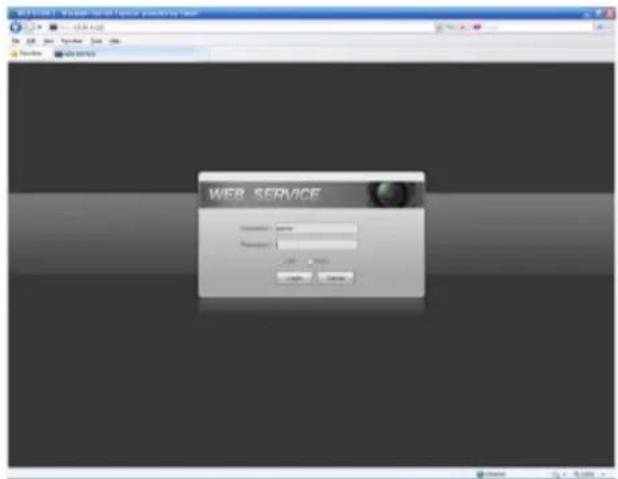
Figure 5-133
5.14 Un-Install Web Control
You can use web un-install tool "uninstall web.bat" to un-install web control.
Please note, before you un-installation, please close all web pages, otherwise the
6 Professional Surveillance System
Besides Web, you can use our Smart PSS to login the device. For detailed information, please refer to Smart PSS user's manual.
7 FAQ
1. DVR can not boot up properly.
There are following possibilities:
● Input power is not correct.
● Power connection is not correct.
● Power switch button is damaged.
● Program upgrade is wrong.
- HDD malfunction or something wrong with HDD ribbon.
- Seagate DB35.1, DB35.2, SV35 or Maxtor 17-g has compatibility problem. Please upgrade to the latest version to solve this problem.
- Front panel error.
- Main board is damaged.
2. DVR often automatically shuts down or stops running.
There are following possibilities:
● Input voltage is not stable or it is too low.
- HDD malfunction or something wrong with the ribbon.
- Button power is not enough.
● Front video signal is not stable.
● Working environment is too harsh, too much dust.
● Hardware malfunction.
3. System can not detect hard disk.
There are following possibilities:
- HDD is broken.
- HDD silicon is damaged
● DVR and monitor resistance is not compatible.
● Video transmission is too long or degrading is too huge.
● DVR color or brightness setup is not correct.
6. Can not search local records.
There are following possibilities:
- HDD ribbon is damaged.
- HDD is broken.
- Upgraded program is not compatible.
● The recorded file has been overwritten.
● Record function has been disabled.
7. Video is distorted when searching local records.
There are following possibilities:
● Video quality setup is too low.
- Program read error, bit data is too small. There is mosaic in the full screen. Please restart the DVR to solve this problem.
- HDD data ribbon error.
- HDD malfunction.
● DVR hardware malfunctions.
8. There is no audio when monitor.
There are following possibilities:
- It is not a power picker.
- It is not a power acoustics.
● Audio cable is damaged.
● DVR hardware malfunctions.
9. There is audio when monitor but there is no audio when system playback.
There are following possibilities:
- Setup is not correct. Please enable audio function
- Corresponding channel has no video input. Playback is not continuous when the screen is blue.
10. Time display is not correct.
There are following possibilities:
- Setup is not correct
● Battery contact is not correct or voltage is too low. - Crystal is broken.
11. DVR can not control PTZ.
There are following possibilities:
- Front panel PTZ error
- PTZ decoder setup, connection or installation is not correct.
- Cable connection is not correct.
- PTZ setup is not correct.
- PTZ decoder and DVR protocol is not compatible.
- PTZ decoder and DVR address is not compatible.
- When there are several decoders, please add 120 Ohm between the PTZ decoder A/B cables furthest end to delete the reverberation or impedance matching. Otherwise the PTZ control is not stable.
● The distance is too far.
12. Motion detection function does not work.
There are following possibilities:
- Period setup is not correct.
● Motion detection zone setup is not correct.
● Sensitivity is too low. - For some versions, there is hardware limit.
13. Can not log in client-end or web.
There are following possibilities:
- For Windows 98 or Windows ME user, please update your system to Windows 2000 sp4. Or you can install client-end software of lower version. Please note right now, our DVR is not compatible with Windows VISTA control.
● ActiveX control has been disabled. - No dx8.1 or higher. Please upgrade display card driver.
● Network connection error.
● Network setup error. - Password or user name is invalid.
- Client-end is not compatible with DVR program.
14. There is only mosaic no video when preview or playback video file remotely.
There are following possibilities:
● Network fluency is not good.
- Client-end resources are limit.
- There is multiple-cast group setup in DVR. This mode can result in mosaic. Usually we do not recommend this mode.
● There is privacy mask or channel protection setup.
● Current user has no right to monitor.
● DVR local video output quality is not good.
15. Network connection is not stable.
There are following possibilities:
● Network is not stable.
- IP address conflict.
- MAC address conflict.
● PC or DVR network card is not good.
16. Burn error /USB back error.
There are following possibilities:
- Burner and DVR are in the same data cable.
- System uses too much CPU resources. Please stop record first and then begin backup.
● Data amount exceeds backup device capacity. It may result in burner error. - Backup device is not compatible.
● Backup device is damaged.
17. Keyboard can not control DVR.
There are following possibilities:
● DVR serial port setup is not correct
- Address is not correct
- When there are several switchers, power supply is not enough.
● Transmission distance is too far.
18. Alarm signal can not been disarmed.
There are following possibilities:
- Alarm setup is not correct.
● Alarm output has been open manually. - Input device error or connection is not correct.
- Some program versions may have this problem. Please upgrade your system.
19. Alarm function is null.
There are following possibilities:
- Alarm setup is not correct.
- Alarm cable connection is not correct.
● Alarm input signal is not correct.
● There are two loops connect to one alarm device.
20. Remote control does not work.
There are following possibilities:
- Remote control address is not correct.
- Distance is too far or control angle is too small.
- Remote control battery power is low.
- Remote control is damaged or DVR front panel is damaged.
21. Record storage period is not enough.
There are following possibilities:
- Camera quality is too low. Lens is dirty. Camera is installed against the light. Camera aperture setup is not correct.
- HDD capacity is not enough.
- HDD is damaged.
22. Can not playback the downloaded file.
There are following possibilities:
● There is no media player.
- No DXB8.1 or higher graphic acceleration software.
- There is no DivX503Bundle.exe control when you play the file transformed to AVI via media player.
- No DivX503Bundle.exe or ffdshow-2004 1012 .exe in Windows XP OS.
23. Forget local menu operation password or network password
Please contact your local service engineer or our sales person for help. We can guide you to solve this problem.
24. When I login via HTTPS, a dialogue says the certificate for this website is for other address.
Please follow chapter 5.8.2.16.1 to create server certificate.
25. When I login via HTTPS, a dialogue says the certificate is not trusted.
Please follow chapter 5.8.2.16.2 to download root certificate.
26. When I login via HTTPS, a dialogue says the certificate has expired or is not valid yet.
Please make sure your PC time is the same as the device time.
27. I connect the general analog camera to the device, there is no video output.
There are following possibilities:
- Check camera power supplying, data cable connection and etc.
- This series device does not support the analog camera of all brands. Please make sure the device supports general standard definition analog camera.
28. I connect the standard definition analog camera or the HDCVI camera to the device, there is no video output.
There are following possibilities:
- Check camera power supplying, or camera data cable connection.
- For the product supports analog standard definition camera/HD camera, you need to go to the main menu->Setting->Camera->Channel type to select corresponding channel type and then restart the DVR.
29. I can not connect to the IP channel.
There are following possibilities:
- Check the camera is online or not.
- Check IP channel setup is right or not (such as IP address, user name, password, connection protocol, port number.).
- The camera has set the whitelist (Only the specified devices can connect to the camera).
30. After I connected to the IP channel, there one-window output is OK, but there is no multiple-window output.
There are following possibilities:
- Check the sub stream of the camera has been enabled or not.
- Check the sub stream type of the camera is H.264 or not.
- Check the device supports camera sub stream resolution or not (such as 960H, D1, HD1 and etc.).
31. After I connected to the IP channel, there multiple-window output is OK, but there is no one-window output.
There are following possibilities:
- Check there is video from the IP channel or not. Please go to the main menu->info->System->BPS to view bit stream real-time information.
- Check the main stream of the camera has been enabled or not.
- Check the main stream type of the camera is H.264 or not.
- Check the device supports camera main stream resolution or not (such as 960H, D1, HD1 and etc.).
- Check camera network transmission has reached the threshold or not. Please check the online user of the camera.
32. After I connected to the IP channel, there is no video output in the one-window or the multiple-window mode. But I can see there is bit stream.
There are following possibilities:
- Check the main stream/sub stream type of the camera is H.264 or not.
- Check the device supports camera main stream/sub stream resolution or not (such as 1080P, 720P, 960H, D1, HD1 and etc.).
- Check the camera setup. Please make sure It supports the products of other manufacturers.
33. DDNS registration failed or can not access the device domain name.
There are following possibilities:
- Check the device is connected to the WAN. Please check the device has got the IP address if the PPPoE can dial. If there is a router, please check the router to make sure the device IP is online.
- Check the corresponding protocol of the DDNS is enabled. Check the DDNS function is OK or not.
- Check DNS setup is right or not. Default Google DNS server is 8.8.8.8, 8.8.5.5. You can use different DNS provided by your ISP.
34. I can not use the P2P function on my cell phone or the WEB.
There are following possibilities:
- Check the device P2P function is enabled or not. (Main menu->Setting->Network->P2P)
- Check the device is in the WAN or not.
- Check cell phone P2P login mode is right or not.
- It is the specified device P2P login port or not when you are using P2P client.
- Check user name or password is right or not.
- Check P2P SN is right or not. You can use the cell phone to scan the QR code on the device P2P interface (Main menu->Setting->Network->P2P), or you can use the version information of the WEB to confirm. (For some previous series products, the device SN is the main board SN, it may result in error.)
35. I connect the standard definition camera to the device, there is no video output.
There are following possibilities:
- Check the DVR supports standard definition signal or not. Only some series product supports analog standard definition signal, HDCVI signal input.
- Check channel type is right or not. For the product supports analog standard definition camera/HD camera, you need to go to the main menu->Setting->Camera->Channel type to select corresponding channel type (such as analog) and then restart the DVR. In this way, the DVR can recognize the analog standard definition.
- Check camera power supplying, or camera data cable connection.
36. I can not connect to the IP camera.
There are following possibilities:
- Check DVR supports IP channel or not. Only some series products support A/D switch function, it can switch analog channel to the IP channel to connect to the IP camera. From Setting->Camera->Channel Type, select the last channel to switch to the IP channel. Some series product products support IP channel extension, it supports N+N mode.
- Check the IPC and the DVR is connected or not. Please go to the main menu->Setting->Camera->Remote to search to view the IP camera is online or not. Or you can go to the main menu->Info->Network->Test, you can input IP camera IP address and then click the Test button to check you can connect to the IP camera or not.
- Check IP channel setup is right or not (such as IP address, manufacturer, port, user name, password, remote channel number and etc.).
Daily Maintenance
- Please use the brush to clean the board, socket connector and the chassis regularly.
- The device shall be soundly earthed in case there is audio/video disturbance. Keep the device away from the static voltage or induced voltage.
- Please unplug the power cable before you remove the audio/video signal cable, RS232 or RS485 cable.
- Do not connect the TV to the local video output port (VOUT). It may result in video output circuit.
● Always shut down the device properly. Please use the shutdown function in the menu, or you can press the power button in the front pane for at least three seconds to shut down the device. Otherwise it may result in HDD malfunction. - Please make sure the device is away from the direct sunlight or other heating sources. Please keep the sound ventilation.
- Please check and maintain the device regularly.
Appendix A HDD Capacity Calculation
Calculate total capacity needed by each DVR according to video recording (video recording type and video file storage time).
Step 1: According to Formula (1) to calculate storage capacity q_i , that is the capacity of each channel needed for each hour, unit Mbyte.
$$ q _ {i} = d _ {i} \div 8 \times 3 6 0 0 \div 1 0 2 4 \tag {1} $$
In the formula: d_i means the bit rate, unit Kbit/s
Step 2: After video time requirement is confirmed, according to Formula (2) to calculate the storage capacity m_i , which is storage of each channel needed unit Mbyte.
$$ m _ {i} = q _ {i} \times h _ {i} \times D _ {i} \tag {2} $$
In the formula:
h, means the recording time for each day (hour)
D_i means number of days for which the video shall be
kept
Step 3: According to Formula (3) to calculate total capacity (accumulation) q_T that is needed for all channels in the DVR during scheduled video recording.
$$ q _ {T} = \sum^ {\prime} m _ {i} \tag {3} $$
| 448K | 196M | 512K | 225M |
| 640K | 281M | 768K | 337M |
| 896K | 393M | 1024K | 450M |
| 1280K | 562M | 1536K | 675M |
| 1792K | 787M | 2048K | 900M |
Appendix B Compatible backup devices
Appendix B-1 Compatible USB list
| Manu factor | Model | Capacity |
| Sandisk | Cruzer Micro | 512M |
| Sandisk | Cruzer Micro | 1G |
| Sandisk | Cruzer Micro | 2G |
| Sandisk | Cruzer Freedom | 256M |
| Sandisk | Cruzer Freedom | 512M |
| Sandisk | Cruzer Freedom | 1G |
| Sandisk | Cruzer Freedom | 2G |
| Kingston | DataTraveler II | 1G |
| Kingston | DataTraveler II | 2G |
| Kingston | DataTraveler | 1G |
| Kingston | DataTraveler | 2G |
| Maxell | USB Flash Stick | 128M |
| Maxell | USB Flash Stick | 256M |
| Maxell | USB Flash Stick | 512M |
| Maxell | USB Flash Stick | 1G |
| Maxell | USB Flash Stick | 2G |
| Kingax | Super Stick | 128M |
| Kingax | Super Stick | 256M |
| Kingax | Super Stick | 512M |
| Kingax | Super Stick | 1G |
| Kingax | Super Stick | 2G |
| Kingston | Data Traveler | 32GB |
| Algo | L8315 | 16GB |
| Sandisk | 250 | 16GB |
| Kingston | Data Traveler Locker+ | 32GB |
| Netac | U228 | 8GB |
Appendix B-2 Compatible SD Card list
| Brand | Standard | Capacity | Card type |
| Transcend | SDHC6 | 16GB | Big |
| Kingston | SDHC4 | 4GB | Big |
| Kingston | SD | 2GB | Big |
| Kingston | SD | 1GB | Big |
| Sandisk | SDHC2 | 8GB | Small |
| Sandisk | SD | 1GB | Small |
Appendix B-3 Compatible Portable HDD list
| Brand | Model | Capacity |
| YDStar | YDstar HDD box | 40G |
| Netac | Netac | 80G |
| Iomega | Iomega RPHD-CG ^* RNAJ50U287 | 250GB |
| WD Elements | WCAVY1205901 | 1.5TB |
| Newsmy | Liangjian | 320GB |
| WD Elements | WDBAAR5000ABK-00 | 500GB |
| WD Elements | WDBAAR50015HBK-00 | 1.5TB |
| Samsung | TS-H653 Ver.F |
| Samsung | SH-224BB/CHXH |
| SONY | DRU-V200S |
| SONY | DRU-845S |
| SONY | AW-G170S |
| Pioneer | DVR-217CH |
Appendix B-6 Compatible SATA HDD List
NOTE: Please upgrade the DVR firmware to latest version to ensure the accuracy of the table below. Here we recommend HDD of 500G to 4T capacity.
| Manufacturer | Series | Model | Capacity | Port Mode |
| Seagate | Seagate SV35.1 | ST3250824SV | 250G | SATA |
| Seagate | Seagate SV35.1 | ST3500641SV | 500G | SATA |
| Seagate | Seagate SV35.2 | ST3250820SV | 250G | SATA |
| Seagate | Seagate SV35.2 | ST3320620SV | 320G | SATA |
| Seagate | Seagate SV35.2 | ST3500630SV | 500G | SATA |
| Seagate | Seagate SV35.2 | ST3750640SV | 750G | SATA |
| Seagate | Seagate SV35.3 | ST3250310SV | 250G | SATA |
| Seagate | Seagate SV35.3 | ST3500320SV | 500G | SATA |
| Seagate | Seagate SV35.3 | ST3750330SV | 750G | SATA |
| Seagate | Seagate SV35.3 | ST31000340SV | 1T | SATA |
| Seagate | Seagate SV35.4 | ST3320410SV | 320G | SATA |
| Seagate | Seagate SV35.4 | ST3250311SV | 250G | SATA |
| Seagate | Seagate SV35.5 | ST3500410SV | 500G | SATA |
| Seagate | Seagate SV35.5 | ST3500411SV | 500G | SATA |
| Seagate | Seagate SV35.5 | ST31000525SV | 1T | SATA |
| Seagate | Seagate SV35.5 | ST31000526SV | 1T | SATA |
| Seagate | Seagate SV35.5 | ST1000VX000 | 1T | SATA |
| Seagate | Seagate SV35.5 | ST2000VX003 | 2T | SATA |
| Seagate | Seagate SV35.5 | ST2000VX002 | 2T | SATA |
| Seagate | Seagate SV35.5 | ST2000VX000 | 2T | SATA |
| Seagate | Seagate SV35.5 | ST3000VX000 | 3T | SATA |
| Seagate | Seagate Pipeline HD | ST3320410CS | 320G | SATA |
| Seagate | Seagate Pipeline HD | ST3320310CS | 320G | SATA |
| Seagate | Seagate Pipeline HD | ST3500422CS | 500G | SATA |
| Seagate | Seagate Pipeline HD | ST3500321CS | 500G | SATA |
| Seagate | Seagate Pipeline HD2 | ST3250412CS | 250G | SATA |
| Seagate | Seagate Pipeline HD2 | ST3320311CS | 250G | SATA |
| Seagate | Seagate Pipeline HD2 | ST3500414CS | 500G | SATA |
| Seagate | Seagate Pipeline HD2 | ST3500312CS | 500G | SATA |
| Seagate | Seagate Pipeline HD2 | ST31000424CS | 1T | SATA |
| Seagate | Seagate Pipeline HD2 | ST31000322CS | 1T | SATA |
| Seagate | Seagate Pipeline HD2 | ST1000VM002 | 1T | SATA |
| Seagate | Seagate Pipeline HD2 | ST1500VM002 | 1T | SATA |
| Seagate | Seagate Pipeline HD2 | ST2000VM002 | 2T | SATA |
| Seagate | Seagate Pipeline HD2 | ST2000VM003 | 2T | SATA |
| Seagate | Seagate Constellation ES | ST3500514NS | 500G | SATA |
| Seagate | Seagate Constellation ES | ST31000524NS | 1T | SATA |
| Seagate | Seagate Constellation ES | ST32000644NS | 2T | SATA |
| Seagate | Seagate Constellation ES | ST2000NM0011 | 2T | SATA |
| Seagate | Seagate Constellation ES | ST1000NM0011 | 1T | SATA |
| Seagate | Seagate Constellation ES | ST500NM0011 | 500G | SATA |
| Seagate | Seagate Constellation ES | ST2000NM0031 | 2T | SATA |
| Seagate | Seagate Constellation ES | ST1000NM0031 | 1T | SATA |
| Seagate | Seagate Constellation ES | ST500NM0031 | 500G | SATA |
| Seagate | Seagate Constellation ES | ST2000NM0051 | 2T | SATA |
| Seagate | Seagate Constellation ES | ST1000NM0051 | 1T | SATA |
| Seagate | Seagate Constellation ES | ST500NM0051 | 500G | SATA |
| Seagate | Seagate Constellation ES.2 | ST33000650NS | 3T | SATA |
| Seagate | Seagate Constellation ES.2 | ST32000645NS | 2T | SATA |
| Seagate | Seagate Constellation ES.2 | ST33000651NS | 3T | SATA |
| Seagate | Seagate Constellation ES.2 | ST32000646NS | 2T | SATA |
| Seagate | Seagate Constellation ES.2 | ST33000652NS | 3T | SATA |
| Seagate | Seagate Constellation ES.2 | ST32000647NS | 2T | SATA |
| Western Digital | Cariar SE | WD3200JD | 320G | SATA |
| Western Digital | Cariar SE | WD3000JD | 300G | SATA |
| Westem Digital | Cariar SE | WD2500JS | 250G | SATA |
| Westem Digital | Cariar SE16 | WD7500KS | 750G | SATA |
| Westem Digital | Cariar SE16 | WD5000KS | 500G | SATA |
| Westem Digital | Cariar SE16 | WD4000KD | 400G | SATA |
| Westem Digital | Cariar SE16 | WD3200KS | 320G | SATA |
| Westem Digital | Cariar SE16 | WD2500KS | 250G | SATA |
| Westem Digital | WD Caviar SE16 | WD2500YS-01SHB0 | 250G | SATA |
| Westem Digital | WD Caviar RE16 | WD3200YS-01PGB0 | 320G | SATA |
| Westem Digital | WD Caviar RE2 | WD5000YS-01MPB0 | 500G | SATA |
| Westem Digital | WD AV—AVJS | WD2500AVJS-63WDA0 | 500G | SATA |
| Westem Digital | WD AV—AVJS | WD3200AVJS-63WDA0 | 320G | SATA |
| Westem Digital | WD AV—AVJS | WD5000AVJS-63YJA0 | 500G | SATA |
| Westem Digital | WDAV-GP—AVCS | WD5000AVCS-63H1B1 | 500G | SATA |
| Westem Digital | WDAV-GP—AVCS | WD7500AVCS-63ZLB0 | 750G | SATA |
| Westem Digital | WDAV-GP—AVCS | WD3200AVCS | 320G | SATA |
| Westem Digital | WDAV-GP—AVCS | WD2500AVCS | 250G | SATA |
| Westem Digital | WDAV-GP—EVCS | WD10EVCS-63ZLB0 | 1T | SATA |
| Westem Digital | WDAV-GP—EVCS | WD20EVCS-63ZLB0 | 2T | SATA |
| Westem Digital | WDAV-GP—AVVS | WD3200AVVS-63L2B0 | 320G | SATA |
| Westem Digital | WDAV-GP—AVVS | WD5000AVVS-63ZWB0 | 500G | SATA |
| Westem Digital | WDAV-GP—AVVS | WD7500AVVS-63E1B1 | 750G | SATA |
| Westem Digital | WDAV-GP—AVVS | WD7500AVVS-63E1B1 | 750G | SATA |
| Westem Digital | WDAV-GP—EVVS | WD10EVVS-63E1B1 | 1T | SATA |
| Westem Digital | WDAV-GP—EVDS | WD10EVDS-63N5B1 | 1T | SATA |
| Westem Digital | WDAV-GP—EVDS | WD15EVDS-63V9B0 | 1.5T | SATA |
| Westem Digital | WDAV-GP—EVDS | WD20EVDS-63T3B0 | 2T | SATA |
| Westem Digital | WDAV-GP—AVDS | WD5000AVDS-63U7B0 | 500G | SATA |
| Westem Digital | WD AV-GP | WD30EURS | 3T | SATA |
| Westem Digital | WD AV-GP | WD25EURS | 2.5T | SATA |
| Westem Digital | WD AV-GP | WD20EURS | 2T | SATA |
| Westem Digital | WD AV-GP | WD15EURS | 1.5T | SATA |
| Westem Digital | WD AV-GP | WD10EURS | 1T | SATA |
| Westem Digital | WD AV-GP | WD10EURX | 1T | SATA |
| Westem Digital | WD AV-GP | WD7500AURS | 750G | SATA |
| Westem Digital | WD AV-GP | WD7500AVDS | 500G | SATA |
| Westem Digital | WD AV-GP | WD500AVDS | 500G | SATA |
| Westem Digital | WD AV-GP | WD10EUCX | 1T | SATA |
| Samsung | Samsung—HA | HA500LJ/CE | 500G | SATA |
| Samsung | Samsung—HA | HA751LJ | 750G | SATA |
| Samsung | Samsung—HA | HA101UJ/CE | 1T | SATA |
| Samsung | Samsung—HD | HD502HI/CEC | 500G | SATA |
| Samsung | Samsung—HD | HD103SI/CEC | 1T | SATA |
| Samsung | Samsung—HD | HD154UI/CE | 1.5T | SATA |
| Hitachi | HitachiCinemaStarTM5K500 | HCP725050GLA380 | 500G | SATA |
| Hitachi | HitachiCinemaStarTM7K1000.B | HCT721050SLA360 | 500G | SATA |
| Hitachi | HitachiCinemaStarTM7K1000.B | HCT721075SLA360 | 750G | SATA |
| Hitachi | HitachiCinemaStarTM7K1000.B | HCT721010SLA360 | 1T | SATA |
| Maxtor | DiamondMax 20 | STM3320820AS | 320G | SATA |
| Maxtor | DiamondMax 20 | STM3250820AS | 250G | SATA |
Appendix C Compatible CD/DVD Burner List
NOTE: Please upgrade the DVR firmware to latest version to ensure the accuracy of the table below. And you can use the USB cable with the model recommended to set USB burner.
| Manufacturer | Model | Port Type | Type |
| Sony | DRX-S50U | USB | DVD-RW |
| Sony | DRX-S70U | USB | DVD-RW |
| Sony | AW-G170S | SATA | DVD-RW |
| Samsung | TS-H653A | SATA | DVD-RW |
| Panasonic | SW-9588-C | SATA | DVD-RW |
| Sony | DRX-S50U | USB | DVD-RW |
| BenQ | 5232WI | USB | DVD-RW |
Appendix D Compatible Displayer List
Please refer to the following sheet form compatible displayer list.
| Brand | Model | Dimension (Unit: inch) |
| BENQ (LCD) | ET-0007-TA | 19-inch (wide screen) |
| DELL (LCD) | E178FPc | 17-inch |
| BENQ (LCD) | Q7T4 | 17-inch |
| BENQ (LCD) | Q7T3 | 17-inch |
| HFNOVO (LCD) | LXB-L17C | 17-inch |
| SANGSUNG (LCD) | 225BW | 22寸(wide screen) |
| HFNOVO(CRT) | LXB-FD17069HB | 17-inch |
| HFNOVO(CRT) | LXB-HF769A | 17-inch |
| HFNOVO(CRT) | LX-GJ556D | 17-inch |
| Samsung (LCD) | 2494HS | 24-inch |
| Samsung (LCD) | P2350 | 23-inch |
| Samsung (LCD) | P2250 | 22-inch |
| Samsung (LCD) | P2370G | 23-inch |
| Samsung (LCD) | 2043 | 20-inch |
| Samsung (LCD) | 2243EW | 22-inch |
| Samsung (LCD) | SMT-1922P | 19-inch |
| Samsung (LCD) | T190 | 19-inch |
| Samsung (LCD) | T240 | 24-inch |
| LG (LCD) | W1942SP | 19-inch |
| LG (LCD) | W2243S | 22-inch |
| LG (LCD) | W2343T | 23-inch |
| BENQ (LCD) | G900HD | 18.5-inch |
Appendix E Compatible Switcher
| Brand | Model | network working mode |
| D-LinK | DES-1016D | 10/100M self-adaptive |
| D-LinK | DES-1008D | 10/100M self-adaptive |
| Five network modes | ||
| 1. AUTO | ||
| 2. HALF-10M | ||
| Ruijie | RG-S1926S | 3. FULL-10M |
| 4 .HALF-100M | ||
| 5. FULL-100M | ||
| H3C | H3C-S1024 | 10/100M self-adaptive |
| TP-LINK | TL-SF1016 | 10/100M self-adaptive |
| TP-LINK | TL-SF1008+ | 10/100M self-adaptive |
Appendix F Compatible Wireless Mouse List
Please refer to the following sheet for compatible SD card brand.
| Brand | Model |
| SUNTius | V80 |
| Rapoo | 3500 |
| Logitech | M215 |
| Shuangfeiyan | Tianyao G7-630 |
Appendix G Earthing
1. What is the surge?
Surge is a short current or voltage change during a very short time. In the circuit, it lasts for microsecond. In a 220V circuit, the 5KV or 10KV voltage change during a very short time (about microseconds) can be called a surge. The surge comes from two ways: external surge and internal surge.
☐ The external surge: The external surge mainly comes from the thunder lightning. Or it comes from the voltage change during the on/off operation in the electric power cable.
☐ The internal surge: The research finds 88% of the surge from the low voltage comes from the internal of the building such as the air conditioning, elevator, electric welding, air compressor, water pump, power button, duplicating machine and other device of inductive load.
The lightning surge is far above the load level the PC or the micro devices can support. In most cases, the surge can result in electric device chip damage, PC error code, accelerating the part aging, data loss and etc. Even when a small 20 horsepower inductive engine boots up or stops, the surge can reach 3000V to 50000V, which can adversely affect the electronic devices that use the same distribution box.
To protect the device, you need to evaluate its environment, the lighting affection degree objectively. Because surge has close relationship with the voltage amplitude, frequency, network structure, device voltage-resistance, protection level, ground and etc. The thunder proof work shall be a systematic project, emphasizing the all-round protection (including building, transmission cable, device, ground and etc.). There shall be comprehensive management and the measures shall be scientific, reliable, practical and economic. Considering the high voltage during the inductive thundering, the International Electrotechnical Committee (IEC) standard on the energy absorbing step by step theory and magnitude classification in the protection zone, you need to prepare multiple precaution levels.
You can use the lightning rod, lightning strap or the lightning net to reduce the damage to the building, personal injury or the property,
☐ The lightning protection device can be divided into three types:
Power lightning arrester: There are 220V single-phrase lightning arrester and 380V three-phrase lightening arrester (mainly in parallel connection, sometimes use series connection) You can parallel connect the power lightning arrester in the electric cable to reduce the short-time voltage change and release the surge current. From the BUS to the device, there are usually three levels so that system can reduce the voltage and release the current step by step to remove the thunderstorm energy and guarantee the device safety. You can select the replaceable module type, the terminal connection type and portable socket according to your requirement.
- Signal lightning arrester: This device is mainly used in the PC network, communication system. The connection type is serial connection. Once you connected the signal lightning arrestor with the signal port, it can cut the channel of the thunderstorm to the device, and on the other hand, it can discharge the current to the ground to guarantee the device proper work. The signal lightning arrester has many specifications, and widely used in many devices such as telephone, network, analog communication, digital communication, cable TV and satellite antenna. For all the input port, especially those from the outdoor, you need to install the signal lightning arrester.
- Antenna feed cable lightning arrester: It is suitable for antenna system of the transmitter or the device system to receive the wireless signal. It uses the serial connection too.
Please note, when you select the lighting arrester, please pay attention to the port type and the earthing reliability. In some important environment, you need to use special shielded cable. Do not parallel connect the thunder proof ground cable with the ground cable of the lightning rod. Please make sure they are far enough and grounded respectively.
2. The earthing modes
We all know the earthing is the most complicated technology in the electromagnetism compatibility design since there is no systematic theory or module. The earthing has many modes, but the selection depends on the system structure and performance. The following are some successfully experience from our past work.
One-point ground: In the following figure you can see there is a one-point ground. This connection provides common port to allow signal to be transmitted in many circuits. If there is no common port, the error signal transmission occurred. In the one-point ground mode, each circuit is just grounded only and they are connected at the same port. Since there is only one common port, there is no circuit and so, there is no interference.
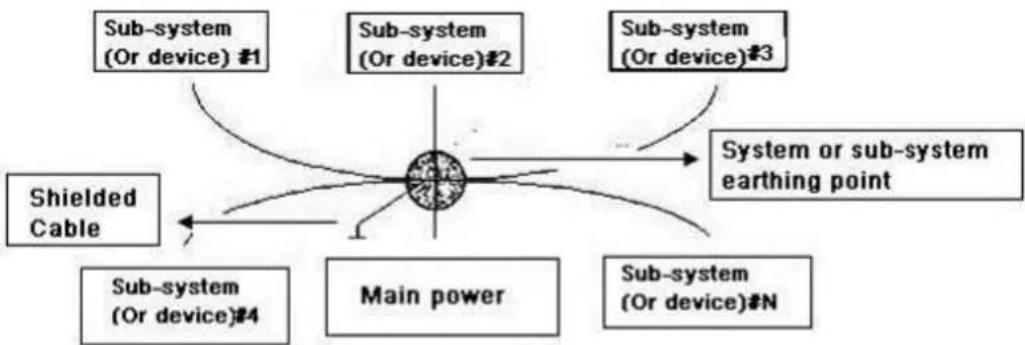
flowchart
graph TD
    A["Shielded Cable"] --> B["Main power"]
    C["Sub-system (Or device) #1"] --> D["System or sub-system earthing point"]
    E["Sub-system (Or device) #2"] --> D
    F["Sub-system (Or device) #3"] --> D
    G["Sub-system (Or device) #4"] --> B
    H["Sub-system (Or device) #N"] --> B
Multiple-point ground: In the following figure, you can see the internal circuit uses the chassis as the common point. While at the same time, all devices chassis use the earthing as the common port. In this connection, the ground structure can provide the lower ground resistance because when there are multiple-point grounds; each ground cable is as short as possible. And the parallel cable connection can reduce the total
conductance of the ground conductor. In the high-frequency circuit, you need to use the multiple-point ground mode and each cable needs to connect to the ground. The length shall be less than the 1/20 of the signal wavelength.
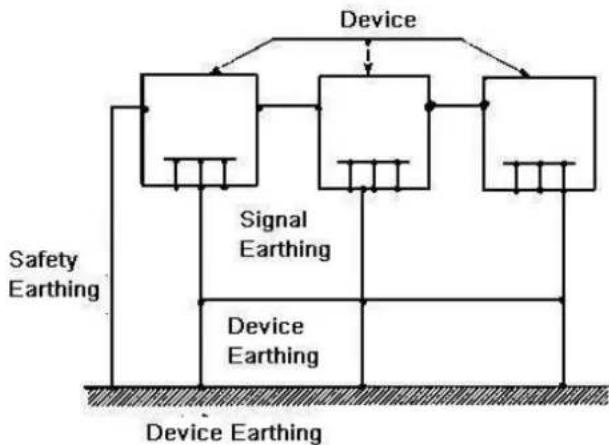
flowchart
graph TD
    A["Device"] --> B["Signal Earthing"]
    A --> C["Device Earthing"]
    B --> D["Safety Earthing"]
    C --> E["Device Earthing"]
    style A fill:#f9f,stroke:#333
    style B fill:#ccf,stroke:#333
    style C fill:#ccf,stroke:#333
    style D fill:#dfd,stroke:#333
    style E fill:#dfd,stroke:#333
Mixed ground: The mix ground consists of the feature of the one-point ground and multiple-point ground. For example, the power in the system needs to use the one-point ground mode while the radio frequency signal requires the multiple-point ground. So, you can use the following figure to earth. For the direct current (DC), the capacitance is open circuit and the circuit is one-point ground. For the radio frequency signal, the capacitance is conducive and the circuit adopts multiple-point ground.
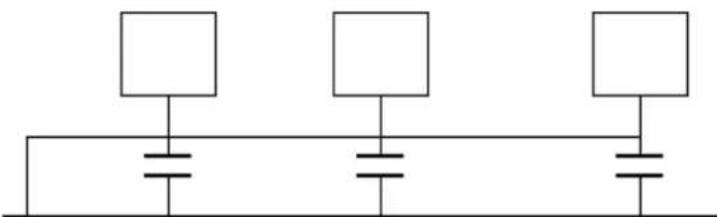
natural_image
Pure electrical circuit lines without any symbolsWhen connecting devices of huge size (the device physical dimension and connection cable is big comparing with the wave path of existed interference), then there are possibility of interference when the current goes through the chassis and cable. In this situation, the interference circuit path usually lies in the system ground circuit.
When considering the earthing, you need to think about two aspects: The first is the system compatibility, and the other is the external interference coupling into the earth circuit, which results in system error. For the external interference is not regular, it is not easy to resolve.
3. Thunder proof ground method in the monitor system
- The monitor system shall have sound thunder proof earthing to guarantee personnel safety and device safety.
● The monitor system working ground resistance shall be less than 1 .
- The thunder proof ground shall adopt the special ground cable from the monitor control room to the ground object. The ground cable adopts copper insulation cable or wire and its ground section shall be more than 20mm ^2 .
- The ground cable of the monitor system can not short circuit or mixed connected with the strong alternative current cable.
- For all the ground cables from the control room to the monitor system or ground cable of other monitor devices, please use the copper resistance soft cable and its section shall be more than 4mm2.
● The monitor system usually can adopt the one-point ground. - Please connect the ground end of 3-pin socket in the monitor system to the ground port of the system (protection ground cable)
4. The shortcut way to check the electric system using the digital multimeter
For 220V AC socket, from the top to the bottom, E (ground cable), N (neutral cable), L(live cable). Please refer to the following figure.
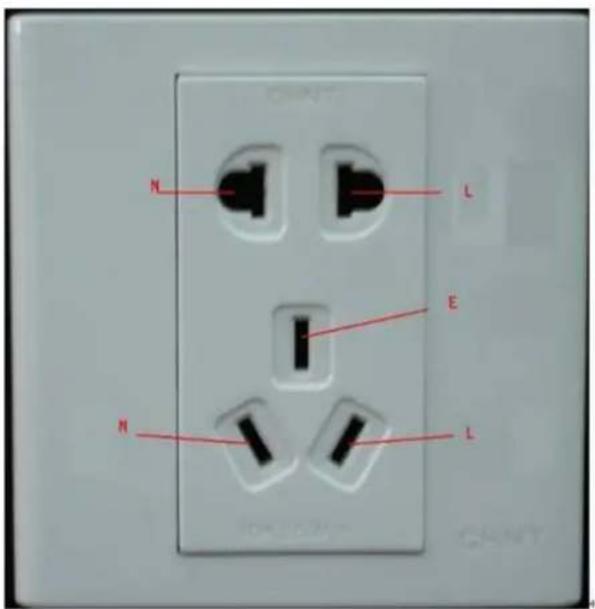
There is a shortcut way to check these thee cables connection are standard or not (not the accurate check).
Importance
In the following operations, the multimeter range shall be at 750V!
For E (earth cable)
Turn the digital multimeter to 750V AC, use your one hand to hold the metal end, and then the other hand insert the pen to the E port of the socket. See the following figure. If the multimeter shows 0, then you can see current earth cable connection is standard. If the value is more than 10, then you can see there is inductive current and the earth cable connection is not proper.
natural_image
Hand holding a white electrical socket connected to a red wire, with a digital multimeter displaying the power supply (no text or symbols visible)For L (live cable)
Turn the digital multimeter to 750V AC, use your one hand to hold the metal end, and then the other hand insert the pen to the L port of the socket. See the following figure. If the multimeter shows 120, then you can see current live cable connection is standard. If the value is less than 60, then you can see current live cable connection is not proper or it is not the live cable at all.
natural_image
Hand holding a red wire connected to a digital multimeter displaying 125 ohms, placed on a wooden surface (no text or symbols visible)For N (Neutral cable)
Turn the digital multimeter to 750V AC, use your one hand to hold the metal end, and then the other hand insert the pen to the N port of the socket. See the following figure. If the multimeter shows 0, then you can see current N cable connection is standard. If the value is more than 10, then you can see there is inductive current and the neutral cable connection is not proper. If the value is 120, then you can know misconnected the neutral cable to the live cable.
natural_image
Hand holding a white electrical outlet connected to a red wire, with a digital multimeter displaying -0.000 (no visible text or symbols on the device)Note:
- This manual is for reference only. Slight difference may be found in the user interface.
- All the designs and software here are subject to change without prior written notice.
- All trademarks and registered trademarks mentioned are the properties of their respective owners.
- If there is any uncertainty or controversy, please refer to the final explanation of us.
- Please visit our website or contact your local retailer for more information.
DAHUA VISION TECHNOLOGY CO.,LTD.
Address: No.1199 Bin'an Road, Binjiang District, Hangzhou, China.
Postcode: 310053
Tel: +86-571-87688883
Fax: +86-571-87688815
Email:overseas@dahuasecurity.com
Website: www.dahuatech.com