
AOC-MHIBF-M1Q2GM - Network Card/Adapter Supermicro - Free user manual and instructions
Find the device manual for free AOC-MHIBF-M1Q2GM Supermicro in PDF.


| Product Type | Network Adapter / Add-on Card |
| Model | AOC-MHIBF-M1Q2GM |
| Form Factor | Super I/O Module (SIOM) |
| Controllers | Mellanox ConnectX-3 Pro (InfiniBand/Ethernet) + Intel i350 (GbE) |
| Connectors | 1x QSFP (InfiniBand FDR / 40GbE) + 2x RJ45 (1GbE) |
| Max Data Rate | 56 Gbps (InfiniBand), 40 Gbps (Ethernet via QSFP), 1 Gbps (Ethernet via RJ45) |
| Dimensions (PCB) | 92 mm x 87.1 mm (3.62 in x 3.43 in) |
| Power Consumption | 9W (maximum) |
| Operating Temperature | 0°C to 55°C (32°F to 131°F) |
| Storage Temperature | -40°C to 70°C (-40°F to 158°F) |
| Storage Humidity | 90% non-condensing at 35°C |
| Supported Operating Systems | Windows Server 2008/2012/2012 R2, RHEL/CentOS 5.x/6.x, SLES 10/11, Fedora, Ubuntu 12.04, FreeBSD, VMware ESXi 4.x/5.x, Citrix XenServer 6.1 |
| Management Features | NC-SI for remote management via Intel i350, Asset Management with thermal sensor |
| Virtualization Features | SR-IOV, VXLAN, NVGRE, VMware NetQueue, multiple queues per VM |
| Additional Offloads | RDMA over Converged Ethernet, TCP/UDP/IP stateless offload, intelligent interrupt coalescence |
| Compliance | RoHS 6/6, FCC Class A |
| Included Accessories | Internal bracket (BKT-0119L) for 1U chassis |
| Warranty | Standard Supermicro warranty; contact distributor for service |
Frequently Asked Questions - AOC-MHIBF-M1Q2GM Supermicro
User questions about AOC-MHIBF-M1Q2GM Supermicro
0 question about this device. Answer the ones you know or ask your own.
Ask a new question about this device
Download the instructions for your Network Card/Adapter in PDF format for free! Find your manual AOC-MHIBF-M1Q2GM - Supermicro and take your electronic device back in hand. On this page are published all the documents necessary for the use of your device. AOC-MHIBF-M1Q2GM by Supermicro.
USER MANUAL AOC-MHIBF-M1Q2GM Supermicro
AOC-MHIBF-m1Q2G
User's Guide
The information in this User's Guide has been carefully reviewed and is believed to be accurate. The vendor assumes no responsibility for any inaccuracies that may be contained in this document, and makes no commitment to update or to keep current the information in this user's guide, or to notify any person or organization of the updates. Please Note: For the most up-to-date version of this user's guide, please see our Website at www.supermicro.com.
Super Micro Computer, Inc. ("Supermicro") reserves the right to make changes to the product described in this user's guide at any time and without notice. This product, including software and documentation, is the property of Supermicro and/or its licensors, and is supplied only under a license. Any use or reproduction of this product is not allowed, except as expressly permitted by the terms of said license.
IN NO EVENT WILL SUPER MICRO COMPUTER, INC. BE LIABLE FOR DIRECT, INDIRECT, SPECIAL, INCIDENTAL, SPECULATIVE OR CONSEQUENTIAL DAMAGES ARISING FROM THE USE OR INABILITY TO USE THIS PRODUCT OR DOCUMENTATION, EVEN IF ADVISED OF THE POSSIBILITY OF SUCH DAMAGES. IN PARTICULAR, SUPER MICRO COMPUTER, INC. SHALL NOT HAVE LIABILITY FOR ANY HARDWARE, SOFTWARE, OR DATA STORED OR USED WITH THE PRODUCT, INCLUDING THE COSTS OF REPAIRING, REPLACING, INTEGRATING, INSTALLING OR RECOVERING SUCH HARDWARE, SOFTWARE, OR DATA.
Any disputes arising between the manufacturer and the customer shall be governed by the laws of Santa Clara County in the State of California, USA. The State of California, County of Santa Clara shall be the exclusive venue for the resolution of any such disputes. Supermicro's total liability for all claims will not exceed the price paid for the hardware product.
FCC Statement: This equipment has been tested and found to comply with the limits for a Class A digital device pursuant to Part 15 of the FCC Rules. These limits are designed to provide reasonable protection against harmful interference when the equipment is operated in a commercial environment. This equipment generates, uses, and can radiate radio frequency energy and, if not installed and used in accordance with the manufacturer's instruction manual, may cause harmful interference with radio communications. Operation of this equipment in a residential area is likely to cause harmful interference, in which case you will be required to correct the interference at your own expense.
California Best Management Practices Regulations for Perchlorate Materials: This Perchlorate warning applies only to products containing CR (Manganese Dioxide) Lithium coin cells. "Perchlorate Material-special handling may apply. See www.dtsc.ca.gov/hazardouswaste/perchlorate".
WARNING: Handling of lead solder materials used in this product may expose you to lead, a chemical known to the State of California to cause birth defects and other reproductive harm.
User's Guide Revision 1.0a
Release Date: March 2, 2017
Unless you request and receive written permission from Super Micro Computer, Inc., you may not copy any part of this document.
Information in this document is subject to change without notice. Other products and companies referred to herein are trademarks or registered trademarks of their respective companies or mark holders.
Copyright © 2017 by Super Micro Computer, Inc.
All rights reserved.
Printed in the United States of America
Preface
About this User's Guide
This user's guide is written for system integrators, PC technicians and knowledgeable PC users. It provides information for the installation and use of the AOC-MHIBF-m2Q2G and AOC-MHIBF-m1Q2G add-on cards.
About this Add-on Card
The AOC-MHIBF-m2Q2G and AOC-MHIBF-m1Q2G are the most powerful InfiniBand controllers in the IT market. In small form factor SIOM, available as part of an integrated solution with Supermicro servers, they provide both InfiniBand FDR 56Gbps and 40Gbps Ethernet as well as remote server management through a dedicated Gigabit LAN controller. Based on the Mellanox® ConnectX-3 Pro and Intel® i350 controllers, they provide the highest performing and most flexible interconnect solutions for Supermicro servers in Enterprise Data Centers and High-Performance Computing deployments.
An Important Note to the User
All images and layouts shown in this user's guide are based upon the latest PCB Revision available at the time of publishing. The card you have received may or may not look exactly the same as the graphics shown in this user's guide.
Returning Merchandise for Service
A receipt or copy of your invoice marked with the date of purchase is required before any warranty service will be rendered. You can obtain service by calling your vendor for a Returned Merchandise Authorization (RMA) number. When returning the motherboard to the manufacturer, the RMA number should be prominently displayed on the outside of the shipping carton, and the shipping package is mailed prepaid or hand-carried. Shipping and handling charges will be applied for all orders that must be mailed when service is complete. For faster service, You can also request a RMA authorization online (http://www.supermicro.com).
This warranty only covers normal consumer use and does not cover damages incurred in shipping or from failure due to the alternation, misuse, abuse or improper maintenance of products.
During the warranty period, contact your distributor first for any product problems.
Conventions Used in the User's Guide
Pay special attention to the following symbols for proper system installation and to prevent damage to the system or injury to yourself:

Warning: Important information given to ensure proper system installation or to prevent damage to the components or injury to yourself.

Note: Additional information given to differentiate between various models or provides information for correct system setup.
Naming Convention

| Character Representation Options | ||
| 1st Product Factor S: Standard, P: Proprietary, C: MicroLP,M: Super IO Module (SIOM), MH: SIOM Hybrid | ||
| 3rd | Product Type/Speed | G: GbE (1Gb/s), TG: 10GbE (10Gb/s), 25G: 25GbE (25Gb/s), 40G: 40GbE (40Gb/s), 50G: 50GbE (50Gb/s), 100G: 100GbE (100Gb/s), IBE: EDR IB (100Gb/s), IBF: FDR IB (56Gb/s), IBQ: QDR IB (40Gb/s), HFI: Host Fabric Interface |
| 4th | Chipset Model (Optional) | N: Niantec (82599), P: Powerville (i350), S: Sageville (X550) |
| 5th Chipset Manufacturer i: Intel, m: Mellanox, b: Broadcom | ||
| 6th Number of Ports 1: 1 port, 2: 2 ports, 4: 4 ports | ||
| 7th | Connector Type (Optional) | S: SFP+/SFP28, T: 10GBase-T, Q: QSFP+, C: QSFP28 |
| 8th 2 | ndController/Connector Type(Optional) | G: 1x GbE RJ45, 2G: GbE 2x RJ45, S: 1x 10G SFP+, T: 10GBase-T, 2T: 2x 10GBase-T |
SMC Networking Add-on Cards
| Model | Type | Form Factor | Controller | Connection | Dimension (w/o Brackets) (L x H) | Power (W) |
| AOC-MGP-i2 | GbE | SIOM | Intel® i350 AM2 | 2 RJ45 (1Gb/port) | 3.622" (92mm) x 3.428" (87.08mm) | 3.7 |
| AOC-MGP-i4 | GbE | SIOM | Intel® i350 AM4 | 4 RJ45 (1Gb/port) | 3.622" (92mm) x 3.428" (87.08mm) | 4.4 |
| AOC-MTGN-i2S | 10GbE | SIOM | Intel® 82599ES | 2 SFP+ (10Gb/port) | 3.622" (92mm) x 3.428" (87.08mm) | 7.2 |
| AOC-MTG-i4S | 10GbE | SIOM | Intel® XL710-BM1 | 4 SFP+ (10Gb/port) | 3.622" (92mm) x 3.428" (87.08mm) | 7 |
| AOC-MTG-i2T | 10GbE | SIOM | Intel® X550-AT2 | 2 RJ45 (10GBase-T) | 3.622" (92mm) x 3.428" (87.08mm) | 13 |
| AOC-MTG-i4T | 10GbE | SIOM | 2x Intel® X550-AT2 | 4 RJ45 (10GBase-T) | 3.622" (92mm) x 3.428" (87.08mm) | 26 |
| AOC-MHIBF-m1Q2G | FRD IB GbE | SIOM | Mellanox® ConnectX-3 Pro Intc® i350 | 1 QSFP (56Gb/port)2 RJ45 (1Gb/port) | 3.622" (92mm) x 3.428" (87.08mm) | 9 |
| AOC-MHIBF-m2Q2G | FRD IB GbE | SIOM | Mellanox® ConnectX-3 Pro Intc® i350 | 2 QSFP (56Gb/port)2 RJ45 (1Gb/port) | 3.622" (92mm) x 3.428" (87.08mm) | 11 |
| AOC-MH25G-m2S2T | 25GbE | SIOM | Mellanox® ConnectX-4 Lx EN Intc® X550-AT2 | 2 SFP28 (25Gb/port)2 RJ45 (10GBase-T) | 3.622" (92mm) x 3.428" (87.08mm) | 25 |
| AOC-MHFI-i1C | Omni-Path | SIOM | Intel® OP HFI ASIC (Wolf River WFR-B) | 1 QSFP28 (100Gb/port) | 3.622" (92mm) x 3.428" (87.08mm) | 15 |
| Model | Type | Form Factor | Interface | Controller | Connection | Dimension (w/o Brackets) (L x H) | Power (W) |
| AOC-SGP-i2 | GbE | Standard LP | PCI-E x4 | Intel® i350 AM2 | 2 RJ45 (1Gb/port) | 3.9" (99mm) x 2.73" (69mm) | 3.5 |
| AOC-SGP-i4 | GbE | Standard LP | PCI-E x4 | Intel® i350 AM4 | 4 RJ45 (1Gb/port) | 3.9" (99mm) x 2.73" (69mm) | 5 |
| AOC-STG-i2T | 10GbE | Standard LP | PCI-E x8 | Intel® X540-AT2 | 2 RJ45 (10GBase-T) | 5.9" (150mm) x 2.73" (69mm) | 13 |
| AOC-STGS-i1T | 10GbE | Standard LP | PCI-E x4 | Intel® X550-AT | 1 RJ45 (10GBase-T) | 5.9" (150mm) x 2.73" (69mm) | 9 |
| AOC-STGS-i2T | 10GbE | Standard LP | PCI-E x4 | Intel® X550-AT2 | 2 RJ45 (10GBase-T) | 5.9" (150mm) x 2.73" (69mm) | 11 |
| AOC-STG-i4T | 10GbE | Standard LP | PCI-E x8 | Intel® XL710-BM1 | 4 RJ45 (10GBase-T) | 5.9" (14.99cm) x 2.73"(6.9cm) | 15.5 |
| AOC-STGN-i1S | 10GbE | Standard LP | PCI-E x8 | Intel® 82598EN | 1 SFP+ (10Gb/port) | 4.0" (102mm) x 2.73" (69mm) | 10 |
| AOC-STGN-i2S | 10GbE | Standard LP | PCI-E x8 | Intel® 82599ES | 2 SFP+ (10Gb/port) | 4.0" (102mm) x 2.73" (69mm) | 11.2 |
| AOC-STGF-i2S | 10GbE | Standard LP | PCI-E x8 | Intel® X710-BM2 | 2 SFP+ (10Gb/port) | 5.19" (132mm) x 2.73" (69mm) | 5.6 |
| AOC-STG-b4S | 10GbE | Standard LP | PCI-E x8 | Broadcom® BCM57840S | 4 SFP+ (10Gb/port) | 5.4" (137mm) x 2.73" (69mm) | 14 |
| AOC-STG-i4S | 10GbE | Standard LP | PCI-E x8 | Intel® XL710-BM1 | 4 SFP+ (10Gb/port) | 5.9" (150mm) x 2.73" (69mm) | 8 |
| AOC-S25G-m2S | 25GbE | Standard LP | PCI-E x8 | Mellanox® CX-4 LX | 2 SFP28 (25Gb/port) | 5.6" (142mm) x 2.713" (69mm) | 8.7 |
| AOC-S40G-i1Q | 40GbE | Standard LP | PCI-E x8 | Intel® XL710-BM1 | 1 QSFP+ (40Gb/port) | 5.9" (150mm) x 2.73" (69mm) | 6.5 |
| AOC-S40G-i2Q | 40GbE | Standard LP | PCI-E x8 | Intel® XL710-BM2 | 2 QSFP+ (40Gb/port) | 5.9" (150mm) x 2.73" (69mm) | 7 |
| AOC-S100G-m2C | 100GbE | Standard LP | PCI-E x16 | Mellanox® CX-4 EN | 2 QSFP28 (100Gb/port) | 6.6" (168mm) x 2.73" (69mm) | 16.3 |
| AOC-PTG-i1S | 10GbE | Proprietary | PCI-E x8 | Intel® 82599EN | 1 SFP+ (10Gb/port) | 10.04" (255mm) x .78" (20mm) | 7.5 |
| AOC-UG-i4 | GbE | UIO FH | PCI-E x8 | Intel® 82571EB | 4 RJ45 (1Gb/port) | 6.6" (167mm) x 3.9" (98mm) | 10 |
| AOC-CGP-i2 | GbE | MicroLP | PCI-E x4 | Intel® i350 AM2 | 2 RJ45 (1Gb/port) | 4.45" (113mm) x 1.54" (39mm) | 4 |
| AOC-CG-i2 | GbE | MicroLP | PCI-E x4 | Intel® 82580 | 2 RJ45 (1Gb/port) | 4.45" (113mm) x 1.3" (34mm) | 4 |
| AOC-CIBF-m1 | FDR IB | MicroLP | PCI-E x8 | Mellanox® ConnectX-3 | 1 QSFP (56Gb/port) | 4.85" (123mm) x 1.54" (39mm) | 7 |
| AOC-CTG-i1S | 10GbE | MicroLP | PCI-E x8 | Intel® 82599EN | 1 SFP+ (10Gb/port) | 4.85" (123mm) x 1.54" (39mm) | 10 |
| AOC-CTG-i2S | 10GbE | MicroLP | PCI-E x8 | Intel® 82599ES | 2 SFP+ (10Gb/port) | 4.85" (123mm) x 1.54" (39mm) | 11 |
| AOC-CTG-i2T | 10GbE | MicroLP | PCI-E x8 | Intel® X540-AT2 | 2 RJ45 (10GBase-T) | 4.8" (123mm) x 2.75" (77mm) | 13 |
| AOC-CTGS-i2T | 10GbE | MicroLP | PCI-E x4 | Intel® X550-AT2 | 2 RJ45 (10GBase-T) | 4.45" (113mm) x 1.54" (39mm) | 12 |
| AOC-C25G-m1S | 25GbE | MicroLP | PCI-E x8 | Mellanox® CX-4 Lx EN | 1 SFP28 (28Gb/port) | 4.45" (113mm) x 1.54" (39mm) | 8.5 |
Contacting Supermicro
Headquarters
Address: Super Micro Computer, Inc.
980 Rock Ave.
San Jose, CA 95131 U.S.A.
Tel: +1 (408) 503-8000
Fax: +1 (408) 503-8008
Email: marketing@supermicro.com (General Information)
support@supermicro.com (Technical Support)
Website: www.supermicro.com
Europe
Address: Super Micro Computer B.V.
's-Hertogenbosch, The Netherlands
Tel: +31 (0) 73-6400390
Fax: +31 (0) 73-6416525
Email: sales@supermicro.nl (General Information)
support@supermicro.nl (Technical Support)
rma@supermicro.nl (Customer Support)
Asia-Pacific
Address: Super Micro Computer, Inc.
4F, No. 232-1, Liancheng Rd.
Chung-Ho Dist., New Taipei City 235
Taiwan, R.O.C.
Tel: +886-(2) 8226-3990
Fax: +886-(2) 8226-3991
Website: www.supermicro.com.tw
Email: support@supermicro.com.tw (Technical Support)
Tel: +886-(2) 8226-5990 (Technical Support)
Table of Contents
Preface
Chapter 1 Overview
1-1 Overview 1-1
1-2 Key Features.... 1-1
1-3 Specifications 1-1
1-4 Available SKUs 1-7
1-5 Similar Products 1-7
1-6 Optional Accessories.... 1-8
Chapter 2 Hardware Components
2-1 Add-On Card Image and Layout.... 2-1
2-2 Major Components....2-3
2-3 QSFP Ethernet Connections and LED indicators.... 2-4
2-4 RJ45 LAN Ports and LAN LED indicators 2-6
2-5 RJ45 LAN Ports Enable/Disable 2-7
Chapter 3 Installation
3-1 Static-Sensitive Devices.... 3-1
Precautions 3-1
Unpacking 3-1
3-2 Before Installation 3-2
3-3 Installing the Add-on Card 3-2
3-4 Installing Drivers on Windows (for Intel® i350) 3-5
3-5 Installing Drivers on Linux (for Intel® i350) 3-5
Build a Binary RPM Package....3-5
3-6 Installing Drivers on FreeBSD (for Intel® i350) 3-7
3-7 Installing Drivers (for Mellanox® ConnectX®-3 Pro) 3-10
Linux Drivers 3-10
Windows Drivers 3-11
Firmware Update Procedures 3-12
Notes
Chapter 1
Overview
1-1 Overview
Congratulations on purchasing your add-on card from an acknowledged leader in the industry. Supermicro products are designed with the utmost attention to detail to provide you with the highest standards in quality and performance. For product support and updates, please refer to our website at http://www.supermicro.com/products/nfo/networking.cfm#adapter.
1-2 Key Features
The key features of this add-on card include the following:
• Super I/O Module (SIOM) Form Factor
- Mellanox® ConnectX-3 Pro InfiniBand FDR controller
• Dual and Single QSFP connector models
• Up to 56Gbps InfiniBand or 40Gbps Ethernet
• Virtual Protocol Interconnect (VPI)
- VXLAN and NVGRE
Intel® i350 GbE controller
• Dual RJ45 Connectors
• NC-SI for Remote Management
• Asset Management Features with thermal sensor
• RoHS compliant 6/6

1-3 Specifications
General
• Super I/O Module (SIOM) Form Factor
- MellanoX ConnectX-3 Pro FDR controller
Intel® i350 GbE controller
• Dual QSFP ports and Dual RJ45 ports (AOC-MHIBF-m2Q2G)
• Single QSFP port and Dual RJ45 ports (AOC-MHIBF-m1Q2G)
Cables Support
• InfiniBand FDR: QSFP 56Gbps Copper cables
• GbE: RJ45 Category 5/5e up to 100m
Power Consumption
• AOC-MHIBF-m2Q2G: Maximum 11W
• AOC-MHIBF-m1Q2G: Maximum 9W
Operating Condition
• Operating temperature: 0°C to 55°C (32°F to 131°F)
• Storage temperature: -40°C to 70°C ( -40°F to 158°F )
• Storage humidity: 90% non-condensing relative humidity at 35° C
Physical Dimensions
• Card PCB dimensions: 92mm (3.62in) x 87.1mm (3.43in) (WxD)
Supported Platforms
- Supermicro® motherboards with Super I/O Module slot
- Supermicro® server systems with Super I/O Module slot (see SIOM Compatibility Matrix online at http://www.supermicro.com/support/resources/AOC/AOC_Compatibility_SIOM.cfm)

Note: This product is sold only as part of an integrated solution with Supermicro server systems.
InfiniBand FDR QSFP Specifications
Connectivity
• Interoperable with InfiniBand or 40GbE switches
• Passive copper cable with ESD protection
InfiniBand
• IBTA Specification 1.2.1 compliant
• Hardware-based congestion control
• 256 to 4Kbyte MTU, 2GB messages
Enhanced InfiniBand
• Hardware-based reliable transport
• Collective operations offloads
• Hardware-based reliable multicast
• Extended Reliable Connected transport
• Enhanced Atomic operations
Ethernet
• IEEE 802.3ba 40 Gigabit Ethernet
• IEEE Std 802.3ad Link Aggregation
• IEEE Std 802.3az Energy Efficient Ethernet
• IEEE Std 802.1Q, 802.1P VLAN tags and priority
• IEEE P802.1bb D1.0 Priority-based Flow Control
- IEEE 1588
• Jumbo frame support (9600B)
Hardware-based I/O Virtualization
- Single Root IOV
- Address translation and protection
• Dedicated adapter resources
• Multiple queues per virtual machine
• Enhanced QoS for vNICs
• VMware NetQueue support
Overlay Networks
- VXLAN and NVGRE
Additional CPU Offloads
• RDMA over Converged Ethernet
• TCP/UDP/IP stateless offload
• Intelligent interrupt coalescence
FlexBoot™ Technoloty
• Remote boot over InfiniBand
• Remote boot over Ethernet
- Remote boot over iSCSI
Protocol Support
- Open MPI, OSU MVAPICH, Intel® MPI, MS
- MPI, Platform MPI
• TCP/UDP, EoIB, IPoIB, RDS
• SRP, iSER, NFS RDMA
• uDAPL
Operating System Support
Citrix XenServer 6.1
- RHEL/CentOS 5.X and 6.X, Novell SLES10 SP4; SLES11 SP1, SLES11 SP2, OEL, Fedora 14, 15, 17, Ubuntu 12.04
• Windows Server 2008/2012/2012 R2
- FreeBSD
• OpenFabrics Enterprise Distribution (OFED)
- OpenFabrics Windows Distribution (WinOF)
• VMware ESXi 4.x and 5.x
GbE RJ45 Specifications
Ethernet and Virtualization Features
• PC-SIG SR-IOV support
- Jumbo Frames support
Performance and Efficiency Features
• Energy Efficient Ethernet (EEE)
- TCP/UDP, IPv4 and IPv6 checksum offloads to improve CPU usage
• Low Latency Interrupts
Management Features
- Asset Management support on Supermicro® platforms
• Preboot eXecution Environment (PXE) support
• iSCSI Remote Boot Support
- NC-SI for Remote Management via Intel® i350 GbE RJ45 connector
Operating System Support
• Windows Server 2012 R2, 2012, 2008 R2 (x64 Edition)
• Windows 8.1, 8, 7 (x64 Edition)
- RedHat Linux
- SUSE Linux
- FreeBSD
• UEFI
VMware
1-4 Available SKUs
| SKUs Part Number | Description | |
| AOC-MHIBF-m2Q2G | AOC-MHIBF-m2Q2G 2-port InfiniBand FDR Adapter | |
| BKT-0122L Swappable bracket for 2U+ chassis | ||
| AOC-MHIBF-m2Q2GM | AOC-MHIBF-m2Q2GM 2-port InfiniBand FDR Adapter | |
| BKT-0118L Internal bracket | ||
| AOC-MHIBF-m1Q2G | AOC-MHIBF-m1Q2G 1-port InfiniBand FDR Adapter | |
| BKT-0123L Swappable bracket for 2U+ chassis | ||
| AOC-MHIBF-m1Q2GM | AOC-MHIBF-m1Q2GM 1-port InfiniBand FDR Adapter | |
| BKT-0119L Internal bracket | ||
1-5 Similar Products
| Product Part Number | Form Factor | Speed Connector | Type | Total Ports | Chipset |
| AOC-MGP-i2 SIOM | 1GbE RJ45 | 2 Intel® i350 | |||
| AOC-MGP-i4 SIOM | 1GbE RJ45 | 4 Intel® i350 | |||
| AOC-MTGN-i2S | SIOM | 10GbE | SFP+ | 2 | Intel® 82599 |
| AOC-MTG-i4S | SIOM | 10GbE | SFP+ | 4 | Intel® XL710 |
| AOC-MTG-i2T | SIOM | 10GbE | RJ45 | 2 | Intel® X550 |
| AOC-MTG-i4T | SIOM | 10GbE | RJ45 | 4 | Intel® X550 |
| AOC-MH25G-m2S2T | SIOM 25GbE | 10GbE | SFP28 | 2 | Mellanox® ConnectX-4 Lx EN |
| RJ45 | 2 | Intel® X550 | |||
| AOC-MHIF-i1C | SIOM | Omni-Path | QSFP28 | 1 | Intel® OP HFI ASIC |
1-6 Optional Accessories
| Product Part Number Part Number Description | ||
| QSFP Copper Cable CBL-04 | 90L 1M QSFP to QSFP Infini | Band FDR 56Gb/sPassive Copper, PBF, 30AWG |
| QSFP Copper Cable | CBL-NTWK-0642 | 2M QSFP to QSFP InfiniBand FDR 56Gb/sPassive Copper, PBF, 30AWG |
| QSFP Copper Cable CBL-04 | 96L 3M QSFP to QSFP Infini | Band FDR 56Gb/sPassive Copper, PBF, 28AWG |
| QSFP Active Optical Cable | CBL-QSFP+56-AOC-3M | 3M 56 Gb/s QSFP to QSFP FDR Fiber Active Optical Cable |
| QSFP Active Optical Cable | CBL-QSFP+56-AOC-5M | 5M 56Gb/s QSFP to QSFP FDR Fiber Active Optical Cable |
| QSFP Active Optical Cable | CBL-QSFP+56-AOC-10M | 10M 56Gb/s QSFP to QSFP FDR Fiber Active Optical Cable |
| QSFP Active Optical Cable | CBL-QSFP+56-AOC-15M | 15M 56Gb/s QSFP to QSFP FDR Fiber Active Optical Cable |
Chapter 2
Hardware Components
2-1 Add-On Card Image and Layout


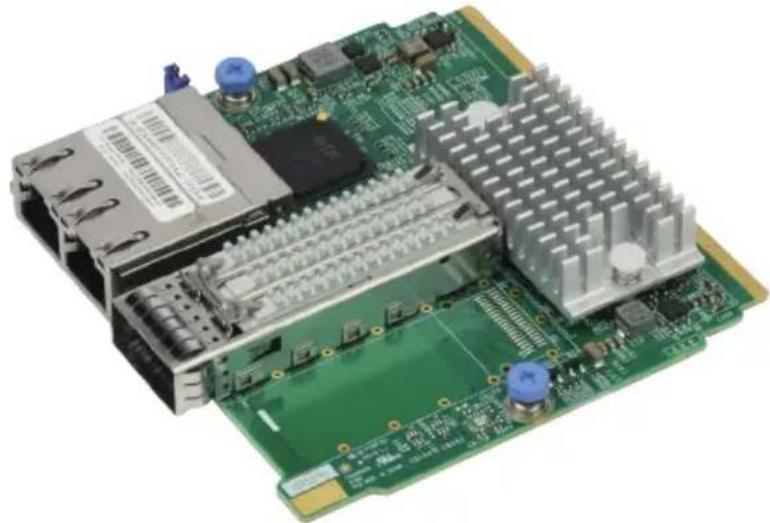
The AOC-MHIBF-m1Q2G Layout (Top View)
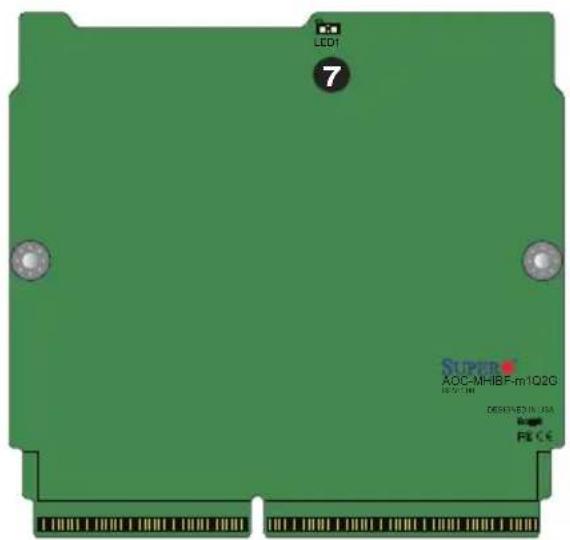
The AOC-MHIBF-m1Q2G Layout (Bottom View)
| 1. Intel® i350 5. QSFP1: QSFP Port1 | |
| 2. Mellanox® ConnectX-3 Pro 6. JPL | 1: RJ45 LAN Ports Enable/Disable |
| 3. LAN1: RJ45 Port1 7. LED1: QSFP | Link LED |
| 4. LAN2: RJ45 Port2 |
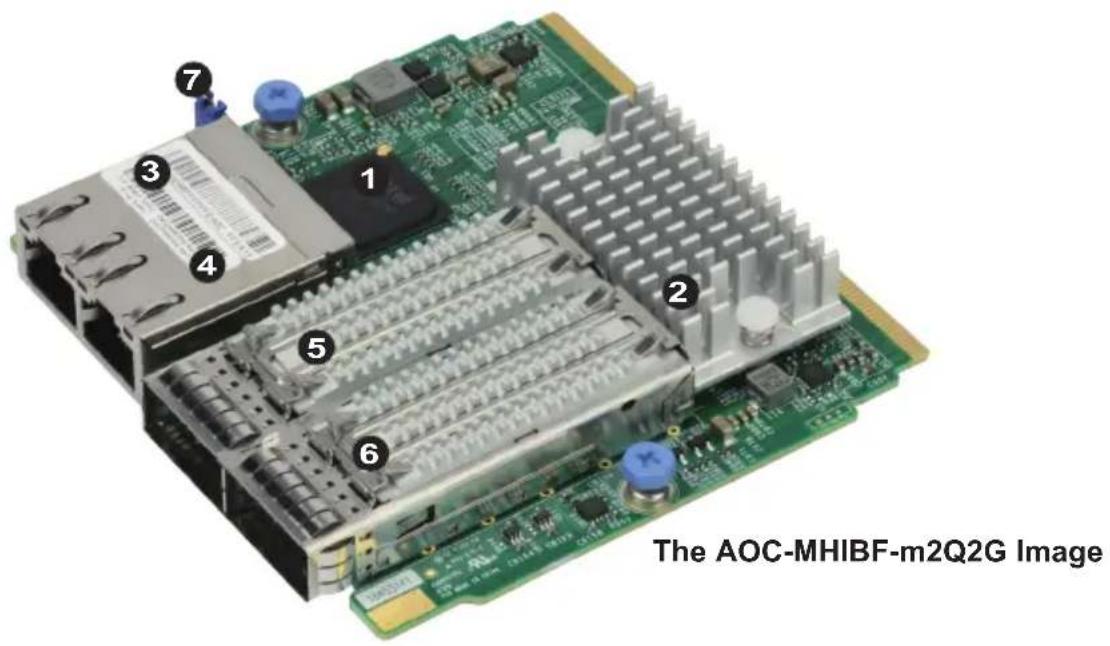

The AOC-MHIBF-m2Q2G Layout (Top View)
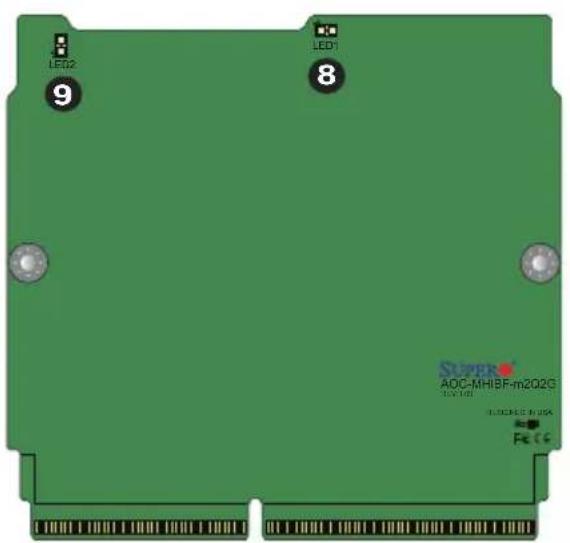
The AOC-MHIBF-m2Q2G Layout (Bottom View)
| 1. Intel® i350 6. QSFP2: QSFP Port2 | |
| 2. Mellanox® ConnectX-3 Pro 7. JPL | 1: RJ45 LAN Ports Enable/Disable |
| 3. LAN1: RJ45 Port1 8. LED1: QSFP | Port1 Link LED |
| 4. LAN2: RJ45 Port2 9. LED2: QSFP | Port2 Link LED |
| 5. QSFP1: QSFP Port1 |
2-2 Major Components
The following major components are installed on the AOC-MHIBF-m1Q2G:
- Intel® i350
- Mellanox® ConnectX-3 Pro
- Dual RJ45 LAN Ports
- Single QSFP (Small Form Factor Pluggable) Port
- JPL1: RJ45 LAN Ports Enable/Disable
- LED1: QSFP Link LED
The following major components are installed on the AOC-MHIBF-m2Q2G:
- Intel® i350
- Mellanox® ConnectX-3 Pro
- Dual RJ45 LAN Ports
- Dual QSFP (Small Form Factor Pluggable) Ports
- JPL1: RJ45 LAN Ports Enable/Disable
- LED1/LED2: QSFP Link LEDs
2-3 QSFP Ethernet Connections and LED indicators
QSFP Ports
A single QSFP port is located on the AOC-MHIBF-m1Q2G add-on card. Two QSFP ports are located on the AOC-MHIBF-m2Q2G add-on card. Connect a QSFP cable to the port to provide Infiniband (56Gb/s) and Ethernet (40Gbp/s) communication. See the layout below for the locations.
Note: Please refer to "Optional Accessories" on page 1-8 for recommended cables.
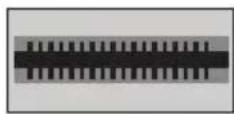
QSFP Port
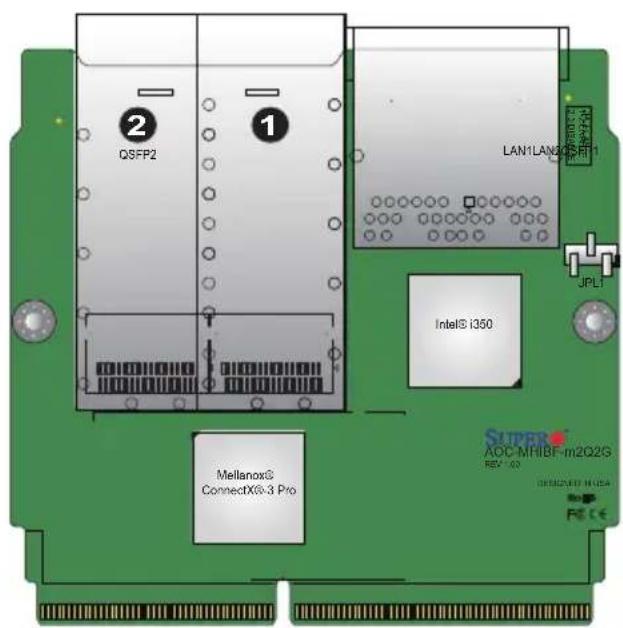
- QSFP Connector
- QSFP Connector (AOC-MHIBF-m2Q2G only)
QSFP PCB LEDs
On back of the add-on card, there are two LEDs on the AOC-MHIBF-m2Q2G, one LED on the AOC-MHIBF-m1Q2G. A solid green LED indicates the link-up connection. See the table and layout below for more information and locations.
| QSFP PCB LEDs | |
| Color/Status Definition | |
| Off No Connection | |
| Green Physical Link-up |

The AOC-MHIBF-m2Q2G Layout (Bottom View)
-
LED1: QSFP Link LED
-
LED2: QSFP Link LED (AOC-MHIBF-m2Q2G only)
2-4 RJ45 LAN Ports and LAN LED indicators
There are two RJ45 LAN ports (LAN1/LAN2) on the AOC-MHIBF-m2Q2G/m1Q2G. These LAN ports support connection speeds of 1Gbps. Use a direct-attach RJ45 type LAN cable. See the layout below for the locations.
RJ45 LAN Port LED Indicators
Each LAN port has two LEDs to indicate speed and data activity. Refer to the table below for LED color and definition.
Activity LED
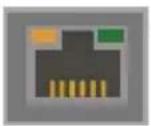
Link LED
| RJ45 LAN Port Activity LED (Left)LED State | ||
| LED Color | Status | Definition |
| Off Off No C | connection | |
| Amber Solid | Link | |
| Amber Flashing Active | ||
| RJ45 LAN Port Link LED (Right)LED State | |
| LED Color | Definition |
| Green 100 Mbps | |
| Amber 1 Gbps | |
| Off 10 Mbps | |

- RJ45 LAN Ports
2-5 RJ45 LAN Ports Enable/Disable
Use jumper JPL1 to enable or disable LAN ports 1 and 2. See the table and layout below for jumper settings and locations. The default setting is Enabled.
| LAN Port Enable/Disable Jumper Settings | |
| Jumper setting | Definition |
| Pins 1-2 Enabled | |
| Pins 2-3 Disabled | |

- JPL1
Notes
Chapter 3
Installation
3-1 Static-Sensitive Devices
Electrostatic Discharge (ESD) can damage electronic components. To avoid damaging your add-on card, it is important to handle it very carefully. The following measures are generally sufficient to protect your equipment from ESD.
Precautions
- Use a grounded wrist strap designed to prevent static discharge.
- Touch a grounded metal object before removing the add-on card from the antistatic bag.
- Handle the add-on card by its edges only; do not touch its components.
- Put the add-on card back into the antistatic bags when not in use.
- For grounding purposes, make sure that your system chassis provides excellent conductivity between the power supply, the case, the mounting fasteners and the add-on card.
Unpacking
The add-on card is shipped in antistatic packaging to avoid static damage. When unpacking your component or system, make sure you are static protected.

Note: To avoid damaging your components and to ensure proper installation, always connect the power cord last, and always unplug it before adding, removing or changing any hardware components.
3-2 Before Installation
Before you install the add-on card, follow the instructions below.
- Power down the system.
- Unplug the power cord.
- Use industry-standard anti-static equipment such as gloves or a wrist strap and follow the precautions on page 3-1 to avoid damage caused by ESD.
- Familiarize yourself with the server, motherboard, and/or chassis documentation.
- Confirm that your operating system includes the latest updates and hotfixes.
3-3 Installing the Add-on Card
Follow the steps below to install the add-on card into your system.
- Remove the server cover and, if any, set aside any screws for later use.
- Remove the add-on card slot cover. If the slot cover has a screw, place it aside for later use.
- Position the add-on card in front of the SIOM slot and gently push in both sides of the card until it slides into the slot.


Note: This add-on card does not support hot plug. Please turn off the AC power and remove the power cord from the wall socket before you install or remove the add-on card.
- Secure the add-on card to the chassis. If required, use the screw that you previously removed.
- Attach any necessary external cables to the add-on card.
- Replace the system cover.
- Plug in the power cord and power up the system.
Follow this step to install the add-on card if your system does not support a swappable bracket. Insert the SIOM card in the motherboard and then install the motherboard in the chassis. An internal bracket comes with the SIOM card 1U chassis SKU. It needs to be installed onto the chassis.


Note: It is recommended that the SIOM card installation above be completed by a system integrator or the manufacturer.
Follow the steps below to install the add-on card into your system that supports a swappable bracket. The add-on card must be installed in the swappable bracket before it can be installed in the your system

-
Install the add-on card into the swappable bracket.
-
Position the add-on card in front of the SIOM slot and gently push in both sides of the card until it slides into the slot.
-
Once the card is in the slot, push both knobs in and turn to the right to lock the card in the system. The left knob has the unlock/lock symbols next to it. To ensure that the add-on is locked, make sure that the knob position indicator is pointing to the lock symbol.
3-4 Installing Drivers on Windows (for Intel® i350)
Follow the steps below to install the drivers for Windows. Download the drivers from Intel® support website or from Supermicro CDR-NIC LAN driver CD or FTP site at ftp://ftp.supermicro.com/Networking_Drivers/.
- Run CDR-NIC.
- When the SUPERMICRO window appears, click on the computer icon next to the product model.
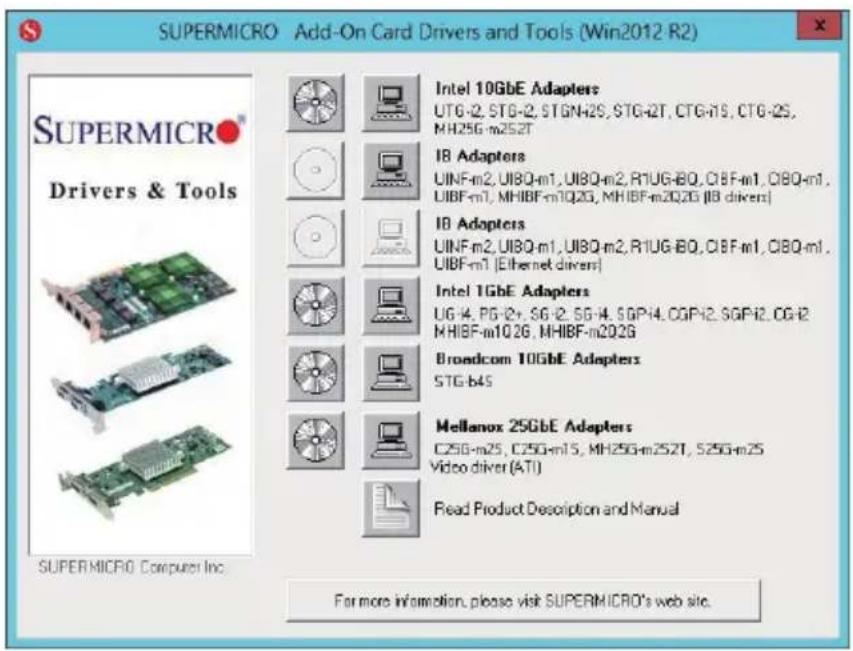

Note: If the FOUND NEW HARDWARE WIZARD screen displays on your system, click CANCEL.
- Click on INSTALL DRIVERS AND SOFTWARE.
- Follow the prompts to complete the installation.
3-5 Installing Drivers on Linux (for Intel® i350)
Follow the steps below to install the drivers for Linux or refer to Intel® support website for more driver installation information.
Build a Binary RPM Package
-
Run 'rpmbuild -tb
' -
Replace
with the specific filename of the driver.

Note: For the build to work properly, the current running kernel MUST match the version and configuration of the installed kernel sources. If you have just recompiled the kernel, reboot the system at this time.
Follow the instructions below to build the driver manually.
- Move the base driver tar file to the directory of your choice. For example:
/home/username/ixgbe
or
/usr/local/src/ixgbe
- Untar/unzip archive, where
is the version number for the driver tar file:
tar zxf ixgbe-x.x.x.tar.gz
- Change to the driver src directory, where
is the version number for the driver tar:
cd ixgbe-x.x.x/src/
- Compile the driver module:
make install
The binary will be installed as:
/lib/modules/[KERNEL_VERSION]/kernel/drivers/net/ethernet/intel/ixgbe/ixgbe.[k]o
The install locations listed above are the default locations. They may not be correct for certain Linux distributions. For more information, see the Idistrib.txt file included in the driver tar.

Note: IXGBE_NO_LRO is a compile time flag. The user can enable it at compile time to remove support for LRO from the driver. The flag is used by adding CFLAGS_EXTRA=-"DIXGBE_NO_LRO" to the make file when it's being compiled.
make CFLAGS_EXTRA=" -DIXGBE_NO_LRO" install
5. Load the module:
For kernel 2.6.x, use the modprobe command:
modprobe ixgbe <parameter>=<value>
For 2.6 kernels, the insmod command can be used if the full path to the driver module is specified. For example:
insmod/lib/modules/[KERNEL_VERSION]/kernel/drivers/net/ethernet/intel/ixgbe/ixgbe.ko
In addition, when using 2.6-based kernels, make sure that older ixgbe drivers are removed from the kernel before loading the new module. To do this, use:
rmmod ixgbe; modprobe ixgbe
Note: For more driver installation information, please refer to Intel® support website.
- Assign an IP address to the interface by entering the following, where x is the interface number:
ifconfig ethx <IP_address> netmask <netmask>
- Verify that the interface works. Enter the following, where
is the IP address for another machine on the same subnet as the interface that is being tested:
ping <IP_address>
3-6 Installing Drivers on FreeBSD (for Intel® i350)
Follow the instructions below to install the drivers for FreeBSD kernel 4.8 or later or refer to Intel® support website for more driver installation information. In the instructions below, x.x.x is the driver version as indicated in the name of the drive tar file.
Note: You must have kernel sources installed in order to compile the driver module.
-
Move the base driver tar file to the directory of your choice. For example, use /home/username/ixgb or /usr/local/src/ixgb.
-
Untar/unzip the archive:
tar xfz ixgb-x.x.x directory
- To install man page:
cd ixgb-x.x.x
gzip -c ixgb.4 > /usr/share/man/man4/ixgb.4.gz
- To load the driver onto a running system, perform the following steps:
cd ixgb-x.x.x
make
or
cd ixgb-x.x.x/src
make load
- To assign an IP address to the interface, enter the following:
ifconfig ixgb<interface_num> <IP_address>
- Verify that the interface works. Enter the following, where
is the IP address for another machine on the same subnet as the interface that is being tested:
ping <IP_address>
- If you want the driver to load automatically when the system is booted:
cd ixgb-x.x.x/src
make load
cp if_ixgb.ko /modules
Edit /boot/loader.conf, and add the following line:
if_ixgb_load="YES"
or
compile the driver into the kernel (see item 8). Edit /etc/rc.conf, and create the appropriate ifconfig_ixgb
ifconfig_ixgb<interface_num>="<ifconfig_settings>"
Example usage:
ifconfig_ixgb0="inet 192.168.10.1 netmask 255.255.255.0"
- If you want to compile the driver into the kernel, enter:
cd ixgb-x.x.x/src
mkdir /usr/src/sys/dev/ixgb
cp if_ixgb* /usr/src/sys/dev/ixgb
cp ixgb* /usr/src/sys/dev/ixgb
cp Makefile.kernel /usr/src/sys/modules/ixgb/Makefile
Edit the /usr/src/sys/conf/files.i386 file, and add the following line:
dev/ixgb/ixgb_hw.c optional ixgb
dev/ixgb/ixgb_ee.c optional ixgb
dev/ixgb/if_ixgb.c optional ixgb
Remove the following lines from the /usr/src/sys/conf/files.i386 file, if they exist:
/dev/ixgb/if_ixgb_fx_hw.c optional ixgb
/dev/ixgb/if_ixgb_phy.c optional ixgb
Edit the kernel configuration file (i.e., GENERIC or MYKERNEL) in /usr/src/sys/i386/conf, and ensure the following line is present:
device ixgb
Compile and install the kernel. Reboot the system for the kernel updates to take affect.
3-7 Installing Drivers (for Mellanox® ConnectX®-3 Pro)
Use the procedures below to install drivers for Linux.
Linux Drivers
Use the following procedures to install drivers on the Linux operating system or refer to Mellanox® support website for more driver installation information.
Installing InfiniBand Drivers for the Linux Operating System
- Download the drivers from Mellanox® support website or from Supermicro CDR-NIC LAN driver CD or FTP site, go to the following directory: Mellanox > InfiniBand > Linux.
- Choose the InfiniBand Linux driver package file.
- Install the driver by entering the following commands:
tar xzvf MLNX_OFED-<ver>.tgz
cd OFED-<ver>
./mlnoxfedinstall --without-fw-update
This installs the Linux drivers to your system. For more driver installation information, please refer to Mellanox® support website.
Windows Drivers
Use the following procedures to install drivers on the Windows operating system or refer to Mellanox® support website for more driver installation information.
Installing InfiniBand Drivers for the Windows Operating System
- Download the drivers from Mellanox® support website or from Supermicro CDR-NIC LAN driver CD or FTP site, go to the following directory: Mellanox > InfiniBand > Windows.
- Choose the desired InfiniBand Windows driver package file.
- Double-click to run and install the driver package file.
Firmware Update Procedures
Use the following procedures for updating the AOC-MHIBF-m2Q2G/m1Q2G add-on card firmware for both the Linux and Windows operating systems.
Updating Firmware for the Linux Operating System
- From the CDR-NIC LAN driver CD or FTP site, go to the following directory: Mellanox > Firmware_Tool > Linux.
- Choose the MFT Linux package file and untar the package file.
- Install the package by entering the following command:
cd mft-<ver>
./install.sh
- Install the firmware by the following commands:
mst start
mst status *write down the pci_cr0 device name*
flint -d <pci_cr0 device name> -i <firmware file name>
.bin burn
Updating Firmware for the Windows Operating System
- From the CDR-NIC LAN driver CD or FTP site, go to the following directory: Mellanox > Firmware_Tool > Windows
- Choose the desired MFT Windows package file.
- Double-click to run and install the MFT package file.
- Open the DOS command prompt and locate the MFT folder.
- Install the firmware by entering the following commands:
mst start
mst status *write down the pci_cr0 device name*
flint -d <pci_cr0 device name> -i <firmware file name>
.bin burn
(Disclaimer Continued)
The products sold by Supermicro are not intended for and will not be used in life support systems, medical equipment, nuclear facilities or systems, aircraft, aircraft devices, aircraft/emergency communication devices or other critical systems whose failure to perform be reasonably expected to result in significant injury or loss of life or catastrophic property damage. Accordingly, Supermicro disclaims any and all liability, and should buyer use or sell such products for use in such ultra-hazardous applications, it does so entirely at its own risk. Furthermore, buyer agrees to fully indemnify, defend and hold Supermicro harmless for and against any and all claims, demands, actions, litigation, and proceedings of any kind arising out of or related to such ultra-hazardous use or sale.


- AOC-MHIBF-M1Q2G
- PREFACE
- ABOUT THIS USER'S GUIDE
- ABOUT THIS ADD-ON CARD
- AN IMPORTANT NOTE TO THE USER
- RETURNING MERCHANDISE FOR SERVICE
- CONVENTIONS USED IN THE USER'S GUIDE
- NAMING CONVENTION
- SMC NETWORKING ADD-ON CARDS
- CONTACTING SUPERMICRO
- HEADQUARTERS
- EUROPE
- ASIA-PACIFIC
- TABLE OF CONTENTS
- CHAPTER 1 OVERVIEW
- CHAPTER 2 HARDWARE COMPONENTS
- CHAPTER 3 INSTALLATION
- NOTES
- CHAPTER 1
- OVERVIEW
- KEY FEATURES
- SPECIFICATIONS
- GENERAL
- CABLES SUPPORT
- POWER CONSUMPTION
- OPERATING CONDITION
- PHYSICAL DIMENSIONS
- SUPPORTED PLATFORMS
- INFINIBAND FDR QSFP SPECIFICATIONS
- CONNECTIVITY
- INFINIBAND
- ENHANCED INFINIBAND
- ETHERNET
- HARDWARE-BASED I/O VIRTUALIZATION
- OVERLAY NETWORKS
- ADDITIONAL CPU OFFLOADS
- FLEXBOOT™ TECHNOLOTY
- PROTOCOL SUPPORT
- OPERATING SYSTEM SUPPORT
- GBE RJ45 SPECIFICATIONS
- ETHERNET AND VIRTUALIZATION FEATURES
- PERFORMANCE AND EFFICIENCY FEATURES
- MANAGEMENT FEATURES
- AVAILABLE SKUS
- SIMILAR PRODUCTS
- CHAPTER 2
- HARDWARE COMPONENTS
- MAJOR COMPONENTS
- QSFP ETHERNET CONNECTIONS AND LED INDICATORS
- QSFP PORTS
- QSFP PCB LEDS
- RJ45 LAN PORTS AND LAN LED INDICATORS
- RJ45 LAN PORT LED INDICATORS
- RJ45 LAN PORTS ENABLE/DISABLE
- CHAPTER 3
- INSTALLATION
- STATIC-SENSITIVE DEVICES
- PRECAUTIONS
- UNPACKING
- BEFORE INSTALLATION
- INSTALLING THE ADD-ON CARD
- INSTALLING DRIVERS ON WINDOWS (FOR INTEL® I350)
- INSTALLING DRIVERS ON LINUX (FOR INTEL® I350)
- BUILD A BINARY RPM PACKAGE
- LOAD THE MODULE
- INSTALLING DRIVERS ON FREEBSD (FOR INTEL® I350)
- INSTALLING DRIVERS (FOR MELLANOX® CONNECTX®-3 PRO)
- LINUX DRIVERS
- INSTALLING INFINIBAND DRIVERS FOR THE LINUX OPERATING SYSTEM
- WINDOWS DRIVERS
- INSTALLING INFINIBAND DRIVERS FOR THE WINDOWS OPERATING SYSTEM
- FIRMWARE UPDATE PROCEDURES
- UPDATING FIRMWARE FOR THE LINUX OPERATING SYSTEM
- UPDATING FIRMWARE FOR THE WINDOWS OPERATING SYSTEM
- (DISCLAIMER CONTINUED)
Brand : Supermicro
Model : AOC-MHIBF-M1Q2GM
Category : Network Card/Adapter