Wave AF36 - Earphones MEE audio - Free user manual and instructions
Find the device manual for free Wave AF36 MEE audio in PDF.


| Brand | MEE audio |
| Model | Wave AF36 |
| Product Type | Bluetooth Wireless Stereo Headphones with Headset Functionality |
| Connectivity | Bluetooth (wireless), 3.5mm wired |
| Charging Time | Approximately 2 hours |
| Battery Indicator | Red LED when charging; solid red when low; voice prompt "battery low" every 60 seconds |
| Microphone | Built-in microphone for phone calls |
| Controls | Multifunction button, Volume Up/Down, Previous/Next Track |
| Multipoint | Supports simultaneous connection to two Bluetooth devices |
| Wired Mode | Can be used as wired headphones via included stereo audio cable |
| Package Contents | Wave headphones, Micro-USB charging cable, Carrying pouch, Stereo audio cable, User manual |
| Warranty | 1-year manufacturer warranty |
| Care Instructions | Clean with soft cloth dampened with diluted soap water; do not use chemical cleaners; avoid liquid exposure |
| Safety Warnings | Do not use at high volumes for extended periods; do not use while driving or operating machinery |
| Spare Parts and Repairability | No user replaceable parts; accessories available at www.MEEaudio.com |
| Voice Prompts | Power on/off, pairing, battery low status |
| Auto-Connect | Automatically connects to last paired device when turned on |
Frequently Asked Questions - Wave AF36 MEE audio
User questions about Wave AF36 MEE audio
0 question about this device. Answer the ones you know or ask your own.
Ask a new question about this device
Download the instructions for your Earphones in PDF format for free! Find your manual Wave AF36 - MEE audio and take your electronic device back in hand. On this page are published all the documents necessary for the use of your device. Wave AF36 by MEE audio.
USER MANUAL Wave AF36 MEE audio
Bluetooth® Wireless Stereo Headphones with Headset Functionality
Model: AF36
PACKAGE CONTENTS
Wave
Bluetooth® Wireless Stereo Headphones with Headset Functionality
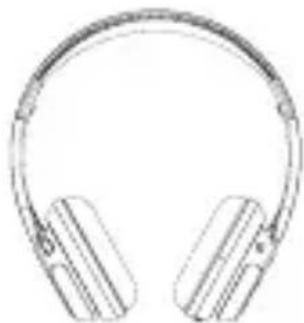
natural_image
Line drawing of a pair of outdoor headphones (no text or symbols)Wave Stereo Bluetooth Wireless Headphones

natural_image
Two USB connectors shown side by side, no text or symbols visibleMicro-USB charging cable
natural_image
Silhouette of a black bell with a white logo and 'Alcove' text, tied with a rope (no additional text or symbols)Carrying pouch
Stereo audio cable for wired use

User manual
PRODUCT OVERVIEW

Bluetooth® Wireless Stereo Headphones with Headset Functionality
Left Earcup Right Earcup

A Status indicator light
B Play/pause/multifunction button
C Volume up button (+)
D Previous track button (◀)
E Volume down button (−)
F Audio jack for wired use
G Charging connector
H Next track button (→)
I Built-in microphone
CHARGING
*** You must completely charge the headset before the first use ***
Connect the Micro-USB charging cable to any powered USB port and to the charging jack of the Wave, which is located underneath a cover on the left earcup. Make sure it is plugged in fully. Charge time is approximately 2 hours. The red charging indicator light will stay lit while the headphones are charging and turn off when they are ready for use.
When the battery is low, the status indicator light will be solid red and the headset will say "battery low" every 60 seconds.
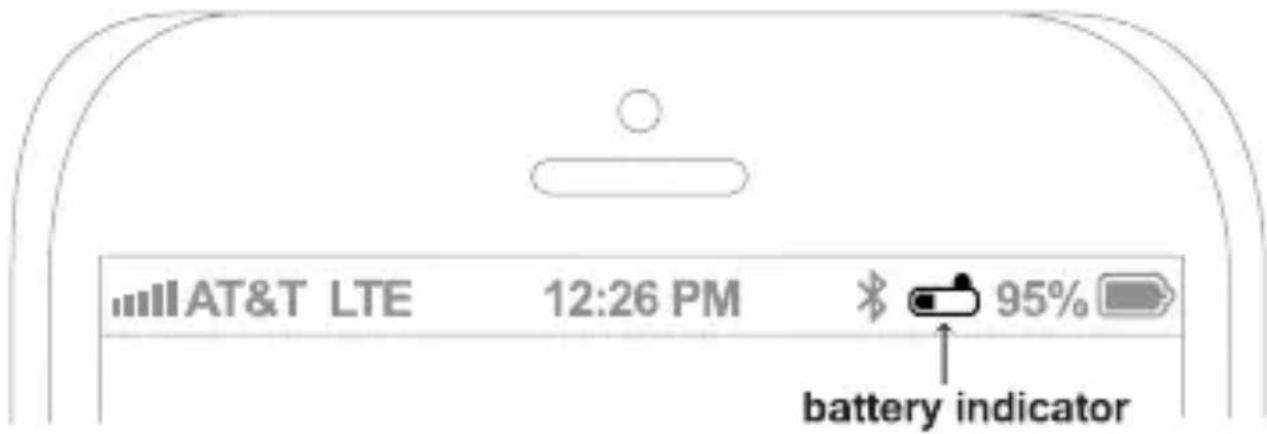
Apple® devices such as the iPhone®, iPad®, and iPod touch® will display an on-screen headset battery indicator while the Wave is connected.
TURNING ON AND OFF
To turn on, press and hold the Multifunction button for about 2 seconds. The headphone will say "power on" and the status indicator light will flash blue.
To turn off, press and hold the Multifunction button for about 4 seconds. The headphone will say "power off" and the status indicator light will flash red.
PAIRING WITH BLUETOOTH DEVICES
*** Your headset must be paired to a Bluetooth device before it can be used. It is only necessary to pair your headset once with each device ***
- Make sure the Wave is turned off and within 3 feet (1 meter) of your device. Press and hold the Multifunction button for about 5 seconds until you hear the headphone say "Pairing". The status indicator light will flash red and blue in an alternating pattern while the Wave is in pairing mode. (Note: The Wave will enter standby mode if not paired within 2 minutes)
- Open the Bluetooth menu on the device you wish to pair (see Locating the Bluetooth menu section below for more details). Some devices require you to select "search for devices" or "add new device" in order to create a Bluetooth pairing.
- Wait until you see "Air-Fi Wave" on your device screen.
- Select "Air-Fi Wave" on your device and follow any further prompts to pair. Use "0000" if a pin is required. Once connected, the status indicator light will be solid blue.
LOCATING THE BLUETOOTH MENU:
iPhone, iPad, and iPod touch
a) On your device, open the Settings menu.
b) Select Bluetooth. If Bluetooth is not on, turn it on.
The iPhone/iPad/iPod will automatically search for new devices.
Android™ Phones and Tablets
a) On your device, open the Settings menu.
b) Select Bluetooth (on older Android devices Bluetooth is found in the Wireless & Networks menu). If Bluetooth is not on, turn it on. Select "Search for Devices" if your phone or tablet does not automatically search for new devices.
Windows® Phone 8 devices
a) On your device, open the Settings menu.
b) Select Bluetooth. If Bluetooth is not on, turn it on.
The Windows phone will automatically search for new devices.
Computers, Laptops, and Other Devices
Visit www.meelec.com/bluetooth for pairing, connecting, and setup information.
If pairing fails after several tries, please refer to your device's user manual for further information. Visit www.meelec.com/bluetooth for pairing videos, troubleshooting, and additional information.
CONNECTING TO PAIRED DEVICES
Once the Wave is turned on, it will automatically connect with the last paired Bluetooth device that is on and within range. If the Wave is not connected automatically, tap the Multifunction button once to initiate connection with last paired device. If the headset still does not connect, open the Bluetooth menu on your device and select "Air-Fi Wave" from the Bluetooth device list.
Note: On some computers, the Bluetooth connection must be established manually every time.
CONTROLS
The Wave can control media and phone calls from a smartphone or tablet.
Adjusting Volume
| Function Operation Notes | ||
| Increase volume Short press the Volume up ( ) button | Headset will produce a tone when volume reaches the minimum or maximum level. | |
| Decrease volume Short press the Volume down ( ) button | ||
Note: volume adjustments made while playing media will change the volume of the headset independently of the connected device. Raise or lower device volume as needed to further increase or decrease the overall volume. Some newer devices use AVRCP 1.4 Bluetooth Profile, which will allow the Wave to control the device volume directly at all times.
Controlling Phone Calls
| Status Function Operation | ||
| Incoming call | Answer call Press the | Multifunction button |
| Reject call | Press and hold the Multifunction button for 2 seconds | |
| Call in progress | End call Press the | Multifunction button |
| Transfer call to headset | Press and hold the Multifunction button for 2 seconds | |
continue to next page
CONTROLS (Continued)
Controlling Phone Calls (Continued)
| Status Function Operation | ||
| Call in progress, phone handset active* | Transfer call to headset | Press and hold the Multifunction button for 2 seconds |
| End call Press the | Multifunction button | |
| Call in progress, second incoming call | Hang up current call and answer new call | Press the Multifunction button |
* If you answer a call from your phone when a headset is connected, most phones will activate the phone handset, not the headset. Press and hold the Multifunction button for 2 seconds to transfer the call to the headset
Controlling Media Playback
| Status Function Operation | ||
| No media playing* (standby mode) | Play media Press the | Multifunction button |
| Media playing Pause | media playback Press the | Multifunction button |
| Media playing or paused | Skip to next track** Press the Next track() button | |
| Restart the track/ previous track** | Press the Previous track( ) button | |
*You may need to focus on the media player application by bringing it up on the screen for initial playback to start.
** Not all media players support this functionality.
Note: If you answer or make a call while listening to media, the media will be paused until the call has ended.
Additional Functionality
| Status Function Operation | ||
| Media playing or standby mode | Redial last call* Double press the | Multifunction button |
* Not all devices support this functionality. For more information, refer to the user manual for your device.
MULTIPOINT
Multipoint allows two Bluetooth devices to be connected to the Wave simultaneously. Both devices will need to be paired before multipoint can be used.
Multipoint Pairing
To use two Bluetooth devices with the Wave, first pair them by following the pairing procedure described in the Pairing with Bluetooth devices section for each device and then turn off the headset.
When turned on again, the Wave will automatically attempt to connect to the 2 most recently-paired devices, as long as they have Bluetooth enabled and are within range. If a device that has already been paired does not connect automatically, select “Air-Fi Wave” from the Bluetooth menu of the device.
If you no longer wish to connect to multiple devices, disable Bluetooth on the device you do not want connected to the Wave or remove the "Air-Fi Wave" pairing from the Bluetooth menu of the device.
Multipoint Functionality
| Status Function Operation | ||
| Media playing on one device | Play media on other device | Pause audio playback on the active device and start audio playback on the other connected device* |
*It may take up to 10 seconds for audio to switch
Incoming calls will always take precedence over media. If media is playing on one device and an incoming call is received on the other device, the Wave will pause the media on the active device and activate the device with the incoming call. Once the call is ended, the Wave will reactivate the original device and resume playback (with most media applications).
For phone call controls, see the Controlling Phone Calls section.
USING AS A WIRED HEADPHONE
The Wave can be used as a wired headphone by plugging one end of the included stereo audio cable into the jack on the left earcup and the other end into any audio device with a standard 3.5mm headphone jack. This allows use when the battery is depleted and with devices that do not have Bluetooth (such in-flight entertainment systems) or aren't paired.
The Wave can be used wired while also connected via Bluetooth to another device; Bluetooth audio takes precedence over wired audio. Wired audio will be partially muted whenever a signal is transmitted via Bluetooth and will resume approximately 4 seconds after the Bluetooth transmission ends.
Note: The built-in microphone of the Wave will not work in wired mode.
SAFETY AND CARE
a) When not in use, power the headphones off and store in the included protective carrying pouch.
b) Clean with a soft cloth, damp with diluted soap water solution if necessary. Do not use chemical cleaners.
c) There are no user replaceable/reparable parts in the headphones. Disassembling the device will void your warranty.
d) Do not expose the headphones to liquids. If the device comes in contact with liquids, quickly wipe away. If submersed in water, do not turn the device on until completely dried. Note: liquid submersion voids the warranty.
e) Do not use around flammable gasses as fire or explosion may occur
f) Battery performance will be severely decreased when stored in extreme temperatures: below -10^/14^ or above 45^/113^ including direct sunlight.
g) Replacement parts and accessories are available online at www.MEEaudio.com
WARNING
Using headphones at high volumes for extended periods of time will result in permanent hearing damage. It is advised you keep volume levels medium to low at all times for your safety. Do not use while driving a car, cycling, operating machinery, or performing other activities that require hearing surrounding sounds.
It is advised to turn the volume on your device all the way down before connecting your headphones, then gradually increase the volume until you reach a comfortable listening level.
SPECIFICATIONS
See the Wave product page at www.MEEaudio.com for product specifications.
TROUBLESHOOTING
Visit www.meelec.com/bluetooth for additional Bluetooth information and troubleshooting.
WARRANTY:
The Wave is covered by a 1-year manufacturer warranty. For more information, visit www.meelec.com/warranty.
Wave
MEE audio
MEE audio and its logo are registered trademarks of S2E, Inc. All rights reserved.
iPhone®, iPad®, iPod touch®, and Siri® are registered trademarks of Apple Inc.
Android ^™ is a registered trademark of Google Inc.
Windows® Phone is a registered trademark of Microsoft Corporation in the United States and other countries.
The Bluetooth® word mark and logos are registered trademarks owned by Bluetooth SIG, Inc.
and any use of such marks by MEE audio is under license. Other trademarks and trade names are those of their respective owners.



- Bluetooth® Wireless Stereo Headphones with Headset Functionality
- PACKAGE CONTENTS
- Wave
- PRODUCT OVERVIEW
- CHARGING
- TURNING ON AND OFF
- PAIRING WITH BLUETOOTH DEVICES
- LOCATING THE BLUETOOTH MENU:
- iPhone, iPad, and iPod touch
- Android™ Phones and Tablets
- Windows® Phone 8 devices
- Computers, Laptops, and Other Devices
- CONNECTING TO PAIRED DEVICES
- CONTROLS
- CONTROLS (Continued)
- MULTIPOINT
- Multipoint Pairing
- USING AS A WIRED HEADPHONE
- SAFETY AND CARE
- WARNING
- SPECIFICATIONS
- TROUBLESHOOTING
- WARRANTY:
Brand : MEE audio
Model : Wave AF36
Category : Earphones