
YP-T10JAG - Mp3 player SAMSUNG - Free user manual and instructions
Find the device manual for free YP-T10JAG SAMSUNG in PDF.


User questions about YP-T10JAG SAMSUNG
0 question about this device. Answer the ones you know or ask your own.
Ask a new question about this device
Download the instructions for your Mp3 player in PDF format for free! Find your manual YP-T10JAG - SAMSUNG and take your electronic device back in hand. On this page are published all the documents necessary for the use of your device. YP-T10JAG by SAMSUNG.
USER MANUAL YP-T10JAG SAMSUNG
MP3 Player user manual
imagine the possibilities
Thank you for purchasing this Samsung product.
To receive a more complete service, please register your product at
www.samsung.com/global/register

features of your new MP3 Player
Good looking. Smart. Reliable. And lots of fun. Your new MP3 player is all this and more. Its compact silhouette takes up the tiniest space in your pocket, and its state-of-the-art technology delivers rich sound, vibrant pictures. You'll love your new MP3 player, whether you're exercising, downloading your favorite tunes, watching videos or even listening to FM Radio.
Use it once, and you'll wonder how you ever lived without it.
PUTTING THE "MULTI" IN MULTIMEDIA
We call it an MP3 player, but it's much more than that. It allows you to view pictures, text, and videos and listen to FM radio.
The built-in Bluetooth wireless technology turns your MP3 player into your own personal network.
TOUCH NAVIGATION!
You can tap on the touch pad to navigate through the menus.
WHERE FORM MEETS FUNCTION
Sure, it's sleek and good-looking. But it's easy to hold and use, too.
LONGER PLAY TIME AND SHORTER DOWNLOADING!
A fully charged battery can play up to 30 hours of music or 4 hours of video. Download times are shorter. Because of its USB 2.0 capability, the player is much faster than models with USB 1.1.
ACOUSTIC WONDER
Your new MP3 player has built-in DNSe™ (Digital Natural Sound engine), Samsung's unique sound technology created to deliver richer, deeper sound for an unbelievable listening experience.
safety information
What the icons and signs in this user manual mean :
 WARNING WARNING | Means that death or serious personal injury is a risk. |
 CAUTION CAUTION | Means that there is a potential risk for personal injury or material damage. |
 CAUTION CAUTION | To reduce the risk of fi re, explosion, electric shock, or personal injury when using your MP3 Player, follow these basic safety precautions: |
 NOTE NOTE | Means hints or referential pages that may be helpful to operate the player. |
 | Do NOT attempt. |
 | Do NOT disassemble. |
 | Do NOT touch. |
 | Follow directions explicitly. |
 | Unplug the power plug from the wall socket. |
 | Call the service center for help. |
These warning signs are here to prevent injury to you and others.
Please follow them explicitly.
After reading this section, keep it in a safe place for future reference.
safety information
This manual describes how to properly use your new mp3 player. Read it carefully to avoid damaging the player and injuring yourself. Pay particular attention to the following serious warnings:
PROTECT YOURSELF


- Do not disassemble, repair, or modify this product on your own.
- Do not get the product wet or drop it in water. If the product gets wet, do not switch it on because you could get an electric shock. Instead, contact a Samsung Customer Service Center near you.
- Do not use the product when it thunders with lightening. Otherwise, it will cause malfunction or a risk of electric shock.

- Do not use the earphones while you are driving a bicycle, automobile or motorcycle.
It can cause a serious accident, and furthermore, is prohibited by law in some areas.
Using the earphones while walking or jogging on a road, in particular, on a crosswalk can lead to a serious accident.
- For your safety, make sure the earphone cable does not get in the way of your arm or other surrounding objects while you are taking exercise or a walk.
- Do not place the product in damp, dusty, or sooty areas because these environments could lead to fire or electric shock.

PROTECT YOURSELF

- Using earphones or headphones for an extended time may cause serious damage to your hearing.
If you are exposed to sound louder than 85db for an extended time, you may adversely affect your hearing. The louder the sound is, the more seriously damaged your hearing may be (an ordinary conversation is between 50 to 60db and road noise is approximately 80db). You are strongly advised to set the volume level to medium (the medium level is usually less than 2/3 of the maximum).
- If you feel a ringing in the ear(s), lower the volume or stop using the earphones or headphones.
PROTECT YOUR MP3 PLAYER

- Do not leave the player in temperatures above 95°F (35°C), such as a sauna or a parked car.
- Do not cause excessive impact on the player by dropping it.
- Do not place heavy objects on top of the player.
■ Prevent any foreign particles or dust from entering into the product. - Do not place the product near magnetic objects.

- Be sure to backup important data. Samsung is not responsible for data loss.
- Use only accessories provided by or approved by Samsung.

- Do not spray water on the product. Never clean the product with chemical substances such as benzene or thinner, as it may cause fire, electric shock or deteriorate the surface.

- Failure to follow these instructions may lead to physical injuries or damage to the player.

- When printing this user manual, we recommend that you print in color and check "Fit to Page" in the print option for better viewing.
contents
THE BASICS
10
10 What's included
11 Your MP3 Player
14 Screen displays
17 Using the touch button
18 Charging the battery
19 Caring for the battery
19 Turning the power on & off
20 Playing music
20 Controlling the volume
21 Disabling the buttons
21 Browsing for fi les using "File Browser"
22 Deleting files with "File Browser"
23 Changing the settings and preferences
23 Menu style settings
24 Sound settings
25 Display settings
26 Language settings
27 Date&time settings
28 System settings
31 Resetting the system
SAMSUNG MEDIA STUDIO
32
32 PC requirements
33 Installing Samsung Media Studio
34 Transferring files to the player with Samsung Media Studio
contents
LISTENING TO MUSIC
37
37 Listening by category
38 Pausing
38 Searching within a track
38 Playing from the beginning of the current track
38 Playing the previous track
38 Playing the next track
39 Creating a playlist using Samsung Media Studio
39 Creating a Playlist
40 Adding music fi les to a playlist you've created
41 Transferring a playlist to your player using media studio
42 Creating a playlist on your MP3 player
43 Playing a playlist
44 Deleting a fi le from the playlist
44 Deleting all fi les from the playlist
45 Using the music menu
WATCHING A VIDEO
52
52 To pause playing during the playback
53 To move to a specific frame
53 To play the previous video file
53 To play the next video fi le
54 Using the video menu
contents
VIEWING PICTURES
57
57 Viewing pictures
58 Using the picture Menu
LISTENING TO FM RADIO
62
62 To use the mute function
63 To search for FM stations
64 Using the FM radio menu
USING THE DATACAST
71
71 Registering a channel
72 Creating a new channel group
72 Transferring a datacast from
73 Viewing Datacasts
ENJOYING
THE PRIME PACK
74
74 Reading text
75 Using the Text menu
80 Voice Recording
82 Playing video games
84 Viewing the address book
contents
USING BLUETOOTH
85
85 What is Bluetooth?
87 Using a Bluetooth stereo headset
90 Using a Bluetooth mobile phone
96 Transferring fi les to/from a bluetooth device
101 Using the Bluetooth menu
102 Bluetooth settings
TROUBLESHOOTING
104
104 Troubleshooting
APPENDIX
108
108 Menu Tree
109 Product Specifications
111 License
the basics
WHAT'S INCLUDED
Your new mp3 player comes with these accessories. If you're missing any of these items, contact Samsung Customer Service Center.
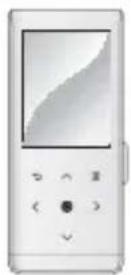
Player
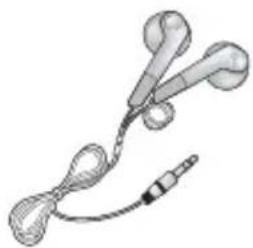
natural_image
Illustration of a medical or electronic device with two earbuds and a cord (no text or symbols)Earphones
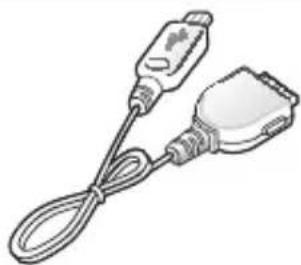
natural_image
Illustration of a cable and plug device (no text or symbols)USB Cable Installation CD
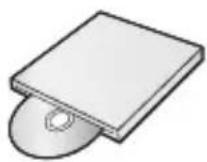
The accessories in your box may look slightly different than these.
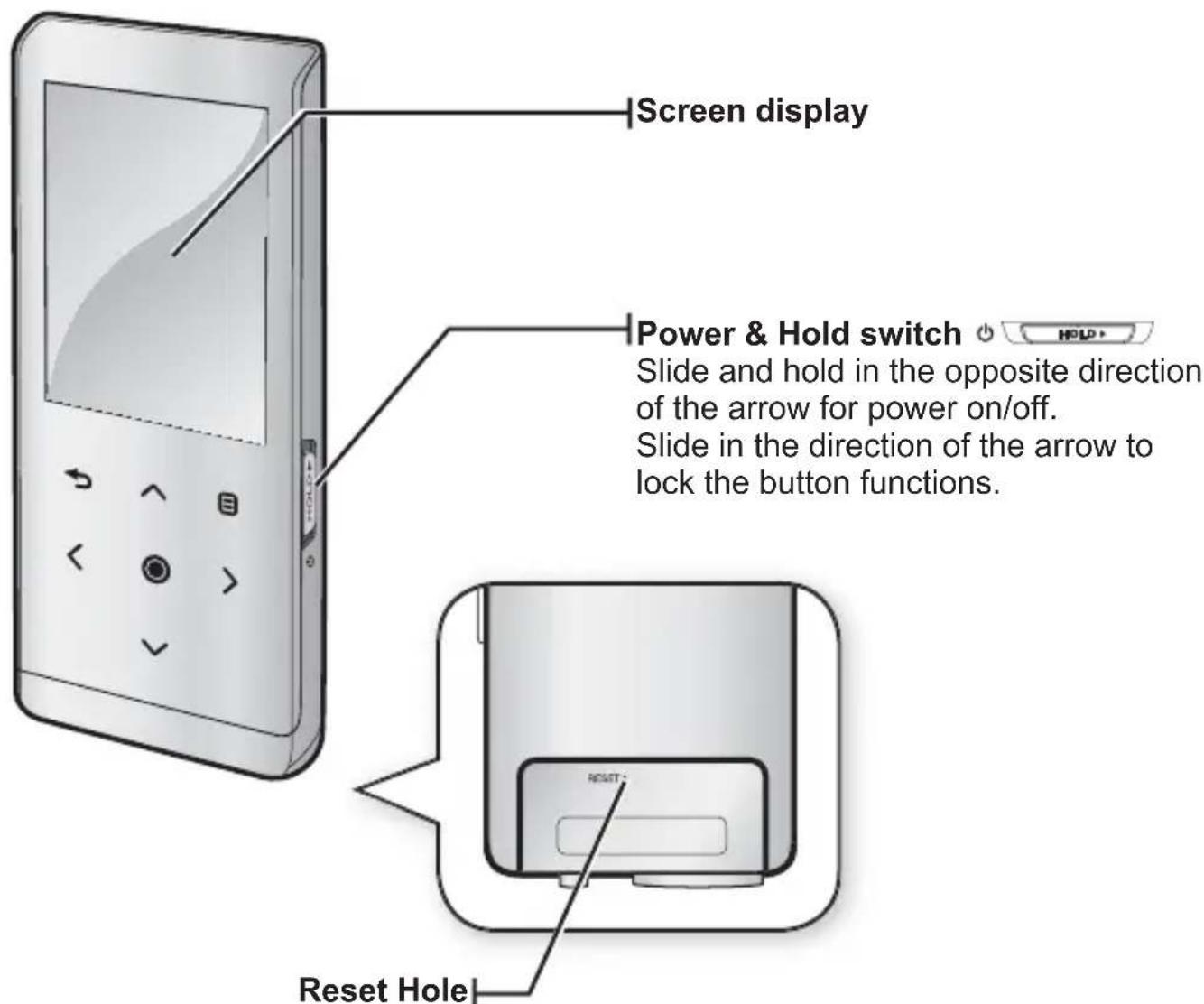
If a player malfunction occurs, press the reset hole with a pointed object to re-initialize the system.
the basics _ 11
YOUR MP3 PLAYER (Continued)
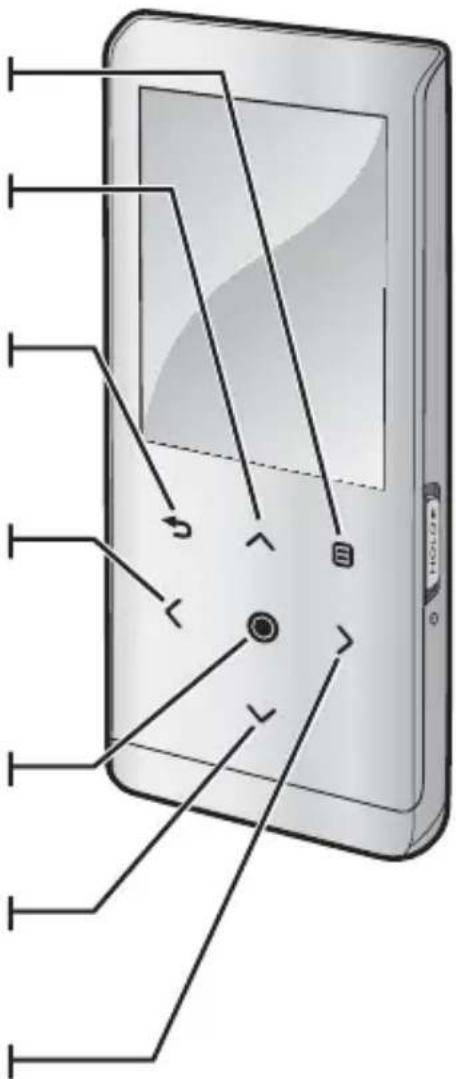
These buttons are 'Touch' buttons.
Menu button
Tap to display the menu screen.
^ Up volume button
Tap to increase the volume or move to an upper item/menu.
Back button
Tap to move to the previous screen. Press and briefy hold to move to the main menu screen.
< Left fi le browser button
Tap to move to the previous track/menu or play the current track from the beginning. Press and briefly hold to quickly scan tracks.
Play/Pause, Select button
Tap to select the play/pause and function, move to the next screen.
▼ Down volume button
Tap to reduce the volume or move to a lower item/menu.
> Right fi le browser button
Tap to move to next track/menu. Press and briefl y hold to quickly scan tracks.
Music
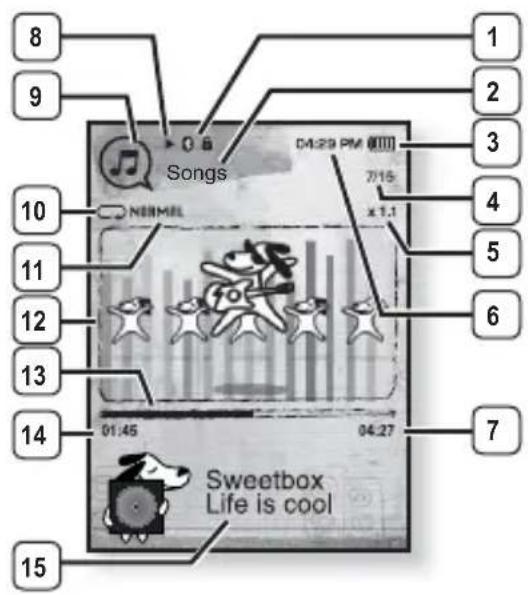
1 Bluetooth/Lock Indicator
2 Parent Menu Indicator
3 Battery Status
4 Current track playing / Total number of tracks Indicator
5 Play Speed Indicator
6 Current Time
7 Total Play Time
8 Play/Pause, Search Indicator
9 Music Mode Indicator
10 Play Mode Indicator
11 DNSe Mode Indicator
12 Music Play Screen
13 Play Status Bar
14 Current Play Time
15 Music Title

NOTE
The screen pictures are for illustration purposes only. The actual screen may differ.
SCREEN DISPLAYS (Continued)
Video
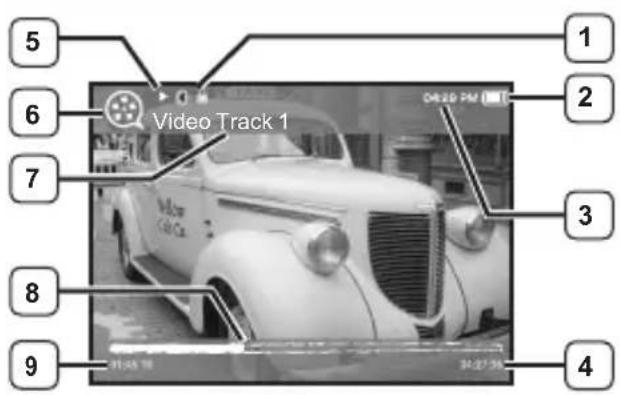
1 Bluetooth/Lock Indicator
2 Battery Status
3 Current Time
4 Total Play Time
5 Play/Pause, Search Indicator
6 Video Mode Indicator
7 File Name
8 Play Status Bar
9 Current Play Time
Picture
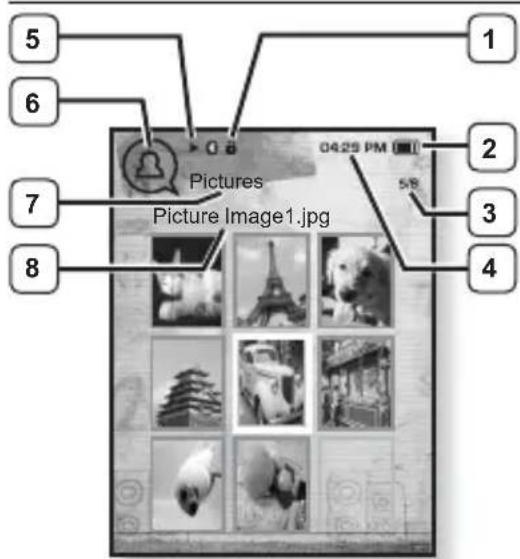
[Preview Screen]
1 Bluetooth/Lock Indicator
2 Battery Status
3 Current fi le /Total number of fi les Indicator
4 Current Time
5 Music Play Status
6 Picture Mode Indicator
7 Parent Menu Indicator
8 File Name
the basics _ 15
SCREEN DISPLAYS (Continued)
FM Radio
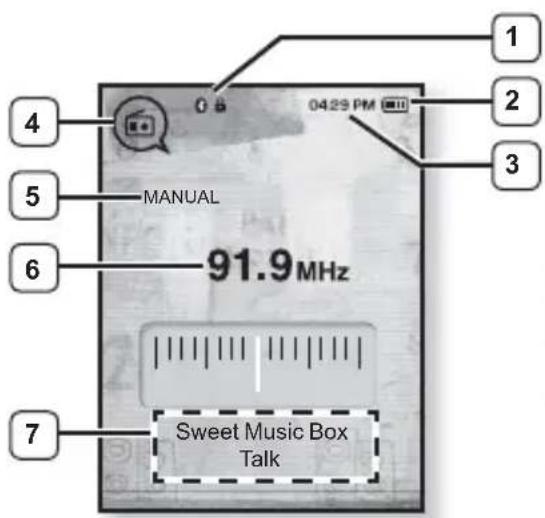
1 Bluetooth/Lock Indicator
2 Battery Status
3 Current Time
4 Radio Mode Indicator
5 Manual/Preset Indicator
6 Current Frequency(MHz) Indicator
7 RDS Indicator

- What is RDS?
Radio Data System(RDS) provides the reception and display of messages such as broadcasting information. The program information such as News, Sports or Music, or the broadcasting station information is displayed on the screen.
- If FM signal strength is weak, the RDS information might not be displayed.
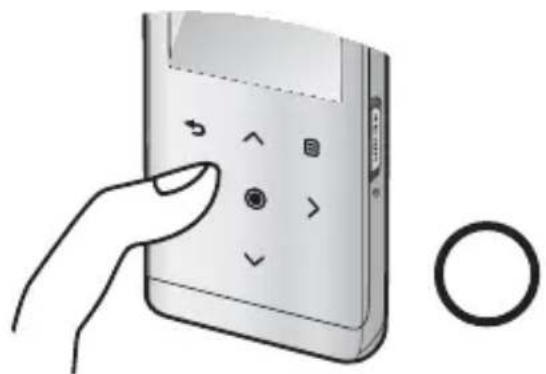
Tap on the touch screen with your fi ngertip.
natural_image
Illustration of a hand pressing a button on a mobile phone with control buttons (no text or symbols visible)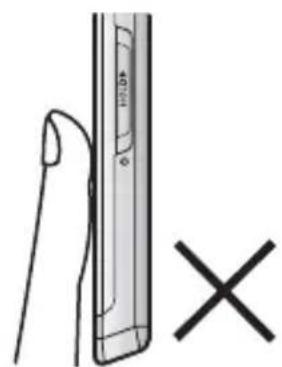
natural_image
Illustration of a hand holding a smartphone with a magnified view showing the screen (no text or symbols)
- To avoid damage to the touch screen, do not use any object other than your fingers to operate it.
- Do not tap on the touch screen if your fingers are not clean.
- Do not tap on the touch screen with gloves on.
- The touch screen may not function if you use a fingernail or other instruments such as a ballpoint pen.
CHARGING THE BATTERY
Charge it before using the player for the first time and when you haven't used it for a long time.
The battery for your mp3 player will fully charge in about 3 hours, although total charging time varies depending on your PC environment.

- Before you start - Remove the earphones before connecting the USB cable.
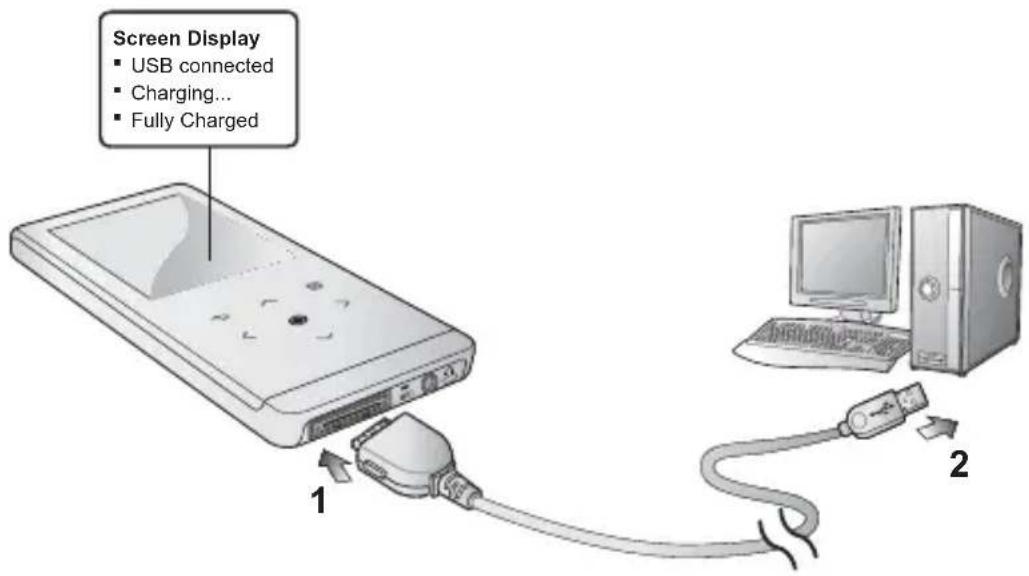
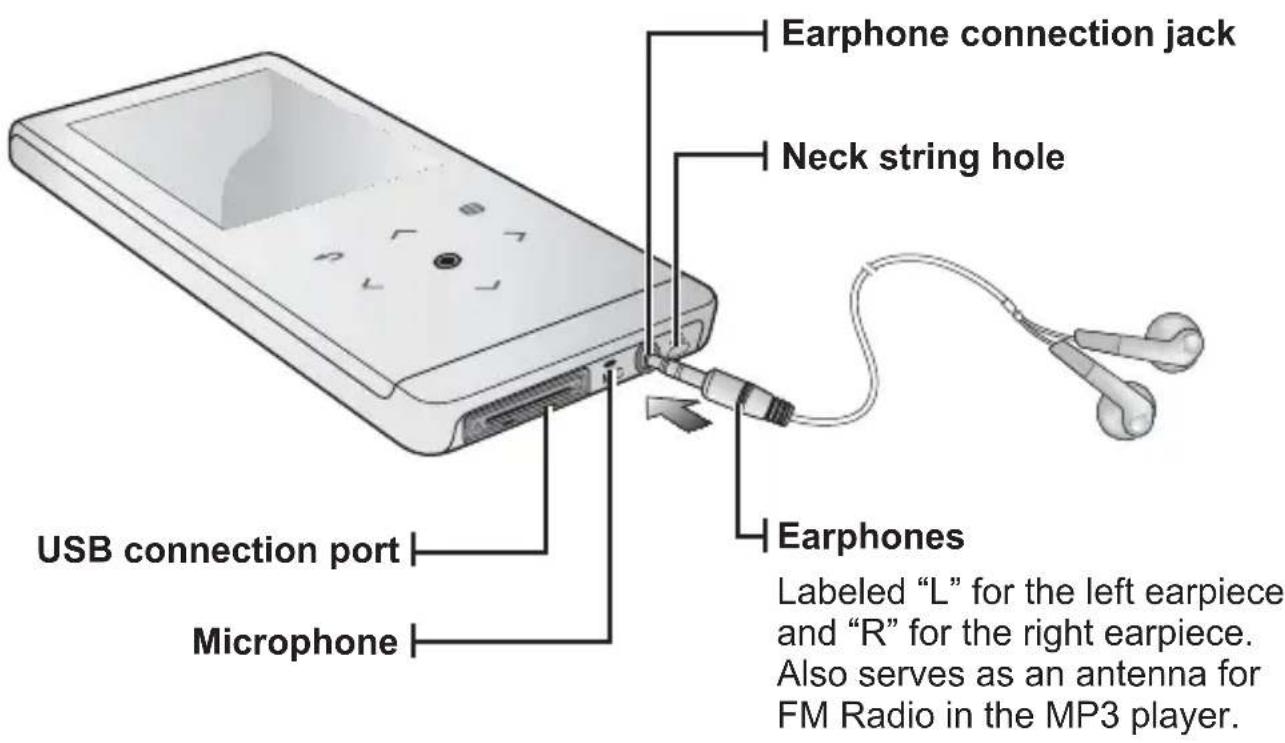
- Connect the larger end of the USB cable to the USB Connection Port on the bottom of the player.
- Connect the USB cable to the USB port ( ) on your PC.
CARING FOR THE BATTERY
Your battery will last longer if you follow these simple guidelines for caring and storing it.
- Recharge and store the battery within the temperature range of 5^ 35^ (40°F\~95°F).
- Do not overcharge (longer than 12 hours). Excessive charging or discharging may shorten the battery's life.
- Battery life naturally shortens slowly over time.

NOTE
- If you are charging the player while it is connected to a laptop computer, make sure the laptop's battery is also fully charged or that the laptop is plugged into its power source.

CAUTION
- The rechargeable battery incorporated in this product is not user replaceable. For information on its replacement, please contact your service provider.
Turning the Power on
Slide and hold the ⏻ HOLD▶ switch in the opposite direction of the arrow.
■ Power is turned on.
Turning the Power off
Slide and hold the ⏻ HOLD▶ switch in the opposite direction of the arrow again.
■ Power is turned off.

NOTE
- Your mp3 player will be automatically turned off when none of the buttons have been pressed for a specific length of time in the pause mode. The factory setting for
PLAYING MUSIC
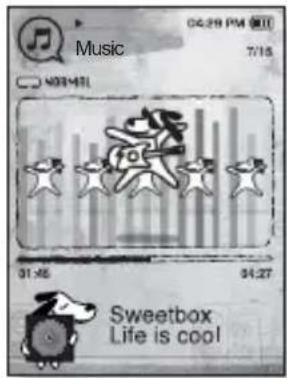
Load music files onto your new mp3 player using Samsung Media Studio. Learn more about Media Studio on page 34.
- Press and briefly hold [→] to move to the main menu screen.
- Tap [< >] to select
and tap [◎]. - Use [^ ∨] and [◎] to select a music file of your choice.
- Tap [
■ The music fi le will begin playing.

NOTE
- Tap [→] to move to the previous screen. Press and briefly hold [→] to move to the main menu screen.
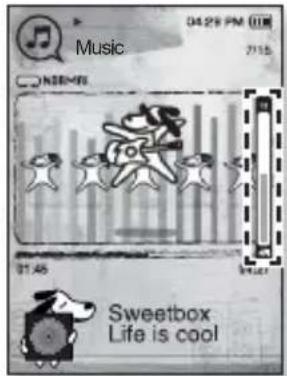
CONTROLLING THE VOLUME
Tap [ ]
- You will see a volume control icon.
■ The range of volume is set between 0 to 30. - Tap [^] to increase the volume or [] to decrease it.
DISABLING THE BUTTONS
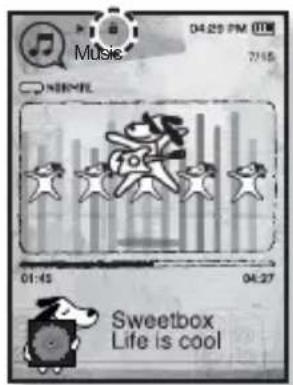
The hold function disables all the other buttons on the mp3 player, so that if you accidentally bump one-while working out, for example-your music won't be interrupted.
-
Slide the HOLD switch in the direction of the arrow.
-
Slide the HOLD switch in the opposite direction of the arrow to release the Lock function.
BROWSING FOR FILES USING "File Browser"
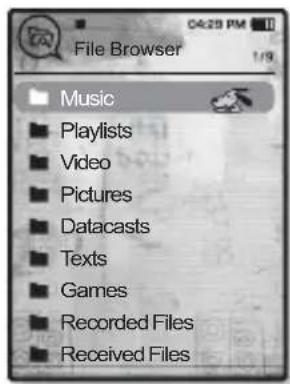
Search easily for files using the "File Browser" function.
-
Press and briefly hold [→] to move to the main menu screen.
-
Tap [< >] to select
and tap [◎].
- The
-
Tap [\~\~] to select a desired folder.
-
Tap [◎] to bring up the file list in the selected folder.
- Tap [] to move to the previous screen.
-
Tap [^] to select a desired file.
-
Tap [∅]
■ The fi le will start playing.
the basics _ 21
DELETING FILES WITH "File Browser"
- Press and briefly hold [→] to move to the main menu screen.
- Tap [< >] to select
and tap [◎].
- The
- Tap [^] to select a desired folder and tap [◎].
- Tap [^ ∨] to select the file that you want to delete and tap [∅]
- Tap [^ ∨] to select
and tap [◎].
■ The confirmation window will appear.
- Tap [< >] to select
and tap [◎].
■ The fi le will be deleted

- Once files are deleted, they cannot be recovered.
22 _ the basics
CHANGING THE SETTINGS AND PREFERENCES
Your mp3 player comes with settings and preferences that were set up at the factory, but you can change these pre-set values to truly customize your player.

- Tap [→] to move to the previous screen.
Press and briefly hold [→] to move to the main menu screen.
Menu Style Settings
You can change the menu design and font and delete background image of the main menu.
- Press and briefly hold [→] to move to the main menu screen.
- Tap [ < >] to select
and tap [◎].
- The
- Tap [^ ∨] to select
- The
- Menu Design: You can change the style of the main menu screen. Select from
, and . - Color Tone : You can change the menu and screen background color. If you set
in - Font : You can change the font type of the menu language. Select one from 3 font types. In some menu languages, will be disabled.
- Reset My Skin : Initializes the background image of the screen display to its default image. If you set
or in
CHANGING THE SETTINGS AND PREFERENCES (Continued)
Sound Settings
You can set Master EQ, Beep Sound and Volume Limit.
- Press and briefly hold [→] to move to the main menu screen.
- Tap [< >] to select
and tap [◎].
- The
- Tap [^ ∨] to select
and tap [◎].
- The
- Use the [^ ∨ ] and [◎] to set functions.
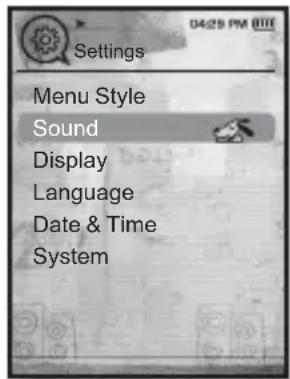
Sound Setting Options
- Master EQ : You can optimize sound settings.
Tap [< >] to select the frequency you want to adjust. Tap [] to adjust the selected frequency's level and then tap [◎]. - Beep Sound : Sets the beep sound for button operations to on or off. Select from
and . During music playback, the beep will be disabled even if set to . - Volume Limit: You can avoid hearing damage by setting the limit of the volume when using the earphone.
will limit the maximum volume level to 15.
The maximum volume level when volume limit is set tois 30.
Even if you have selected, the volume will be set back to 15 to avoid hearing damage when you turn the player back on.
CHANGING THE SETTINGS AND PREFERENCES (Continued)
Display Settings
Change the display off time and brightness of your screen.
- Press and briefly hold [→] to move to the main menu screen.
- Tap [< >] to select
and tap [◎].
■ The
- Tap [^ ∨] to select
and tap [◎].
- The
- Use the [^ ∨] and [◎] to set functions.
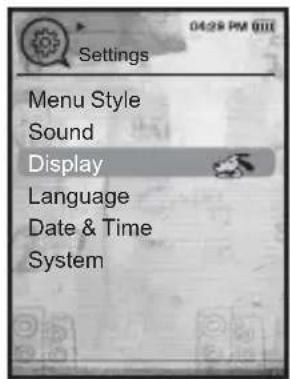
Display Setting Options
- Display Off: If no buttons are tapped within the time set shown below, the screen display will automatically be turned off. Select either <15 sec>, <30 sec>, <1 min>, <3 min>, <5 min> or
. Press any button to turn it back on. - Brightness: You can adjust the brightness of the display screen. Select a level from <0-10>, where 10 is the brightest.
CHANGING THE SETTINGS AND PREFERENCES (Continued)
Language Settings
The menus on your new mp3 player can be set to appear in any one of multiple languages. You can change your preference language easily.
- Press and briefly hold [→] to move to the main menu screen.
- Tap [< >] to select
and tap [◎].
■ The
-
Tap [^ ∨] to select
and tap [◎]. -
The
list appears. -
, <한국어>, , , , <日本語>, <简体中文>, <繁體中文>, , <Русский>, , , , , , <Іншу>, <Čeština>, <Еллэнνικά>, , , , , , , , , , , <Українська>, , . -
Tap [^] to select a desired language and tap [◎].

NOTE
■The supported languages can be changed or added.
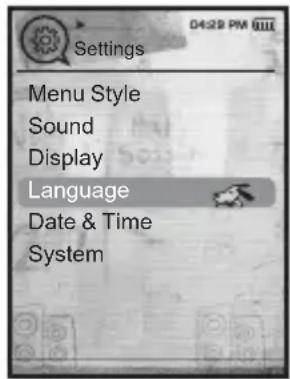
CHANGING THE SETTINGS AND PREFERENCES (Continued)
Date&Time Settings
You can set the current time and date.
- Press and briefly hold [→] to move to the main menu screen.
- Tap [< >] to select
and tap [◎].
■ The
- Tap [^ ∨] to select
and tap [◎]. - The
screen appears. - Tap [〈〉] to move to
- Tap [ ]
- Tap [< >] to select
and tap [◎].
■ The time setting is completed.
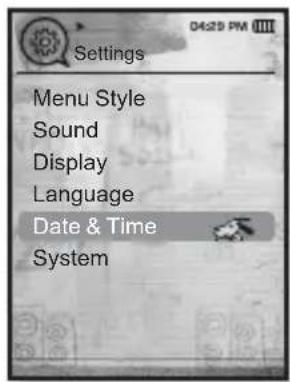
CHANGING THE SETTINGS AND PREFERENCES (Continued)
System Settings
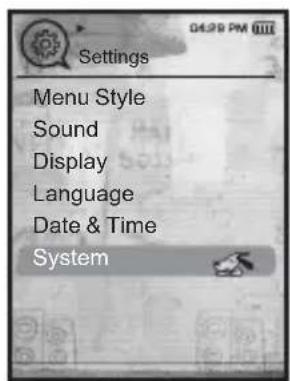
Choose the sleep timer, start mode, auto power off, default setting that's right for you.
- Press and briefly hold [→] to move to the main menu screen.
- Tap [< >] to select
and tap [◎].
■ The
- Tap [^ ∨] to select
and tap [◎].
- The
- Use the [^ ∨] and [◎] to set functions.
CHANGING THE SETTINGS AND PREFERENCES (Continued)
System Setting Options
- My Profile : You can set your name and birth date. See page 30.
- Sleep : Turns off power automatically after the preset time. Select either
, <15min>, <30min>, <60min>, <90min>, or <120min>. - Start Mode : You can set the start screen displayed when you turn on the player. Select from
and . Select to start the system with the main menu screen while will use the last used menu screen. - Auto Power Off : Automatically turns power off when there is no button operation after the preset time in the pause mode. Select either <15sec>, <30sec>, <1min>, <3min>, <5min> or
. - Default Set: Returns all settings to the default value. Select either
or . initializes all settings to default. cancels default settings. - Format : Formats the internal memory. Select either
or . Selecting will format the internal memory and delete all files on the player. Selecting does not format the internal memory. Check before formatting it. - About : Tap [〈〉] to check the firmware version, memory capacity and file number.
displays the current firmware version.
- indicates the usage, indicates the remaining capacity and indicates the total memory capacity.
- You can check the number of music files, videos, pictures, texts and entire fi les.

NOTE
■ Regarding the Built-In Memory
1GB=1,000,000,000 bytes : actual formatted capacity may be less as the internal firmware uses a portion of the memory.
CHANGING THE SETTINGS AND PREFERENCES (Continued)
My Name Settings
- Tap [^ ∨] to select
and tap [◎]. - Tap [^ ∨] to select
and tap [◎].
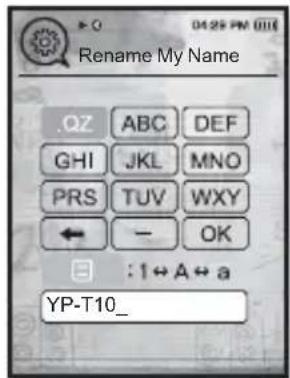
■ The Rename My Name window appears.
-
Use [\~\~<>] and [◎] to rename the device.
-
[目]: The input mode switches from uppercase English to lowercase English and to number.
- [←] : You can delete the characters one at a time.
- [OK]: Confirm your change.
- Once you completed the name setting, you will see your name when you turn on or off the player.
My Birthday Settings

■ Before you start - First, you should set the clock for the current time. See page 27.
- Tap [^ ∨] to select
and tap [◎]. - Tap [^ ∨] to select
and tap [◎].
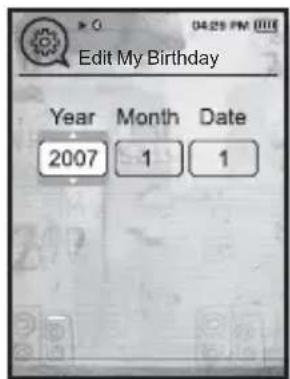
■ The Edit My Birthday window appears.
- Tap [〈〉] to move to
- Tap [ ]
- Once you completed the birth date settings, you will be reminded of your birthday when you turn on the player.
RESETTING THE SYSTEM
If your mp3 player won't turn on, won't play music, or isn't recognized by your computer when you connect it, you may have to reset the system.
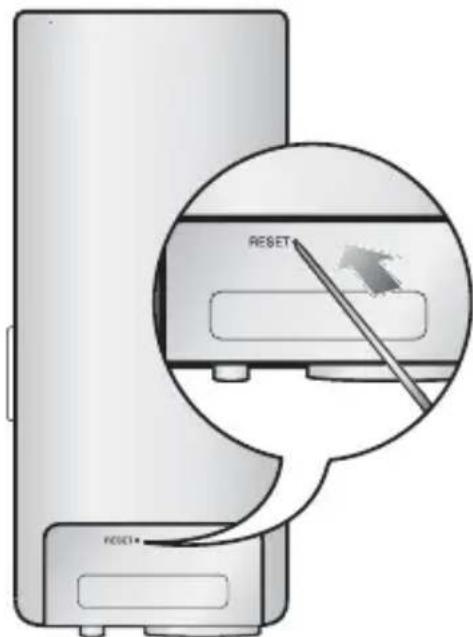
Press the Reset hole at the rear of the player with a pointed object such as a safety clip.
■ The system will be initialized.
- Your settings and fi les will not be affected.
samsung media studio
Samsung Media Studio is the easy-to-use software application that helps you organize your fi les on your PC. With your fi les already sorted and organized in Media Studio, you can quickly transfer them to your mp3 without searching your entire hard drive for the right fi le.
PC REQUIREMENTS
Your PC system must meet the following minimum specifications in order to install and run Media Studio:
- Pentium 500MHz or higher
- USB Port 2.0
- Windows XP Service Pack 2 or higher
- DirectX 9.0 or higher
• 100MB of free hard disc space
• CD Rom Drive (2X or higher) - Windows Media Player 10.0 or higher
• Resolution 1024 X 768 or higher - Internet Explorer 6.0 or higher
- 512MB RAM or higher
INSTALLING SAMSUNG MEDIA STUDIO

- Ensure that you run the
- Insert the Installation CD provided with the player into the CD-ROM drive.
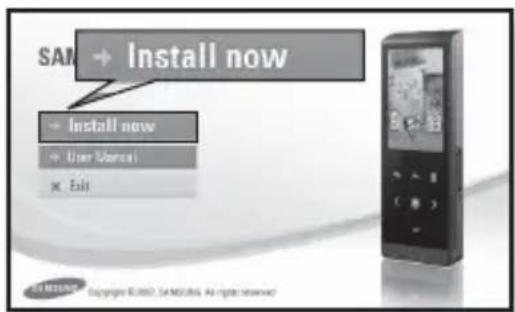
- Click
.
■ Follow the instruction to start installation.
-

- Use care when inserting the Installation CD into a vertically oriented CD-ROM drive.
TRANSFERRING FILES TO THE PLAYER WITH SAMSUNG MEDIA STUDIO

■ Before you start - Remove the earphones before connecting the USB cable.
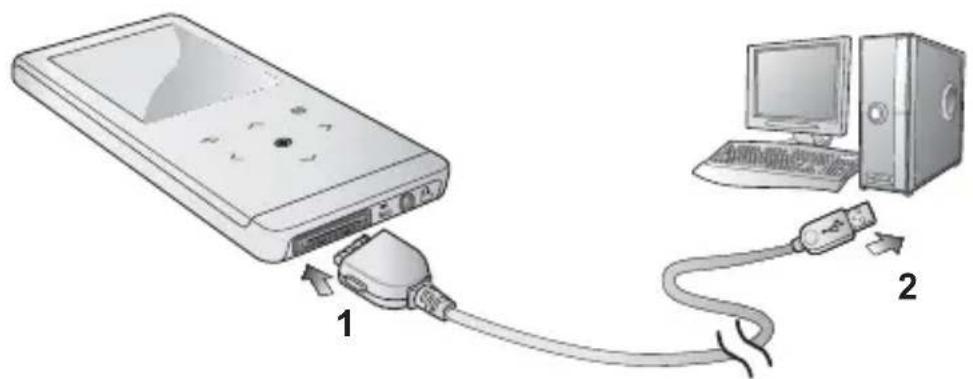
- Connect the larger end of the USB cable to the USB Connection Port on the bottom of the player.
-
Connect the USB cable to the USB port (.) on your PC.
-
appears on the screen display of the player. will automatically start when the player is connected to your PC. - If the program does not start automatically, double click the
icon on the desktop.

NOTE
- Music recognition technology and related data are provided by Gracenote and Gracenote CDDB® Music Recognition Service ^SM .
- CDDB is a registered trademark of Gracenote. The Gracenote logo and logotype, the Gracenote CDDB logo and logotype, and the “Powered by Gracenote CDDB” logo are trademarks of Gracenote. Music Recognition Service and MRS are service marks of Gracenote.
34
samsung media studio
TRANSFERRING FILES TO THE PLAYER WITH SAMSUNG MEDIA STUDIO (Continued)
-
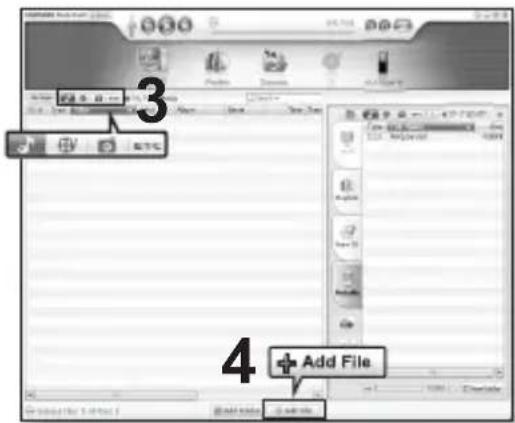
Click the icon for the type of file you want to transfer.
-
Click to display music list.
- Click to display video list.
- Click to display picture list
-
Click ETC to display etc list. The ETC list includes fi le types (ex: TXT, etc) other than music, picture, and video fi les.
-
Click
on the bottom of .
- The
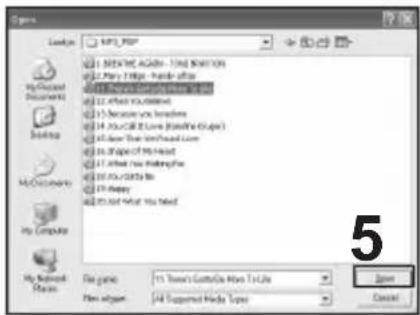
- Select the files to add and click
.
- The files are added to the list on the left side of the
-
Select the file to transfer from the list on the left side.
-
Click the icon.
- The file you selected is transferred to the player.
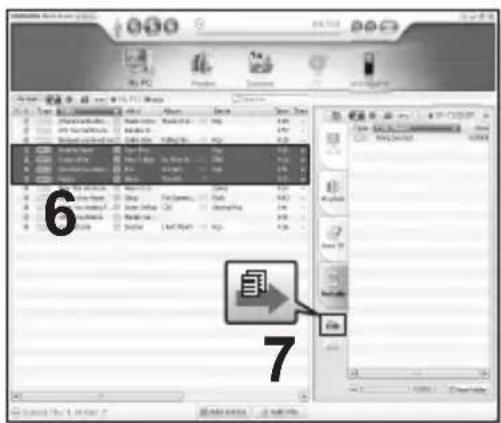
TRANSFERRING FILES TO THE PLAYER WITH SAMSUNG MEDIA STUDIO (Continued)

- Do not disconnect the USB cable during file transfer. Disconnecting during transfer may damage the player or your PC.
- Connect the player to the computer directly rather than through a USB hub to avoid an unstable connection.

- When transferring a video file to the player using
, it is automatically converted into. SVI format before transfer. The file size is automatically adjusted, too. - When transferring a picture file to the player using
, it is automatically converted into JPG format before transfer. The file size is automatically adjusted, too. - A picture that is transferred to the player without using
can look different on the screen from the original picture. - All functions are disabled during connection.
- If you connect the USB cable to the PC in the Low Battery condition, the player will be charged for several minutes before connecting to the PC.
Samsung Media Studio has a thorough Help function. If you can't find the answer to your question about Media Studio, click
Samsung Audio Video interleaving(SVI) is a new video format developed and controlled by Samsung.
listening to music


NOTE
■ Before you start - Connect the earphones, then turn on the player, and check the battery.
- Tap [] to move to the previous screen.
Press and briefly hold [→] to move to the main menu screen.
LISTENING BY CATEGORY
- Press and briefly hold [→] to move to the main menu screen.
- Tap [< >] to select
and tap [◎].
■ The
- Tap [^ ∨] to select the desired list and tap [◎].
■ The music fi les appears. - Tap [^\~] to select the file to play and tap [◎].
■ The music will start playing.
Music List
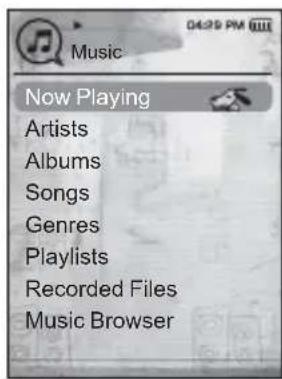
File information including the artist name, album name, music title and genre will be displayed according to the ID3 Tag information on the appropriate music file. A file without an ID3 Tag is displayed as [Unknown].
Now Playing: Plays a recently played file or moves to the playback screen of the current file.
Artists : To play by artist
Albums : To play by album
Songs : To play in numeric or alphabetical order
Genres : To play by genre
Playlists : To play by Playlist.
Recorded Files : Shows all recorded files.
Music Browser : Shows all the music files stored in the Music Folder.

NOTE
- MP3, WMA and AAC music files are compatible with the player.
- MP1 or MP2 files which only have a changed extension to MP3, may not play on the player.
- What is an ID3 Tag?
This is what is attached to an MP3 to carry information relevant to the such as the title, artist, album, year, genre and a comment fi eld.
listening to music
PAUSING
- Tap [◎] while the music is playing.
■ The music playback will be paused. - Tap [again.
■ The music will play from the point where it stopped.
SEARCHING WITHIN A TRACK
- Press and briefly hold [< >] while the selected track is playing.
- It searches to the beginning or the end of the track.
- Release the button at the point you wish to start.
- It starts playing from the point you release the button.
PLAYING FROM THE BEGINNING OF THE CURRENT TRACK
- Tap [◀] after 3 seconds of play.
■ The current track starts playing from the beginning.
PLAYING THE PREVIOUS TRACK
Tap [¶] within 3 seconds of play.
Tap [◀] twice after 3 seconds of play.
■ The previous track will start playing.
■ The next track will start playing.

- For a VBR file, the previous music file cannot be played even if you tap [〈 ] within 3 seconds after it started.
CREATING A PLAYLIST USING SAMSUNG MEDIA STUDIO
With

- Before you start - Connect the player to your PC. Media Studio must be installed on your PC.
Creating a Playlist
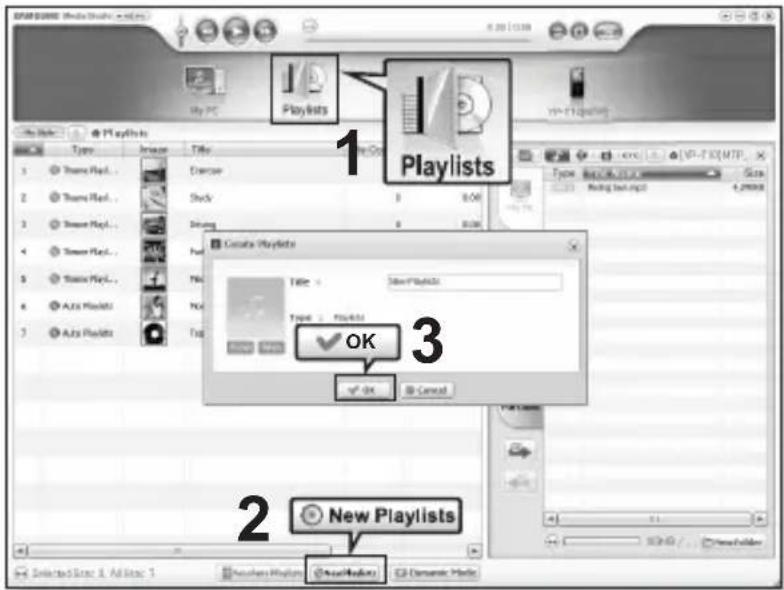
- Click
on the top of .
■ The
- Click
on the bottom.
- The
- Type in the playlist title and click [OK].
- A new playlist will be named and stored in the
CREATING A PLAYLIST USING SAMSUNG MEDIA STUDIO (Continued)
Adding music fi les to a Playlist you've created
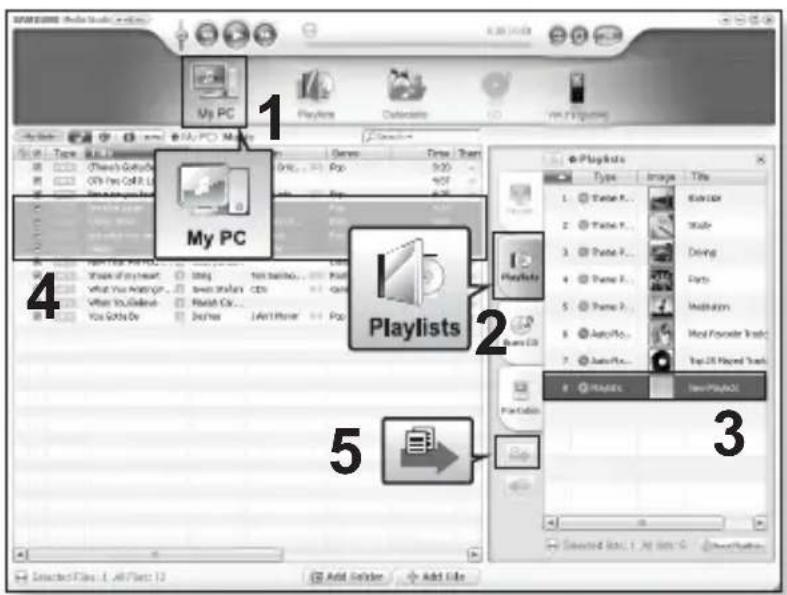
- Click
on the top of .
- The
- Click
in the right corner of the window.
■ The
-
Double click on a playlist in the right window.
-
Select files that you want to transfer in the
window. -
Click

- The selected fi les will be added to the playlist.
CREATING A PLAYLIST USING SAMSUNG MEDIA STUDIO (Continued)
Transferring a Playlist to your player using Media Studio
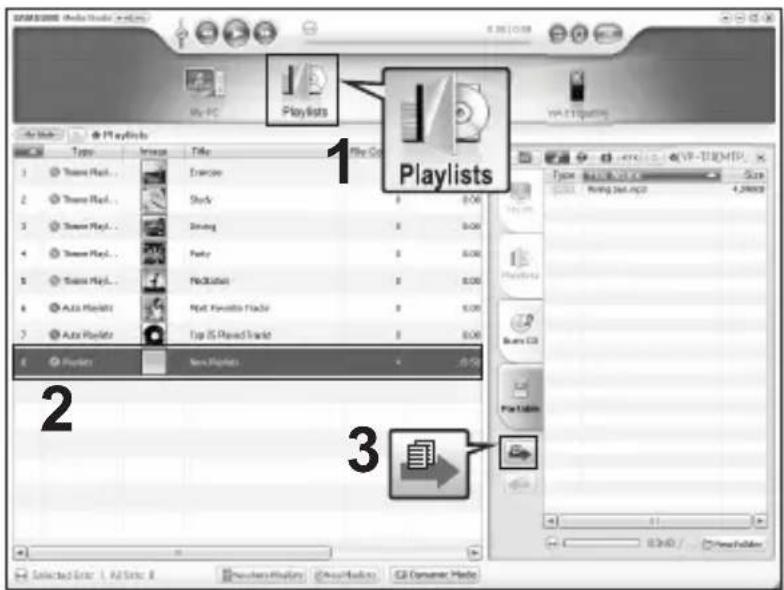
- Click
on the top of .
- The
-
Select a playlist in the
section. -
Click .
- The selected playlist will be transferred to the player folder by folder in

NOTE
■ The player can play up to 400 playlists and up to 400 music files for each playlist.
If you've already downloaded files to your mp3 player, you can create a "Favorites" playlist without Media Studio or your PC.
- Press and briefly hold [→] to move to the main menu screen.
- Tap [< >] to select
and tap [◎]. - Tap [^^] to select
and tap [◎].
■ The music fi le list appears.
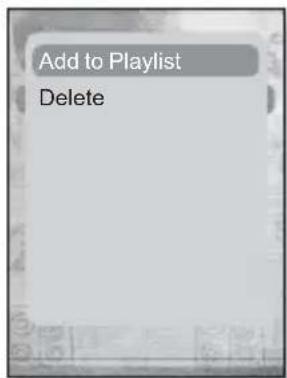
- Tap [^\~] to select a file to add to the favorite list and tap [#]
■ The Playlist menu appears.
- Tap [^ ∨] to select
and tap [◎].
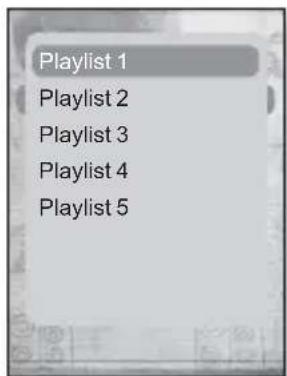
-
- Tap [^ ∨] to select a playlist number to add the selected file and tap 🔒.
■ The selected file will be added to the playlist.
- You can check the playlist in

NOTE
- You can add up to 200 music files to each playlist (
PLAYING A PLAYLIST
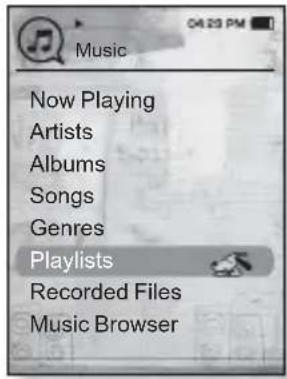
- Press and briefly hold [→] to move to the main menu screen.
- Tap [<>] to select
and tap [◎].
■ The music list appears.
- Tap [^ ∨] to select
and tap [◎].
■ The playlist(s) will appears.
- Tap [^ ∨] to select the playlist of your choice and tap [◎].
■ Music files stored in the selected playlist appear.
- If there is no playlist found, you will see a
- Tap [^] to select a music file to play, then tap [◎].
■ The music fi le will start playing.

- See pages 39 and 41 to see how to transfer the playlist using
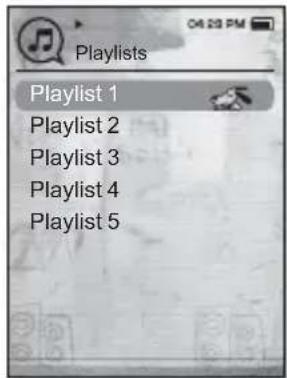
DELETING A FILE FROM THE PLAYLIST
- Press and briefly hold [→] to move to the main menu screen.
- Tap [<>] to select
and tap [◎].
■ The music list appears.
- Tap [^ ∨] to select
and tap [◎].
■ The playlist(s) will appears.
- Tap [^ ∨] to select the playlist of your choice and tap [◎].
■ Music files stored in the selected playlist appear.
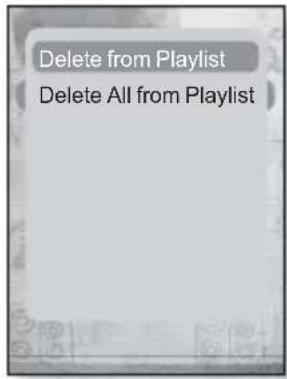
- Tap [^\~] to select a file to delete from the playlist and tap [#]
■ The playlist menu appears.
- Tap [^ ∨] to select
and tap [◎].
■ The selected file is deleted from the playlist.

NOTE
- The selected file in the playlist cannot be deleted while its playing back.
DELETING ALL FILES FROM THE PLAYLIST
Follow the steps 1-4 above.
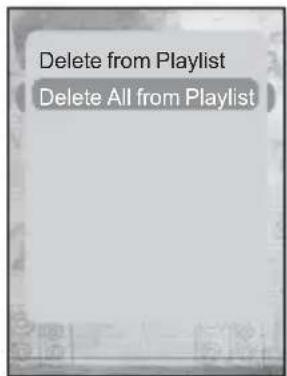
- Tap [回]
■ The playlist menu appears.
- Tap [^ ∨] to select
and tap [∅]
■ All files are deleted from the playlist.
44 _ listening to music
The Music menu allows you manage all facets of listening - from repeating tracks and albums to choosing the background on the screen as you listen.
To set the sound effect
You can enjoy clearer sound.
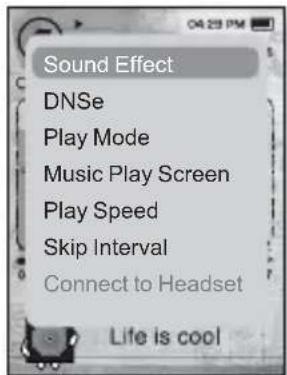
- Tap [ ] while listening to music.
- The
- Tap [^ ∨] to select
and tap [◎].
- The
- Tap [^ ∨] to select the desired sound effect and tap [∅]
Sound Effect Options
- Street Mode: Allows you to hear the music outdoors clearly by filtering out some of the street noise. Select either
or . - Clarity: You can enjoy clearer sound with improved quality. Select from 0 - 2.

NOTE
- To exit the menu, tap [☐].
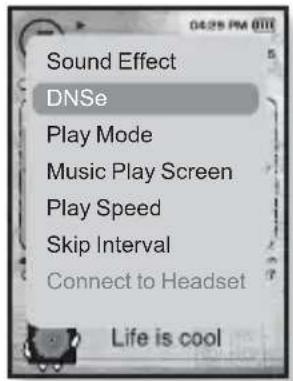
To set the Digital Natural Sound engine (DNSe)
Select the right sound for each music genre.
- Tap [ ] while listening to music.
- The
- Tap [^] to select
and tap [◎].
- The
- Tap [^ ∨] to select a desired DNSe and tap [◎].
- Select from
- You can set

- What is DNSe?
Digital Natural Sound Engine (DNSe) is a sound effect function for MP3 players developed by Samsung. It provides various sound settings to enhance the type of music you're listening to.
To set the Digital Natural Sound engine (DNSe) (Continued)
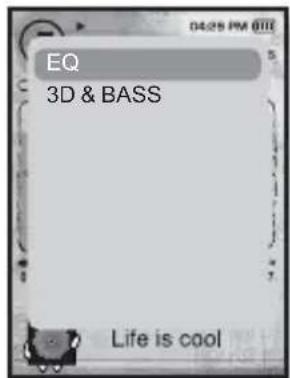
You can adjust individual sound frequencies to your preference.
1 Tap [ ∧ ∨] in the DNSe menu to select
- Tap [\~\~] to select
and tap [◎].
- The
- Tap [〈〉] to select the frequency you want to adjust and tap [↑] to adjust the selected frequency's level.
- You can select from -10 to +10 for
- Tap [
■ The setting is completed.
<3D & BASS>
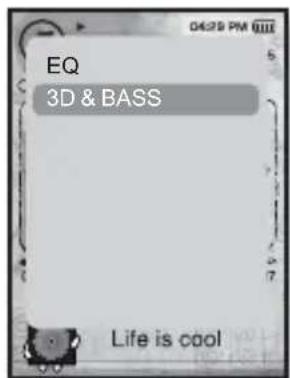
You can set the 3D surround sound and bass boost level.
-
Tap [^] in the DNSe menu to select
and tap []. -
Tap [^^] to select <3D & BASS> and tap [◎].
- The <3D & BASS> setting screen appears.
- Tap [〈〉] to select <3D> or
and tap [↑↓
- You can select a <3D> level from 0 to 4, and
- Tap [ ]
■ The setting is completed.
USING THE MUSIC MENU (Continued)
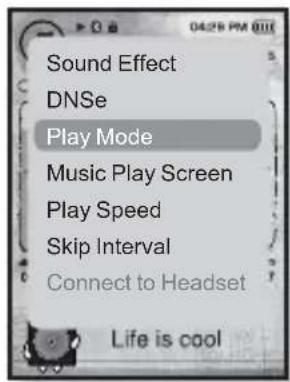
To set the play mode
Select playback mode such as repeat settings.
- Tap [ ] while listening to music.
- The
- Tap [^\~] to select
and tap [◎].
- The
- Tap [^ ∨] to select the desired mode and tap [∅]
- Select from
Play Mode Options
- Normal: To play all the tracks in order one time.
- Repeat: To repeat all files in the current folder.
- Repeat One : To repeat one file.
- Shuffle : To play files at random.
To select the music play screen
Choose a background image from those provided, or choose an image of your own to be displayed as you listen to music.
- Tap [ ] while listening to music.
■ The
- Tap [^ ∨] to select
and tap [∅]
- The
- Tap [〈〉] to select a desired music play screen and tap [◎]
- Select from
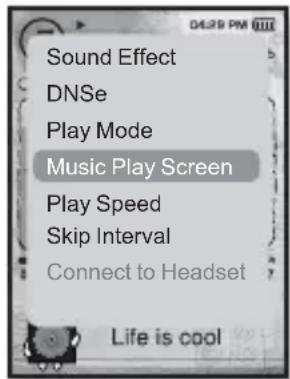
Music Play Screen Options
- Type 1 \~ Type 4 : You can select a desired music play screen.
- Album Art: The album cover image displays if an album cover image is included in the ID3 Tag information of the music file. Album Cover images less than 200 pixel (horizontal) x 200 pixel(vertical) in size are supported.
- Album Info. : Information on the artist name, album and genre displays if ID3 Tag information is stored on the music file.

NOTE
- If you set
in
This is what is attached to an MP3 to carry information relevant to the file, such as the title, artist, album, year, genre and a comment field.
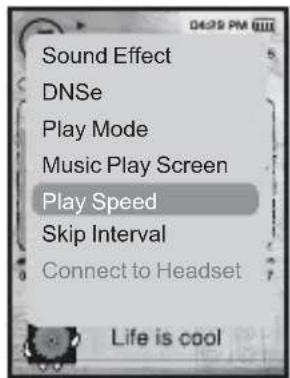
To set the play speed
Speed up or slow down your favorite music by adjusting the play speed.
- Tap [☐] while listening to music.
■ The
- Tap [^ ∨] to select
and tap [◎].
■ The
- Tap [^ ∨] to select a desired play speed and tap [∅]
- Select from
■ The higher the number is, the faster the speed is.

NOTE
- The adjusted play speed may differ from the actual speed, depending on the file.
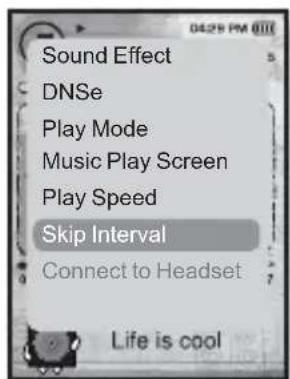
To set the skip interval
You can fast forward through a file at various intervals. Skip a whole track or skip several seconds at a time.
- Tap [ ] while listening to music.
■ The
- Tap [^ ∨] to select
and tap [◎].
- The
- Tap [^ ∨] to select a desired skip interval and tap [∅]
- Select from <1 Song>, <5sec>, <10sec>, <30sec> and <1min>.

NOTE
■ If the fi le was developed with a variable bit rate, the actual length of the skip interval may not be exactly what you select.
USING THE MUSIC MENU (Continued)

- Before you start - Use only the Bluetooth-certified stereo headset. Check if the stereo headset has been registered.
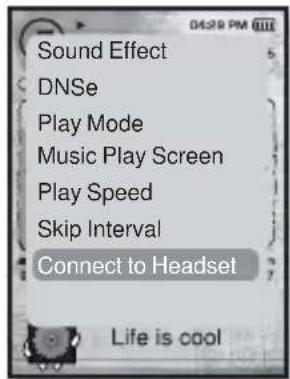
To connect a Bluetooth stereo headset
You can connect directly to the registered Bluetooth stereo headset during music playback.
- Tap [ ] while listening to music.
- The
-
Tap [^ ∨ ] to select
and tap [∅] -
If
is set to , it will be changed to . - When the connection is successfully done, you will see the [icon] icon on the screen.
- You can listen to music through the stereo headset.
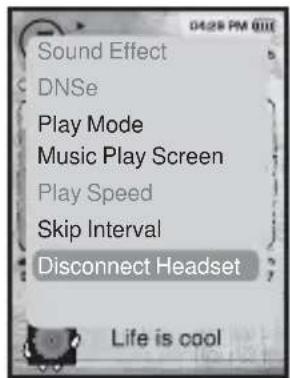
To disconnect the Bluetooth stereo headset
- Tap [ ] while listening to music.
- The
- Tap [^ ∨] to select
and tap [∅]
■ The Bluetooth headset is disconnected.

- You can not select
listening to music _ 51
watching a video

Before you start - Connect the earphones, then turn on the player, and check the battery. Transfer a video file to the player. See pages 34\~36.

- Tap [→] to move to the previous screen. Press and briefly hold [→] to move to the main menu screen.
- Press and briefly hold [→] to move to the main menu screen.
- Tap [< >] to select
and tap [◎].
■ The video list appears.
- Tap [^ ∨] to select a video to play and tap [◎].
■ The selected video file starts to play horizontally.

TO PAUSE PLAYING DURING THE PLAYBACK
- Tap [●] during a video playback.
■ The player pauses playing.
- Tap [●]again.
- The player resumes playing from the last played point.

NOTE
- When transferring a video file to the player using
52 _ watching a video
TO MOVE TO A SPECIFIC FRAME
- In horizontal view, press and briefly hold [< >].
- This enables you to move backwards or forwards in the current video file.
- Release the button when you have moved to the position you want.
■ The video starts playing from the position.
TO PLAY THE PREVIOUS VIDEO FILE
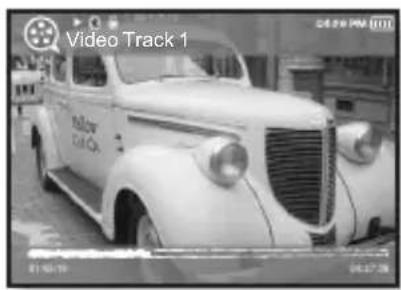
- Tap [<] within 3 seconds after the current file started playing.
Tap [<] twice 3 seconds after the current file started playing.
■ This will return to the previous movie.
![Video Track 1 Yellow Box Co. CHILLIP PM [1]11](/content/2026/06/1189717/images/5767eddc539ec6bfd6d771a8d16c00d91d12cde3f7e7c1078ebf7ddec5ec2598.jpg)
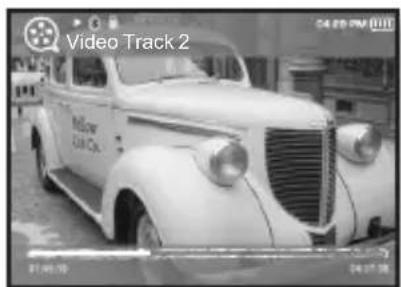
■ This will move to the next movie.
To set a bookmark
Once you set a bookmark, you can easily find that position later.
- Tap [☐] at the desired scene you want during video playback.
■ The Video menu appears.
- Tap [^ ∨] to select
and tap [∅]
- The current play / stop point will be added to the bookmark.
- You will see the [■] symbol on the play status bar.
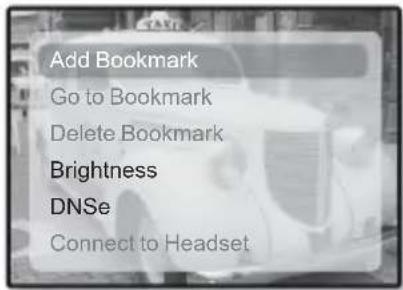

- The Overwrite window appears if there is a bookmark previously set. If you select
- One bookmark can be set for each video file, and a maximum number of 50 bookmarks can be set.
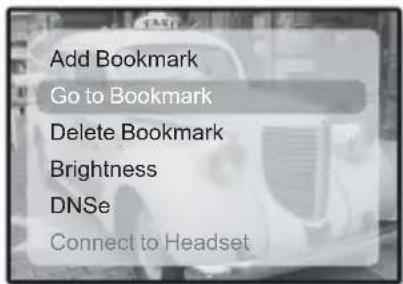
To move to (play) / remove the bookmark
- Tap [目] during video playback.
■ The Video menu appesars.
- Tap [^ ∨] to select
or and tap [∅]
- When you selected
-

- To exit the menu, tap [☐].
USING THE VIDEO MENU (Continued)

NOTE
- To exit the menu, tap [#]
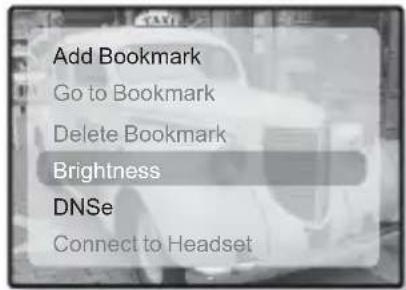
To adjust the brightness
You can adjust the screen brightness.
- Tap [☐] during a video playback.
■ The
- Tap [^ ∨] to select
and tap [∅]
- The
- Tap [^^] to select a desired brightness and tap [∅]
- Select from <0\~10>.
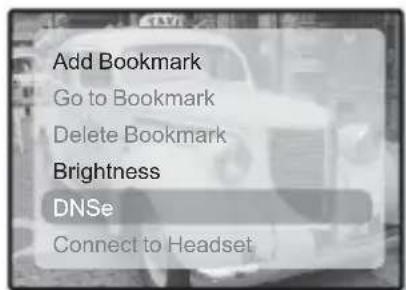
To set the Digital Natural Sound engine (DNSe)
Select the right sound for each video genre.
- Tap[目] during a video playback.
■ The
- Tap [^ ∨] to select
and tap [◎].
■ The
- Tap [^ ∨] to select a desired DNSe and tap [∅]
- Select from

NOTE
What is DNSe?
Digital Natural Sound Engine (DNSe) is a sound effect function for MP3 players developed by Samsung. It provides various sound settings to enhance the type of music you're listening to.
USING THE VIDEO MENU (Continued)

- Before you start - Use only the Bluetooth-certified stereo headset. Check if to make sure your Bluetooth stereo headset has been registered.
To connect a Bluetooth stereo headset
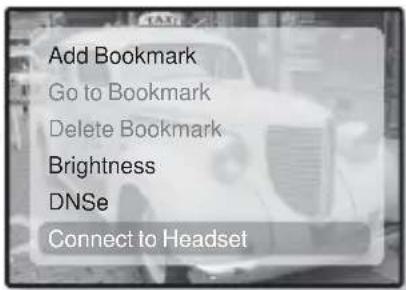
You can directly connect to a registered Bluetooth headset during video playback.
- Tap [ ] during a video playback.
- The
-
Tap [^ ∨] to select
and tap [∅] -
If
is set to , it will be changed to . - When the connection is successfully done, you will see the [播放] icon on the screen.
- You can enjoy listening to audio on video file via the stereo headset.
To disconnect the Bluetooth stereo headset
- Tap [ ] during a video playback.
■ The
- Tap [^ ∨] to select
and tap [∅]
■ The Bluetooth headset is disconnected.
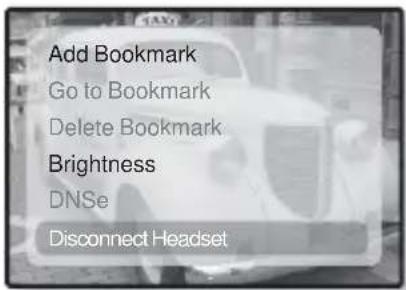

- You can not select
viewing pictures


NOTE
■ Before you start - Connect the earphones, then turn on the player, and check the battery.
- Tap [] to move to the previous screen.
Press and briefly hold [→] to move to the main menu screen.
- Press and briefly hold [→] to move to the main menu screen.
- Tap [< >] to select
and tap [◎].
■ The picture preview window appears.
- Tap [^<] to select the picture you want to look at and tap [∅]
■ The selected picture will be displayed.
- Tap [←] to move to the preview window.
To move to the previous/next picture
- In horizontal view, tap [< >].
■ The previous/next picture will be displayed.

NOTE
- A JPG file including incorrect thumbnail data will be displayed in 📁.
■ Some picture can be displayed slowly. - When transferring a picture file to the player using
, it is automatically converted into JPG format before transfer. The file size is automatically adjusted, too. - You can also use the
to search for a picture. See page 21.

NOTE
■ To exit the menu, tap [F]
To listen to music while viewing your picture
You can listen to the song that you last played while viewing your picture.
- Tap [ ] while viewing a picture.
- The
- Tap [^ ∨] to select
and tap [◎].
- The
- Tap [^ ∨ ] to select
or and tap [∅]
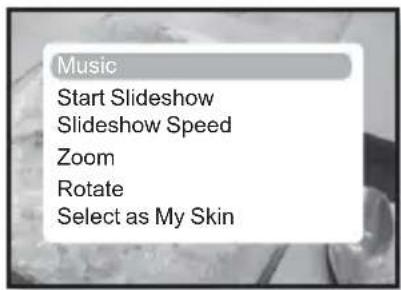
-
-
To watch a slideshow
How To 1
- Tap [◎] while viewing a picture.
- You will see 📊 on the screen and then the player will start the slideshow.
How To 2
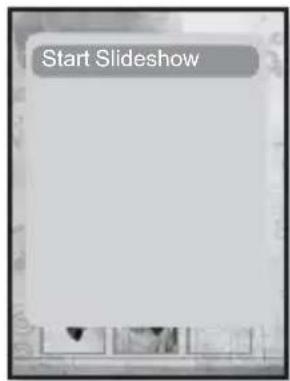
- In the picture preview mode, tap [☐].
■ The Start Slideshow window appears.
- Tap
- You will see 📊 on the screen and then the player will start the slideshow.
USING THE PICTURE MENU (Continued)
To stop the slideshow
How To 1
- In the slideshow mode, tap [◎].
■ The slideshow stops.
How To 2
- In the slideshow mode, tap [☐].
- The
- Tap [\~\~] to select
and tap [◎].
■ The slideshow stops.
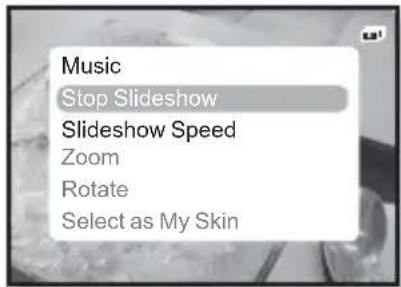
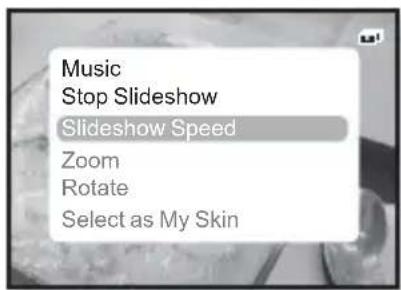
To set the slideshow speed
- Tap [ ] while viewing a picture.
- The
- Tap [^ ∨] to select
and tap [∅]
- The
- Tap [^ ∨] to select a desired speed and tap [∅]
- Select from
USING THE PICTURE MENU (Continued)
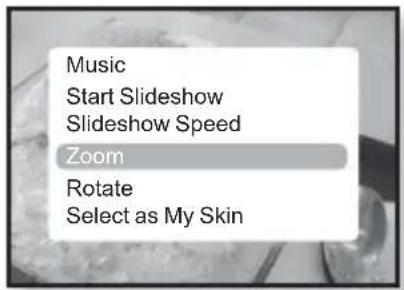
To enlarge a picture
You can zoom in a picture.
- Tap [ ] while viewing a picture.
- The
- Tap [^\~] to select
and tap [◎].
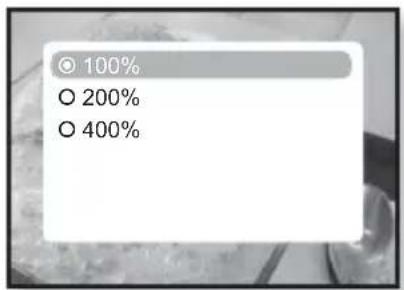
- The
- Tap [^ ∨] to select a desired scale factor and tap [∅]
- Select from <100%>, <200%> and <400%>.
- Tap [\~\~<>] to move to the portion of the picture to magnify.
To cancel the zooming
How To 1
- Tap [◎] in an enlarged picture view.
■ This returns to the original size.
How To 2
- Tap [☐] in an enlarged picture view.
■ The
- Tap [^ ∨] to select
and tap [◎].
- The
- Tap [^ ∨] to select <100%> and tap [◎].
■ This returns to the original size.
■ A big picture fi le may take awhile to zoom.

USING THE PICTURE MENU (Continued)
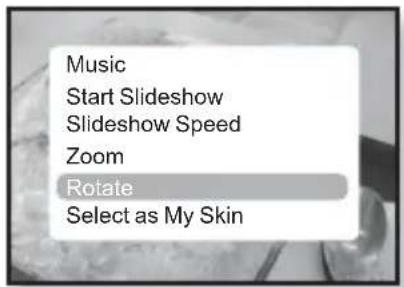
To rotate a picture
You can rotate a picture for your convenience.
- Tap [ ] while viewing a picture.
- The
- Tap [^ ∨] to select
and tap [◎].
- The
- Tap [^ ∨ ] to select a desired angle and tap [∅]
- Select from
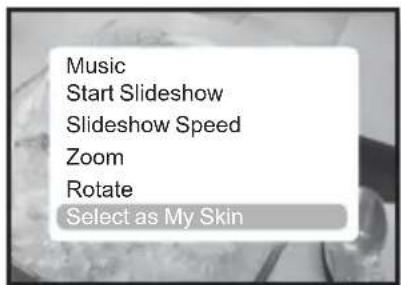
To select a picture as a background image
You can set a desired picture as a background image for the display window.
- Select a picture file to set as a background image and tap [☐].
- The
- Tap [^ ∨] to select
- The save confirmation window appears.
- Tap [< >] to select
and tap [◎].
- The selected picture file will be set to the background image.
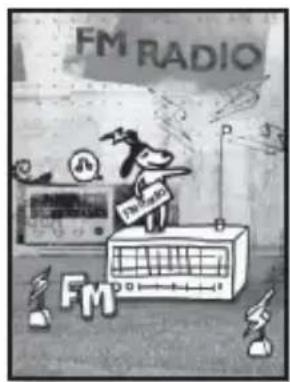
listening to FM radio

■ Before you start - Connect the earphones, then turn on the player, and check the battery.

- Tap [↑] to move to the previous screen. Press and briefly hold [←] to move to the main menu screen.
-
Press and briefly hold [→] to move to the main menu screen.
-
Tap [< >] to select
and tap [◎].
■ FM radio reception will start.
TO USE THE MUTE FUNCTION
Tap [●] while listening to FM Radio.
■ Sound is muted.
Tap [◎] once again to resume listening.

NOTE
- Always connect your earphones to the player when searching or setting frequencies. The earphones serve as antennas to receive FM Radio reception. - In poor reception areas, the player may not find an available FM frequency. - The Bluetooth function cannot be used while you are listening to FM Radio.
62 _ listening to FM radio
TO SEARCH FOR FM STATIONS
- Press and briefly hold [< >] and then release in Manual mode.
-
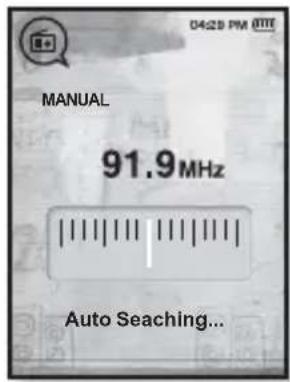
OR,
- Tap [<<>] to progress through the frequencies one by one in Manual mode.
■ Moves to frequencies whenever the button is pressed.
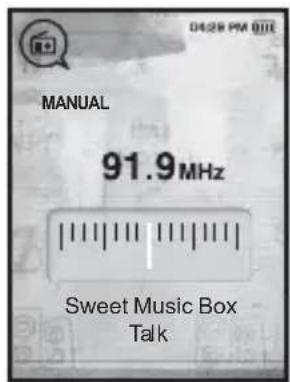
To switch to Preset Mode
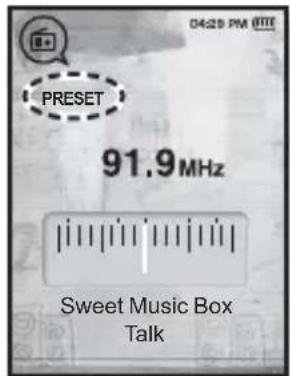
Select this mode if you want to search through your saved FM presets one preset at a time.
- Tap [ ] in Manual mode.
- The
- Tap [^ ∨] to select
and tap [∅]
- You will see

NOTE
- If no preset frequencies are set, you will see
- If you select
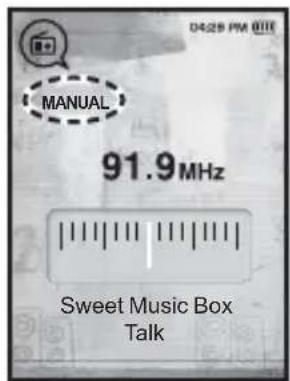
To switch to Manual Mode
Select this mode if you want to manually search through the FM band one frequency at a time.
- Tap [ ] in Preset mode.
- The
- Tap [^ ∨] to select
and tap [∅]
- You will see
USING THE FM RADIO MENU (Continued)
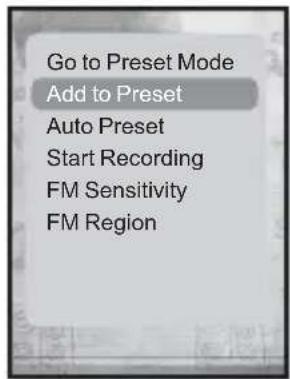
To store stations in the Preset memory
You can store up to 30 stations in your MP3 player's memory and return to them with the press of just one number. Have the MP3 player choose only the stations you want using the manual process, or find and store the local stations automatically.
Manual - choose only the stations you want to store
- Tap [〈〉] to select the desired frequency in Manual mode.
- The
- Tap [ ]
- Tap [^] to select
and tap [◎].
- The selected frequency will be added to the preset list with the [ . ] symbol on the selected frequency bar.
- To set a preset for other frequencies, follow steps 1-3 above.

NOTE
- If the same frequency is already set, the
To store stations in the Preset memory (continued)
Automatic - automatically store all the stations the player receives
- Tap [ ] in FM Radio mode.
- The
menu appears. - Tap [^ ∨] to select
and tap [◎].
■ The confirmation window appears. - Tap [< >] to select
and tap [◎]. - Up to 30 frequencies are automatically set.
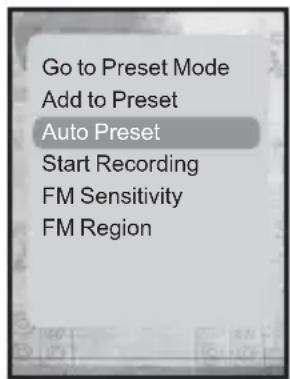
To cancel Auto Preset
If you want to cancel the auto preset, tap [icon] in the process.
- The auto preset setting is canceled, and only frequencies set up to that point are stored.

- You may want to re-set the stored stations if you're going to listen to your MP3 player in a different city. To delete the preset stations and store new ones, simply repeat the process.
USING THE FM RADIO MENU (Continued)
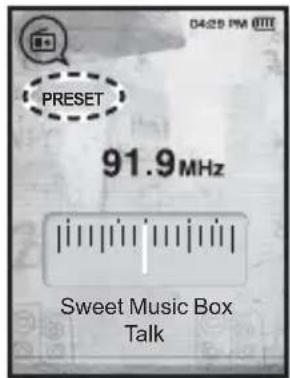
To listen to preset stations
While in Preset mode, tap [] to scroll through preset stations.
- You can listen to the stored radio frequency.
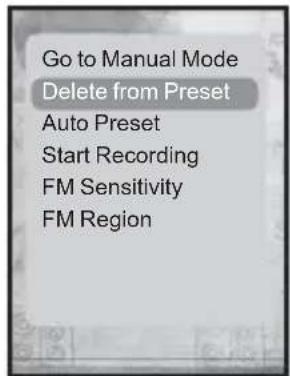
To delete a preset
Follow the steps below to delete frequencies while listening to FM Radio.
- While in Preset mode, tap [< >] to search for a preset frequency to delete and tap [☐]
- The
- Tap [^ ∨] to select
and tap [∅]
■ The selected frequency will be deleted.
- To delete other preset frequencies, follow steps 1-2 above.
USING THE FM RADIO MENU (Continued)
To record FM Radio broadcasting
You can record FM radio broadcasting at any time while listening to the radio.
- Tap [<<>] to select a frequency to record in FM Radio mode and tap [☐]
■ The
- Tap [^ ∨] to select
and tap [∅]
■ The file name is displayed and the player starts recording.
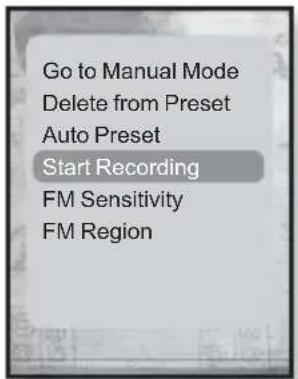
To stop FM recording
- Tap [ ] during the recording.
- A message appears asking you if you want to listen to the fi le you just recorded.
- Tap [< >] to select
or and tap [◎].
- Selecting
- Selecting
- The recorded file is stored in
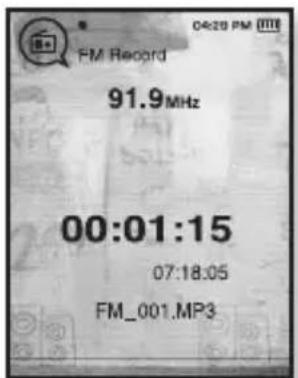

- You can store a maximum of 999 fi les for FM radio recording.
■You can make a recording for up to approximately 23 hours (based on 96Kbps, 1GB)
- The recording file name will be automatically specified such as "FM_000.mp3". "FM" indicates the file is an FM recording and "000" is the recording file number.
68 _ listening to FM radio
To set the FM sensitivity
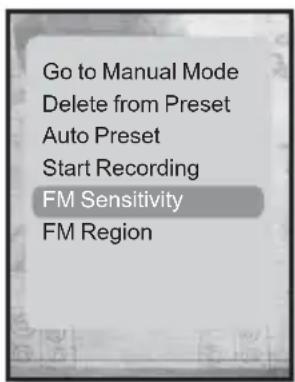
To receive more or fewer FM radio frequencies, adjust the FM sensitivity.
- Tap [ ] in FM Radio Mode.
■ The
- Tap [^ ∨] to select
and tap [∅]
■ The
- Tap [^\~] to select the search level and tap [◎].
- Select from
- When you select
To set the FM region
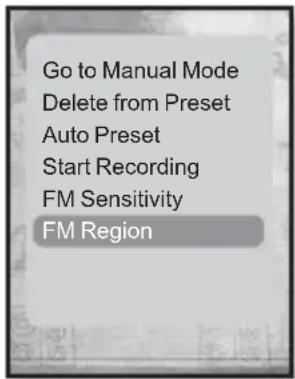
You can change an FM region setting in preparation for overseas travel.
- Tap [ ] in FM Radio mode.
- The
- Tap [^\~] to select
and tap [◎].
- The
- Tap [^\~] to select your regional area for FM radio and tap [∅]
- Select from

-
Your previously stored radio frequencies will be deleted when you change the
on your player.
■ FM region can be deleted or changed according to the target region of the player.
■ Frequency range by region -
Korea/US: Search for FM frequencies in 100 kHz increments between 87.5 MHz\~108.0 MHz.
- Japan: Search for FM frequencies in 100 kHz increments between 76.0 MHz\~108.0 MHz.
- Other Countries: Search for FM frequencies in 50 kHz increments between 87.50 MHz\~108.00 MHz.
using the datacast
Using

NOTE
- What is RSS?
RSS stands for Rich Site Summary or Really Simple Syndication. It is a xml-based data transmission system used to deliver information on frequently updated web sites such as news and blogs to users in a more convenient and easier way.
- What is Datacasts?
You can automatically receive updated information without having to visit your frequently visited news, blog and UCC sites every time.
- Before you start -
REGISTERING A CHANNEL
You can create a new channel by registering RSS-supported web sites or web pages.
- Click the
on the bottom of the of . -
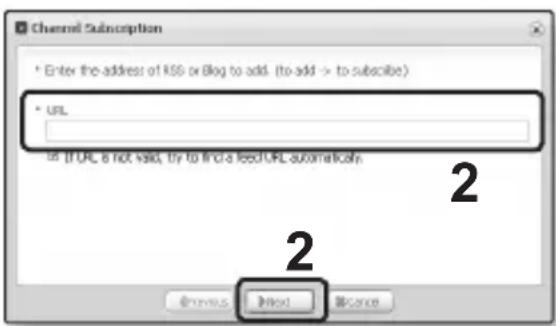
Enter an address in the
and Click <▶Next>. -
When you copy a web address and click
, the copied address is displayed automatically in the . -
The setting confirmation window appears if the Web address supports RSS.
-
Click
.
■ The channel you want is registered.
- The icon appears in Datacasts for the registered channel.

NOTE
- Refer to the
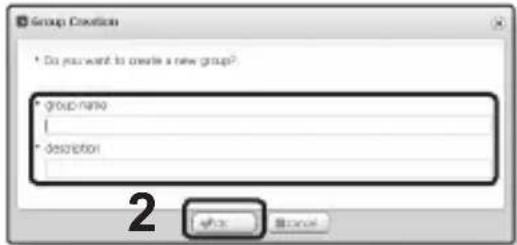
CREATING A NEW CHANNEL GROUP
You can create a new group to manage your own channels.
-
Click
on the bottom of of . -
Type in a group name and description and click
.
TRANSFERRING A DATACAST FROM

■ Before you start - Connect the player to your PC.
will automatically start when the player is connected to your PC.
- If the program does not start automatically, double click the
- Click
on the top of .
■ Datacasts group channel list appears.
-
Click a desired group channel.
-
Click a desired channel.
-
Select the post you want to transfer.
-
Click the icon.
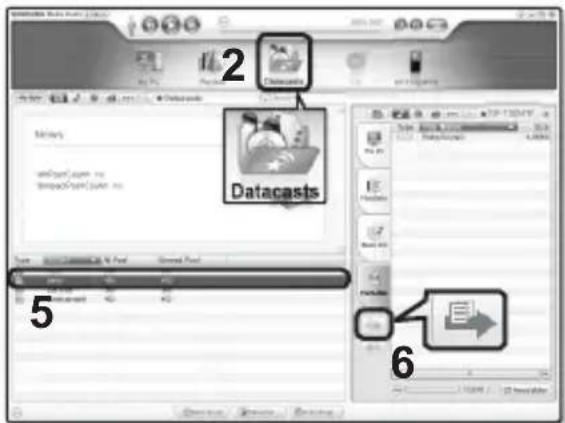
- The Post of the selected channel will be transferred to the player in

NOTE
- Click 📣 on the top of
- In
72 _ using the datacast
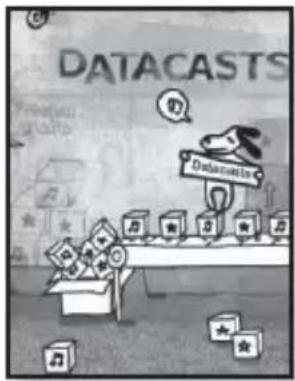
VIEWING DATACASTS
You can view channel posts added to

Before you start - Transfer the post of a desired channel to the player using

- Tap [→] to move to the previous screen. Press and briefly hold [→] to move to the main menu screen.
- Press and briefly hold [→] to move to the main menu screen.
- Tap [< >] to select
and tap [◎].
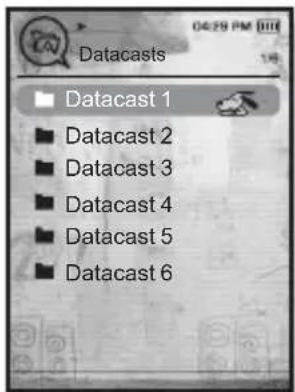
■ The Datacasts list appears.
- Tap [\~\~] to select a desired group channel and tap [◎].
- The title is the same as that of the channel added to
- Tap [^ ∨] to select a desired channel and tap [◎].
■ The fi le list appears.
- icon : main text for the transferred post
- icon : picture fi le
■ icon : music fi le -
icon : movie fi le
-
Tap [^ ∨] to select a desired post and tap [◎].
■ The selected post will be played.
enjoying the prime pack
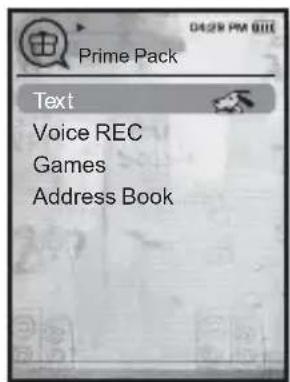
Prime Pack enables you to enjoy various functions such as reading text and a voice recording.
READING TEXT
Whether it's a novel, the manuscript of a new story, or your research paper, your mp3 player allows you to read it... all while listening to music!

- Before you start - Turn on the player and check the battery capacity. Transfer text files to the player using

- Tap [→] to move to the previous screen. Press and briefly hold [→] to move to the main menu screen.
- Press and briefly hold [→] to move to the main menu screen.
- Tap [< >] to select
and tap [◎].
■ The
- Tap [^v] to select
and tap [◎].
■ The text fi le list appears.
- Tap [^ ∨] to select a desired text file and tap [◎].
- You will see the text on the screen.
To move to previous/next page
Tap [<].>
- Press and brief y hold [< >] to move continuously to the previous / next page.

- Your mp3 player supports the TXT file format in Text mode.
- You can also use the
to search for a text file.

NOTE
- To exit the menu, tap [图]
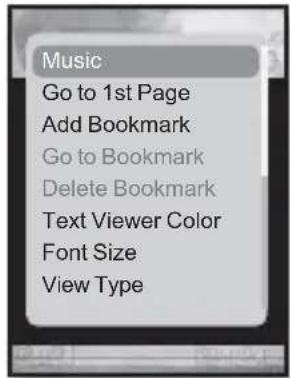
To listen to music while viewing your text
You can listen to the music that you last played while viewing your text.
- Tap [ ] while viewing a text.
- The
- Tap [^] to select
and tap [◎].
- The
- Tap [^ ∨] to select a desired mode and tap [◎].
-
-
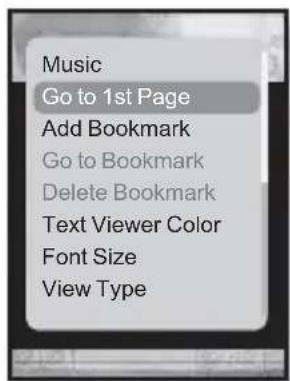
To move to the first page
Use this if you want to view the text from the first page.
- Tap [] while viewing a text.
- The
- Tap [^ ∨] to select
and tap [◎].
- You will see the confirmation window to move to the first page.
- Tap [< >] to select
and tap [◎].
■ Moves to the first page.
USING THE TEXT MENU (Continued)

NOTE
- To exit the menu, tap [ ]
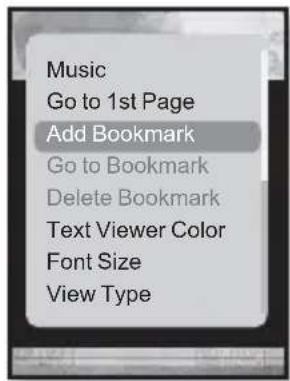
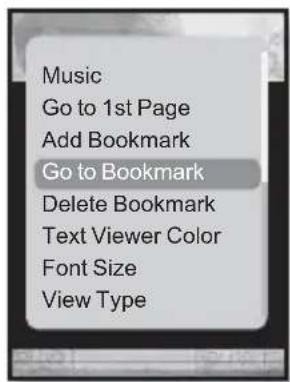
To set a bookmark
Set a bookmark to return to that point in the text at any time.
- Tap [ ] while viewing a text.
- The
- Tap [^ ∨] to select
and tap [∅]
- The current text screen is set to a bookmark with the [∅] symbol displayed on the top left corner.

NOTE
- The Overwrite window appears if there is a bookmark previously set. If you select
- The bookmark can be set one for each text file, and you can set a maximum of 100 bookmarks.
To move to / remove the bookmark
- Tap [ ] while viewing a text.
- The
- Tap [^ ∨ ] to select
or and tap [∅]
- When you selected
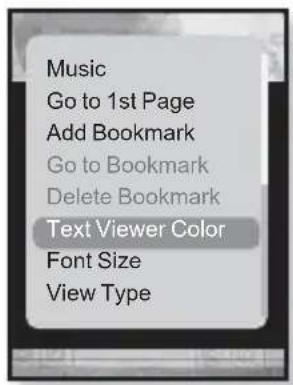
To set the text viewer color
Choose what color you'd like the text to appear.
- Tap [☐] while viewing a text.
- The
- Tap [^\~] to select
and tap [◎].
- The
- Tap [<<>] to select a desired text viewer color and tap [@]
- Select from
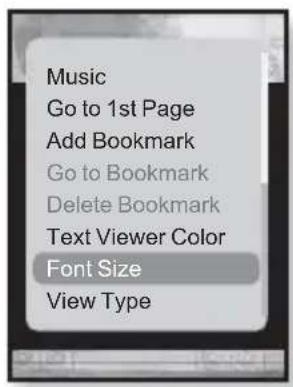
To change the font size
You can change the font size of the text.
- Tap ☐] while viewing a text.
- The
- Tap [^ ∨] to select and tap [◎].
- The menu appears.
- Tap [<<>] to select a desired font size and tap [@]
- Select from ,
USING THE TEXT MENU (Continued)
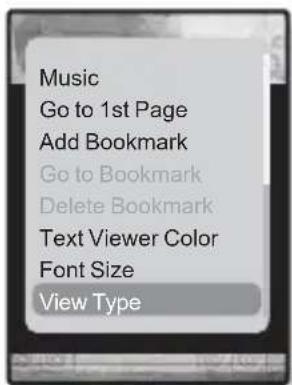
To set the text view type
You can view text horizontally or vertically.
- Tap [☐] while viewing a text.
■ The Text menu appears.
- Tap [^ ∨] to select
and tap [◎].
- The
- Tap [^\~] to select a desired view type and tap [∅]
- Select from
- Select
To set a text language
You can select a language for text to view.
- Tap [☐] while viewing a text.
- The
- Tap [^ ∨] to select
and tap [◎].
- The
-
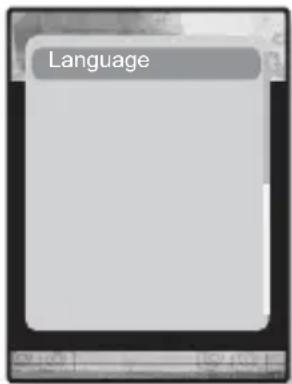
- Tap [^ ∨] to select a desired language and tap [◎].
- You can view text in the selected language.

NOTE
■ The supported languages can be changed or added.
You can make a voice recording.
To make a voice recording
- Press and briefly hold [→] to move to the main menu screen.
- Tap [< >] to select
and tap [◎].
- The
- Tap [^\~] to select
and tap [◎]. - Tap [Φ]
■ The player starts recording.
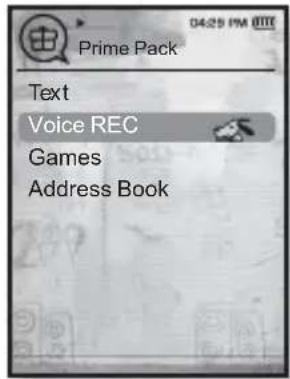

NOTE
- You can make a recording for up to approximately 23 hours (based on 96Kbps, 1GB)
- You can store a maximum of 999 files for voice recording.
To stop voice recording
- Tap [ ] during the recording.
- A message appears asking you if you want to listen to the fi le you just recorded.
-
Tap [< >] to select
or and tap [◎]. -
Selecting
will play the just recorded file. - Selecting
will not play the recorded file. - The recorded file is stored in
→ .
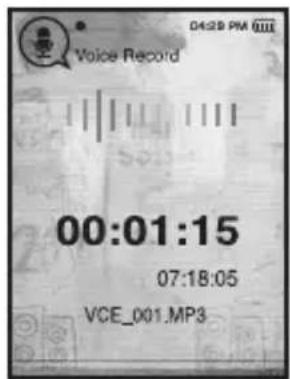

- Do not put the microphone too close to or far away from your mouth as it may cause a poor recording.
■ Voice recording does not perform properly when the battery is low. - The recording file name will be automatically specified such as "VCE_000.mp3". "VCE" indicates the file is a voice recording and "000" is the recording file number.
PLAYING VIDEO GAMES
Your mp3 player comes with exciting games already loaded!

■ Before you start - Connect the earphones, then turn on the player, and check the battery.

- Tap [→] to move to the previous screen. Press and briefly hold [→] to move to the main menu screen.
- Press and briefly hold [→] to move to the main menu screen.
- Tap [< >] to select
and tap [◎].
■ The
- Tap [^▼] to select
and tap [∅]
■ The
- Tap[^ ∨] to select a desired game and tap [∅]
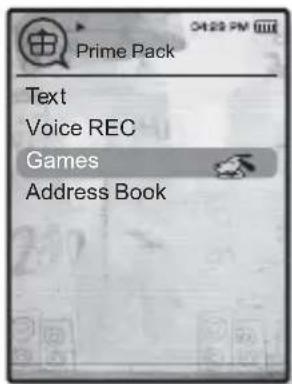
BOMB BOMB
This is a brain game where you change the order of three blocks to match the color of the hammer-imaged block with that of stacked ones, which removes blocks. Remove blocks as many as possible.
Tap [< >] to move the blocks to the left or right.
Tap [^] to change the position of the blocks horizontally or vertically.
Tap [▼] to drop the blocks.

PLAYING VIDEO GAMES (Continued)
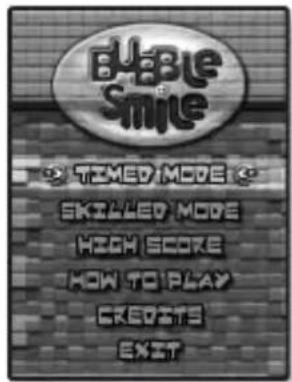
Bubble Smile
You have to gain as many scores as possible by changing the order of three bubbles to fit them horizontally or diagonally.
Tap [^<] to move the combination of three bubbles.
Tap [☐] to change the order of bubbles clockwise.
Tap [→] to change the order of bubbles counter clockwise.
You will gain scores only if at least three bubbles are fitted together.
Chicken Runaway
This is a game where you move the hen and the chickens chasing it to the left or right. i.e you should avoid balls from the sky to keep the hen safe as long as possible.
Tap [< >] to move the hen to the left or right


- Games may be added or changed without notice.
- For more information about Game navigation, see the Help section.
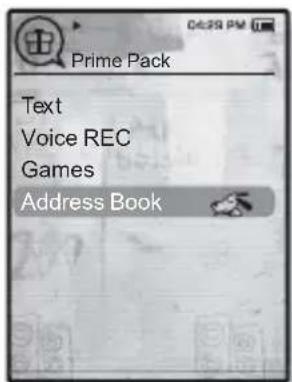
VIEWING THE ADDRESS BOOK
You can download the address book using Bluetooth function to check the phone number and directly call the other person on the player.

- Before you start - First, use the Bluetooth-based file transfer function to download the address book from an external device. For more information, refer to
You must pair your mobile phone with the player before you make a call in the address book window.
For more information, refer to
- Press and briefly hold [→] to move to the main menu screen.
- Tap [< >] to select
and tap [◎].
■ The
- Tap [^ ∨] to select and tap [∅]
■ The Address Book window appears.
- Tap [↑] to select a name to check in the Address Book window and tap [💡]
■ The selected address information will appear.
To make a call in the address book
- Tap [^ ∨] to select a name to make a call in the Address Book window and tap [∅]
■ The selected address information will appear.
- Tap [^\~] to select a desired phone number and tap [∅]
- You are now placing a call to the other person.

- The address book will be displayed in sequence following the special characters, numbers, alphabets.
- The address book files transferred to the player are saved in
→ . - Only the vCard file format is supported for the address book.
84 _ enjoying the prime pack
using Bluetooth
Using Bluetooth wireless, you can connect your player wirelessly to other Bluetooth devices and exchange data with them, talk hands-free or enjoy music using a Bluetooth stereo headset.

NOTE
- Tap [→] to move to the previous screen.
Press and briefly hold [→] to move to the main menu screen.
WHAT IS BLUETOOTH?
Bluetooth is an industry specification that describes how Bluetooth-compliant stereo headsets, mobile phones, and external devices can easily interconnect with each other using a short wireless connection.
- The Bluetooth device can cause a noise or malfunction, depending on the use conditions.
■ Physical signal interference, for instance, if you hold the player in the hand and wear a stereo headset in your ears, or if you hold the player in the one hand and take a mobile phone in the other hand.
- When a part of the body is in contact with the receiving/transmitting system of the player or the stereo headset.
- Electrical variation from electrical jamming by the wall, corner or office partitioning.
- Electrical interference from the same frequency-band devices including medical equipment, microwave oven and wireless LAN.
- When pairing the Bluetooth device with the player, make it within as short distance as possible.
- The farther the distance between player and stereo headset is, the worse the quality is. If the distance exceeds the limit, the communications are disconnected.
- We do not recommend you use text and picture view modes while listening to the music with the stereo headset as it can cause deterioration of both player performance and Bluetooth communications.
using Bluetooth_
WHAT IS BLUETOOTH? (Continued)
- Depending on the model of the stereo headset, files in less than 32 kHz can not be played.
- In poor reception-sensitivity areas such as inside an elevator or underground, the Bluetooth connection may not work properly.
- The maximum distance that enables wireless connection between the player and the bluetooth is 10m. The connection will be automatically cut off if the distance is out of this range. Even within this range, the sound quality may be deteriorated by obstacles such as walls or doors.

- When not in use, set the
to . If you stay in for , the battery usable time is reduced. - The Bluetooth features of the player are optimized with Samsung products. If used with third party products, the Bluetooth features may not work properly.

- Do not use the Bluetooth function for illegal purposes (pirated copy, illegal wireless tapping and communications, etc. for commercial purposes). Samsung is not responsible for any of these illegal uses and the consequent results.
USING A BLUETOOTH STEREO HEADSET
You can use a Bluetooth stereo headset to let you enjoy music with high quality stereo sound, all without wires!

- Before you start - If the player is connected to a Bluetooth mobile phone or external device, set the connection to off fi rst. Ensure that the Bluetooth device to connect is ready for pairing. (refer to the device's user manual)
To register the Bluetooth Stereo Headset
(you only need to register it once)
- Press and briefly hold [→] to move to the main menu screen.
-
Tap [< >] to select
and tap [◎]. -
The
is set to . -
The ⚙ icon will light.
-
Set the stereo headset ready for pairing.
- To set the headset ready for the pairing mode, refer to the headset's user manual.
-
Tap [^ ∨ ] to select
and tap [∅] -
You will see
on the screen, if there is any device that has been previously paired with the player. Select so that you can search for a new device to pair. -
The headset to be registered will be listed.
-
Tap [^ ∨] to select a headset name to add and tap [◎].
-
The Password input window appears if the password for the headset is other than 0000. Refer to the Headset's manual for the password.
■ The registration of the headset is completed.
USING A BLUETOOTH STEREO HEADSET (Continued)
To register the Bluetooth Stereo Headset (Continued)

- You can use the Bluetooth function only when playing music and video fi les. It is not supported while you are listening to FM Radio.
■ Description of the Bluetooth icon
69: Bluetooth mode on : Connected to a stereo headset
(3): Connected to a mobile phone
If you want to turn off the Bluetooth function, set the Bluetooth Mode to
■ Bluetooth-compliant Headsets
| Company Model Company Model | |||
| i.TECH Blueband SAMSUNG SBH100 | |||
| Plantronics PULSAR 590A Jabra BT620s | |||
| MOTOROLA | HT820 | ||
- Use only a Bluetooth-certified stereo headset. Mono hands-free headsets are not supported.
- When not in use, set the
to . If you stay in for , the battery usable time is reduced.
USING A BLUETOOTH STEREO HEADSET (Continued)
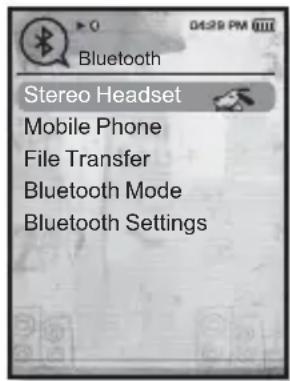
To connect the registered Bluetooth stereo headset
- Tap [^ ∨] in the Bluetooth screen to select
and tap [∅] -
Tap [^\~] to select a stereo headset to connect and tap [∅]
-
When the connection is successfully done, you will see the 📄 icon on the display.
-
You can connect up to 2 headsets.
-
Play the music.
- You can listen to the music using a stereo headset.

NOTE
- If you can't find the desired headset to connect, register it first.
- If you turn off the player or the headset, and then turn it on, the bluetooth communication may be disconnected. If you want to listen to the music again using the stereo headset, repeat the instructions above.
- When two headsets are connected, the first-connected headset alone can be enabled for functional operation such as play/stop and volume control. For more information, refer to the headset's user manual.
USING A BLUETOOTH MOBILE PHONE
You can make and receive phone calls on your player once you connect a Bluetooth mobile phone. The player will function as a hands-free device.

- Before you start - If the player is connected to a Bluetooth stereo headset or external device, set the connection to off fi rst.
Ensure that the Bluetooth mobile phone you are going to connect is ready for pairing. (refer to the mobile phone's user manual)
Set to
To register the Bluetooth mobile phone
(you only need to register it once)
- Press and briefly hold [→] to move to the main menu screen.
-
Tap [ < >] to select
and tap [◎]. -
The
is set to . -
The ⚙ icon will light.
-
Search for YP-T10 in your mobile phone's menu.
- If you renamed the YP-T10 player, search the new name.
- Enter the password when the password input window appears on the mobile phone.
- When you see
and tap [∅]
■ The PIN code (password) input window appears.

- The password digits may differ, depending on the mobile phone. (refer to the mobile phone's user manual)
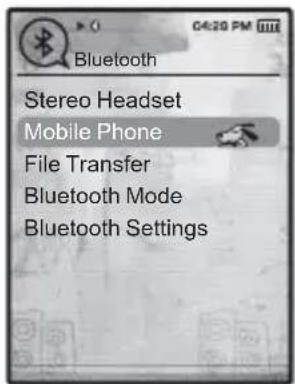
USING A BLUETOOTH MOBILE PHONE (Continued)
To register the Bluetooth mobile phone (Continued)
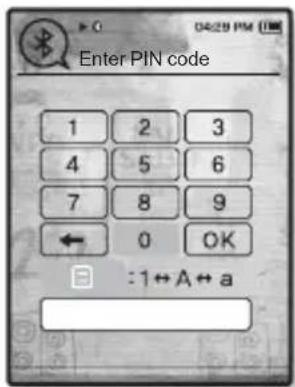
- Use [^^<>] and [◎] to enter the password for the mobile phone to add to the player.
■ Make sure to enter the same password as in step 4 above.
- Use [^<] to move to
and tap [◎].
■ The mobile phone registration is complete.

- With some mobile phones, the search device and mobile conversation (placing/receiving calls) functions may not work properly.
- If you press a button on the mobile phone or make or end a call when there is a Bluetooth connection between the player and the mobile phone, you may hear a noise from the player.
■ We recommended using English for the device name of the mobile phone.
■ Bluetooth-compliant Mobile Phones
| Company Model | |
| SAMSUNG | SPH-C3250, SPH-W2700, SPH-V7400, SPH-V6900, SCH-W270, SPH-B5600, SPH-B3200, SGH-X828, SGH-I718, SGH-E908, SGH-U608 |
| LG LG-KH1000 | LG-KV2400, LG-KG90, LG-KG77 |
| SKY | IM-U130 |
| NOKIA N72 | |
| PHILIPS S900 | |
| MOTOROLA Z3 | |
USING A BLUETOOTH MOBILE PHONE (Continued)
To connect to the registered Bluetooth mobile phone
- Tap [^ ∨] in the Bluetooth screen to select
and tap [∅]
■ The mobile phone menu appears.
-
Tap [^ ∨] to select
and tap [∅] -
Tap [^ ∨] to select a mobile phone to connect to and tap [∅]
- When the connection is successfully done, you will see the icon.
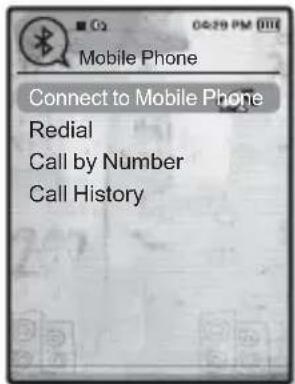

If you can't find a phone to connect to, register the phone with the player first. see page 90.
- The mobile phone connection can be set off if you turn off and restart the player. If the connection is set off, refer to the steps above to connect again.
To dial the last used number
- Tap [^ ∨] in the Bluetooth screen to select
and tap [∅]
■ The mobile phone menu appears.
- Tap [^ ∨] to select
and tap [◎].
- You are now placing a call to the last used phone number.
- The recent call history may appear depending on the model. Select the latest phone number in the call history to call.
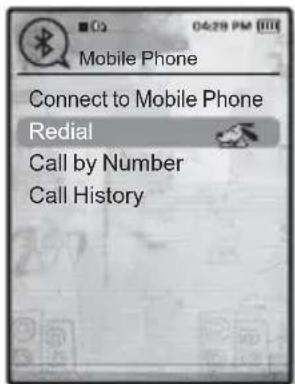
USING A BLUETOOTH MOBILE PHONE (Continued)
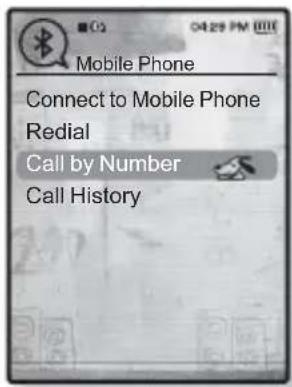
To make a call using the player
- Tap [^ ∨] in the Bluetooth screen to select
and tap [💡]
■ The mobile phone menu appears.
- Tap [^ ∨] to select
and tap [∅]
■ The phone number input window appears.
-
Use [ ]\~< > and [ ]to enter the phone number for the other person to call.
-
Use [ ^< ] to move to <> and tap [].
- You are now placing a call to the other person.

- If the connected mobile phone has set shortcut numbers, you can directly make a call on the player by pressing and holding the last number of the shortcut.
To end the phone call
Tap [ < > ] to select < □> and tap [◎].
■ The call is hung up.
USING A BLUETOOTH MOBILE PHONE (Continued)
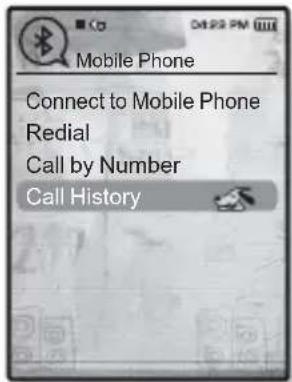
To make a call using the phone number list
- Tap [^ ∨] in the Bluetooth screen to select
and tap [∅]
■ The mobile phone menu appears.
- Tap [^ ∨] to select
and tap [◎].
■ The phone number list appears.
- Tap[]^\~ to select a desired number and tap [∅]
- You are now placing a call to the other person.
To delete a phone number in the phone number list
- Tap [^^] in
to select a phone number to delete and tap [∅] - Tap [^] to select
and tap [◎].
- If you want to delete all numbers in the phone number list, select
■ The confirmation window appears.
- Tap [< >] to select
and tap [◎].
- The selected number will be deleted.
USING A BLUETOOTH MOBILE PHONE (Continued)
To answer the phone
- You will see
- Tap [< >] to select
and tap [◎]. - You can now make conversations.
To switch to the mobile phone while talking on the player (YP-T10)
While talking on the player, tap [< >] to select <◀> and tap [◎].
- You can now make conversations on the mobile phone.
To switch to the player (YP-T10) while talking on the mobile phone
While talking on the mobile phone, tap [< >] to select < 🔒> and tap [◎].
- You can now make conversations on the hands-free device.
To adjust the volume
While talking on the hands-free, tap [^ ∨] to adjust the volume.
- You can select the volume from 0 to 30.

NOTE
- You can not take the call using the hands-free device (YP-T10) as long as it is recording.
TRANSFERRING FILES TO/FROM A BLUETOOTH DEVICE
You can transfer music, picture and video files to Bluetooth-compliant external devices such as an MP3 player, mobile phone, etc. to the player or vice versa.

Before you start - If the player is connected to a Bluetooth stereo headset or mobile phone, set the connection to off first. Ensure that the Bluetooth device you are going to connect is ready for pairing. (refer to the device's user manual) Check if the Bluetooth device to supports the file transfer function. (refer to the device's user manual)
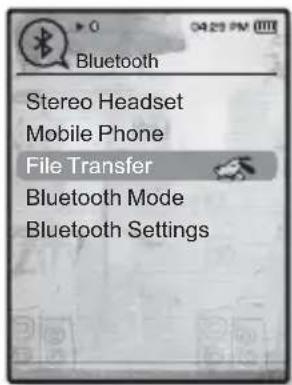
To register an external device on the player
(you only need to register it once)
- Press and briefly hold [→] to move to the main menu screen.
-
Tap [ < >] to select
and tap [◎]. -
The
is set to . -
The icon will light.
-
Set the external device so it is ready for pairing.
- For information on setting the external device so it is ready for pairing, refer to the device's user manual.
-
Tap [^ ∨ ] to select
and tap [◎]. -
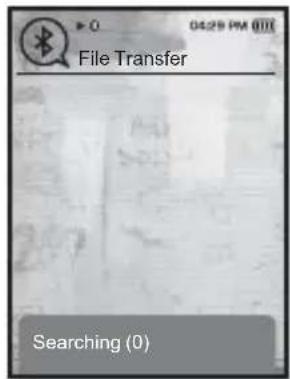
The device to be registered will be listed.
- You will see
on the screen, if there is any device that has been previously paired with the player. Select so that you can search for a new device to pair.
TRANSFERRING FILES TO/FROM A BLUETOOTH DEVICE (Continued)
To register an external device on the player (Continued)
- Tap [↑] to select a device to register and tap [◎].
- The PIN Code (password) input window appears if the password for the external device is other than 0000. Refer to the external device's manual for the password.
-
Enter the password when the password input window appears on the external device.
-
You must enter the same password as in step 5 above.
- When the pairing is completed, you will see the File Transfer screen.
- See step 3 of page 98 to transfer files on the player to an external device.

- The password digits may differ, depending on the external device. (refer to the device's user manual)
- Some functions may not work properly if you use a Bluetooth device other than YP-T10 for file transfer.
TRANSFERRING FILES TO/FROM A BLUETOOTH DEVICE (Continued)
To transfer a fi le on the player to the external device

Before you start - If you can't find the external device to connect to, register it with the player first. See page 96. Ensure that the Bluetooth device you are connecting is ready for pairing. (refer to the device's user manual)
- In the Bluetooth screen, tap [↑] to select
and tap [◎] - Tap [^] to select an external device to connect and tap [∅]
- When the connection is completed, you will see the File Transfer screen.
- Tap [^ ∨] to select a desired folder and tap [◎].
- Tap [^] to select a desired file and tap [◎].
- The selected files on the player will be transferred to the external device.
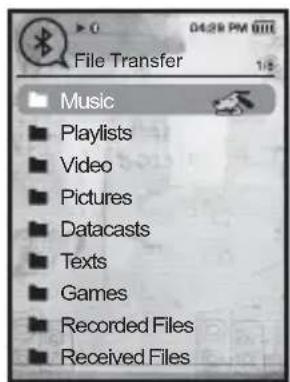
Ex)

- When the file transfer is done, tap [→] to exit the file transfer mode. See page 99.
- DRM files (chargeable) can not be played on the player.
- The connection can be set off if you turn off and restart the player or external device. If the connection is set off, refer to the steps above to connect again.
TRANSFERRING FILES TO/FROM A BLUETOOTH DEVICE (Continued)
To cancel transferring the fi le
Tap [●] during the transfer.
■ The fi le transfer is stopped.
To exit the File Transfer mode
- Press and briefly hold [←] in the file list screen.
- Each time you tap [ ], the player will return to the previous screen and you will see the fi le transfer close window.
- Tap [< >] to select
and tap [◎].
■ The fi le transfer mode is closed.
TRANSFERRING FILES TO/FROM A BLUETOOTH DEVICE (Continued)
To transfer a fi le on the external device to the player
If you want to transfer an external file to the player, you must first make it ready for pairing.

■ Before you start - If the player is connected to a Bluetooth stereo headset or mobile phone, set the connection to off first.
Ensure that the Bluetooth device you are going to connect is ready for pairing. (refer to the device's user manual)
Check if the Bluetooth device to support the file transfer function.
(refer to the device's user manual)
Set
- Press and briefly hold [→] to move to the main menu screen.
-
Tap [< >] to select
and tap [◎]. -
The
is set to . - The ⚙ icon will light.
- You can transfer a file on the external device to the player.
- For pairing the external device with and transferring it to the player, refer to the device's user manual.
- Files transferred to the player are saved in
→ folder.
To disconnect the Bluetooth device
- Tap [ ] in the Bluetooth screen.
- Tap [^ ∨] to select
and tap [◎].
■ The Disconnect confirmation window appears. - Tap [< >] to select
and tap [◎]. - The currently connected device will be disconnected.
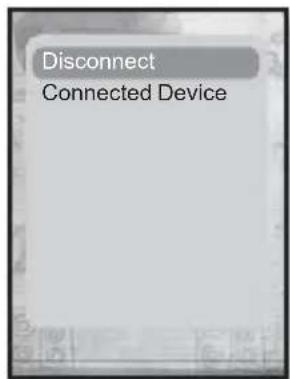
To check the Bluetooth device connected
- Tap [☐] in the Bluetooth screen.
- Tap [^ ∨] to select
and tap [∅] - You can see information of the connected device.
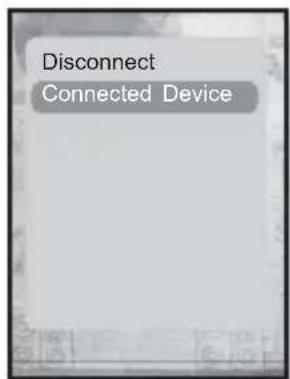

- You can disconnect or check the connected device only when connecting Bluetooth stereo headset or mobile phone.
BLUETOOTH SETTINGS

■ Before you start - Set
- Press and briefly hold [→] to move to the main menu screen.
- Tap [ < >] to select
and tap [◎]. - Tap [ ^▼] to select
and tap [◎].
- The
- Use [^ ∨] and [◎] to set functions.
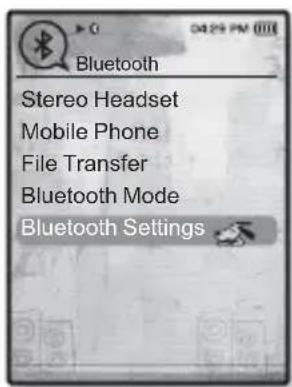
Bluetooth Setting Options
- Discover Option: You can set the Bluetooth device to detect this player.
sets it to detect and turns off detection. - Search Timeout: You can select the search time period for a new device. After setting a time, a new device will be searched for the time limit you set. Select one from <10sec>, <20sec>, <30sec>, <45sec> and <60sec>.
- Delete Device : You can delete a registered device in the player. See page 103. Select
to delete all of the registered devices. - My Device Info : You can check the name and address of your player.
To delete a Bluetooth device
- Tap [^ ∨] to select
and tap [◎].
- You will see the list of the registered devices.
- Tap [^] to select a device to delete and tap [∅]
- If you want to delete all of the registered devices, select
- Tap [〈〉] to select
and tap [◎].
■ The selected device will be removed.
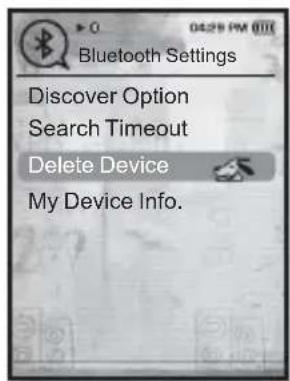
To rename a Bluetooth device
-
Tap [^ ∨] to select
and tap [◎]. -
Tap [ ]
■ The My Device Info menu appears.
- Tap [^] to select
and tap [◎].
■ The Edit Device Name window appears.
- Use [^<] and [◎] to rename the device.
- [目]: The input mode switches from number to uppercase English and to lowercase English.
- [←]: You can delete the characters one at a time.
- [OK]: Confirm your change.
■ E.g. To enter "YPS5"
-Move to the corresponding key icon and tap on it.

flowchart
graph LR
    A["(once)"] --> B["WXY (3 times)"]
    B --> C["PRS (once)"]
    C --> D["PRS (3 times)"]
    D --> E["(twice)"]
    F["5 (once)"] --> G
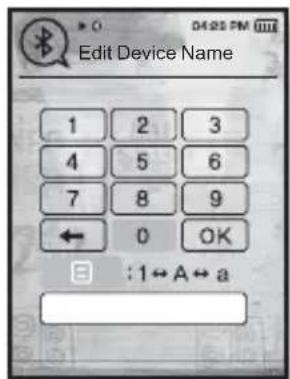
using Bluetooth_103
troubleshooting
If you have a problem with your new mp3 player, check for a solution in this list. If the problem persists, contact Samsung Customer Service Center near you.
| PROBLEM SOLUTION | |
| Power will not turn on. | • Power will not turn on if the battery is completely drained. Recharge the battery and turn the power on again.• Press the Reset hole. |
| Buttons do not work. | • Check if theHOLDSwitchis in the direction of the arrow position.• Check if you pressed the right button, then press again.• Press the Reset hole. |
| The screen will not turn on. | • The screen may not be visible under direct sunlight.• Ifis selected from→, the screen display can be turned off.Tap any button and see if it turns on. |
| Power is turning off. | ·Check the battery status.·The power is automatically turned off when the battery is completely drained. Recharge the battery.·Ifis selected from→, the Power will be turned off when the player is in Pause mode. Turn on the Player. |
| Battery life differs from the manual. | ·The battery life can vary depending on the sound mode and display setting.·Battery life may be shortened when the player is left for extended periods in low or high temperatures. |
| Media Studio Program Malfunction | ·Check if your PC meets the basic system requirements. |
| Connection to your PC is disabled. | ·Check if the USB cable is correctly connected and try again.·Presson the toolbar of your PC to run Windows Update. Select Key Updates and Service Packs, then update all. Reboot your PC and reconnect. |
| The fi le transfer rate is too slow. | ·If you are running multiple programs includingon your PC, the fi le transfer rate will be slow. Exit unnecessary programs and try transferring again. |
| Player isn’t playing. | Check if the available file has been saved in the memory.Check if the music file is damaged.Check if there is enough battery power. |
| File upload doesn’t work. | Check if the USB cable is securely connected. Reconnect if necessary.Check if the memory is full.Press the Reset hole. |
| Files or data are missing. | Check if the USB cable has been disconnected during file or data transmission. If this is the case, it may cause serious damage not only to fi les/data but also to the product. You have to be extra cautious as Samsung is not responsible for data loss. |
| Abnormal play time display during play. | Check if the file is in Variable Bit Rate (VBR) format. |
| The product is hot. | Heat may be generated during recharging. This has no effect on the product life or functions. |
| A message appears while watching a movie. | Try to download the movie clip through Media Studio again. |
| Bluetooth connections could not be made. | Check if the stereo headset is Bluetooth-certified.The mono hands-free headset is not supported.The Bluetooth connection can be set off if you turn the player or stereo headset off and on.In this case, try to connect again.If you want to talk on your mobile phone, check if you have set off the Bluetooth connections between player and stereo headset.If you want to talk on your mobile phone, check if you have set the player toin the→.If set to, you can’t find the player on your mobile phone. |
appendix
MENU TREE
Here's a quick look at how the menus and functions are organized on your new mp3 player.
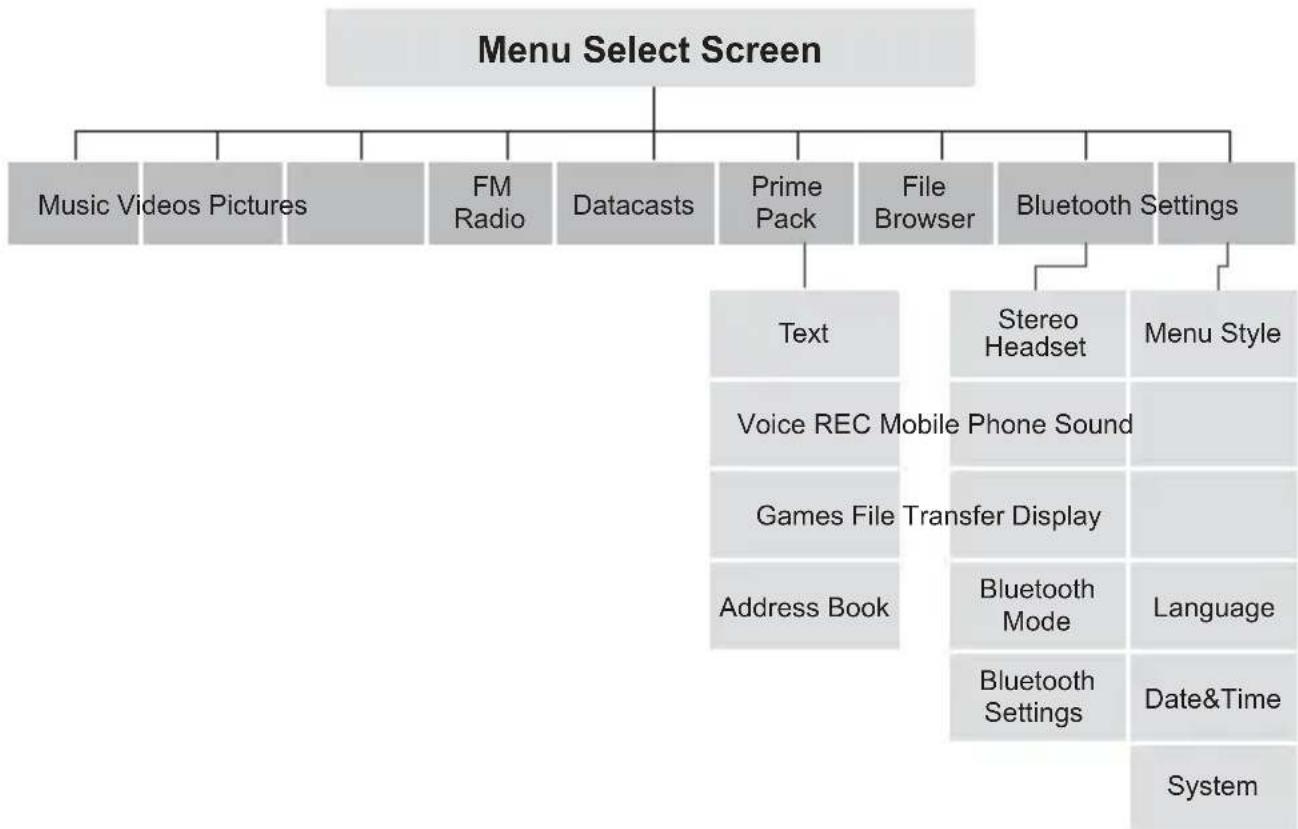
flowchart
graph TD
    A["Menu Select Screen"] --> B["Music Videos Pictures"]
    A --> C["FM Radio"]
    A --> D["Datacasts"]
    A --> E["Prime Pack"]
    A --> F["File Browser"]
    A --> G["Bluetooth Settings"]
    E --> H["Text"]
    E --> I["Voice REC Mobile Phone Sound"]
    E --> J["Games File Transfer Display"]
    E --> K["Address Book"]
    G --> L["Stereo Headset"]
    G --> M["Menu Style"]
    L --> N["Bluetooth Mode"]
    L --> O["Bluetooth Settings"]
    M --> P["Language"]
    M --> Q["Date&Time"]
    M --> R["System"]
PRODUCT SPECIFICATIONS
| Model Name YP-T10 | |
| Rating DC 5.0V / 500mA | |
| Built-in Battery Power 550 mAh / DC 3.7V | |
| File Compatibility | AUDIO : MPEG1/2/2.5 Layer3(8kbps~320kbps, 22kHz~48kHz),WMA(8kbps~320kbps,8kHz~48kHz)AAC-LC(16kbps ~ 256kbps, 8KHz~ 48kHz), AAC-Plus(16kbps~ 256kbps, 16kHz~ 44.1kHz),Enhanced-AAC-Plus(16kbps ~56kbps, 32kHz ~ 44.1kHz)VIDEO : SVI (Video : MPEG4,Audio : MP3(44.1kHz, 128Kbps),WMV(Video : WMV9 Simple Profi le,Audio : WMA Spec (Max 860kbps),Resolution : 320X240,Frame Rate : 30fps)IMAGE : JPEG(ISO/IEC 10918-1/AnnexF-Sequential DCT-based mode of operation) |
| Earphone Output | 20mW/Ch (France 5mW/Ch) (based on 16Ω) |
| Output Frequency Range 20Hz~20KHz | |
| Signal to Noise Ratio 90dB with 20KHz LPF(based on 1kHz 0dB) | |
| Play Time | Maximum of 30 hours for music playback(based on : MP3 128kbps, Volume 15, Normal sound mode), Maximum of 4 hours for video playback |
| Temperature Range for Operation | -5~35°C (23~95°F) |
| Case Plastic, Aluminium | |
| Weight 43g | |
| Dimensions (WxHxD) 41.5 X 96 X 7.9 mm | |
| FM RADIO | FM Frequency | 87.5~108.0MHz FM T.H.D 1% | ||
| FM Signal to Noise Ratio | 50 dB | FM Useable Sensitivity | 30dBμ | |
Wireless System
| Emission Type F1D | |
| RF Power 1.8mW | |
| Transmit Frequency 2402MHz ~ 2480MHz | |
| Receive Frequency 2402MHz ~ 2480MHz | |
| No. of channels 79 ch | |
| Temperature -10 °C~ +50°C(14 ~ 122°F) | |
| Modulation System GFSK | |
| Communication Mode Semi-duplex Operation | |
| Humidity 95% | |
| Spec Version Supported | 2.0 |
| Module BTEM48B2SA | |
The contents of this Manual are subject to change without prior notice for further improvement.
LICENSE
The product player accompanying this user manual is licensed under certain intellectual property rights of certain third parties. This license is limited to private non-commercial use by end-user consumers for licensed contents. No rights are granted for commercial use.
The license does not cover any product player other than this product player and the license does not extend to any unlicensed product player or process conforming to ISO/IEC 11172-3 or ISO/IEC 13818-3 used or sold in combination with this product player. The license only covers the use of this product player to encode and/or decode audio files conforming to the ISO/IEC 11172-3 or ISO/IEC 13818-3. No rights are granted under this license for product features or functions that do not conform to the ISO/IEC 11172-3 or ISO/IEC 13818-3.
CORRECT DISPOSAL OF THIS PRODUCT (WASTE ELECTRICAL & ELECTRONIC EQUIPMENT)
(Applicable in the European Union and other European countries with separate collection systems)
This marking shown on the product or its literature, indicates that it should not be disposed with other household wastes at the end of its working life.
To prevent possible harm to the environment or human health from uncontrolled waste disposal, please separate this from other types of wastes and recycle it responsibly to promote the sustainable reuse of material resources.
Household users should contact either the retailer where they purchased this product, or their local government office, for details of where and how they can take this item for environmentally safe recycling.
Business users should contact their supplier and check the terms and conditions of the purchase contract.
This product should not be mixed with other commercial wastes for disposal.
natural_image
Simple line drawing of a trash bin with two crossed lines and a blank rectangular base (no text or symbols)CORRECT DISPOSAL OF BATTERIES IN THIS PRODUCT
(Applicable in the European Union and other European countries with separate battery return systems.)
This marking on the battery, manual or packaging indicates that the batteries in this product should not be disposed of with other household waste at the end of their working life. Where marked, the chemical symbols Hg, Cd or Pb indicate that the battery contains mercury, cadmium or lead above the reference levels in EC Directive 2006/66. If batteries are not properly disposed of, these substances can cause harm to human health or the environment.
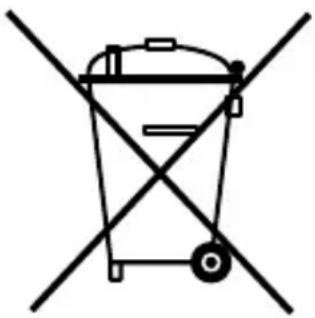
natural_image
Simple line drawing of a trash bin with two crossed arms and no text or symbolsTo protect natural resources and to promote material reuse, please separate batteries from other types of waste and recycle them through your local, free battery return system.
CONTACT SAMSUNG WORLD WIDE
If you have any questions or comments relating to Samsung products, please contact the SAMSUNG customer care center.
| Country | Customer Care Center | Web Site |
| CANADA 1-800-SAMSUNG(726-7864) www.samsung.com/ca | ||
| MEXICO 01-800-SAMSUNG(726-7864) www.samsung.com | ||
| U.S.A 1-800-SAMSUNG(726-7864) www.samsung.com | ||
| ARGENTINE 0800-333-3733 www.samsung.com/ar | ||
| BRAZIL 0800-124-421, 4004-0000 www.samsung.com | ||
| CHILE 800-SAMSUNG(726-7864) www.samsung.com/cl | ||
| NICARAGUA 00-1800-5077267 | ||
| HONDURAS 800-7919267 | ||
| COSTA RICA 0-800-507-7267 www.samsung.com/latin | ||
| ECUADOR | 1-800-10-7267 | www.samsung.com/latin |
| EL SALVADOR | 800-6225 | www.samsung.com/latin |
| GUATEMALA | 1-800-299-0013 www.samsung.com/latin | |
| JAMAICA | 1-800-234-7267 www.samsung.com/latin | |
| PANAMA 800-7267 | www.samsung.com/latin | |
| PUERTO RICO | 1-800-682-3180 www.samsung.com/latin | |
| REP. DOMINICA | 1-800-751-2676 www.samsung.com/latin | |
| TRINIDAD & TOBAGO | 1-800-SAMSUNG(726-7864) www.samsung.com/latin | |
| VENEZUELA 0-800-100-5303 www.samsung.com/latin | ||
| COLOMBIA | 01-8000112112 | www.samsung.com.co |
| BELGIUM | 0032 (0)2 201 24 18 | www.samsung.com/be |
| CZECH REPUBLIC | 844 000 844 | www.samsung.com/cz |
| DENMARK | 70 70 19 70 | www.samsung.com/dk |
| FINLAND | 030-6227 515 | www.samsung.com/fi |
| FRANCE | 3260 SAMSUNG (€ 0,15/Min), 08 25 08 65 65 (€ 0,15/Min) | www.samsung.com |
| GERMANY | 01805 - SAMSUNG(726-7864) (€ 0,14/Min) | www.samsung.com |
| HUNGARY | 06-80-SAMSUNG(726-7864) www.samsung.com | |
| ITALIA 800-SAMSUNG(726-7864) www.samsung.com | ||
| LUXEMBURG | 0035 (0)2 261 03 710 | www.samsung.com/be |
| NETHERLANDS | 0900-SAMSUNG(726-7864) (€ 0,10/Min) | www.samsung.com/nl |
| NORWAY 815-56 480 w | www.samsung.com/no | |
| POLAND 0 801 801 881 | , 022-607-93-33 www.samsung.com/pl | |
| PORTUGAL 80820-SAMSUNG(726-7864) www.samsung.com/pt | ||
| SLOVAKIA 0800-SAMSUNG(726-7864) www.samsung.com/sk | ||
| SPAIN 902 10 11 30 w | www.samsung.com | |
| SWEDEN 0771-400 200 | www.samsung.com/se | |
| U.K 0845 SAMSUNG (7267864) www.samsung.com | ||
| EIRE 0818 717 100 w | www.samsung.com/ie | |
| AUSTRIA 0800-SAMSUNG(726-7864) www.samsung.com/at | ||
| SWITZERLAND | 0800-SAMSUNG(726-7864) www.samsung.com/ch | |
| RUSSIA 8-800-555-55-55 | www.samsung.com | |
| KAZAHSTAN | 8-10-800-500-55-500 | www.samsung.kz |
| UZBEKISTAN | 8-10-800-500-55-500 | www.samsung.uz |
| KYRGYZSTAN | 00-800-500-55-500 | |
| TADJIKISTAN | 8-10-800-500-55-500 | |
| UKRAINE | 8-800-502-0000 | www.samsung.com |
| LITHUANIA | 8-800-77777 | www.samsung.lt |
| LATVIA | 800-7267 | www.samsung.com/lv |
| ESTONIA 800-7267 | www.samsung.ee | |
| AUSTRALIA | 1300 362 603 www.samsung.com | |
| NEW ZEALAND | 0800SAMSUNG(726-7864) | www.samsung.com/nz |
| CHINA | 800-810-5858 , 010-6475 1880 www.samsung.com | |
| HONG KONG | 3698-4698 | www.samsung.com/hk |
| INDIA | 3030 8282 , 1800 110011 | www.samsung.com |
| INDONESIA 0800-112-8888 | www.samsung.com | |
| MALAYSIA | 1800-88-9999 | www.samsung.com/my |
| PHILIPPINES | 1800-10-SAMSUNG(726-7864) | www.samsung.com/ph |
| SINGAPORE | 1800-SAMSUNG(726-7864) www.samsung.com | |
| THAILAND | 1800-29-3232 , 02-689-3232 | www.samsung.com |
| TAIWAN 0800-329-999 | www.samsung.com/tw | |
| VIETNAM | 1 800 588 889 www.samsung.com | |
| TURKEY | 444 77 11 | www.samsung.com |
| SOUTH AFRICA | 0860-SAMSUNG(726-7864 ) | www.samsung.com |
| U.A.E | 800-SAMSUNG (726-7864), 8000-4726 | www.samsung.com |

ELECTRONICS
Declaration of Conformity
For the following product:
YP-T10**, YP-T10J** / Digital Audio Player
(The mark “*” means the memory capacity and color of product.)
Manufactured at:
- Samsung Electronics Huizhou Co., Ltd. Industrial Complex, Chenjiang Town, Huizhou City, Guangdong Province, China
- Tianjin Samsung Electronics Company. 300457, TSEC12, 4th Avenue, TEDA, Tianjin, China
- Samsung Electronics Slovakia s.r.o. Hviezdoslavova 807, 924 27 Galanta, Slovakia
- P.T. Samsung Electronics Indonesia Co. Cikarang Industrial Estate JI, Jababeka Raya Blok F 29-33 Cikarang. Bekasi 17530, Indonesia (Factory name, address)
We hereby declare, that the product above is in compliance with the essential requirements of the R&TTE Directive (1995/5/EC) by application of::
EN 60065:2002
EN 55020:2002+A1:2003
EN 55022:1998+A1:2000+A2:2003
EN 55024:1998+A1:2001+A2:2003
EN 61000-3-2:2000+A1 :2001+A2 :2005
EN 61000-3-3:1995+A1:2001+A2:2005
EN 300 328-1 v1.6.1(2004-11)
EN 301 489-1 v1.6.1(2005-06)
EN 301 489-17 v1.2.1(2002-08)
Technical documentation kept at Samsung Electronics Co., Ltd. in Korea.
Manufacturer Representative in the EU:

Youn Doo Hyun / S. Engineer
Samsung Electronics Co., Ltd. 416, Maetan3-Dong, Yeongtong-Gu, Suwon-City, Gyeonggi-Do, Korea
August 20, 2007

Yong Sang Park / S. Manager
Samsung Electronics Euro QA Lab. Blackbushe Business Park, Saxony Way, Yateley, Hampshire, GU46 6GG, United Kingdom
August 20, 2007
(Place and date of issue) (Name and signature of authorized person)

REV.3.0
- MP3 Player user manual
- imagine the possibilities
- features of your new MP3 Player
- PUTTING THE "MULTI" IN MULTIMEDIA
- TOUCH NAVIGATION!
- WHERE FORM MEETS FUNCTION
- LONGER PLAY TIME AND SHORTER DOWNLOADING!
- ACOUSTIC WONDER
- safety information
- PROTECT YOURSELF
- PROTECT YOUR MP3 PLAYER
- contents
- THE BASICS
- 10
- SAMSUNG MEDIA STUDIO
- 32
- LISTENING TO MUSIC
- 37
- WATCHING A VIDEO
- 52
- VIEWING PICTURES
- 57
- LISTENING TO FM RADIO
- 62
- USING THE DATACAST
- 71
- ENJOYING
- THE PRIME PACK
- 74
- USING BLUETOOTH
- TROUBLESHOOTING
- APPENDIX
- WHAT'S INCLUDED
- YOUR MP3 PLAYER (Continued)
- Menu button
- ^ Up volume button
- Back button
- < Left fi le browser button
- Play/Pause, Select button
- ▼ Down volume button
- > Right fi le browser button
- Music
- SCREEN DISPLAYS (Continued)
- - What is RDS?
- CHARGING THE BATTERY
- CARING FOR THE BATTERY
- Turning the Power on
- Turning the Power off
- PLAYING MUSIC
- CONTROLLING THE VOLUME
- Tap [ ]
- DISABLING THE BUTTONS
- BROWSING FOR FILES USING "File Browser"
- DELETING FILES WITH "File Browser"
- CHANGING THE SETTINGS AND PREFERENCES
- Menu Style Settings
- Menu Style Setting Options
- CHANGING THE SETTINGS AND PREFERENCES (Continued)
- Sound Settings
- Sound Setting Options
- Display Settings
- Display Setting Options
- Language Settings
- Date&Time Settings
- System Settings
- System Setting Options
- ■ Regarding the Built-In Memory
- My Name Settings
- My Birthday Settings
- RESETTING THE SYSTEM
- PC REQUIREMENTS
- INSTALLING SAMSUNG MEDIA STUDIO
- TRANSFERRING FILES TO THE PLAYER WITH SAMSUNG MEDIA STUDIO
- TRANSFERRING FILES TO THE PLAYER WITH SAMSUNG MEDIA STUDIO (Continued)
- LISTENING BY CATEGORY
- Music List
- PAUSING
- SEARCHING WITHIN A TRACK
- PLAYING FROM THE BEGINNING OF THE CURRENT TRACK
- PLAYING THE PREVIOUS TRACK
- CREATING A PLAYLIST USING SAMSUNG MEDIA STUDIO
- Creating a Playlist
- CREATING A PLAYLIST USING SAMSUNG MEDIA STUDIO (Continued)
- Adding music fi les to a Playlist you've created
- Transferring a Playlist to your player using Media Studio
- PLAYING A PLAYLIST
- DELETING A FILE FROM THE PLAYLIST
- DELETING ALL FILES FROM THE PLAYLIST
- To set the sound effect
- Sound Effect Options
- To set the Digital Natural Sound engine (DNSe)
- - What is DNSe?
- To set the Digital Natural Sound engine (DNSe) (Continued)
- <3D & BASS>
- USING THE MUSIC MENU (Continued)
- To set the play mode
- Play Mode Options
- To select the music play screen
- Music Play Screen Options
- To set the play speed
- To set the skip interval
- To connect a Bluetooth stereo headset
- To disconnect the Bluetooth stereo headset
- TO PAUSE PLAYING DURING THE PLAYBACK
- TO MOVE TO A SPECIFIC FRAME
- TO PLAY THE PREVIOUS VIDEO FILE
- To set a bookmark
- To move to (play) / remove the bookmark
- USING THE VIDEO MENU (Continued)
- To adjust the brightness
- What is DNSe?
- To move to the previous/next picture
- To listen to music while viewing your picture
- To watch a slideshow
- How To 1
- How To 2
- USING THE PICTURE MENU (Continued)
- To stop the slideshow
- To set the slideshow speed
- To enlarge a picture
- To cancel the zooming
- To rotate a picture
- To select a picture as a background image
- TO USE THE MUTE FUNCTION
- TO SEARCH FOR FM STATIONS
- OR,
- To switch to Preset Mode
- To switch to Manual Mode
- USING THE FM RADIO MENU (Continued)
- To store stations in the Preset memory
- Manual - choose only the stations you want to store
- To store stations in the Preset memory (continued)
- Automatic - automatically store all the stations the player receives
- To cancel Auto Preset
- To listen to preset stations
- To delete a preset
- To record FM Radio broadcasting
- To stop FM recording
- To set the FM sensitivity
- To set the FM region
- - What is RSS?
- - What is Datacasts?
- REGISTERING A CHANNEL
- CREATING A NEW CHANNEL GROUP
- TRANSFERRING A DATACAST FROM
- VIEWING DATACASTS
- enjoying the prime pack
- READING TEXT
- To move to previous/next page
- To listen to music while viewing your text
- To move to the first page
- USING THE TEXT MENU (Continued)
- To move to / remove the bookmark
- To set the text viewer color
- To change the font size
- To set the text view type
- To set a text language
- To make a voice recording
- To stop voice recording
- PLAYING VIDEO GAMES
- BOMB BOMB
- PLAYING VIDEO GAMES (Continued)
- Bubble Smile
- Chicken Runaway
- VIEWING THE ADDRESS BOOK
- To make a call in the address book
- WHAT IS BLUETOOTH?
- WHAT IS BLUETOOTH? (Continued)
- USING A BLUETOOTH STEREO HEADSET
- To register the Bluetooth Stereo Headset
- USING A BLUETOOTH STEREO HEADSET (Continued)
- To register the Bluetooth Stereo Headset (Continued)
- To connect the registered Bluetooth stereo headset
- USING A BLUETOOTH MOBILE PHONE
- To register the Bluetooth mobile phone
- USING A BLUETOOTH MOBILE PHONE (Continued)
- To register the Bluetooth mobile phone (Continued)
- To connect to the registered Bluetooth mobile phone
- To dial the last used number
- To make a call using the player
- To end the phone call
- To make a call using the phone number list
- To delete a phone number in the phone number list
- To answer the phone
- To switch to the mobile phone while talking on the player (YP-T10)
- To switch to the player (YP-T10) while talking on the mobile phone
- To adjust the volume
- TRANSFERRING FILES TO/FROM A BLUETOOTH DEVICE
- To register an external device on the player
- TRANSFERRING FILES TO/FROM A BLUETOOTH DEVICE (Continued)
- To register an external device on the player (Continued)
- To transfer a fi le on the player to the external device
- To cancel transferring the fi le
- To exit the File Transfer mode
- To transfer a fi le on the external device to the player
- To disconnect the Bluetooth device
- To check the Bluetooth device connected
- BLUETOOTH SETTINGS
- Bluetooth Setting Options
- To delete a Bluetooth device
- To rename a Bluetooth device
- MENU TREE
- LICENSE
- CORRECT DISPOSAL OF THIS PRODUCT (WASTE ELECTRICAL & ELECTRONIC EQUIPMENT)
- CORRECT DISPOSAL OF BATTERIES IN THIS PRODUCT
- CONTACT SAMSUNG WORLD WIDE
- ELECTRONICS
- Declaration of Conformity
- For the following product:
- Manufactured at:
- Youn Doo Hyun / S. Engineer
- Yong Sang Park / S. Manager
Brand : SAMSUNG
Model : YP-T10JAG
Category : Mp3 player