from the menu on the top of the Media Studio program.
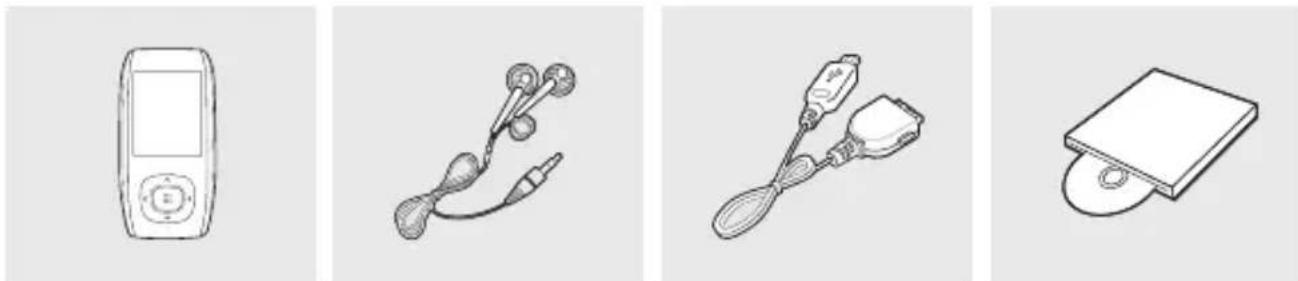
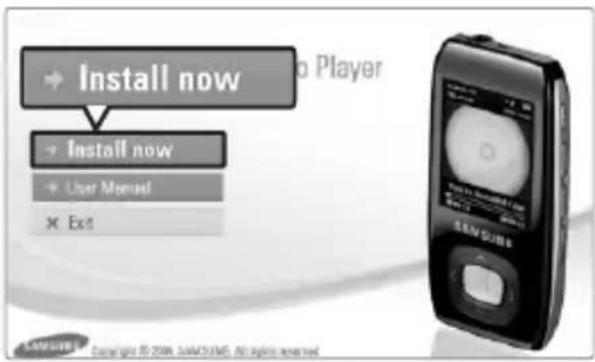
Before you start!
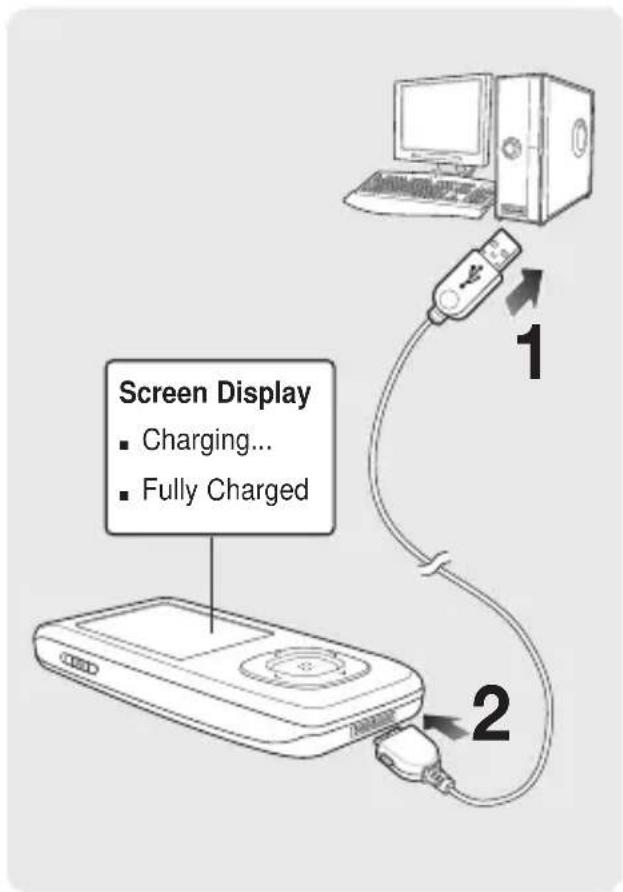
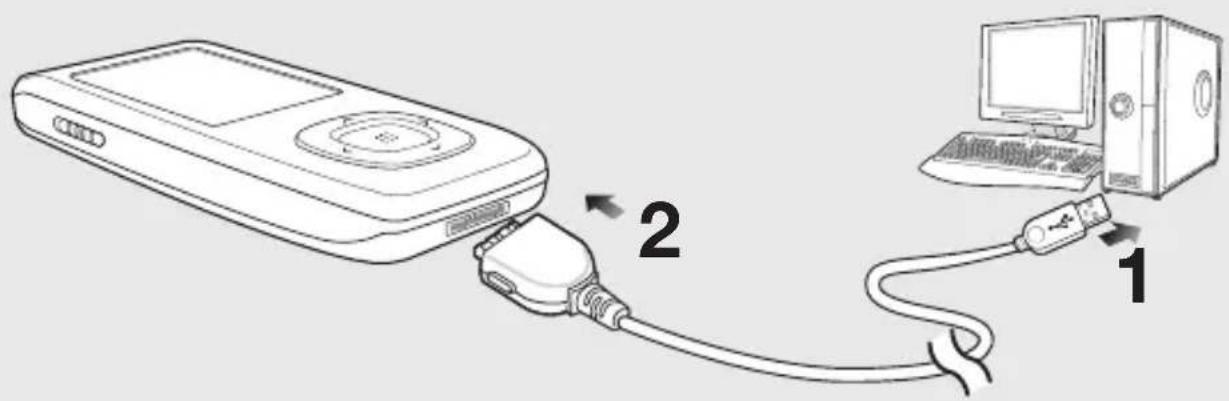
■ Connect the player to your PC.
- If the program does not start automatically, double Click the Media Studio icon on the desktop.
2 Click the desired file icon.
Choose the file type you want to transfer by clicking on one of these icons.
Click icon to display music list.
Click icon to display video list.
Click icon to display photo list
Click ETC icon to display etc list. The ETC list includes file types (ex: TXT, XOV, etc) other than music, photo, and video files.
To add folders
■ The Open Folder window will appear.
4 Select the folder to add and click .
■The selected folder is added to the list on the left side the Media Studio Screen.
To add files
■ The Open window will appear.
4 Select the files to add and click .
■ The selected files are added to the list.
Loading Your Desired File
Perform the following steps to transfer files from your PC to the player.
■ Music recognition technology and related data are provided by Gracenote and Gracenote CDDB® Music Recognition Service ^SM .
Before you start!
■ Connect the player to your PC.
- If the program does not start automatically, double click the Media Studio icon on the desktop.
2 Click the desired file icon.
- Choose the file type you want to transfer by clicking on one of these icons.
Click icon to display music list.
Click icon to display video list.
Click icon to display photo list
Click ETC icon to display etc list. The ETC list includes file types (ex: TXT, XOV, etc) other than music, photo, and video files.
3 Select the file to transfer in the left file list.
4 Click icon.
■ The selected file is transferred to the player.
CAUTION
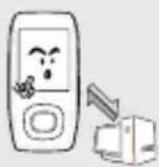
Do not disconnect the USB cable during file transfer. This may cause damage to the player or your PC.
NOTE
- When transferring a photo or video file to the player using , it is automatically converted into JPG(photo) or SVI(video) format before transfer. The file size is automatically adjusted, too.
Listening to Music
Listening to Music
Before you start!
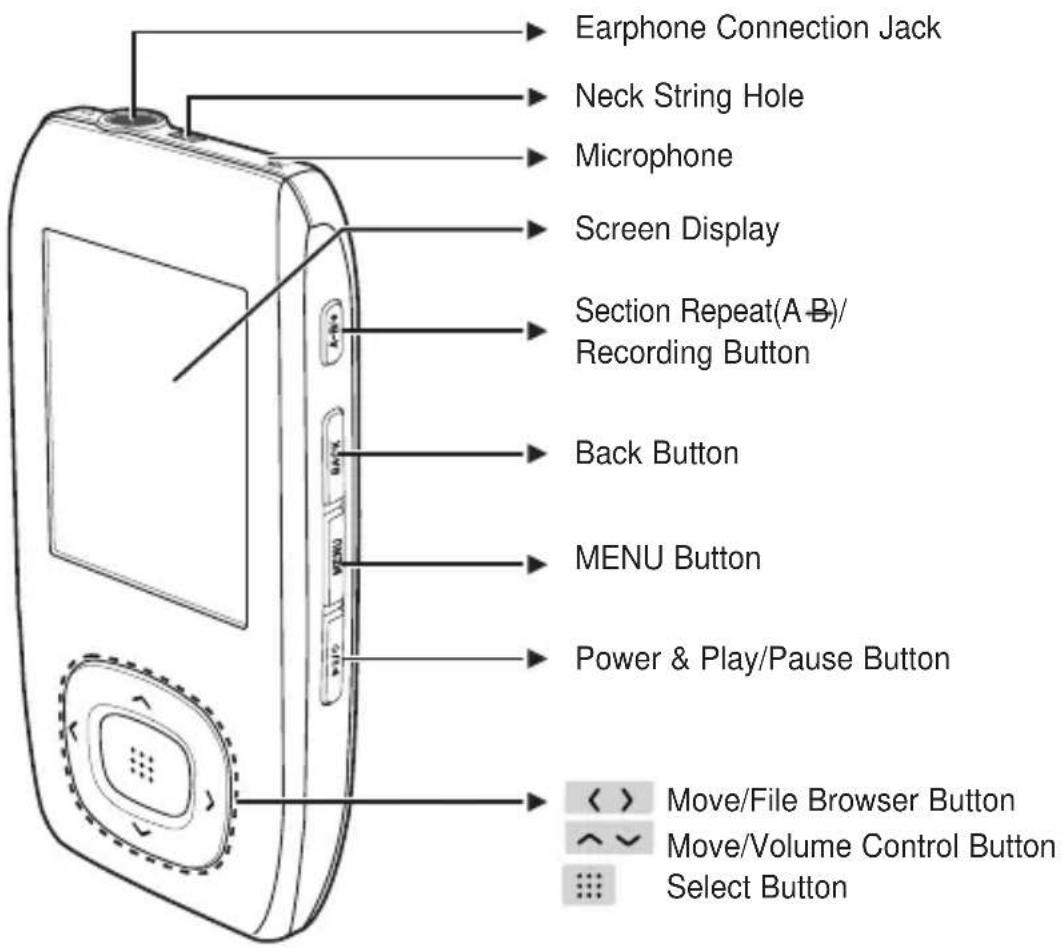
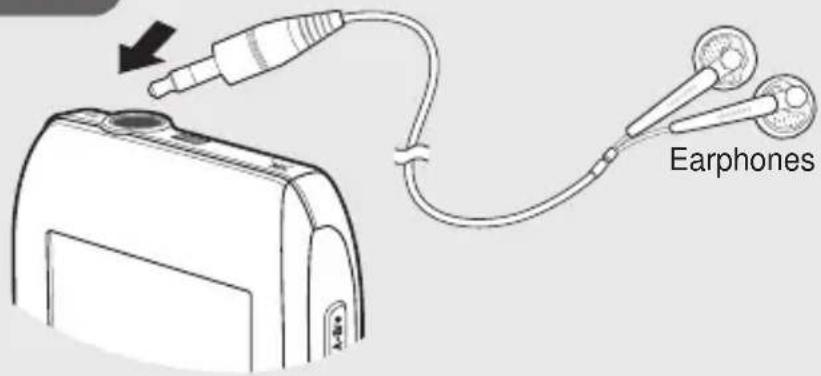
Connect the earphones, then turn on the player, and check the battery.
1,2,3
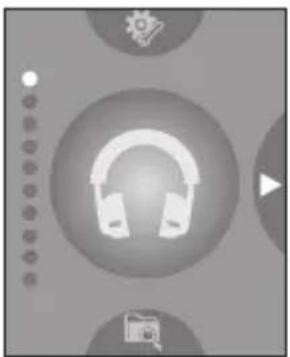
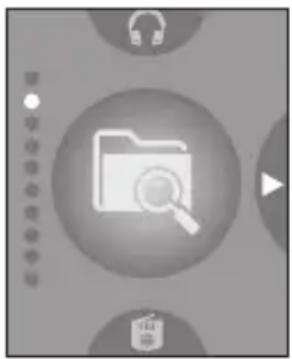
1 Press the [ ] button to select and then press the [ ]:button.
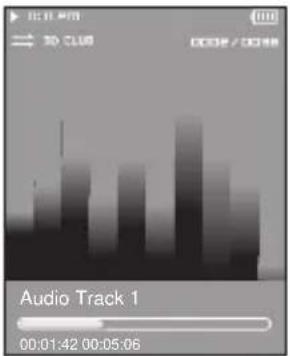
■ The music file starts to play.
: You can listen to the last played music or recording file. : To play by artist : To play by album : To play in numeric or alphabetical order : To play by genre : To play by Playlist
■ The music files compatible with the player are MP3, WMA.
To Pause
1 Press the [ ] button while the music is playing.
■ The music playback will be paused.
2 Press the [ ] button again.
■ The music will play from the point where it stopped.
To search within a track
1 Press and hold the [ ] button while the selected track is playing.
- It searches to the beginning or the end of the track.
2 Release the button at the point you wish to start.
■ It starts playing from the point you release the button.
Listening to Music
Listening to Music (Continued)
To Play from the beginning of the current track
Press the [ ] button after 5 seconds of play.
■ The current track starts playing from the beginning.
To play the previous/next track
Press the [ ] button within 5 seconds of play.
■ The previous track will start playing.
Press the []button.
■ The next track will start playing.
CAUTION
- When playing VBR files, the previous track may not play even if you press the [ < ] button within 5 seconds of the play.
Listening to Music
Section Repetition
This function enables you to listen to specific parts of a track repeatedly. Recommended for language learning.
To set a section for repetition
1 Play a file of your choice.
■ The starting point is set and will appear in the screen display window.
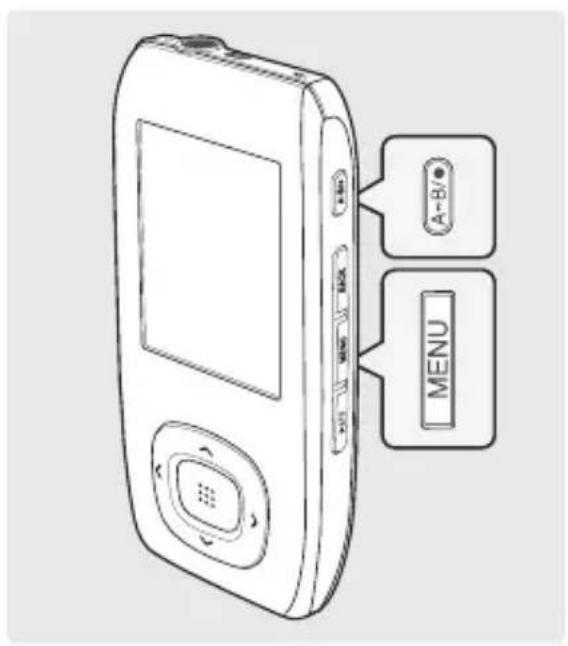
3 Press the [A-B/ ] button again to set the ending of the section you want to repeat. will appear on the screen and the specified section starts to play repeatedly.
To cancel the section repetition
Press the [A B/ ] button again during Section Repeat.
■ Section Repeat will be canceled.
NOTE
- You can set the start and end points of the section repetition only within a single file.
Listening to Music
A playlist is a list of your favorite songs.
■ The window appears.
2 Click on the bottom.
■ The Creation window appears.
3 Type in the album title and click .
- A new album (playlist) will be created and stored in the My Album section of Media Studio.
Adding Music files to a Playlist
3
■ A maximum of 999 playlists transferred to the player can be played.
1 Click on the top of Media Studio.
■ The My PC window appears.
2 Click in the right corner of the window.
■ The My Album window appears.
3 Double click on a desired album in the right window.
4 Select files that you want to transfer in the window.
5 Click ↩ icon.
■ The selected files will be added to the album (playlist).
3
1 Click on the top of Media Studio.
■ The My Album window appears.
2 Click in the right corner of the window.
■ The Portable window appears.
3 Select a desired album in the list.
4 Click icon.
- The selected album will be transferred to the player and stored in → .
Listening to Music
To Play a Playlist
You can easily listen to your favorite music by adding it to a Playlist.
To make your own Playlist
How To 1
1 Press the [] button to select and then press the [] button.
2 Press the [] button to select and then press the [] button.
■ The file list appears.
3 Press the [^^<>] button to select a file to add to the playlist and then press the [A B/ ] button.
- Next to the selected file, the mark ★ appears and the file is included in → → .
NOTE
You can add up to 100 music files to .
If you want to remove a file from the , select a file marked with ★ and then press the [A B/ ] ● button. Alternately, you can press the [MENU] button to select and press the []:button.
To make your own Playlist (Continued)
How To 2
1 Press the [] button to select and then press the [] button.
2 Press the [] button to select and then press the [] button.
■ The file list appears.
3 Press the [ ] buttons to select a file to add to the playlist and then press the [MENU] button.
4 Press the [] button to select and then press the [] button.
- Next to the selected file, the mark ★ appears and the file is included in → → .
NOTE
- If you want to remove a file from the , select a file marked with ★ and then press the [A B/ ] ● button. Alternately, you can press the [MENU] button to select and press the []:button.
Listening to Music
To Play a Playlist (Continued)
To Play a Playlist
1 Press the [] button to select and then press the [] button.
2 Press the [] button to select < Playlists> and then press the [] button.
■ The Playlist(s) will appear.
3 Press the [] button to select the playlist of your choice, then press the [] button.
■ The music files saved in the selected Playlist will appear.
4 Press the [] button to select the file to play and then press the [] button.
■ The music file will start playing.
To select Street mode
This allows you to enjoy the music outdoors as clearly as indoors.
1 Press the [MENU] button when you are in the music playback mode. and then press the [] button. .
To select 3D surround sound (DNSe)
You can listen to the music with 3D surround sound.
To exit the menu,
press the [MENU] button.
1 Press the [MENU] button when you are in the music playback mode. and then press the [ ] button.
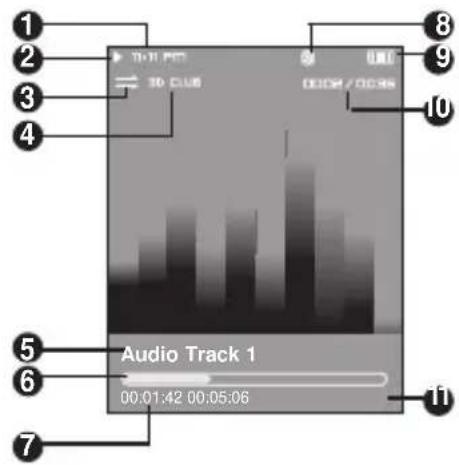
- Select either <3D-User> <3D-Studio> <3D-Stage> <3D-Club> or .
Listening to Music
To select Play mode (Repeat)
1 Press the [MENU] button when you are in the music playback mode. and then press the []:button.
■ Select either or .
: To play all the tracks in order one time. : To repeat the current folder. : To repeat one file. : To play files at random.
To select a background image for Music mode
You can set a background image for Music mode.
1 Press the [MENU] button when you are in the music playback mode. and then press the [ ] button.
- Select either or .
- Selecting will change the background image by picking one from to each time a different file is played.
NOTE
- If there is an image contained in the tag information of a music file, it will be displayed as a background image when you have selected . supports only less than 200 pixel (horizontal) x 200 pixel(vertical) in size.
To select the play speed
You can select the play speed either faster or lower.
1 Press the [MENU] button when you are in the music playback mode. and then press the [ ] button.
■ Select either <-3> <-2> <-1> <0>(Normal) <+1> <+2> or <+3>.
To set the skip interval
You can set the playback interval when you press the [ < > ] button during playback.
1 Press the [MENU] button when you are in the music playback mode.
2 Press the [ ] button to select and then press the [ ] button.
3 Press the [] button to select the desired skip interval and then press the [] button.
- Select either <1track> <3sec> <5sec> <7sec> <10sec> <30sec> or <1min>.
Before you start!
Connect the earphones, then turn on the player, and check the battery.
natural_image
Illustration of a mobile phone with a screen displaying a film reel and control buttons (no text or symbols)
1,2
1 Press the [] button to select and then press the [] button.
■ The selected video file starts to play.
To stop playing the video file
- Each time you press the [ ] button, the player stops playing the video file or resumes playback.
- When transferring a video file to the player using , it is automatically converted into SVI format before transfer. The file size is automatically adjusted, too.
Information on the current video appears. Press the [☐] button again to disappear the information.
1 Play/Pause Indicator
Video
Video (Continued)
To move to a certain position of the current video file
1 In a horizontal view, press and hold the [ ] button.
■ This enables you to scroll through the current video file.
2 Release the button when you have moved to the desired position.
■ The video starts playing from the position.
To play the previous/next video file
natural_image
Black-and-white photo of a sleeping cat on a surface, no visible text or symbols
Press the [ < ] button within 5 seconds after the current video started playing.
■ This will return to the previous movie.
Press the [ > ] button.
■ This will move to the next movie.
Video
To set a bookmark
natural_image
Black-and-white photo of a sleeping cat lying down on a dark surface (no text or symbols visible)
Press the [A-B/ ]• button at the desired scene.
■ The currently played/stopped point is set to a bookmark.
■ You can set a maximum of 20 bookmarks.
To Move to/remove the bookmark
1 Press the [MENU] button in Video mode.
■ The Bookmark menu appears.
2 Press the []:button.
3 Press the [ ] button to select or and press the [ ] button.
- When you selected then it will move to the selected bookmark and will remove the selected bookmark from the video file.
Photo Viewing
Photo Viewing
Before you start!
Connect the earphones, then turn on the player, and check the battery.
natural_image
Illustration of a mobile phone with a digital display and control buttons (no text or symbols)
1,2
1 Press the [ ] button to select and then press the [ ]:button.
■ The photo preview window appears.
2 Press the []-button to select the desired photo and then press the []-button.
■ The selected photo is displayed.
When transferring a photo file to the player using , it is automatically converted into JPG format before transfer. The file size is automatically adjusted, too.
You can also use the to search for a photo file. ▶ Page 14
You can keep listening to music even if you select to view a photo.
To move to the previous/next photo
Press the [ ] button while viewing a photo or press the [ ] button in preview mode to display the previous or next photo.
Photo Display Window
1 Preview Pane
Photo Viewing
Slideshow Viewing
1 Press the [MENU] while viewing a photo
2 Press the [ ] button to select and then press the [ ] button.
■ The slideshow will start.
To stop the slideshow
natural_image
Exterior view of a two-story house with trees and shrubs (no signage or text visible)
Press the [ ]:button in Slideshow mode.
■ This will stop the slideshow.
Photo Enlarging
1 Press the [MENU] while viewing a photo
2 Press the [] button to select and then press the [] button.
■ The Zoom Setting menu appears.
3 Press the [] button to select the desired scale factor and then press the [] button.
- You can select either <100%> <200%> or <400%>.
4 Press the [ ]←< > o move to the portion of the photo to magnify.
5 To cancel the magnification, select <100%> from the Zoom options and then press the [button.
■ This returns to the original size.
NOTE
- Press the [ : : ] button in the Photo Viewing mode to display the Zoom Setting menu.
Photo Viewing
To set the photo as a music background image
1 Select a photo file to set as a background image.
■ The Music Background Image Setting menu appears.
4 Press the [ < > ] button to select and then press the [ ]:button.
■ The selected photo file is set to a background image for music.
NOTE
- Press the [A B+] • button while viewing a photo to display the Music Background Setting menu.
Text View
Text Viewing
You can read a novel or see the manuscript text of a news story or soap opera while listening to music.
Before you start!
Turn on the player, and check the battery.
1,2
1 Press the [ ] button to select and then press the [ ]:button.
2 Press the [] button to select Text and then press the [] button.
- You will see the text on the screen.
To scroll the text by the line
- Once you set → in Text mode, you can move to the previous / next page of the text file.
- Once you set → in Text mode, you can move to the previous / next line of the text file. Press and hold the [ ] button to move up or down faster through the file.
You can also use the to search for a text file. ▶ page 14
You can keep listening to music even if you select .
Press the [▶//○] button if you want to play a music while viewing text. Press the [▶//○] button again to stop playing the music.
Text View
To set a bookmark
Press the [A-B/ ] button while viewing a text.
The current text screen is set to a bookmark with the ▼ symbol displayed on the top left corner.
The bookmark can be deleted by pressing the [A B/ ] button in the bookmarked page.
- You can set a maximum of 20 bookmarks.
To move to/remove the bookmark
1 Press the [MENU] button while viewing a text. and then press the [] button.
■ The Bookmark menu appears.
3 Press the []-button to select < Go to> or and then press the []-button.
- When you selected then it will move to the selected bookmark and will remove the selected bookmark from the text file.
To move to the first page
You can see the text file from the beginning.
1 Press the [MENU] button while viewing a text.
■ The Confirmation window will appear.
3 Press the [ < > ] button to select and press the [ ]:button.
■ This will move to the first page of the text file.
1 Press the [MENU] button while viewing a text.
■ The Scroll option menu appears.
3 Press the [] button to select the desired option and then press the [] button.
You can select either or .
: Use the [<<] button to scroll through the file by the page. : Use the [〈〉]button to scroll through the file by the line.
NOTE
- You can press the [ : : ] button to change the scroll option in Text View mode.
Text View
To set the text viewer type
1 Press the [MENU] button while viewing a text.
2 Press the [] button to select < Text Viewer Type> and then press the [] button.
■ The Text Viewer Type menu appears.
3 Press the [] button to select the desired text viewer type.
- You can select either or .
To set the text viewer color
1 Press the [MENU] button while viewing a text.
2 Press the [] button to select < Text Viewer Color> and then press the [] button.
■ The Text Viewer Color menu appears.
3 Press the [] button to select the desired text viewer color.
Select either or .
Selecting will set the viewer color to the same as the main menu.
Listening to FM Radio
Listening to FM Radio
Before you start!
Connect the earphones, then turn on the player, and check the battery.
natural_image
Gray circular interface with a central radio icon and control buttons (no text or symbols)
Press the [] button to select < the [] button.
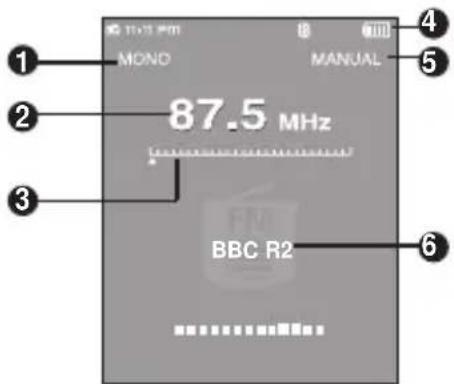
■ FM radio reception will start.
FM Radio> and then press
To use Mute function
Press [ ] button during listening to FM radio.
■ Sound is muted.
Listening to FM Radio
Listening to FM Radio (Continued)
To automatically search for frequencies
- You will see in the top right corner.
■ The frequency nearest from the point the button is released will be searched.
- In mode, press [MENU] and use the [] button to select and press the [] button. You will switch to mode.
- In mode, press [MENU] and use the [] button to select and press the [] button. You will switch to mode.
To manually search for frequencies
- You will see in the top right corner.
■ Moves to frequencies whenever the button is pressed.
■ Always connect your earphones to the player when searching or setting frequencies. The earphones are used as antennas to receive FM radio reception.
Listening to FM Radio
Setting a Frequency
To automatically set frequencies
1 Press the [MENU] button in FM Radio mode.
2 Press the [] button to select and then press the [] button.
■ The Auto Preset Confirm window will appear.
3 Press the [ < > ] button to select and then press the [ ]:button.
- You will see the window that allows you to set up to 30 frequencies.
To cancel during setting
To cancel setting during setting, press the []:: button.
- The auto preset setting is canceled and frequencies set up to then are stored.
NOTE
- To set again after setting preset, existing frequencies are deleted entirely and you can reset from start.
Listening to FM Radio
Setting a Frequency (Continued)
To manually set frequencies
1 Press the [ ]:button to select .
- You will see in the top right corner.
2 Press the [ < > ] button to select the desired frequency to set in preset.
3 Press the [A B/ ] button.
- blinks before the preset number appears.
4 Press the [ < > ] button to select the desired preset number and press the [ ]: button.
- The selected frequency is set as a preset number.
NOTE
- You can set the preset frequency by pressing [MENU] to select in mode.
- If you set an identical frequency, you will see . Press the [< >]button to select or and press the [☐☐] button.
To search for frequencies in PRESET mode
1 Press the [ ]:button to select .
- You will see in the top right corner.
2 Press the [ < > ] button.
- The preset number is selected and you can listen to the stored radio frequency.
NOTE
- If you didn't set a preset frequency, you will see and couldn't switch to mode.
Listening to FM Radio
To Delete Presets
Before you start!
■ Follow the steps below to delete frequencies while listening to FM radio.
1 Press the [ ]:button to select .
- You will see in the top right corner.
2 Press the [A B/ ] button.
- blinks.
3 Press the [ < > ] button to select the frequency that you want to remove from the PRESET list and press the [ : : : ] button.
■ The Delete Preset window will appear.
4 Press the [ < > ] button to select and press the [ : : ] button.
■ The selected preset number will be deleted.
- If you don't want to delete the preset number, select .
NOTE
- You can remove the preset frequency by pressing [MENU] to select in mode.
To set RDS Display
RDS (Radio Data System) provides the reception and display of messages such as broadcasting information. The program information such as News, Sports or Music, or the broadcasting station information is displayed on the screen.
1 Press the [MENU] button in FM Radio mode. and then press the [ ] button.
■ The RDS Display menu appears.
3 Press the [] button to select the RDS display mode and then press the [] button.
- You can select from and .
: Displays the name of broadcasting station and is composed of 8 characters. If the PS information is being received, the PS name (BBC, AFO, NDR, etc.) is shown on the display. If the PS information isn't received, the original FM frequency is shown. : Displays the type of program currently being broadcast.
NOTE
■ If FM signal strength is weak, the RDS information might not be displayed.
To set FM region
1 Press the [MENU] button in FM Radio mode.
2 Press the [] button to select and then press the [] button.
■ The FM Region menu appears.
3 Press the [] button to select the FM Region and then press the [] button.
- You can select from .
■ Frequency range by region
- Korea/US: Search for FM frequencies in 100 kHz increments between 87.5 MHz\~108.0 MHz.
- Japan: Search for FM frequencies in 100 kHz increments between 76.0 MHz\~108.0 MHz.
- Other Countries: Search for FM frequencies in 50 kHz increments between 87.50 MHz\~108.00 MHz.
■ FM region can be deleted or changed according to the target region of the player.
■ If you change the FM region, the previously stored radio frequencies are removed.
To set FM sensitivity
1 Press the [MENU] button in FM Radio mode.
2 Press the [] button to select and then press the [] button.
■ The FM Sensitivity menu appears.
3 Press the [] button to select the search level and then press the [] button.
- You can select from and .
■ The higher FM Sensitivity is, the more frequencies can be received.
Recording
Recording
File names during recording
1 In recording, a recording file name is automatically specified in such as "Xmmddhhmmss". Where X indicates the recording type, mm for a month, dd for a date, mm for minutes and ss indicates seconds.
■ Voice - V
3 For instance, the file name "V0911103020" indicates a voice recording was made 10 o'clock 30 minutes 20 seconds on September 11th.
NOTE
■ To listen to saved recording files, use the function. ▶ Page 14
Recording
Recording
1 Press the [] button to select and then press the [] button.
- Then, press the [MENU] button and use the [^√] and [☐] buttons to set your recording options.
2 Press the [^] button to select the desired recording mode and press the [::] button.
■ The appropriate window appears.
3 Press the [A B/ ] button.
- Recording is started with displaying the file name to save.
: you can make a voice recording. : you can record the FM radio broadcasting that you listened to the last time. You can use the [ ] button to select a desired frequency. : you can listen to voice recording and FM radio recording.
To stop recording
1 Press the [A-B/] button while in recording.
- You will see a message that prompts you to confirm your choice.
2 Press the [ < > ] button to select or and press the [ : : : ] button.
■ will play the just recorded file. will not play the just recorded file.
3 Press the [ < > ] button to select and press the [ : : : ] button.
■ The recorded file is stored in the → .
Recording
Voice/FM Radio Recording
To make a voice recording
You can make voice recording at any time while using different functions.
Press and hold the [A B/ ] button.
- Recording is started with displaying the file name to save.
To record FM radio broadcasting
You can record FM radio broadcasting at any time while listening to the radio.
In FM Radio mode, press and hold the [A B/ ] button.
- An automatically created file name appears and the recording starts.
NOTE
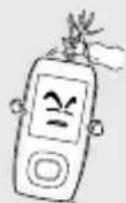
Do not place the microphone too close or too far away during recording, as this can affect the recording quality.
Bluetooth
Using Bluetooth
Register a Bluetooth-compliant stereo headset with your player before you can configure the wireless connection. When done, you can listen to the music through the Bluetooth headset.
(The Bluetooth feature can be applied only for the appropriate model (YP-T9B, T9JB)
What is Bluetooth?
Bluetooth is a computing and telecommunications industry specification that describes how mobile phones, computers and PDAs can easily interconnect with each other and with home and business phones and computers using a short wireless connection.
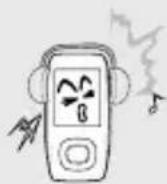
■ The Bluetooth device can cause a noise or malfunction, depending on the use conditions.
■ Electrical interference from a physical contact on the product, for instance, if you take the product on the one hand and wear the stereo headset.
- The longer the distance between the product and the stereo headset is, the quality will be deteriorated in proportion and if the distance exceeds a certain range, the wireless networking is disconnected.
- When pairing the Bluetooth device with the product, make it within a short distance as possible.
- You are not recommended to use text and photo view modes while listening to the music with the headset. Otherwise, it can cause a delayed response of the button operation and interference with the Bluetooth communications.
- In poor reception-sensitivity areas such as inside the lift or under the ground, the Bluetooth connection may not work properly.
- A file at lower than 32 kHz may not be played, depending on the specification of the stereo headset.
Bluetooth
Using Bluetooth (Continued)
Bluetooth Specification
The performance of a Bluetooth device can vary, depending on the specification. This product is compliant with the standard Bluetooth specifications.
■ Specifications for certain purposes: In general, the transmission output is great, causing less reduction of the signal strength but requiring more power from the battery.
NOTE
- When not in use, set the to . If you stay in for , the useful time of the battery is reduced.
Bluetooth
Using Bluetooth (Continued)
Before you start!
- Ensure that the Bluetooth device to connect is ready for pairing. (Refer to the product's documentation of the device.)
natural_image
Illustration of a mobile phone with a digital display showing Bluetooth and control buttons (no text or symbols)
1,2,3
Registering the Stereo Headset
(simply register it only once)
1 Press the [ ] button to select and then press the [ ] button. and then press the [ ] button. and then press the [ ] button.
You can use the Bluetooth connection for listening to the music only.
The maximum distance that enables wireless connection between the product and a stereo headset or hands-free device is 10m. The connection becomes automatically cut off if the distance is out of this range. The sound quality will be deteriorated in places of obstacles such as walls or doors even within this range.
Bluetooth
Using Bluetooth (Continued)
4 Set the stereo headset to the appropriate mode for registration.
- To set the headset ready for the pairing mode, refer to the product's documentation.
5 Press the [ ] button to select and then press the [ ] button.
6 Press the [^] button to select a device to register, and then press the []:button.
■ The Password Input Window will appear.
7 Press the [ ^ < > ] button to enter the password for the stereo headset.
■ For setting the password, refer to the product's documentation.
8 Press the [ > ] button to select and then press the [≡button.
■ The headset will be registered.
NOTE
Bluetooth-compliant Headsets
Company Model Company Model i.TECH Blueband SAMSUNG SBH100 Plantronics PULSAR 590A Jabra BT620s MOTOROLA HT820
■ Use only the Bluetooth-certified stereo headset. The mono hands-free headset is not supported.
Connecting the registered stereo headset
1 Press the [] button to select and then press the [] button. and then press the [] button.
■ If you can't find the desired headset to connect, register it first.
To delete a Device
1 Press the [ ] button to select and then press the [ ]:button. and then press the [] button.
- You will see the list of the registered devices.
3 Press the [] button to select the device to delete, and then press the [] button.
■ If you want to delete all of the registered devices, select .
4 Press the [ < > ] button to select and then press the [ ]:button.
■ The selected device will be deleted.
Bluetooth
Using Bluetooth (Continued)
To set Bluetooth
1 Press the [ ] button to select and then press the [ ] button. and then press the [ ] button.
: You can set to enable or disable a Bluetooth cellular phone to detect this player when it searches for a Bluetooth device. Select from and . : You can select the scanning time period for a new device. Select one from <10sec>, <20sec>, <30sec>, <45sec> and <60sec>. : You can check the name and address of your player.
Rename
1 Press the [MENU] button in the window. and then press the [ ] button.
■ The Edit Device Name window appears.
3 Use the [] and [] buttons to rename the device.
: Pressing the [A B/ ] button will switch the mode in the sequence of Number → English Upper Case → English Lower Case.
To disconnect the device
1 Press the [ ] button to select and then press the [ ] button. and then press the [ ] button. and press the [ : : : ] button.
To check the device connected
To exit the menu,
press the [MENU] button.
1 Press the [ ] button to select and then press the [ ] button. and then press the [] button.
- You can see a list of connected devices.
Game
Game
You can enjoy Baseball and Pizza Delivery games.
Before you start!
- Connect the earphones, then turn on the player, and check the battery.
natural_image
Illustration of a mobile phone with a game controller screen and control buttons (no text or symbols)
1,2
1 Press the [] button to select and then press the [] button.
■ The Game menu appears.
2 Press the [ ] button to select the desired game and then press the [ ] button.
NOTE
■ The bundle games can be added or changed without notice.
Baseball
This is a family game that provides you with dynamic animation and various characters, making you feel yourself in a real baseball stadium.
Press the [] button to select a menu or function.
Press the [ :button to pitch or hit the ball.
Pizza Deliver
A pizza delivery boy on a motor bike gets his way to the destination dodging about obstacles on the road or pitfalls.
- Press the [ ]:button to jump up
Settings
Setting Music
You can set detailed settings for music playback.
1 Press the [ ] button to select and then press the [ ] button.
■ The Settings menu appears.
2 Press the [ ] button to select and then press the [ ] button.
■ The Music menu appears.
3 Use the [] and [] buttons to set the desired functions
NOTE
- Button functions to use during setting.
- Press the [ ] button to move to the previous item.
- Press the []button to move to the next item.
- Press the [] button to move up or down through the current menu.
- Press the [ ]:button to select or save the menu.
- If there is no button operation during about 1 minute in the Settings screen, settings will be canceled and returned to the previous function.
: Allows you to enjoy the music outdoors as clearly as indoors. You can select either or . : You can select a suitable sound for each music genre. Select either <3D-User> <3D-Studio> <3D-Stage> <3D-Club> or . <3D User Set>: Sets 3D sound effect and bass enhancement. 3D can be set between 0\~5 levels, and Bass Enhance between 0\~3 levels. After you set <3D User Set>, select <3D User> from .
: Directly select a sound effect (EQ). After you set , select from . : Select playback mode such as repeat settings. Select from and . : Adjust the playback speed of music/voice recording.
Select either <-3> <-2> <-1> <0>(Normal) <+1> <+2> <+3>. (The higher the number is, the faster the playback speed is.) : Set the playback interval when you press the [ ] button during playback. Select either <1 Track> <3 sec> <5 sec> <7 sec> <10 sec> <30 sec> or <1 min>.
■ For a VBR file, the Skip Interval may not be exact.
DNSe is a sound effect function for MP3 players developed by Samsung and consists of 3D and Street modes. The 3D adds a stereophonic sound effect to the music and the Street mode provides an automatic volume control function that amplifies quiet sounds in noisy street environments.
Settings
Setting Record
You can refine your recording options for FM radio and voice recording.
1 Press the [ ] button to select and then press the [ ] button.
■ The Settings menu appears.
2 Press the [] button to select and then press the [] button.
■ The Record menu appears.
3 Use the [] and [] buttons to set the desired functions
: You can choose the recording quality for FM radio. : You can select the voice recording quality. Select one from <32kbps> <64kbps> <96kbps> <128kbps>. (The greater the number is, the better the quality is but the file size is bigger)
Settings
Setting Time
You can set functions related to the Sleep Timer and Auto Power Off.
1 Press the [ ] button to select and then press the [ ] button.
■ The Settings menu appears.
2 Press the [] button to select and then press the [] button.
■ The Time menu appears.
3 Use the [] and [] buttons to set the desired functions
: You can set the current time and date. ▶ Page 70 : Turns off power automatically after the preset time. Select either <15 min > <30 min> <60 min> <90 min> or <120 min>. : If no button is pressed within the time set shown below, the display screen will automatically turn off. Select either <15 sec> <30 sec> <1 min> <3 min> <5 min> or . Press any key to turn it back on. : Automatically turns power off when there is no button operation after the preset time in the pause mode. Select either <15 sec> <30 sec> <1 min> <3min> or <5 min>. : If no button is pressed within the time set shown below in music mode, the player will display the screen saver image. Select either <15 sec> <30 sec> < 1 min > <3 min > or <5min>.
Settings
Setting Time (Continued)
Date/Time Setting
1 Press the [] button to select and then press the [] button. and press the [ ]to set it.
■ The Confirmation window will appear.
4 Press the [ ] button to select and press the [ ] button.
■ The set time/date will be saved. will cancel the time setting.
Settings
Setting Display
You can set the display options including color theme and music background image.
1 Press the [ ] button to select and then press the [ ] button.
■ The Settings menu appears.
2 Press the []-button to select and then press the []:button.
■ The Display menu appears.
3 Use the [] and [] buttons to set the desired functions
: You can set the background color for the display screen. Choose one from the 6 color theme options. When is selected, each time you turn off and turn on the power, the background color will be changed. : You can select the background image to add to your listening experience. Select either or . Selecting will change the background image by picking one from to each time a different file is played. : You can set the background color for text. Choose one from 6 colors. : You can choose to view the text either vertically or horizontally. You can select either or . : You can adjust the brightness of the display light. Select one from <0-10>.
Settings
Setting Language
Set the language for the menu and track information (ID3 Tag).
1 Press the [ ] button to select and then press the [ ] button.
■ The Settings menu appears.
2 Press the [ ] button to select and then press the [ ] button.
■ The Language menu appears.
3 Use the [] and [] buttons to set the desired functions
: Set the menu language. Select from <한국어> <日本語 < > <### : Set the track information language. Select from and .
NOTE
■ The supported languages can be changed or added.
This is what is attached to an MP3 to carry information relevant to the file, such as the title, artist, album, year, genre and a comment field.
Settings
Setting System
You can set the booting mode, resume and button sound.
1 Press the [ ] button to select and then press the [ ] button.
■ The Settings menu appears.
2 Press the [] button to select and then press the [] button.
■ The System menu appears.
3 Use the [] and [] buttons to set the desired functions
: You can set the start window after the system reboots. Select either and . : Specifies the starting point to restart playback after playback is stopped.
If set to , the last file will play from the beginning. If set to , the last file will play from the point it was previously stopped. : Sets the beep sound for button operations to on or off. Select either or . : You can avoid hearing damage by setting the limit of the volume when using the earphone. will limit the maximum volume level up to 20. The maximum volume level when Volume Limit is set to is 40. : Returns all settings to the default value. Select from and . : Indicates the remaining memory capacity. indicates the usage, indicates the remaining capacity and indicates the total memory capacity. : Displays the current firmware version.
Settings
Setting System (Continued)
Default Set
Press the [ ] button to select either or and then press the [ ] button.
: Initializes all settings to default. : Cancels default settings.
■ Regarding the Built-In Memory
NOTE
The actual built-in memory available is slightly less than indicated as the internal firmware uses a portion of the memory.
Troubleshooting
If a malfunction is experienced, check the following.
If the problem persists, contact a Samsung Service Center near you.
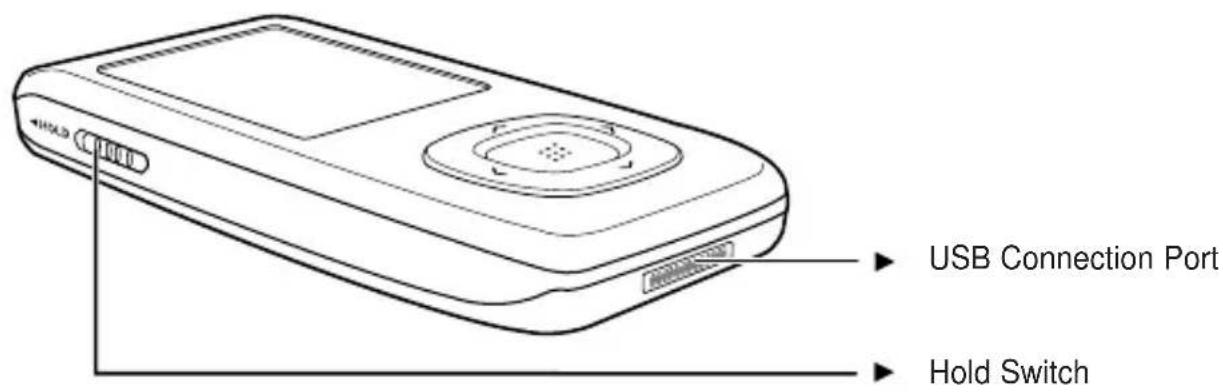
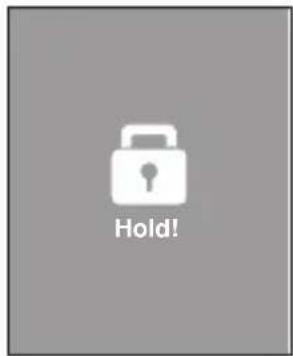
Problem Check points & Troubleshooting Power will not turn on. Power will not turn on if the battery is fully discharged.Recharge the battery and turn the power on again.Press and hold the [MENU] and [A B/ ]• buttons at the same time to reset the system. Buttons do not work. Check if the [HOLD] switch is in the direction of the arrow position.Check if you pressed the right button, then press again.Press and hold the [MENU] and [A B/ ]• buttons at the same time to reset the system. The screen will not turn on. The screen may not be visible under direct sunlight.Whenis selected from→, the LCD can be turn off. Press any button and see if it turns on. Power is turning off. The power is automatically turned off when the battery is fully discharged. Recharge the battery. Battery life differs from the Manual. The battery time can vary, depending on the sound mode and display setting.Product life may be shortened when left for extended periods in low or high temperatures. Program Malfunction Please check if your PC requirements are met. Connection to your PC is disabled. Presson the toolbar of your PC to run Windows Update.Select Key Updates and Service Packs, then update all.Reboot your PC and reconnect. The file transfer rate is too low. If you are running multiple programs including Media Studio on your PC, the file transfer rate will be low. So make sure to exit unnecessary programs before proceeding.
Troubleshooting (Continued)
Problem Check points & Troubleshooting Playing is disabled. Check if the available file has been saved in the memory.Check if the music file is damaged.Check if there is enough battery power. File upload is disabled. Check if the USB cable is securely connected.Reconnect if necessary.Check if the memory is full.Press and hold the [MENU] and [A B/ ] buttons at the same time to reset the system. Files or Data are Missing. Check if the USB cable has been disconnected during file or data transmission. If this is the case, it may cause serious damage not only to files/data but also to the product. You have to be extra cautious as Samsung is not held responsible for data loss. Abnormal Play Time Display during Play. Check if the file is in VBR (Variable Bit Rate) format. Abnormal Display of File Name. Move to→→in the Menu screen and set an appropriate language. The product is hot. Heat may be generated during recharging. This has no effect on the product life or functions. I couldn't see a movie with a message popping up. Try to download the movie clip through Media Studio again.
You can quickly view the menu structure.
flowchart
graph TD
    A["Menu Select Screen"] --> B["Music"]
    A --> C["File Browser"]
    A --> D["FM Radio"]
    A --> E["Text"]
    A --> F["Photo"]
    A --> G["Video"]
    A --> H["Game"]
    A --> I["Record"]
    A --> J["Bluetooth"]
    A --> K["Settings"]

    L["Music"] --> M["Record"]
    M --> N["Time"]
    N --> O["Display"]
    O --> P["Language"]
    P --> Q["System"]

    M --> R["Street Mode"]
    M --> S["DNSe"]
    M --> T["3D User Set"]
    M --> U["User EQ Set"]
    M --> V["Play Mode"]
    M --> W["Play Speed"]
    M --> X["Skip Interval"]

    N --> Y["FM Recording Bit Rate"]
    N --> Z["Voice Recording Bit Rate"]

    O --> AA["Date/Time Set"]
    O --> AB["Sleep Timer"]
    O --> AC["LCD Off"]
    O --> AD["Auto Power Off"]
    O --> AE["Screen Saver"]

    P --> AF["Color Theme"]
    P --> AG["Music Background"]
    P --> AH["Text Viewer Color"]
    P --> AI["Text Viewer Type"]
    P --> AJ["LCD Brightness"]

    Q --> AK["Booting Mode"]
    Q --> AL["Resume"]
    Q --> AM["Button Sound"]
    Q --> AN["Volume Limit"]
    Q --> AO["Default Set"]
    Q --> AP["Memory"]
    Q --> AQ["Firmware Version"]
* The Bluetooth feature can be applied only for the appropriate model (YP-T9B, T9JB).
Product Specifications
Model Name YP-T9 Power 3.7V (Li-Polymer Rechargeable) Built-in Battery Power 740 mAh File Compatibility Video AUDIO: MPEG1/2/2.5 Layer3(8kbps~320kbps, 8kHz~48kHz),WMA(5kbps~320kbps,8kHz~48kHz)SVI (Video: MPEG4, Audio: MP3 (44.1kHz, 128kbps),Resolution: 208X176, Frame Rate: 15fps)Image: JPG (Progressive, Sequential Scanning, File Size: less than 3MB) Supported Number of folders and Files Folder: Max. 500, File: Max. 5000 (Include folder) Earphone Output 20mW(France 5mW/CH)(16Ω) Output Frequency Range 20Hz~20KHz Noise Ratio 85 dB with 20kHz LPF(based on 1KHz 0 dB) Play Time Maximum of 30 hours for music playback (based on: MP3 128kbps,Volume: 20, Normal Mode), Maximum of 6 hours for video playback Temperature Range for Operation -5~35 °C (23~95°F) Case Plastics Weight 49g Dimension (WxHxD) 42.5 X 83.1 X 11.0 mm FM Radio FM Frequency 87.5~108.0MHz FM T.H.D 1% FM Signal to Noise Ratio 55dB FM Useable Sensitivity 10dBμ Blue tooth Frequency Range: Transmit/Receive : 2402~2480 MHz Module BTTZ0502SA Spec Version Supported 1.2 Transmission Output 2.4 mW
- The contents of this Manual are subject to change without prior notice for further improvement.
License
The product unit accompanying this user manual is licensed under certain intellectual property rights of certain third parties. This license is limited to private non-commercial use by end-user consumers for licensed contents.
No rights are granted for commercial use. The license does not cover any product unit other than this product unit and the license does not extend to any unlicensed product unit or process conforming to ISO/IEC 11172-3 or ISO/IEC 13818-3 used or sold in combination with this product unit. The license only covers the use of this product unit to encode and/or decode audio files conforming to the ISO/IEC 11172-3 or ISO/IEC 13818-3. No rights are granted under this license for product features or functions that do not conform to the ISO/IEC 11172-3 or ISO/IEC 13818-3.
— EUROPE ONLY —
This marking shown on the product or its literature, indicates that it should not be disposed with other household wastes at the end of its working life.
To prevent possible harm to the environment or human health from uncontrolled waste disposal, please separate this from other types of wastes and recycle it responsibly to promote the sustainable reuse of material resources.
Household users should contact either the retailer where they purchased this product, or their local government office, for details of where and how they can take this item for environmentally safe recycling. Business users should contact their supplier and check the terms and conditions of the purchase contract.
This product should not be mixed with other commercial wastes for disposal.
natural_image
Symbol of a trash bin crossed with no text or numbers, indicating no waste or discharge (no text present)
If you have any questions or comments relating to Samsung products, please contact the SAMSUNG customer care center.
Country Customer Care Center Web Site CANADA 1-800-SAMSUNG (7267864) www.samsung.ca MEXICO 01-800-SAMSUNG (7267864) www.samsung.com/mx U.S.A 1-800-SAMSUNG (7267864) www.samsung.com ARGENTINE 0800-333-3733 www.samsung.com/ar BRAZIL 0800-124-421 www.samsung.com/br CHILE 800-726-7864(SAMSUNG) www.samsung.com/cl COSTA RICA 0-800-507-7267 www.samsung.com/latin ECUADOR 1-800-10-7267 www.samsung.com/latin EL SALVADOR 800-6225 www.samsung.com/latin GUATEMALA 1-800-299-0013 www.samsung.com/latin JAMAICA 1-800-234-7267 www.samsung.com/latin PANAMA 800-7267 www.samsung.com/latin PUERTO RICO 1-800-682-3180 www.samsung.com/latin REP. DOMINICA 1-800-751-2676 www.samsung.com/latin TRINIDAD & TOBAGO 1-800-7267-864 www.samsung.com/latin VENEZUELA 1-800-100-5303 www.samsung.com/latin BELGIUM 02 201 2418 www.samsung.com/be CZECH REPUBLIC 844 000 844 www.samsung.com/cz DENMARK 38 322 887 www.samsung.com/dk FINLAND 09 693 79 554 www.samsung.com/fi FRANCE 08 25 08 65 65 (0,15/min) www.samsung.fr GERMANY 01805 - 121213 ( 0,12/Min) www.samsung.de Country Customer Care Center Web Site HUNGARY 06 40 985 985 www.samsung.com/hu ITALIA 199 153 153 www.samsung.com/it LUXEMBURG 02 261 03 710 www.samsung.lu NETHERLANDS 0900 20 200 88 www.samsung.com/nl NORWAY 231 627 22 www.samsung.com/no POLAND 0 801 801 881 www.samsung.com/pl PORTUGAL 808 200 128 www.samsung.com/pt SLOVAKIA 0850 123 989 www.samsung.com/sk SPAIN 902 10 11 30 www.samsung.com/es SWEDEN 08 585 367 87 www.samsung.com/se U.K 0870 242 0303 www.samsung.co.uk RUSSIA 8-800-200-0400 www.samsung.ru UKRAINE 8-800-502-0000 www.samsung.com/ur AUSTRALIA 1300 362 603 www.samsung.com/au CHINA 800-810-5858 , 010- 6475 1880 www.samsung.com.cn HONG KONG 2862 6001 www.samsung.com/hk INDIA 3030 82821600 1100 11 www.samsung.com/in INDONESIA 0800-112-8888 www.samsung.com/id JAPAN 0120-327-527 www.samsung.com/jp MALAYSIA 1800-88-9999 www.samsung.com/my PHILIPPINES 1800-10-SAMSUNG (7267864) www.samsung.com/ph SINGAPORE 1800-SAMSUNG (7267864) www.samsung.com/sg THAILAND 1800-29-3232 / 02-689-3232 www.samsung.com/th TAIWAN 0800-329-999 www.samsung.com/tw VIETNAM 1 800 588 889 www.samsung.com/vn SOUTH AFRICA 0860 7267864 (SAMSUNG) www.samsung.com/za U.A.E 800SAMSUNG (7267864) www.samsung.com/mea
REV 0.0













![InstallShield Wizard The setup program starts copying program files using the following information. Click [CUSTOM] to install after setup installation settings or click [NEXT] to start copying like with the current settings. Current Settings: Installation Type Quick Install Select to install the Samsung Media Stud Installation Information Folder to Install D:\Program Files\Samsung\Samsung Program Folder\Samsung Media Studio S Supervote Terms of Use This application contains software from Supervote, Inc. of Ex You agree that you will use a C You agree that your name is The Supervote Service NEXT CUSTOM NEXT Cancel](/content/2026/06/1189715/images/e954611abce54bd0053d0c81a6c886ac5fab15929aac26df257842e740330ba6.jpg)

![SAMSUNG Media Studio My PC My Album [YP-T9[MTP]] Type Music Artist Album Genre Time Phone Fading... Play Count Last 2 ETC 1:30 1:54 Other Pop Pop Pop Pop Pop Pop Pop Pop Pop Pop Pop Pop Pop Pop Pop Pop Pop Pop Pop Pop Pop Pop Pop Pop Pop Pop Pop Pop Pop Pop Pop Pop Pop Pop Pop Pop Pop Pop Pop Pop Pop Pop Pop Pop Pop Pop Pop Pop Pop Pop Add Folder Add File 3 Add Folder Add File](/content/2026/06/1189715/images/aa302d83b20f7849ccd01901ebcf36bca33e9e3b87f0424f0c84c65f575a4a64.jpg)