Pick your language and provide your email: we'll send you a specifically translated version.
This manual is not available in your language
User questions about YP-Z5FAP SAMSUNG
0 question about this device. Answer the ones you know or ask your own.
Ask a new question about this device
No questions yet. Be the first to ask one.
Download the instructions for your Mp3 player in PDF format for free! Find your manual YP-Z5FAP -
SAMSUNG and take your electronic device back in hand. On this page are published all the documents necessary for the use of your device. YP-Z5FAP by SAMSUNG.
USER MANUAL YP-Z5FAP SAMSUNG
natural_image
Exterior view of a Samsung mobile phone with a photo of three musicians playing on stage (no visible text or symbols on device body)
YP-Z5F
For Your Safety Read this manual carefully to ensure proper use of the product and to avoid any danger or physical damage.
WARNING
Failing to heed the product instructions may cause serious injury.
Product Use
Improper use can result in explosion, fire or electric shock.
Do not disassemble, repair or modify this product on your own.
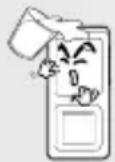
Do not get the product wet or drop it in water.
If the product gets wet, do not switch it on.
Contact a Service Center.
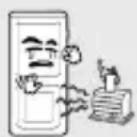
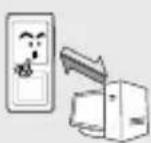
Do not place the product in damp, dusty or sooty areas, as it could result in fire or electric shock.
Do not leave the product in areas above 35^ C( 95^ F) (such as a sauna or inside a parked car).
During the summer the temperature inside a car may rise up to 80^ C( 176^ F).
To avoid your hearing damage
Using the earphone or headphone for an extended time can cause a serious damage to your hearing.
If you are exposed to a sound in higher than 85db for an extended time, you will be adversely affected on your hearing. The higher the sound is, the more seriously damaged your hearing is (an ordinary conversation is made in 50 to 60 db and the noise level on the road is approximately 80 db). You are strongly advised to set the volume level to medium (the medium level is usually less than 2/3 of the maximum).
If you feel a ringing in the ear(s), lower the volume or stop using the earphone or headphone.
To avoid a risk of traffic accident
Do not use the earphone while you are driving a bicycle, automobile or motorcycle.
Otherwise it can cause a serious accident and, furthermore, it is prohibited by the law in some areas. Using the earphone on the way, in particular, on the crosswalk can lead to a serious accident.
For your safety, make sure the earphone cable should not get in the way of your arm or other surrounding objects while you are taking exercise or a walk.
CAUTION
Failure to follow all instructions lead to physical injuries or damage to the product.
Product Use
Take care to avoid product malfunction and physical damage.
When wearing the product around your neck, take care not to exert excessive force on the neck string.
Management of Important Data
Be sure to backup important data.
Please be aware that we claim no responsibility for damage from data loss due to breakdown, repair or other causes.
Avoid malfunction
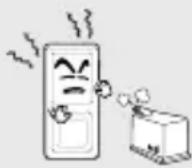
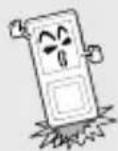
Do not cause excessive impact on the product by dropping it. Do not place heavy objects on top of the product.
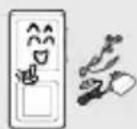
Prevent any foreign particles or dust from entering into the product.
Always use the accessories provided by or approved by Samsung.
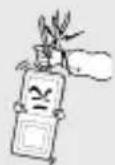
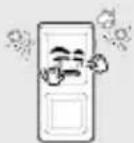
Do not spray water on the product. Never clean the product with chemical substances such as benzene or thinner, as it may cause fire, electric shock or deteriorate the surface.
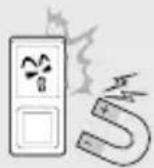
Do not place the product near magnetic objects, as it may cause a malfunction.
Contents
For Your Safety 2
Contents 4
Chapter 1. Preparation
Product Features ....7
Checking the Product and Accessories ....8
Components 8
Screen Display Information 10
Button Functions....11
Charging the battery....13
Basic Use ....14
Chapter 2. Loading Your Desired File
Loading Your Desired File 18
Loading Your Desired File......18
Installing Media Studio....19
Connecting to your PC......21
Adding Files/Folders in Media Studio...22
Adding Files/Folders in
Media Studio with Autoscan......24
Transferring Files with Media Studio ....26
Using as a Removable Disk ....28
Disconnecting from your PC....29
Chapter 3. | Multmedio funtion
Listening to Music....31
Listening to Music....31
To Play a Playlist 34
Shuffle Play (Random Repeat)......35
Checking the Music Information......38
Picture Viewing ....39
Picture Viewing....39
Picture Enlarging/Slideshow Viewing ......40
Listening to FM Radio 41
Listening to FM Radio 41
Setting a Frequency 43
Setting FM Radio......46
Recording....48
Voice Recording 48
Chapter 4. | Setup
Setup 51
Audio Setup 51
Display Setup 52
Slideshow Setup 53
Repeat Setup....54
Timer Setup 55
Language Setup 56
Reset 57
Checking the System Infomation....58
Chapter 5. Troubleshooting
System Reset......60
Troubleshooting......61
Chapter 6. Appendix
Menu Tree 65
Manual USB Driver Installation....66
Product Specifications....69
MP3 PLAYER
Chapter 1. Preparation
Product Features 7
Checking the Product and Accessories ....8
Components 8
Screen Display Information ....10
Button Functions....11
Charging the battery....13
Basic Use 14
Product Features
Freedom of my favorite selection with your player!
■ You can easily search for music files by the artist, album or genre and make you own selection of favorite songs in Playlist.
Supporting Various File Formats!
■ Supports various file formats including MP3, WMA and Ogg.
■ You can enjoy photo files in different formats on the display by converting them into JPG.
Touchpad Mechanism!
- Put your finger on the touchpad and move or press it slightly to select a file or function that you want to use.
Longer Play Time and Shorter Downloading!
■ A fully charged battery can operate the player in a maximum of 39 hours.
■ The player supports USB 2.0 capability, much faster than USB 1.1, to enable faster communication with the PC.
3D Surround Sound! High-Definition Quality!
■ The player has built-in DNSe (Digital Natural Sound engine), Samsung's unique sound technology for richer sound.
Ergonomic Design!
■ Experience the good sense of grip and easy operation.
Checking the Product and Accessories
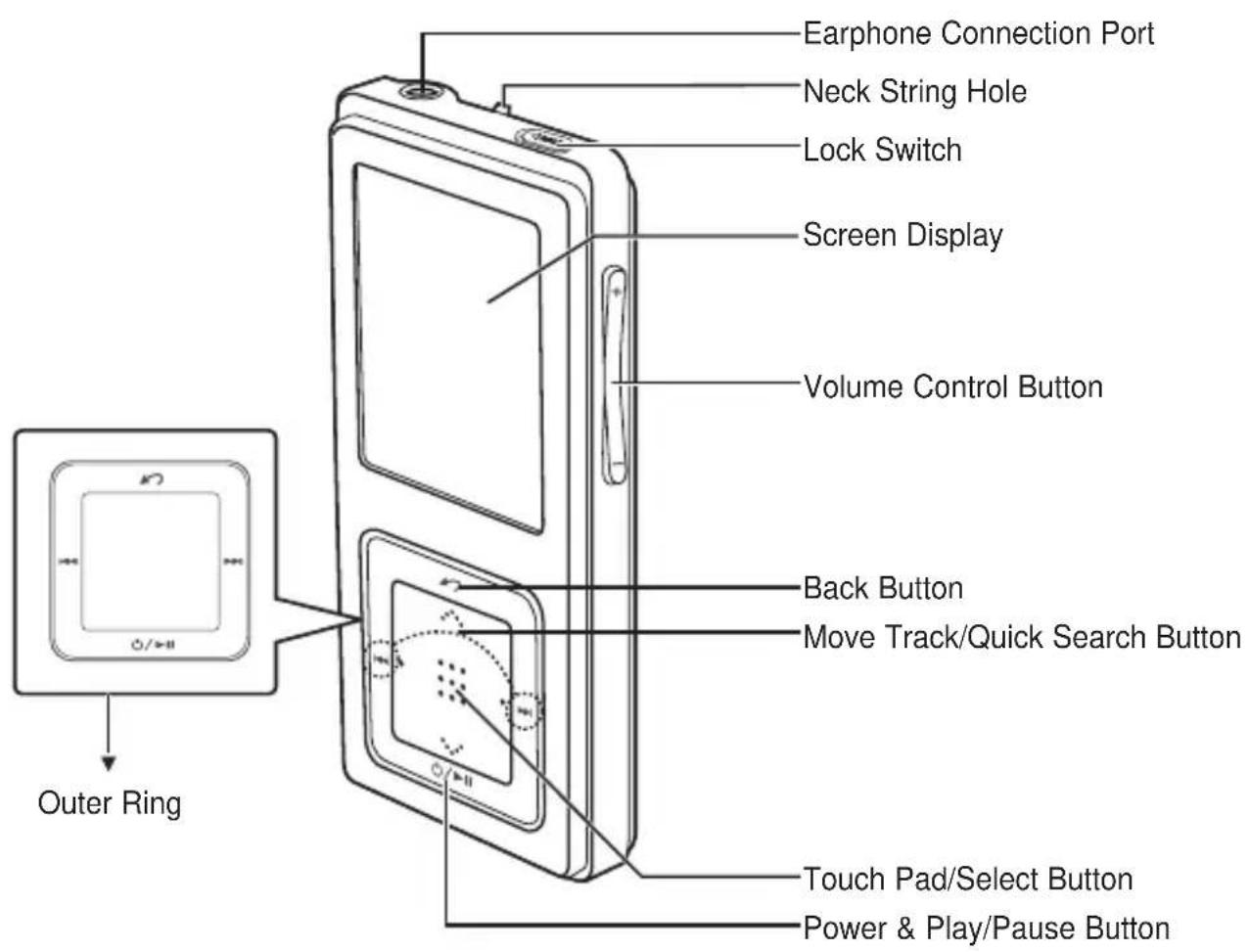
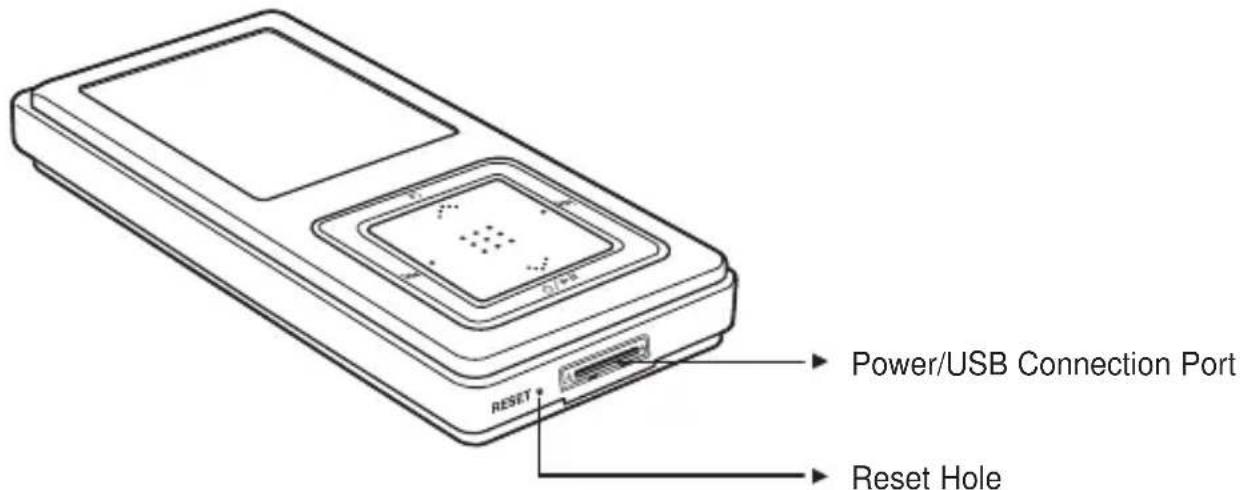
Components
Front, Right Side and Top
Bottom
Checking the Accessories
The following diagrams are a guide and may differ slightly from the actual product appearance.
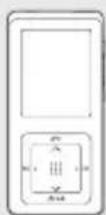
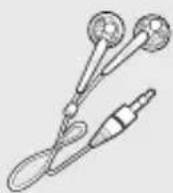
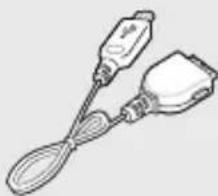
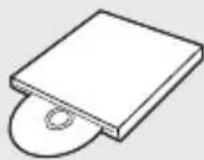
Player Earphones USB Cable
natural_image
Line drawing of two electrical connectors with a spoon, no text or symbols present
Installation CD
■ Design of accessories is subject to change for the purpose of improvement, without notice.
Checking the Product and Accessories
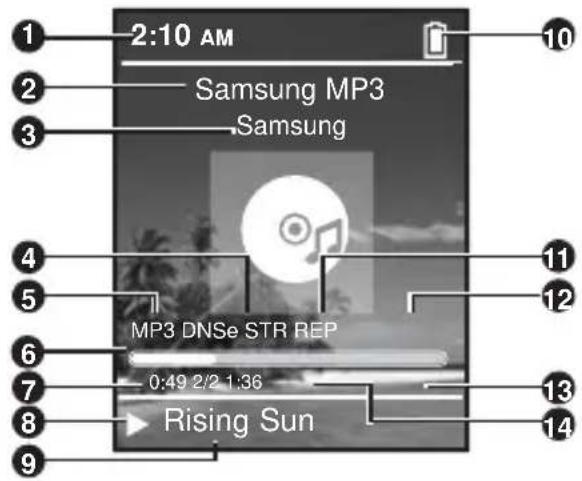
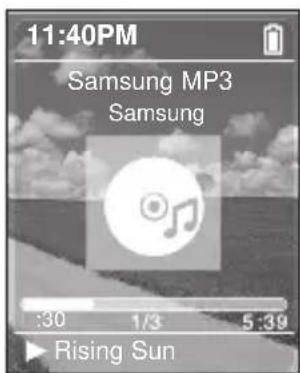
Screen Display Information
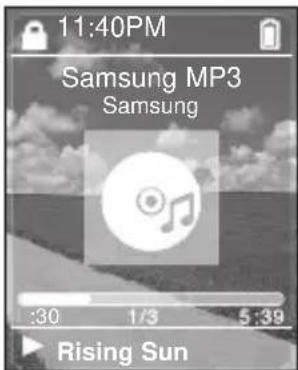
1 Current Time Display
2 Album Title Display
3 Album Display
4 Sound Mode Display
5 File Type Display (MP3, WMA etc)
6 Play Status Bar
7 Play Time Display
8 Play/Pause Display
9 Music Title Display
10 Battery Display
11 Street Mode Display
12 Repeat Play Display
13 Total Play Time Display
14 Current Music Number/Total Number Display
NOTE
■ The screen pictures are for illustration purposes only. The actual screen may differ.
Checking the Product and Accessories
Button Functions
Buttons Functions and Use
■ Long press for power on/off.
■ Short press for play/pause.
■ Long press to move to the Menu screen.
■ Short press to move to the previous screen.
■ Long press to scan to a point on the current track.
■ Short press to move to the previous track or to play the current track from the start.
■ Long press to scan to a point on the current track.
■ Short press to move to the next track.
■ Push in the direction of the arrow to lock the button functions.
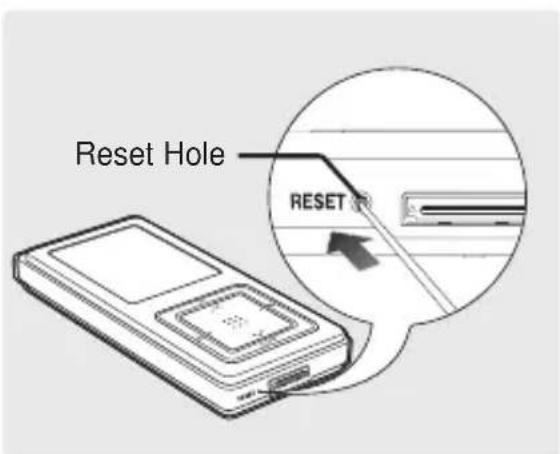
■ Press with a pointed object to reset.
■ Press to reduce/increase the volume.
Checking the Product and Accessories
Button Functions (Continued)
Buttons Functions and Use
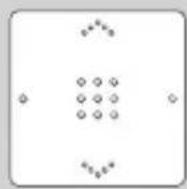
■ Moving up, down, left and right and Function Selection
Tap on the top or bottom side to move up or down by one selection.
Tap on the left or right side to move left or right by one selection (Picture mode).
Tap and hold on top or bottom side to move up or down continuously.
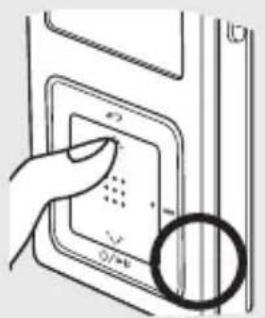
Press the center of the Touchpad to select the function and move to the next screen.
* The touchpad works better when pressed lightly with a fingertip.
CAUTION
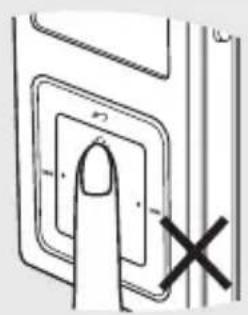
■ Do not use any sharp object other than your fingers to operate the touchpad. Otherwise, touchpad may be damaged.
■ Do not press on the [Touch Pad] if your fingers are not clean.
Charging the battery
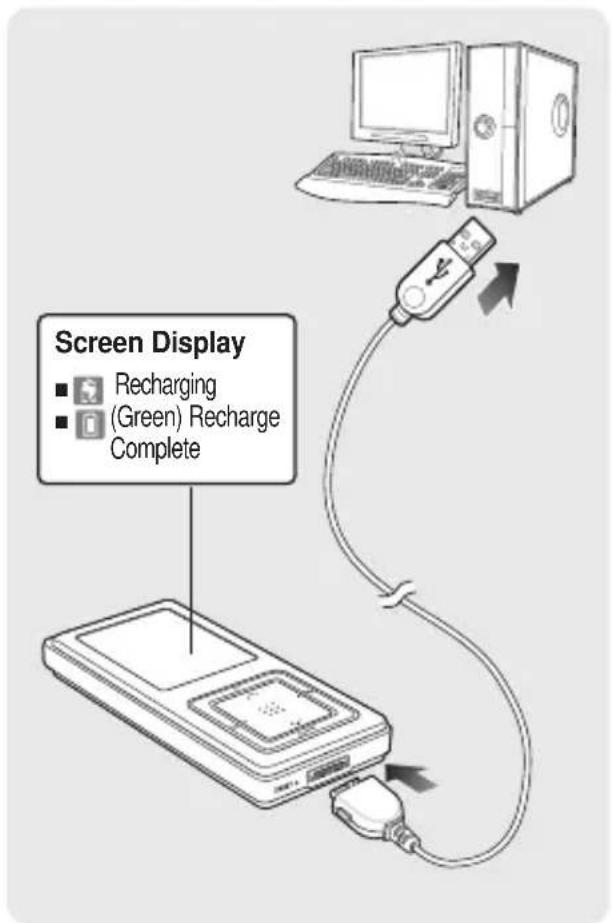
Fully charge the battery before using the player for the first time or when the it has not been used for a while.
1 Connect the USB cable to the USB port (ψ) on your PC.
2 Connect the other end of the USB cable to the Power/USB Connection Port on the bottom of the player.
■ appears on the screen display of the player.
■ When connected with the USB cable, it takes about 4 hours for a full charge although this may vary depending on your PC environment.
Battery Use
■ Recharge and store within the temperature range of 5°C\~35°C(40°F\~95°F).
- Do not overcharge (longer than 12 hours). Excessive charging or discharging may shorten the battery's life.
■ Battery life naturally shortens slowly over time as it is a consumable item.
NOTE
■ Charging may take more time if there is another USB device connected to your PC.
If the player displays "low battery", actual charging may start after a short period of time when you connect to your PC.
Basic Use
Turning the Power On & Off
Turning the Power On
Press and hold the [] button
■ Power is turned on.
Turning the Power Off
Press and hold the [] button
■ Power is turned off.
NOTE
■ Screen Display window is automatically turned off when none of the buttons have been pressed for a preset period of time (Default: 1 minute) in the pause mode. You can set the time duration before closing the Screen Display window. ▶page 52
Playing Music
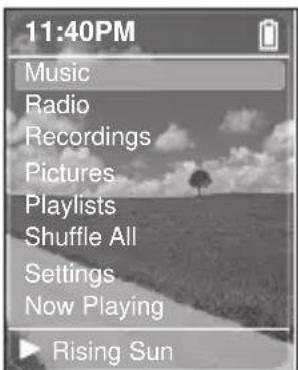
1 Press and hold the [] button to move to the Menu screen.
2 Tap on the [····] to select , then press the [Touch Pad].
■ The Music Menu will appear.
3 Tap on the [···] to select a music file of your choice.
4 Press the [Touch Pad].
■ The music file will begin playing.
NOTE
■ Press the [→] button to move to the previous screen.
■ Press and hold the [ ] button to move to the Menu screen.
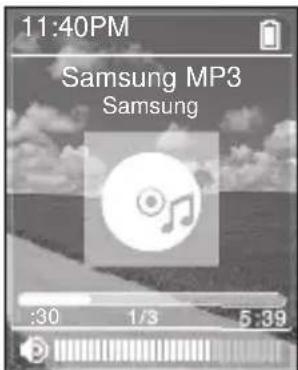
Volume Control
Press the [ + , - ] button on the side of the unit.
■The Volume Status Bar will appear.
- Press the + button to increase the volume or the – button to decrease it.
Lock Function
In Hold mode, all buttons are disabled. This function is useful when you are walking or jogging.
1 Push the [HOLD] button on the top of the unit in the direction of the arrow.
2 Push the [HOLD] button in the opposite direction of the arrow to release the Lock function.
Basic Use (Continued)
Reset Function
If a product malfunction occurs, you can re-initialize the system by pressing the Reset hole. ▶page 60
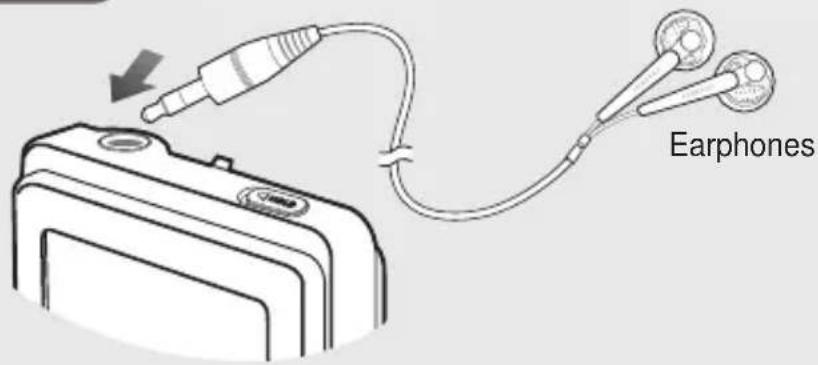
Earphone Connection
▶ Top
MP3 PLAYER
Chapter 2. Loading Your Desired File
Loading Your Desired File 18
Loading Your Desired File....18
Installing Media Studio....19
Connecting to your PC......21
Adding Files/Folders in Media Studio...22
Adding Files/Folders in
Media Studio with Autoscan......24
Transferring Files with Media Studio ....26
Using as a Removable Disk ....28
Disconnecting from your PC......29
Loading Your Desired File
Loading Your Desired File
To play music files in the player, first transfer music files in MP3, WMA, Ogg and other supported formats from your PC.
Follow the steps below to transfer files.
Transferring Music Files
■ Transfer files on your PC to the player using Media Studio ▶ Page 26
■ Transfer files on your PC to the player using the "Copy" and "Paste" functions (removable disk) ▶ Page28
Loading Your Desired File
Installing Media Studio
Use Media Studio to transfer music files from your PC to the player.
CAUTION
If Media Studio is not installed automatically
■ Install the program on PCs running Windows 2000 or Windows XP after logging on with the Administrator account. Please refer to the PC user manual on how to log on with the Administrator account.
Before you start!
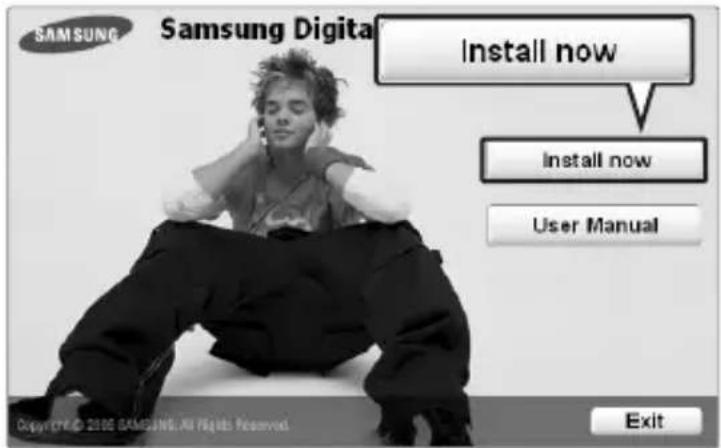
Insert the installation CD provided with the player into the CD-ROM drive.
1 Click .
Loading Your Desired File
Installing Media Studio (Continued)
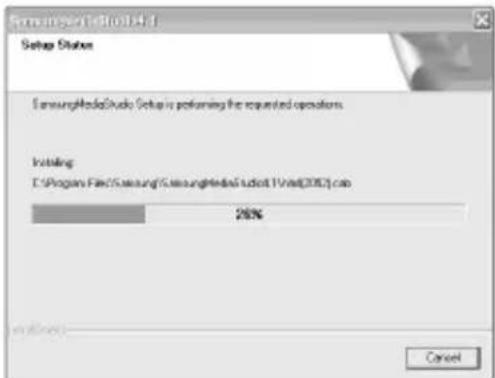
2 Click .
■Media Studio installation starts.
3 After installation is complete, click .
■ An icon is created on the desktop after installation is complete and Media Studio starts.
■If the Autoscan Confirm window appears, refer to page 25 and customize settings.
Before you start!
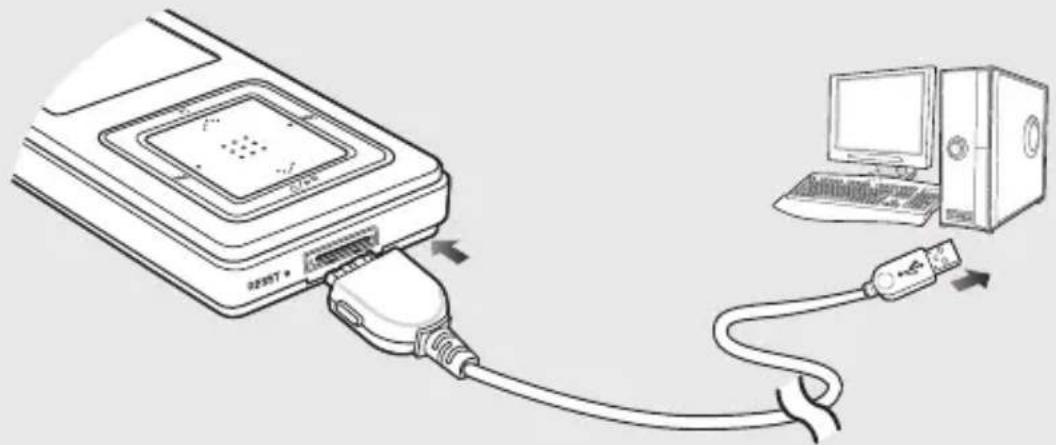
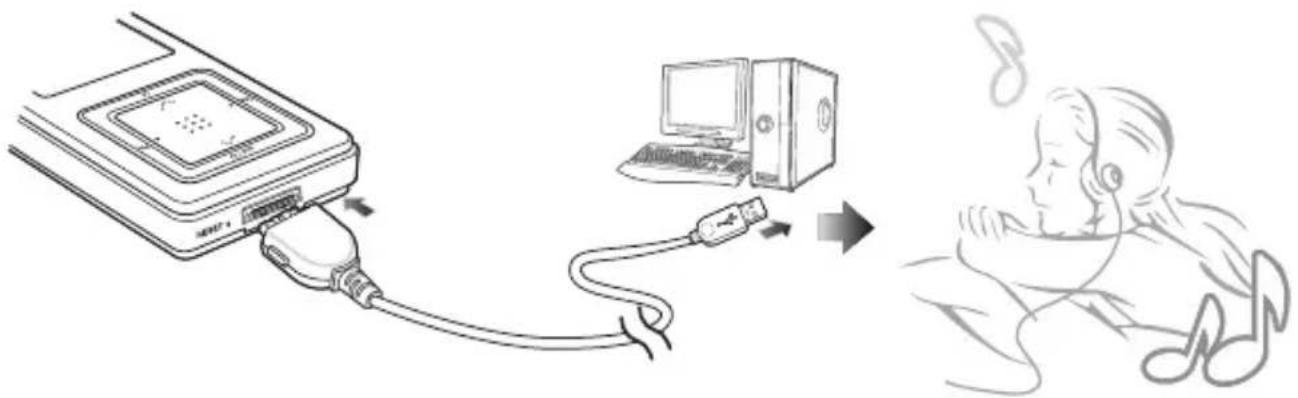
Use the USB Cable provided when connecting the product to your PC.
natural_image
Diagram showing a USB cable connecting an electronic device to a computer tower (no text or symbols present)
1 Connect the USB cable to the USB port ( ) on your PC.
2 Connect the other end of the USB cable to the Power/USB Connection Port on bottom of the player.
- appears on the screen display of the player.
PC Requirements
For use in conjunction with your PC, the following is required:
■ Pentium 300MHz or higher
■ Windows 98SE/2000/XP
■ 100MB of free hard disc space
USB Port 2.0
■ DirectX 9.0 or higher
■ CD Rom Drive (2X or higher)
CAUTION
■ If you connect the player through a USB hub, the connection may be unstable. Please connect the player to the computer directly.
Loading Your Desired File
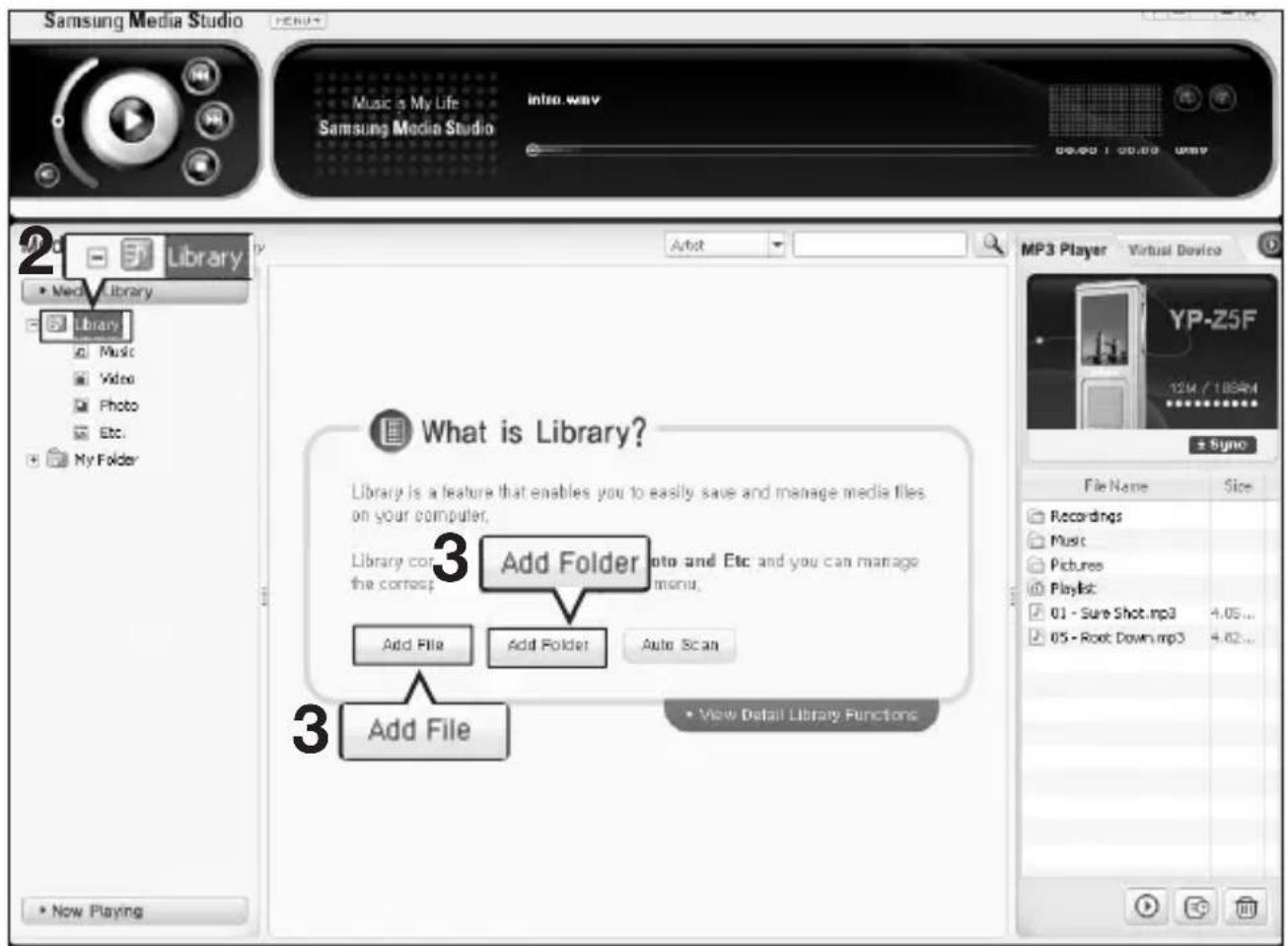
Adding Files/Folders in Media Studio
Please refer to Help for more information on how to use Media Studio.
- Click
Other manuals SAMSUNG
Discover other manuals and user guides for the brand SAMSUNG
💬 Hi! I'm your manual assistant.I know your SAMSUNG YP-Z5FAP.
How can I help you? (use, settings, error codes, maintenance, explaining a step from the manual, etc.)💡 Examples :
• How do I use it ?
• Error code E3 ?
• How do I clean it ?













![Sensorservix Studio 1 Start Copping File Review ratings before copying files. The setup program starts copying program files using the following information: Click [CUSTOM] to install after setup installation settings or click [NDIT] to start copying files with the current settings. Current Settings: Installation Type Quick Install Select to install the SamsungMediaStudio with default settings Installation Information Folder to install C:\Program Files\Samsung\Samsung\Microsoft\Autolat 1 Program Files\Samsung\MediaStudio1.1 Greencite Terms of Use The application contains software from Geocarens, Inc. NEXT CUSTOM NEXT Cancel](/content/2026/06/1189708/images/3e907cb49452385225e71f21d372f1ae5f0538208111c1748e35fbcbf39f2927.jpg)