SAMSUNG YP-Z5FQP - Mp3 player

YP-Z5FQP - Mp3 player SAMSUNG - Free user manual and instructions

Find the device manual for free YP-Z5FQP SAMSUNG in PDF.

📄 74 pages English EN Download 💬 AI Question 10 questions ⚙️ Specs
Notice SAMSUNG YP-Z5FQP - page 7
Pick your language and provide your email: we'll send you a specifically translated version.
Product Type MP3 Player
Model Samsung YP-Z5FQP
Dimensions (2GB) 42.2 x 89.8 x 11.4 mm
Dimensions (4GB) 42.2 x 89.8 x 12.3 mm
Weight (including battery) 56 g
Power Source Built-in Li-Polymer rechargeable battery, 3.7V, 820 mAh
Charging Time Approximately 4 hours via USB
Play Time (Music) Up to 39 hours (LCD off, volume 27)
Supported Audio Formats MP3, WMA, Ogg
Supported Image Format JPEG (converted automatically)
Storage Capacity 2GB or 4GB (depending on variant)
Interface USB 2.0
Audio Output (Earphone) 20mW (16Ω)
Frequency Response 20 Hz – 20 kHz
Signal-to-Noise Ratio 89 dB
FM Radio Frequency Range 87.5 – 108.0 MHz
FM Sensitivity 38 dBμ (usable)
Control Touchpad with directional navigation and center select
Sound Enhancement DNSe (3D, Club, Stage, Studio, Street modes)
Safety Features Hearing protection, hold switch, reset hole
Care Instructions Do not expose to water, dust, or extreme temperatures; clean with dry cloth only
Repairability Reset hole for system recovery; use only Samsung-approved accessories

Frequently Asked Questions - YP-Z5FQP SAMSUNG

How do I charge the Samsung YP-Z5FQP?
Connect the USB cable to your PC and the player. A full charge takes about 4 hours. The battery icon indicates charging status. Do not overcharge (max 12 hours).
How do I transfer music files to the player?
Install Media Studio from the provided CD, then connect the player via USB. Media Studio will launch automatically. You can add files or folders and transfer them. Alternatively, use drag-and-drop in Windows Explorer (removable disk mode).
How do I reset the player if it freezes?
Use a pointed object (e.g., paperclip) to press the Reset hole on the bottom of the player. This reinitializes the system without deleting your data.
What should I do if the buttons do not work?
Check if the HOLD switch on the top is engaged. If so, slide it to the opposite direction. If still not working, try resetting the device.
How do I set up the FM radio?
Connect earphones (they act as antenna). Press and hold the Menu button, select FM Radio, then choose Preset Tune for automatic scanning or Manual Tune. To save a frequency, press and hold the Touchpad while on the desired frequency.
How do I create a playlist?
Navigate to a music file (e.g., by artist or album), select it, then press and hold the Touchpad until a checkmark appears. The file is added to the Playlist. Access your playlist from the Music menu under Playlist.
Can I use the player as a storage device?
Yes. When connected to your PC via USB, the player appears as a removable disk. You can copy files directly using Windows Explorer. However, DRM-protected files may not play.
How do I change the language on the screen?
Go to Settings > Language. Select either Menu Language or ID3 Language (for song tags). Use the Touchpad to choose from available languages.
Why does my player turn off quickly?
The battery may be low. Recharge fully. If the problem persists, check the Timer Setup for auto-off settings. Also, note that higher volume and LCD usage reduce play time.
How do I clean the player?
Use a soft, dry cloth. Do not spray water or use chemicals like benzene or thinner, as these may damage the surface or cause electric shock.

User questions about YP-Z5FQP SAMSUNG

0 question about this device. Answer the ones you know or ask your own.

Ask a new question about this device

The email remains private: it is only used to notify you if someone responds to your question.

No questions yet. Be the first to ask one.

Download the instructions for your Mp3 player in PDF format for free! Find your manual YP-Z5FQP - SAMSUNG and take your electronic device back in hand. On this page are published all the documents necessary for the use of your device. YP-Z5FQP by SAMSUNG.

USER MANUAL YP-Z5FQP SAMSUNG

natural_image Exterior view of a Samsung mobile phone with a photo of three musicians playing on stage (no visible text or symbols on device body)

YP-Z5F

For Your Safety Read this manual carefully to ensure proper use of the product and to avoid any danger or physical damage.

SAMSUNG YP-Z5FQP - For Your Safety Read this manual carefully to ensure proper use of the product and to avoid any danger or physical damage. - 1

WARNING

Failing to heed the product instructions may cause serious injury.

Product Use

Improper use can result in explosion, fire or electric shock.
SAMSUNG YP-Z5FQP - Product Use - 1

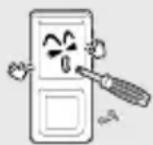
Do not disassemble, repair or modify this product on your own.

SAMSUNG YP-Z5FQP - Product Use - 2

Do not get the product wet or drop it in water.

If the product gets wet, do not switch it on. Contact a Service Center.
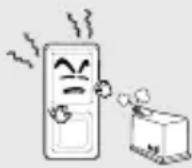
SAMSUNG YP-Z5FQP - Product Use - 3

Do not place the product in damp, dusty or sooty areas, as it could result in fire or electric shock.

SAMSUNG YP-Z5FQP - Product Use - 4

Do not leave the product in areas above 35^ C( 95^ F) (such as a sauna or inside a parked car).

During the summer the temperature inside a car may rise up to 80^ C( 176^ F).

To avoid your hearing damage

Using the earphone or headphone for an extended time can cause a serious damage to your hearing.

If you are exposed to a sound in higher than 85db for an extended time, you will be adversely affected on your hearing. The higher the sound is, the more seriously damaged your hearing is (an ordinary conversation is made in 50 to 60 db and the noise level on the road is approximately 80 db). You are strongly advised to set the volume level to medium (the medium level is usually less than 2/3 of the maximum).

If you feel a ringing in the ear(s), lower the volume or stop using the earphone or headphone.

To avoid a risk of traffic accident

Do not use the earphone while you are driving a bicycle, automobile or motorcycle.

Otherwise it can cause a serious accident and, furthermore, it is prohibited by the law in some areas. Using the earphone on the way, in particular, on the crosswalk can lead to a serious accident.

For your safety, make sure the earphone cable should not get in the way of your arm or other surrounding objects while you are taking exercise or a walk.

SAMSUNG YP-Z5FQP - To avoid a risk of traffic accident - 1

CAUTION

Failure to follow all instructions lead to physical injuries or damage to the product.

Product Use

Take care to avoid product malfunction and physical damage.

SAMSUNG YP-Z5FQP - Product Use - 1

When wearing the product around your neck, take care not to exert excessive force on the neck string.

Management of Important Data
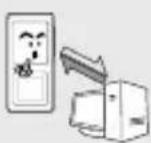
SAMSUNG YP-Z5FQP - Management of Important Data - 1

Be sure to backup important data.

Please be aware that we claim no responsibility for damage from data loss due to breakdown, repair or other causes.

Avoid malfunction

SAMSUNG YP-Z5FQP - Avoid malfunction - 1

Do not cause excessive impact on the product by dropping it. Do not place heavy objects on top of the product.

SAMSUNG YP-Z5FQP - Avoid malfunction - 2

Prevent any foreign particles or dust from entering into the product.
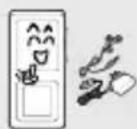
SAMSUNG YP-Z5FQP - Avoid malfunction - 3

Always use the accessories provided by or approved by Samsung.
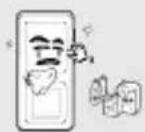
SAMSUNG YP-Z5FQP - Avoid malfunction - 4

Do not spray water on the product. Never clean the product with chemical substances such as benzene or thinner, as it may cause fire, electric shock or deteriorate the surface.
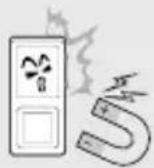
SAMSUNG YP-Z5FQP - Avoid malfunction - 5

Do not place the product near magnetic objects, as it may cause a malfunction.

Contents

For Your Safety 2

Contents 4

Chapter 1. Preparation

Product Features ....7

Checking the Product and Accessories ....8

Components 8

Screen Display Information 10

Button Functions....11

Charging the battery....13

Basic Use ....14

Chapter 2. Loading Your Desired File

Loading Your Desired File 18

Loading Your Desired File......18

Installing Media Studio....19

Connecting to your PC......21

Adding Files/Folders in Media Studio...22

Adding Files/Folders in

Media Studio with Autoscan......24

Transferring Files with Media Studio ....26

Using as a Removable Disk ....28

Disconnecting from your PC....29

Chapter 3. | Multmedio funtion

Listening to Music....31

Listening to Music....31

To Play a Playlist 34

Shuffle Play (Random Repeat)......35

Checking the Music Information......38

Picture Viewing ....39

Picture Viewing....39

Picture Enlarging/Slideshow Viewing ......40

Listening to FM Radio 41

Listening to FM Radio 41

Setting a Frequency 43

Setting FM Radio......46

Recording....48

Voice Recording 48

Chapter 4. | Setup

Setup 51

Audio Setup 51

Display Setup 52

Slideshow Setup 53

Repeat Setup....54

Timer Setup 55

Language Setup 56

Reset 57

Checking the System Infomation....58

Chapter 5. Troubleshooting

System Reset......60

Troubleshooting......61

Chapter 6. Appendix

Menu Tree 65

Manual USB Driver Installation....66

Product Specifications....69

MP3 PLAYER

Chapter 1. Preparation

Product Features 7

Checking the Product and Accessories ....8

Components 8

Screen Display Information ....10

Button Functions....11

Charging the battery....13

Basic Use 14

Product Features

Freedom of my favorite selection with your player!

■ You can easily search for music files by the artist, album or genre and make you own selection of favorite songs in Playlist.

Supporting Various File Formats!

■ Supports various file formats including MP3, WMA and Ogg.
■ You can enjoy photo files in different formats on the display by converting them into JPG.

Touchpad Mechanism!

- Put your finger on the touchpad and move or press it slightly to select a file or function that you want to use.

Longer Play Time and Shorter Downloading!

■ A fully charged battery can operate the player in a maximum of 39 hours.
■ The player supports USB 2.0 capability, much faster than USB 1.1, to enable faster communication with the PC.

3D Surround Sound! High-Definition Quality!

■ The player has built-in DNSe (Digital Natural Sound engine), Samsung's unique sound technology for richer sound.

Ergonomic Design!

■ Experience the good sense of grip and easy operation.

Checking the Product and Accessories

Components

Front, Right Side and Top
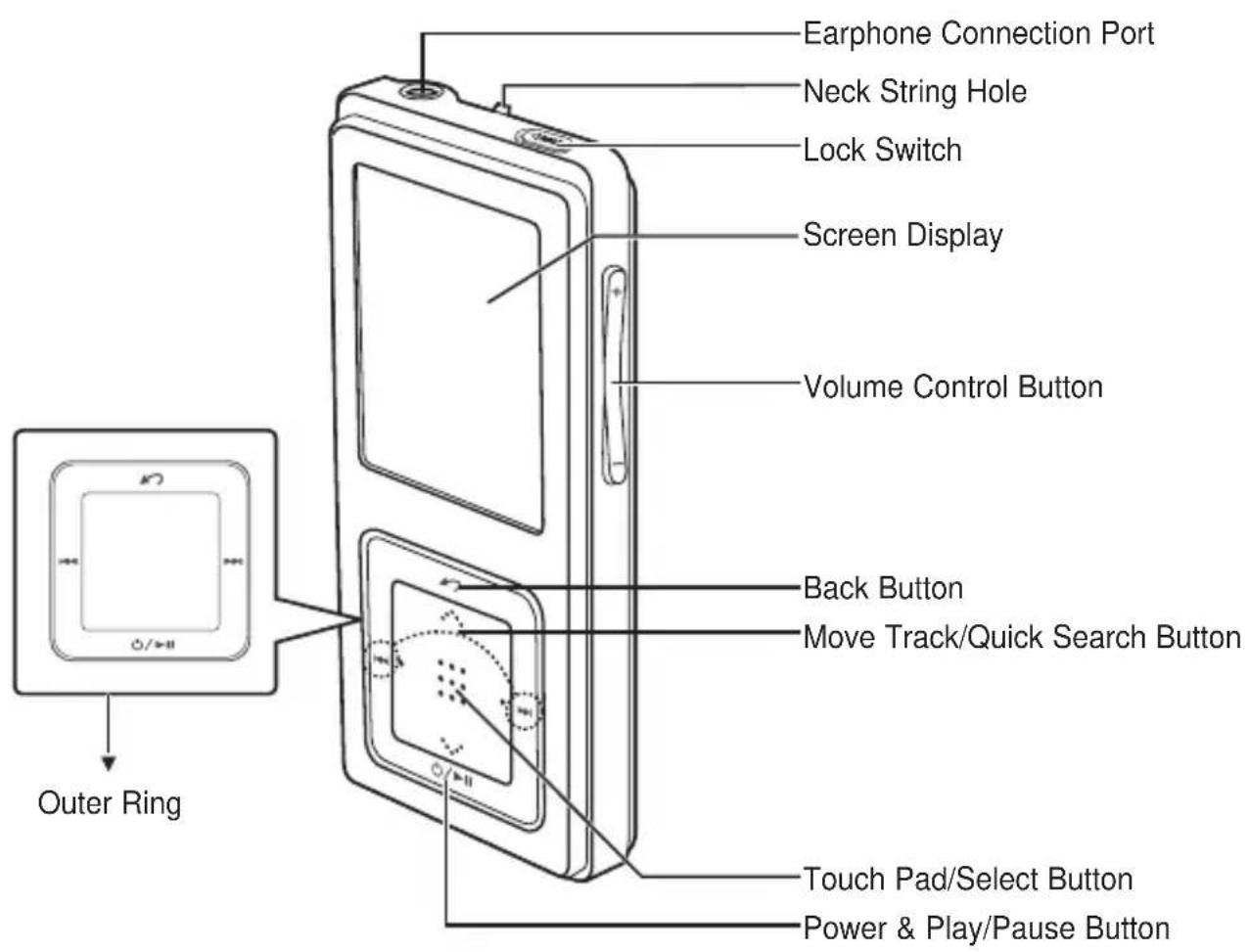
Earphone Connection Port Neck String Hole Lock Switch Screen Display Volume Control Button Back Button Move Track/Quick Search Button Touch Pad/Select Button Power & Play/Pause Button Outer Ring

Bottom

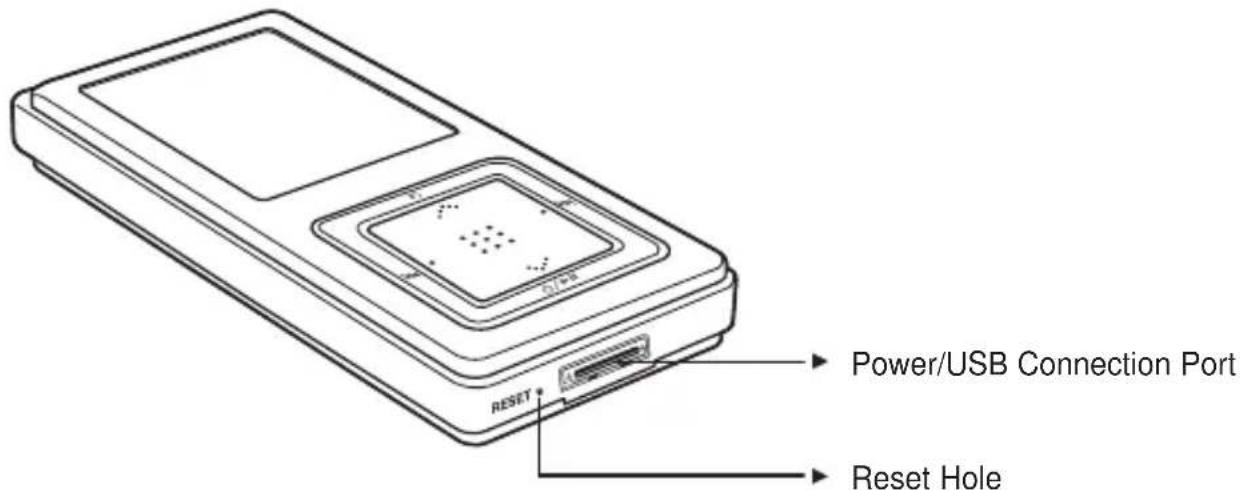
Power/USB Connection Port Reset Hole

Checking the Accessories

The following diagrams are a guide and may differ slightly from the actual product appearance.
SAMSUNG YP-Z5FQP - Checking the Accessories - 1
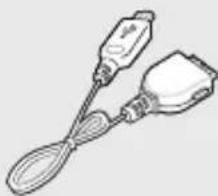
Player Earphones USB Cable

SAMSUNG YP-Z5FQP - Checking the Accessories - 2

SAMSUNG YP-Z5FQP - Checking the Accessories - 3

natural_image Line drawing of two electrical connectors with a spoon, no text or symbols present

SAMSUNG YP-Z5FQP - Checking the Accessories - 4
Installation CD

■ Design of accessories is subject to change for the purpose of improvement, without notice.

Checking the Product and Accessories

Screen Display Information
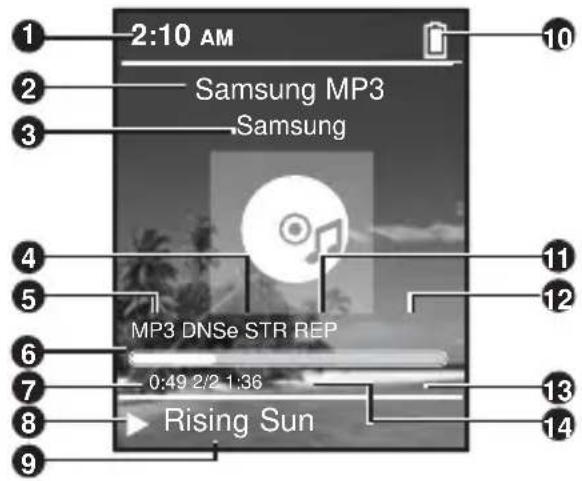
1 2:10 AM 2 Samsung MP3 3 Samsung 4 MP3 DNSe STR REP 5 6 0:49 2/2 1:36 7 Rising Sun 8 9 10 11 12 13 14

1 Current Time Display
2 Album Title Display
3 Album Display
4 Sound Mode Display
5 File Type Display (MP3, WMA etc)
6 Play Status Bar
7 Play Time Display

8 Play/Pause Display
9 Music Title Display
10 Battery Display
11 Street Mode Display
12 Repeat Play Display
13 Total Play Time Display
14 Current Music Number/Total Number Display

SAMSUNG YP-Z5FQP - Screen Display Information - 2

NOTE

■ The screen pictures are for illustration purposes only. The actual screen may differ.

Checking the Product and Accessories

Button Functions

Buttons Functions and Use
SAMSUNG YP-Z5FQP - Buttons Functions and Use - 1

■ Long press for power on/off.
■ Short press for play/pause.

SAMSUNG YP-Z5FQP - Buttons Functions and Use - 2

■ Long press to move to the Menu screen.
■ Short press to move to the previous screen.

SAMSUNG YP-Z5FQP - Buttons Functions and Use - 3

■ Long press to scan to a point on the current track.
■ Short press to move to the previous track or to play the current track from the start.

SAMSUNG YP-Z5FQP - Buttons Functions and Use - 4

■ Long press to scan to a point on the current track.
■ Short press to move to the next track.

SAMSUNG YP-Z5FQP - Buttons Functions and Use - 5

■ Push in the direction of the arrow to lock the button functions.

SAMSUNG YP-Z5FQP - Buttons Functions and Use - 6

■ Press with a pointed object to reset.

SAMSUNG YP-Z5FQP - Buttons Functions and Use - 7

■ Press to reduce/increase the volume.

Checking the Product and Accessories

Button Functions (Continued)

Buttons Functions and Use
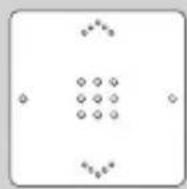
SAMSUNG YP-Z5FQP - Buttons Functions and Use - 1

■ Moving up, down, left and right and Function Selection

Tap on the top or bottom side to move up or down by one selection.
Tap on the left or right side to move left or right by one selection (Picture mode).
Tap and hold on top or bottom side to move up or down continuously.
Press the center of the Touchpad to select the function and move to the next screen.

* The touchpad works better when pressed lightly with a fingertip.
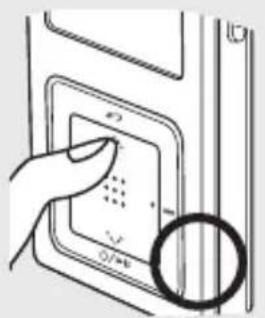
Diagram showing a hand pressing a button with symbols including 'f2', '0/4', and a circle highlighting the button.

SAMSUNG YP-Z5FQP - ■ Moving up, down, left and right and Function Selection - 2

natural_image Diagram showing a finger pressing a button on a rectangular panel with a cross mark, no text or symbols present

SAMSUNG YP-Z5FQP - ■ Moving up, down, left and right and Function Selection - 3

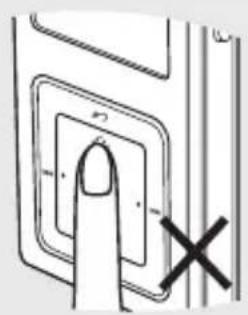
CAUTION

■ Do not use any sharp object other than your fingers to operate the touchpad. Otherwise, touchpad may be damaged.
■ Do not press on the [Touch Pad] if your fingers are not clean.

Charging the battery

Fully charge the battery before using the player for the first time or when the it has not been used for a while.
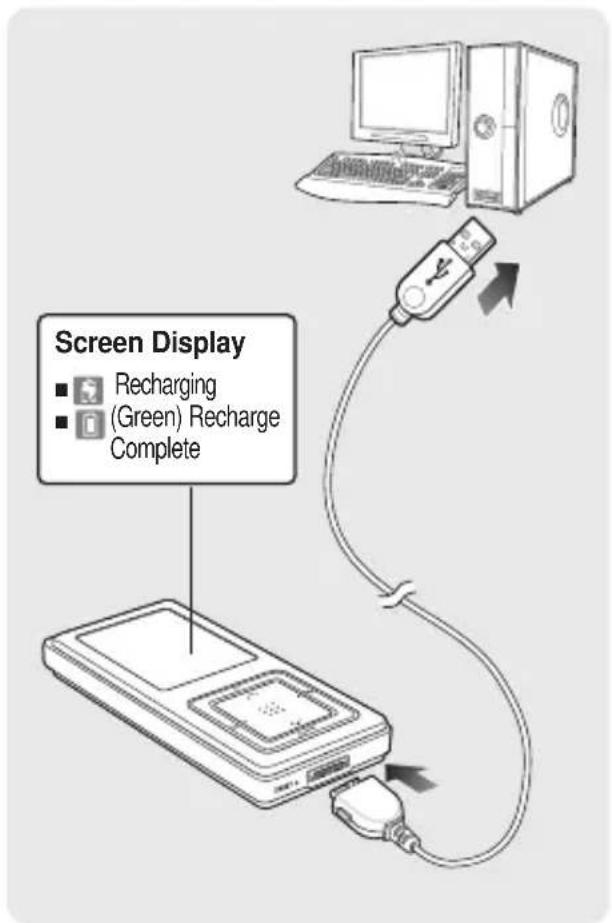
Screen Display ■ Recharging ■ (Green) Recharge Complete

1 Connect the USB cable to the USB port (ψ) on your PC.

2 Connect the other end of the USB cable to the Power/USB Connection Port on the bottom of the player.

appears on the screen display of the player.
■ When connected with the USB cable, it takes about 4 hours for a full charge although this may vary depending on your PC environment.

Battery Use

■ Recharge and store within the temperature range of 5°C\~35°C(40°F\~95°F).
- Do not overcharge (longer than 12 hours). Excessive charging or discharging may shorten the battery's life.
■ Battery life naturally shortens slowly over time as it is a consumable item.

SAMSUNG YP-Z5FQP - Battery Use - 1
NOTE

■ Charging may take more time if there is another USB device connected to your PC.
If the player displays "low battery", actual charging may start after a short period of time when you connect to your PC.

Basic Use

Turning the Power On & Off
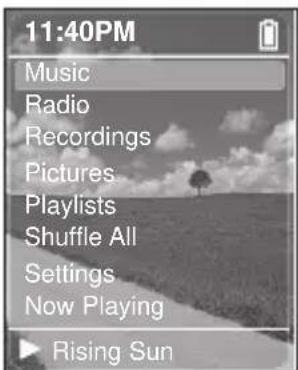
11:40PM Music Radio Recordings Pictures Playlists Shuffle All Settings Now Playing Rising Sun

Turning the Power On Press and hold the [] button

■ Power is turned on.

Turning the Power Off Press and hold the [] button

■ Power is turned off.

SAMSUNG YP-Z5FQP - Turning the Power On & Off - 2
NOTE

■ Screen Display window is automatically turned off when none of the buttons have been pressed for a preset period of time (Default: 1 minute) in the pause mode. You can set the time duration before closing the Screen Display window. ▶page 52

Playing Music
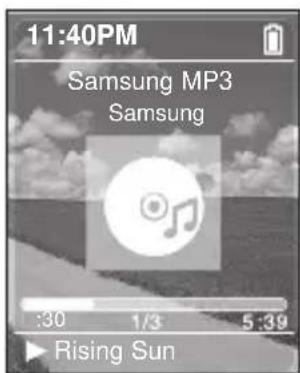
11:40PM Samsung MP3 Samsung :30 1/3 5:39 Rising Sun

1 Press and hold the [] button to move to the Menu screen.
2 Tap on the [····] to select , then press the [Touch Pad].

■ The Music Menu will appear.

3 Tap on the [···] to select a music file of your choice.
4 Press the [Touch Pad].

■ The music file will begin playing.

SAMSUNG YP-Z5FQP - Playing Music - 2
NOTE

■ Press the [→] button to move to the previous screen.
■ Press and hold the [ ] button to move to the Menu screen.

Volume Control
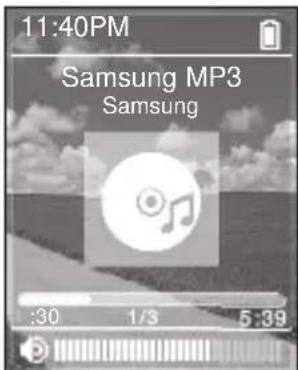
11:40PM Samsung MP3 Samsung :30 1/3 5:39

Press the [ + , - ] button on the side of the unit.

■The Volume Status Bar will appear.
- Press the + button to increase the volume or the – button to decrease it.

Lock Function
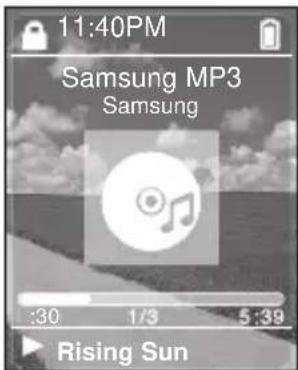
11:40PM Samsung MP3 Samsung :30 1/3 5:39 Rising Sun

In Hold mode, all buttons are disabled. This function is useful when you are walking or jogging.

1 Push the [HOLD] button on the top of the unit in the direction of the arrow.
2 Push the [HOLD] button in the opposite direction of the arrow to release the Lock function.

Basic Use (Continued)

Reset Function
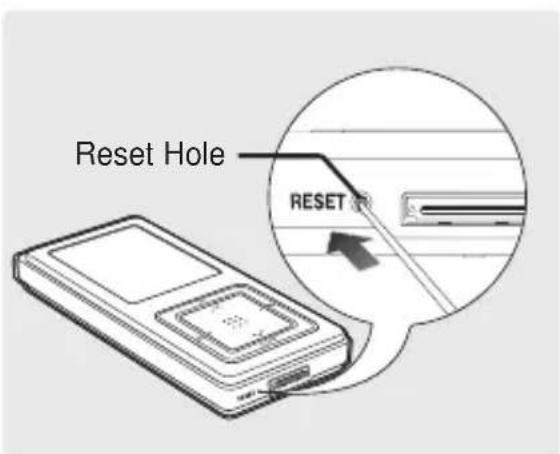
Reset Hole RESET

If a product malfunction occurs, you can re-initialize the system by pressing the Reset hole. ▶page 60

Earphone Connection

▶ Top
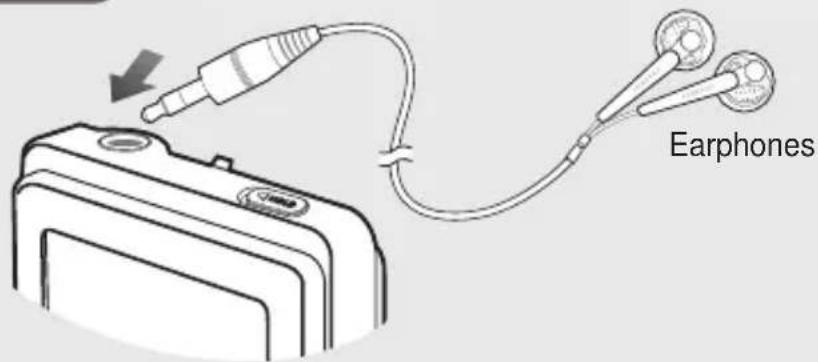
Earphones

MP3 PLAYER

Chapter 2. Loading Your Desired File

Loading Your Desired File 18

Loading Your Desired File....18

Installing Media Studio....19

Connecting to your PC......21

Adding Files/Folders in Media Studio...22

Adding Files/Folders in

Media Studio with Autoscan......24

Transferring Files with Media Studio ....26

Using as a Removable Disk ....28

Disconnecting from your PC......29

Loading Your Desired File

Loading Your Desired File

To play music files in the player, first transfer music files in MP3, WMA, Ogg and other supported formats from your PC.
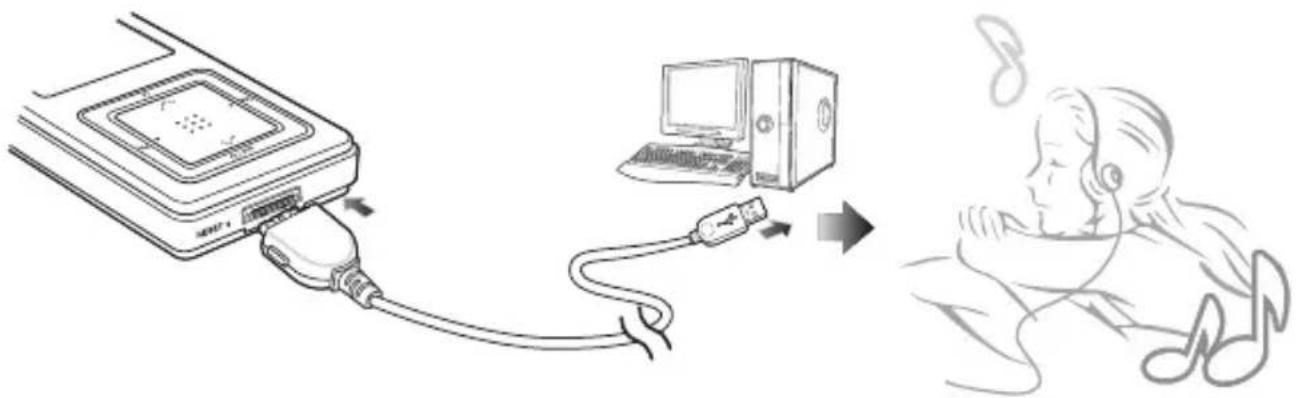
Diagram showing audio connection between a device and a computer, with a sleeping person listening to the ear.

Follow the steps below to transfer files.

Transferring Music Files

■ Transfer files on your PC to the player using Media Studio ▶ Page 26
■ Transfer files on your PC to the player using the "Copy" and "Paste" functions (removable disk) ▶ Page28

Loading Your Desired File

Installing Media Studio

Use Media Studio to transfer music files from your PC to the player.

SAMSUNG YP-Z5FQP - Installing Media Studio - 1

CAUTION

If Media Studio is not installed automatically

■ Install the program on PCs running Windows 2000 or Windows XP after logging on with the Administrator account. Please refer to the PC user manual on how to log on with the Administrator account.

Before you start!

Insert the installation CD provided with the player into the CD-ROM drive.
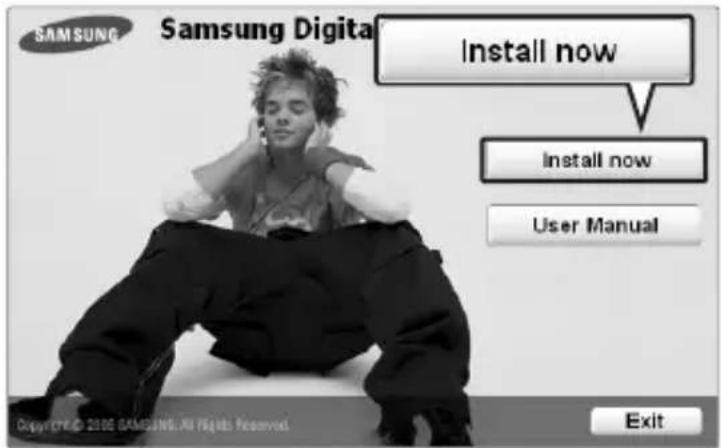
SAMSUNG Samsung Digital Install now Install now User Manual Copyright© 2006 SAMSUNG.XIU PRESSI Reserved Exit

1 Click .

Loading Your Desired File

Installing Media Studio (Continued)

Sensorservix Studio 1 Start Copping File Review ratings before copying files. The setup program starts copying program files using the following information: Click [CUSTOM] to install after setup installation settings or click [NDIT] to start copying files with the current settings. Current Settings: Installation Type Quick Install Select to install the SamsungMediaStudio with default settings Installation Information Folder to install C:\Program Files\Samsung\Samsung\Microsoft\Autolat 1 Program Files\Samsung\MediaStudio1.1 Greencite Terms of Use The application contains software from Geocarens, Inc. NEXT CUSTOM NEXT Cancel

2 Click .

■Media Studio installation starts.
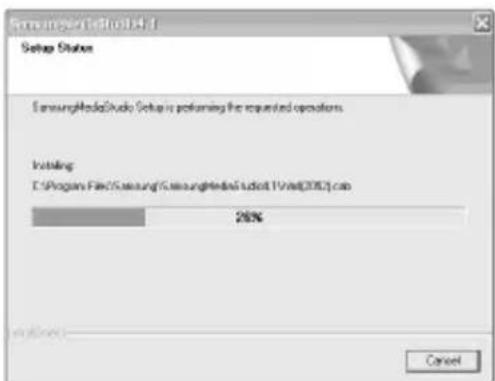
SamsungMediaStudio Setup Setup Status SamsungMediaStudio Setup is performing the requested operations. Installing C:\Program Files\Samsung\SamsungMediaStudio\T1\Vit\2052.cob 26% 取消

3 After installation is complete, click .

■ An icon is created on the desktop after installation is complete and Media Studio starts.
■If the Autoscan Confirm window appears, refer to page 25 and customize settings.

Before you start!

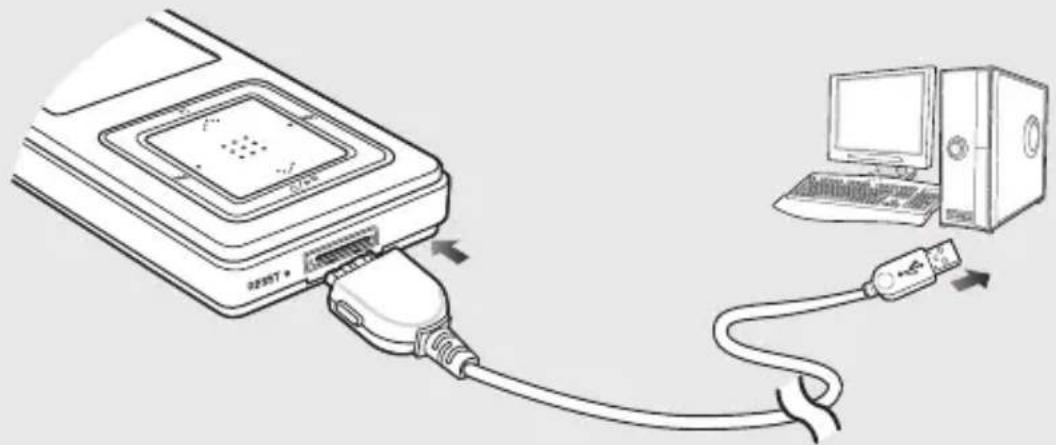
Use the USB Cable provided when connecting the product to your PC.
SAMSUNG YP-Z5FQP - Before you start! - 1

natural_image Line drawing of a USB cable connecting an electronic device to a computer tower (no text or symbols present)

1 Connect the USB cable to the USB port ( ) on your PC.
2 Connect the other end of the USB cable to the Power/USB Connection Port on bottom of the player.

- appears on the screen display of the player.

PC Requirements

For use in conjunction with your PC, the following is required:

■ Pentium 300MHz or higher
■ Windows 98SE/2000/XP
■ 100MB of free hard disc space

USB Port 2.0
■ DirectX 9.0 or higher
■ CD Rom Drive (2X or higher)

SAMSUNG YP-Z5FQP - PC Requirements - 1

CAUTION

■ If you connect the player through a USB hub, the connection may be unstable. Please connect the player to the computer directly.

Loading Your Desired File

Adding Files/Folders in Media Studio
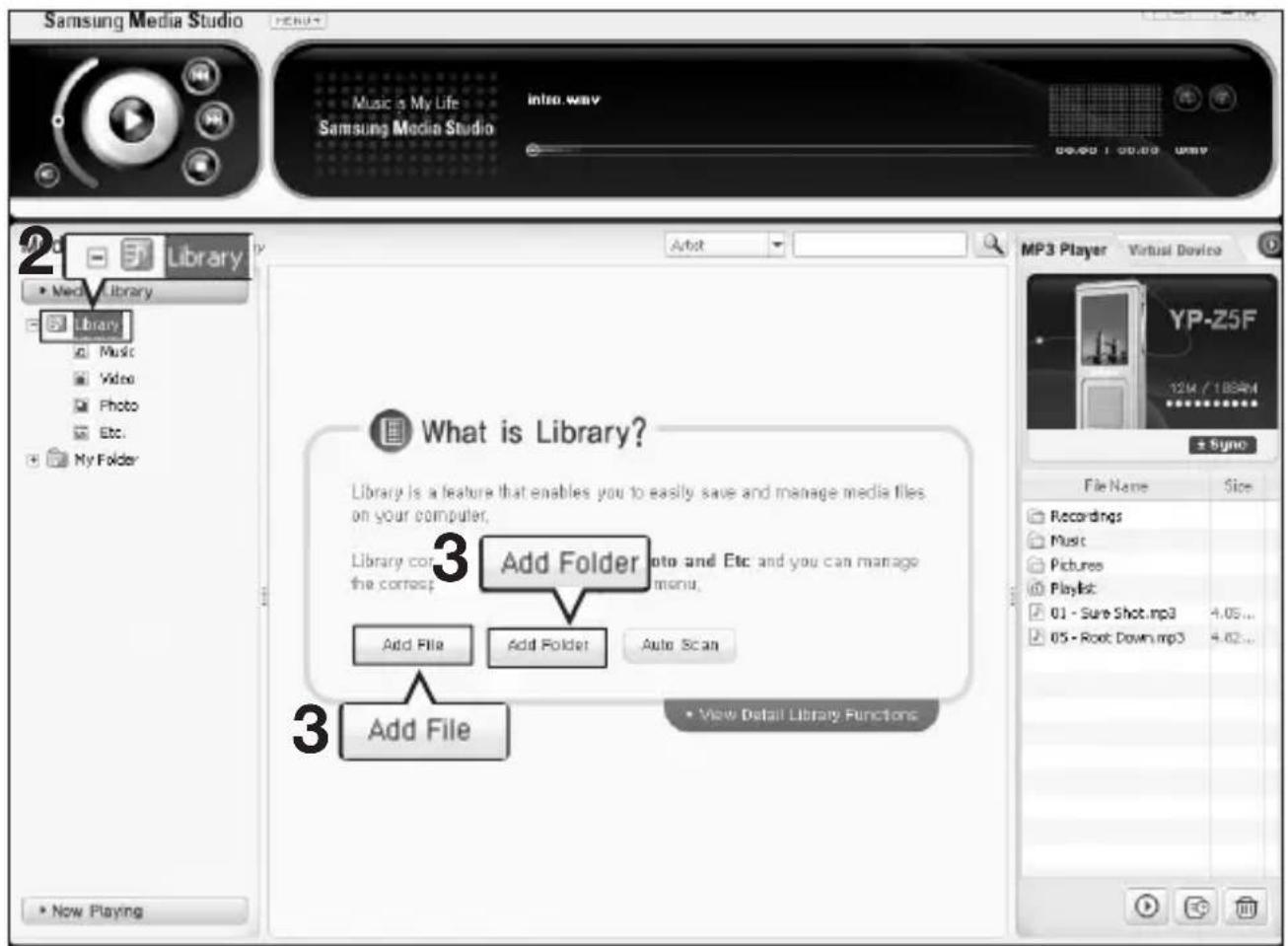
Samsung Media Studio Music a My Life Samsung Media Studio Info way 00:00 100:00 USB Library Media Library Library Music Video Photo Etc. My Folder What is Library? Library is a feature that enables you to easily save and manage media files on your computer, Library contains photo and Etc and you can manage the correct menu. Add File Add Folder Auto Scan Add File • View Detail Library Functions • Now Playing MP3 Player Virtual Device YP-Z5F 12M / 188PM Sync File Name Size Recordings Music Pictures Playlist: 01 - Sure Shot.mp3 4.05... 05 - Root Down.mp3 4.62... • New Playing

Please refer to Help for more information on how to use Media Studio.

- Click

from the menu on the top of the Media Studio program.

Before you start!

■ Connect the player to your PC.
■Media Studio must be installed on your PC.

1 Media Studio will automatically start when the player is connected to your PC.
■ If the program does not start automatically, double Click the Media Studio icon on the desktop.
2 Click the tab on the left of the Media Studio window.
■ The // taps will appear.

To add files

3 Click .
■ The Open window will appear.
4 Select the files to add and click .
■ The selected files are added to the list.

Open Look in: My Documents My Files My Pictures My Texts My Documents My Computer My Network Plants My Desktop Files of type: All supported types Open as created by 4 Open Cancel

To add folders

3 Click .
■ The Browse folder is window will appear.
4 Select the folder to add and click .
■ The selected folder is added to the list.

Browse for Folder Select a Folder. Desktop My Documents My Computer 3% Flappy (A:) Local Disk (C:) eng (D:) Hard (E:) CD-R/W Drive (F:) Removable Disk (G:) Control Panel Shared Documents sfs Documents My Software Files OK OK Cancel

Loading Your Desired File

Adding Files/Folders in Media Studio with Autoscan

Samsung Media Studio Music & My Life Samsung Media Studio Info.wav 00:00 / 00:00 Media Library > Library Artist MP3 Player Virtual Device Media Library Library Music Video Photo Etc. My Folder What is Library? Library is a feature that enables you to easily save and manage media files on your computer. Library consists of Music, Video, Photo and Etc and you can manage the corresponding contents using each menu. Add File Add Folder Auto Scan 3 Auto Scan New Playing File Name Size Recordings Music Pictures Playlist 01 - Sure Shot.mp3 4.05... 05 - Root Down.mp3 4.82...

Before you start!

■ Connect the player to your PC.
■Media Studio must be installed on your PC.

1 Media Studio will automatically start when the player is connected to your PC.

■ If the program does not start automatically, double Click the Media Studio icon on the desktop.

2 Click the tab on the left of the Media Studio window.

■ The // taps will appear.

3 Click .

■ The Autoscan window will appear.

4 Click .

■ Automatically scans files and adds them to the library.
■ The first time you use Media Studio, the Autoscan Confirm window and Options window appear accordingly. Set the options, then click to start Autoscan.

How to setup Autoscan Options

Click

from the top of the Media Studio Window and then click the tab.

■ Select the range and file type to autoscan.

Samsung Media Studio Auto Scan searches for media files in your PC and make them as a list. The users can manage the found file using SamsungMedia Studio Library. Continue? OK OK Cancel

Settings General Library Device CD(Paper) Operation Environment Auto run when the players to connected Share Quick button (Threatset / Purchase / Listen) when all Downloaded Fieldset Setting Sets include to convert files downloaded from the close and converted by the Library Movie: D:\Documents and Setting/\My Documents/\th Change Video: D:\Documents and Setting/\My Documents/\th Change Photo: D:\Documents and Setting/\My Documents/\th Change Players Listen / On Double Click Clear Menu Playing list and play the selected file Add to Now Playing list and play OK Cancel

Loading Your Desired File

Transferring Files with Media Studio

Samsung Media Studio Music is My Life intro.wmv Samsung Media Studio 00:00 / 00:00 Media Library Media Library Library Music Audio Music Type Title File Name Symphony No. 9 (Scherzo) Beethoven's Symphony No. 9 (Sche... "Highway blues" New Stories (highway blues).wma markany.mp3 markany.mp3 blue.wma Windows Welcome music Transmit 01 - Sure Shot.mp3 4.05... 05 - Root Down.mp3 4.82... Device Connection window Now Playing 0 / 4 | 0.00 MB / 3.83 MB

SAMSUNG YP-Z5FQP - Transferring Files with Media Studio - 2
NOTE

■ Music recognition technology and related data are provided by Gracenote and Gracenote CDDB® Music Recognition Service ^SM .
- CDDB is a registered trademark of Gracenote. The Gracenote logo and logotype, the Gracenote CDDB logo and logotype, and the "Powered by Gracenote CDDB" logo are trademarks of Gracenote. Music Recognition Service and MRS are service marks of Gracenote.

Before you start!

■ Connect the player to your PC.
■ Media Studio must be installed on your PC.

1 Media Studio will automatically start when the player is connected to your PC.
■ If the program does not start automatically, double click the Media Studio icon on the desktop.
2 Double Click a folder of your choice from the Device Connection window on the right of the Media Studio window.
■ Files in the folder will be displayed.
3 Click the tab on the left of the Media Studio window.
4 Click .
■ A file list will appear in the window in the center.
5 Click the checkbox in the list in the center window to select the music files to transfer.
■ The Transmit icon will appear.
6 Click .
■ The selected files are transferred to the player.

SAMSUNG YP-Z5FQP - Before you start! - 1

■ Do not disconnect the USB Connection Plug during file transfer. This may cause damage to the player or your PC.

SAMSUNG YP-Z5FQP - Before you start! - 2

  • You can use to create your selection of music files by the folder before downloading it to the player. Then, the selection will be added to the of the player. For more information on creating a playlist in , see the Help section.
    ■ Any photo file will be automatically converted into JPG before downloading. For further details, see the Help section.
    ■ Files on your PC will not be deleted even if files are transferred to the player.

Using as a Removable Disk You can use the player as a removable storage device.

Before you start!

■ Connect the player to your PC.

Music Tools Play of Show for music online copy of tone to audio File and Folder Tools Make a new folder Show the mode Untitled Place My Computer My Plan RACEE Bandsworth's Symphony No. 9 File and Audio markers Show Book Music Tools Play of Show for music online View of Audio Tools File and Folder Tools Show more than Effect Forms Play on My Computer High Performance

1 Open files/folders to transfer from your PC.

2 Open from the desktop.

3 Select the files/folders to transfer from your PC and drag and drop them to a folder of your choice in the .

■ Selected folders or files are transferred to main body. Drag and drop music files to folder and picture files to folder.

SAMSUNG YP-Z5FQP - Before you start! - 2

CAUTION

■ It may impair the main body or PC to disassemble USB cable during transferring file. After message is disappeared, perform safety dismount first, and then disassemble USB cable.
■ The order of music files displayed in Windows Explorer may differ from the play order on your device.
■ If you move a DRM file(charged file) to the removable disk, the file will not be played.

SAMSUNG YP-Z5FQP - CAUTION - 1

NOTE

- Select the file to save and drag-and-drop it into the removable disk icon.(In numerical, alphabetical order) If you change the name of music files in Windows Explorer like 001***, 002***..., music files will be played in the order of number indicated.

■ What is DRM?

DRM (Digital Rights Management) is a technology and service to prevent the illegal use of digital contents and protect the profit and rights of copyright holders. DRM files are charged music files applied with the illegal copy protection technology of legally purchased MP3 music.

Disconnecting from your PC

Follow the steps below to prevent damage to the player and data when disconnecting from your PC.

1 2 Safely remove USB Mass Storage Device - Drive(G:)

1 Place the mouse cursor on top of the icon on the taskbar at the bottom right corner of the desktop and click the left mouse button.

2 Click the message.

3 Disconnect the player from your PC.

SAMSUNG YP-Z5FQP - Disconnecting from your PC - 2

■ Do not disconnect the player from the PC during file transfer. This may cause damage to data and the player.
■ You cannot remove the hardware while files within the player are being played on your PC. Please retry after file playback is finished.

MP3 PLAYER

Chapter 3. Multimedia Function

Listening to Music....31

Listening to Music....31

To Play a Playlist 34

Shuffle Play (Random Repeat)......35

Checking the Music Information....38

Picture Viewing ....39

Picture Viewing......39

Picture Enlarging/Slideshow Viewing...40

Listening to FM Radio 41

Listening to FM Radio 41

Setting a Frequency 43

Setting FM Radio....46

Recording....48

Voice Recording 48

Before you start!

Connect the earphones, then switch on the player, and check the battery.

Music Artists Albums Genres Composers Playlists Shuffle All Songs Browse Files Rising Sun 1 2,3

E.g. Playing by Artist

1 Press and hold the [] button to move to the Menu screen.
2 Tap on the [···] to select , then press the [Touch Pad].

■ The Music Menu will appear.

3 Tap on the [....] to select , then press the [Touch Pad].

Music Menu

: To play by artist
: To play by album
: To play by genre
: To play by composer
: To play by Playlist
- : To play continuously in random order
- : To play in numeric or alphabetical order
- : You can search for a folder or file in the music folder.

SAMSUNG YP-Z5FQP - Music Menu - 1

NOTE

■ The music files compatible with the player are MP3, WMA and Ogg.
■ MP1 or MP2 files which only have a changed extension to MP3, may not play on the player.
■ A file without an ID3 Tag (Unknown) is displayed as [unknown].

Listening to Music

Listening to Music (Continued)

11:40PM Samsung MP3 Samsung :30 1/3 5:39 Rising Sun 4,5,6

4 Tap on the [ ] to select an artist, then press the [Touch Pad].

■ The albums for the artist will appear.

5 Tap on the[....] to select an album, then press the [Touch Pad].

■ The music files for the selected album will appear.

6 Tap on the [....] to select a music file to play, then press the [Touch Pad].

■ The music will start playing.

■ The Play Screen can be changed by pressing the [Touch Pad].

To Pause

1 Press the [] button while the music is playing.

■ The music playback will be paused.

2 Press the [] button again.

■ The music will play from the point where it stopped.

SAMSUNG YP-Z5FQP - To Pause - 1
NOTE

■ Screen Display window is automatically turned off when none of the buttons have been pressed for a preset period of time (Default: 1 minute) in the pause mode. You can set the time duration before closing the Screen Display window. ▶page 52

To search within a track

1 Press and hold the [I◄◄] or [►►I] button while the selected track is playing.

■ It searches to the beginning or the end of the track.

2 Release the button at the point you wish to start.

■ It starts playing from the point you release the button.

To Play from the beginning of the current track

Press the [ ◀◀◀] button after 10 seconds of play.

■ The current track starts playing from the beginning.

To play the previous/next track

Press the [ ◀◀◀] button within 10 seconds of play.

■ The previous track will start playing.

Press the [▶▶] button.

■ The next track will start playing.

SAMSUNG YP-Z5FQP - To search within a track - 1

■ When playing VBR files, the previous track may not play even if you press the [I◄◄] button within 10 seconds of the play.

SAMSUNG YP-Z5FQP - To search within a track - 2

■ Press the [I◄◄] button within 10 seconds of play to move to the previous track.

11:40PM Rising Sun1 Rising Sun2 Rising Sun3 Rising Sun4 Added to Playlist

To make your own Playlist

1 Press and hold the [ ] button to move to the Menu screen.
2 Tap on the [....] to select , then press the [Touch Pad].

■ The Music Menu will appear.

3 Tap on the [....] to select your desired music menu, then press the [Touch Pad].

■ Music list and file are displayed.
■ For music list, tap on the [\~\~] to your desired music list, and press the [Touch Pad] to display file(s).

4 Tap on the [✗✗✗] to select music file(s) to add to playlist, then Press and hold the [Touch Pad].

- is displayed in the bottom and selected music file blinks twice to be added in .

SAMSUNG YP-Z5FQP - To make your own Playlist - 1

■ Be sure to add file to Playlist when file is selected. It is not allowed to add file when you select to display information screen for running music or music list.

SAMSUNG YP-Z5FQP - To make your own Playlist - 2

■ You can use to create your selection of music files by the folder before downloading it to the player. Then, the selection will be added to the of the player. For more information on creating a playlist in , see the Help section.
■ To delete the file, which is set to playlist, tap on the [ˌʌ̃] in to select file to delete, and press and hold the [Touch Pad]. appears in the bottom of screen and selected file is deleted.

To Play a Playlist

11:40PM Music Radio Recordings Pictures Playlists Shuffle All Settings Now Playing Rising Sun

1 Press and hold the [] button to move to the Menu screen.
2 Tap on the [···] to select , then press the [Touch Pad].

■ The Music Menu will appear.

3 Tap on the [] to select , then press the [Touch Pad].
■ The Playlist(s) will appear.
4 Tap on the [] to select the playlist of your choice, then press the [Touch Pad].
■ The music files saved in the selected Playlist will appear.
5 Tap on the [] to select a music file to play, then press the [Touch Pad].
■ The music file will start playing.

Listening to Music

Shuffle Play (Random Repeat)

Shuffle Play All Music

11:40PM Music Radio Recordings Pictures Playlists Shuffle All Settings Now Playing Rising Sun

1 Press and hold the [] button to move to the Menu screen.

2 Tap on the [.] to select , then press the [Touch Pad].

■ Music files will appear.

3 Tap on the [.] to select a music file to play, then press the [Touch Pad].

■ The file selected, then all music files contained on the player will start playing in random order.

Shuffle Play by Type

Shuffle Artists Albums Genres Composers Playlists All Songs Rising Sun

Shuffle Menu

: To randomly repeat playback by artist
: To randomly repeat playback by album
: To randomly repeat playback by genre
: To randomly repeat playback by composer
: To randomly repeat playback according to the playlist
- : To randomly repeat playback in numeric or alphabetical order

E.g. Shuffle Play by Artist

1 Press and hold the [] button to move to the Menu screen.
2 Tap on the [.] to select , then press the [Touch Pad].

■ The Music Menu will appear.

3 Tap on the [.] to select , then press the [Touch Pad].

■ The Shuffle Menu will appear.

4 Tap on the [.] to select , then press the [Touch Pad].

■ Artist list will appear.

5 Tap on the [.] to select an artist, then press the [Touch Pad].

■ The music files for the selected artist will appear in random order.

6 Tap on the [.] to select a music file to play, then press the [Touch Pad].

■ The music files under that particular will start playing continuously in random order.

Listening to Music

Checking the Music Information

You can move to the Music Info screen to check the music currently playing.

11:40PM Music Radio Recordings Pictures Playlists Shuffle All Settings Now Playing Rising Sun

1 Press and hold the [] button to move to the Menu screen.

2 Tap on the [.] to select , then press the [Touch Pad].

■ The music information screen for the track currently playing will appear.

SAMSUNG YP-Z5FQP - Checking the Music Information - 2

NOTE

■ Pressing [Touch Pad] will cycle through various Now Playing screens.

11:40PM Music Radio Recordings Pictures Playlists Shuffle All Settings Now Playing Welcome 1 2,3

1 Press and hold the [] button to move to the Menu screen.
2 Tap on the [ ] to select , then press the [Touch Pad].

■ The Picture Folder list will appear. Tap on the [.] to select a folder, then press the [Touch Pad] to display the pictures.

3 Tap on the [.] to select the picture file of your choice, then press the [Touch Pad].

■ The selected file will appear.
■ Large pictures may take longer to display.

SAMSUNG YP-Z5FQP - Checking the Music Information - 4

NOTE

■ Press the [I◄◄►►] button while viewing a picture to display the previous or next picture.
■ Press and hold the [Touch Pad] button while viewing a picture to make it the background of the player.

Photo Viewing

Picture Enlarging/Slideshow Viewing

11:40PM Music Radio Recordings Pictures Playlists Shuffle All Settings Now Playing Welcome 2,3 1,2 1

Picture Enlarging

1 Press the [Touch Pad] in the Picture Viewing mode.
■ The picture will be gradually enlarged (2x/3x/4x) each time the [Touch Pad] is pressed.

2 Touch the [Touch Pad] lightly and slide up, down, left or right to move around the enlarged picture.

■ You can move to the area of your choice.

3 Press the [] button to cancel the enlargement.

■ The picture will be gradually downsized each time the [→]button is pressed.

Slideshow Viewing

1 Press the [] button in Picture Viewing mode.

■ The slideshow will start.

2 Press the [] button to stop the slideshow.

SAMSUNG YP-Z5FQP - Slideshow Viewing - 1

NOTE

■ Please refer to page 53 for set the Start Time or interval of the Slideshow.

Before you start!

Connect your earphones to the player and turn the power on and check the battery status.

11:40PM 89.1 MHz Manual Tune 88 93 98 103 108 FM 89.1 1 2

1 Press and hold the [] button to move to the menu screen.

2 Tap on the [.] to select and then press the [Touch Pad] button.

■ FM radio reception will start.
■ When you first use the player or if no frequency is preset at the factory, it will display while scanning for channels available.

▶page 43

To use Mute function

Press [ ] button during listening to FM radio.

■ sound is muted.
■ Press [ ⏻/▶▶] button once again to sound back.

Listening to FM Radio

Listening to FM Radio (Continued)

To automatically search for frequencies

11:40PM 89.1 MHz Manual Tune 88 93 98 103 106 Scan...

1 Press the [Touch Pad] to select .

is displayed in Screen Display window.

2 Press and hold the [I◄◄] or [►►l] button and then release.

■ The frequency nearest from the point the button is released will be searched.

To manually search for frequencies

11:40PM 89.1 MHz Manual Tune 88 93 98 103 106 FM 89.1

1 Press the [Touch Pad] to select .

is displayed in Screen Display window.

2 Press the [I◄◄] or [►►I] button.

■ Moves to frequencies whenever the button is pressed.

Listening to FM Radio

Setting a Frequency

To automatically set frequencies

11:40PM 89.1 MHz Preset Tune 88 93 98 103 108 Auto Scan...

1 Press the [Touch Pad] to select < Preset Tune>.

- is displayed in Screen Display window.

2 Press and hold the [Touch Pad].

is displayed and frequencies are automatically set.

To cancel during setting

Press [ ] button to cancel during auto scanning.

■ The auto preset setting is canceled and frequencies set up to then are stored.

SAMSUNG YP-Z5FQP - To cancel during setting - 1

NOTE

■ To set again after setting preset, existing frequencies are deleted entirely and you can reset from start.

SAMSUNG YP-Z5FQP - To cancel during setting - 2

CAUTION

■ Always connect your earphones to the player when searching or setting frequencies. The earphones are used as antennas to receive FM radio reception.

Listening to FM Radio

Setting a Frequency (Continued)

To manually set frequencies

11:40PM 1 89.1 MHz Manual Tune 88 93 98 103 106 FM 89.1

1 Press the [Touch Pad] to select < Manual Tune>.
is displayed in Screen Display window.
2 Press the [I◄◄] or [►►I] button to search for a frequency to set in preset.
3 Press and hold the [Touch Pad].
■ The selected frequency is set as a preset number.
4 To set a preset number for other frequency, follow 1-3 steps above.

To search for frequencies in PRESET mode

11:40PM 1 89.1 MHz Preset Tune 88 93 98 103 108 FM 89.1

1 Press the [Touch Pad] to select < Preset Tune>.

is displayed in Screen Display window.

2 Press the [I◄◄] or [►►I] button.

■ The preset number is selected and you can listen to the stored radio frequency.

Listening to FM Radio

To Delete Presets

Before you start!

■ Follow the steps below to delete frequencies while listening to FM radio.

11:40PM 1 89.1 MHz Manual Tune 88 93 98 103 108 FM 89.1

1 Press the [Touch Pad] to select < Preset Tune>.

- is displayed in Screen Display window.

2 Press the [I◄◄] or [►►I] button to search for the preset number to delete.

3 Press the [Touch Pad] to select < Manual Tune>.

is displayed in Screen Display window.

4 Press and hold the [Touch Pad].

■ The selected preset number will be deleted.

5 To select and delete other preset numbers, follow 1-4 steps above.

To set FM Sensitivity

Radio Sensitivity Med Region FM 89.1

1 Press and hold the [] button to move to the menu screen.
2 Tap on the [....] to select , then press the [Touch Pad].

■ The Settings menu appears.

3 Tap on the [···] to select

■ The Audio menu appears.

4 Tap on the [···] to select , then press the [Touch Pad].

■ The FM Radio menu appears.

5 Tap on the [····] to select , then press the [Touch Pad].

■ The FM Sensitivity menu appears.

6 Tap on the [....] to select the search level and then press the [Touch Pad].

■ You can select from and .
■ The higher FM search level is, the more frequencies can be received.

To set FM region

Radio Sensitivity Med Region FM 89.1

1 Press and hold the [] button to move to the menu screen.
2 Tap on the [···] to select , then press the [Touch Pad].

■ The Settings menu appears.

3 Tap on the [....] to select

SAMSUNG YP-Z5FQP - To set FM region - 2

NOTE

■ Frequency range by region

  • Japan: Search for FM frequencies in 100 kHz increments between 76.0 MHz\~108.0 MHz.
  • Korea: Search for FM frequencies in 100 kHz increments between 87.5 MHz\~108.0 MHz.
  • USA: Search for FM frequencies in 200 kHz increments between 87.5 MHz\~108.0 MHz.
  • Europe/Other Countries: Search for FM frequencies in 50 kHz increments between 87.50 MHz\~108.00 MHz.

■ FM region can be deleted or changed according to the target region of the player.
■ If you change the FM region, the previously stored radio frequencies are removed.

Recording

Voice Recording

11:40PM mp3 22kHz 64Kbps Recording 002 REC 2:05

1 Press and hold the [] button to move to the menu screen.
2 Tap on the [....] to select , then press the [Touch Pad].

■ The Recordings menu appears.

3 Tap on the [✗✗✗] to select , then press the [Touch Pad].
■ Voice recording is started with displaying the file name to save.
4 Press [] button to finish recording.
■ Recording is saved and previous screen is displayed.

File names during recording

When recording file name is automatically designated in the format of "Recording NNN". NNN represents recording number. For example, Recording 003 represents that it voice file recorded in the third order.

SAMSUNG YP-Z5FQP - File names during recording - 1

■ Do not place the microphone too close or too far away during recording, as this can affect the recording quality.
■ Voice recording does not perform properly when the battery is low.

SAMSUNG YP-Z5FQP - File names during recording - 2

■ The voice recording is made in a quality of 64kbps.
■ You can make a voice recording for about 65 hours (based on 2 GB)

Listening to recording file.

1 Press and hold the [ ] button to move to the menu screen.
2 Tap on the [ ◇ ◇ ◇ ] to select , then press the [Touch Pad].

■ The Recordings menu appears.

3 Tap on the [....] to select your desired recording file to play back, then press the [Touch Pad].
■ Recording file starts to be played.
4 Press the [] button to stop.
■ Recording file temporarily stops to be played.

To delete recording file

1 Tap on the[....] to select your desired recording file to delete, then press and hold the [Touch Pad].
2 Tap on the[ ◇◆◆] to select , then press the [Touch Pad].

■ The selected recording file is deleted.

MP3 PLAYER

Chapter 4. Setup

Setup 51

Audio Setup ....51

Display Setup 52

Slideshow Setup ....53

Repeat Setup....54

Timer Setup 55

Language Setup 56

Reset 57

Checking the System Infomation......58

Setup

Audio Setup

You can set detail functions and button sounds for music play.

settings Audio display Slideshow Repeat Off Time Language Reset Settings System Info ► Rising Sun

1 Press and hold the [ ] button to move to the Menu screen.
2 Tap on the [✗✗] to select , then press the [Touch Pad].

■ The Settings menu appears.

3 Tap on the [✗✗✗] to select

■ The Audio Settings Menu will appear.

4 Use the [Touch Pad] to select and set the desired functions.

What is DNSe?

■ DNSe is a sound effect function for MP3 players developed by Samsung and consists of 3D and Street modes. The 3D adds a stereophonic sound effect to the music and the Street mode provides an automatic volume control function that amplifies quiet sounds in noisy street environments.

: You can select a suitable sound for each music genre. Select one from <3D-Club> <3D-Stage> <3D-Studio> or .
: Enables clear sound quality outdoors. Select either or .
: Enables button sounds. Select either or .
- : You can select FM sensitivity among , and ▶page 46. You can select FM receiving area among and ▶page 47.

SAMSUNG YP-Z5FQP - What is DNSe? - 1

NOTE

Button functions for Setup

■ Tap on the[^^] to move up or down in the current Menu.
■ Press the [Touch Pad] to select a Menu and save.
■ Press the [ ] button to move to the previous screen.

Setup

Display Setup

You can adjust the brightness and the turn-off time for the screen display.

Settings Audio display Slideshow Repeat Off Time Language Reset Settings System Info Rising Sun

1 Press and hold the [ ] button to move to the Menu screen.

2 Tap on the [....] to select , then press the [Touch Pad].

■ The Settings menu appears.

3 Tap on the [....] to select , then press the [Touch Pad].

■ The Display Setup Menu will appear.

4 Use the [Touch Pad] to select and set the desired functions.

: You can adjust the brightness for the screen display.
Tap on the left side of the [Touch Pad] to darken, or on the right side of the [Touch Pad] to brighten.
- : When running on battery power, the screen display will darken if none of the buttons have been pressed for a preset period of time. Select either <-- (Always On)> <15s> <30s> <60s> or <120s>.
- : When running on battery power, the screen display will be automatically turned off if none of the buttons have been pressed for a preset period of time.
Select either <-- (Always On) > <15s> <30s> <60s> or <120s>.
- : When connected via USB, the screen display will dim if none of the buttons have been pressed for a preset period of time.
Select either <-- (Always On)><15s><30s><60s> or <120s>.
- : When connected via USB, the screen display will be automatically turned off if none of the buttons have been pressed for a preset period of time.
Select either <-- (Always On) > <15s> <30s> <60s> or <120s>.

Settings Audio display Slideshow Repeat Off Time Language Reset Settings System Info ► Rising Sun

1 Press and hold the [ ] button to move to the Menu screen.
2 Tap on the [✗✗✗] to select , then press the [Touch Pad].

■ The Settings menu appears.

3 Tap on the [\~\~] to select , then press the [Touch Pad].
■ The Slideshow Setup Menu will appear.
4 Use the [Touch Pad] to select and set the desired functions.

: When running on battery power, you can set the start time of the slideshow after the Menu and function screen disappears. Select either <1m> <5m> <10m> or <15m>.
: When connected via USB, you can set the start time of the slideshow after the Menu and function screen disappears. Select either <1m> <5m> <10m> or <15m>.
: You can set the interval for the slideshow. Select either <2s> <5s> <15s> <30s> or <60s>.
: You can repeatedly play pictures in random order. Select or .

Setup

Repeat Setup

Settings Audio Display Slideshow Repeat Off Time Language Reset Settings System Info Rising Sun

1 Press and hold the [ ] button to move to the Menu screen.

2 Tap on the [....] to select , then press the [Touch Pad].

■ The Settings menu appears.

3 Tap on the[....] to select .

4 Press the [Touch Pad] to select the desired play mode.

■ You can select (Cancel Repeat) (Single Track Repeat) or (Repeat All).

Setup

Timer Setup

Settings Audio Display Slideshow Repeat Off Time Language Reset Settings System Info Rising Sun

1 Press and hold the [ ] button to move to the Menu screen.
2 Tap on the [....] to select , then press the [Touch Pad].

■ The Settings menu appears.

3 Tap on the [ ] to select

: You can set the power to turn off automatically after a preset period of time. The player will automatically turn off after the time you set. Select either <90m> <60m> <45m> <30m> or <15m>.
: You can set the current time.

Setting Current Time
Time 7 55 PM Rising Sun

1 Press [Touch Pad] to move to and tap on the [····] to set current time.
2 Press [Touch Pad]. Current time is completely set.

Setup

Language Setup

settings Audio display Slideshow Repeat Off Time Language Reset Settings System Info Rising Sun

1 Press and hold the [ ] button to move to the Menu screen.
2 Tap on the [....] to select , then press the [Touch Pad].

■ The Settings menu appears.

3 Tap on the [....] to select , then press the [Touch Pad].

■ The Language Settings screen will appear.

4 Tap on the [••••] to select a language of your choice, then press the [Touch Pad].

■ Select either or .

SAMSUNG YP-Z5FQP - Language Setup - 2

NOTE

■ The supported languages can be changed or added.

settings Audio display Slideshow Repeat Off Time Language Reset Settings System Info ► Rising Sun

1 Press and hold the [ ] button to move to the Menu screen.
2 Tap on the [···] to select , then press the [Touch Pad].

■ The Settings menu appears.

3 Tap on the [✗✗✗] to select , then press the [Touch Pad].

■ The Reset Confirm screen will appear.

4 Tap on the [····] to select either or , then press the [Touch Pad].

■ Select to maintain the previous setup.

■ Select to re-initialize the setup.

Setup

Checking the System Infomation

You can check the memory, product version and copyright information.

settings Audio display Slideshow Repeat Off Time Language Reset Settings System Info Rising Sun

1 Press and hold the [ ] button to move to the Menu screen.
2 Tap on the [✗✗✗] to select , then press the [Touch Pad].

■ The Settings screen will appear.

3 Tap on the [....] to select , then press the [Touch Pad].
■ The System Info screen will appear.
4 Check the necessary information with the [Touch Pad].

: You can check the total memory, memory available, total number of songs, albums or artists information.
: You can check the firmware version.
- : You can check the copyright information.

SAMSUNG YP-Z5FQP - Checking the System Infomation - 2

CAUTING

■ Regarding the Built-In Memory

The actual built-in memory available is slightly less than indicated as the internal firmware uses a portion of the memory.

Chapter 5. | Troubleshooting

System Reset......60

Troubleshooting......61

System Reset

If a product malfunction occurs, you can re-initialize the system by pressing the Reset hole.

RESET Reset hole

Press the Reset hole at the bottom of the product with a pointed object such as a safety clip.

■ The system will be initialized.
■ The Reset function will not delete data stored in the built-in memory.

Troubleshooting

If a malfunction is experienced, check the following.

If the problem persists, contact a Samsung Service Center near you.

ProblemCheck points & Troubleshooting
Power will not turn on.■ Power will not turn on if the batteries are fully discharged. Recharge the batteries and turn the power on again. ■ Press the Reset hole.
Buttons do not work.■ Check if the [HOLD] switch is in the direction of the arrow position. ■ Check if you pressed the right button, then press again. ■ Press the Reset hole.
The screen will not turn on.■ If you setorinin theMenu, the screen may look very dim. Press a button to turn on the screen. ■ The screen may not be visible under direct sunlight.
Power is turning off.The power is automatically turned off when the battery is fully discharged. Recharge the battery.
Battery life differs from the Manual.■ The battery life may vary, depending on the settings of LCD. ■ Product life may be shortened when left for extended periods in low or high temperatures.

Troubleshooting (Continued)

ProblemCheck points & Troubleshooting
Playing is disabled.Check if the available file has been saved in the memory.Check if the music file is damaged.Check if there is enough battery power.
File upload is disabled.Check if the USB cable is securely connected.Reconnect if necessary.Check if the memory is full.Press the Reset hole.
Files or Data are Missing.Check if the USB cable has been disconnected during file or data transmission. If this is the case, it may cause serious damage not only to files/data but also to the product. You have to be extra cautious as Samsung is not held responsible for data loss.
Abnormal Play Time Display during Play.Check if the file is in VBR (Variable Bit Rate) format.
Abnormal Display of File Name.Move to→in the Menu screen and set an appropriate language.
Program MalfunctionPlease check if your PC requirements are met.
Connection to your PC is disabled.Presson the toolbar of your PC to run Windows Update. Select Key Updates and Service Packs, then update all. Reboot your PC and reconnect.
The backlight does not turn on.■ Check theor■ Check the battery.
The product is hot.Heat may be generated during recharging. This has no effect on the product life or functions.

Chapter 6. Appendix

Menu Tree 65

Manual USB Driver Installation......66

Product Specifications....69

You can quickly view the menu structure.

SAMSUNG YP-Z5FQP - Menu Tree - 1

flowchart
graph TD
    A["Menu Select Screen"] --> B["RadioMusic"]
    A --> C["Recordings"]
    A --> D["Pictures Playlists Shuffle"]
    A --> E["All Settings Now Playing"]
    B --> F["Audio"]
    B --> G["Display"]
    B --> H["Slideshow"]
    B --> I["Repeat"]
    B --> J["Time Language"]
    B --> K["Reset Settings"]
    B --> L["System Info"]
    F --> M["DNSe"]
    F --> N["Street Mode"]
    F --> O["Key Beep"]
    F --> P["Radio Dim(USB) Shuffle Off(USB)"]
    G --> Q["Brightness"]
    G --> R["Dim(Batt)"]
    G --> S["Off(Batt)"]
    H --> T["Start(Batt)"]
    H --> U["Start(USB)"]
    H --> V["Slide Time"]
    I --> W["Sleep Timer Set Time"]
    J --> X["Cancel Reset"]
    K --> Y["Capacity Version About"]

Manual USB Driver Installation

Install the USB driver manually if it could not be installed automatically or an error occurred during installation.

Before you start!

■ Insert the installation CD in the CD-ROM drive.

If an error occurs during installation of the USB driver

1 Check the device manager. Windows 98SE: Control Panel→System→Device Manager Windows 2000 / XP: Control Panel→System→Hardware→Device Manager

2 Check if there is a device listed with an exclamation point or a question mark (displayed as unknown device or USB device).

3 Double click on the device listed with an exclamation point or a question mark.

Device Manager File Action Save Help NUVO Computer Disk drives Display adapters DVD/CD-ROM drives Playoff disk controllers Playoff disk drive Human Interface Devices JDC 67A/W14E controllers JDC 32M Disk heat controllers Keybstock File and other pointing devices Firmware Network adapters Other devices USB Device Porto (COMB LP) PHOSOXIS Sound, video and game controllers System devices Universal Serial Bus controllers

SAMSUNG YP-Z5FQP - If an error occurs during installation of the USB driver - 2

NOTE

■ If you are using Windows 2000 and your version of Windows does not recognize the USB driver please download and install the latest service pack from windowsupdate.microsoft.com
■ The installation method may vary depending on the type of PC or operating system. Contact your PC dealer or service center for installation information.
■ If errors occur continuously when you install the USB driver, reconnect the USB cable after rebooting your system.

4 After selecting the driver, click [Reinstall Driver].

VR-TTF Properties General | Driver | USB Devic Device type: Other devices Manufacturer: None specified. Hardware version: Not available Device status The drive installed Reinstall Driver Reinstall Driver Device usage Disable in the hardware profile Exists in all hardware profiles OK Cancel

5 Click [Next].

Upgrade Device Driver Wizard Welcome to the Upgrade Device Driver Wizard This wizard helps you upgrade a device driver for a hardware device. To continue, click Next> New > Cancel

6 Select [Search for a suitable driver for my device] and then click [Next].

Upgrade Device Driver Wizard Install Hardware Device Drivers A device driver is a software program that enables a hardware device to work with an operating system. This version upgrades drivers for the following hardware devices: US Big Mac Storage Devices Upgrading to a newer version of a device driver way add functionality to or improve the performance of the device. What do you want the reward to do? • Search for a suitable driver to my device I recommended • Display a list of the lower drivers for the drivers Next > < Back Next > Cancel

7 Click [Next] to finish.

Add New Hardware Wizard This wizard searches for new drivers for USB Device A device driver is a software program that notes a hardware device work. Next > Next > Cancel

Manual USB Driver Installation (Continued)

In Windows 98SE

Follow the instructions in the window to complete the installation.

Add New Hardware Wizard This wizard searches for new drivers for YP-Z5F A device driver is a software program that makes or hardware device work. Next > Next > Cancel

Add New Hardware Wizard What do you want Windows to do? ✓ Search for the best driver for your device [Recommended] ✓ Display a list of all the driver in a specific location, so you can select the driver you want Next > < Back Next > Cancel

Add New Hardware Wizard Windows will search for new drivers in its driver database on your next drive, and in any of the following selected locations. Click Next to exit the search. □ Escape disk drives □ ROM drive □ Microsoft Windows Update ☑ Specify a location USB Driverwir68 USB Next > Browse < Back Next > Cancel

Add New Hardware Wizard Windows drive file search for the device Samsung To USB Drive Windows is now ready to install the best drive for the device. Click back is selected a different drive, or click next to continue. Location of drive: C:\WINDOWS\SMF401\28A2.BIF Next > < Back Next > Cancel

Add New Hardware Wizard Forward To USB Drive Windows has improved installing the remote that you new hardware device requires. Finish Finish Cancel

USB driver location

[CD-ROM] \USB Driver\win98 USB

You must reboot your computer to complete the installation.

SAMSUNG YP-Z5FQP - In Windows 98SE - 6

NOTE

■ You cannot use it as a removable disc in Windows 98SE if the YP-Z5F program is not installed. Make sure to install the USB driver file first.

Product Specifications

Model NameYP-Z5F
Power3.7V (Li-Polymer Rechargeable)
Built-in Battery Power820 mAh
FileCompatibilityAUDIO: MPEG1/2/2.5 Layer3(8kbps~320kbps, 8kHz~48kHz), MPEG1Layer2(32kbps~384kbps, 32kHz, 44.1kHz, 48kHz),WMA(8kbps~192kbps,8kHz~44.1kHz), Ogg(Q0~Q10)IMAGE: JPEG(ISO/IEC 10918-1/Annex F-Sequential DCT-based mode of operation)
Earphone Output20mW(France 5mW/CH)(16Ω)
Output Frequency Range20Hz~20KHz
Noise Ratio89 dB with 20kHz LPF(based on 1KHz 0 dB)
Play Time39 hours of music play (LCD Off, Volume 27)
Temperature Range for Operation5~35 °C (23~95°F)
CaseAluminum
Weight56g (inc. battery)
Dimension(WxHxD)2GB :42.2 X 89.8 X 11.4mm4GB :42.2 X 89.8 X 12.3mm
FM Frequency87.5~108.0MHz
FM Signal to Noise Ratio50dB
FM T.H.D1%
FM Useable Sensitivity38dBμ

● The contents of this Manual are subject to change without prior notice for further improvement.

Contact SAMSUNG WORLD WIDE

If you have any questions or comments relating to Samsung products, please contact the SAMSUNG customer care center.

Country CustomerCare Center Web Site
CANADA 1-800-SAMSUNG (7267864) www.samsung.ca
MEXICO 01-800-SAMSUNG (7267864) www.samsung.com/mx
U.S.A 1-800-SAMSUNG (7267864) www.samsung.com
ARGENTINE 0800-333-3733 www.samsung.com/ar
BRAZIL 0800-124-421 www.samsung.com/br
CHILE 800-726-7864(SAMSUNG) www.samsung.com/cl
COSTA RICA 0-800-507-7267 www.samsung.com/latin
ECUADOR1-800-10-7267www.samsung.com/latin
EL SALVADOR800-6225www.samsung.com/latin
GUATEMALA1-800-299-0013www.samsung.com/latin
JAMAICA1-800-234-7267www.samsung.com/latin
PANAMA 800-7267 www.samsung.com/latin
PUERTO RICO1-800-682-3180www.samsung.com/latin
REP. DOMINICA1-800-751-2676www.samsung.com/latin
TRINIDAD & TOBAGO1-800-7267-864www.samsung.com/latin
VENEZUELA1-800-100-5303www.samsung.com/latin
BELGIUM02 201 2418www.samsung.com/be
CZECH REPUBLIC 844 000 844 www.samsung.com/cz
DENMARK38 322 887www.samsung.com/dk
FINLAND09 693 79 554www.samsung.com/fi
FRANCE08 25 08 65 65 (0,15/min)www.samsung.fr
GERMANY01805 - 121213 ( 0,12/Min)www.samsung.de
Country Customer Care Center Web Site
HUNGARY 06 40 985 985 www.samsung.com/hu
ITALIA 199 153 153 www.samsung.com/it
LUXEMBURG 02 261 03 710 www.samsung.lu
NETHERLANDS 0900 20 200 88 www.samsung.com/nl
NORWAY 231 627 22 www.samsung.com/no
POLAND 0 801 801 881 www.samsung.com/pl
PORTUGAL 808 200 128 www.samsung.com/pt
SLOVAKIA0850 123 989www.samsung.com/sk
SPAIN902 10 11 30www.samsung.com/es
SWEDEN08 585 367 87 www.samsung.com/se
U.K0870 242 0303www.samsung.co.uk
RUSSIA8-800-200-0400www.samsung.ru
UKRAINE8-800-502-0000www.samsung.com/ur
AUSTRALIA1300 362 603 www.samsung.com/au
CHINA800-810-5858 , 010- 6475 1880www.samsung.com.cn
HONG KONG2862 6001www.samsung.com/hk
INDIA 3030 82821600 1100 11 www.samsung.com/in
INDONESIA 0800-112-8888 www.samsung.com/id
JAPAN0120-327-527www.samsung.com/jp
MALAYSIA1800-88-9999www.samsung.com/my
PHILIPPINES1800-10-SAMSUNG (7267864)www.samsung.com/ph
SINGAPORE1800-SAMSUNG (7267864)www.samsung.com/sg
THAILAND1800-29-3232 / 02-689-3232www.samsung.com/th
TAIWAN0800-329-999www.samsung.com/tw
VIETNAM1 800 588 889 www.samsung.com/vn
SOUTH AFRICA0860 726786 (SAMSUNG)www.samsung.com/za
U.A.E800SAMSUNG (7267864)www.samsung.com/mea

License

The product unit accompanying this user manual is licensed under certain intellectual property rights of certain third parties. This license is limited to private non-commercial use by end-user consumers for licensed contents.

No rights are granted for commercial use. The license does not cover any product unit other than this product unit and the license does not extend to any unlicensed product unit or process conforming to ISO/IEC 11172-3 or ISO/IEC 13818-3 used or sold in combination with this product unit. The license only covers the use of this product unit to encode and/or decode audio files conforming to the ISO/IEC 11172-3 or ISO/IEC 13818-3. No rights are granted under this license for product features or functions that do not conform to the ISO/IEC 11172-3 or ISO/IEC 13818-3.

User Interface by Inventor, Inc.

Copyright (C) 2006, All rights reserved.

SAMSUNG YP-Z5FQP - License - 1

— EUROPE ONLY —

This marking shown on the product or its literature, indicates that it should not be disposed with other household wastes at the end of its working life.

To prevent possible harm to the environment or human health from uncontrolled waste disposal, please separate this from other types of wastes and recycle it responsibly to promote the sustainable reuse of material resources.

Household users should contact either the retailer where they purchased this product, or their local government office, for details of where and how they can take this item for environmentally safe recycling.

Business users should contact their supplier and check the terms and conditions of the purchase contract.

This product should not be mixed with other commercial wastes for disposal.

SAMSUNG YP-Z5FQP - — EUROPE ONLY — - 1

natural_image Symbol of a trash bin crossed with no text or numbers, indicating no waste or discharge (no text present)

REV 0.0

Table of contents Click a title to access it
Manual assistant
Powered by Anthropic
Waiting for your message
Product information

Brand : SAMSUNG

Model : YP-Z5FQP

Category : Mp3 player