
JENHR1D - LCD Screen JENSEN - Free user manual and instructions
Find the device manual for free JENHR1D JENSEN in PDF.


| Product Type | Headrest LCD Monitor with DVD Player |
| Display Size | 7 inches diagonal |
| Display Type | TFT Active Matrix LCD |
| Resolution | 480 x 234 pixels |
| Backlit Life | 20,000 hours |
| Dimensions (L x W x H) | 147 mm x 275 mm x 200 mm (5.7 in x 10.8 in x 7.8 in) |
| Power Source | 12 VDC (cigarette lighter adapter) |
| Video Display System | NTSC/PAL/AUTO |
| Disc Playback | DVD, Audio CD, MP3 CD |
| Media Inputs | DVD, USB 2.0, SD Card, AV In (RCA), AUX |
| Wireless Audio | IR Headphone (optional), FM Modulator (87.7-107.9 MHz) |
| Headphone Output | 0.03W @ 32 ohms (wired) |
| Video Output | 1.0 Vp-p @ 75 ohms |
| Operating Temperature | 32°F to 113°F (0°C to 45°C) |
| Storage Temperature | -4°F to 149°F (-20°C to 65°C) |
| Safety Features | Video only plays when vehicle in park or parking brake applied; airbag caution |
| Finish Options | Shale Black or Pewter vinyl headrest covers |
| Warranty | 1 year limited (12 months) |
| Region Code | Set by factory; supports Regions 2-6 |
Frequently Asked Questions - JENHR1D JENSEN
User questions about JENHR1D JENSEN
0 question about this device. Answer the ones you know or ask your own.
Ask a new question about this device
Download the instructions for your LCD Screen in PDF format for free! Find your manual JENHR1D - JENSEN and take your electronic device back in hand. On this page are published all the documents necessary for the use of your device. JENHR1D by JENSEN.
USER MANUAL JENHR1D JENSEN
natural_image
Line drawing of a portable electronic device with control buttons and display screen (no text or symbols)OPERATION MANUAL/ INSTALLATION GUIDE
JENSEN®
128-9095A
Important Notice
Installation of headrest products require careful planning and preparation. Be extremely careful of seats that have airbags built into them. Keep wiring away from sides of seats. If you have any questions regarding wire routing or installation in a vehicle, please contact Audiovox Technical Support at 1-800-225-6074.
Do not bypass the fuse built into the accessory plug. Bypassing the fuse can result in damage to the vehicle if a short circuit develops between the vehicle connection point and the mobile video product.
An LCD panel and/or video monitor may be installed in a motor vehicle and visible to the driver if the LCD panel or video monitor is used for vehicle information, system control, rear or side observation or navigation. If the LCD panel or video monitor is used for television reception, video or DVD play, the LCD panel or video monitor must be installed so that these features will only function when the vehicle is in “park” or when the vehicle’s parking brake is applied.
An LCD panel or video monitor used for television reception, video or DVD play that operates when the vehicle is in gear or when the parking is not applied must be installed to the rear of the driver's seat where it will not be visible, directly or indirectly, to be operator of the motor vehicle.
Licensed under one or more of the following patents: Patent NOS. 7,245,274, 6,899,365 and 6,678,892
FEATURES
- 7" Digital Thin Film Transistor (TFT) Active Matrix Liquid Crystal Display (LCD) Monitor
• Built-in DVD Player - Last position memory for DVD player
- Three Audio / Video Source inputs (DVD, AV and AUX)• USB 2.0 port / SD Card Reader input
- Screen mode selection (4:3, 16:9)• On Screen Display (OSD) for control of picture quality and functions
• Full function remote control - Plays DVD, CD and MP3 discs
- IR headphone (optional)
| SPECIFICATIONS | |
| Type TFT Active Matrix LCD | |
| Resolution 480x234 | |
| Pixels 336,960 | |
| Operation Temperature 32 ~113° F (0 ~ 45°C) | |
| Storage Temperature -4 ~ 149° F (-20 ~ 65°C) | |
| Backlit life 20,000 Hours | |
| Video Display System NTSC/PAL/AUTO | |
| Headphone Audio Output 0.03W @ 32 ohms | |
| Video Output 1.0Vp-p @ 75 ohms | |
| Power Source 12 VDC | |
| Dimension (L x W x H) | 147mm x 275mm x 200mm5.7in x 10.8in x 7.8in |
Specifications subject to change without notice.
MATERIAL TO USE IN THIS PACKAGE:
1) JENHR1D System Monitor with DVD Player (JENHR1D) (1pc)

natural_image
Line drawing of a vintage television set with monitor, keyboard, and stand (no text or symbols)NOTE: The JENHR1D monitor has been designed to be interchangeable from one headrest to the other. The headrests will still have the Cigarette Lighter Adaptor cables and 3 RCA Jack (AV Input) on them and should be connected to their respective connectors. The headrest cover from the manufacturer is covered with shale colored vinyl.
NOTE: Headrest cables are included with the headrest DVD player and the headrest monitor.
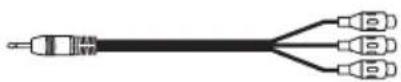
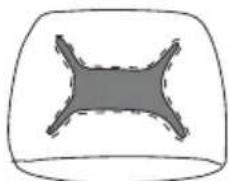
3) Black Vinyl Headrest Cover (P/N 126-1377)-(1pc)
4) Pewter Vinyl Headrest Cover (P/N 126-1378)-(1pc)
natural_image
Simple 3D geometric shape resembling a cross within a rounded rectangle (no text or symbols)
natural_image
Simple line drawing of a 3D geometric shape resembling a cross within a rounded rectangle (no text or symbols)5) Support Tube Adaptor Box (P/N 170-0161)-(1box)

natural_image
Isometric line drawing of a mechanical component with circular holes on top and side (no text or symbols)HEADREST COVER REPLACEMENT:
NOTE: Choose the best color match for your vehicle.
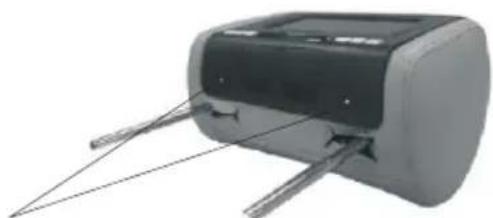
- Lay the headrest on a flat surface, screen facing up. Using a Philips screwdriver, unscrew the two Philips screws and lift the bottom edge of the monitor upward.
natural_image
Exterior view of a printer with paper feeders (no text or symbols visible)Figure A
Unscrew Philips Screws
- Carefully tilt the bottom edge of the DVD player upward and pull towards you to detach it from the top of the headrest.
- Carefully unplug the wire from the back of the DVD player and set aside in a safe place.
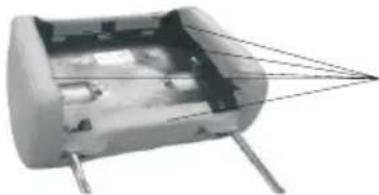
- Detach the velcro tabs securing the headrest cover and slip the cover off.
natural_image
Cross-sectional view of a cylindrical electronic component with wires extending outward (no visible text or symbols)Detach Velcro Tabs
Figure B
- Replace the headrest cover with the desired color and secure the headrest cover by re-attaching the velcro tabs. Slide the posts through the rectangular cutouts first.
- Carefully plug the harness back into the back of the DVD player.
Figure C
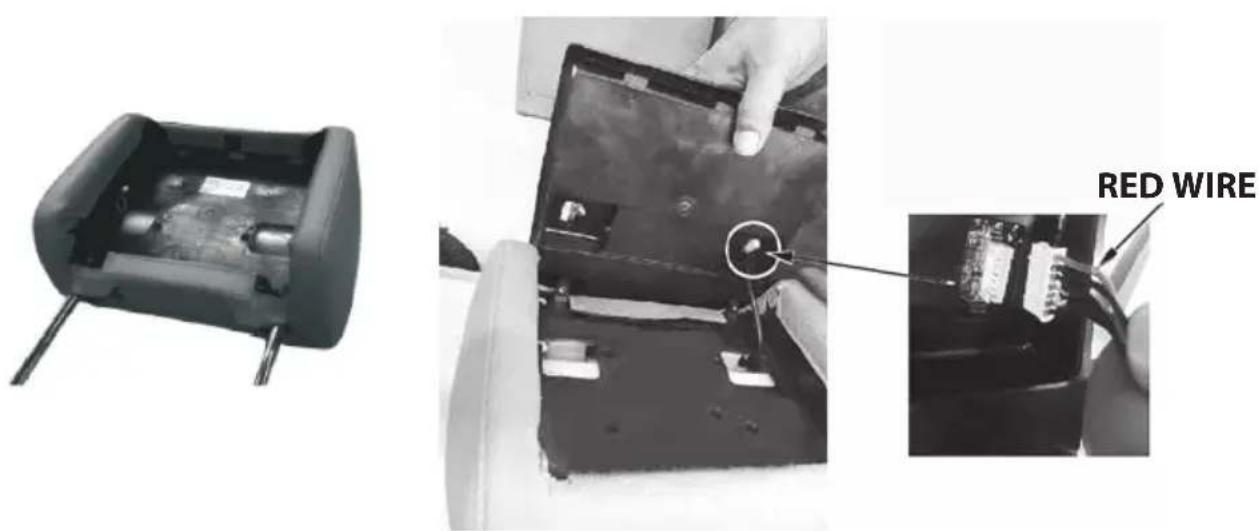
- Replace the player into the headrest.
a. Slide the top of the DVD player into the top of the headrest.
b. When lowering the bottom of the DVD player make sure the cable is not trapped between the DVD player and the headrest inside the shell.
c. Press down on the DVD player to align the Philips head screws with the holes in the headrest.
d. Secure the DVD player with two screws. Do not over tighten the screws.
- Tighten screws.

Figure D
Figure E
VEHICLE PREPARATION
-
Read the manual and get familiar with the product requirements and connections.
-
Install the headrests.
a. Remove vehicle's original headrests and store in a safe place.
b. Locate the box of tube adapters and find the tubes that match the diameter of your factory headrest post. There are six different sizes: 12mm, 12.5mm, 12.7mm, 13.8mm, 14mm, and 16mm The chart lists standard post sizes for different vehicle makes. Insert appropriate support tube adaptors in vehicle post guides. (if needed).
| Vehicle Factory Post | Option Sizes |
| Ford/Lincoln 10 mm, 12 mm and 12.7 mm | |
| Nissan/Infiniti 12.7mm | |
| Toyota/Lexus 12 mm and 13.88 mm | |
| Honda/Acura 10 mm and 12.7 mm | |
| Chrysler/Dodge 10 mm, 12 mm, and 12.7 mm | |
| GM/Chevrolet 10 mm, 11 mm, 12 mm and 14 mm |
Locate an accessory power source (+12VDC present when the ignition key is in the accessory and run positions. 0VDC should be present when the ignition key is in the OFF position). (Refer to the Wiring Diagrams on page 9. Be sure, that all the wiring is protected from sharp edges and is routed in such a manner that it will not be pinched, when it is fully installed.
- Plug the power adapter into the accessory socket.
Wireless Headphones
The JENHR1D is equipped with a dual channel IR (Infrared) transmitter for use with wireless IR headphones (not supplied with the JENHR1D) which are available at many electronics stores.
If two JENHR1D's are installed in a vehicle the first JENHR1D has to be set to transmit on channel A (1) and the second JENHR1D has to be set to transmit on channel B (2). See page 17 for details on setting the IR transmitter channel.
If wireless headphones are not used standard wired headphones or ear buds can be used.
NOTE: A single channel headphone is required when only one JENHR1D is installed. If 2 JENHR1Ds are installed a 2 channel headphone is required for the second headrest.
Wireless FM Modulator
The JENHR1D is equipped with a built-in wireless FM Modulator, that allows you to listen to the DVD audio signal by tuning your vehicle's radio to the selected frequency, (CH1 87.7MHz, (88.1MHz, 88.5MHz, 88.9MHz, CH5 106.7.1MHz, CH6 107.1MHz, CH7 107.5MHz, CH8 107.9MHz. This feature is accessed by using the FM transmitter buttons on the remote (FMM ON/OFF, and CHANNEL SELECT). Whenever the FM Modulator is on, broadcast reception on the vehicles radio will be poor. Switching the FM Modulator off will allow normal radio reception.
NOTE 1: In certain areas where there are a large number of FM radio stations (e.g. large cities, urban areas), the reception of the FM signal may not be satisfactory, resulting in static, distorted sound or signal bleed thru from strong local radio stations. This is not a defect in the product, but the result of a stronger local radio station overpowering the wireless FM transmitter in your headrest monitor.
NOTE 2: If two JENHR1D's are installed in the vehicle do not use both FM Modulators at the same time.
JENHR1D WIRING DIAGRAM

- Connect the cigarette lighter adaptor to the car.
JENHR1D CONTROLS AND INDICATORS DIAGRAM
(Front View)
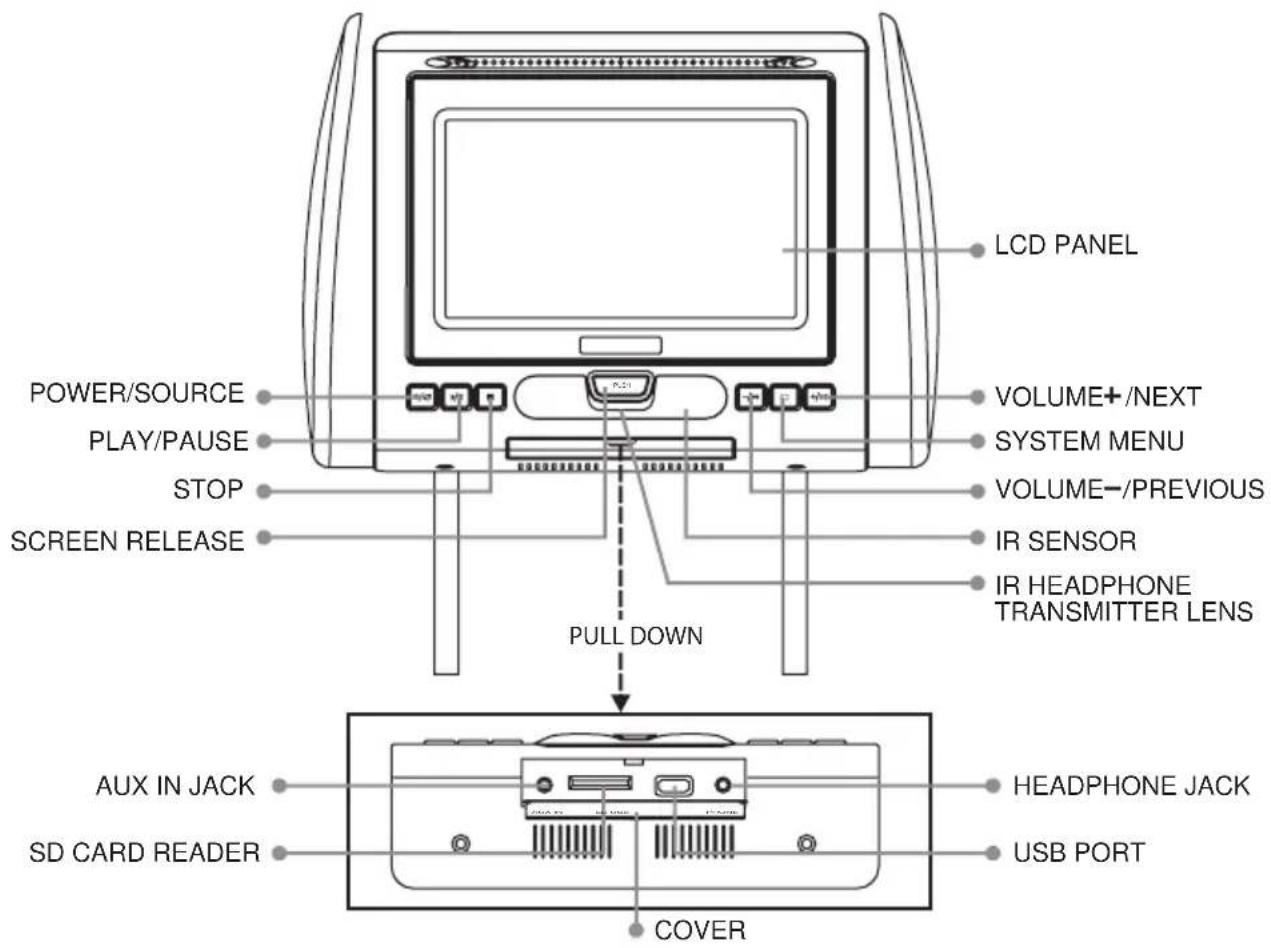
(BOTTOM VIEW)

(FRONT VIEW MONITOR OPEN)
Playing DVDs
Press the screen release button and raise the screen to insert a DVD disc. Snap the DVD disc onto the hub (spin the disc with your finger to make sure the disc is seated properly).
Lower and close the LCD screen, disc playback will not start until the screen is closed for safety reasons. When the DVD menu appears press the play button.
Playing USB
The System will detect the insertion of the USB media automatically if no disc is loaded. The system only auto detects the first media inserted (DVD, SD Card or USB drive); the second media source, USB, SD Card or CD disc must be manually selected by pressing the DVD source button on the remote control.
When a disc is inserted, the system will switch to DVD mode immediately regardless if USB media is currently playing. The DVD source (DVD or USB) can only be changed while the DVD is not playing. When a USB device is loaded in the player, the navigation menu appears automatically.
- Press the cursor button ▲ or ▼ to move the highlight to the desired folder and press ENTER to display the contents in the folder.
- Press the cursor button ▲ or ▼ to move the highlight to the desired file in the folder and press ENTER to begin playback of the highlighted file.
Note: The System supports:
Files: MP3 and JPEG files only.
File systems: FAT16 and FAT32
The system will NOT support:
Files: BMP, M4P, WAV, ASF, H.264, DivX, WMA
File systems: NTFS, ExFAT
The system will always default to the DVD when the system detects a disc in the DVD player.
Playing Audio CDs
When playing an audio CD, the DISPLAY banner appears automatically. The track number and the elapsed time of the disc are displayed.
Selecting a Track
Selection of a specific track is accomplished by using the numbers keys. Press the number key corresponding to the desired track and press ENTER and the player will implement the selection.
Using the REPEAT feature
The default mode for the Repeat feature is OFF. Pressing REPEAT consecutively changes the repeat options
- TRACK – repeat the track that is playing.
- ALL – repeat the entire disc that is playing.
- REPEAT OFF – repeat is turned off.
Playing MP3 Discs
MP3 is a format for storing digital audio. An audio CD-quality song can be compressed into MP3 format with very little loss of quality, while taking up much less space. CD-R discs that have been encoded in MP3 format can be played on the DVD player. The DVD player plays the songs in the order they were burned on to the disc
Selecting Folders and Songs
When an MP3 disc is loaded in the player, the navigation menu will appear on the screen automatically.
Press the cursor button, ▲ or ▼, to move the highlight to the desired folder and press the ENTER button to display the songs in the folder.
Press the cursor button, ▲ or ▼, to move the highlight to the desired song and press the ENTER button to begin playback of the highlighted song.
Selecting a Play Mode
You can choose what order the songs will play on a disc temporarily. The default play mode is FOLDER. Press REPEAT consecutively to choose the desired play mode. The play mode options are :
- Repeat One Repeat the song that is playing.
- Repeat Folder Repeat the disc that is playing.
- Repeat Off Turn off repeat function.
Playing SD Card
The System will detect the insertion of the SD Card automatically if no disc is loaded. The system only auto detects the first media inserted (DVD or the second media source, USB device, SD card or CD disc must be manually selected by pressing the DVD source button on the remote control.
When a disc is inserted, the system will switch to DVD mode immediately regardless if SD Card media is currently playing. The DVD source can only be changed while the DVD is not playing. When a SD Card is loaded in the player, the navigation menu appears automatically.
-
Press the cursor button ▲ or ▼ to move the highlight to the desired folder and press ENTER to display the contents in the folder.
-
Press the cursor button ▲ or ▼ to move the highlight to the desired file in the folder and press ENTER to begin playback of the highlighted file.
The system will always default to the DVD when the system detects a disc in the DVD player.
NOTE: The remote control has a battery installed with a pull tab to prevent battery discharge. Remove the pull tab before attempting to use the remote.
Battery Replacement
- Remove the battery holder.
- Remove the old battery and insert the new battery (CR2025) into the battery holder. Be sure to observe the correct polarity.
- Align the battery holder with the remote control and push until the holder clicks.

Remote Control Function Description
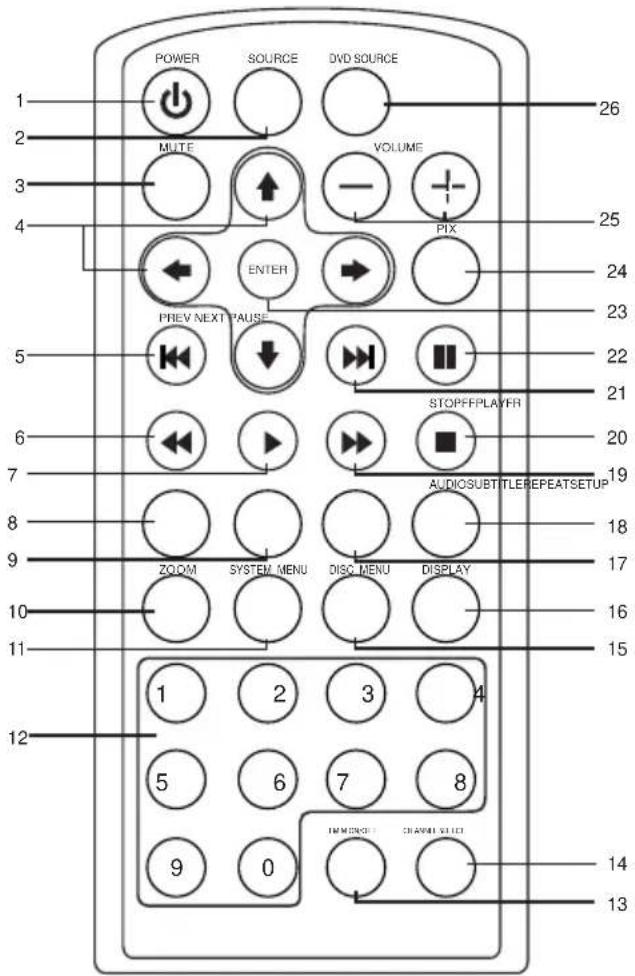
* Function control is available on the unit and the remote control.
1. POWER ( ⏻ ) Button\*
Press this button to turn the unit ON and OFF.
2. SOURCE Button\*
Each time the button is pressed, the audio / video source will change in the following sequence: DVD > AV > AUX
NOTE: The USB device and the SD card can be accessed using the DVD source button. Refer to Item 26.
3. MUTE Button
Press this button to mute all the audio. Pressing the button again restores the sound to the previously set level.
4. CURSOR (▲▼◀▶)Buttons
Use these buttons to navigate the menu selection on the screen.
5. PREVIOUS ( )Button\*
Press to return to the previous chapter or track.
6. FR SCAN BACKWARD ( \*Button
Press to search in the backward direction. Press repeatedly to change the search speed from 2, 4, 8, 16 and 32 times the normal speed. Pressing the fifth time returns to normal speed.
7. PLAY (▶) Button\*
Press to activate the play mode when a disc is loaded in the disc compartment, a USB memory device or a SD card is connected to the unit.
8. SETUP Button
Press the DVD button and SETUP button to display the Setup Menu which allows the user to change the DVD player options such as OSD Language, Video, Rating, etc. Refer to the settings and adjustment section for more information.
9. REPEAT Button
Allows the user to repeat a selected track, folder, title, chapter, or all
10. ZOOM Button
Press this button to enlarge or decrease the picture size when playing a DVD disc.
Press ZOOM button DVD Player performs
Once Enlarges the picture 2X
Twice Enlarges the picture 3X
3 Times Enlarges the picture 4X
4 Times Reduces the picture 1/2
5 Times Reduces the picture 1/3
6 Times Reduces the picture 1/4
7 Times Picture is returned to original size
11. SYSTEM MENU Button
Press this button to enter the system menu which contains features and options to customize the screen display and change the OSD language.
12. NUMBER Buttons
Allows the user to enter numbers 0 to 9 for selection of CD tracks, DVD chapters, and passwords.
13. FMM ON/OFF Button
Turns the wireless FM Modulator on or off.
14. FMM CHANNEL SELECT Button
Selects the wireless FM Modulator Frequency: (CH1 87.7MHz, CH2 88.1MHz, CH3 88.5MHz, CH4 88.9MHz, CH5 106.7MHz, CH6 107.1MHz, CH7 107.5MHz, CH8 107.9MHz.
15. DISC MENU Button
Press this button to enter the DVD root menu.
16. DISPLAY Button
Press to display current disc information while the disc is playing. The information displayed will be Title Elapsed, Title Remaining, Chapter Elapsed and Chapter Remaining. Pressing the button will also turn the display off.
17. SUBTITLE Button
Press to display and select the available subtitle language in DVD mode. Each time he button the subtitle language changes.
NOTE: The type and number of subtitle languages vary from disc to disc.
18. AUDIO Button
Press to display and select the available AUDIO languages in DVD mode. Each time you press the button, the language changes.
NOTE: The audio languages vary from disc to disc.
19. FF SCAN FORWARD (▶) Button\*
Press to search in the forward direction. Press repeatedly to change the search speed from 2, 4, 8, 16 and 32 times the normal speed.
20. STOP (■) Button\*
Press to stop playback.
21. NEXT (▶)Button\*
Press to skip to the next chapter or track.
Allows the user to pause the playback. Pressing pause again or pressing the Playbutton will resume normal playback.
23. ENTER Button
Used to implement a selected setting or menu option.
24. PIX (Picture Select) Button
Each time this button is pressed, the OSD picture adjustment displays the "Adjustment bar" for BRIGHTNESS, CONTRAST, COLOR, TINT (For NTSC only). Once the desired adjustment bar is displayed, use the VOLUME+ and VOLUME-button to adjust the setting. The display will automatically turn off if no adjustments are made within 6 seconds from when the button was pressed.
25. VOLUME DOWN (-) or UP (+)\*
Press to select the level of the picture adjustments when the unit is in picture adjustment mode or to increase or decrease the volume for the wired headphones.
26. DVD Source\*
This button is only active when remote control is in the DVD mode. Each time the button is pressed one of the sources (DVD, USB and SD Card) will be selected. If a USB device or SD Card is not plugged in, the unit will remain on DVD Source. Press to change source in sequence of DVD > USB > SD Card.
NOTE: The DVD Source button is used to access MP3 and audio CDs when these discs are in the disc compartment.
SYSTEM MENU SETTINGS AND ADJUSTMENTS
The System Menu contains features and options that allow you to customize your system.
- Press the "button on unit or press the TV button and the SYSTEM MENU button on the remote control, the menu display below will appear on screen.
- Use the "+" "-" buttons to change the setting.
- To select the next menu press the "button or the SYSTEM MENU button on the remote control.
MENU DISPLAY
The first adjustment to appear is the volume adjustment for the wired headphones. The volume can be adjusted from 1 to 32.

The picture can be adjusted under the system menu. The picture adjustments consist of brightness (BRIGHT), CONTRAST, COLOR, TINT (for NTSC only). The adjustments range from 1 to 32.
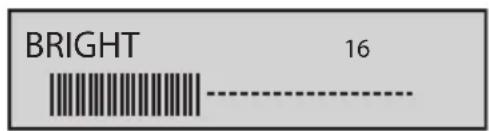
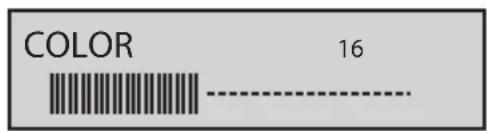


The screen mode select feature allows the user to change the screen format (aspect ratio from 4:3 or to 16:9).

| SCREEN MODE | 4:3 |
The IRT can be set to Channel A or Channel B for use with optional wireless headphones. The IRT function can also be set to off.



The FM Modulator adjustments consist of turning the FM Modulator on or off and selecting the FM Modulator frequency. The wireless FM Modulator Frequencies that can be selected are:
(CH1 87.7MHz, CH2 88.1MHz, CH3 88.5MHz, CH4 88.9MHz, CH5 106.7MHz, CH6 107.1MHz, CH7 107.5MHz, CH8 107.9MHz.
FMM
OFF
The OSD Language feature allows the user to select the language for the on-screen display. The user can either select English, Dutch, French, Spanish, Russian or Chinese for the OSD language.
OSD LANGUAGE ENGLISH
The RESET function allows all setting options to be reset to factory settings.
RESET
DVD SETTINGS AND ADJUSTMENTS
The Setup Menu contains features and options that let you customize your DVD player. For example, you can set a language for the on-screen display or prevent DVD playback for children.
Using the Setup Menu
- Press the DVD and SETUP buttons on the remote. The DVD Setup Menu appears on the screen. There are four menu pages which comprise the Setup Menu.
- To select and set an option, use the cursor buttons (◀ or ▶) to move the highlight to the desired page.
- After entering the highlighted page, use the cursor buttons (▲ or ▼) to highlight the desired option.
- Press ▶ to open the sub menu that contains the different options available. Press ▲ or ▼ to highlight the desired option, and press ENTER to confirm the selection.
- Repeat steps 3 and 4 to set all the options that reside on the menu page.
- To change to another menu page, use the cursor buttons (◀ or ▶) then, repeat steps 2 through 4.
GENERAL PAGE
| General Audio | Preference | Exit | |
| General Setup Page | |||
| TV Display | Wide | ||
| Screen Saver | On | ||
| Last Memory | On | ||
| Goto General Setup Page | |||
GENERAL SETUP PAGE
TV Display
The TV Display feature allows the user to change the screen format (aspect ratio to 4:3 PScan, 4:3 LB, or 16:9 Wide)
- To select the screen aspect ratio mode use the cursor button (▲ or ▼) to highlight TV DISPLAY. Press the cursor button ▶ to open the sub menu that contains the different options available. Press the cursor button (▲ or ▼) to highlight the desired option, and press ENTER to confirm the selection. Use the cursor button ◀ to return to the options.
Screen Saver
When set to ON and the DVD is not playing a screen saver will appear a short period of time.
Last Memory
The last memory function allows DVD playback to begin from the point when playback was last stopped or when the unit was shut off. The last memory feature allows the user to turn the last memory feature function on or off.
AUDIO PAGE

AUDIO SETUP PAGE
Sound Mode
The sound mode feature allows the user to apply preset sound effects to the unit's audio output signal. The user may choose from: None, Rock, Pop, Live, Dance, Techno, Classic and Soft.
- To select the sound mode use the cursor button (▲ or ▼) to highlight SOUND MODE. Press the cursor button ▶ to open the sub menu that contains the different options available. Press the cursor button (▲ or ▼) to highlight the desired option, and press ENTER to confirm the selection. Use the cursor button ◀ to return to the options.
Bass Boost
The bass boost feature increases the audio bass response and allows the function to be turned on or off.
- To select the bass boost feature use the cursor button (▲ or ▼) to highlight BASS BOOST. Press the cursor button ▶ to open the sub menu that contains the different options available. Press the cursor button (▲ or ▼) to highlight the desired option, and press ENTER to confirm the selection. Use the cursor button ◀ to return to the options.
Super Bass
The super bass feature increases the audio bass response and allows the function to be turned on or off.
- To select the super bass boost feature use the cursor button (▲ or ▼) to highlight SUPER BASS. Press the cursor button ▶ to open the sub menu that contains the different options available. Press the cursor button (▲ or ▼) to highlight the desired option, and press ENTER to confirm the selection. Use the cursor button ◀ to return to the options.
Treble Boost
The treble boost feature increases the audio treble response and allows the function to be turned on or off.
- To select the treble boost feature use the cursor button (▲ or ▼) to highlight TREBLE BOOST. Press the cursor button ▶ to open the sub menu that contains the different options available. Press the cursor button (▲ or ▼) highlight the desired option, and press ENTER to confirm the selection. Use the cursor button ◀ to return to the options.
PREFERENCE PAGE
| General Audio ExitPreference | |
| Preference Page | |
| TV Type | NTSC |
| Audio | Eng |
| Subtitle | Eng |
| Disc Menu | Eng |
| Parental | |
| Password | |
| Default | |
| Goto Preference Page | |
PREFERENCE PAGE
NOTE: This menu page is available if there is no disc in the disc tray, the disc tray is open or the disc in the disc tray is stopped.
There are seven items in the PREFERENCE PAGE. They are TV TYPE, AUDIO, SUBTITLE, DISC MENU, PARENTAL, PASSWORD, and DEFAULT.
TV Type
This function matches video output of the unit to the broadcast system of a connected TV. The unit supports both National Television System Committee (NTSC) and Phase Alternating Line (PAL) television broadcasting standards.
Options:
PAL: Select this mode if the connected TV is a PAL system. The video signal of a NTSC disc will be output in PAL format.
AUTO: Select this mode if the connected TV is multi-system. The output format of video signal will be in accordance with the video signal of the disc.
NTSC: Select this mode if the connected TV is a NTSC system. The video signal of a PAL disc will be output in NTSC format.
- To select the TV type use the cursor button (▲ or ▼) to highlight TV TYPE. Press the cursor button ▶ to open the sub menu that contains the different options available. Press the cursor button (▲ or ▼) to highlight the desired option, and press ENTER to confirm the selection. Use the cursor button ◀ to return to the options..
Audio Menu
This item allows a user to select a preferred audio language. This function only applies to discs encoded with different audio languages.
Options: English, French, Spanish, Chinese, Japanese, Korean, Russian, and Thai.
NOTE: If the selected language is not available for the currently playing disc, the disc's default setting is applied.
- To select the audio feature use the cursor button (▲ or ▼) to highlight AUDIO. Press the cursor button ▶ to open the sub menu that contains the different options available. Press the cursor button (▲ or ▼) to highlight the desired option, and press ENTER to confirm the selection. Use the cursor button ◀ to return to the options.
Subtitle
This item allows a user to select a preferred subtitle language. This function only applies to discs encoded with subtitles.
Options: English, French, Spanish, Chinese, Japanese, Korean, Russian, and Thai.
NOTE: If the selected language is not available for the currently playing disc, the disc's default setting is applied.
- To select the subtitle feature use the cursor button (▲ or ▼) to highlight SUBTITLE. Press the cursor button ▶ to open the sub menu that contains the different options available. Press the cursor button (▲ or ▼) to highlight the desired option, and press ENTER to confirm the selection. Use the cursor button ◀ to return to the options.
Disc Menu
This item allows a user to select a preferred disc menu language.
Options: English, French, Spanish, Chinese, Japanese, Korean, Russian, and Thai.
NOTE: If the selected language is not available for the currently playing disc, the disc's default setting is applied.
- To select the disc menu feature use the cursor button (▲ or ▼) to highlight DISC MENU. Press the cursor button ▶ to open the sub menu that contains the different options available. Press the cursor button (▲ or ▼) to highlight the desired option, and press ENTER to confirm the selection. Use the cursor button ◀ to return to the options.
Parental
This item allows the user to limit the content of movie playback from G to Adult. The lower the value, the more strict the control. Movies rated higher than the level set for the parental lock can not be viewed without entering the correct password.
Options:
NOTE: The rating level can be changed only when the correct password is provided. This function only works with those discs with parental function.
- To select the parental feature use the cursor button (▲ or ▼) to highlight PARENTAL. Press the cursor button ▶ to open the sub menu that contains the different options available. Press the cursor button (▲ or ▼) to highlight the desired option, and press ENTER to confirm the selection. Use the cursor button ◀ to return to the options
Password
This item allows a user to change the password. The default password is 3308.
-
To select the password feature use the cursor button (▲ or ▼) to highlight PASSWORD. Press the cursor button ▶ to open the sub menu that contains the different options available. Press the cursor button (▲ or ▼) to highlight the desired option, and press ENTER to confirm the selection. Use the cursor button ◀ to return to the options.
• To change the password: -
Enter the old password in the OLD PASSWORD row.
- Enter the new password in the NEW PASSWORD row.
- Enter the new password again in the CONFIRM PWD row.
NOTE: You may reset the password if you forget the old password by using the default password: 3308. This password is always active even after you have selected your own password and changed it. To avoid the possibility of others using the default password to set the parental level and change the password, record this default password in another area and delete it from this manual.
Default
This item allows a user to restore all the default settings except the settings in the Password Setup Page and the PARENTAL item.
- To select the default feature use the cursor button (▲ or ▼) to highlight DEFAULT. Press the cursor button ▶ to open the sub menu that contains the different options available. Press the cursor button (▲ or ▼) to highlight the desired option, and press ENTER to confirm the selection. Use the cursor button ◀ to return to the options.
EXIT SETUP PAGE

Exit Setup Page
The exit setup page allows the user to exit the setup menu and return to the DVD playback.
- To exit the setup page use the ▶ to highlight EXIT and press ENTER to confirm the selection.
DVD Basics
To get the optimum use out of the DVD Player, please read the following:.
DVD Region Code
The DVD player is preset to a region code at the factory depending on where the DVD player is sold. A DVD from a different region cannot be played in this unit and the unit will display "WRONG REGION".

Region 2- Japan, Europe, South Africa, Middle East, Greenland
Region 3- S. Korea, Taiwan, Hong Kong, Parts of South East Asia
Region 4- Australia, New Zealand, Latin America (including Mexico)
Region 5- Eastern Europe, Russia, India, Africa
Region 6- China
TROUBLESHOOTING
| PROBLEMSOLUTION | |
| IR remote inoperative • Verify that | the battery in the remote is fresh. • Verify that the remote sensor eye is not obstructed. |
| Disc won’t play • Insert a disc with | the label side facing out. • Check the type of disc you put into disc tray. This DVD only plays DVD, audio CD and MP3s. • Both the unit and the disc are coded by region. If the regional codes don’t match, the disc can’t be played. |
| Play starts, but then stops immediately | • The disc is dirty. Clean it. • Condensation has formed. Allow player to dry out |
| No sound or distorted sound | • Make sure your DVD is connected properly. Make sure all cables are securely inserted into the appropriate jacks. • If you are using the 2-channel IR headphones, make sure you turn on the IR headphone power, make sure the correct channel (A or B) is selected. • If the FM Modulator is ON make sure proper frequency has been selected. |
| Cannot advance through a movie | • Most discs prohibit advancing through the opening credits and warning information that appear at the beginning of movies |
| The icon (⊗) appears on screen | • The feature or action cannot be completed at this time because: 1. The disc’s software restricts it. 2. The disc’s software doesn’t support the feature (e.g., angles) 3. The feature is not available at the moment. 4. A title or chapter number that is out of range has been requested. |
| Picture is distorted • The disc might be damaged. Try another disc. • It is normal for some distortion to appear during forward or reverse scan. | |
1 MONTH LIMITED WARRANTY Appls To Jensen Mobile Video Products
AUDIOVOX ELECTRONICS CORP. (the Company) warrants to the original retail purchaser of this product that should this product or any part thereof, under normal use and conditions, be proven defective in material or workmanship within 12 months from the date of original purchase, such defect(s) will be repaired or replaced with reconditioned product (at the Company's option) without charge for parts and repair labor. A game controller, if supplied, is similarly warranted for ninety (90) days.
To obtain repair or replacement within the terms of this Warranty, the product is to be delivered with proof of warranty coverage (e.g. dated bill of sale), specification of defect(s), transportation prepaid, to the Company at the address shown below. This Warranty does not extend to the elimination of externally generated static or noise, to correction of antenna problems, to costs incurred for installation, removal or reinstallation of the product, or to damage to digital memory/media devices, gaming devices, discs, speakers, accessories or vehicle electrical systems.
This Warranty does not apply to any product or part thereof which, in the opinion of the Company, has suffered or been damaged through alteration, improper installation, mishandling, misuse, neglect, accident, or by removal or defacement of the factory serial number/bar code label(s). THE EXTENT OF THE COMPANY'S LIABILITY UNDER THIS WARRANTY IS LIMITED TO THE REPAIR OR REPLACEMENT PROVIDED ABOVE AND, IN NO EVENT, SHALL THE COMPANY'S LIABILITY EXCEED THE PURCHASE PRICE PAID BY PURCHASER FOR THE PRODUCT.
This Warranty is in lieu of all other express warranties or liabilities. ANY IMPLIED WARRANTIES, INCLUDING ANY IMPLIED WARRANTY OF MERCHANTABILITY, SHALL BE LIMITED TO THE DURATION OF THIS WRITTEN WARRANTY. ANY ACTION FOR BREACH OF ANY WARRANTY HEREUNDER INCLUDING ANY IMPLIED WARRANTY OF MERCHANTABILITY MUST BE BROUGHT WITHIN A PERIOD OF 24 MONTHS FROM DATE OF ORIGINAL PURCHASE. IN NO CASE SHALL THE COMPANY BE LIABLE FOR ANY CONSEQUENTIAL OR INCIDENTAL DAMAGES FOR BREACH OF THIS OR ANY OTHER WARRANTY. No person or representative is authorized to assume for the Company any liability other than expressed herein in connection with the sale of this product.
Some states do not allow limitations on how long an implied warranty lasts or the exclusion or limitation of incidental or consequential damage so the above limitations or exclusions may not apply to you. This Warranty gives you specific legal rights and you may also have other rights which vary from state to state.
Audiovox Electronics Corporation, 150 Marcus Blvd., Hauppauge, New York 117881 1-800-645-4994 128-7385A
NOTES

natural_image
Simple line drawing of a laptop with a triangular icon on the screen (no text or symbols)For Customer Service
Visit Our Website At
www.jensen.com
Product Information, Photos,
FAQ's Owner's Manuals
- Important Notice
- FEATURES
- MATERIAL TO USE IN THIS PACKAGE:
- HEADREST COVER REPLACEMENT:
- Unscrew Philips Screws
- VEHICLE PREPARATION
- Wireless Headphones
- Wireless FM Modulator
- JENHR1D WIRING DIAGRAM
- JENHR1D CONTROLS AND INDICATORS DIAGRAM
- Playing DVDs
- Playing USB
- Playing Audio CDs
- Playing MP3 Discs
- Battery Replacement
- POWER ( ⏻ ) Button\*
- SOURCE Button\*
- MUTE Button
- CURSOR (▲▼◀▶)Buttons
- PREVIOUS ( )Button\*
- FR SCAN BACKWARD ( \*Button
- PLAY (▶) Button\*
- SETUP Button
- REPEAT Button
- ZOOM Button
- Press ZOOM button DVD Player performs
- SYSTEM MENU Button
- NUMBER Buttons
- FMM ON/OFF Button
- FMM CHANNEL SELECT Button
- DISC MENU Button
- DISPLAY Button
- SUBTITLE Button
- AUDIO Button
- FF SCAN FORWARD (▶) Button\*
- STOP (■) Button\*
- NEXT (▶)Button\*
- ENTER Button
- PIX (Picture Select) Button
- VOLUME DOWN (-) or UP (+)\*
- DVD Source\*
- SYSTEM MENU SETTINGS AND ADJUSTMENTS
- MENU DISPLAY
- DVD SETTINGS AND ADJUSTMENTS
- Using the Setup Menu
- GENERAL PAGE
- GENERAL SETUP PAGE
- TV Display
- Screen Saver
- Last Memory
- AUDIO PAGE
- AUDIO SETUP PAGE
- Sound Mode
- Bass Boost
- Super Bass
- Treble Boost
- PREFERENCE PAGE
- TV Type
- Audio Menu
- Subtitle
- Disc Menu
- Parental
- Password
- Default
- EXIT SETUP PAGE
- DVD Basics
- DVD Region Code
- MONTH LIMITED WARRANTY Appls To Jensen Mobile Video Products
- NOTES
Brand : JENSEN
Model : JENHR1D
Category : LCD Screen