
C7004 - Network System DELL - Free user manual and instructions
Find the device manual for free C7004 DELL in PDF.


| Type of product | Network Switch |
| Dimensions | 17.3 x 15.4 x 1.7 inches (44 x 39 x 4.3 cm) |
| Weight | 8.5 kg |
| Power supply | AC 100-240V, 50/60Hz, 300W |
| Main functions | Layer 2/3 switching, VLAN, QoS, port mirroring, SNMP |
| Maintenance and cleaning | Use a dry, lint-free cloth; avoid liquids and compressed air |
| Safety | Follow ESD precautions, use grounded outlet, operate in ventilated area |
| Spare parts and repairability | Hot-swappable power supplies and fans; field-replaceable modules |
| General information | Enterprise-class network switch with 48 ports and 10GbE uplinks |
Frequently Asked Questions - C7004 DELL
User questions about C7004 DELL
0 question about this device. Answer the ones you know or ask your own.
Ask a new question about this device
Download the instructions for your Network System in PDF format for free! Find your manual C7004 - DELL and take your electronic device back in hand. On this page are published all the documents necessary for the use of your device. C7004 by DELL.
USER MANUAL C7004 DELL
Regulatory Model: C7004/C7008
Dell Networking
C-Series Systems
Quick Start Guide

Regulatory Model:C7004/C7008
Notes, Cautions, and Warnings

NOTE: A NOTE indicates important information that helps you make better use of your computer.

CAUTION: A CAUTION indicates potential damage to hardware or loss of data if instructions are not followed.

WARNING: A WARNING indicates a potential for property damage, personal injury, or death.
If you purchased a Dell Series computer, any references in this publication to Microsoft Windows operating systems are not applicable.
Information in this publication is subject to change without notice.
© 2014 Dell Inc. All rights reserved.
Reproduction of these materials in any manner whatsoever without the written permission of Dell Inc. is strictly forbidden.
Copyright © 2014 Dell Inc. All rights reserved. This product is protected by U.S. and international copyright and intellectual property laws. Dell and the Dell logo are trademarks of Dell Inc. in the United States and/or other jurisdictions. All other marks and names mentioned herein may be trademarks of their respective companies.
Regulatory Model: C7004/C7008
2014 - 01 P/N 0JVTD9 Rev. A02
About this Guide
This document is intended as a Quick Start Guide to get new systems up and running and ready for configuration. For complete installation and configuration information, refer to the following documents:
| Documentation C7004/C150 C7008/C300 | ||
| Hardware installation and power-up instructions | Installing and Maintaining the C7004/C150 System | Installing and Maintaining the C7008/C300 System |
| Software configuration Dell Networking OS Configuration Guide | Dell Networking OS Configuration Guide | |
| Command line interface Dell Networking OS Command Line Reference Guide | Dell Networking OS Command Line Reference Guide | |
| Latest updates Dell Networking OS Release Notes for C-Series | Dell Networking OS Release Notes for C-Series | |
Installing the Hardware
This guide assumes all site preparation has been performed before installing the chassis.
Installing the Chassis
To install the C7004/C150 and the C7008/C300 chassis, Dell Networking recommends completing the installation procedures in the order presented below.

NOTE: Unless stated otherwise, the installation instructions apply to both the C7004/C150 and C7008/C300 chassis.
Always handle the system and its components with care. Avoid dropping the switch or its field replaceable units (FRUs).

CAUTION: Always wear an electrostatic discharge (ESD)-preventive wrist or heel ground strap when handling the chassis and its components. As with all electrical devices of this type, take all necessary safety precautions to prevent injury when installing this system. ESD damage can occur if components are mishandled.
Installing the Chassis in a Two-Post Rack

WARNING: Use an equipment lift or pallet jack when lifting or moving the chassis. Install the chassis into the rack before inserting chassis components. Lift the chassis only from the bottom. Lifting by the chassis shelves or power supply openings might damage the chassis.

WARNING: To prevent bodily injury when mounting or servicing this unit in a rack, take special precautions to ensure that the system remains stable. The following guidelines are provided to ensure your safety:
- Mount this unit at the bottom of the rack if it is the only unit in the rack.
- When mounting this unit in a partially filled rack, load the rack from the bottom to the top with the heaviest component at the bottom of the rack.
- If the rack is provided with stabilizing devices, install the stabilizers before mounting or servicing the unit in the rack.
Follow these steps to install the chassis into a 19-inch equipment rack:
Step Task
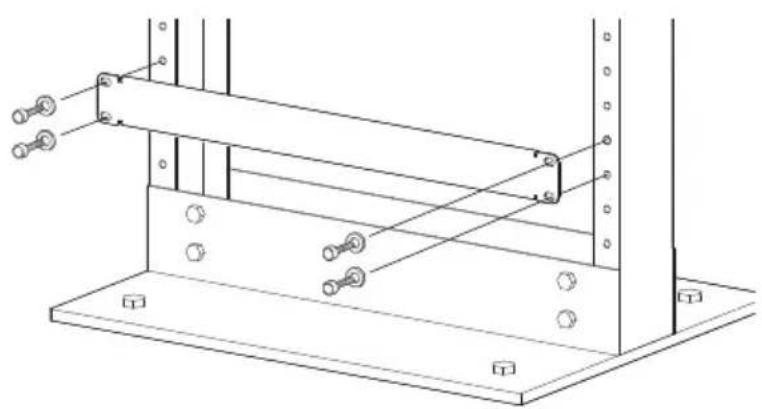
| 1 | Determine the chassis mounting location in the equipment rack. |
| 2 | Orient the bar with the arrows pointing upward. The smooth side of the bar should face outward. |
| 3 | Attach the bar to the equipment rack brackets using the mounting screws provided by the rack manufacturer. |
natural_image
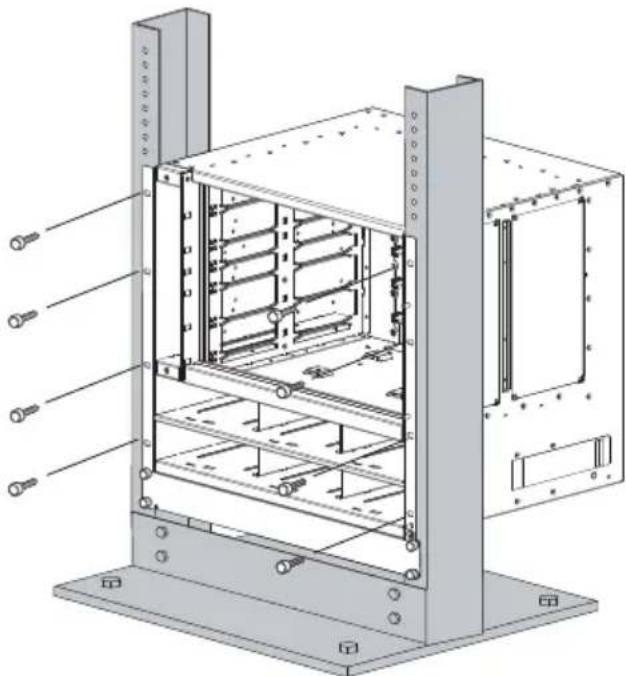
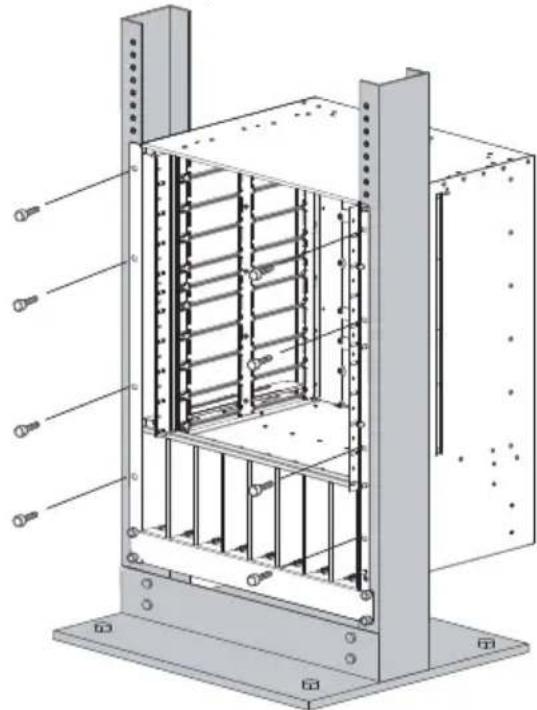
Technical line drawing of a structural support frame with mounting holes and bolts (no text or symbols)4 Use an equipment lift to align the chassis rack-mount holes with the equipment rack holes, and situate the chassis on top of the equipment rack bar.
Step Task
5
Insert screws (provided with your rack) through the chassis rack-mounting bracket and into the equipment rack, and tighten them.
Rack Mounting the C7004/C150 Chassis
natural_image
Technical diagram of an internal server rack with mounting feet and wiring, showing no text or symbolsRack Mounting the C7008/C300 Chassis
natural_image
Technical diagram of a mechanical or electrical enclosure with internal structural framework and mounting brackets (no text or symbols)Installing Power Modules

CAUTION: Do not install the Power Supply 1200W-AC and Power Supply 1600W-AC in the same chassis. The line cards will power down and data may be lost.
If there is a failure in the power supply, you must replace it. Power supplies are not field serviceable.
The C7004/C150 has six power supply slots at the front-bottom of the chassis. The C7008/C300 has eight power supply slots at the front-bottom of the chassis. The slots accept either the 1200W or 1600W AC power supply units (PSUs).
AC Power Supplies
- There are two types of power supplies: Power Supply 1200W-AC and Power Supply 1600W-AC. The minimum and redundant power supplies required to operate are listed in the table below. Dell Networking recommends the redundancy configuration.
- The following table lists the PSU requirements for Dell Networking OS version 8.4.5.0 or prior. 1600W-AC PSU is recognized by version 8.4.5.0 or later.
| Voltage Minimum PSUs | Minimum with Redundant PSUs | |
| C7004/C150 Power Supply 1200W-AC/Power Supply 1600W-AC | 100-120 Configuration Dependent | Configuration Dependent |
| 200-240 Configuration Dependent | Configuration Dependent | |
| C7008/C300 Power Supply 1200W-AC/Power Supply 1600W-AC | 100-120 Configuration Dependent | Configuration Dependent |
| Power Supply 1200W-AC | 200-240 Configuration Dependent | Configuration Dependent |
| Power Supply 1600W-AC | 200-240 Configuration Dependent | Configuration Dependent |
For Dell Networking OS version 8.4.6.0, the minimum PSUs required for system power is based on the power requirements of the RPMs, the line cards, and the type of fan tray present in the chassis.
System Power Required = Power required for 2 RSMs + Power Required for Fan Tray + Power required for Line cards in the system.
Number of PSUs Required for System Power = System Power Required /90% of PSU power For power requirements corresponding to different components, refer to Installing and Maintaining the C7004/C150 System and Installing and Maintaining the C7008/C300 System.
If N PSUs are required for system power, then N+1 th PSU is reserved for redundant system power. For details corresponding to PoE power availability, refer to Power Over Ethernet section of Dell Networking OS Configuration Guide.
- To protect against high-voltage shock, install a power supply blank on all unused power supply slots.
- Connect the AC power supply to the appropriate branch circuit protection as defined by local electrical codes.
- Verify that the remote power source complies with the system input power specifications.

WARNING: Use only the AC power cord supplied with the AC power supply. Do not supply power to your system until you install the power supplies, fan tray, route processor modules (RPMs), and line cards.

WARNING: This product relies on the building's installation for short-circuit (overcurrent) protection. Ensure you use a fuse or circuit breaker no larger than 120 VAC, 15A U.S. (240 VAC, 10A international) on the phase conductors (all current-carrying conductors).

WARNING: The C7008/C300 does not have a main disconnect device installed. It is the responsibility of the installer to provide a suitable disconnecting device in the building installation and ensure that it is located/installed near the equipment and is easily accessible.

WARNING: Do not install the Power Supply 1200W-AC and Power Supply 1600W-AC in the same chassis. The line cards will power down and data may be lost.

WARNING: The C7008/C300 and C7004/C150 operates in either of two voltage ranges. The different power supply configuration supported is listed in the following table. As a safety precaution, do not install more than the recommended maximum number of PSUs (shown below), as this causes high leakage current. Install blank panels in all unused PSU slots.
| Voltage Frequency Maximum PSUs |
| C7004/C150 100-120 50/60Hz 5 primary + 1 redundant |
| 200-240 50/60Hz 5 primary + 1 redundant |
| C7008/C300 100-120 50/60Hz 7 primary + 1 redundant |
| 200-240 50/60Hz 7 primary + 1 redundant |
Step Task
1 Verify the power switch is in the OFF (left) position.
2 Secure the retaining latch in the unlatched position by tightening the screw into the threaded hole.
3 Slide the power supply into the top left-most power supply slot.
Dell Networking recommends installing power supplies starting from the left side, top row of the chassis, leaving no blank slots between units.
4 Lower the retaining latch, and tighten it into place.
5 Plug the AC power cord into the power receptacle in the face of the power supply.
6 Plug the power cord into an AC power outlet.

NOTE: The higher power of power over Ethernet plus (PoE+) (30W/port) is available only with Power Supply 1600W-AC and the PoE+ line card. When using the PoE line card or PoE+ line card and the Power Supply 1200W-AC, only 15.4W/port power is available. The maximum power per port is listed in the following table.
| Power Supply1200W-AC | Power Supply1600W-AC at lowline (100-120V) | Power Supply1600W-AC at highline (200-240V) |
| PoE line card 15.4W/port 15.4W/port 15.4W/port | ||
| PoE+ line card 15.4W/port 30W/port | 30W/port | |
Installing RPMs and Line Cards
The C7004/C150 system accommodates four line cards and two route processor modules (RPMs).
The C7008/C300 System accommodates eight line cards and two route processor modules (RPMs).
RPMs
The C-Series system requires at least one RPM; however, Dell Networking recommends two RPMs.
- One RPM provides 48 Gigabits of bandwidth to each line card.
- Two RPMs provides 96 Gigabits of bandwidth to each line card.
- To control airflow for adequate system cooling, personal safety, and EMI containment during operation, blanks are required in empty slots. You must install all chassis slots with operational modules or blanks. Always replace cards and blank panels immediately.
- The blank panels for RPMs and line cards are different sizes (RPM blanks are smaller); be sure that blank panels are installed in the correct slots.
- RPMs are hot-swappable. high availability (HA) is supported.
- If your system contains two RPMs, both RPMs must have the same software image.
- RPMs are interchangeable between the C7008/C300 and the C7004/C150 only if they are running Dell Networking OS version 7.6.1.0 or later.

CAUTION: RPMs are designed to be installed in either the R0 or R1 slot. Do not force RPMs into line cards slots. RPMs are keyed differently than line cards to prevent improper installation.
Line Cards
Line cards are hot-swappable. You can insert line card into any line card slot. On the C7004/C150, line card slots are numbered 0 to 3. On the C7008/C300, line card slots are labeled 0 to 7. You can see the slot numbering labels when you install the fan tray.
- The VX2NW (C-Series 48 PORT 1GIGABIT ETHERNET LINE-CARD, SFP OPTICS REQUIRED (SERIES CB)) and F9M51 (C-Series 8 PORT 10GIGABIT ETHERNET LINE-CARD, XFP OPTICS REQUIRED
(SERIES CB)) line cards are interchangeable between the C7008/C300 and C7004/C150 only if the chassis is running Dell Networking OS version 7.6.1.0 or later.
- To control airflow for adequate system cooling, personal safety, and EMI containment during operation, blanks are required in empty slots. You must install all chassis slots with operational modules or blanks. Always replace cards and blank panels immediately.
Installing RPMs and Line Cards

WARNING: Always wear an ESD-preventive wrist or foot-heel ground strap when handling RPMs or line cards. Place RPMs and line cards on an antistatic surface when they are not installed. ESD damage can occur when components are mishandled.

CAUTION: Unlock the levers before inserting the line card into the chassis. Fully engage the locking mechanism after the card has been inserted; not doing so might damage the card below it when you insert that lower card.

NOTE: The fan tray face panel has slot number markings for the RPMs and line cards. To simplify RPM and line card installation, insert the fan tray before the line cards.
Step Task
| 1 | Extend the left and right card levers by first pressing gently down on the thumb tabs in the ejector levers and then pulling the ejector levers simultaneously until they are in the open position. |
| 2 | Hold the card assembly by the metal carrier edges. Avoid touching the printed circuit board and connector pins. |
| 3 | Align the card with the guide, and gently slide it into any line card slot until the card is about halfway into the slot. |

NOTE: To determine which slots are for the RPMs and which are for the line cards, use the markings on the fan tray.
4 Continue sliding the card until you feel the connectors engage with the chassis backplane.
| Step Task | |
| 5 | Rotate the levers toward the card to seat the backplane connectors and line card in place. Push on the knurled section of the levers until the thumb tabs pop up and lock the unit in place. |
| CAUTION: Installing a card without fully engaging the locking mechanism might damage the EMI seal on the card below it when you install that card. | |
| 6 | Install a blank panel in all slots that do not have a card, and secure it with the screws provided. |
Installing the Fan Tray
The C-Series chassis contains one field-replaceable fan tray. There are two types of fan trays that you can install: one contains six fans that run at varying speeds depending on system temperature; the other contains six fans that run at a constant speed. For both types of trays, air flows through the system toward the fans (right to left) and is exhausted on fan-side of the chassis. The fan tray is accessible from the front of the chassis.

WARNING: To ensure proper temperature and airflow control, the fan tray must always be installed and operating properly.

NOTE: The system does not have an air filter. Ensure that you clean the installation site and chassis regularly.
Step Task
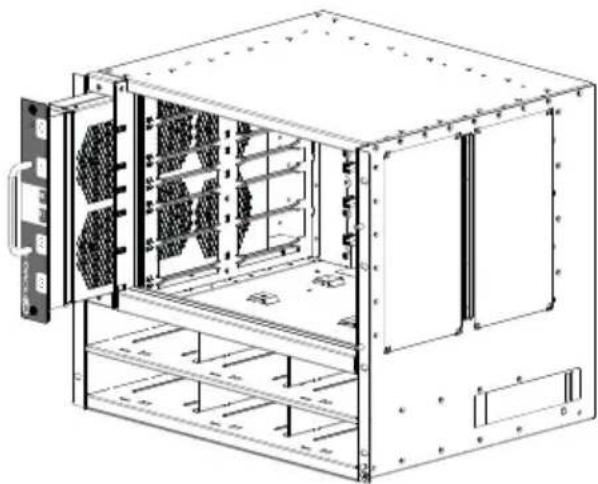
1 Slide the fan tray into the fan slot.
2 Gently push on the front of the tray until it stops. The fan tray should be flush with the chassis.
3 Use a #2 Phillips screwdriver to secure the fan tray into place by tightening the screws at the top and bottom of the fan tray.
C7004/C150
natural_image
Technical line drawing of an industrial rack unit with cooling fans and ventilation slots (no text or symbols)C7008/C300

natural_image
Technical line drawing of a multi-chamber industrial enclosure with circular compartments and vertical supports (no text or symbols)
NOTE: The fan tray light emitting diodes (LEDs) remains lit when the chassis is powered up and the fan tray is functioning properly.
Power Up Sequence
Before you supply power to the chassis, Dell Networking recommends re-inspect your equipment rack and chassis.

CAUTION: Never operate the system without a fan tray.
| Step Task | |
| 1 | Verify that the power source complies with the system input power requirements. |
| 2 | Energize the remote power source or outlet. |
| 3 | On the C7004/C150, toggle the switch on the AC power supplies to the ON (right) position.On the C7008/C300, toggle the switch on the AC power supplies to the ON (top) position. |
| 4 | The power supply LEDs shows green. If these LEDs are not lit green:Check that the unit is properly installed.Verify the power source.If the power supply cannot be verified, power off all modules and replace the unit. |
| 5 | The fan tray LED shows green (online). You can hear the air flowing through the chassis. If the fans are not operating properly or air is not flowing through the chassis:Power off all power supplies.Verify that the fan tray is properly installed.If the fan tray LED remains unlit, power down the unit, and replace the fan tray. |
After you supply power to the system, the following occurs:
- The fan tray is operating.
- The green (online) fan tray, RPM, and line card LEDs are lit and remain lit as long as the system is receiving power and is operational.
When you supply power to the chassis, the system performs a series of power-on self tests. RPM and line card LEDs blink as the diagnostic programs run. You do not have to do anything while the tests run. Observe the process on your console monitor. When the boot process completes, the card LEDs remain online (green) and the console monitor displays the command line interface (CLI) prompt.
Specifications
Chassis Physical Design
| Parameter C7004/C150 Specifications C7008/C300 Specifications | |
| Height 15.7 inches (39.88 cm) 22.7 inches (57.66 cm) | |
| Width 17.5 inches (44.45 cm) 17.4 inches (37.58 cm) | |
| Depth 15.3 inches (38.86 cm) 14.4 inches (44.20 cm) | |
| Chassis weight 38 lbs (17.24 kg) with factory installed components | 55 lbs (24.95 kg) with factory installed components |
| 86.63 lbs (39.29 kg) fully loaded | 152.27 lbs (69.07 kg) fully loaded |
Environmental Parameters
| Parameter C7004/C150 Specifications C7008/C300 Specifications | |
| Temperature -40° to 158°F (-40°C to 70°C) (storage temperature) | -40° to 158°F (-40°C to 70°C) (storage temperature) |
| Relative humidity 5 to 95% (non-condensing) 5 to 95% (non-condensing) | |
AC Power Requirements
Power Supply 1600W-AC
| Parameter C7004/C150 Specifications C7008/C300 Specifications | ||
| Nominal input voltage | 100-240 V 50/60 Hz | 100-240 VAC 50/60 Hz |
| Maximum AC Power Supply Input Current (Based on 1200 W output for 100/120 V and 1600 W output 200/240 V lines) | 14 A @ 100 V per AC Power Supply | 14 A @ 100 V per AC Power Supply |
| 11 A @ 120 V per AC Power Supply | 11 A @ 120 VAC per AC Power Supply | |
| 9 A @ 200 V per AC Power Supply | 9 A @ 200 VAC per AC Power Supply | |
| 7 A @ 240 V per AC Power Supply | 7 A @ 240 VAC per AC Power Supply | |
| Maximum System Power Input | 6,897 KVA @ 100/120 V | 9,667 KVA @ 100/120 V |
| 7,315 KVA @ 200/240 V | 12,596 KVA @ 200/240 V | |
Parameter C7004/C150 Specifications C7008/C300 Specifications
| Maximum power consumption | 1,647 W @ 100/120 V | 2,707 W @ 100/120 V |
| 1,555 W @ 200/240 V | 2,726 W @ 200/240 V | |
| Maximum Thermal Output at 100/120 V | 5,618 BTU/hour 9,235 BTU/hour | |
| Maximum Thermal Output at 200/240 V | 5,304 BTU/hour 9,299 BTU/hour | |
Power Supply 1200W-AC
Parameter C7004/C150 Specifications C7008/C300 Specifications
| Nominal input voltage | 100-240 V 50/60 Hz | 100-240 VAC 50/60 Hz |
| Maximum AC Power Supply Input Current (Based on 1200 W output for both 100/120 V and 200/240 V lines) | 14 A @ 100 V per AC Power Supply | 14 A @ 100 V per AC Power Supply |
| 11 A @ 120 V per AC Power Supply | 11 A @ 120 VAC per AC Power Supply | |
| 7 A @ 200 V per AC Power Supply | 7 A @ 200 VAC per AC Power Supply | |
| 6 A @ 240 V per AC Power Supply | 6 A @ 240 VAC per AC Power Supply | |
| Maximum System Power Input | 4,261 KVA @ 100/120 V | 8,274 KVA @ 100/120 V |
| 4,165 KVA @ 200/240 V | 8,088 KVA @ 200/240 V | |
| Maximum power consumption | 1,304 W @ 100/120 V | 2,361 W @ 100/120 V |
| 1,208 W @ 200/240 V | 2,175 W @ 200/240 V | |
| Maximum Thermal Output at 100/120 V | 4,449 BTU/hour 8,055 BTU/hour | |
| Maximum Thermal Output at 200/240 V | 4,122 BTU/hour 7,420 BTU/hour | |
Installing the Software
Navigating CLI Modes
The Dell prompt changes to indicate the CLI mode. You must move linearly through the command modes, with the exception of the end command which takes you directly to EXEC Privilege mode; the exit command moves you up one command mode level.
Console Access
The console port is an asynchronous serial port. If you connect a device to these ports, it must be capable of asynchronous transmission.
Step Task
1 Install an RJ-45 copper cable into the console port. Use a rollover cable to connect the C7004/C150 or C7008/C300 console port to a terminal server.
2 Connect the other end of the cable to the DTE terminal server.
3 Set your terminal or terminal emulation mode to VT100 with the following settings:
- 9600 baud rate (To avoid autobaud input, the default is set to a 9600 BPS.)
- No parity
- 8 data bits
- 1 stop bit
- Window Terminal Emulator option set to NO
• 24 lines X 80 characters - No flow control
Cable and Adapter Pin Assignments
To connect to a terminal port, PC serial port, or a terminal server, use the console port on the RPM to configure and monitor your system. An RJ-45 Ethernet cable is required to connect to the Ethernet port.
The console port is an RJ-45 and the pinouts are listed in Table 2-1.
Table 2-1. Pin Assignments for Console Port (RJ-45)
| Pin Signal Input/Output | |||
| 1 NC (unused - | |||
| 2 DTR Output | |||
| 3 TxD Output | |||
| 4 | G | N | D |
| 5 | G | N | D |
| 6 | RxD | Input | |
| 7 | DSR | Input | |
| 8 NC (unused - | |||
Accessing the Console with a DB-9 Adapter
You can connect to the console using an RJ-45 to RJ-45 rollover cable and an RJ-45 to DB-9 female DTE adapter (labeled “TERMINAL”) to a terminal server (for example, PC).
Table 2-2. Pin Assignments Between the Console and a DTE Terminal Server
| Console Port | RJ-45 to RJ-45 Rollover Cable | RJ-45 to DB-9 Adapter | Terminal Server Device | |
| Signal | RJ-45 Pinout | RJ-45 Pinout | DB-9 Pin | Signal |
| RTS | 1 | 8 | 8 | CTS |
| DTR 2 | 7 | 6 | DSR | |
| TxD | 3 | 6 | 2 | RxD |
| GND | 4 | 5 | 5 | GND |
Table 2-2. Pin Assignments Between the Console and a DTE Terminal Server
| Console Port RJ-45 to RJ-45 Rollover Cable RJ-45 to DB-9 Adapter Terminal Server Device | |||||
| Signal | RJ-45 Pinout | RJ-45 Pinout | DB-9 Pin | Signal | |
| GND 5 4 5 GND | |||||
| R | x | D | 6 | 3 | 3 |
| DSR 7 2 4 DTR | |||||
| C | T | S | 8 | 1 | 7 |
Accessing the Console with a DB-25 Adapter
You can connect to the console port using an RJ-45 to RJ-45 rollover cable and an RJ-45 to a DB-25 female DTE adapter.
Table 2-3. Pin Assignments Between the Console and a DTE Terminal Server
| Console Port RJ-45 to RJ-45 Rollover Cable RJ-45 to DB-25 Modem Adapter Terminal Server Device | ||||
| Signal | RJ-45 Pinout | RJ-45 Pinout | DB-25 Pinout | Signal |
| RTS | 1 | 8 | 5 | CTS |
| DTR 2 7 | 6 | DSR | ||
| TxD | 3 6 | 3 | RxD | |
| GND 4 5 | 7 | GND | ||
| GND 5 4 | 7 | GND | ||
| RxD 6 3 | 2 TxD | |||
| DSR 7 2 | 20 | DTR | ||
| CTS | 8 1 N/A | RTS | ||
Default Configuration
A version of the Dell Networking OS is pre-loaded onto the chassis, however the system is not configured when you power up for the first time (except for the default host name, which is Dell). You must configure the system using the CLI.
Configure Layer 2 (Data Link) Mode
To enable Layer 2 data transmissions through an individual interface, use the switchport command in INTERFACE mode. You cannot configure switching or Layer 2 protocols such as the spanning tree protocol (STP) on an interface unless the interface has been set to Layer 2 mode.
Step Task Command Syntax Command Mode
| 1 Enable the interface. | no shutdown | INTERFACE |
| 2 Place the interface in Layer 2 (switching) mode. | switchport INTERFACE |
To view the interfaces in Layer 2 mode, use the show interfaces switchport command in EXEC mode.
Configure a Host Name
The host name appears in the prompt. The default host name is Dell.
- Host names must start with a letter and end with a letter or digit.
- Characters within the string can be letters, digits, and hyphens.
Task Command Syntax Command Mode
| Create a new host name. | hostname name | CONFIGURATION |
Access the System Remotely
You can configure the system to access it remotely by Telnet.
The systems have a dedicated management port and a management routing table that is separate from the IP routing table.
Configuring the system for Telnet is a three-step process:
Step Task
1 Configure an IP address for the management port.
2 Configure a management route with a default gateway.
3 Configure a username and password.
Configure the Management Port IP Address
Assign IP addresses to the management ports.

NOTE: Assign different IP addresses to each RPM's management port.
Step Task Command Syntax Command Mode
| 1 Enter INTERFACE mode for the Management port. | interface ManagementEthernet slot/port | CONFIGURATION |
| 2 Assign an IPv4 or IPv6 address to the interface. | ip address {ipv4-address | ipv6-address}/mask | INTERFACE |
| 3 Enable the interface. | no shutdown | INTERFACE |
Configure a Management Route
Define a path from the system to the network from which you are accessing the system remotely. Management routes are separate from IP routes and are only used to manage the system through the management port.
Task Command Syntax Command Mode
| Configure an IPv4 or IPv6 management route to the network from which you are accessing the system. | management route {ipv4-address CONFIGURATION | ipv6-address}/mask gateway |
Configure a Username and Password
Configure a system username and password.
Task Command Syntax Command Mode
| Configure a username and password to access the system remotely. | username username password[encryption-type] password | CONFIGURATION |
Configure the Enable Password
EXEC Privilege mode is accessed by the enable command. Configure a password as a basic security measure. When using a console connection, EXEC Privilege mode is unrestricted by default; it cannot be reached by a VTY connection if you have not configured a password. There are two types of enable passwords:
- enable password stores the password in the running/startup configuration using a DES encryption method.
- enable secret is stored in the running/startup configuration by using a stronger, MD5 encryption method.
Dell Networking recommends using the enable secret password.
Task Command Syntax Command Mode
| Create a password to access EXEC Privilege mode. | enable [password | secret] [level level] [encryption-type] password | CONFIGURATION |
Create a VLAN
The default virtual local area network (VLAN) is part of the system startup configuration, and is by default, VLAN 1. You may make another VLAN the default VLAN. You cannot delete, disable, or configure the default VLAN (you cannot assign it an IP address), and only untagged interfaces can belong to it.
When you configure an interface, a switchport automatically places it in the default VLAN as an untagged interface. All switchports must belong to at least one VLAN, so to remove a switchport from the default VLAN, place it as tagged or untagged in some other VLAN, or remove the switchport configuration.
| Task Command Syntax Command Mode | ||
| Create a VLAN. | interface vlan vlan-id | CONFIGURATION |
| Display all VLANs. | show vlan vlan-id | EXEC Privilege |
Assign Interfaces to a VLAN
A port may either be an untagged member of a single VLAN, or a tagged member of perhaps multiple VLANs.
- Untagged Ports — ports that do not append an 802.1Q VLAN tag to frames on egress, and do not accept tagged frames on ingress (tagged frames are dropped). You must connect untagged ports to VLAN-unaware devices.
- Tagged Ports — ports that append an 802.1Q tag to frames on egress, and accept only tagged frames on ingress (untagged frames are dropped). You must connect tagged ports to VLAN-aware devices.
When you configure an enabled port as a switchport, the port is placed in the default VLAN. To remove a switchport from the default VLAN, remove the switchport configuration. To move the port to another VLAN, add it to the desired VLAN as either a tagged or untagged member.
To view just the interfaces that are in Layer 2 mode, enter the show interfaces switchport command in EXEC mode.
Step Task Command Syntax Command Mode
| 1 Assign a switchport to a VLAN. | [tagged | untagged] interface INTERFACE VLAN |
| 2 Display all switchports and the VLANs of which they are members. | show vlan EXEC Privilege |
Assign an IP address to a VLAN

NOTE: You cannot assign an IP address to the default VLAN, which, by default, is VLAN 1. To assign another VLAN ID to the default VLAN, use the default vlan-id vlan-id command.
Task Command Syntax Command Mode
| Configure an IP address and mask on the interface. | ip address ip-address mask [secondary] | INTERFACE |
Connecting the Chassis to the Network
After you have completed the hardware installation and software configuration, you can connect to your company network by following your company's cabling requirements.

Printed in the U.S.A.
www.dell.com | support.dell.com

00JVTD9A02
- Dell Networking
- C-Series Systems
- Quick Start Guide
- Notes, Cautions, and Warnings
- About this Guide
- Installing the Hardware
- Installing the Chassis
- Step Task
- Installing Power Modules
- AC Power Supplies
- Installing RPMs and Line Cards
- RPMs
- Line Cards
- Installing the Fan Tray
- Power Up Sequence
- Specifications
- AC Power Requirements
- Installing the Software
- Navigating CLI Modes
- Console Access
- Cable and Adapter Pin Assignments
- Accessing the Console with a DB-9 Adapter
- Accessing the Console with a DB-25 Adapter
- Default Configuration
- Configure Layer 2 (Data Link) Mode
- Configure a Host Name
- Access the System Remotely
- Configure the Management Port IP Address
- Configure a Management Route
- Configure a Username and Password
- Configure the Enable Password
- Create a VLAN
- Assign Interfaces to a VLAN
- Assign an IP address to a VLAN
- Connecting the Chassis to the Network
Brand : DELL
Model : C7004
Category : Network System