
WP-IPKEYPAD8 - Home Automation KanexPro - Free user manual and instructions
Find the device manual for free WP-IPKEYPAD8 KanexPro in PDF.


| Product Type | Home Automation Control Keypad |
| Model | WP-IPKEYPAD8 |
| Button Configuration | 8 physical macro buttons (16 total macros with software extension) |
| Control Interfaces | Keypad, Telnet, WebGUI |
| Network | TCP/IP via RJ45, PoE (IEEE 802.3af) or DC 5V |
| Relay Output | 1x 2-pin terminal block, 0-24V/5A |
| Power Supply | 5V/2.6A DC adapter (included) or PoE (48V, PD) |
| Power Consumption | 3.3W |
| Dimensions (Case Only) | 69.9mm x 114.3mm x 35.5mm (WxHxD) |
| Dimensions (Including Protrusions) | 69.9mm x 114.3mm x 38mm (WxHxD) |
| Weight | 150g |
| Chassis Material | Plastic and Metal |
| LED Indicators | Dual-color (red/blue) per button, individually adjustable brightness (0-100%) |
| Macro Capacity | Up to 32 macros (16 physical + 16 software), up to 128 total commands (max 16 per macro) |
| Scheduling | 32 repeating events + 8 one-time events, 48-hour backup clock |
| Operating Temperature | 0°C to 40°C |
| Storage Temperature | -20°C to 60°C |
| Relative Humidity | 20-90% RH (non-condensing) |
| ESD Protection | ±12kV air discharge, ±8kV contact discharge (Human Body Model) |
| Warranty | 3 years limited |
| Package Contents | 1x Keypad, 1x USB OTG cable, 1x Terminal block, 2x Button sticker sheets, 1x 5V/2.6A DC adapter, 1x Manual |
Frequently Asked Questions - WP-IPKEYPAD8 KanexPro
User questions about WP-IPKEYPAD8 KanexPro
0 question about this device. Answer the ones you know or ask your own.
Ask a new question about this device
Download the instructions for your Home Automation in PDF format for free! Find your manual WP-IPKEYPAD8 - KanexPro and take your electronic device back in hand. On this page are published all the documents necessary for the use of your device. WP-IPKEYPAD8 by KanexPro.
USER MANUAL WP-IPKEYPAD8 KanexPro
natural_image
White electrical outlet panel with 12 square slots and a labeled terminal (no text or symbols on the main body)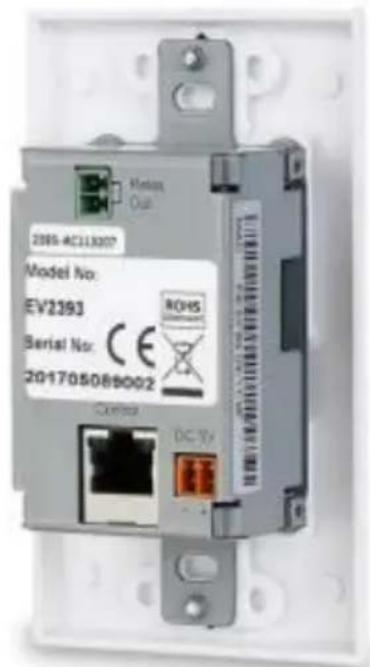
8-button Control based IP Keypad USER MANUAL
DISCLAIMER
The information in this manual has been carefully checked and is believed to be accurate. KanexPro assumes no responsibility for any infringements of patents or other rights of third parties which may result from its use.
KanexPro assumes no responsibility for any inaccuracies that may be contained in this document. KanexPro also makes no commitment to update or to keep current the information contained in this document.
KanexPro reserves the right to make improvements to this document and/or product at any time and without notice.
COPYRIGHT NOTICE
No part of this document may be reproduced, transmitted, transcribed, stored in a retrieval system, or any of its part translated into any language or computer file, in any form or by any means—electronic, mechanical, magnetic, optical, chemical, manual, or otherwise—without express written permission and consent from KanexPro.
© Copyright 2017 by KanexPro. All Rights
Reserved.
SAFETY PRECAUTIONS
Please read all instructions before attempting to unpack, install or operate this equipment and before connecting the power supply.
Please keep the following in mind as you unpack and install this equipment:
• Always follow basic safety precautions to reduce the risk of fire, electrical shock and injury to persons.
• To prevent fire or shock hazard, do not expose the unit to rain, moisture or install this product near water.
• Never spill liquid of any kind on or into this product.
- Never push an object of any kind into this product through any openings or empty slots in the unit, as you may damage parts inside the unit.
• Do not attach the power supply cabling to building surfaces.
- Use only the supplied power supply unit (PSU). Do not use the PSU if it is damaged.
- Do not allow anything to rest on the power cabling or allow any weight to be placed upon it or any person walk on it.
- To protect the unit from overheating, do not block any vents or openings in the unit housing that provide ventilation and allow for sufficient space for air to circulate around the unit.
REVISION HISTORY
| VERSION NO. | DATE (DD/MM/YY) | SUMMARY OF CHANGE |
| VS0 | 24/02/17 | First release |
CONTENTS
- INTRODUCTION....1
- APPLICATIONS....1
- PACKAGE CONTENTS......1
- SYSTEM REQUIREMENTS....2
- FEATURES....2
- OPERATION CONTROLS AND FUNCTIONS....3
6.1 Front Panel....3
6.2 Rear Panel 4
6.3 Telnet Commands....5
6.4 Telnet Control 8
6.5 WebGUI Control....10
6.5.1 Macro Settings....11
6.5.2 Extension Macro 14
6.5.3 Command Settings....14
6.5.4 Device Settings....16
6.5.5 Key Settings 16
6.5.6 Schedule....17
6.5.7 Network Settings 19
6.5.8 System Settings....19
6.5.9 Time Settings 20
- CONNECTION DIAGRAM....21
- SPECIFICATIONS....22
- ACRONYMS 24
10.Warranty 25
1. INTRODUCTION
This KanexPro WP-IPKEYPAD8 is an easy to use, programmable eight button multi-purpose key pad based over TCP/IP for controlling various audio-visual devices such as DVD players, projectors, relay bases screens and much more. These keypads can send commands to any Ethernet or relay trigger controlled device in your AV system. With up to 16 physical macro buttons and up to an additional 16 software based macro buttons (8 each on single-gang version). Pre-program and recall up to 32 (16 on the single gang) distinct macros delivering complete control over your audio and video application.
Powered over Ethernet & Colored LED's for
The soft and colorful LED buttons are suitable for all environments and PoE (Power over Ethernet) support allows for creative placement of the keypad within your space without needing to be concerned about keeping it near a live power source.
2. APPLICATIONS
• Classrooms & Conference centers
• Control Centers
• Product Showrooms
• Ballroom & hotel suites
3. PACKAGE CONTENTS
- 1×Control Keypad (US Double gang or Single gang)
• 1×USB Type A to USB Mini-B OTG Connector
• 1×Terminal Block Connector - 2×Button Sticker Sheets
• 1×5V/2.6A DC Power Adaptor
• 1×Operation Manual
4. SYSTEM REQUIREMENTS
- An active Internet connection from a switch or router for control of Ethernet devices.
- A PoE supporting network switch or hub is required to use the PoE power function, otherwise access to a local power outlet is needed.
5. FEATURES
• US Double or Single gang wall plate design with adjustable LED brightness
• 16 (8 on single gang) macros for controlling user equipment
- Up to 128 total commands can be stored and used across all macros in the system (up to 16 per macro)
• Supports relay triggers to control compatible devices
• Supports time and date macro scheduling (single and recurring)
• Supports 48 hours of backup power for the internal clock and schedule function to protect against blackouts and temporary power loss
• Supports customizable daylight savings time settings for scheduling
• Supports Keypad, Telnet and WebGUI control
• Supports PoE or DC power supply
- Multiple uses for home, hotel rooms, central control rooms, conference rooms, etc.
6. OPERATION CONTROLS AND FUNCTIONS
6.1 Front Panel
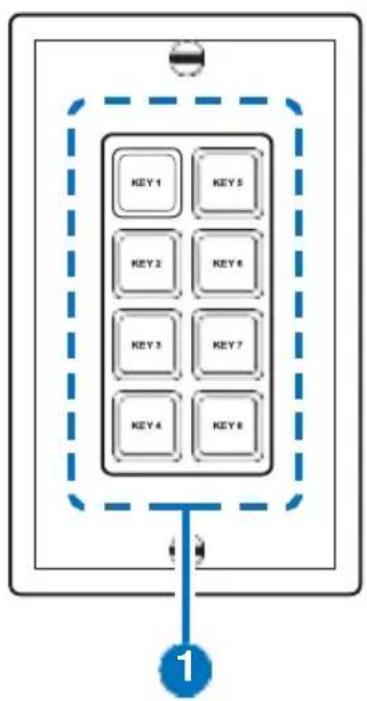
1 Macro Buttons: Each button contains 2 color LEDs (red and blue) with adjustable individual brightness levels from 0\~100. Each button can activate a customized macro. (For further detail on these settings please refer to section 6.5 "WebGUI Control".)
6.2 Rear Panel
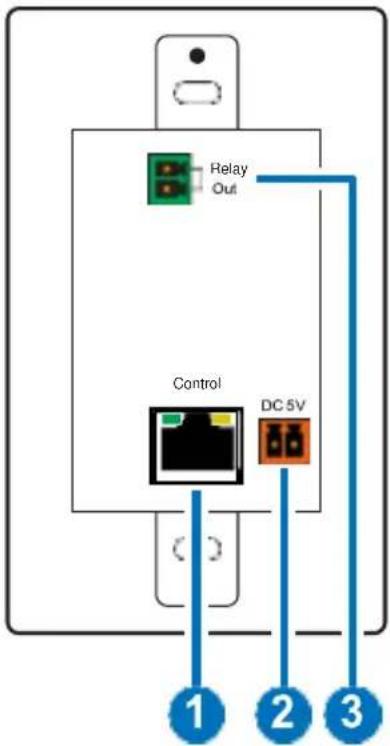
1 CONTROL: Connect to an active Ethernet network via a switch or router to allow it to control other devices on the network and to be accessed via Telnet/WebGUI. This unit has PoE (48V, PD) functionality which means it can be powered directly by a connected PoE (48V, PSE) switch/hub without the need for a power adapter.
2 DC 5V: Plug the 5V DC power adapter into this port and connect it to an AC wall outlet for power. (optional)
3 RELAY OUT: Connect to a device that supports DC 0\~24V/5A relay trigger functionality.
6.3 Telnet Commands
| COMMAND | DESCRIPTION |
| IPCONFIG | Display the current IP configuration. |
| SETIP N, N1, N2 | Set static Ethernet IP, netmask, and gateway addresses simultaneously.N=X.X.X.X (IP Address)N1=X.X.X.X (Netmask)N2=X.X.X.X (Gateway)X=0~255 |
| SIPADDR X.X.X.X | Set Ethernet IP address.X=0~255 |
| SNETMASK X.X.X.X | Set Ethernet netmask.X=0~255 |
| SGATEWAY X.X.X.X | Set Ethernet gateway.X=0~255 |
| SIPMODE N | Set Ethernet IP mode.N=STATIC, DHCP |
| VER | Show unit's firmware version. |
| FADEFAULT | Set all configurations to factory defaults. |
| ETH_FADEFAULT | Reset all Ethernet settings to the factory defaults. |
| REBOOT | System reboot. |
| HELP (?) | Show command list. |
| HELP N | Show description of command.N={Command Name} |
| RELAY N N1 | Relay control.N=1 (Port)N1=OPEN, CLOSE, TOGGLE |
| LEDBLUE N N1 | Individual blue LED brightness control.N=1~16 (LED Number)N1=0~100 (%) |
| LEDRED N N1 | Individual red LED brightness control.N=1~16 (LED Number)N1=0~100 (%) |
| LEDBLUES N | Set the brightness of all blue LEDs.N=0~100 (%) |
| LEDREDS N | Set the brightness of all red LEDs.N=0~100 (%) |
| LEDSHOW N | LED demo mode control.N=ON, OFF, TOGGLE |
| BACKLIGHT N | Set the brightness of all LEDs.N=0~100 (%) |
| KEY_PRESS N RELEASE | Set key press macro activation method to "Release". (Macro activates a single time upon key release.)N=1~16 (Key Number) |
| KEY_PRESS N HOLD | Set key press macro activation method to "Hold". (Macro activates when key is pressed. Macro will repeat if the key is held down.)N=1~16 (Key Number) |
| MACRO RUN N | Run the specified macro.N=1~32 (Macro ID) |
| MACRO STOP | Stop all currently running macros. |
| MACRO STOP N | Stop the specified macro.N=1~32 (Macro ID) |
| DEVICE ADD N N1 N2 N3 | Add Telnet device definition to slot N.N=1~16 (Device Slot Number)N1=X.X.X.X (IP Address, X=0~255)N2=0~65535 (Port)N3={Name} (Up to 24 characters, no spaces) |
| DEVICE DELETE N | Delete Telnet device definition in slot N.N=1~16 (Device Slot Number) |
| DEVICE N N1 | Enable/Disable defined Telnet device.N=ENABLE, DISABLEN1=1~16 (Device Slot Number) |
Note: Commands will not be executed unless followed by a carriage return. Commands are not case-sensitive.
6.4 Telnet Control
Before attempting to use Telnet control, please ensure that both the unit and the PC/Laptop are connected to the same active networks.
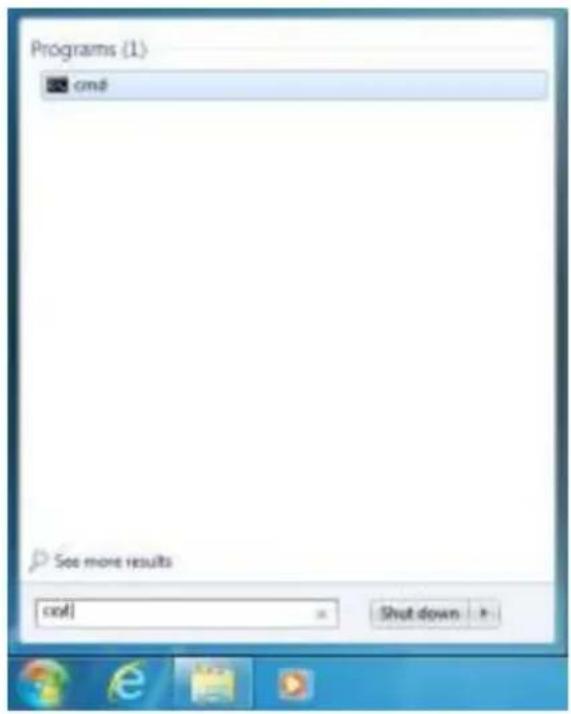
To access Telnet in Windows 7, click on the "Start" menu and type "cmd" in the search field, then press "Enter". Under Windows XP go to the "Start" menu, click on "Run", type "cmd" then press "Enter". Under Mac OS X, go to "Go→Applications→Utilities→Terminal". See below for reference.
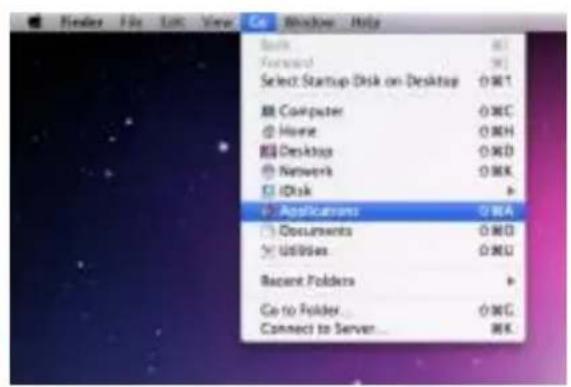
Once in the CLI (Command Line Interface) type "Telnet" followed by the IP address of the unit and "23", then hit "Enter".
Microsoft Windows [Version 6.1.7601]
Copyright (c) 2009 Microsoft Corporation. All rights reserved.
C:\Users\Administrator>telnet 192.168.5.80 23
This will connect us to the unit we wish to control. Type "help" to list the available commands.
HELP : SHOW DESCRIPT OF COMMAND
USE <HELP N, N-COMMAND NAME> TO SHOW DESCRIPT OF COMMAND
7 : SHOW DESCRIPT OF COMMAND
USE <? N, N-COMMAND NAME> TO SHOW DESCRIPT OF COMMAND
IPCONFIG : DISPLAY THE CURRENT IPCONFIG
SETIP : SET ETHERNET IP, NETMASK AND GATEWAY ADDRESS
SIPADDR : SET ETHERNET IP ADDRESS
SMETMASK : SET ETHERNET NETMASK
SGATEWAY : SET ETHERNET GATEWAY
SIPMODE : SET ETHERNET IP MODE
UER : SHOW UNIT FIRMWARE VERSION
FADEFAULT : ALL CONFIGURE SET TO FACTORY DEFAULT
ETH_FADEFAULT : ALL ETHERNET CONFIGURE SET TO FACTORY DEFAULT
REBOOT : SYSTEM REBOOT
LEDBLUES : ALL BLUE LED BACKLIGHT CONTROL
LEDREDS : ALL RED LED BACKLIGHT CONTROL
LEDBLUE : LED BLUE BACKLIGHT CONTROL
LEDRED : LED RED BACKLIGHT CONTROL
RELAY : RELAY CONTROL
KEY_PRESS : KEY PRESS TRIGGER TYPE
MACRO : MACRO CONTROL
BACKLIGHT : ALL LED BACKLIGHT CONTROL
LEDSHOW : LED DIMMING MODE CONTROL
TELNET_TIMEOUT : SET TELNET TIME OUT ON/OFF
DEVICE : Device setting
Note:
- Commands will not be executed unless followed by a carriage return. Commands are not case-sensitive.
- If the IP address is changed then the IP address required for Telnet access will also change accordingly.
6.5 WebGUI Control
• Install the Device Discovery Tool
Please obtain the Device Discovery software from your authorized dealer and save it in a directory where you can easily find it. Connect the unit and your PC/Laptop to the same active network and execute the Device Discovery software. Click on "Find Devices on Network" and a list of devices connected to the local network will show up indicating their current IP address.
Note: The unit's default IP address is 192.168.1.50
| Find Devices on Network | ||||
| Product Name | Description | IP Address | MAC Address | |
By clicking on one of the listed devices you will be presented with the network details of that particular device. If you choose, you can alter the static IP network settings for the device, or switch the unit into DHCP mode to automatically obtain proper network settings from a local DHCP server. To switch to DHCP mode, please select DHCP from the IP mode drop-down, then click “Save” followed by “Reboot”.

Once you are satisfied with the network settings, you may use them to connect via Telnet or WebGUI. The network information window provides a convenient link to launch the WebGUI directly.
- Login to the WebGUI
Open a web browser on a PC/Laptop that is connected to an active network and type the device's IP address into the web address entry bar. The login screen will appear and ask for a Username and Password. The default username and password is "admin". Please enter the information and then click "Submit" to log in.
Note: The unit's default IP address is 192.168.1.50
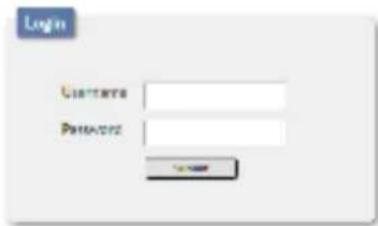
On the left side of the browser you will see the following menu tabs: Macro Settings, Extension Macro, Command Settings, Device Settings, Key Settings, Schedule, Network Settings, System Settings and Time Settings to allow the user to configure the unit to their needs.
6.5.1 Macro Settings
Click on the “Macro Settings” tab to execute/edit the settings for the physical macro buttons. These macros can be executed by pressing the physical buttons on the keypad as well as via the WebGUI or Telnet.
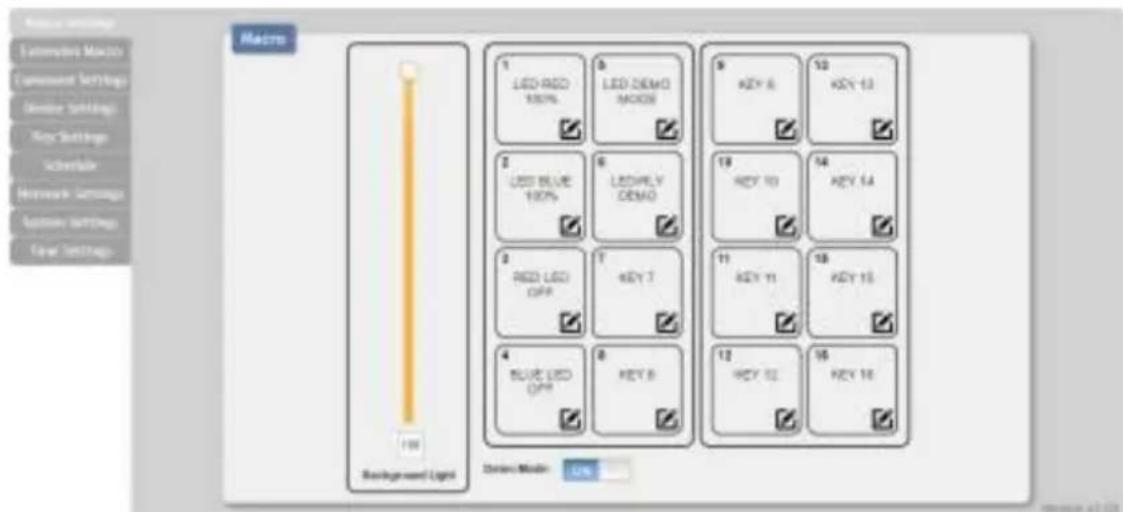
There are 6 macros defined by default for testing the Wall Plate Control System's functionality. Click on macros 1\~6 to demonstrate various LED light commands.
KanexPro
WP-IPKEYPAD8D
(1) Macro 1: Sequentially light all red LEDs on the keypad with 100% brightness and a delay of 500ms between commands
(2) Macro 2: Sequentially light all blue LEDs on the keypad with 100% brightness and a delay of 500ms between commands
(3) Macro 3: Switch off all red LEDs (set brightness to 0%)
(4) Macro 4: Switch off all blue LEDs (set brightness to 0%)
(5) Macro 5: LED demo mode toggle (switch on/off Demo Mode)
(6) Macro 6: Light the blue LEDs with 10% brightness → set all blue LEDs to 0% brightness → close then open Relay 1 with a delay of 1000ms between commands
Note: LED Demo Mode is on by default. To disable Demo Mode please click the switch at the bottom of this WebGUI tab.
The "Background Light" slider allows the user to adjust the overall brightness of the keypad's LEDs.
Click on the icon to edit each button's macro.
At the top of the Macro edit window is a text field where you can edit the name of the macro. Type your new macro name into the box and then click the icon to save it.
Within the edit window the up/down arrows will change the command's execution order. The icon allows you to edit the delay and interface for the command. The icon will delete the command.
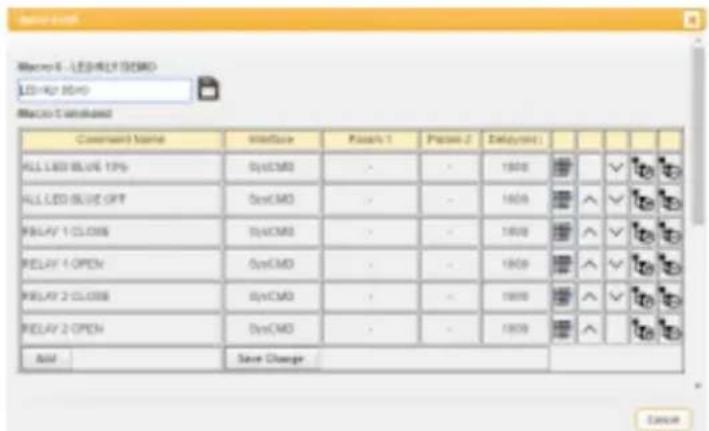
Click on the icon to insert a new command before the current one. Select one of the pre-defined commands from the list. (Details on how to create these pre-defined commands are listed later in this section.
| LED LED 1 (40%) | LED LED 5 (60%) | LED LED 2 (30%) | HDHD | HDDH | HDDH | HDHD |
| LED LED 2 (60%) | LED LED 4 (60%) | HDHD | HDHD | HDHD | HDHD | HDHD |
| LED LED 2 (80%) | LED LED 7 (80%) | HDHD | HDHD | HDHD | HDHD | HDHD |
| LED LED 4 (90%) | LED LED 9 (90%) | HDHD | HDHD | HDHD | HDHD | HDHD |
| LED LED 5 (100%) | LED LED 9 (100%) | HDHD | HDHD | HDHD | HDHD | HDHD |
| LED LED 6 (100%) | LED LED 10 (100%) | HDHD | HDHD | HDHD | HDHD | HDHD |
| LED LED 7 (100%) | LED LED 11 (100%) | HDHD | HDHD | HDHD | HDHD | HDHD |
| LED LED 8 (100%) | LED LED 12 (100%) | HDHD | HDHD | HDHD | HDHD | HDHD |
| LED LED 9 (100%) | LED LED 13 (100%) | HDHD | HDHD | HDHD | HDHD | HDHD |
| LED LED 10 (100%) | LED LED 14 (100%) | HDHD | HDHD | HDHD | HDHD | HDHD |
| LED LED 11 (100%) | LED LED 15 (100%) | HDHD | HDHD | HDHD | HOOD | HOOD |
| LED LED 12 (100%) | ALL LED LED IPT | HDHD | HOOD | HOOD | HOOD | HOOD |
| LED LED 13 (100%) | ALL LED LED IPT | HDHD | HOOD | HOOD | HOOD | HOOD |
| LED LED 14 (100%) | ALL LED LED NOOD TEODLE | HOOD | HOOD | HOOD | HOOD | HOOD |
| LED LED 15 (100%) | ALL LED LED VIP | HOOD | HOOD | HOOD | HOOD | |
| LED LED 16 (100%) | ALL LED LED IPT | HOOD | HOOD | HOOD | HOOD | |
| LED LED 2 (100%) | RELAV 7 (LONE) | HOOD | HOOD | HOOD | HOOD | |
| LED LED 2 (100%) | RELAV 7 (OPEN) | HOOD | HOOD | HOOD | HOOD | |
| LED LED 4 (100%) | RELAV 7 (LONE)F | HOOD | HOOD | HOOD | HOOD |
After selecting a command, you will need to choose the delay and interface for the command.

The “Delay(ms)” setting is the length of time to wait before sending the next command and is set in milliseconds. The interface for sending commands can be set to the keypad itself (SysCMD), to pre-defined Ethernet devices (Device), to a specified IP address (TELNET) or to trigger the relay port (Relay). Click on “Save Change” to confirm the settings.
Sending commands to devices on the local network, or across the Internet requires the IP address and network port number of the destination device. Once the destination information is complete please click on "Save Changes".
Note: It is strongly suggested to not set a delay time less than 100ms for system commands or less than 500ms for Telnet commands to ensure that the command is properly received and executed before the next command is sent.
When you have finished editing the macro click on "Save Change".
6.5.2 Extension Macro
Click on the "Extension Macro" tab to execute/edit the additional software-only macro buttons. These macros can only be executed via the WebGUI or Telnet. Macro editing in this tab is identical to editing the prior tab's macros.

6.5.3 Command Settings
Click on the “Command Settings” tab to create, edit or delete commands. The number of commands that can be stored in the keypad is limited by memory. It is generally recommended that commands be under 128 characters long (including spaces).
However, if longer commands are needed there is limited support for commands up to 512 characters long. In this case, the number of (up to) 512 character commands is limited to 32 and the remaining 96 commands must be under 128 characters. Click on “Save Change” to save the command.

Note: If you are creating commands to control the relay trigger
6.5.4 Device Settings
Click on the "Device Settings" tab to enable/disable or add/remove common network connected devices. Up to 16 devices can be defined for easy use with commands. The name of each device can be up to 24 characters long (spaces are not allowed). A valid IP address and network port are required for each device. These settings are directly linked to any associated macro commands. Click on "Save Change" to save the device.

6.5.5 Key Settings
Click on the "Key Settings" tab to enable/disable the "Repeat" and "Toggle" modes associated with each of the macro buttons. Enabling Repeat Key mode will cause the button's macro to be executed repeatedly if the button is being held down. Enabling Toggle Key mode will link the two listed macros together and allow them
to be toggled back and forth each time the associated button is pressed.
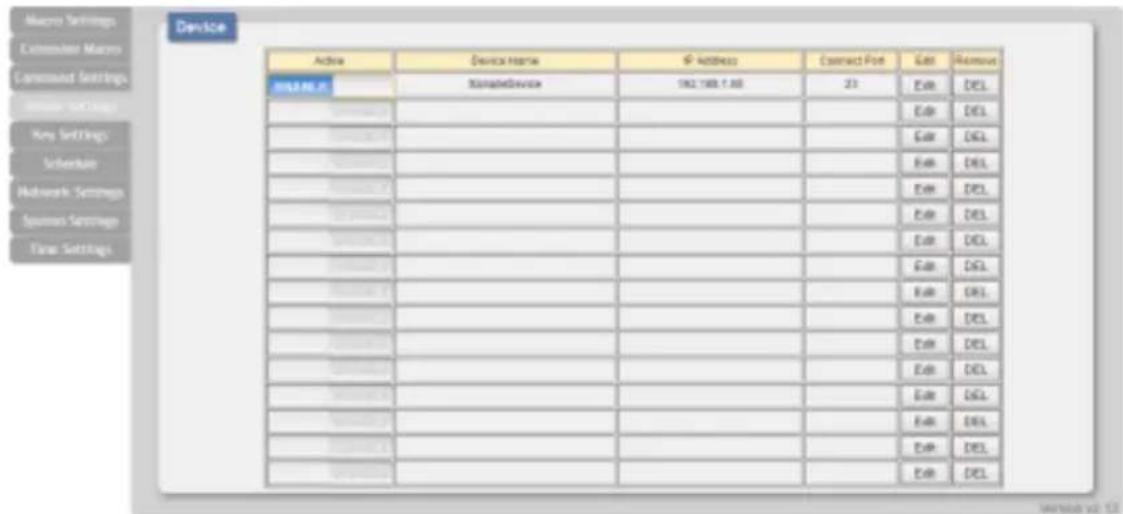
6.5.6 Device Settings
Click on the "Device Settings" tab to enable/disable or add/remove common network connected devices. Up to 16 devices can be defined for easy use with commands. The name of each device can be up to 24 characters long (spaces are not allowed). A valid IP address and network port are required for each device. These settings are directly linked to any associated macro commands. Click on "Save Change" to save the device.

6.5.7 Key Settings
Click on the "Key Settings" tab to enable/disable the "Repeat" and "Toggle" modes associated with each of the macro buttons. Enabling Repeat Key mode will cause the button's macro to be executed repeatedly if the button is being held down. Enabling Toggle Key mode will link the two listed macros together and allow them to be toggled back and forth each time the associated button is pressed.

Note: These functions only work for macros associated with physical buttons on the keypad.
6.5.8 Schedule
Click on the “Schedule” tab to control the built-in scheduling features of the keypad. You can set macro events to repeat on a regular daily/weekly schedule or configure a one-time event. Events can be edited and deleted from the main tab. The system can store up to 32 repeating events and up to 8 one-time events.
| Active | Time(s) | Date | Hour | Minute | Second | Macro | Edit | Order |
| v | 94 | 29 | 08 | 96 | 81 | LEED/FLY DEMO | Edit | Remove |
| 94 | 80 | 08 | 96 | 90 | Edit | Remove | ||
| 98 | 90 | 08 | 96 | 90 | Edit | Remove | ||
| 96 | 90 | 08 | 96 | 80 | Edit | Remove | ||
| 98 | 90 | 08 | 96 | 80 | Edit | Remove | ||
| 96 | 80 | 08 | 96 | 90 | Edit | Remove |
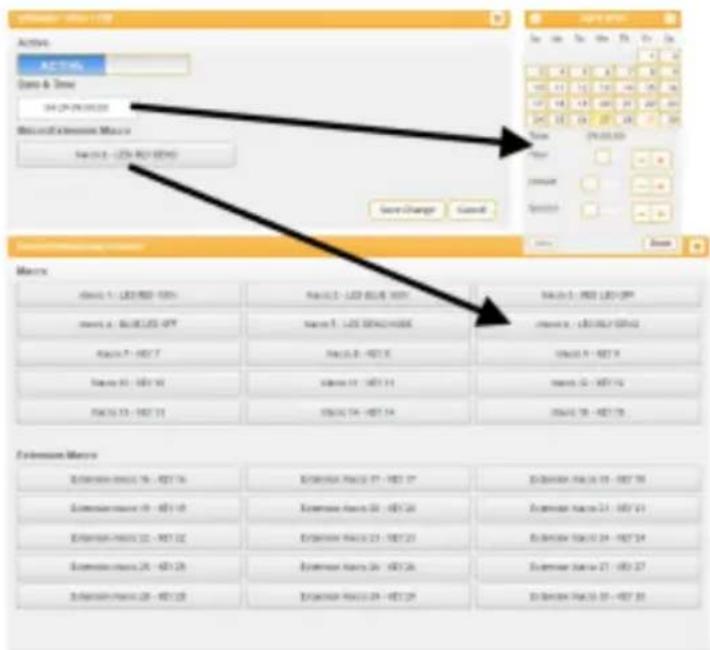
To set up a repeating event click on "Edit" from the "Repeat" section of the page. Now select the macro to be run and which days of the week and at what time you would like it to run each of those days. You can now set the event as "Active". Click on "Save Change" to save the changes to the event.
![Macro A/C Map Mode: □ Copy ● All Item ○ All Item ● All Item ● All Item ○ All Item Time 12 March Macrofunctions/Macro Macro 1 - [0] (0) (0) Layer Options Cancel Macro Macro 1 - [0] (0) (0) Macro 4 - [0] (0) (0) Macro 7 - [0] (0) Macro 9 - [0] (0) Macro 11 - [0] (0) Macro 13 - [0] (0) Macro 15 - [0] (0) Macro 17 - [0] (0) Macro 19 - [0] (0) Macro 21 - [0] (0) Macro 23 - [0] (0) Macro 25 - [0] (0) Macro 27 - [0] (0) Macro 29 - [0] (0) Macro 31 - [0] (0) Macro 33 - [0] (0) Macro 35 - [0] (0) Macro 37 - [0] (0) Macro 39 - [0] (0) Macro 41 - [0] (0) Macro 43 - [0] (0) Macro 45 - [0] (0) Macro 47 - [0] (0) Macro 49 - [0] (0) Macro 51 - [0] (0) Macro 53 - [0] (0) Macro 55 - [0] (0) Macro 57 - [0] (0) Macro 59 - [0] (0) Macro 61 - [0] (0) Macro 63 - [0] (0) Macro 65 - [0] (0) Macro 67 - [0] (0) Macro 69 - [0] (0) Macro 71 - [0] (0) Macro 73 - [0] (0) Macro 75 - [0] (0) Macro 77 - [0] (0) Macro 79 - [0] (0) Macro 81 - [0] (0) Macro 83 - [0] (0) Macro 85 - [0] (0) Macro 87 - [0] (0) Macro 89 - [0] (0) Macro 91 - [0] (0) Macro 93 - [0] (0) Macro 95 - [0] (0) Macro 97 - [0] (0) Macro 99 - [0] (0)](/content/2026/06/1189184/images/3af03384721bce1fe8005ac3d8e47e55a7dd872264efaa3dee524f82b88ee0d4.jpg)
To set up a one-time event click on "Edit" from the "Once" section of the page. Now select the macro to be run and which date and time you would like for it to run on. You can now set the event as "Active". Click on "Save Change" to save the changes to the event.
Note: This unit has 48 hours of backup power for the internal clock to protect against power loss and blackouts. After the backup power is exhausted the system time will reset back to 2015/01/01 00:00:00.
6.5.9 Network Settings
Click on the “Network Settings” tab to change the network settings for the keypad. You can manually set the IP address, netmask and gateway address in “Static IP” mode, or you can obtain an IP address automatically by enabling DHCP.

6.5.10 System Settings
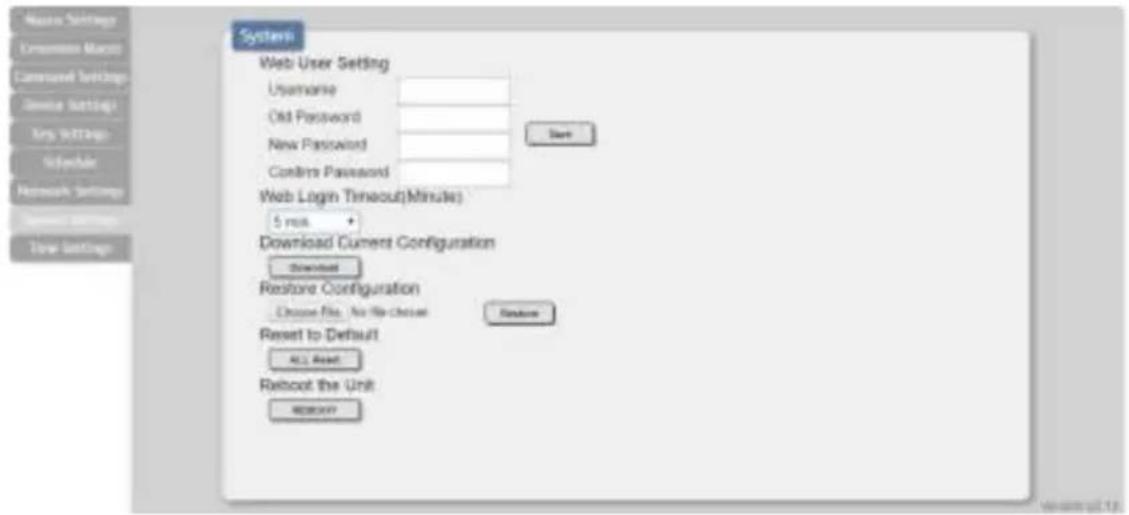
Click on the “System Settings” tab to make changes to various system settings. From this tab you can change the WebGUI login password and web connection timeout settings. You may also save the full system configuration, including all macros, to your connected PC/Laptop or restore them from a previously saved configuration. Finally, this tab provides buttons to reset the unit to factory defaults and to reboot the keypad.
6.5.11 Time Settings
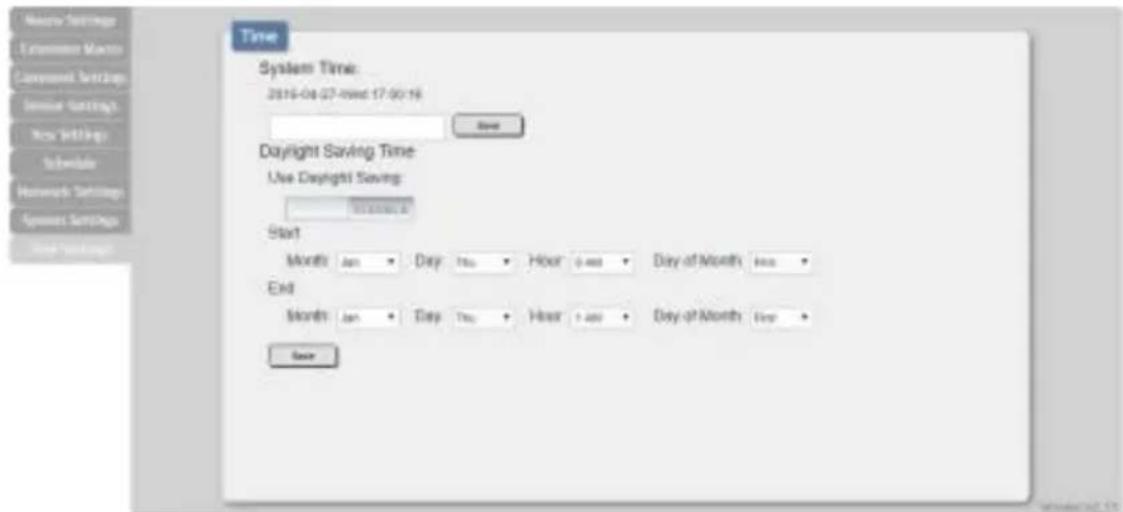
Click on the "Time Settings" tab to set the system time and to enable/disable the Daylight-Saving Time(DST) function. If your country uses Daylight Savings Time you can configure the start and end times/dates here so that your scheduled events will always occur at the correct times throughout the year.
7. CONNECTION DIAGRAM
Powered Projector Screen
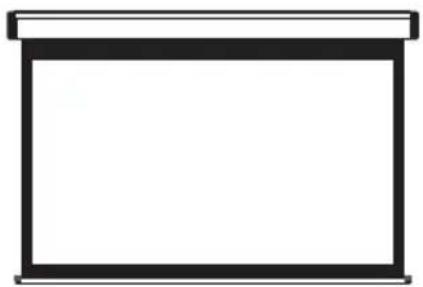
natural_image
Simple line drawing of a rectangular frame with no text or symbolsRelay Output
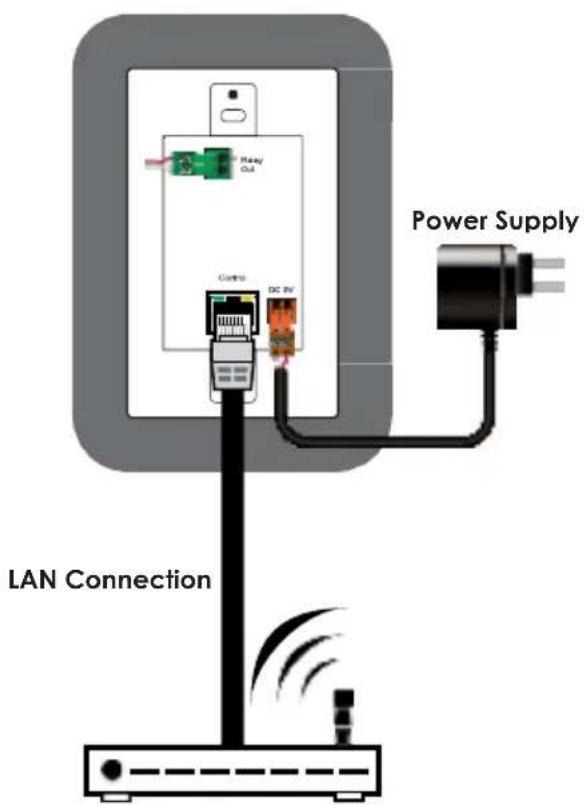
Router
8. SPECIFICATIONS
US Single Gang Version
| Input Ports | 8×Buttons, 1×IP Control (RJ45) |
| Output Port | 1×Relay (2-pin Terminal Block) |
| Power Supply | 5V/2.6A DC (US/EU standards, CE/FCC/UL certified) |
| ESD Protection | Human Body Model: ±12kV (Air Discharge) ±8kV (Contact Discharge) |
| Dimensions | 69.9mm×114.3mm×35.5mm (W×H×D) [Case Only] 69.9mm×114.3mm×38mm (W×H×D) [All Inclusive] |
| Weight | 150g |
| Chassis Material | Plastic, Metal |
| Silkscreen Color | White |
| Operating Temperature | 0°C - 40°C/32°F - 104°F |
| Storage Temperature | -20°C - 60°C/-4°F - 140°F |
| Relative Humidity | 20 - 90% RH (Non-condensing) |
| Power Consumption | 3.3W |
9. ACRONYMS
| ACRONYM | COMPLETE TERM |
| CLI | Command Line Interface |
| GUI | Graphical User Interface |
| IP | Internet Protocol |
| LAN | Local Area Network |
| PoE | Power over Ethernet |
| USB | Universal Serial Bus |
10. Warranty
A. LIMITED WARRANTY
KanexPro ^™ warrants that (a) its products (the “Product”) will perform greatly in agreement with the accompanying written materials for a period of 36 months (3 full year) from the date of receipt and (b) that the product will be free from defects in materials and workmanship under normal use and service for a period of 3 years.
B. CUSTOMER REMEDIES
KanexPro entire liability and Customer's exclusive remedy shall be, at KanexPro option, either return of the price paid for the product, or repair or replacement of the Product that does not meet this Limited Warranty and which is returned to KanexPro with a copy of customers' receipt. This Limited Warranty is void if failure of the Product has resulted from accident, abuse, or misapplication. Any replacement Product will be warranted for the remainder of the original warranty period of 1 year, whichever is longer.
C. NO OTHER WARRANTIES
To the maximum extent permitted by applicable law, KanexPro disclaims all other warranties, either express or implied, including, but not limited to implied warranties of merchantability and fitness for a particular purpose, with regard to the product and any related written materials. This limited warranty gives customers specific legal rights. Customers may have other rights depending on the jurisdiction.
D. NO LIABILITY FOR DAMAGES
To the maximum extent permitted by applicable law, in no event shall KanexPro be liable for any damages whatsoever (including without limitation, special, incidental, consequential, or indirect damages for personal injury, loss of business profits, business interruption, loss of business information, or any other pecuniary loss) arising out of the use of or inability to use this product, even if KanexPro has been advised of the possibility of such damages.
KanexPro™
Brea, California
KanexPro.com
- 8-button Control based IP Keypad USER MANUAL
- DISCLAIMER
- COPYRIGHT NOTICE
- SAFETY PRECAUTIONS
- CONTENTS
- INTRODUCTION
- APPLICATIONS
- PACKAGE CONTENTS
- SYSTEM REQUIREMENTS
- FEATURES
- OPERATION CONTROLS AND FUNCTIONS
- Front Panel
- Rear Panel
- Telnet Commands
- Telnet Control
- Note:
- WebGUI Control
- • Install the Device Discovery Tool
- - Login to the WebGUI
- Macro Settings
- KanexPro
- WP-IPKEYPAD8D
- Extension Macro
- Command Settings
- Device Settings
- Key Settings
- Device Settings
- Key Settings
- Schedule
- Network Settings
- System Settings
- Time Settings
- CONNECTION DIAGRAM
- SPECIFICATIONS
- ACRONYMS
- Warranty
- LIMITED WARRANTY
- CUSTOMER REMEDIES
- NO OTHER WARRANTIES
- NO LIABILITY FOR DAMAGES
- KanexPro™
Brand : KanexPro
Model : WP-IPKEYPAD8
Category : Home Automation