
8303215 - Computing Raspberry Pi - Free user manual and instructions
Find the device manual for free 8303215 Raspberry Pi in PDF.


| Product Type | Single-board computer |
| Brand | Raspberry Pi |
| Model | 8303215 |
| Processor | Quad-core ARM Cortex-A72 (1.5 GHz) |
| RAM | 4 GB LPDDR4 |
| Storage | microSD card slot |
| Connectivity | Gigabit Ethernet, Wi-Fi 802.11ac, Bluetooth 5.0 |
| Video Output | 2× micro HDMI (4K support) |
| USB Ports | 2× USB 3.0, 2× USB 2.0 |
| GPIO | 40-pin header |
| Power Supply | 5V/3A via USB-C |
| Dimensions | 85 mm × 56 mm |
| Weight | 46 g |
| Operating System | Raspberry Pi OS, Linux, Windows IoT Core |
| Main Functions | Computing, programming, media center, IoT projects |
| Maintenance | Keep clean and dry; avoid dust and moisture |
| Safety | Low voltage device; use certified power supply |
| Spare Parts & Repairability | Non-user-replaceable components; accessories available |
| Included Accessories | None (board only) |
Frequently Asked Questions - 8303215 Raspberry Pi
User questions about 8303215 Raspberry Pi
0 question about this device. Answer the ones you know or ask your own.
Ask a new question about this device
Download the instructions for your Computing in PDF format for free! Find your manual 8303215 - Raspberry Pi and take your electronic device back in hand. On this page are published all the documents necessary for the use of your device. 8303215 by Raspberry Pi.
USER MANUAL 8303215 Raspberry Pi
Cellular RasPi - Internet and Remote Connections on the Raspberry Pi

Posted by SparqEE on Tue, Jul 07 2015
INTERNET OPEN
There are many ways to provide internet to your Raspberry Pi so you may browse the internet or enable remote applications. Depending on your application requirements, different methods exist that must be evaluated in order to determine the correct one for you.
Here's a short list of the most common methods of enabling internet on the Raspberry Pi:
| Method | Advantages | Disadvantages | Examples |
| Ethernet | -Free-Fast data rates, piggy-back on existing home/office service-DHCP is enabled by default | -Requires a physical wired connection | -RasPi Laptop-RasPi Home Video Monitor-RasPi phone |
| WiFi | -Free-Fast data rates, piggy-back onexistinghome/officeservice-Fairly easy setup | -Requires a local connection | -Same as Ethernet, but wireless-Home/Officeremote dooropener,thermostat,monitoring |
| Cellular | -Cellular towersare everywhere inthe populatedworld | -Additional servicefees | -Internetenabled RasPi,everywhere-Remote dooropener,thermostat,monitoring |
| Satellite | -Satellite isavailableeverywhere thereis a clear view ofthe sky | -Costly service-Slower data rates-Higher powerrequired | -Wildernesssensor-Wildernesstracking |
| Bluetooth | -Piggy-back cellphone service-Local connectionto home/officecomputer | -Additional costsfor tethering-No simplemethods orhardware to get itonline otherwise | -Tether sensorsthrough yourphone's internet |
Ethernet: Ethernet is the go-to resource for testing code and developing as it does not require any additional cost, is very simple to setup, and is the oldest form of internet communication available to the Raspberry Pi. Simply plug in your cable and Ethernet internet connectivity should be enabled by the RasPi's DHCP client by default.
The majority of contemporary and IoT applications require remote or wireless connectivity and usage where Ethernet itself is a burden or simply unacceptable to require the routing of a physical cable. So, can we start with Ethernet, test all those components we can test outside of the final network, then we move on to integrating the final network connection component.
WiFi: Some WiFi development boards and shields have started to come out that offer easy connections to your home and office WiFi routers. These connections, if made easily accessible enough, can directly replace Ethernet connections with the same home networking equipment but without wires.
Wireless connections, especially when used with wireless extenders, can enable a variety of applications that wires would be unacceptable to be used. For example, wirelessly enable a garage door opener, a front door locking mechanism, alarm monitoring, video surveillance, or a thermostat for those cold days when you want a warm home to come home to.
Cellular: Cellular service has made strides in recent history with respect to the ease of use in development modules as well as available SIM cards. My company, SparqEE, makes a cellular kit called the CELLv1.0, pictured with everything you need to get online using cellular service, no matter where you live in the world. It's a world compatible chipset that works on both 2G or 3G services, whichever is available.
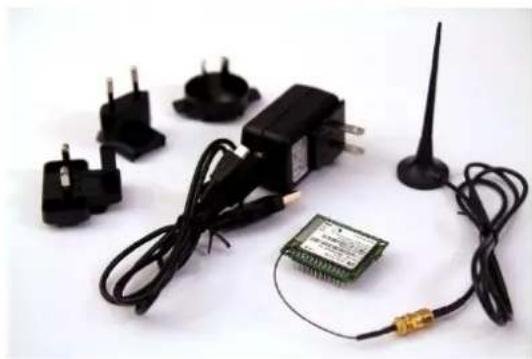
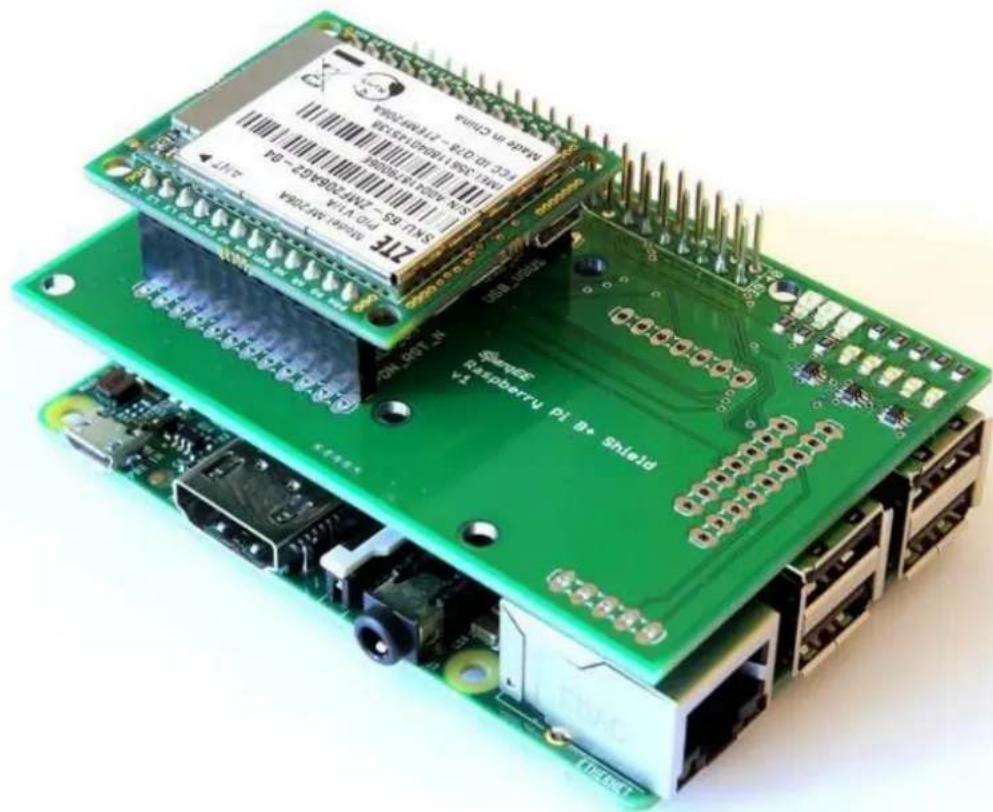
The CELLv1.0 works stand-alone, using breadboards or jumper wires, or through the use of our shields which allow it to directly connect to your Raspberry Pi or Arduino development boards as shown below for the Raspberry Pi B+ or 2. Visit our website at www.SparqEE.com for further information or RS Components to pick one up.
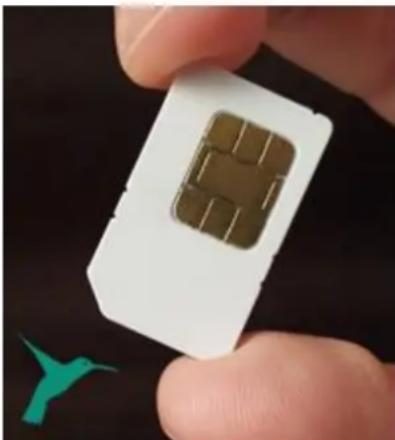
Cellular service is another challenge. Within cellular service there are two main trade-offs to consider given your application. If you're using lots of data, for video or voice for example, you'll want to look at a higher rate plan (1GB+) which are offered by individual providers and are location specific - for example AT&T or T-Mobile in the US. If you're using smaller amounts of data (<100MB), there exists SIM cards that are reasonably priced and can operate anywhere in the world coming in at a lower cost than those direct from a provider. Although certain countries may charge slightly more money per MB, these worldwide SIMs are becoming more popular.
A Note on Cellular Technology and the Service
CDMA and GSM are the two main cellular technologies that currently exist throughout the world and are currently broken down into three main speed categories or "Generations" of technology - 2G, 3G, and 4G.
In the United States, CDMA is provided through Verizon and Sprint whereas GSM technology is used by AT&T and T-Mobile. Although CDMA or rather Verizon and Sprint are household names in the United States, GSM is the most common technology throughout the world taking about 80-85% of the market.
2G is the oldest of the wireless standard speeds and also the slowest. Even so, 2G is available in developing countries that are behind the times in adopting newer technologies. The majority of the world has either 2G or 3G services whereas 4G service has only recently gained popularity and begun to be implemented.
The SparqEE CELLv1.0 provides 2G and 3G GSM services as to be compatible with the majority of the world. This device targets applications that can work anywhere in the world as it uses enables a range of frequencies to be compatible everywhere. All that is needed is a worldwide SIM that would provide lower data rates or a specific region's SIM that would allow a higher data rate.
Satellite: Satellite is still slightly out of reach for most applications. The additional power requirements and costs required to implement a satellite solution and the lack of development tools available to utilize those modules are very limited and expensive thus putting them out of reach. However, there are still certain applications that require satellite coverage, for example, wilderness tracking or sensory input in remote areas.
Bluetooth: The most common methodology to get internet through a Bluetooth connection is through tethering. Tethering provides an automatic methodology for forwarding data through a Bluetooth link to an internet network connection. Historically, tethering has been quite controversial to be used through cellular phones as cell phone companies disallow the functionality to be included with standard plans but rather charge additional fees for tethering.
Therefore, the use of Bluetooth through tethering has waned in popularity and opportunity for Bluetooth to bring unadulterated internet to external devices like the Raspberry Pi.
![graph TD A["Your Device + CELLv1.0"] --> B["Free Servers"] B --> C["Smartphone"] D["Handheld with PC"] --> B E["Cloud with Sipenz"] --> B F["Mobile with T dish"] --> C](/content/2026/06/1189165/images/b922917d6b8d5a56f6a464847e9fbaa72770039eb83beaa5d346f44fb186e8b3.jpg)
Getting Internet on the RasPi (Example uses the SparqEE CELLv1.0):
Getting internet through a cellular connection on the Raspberry Pi is a piece of cake. With the CELLv1.0, a SIM (such as the SparqSIM), and the adapter shield connected similarly to the above images, the below code will setup a PPP connection and provide an IP to allow you to start surfing the internet. That's it.
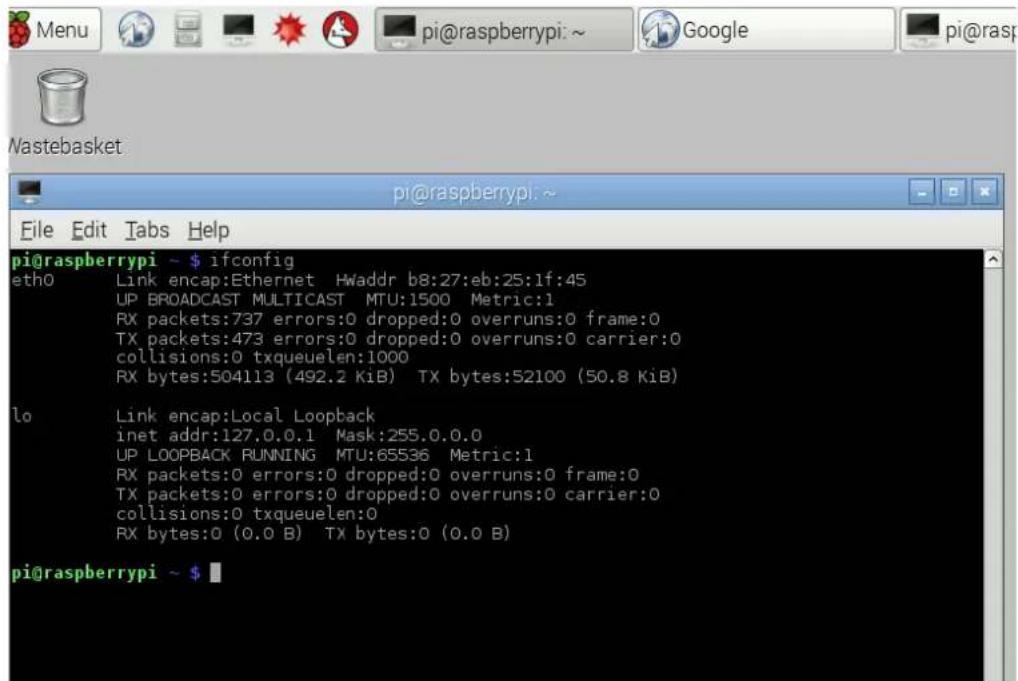
Using 'ifconfig' - Without Any Networking Attached:
Before any network is attached to the Raspberry Pi, the command 'ifconfig' will bring back something like the following image displays. There is an eth0 (ethernet) interface and lo (loopback), but the ethernet interface does not have an associated IP address since no ethernet cable is connected.
Using 'ifconfig' - CELLv1.0 Internet Enabled:
Once the CELLv1.0 is attached with the appropriate shield, the sakis3g script, shown below, is a quick way to bypass having to use lower level commands and intense configurations. The sakis3g command can be used without a UI to create a ppp connection (noted as ppp0 below), thus providing an IP address to the Raspberry Pi as shown below, and noted in detail on the CELLv1.0 product page within the SparqEE website.
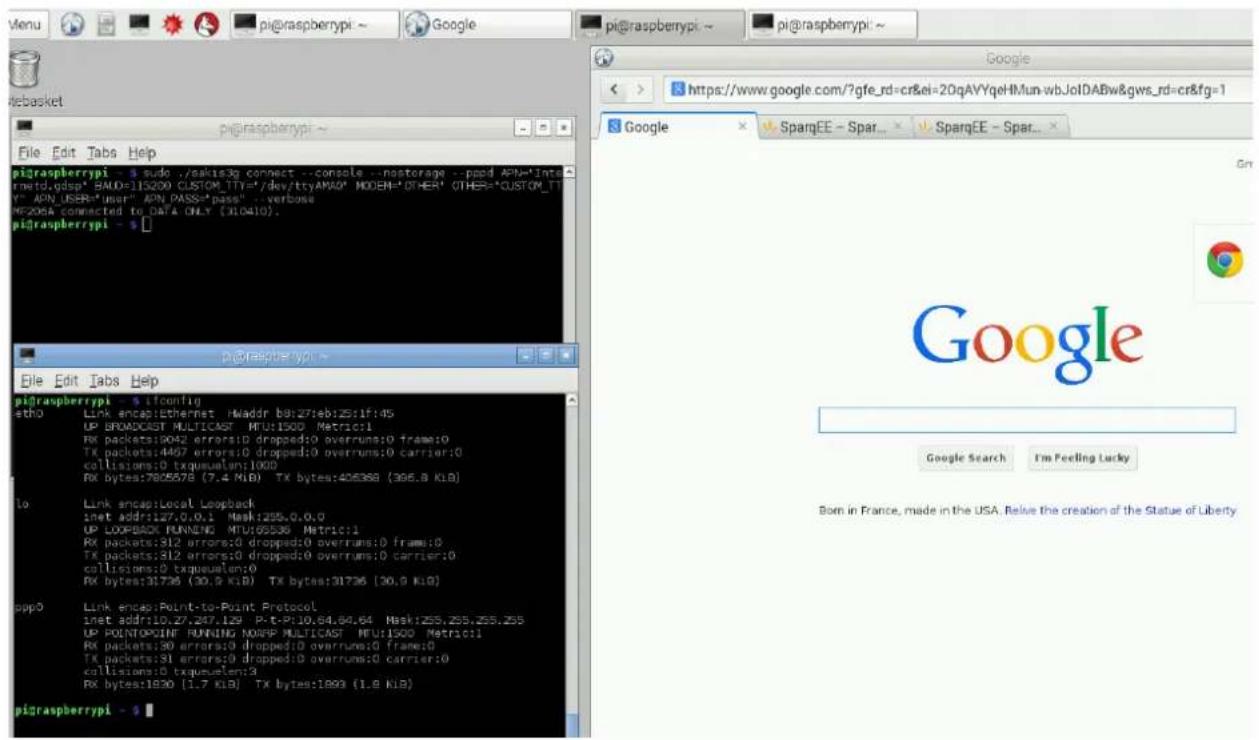
Zoomed in:
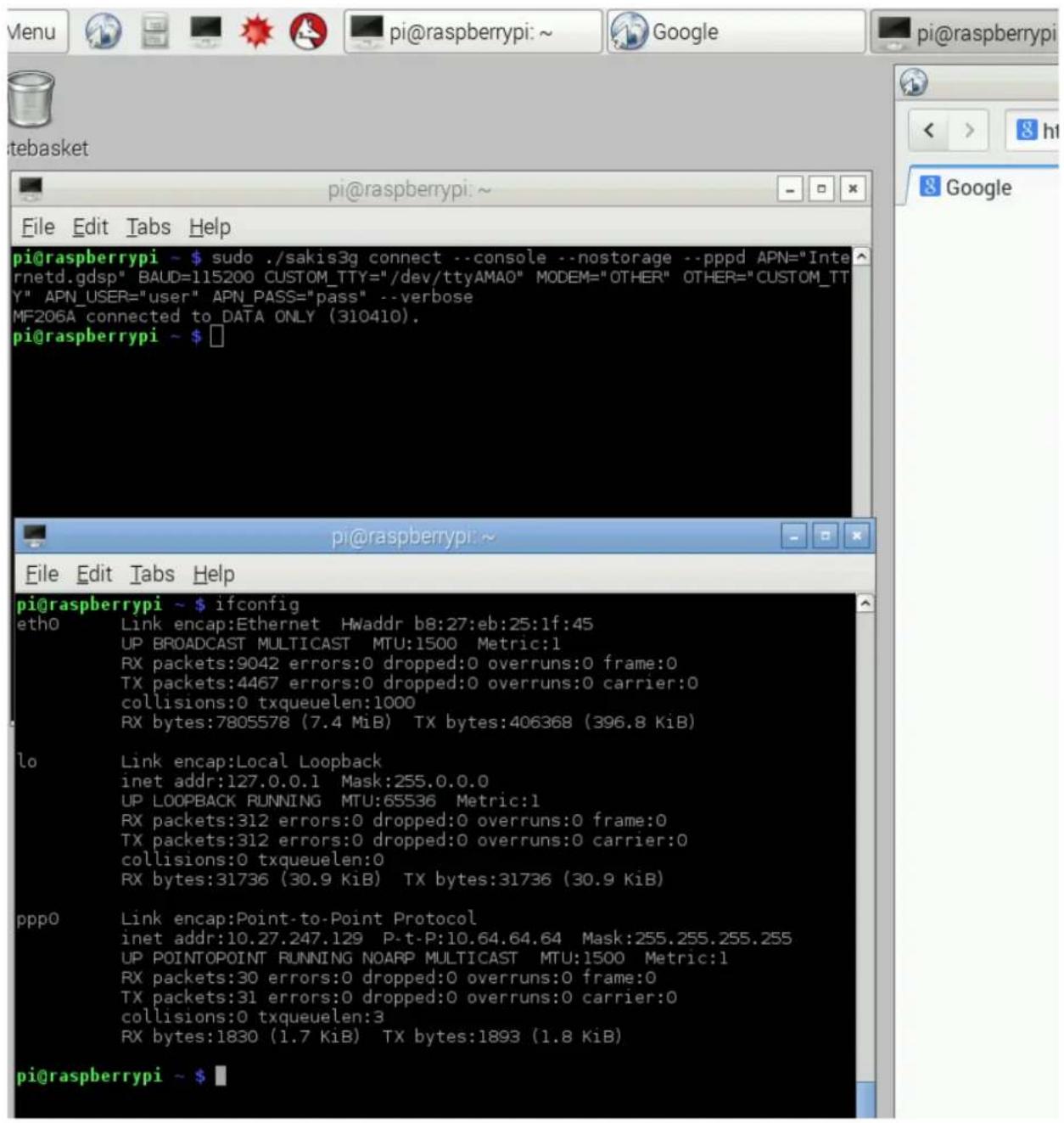
Once you enable mobile internet on the Raspberry Pi, there is no end to the opportunities for innovation in the field.
Read this article on DesignSpark
Related articles - SparqEE CELLv1.0 kit -Full cellular development! RasPi or Arduino shields


Brand : Raspberry Pi
Model : 8303215
Category : Computing