MPI999LSGE1 - Unspecified INTEL - Free user manual and instructions
Find the device manual for free MPI999LSGE1 INTEL in PDF.


User questions about MPI999LSGE1 INTEL
0 question about this device. Answer the ones you know or ask your own.
Ask a new question about this device
Download the instructions for your Unspecified in PDF format for free! Find your manual MPI999LSGE1 - INTEL and take your electronic device back in hand. On this page are published all the documents necessary for the use of your device. MPI999LSGE1 by INTEL.
USER MANUAL MPI999LSGE1 INTEL
Intel® MPI Library for Linux\* OS
User's Guide
Copyright © 2003-2014 Intel Corporation
All Rights Reserved
Document Number: 315398-012
Contents
- Introduction ...... 5
1.1. Introducing Intel® MPI Library 5
1.2. Intended Audience.... 5
1.3. Notational Conventions.... 5
1.4. Related Information 6
- Using the Intel® MPI Library 7
2.1. Usage Model 7
2.2.Before You Begin 7
2.3. Quick Start 7
2.4. Compiling and Linking 8
2.5. Setting up the Intel® MPI Library Environment 9
2.6. Selecting a Network Fabric....9
2.6.1. I_MPI_FABRICS 9
2.7. Running an MPI Program ....10
2.8. Controlling MPI Process Placement....12
2.9. Using Intel® MPI Library on Intel® Xeon Phi™ Coprocessor....13
2.9.1. Building an MPI Application....13
2.9.2. Running an MPI Application ....14
- Troubleshooting ....15
3.1. Testing the Installation....15
3.2. Compiling and Running a Test Program ....15
Disclaimer and Legal Notices
INFORMATION IN THIS DOCUMENT IS PROVIDED IN CONNECTION WITH INTEL PRODUCTS. NO LICENSE, EXPRESS OR IMPLIED, BY ESTOPPEL OR OTHERWISE, TO ANY INTELLECTUAL PROPERTY RIGHTS IS GRANTED BY THIS DOCUMENT. EXCEPT AS PROVIDED IN INTEL'S TERMS AND CONDITIONS OF SALE FOR SUCH PRODUCTS, INTEL ASSUMES NO LIABILITY WHATSOEVER AND INTEL DISCLAIMS ANY EXPRESS OR IMPLIED WARRANTY, RELATING TO SALE AND/OR USE OF INTEL PRODUCTS INCLUDING LIABILITY OR WARRANTIES RELATING TO FITNESS FOR A PARTICULAR PURPOSE, MERCHANTABILITY, OR INFRINGEMENT OF ANY PATENT, COPYRIGHT OR OTHER INTELLECTUAL PROPERTY RIGHT.
A "Mission Critical Application" is any application in which failure of the Intel Product could result, directly or indirectly, in personal injury or death. SHOULD YOU PURCHASE OR USE INTEL'S PRODUCTS FOR ANY SUCH MISSION CRITICAL APPLICATION, YOU SHALL INDEMNIFY AND HOLD INTEL AND ITS SUBSIDIARIES, SUBCONTRACTORS AND AFFILIATES, AND THE DIRECTORS, OFFICERS, AND EMPLOYEES OF EACH, HARMLESS AGAINST ALL CLAIMS COSTS, DAMAGES, AND EXPENSES AND REASONABLE ATTORNEYS' FEES ARISING OUT OF, DIRECTLY OR INDIRECTLY, ANY CLAIM OF PRODUCT LIABILITY, PERSONAL INJURY, OR DEATH ARISING IN ANY WAY OUT OF SUCH MISSION CRITICAL APPLICATION, WHETHER OR NOT INTEL OR ITS SUBCONTRACTOR WAS NEGLIGENT IN THE DESIGN, MANUFACTURE, OR WARNING OF THE INTEL PRODUCT OR ANY OF ITS PARTS.
Intel may make changes to specifications and product descriptions at any time, without notice. Designers must not rely on the absence or characteristics of any features or instructions marked "reserved" or "undefined". Intel reserves these for future definition and shall have no responsibility whatsoever for conflicts or incompatibilities arising from future changes to them. The information here is subject to change without notice. Do not finalize a design with this information.
The products described in this document may contain design defects or errors known as errata which may cause the product to deviate from published specifications. Current characterized errata are available on request. Contact your local Intel sales office or your distributor to obtain the latest specifications and before placing your product order.
Copies of documents which have an order number and are referenced in this document, or other Intel literature, may be obtained by calling 1-800-548-4725, or go to: http://www.intel.com/design/literature.htm
MPEG-1, MPEG-2, MPEG-4, H.261, H.263, H.264, MP3, DV, VC-1, MJPEG, AC3, AAC, G.711, G.722, G.722.1, G.722.2, AMRWB, Extended AMRWB (AMRWB+), G.167, G.168, G.169, G.723.1, G.726, G.728, G.729, G.729.1, GSM AMR, GSM FR are international standards promoted by ISO, IEC, ITU, ETSI, 3GPP and other organizations. Implementations of these standards, or the standard enabled platforms may require licenses from various entities, including Intel Corporation.
BlueMoon, BunnyPeople, Celeron, Celeron Inside, Centrino, Centrino Inside, Cilk, Core Inside, E-GOLD, Flexpipe, i960, Intel, the Intel logo, Intel AppUp, Intel Atom, Intel Atom Inside, Intel Core, Intel Inside, Intel Insider, the Intel Inside logo, Intel NetBurst, Intel NetMerge, Intel NetStructure, Intel SingleDriver, Intel SpeedStep, Intel Sponsors of Tomorrow., the Intel Sponsors of Tomorrow. logo, Intel StrataFlash, Intel vPro, Intel XScale, InTru, the InTru logo, the InTru Inside logo, InTru soundmark, Itanium, Itanium Inside, MCS, MMX, Moblin, Pentium, Pentium Inside, Puma, skool, the skool logo, SMARTi, Sound Mark, Stay With It, The Creators Project, The Journey Inside, Thunderbolt, Ultrabook, vPro Inside, VTune, Xeon, Xeon Inside, X-GOLD, XMM, X-PMU and XPOSYS are trademarks of Intel Corporation in the U.S. and/or other countries.
* Other names and brands may be claimed as the property of others.
Microsoft, Windows, and the Windows logo are trademarks, or registered trademarks of Microsoft Corporation in the United States and/or other countries.
Java is a registered trademark of Oracle and/or its affiliates.
Copyright (C) 2003–2014, Intel Corporation. All rights reserved.
Optimization Notice
Intel's compilers may or may not optimize to the same degree for non-Intel microprocessors for optimizations that are not unique to Intel microprocessors. These optimizations include SSE2, SSE3, and SSSE3 instruction sets and other optimizations. Intel does not guarantee the availability, functionality, or effectiveness of any optimization on microprocessors not manufactured by Intel. Microprocessor-dependent optimizations in this product are intended for use with Intel microprocessors. Certain optimizations not specific to Intel microarchitecture are reserved for Intel microprocessors. Please refer to the applicable product User and Reference Guides for more information regarding the specific instruction sets covered by this notice.
Notice revision #20110804
1. Introduction
This User's Guide explains how to use the Intel® MPI Library to compile and run a simple MPI program. This guide also includes basic usage examples and troubleshooting tips.
To quickly start using the Intel® MPI Library, print this short guide and walk through the example provided.
The Intel® MPI Library for Linux* OS User's Guide contains information on the following subjects:
- First steps using the Intel® MPI Library
- First-aid troubleshooting actions
This User's Guide contains the following sections:
Document Organization
| Section | Description |
| Section 1 Introduction | Section 1 introduces this document |
| Section 2 Using the Intel®MPI Library | Section 2 describes how to use the Intel® MPI Library |
| Section 3 Troubleshooting | Section 3 outlines first-aid troubleshooting actions |
1.1. Introducing Intel® MPI Library
The Intel® MPI Library is a multi-fabric message passing library that implements the Message Passing Interface, version 3.0 (MPI-3.0) specification.
1.2. Intended Audience
This User's Guide is intended for first time users of Intel® MPI Library.
1.3. Notational Conventions
The following conventions are used in this document.
Table 1.3-1 Conventions and Symbols used in this Document
| This type style | Document or product names |
| This type style | Hyperlinks |
| This type style | Commands, arguments, options, file names |
| THIS_TYPE_STYLE | Environment variables |
| Placeholders for actual values | |
| [ items ] | Optional items |
| { item | item } | Selectable items separated by vertical bar(s) |
| (SDK only) | For Software Development Kit (SDK) users only |
1.4. Related Information
To get more information about the Intel® MPI Library, explore the following resources:
See the Intel® MPI Library Release Notes for updated information on requirements, technical support, and known limitations.
The Intel® MPI Library Reference Manual for in-depth knowledge of the product features, commands, options, and environment variables.
Visit the Intel® MPI Library for Linux* OS Knowledge Base for additional troubleshooting tips and tricks, compatibility notes, known issues, and technical notes.
For more information see Websites:
Product Web Site
Intel® MPI Library Support
Intel® Cluster Tools Products
Intel® Software Development Products
2. Using the Intel® MPI Library
This section describes the basic Intel® MPI Library usage model and demonstrates typical usages of the Intel® MPI Library.
2.1. Usage Model
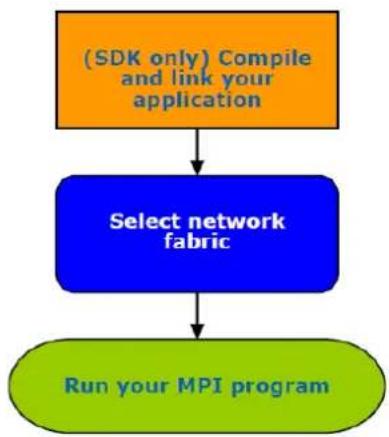
Using the Intel® MPI Library involves the following steps:
flowchart
graph TD
    A["(SDK only) Compile and link your application"] --> B["Select network fabric"]
    B --> C["Run your MPI program"]
Figure 1: Flowchart representing the usage model for working with the Intel® MPI Library.
2.2. Before You Begin
Before using the Intel® MPI Library, ensure that the library, scripts, and utility applications are installed. See the product Intel® MPI Library for Linux* OS Installation Guide for installation instructions.
2.3. Quick Start
To start using the Intel® MPI Library:
-
Source the mpivars.[c]sh script to establish the proper environment settings for the Intel® MPI Library. It is located in the
/ /bin directory, where refers to the Intel MPI Library installation directory (for example, /opt/intel/impi) and is one of the following architectures: -
intel64 - Intel® 64 architecture binaries.
-
mic - Intel® Many Integrated Core Architecture
-
Create a hostfile text file that lists the nodes in the cluster using one host name per line.
To compile your MPI program:
- (SDK only) Make sure you have a compiler in your PATH. To find the path to your compiler, run the which command on the desired compiler. For example:
$ which icc
/opt/intel/composerxe-2013/bin/intel64/icc
- (SDK only) Compile a test program using the appropriate compiler driver. For example:
$ mpiicc -o myprog <installdir>/test/test.c
To run your MPI program:
- Use the previously created hostfile and start the mpirun command as follows:
$ mpirun -n <# of processes> -f ./hostfile ./myprog
See the rest of this document and the Intel® MPI Library Reference Manual for more details.
2.4. Compiling and Linking
(SDK only)
To compile and link an MPI program with the Intel® MPI Library:
- Ensure that the underlying compiler and related software appear in your PATH.
If you are using the Intel® Composer XE packages, ensure that the compiler library directories appear in the LD_LIBRARY_PATH environment variable.
For example, for Intel® Composer, source the environment variable scripts to configure the PATH and LD_LIBRARY_PATH appropriately:
/opt/intel/composerxe-2013/bin/compilervars.[c]sh intel64
- Compile your MPI program using the appropriate mpi compiler script.
For example, to compile C code using the GNU* C compiler, use the following command:
$ mpicc -o myprog <installdir>/test/test.
where
All supported compilers have equivalent commands that use the prefix mpi for the standard compiler command. For example, the Intel MPI Library command for the Intel® Fortran Compiler (ifort) is mpiifort.
2.5. Setting up the Intel® MPI Library Environment
The Intel® MPI Library uses the Hydra process manager. To run programs compiled with the mpiicc (or related) commands, make sure your environment is set up correctly.
-
Set up the environment variables with appropriate values and directories. For example, in the .cshrc or .bashrc files:
-
Ensure that the PATH variable includes the
/ /bin directory. Use the mpivars.[c]sh scripts included with the Intel MPI Library to set up this variable. - (SDK only)If you are using the Intel® Composer XE packages, ensure that the LD_LIBRARY_PATH variable contains the directories for the compiler library. To set this variable, run the compilervars.[c]sh scripts included with the compiler.
-
Set any additional environment variables that your application uses.
-
Make sure that every node can connect to any other node without a password.
- Create a hostfile text file that lists the nodes in the cluster using one host name per line.
For example:
$ cat
> hostfile
node1
node2
...
<ctrl>-D
2.6. Selecting a Network Fabric
The Intel® MPI Library dynamically selects the most appropriate fabric for communication between MPI processes. To select a specific fabric combination, set the I_MPI_FABRICS environment variable.
2.6.1. I\_MPI\_FABRICS
Select a particular network fabric to be used for communication.
Syntax
I_MPI_FABRICS=<fabric>|<intra-node fabric>:<inter-nodes fabric>
Where
:= {shm, dap1, tcp, tmi, ofa}
•:= {shm, dapl, tcp, tmi, ofa}
•:= {shm, tcp, tmi, ofa}
Arguments
| Argument | Definition |
| Define a network fabric | |
| shm | Shared-memory |
| dapl | DAPL-capable network fabrics, such as InfiniBand*, iWarp*, Dolphin*, and XPMEM* (through DAPL*) |
| tcp | TCP/IP-capable network fabrics, such as Ethernet and InfiniBand* (through IPoIB*) |
| tmi | Network fabrics with tag matching capabilities through the Tag Matching Interface (TMI), such as Intel® True Scale Fabric and Myrinet* |
| ofa | Network fabric, such as InfiniBand* (through OpenFabrics* Enterprise Distribution (OFED*) verbs) provided by the Open Fabrics Alliance* (OFA*) |
For example, to select the OFED* InfiniBand* device, use the following command:
\$ mpirun -n <# of processes> \
-env I_MPI_FABRICS shm:dapl
For these devices, if
NOTE
Ensure the selected fabric is available. For example, use shm only if all the processes can communicate with each other through the availability of the /dev/shm device. Use dap1 only when all processes can communicate with each other through a single DAPL provider.
2.7. Running an MPI Program
To launch programs linked with the Intel® MPI Library, use the mpirun command, as follows:
\$ mphirun -n <# of processes> ./myprog
This command invokes the mpiexec.hydra command. Use the mpiexec.hydra options on the mpirun command line.
Use the -n option to set the number of MPI processes. If the -n option is not specified, the program is either be pulled from a job scheduler, or uses the number of cores on the machine if this program is not under a scheduler.
If you are using a network fabric different than the default fabric, use the -genv option to assign a value to the I_MPI_FABRICS variable.
For example, to run an MPI program using the shm fabric, type in the following command:
$ mpirun -genv I_MPI_FABRICS shm -n <# of processes> ./myprog
For a dap1-capable fabric, use the following command:
$ mpirun -genv I_MPI_FABRICS dapl -n <# of processes> ./myprog
To use shared memory for intra-node communication and the DAPL layer for inter-node communication, use the following command:
$ mpirun -genv I_MPI_FABRICS shm:dapl -n <# of processes> ./myprog
or simply
$ mpirun -n <# of processes> ./myprog
To use shared memory for intra-node communication and TMI for inter-node communication, use the following command:
$ mpirun -genv I_MPI_FABRICS shm:tmi -n <# of processes> ./myprog
To select shared memory for intra-node communication and OFED verbs for inter-node communication, use the following command:
$ mpirun -genv I_MPI_FABRICS shm:ofa -n <# of processes> ./myprog
To utilize the multirail* capabilities, set the I_MPI_OFA_NUM_ADAPTERS or the I_MPI_OFA_NUM_PORTS environment variable.
The exact settings depend on your cluster configuration. For example, if you have two InfiniBand* cards installed on your cluster nodes, use the following command:
$ export I_MPI_OFA_NUM_ADAPTERS=2
$ mpirun -genv I_MPI_FABRICS shm:ofa -n <# of processes> ./myprog
To enable connectionless DAPL User Datagrams (DAPL UD), set the I_MPI_DAPL_UD environment variable.
$ export I_MPI_DAPL_UD=enable
$ mpirun -genv I_MPI_FABRICS shm:dapl -n <# of processes> ./myprog
If you successfully run your application using the Intel MPI Library over any of the fabrics described, you can move your application from one cluster to another and use different fabrics between the nodes without re-linking. If you encounter problems, see Troubleshooting for possible solutions.
Additionally, using mpirun is the recommended practice when using a resource manager, such as PBS Pro* or LSF*.
For example, to run the application in the PBS environment, follow these steps:
- Create a PBS launch script that specifies number of nodes requested and sets your Intel MPI Library environment. For example, create a pbs_run.sh file with the following content:
#PBS -1 nodes=2:ppn=1
#PBS -l walltime=1:30:00
#PBS -q workq
#PBS -V
<h1 id="set-intel-mpi-environment">Set Intel MPI environment</h1>
mpi_dir=<installdir>/<arch>/bin
cd $PBS_O_WORKDIR
source $mpi_dir/mpivars.sh
<h1 id="launch-application">Launch application</h1>
mpirun -n <# of processes> ./myprog
- Submit the job using the PBS qsub command:
$ qsub pbs_run.sh
When using mpirun under a job scheduler, you do not need to determine the number of available nodes. Intel MPI Library automatically detects the available nodes through the Hydra process manager.
2.8. Controlling MPI Process Placement
The mpirun command controls how the ranks of the processes are allocated to the nodes of the cluster. By default, the mpirun command uses group round-robin assignment, putting consecutive MPI process on all processor ranks of a node. This placement algorithm may not be the best choice for your application, particularly for clusters with symmetric multi-processor (SMP) nodes.
Suppose that the geometry is <# ranks> = 4 and <# nodes> = 2, where adjacent pairs of ranks are assigned to each node (for example, for two-way SMP nodes). To see the cluster nodes, enter the command:
cat ~/mpi_hosts
The results should look as follows:
clusternode1
clusternode2
To equally distribute four processes of the application on two-way SMP clusters, enter the following command:
mpirun -perhost 2 -n 4 ./myprog.exe
The output for the myprog.exe executable file may look as follows:
Hello world: rank 0 of 4 running on clusternodel
Hello world: rank 1 of 4 running on clusternode1
Hello world: rank 2 of 4 running on clusternode2
Hello world: rank 3 of 4 running on clusternode2
Alternatively, you can explicitly set the number of processes to be executed on each host through the use of argument sets. One common use case is when employing the masterworker model in your application. For example, the following command equally distributes the four processes on clusternode1 and on clusternode2:
mpirun -n 2 -host clusternode1 ./myprog.exe : -n 2 -host clusternode2 ./myprog.exe
See Also
You can get more details in the Local Options topic of Intel® MPI Library Reference Manual for Linux OS.
You can get more information about controlling MPI process placement at Controlling Process Placement with the Intel® MPI Library.
2.9. Using Intel® MPI Library on Intel® Xeon Phi™ Coprocessor
Intel® MPI Library for the Intel® Many Integrated Core Architecture (Intel® MIC Architecture) supports only the Intel® Xeon Phi™ coprocessor (codename: Knights Corner).
2.9.1. Building an MPI Application
To build an MPI application for the host node and the Intel® Xeon Phi™ coprocessor, follow these steps:
- Establish the environment settings for the compiler and for the Intel® MPI Library:
$ . <install-dir>/composerxe/bin/compilervars.sh intel64
$ . <install-dir>/impi/intel64/bin/mpivars.sh
- Build your application for Intel® Xeon Phi™ coprocessor:
$ mpiicc -mmc myprog.c -o myprog.mic
- Build your application for Intel® 64 architecture:
$ mpiicc myprog.c -o myprog
2.9.2. Running an MPI Application
To run an MPI application on the host node and the Intel® Xeon Phi™ coprocessor, do the following:
-
Ensure that NFS is properly set up between the hosts and the Intel® Xeon Phi™ coprocessor(s). For information on how to set up NFS on the Intel® Xeon Phi™ coprocessor(s), visit the Intel® Xeon Phi™ coprocessor developer community at http://software.intel.com/en-us/mic-developer.
-
Use the I_MPI_MIC_POSTFIX environment variable to append the .mic postfix extension when running on the Intel® Xeon Phi™ coprocessor.
$ export I_MPI_MIC_POSTFIX=.mic
- Make sure your \~/mpi_hosts file contains the machine names of your Intel® Xeon® host processors and the Intel® Xeon Phi™ coprocessor(s). For example:
$ cat ~/mpi_hosts
    clusternodel
    clusternodel-mic0
- Launch the executable file from the host.
$ export I_MPI_MIC=on
$ mpirun -n 4 -hostfile ~/mpd.hosts ./myprog
NOTE: You can also use the -configfile and -machinefile options.
To run the application on Intel® Xeon Phi™ coprocessor only, follow the steps described above and ensure that mpd.hosts contains only the Intel® Xeon Phi™ coprocessor name.
See Also
You can get more details in the Intel® Xeon Phi™ Coprocessor Support topic of the Intel® MPI Library Reference Manual for Linux* OS.
You can get more information about using Intel® MPI Library on Intel® Xeon Phi™ coprocessor at How to run Intel® Xeon Phi™ Coprocessor.
3. Troubleshooting
This section explains how to test the Intel® MPI Library installation and how to run a test program.
3.1. Testing the Installation
To ensure that the Intel® MPI Library is installed and functioning correctly, complete the general testing below, in addition to compiling and running a test program.
To test the installation (on each node of your cluster):
- Verify that
/ /bin is in your PATH:
$ ssh <nodename> which mpirun
You should see the correct path for each node you test.
(SDK only) If you use the Intel® Composer XE packages, verify that the appropriate directories are included in the PATH and LD LIBRARY PATH environment variables
$ mpirun -n <# of processes> env | grep PATH
You should see the correct directories for these path variables for each node you test. If not, call the appropriate compilervars.[c]sh script. For example, for the Intel® Composer XE 2011 use the following source command:
$./opt/intel/composerxe/bin/compilervars.sh intel64
- In some unusual circumstances, you need to include the
/ /lib directory in your LD_LIBRARY_PATH. To verify your LD_LIBRARY_PATH settings, use the command:
$ mpirun -n <# of processes> env | grep LD_LIBRARY_PATH
3.2. Compiling and Running a Test Program
To compile and run a test program, do the following:
- (SDK only) Compile one of the test programs included with the product release as follows:
$ cd <installdir>/test
$ mpiicc -o myprog test.c
- If you are using InfiniBand*, Myrinet*, or other RDMA-capable network hardware and software, verify that everything is functioning correctly using the testing facilities of the respective network.
- Run the test program with all available configurations on your cluster.
• Test the TCP/IP-capable network fabric using:
\$ mpirun -n 2 -genv I_MPI_DEBUG 2 -genv I_MPI_FABRICS tcp ./myprog You should see one line of output for each rank, as well as debug output indicating the TCP/IP-capable network fabric is used.
• Test the shared-memory and DAPL-capable network fabrics using:
$ mpirun -n 2 -genv I_MPI_DEBUG 2 -genv I_MPI_FABRICS shm:dapl ./myprog
- You should see one line of output for each rank, as well as debug output indicating the shared-memory and DAPL-capable network fabrics are being used.
- Test any other fabric using:
\$ mpirun -n 2 -genv I_MPI_DEBUG 2 -genv I_MPI_FABRICS
./myprog where is a supported fabric. For more information, see Selecting a Network Fabric.
For each of the mpirun commands used, you should see one line of output for each rank, as well as debug output indicating which fabric was used. The fabric(s) should agree with the I_MPI_FABRICS setting.
The