
M808i - Smartphone INFOCUS - Free user manual and instructions
Find the device manual for free M808i INFOCUS in PDF.


| Product Type | Smartphone |
| Brand | InFocus |
| Model | M808i |
| Operating System | Android |
| SIM Card Type | Nano SIM (dual SIM) |
| Memory Card Support | microSD (up to 32GB) |
| Network Support | 4G LTE, 3G, 2G |
| Wireless Connectivity | Wi-Fi 802.11 b/g/n, Bluetooth 4.0 |
| Camera | Rear camera and front camera |
| Display | 5.0-inch capacitive touchscreen |
| Processor | Quad-core 1.3 GHz |
| RAM | 2 GB |
| Internal Storage | 16 GB |
| Battery Capacity | 2500 mAh (removable) |
| Dimensions (approx.) | 143 x 71 x 8.5 mm |
| Weight (approx.) | 140 g |
| Charging | Micro USB, AC adapter (5V/1A) |
| Sensors | Accelerometer, proximity, light |
| Maintenance | Clean with soft cloth; avoid liquids and abrasives |
| Safety | Do not disassemble; keep away from heat and moisture |
| Warranty | 12 months for device, 6 months for battery |
| Spare Parts Availability | Contact authorized service center |
| Compliance | SAR: 1.260 W/kg (head), 0.512 W/kg (body); RoHS, WEEE |
Frequently Asked Questions - M808i INFOCUS
User questions about M808i INFOCUS
0 question about this device. Answer the ones you know or ask your own.
Ask a new question about this device
Download the instructions for your Smartphone in PDF format for free! Find your manual M808i - INFOCUS and take your electronic device back in hand. On this page are published all the documents necessary for the use of your device. M808i by INFOCUS.
USER MANUAL M808i INFOCUS
Thank you for choosing InFocus M808i cell Phone. It is recommended that you first read this Quick Guide to understand the basic operation of the phone.
Your Phone....2
Inserting SIM Card(s) and Memory Card....3
Charging the Battery....4
First Start Up....4
Home Screen....4
Making Your First Call....4
Contacts....6
Sending a Text Message....7
Setting up WLAN....7
Setting up Email Account....8
Sending and Receiving Emails......8
Using Browser....9
Using Bluetooth....10
Taking Photos and Videos....10
Viewing Photos and Videos....12
Basic Phone Settings....13
Important Safety Information......i
Copyright Information......iii
Your Phone
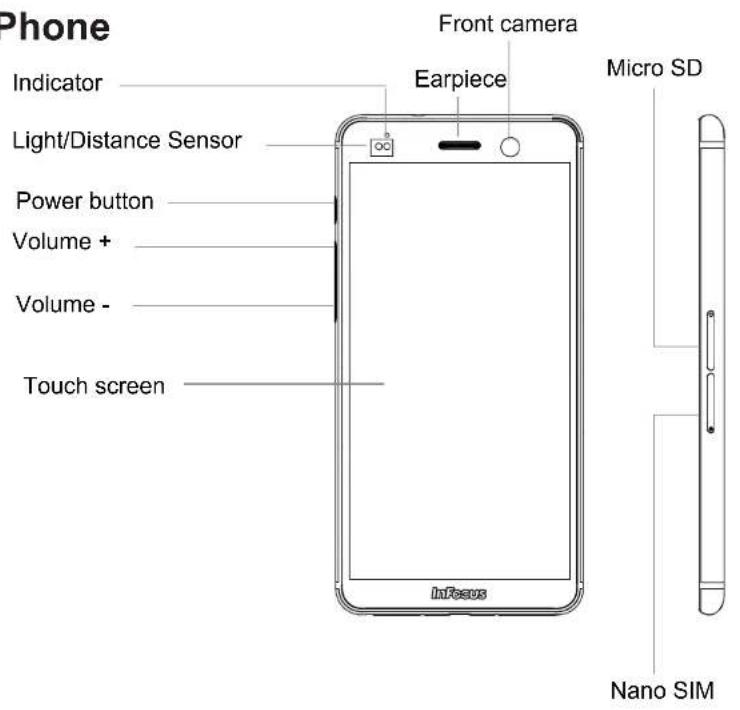
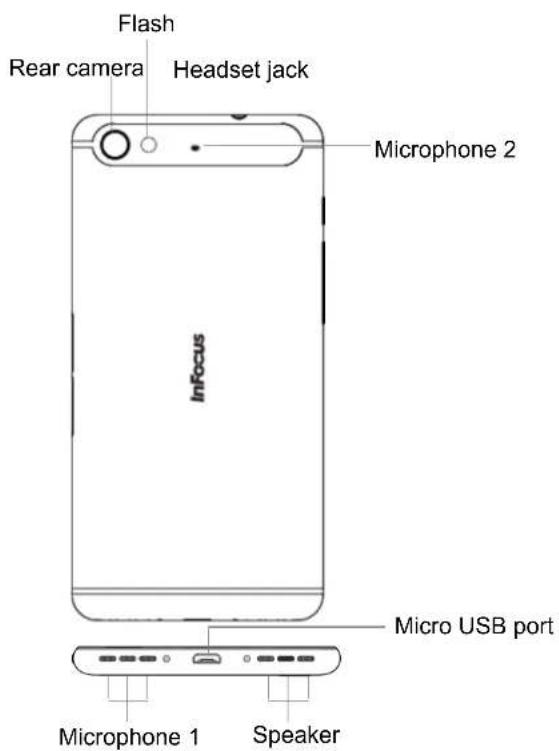
Inserting SIM Card(s) and Memory Card
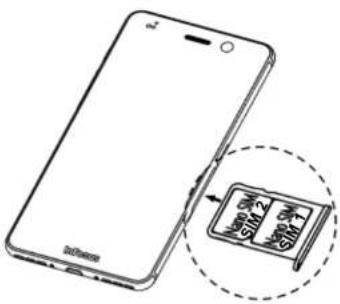
- Locate the SIM card tray.
- Use the included pin tool to open the tray.
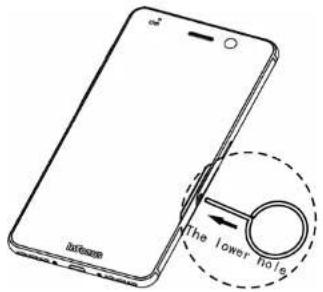
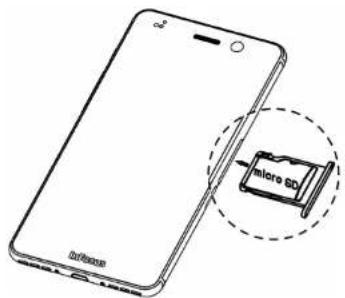
- Locate the memory card tray.
- Use the included pin tool to open the tray.
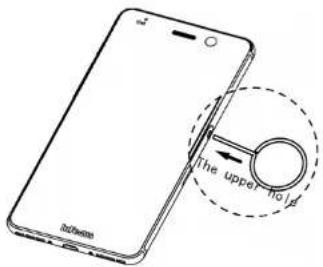
- Place the SIM card on the tray and slide the tray into the phone.
Notes: This model needs to use Nano SIM specification SIM Card. If you cut the SIM Card, it may damage the SIM card or result in poor contact of the card, thus causing the card to become unreadable or the machine damaged.
- Place the memory card on the tray. Slide the tray back into the phone.
Charging the Battery
The battery is not fully charged when releasing the phone from the factory. It is recommended to charge the battery before use.
- Connect USB cable to USB Port of the device.
- Connect the other end of USB transmission cable to AC Transformer.
- Insert AC Transformer into the wall-mounting socket to starting the charging process.
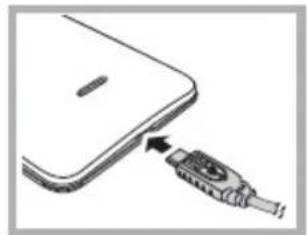
natural_image
Diagram of a smartphone with an attached USB cable (no text or symbols)Warning
- Charge only indoors and in dry environments.
- For safety, the overheat protection will be active during charging. If the system temperature reaches above the maximum level, the device will automatically stop charging. The device will only resume charging when normal operating temperature is reached.
- If there is no response after you press the Power button or touch the panel, press and hold the "Power button" for 8 seconds to force shutdown. If you hold the "Power button" for 2 seconds more, it will restart.
First Start Up
After inserting SIM Card and charging the battery, this device is ready for starting.
Home Screen
From the Home screen, you can quickly access common features and view notifications of missed calls, received massages, check battery and connection status. Swipe your finger to the left or right to access the applications installed on the device.
Making Your First Call
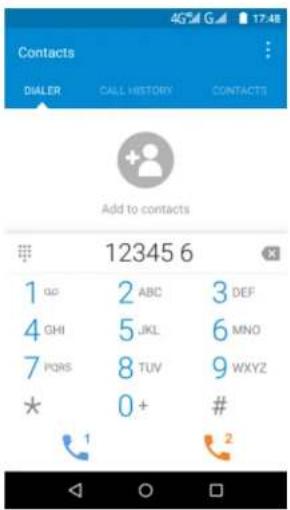
From Home screen, tap 📞.
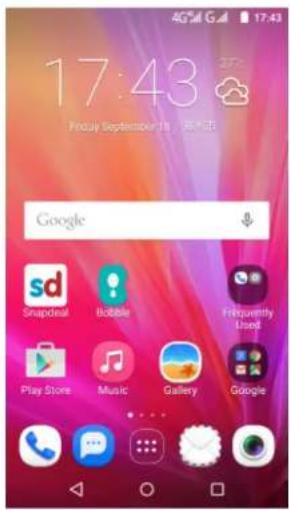
To make a call
- Enter the phone number on the keypad.
- Tap to correct any number. Tap and hold ✗ to erase the entire number.
- Tap to make a call.
- To end the call, tap NOTE:
If you have inserted two SIM cards, select the desired SIM network.
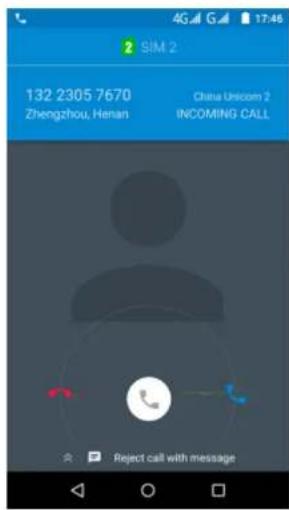
To answer a call
To answer a call, tap and drag it to the right.
Contacts
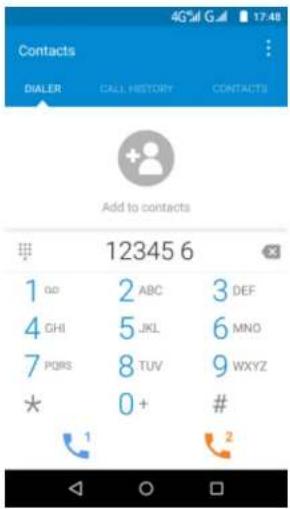
Adding contacts
- From the Home screen, tap ⋯ firstly, then tap 📁.
- Tap to add a contact.
- Select one of the location to store the contact to.
- Enter the contact information such as name, phone number, email address, etc.
- Tap to save the contact.
Importing contacts
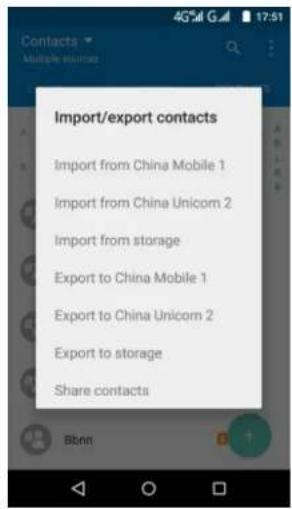
- From the Home screen, tap 🎯 firstly, then tap 🔒.
- Tap >Import/export, and choose one of the Import options.
- Select the contacts to location that you want to copy.
- Select the contacts to copy and tap Done.
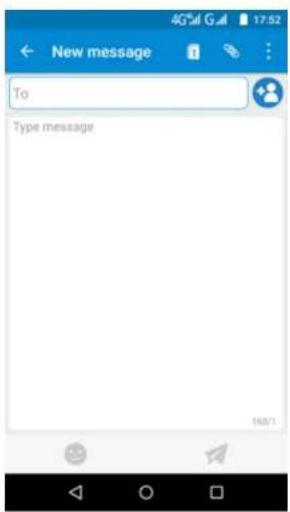
Sending a Text Message
- From the Home screen, tap
- Tap NOTE:
If you have inserted two SIM cards, select the desired SIM network first before tapping .
- In the To field, enter the recipient's phone number or name.
- Compose your message.
- Tap to send your message.
Setting up WLAN
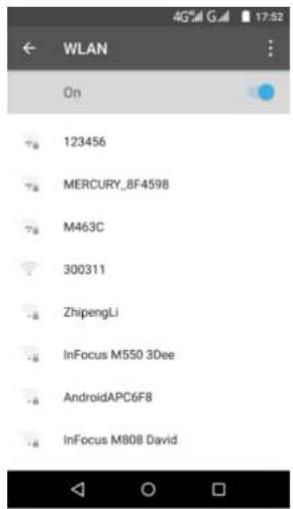
- From the Home screen, tap 🙏️.
- In Wireless & networks, tap WLAN and turn it to on.
- Available networks are listed. Tap a network to connect.
NOTE:
Connecting to a secured network will prompt for a password. Enter the password, then tap Connect.
Setting up Email Account
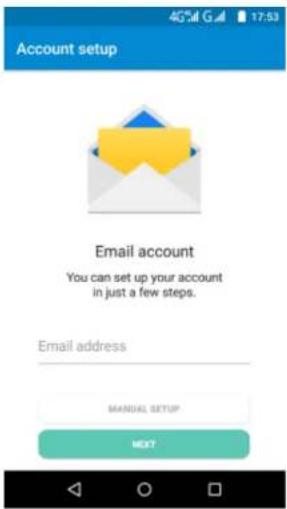
- From the Home screen, tap ☐.
- Enter your email address and password. Then tap Next.
- Set the Inbox checking frequency settings and tap Next.
- Enter Name and Account display name.
- Tap Next. Once the account setup is complete, the device will automatically retrieve your emails.
Sending and Receiving Emails
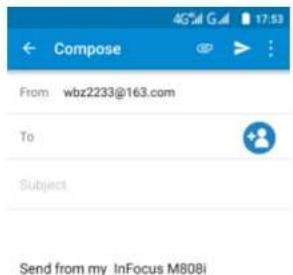
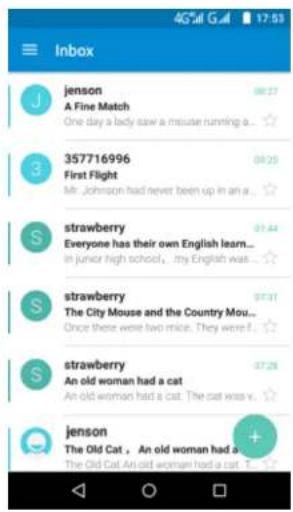
- From the Home screen, tap □. NOTE : If you have more than one email account, select an email account that you want to access.
2. Tap .
- In the To field, enter the recipient's email address.
- Tap Subject and type a subject.
- Compose your email.
- Tap ▶ to send your email.

Receiving emails
Emails are automatically received in the Inbox folder when the device connects to a network.
Using Browser
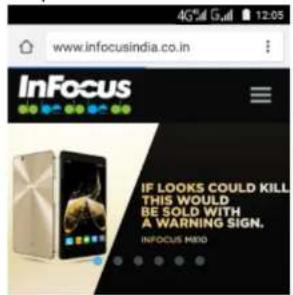
To open a web page
- From Home screen, tap Browser.
- Tap the Web Bar.
Best mobile and Smart Phones manufacturer in India
Using Bluetooth
- From the Home screen, tap 🙏️.
- In Wireless & networks, tap Bluetooth and turn it to on.
- Available devices are listed. To search for a new device, tap >Refresh.
- Tap a detected device.
- To start pairing, enter the PIN then tap OK. NOTE:
- The PIN of the device must be the same PIN on the other bluetooth device.
- On some devices, tap Pair to start pairing.
- The paired bluetooth device name is displayed.
Taking Photos and Videos
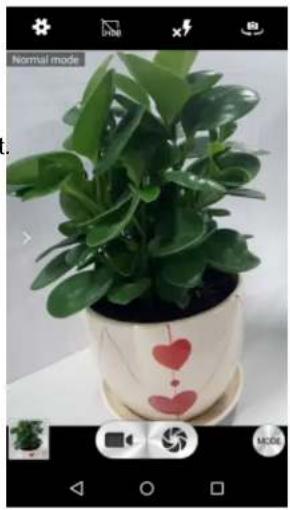
This device is equipped with rear and front cameras to take photos and videos.
- From the Home screen, tap □.
NOTE:
To switch between front and rear cameras, tap 📄. - Aim the device at the subject. • Pinch the screen to zoom in or out. • Tap change the flash mode.
- Tap to take the shot.
natural_image
Potted green leafy plant with heart decorations, captured in a photo editing interface (no text or symbols on the plant itself)To record a video
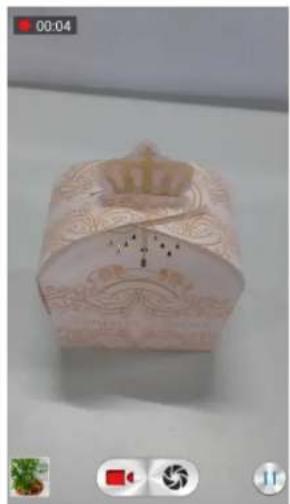
- From the Home screen, tap ☐.
- Aim the device at the subject.
- Tap to start recording.
- Tap to stop recording.
natural_image
White decorative paper cupcake with floral patterns and a crown, displayed on a stand (no text or symbols visible)To take a panorama shot
- From the Home screen, tap ☐.
- Tap and select Panorama.
- Aim the device at the subject.
- Tap to take the shot.
-
Move the device slowly toward the direction shown on the screen.
-
When the shooting guide reaches the end point, the shooting ends. You can also manually stop recording by tapping √.
Viewing Photos and Videos
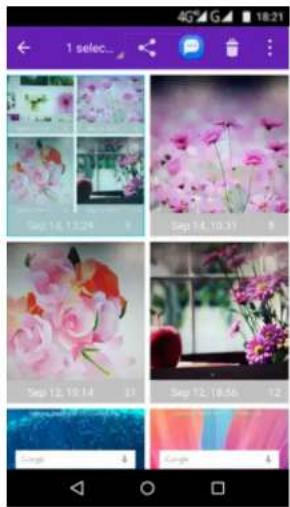
- From the Home screen, tap 📄.
- Tap a folder to view the recorded files in thumbnails.
- Tap an image or a video to view in full screen.
-
Swipe your finger to the left/right to view the previous/next file.
-
To share photos, tap Share, and then tap the application program to be shared.
• To delete the photo, tap 📋 and then tap OK.
• To play the video, tap ▶. - To play the slideshow, edit an image, share the photo, or show more options, tap : .
Basic Phone Settings Adjusting the volume
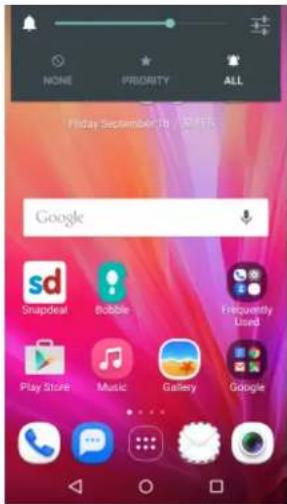
There are two ways to adjust the volume:
- Press the volume (+/-) button repeatedly to adjust the volume.
- Press the volume button once. Drag the volume slider to adjust the volume.
Setting an alarm
- From the Home screen, tap ☐.
- Tap
- To add an alarm, tap ☐.
- To set the time, slide the pointer, and tap OK.
- To set repeat mode, check Repeat and select the desired week days.
- To set the ringtone, tap 🔒, and select the alarm sound.
- To vibrate when the alarm sounds, check Vibrate.
- To enter an alarm label, tap Label and tap OK. NOTE:
When setting the alarm default as On, the alarm will sound when time is up.
Changing the Launcher Layer Mode
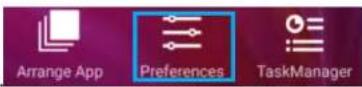
- From the Home screen, tap any blank space.
- Tap The Launcher page will be active.
- Tap Layer mode setting
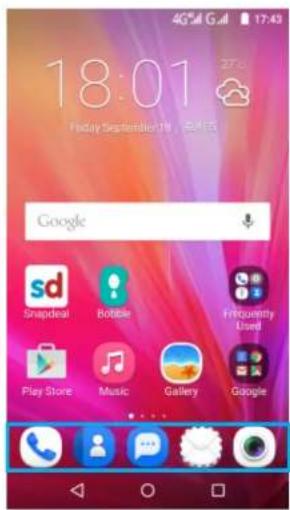
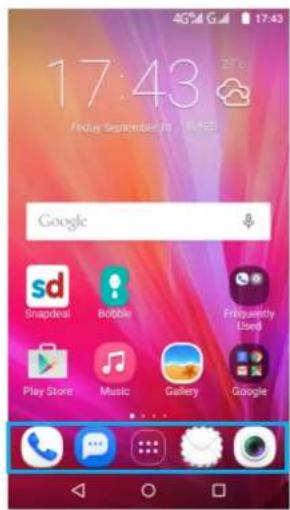
- Select One layer or Two layers.
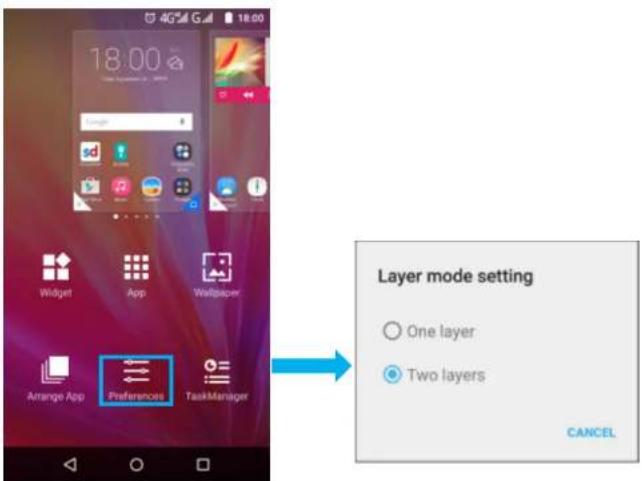
Result is as below:
One Layer
Two Layer
Important Safety Information
Please read before proceeding
- DO NOT place objects on top of the device, as they may scratch the screen.
- DO NOT drop your device or subject it to severe impacts. Bending the body and pushing the display or keys with extreme force could damage the device.
- DO NOT use a pen or any sharp object to tap the screen.
- DO NOT expose the device to dirty or dusty environments.
- DO NOT place the device on an uneven or unstable surface.
- DO NOT insert any foreign objects into the device.
- DO NOT expose the device to strong magnetic or electrical field.
- DO NOT use or store this equipment in a place where it will be exposed to high temperatures, such as near an open flame or heat-emitting equipment.
- DO NOT use it or store it where fluids such as water can splash onto it. Raindrops, water spray, juice, coffee, steam, or other types of liquids will also cause malfunctions.
- Using this device for long periods of time may cause the device to get warm. If you feel the device is too warm, avoid sustained
contact with exposed skin otherwise this might cause discomfort, or eventually a burn.
- Refer to the rating label on the device and be sure that the power adapter complies with the rating. Only use accessories specified by the manufacturer.
- Disconnect the device from an electrical outlet and power off before cleaning the device.
- NEVER attempt to connect or disconnect the power adapter with wet hands.
- Clean the touch screen with a soft cloth. If needed, dampen the cloth slightly before cleaning. Never use abrasives or cleaning solutions.
- DO NOT disassemble the device. Only a certified service technician should perform repair.
- Please check with your Local Authority or retailer for proper disposal of electronic products.
- For USB connection, users must use a USB 2.0 (or higher version) cable.
- The adapter shall be installed near the equipment and shall be easily accessible.
- The temperature of the device might increase while the CPU is busy handling resource consuming activities such as high resolution video decoding. The SW protection mechanism will ensure stop charging whenever the temperature is over the predefined threshold and
prepare for shut down if necessary. Please worry not.
- Use a wireless hands-free system (headphone, headset) with a low power Bluetooth emitter.
- Make sure the cell phone has a low SAR.
- Keep your calls short or send a text message (SMS) instead. This advice applies especially to children, adolescents and pregnant women.
- Use cell-phone when the signal quality is good.
- People having active medical implants should preferably keep the cell phone at least 15 cm away from the implant.
Safety Precautions for Battery Use
- Keep the battery dry and away from any liquid since this may cause a short circuit.
- Keep the battery away from metal objects since this may cause a short circuit.
- Do not use damaged or deformed batteries.
- If the battery emits a foul odor, discontinue use.
- Keep the battery away from babies and small children.
- If the battery leaks:
- Do not allow the leaking fluid to come in contact with your skin, eyes
or clothing. If already in contact, rinse with clean water immediately and seek medical advice.
- Keep the battery away from fire since this may cause the battery to explode.
- Do not attempt to open or service the battery yourself.
- Do not dispose battery in fire or water.
- Recycle or dispose used batteries according to the local regulations.
Road and Environmental Safety
- Turn off the phone in areas with a potentially explosive atmosphere or where flammable objects exist such as gas stations, fuel depots, and chemical plants among others. Sparks from these areas could cause explosion or fire and result in injury or even death.
- Do not use hand-held phones while driving a vehicle. Use hands-free devices as an alternative.
Safety in Aircraft
Do not use the phone on board an aircraft. The phone's network signals may cause interference to the navigation system. As a safety measurement, it is against the law in most countries to use the phone on board an aircraft.
Copyright Information
Copyright © InFocus Corporation, 2015. All rights reserved.
This product has an Android ^™ platform based on Linux, which can be expanded by a variety of JME-based application SW.
Android、Google、Google Play、Chrome、Gmail and other marks are trademarks of Google Inc.
microSD ^™ is a trademark of SD Card Association.
Bluetooth and the Bluetooth logo are trademarks owned by Bluetooth SIG, Inc.

All products use in this device and trademarks mentioned herein are trademarks or registered trademarks of their respective owners. LTE is a trade mark of ETSI.
Intellectual Property Right Information
Right to all technologies and products that comprise this device are the property of their respective owners:
This product has an Android platform based on Linux, which can be expanded by a variety of Java-Script-based application SW.
Compliance Information
SAR Information
THIS MOBILE DEVICE MEETS GUIDELINES FOR EXPOSURE TO RADIO WAVES. Your mobile device is a radio transmitter and receiver. It is designed not to exceed the limits for exposure to radio waves recommended by international guidelines. These guidelines were developed by the independent scientific organization ICNIRP and include safety margins designed to assure the protection of all persons, regardless of age and health.
The exposure guidelines for mobile devices employ a unit of Measurement known as the Specific Absorption Rate or SAR. The SAR limit stated in the ICNIRP guidelines is 1.6 W/KG averaged over 1 grams of tissue. Tests for SAR are conducted using standard operating positions with the device transmitting at its highest certified power level in all tested frequency bands. The actual SAR level of an operating device can be below the maximum value because the device is designed to use only the power required to reach the network.
That amount changes depending on a number of factors such as how close you are to a network base station. The highest SAR value under the ICNIRP guidelines for use of the device at the ear is 1.260 W/kg and at the body is 0.512 W/kg (The measure distance of 1.5 cm). Use of device accessories and enhancements may result in different SAR
values. SAR values may vary depending on national reporting and testing requirements and the network band.
WEEE Notice
The WEEE logo on the product or on its box indicates that this product must not be disposed of or dumped with your other household waste. You are liable to dispose of all your electronic or electrical waste equipment by relocating over to the specified collection point for recycling of such hazardous waste. Isolated collection and proper recovery of your electronic and electrical waste equipment at the time of disposal will allow us to help conserve natural resources. Moreover, proper recycling of the electronic and electrical waste equipment will ensure safety of human health and environment. For more information about electronic and electrical waste equipment disposal, recovery, and collection points, please contact your local city center, household waste disposal service, shop from where you purchased the equipment, or manufacturer of the equipment.
RoHS Compliance
This product is in compliance with DIRECTIVE 2011/65/EU OF THE EUROPEAN PARLIAMENT AND OF THE COUNCIL of 8 June 2011, on the restriction of the use of certain hazardous substances in electrical and electronic equipment and its amendments.
Warranty Statement
Limited warranty
InFocus provides "Product Warranty Statement", at the time of its original purchase, from the InFocus or its authorized distributor, describing the product warranty service.
Notes: InFocus does not provide global cross border warranty. This limited warranty (free of defects in materials and workmanship causing malfunction and defective) shall last for twelve (12) months for the device and six (6) months for the battery from the purchase date. Other than battery, the in-box accessories, including cosmetic parts, button, cables, earphone, AC ... etc. if applied; six (6) month open-box functional failure warranty is provided. The customer shall present the PROOF OF PURCHASE upon claiming the warranty. Throughout the warranty period InFocus or its authorized agent will, at own discretion and subject to section Non-Warranty below repair or replace a defective product. All replaced defective parts or components will become the property of InFocus after returning the repaired/replaced product in good working condition. This repair on the same symptom, one (1) month repair warranty is provided.
Non-Warranty
No warranty may be asserted or claimed if (1) the product serial number, date code, IMEI, water indicator or the warranty seal has been removed, erased, defaced or altered; or (2) the defect is found to be caused by;
(1) By engineering judgement, the product is mishandled/misused carelessly or accidentally. Unauthorized disassembling or repair, repair by use if unauthorized spare parts, or other actions beyond the reasonable control of InFocus.
(2) Improper shipping and packing.
(3) Forces of nature of willful misconduct.
(4) Rough handling, exposure to moisture, dampness or extreme thermal or environmental conditions or a rapid change in such conditions, corrosion, oxidation, unauthorized modifications or connections.
(5) Deterioration of the product due to normal wear and tear. Products installed or integrated with software or applications which are not made or authorized by InFocus. Be sure to back up data and remove any confidential, proprietary or personal information from the product when asking service. InFocus is not responsible for the damage to or loss of any programs, data, or removable storage media inside or sent with the products. As to Non warranty product, InFocus will check if a
repair is economical/ available and provide a chargeable service to customer's consideration.
IN NO EVENT SHALL InFocus BE LIABLE UNDER THIS LIMITED WARRANTY FOR LOSS OF PROFIT. LOSS OF ANTICIPATED SAVINGS, LOSS OF DATA OR INDIRECT LOSS, LOSS OF THE PRODUCT OR ANY ASSOCIATED EQUIPMENT, INCIDENTAL OR CONSEQUENTIAL LOSSES OR DAMAGES OF ANY NATURE WHATSOEVER TO THE FULLEST EXTENT THAT THOSE LOSSES OR DAMAGES CAN BE DISCLAIMED BY LAW.
- Inserting SIM Card(s) and Memory Card
- Charging the Battery
- Warning
- First Start Up
- Home Screen
- Making Your First Call
- To make a call
- To answer a call
- Contacts
- Adding contacts
- Importing contacts
- Sending a Text Message
- Setting up WLAN
- NOTE:
- Setting up Email Account
- Sending and Receiving Emails
- Tap .
- Receiving emails
- Using Browser
- To open a web page
- Using Bluetooth
- Taking Photos and Videos
- To record a video
- To take a panorama shot
- Viewing Photos and Videos
- Basic Phone Settings Adjusting the volume
- Setting an alarm
- Changing the Launcher Layer Mode
- Important Safety Information
- Please read before proceeding
- Safety Precautions for Battery Use
- Road and Environmental Safety
- Safety in Aircraft
- Copyright Information
- Intellectual Property Right Information
- Compliance Information
- SAR Information
- WEEE Notice
- RoHS Compliance
- Warranty Statement
- Limited warranty
- Non-Warranty
Brand : INFOCUS
Model : M808i
Category : Smartphone