1776 - Kikokotoo VICTOR - Free user manual and instructions
Find the device manual for free 1776 VICTOR in PDF.


User questions about 1776 VICTOR
0 question about this device. Answer the ones you know or ask your own.
Ask a new question about this device
Download the instructions for your Kikokotoo in PDF format for free! Find your manual 1776 - VICTOR and take your electronic device back in hand. On this page are published all the documents necessary for the use of your device. 1776 by VICTOR.
USER MANUAL 1776 VICTOR
TROUBLESHOOTING....10
APPLICATION EXAMPLES....11
SETTING DATE AND TIME....28,29
TECHNICAL SPECIFICATION....30
WARRANTY....31
OPERATIONS AND MAINTENANCE
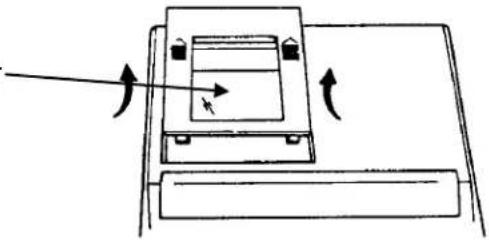
Before Turning On - Please remove ribbon-cushion placed on a ribbon and check the rating label on the bottom to see if the rated voltage corresponds to the local voltage before plug in AC cord.
Note: Ribbon cushion is located under printer cover.
natural_image
Simple line drawing of a mechanical device with arrows indicating motion or force direction (no text or symbols)CAUTIONS
- Do not place the machine in hot, dusty or damp locations.
- To clean the housing use a silicon-treated cloth. Do not use water or detergents.
- Do not place anything on the housing, particularly on the head of the printer mechanism.
- Turn off the power switch before removing the plug from AC wall outlet.
- Turn the power switch off while not in use.
- The socket-outlet shall be installed near the equipment and shall be easily accessible.
ACTIVATE BACKUP BATTERY
Before start using the calculator, please remove the insulation paper below the backup battery.
- Turn the AC power switch OFF and remove the battery compartment cover located on the bottom case.
- Remove the insulation paper located below the backup battery.
- PRESS THE RESET SWITCH.
- Replace the battery compartment cover.
- Turn ON the AC power switch.
- Program the date and time according to the instruction manual.

text_image
(Bottom Case) 1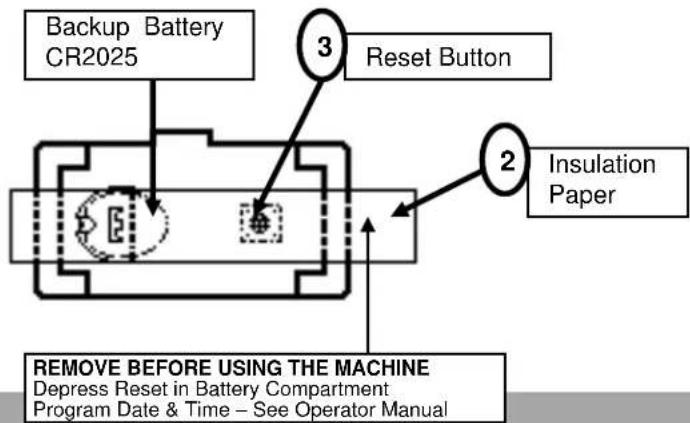
flowchart
graph TD
    A["Backup Battery CR2025"] --> B["3 Reset Button"]
    B --> C["2 Insulation Paper"]
    C --> D["REMOVE BEFORE USING THE MACHINE\nDepress Reset in Battery Compartment\nProgram Date & Time - See Operator Manual"]
REPLACING INK RIBBON
Your calculator is shipped with a 2-color ribbon already in place. You do not need to install or
change it before you begin using the calculator. When you have been using your calculator for some time, however, the print will gradually become faint, indicating that you should change the ribbon. To change the ribbon, follow these steps.
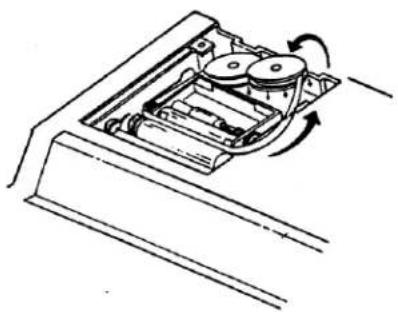
- Remove paper roll, tearing paper at rear of calculator. Use the Paper Advance ( ) key to feed the remaining paper tape through the printer. Then remove the printer cover.
- Remove the old ribbon by pulling upward.
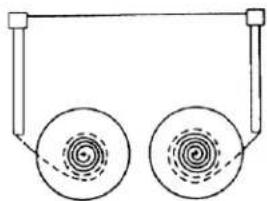
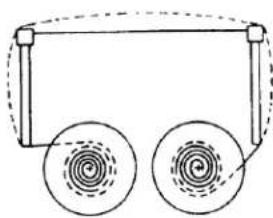
- Install the ribbon spool with the black edge up. Roll from the outside of the full spool and place the first spool on the spindle not engaged by the lever. Thread the new ribbon along the outside of the guides and in front of the print wheels. Switch the lever to the other side and replace the second spool.
- Rotate the spools to take up any slack. Replace the printer cover and the paper tape.
natural_image
Diagram of a mechanical device with rotating components and directional arrows indicating motion (no text or symbols)Correct direction
natural_image
Simple line drawing of two circular objects with concentric rings, suspended by vertical rods (no text or symbols)Incorrect direction
natural_image
Simple line drawing of a vehicle handle with two wheels and a curved handle (no text or symbols)HOW TO FEED THE PAPER TAPE
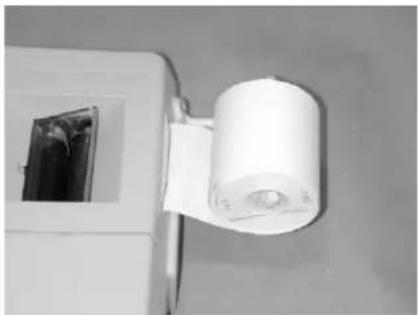
- Put the new paper roll on the paper arm.
- Insert the paper into the slot as indicated.
- Depress the paper feed key.
- Suitable paper roll:
Width: max. 57.5mm (2.25")
Diameter: max. 50mm (1.97")
Paper: Normal paper
(45kg/1000 sheets/788 x 1091 mm)
natural_image
Close-up of a white cylindrical device mounted on a wall, with a small inset showing internal components (no visible text or symbols)BATTERY REPLACEMENT
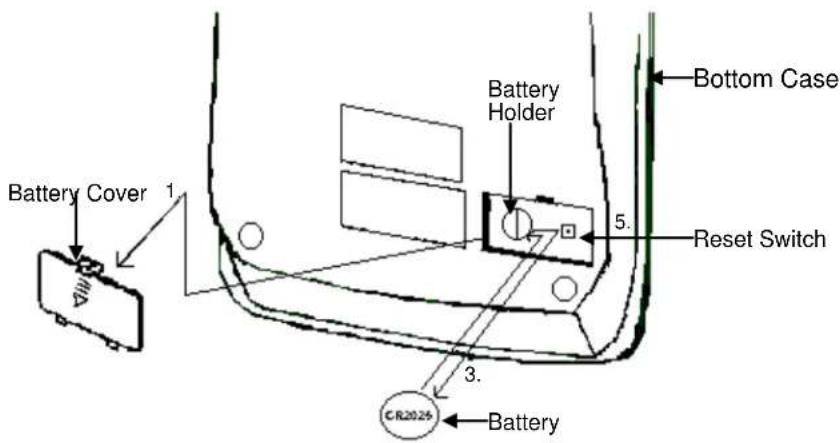
- Turn the AC power switch off
- Remove - the battery compartment cover located on the calculator bottom case.
- Remove the old battery and install a new CR2025 or equivalent.
- Turn on the AC power switch
- PRESS THE RESET BUTTON
- Replace the battery compartment cover.
- Reprogram the date and time.
(See page 27 & 28)
text_image
Battery Cover 1 Battery Holder Battery 5. Reset Switch 3. CR2026 Bottom Case Battery BatteryCAUTION
Danger of explosion if battery is incorrectly replaced. Only replace with the same or equivalent type recommended by the manufacturer.
Dispose of used batteries according to the manufacturers' instructions.
flowchart
graph TD
    A["① A F 0 2 3 4"] --> B["② ↑ 5/4 ↓"]
    B --> C["③ · Σ"]
    C --> D["④ · GT"]
    D --> E["⑤ OFF ON PRINT"]
    A --> F["⑥ ↑ →"]
    F --> G["⑦ COST"]
    G --> H["⑧ SELL"]
    H --> I["⑨ MARGIN"]
    I --> J["⑩ TIME DATE"]
    J --> K["⑪ RATE"]
    K --> L["⑫ TAX1"]
    L --> M["⑬ TAX2"]
    N["⑮ % + -"] --> O["⑯ +/-"]
    O --> P["⑰ 7"]
    P --> Q["⑱ 8"]
    Q --> R["⑲ 9"]
    R --> S["⑳ -"]
    S --> T["㉑ +"]
    T --> U["㉒ N"]
    U --> V["㉓ MT"]
    W["⑪ ÷ △%"] --> X["㉔ 4"]
    X --> Y["㉕ 5"]
    Y --> Z["㉖ 6"]
    Z --> AA["㉗ +"]
    AA --> AB["㉘ #/S"]
    AB --> AC["㉙ MS"]
    AD["⑰ = CE/C"] --> AE["㉕ 1"]
    AE --> AF["㉖ 2"]
    AF --> AG["㉗ 3"]
    AG --> AH["㉘ T"]
    AH --> AI["㉙ M-"]
    AJ["㉚ X"] --> AK["㉗ 0"]
    AK --> AL["㉘ 00"]
    AL --> AM["㉙ -"]
    AM --> AN["㉚ 24"]
    AN --> AO["㉛ 27"]
    AO --> AP["㉜ M+"]
    AQ["㉝ 15"] --> AR["㉞ % + -"]
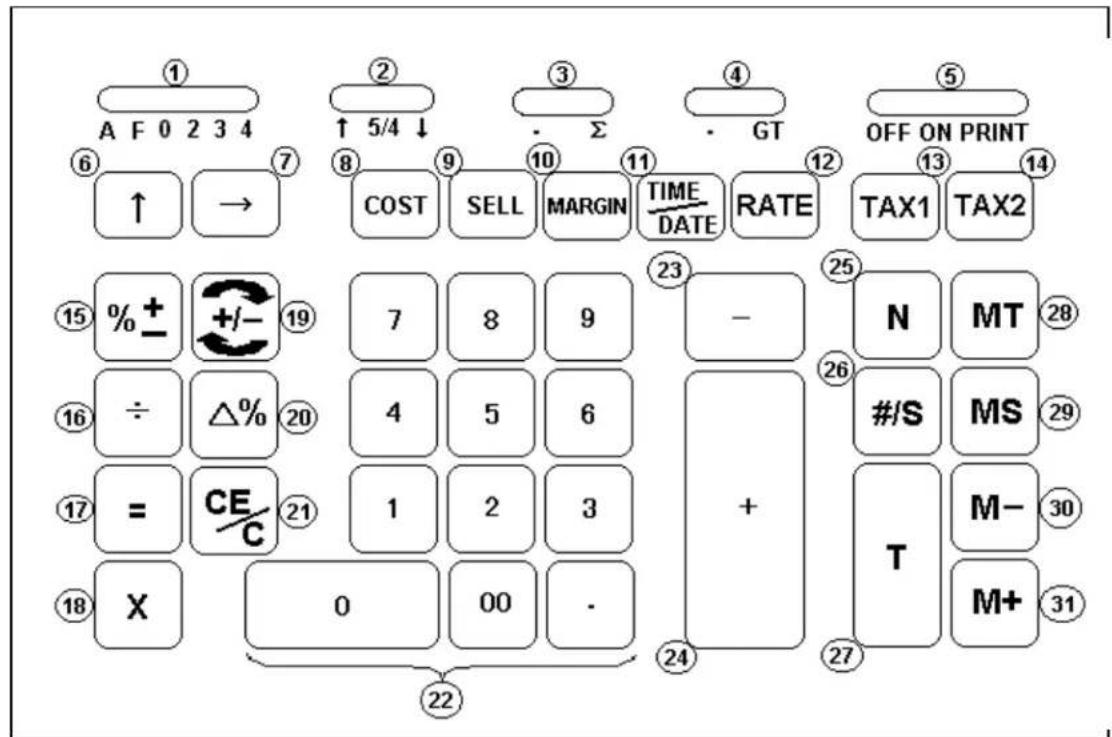
| 1. Decimal Selector | 17. Equal |
| 2. Rounding Selector | 18. Multiplication |
| 3. Sigma Switch | 19. Sign Change |
| 4. Grand Total Switch | 20. Delta Percentage |
| 5. Print Switch | 21. Clear Entry / Clear |
| 6. Paper Feed | 22. Numeric Key Pad |
| 7. Back Space | 23. Subtraction |
| 8. Cost | 24. Addition |
| 9. Sell | 25. Item Count |
| 10. Margin | 26. Non-add / Subtotal |
| 11. Time/Date Display | 27. Total |
| 12. Tax Rate Preset | 28. Memory Total |
| 13. Tax 1 | 29. Memory Subtotal |
| 14. Tax 2 | 30. Memory Subtraction |
| 15. Percentage | 31. Memory Addition |
| 16. Division |
This section describes the mode switches, data entry keys, and operating keys provided on your calculator. The following terms are used in discussing your calculator's operation:
- The accumulator is the area of the calculator's logic that stores a running total of the results of addition and subtraction operations. It is the “adding machine” portion of the calculator.
- The calculating register is the area of the calculator's logic where the intermediate and final results of multiplication, division and percentage calculations are stored. The contents of the calculating register do not affect the accumulator.
- The keyboard register is the area of the calculators logic that stores the value that will immediately be used in the next calculation.
- The item count register is the area of the calculator's logic that counts your entries into the accumulator. Each positive entry is counted as one item. Each Negative entry is subtracted resulting in a net item count. It is also net or gross programmable.
- The memory register is the area of the calculator's logic that accumulates amounts you add to or subtract from the memory. Because the memory register is independent of the accumulator and the calculating register, it retains its value until you clear it with the Memory Total (MT) key.
SLIDE SWITCH FEATURES
This section illustrates and describes the mode switches you can use to control your calculator's operation.
1. A F 0 2 3 4 Decimal Point Selector
A Monetary Add Mode: At this setting, amounts entered are assumed to be monetary. The calculator automatically supplies a decimal point to the left of the last two digits entered. Use this setting to add, subtract, multiply and divide decimals.
Units/price mode operation:
Multiplication: The first factor will be entered as a whole number and the second factor will have a decimal point supplied to the left of the last two digits.
Division: The first factor will have a decimal point supplied to the left of the last two digits and the second factor will be entered as a whole number.
F Floating decimal point mode; this setting specifies that all digits of the result be shown up to a maximum of 12 digits. If the result exceeds these capacities, excess digits to the right of the decimal point are dropped. No rounding takes place.
0,2,3,4 Fixed decimal point mode; these settings specify the number of digits to the right of the decimal point that are shown in the result.
- ↓ 5/4 ↑ Rounding Switch
↓ Absolute round down (truncation).
5/4 This setting causes automatic round off. If the last digit of the result that will be printed or printed/displayed upon rounding is followed by a value of 0 to 4, the digit is unchanged. If the last digit of the result that will be printed or printed/displayed upon rounding is followed by a value of 5 to 9, the digit is rounded up.
↑ Absolute round up.
- Switch
• Calculation without sigma.
Σ Calculation with Sigma. The results of multiplication or division calculations completed by the = or % keys are automatically added to the accumulator. The sum of these accumulations is displayed by pressing #/S key and displayed and cleared by pressing the T key.
- Grand Total Switch
• Calculation without Grand Total.
GT Any total taken with T key is automatically accumulated to memory. The accumulated grand total can be recalled by pressing the MT key.
- OFF ON PRINT Printer Selects Switch
OFF Turn Off the calculator.
ON Printer is activated only when feed key or #/S key is pressed.
PRINT Printer is activated as long as calculator is turned on.
KEY FEATURES
6. [↑] Paper Feed key
Advance the paper roll.
7. [→] Right Shift key
Deletes right most character of a live entry.
8. [COST] Cost key
Used to enter the Cost factor in a Gross Profit Margin calculation.
9. [SELL] Sell key
Used to enter the Selling price in Gross Profit Margin calculation.
10. [MARGIN] Profit Margin key
Used to enter the desired Margin in a Gross Profit Margin calculation.
11. [TIME/DATE] Time and Date Display key
Used to display or program the date and time. Depressing this key once will cause the date to display, a second depression will display the time. Holding the key down for three seconds will cause the date or time to flash, this is the program mode.
12. [RATE] TAX Rate Preset key
Used to enter TAX rate.
13. [TAX 1] Tax 1 key
Calculate an amount of Tax 1 with tax rate preset by RATE key. Use + key for calculating an amount include VAT, and – key for calculating an amount excluding VAT.
14. [TAX 2] Tax 2 key
Calculate an amount of Tax 2 with tax rate preset by RATE key. Use + key for calculating an amount include VAT, and – key for calculating an amount excluding VAT.
15. [%±] Percent key
Completes percent calculation when X or ÷ key is used.
16. [÷] Division key
The Division key performs division, automatic constant division and intermediate sequential operations. It establishes the next amount as a constant divisor. The ÷ key also causes the calculator to divide when you depress the =, %, M+, M-, X or ÷ key. Each divisor entry is retained as a constant (except M+ and M- entries) until you depress the X, ÷ or CE/C key.
17. [=] Equal key
To get the result in multiplication or division.
18. [X] Multiplication key
The multiplication key performs multiplication, automatic constant multiplication and intermediate sequential operations. It establishes the amount entered or the previous printed or printed/displayed amount as a constant multiplicand. The X key also causes the calculator to multiply when you depress the =, %, M+, M-, X or ÷ key. Each multiplicand entry is retained as a constant (except M+ and M- entries) until you depress the X, ÷, or CE/C key.
19. [+/-] Sign Change key
Reverse the sign on the display.
20. [Δ%] Delta Percentage
Automatically compares any two amounts and then calculates and prints the difference and percent of change.
21. [CE/C] Clear Entry / Clear key
Clears a live entry by pressing this key once. Press twice to clear the accumulator or pending calculation. Does not clear the Memory or Grand total.
22. [0]-[9], [00] & [•] Numeric keys.
The calculator uses the conventional 10-key indexing keyboard, and include the double zero key and decimal point key. Whole numbers are entered exactly as they are written.
23. [-] Minus key
Subtracts an amount from the accumulator. To subtract the same amount more than one time (repeat subtraction), enter that amount once and depress the – key as many times as necessary. If this key is depressed immediately after % key, it works as percent minus key.
24. [+] Plus key
Adds an amount to the accumulator. To add the same amount more than one time (repeat addition), enter that amount once and depress the + key as many times as necessary. If this key is depressed immediately after % key, it works as percent plus key.
25. [N] Item Count Key
Calculations with item count and/or averaging. Also used to set the N count to Gross or Net.
26. [# / S] Date / Subtotal Key
# : It will print live entry as an identifier as an invoice number with “#” mark.
S : It prints but does not clear the accumulator.
27. [T] Total Key
Prints and clears the accumulator. When this key is pressed with the "GT" switch is on, the result is accumulated automatically in the memory register.
28. [MT] Memory Total key
Prints and clears the memory.
29. [MS] Memory Subtotal key
Prints but do not clear the memory.
30. [M-] Memory Minus key
Subtracts an amount from memory. If there is a live calculation pending, the Memory Minus key will complete the calculation and subtract the amount from Memory.
31. [M+] Memory Plus key
Adds an amount to memory. If there is a live calculation pending, the Memory plus key will complete the calculation and accumulate the result to Memory.
32. [÷] , [=] Square Root key
By pressing the ÷ and then the = key, the square root result will be achieved.
TROUBLESHOOTING
Many problems such as no power, no key response etc. Can be resolved using the RESET button. Please follow these instructions:
- Machine must be plugged in and ON, and in the PRINT mode.
- Turn machine over so you can see the battery compartment.
- Open the battery compartment and locate the RESET button located next to the silver battery.
- Depress the RESET button; you will hear the machine cycle. If you do not hear the machine recycle, push the button a 2^nd time.
- Replace the battery compartment cover and turn the machine right side up.
- Test the machine.
If this procedure has not successfully resolved your problem please call 1-800-628-2420 for future assistance.
APPLICATION EXAMPLES
- BACKSPACE
| 4 | 5/4 | . | . | ||||
| Calculation | Enter | Display Paper | |||||
| 5.4321 + 2.34567 = ? | 5.4321 | [+] | 5.4321 | 5.4321 + | |||
| 2.3457 | [→] | 2.345 | |||||
| 67 | [+] | 7.77777 | 2.34567 + | ||||
| [T] | 7.7778 | 7.7778 T | |||||
- ROUNDING FOR ADDITION / SUBTRACTION
| 0 | . | . | ||||||
| Calculation | Enter | Display | Paper | |||||
| 3.4 + 2.1 = ? | 3.4 | [+] | 3.4 | 3.4 + | ||||
| 2.1 | [+] | 5.5 | 2.1 + | |||||
| [T] | 5. | 5. T | ||||||
| 0 | 5/4 | . | . | |||||
| Calculation | Enter | Display | Paper | |||||
| 3.4 + 2.1 = ? | 3.4 | [+] | 3.4 | 3.4 + | ||||
| 2.1 | [+] | 5,5 | 2.1 + | |||||
| [T] | 6. | 6. T | ||||||
- ADDITION & SUBTRACTION
| 5/4 | . | . | ||||||
| Calculation | Enter | Display | Paper | |||||
| 2 + 3.1415926 - 6 = ? | 2 | [+] | 2. | 2. + | ||||
| 3.1415926 | [+] | 5.1415926 | 3.1415926 + | |||||
| 6 | [-] | - 0.8584074 | 6. - | |||||
| [T] - 0.8584074 | 0.8584074 -T | |||||||
- ADDITION / SUBTRACTION IN ADD MODE
| 5/4 | . | . | ||||||
| Calculation | Enter | Display | Paper | |||||
| 1.23 - 4.56 + 7.89 = ? | 123 | [+] | 1.23 | 1.23 + | ||||
| 456 | [-] | -3.33 | 4.56 - | |||||
| [#/S] | -3.33 | 3.33 -S | ||||||
| 789 | [+] | 4.56 | 7.89 + | |||||
| [T] | 4.56 | 4.56 T | ||||||
5. ITEM COUNT PRESETTING
| 5/4 | . | . |
The Item count is Programmable for Gross Count or Net Count.
Gross Item Count: All entries both positive (+) and Negative (-) increment the counter positively.
Example: 10 + 2 + 3 - 5 = 10 Item count is 4
Net Item Count: Plus entries increment the counter, minus entries decrement the counter.
Example: 10 + 2 + 3 - 5 = 10 Item count is 2
| Calculation | Enter | Display | Paper | ||
| [CE/C] | 0. | 0. C | |||
| Setting Item | (Press & Hold 3 sec)[N] | (Blinking)000. | 000 | ||
| Cross Item Count | [+] | 000. | |||
| [CE/C] | 0. | 0. C | |||
| Setting Item | (Press & Hold 3 sec)[N] | (Blinking)000. | 000 | ||
| Net Item Count | [-] | 000. | |||
6. (A) ADDITION / SUBTRACTION WITH ITEM COUNT IN GROSS SETTING
| 5/4 | . | . | ||||||
| Calculation | Enter | Display | Paper | |||||
| 11.32 + 7.98 - 33.33 = ? | 1132 | [+] | 11.32 | 11.32 + | ||||
| 798 | [+] | 19.30 | 7.98 + | |||||
| [N] | ^0002. | 002 | ||||||
| [#/S] | 19.30 | 19.30 S | ||||||
| 3333 | [-] | - 14.03 | 33.33 - | |||||
| [N] | ^0003. | 003 | ||||||
| [T] | - 14.03 | 14.03 -T | ||||||
| [CE/C] | 0. | 0. C | ||||||
- (B) ADDITION / SUBTRACTION WITH ITEM COUNT IN NET SETTING
| DecimalA | Rounding5/4 | Σ. | GT. | PrintPRINT | ||||
| Calculation | Enter | Display | Paper | |||||
| 11.32 + 7.98 - 33.33 = ? | 1132 | [+] | 11.32 | 11.32 + | ||||
| 798 [+] | 19.30 | 7.98 + | ||||||
| [N] | 002. | 002 | ||||||
| [#/S] | 19.30 | 19.30 S | ||||||
| 3333 | [-] | - 14.03 | 33.33 - | |||||
| [N] | 001. | 001 | ||||||
| [T] | - 14.03 | 14.03 -T | ||||||
| [CE/C] | 0. | 0. C | ||||||
- (C) ITEM COUNT WITH AVERAGING
| 5/4 | . | GT . | Print PRINT | |||||
| Calculation | Enter | Display | Paper | |||||
| 11.32 + 7.98 - 33.33 = ? | 123 | [+] | 1.23 | 1.23 + | ||||
| 456 | [+] | 5.79 | 4.56 + | |||||
| 789 | [+] | 13.68 | 7.89 + | |||||
| 987 | [+] | 23.55 | 9.87 + | |||||
| [T] | 23.55 | 23.55 T | ||||||
| [N] | 004. | 004 | ||||||
| [N] | 5.89 | 5.89 * | ||||||
- GRAND TOTAL MEMORY
| 5/4 | . | |||||||
| Calculation | Enter | Display | Paper | |||||
| 13.20 | 9.55 | [CE/C] | 0. | 0. | C | |||
| 8.30 | 7.36 | 13.2 | [+] | 13.20 | 13.20 | + | ||
| + 2.95 | 18.33 | 8.3 | [+] | 21.50 | 8.30 | + | ||
| 24.45 | +35.24 =T? | 2.95 | [+] | 24.45 | 2.95 | + | ||
| [T] | M | 24.45 | 24.45 M^T_+ | |||||
| 9.55 | [+] | M | 9.55 | 9.55 | + | |||
| 7.36 | [+] | M | 16.91 | 7.36 | + | |||
| 18.33 | [+] | M | 35.24 | 18.33 | + | |||
| [T] | M | 35.24 | 35.24 M^T_+ | |||||
| [MT] | 59.69 | 59.69 MT | ||||||
- REPETATIVE CALCULATION WITH REFERENCE TO DATE
Reference date is April 25, 2004
| 5/4 | . | . | ||||||
| Calculation | Enter | Display | Paper | |||||
| 6.54 + 6.54 + 6.54 - | 4.25.2004 | [#/S] | 4.252004 | # 4.25.2004 | ||||
| 7.89 - 7.89 = ? | 654 | [+] | 6.54 | 6.54 + | ||||
| [+] | 13.08 | 6.54 + | ||||||
| [+] | 19.62 | 6.54 + | ||||||
| 789 | [-] | 11.73 | 7.89 - | |||||
| [-] | 3.84 | 7.89 - | ||||||
| [T] | 3.84 | 3.84 T | ||||||
- MULTIPLICATION
| 2 | . | . | ||||||
| Calculation | Enter | Display | Paper | |||||
| 1.238 x 456 =? | 1.238 [x] | 1.238 | 1.238 x | |||||
| 456 | 456. | 456.00 = | ||||||
| [=] | 564.52 | 564.52 * | ||||||
- SEQUENTIAL (CHAIN) MULTIPLICATION
| 3 | . | |||||||
| Calculation | Enter | Display | Paper | |||||
| 3.21 x 4.5 x 6.324=? | 3.21 | 3.21 | ||||||
| [x] | 3.210 | 3.210 x | ||||||
| 4.5 | 4.5 | 4.500 x | ||||||
| [x] | 14.445 | 6.324 = | ||||||
| 6.324 | 6.324 | 91.351 * | ||||||
| [=] | 91.351 | |||||||
- CONSTANT MULTIPLICATION
| 2 | 5/4 | . | . | |||||
| Calculation | Enter | Display | Paper | |||||
| 2 x 4 = 8 | 2 | [x] | 2.00 | 2.00 x | ||||
| 2 x 5 = 10 | 4 | [=] | 8.00 | 4.00 = | ||||
| 2 x 6 = 12 | 8.00 * | |||||||
| 5 | [=] | 10.00 | 5.00 = | |||||
| 10.00 * | ||||||||
| 6 | [=] | 12.00 | 6.00 = | |||||
| 12.00 * | ||||||||
| 16 | ||||||||
- CONSTANT MULTIPLICATION WITH ACCUMULATION
| 2 | 5/4 | . | ||||||
| Calculation | Enter | Display | Paper | |||||
| 1.79 x 167 =298.93 1.79 [x] 1.79 | 1.79 x | |||||||
| 1.79 x -230 = -411.70 167 [=] 298.93 | 167.00 = | |||||||
| 1.79 x 140 = +186.16 | 298.93 + | |||||||
| = ? | 230 | [+/-] | -230. | |||||
| [=] | -411.70 | 230.00 -= | ||||||
| 411.70 -+ | ||||||||
| 104 [=] 186.16 | ||||||||
| 104.00 = | ||||||||
| [T] 73.39 | 186.16 + | |||||||
| 73.39 T | ||||||||
- DIVISION
| 3 | . | . | ||||||
| Calculation | Enter | Display | Paper | |||||
| 178 ÷ 6 = ? | 178 | [÷] | 178.000 | 178.000 ÷ | ||||
| 6 | [=] | 29.666 | 6.000 = | |||||
| 29.666 * |
- CONSTANT DIVISION
| 2 | 5/4 | . | . | |||||
| Calculation | Enter | Display | Paper | |||||
| 755 ÷ 4 = 188.75 | 755 | [÷] | 755.00 | 755.00 ÷ | ||||
| 409 ÷ 4 = 102.25 | 4 | [=] | 188.75 | 4.00 = | ||||
| 32 ÷ 4 = 8.00 | 188.75 * | |||||||
| 409 | [=] | 102.25 | 409.00 = | |||||
| 102.25 * | ||||||||
| 32 | [=] | 8.00 | 32.00 = | |||||
| 17 | 8.00 * | |||||||
- DIVISION WITH ACCUMULATION
| 4 | 5/4 | . | ||||||
| Calculation | Enter | Display | Paper | |||||
| 145 ÷ 12.25 + | 145 | [÷] | 145.0000 | 145.0000 ÷ | ||||
| 15130 ÷ 123.50 + | 12.25 | [=] | 11.8367 | 12.2500 = | ||||
| 159.36 ÷ 10.25 = ? | 11.8367 + | |||||||
| 15130 | [÷] | 15,130.0000 | ||||||
| 123.50 | [=] | 122.5101 | 15,130.0000 ÷ | |||||
| 123.5000 = | ||||||||
| 159.36 | [÷] | 159.3600 | 122.5101 + | |||||
| 10.25 [=] | 15.5473 | |||||||
| [T] | 149.8941 | 159.3600 ÷ | ||||||
| 10.2500 = | ||||||||
| 15.5473 + | ||||||||
| 149.8941 T | ||||||||
- UNIT / PRICE CALCULATION
| 5/4 | . | |||||||
| Calculation | Enter | Display | Paper | |||||
| 132 x 5.67 =748.44 | 132 | [x] | 132.00 | 132.00 x | ||||
| 146 x 4.45 =649.70 | 567 | [=] | 748.44 | 5.67 = | ||||
| 155 x 3.11 =482.05 | 748.44 + | |||||||
| Total = ? | 146 | [x] | 146.00 | |||||
| 445 | [=] | 649.70 | 146.00 x | |||||
| 4.45 = | ||||||||
| 155 | [x] | 155.00 | 649.70 + | |||||
| 311 | [=] | 482.05 | ||||||
| [T] | 1,880.19 | 155.00 x | ||||||
| 3.11 = | ||||||||
| 482.05 + | ||||||||
| 18 | 1,880.19 T | |||||||
- TAX RATE PRESETTING
| 2 | . | . | ||||||
| Calculation | Enter | Display | Paper | |||||
| [CE/C] | 0. | 0. C | ||||||
| Preset TAX 1 = 7.5% (Press & Hold 3 sec)[RATE] | (Blinking) 0. | |||||||
| 7.5 | [TAX 1] | 7.50 | ...1... | 7.50 % | ||||
| 0. C | ||||||||
| [CE/C] | 0. | |||||||
| Preset TAX 2 = 18.6% (Press & Hold 3 sec)[RATE] | (Blinking) 0. | |||||||
| 18.6 | [TAX 2] | 18.60 | ...2... | 18.60 % | ||||
- TAX CALCULATION
| 2 | . | . | ||||||
| Calculation | Enter | Display | Paper | |||||
| Price without Tax 1=261.56 | [CE/C]261.56 | 0.[TAX 1] | 261.56 | 0. C | ||||
| Price with Tax 1 = ? | [+] | 281.18 | 261.56 | |||||
| ...1... | 7.50 %19.62 281.18 * | |||||||
| Price without Tax 1 | [TAX 1][-] | 281.18261.56 | 281.18 | |||||
| ...1... | 7.50 %19.62 261.56 * | |||||||
| Price without Tax 2=300 | [CE/C]300 | 0.[TAX 2]355.80 | 300. | 0. C | ||||
| Price with Tax 2 = ? | [+] | ...2... | 300.0018.60 %55.80 355.80 * | |||||
| Price without Tax 2 | [TAX 2][-] | 355.80300.00 | 355.80...2...18.60 %55.80 300.00 * | |||||
Calculation Enter Display Paper
| VAT including TAX 1 and TAX 2: | ||
| 200 [TAX 1] | 200. | 200.00 |
| [TAX 2] | 200. | ...1... |
| [+] | 252.20 | 7.50 % |
| 15.00 Δ | ||
| ...2... | ||
| 18.60 % | ||
| 37.20 Δ | ||
| ...1,2... | ||
| 52.20 Δ | ||
| 252.20 * | ||
| Price excluding TAX 1 and TAX 2: | ||
| [TAX1] | 252.20 | |
| [TAX2] | 252.20 | |
| [-] | 200.00 | |
| ...1... | ||
| 7.50 % | ||
| 15.00 Δ | ||
| ...2... | ||
| 18.60 % | ||
| 37.20 Δ | ||
| ...1,2... | ||
| 52.20 Δ | ||
| 200.00 * | ||
| NOTE: TAX calculation is fix to 2 decimal points and the result | ||
- PERCENT ADD ON
| 2 | . | . | ||||||
| Calculation | Enter | Display | Paper | |||||
| Price = 3.95 | 3.95 | [x] | 3.95 | 3.95 x | ||||
| Discount = 5% | 5 | [%+] | 0.19 | 5.00 % | ||||
| Tax Amount =0.19 | 0.19 * | |||||||
| Net Amount= $4.14 | ||||||||
| [+] | 4.14 | 4.14 +% | ||||||
- PERCENT DISCOUNT
| 2 | 5/4 | . | . | |||||
| Calculation | Enter | Display | Paper | |||||
| Price = 169.50 | 169.5 [x] | 169.50 | 169.50 x | |||||
| Discount = 14% | 14 [%+] | 23.73 | - | 14.00 % | ||||
| Discount Amount =23.73 | 23.73 * | |||||||
| Net = $145.77 | ||||||||
| [-] | 145.77 | 145.77 -% | ||||||
- CHAIN DISCOUNT WITH TOTAL AMOUNT OF DISCOUNT
| Decimal2 | Rounding5/4 | Σ. | GT. | PrintPRINT | ||||
| Calculation | Enter | Display | Paper | |||||
| 23.15 less 15/10/5% =16.82 Net | [x] | 23.15 | [M+] | 23.15 | 23.15 M+ | |||
| M | 23.15 | 23.15 x | ||||||
| Total Amount of Discount $6.33 | 15 | [%±] | M | 3.47 | 15.00 % | |||
| [-] | M | 19.68 | 3.47 * | |||||
| [x] | M | 19.68 | 19.68 -% | |||||
| 10 [%+] | M | 1.97_ | 19.68 x | |||||
| [-] | M | 17.71 | 10.00 % | |||||
| [x] | M | 17.71 | 1.97 * | |||||
| 5 | [%+] | M | 0.89 | 17.71 -% | ||||
| [-] | M | 16.82 | 17.71 x | |||||
| [M-] | M | 16.82 | 5.00 % | |||||
| [MT] | 6.33 | 0.89 * | ||||||
| 16.82 -% | ||||||||
| 16.82 M- | ||||||||
| 6.33 MT | ||||||||
- PERCENT CHANCE AND AMOUNT OF DIFFERENCE
| 2 | 5/4 | . | GT . | Print PRINT | ||||
| Calculation | Enter | Display | Paper | |||||
| Last Year's Expense 60.00 | 60 | [Δ%] | 60.00 | 60.00 | Δ | |||
| This Year's Expense130.00 | 130 | [=]/[%±] | 116.67 | 130.00 | = | |||
| Amount of Difference $70.00 | 70.00 | Δ* | ||||||
| Percent of Chance 116.67% | 116.67 | Δ% | ||||||
- CONSTANT PERCENT CHANGE AND AMOUNT OF DIFFERENCE
| 2 | 5/4 | . | . | |||
| Calculation | Enter | Display | Paper | |||
| Last Year ‘s Expense125,000 | 125000 | [Δ%] | 125,000.00 | 125,000.00 | Δ | |
| This Year’s Expense175,000 | 175000 | [=] | 40.00 | 175,000.00 | = | |
| Next Year’s Expense$210,000 | 210000 | [=] | 68.00 | 50,000.00 | Δ* | |
| 40.00 | Δ% | |||||
| 210,000.00 | = | |||||
| Percent of Chance ? | 85,000.00 | Δ* | ||||
| Amount of Difference ? | 68.00 | Δ% | ||||
- GROSS PROFIT MARGIN CALCULATION COST-SELL-MARGIN
| Decimal0 | Rounding5/4 | Σ. | GT. | PrintPRINT | ||||
| Calculation | Enter | Display | Paper | |||||
| Cost = 100 | 100 | [COST] | 100. | 100. | C | |||
| Margin = 20% | 20 | [MARGIN] | 125. | 20. | M% | |||
| Sell = ? | 25. | Δ* | ||||||
| 125. | S | |||||||
| Cost = 100 | 100 | [COST] | 100. | 100. | C | |||
| Sell = 125 | 125 | [SELL] | 20. | 125. | S | |||
| Margin = ? | 25. | Δ* | ||||||
| 20. | M% | |||||||
| Sell = 125 | 125 | [SELL] | 125. | 125. | S | |||
| Margin = 20% | 20 | [MARGIN] | 100. | 20. | M% | |||
| Cost = ? | 25. | Δ* | ||||||
| 100. | C | |||||||
- MARKDOWN AND SELLING PRICE
| 2 | 5/4 | . | . | |||||
| Calculation | Enter | Display | Paper | |||||
| Item Cost | 100 | 100 | [COST] | 100.00 | 100.00 | C | ||
| Markdown (Percent) | 6.5% | 6.5 | [+/-] | -6.5 | 6.50 | \overline{M}\% | ||
| (Base on to be determined selling price) | [MARGIN] | 93.90 | 6.10 | \overline{\Delta}* | ||||
| 93.90 | S | |||||||
| Markdown (Amount) | 6.10 | |||||||
| Selling Price | $93.90 | |||||||
- SQUARE ROOT-You can use the ÷ and = key to calculate square root
| 2 | 5/4 | . | . | |||||
| Calculation | Enter | Display | Paper | |||||
| 58 = 7.62 [=] | 58 ÷ 7.62 | 58.00 | 58.00 ÷ 58.00 R 7.62 * | |||||
- INVOICE – INVOICE NUMBER 88901; DATE 10/3/04
| Decimal A | Rounding 5/4 | GT . | Print PRINT | ||||||
| Calculation | Enter | Display | Paper | ||||||
| Quantity | Price | Net | 88901 | [#/S] | 88,901. | # 88901 | |||
| 16 | 3.29 | 52.64 | 10.3.04 | [#/S] | 10.304 | # 10.03.04 | |||
| 108 | 1.39 | 150.12 | 16 | [x] | 16.00 | 16.00 x | |||
| Gross | 202.76 | 3.29 | [=] | 52.64 | 3.29 = | ||||
| Less 10% Discount | 52.64 + | ||||||||
| -20.28 | 108 | [x] | 108.00 | ||||||
| 182.48 | 1.39 | [=] | 150.12 | 108.00 x | |||||
| Tax 5% | + 9.12 | 1.39 = | |||||||
| Net | 191.60 | [T] | 202.76 | 150.12 + | |||||
| [x] | 202.76 | 202.76 T | |||||||
| 10 | [%+] | 20.28 | 202.76 x | ||||||
| [-] | 182.48 | 10.00 % | |||||||
| [x] | 182.48 | 20.28 + | |||||||
| 5 | [%+] | 9.12 | 182.48 -% | ||||||
| [+] | 191.60 | 182.48 x | |||||||
| [CE/C] | 0. | 5.00 % | |||||||
| 9.12 + | |||||||||
| 191.60 +% | |||||||||
| 0. C | |||||||||
28. PAYROLL
| Decimal/2 | Rounding/5/4 | Σ/Σ | GT/. | PrintPRINT |
Calculation
Given Find
| 5.75 | Hourly Rate Regular Pay 218.50 |
| 38 | Hours Worked Total Deductions 44.12 |
| 7.15% | FICA Net Pay 174.38 |
| 23.75 | Withholding |
| 4.75 | Insurance |
| Calculation | Enter | Display | Paper | |||
| See Above | 5.75 | [x] | 5.75 | 5.75 x | ||
| 38 | [M+] | M | 218.50 | 38.00 = 218.50 M+ | ||
| [x] | M | 218.50 | ||||
| 7.15 | [%±] | M | 15.62 | 218.50 x 7.15 % | ||
| 23.75 | [+] | M | 39.37 | 15.62 + | ||
| 4.75 | [+] | M | 44.12 | |||
| [T] | M | 44.12 | 23.75 + 4.75 + 44.12 T | |||
| [M-] | M | 44.12 | ||||
| [MT] | 174.38 | 44.12 M- 174.38 MT | ||||
- MEMORY CALCULATION
| 5/4 | . | . | ||||||
| Calculation | Enter | Display | Paper | |||||
| [CE/C] | 0. | 0. C | ||||||
| 100 + 200 = ? | 100 | [+] | 100. | 100. + | ||||
| 900 - 500 = ? | 200 | [+] | 300. | 200. + | ||||
| 20 X 7 = ? | [T] | 300. | 300. T | |||||
| 12 X 5 = ? | ||||||||
| Total | ? | [M+] | M | 300. | 300. M+ | |||
| 900 | [+] | M | 900. | 900. + | ||||
| 500 | [-] | M | 400. | 500. - | ||||
| [T] | M | 400. | 400. T | |||||
| [M+] | M | 400. | 400. M+ | |||||
| 20 | [X] | M | 20. | 20. x | ||||
| 7 | [=] | M | 140. | 7. = | ||||
| 140. * | ||||||||
| [M+] | M | 140. | 140. M+ | |||||
| 12 | [X] | M | 12. | 12. x | ||||
| 5 | [M+] | M | 60. | 5. = | ||||
| 60. M+ | ||||||||
| [MS] | M | 900. | 900. MS | |||||
| [MT] | 900. | 900. MT | ||||||
30. SETTING THE DATE
Set Slide Switches as Example Below:
EXAMPLE: Set DATE to September 14, 2004 (09-14-04)
| Step | Enter | Depress This Key | Your Display Will Show | Tape Will Read |
| 1. | Clear Key (CE/C) | 0. | 0.C | |
| 2. | TIME/DATE Key and hold until display flashes | Flashing Numbers in This Format - MM-DD-YYYY | ||
| 3. | 09 | 9 | ||
| 4. | 14 | 914 | ||
| 5. | 04 | 91404 | ||
| 6. | Tap TIME/DATE Key | 09-14-2004 | ||
| 7. | #/S Key | 09-14-2004 | # 9.14.2004 |
| Decimal2 | Rounding5/4 | Σ. | GT. | PrintPRINT |
- Depress the CE/C key. Your display with show 0. and the tape will read 0.C.
- Depress the TIME/DATE key and hold until the display is flashing.
- Enter the month, in our example, 09. Your display will show 9.
- Enter the day, in our example, 14. Your display will show 914.
- Enter the year, in our example 2004, as 04. Your display will show 91404.
- Tap the TIME/DATE key to set the DATE. Your display will now show 09-14-2004.
- To PRINT the DATE, depress the (#/S) key, your tape will show # 9.14.2004.
NOTE: The only key to enter the Date/Time display mode is the TIME/DATE key. The only key to exit the Time/Date display mode is the CE/C.
31. SETTING THE TIME
Set Slide Switches as Example Below:
EXAMPLE: Set TIME to 4:37 PM
| Step # | Enter | Depress This Key | Your Display Will Show | Tape Will Read |
| 1. | Clear Key (CE/C) | 0. | 0.C | |
| 2. | TIME/DATE Key and hold until display flashes | Flashing Numbers in This Format - MM-DD-YYYY | ||
| 3. | Tap TIME/DATE key to switch to Time Mode | Flashing Numbers in This Format – HH-MM-SS | ||
| 4. | 16 | 16 | ||
| 5. | 37 | 1637 | ||
| 6. | Tap TIME/DATE Key | P 04-37-00 | ||
| 7. | #/S Key | P 04-37-00 | #•04 •37 |
| Decimal2 | Rounding5/4 | Σ. | GT. | PrintPRINT |
- Depress the CE/C key. Your display with show 0. and the tape will read 0.C.
- Depress the TIME/DATE key and hold until the display is flashing.
- Tap the TIME/DATE key to go to Time Mode.
- Enter the hour, in our example 16 in military time. Your display will show 16.
- Enter the minutes, in our example 37. Your display will show 1637.
- Tap the TIME/DATE key to set the TIME. Your display will now show P 04-37-00 and the seconds will begin counting.
- To PRINT the TIME, depress the (#/S) key, your tape will show #•04•37.
NOTE: On the PRINT on the paper tape, the dot in front (#•07•05) means PM, there will be no dot printed for AM.
TECHNICAL SPECIFICATIONS
Type: Desktop Adding Machine/Calculator, Electronic Print/VFD
Basic Operations: Addition/subtraction and multiplication/division
Capacity: Input and result 12 digits.
Decimal System: Add Mode(A), Floating(F), Fixed(0,2,3,4)
Functions: 4 rules, successive calculation, memory calculation, grand total or sigma calculation, constant calculations, 2 tax calculation, delta percentage calculation, cost, sell and margin calculation.
Printer: Character wheel selection type.
Power Consumption: 11 W
Ink: VICTOR Twin Spool Ribbon #7010
Paper width: Width 57.5 ± 0.5mm X Diameter 50mm
Display: 12 digit VFD display.
Operating Temp: 32°\~104°F, 0°C \~ 40°C
Dimensions: L295 X W210 X H72 mm
Weight: 1.53 kg
VICTOR®
WARRANTY
Your new VICTOR electronic calculator is guaranteed to the original purchaser for three (3) years for all parts and labor, providing repair work is performed at an authorized VICTOR Regional Service Center and the unit is sent prepaid. Warranty repair requires a copy of the original purchase invoice or receipt to be packed with the machine. The address and phone number of our National Service Depot is below.
Any warranty, statutory or otherwise, does not include service and/or replacement or repair of parts when damage or defect is a result of accident, abuse, or the elements.
GARANTIE
175 E Crossroads Parkway, Suite D.
Bolingbrook, IL USA
Telephone: 800-628-2420
Fax: 630-972-3902
http://www.victortech.com
VICTOR®
REGISTER ON LINE AT www.victortech.com
Or
FILL OUT THIS FORM AND MAIL TO THE ADDRESS ON BACK
Date Purchased: ____ Model No. ____ Serial No. ____
User's Name: ____
Company Name (if applicable): ____
Address: ____
City: ____ State: ____ Zip: ____
Purchased From: ____
Address: ____
City: ____ State: ____ Zip: ____
******************************************************************************************
VICTOR EXTENDED PROTECTION PROGRAM
ONLY \$25.00
Act now and extend your VICTOR warranty for another full year!
Covers all parts and labor.
Name: ____ Date: ____
Address: ____
City: ____ State: ____ Zip: ____
To receive repair coverage on your VICTOR calculator for one full year from expiration of VICTOR'S 3 year warranty, enclose this form and proof of purchase (invoice) showing your name, complete address, model and serial number along with your check or money order for \$25.00 payable to: Victor Technology, Attn: Extended Warranty Dept., 175 E. Crossroads Parkway, Suite D. Bolingbrook, IL 60440
VICTOR will acknowledge receipt, send you an authorized coverage agreement, and provide the address of the authorized VICTOR Regional Service Center nearest you.
Repair necessitated by accident or abuse is excluded.
If repairs are needed during the coverage period, ship your VICTOR calculator to the nearest authorized VICTOR Regional Service Center, freight PREPAID. It will be promptly repaired and returned to you freight prepaid.
Retain packing box and materials. Offer void 30 days after Purchase.
Place Stamp Here
Victor Technology
175 E. Crossroads Parkway, Suite D
Bolingbrook, IL 60440
Corporate Office
And
National Service Office
VICTOR TECHNOLOGY
175 E. Crossroads Parkway, Suite D.
Bolingbrook, IL 60440
Phone: 630-268-2420
Fax: 630-972-3902
www.victortech.com