E193HQV - Monitor eMachines - Free user manual and instructions
Find the device manual for free E193HQV eMachines in PDF.


| Product Type | LCD Monitor |
| Brand | eMachines |
| Model | E193HQV |
| Screen Size | 18.5 inches (diagonal) |
| Aspect Ratio | 16:9 |
| Resolution | 1366 x 768 (HD) |
| Contrast Ratio | 1000:1 (static) |
| Brightness | 200 cd/m² |
| Response Time | 5 ms |
| Viewing Angles (H/V) | 90° / 65° |
| Connectivity | 1 x VGA (D-Sub) |
| Power Consumption (Typical) | 20 W |
| Power Consumption (Standby) | < 1 W |
| Input Voltage | 100-240 V AC, 50/60 Hz |
| Dimensions (with stand) | 445 x 345 x 185 mm |
| Weight (with stand) | 4.5 kg |
| VESA Mounting | 100 x 100 mm |
| Cleaning | Use a soft, dry cloth. Do not use harsh chemicals. |
| Safety | Keep away from heat sources and direct sunlight. Ensure proper ventilation. |
| Spare Parts Availability | Contact eMachines support for replacement parts. |
| Repair | Only qualified personnel should attempt repairs. |
Frequently Asked Questions - E193HQV eMachines
User questions about E193HQV eMachines
0 question about this device. Answer the ones you know or ask your own.
Ask a new question about this device
Download the instructions for your Monitor in PDF format for free! Find your manual E193HQV - eMachines and take your electronic device back in hand. On this page are published all the documents necessary for the use of your device. E193HQV by eMachines.
USER MANUAL E193HQV eMachines
natural_image
Black desktop computer monitor with a circular base and 'emachines' label on top (no other text or symbols visible)Flat Panel Monitor User Guide
Contents
Using Your eMachines Flat-Panel Monitor .... 1
Unpacking the monitor 2
Setting up the monitor 2
Attaching the base 2
Connecting cables 3
Connecting a security cable 4
Turning on the monitor 4
Adjusting monitor settings .... 5
Monitor buttons 5
On-screen display options 6
Changing Windows screen settings 8
Power management 9
Energy declaration 9
Maintaining 10
Troubleshooting 10
No power 10
No picture 10
Display colors are wrong 11
Picture has shadows or "ghosts" 11
Color is not uniform 11
Image is not sized or centered correctly 11
The monitor has pixels that are always dark or too bright ..... 12
Connecting a game console 12
Video modes 13
Safety, Regulatory, and Legal Notices....14
Recycling 16
Contents
Using Your eMachines Flat-Panel Monitor
- Unpacking the monitor
- Setting up the monitor
- Turning on the monitor
- Adjusting monitor settings
• Power management - Maintaining
- Troubleshooting
Using Your eMachines Flat-Panel Monitor
Unpacking the monitor
Your monitor box should contain the following items:
• Monitor (with neck attached)
• Base (to connect to the neck)
• This User Guide
• VGA cable (Option)
• DVI cable (Option)
• Audio cable (Option)
Power cord
If you are missing any items, call Customer Care.
Setting up the monitor
To set up the monitor, first attach the base, then connect cables.
Attaching the base
▶ To attach the base:
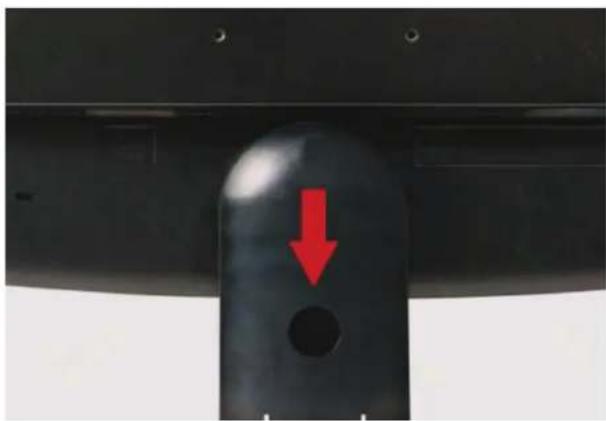
- Place the base on a table top, then press the base's release button while you slide the monitor neck down onto the base.
natural_image
Close-up of a black mechanical component with a red downward arrow indicating a specific feature (no text or symbols present)Connecting cables
▶ To connect video and power cables:
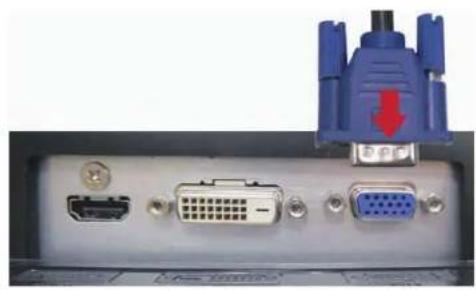
1 Position your computer and the monitor so you can reach the back of each, then connect the blue VGA video cable to the blue VGA video connector under the back of the monitor.
natural_image
Back panel of a computer interface showing ports and connectors, with a blue VDA icon and red downward arrow indicating a warning or alert (no text or symbols on components)2 Connect Digital Cable (Only Dual-input model)
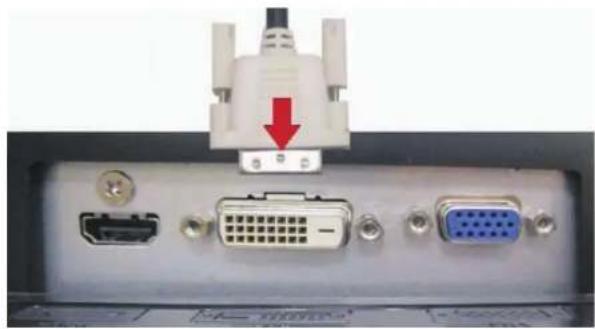
Position your computer and the monitor so you can reach the back of each, then connect the white DVI video cable to the white DVI video connector under the back of the monitor.
natural_image
Close-up of a computer monitor rear panel showing VGA, DIP socket, and port (no text or symbols visible)3 Make sure that your computer is turned off, then connect the other end of the video cable to the matching video port on the back of your computer.
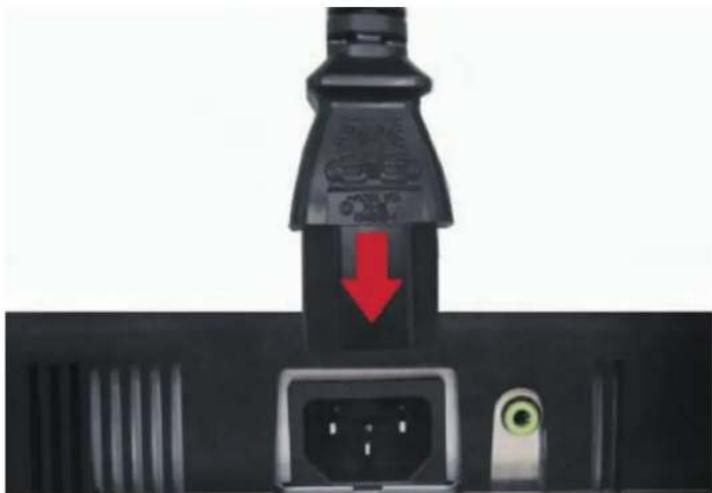
4 Connect the power cord to the power connector under the back of the monitor.
natural_image
Close-up of a black USB cable connector with a red downward arrow indicating compression or disassembly (no text or symbols visible)Using Your eMachines Flat-Panel Monitor
5 If you want to have your computer's audio played through your monitor's speakers, connect the included audio cable to your computer's headphones or line out jack (usually color-coded green) and to your monitor's AUDIO jack. (Option)
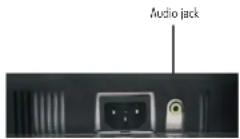
6 Plug the power cord into a correctly grounded (three-prong) AC power outlet. We recommend using a surge protector to protect your monitor from voltage spikes.
Connecting a security cable
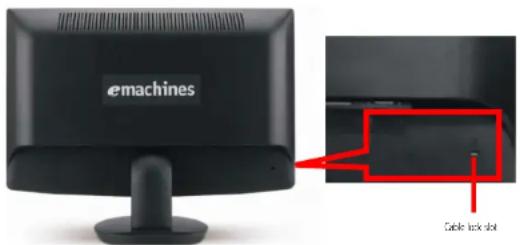
You can secure your monitor to your computer desk (or to another heavy object) with a cable lock (such as a Kensington™ lock). To connect a cable lock, follow the cable lock's instructions to connect it to the lock slot on the back of your monitor (cable lock not included).
Turning on the monitor
▶ To turn on the monitor:
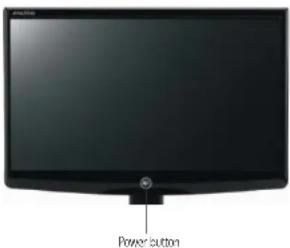
1 Press the power button on the front of your monitor. The power LED on the power button turns green. (The appearance of your monitor may vary from that shown.)

Important
Turn on your monitor before turning on your computer.
2 Turn on your computer.
After your computer is running, the power LED on the monitor's power button should be green. Allow several seconds for the display image to appear. If the power LED is not on or is amber, or you do not see a display image, check the connections. For more troubleshooting information, see "Troubleshooting" on page 10.
3 Adjust the tilt of the monitor for the best viewing angle. The monitor can adjust from 15° back to 5° forward.

Important
When adjusting the monitor settings, always press Auto before entering the on-screen display menu (OSD). This will automatically adjust the display image to the ideal settings for the current screen resolution.
4 After you see the Windows desktop, press the Auto button on the bottom of the monitor to automatically adjust your display image to the ideal settings.
5 Use the on-screen display (OSD) to adjust other monitor settings. For more information, see "Adjusting monitor settings" on page 5.
Adjusting monitor settings
Use the monitor controls (located on the monitor itself) and computer controls (accessible through Windows) to adjust the display image. For more information about computer controls, see "Changing Windows screen settings" on page 8.
Monitor buttons
This monitor features an on-screen display (OSD) that lets you adjust contrast, brightness, and other settings for the monitor. The monitor saves changes you make to the settings, even if you turn off the monitor. (The appearance of your monitor may vary from that shown.)
Bottom view
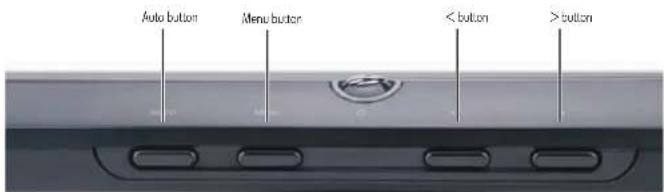
• Auto button
Press to have the monitor self-adjust its image position, clock, and focus settings. While the Scenario Mode menu is open, press to exit the menu.
- < and > buttons
Press to adjust volume.
While the OSD is open, press to highlight and adjust settings.
- Menu
Press once to open or close the OSD and select the highlighted menu or setting.
On-screen display options
Adjusting OSD settings
▶ To adjust the OSD settings:
1 Press Auto. The display image is automatically adjusted to the ideal settings for your current screen resolution.
2 Press Menu. The OSD opens.
3 Press < and > to highlight a setting, then press Menu to open the selected menu or setting. You can configure settings in the following menus:
| Menu icon | Name Description | |
 | Brightness and Contrast | Adjusts the brightness and contrast (by selecting User) or selects a color mode (by selecting Scenario Mode). |
 | Focus and Clock | Adjusts focus and clock settings. |
 | Position | Adjusts horizontal and vertical screen image position. |
 | Color Temperature | Selects a warm, cool, or user-defined color temperature. |
 | Language | Selects the language for the OSD. |
 | OSD Settings Adjusts | the horizontal and vertical position of the OSD and sets the timeout. |
 | Input Source | Select input signal from D-Sub or DVI-D or HDMI |
| Wide Mode | Select Wide mode setting for Full screen, Aspect ratio mode | |
| DDC/CI Settings | Turns DDC/CI support on or off. | |
 | Mode Information | Displays the monitor's current resolution, timing, input type, and serial number. |
 | Reset to Defaults | Resets all OSD settings to defaults. |
 | Exit | Exits the OSD. |
4 Press < and > to adjust the setting to the desired level or change the option.
5 When you have finished making all adjustments, press Auto repeatedly to exit.
▶ To set the scenario mode:
1 Press Menu to open the OSD, then press Menu again to select the Brightness and Contrast menu.
2 Press > to highlight Scenario Mode, then press Menu. The Scenario Mode menu opens.
3 Press < and > to highlight a scenario mode, then press Auto to keep the setting.
| Menu icon | Mode Description | |
| [HS42] | User | User-defined (custom) settings, which can be adjusted to suit your needs. |
 | Text | This is the best balance of brightness and contrast to prevent eye strain while reading on-screen text. |
 | Standard | This uses default settings, and is the best general-purpose mode. |
| [3KT3] | Graphic | This enhances color and emphasizes fine detail. |
| [6T8W] | Movie | This displays full-motion scenes in the clearest detail. |
Changing Windows screen settings
Color depth and screen resolution are two of the most basic monitor settings you may need to change to suit your needs.
Color depth is the number of colors your computer uses to display images on your monitor. Most images look best displayed with the maximum number of colors available. If the color in your images seems "false" or "jumpy," especially after you have played a game or run a video-intensive program, check the color depth setting and return it to the highest color setting, if necessary. Common color depth settings include:
• Low (8-bit) = 256 colors
• Medium (16-bit) = 65,500 colors
• Highest (32-bit) = 16,700,000 colors
Screen resolution is the number of pixels (individual colored dots) your computer uses to display images on your monitor. The higher the resolution, the more information and screen components (such as icons and menu bars) can be displayed on the monitor.


For more information about adjusting the screen, click Start, then click Help and port. Type adjusting monitor settings in the Search Help box, then press ENTER.
To change the color depth and screen resolution in Windows Vista ^® :
1 Click ® (Start). Control Panel, then under Appearance and Personalization, click Adjust Screen Resolution. The Display Settings dialog box opens.

Shortcut
You can also right-click on your Windows desktop, then click Personalize.
2 To change the color depth, click the Colors list, then click the color depth you want.
3 To change the screen resolution, drag the Resolution slider to the size you prefer.
4 Click Apply. If the new settings do not look right, click No. If the new settings make the screen illegible and you cannot click No, the settings return to their previous values after several seconds.
5 Click OK, then click Yes to save your changes.
▶ To change the color depth and screen resolution in Windows XP:
1 Click Start, then click Control Panel. The Control Panel opens. If your Control Panel is in Category View, click Appearance and Themes.

Shortcut
You can also right-click on your Windows desktop, then click Properties.
2 Click Display. The Display Properties dialog box opens.
3 Click the Settings tab.
4 To change the color depth, click the arrow button to open the Color quality list, then click the color depth you want.
5 To change the screen resolution, drag the Screen resolution slider to the size you prefer, then click OK.
Power management
Energy declaration
When connected to a computer that supports the VESA Display Power Management Signaling (DPMS) protocol, the monitor can conserve significant energy by reducing power consumption during periods of non-use. When your computer goes into the energy-saving mode, the monitor enters the Active Off mode (sleep). In the Active Off mode the power LED turns amber. Use these conventions and the power can be reduced to the following levels:
To "wake" the monitor when it is in Active Off mode, move the mouse or press any keyboard key. Access the power management options in the Control Panel to change the period of time after which the monitor enters these low power states.
Maintaining
To keep the monitor in optimal working order:
- Do not block the ventilation holes.
- Do not expose the monitor to rain or use near water.
- Keep the monitor away from radiators or heat vents.
- Keep the monitor out of direct sunlight.

Caution
Do not use any type of abrasive pad or glass cleaner. You will permanently scratch the screen.
- To clean the monitor, use a soft cloth slightly moistened with water only. Wipe the cabinet, screen, and controls.
Troubleshooting

Important
Make sure that the monitor has warmed up for about 30 minutes before making any judgments about the picture quality. The screen's backlight can take several minutes to reach maximum brightness.
If you have problems with the monitor, the information in this troubleshooting section may help you solve them.
No power
- Make sure that the power cord is connected correctly to both the back of the monitor and an AC power outlet. For more information about connecting the power cord, see "Setting up the monitor" on page 2.
No picture
- Make sure that the power cord is connected correctly to both the back of the monitor and an AC power outlet. For more information about connecting the power cord, see "Setting up the monitor" on page 2.
- Make sure that the video cable is connected securely to the back of the monitor and the computer. For more information about connecting the video cable, see "Setting up the monitor" on page 2.
• Make sure that the monitor is turned on.
- If you have the monitor connected to your notebook's video port, you have two options: - If your notebook supports dual displays, you can use both your notebook's display and this monitor in extended desktop multi-monitor mode. See Windows Help to learn how to enable multiple monitors. - You can also use this monitor as your primary monitor and not use the notebook's screen. Notebook computers typically have an Fn key combination that lets you toggle between your notebook's display, an externally attached display, and both at the same time. See your notebook's user guide for more information.
• If the power LED is amber:
• Make sure that your computer is turned on.
- Move the mouse or press any key on the keyboard to bring the monitor out of sleep mode.
- Restart your computer with the monitor turned on.
• Make sure that the video cable is not damaged.
- Check the end of the video cable for any pins that might be bent or pushed in.
- Turn off the monitor and unplug the video cable from the back of your computer. Turn the monitor back on and wait for ten seconds. If the monitor is functioning correctly, a "Cable Not Connected" message appears. For more information about connecting the video cable, see "Setting up the monitor" on page 2.
Display colors are wrong
- Press Auto to automatically adjust the display image to the ideal settings.
- Restart your computer with the monitor turned on.
- Make sure that the video cable is connected securely to the back of the monitor and your computer. For more information about connecting the video cable, see "Setting up the monitor" on page 2.
- Make sure that the video cable is not damaged.
- Check the end of the video cable for any pins that might be bent or pushed in.
Picture has shadows or "ghosts"
- Press Auto to automatically adjust the display image to the ideal settings.
- Remove any extension cables or switchboxes.
- Make sure that the video cable is connected securely to the back of the monitor and your computer. For more information about connecting the video cable, see "Setting up the monitor" on page 2.
• Make sure that the video cable is not damaged.
- Check the end of the video cable for any pins that might be bent or pushed in.
• Make sure that your monitor connection is using the VGA cable that came with your monitor.
Color is not uniform
- Press Auto to automatically adjust the display image to the ideal settings.
• Make sure that the monitor warms up for at least 30 minutes before making a final judgment about color uniformity or brightness.
Image is not sized or centered correctly
- Press Auto to automatically adjust the display image to the ideal settings.
- Change the position settings. For instructions on how to adjust the display image position, see "Adjusting monitor settings" on page 5.
Using Your eMachines Flat-Panel Monitor
- If the image looks stretched or fuzzy, you must adjust the operating system's display settings to match the monitor's optimal (native) setting. For information on adjusting settings, see "Changing Windows screen settings" on page 8.
- If you are trying to select your monitor's native resolution but it is not available in the Windows display control panel:
- Make sure that your video card can display at your monitor's native resolution. - This may be caused by older video drivers on your computer. See the eMachines support Web site (www.emachines.com) for updated video drivers for your computer. You can also go directly to your video card's support Web site for the most up-to-date video drivers.
• If your games do not have support for widescreen displays:
- Newer games are adding support for widescreen displays as the widescreen format becomes more popular. Check the game's Web site for updates. You can also consult the following Web site for specific settings and options to configure older games to support widescreen: www.widescreengamingforum.com
- Some adjustments may require you to make changes to the Windows System Registry. We recommend making a complete system backup before changing the System Registry.
The monitor has pixels that are always dark or too bright
- This condition is normal and inherent in the TFT technology used in active-matrix LCD screens. eMachines' inspection standards keep these to a minimum. If you feel these pixels are unacceptably numerous or dense on your display, contact eMachines Customer Care to identify whether a repair or replacement is justified based on the number of pixels affected.
Connecting a game console
• To determine the type of cable you need, see your gaming console's documentation.
Using Your eMachines Flat-Panel Monitor
Video modes
| Mode | Mode name and resolution | Horizontal frequency (kHz) | Vertical frequency (Hz) |
| 1 | 640x480 31.469 59.941 | ||
| 2 | 640x480 37.861 72.809 | ||
| 3 | 640x480 37.500 75.000 | ||
| 4 | MAC 640x480 35 66.66 | ||
| 5 | VESA 720x400 31.469 70.087 | ||
| 6 | SVGA 800x600 | 35.156 56.250 | |
| 7 | SVGA 800x600 | 37.879 60.317 | |
| 8 | SVGA 800x600 48.077 72.188 | ||
| 9 | SVGA 800x600 46.875 75.000 | ||
| 10 | MAC 832x624 49.722 74.55 | ||
| 11 | XGA 1024x768 48.363 60.004 | ||
| 12 | XGA 1024x768 56.476 70.069 | ||
| 13 | XGA 1024x768 60.023 75.029 | ||
| 14 | VESA 1280x720 59.940 | 44.955 | |
| 15 | WXCA 1280x800 49.702 59.810 | ||
| 16 | WXCA 16866 | 47.712 59.790 |
Safety, Regulatory, and Legal Notices
• Important safety information
• Environmental information
• Regulatory compliance statements
Important safety information
Warning Always fol
ow these instructions to help guard against personal injury and damage to your product.
Warning
eMachines products in areas classified as hazardous locations. Such areas include patient care and dental facilities, oxygen-laden environments, or industrial facilities.
Your eMachines product is designed and tested to meet the latest standards for safety of information technology equipment. However, to ensure safe use of this product, it is important that the safety instructions marked on the product and in the documentation are followed.
Setting up your system
- Read and follow all instructions marked on the product and in the documentation before you operate your system. Retain all safety and operating instructions for future use.
- Do not use this product near water or a heat source such as a radiator.
- Set up the system on a stable work surface.
• The product should only be operated from the type of power source indicated on the rating label. - If your product has a voltage selector switch, make sure that the switch is in the proper position for your area. The voltage selector switch is set at the factory to the correct voltage.
- Openings in the monitor case are provided for ventilation. Do not block or cover these openings. Make sure you provide adequate space, at least 6 inches (15 cm), around the system for ventilation when you set up your work area. Never insert objects of any kind into the monitor ventilation openings.
- Some products are equipped with a three-wire power cord to make sure that the product is properly grounded when in use. The plug on this cord will only fit into a grounding-type outlet. This is a safety feature. If you are unable to insert the plug into an outlet, contact an electrician to install the appropriate outlet.
- If you use an extension cord with this system, make sure that the total ampere rating on the products plugged into the extension cord does not exceed the extension cord ampere rating.
Care during use
Warning
electric shock, never remove the cover. No user serviceable parts inside. Refer servicing to qualified
- Do not walk on the power cord or allow anything to rest on it.
- Do not spill anything on the system. The best way to avoid spills is to avoid eating and drinking near your system.
- Do not expose the monitor to rain or use near water. If the monitor does get exposed to moisture, unplug it and allow it to dry for 24 hours. Call eMachines Customer Care for advice on whether the monitor is safe to turn back on.
- When the monitor is turned off, a small amount of electrical current still flows through the monitor. To avoid electrical shock, always unplug all power cables and modem cables from the wall outlets before cleaning the system.
- Unplug the system from the wall outlet and refer servicing to qualified personnel if:
- The power cord or plug is damaged.
- Liquid has been spilled into the system.
- The system does not operate properly when the operating instructions are followed.
- The system was dropped or the cabinet is damaged.
- The system performance changes.
Replacement parts and accessories
Use only replacement parts and accessories recommended by eMachines.
Environmental information
Recycling

Mercury Warning
Lamp(s) inside this product contain mercury and must be recycled or disposed of according to local, state,
or federal laws.
The product you have purchased contains extracted natural resources that have been used in the manufacturing process. This product may contain substances known to be hazardous to the environment or to human health.
To prevent releases of harmful substances into the environment and to maximize the use of our natural resources, eMachines provides the following information on how you can responsibly recycle or reuse most of the materials in your "end of life" product.
Waste Electrical and Electronic Equipment (commonly known as WEEE) should never be disposed of in the municipal waste stream (residential garbage collection). The "Crossed-Out Waste Bin" label affixed to this product is your reminder to dispose of your "end of life" product properly.
Substances such as glass, plastics, and certain chemical compounds are highly recoverable, recyclable, and reusable. You can do your part for the environment by following these simple steps:
- When your electrical or electronic equipment is no longer useful to you, "take it back" to your local or regional waste collection administration for recycling.
In some cases, your "end of life" product may be "traded in" for credit towards the purchase of new eMachines equipment. Call eMachines to see if this program is available in your area.
If you need further assistance in recycling, reusing, or trading in your "end of life" product, you may contact us at the Customer Care number listed in your product's user guide and we will be glad to help you with your effort.
Finally, we suggest that you practice other environmentally friendly actions by understanding and using the energy-saving features of this product (where applicable), recycling the inner and outer packaging (including shipping containers) this product was delivered in, and by disposing of or recycling used batteries properly.
With your help, we can reduce the amount of natural resources needed to produce electrical and electronic equipment, minimize the use of landfills for the disposal of "end of life" products, and generally improve our quality of life by ensuring that potentially hazardous substances are not released into the environment and are disposed of properly.
For additional recycling information specific to your area, please go to
http://www.acer-group.com/public/Sustainability/sustainability01.htm
http://www.acer-group.com/public/Sustainability/sustainability04.htm

Acer America Corporation
333 West San Carlos St., San Jose
CA 95110, U. S. A.
Tel: 254-298-4000
Fax:254-298-4147
www.acer.com

Federal Communications Commission
Declaration of Conformity
This device complies with Part 15 of the FCC Rules. Operation is subject to the following two conditions: (1) this device may not cause harmful interference, and (2) this device must accept any interference received, including interference that may cause undesired operation.
The following local Manufacturer /Importer is responsible for this declaration:
Product:
LCD Monitor
Model Number:
E183H; E193HQ
VQH391E ; VH381E
SKU Number:
E183H*****; E193HQ*****
:*****VH381E
(^** = 0 9,a z,A^ Z or Blank)
Name of Responsible Party:
Acer America Corporation
Address of Responsible Party:
333 West San Carlos St.
San Jose, CA 95110
U. S. A.
Contact Person:
Acer Representative
Phone No.:
254-298-4000
Fax No.:
254-298-4147
European Union
Acer Incorporated
8F, 88, Sec. 1, Hsin Tai Wu Rd., Hsichih
Taipei Hsien 221, Taiwan
Tel: 886-2-2696-1234
Fax:886-2-2696-3535
CE
Declaration of Conformity
Wc,
Acer Incorporated
8F, 88, Sec. 1, Hsin Tai Wu Rd., Hsichih, Taipei Hsien 221, Taiwan
Contact Person: Mr. Easy Lai, E-mail: easy_lai@acer.com.tw
And.
Acer Europe SA
Hereby declare that:
| Product: | LCD Monitor |
| Trade Name: | Acer |
| Model Number: | E183H; E193HQ |
| E183HV; E193HQV | |
| SKU Number: | E183H**********; E193HQ********** |
| E183HV**********; E193HQV********** | |
| (*" = 0~9, a ~ z, A ~ Z or Blank) |
Is compliant with the essential requirements and other relevant provisions of the following EC directives, and that all the necessary steps have been taken and are in force to assure that production units of the same product will continue comply with the requirements.
EMC Directive 2004/108/EC as attested by conformity with the following harmonized standards:
- EN55022, AS/NZS CISPR22 Class B
- EN55024
- EN61000-3-2, Class D
- EN61000-3-3
Low Voltage Directive 2006/95/EC as attested by conformity with the following harmonized standard:
-.EN60950-1
RoHS Directive 2002/95/EC on the Restriction of the Use of certain Hazardous Substances in Electrical and Electronic Equipment
-. The maximum concentration values of the restricted substances by weight in homogenous material are:
| Lead | 0.1% | Polybrominated Biphenyls (PBB's) | 0.1% |
| Mercury 0.1% Polybrominated Diphenyl Ethers (PBDE's) 0.1% | |||
| Hexavalent Chromium | 0.1% | Cadmium | 0.01% |
Directive 2009/125/EC with regard to establishing a framework for the setting of ecodesign requirements for energy-related product.
Year to begin affixing CE marking 2010.
Easy Lai
Regulation, Acer Inc.
Mar. 3, 2010
DateEasy Lai /Manager
Trademark acknowledgments
© 2010 Acer Inc. All rights reserved. eMachines, the eMachines logo, and the design are registered trademarks of the Acer Group. Other trademarks, registered trademarks, and/or service marks, indicated or otherwise, are the property of their respective owners.
Safety, Regulatory, and Legal Notices