Double Sport - Pregnant Soundfreaq - Free user manual and instructions
Find the device manual for free Double Sport Soundfreaq in PDF.


User questions about Double Sport Soundfreaq
0 question about this device. Answer the ones you know or ask your own.
Ask a new question about this device
Download the instructions for your Pregnant in PDF format for free! Find your manual Double Sport - Soundfreaq and take your electronic device back in hand. On this page are published all the documents necessary for the use of your device. Double Sport by Soundfreaq.
USER MANUAL Double Sport Soundfreaq
natural_image
Isometric line drawing of a rectangular electronic device with two circular cutouts and a central button (no text or symbols)SOUNDFREQAQ®
SOUNDFREAQ®
Welcome,
We are a co-op of craftsmen— designers and engineers—with a passion for great sound. We develop our products from the ground up to offer premium sound quality and wireless versatility.
Thank you for choosing Double Spot. We sincerely hope that you enjoy your new wireless speaker system. Please share your experience with us:
connect@soundfreaq.com
Happy listening to you.

natural_image
Facebook logo icon, stylized lowercase 'f' in light blue within a white circle (no text or symbols beyond the logo)facebook.com/soundfreaq

natural_image
Twitter bird logo icon (no text or symbols)twitter.com/soundfreaq

natural_image
Abstract logo design featuring a stylized 'p' inside a white circle on a light blue background (no text or symbols)pinterest.com/soundfreaq

natural_image
Instagram logo icon (no text or symbols)instagram.com/soundfreaq
You're invited to join the Soundfreaq community
Getting to Know Double Spot
BACK
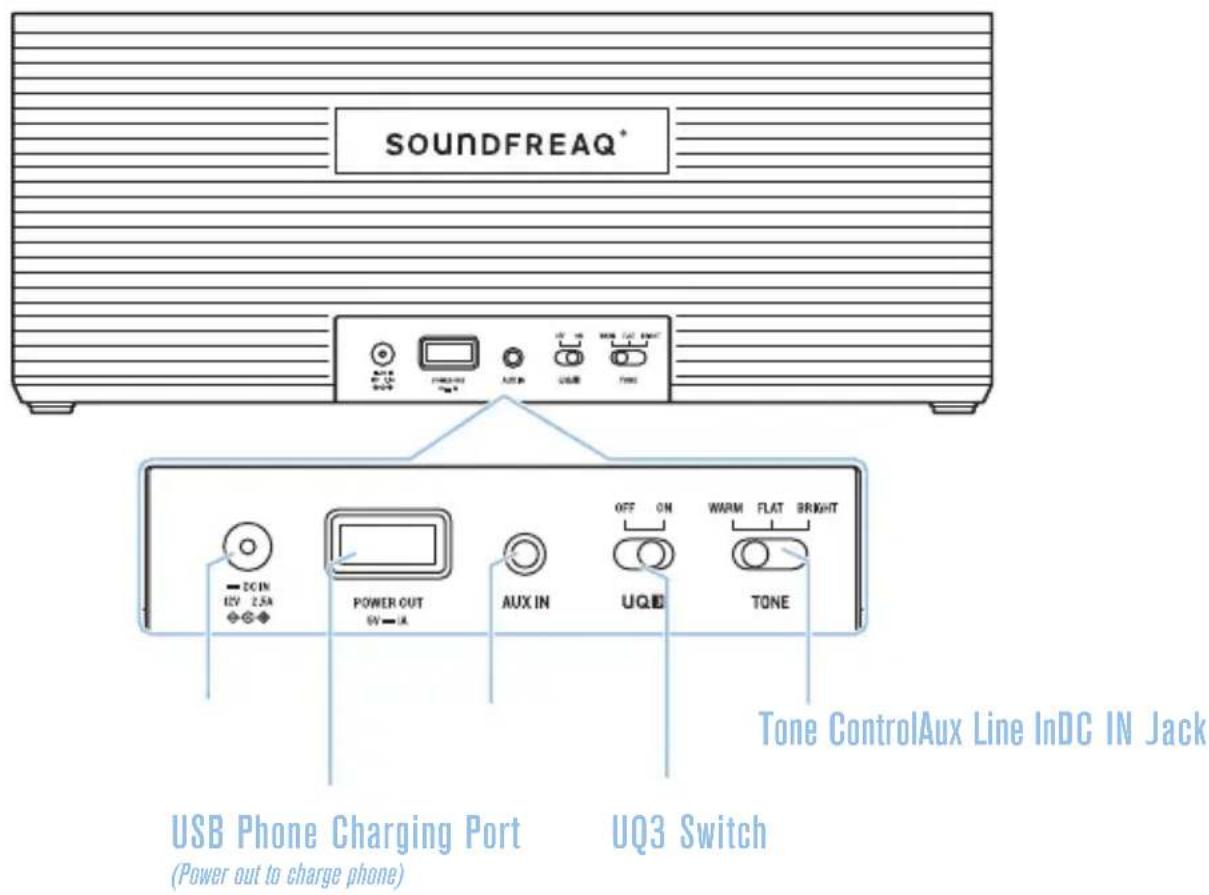
Getting to Know Double Spot
TOP
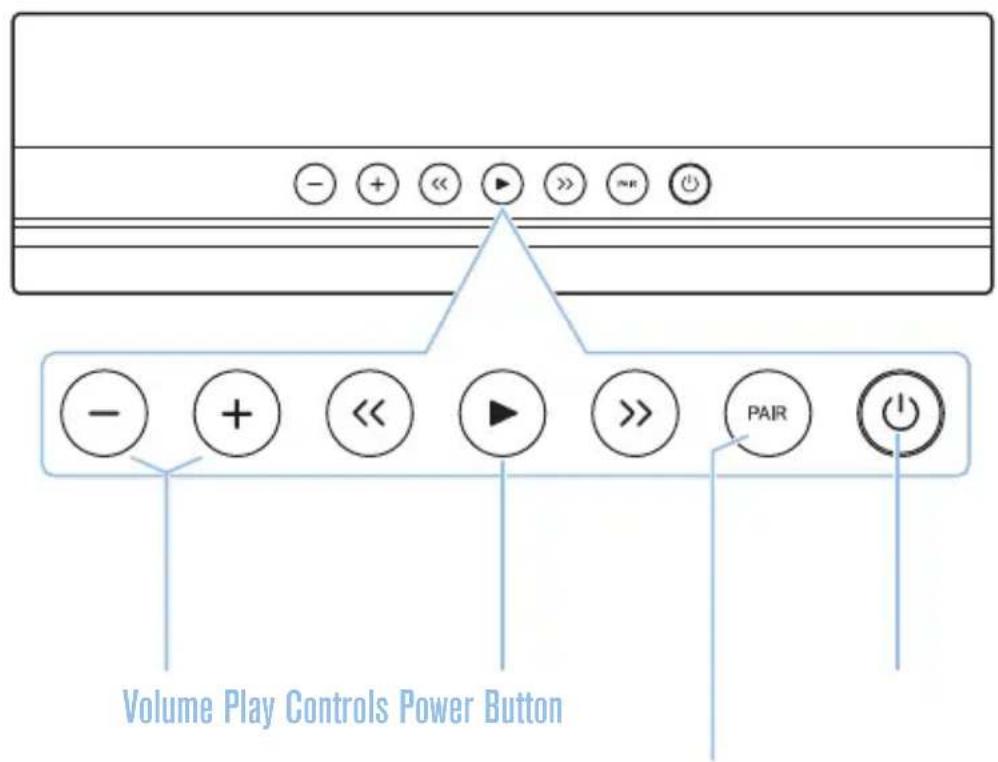
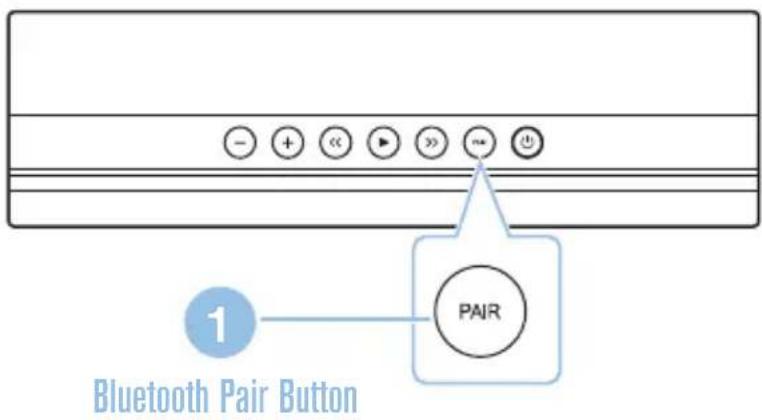
Bluetooth Pair Button
Turning on Double Spot
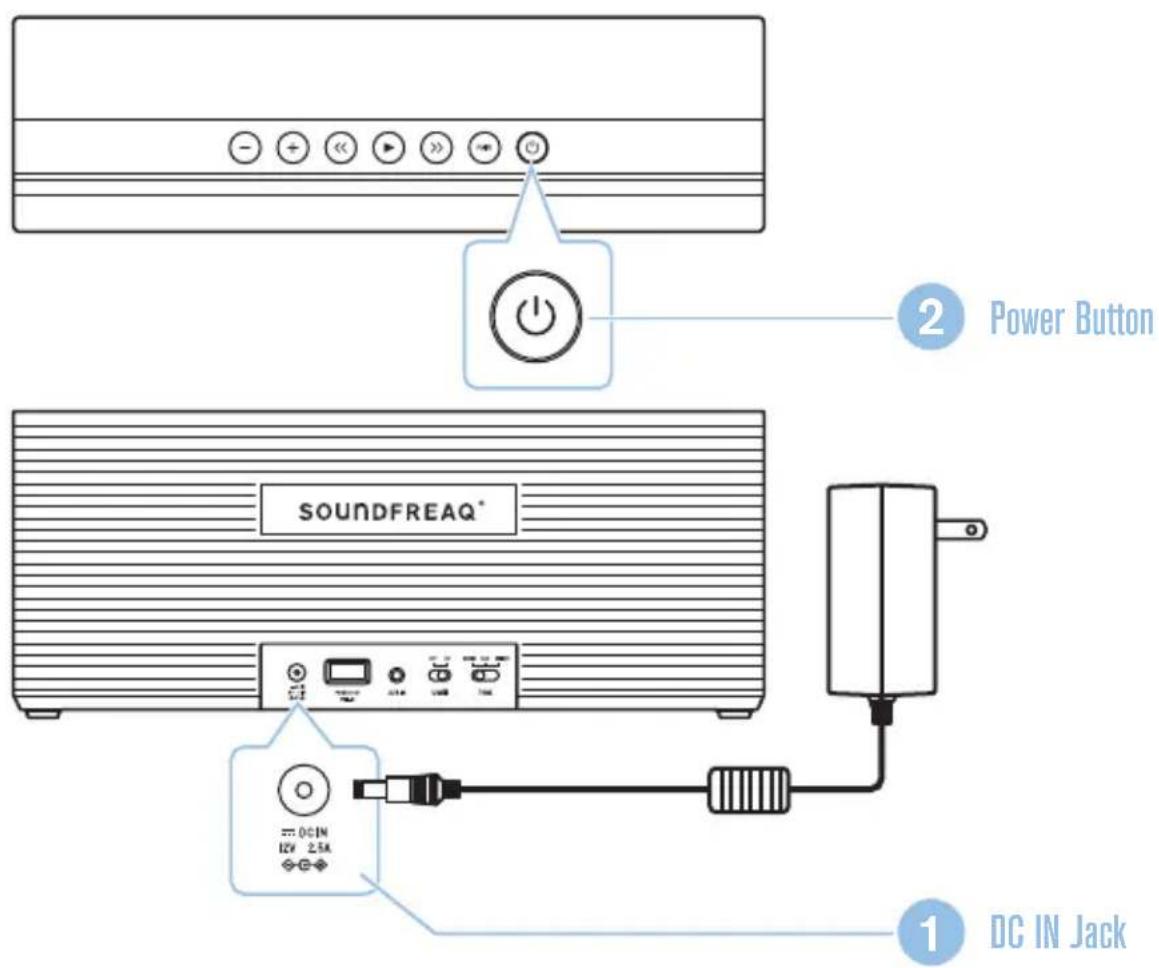
Turning on Double Spot
1 Plug in the power supply and connect to the DC IN jack on Double Spot.
2 Press Power Button to turn on.
Charging Double Spot
Double Spot has been designed to equip with a replaceable Battery Pack (pre-installed) to power without using the power supply. When the adapter is plugged in, the battery will charge.
The charging indicator combined to Power Button indicates the charging status:
| Mode | Charging Fully Charged | |
| Standby | Blinking Green(Slowly) | Off(No light) |
| Power on(not connected) | Blinks Green | Blinks White |
| Bluetooth or Aux in mode | Solid Green | Solid White |
* When operating the unit in battery mode, alternately flashing white and green means the battery power is low.
* Please fully charge Double Spot before using on battery power. You can still enjoy Double Spot while charging.
Replacing Battery Pack
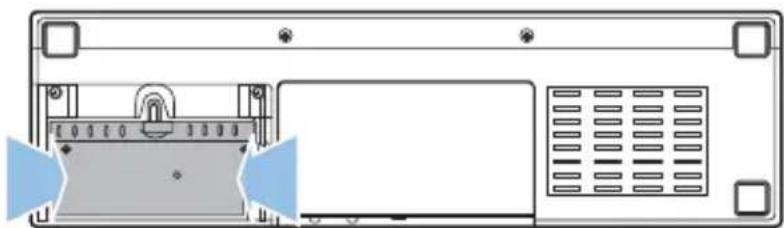
1 Twist the screw clockwise from CLOSE to OPEN, and push down to remove the battery cover.
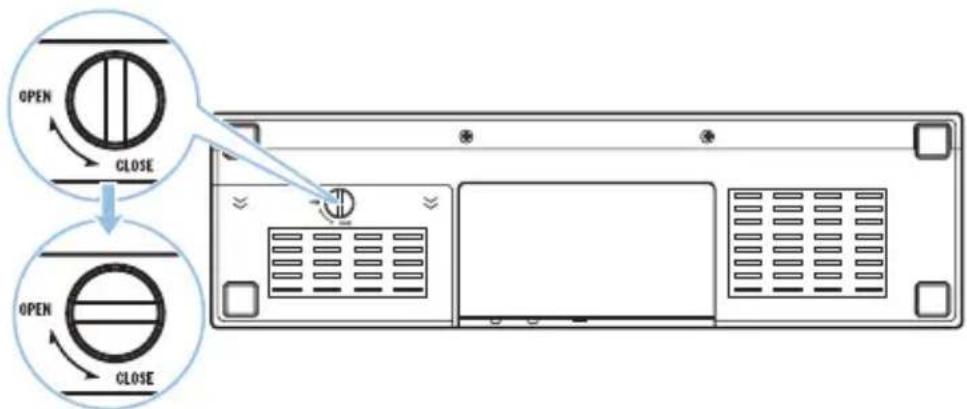
2 Replace the old Battery Pack with a new one (Purchased separately) and press it gently to lock in place.
natural_image
Diagram of a computer monitor rear panel with ventilation grilles and control buttons (no text or symbols)3 Reverse Step 1 above to close the battery cover.
Bluetooth Pairing
Bluetooth Pairing
1 Press Pair Button on Double Spot to start pair mode. The Power Button light will flash rapidly.
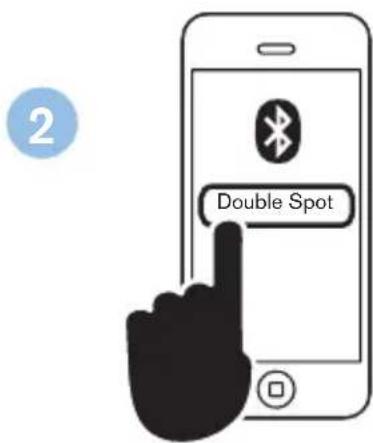
2 On your phone, tablet or computer, enter your Bluetooth settings menu to detect available devices. Once Double Spot is detected, select it from the list of available devices to connect.
On iPod, iPhone and iPad devices tap to select "Double Spot" from the list of devices in Bluetooth settings
Bluetooth Pairing
* Please visit “support.soundfreaq.com” for detailed pairing instructions for Mac or Windows PC.
* To pair another device, simply repeat the pairing process with steps 1 and 2 above. To re-connect a device that has already been paired, press PAIR button on Double Spot and select “Double Spot” from your Bluetooth settings menu on your phone, tablet or computer.
* On most devices, no password is needed to pair, however, if a password is requested the default password is “1234”.
* You can change the volume by either using the volume buttons on Double Spot or changing the volume on your paired device. For max volume, turn both volumes to maximum.
Listening via Bluetooth
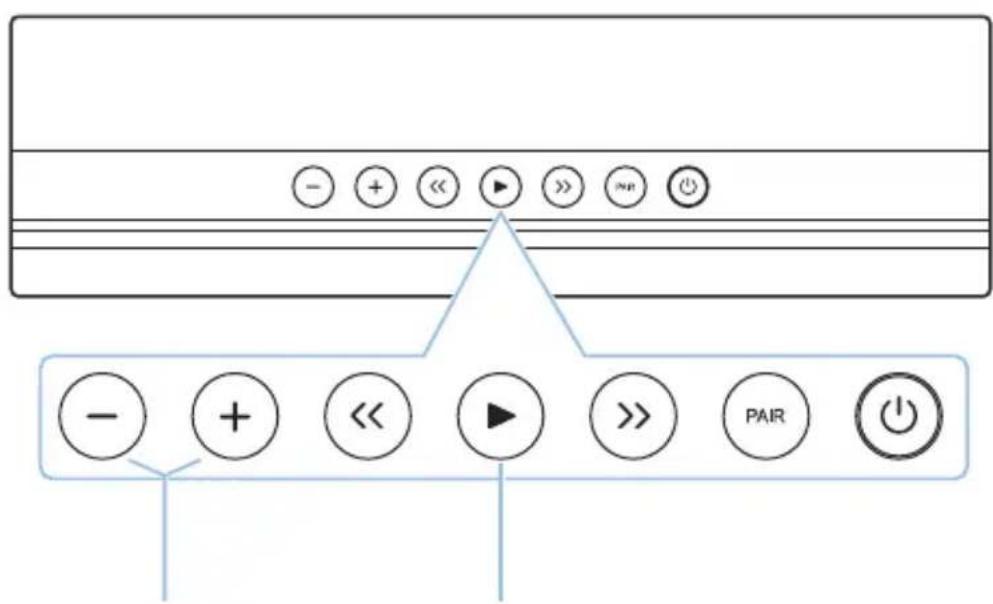
Volume Play Controls

You can use the Play Control Buttons on Double Spot to remotely control you connected devices and play, pause and skip tracks.
Listening via Line In
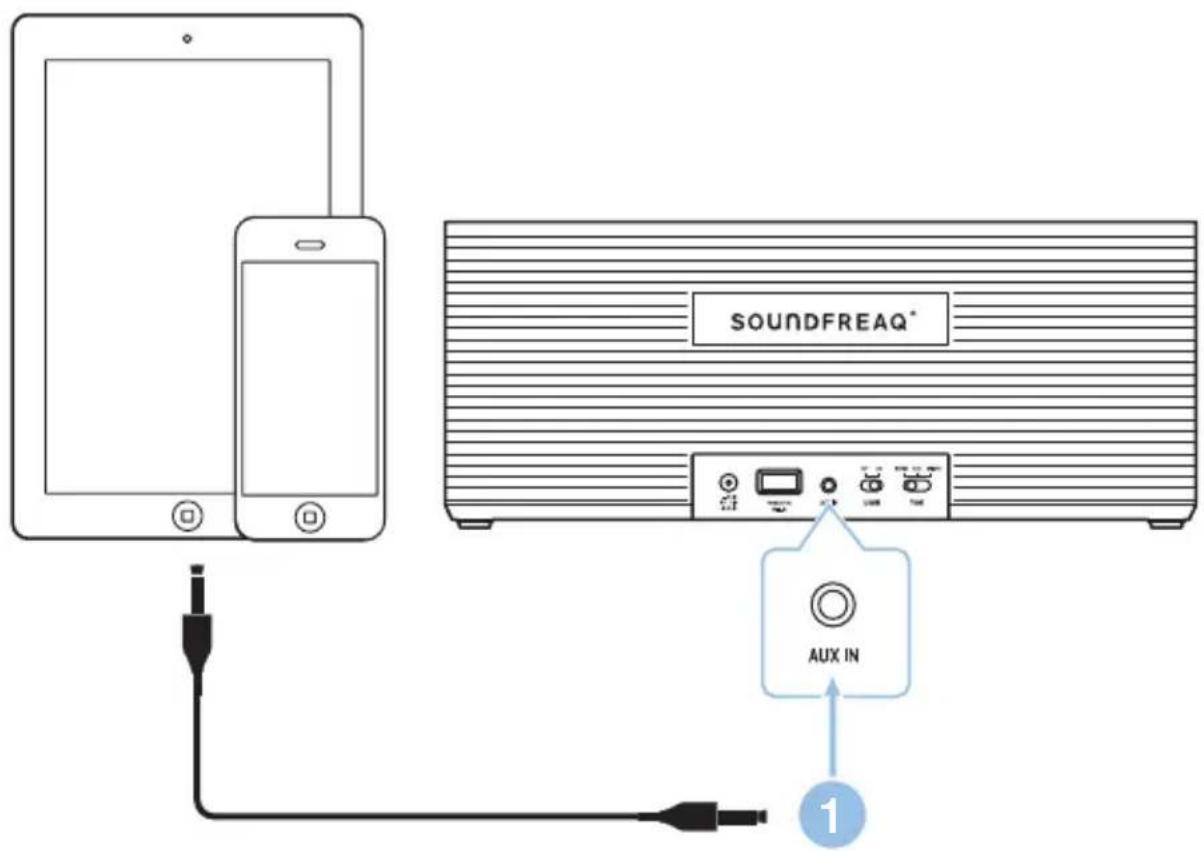
Listening via Line In
1 Connect any device with a standard headphone jack with a line in cable (not included). When a line in cable is plugged into Aux Line In, Double Spot with automatically change to Line In source mode. To change to Bluetooth mode, disconnect the line in cable.
* In order to save the energy, please unplug the line in cable from the Aux Line In of Double Spot when do not use.
Charging Devices with USB Power Port
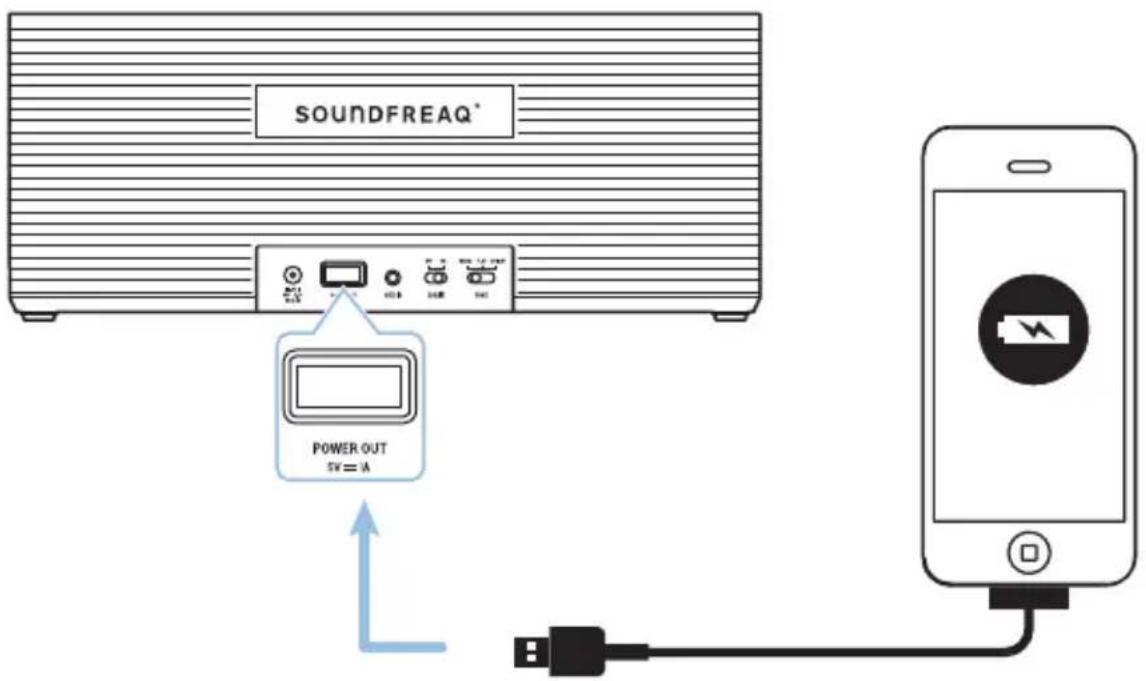
USB Phone Charging Port
(Power out to charge phone)
Charging Devices with USB Power Port
You can charge most phones as well as other USB chargeable devices such as Bluetooth headsets and digital cameras directly from Double Spot.
When Double Spot is using the power supply, simply connect your device to the USB Port on the back of Double Spot to begin charging.
When Double Spot is using the battery power, turn on the unit and connect your device to the USB Port on the back of Double Spot to begin charging.

Double Spot can charge your phone both when Double Spot is being charged or running on battery power. The maximum charging output current is 1A. Please use the charging cable that was provided with your device.
Optimizing Sound Quality
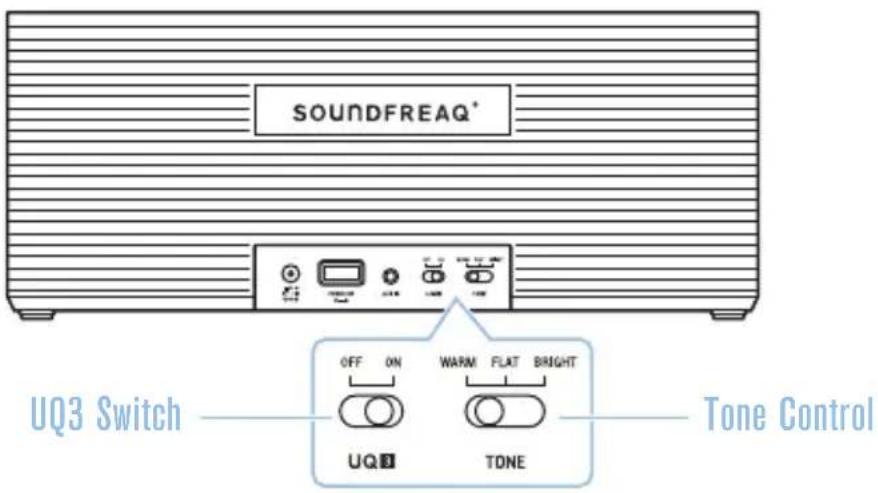
Optimizing Sound Quality
UQ3 ^™ is proprietary technology that enhances stereo separation. To turn UQ3 on/off, slide the UQ3 switch.
Slide Tone Control switch to select a bright, warm or flat tone for your listening preference.
TIP: Double Spot has been tuned to a balanced acoustic profile. You can use the EQ settings on your playback device to further customize the EQ balance to suit your personal preference. Note: Some custom EQ settings when combined with UQ3 enhancement may cause distortion.
TIP: For playback in Bluetooth or Aux mode, the output volume is set by both the volume control on Double Spot and the source device. Both may be adjusted to set your preferred listening volume. Typically, sound quality is best when the volume of the source device is between 70\~90%. Note: As with any speaker system, if the volume on both your source device and the speaker are at maximum output, it is possible to overdrive the speakers and cause distortion. When using an iOS device or other device that offers a “volume limit” feature, turn this setting off for higher volume listening in Bluetooth or Aux mode.
For additional support, please visit us at support.soundfreaq.com
Learn more about our complete line of award-winning wireless speakers

natural_image
Simple icon of a computer monitor inside a circle (no text or symbols)soundfreaq.com
SOUNDFREAQ®
soundfreaq.com