SX-6700F - Cash register Uniwell - Free user manual and instructions
Find the device manual for free SX-6700F Uniwell in PDF.


User questions about SX-6700F Uniwell
0 question about this device. Answer the ones you know or ask your own.
Ask a new question about this device
Download the instructions for your Cash register in PDF format for free! Find your manual SX-6700F - Uniwell and take your electronic device back in hand. On this page are published all the documents necessary for the use of your device. SX-6700F by Uniwell.
USER MANUAL SX-6700F Uniwell
THE SOCKET-OUTLET SHALL BE INSTALLED NEAR THE EQUIPMENT AND SHALL BE EASILY ACCESSIBLE.
LA PRISE DOIT ETRE PRES DE L'APPAREIL ET FACILE D'ACCES.
WARNING: This equipment generates, uses and can radiate radio frequency energy. If not installed and used in accordance with the instruction manual, it may cause interference to radio communications. It has been tested and found to comply with the limits for a Class A computing device pursuant to Subpart J of Part 15 of FCC Rules, which are designed to provide reasonable protection against such interference when operated in commercial environments.
Operation of this equipment in residential areas may cause interference, in which event the user shall be required to take whatever measures required to correct such interference at his own expense.
Notes
- The contents of this manual are subject to change without notice.
- Uniwell can not be held responsible, if other products which are not approved by Uniwell, are used for options or expendable supplies.
CONTENTS
Refer to the separate User's manual for the specifications, installation, display and key layout.
I. KEY EXPLANATION .... 1
II. OPERATION SEQUENCES....6
- Clerk Time-in / Time-out ....6
- Clerk Sign-on / Sign-off 7
- Clerk Interrupt System 8
- Floating Clerk Interrupt.... 10
- PLU....12
- Kitchen Printer 21
- Media Closing....23
- Tray Subtotal 24
- Foreign Currency / Euro Currency 25
- Cheque Cashing / Cheque Printing 28
- Tip Operation....29
- Mark-up / Mark-down 30
- Adjustment (Automatic % on Specific Items) 31
- Amount Plus / Amount Discount 32
- Last Item Correction.... 33
- Void 34
- Scroll Display 35
- Transaction Void.... 37
- Refund / Media Refund 38
- Tax 40
- R/A (Received on Account) 42
- P/O (Paid Out) 42
- No Sale 42
- Off Compulsory 43
- Number of People....43
- Message....44
- Validation / Slip Validation 45
- Arrangement......46
- Recall 47
- Track System - Item Track / Amount Track 48
- Floating Item Track / Floating Amount Track 70
- Previous Balance Plus (PB+) / Previous Balance Minus (PB-) 73
- Ticket System 74
- Customer File....80
- ESF Data Print 85
- Cash Declaration 87
III. TRAINING 88
IV. PRINT CONTENTS 89
- Journal Print Contents 89
- Receipt / Slip Print Contents....89
- Post-Receipt....89
V. REPORTS 90
IRC REPORTS 93
FLASH IRC REPORTS 95
TRANSACTION REPORT SAMPLES 96
VI. WARNING MESSAGES.... 109
IRC MESSAGES....113
I. KEY EXPLANATION
ADJUSTMENT 1, 2, 1 & 2
Automatic % Discount on Specific Items:
Calculates mark-up or mark-down on the subtotal amount of items which have been preprogrammed as one of adjustable 1, 2 or 1 & 2 item.
Note that adjustment does not affect PLU sales memory which is shown on the reports.
AMOUNT TRACK #
- Assigns a new Amount Track. Enter random 7 digits track number and press this key.
- Picks up the temporarily closed Amount Track. Enter a track number and press this key.
- Displays a track number and balance in Scroll Display Mode if it has been entered.
ARRANGEMENT 1 \~ 4
Performs sequences of programmed steps (up to 50-key steps).
Useful for 1-key operations such as fixed sales or report-takes.
BALANCE CALCULATION
Shows the balance and calculates the total of multiple tracks and displays their combined total. Also the balance can be divided; for example, between the number of customers.
BILL CANCEL
Releases the compulsory condition of a check-out bill issue for an Item Track.
BUFFER PRINT 1 / 2
- BUFFER PRINT 1 key prints a post-receipt / bill (only the lastly registered contents) including VAT data on a receipt in the receipt-off condition or on a slip when the ECR is programmed for use with a slip printer while BUFFER PRINT 2 key prints a post-receipt / bill without VAT data. However, the add-on tax data is printed.
- These keys are used to print an Item Confirmation Receipt in Clerk Interrupt System.
- The second receipt issue by these keys is available by programming when the ECR is not programmed for use with a slip printer.
- Used for the manual line finder when the pre-feed line number is entered when using a slip printer.
CHARGE
- Temporarily closes an Amount Track and saves the amount in Charge memory.
- Used for Amount Track Transfer and Track Consolidation in Floating Amount Track System.
CHECK-OUT BILL 1 / 2
These keys are used in Item Track System.
- CHECK-OUT BILL 1 key prints the check-out bill with VAT data.
- CHECK-OUT BILL 2 key prints the check-out bill without VAT data.
- Also these keys print the subtotal bill with or without VAT data when the Item Track number is entered or immediately after the Item Track is closed by NB (New Balance) key.
CL (Clear)
Cancels any information that is entered by ten-key or function key (P/O, R/A, tax shift, etc.) before registration; also clears error conditions.
HARD CLERK 1 \~ 15
- Signs a clerk on or off without the clerk code entry.
- Interrupts a clerk when another clerk signs on in Clerk Interrupt System.
CLERK ID
Used for clerk sign-on and sign-off when using the secret clerk code system for entry into registration.
CLERK INSERT KEY (option)
Used for clerk sign-on and sign-off when using Clerk Insert Key System for entry into registration. This cannot be used in Clerk Interrupt System.
If so programmed and when the clerk insert key is removed, the transaction is automatically closed by CASH/TTL 25 key, Item Track is automatically closed by NB key and Amount Track is automatically closed by CHARGE key.

COOKING MESSAGE
(for manual ent
- Enters one of supplementary messages 1 \~ 50 as a cooking message prior to a PLU entry. If a number greater than 50 is entered, then the number will be printed.
- Enters a cooking message (20 digits) manually prior to a PLU entry. Use the alphabet keys and ENTER key to enter the message.
HARD COOKING MESSAGE 1 \~ 5
(for one-touch entry)
Registers one of supplementary messages 1 \~ 5 as a cooking message prior to a PLU entry. Hard Cooking Message 1 key picks up supplementary message #1, Hard
Cooking Message 2 key picks up supplementary message #2 and so on.
CR
(Correction)
Cancels the registration of the last-registered item including function key inputs such as %, amount (-), scroll void, etc.
CUSTOMER FILE
Used for making or picking up a customer file.
(-)
(Amount Discount)
Subtracts an amount from the item or subtotal depending on the operation. It is possible to register a preset amount or to override it manually.
ESF PRINT
Prints ESF data on the receipt in the R or X control key position.
F.C. SBTL
(Foreign Currency Sbtl)
Displays the subtotal of the foreign currency by the depressions of F.C. SBTL key and the foreign currency media key. The subtotal of foreign currency must be displayed whenever the tendering amount in the foreign currency is entered.
HALO
RELEASE
Releases PLU HALO (High Amount Lock-Out) and compulsory condition of PLU stock input.
ITEM
TRACK #
- Assigns a new Item Track. One of Manual or Automatic Item Track # method is used. Manual Item Track # method
Enter random 7 digits Item Track number and press this key.
Automatic Item Track # method
Item Track number is automatically assigned immediately after pressing this key.
- Picks up the temporarily closed Item Track by entering Track # and pressing this key.
- Displays the remaining number of blocks of Item Track Memory in the X control key position.
- Selects one of Item Tracks at a table which are picked up by using TABLE # key.
- Displays an Item Track # and balance in Scroll Display Mode if it has been entered.
ITEM TRANSFER
Transfers items in a transaction or in an Item Track to a new track or a specified Item Track in Scroll Display Mode.
JPF
(Journal Paper Feed)
Advances the journal paper.
KP DATA SEND
Sends all PLU data in a transaction to kitchen printers before closing.
MEDIA REFUND
Used for the refund operation of the media amount. This function is useful if a transaction to be refunded has been closed by plural media keys. It is not required to use if the transaction has been closed by one media key.
MENU SHIFT
1 / 2
Shifts or cancels the PLU menu level. Via menu shift, the keyboard can have three different menus. The menu shift remains for one registration, for one transaction or the menu shift remains until the next shift key is pressed by programming.
MESSAGE
Enters an alphanumeric message or digits (up to 20 digits).
Entered messages are printed on top of kitchen printer sheet.
NET SBTL
Displays the net subtotal amount, not including add-on tax amount but including VAT tax amount. Can be programmed to display and print, or display only.
| NB(New Balance) | - Temporarily closes a transaction including an Item Track and saves the amount in New Balance memory.- Used for Item Track Transfer and Track Consolidation in Floating Item Track System.- Under Clerk Interrupt System, this key stores a clerk's transaction to Clerk Interrupt Memory. |
| NO SALE | Used for opening the drawer for no sale operations. |
| OFF COM-PULSORY | Releases compulsory conditions of validation, number of people input, message input, etc. |
| P / O(Paid Out) | Records an amount of money withdrawn from the cash drawer when no customer transaction has taken place. |
| % 1 ~ % 3 | Enters a percentage rate for mark-up or mark-down of an item or the subtotal amount depending on the operation. Manual % rate is prohibited by programming. |
| PERSON | - Enters a number of people (at a table). It is possible to override this number.- Displays a number of people in Scroll Display Mode if it has been entered. |
| HARD PLU1 ~ 165 | - Registers a PLU with the preset price directly.- HARD PLU 1 and 2 keys are used to complete the cash declaration which is used to confirm the cash in drawer 1 and 2 at the end of the day. |
| PLU MODIFIER1 ~ 3 | Modifies the PLU code or cancels the modifier. Using PLU modifiers, one PLU can be changed to three other PLUs. This can be used for three sizes, kinds, etc.The operation is permitted or prohibited by each PLU programming. Also it remains for one registration, for one transaction or the modifier remains until the next modifier key is pressed by programming. |
| PLU / REPEAT | - Used for code-entry PLU registration. Enter PLU code, then press this key.- Repeats registration of the last-registered item. |
| (+) (Amount Plus) | Adds an amount to the item or subtotal amount depending on the operation. It is possible to register a preset amount or to override it manually. |
| PB+ / PB-(Previous Balance) | Enters the previous balance manually without using a track.PB+ is used when the previous balance is positive.PB- is used when the previous balance is negative. |
| PRESET TENDER1 ~ 10 | Enters a preprogrammed tendering amount directly by key depression. The tendering amount is memorized in one of the total key (media) memories selected by programming. |
| PRICE | Manually overrides the price of a code-entry PLU. This key is not needed to override the price of a hard PLU. Enter a price, press this key, then enter the PLU code and press PLU/REPEAT key. |
| PRICE SHIFT | Shifts or cancels a second PLU price. The price shift remains for one registration, for one transaction or the price shift remains until the next shift key is pressed by programming. |
| RECALL | Displays the total amount of the last transaction during the current transaction.Recall can be executed only when the last transaction is closed by direct media closing. |
| RECEIPT OFF | Inhibits receipt printing. However, post-receipt may be issued by pressing BUFFER PRINT key. |
| RPF(Receipt Paper Feed) | Advances the receipt paper. |
| R / A(Received on Account) | Records an amount of money received into the cash drawer when no customer transaction has taken place. |
| REFUND | Refunds a previously registered item. |
| SCROLL UP / SCROLL DOWN | - Enters into Scroll Display Mode during a transaction. Then, scrolls up or down the previously registered items on the display.- Used, in combination with CUSTOMER FILE key, for picking up a customer file. |
| SLIP OFF | - Prints slip contents on the receipt before pressing BUFFER PRINT key or CHECK-OUT BILL keys. Can be used when ECR is programmed to use a slip printer.- Two-time depression cancels the slip off condition. |
| SLIP RELEASE | Moves the slip printer's "slip bed" down in the R control key position. |
| STORAGE | Stores a clerk's transaction to Clerk Interrupt Memory when Clerk Interrupt System is used. |
| SBTL(Subtotal) | - Displays the subtotal amount, including tax. Can be programmed to display and print, or display only.- When an add-on tax item is registered, this key is used in combination with TAX SHIFT keys to display each taxable subtotal amount. |
| TABLE # | Under Non-Clerk Interrupt SystemTable # assignment is available only when Automatic Item Track Number Method is used.(not available for a normal transaction, Item Track of Manual Item Track # Method and Amount Track.)- Assigns a table # to an Item Track.- Shows the first Item Track # which has been assigned to the table when this key is pressed after the table # entry. If only one track has been assigned to the table, TABLE # key opens the track.- After the table is picked up, the depression of TABLE # key skips to the next assigned track.- Displays a table # in Scroll Display Mode if it has been entered.Under Clerk Interrupt SystemTable # assignment is available for a clerk's transaction and an Item Track for both Automatic and Manual Item Track Number Methods. However, it does not pick up the transactions and tracks. Table # cannot be entered for an Amount Track. |
| TAX(only for add-on tax) | - Calculates the add-on tax and prints and displays the tax inclusive subtotal.- Used, in combination with TAX SHIFT keys, for manually entering an add-on tax amount and for tax exemption. |
| TAX SHIFT1 ~ 4 | - When a VAT item is registered, this key shifts the tax status to the designated tax.- When an add-on tax item is registered:Reverses the tax statusAllows the taxable subtotal amount to be displayed, in combination with SBTL keyAllows the tax amount to be entered manually, in combination with TAX keyAllows tax exemption by TAX key, if permitted by programming |
| TEN-KEYS(0 ~ 9, 00, 000, •) | For entry of numeric values, percentage rates, PLU codes, report number, programming numbers, etc. |
| TICKET OFF | Temporarily cancels the ticket condition for one transaction when this key is pressed at the beginning of a transaction in Ticket System. |
TIME-IN/-OUT
Used for clerk's Time-in/Time-out operations. By these operations, clerks' labor hours per 99 job numbers are shown on the report (#19).
TIP
Enters a tip amount. Amount can be entered as either an amount separate from payment or as change from over-tendering.
TTL 1 \~ 25, CASH/TTL 25
(media keys)
Closes transactions with or without a tendered amount.
- TTL 1 \~ 24 keys can be programmed as one of local currency media, foreign currency media, Euro currency media, credit card media or cheque media. TTL 25 key is fixed as a local currency media.
- TTL 25 key is also used for cash declaration, report printing, track transfer and track consolidation in combination with NB key or CHARGE key.
T. VOID (transaction void)
- Executes all the registrations in a transaction with TTL 25 key depression. This is available only before the transaction is closed.
- Two-time depression cancels the transaction void.
TRAY SBTL
Prints the total amount of items per customer in a transaction.
MISC. VALIDATION
Prints the item validation and the media validation.
The slip validation is available if ECR is programmed for use with a slip printer.
TOTAL VALIDATION
Prints the total validation.
The slip validation is available if ECR is programmed for use with a slip printer.
VOID
- Voids a previously-registered item including a customer file within the same transaction. If permitted by programming, a negative void operation can be done.
- Selects an item to be voided in Scroll Display Mode.
X1
Used for a square entry (measurement calculation).
Used for a multiple ticket issue.
X2 / FOR / TIME
- For use to multiply a PLU or a PRESET TENDER key that has a preset tendering amount.
- Used for a split pricing operation.
- Used for showing the remaining characters of the PLU or message registered if it has more than 16 characters of PLU descriptor or message.
- Divides Item Track's balance by the number entered.
- Makes a new track in Floating Item / Amount Track System.
- Displays the date and time.
1. Clerk Time-in / Time-out
By Time-in and Time-out operations, clerk's attendance information is memorized in the ECR.
The clerks' labor hours per 99 job numbers are calculated on the ECR by the clerk's time-out operation and they are printed on the Time & Attendance report (#19), so that the owner may not request to calculate each clerk's labor hours per job.
Note: These operations must be done on the same ECR and do not let clerks sign on or sign off so that all clerks are required to perform Sign-on / Sign-off operations respectively. (See next page.)
< Time-In >

DISPLAY RECEIPT
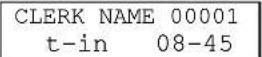
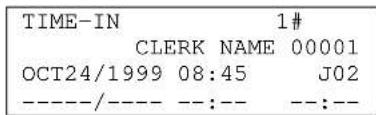
< Time-Out >

DISPLAY RECEIPT
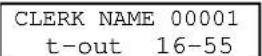
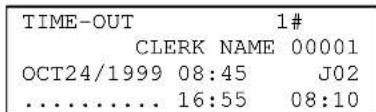
2. Clerk Sign-on / Sign-off
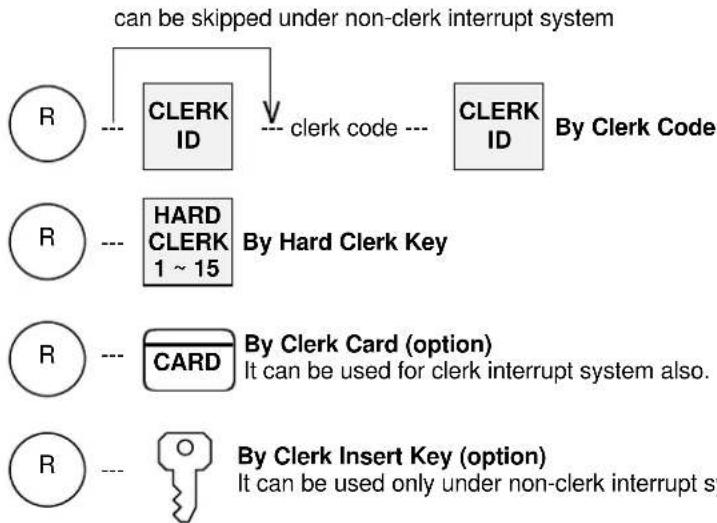
Each clerk should sign on before registration to ensure that sales data in his/her clerk memory is recorded correctly. When a clerk does not sign off, he/she will be automatically signed off when the next clerk signs on.
When the optional Clerk Insert Key System was selected, other methods (clerk code, Hard clerk key, clerk card) can not be used.
< Sign-On >
flowchart
graph TD
    A["CLERK ID"] -->|clerk code ---| B["CLERK ID"]
    B -->|By Clerk Code| C["HARD CLERK 1 ~ 15"]
    C -->|By Hard Clerk Key| D["CARD"]
    D -->|By Clerk Card (option) It can be used for clerk interrupt system also.| E["Key icon"]
    F["CLERK ID"] -->|by Clerk Insert Key| G["Key icon"]
< Sign-Off >
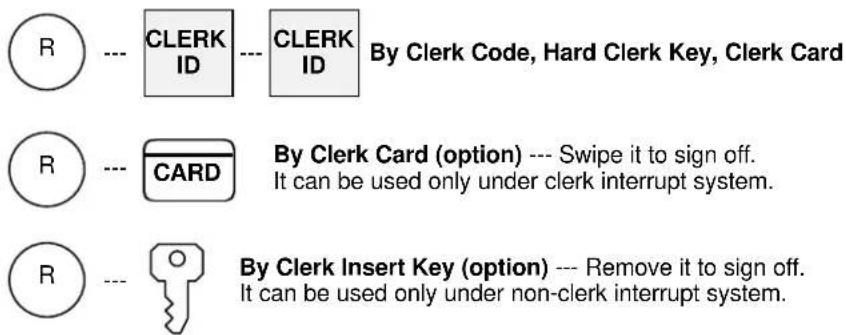
3. Clerk Interrupt System
When the clerk interrupt system is used on the ECR and a clerk is doing registrations, another clerk may interrupt the clerk. The interrupted clerk's registration contents are stored in his/her clerk's memory and he/she is automatically signed off. The stored contents are restored by his/her clerk sign-on operation and he/she can continue the registrations.
There are following cases in which a clerk's transaction is automatically stored in his/her memory;
- the same Hard Clerk key, Clerk Code, Clerk Card are entered
(clerk insert key can not be used)
- the sign-off operation is performed
- other clerk interrupts
- STORAGE key or NB (New Balance) key is pressed
- by the automatic storage timer
Note that the receipt will not be printed until the clerk's transaction is closed finally by a media (total) key. Instead of the receipt issue, Item Confirmation Receipt without tax data is issued to check a temporarily stored registration contents.
This is available only when clerk's transaction is stored and if permitted by programming. To issue item confirmation, perform the operation below after the transaction is stored;
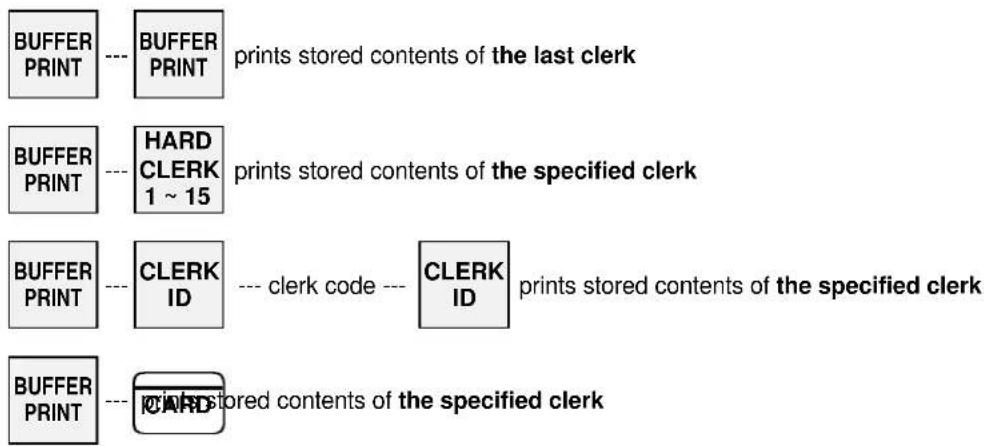
flowchart
graph TD
    A["BUFFER PRINT"] --> B["BUFFER PRINT"]
    B --> C["prints stored contents of the last clerk"]
    D["BUFFER PRINT"] --> E["HARD CLERK 1 ~ 15"]
    E --> F["prints stored contents of the specified clerk"]
    G["BUFFER PRINT"] --> H["CLERK ID"]
    H --> I["clerk code --- CLERK ID"]
    I --> J["prints stored contents of the specified clerk"]
    K["BUFFER PRINT"] --> L["ICRD"]
    L --> M["printed contents of the specified clerk"]
Notes.
- Item Confirmation will not include tax data.
- If an item confirmation is attempted for a clerk with zero balance, press CL key in order to reactivate the keyboard.
- If ECR is programmed for the slip printer, Item Confirmation is printed on the slip printer. If it is required on a receipt, press SLIP OFF key first, then perform Item Confirmation operation.
| Clerk Interrupt System | |||
| KEY ENTRY DISPLAY JOURNAL | |||
| HARD CLERK 1 | CLERK NAME 00001 0.00 | <01> | 0.00 |
| BEER | 3.00 | ||
| <01> | 3.00 | ||
| BEER | <02> | 0.00 | |
| HARD CLERK 2 | CLERK NAME 00002 0.00 | SODA | 1.00 |
| <02> | 1.00 | ||
| SODA | |||
| -- timer -- | CLERK NAME 00002 1.00 | stored automatically after the time limit expires | |
| Item confirmation of the specified clerk | CONFIRMATION RECEIPT | ||
| BUFFER PRINT 1 | CLERK # | <02> | |
| SODA | 1.00 | ||
| HARD CLERK 2 | . 0 | SUBTL | 1.00 |
| #001- | 15:36R | ||
| CLERK NAME 00002 | |||
| HARD CLERK 1 | CLERK NAME 00001 3.00 | RECEIPT | |
| <01> | |||
| BEER | 3.00 | ||
| CASH | 3.00 | ||
| CASH | CASH 3.00 | QUANTITY #001-000005 CLERK NAME 00001 | |
Note for Kitchen Printer Items
Depending on programming, items are transmitted to a kitchen printer only when a clerk's transaction is finally closed by a media (total) key or whenever it is interrupted (closed temporarily).
4. Floating Clerk Interrupt
Almost all operations are same as the normal clerk interrupt system. The only difference is the clerk data is floating among ECRs in the IRC system. In order to use this system, IRC status check must have been made with each ECR.
The following describes the key sequences and memory conditions on the master which picks up the clerk's temporarily closed transaction data and the slave ECRs.
< CLERK'S TRANSACTION PICK UP >
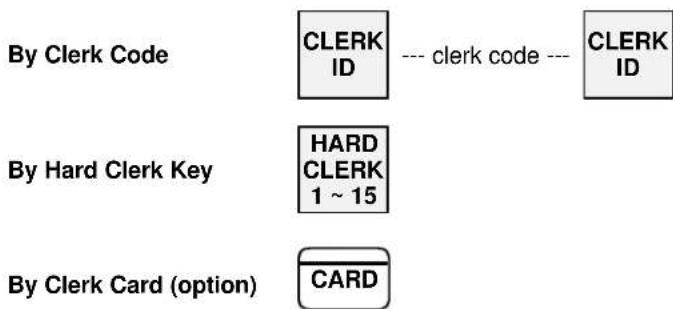
flowchart
graph TD
    A["CLERK ID"] --> B["CLERK ID --- clerk code ---"]
    C["Hard Clerk Key"] --> D["HARD CLERK 1 ~ 15"]
    E["Card"] --> F["CARD"]
If the clerk's transaction data does not exist on the master, the master searches the slaves and collects the data from it. The collected data is deleted from the slave.
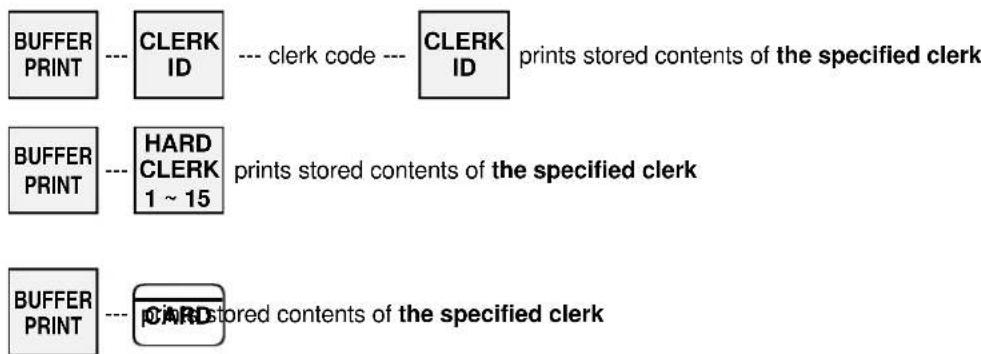
flowchart
graph LR
    A["BUFFER PRINT"] --> B["CLERK ID"]
    B --> C["CLERK ID"]
    C --> D["prints stored contents of the specified clerk"]
    E["BUFFER PRINT"] --> F["HARD CLERK 1 ~ 15"]
    F --> G["prints stored contents of the specified clerk"]
    H["BUFFER PRINT"] --> I["CARD stored contents of the specified clerk"]
If the clerk's transaction data does not exist on the master, the master searches the slaves and collects the data from it, then prints the item confirmation. The collected data is deleted from the slave.
< Notes for Communication Error >
If a communication error occurs, one of "-- IRC BUSY --, ECR#-xxx ERROR or ECR#-xxx BUSY" (xxx = ECR machine number) is displayed, then;
- retry the communication by pressing CASH/TTL 25 key, or
- cancel the communication by pressing CL key, then check the slave ECRs causing the communication error.
When CL key is pressed, depending on the cases, the master displays REQ.Z70-xxx or REQ.X70-xxx with sequential clerk number (not clerk code) and prints the message on the journal.
When REQ. Z70-xxx is displayed,
(This is displayed when the master collects the clerk's data from the slave, but the slave has not deleted it yet.)
- Press CL key again to clear the error condition.
- Then perform the clerk code entry again to continue the operation.
- After the operation is completed, take Z-70 individual clerk balance report on the ECR machine number xxx to delete the clerk's data on that ECR so that the master and slave may not have the same clerk's data.
When REQ .X70-xxx is displayed,
(This is displayed when the master collects the clerk's data from the slave and the slave deletes it but the confirmation of such deletion has not been sent to the master yet.)
- Press CL key again to clear the error condition.
- Then perform the clerk code entry again to continue the operation.
- After the operation is completed, take X-70 individual clerk balance report on the ECR machine number xxx to ensure that the clerk's data has been deleted from the slave.
5. PLU
There are three ways to enter a PLU;
- Bar Coded PLUs which are the PLUs programmed for registration by a scanner.
Procedure: Scan the bar code printed on each item while the control key is at R position.
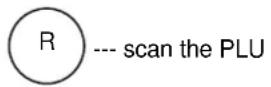
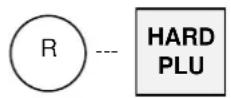
- H.PLU keys are the keys allocated to the keyboard. Up to 99 keys are available.
Procedure: Press one of H. PLU keys while the control key is at R position.
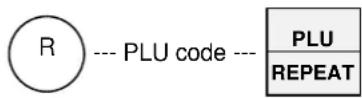
- Code Entry PLUs are any PLUs not allocated to a key on the keyboard.
Procedure: Enter the code for the PLU by using Ten-Keys and then press PLU key while the control key is at R position.
Note: When a PLU having more than 16 characters of PLU descriptor is registered, 16 characters are shown on the display first, and the remaining characters are shown by X2 key depression.
Following are some examples of PLU operation sequences;
a) Manual Price Entry
Preset price for a PLU may be over-ridden by a manually entered price. Depending on programming, turning the control key to X position may be required after the price is entered manually.
Bar Coded PLUs: enter price manually --- turn to X position, if required --- scan the PLU
Hard PLUs: enter price manually --- turn to X position, if required --- HARD PLU
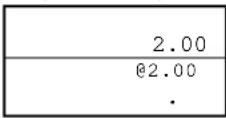
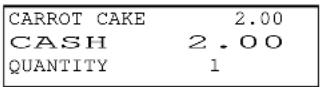
Coded PLUs: enter price manually --- turn to X position, --- PRICE --- enter PLU code --- PLU if required REPEAT
Manual price entry of a coded PLU
KEY ENTRY
200 PRICE
16 PLU/REPEAT
CASH
DISPLAY RECEIPT
b) Repetition
The last registered PLU, including multiplication, can be repeated. Simply press REPEAT key the number of times required immediately after a PLU entry.
KEY ENTRY DISPLAY RECEIPT
CARROT CAKE
PLU/REPEAT
CASH
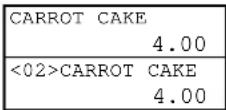
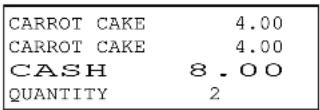
Continuous entering of the same PLU shows repeated displays. When the same PLU key with a different price is entered, it does not show repeated display.
c) Multiplication
A PLU may be registered up to 999.999 items by using Ten-Keys and X2 key.
Bar Coded PLUs: enter the number of items --- X2 --- scan the PLU
Hard PLUs: enter the number of items --- X2 --- HARD PLU
Direct Multiplication
If programmed, Direct Multiplication of a Hard PLU (a multiplication without having to press X2 key) is possible.
enter the number of items --- HARD PLU Manual price entry of a Hard PLU key is still made possible by programming.
Coded PLUs: enter the number of items --- X2 --- enter PLU code --- PLU REPEAT
KEY ENTRY DISPLAY RECEIPT
2 [X2]
BEER
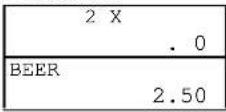
2 X 2.50 BEER 5.00
d) Split Pricing
Split pricing can be done by using X2 key as shown in the sequence below;
enter the loose quantity --- X2 --- enter the lot quantity --- X2
Two bottles of beer are sold from a six-pack.
KEY ENTRY
2 [X2] 6 [X2]
BEER 6 btls
DISPLAY RECEIPT
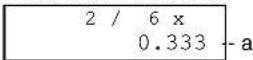
2 / 6 X 6.60 BEER <6 btls> 2.20 loose qty / lot qty X unit price split price
a: The calculated split quantity is displayed after the lot quantity is entered and X2 key is pressed.
e) Square Entry (Measurement Calculation)
Square entry can be done by using X2 and X1 keys as shown in the sequence below;

WRAPPING PAPER : 1.00 for width 1 meter and length 1 meter When the WRAPPING PAPER with a measurement of 1.5 m (W) x 1 m (L) is sold
![KEY ENTRY 1.5 [X2] 1 [X1] WRAPPING PAPER DISPLAY RECEIPT 1.5 x 1 x 1.500 1.5 x 1 x 1.00 WRAPPING PAPER 1.50 1.5: ratio to standard width 1 : ratio to standard length After pressing X2 key, a number with a decimal can not be entered for the ratio to standard length.](/content/2026/06/1187740/images/ddc034a4ed3d5470719cd31094edc150471cf387255f44acbf1df20996751e59.jpg)
f) Price Shift
Every PLU can have two prices. One is used for the normal preset price and the other for happy hour price, service price, etc.
Bar Coded PLUs: turn to X position, if required --- PRICE SHIFT --- scan the PLU
Hard PLUs: turn to X position, --- PRICE SHIFT --- HARD PLU if required
Coded PLUs: turn to X position, --- PRICE SHIFT --- enter PLU code --- PLU if required REPEAT
Note: The 2nd PRICE lamp is lit up when PRICE SHIFT key is pressed.
The price shift remains for one registration, for one transaction or until pressing PRICE SHIFT key depending on programming.
g) Menu Shift
The hard PLU key layout can be changed to three different preprogrammed layouts by using two menu shift keys. Pressing the same menu shift key cancels the menu and pressing another menu shift key changes the menu.

Note: The 2nd MENU lamp is lit up when MENU SHIFT 1 key is pressed.
The 3rd MENU lamp is lit up when MENU SHIFT 2 key is pressed.
The menu shift remains for one registration, for one transaction or until the next shift key is pressed, depending on programming.
h) Link PLU
Every PLU can be linked to one PLU only. Each link PLU can have its own link PLU. This is limited to nine link PLUs. When a PLU with a link PLU is registered, the link PLU is also registered automatically and the total amount of the PLU and link PLU will be displayed. This function is useful for set menu, bottle return operations, etc.
Link PLU has a symbol "◇" on the receipt. If the link PLU does not need printing, then "PLU not printed" can be programmed for the PLU. Also a link PLU itself can be registered.
| Set Menu: SODAis linked to HOT DOG SET.POTATO is linked to SODA. | |||
| KEY ENTRY | DISPLAY RECEIPT | ||
| HOT DOG SET | HOT DOG SET7.00 | HOT DOG SET | 5.00 |
| ◇SODA | 1.00 | ||
| ◇POTATO | 1.00 | ||
| Bottle Link: Bottle is linked to SODA | |||
| KEY ENTRY | DISPLAY RECEIPT | ||
| SODA | SODA0.80 | SODA0.70∅bottle 0.10 | |
| Note: For bottle return operations, the link PLU itself should be refunded. | |||
Operations for PLU (main PLU) and link PLU are available as follows;
| Available on both PLUs | price shiftsplit pricingvoidrefundlast item correctionmark-up / mark-down % on subtotaladjustment (automatic % on specific items)amount plus / discount on subtotal |
| Available on main PLUs only | manual pricetax shiftcooking messagemark-up / mark-down % on itemamount plus / discount on itemticket item (Ticket setting of link PLU belongs to the main PLU.) * |
| Available on both PLUs (depending on programming) | single itemprogrammed supplementary message (automatic)kitchen printer transfer (If a different kitchen printer is programmed by main PLU and link PLU, both PLUs will be transmitted to each programmed kitchen printer.) |
* Note for function of ticket printed on kitchen printer
When a different kitchen printer is programmed by main PLU and link PLU, both PLUs will be transmitted to each programmed kitchen printer.
When the same kitchen printer is programmed by main PLU and link PLU, the link PLU belongs to the main PLU's setting.
i) Simple Condiment PLU
Simple Condiment PLU (S.C. PLU) is a PLU printed with condiment mark "".
It can be entered with a main PLU only. S.C. PLU input is also compulsory if so programmed.
SALAD has been set to Simple Condiment PLU.
| KEY ENTRY DISPLAY RECEIPT | ||
| STEAK | STEAK12.00 | STEAK12.00[ISALAD 2.00 |
| SALAD | SALAD2.00 | |
Operations on Simple Condiment PLU are available as follows;
| Available | manual priceprice shiftsplit pricinglast item correctionmark-up / mark-down % on item, on subtotalamount plus / discount on item, on subtotaladjustment (automatic % on specific items)ticket item (see Note below)single itemtax shiftprogrammed supplementary message (automatic)kitchen printer transfer --- printed in red (see Note below) |
| Not Available | void (see Note below)refund (see Note below)cooking message |
Note for Ticket
In the ticket system, S.C. PLU will have another ticket separately from the ticket of the main PLU. However, if ticket has been programmed to print on a kitchen printer, it is printed on the same ticket of the main PLU.
Note for Kitchen Printer Transfer
If a different kitchen printer is programmed by main PLU and S.C. PLU, both PLUs are transmitted to each programmed kitchen printer.
Note for Void
S.C. PLU is not voided at the same time when a main PLU is voided. First, void the main PLU, then void the S.C. PLU. In the scroll display mode, S.C. PLU is automatically voided when a main PLU is voided. S.C. PLU only can also be voided by the scroll void function.
Note for Refund
S.C. PLU is not refunded at the same time when a main PLU is refunded. First, refund the main PLU, then refund the S.C. PLU. Refunding of only the S.C. PLU is not available.
j) PLU Modifier
By using three modifier keys, this function can be changed from one PLU to three different PLUs. Each modifier key is given a 3-digit modifier value (left one digit shows value and right two show number of digit).
For example, modifier value 1 is set at 105,
modifier value 2 is set at 205,
modifier value 3 is set at 305,
Then MODIFY 1 key places the fifth digit with a value of '1' to the PLU code. PLU code 1001 is modified to PLU code 11001.
MODIFY 2 key places the fifth digit with a value of '2' to the PLU code.
PLU code 1001 is modified to PLU code 21001.
MODIFY 3 key places the fifth digit with a value of '3' to the PLU code.
PLU code 1001 is modified to PLU code 31001
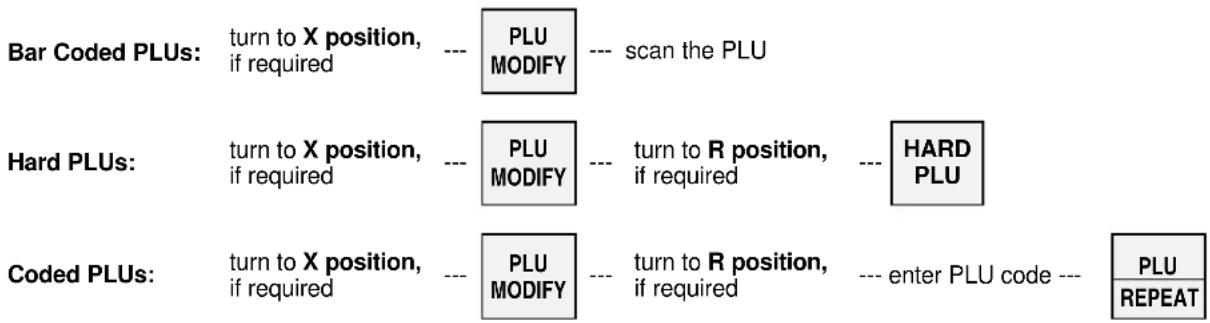
flowchart
graph TD
    A["Bar Coded PLUs: turn to X position, if required"] --> B["--- PLU MODIFY"]
    B --> C["--- scan the PLU"]
    D["Hard PLUs: turn to X position, if required"] --> E["--- PLU MODIFY"]
    E --> F["--- turn to R position, if required"]
    F --> G["--- HARD PLU"]
    H["Coded PLUs: turn to X position, if required"] --> I["--- PLU MODIFY"]
    I --> J["--- turn to R position, if required"]
    J --> K["--- enter PLU code ---"]
    L["PLU REPEAT"] --> K
| The following PLU codes are set; | ||
| 1001: | SODA0.60 | |
| 11001: | SODA0.95 | |
| 21001: | SODA1.25 | |
| 31001: | SODA1.50 | |
| KEY ENTRY | DISPLAY RECEIPT | |
| SODA | SODA0.60 | SODA0.60 |
| SODA0.95 | ||
| MODIFY 1 --a | SODA,0.95 | SODA1.25 |
| SODA | SODA1.50 | |
| MODIFY 2 --b | SODA,1.25 | a: Comma ", " is lit on the above REG lamp.b: Comma ", " is lit on the above 2nd PRICE lamp.c: Comma ", " is lit on the above 2nd MENU lamp. |
| SODA | ||
| MODIFY 3 --c | SODA,1.50 | |
| SODA | ||
Notes:
- To exit from the PLU modifier mode, press the same modifier key again.
- To change the value, press another modifier key.
- Depending on programming, this modifier value remains for one registration, for one transaction or until the next PLU MODIFY key is pressed.
k) Single Item
A PLU programmed as a single item closes automatically the transaction by a programmed total key. This function is especially useful for the bar.
There are two types of single item transactions as follows;
Single-item 1: This can be used as normal registration with other non-single items and will not automatically close the transaction.
--- enter the non-single item --- enter the single-item 1 --- can be continued ---
Single-item 2: This can be used with non-single items but will automatically close the transaction.
--- enter the non-single item --- enter the single-item 2 --- closed automatically
| Single-item 1 = BEER Single-item 2 = MARTINI Non-single item = SANDWICH | |||
| KEY ENTRY RECEIPT KEY ENTRY RECEIPT | |||
| BEER | BEER 2.50 CASH 2.50 | MARTINI | MARTINI 4.50 CASH 4.50 |
| Closed automatically Closed automatically | |||
| KEY ENTRY RECEIPT KEY ENTRY RECEIPT | |||
| SANDWICH | SANDWICH 3.00 BEER 2.50 | SANDWICH | SANDWICH 3.00 MARTINI 4.50 CASH 7.50 |
| Not closed Closed automatically | |||
SINGLE ITEM COMBINATION FOR A PLU WITH LINK PLU
| PROGRAMMED AS TRANSACTION WILL BE | |
| Main PLU: single-item 1 or 2Link PLU: non-single item or single-item 1 or 2 | Only the main PLU is registered and closed automatically.The link PLU is not registered. |
| Main PLU: non-single itemLink PLU: single-item 1 or 2 | Both PLUs are registered and not closed if link PLU is single-item 1.If link PLU is single-item 2, it is closed automatically. |
When a PLU and link PLU programmed as single items are entered with other non-single items, the transaction is either closed or not closed depending on the selection of single-item 1 (can be continued) or single-item 2 (closed automatically).
1) Cooking Message & PLU Supplementary Message
< Cooking Message >
A PLU can have one cooking message that is entered by using COOKING MESSAGE key. The cooking message can be either preprogrammed (one of 50 messages) or manually entered.
To enter a preprogrammed cooking message;
- press one of HARD COOKING MESSAGE 1 \~ 5 keys, OR
- enter a number (called the "Supplementary message number") from 1 to 50 and press COOKING MESSAGE key.
- then enter a PLU. The cooking message is printed below the PLU line on the receipt.
Cooking Message key: HAMBURGER with bacon (cooking message 7) is sold
| KEY ENTRY | DISPLAY RECEIPT | |
| 7 COOKING MESSAGE | with bacon. 7 | HAMBURGER 6.00with bacon |
| HAMBURGER | HAMBURGER6.00 |
To enter a cooking message manually, press COOKING MESSAGE key first. Then enter any alphanumeric message (up to 20 characters) and press ENTER key, then enter a PLU as follows;
Manual entry: Rare STEAK is sold (cooking message "rare" is manually entered)
| KEY ENTRY | DISPLAY RECEIPT | |
| COOKING MESSAGE | - | STEAK 15.00 rare |
| rare [ENTER] | rare_ | 0 |
| STEAK | STEAK 15.00 | |
If a wrong cooking message is entered, enter other cooking message or press CR key before a PLU entry. If repeat or multiplication operation is done on a PLU, the PLU with cooking message is also repeated or multiplied.
The supplementary message is the same as the cooking message (the same 1 \~ 50 messages are used) except that it is programmed to be automatically printed when the PLU is entered. It is printed above the PLU line.
HAMBURGER (linked to the supplementary message number 7) is sold
| KEY ENTRYHAMBURGER | DISPLAY RECEIPT | |
| HAMBURGER6.00 | with baconHAMBURGER 6.00 | |
6. Kitchen Printer
ECR sends PLUs that have been programmed to print at specific kitchen printers after the transaction is closed or by pressing KP DATA SEND key before closing.
Food has been programmed to transmit to the kitchen (KP 1).
Drinks have been programmed to transmit to the bar (KP 2).
SALAD has been programmed as simple condiment PLU.
ROAST BEEF has a preprogrammed supplementary message "french fries" and one link PLU "SOUP".
KEY ENTRY
BEER
1 COOKING MESSAGE
CHICKEN
SALAD
ROAST BEEF
BEER
CASH
RECEIPT
BEER 2.50
CHICKEN 9.00
mild sauce
SALAD 3.00
french fries
ROAST BEEF 14.00
◇SOUP 1.00
BEER 2.50
CASH 32.00
QUANTITY 6
001-000050 20:11R
CLERK NAME 00001
KITCHEN PRINTER 1
AT KITCHEN
KITCHEN PRINTER 2
AT BAR
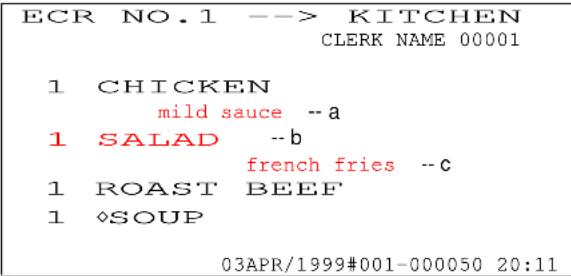
a: cooking message
b: simple condiment PLU
c: PLU supplementary message (centered)
< Print Contents >
- 1st line : the transmitting ECR name and the kitchen printer name are printed in double-width characters.
- 2nd line : the serving clerk's name is printed.
- Messages entered by MESSAGE key is printed following the kitchen printer's header.
- The quantity and PLU descriptor are printed in double-width characters. They are printed in normal characters if the quantity is entered with a decimal point and the number characters of PLU descriptor is more than 18 digits.
- PLU code and PLU unit price are printed if programmed.
- Link PLU is printed with link PLU symbol "◇" if entered.
- Simple condiment PLU is printed in red without symbol " " if entered.
- If programmed, orders of the same item are combined together. A link PLU and simple condiment PLU however are regarded as separate items from the same main PLUs. Also they are transmitted to a kitchen printer which has been set for them.
- , << Amount Track # >> and * Table # * are printed in brackets if entered.
- Refunded or negative voided items are printed in red.
- Voided or corrected items in the same transaction are not printed.
- Last line : date, machine number, consecutive number and time are printed.
Note for Mono-Ribbon
When a mono-ribbon is used in the kitchen printer, characters printed in red are printed in slim characters.
< Back-Up Kitchen Printer >
Depending on programming, each kitchen printer may be assigned a back-up for just in case of failure, intentional shut down, changing paper rolls, etc. After a transaction is closed and ECR attempts to send a message to the downed kitchen printer, an alarm sounds and one of warning messages (81 \~ 88) "kitchen printer 1 \~ 8 error" is displayed.
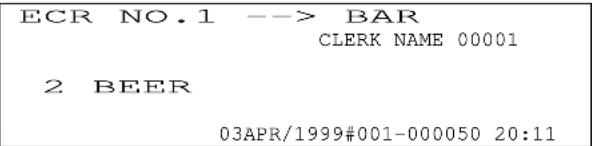
In the example below, KP 1 at the kitchen shuts down. KP 2 at the bar, programmed as a back-up, prints orders from the kitchen. The warning message #81 (KP 1 error) is displayed on the ECR and all the data sent to the kitchen printer (KP 1), which is down, is printed on the back-up kitchen printer (KP 2). The data of the two kitchen printers are printed in the order of kitchen printer number.
KITCHEN PRINTER 2 AT BAR
ECR NO.1 --> KITCHEN
CLERK NAME 00001

1 CHICKEN
mild sauce
1 SALAD
french fries
1 ROAST BEEF
1 ◇SOUP

03APR/1999#001-000051 20:12

ECR NO.1 --> BAR
CLERK NAME 00001
2 BEER

03APR/1999#001-000051 20:12
PLU data transmitted to KP 1 \~ 8 can be printed on KP 1 having the respective kitchen printer's header.
< KP Data Printed on Receipt >
If so programmed, the printing contents on a kitchen printer are printed on the receipt following the normal receipt printing. In this case, KP DATA SEND key can not be used.
-- printed in red (or in slim if a mono-ribbon is set)
KP data printed on receipt
[ 5-line logo ]
03APR/1999
ECR NO.1 --> KITCHEN
CLERK NAME 00001
1 X
CHICKEN
mild sauce
1 X
☐SALAD
french fries
1 X
ROAST BEEF
1 X
◇ONION SOUP
#001-000052 20:13R

[ 5-line logo ]
03APR/1999
ECR NO.1 --> BAR
CLERK NAME 00001
2 X
BEER
#001-000052 20:13R
7. Media Closing
Up to 25 different media (total) keys may be used to close a transaction. In addition to these media keys, there are 10 preset tender keys that close a transaction having preset tendering amounts by one-action.
Any of the following closing methods is applicable;
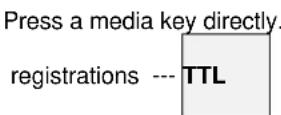
Direct Closing :
Tendering Input :
Enter a tendered amount then press a media key.

When entered amount is over the due amount, the change is calculated automatically in cash if "automatic change" has been programmed.
If "automatic change" has not been programmed, a designated media should be pressed for the change as follows; ____ ____ ____

Preset Tendering :
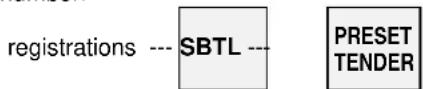
One-action closing to speed up tendering by use of a preset amount media key. Preset tendering amount is memorized in the memory of pre-programmed media number.
Media Multiplication :
Makes it easier to sum up tendered amounts by using Ten-Keys and X2 key. This function is available only when using one of ten (10) preset tender keys.

Automatic Closing by Clerk Insert Key (option) :
If programmed and when the clerk insert key is removed, the transaction is closed automatically by CASH/TTL 25 key. For an Item Track operation, it is closed automatically by NB (New Balance) key and for an Amount Track operation, it is closed automatically by CHARGE key.
Closing by Credit Card (option) :
When a media key programmed for CARD key is pressed, Warning Message #47 "Swipe Card" is displayed. The transaction is closed by swiping a credit card and the card number is printed below the media key symbol.
Real-time card verification function is also available with a PC via IRC line. It sends the card data, number and payment amount, which is swiped on ECR to a PC. Then PC sends back the classification in 20-digit message with one of six (6) message types to ECR.
Depending on the received message type, ECR prints and displays the classification message or ECR locks with a buzzer sound.
8. Tray Subtotal
Tray Subtotal Function for the payment by a group of customers is used at a cafeteria where a tray is used to serve Food & Drinks. Press TRAY SUBTOTAL key when item registrations are completed per customer. Then the total amount of items for each customer is printed on the receipt.
| KEY ENTRY RECEIPT | |||
| Customer A | BEER | BEER | 2.50 |
| 1 COOKING MESSAGE | CHICKEN | 9.00 | |
| CHICKEN | mild sauce | ||
| SALAD | JSALAD | 3.00 | |
| TRAY SBTL | TRAY SBTTL | 14.50 | |
| ---- | |||
| ROAST BEEF | french fries | ||
| Customer B | BEER | ROAST BEEF | 14.00 |
| TRAY SBTL --- can be skipped | ◇SOUP | 1.00 | |
| BEER | 2.50 | ||
| TRAY SBTTL | 17.50 | ||
| CASH | ---- | ||
| CASH | 32.00 | ||
| QUANTITY | 6 | ||
Notes:
- When using Tray Subtotal Function, "PLU not consolidated" must be programmed.
- Add-on tax amount is not included in tray subtotal.
9. Foreign Currency / Euro Currency
Foreign Currency System
Any media may be programmed for foreign currency media except for TTL 25 key for local currency. Foreign Currency Media keys can be used the same way as a local currency media, including R/A, P/O and cash declaration operations.
a) Closing Methods
Direct Closing : Press Foreign Currency Media key directly, without a tendered amount input.
Tendering Input : Before a foreign currency tendering amount is entered, F.C. SBTL key and F.C. Media key must be pressed to show the total amount in foreign currency. Then enter the foreign currency tendering amount and press the same F.C. Media key again.

The change is calculated automatically in local currency if "automatic change" has been programmed. If "automatic change" has not been programmed, a designated media should be pressed for the change.
Over-Tendering by Foreign Currency
KEY ENTRY DISPLAY RECEIPT
(item registrations) (item registrations)
F.C. SBTL
F.C. MEDIA
1500
F.C. MEDIA
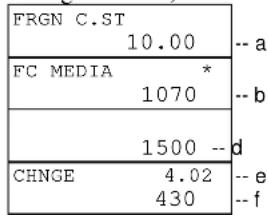
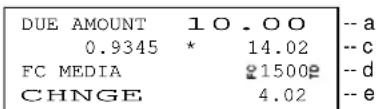
a: due amount of local currency
b: due amount of foreign currency
c: tendering amount in local currency is calculated from tendering amount in foreign currency (1500 x 0.9345)
d: tendering amount in foreign currency
e: change amount in local currency
f: change amount in foreign currency
b) Currency Exchange
In order to exchange a foreign currency to local one, enter the foreign currency amount and press F.C. Media key at the beginning of a transaction. ECR automatically subtracts a service charge amount calculated by a programmed charge rate. The currency exchange operation is allowed depending on programming.
KEY ENTRY DISPLAY RECEIPT
30000
F.C. MEDIA
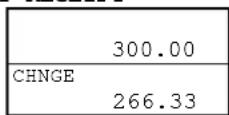
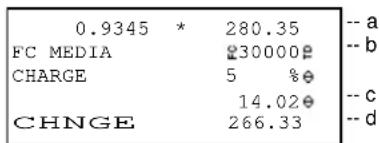
a: tendering amount in local currency is calculated from tendering amount in foreign currency (30000 x 0.9345)
b: tendering amount in foreign currency
c: charge amount in local currency is calculated from the programmed charge rate (280.35 x 5%)
d: cashing amount in local currency
Euro Currency System
A payment by the Euro currency is corresponded by an Euro media key. When a transaction is closed by Euro media key, the due amounts in local and Euro currencies are printed on the receipt. If taxable items are included in the transaction, the Euro taxable amount and tax are also printed separately from the local taxable amount and tax. Euro amount is calculated by "local amount x Euro rate".
< Display Method of Euro Currency System >
When SBTL key is pressed during a transaction, the display switches between Euro and local currencies in one second.
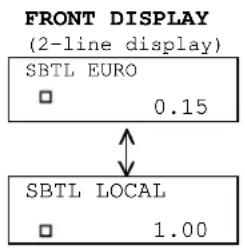
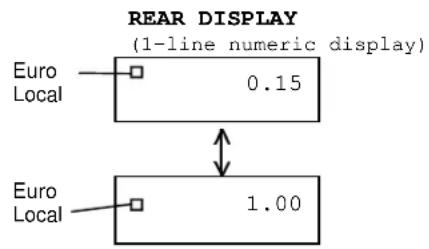
< Print Formats of Euro Currency System >
Either "Euro and currency symbols are printed or not printed" and "one space or no space between Euro currency & currency symbols and the amount" can be selected by programming.
Note: Tax lines in local and Euro currencies are printed when "VAT data printed" is selected.
Then the receipt format will be like the following samples;
1. Direct Closing by Local currency in Euro Currency System
Euro & currency symbols printed Euro & currency symbols not printed
| PLU | 10.00 |
| DUE AMOUNT | |
| DM 10.00 | |
| € 5.06 | |
| € 1.00 = DM 1.97719 | |
| CASH | DM 10.00 |
| VATSALE | DM 9.10 |
| VAT | DM 0.90 |
| VATSALE | € 4.60 |
| VAT | € 0.46 |
| due amount (local) |
| --- only for reference --- |
| due amount (Euro) *1 |
| Euro currency exchange rate *1 |
| ---- |
| directly closed by cash |
| VAT sales (local) |
| VAT amount (local) |
| --- only for reference --- |
| VAT sales (Euro) *2 |
| VAT amount (Euro) *2 |
| PLU | 10.00 | |
| DUE AMOUNT | ||
| LOCAL | 10.00 | |
| ---- | ||
| EURO | 5.06 | *1 |
| EURO 1.00 = 1.97719 | *1 | |
| CASH | 10.00 | |
| VATSALE | 9.10 | |
| VAT | 0.90 | |
| ---- | ||
| VATSALE EURO | 4.60 | *2 |
| VAT EURO | 0.46 | *2 |
*1 These are printed if programmed. When "due amount in Euro currency printed" is selected, either "Euro currency exchange rate is printed or not printed" can be selected.
*2 These are printed if programmed.
2. Direct Closing by Euro Currency
Euro & currency symbols printed Euro & currency symbols not printed
| PLU | 10.00 |
| DUE AMOUNT | |
| DM 10.00 | |
| € 5.06 | |
| € 1.00 = DM 1.97719 | |
| EURO | € 5.06 |
| (= DM 10.00 ) | |
| VATSALE | DM 9.10 |
| VAT | DM 0.90 |
| ---- | |
| VATSALE | € 4.60 |
| VAT | € 0.46 |
| due amount (local) |
| due amount (Euro) --- always printed *1 |
| directly closed by Euro *2 |
| VAT sales (local) *3 |
| VAT amount (local) *3 |
| VAT sales (Euro) *3 |
| VAT amount (Euro) *3 |
| PLU | 10.00 | |
| DUE AMOUNT | ||
| LOCAL | 10.00 | |
| EURO | 5.06 | |
| EURO 1.00 = 1.97719 | *1 | |
| EURO | 5.06 | |
| (= 10.00 ) | *2 | |
| VATSALE | 9.10 | *3 |
| VAT | 0.90 | *3 |
| ---- | ||
| VATSALE EURO | 4.60 | *3 |
| VAT EURO | 0.46 | *3 |
*1 Euro currency exchange rate is printed if programmed.
*2 Calculated amount in local currency is printed if programmed.
*3 These tax lines are printed if programmed.
3. Direct Closing by Foreign Currency in Euro Currency System
When "Foreign currency exchanged directly" is selected, the print format of foreign currency exchange rate will be as follows;
Foreign currency exchange rate = Foreign currency / Local currency
| PLU | 10.00 |
| DUE AMOUNT | |
| DM 10.00 | |
| FF 33.54 | |
| DM 1.00 * | FF 3.353876 |
| FRANC | FF 33.54 |
| (= DM 10.00 ) | |
| VATSALE | DM 9.10 |
| VAT | DM 0.90 |
| due amount (local) |
| due amount (foreign) |
| foreign currency exchange rate |
| directly closed by foreign currency |
| calculated amount in local currency |
Foreign currency exchange rate = Local currency / Foreign currency
| PLU | 10.00 |
| DUE AMOUNT | |
| DM 10.00 | |
| FF 33.54 | |
| DM 1.00 / | FF 0.298162 |
| FRANC | FF 33.54 |
| (= DM 10.00 ) | |
| VATSALE | DM 9.10 |
| VAT | DM 0.90 |
4. Note for Euro Currency System
In the scrolling display mode, the Euro taxable amount and tax are not displayed.
10. Cheque Cashing / Cheque Printing
a) Cheque Cashing
In order to cash a Cheque in local currency, enter the cheque amount at the beginning of a transaction and press a Media key programmed for cheque cashing. ECR automatically subtracts a service charge amount calculating by using a programmed charge rate.
| KEY ENTRY DISPLAY RECEIPT | |||
| 30000 | 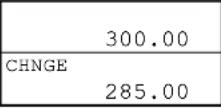 | CHECK | 300.00 ^2 -- cheque amount |
| CHARGE | 5 % ^2 -- charge rate | ||
| CHECK | 15.00 ^2 -- service charge | ||
| CHNGE | 285.00 -- cashing amount | ||
| CHECK | 300.00 ¢ | -- cheque amount |
| CHARGE | 5 % ¢ | -- charge rate |
| 15.00 ¢ | -- service charge | |
| CHNGE | 285.00 | -- cashing amount |
b) Cheque Printing on Slip Printer (TP-620)
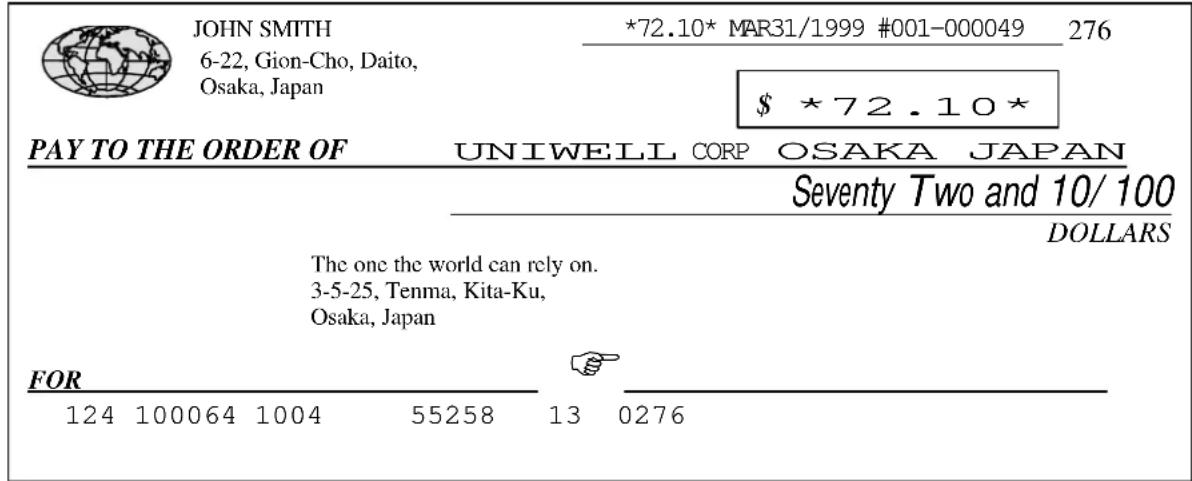
A cheque can be printed only when "Cheque Printing is available" is programmed and the transaction is closed by a media key programmed for CHEQUE key.
The following contents are printed on a cheque by using a slip printer (the print positions are programmable);
- cheque message (programmable)
- total amount in normal-size characters
- total amount in double-width characters
- date
- ECR machine number, consecutive receipt number
Depending on programming, there are two ways to print a cheque;
- Manual cheque printing when a transaction is closed by CHEQUE key
Even if a cheque has not been set on the slip printer, the cheque printing data will be sent to the printer and a warning message will be displayed on both the ECR and slip printer.
- Automatic cheque printing when a transaction is closed by CHEQUE key and a cheque has been inserted into the slip printer
In this case, if a cheque has not been set on the slip printer when pressing CHEQUE key, the cheque printing function will be automatically canceled and no warning will appear.
Cheque Sample
11. Tip Operation
A tip amount can be entered as either an amount independent from payment or as a change from over-tendering.
a) Tip Amount Input

KEY ENTRY DISPLAY RECEIPT
Note for Tip Media Amount Print
If the tip media and tendering media are the same key like the key sequence above, the tip and tendering amount are added together, then printed with a programmable symbol if so programmed.
b) Change Kept As Tip
This function can not be performed when automatic change calculation has been programmed.

flowchart
graph LR
    A["registrations"] --> B["SBTL"]
    B --> C["enter the over-tendered amount"]
    C --> D["TTL"]
    D --> E["TIP"]
    E --> F["TTL"]
    F --> G["(change will be the tip)"]
KEY ENTRY DISPLAY RECEIPT
| BEERT-BONE STEAKSBTL3000 CASHTIPCASH | 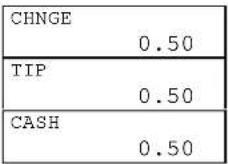 | 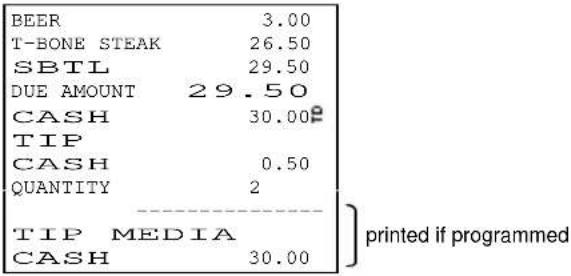 |
12. Mark-up / Mark-down
The key operation determines whether a mark-up or mark-down is calculated on the item or subtotal. For mark-up/-down on item, press % key immediately after the item is entered. For mark-up/-down on subtotal, press SBTL key before pressing % key.
The followings depend on programming;
- a manual rate entry is permitted or prohibited;
- mark-up/down amount always affects or does not affect the taxable subtotal;
- mark-up/down on item or on subtotal operation permitted or prohibited.
Only for a mark-down, turning the control key to Z1/P position may be required by programming.
enter manual rate, if required --- turn to Z1/P position, if required --- - %
Mark-up (on item) : %1 key has been programmed for mark-up of 5%
KEY ENTRY DISPLAY RECEIPT
| BEERROAST BEEF%1CASH | %10.70 | BEERROAST BEEF%1CASH | 2.5014.005%0.7017.20 |
Mark-down (on subtotal) with manual rate entry: %2 key has been programmed for mark-down of 5%
KEY ENTRY DISPLAY RECEIPT
| BEERROAST BEEFSBTL4 %2 | SBTL16.50%2-0.66 | BEERROAST BEEFSBTL16.50 x 4 %2CASH 15.84 | 2.5014.0016.500.66 |
CASH
Note: Under "tax calculated each time on New Balance closing and media closing", subtotal % can be done only when "% amount does not affect taxable subtotal 1 \~ 4" is selected.
13. Adjustment (Automatic % on Specific Items)
The adjustment function is provided for Membership discounts, Whole-sales prices, Employees, etc. Each PLU can be assigned to one of three adjustments by programming. Mark-up and Mark-down are presettable on each item, saving the trouble of manually entering rates.
Depression of ADJUST 1 key, ADJUST 2 key or ADJUST 1&2 key after entering items will calculate the mark-up/down amount. After an adjustment key is pressed, a closing operation only is permitted.
Depending on programming, adjustment amount affects or does not affect the taxable subtotal, and turning the control key to Z1/P position may be required by programming.
ADJUST 1
Adjustment 1 key is used for price reduction (2%+)
ADJUST 2
Adjustment 2 key is used for price reduction (5%-)
ADJUST 1&2
Adjustment 1 & 2 key is used for price reduction (2%-, 5%-)
| ADJUST 1: CAKE has been set to Adjustable 1 item. COFFEE has been set to Adjustable 2 item | |||
| KEY ENTRY DISPLAY RECEIPT | |||
| CAKE | CAKE | 1.50 | |
| COFFEE | COFFEE | 1.00 | |
| ADJUST 1 | AJST 1 | 1.50 x 2 % | -- adjustable 1 amount x adjustment 1 rate |
| -0.03 | AJST1 | 0.03% | |
| CASH | CASH | 2.47 | |
| ADJUST 1&2 | ||
| KEY ENTRY DISPLAY RECEIPT | ||
| CAKE | CAKE 1.50 | |
| COFFEE | COFFEE 1.00 | |
| ADJUST 1&2 | AJST 1&2 -0.08 | 1.50 x 2 % |
| AJST1 0.03 | ||
| 1.00 x 5 % | ||
| AJST2 0.05 | ||
| CASH 2.42 | ||
| CASH | ||
If an optional card reader is fitted and Adjustment Cards have been made by a card writer, Adjustment Cards also perform the adjustment automatically by swiping the card.
14. Amount Plus / Amount Discount
A plus/discount amount can be entered manually or the programmed amount is added/subtracted automatically.
The key operation determines whether the amount is added to the item or subtotal. For plus/discount on item, press (+) or (-) key immediately after the item is entered. For plus/discount on subtotal, press SBTL key before pressing (+) or (-) key.
The following depend on programming;
- plus/discount on item or on subtotal operation permitted or prohibited;
- plus/discount amount always affects or does not affect the taxable subtotal.
Only for the discount operation, turning the control key to Z1/P position may be required by programming.

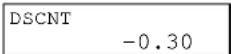
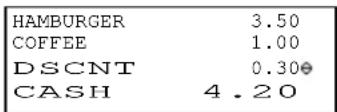
Amount discount operation on item : (-) key is programmed for 0.30 discount
KEY ENTRY DISPLAY RECEIPT
HAMBURGER
COFFEE
(一)
CASH
Note: Under "tax calculated each time on New Balance closing and media closing", (+) /(-) can be done only when (+) /(-) amount does not affect taxable subtotal 1 4 is selected.
15. Last Item Correction
CR key is used to cancel the last-registered item.
Press CR key immediately after a wrong item or a wrong function key is registered. The corrected item is never printed on the post-receipt, kitchen printer and slip printer.
| COFFEE is corrected. | ||
| KEY ENTRY | DISPLAY RECEIPT | |
| CAKE | CAKE 1.50 | |
| COFFEE | COFFEE 1.00 | |
| CR | COFFEE 1.00 | ---- CORRECTED ---- |
| CASH 1.50 | ||
| CASH | ||
| PLU (HAMBURGER) with link PLU (COFFEE) is corrected. | |||
| KEY ENTRY | DISPLAY RECEIPT | ||
| CAKE | CAKE 1.50 | ||
| HAMBURGER | HAMBURGER 3.50 | ||
| CR | HAMBURGER | ◇COFFEE 1.00 | |
| 4.50 | ---- CORRECTED ---- | ||
| 2 PS CORECT | |||
| CASH | CASH 1.50 | -- number of corrected items is printed | |
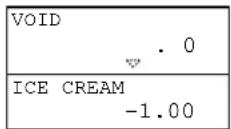
16. Void
VOID key is used to void an item registered in the current transaction.
In order to void an item registered by a series of key depression, the same key operation must be repeated. If Scroll Void function is used, it is not required to repeat the same key operation (see below).



Depending on programming, turning the control key to Z1/P position may be required to allow void operations.

ICE CREAM is voided.
KEY ENTRY
ICE CREAM
CAKE
VOID
ICE CREAM
CASH
DISPLAY RECEIPT
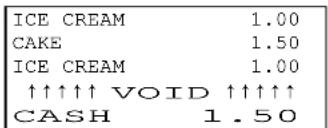
< Scroll Void in Scroll Display Mode >
If a PLU has been registered for the items below, this function is useful to void them;
manual price entry, multiplication, split pricing, square entry, link PLU, simple condiment PLU,
cooking message, plus / discount amount on item, % on item
It voids all these additional entries on the PLU automatically. So the same key operation is not required to repeat. Refer to the next page for the sequence.
< Kitchen Printer/Slip Printer >
The voided item is not printed on the kitchen and slip printers. The negative voided item only is printed in red (or in slim if a mono-ribbon is set) on the kitchen printer and in black on the slip printer with a minus symbol without a void message.
An item registered in an Item Track or an Amount Track (option) can be canceled by voiding the previous item at any time before it is closed by a media key.
17. Scroll Display
During a transaction, the registered items can be displayed by using SCROLL UP key or SCROLL DOWN key under "PLU not consolidated" condition. In the scroll display mode, R-OFF lamp flashes.
< Scroll Void > Refer to the next page for examples.
Only the items with VD/RF lamp flashing are possible for the scroll void selection.
- During a transaction, press SCROLL UP/DOWN key.
- Select an item to be voided by pressing VOID key on the display (at that time VD/RF lamp lights up).
- Selected items are finally voided by CASH/TTL 25 key. Press CR key to cancel the void selection.
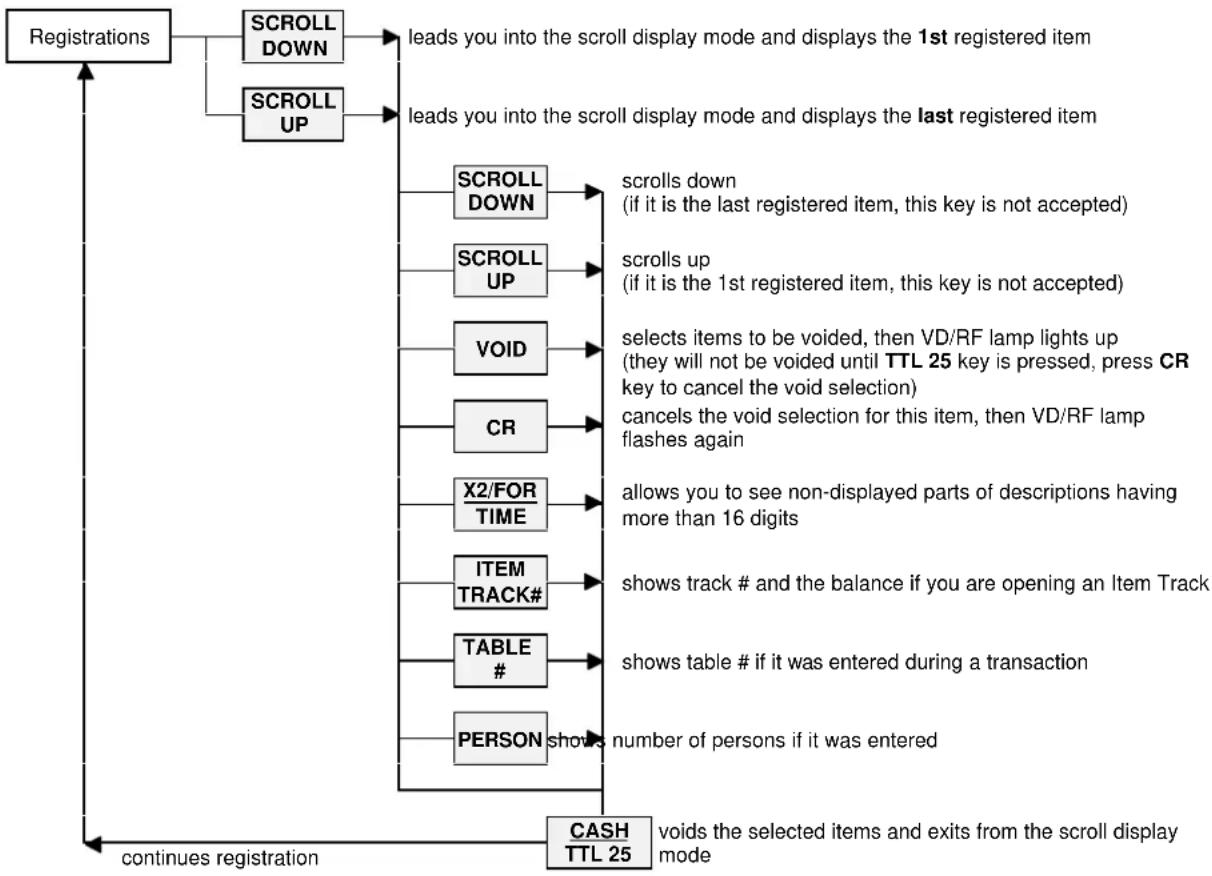
flowchart
graph TD
    A["Registrations"] --> B["SCROLL DOWN"]
    A --> C["SCROLL UP"]
    B --> D["leads you into the scroll display mode and displays the 1st registered item"]
    C --> E["leads you into the scroll display mode and displays the last registered item"]
    D --> F["SCROLL DOWN"]
    D --> G["SCROLL UP"]
    F --> H["scrolls down (if it is the last registered item, this key is not accepted)"]
    G --> I["scrolls up (if it is the 1st registered item, this key is not accepted)"]
    H --> J["VOID"]
    I --> K["selects items to be voided, then VD/RF lamp lights up (they will not be voided until TTL 25 key is pressed, press CR key to cancel the void selection)"]
    J --> L["CR"]
    K --> M["cancels the void selection for this item, then VD/RF lamp flashes again"]
    L --> N["X2/FOR TIME"]
    M --> O["allows you to see non-displayed parts of descriptions having more than 16 digits"]
    N --> P["ITEM TRACK#"]
    O --> Q["shows track # and the balance if you are opening an Item Track"]
    P --> R["TABLE #"]
    Q --> S["shows table # if it was entered during a transaction"]
    R --> T["PERSON shows number of persons if it was entered"]
    S --> U["CASH TTL 25"]
    T --> U
    U --> V["continues registration"]
    V --> W["voids the selected items and exits from the scroll display mode"]
< Notes for Scroll Void >
If a PLU has been registered with the following items, all these additional entries on the PLU are also selected automatically as void items;
- manual price entry
- multiplication, split pricing, square entry
- link PLU
- simple condiment PLU
- cooking message
- plus / discount amount on item
- % on item
If the following operations on subtotal have been done, selecting void items are not operational until those operations are voided first;
- plus / discount amount on subtotal
-% on subtotal - adjustment
If the following operations have been done, selecting void items are no longer operational;
- manual tax entry
- tax exemption
- tendering amount entry
Message entry (not cooking message) only can be selected for the void operation.
| Scroll Void Operation SequenceTwo ICE CREAMs which are entered with a cooking message and manual price are voided. | |||
| KEY ENTRY DISPLAY RECEIPT | |||
| 10COOKING MESSAGE2 [X2] 100MINT ICE CREAM SCAKE | choco chip.10 | cooking message enteredmultiplication and manual priceentry are done | 2 X 1.00MINT ICE CREAM S 2.00choco chipCAKE 1.502 X 1.00MINT ICE CREAM S 2.00choco chip↑↑↑↑↑VOID ↑↑↑↑↑CASH 1.50 |
| MINT ICE CREAM S2.00 | |||
| CAKE1.50 | |||
| SCROLL DOWN | choco chip.0▼ | enters into the scroll display modeand shows the 1st item | |
| SCROLL DOWN | MINT ICE CREAM S1.00▼▼ | shows the next item | |
| [X2] | 2 X MINT ICE CR1.00▼▼ | shows non-displayed parts having more than 16 digits | |
| VOID | 2 X MINT ICE CR1.00▼▼ | selects item to be voided(No need to repeat the entries of cooking message, multiplication andmanual price entry. They are voided automatically.) | |
| CASH/TTL 25 | 2 X MINT ICE CR1.00 | voids the selected items & exits from the scroll display mode | |
| CASH | CASH1.50 | ||
18. Transaction Void
Transaction Void can be done if you wish to cancel all registrations during a transaction. This is possible only before the transaction is closed.
In order to cancel all registrations, simply press TRANSACTION VOID key.
Then ECR shows Warning Message #45 (means "are you sure to execute?").
Press CASH/TTL 25 key to execute it or press TRANSACTION VOID key again to cancel it.
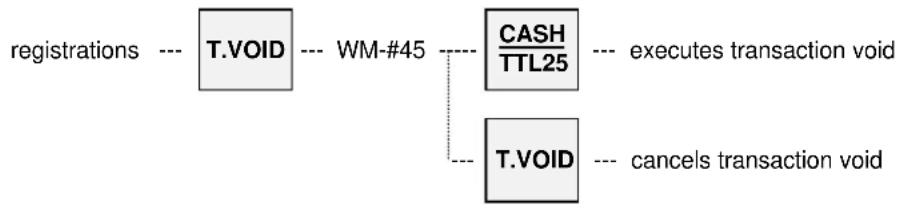
flowchart
graph LR
    A["registrations"] --> B["T.VOID"]
    B --> C["WM-#45"]
    C --> D["CASH/TTL25"]
    D --> E["executes transaction void"]
    C --> F["T.VOID"]
    F --> G["cancels transaction void"]
Depending on programming, turning the control key to Z1/P position may be required to allow transaction void.
KEY ENTRY DISPLAY RECEIPT
ICE CREAM
CAKE
T. VOID
CASH
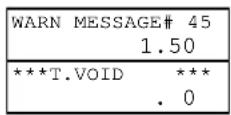
| ICE CREAM | 1.00 |
| CAKE | 1.50 |
| ↑↑↑↑↑↑ T. VOID | ↑↑↑↑↑↑ |
19. Refund / Media Refund
REFUND key is used to refund a registered item after a transaction was closed.
ECR will not check to see if the refunded item was actually registered, except for in the Item Track operation before the Item Track was closed by a media key.
In order to refund an item registered by a series of key depression, the same key operation must be repeated. Press REFUND key after entering the data (PLU code, manual price, etc.).
Bar Coded PLUs: repeat same key operations --- REFUND --- scan the PLU (manual price, multiplication, etc.)
Hard PLUs: repeat same key operations --- REFUND --- HARD PLU (manual price, multiplication, etc.)
Coded PLUs: repeat same key operations --- enter PLU code --- (manual price, multiplication, etc.) REFUND --- PLU REPEAT
Depending on programming, turning the control key to Z1/P position may be required to allow refunding operations.
repeat same key operations --- turn to Z1/P position, --- REFUND --- turn to R position, --- enter the PLU for refunded item if required if required
ORANGE JUICE is refunded.
KEY ENTRY
REFUND
ORANGE JUICE
CASH
DISPLAY RECEIPT
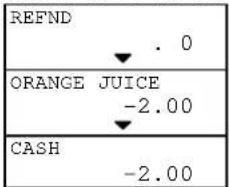
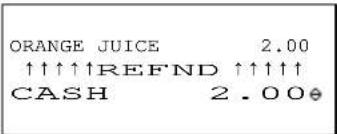
KITCHEN PRINTER
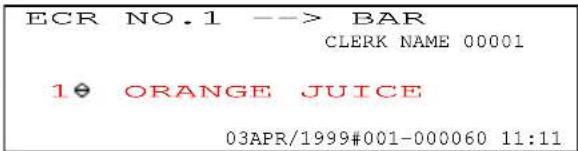
The refunded item is printed in red (or in slim if a mono-ribbon is used) on the kitchen printer and in black on the slip printer with a minus symbol without a refund message.
Media Refund
This function is useful if a transaction to be refunded was closed by plural media keys. It is not required to do if the transaction was closed by one media key.
By this operation, the refunded amounts are subtracted from the respective media memory, but they are not memorized in the refund memory.
For example, when the transaction below is required to refund, then the operation sequence will be;
| PLU-NAME 0001 | 1.00 |
| PLU-NAME 0002 | 2.00 |
| SBTL | 3.00 |
| DUE AMOUNT | 3.00 |
| CASH | 1.00g |
| CHECK | 2.00 |
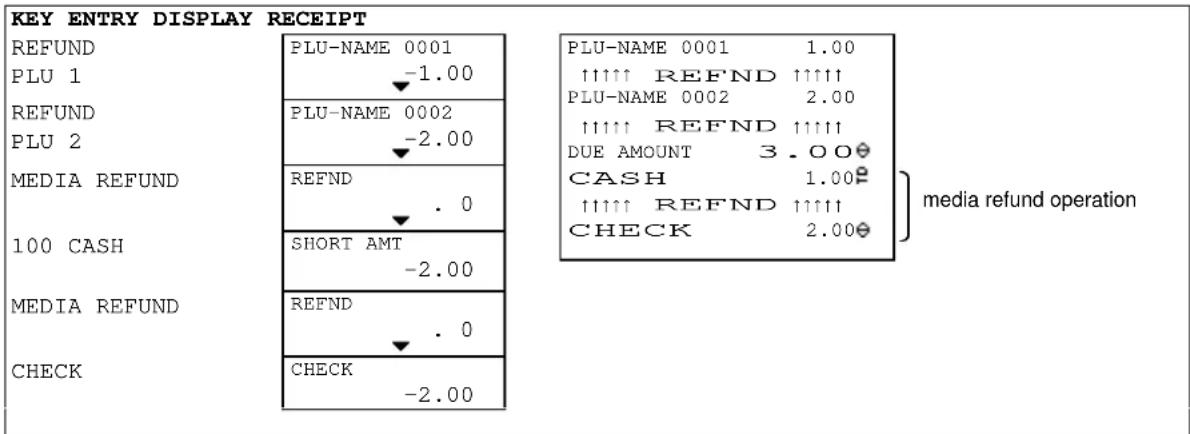
other
KEY ENTRY DISPLAY RECEIPT | Category | Value | Description | | :--- | :--- | :--- | | REFUND | PLU-NAME 0001 | PLU-NAME 0001 1.00 | | PLU 1 | -1.00 | ↑↑↑↑↑ REFND ↑↑↑↑↑ | | REFUND | PLU-NAME 0002 | PLU-NAME 0002 2.00 | | PLU 2 | -2.00 | ↑↑↑↑↑ REFND ↑↑↑↑↑ | | MEDIA REFUND | REFND . 0 | DUE AMOUNT 3.00⊗ CASH 1.00⊗ ↑↑↑↑↑ REFND ↑↑↑↑↑ CHECK 2.00⊗ media refund operation | | 100 CASH | SHORT AMT -2.00 | | | MEDIA REFUND | REFND . 0 | | | CHECK | CHECK -2.00 | |20. Tax
Each PLU can have one of four taxes and these will be calculated by either VAT method or Add-On Tax method.
Tax amount is included in the price. The tax shift is available, however, manual tax amount entry and manual tax exemption are not available.
< Add-On Tax Method >
Tax amount is charged separately from the price. Tax Rate or Tax Table selection is available for each tax. The tax shift, manual tax amount entry and manual tax exemption are available.
The following items can be printed by programming;
- tax amounts printed separately or consolidated on a single line
- taxable subtotal amount printed or not printed
- tax amount printed even if tax = 0 or not printed
- tax symbol printed or not printed
- VAT data printed or not printed (add-on tax data always printed)
- VAT taxable subtotal printed with tax or without tax
The following operations are possible only for the add-on tax items;
| Taxable Subtotal Display | PLU entry --- | TAX SHIFT 1 ~ 4 | --- SBTL | The taxable subtotal is displayed by using the proper TAX SHIFT key and SBTL key immediately after registering the PLU. |
| Net Subtotal Display | PLU entry --- | NET SBTL | Net subtotal without add-on tax amount is displayed. It can be printed if programmed. | |
| Manual Tax Entry | PLU entry --- manual tax amount --- | TAX --- TAX SHIFT 1 ~ 4 | ||
| After it is performed, all other operations are prohibited, except for a media closing. | ||||
| Manual Tax Exemption (available if permitted by programming) | PLU entry --- | TAX SHIFT 1 ~ 4 | --- TAX | |
| This may be used at the end of a transaction to exempt the whole transaction from a particular tax rate, e.g. the whole sale could be exempted from Tax 2. After it is performed, all other operations are prohibited, except for a media closing. | ||||
< Automatic Tax Exemption for Add-On Tax System >
If a tax exemption limit amount is programmed, the tax amount is automatically exempted by programming according to the taxable subtotal amount per entered number of people or per transaction.
This is possible for both VAT tax items and add-on tax items. Tax status is changed by TAX SHIFT 1 \~ 4 keys.

i) TAX SHIFT ON VAT TAX ITEMS
Depression of a tax shift key changes a tax status to a different VAT tax status.
| TAX SHIFT KEY PRESSED | ||||
| TAX SHIFT 1 key | TAX SHIFT 2 key | TAX SHIFT 3 key | TAX SHIFT 4 key | |
| Non-taxable & VAT taxable items are changed to ... | taxable 1 taxable | 2 taxable 3 taxable | 4 | |
ii) TAX SHIFT ON ADD-ON TAX ITEMS
Tax shift can also be used with add-on tax items but in a fashion different from the VAT items. If the pressed TAX SHIFT key number and the item's tax number are the same, the item will become non-taxable. If the pressed TAX SHIFT key number and the item's tax number are different, the tax status will be both original item's tax status and shifted tax status as follows;
| TAX SHIFT KEY PRESSED | ||||
| ADD-ON TAX STATUS TAX SHIFT 1 key TAX | SHIFT 2 key TAX | SHIFT 3 key TAX | SHIFT 4 key | |
| Non-taxable item taxable 1 taxable 2 taxable 3 taxable 4 | ||||
| TAXABLE 1 ITEM non-taxable 1, 2 1, 3 1, 4 | ||||
| TAXABLE 2 ITEM | taxable 1, 2 | non-taxable | 2, 3 | 2, 4 |
| : | : | : | : | : |
| TAXABLE 1 & 2 ITEM | 2 | 1 | 1, 2, 3 | 1, 2, 4 |
| TAXABLE 1 ~ 4 ITEM | 2, 3, 4 | 1, 3, 4 | 1, 2, 4 | 1, 2, 3 |
The function of the tax shift keys depends on which tax method is selected for each of the four taxes. Tax shift for the VAT system affects only VAT tax items while tax shift for the add-on system affects only add-on tax items. For example, Tax 1 and 2 are VAT method, tax 3 and 4 are add-on tax method, PLU 1's tax status is tax 1 & 3;
| TAX SHIFT KEY PRESSED | ||||
| PLU 1's TAX STATUS | TAX SHIFT 1 key (VAT) | TAX SHIFT 2 key (VAT) | TAX SHIFT 3 key (add-on tax) | TAX SHIFT 4 key (add-on tax) |
| TAX 1 (VAT method) | no change | taxable 2 | no change | no change |
| TAX 3 (add-on tax method) | no change | no change | non-taxable | taxable 3 & 4 |
| PLU1's tax status will be | taxable 1 & 3 | taxable 2 & 3 | taxable 1 | taxable 1, 3, 4 |
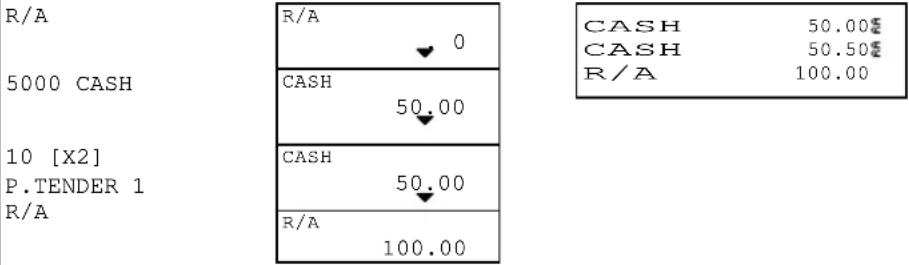
21. R/A (Received on Account)
Records the amount of money received in the cash drawer when no customer transaction takes place (i.e. in order to register the money prepared for change in the ECR memory).
50.00 x 1 piece and 5.00 x 10 pieces are entered
KEY ENTRY DISPLAY RECEIPT
other
| Category | Cash Flow | | :--- | :--- | | R/A | 50.00 | | 5000 CASH | 100.00 | | Cash | 50.00 | | Cash | 50.00 | | R/A | 100.00 |Media multiplication can be done only by using a preset tender media key.
22. P/O (Paid Out)
Records the amount of money withdrawn from the cash drawer when no customer transaction takes place.
50.00 is withdrawn.
KEY ENTRY
| P/O | P/O 0 | CASH 50.00 P/O 50.00 |
| 5000 CASH | CASH -50.00 | |
| P/O | P/O -50.00 |
23. No Sale
For opening the drawer when no transaction takes place.
Simply press NO SALE key. Depending on programming, turning the control key to X position may be required.
turn to X position, if required --- NO SALE
24. Off Compulsory
OFF COMPULSORY key is used for a temporary release of all compulsory conditions.
For example, under a track number entry compulsory condition, press OFF COMPULSORY key at the beginning of a transaction for releasing the compulsory condition.
Depending on programming, turning the control key to Z1/P position may be required in order to use OFF COMPULSORY key.
turn to Z1/P position, if required --- OFF COM-PULSORY --- turn to R position and continue registrations
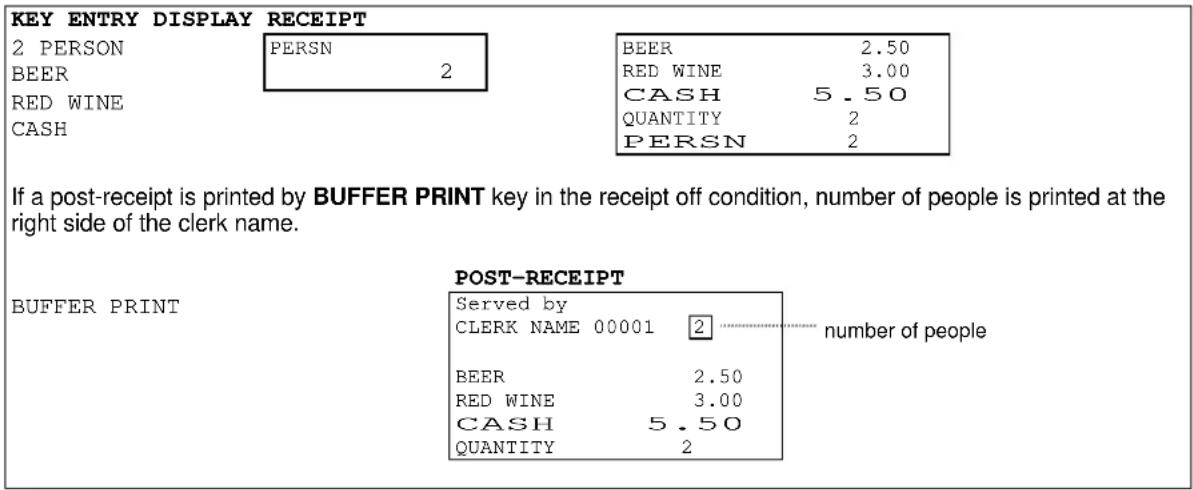
25. Number of People
It is possible to input 99 people with PERSON key. Overriding input is also possible.
enter the number of people --- PERSON
26. Message
Up to 20 digits of number or message input is possible with MESSAGE key.
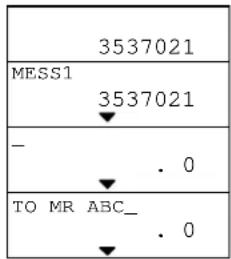
Number Input:
enter number
MESSAGE
Message Input:
MESSAGE
--- enter message ---
ENTER
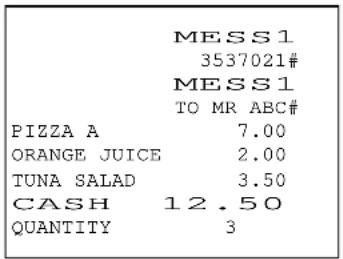
KEY ENTRY DISPLAY RECEIPT
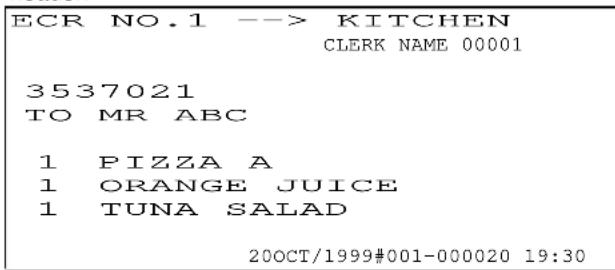
| 3537021MESSAGE |
| MESSAGE TO MR ABC ENTER |
| PIZZA A |
| ORANGE JUICE |
| TUNA SALAD |
| CASH |
| number input |
| message input |
Entered messages are printed on the kitchen printer following the kitchen printer header.
| Keys Used for Message Input | Functions |
| Alpha / Code | Revises the character code entry mode or the alphabet key entry mode. After entering the character code, press "•" key. Refer to the programming manual for the character code table (PGM-131). |
| BACK SP, SPACE, INS SP | Back Space key, Space key, Insert Space key |
| CAPITAL, SMALL | To be used to enter the upper case letters or the lower case letters for stroke keyboard. |
| ↑, ↓ | To be used to enter the upper case letters or the lower case letters for flat keyboard. |
| ←, → | Cursor Left key, Cursor Right key |
| CL | Cancels character input before pressing ENTER key |
| DEL Deletes a character. | |
| DOUBLE | Makes a double-width character when this key is pressed after a character is entered. |
| ENTER | Finishes character input |
27. Validation / Slip Validation
Before issuing a validation, make sure that the validation slot lid has been removed.
Validation on the slip printer is possible if ECR is programmed for use with a slip printer TP-620 and if a slip paper is inserted before pressing the validation key.
These can be issued for any item after it is registered, any media after payment is made, or for the total after the transaction is closed.
Item & Media Validations: insert validation paper after an item or a media is registered ---
MISC. VALID.
Total Validations: insert validation paper after a transaction is closed ---
TTL VALID.
KEY ENTRY RECEIPT
BEER 6 BOTTLES
BEER 6 BOTTLES 6.60 CASH 6.60
insert a paper for item validation MISC. VALID.
NOV05/1999#002-000001 BEER 6 BOTTLES 6.60
CASH insert a paper for media validation MISC. VALID.
NOV05/1999#002-000001 CASH 6.60
insert a paper for total validation TTL VALID.
NOV05/1999#002-000001 AMONT 6.60
time printed if programmed
NOV05/1999#002-000001 11:43 AMONT 6.60
The followings depend on programming;
- Validation is compulsory or is not compulsory
- Validation can be printed only one time or an unlimited number of times
- Validation printed by upside-down or normal character (only for a validation on the internal printer)
- Time printed or not printed
- Slip validation with slip upper logo
28. Arrangement
There are four kinds of arrangement keys. Up to 50-key steps operations can be assigned to each one of the Arrangements. Execution of programmed steps can be performed by pressing of the proper ARRANGEMENT 1 \~ 4 key.
If an optional card reader is fitted and Arrangement Cards have been made by a card writer, the Arrangement Cards also perform the programmed steps automatically by swiping the card.
Example 1: ARRANGEMENT 1 key is programmed for an automatic discount and closing operations as follows;

(-) key is programmed for 0.30 discount
KEY ENTRY DISPLAY RECEIPT
| SALMON STEAK | SALMON STEAK15.00 |
| ARRANGE 1 | CASH14.70 |
| SALMON STEAK | 15.00 |
| SBTL | 15.00 |
| DSCNT | 0.30 |
| CASH | 14.70 |
Example 2: ARRANGEMENT 2 key is programmed for assorted reports.
X-03 Full Transaction report (3, X2, TTL 25)
X-05 Hourly report (5, X2, TTL 25)
X-10 Clerk report (1, 0, X2, TTL 25)
Operation Turn the control key to X position and press ARRANGEMENT 2 key.
Then above reports will be printed automatically.
29. Recall
The total amount of the last transaction closed directly by a media key can be recalled by RECALL key. The receipt of the last transaction is issued when the transaction is directly closed. After that, no additional receipt is issued during the recall operation. A transaction closed with amount tendered can not be recalled.
The recalled transaction must be closed by a media key with a tendering amount entry. It is canceled by CL key.

flowchart
graph LR
    A["Payment for the last transaction"] --> B["RECALL"]
    B --> C["enter tendering amount"]
    C --> D["TTL"]
    D --> E["continue current transaction"]
    style A fill:#f9f,stroke:#333
    style B fill:#ccf,stroke:#333
    style C fill:#cfc,stroke:#333
    style D fill:#fcc,stroke:#333
    note1["Registration"] -.-> B
    note2["During recall operation, TOTAL lamp flashes."] --> D
< Recall of the transaction closed by a foreign currency media >
When the last transaction is recalled, the closed foreign currency media key name and the total amount in local currency are displayed. Before entering the foreign currency tendering amount for the last transaction, FC SBTL key and the specific foreign currency media key must be pressed.

flowchart
graph LR
    A["registration"] --> B["RECALL"]
    B --> C["F.C. SBTL"]
    C --> D["F.C. MEDIA"]
    D --> E["enter F.C. tendering amount"]
    E --> F["F.C. MEDIA"]
    F --> G["continue current transaction"]
    style A fill:#f9f,stroke:#333
    style G fill:#f9f,stroke:#333
| The last transaction is recalled during the current transaction | ||
| KEY ENTRY | DISPLAY RECEIPT (last transaction) | |
| (current transaction) | SALMON STEAK 11.00 | |
| ROAST BEEF | ROAST BEEF 15.00 | WINE 6.00 CASH 17.00 |
| WINE | WINE 6.00 | |
| (recall the last transaction) --- TOTAL lamp flashes during a recall operation | ||
| RECALL | CASH 17.00 | displays the last transaction's total amount |
| 2000 CASH | CHNGE 3.00 | Tendering amount input compulsory except when using PRESET TENDER key. If automatic change is not programmed, a designated media must be pressed to calculate the change. |
| (continue the current transaction) | RECEIPT (current transaction) | |
| TOMATO SALAD | TOMATO SALAD 5.00 | ROAST BEEF 15.00 WINE 6.00 TOMATO SALAD 5.00 CASH 26.00 |
| CASH | CASH 26.00 | |
30. Track System - Item Track / Amount Track
Following contents are described in this section;
Two Track Systems
Two Track Number Entry Methods
Two Clerk Track Assignment Methods
Note for Item / Amount Track System used with Clerk Interrupt System
Track Operation Sequences
- Two Track Systems --- Item and Amount Track Systems can be used at the same time.
| Item Track System | Amount Track System (optional RAM board required) | |
| Characteristics | - Track is identified by Item Track #.- Records detailed registration contents.- Track can be temporarily closed by using NB (New Balance) key, until finally closed by a media key.- Tax is printed each time the track is closed or it is printed only when the track is finally closed by a Media key depending on programming. | - by Amount Track #- Records only transaction totals.- Track can be temporarily closed by using CHARGE key, until finally closed by a media key.- Tax is printed each time the track is closed. |
| # of Items/Track | Registers up to 375 items. (item includes tax data, transaction data) | Not available |
| # of Tracks | 183 tracks are handled if about 32 items per track are registered. (# of tracks handled will change depending on the # of registered items) | 4681 tracks |
| Track # Entry | One of Automatic or Manual Track # Method is used. | Manual Track # Method is used. |
| Track # Display | Displayed in < >. | Displayed in << >>. |
| Table Assignment | Available when Automatic Item Track # Method is used.Also available when Manual Track # Method is used under Clerk Interrupt System. | Not available |
| Pick-Up by Table # | Available only under Non-Clerk Interrupt System. | Not available |
| Clerk Track Assignment | Available Not available | |
| Post-Bill | Shows the last transaction contents immediately after the track is closed by pressing BUFFER PRINT key. This can be used as a Check-Out Bill if Post-Bill is issued each time the track is closed. | |
| Subtotal Bill | Temporarily closed Item Track contents printed by CHECK-OUT BILL key. This is used to check the track contents and it can be used as a Check-Out Bill if programmed. | Not available |
| Check-Out Bill | Entire contents of finally closed Item Track printed by CHECK-OUT BILL key. | Not available |
| Track Transfer Available Available | ||
- Two Track Number Entry Methods
One of the two track number entry methods can be programmed for Item Track System. For Amount Track System, the track number must always be entered manually.
1) Automatic Item Track Number Method (Item Track System Only)
If this method is programmed, Item Track is automatically assigned in sequential order by pressing ITEM TRACK # key. The digit and value of track number are programmable (up to 9999999).
< Unique Automatic Track # >
Also depending on programming, the last two digits of the ECR machine number (ECR ID) are put to the head of the automatic 1 \~ 5 digits item track number. This makes the item track number unique.

When a track is finally closed by a media key, that track number can not be used again. When a track number goes up to a programmed maximum number, the next track number will begin from 1. At that time, track numbers which are not closed will be skipped.
A table number (allocating where customers sit) can be assigned and the track can be picked up by the table number.
2) Manual Track Number Method (Item / Amount Track Systems)
The track is assigned by manually entering a random 1 \~ 7 digit track number with the depression of ITEM TRACK # key or AMOUNT TRACK # key.
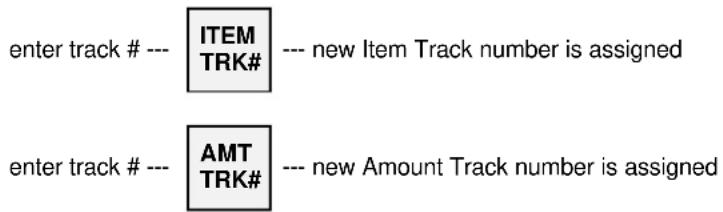
After a track is finally closed by a media key, the track number can be used again.
A table number allocation is available only for Item Track System under the clerk interrupt system is used but the track can not be picked up by the table number. It is not available for Amount Track System.
- Clerk Track Assignment Methods (Item Track System Only)
1) Free Clerk Track Assignment
Any clerk can open, access and close any track.
2) Clerk Track Assignment in Registration
Any clerk may open a new track, however, subsequent entries to the track are restricted to the clerk who originally opened the track.
\* Manager Help Function
Only the designated manager clerk can access any clerk's item track which was assigned to the clerk in a registration. When the manager clerk picks up or closes the item track which was opened by other clerk, the registered items are memorized in the item track memory and the previously assigned clerk's memory. These are not memorized in the manager clerk's memory.
- Note for Item / Amount Track System used with Clerk Interrupt System
1) Track Assignment
When a clerk opens a track, it is memorized in each track memory instead of in the clerk's interrupt memory.
2) Track Auto-Closing by Clerk Interrupt
If the clerk is interrupted by other clerk, the assigned track is automatically closed by NB key or CHARGE key and the track contents are automatically printed on a receipt in the receipt-on condition.
The temporarily closed tracks can be opened by entering the track numbers with ITEM TRACK # key or AMOUNT TRACK # key but they are not opened by the clerk entry.
3) Table # Assignment
If it is the Item Track, the entered table number is assigned to the track. But the Item Track can not be picked up by the assigned table number in the clerk interrupt system.
If it is the Amount Track, the table number can not be used. Although it can be entered and printed on a receipt, the table number is not memorized.
- Track Operation Sequences
A. Item Track System
a) Opening a New Track & Closing Temporarily
< Opening a New Item Track >
< Closing an Item Track Temporarily >
< Issuing a Post-Bill and/or Subtotal Bill >
b) Picking Up a Track & Closing a Track Finally
< Picking Up an Item Track >
< Closing an Item Track Finally >
< Issuing a Check-Out Bill >
c) Table # Assigned to an Item Track
d) Table # Assigned to a Multiple Number of Tracks
e) Track Transfer to a New Track or a Designated Track
f) Item Transfer to Item Track in Scroll Display Mode
g) Item Track Transfer to Amount Track (optional RAM board required)
h) Item Track Balance Calculation (display only)
B. Amount Track System
< Opening an Amount Track >
< Closing an Amount Track Temporarily >
< Picking Up an Amount Track >
< Closing an Amount Track Finally >
< Track Transfer >
A. Item Track System
a) Opening a New Track & Closing Temporarily
< Opening a New Item Track >
When Automatic Item Track Number Method has been programmed, simply press ITEM TRACK # key to open a new track.

When Manual Track Number Method has been programmed, enter a random 1 \~ 7 digit track number and press ITEM TRACK # key.

A track number may be assigned at anytime while in a transaction.
< Closing an Item Track Temporarily >
Enter registrations as normal and then it can be closed temporarily through NB key.
| Automatic Item Track Number Method | |||
| KEY ENTRY ITEM TRACK # SALMON STEAK BEER NB | DISPLAY RECEIPT NEW TRACK 「0000001」 | <......1> 0.00 SALMON STEAK 11.00 BEER 2.50 CURENT CHG 13.50 N.B 13.50 QUANTITY 2 #001-000001 19:13R CLERK NAME 00001 | --- printed if programmed |
| When Manual Track Number Method is used, enter the track number first, then press ITEM TRACK # key to assign a new track. | |||
Immediately after a track is closed temporarily and CHECK-OUT BILL key is pressed, a Subtotal Bill which shows the track contents is printed. If BUFFER PRINT key is pressed, a Post-Bill which shows only the last track's contents is printed. After the subtotal bill issue, post-bill can not be printed.

flowchart
graph LR
    A["open track --- register items --- NB"] --> B["--- track temporarily closed --- BUFFER PRINT"]
    C["open track --- register items --- NB"] --> D["--- track temporarily closed --- CHECK -OUT BILL"]
    B --> E["--- Post-Bill is issued (one time only)"]
    D --> F["--- Subtotal Bill is issued"]
After a Post-Bill is issued, a Subtotal Bill can be still issued by entering the track number and pressing the CHECK-OUT BILL key.

Post-Bill (See Sample 1 in the next page.)
Post-Bill shows the last transaction's contents on a receipt in the receipt-off condition or on a slip if programmed to use.
\* Automatic Line Finder
If a Post-Bill of the track was issued previously, the automatic line finder advances the Post-Bill past the previously-printed area, and prints only the last transaction's contents as a continuation of the previous Post-Bill. Then it is issued each time when the track is closed, the Post-Bill can be used as a Check-Out Bill. However, Item Track System has a Check-Out Bill function so that Post-Bill may not be used as a Check-Out Bill normally.
Subtotal Bill (See Sample 2 in the next page.)
Subtotal Bill shows the temporarily closed track's contents on a receipt or on a slip if programmed to use. If the slip printer is not programmed to use, an entire subtotal bill is always issued on a receipt.
\* Subtotal Bill Format --- available when the slip printer is used
Depending on programming, a Subtotal Bill is issued by one of two methods;
i) Always entire Subtotal Bill is printed on new slip.
ii) Additional transactions are printed as a continuation of the previous Subtotal Bill.
This method is used to have a Check-Out Bill by issuing the Subtotal Bills.
\* Subtotal Bill Printed on Receipt
Even if a slip printer is programmed to use, it is possible to print it on a receipt by SLIP OFF key depression. In this case, after SLIP OFF key depression, enter the track number and press CHECK-OUT BILL key.

Sample 1 Post-Bill --- available immediately after the track is closed
| KEY ENTRY POST-BILL (SLIP) | |
| BUFFER PRINT 1 | <. . . . . . . 1 > Served by CLERK NAME 00001 |
| SALMON STEAK 11.00 BEER 2.50 CURENT CHG 13.50 | |
| N.B 13.50 QUANTITY 2 17OCT/1999#001-000001 19:13R CLERK NAME 00001 | |
Note: If the programming of "tax is calculated each time the track is closed by either NB key or a media key" has been programmed, then BUFFER PRINT 1 key prints a post-bill with VAT data, BUFFER PRINT 2 key prints a post-bill without VAT data.
Sample 2 Subtotal Bill --- depends on programming, it is issued in one of two methods;
i) Always entire Subtotal Bill is printed on new slip --- can be issued at any time
| KEY ENTRY SUBTOTAL BILL (SLIP) | |
| 1 | <. . . . . . 1 > |
| CHECK-OUT BILL 1 | Served by CLERK NAME 00001 |
| SALMON STEAK 11.00 | |
| BEER 2.50 | |
| SBTL 13.50 | |
| QUANTITY 2 | |
| 17OCT/1999#001-000001 19:13R CLERK NAME 00001 | |
Note: If the programming of "tax is calculated each time the track is closed by either NB key or a media key" has been programmed, then CHECK-OUT BILL 1 key prints a subtotal bill with VAT data, CHECK-OUT BILL 2 key prints a subtotal bill without VAT data.
ii) Additional transactions are printed as a continuation of the previous Subtotal Bill
By this method, Subtotal Bill can only be issued one time for each transaction. If additional items are registered but a Subtotal Bill needs not be issued, the contents will be stored in memory.
Item Track # 1 is picked up and additional items are registered.
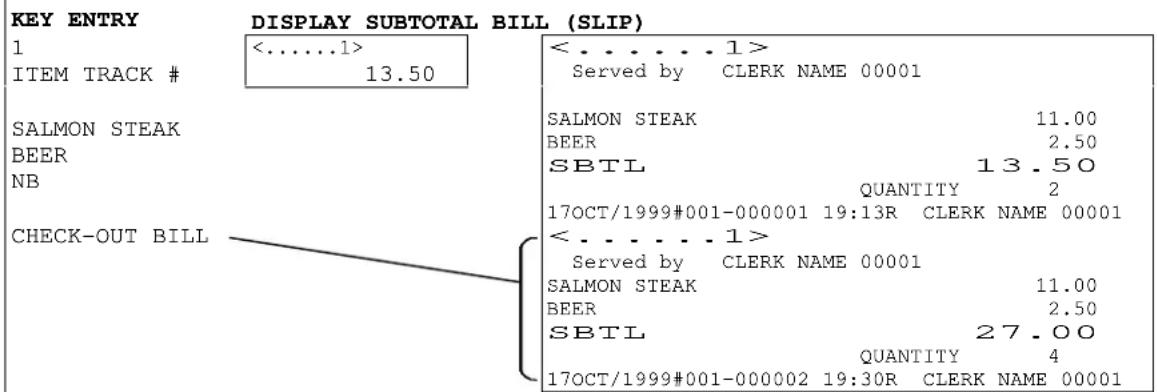
b) Picking Up a Track & Closing a Track Finally
< Picking Up an Item Track >
To pick up a track, enter the Item Track Number and press ITEM TRACK # key.

< Closing an Item Track Finally >
Enter registrations as normal and then it can be closed finally through one of a Media (Total) keys.

Depending on programming, a Check-Out Bill is issued on a slip by one of the three methods (see Samples in the next page). However, if no Subtotal Bill was issued, the entire Check-Out Bill is always printed, regardless the programming.
i) Always entire Check-Out Bill is printed on new slip.
ii) When a closing operation is done since the last Subtotal Bill issue, a closing line only is printed as a continuation of the Subtotal Bill.
If additional registrations were done, entire Check-Out Bill is printed on new slip.
iii) Additional registrations are always printed as a continuation of the previous Subtotal Bill.
* Check-Out Bill Keys
CHECK-OUT BILL 1 --- Prints a check-out bill with VAT data on slip or receipt CHECK-OUT BILL 2 --- Prints a check-out bill without VAT data on slip or receipt
* Check-Out Bill Issue Cancellation
If a check-out bill issue is not necessary, it can be skipped by a key depression or by programming.

* Check-Out Bill Printed on Receipt
Even if a slip printer is programmed to use, it is possible to print it on a receipt by SLIP OFF key depression.

i) Entire Check-Out Bill is always printed on a new slip.
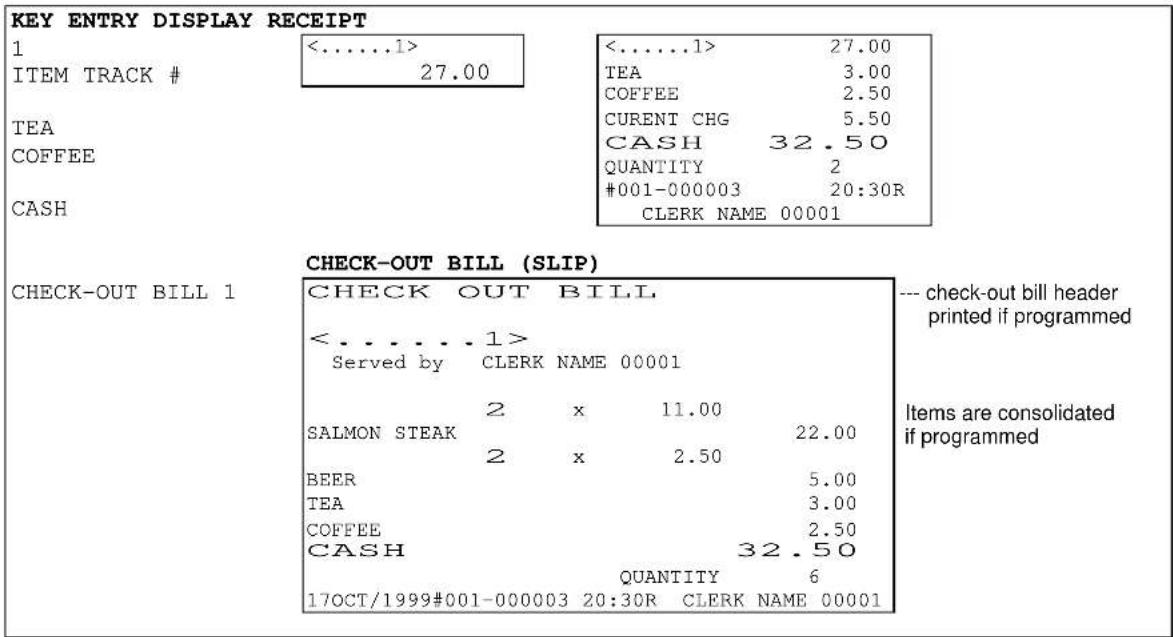
ii) When a final closing operation is done since the last Subtotal Bill issue, a closing line only is printed on the last Subtotal Bill. If additional registrations were done, entire Check-Out Bill is printed on a new slip.
The automatic line finder advances the slip paper past the previously-printed area and prints only the closing lines (the check-out bill header if programmed, media amount and tax data, etc.) on the bill.
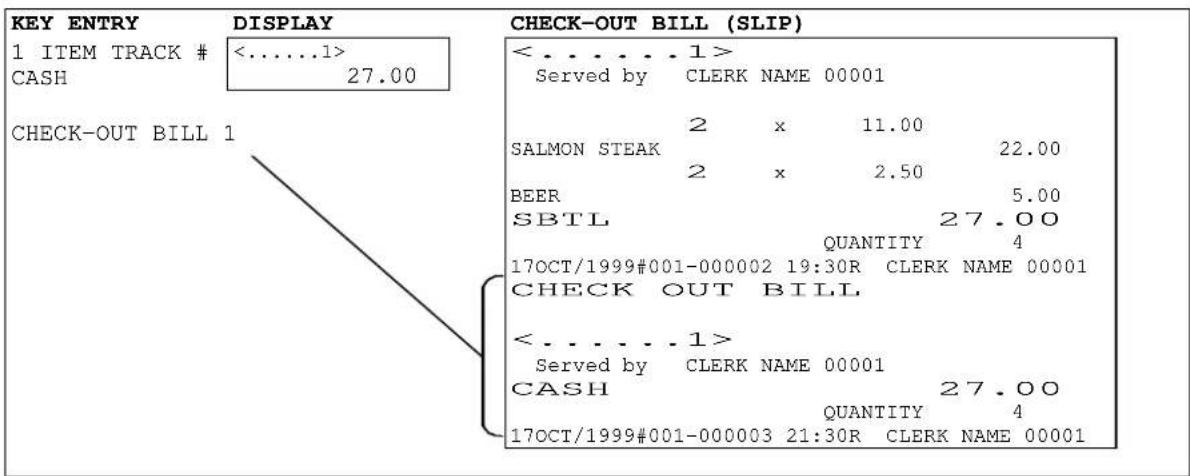
If a Subtotal Bill was not issued previously, entire Check-Out Bill is always issued.
iii) Additional registrations are always printed as a continuation of the previous Subtotal Bill.
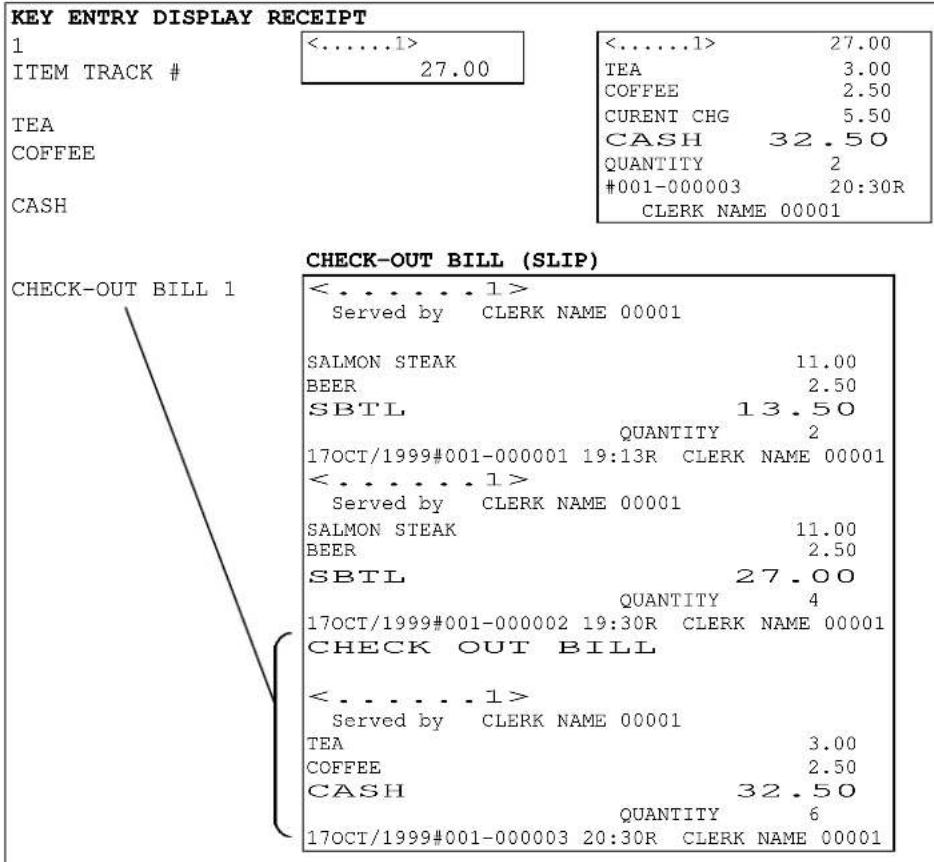
If a Subtotal Bill was not issued previously, entire Check-Out Bill is always issued.
c) Table # Assigned to an Item Track
Table number assignment (random 1 \~ 4 digit) is available only when Automatic Item Track Number Method is used under the non-clerk interrupt system. It is not available when Manual Track Number Method is used.
Under the clerk interrupt system, this is available when either Automatic or Manual Track Number Method is used. However, Item Track pick-up by the assigned table number is not available.
Table #5 assigned to an Item Track (Automatic Track Number Method)
KEY ENTRY DISPLAY RECEIPT
ITEM TRACK #
5 TABLE #
1 PERSON
* Table number * is printed in double-width with < track number > on the kitchen printer as follows;
KITCHEN PRINTER 1
AT KITCHEN
| ECR NO.1 --> KITCHEN*...5* <.....10> CLERK NAME 00001 |
| 1 ROAST BEEF |
| 20OCT/1999#001-000020 19:30 |
KITCHEN PRINTER 2
AT BAR
| ECR NO.2 --> BAR*...5* <.....10> CLERK NAME 000011 RED WINE20OCT/1999#001-000020 19:30 |
When using "Manual Track Number Method"
| ECR NO.1 --> KITCHEN<1234567> *...5* CLERK NAME 00001 |
| 1 T-BONE STEAK |
| 18OCT/1999#001-000005 19:35 |
< manual track number > is printed in double-width and * table number * is printed in normal size
Table # can be assigned only under the clerk interrupt system for Manual Track Number Method.
< Picking Up an Item Track by Table Number (Non-Clerk Interrupt System Only) >
Item Track can be picked up by either the track number or assigned table number. Under the clerk interrupt system, the track pick-up by the assigned table number is not available.
Track # 10 is picked up by Table # 5.
KEY ENTRY
5 TABLE #
STEAK
BEER
2 PERSON
NB
DISPLAY RECEIPT
| <. . . . . 10> | 15.00 |
| *...5* | |
| STEAK | 12.00 |
| BEER | 3.00 |
| N.B | 30.00 |
| QUANTITY | 2 |
| PERSN | 2 |
| #001-000021 | 19:35R |
| CLERK NAME 00001 | |
--- number of people
CHECK-OUT BILL 1
Once the number of people was entered, all types of bills (receipt, subtotal bill, check-out bill) always show the number of people. The number of people can be changed by re-entering the number.
d) Table # Assigned to a Multiple Number of Tracks
Table number assignment is available only when the Automatic Item Track Number Method is used under the non-clerk interrupt system.
Under the clerk interrupt system, this is available when either the Automatic or the Manual Track Number Method is used. However, the track pick-up by the assigned table number is not available.
The same table number can be assigned to a number of tracks. Open each track and assign a table number by using TABLE #key. This operation is useful when different groups of customers sit at the same table.
< Picking Up Tracks by Table Number (Non-Clerk Interrupt System Only) >
Tracks having same assigned table number can be picked up by the same table number.
i) Enter the table number and press TABLE # key. The first track number appears with the information of the number of tracks assigned to the table. The track is not opened until ITEM TRACK # key is pressed. If the table is assigned to only one track, the track will be opened automatically.
ii) By pressing TABLE # key again, the second track number will appear.
iii) When the desired track appears, press ITEM TRACK # key to open the track.
KEY ENTRY DISPLAY
| 3 TABLE # | <......7>12 | The first track # 7 which is assigned to table # 3 appears.--- shows the number of tracks assigned to the table |
| TABLE # | <......8>22 | The next track # 8 which is also assigned to table # 3 appears. |
| ITEM TRACK # | <......8>3.00 | The second track # 8 is picked up. |
(continue registrations)
e) Track Transfer to a New Track or a Designated Track
Track transfer is done by using NB key and CASH/TTL 25 key if permitted by programming.
Transfer can be canceled by pressing CL key at any time instead of CASH/TTL 25 key.
When the clerk track assignment system is used, only the assigned clerk or manager clerk can transfer his/her own track to other track assigned to him/her.
From a Designated Track to a New Track

flowchart
graph LR
    A["track # transferred from"] --> B["NB"]
    B --> C{skip when Automatic Item Track # method is used}
    C --> D["track # transferred to"]
    D --> E["NB"]
    E --> F["CASH TTL25"]
Track #10 is transferred to a new Track (Automatic Track Number Method)
KEY ENTRY
10 NB
NB
X2
CASH/TTL 25
DISPLAY CONFIRMATION RECEIPT
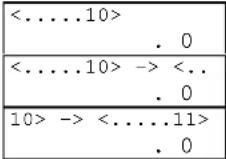
--- X2 key shows remaining characters
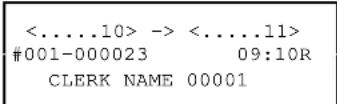
When using Manual Track Number Method, a new track number must be entered before pressing NB key.
From a Designated Track to a Designated Track

Track #4 is transferred to Track #5
KEY ENTRY DISPLAY CONFIRMATION RECEIPT
4 NB
5 NB
CASH/TTL 25
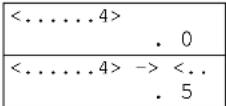
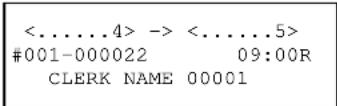
f) Item Transfer to Item Track in Scroll Display Mode
Items in a transaction or in Item Track can be transferred to a new track or a specified track in the scroll display mode. "PLU not consolidated" must have been programmed for the scroll display mode.
< Item Transfer Sequence >
- Enter into the scroll display mode by pressing SCROLL UP/DOWN key during a transaction. R-OFF lamp is flashing.
- Select items that you want to transmit to other track with "•" key.
Only the items with VD/RF lamp flashing can be transferred. When the items are selected, VD/RF lamp lights up and PO/RA lamp is flashing.
To cancel an item among the selected items, press " • " key again on the item selected.
To cancel all the items selected, press CASH/TTL 25 key and exit from the scroll display mode.
- Enter into the "Item Transfer Mode" by pressing ITEM TRANSFER key.
- Enter the track number and press ITEM TRACK # key, or press ITEM TRACK # key directly for a new track in the Automatic Item Track # Method.
- If required, enter a table number by using ten-key and TABLE # key.
- Press CASH/TTL 25 key to transfer the item.
You can exit the "Item Transfer Mode" by pressing ITEM TRANSFER key instead of CASH/TTL 25 key. It does not cancel all selections for the item transfer.
- You can repeat operations from the above step 2 to select items here. Such other scroll display functions as scroll void are available also.
- Press CASH/TTL 25 key again to exit the scroll display mode and continue registration.
Transferred items are memorized in the assigned track with the table number (if entered) and the track is temporarily closed as New Balance.
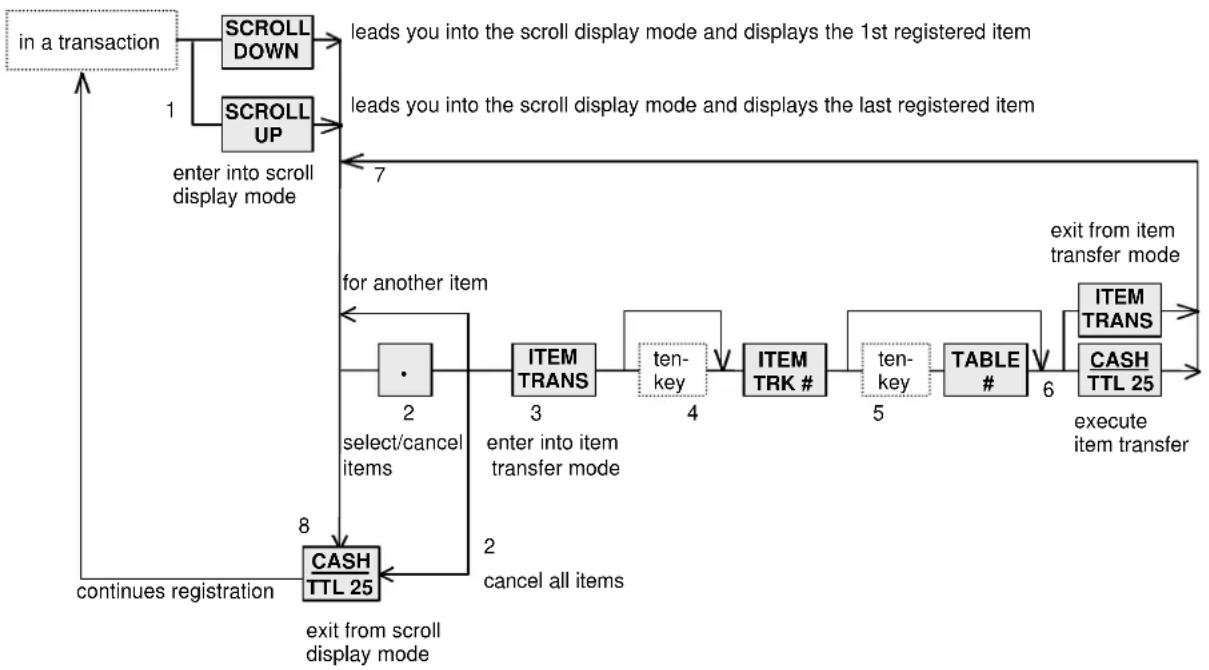
flowchart
graph TD
    A["in a transaction"] --> B["SCROLL DOWN"]
    A --> C["SCROLL UP"]
    B --> D["leads you into the scroll display mode and displays the 1st registered item"]
    C --> E["leads you into the scroll display mode and displays the last registered item"]
    D --> F["enter into scroll display mode"]
    E --> G["for another item"]
    F --> H["select/cancel items"]
    G --> I["ITEM TRANS"]
    I --> J["3"]
    J --> K["enter into item transfer mode"]
    K --> L["4"]
    L --> M["ten-key"]
    M --> N["ITEM TRK #"]
    N --> O["5"]
    O --> P["ten-key"]
    P --> Q["TABLE #"]
    Q --> R["6"]
    R --> S["exit from item transfer mode"]
    S --> T["CASH TTL 25"]
    T --> U["execute item transfer"]
    U --> V["exit from item transfer mode"]
    V --> W["continue registration"]
    W --> X["CASH TTL 25"]
    X --> Y["exit from scroll display mode"]
    Y --> Z["2 cancel all items"]
    Z --> AA["2 select/cancel items"]
| Item transfer to a new Item Track : White Wine and Salmon Steak are transferred. | |||
| KEY ENTRY DISPLAY RECEIPT | |||
| BEER | BEER 2.50 | ||
| WHITE WINE | WHITE WINE 5.00 | ||
| SALMON STEAK | SALMON STEAK 11.00 | ||
| WHITE WINE 5.00 | |||
| SCROLL DOWN | BEER | enters into Scroll Display Mode and shows the 1st item | ↑↑↑↑↑ ITEM TRNS.↑↑↑↑↑ |
| 2.50 | SALMON STEAK 11.00 | ||
| SCROLL DOWN | WHITE WINE | shows the 2nd item | ↑↑↑↑↑ ITEM TRNS.↑↑↑↑↑ |
| 5.00 | CASH 2.50 | ||
| [•] | WHITE WINE | selects item to be transferred | QUANTITY 1 |
| 5.00 | #001-000030 20:20R | ||
| SCROLL DOWN | SALMON STEAK | shows the 3rd item | CLERK NAME 00001 |
| 11.00 | |||
| [•] | SALMON STEAK | selects item to be transferred | |
| 11.00 | |||
| ITEM TRANSFER | ** ITEM TRNS. ** | enters into Item Transfer Mode | |
| .0 | |||
| ITEM TRACK # | NEW TRACK | assigns a new Item Track (Automatic Item Track # Method)--- Track # must be assigned | |
| 「0000012」 | |||
| 5 TABLE # | TB#-0005 | assigns Table # 5 (can be skipped) | |
| .0 | |||
| CASH/TTL 25 | BEER | executes Item Transfer | |
| 2.50 | |||
| CASH/TTL 25 | BEER | exits from Scroll Display Mode | |
| 2.50 | |||
| CASH | CASH | closes the transaction by cash | |
| 2.50 | |||
| KITCHEN PRINTER 1AT KITCHEN | KITCHEN PRINTER 2AT BAR |
| ECR NO.1 --> KITCHEN*...5* <.....12> CLERK NAME 000011 SALMON STEAK20OCT/1999#001-000030 20:20 | ECR NO.2 --> BARCLERK NAME 000011 BEER20OCT/1999#001-000030 20:20 |
| Transferred items are printed on the kitchen printer having the assigned track and table numbers with the same last line as the original transaction. | ECR NO.2 --> BAR*...5* <.....12> CLERK NAME 000011 WHITE WINE20OCT/1999#001-000030 20:20 |
Transferred items are memorized in the assigned track with the table number (if entered) and the track is temporarily closed as New Balance.
< Notes on Item Transfer >
If a PLU has been registered with the following items, all these additional entries on the PLU are also selected automatically;
- link PLU
- simple condiment PLU
- cooking message
- plus / discount amount on item
- % on item
If the following operations have been done in a transaction, the item transfer can not be done;
- plus / discount amount on subtotal
- % on subtotal
- adjustment
- manual tax entry
- tax exemption
- tendering amount entry
If "tax calculated each time on New Balance closing" has been programmed, the items in the temporarily closed track can not be transferred.
If KP DATA SEND key is pressed after the items are transferred to an Item Track, only the not-transferred items in the transaction are sent to the kitchen printer. The items transferred to the Item Track can not be sent to the kitchen printer until the transaction is closed.
g) Item Track Transfer to Amount Track (optional RAM board required)
The payable amount of money on the Item Track currently under use can be charged on the Amount Track if permitted by programming. This function is useful for frequent restaurant customers.
The customer's due amount tracked on the Item Track can be transferred to the Amount Track by following the operation sequence below;

After the amount of Item Track is transferred to the specified Amount Track by CHARGE key, the Check-Out Bill of the Item Track must be issued by pressing CHECK-OUT BILL key.
KEY ENTRY DISPLAY RECEIPT
12 ITEM TRACK #
TEA
COFFEE
150 AMOUNT TRACK #
CHARGE
<.....12> 16.00
<<.....150>> 0.00
<.....12> 16.00 ...5 TEA 3.00 COFFEE 2.50 <<.....150>> 0.00 CURRENT CHG 5.50 CHARGE 21.50 QUANTITY 2
001-000035
21:30R CLERK NAME 00001
CHECK-OUT BILL (SLIP)
CHECK-OUT BILL 1
<.....12> ...5
Served by CLERK NAME 00001
WHITE WINE 5.00
SALMON STEAK 11.00
TEA 3.00
COFFEE 2.50
CHARGE 21.50
QUANTITY 4
20OCT/1999#001-000035 21:30R CLERK NAME 00001
h) Item Track Balance Calculation (display only)
This function is used to check a track balance on the display.
Press BALANCE CALCULATION key and enter the item track number as follows;

KEY ENTRY DISPLAY
| BALANCE CAL. |
| 7 ITEM TRACK # |
| BALANCE CAL. |
| * BAL-CAL MODE * |
| + . 0 |
| * BAL-CAL MODE * |
| + 5.00 |
| = 5.00 |
| enter into the balance calculation mode |
| the balance of Item Track #7 is displayed |
| exit from the balance calculation mode |
Also a track's subtotal can be displayed and other track's subtotal may be added with the total being displayed. It is then possible to divide by the number of people. Tracks are not consolidated.
KEY ENTRY DISPLAY
| BALANCE CAL. |
| 7 ITEM TRACK # |
| 8 ITEM TRACK # |
| 2 [X2] |
| BALANCE CAL. |
| * BAL-CAL MODE *+ . 0 |
| * BAL-CAL MODE *+ 5.00 |
| * BAL-CAL MODE *+ 13.00 |
| * BAL-CAL MODE *+r 6.50 |
| = 6.50 |
enter the balance calculation mode
the balance of Item Track #7 is displayed (5.00)
the balance of Item Track #8 (8.00) is added to Track #7 and the total balance amount is displayed (13.00)
the total balance (13.00) is divided by 2 and the result (6.50) is displayed
exit from the balance calculation mode
< Track Balance Calculation Using the Assigned Table Number >
KEY ENTRY DISPLAY
| BALANCE CAL. |
| 3 TABLE # |
| ITEM TRACK # |
| 3 TABLE # |
| TABLE # |
| ITEM TRACK # |
| BALANCE CAL. |
| * BAL-CAL MODE *+ . 0 |
| <......7>1^2 |
| * BAL-CAL MODE *+ 5.00 |
| <......7>1^2 |
| <......8>2^2 |
| * BAL-CAL MODE *+ 13.00 |
| = 13.00 |
enter the balance calculation mode
the first track #7 is displayed which is one of two tracks assigned to table #3
the first track balance (5.00) is displayed
the first track #7 is displayed which is one of two tracks assigned to table #3
the second track #8 is displayed which also assigned to table #3
the second track #8 balance (8.00) is added to the first track balance (5.00) and the total balance (13.00) is displayed exit from the balance calculation mode
B. Amount Track System (optional RAM board required)
This system records transaction totals only. The registered items per track can not be recorded.
< Opening an Amount Track >
Enter a random 1 \~ 7 digit track number and press AMOUNT TRACK # key. A track number may be assigned at anytime during a transaction.

< Closing an Amount Track Temporarily >
Enter registrations as normal and then it can be closed temporarily through CHARGE key.

< Picking Up an Amount Track >
To pick up a track, enter the Amount Track Number and press AMOUNT TRACK # key.
![enter track # --- [AMT TRK#] --- previous balance with track # is displayed](/content/2026/06/1187740/images/22c1138e3b310ad6a6c0a43efbaa1696dd0c34032cfb9973373a9e0ac8fce7a8.jpg)
< Closing an Amount Track Finally >
Enter registrations as normal and then it can be closed finally through one of a Media (Total) keys.

| KEY ENTRY DISPLAY RECEIPT | ||
| 1234567 | <<1234567>> | <<1234567>> 0.00 |
| AMOUNT TRACK # | 0.00 | SALMON STEAK 11.00 |
| SALMON STEAK | BEER 2.50 | |
| BEER | CURENT CHG 13.50 | |
| CHARGE | CHARGE 13.50 | |
| QUANTITY 2 | ||
| #001-000002 19:14R | ||
| BUFFER PRINT 1 for post-bill | --- see next page *1 | CLERK NAME 00001 |
| 1234567 | <<1234567>> | <<1234567>> 13.50 |
| AMOUNT TRACK # | 13.50 | CAKE 1.50 |
| CAKE | COFFEE 1.50 | |
| COFFEE | CURENT CHG 3.00 | |
| CASH | CASH 16.50 | |
| QUANTITY 2 | ||
| #001-000016 20:14R | ||
| BUFFER PRINT 1 for post-bill | --- see next page *2 | CLERK NAME 00001 |
Post-Bill --- shows the last transaction's contents
Immediately after temporarily closing a track transaction and either BUFFER PRINT 1 or 2 key is pressed, a post-bill is issued on a receipt in the receipt-off condition or on a slip if programmed to use.
If a Post-Bill of the track was issued previously, the automatic line finder advances the Post-Bill past the previously-printed area, and prints only the last transaction's contents as a continuation of the previous Post-Bill.
So the Post-Bill can be used instead of the Check-Out Bill for the Item Track System which is not available for the Amount Track System.
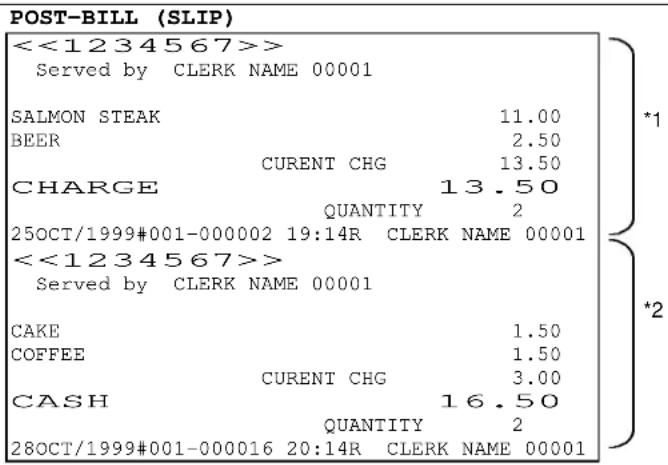
Note: Tax is always calculated each time the track is closed by either CHARGE key or a media key. BUFFER PRINT 1 key prints a post-bill with VAT data, BUFFER PRINT 2 key prints a post-bill without VAT data.
Even if a slip printer is programmed to use, it is possible to print it on a receipt by SLIP OFF key depression.
< Amount Track Card >
If an optional card reader is fitted and Amount Track Cards have been prepared by a card writer, an Amount Track is picked up by swiping the card at the beginning of a transaction.
After the Amount Track is picked up, the track is automatically closed by CHARGE key by swiping the card again. 4-digit store code (S#-xxxx) and 7-digit amount track number (C#-0xxxxxxxx) are printed before the last line.
< Track Transfer >
Track transfer is done by using CHARGE key and CASH/TTL 25 key if permitted by programming.
Transfer can be canceled by pressing CL key at any time before CASH/TTL 25 key is pressed.

Track #4 is transferred to Track #5
KEY ENTRY DISPLAY CONFIRMATION RECEIPT
4 CHARGE
5 CHARGE
CASH/TTL 25

31. Floating Item Track / Floating Amount Track
Almost all operations are same as the normal Item Track and Amount Track operations. The only difference is that the track data is floating among ECRs in the IRC system. In order to use this system, the IRC status check must have been performed with each ECR.
The following describes the key sequences and memory conditions on the master which picks up the track and the slave ECRs;
< New Item / Amount Track Open >
Track Number Entry Method, either Manual Track Number Method or Automatic Item Track Number Method, used on the ECRs should be the same in the IRC system.
Manual Track Number Method
- When the track number is entered with ITEM TRACK # or AMOUNT TRACK # key, the master checks the track memories in the IRC system.
- If it is a new track number in the IRC system, the track number is opened.
- If it is already used, the master picks up the track data.
Automatic Item Track Number Method (Item Track System Only)
- When ITEM TRACK # key is pressed, the master searches the slaves for the track number next to the track number on the master. When the unique automatic track number method is used, the track number will be the next to track number on each ECR.
- If it is a new track number in the IRC system, the track number is opened.
- If it is already used by other ECR, the master searches the slaves for the next track number until a new track number is found within the programmed maximum track number. When the unique automatic track number method is used, it will be the next track number on each ECR.
- If there is no new track number, the master checks the already closed track having the smallest number and it will be opened as a new track.
- If there is no closed track, the master displays Warning Message #34.
< Item / Amount Track Pick Up >
When the track number is entered with ITEM TRACK # or AMOUNT TRACK # key, the master searches the track memory by itself. If the track is not found on the master, the master then searches the slaves and collects the track data from it. The collected data is deleted from the slave.
If a communication error occurs, the master makes "New Track" by pressing X2 key if permitted. The track made by X2 key should be closed by NB key or CHARGE key, then the "track consolidation" (see next page) must be performed to avoid the tracks having same number on the master and slave.
This is used to consolidate the tracks in the IRC system having same track number made by pressing X2 key on the master while the same track is used by other ECR or they are busy.
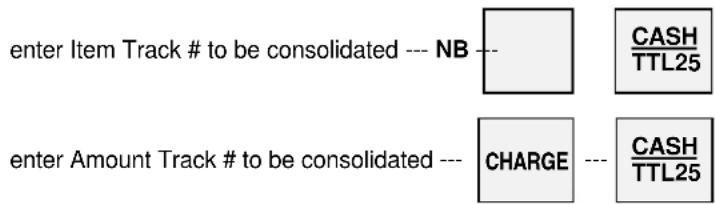
The master searches the slaves and collects all tracks having same track number. The master consolidates the tracks into a track and the collected tracks on the slaves are deleted.
| Track #10 is collected | ||
| KEY ENTRY 10 NB CASH/TTL 25 | DISPLAY CONFIRMATION RECEIPT | |
| <......10> . 0 | <......10> -> <......10> #001-000033 21:10R CLERK NAME 00001 | |
| <......10> -> <.. . 0 | ||
< Subtotal Bill Issue > --- Item Track System Only
If the master does not have this, it searches the slaves and issues a subtotal bill by referring to the track data on the slave. The track data is still on the slave.
< Check-Out Bill Issue > --- Item Track System Only
This can be issued by the master only.
< Table # Assignment / Pick-Up > --- Item Track System Only
Table number assignment is possible when Automatic Item Track Number Method is used.
Under the clerk interrupt system, it is possible when either Automatic or Manual Track Number Method is used. Item Track pick-up by the assigned table number is possible on the master, but it does not pick up the tracks in the slaves. Under the clerk interrupt system, the track pick-up by the table number is not possible.
< Item Track Transfer to a New Item Track > --- Item Track System Only
If source track does not exist on the master, the master searches the slaves and collects the track data from the slave. The collected data is deleted from the slave.
Then new track is made on the master and the source track is transferred to new track. Finally the master deletes the source track.
< Item Track Transfer to a Designated Item Track > --- Item Track System Only
If source track and/or the designated track do not exist on the master, the master searches the slaves and collects the track data from the slave. The collected data is deleted from the slave.
Then the source track is transferred to the designated track. Finally, the master deletes the source track.
< Item Track Transfer to Amount Track > --- Optional RAM board required
If source Item Track and/or the objective Amount Track do not exist on the master, the master searches the slaves and collects the track data from the slave. The collected data is deleted from the slave.
Then the Item Track is transferred to the Amount Track. After the Check-Out Bill is issued, the master deletes the source Item Track.
- --- Item Track System Only (Display Only)
If this does not exist on the master, the master searches the slaves and collects the track data from the slave. The collected data is deleted from the slave. Then the master shows the track balance.
< Item Track Additions > --- Item Track System Only (Display Only)
If the entered tracks do not exist on the master, the master searches the slaves and collects the track data from the slave. The collected data is deleted from the slave. Then the master adds the tracks, but does not consolidate them.
< Notes for Communication Error >
If a communication error occurs, one of "-- IRC BUSY --", "ECR#-xxx ERROR" or "ECR#-xxx BUSY" (xxx = ECR machine number) is displayed, then;
- retry the communication by pressing CASH/TTL 25 key, or
- cancel the communication by pressing CL key, or
- make "New Track" by X2 key (if permitted by programming).
Item Track made by X2 key should be closed by NB key and Amount Track made by X2 key should be closed by CHARGE key, then the track consolidation must be performed to avoid the tracks having same number on the master and slave.
When CL key is pressed, depending on the cases, the master displays REQ.Z62-xxx or REQ.X62-xxx with Item Track number and REQ.Z66-xxx or REQ.X66-xxx with Amount Track number and prints the message on the journal.
When REQ. Z62 (66) -xxx is displayed,
(This is displayed when the master collects the track data from the slave, but the slave does not delete it yet.)
- Press CL key again to clear the error.
- Then enter the track number with ITEM (AMOUNT) TRACK # key again to continue the track operation.
- After the track operation is completed, take Z-62 (66) individual Item (Amount) Track report on the ECR machine number xxx to delete the track data from that ECR to avoid the tracks having same number on the master and slave.
When REQ.X62(66)-xxx is displayed,
(This is displayed when the master collects the track data from the slave and the slave deletes it but the confirmation of such deletion is not sent to the master yet.)
- Press CL key again to clear the error condition.
- Then enter the track number with ITEM (AMOUNT) TRACK # key again to continue the track operation.
- After the track operation is completed, take X-62 (66) individual Item (Amount) Track report on the ECR machine number xxx in order to make sure that the track is deleted from the slave.
32. Previous Balance Plus (PB+) / Previous Balance Minus (PB-)
The PB+/PB- can be used in place of track operations when the track memory is full.
These operations are similar to track operations in such a style that they allow intermittent registrations, however no track numbers are used. In other words, the ECR does not retain data of individual item registered. Also the automatic line finder on the slip printer is not available but the manual line finder is.
KEY ENTRY DISPLAY RECEIPT
| 100MESSAGE | CUSTOMER1.00 |
PB+
BANANA CAKE NB
| CUSTOMER100# | |
| PB.P | 0.00 |
| BANANA CAKE | 1.25 |
| N.B | 1.25 |
| QUANTITY | 1 |
| #001-000024 | 15:42R |
| CLERK NAME | 00001 |
--MESSAGE key symbol
BUFFER PRINT 1 --- bill is printed on the slip (see below * 1)
| 100MESSAGE | CUSTOMER | 1.00 |
| 125 PB+ICE CREAM | PB.P | 1.25 |
CASH
| CUSTOMER | |
| 100# | |
| PB.P | 1.25 |
| ICE CREAM | 2.00 |
| CASH | 3.25 |
| QUANTITY | 1 |
| #001-000025 | 15:55R |
| CLERK NAME | 00001 |
PB- key is used for a negative previous balance.
The balance must be entered before pressing PB-key.
Input the line number from where printing should start and press BUFFER PRINT key. The input line number should not be more than the preprogrammed maximum number of lines on the slip. Bills issued by the manual line finder operation do not have a slip logo.
10 lines are fed by the manual line finder operation.
KEY ENTRY POST-BILL is used as CHECK-OUT BILL
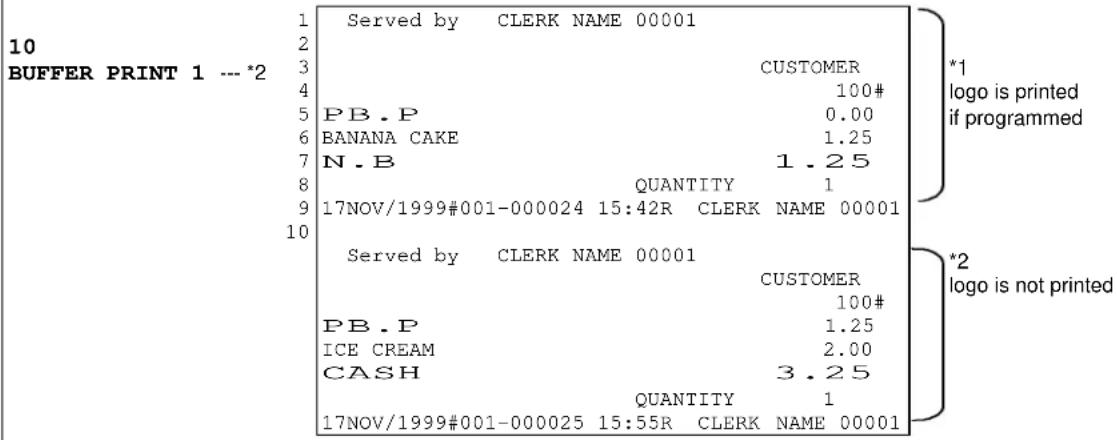
33. Ticket System
If ECR is programmed for the ticket system, all items will be ticket items. When items are registered, tickets are issued depending on one of three ticket issue types (real-time, after closing, mixed ticket). When the transaction is closed, a post-receipt is issued if programmed.
A PLU can be programmed to either of following two types;
| Ticket Item | 1 to 7 tickets can be issued for an item independently by flag selection |
| Combined Item | items are printed on one ticket |
There are following ticket issue types to be selected by flag selection;
| Real-Time Ticket | ticket items are printed in real-time and one combined ticket is printed after transaction closing |
| After Closing Ticket | one ticket is issued containing all ticket items in real-time, then remaining number of tickets and one combined ticket are issued after transaction closing |
| Mixed Ticket | two kinds of combined ticket are printed |
| Multiple Ticket | number of tickets entered by X1 key is printed(available if real-time ticket type is used) |
Ticket Print Contents
| Ticket header 1 | printed if programmed, on the first combined ticket of "after closing ticket" or "mixed ticket" |
| Ticket header 2 | printed if programmed, on a combined ticket which is printed after closing transaction |
| Consecutive ticket # | printed if programmed |
| Ticket number per item | separate from the consecutive ticket number is printed to distinguish 2 to 7 tickets for an item |
| Track number | printed in brackets < Item Track > or << Amount Track >> if entered |
| Table number | printed in * * if entered |
Paper Cutting Method
This is fixed to a full cut between tickets of different kinds of items, and a partial cut between ticket items which are in the same category.
a) Real-Time Ticket Sample
Ticket items printed in real-time for programmed number of tickets.
Automatic track number method is used with this sample.
![[5-LINE LOGO] JUL07/1999 *...3* <......1> SALAD 5.00 OOO1 #001-000001 16:10R CLERK NAME 00001 1 partial cut JUL07/1999 *...3* <......1> SALAD 5.00 OOO1 #001-000001 16:10R CLERK NAME 00001 2 full cut [5-LINE LOGO] JUL07/1999 *...3* <......1> STEAK 10.00 OOO2 #001-000001 16:10R CLERK NAME 00001 1 partial cut JUL07/1999 *...3* <......1> STEAK 10.00 OOO2 #001-000001 16:10R CLERK NAME 00001 2 full cut [5-LINE LOGO] JUL07/1999 BAR *...3* <......1> BEER 2.50 WINE 3.00 OOO3 #001-000001 16:10R CLERK NAME 00001](/content/2026/06/1187740/images/58e31af11417382c7593a8aa03b3a6761e25a6cc2be42066c2212ca6fe8daa78.jpg)
REAL-TIME TICKET
* table number *, < item track number >
consecutive ticket number (printed and centered if programmed)
ticket number per item
no logo printed on the 2nd ticket
same consecutive ticket number is printed for 1st & 2nd tickets of two-ticket item
ticket number per item
For example,
1) After a customer orders at a table, the clerk enters the order into ECR.
2) The clerk brings the item tickets for food to the kitchen and the combined ticket for drink to the bar.
3) When the orders are prepared, the cook puts the 1st ticket in the "completed order box" and the 2nd ticket with the dish. Then the clerk carries them with the tickets to the customer's table. The tickets are used for the clerk's confirmation, for internal management, etc.
COMBINED TICKET
printed after closing
ticket header 2 (printed if programmed)
POST-RECIET
![[5-LINE LOGO] JUL07/1999 <......1> *...3* Served by CLERK NAME 00001 BEER 2.50 WINE 3.00 SALAD 5.00 STEAK 10.00 CASH 20.50 QUANTITY 4 #001-000001 16:10R CLERK NAME 00001](/content/2026/06/1187740/images/8249769a85953b959d25665ae80ed3e12f835861512ec6831302c2b9c4c24db1.jpg)
salad & steak --- two-ticket item for food beer & wine --- combined item for drink
Consecutive #s are not printed on the tickets under clerk interrupt system.
b) After Closing Ticket Sample
All ticket items are printed on the first combined ticket in real-time (a), then the remaining number of tickets (b) and original combined ticket items are printed on the second combined ticket (c).
Manual track number method is used with this sample.
![[5-LINE LOGO] JUL07/1999 KITCHEN SALAD 5.00 STEAK 10.00 #001-000002 16:15R CLERK NAME 00001 partial cut JUL07/1999 SALAD 5.00 #001-000002 16:15R CLERK NAME 00001 1 full cut JUL07/1999 STEAK 10.00 #001-000002 16:15R CLERK NAME 00001 1 full cut JUL07/1999 BAR BEER 2.50 WINE 3.00 #001-000002 16:15R CLERK NAME 00001 1st COMBINED TICKET (a) ticket header 1 (printed if programmed) consecutive ticket number (printed and centered if programmed) 2nd ticket of two-ticket item (b) no logo printed ↓ These tickets are printed after closing. ticket number per item POST-RECEIPT 2nd ticket of two-ticket item (b) 2nd COMBINED TICKET (c) ticket header 2 (printed if programmed) [5-LINE LOGO] JUL07/1999 Served by CLERK NAME 00001 BEER 2.50 WINE 3.00 SALAD 5.00 STEAK 10.00 CASH 20.50 QUANTITY 4 #001-000002 16:15R CLERK NAME 00001 salad & steak --- two-ticket item for food beer & wine --- combined item for drink](/content/2026/06/1187740/images/afe7c71a884f517a8d1904cd1bab822652b37f7427c7f9e414fe738aa5e40f67.jpg)
Consecutive #s are not printed on the tickets under clerk interrupt system.
For example,
1) The clerk brings the 1st combined ticket and 2nd item tickets for food to the kitchen and the 2nd combined ticket for drinks to the bar.
2) When the orders are prepared, the cook puts the 2nd ticket with the dish and crosses the item out on the 1st combined ticket. Then the clerk carries the dish with the ticket to the customer's table.
3) When all dishes are prepared, the 1st combined ticket goes into the "completed order box".
c) Mixed Ticket Sample (two kinds of combined ticket)
The number of tickets programmed for ticket item is disregarded and ticket items are printed on the first combined ticket (a). Original combined ticket items are printed on the second combined ticket (b) after transaction closing.
![[5-LINE LOGO] JUL07/1999 KITCHEN SALAD 5.00 STEAK 10.00 OOO8 #001-000003 16:16R CLERK NAME 00001 partial cut JUL07/1999 BAR BEER 2.50 WINE 3.00 OOO9 #001-000003 16:16R CLERK NAME 00001 1st COMBINED TICKET (a) ticket header 1 (printed if programmed) consecutive ticket # (printed and centered if programmed) 2nd COMBINED TICKET (b) no logo printed ticket header 2 (printed if programmed) V printed after closing](/content/2026/06/1187740/images/d7f56b7ca631a07c4a50bc4b9020c43cb26a87d5cb2d51f601a2446461c5df15.jpg)
Consecutive #s are not printed on the tickets under clerk interrupt system.
POST-RECIET
| [5-LINE LOGO] | |
| JUL07/1999 | |
| Served by | |
| CLERK NAME 00001 | |
| BEER | 2.50 |
| WINE | 3.00 |
| SALAD | 5.00 |
| STEAK | 10.00 |
| CASH | 20.50 |
| QUANTITY | 4 |
| #001-000003 | 16:16R |
| CLERK NAME 00001 | |
salad & steak --- two-ticket item for food (Two-ticket item settings are disregarded.) beer & wine --- combined item for drink
d) Multiple Ticket Sample
A multiple ticket is issued by entering the number of tickets and pressing X1 key. This function is operational only for ticket PLU when real-time ticket issue was selected. The number of tickets programmed will be disregarded.
enter number of tickets
--- enter ticket PLU
| [5-LINE LOGO] | |
| JUL07/1999 | |
| ADMISSION | 5.00 |
| #001-000004 | 16:17R |
| CLERK NAME | 00001 |
| partial cut | |
| [5-LINE LOGO] | |
| JUL07/1999 | |
| ADMISSION | 5.00 |
| #001-000004 | 16:17R |
| CLERK NAME | 00001 |
| partial cut | |
| [5-LINE LOGO] | |
| JUL07/1999 | |
| AMDISSION | 5.00 |
| #001-000004 | 16:17R |
| CLERK NAME | 00001 |
consecutive ticket # (printed and centered if programmed)
Consecutive #s are not printed on the tickets under clerk interrupt system.
POST-RECEIPT
| [5-LINE LOGO] | |
| JUL07/1999 | |
| Served by | |
| CLERK NAME 00001 | |
| 3 X 5.00 | |
| ADMISSION | 15.00 |
| CASH | 15.00 |
| QUANTITY | 3 |
| #001-000004 | 16:17R |
| CLERK NAME 00001 | |
e) Other Notes for Ticket
TICKET OFF key
If TICKET OFF key is pressed at the beginning of a transaction, the next registered ticket items will become a normal registration for one transaction.
PLU with Link PLU
Link PLU is printed on the same ticket of the main PLU. The ticket setting for the link PLU belongs to the main PLU.
Simple Condiment PLU
The ticket setting for the Simple Condiment PLU is independent from the main PLU setting. It is not printed on the same ticket of the main PLU.
Track System
The track number and table number (if required) should be entered at the beginning of a transaction to print them on the ticket. (The table number input is not possible for the manual track number method under non-clerk interrupt system. It is possible if the clerk interrupt system is used.)
Ticket Printed on Kitchen Printer --- this function is independent from the ticket system.
Separately from ticket printing on the receipt, if "ticket printed on KP" is programmed, tickets are printed on KP having a header of the kitchen printer. If the ticket system is also programmed, tickets are printed on KP and receipt. By programming you can control whether or not to print certain ticket items on KP/receipt printer.
Notes.
- Normal KP function is not available.
- Tickets on KP do not have ticket headers, consecutive ticket number and ticket number per item.
- Paper cutting method is fixed to either partial cut or full cut by printer setting. (TP-422 only)
- Simple Condiment PLU is printed in red (in slim characters when mono-ribbon is used) with main PLU while it is printed separately from main PLU on the ticket printed on the receipt.
- Link PLU is printed with a link PLU symbol with a main PLU, like on the receipt.
- Multiple ticket entry by X1 key is not available.
Automatic Post-Receipt
-
When "the automatic post-receipt permitted after ticket issue" has been programmed, the post-receipt is issued automatically after ticket issue. By programming you can control separately post-receipt issue also for ticket items in a track.
If RECEIPT OFF key is pressed, the post-receipt is not issued automatically on a receipt or a slip until BUFFER PRINT key is pressed. However, if the "automatic slip print" has been selected and a paper is inserted, the post-receipt is issued automatically on a slip. -
When "the automatic post-receipt prohibited after ticket issue" has been programmed, the post-receipt is not issued on a receipt.
If RECEIPT OFF key is pressed, the post-receipt can be issued by BUFFER PRINT key on a receipt or a slip. However, if the "automatic slip print" has been selected and a paper is inserted, the post-receipt is issued automatically on a slip.
34. Customer File
1024 customer files make records of telephone number or VAT number, name and address. These information are printed on receipt for delivery service market, etc. In order to use this function, an optional RAM board is required.
Customer File Data Structure
PHONE # or VAT # max.15 characters
CUSTOMER NAME max.24 characters
ADDRESS 1 max.24 characters
ADDRESS 2 max.24 characters
ADDRESS 3 max.24 characters
LAST ACCESS DATE mmddyyyy or ddmmyyyy
Contents of This Section
a) New Customer File Making in R or SP Position
b) Customer File Editing in SP Position
c) Customer File Deleting in SP Position
d) Customer File Pick-Up Sequence
< Customer File Pick-Up Before Registration >
< Customer File Pick-Up During Registration >
< Picked Up Customer File Cancellation in R Position >
< Customer File Pick-Up Methods >
a) New Customer File Making in R or SP Position
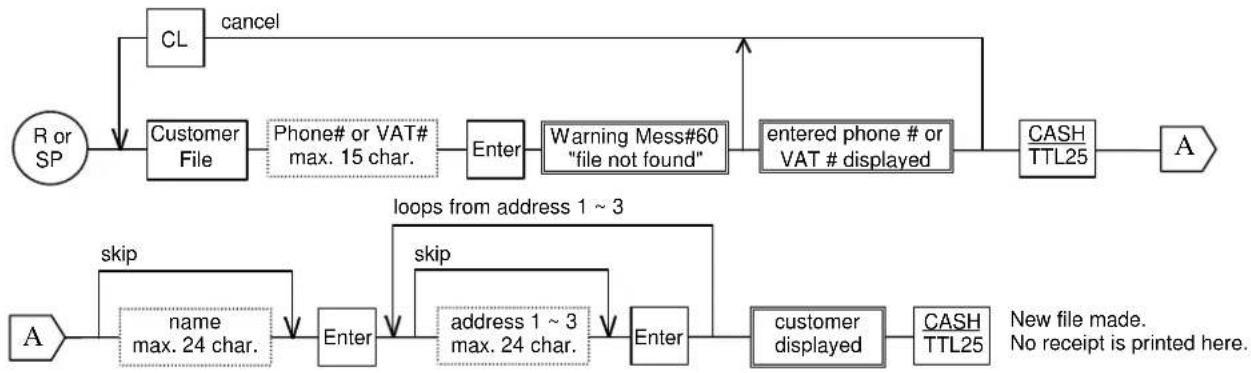
flowchart
graph TD
    A["R or SP"] --> B["CL"]
    B --> C["Customer File"]
    C --> D["Phone# or VAT# max. 15 char."]
    D --> E["Enter"]
    E --> F["Warning Mess#60 "file not found""]
    F --> G["entered phone # or VAT # displayed"]
    G --> H["CASH TTL25"]
    H --> I["A"]
    J["A"] --> K["name max. 24 char."]
    K --> L["Enter"]
    L --> M["address 1 ~ 3 max. 24 char."]
    M --> N["Enter"]
    N --> O["customer displayed"]
    O --> P["CASH TTL25"]
    P --> Q["New file made. No receipt is printed here."]
    R["loop from address 1 ~ 3"] --> S["skip"]
    S --> T["enter"]
    T --> U["skip"]
Note: Programmed customer files are printed on customer file report #74. Refer to page 90.
b) Customer File Editing in SP Position
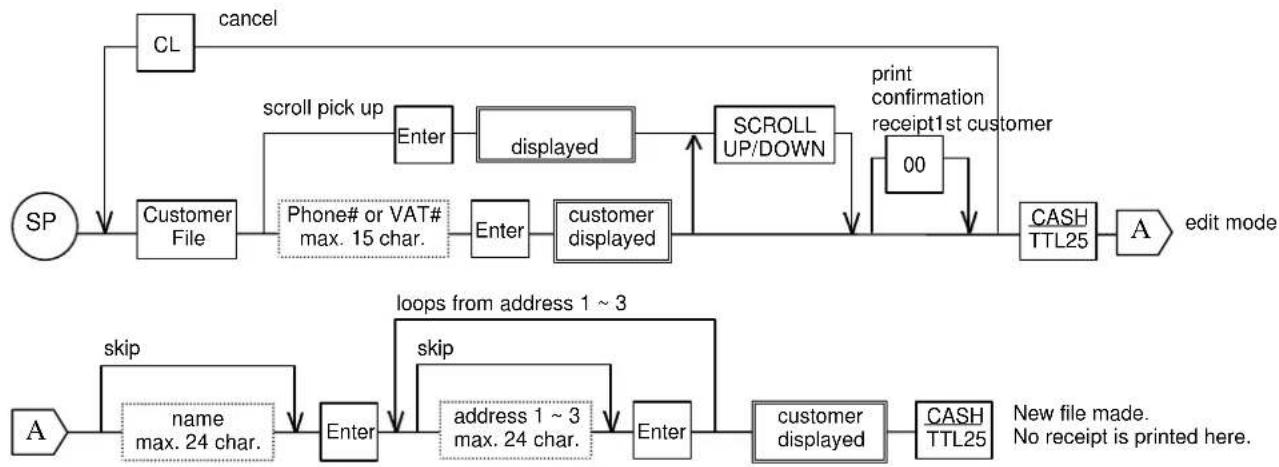
flowchart
graph TD
    SP["SP"] --> CL["CL"]
    CL -->|cancel| A["A"]
    A -->|edit mode| CASH["TTL25"]
    CASH -->|print confirmation receipt1st customer| SCROLL_UP/DOWN["SCROLL UP/DOWN"]
    SCROLL_UP/DOWN -->|00| CASH
    CASH -->|call down| Phone#orVAT#max.15char.[Phone# or VAT# max. 15 char.] --> Enter1["Enter"]
    CASH -->|call down| Customerdisplayed["Customer displayed"]
    Customerdisplayed --> Enter2["Enter"]
    Enter2 -->|scroll pick up| CL
    CL -->|cancel down| CASH
    subgraph Edit Mode
        A -->|skip| A1["Name: name max. 24 char."]
        A1 --> Enter2
        Enter2 -->|loop from address 1 ~ 3| CASH
        CASH -->|no receipt is printed here.| End
    end
Note: Programmed phone number / VAT number will not be corrected. Delete the number by the sequence below and renew it.
c) Customer File Deleting in SP Position
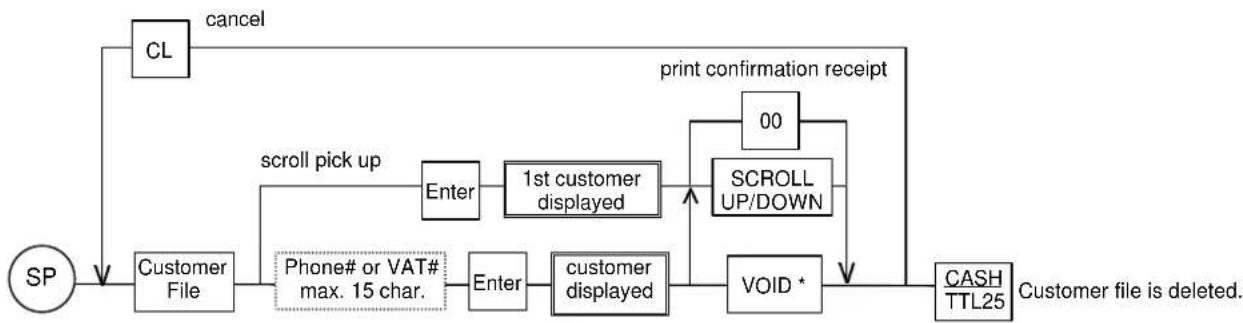
flowchart
graph TD
    SP["SP"] --> CL["CL"]
    CL -->|cancel| A
    A -->|scroll pick up| B["Enter"]
    B --> C["1st customer displayed"]
    C --> D["ScROLL UP/DOWN"]
    D --> E["VOID *"]
    E --> F["CASH TTL25"]
    F --> G["Customer file is deleted."]
    G -->|cancel| A
    C --> H["Phone# or VAT# max. 15 char."]
    H --> I["Enter"]
    I --> J["customer displayed"]
    J --> D
    D --> K["00"]
    K --> E
* VD/RF lamp is lit up when customer file is selected for deletion by the VOID key. When the VOID key is pressed again, the deletion is cancelled.
d) Customer File Pick-Up Sequence
< Customer File Pick-Up Before Registration >
When customer file is picked up before registration, a customer confirmation is printed.
Customer file can be picked up by entering the programmed phone number or VAT number. Scroll pick up is possible also in the scroll display mode by using SCROLL UP/DOWN keys.
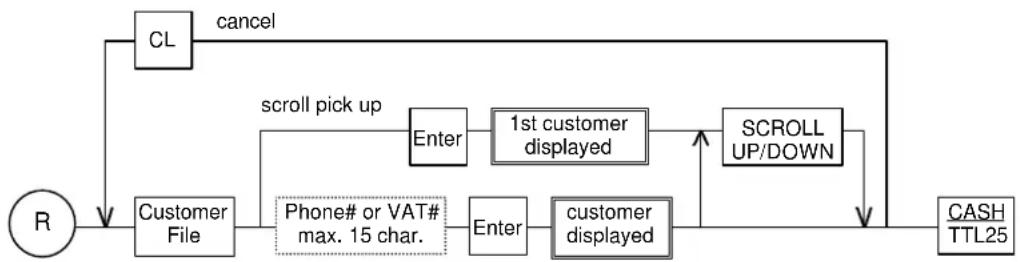
flowchart
graph TD
    R --> CL["cancel"]
    CL -->|cancel| CustomerFile["Customer File"]
    CustomerFile -->|scroll pick up| Enter1["Enter"]
    Enter1 -->|1st customer displayed| SCROLL_UPDOWN["SCROLL UP/DOWN"]
    SCROLL_UPDOWN --> CASH["TTL25"]
    CustomerFile -->|Phone# or VAT# max. 15 char.| Enter2["Enter"]
    Enter2 -->|customer displayed| SCROLL_UPDOWN
Customer fixed and confirmation receipt is printed.
KEY ENTRY DISPLAY CONFIRMATION RECEIPT
CUSTOMER FILE 81663537021 ENTER CASH/TTL 25
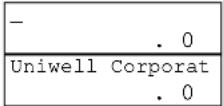
Uniwell Corporation 5-25 3-chome Tenma Kita-ku Osaka JAPAN 81-6-6353-7021
001-000001 11:47R
CLERK NAME 00001
name (centered) address 1 address 2 address 3 phone # or VAT #
< Customer File Pick-Up During Registration >

flowchart
graph LR
    R --> A["registration"]
    A --> B["Customer File"]
    B --> C{scroll pick up}
    C -->|Enter| D["1st customer displayed"]
    C -->|Enter| E["Customer displayed"]
    D --> F["SCROLL UP/DOWN"]
    E --> F
    F --> G["CASH TTL25"]
    G --> H["Customer fixed. Continue registrations or close transaction."]
There are two formats of customer confirmation receipt with normal receipt by programming when customer file is picked up during registrations. Also current total amount is printed on customer confirmation by programming. When customer file is picked up before registrations, the customer confirmation receipt only is printed.
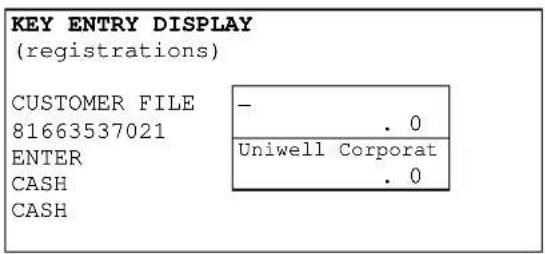
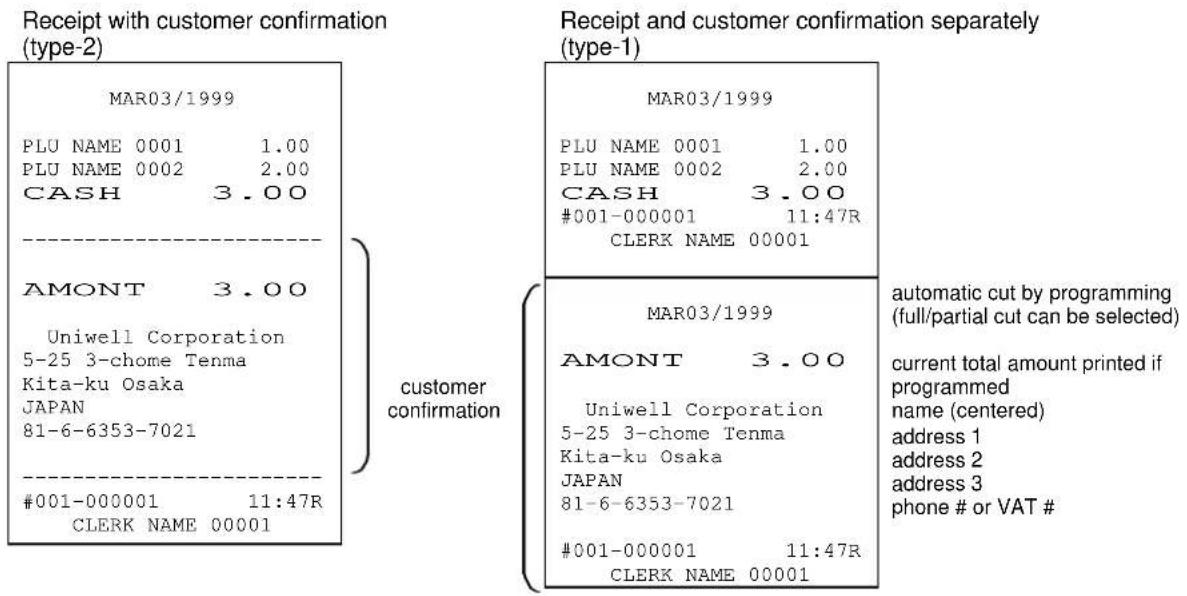
< Picked Up Customer File Cancellation in R Position >
Customer file cancellation can be done when the customer file is picked up during registrations.
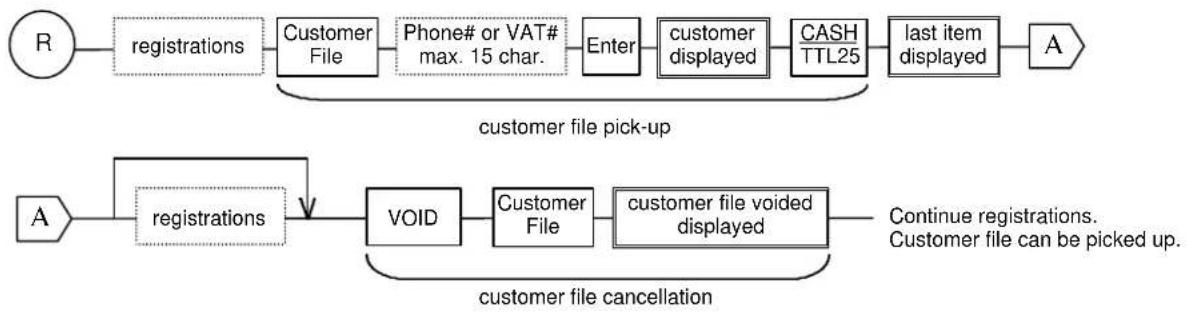
flowchart
graph LR
    R --> A["registrations"]
    A --> B["Customer File"]
    B --> C["Phone# or VAT# max. 15 char."]
    C --> D["Enter"]
    D --> E["Customer displayed"]
    E --> F["CASH TTL25"]
    F --> G["last item displayed"]
    G --> H["A"]

    I["A"] --> J["registrations"]
    J --> K["VOID"]
    K --> L["Customer File"]
    L --> M["customer file voided displayed"]
    M --> N["Continue registrations. Customer file can be picked up."]

    style A fill:#f9f,stroke:#333
    style H fill:#f9f,stroke:#333
    style N fill:#f9f,stroke:#333

    subgraph "customer file pick-up"
        B
        D
        E
        F
        G
    end

    subgraph "customer file cancellation"
        K
        M
    end
< Customer File Pick-Up Methods >
| Programmed Phone # 81-6-6353-7021Programmed VAT # PH-237.69.98 | You can pick up by entering the numbers below; |
| A) You can enter the numbers as they were programmed. | 81-6-6353-7021 |
| PH-237.69.98 | |
| B) You can omit letters except alphanumeric. | 81663537021 |
| PH2376998 | |
| C) If the phone #/VAT # entered includes letters other than alphanumeric and there are no required file corresponding to, it automatically searches for the file corresponding to the phone #/VAT # by only alphanumeric letters.If there is simply no file corresponding to the phone #/VAT #, it will be registered as a NEW FILE.This prevents files of two identical numbers from existing. | 81-66353-7021 |
| PH-2376.9.98 |
< Note for Customer File Assignment to Tracks >
Once a customer file is assigned to a track, the customer information is always printed on subtotal and check-out bills.
35. ESF Data Print
All registrations performed in the R position only are recorded in the ESF memory on the optional RAM board if "ESF function available" has been programmed. The recorded data can be printed in the R position or the X position by ESF PRINT key on receipt by entering the print numbers below;
| PRINT # ESF data print contents | |
| no number last 5 transactions | |
| 1 | last "n" transactions (n = 1 ~ 99) |
| 2 | transactions selected by "zone" (date, time, date & time) |
| 3 | transactions selected by "consecutive receipt numbers" |
| 4 | transactions of "minus operations"(transactions include minus amount or minus PLU quantity are printed) |
| 5 | transactions of "void & refund" including scroll void, transaction void |
| 6 | transactions of "correction" |
| 10 | transactions selected by "clerk" |
| 99 | all ESF data (X position only) |
Before printing ESF data, you can check how many records in the ESF memory have been used by taking X-79 ESF status report. One record is printed approximately in one line. Please be sure that you are not taking Z-79 report that will erase the ESF memory contents. If programmed, Z-79 ESF status report is printed with all ESF data.
ESF Data Print Format
The consecutive # is always printed in normal character. Consecutive #s of the transaction data in ESF data print are printed in double-width character if so programmed.
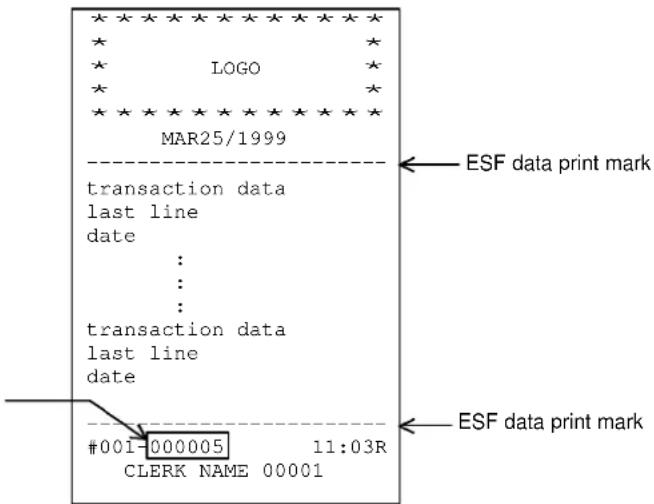
ESF Data Print Sequences
PRINT #1: Last "n" transactions

PRINT #2: Transactions selected by "zone" (date, time, date & time)

flowchart
graph LR
    A["R or X"] --> B["2"]
    B --> C["ESF PRINT"]
    C --> D["CLERK ID"]
    D --> E["..."]
    E --> F["X2"]
    F --> G["ESF PRINT"]
    D --> H["enter start #A"]
    H --> I["enter end #B"]
    I --> G
    style A fill:#fff,stroke:#000
    style G fill:#fff,stroke:#000
    note right of D "all clerks until now"
< start #A > enter "date" or "date & time" or "time only (for today's transactions)"
< end #B > enter "date" or "date & time" or "time only (for transactions between start date (& time) and the today's)
PRINT #3: Transactions selected by "consecutive receipt numbers"

flowchart
graph LR
    A["R or X"] --> B["3"]
    B --> C["ESF PRINT"]
    C --> D["enter start receipt #"]
    D --> E["X2"]
    E --> F["enter end receipt #"]
    F --> G["transactions until now"]
    G --> H["ESF PRINT"]
PRINT #4: Transactions of "minus operations"
PRINT #5: Transactions of "void & refund"
PRINT #6: Transactions of "correction"
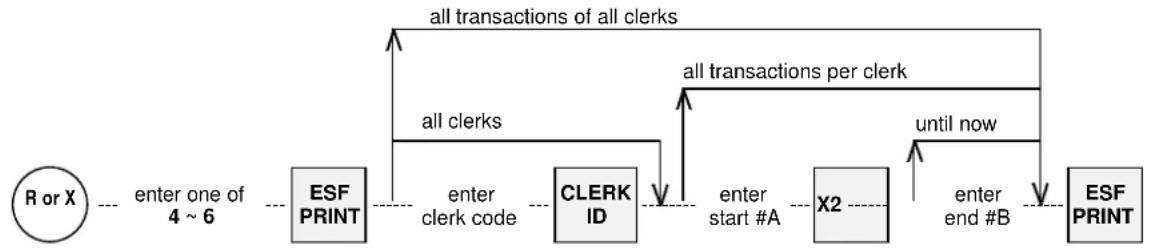
flowchart
graph LR
    A["R or X"] -->|enter one of 4 ~ 6| B["ESF PRINT"]
    B -->|all transactions of all clerks| C["CLERK ID"]
    C -->|all clerks| D["ESF PRINT"]
    D -->|all transactions per clerk| E["X2"]
    E -->|until now| F["ESF PRINT"]
    F -->|enter end #B| G["CLERK ID"]
    G -->|enter start #A| H["ESF PRINT"]
See above PRINT #2 for "start #A", "end #B", date and time formats.
PRINT #10: Transactions selected by "clerk"

flowchart
graph LR
    A["R or X"] --> B["--- enter 10 ---"]
    B --> C["ESF PRINT"]
    C --> D["--- enter clerk code ---"]
    D --> E["ESF PRINT"]
PRINT #99: All transactions (X position only)
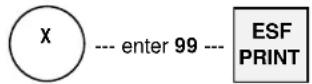
36. Cash Declaration
At the end of the day, confirm the cash amount in drawer(s) by using 'cash declaration'.
A cash declaration receipt showing any discrepancies between the amount of cash supposed to be in the drawer and the actual amount in the drawer is issued.
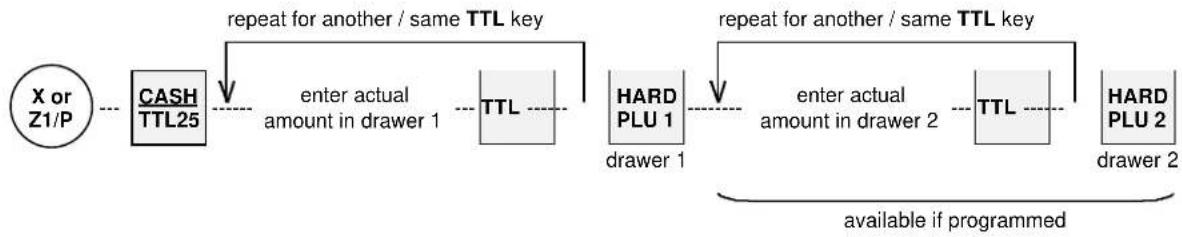
flowchart
graph LR
    A["X or Z1/P"] --> B["CASH TTL25"]
    B --> C["repeat for another / same TTL key"]
    C --> D["enter actual amount in drawer 1"]
    D --> E["TTL"]
    E --> F["HARD PLU 1"]
    F --> G["repeat for another / same TTL key"]
    G --> H["enter actual amount in drawer 2"]
    H --> I["TTL"]
    I --> J["HARD PLU 2"]
    J --> K["available if programmed"]
When the cash declaration is done at the Z1/P position, the CID amount is not reset.
Cash Declaration
KEY ENTRY DISPLAY RECEIPT
| CASH/TTL 25 | CID.0 | CASH TOTAL CID | 30.0030.0030.000.00 | actual amount in drawer 1amount in CID 1 memorydifference |
| 3000 CASH | CASH30.00 | |||
| H.PLU 1 | CID30.00 | CASH TOTAL CID 2 | 22.2522.2524.001.75 | |
| 2225 CASH | CASH22.25 | |||
| H.PLU 2 | CID 224.00 |
Note: Media multiplication is available for preset tender media keys.
Training mode is used for teaching ECR operations without affecting the memories of normal transactions, tracks and programming. In the training mode, reports can not be issued and ECRs can not initiate communication with other machines. However, except during a transaction, the memory of an ECR in the training mode can still be accessed by other ECRs in the IRC system.
Entering the training mode
The training message is displayed once and the REG lamp flashes continuously during the training. Entering the training mode automatically signs off the currently signed-on clerk.

flowchart
graph LR
    A["X R"] --> B["CLERK ID"]
    B --> C["enter secret training code"]
    C --> D["CLERK ID"]
    D --> E["perform clerk sign-on to begin practice"]
Exiting the training mode
Exiting the training mode automatically signs off the currently signed-on clerk.
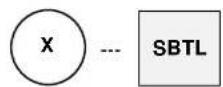
Training operation
KEY ENTRY
(clerk sign-on)
STEAK
BEER
CASH
RECEIPT
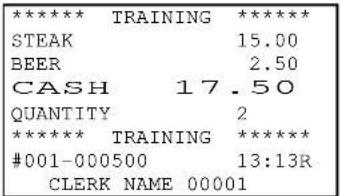
BUFFER PRINT 1
SLIP
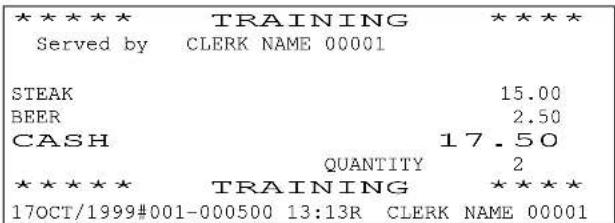
Notes for the training mode
- A programmable training message is printed on the journal, receipts, validations and slips.
- The consecutive number does not change.
- The training mode has its own track memory separate from the regular track memory. The memory is erased when exiting the training mode.
- Training count, amount and training grand total (GX) are printed on the transaction reports (01 \~ 04). Training grand total, GX, is printed after Grand totals G1 and G2. GX includes the amounts of all transactions done in the training mode and is not resettable.
1. Journal Print Contents
By programming either normal or selective journal contents can be printed.
| Normal Journal Contents Selective | Journal Contents |
| printed exactly the same way as receipt contents, except for the logo | only the tax line and media closing lines are printed |
If programmed, the upper/lower logo, messages for power-off/-on times, initial reset times and cleared figures with * symbols are also printed on the journal.
2. Receipt / Slip Print Contents
Besides the transaction items, the following items are printed on receipt and slip if programmed. Although the contents are same, the format varies for the slip;
- 5-line receipt upper logo, 5-line slip upper logo
- date (English month name: mmdd/yyyy or ddmm/yyyy, Numeric month name: mm/dd/yyyy or dd/mm/yyyy)
- message (if entered)
- PLU descriptor, PLU price
- PLU supplementary message (printed above a PLU descriptor)
- cooking message (printed under a PLU descriptor, not printed on slip)
- PLU code
- PLU link group-A descriptor
- amount due (printed in normal or double-width character)
- tax data
- item quantity
- number of people (if entered)
- last line: machine #, consecutive receipt # (normal/double-width character on receipt, normal character on slip), time, control mode and clerk name
- 5-line receipt lower logo, 5-line slip lower logo
3. Post-Receipt
When ECR is in the receipt-off condition but it is not programmed for use with a slip printer, the last transaction's data can be printed by pressing BUFFER PRINT key after closing the transaction. If ECR is programmed for use with a slip printer, the post-receipt is printed on the slip.
In addition to Post-Receipt, Second Receipt is printed by BUFFER PRINT key if permitted by programming and when ECR is not programmed for use with a slip printer.
| PROGRAMMED AS RECEIPT-ON RECEIPT-OFF | ||
| Second Receipt permitted | one receipt + one second receipt by BP key * | 1st post-receipt by BP key2nd post-receipt by BP key * |
| Second Receipt prohibited | one receipt + no second receipt | one post-receipt by BP key |
* Second receipt message is printed below the date if programmed.
REPORT SEQUENCE
Set the control key to X, Z1 or Z2 position and use the report sequence below;
- 1st level for daily report : X (read only) position or Z1 (reset) position
- 2nd level for periodic report : X (read only) position or Z2 (reset) position
For Z report issue and report format, there are some programming restrictions.
FULL REPORT

INDIVIDUAL REPORT

flowchart
graph LR
    A["X/Z"] --> B["Report #"]
    B --> C["X2"]
    C --> D["Required #"]
    D --> E["•"]
    E --> F["TTL 25"]
    F -->|for another| D
Scanner can be used for entering the required # for PLU reports.
Enter the sequential clerk number (not secret clerk code) for clerk reports.
Function program dump: Enter the required # shown on the table (page 92).
SEQUENTIAL REPORT

flowchart
graph LR
    A["X/Z"] --> B["Report #"]
    B --> C["X2"]
    C --> D["Start # X2"]
    D --> E["End #"]
    E --> F["TTL 25"]
When issuing a PLU report, enter PLU codes for the start and end numbers. Scanner can be used also.
SEQUENTIAL CUSTOMER FILE REPORT (X/Z-74)
It is printed "order of customer file programmed" or "descending order of last access date" when customer file is sorted. After the customer file is sorted, the order will not be returned.
Note: Z report issue erases the customer files.
Customer File Sort
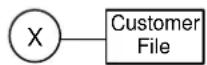
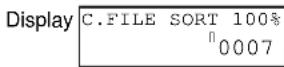
Sort completed total number of customer files
Sequential Report Sequence

flowchart
graph LR
    A["X/Z"] --> B["74"]
    B --> C["X2"]
    C --> D["Start date #"]
    D --> E["X2"]
    E --> F["End date #"]
    F --> G["TTL 25"]
Format of Date
Check date printed on a receipt for the date format. mmddyyyy or ddmmyyyy
| TRANSACTION REPORT | REPORT # REPORT SEQUENCE | ||||
| 1st level (X / Z1) | 2nd level (X / Z2) | Full Individual Sequential | |||
| Auto Full Transaction 1 2 o | |||||
| Full Transaction (X position only) | 3 | 4 | o | ||
| Hourly 5 6 o | |||||
| Grand Total 1 --- 7 o | |||||
| Cash In Drawer 8 --- o | |||||
| Clerk 10 11 o o | |||||
| Specified 20 PLU/Group-A Sales per Clerk | --- | 12 | o | o | |
| Specified 1000 PLU Sales per Clerk | --- | 13 | o | o | |
| Time & Attendance | 19 --- o o | ||||
| Main Group-A | 20 21 o | ||||
| Group-A per Main Group-A | 22 23 o o | ||||
| Group-A | 25 26 o o | ||||
| Group-A Stock --- 27 o | |||||
| Group-B | 30 31 o o | ||||
| PLU | 40 41 o o o | ||||
| PLU Stock | --- 42 o o o | ||||
| Non-Active PLU (X position only) | 43 | 44 | o | ||
| Menu 1 PLU (X position only) | 50 | 51 | o | ||
| Menu 2 PLU (X position only) | 52 | 53 | o | ||
| Menu 3 PLU (X position only) | 54 | 55 | o | ||
| Group-A PLU | 56 57 o o | ||||
| Group-B PLU | 58 59 o o | ||||
| Item Track Total (X position only) | 60 | --- | o | o | o |
| Item Track (Z report printed if programmed) | 62 | --- | o | o | |
| Clerk Item Track (X position only) | 64 | --- | o | o | |
| Amount Track Total (X position only) | 65 | --- | o | o | o |
| Amount Track (Z report printed if programmed) | 66 | --- | o | o | |
| Clerk Balance | 70 --- o o | ||||
| Customer File (files are erased by Z report) | 74 | --- | o | o | |
| Customer Bill | 78 | --- | o | o | |
| ESF Status (See note below.) | 79 | --- | o | ||
Note: ESF status report issued only when ESF function is selected. If programmed, the ESF data is printed with the ESF status also.
Set the control key to X position for all program dumps except for the clerk dump.
| PROGRAM DUMP | REPORT # | REPORT SEQUENCE | ||
| Full Individual | Sequential | |||
| Full Program | 80 o | |||
| Main Group-A | 81 o | |||
| Group-A | 82 o | |||
| Group-B | 83 o | |||
| Key Layout | 84 o | |||
| Function (refer to next page for individual report) | 85 | o | o | |
| Key & Symbol Name | 86 o | |||
| Tax | 87 o | |||
| PLU | 88 o | o | ||
| Clerk (Z2 position) | 89 | o | ||
| Menu Layout | 90 o | |||
| Hard Clerk Key | 94 o | |||
| Clerk PLU / Group-A Assignment | 95 | o | ||
| Communication Setting | 99 o | |||
Required # for Individual Function Program Dump (X-85)
| # Report Contents |
| 1 system function flag |
| 2 media currency symbol, media name, foreign currency exchange rate, media function flag, preset tender key amount |
| 3 number of programmed PLUs, PLU modifier value |
| 4 terminal address |
| 5 slip printer ID number |
| 10 clerk name |
| 20 % rate |
| 21 discount amount |
| 22 plus amount |
| 23 adjustment rate |
| 24 cheque-cashing/currency exchange rate, Euro currency exchange rate |
| 25 PLU sales commission rate |
| 26 PLU stock rate, stock unit name |
| 40 arrangement key sequence |
| 41 cheque printing data |
(Collecting Transaction Data from Slaves)
There are two kinds of IRC reports issued by the master ECR;
One is a consolidated report for all ECR's sales data and
the other is an individual report, by designating the slave ECR by using the sequence below;
Set the control key to X, Z1 or Z2 position.
- 1st level for daily report : X (read only) position or Z1 (reset) position
- 2nd level for periodic report : X (read only) position or Z2 (reset) position
CONSOLIDATED (ALL ECRs) REPORT

INDIVIDUAL (PER ECR) REPORT

flowchart
graph LR
    A["X/Z"] --> B["Report #"]
    B --> C["X2"]
    C --> D["Slave ECR machine #"]
    D --> E["TTL 25"]
The master ECR can collect the slave ECR's sales data only when the slave ECR is in an idle condition (no other communication, no transaction). When the slave ECR is transmitting sales data to the master, the display shows -> IRC COMM --" and ECR locks until IRC communication stops.
The following IRC reports are printed on the master and slave ECRs respectively.
'IRC Z report printed or not printed' can be programmed also.
| Master prints Slave prints | |||
| Consolidated X-report | a consolidated report a confirmation report on journal only | ||
| Individual X-report | a designated slave's report a confirmation report on journal only | ||
| Consolidated Z-report | printed | own report and a consolidated report with IRC status | own report |
| not printed | own confirmation report and a consolidated report with IRC status | a confirmation report on journal only | |
| Individual Z-report | printed | a designated slave's report with IRC status | own report |
| not printed | a designated slave's report with IRC status | a confirmation report on journal only | |
| IRC REPORT | REPORT # REPORT SEQUENCE | |||
| 1st level (X / Z1) | 2nd level (X / Z2) | All ECRs consolidated | Per ECR individual | |
| Auto Full Transaction 8801 8802 o o | ||||
| Hourly 8805 8806 o o | ||||
| Grand Total 1 --- 8807 o o | ||||
| Cash In Drawer 8808 --- o o | ||||
| Clerk 8810 8811 o o | ||||
| Specified 20 PLU/Group-A Sales per Clerk | --- | 8812 | o | o |
| Main Group-A 8820 8821 o o | ||||
| Group-A 8825 8826 o o | ||||
| Group-A Stock | --- | 8827 | o | o |
| Group-B | 8830 8831 | o o | ||
| PLU | 8840 8841 | o o | ||
| PLU Stock | --- | 8842 | o | o |
| Item Track | 8862 | --- | * | o |
| Clerk Item Track (X position only) | 8864 | --- | * | o |
| Amount Track | 8866 | --- | * | o |
| Clerk Balance | 8870 --- * | o | ||
| ESF Status | 8879 | --- | * | o |
* The consolidated reports are not available for these reports. However, if PC communication module Tensai2000 is used as an IRC master, you can take individual report from all ECRs at one time. In order to have the consolidated report data, add the individual report data together on PC.
In addition to all of above reports, you can take Time & Attendance (8819) and Specified 1000 PLU Sales per Clerk (8813) reports by Tensai2000.
Note 1: Consolidated Z report: the stock of slave ECRs is added to master ECR's stock memory and cleared to zero. Individual Z report: the stock of designated slave ECR is not added to master ECR's stock memory but it is cleared. Both reports do not clear the master ECR's stock memory. Issue Z-27/42 reports on the master to clear.
Note 2: To issue ESF report 8879, "ESF function available" should be set on both of master and slave ECRs. When this individual report is taken, the slave's ESF data is always transmitted to the master. X-8879: the master prints ESF status but the slave IRC status only. Z-8879: the master always prints ESF status only. The slave prints ESF status and if so programmed, the ESF data is printed with ESF status on the slave.
Flash read-only reports as shown below can be issued at any time on the master ECR by using the following sequences in the X key position only. The flash report will not disturb the slave ECR even when the slave ECR is in transaction, report issuing or programming sequence.
Flash report is printed on the master ECR with the IRC status. No message will be displayed and X-report will not be counted up for a flash report on a slave ECR. If the flash report can not be taken from a slave ECR, the IRC status "slave ECR's machine number and NG" are printed on the master ECR.
Report Sequence

flowchart
graph LR
    A["X"] --> B["Report #"]
    B --> C["X2"]
    C --> D["Required #"]
    D --> E["•"]
    E --> F["ECR machine #"]
    F --> G["TTL 25"]
    D --> H["All ECRs"]
    H --> F
    style A fill:#fff,stroke:#333
    style G fill:#fff,stroke:#333
| FLASH IRC REPORT # | REQUIRED # | ||
| Transaction | 8601 (1st level) | 8602 (2nd level) | See Table below. |
| Hourly | 8605 (1st level) | 8606 (2nd level) | one of time zone 0 ~ 23 |
| Grand Total 1 8607 no number required | |||
| Cash In Drawer 8608 no number required | |||
| Clerk | 8610 (1st level) | 8611 (2nd level) | one of clerk sequential #1 ~ 64 |
| Main Group-A | 8620 (1st level) | 8621 (2nd level) | one of main group-A #1 ~ 10 |
| Group-A | 8625 (1st level) | 8626 (2nd level) | one of group-A #1 ~ 98 |
| Group-A Stock 8627 one of group-A #1 ~ 98 | |||
| Group-B | 8630 (1st level) | 8631 (2nd level) | one of group-B #1 ~ 25 |
| PLU | 8640 (1st level) | 8641 (2nd level) | one of PLU code |
| PLU Stock 8642 one of PLU code | |||
| Clerk Item Track | 8664 | one of clerk sequential #1 ~ 64 | |
| Required #s and Contents for X-8601/8602 | |||
| 1 | media amount, count in sales | 13 | new balance amount, count of Item Track charge amount, count of Amount Track (option) |
| 2 | media amount, count in drawer & rounding error | 14 | amount, count of cheque-cashing, currency exchange |
| 3 | taxable sales & tax amounts | 15 | training amount, count |
| 4 | %1 ~ %3 amount, count | 17 | no sale count |
| 5 | (-) discount amount, count | 18 | number of people |
| 6 | (+) plus amount, count | 20 | transaction count |
| 7 | adjustment amount, count | 21 | tip amount |
| 8 | P/O amount, count | 27 | positive previous balance amounts, counts for Item Track and Amount Track (option) |
| 9 | R/A amount, count | 28 | negative previous balance amounts, counts for Item Track and Amount Track (option) |
| 10 | void amount, count | 29 | net charges for Item Track and Amount Track (option) |
| 11 refund amount, count | |||
| 12 transaction void amount, count | |||
Note for X-8610 Clerk : This is printed with X-8664 Clerk Item Track flash IRC report if programmed.
Note for X-8664 Clerk Item Track
Number of tracks per ECR printed on this report is limited to 15 when the clerk interrupt system and/or Automatic Track # Method is used, or 17 when non-clerk interrupt system and Manual Track # Method are used. (Area for two tracks are occupied by table #.) If a clerk has more than 15/17 tracks, "ECR machine # --->" mark is printed on the report. However, always up to 17 tracks can be printed by the master ECR.
AUTO FULL TRANSACTION (01, 02)
Consists of two separate reports, Group-A (25, 26) and Full Transaction (03, 04). Refer to each report for details. Depending on programming, issuing Z-01 or Z-02 report will reset the following data on each report to zero where the data appears;
- Cash in drawer
- Consecutive receipt/ticket number
- X report count
- Grand total 1
x-01
Group-A report
Full transaction report
FULL TRANSACTION (03, 04)
X-03
SALES TTL
1 F.C. MEDIA 0.95
10 CASH 140.03
TOTAL
157.53
AVRG 52.51
DRAWER TTL
1 CHEQUE 17.50
1 F.C. MEDIA 10.5425 * 0.95 89
1 EURO 0.15128 * 13.15 1.99
10 CASH 140.03
TOTAL 170.68 < 0.05>
A TXSL1 55.62 TXSL2 18.75
TOTAL 74.37
TAX 1 1.11 TAX 2 0.75
TOTAL 1.86
V TXSL3 17.48
TOTAL 31.36
TAX 3 0.52
TOTAL 0.64
Media Amount in Sales
media count
media amount
average sales per person (sales amount divided by number of persons entered) Media Amount in Drawer
foreign currency exchange rate, calculated local currency media amount media amount in foreign currency
Euro currency rate, temporarily calculated amount in local currency by actual amount in Euro currency actual amount in Euro currency (Euro currency symbol is printed if programmed.)
rounding error
Symbol A for tax calculated by add-on tax method taxable subtotal amount
total taxable subtotal tax amount
total tax amount
Symbol V for tax calculated by VAT method
Either accumulated or re-calculated VAT amount at report taking can be selected. (When "VAT amount re-calculated at report" is selected, VAT amount on the IRC report is calculated either by each slave ECR or by master ECR can be selected for the consolidation report.)
| 1 | § 1 | |
| 0.60 | ||
| 1 | DSCNT | 0.60 |
| 0.60 | ||
| 1 | PLUS | 0.60 |
| 0.60 | ||
| 1 | AJST1 | 0.60 |
| 0.60 | ||
| 1 | AJST2 | 0.60 |
| 0.60 | ||
| 1 | P/O | 0.60 |
| 0.60 | ||
| 1 | R/A | 0.60 |
| 0.60 | ||
| 1 | VOID | 0.60 |
| 0.60 | ||
| 1 | REFND | 0.60 |
| 0.60 | ||
| 1 | T. VOID | 0.60 |
| 0.60 | ||
| 1 | CHEQUE | 0.60 |
| 0.60 | ||
| 2 | TRAINING | 16.87 |
| 3 | ||
| NSALE | 3 | |
| PERSN | 3 | |
| TRCNT | 11 | |
| TIP | 8.00 | |
| CID | 140.03 | |
| CID2 | 0.00 | |
| 2 | N.B | 12.25 |
| 5.76 | ||
| 1 | PB.P | 5.76 |
| 5.76 | ||
| Net-charge | 6.45 | |
| 2 | CHARGE | 12.25 |
| 5.76 | ||
| 1 | PB.P2 | 5.76 |
| 5.76 | ||
| 1 | PB.N2 | 5.76 |
| 6.45 | ||
| CHG AMT | 6.45 | |
| G1:00000000000000183.37 | ||
| G2:00000000000000183.37 | ||
| GX:00000000000000016.87 | ||
| X-0007 | ||
| #001-000154 | 19:20X | |
| CLERK NAME 00001 | ||
| % count, amount |
| discount |
| plus |
| adjustment 1 |
| adjustment 2 |
| P/O |
| R/A |
| void |
| refund |
| transaction void |
| cheque- cashing, currency exchange |
| training |
| no sale count |
| number of people |
| transaction count |
| tip amount |
| cash amount in drawer 1 |
| cash amount in drawer 2 (if programmed) |
| Item Track System |
| new balance (if programmed) |
| previous positive balance (if programmed) |
| previous negative balance (if programmed) |
| net-charge -- total amount of non-closed item tracks |
| Amount Track System (option) |
| charge (if programmed) |
| previous positive balance (if programmed) |
| previous negative balance (if programmed) |
| net-charge -- total amount of non-closed amount tracks |
| grand total 1 |
| grand total 2 |
| training grand total |
| X-report count |
| M/C #, consecutive #, time & mode |
| clerk name |
Media Amount in Sales
Amount sold in each media. This amount does not include no-sale-transactions (P/O, R/A, cheque-cashing, etc.) and results of rounding.
Media Amount in Drawer
Actual amount in drawer. This amount includes no-sale-transactions (P/O, R/A, cheque-cashing, etc.) and results of rounding. When no sale transactions are done, the amounts are added to the memory, but the media count is not changed.
Differences between media amount in sales and in drawer arise when payment is made in one media and change is paid in other or as a result of rounding.
For example : Customer gives a 100.00 cheque for a 60.00 charge.
Change is 40.00 in cash.
Then media amount in sales adds 60.00 to cheque memory.
Media amount in drawer adds 100.00 to cheque memory and subtracts 40.00 from cash memory.
Foreign Currency Media / Euro Currency Media Amount in Drawer
When a foreign or Euro currency media was used, the media in drawer memory stores the foreign or Euro currency value. The printed local currency amount is temporarily calculated by memorized value. The difference between the actual sales amount and calculated local currency amount arises because of the difference when calculating back and forth with a certain currency exchange rate. This difference is printed under the total amount, in the brackets < >.
For example, when sales amount of 1.00 (decimal point is disregarded on calculation) is closed by a F.C. MEDIA key having a preset exchange rate of 10.5425*,
- Foreign currency is calculated by dividing the due amount 1.00 in local currency by exchange rate 10.5425;
Local Currency to Foreign Currency :
$$ \text { LC / exchange rate } = 1 0 0 / 1 0. 5 4 2 5 = 9. 4 8 5 4... = \text { rounded to } 9 $$
(printed on the receipt)
At the same time, the FC amount 9 is converted to LC amount 95 (9 x 10.5425) and the difference .05 between the actual sales 1.00 and the calculated LC amount .95 is stored in the rounding error (difference) memory and will be printed in the brackets < > in the sales report.
- The printed local currency amount .95 in the report is calculated from the memorized foreign currency 9;
$$ \text { FC x exchange rate } = 9 \times 1 0. 5 4 2 5 = 9 4. 8 8 2 5 = \text { rounded to } 9 5 $$
* This exchange rate is calculated by "LC / FC". The calculation method "FC / LC" is also made available depending on programming.
Tax
Printed if programmed. When using the VAT system, the taxable subtotal can be programmed to include or not to include tax. When using the add-on tax system, the taxable subtotal does not include tax. If programmed, adjustment, %, plus and discount calculations will affect each taxable subtotal.
Tip
Total amount of all clerk's tips. If programmed, tip will also be added to a media memory.
Cash in Drawer Amount
Total of the media in drawer amounts that are programmed to be added to CID.
New Balance
The amount closed by NB key. Includes tax and percentage calculations if tax and percentage are calculated by NB key on closing. This amount does not reset to zero after the temporarily closed transactions are finally closed by a media key.
Previous Balance Plus
The count and amount are the accumulation of previous positive balances that were picked up when an Item Track was opened and the amount was entered by PB+ key.
Previous Balance Minus
The count and amount are the accumulation of previous negative balances that were picked up when an Item Track was opened and the amount was entered by PB-key.
Net Charge
Net charge shows the total amount of all non-closed transactions. It is calculated from the new and previous balances.
Charge (for Amount Track System) --- option
The amount closed by CHARGE key during Amount Track operations. This amount does not reset to zero after the Amount Track is finally closed by a media key.
Previous Charge Plus (for Amount Track System) --- option
The count and amount are the accumulation of previous positive charges that were picked up when an Amount Track was opened.
Previous Charge Minus (for Amount Track System) --- option
The count and amount are the accumulation of previous negative charges that were picked up when an Amount Track was opened.
Net Charge (for Amount Track System) --- option
Net charge shows the total amount of all non-closed Amount Tracks. It is calculated from the charge and the previous charges.
Grand Total
Grand Total 1 can be reset by issuing the Z-07 or Z-01 report.
Grand Total 2 is the accumulated grand total.
Grand Total X is the grand total of training transactions.
Neither Grand Total 2 nor Training Grand Total can be reset. If programmed, grand total is calculated as each PLU amount, % amount, plus amount, discount amount and tax amount.
Report Count
There are three kinds of report counts: X (read only), Z1 (1st level and reset) and Z2 (2nd level and reset). Each Z count will be increased only when a Z-01/Z-02 report is issued or when any Z report is issued, depending on programming.
HOURLY (05, 06)
| X-05 | |
| 14:00 | |
| 11 | 50.55 |
| 15:00 | |
| 6 | 15.20 |
| 16:00 | |
| 8 | 22.25 |
| TOTAL | 88.00 |
time period sales quantity, amount
total amount
Hourly data is recorded in one of the two ways, depending on programming;
1. Number of registrations and net amount.
Each item registered -- even if it includes multiplication -- increases the count by 1. The net amount includes VAT tax, "%, amount (+)/(-) calculations on items" but does not include add-on tax amount, adjustment amount, "%, amount (+)/(-) calculations on subtotal".
2. Number of receipts and gross amount.
Each time a transaction is closed by a media key, the count is increased by 1. The gross amount includes VAT tax, add-on tax, adjustment amount, "%, amount (+)/(-) calculations on both items and subtotal".
GRAND TOTAL 1 (07)
Max. 16 digits of grand total can be printed. However, "0"s are filled on the left side so as to cover up to 19 digits on the report. Grand Total 1 can be reset by issuing the Z-07 or Z-01 report.
| X-07 |
| G1:00000000000000183.37 |
CASH IN DRAWER (08)
Total of the media amounts in drawer is printed if media is programmed to be added to CID memory.
| X-08 | |
| CID | 140.03 |
| CID2 | 0.00 |
media amounts in cash declaration sequence (even if the actual amounts per media are not entered, media amounts are printed)
If programmed, media amounts in cash declaration sequence are printed with this report.
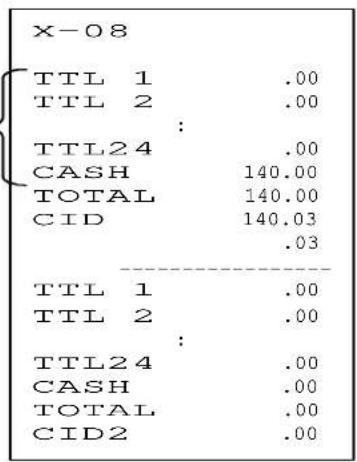
CID 1 amount difference between actual amount in drawer and CID memory
CLERK (10, 11)
| Contents of 1st level report(X/Z-10) |
| Each Clerk's Datasequential clerk number, clerk nametransaction count, amountAVRG:average sales per person (sales amount divided by number of persons entered)S1~S4:sales commission 1 ~ 4 rate (each)sales-type 1 ~ 4 PLU amount (each)total amount of sales-type 1 ~ 4 PLUsCM: total amount of commissiontip amountvoid count, amountrefund count, amounttransaction void count, amountCOUNTS:no sale countclear countcorrection countperson countDRAWER TTL:media in drawer count, amounttotal media amount<rounding error >P/O count, amountR/A count, amountcash in drawer amountAll Clerk's Totaltotal transaction amounttotal amount of each sales-type 1 ~ 4 PLUtotal amount of sales-type 1~ 4 PLUsvoid amountrefund amounttransaction void amount |
| Contents of 2nd level report(X/Z-11) |
| Each Clerk's Datasequential clerk number, clerk nametransaction count, amountAVRG:average sales per person (sales amount divided bynumber of persons entered)CM: total amount of commishtip amountperson countAll Clerk's Totaltotal transaction amount |
Note:
On the full report, some data with value of "0" will be skipped. On individual report, all data (whether "0" valued or not) is printed.
Sales-Type 1 \~ 4 PLU Amount
All PLUs are categorized by sales-type 1 \~ 4. With a four-type clerk memory, the sales amounts of type-1 \~ 4 PLUs are listed separately from each clerk's transaction amount.
The sales-type 1 \~ 4 PLU amounts include or do not include the discount, plus and % amount on item depending on programming. These amounts on subtotal and adjustment amounts are always not included in the sales-type 1 \~ 4 PLU amounts. When using the VAT system, the PLU amount can also be programmed to include tax or not include. When using the add-on tax system, the PLU amount does not include tax.
Total Amount of Commission
Commission amount is calculated by the sales-type 1 \~ 4 of each PLU by four respective commission rates. The total amount only is printed on the report.
ECR does not have 1st level memory for commission. On the 1st level report, the commission is calculated by each sales-type when the report is issued. When the Z-report of 1st level clerk is issued, the commission is accumulated in the 2nd level. On the 2nd level report, the commission is calculated from the temporary 1st level amount plus the 2nd level memory amount.
Cash In Drawer Amount
The media amounts in drawer per clerk that are programmed to be added to CID.
SPECIFIED 20 PLU/GROUP-A SALES PER CLERK (12)
SPECIFIED 1000 PLU SALES PER CLERK (13)
This report is used to check who sold the specified PLUs or group-A assigned by programming per machine.
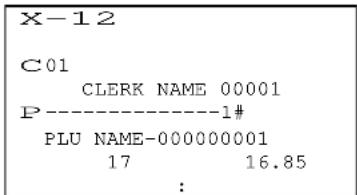
sequential clerk number
clerk name
PLU code
PLU descriptor
sales quantity, amount
Notes:
PLUs are printed by the assigned order.
All data whether "0" valued or not is printed on the X/Z-12 report.
Some data with value of "0" will be skipped on the X/Z-13 report.
CLERK TIME & ATTENDANCE (19)
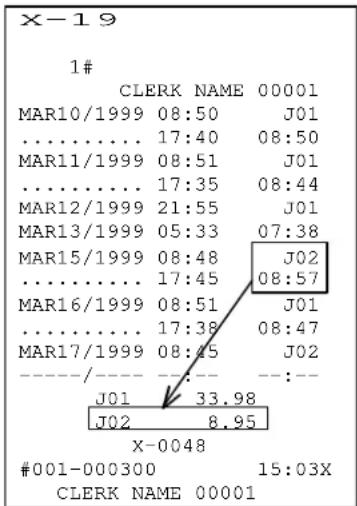
4-digit clerk code
clerk name
time-in date and time, job number
time-out time, labor hour (time-out date is not printed if it is the same day as time-in)
time-out date and time
8 hours + (57 min./60 min.) = 8.95 hours
You can calculate his payment by "8.95 x pay amount".
time-out operation is not performed yet
total labor hours per job
Note: If Z-19 report is taken, time-out date & time is automatically set, and calculated labor hour is printed with the automatic time-out symbol *.
MAIN GROUP-A (20, 21)
This report shows ten main group-A's which are used to monitor sales of all drinks, all snacks, all daily goods, etc. Each main group-A consists of linked group-A's.
| X-20 | |
| 17 | MAIN GP-01 16.85 |
| 32.692% : | |
| TOTAL | 119.15 |
main group-A quantity, descriptor
main group-A amount
sales % (printed if programmed)
total amount
Main Group-A Quantity
The quantity is calculated by either the actual quantity or the number of registrations, depending on programming.
Sales %
Depending on programming, each group's \% of total sales is calculated by either quantity of items sold or sales amount. A positive sales \% is calculated from the total positive sales, and a negative sales \% is calculated from the total negative sales.
GROUP-A PER MAIN GROUP-A (22, 23)
This report shows the linked group-A's per main group-A.
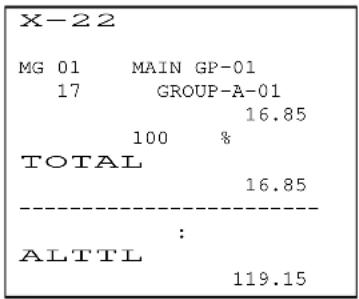
Each Main Group-A
main group-A number, descriptor
linked group-A quantity, descriptor
linked group-A amount
sales % per main group-A (printed if programmed)
total amount per main group-A
All Main Group-A's Total
total amount
Linked Group-A Quantity
The quantity is calculated by either the actual quantity or the number of registrations, depending on programming.
GROUP-A (25, 26) / GROUP-B (30, 31)
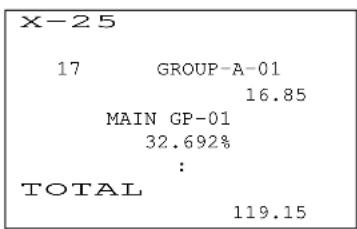
Each Group
group quantity, descriptor
group amount
link main group-A descriptor (only for group-A)
sales % (printed if programmed)
All Group's Total
total amount
Group-A or B Quantity
The quantity is calculated by either the actual quantity or the number of registrations, depending on programming. Only for the group-A quantity, it is calculated by either item quantity or calculated quantity by using a stock rate.
Group-A or B Amount
Group-A/B amount is calculated as;
total PLU amount linked to each group-A/B
%, (+), (-) amount on item (if programmed)
+) VAT tax amount
GROUP-A STOCK (27)
This report shows the total stock of PLUs linked to group-A. Depending on programming, the stock is calculated by either item quantity or calculated quantity by using stock rate.
| X-27 | |
| GROUP-A-01 | 15.5 |
| GROUP-A-02 | 7.5 |
| : | |
group-A descriptor, total stock of PLUs linked to group-A
(even if the stock is calculated by a stock rate, stock unit name is not printed)
PLU (40, 41)
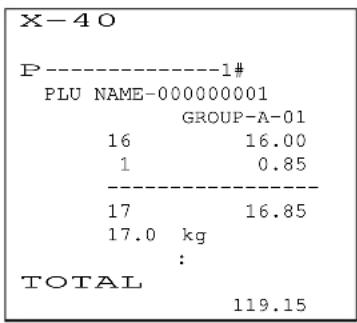
Each PLU
PLU code
PLU descriptor
link group-A descriptor
1st price PLU quantity, amount
2nd price PLU quantity, amount
total of 1st & 2nd prices PLU quantity, amount
sales quantity calculated by stock rate (printed if PLU has a stock rate and stock unit name is printed if programmed)
All PLU's Total
all PLUs' total amount
PLU Amount
PLU amounts include or do not include the discount, plus and % amounts on item, depending on programming. Discount, plus and % amounts on subtotal and adjustment amounts are never included in the PLU amounts.
Sales Quantity Calculated by Stock Rate
This quantity is calculated by each PLU's stock rate. If the stock rate is "1", the sales quantity will be increased by the quantity sold. For example, if the stock rate is "0.2 (litter)" and the sold quantity is 3, the sales quantity will be 0.6 (litter). The stock unit name is printed if programmed.
PLU STOCK (42)
This report shows the stocks of PLU that remain. Depending on programming, the stock is calculated by either item quantity or calculated quantity by using stock rate.
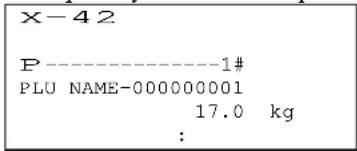
PLU code
PLU descriptor
stock (calculated by item quantity or by stock rate and stock unit name is printed if programmed)
NON-ACTIVE PLU (43, 44)
This report shows PLU items (PLU code and descriptor) that have not been sold.
MENU 1 \~ 3 PLU (50 \~ 55)
These reports show sales data for PLU assigned to each menu on the keyboard. The report contents are the same as PLU report.
There is no original memory for each menu in PLU memory. The content of report is getting its sales information from the same one PLU memory, so if you are using the same PLU in each menu, the result of total number of each PLU is the same in each menu report.
GROUP-A PLU (56, 57) / GROUP-B PLU (58, 59)
This report shows the consolidated PLU sales data of items which are linked to a group-A or a group-B. The report contents are almost the same as PLU report.
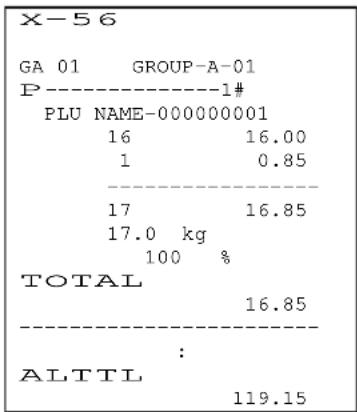
Each Group
group descriptor
PLU code (linked to group-A or -B)
PLU descriptor
1st price PLU quantity, amount
2nd price PLU quantity, amount
total of 1st & 2nd prices PLU quantity, amount
sales quantity calculated by stock rate (printed if programmed)
sales % per group (printed if programmed)
total amount per group
All Group Total
all group's total amount
ITEM TRACK TOTAL (60)
Shows the total balance amount of temporarily closed Item Tracks by New Balance key. When Item Tracks are closed by a media key, the data is updated by subtracting the track amounts from the total.
ITEM TRACK (62)
Shows each amount of temporarily closed Item Tracks by New Balance key. The table number is printed if entered.
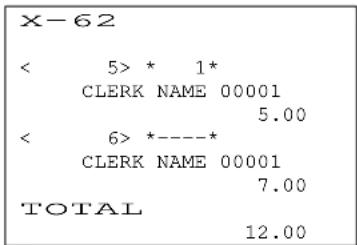
Each Track
< track number >, * table number *
assigned clerk name
balance due
All Track's Total
total balance due
CLERK ITEM TRACK (64)
Shows each amount of temporarily closed Item Tracks per clerk. The table number is printed if entered.
| X-64 | |||
| CLERK NAME 00001 | |||
| < | 5> * | 1* | 5.00 |
| < | 6> *----* | 7.00 | |
Each Clerk
< track number >, * table number *, balance due
AMOUNT TRACK TOTAL (65)
Shows the total balance amount of all temporarily closed Amount Tracks by CHARGE key. When Amount Tracks are closed by a media key, the data is updated by subtracting the track amounts from the total.
AMOUNT TRACK (66)
Shows each amount of temporarily closed Amount Tracks by CHARGE key.
X-66
<< 101>>
CLERK NAME 00001
5.00
<< 201>>
CLERK NAME 00001
7.00
TOTAL
12.00
Each Track
<< track number >>
assigned clerk name
balance due
All Track's Total
total balance due
CLERK BALANCE (70)
Shows each clerk balance stored under the clerk interrupt system.
X-70
<01> *----*
    CLERK NAME 00001
5.00
<02> *----*
    CLERK NAME 00002
7.00
< clerk sequential number >, * table number * (printed if entered)
clerk name
balance due in the clerk memory
Note: If an Item Track operation is done under the clerk interrupt system, the track is saved in the track memory (not in the clerk memory).
CUSTOMER FILE (74)
Customer file data is printed "order of customer file programmed" or "descending order of last access date" when customer file is sorted. Z-74 report prints and erases all the customer file data.
X-74
Uniwell Corporation
5-25 3-chome Tenma
Kita-ku Osaka
JAPAN
81-6-6353-7021
(MAR03/1999)
:
Uniwell UK
Throstle St. Blackburn
Lancashire England
BB2 1TQ
44-1254-54546
(MAR12/1999)
#001-000002 11:50X
CLERK NAME 00001
name (max. 24 characters) --- centered
address 1 (max. 24 characters)
address 2 (max. 24 characters)
address 3 (max. 24 characters)
phone number/VAT number (max. 15 characters)
last access date
CUSTOMER BILL (78)
Shows the historical record of the main details of all finalized item tracks. They do not include PLU contents. It is memorized in the customer bill memory if so programmed.
X-78
----
<.....5>
    *...1*
CASH 1.00
TXSL1 0.91
TAX 1 0.09
#001-000069 13.24R
CLERK NAME 00001
JUL18/1999
----
USED : 5
REST : 3966
ALLOT: 3971
< item track number >
* table number *
finalized amount
tax data
USED : number of used records
REST : number of remaining records
ALLOT : total number of records
ESF (79)
Each journal data is memorized in the ECR's ESF (Electronic Store & Forward) memory if so programmed. This report shows the ESF status.
| X-79 | |
| USED: | 807 |
| REST: | 7136 |
| ALLOT: | 7943 |
USED : number of used records REST : number of remaining records ALLOT : total number of records
Z-79 report prints and clears all the stored journal data.
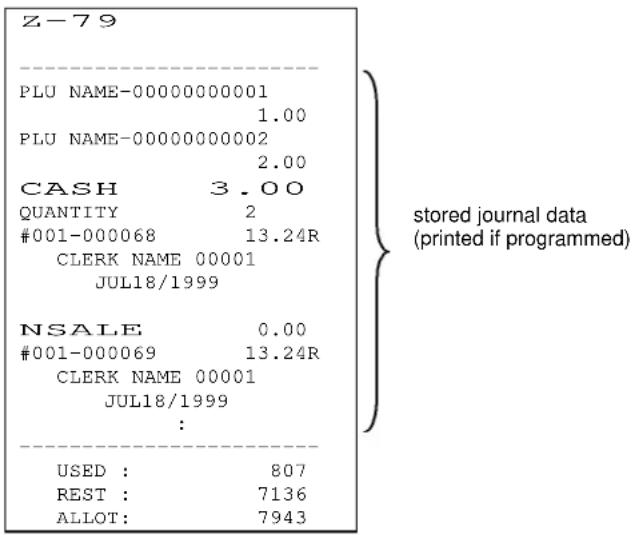
The programmed messages are displayed under certain specific conditions. In the auto preset condition, the default messages "WARN MESSAGE# xx" are displayed.
WM-#1 PRINTER ERROR
Turn the power off and perform the initial reset operation. Refer to the same section of the programming manual.
WM-#2 INPUT FIGURE OVER LIMITATION
Press CL key. (PLU HALO can be released temporarily by using HALO RELEASE key)
WM-#3 CLERK IS NOT SIGNED ON
WM-#4 ITEM OR MEDIA (SLIP) VALIDATION IS COMPULSORY
Print item or media validation by MISC. VALID key.
(can be released temporarily by using OFF COMPULSORY key)
WM-#5 TOTAL (SLIP) VALIDATION IS COMPULSORY
Print total validation by TTL. VALID key.
(can be released temporarily by using OFF COMPULSORY key)
WM-#6 VALIDATION PAPER HAS NOT BEEN INSERTED INTO ECR
(displayed when the factory optional validation sensor has been installed)
WM-#7 VALIDATION PAPER HAS NOT BEEN REMOVED FROM ECR
(displayed when the factory optional validation sensor has been installed)
WM-#8 MESSAGE INPUT IS COMPULSORY
(can be released temporarily by using OFF COMPULSORY key)
WM-#9 PERFORM FOREIGN CURRENCY SUBTOTAL DISPLAY OPERATION
Press F.C. SBTL key and F.C. MEDIA key.
WM-#10 NUMBER OF PERSONS INPUT IS COMPULSORY
(can be released temporarily by using OFF COMPULSORY key)
WM-#11 SBTL KEY DEPRESSION IS COMPULSORY BEFORE TENDERED AMOUNT INPUT
(can be released temporarily by using OFF COMPULSORY key)
WM-#12 TAX TABLE IS NOT PRESET
Enter tax amount manually. Preset tax table.
WM-#13 TENDERED AMOUNT INPUT IS COMPULSORY
(can be released temporarily by using OFF COMPULSORY key)
WM-#14 DRAWER IS OPEN
This message is displayed only when the optional 'drawer open sensor' is being used.
(can be released temporarily by using OFF COMPULSORY key)
WM-#16 REGISTRATION BUFFER IS ALMOST FULL
Prepare to close the transaction.
WM-#17 PLU STOCK IS ZERO OR NEGATIVE
Enter stock by programming. Displays only if programmed.
(can be released temporarily by using HALO RELEASE key)
WM-#18 JOURNAL PAPER NEAR END
Replace with new paper roll. When the printer stops during transaction, press X2 key to start printing after the paper has been replaced.
(only at the beginning of transaction, it can be released temporarily by using OFF COMPULSORY key)
WM-#19 ECR TO ECR RAM DATA TRANSFER ERROR
Check the cable connection between ECR & ECR. Refer to INTERFACES & PERIPHERALS MANUAL for details.
WM-#20 CLERK INSERT KEY IS REMOVED
Insert previously removed clerk insert key.
WM-#21 SLIP PRINTER IS BUSY
Press CL key and wait for the printer to be ready. Press 'PRINT' on the printer to proceed with the slip.
WM-#22 RECEIPT PAPER NEAR END
Replace with new paper roll. When the printer stops during transaction, press X2 key to start printing after the paper has been replaced. It is displayed only when the 'receipt paper near end sensor' (factory option) is being used. (only at the beginning of transaction, it can be released temporarily by using OFF COMPULSORY key)
WM-#23 RECEIPT PAPER END
While the paper is replaced, only RPF key can be pressed. Press X2 key to start printing.
It is displayed only when the 'receipt paper near end sensor' (factory option) is being used.
WM-#24 JOURNAL PAPER END
While the paper is replaced, only JPF key can be pressed. Press X2 key to start printing.
WM-#25 NOT USED
WM-#26 NOT USED
WM-#27 NOT USED
WM-#28 SIMPLE CONDIMENT PLU ENTRY IS PROHIBITED
Main PLU not entered yet.
WM-#29 SIMPLE CONDIMENT PLU INPUT IS COMPULSORY
(can be released temporarily by using OFF COMPULSORY key)
WM-#30 PLU NOT FOUND
Enter correct PLU code or program PLU code.
WM-#31 CHECK-OUT BILL ISSUE IS COMPULSORY
Press CHECK-OUT BILL key. (can be canceled by using BILL CANCEL key)
WM-#32 SLIP PAPER HAS NOT BEEN INSERTED
WM-#33 CURRENT ITEM TRACK / CLERK INTERRUPT MEMORY IS FULL
Close the item track or the clerk's transaction temporarily by New Balance key or close it by a media key.
WM-#34 ENTIRE ITEM TRACK / CLERK INTERRUPT MEMORY IS FULL
- close the item track or the clerk's transaction temporarily by New Balance key, then
- close another item track, or
- another clerk's transaction by a media key to secure additional item track memory, or
- do the previous balance key operation.
This message is also displayed when all item tracks are used under the limited automatic item track number.
CHECKING THE NUMBER OF BLOCKS OF ITEM TRACK / CLERK INTERRUPT MEMORY
This function is used for checking the number of remaining blocks.
- Set the control key to X position.
- Press ITEM TRACK # key.
- The number of remaining blocks is displayed.
After the item track or the clerk's transaction has been closed by a media key, the occupied blocks will become free. To secure the memory of currently occupied transactions, a new transaction can not be opened, even if a few blocks remain.
The maximum number of item tracks or clerk interrupt memories, that can be handled, depends on the number of items registered per item track or clerk interrupt memory.
# of blocks
- 384 blocks are available.
One transaction always occupies one block.
- Up to 24 blocks (max. 359 items) are used for one transaction.
1st block can memorize 7 items, and 2nd \~ 24th blocks 16 items per block.
# of item tracks/clerk interrupt memories
Up to 384 item tracks/clerk interrupt memories can be used if 7 items each is registered.
Up to 192 item tracks/clerk interrupt memories can be used if 23 items each is registered.
Up to 128 item tracks/clerk interrupt memories can be used if 39 items each is registered.
Up to 96 item tracks/clerk interrupt memories can be used if 55 items each is registered.
Up to 76 item tracks/clerk interrupt memories can be used if 71 items each is registered.
Up to 64 item tracks/clerk interrupt memories can be used if 87 items each is registered.
Up to 32 item tracks/clerk interrupt memories can be used if 183 items each is registered.
Up to 16 item tracks/clerk interrupt memories can be used if 359 items each is registered.
WM-#35 NEW BALANCE CLOSING OF ITEM TRACK IS COMPULSORY
(can be released temporarily by using OFF COMPULSORY key)
WM-#36 NEW BALANCE CLOSING OF ITEM TRACK IS PROHIBITED
WM-#37 ITEM TRACK # INPUT IS COMPULSORY
(can be released temporarily by using OFF COMPULSORY key)
WM-#38 TABLE # INPUT FOR ITEM TRACK IS COMPULSORY
(can be released temporarily by using OFF COMPULSORY key)
WM-#39 COOKING MESSAGE INPUT IS COMPULSORY
(can be released temporarily by using OFF COMPULSORY key)
WM-#40 ITEM / AMOUNT TRACK TRANSFER IS PROHIBITED
WM-#41 ITEM TRACK # NOT FOUND
WM-#42 SLIP PRINT IS COMPULSORY
(can be released temporarily by using OFF COMPULSORY key)
WM-#43 CLERK ID ERROR
The clerk was not assigned to the track in registration. Enter correct clerk code or use the correct clerk key.
WM-#44 SUBTOTAL BILL ISSUE COMPULSORY
(can be released by using BILL CANCEL key)
WM-#45 ARE YOU SURE TO EXECUTE TRANSACTION VOID?
WM-#46 CLERK'S TRANSACTION IS STORED
(displayed when Z report or program sequence is performed during transaction)
WM-#47 "SWIPE CARD" MESSAGE FOR MEDIA CLOSING BY CARD
WM-#48 PLU CODE CHECK DIGIT ERROR
Enter correct PLU code.
WM-#49 PLU CODE PRICE CHECK DIGIT ERROR OF IN-STORE MARKING CODE
Enter correct PLU code.
WM-#50 AMOUNT TRACK MEMORY IS FULL OR MEMORY NOT EXIST
(displayed when optional RAM board has not been installed)
WM-#51 AMOUNT TRACK # NOT FOUND
WM-#52 AMOUNT TRACK # INPUT IS COMPULSORY
(can be released temporarily by using OFF COMPULSORY key)
WM-#53 CHARGE CLOSING OF AMOUNT TRACK IS COMPULSORY
(can be released temporarily by using OFF COMPULSORY key)
WM-#54 CUSTOMER BILL MEMORY NOT EXIST
(displayed when optional RAM board has not been installed)
WM-#55 CUSTOMER BILL MEMORY IS NEAR FULL
WM-#56 CUSTOMER BILL MEMORY IS FULL
WM-#57 PRINT FONT DATA IN RAM IS FAIL
Original print font data in ROM is copied and written into RAM automatically.
WM-#58 DISPLAY FONT DATA IN RAM IS FAIL
Original display font data in ROM is copied and written into RAM automatically.
WM-#59 NOT USED
WM-#60 CUSTOMER FILE IS NOT FOUND
WM-#61 CUSTOMER FILE MEMORY IS FULL OR MEMORY NOT EXIST
Take Z-74 Customer File report to erase customer files.
(displayed when optional RAM board has not been installed)
WM-#62 NOT USED
WM-#63 PREPARATIONS FOR EURO CONVERSION ARE NOT COMPLETED
[SF-54.c=1], PGM-397, PGM-101
WM-#64 ENTERED NUMBERS FOR EURO CONVERSION SEQUENCE IS NOT CORRECT
WM-#65 SCANNER COMMUNICATION ERROR
WM-#66\~68 NOT USED
WM-#69 JOURNAL DATA TRANSFER BUFFER IS FULL
WM-#70 IRC LINE (RS485) IS BUSY
WM-#71 ECR IS IN COMMUNICATION WITH EFT TERMINAL
WM-#72 EFT TERMINAL COMMUNICATION ERROR
Press CL key.
WM-#73 CARD DATA ABORTED BY EFT TERMINAL
WM-#74 ENTER VOUCHER NUMBER PRINTED ON A RECEIPT OF EFT TERMINAL
WM-#75 SLIP PRINTER ERROR
Confirm the setting of slip printer. Refer to INTERFACES & PERIPHERALS MANUAL for details.
WM-#76 ENTER CORRECT CLERK CODE FOR TIME-IN OPERATION
WM-#77 TIME-IN OPERATION ALREADY DONE
WM-#78 TIME-IN OPERATION HAS NOT BEEN DONE YET
WM-#79 TIME & ATTENDANCE MEMORY IS FULL OR MEMORY NOT EXIST
Take Z-19 Time & Attendance report.
(displayed when optional RAM board has not been installed)
WM-#80 ESF MEMORY IS FULL
Clear ESF data by issuing Z-79 report with data print, by taking Z-8879 by PC (from Tensai2000), or by taking Z-
79 report by PC batch communication.
WM-#81\~88 KITCHEN PRINTER 1 \~ 8 ERROR
Confirm the setting of printers. Refer to INTERFACES & PERIPHERALS MANUAL for details.
MISCELLANEOUS MESSAGES
| INITIAL RESET RQ | SYSTEM ERROR : Since Initial Reset is required, perform the initial reset. |
| ****** IR ****** | INITIAL RESET OPERATION ACCEPTED |
| ****<---->**** | IN LOCK CONDITION : The key entry is prohibited, communications are possible. |
| --- Pc comm --- | IN PC BATCH COMMUNICATION |
| PC comm error | PC BATCH COMMUNICATION ERROR |
| --- PC-IN --- | TRANSFERRING RAM DATA TO PERIPHERAL (RAM data transfer) |
| --- PC-OUT --- | RECEIVING RAM DATA FROM PERIPHERAL (RAM data transfer) |
ADDITIONAL INDICATION FOR ESF
When the optional ESF memory is near full ^* , the 2nd and 3rd MENU lamps will flash.
The ESF memory near full condition can be cleared by issuing Z-79 report with data print, by taking Z-8879 by PC (from Tensai2000), or by taking Z-79 report by PC batch communication.
When ESF memory becomes full, the data first stored, i.e. data at the starting of ESF memory area, will be deleted from ESF memory and the 2nd and 3rd MENU lamps will flash continuously if so programmed.
* 3371 records out of maximum 3971 if customer bill function is used. 7343 records out of maximum 7943 if customer bill function is not used.
Following messages are displayed on the master ECR or the slave ECRs in IRC communication;
| Displayed on Slave ECR | |
| -> IRC COMM -- | Displayed when a slave ECR is in IRC communication. |
| Displayed on Master ECR | |
| <- X-### xxx | Displayed when master ECR is in IRC communication of report collection (X, Z) or program (P) download with a slave #xxx. #### shows report number or program number. |
| -- IRC BUSY -- | Displayed when a slave ECR is in IRC communication, or when the communication line is being used by other ECR for slip printer transmission, etc. |
| ECR-xxx OFF | Displayed while the master is taking IRC Z report when a slave #xxx is in error (can not communicate), or when the power is 'off,' or the cable being disconnected. |
| ECR#-xxx <- | Displayed in the floating track/clerk operation when master ECR requires a slave #xxx to send a track or clerk's data. |
| ECR#-xxx BUSY | Displayed when a slave #xxx is processing a transaction, or when a transaction is closed but some compulsory conditions still remain, or when the same track or clerk is used by the floating track/clerk operation. |
| ECR#-xxx ERROR | Displayed in the floating track/clerk operation when a slave #xxx is in error (can not communicate), or when the power is 'off', or the cable being disconnected. |
| REQ.Z62-xxx TTTTTTT | Displayed when a communication error occurs after receiving item track data from a slave #xxx. It requires to delete the track #TTTTTT on the slave #xxx by Z-62 individual item track report. Because two tracks having same number will exist on the master and slave. |
| REQ.X62-xxx TTTTTTT | Displayed when master ECR can not check that the item track data is surely deleted from a slave #xxx. It requires to check the track #TTTTTT on the slave #xxx by X-62 individual item track report. |
| REQ.Z66-xxx TTTTTTT | Displayed when a communication error occurs after receiving the amount track data from a slave #xxx. It requires to delete the track #TTTTTT on the slave #xxx by Z-66 individual amount track report. Because two tracks having same number will exist on the master and slave. |
| REQ.X66-xxx TTTTTTT | Displayed when master ECR can not check that the amount track data is surely deleted from a slave #xxx. It requires to check the track #TTTTTT on the slave #xxx by X-66 individual amount track report. |
| REQ.Z70-xxx CC | Displayed when a communication error occurs after receiving the clerk's data from a slave #xxx. It requires to delete the data from the slave #xxx by Z-70 individual clerk balance report. Because two clerks' data will exist on the master and slave. CC shows a sequential clerk number. |
| REQ.X70-xxx CC | Displayed when master ECR can not check that the clerk's data is surely deleted from a slave #xxx. It requires to check the clerks' data on the slave #xxx by X-70 individual track report. CC shows a sequential clerk number. |
POWER OFF / BUSY / COMMUNICATION ERROR AT SLAVE ECR
For X-report data, the master ECR prints consolidated X report skipping power offed or busy slave ECR. See IRC status printed at the end of the report for non-consolidated slave ECRs.
When collecting Z-report data and one or more of the slave ECRs are not ready, the master ECR displays slave ECR status as shown above. Re-attempt to collect the slave's report or skip it.
TTL 25 key for re-attempt:
If you wish to include an ECR's data on Z-report, close the transaction in process on that particular slave, or turn its power on and then press TTL 25 key on the master ECR.
CL key for skip:
If you do not wish an ECR's data on the report, press CL key and the master will skip that slave ECR. Master resumes data collection for the next ECR in the system.
POWER OFF AT MASTER ECR
If the power fails while collecting X-report data, the master prints consolidated X report when the power returns. See IRC status printed at the end of the report for non-consolidated slave ECRs.
If the power fails while collecting Z-report data, the master ECR displays the machine number of the slave ECR when the power returns. Press CL key to skip or press TTL 25 key to re-attempt.