L515CBT - Mobile Phone MOTOROLA - Free user manual and instructions
Find the device manual for free L515CBT MOTOROLA in PDF.


User questions about L515CBT MOTOROLA
0 question about this device. Answer the ones you know or ask your own.
Ask a new question about this device
Download the instructions for your Mobile Phone in PDF format for free! Find your manual L515CBT - MOTOROLA and take your electronic device back in hand. On this page are published all the documents necessary for the use of your device. L515CBT by MOTOROLA.
USER MANUAL L515CBT MOTOROLA
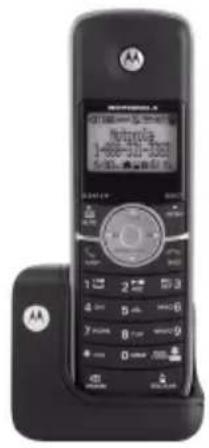

MOTOROLA
User's Guide
For L512CBT/L513CBT/L514CBT/L515CBT
DECT 6.0 Cordless / Corded Phones with Bluetooth® and Answering System
Warning
Use only the power adapters and telephone line cords provided in the box.
Welcome...
to your new Motorola Phone!
Please retain your original dated sales receipt for your records. For warranty service of your Motorola product, you will need to provide a copy of your dated sales receipt to confirm warranty status. Registration is not required for warranty coverage.
For product-related questions, please call:
US and Canada: 1-888-331-3383
On the Web: www.motorola.com
- 30 name and number phonebook for the cordless handset and corded base respectively.
- Answering machine with 15 minutes digital recording time.*
- Caller ID shows you who is calling and includes details of the last 30 callers in a calls list.** Call log Capacity is 30, the same for the cordless handset and corded base.
- Register up to 5 cordless handsets to the corded base.
- Make internal calls, transfer external calls, hold 3-way conversation between two internal callers and an external caller.
*The recording time includes the pre-recorded voice menu and outgoing announcements.
**You must subscribe to your network provider's Caller ID or Call Waiting service for these features to work.
Please note that only the Corded phone operates during power outage (with limited functions).

ENERGY STAR
This ENERGY STAR ^® program (www.energystar.gov) recognizes and encourages the use of products that save energy and help protect our environment. We are proud to mark this product with the ENERGY STAR ^® label indicating it meets the latest energy efficiency guidelines.
This User's Guide provides you with all the information you need to get the most from your phone.
Before you make your first call you will need to set up your phone. Follow the simple instructions in 'Getting Started' on the next few pages.
IMPORTANT
Only use the telephone line cords supplied.
Got everything?
- Cordless handset
- Cordless charger
- NiMH rechargeable battery pack
• Power adapter for the cordless charger - Corded base
- Corded handset
- Telephone line cords (one for connecting the corded base and handset)
• Power adapter for the corded base - Quick Start Guide
- User's Guide
In multihandset packs, you will find one or more additional cordless handsets, cordless chargers with power adapter units, additional rechargeable battery packs, and battery doors.

MOTOROLA
1. Getting started 7
1.1 Installing and charging the cordless handset battery pack 8
1.2 Installing the cordless charger....8
1.3 Connecting the corded base.... 9
1.4 Wall mounting on corded base 9
1.5 Setting the display language 10
1.6 Setting date and time.... 10
2. Getting to know your phone 11
Enjoy your corded base phone 19
3. Using the phone.... 19
3.1 Introducing Bluetooth.... 19
3.2 Bluetooth Setup 20
3.2.1 Setting up Cellular 20
3.2.2 Replacing a paired device ..... 20
3.2.3 Paired Devices 21
3.3 Making a home call using your landline ..... 21
3.4 Making a cellular call using your corded base phone 21
3.5 Speed dial calling 22
3.6 Answering a home call 22
3.7 Answering a cellular call 22
3.8 Receiving a cellular call while on a home call 22
3.9 Receiving a home call while on a cellular call 23
3.10 Ending a call 23
3.11 Adjusting volume 23
3.12 Dialing from the redial list 24
3.13 Dialing from the calls list 24
3.14 Muting a call....24
3.15 Adding an entry to the phonebook......24
3.16 Storing a phonebook entry as a one touch number.... 24
3.17 Dialing from the phonebook....25
3.18 Caller ID.... 25
3.18.1 Calls List 25
3.18.2 Viewing the calls list 26
3.18.3 Saving a number from the calls list to the phonebook ..... 26
3.18.4 Deleting a calls list entry 26
3.18.5 Deleting the entire calls list ..... 26
3.19 Personal Settings....27
3.20 Intercom.... 28
3.20.1 Calling another cordless handset ... 28
3.20.2 Transferring an external home call to another cordless handset ..... 28
3.20.3 Three-party conference call 28
3.21 Setting the dial mode 29
3.22 Setting the Flash Time 29
3.23 Setting the Area Code 29
3.24 Resetting all settings 30
3.25 Using your answering machine 30
3.25.1 Playing messages ....30
3.25.2 Turning on or off the answering machine ....30
3.25.3 Setting the announcement mode ....31
3.25.4 Setting the number of rings .....31
3.25.5 Announcement 31
3.25.6 Recording a memo 32
3.25.7 Call screening on/off 33
3.25.8 Deleting all old messages .....33
3.25.9 Remote access 33
3.25.10 Setting the security code ....34
Enjoy your cordless handset 35
4. Using the phone ....35
4.1 Bluetooth Setup.... 35
4.1.1 Setting up Cellular 35
4.1.2 Replacing a paired device .....35
4.1.3 Paired Devices 36
4.2 Making a home call using your landline..... 36
4.3 Making a cellular call using your cordless DECT handset 36
4.4 Speed dial calling 37
4.5 Answering a home call 37
4.6 Answering a cellular call 37
4.7 Receiving a cellular call while on a home call 37
4.8 Receiving a home call while on a cellular call.... 37
4.9 Ending a call.... 38
4.10 Adjusting volume 38
4.11 Muting a call 38
4.12 Dialing from the redial list 38
4.13 Dialing from the calls list.... 38
4.14 Adding an entry to the phonebook 39
4.15 Storing a phonebook entry as a one touch number 39
4.16 Dialing from the phonebook 39
4.17 Caller ID 39
4.17.1 Calls List 40
4.17.2 Viewing the calls list 40
4.17.3 Saving a number from the calls list to the phonebook .... 40
4.17.4 Deleting a calls list entry 41
4.17.5 Deleting the entire calls list ..... 41
4.18 Personal Settings 42
4.19 Intercom 43
4.19.1 Calling another cordless handset or corded base 43

MOTOROLA
4.19.2 Transferring an external home call to another cordless handset or corded base 43
4.19.3 Three-party conference call 44
4.20 Setting the dial mode.... 44
4.21 Setting the Flash Time.... 44
4.22 Setting the Area Code 44
4.23 Registration 45
4.24 Resetting all settings 45
4.25 Paging/Finding cordless handset 45
4.26 Using your answering machine 46
4.26.1 Playing messages 46
4.26.2 Turning on or off the answering machine 46
4.26.3 Setting the announcement mode .... 47
4.26.4 Setting the number of rings 47
4.26.5 Announcement 47
4.26.6 Recording a memo 48
4.26.7 Call screening on/off 48
4.26.8 Deleting all old messages 49
4.26.9 Remote access 49
4.26.10 Setting the security code 50
- Help 50
- General information.... 52
1. Getting started
WARNING
- Do not place your phone in the bathroom or other humid areas.
Location
When choosing a location for your new phone, here are some important guidelines you should consider:
- Avoid sources of noise and heat, such as motors, fluorescent lighting, microwave ovens, heating appliances and direct sunlight.
- Avoid areas of excessive dust, moisture, and low temperature.
- Avoid other cordless telephones or personal computers.
- Never install the telephone wiring during a lightning storm.
- Never install telephone jacks in wet locations unless the jack is specifically designed for wet locations.
- Never touch non-insulated telephone wires or terminals unless the telephone line has been disconnected at the network interface.
- Use caution when installing or modifying telephone lines.
HANDSET RANGE
Optimal range is reached when there are no other electrical appliances working within the range area. Any obstruction between the corded base and cordless handset will also reduce the range significantly.
SIGNAL STRENGTH
When out of range of the corded base, the screen shows SEARCHING... If you are on a call, the line will hang up. Move back within in range. The cordless handset will automatically re-connect to the corded base.
Setting up
IMPORTANT
The corded base must be plugged into the electrical outlet at all times. Do not connect the telephone line cord into the wall jack until the cordless handset is fully charged. Only use the power adapter and telephone line cord supplied with the product.
WHICH POWER ADAPTER
The power adapter with the smaller pin plug is for the corded base unit and the power adapter with the bigger pin plug is for the cordless charger unit.
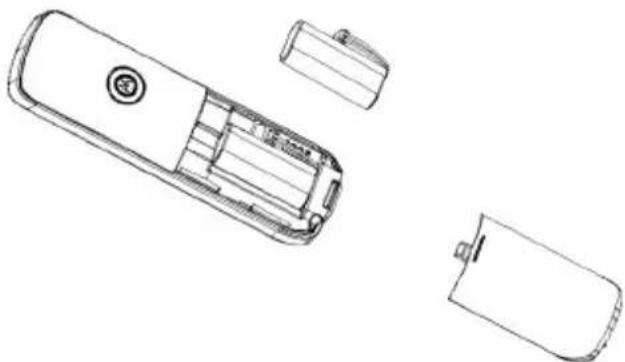
1.1 Installing and charging the cordless handset battery pack
natural_image
Line drawing of a remote control device with internal components and housing (no text or symbols)- Slide off the battery compartment cover to remove it.
- Place the supplied rechargeable battery pack in the battery compartment, with the battery connector plugged in, as shown.
- Slide the battery compartment cover back on.
- Put the cordless handset on the cordless charger to charge for at least 24 hours. Once charged, the will indicate that the handset is fully charged.
- Use only the rechargeable battery pack provided.
1.2 Installing the cordless charger
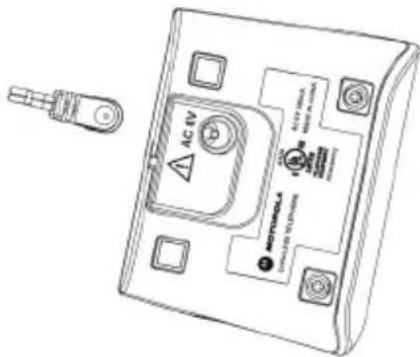
- Plug the power adapter with the bigger pin plug into the cordless charger.
- Plug the other end of the power adapter into the wall jack.
- Use only the provided power adapter.
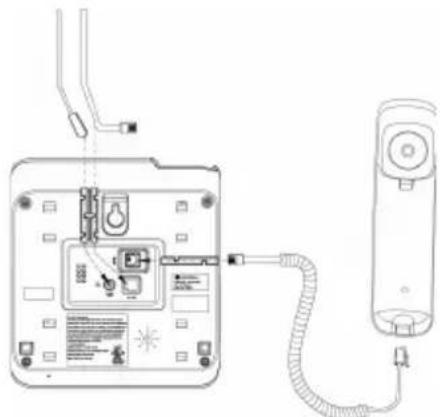
1.3 Connecting the corded base
natural_image
Line drawing of a device with attached cable and ports, no text or symbols present- Connect the corded handset to the corded base with the provided coiled line cord.
- Plug the power adapter with the smaller pin plug & telephone line cord into the corded base.
- Plug the other end of the power adapter & telephone line cord into the wall jack.
- Always use the telephone line cord provided in the box.
- Use only the provided adapter.
1.4 Wall mounting on corded base
This phone can be mounted on any standard wall plate.
- Plug the power adapter with the smaller pin plug & telephone line cord into the corded base.
- Snap the wall mount adapter into the notches on the corded base's back.
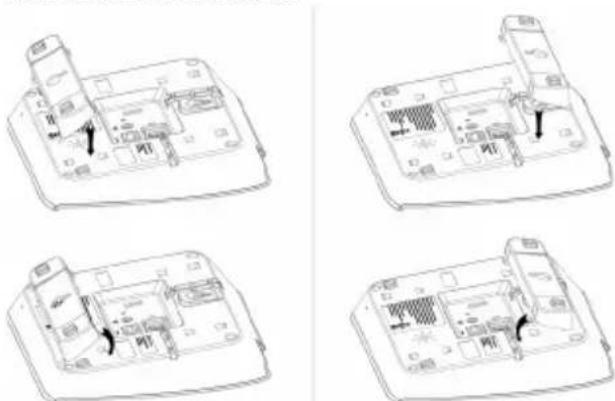
For wall mounting For desktop
- Plug the other end of the power adapter & telephone line cord into the wall jack.
- Align the mounting slots on the corded base with the mounting posts on the wall. Then push in and down until the phone is firmly seated.

MOTOROLA
1.5 Setting the display language
On the corded base:
- Press □ and then △/VOL+ or ▽/REDIAL/VOL- to select Settings.
- Repeat to select Language.
- Repeat to select the desired language.
- Press ☐ to save.
On the cordless handset:
- Press MENU and then VOL+ or REDIAL/VOL- to select SETUP HS.
- Repeat to select LANGUAGE.
- Repeat to select the desired language.
- Press MENU to save.
1.6 Setting date and time
On the corded base:
- Press ☐ to select Date & Time.
- Press □ and then edit the time in 12 hour format.
- Press /VOL+ or /REDIAL/VOL- to toggle AM/PM settings.
- Press ☐ to continue entering the date.
- Press · to save the settings.
10 Getting started
On the cordless handset:
- Press MENU to select DATE & TIME.
- Repeat to edit the year and date.
- Press VOL+ or REDIAL/VOL- to move between the input fields YEAR and DATE.
- Press MENU and then edit the time in 12 hour format. Press VOL+ or REDIAL/VOL- to toggle AM/PM settings.
- Press MENU to save the settings.
NOTE
If you have subscribed to your network's Caller ID service, the date and time is set automatically when a call is received.
Your phone is now ready for use.
2. Getting to know your phone Overview of the corded base
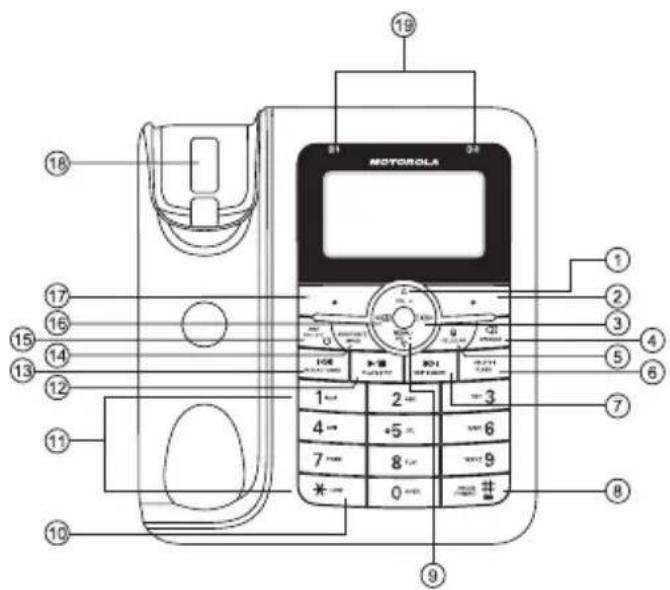
1 SCROLL UP/ VOLUME UP
a) In menu mode: Press to scroll up.
b) During a call: Press to increase volume.
c) Calls list/phonebook/redial list entry: Press to scroll up the list.
d) In answering machine mode: Press to increase message playback volume.
2 RIGHT SOFT KEY
a) In idle mode: Press to access menu list.
b) In menu/editing mode: Press to confirm and save the settings.
c) During a call: Press to mute/unmute the call.
d) In calls list entry: Press to save the entry to the phonebook.
e) In phonebook entry: Press to go to phonebook editing mode.
3 RIGHT/ CALLS LIST
a) In idle mode/during a call: Press to access calls list.
b) In editing mode: Press to move the cursor to the right.
4 SPEAKER
a) In idle/pre-dial mode/during a call: Press to turn on/off the speakerphone.

MOTOROLA
b) Calls list/phonebook/redial list entry: Press to make a call with speakerphone.
c) During ringing: Press to answer a call with speakerphone.
5 CELLULAR
a) In pre-dial mode: Press to make a cellular call.
b) During an incoming cellular call: Press to answer the cellular call.
6 DELETE/ FLASH
a) During message playback: Press to delete the current message.
b) In idle mode: Press and hold to erase all read messages (applicable only when all answering machine messages are read, new message(s) will not be deleted).
c) During a call: Press to insert a flash.
7 SKIP/ MEMO
a) During message playback: Press to skip to play the next message.
b) In idle mode: Press and hold to hear a voice prompt for recording a memo and then start to record a memo.
Press SAVE key to stop memo recording.
8 #/ PAUSE/ ABC/ FORMAT
a) In idle/pre-dial/number editing mode/during a call: Press to insert a "#", press and hold to insert a pause.
b) In name editing mode: Press to toggle ABC/abc.
c) In calls list entry: Press to toggle the Caller ID display format between 7, 8, 10 and 11 digits.
9 SCROLL DOWN/ VOLUME DOWN/ REDIAL LIST
a) In idle/pre-dial mode: Press to access redial list.
b) In menu mode: Press to scroll down.
c) During a call: Press to decrease volume.
d) Calls list/phonebook/redial list entry: Press to scroll down the list.
e) In answering machine mode: Press to decrease volume.
10 \*/ TONE
a) In idle/pre-dial/editing mode: Press to insert a "*".
b) During a call: Press to switch from pulse to tone dialing temporarily if pulse mode was selected before. After the call is ended, the dial mode will change back to pulse.
11 ALPHANUMERIC KEYPAD
a) In idle/pre-dial/editing mode/during a call: Press to enter characters/numbers.
b) In idle mode: Press and hold to activate speed dial.
12 PLAY/ STOP
a) In idle mode: Press to playback answering machine messages.
b) In message playback mode: Press to stop playing messages. Press again to resume message playback.
13 REPEAT/ ANNC
a) In idle mode: Short press to play the current announcement or the current announcement mode. Press and hold to hear a voice prompt of how to record the personalized announcement of the current answer mode, press SAVE key to stop recording.
b) During message playback mode: Press once to replay the current message from the beginning, press twice to play the previous message.
14 ANNOUNCE MODE
a) In idle mode: Press to toggle between Announce & Record /Announce Only mode.
15 ANS ON / OFF
a) In idle mode: Press to turn on or off the answering machine.
16 LEFT/PHONEBOOK
a) In idle mode/during a call: Press to access the phonebook.
b) In editing mode: Press to move the cursor to the left.
17 LEFT SOFT KEY
a) In idle mode: Press to access intercom, press and hold to enter registration mode.
b) In pre-dial/editing mode: Press to delete one character/digit. Long press to delete all characters/digits.
c) During a home call: Press to transfer the call to another handset.
d) In calls list/phonebook entry: Press to back to the previous level.
e) In answering machine mode: Press to delete the current message playback.
18 BASE CRADLE
19 BLUETHOOTH LED 1 and BLUETOOTH LED 2
a) On when Bluetooth device 1 or 2 is connected with the telephone base.
b) Off when Bluetooth device(s) is (are) disconnected with the telephone base.

MOTOROLA
Corded base LCD display
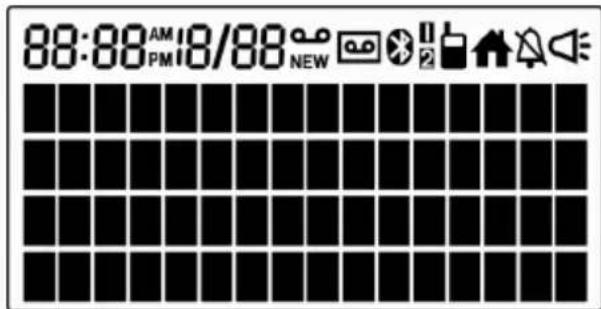
Display icons

In idle mode, the current time is displayed.

In idle mode the current date is displayed.

On when there is new voice mail not yet listened to. Off when new voice mail has been listened to. (For home line only)

Indicates when a new call has been received. Off when all new calls have been viewed.

On when the answering machine is turned on. Flashes when new answering machine message is received.

On when a Bluetooth device is paired. Off when Bluetooth feature is disabled.

On when Bluetooth device for is connected with the telephone base. Off When Bluetooth device(s) is (are) disconnected from the telephone base.

On when the Cellular line is in use. Flashes when the Cellular line is put on hold. Off when the Cellular line is idle.

On when the Home line is in use. Flashes when the Home line is put on hold. Off when the Home line is idle.

On when the ringer volume is turned off.

On when the speakerphone is turned on.
Overview of your cordless handset
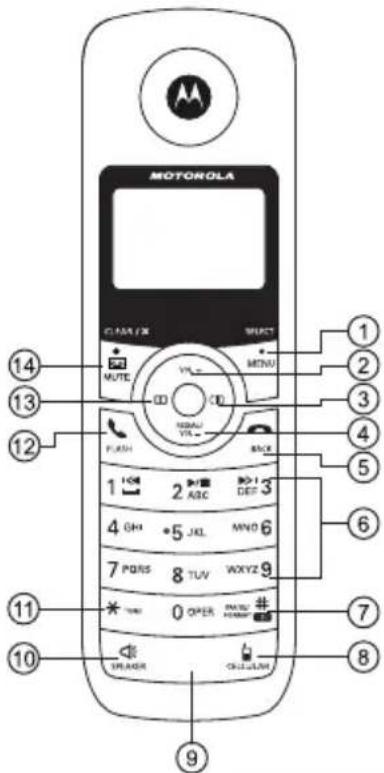
Get acquainted with the following 14 buttons on your handset and their multi-function tasks.
1 Menu / Select
a) In idle mode: Press to access menu list.
b) In menu/editing mode: Press to confirm and save the settings.
c) During a home call: Press to transfer the call to another cordless handset or the corded base.
d) In calls list entry: Press to save the entry to the phonebook.
e) In phonebook entry: Press to go to phonebook editing mode.
2 Scroll up / Volume up
a) In menu mode: Press to scroll up.
b) In editing mode: Press to move cursor to the left.
c) During a call: Press to increase volume.
d) Calls list/phonebook/redial list entry: Press to scroll up the list.
e) In answering machine mode: Press to increase volume.
3 Right / Calls list
a) In idle mode/during a call: Press to access calls list.
b) In editing mode: Press to move the cursor to the right.

MOTOROLA
4 Scroll down / Volume down / Redial list
a) In idle mode: Press to access redial list.
b) In menu mode: Press to scroll down.
c) In editing mode: Press to move cursor to the right.
d) During a call: Press to decrease volume.
e) Calls list/phonebook/redial list entry: Press to scroll down the list.
f) In answering machine mode: Press to decrease volume.
5 Talk off / Back
a) In menu/editing mode/phonebook entry: Press to exit to previous level.
b) In pre-dial mode/calls list/redial list entry/answering machine mode: Press to exit to idle.
c) During ringing: Press to silent the incoming ringer temporarily.
d) During a call: Press to end a call, either home call or cellular call.
6 Alphanumeric keypad
a) In idle/pre-dial/editing mode/during a call: Press to enter characters/numbers.
b) In idle mode: Press and hold to activate speed dial.
7 # / Pause / ABC / Format
a) In idle/pre-dial/number editing mode/during a call: Press to insert a #, press and hold to insert a "Pause".
b) In name editing mode: Press to toggle ABC/abc.
c) In calls list entry: Press to toggle between 7, 8, 10 and 11 digit formats when returning calls from Caller ID list.
d) In phonebook list entry: If the number is more than 15 digits, press to view the next page of remaining digits.
8 C e l l u l a r
a) In idle mode: Press to make a cellular call.
b) During an incoming cellular call: Press to answer the cellular call.
9 Microphone
10 Speaker
a) In idle/pre-dial mode/during a call: Press to turn on/off the speakerphone.
b) Call List/phonebook/redial list entry: Press to make a call with the speakerphone.
c) During ringing: Press to answer a call with the speakerphone.
d) In answering machine mode: Press to toggle the message playback via the earpiece or speakerphone.
11 \* / Tone
a) In idle/pre-dial/editing mode: Press to insert a *.
b) During a call: Press to switch from pulse to tone dialing temporarily if pulse mode was selected before. After the call has ended, the dial mode will change back to pulse.
c) In phonebook list entry: If the number is more than 15 digits, press to view the previous page of remaining digits.
12 Talk on/ Flash
a) In idle/menu/pre-dial mode: Press to make a call.
b) Call List/phonebook/redial list entry: Press to make a call to the selected entry.
c) During an incoming call: Press to answer the call.
d) During a home call: Press flash to switch to another call.
13 Left/ Phonebook
a) In idle mode/during a call: Press to access the phonebook.
b) In editing mode: Press to move the cursor to the left.
14 Answering Machine/ Mute/ Clear/ X
a) In idle mode: Press to play the message on the answering machine.
b) In pre-dial/editing mode: Press to delete one character/digit. Long press to delete all characters/digits.
c) During a call: Press to mute/unmute the call.
d) In calls list entry: Press to delete the entry.
e) In answering machine mode: Press to delete the current message playback.
Cordless handset LCD display
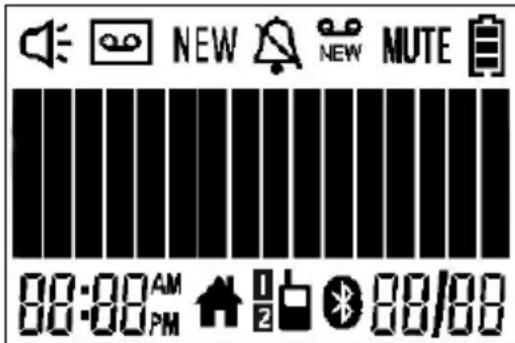

MOTOROLA
Display icons

On when the speakerphone is turned on.

On when the answering machine is turned on. Flashes when a new message is received.

Indicates that a new call has been received. Off after all new calls have been reviewed.

Indicates that the ringer volume is off.

If a voice mail service is being used, this icon indicates that there is a new voice mail message. The icon is off after all new voice mails have been reviewed. (for the home line only)

On when a call is muted.

Full battery power level.

2/3 battery power level.

1/3 battery power level.

Flashes when a low battery level is detected, needs charging.


Animation in motion. Battery is charging.
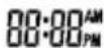
In idle mode, the current time is displayed. In Caller ID mode, the time of call is displayed.

On when the Home line is in use. Flashes when the Home line is put on hold. Off when the Home line is idle.

On when the Cellular line is in use. Flashes when the Cellular line is put on hold. Off when the Cellular line is idle.

On when a Bluetooth device is paired. Off when Bluetooth feature is disabled.

In when Bluetooth device is connected with the telephone base. Off When Bluetooth device(s) is (are) disconnected from the telephone base.

In idle mode the current date is displayed. In Caller ID mode, the date of the call is displayed.
Enjoy your corded base phone
3. Using the phone
3.1 Introducing Bluetooth
Your new telephone system with Bluetooth wireless technology has the following features:
- Pairing a Bluetooth enabled mobile phone with the telephone base. Two Bluetooth devices can be paired and connected.
- Connecting a Bluetooth enabled mobile phone to make and receive CELLULAR calls. Two mobile phones can be connected but only one of them can be used at a time.
- Making and receiving calls using your Bluetooth enabled mobile phone plan while benefiting from the ease and comfort of your home telephone system.
Glossary of terms
Below are some terms used in this User's Guide to help you become familiar with using your Bluetooth devices and your new telephone system.
Bluetooth mobile phone - Refers to a Bluetooth enabled mobile telephone.
CELLULAR line - The communications service provided through your Bluetooth enabled mobile telephone.
HOME line - Your conventional telephone land line.
Pairing- This refers to the process of two Bluetooth devices registering device information with each other. The telephone base must be paired with a Bluetooth enabled mobile phone before the Bluetooth device can be used.
IMPORTANT INFORMATION
- Refer to your mobile phone User's Guide for more information about its Bluetooth function.
- Make sure that your Bluetooth enabled mobile phone is between one to twelve feet away from the telephone base in order to maintain a clear and consistent connection between your Bluetooth mobile phone, telephone base and cell tower.
- Make sure that your Bluetooth enabled mobile phone has sufficient signal strength. You may need to move the Bluetooth enabled mobile phone and telephone base to a location where the cellular signal may be stronger.
- Charge your Bluetooth mobile phone while it is connected to the telephone base because your mobile phone's battery will discharge faster while it is connected wirelessly to the telephone base.

MOTOROLA
- Monitor your mobile phone's usage because airtime is deducted from your cellular plan for the duration of the CELLULAR calls.
3.2 Bluetooth Setup
3.2.1 Setting up Cellular
To pair and connect a Bluetooth enabled mobile phone:
- Place your cell phone near the corded base phone.
- Press □ and then △/VOL+ or ▽/REDIAL/VOL- to select Setup Cellular.
- Press □ and the display will show Cellular Ready?
- Press and the display will show discoverable Mode. The Bluetooth feature will be activated.
- Using your Bluetooth enabled mobile phone, turn on the Bluetooth feature and search for a new device.
- Once your Bluetooth enabled mobile phone has found the Motorola L512CBT/L513CBT/L514CBT/L515CBT telephone, select it.
- Using your Bluetooth enabled mobile phone, enter the PIN code of the telephone (the default PIN code is 0000) to continue the pairing process.
- Pairing will be confirmed when you hear a tone and the Bluetooth icon appears on the handset. Refer to the User's Manual of your Bluetooth enabled mobile phone to learn how to search for or add new Bluetooth devices.
NOTE
- Paired device(s) will be connected automatically and stored in the Paired Devices list.
- When a device is successfully connected, corresponding device for will be displayed.
- If you would like to pair another Bluetooth device, please repeat the steps above.
3.2.2 Replacing a paired device
If you have already paired two Bluetooth devices, you will need to replace one of them to pair another device. Follow the steps below to replace and pair a new device.
- Press □ and then △/VOL+ or ▽/REDIAL/VOL- to select Setup Cellular.
- Press 📄. The display will show the two Cellular names of the paired devices.
- Press /VOL+ or /REDIAL/VOL- to select the cellular device you would like to replace.
- Press ☐ to confirm. The display will show Replace the Cellular?
- Press ☐ to confirm. The display will show Cellular Ready?.
• Refer to section 3.2.1 to proceed with the next steps.
NOTE
When pairing a new cellular, the connected cellular will be disabled temporarily.
3.2.3 Paired Devices
The cellular(s) paired will be displayed in the paired devices list, whether or not connected. Connect, or remove the cellular from this menu.
- Press □ and then △/VOL+ or ▽/REDIAL/VOL- to select Paired Devices.
- Press ☐. The display will show the Cellular name of paired device(s).
NOTE
Display will show No Paired Device if there is no device paired.
- Press / VOL+ or / REDIAL / VOL- to select the desired cellular device.
For the connected cellular device:
-
Press ☐ to remove the cellular device.
-
Press ☐ to confirm.
For the cellular phone that is not connected:
-
Press □ and then △/VOL+ or ▽/REDIAL/VOL- to select Connect or Remove Cellular.
-
Press ☐ to confirm. If you select Remove Cellular, press ☐ again to confirm.
NOTE
- When the connected cellular is removed, corresponding device for will be off.
- When the disconnected cellular is connected, corresponding device for will be on.
- When the cellular is removed, the device name will be removed and Empty will be displayed instead in the paired device list.
3.3 Making a home call using your landline
- Enter the number and pick up the corded handset or press /SPEAKER (Base) to dial the phone number.
3.4 Making a cellular call using your corded base phone
If there is only one Bluetooth enabled mobile phone paired and connected,
- Enter the phone number, and then press CELLULAR (Base) to dial out.

MOTOROLA
If there are two Bluetooth enabled mobile phones paired and connected,
- Enter the phone number, and then press CELLULAR (Base) and △/VOL+ or ▽/REDIAL/VOL- to select the desired cellular device.
- Press or /CELLULAR (Base) to dial out.
NOTE
If the cellular device is paired but not connected, you should connect the cellular device before making an external Bluetooth call.
3.5 Speed dial calling
- In idle mode, press and hold a key from 4 to WXYZ/9 until the number is displayed and dialed.
3.6 Answering a home call
- Pick up the corded handset or press SPEAKER (Base) to answer the incoming home call.
3.7 Answering a cellular call
- Pick up the corded handset to answer the incoming cellular call.
OR
Press /CELLULAR (Base) or /SPEAKER
(Base) on corded base to answer the incoming cellular call.
3.8 Receiving a cellular call while on a home call
A short beep during a HOME call indicates that there is an incoming CELLULAR call and the screen will display the caller ID.
To answer the incoming cellular call:
- Press 📋/CELLULAR (Base) on the corded base. The home call will automatically be placed on hold and will start flashing.
To swap the cellular line to a home call:
- While talking on a cellular call, press /SPEAKER (Base) on the corded base to swap to the home call. The cellular call will automatically be placed on hold and will start flashing.
To end the cellular call:
- Put the corded handset on the corded base cradle.
3.9 Receiving a home call while on a cellular call
A short beep during a CELLULAR call indicates that there is an incoming HOME call and the screen will display the caller ID.
To answer the incoming home call:
- Press 📋/SPEAKER (Base) to answer the home call. The cellular line call will automatically be placed on hold and will start flashing.
To swap the line to a cellular call:
- While talking on a home call, press CELLULAR (Base) on the corded base to swap to the cellular call. The home call will automatically be placed on hold and will start flashing.
To end the home call:
- Put the corded handset on the corded base cradle.
3.10 Ending a call
- During either a home or cellular call, put the corded handset on the corded base cradle.
3.11 Adjusting volume
- During a call, press /VOL+ or /REDIAL/VOL- to adjust the volume.

MOTOROLA
3.12 Dialing from the redial list
- Press ∇/REDIAL/VOL- and then scroll △/VOL+ or √REDIAL/VOL- to the entry you want to redial.
- Pick up the corded handset or press 📋 SPEAKER (Base) to dial the number from home line.
OR
- Press /CELLULAR (Base) to dial the number from cellular line.
3.13 Dialing from the calls list
- Press CID/▷ and then scroll △/VOL+ or ∇/REDIAL/VOL- to the entry you want to dial.
- Toggle the #/ABUSE/FORMAT key to format the dialing number.
- Pick up the corded handset or SPEAKER (Base) to dial the number from the home line.
OR
- Press 📋 /CELLULAR (Base) to dial the number from the cellular line.
3.14 Muting a call
- During a call, press ☐ to mute the microphone, so that you can talk to someone else in the room without your caller hearing you.
- Press □ again to unmute.
3.15 Adding an entry to the phonebook
- Press ◀
- Press · and then enter the name.
- Press · and then enter the number.
- Press ☐ to save.
NOTE
Numbers can be up to 24 digits long and names up to 16 characters long. Entries are stored in alphabetical order.
3.16 Storing a phonebook entry as a one touch number
- Press ◀
-
Press and then / VOL+ or / REDIAL/ VOL- to select Speed Dial.
-
Press □ and then △/VOL+ or ▽/REDIAL/VOL- to select the speed dial key from □/1 to WXYZ/9.
- Press □ and then △/VOL+ or ▽/REDIAL/VOL- to scroll to the entry to want.
- Press □ to save.
3.17 Dialing from the phonebook
- Press ◀/☐ and then scroll △/VOL+ or ▽/REDIAL/VOL- to select the entry you want to dial.
- Pick up the corded handset or press SPEAKER (Base) to dial the number from the home line.
OR
- Press ☐ /CELLULAR (Base) to dial the number from the cellular line.
TIPS
Instead of scrolling to browse the phonebook entries, press the numeric key corresponding to the first letter of the entry you wish to locate. For example, pressing 2 will show the entries starting with A. Pressing 2 again will show the entries starting with B, etc.
3.18 Caller ID
If you have subscribed to Caller ID, and provided the identity of the caller is not withheld, the number of the caller will be displayed together with the date and time of the call (if provided by the network).
NOTE
- If the telephone number is not available for incoming calls, the handset will display Unavailable.
- If the incoming call is from a withheld telephone number, the handset will display Private.
• Information about incoming calls will vary by country and network operator. Some operators may charge a subscription for their Caller ID service.
3.18.1 Calls List
The calls list contains details of missed and received calls. Details include the date and time of the call. Entries are displayed in chronological order with the most recent call at the top of the list.
NOTE
- When the calls list is full, a new call replaces the oldest one in the list.
- The received and missed calls log holds details of up to 30 calls.
- If you receive more than one call from the same number, only the most recent call is kept in the calls list. When you have missed calls (incoming calls that you haven't answered) the NEW on will be displayed in the display on the corded base and all handsets registered to the base. If one handset is

MOTOROLA
used to view the calls log, the icon on the other handsets remains on (for multi-pack use only).
3.18.2 Viewing the calls list
- Press CID/ to enter the calls list.
- Scroll /VOL+ or /REDIAL/VOL- through the calls list.
NOTE
- When reviewing an entry from the calls list, press #/ABC/PAUSE/FORMAT repeatedly to display the number in a different format.
For example, if a caller number is displayed as 888-331-3383, the various formats will be:
331-3383
1-331-3383
888-331-3383
1-888-331-3383
User can choose the desired number format for local and long distance numbers before dialing or saving it into the phonebook. - The neon is removed once the new call has been viewed.
3.18.3 Saving a number from the calls list to the phonebook
- Press CID/ to enter the calls list.
-
Press /VOL+ or /REDIAL/VOL- to the entry you want.
-
Press twice and then enter the name.
- Press □ and then edit the number.
- Press □ to save.
3.18.4 Deleting a calls list entry
- Press CID/ to enter the calls list.
- Press /VOL+ or /REDIAL/VOL- to scroll to the entry you want.
- Press · and then /VOL+ or /REDIAL/VOL- to select Delete.
- Press ☐ to confirm and the entry is deleted.
3.18.5 Deleting the entire calls list
- Press CID/ to enter the calls list.
- Press □ and then △/VOL+ or ▽/REDIAL/VOL- to select Delete All.
- Press □ and then Delete All? is displayed.
- Press ☐ to confirm. All entries will be deleted.
NOTE
You need to review the particular call before you delete the record from the call list.
3.19 Personal Settings
Menu map
| Main Menu | Date & Time | Phonebook R | Ringer Setup | Settings Setup | Cellular | Paired Devices | Answer Machine | Reset Settings |
| Sub menu | Set Date & Time | AddViewEditDeleteDelete AllPB CapacitySpeed Dial | Ringer ToneRinger VolumeKey Tone | Dial ModeFlash TimeArea CodeBase NameLanguage | Answerer On (if answer machine is off).Answerer Off (if answer machine is on).Answerer mode Rings to Answer AnnouncementRecord MemoCall ScreeningDel All Old Msg Remote Access Security Code | Clr Voice MailAll Settings |

MOTOROLA
- Press
- Press /VOL+ or /REDIAL/VOL- to scroll through the menu.
- Press ⋅ to open a sub-menu or validate an option. Press ⋅ to go back to the previous menu level or cancel an action.
If you do not press any button on the corded base for 30 seconds, the display will automatically return to standby.
3.20 Intercom
This feature allows you to make internal calls, transfer external home calls between the corded base and cordless handset or other cordless handset extensions, and use the conference option.
NOTE
Cellular call cannot be transferred.
3.20.1 Calling another cordless handset
- Press □ and then △/VOL+ or ▽/REDIAL/VOL- to select the cordless handset you want to call.
- Press · to call the cordless handset.
- Put the corded handset on the base cradle, or press 📋/SPEAKER (Base) if you are in handsfree mode to hang up.
NOTE
If the cordless handset is not within the valid operation range, this function may not be available.
During an intercom call, you will hear an alert tone if there is an incoming external call. You need to hang up the intercom call before answering the incoming external call.
3.20.2 Transferring an external home call to another cordless handset
- During an external home call, press Your caller is put on hold.
- Press /VOL+ or /REDIAL/VOL- to select the cordless handset you want to call.
- Press ☐ to call the cordless handset.
- When the other cordless handset answers by pressing /FLASH or /SPEAKER, put the corded handset on the base cradle or press SPEAKER (Base) to transfer the call. If the other cordless handset does not answer, press to talk to your caller again.
3.20.3 Three-party conference call
- During an external home call, press Your caller is put on hold.
-
Press /VOL+ or /REDIAL/VOL- to select the cordless handset you want to call.
-
Press ☐ to call the cordless handset.
- When the other cordless handset answers the intercom call, press □ on the corded base to join the conference call.
- Press /SPEAKER (Base) or put the corded handset on the base cradle to hang up and leave the cordless handset engaged with the caller.
3.21 Setting the dial mode
The default dialing mode is suitable for your country and network operator. It is unlikely that you should need to change this setting unless advised to do so.
- Press □ and then △/VOL+ or ▽/REDIAL/VOL- to select Settings.
- Press ☐ to select Dial Mode.
- Press □ and △/VOL+ or ▽/REDIAL/VOL- to select Tone or Pulse.
- Press ☐ to save.
NOTE
If pulse mode is selected, press TONE/* to switch from pulse to tone dialing temporarily when dialing out. After the call is ended, the dial mode will change back to pulse.
3.22 Setting the Flash Time
The default flash time is 600ms. It is unlikely that you should need to change this setting unless advised to do so.
- Press □ and then △/VOL+ or ▽/REDIAL/VOL- to select Settings.
- Press □ and △/VOL+ or ▽/REDIAL/VOL- to select Flash Time.
- Press □ and △/VOL+ or ▽/REDIAL/VOL- to the flash time you want. (8 options are available: 90, 100, 110, 250, 300, 400, 600 and 700ms)
- Press ☐ to save.
3.23 Setting the Area Code
- Press □ and then △/VOL+ or ▽/REDIAL/VOL- to select Settings.
- Press □ and △/VOL+ or ▽/REDIAL/VOL- to select Area Code.
- Press □ and enter the area code.
- Press ☐ to save.

MOTOROLA
3.24 Resetting all settings
- Press □ and then △/VOL+ or ▽/REDIAL/VOL- to select Reset Settings.
- Press □ and then △/VOL+ or ▽/REDIAL/VOL- to select All Settings.
- Press twice to select Yes. Then all the personalized settings will be reset to default.
NOTE
All of your phonebook entries, calls list, and redial list, will remain unchanged.
3.25 Using your answering machine
The answering machine records unanswered calls when it is activated.
3.25.1 Playing messages
- Press ⬆PLAY/STOP from idle mode. New messages will be played followed by any older messages.
- During message playback, press the keys below to perform the following functions:
1/REPEAT/ ANNC
Repeats the current message. Press twice to playback the previous message.
▶/■/PLAY/ STOP Stop the message playback.
▶>1/SKIP/ MEMO Skip to play the next message.
/VOL+ Increase the volume.
▽/REDIAL/VOL- Decrease the volume.
DELETE/ Delete the current message and FLASH the next message will be played.
NOTE
For multiple handset models when you are on either a cellular call or a home call, the answering system will not answer the second incoming call.
3.25.2 Turning on or off the answering machine
- Press □ and then △/VOL+ or ▽/REDIAL/VOL- to select Answer Machine.
-
Press √ and then △/VOL+ or ▽/REDIAL/VOL- to select Answerer On or Answerer Off. If the answering machine is turned on originally, Answerer Off will be displayed. If the answering machine is turned off originally, Answerer On will be displayed.
-
Press ☐ to confirm.
OR
- Press ANS ON/OFF/ to toggle between answering machine on and answering machine off.
3.25.3 Setting the announcement mode
- Press □ and then △/VOL+ or ▽/REDIAL/VOL- to select Answer Machine.
- Press □ and then △/VOL+ or ▽/REDIAL/VOL- to select Answerer Mode.
- Press □ and then △/VOL+ or ▽/REDIAL/VOL- to select the announcement modes:
- Annc & Record invites your callers to leave a message.
- Announce Only lets callers hear your announcement but they cannot leave a message.
- Press to save.
3.25.4 Setting the number of rings
- Press □ and then △/VOL+ or ▽/REDIAL/VOL- to select Answer Machine.
- Press □ and then △/VOL+ or ▽/REDIAL/VOL- to select Rings To Answer.
and then /VOL+ or /REDIAL/ to select the rings to answer. (4 options are pole: Toll Saver, 3 Rings, 4 Rings, and 5 RINGS).
NOTE
If Toll Saver setting is selected, the answering machine will pick up after two rings if there are new messages, and after four rings if there are no messages.
4. Press ☐ to save.
3.25.5 Announcement
This is the message your callers hear on the answering machine. There are two pre-recorded outgoing messages, or you can record your own.
3.25.5.1 Recording the announcement
- Press □ and then △/VOL+ or ▽/REDIAL/VOL- to select Answer Machine.
- Press □ and then △/VOL+ or ▽/REDIAL/VOL- to select Announcement
- Press ☐ to select Record.
- Press □ and then △/VOL+ or ▽/REDIAL/VOL- to select the answer mode Annc & Record or Announce Only.
- Press ☐ to start recording after a "beep" sound is heard.

MOTOROLA
- Press ☐ again to stop recording and save the message. The just saved message is played automatically.
You can also record the announcement by pressing and holding /REPEAT/ANNC to start recording after a "beep" sound is heard. Press 📄 to stop recording and save the message.
NOTE
When playing the message, pressing 📄 or DELETE/FLASH will delete it and the pre-recorded message will be played automatically.
3.25.5.2 Playing the announcement
- Press □ and then △/VOL+ or ▽/REDIAL/VOL- to select Answer Machine.
- Press □ and then △/VOL+ or ▽/REDIAL/VOL- to select Announcement.
- Press □ and then △ /VOL+ or ▽ /REDIAL/ VOL- to select Play.
- Press □ and then △/VOL+ or ▽/REDIAL/VOL- to select the answer mode Annc & Record or Announce Only.
- Press □ and then the message is played.
3.25.6 Recording a memo
You can record a memo which is stored on your answering machine and played back like a normal message.
- Press □ and then △/VOL+ or ▽/REDIAL/VOL- to select Answer Machine.
- Press and then /VOL+ or /REDIAL/ VOL- to select Record Memo.
- Press □ to start recording.
- Press · again to stop recording and save the message. The just saved message is played automatically.
You can also record a memo by pressing and holding ▶I/SKIP/MEMO to start recording after a "beep" sound is heard. Press 📄 to stop recording and save the message.
NOTE
When playing the message, pressing DELETE/FLASH will delete it.
3.25.7 Call screening on/off
You are able to hear a caller leaving a message. You can then choose to ignore the caller or pick up the call. When the answering machine is recording, the corded base displays Screening?. Press 📄 to listen to the caller through the base speaker at the volume set, and the screen displays Screening.
This can be turned off if you want, as follows:
- Press □ and then △/VOL+ or ▽/REDIAL/VOL- to select Answer Machine.
- Press □ and then △/VOL+ or ▽/REDIAL/VOL- to select Call Screening.
- Press · and then /VOL+ or /REDIAL/ VOL- to turn on/off call screening.
- Press □ to save.
3.25.8 Deleting all old messages
- Press □ and then △/VOL+ or ▽/REDIAL/VOL- to select Answer Machine.
- Press □ and then △/VOL+ or ▽/REDIAL/VOL- select Del All Old Msg.
- Press □ and display will show Delete All Old Messages?.
- Press ☐ to confirm.
3.25.9 Remote access
Remote access allows you to operate your answering machine and listen to your messages by calling your phone from another phone.
Turn the remote access on/off
- Press □ and then △/VOL+ or ▽/REDIAL/VOL- to select Answer Machine.
- Press · and then /VOL+ or /REDIAL/VOL- to select Remote Access.
- Press □ and then △/VOL+ or ▽/REDIAL/VOL- to select On or Off.
- Press ☐ to confirm.
To enter the remote access mode, dial your phone number from another phone, when you hear the announcement, press TONE/* and then enter the 4-digit remote security code (default code is 0000) on your another telephone.
The correct sequence of the 4 security PIN digits needs to be detected before entering remote access mode. Random digits detected prior to the correct 4 digits sequence are ignored, and answering machine recording continues until the complete PIN is detected. There is no system prompt to enter the remote access code.

MOTOROLA
Press the following keys on your another phone to perform the following functions, after entering your remote access mode.
Press... To...
1 Press once to replay the current message from the beginning. Press twice to play the previous message.
2 Play/Stop the message
3 Skip forward to the next message
4 Toggle Answer Off/Announce Only/
Announce and Record modes
7 Listen to the Main Menu (for Full Voice prompts only)
0 Delete the message
3.25.10 Setting the security code
This is used to change the remote access PIN if necessary.
- Press □ and then △ /VOL+ or ▽ /REDIAL/ VOL- to select Answer Machine.
- Press □ and then △/VOL+ or ▽/REDIAL/VOL- to select Security Code.
- Press □ and then enter the 4-digit security code.
- Press to save.
34 Using the phone
Enjoy your cordless handset
4. Using the phone
4.1 Bluetooth Setup
4.1.1 Setting up Cellular
To pair and connect a Bluetooth enabled mobile phone:
- Place your cell phone near the handset and base unit.
- Press MENU and then VOL+ or REDIAL/VOL- to select SETUP CELLULAR.
- Press MENU and the display will show CELLULAR READY?
- Press MENU and the display will show DISCOVERABLE MODE.
The Bluetooth feature will be activated.
- Using your Bluetooth enabled mobile phone, turn on the Bluetooth feature and search for a new device.
- Once your Bluetooth enabled mobile phone has found the Motorola L512CBT/L513CBT/L514CBT/L515CBT telephone, select it.
- Using your Bluetooth enabled mobile phone, enter the PIN code of the telephone (the default PIN code is 0000) to continue the pairing process.
- Pairing will be confirmed when you hear a tone and the Bluetooth icon appears on the handset.
Refer to the User's Manual of your Bluetooth enabled mobile phone to learn how to search for or add new Bluetooth devices.
NOTE
- Paired device(s) will be connected automatically and stored into the Paired Devices list.
- When a device is successfully connected, corresponding device for will be displayed.
- If you would like to pair another Bluetooth device, please repeat the steps as above.
4.1.2 Replacing a paired device
If you have already paired two Bluetooth devices, you will need to replace one of them if your would like to pair another device. Follow the steps below to replace and pair a new device.
- Press MENU and then VOL+ or REDIAL/VOL- to select SETUP CELLULAR.
- Press MENU. The display will show the two Cellular names of the paired devices.
- Press VOL+ or REDIAL/VOL- to select the cellular device you would like to replace.
- Press MENU to confirm. The display will show REPLACE THE CELLULAR?

MOTOROLA
- Press MENU to confirm. The display will show CELLULAR READY?.
• Refer to section 4.1.1 to proceed with the next steps.
NOTE
When pairing a new cellular, the connected cellular will be disabled temporarily.
4.1.3 Paired Devices
The cellular(s) paired will be displayed in the paired devices list, whether or not connected. Connect, or remove the cellular from this menu.
- Press MENU and then VOL+ or REDIAL/VOL- to select PAIRED DEVICES.
- Press MENU. The display will show the Cellular name of paired device(s).
NOTE
Display will show NO PAIRED DEVICE if there is no device paired.
- Press VOL+ or REDIAL/VOL- to select the desired cellular device.
For the connected cellular device:
- Press MENU to remove the cellular device.
- Press MENU to confirm.
For the cellular phone that is not connected:
- Press MENU and then VOL+ or REDIAL/VOL- to select CONNECT or REMOVE CELLULAR.
- Press MENU to confirm. If you select REMOVE CELLULAR, press MENU again to confirm.
NOTE
- When the connected cellular is removed, corresponding device for will be off.
- When the disconnected cellular is connected, corresponding device for will be on.
- When the cellular is removed, the device name will be removed and EMPTY will be displayed instead in the paired device list.
4.2 Making a home call using your landline
- Enter the phone number and press FLASH or /SPEAKER to dial the phone number.
4.3 Making a cellular call using your cordless DECT handset
If there is only one Bluetooth enabled mobile phone paired and connected,
- Enter the phone number, and then press CELLULAR to dial out.
If there are two Bluetooth enabled mobile phones paired and connected,
- Enter the phone number, and then press CELLULAR and then VOL+ or REDIAL/VOL- to select the desired cellular device.
- Press MENU or /CELLULAR to dial out.
NOTE
If the cellular device is paired but not connected, you should connect the cellular device before making an external Bluetooth call.
4.4 Speed dial calling
- In idle mode, press and hold a key from 1/1 to WXYZ/9 until the number is displayed and dialed.
4.5 Answering a home call
- Press /FLASH or /SPEAKER to answer the incoming home call.
4.6 Answering a cellular call
- Press /CELLULAR or /SPEAKER to answer the incoming cellular call.
4.7 Receiving a cellular call while on a home call
A short beep during a HOME call indicates that there is an incoming CELLULAR call and the screen will display the caller ID.
To answer the incoming cellular call:
- Press 📁 /CELLULAR on the handset. The home call will automatically be placed on hold and 🎨 will start flashing.
To swap the line to a home call:
- While talking on a cellular call, press FLASH on the handset to swap to the home call. The cellular call will automatically be placed on hold and will start flashing.
To end the cellular call:
- Press BACK on the handset. The home call will be resumed automatically.
4.8 Receiving a home call while on a cellular call
A short beep during a CELLULAR call indicates that there is an incoming HOME call and the screen will display the caller ID.

MOTOROLA
To answer the incoming home call:
- Press /FLASH on the handset. The cellular line call will automatically be placed on hold and will start flashing.
To swap the line to a cellular call:
- While talking on a home call, press CELLULAR on the handset to swap to the cellular call. The home call will automatically be placed on hold and will start flashing.
To end the home call:
- Press BACK on the handset. The cellular call will be resumed automatically.
4.9 Ending a call
- During either a home or cellular call, press BACK or put the handset on the charger.
4.10 Adjusting volume
- During a call, press VOL+ or REDIAL/VOL- to adjust the volume.
4.11 Muting a call
- During a call, press ☐MUTE to mute the microphone, so that you can talk to someone else in the room without your caller hearing you.
- Press ⚡MUTE again to unmute.
4.12 Dialing from the redial list
- Press REDIAL/VOL- and then scroll VOL+ or REDIAL/VOL- to the entry you want to redial.
- Press /FLASH or /SPEAKER to dial the number from the home line.
OR
- Press CELLULAR to dial the number from cellular line.
4.13 Dialing from the calls list
- Press CID and then scroll VOL+ or REDIAL/VOL-to the entry you want to dial.
- Toggle the #/ABUSE/FORMAT key to format the dialing number.
- Press /FLASH or 📋/SPEAKER to dial the number from the home line.
OR
- Press CELLULAR to dial the number from the cellular line.
4.14 Adding an entry to the phonebook
- Press and then press MENU to select ADD.
- Press MENU and then enter the name.
- Press MENU and then enter the number.
- Press MENU to save.
NOTE
Numbers can be up to 24 digits long and names up to 16 characters long. Entries are stored in alphabetical order.
4.15 Storing a phonebook entry as a one touch number
- Press ☐.
- Press MENU and then VOL+ or REDIAL/VOL- to select SPEED DIAL.
-
Press MENU and then VOL+ or REDIAL/VOL- to select the speed dial key from ◀/□/1 to WXYZ/9.
-
Press MENU and then VOL+ or REDIAL/VOL- to scroll to the entry you want.
- Press MENU to save.
4.16 Dialing from the phonebook
- Press 📄 and then scroll VOL+ or REDIAL/VOL-to select the entry you want to dial.
- Press /FLASH or /SPEAKER to dial the number from the home line.
OR
- Press CELLULAR to dial the number from the cellular line.
TIPS
Instead of scrolling to browse the phonebook entries, press the numeric key corresponding to the first letter of the entry you wish to locate. For example, pressing 2 will show the entries starting with A. Pressing 2 again will show the entries starting with B, etc.
4.17 Caller ID
If you have subscribed to Caller ID, and provided the identity of the caller is not withheld, the number of the caller will be displayed together with the date and time of the call (if provided by the network).

MOTOROLA
NOTE
- If the telephone number is not available for incoming calls, the handset will display UNAVAILABLE.
- If the incoming call is from a withheld telephone number, the handset will display PRIVATE.
• Information about incoming calls will vary by country and network operator. Some operators may charge a subscription for their Caller ID service.
4.17.1 Calls List
The calls list contains details of missed and received calls. Details include the date and time of the call. Entries are displayed in chronological order with the most recent call at the top of the list.
NOTE
- When the calls list is full, a new call replaces the oldest one in the list.
- The received and missed calls log holds details of up to 30 calls.
- If you receive more than one call from the same number, only the most recent call is kept in the calls list. When you have missed calls (incoming calls that you haven't answered) the NEW on will be displayed in the display on the corded base and all handsets registered to the base. If one handset is used to view the calls log, the icon on the other handsets remains on (for multi-pack use only).
4.17.2 Viewing the calls list
- Press CID to enter the calls list.
- Scroll VOL+ or REDIAL/VOL- through the calls list.
NOTE
- When reviewing an entry from the calls list, press #/ABC/PAUSE/FORMAT repeatedly to display the number in a different format.
For example, if a caller number is displayed as 888-331-3383, the various formats will be:
331-3383
1-331-3383
1-888-331-3383
User can choose the desired number format for local and long distance numbers before dialing or saving it into the phonebook.
- The NEW is removed once the new call has been viewed.
4.17.3 Saving a number from the calls list to the phonebook
- Press CID to enter the calls list.
- Press VOL+ or REDIAL/VOL- to the entry you want.
-
Press MENU and then enter the name.
-
Press MENU and then edit the number.
- Press MENU to save.
4.17.4 Deleting a calls list entry
- Press CID to enter the calls list.
- Press VOL+ or REDIAL/VOL- to scroll to the entry you want.
- Press ⓂMUTE to delete the entry.
4.17.5 Deleting the entire calls list
- Press CID to enter the calls list.
- Press and hold ☐MUTE. DELETE ALL CALL LOG ENTRIES? is displayed.
- Press MENU to confirm. All entries will be deleted.
NOTE
You need to review the particular call before you delete the record from the call list.
4.18 Personal Settings
Menu map
| MAIN MENU | DATE & TIME | PHONE-BOOK | INTERCOM | SETUP HS SETUP | PBS | SETUP CELLULAR | PAIRED DEVICES | ANSWER MACHINE | RESET SETTINGS |
| SUB MENU | DATE TIME | VIEW | RINGER TONE | DIAL MODE | ANSWERER ON (If answer machine is off) | CLR VOICE MAIL | |||
| ADD | RINGER VOLUME | FLASH TIME | or | ALL SETTINGS | |||||
| EDIT | KEY TONE | AREA CODE | ANSWERER OFF (If answer machine is on) | ||||||
| DELETE | LOW BATT TONE | ANSWERER MODE | |||||||
| DELETE ALL | OUT RANGE TONE | RINGS TO ANSWER | |||||||
| PB CAPACITY | HANDSET NAME | ANNOUNCEMENT | |||||||
| SPEED DIAL | LANGUAGE LCD CONTRAST REGISTRATION | RECORD MEMO CALL SCREENING | |||||||
| DEL ALL OLD MSG | |||||||||
| REMOTE ACCESS SECURITY CODE |
- Press MENU.
- Press VOL+ or REDIAL/VOL- to scroll through the menu.
- Press MENU to open a sub-menu or validate an option.
Press BACK to go back to the previous menu level or cancel an action.
If you do not press any button on the handset for 30 seconds, the display will automatically return to standby. It will also return to standby when the handset is placed on charger.
4.19 Intercom
This feature allows you to make internal calls, transfer external home calls between the cordless handset and the corded base or other cordless handset extensions, and use the conference option.
NOTE
Cellular calls cannot be transferred.
4.19.1 Calling another cordless handset or corded base
-
Press MENU and then VOL+ or REDIAL/VOL- to select INTERCOM.
-
Press MENU and then VOL+ or REDIAL/VOL- to select the cordless handset or corded base you want to call.
- Press MENU to make the call.
- Press BACK to hang up.
NOTE
If the cordless handset is not within the valid operation range, this function may not be available.
During an intercom call, you will hear an alert tone if there is an incoming external call. You need to press
/BACK to hang up the intercom call before answering the incoming external call.
4.19.2 Transferring an external home call to another cordless handset or corded base
- During an external home call, press MENU.
- Your caller is put on hold.
- Press VOL+ or REDIAL/VOL- to select the cordless handset or corded base you want to call.
- Press MENU to make the call.
- When the other cordless handset or the corded base answers the call, press BACK to transfer the call. If the other cordless handset does not answer, press MUTE to talk to your caller again.

MOTOROLA
4.19.3 Three-party conference call
- During an external home call, press MENU. Your caller is put on hold.
- Press VOL+ or REDIAL/VOL- to select the cordless handset or corded base you want to call.
- Press MENU to make the call.
- When the other cordless handset or the corded base answers the intercom call, press MENU on the calling handset to set up the conference call.
- Press BACK on any cordless handset to hang up three-party conference and leave the other cordless handset or corded base engaged with the caller.
4.20 Setting the dial mode
The default dialing mode is suitable for your country and network operator. It is unlikely that you should need to change this setting unless advised to do so.
- Press MENU and then VOL+ or REDIAL/VOL- to select SETUP BS.
- Press MENU to select DIAL MODE.
- Press MENU and VOL+ or REDIAL/VOL- to select TONE or PULSE.
- Press MENU to save.
NOTE
If pulse mode is selected, press TONE/* to switch from pulse to tone dialing temporarily when dialing out. After the call is ended, the dial mode will change back to pulse.
4.21 Setting the Flash Time
The default flash time is 600MS. It is unlikely that you should need to change this setting unless advised to do so.
- Press MENU and then VOL+ or REDIAL/VOL- to select SETUP BS.
- Press MENU and then VOL+ or REDIAL/VOL- to select FLASH TIME.
- Press MENU and then VOL+ or REDIAL/VOL- to the flash time you want. (8 options are available: 90, 100, 110, 250, 300, 400, 600 and 700MS)
- Press MENU to save.
4.22 Setting the Area Code
- Press MENU and then VOL+ or REDIAL/VOL- to select SETUP BS.
- Press MENU and then VOL+ or REDIAL/VOL- to select AREA CODE.
- Press MENU and enter the area code.
- Press MENU to save.
4.23 Registration
Up to 5 handsets can be registered to one corded base. The original cordless handset is pre-registered to use. Additional cordless handsets must be registered to the corded base before you can use them.
To register an additional cordless handset,
- Press MENU and then VOL+ or REDIAL/VOL- to select SETUP HS.
- Press MENU and then VOL+ or REDIAL/VOL- to select REGISTRATION.
- Press MENU and then VOL+ or REDIAL/VOL- to select YES or NO.
-
Select YES and press MENU to enter the registration procedure as below:
-
Press and hold □ for 4 seconds on the corded base, and then release.
- Place the unregistered cordless handset on the charger.
- A confirmation tone is generated if registration is successful. HANDSET X is displayed where X denotes the number of handsets then the phone returns to idle.
To register an originally unregistered cordless handset, follow steps 1 through 3 above.
4.24 Resetting all settings
- Press MENU and then VOL+ or REDIAL/VOL- to select RESET SETTINGS.
- Press MENU and then VOL+ or REDIAL/VOL- to select ALL SETTINGS.
- Press MENU to select YES. Then all the personalized settings will be reset to default.
NOTE
All of your phonebook entries, calls list, and redial list, will remain unchanged.
4.25 Paging/Finding cordless handset
- Press □ on the corded base.
- Press VOL+ or REDIAL/VOL- to select the destination cordless handset from HANDSET 1 to HANDSET 5, and ALL HANDSETS.
- Selecting ALL HANDSETS will page all the registered cordless handsets.
- Destination cordless handset rings or all cordless handsets ring.
- Press ☐ again to stop the paging call.

MOTOROLA
4.26 Using your answering machine
The answering machine records unanswered calls when it is activated.
4.26.1 Playing messages
Through the handset:
- Press ⬆MUTE from idle mode. New messages will be played followed by any older messages.
- During message playback, press the keys below to perform the following functions:
1<</44 Repeats the current message. Press twice to playback the previous message.
▶/■/ABC/2 Stop the message playback.
▶>I/DEF/3 Skip to play the next message.
VOL+ Increase the volume.
REDIAL/VOL- Decrease the volume.
/MUTE
/SPEAKER
/BACK
Delete the current message and the next message will be played. Toggle the message playback via earpiece/speakerphone.
Exit to idle.
NOTE
For multiple handset models, when you are on either a cellular call or a home call, the answering system will not answer the second incoming call.
4.26.2 Turning on or off the answering machine
- Press MENU and then VOL+ or REDIAL/VOL- to select ANSWER MACHINE.
- Press MENU and then VOL+ or REDIAL/VOL- to select ANSWERER ON or ANSWERER OFF. If the answering machine is turned on originally, ANSWERER OFF will be displayed. If the answering machine is turned off originally, ANSWERER ON will be displayed.
- Press MENU to confirm.
4.26.3 Setting the announcement mode
- Press MENU and then VOL+ or REDIAL/VOL- to select ANSWER MACHINE.
- Press MENU and then VOL+ or REDIAL/VOL- to select ANSWERER MODE.
- Press MENU and then VOL+ or REDIAL/VOL- to select the announcement modes:
- ANNC & RECORD invites your callers to leave a message.
- ANNOUNCE ONLY lets callers hear your announcement but they cannot leave a message.
- Press MENU to save.
4.26.4 Setting the number of rings
- Press MENU and then VOL+ or REDIAL/VOL- to select ANSWER MACHINE.
- Press MENU and then VOL+ or REDIAL/VOL- to select RINGS TO ANSWER.
- Press MENU and then VOL+ or REDIAL/VOL- to select the rings to answer. (4 options are available: TOLL SAVER, 3, 4, or 5 RINGS).
NOTE
If Toll Saver setting is selected, the answering machine will pick up after two rings if there are new messages, and after four rings if there are no messages.
- Press MENU to save.
4.26.5 Announcement
This is the message your callers hear on the answering machine. There are two pre-recorded outgoing messages, or you can record your own.
4.26.5.1 Recording the announcement
- Press MENU and then VOL+ or REDIAL/VOL- to select ANSWER MACHINE.
- Press MENU and then VOL+ or REDIAL/VOL- to select ANNOUNCEMENT.
- Press MENU to select RECORD.
- Press MENU and then VOL+ or REDIAL/VOL- to select the answer mode ANNC & RECORD or ANNOUNCE ONLY.
- Press MENU to start recording after a "beep" sound is heard.
- Press MENU again to stop recording and save the message. The just saved message is played automatically.

MOTOROLA
NOTE
When playing the message, pressing ☑MUTE will delete it and the pre-recorded message will be played automatically.
4.26.5.2 Playing the announcement
- Press MENU and then VOL+ or REDIAL/VOL- to select ANSWER MACHINE.
- Press MENU and then VOL+ or REDIAL/VOL- to select ANNOUNCEMENT.
- Press MENU and then VOL+ or REDIAL/VOL- to select PLAY.
- Press MENU and then VOL+ or REDIAL/VOL- to select the answer mode ANNC & RECORD or ANNOUNCE ONLY.
- Press MENU and the message is played.
4.26.6 Recording a memo
You can record a memo which is stored on your answering machine and played back like a normal message.
- Press MENU and then VOL+ or REDIAL/VOL- to select ANSWER MACHINE.
-
Press MENU and then VOL+ or REDIAL/VOL- to select RECORD MEMO.
-
Press MENU to start recording.
- Press MENU again to stop recording and save the message. The just saved message is played automatically.
NOTE
When playing the message, pressing ⚠MUTE will delete it permanently.
4.26.7 Call screening on/off
You are able to hear a caller leaving a message. You can then choose to ignore the caller or pick up the call.
- When the answering machine is recording, the cordless handset displays SCREENING?
- Press MENU to listen to the caller through the handset earpiece, the handset displays CALL SCREENING.
- Press /SPEAKER to listen via the handset loudspeaker.
- Press ☐MUTE to stop screening and leave the answering machine to record the message.
- Press FLASH to talk to the caller and stop recording.
4.26.8 Deleting all old messages
- Press MENU and then VOL+ or REDIAL/VOL- to select ANSWER MACHINE.
- Press MENU and then VOL+ or REDIAL/VOL-select DEL ALL OLD MSG.
- Press MENU to confirm.
NOTE
When the answering machine is full, flash if there are new messages. ERASE SOME ANSWERER MSG will toggle within 2 seconds with MEMORY FULL in idle to alert user to delete some answering machine messages to free up the memory.
4.26.9 Remote access
Remote access allows you to operate your answering machine and listen to your messages by calling your phone from another phone.
Turn the remote access on/off
- Press MENU and then VOL+ or REDIAL/VOL- to select ANSWER MACHINE.
- Press MENU and then VOL+ or REDIAL/VOL- to select REMOTE ACCESS.
- Press MENU and then VOL+ or REDIAL/VOL- to select ON or OFF.
- Press MENU to confirm.
To enter the remote access mode, dial your phone number from another phone, when you hear the announcement, press TONE/* and then enter the 4-digit remote security code (default code is 0000) on your another telephone.
The correct sequence of the 4 security PIN digits needs to be detected before entering remote access mode. Random digits detected prior to the correct 4 digits sequence are ignored, and answering machine recording continues until the complete PIN is detected. There is no system prompt to enter the remote access code.
Press the following keys on your another phone to perform the following functions, after entering your remote access mode.
Press... To...
1 Press once to replay the current message from the beginning. Press twice to play the previous message.
2 Play/Stop the message
3 Skip forward to the next message
4 Toggle Answer Off/Announce Only/
Announce and Record modes
7 Listen to the Main Menu (for Full Voice prompts only)
0 Delete the message

MOTOROLA
4.26.10 Setting the security code
This is used to change the remote access PIN if necessary.
- Press MENU and then VOL+ or REDIAL/VOL- to select ANSWER MACHINE.
- Press MENU and then VOL+ or REDIAL/VOL- to select SECURITY CODE.
- Press MENU and then enter the 4-digit security code.
- Press MENU to save.
5. Help
I cannot pair my mobile phone to the telephone base
- Make sure the Bluetooth function of your Bluetooth enabled mobile phone is turned on. See your mobile phone User's Manual for more information.
- Make sure the cordless handset, corded base and cell phone are located near each other.
- Remove the Motorola L512CBT/L513CBT/L514CBT/L515CBT from your mobile phone's Bluetooth device history list (see your mobile phone User's Manual for more information).
- Carefully follow the pairing instructions in the User's Guide, making sure that your mobile phone is not connected to any other Bluetooth device(s).
- Turn off your mobile phone, and then turn it on again.
- Reset the telephone base. Unplug the unit's electrical power. Wait for approximately 15 seconds, and then plug it back in. Repeat the above suggestions.
The icon is not scrolling when the cordless handset is placed on the charger
- Incomplete battery contact - adjust the cordless handset on the charger.
- Dirty contact - clean the battery contact by wiping with an alcohol moistened cloth.
- Battery is full - charging is not necessary at this time.
No dial tone
- If there is no base power, check the connections. Reset the phone by unplugging then plugging it back into an electrical outlet.
- If the cordless handset batteries are empty, recharge the battery pack for at least 24 hours.
- Move the cordless handset closer to the corded base.
- Be sure to use only the provided telephone cords.
Poor audio quality
- If the corded base is too close to electrical appliances, reinforced concrete walls, or metal door frames, move the corded base from these areas.
No ring tone
- The ring tone may be deactivated.
- The volume may need to be increased.
Caller ID does not work
- Check your subscription with your network operator.
- If you subscribe to high-speed internet service (Digital Subscriber Line - DSL) through your telephone lines, you must install a DSL filter between the telephone base and the telephone wall jack. The filter will prevent noise and caller ID problems caused by DSL interference. Please contact your DSL service provider for more information about DSL filters.
A phonebook entry cannot be stored
- The phonebook is full. Delete an entry to free memory.
No display
- Try recharging or replacing the rechargeable battery pack.
- Reset the corded base. Unplug the unit's electrical, then plug it back in.
- If the LED is not lit up, then try to unplug the unit's electrical power, and then plug it back in.

MOTOROLA
If the cordless handset disconnects from the corded base during a phone call
- Check that the power cord is connected properly into the corded base.
- Check that the power adapter is connected properly into the electrical outlet.
- Move the cordless handset closer to the corded base. It may be out of range.
- Reset the corded base by unplugging the unit's electrical power. Wait for around 15 seconds and replug the power again. Allow up to one minute for the cordless handset to synchronize with the registered corded base again.
Noise interference on your radio or television
- Your corded base or cordless charger may be too close. Move it as far away as possible.
6. General information
If your product is not working properly...
- Read this User's Guide.
- Visit our website: www.motorola.com
- Contact Customer Service in the US and Canada at 1-888-331-3383.
To order a replacement battery pack contact customer service or visit our website.
Important safety instructions
Follow these safety precautions when using your phone to reduce the risk of fire, electric shock, and injury to persons or property:
- Keep all vents and openings of the phone unblocked. Do not set the phone on a heating register or over a radiator. Ensure that proper ventilation is provided at the installation site.
- Do not use while wet or while standing in water.
- Do not use this product near water (for example, near a bath tub, kitchen sink, or swimming pool).
-
Do not allow anything to rest on the power cord. Place the power cord so that it will not be walked on.
-
Never insert objects of any kind into the product vents as that may result in fire or electric shock.
- Unplug this product from the electrical outlet before cleaning. Do not use liquid cleaners or aerosol cleaners. Use a damp cloth for cleaning.
- Do not disassemble this product. If service or repair work is required, contact the customer service helpline found in this User's Guide.
- Do not overload wall outlets and extension cords.
- Avoid using during an electrical storm. Use a surge protector to protect the equipment.
- Do not use this phone to report a gas leak, especially if you are in the vicinity of the gas line.
CAUTION
To reduce the risk of fire, use only No. 26 AWG or larger UL Listed or CSA Certified Telecommunication Line Cord.
Unplug this cordless phone immediately from an outlet if:
- The power cord or plug is damaged or frayed.
• Liquid has been spilled on the product. -
The product has been exposed to rain or water. Do not retrieve the handset or base until after you have unplugged the power and phone from the wall. Then retrieve the unit by the unplugged cords.
-
The product has been dropped or the cabinet has been damaged.
- The product exhibits a distinct change in performance.
Installation Guidelines
- Read all instructions and save them for future reference.
- Follow all warnings and instructions marked on the product.
- Do not install this product near a bath tub, sink, or shower.
- Operate this phone using only the power source that is indicated on the marking label. If you are unsure of the power supply to your home, consult with your dealer or local power company.
- Do not place this product on an unstable cart, stand, or table. This product may fall, causing serious damage to the product.
- Adjust only those controls that are covered by the operating instructions. Improper adjustment of other controls may result in damage and will often require extensive work to restore the product to normal operation.
- Clean this product with a soft, damp cloth. Do not use chemicals or cleaning agents to clean this phone.

MOTOROLA
- Use only the power supply that came with this unit. Using other power supplies may damage the unit.
- Because this phone operates on electricity, you should have at least one phone in your home that operates without electricity in case of a power outage.
- To avoid interference to nearby appliances, do not place the base of the phone on or near a TV, microwave oven, or VCR.
CAUTION
To maintain compliance with the FCC's RF exposure guidelines, place the base unit at least 20 cm from nearby persons.
Battery Safety Instructions
- Do not burn, disassemble, mutilate, or puncture the battery. The battery contains toxic materials that could be released, resulting in injury.
CAUTION
There is a risk of explosion if you replace the battery with an incorrect battery type. Use only the battery pack that came with your phone or an authorized replacement recommended by the manufacturer.
- Keep battery packs out of the reach of children.
-
Remove battery packs if storing over 30 days.
-
Do not dispose of battery packs in fire, which could result in explosion.
- The rechargeable battery packs that power this product must be disposed of properly and may need to be recycled. Refer to the battery label for battery type. Contact your local recycling center for proper disposal methods.
SAVE THESE INSTRUCTIONS
Consumer Products and Accessories purchased in the United States or Canada
What Does this Warranty Cover?
Subject to the exclusions and limitations contained below, Binatone Electronics International LTD. warrants the Motorola branded consumer products that it manufactures ("Products") and the Motorola branded or certified accessories sold for use with these Products that it manufactures ("Accessories") to be free from defects in materials and workmanship under normal consumer usage for the period(s) outlined below. This limited warranty is a consumer's exclusive remedy, and only applies as follows to new Motorola branded Products and Accessories manufactured by Binatone Electronics International LTD., and purchased by consumers in the United States or Canada, which are accompanied by this written warranty:
Who is covered?
This warranty covers only the first consumer purchaser, and is not transferable.
What will BINATONE ELECTRONICS INTERNATIONAL LTD. do?
BINATONE ELECTRONICS INTERNATIONAL LTD., at its sole option, will at no charge repair, replace or refund the purchase price of any Products or Accessories that does not conform to this warranty. Binatone Electronics International LTD. may use functionally equivalent reconditioned/ refurbished/ pre-owned or new Products, Accessories or parts in such repair or replacement and any Products, Accessories or parts removed or being replaced under this warranty become the property of Binatone Electronics International LTD.
What Other Limitations Are There?
ANY IMPLIED WARRANTIES OR CONDITIONS IRRESPECTIVE OF WHETHER THEY ARE IMPOSED BY LAW OR OTHERWISE, INCLUDING WITHOUT LIMITATION THE IMPLIED WARRANTIES OF MERCHANTABILITY AND FITNESS FOR A PARTICULAR PURPOSE, SHALL BE LIMITED TO THE DURATION OF THIS LIMITED WARRANTY, OTHERWISE THE REPAIR, REPLACEMENT, OR REFUND AS PROVIDED UNDER THIS EXPRESS
LIMITED WARRANTY IS THE EXCLUSIVE REMEDY OF THE CONSUMER, AND IS PROVIDED IN LIEU OF ALL WARRANTIES AND MOTOROLA AND BINATONE ELECTRONICS INTERNATIONAL LTD. MAKES NO OTHER WARRANTIES OR CONDITIONS, EXPRESS OF IMPLIED. IN NO EVENT SHALL MOTOROLA OR BINATONE ELECTRONICS INTERNATIONAL LTD. BE LIABLE, WHETHER UNDER THIS LIMITED WARRANTY OR IN CONTRACT OR TORT (INCLUDING NEGLIGENCE OR STRICT PRODUCT LIABILITY) OR OTHERWISE FOR DAMAGES OR CLAIMS IN EXCESS OF THE PURCHASE PRICE OF THE PRODUCT OR ACCESSORY, OR FOR ANY INDIRECT, INCIDENTAL, SPECIAL OR CONSEQUENTIAL DAMAGES OF ANY KIND, OR LOSS OF REVENUE, SAVINGS OR PROFITS, LOSS OF BUSINESS, LOSS OF PROGRAMS DATA INFORMATION (WHETHER CONFIDENTIAL PROPRIETARY OR PERSONAL IN NATURE OR OTHERWISE) OR OTHER FINANCIAL LOSS ARISING OUT OF OR IN CONNECTION WITH THE ABILITY OR INABILITY TO USE THE PRODUCTS OR ACCESSORIES AND BINATONE ELECTRONICS INTERNATIONAL LTD. SHALL UNDER NO CIRCUMSTANCES BE LIABLE FOR ANY CLAIMS OR DEMANDS MADE BY ANY THIRD PARTY OR MADE

MOTOROLA
BY YOU ON BEHALF OF ANY THIRD PARTY TO THE FULL EXTENT THESE DAMAGES OR CLAIMS MAY BE DISCLAIMED BY LAW.
Some states, countries or jurisdictions do not allow the limitation or exclusion of incidental or consequential damages, or limitation on the length of an implied warranty, so the above limitations or exclusions may not apply to you in such states, countries or jurisdictions. This warranty gives you specific legal rights, and you may also have other rights that vary from state to state or from one country/jurisdiction to another.
| Products or Accessories Covered | Length of Coverage |
| Consumer Products | One (1) year from the date of purchase by the first consumer purchaser of the product. |
| Consumer Accessories | Ninety (90) days from the date of purchase by the first consumer purchaser of the accessory. |
| Consumer Products and Accessories that are Repaired or Replaced | The balance of the original warranty or for ninety (90) days from the date returned to the consumer, whichever is longer. |
Exclusions
Normal Wear and Tear. Periodic maintenance, repair and replacement of parts due to normal wear and tear are excluded from coverage.
Batteries. Only batteries whose fully charged capacity falls below 80% of their rated capacity and batteries that leak are covered by this limited warranty. Battery life and the changes in battery capacity with time or use are excluded from this warranty.
Abuse & Misuse. Defects or damage that result from: (a) improper or unreasonable use, operation, storage, misuse or abuse, accident or neglect or other external cause, such as physical damage (cracks, scratches, etc.) to the surface of the product resulting from misuse; (b) your failure to follow or operation outside the usage parameters stated in the user instructions that came with the Products or Accessories; (c) contact with liquid, water, rain, extreme humidity or heavy perspiration, sand, dirt or the like, extreme heat, or food; (d) use of the Products or Accessories for commercial purposes or subjecting the Product or Accessory to abnormal usage or conditions; or (e) other acts or omissions which are not the fault or neglect of Motorola or Binatone Electronics International LTD., are excluded from coverage.
Use of Non-Motorola branded Products and Accessories. Defects or damage that result from the use of Non-Motorola branded or certified Products or Accessories or other peripheral equipment are excluded from coverage.
Unauthorized Service or Modification. Defects or damages resulting from service, testing, adjustment, installation, maintenance, alteration, or modification in any way by someone other than Motorola, Binatone Electronics International LTD. or its authorized service centers, are excluded from coverage.
Altered Products. Products or Accessories with (a) serial numbers or date tags that have been removed, altered or obliterated; (b) broken seals or that show evidence of tampering; (c) mismatched board serial numbers; or (d) nonconforming or non-Motorola branded housings, or parts, are excluded from coverage.
Communication Services. Defects, damages, or the failure of Products or Accessories due to any communication service or signal you may subscribe to or use with the Products or Accessories is excluded from coverage.
How to Obtain Warranty Service or Other Information?
To obtain service or information, please call:
US and Canada: 1-888-331-3383
You will receive instructions on how to ship the Products or Accessories, the shipment of which shall be at your own risk and expense, to a BINATONE ELECTRONICS INTERNATIONAL LTD. Authorized Repair Center. To obtain service, you must include: (a) a copy of your receipt, bill of sale or other comparable proof of purchase of the Products or Accessories showing the date of purchase; (b) a written description of the problem; and, most importantly; (c) your address and telephone number.
These terms and conditions constitute the complete warranty agreement between you and BINATONE ELECTRONICS INTERNATIONAL LTD. regarding the Products or Accessories purchased by you, and supersede any prior agreement or representations, including representations made in any literature publications or promotional materials issued by BINATONE ELECTRONICS INTERNATIONAL LTD. or representations made by any agent employee or staff of BINATONE ELECTRONICS INTERNATIONAL LTD., that may have been made in connection with the said purchase.
FCC, ACTA and IC regulations
FCC Part 15
This equipment has been tested and found to comply with the requirements for a Class B digital device under Part 15 of the Federal Communications Commission (FCC) rules. These requirements are intended to provide reasonable protection against harmful interference in a residential installation. This equipment generates, uses and can radiate radio frequency energy and, if not installed and used in accordance with the instructions, may cause harmful interference to radio communications. However, there is no guarantee that interference will not occur in a particular installation. If this equipment does cause harmful interference to radio or television reception, which can be determined by turning the equipment off and on, the user is encouraged to try to correct the interference by one or more of the following measures:
- Reorient or relocate the receiving antenna.
- Increase the separation between the equipment and receiver.
- Connect the equipment into an outlet on a circuit different from that to which the receiver is connected.
- Consult the dealer or an experienced radio/TV technician for help.
Changes or modifications to this equipment not expressly approved by the party responsible for compliance could void the user's authority to operate the equipment.
This device complies with Part 15 of the FCC rules. Operation is subject to the following two conditions: (1) this device may not cause harmful interference, and (2) this device must accept any interference received, including interference that may cause undesired operation. Privacy of communications may not be ensured when using this telephone.
To ensure safety of users, the FCC has established criteria for the amount of radio frequency energy that can be safely absorbed by a user or bystander according to the intended usage of the product. This product has been tested and found to comply with the FCC criteria. The handset may be safely held against the ear of the user. The telephone base shall be installed and used such that parts of the user's body other than the hands are maintained at a distance of approximately 20 cm (8 inches) or more.
This Class B digital apparatus complies with Canadian ICES-003.
FCC Part 68 and ACTA
This equipment complies with Part 68 of the FCC rules and with technical requirements adopted by the Administrative Council for Terminal Attachments (ACTA). The label on the back or bottom of this equipment contains, among other things, a product identifier in the format US: AAAEQ##TXXXX. This identifier must be provided to your local telephone company upon request.
The plug and jack used to connect this equipment to premises wiring and the telephone network must comply with applicable Part 68 rules and technical requirements adopted by ACTA. A compliant telephone cord and modular plug is provided with this product. It is designed to be connected to a compatible modular jack that is also compliant. An RJ11 jack should normally be used for connecting to a single line and an RJ14 jack for two lines. See Installation Instructions in the User's Guide.
The Ringer Equivalence Number (REN) is used to determine how many devices you may connect to your telephone line and still have them ring when you are called. The REN for this product is encoded as the 6th and 7th characters following the US: in the product identifier (e.g., if ## is 03, the REN is 0.3). In most, but not all areas, the sum of all RENs should be five (5.0) or less. For more information, please contact your local telephone company.
This equipment may not be used with Party Lines. If you have specially wired alarm dialing equipment connected to your telephone line, ensure the connection of this equipment does not disable your alarm equipment. If you have questions about what will disable alarm equipment, consult your telephone company or a qualified installer.
If this equipment is malfunctioning, it must be unplugged from the modular jack until the problem has been corrected. Repairs to this telephone equipment can only be made by the manufacturer or its authorized agents. For repair procedures, follow the instructions outlined under the Limited Warranty.
If this equipment is causing harm to the telephone network, the telephone company may temporarily discontinue your telephone service. The telephone company is required to notify you before interrupting service. If advance notice is not practical, you will be notified as soon as possible. You will be given the opportunity to correct the problem and the telephone company is required to inform you of your right to file a complaint with the FCC. Your telephone company may

MOTOROLA
make changes in its facilities, equipment, operation, or procedures that could affect the proper functioning of this product. The telephone company is required to notify you if such changes are planned.
If this product is equipped with a corded or cordless handset, it is hearing aid compatible.
If this product has memory dialing locations, you may choose to store emergency telephone numbers (e.g., police, fire, medical) in these locations. If you do store or test emergency numbers, please:
- Remain on the line and briefly explain the reason for the call before hanging up.
- Perform such activities in off-peak hours, such as early morning or late evening.
Industry Canada
Operation is subject to the following two conditions: (1) this device may not cause harmful interference, and (2) this device must accept any interference, including interference that may cause undesired operation.
The term "IC:" before the certification/registration number only signifies that the Industry Canada technical specifications were met.
The Ringer Equivalence Number (REN) for this terminal equipment is 0.5. The REN is an indication of the
maximum number of devices allowed to be connected to a telephone interface. The termination on an interface may consist of any combination of devices subject only to the requirement that the sum of the RENs of all the devices does not exceed five.
This product meets the applicable Industry Canada technical specifications.
Technical Specifications
| RF frequency band 1921.536 MHz — 1928.448 MHz | |
| Channels 5 | |
| Operating temperature | 5°C to 45°C |
| Corded base voltage (AV voltage, 60Hz) | 96 — 130 Vms |
| Corded base voltage (Adapter output) | 6V DC, 600mA |
| Cordless handset voltage | 2.4V 500mAh Ni-MH battery pack |
| Charge voltage (Adapter output) | 6V AC, 300mA |

MOTOROLA
Manufactured, distributed or sold by Binatone Electronics International LTD., official licensee for this product. MOTOROLA and the Stylized M Logo are trademarks or registered trademarks of Motorola Trademark Holdings, LLC. and are used under license. The Bluetooth trademarks and all other trademarks are the property of their respective owners.
© 2011 Motorola Mobility, Inc. All rights reserved.

Version 3.0
Printed in China