
Admiral - Smartphone MOTOROLA - Free user manual and instructions
Find the device manual for free Admiral MOTOROLA in PDF.


| Product Type | Smartphone with QWERTY keyboard |
| Brand / Model | Motorola Admiral (XT603) |
| Dimensions (Approx.) | 4.8 x 2.5 x 0.5 inches (122 x 64 x 13 mm) |
| Weight (Approx.) | 5.3 oz (150 g) |
| Display | 3.1-inch TFT touchscreen, 480 x 320 pixels |
| Operating System | Android 2.3 (Gingerbread) |
| Processor | 1 GHz single-core |
| Memory | 512 MB RAM / 2 GB internal storage, microSD up to 32 GB |
| Camera (Rear) | 5 MP autofocus with LED flash |
| Battery | Li-Ion 1860 mAh (removable) |
| Charging | Micro-USB, AC adapter |
| Connectivity | CDMA/EV-DO, Wi-Fi 802.11 b/g/n, Bluetooth 2.1+EDR, GPS |
| Audio | 3.5 mm headset jack, speakerphone, FM radio |
| Keyboard | Built-in QWERTY keyboard |
| Special Features | Sprint Direct Connect (push-to-talk), Group Connect, GPS navigation, Android Market |
| Maintenance & Cleaning | Wipe with dry cloth; avoid liquids and extreme temperatures |
| Safety | Use only approved batteries and chargers; avoid exposure to moisture; follow driving laws |
| Spare Parts & Repairability | Battery user-replaceable; other repairs by authorized service center |
| Warranty | 1 year limited warranty for product; 90 days for software |
| Package Contents | Phone, battery, charger, USB cable, quick start guide, safety information |
Frequently Asked Questions - Admiral MOTOROLA
User questions about Admiral MOTOROLA
0 question about this device. Answer the ones you know or ask your own.
Ask a new question about this device
Download the instructions for your Smartphone in PDF format for free! Find your manual Admiral - MOTOROLA and take your electronic device back in hand. On this page are published all the documents necessary for the use of your device. Admiral by MOTOROLA.
USER MANUAL Admiral MOTOROLA
©2011 Sprint. Sprint and the logo are trademarks of Sprint. Other marks are trademarks of their respective owners.
Table of Contents
Get Started 1
Your Phone at a Glance 1
Set Up Your Phone....1
Activate Your Phone....3
Complete the Setup Application.... 3
Set Up Voicemail....4
Sprint Account Information and Help 4
Sprint Account Passwords 4
Manage Your Account....5
Sprint Support Services 6
Phone Basics....7
Your Phone's Layout 7
Key Functions 8
Turn Your Phone On and Off....9
Turn Your Screen On and Off 9
Touchscreen Navigation....10
Your Home Screen....12
Customize the Home Screen 12
Extended Home Screens 13
App Menu....13
Recent Apps....14
Widgets ....14
Creating Widgets 14
Setting Up Widgets 14
Search....15
Status Bar 15
Enter Text....16
QWERTY Keyboard....16
Touchscreen Keyboard....16
Tips for Editing Text....17
Auto-Correction....18
Text Input Settings....18
Phone 19
Make Phone Calls 19
Call Using the Phone Dialer 19
Call from Call log....20
Call from Contacts 20
Call from Favorites....20
Call a Number in a Text Message....20
Call Emergency Numbers 21
Receive Phone Calls 21
Answer an Incoming Call 21
Mute the Ringing Sound....21
Reject an Incoming Call 21
Phone Call Options....22
Making a Conference Call 23
Sprint Direct Connect....24
Your Direct Connect Number....24
Dial Direct Connect Numbers....25
Make Direct Connect Calls 25
Make a Direct Connect Callby Entering a Number 25
Make a Direct Connect Call from Contacts....26
Make a Direct Connect Call from History....26
In-Call Features 26
Answer Direct Connect Calls 27
End a Direct Connect Call 27
Use Call Alerts....28
Send a Call Alert....28
Send a Call Alert With Text Message....28
Reply to a Call Alert 28
Set Direct Connect Permissions 28
Add Direct Connect Widget to Home Screen....29
Use Group Connect....29
Make Group Connect Calls....30
Edit Groups....31
Direct Connect Settings....32
TeamDC ^SM 32
Sprint Mobile Sync....32
Phone Settings....33
Wireless & Network Settings ....33
Airplane Mode....34
Wi-Fi Settings ....34
Bluetooth® Settings 34
Tethering & Mobile Hotspot Settings....34
VPN Settings ....34
Mobile Network Settings 35
Call Settings....35
Direct Connect Settings ....35
Voicemail Settings ....35
Other Call Settings....35
Sound Settings....37
General Sound Settings....37
PTT Sound Settings....37
Incoming Call Sound Settings 38
Notifications 38
Sound Feedback Settings....38
Display Settings....38
Brightness....38
Auto-Rotate Screen 39
Animation....39
Screen Timeout....39
Default Display Mode....39
Wallpaper Settings....39
In-Pocket Detection....39
Battery & Data Manager Settings ....39
Battery Remaining 39
Battery Capacity....40
Installing the Battery ....40
Removing the Battery 40
Charging the Battery 40
Battery Cool Down....41
Battery mode 41
Data Saver....41
Data Delivery 41
Location & Security Settings....41
My Location 41
Security 42
Manage Restriction Lock....43
Data Encryption 43
Passwords 44
Device Administration 44
Credential Storage....44
Certificates....44
Account Settings 44
Set Up a New Account....44
Manage Existing Accounts....45
Applications Settings 45
Unknown Sources....45
Quick Launch....45
Manage Applications....45
Running Services....46
Storage Use....46
Battery Use....46
Development....46
Double Tap Home Launch 46
Privacy Settings....46
Backup and Restore 46
Resetting Your Phone....46
Storage Settings....47
Internal Storage 47
SD Card 47
Windows Media Sync....47
Language & Keyboard Settings....48
Language Settings....48
Keyboard Settings....48
Voice Input & Output Settings....49
Voice Input....49
Voice Output 50
Accessibility Settings....50
Date & Time Settings....50
Changing the Date & Time....50
About Phone....50
System Updates....50
Status ....50
Legal Information ....51
Contacts....52
Get Started with Contacts....52
Access Contacts 52
Add a Contact....53
Save a Phone Number 54
Edit a Contact....54
Sync or Transfer Contacts....55
Transfer Contacts Using a microSD Card 55
Share Contacts....55
Call or Text Contacts....56
Make Groups....56
Calendar & Tools 57
Calendar....57
Add Calendar Events....57
Manage Calendar Events....57
File Manager 58
Alarm Clock and Timer....58
Alarm Clock 58
Timer 58
Help Center....59
Calculator 59
Tasks....59
Quickoffice 59
Quick Office Programs....59
Create a New File 60
Open a Document....60
Browse Files 60
Tips....60
Update Your Phone Software....60
Voice Commands 61
Voice Actions....61
Voice Commands....61
Bluetooth ^® Connections....61
Turn Bluetooth On or Off....62
Connect New Devices....62
Reconnect Devices 63
Disconnect Devices 63
Edit the Device Name 63
microSD Card 64
Optional microSD Card....64
Insert the microSD Card....64
microSD Card Settings 65
View Memory in the microSD Card 65
Format the microSD Card 65
microSD Card....65
Connect Your Phone to Your Computer 65
Camera....67
Take Photos....67
Photo Options....68
Record Videos....68
Video Options 69
View Photos & Videos....69
Change Gallery Settings....70
Share Photos and Videos 71
Manage Photos and Videos....71
Edit Photos and Videos....71
Sprint Basics....72
Voicemail....72
Set Up Your Voicemail....72
Voicemail Notification....72
Retrieve Your Voicemail Messages....72
Accounts and Messaging....72
View Your Inbox....72
Reading and Replying to Messages....73
Creating Messages....73
Sending and Receiving Attachments....74
Setting Up Messaging Accounts ....74
Gmail™ and Google™ 74
Text Messages and MMS 79
Social Networking Accounts....81
Roaming....83
Roaming Icon....83
Setting Roam Mode 83
Call Guard....83
Data Roam Guard....84
Apps and Entertainment....85
Android Market™ 85
Find and Install Apps ....85
Create a Google Checkout™ Account ....86
Request a Refund for a Paid App....86
Manage or Remove Apps ....86
Download Apps from the Web....87
Manage Your Downloads....87
Navigation 87
Google Maps™ 87
TeleNav GPS Navigator....89
Google Latitude™ 89
Music....90
Play Music 91
Setting Up Music....92
Getting Music....93
Podcasts....94
Internet Radio 95
FM Radio 96
Sprint Music Plus 96
Sprint Radio....97
Sprint TV and Movies 97
Additional Lifestyle Features....98
NASCAR Sprint Cup Mobile....98
Sprint Football Live 99
Web and Data....101
Wi-Fi....101
Turn Wi-Fi On or Off....101
Wi-Fi Search and Connect....102
Wi-Fi Hotspot....102
Setting up the Hotspot....102
Activating the Hotspot....103
Browser....103
Your Browser....103
Connect 104
Select Links 104
See Options....104
Go to a Specific Website....105
Adjust Browser Page Settings....105
Adjust Browser Privacy Settings ....106
Adjust Browser Security Settings....107
Adjust Browser Advanced Settings....107
YouTube™ 107
Digital Living....108
Share Using DLNA....108
Important Safety Information....109
General Precautions....110
Maintaining Safe Use of and Access to Your Phone 110
Battery Use & Safety 111
DON'Ts....111
DOs 111
Battery Charging 112
Third Party Accessories....113
Driving Precautions 113
Seizures/Blackouts 113
Caution About High Volume Usage 114
Repetitive Motion....114
Children....114
Glass Parts....115
Operational Warnings....115
Potentially Explosive Atmospheres 115
Symbol Key....115
Radio Frequency (RF) Energy 116
RF Energy Operational Precautions....116
RF Energy Interference/Compatibility....116
Specific Absorption Rate (IEEE)....117
Information from the World Health Organization 118
European Union Directives Conformance Statement....118
FCC Notice to Users....119
Industry Canada Notice to Users....120
Location Services (GPS & AGPS) 120
Your Location....120
Emergency Calls....120
Navigation 120
Smart Practices While Driving ......121
Privacy & Data Security....122
Use & Care....123
Recycling....124
Mobile Devices & Accessories 124
Packaging & Product Guides 124
California Perchlorate Label 124
Hearing Aid Compatibility with Mobile Phones....125
Software Copyright Notice....126
Content Copyright 126
Open Source Software Information....126
Export Law Assurances....127
Product Registration....127
Service & Repairs....127
Owner's Record....127
Copyright & Trademarks....127
Manufacturer's Warranty 129
Manufacturer's Warranty 129
Products and Accessories....129
Exclusions (Products and Accessories) 130
Software 131
Exclusions (Software) 131
Who is Covered? 131
What Will Motorola Do? 131
How to Obtain Warranty Service or Other Information ....131
What Other Limitations are There? 132
Index....133
Get Started
This section gives you all the information you need to set up your phone and Sprint service the first time.
Your Phone at a Glance
Set Up Your Phone
Activate Your Phone
Complete the Setup Application
Set Up Voicemail
Sprint Account Information and Help
Your Phone at a Glance
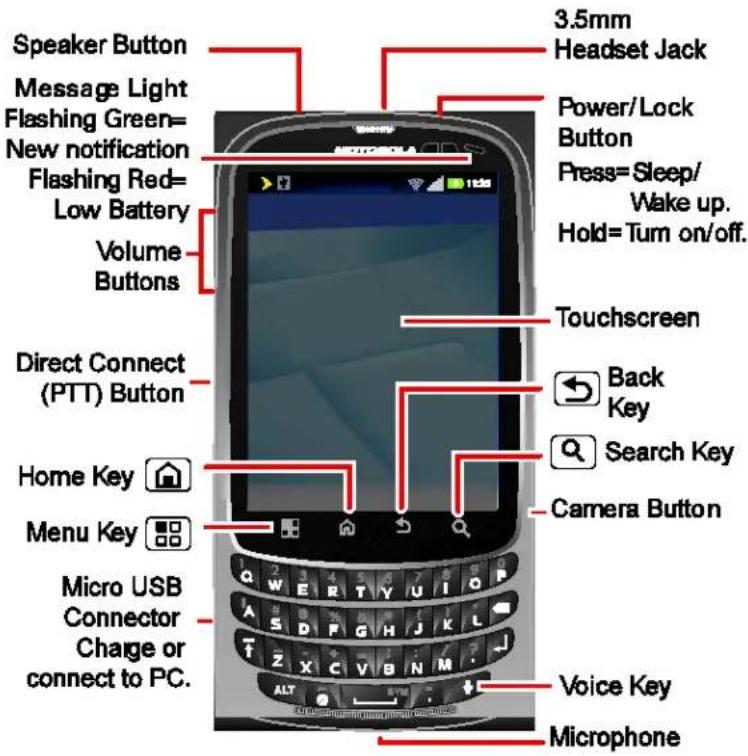
Set Up Your Phone
You must first install and charge the battery to begin setting up your phone.
- Install the battery.
■ Remove the battery from its packaging
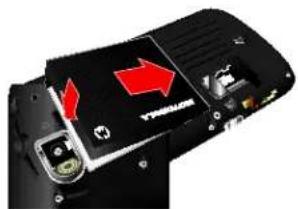
- Insert the battery into the opening in the back of the phone, making sure the connectors align. Gently press down to secure the battery.
natural_image
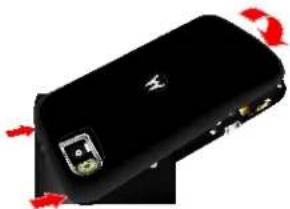
Close-up of a black electronic device with red arrows pointing to internal components (no visible text or symbols)- Position the battery cover over the battery compartment and press down until you hear a click.
natural_image
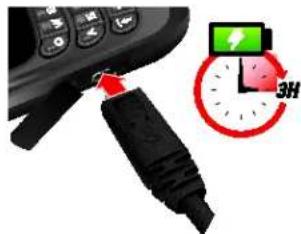
Black handheld device with red directional arrows indicating motion or movement (no text or symbols visible)- Charge your battery for at least three hours.
- Press and hold the 🔒 Power/Lock button on top of your phone to turn it on.
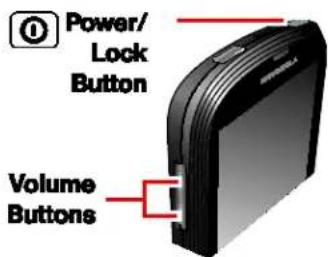
- If your phone is activated, it will turn on, and show some setup instructions.
■ If your phone is not yet activated, see Activate Your Phone for more information.
Note: Please read the battery use and safety text in the important legal and safety information packaged with your phone.
Activate Your Phone
Depending on your account or how and where you purchased your phone, it may be ready to use or you may need to activate it for your Sprint account.
- If you purchased your phone at a Sprint Store, it is probably activated and ready to use.
- If you received your phone in the mail and it is for a new Sprint account or a new line of service, it is designed to activate automatically. To confirm your activation, make a phone call.
- If you received your phone in the mail and you are activating a new phone for an existing number on your account, you will need to go online to activate your new phone.
- From your computer's Web browser, go to sprint.com/activate and complete the onscreen instructions to activate your phone.
When you have finished, make a phone call to confirm your activation. If your phone is still not activated or you do not have access to the Internet, contact Sprint Customer Service at 1-888-211-4727 for assistance.
Tip: Do not press the Ⓞ Power/Lock button while the phone is being activated. Pressing it cancels the activation process.
Note: If you are having any difficulty with activation, contact Sprint Customer Service by calling 1-888-211-4727 from any other phone.
Complete the Setup Application
After activation and any required updates, your phone should power off and then back on again. After the restart, you'll see a Welcome screen. You can then complete the Setup steps.
-
Touch the Android ^™ icon to begin the setup application. Follow the prompts to set up your phone and accounts.
-
View a tutorial: Touch Begin to see a brief tutorial about getting started.
- Set up your Google™ Account: Create or sign in to your Google account.
- Use Google Location Service™: Touch the check marks to select options.
- Backup and restore: Choose whether or not to back up data with your Google™ account.
Note: You do not need to sign up for a Google™ account to make a phone call. However, to download applications from the Android Market™, you must link your phone to a Google account.
-
Touch Finish setup. You will see a Setup accounts page.
-
Touch an account type (like Email, Facebook™, or Twitter) to set it up. You will need your username and password for each account you set up.
- When you're finished adding accounts, touch Done adding accounts.
Note: To skip account setup and go directly to the home screen, touch Skip from the Welcome page. You can set up accounts in the Accounts settings menu.
Set Up Voicemail
Your phone automatically transfers all unanswered calls to your voicemail, even if your phone is in use or turned off. You should set up your Sprint Voicemail and personal greeting as soon as your phone is activated.
To set up your voicemail:
- Touch 📋 Dialer to open the dial screen, and then touch and hold 1∞ (the number 1 on the dial pad - voicemail) or touch □ > 🌐 Voicemail.
- Follow the system prompts to:
■ Create your password.
- Record your name announcement.
- Record your greeting.
Note: Voicemail Password – Sprint strongly recommends that you create a password when setting up your voicemail to protect against unauthorized access. Without a password, anyone who has access to your phone is able to access your voicemail messages.
For more information about using your voicemail, see Voicemail.
Sprint Account Information and Help
Sprint Account Passwords
Manage Your Account
Sprint Support Services
Sprint Account Passwords
As a Sprint customer, you enjoy unlimited access to your personal account information, your voicemail account, and your data services account. To ensure that no one else has access to your information, you will need to create passwords to protect your privacy.
Account User Name and Password
If you are the account owner, you will create an account user name and password when you sign on to sprint.com. (Click Sign in and then click Sign up now! to get started.) If you are not the account owner (if someone else receives the bill for your Sprint service) you can get a sub-account password at sprint.com.
Voicemail Password
You'll create your voicemail password when you set up your voicemail. See Set Up Voicemail for more information on your voicemail password.
Data Services Password
With your Sprint phone, you may elect to set up an optional data services password to control access and authorize Premium Service purchases.
For more information, or to change your passwords, sign on to sprint.com or call Sprint Customer Service at 1-888-211-4727.
Manage Your Account
Manage your Sprint account from your computer, your Sprint phone, or any other phone.
Online: sprint.com
- Access your account information.
- Check your minutes used (depending on your Sprint service plan).
• View and pay your bill.
• Enroll in Sprint online billing and automatic payment.
• Purchase accessories. - Shop for the latest Sprint phones.
• View available Sprint service plans and options. - Learn more about data services and other products like Sprint Picture Mail, games, ringers, screen savers, and more.
From Your Sprint Phone
- Touch 📋 4 go to check minute usage and account balance.
- Touch * 3 DEF to make a payment.
- Touch 📋 → to launch SprintZone, with access to account information, phone details, tips and tricks, and more. To contact Sprint Customer Service, touch Call Sprint.
From Any Other Phone
• Sprint Customer Service: 1-888-211-4727.
• Business Customer Service: 1-888-788-4727.
Sprint Support Services
Sprint 411
Sprint 411 gives you access to a variety of services and information, including residential, business, and government listings; movie listings or showtimes; driving directions, restaurant reservations, and major local event information. You can get up to three pieces of information per call, and the operator can automatically connect your call at no additional charge.
There is a per-call charge to use Sprint 411, and you will be billed for airtime.
Touch 4 GHI 100 100
Sprint Operator Services
Sprint Operator Services provides assistance when you place collect calls or when you place calls billed to a local telephone calling card or third party.
▶ Touch 0+
For more information or to see the latest in products and services, visit us online at sprint.com.
Phone Basics
Your Phone's Layout
Turn Your Phone On and Off
Turn Your Screen On and Off
Touchscreen Navigation
Your Home Screen
Status Bar
Enter Text
Tip: Phone Software Upgrades – Updates to your phone’s software may become available from time to time. Sprint will automatically upload critical updates to your phone. You can also use the menu to check for and download updates. Touch Menu > Settings > About phone > System updates > Update Motorola Software to search for and download available updates.
Your Phone's Layout
- Camera Button opens your camera to take photos or videos.
- Search Key opens a Google™ search screen so you can search the Web.
- Back Key lets you return to the previous screen.
- Touchscreen lets you display all the information needed to operate your phone, such as the call status, the Contacts list, the date and time, and the signal and battery strength.
- Power/Screen Lock Button: turn the phone on or off or put the display to sleep.
- 3.5 mm Headset Jack allows you plug in either a stereo headset (included) or an optional headset for convenient, hands-free conversations.
CAUTION! Inserting an accessory into the incorrect jack may damage the phone.
Turn Your Phone On and Off
Turn Your Phone On
▶ Press and hold the Ⓞ Power/Lock button.
Once your phone is on, it may display "Searching for Service." When your phone finds a signal, it enters standby mode—the phone's idle state. At this point, you are ready to begin making and receiving calls.
If your phone is unable to find a signal after 15 minutes of searching, a Power Save feature is automatically activated. When a signal is found, your phone automatically returns to standby mode.
Tip: The Power Save feature conserves your battery power when you are in an area where there is no signal.
Turn Your Phone Off
▶ Press and hold the Ⓞ Power/Lock button to open the phone options menu. Touch Power off to turn the phone off.
Your screen remains blank while your phone is off (unless the battery is charging).
Turn Your Screen On and Off
Turn the Screen Off When Not in Use
▶ To quickly turn the screen off, press the Ⓞ Power/Lock button. Pressing it again on receiving an incoming call will turn on your phone screen and show the lock screen.
To save battery power, the phone automatically turns off the screen after a certain period of time when you leave it idle. You will still be able to receive messages and calls while the phone's screen is off.
Turn the Screen On and Unlock It
-
To turn the screen on, press the Ⓞ Power/Lock button.
-
Drag the lock 🔒 to the right to unlock the screen.
- If you have set up a screen lock, you will be prompted to draw the pattern or enter the password or PIN. See Set Up Screen Lock.
Touchscreen Navigation
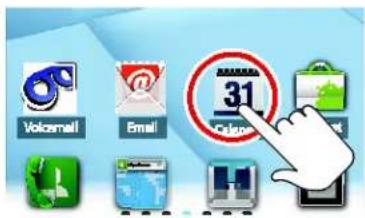
Touch
To choose an icon or option, touch it.
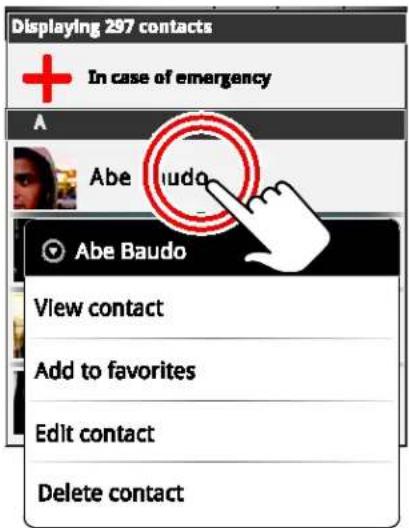
Touch and Hold
To open special options, touch and hold an icon or other item. Try it: In the home screen, touch □ > 🙏 Contacts, and then touch and hold a contact to open options.
Drag
To scroll through a list or move slowly, drag across the touchscreen. Try it: In the home screen, touch □ > 📁 Contacts, and then drag your Contacts list up or down.
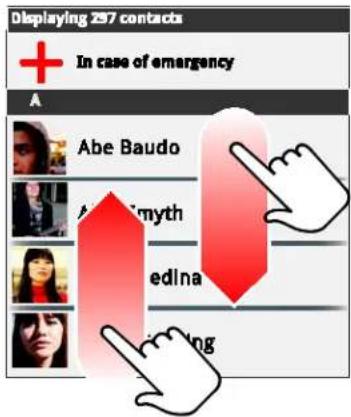
Tip: When you drag or flick a list, a scroll bar appears on the right. Drag the scroll bar to move the list to a letter A - Z.
Flick
To scroll through a list or move quickly, flick across the touchscreen (drag quickly and release).
Tip: When you flick a long list, touch the screen to stop it from scrolling.
Zoom
Get a closer look at maps or Web pages. To zoom in, double-touch the screen. To zoom out, double-touch the screen again.
You can also zoom in or out by pinching your fingers together or moving them apart on the screen.
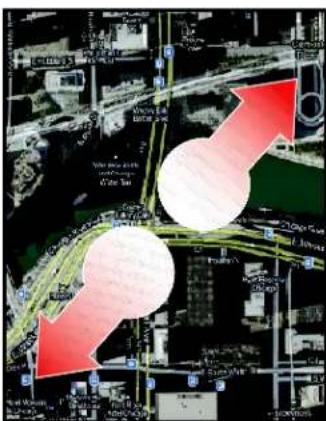
To zoom, touch with two fingers, then move them apart.
Phone Covers
Your touchscreen might stay dark during calls if the sensor just above it is covered. Don't use covers or screen protectors (even clear ones) that cover this sensor.
Screen protectors can also interfere with touchscreen performance.
Your Home Screen
The home screen is the starting point for your phone's applications, functions, and menus. You can customize your home screen by adding application icons, shortcuts, folders, widgets, and more. Your home screen extends beyond the initial screen. Swipe the screen left or right to display additional screens.
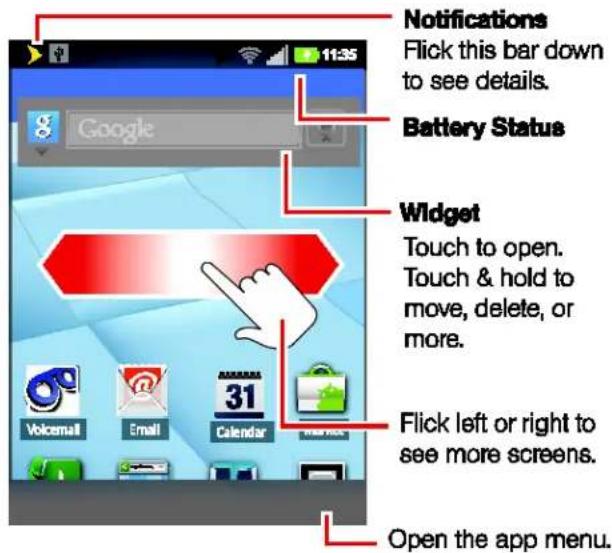
Note: Your home screen might look a little different.
Customize the Home Screen
Add Items to the Home Screen
- Touch and hold an empty area on a home screen. (If the current home screen doesn't have room, swipe the screen left or right to display an extended screen.)
- On the Add to Home screen menu, touch the type of item you want to add and then select the item.
- Widget: Add widgets to a screen such as a clock, calendar, mail, people, Wi-Fi and Bluetooth® toggles, social networking apps, and more.
- Shortcut: Add shortcuts to applications, bookmarks, contacts, settings, and more. Touch a category and then touch the item you want to add.
- Folder: Add a folder where you can organize screen items. Add a shortcut to all your contacts, contacts with phone numbers, or starred contacts. Contact details are automatically updated when there are changes in the source.
- Wallpaper: Select a wallpaper source from your picture gallery, Sprint ID wallpapers, live wallpapers, or other preloaded options.
Move or Remove Items on the Home Screen
▶ Touch and hold the item you want to move or remove from the home screen.
■ To move the item, drag it to a new area and release it.
- To remove the item, drag it to the Trash icon at the top of the screen and release it.
Extended Home Screens
In addition to the main home screen, your phone has six more home screens to provide more space for adding icons, widgets, and more. Touch Home 📋 and then drag across the screen to move from the main screen to an extended screen.
- You cannot add more screens.
- While on an extended screen, touch Home 📋 to return to the main home screen.
To go directly to a particular screen:
-
From the main home screen, you can touch Home 🔒 to show thumbnails of all screens.
-
Touch the screen you want to open.
App Menu
The app menu shows you all of your applications. To open it from the home screen, touch
Recent Apps
Touch and hold Home 📄 to see the last few apps you used, and then touch the app you want. Touch Home 🔒 to return to the home screen.
Widgets
A widget is small app on the home screen that displays information, such as weather, news, and social networking updates. You can add a widget, such as a clock, music player, or a calendar that shows upcoming appointments. To open a widget, touch it.
Creating Widgets
- Find an empty spot on your home screen where you want to add a widget. You can flick left or right to open other panels on your home screen.
- Touch and hold the empty spot until you see the Add to Home screen menu.
- Touch Motorola widgets or Android widgets.
- Touch the type of widget. If necessary, enter the widget settings.
Tip: You can change a widget's size. Just touch and hold the widget. When the widget's outline turns white, drag one of the corners to make it the size you want.
Note: If you install apps from Android Market™ that have widgets, touch and hold the home screen, and then select a widget to add to the home screen.
Setting Up Widgets
You can customize some widgets. Touch a widget to open it, and then touch Menu 📄. You may already have several useful widgets on your home screen:
- Messages: Change the widget name or choose how long it shows new messages. To add email accounts, see Setting Up Messaging Accounts.
- Music: Set this widget to an artist, album, or song, playlist. For more information, see Music.
- News: Change the widget name, choose how long it shows new stories, or choose a news source. To choose a source, touch + Add, and then choose preset Bundles or Channels, or choose Custom to enter a URL for a Webpage or an RSS feed.
- Weather: Change temperature units or add locations. To add locations, touch + Add, enter a city, and touch 🔒 Search. When you open the weather widget, flick left to see other locations you added.
Search
▶ Touch Search 🔒 Search to start a Google™ Search.
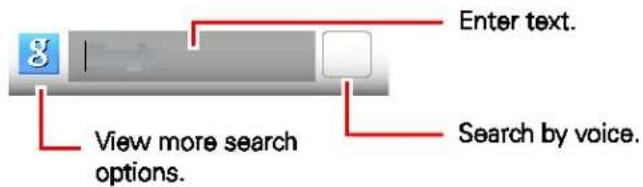
Note: You can also use the Voice search key on the keyboard.
Status Bar
Your phone's display provides information about your phone's status and options. This list identifies some of the symbols you'll see: To view notification alerts, touch the status bar and drag it down.
Status Icons
| Icon | Description |
| Bluetooth®active | |
| GPS active | |
| Wi-Fi active | |
| downloading | |
| vibrate mode | |
| silent mode | |
| mute call | |
| speakerphone active | |
| network (full signal) | |
| network (roaming) | |
| 3G (data service) | |
| airplane mode | |
| sync active | |
| alarm set | |
| [8SHX] | battery (charging) |
 | battery (full charge) |
 | DC Connect active |
| [CHBW] | DC alert or invite |
To view notification alerts, touch the status bar and drag it down.
Enter Text
You can type on your phone's QWERTY keyboard or touchscreen keyboard.
QWERTY Keyboard
Touchscreen Keyboards
Tips for Editing Text
QWERTY Keyboard
Tip: When you type, your phone suggests words for you. You can turn this on or off or explore other options by touching Menu > Settings > Language & keyboard.
Note: When you're entering text, press the Voice Key to begin voice recognition dictation.
Touchscreen Keyboard
Certain applications let you use a touchscreen keyboard in landscape mode. Touch a text field to open a touchscreen keyboard when your phone is in landscape mode. Touch Back ↩ to close it.
To move the cursor, touch where you want to move it.
Multi-Touch Keyboard
Use the touchscreen keyboard to enter letters one at a time.
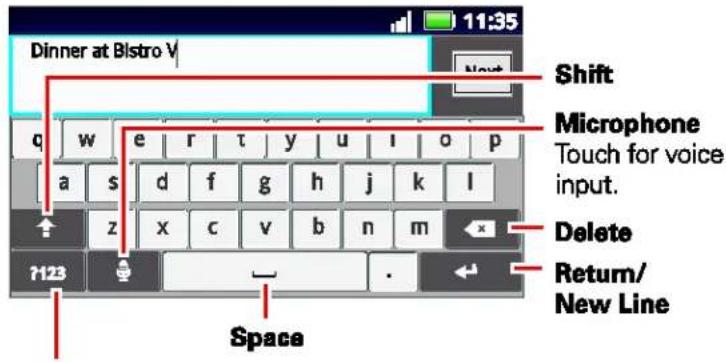
Letters/Numbers
Touch to open a keypad for symbols or numbers.
Tips for Editing Text
| To... | |
| Enter alternate characters | To enter characters appearing at the top of the keys (including numbers), press ALTALTon the keyboard or touch ?123 on the multi-touch keyboard. |
| Enter one capital letter | Touch Shift. |
| Enter only capital letters, until you touch Shift again | Touch Shift twice. Touch again to revert to lowercase. |
| Select text | Touch and hold text to select it.Or, when viewing a Web page or received message, touch and hold text until you see two bookend cursors. Drag the cursors to either end of the text to select. Touch the selected text for more options. |
| Cut or Copy selected text | Touch and hold text, then touch Select word or Select all.Touch and hold again, then select Cut or Copy. |
| Move the cursor | Touch where you want to move the cursor. When you see a red icon, drag it to where you want the cursor. |
| Paste cut or copied text | Touch and hold location to paste, then touch Paste. |
| Delete a character (hold to delete more) | Touch [IMAGE]. |
Auto-Correction
As you type, your phone suggests words from your dictionary and chosen language.
Your phone also automatically enters apostrophes in some words, like "dont." You can also touch two keys at the same time, such as Shift with a letter.
Text Input Settings
▶ Touch Menu > Settings > Language & keyboard.
Phone
With the Sprint National Network and your phone's phone, you can enjoy clear calling across the country.
Make Phone Calls
Receive Phone Calls
Phone Call Options
Making a Conference Call
Make Phone Calls
There are several convenient ways to place calls from your phone.
Call Using the Phone Dialer
Call from Call log
Call from Contacts
Call from Favorites
Call a Number in a Text Message
Call Emergency Numbers
Call Using the Phone Dialer
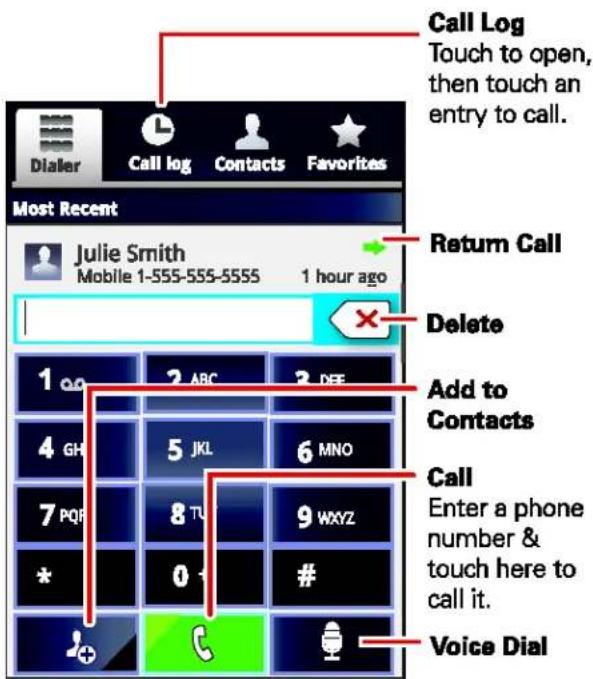
From the home screen, touch 📁 Dialer, enter a number using the dialpad, and touch 📋 Call.
Call from Call log
▶ To see recent or missed calls, touch 📋 Dialer > Call log.
- To call a number, touch Call.
- To send a text message, touch and hold an entry, and then select Send text message.
- To clear the list, touch Menu > Clear list.
Call from Contacts
- Touch □. > 📷. Contacts
- Touch a contact, and then touch Call [number type] (for example, Call work).
Call from Favorites
▶ Touch 🎨 Dialer > Favorites.
- To call a number, touch 📋 Call on the right. If necessary, select the type of number.
- To send a text message, view a contact, or other options, touch an entry.
Call a Number in a Text Message
- With the message open, touch the number.
- When the dialer screen opens, touch 📋 Call.
Call Emergency Numbers
Note: Your service provider programs one or more emergency phone numbers (such as 911 or 112) that you can call under any circumstances, even when your phone is locked. Emergency numbers vary by country. Your pre-programmed emergency number(s) may not work in all locations, and sometimes an emergency call cannot be placed due to network, environmental, or interference issues.
- Touch 📄 Dialer. (If your phone is locked, touch Emergency Call.)
- Enter the emergency number (for example, 911).
- Touch 📞 Call to call the emergency number.
Note: Your mobile phone can use GPS and AGPS signals to help emergency services find you.
Enhanced 911 (E911) Information
This phone features an embedded Global Positioning System (GPS) chip necessary for utilizing E911 emergency location services where available.
When you place an emergency 911 call, the GPS feature of your phone seeks information to calculate your approximate location. Depending on several variables, including availability and access to satellite signals, it may take up to 30 seconds or more to determine and report your approximate location.
Important: Always report your location to the 911 operator when placing an emergency call. Some designated emergency call takers, known as Public Safety Answering Points (PSAPs) may not be equipped to receive GPS location information from your phone.
Receive Phone Calls
Answer an Incoming Call
To answer a call while the display is active, touch Answer Answer. When the display is not active, answer by dragging the Unlock icon to the right.
Mute the Ringing Sound
▶ To mute the ringer without rejecting the call, press the volume button down.
Reject an Incoming Call
▶ To ignore a call, touch Ignore.
When you ignore a call, you can automatically send a text message to the caller. See Text Message Reply.
Phone Call Options
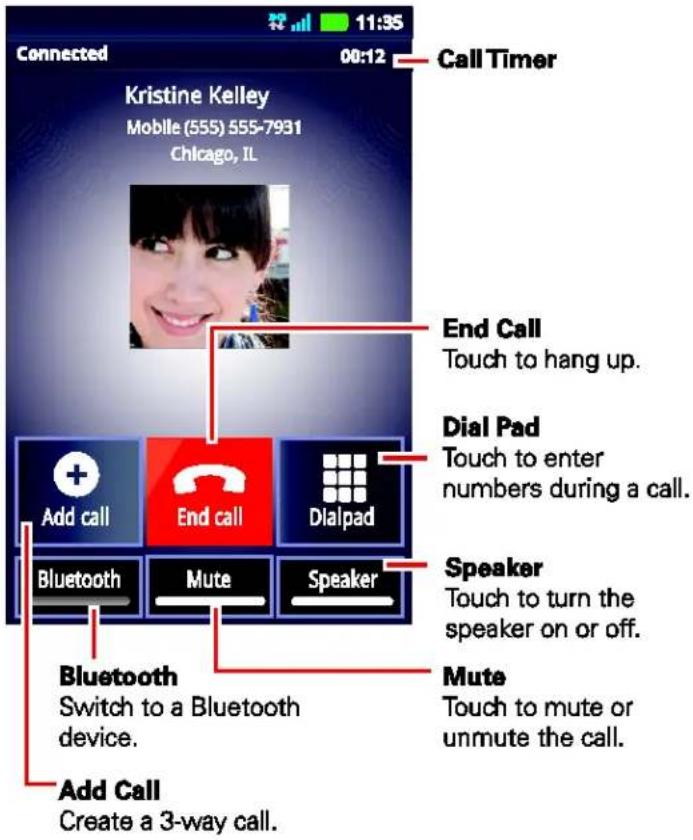
During a call:
- To use a Bluetooth ^® device, touch Bluetooth. (First, turn on your phone and pair it. See Connect New Devices.)
• To mute a call, touch Mute.
• To use the speakerphone, touch Speaker.
Note: Using a mobile phone or accessory while driving may cause distraction and may be illegal. Always obey the laws and drive safely.
Note: Your phone includes a proximity sensor. When you hold the phone to your ear, the display goes dark to prevent accidental touches. When you move your phone away from your ear, the display lights up again.
Tip: You can touch Home 📋 or Back 📋 leave the active call display. To reopen it, touch Home 📋 > 🎨 Dialer > Return to call in progress.
Making a Conference Call
With 3-way calling, you can talk to two people at the same time. When using this feature, the normal airtime rates will be charged for each of the two calls.
▶ To start a conference call, call the first number. After the call connects, touch Add Call. Dial the next number, or select it from contacts or favorites. When the next number answers, touch Merge calls.
Your Direct Connect Number
Make Direct Connect Calls
Answer Direct Connect Calls
End a Direct Connect Call
Use Call Alerts
Set Direct Connect Permissions
Add Direct Connect Widget to Home Screen
Use Group Connect
Direct Connect Settings
TeamDC ^SM
Sprint Mobile Sync
Sprint Direct Connect offers instant, two-way push-to-talk (PTT) communication between you and your family, friends, and co-workers, all at the click of a button. Perfect for get-in/get-out conversations such as checking status, getting information, getting directions or coordinating with others—fast. And Call Alert sends a repeating alert to other Direct Connect subscribers to let them know you want to reach them.
Your Direct Connect Number
Your Direct Connect number may be the same as your phone number (for example, 555-555-1234) or it may be a separate number comprising three sets of digits separated by asterisks (for example, 444*5555*111).
If you have a separate Direct Connect number, callers will have to enter the asterisks when placing a Direct Connect call.
To find your Direct Connect number:
▶ Touch 🧑 Dialer > 🖱 Contacts > Menu 📁 > More > My info. Your Direct Connect number will be listed.
Dial Direct Connect Numbers
- If the person you are calling has a separate number for Direct Connect, make sure you dial any asterisks (*) in the number. If you are saving the number in your Contacts, choose DC for the phone type.
- If the person you are calling has a single number for both voice calls and for Direct Connect, use that 10-digit phone number to make Direct Connect calls. You do not need to add any asterisks (*) to the number. If you are saving this number in your contacts, choose Mobile for the phone type.
Tip: Users with Nextel phones must add asterisks (*) between sets of numbers to dial Direct Connect numbers. Make sure to tell your contacts with Nextel phones to dial the 10-digit number using asterisks (*) in place of hyphens (for example, 555*555*1234). To easily ensure that your contact has your correct number, call them so that they can save your number.
Make Direct Connect Calls
Make a Direct Connect Callby Entering a Number
-
Touch 📄 Dialer to enter a Direct Connect number.
-
The Direct Connect number may be the 10-digit wireless phone number of the person you are calling. -or-
-
If calling a Nextel Direct Connect customer, or a Sprint customer with a unique DC number, the Direct Connect number will have three parts with an asterisk between each part (for example: 444*5555*111). When dialing or saving this type of number, always include the asterisks *.
-
Press and release the Direct Connect button on the side of your phone.
-
Pressing and releasing the Direct Connect button “pings” the recipient. The recipient’s phone emits an incoming tone and displays your name or number. If available, he or she can choose to respond and begin the conversation.
-
Alternately, you can hold the button and speak after you first press and hear the tone. In this case, your voice will be broadcast instantly over the recipient's speaker. Pinging the recipient's phone by pressing and releasing may avoid unintentional interruptions.
-
After the call has been accepted:
-
Wait for your recipient's information to appear onscreen.
-
Press and hold the Direct Connect button.
-
Wait for a tone to sound and “Press DC Button to Talk” to appear onscreen before you begin talking.
- Release the Direct Connect button to listen.
- Touch End Call to end the call.
Tip: All Direct Connect calls end automatically if there is no activity on the call for several seconds.
Note: To display your Direct Connect number, touch □. > Contacts > Menu □□ > More > My info.
Make a Direct Connect Call from Contacts
- Touch □ > Contacts.
- Touch a contact to select it.
- Touch the entry's Direct Connect-capable number.
- If they have a unique DC number, touch Direct Connect.
- If they use their mobile number, touch Direct Connect mobile.
- Press and release the Direct Connect button to make the Direct Connect call.
Make a Direct Connect Call from History
-
Touch Dialer > Call Log.
-
Select a Direct Connect entry and press and release the Direct Connect button.
In-Call Features
- Single Number option: Use one number for both mobile and Direct Connect calls. All subscribers can opt to maintain a unique number for Direct Connect if preferred. Contact Sprint for details.
- DC Missed Call Notification: Alerts you when you miss a push-to-talk call while on a Direct Connect or group push-to-talk call.
- DC Permissions: Block or allow incoming calls and alerts from select users. See Set Direct Connect Permissions:
- Blocked DC Numbers: You can specify which Direct Connect numbers to block, while allowing all others by creating a block list.
- Allowed DC Numbers: You can specify which Direct Connect numbers to allow, while blocking all others by creating an allow list.
- In-Call Status Details: When in a group call, you can see a full list of the members of the group and their current statuses, even members who have declined to join the call, joined late, or left early.
- Talk Indicator: See who is speaking and when you can speak during a push-to-talk call.
- Availability notification: You can request the availability status of another push-to-talk user. When the user is available to participate in a push-to-talk call, you receive a notification. When a push-to-talk call is unsuccessful due to the recipient being engaged in another push-to-talk call, you can select to be notified by a ring back tone when your recipient is available.
- Guaranteed Talk Permit: If you hear the push-to-talk chirp, you can be assured that your call was transmitted to the other party successfully.
Answer Direct Connect Calls
When you receive a Direct Connect call, you hear an incoming tone or the phone vibrates, if your phone is in vibrate mode. The Direct Connect number and the caller's name (if available) will appear on your screen. Speakerphone is turned on by default for Direct Connect calls, so you may also hear the caller's voice.
You can turn the speakerphone off and listen to Direct Connect calls through the earpiece as you would a regular call or you can listen through a headset.
- Press the speakerphone button to either enable or disable the Direct Connect speakerphone feature.
- Accept the incoming call by pressing the Direct Connect button. If available, the caller's name and Direct Connect number appear on the display.
- When the caller has finished speaking, a tone sounds and Push DC button to talk appears on the screen.
- Press and hold the Direct Connect button and wait for a tone to sound and a message ("Talking") to appear onscreen. Continue the Direct Connect call as described previously.
End a Direct Connect Call
Do nothing; the call will automatically end after several seconds if the Direct Connect button is not pressed by either party.
—or—
▶ Touch End Call.
Tip: Quieting incoming calls and increasing your privacy. When you are in an area where incoming Direct Connect calls may disturb others or if you want to increase the
privacy of your calls, set your speakerphone to Off and your ringer to vibrate. When the speakerphone is off, Direct Connect calls use the phone's earpiece and microphone, while still utilizing the Direct Connect button. You can also use an earbud or other hands-free device.
Use Call Alerts
Notify someone that you want to communicate with them using Direct Connect. You can send a Call Alert to any other Direct Connect subscriber nationwide. When you receive a Call Alert, pressing the Direct Connect button connects a Direct Connect call directly.
Send a Call Alert
- Enter a Direct Connect number or select a number from Call Log or Contacts.
- Touch Send Call Alert.
- Press the DC button on the side of your phone to start the alert.
Note: Call Alerts continue to repeat for a set amount of time (default is 5 minutes) or until the recipient returns the call or dismisses the alert. You can adjust the time by touching Menu > Settings > Sound > Call Alert and Invites.
Send a Call Alert With Text Message
With the new text feature you can send preset text messages with a call alert to a subscriber with a Direct Connect-capable Sprint phone.
- Enter a Direct Connect number or select a number from Call log or Contacts.
- Touch Call Alert.
- Touch Add Text and select a preset message.
- Press the DC button on the side of your phone to start the alert.
Reply to a Call Alert
▶ With the Call Alert displayed, press and hold the Direct Connect button to return the call.
To dismiss a Call Alert:
▶ Touch Dismiss.
Set Direct Connect Permissions
- Touch Menu > Settings > Call settings > Direct Connect Settings > Permissions settings.
-
Touch Permissions type and select:
-
Block List: Accept all Direct Connect calls, except those from numbers I block.
-
Allow List: Reject all DC calls, except those from numbers I allow.
-
Touch either Block list or Allow list to add contacts to either.
Tip: You can also allow or block numbers directly from the Contacts list or Call log.
Add Direct Connect Widget to Home Screen
You can add a One Touch DC widget to your home screen. Then, set which action you want One Touch DC to open.
- Touch and hold an empty spot on your home screen.
- Touch Motorola widgets > One Touch DC.
- From the home screen, touch Menu > Settings > Call settings > Direct Connect.
-
Touch One Touch DC and select the feature you want the widget to open:
-
Off: Turn off One Touch DC.
- Launch DC Contact List: Open your contact list.
- Launch DC Call log list: Open your call log.
- DC selected contact: Choose a contact from your contact list to call every time.
- DC most recent number: Always call the most recent number called.
Use Group Connect
Communicate or coordinate activities with up to 20 other Sprint Direct Connect subscribers all at once. You can make a Group Connect call in several different ways:
- Set up a Group contact on your phone.
- Use the Sprint Mobile Sync tool available at sprint.com.
- Select or enter multiple numbers for a one-time call.
(For information on creating Groups and storing them in Contacts, see Make Groups.)
Important: When making a Group Connect call or creating a group list in Contacts, you must select an entry's Direct Connect-capable number. If you select a non-Direct Connect-capable number, the name will be added to the list, but Group Connect calls will not go through to that group member.
Make Group Connect Calls
You can make a group call by selecting saved groups from your Contacts, selecting from group calls saved in Call Log or by creating a group.
Note: When making a Group Connect list, make sure you select the Direct Connect number for each contact you add.
Make an Ad-Hoc Group Connect Call
To make an ad-hoc group to call now:
- Touch □ > Contacts > Groups.
- Touch Add.
- Touch Group Connect.
- Add members from Contacts, Recent, or Favorites, or use the dialpad to enter a number.
- Enter a name for your group and touch Ok.
- To call the group, touch it, and then press the Direct Connect button.
Make a Group Connect Call Without Saving It
To make a one-time group call:
- Touch □ > Contacts > Groups > Add.
- Touch Group Connect.
- Add members from Contacts, Recent, or Favorites, or use the dialpad to enter a number.
- To call the group, press the Direct Connect button.
Make a Group Connect Call From Contacts
- Touch □ > Contacts > Groups.
- Select a Group that contains Direct Connect contacts and press the Direct Connect button to begin the Group Connect call.
Note: Only one person at a time may speak on any Direct Connect or Group Connect Call.
Make a Group Connect Call from Call Log
Tip: You can also use these steps to re-join a group call if you're dropped from it.
-
Touch 🖼 Dialer > Call log.
-
Select a Group Connect call entry and press the Direct Connect button.
Send an Invitation to Join a Group Call
A group invitation is similar to Group Connect, but requires members to accept or decline invitations to an active call. Sending an invitation is more courteous than automatically broadcasting the call to each member's phone.
-
Touch □ > Contacts > Groups.
-
Select the group and touch Menu 📁 > Send invite.
—or—
Touch and hold the group's thumbnail picture for these quick options.
- Call the group with a normal Direct Connect call.
Send the group invitation.
Send the invitation via text message.
Edit Groups
-
Touch □ > Contacts > Groups.
-
Select the group you want to edit and touch Menu ☐ for these options:
-
Send invite: Send an invitation to the group to join a call.
- Send text: Send a text message to the entire group.
- Edit group: Change the group name.
- Add member: Add a member.
-
Delete group: Delete the group. (Individual contacts are not removed from your phone.)
—or— -
Touch and hold the group name for these options:
■ View group: View details and members.
- Add to favorites: Add the group to your favorites list.
- Edit group: Change the group name.
- Delete group: Delete the group. (Individual contacts are not removed from your phone.)
Direct Connect Settings
You can change settings for Direct Connect.
From the home screen, touch Menu ☐ > Settings > Call settings > Direct Connect Settings to select a setting.
- Direct Connect: Turn on Direct Connect.
- Permissions settings: Set up or edit your block/allow list of contacts.
- Resume DC: Turn on a timer to resume a DC call.
- One Touch DC: Set the feature to open when you press the DC button in standby mode.
- DC button light: Light up the DC Button (on the side of the phone) when you are in a DC call.
- Group Call Options: Set whether to end group calls that you initiate or allow the call to continue when you hang up.
TeamDC ^SM
Communicate or coordinate activities with up to 200 other Sprint Direct Connect subscribers at the same time, nationwide, quickly and easily. Create and manage groups online only. TeamDC group lists are sent to all members of the group, as are updates, so anyone can start or join a TeamDC call with their group. All TeamDC participants must also have a Direct Connect-capable Sprint phone. For details, visit sprint.com.
Sprint Mobile Sync
Visit sprint.com for this easy-to-use online tool for contact and group management, address book synchronization between online and phone, secure contact backup and automatic contact transfer when you change to a Sprint Direct Connect-capable phone.
Phone Settings
Wireless & Network Settings
Call Settings
Sound Settings
Display Settings
Battery & Data Manager Settings
Location & Security Settings
Account Settings
Applications Settings
Privacy Settings
Storage Settings
Language & Keyboard Settings
Voice Input & Output Settings
Accessibility Settings
Date & Time Settings
About Phone
Wireless & Network Settings
Control your phone's wireless network settings, Wi-Fi, Bluetooth, roaming, and more.
▶ Touch Menu > Settings > Wireless & networks.
Airplane Mode
Wi-Fi Settings
Bluetooth® Settings
Tethering & Wi-Fi Hotspot Settings
VPN Settings
Mobile Network Settings
Phone Settings 33
Airplane Mode
Airplane Mode turns off all your wireless connections and allows you to use many of your phone's features when you are in an airplane or in any other area where making or receiving calls or data is prohibited. When you set your phone to Airplane Mode, it cannot send or receive any calls or access online information.
▶ Press and hold 🔒 Power/Lock button and touch Airplane mode.
—or—
Touch Menu > Settings > Wireless & networks > Airplane mode.
Add the Airplane Mode Widget
Add the Airplane Mode widget to the home screen to make it faster to turn Airplane Mode on or off.
- Touch and hold an available spot on one of the home screens.
- Touch Motorola Widgets > Airplane mode toggle.
Wi-Fi Settings
Your phone lets you take advantage of Wi-Fi hotspots for high-speed data access using available computer networks. For details on your phone's Wi-Fi features and settings, see Wi-Fi.
▶ Touch Menu 📋 > Settings > Wireless & networks > Wi-Fi settings to access the Wi-Fi settings menu.
Bluetooth® Settings
Your phone's Bluetooth capabilities let you use wireless headsets, send and receive pictures and files, and more. For details on your phone's Bluetooth settings, see Bluetooth® Connections.
▶ Touch Menu 📁 > Settings > Wireless & networks > Bluetooth settings to access the Bluetooth settings menu.
Tethering & Mobile Hotspot Settings
Share your phone's mobile data connection via USB or as a Mobile Hotspot.
▶ Touch Menu > Settings > Wireless & networks > Tethering & Mobile Hotspot to access the USB Tethering & Mobile Hotspot settings menus.
VPN Settings
You can set up a Virtual Private Network (VPN). Select either basic or advanced options.
▶ Touch Menu 📁 > Settings > Wireless & networks > VPN settings to access the VPN settings menu.
Mobile Network Settings
Set options for roaming or change your CDMA subscription. For more about roaming and data guard, see Roaming.
▶ Touch Menu 📁 > Settings > Wireless & networks > Mobile networks to access the Mobile network settings menu.
Call Settings
Your phone's Call Settings menu lets you configure your voicemail options and a number of other settings for the phone application.
Direct Connect Settings
Voicemail Settings
Other Call Settings
Direct Connect Settings
▶ Touch Menu 📁 > Settings > Call settings > Direct Connect Settings to access the Direct Connect settings menu.
For more about Direct Connect push-to-talk settings, see Sprint Direct Connect.
Voicemail Settings
▶ Touch Menu 📄 > Settings > Call settings > Voicemail settings to access the voicemail settings menu.
For more about voicemail, see Voicemail.
Other Call Settings
Plus Code Dialing
To select the plus code for domestic dialing or set an international dialing code, touch Menu > Settings > Call settings > Plus Code Dialing > Domestic Dialing or International Dialing.
Caller ID Readout
Your phone can read out your incoming caller's name.
▶ Touch Menu > Settings > Call settings > Caller ID Readout and select Ring only, Caller ID then Ring, or Caller ID repeat.
Auto Retry
Select whether to automatically redial if the call fails to connect.
Phone Settings 35
▶ Touch Menu [icon] > Settings > Call settings > Auto Retry.
TTY Mode
A TTY (also known as a TDD or Text Telephone) is a telecommunications device that allows people who are deaf, hard of hearing, or who have speech or language disabilities to communicate by telephone.
Your phone is compatible with select TTY devices. Please check with the manufacturer of your TTY device to ensure that it is compatible with digital cell phones. Your phone and TTY device will connect via a special cable that plugs into your phone's headset jack. If this cable was not provided with your TTY device, contact your TTY device manufacturer to purchase the connector cable.
To turn TTY Mode on or off:
▶ Touch Menu 📁 > Settings > Call settings > TTY mode and select an option.
For additional information about Sprint Relay Services and TTY compatibility, call Sprint Relay Customer Service at 800-676-3777 or visit sprintrelay.com.
Warning: 911 Emergency Calling
Sprint recommends that TTY users make emergency calls by other means, including Telecommunications Relay Services (TRS), analog cellular, and landline communications. Wireless TTY calls to 911 may be corrupted when received by public safety answering points (PSAPs), rendering some communications unintelligible. The problem encountered appears related to software used by PSAPs. This matter has been brought to the attention of the FCC, and the wireless industry and the PSAP community are currently working to resolve this.
HAC Mode Settings
If you wear a hearing aid, select this setting for compatibility.
▶ Touch Menu >Settings >Call settings >HAC Mode Settings.
Auto Answer With Headset
Your phone can automatically answer incoming calls when you are wearing a headset.
▶ Touch Menu >Settings >Call settings >Auto answer on headset >On.
Text Message Reply
When you Ignore an incoming call, your phone can automatically send a text message to the caller.
- Touch Menu >Settings >Call settings >Text message reply.
- To edit the outgoing message, touch Menu ☐ > Settings > Call settings > Text message reply > Edit messages.
Voice Privacy
Enable enhanced privacy mode to make it harder for devices to pick up your frequency.
▶ Touch Menu >Settings >Call settings >Voice privacy.
Sound Settings
General Sound Settings
Silent Mode
▶ To silence all sounds except media and alarms, touch Menu >Settings >Sound >Silent mode.
Vibrate
▶ To add a vibration to Silent Mode, touch Menu >Settings >Sound >Vibrate.
Vibrate Patterns
▶ To select a vibration pattern, touch Menu >Settings >Sound >Vibrate patterns and select a pattern.
Volume
▶ To set volume for ringtone, media, and alarms, touch Menu > Settings > Sound > Volume.
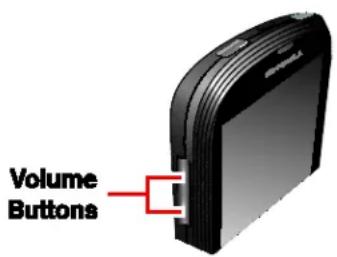
▶ Press the volume buttons to change the ring volume (in the home screen), or the earpiece/speaker volume (during a call or while listening to music).
PTT Sound Settings
DC Calls
▶ To set a ringtone for DC Calls, touch Menu > Settings > Sound > DC Calls.
Call Alerts and Invites
To set the duration, frequency, and ringtone for DC alerts and invites, touch Menu > Settings > Sound > Call Alert and Invites.
Incoming Call Sound Settings
Phone Ringtone
▶ To set a ringtone for incoming phone calls, touch Menu > Settings > Sound > Phone ringtone. Select a ringtone, and touch OK.
Notifications
Notification Ringtone
▶ To set a ringtone for notifications, touch Menu > Settings > Sound > Notification ringtone. Select a ringtone, and touch OK.
Sound Feedback Settings
The Feedback settings menu lets you select whether you hear tones when touching numbers on the dialpad, selecting onscreen options, and more.
• Audible touch tones: Play tones when using the dialpad.
- Audible selection: Play sounds when making an onscreen selection.
- Screen lock sounds: Play sounds when locking or unlocking the screen.
- Haptic feedback: Vibrate when touching keys and during certain other instances.
• SD card notifications: Play sound for SD card notifications.
- Call connect: Set sound emitted when a call is connected.
• Network Lost tone: Play alert when phone loses network coverage.
- Software update alert: Play alert tone for software update notifications.
- Battery Full Notification: Enable charging complete notification sounds.
Display Settings
Adjusting your phone's display settings not only helps you see what you want, it can also help increase battery life.
Brightness
▶ To set display brightness, touch Menu 📁 > Settings > Display > Brightness.
Auto-Rotate Screen
To set the screen to rotate automatically when you rotate the phone from portrait to landscape mode, touch Menu > Settings > Display > Auto-rotate screen.
Animation
▶ To set animation, touch Menu > Settings > Display > Animation.
Note: Some apps are designed so that your phone can “animate” them by rotating, fading, moving, and stretching one or more images.
Screen Timeout
To set the number of minutes before your screen goes dark, touch Menu > Settings > Display > Screen timeout and select the number of minutes or Never timeout.
Note: Longer screen timeout settings increase battery usage.
Default Display Mode
To set the display mode, touch Menu > Settings > Display > Default display mode and select Fit to screen or Scale to full screen height.
Wallpaper Settings
To apply a new wallpaper:
-
Touch and hold an empty spot on your home screen, and then touch Wallpapers.—or— Touch Menu > Settings > Display > Wallpaper settings.
-
Touch Gallery, ID wallpapers, Live wallpapers, or Wallpapers, and choose a wallpaper.
In-Pocket Detection
To automatically lock your phone when you put it in your pocket, touch Menu > Settings > Display > In-Pocket detection.
Battery & Data Manager Settings
Battery Remaining
To see battery usage statistics, touch Menu > Settings > Battery & data manager and touch the picture of the battery.
Warning: Use only Sprint-approved or Motorola batteries and chargers with your phone. The failure to use a Sprint-approved or Motorola battery and charger may
increase the risk that your phone will overheat, catch fire, or explode, resulting in serious bodily injury, death, or property damage.
Sprint-approved or Motorola batteries and accessories can be found at Sprint Stores or through Motorola; or call 1-866-866-7509 to order. They're also available at sprint.com.
Battery Capacity
Your phone is equipped with a Lithium Ion (Li-Ion) battery. It allows you to recharge your battery before it is fully drained.
Your phone warns you with a audible alert when the battery reaches 15% and 5% of its capacity. When there are approximately two minutes of talk time left, the phone plays another alert and then turns off.
Note: Long backlight settings, searching for service, vibrate mode, browser use, and other variables may reduce the battery's talk and standby times.
Tip: Watch your phone's battery level indicator and charge the battery before it runs out of power.
Installing the Battery
See Set Up Your Phone.
Removing the Battery
- Make sure the power is off so that you don't lose any stored numbers or messages.
- Remove the back cover by pulling up from the notch at the bottom, and then remove the battery from the phone.
Warning: Do not handle a damaged or leaking Li-Ion battery as you can be burned.
Charging the Battery
Keeping track of your battery's charge is important. If your battery level becomes too low, your phone automatically turns off, and you will lose any information you were just working on.
Always use a Sprint-approved or Motorola desktop charger, travel charger, or vehicle power adapter to charge your battery.
- Insert the small end of the USB cord into the charger/accessory jack on the left side of your phone.
- Insert the larger end of the USB cord into the AC adapter.
- Plug the AC adapter into an electrical outlet and charge for at least three hours.
With the Sprint-approved Li-Ion battery, you can recharge the battery before it becomes completely run down.
Battery Cool Down
In very limited circumstances, such as where your phone has been exposed to extreme heat, "Cool Down" message screens will appear. To avoid possible damage to your battery and phone, you should follow these instructions until the phone is within its recommended temperature range. When your phone is in "Cool Down" mode, only emergency calls can be made.
Battery mode
To set how your phone uses battery charge, touch Menu > Settings > Battery & data manager > Battery mode and select a preset battery mode (Maximum battery saver, Nighttime saver, or Performance mode), or create your own mode.
Data Saver
When you select Data Saver, your phone uses data more conservatively for Browser, Gallery, Email, and Android Market™ apps.
▶ To turn on Data Saver, touch Menu 📁 > Settings > Battery & data manager > Data saver.
Data Delivery
Choose how and when to sync messages and other data:
-
To set data delivery, touch Menu 📁 > Settings > Battery & data manager > Data delivery.
-
Select data delivery options, including Background data, Data enabled, Email and corporate sync options, and Social applications sync and delivery options.
Location & Security Settings
My Location
Your phone is equipped with a Location feature for use in connection with location-based services.
The Location feature allows the network to detect your position. Turning Location off will hide your location from everyone, except 911.
Note: Turning Location on will allow the network to detect your position using GPS technology, making some Sprint applications and services easier to use. Turning Location off will disable the GPS location function for all purposes except 911, but will not hide your general location based on the cell site serving your call. No application or service may use your location without your request or permission. GPS-enhanced 911 is not available in all areas.
To enable your phone's Location feature:
▶ Touch Menu 📄 > Settings > Location & security and select one or more services to use, such as Use wireless networks or Use GPS satellites.
Security
Set Up Screen Lock
Note: You can make emergency calls on a locked phone (see Call Emergency Numbers). A locked phone still rings, but you need to unlock it to answer.
You can increase the security of your phone by creating a screen lock. When enabled, you have to draw the correct unlock pattern on the screen, enter the correct PIN, or enter the correct password to unlock the phone's control keys, buttons, and touchscreen.
To lock the screen:
-
Press the Ⓞ Power/Lock button on top of the phone.
-
Let the screen time out (don't press anything).
-
Switch the power off.
To unlock the screen, press the Power/Lock button. Then, drag 🔒 the Unlock icon to the right.
Lock Pattern
-
To set the lock pattern, touch Menu > Settings > Location & security > Set up screen lock > Pattern.
-
Follow the instructions to draw your lock pattern, and then touch Continue.
-
When prompted, draw the pattern to unlock the phone, and then touch Confirm.
If you fail to draw the correct unlock pattern on the screen after five attempts, you will be prompted to wait for 30 seconds before you can try again.
PIN Lock
-
Touch Menu □> Settings > Location & security > Set up screen lock > PIN.
-
Enter a numeric PIN, and then confirm it.
-
When prompted, enter PIN to unlock the phone.
Password Lock
-
Touch Menu > Settings > Location & security > Set up screen lock > Password.
-
Enter password, and then confirm it.
-
When prompted, enter the password to unlock the phone.
Disable the Screen Lock
- Touch Menu > Settings > Location & security > Change screen lock > None.
- Draw your unlock screen pattern or enter password or a numeric PIN, and then confirm it.
Forgot Your Pattern or Passcode?
If you forget your pattern, password, or your PIN, contact Sprint.
Security Lock Timer
▶ Touch Menu 📁 > Settings > Location & security > Security lock timer, and then select a length of time your phone is idle before it locks.
Note: Security lock timer is only available if you have a screen lock enabled.
Allow Bluetooth® Bypass
Allow voice commands to be launched via Bluetooth even if your phone is locked.
▶ Touch Menu > Settings > Location & security > Allow Bluetooth bypass.
Manage Restriction Lock
Set a password to restrict access to specific features of your phone: location, calls, messages, and dial-up modem.
- Touch Menu ☐ > Settings > Location & security > Set up restriction lock > Enable restriction lock.
- Touch Change restriction password to set a password.
- Enter the new password and confirm it.
- Touch Manage restriction lock and enter your password.
- Touch Location, Calls, Messages, or Dial-up modem to restrict access to any of these features.
- Touch Back ↩ to return to the previous screen.
Data Encryption
- To encrypt data on your phone, first set up a screen lock (see Set Up Screen Lock).
- Touch Menu > Settings > Location & security > Data encryption.
-
Select Device data encryption to encrypt all personal data on your phone.
-
Select Storage encryption to include files you save on your optional memory card (sold separately) and in phone storage.
- Touch Apply.
Passwords
Select whether to show passwords as you enter them instead of *****.
▶ Touch Menu > Settings > Location & security > Visible passwords.
Device Administration
Activate the device administrator role so that you can have further control over erasing phone data, changing passwords, setting password rules, monitoring failed screen unlock attempts, and locking the screen.
▶ Touch Menu □> Settings > Location & security > Select device administrators.
Credential Storage
Use secure credential information from an SD card.
▶ Touch Menu > Settings > Location & security and select from the following options:
- Use secure credentials: allow apps to access secure certificates and credentials.
- Install from SD card: install credentials from a memory card.
- Set password: set your password for storing credentials.
- Clear storage: clear all credential storage and reset the password.
Certificates
Manage your security certificates:
▶ Touch Menu > Settings > Location & security > Manage trusted certificates.
Account Settings
The Accounts menu lets you add and manage all your email, social networking, and picture and video sharing accounts.
Set Up a New Account
- Touch Menu □> Settings > Accounts > Add account.
- Touch an account type:
■ Corporate Sync, Email, Facebook, Flickr, Google, LastFM, LinkedIn, Orkut, Photobucket, Picasa, Sprint Mobile Sync, Twitter, Windows Live Hotmail, Yahoo! Mail, YouTube.
- Enter your account information and touch Next.
- Depending on the account type, you may need to enter an email address or user address, password, domain name, or other information. For Corporate Sync accounts, contact your server administrator to determine what information you will need.
- Touch Done when you are finished.
Manage Existing Accounts
- Touch Menu □> Settings > Accounts.
- Touch an account to manage its settings.
- Touch a field to edit it.
- Touch Remove account to delete it from your phone.
- Touch Back ↻ when you are finished.
Applications Settings
Unknown Sources
Allow installation of applications from vendors other than Android Market ^™ .
▶ Touch Menu ☐ > Settings > Applications > Unknown sources.
Quick Launch
Set keyboard shortcuts to open your favorite apps.
▶ Touch Menu > Settings > Applications > Quick launch.
Manage Applications
Remove, stop, and manage your apps.
- Touch Menu > Settings > Applications > Manage applications.
- Touch an app for more options.
- To remove an app, touch Uninstall.
- To share it, touch Share.
Running Services
View apps that are currently running.
▶ Touch Menu > Settings > Applications > Running services.
- To stop an app, touch the app and then touch Stop.
Storage Use
View how much storage space apps are using.
▶ Touch Menu 📁 > Settings > Applications > Storage use.
Battery Use
View what has been using the battery charge.
▶ Touch Menu □> Settings > Applications > Battery use.
Development
Set options for app development, such as debugging and more.
▶ Touch Menu 📁 > Settings > Applications > Development.
Double Tap Home Launch
Set what feature you want to open with a double-touch of Home 📄.
▶ Touch Menu > Settings > Applications > Double tap home launch.
Privacy Settings
Backup and Restore
Back Up My Data
Select whether to back up your personal data (passwords and settings) to Google ^™ servers.
▶ Touch Menu > Settings > Privacy > Back up my data.
Automatic Restore
Set whether to automatically restore backed up data if you reinstall an app.
▶ Touch Menu > Settings > Privacy > Automatic restore.
Resetting Your Phone
Selecting Reset phone resets all phone settings back to their default values and clears all information (text messages, contacts, emails, etc.) and downloaded apps.
- Touch Menu □> Settings > Privacy > Factory data reset.
- Select Erase internal storage (media area) or Erase SD card, and then touch Reset Phone.
- Read the prompt and touch Erase everything to complete the reset. (Touch Back ☑ to cancel.)
Warning: All data on your phone will be deleted. (Nothing on your memory card is deleted unless you select Erase SD card.)
Storage Settings
Internal Storage
Format Internal Storage
To format and erase your internal storage.
▶ Touch Menu □> Settings > Storage > Format internal storage.
SD Card
Mount/Unmount SD Card
To insert or remove a memory card:
▶ Touch Menu □> Settings > Storage > Mount/Unmount SD card.
Format SD Card
To format and erase your memory card:
▶ Touch Menu > Settings > Storage > Format SD card.
Note: You must first unmount an SD card before you can format it.
Windows Media Sync
Storage Location
To switch where you store your data from Windows Media Sync:
- Touch Menu □> Settings > Storage > Storage location.
- Select Internal storage or SD card.
Language & Keyboard Settings
Language Settings
Select Locale
To set your menu language and region:
▶ Touch Menu 📁 > Settings > Language & keyboard > Select locale and select English or Español.
User Dictionary
Add words to your personal dictionary so they appear as suggestions when you enter text:
- Touch Menu > Settings > Language & keyboard > User dictionary.
- To add a word, touch Menu ☐, type the word, and touch Ok.
Keyboard Settings
Input Method
Your phone has options for text entry.
Multi-Touch Keyboard
Your phone's touchscreen input method is the multi-touch keyboard.
▶ Touch Menu 📁 > Settings > Language & keyboard > Multi-touch keyboard to set the following options:
- On-Screen Keyboard
- Input languages: Slide your finger on the spacebar to quickly change to a secondary language.
• Show suggestions: Show word suggestions as you type.
• Auto-correct errors: Automatically correct your spelling and typing errors.
• Auto-punctuate: Press the spacebar twice to insert a period (.).
• Vibrate on keypress: Vibrate when you press a key.
• Sound on keypress: Make a sound when you press a key.
• Auto-capitalization: Automatically capitalize the next word after a period (.).
■ Device Keyboard
• Show suggestions: Show word suggestions as you type.
• Auto-correct errors: Automatically correct your spelling and typing errors.
■ Voice Input
• Voice dictation: Accept speech recognition icon for certain input fields.
■ General Settings
• Highlight words: Highlight words that are misspelled or unknown.
- Next word prediction: Offer predicted next words.
- Transfer learned words: Import or export your user dictionary (learned words and phrases) using the memory card.
- Clear learned words: Clear all saved words from your user dictionary.
Built-In Keyboard
Your phone's built-in keyboard has options for text entry.
▶ Touch Menu 📁 > Settings > Language & keyboard > Built-in keyboard to set the following options:
■ Auto-replace: Correct mistyped words.
■ Auto-cap: Automatically capitalize the first letter in sentences.
- Auto-punctuate: Press the spacebar twice to insert a period (.).
Voice Input & Output Settings
Voice Input
▶ Touch Menu 📄 > Settings > Voice input & output > Voice recognizer settings to set the following settings for voice recognition:
■ Language: Set the language.
- SafeSearch: Filter out explicit images when using Google Voice Search™.
- Block offensive words: Hide offensive words during recognition.
■ Personalized recognition: Improve recognition based on your speech.
- Google Account dashboard: Manage your collected data.
Voice Output
▶ Touch Menu 📁 > Settings > Voice input & output > Text-to-speech settings for the following settings:
■ Always use my settings: Make your settings override and app settings.
- Default Engine: Your speech synthesis engine is Pico TTS for this phone.
- Install voice data: Install voice data from Android Market™.
- Speech rate: Select the speed of spoken text.
- Language: Set the language.
■ Pico TTS: Set the Pico TTS language.
Accessibility Settings
▶ Touch Menu > Settings > Accessibility for the following settings:
- Accessibility, Voice Readouts, Zoom Mode, Power button ends call.
Date & Time Settings
Changing the Date & Time
To set date, time, and time zone:
▶ Touch Menu > Settings > Date & time and select Automatic or a manual setting (Set date, Select time zone, or Set time).
To set date and time formats:
▶ Touch Menu > Settings > Date & time > Use 24-hour format or Select date format.
About Phone
The About Phone menu lets you access important phone information, search for and apply updates, and view legal and safety information.
System Updates
Check for software updates directly on your phone:
▶ Touch Menu > Settings > About phone > System updates.
Status
View battery status, phone number, network information, and more:
Phone Settings 50
▶ Touch Menu □> Settings > About phone > Status.
Legal Information
▶ Touch Menu □> Settings > About phone > Legal information.
Contacts
Get Started with Contacts
Add a Contact
Save a Phone Number
Edit a Contact
Sync or Transfer Contacts
Share Contacts
Call or Text Contacts
Make Groups
Get Started with Contacts
Before using Contacts, it's best to learn the basics.
Access Contacts
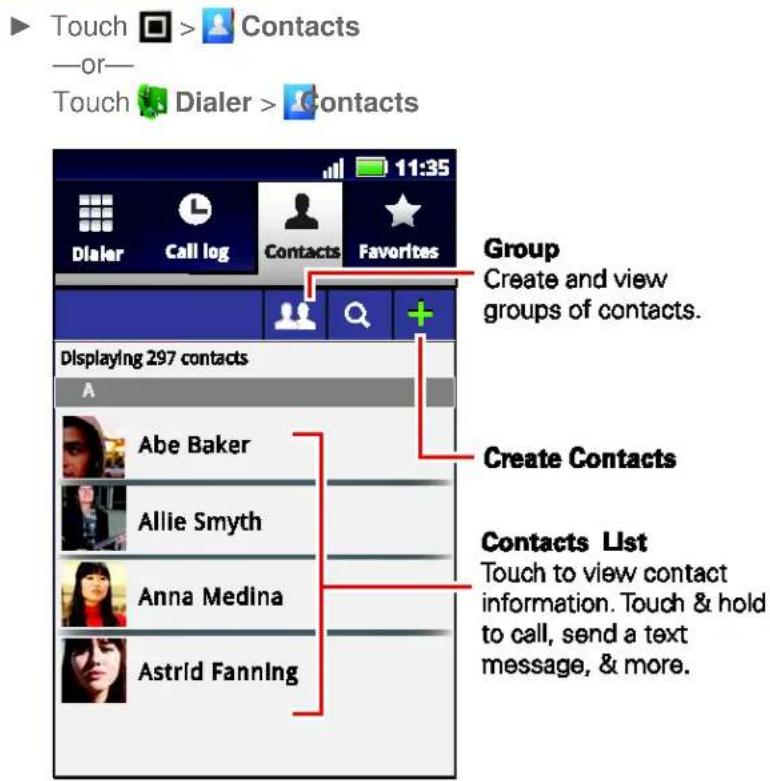
Tip: To search the list, begin typing a name.
▶ Touch Menu ☐ to display options:
- Add contact: Create a new contact entry.
- Display options: Filter and sort your contact list.
- Accounts: Touch Add account to add another account from which to use contacts, or touch an account, and then touch Remove account to delete it from your phone.
- Import/Export: Import or export contacts from a memory card.
- Share name cards: Begin typing to search for a contact to share; touch Done; select the information to share; select how you want to share the information; and then select a recipient for the information.
- More:
• My info: View your own contact information.
- Settings: Touch Display suggestions to show suggested Groups and Favorites or touch Contact storage to choose where to store new and imported contacts.
Add a Contact
Note: Before entering contacts, you must set up at least one email account on your phone. See Complete the Setup Application or Setting Up Messaging Accounts.
- Touch □ > Contacts > Add.
- Choose an account for storing your contact.
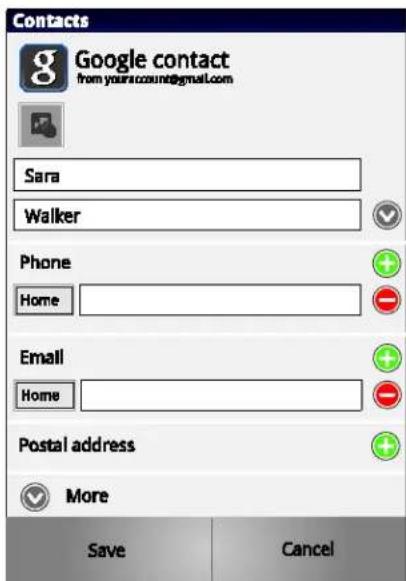
-
Fill in as much or as little information as you'd like.
-
When you're finished, touch Save.
Save a Phone Number
You can save a phone number directly from the dialpad.
-
Touch 📁 Dialer.
-
Enter the phone number and touch Add to Contacts.
-
To add the number to an existing contact, touch Existing. To create a new contact for the number, touch New.
-
For an existing contact, touch the contact name, select a number type for the new number, and then touch Save.
—Or—
For a new contact, enter the first and last name and any additional information, and then touch Save.
Edit a Contact
After you add a contact, you can add or edit it, assign a caller ID picture, customize with a unique ringtone, and more.
-
Touch □ > Contacts.
-
Touch a contact, touch Menu > Edit contact.
- To edit the contact: Touch any field you want to add or change. When you are finished, touch Save.
- To assign a stored picture to a contact: Touch the picture icon at the top of the entry, and then touch Change icon. Touch Select photo from Gallery. Select Files (for a picture in internal storage, memory card, or shared network folders) or Gallery (for a picture in your gallery). Then touch a photo to select it.
- To assign a new picture to a contact: Touch the picture icon at the top of the entry, and then touch Change icon. Touch Take photo. Your camera opens. Touch 📂 the Shutter icon to take the photo. Touch Done to continue. (Touch and drag the square to crop the picture.) Touch Save to assign the picture.
-
To assign a ringtone to a contact, touch the contact, touch Menu ☐ > Options. Touch Ringtone to select a tone. Then touch OK.
-
To delete a contact, touch the contact, touch Menu > Delete contact. Then touch Delete.
Sync or Transfer Contacts
When you change one of your contacts, your phone automatically updates your other social networking accounts. Also, your phone updates your contacts and social networking account whenever you change a friend in your social networking accounts.
Get all your contacts, all in one place. Here's a few helpful hints:
- Use Gmail™: All your Gmail contacts are automatically synced to your phone. Various computer applications for mobile phones and email accounts allow you to export your contacts as a ".CSV" file. You can then use Gmail to import the file. For details, see motorola.com/transfercontacts or log in to your Gmail account on your computer and select "Help".
- Use a microSD card: You can transfer contacts from your old phone to your new Motorola phone using a microSD card. See Transfer Contacts Using a microSD Card.
- More: Find other methods and tools to help you at motorola.com/transfercontacts.
Transfer Contacts Using a microSD Card
- On your old phone, copy all the contacts to your microSD card. (They'll be copied as a VCard file.)
- Insert the microSD card in your new phone. See Optional microSD Card.
- To import the contacts from your microSD card, touch □ > 🏠 Contacts > Menu Import/Export > Import contacts from: SD card.
Share Contacts
You can share contacts via Bluetooth, email, Gmail, or text messaging.
- Touch a contact, touch Menu > Share.
- Select the information that you want to share, and then touch OK.
- Select the method you want to use to share the contact:
- Bluetooth to use a Bluetooth connection. See Bluetooth® Connections for details about pairing and sharing.
- Email to send the information as an email attachment. If prompted, select an email account. Address the message, add a subject and a message, and then touch the Send icon. See Email for details about sending email.
- Gmail to send the information as a Gmail attachment. Address the message, add a subject and a message, and then touch □ the Send icon. See Gmail™ and Google™ for details.
- Messaging to send the information in a text message. Select a contact or enter a wireless phone number or email address, enter any additional information, and then touch the Send icon. For more information on text messaging, see Text Messages and MMS.
Call or Text Contacts
- Touch □ > Contacts
—or—
Touch Dialer > Contacts.
- For View contact, Call contact, Text contact, or other options, touch and hold the contact.
Make Groups
You can set up groups in Contacts for Group Connect calls or for quick messaging.
- Touch □ > Contacts > Groups > Add.
- Select the group type:
■ Group Connect for Direct Connect calls.
- Message Group for messaging recipients.
- Enter a name for your group and touch OK.
- Select names from your contact list.
- When finished, touch Done.
Note: You may see different options based on the information you have for the contact.
Calendar
File Manager
Alarm Clock and Timer
Help Center
Calculator
Tasks
Quickoffice
Update Your Phone Software
Bluetooth ^® Connections
Calendar
Create and manage events, meetings, and appointments.
▶ Touch □ > Calendar.
Touch 📋 to view your calendar events by Agenda, Day, Week, or Month. When you highlight an event, more details appear.
Tip: You can set up multiple calendars through your Gmail account so you can access them from your phone wherever you go.
Add Calendar Events
-
From any view, touch + Add. Enter the event start time and other details. You can even set a reminder so you don't forget about the event. (When you set the reminder time to 0 minutes, it plays at the event start time.)
-
When you finish entering event details, touch Save.
Manage Calendar Events
To edit an event, touch and hold it, and then touch Edit event. When you're done, touch Save.
▶ To delete an event, touch and hold it, and then touch Delete event.
▶ To go to a specific day, touch Menu 📁 > Go to date. Enter a date and touch Go.
File Manager
File Manager allows you to manage files such as pictures, videos, music, and applications stored on a microSD card.
▶ Touch □ > Files > SD card.
Touch a file or folder to open, and then touch and hold a file to Delete or Share.
Alarm Clock and Timer
Alarm Clock
Your phone has multiple alarm capabilities.
▶ Touch □ > Alarm & Timer.
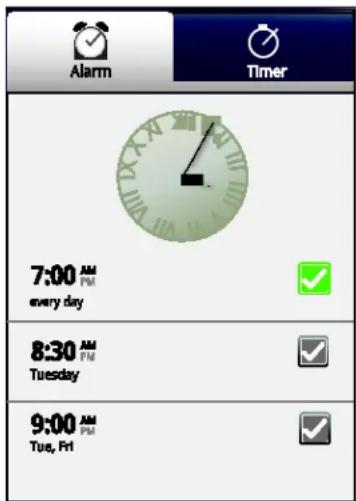
■ To turn on an alarm, touch the check box.
- When an alarm sounds, slide to Dismiss to turn it off or Snooze to delay for five minutes.
- To add an alarm, touch Menu > Add alarm, and enter alarm details. Touch Done when you are finished.
- To enable or disable an alarm, touch the check box.
Timer
To set a timer:
- Touch □ > 📋 Alarm & Timer > Timer.
- Set a time and touch Start.
- For timer details, touch Menu 📁 > Settings, change your settings, and then touch Back ↩.
Help Center
▶ Touch ▶ Help Center.
You can also flick your home screen left or right to see the Tips & Tricks widget.
Calculator
Your phone comes with a handy calculator.
▶ Touch □ > Calculator.
Your calculator has basic and advanced views. To change views touch Menu > Advanced panel/Basic panel. To clear history, touch Menu > Clear history.
Tasks
- Touch □ > Tasks.
- To add a task, touch + Add.
Touch an icon to view your tasks by due date, priority, and more.
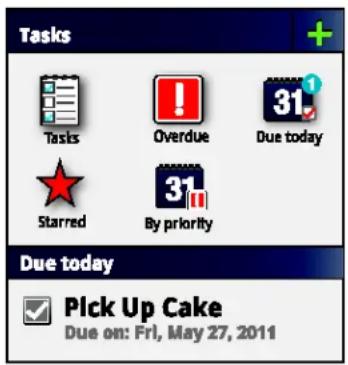
Quickoffice
▶ Touch □ > Quickoffice.
Quick Office Programs
- Quickword: Create and edit Microsoft Word® documents.
- Quicksheet: Create and edit Microsoft Excel® spreadsheets.
- Quickpoint: Create and edit Microsoft PowerPoint® presentations.
- QuickPDF: View Adobe Acrobat ^ PDF files.
Create a New File
▶ To create a new file, touch the icon of the type of file you want to create, and then touch Create New Document.
Open a Document
▶ To open an existing file, touch the icon of the type of file you want to edit, touch SD Card to search for a file, or touch Recent Documents.
Browse Files
To browse files on your optional memory card (sold separately), touch Browse > SD Card. Touch a file or folder to open, or touch and hold a file for options. You can edit most text or spreadsheet files.
Tips
- Place your cursor by touching the text.
- Select text by double-touching it.
- Choose formatting, save the file, or to choose other options, touch Menu 📄.
- To manage your folders and transfer files, see File Manager.
Update Your Phone Software
Stay up to date with the latest software updates for your phone. You can check, download and install updates using your phone, or using your computer:
• Using your phone:
- You may get an automatic notification of an available update on your phone. Simply follow the instructions to download and install.
- To manually check for updates, press Menu > Settings > About phone > System updates > Update Motorola Software.
- Your phone downloads any updates over your mobile network. Remember, these updates can be quite large (25MB or more) and may not be available in all countries. If you don't have an unlimited data plan, or mobile network updates are not available in your country, you can update using a computer.
• Using your computer:
- On your computer, go to motorola.com, search for your phone model, and check the "Software" links. If an update is available, follow the installation instructions.
Voice Commands
Voice Actions
▶ To begin a voice search, press the Voice key on the keyboard.
Note: If you're writing a text message, press the Voice key to begin dictation mode. Your phone recognizes words you speak and enters them into your message.
Or, press the Voice key and say one of the following commands:
| To... | Say... |
| Map a route | “navigate to” |
| Send a text message | “send text” |
| Make a call | “call” |
| Send email | “send email” |
| Find local businesses | “map of...” |
| Browse the Web | “go to” |
| Make a voice note | “note to self” |
| Get directions | “directions to” |
Tip: To learn more about voice actions, press the Voice key on the keyboard, and then select Watch Video.
Voice Commands
For more voice commands, touch □ > Voice Commands and follow the prompts.
Tip: For quick access to Voice Commands, add a shortcut to one of the home screens. Touch and hold an empty area, and then touch Shortcuts > Applications > Voice Commands.
Bluetooth ^® Connections
Bluetooth is a short-range communications technology that allows you to connect wirelessly to a number of Bluetooth devices, such as headsets and hands-free car kits, and Bluetooth-enabled handhelds, computers, printers, and wireless phones. The Bluetooth communication range is usually up to approximately 30 feet.
▶ Touch Menu □> Settings > Wireless & networks > Bluetooth settings.
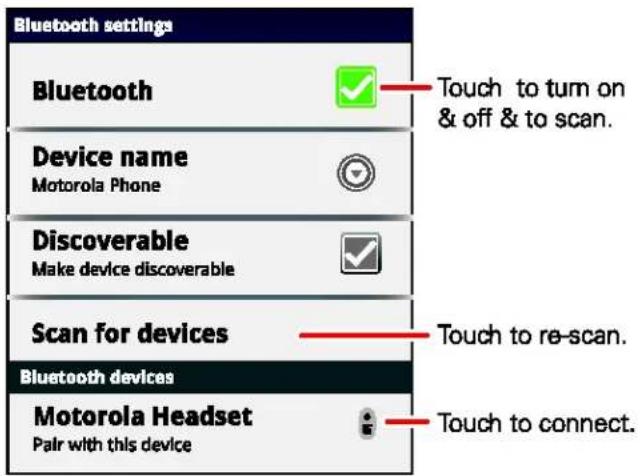
Turn Bluetooth On or Off
▶ Touch Menu □> Settings > Wireless & networks > Bluetooth.
Note: To extend battery life, turn Bluetooth power off when not in use.
Connect New Devices
Note: This feature requires an optional accessory.
To connect with a new device, you need to pair with it. You only need to do this once for each device. To connect again, just turn on the device.
- Make sure the device you are pairing with is in discoverable mode.
Note: Refer to the guide that came with the device for details.
- Touch Menu > Settings > Wireless & networks > Bluetooth settings.
- Touch Bluetooth to turn on and scan. If Bluetooth power is already on, touch Scan for devices.
- Touch a device to connect.
- If necessary, touch OK, or enter the device passkey (like 0000) to connect to the device. When the device is connected, the Bluetooth indicator ✝ appears in the status bar.
Note: Using a mobile device or accessory while driving may cause distraction and may be illegal. Always obey the laws and drive safely.
Note: The Bluetooth Enhanced Audio setting is not recommended for older Bluetooth headsets, as it may not deliver acceptable sound quality.
Reconnect Devices
▶ To automatically reconnect your phone with a paired device, simply turn on the device.
▶ To manually reconnect your phone with a paired device, touch the device name in the Bluetooth devices list.
Disconnect Devices
▶ To automatically disconnect your phone from a paired device, simply turn off the device.
To manually disconnect your phone from a paired device, touch the device name in the devices list, and then touch Menu > Disconnect.
Edit the Device Name
▶ Touch Menu 📁 > Settings > Wireless & networks > Bluetooth settings > Device name. Enter a name and touch OK.
Optional microSD Card
microSD Card Settings
microSD Card Files
Connect Your Phone to Your Computer
Optional microSD Card
You can purchase an optional microSD (Secure Digital) memory card to expand the phone's available memory space. It allows you to store images, videos, music, and voice data in your phone.
Note: You can easily damage the microSD card by improper operation. Please be careful when inserting, removing, or handling them.
Insert the microSD Card
- Remove the battery cover by pulling up from the notch at the bottom of the phone. (See Set Up Your Phone.)
- Open the memory card slot cover, and slide in the memory card until it clicks into place.
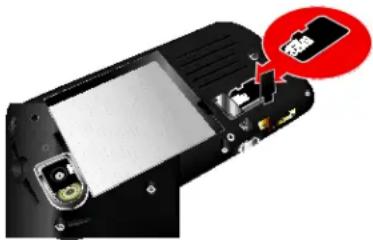
natural_image
Close-up of a black electronic device showing internal components and a red circle highlighting a small electronic component (no text or symbols visible)- Close the memory card slot cover and replace the battery cover.
Note: Be sure to use only recommended microSD cards. Using non-recommended microSD cards could cause data loss and damage your phone.
Note: DO NOT remove a microSD card while files are being accessed or transferred. Doing so will result in loss or damage of data.
Note: Make sure your battery is fully charged before using the microSD card. Your data may become damaged or unusable if the battery runs out while using the microSD card.
microSD Card Settings
View Memory in the microSD Card
▶ With the microSD card inserted, touch Menu ☐ > Settings > Storage. (The used and available memory space will be displayed.)
Format the microSD Card
Note: Do not remove your memory card while your phone is using it or writing files on it.
- Before you remove or format your memory card you need to unmount it. Touch Menu > Settings > Storage > Unmount SD card.
- To format your memory card, touch Format SD card.
Note: The formatting procedure erases all the data on the microSD card, after which the files CANNOT be retrieved. To prevent the loss of important data, please check the contents before you format the card.
microSD Card
- Touch ▶ Files > SD card.
- Touch a file or folder to open, and then touch and hold a file to Delete or Share.
Connect Your Phone to Your Computer
You can connect your phone to a computer with a USB cable.
Note: The first time you use a USB connection, your computer may indicate that drivers are being installed. Follow any prompts you see to complete the installation. This may take a few minutes.
Note: You also may see MotoHelper installation for using Motorola Media Link, an easy way to transfer files to your phone.
- Connect a Motorola micro USB data cable from your phone's micro USB port to a USB port on your computer. Your phone should show 🤨 in the status bar.
Note: Make sure to connect the phone to a high power USB port. Typically, these are located directly on your computer.
- On your phone, flick down the status bar to see the USB connection options.
- Touch an option:
- Motorola Phone Portal: Connect your phone and computer with a cable or a Wi-Fi network to share files through an easy-to-use home screen.
- Windows ^® Media Sync: Share media files between your computer and phone.
Note: This phone can be administered through Microsoft Exchange server security policies. Additional security policies may be applied to your phone depending on rules set by your company.
- USB Mass Storage: Drag and drop files between your computer and memory card folders. When you're done, use "Safely Remove Hardware" before disconnecting the USB cable.
Note: You can't use the files on your memory card with your phone while it is connected to the computer.
- None: Use the connection to charge the phone.
Take Photos
Record Videos
View Photos & Videos
Edit Photos and Videos
Take Photos
Take that family photo, and post it online for everyone to see.
- Touch 📄 Camera or press and hold the camera button on the side of the phone. Rotate the phone counter-clockwise to view the camera screen.
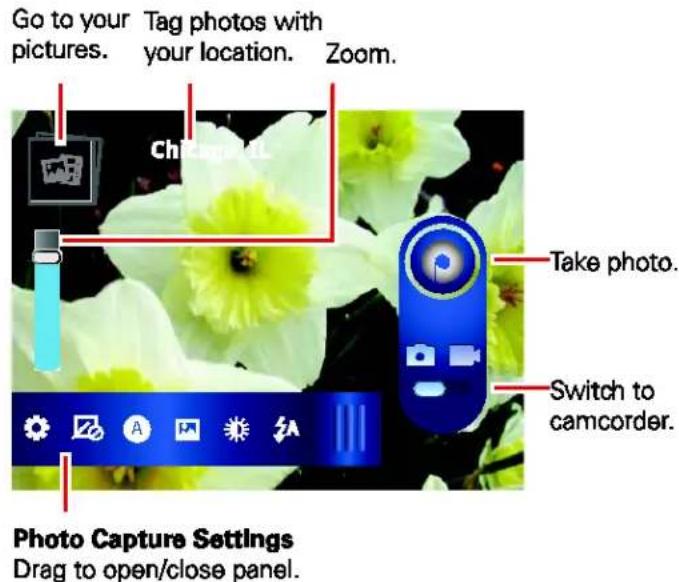
Note: Photos can be stored either on an optional microSD memory card or in the phone's internal storage. Touch Menu > Settings > Storage Location to set your default storage location.
-
To take the photo, touch the viewfinder to lock the focus, and then touch 📋 or press the camera button to take the photo.
-
To upload the photo to an online photo album, touch ↑. You can set your Quick upload album when you upload your first picture.
- To send the photo in a message or post it online, and then touch 🎨.
- To delete the photo, open it and then touch Menu [icon] > Delete.
Photo Options
You can make adjustments to optimize your shot. Drag open the panel at the bottom left of the viewfinder (or touch Menu):
- Settings: Change Video Resolution, Storage Location, or Geo-tag.
• Effects: Change photo look: Normal, Negative, Black and White, and more. - Scenes: Adjust for better image capture in different environments: Auto, Portrait, Landscape, Sport, and more. Touch the screen when finished to return to the viewfinder.
- Modes: Select Single shot or Panorama.
- Brightness: Adjust for better image capture in different environments.
• Flash: Set Flash On, Flash Off, or Auto Flash.
Record Videos
- Touch Camcorder.
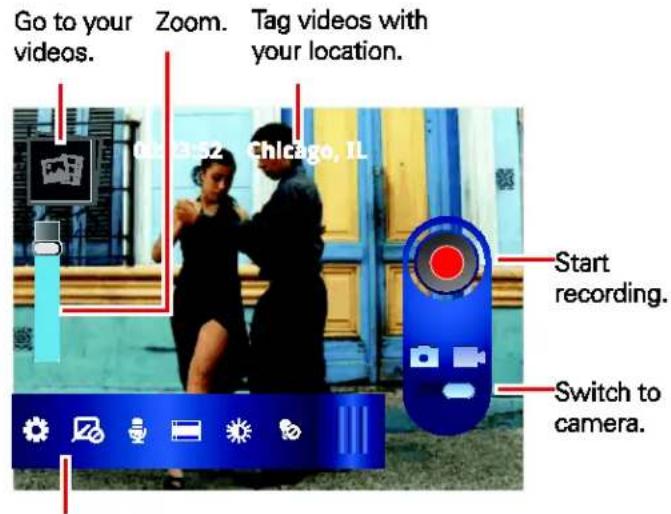
Video Capture Settings Drag to open/close panel.
- To record the video, touch 🔴. Touch 🔴 again to stop the recording.
- Open your gallery and touch a video to view options:
- To play the video, touch ▶.
- To upload the video to an online album, touch
- To send the video in a message or post it online, and then touch 🎨.
- To delete the video, touch Menu > Delete.
Video Options
You can make adjustments to optimize your video. Drag open the panel at the bottom left of the viewfinder (or touch Menu):
- Settings: Change Video Resolution, Storage Location, or Geo-tag.
• Effects: Change video look: Normal, Negative, Black and White, and more.
• Audio Scenes: Adjust for better audio capture in different environments. - Modes: Select Normal video, Video Message, Fast motion, or Slow motion.
- Brightness: Adjust for better video capture in different environments.
• Light: Turn a light on or off to adjust for the lighting where you are recording.
View Photos & Videos
Using the Gallery application, you can view photos and watch videos that you've taken with your phone's camera, downloaded, or copied onto your storage card. You can also take a look at your photos and your friends' photos that are on your social networks (Facebook™ and Flickr only).
For photos that are on your phone or storage card, you can do basic editing such as rotating and cropping. You can also easily make a photo as your contact picture or wallpaper and share photos with your friends.
▶ Touch □ > Gallery.
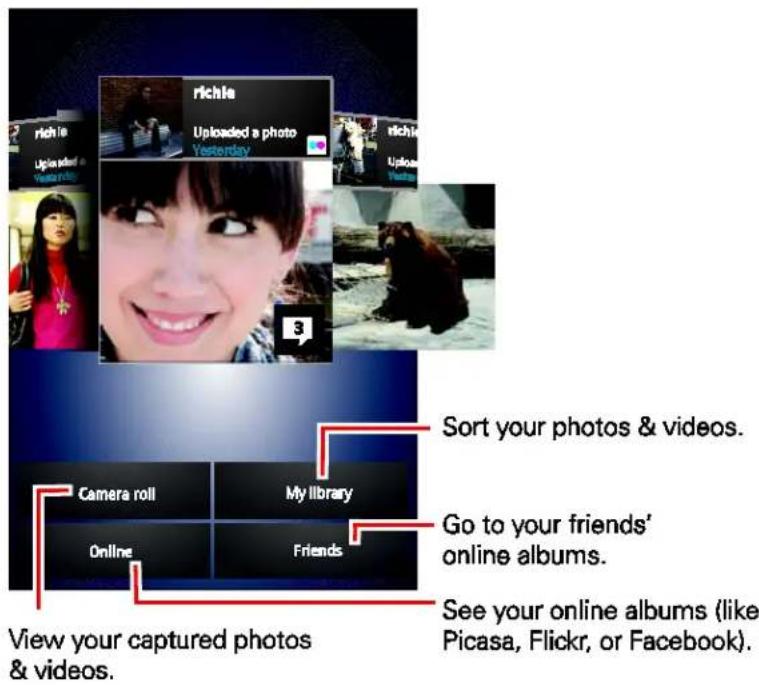
Touch a folder to display all of its photos or videos.
Change Gallery Settings
- While you're viewing a photo or video, touch Menu □□□ > More.
-
Choose from these options:
-
Map: Tag the photo or video with a location.
■ Slideshow: Play a slideshow. - Copy to media server: Copy to any shared DLNA servers.
- Play on: Play your media on any connected playback devices.
- Print: Print to a Bluetooth ^ or retail store printer.
■ Picture/Video Info: View more info about the picture or video. -
Settings: to choose from these further options:
-
Display friends' activities: View your friends' online photos and videos in your Gallery.
• Slideshow interval: Select how long each slide shows.
• Repeat slideshow: Loop the slideshow. -
Shuffle slides: Play the slides in random order.
- Slideshow Transition: Select an effect for using when moving from one slide to another.
- Quick upload for pictures: Set a default account for uploading pictures.
- Quick upload for videos: Set a default account for uploading videos.
• Media Share Settings: Adjust media share settings, such as support for Xbox and other devices. - Tag with contacts: Tag photos and videos with names from your contacts.
Share Photos and Videos
- Touch □ > Gallery.
- Touch a photo or video, and then touch Share.
- Choose how you want to share—like Bluetooth, Email, Messaging, or an online album.
Manage Photos and Videos
- Touch □ > Gallery.
-
Touch a thumbnail image from your camera roll or library, and then:
-
To delete the photo or video, touch Menu > Delete.
- To set the photo as a contact picture, social network profile picture, or wallpaper, touch Menu > Set as.
- Touch and hold a photo to tag it.
- Touch ↑ to upload it.
- Touch 🎨 to share it.
- Touch Menu 📁 for more options.
Tip: To copy photos to/from a computer, go to Connect Your Phone to Your Computer.
Edit Photos and Videos
▶ Touch 📄 > Gallery > picture > Menu 📄 > Edit.
You can choose advanced editing features to resize, crop, change the color, and more.
Voicemail
Accounts and Messaging
Roaming
Voicemail
Set Up Your Voicemail
To set up voicemail, see Set Up Voicemail.
Voicemail Notification
When you have a new voicemail, 📄 shows at the top of your screen.
Retrieve Your Voicemail Messages
When you have a new voicemail, 📄 shows at the top of your screen. To hear the message, touch 🖱 Dialer to open the dial screen, and then touch and hold 100.
If you need to change your voicemail number, in the home screen, touch Menu > Settings > Call settings > Voicemail settings.
Accounts and Messaging
View your text, IM, and email messages all at once.
View Your Inbox
▶ Touch □ > Messaging > Universal Inbox.
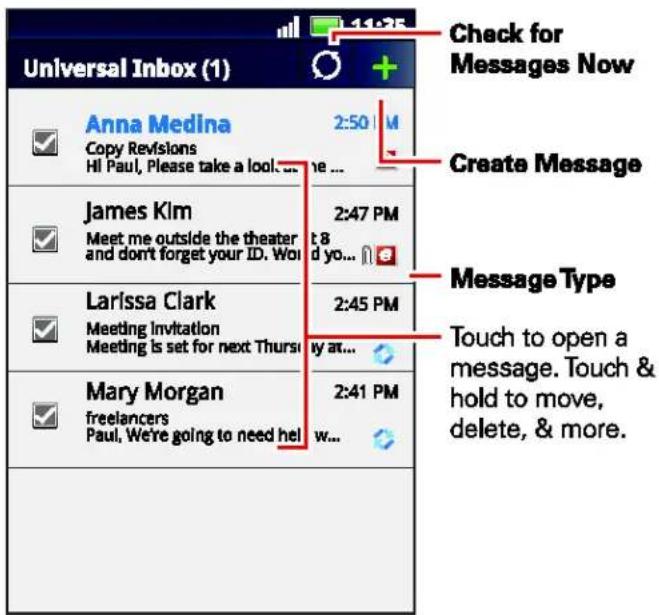
Tip: To see more messages, flick or drag up.
Reading and Replying to Messages
▶ Touch □ > Messaging > Universal Inbox.
Note: Universal Inbox shows all of your messages together—text, email, and social networking messages. To show only one type of message, touch a message account type instead of Universal Inbox.
Note: Neither Messaging nor Universal Inbox includes Gmail messages. To view your Gmail, touch □ > Gmail.
- To open a text message or social networking message and all of its replies, touch it.
- To reply or forward a message, touch 🔒 to choose a reply or forward option.
• To open options, touch and hold a message.
Note: Try the Messages widget in "App Menu".
Creating Messages
-
Touch □ > Messaging > + Add.
-
Choose a message type, such as Text Messaging or Facebook. Then, enter the recipient and message. In text messages and emails, touch Menu for options, such as Insert... or Insert smiley.
Sending and Receiving Attachments
▶ To send a file in a message, open a new message and touch Menu 📄 > Insert.
When you receive a message with an attachment, open the message and touch the file name to download it. Then, touch the name again to open it. Some file formats can be converted to HTML for faster viewing, and your phone will show Get HTML version.
While viewing the attachment, touch it to save it, share it, and more.
Tip: To send and receive large attachments faster, use Wi-Fi. See Wi-Fi Search and Connect.
Setting Up Messaging Accounts
▶ To add other messaging accounts, touch Menu 📁 > Settings > Accounts > Add account.
- Corporate Sync is for Exchange server work email accounts. Enter details from your IT administrator.
Tip: You might need to enter your domain name with your user name (like domain/username).
- Email is for most personal email accounts. For account details, contact the account provider.
- You can also add social networking accounts, such as Facebook, LinkedIn, Twitter, and more from the Setup accounts page.
▶ To change settings, touch ☐ > Messaging > Menu ☐, and then touch:
- Manage accounts to add or remove an account.
- Edit Universal Inbox to choose which accounts show messages in the Universal Inbox.
- Messaging Settings to set the notification for each account type (along with other preferences, for email).
Gmail ^TM and Google ^TM
You will need a Google account to access several phone features such as Gmail, Google Maps™, Google Talk™, and the Android Market™ apps. Before you can use Google apps, you need to enter your account information. These apps sync between your phone and your online Google account.
Create a Google Account
If you do not already have a Google account, you can create one online or using your phone.
Create a Google Account Online
- On your computer, launch a browser and go to google.com.
- Click Sign in > Create an account now and follow the instructions to create your free account.
- Check your email for a message from Google confirming your account. Respond to the email to activate your account.
Create a Google Account Using Your Phone
-
Touch Menu □> Settings > Accounts > Add account.
-
Touch Google > Next > Create.
-
Enter your information, and then touch Next.
-
When prompted, enter and reenter your password.
-
Create a security question and answer, enter a secondary email address to help you recover your password if you ever lose it, and then touch Create.
-
Follow the prompts to read and accept the Google terms of service.
-
After your phone connects with Google servers, select the items you want to sync with your phone, and then touch Sync Now.
-
Touch Finish setup, and your phone will sync with the Google servers.
Sign In To Your Google Account
- Touch Menu □> Settings > Accounts > Add account.
- Touch Google > Next > Sign in.
- Enter your Google password, and then touch Sign in.
- After your phone connects with Google servers, select the items you want to sync with your phone, and then touch Sync Now.
- Touch Finish setup and your phone will synchronize the selected items.
Access Gmail
▶ Touch ▶ Gmail.
- To view more email messages: If the inbox is full, swipe your finger up the screen to view more messages and conversations.
-
Read a new email message: Touch the unread message or the conversation with an unread message (just-arrived items display in bold).
-
Select messages and conversations: Touch the box before the email or conversation.
- View the Inbox of your other Gmail account: Touch Menu > Settings > Accounts and then touch the account that you want.
- Refresh the inbox: Touch Menu > Refresh.
Send a Gmail Message
- Touch □ > Gmail.
- Touch Menu > Compose.
- Enter the message recipient's email address in the To field. If you are sending the email message to several recipients, separate the email addresses with a comma. As you enter email addresses, any matching addresses from your contacts list are displayed. Touch a match to enter that address directly.
- Enter the email subject, and then compose your email.
- After composing your message, touch the Send icon.
Read and Reply to Gmail Messages
- Touch ▶Gmail.
-
Touch a message.
-
To Reply or Reply to all, enter an additional message.
-
To Forward a message, enter or select recipients and then enter an additional message.
-
After composing your message, touch the Send icon.
Use the Email app to send and receive email from your webmail or other accounts, using POP3 or IMAP. You can also access your Corporate Sync email and other features on your phone.
Add an Email Account (POP or IMAP)
- Touch □ > Accounts > Add an Account > Email.
- Enter your existing email account address and password.
- Select Automatically configure account.
—or—
De-select Automatically configure account to enter server settings manually.
-
Touch Next to enter account settings:
-
General Settings: Enter your account name, real name, and email address.
- Incoming server: Enter your POP or IMAP incoming server information.
-
Outgoing server: Enter your SMTP server information.
-
Touch OK to set up your account.
Add a Corporate Sync Account
- Touch Menu > Settings > Accounts > Add account.
- Touch Corporate Sync.
- Enter the Corporate Sync account details and then touch Next.
- Select the type of information you want to synchronize and touch Finish setup.
Compose and Send Email
Compose and send email using any account you have set up on your phone. Increase your productivity by attaching files such as pictures, videos, or documents to your email messages.
- Touch □ > Email.
- Touch Menu > Compose.
- Enter an address or select a contact.
- Enter a subject, and then compose your message.
-
To add an attachment, touch Menu □□□ > Attach files.
-
Camcorder: Record a video to share.
- Camera: Take a picture to attach.
-
Files: Select a file that you have saved in internal phone memory, on an SD card, or in a shared network folder.
■ Gallery: Select a picture or video from your Gallery. -
Touch the Send icon to send the message immediately, or Save as draft to send it later.
View and Reply to Email
- Touch □ > Email.
- Touch the message you want to view.
- Touch the Reply/Forward icon and select Reply or Reply all.
Manage Your Email Inbox
- Touch □ > Messaging.
- Touch the message account you want to view (or touch Universal Inbox to view all types of messages in one place).
- For a single message account, touch ⬇ to switch to your Trash, Outbox, Sent, or Bulk Mail folders.
Refresh an Email Account
Whatever your automatic synchronization settings are, you can synchronize your email messages manually at any time.
▶ While in the account you want to synchronize, Touch Menu 📁 > Refresh.
Delete Email Messages
- Touch a message or messages that you want to delete.
- Touch Menu □> Delete.
Edit Email Account Settings
You can edit settings for your individual email accounts, such as email address and password, name display and signature, frequency of retrieval, and more.
▶ Touch ☐ > Email > Menu ☐ > Email settings.
—or—
▶ Touch □ > Messaging > Universal Inbox > Menu □□ > Settings > Email.
- Notifications: Set whether to display an icon in the notification bar, play a specific ringtone, and vibrate when you receive a message.
- Email delivery: Specify how often to sync mail, sync folders, download attachments, or sync over Wi-Fi only.
- Read options: Set the text size for reading messages.
- Clear search history: Clear all email searches you've done.
- List view options: View previews, allow multi-select checkboxes to appear, and change the view to order by date received, whether you've read it, and more.
■ Compose options: Set your email font and message signature. - Display suggestions: Show contact suggestions while you're entering email addresses.
-
Default email account: Set a default email account if you have more than one.
-
Out of office: Set an out of office message to automatically reply to messages, if your email account supports it.
- Manage address history: view addresses that you've recently sent mail to.
- Smart forwarding: Manage server-side attachment forwarding for Corporate Sync accounts.
Delete an Email Account
- Touch Menu > Settings > Accounts and select the account you want to delete.
- Touch Remove account to delete it from your phone.
Add the Mail Widget to Your Home Screen
- Touch and hold an empty spot on one of the home screens.
- Touch Motorola Widgets > Email or Universal Inbox, and then touch Done.
Text Messages and MMS
With Text Messaging (SMS), you can send and receive instant text messages between your wireless phone and another messaging-ready phone.
Multimedia messages, or MMS, can contain text and pictures, recorded voice, audio or video files, picture slideshows, contact cards (vCard), or appointments (vCalendar).
See your service plan for applicable charges for messaging.
Compose Text Messages
Compose and send text messages.
- Touch □ > Text Messaging > Add.
-
Enter one or more recipients:
-
Enter phone numbers directly in the To field. If you're sending the message to several phone numbers, separate the phone numbers with a comma. As you enter information, any matching phone numbers from your contacts list are displayed. Touch a match to enter that number or address directly.
-
Enter a contact from your list by beginning to type the contact's name. Touch the name to enter it.
-
Touch the Compose message field to begin entering your message.
- Touch the Send icon to send the message.
Send a Multimedia Message (MMS)
-
Touch □ > Text Messaging > Add.
-
Enter one or more recipients:
-
Enter phone numbers directly in the To field. If you're sending the message to several phone numbers, separate the phone numbers with a comma. As you enter information, any matching phone numbers from your contacts list are displayed. Touch a match to enter that number or address directly.
-
Enter a contact from your list by beginning to type the contact's name. Touch the name to enter it.
-
Touch the Compose message field to begin entering your message.
-
Touch Menu □> Insert and select:
■ Picture: Select a picture from your files or Gallery.
- Capture picture: Take a photo to send.
■ Video: Select a video from your files or Gallery.
- Capture video: Record a video to send.
■ Audio: Send a music file or voice recording.
- Record audio: Make a voice recording to send.
- Slideshow: Create a slideshow with photos, video, and audio to send.
- Location: Send a location or your current location using Google Location™.
- Name card: Send contact information for you or one of your contacts.
- Touch the Send icon to send the message.
Save and Resume a Draft Message
Any message that you do not send is automatically saved as a draft unless you delete it.
To resume composing the message:
- In the Text Messaging screen, touch the message that you want to resume editing.
- When you are finished, touch the Send icon.
New Messages Notification
Depending on your notification settings, the phone plays a ringtone, vibrates, or displays an icon in the status bar when you receive a new text or multimedia message. To change the notification for new text and multimedia messages, see Text and MMS Options for details.
To open the message, slide the status bar down to open the Notifications panel. Tap the new message to open and read it.
Text and MMS Options
▶ Touch □ > Text Messaging > Menu □□> Messaging settings for options.
- General Settings
- Message limit: Choose the maximum number of text messages to store in each conversation thread. (This does not include locked messages.)
• Display suggestions: Show suggestions while composing messages. - Group Conversation: Use MMS for group messages and display messages in a threaded view.
- Auto-retrieve: Automatically retrieve all your multimedia messages completely. When selected, the multimedia message header plus the message body and attachments will automatically download to your phone. If you clear this check box, only the multimedia message header will be retrieved and shown in your All messages screen.
- Roaming auto-retrieve: Automatically retrieve all your messages completely when roaming. This may incur significant phone charges.
- Message signature: Include a signature at the end of every message.
- Edit signature: Edit your message signature.
- Callback number: Enable or disable a callback number for your message recipients.
• Edit callback number: Edit your callback number.
- Notification Settings
- Notifications: Set the phone to ring for a sent or failure notification.
- Select ringtone: Select a ringtone that is specific to sent or failure notifications. Note that the ringtone briefly plays when selected.
- Vibrate: Set the phone to vibrate when a new text or multimedia message arrives.
Social Networking Accounts
Stay in touch on the go with all your social networking accounts. Post updates on Facebook and Twitter, review your LinkedIn contacts, see what everyone's talking about from YouTube, and more.
▶ To add a social networking account, see Setting Up Messaging Accounts.
When you sign into social networking accounts, you'll see your friends and contacts in your Contacts list, and your status and updates can appear in Social Status and Social Networking widgets.
Twitter messages will always appear as "read" on your phone, but your phone notifies you when you receive a new message.
Facebook ^TM
Post updates, read what your friends are up to, upload pictures and check-ins, and more with on-the-go Facebook access.
To sign in to your Facebook account:
- Touch Menu > Settings > Accounts > Add account.
- Touch Facebook, read the disclaimer, and touch I accept to continue.
- Enter your Facebook username and password, and touch Next.
- Touch Done.
Twitter ^TM
To sign in to your Twitter account:
- Touch Menu > Settings > Accounts > Add account.
- Touch Twitter.
- Enter your Twitter username and password, and touch Next.
- Touch Done.
LinkedIn ^TM
To sign in to your LinkedIn account:
- Touch Menu □> Settings > Accounts > Add account.
- Touch LinkedIn.
- Enter your LinkedIn username and password, and touch Next.
- Touch Done.
YouTube ^TM
To sign in to your YouTube account:
-
Touch Menu □> Settings > Accounts > Add account.
-
Touch YouTube.
- Enter your YouTube username and password, and touch Next.
- Touch Done.
Google Talk™
To send and receive instant messages, your phone comes preloaded with Google Talk™.
You can also download an instant messaging app from the Android Market™: touch □ > Market > Apps > Communication, and then choose an app for your provider. Once you download the app, you'll see it in the app menu. See App Menu.
Note: Your IM options will depend on your IM provider. To browse instant messaging apps from your computer, go to android.com/market.
Roaming
Roaming Icon
Your phone lets you know when you're off the Nationwide Sprint Network. Anytime you are roaming, the phone shows the roaming icon (R).
Setting Roam Mode
Control your roaming capabilities.
▶ Touch Menu 📋 > Settings > Wireless & networks > Mobile networks, and then make selections under Roaming Settings and CDMA Subscription.
Call Guard
Your phone has two ways of alerting you when you are roaming off the Nationwide Sprint Network: the onscreen roaming icon and Call Guard. Call Guard requires an extra step before you can place or answer a roaming call. (This extra step is not required when you make or receive calls on the Nationwide Sprint Network.)
To turn Call Guard on or off:
- Touch Menu > Settings > Wireless & networks > Mobile networks > Roaming Guards.
- Check or uncheck Call Guard under Domestic Roaming and International Roaming.
Note: Call Guard is turned on by default on your phone.
Note: Voice dialing is not available when you are roaming with Call Guard enabled.
Note: If the Call Guard feature is set to On, you need to take extra steps to make and receive roaming calls.
Data Roam Guard
Depending on service availability and roaming agreements, your phone may be able to access data services while roaming on certain digital systems. You can set your phone to alert you when you are roaming off the Nationwide Sprint Network and try to use data services such as messaging.
Note: Data Roam Guard is turned on by default on your phone.
To set your Data Roam Guard notification:
- Touch Menu > Settings > Wireless & networks > Mobile networks > Roaming Guards.
- Check or uncheck Data Guard under Domestic Roaming and International Roaming.
To use data services when Data Roam Guard is active:
When a notification appears informing you that data roam charges may apply, touch Roam to connect.
Android Market™
Download Apps from the Web
Navigation
Music
Sprint Radio
Sprint TV and Movies
Additional Lifestyle Features
Android Market ^TM
Android Market is the place to go to find new apps for your phone. Choose from a wide variety of free and paid apps ranging from productivity apps to games. When you find an app you want, you can easily download and install it on your phone.
Note: You must first connect to the Internet using your phone's Wi-Fi, Sprint 4G, or data connection and you must set up a Google™ account (see Set Up Your Phone) in order to buy and download apps from the Android Market™.
▶ Touch □ > Market.
Get all the fun games and cool apps you want. Android Market provides access to applications created by developers worldwide, so you can find the app you want. If you need help or have questions about Android Market, touch Menu >> Help.
Find and Install Apps
- Touch □ > Market.
- When you open Android Market for the first time, you must agree to the terms of service. Touch Accept to continue.
-
To browse:
-
Featured apps: Scroll through the list of featured apps when you open Android Market.
- Categories: Touch Apps or Games, and then touch a category. Under a category, you can filter the apps by Top paid, Top free, or Just in.
- Apps recommended by Sprint: Touch Sprint, and then scroll through the list.
- Search by name: Touch 🔒 Search on the Android Market home screen, enter the name or type of app you're looking for, and then touch 🔒 Search to the right of the search box.
- Touch the app you want to install. Then, touch FREE (if app is free) or touch the price.
- If an app you are downloading requires access to your data or control of functions on your phone, you'll be asked to give your permission. After selecting FREE, the app will download. After touching the price, you may be asked to sign in to an additional Google™ account. Sign in and select Purchase now to proceed. Follow the on-screen instructions. To see the download progress, open the notifications window.
After you download an app, the icon for that app appears on the App menu. (See App Menu.)
Create a Google Checkout™ Account
You need a Google Checkout account to purchase items from Android Market.
On your computer, go to checkout.google.com to create a Google Checkout account.—or—
The first time you use your phone to buy an item from Android Market, you're prompted to enter your billing information to set up a Google Checkout account.
Request a Refund for a Paid App
If you are not satisfied with an application, you can ask for a refund within 24 hours of the purchase. Your credit card is not charged and the application is uninstalled from your phone.
If you change your mind, you can install the application again, but you can't request a refund a second time.
- Touch Menu > Manage apps > Downloaded.
- Touch the application to uninstall.
- Touch Uninstall & refund. Your application is uninstalled and the charge is cancelled.
- Touch the reason for removing the app, and then touch OK.
Manage or Remove Apps
- Touch Menu > Manage apps.
- Touch an app in the list, and then touch Uninstall (for apps you downloaded), Clear cache, or other options.
Note: To reinstall any downloaded items, touch □ > Market.
Download Apps from the Web
Warning: Apps downloaded from unknown sources can include spyware, phishing, or viruses that affect your phone, phone performance, and personal data. For security, download apps only from trusted sites, like Market.
- To download apps from any Web page, touch Menu > Settings > Applications > Unknown sources.
- To launch the browser, touch Browser.
- Find the app you want to download and touch the download link.
Note: Downloaded apps are stored in your phone's memory.
Manage Your Downloads
To view files or apps you've downloaded, touch Browser, touch Menu > More > Downloads.
▶ To clear your download history, touch Menu 📄 > Clear list. To cancel, touch Menu 📄 > Cancel all downloads.
Navigation
Your phone offers a number of location-based navigation programs to help you figure out where you are and get you where you're going.
Google Maps ^TM
▶ Touch Maps.
Google Maps offers powerful, user-friendly mapping technology and local business information—including business locations, contact information, and driving directions.
For help, touch Menu □ > More > Help.
Note: Want to know what's in your immediate area? Try Google Places™. Touch □ > Place to see listings for Restaurants, ATMs, Gas Stations, and more based on your current location.
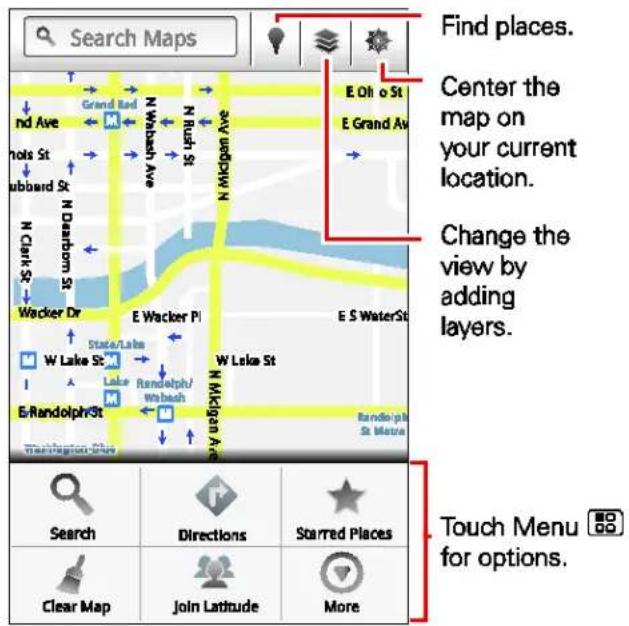
Set Your Location Sources
Set your phone to determine your location using GPS satellite signals (highly accurate, but uses battery power) or using the mobile network (less accurate, but conserves battery power).
To set your location source, touch □ > Settings > Location & security > Use GPS satellites and/or Use wireless networks.
Find Any Location
- Touch Menu > Search.
- Enter text in the search box, like an address, business, or city, and then touch Search.
Tip: If it's an address you have visited before, select from the list shown.
- Touch the location you're searching for in the results list.
Get Directions
- Touch Menu > Directions.
- Enter a starting point address or touch ⏻ Bookmark and select My current location, Contacts, or Point on map.
-
Enter an end point address, or touch 📋 Bookmark and select Contacts or Points on map.
-
Select your mode of transport (car, public transport or walk), and then touch Go. Your directions are shown as a list. To view your directions on a map, touch Show on map. To have your phone provide turn by turn driving directions, touch Navigate.
-
When you have finished, touch ≈ Layers > Clear map.
Select Map Mode
▶ Touch ≈ Layers to select from Map (standard map view), Satellite (map with photos), Traffic (map with traffic conditions).
- Touch Layers > Clear Map to clear your selections.
TeleNav GPS Navigator
You can also use TeleNav GPS Navigator to get around. Use your keyboard or your voice to get step-by-step directions to your destination, get traffic updates, hear about the weather, and more.
-
Touch □ > 📣 TeleNav GPS Navigator. (The first time you access the app, your phone downloads files.)
-
Follow the onscreen instructions to sign in and use the app.
Google Latitude ^TM
See where your friends and family are on Google Maps™. Plan to meet up, check that your parents got home safely, or just stay in touch.
Don't worry, your location is not shared unless you agree to it. You need to join Google Latitude, and then invite your friends to view your location or accept their invitations. When using Google Maps, touch Menu 📄> Join Latitude. Read the privacy policy and if you agree with it, touch Agree & Share.
Adding and Removing Friends
▶ Touch ▶ Latitude.
To add friends:
-
Touch Menu 📁 > Add friends or touch +
-
Touch Select from Contacts, and then touch a contact. Or, touch Add via email address, and then enter an email address.
-
Touch Yes.
If your friends already use Google Latitude, they'll receive an email request and a notification. If they have not yet joined Google Latitude, they'll receive an email request that invites them to sign in to Google Latitude with their Google account.
To remove friends:
-
Touch Menu > Latitude to show your friends list, and then touch a friend in your list.
-
Touch ✗ Delete.
Sharing Location
When you receive a request to share location details you can choose to:
- Accept and share back: See your friend's location, and your friend can see yours.
- Accept, but hide my location: See your friend's location, but they can't see yours.
- Don't accept: Location information is not shared between you and your friend.
Hiding Your Location
▶ To hide your location from a friend, touch Menu > Latitude to show your friends list. Touch your contact name, and then touch Menu > Edit privacy settings > Hide your location.
Turning Off Google Latitude
▶ Touch Menu 📁 > Latitude to show your friends list. Touch Menu 📁 > Edit privacy settings > Sign out of Latitude.
Music
With the music application, you can listen to music stored on your phone, Internet radio, podcasts, or FM radio.
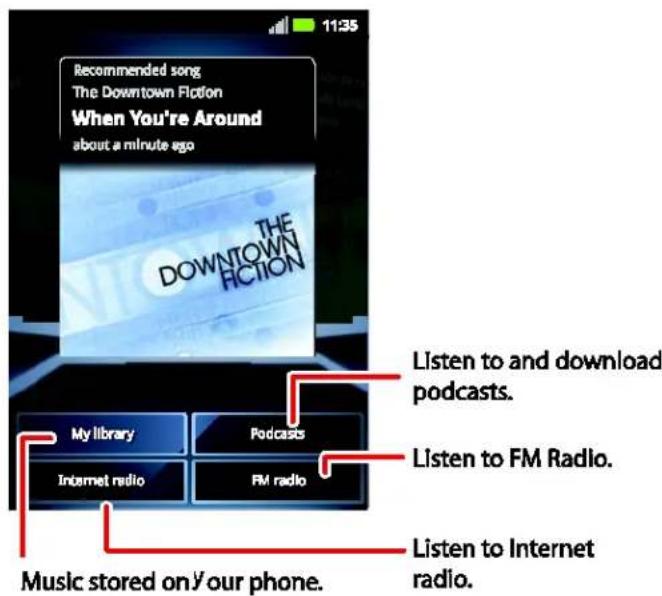
Open your music library, and then select what to play.
-
Touch □ > Music > My Library.
-
To select a library view, touch the current view type at the top and then touch a view (Artists, Albums, Songs, Playlists, or Genres). Touch the song or playlist you want to play. Or, touch Menu > Shuffle all to randomly play all your songs, or touch Search to find a song.
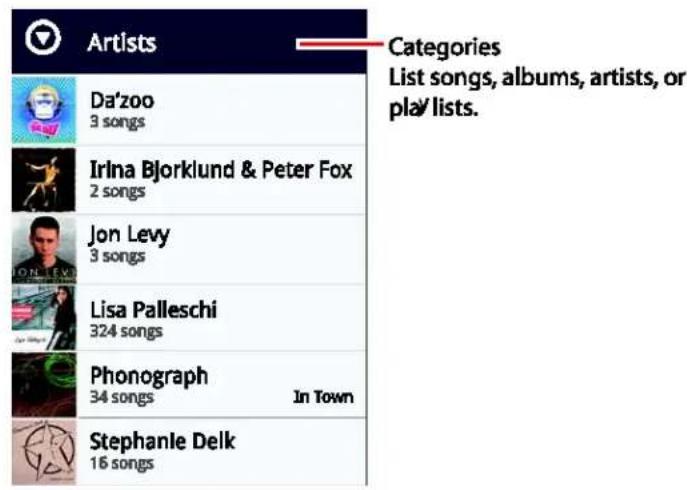
Play Music
- Touch a song or playlist to start playing music.
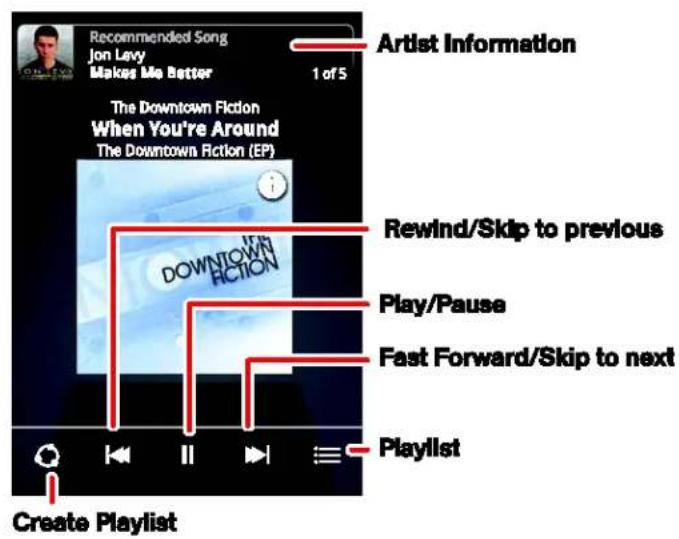
Tip: When a song is playing, you can add it to a playlist by touching Menu □> More > Add to playlist.
-
Use these music player controls:
-
Play/pause: touch ▶ / ||
■ Previous/next: touch / - Fast forward/rewind: touch and hold ▶| / ◀
- View playlist: touch ≡.
- Shuffle: touch ≡ >x
- Repeat: touch ≡ >
■ Volume: press the side volume buttons. - Manage speakers: touch Menu □□□ > More > Settings > Audio effects.
- Add to playlist: touch Menu > More > Add to playlist.
- Set as ringtone: touch Menu □> More > Use as ring tone.
- Delete: touch Menu > Delete.
Note: Not all options are available from all music player views.
Hide, Wake, Turn Off
- Touch Home 📋 to use another app. Your music continues to play.
- When you see ▶ in the status bar, a song is playing. Flick down to see details. Touch the song to return to the music controls.
- To turn off your music, touch ■■.
Playlists
- To add a song from the music library to a playlist, touch and hold the song, and then touch Add to playlist. Choose an existing playlist, or touch Create playlist to create one.
- To add a song to the playlist you're playing, touch Menu ☐ > Add to playlist in the music player.
- To edit, delete and rename playlists, touch and hold the playlist in the music library.
Setting Up Music
What music transfer tools do I need?
To put music on your computer and then load it on your phone, you need:
- Microsoft ^ Windows ^ PC or Apple ^TM Macintosh ^TM .
• USB data cable (included with your phone). - microSD memory card.
Your music is stored on your memory card. Your phone supports removable microSD memory cards up to 32GB capacity. To make sure your memory card is installed, go to Insert the microSD Card.
Tip: To see the available memory on your memory card, touch Menu > Settings > SD card & phone storage.
What audio file formats can I play?
Your phone can play many types of files: AAC, AMR, MP3, WAV, WMA, AAC+, and MIDI.
Note: Your phone does not support DRM-protected files.
What headphones can I use?
Your phone has a 3.5mm headset jack for wired stereo listening. You can go wireless with Bluetooth ^® stereo headphones or speakers. (See Bluetooth ^® Connections.)
Getting Music
Note: Copyright — do you have the right? Always follow the rules. See Content Copyright.
You can transfer music from your computer to your phone by using a USB connection. Music files can be transferred to your phone by copying them, syncing with Windows Media Player, or using Motorola Media Link.
Copying Music Files to Your Phone
For more information on transferring music files, see Connect Your Phone to Your Computer.
Syncing With Windows Media Player
- Use the supplied USB cable to connect your phone to an available USB port on your computer.
- Flick the status bar down and touch USB Connection > Windows Media Sync.
- Open Windows Media Player and drag and drop your music into the Sync list.
- Click Start Sync.
Transferring Music with Motorola Media Link
Motorola Media Link lets you transfer music files from Windows Media Player or iTunes. Before you can transfer music, you will need to create playlists with the music you wish to transfer.
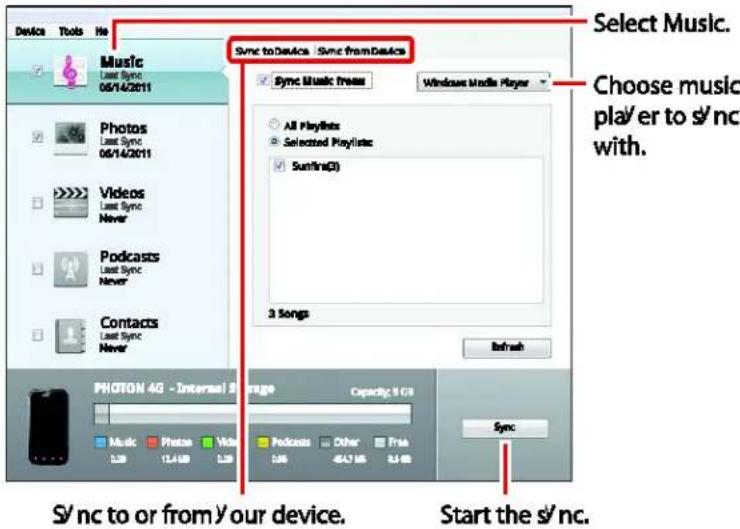
The first time you use you the music player, you will be prompted to install Motorola Media Link from your phone. You can also download Motorola Media Link from motorola.com/medialink.
To transfer music with Motorola Media Link:
- Use the supplied USB cable to connect your phone to an available USB port on your computer. Once the correct Motorola drivers have been installed on your computer, Motorola Media Link will start.
- Make sure the Sync to Device tab is selected, and Music has a check mark next to it.
- In the Sync to Device tab, make sure Sync Music from is selected, and select either Windows Media Player or iTunes from the drop-down box to the right.
- You can select to sync all playlists, or selected playlists. If you choose to sync selected playlist, choose the playlists from the list.
- Click Sync to transfer the music to your phone.
Podcasts
Listening to Podcasts
You can listen to Podcasts with your phone.
-
Touch □ > Music > Podcasts.
-
Select from Subscribed, Downloaded, Recently Played, Featured Podcasts, or Browse Podcasts, and then select a podcast or search through categories to find the podcast you want.
-
To begin playing a podcast episode, touch it.
Subscribing to Podcasts
▶ To subscribe to a podcast, touch it to open it, and then touch the star in the upper right screen corner.
Downloading Podcast Episodes
▶ To download a podcast episode, open it and then touch Menu > Download.
Internet Radio
You can also listen to Internet radio with your phone.
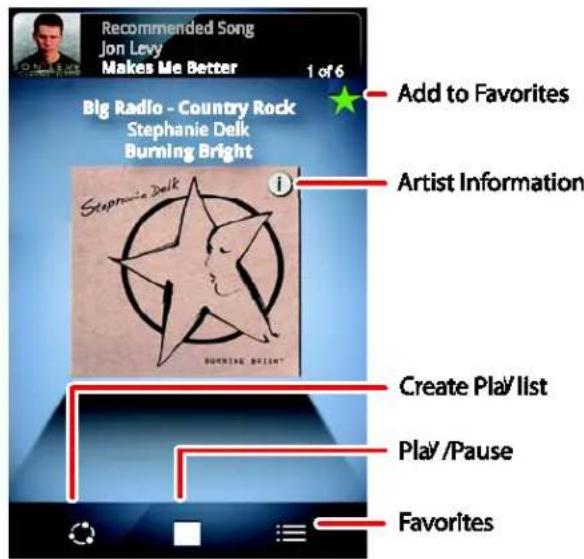
-
Touch □ > Music > Internet Radio.
-
Select from Favorite stations, Recommended stations, Recently played, Top genres, or Browse stations, and then select a station or search through categories to find the station you want.
-
To begin listening to a station, touch it.
Favorite Stations
▶ To add a station to Favorite stations, touch a station to open it, and then touch the star in the upper right screen corner.
FM Radio
You can use your phone to listen to over-the-air FM radio stations.
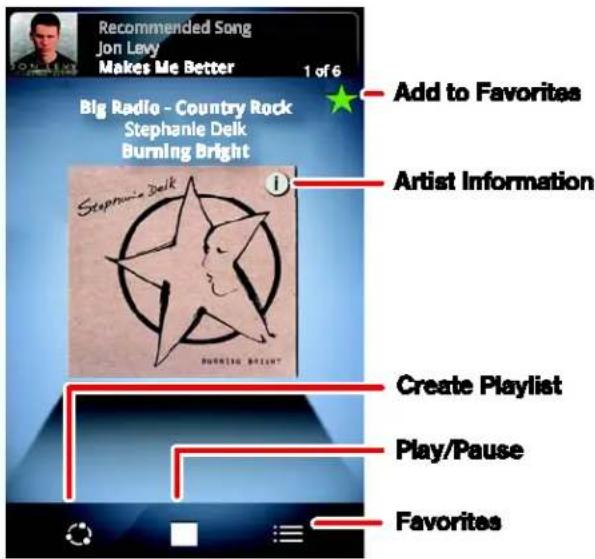
To listen to FM radio:
▶ Touch □ > Music > FM Radio.
Note: You must plug in a wired headset to listen to FM radio. The headset acts as the phone's antenna.
Finding a Station
To tune into a station, drag your finger across the dial.
Station Presets
The first time you use the FM radio, you phone will prompt you to scan for radio stations. All stations found are automatically added to your presets.
▶ To add a station to your station presets, touch the star in the upper right corner of the station listing.
Sprint Music Plus
In addition to the Music application, your phone offers Sprint Music Plus, an all-in-one music store and player for full songs, ringtones, and ringback tones.
▶ Touch □ > Sprint Music Plus.
- Touch My Library to access all of your music, including items you have purchased or loaded onto a microSD card.
- Touch Downloads to access your list of downloaded music.
- Touch Music Store to access the music store, where you can search for, sample, and purchase DRM-free music.
- Touch Ringtone Store or Ringback Tone Store to find and purchase new ringtones and ringback tones for your phone.
- For more information, touch Menu > More > Help & About.
Sprint Radio
Listen to streaming music through your phone's Sprint Radio app.
▶ Touch □ > Sprint Radio.
- Touch Sprint Radio > Go to browse by genre, region, or features. Sprint Radio Extra (available by subscription) offers additional features, music, videos, and more.
Sprint TV and Movies
Live TV and video on demand. Complete episodes and clips of your favorite primetime shows. Over 50 channels of news, entertainment, weather, sports, and streaming music.
-
Touch □ > Sprint TV & Movies.
-
The first time you use the application, follow the prompts to download it to your phone.
-
Follow any prompts to save appearance settings, location permissions, etc.
-
In the top bar, click an option to see what's available.
■ Home to return to the Sprint TV & Movies home page.
■ Live TV to select from a list of currently available live channels.
- On Demand to see a categorized list of available on demand programs.
■ Movies to see a selection of movies available for purchase.
- Shop to produce premium viewing packages or individual channel access.
- Help to view information about the Sprint TV & Movies application.
- Browse through the available programming and click a clip or channel to view the program.
Note: The first time you access a channel that requires a subscription, you will be prompted to purchase access. Select Subscribe to purchase access, or select Preview to see a preview of the selected channel.
Note: Coverage not available everywhere. Content and lineup subject to change. Select channels also available for casual usage. Go to sprintchannels.mobitv for more information.
Note: Sprint TV & Movies will not operate using your phone's Wi-Fi connection. Before using Sprint TV & Movies, disable your phone's Wi-Fi connection.
Tip: For quick access, click a featured item in the center of the screen or select a live channel from the bottom bar.
Visit sprintchannels.mobitv for more information on channels and pricing.
Additional Lifestyle Features
You can also access exclusive Sprint content through NASCAR Sprint Cup Mobile or Sprint Football Live.
NASCAR Sprint Cup Mobile
Now you have the ability to get every bit of NASCAR coverage, news, and stats right on your phone.
- Touch □ > NASCAR.
- If prompted, read the permission check disclaimer, make a selection and touch OK. Follow the onscreen instructions until you reach the main NASCAR Sprint Cup Mobile page.
-
Choose from these options:
-
Home is the main NASCAR homepage where you can view stats on a current race, choose to follow a specific driver, view special NASCAR promotions and other NASCAR-specific multimedia content.
- Race Recap provides overviews of the current races, pictures, commentary, additional photos, and race stats.
- SPEED displays a list of selectable multimedia video clips from the SPEED channel that are specific to NASCAR.
-
My Driver customizes your NASCAR experience by following specific drivers. Information includes driver-specific stats and NASCAR RSS feeds. You can also get additional stats, review other driver info, or change drivers.
-
Stats/Sched tracks race information such as: NSCS Recap, NNS Recap, Point Standings, Season Stats, and Schedule.
- Miss Sprint Cup is your insider to NASCAR by providing news, information, blogs and twitter updates to the goings-on within NASCAR.
- Videos displays a list of selectable multimedia content. Other features include streaming multimedia content from NASCAR radio stations or other racing radio shows.
- News & Alerts provides you with quick access to NASCAR-specific news, photos, and driver stats. You can also customize alerts for new information such as ALL NASCAR News, Sprint Cup News, etc.
■ Community lets you take part in online fantasy racing, access Games, News, Videos, take part in Polls, and access other Special Promotions. - Fantasy connects you with other NASCAR enthusiasts. You will have to login using a NASCAR.COM Community login. If you do not have this information, visit community.nascar.com to get an account.
- FanZone displays a list of selectable content available to Sprint subscribers such as Sweepstakes, Video clips (footage and music) and Screensavers.
- Settings and Help displays help information for the NASCAR app and features.
- Exit quits the NASCAR app.
Sprint Football Live
Football Live lets you be right in the middle of your favorite game by being a part of previews, blogs, discussions groups, fantasy football, etc.
- Touch □ > Sprint Football Live.
- Touch Continue and follow the onscreen instructions to customize your football experience by choosing your favorite teams (Pro and College).
-
Choose from these options:
-
My Team launches a team-specific page with content such as top stories, RSS feeds, Rumor information, Schedules, Team Alerts, and the ability to change your favorite team selection.
-
Scores and Schedules provides final scores and future game schedules. The content can be viewed By Week or By Team.
■ News and Analysis provides AP league news, Rumor and News, PFTV, Injury Info, Transactions, Legal, and other football related information, photos and videos. -
Team Pages allows you select from wither the AFC or NFC conferences, and then display content such as top stories, RSS feeds, Rumor information, Schedules, Team Alerts, and the ability to change your favorite team selection.
- Standings provides regular season team standings by conference (NFC or AFC).
■ Statistics provides regular season rundowns. You can view them by Weekly Leaders, League Leaders, Team League Leaders, Player Stats and Team Stats. - Twitter launches an onscreen Twitter page specific to the NFL. Also included onscreen is a real-time RSS new feed.
- Odds launches a spreadsheet of game outcome predictions.
- Fantasy allows you to choose from a list of applications associated with fantasy football leagues.
- Videos and Photos provides images, highlights, previews, and commentaries about your favorite football news.
- Settings/Help displays help information for Sprint Football Live topics.
- Exit quits the Sprint Football Live app.
Wi-Fi
Wi-Fi Hotspot
Browser
YouTube™
Digital Living
Wi-Fi
Wi-Fi provides wireless Internet access over distances of up to 300 feet. To use your phone's Wi-Fi, you need access to a wireless access point or "hotspot."
The availability and range of the Wi-Fi signal depends on a number of factors, including infrastructure and other objects through which the signal passes.
To use a Wi-Fi computer network for even faster Internet access:
▶ Touch Menu 📁 > Settings > Wireless & networks > Wi-Fi settings.
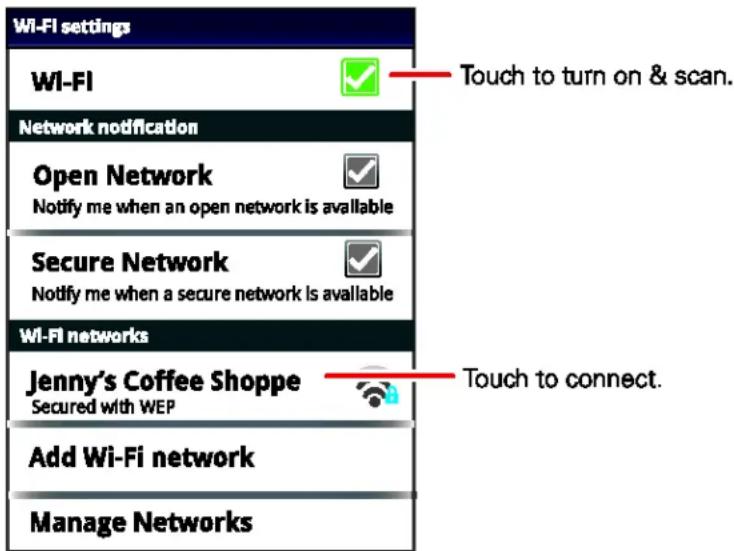
Turn Wi-Fi On or Off
▶ Touch Menu > Settings > Wireless & networks > Wi-Fi.
Note: To extend battery life, turn off Wi-Fi power when not in use.
Wi-Fi Search and Connect
To find networks in your range
- Touch Menu > Settings > Wireless & networks > Wi-Fi settings.
- Touch Wi-Fi to turn on and scan. If Wi-Fi is already on, touch Menu 📁 > Scan. Your phone lists the networks it finds within range.
Tip: To see your phone's MAC address or other Wi-Fi details, touch Menu > Advanced.
- Touch a network to connect.
- If necessary, enter Network SSID, Security, and Wireless password, and touch Connect. When your phone is connected to the network, the wireless indicator 📤 appears in the status bar.
Tip: When you are in range and Wi-Fi is on, you will automatically reconnect to available networks you've connected to before.
Add the Wi-Fi Widget
Add the Wi-Fi widget to the home screen to make it faster for you to turn Wi-Fi on or off.
- Touch and hold an available spot on one of the home screens.
- Touch Motorola widgets > Wi-Fi toggle.
Wi-Fi Hotspot
You can set up your phone as a Wi-Fi hotspot to provide portable, convenient internet access for up to 5 other Wi-Fi enabled devices.
Note: You need to subscribe to Wi-Fi hotspot service to use this feature. Contact Sprint for details.
Note: You cannot use a Wi-Fi hotspot when your phone is roaming.
Setting up the Hotspot
Note: Risks can be associated with connecting to the public internet. Your phone allows you to create a 3G Mobile Hotspot, which may be accessible by unauthorized users. It is highly recommended that you use a password other possible steps to protect your computer from unauthorized access.
To add security to your Wi-Fi hotspot:
- Touch □ > Mobile Hotspot
—or—
Touch ☐ > Mobile Hotspot > Configure Mobile Hotspot if you have already turned it on.
-
Touch a setting to modify it:
-
SSID: Enter a unique name for your hotspot.
- Security: Select the type of security you want, and touch Save: WEP, WPA, or WPA2. Enter a unique Wireless password. Other users can access your Wi-Fi hotspot only if they enter the correct password.
Note: WEP is the weakest option because it is highly vulnerable to hacking. WPA2 is recommended by IEEE.
- Channel: Select a channel that minimizes potential interference. You may need to try different channels after your hotspot is active for a time.
- Touch Save when the settings are complete.
Activating the Hotspot
▶ Touch □ > Mobile Hotspot > Mobile Hotspot.
When your Wi-Fi hotspot is active, other Wi-Fi enabled devices can connect by entering your hotspot's SSID, selecting a Security type, and entering the correct Wireless password.
Browser
▶ To open the browser, touch Browser.
▶ To go to a Web page, touch the URL area to enter a Web address.
Your Browser
Web pages look like the following example:
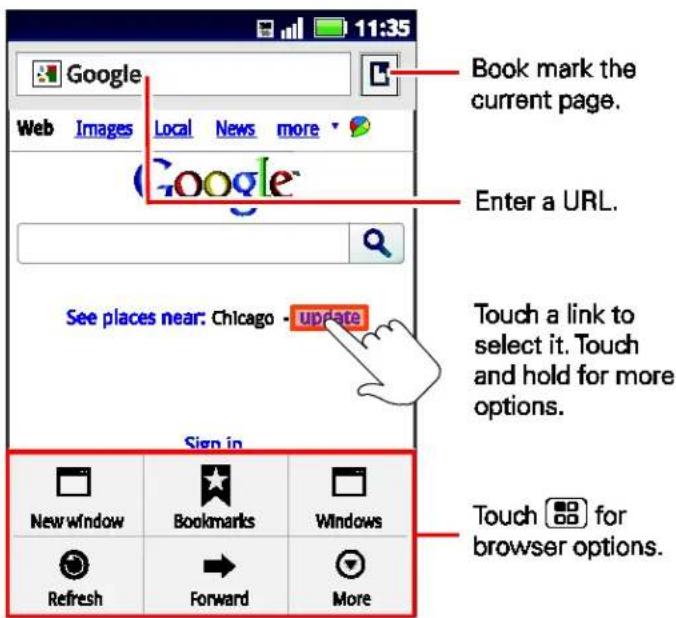
Note: If you can't connect, contact Sprint.
Connect
Your phone uses the mobile phone network (over the air) or a Wi-Fi connection to automatically access the Web.
To use a Wi-Fi connection, touch Menu > Settings > Wireless & networks. Touch Wi-Fi to turn it on and touch Wi-Fi settings to search for nearby wireless networks. Touch a network to connect.
Select Links
When you touch a link, your phone outlines it and goes to that page. If you touch and hold the link, your phone shows options, such as Open in new window or Bookmark link.
See Options
Touch Menu ☐ with the browser open to see these options:
| Options | |
| New Window | Open a new browser window. |
| Bookmarks | See your bookmarks. |
| Windows | View the browser windows that are currently open. |
| Refresh | Reload the current page. |
| Back/Forward | Navigate to previously viewed pages. |
| More | See additional browser options:Add bookmark to bookmark the current page.Find on pageto search the text on the current page.Save pageto save the page to your memory card.Select textto select words on the current pagePage infoto see more information about the current pageShare pageto share the current page with someone via email, messaging, and more.Downloadsto see the files you’ve downloaded from the Web.Settingsto open page and privacy settings. |
Go to a Specific Website
To enter a URL (Web address):
- Touch the URL field at the top of the browser screen.
- Use the keyboard to type the address. If the website you want appears within the suggested sites list, tap the entry to begin surfing.
- Touch Go.
Adjust Browser Page Settings
You can change the page settings for your browser, including default zoom level, pop-up blocking, display options, setting your home page, and more.
- Touch Browser > Menu > More > Settings.
- Choose from these options:
- Text size: Set the font size for viewing Web pages.
- Default zoom: Sets the default browser viewing size.
- Open pages in overview: Provides an overview of recently opened pages.
- Text encoding: Adjusts the current text encoding.
- Block pop-up windows: Prevents popup advertisement or windows from appearing onscreen.
- Load images: Allows Web page images to be loaded along with the other text components of a loaded website.
- Auto-fit pages: Allows Web pages to be resized to fit as much of the screen as possible.
- Landscape view only: Displays pages only in the wider landscape screen orientation.
- Enable Javascript: Enables javascript for the current Web page. Without this feature, some pages may not display properly.
- Enable plug-ins: Allows you to determine the way your phone handles program enhancements.
- Open in background: Launch new pages in a separate page behind the current one.
- Set home page: Sets the current home page for the Web browser.
Adjust Browser Privacy Settings
You can change your browser's privacy settings.
-
Touch Browser > Menu > More > Settings.
-
Scroll down to Privacy settings, and choose from these options:
-
Clear all: Clears cache, history, cookies, form data, and location access.
- Clear cache: Deletes all currently cached data.
- Clear history: Clears the browser history.
- Accept cookies: Allows sites that require cookies to save and read cookies from your phone.
- Clear all cookie data: Clears all current browser cookie files.
-
Remember form data: Allows the phone to store data from any previously filled-out forms.
-
Clear form data: Deletes any stored data from previously filled out forms.
- Enable location: Allows sites to request access to your current location (using the built-in GPS).
- Clear location access: Clears location access for all websites.
Adjust Browser Security Settings
You can adjust your browser's security settings such as whether or not to save passwords or show security warnings.
- Touch Browser > Menu > More > Settings.
-
Scroll down to Security settings, and choose from these options:
-
Remember passwords: Stores usernames and passwords for visited sites.
- Clear passwords: Deletes any previously stored usernames or passwords.
- Show security warnings: Notifies you if there is a security issue with the current website.
Adjust Browser Advanced Settings
Your browser also has some advanced settings you can adjust like selecting the default search engine.
- Touch Browser, touch Menu > More > Settings.
-
Scroll down to Advanced settings, and choose from these options:
-
Set search engine: Set the default search engine for your browser.
Website settings: Use settings for individual Web sites. - Restore to default: Restore your browser to all original settings.
YouTube ^TM
Share videos with YouTube users everywhere. You don't need a YouTube account to browse and view videos.
▶ Touch □ > YouTube.
Note: If you want a YouTube account, go to youtube.com. To create an account or sign in, touch Menu > My Channel. To Browse or Upload videos, touch Menu
Digital Living
Share Using DLNA
Expand the ways you can enjoy your photos and videos on a DLNA Certified computer, TV, or monitor, using your own Wi-Fi network.
Make sure your phone is connected to an active Wi-Fi network and has access to a DLNA Certified device.
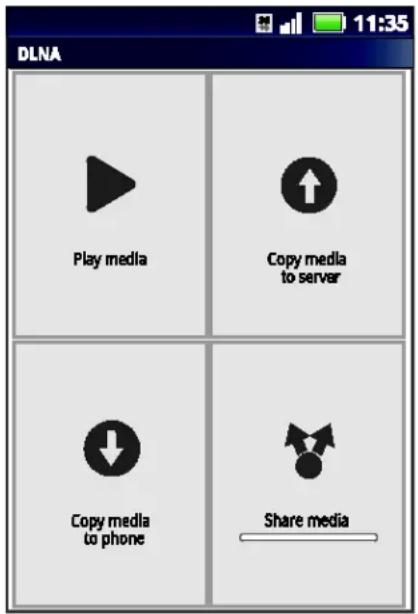
- Touch □ > DLNA.
- Touch Play media, Copy media to server, Copy media to phone, or Share media. Then follow the instructions you see on your phone.
Important Safety Information
General Precautions
Battery Use & Safety
Battery Charging
Third Party Accessories
Driving Precautions
Seizures/Blackouts
Caution About High Volume Usage
Repetitive Motion
Children
Glass Parts
Operational Warnings
Radio Frequency (RF) Energy
Specific Absorption Rate (IEEE)
Information from the World Health Organization
European Union Directives Conformance Statement
FCC Notice to Users
Industry Canada Notice to Users
Location Services (GPS & AGPS)
Navigation
Smart Practices While Driving
Privacy & Data Security
Use & Care
Recycling
California Perchlorate Label
Important Safety Information 109
Hearing Aid Compatibility with Mobile Phones
Software Copyright Notice
Content Copyright
Open Source Software Information
Export Law Assurances
Product Registration
Service & Repairs
Owner's Record
Copyright & Trademarks
This phone guide contains important operational and safety information that will help you safely use your phone. Failure to read and follow the information provided in this phone guide may result in serious bodily injury, death, or property damage.
General Precautions
There are several simple guidelines to operating your phone properly and maintaining safe, satisfactory service.
- To maximize performance, do not touch the bottom portion of your phone where the internal antenna is located while using the phone.
- Speak directly into the mouthpiece.
Note: For the best care of your phone, only Sprint-authorized personnel should service your phone and accessories. Failure to do so may be dangerous and void your warranty.
Maintaining Safe Use of and Access to Your Phone
Do Not Rely on Your Phone for Emergency Calls
Mobile phones operate using radio signals, which cannot guarantee connection in all conditions. Therefore you should never rely solely upon any mobile phone for essential communication (e.g., medical emergencies). Emergency calls may not be possible on all cellular networks or when certain network services or mobile phone features are in use. Check with your local service provider for details.
Following Safety Guidelines
To operate your phone safely and efficiently, always follow any special regulations in a given area. Turn your phone off in areas where use is forbidden or when it may cause interference or danger.
Turning Off Your Phone Before Flying
Turn off your phone before boarding any aircraft. To prevent possible interference with aircraft systems, the U.S. Federal Aviation Administration (FAA) regulations require you to have permission from a crew member to use your phone while the plane is on the ground. To prevent any risk of interference, FCC regulations prohibit using your phone while the plane is in the air.
Battery Use & Safety
Important: Handle and store batteries properly to avoid injury or damage. Most battery issues arise from improper handling of batteries, and particularly from the continued use of damaged batteries.
DON'Ts
- Don't disassemble, crush, puncture, shred, or otherwise attempt to change the form of your battery.
- Don't let the mobile device or battery come in contact with liquids.* Liquids can get into the mobile device's circuits, leading to corrosion.
- Don't allow the battery to touch metal objects. If metal objects, such as jewelry, stay in prolonged contact with the battery contact points, the battery could become very hot.
- Don't place your mobile device or battery near a heat source.* High temperatures can cause the battery to swell, leak, or malfunction.
- Don't dry a wet or damp battery with an appliance or heat source, such as a hair dryer or microwave oven.
DOs
- Do avoid leaving your mobile device in your car in high temperatures.*
- Do avoid dropping the mobile device or battery.* Dropping these items, especially on a hard surface, can potentially cause damage.*
- Do contact your service provider or Motorola if your mobile device or battery has been damaged by dropping, liquids or high temperatures.
Note: *Always make sure that the battery compartment and any connector covers are closed and secure to avoid direct exposure of the battery to any of these conditions, even if your product information states that your mobile device can resist damage from these conditions.
Important: Motorola recommends you always use Motorola-branded batteries and chargers for quality assurance and safeguards.
Motorola's warranty does not cover damage to the mobile device caused by non-Motorola batteries and/or chargers. To help you identify authentic Motorola batteries from non-original or counterfeit batteries (that may not have adequate safety protection), Motorola provides holograms on its batteries. You should confirm that any battery you purchase has a "Motorola Original" hologram.
If you see a message on your display such as Invalid Battery or Unable to Charge, take the following steps:
- Remove the battery and inspect it to confirm that it has a "Motorola Original" hologram;
- If there is no hologram, the battery is not a Motorola battery;
- If there is a hologram, replace the battery and try charging it again;
- If the message remains, contact a Motorola authorized service center.
Warning: Use of a non-Motorola battery or charger may present a risk of fire, explosion, leakage, or other hazard.
Proper and safe battery disposal and recycling: Proper battery disposal is not only important for safety, it benefits the environment. You can recycle your used batteries in many retail or service provider locations. Additional information on proper disposal and recycling can be found at motorola.com/recycling.

Disposal: Promptly dispose of used batteries in accordance with local regulations. Contact your local recycling center or national recycling organizations for more information on how to dispose of batteries.
Warning: Never dispose of batteries in a fire because they may explode.
Battery Charging
Notes for charging your product's battery:
- During charging, keep your battery and charger near room temperature for efficient battery charging.
- New batteries are not fully charged.
- New batteries or batteries stored for a long time may take more time to charge.
- Motorola batteries and charging systems have circuitry that protects the battery from damage from overcharging.
Third Party Accessories
Use of third party accessories, including but not limited to batteries, chargers, headsets, covers, cases, screen protectors and memory cards, may impact your mobile device's performance. In some circumstances, third party accessories can be dangerous and may void your mobile device's warranty. For a list of Motorola accessories, visit motorola.com/products.
Driving Precautions
Responsible and safe driving is your primary responsibility when behind the wheel of a vehicle. Using a mobile device or accessory for a call or other application while driving may cause distraction. Using a mobile device or accessory may be prohibited or restricted in certain areas, always obey the laws and regulations on the use of these products.
While driving, NEVER:
- Type or read texts.
- Enter or review written data.
- Surf the Web.
- Input navigation information.
- Perform any other functions that divert your attention from driving.
While driving, ALWAYS:
- Keep your eyes on the road.
- Use a handsfree device if available or required by law in your area.
- Enter destination information into a navigation device before driving.
- Use voice activated features (such as voice dial) and speaking features (such as audible directions), if available.
- Obey all local laws and regulations for the use of mobile devices and accessories in the vehicle.
• End your call or other task if you cannot concentrate on driving. - Remember to follow the Smart Practices While Driving in this guide and at motorola.com/callsmart (in English only).
Seizures/Blackouts
Some people may be susceptible to epileptic seizures or blackouts when exposed to flashing lights, such as when playing videos or games. These may occur even if a person has never had a previous seizure or blackout.
If you have experienced seizures or blackouts, or if you have a family history of such occurrences, please consult with your physician before playing videos or games or enabling a flashing-lights feature (if available) on your mobile device.
Discontinue use and consult a physician if any of the following symptoms occur: convulsion, eye or muscle twitching, loss of awareness, involuntary movements, or disorientation. It is always a good idea to hold the screen away from your eyes, leave the lights on in the room, take a 15-minute break every hour, and stop use if you are tired.
Caution About High Volume Usage
Warning: Exposure to loud noise from any source for extended periods of time may affect your hearing. The louder the volume sound level, the less time is required before your hearing could be affected.
To protect your hearing:
- Limit the amount of time you use headsets or headphones at high volume.
- Avoid turning up the volume to block out noisy surroundings.
- Turn the volume down if you can't hear people speaking near you.
If you experience hearing discomfort, including the sensation of pressure or fullness in your ears, ringing in your ears, or muffled speech, you should stop listening to the device through your headset or headphones and have your hearing checked.
For more information about hearing, see our website at http://direct.motorola.com/hellomoto/nss/AcousticSafety.asp (in English only).
Repetitive Motion
When you repetitively perform actions such as pressing keys or entering finger-written characters, you may experience occasional discomfort in your hands, arms, shoulders, neck, or other parts of your body. If you continue to have discomfort during or after such use, stop use and see a physician.
Children
Keep your mobile device and its accessories away from small children. These products are not toys and may be hazardous to small children. For example:
- A choking hazard may exist for small, detachable parts.
- Improper use could result in loud sounds, possibly causing hearing injury.
- Improperly handled batteries could overheat and cause a burn.
- Similar to a computer, if a child does use your mobile device, you may want to monitor their access to help prevent exposure to inappropriate apps or content.
Glass Parts
Some parts of your mobile device may be made of glass. This glass could break if the product receives a substantial impact. If glass breaks, do not touch or attempt to remove. Stop using your mobile device until the glass is replaced by a qualified service center.
Operational Warnings
Obey all posted signs when using mobile devices in public areas.
Potentially Explosive Atmospheres
Areas with potentially explosive atmospheres are often, but not always, posted and can include fueling areas, such as below decks on boats, fuel or chemical transfer or storage facilities, or areas where the air contains chemicals or particles, such as grain dust, or metal powders.
When you are in such an area, turn off your mobile device, and do not remove, install, or charge batteries unless it is a radio product type especially qualified for use in such areas as "Intrinsically Safe" (for example, Factory Mutual, CSA, or UL approved). In such areas, sparks can occur and cause an explosion or fire.
Symbol Key
Your battery, charger, or mobile device may contain symbols, defined as follows:
| Symbol | Definition | |
 | Important safety information follows. | |
 | Do not dispose of your battery or mobile device in a fire. | |
 | Your battery or mobile device may require recycling in accordance with local laws. Contact your local regulatory authorities for more information. | |
 | ||
 | Do not dispose of your battery or mobile device with your household waste. See Recycling for more information. | |
 | Do not use tools. | |
| [WZSH] | For indoor use only. |
Radio Frequency (RF) Energy
Exposure to RF Energy
Your mobile device contains a transmitter and receiver. When it is ON, it receives and transmits RF energy. When you communicate with your mobile device, the system handling your call controls the power level at which your mobile device transmits.
Your mobile device is designed to comply with local regulatory requirements in your country concerning exposure of human beings to RF energy.
RF Energy Operational Precautions
For optimal mobile device performance, and to be sure that human exposure to RF energy does not exceed the guidelines set forth in the relevant standards, always follow these instructions and precautions:
- When placing or receiving a phone call, hold your mobile device just like you would a landline phone.
- If you wear the mobile device on your body, always place the mobile device in a Motorola-supplied or approved clip, holder, holster, case, or body harness. If you do not use a body-worn accessory supplied or approved by Motorola, keep the mobile device and its antenna at least 2.5 cm (1 inch) from your body when transmitting.
- Using accessories not supplied or approved by Motorola may cause your mobile device to exceed RF energy exposure guidelines. For a list of Motorola-supplied or approved accessories, visit our website at: www.motorola.com.
RF Energy Interference/Compatibility
Nearly every electronic device is subject to RF energy interference from external sources if inadequately shielded, designed, or otherwise configured for RF energy compatibility. In some circumstances, your mobile device may cause interference with other devices.
Follow Instructions to Avoid Interference Problems
Turn off your mobile device in any location where posted notices instruct you to do so.
In an aircraft, turn off your mobile device whenever instructed to do so by airline staff. If your mobile device offers an airplane mode or similar feature, consult airline staff about using it in flight.
Implantable Medical Devices
If you have an implantable medical device, such as a pacemaker or defibrillator, consult your physician before using this mobile device.
Persons with implantable medical devices should observe the following precautions:
- ALWAYS keep the mobile device more than 20 centimeters (8 inches) from the implantable medical device when the mobile device is turned ON.
• DO NOT carry the mobile device in the breast pocket. - Use the ear opposite the implantable medical device to minimize the potential for interference.
- Turn OFF the mobile device immediately if you have any reason to suspect that interference is taking place.
Read and follow the directions from the manufacturer of your implantable medical device. If you have any questions about using your mobile device with your implantable medical device, consult your healthcare provider.
Specific Absorption Rate (IEEE)
YOUR MOBILE DEVICE MEETS FCC LIMITS FOR EXPOSURE TO RADIO WAVES.
Your mobile device is a radio transmitter and receiver. It is designed not to exceed the limits for exposure to radio waves (radio frequency electromagnetic fields) adopted by the Federal Communications Commission (FCC). These limits include a substantial safety margin designed to assure the safety of all persons, regardless of age and health.
The radio wave exposure guidelines use a unit of measurement known as the Specific Absorption Rate, or SAR. The SAR limit for mobile devices is 1.6 W/kg.
Tests for SAR are conducted using standard operating positions with the device transmitting at its highest certified power level in all tested frequency bands. The highest SAR values under the FCC guidelines for your device model are listed below:
ESMR CDMA mode (Part 90):
Head: 0.93 W/kg; Body-worn: 0.67 W/kg
Cellular CDMA mode (Part 22):
Head: 1.02 W/kg; Body-worn: 0.73 W/kg
PCS mode (Part 24):
Head: 1.06 W/kg; Body-worn: 0.44 W/kg
During use, the actual SAR values for your device are usually well below the values stated. This is because, for purposes of system efficiency and to minimize interference on the network, the
operating power of your mobile device is automatically decreased when full power is not needed for the call. The lower the power output of the device, the lower its SAR value.
Body-worn SAR testing has been carried out using an approved accessory or at a separation distance of 2.5 cm (1 inch). To meet RF exposure guidelines during body-worn operation, the device should be in an approved accessory or positioned at least 2.5 cm (1 inch) away from the body. If you are not using an approved accessory, ensure that whatever product is used is free of any metal and that it positions the phone at least 2.5 cm (1 inch) away from the body.
The World Health Organization has stated that present scientific information does not indicate the need for any special precautions for the use of mobile devices. They recommend that if you are interested in further reducing your exposure then you can easily do so by limiting your usage or simply using a hands-free kit to keep the device away from the head and body.
Additional information can be found at who.int/emf (World Health Organization) or motorola.com/rfhealth (Motorola Mobility, Inc.).
Information from the World Health Organization
"A large number of studies have been performed over the last two decades to assess whether mobile phones pose a potential health risk. To date, no adverse health effects have been established for mobile phone use."
Source: WHO Fact Sheet 193
Further information: who.int/emf
European Union Directives Conformance Statement
The following CE compliance information is applicable to Motorola mobile devices that carry one of the following CE marks:
CE0168
CE0168① [Only Indoor Use Allowed In France for Bluetooth and/or WiFi]
Hereby, Motorola declares that this product is in compliance with:
- The essential requirements and other relevant provisions of Directive 1999/5/EC
• All other relevant EU Directives
The above gives an example of a typical Product Approval Number.
You can view your product's Declaration of Conformity (DoC) to Directive 1999/5/EC (to R&TTE Directive) at motorola.com/rtte. To find your DoC, enter the Product Approval Number from your product's label in the "Search" bar on the website.
FCC Notice to Users
The following statement applies to all products that bear the FCC logo on the product label.
This equipment has been tested and found to comply with the limits for a Class B digital device, pursuant to part 15 of the FCC Rules. See 47 CFR Sec. 15.105(b). These limits are designed to provide reasonable protection against harmful interference in a residential installation. This equipment generates, uses and can radiate radio frequency energy and, if not installed and used in accordance with the instructions, may cause harmful interference to radio communications. However, there is no guarantee that interference will not occur in a particular installation. If this equipment does cause harmful interference to radio or television reception, which can be determined by turning the equipment off and on, the user is encouraged to try to correct the interference by one or more of the following measures:
- Reorient or relocate the receiving antenna.
- Increase the separation between the equipment and the receiver.
- Consult the dealer or an experienced radio/TV technician for help.
- Connect the equipment to an outlet on a circuit different from that to which the receiver is connected.
This device complies with part 15 of the FCC Rules. Operation is subject to the following two conditions: (1) This device may not cause harmful interference, and (2) this device must accept any interference received, including interference that may cause undesired operation. See 47 CFR Sec. 15.19(a)(3).
Motorola has not approved any changes or modifications to this device by the user. Any changes or modifications could void the user's authority to operate the equipment. See 47 CFR Sec. 15.21.
For products that support W-Fi 802.11a (as defined in the product specifications available at motorola.com), the following information applies. This equipment has the capability to operate Wi-Fi in the 5 GHz Unlicensed National Information Infrastructure (U-NII) band. Because this band is shared with MSS (Mobile Satellite Service), the FCC has restricted such devices to indoor use only (see 47 CFR 15.407(e)). Since wireless hot spots operating in this band have the same restriction, outdoor services are not offered. Nevertheless, please do not operate this device in Wi-Fi mode when outdoors.
Industry Canada Notice to Users
Operation is subject to the following two conditions: (1) This device may not cause interference and (2) This device must accept any interference, including interference that may cause undesired operation of the device. See RSS-GEN 7.1.5. This Class B digital apparatus complies with Canadian ICES-003.
Location Services (GPS & AGPS)
The following information is applicable to Motorola mobile devices that provide location based (GPS and/or AGPS) functionality.
Your mobile device can use Global Positioning System (GPS) signals for location-based applications. GPS uses satellites controlled by the U.S. government that are subject to changes implemented in accordance with the Department of Defense policy and the Federal Radio Navigation Plan. These changes may affect the performance of location technology on your mobile device.
Your mobile device can also use Assisted Global Positioning System (AGPS), which obtains information from the cellular network to improve GPS performance. AGPS uses your wireless service provider's network and therefore airtime, data charges, and/or additional charges may apply in accordance with your service plan. Contact your wireless service provider for details.
Your Location
Location-based information includes information that can be used to determine the approximate location of a mobile device. Mobile devices which are connected to a wireless network transmit location-based information. Devices enabled with GPS or AGPS technology also transmit location-based information. Additionally, if you use applications that require location-based information (e.g. driving directions), such applications transmit location-based information. This location-based information may be shared with third parties, including your wireless service provider, applications providers, Motorola, and other third parties providing services.
Emergency Calls
When you make an emergency call, the cellular network may activate the AGPS technology in your mobile device to tell the emergency responders your approximate location.
AGPS has limitations and might not work in your area. Therefore:
- Always tell the emergency responder your location to the best of your ability; and
- Remain on the phone for as long as the emergency responder instructs you.
Navigation
The following information is applicable to Motorola mobile devices that provide navigation features.
When using navigation features, note that mapping information, directions and other navigational data may contain inaccurate or incomplete data. In some countries, complete information may not be available. Therefore, you should visually confirm that the navigational instructions are consistent with what you see. All drivers should pay attention to road conditions, closures, traffic, and all other factors that may impact driving. Always obey posted road signs.
Smart Practices While Driving
Check the laws and regulations on the use of mobile devices and their accessories in the areas where you drive. Always obey them. The use of these devices may be prohibited or restricted in certain areas—for example, handsfree use only may be required. Go to motorola.com/callsmart (in English only) for more information.
Your mobile device lets you communicate by voice and data—almost anywhere, anytime, wherever wireless service is available and safe conditions allow. When driving a car, driving is your first responsibility. If you choose to use your mobile device while driving, remember the following tips:
- Get to know your Motorola mobile device and its features such as speed dial, redial and voice dial. If available, these features help you to place your call without taking your attention off the road.
- When available, use a handsfree device. If possible, add an additional layer of convenience to your mobile device with one of the many Motorola Original handsfree accessories available today.
- Position your mobile device within easy reach. Be able to access your mobile device without removing your eyes from the road. If you receive an incoming call at an inconvenient time, if possible, let your voicemail answer it for you.
- Let the person you are speaking with know you are driving; if necessary, suspend the call in heavy traffic or hazardous weather conditions. Rain, sleet, snow, ice, and even heavy traffic can be hazardous.
- Do not take notes or look up phone numbers while driving. Jotting down a “to do” list or going through your address book takes attention away from your primary responsibility—driving safely.
- Dial sensibly and assess the traffic; if possible, place calls when your car is not moving or before pulling into traffic. If you must make a call while moving, dial only a few numbers, check the road and your mirrors, and then continue.
- Do not engage in stressful or emotional conversations that may be distracting. Make people you are talking with aware you are driving and suspend conversations that can divert your attention away from the road.
- Use your mobile device to call for help. Dial 911 or other local emergency number in the case of fire, traffic accident, or medical emergencies (wherever wireless phone service is available).
- Use your mobile device to help others in emergencies. If you see an auto accident, crime in progress, or other serious emergency where lives are in danger, call 911 or other local emergency number (wherever wireless phone service is available), as you would want others to do for you.
- Call roadside assistance or a special non-emergency wireless assistance number when necessary. If you see a broken-down vehicle posing no serious hazard, a broken traffic signal, a minor traffic accident where no one appears injured, or a vehicle you know to be stolen, call roadside assistance or other special non-emergency wireless number (wherever wireless phone service is available).
Privacy & Data Security
Motorola understands that privacy and data security are important to everyone. Because some features of your mobile device may affect your privacy or data security, please follow these recommendations to enhance protection of your information:
- Monitor access—Keep your mobile device with you and do not leave it where others may have unmonitored access. Use your device's security and lock features, where available.
- Keep software up to date—If Motorola or a software/application vendor releases a patch or software fix for your mobile device that updates the device's security, install it as soon as possible.
- Secure Personal Information—Your mobile device can store personal information in various locations including your SIM card, memory card, and phone memory. Be sure to remove or clear all personal information before you recycle, return, or give away your device. You can also backup your personal data to transfer to a new device.
Note: For information on how to backup or wipe data from your mobile device, go to motorola.com/support.
- Online accounts—Some mobile devices provide a Motorola online account (such as MOTOBLUR). Go to your account for information on how to manage the account, and how to use security features such as remote wipe and device location (where available)
- Applications and updates—Choose your apps and updates carefully, and install from trusted sources only. Some apps can impact your phone's performance and/or have access to private information including account details, call data, location details and network resources.
- Wireless—For mobile devices with Wi-Fi features, only connect to trusted Wi-Fi networks. Also, when using your device as a hotspot (where available) use network security. These precautions will help prevent unauthorized access to your device.
- Location-based information—Location-based information includes information that can be used to determine the approximate location of a mobile device. Mobile phones which are connected to a wireless network transmit location-based information. Devices enabled with GPS or AGPS technology also transmit location-based information. Additionally, if you use applications that require location-based information (e.g. driving directions), such applications transmit location-based information. This location-based information may be shared with third parties, including your wireless service provider, applications providers, Motorola, and other third parties providing services.
- Other information your device may transmit—Your device may also transmit testing and other diagnostic (including location-based) information, and other non-personal information to Motorola or other third-party servers. This information is used to help improve products and services offered by Motorola.
If you have further questions regarding how the use of your mobile device may impact your privacy or data security, please contact Motorola at privacy@motorola.com, or contact your service provider.
Use & Care
To care for your Motorola mobile device, please observe the following:

Liquids
Don't expose your mobile device to water, rain, extreme humidity, sweat, or other liquids. If it does get wet, don't try to accelerate drying with the use of an oven or dryer, as this may damage the mobile device.

Extreme Heat or Cold
Don't store or use your mobile device in temperatures below -10^ (14°F) or above 60^ (140°F). Don't recharge your mobile device in temperatures below 0^ (32°F) or above 45^ (113°F).

Microwaves
Don't try to dry your mobile device in a microwave oven.

Dust and Dirt
Don't expose your mobile device to dust, dirt, sand, food, or other inappropriate materials.

Cleaning Solutions
To clean your mobile device, use only a dry soft cloth. Don't use alcohol or other cleaning solutions.

Shock and Vibration
Don't drop your mobile device.

Protection
To help protect your mobile device, always make sure that the battery compartment and any connector covers are closed and secure.
Recycling
Mobile Devices & Accessories
Please do not dispose of mobile devices or electrical accessories (such as chargers, headsets, or batteries) with your household waste, or in a fire. These items should be disposed of in accordance with the national collection and recycling schemes operated by your local or regional authority.

Alternatively, you may return unwanted mobile devices and electrical accessories to any Motorola Approved Service Center in your region. Details of Motorola approved national recycling schemes, and further information on Motorola recycling activities can be found at: www.motorola.com/recycling
Packaging & Product Guides
Product packaging and product guides should only be disposed of in accordance with national collection and recycling requirements. Please contact your regional authorities for more details.
California Perchlorate Label
Some mobile phones use an internal, permanent backup battery on the printed circuit board that may contain very small amounts of perchlorate. In such cases, California law requires the following label:
Perchlorate Material – special handling may apply when the battery is recycled or disposed of.
See www.dtsc.ca.gov/hazardouswaste/perchlorate
There is no special handling required by consumers.
Hearing Aid Compatibility with Mobile Phones
Some Motorola phones are measured for compatibility with hearing aids. If the box for your particular model has “Rated for Hearing Aids” printed on it, the following explanation applies.
When some mobile phones are used near some hearing devices (hearing aids and cochlear implants), users may detect a buzzing, humming, or whining noise. Some hearing devices are more immune than others to this interference noise, and phones also vary in the amount of interference they generate.
The wireless telephone industry has developed ratings for some of their mobile phones, to assist hearing device users in finding phones that may be compatible with their hearing devices. Not all phones have been rated. Phones that are rated have the rating on their box or a label on the box. To maintain the published Hearing Aid Compatibility (HAC) rating for this mobile phone, use only the original equipment battery model.
This phone has been tested and rated for use with hearing aids for some of the wireless technologies that it uses. However, there may be some newer wireless technologies used in this phone that have not been tested yet for use with hearing aids. It is important to try the different features of this phone thoroughly and in different locations, using your hearing aid or cochlear implant, to determine if you hear any interfering noise. Contact your service provider or Motorola for information on hearing aid compatibility. If you have questions about return or exchange policies, contact your service provider or phone retailer.
Your MOTOROLA ADMIRAL has an M4, T3 rating.
The ratings are not guarantees. Results will vary depending on the user's hearing device and hearing loss. If your hearing device happens to be vulnerable to interference, you may not be able to use a rated phone successfully. Trying out the phone with your hearing device is the best way to evaluate it for your personal needs.
M-Ratings: Phones rated M3 or M4 meet FCC requirements and are likely to generate less interference to hearing devices than phones that are not labeled. M4 is the better/higher of the two ratings.
T-Ratings: Phones rated T3 or T4 meet FCC requirements and are likely to be more usable with a hearing device's telecoil ("T Switch" or "Telephone Switch") than unrated phones. T4 is the better/higher of the two ratings. (Note that not all hearing devices have telecoils in them.)
Hearing devices may also be measured for immunity to this type of interference. Your hearing device manufacturer or hearing health professional may help you find results for your hearing device. The more immune your hearing aid is, the less likely you are to experience interference noise from mobile phones.
Software Copyright Notice
Motorola products may include copyrighted Motorola and third-party software stored in semiconductor memories or other media. Laws in the United States and other countries preserve for Motorola and third-party software providers certain exclusive rights for copyrighted software, such as the exclusive rights to distribute or reproduce the copyrighted software. Accordingly, any copyrighted software contained in Motorola products may not be modified, reverse-engineered, distributed, or reproduced in any manner to the extent allowed by law. Furthermore, the purchase of Motorola products shall not be deemed to grant either directly or by implication, estoppel, or otherwise, any license under the copyrights, patents, or patent applications of Motorola or any third-party software provider, except for the normal, non-exclusive, royalty-free license to use that arises by operation of law in the sale of a product.
Content Copyright
The unauthorized copying of copyrighted materials is contrary to the provisions of the Copyright Laws of the United States and other countries. This device is intended solely for copying non-copyrighted materials, materials in which you own the copyright, or materials which you are authorized or legally permitted to copy. If you are uncertain about your right to copy any material, please contact your legal advisor.
Open Source Software Information
For instructions on how to obtain a copy of any source code being made publicly available by Motorola related to software used in this Motorola mobile device, you may send your request in writing to the address below. Please make sure that the request includes the model number and the software version number.
MOTOROLA MOBILITY, INC.
OSS Management
600 North US Hwy 45
Libertyville, IL 60048
USA
The Motorola website http://opensource.motorola.com also contains information regarding Motorola's use of open source.
Motorola has created the http://opensource.motorola.com website to serve as a portal for interaction with the software community-at-large.
To view additional information regarding licenses, acknowledgments and required copyright notices for open source packages used in this Motorola mobile device, please press Menu Key > Settings > About phone > Legal information > Open source licenses. In addition, this Motorola device may include self-contained applications that present supplemental notices for open source packages used in those applications.
Export Law Assurances
This product is controlled under the export regulations of the United States of America and Canada. The Governments of the United States of America and Canada may restrict the exportation or re-exportation of this product to certain destinations. For further information contact the U.S. Department of Commerce or the Canadian Department of Foreign Affairs and International Trade.
Product Registration
Online Product Registration:
motorola.com/us/productregistration
Product registration is an important step toward enjoying your new Motorola product. Registering permits us to contact you for product or software updates and allows you to subscribe to updates on new products or special promotions. Registration is not required for warranty coverage.
Please retain your original dated sales receipt for your records. For warranty service of your Motorola Personal Communications Product you will need to provide a copy of your dated sales receipt to confirm warranty status.
Thank you for choosing a Motorola product.
Service & Repairs
If you have questions or need assistance, we're here to help.
Go to www.motorola.com/repair (United States) or www.motorola.com/support (Canada), where you can select from a number of customer care options. You can also contact the Motorola Customer Support Center at 1-800-734-5870 (United States), 1-888-390-6456 (TTY/TDD United States for hearing impaired), or 1-800-461-4575 (Canada).
Owner's Record
The model number, regulatory number, and serial number are located on a nameplate inside the battery compartment. Record the serial number in the space provided below. This will be helpful if you need to contact us about your phone in the future.
Model: MOTOROLA ADMIRAL (XT603)
Serial No.:
Copyright & Trademarks
Motorola Mobility, Inc. Consumer Advocacy Office
Important Safety Information 127
600 N US Hwy 45
Libertyville, IL 60048
motorola.com
Note: Do not ship your product to the above address. If you need to return your product for repairs, replacement, or warranty service, please contact the Motorola Customer Support Center at:
1 (800) 734-5870 (United States)
1 (888) 390-6456 (TTY, TDD United States for hearing impaired)
1 (800) 461-4575 (Canada)
Certain features, services and applications are network dependent and may not be available in all areas; additional terms, conditions and/or charges may apply. Contact your service provider for details.
All features, functionality, and other product specifications, as well as the information contained in this guide, are based upon the latest available information and believed to be accurate at the time of printing. Motorola reserves the right to change or modify any information or specifications without notice or obligation.
Note: The images in this guide are examples only.
MOTOROLA and the Stylized M Logo are trademarks or registered trademarks of Motorola Trademark Holdings, LLC. Google, the Google logo, Google Maps, Google Maps Navigation, Google Finance, Google Goggles, Google Talk, Google Latitude, Gmail, YouTube, Picasa, Android and Android Market are trademarks of Google, Inc. Portions of this material are reproduced from work created and shared by Google and used according to terms described in the Creative Commons 3.0 Attribution License.
All other product or service names are the property of their respective owners.
© 2011 Motorola Mobility, Inc. All rights reserved.
Warning: Motorola does not take responsibility for changes/modification to the transceiver.
Product ID: MOTOROLA ADMIRAL (XT603)
Manual Number: NNTN9200-A
Manufacturer's Warranty
Your phone has been designed to provide you with reliable, worry-free service. If for any reason you have a problem with your equipment, please refer to the manufacturer's warranty in this section.
For information regarding the terms and conditions of service for your phone, please visit sprint.com or call Sprint Customer Service at 1-888-211-4727.
Note: In addition to the warranty provided by your phone's manufacturer, which is detailed on the following pages, Sprint offers a number of optional plans to cover your equipment for non-warranty claims. Sprint Total Equipment Protection provides the combined coverage of the Sprint Equipment Replacement Program and the Sprint Equipment Service and Repair Program, both of which are available separately. Each of these programs may be signed up for within 30 days of activating your phone. For more details, please visit your nearest Sprint Store or call Sprint at 1-800-584-3666.
Manufacturer's Warranty
Motorola Limited Warranty for the United States and Canada
What Does this Warranty Cover?
Subject to the exclusions contained below, Motorola Mobility, Inc. warrants its mobile telephones (“Products”), Motorola-branded or certified accessories sold for use with these Products (“Accessories”), and Motorola software contained on CD-ROMs or other tangible media and sold for use with these Products (“Software”) to be free from defects in materials and workmanship under normal consumer usage for the period(s) outlined below. This limited warranty is a consumer's exclusive remedy, and applies as follows to new Motorola Products, Accessories, and Software purchased by consumers in the United States or Canada, which are accompanied by this written warranty:
Products and Accessories
| Products Covered | Length of Coverage |
| Products and Accessories as defined above, unless otherwise provided for below. | One (1) year from the date of purchase by the first consumer purchaser of the product unless otherwise provided for below. |
| Decorative Accessories and Cases. Decorative | Limited lifetime warranty for the lifetime of ownership by the first consumer purchaser of the |
| covers, bezels, PhoneWrapTM covers and cases. | product. |
| Monaural Headsets. Ear buds and boom headsets that transmit mono sound through a wired connection. | Limited lifetime warranty for the lifetime of ownership by the first consumer purchaser of the product. |
| Products and Accessories that are Repaired or Replaced. | The balance of the original warranty or for ninety (90) days from the date returned to the consumer, whichever is longer. |
Exclusions (Products and Accessories)
Normal Wear and Tear. Periodic maintenance, repair and replacement of parts due to normal wear and tear are excluded from coverage.
Batteries. Only batteries whose fully charged capacity falls below 80% of their rated capacity and batteries that leak are covered by this limited warranty.
Abuse & Misuse. Defects or damage that result from: (a) improper operation, storage, misuse or abuse, accident or neglect, such as physical damage (cracks, scratches, etc.) to the surface of the product resulting from misuse; (b) contact with liquid, water, rain, extreme humidity or heavy perspiration, sand, dirt or the like, extreme heat, or food; (c) use of the Products or Accessories for commercial purposes or subjecting the Product or Accessory to abnormal usage or conditions; or (d) other acts which are not the fault of Motorola, are excluded from coverage.
Use of Non-Motorola Products and Accessories. Defects or damage that result from the use of non-Motorola branded or certified Products, Accessories, Software or other peripheral equipment are excluded from coverage.
Unauthorized Service or Modification. Defects or damages resulting from service, testing, adjustment, installation, maintenance, alteration, or modification in any way by someone other than Motorola, or its authorized service centers, are excluded from coverage.
Altered Products. Products or Accessories with (a) serial numbers or date tags that have been removed, altered or obliterated; (b) broken seals or that show evidence of tampering; (c) mismatched board serial numbers; or (d) nonconforming or non-Motorola housings, or parts, are excluded from coverage.
Communication Services. Defects, damages, or the failure of Products, Accessories or Software due to any communication service or signal you may subscribe to or use with the Products Accessories or Software is excluded from coverage.
Software
| Products Covered | Length of Coverage |
| Software. Applies only to physical defects in the media that embodies the copy of the software (e.g. CD-ROM, or floppy disk). | Ninety (90) days from the date of purchase. |
Exclusions (Software)
Software Embodied in Physical Media. No warranty is made that the software will meet your requirements or will work in combination with any hardware or software applications provided by third parties, that the operation of the software products will be uninterrupted or error free, or that all defects in the software products will be corrected.
Software NOT Embodied in Physical Media. Software that is not embodied in physical media (e.g. software that is downloaded from the Internet), is provided “as is” and without warranty.
Who is Covered?
This warranty extends only to the first consumer purchaser, and is not transferable.
What Will Motorola Do?
Motorola, at its option, will at no charge repair, replace or refund the purchase price of any Products, Accessories or Software that does not conform to this warranty. We may use functionally equivalent reconditioned/refurbished/pre-owned or new Products, Accessories or parts. No data, software or applications added to your Product, Accessory or Software, including but not limited to personal contacts, games and ringer tones, will be reinstalled. To avoid losing such data, software, and applications, please create a back up prior to requesting service.
How to Obtain Warranty Service or Other Information
| USA | 1-800-734-5870 |
| Canada | 1-800-461-4575 |
| TTY | 1-888-390-6456 |
You will receive instructions on how to ship the Products, Accessories or Software, at your expense, to a Motorola Authorized Repair Center. To obtain service, you must include: (a) a copy of your receipt, bill of sale or other comparable proof of purchase; (b) a written description of the problem; (c) the name of your service provider, if applicable; (d) the name and location of the installation facility (if applicable) and, most importantly; (e) your address and telephone number.
What Other Limitations are There?
ANY IMPLIED WARRANTIES, INCLUDING WITHOUT LIMITATION THE IMPLIED WARRANTIES OF MERCHANTABILITY AND FITNESS FOR A PARTICULAR PURPOSE, SHALL BE LIMITED TO THE DURATION OF THIS LIMITED WARRANTY, OTHERWISE THE REPAIR, REPLACEMENT, OR REFUND AS PROVIDED UNDER THIS EXPRESS LIMITED WARRANTY IS THE EXCLUSIVE REMEDY OF THE CONSUMER, AND IS PROVIDED IN LIEU OF ALL OTHER WARRANTIES, EXPRESS OR IMPLIED. IN NO EVENT SHALL MOTOROLA BE LIABLE, WHETHER IN CONTRACT OR TORT (INCLUDING NEGLIGENCE) FOR DAMAGES IN EXCESS OF THE PURCHASE PRICE OF THE PRODUCT, ACCESSORY OR SOFTWARE, OR FOR ANY INDIRECT, INCIDENTAL, SPECIAL OR CONSEQUENTIAL DAMAGES OF ANY KIND, OR LOSS OF REVENUE OR PROFITS, LOSS OF BUSINESS, LOSS OF INFORMATION OR DATA, SOFTWARE OR APPLICATIONS OR OTHER FINANCIAL LOSS ARISING OUT OF OR IN CONNECTION WITH THE ABILITY OR INABILITY TO USE THE PRODUCTS, ACCESSORIES OR SOFTWARE TO THE FULL EXTENT THESE DAMAGES MAY BE DISCLAIMED BY LAW.
Some states and jurisdictions do not allow the limitation or exclusion of incidental or consequential damages, or limitation on the length of an implied warranty, so the above limitations or exclusions may not apply to you. This warranty gives you specific legal rights, and you may also have other rights that vary from state to state or from one jurisdiction to another.
Index
3-way Call, 23
Accounts
Google Checkout™ Account, 86
Social Networking, 81
Activation, 3
Airplane Mode, 34
Alarm Clock, 58
Android Market™, 85
Applications
Find and Install, 85
Manage or Remove, 86
Manage Your Downloads, 87
Request a Fefund, 86
Apps
Alarm Clock and Timer, 58
Browser, 103
Calculator, 59
Calendar, 57
File Manager, 58
Google Latitude™, 89
Google Maps™, 87
Music, 90
Quickoffice, 59
Tasks, 59
TeleNav GPS Navigator, 89
Wi-Fi, 101
YouTube™, 107
Audible touch tones, 38
Audio file formats, 93
Battery
Charging, 41
Cool Down Messages, 41
Installing, 2, 40
mode, 41
Removing, 40
Battery Capacity
Settings, 40
uetooth
Connect New Devices, 62
Disconnect Devices, 63
Manufacturer's Warranty 133
Manufacturer's Warranty 133
Manufacturer's Warranty 133
Manufacturer's Warranty 133
Manufacturer's Warranty 133
[Non-Text]
[Non-Text]
[Non-Text]
[Non-Text]
[Non-Text]
[Non-Text]
[Non-Text]
[Non-Text]
[Non-Text]
[Non-Text]
[Non-Text]
[Non-Text]
Edit the Device Name, 63
Reconnect Devices, 63
Turn On or Off, 62
Browser, 103
Adjust Page Settings, 105
Adjust Privacy Settings, 106
Advanced Settings, 107
Connect to the Web, 104
Go to a Specific Website, 105
Security Settings, 107
See Options, 104
Select Links, 104
Your Browser, 103
Calendar
Add Events, 57
Manage Events, 57
Call Guard, 83
Camcorder
Record Videos, 68
Video Options, 69
Camera, 67
Photo Options, 68
Take Photos, 67
Charge your battery, 2
Contacts
Access, 52
Add, 53
Call or Text, 56
Edit, 54
Make Groups, 56
Save a Phone Number, 54
Share, 55
Sync or Transfer, 55
Transfer Using a microSD Card, 55
Data
Data Delivery, 41
Data Saver, 41
Data Roam Guard, 84
Delete an Email Account, 79
Direct Connect, 24
Add Widget, 29
Answer a Call, 27
Call Alert With Text Message, 28
Call Alerts, 28
Call from Contacts, 26
Call from History, 26
Dialing Numbers, 25
Edit Groups, 31
End a Call, 27
Group Connect, 29
In-Call Features, 26
Permissions, 28
Reply to Call Alert, 28
Sprint Mobile Sync, 32
TeamDC ^SM , 32
Your DC Number, 24
Display Settings
Animation, 39
Auto-Rotate Screen, 39
Brightness
Default Mode, 39
In-Pocket Detection, 40
Screen Timeout, 39
Wallpaper, 39
Downloading Apps from the Web, 87
Email, 76
Add a Corporate Sync Account, 77
Add an Account, 76
Compose and Send, 77
Delete Messages, 78
EditAccountSettings, 78
Manage Your Inbox, 78
Refresh an Account, 78
View and Reply, 77
Emergency Numbers, 21
Enhanced 911 (E911), 21
Facebook™, 82
FM Radio, 96
Finding a Station, 96
Listening, 96
Station Presets, 96
Gmail
Access Account, 75
Gmail
Send Message, 76
Gmail
Read and Reply to Messages, 76
Gmail™ and Google™, 74
Google Account
Create, 74
Google Account
Sign In, 75
Google Checkout™ Account
Create, 86
HAC Mode
Settings, 36
Headphones, 93
Hearing Aid Compatibility Settings, 36
Help Center, 59
Home Screen
Customize, 12
Move or Remove items, 13
Internet Radio, 95
Favorite Stations, 95
Key Functions, 8
Keyboard
QWERTY, 16
Touchscreen, 16
Keyboard Settings, 49
Language & Keyboard Settings, 48
Language Settings, 48
Settings, 51
Location
Find, 88
Get Directions, 88
Select Map Mode, 89
Location & Security Settings, 42
Lock Pattern, 42
Making a Conference Call, 23
Messages
Creating, 73
Reading and Replying, 73
Sending and Receiving Attachments, 74
Messaging Accounts
Set Up, 74
microSD Card, 64
Delete or Share, 65
Format, 65
Inserting, 64
Unmount, 65
View Memory, 65
Music
Copying Files to Your Phone, 93
Motorola Media Link, 94
Playlists, 92
Set Up, 92
Windows Media Player, 93
Music Transfer Tools, 92
My Location, 42
NASCAR Sprint Cup Mobile, 98
Navigation
Drag, 11
Flick, 11
Touch, 10
Touch and Hold, 10
Zoom, 11
Notification Ringtone
Sound Settings, 38
Passwords
Account, 5
Data Services, 5
Voicemail, 5
Phone
Set Up, 1
Phone
Turn On, 9
Phone
Turn Off, 9
Phone, 19
Phone
Dialer, 19
Phone
About Phone, 51
Phone
Software Update, 60
Phone Calls
Emergency numbers, 21
Using phone dialpad, 19
Phone Layout (illustration), 7
Phone Ringtone
Sound Settings, 38
Photos & Videos
View, 69
Photos and Videos
Edit, 71
Manage, 71
Share, 71
Podcasts
Downloading Episodes, 95
Listening, 94
Subscribing, 95
Quick Office
Programs, 59
Quickoffice
Browse Files, 60
Create a New File, 60
Open a Document, 60
Quickoffice
Tips, 60
QWERTY Keyboard, 16
Roaming, 83
SD Card, 48
Security, 42
Send a Call Alert, 28
Set Up
Voicemail, 4
Settings
Applications Quick Launch, 46
Running Services (Applications), 46
Storage Use (Applications), 46
Unknown Application Sources, 46
Settings, 33
Accounts, 45
Add New Accounts, 45
Airplane Mode, 34
Allow Bluetooth® Bypass, 43
Auto Answer With Headset, 36
Auto Retry, 36
Battery & Data Manager, 40
Battery Remaining, 40
Bluetooth, 34
Call, 35
Call Alerts and Invites, 38
Caller ID Readout, 35
Certificates, 45
Credential Storage, 44
Data Encryption, 44
Device Administration, 44
Direct Connect, 32, 35
Disable the Screen Lock, 43
Display, 39
Forgot Pattern or Passcode, 43
Hearing Aid Compatibility, 36
Incoming Call Sounds, 38
Manage Restriction Lock, 43
Mobile Hotspot, 35
Notification Ringtone Sounds, 38
Notification Sounds, 38
Password Lock, 43
Passwords, 44
PIN Lock, 43
Plus Code Dialing, 35
PTT Sounds, 38
Security Lock Timer, 43
Set Up Screen Lock, 42
Sound, 37
Tethering & Mobile Hotspot, 34
Text Input, 18
Text Message Reply, 37
TTY Mode, 36
Voice Privacy, 37
Voicemail, 35
VPN, 35
Wi-Fi, 34
Wireless & Network, 33
Settings
Managing Applications, 46
Settings
Battery Use (Applications), 46
Settings
Development (Applications), 46
Settings
Double Tap Home Launch (Applications), 47
Settings
Backup and Restore (Privacy), 47
Settings
Data Backup (Privacy), 47
Settings
Automatic Restore (Privacy), 47
Settings
Resetting Your Phone, 47
Settings
Format Internal Storage, 48
Settings
Mount/Unmount SD Card, 48
Settings
Format SD Card, 48
Settings
Windows Media Sync, 48
Settings
Language, 48
Settings
Select Locale (Language), 48
Settings
User Dictionary, 49
Settings
Keyboard, 49
Settings
Keyboard Input Method, 49
Settings
Multi-Touch Keyboard, 49
Settings
Built-In Keyboard, 50
Settings
Voice Input, 50
Settings
Voice Output, 50
Settings
Date & Time Settings (Accessibility), 51
Settings
System Updates, 51
Settings
Phone Status, 51
Settings
Bluetooth ^® Connections, 61
Settings
microSD Card, 65
Settings
Gallery, 70
Settings
Email Account, 78
Settings
Roam Mode, 83
Settings
Data Roam Guard notification, 84
Settings
Location Sources, 88
Settings
Browser Page, 105
Settings
Browser Privacy, 106
Settings
Browser Security, 107
Settings
Browser Advanced Settings, 107
Setup Application, 3
Sign in to your LinkedIn account, 82
Sign in to your YouTube account, 82
Sound Settings
Incoming Calls, 38
PTT, 38
Silent Mode, 37
Sound Feedback, 38
Vibrate, 37
Vibrate Patterns, 37
Volume, 37
Sprint Football Live, 99
Sprint Music Plus, 96
Sprint Radio, 97
Sprint Service
Account Passwords, 5
Activation, 3
Sprint Services
Operator Services, 6
Sprint 411, 6
Sprint TV and Movies, 97
Status Icons, 15
Text
Auto-Correction, 18
Editing Tips, 17
Entering, 16
Text Messages
Compose, 79
Text Messages and MMS, 79
Text Messaging
New Messages Notification, 80
Save and Resume a Draft Message, 80
Send a Multimedia Message (MMS), 79
Text and MMS Options, 81
Three Way Call, 23
Timer, 58
Touchscreen
Keyboard, 16
Turn off, 9
Turn on, 10
TTY Mode
Turn on or Turn off, 36
turn Call Guard on or off, 83
Turn Phone Off, 9
Turn Phone On, 9
Twitter™, 82
Typing, 16
Using DLNA
Share, 108
Voice
Actions, 61
Commands, 61
Voicemail, 72
Notification, 72
Retrieve Messages, 72
Setting up, 4
Setup, 72
Widgets, 14
Add the Mail Widget, 79
Direct Connect, 29
Wi-Fi, 102
Wi-Fi, 101
Add the Widget, 102
Find networks in range, 102
Search and Connect, 102
Wi-Fi Hotspot, 102
Activating, 103
Add security to Wi-Fi hotspot, 102
Set Up, 102
Windows Media Sync, 48
Your Account
Manage, 5
User Name, 5
Your Direct Connect Number, 24
Your Phone (illustration), 1
- Table of Contents
- Get Started 1
- Phone Basics....7
- Navigation 87
- Music....90
- Sprint Radio....97
- Additional Lifestyle Features....98
- Web and Data....101
- Wi-Fi Hotspot....102
- Browser....103
- Get Started
- Set Up Your Phone
- Activate Your Phone
- Complete the Setup Application
- Set Up Voicemail
- Sprint Account Information and Help
- Sprint Account Passwords
- Account User Name and Password
- Voicemail Password
- Data Services Password
- Manage Your Account
- Online: sprint.com
- From Your Sprint Phone
- From Any Other Phone
- Sprint Support Services
- Sprint 411
- Sprint Operator Services
- Phone Basics
- Turn Your Phone On and Off
- Turn Your Screen On and Off
- Turn the Screen On and Unlock It
- Touchscreen Navigation
- Touch and Hold
- Drag
- Flick
- Zoom
- Phone Covers
- Your Home Screen
- Customize the Home Screen
- Add Items to the Home Screen
- Move or Remove Items on the Home Screen
- Extended Home Screens
- App Menu
- Recent Apps
- Widgets
- Creating Widgets
- Setting Up Widgets
- Search
- Status Bar
- Enter Text
- Touchscreen Keyboard
- Multi-Touch Keyboard
- Letters/Numbers
- Auto-Correction
- Text Input Settings
- Phone
- Make Phone Calls
- Call Using the Phone Dialer
- Call from Call log
- Call from Contacts
- Call from Favorites
- Call a Number in a Text Message
- Call Emergency Numbers
- Enhanced 911 (E911) Information
- Receive Phone Calls
- Answer an Incoming Call
- Mute the Ringing Sound
- Reject an Incoming Call
- Making a Conference Call
- Sprint Mobile Sync
- Your Direct Connect Number
- Dial Direct Connect Numbers
- Make Direct Connect Calls
- Make a Direct Connect Callby Entering a Number
- Make a Direct Connect Call from Contacts
- Make a Direct Connect Call from History
- In-Call Features
- Answer Direct Connect Calls
- End a Direct Connect Call
- Use Call Alerts
- Send a Call Alert
- Send a Call Alert With Text Message
- Reply to a Call Alert
- Set Direct Connect Permissions
- Add Direct Connect Widget to Home Screen
- Use Group Connect
- Make Group Connect Calls
- Make an Ad-Hoc Group Connect Call
- Make a Group Connect Call Without Saving It
- Make a Group Connect Call From Contacts
- Make a Group Connect Call from Call Log
- Send an Invitation to Join a Group Call
- Edit Groups
- Direct Connect Settings
- TeamDC SM
- Phone Settings
- Wireless & Network Settings
- Airplane Mode
- Add the Airplane Mode Widget
- Wi-Fi Settings
- Bluetooth® Settings
- Tethering & Mobile Hotspot Settings
- VPN Settings
- Mobile Network Settings
- Call Settings
- Voicemail Settings
- Other Call Settings
- Auto Retry
- TTY Mode
- HAC Mode Settings
- Auto Answer With Headset
- Text Message Reply
- Voice Privacy
- Sound Settings
- General Sound Settings
- Silent Mode
- Vibrate
- Vibrate Patterns
- Volume
- PTT Sound Settings
- DC Calls
- Call Alerts and Invites
- Incoming Call Sound Settings
- Phone Ringtone
- Notifications
- Notification Ringtone
- Sound Feedback Settings
- Display Settings
- Brightness
- Auto-Rotate Screen
- Animation
- Screen Timeout
- Default Display Mode
- Wallpaper Settings
- In-Pocket Detection
- Battery & Data Manager Settings
- Battery Remaining
- Battery Capacity
- Installing the Battery
- Removing the Battery
- Charging the Battery
- Battery Cool Down
- Battery mode
- Data Saver
- Data Delivery
- Location & Security Settings
- My Location
- Security
- Set Up Screen Lock
- Lock Pattern
- PIN Lock
- Password Lock
- Disable the Screen Lock
- Security Lock Timer
- Allow Bluetooth® Bypass
- Manage Restriction Lock
- Data Encryption
- Passwords
- Device Administration
- Credential Storage
- Certificates
- Account Settings
- Set Up a New Account
- Manage Existing Accounts
- Applications Settings
- Unknown Sources
- Quick Launch
- Manage Applications
- Running Services
- Storage Use
- Battery Use
- Development
- Double Tap Home Launch
- Privacy Settings
- Backup and Restore
- Automatic Restore
- Resetting Your Phone
- Storage Settings
- Internal Storage
- SD Card
- Format SD Card
- Windows Media Sync
- Language & Keyboard Settings
- Language Settings
- User Dictionary
- Keyboard Settings
- Built-In Keyboard
- Voice Input & Output Settings
- Voice Input
- Voice Output
- Accessibility Settings
- Date & Time Settings
- Changing the Date & Time
- About Phone
- System Updates
- Status
- Legal Information
- Contacts
- Get Started with Contacts
- Add a Contact
- Save a Phone Number
- Edit a Contact
- Sync or Transfer Contacts
- Transfer Contacts Using a microSD Card
- Share Contacts
- Call or Text Contacts
- Make Groups
- Calendar
- Add Calendar Events
- Manage Calendar Events
- File Manager
- Alarm Clock and Timer
- Alarm Clock
- Timer
- Help Center
- Calculator
- Tasks
- Quickoffice
- Quick Office Programs
- Create a New File
- Open a Document
- Browse Files
- Tips
- Update Your Phone Software
- Voice Commands
- Voice Actions
- Bluetooth ® Connections
- Turn Bluetooth On or Off
- Connect New Devices
- Reconnect Devices
- Disconnect Devices
- Edit the Device Name
- Optional microSD Card
- Insert the microSD Card
- microSD Card Settings
- View Memory in the microSD Card
- Format the microSD Card
- microSD Card
- Connect Your Phone to Your Computer
- Take Photos
- Photo Options
- Record Videos
- Video Options
- View Photos & Videos
- Change Gallery Settings
- Share Photos and Videos
- Manage Photos and Videos
- Edit Photos and Videos
- Voicemail
- Set Up Your Voicemail
- Voicemail Notification
- Retrieve Your Voicemail Messages
- Accounts and Messaging
- View Your Inbox
- Reading and Replying to Messages
- Creating Messages
- Sending and Receiving Attachments
- Setting Up Messaging Accounts
- Gmail TM and Google TM
- Create a Google Account
- Create a Google Account Online
- Create a Google Account Using Your Phone
- Sign In To Your Google Account
- Access Gmail
- Send a Gmail Message
- Read and Reply to Gmail Messages
- Add an Email Account (POP or IMAP)
- Add a Corporate Sync Account
- Compose and Send Email
- View and Reply to Email
- Manage Your Email Inbox
- Refresh an Email Account
- Delete Email Messages
- Edit Email Account Settings
- Delete an Email Account
- Add the Mail Widget to Your Home Screen
- Text Messages and MMS
- Compose Text Messages
- Send a Multimedia Message (MMS)
- Save and Resume a Draft Message
- New Messages Notification
- Text and MMS Options
- - General Settings
- - Notification Settings
- Social Networking Accounts
- Facebook TM
- Twitter TM
- LinkedIn TM
- YouTube TM
- Google Talk™
- Roaming
- Roaming Icon
- Setting Roam Mode
- Call Guard
- To turn Call Guard on or off:
- Data Roam Guard
- Android Market TM
- Find and Install Apps
- Create a Google Checkout™ Account
- Request a Refund for a Paid App
- Manage or Remove Apps
- Download Apps from the Web
- Manage Your Downloads
- Navigation
- Google Maps TM
- Set Your Location Sources
- Find Any Location
- Get Directions
- Select Map Mode
- TeleNav GPS Navigator
- Google Latitude TM
- Adding and Removing Friends
- To add friends:
- To remove friends:
- Sharing Location
- Hiding Your Location
- Turning Off Google Latitude
- Music
- Play Music
- Hide, Wake, Turn Off
- Playlists
- Setting Up Music
- Getting Music
- Copying Music Files to Your Phone
- Syncing With Windows Media Player
- Transferring Music with Motorola Media Link
- To transfer music with Motorola Media Link:
- Podcasts
- Listening to Podcasts
- Subscribing to Podcasts
- Downloading Podcast Episodes
- Internet Radio
- Favorite Stations
- FM Radio
- Finding a Station
- Station Presets
- Sprint Music Plus
- Sprint Radio
- Sprint TV and Movies
- Additional Lifestyle Features
- NASCAR Sprint Cup Mobile
- Sprint Football Live
- Wi-Fi
- Turn Wi-Fi On or Off
- Wi-Fi Search and Connect
- Add the Wi-Fi Widget
- Wi-Fi Hotspot
- Setting up the Hotspot
- Activating the Hotspot
- Browser
- Your Browser
- Connect
- Select Links
- See Options
- Go to a Specific Website
- Adjust Browser Page Settings
- Adjust Browser Privacy Settings
- Adjust Browser Security Settings
- Adjust Browser Advanced Settings
- Digital Living
- Share Using DLNA
- Important Safety Information
- General Precautions
- Maintaining Safe Use of and Access to Your Phone
- Following Safety Guidelines
- Turning Off Your Phone Before Flying
- Battery Use & Safety
- DON'Ts
- DOs
- Battery Charging
- Third Party Accessories
- Driving Precautions
- While driving, NEVER:
- While driving, ALWAYS:
- Seizures/Blackouts
- Caution About High Volume Usage
- Repetitive Motion
- Children
- Glass Parts
- Operational Warnings
- Potentially Explosive Atmospheres
- Symbol Key
- Radio Frequency (RF) Energy
- RF Energy Operational Precautions
- RF Energy Interference/Compatibility
- Follow Instructions to Avoid Interference Problems
- Implantable Medical Devices
- Specific Absorption Rate (IEEE)
- ESMR CDMA mode (Part 90):
- Cellular CDMA mode (Part 22):
- PCS mode (Part 24):
- Information from the World Health Organization
- European Union Directives Conformance Statement
- FCC Notice to Users
- Industry Canada Notice to Users
- Location Services (GPS & AGPS)
- Your Location
- Emergency Calls
- Smart Practices While Driving
- Privacy & Data Security
- Use & Care
- Liquids
- Extreme Heat or Cold
- Microwaves
- Dust and Dirt
- Cleaning Solutions
- Shock and Vibration
- Protection
- Recycling
- Mobile Devices & Accessories
- Packaging & Product Guides
- California Perchlorate Label
- Hearing Aid Compatibility with Mobile Phones
- Your MOTOROLA ADMIRAL has an M4, T3 rating.
- Software Copyright Notice
- Content Copyright
- Open Source Software Information
- Export Law Assurances
- Product Registration
- Service & Repairs
- Owner's Record
- Copyright & Trademarks
- Manufacturer's Warranty
- Exclusions (Products and Accessories)
- Exclusions (Software)
- Who is Covered?
- What Will Motorola Do?
- What Other Limitations are There?
- Index
Brand : MOTOROLA
Model : Admiral
Category : Smartphone