IdeaTab A1107 - Tablet LENOVO - Free user manual and instructions
Find the device manual for free IdeaTab A1107 LENOVO in PDF.


User questions about IdeaTab A1107 LENOVO
0 question about this device. Answer the ones you know or ask your own.
Ask a new question about this device
Download the instructions for your Tablet in PDF format for free! Find your manual IdeaTab A1107 - LENOVO and take your electronic device back in hand. On this page are published all the documents necessary for the use of your device. IdeaTab A1107 by LENOVO.
USER MANUAL IdeaTab A1107 LENOVO
Please read the safety precautions and important notes in the supplied manual before use.
Chapter 01
IdeaTab A1107 Overview
1-1 IdeaTab Appearance
1-2 Buttons
1-3 Turning On/Off Your IdeaTab
1-4 Activating/Deactivating the Display
1-5 Screen Lock/Unlock
1-6 Navigation Tips
1-7 Home Screen
1-8 Switching Home Screens
1-9 Status Bar
1-10 Applications Management
1-11 Entering Text
1-1 IdeaTab Appearance
Images are for reference purposes only, and may differ from your IdeaTab A1107.
1-2 Buttons
Power Button
- To turn on your IdeaTab, press and hold this button for about 4 seconds, then release it.
- If your IdeaTab is turned on, press this button to deactivate the display. If the display is deactivated, press this button to activate the display.
- To turn off your IdeaTab, press and hold this button for about 1 second, then select OK in the Power off pop-up window to shut down your IdeaTab.
- Should it be necessary, press and hold this button for about 6 seconds to force shutdown.
Volume Controls
- Press the Volume Up or Down button to adjust the volume.
1-3 Turning On/ Off Your IdeaTab
Turning On Your IdeaTab
Press and hold the Power button on your IdeaTab for about 4 seconds, then release it. The Lenovo logo and the startup screen will appear in sequence, indicating your IdeaTab has been turned on.
Turning Off Your IdeaTab
Press and hold the Power button on your IdeaTab for about 1 second. The Power off pop-up window will appear. Tap OK to turn off your IdeaTab.
NOTE: When connecting to a computer with a USB cable, make sure that the battery power is sufficient for normal operation; otherwise, charge with the AC power adapter before USB connection.
1-4 Activating/ Deactivating the Display
Activating the Display
With the display deactivated, press the Power button on the IdeaTab to activate the display. The IdeaTab's display will then illuminate, indicating that it has been activated.
Deactivating the Display
If you do not need to use your IdeaTab temporarily, you can press the Power button to deactivate the display. Your IdeaTab will then enter standby mode to save power.
1-5 Screen Lock/ Unlock
Screen Lock
Auto-Lock
You can set screen timeout by tapping Sleep in Display
under Settings. If there is no operation within the preset standby time, the display will automatically deactivate, and your IdeaTab will be locked automatically.
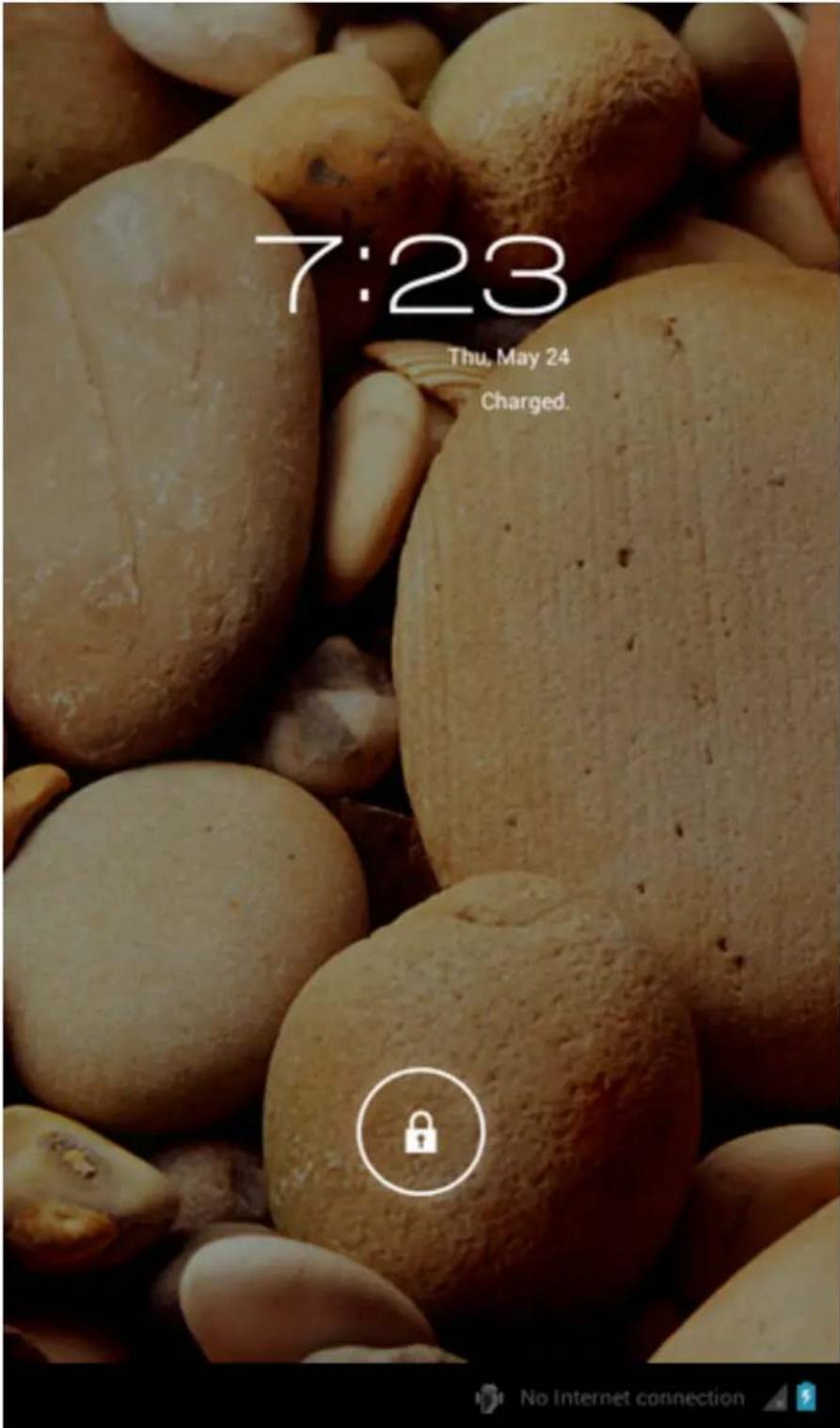
Manual Lock
If you do not need to use your IdeaTab temporarily, you can press the Power button for about 1 second to deactivate the display. Your IdeaTab will then be locked, and will enter standby mode.
Screen Unlock
When in standby mode, press the Power button on your IdeaTab to activate the display. Then, tap and hold the lock icon, and drag the slider over the unlock icon, as shown in the illustration below.
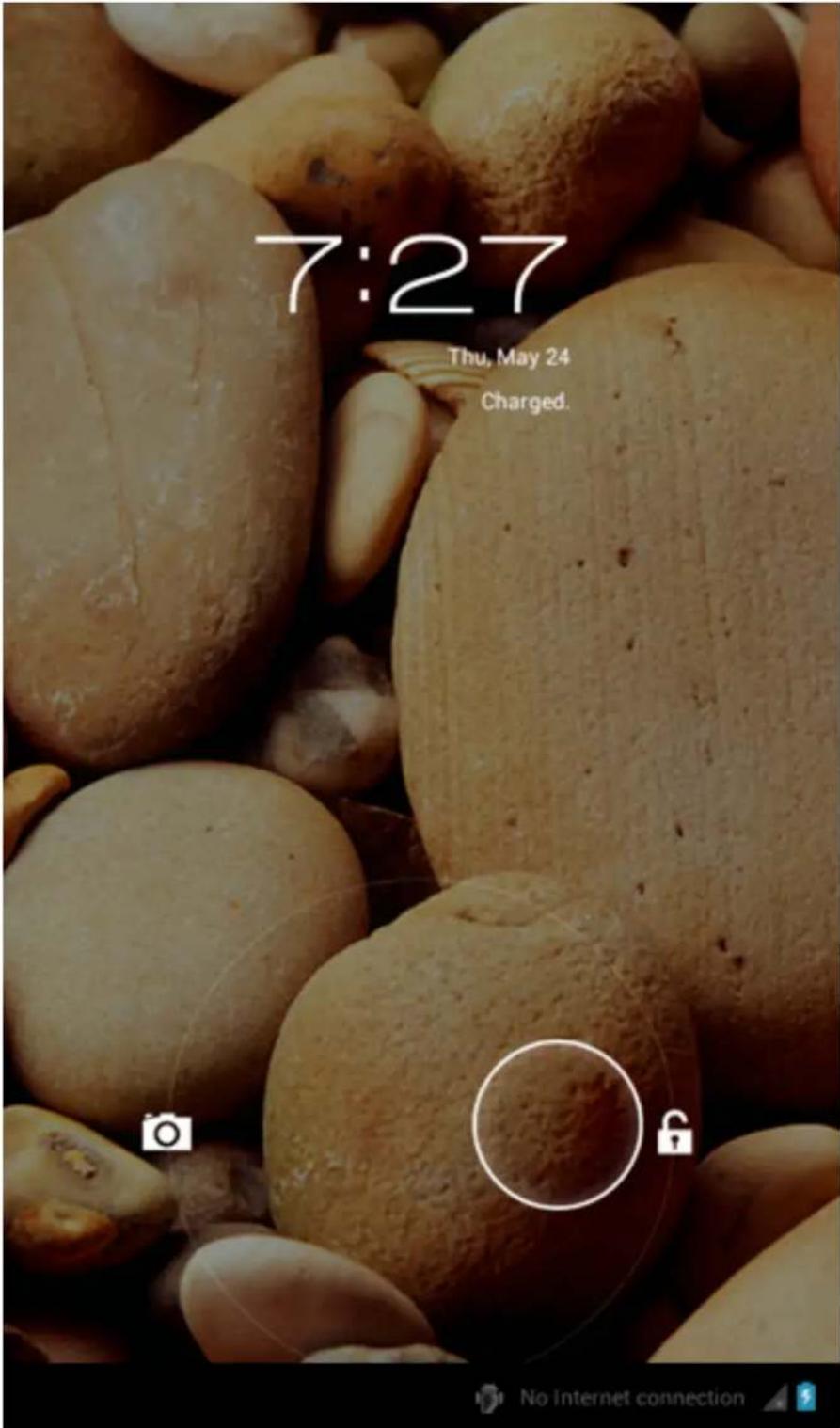
Screen Lock Pattern Setting
You can set the screen lock pattern by tapping Pattern in
Screen lock in Security under 📄Settings. After this function has been enabled, you will be required to trace a personalized unlock pattern to unlock the screen before you can use your IdeaTab.

1-6 Navigation Tips
- Functions menu 📄: Display apps function menu.
- Home screen 📋 Return to the Home screen.
- Back ➕ Return to the previous screen.
- App Menu 📁: Display all available apps.
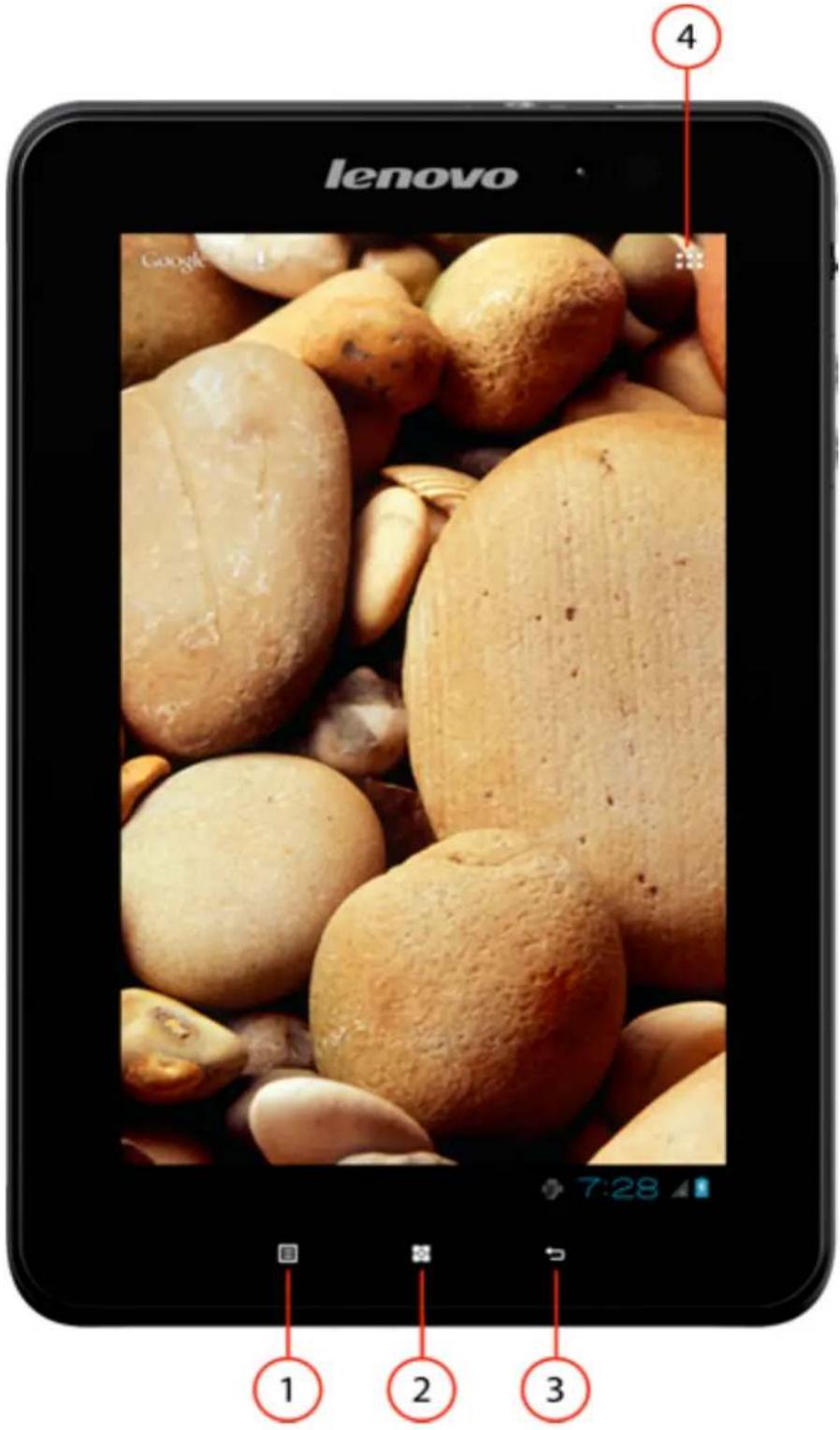
1 - Functions 2 - Home
menu screen
3 - Back 4 - App menu
1-7 Home Screen
This desktop enables you to quickly view and open your most frequently used applications.
In the Home screen, you can add shortcuts and change your wallpaper.
- To add a shortcut to the Home screen, tap and hold the icon of the app in the applications list until it is added to the Home screen.
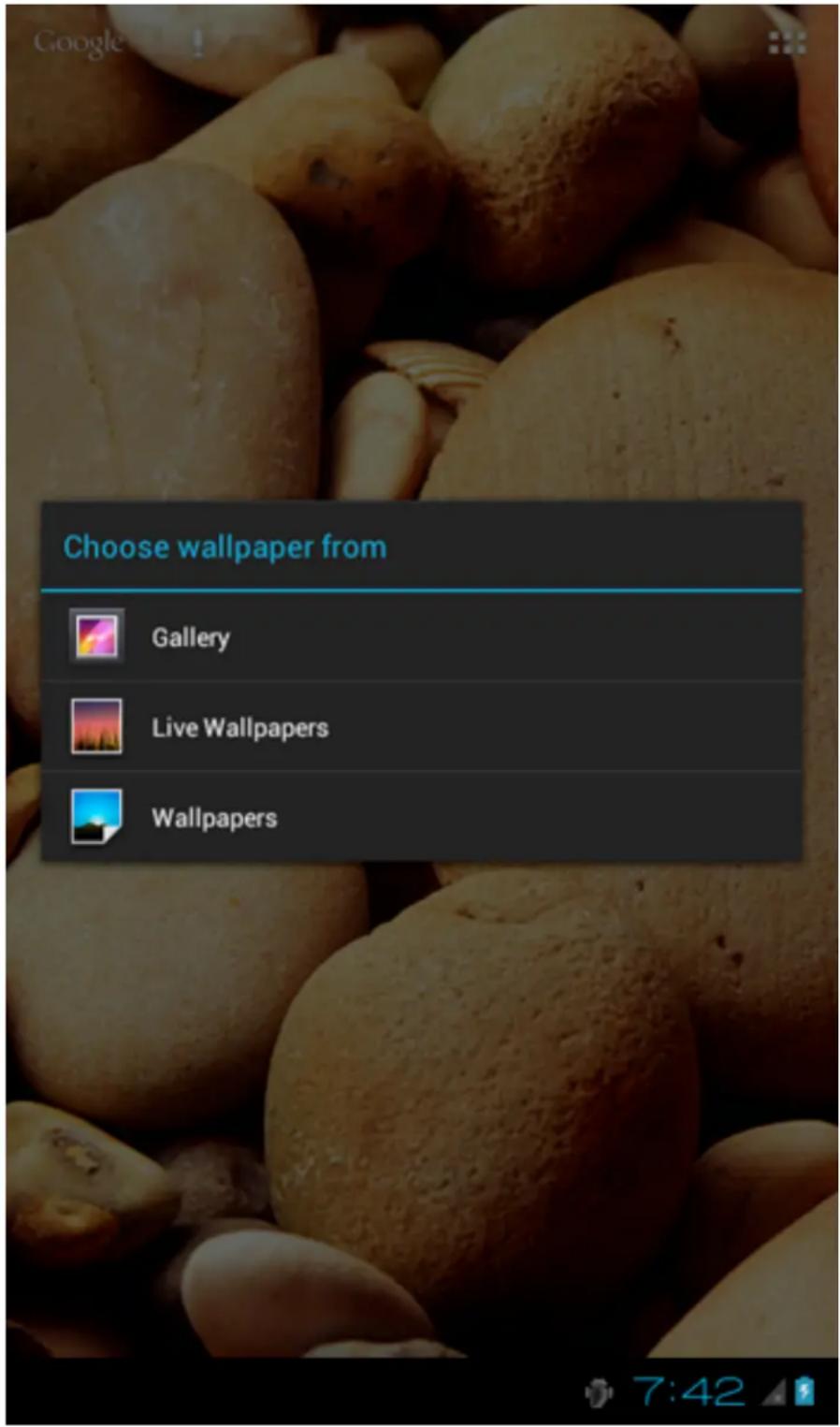
- To change your wallpaper, tap and press any blank area on the Home screen for about 2 seconds. You can choose a wallpaper in the pop-up window.
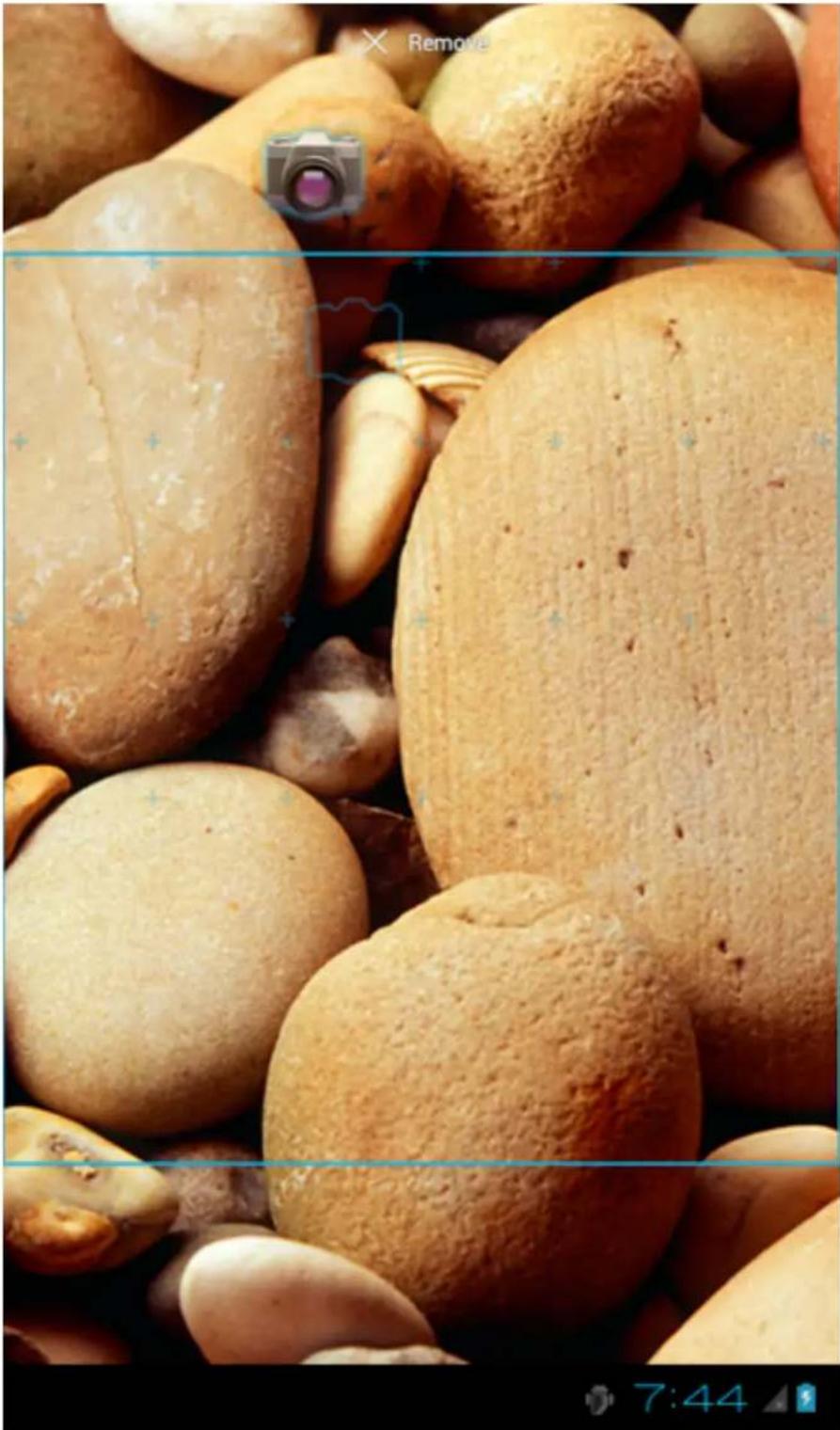
- To delete something on the Home screen, tap and hold the desired item until X Remove appears at the top of the screen, then drag the icon to X Remove.
natural_image
Close-up of golden-brown, round, peaches with a camera lens visible (no text or symbols)1-8 Switching Home Screens
Your IdeaTab has multiple desktops.
Move through screens by sliding your finger across the display. Icons can be moved from one desktop to another.
1-9 Status Bar
System messages, if any, will be displayed on the bottom right corner of the display.
Information about Wi-Fi connections and reception, power levels, charging status, and other notifications are displayed in the status bar.
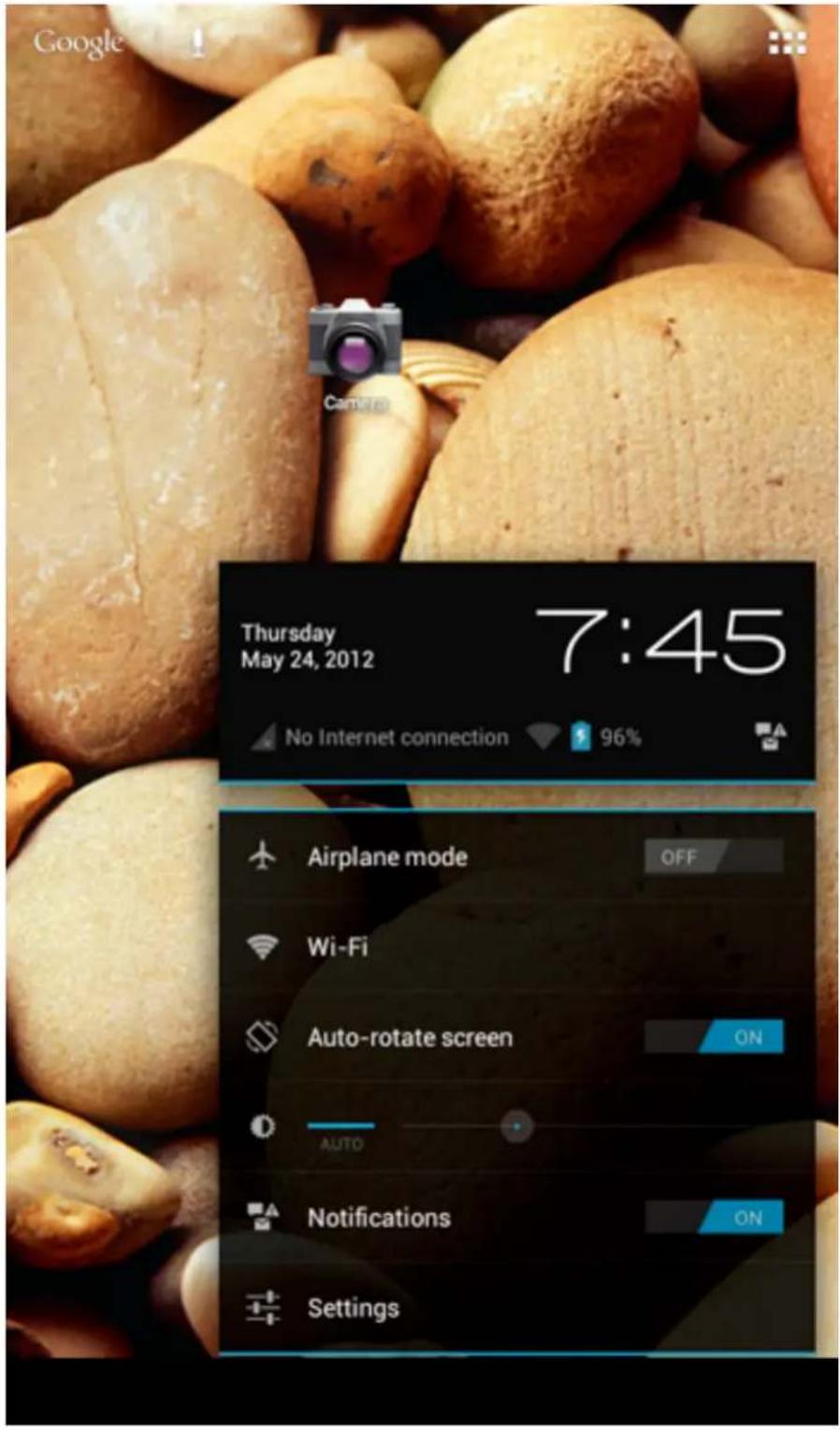
Tap the status bar to display the notification panel. Tap ☐ to open the setting details window which contains the Airplane mode switch, Wi-Fi setting shortcut, Auto-rotate screen switch, Brightness adjustment toolbar, Notifications switch and Settings shortcut.
1-10 Applications Management
Tap 📁 on the Home screen to open the applications list.
Tap Apps in DEVICE under

Settings to manage all your
apps.
Uninstall
Tap Apps to display the list of downloaded apps under the DOWNLOADED tab. Then choose the app, and tap Uninstall at the top to uninstall the app.
Stop/ Change Setting
Tap RUNNING or ALL, then the app, and tap the option you want.
1-11 Entering Text
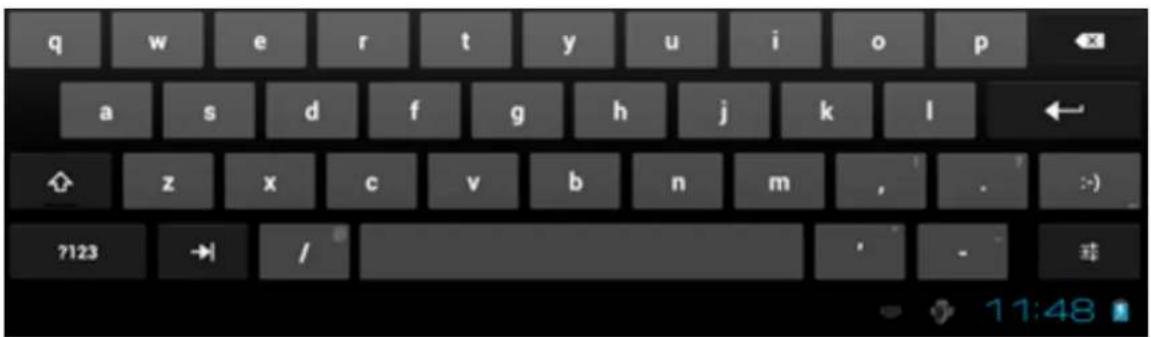
You can easily enter text from the virtual keyboard directly on the touch screen, such as when adding contact information in the Contacts application, or typing and editing SMS messages. You can input English letters and numeric symbols directly on the touch screen.
Virtual keyboard
Switch Input Method

- Tap / to toggle letters and numbers.
Tap to enter a capital letter. Or tap and hold

until it changes into to turn caps lock again to unlock.
- To input a symbol, tap and hold the key and drag your finger to the symbol you want in the blue pop-up box.
• In number input mode, tap to input symbols
and special characters. Tap to go back to number input mode.
Input Options

- Tap to open the Input options menu. You can select Input languages or Android keyboard settings in this menu.

Chapter 02: Connecting to the Internet
lenovo联想

Chapter 02
Connecting to the Internet
2-1 Browser
2-1 Browser
Network support is required to access the Internet with the web browser. If you have problems accessing your network, please consult your network operator or service provider directly.
The web browser in your IdeaTab can access the Internet via a Wi-Fi or 3G network, for business and/or personal use.
Tap browser.

Browser in the applications list to open the
The browser supports the following functions:
Entering Web Addresses
Tap the address bar, and input a web address using the pop-up virtual keyboard.
Tap

on the virtual keyboard to open the web page.
Exiting the Browser
Tap

in the bottom bar to exit the browser and return to the screen.
Managing Browser Web Pages
Tap

open the Browser management interface, where manage Bookmarks, Internet visiting history and read offline under their corresponding tabs.
BOOKMARKS:
Displays a list of all the web pages that you have added to
BOOKMARKS. To add a bookmark, tap

to add the
current web page to BOOKMARKS. To edit a bookmark, tap and hold the bookmark to open a pop-up window. From the window, you can open, edit, copy, share or delete the selected website, create a shortcut for it, set it as your homepage, or perform other operations.
HISTORY:
Displays a list of all the web pages you have visited recently.
SAVED PAGES:
Displays a list of all the web pages you have saved for offline reading.
Tabbed Browsing
You can open several web pages in the same window to multiply your web surfing fun. Tap + to open a new tab. To switch to another web page, just tap its tab. Tap ✗ on the tab to close it.
Additional Functions
Refresh: Tap to manually refresh a web page.

Backward/ Forward: Tap or to return to the previous page or to go to the next page.
Select Text: Select text in the current page for copying, sharing, finding, and web searching.
Add/ Edit Bookmarks: Tap to bookmark the current
page. Tap to manage your bookmarks.

More Options: Tap to display an option list. These options include Refresh, Forward, New tab, New incognito tab, Find on page, Share page, Page info, Request desktop site, Save for offline reading, and Settings.
Zoom Pages In/ Out: You can manually fit the page to the screen size, and zoom the page in/out by sliding your finger and thumb apart, or bring them together.
Chapter 01: IdeaTab A1107 Overview
Chapter 03: Applications
lenovo联想

natural_image
Two black circular buttons with white arrow symbols on orange gradient background (no text or numbers)Chapter 03 Applications
3-1 Calculator
3-2 Calendar
3- 3 Camera
3-4 Clock
3-5 Email
3-6 Gallery
Tap 📁 on the Home screen to open the applications list.
3-1 Calculator
Tap - Calculator in the applications list to open the
calculator.
3-2 Calendar
Tap Calendar in the applications list to open the calendar.
New Calendar Event
Tap in the Calendar view to create a new event. You can also create a new event by tapping and holding a time in the Week or Day view.
Manage Calendar Events
You can switch between DAY, WEEK, MONTH, and
AGENDA by tapping the appropriate tab at the top of the page.
Day view: Tap and hold an event in Day view to view, edit or delete the event.
Week view: Tap and hold an event in Week view to view, edit or delete the event.
Month view: Manage events in Week view from Month view by tapping any date in the Month view.
Agenda view: Tap to view events across a range of dates.
NOTE: Within any Calendar view, you can easily return to
the current day/week/month by tapping top of the page.

TODAY at the
3-3 Camera

Tap 📄 Camera in the applications list to open the camera interface.
In this interface, you can perform the following operations:
Switch Cameras
Your IdeaTab provides you with front/back camera. In the
photo/video interface, tap 📷/ to switch between the front and back cameras.
Switch Camera Modes
Your IdeaTab provides you with three camera modes. In the
camera interface, tap 📄, and to switch between photo taking, video recording and panorama shooting modes.
Photos
Taking Photos
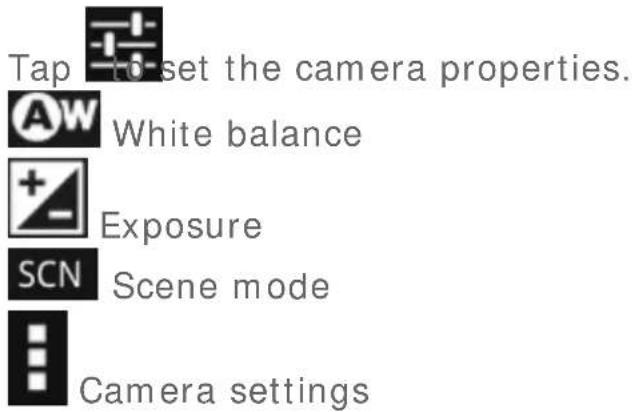
In the photo interface, tap 🔒 to take a picture. Drag the slider towards + or - to zoom in or out.
Viewing Photos
Tap the photo preview in the photo interface to open the photo viewing interface. You can set and play photo slideshows.
Photo Saving Location
Any photos you have taken will be saved in the Gallery application. Tap Gallery in the applications list to open a list of all the photos you have taken. You can view photos by Albums, Locations, Times, People or Tags.
Videos
Recording Videos
Tap in the video interface to start recording, or tap

to stop recording.
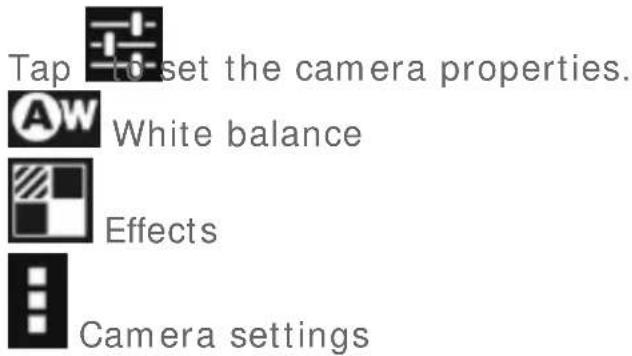
Viewing Videos
A thumbnail image of the latest recorded video will be displayed on the top right corner of the video interface. Tap the image to open the video player.
Shooting Panoramas
Capturing Panorama Images
In the panorama interface, tap to start capturing. Move your IdeaTab slowly. Tap again to stop capturing. The entire panned scene will be captured in one photo.
Viewing Photos
Tap the photo preview in the panorama interface to open the photo viewing interface. You can set and play photo slideshows.
Photo Saving Location
Any panoramas you have taken will be saved in the

Gallery application. Tap

lery in the applications
list to open a list of all the photos you have taken.
3-4 Clock
Tap

Clock in the applications list to open the Clock.
To add an alarm, tap 📄 Set alarm, and then Add alarm. After you have finished editing the alarm, tap Done and select the check box in front of the alarm time to activate the alarm.
To restart an already set alarm, select the check box in front of the alarm time.
When an alarm sounds, tap Dismiss to deactivate the alarm, or Snooze to delay it for ten minutes.
3-5 Email
Network support is required to use your IdeaTab's mailbox. If you have problems accessing your network, please consult your network operator or service provider directly.
Tap

Email in the applications list.
3-6 Gallery

Tap Gallery to open the Photo application and view photos stored on your IdeaTab. In the Photo application homepage, photos are automatically displayed on the top left corner as Albums. You can select how to display your photos: Albums, Locations, Times, People or Tags.
Chapter 02: Connecting to the Internet
Chapter 04: Settings
lenovo联想

natural_image
Two black circular buttons with white arrow symbols on orange background (no text or numbers)Chapter 04 Settings
4-1 WIRELESS & NETWORKS
4-2 DEVICE
4-3 PERSONAL
4-4 SYSTEM
Tap Settings in the applications list to open the
Settings interface.
4-1 WIRELESS & NETWORKS
This setting module includes: Wi-Fi, Bluetooth, Data usage and More... (Airplane mode, VPN and Portable hotspot).
Wi-Fi
This setting allows you to enable/disable Wi-Fi connections.
When Wi-Fi is enabled, your IdeaTab will automatically scan for available wireless networks, displaying them in the Wi-Fi network list.
The network status icon, 📤 indicates that the network requires no password, and can be connected to directly.
However, 📤 indicates that the network has been encrypted, and can be connected to only after the required password is entered.
You can select any network you want from the list. After selecting the network, tap Connect to connect directly.
Alternatively, select the check box in front of Show
advanced options to adjust the proxy and IP settings in the pop-up text box, and then tap Connect to connect to a network. You can also select ADD NETWORK to manually
add a network. Tap, then Advanced for advanced Wi-Fi settings.
- Network notification: When activated, the system will notify you if there are any open net works available.
- Keep Wi-Fi on during sleep: You can set Wi-Fi connection policy during sleep mode to Always, Only when plugged in or Never (increases data usage).
Bluetooth
You can establish a wireless connection with any other Bluetooth compatible device using Bluetooth technology.
Examples of Bluetooth compatible devices can include stereo earphones, keyboard, etc.
Since a Bluetooth-enabled device communicates with other devices by radio waves, you do not have to position your IdeaTab directly towards the other device. You simply need to make sure that the maximum distance between the two devices does not exceed 10 m (about 32 feet). However, please note that the Bluetooth connection can sometimes be interrupted by obstacles, such as walls, or other electronic devices.
Your IdeaTab supports V2.0 Bluetooth. To ensure effective operation of your IdeaTab and another Bluetooth-enabled device, please use only Lenovo-approved accessories compatible with your IdeaTab. Also, check with the manufacturer of the other device to determine whether the device is compatible with your IdeaTab.
In some cases, the use of Bluetooth may be restricted. Please consult with local authorities or your service provider.
Using applications that require Bluetooth technology or running such applications in the background will consume the battery power of your IdeaTab at a faster rate, and reduce the service life of your battery. You can perform the following in Bluetooth settings:
- AVAILABLE DEVICES: After Bluetooth has been activated, your IdeaTab will automatically display a list of any Bluetooth-enabled devices it can find within the effective range (i.e. scan for devices).
Data usage
You can check your data usage status for a specified period.
More...
Airplane mode: When the Airplane mode is enabled, all wireless connections on your IdeaTab will be disabled.
VPN: These settings allow you to add and set up various types of VPN (Virtual Private Network).
Portable hotspot: You can share your IdeaTab's mobile data connection through USB, Bluetooth, or act as a Portable Wi-Fi hotspot Configure Wi-Fi hotspot.
4-2 DEVICE
Sound
Tap this option to enter the Sound settings interface. Settings include Volumes, NOTIFICATIONS (Default notification) and SYSTEM (Dial pad touch tones, Touch sounds and Screen lock sound).
Display
Display settings include Brightness, Wallpaper, Auto-rotate screen, Sleep and Font size.
Brightness: You can manually adjust the brightness or select Automatic brightness, which allows your IdeaTab to adjust screen brightness automatically according to ambient light.
Wallpaper: You can select any pictures from Gallery, Live Wallpapers or Wallpapers as your wallpaper.
Auto-rotate screen: Allow or prevent the screen from automatically rotating.
Sleep: This option allows you to select how long your IdeaTab's screen will remain activated without any operation before it is automatically locked to save power. You can set the time to 15 seconds, 30 seconds, 1 minute, 2 minutes, 5 minutes, 10 minutes or 30 minutes.
Font size: This option allows you to select the font size for text displayed on the screen. You can set the font size to Small, Normal, Large or Huge.
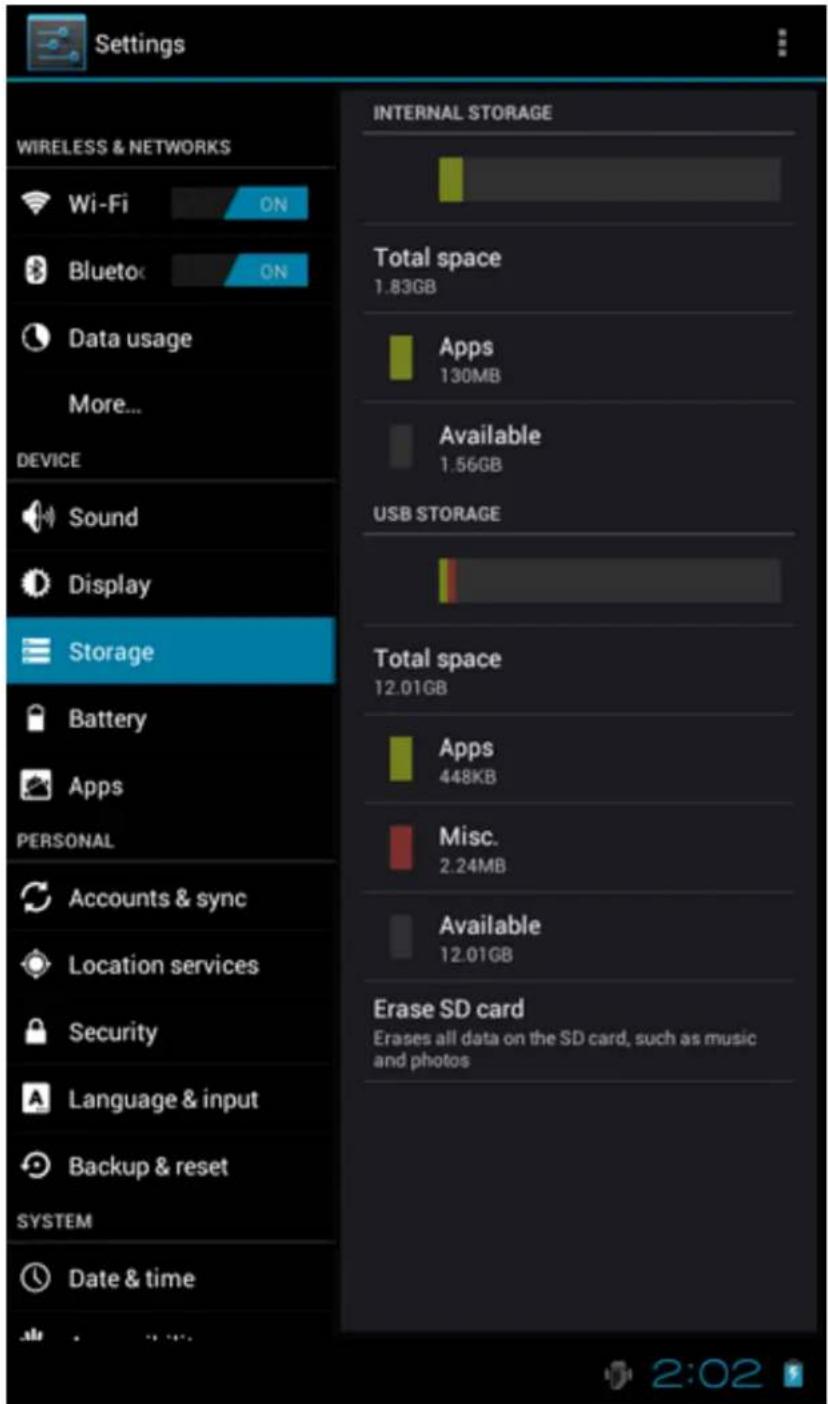
Storage
This option allows you to view internal storage, SD card storage and USB device storage.
Nominal capacity calculation method :
1GB=1,000MB=1,000,000KB=1,000,000,000 bytes
Operating system calculation method :
1GB=1,024MB=1,048,576KB=1,073,741,824 bytes
The system itself occupies some space; therefore, available space will be less than that calculated.
Battery
Select this option to check battery usage data, remaining power status, and battery usage history details.
Apps
With this option, you can easily manage and delete selected applications.
You can also filter any running applications or applications provided by third-party software developers in the applications list.
After selecting an application, you will then be able to see its details and related information. You will also be able to perform functions such as Force stop, Uninstall, Clear cache and Clear data.
4-3 PERSONAL
This setting includes: Accounts & sync, Location services, Security, Language & input and Backup & reset.
Accounts & sync
Adjust these options to change general sync settings and manage accounts.
General sync settings enable you to select background data and Auto-sync. Turn the switch on on the top right of the display to activate.
Account management settings enable you to add accounts or use an existing account. You can log in by using an existing account to view information in your account, or use advanced services and applications for the IdeaTab.
Location services
Select how your IdeaTab determines its location.
GPS satellites: Pinpoint your location using GPS.
Security
Security settings include: SCREEN SECURITY, PASSWORDS, DEVICE ADMINISTRATION and CREDENTIAL STORAGE.
SCREEN SECURITY: You can set the screen lock method, and owner information to be displayed on the lock screen.
- Screen lock: You can unlock the display in one of four ways: Slide, Pattern, PIN and Password. You can deactivate the screen lock as well by selecting None as well.
Tap Pattern, and use your finger on the screen (as illustrated) to draw an unlock pattern. Once you have set the unlock pattern, you will then be able to toggle Make pattern visible on/off.
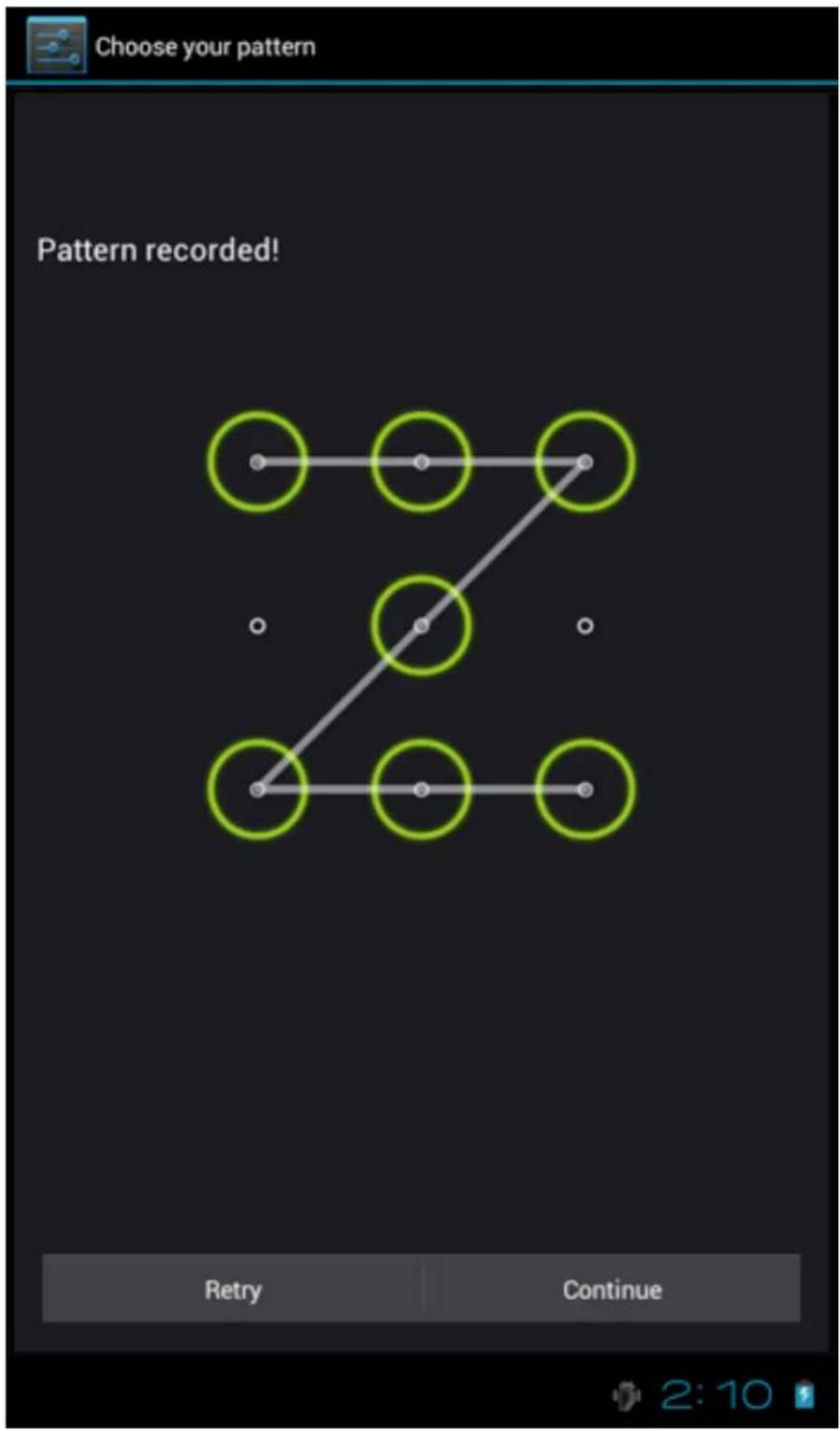
After you have set and activated the pattern unlock function, the unlock keypad will be displayed whenever the display is to be unlocked. Use your finger to trace your preset pattern on the keypad. After the preset pattern has been correctly entered, the screen will be unlocked.
Tap PIN to input the PIN code (minimum 4 digits) you will use to unlock the display.
Tap Password to input the password (minimum 4 characters) you will use to unlock the display.
- Owner info: You can input the owner information to be displayed on the lock screen.
PASSWORDS: Under this option, you can decide whether or not your chosen password will be visible when you input it. If the check box is selected, then the password will be visible. If it is not selected, then your password will only be displayed as **** when you input it, thereby keeping your password more secure.
DEVICE ADMINISTRATION: Set to administrate your IdeaTab and allow installation of non-market apps.
- Device administrators: These functions are not available to ordinary users. Only TsingMail users who have previously set up the appropriate security settings within their organizations can use these functions.
These features work in conjunction with the Enterprise Policy Center (Lenovo Enterprise Policy Manager). The Enterprise Policy Center is the executor of the security policies of the Lenovo enterprise platform. Whenever the user enables the Lenovo enterprise mail and service function, the Enterprise Policy Center will then be enabled automatically. This will allow your IdeaTab to accept security policies as set forth by the IT department of your organization, for example, mandatory screensavers with increased password protection. Enabling these functions also allows your IdeaTab to accept management instructions from your company's IT department, for example, allowing them to erase data remotely and reset your device.
- Unknown sources: Select this option to allow installation of non-Market apps.
CREDENTIAL STORAGE: This function allows your IdeaTab to access web pages and LANs for which a specific security certificate or another certificate is required.
- Trusted credentials: Select this option to display all the trusted CA certificates.
- Install from SD card: Install certificates from SD card.
- Clear credentials: Select this option to delete all your currently saved certificates.
Language & input
Language: Select the language you wish to use to operate your IdeaTab.
Spelling correction: Toggle spelling correction on/off.
Personal dictionary: You can add new words or terms here to your IdeaTab's dictionary.
KEYBOARD & INPUT METHODS: This option allows you to select and set the input method (including Default and Android keyboard).
SPEECH: This option allows you to set the preferred engine and general settings for text-to-speech output.
MOUSE/ TRACKPAD: Under this option you can adjust pointer speed.
Backup & reset
This option allows you to reset your IdeaTab to the factory default settings.
4-4 SYSTEM
Date & time
These settings allow you to set a number of time-related options, such as system time.
You can enable automatic time and time zone updates via a network (which requires network support), select a time zone, set a specific date and time, and display format for date and time.
Accessibility
SYSTEM: This option allows you to set a larger font size for displayed text, set touch & hold delay time, whether to allow the installation of web scripts or not Auto-rotate screen ON/OFF.
Developer options
This option is only available to developers, and allows you to set development options to be available for a particular application.
- USB debugging: Activates debugging mode when connected via USB. You can toggle on/off.
- Development device ID: You can check the development device ID of your IdeaTab.
- Stay awake: The display will stay illuminated while the battery is being charged after the check box is selected. Toggle on/off.
- Allow mock locations: Toggle on/off.
- Desktop backup password: You can set the password to protect the full desktop backup.
USER INTERFACE: Set user interface-related settings.
APPS: Set app-related settings.
About tablet
Under this option, you can view System update, Status, Legal information, Model number, Android version, Kernel version, Build number and SN Number etc.
Chapter 03: Applications