
G6003 - Cellphone HUAWEI - Free user manual and instructions
Find the device manual for free G6003 HUAWEI in PDF.


| Product Type | Mobile Phone |
| Model | G6003 |
| Brand | Huawei |
| Dimensions (approximate) | 112 x 48 x 14 mm (estimated) |
| Weight (approximate) | 100 g (estimated) |
| Power Supply | Rechargeable Li-ion battery, charger: AC 100-240V |
| Main Functions | Calling, SMS, MMS, Phonebook, Camera, Audio Player, FM Radio, Ebook Reader, Games, Internet (WAP) |
| Display | 2.0 inch TFT color screen (estimated) |
| Camera | VGA resolution (estimated) |
| Memory | microSD card support up to 8 GB (estimated), phone internal memory unspecified |
| Connectivity | GSM, GPRS, WAP 2.0, Bluetooth not mentioned |
| Battery Life | Typical standby: 300 h, talk time: 4 h (estimated) |
| Security Features | Phone lock (password), SIM PIN/PUK, Auto keypad lock |
| Profiles | General, Meeting, Outdoor, Headset; automatic profile switching |
| Text Input | Multi-tap, predictive (eZi), number mode; QWERTY keyboard |
| Audio | Headset jack, built-in loudspeaker, volume control |
| Maintenance & Cleaning | Power off before cleaning; use soft dry cloth; avoid liquids and chemicals |
| Spare Parts & Repairability | Battery, charger, headset, microSD card; battery replaceable by user; other repairs by service center |
| Regulatory Compliance | CE, SAR: 0.749 W/kg (head), 1.425 W/kg (body); complies with EU Directive 1999/5/EC |
Frequently Asked Questions - G6003 HUAWEI
User questions about G6003 HUAWEI
0 question about this device. Answer the ones you know or ask your own.
Ask a new question about this device
Download the instructions for your Cellphone in PDF format for free! Find your manual G6003 - HUAWEI and take your electronic device back in hand. On this page are published all the documents necessary for the use of your device. G6003 by HUAWEI.
USER MANUAL G6003 HUAWEI
Copyright © Huawei Technologies Co., Ltd. 2011. All rights reserved.
Trademarks and Permissions

HUAWEI
, and are tr

ademarks or registered
trademarks of Huawei Technologies Co., Ltd.
Other trademarks, product, service and company names mentioned are the property of their respective owners.
NO WARRANTY
THE CONTENTS OF THIS MANUAL ARE PROVIDED "AS IS". EXCEPT AS REQUIRED BY APPLICABLE LAWS, NO WARRANTIES OF ANY KIND, EITHER EXPRESS OR IMPLIED, INCLUDING BUT NOT LIMITED TO, THE IMPLIED WARRANTIES OF MERCHANTABILITY AND FITNESS FOR A PARTICULAR PURPOSE, ARE MADE IN RELATION TO THE ACCURACY, RELIABILITY OR CONTENTS OF THIS MANUAL.
TO THE MAXIMUM EXTENT PERMITTED BY APPLICABLE LAW, IN NO CASE SHALL HUAWEI TECHNOLOGIES CO., LTD BE LIABLE FOR ANY SPECIAL, INCIDENTAL, INDIRECT, OR CONSEQUENTIAL DAMAGES, OR LOST PROFITS, BUSINESS, REVENUE, DATA, GOODWILL OR ANTICIPATED SAVINGS.
1 Getting to Know Your Phone
Your Phone
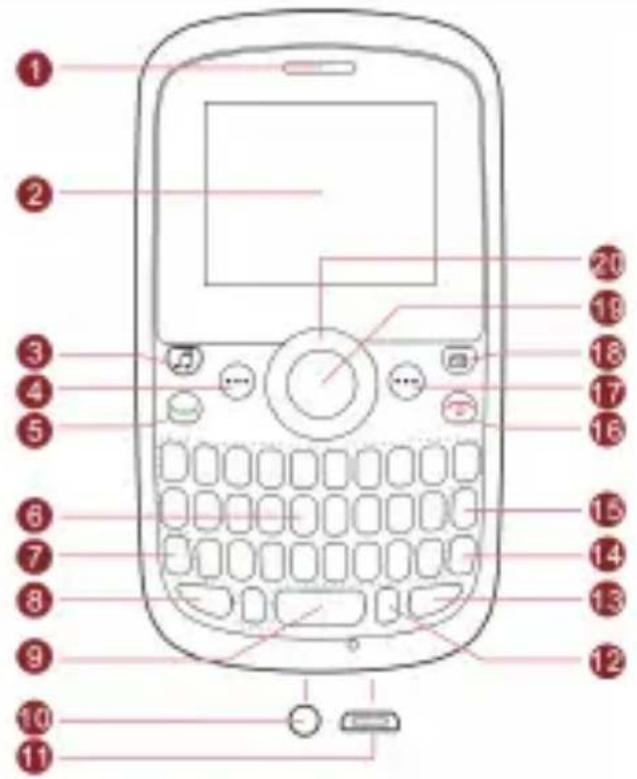
1 Earpiece 11 Charger jack
2 Screen 12 Sym key
3 Audio player key 13 Input switch key
4 Left soft key 14 Enter key
5 Call/Answer key 15 Delete key
6 Keypad 16 End/Power key
7 Fn key 17 Right soft key
8 A/a key 18 Message key
9 Space key 19 OK/Confirm key
10 Headset jack 20 Navigation keys

The figure above shows the appearance of your phone and is provided only for your reference.
Keys and Functions
| Press... To... | |
 | Make a call from SIM card in standby mode.Answer a call.View dialled logs of SIM card in standby mode. |
 | Power on or power off the phone (by pressing and holding the key for about 3s).End or reject a call.Return to standby mode. |
 (Left soft key) (Left soft key) | Access the main menu in standby mode.Select a highlighted item. |
 (Right soft key) (Right soft key) | Access Phonebook in standby mode.Return to the previous menu. |
 | Access Audio player in standby mode. |
 | Access Messaging in standby mode. |
 | Access the main menu in standby mode.Confirm a selection. |
 | Scroll to the desired icon in the main menu (by pressing ,, and ).Access the next menu from a submenu screen (by pressing ).Return to the previous menu from a submenu screen (by pressing ). |
| Press... To... | |
 | • Enter numbers, letters, and symbols. |
| • Call the voicemail in standby mode (by pressing and holding the 1 key for about 3s). | |
 | • Select a submenu (by pressing the corresponding number key). |
 | Enter a space in text editing mode. |
 | • Lock the keypad in standby mode (by pressing and holding the key for about 3s). |
| • Switch between input methods in text editing mode. | |
 | Switch between upper and lower case in text editing mode. |
 | • Access FM radio in standby mode (by pressing and holding the key for about 3s). |
| • Display the Select symbol list in text editing mode. | |
Screen Icons
| Icon Indicates... | |
 | Signal strength. |
 | New text messages. |
 | New multimedia messages. |
 | Call forwarding enabled. |
 | Missed calls. |
 | New voicemail messages. |
 | Alarms enabled. |
 | Keypad locked. |
 | Battery power level. |
 | General profile activated. |
 | Meeting profile activated. |
 | Outdoor profile activated. |
 | Headset connected to the phone. |
2 Getting Started
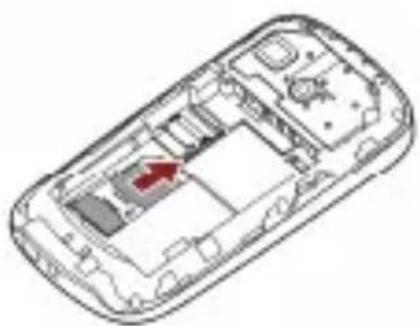
Installing SIM Cards and the Battery
When inserting a SIM card, ensure that the golden contact area on the SIM card is facing downward and that the beveled edge of the SIM card is properly aligned with that of the SIM card slot.

Removing the Battery and SIM Cards
Before removing the battery and SIM card, ensure that your phone is powered off.

natural_image
Illustration of a remote control with a red arrow pointing to the interior (no text or symbols)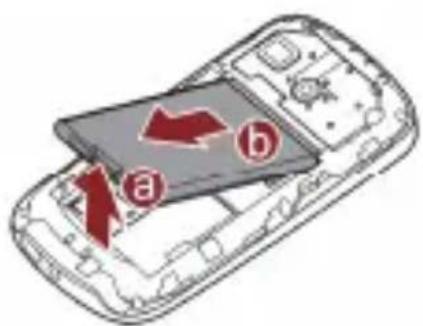
natural_image
Top-down schematic of a mobile phone casing showing internal compartments and wiring (no text or labels)Installing a microSD Card

Before installing or removing a microSD card, power off the phone. Once the phone is powered on, it will indicate whether the microSD card has been installed properly.
You can install a microSD card to expand the memory capacity of your phone. When inserting the microSD card, ensure that the golden contact area on the microSD card is facing downward.

natural_image
Diagram of a computer mouse with internal components and a red arrow indicating a specific area (no text or symbols present)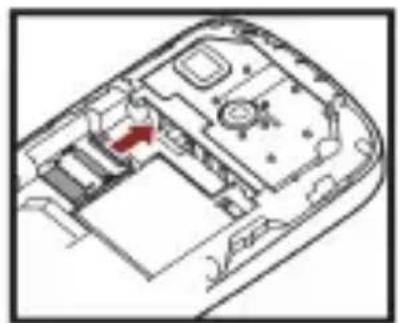
natural_image
Interior view of a computer mouse with visible internal components and a red arrow indicating a specific area (no text or symbols present)Charging the Battery
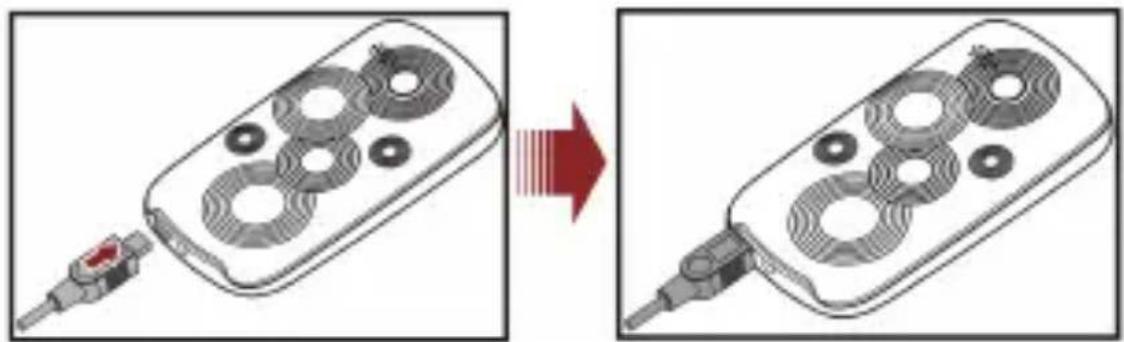
To charge the battery:
- Connect the charger to the phone.
- Connect the charger to a power socket.
natural_image
Diagram showing a device being inserted into a multi-pin remote control, with no visible text or symbols.- Wait until the battery is fully charged.
While the battery is charging, the charging icon is animated. When the charging icon animation stops, the battery is fully charged.
- Disconnect the charger from the power socket and then from the phone.
Working with the Main Menu
- In standby mode, press ⬙1 (Menu) to access the main menu.
- Use ☐ to scroll to the desired submenu, and then press to access the submenu.
-
Press △ or ▽ to scroll to an option, and then press ⬙1 (OK) or ○ to select the option.
-
Press ⬙2 (Back) to return to the previous menu.
To return to the standby mode, press 📞.
Automatically Switching Between Profiles
You can set your phone to activate different profiles at different times. The phone can automatically switch between profiles up to three times per day.
- Select Menu > User profiles > Profile Switch Timing.
- Scroll to a time, and then press ⬙1 (Edit) to select the profile to be activated at the specified time.
- Press ⬙2 (Done) to save the settings.
Phone Lock
The phone lock protects your phone from unauthorized use. By default, the phone lock is disabled. Once the phone lock is enabled, you are required to enter the phone code each time you power on the phone.
To enable the phone lock:
- Select Menu > Settings > Security settings > Phone lock.
- Enter the phone code, and then press ⬙1 (OK).
You can change the default phone code (1234) to any numeric string of four to eight digits.
To change the phone code:
- Select Menu > Settings > Security settings > Change password > Phone password.
- Enter the old phone code, and then press ⬙1 (OK).
- Enter the new phone code, and then press ⬙1 (OK).
- Enter the new phone code again to confirm it.
If you forget the phone code, contact the service provider.
PIN and PUK
The personal identification number (PIN) protects your SIM card from unauthorized use. The PIN unblocking key (PUK) unlocks a blocked PIN. Both the PIN and the PUK are provided with the SIM card. For details, contact your service provider.
To enable the PIN lock:
- Select Menu > Settings > Security settings > SIM security settings > SIM lock.
- Enter the PIN, and then press ⬙1 (OK).
- If you enter an incorrect PIN a pre-defined number of consecutive times, the phone prompts you to enter the PUK.
- If you enter an incorrect PUK a pre-defined number of consecutive times, the SIM card becomes permanently invalid. In that case, contact your service provider for a new SIM card.
Locking the Keypad
To lock the keypad, press and hold in standby mode for 3s. To unlock the keypad, press ⬙1 (Unlock) and then ⬙2
If the Auto keypad lock function is enabled and if the phone is in standby mode for a preset period, the phone locks the keypad automatically.
To enable the Auto keypad lock function, select Menu > Settings > Security settings > Auto keypad lock, scroll to a period, and then press ⬙1 (OK) to select the period.

When the keypad is locked, you can press call or make an emergency call.

to answer a
Entertainment
- Camera: to take pictures.
• Image viewer: to view pictures stored on the microSD card.
• Audio player: to play audio clips stored on the microSD card.
• FM radio: to listen to the radio. - FUN: to read ebooks stored on the microSD card.
3 Voice Services
Making a Call
-
In standby mode, enter the phone number.
-
To make an international call, press 📄 to enter the plus sign (+), and then enter the country or region code, area code, and phone number in sequence.
-
To call an extension, enter the phone number, press P to enter P, and then enter the extension number.
-
Press 🙏 to dial the number.
- Press 📞 to end the call.

- You can also make calls from call logs, contacts, and messages.
- During a call, you can press △ or ▽ to adjust the volume.
Answering a Call
When there is an incoming call:
- Press to answer the call.
- Press ⬙1 (Answer) to answer the call.
- Press to reject the call.
- Press ⬙2 (Silent) to mute the speaker, and then press ⬙2 (Reject) to reject the call.
- Press ⬙2 (Silent) to mute the speaker, press ⬙1 (Answer) to answer the call.
If the Any key answer function is enabled, you can press any key except 📷 and ⬜ to answer a call.
4 Text Input
Changing the Text Input Mode
The indicator of the current text input mode is displayed in the upper left corner of the screen. You can press 🔒 to change the text input mode.
| Indicator Text Input Mode | |
| abc Multi-tap input mode | |
| eZi abc Predictive input mode | |
| 123 Number input mode |

- You can press ⬙2 (Clear) or ☑ once to delete the last entered character. You can also press and hold ⬙2 (Clear) for 3s to clear all the entered characters at once, or press and hold ☑ to delete the entered characters one by one.
- In any text input mode, press ☐ to enter a space.
- In any text input mode, press ↻ to start a new paragraph.
- When the input language is English, press to switch between upper and lower case.
Multi-Tap Input Mode
In multi-tap input mode, press the key labeled with the desired letter.
Predictive Input Mode
To enter a word in predictive input mode:
-
Press each key once according to the spelling sequence of the desired word. The phone displays candidate words.
-
Press ◀ or ▶ to scroll left or right, and press △ or ▽ to turn pages.
-
Press ○ to select the desired word.
Number Input Mode
In number mode, press the key labeled with the desired digit.
Entering Symbols
To enter a symbol with the QWERTY keypad in any input mode:
Using to Enter a Symbol
To enter a desired symbol in text editing mode:
- To enter only one symbol, press once and then the key labeled with the desired symbol.
- To enter multiple symbols, press twice and then the keys labeled with the desired symbols.
Using to Enter a Symbol
To enter a desired symbol in text editing mode:
- Press 8ym to display the symbol list.
- Press ◀ or ▶ to scroll left or right, and press △ or ▽ to scroll up or down.
- Press to select the desired symbol.
5 Messaging
Writing and Sending a Text Message
-
Select Menu > Messaging > Write message; or in standby mode, press 📧, and then select Write message.
-
Write the message.
-
Press ⬙1 (Options), and then select Send to.
-
Select Enter number, and then enter the phone number of a recipient; or select Add from Phonebook, and then add a recipient from the phonebook. To add multiple recipients, repeat this step.
-
Scroll to the recipient, and then press ○ to send the message or press ⬙1 (Options) for the following options:
-
Send: to send the message to the recipient.
- Save to Drafts: to save the message to Drafts and exit the message editing screen.
Writing and Sending a Multimedia Message
-
Select Menu > Messaging > MMS > Write message; or in standby mode, press ✉, and then select MMS > Write message.
-
Edit the following fields:
• To: to send the message to the recipient.
- Cc: to copy the message to the recipient.
- Bcc: to blind copy the message to the recipient.
- Subject: to add a subject to the message.
- Edit content: to write the message. On the message editing screen, press ○ or ⬙1 (Options), and then select Add picture or Add audio.
-
Press ⬙2 (Done) for the following options:
-
Send only: to send the message to the recipient without saving the message.
- Save and send: to send the message to the recipient and save the message.
- Save to Drafts: to save the message to Drafts and exit the message editing screen.
- Send options: you can set Validity period, Delivery report, Read report, and Priority.

- You can contact your service provider for the availability of the Multimedia Messaging Service (MMS) and the method for subscribing to the service.
- Your phone supports a multimedia message of a maximum size of 80 KB.
- Open multimedia messages with caution. Objects in multimedia messages may contain malicious software (such as viruses) that can damage your phone.
6 Phonebook
Creating a Contact
- Select Menu > Phonebook > Add new contact > Select.
- Select To SIM or To phone for saving the contact.
- Enter the contact information, and then select Done.
- When the phone asks you whether to save the information, press

Searching for a Contact
- Select Menu > Phonebook.
- Enter the first letter of the contact name.
- Press △ or ▽ to scroll to the desired contact.
Setting the Preferred Storage
You can set the storage where you want to save new contacts.
- Select Menu > Phonebook.
-
Press ⬙1 (Options), and then select Phonebook settings > Preferred storage.
-
Scroll to SIM, Phone, or All as desired.
- Press ⬙1 (OK) to select the preferred storage.
Copying Contacts
You can copy contacts to the phone or SIM card.
Copying One Contact
- Select Menu > Phonebook.
- Press △ or ▽ to scroll to the desired contact.
- Press ⬙1 (Options), and then select Copy.
- Select To phone or To SIM to copy the contact to the desired location.
Copying All Contacts
- Select Menu > Phonebook.
- Press ⬙1 (Options), and then select Phonebook settings > Copy contacts.
- Press △ or ▽ to scroll to the desired option, such as SIM to phone or Phone to SIM.
- Press ⬙1 (OK) to copy all contacts to the desired location.
7 Ebook Reader
Your phone supports ebooks in .txt format.
- Select Menu > FUN > Ebook reader to display the bookshelf. The phone automatically adds ebooks stored in Ebook on the microSD card to the bookshelf.
-
Scroll to the desired ebook.
-
Press ⬙1 (Options), and then select Open ebook to start reading the ebook.
You can also press ⬙1 (Options), and then select Global settings to configure settings such as Font size, Scroll by, Encoding, and Alignment.
- Press ⬙2 (Back) to stop reading the ebook.

- When reading an ebook, you can press △ and ▽ to turn pages.
- It is recommended that you store ebooks in Ebook on the microSD card. When you open an ebook stored in a folder other than Ebook, the phone automatically moves the ebook to Ebook so that you can find it easily next time your want to open it.
8 Games
For your entertainment purpose, your phone is provided with Smash to play. Select Menu > FUN > Games > Games settings to set the Audio and Volume of the games.
9 Camera
The phone is equipped with a digital camera.
- Select Menu > Multimedia > Camera.
- On the picture taking screen, press ⬙1 to view pictures or configure relevant settings.
- Focus the camera on the scene, and then press to take a
picture.
- Press ⬙2 (Back) to save the picture; or press ⬙1 (Options), and then select Delete to delete the picture.
10 Audio Player
The audio player plays audio clips that are stored in My music on the microSD card. It is recommended that you listen to audio clips using the headset so that you can enjoy enhanced sound quality.
-
Select Menu > Multimedia > Audio player; or in standby mode, press 🎯.
-
Press ○ to start playing audio clips. When audio clips are being played:
-
Press and to adjust the volume.
- Press ◀ and ▶ to switch between audio clips.
- Press the button on the headset cable to switch between audio clips.
-
Press ⬙1 (List) to view the audio clip list, and then press ⬙1 (Options) to configure the relevant settings.
-
Press to pause or resume.
11 FM Radio
Your phone is equipped with a built-in antenna, so you can enjoy the radio programs though the loudspeaker. The headset cable also functions as an antenna. Connect the headset to the phone.
-
Select Menu > Multimedia > FM radio; or in standby mode, press and hold for 3s.
-
When listening to the radio:
-
Press to pause or continue.
- Press and to adjust the volume.
- Press ◀ or ▶ to adjust the frequency in steps of 0.1 MHz.
- Press and hold or , and then release the key to switch to an adjacent channel.
- Press a number key to switch to the corresponding channel on the Channel list.
- Press the button on the headset cable to switch between channels.
- Press ⬙1 (Options) to view or edit the channel list, manually set a frequency, automatically search for and save channels, and configure the relevant settings.

When listening to the radio, you can press ⬙1 (Options) to record an audio clip or append a new audio clip to the original one.
12 File Manager
You can use File manager to organize files stored on your phone and microSD card. You can view photos, enjoy music and ebooks from File manager.
13 Services
You can access Wireless Application Protocol (WAP) sites and use WAP-based services on your phone. To access WAP sites, you must subscribe to the corresponding service from your service provider and set the relevant parameters on your phone. For details about the service and the charges, contact your service provider.
Network Settings
To access WAP sites, set your data account and WAP parameters first.
Setting the Connection Profile
- Select Menu > Settings > Connectivity > Data account.
- Press ⬙1 (Options), and then select Add.
- Set the parameters based on the information provided by your service provider.
- Press ⬙2 (Done) to save the settings.

If the data account provided by your service provider already exists, you do not need to create a data account.
Setting the WAP Profile
- Select Menu > Services > Internet service > Settings > Profiles.
- Select Add new.
- Set the Internet parameters based on the information provided by your service provider.
-
Press ⬙2 (Done) to save the settings.
-
Select your service provider, press ⬙1 (Options), and then select Activate profile.

If the profile supported by your service provider already exists, select the profile, press ⬙1 (Options), and then select Activate profile.
Connecting to a Network
- Press Menu > Services > Internet service > Input address.
- Enter a Uniform Resource Locator (URL).
- Press ⬙1 (Options), and then select Done to access the address.

It's recommended that you should clear cache regularly to ensure a better function experience.
14 STK
The SIM Tool Kit (STK) function is a value-added service provided by your service provider; it can be used to send text messages, view news, and access other applications. For more information, contact your service provider.
15 Warnings and Precautions
This section contains important information pertaining to the operating instructions of your device. It also contains information
about how to use the device safely. Read this information carefully before using your device.
Electronic Device
Power off your device if using the device is prohibited. Do not use the device when using the device causes danger or interference with electronic devices.
Medical Device
- Follow rules and regulations set forth by hospitals and health care facilities. Do not use your device when using the device is prohibited.
- Pacemaker manufacturers recommend that a minimum distance of 15 cm be maintained between a device and a pacemaker to prevent potential interference with the pacemaker. If you are using a pacemaker, use the device on the opposite side of the pacemaker and do not carry the device in your front pocket.
Potentially Explosive Atmosphere
Power off your device in any area with a potentially explosive atmosphere, and comply with all signs and instructions. Areas that may have potentially explosive atmospheres include the areas where you would normally be advised to turn off your vehicle engine. Triggering of sparks in such areas could cause an explosion or a fire, resulting in bodily injuries or even deaths. Do not power on your device at refueling points such as service stations. Comply with restrictions on the use of radio equipment in fuel depots, storage, and distribution areas, and chemical plants. In addition, adhere to restrictions in areas where blasting operations are in progress. Before using the device, watch out for areas that have potentially explosive atmospheres that are often, but not always, clearly marked. Such locations include areas below the deck on boats, chemical transfer or storage facilities, and areas where the air contains chemicals or particles such as grain, dust, or metal powders. Ask the manufacturers of vehicles using liquefied petroleum gas (such as propane or butane) whether this device can be safely used in their
vicinity.
Traffic Security
Observe local laws and regulations while using the device. In addition, if using the device while driving a vehicle, comply with the following guidelines:
- Concentrate on driving. Your first responsibility is to drive safely.
- Do not talk on the device while driving. Use hands-free accessories.
- When you have to make or answer a call, park the vehicle at the road side before using your device.
- RF signals may affect electronic systems of motor vehicles. For more information, consult the vehicle manufacturer.
- In a motor vehicle, do not place the device over the air bag or in the air bag deployment area. Otherwise, the device may hurt you owing to the strong force when the air bag inflates.
- Do not use your device while flying in an aircraft. Power off your device before boarding an aircraft. Using wireless devices in an aircraft may cause danger to the operation of the aircraft and disrupt the wireless telephone network. It may also be considered illegal.
Operating Environment
- Do not use or charge the device in dusty, damp, and dirty places or places with magnetic fields. Otherwise, it may result in a malfunction of the circuit.
- The device complies with the RF specifications when the device is used near your ear or at a distance of 1.5 cm from your body. Ensure that the device accessories such as a device case and a device holster are not composed of metal components. Keep your device 1.5 cm away from your body to meet the requirement earlier mentioned.
- On a stormy day with thunder, do not use your device when it is being charged, to prevent any danger caused by lightning.
- When you are on a call, do not touch the antenna. Touching the antenna affects the call quality and results in increase in power consumption. As a result, the talk time and the standby time are reduced.
- While using the device, observe the local laws and regulations, and respect others' privacy and legal rights.
- Keep the ambient temperature between 0^ C and 40^ C while the device is being charged. Keep the ambient temperature between 0^ C to 40^ C for using the device powered by a battery.
Prevention of Hearing Damage
Using a headset at high volume can damage your hearing. To reduce the risk of damage to hearing, lower the headset volume to a safe and comfortable level.
Safety of Children
Comply with all precautions with regard to children's safety. Letting the child play with your device or its accessories, which may include parts that can be detached from the device, may be dangerous, as it may present a choking hazard. Ensure that small children are kept away from the device and accessories.
Accessories
Use the accessories delivered only by the manufacturer. Using accessories of other manufacturers or vendors with this device model may invalidate any approval or warranty applicable to the device, result in the non-operation of the device, and cause danger.
Battery and Charger
- Unplug the charger from the electrical plug and the device when not in use.
- The battery can be charged and discharged hundreds of times before it eventually wears out. When the standby time and the talk time are shorter than the normal time, replace the battery.
• Use the AC power supply defined in the specifications of the
charger. An improper power voltage may cause a fire or a malfunction of the charger.
- Do not connect two poles of the battery with conductors, such as metal materials, keys, or jewelries. Otherwise, the battery may be short-circuited and may cause injuries and burns on your body.
- Do not disassemble the battery or solder the battery poles. Otherwise, it may lead to electrolyte leakage, overheating, fire, or explosion.
- If battery electrolyte leaks out, ensure that the electrolyte does not touch your skin and eyes. When the electrolyte touches your skin or splashes into your eyes, wash your eyes with clean water immediately and consult a doctor.
- If there is a case of battery deformation, color change, or abnormal heating while you charge or store the battery, remove the battery immediately and stop using it. Otherwise, it may lead to battery leakage, overheating, explosion, or fire.
- If the power cable is damaged (for example, the cord is exposed or broken), or the plug loosens, stop using the cable at once. Otherwise, it may lead to an electric shock, a short circuit of the charger, or a fire.
- Do not dispose of batteries in fire as they may explode. Batteries may also explode if damaged.
- Danger of explosion if battery is incorrectly replaced. Recycle or dispose of used batteries according to the local regulations or reference instruction supplied with your device.
Cleaning and Maintenance
- The device, battery, and charger are not water-resistant. Keep them dry. Protect the device, battery, and charger from water or vapor. Do not touch the device or the charger with a wet hand. Otherwise, it may lead to a short circuit, a malfunction of the device, and an electric shock to the user.
- Do not place your device, battery, and charger in places where they can get damaged because of collision. Otherwise, it may
lead to battery leakage, device malfunction, overheating, fire, or explosion.
- Do not place magnetic storage media such as magnetic cards and floppy disks near the device. Radiation from the device may erase the information stored on them.
- Do not leave your device, battery, and charger in a place with an extreme high or low temperature. Otherwise, they may not function properly and may lead to a fire or an explosion. When the temperature is lower than 0^ C, performance of the battery is affected.
- Do not place sharp metal objects such as pins near the earpiece. The earpiece may attract these objects and hurt you when you are using the device.
- Before you clean or maintain the device, power off the device and disconnect it from the charger.
- Do not use any chemical detergent, powder, or other chemical agents (such as alcohol and benzene) to clean the device and the charger. Otherwise, parts of the device may be damaged or a fire can be caused. You can clean the device and the charger with a piece of damp and soft antistatic cloth.
- Do not dismantle the device or accessories. Otherwise, the warranty on the device and accessories is invalid and the manufacturer is not liable to pay for the damage.
Emergency Call
You can use your device for emergency calls in the service area. The connection, however, cannot be guaranteed in all conditions. You should not rely solely on the device for essential communications.
Certification Information (SAR)
This device meets guidelines for exposure to radio waves.
Your device is a low-power radio transmitter and receiver. As recommended by international guidelines, the device is designed not to exceed the limits for exposure to radio waves. These guidelines
were developed by the independent scientific organization International Commission on Non-Ionizing Radiation Protection (ICNIRP) and include safety measures designed to ensure safety for all users, regardless of age and health.
The Specific Absorption Rate (SAR) is the unit of measurement for the amount of radio frequency energy absorbed by the body when using a device. The SAR value is determined at the highest certified power level in laboratory conditions, but the actual SAR level of the device when being operated can be well below the value. This is because the device is designed to use the minimum power required to reach the network.
The SAR limit also adopted by Europe is 2.0 W/kg averaged over 10 grams of tissue. The highest SAR value for this device type when tested at the ear is 0.749 W/kg, and when properly worn on the body is 1.425 W/kg.
EU Regulatory Conformance
Hereby, Huawei Technologies Co., Ltd. declares that this device is in compliance with the essential requirements and other relevant provisions of Directive 1999/5/EC.
For the declaration of conformity, visit the Web site www.huaweidevice.com/certification.
C€ 0700
Notice: Observe the national local regulations in the location where the device is to be used. This device may be restricted for use in some or all member states of the European Union (EU).
Version: 01 NO.: 6010757
- Copyright © Huawei Technologies Co., Ltd. 2011. All rights reserved.
- Trademarks and Permissions
- NO WARRANTY
- Getting to Know Your Phone
- Your Phone
- Keys and Functions
- Screen Icons
- Getting Started
- Installing SIM Cards and the Battery
- Removing the Battery and SIM Cards
- Installing a microSD Card
- Charging the Battery
- Working with the Main Menu
- Automatically Switching Between Profiles
- Phone Lock
- PIN and PUK
- Locking the Keypad
- Entertainment
- Voice Services
- Making a Call
- Answering a Call
- Text Input
- Changing the Text Input Mode
- Multi-Tap Input Mode
- Predictive Input Mode
- Number Input Mode
- Entering Symbols
- Using to Enter a Symbol
- Messaging
- Writing and Sending a Text Message
- Writing and Sending a Multimedia Message
- Phonebook
- Creating a Contact
- Searching for a Contact
- Setting the Preferred Storage
- Copying Contacts
- Copying One Contact
- Copying All Contacts
- Ebook Reader
- Games
- Camera
- Audio Player
- FM Radio
- File Manager
- Services
- Network Settings
- Setting the Connection Profile
- Setting the WAP Profile
- Connecting to a Network
- STK
- Warnings and Precautions
- Electronic Device
- Medical Device
- Potentially Explosive Atmosphere
- vicinity.
- Traffic Security
- Operating Environment
- Prevention of Hearing Damage
- Safety of Children
- Accessories
- Battery and Charger
- Cleaning and Maintenance
- Emergency Call
- Certification Information (SAR)
- EU Regulatory Conformance
- C€ 0700
Brand : HUAWEI
Model : G6003
Category : Cellphone