
VTD2032 - Television TOSHIBA - Free user manual and instructions
Find the device manual for free VTD2032 TOSHIBA in PDF.


| Product Type | Television |
| Brand | Toshiba |
| Model | VTD2032 |
| Screen Size | 20 inches |
| Resolution | 1366 x 768 (HD) |
| Display Technology | LED |
| Dimensions (with stand) | 475 x 285 x 75 mm |
| Weight (with stand) | 3.5 kg |
| Power Supply | 100-240V, 50/60Hz |
| Power Consumption (typical) | 30 W |
| Energy Class | A+ |
| HDMI Inputs | 2 |
| USB Input | 1 (USB 2.0) |
| VGA Input | 1 |
| Audio Output | 3.5mm jack, optical |
| Tuner | DVB-T/T2/C |
| Remote Control | Included |
| Wall Mount | VESA 100x100 mm |
| Cleaning Instructions | Wipe with soft dry cloth, avoid solvents |
| Safety Features | Auto power off, child lock |
| Spare Parts Availability | Remote, stand, power cord available |
| Repairability Index | 7/10 |
Frequently Asked Questions - VTD2032 TOSHIBA
User questions about VTD2032 TOSHIBA
0 question about this device. Answer the ones you know or ask your own.
Ask a new question about this device
Download the instructions for your Television in PDF format for free! Find your manual VTD2032 - TOSHIBA and take your electronic device back in hand. On this page are published all the documents necessary for the use of your device. VTD2032 by TOSHIBA.
USER MANUAL VTD2032 TOSHIBA
natural_image
Line drawing of a vintage CRT television set with front panel, rear panel, and control buttons (no text or symbols)Combination TV and DVD Video Player TELETEXT
IMPORTANT
Unauthorized recording of copyright television programmes, films, video tapes and other materials may infringe on the rights of copyright owners and be contrary to copyright laws.
WARNING
To prevent fire or shock hazard, do not expose this equipment to rain or moisture.
MAINS SUPPLY
This unit is designed to operate from AC 230V\~240V 50Hz household mains supply.
This unit is supplied with an approved 13 amp (BS 1363) fused mains plug. When replacing the fuse always use a 5 amp (BS 1362) approved type.
Never use this plug if the fuse cover is missing. To obtain a replacement fuse cover contact your store.
If the mains sockets in your home differ or are not suitable for the type of plug supplied, then the plug should be cut from the mains lead and a suitable type fitted.
WARNING: If the mains plug is cut from the mains lead of this appliance the plug must be destroyed. A mains plug with bared wires is hazardous if engaged in a mains output line socket.
You must use a 13 amp plug (BS 1363) and fit a 5 amp fuse (BS 1362). If any other type of plug is used a 5 amp fuse must be fitted, either in the plug, adaptor or at the distribution board.
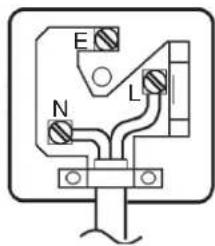
WIRING INSTRUCTIONS
The wires in the mains lead are coloured in accordance with the following code:
BLUE — NEUTRAL
BROWN — LIVE
As the colours of the wires in the mains lead of the appliance may not correspond to the coloured markings identifying the terminals in your plug, proceed as follows:
The wire which is coloured BLUE must be connected to the terminal which is marked with the letter N or coloured black.
The wire which is coloured BROWN must be connected to the terminal which is marked with the letter L or coloured red.
No connection is to be made to the Earth (E, 12 ) terminal.
CAUTION:
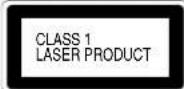
THIS UNIT IS A CLASS 1 LASER PRODUCT. HOWEVER THIS UNIT USES A VISIBLE LASER BEAM WHICH COULD CAUSE HAZARDOUS RADIATION EXPOSURE IF DIRECTED. BE SURE TO OPERATE THE PLAYER CORRECTLY AS INSTRUCTED. THE FOLLOWING CAUTION LABEL IS LOCATED ON THE REAR PANEL OF THE UNIT.
WHEN THIS UNIT IS PLUGGED INTO THE WALL OUTLET, DO NOT PLACE YOUR EYES CLOSE TO THE OPENING OF THE DISC TRAY AND OTHER OPENINGS TO LOOK INTO THE INSIDE OF THIS UNIT.
USE OF CONTROLS OR ADJUSTMENTS OR PERFORMANCE OF PROCEDURES OTHER THAN THOSE SPECIFIED HEREIN MAY RESULT IN HAZARDOUS RADIATION EXPOSURE.
DO NOT OPEN COVERS AND DO NOT REPAIR YOURSELF. REFER SERVICING TO QUALIFIED PERSONNEL.
NOTES ON MOISTURE CONDENSATION
Moisture condensation damages the unit. Please read the following carefully.
Moisture condensation occurs, for example, when you pour a cold drink into a glass on a warm day. Drops of water form on the outside of the glass. In the same way, moisture may condense on the head drum or the optical pick-up lens inside this unit, one of the most crucial internal parts of the unit.
■ Moisture condensation occurs during the following cases.
- When you bring the unit directly from a cold place to a warm place.
- When you use the unit in a room where you just turned on the heater, or a place where the cold wind from the air conditioner directly hits the unit.
- In summer, when you use the unit in a hot and humid place just after you move the unit from an air conditioned room.
- When you use the unit in a humid place.
■ Do not use the unit when moisture condensation may occur.
If you use the unit in such a situation, it may damage discs and internal parts. Remove the disc, connect the power cord of the unit to the wall outlet, turn on the unit, and leave it for two or three hours. After two or three hours, the unit will have warmed up and evaporated any moisture. Keep the unit connected to the wall outlet and moisture condensation will seldom occur.
SOME DOS AND DON'TS ON THE SAFE USE OF EQUIPMENT
This equipment has been designed and manufactured to meet international safety standards but, like any electrical equipment, care must be taken if you are to obtain the best results and safety is to be assured. So, please read the points below for your own safety. They are of a general nature, intended to help you with all your electronic consumer products and some points may not apply to the goods you have just purchased.
\*\*\*\*\*\*\*\*\*\*\*\*\*\*\*\*\*\*\*\*\*\*\*\*\*\*\*\*\*\*\*\*\*\*\*\*\*\*\*\*\*\*\*\*\*\*\*\*\*\*\*\*\*\*\*\*\*\*\*\*\*\*\*\*\*\*\*\*\*\*\*\*\*\*\*\*\*\*\*\*\*\*\*\*\*\*\*\*
DO read the operating instructions before you attempt to use the equipment.
DO ensure that all electrical connections (including the mains plug, extension leads and interconnections between the pieces of equipment) are properly made and in accordance with the manufacturer's instructions. Switch off and withdraw the mains plug before making or changing connections.
DO consult your dealer if you are ever in doubt about the installation, operation or safety of your equipment.
DO be careful with glass panels or doors on equipment.
\*\*\*\*\*\*\*\*\*\*\*\*\*\*\*\*\*\*\*\*\*\*\*\*
DON'T remove any fixed cover as this may expose dangerous voltages.
DON'T obstruct the ventilation openings of the equipment with items such as newspapers, tablecloths, curtains, etc. Overheating will cause damage and shorten the life of the equipment.
DON'T allow electrical equipment to be exposed to dripping or splashing, or objects filled with liquids, such as vases, to be placed on the equipment.
DON'T place hot objects or naked flame sources such as lighted candles or nightlights on, or close to equipment. High temperatures can melt plastic and lead to fires.
DON'T use makeshift stands and NEVER fix legs with wood screws - to ensure complete safety always fit the manufacturer's approved stand or legs with the fixings provided according to the instructions.
DON'T use equipment such as personal stereos or radios so that you are distracted from the requirements of traffic safety. It is illegal to watch television whilst driving.
DON'T listen to headphones at high volume, as such use can permanently damage your hearing.
DON'T leave equipment switched on when it is unattended unless it is specifically stated that it is designed for unattended operation or has a stand-by mode. Switch off using the switch on the equipment and make sure that your family know how to do this. Special arrangements may need to be made for infirm or handicapped people.
DON'T continue to operate the equipment if you are in any doubt about it working normally, or if it is damaged in any way -switch off, withdraw the mains plug and consult your dealer.
ABOVE ALL
---NEVER let anyone especially children push anything into holes, slots or any other opening in the case - this could result in a fatal electrical shock;
---NEVER guess or take chances with electrical equipment of any kind
---it is better to be safe than sorry!
****************************************************************************************
FEATURES
TV
• Auto Set up (Channel)
• Auto Channel Memory
• TELETEXT Function
• On-Screen Programming
• Picture Control Adjustments
• Auto Power Shut Off
DVD Player
• Digital Audio Jack (Coaxial)
- Multi-Language
CONTENTS
PREPARATION
PRECAUTIONS 1
LOCATION OF CONTROLS 3
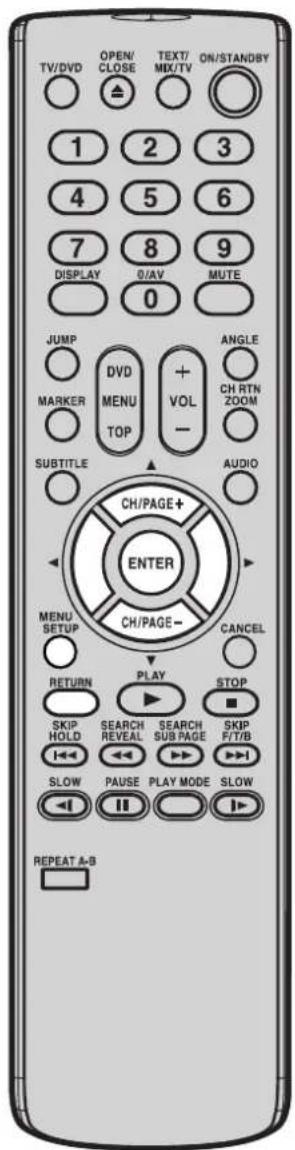
REMOTE CONTROL 4
AERIAL CONNECTIONS 6
CONNECTION TO OTHER EQUIPMENT 7
TV OPERATION
AUTOMATIC TUNING SYSTEM 9
PRESETTING THE CHANNELS 10
TV OPERATIONS 13
CONVENIENT FUNCTIONS 14
PICTURE ADJUSTMENTS 15
AV COLOUR ADJUSTING 16
RECEPTION OF INTERFERENCE 17
TELETEXT 18
* This product incorporates copyright protection technology that is protected by method claims of certain U.S. patents and other intellectual property rights owned by Macrovision Corporation and other rights owners. Use of this copyright protection technology must be authorized by Macrovision Corporation or other rights owners and is intended for home and other limited viewing uses only unless otherwise authorized by Macrovision Corporation or other rights owners. Reverse engineering or disassembly is prohibited.
* Manufactured under license from Dolby Laboratories. "Dolby" and the double-D symbol are trademarks of Dolby Laboratories. Confidential unpublished works.
* "DTS" and "DTS Digital Out" are trademarks of Digital Theater Systems, Inc.
* Unauthorized recording of copyrighted television programs, films, video cassettes and other materials may infringe the rights of copyright owners and be contrary to copyright laws.
LOCATION OF CONTROLS
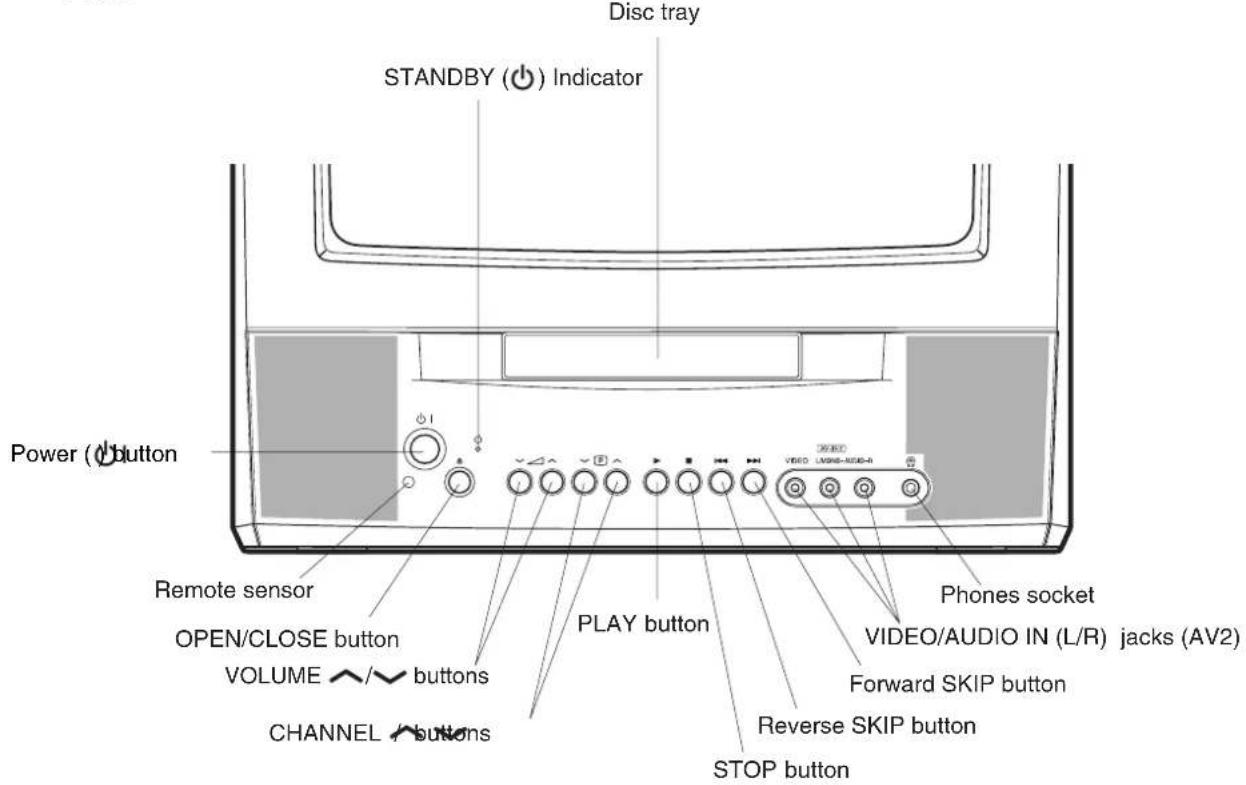
This owner's manual uses the illustrations of VTD1432.
Front
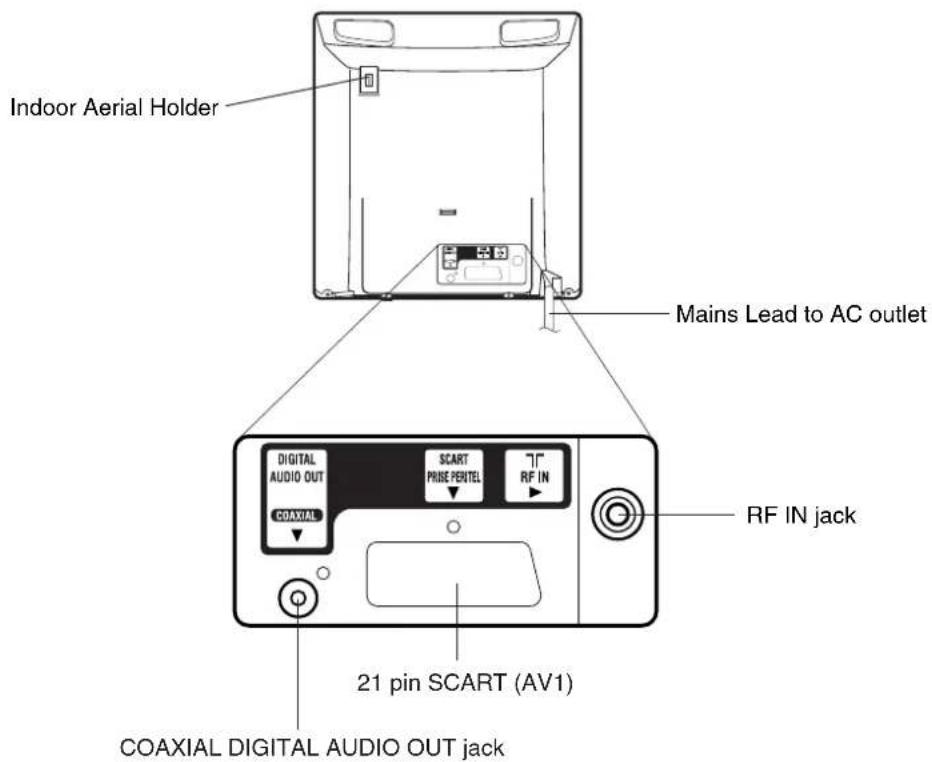
Rear
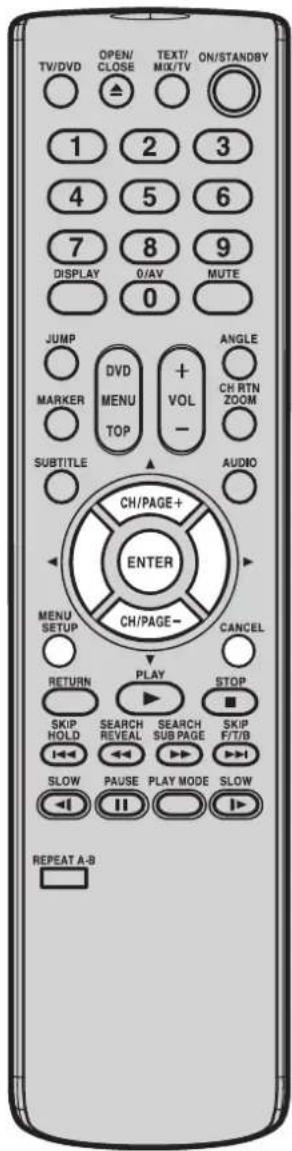
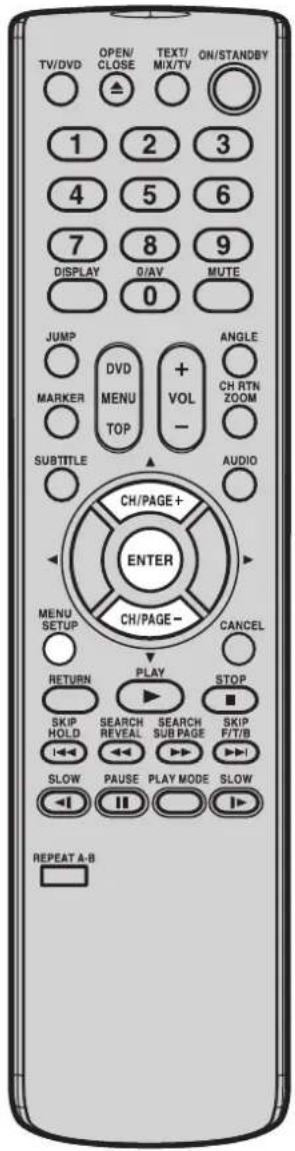
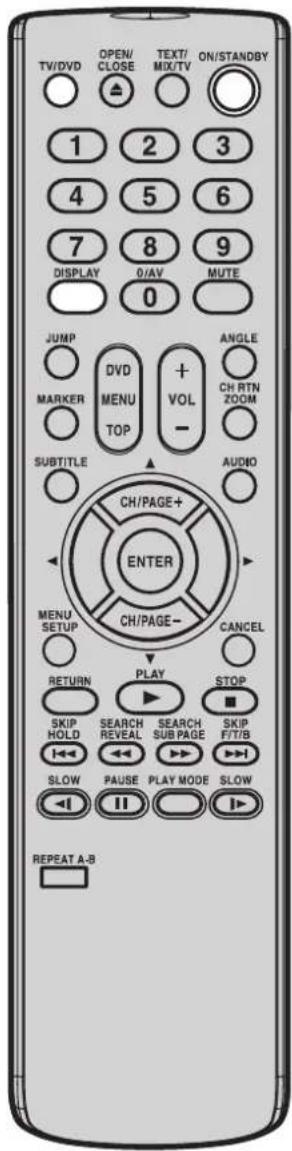
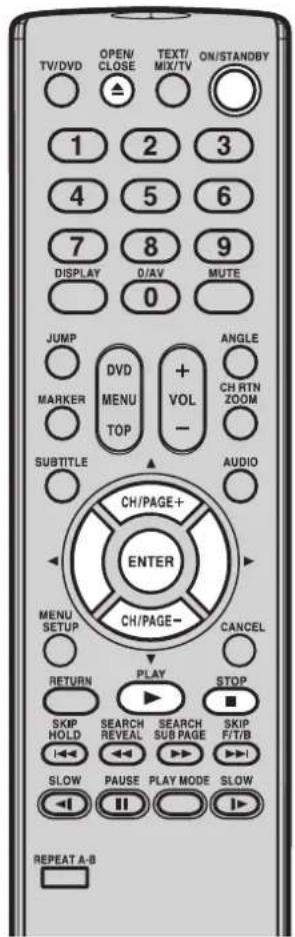
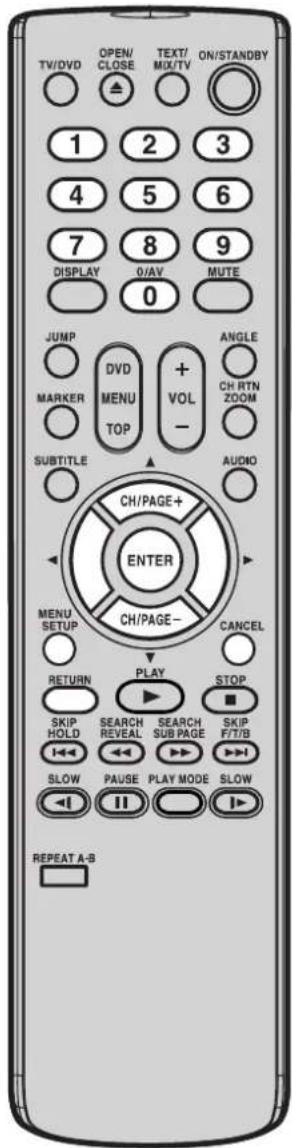
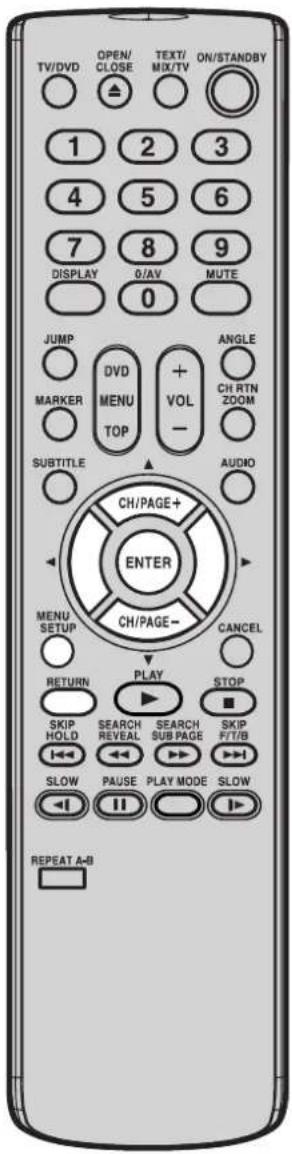
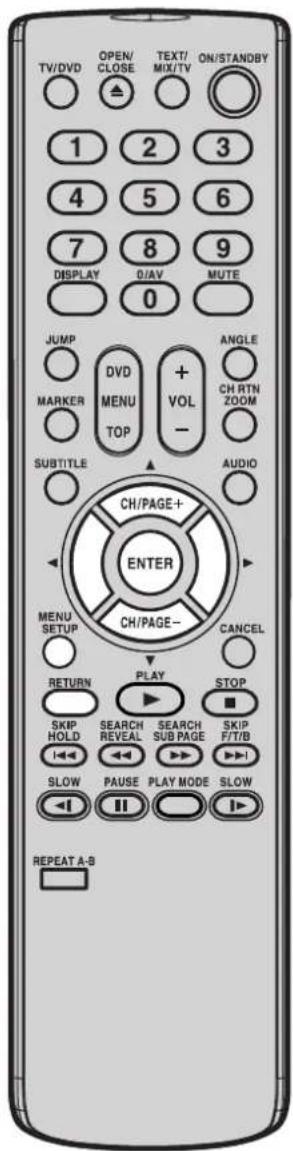
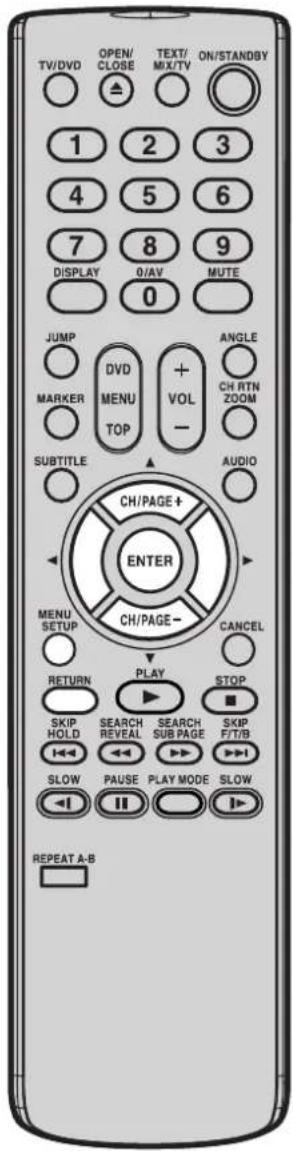
REMOTE CONTROL
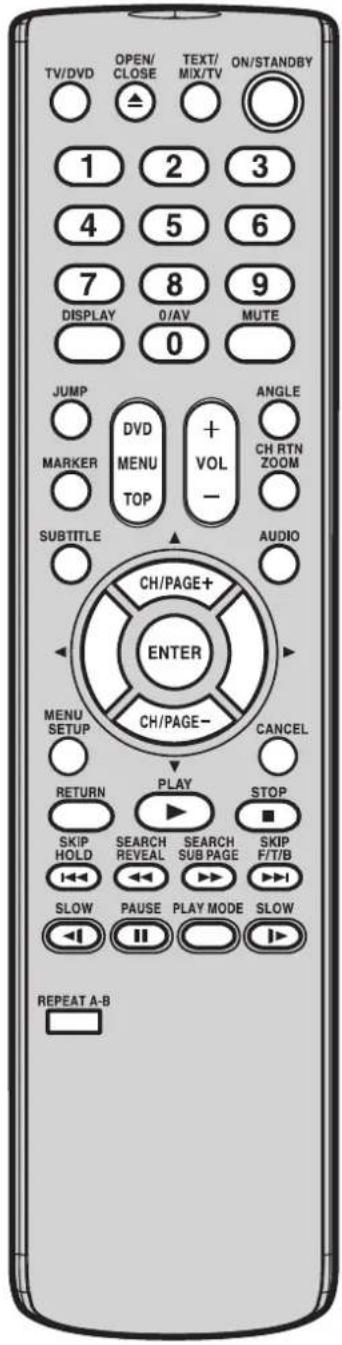
Page
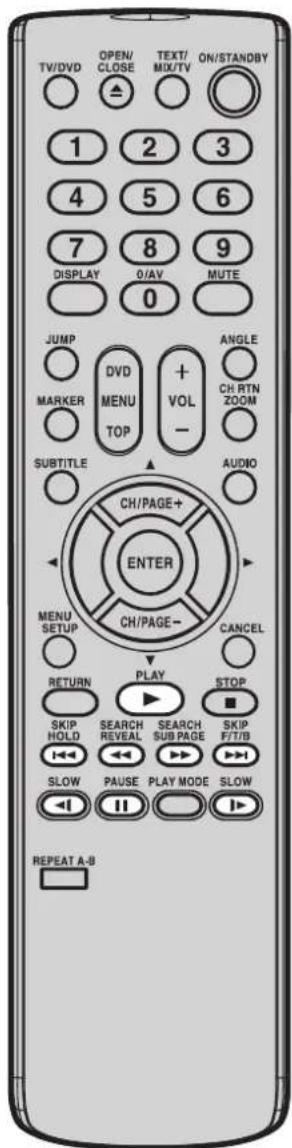
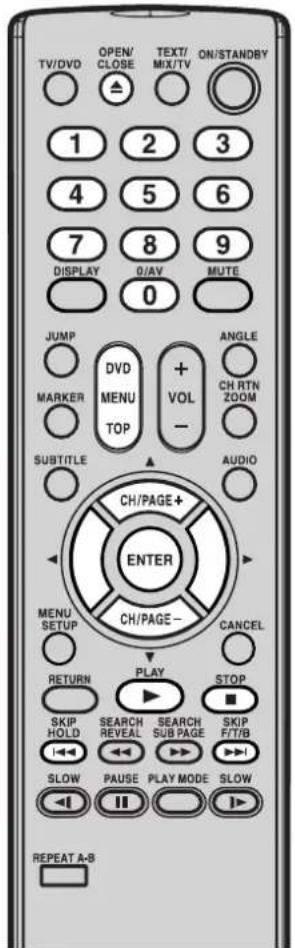
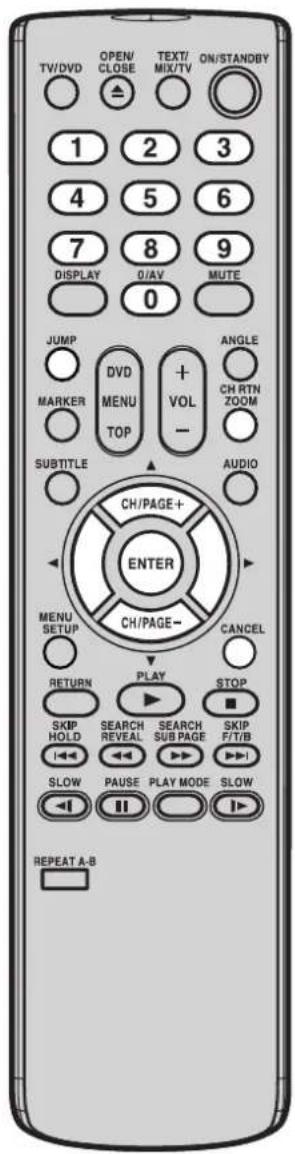
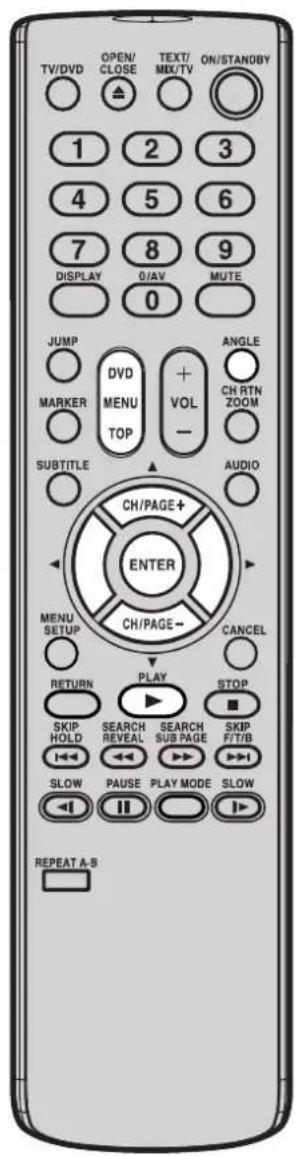
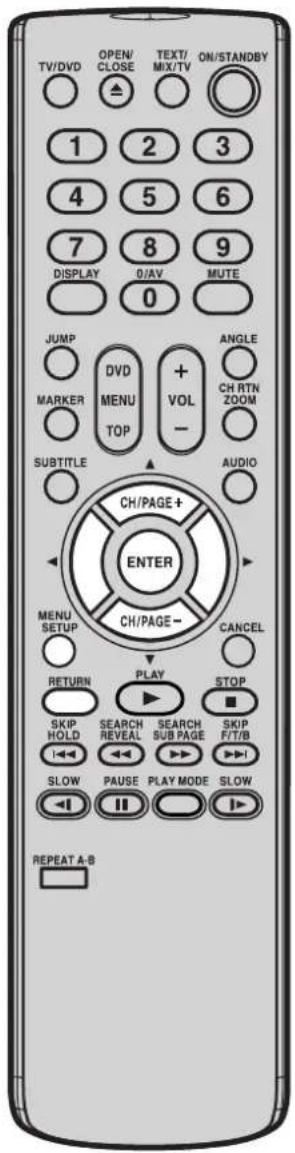
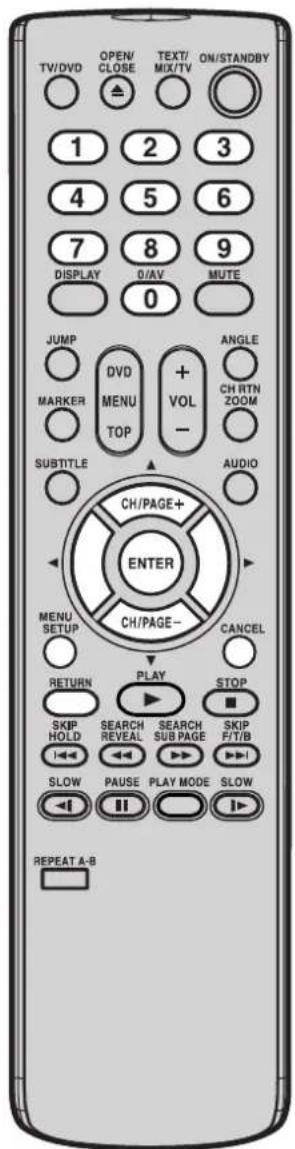
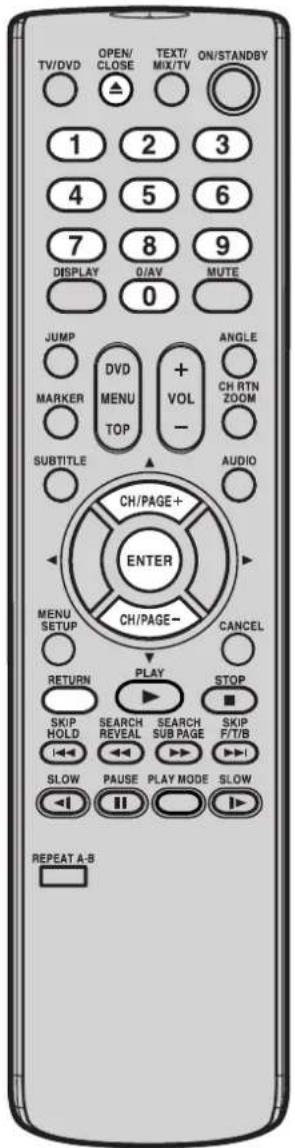
| TV/DVD Select to operate TV or DVD 8,13,21 | ||
| OPEN/CLOSE Open or Close the tray 22 | ||
| TEXT/MIX/TV Select teletext 18 | ||
| ON/STANDBY Power on/off 9 | ||
| 0-9 Direct channel selection of TV 13Input setting 28,30Enter a security code 36,37 | ||
| DISPLAY Display TV or DVD operation status 14,21 | ||
| 0/AV | Scart Input or Front AV input | 14 |
| MUTE | Mute | 14 |
| JUMP | Locating desired scene | 28 |
| DVD MENU | Select menu of a DVD disc | 33 |
| TOP MENU | Select title of a DVD disc | 33 |
| VOLUME +/- | Volume Up/Down | 13 |
| ANGLE | Change playback angle of a DVD disc | 33 |
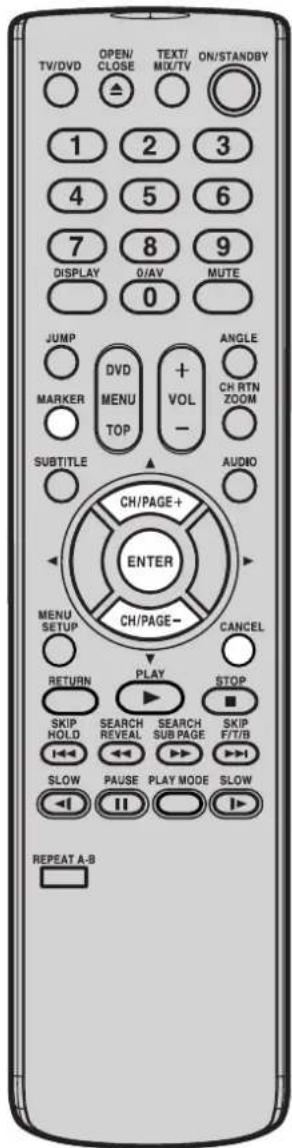
| MARKER | Index for DVD | 31 |
| CH RTN | Switch between present/last channel | 14 |
| ZOOM | Zoom (for DVD playback) | 28 |
| SUBTITLE | Set Subtitle of a DVD disc | 32 |
| AUDIO | Change sound track language of DVD | 32 |
| CH/PAGE +/- | Select channel of the TVUtilize the teletext | 13,1419 |
| ▲/▼/◄/► | Cursor buttons | |
| ENTER | Enter information in the menu/Select option in the menu | |
| MENU SETUP | Display menu of setup 10~12,15~16,34~37,39~41 | |
| CANCEL | Cancel input data in the setting mode 14,15,28,31,36,37 | |
| RETURN | Remove DVD set up menu | 34~41 |
| PLAY | Playback | 22 |
| STOP | Stop | 22 |
| SKIP ⏻/Ⓧ | Skip chapter to forward or reverse direction | 23 |
| HOLD | Hold | 18 |
| F/T/B | F/T/B | 19 |
| SEARCH◄◄/►► | Reverse search or Forward search playback | 23 |
| REVEAL | Reveal | 19 |
| SUB PAGE | Sub page | 19 |
| SLOW ◀/I► | Slow motion playback | 23 |
| PAUSE | Still picture | 23 |
| PLAY MODE | Select playback mode | 29,30 |
| Four Coloured buttons Access the Teletext | 18 | |
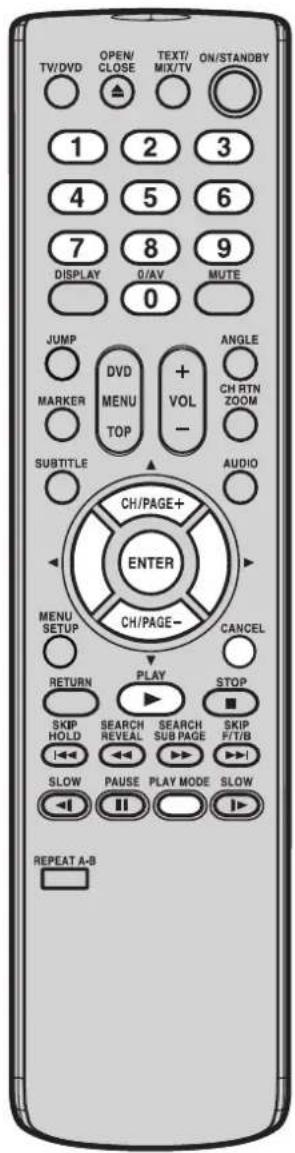
| REPEAT A-B | Repeat playback between A and B (DVD/CD) | 29 |
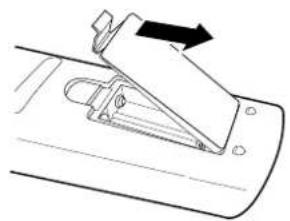
BATTERY INSTALLATION
1
Open the battery compartment cover in the direction of the arrow.
natural_image
Diagram of a mechanical device with an arrow indicating direction (no text or symbols present)2
Install two "AAA/R03/UM-4" (penlight size) batteries, paying attention to the polarity diagram in the battery compartment.
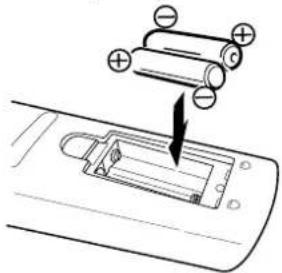
3
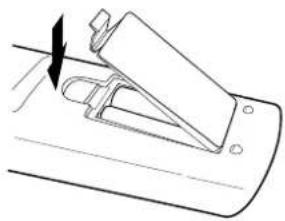
Replace the cover.
natural_image
Line drawing of a mechanical clip or bracket with an arrow indicating direction (no text or symbols)BATTERY CAUTIONS
- Use two "AAA/R03/UM-4" size penlight batteries for the remote control transmitter.
- The batteries may last approximately one year depending on how much the remote control is used. For best performance it is recommended batteries be replaced on a yearly basis, or when remote operation becomes erratic.
- Do not mix old and new batteries.
- Weak batteries can leak and severely damage the remote control transmitter. Always remove batteries as soon as they become weak.
EFFECTIVE DISTANCE OF THE REMOTE CONTROL TRANSMITTER
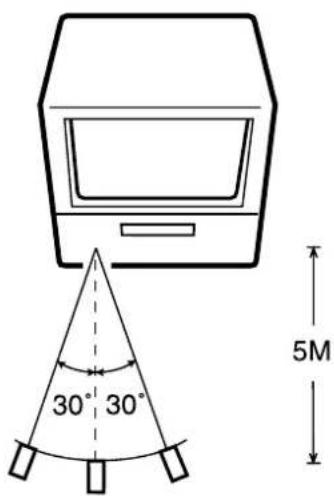
NOTES: • When direct sunlight, an incandescent lamp, fluorescent lamp or any other strong light shines on the remote sensor, the remote operation may be unstable. • When there is an obstacle between the unit and the transmitter, the remote control transmitter may not operate.
AERIAL CONNECTIONS
Connect an indoor or outdoor aerial to the aerial socket at the rear panel as shown below. For all aerial circuit problems, please consult your local dealer.
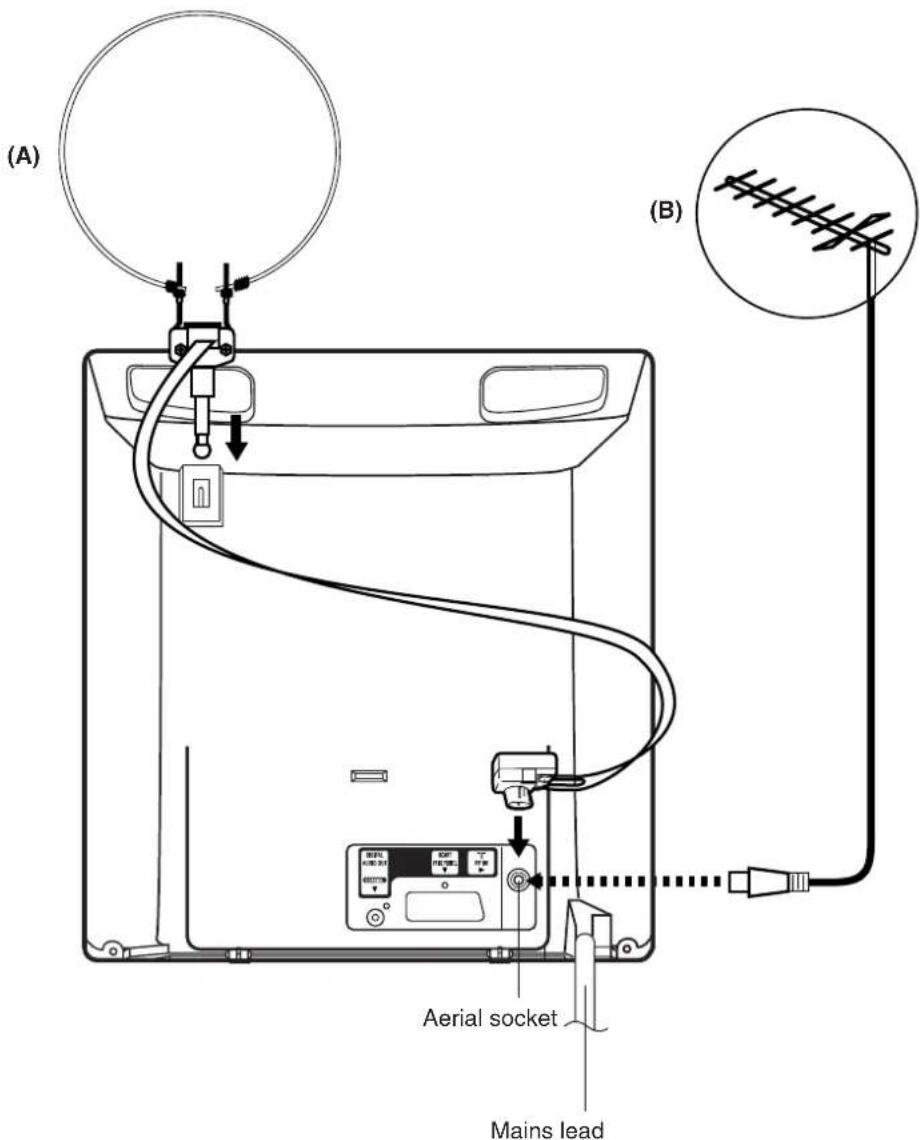
INDOOR AERIAL(A)
A loop aerial is supplied with the unit (VTD1432 only). Insert the aerial holder into the mounting hole on the back cabinet until it locks into place. Insert the aerial adaptor (supplied with VTD1432 only) to the aerial socket. Adjust the angle of the loop aerial to receive the best possible picture.
(B) EXTERNAL AERIAL
The type of aerial required depends on the position of your home, it's distance from the transmitter and local interference. If you do not have an aerial and you are uncertain of what to buy, you should seek the advice of a local aerial contractor.
CONNECTION TO OTHER EQUIPMENT
The exact arrangement you use to interconnect various video and audio components to the unit is dependent on the model and features of each component. Check the Owner's Manual provided with each component for the location of video and audio inputs and outputs.
Using an AV Amplifier with built-in digital surround
If you are using an Amplifier with a built-in digital surround sound decoder (such as Dolby Digital / DTS / MPEG / etc.), you can connect it as shown below.
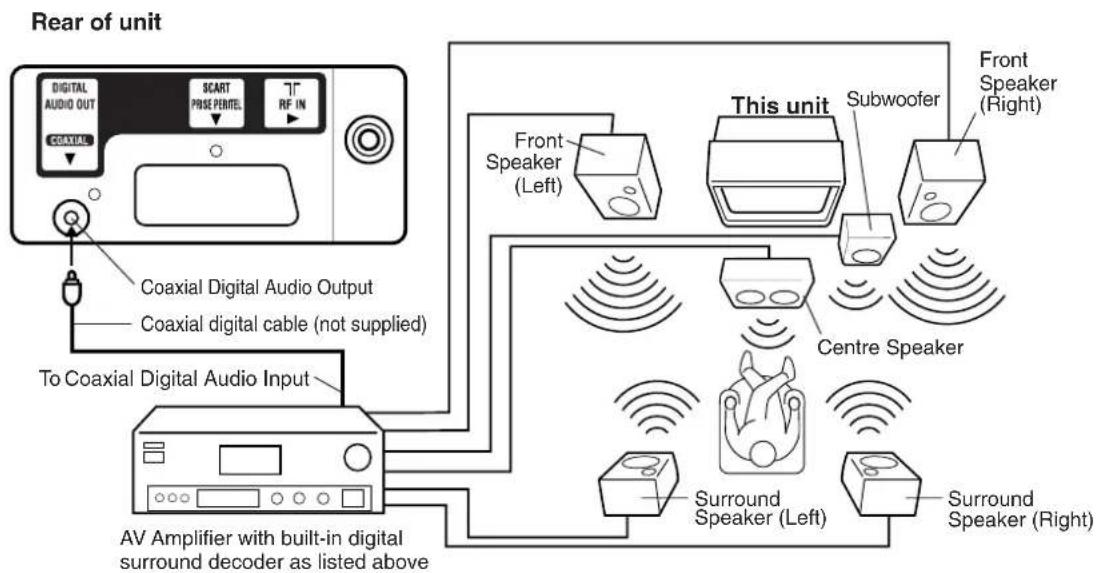
flowchart
graph TD
    A["Coaxial Audio Unit"] -->|Coaxial Digital Audio Output\nCoaxial digital cable (not supplied)| B["AV Amplifier with built-in digital surround decoder as listed above"]
    B --> C["Front Speaker (Left)"]
    B --> D["Subwoofer"]
    B --> E["Centre Speaker"]
    B --> F["Surround Speaker (Left)"]
    B --> G["Surround Speaker (Right)"]
    H["This unit"] --> I["Front Speaker (Right)"]
* Manufactured under license from Dolby Laboratories. "Dolby" and the double-D symbol are registered trademarks of Dolby Laboratories. Confidential unpublished works.
* DTS and DTS Digital Out are registered trademarks of Digital Theatre Systems, Inc.
NOTES:
- When you make the connections above, make sure that the power of all units is switched off at the mains.
- Some DTS decoders which do not support DVD-DTS interface may not work properly with the unit.
- When playing DTS encoded material, the sound will only be available through the Digital Audio Output Socket.
CONNECTION TO OTHER EQUIPMENT
Input Selection
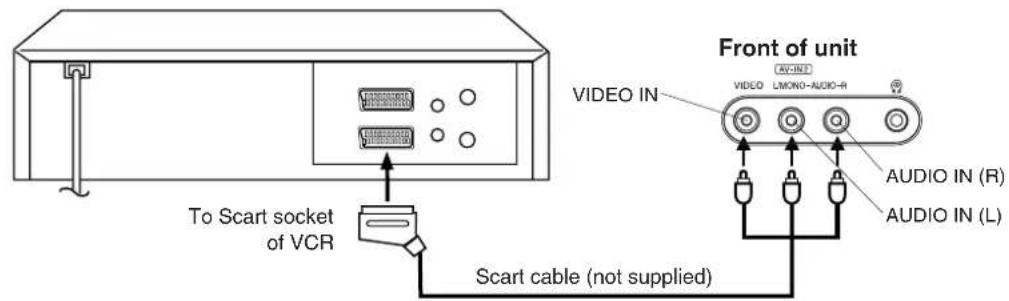
If you connect the unit to a VCR, camcorder or games console, you can select this input by pressing the 0/AV button.
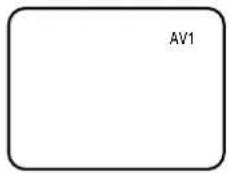
Press the TV/DVD button to select TV mode and then press the 0/AV button repeatedly to select AV1 or AV2.
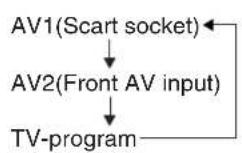
1. To connect the unit to a VCR
Press the 0/AV button to select AV2 to use the TV as a monitor.
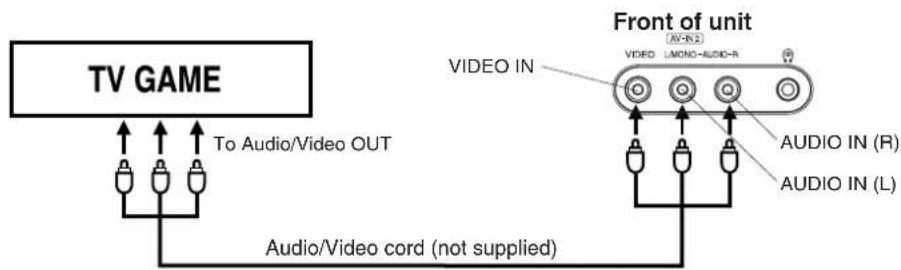
2. To connect the unit to a TV Game
The unit can also be used as a display device for many video games. However, due to the wide variety of different types of signal generated by these devices and subsequent hook-up variations required, they have not all been included in the suggested connection diagrams. Press the 0/AV button to select AV2 to use the TV as a monitor. You'll need to consult each component's Owner's Manual for additional information.
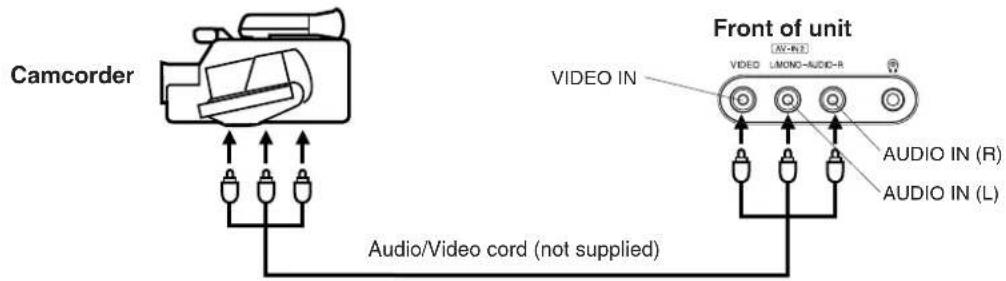
3. To connect the unit to a camcorder
Connect the camcorder to the unit as shown.
Press the 0/AV button to select AV2 to use the TV as a monitor.
4. To connect the unit to another TV set (ie. a widescreen set) (see P.34)
Connect the unit and another TV set with a Scart cable.
Press the AV button on another TV to monitor the input from the Scart cable.
Your television has an Automatic Tuning System which makes tuning in your television easy. This Automatic tuning System scans the entire reception range in your area and automatically stores all available channels of suitable signal strength in the correct order e.g. BBC1 will tune into channel 1, BBC2 will tune into channel 2, etc.
ONLY WHEN YOU TURN ON THIS UNIT FOR THE FIRST TIME, THE AUTOMATIC TUNING PROCESS WILL BE AVAILABLE.
1 Press Power (on the unit.
Then press ON/STANDBY on the remote control.
CONNECT AERIAL TO TV THEN PRESS ENTER TO START AUTO TUNING
2 Press ENTER.
Your unit will now automatically tune in all available channels.
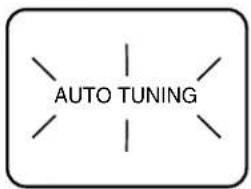
When the programme on the screen stops changing and the sound comes on, the tuning process is complete.
NOTE: If you use the supplied loop aerial (VTD1432 only), weak channels may not be stored automatically. You will need to tune these manually.
PRESETTING THE CHANNELS
Once you have connected up this unit, you will need to tune in the channels in order to watch TV stations. There are two ways that you can do this:
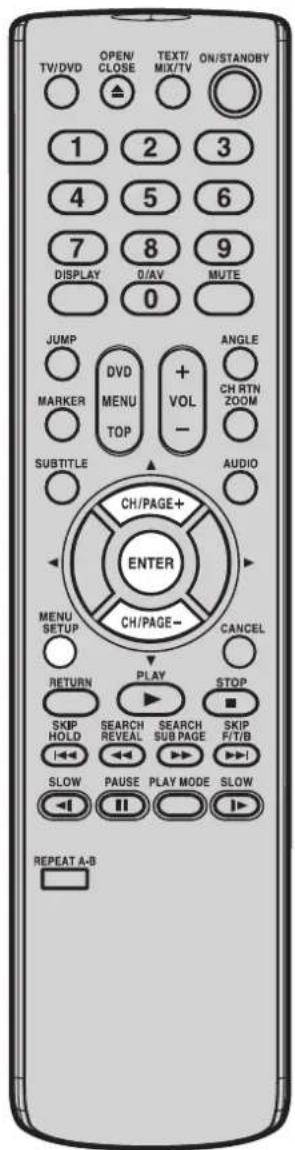
NOTES:
- If you want to skip any channels, refer to page 14.
-
When the unit is in the AV mode, you can't preset the channels.
-
Automatic tuning The stations will be preset in the order that they appear when the automatic tuning is activated.
- Manual tuning In this mode the TV searches until a picture appears. If it is a station that you want to keep, you can choose which channel preset you want to store it on. You repeat this procedure for each station until you have stored all the desired stations.
AUTOMATIC TUNING
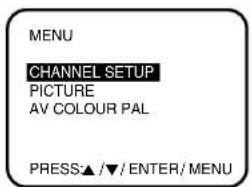
1 Press MENU.
Press ▲ or to▼select the CHANNEL SETUP mode, then press ENTER.
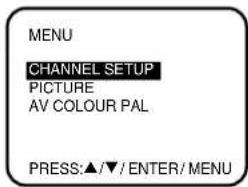
2
Press ▲ or to▼select the AUTO mode, then press ENTER.
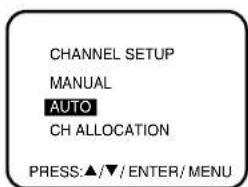
3
All available channels in your area are automatically scanned and stored in the memory of the unit. When the programme on the screen stops changing and the sound comes on, the tuning process is complete.
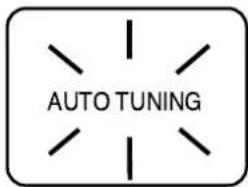
4
Press MENU twice. The unit will return to normal TV screen.
- The automatic tuning will not necessarily store the channels in the correct order (BBC1 on CH 1 etc.). If you want to change the order of the stored channels, please see page 12.
PRESETTING THE CHANNELS
MANUAL TUNING
How to tune a station to channel 10 position.
1 Press MENU.
Press ▲ or ▼o select the CHANNEL SETUP mode, then press ENTER.
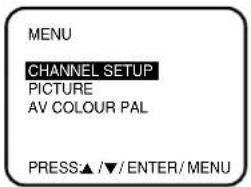
2 Press ▲ or to▼select the MANUAL mode, then press ENTER.
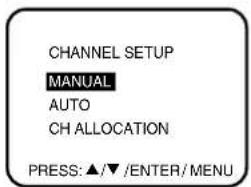
3 Press ◀r until the picture appears on screen. If this is not your desired channel, press ◀ or ▶ until your desired channel appears. If you need to make the picture clearer, use ▲ or ▼FINE TUNING). Then press ENTER.
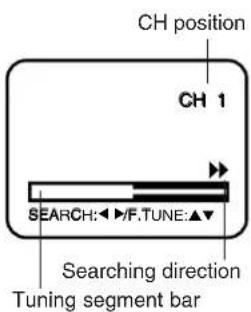
4 Press ▲ or ▼ select channel position No.10, then press ENTER.
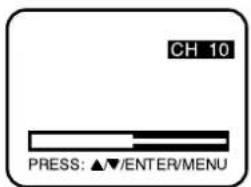
5 Repeat steps 3 through 4 until all the required channels have been stored.
6 When all desired channels have been set in your required position, press MENU three times to return to normal TV screen.
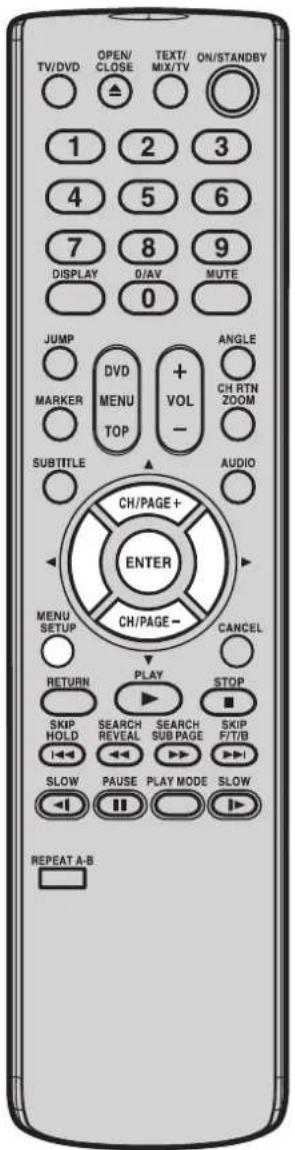
PRESETTING THE CHANNELS
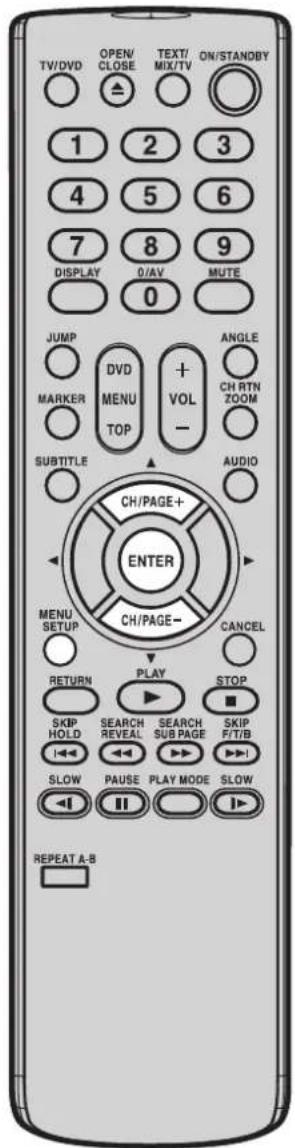
TO CHANGE THE CHANNELS
EXAMPLE: Changing of channel position from CH2 and CH5.
1 Press MENU.
Press ▲ or to▼select the CHANNEL SETUP mode, then press ENTER.
2 Press ▲ or to select the CH
ALLOCATION mode, then press ENTER.
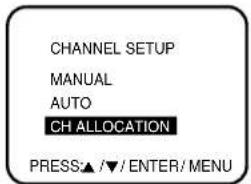
3 Press ▲ or to▼select the
channel position No. (broadcasting) which you want to change. Then press ENTER.
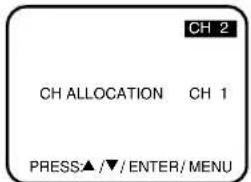
4 Press ▲ or to▼select the
channel allocation No. that you want to change to.
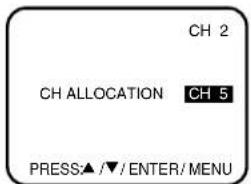
5 Press ENTER. The numbers of
Press ENTER. The numbers of the stations are changed. Repeat steps 3 - 4 to change the order of other channels. Then press MENU three times to return to normal TV screen.
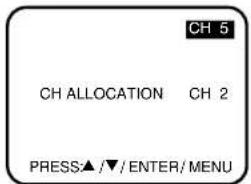
Before setting
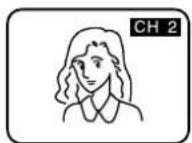
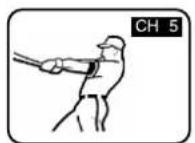
After setting
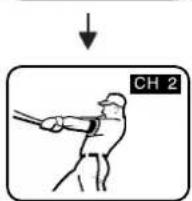
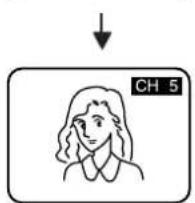
TV OPERATIONS
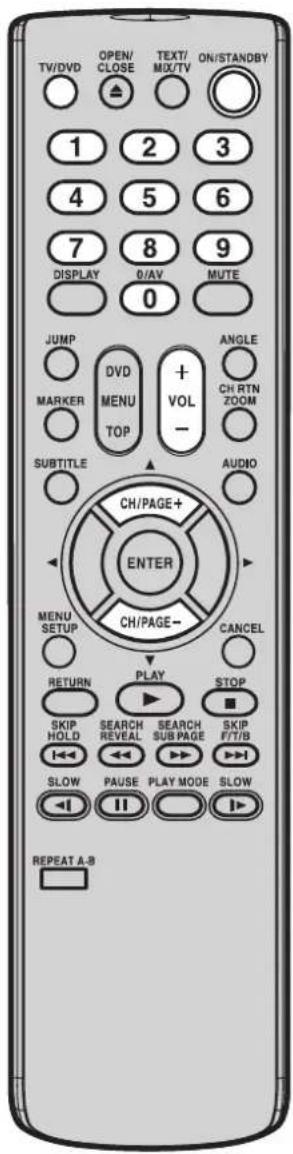
Once you have correctly connected and set up the channels on your set, you can view the channels as follows.
NOTE:
The on screen display will disappear after 4 seconds.
Automatic Power Shut Off
If a station being viewed stops broadcasting for about 15 minutes, the unit will automatically shut itself off and go into standby mode.
1 Press Power (☐) on the front panel of the unit. Then press ON/STANDBY on the remote control (STANDBY indication will goes off). Press TV/DVD to select TV mode.
2 Direct Channel Selection buttons (0-9)
Press Direct Channel Selection buttons on the remote control.
1-9 CH: Press your required number only.
10-80 CH: Press the two digits in accordance to the channel numbers required.
CH +/-
Press CH + or - on the remote control.
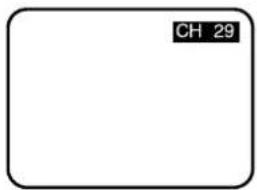
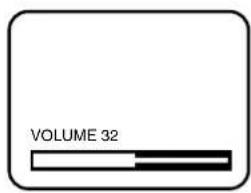
3 The VOLUME can be adjusted by pressing the VOL + or - on the remote control.
CONVENIENT FUNCTIONS
The following functions are available from the remote control handset only.
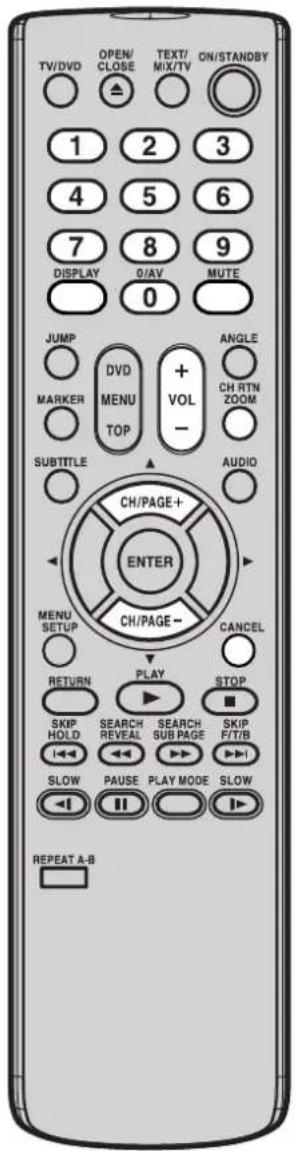
TV/AV Selection
For receiving the desired signal: Press 0/AV to select the TV or AV mode.
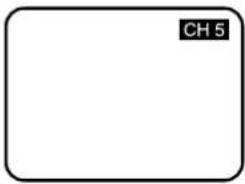
TV position - to view a normal TV program.
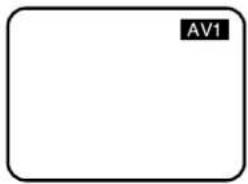
AV position - to receive through the direct Video input. AV1 (from 21 pin SCART socket on the rear) or AV2 (from Audio/Video in jacks on the front) indicator appears on the screen in AV mode.
CHANNEL RETURN
This button allows you to go back to the previous channel by pressing CHRTN. Press this button again to return to the channel you were watching.
DISPLAY
When you press this button once, the channel number will appear. Press this button again, then the display will disappear.
MUTE
When MUTE is pressed, the TV sound will be turned off completely. To disable this function, press the button again or VOL + or -.
SKIP FUNCTION
After all channels available in your area have been set in memory, you can skip unwanted channels as follows.
1 Press CH+ or – to select the channel which you want to skip.
2 Press CANCEL.
When a channel is skipped, the channel number will blink.
3 Skip all unwanted channels the same way following steps 1-2.
NOTE:
To cancel the SKIP function, press Direct Channel Selection buttons to select the channel which you want to cancel, then press CANCEL again.
PICTURE ADJUSTMENTS
The picture settings have been adjusted at the factory under optimum signal reception conditions. However, you can adjust for BRIGHTNESS, CONTRAST, COLOUR and SHARPNESS to your preference.
NOTES:
- The picture settings can only be adjusted when they are displayed on screen.
- Pressing CANCEL will return all adjustments to their factory preadjusted levels. This function is available in adjusting picture mode.
- TINT will appear only when the NTSC Colour System is selected in AV input mode (AV1/AV2).
1 Press MENU.
2 Press ▲ or ▼ to select the PICTURE mode, then press ENTER.
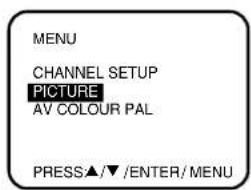
3 To adjust the BRIGHTNESS, press ◀ or ▶ then press . ▲
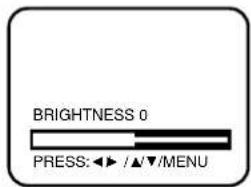
NOTE: Each time ▲ is pressed, the on screen display will change as shown below.

Press MENU twice to return to normal TV screen.
AV COLOUR ADJUSTING
When connecting external equipment to the unit, the picture may become black and white. This can be corrected by selecting AV (Extension) Colour as follows.
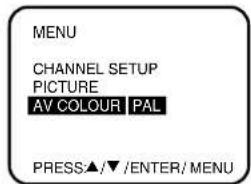
1 Press MENU on your remote control. The on screen display will appear.
Press ▲ or ▼ to select the AV COLOUR menu.
2 Press ENTER to select one of the colour options, PAL or NTSC4.43.
• Usually select the PAL option.
3 Press MENU to remove the menu from the screen.
RECEPTION OF INTERFERENCE
The most common types of television interference are as follows.
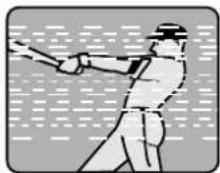
IGNITION
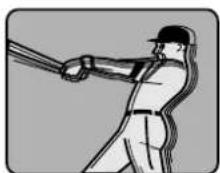
IGNITION
Black spots and horizontal streaks may appear, the picture may flutter or drift. This is usually caused by interference from car ignition system, neon lamps, electric drills or other electrical appliances.
GHOSTING
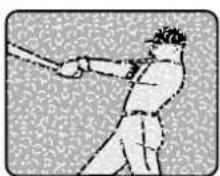
GHOSTING
Ghosting is caused by the TV signal following two paths. One is the direct path and the other is reflected from tall buildings, hills or similar obstruction. Changing the direction and/or position of the aerial may improve reception.
SNOW
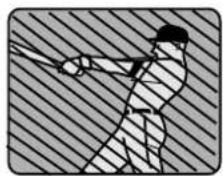
SNOW
If your TV is located on the fringe area of a TV station, where the signal is weak, your picture may be affected by the appearance of small dots (SNOW). It may be necessary to install a stronger aerial to improve the picture.
natural_image
Silhouette of a person in motion against a diagonal striped background (no text or symbols)This kind of interference produces moving ripples or diagonal streaks and in some cases loss of contrast in the picture.
TELETEXT
Most broadcasting stations offer a Teletext service in addition to their standard TV program.
Teletext offers news, weather forecast, winning Lotto numbers, TV listings and other interesting news.
The text is received page by page, as soon as you select the broadcasting station. A single page can be displayed on the screen. The pages are numbered and broadcasted one by one. Therefore you'll have to wait a certain time until the selected page is displayed on the screen. The page will be displayed as soon as it is broadcast.
Certain pages can be displayed more easily by pressing one of the FOUR COLOURED TELETEXT buttons.
Basic operation
1 Select the broadcasting station, whose text you want to read. In order to do so, select the station's channel with the remote handset.
2 Push TEXT/MIX/TV
The first push on TEXT/MIX/TV switches the Teletext on.
The second push on TEXT/MIX/TV displays the TV program and the Teletext together (MIX).
The third push on TEXT/MIX/TV switches the Teletext off and returns the screen back to the TV program.
The first operation of the teletext normally opens the page 100 with the table of contents.
Example for a teletext page:
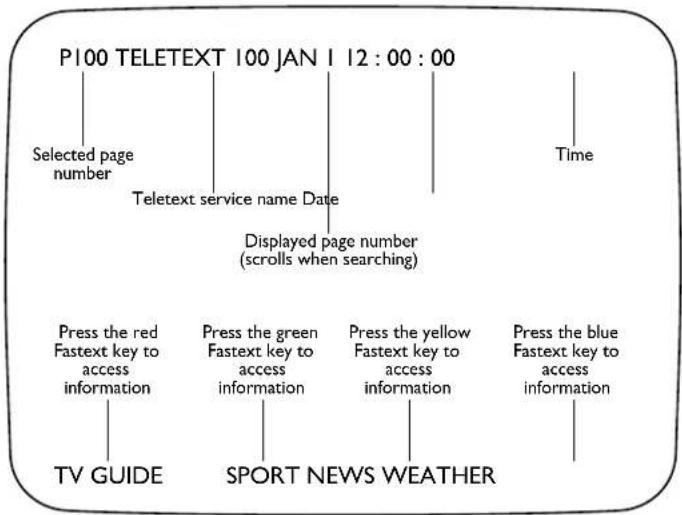
flowchart
graph TD
    A["Selected page number"] --> B["Teletext service name Date"]
    B --> C["Displayed page number (scrolls when searching)"]
    D["TV GUIDE"] --> E["Press the red Fastext key to access information"]
    F["SPORT NEWS WEATHER"] --> G["Press the green Fastext key to access information"]
    H["Time"] --> I["Press the yellow Fastext key to access information"]
    J["Press the blue Fastext key to access information"] --> K["Press the blue Fastext key to access information"]
Select the desired teletext page from the broadcasting station's table of contents.
HOLD
Some pages hold more text than can be displayed on one page. The broadcasting station separates these pages into sub-pages, which are broadcasted one by one automatically. To study one sub-page thoroughly push HOLD.
The HOLD-symbol will be displayed.
The associated sub-pages will scroll through automatically, when you push HOLD a second time to release it.
To call a teletext page
Leaf through the pages with PAGE (+/-) (forward or backward).
NOTE: You will not necessarily find a page for every page number you enter. E.g. you have entered page no. 116 but it does not offer this page. Available page numbers can be found on the Index page (most stations offer this page 100).
Enter the three-digit page number with Number buttons.
Example:
You want to display page 300.
Enter: 3 then 0 and 0.
If you enter an incorrect digit, complete all three digits with any numbers, then you can enter the correct page number.
Inside the teletext mode you cannot change to another broadcasting station. To switch to another channel, leave the teletext mode by pushing TEXT/MIX/TV.
How to call a specific sub-page
Push SUB PAGE.
The screen's upper left corner will display: - - - -
To call sub-page 2 enter: 0002.
Your input will be displayed in the upper left corner: 0002.
It may take some time until sub-page 2 is broadcast.
The sub-page can only be displayed when the broadcaster transmits it.
To leave sub-page mode push SUB PAGE again.
Within the sub-page mode no other pages other than the sub-pages of the selected page can be called. To call other teletext pages you must leave the sub-page mode.
Magnifying
To magnify the letters push F/T/B.
You can magnify either the upper or the lower half of the screen.
Each push on F/T/B switches between the screen's upper and lower half and the full screen. (F/T/B = Full / Top / Bottom)
REVEAL
Pushing REVEAL will give you the hidden answers to the questions on a Quiz-page.
Not every broadcasting station offers Quiz-pages and they are not constantly offered.
DISC
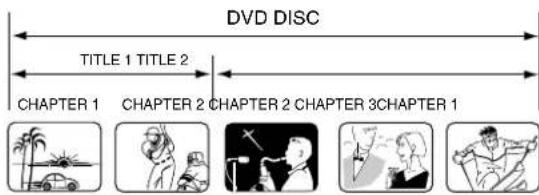
The region number of this unit is 2. If region numbers, which stand for their playable area, are printed on your DVD video disc and you do not find 📋 ALL, disc playback will not be allowed by the player. (In this case, the unit will display a message on-screen.)
playable Discs
The loaded Disc (DVD, Video-CD, Audio-CD, SVCD and MP3/WMA/JPEG-CD) will be recognized automatically. The suitable Disc-formats are: DVD, CD-R/RW and DVD-R/RW (Video format only). Some CD-R/RW discs may be incompatible.
Do not play DVD-ROM, DVD-Audio, CDV, CD-G or Photo CD to prevent accidental erasure of prerecorded material.
Some DVDs are copy protected and forbid dubbing on to video tape. Picture Distortion will occur. This is not a defect of this unit.
Title
When two or more movies are recorded on a disc, the disc is divided into two or more sections. Each section is called a "TITLE".
Chapter
The titles can be subdivided into many sections. Each section is called a "CHAPTER".
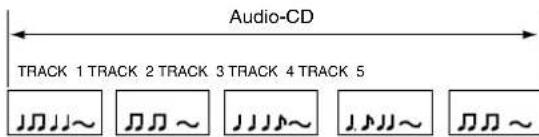
Track
An Audio CD can contain several items. These are assigned to tracks.
On handling Disc
- Do not touch the playback side of the disc.
- Do not attach paper or tape to discs.
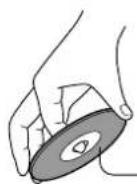
Removing Disc from Case
Be sure to hold the edge of disc. Do not touch the surface of the disc. Pick up the disc gently from the case.
- Do not scratch the disc.
- Do not get dirt on the surface of the disc.
- Do not stick a label or adhesive tape on the disc.
- Do not drop or bend the disc.
Storing Disc
- Store the disc in the case to avoid risk of scratches, dirt or damage.
- Do not leave disc exposed to direct sunlight or in hot or humid places.
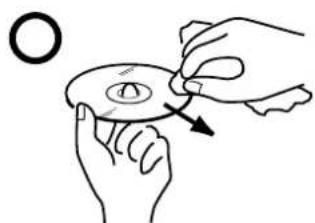
Cleaning Disc
Fingerprints and dust on the disc cause picture and sound deterioration. Wipe the disc from the centre outwards with a soft cloth. Always keep the disc clean.
- If you cannot wipe off the dust with a soft cloth, wipe the disc lightly with a slightly moistened soft cloth and finish with a dry cloth.
- Do not use any type of solvent such as thinner, benzine, commercially available cleaners or antistatic spray for vinyl LPs. It may damage the disc.
Playback side
natural_image
Illustration of hands holding a circular object with an arrow indicating rotation (no text or symbols)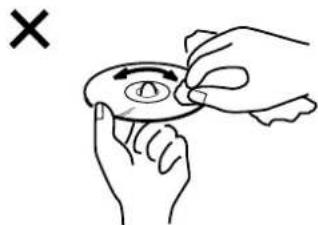
natural_image
Illustration of hands holding a circular object with an arrow and a cross mark, no text or symbols presentPREPARATION/STATUS DISPLAY OF DISC
The following pages describe the setup/operation in DVD mode.
NOTE:
If the unit does not operate properly: Static electricity can adversely affect the operation of this player. Sometimes this can be remedied by unplugging the unit for a short time, then reconnecting it.
Preparation
Before DVD/CD operation, please make preparations as follows.
1 Insert the AC cord plug into a standard 230V\~240V 50Hz AC outlet.
- If the AC cord plug is plugged in for the first time, wait for about 5 seconds before pressing Power (☐1) button on the unit.
NOTE: When connecting to other equipment, unplug the unit from the AC outlet.
2 Press ON/STANDBY on the remote control to turn on the unit.
- Every time you press ON/STANDBY, the unit starts from TV mode.
- When using an amplifier, switch on the amplifier.
3 Press TV/DVD to select DVD mode.
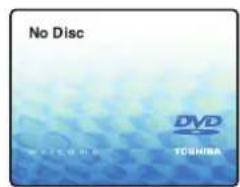
The DVD startup screen will appear on the screen.
Status display of disc
Press DISPLAY twice. The status display of the disc will appear on the screen.
DVD
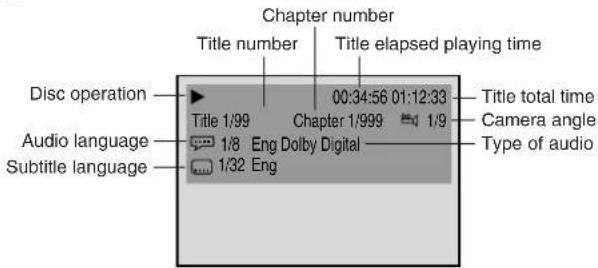
To make status display disappear, press DISPLAY again.
Audio CD/Video CD
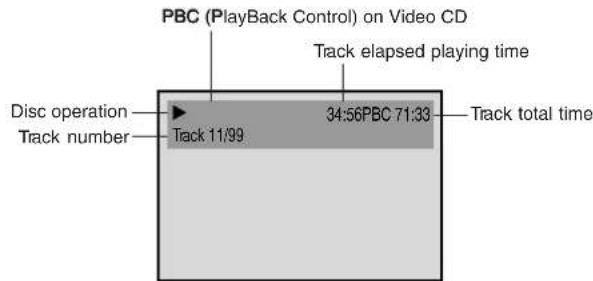
- When you play the CD disc, the status display will appear on the screen and continue displaying.
PLAYBACK PROCEDURE
NOTES:
- If a non-compatible disc is loaded, "Incorrect Disc", "Region Code Error" or "Parental Error" will appear on the TV screen according to the type of loaded disc. If these appear, check your disc again (see pages 20 and 36).
• Some discs may take a minute or so to start playback. - When you set a single-faced disc label downwards (ie. the wrong way up) and press ▶ (PLAY) or ▲ (OPEN/CLOSE) on the unit, "Reading" will appear on the display for approx. 30 seconds and then "Incorrect Disc" will be displayed.
- Some playback operations of DVDs may be intentionally fixed by software producers. Since this unit plays DVDs according to the disc contents the software producers designed, some playback features may not be available. Also refer to the instructions supplied with the DVDs.
22
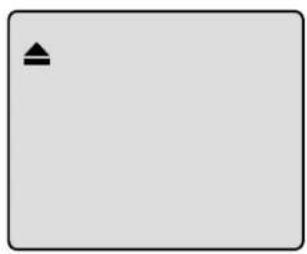
1 Press ▲OPEN/CLOSE) on the unit or OPEN/CLOSE on the remote control. The disc tray will open.
natural_image
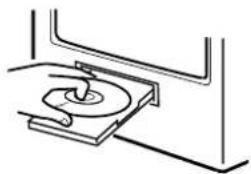
Simple gray rectangle with a black upward-pointing triangle in the top-left corner (no text or symbols)2 Place a disc onto the tray. Position it with the printed label side up, align it with the guides, and place it in its proper position.
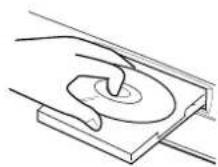
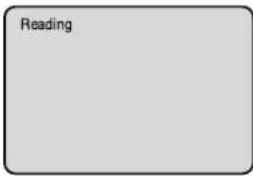
3 Press PLAY. The disc tray closes automatically. On the TV-screen, “changes to “Reading” and then playback commences.
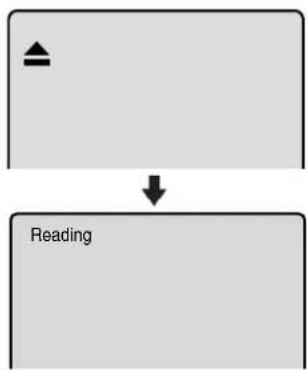
flowchart
graph TD
    A["↑"] --> B["↓"]
    B --> C["Reading"]
• A menu screen will appear on the TV screen, if the disc has a menu feature.
4 Press ▲on▼/ to ◀make a selection.
5 Press ENTER.
• Title is selected and play commences.
6 Press STOP to end playback.
- The unit memorizes the stopped point, depending on the disc. "■" appears on the screen. Press PLAY to resume playback (from the scene point). - If you press STOP again or unload the disc ("■" appears on the screen.), the unit will clear the stopped point.
7 To stop the playback, press STOP. Then press OPEN/CLOSE.
The disc tray opens. Remove the disc and press ON/STANDBY. The disc tray closes automatically and unit turns off.
SPECIAL PLAYBACK
NOTE: There may be a slight delay between when you press the button and the function activating.
NOTE:
The unit is capable of holding a still video image or On screen display image on your television screen indefinitely. If you leave the still video image or On screen display image displayed on your TV for an extended period of time, you risk permanent damage to your television screen. Projection televisions are very susceptible.
Fast Forward Playback
Press SEARCH ▶ during normal playback.
Each press of SEARCH ▶ will increase the speed of the search ▶ (x 2), ▶ (x 4), (x 8) ▶ (x 20). ▶ (CD: ▶ (x 2), (x 4) ▶ (x 8), ▶ (x 20)) ▶
• To resume normal playback, press PLAY.
Review Playback
Press SEARCH ◀ during normal playback.
Each press of SEARCH will increase the speed of the search (x 2), (x 8), (x 20). (CD: (x 2), (x 4), (x 8), (x 20))
• To resume normal playback, press PLAY.
Still Playback
Press PAUSE during normal playback to pause playback.
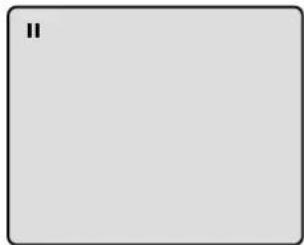
To resume normal playback, press PLAY.
Frame Advance
Press PAUSE during still playback. One frame is advanced each time you press PAUSE.
To resume normal playback, press PLAY.
Slow-motion Playback
Press SLOW ▶/ during normal playback or still playback. Each press of SLOW ▶/ will change the speed of the slow x1/2, x1/4, x1/6, x1/7.
• To resume normal playback, press PLAY.
• To resume the still playback, press PAUSE.
• Audio CD does not work in above operation.
- The Video CD cannot be played with Reverse slow.
Locating a chapter or track
Press SKIP(▶▶) Forward or SKIP(K◀) Reverse during playback to locate a chapter or track that you want to watch.
- Press SKIP(▶▶) briefly to select the next chapter/track.
- Press SKIP(◀◀) briefly to return to the beginning of the current chapter/track.
- Press SKIP(I◄◄) twice in quick successions to select the previous chapter/track.
MP3/WMA/JPEG PLAYBACK
This player can play back the MP3/WMA/JPEG-data which has been recorded on CD-R or CD-RW. To produce the MP3/WMA/JPEG-data, you need a Windows-PC with CD-R/RW drive and a MP3/WMA/JPEG-encoding Software (not supplied).
The Apple-HFS-System cannot be played.
MP3/WMA/JPEG CD information
Limitations on MP3/WMA/JPEG CD playback
- MP3/WMA/JPEG CD is the disc that is standardized by ISO9660, its file name must include 3-digits extension letters, "mp3", "wma", "jpg".
- The directory and file names of the MP3/WMA/JPEG CD must be correspond to the ISO standardized files.
- This unit can read 200 files per disc. If one directory has more than 200 files, it reads up to 200 files, the remaining files will be omitted.
- The unit is able to recognize up to a maximum of 50 directories per disc.
- MP3/WMA/JPEG CDs cannot be used for playback for the purpose of recording.
- If the CD has both audio tracks and MP3/WMA/JPEG files, only audio tracks are played.
- It may take more than one minute for this unit to read MP3/WMA/JPEG files depending on its structure.
- Music recorded by "Joliet Recording Specification" can be played back, the file name is displayed (within 16 letters) on the screen Long file names will be condensed.
- The music files recorded by "Hierarchical File System" (HFS) cannot be played.
Limitations on display
- The maximum number for display is 16 letters. Available letters for display are the following: capital or small alphabets of A through Z, numbers of 0 through 9, and _ (under score).
- Other letters than those above are replaced in hyphen.
Notes on MP3/WMA/JPEG files
Toplay back MP3/WMA/JPEG CD in the recorded order,
- Use MP3/WMA/JPEG software that records data alphabetically or numerically.
- Name each file including two-digit or three-digit number (e.g. "01" "02" or "001" "002").
- Refrain from making too many sub-folders.
CAUTION:
- Some MP3/WMA/JPEG CDs cannot be played back depending on the recording conditions.
- The CD-R/RW that has no music data or non-MP3/WMA/JPEG files cannot be played back.
24
MP3/WMA CD playback
1 Press ▲ (OPEN/CLOSE).
The disc tray will open. Place a disc on which MP3 or WMA files have been recorded onto the tray.
natural_image
Simple line drawing of a mechanical device with a rotating knob and base plate (no text or symbols)2 Press ▲ (OPEN/CLOSE) or ▶ (PLAY). The disc tray closes automatically. On the TV-screen, "Reading" will appear. Reading will take as much time as the number of file.
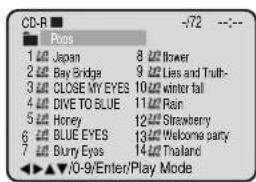
3 A file menu screen will appear on the TV screen.
Press ◀ / ▶ to select folder.
4 Press ▲/▼ or ◀/► or Number keys to select the desired file.
- In case the folder includes more than 15 files, press or ▶ to display next file list.
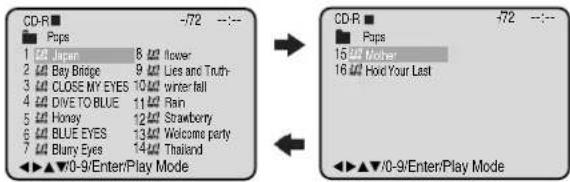
- When ▶ (PLAY) has been pressed after displaying the file menu, or when the disc tray has been closed after pressing ▶ (PLAY) in step 2, playback begins automatically starting from the first file. In this case, if the first file is an MP3/WMA file, only MP3/WMA files are played back in order. If the first file is a JPEG file, the first JPEG file is played back.
5 Press ENTER.
The selected file starts playing back.
6 Press ■ (STOP) to end playback.
- The unit records the stopped point. “■” appears on the screen. Press ▶ (PLAY) to resume playback (from the scene point).
- If you press ■ (STOP) again or unload the disc, the unit will clear the stopped point.
NOTES:
- During MP3/WMA/JPEG-Playback, you cannot use SEARCH, A-B Repeat functions.
- You can use Repeat (Track or All), Random functions and Program playback for MP3/WMA/JPEG CD Playback (see pages 29 and 30).
- In the case of a CD containing a mixture of MP3, WMA and JPEG files, the files are played back by selecting them from the file menu.
MP3/WMA/JPEG PLAYBACK
About file menu
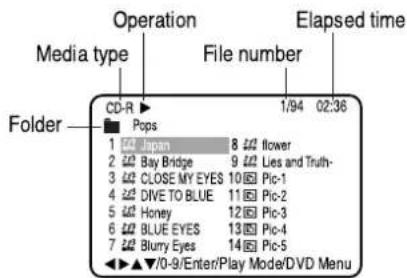
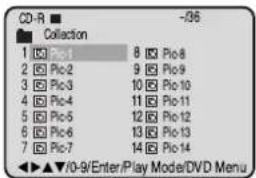
: Indicates MP3 file
wma : Indicates WMA file
: Indicates JPEG file
NOTES:
- The picture menu is displayed when the FUJICOLOR CD or the KODAK Picture CD are played. To display the file menu press TOP MENU.
- MP3 file on the KODAK Picture CD is not recognized on this unit.
JPEG CD playback
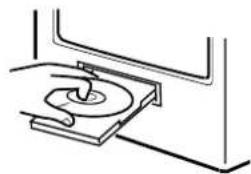
1 Press ▲(OPEN/CLOSE).
The disc tray will open.
Place a disc on which JPEG files have been recorded onto the tray.
2 Press ▲ (OPEN/CLOSE) or ▶ (PLAY). The disc tray closes automatically. On the TV-screen, "Reading" will appear. Reading will take as much time as the number of file.
3 A file menu screen will appear on the TV screen.
Press ◀ to select folder.
4 Press ▲/▼ or / on ▶ Number keys to select the desired file.
natural_image
Simple line drawing of a CD or DVD disc mounted on a stand, no text or symbols present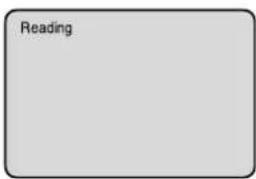
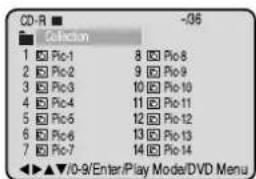
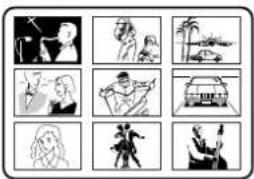
To display a picture menu, press DVD MENU. (To return to a file menu, press TOP MENU.)
Press ▲/▼ or ◀/► to select the desired file.
- To display next list, press SKIP ▶▶▶/◀◀.
- When ▶ (PLAY) has been pressed after displaying the file menu, or when the disc tray has been closed after pressing ▶ (PLAY) in step 2, playback begins automatically starting from the first file. In this case, if the first file is a JPEG file, the first JPEG file is played back. If the first file is an MP3/WMA file, only MP3/WMA files are played back in order.
5 Press ENTER.
The selected picture appears on the TV screen.
natural_image
Grid of nine black-and-white line drawings showing various scenes like animals, vehicles, and figures (no text or symbols)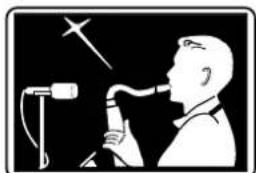
natural_image
Illustration of a person using a handheld device with a star symbol above their head (no text or symbols present)6 Press ■ (STOP) to end playback.
The file menu appears on the TV screen.
If you want to watch the other file, repeat steps 4-5.
Microsoft, Windows Media, and Windows Logo are trademarks or registered trademarks of Microsoft Corporation in both the United States and other countries.
SETTING THE JPEG INTERVAL
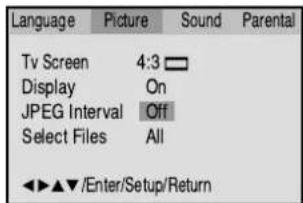
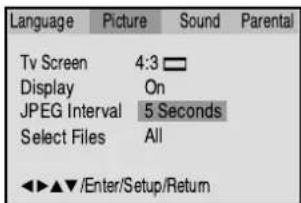
Setting the JPEG Interval
You can continuously play back all JPEG files automatically.
1
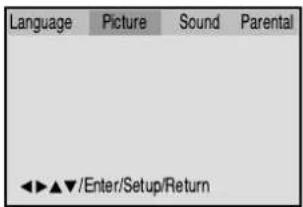
Press SETUP in the stop mode.
Press ▶to select "Picture", then press ENTER.
2
Press ▲ or ▼ to select "JPEG Interval".
3
Press ENTER or ◀ to select your desired time.
Off:
Plays back one file at a time.
5 Seconds:
Plays back images in the form of a slide show at 5 second intervals.
10 Seconds:
Plays back images in the form of a slide show at 10 second intervals.
15 Seconds:
Plays back images in the form of a slide show in 15 second intervals.
4
To make SETUP screen disappear, press SETUP or RETURN.
SETTING THE SELECT FILES
When playing back a CD containing a mixture of MP3 and JPEG files, only MP3 or JPEG files can be displayed on the file menu.
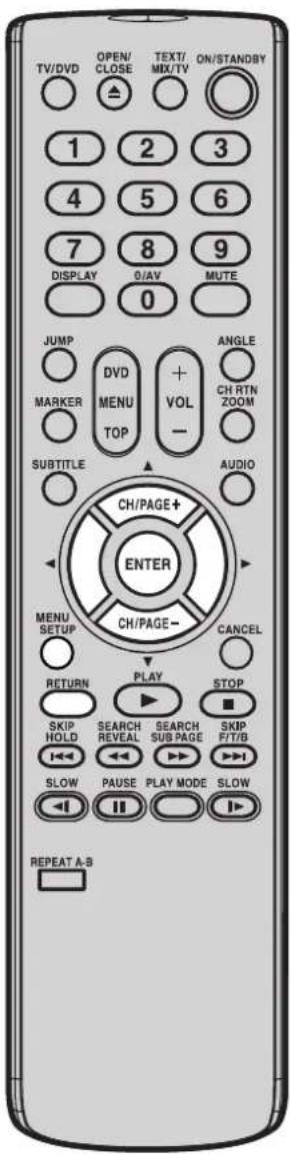
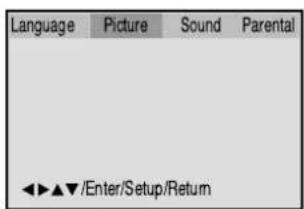
1 Press SETUP in the stop mode. Press ◀/▶to select "Picture", then press ENTER.
2 Press ▲ or ▼ to select "Select Files".
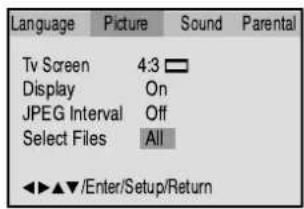
3 Press ENTER or ◀/▶ to select your desired file type.
All: Displays all files.
Music Only: Displays only MP3 files.
Pictures Only: Displays only JPEG files.
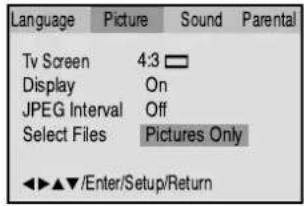
4 To make SETUP screen disappear, press SETUP or RETURN.
ZOOMING/LOCATING DESIRED SCENE
NOTES:
- You can select the Pause, Slow or Search playback in the zoom mode.
- Some discs may not respond to zoom feature.
Zooming
This unit will allow you to zoom in on the frame image. You can then make selections by switching the position of the frame.
1 Press ZOOM during play-back. The centre part of the image will be zoomed in. Each press of ZOOM will change the ZOOM Q 1 (Min.), Q 2 (Medium) and Q 3 (Max.).
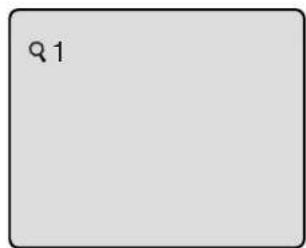
2 Press ▲/▼r / ◆ view a different part of the frame. You may move the frame from the centre position to UP, DOWN, LEFT or RIGHT direction.
3 In the zoom mode press ZOOM repeatedly to return to a 1:1 view (Q Off).
Locating Desired Scene
Use the title, chapter and time recorded on the disc to locate the desired point to play back.
1 Press JUMP during play-back.
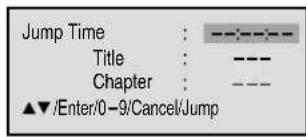
2 Press ▲ or to select the "Time", "Title" or "Chapter".
3 Press Number buttons (0–9) to input the number.
- If you input a wrong number, press CANCEL.
- Refer to the package supplied with the disc to check the numbers.
4 Press ENTER.
- Playback starts.
- When you change the title, playback starts from Chapter 1 of the selected title.
- Some discs may not work in the above operation.
NOTES:
- Some discs may not work with the repeat operation.
- In A-B repeat mode, subtitles near point A or B may not appear.
- During the A-B Repeat Playback the ANGLE feature will not operate.
- You may not be able to set A-B Repeat, depending on the scenes of the DVD.
• A-B Repeat Playback does not work when Repeat Playback is activated.
Title, Chapter, Track Playback
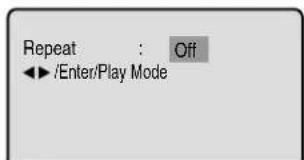
1 Press PLAY MODE during playback or stop mode.
DVD
VCD/CD
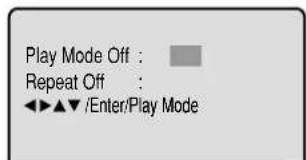
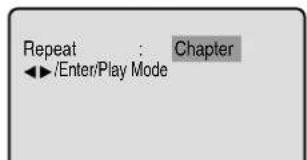
2 Press ENTER once or twice to select "Chapter" or "Title".
In case of CD, at first press ▼ to select "Repeat" and then press ENTER once or twice to select "Track" or "All".
DVD
VCD/CD
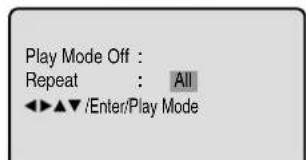
3 Press PLAY MODE again to make the screen disappear.
- Press PLAY to start Repeat playback.
- To resume normal playback, select Repeat Off.
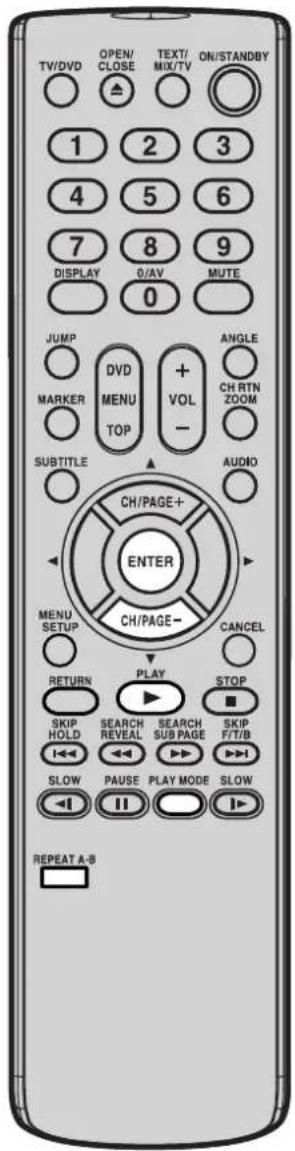
A-B Repeat Playback
A-B repeat playback allows you to repeat material between two selected points.
1 Press REPEAT A-B during playback.
The start point is selected.
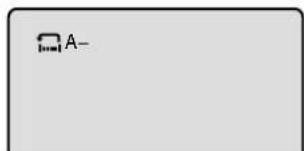
2 Press REPEAT A-B again.
The end point is selected. Playback starts at the point that you selected. Playback stops at the end point, returns to Point A automatically, then starts again.
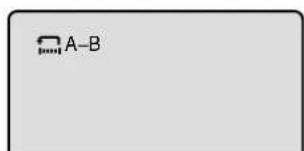
To resume normal playback press REPEAT A-B again.
"Off" appears on the screen.
PROGRAM PLAYBACK/RANDOM PLAYBACK (CD)
NOTES:
- To cancel program play, select "Clear" at step 4 and press ENTER.
- The program is cancelled when you open the disc tray or turn the power off.
- Random playback can not be combined with Repeat playback.
Program playback
You can arrange the order of tracks on the disc.
1 Press PLAY MODE in the stop mode.
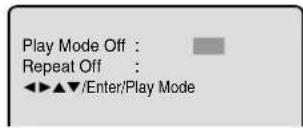
2 Press ENTER repeatedly until the program table shown at right appears.
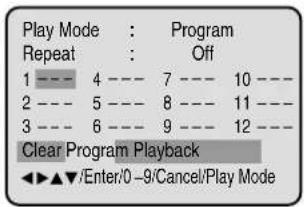
3 Example: In case you wish to program in order of 7, 3, 11: Enter as 7 ▼, 3 ▼11.
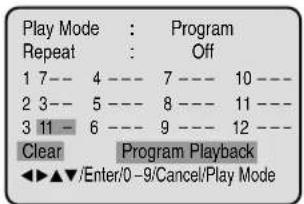
If you input a wrong number, press CANCEL.
4 Press ▲ow/ to select "Program Playback" and press ENTER. "Program Playback" will appear on the screen. The program you selected will begin to playback in the order set. To return to normal playback, select "Play Mode: Off" at step 2 above.
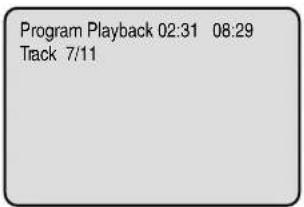
Random playback
1 Press PLAY MODE during playback or stop mode.
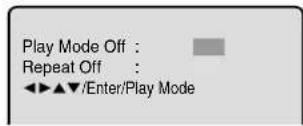
2 Press ◀ o▶ ENTER to select "Random".
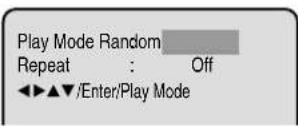
3 Press PLAY. "Random Play" will appear on the screen and Random Playback will start.
- During playback mode, you need to press "PLAY MODE" instead of "PLAY".
MARKING DESIRED SCENES
The unit stores the points that you want to watch again. You can resume playback from that scene.
NOTES:
- Some discs may not work with the marking operation.
- The marking is cancelled when you open the disc tray or turn the power off.
- Some subtitles recorded around the marker may fail to appear.
Marking the Scenes
1 Press MARKER during playback.
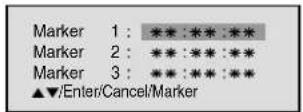
2 Select the blank Marker using ▲/▼ then press ENTER at the desired scene.
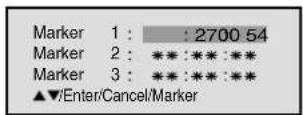
- Up to 3 scenes can be selected.
- Repeat this procedure to set the other 2 scenes.
3 Press MARKER to remove this display.
Returning to the Scenes
1 Press MARKER during playback or stop mode.
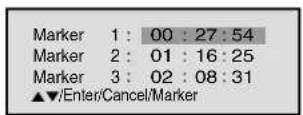
2 Press ▲ or to select the Marker 1-3.
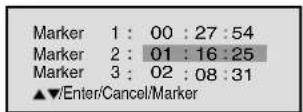
3 Press ENTER. Playback starts from the marked scene.
To Cancel the Mark
1 Press MARKER.
2 Press ▲ or to select the Marker 1-3.
3 Press CANCEL.
Press MARKER to remove the display.
CHANGING SOUNDTRACK LANGUAGE/SUBTITLES
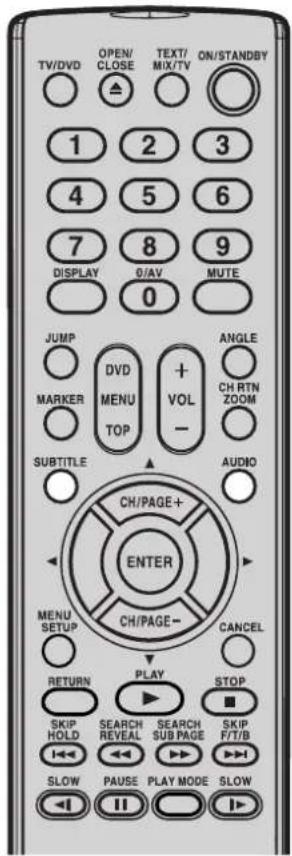
NOTES:
- If the desired language is not heard after pressing AUDIO several times, the language is not recorded on the disc.
- Changing soundtrack language is cancelled when you open the disc tray. The initial default language or available language will be heard if the disc is played back again.
- C hanging subtitle language is cancelled when you open the disc tray.
- Some functions may not work on some DVDs. You may not be able to turn subtitles on or off or change subtitles. While playing the DVD, the subtitle may change when:
- you open or close the disc tray
- you change the title.
• In some cases, the subtitle language is not changed to the selected one immediately.
Changing soundtrack language
You can select the language when you play a multilingual disc.
1 Press AUDIO during play-back.
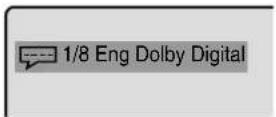
The current soundtrack language will appear.
2 Press AUDIO repeatedly until the desired language is selected.
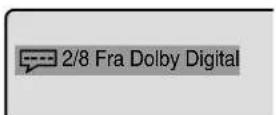
The on-screen display will disappear after a few seconds.
In case of video CD playback
Audio type changes as follows each time you press AUDIO.
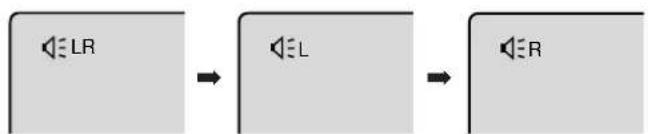
flowchart
graph LR
    LR1["≤LR"] --> LR2["≤EL"]
    LR2 --> LR3["≤R"]
Subtitles
Turning the Subtitles On and Off
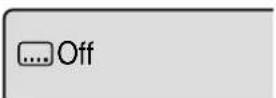
When playing back a disc recorded with subtitles, you can turn the subtitles on or off.
Press SUBTITLE during play-back until "Off" appears.
Changing the subtitle language
You can select the language when playing back a disc recorded with multi-lingual subtitles.
1 Press SUBTITLE repeatedly during playback until your desired language appears.
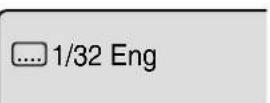
2 The on-screen display will disappear after a few seconds.
CHANGING ANGLES/TITLE SELECTION/DVD MENU
NOTES:
- Depending on the DVD, you may not be able to change the angles even if multi-angles are recorded on the DVD.
- Depending on the DVD, you may not be able to select the title. Depending on the DVD, a "title menu" may simply be called a "menu" or "title" in the instructions supplied with the disc.
- Depending on the DVD, you may not be able to resume playback from the scene point when you pressed DVD MENU.
Changing Angles
When playing back a disc recorded with multi-angle facility, you can change the view angle.
1 Press ANGLE during play-back.
The current angle will appear.
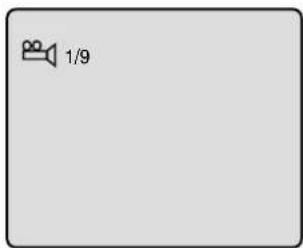
2 Press ANGLE repeatedly until the desired angle is selected.
Title Selection
Two or more titles are recorded on some discs. If the title menu is recorded on the disc, you can select the desired title.
1 Press TOP MENU during playback. Title menu appears on the screen.
2 Press ▲on▼/ to ◀elect the desired title.
3 Press ENTER or PLAY.
The playback of the selected title will start.
DVD Menu
Some DVDs allow you to select the disc contents using the menu.
When you play back these DVDs, you can select the subtitle language and soundtrack language, etc. using the DVD menu.
1 Press DVD MENU during playback. The DVD menu appears on the screen.
- Press DVD MENU again to resume playback at the scene when you pressed DVD MENU.
2 Press ▲on▼/ to ◀el▶ct the desired item.
3 Press ENTER.
The menu continues to another screen. Repeat steps 2 and 3 to set additional items if any.
SETTING THE ASPECT RATIO OF TV SCREEN/SETTING ON SCREEN DISPLAY
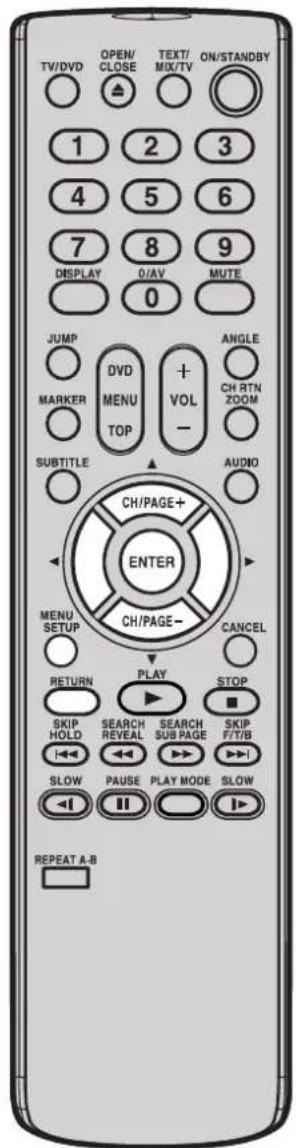
NOTE:
It is not always possible for the DVD disc to display the picture as per your preferred picture setting - for example, if you select "4:3 Panscan", the disc may not offer this option. In this case the picture would display in whichever format the disc is capable of playing back.
Setting the aspect ratio of TV screen
You can select the aspect ratio of the picture.
1 Press SETUP in the stop mode. Press ◀ or ▶ to select "Picture".
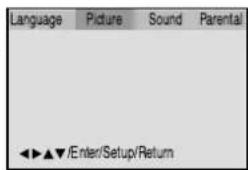
2 Press ▼ or ENTER, then press ▲ or ▼ to select "Tv Screen".
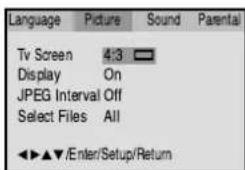
3 Press ▶r ENTER. Press ▶r to select your desired screen type, then press ENTER.
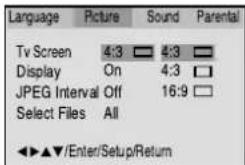
You have the following screen sizes to choose from:
4:3 □ Letterbox
When playing back a wide screen-DVD disc, it displays the wide picture with black bands at the top and bottom of screen.
4:3 Pariscan
It displays the wide picture on the whole screen with left and right edges automatically cut off.
16:9 □ Wide screen
A wide screen picture is displayed full size, although the image on the screen may be geometrically distorted in this mode because the TV screen has an aspect ratio of 4:3 not 16:9. However it is possible to connect this set to an external widescreen (16:9) TV set via the SCART socket.
4 Press SETUP or RETURN to remove the Menu screen.
Setting on screen display
On screen display can be switched on or off when you press DISPLAY.
1 Press SETUP in the stop mode or No Disc. Press ← to select "Picture".
2 Press ▼ or ENTER, then press ▲ or ▼ to select "Display".
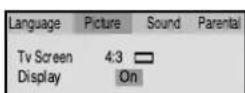
3 Press ▶ or ENTER to select "On" or "Off".
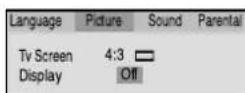
On: On screen displays appear when you press the buttons (factory setting).
Off: On screen displays do not appear when you press any buttons except SETUP, SEARCH MODE, PLAY MODE, MARKER and DISPLAY.
4 Press SETUP or RETURN to remove the Menu screen.
DYNAMIC RANGE CONTROL
DRC (Dynamic Range Control) enables you to control the dynamic range so as to achieve a suitable sound for your equipment.
NOTES:
• This function works only during play-back of Dolby Digital recorded discs.
- The level of Dynamic Range Reduction may differ depending on DVD video disc.
1 Press SETUP in the stop mode or No Disc. Press ◀ or to select "Sound".
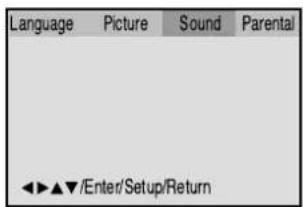
2 Press ▼ or ENTER to select "DRC".
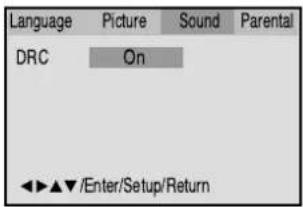
3 Press ▶ ENTER, then press ▶ to select desired setting, then press ENTER.
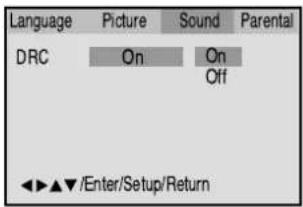
Off (Max) : Full dynamic range is increased. On (Std) : Full dynamic range is maintained.
4 Press SETUP or RETURN to remove the Menu screen.
PARENTAL CONTROL SETTING
Some discs are specified not suitable for children. Such discs can be limited not to play back with the unit.
NOTES:
- If each setup (P.26, 27, 34\~37, 39\~41) has been completed, the unit can always be worked under the same conditions (especially with DVD discs). Each setup will be retained in the memory when you turn the power off.
- Depending on the discs, the unit cannot limit playback.
- Some discs may not be encoded with specific rating level information though its disc jacket says "adult." For those discs, the age restriction will not work.
1
Press SETUP in the stop mode or No Disc.
Press ◀ or ▶ to select "Parental". Then press ▼ or ENTER.
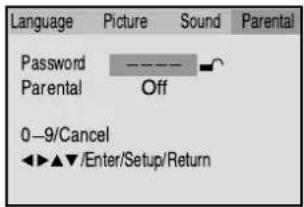
2
Press ▲ or ▼ select "Parental", then press ◀ or ▶ until the level you require appears.
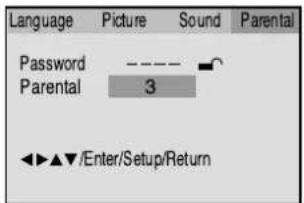
- Level Off : The parental control setting does not function.
• Level 8 : Virtually all DVD software can be played back.
• Level 1 : DVD software for adults cannot be played back. - Select from level 1 to level 8. The limitation will be more severe as the level number decreases.
3
Press ▲ or ▼ to select "Password".
Press Number buttons (0-9) to input a 4-digit password.
Be sure to remember this number!
- If you input a wrong number, press CANCEL.
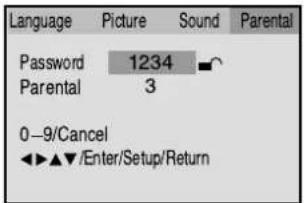
4
Press ENTER to store the password.
NOTE: Now the rating is locked and the setting cannot be changed unless you enter the correct password.
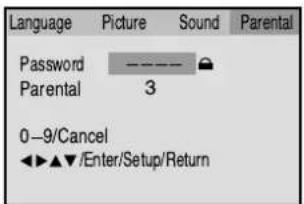
5
Press SETUP or RETURN to remove the Menu screen.
TO CHANGE THE PARENTAL LEVEL
NOTE:
Do not forget the password. If you forget the password, contact the dealer that you purchased the unit from.
1 Press SETUP in the stop mode or No Disc. Press ▶ to select "Parental". Then press ▼ or ENTER.
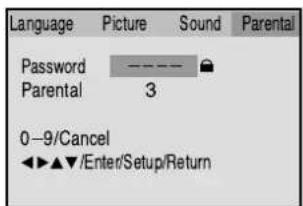
2 Press Number buttons (0-9) to enter the password you have stored. • If you input a wrong number, press CANCEL.
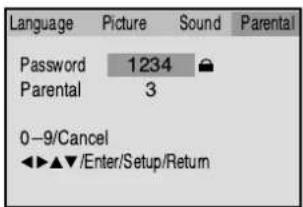
3 Press ENTER. The rating is now unlocked.
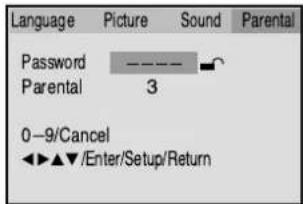
4 Press ▲ or ▼ to select "Parental", then press ◀ or ▶ to change the parental level.
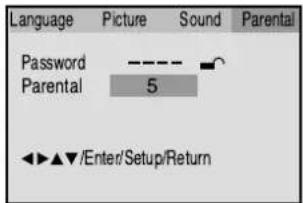
5 Press ▲ or ▼ to select "Password", then press Number buttons (0-9) to enter the password. NOTE: You can change the password at this time if you want.
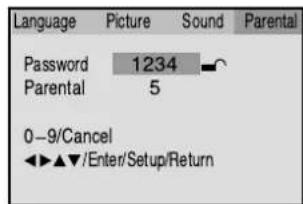
6 Press ENTER. The parental level is changed and locked.
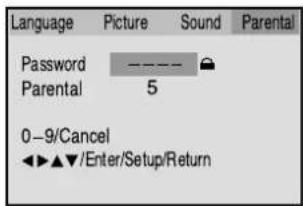
7 Press SETUP or RETURN to remove the Menu screen.
TEMPORARY DISABLING OF RATING LEVEL BY DVD DISC
Depending on the DVD disc, the disc may try to temporarily cancel the rating level that you have set. It is up to you to decide whether to cancel the rating level or not.
NOTE:
This temporary cancellation of rating level will be kept until the disc is ejected. When the disc is ejected, the original rating level will be set again automatically.
1 Load a DVD disc (see page 22).
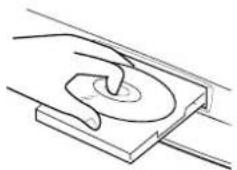
natural_image
Simple line drawing of a hand pressing down on a rectangular object with a curved mark (no text or symbols)2 If the DVD disc has been designed to temporarily cancel the Rating level, the screen which follows the "Reading" screen will change, depending on which disc is played. If you select "YES" with ENTER key, "Your disc exceeds the parental control level 1." (e.g.) screen will then appear.
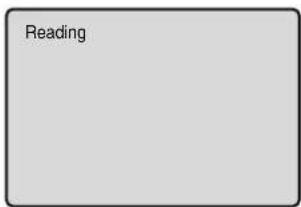
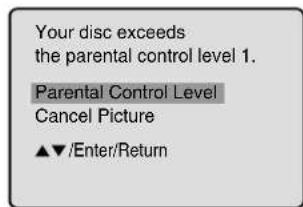
3 If you wish to cancel the set rating level temporarily, select "Parental Control Level" with ▲ or ▼, then press ENTER. If the 4-digits password at step 3 on page 36 has been set, the password entering screen will appear as shown in step 4 below. Alternatively, if the password has not been set, playback will commence. If you don't know (or have forgotten) the password, select "Cancel Picture". The setting screen will disappear. Press OPEN/CLOSE to remove the disc.
4 Enter the password with Number buttons (0-9). Then press ENTER.
If you interrupt the entering, press RETURN.
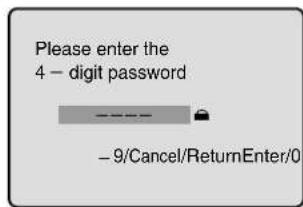
5 Playback will commence if the entered password was correct.
SETTING MENU LANGUAGE
You can select the language of the disc menu messages of DVDs.
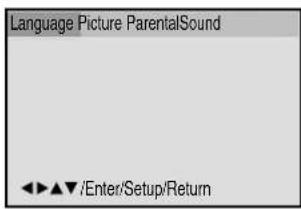
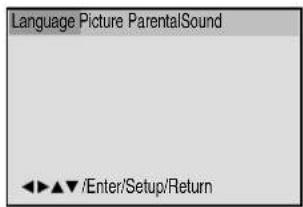
1 Press SETUP in the stop mode. Press ◀ or ▶ select "Language".
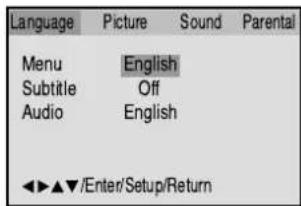
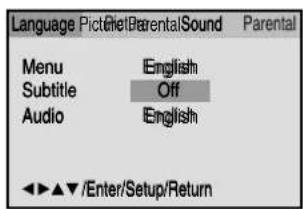
2 Press ▼ or ENTER. Then press ▲ or ▼ to select "Menu".
3 Press ▶rENENTER. Press ▶or to select your desired language, then press ENTER.
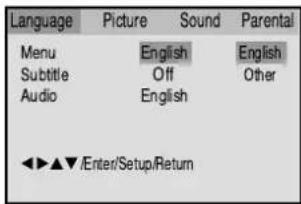
English:
The selected language is the first-priority Menu language.
Other:
Other languages can be selected (See the Language code list on page 42).
4 Press SETUP or RETURN to remove the Menu screen.
SETTING SUBTITLE LANGUAGE
The same subtitle language can always be selected even if you replace the disc or turn the power off.
NOTE:
If the selected language is not recorded on the disc, the first-priority language is selected.
1 Press SETUP in the stop mode. Press ◀ or ▶ to select "Language".
2 Press ▼ or ENTER. Then press ▲ or ▼ select "Subtitle".
3 Press ▶ ENTER. Press ▶ to select your desired language, then press ENTER.
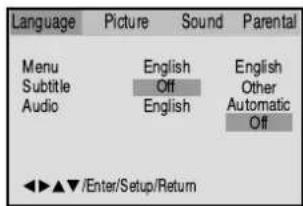
English:
The subtitle is displayed with the selected language if it is recorded on the disc.
Other:
If you want to select another language, enter the language code (See the Language code list on page 42).
Automatic:
- The unit will automatically select the same language in the AUDIO setting.
- When the unit selects the same language as the AUDIO, the subtitles will not appear during playback.
- When you do not use the same language as the AUDIO, the subtitles will appear during playback.
Off:
Subtitles do not appear.
4 Press SETUP or RETURN to remove the Menu screen.
SETTING AUDIO SOUNDTRACK LANGUAGE
The same audio soundtrack language can always be selected by your unit even if you replace the disc or turn the power off.
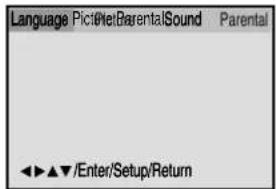
NOTE:
If the selected language is not recorded on the disc, the original language will be heard.
1 Press SETUP in the stop mode. Press ◀ or ▶ to select "Language".
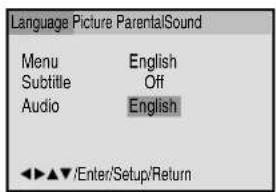
2 Press ▼ or ENTER. Then press ▲ or ▼ to select "Audio".
3 Press ▶ ENTER. Press ▲ or ▼ to select your desired Audio Language, then press ENTER.
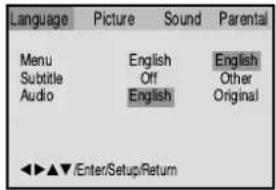
English:
The language you have selected will play if it is recorded on the disc.
Other:
If you want to select another language, enter the language code (See the Language code list on page 42).
Original:
The unit will select the first priority language of each disc.
4 Press SETUP or RETURN to remove the Menu screen.
LANGUAGE CODE LIST
Enter the appropriate code number for the initial settings "Menu", "Subtitle" and/or "Audio" (see pages 39\~41).
| Language | Name Code | Language | Name Code | Language | Name Code | Language | Name Code |
| Abkhazian 1112 Fiji 1620 | Lingala 2224 Singhalese | 2919 | |||||
| Afar 1111 Finnish 1619 Lithuanian 2230 Slovak 2921 | |||||||
| Afrikaans 1116 French 1628 Macedonian 2321 Slovenian 2922 | |||||||
| Albanian | 2927 | Frisian | 1635 | Malagasy | 2317 | Somali | 2925 |
| Amharic | 1123 | Galician 1722 Malay | 2329 Spanish 1529 | ||||
| Arabic | 1128 | Georgian | 2111 | Malayalam | 2322 | Sundanese | 2931 |
| Armenian | 1835 | German | 1415 | Maltese | 2330 | Swahili | 2933 |
| Assamese | 1129 | Greek | 1522 | Maori | 2319 | Swedish | 2932 |
| Aymara | 1135 | Greenlandic | 2122 | Marathi | 2328 | Tagalog | 3022 |
| Azerbaijani | 1136 | Guarani | 1724 | Moldavian | 2325 | Tajik | 3017 |
| Bashkir | 1211 | Gujarati | 1731 | Mongolian | 2324 | Tamil | 3011 |
| Basque | 1531 | Hausa | 1811 | Nauru | 2411 | Tatar | 3030 |
| Bengali; Bangla | 1224 | Hebrew | 1933 | Nepali | 2415 | Telugu | 3015 |
| Bhutani | 1436 | Hindi | 1819 | Norwegian | 2425 | Thai | 3018 |
| Bihari | 1218 | Hungarian 1831 Oriya | 2528 Tibetan 1225 | ||||
| Breton | 1228 | Icelandic | 1929 | Panjabi | 2611 | Tigrinya | 3019 |
| Bulgarian | 1217 | Indonesian | 1924 | Pashto, Pushto | 2629 | Tonga | 3025 |
| Burmese | 2335 | Interlingua | 1911 | Persian | 1611 | Turkish | 3028 |
| Byelorussian | 1215 | Irish | 1711 | Polish | 2622 | Turkmen | 3021 |
| Cambodian | 2123 | Italian | 1930 | Portuguese | 2630 | Twi | 3033 |
| Catalan | 1311 | Japanese | 2011 | Quechua | 2731 | Ukrainian | 3121 |
| Chinese | 3618 | Javanese | 2033 | Rhaeto-Romance | 2823 | Urdu | 3128 |
| Corsican | 1325 | Kannada | 2124 | Romanian | 2825 | Uzbek | 3136 |
| Croatian 1828 Kashmiri 2129 Russian 2831 Vietnamese 3219 | |||||||
| Czech | 1329 | Kazakh | 2121 | Samoan | 2923 | Volapük | 3225 |
| Danish | 1411 | Kirghiz | 2135 | Sanskrit | 2911 | Welsh | 1335 |
| Dutch | 2422 | Korean | 2125 | Scots Gaelic | 1714 | Wolof | 3325 |
| English | 1524 | Kurdish | 2131 | Serbian | 2928 | Xhosa | 3418 |
| Esperanto | 1525 | Laothian | 2225 | Serbo-Croatian | 2918 | Yiddish | 2019 |
| Estonian | 1530 | Latin | 2211 | Shona | 2924 | Yoruba | 3525 |
| Faroese | 1625 | Latvian, Lettish | 2232 | Sindhi | 2914 | Zulu | 3631 |
BEFORE REQUESTING SERVICE
If your unit does not work properly check the following before calling a service engineer.
| SYMPTOMS SOLUTION CAUSE | PAGE | ||
| POWER | |||
| No power. | The Mains lead is not connected. | Connect Mains lead to AC outlet. | 3 |
| ON/STANDBY button is OFF. | Set it to ON. | 9 | |
| TV BROADCAST RECEPTION | |||
| No picture, no sound. | The Mains lead is disconnected. | Connect the Mains lead to the AC outlet. | 3 |
| Aerial connector is not connected or wires are broken. | Check aerial connections or broken wires. | 6 | |
| ON/STANDBY button is off. | Press the ON/STANDBY button. | 9 | |
| Possibly station trouble. | Try another channel. | 13 | |
| Sound OK, poor picture. | Possibly station trouble. | Try another channel. | 13 |
| Aerial connector is not connected or wires are broken. | Check aerial connections or broken wires. | 6 | |
| Possibly local interference. | Move the aerial away from the source of interference. | 17 | |
| Picture OK, poor sound. | Possibly station trouble. | Try another channel. | 13 |
| Possibly local interference. | Move the aerial away from the source of interference. | 17 | |
| Volume control set at minimum position. | Increase VOLUME control. | 13 | |
| Poor reception. | Aerial connector is not connected or wires are broken. | Check aerial connections or broken wires. | 6 |
| Possibly station trouble. | Try another channel. | 13 | |
| Poor colour or no colour. | Aerial connector is not connected or wires are broken. | Check aerial connections or broken wires. | 6 |
| Possibly station trouble. | Try another channel. | 13 | |
| Possibly local interference. | Move the aerial away from the source of interference. | 17 | |
| Colour control is not adjusted. | Adjust the colour settings. | 15 | |
| DVD | |||
| The playback picture has occasional distortion. | The disc is dirty. | Eject the disc and clean it. | 20 |
| It is in fast forward or fast reverse playback. | Some times a small amount of picture distortion may appear. This is not a malfunction. | - | |
| The unit does not start playback. | No disc is inserted. | Insert a disc. | 22 |
| An unplayable disc is inserted. | Insert a playable disc (Check the disc type and colour system). | 20 | |
| The disc is placed upside down. | Place the disc with the playback side down. | 22 | |
| The disc is not placed within the guide. | Place the disc correctly inside the guide on the disc tray. | 22 | |
| The disc is dirty. | Clean the disc. | 20 | |
| The parental lock function is set. | Cancel the parental lock function or change the parental lock level. | 36,37 | |
| Playback does not follow the course of the disc's program. | It is in the mode of repeat playback, memory playback, etc. | These operations may prevent a proper progress of the contents. | - |
| appears on the screen. | The function is prohibited with the unit or the disc. | - | - |
| REMOTE CONTROL | |||
| Remote control does not work. | It is not aimed at the remote sensor. | Aim it at the remote control sensor. | 5 |
| Distance too far or there is too much light in the room. | Operate within 5 metres and reduce the light of the room. | 5 | |
| Obstacle in the path of beam. | Clear the path of the beam. | 5 | |
| Batteries are weak. | Replace batteries. | 5 | |
| Polarities of the batteries, + or -, are not inserted correctly. | Install batteries correctly. | 5 | |
NOTE: In the case that the scart input of the unit is connected to AV1 scart of a recordable equipment such as a VTR, DVD+VTR, DVD-R etc. and when the input of the recordable equipment is also selected to AV1, there maybe some white flashing lines on the screen and a high pitch sound may also be heard. This is due to the feedback loop of the connections to the unit and it is not a defect of the unit.
SPECIFICATION
| VTD1432 VTD2032 | ||
| TELEVISION | ||
| Picture Tube: | 14" (34 cm "V") measured diagonally 90 degree deflection | 20" (48 cm "V") measured diagonally 90 degree deflection |
| Television System: | UK 625 Lines 50 FieldsPAL IElectronic TunerUHF: 21 - 69UHF 75 ohm unbalanced1.5 W+1.5W (max) | |
| Tuner:Receiving Channels:Aerial Input:Audio Output Power: | ||
| Speaker: | (3.8 x 6.9 cm 8 ohm) x 2 | (7.6 cm 8 ohm) x 2 |
| DVDSignal system:Applicable disc:Frequency response:S/N Ratio:Harmonic distortion:Wow and flutter:Dynamic range:Output:Pickup:GENERALPower Source: | PALDVD (12cm, 8cm), CD (12cm, 8cm)DVD: 4Hz - 22KHzCD: 4Hz - 20KHz90dB0.06%Below Measurable Level90dBAudio : (RCA) -12.0 dBm, 1KohmDigital Audio : 0.5Vp-p/75 ohmCD : Wavelength: 775 - 805 nmMaximum output power: 0.5 mWDVD : Wavelength: 640 - 660 nmMaximum output power: 1.0 mWAC 230V~240V, 50Hz | |
| Power Consumption: | 55 W | 65 W |
| Weight: | 11.0 kg | 21.5 kg |
| Dimensions: | 362(W)x382(H)x365(D)mm | 489(W)x480(H)x465(D)mm |
| Operating Temperature: | 5°C to 40°C | |
| REMOTE CONTROL UNITPower Supply: | DC 3V (Two batteries, AAA/ R03/ UM-4) | |
| ACCESSORIES | 1 Remote Control2 Batteries (AAA/R03/UM-4)1 Loop Aerial | 1 Remote Control2 Batteries (AAA/R03/UM-4)1 Aerial Lead |
Weight and Dimensions are approximate. Because we continually strive to improve our products we may change specifications and designs without prior notice.






- IMPORTANT
- WARNING
- MAINS SUPPLY
- WIRING INSTRUCTIONS
- CAUTION:
- NOTES ON MOISTURE CONDENSATION
- SOME DOS AND DON'TS ON THE SAFE USE OF EQUIPMENT
- \*\*\*\*\*\*\*\*\*\*\*\*\*\*\*\*\*\*\*\*\*\*\*\*\*\*\*\*\*\*\*\*\*\*\*\*\*\*\*\*\*\*\*\*\*\*\*\*\*\*\*\*\*\*\*\*\*\*\*\*\*\*\*\*\*\*\*\*\*\*\*\*\*\*\*\*\*\*\*\*\*\*\*\*\*\*\*\*
- \*\*\*\*\*\*\*\*\*\*\*\*\*\*\*\*\*\*\*\*\*\*\*\*
- ABOVE ALL
- FEATURES
- TV
- DVD Player
- CONTENTS
- PREPARATION
- TV OPERATION
- LOCATION OF CONTROLS
- REMOTE CONTROL
- BATTERY INSTALLATION
- 1
- 2
- 3
- BATTERY CAUTIONS
- EFFECTIVE DISTANCE OF THE REMOTE CONTROL TRANSMITTER
- AERIAL CONNECTIONS
- INDOOR AERIAL(A)
- EXTERNAL AERIAL
- CONNECTION TO OTHER EQUIPMENT
- Using an AV Amplifier with built-in digital surround
- NOTES:
- Input Selection
- To connect the unit to a VCR
- To connect the unit to a TV Game
- To connect the unit to a camcorder
- To connect the unit to another TV set (ie. a widescreen set) (see P.34)
- PRESETTING THE CHANNELS
- AUTOMATIC TUNING
- MANUAL TUNING
- Press MENU.
- Press ▲ or to▼select the MANUAL mode, then press ENTER.
- Press ◀r until the picture appears on screen. If this is not your desired channel, press ◀ or ▶ until your desired channel appears. If you need to make the picture clearer, use ▲ or ▼FINE TUNING). Then press ENTER.
- Press ▲ or ▼ select channel position No.10, then press ENTER.
- Repeat steps 3 through 4 until all the required channels have been stored.
- When all desired channels have been set in your required position, press MENU three times to return to normal TV screen.
- TO CHANGE THE CHANNELS
- Press ▲ or to select the CH
- Press ▲ or to▼select the
- Press ▲ or to▼select the
- Press ENTER. The numbers of
- TV OPERATIONS
- NOTE:
- Automatic Power Shut Off
- Direct Channel Selection buttons (0-9)
- CONVENIENT FUNCTIONS
- TV/AV Selection
- CHANNEL RETURN
- DISPLAY
- MUTE
- SKIP FUNCTION
- PICTURE ADJUSTMENTS
- AV COLOUR ADJUSTING
- RECEPTION OF INTERFERENCE
- IGNITION
- GHOSTING
- SNOW
- TELETEXT
- Basic operation
- HOLD
- To call a teletext page
- How to call a specific sub-page
- Magnifying
- REVEAL
- DISC
- playable Discs
- Title
- Chapter
- Track
- On handling Disc
- Removing Disc from Case
- Storing Disc
- Cleaning Disc
- PREPARATION/STATUS DISPLAY OF DISC
- Status display of disc
- PLAYBACK PROCEDURE
- 22
- SPECIAL PLAYBACK
- Fast Forward Playback
- Review Playback
- Still Playback
- Frame Advance
- Slow-motion Playback
- Locating a chapter or track
- MP3/WMA/JPEG PLAYBACK
- MP3/WMA/JPEG CD information
- Limitations on MP3/WMA/JPEG CD playback
- Limitations on display
- Notes on MP3/WMA/JPEG files
- 24
- MP3/WMA CD playback
- Press ▲ (OPEN/CLOSE).
- A file menu screen will appear on the TV screen.
- Press ▲/▼ or ◀/► or Number keys to select the desired file.
- Press ENTER.
- Press ■ (STOP) to end playback.
- JPEG CD playback
- Press ▲(OPEN/CLOSE).
- SETTING THE JPEG INTERVAL
- 4
- SETTING THE SELECT FILES
- ZOOMING/LOCATING DESIRED SCENE
- Zooming
- Locating Desired Scene
- Title, Chapter, Track Playback
- A-B Repeat Playback
- PROGRAM PLAYBACK/RANDOM PLAYBACK (CD)
- Program playback
- Random playback
- MARKING DESIRED SCENES
- Marking the Scenes
- Returning to the Scenes
- To Cancel the Mark
- CHANGING SOUNDTRACK LANGUAGE/SUBTITLES
- Changing soundtrack language
- In case of video CD playback
- Subtitles
- Changing the subtitle language
- CHANGING ANGLES/TITLE SELECTION/DVD MENU
- Changing Angles
- Title Selection
- DVD Menu
- SETTING THE ASPECT RATIO OF TV SCREEN/SETTING ON SCREEN DISPLAY
- Setting the aspect ratio of TV screen
- 4:3 □ Letterbox
- 4:3 Pariscan
- 16:9 □ Wide screen
- Setting on screen display
- DYNAMIC RANGE CONTROL
- PARENTAL CONTROL SETTING
- 5
- TO CHANGE THE PARENTAL LEVEL
- TEMPORARY DISABLING OF RATING LEVEL BY DVD DISC
- SETTING MENU LANGUAGE
- English:
- Other:
- SETTING SUBTITLE LANGUAGE
- Automatic:
- Off:
- SETTING AUDIO SOUNDTRACK LANGUAGE
- Original:
- LANGUAGE CODE LIST
- BEFORE REQUESTING SERVICE
Brand : TOSHIBA
Model : VTD2032
Category : Television