
OP25 - Printer Océ - Free user manual and instructions
Find the device manual for free OP25 Océ in PDF.


| Type | Monochrome Printer |
| Printing Speed | Up to 25 pages per minute (A4) |
| Resolution | 600 dpi, 300 dpi, Fast 1200 mode |
| Paper Sizes Supported | A3, A4, A5, B4, B5, Letter, Legal, 11x17, Folio, Custom |
| Paper Input | Bypass tray, optional cassettes (up to 4 trays) |
| Duplex Printing | Optional (short edge bind, long edge bind) |
| Standard Memory | 32 MB (upgradeable to 256 MB) |
| Hard Disk | Optional (for job storage and e-MPS functions) |
| Emulations | PCL6, Line Printer, IBM Proprinter, DIABRO 630, EPSON LQ-850, KPDL, KC-GL |
| Interfaces | Parallel, Serial, Network (Ethernet) |
| Operating Systems | Windows 95/98/NT 4.0/2000/Me, Mac OS 7.61 - 9.1 |
| Printer Drivers | KX Driver, Universal Driver, KPDL2 Driver, Macintosh PPD file |
| Options | Additional memory, hard disk, barcode reader, finisher, duplex unit, job separator, mailbox, booklet stitcher, punch unit |
| Power Consumption | Typical office printer (exact value not specified) |
| Dimensions (W x D x H) | Typical office printer (exact dimensions not specified) |
| Weight | Typical office printer (exact weight not specified) |
| Maintenance | Refer to Operation Guide for cleaning and replacing consumables |
| Safety | Complies with relevant safety standards; use only as directed |
Frequently Asked Questions - OP25 Océ
User questions about OP25 Océ
0 question about this device. Answer the ones you know or ask your own.
Ask a new question about this device
Download the instructions for your Printer in PDF format for free! Find your manual OP25 - Océ and take your electronic device back in hand. On this page are published all the documents necessary for the use of your device. OP25 by Océ.
USER MANUAL OP25 Océ
Océ OP25/35/40
Printing System functions
Operations Guide
Printing System (N)
Operation Guide

Introduction
Chapter 1 Printer-related operation
■ 1. Operation Keys
■ 2. Procedure for Making Settings
■ 3. Menu Flow Chart
■ 4. Selecting the Printer Settings
■ 5. Options
Chapter 2 Software-related operation
■ 1. Procedure for Installing and Printing with a Printer Driver
■ 2. Windows KX Driver
■ 3. Printer Driver for Macintosh
About this Operation Guide
This Operation Guide is included with your Printing System (N) and should be read in combination with the Operation Guide
This Operation Guide contains information on making settings in your printer, as well as on installing and setting the printing properties for the corresponding Printer Drivers.
The explanations in this Operation Guide were written with the assumption that the user has a basic understanding of how to work in Microsoft Windows. For further information on using Windows, refer to your Microsoft Windows manual.
Trademark Information
- PRESCRIBE and ECOSYS are registered trademarks of Kyocera Corporation.
- KPDL and KIR are trademarks of Kyocera Corporation.
- Microsoft, MS-DOS, Windows and WindowsNT are registered trademarks of Microsoft Corporation of America and other countries.
- WINDOWS ME is a trademark of Microsoft Corporation.
- PCL and PJL are registered trademarks of Hewlett-Packard Company.
- PostScript is a registered trademark of Adobe Systems Incorporated.
- Ethernet is a registered trademark of Xerox Corporation.
• Novell and NetWare are registered trademarks of Novell, Inc.
- Centronics is a trademark of Centronics Data Computer Corporation.
• IBM and IBM PC-AT are trademarks of International Business Machines Corporation.
• PowerPC and Microdrive are trademarks of International Business Machines Corporation of America and other corporations.
- TrueType and Macintosh are registered trademarks of Apple Computer, Inc.
- AppleTalk is a trademark of Apple Computer, Inc.
- CompactFlash and CF are trademarks of SanDisk Corporation of America.
- This product was developed using Tornado, the real-time operating system (ROTS) general development environment from Wind River Systems, Inc.
- This printer uses PeerlessPrintXL, a PCL compatibility system developed by Peerless Group, to emulate the HP LaserJet Printer Control Language (PCL6). PeerlessPrintXL is a trademark of Peerless Group (Redondo Beach, CA 90278, U.S.A.).
- AGFA Contains UFST™ and MicroType® from Agfa Corporation.
All other company and product names contained in this Operation Guide are trademarks or registered trademarks of their respective companies. The designations ™ and Ⓡ will not be used in this Operation Guide.
All rights reserved. No part of this material may be reproduced or transmitted in any form or by any means, electronic or mechanical, including photocopying, recording or by any information storage and retrieval system, without permission in writing from the Publisher.
Legal Restriction On Copying
- It may be prohibited to copy copyrighted material without permission of the copyright owner.
- It is prohibited under any circumstances to copy domestic or foreign currencies.
- Copying other items may be prohibited.
IBM PROGRAM LICENSE AGREEMENT
THE DEVICE YOU HAVE PURCHASED CONTAINS ONE OR MORE SOFTWARE PROGRAMS ("PROGRAMS") WHICH BELONG TO INTERNATIONAL BUSINESS MACHINES CORPORATION ("IBM"). THIS DOCUMENT DEFINES THE TERMS AND CONDITIONS UNDER WHICH THE SOFTWARE IS BEING LICENSED TO YOU BY IBM. IF YOU DO NOT AGREE WITH THE TERMS AND CONDITIONS OF THIS LICENSE, THEN WITHIN 14 DAYS AFTER YOUR ACQUISITION OF THE DEVICE YOU MAY RETURN THE DEVICE FOR A FULL REFUND. IF YOU DO NOT SO RETURN THE DEVICE WITHIN THE 14 DAYS, THEN YOU WILL BE ASSUMED TO HAVE AGREED TO THESE TERMS AND CONDITIONS.
The Programs are licensed not sold. IBM, or the applicable IBM country organization, grants you a license for the Programs only in the country where you acquired the Programs. You obtain no rights other than those granted you under this license.
The term “Programs” means the original and all whole or partial copies of it, including modified copies or portions merged into other programs. IBM retains title to the Programs. IBM owns, or has licensed from the owner, copyrights in the Programs.
1. License
Under this license, you may use the Programs only with the device on which they are installed and transfer possession of the Programs and the device to another party. If you transfer the Programs, you must transfer a copy of this license and any other documentation to the other party. Your license is then terminated. The other party agrees to these terms and conditions by its first use of the Program.
You may not:
1) use, copy, modify, merge, or transfer copies of the Program except as provided in this license;
2) reverse assemble or reverse compile the Program; or
3) sublicense, rent, lease, or assign the Program.
2. Limited Warranty
The Programs are provided "AS IS."
THERE ARE NO OTHER WARRANTIES COVERING THE PROGRAMS (OR CONDITIONS), EXPRESS OR IMPLIED, INCLUDING, BUT NOT LIMITED TO, THE IMPLIED WARRANTIES OF MERCHANTABILITY AND FITNESS FOR A PARTICULAR PURPOSE.
Some jurisdictions do not allow the exclusion of implied warranties, so the above exclusion may not apply to you.
SUPPLEMENT TO AGREEMENT FOR SOFTWARE BUNDLING AND DISTRIBUTION FOR ALDC
3. Limitation of Remedies
IBM's entire liability under this license is the following;
1) For any claim (including fundamental breach), in any form, related in any way to this license, IBM's liability will be for actual damages only and will be limited to the greater of;
a) the equivalent of U.S.\$25,000 in your local currency; or
b) IBM's then generally available license fee for the Program
This limitation will not apply to claims for bodily injury or damages to real or tangible personal property for which IBM is legally liable. IBM will not be liable for any lost profits, lost savings, or any incidental damages or other economic consequential damages, even if IBM, or its authorized supplier, has been advised of the possibility of such damages. IBM will not be liable for any damages claimed by you based on any third party claim. This limitation of remedies also applies to any developer of Programs supplied to IBM. IBM's and the developer's limitations of remedies are not cumulative. Such developer is an intended beneficiary of this Section. Some jurisdictions do not allow these limitations or exclusions, so they may not apply to you.
4. General
You may terminate your license at any time. IBM may terminate your license if you fail to comply with the terms and conditions of this license. In either event, you must destroy all your copies of the Program. You are responsible for payment of any taxes, including personal property taxes, resulting from this license. Neither party may bring an action, regardless of form, more than two years after the cause of action arose. If you acquired the Program in the United States, this license is governed by the laws of the State of New York. If you acquired the Program in Canada, this license is governed by the laws of the Province of Ontario. Otherwise, this license is governed by the laws of the country in which you acquired the Program.
Typeface Trademark Acknowledgement
All resident fonts in this printer are licensed from Agfa Corporation.
Helvetica, Palatino and Times are registered trademarks of Linotype-Hell AG.
ITC Avant Garde Gothic, ITC Bookman, ITC ZapfChancery and ITC Zapf Dingbats are registered trademarks of International Typeface
Corporation.
Agfa Japan License Agreement
- "Software" shall mean the digitally encoded, machine readable, scalable outline data as encoded in a special format as well as the UFST Software.
- You agree to accept a non-exclusive license to use the Software to reproduce and display weights, styles and versions of letters, numerals, characters and symbols (“Typefaces”) solely for your own customary business. Agfa Japan retains all rights, title and interest to the Software and Typefaces and no rights are granted to you other than a License to use the Software on the terms expressly set forth in this Agreement.
- To protect proprietary rights of Agfa Japan, you agree to maintain the Software and other proprietary information concerning the Typefaces in strict confidence and to establish reasonable procedures regulating access to and use of the Software and Typefaces.
- You agree not to duplicate or copy the Software or Typefaces, except that you may make one backup copy.
- This License shall continue until the last use of the Software and Typefaces, unless sooner terminated. This License may be terminated by Agfa Japan if you fail to comply with the terms of this License and such failure is not remedied within thirty (30) days after notice from Agfa Japan. When this License expires or is terminated, you shall either return to Agfa Japan or destroy all copies of the Software and Typefaces and documentation as requested.
- You agree that you will not modify, alter, disassemble, decrypt, reverse engineer or decompile the Software.
- Agfa Japan warrants that for ninety (90) days after delivery, the Software will perform in accordance with Agfa Japan-published specifications. Agfa Japan does not warrant that the Software is free from all bugs, errors and omissions. THE PARTIES AGREE THAT ALL OTHER WARRANTIES, EXPRESSED OR IMPLIED, INCLUDING WARRANTIES OF FITNESS FOR A PARTICULAR PURPOSE AND MERCHANTABILITY, ARE EXCLUDED.
- Your exclusive remedy and the sole liability of Agfa Japan in connection with the Software and Typefaces is repair or replacement of defective parts, upon their return to Agfa Japan. IN NO EVENT WILL AGFA JAPAN BE LIABLE FOR LOST PROFITS, LOST DATA, OR ANY OTHER INCIDENTAL OR CONSEQUENTIAL DAMAGES, OR ANY DAMAGES CAUSED BY ABUSE OR MISAPPLICATION OF THE SOFTWARE AND TYPEFACES.
- New York, U.S.A. law governs this Agreement.
- You shall not sublicense, sell, lease, or otherwise transfer the Software and/or Typefaces without the prior written consent of Agfa Japan.
- Use, duplication or disclosure by the Government is subject to restrictions as set forth in the Rights in Technical Data and Computer Software clause at FAR 252-227-7013, subdivision (b)(3)(ii) or subparagraph (c)(1)(ii), as appropriate. Further use, duplication or disclosure is subject to restrictions applicable to restricted rights software as set forth in FAR 52.227-19 (c)(2).
- YOU ACKNOWLEDGE THAT YOU HAVE READ THIS AGREEMENT, UNDERSTAND IT, AND AGREE TO BE BOUND BY ITS TERMS AND CONDITIONS. NEITHER PARTY SHALL BE BOUND BY ANY STATEMENT OR REPRESENTATION NOT CONTAINED IN THIS AGREEMENT. NO CHANGE IN THIS AGREEMENT IS EFFECTIVE UNLESS WRITTEN AND SIGNED BY PROPERLY AUTHORIZED REPRESENTATIVES OF EACH PARTY.
1. Operation Keys

* Displayed only when the optional hard disk is installed.
Printer key: Press when you want to switch the machine to the Printer mode and have the basic printer screen displayed on the touch panel.
Printer Priority key: If data for a print job is received from a computer during print out of copies or of a fax reception, press this key and the copy/fax print out will be interrupted and priority given to the print job.
Numeric keys: Use to enter values for the various settings of this machine.
Touch panel: Displays operational procedures, error or trouble information and the various operation keys.
2. Procedure for Making Settings
1
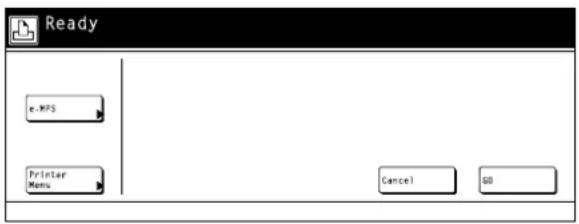
Press the Printer key. The machine will switch to the printer mode.
2
Touch the "Printer Menu" or the "e-MPS" key. The [Printer Menu] screen or [e-MPS] screen, as appropriate, will appear.
- The "e-MPS" key is displayed only when the optional hard disk is installed.
3
Select the desired settings that you want to make. (Refer to "3. Menu Flow Chart" on page 3-1 for a list of the various settings.)
4
Change the corresponding settings as desired. (Refer to
"4. Selecting the Printer Settings" on page 4-1 for information regarding the various settings.)
5
Press the Printer key to quit the printer mode.

3. Menu Flow Chart
![graph TD A["Printer menu Status Page print out 4-1"] --> B["Selecting the interface setting 4-3"] B --> C["Selecting the parallel interface settings"] C --> D["Parallel TX/RX mode 4-3"] B --> E["Selecting the serial interface settings"] E --> F["Baud rate 4-4"] E --> G["Data bit length 4-4"] E --> H…](/content/2026/06/1186987/images/0d2bfc80295e8fbc558403d66a043c109197fa7fa7e708613d283f786a88ae2c.jpg)
![graph TD A["Selecting the emulation 4-9"] --> B["PCL6"] B --> C["Code set 4-9"] A --> D["Line Printer"] D --> E["Code set 4-9"] A --> F["IBM Proprinter"] F --> G["Code set 4-9"] A --> H["DIABRO 630"] H --> I["Code set 4-9"] A --> J["EPSON LQ-850"] J --> K["Code set 4-9"] A --> L["KPDL"] L --> M["KPD…](/content/2026/06/1186987/images/b1d2bc3a4e7f3db9b2a03b15839bb67cf1f07f0c11755ab0fe5e5692b42afdbb.jpg)

Hard disk settings
Writing data -4-32
Partition List print out -4-32
Format hard disk -4-32
Reading data -4-33
Reading program data 4-33
Deleting data -4-34
Deleting font data -4-34
Deleting program data 4-35
Deleting macro data 4-35
Memory card settings
Writing data 4-38
Partition List print out -4-38
Format memory card 4-38
Reading data 4-39
Reading font data 4-39
Reading program data 4-40
Reading macro data 4-40
Deleting data 4-41
Deleting font data 4-41
Deleting program data 4-42
Deleting macro data 4-42
![graph TD A["ROM (option) settings"] --> B["Partition List print out 4 44"] A --> C["Reading data 4 44"] D["Additional settings"] --> E["Form Feed Time Out 4 46"] D --> F["Resource Protect mode 4 46"] D --> G["Auto Continue ON/OFF and Recovery Time 4 47"] D --> H["Service Maintenance menu 4 47"] H --…](/content/2026/06/1186987/images/8c45425ab179024ef92706c5101486549f61b32c872f9ecc795d61332cf8dffc.jpg)
e-MPS e-MPS settings
| Quick copy print out 4-50 |
| Private print/Stored job print out 4-51 |
| Virtual Mailbox data print out 4-52 |
| Virtual Mailbox Data List print out 4-52 |
| Code Job List print out 4-52 |
| e-MPS configurations 4-53 |
4. Selecting the Printer Settings
4-1 Status Page print out
Prints out a list of such items as the printer default settings, memory volume, etc.
- Accessing the Status Page print out screen
Touch the "Print Status Page" key. The [Print Status Page] screen will appear.
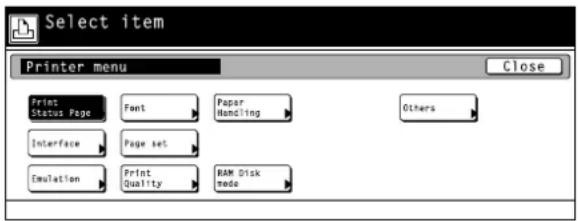
① Status Page print out
Touch the "Print" key. The Status Page will be printed out.

4-2 Interface Settings
About the interface settings
It is possible to perform interface settings for the 17 items shown in the following chart.
For the most efficient use of the printer functions, select the various settings according to your printing needs.
| Item | Available settings | Remarks | |
| 1Interface selectionSets the interface that will be used for printing. The currently selected interface will be highlighted. The printer will automatically switch to the appropriate interface for printing. | Parallel, Serial, Network | ||
| 2Parallel TX/RX modeSets the transmission and reception mode when the printer is connected to your computer with a parallel interface. | Auto, Normal, High Speed, Nibble (high) | ||
| 3Baud rate | 1200, 2400, 4800, 9600, 19200, 38400, 57600, 115200 | ||
| 4Data bit length | 7, 8 | ||
| 5Stop bit length | 1, 2 | ||
| 6Parity | None, Odd, Even, Ignore | ||
| 7Protocol | DTR(positive)&XON/XOFF, DTR (positive), DTR (negative), XON/XOFF, ETX/ACK | ||
| 8Barcode mode ON/OFF | OFF, ON | Displayed only when the Barcode Reader is installed. | |
| 9NetWare ON/OFF | OFF, ON | ||
| 10NetWare Frame TypeSets the NetWare Frame type. | Auto, 802.3, Ethernet 2, 802.2, 802.3 SNAP | Displayed only when the NetWare setting is turned “ON”. | |
| 11TCP/IP ON/OFF | OFF, ON | ||
| 12DHCP ON/OFF | OFF, ON | ||
| 13IP address | Enter the appropriate network address. | ||
| 14Subnet Mask | Enter the appropriate network address. | ||
| 15Gateway address | Enter the appropriate network address. | ||
| 16Ether Talk ON/OFF | OFF, ON | ||
| 17Network Card Status Page print outPrints out a Status page for the Network Card as well, when the standard Status Page (page 4-1) or that for use by your service representative (page 4-47) are printed out. A more detailed Status Page will be printed out together with the Service Representative Status Page print out. | OFF, ON | ||
- Accessing the Interface settings screen
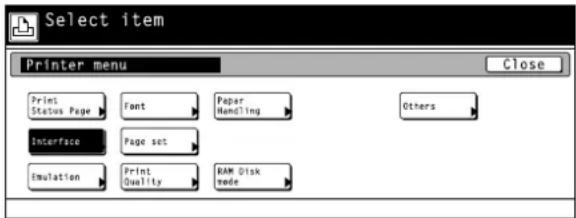
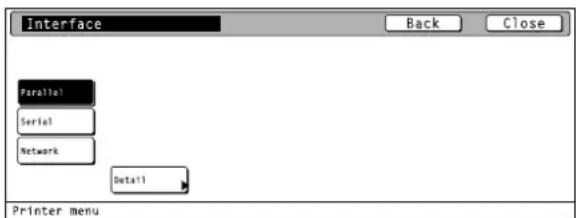
Touch the "Interface" key. The [Interface] screen will appear.
① Selecting the interface setting
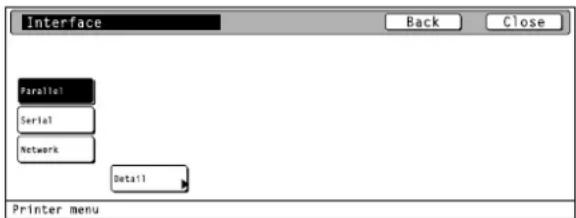
Select the desired interface and then touch the "Close" key. Touch the "Detail" key to display the setting screen corresponding to the selected interface.
- To cancel the setting, touch the "Back" key.
- Selecting the parallel interface settings
② Parallel TX/RX mode
1
Select "Parallel" and then touch the "Detail" key. The [Parallel] screen will appear.
2
Select the desired TX/RX mode and then touch the "Close" key. The display will return to the [Printer Menu] screen.
- To cancel the setting, touch the "Back" key.

- Selecting the serial interface settings
1
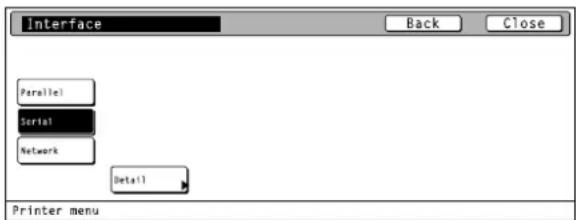
Select "Serial" and then touch the "Detail" key. The [Serial] screen will appear.
2
Use the “▲” and “▼” cursor keys to select the desired item and then touch the “Change” key. The setting screen for the selected item will appear.
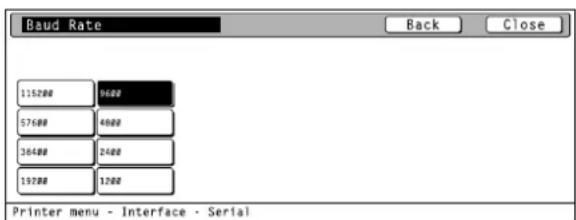
Baud rate: Sets the Baud Rate ③.
Data Bits: Sets the data bit length ④.
Stop Bits: Sets the stop bit length ⑤.
Parity: Sets the parity ⑥.
Protocol: Sets the protocol ⑦.
Barcode: Turns the barcode mode ON/OFF ⑧.
3
Select the desired setting for each item and then touch the "Close" key. The display will return to the [Serial] screen.
- Selecting the network interface
1
Select "Network" and then touch the "Detail" key. The [Network] screen will appear.
2
Use the “▲” and “▼” cursor keys to select the desired item and then touch the “Change” key. The setting screen for the selected item will appear.
Netware: Turns NetWare ON/OFF ⑨ and selects the
NetWare Frame type ⑩.
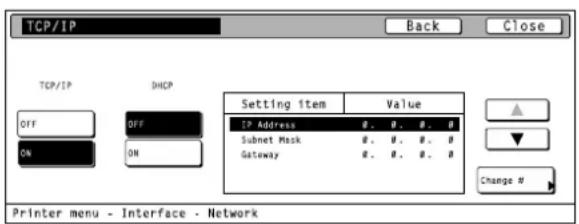
TCP/IP: Turns TCP/IP ON/OFF ⑪, DHCP ON/OFF ⑫
and sets the IP address ⑬, Subnet Mask ⑭
and the Gateway address ⑮.
Ether talk: Selects the Ether Talk setting ⑯.
Option Status Page: Selects the setting for the Network Card Status Page print out ⑰.



⑨ NetWare ON/OFF

Select "ON" or "OFF", as desired, under the "Netware" setting and then touch the "Close" key. The display will return to the [Network] screen.
- When "ON" is selected, the Frame Type settings will be displayed.
- To cancel the setting, touch the "Back" key.

⑩ NetWare Frame Type

Select the desired frame type under the "Frame Type" setting and then touch the "Close" key. The display will return to the [Network] screen.
- To cancel the setting, touch the "Back" key.

⑪ TCP/IP ON/OFF

Select "ON" or "OFF", as desired, under the "TCP/IP" setting and then touch the "Close" key. The display will return to the [Network] screen.
- When "ON" is selected, the DHCP settings will be displayed.
- To cancel the setting, touch the "Back" key.
⑫ DHCP ON/OFF

Select "ON" or "OFF", as desired, under the "DHCP" setting and then touch the "Close" key. The display will return to the [Network] screen.
- To cancel the setting, touch the "Back" key.
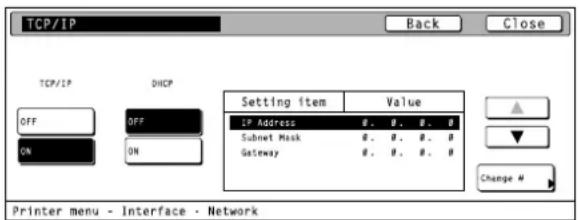
⑬ IP Address
1
Select "ON" under the "TCP/IP" setting.

2
Use the “▲” and “▼” cursor keys to select “IP Address” and then touch the “Change” key. The [IP Address] screen will appear.
3
Use the numeric keys to input the first block of 3 digits of the address then press the sharp (#) key in order to input the following block of 3 digits.
- To change an entered address, press the sharp (#) key to select the 3-digit block that you want to change and use the numeric keys to enter the correct address.
4
Once the input of the IP address is completed, touch the "Close" key. The display will return to the [TCP/IP] screen.
- To cancel the setting, touch the "Back" key.

Subnet Mask
1
Select "ON" under the "TCP/IP" setting.
2
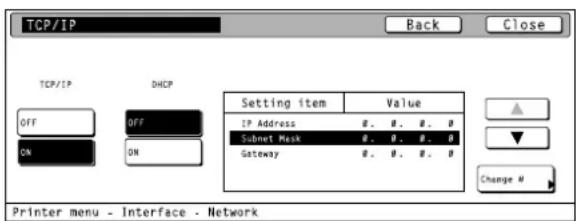
Use the “▲” and “▼” cursor keys to select “Subnet Mask” and then touch the “Change” key. The [Subnet Mask] screen will appear.
3
Enter the Subnet Mask address by following the same procedure as for the IP Address.

Gateway address
1
Select "ON" under the "TCP/IP" setting.
2
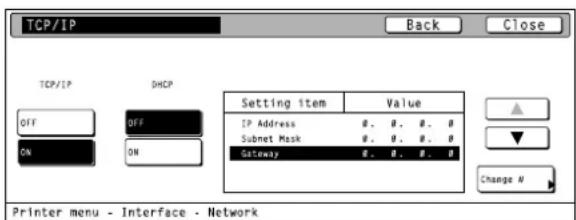
Use the “▲” and “▼” cursor keys to select “Gateway” and then touch the “Change” key. The [Gateway] screen will appear.
3
Enter the Gateway address by following the same procedure as for the IP Address.

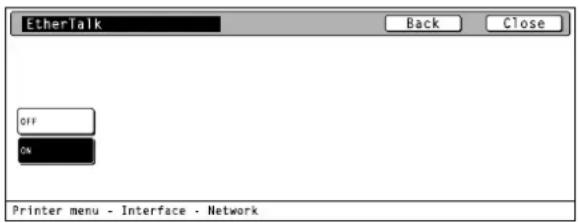
⑯ Ether Talk ON/OFF

Select "ON" or "OFF", as desired, and then touch the "Close" key. The display will return to the [Network] screen.
- To cancel the setting, touch the "Back" key.
⑰ Network Card Status Page print out

Select "ON" or "OFF", as desired, and then touch the "Close" key. The display will return to the [Network] screen.
- To cancel the setting, touch the "Back" key.

4-3 Emulation Protocol settings
About the emulation protocol settings
It is possible to perform emulation protocol settings for the 6 items shown in the following chart.
For the most efficient use of the printer functions, select the various settings according to your printing needs.
| Item | Available settings | Remarks | |
| 1Selecting the emulationSets the emulation protocol. | PCL6, Line Printer, IBM Proprinter, DIABRO 630, EPSON LQ-850, KPDL, KPDL (Auto), KC-GL | Allows you to set a different emulation protocol for each interface. | |
| 2Code setSelects the code set that will be used under each emulation protocol. | The code sets that are available for selection will differ depending upon the emulation protocol. | ||
| 3KPDL Error Report print out ON/OFFWhen the emulation protocol has been set to KPDL or KPDL (Auto), sets whether an Error Report will be automatically printed out whenever a KPDL error occurs. | OFF, ON | Select “ON” to have an Error Report printed out and “OFF” not to have any Error Report printed out. | |
| 4Auto emulation switchingSets the back-up emulation mode when the emulation protocol has been set to KPDL (Auto). | PCL6, Line Printer, IBM Proprinter, DIABRO 630, EPSON LQ-850, KC-GL | ||
| 5KC-GL PageSelects the paper format when the emulation protocol has been set to KC-GL. | A2, A1, A0, B3, B1, B2, B0, SPSZ | ||
| 6KC-GL PenSelects the type and width of the pen when the emulation protocol has been set to KC-GL. | 01 – 99 | ||
- Accessing the Emulation setting screen
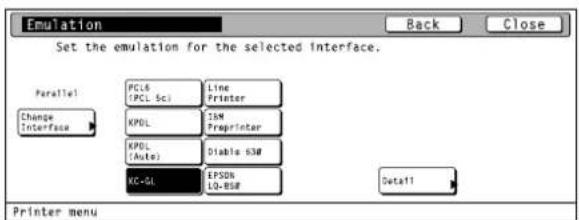
Touch the "Emulation" key. The [Emulation] screen will appear.

① Selecting the emulation
Touch the "Change interface" key. The [Interface] screen will appear.
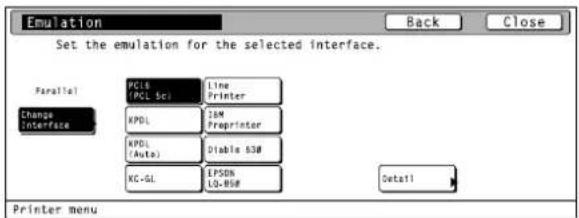
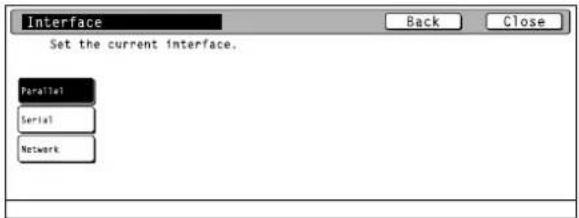
2 Select the interface for which you want to set the emulation protocol and then touch the "Close" key. The display will return to the [Emulation] screen.
• To cancel the setting, touch the "Back" key.
3 Select the desired emulation and then touch the "Close" key. The display will return to the [Printer Menu] screen.
- To cancel the setting, touch the "Back" key.

② Code set
1 Select one of the following emulation protocols and then touch the "Detail" key. The selecting screen for the code set will appear.
PCL6, Line Printer, IBM Proprinter, DIABRO 630, EPSON LQ-850
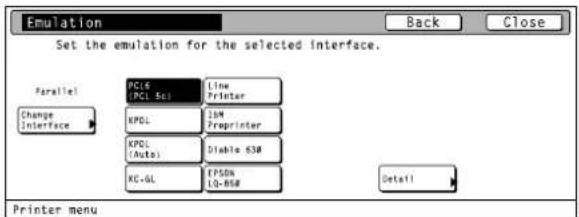
2 Use the "▲" and "▼" cursor keys to select the desired code set for that emulation protocol.
- Use the "Up" and "Down" keys to scroll up and down in the display.
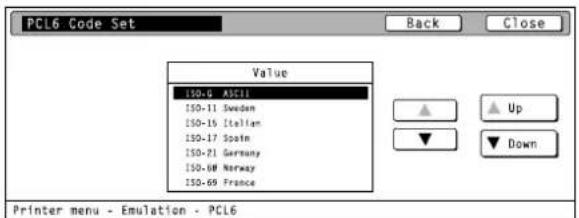
3 Touch the "Close" key. The display will return to the [Emulation] screen.
- To cancel the setting, touch the "Back" key.
③ KPDL Error Report print out ON/OFF
1
Select one of the following emulation protocols and then touch the "Detail" key. The [KPDL (Auto)] screen will appear.
KPDL, KPDL (Auto)
2
Select "ON" or "OFF", as desired, under the KPDL error setting and then touch the "Close" key. The display will return to the [Emulation] screen.
- To cancel the setting, touch the "Back" key.
④ Auto emulation switching
The back-up emulation mode can be selected only when the emulation protocol has been set to KPDL (Auto).
Select the desired emulation protocol under the back-up emulation setting and then touch the "Close" key. The display will return to the [Emulation] screen.
• To cancel the setting, touch the "Back" key.
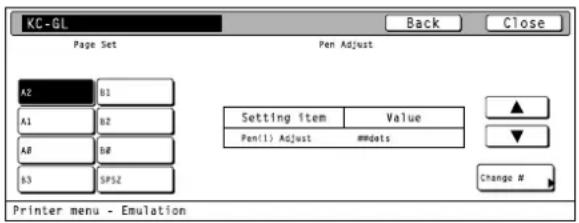
⑤ KC-GL Page
1
Select "KC-GL" as the emulation protocol and then touch the "Detail" key. The [KC-GL] screen will appear.
2
Select the desired paper format under the "Page Set" setting and then touch the "Close" key. The display will return to the [Emulation] screen.
- To cancel the setting, touch the "Back" key.



⑥ KC-GL Pen
1
Use the “▲” and “▼” cursor keys to select the desired type of pen under the “Pen Adjust” setting and then touch the “Change” key. The setting screen for the pen width will appear.
2
Use the "+" and/or "-" key or the numeric keys to enter the desired width and then touch the "Close" key. The display will return to the [KG-CL] screen.
- To cancel the setting, touch the "Back" key.

4-4 Font selection/settings
About the font selection/settings
It is possible to perform font selection/settings for the 4 items shown in the following chart.
For the most efficient use of the printer functions, select the various settings according to your printing needs.
| Item | Available settings | Remarks | |
| 1Selecting the font Selects the font that will be used for printing. This setting is made by entering the ID of the desired font. To select a font that is already installed in the printer, enter “l###” (with the desired font ID entered in place of ###. To verify font IDs, print out a Font List by following the procedure in “(18) Font List print out”. It is possible to select a font other than those already installed, such as those contained in the optional Memory Card.Optional font IDs such as “S###”, etc., start with different letters according to the type of the font as shown below.S: Software font (download)M: Memory card fontH: Hardware fontH: RAM disk fontO: Optional ROM font | The font can be set separately for each interface. To select an installed font, select “Internal”. To select a font other than those already installed, select “Option” and set the desired font. | ||
| 2CourierAllows you to select between “Regular” and “Dark (bold)”. | Regular Dark | Displayed only when the “Internal” is selected. | |
| 3Letter GothicAllows you to select between “Regular” and “Dark (bold)”. | Regular Dark | Displayed only when the “Internal” is selected. | |
| 4Font List print out |
- Accessing the Font setting screen
Touch the "Font" key. The [Font] screen will appear.

● Internal font setting
1
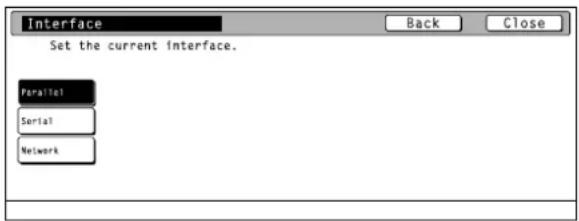
Touch the "Change Interface" key. The [Interface] screen will appear.
- The "Option" key is displayed only when there are optional fonts available, such as those contained in the optional Memory Card.
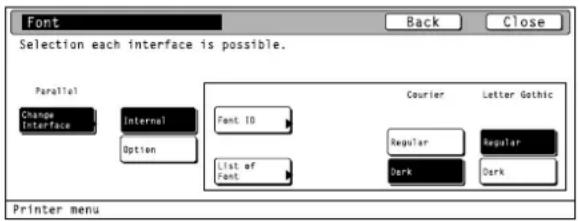
2
Select the desired interface and then touch the "Close" key. The display will return to the [Font] screen.
- To cancel the setting, touch the "Back" key.

3
Select "Internal" and then touch the "Close" key. The display will return to the [Printer Menu] screen.
- To cancel the setting, touch the "Back" key.

① Selecting the font
1
Touch the "Font ID" key. The [Font ID] screen will appear.

2
Use the “▲” and “▼” cursor keys to select the ID that corresponds to the desired font and then touch the “Close” key. The display will return to the [Font] screen.
- To cancel the setting, touch the "Back" key.

② Courier

Select "Regular" or "Dark (bold)", as desired, under the "Courier" setting and then touch the "Close" key. The display will return to the [Printer Menu] screen.
- To cancel the setting, touch the "Back" key.
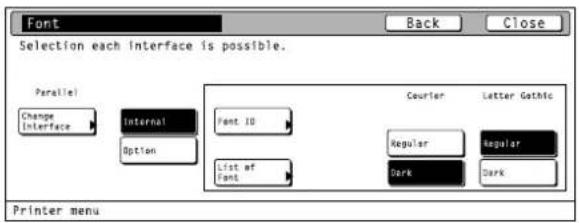
③ Letter Gothic

Select "Regular" or "Dark (bold)", as desired, under the "Letter Gothic" setting and then touch the "Close" key. The display will return to the [Printer Menu] screen.
- To cancel the setting, touch the "Back" key.
④ Font List print out
Touch the "List of Font" key. The Font List will be printed out.

- Optional font setting

Touch the "Change Interface" key. The [Interface] screen will appear.


Select the desired interface and then touch the "Close" key. The display will return to the [Font] screen.
- To cancel the setting, touch the "Back" key.


Select "Option" and then touch the "Close" key. The display will return to the [Printer Menu] screen.
- To cancel the setting, touch the "Back" key.

① Selecting a font
1
Touch the "Font ID" key. The [Font ID] screen will appear.

2
Select the font ID by following the same procedure as for the internal fonts.
④ Font List print out

Touch the "List of Font" key. The font list will be printed out.

4-5 Page Settings
About the page settings
It is possible to perform page settings for the 7 items shown in the following chart.
For the most efficient use of the printer functions, select the various settings according to your printing needs.
| Item | Available settings | Remarks | |
| 1Number of copies | 001 – 999 | ||
| 2Printing orientation | Portrait, Landscape | Allows you to set a different printing orientation for each interface. | |
| 3Printing reductionOriginals can be reduced with a fixed ratio and printed out at a selected printing size by selecting the paper size (original size) and the printing size.Paper size: Cassette, 11 x 17, 8 1/2 x 14, 8 1/2 x 11,5 1/2 x 8 1/2, A3, A4, A5, B4, B5, Folio,8 1/2 x 13. | Only the printing sizes that can be used with the selected paper size are displayed. | ||
| 4Page Protect modeIf “Auto” is selected here, the machine will monitor the data to avoid any Print Overrun Error and, if necessary, automatically turn Page Protect “ON”. If a Print Overrun Error does happen to occur even then, the machine will automatically change the Page protect setting to “ON”. | Auto, ON | ||
| 5Linefeed (LF) action | LF only, CR and LF, Ignore LF | Allows you to set a different linefeed handling for each interface. | |
| 6Carriage-Return (CR) action | CR only, CR and LF, Ignore CR | Allows you to set a different carriage return handling for each interface. | |
| 7Wide A4 ON/OFFIncreases the printing area on A4 size paper. | OFF, ON | ||
- Accessing the Page Settings screen
Touch the "Page set" key. The [Page set] screen will appear.

① Number of copies
Use the “▲” and “▼” cursor keys to select “Copies” and then touch the “Change” key. The [Copies] screen will appear.
![Page set Setting item Value Copies 001 Orientation Portrait Zoom [Cassette]-(Cassette)98% Page Protect Auto LF Action LF only CR Action CR only Wide AA OFF Printer menu Change # Close](/content/2026/06/1186987/images/f621b021508cb3f96a459412edeb9787c402f6451d4af01a25f0d51df533d354.jpg)
2 Use the "+" and/or "-" key or the numeric keys to enter the desired number of copies to be made and then touch the "Close" key. The display will return to the [Page set] screen. • To cancel the setting, touch the "Back" key.

② Printing orientation
1 Use the “▲” and “▼” cursor keys to select “Orientation” and then touch the “Change” key. The [Orientation] screen will appear.
![Page set Close Setting item Value Copies ##1 Orientation Portrait Zoom [Cassette]-[Cassette]98% Page Protect Auto LF Action LF only CR Action CR only Wide A4 GFF Printer menu](/content/2026/06/1186987/images/bac8bbca3cf8d0d847de83cafa5bd62d3c25c577f6ab1c6ea868fa1bfd3aa5cd.jpg)
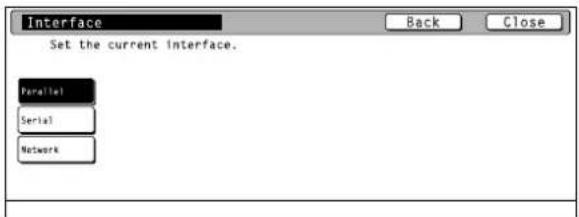
2 Touch the "Change interface" key. The [Interface] screen will appear.

3 Select the desired interface and then touch the "Close" key. The display will return to the [Orientation] screen. - To cancel the setting, touch the "Back" key.
4
Select the desired printing orientation and then touch the "Close" key. The display will return to the [Page set] screen.
- To cancel the setting, touch the "Back" key.

③ Printing reduction
1
Use the "▲" and "▼" cursor keys to select "Zoom" and then touch the "Change" key. The [Zoom(Reduce)] screen will appear.
![Page set Close Setting item Value Copies ##1 Orientation Portraft Zoom [Cassette]-(Cassette)98% Page Protect Auto LF Action LF only CR Action CR only Wide AA OFF Printer menu](/content/2026/06/1186987/images/085154fc1e3e1921ba4875688f8c9a7031490f6f962a59a4dc2a8981e6f53a24.jpg)
2
Use the “▲” and “▼” cursor keys to select the desired paper size and the printing size. The reduction ratio will automatically be set and displayed.
![Zoom(Reduce) Back Close Zoom 98 % Paper size A4 Print size A4 [98%] Printer menu - Printing environment](/content/2026/06/1186987/images/4a4e8092164c4c2ef1bbe4337c81472663ddf9677d18b7ec115bdf2bcbf4c65f.jpg)
3
Touch the "Close" key. The display will return to the [Page set] screen.
- To cancel the setting, touch the "Back" key.
④ Page Protect mode
1
Use the "▲" and "▼" cursor keys to select "Page Protect" and then touch the "Change" key. The [Page Protect] screen will appear.
![Page set Setting item Value Copies ##1 Orientation Portrait Zoom [Cassette]-[Cassette]98% Page Protect Auto LP Action IF only CR Action CR only Wide AA GFF Printer menu](/content/2026/06/1186987/images/ba8caa125695a5f92fce4b03e69b2b02e4229bb3b64da3c0c84804cae4670b83.jpg)
2
Select "Auto" or "ON", as desired, and then touch the "Close" key. The display will return to the [Page set] screen.
- To cancel the setting, touch the "Back" key.

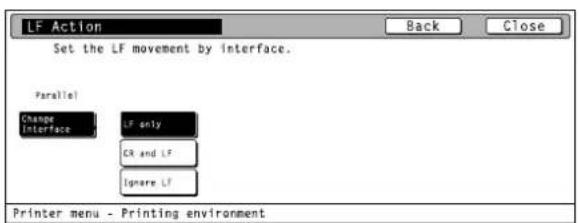
⑤ Linefeed (LF) action
1
Use the "▲" and "▼" cursor keys to select "LF Action" and then touch the "Change" key. The [LF Action] screen will appear.
![Page set Close Setting item Value Copies ##1 Orientation Portrait Zoom [Cassette]-(Cassette)98% Page Protect Auto LF Action LF only CR Action CR only Wide A4 OFF Printer menu](/content/2026/06/1186987/images/321de6fa920a5cb1016c68085491106e7f991d8b9844efddf7039338ee4ed58a.jpg)
2
Touch the "Change interface" key. The [Interface] screen will appear.
3
Select the desired interface and then touch the "Close" key. The display will return to the [LF Action] screen.
- To cancel the setting, touch the "Back" key.

4
Select the desired linefeed action and then touch the "Close" key. The display will return to the [Page set] screen.
- To cancel the setting, touch the "Back" key.

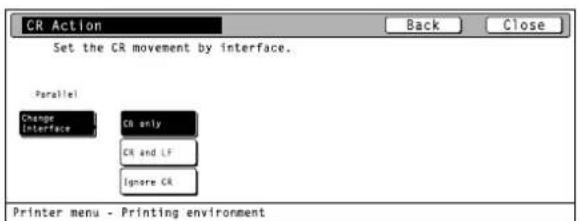
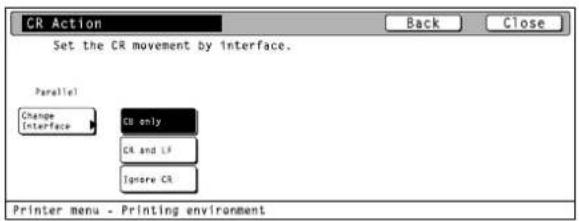
⑥ Carriage-Return (CR) action
1
Use the "▲" and "▼" cursor keys to select "CR Action" and then touch the "Change" key. The [CR Action] screen will appear.
![Page set Setting item Value Copies ##] Orientation Portrait Zoom [Cassette]-[Cassette]RR% Page Protect Auto LF Action LF only CR Action CI only Wide AA GFF Printer menu](/content/2026/06/1186987/images/ed49b4ccdadeea8a09fb9bef254a8600766dd4a72dfa6634e7ccb0c153ace14f.jpg)
2
Touch the "Change interface" key. The [Interface] screen will appear.
4. Selecting the Printer Settings
3
Select the desired interface and then touch the "Close" key. The display will return to the [CR Action] screen.
- To cancel the setting, touch the "Back" key.
4
Select the desired carriage-return action and then touch the "Close" key. The display will return to the [Page set] screen.
- To cancel the setting, touch the "Back" key.
7 Wide A4 ON/OFF
1
Use the “▲” and “▼” cursor keys to select “Wide A4” and then touch the “Change” key. The [Wide A4] screen will appear.
2
Select "ON" or "OFF", as desired, and then touch the "Close" key. The display will return to the [Page set] screen.
- To cancel the setting, touch the "Back" key.
![Page set Close Setting item Value Copies ##1 Orientation Portrait Zoom [Cassette]-[Cassette]98% Page Protect Auto LF Action LF only CR Action CR only Wide A4 GFF Printer menu](/content/2026/06/1186987/images/19493d170be35905247b46275c76eb93976b2d0e044ba4e0f55c81f65243b8da.jpg)

4-6 Printing Quality settings
About the printing quality settings
It is possible to perform printing quality settings for the 4 items shown in the following chart.
For the most efficient use of the printer functions, select the various settings according to your printing needs.
| Item | Available settings | Remarks | |
| 1Smoothing mode ON/OFFAllows a printing resolution of an interpolated 2400 dpi x 600 dpi through a smoothing process. | OFF, ON | ||
| 2EcoPrint ON/OFFAllows printing in a toner-saving mode. Use this mode for test pages, etc., when high printing quality is not required. | OFF, ON | ||
| 3Printing Resolution | Fast 1200 mode, 300 dpi, 600 dpi | ||
| 4Printing Density | 1 – 5 | Allows you to set a darker printing density by selecting 5 and a lighter printing density by selecting 1. | |
● Accessing the Printing Quality settings screen
1
Touch the "Print Quality" key. The [Print Quality] screen will appear.
2
Use the “▲” and “▼” cursor keys to select the desired item and then touch the “Change” key. The setting screen for the selected item will appear.
KIR Mode: Smoothing mode ON/OFF ①.
EcoPrint Mode: EcoPrint ON/OFF ②.
Resolution: Printing Resolution ③.
Print Density: Printing Density ④.
3
Select the desired setting for each item and then touch the "Close" key. The display will return to the [Print Quality] screen.
- To cancel the setting, touch the "Back" key.


4-7 Paper settings
About the paper settings
It is possible to perform paper settings for the 5 items shown in the following chart.
For the most efficient use of the printer functions, select the various settings according to your printing needs.
| Item | Available settings | Remarks | |
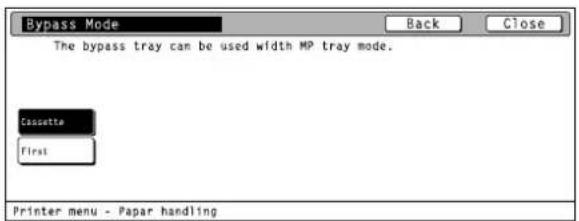
| 1Bypass modeIf “First” is selected here and there is paper set in the bypass table, paper feed will be accomplished from the bypass table. | Cassette, First | ||
| 2Paper Feed SourceSelects the paper cassette that will be selected first. | BypassCassette1Cassette2Cassette3Cassette4 | Cassette 3 and Cassette 4 are displayed only when they are installed. | |
| 3Duplex mode | None, Short edge bind, Long edge bind | Displayed only when the optional Duplex Unit is installed. | |
| 4Stack selectSelects where the printing paper will be ejected. | Inner tray, Job separator, Finisher main tray, Finisher sub tray, Mailbox (Face-Up), Mailbox (Face-Down) | Units other than the inner tray are displayed only when the optional Job Separator or the Finisher is installed. | |
| 5A4/Letter (8 1/2 x 11) usage ON/OFFAllows both A4 and Letter (8 1/2 x 11) size paper to be utilized as though they were the same size. | OFF, ON | ||
- Accessing the Paper settings screen
1
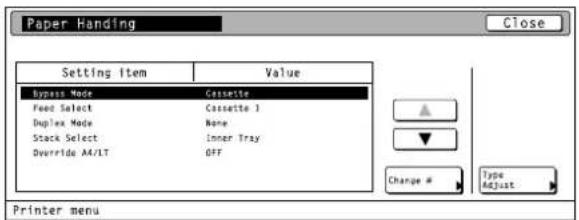
Touch the "Paper Handling" key. The [Paper Handling] screen will appear.
2
Use the “▲” and “▼” cursor keys to select the desired item and then touch the “Change” key. The setting screen for the selected item will appear.
Bypass Mode: Bypass mode ①.
Feed Select: Paper Feed Source ②.
Duplex Mode: Duplex mode ③.
Stack Select: Stack select ④.
Override A4/LT: Turns A4/Letter (8 1/2 x 11) usage ON/OFF ⑤.
3
Select the desired setting for each item and then touch the "Close" key. The display will return to the [Paper Handling] screen.
- To cancel the setting, touch the "Back" key.

4-8 RAM disk settings
RAM Disk
In this machine, it is possible to create a RAM Disk, or a portion of memory that is used as a virtual disk. By creating a RAM Disk of a desired size from among the total memory in the printer, it is possible to perform electronic sorting (which shortens the overall time required for printing) as well as to save data to and retrieve data from that disk very quickly.
The RAM disk function is not available when the optional hard disk is installed.
IMPORTANT!
The RAM Disk is created from that portion of the printer's memory that is normally available to the user. Thus, if the size of the RAM disk created is too large, printing speed may actually be decreased or the machine may run out of available memory.
WARNING: Resetting the printer or turning the main switch OFF (O) will erase all data written to the RAM Disk.
The factory default setting for the RAM Disk is "OFF". In order to create a RAM Disk, make the necessary settings as shown below.
About the RAM disk settings
It is possible to perform RAM disk settings for the 10 items shown in the following chart.
For the most efficient use of the printer functions, select the various settings according to your printing needs.
| Item | Available settings | Remarks | |
| 1RAM disk ON/OFF | ON, OFF | This setting must be turned ON in order to sort print sets using the collating function. | |
| 2Writing dataIf "Write Data" is selected here, the machine will enter a "waiting for data" state until data is sent from the host computer. | Write Data | Displayed only when "ON" is selected under the "1 RAM disk ON/OFF" setting. | |
| 3Partition List print out | List of Partitions | Displayed only when "ON" is selected under the "1 RAM disk ON/OFF" setting. | |
| 4RAM disk sizeSets the amount of memory that will be used as a RAM disk. The maximum size that can be selected is the total amount of memory installed minus the amount used by the system (24 MB). | 01 – 99 MBytes | Displayed only when "ON" is selected under the "1 RAM disk ON/OFF" setting. | |
| 5Reading dataReads the selected data from the RAM disk. | Select from among the data partition names that are displayed. | Displayed only when there is appropriate data in the RAM disk.Displayed only when "ON" is selected under the "1 RAM disk ON/OFF" setting. | |
| 6Reading program dataReads the selected program data from the RAM disk. | Select from among the program partition names that are displayed. | Displayed only when there is appropriate program data in the RAM disk.Displayed only when "ON" is selected under the "1 RAM disk ON/OFF" setting. | |
| 7Deleting dataDeletes the selected data from the RAM disk. | Select from among the data partition names that are displayed. | Displayed only when there is appropriate data in the RAM disk.Displayed only when "ON" is selected under the "1 RAM disk ON/OFF" setting. | |
| 8Deleting font dataDeletes the selected font data from the RAM disk. | Select from among the fonts that are displayed. | Displayed only when there is appropriate font data in the RAM disk.Displayed only when "ON" is selected under the "1 RAM disk ON/OFF" setting. | |
| 9 | Deleting program dataDeletes the selected program data from the RAM disk. | Select from among the program partition names that are displayed. | Displayed only when there is appropriate program data in the RAM disk.Displayed only when “ON” is selected under the “RAM disk ON/OFF” setting. |
| 10 | Deleting macro dataDeletes the selected macro data from the RAM disk. | Select among the macro partition names that are displayed. | Displayed only when there is appropriate macro data in the RAM disk.Displayed only when “ON” is selected under the “RAM disk ON/OFF” setting. |
- Accessing the RAM disk settings screen

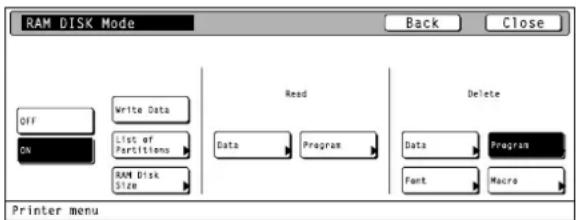
Touch the "RAM Disk mode" key. The [RAM DISK Mode] screen will appear.

① RAM disk ON/OFF
Touch the "ON" key. The various settings for the RAM disk will now be possible.
- If you select "OFF" here, RAM settings will not be possible.
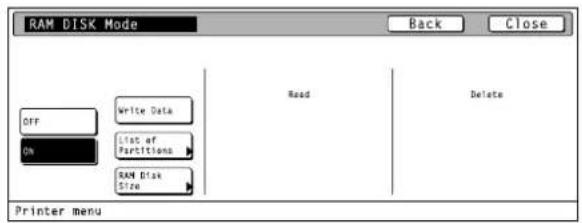
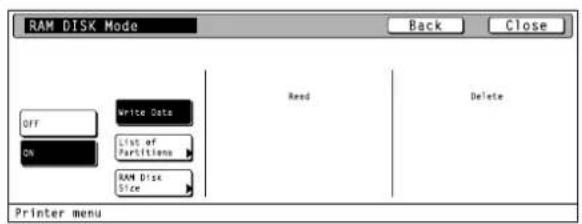
② Writing data
Touch the "Write Data" key. The display will return to the basic printer screen and the machine will enter a "waiting for data" state.
- When data is received from a computer, "Processing" will be displayed in the [Printer Menu] screen. Once the operation is completed, "Waiting" will be displayed.
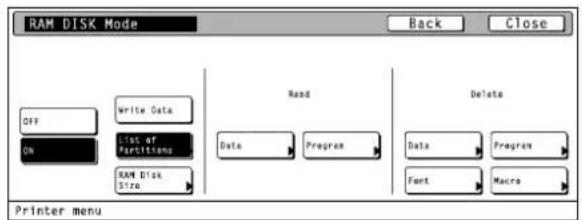
③ Partition List print out

Touch the "List of Partitions" key. A Partition List will be printed out.
④ RAM disk size

Touch the "RAM DISK Size" key.
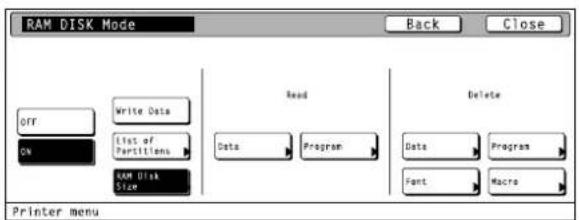

Use the "+" and/or "-" key to select the desired size of the RAM disk.
- To cancel the setting, touch the "Back" key.

3
Once you have completed the setting, touch the "Close" key. The display will return to the [RAM DISK Mode] screen.
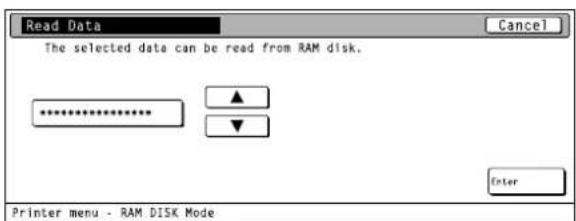
⑤ Reading data
1
Touch the "Data" key under the "Read" setting.
2
Use the "▲" and "▼" cursor keys to select the data that you want to be read.
- If you want to return to the [RAM DISK Mode] screen, touch the "Cancel" key.
3
Touch the "Enter" key. The display will return to the basic printer screen and the data will be read.
- "Processing" will be displayed in the basic printer screen while the data is being read.
⑥ Reading program data
1
Touch the "Program" key under the "Read" setting.
2
Use the "▲" and "▼" cursor keys to select the program data that you want to be read.
- If you want to return to the [RAM DISK Mode] screen, touch the "Cancel" key.
3
Touch the "Enter" key. The display will return to the basic printer screen and the program data will be read.
- "Processing" will be displayed in the basic printer screen while the program data is being read.



⑦ Deleting data
1
Touch the "Data" key under the "Delete" setting.
2
Use the “▲” and “▼” cursor keys to select the data that you want to delete.
- If you want to return to the [RAM DISK Mode] screen, touch the "Cancel" key.
3
Touch the "Delete" key. The display will return to the basic printer screen and the data will be deleted.
- "Processing" will be displayed in the basic printer screen while the data is being deleted.
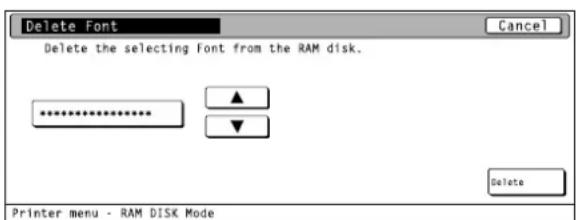
⑧ Deleting font data
1
Touch the "Font" key under the "Delete" setting.
2
Use the “▲” and “▼” cursor keys to select the font data that you want to delete.
- If you want to return to the [RAM DISK Mode] screen, touch the "Cancel" key.
3
Touch the "Delete" key. The display will return to the basic printer screen and the font data will be deleted.
- "Processing" will be displayed in the basic printer screen while the font data is being deleted.


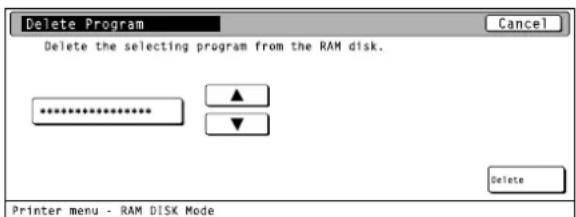
⑨ Deleting program data
1
Touch the "Program" key under the "Delete" setting.
2
Use the “▲” and “▼” cursor keys to select the program data that you want to delete.
- If you want to return to the [RAM DISK Mode] screen, touch the "Cancel" key.
3
Touch the "Delete" key. The display will return to the basic printer screen and the program data will be deleted.
- "Processing" will be displayed in the basic printer screen while the program data is being deleted.
⑩ Deleting macro data
1
Touch the "Macro" key under the "Delete" setting.
2
Use the “▲” and “▼” cursor keys to select the macro data that you want to delete.
- If you want to return to the [RAM DISK Mode] screen, touch the "Cancel" key.
3
Touch the "Delete" key. The display will return to the basic printer screen and the macro data will be deleted.
- "Processing" will be displayed in the basic printer screen while the macro data is being deleted.


4-9 Hard disk settings
For more information about the hard disk, refer to "5. Options" on page 5-1.
About the hard disk settings
It is possible to perform hard disk settings for the 9 items shown in the following chart.
For the most efficient use of the printer functions, select the various settings according to your printing needs.
| Item | Available settings | Remarks | |
| 1Writing dataIf "Write Data" is selected here, the machine will enter a "waiting for data" state until data is sent from the host computer. | Write Data | ||
| 2Partition List print out | List of Partitions | ||
| 3Format hard diskIf "Yes" is selected here, the hard disk will be formatted. | Format | Formats the hard disk only when there is a format error on the disk. | |
| 4Reading dataReads the selected data from the hard disk. | Select from among the data partition names that are displayed. | Displayed only when there is appropriate data on the hard disk. | |
| 5Reading program dataReads the selected program data from the hard disk. | Select from among the program partition names that are displayed. | Displayed only when there is appropriate program data on the hard disk. | |
| 6Deleting dataDeletes the selected data from the hard disk. | Select from among the data partition names that are displayed. | Displayed only when there is appropriate data on the hard disk. | |
| 7Deleting font dataDeletes the selected font data from the hard disk. | Select from among the fonts that are displayed. | Displayed only when there is appropriate font data on the hard disk. | |
| 8Deleting program dataDeletes the selected program data from the hard disk. | Select from among the program partition names that are displayed. | Displayed only when there is appropriate program data on the hard disk. | |
| 9Deleting macro dataDeletes the selected macro data from the hard disk. | Select among the macro partition names that are displayed. | Displayed only when there is appropriate macro data on the hard disk. | |
- Accessing the Hard Disk settings screen
Touch the "HARD DISK" key. The [Hard Disk] screen will appear.

① Writing data
Touch the "Write Data" key. The display will return to the basic printer screen and the machine will enter a "waiting for data" state.
- When data is received from a computer, "Processing" will be displayed in the [Printer Menu] screen. Once the operation is completed, "Waiting" will be displayed.

② Partition List print out
Touch the "List of Partitions" key. A Partition List will be printed out.

③ Format hard disk
Touch the "Format" key.
- It is only possible to format the hard disk when there is a format error on the disk. In any other case, the hard disk will NOT be formatted.
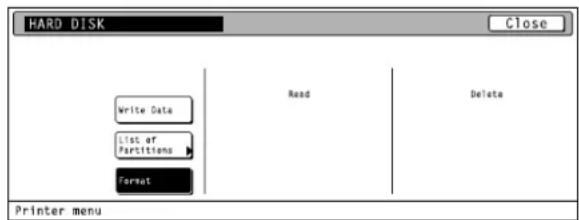
2 Touch the "Yes" key. The display will return to the basic printer screen and the hard disk will be formatted.
- "Processing" will be displayed in the basic printer screen while the hard disk is being formatted.
- If you select "No" here, the hard disk will not be formatted and the display will return to the [Hard Disk] screen.

④ Reading data
1
Touch the "Data" key under the "Read" setting.
2
Use the “▲” and “▼” cursor keys to select the data that you want to be read.
- If you want to return to the [Hard Disk] screen, touch the "Cancel" key.
3
Touch the "Enter" key. The display will return to the basic printer screen and the data will be read.
- "Processing" will be displayed in the basic printer screen while the data is being read.
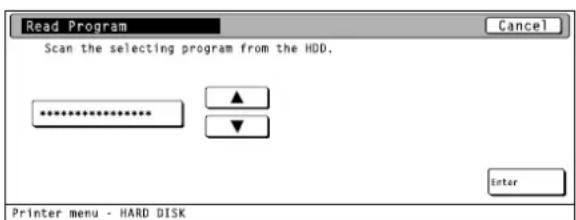
⑤ Reading program data
1
Touch the "Program" key under the "Read" setting.
2
Use the “▲” and “▼” cursor keys to select the program data that you want to be read.
- If you want to return to the [Hard Disk] screen, touch the "Cancel" key.
3
Touch the "Enter" key. The display will return to the basic printer screen and the program data will be read.
- "Processing" will be displayed in the basic printer screen while the program data is being read.


⑥ Deleting data
1
Touch the "Data" key under the "Delete" setting.
2
Use the “▲” and “▼” cursor keys to select the data that you want to delete.
- If you want to return to the [Hard Disk] screen, touch the "Cancel" key.
3
Touch the "Delete" key. The display will return to the basic printer screen and the data will be deleted.
- "Processing" will be displayed in the basic printer screen while the data is being deleted.
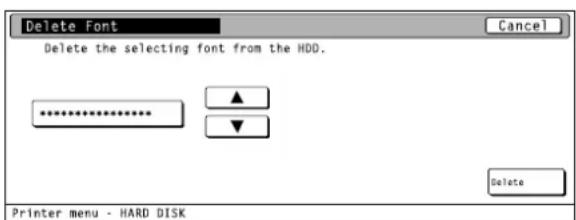
⑦ Deleting font data
1
Touch the "Font" key under the "Delete" setting.
2
Use the “▲” and “▼” cursor keys to select the font data that you want to delete.
- If you want to return to the [Hard Disk] screen, touch the "Cancel" key.
3
Touch the "Delete" key. The display will return to the basic printer screen and the font data will be deleted.
- "Processing" will be displayed in the basic printer screen while the font data is being deleted.


⑧ Deleting program data
1
Touch the "Program" key under the "Delete" setting.
2
Use the “▲” and “▼” cursor keys to select the program data that you want to delete.
- If you want to return to the [Hard Disk] screen, touch the "Cancel" key.
3
Touch the "Delete" key. The display will return to the basic printer screen and the program data will be deleted.
- “Processing” will be displayed in the basic printer screen while the program data is being deleted.
⑨ Deleting macro data
1
Touch the "Macro" key under the "Delete" setting.
2
Use the “▲” and “▼” cursor keys to select the macro data that you want to delete.
- If you want to return to the [Hard Disk] screen, touch the "Cancel" key.
3
Touch the "Delete" key. The display will return to the basic printer screen and the macro data will be deleted.
- "Processing" will be displayed in the basic printer screen while the macro data is being deleted.


4-10 Memory card settings
Memory Card
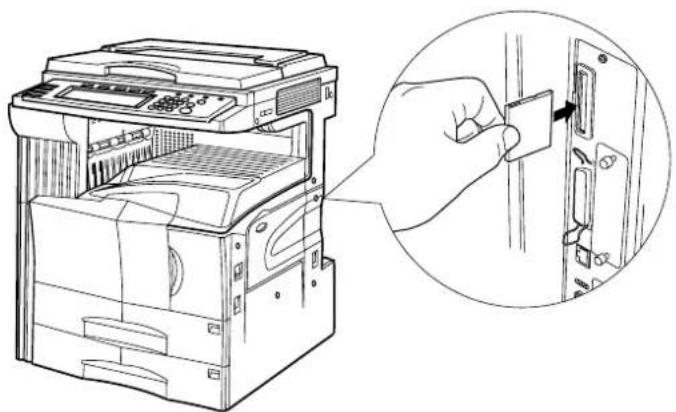
This machine comes equipped with a slot for inserting a Memory Card.
Use a Memory Card that contains fonts in order to print with fonts other than those already installed in the machine, or use the card to save and then read print data.
Inserting the Memory Card
Insert the Memory Card into the slot with the front of the card facing the rear of the machine.
IMPORTANT!
BE SURE to turn the main switch OFF (O) BEFORE inserting or removing the Memory Card.
About the memory card settings
It is possible to perform memory card settings for the 11 items shown in the following chart.
For the most efficient use of the printer functions, select the various settings according to your printing needs.
| Item | Available settings | Remarks | |
| 1Writing dataIf “Write Data” is selected here, the machine will enter a “waiting for data” state until data is sent from the host computer. | Write Data | Displayed only when the memory card has been inserted. | |
| 2Partition List print out | List of Partitions | Displayed only when the memory card has been inserted. | |
| 3Format memory cardIf “Yes” is selected here, the memory card will be formatted. | Format | Displayed only when the memory card has been inserted. (ALWAYS format the memory card using this printer. If you attempt to format it with another device, it may become unusable.) | |
| 4Reading dataReads the selected data from the memory card. | Select from among the data partition names that are displayed. | Displayed only when there is appropriate data in the memory card. | |
| 5Reading font dataReads all of the font data from the memory card. | Fonts | Displayed only when there is appropriate font data in the memory card. | |
| 6 | Reading program dataReads the selected program data from the memory card. | Select from among the program partition names that are displayed. | Displayed only when there is appropriate program data in the memory card. |
| 7 | Reading macro dataReads all of the macro data from the memory card. | Macro | Displayed only when there is appropriate macro data in the memory card. |
| 8 | Deleting dataDeletes the selected data from the memory card. | Select from among the data partition names that are displayed. | Displayed only when there is appropriate data in the memory card. |
| 9 | Deleting font dataDeletes the selected font data from the memory card. | Select from among the fonts that are displayed. | Displayed only when there is appropriate font data in the memory card. |
| 10 | Deleting program dataDeletes the selected program data from the memory card. | Select from among the program partition names that are displayed. | Displayed only when there is appropriate program data in the memory card. |
| 11 | Deleting macro dataDeletes the selected macro data from the memory card. | Select among the macro partition names that are displayed. | Displayed only when there is appropriate macro data in the memory card. |
- Accessing the Memory Card settings screen

Touch the "Memory Card" key. The [Memory Card] screen will appear.

① Writing data

Touch the "Write Data" key. The display will return to the basic printer screen and the machine will enter a "waiting for data" state.
- When data is received from a computer, "Processing" will be displayed in the [Printer Menu] screen. Once the operation is completed, "Waiting" will be displayed.
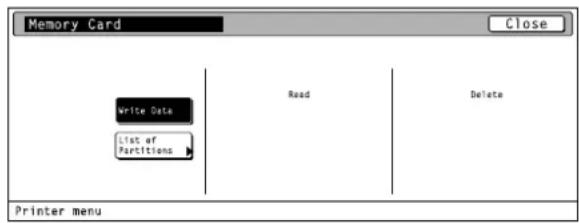
② Partition List print out

Touch the "List of Partitions" key. A Partition List will be printed out.

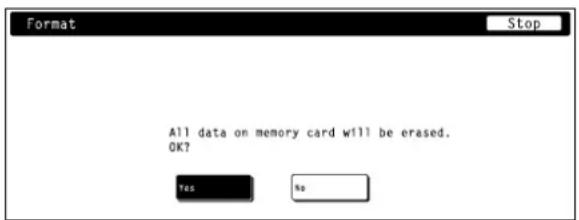
③ Format memory card
1
Touch the "Format" key.
- ALWAYS format the memory card using this printer.

2
Touch the "Yes" key. The display will return to the basic printer screen and the memory card will be formatted.
- "Processing" will be displayed in the basic printer screen while the memory card is being formatted.
- If you select "No" here, the memory card will not be formatted and the display will return to the [Memory Card] screen.
④ Reading data
1
Touch the "Data" key under the "Read" setting.
2
Use the “▲” and “▼” cursor keys to select the data that you want to be read.
- If you want to return to the [Memory Card] screen, touch the "Cancel" key.
3
Touch the "Enter" key. The display will return to the basic printer screen and the data will be read.
- "Processing" will be displayed in the basic printer screen while the data is being read.
⑤ Reading font data
1
Touch the "Fonts" key under the "Read" setting.
2
Touch the "Yes" key. The display will return to the basic printer screen and the font data will be read.
- "Processing" will be displayed in the basic printer screen while the font data is being read.
- If you select "No" here, the font data will not be read and the display will return to the [Memory Card] screen.


⑥ Reading program data
1
Touch the "Program" key under the "Read" setting.
2
Use the “▲” and “▼” cursor keys to select the program data that you want to be read.
- If you want to return to the [Memory Card] screen, touch the "Cancel" key.
3
Touch the "Enter" key. The display will return to the basic printer screen and the program data will be read.
- "Processing" will be displayed in the basic printer screen while the program data is being read.
⑦ Reading macro data
1
Touch the "Macro" key under the "Read" setting.
2
Touch the "Yes" key. The display will return to the basic printer screen and the macro data will be read.
- "Processing" will be displayed in the basic printer screen while the macro data is being read.
- If you select "No" here, the macro data will not be read and the display will return to the [Memory Card] screen.


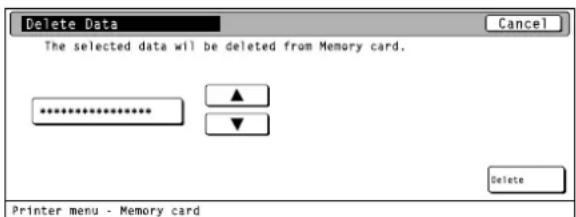
⑧ Deleting data
1
Touch the "Data" key under the "Delete" setting.
2
Use the “▲” and “▼” cursor keys to select the data that you want to delete.
- If you want to return to the [Memory Card] screen, touch the "Cancel" key.
3
Touch the "Delete" key. The display will return to the basic printer screen and the data will be deleted.
- "Processing" will be displayed in the basic printer screen while the data is being deleted.
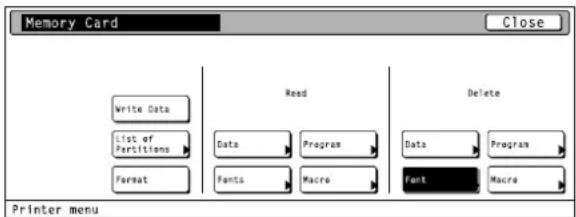
⑨ Deleting font data
1
Touch the "Font" key under the "Delete" setting.
2
Use the “▲” and “▼” cursor keys to select the font data that you want to delete.
- If you want to return to the [Memory Card] screen, touch the "Cancel" key.
3
Touch the "Delete" key. The display will return to the basic printer screen and the font data will be deleted.
- "Processing" will be displayed in the basic printer screen while the font data is being deleted.


⑩ Deleting program data
1
Touch the "Program" key under the "Delete" setting.
2
Use the “▲” and “▼” cursor keys to select the program data that you want to delete.
- If you want to return to the [Memory Card] screen, touch the "Cancel" key.
3
Touch the "Delete" key. The display will return to the basic printer screen and the program data will be deleted.
- "Processing" will be displayed in the basic printer screen while the program data is being deleted.
⑪ Deleting macro data
1
Touch the "Macro" key under the "Delete" setting.
2
Use the “▲” and “▼” cursor keys to select the macro data that you want to delete.
- If you want to return to the [Memory Card] screen, touch the "Cancel" key.
3
Touch the "Delete" key. The display will return to the basic printer screen and the macro data will be deleted.
- "Processing" will be displayed in the basic printer screen while the macro data is being deleted.


4-11 ROM (option) settings
About the ROM (option) settings
It is possible to perform ROM (option) settings for the 2 items shown in the following chart.
For the most efficient use of the printer functions, select the various settings according to your printing needs.
| Item | Available settings | Remarks | |
| 1 | Partition List print out | List of Partitions | |
| 2 | Reading dataReads the selected data from ROM (option). | Select from among the data partition names that are displayed. | Displayed only when there is appropriate data in ROM (option). |
- Accessing the ROM (option) settings screen
Touch the "Option ROM" key. The [Option ROM] screen will appear.

① Partition List print out
Touch the "List of Partitions" key. A Partition List will be printed out.

② Reading data
1
Touch the "Data" key under the "Read" setting.

2
Use the “▲” and “▼” cursor keys to select the data that you want to be read.
- If you want to return to the [Option ROM] screen, touch the "Cancel" key.

3
Touch the "Enter" key. The display will return to the basic printer screen and the data will be read.
- "Processing" will be displayed in the basic printer screen while the data is being read.
4-12 Additional settings
About the additional settings
It is possible to perform additional settings for the 6 items shown in the following chart.
For the most efficient use of the printer functions, select the various settings according to your printing needs.
| Item | Available settings | Remarks | |
| 1Form Feed Time OutSets the amount of time the machine will wait for the “GO” button to be touched before it prints the next page automatically. | -495 seconds | If the printer doesn’t receive a “end-of-data” command from the computer even after receiving the last portion of data for that job, the last page will not be printed and will be saved temporarily. Once the pre-determined amount of wait time passes, that data will be automatically printed. If, however, you select “0” for this setting, the data will NOT be printed out automatically. | |
| 2Resource Protect modeProtects downloaded resource data such as fonts and macros and saves the PCL resource even if the emulation protocol is changed. Under the “Permanent” setting, temporary resource information will not be protected, but under the “Permanent/Temporary” setting, temporary resource information will be protected as well. | OFF, Permanent, Permanent/ Temporary | ||
| 3Auto Continue ON/OFF and Recovery TimeYou can select to have the error state released and printing continue after a designated recovery time (Auto Continue) in cases when either of the following messages is displayed.“Memory overflow”“Print overrun”The length of the recovery time can be changed as well. | 000 - 495 seconds | ||
| 4Service Maintenance menuThis is the maintenance menu used by the service personnel. | Print Status Page | ||
| 5Printer ResetResets only the Printer Board without the need to turn off power to the machine. | Printer Reset | ||
| 6Dump received dataData received by the printer is printed out in hex code for program and file debugging purposes. This hex-dump mode will be released automatically in the following situations.• Touch the “GO” key.• A form feed timeout occurs. | Print HEX-DUMP | ||
- Accessing the Additional settings screen

Touch the "Others" key. The [Others] screen will appear.
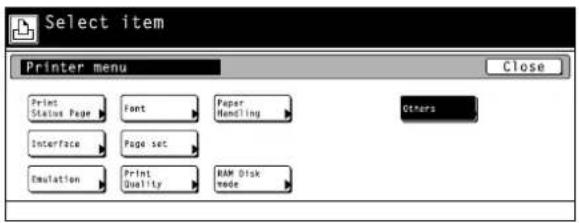
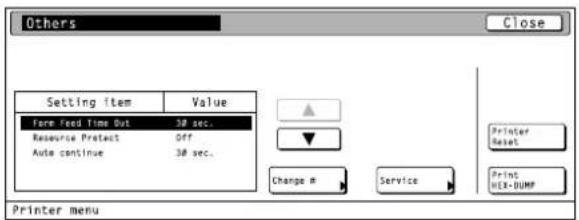
① Form Feed Time Out
Use the "▲" and "▼" cursor keys to select "Form Feed Time Out" and then touch the "Change" key.
2 Use the "+" and/or "-" key to select the desired length of time before form feed timeout.
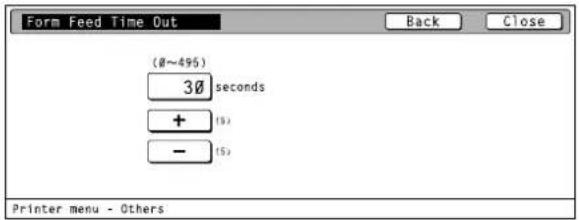
3 Once you have completed the setting, touch the "Close" key. The display will return to the [Others] screen. • To cancel the setting, touch the "Back" key.
② Resource Protect mode
1 Use the "▲" and "▼" cursor keys to select "Resource Protect" and then touch the "Change" key.

2 Select the desired setting: "OFF", "Permanent" or "Permanent/ Temporary".

③ Auto Continue ON/OFF and Recovery Time
1
Use the "▲" and "▼" cursor keys to select "Auto continue" and then touch the "Change" key.
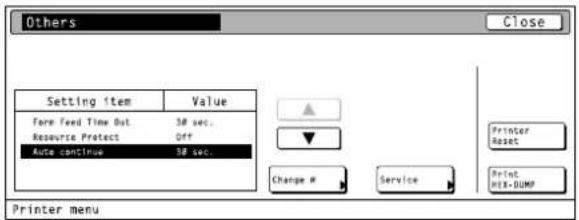
2
Touch the "ON" key.
- If you select "OFF" here, the auto continue recovery time setting will not be available.

3
Use the "+" and/or "-" key to select the desired recovery time.

4
Once you have completed the setting, touch the "Close" key. The display will return to the [Others] screen.
- To cancel the setting, touch the "Back" key.
④ Service Maintenance menu
1
Touch the "Service" key.
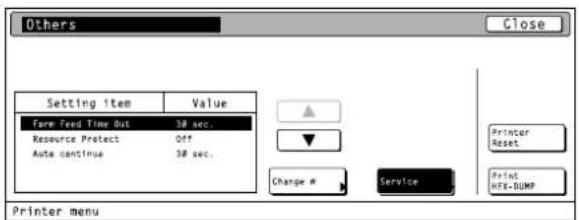
2
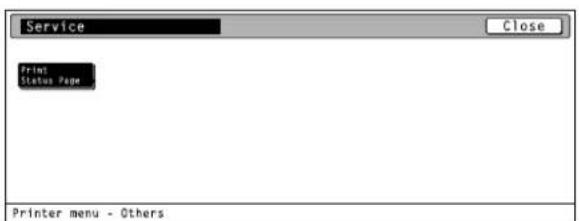
Service Representative Status Page print out
Touch the "Print Status Page" key. A Service Representative Status Page will be printed out.
⑤ Printer Reset
1
Touch the "Printer Reset" key.
2
Touch the "Yes" key. The Printer Board will be reset.
- If you select "No" here, the display will return to the [Others] screen.
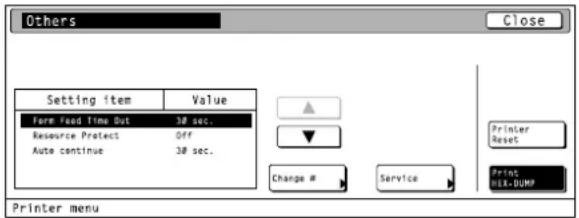
⑥ Dump received data
1
Touch the "Print HEX-DUMP" key.
2
Touch the "Yes" key. A hex-dump of the received data will be printed out.
- If you select "No" here, the display will return to the [Others] screen.



4-13 e-MPS settings
NOTE: The optional hard disk must be installed in order to use the e-MPS function.
For more information about e-MPS, refer to "2. Windows XD Driver" on page 2-1.
About the e-MPS settings
It is possible to perform e-MPS settings for the 6 items shown in the following chart.
For the most efficient use of the printer functions, select the various settings according to your printing needs.
| Item | Available settings | Remarks | |
| 1 | Quick copy print out | Print out of a quick copy | Prints out the print job that is designated for the “Quick Copy” or “Proof and Hold” setting in the printer driver. |
| 2 | Private print/Stored job print out | Print out of private and stored jobs | Prints out the print job that is designated for the “Private Print” or “Job Storage” setting in the printer driver. |
| 3 | Virtual Mailbox data print out | Print out of data in the Virtual Mailbox | Prints out the print job that is saved in the Virtual Mailbox which is designated for the “Virtual Mailbox (VMB)” setting in the printer driver. |
| 4 | Virtual Mailbox Data List print out | Print out of the Virtual Mailbox List | |
| 5 | Code Job List print out | Print out of the Cod JOB List | |
| 6e | MPS configurationsThe following maximum size settings can be performed for the hard disk.Temporary protection for code jobsPermanent protection for code jobsVirtual MailboxThe maximum number of quick copy jobs to be registered can be set as well. | Number of quick copy jobs, temporary protection for code job size, permanent protection for code job size |
- Accessing the e-MPS settings screen
Touch the "e-MPS" key. The [e-MPS] screen will appear.

① Quick copy print out
1
Touch the "Quick Copy" key.

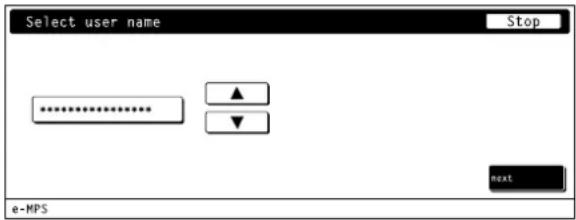
2
Use the “▲” and “▼” cursor keys to select your user name and then touch the “Next” key.
3
Use the “▲” and “▼” cursor keys to select the desired job.

4
Use the “+” and/or “−” key or the numeric keys to select the number of pages to be printed.

5
Touch the "Print" key.
- If you want to delete the selected job, touch the "Delete" key.
6
Touch the "GO" key and printing will begin.
- If you want to cancel printing, touch the "CANCEL" key.
② Private print/Stored job print out
1
Touch the "Private/Stored" key.
2
Use the “▲” and “▼” cursor keys to select your user name and then touch the “Next” key.
3
Use the “▲” and “▼” cursor keys to select the desired job.
4
Use the “+” and/or “−” key or the numeric keys to select the number of pages to be printed.
5
Touch the "Print" key.
- If an ID has been set for the selected job, the screen for inputting the ID will appear. Enter the appropriate ID.
- If you want to delete the selected job, touch the "Delete" key.
6
Touch the "GO" key and printing will begin.
- If you want to cancel printing, touch the "CANCEL" key.


③ Virtual Mailbox data print out
1
Touch the "Print VMB Data" key.
2
Use the “▲” and “▼” cursor keys to select the desired tray and then touch the “Print” key.
- If an ID has been set for the selected job, the screen for inputting the ID will appear. Enter the appropriate ID.
3
Touch the "GO" key and printing will begin.
- If you want to cancel printing, touch the "CANCEL" key.
④ Virtual Mailbox Data List print out

Touch the "List of VMB" key. A Virtual Mailbox Data List will be printed out.
⑤ Code Job List print out

Touch the "List of Code JOB" key. A Code Job List will be printed out.


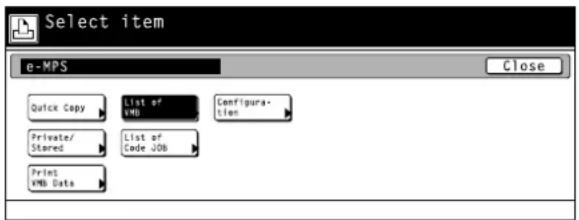
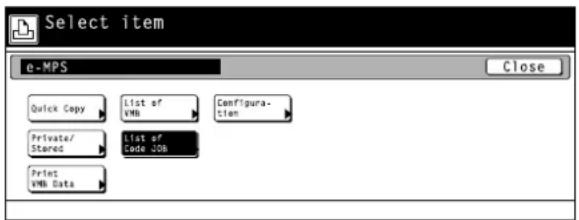
⑥ e-MPS configurations
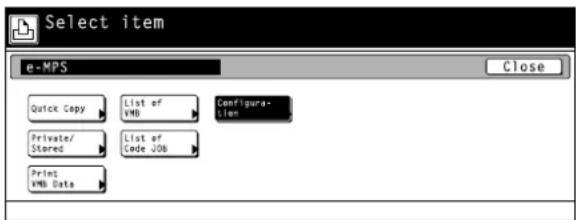
1
Touch the "Configuration" key.
2
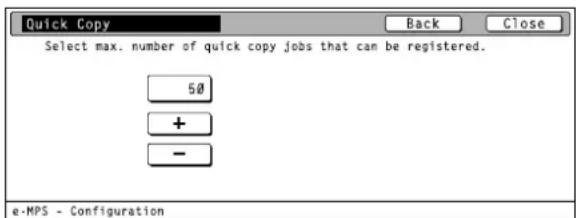
Maximum number of quick copy jobs
Use the “▲” and “▼” cursor keys to select “Quick Copy” and then touch the “Change” key.
3
Use the "+" and/or "-" key to select the maximum number of quick copy jobs that can be registered.
- To cancel the setting, touch the "Back" key.
4
Temporary protection for code job size/Permanent protection for code job size/VMB size
Use the “▲” and “▼” cursor keys to select the desired item and then touch the “Change” key.
5
Use the "+" and/or "-" key to select the maximum size for that item.
- To cancel the setting, touch the "Back" key.



5. Options
Additional Memory
This machine comes standard with 32 MB of memory installed. By adding more memory, more complex printing can be accomplished and printing speed can be increased. There are two slots available for adding memory and increasing the memory installed in this machine to up to a maximum of 256 MB.
Hard Disk
If the optional hard disk is installed in this machine, received and rasterized data can be saved onto that disk. When printing out multiple sets of the same documents, this allows faster printing with the collating function as well as enabling the use of the e-MPS function.
Barcode Reader
If the optional barcode reader is installed in this machine, the machine can read barcodes that are in the job list and print the corresponding data that is saved on the hard disk.
For detailed information, refer to the Instruction Manual for the Barcode Reader.
1. Procedure for Installing and Printing with a Printer Driver
1-1 Included printer drivers
The following printer drivers are included with this product.
* Each type of printer driver has a version appropriate to a specific model of copy machine. Be sure to choose the driver that is appropriate for your copier.
| Driver type | Description | Compatible OS |
| KX driver | By attaching optional equipment it is possible to easily extend printer functionality. This driver will enable you to use such compound printer functions to their fullest. | Windows 95/98Windows NT4.0Windows 2000Windows Me |
| Universal driver | This driver has superior compatibility with application software, thereby enabling WYSIWYG printing.If you want to staple your printed sets when the optional Finisher is installed, be sure to use a Collator driver.Three separate driver functions are included in the Universal printer driver for Windows 95/98 and Windows NT 4.0: the standard printer driver, a collator driver and a barcode printing driver. | Windows 95/98Windows NT4.0Windows 2000 |
| KPDL2 driver | This driver is compatible with Adobe PostScript 2. | Windows 95/98Windows NT4.0Windows 2000 |
| Macintosh PPD file | A PPD (PostScript Printer Description) file is included for use with this product. Use “LaserWriter 8” as the printer driver for your Mac OS.Refer to “3. Printer Driver for Macintosh” on page 3-1 for information on installation on a Macintosh computer. | MacintoshBetween system 7.61 and 9.1 |
1-2 System Conditions
● Windows 95/98
| Recommended requirements | CPU Pentium 90 | MHz or more |
| RAM 16 MB or more | ||
| HDD 10 MB or more | ||
| CD-ROM drive 1 drive | ||
● Windows NT 4.0
| Recommended requirements | CPU Pentium 90 | MHz or more |
| RAM 32 MB or more | ||
| HDD 10 MB or more | ||
| CD-ROM drive 1 drive | ||
● Windows 2000
| Recommended requirements | CPU Pentium 133 MHz or more |
| RAM 64 MB or more | |
| HDD 10 MB or more | |
| CD-ROM drive 1 drive | |
● Windows Me
| Recommended requirements | CPU Pentium 200 MHz or more |
| RAM 64 MB or more | |
| HDD 10 MB or more | |
| CD-ROM drive 1 drive | |
1-3 Screen that Appears when the CD-ROM is Inserted
This section explains the screen that appears when the CD-ROM supplied with the Printing System (N) is inserted into the CD-ROM drive.
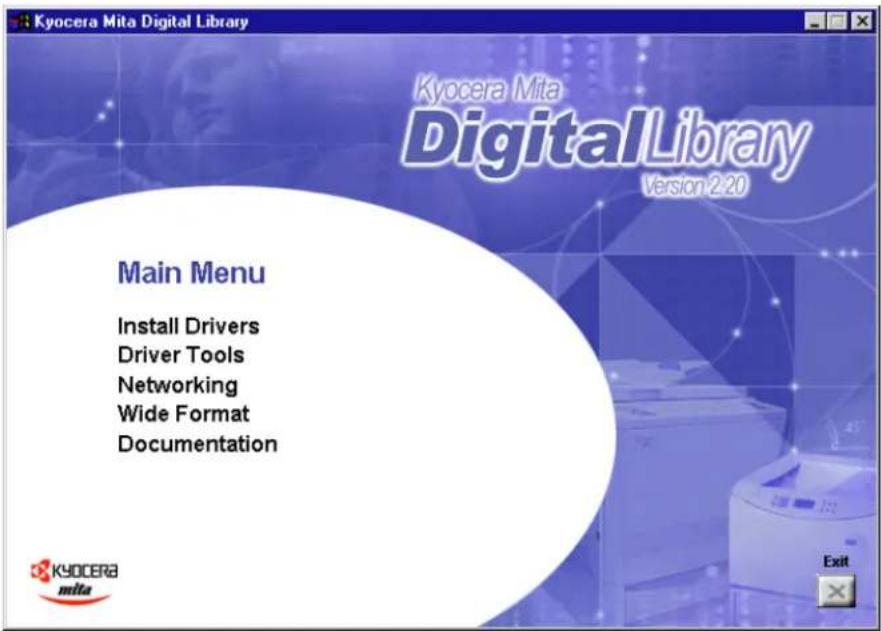
■Install Drivers
Click to start installation of the printer driver. Follow the instructions displayed on the screen to install the printer driver.
Driver Tools
Click to display a menu including uninstallation of the printer driver.
[Remove Drivers] ....Starts the uninstaller of the printer driver.
[Make Driver Disk]....Copies the installer program to a floppy disk. Use of this floppy disk allows you to install the printer driver without the need of the installer CD-ROM.
* Driver for Macintosh cannot be made.
■[Network]
Click to display the PrintMonitor's installation menu. Follow the instructions displayed on the screen to install the print monitor.
■Documentation
Click to display the manual (PDF) supplied with the printer driver. To open this PDF manual, Adobe Acrobat Reader (developed to view PDF files) is required, so make sure that Adobe Acrobat Reader is installed before opening the manual.
[Install Acrobat Reader] ...... Installs Adobe Acrobat Reader.
[User's manual] ...... Displays the manuals (PDF) of the printer and printer driver. They explain the installation procedure of the printer driver and operation procedure of the printer.
[Release Notes], [Read me]....This file contains information which is not explained in the manuals. Please read this file before using the printer driver.
[Programming Manuals] ...... Displays the manuals (PDF) of the PRESCRIBE.
1-4 Installing the Printer Driver (Windows)
Install the printer driver as follows:
* The printer can be connected to the computer by one of the following two methods: local or network. If you want to connect them through network, refer to the operation manual of the operating system (OS).
* The screens shown in the following explanation are those displayed when installing the printer driver for Windows 95/98.
1
Start Windows.
* If any applications are currently running, exit them.
2
Insert the CD-ROM supplied with the printer into the CD-ROM drive.
A start window will appear.
3
Click Install Driver in the lower left corner of the window.
* If the start window does not appear even if the CD-ROM is inserted, double-click My Computer on the desktop, then double-click the CD-ROM icon.

4
The Set-up Wizard window will appear, so click Next.
A list of printer models will appear.
5
Select the printer you are using, then click Next.
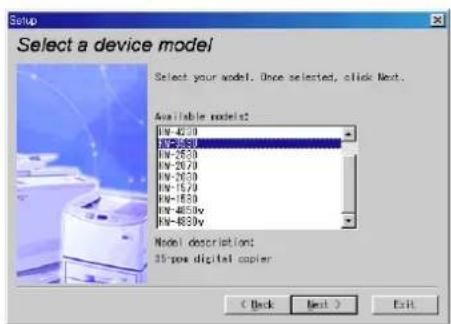
6
The language to be used can be selected. Select the desired language from the box, then click Next.

7
Select the driver type.
From the list, select the type of driver to be installed, then click Next.
* Refer to "1-1 Included printer Drivers" on page 1-1 for information regarding each printer driver.

8
The End User Licence Agreement will be displayed. Please read all of the contract and, if you agree with the conditions contained therein, click on [Accept]. If you click on [No] the installation procedure will quit.
9
All available options will be displayed. Select the items that you want to install and then click on the [Next] button.
10
Select the connection type: Local or Network.
- Local: The printer is connected directly to the parallel port.
• Network: The printer is connected to the printer via network (using a network interface).
* If Local is selected, proceed to step 12. If Network is selected, proceed to step 11.

11
Enter the network queue name or the path for the network queue in the box.
To select another network queue name, press Browse.
If you are going to use a local port for the network queue, click the check box displayed below, then proceed to step 12.
Otherwise, proceed to step 13.

Select a printer port. From the list, select the desired port, then click Next.
* Normally, set to LPT1.
* When installing the printer driver for Windows NT, the Add LPR Port button will appear below the box, so press the button to set the desired LPR printer.
A name can be assigned to your printer.
Specify a new name or select the desired name from the list, then click Next.
Specify whether this printer is to be used as the default printer. Click Yes if so, or click No if not.
The settings you have made so far will appear. If they are correct, click Next. Installation of the printer driver will start.
To exit installation, click Finish.
* If you want to add another printer driver, click Add Printer and then repeat the same procedure.
Installation of the printer driver is now complete.


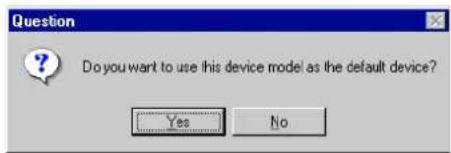


1-5 Uninstalling the Printer Driver
The following procedure explains how to uninstall the printer drivers. The uninstall program can be found on the CD-ROM that is included with this product.
1
Start Windows.
2
Insert the printer driver installer CD-ROM into the CD-ROM drive on your computer.
The window shown on the right will appear.

3
Click on [Driver Tools] and then on [Remove Drivers] from the subsequent menu. The [Remove Printer Drivers] dialog box will appear.
Select the driver that you want to delete and then click on [Uninstall].
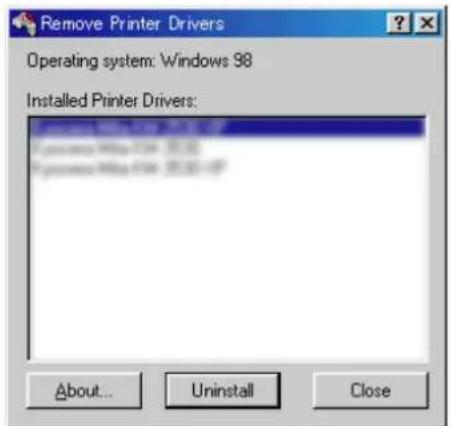
4
A message to verify whether or not you really want to delete that driver will appear. If you DO want to delete the selected driver, click on [Yes]. The selected driver will be deleted.
1-6 Printing
The following is an example procedure for printing using a printer driver under the conditions and environment noted below.
- OS: Windows 98
- Printer driver: KX Driver
• Application: Wordpad - Printing conditions: Print and staple
If you use a system or driver other than that noted above, use the following procedure simply as a reference tool. It is additionally recommended that you read the section corresponding to your operation system as it will contain further explanations specifically regard that OS and other related drivers.
1
● Making the printer driver settings in Windows
Click on [Start] on the Task Bar.
The Start menu will appear.
2
Use the mouse to point to [Settings] and click on [Printers] in the corresponding submenu.
The [Printers] folder will open.
3
Use the right mouse button to click on the icon for this printer. A pop-up menu will be displayed.
Select [Properties] from that menu.
The Properties window will appear.
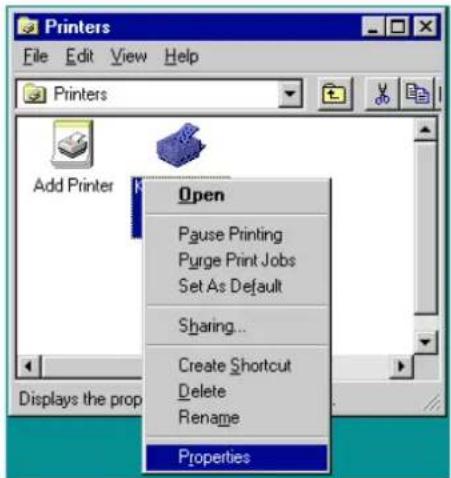
4
Click on the [Device Options] Tab.
5
Perform the following settings in order to staple your printed sets.
"Installable Options" setting
①Put a check mark in the checkbox for the Finisher or Booklet Stitcher you are using.
②Put a check mark in the [RAM Disk] checkbox and set the memory size of the RAM disk. (This setting must coincide with the setting in the printer.)
* If the optional hard disk is installed, put a check mark in the [Hard Disk] checkbox.
Once you have completed these settings, click on [OK].
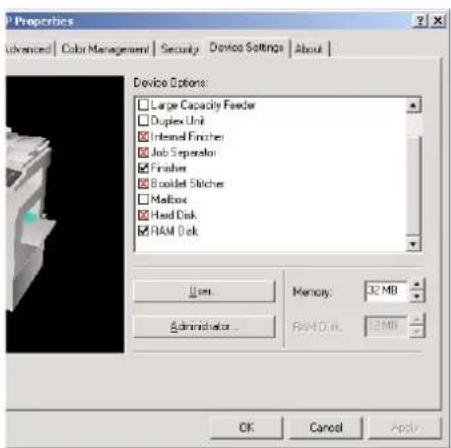
6
● Printing from the application
Use the application that you want to use to open the document that you want to print.
7
Select [Print] in the [File] menu.
The [Print] dialogue box will appear.

8
Select the desired number of copies that you want to make and which pages are to be printed.
Select this printer in the [Name] field.
Click on [Properties].
The Properties window will appear.
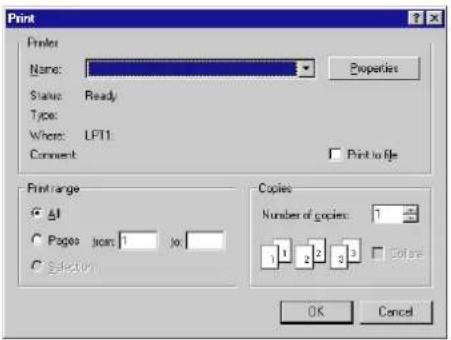
9
Click on the [Output] Tab.
10
Perform the following settings in order to staple your printed sets.
Select "Finishing Tray" as the "Output to" setting.
If a Finisher other than the Internal Finisher, or the Booklet Stitcher, is installed, perform the setting that is appropriate for that device.
"Finishing Options" setting
①Put a check mark in the [Collate] checkbox.
②Put a check mark in the [Staple] checkbox.
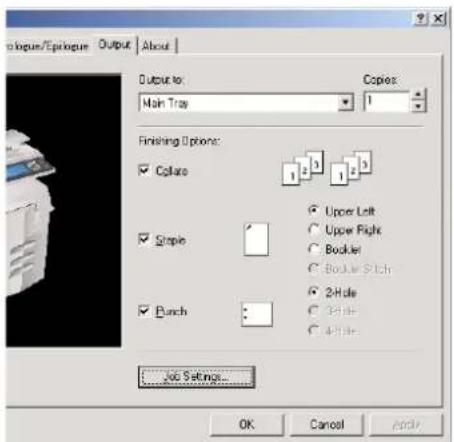
11
Click on [OK]. You will be returned to the [Print] dialogue box. Click on [OK] once again. Printing will begin.
2. Windows KX Driver
The following section explains the functions of the KX driver.
* This Operation Guide uses illustrations from the message display of the 35 ppm copier for purposes of explanation, but the actual basic operation procedure is the same for other models.
* The following procedure is explained as though it is being carried out in Windows 98. If you are using another operating system, use this procedure simply as reference.
* Depending upon version upgrades of the printer driver, the screenshots shown here may differ somewhat from that of the actual printer driver.
* Depending upon the model of your copier, there may be functions that are not supported or that require optional equipment to be installed. Even if the settings for such functions are performed, they will not be effective.
* Refer to the Instruction Manual for Windows regarding items that are not explained in this Operation Guide.
2-1 Making property settings
1
Start up Windows.
2
Click on [Start] in the Task Bar. The [Start] menu will be displayed.
3
Use the mouse to point to [Settings] and click on [Printers] in the submenu that is displayed. The [Printers] folder will open.
4
Use the right mouse button to click on the icon for this printer. A pop-up menu will be displayed. Select [Properties] from the menu. The Properties window will open.
2-2 Media Tab
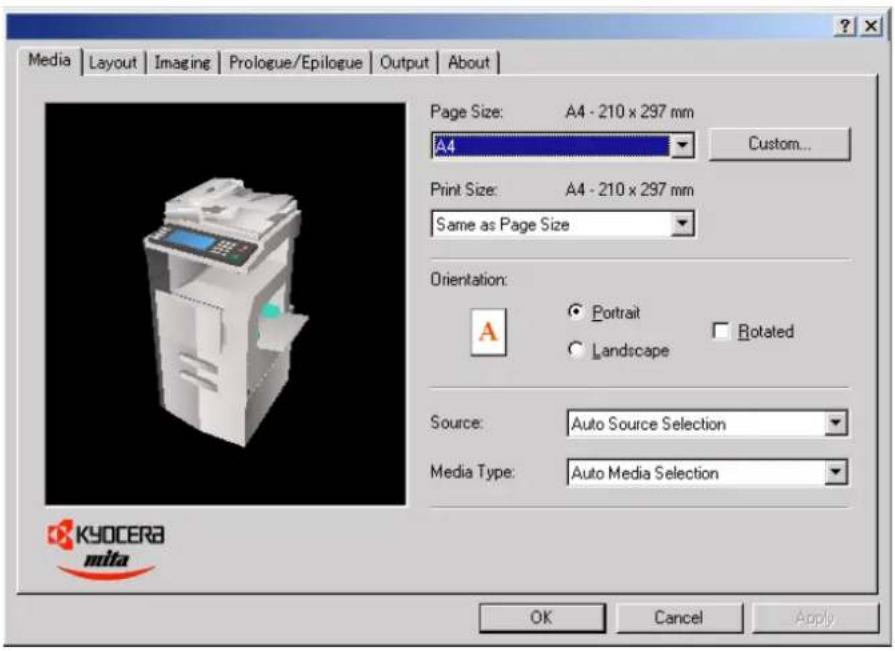
Paper Size:
Allows you to select a standard size of paper or an envelope size.
The following sizes of paper or envelope can be used with this printer.
| Standard-size paper sheet | Letter (8 1/2" x 11"), Legal (8 1/2" x 14"), Ledger (11" x 17"), Executive (7 1/2" x 10 1/2"), Statement (5 1/2" x 8 1/2"), A3, A4, A5, A6, JIS B4, B5, JIS B6, Folio and Oficio II (8 1/2" x 13") |
| Envelope #10, #9, #6, Monarch, DL, C4 and C5 | |
■Custom...
Click on this button when you want to print onto a non-standard size of paper. The [Custom Paper Size] dialog box will appear. Refer to "2-2-1 Custom Paper Size dialog box" on page 2-3 for more detailed information.
■Print Size:
Allows you to select the size of the printed image. The image size will be enlarged or reduced according to the difference in the setting made here and in the "Page Size" field.
■Orientation:
Sets the orientation of printing.
[Portrait] The image will be printed vertically.
[Landscape] The image will be printed horizontally.
[Rotated]....Select this checkbox by clicking on it and putting a check mark in the box in order to have the image printed upside-down.
■Source:
You can select the source of paper feed according to the desired tray. Selection is possible from among the following items. If you select "Auto Source Selection", the printer will automatically choose the tray that contains the most appropriate paper for the job. The factory default setting is "Auto Source Selection".
| Tray Auto Source Selection, | Cassette 1, Cassette 2, Cassette 3, Cassette 4, Large Capacity Tray and Bypass Tray |
* "Cassette 3" and "Cassette 4" are available only when the Option Cassette is installed.
* "Large Capacity Tray" is available only when the Large Capacity Feeder is installed.
■Media Type:
You can select the source of paper feed according to the desired type of paper. Selection is possible from among the following items. If you do not want to designate a specific type of paper, select "Auto Media Selection". The factory default setting is "Auto Media Selection".
| Paper type Auto Media Selection, Plain, Transparency, Preprinted, Labels, Bond, Recycled, Vellum, Rough, Letterhead, Color, Prepunched, Envelope, Cardstock, Custom 1 to 8 |
2-2-1 Custom Paper Size dialog box
■Setting a custom paper size
Perform the following procedure in order to register a custom size when you want to print onto a non-standard size of paper. The information registered here will be displayed under the "Page Size" setting in the Media Tab as well as in the Paper Size setting of your application.
1
If you want to register a new custom paper size, click on the "Add" button. The "Edit Paper Size" dialog box will appear.
If you want to change a previously registered paper size, click on the registered size to select it and then click on the "Edit" button.
If you want to delete a registered paper size, click on the desired size to select it and then click on the "Remove" button.

2
Type into the "Name" field the name you want to use for this custom size of paper.
* It is the name that you register here that will actually be displayed under the "Page Size" setting.

3
Select the desired unit of measurement in the "Units" block and the desired dimensions of the paper in the "Size" block.
Units: "Inches" or "Millimeters"
Height: 5.83 - 17.00 [Inches]
148.0 - 431.8 [Millimeters]
Width: 3.15 - 11.69 [Inches]
80.0 - 297.0 [Millimeters]
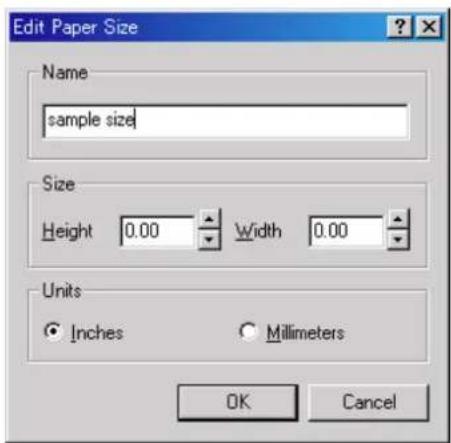
4
Click on the "OK" button. The "Custom Paper Sizes" dialog box will appear once again.
5
Click on the "OK" button.
2-3 Layout Tab

Pages per Sheet:
Allows you to print reduced images of multiple (1, 2, 4, 6, 9, 16 or 25) pages onto a single sheet of paper. This function is called "N-Up" printing (where "N" equals the number of image pages). Reduction of the images is calculated automatically so that all of the selected pages fit onto the single sheet of paper. The factory default setting is "1" (one page to each sheet of paper).
Example: With 2-Up printing
Prints reduced images of 2 full pages onto a single sheet of paper.
![graph LR A["Block 1"] --> B["Block 2"] B --> C["Final Rectangle with a dashed line and label 'f'"]](/content/2026/06/1186987/images/0941b556d94d02e53331be976403757fcbbc8c4dd846d615c5a1bb402aff6e28.jpg)
■Print Borders
Prints border lines between the different images when the "Pages per Sheet" function is selected.
Layout
Specifies the order of display of the images when the "Pages per Sheet" function is selected.
■Scaling (20 - 500%)
Allows enlargement or reduction of the image size.
Note
The image size will normally be enlarged or reduced according to the difference in the setting made in the "Page Size" and "Print Size" fields. If you then change the setting here, the actual magnification will be based on the original settings and the image may be even further enlarged or reduced.
■Print on Both Sides [Duplex]
Select this checkbox by clicking on it and putting a check mark in the box in order to perform Duplex (2-sided) printing. You can then select the desired image direction for each side of the paper.
[Flip on Short Edge]....Select this option when making duplex prints in order to have the image on the two sides of the paper printed in the opposite direction from each other, as though the paper was turned over along its shorter edge.
[Flip on Long Edge]....Select this option when making duplex prints in order to have the image on the two sides of the paper printed in the same direction as each other, as though the paper was turned over along its longer edge.
* Available only when the optional Duplex Unit is installed.
* Paper sizes, types and source of paper feed that are acceptable for duplex printing are as follows:
Paper sizes: Letter (8 1/2" x 11"), Legal (8 1/2" x 14"), Ledger (11" x 17"), Statement (5 1/2" x 8 1/2"), A3, A4, A5, Folio (210 mm x 330 mm), JIS B4 and JIS B5
Paper types: Plain, Recycled, Color, Preprinted, Rough, Prepunched, Bond, Custom 1 to 8
Booklet Mode
Select this checkbox by clicking on it when you want to print out 2-sided (duplex) open-face documents. By stacking and folding the finished documents, magazines, pamphlets and the like can be created easily. Select between a left-side and right-side binding by clicking on and thereby selecting the corresponding radio button.
2-4 Imaging Tab

■Print Quality
Selects the quality at which printing will be accomplished.
[High Quality]....Enables printing at the highest quality possible for the printer being used.
[Proof]....Prints at a resolution of 600 dpi.
[Draft] Saves on toner use. Use this setting when quality printing is not needed such as with test prints.
[Custom...]....Allows you to perform settings related to the quality of printing. Select "Custom" and then click on the "..." button to the right of that field in order to access the "Print Quality Settings" dialog box. For more detailed information on making settings in this dialog box, refer to "2-4-1 Print Quality Settings dialog box" on page 2-6.
■Grayscale Adjustment
Adjusts the brightness and contrast of the printed image. The factory default for both settings is "0".
[Brightness]....Adjusts the brightness of the image. When you want to print the image brighter than the actual original, drag the slider towards the plus "+" sign, or type in a positive number directly into the field at the right of the slider bar. Conversely, when you want to print the image darker than the actual original, drag the slider towards the minus "-" sign, or type in a negative number directly into that field.
[Contrast]....Adjusts the contrast of the image. When you want to print at a sharper image contrast, drag the slider towards the plus "+" sign, or type in the desired value (a positive number) directly into the field at the right of the slider bar. Conversely, when you want to print at a softer image contrast, drag the slider towards the minus "-" sign, or type in a negative number directly into that field.
TrueType Fonts
Selects the method of printing with fonts. The factory default setting is "Download TrueType fonts as outline".
[Download TrueType fonts as
outline] TrueType fonts will be downloaded to the printer as outline fonts for printing.
[Download TrueType fonts as
bitmap]......TrueType fonts will be downloaded to the printer as bitmap fonts for printing.
2-4-1 Print Quality Settings dialog box

■Resolution
Specifies the printing resolution (number of dots per inch) to be used when printing. Select between "1200 dpi Fast", "600 dpi" and "300 dpi". Depending upon the emulation protocol being used, the "1200 dpi Fast" setting may not be available.
■Kyocera Image Refinement
Turning this setting "On" allows the jaggies that appear around the edge of text and graphics to be evened out through the smoothing process.
■EcoPrint
Saves on toner use. use this setting when quality printing is not needed such as with test prints.
2-5 Prologue/Epilogue Tab
![Media | Layout | Imaging | Prologue/Epilogue | Output | About | Prologue/Epilogue Data Files: Disable Feature Insertion Point: None [Unassigned] Beginning of the Print Job End of the Print Job Start of the Page End of the Page Pages: Enter page number and/or page ranges separated by commas. For exam…](/content/2026/06/1186987/images/79a56819bd37cc51552563ba728b095d97c1a456794e88daaa85e9d331c4959c.jpg)
■Disable Feature
Make sure there is NO check mark in this checkbox if you want to use the printer's overlay function. The overlay function will allow you to have selected macro data printed out on top of your documents.
■Add
Click on this button when you want to add the data of the file that is selected in the displayed list.
■Remove
Click on this button when you want to delete the selected file from the list.
Edit
Click on this button when you want to edit the contents of the selected file.
Insertion point:
By REMOVING the check mark from the checkbox next to [Disable Feature], select a registered file from the list and click on the [Add] button, the following settings will become available.
■None [Unassigned]
Print without using registered files.
■Beginning of the Print Job
The data for the selected file will be transmitted once, and embedded at the beginning of the print job data.
■End of the Print Job
The data for the selected file will be transmitted once, and embedded at the end of the print job data.
■Start of the Page
In the case of a multiple-page print job, the data for the selected file will be transmitted (embedded) at the beginning of the data for each page.
■End of the Page
In the case of a multiple-page print job, the data for the selected file will be transmitted (embedded) at the end of the data for each page.
Pages
When [Start of the Page] or [End of the Page] are selected, designate the desired page number here.
2-6 Output Tab

■Output to:
Specifies the location of ejection of printed copies.
Selection is possible when the optional output devices are installed.
[Printer Default]....Copies will be ejected into the location that is selected in the "Stack select" setting of the printer as the place where the printed paper will be ejected.
[Inner Tray]....Copies will be ejected onto the Inner tray.
[Separator Tray]....Copies will be ejected into the optional Job Separator.
[Finishing Tray]....Copies will be ejected into the optional Internal Finisher.
[Main Tray]....Copies will be ejected into the lower tray of the optional Finisher.
[Sub Tray]....Copies will be ejected into the upper tray of the optional Finisher.
[Finisher Tray (Face-Down)]......Copies will be ejected face down into the optional Booklet Stitcher.
[Finisher Tray (Face-Up)] ...... Copies will be ejected face up into the optional Booklet Stitcher.
[Mailbox (Face-Down)]....Copies will be ejected face down into the optional Mailbox.
[Mailbox (Face-Up)]....Copies will be ejected face up into the optional Mailbox.
* If you designate a setting other than [Inner Tray] as the location of ejection, it is necessary to first perform the setting for that optional equipment under "Device Options" on page 2-15.
Copies
Specifies the number of prints to be made. Select between 1 and 999 copies by clicking on the arrows at the right of the field or by typing the desired number directly into the field. The factory default setting is "1".
Collate
When you are printing more than one copy of one or more pages, it is possible to sort the printed copy sets.
* When you want to make multiple copy sets, put a check mark in checkbox next to [RAM Disk] under the "Device Settings" Tab and set the memory size for the RAM disk. (Be sure to enter the same setting as that made in the printer.)
If, however, the optional hard disk is installed, put a check mark in checkbox next to [Hard Disk].
* If you select to turn on the "Staple" setting (see page 2-9), it is necessary to select "Collate" here.
Example: If the "Collate" option is selected, it is possible to print out 2 sets of the same copies.

■Staple
Stapling is possible if the optional finisher is installed.
* Stapling is only available with 20 ppm copiers.
* The following settings are required before stapling is possible:
(1) "Device Options" setting in the "Device Settings" Tab
- Select [RAM Disk] or [Hard Disk].
- Select [Internal Finisher], [Finisher] or [Booklet Stitcher].
(2) "Output" Tab
- When the Internal Finisher is installed, select [Finishing Tray] as the "Output to" setting.
- When the Finisher is installed, select [Main Tray] as the "Output to" setting.
- When the Booklet Stitcher is installed, select [Finisher Tray (Face-Down)] as the "Output to" setting.
- Put a check mark in the checkbox for [Collate].
- Put a check mark in the checkbox for [Staple] and select the desired type of stapling you want performed.
Upper Left Upper Right Booklet Booklet Stitch




Notes
- "Booklet" and "Booklet Stitch" cannot be selected when the Internal Finisher is installed. "Upper Left" or "Upper Right" should be selected according to the orientation of the paper set in the cassette. If either "Upper Left" or "Upper Right" is selected, a message will be displayed in order to verify the orientation of the paper.
- "Booklet Sticher" cannot be selected when the Finisher is installed.
- In order to staple in the lower left or lower right of the paper, select "Rotated" as the "Orientation" setting in the "Media" Tab.
Punch
When the optional Finisher is equipped with a Punch Unit, it is possible to have holes punched into the finished copies.
* In order to use the Hole Punch function, it is first necessary to perform the following settings.
(1) "Installable Options" setting in the "Device Settings" Tab
Select [Finisher] or [Booklet Stitcher] and select the type of Punch Unit. For more details on how to select the Punch Unit, refer to "Punch Unit" on page 2-15.
(2) In the "Output" Tab
- When the Finisher is installed, select [Main Tray] or [Sub Tray] as the "Output to" setting.
- When the Booklet Stitcher is installed, select [Finisher Tray (Face-Down)] as the "Output to" setting.
- Put a check mark in the checkbox for [Punch] and select the type of hole punching you want performed.
Mailbox
When the optional Mailbox Unit is installed, the copies can be ejected into the specified Mailbox Tray.
* In order to use the Mailbox Unit, it is first necessary to perform the following settings.
(1) "Installable Options" setting in the "Device Settings" Tab Select [Finisher] and then [Mailbox].
(2) In the "Output" Tab
- Select [Mailbox (Face-Down)] or [Finisher Tray (Face-Up)] as the "Output to" setting.
- Put a check mark in the checkbox for [Mailbox] and select the desired tray.
Note
The Hole Punch and Staple functions cannot be used when the copies are to be ejected into the Mailbox.
■Job Settings...
Clicking on the [Job Settings...] button opens up the [Job Settings] dialog box from which you can print out using the e-MPS (Job Storage) function. For details, see "2-6-1 Printing using the e-MPS function" on page 2-10.
2-6-1 Printing with the e-MPS (Job Storage) function
The e-MPS function is a new feature that combines the functions of job storing, virtual mailboxes and printing from barcodes. With it, you can make multiple copies by sending the print data from your PC once. The data is stored on the printer's hard disk and used to make subsequent copies. Storing the print data on the hard disk speeds up printing, minimizes spooling from the PC and lessens network load and enables the use of Quick Copy and other functions. For example, with Quick Copy you can make additional copies using data on the hard disk without requiring PC drive.
* The optional hard disk must be installed in order to use the e-MPS (Job Storage) function.
1
Click in the [Job Storage (e-MPS)] checkbox in the [Job Settings] dialog box.

2
Place a check in the checkboxes of functions you want to use.
Temporary .... Document data is stored temporarily on the hard disk of the printer. This can increase the speed of printing for those jobs which involve multiple copy sets. Be aware that the document data will be erased if the printer is turned off.
Permanent .... Document data is permanently stored on the hard disk of the printer. If you designate a job name and user name for a print job under the "Custom" setting, it will be easier to find and select that particular job in the Job list. Document data will not be erased even if the printer is turned off.
Virtual Mail Box
(VMB) ...... Document data is stored in a virtual mailbox within the hard disk of the printer and can be printed out whenever necessary using the operation panel. Up to 255 virtual mailboxes can be created. Document data will not be erased even if the printer is turned off.
Quick Copy ...... This mode stores documents on the printer's hard disk so that you can make additional copies from the printer operation panel without going through the PC.
Proof and Hold ..... This mode prints out only one copy of a multiple-copy print job so that you can check the content and quality of the printout first. Then, if there are no problems, you can print out the remaining copies from the printer operation panel.
Private Print ...... This mode requires a password to print data. This helps maintain confidentiality with shared printers. In this mode, the password is input and printing is done from the printer operation panel.
Job Storage .... This mode stores documents on the printer's hard disk so that you can print out copies whenever needed. The document is retained on the hard disk even when power to the printer is turned OFF. Printing is done from the printer operation panel after inputting a password. This mode is convenient for often used formats.
3
If you selected [Private Print] or [Job Storage], input a password in the [Access Code] field. This password can be any 4-digit number from 0000 to 9999. You will need to input this password from the printer operation panel in order to print out. Even if you selected "Job Storage" however, there are times when it may not be absolutely necessary to enter the password.

4
Select [Application Defined] or [Custom] under [Job Name]. If you selected [Custom], input a user name. This name will be displayed on the touch panel when printing from the printer operation panel.
5
Click on the [OK] button. Printing using the selected function will now be possible.
■How to print using the Virtual Mailbox function
Documents can be stored in virtual mailboxes on the printer's hard disk and printed out from the printer's operation panel whenever needed. Up to 255 mailboxes can be created and used. The documents are retained in the mailboxes even when power to the printer is turned OFF. To use the Virtual Mailbox function, you must make settings as follows.
Virtual Mailbox setting
1
Open the [Hard Disk Settings] dialog box in the [Device Settings] Tab.
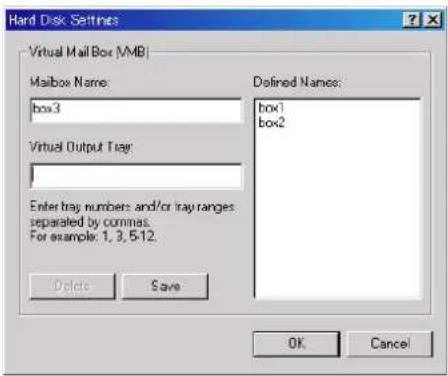
2
Type a name in the [Mailbox Name] field and input a number from 1 to 255 in the [Virtual Output Tray] field. Then, clicking on the [Save] button adds the mailbox to the [Defined Names] list. To delete a mailbox, select it from the [Defined Names] list and click on the [Delete] button.
3
Click on the [OK] button.
4
Selecting a virtual mailbox
Place a check in the [Job Storage (e-MPS)] checkbox in the [Job Settings] dialog box and select [Virtual Mail Box (VMB)].
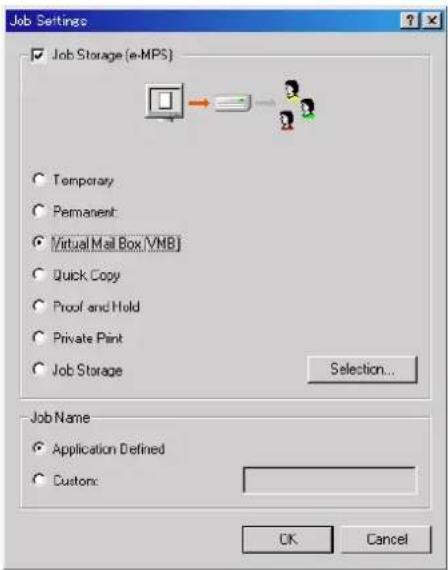
5
Click on the [Selection] button. The [Virtual Mailbox Selection] dialog box will appear.
6
Select a mailbox from [Defined Names] list and click on the [OK] button.
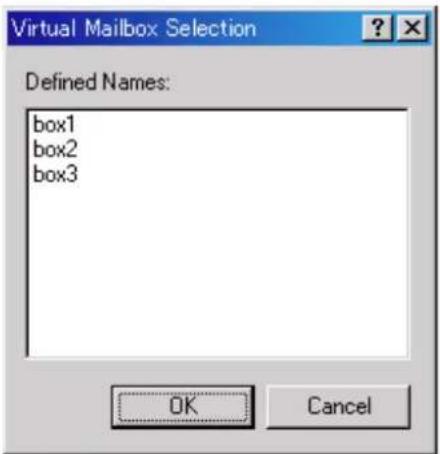
7
Select [Application Defined] or [Custom] under [Job Name]. If you selected [Custom], input a user name.
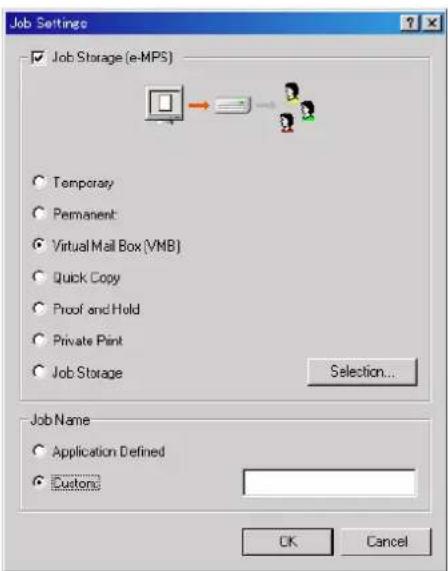
8
Click on the [OK] button. Printing using the virtual mailbox function will now be possible.
■How to perform barcode printing
* The optional Barcode Reader must be installed in order to perform barcode printing.
1
Click in the [Job Storage (e-MPS)] checkbox in the [Job Settings] dialog box and select [Permanent]. If you select [Permanent], the [Options...] button will appear. Click on this button when you want to access the [Job Storage Options] dialog box.

2
Put a check mark in the checkbox for [Barcode] and make detailed settings in regards to printing using barcodes. When you are finished with making all settings, click on the [OK] button.
■Print on first page only
Prints a barcode on the first page of the document.
■Print on all pages
Prints a barcode on all pages of the documents.
■Print Barcode ID
To print a barcode ID, put a check mark in this checkbox.
■Position
Selects the position to print a barcode.
Printing position: Lower Right, Upper Right, Lower Left and Upper Left
■Orientation
Selects the orientation to print a barcode.
Printing orientation: Vertical and Horizontal
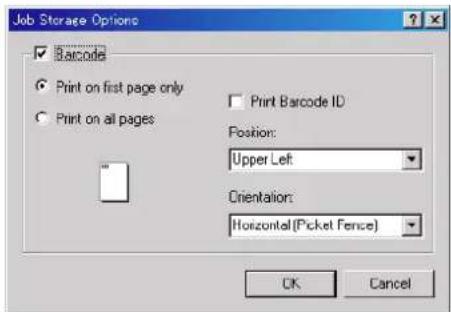
3
Select [Application Defined] or [Custom] under [Job Name]. If you selected [Custom], input a user name.

4
Click on the [OK] button. Barcode printing will now be possible.
2-7 Device Settings Tab

■Device Options
If any optional devices are installed, put a check mark in the checkbox for that device and perform the corresponding settings here. Once you have completed the setting for each option, the functions of that option will be available for use.
●Optional Paper Feeder (Trays 3 and 4)
Perform this setting according to the installed Option Cassette.
●Large Capacity Feeder
Perform this setting when the optional Large Capacity Feeder is installed.
●Duplex Unit
Perform this setting when the optional Duplex Unit is installed.
●Internal Finisher
Perform this setting when the optional Finisher is installed.
●Job Separator
Perform this setting when the optional Job Separator is installed.
Finisher
Perform this setting when the optional Finisher is installed.
● Booklet Stitcher
Perform this setting when the optional Booklet Stitcher is installed.
- Mailbox
Perform this setting when the optional Mailbox Unit is installed. In order to perform Mailbox-related settings, it is first necessary to complete the settings for the Finisher.
● Punch Unit
Perform this setting when the Finisher is equipped with a Punch Unit.
Put a check mark in the checkbox for [Finisher] or [Booklet Stitcher] and double-click on the [Booklet Stitcher] name. The [Punch Unit Setting] dialog box will be displayed. Select the Punch Unit that is installed.
● Hard Disk
Perform this setting when the optional Hard Disk is installed.
In order to register a Virtual Mailbox, put a check mark in the checkbox next to [Hard Disk] and then double-click on the [Optional Hard Disk] name to access the [Hard Disk Settings] dialog box.
●RAM Disk
Perform this setting when you want to create a RAM disk. Refer to “Chapter 1, 4-8 RAM Disk settings” on page 4-25 for more detailed information on creating a RAM disk.
* In order to create a RAM disk, it is necessary to increase the memory capacity of your printer. After increasing memory, perform the setting here according to the "Memory" setting below.
■Memory
Specifies the amount of memory installed in the printer. If you make a mistake in the setting here, it is possible that printing will not be accomplished properly.
■RAM Disk
Specifies the amount of memory to be used for the RAM disk. This setting will only be available when you have selected "RAM Disk" in the "Device Options" list.
■User...
Click on this button when you want to register a user and/or department name. The [User Settings] dialog box will appear. It is also possible to select the "GDI compatible mode" from that dialog box. Refer to "2-7-1 User Settings" on page 2-17 for more detailed information.
■Administrator...
Click on this button when Copy Management is Turned ON in the printer. The [Administrator Settings] dialog box will appear. Refer to "2-7-2 Administrator Settings" on page 2-17 for more detailed information.
2-7-1 User Settings

■Identification
Register the desired user and/or department name.
■Page Description Language
The emulation modes that can be used with this product will be displayed in the dropdown list. If multiple modes are displayed, it is possible to select the desired mode.
■GDI compatible mode
Select this mode in order to accomplish printing that is more accurate to the data shown on your monitor. Select this mode if text corruption, etc., does happen to occur or if the image is in any other way not printed correctly.
2-7-2 Administrator Settings
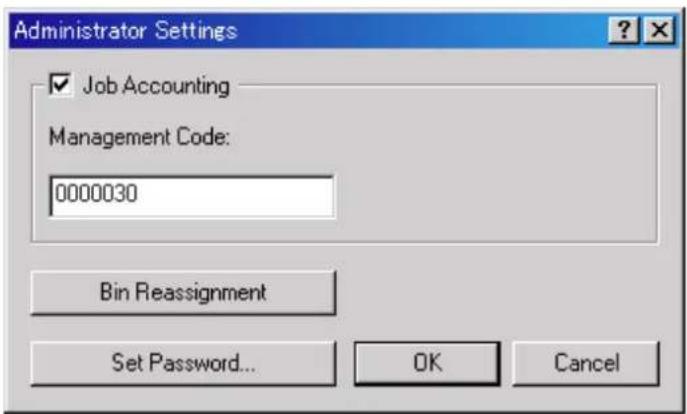
■Job Accounting
This setting is used when Copy Management is turned ON in the printer. If the Management code that you enter in the "Management Code" field here and that registered in the printer itself do not match, printing will not be possible.
* If Copy Management is turned ON and this setting does not match the setting made in the printer itself, it will not be possible to make test prints. Thus, when you install the printer driver, you will need to check the Copy Management settings and make a test print AFTER the installation procedure is complete.
* When Copy Management is turned ON, even if you send a print command with a DOS "COPY" command, printing will not be possible if you do not use a printer driver.
■Set Password
Click on this button if you want to add a password to this setting. The [Set Password] dialog box will appear.
Note
If, for any reason, you lose reference to this password, you will not be able to change the Management Code. Therefore, you should exercise DUE CAUTION in the management of the password that you register here.
3. Printer Driver for Macintosh
When using unit as a network printer, it is possible to print PostScript files from a Macintosh Computer. This section contains explanations regarding the procedure to install the Macintosh PPD files and select this printer, as well as explanation about the computer environment required to run the installed files.
Attention (Macintosh)
* When using the Printer driver, change the emulation setting KPDL or KPDL (AUTO).
3-1 Required computer environment
OS: Between system 7.61 and 9.1
CPU: Minimum Power PC
RAM: Minimum 24 MB
Free hard disk space: Minimum 10 MB
CD-ROM drive: 1 drive
3-2 Installing the PPD files
This section explains the screen that appears when the CD-ROM supplied with the Printing System (N) is inserted into the CD-ROM drive. * All the screens to use for explanation are samples, and a screen may be different by a version of utilized software to some extent.

A: [Install Drivers]
Click to start installation of the printer driver. Follow the instructions displayed on the screen to install the printer driver.
B: [Documentation]
Click to display the manual (PDF file) supplied with the printer driver. To open this PDF manual, Adobe Acrobat Reader (developed to view PDF files) is required, so make sure that Adobe Acrobat Reader is installed before opening the manual.
[Install Acrobat Reader] ...... Installs Adobe Acrobat Reader.
[Printer Manuals].... Displays the manuals (PDF) of the printer and printer driver. They explain the installation procedure of the printer driver and operation procedure of the printer.
[Readme]....This file contains information which is not explained in the manuals. Please read this file before using the printer driver.
1
Start up your Macintosh computer.
Insert the CD-ROM disk that is included with this product into a CD-ROM drive.
* If there is starting other program, please be finished.
* Screens are things of Mac OS 8.1.
2
Double-Click on the icon for the CD-ROM disk.
"A copy machine product name of use" dialog box will appear.

3
Double-Click on "the copy machine product name of use" Installer icon. The window shown on the right will appear. Click on "Continue".

4
A dialog box will appear.
Click on [Install].

5
A dialog box will appear.
Click on [Yes].

Your Macintosh may need to be restarted after installation is complete. Do you wish to continue?

6
Installation was finished.
Click on [Restart], and start again.

Installation was successful. In order to take advantage of the new software, your Macintosh needs to be restarted.
Restart
7
Access the Apple Menu at the far left of the Menu of Bar and select Chooser. The Chooser will appear.
Click once on the LaserWriter 8 icon.

8
Select the name of this printer in the [Select a PostScript Printer] list and then click on the [Create] button.
* The name of this printer can be verified by printing out a Status Page from the printer's operation panel.

9
A dialog box for selecting the appropriate options will appear.
Select the option that are currently installed in or on your printer.

10
Once you're finished with the settings, click on [OK], the chooser will be displayed again.

11
Make sure that the name of this printer is selected (highlighted) in the [Select a PostScript Printer] list and close the Chooser.
Once installation is complete, a "Readme" file will appear on the desktop. Be sure to read this file as it contains important information in regard to this product.
3-3 General Dialog Box
* The actual layout of each dialog box and the available option and settings may differ somewhat depending upon the application and version of LaserWriter that you are using.

Printer:
Selects the desktop printer to be used for printing your document.
Copies:
Type the desired number of prints to be made (or the number of files to be saved to disk) directly into this field. Select a number between 1 – 999.
■Collated:
When you want to make multiple sets of copies of your prints, it is possible to have them printed out in individual and separate sets. * The RAM disk setting must be turned ON.
Pages:
To print all of the pages in a file, select the All radio button. To print only certain pages, type in from what page (in the From filed) to what page (in the To field) you want to print.
Paper Source:
You can select the source of paper feed according to the tray or the desired type of paper. Selection is possible from among the following items. If you select "Auto Select", the printer will automatically select the tray that contains the most appropriate paper for the job. The factory default setting is "Auto Select".
* It is necessary to perform the settings under "PagePolicy" on page 3-6 BEFORE making settings here. If you want to select the source of paper feed according to the type of paper, select "Auto Size Select" there. If you want to select the source of paper feed according to the tray, make sure that "Cassette Base" is selected there. In addition, if you select "Auto Select" here, be sure that the "PagePolicy" setting is set to "Auto Size Select" or there is a possibility that printing will be accomplished onto paper that is difference the expected.
* Tray 3 and Tray 4 are available only when the Option Cassette is installed.
3-4 Layout Dialog Box
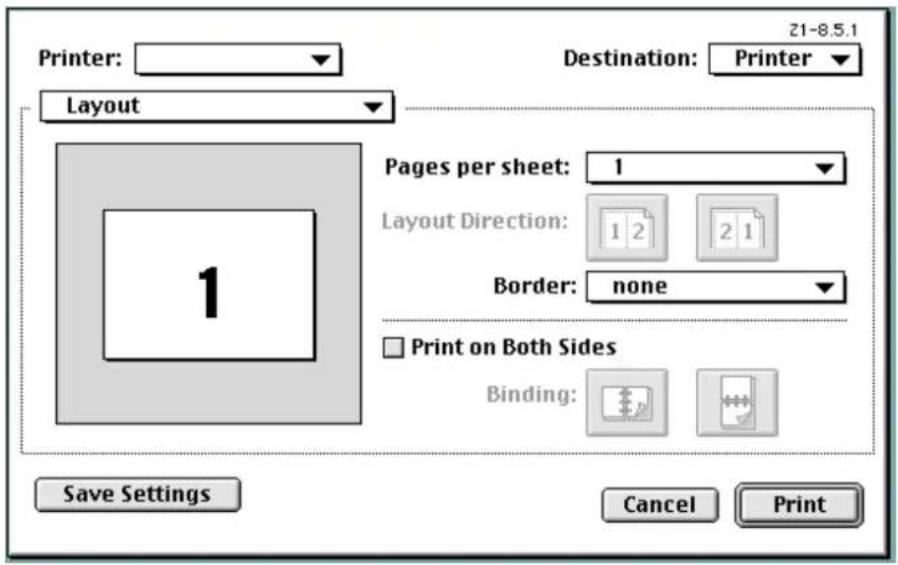
Pages per sheet:
Sets the number of pages to be printed on each sheet of paper.
■Layout Direction:
A button of either is clicked, and a layout direction is decided. If right button is selected, the pages are laid out from right to left.
Border:
Sets the type of line to appear around the page.
■Print on Both sides
When this checkbox is selected, the printer will print on both sides of the paper.
[Binding].....Enable selection of the desired the binding orientation. If left button is selected, the binding orientation is along the side of the paper.
* Available only when the optional Duplex Unit is installed.
3-5 Printer Specific Options
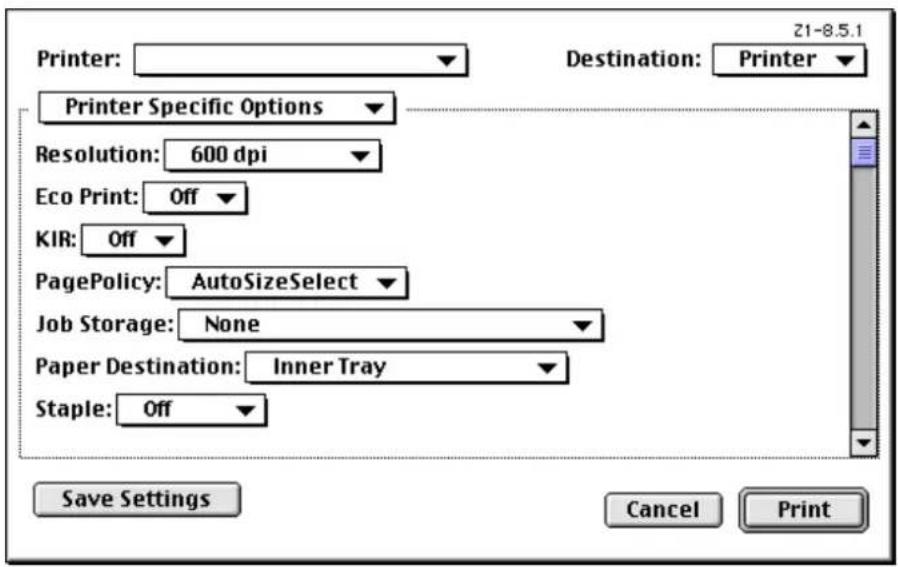
■Resolution:
Specifies the printing resolution (number of dots per inch) to be used when printing. Select between "600 dpi" and "300 dpi". The factory default setting is "600 dpi".
■Eco Print:
Turning this setting "On" allows you to save on toner use. The factory default setting is "Off".
KIR:
Turning this setting "On" allows the jaggies that appear around the edge of text and graphics to be evened out through the smoothing process. The factory default setting is "Off".
■PagePolicy:
Perform this setting in conjunction with the settings to be made under "Paper source" on page 3-4.
[Auto Size Select]....Select this setting when you want to select the source of paper feed according to the type of paper (you are going to select "Auto Select" under "Paper source").
[Cassette Base]....Select this setting when you want to select the source of paper feed according to the tray under "Paper source".
* If you are going to select "Auto Select" under "Paper source", be sure to select "Auto Size Select" here or there is a possibility that printing will be accomplished onto paper that is difference the expected.
■Job Storage:
Sets the printer driver type for code jobs under the Job Storage function.
Paper Destination:
Specifies the location of ejection. Depending upon which option you have installed, you can select between the Job Separator and the Finisher.
[Inner Tray].....Copies will be ejected onto the Inner tray.
[Job Separator]....Copies will be ejected into the optional Job Separator.
[Finisher]....Copies will be ejected into the optional Finisher.
[Mail Box]....Copies will be ejected into the optional Mail Box.
* In order to set the location of ejection for the Job Separator or Finisher, it is necessary to first perform the setting for that optional equipment under "Installable options" in step 9 on page 3-3.
■Staple:
It is possible to staple your copy sets if the optional Finisher is installed.
* The following settings are required before stapling is possible:
(1) Change the "Installable Options" setting in step 9 on page 3-3 to the following.
Select "Finisher" as the "Finisher" setting.
(2) "Printer Specific Options" setting on page 3-6.
Select "Finisher" as the "Paper Destination" setting.
3-6 Page Setup dialog Dialog Box
Settings for paper size, page layout, magnification ratio and print direction (orientation) are performed in the Page Setup dialog box. To display the Page Setup dialog box, select Page Setup... in the File menu of the corresponding application.
* The actual layout of each dialog box and the available options and settings may differ somewhat depending upon the application and the version of LaserWriter that you are using.
* For the user using Mac OS 7.6.1, we strongly recommend that you update the LaserWriter8.3.2 to Laser Writer 8.5.1.
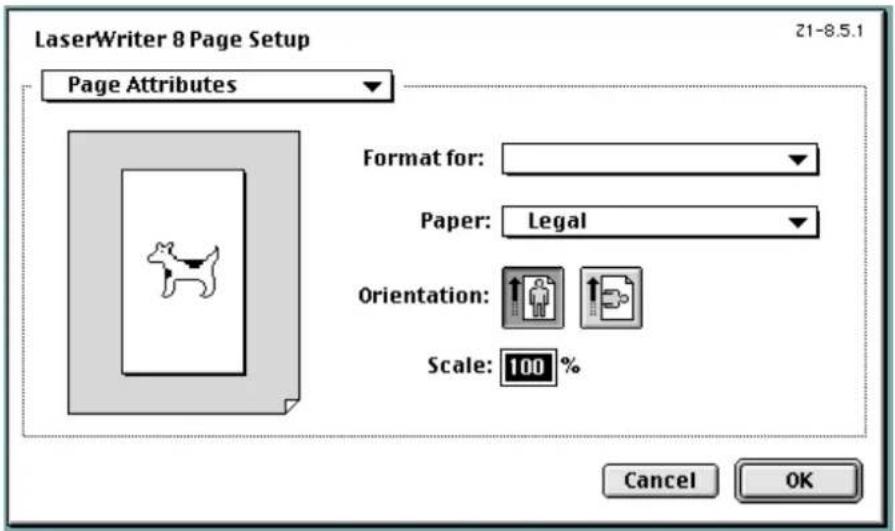
■Format for:
Use this pop-up menu to select the Printer that you want to use.
Paper:
Select in this pop-up list the desired paper size.
■Orientation:
Enable selection of the desired print direction.
Scale:
Type the desired magnification ratio directly into this field. Select a ratio between 25% – 400%.
3-7 PostScript Dialog Box
The actual layout of each dialog box and the available options and settings may differ somewhat depending upon the application and the version of LaserWriter that you are using.
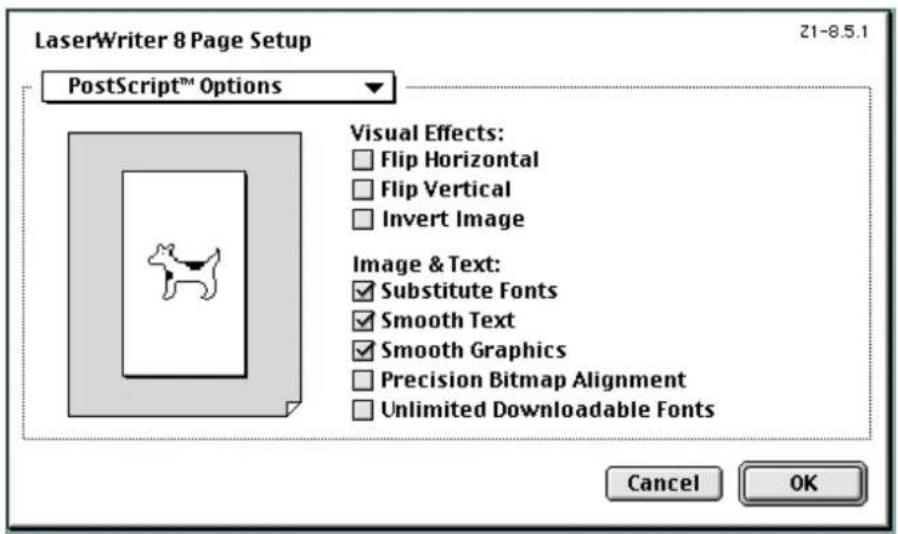
■Visual Effects:
Visual effects such as horizontal and vertical flip and image inverting can be selected here. Place a check in the check box next to the desired visual effects to select that effect.
■Image & Text:
Place a check in the check box next to the desired printing options to select that option.
3-8 Custom paper sizes Dialog Box
When a paper sizes is selected in "Custom paper sizes" Dialog Box, the paper size can be set as desired.
* The actual layout of each dialog box and the available options and settings may differ somewhat depending upon the application and the version of LaserWriter that you are using.

■New button
To create a new custom page size, click this button.
* The acceptable paper width is between 9.81 – 29.7 cm (metric) or 3.86" – 11.69" (inches). The acceptable paper length is between 14.82 – 43.18 cm (metric) or 5.83" – 17" (inches).
Edit button
To edit the selected custom page size, click this button.
Delete button
To delete the selected custom page size, click this button.
- OCÉ OP25/35/40
- PRINTING SYSTEM FUNCTIONS
- PRINTING SYSTEM (N)
- OPERATION GUIDE
- INTRODUCTION
- CHAPTER 1 PRINTER-RELATED OPERATION
- CHAPTER 2 SOFTWARE-RELATED OPERATION
- ABOUT THIS OPERATION GUIDE
- TRADEMARK INFORMATION
- LEGAL RESTRICTION ON COPYING
- IBM PROGRAM LICENSE AGREEMENT
- LICENSE
- LIMITED WARRANTY
- LIMITATION OF REMEDIES
- GENERAL
- AGFA JAPAN LICENSE AGREEMENT
- OPERATION KEYS
- PROCEDURE FOR MAKING SETTINGS
- 1
- 2
- 3
- 4
- 5
- MENU FLOW CHART
- SELECTING THE PRINTER SETTINGS
- STATUS PAGE PRINT OUT
- ACCESSING THE STATUS PAGE PRINT OUT SCREEN
- ① STATUS PAGE PRINT OUT
- INTERFACE SETTINGS
- ABOUT THE INTERFACE SETTINGS
- ACCESSING THE INTERFACE SETTINGS SCREEN
- ① SELECTING THE INTERFACE SETTING
- SELECTING THE PARALLEL INTERFACE SETTINGS
- ② PARALLEL TX/RX MODE
- SELECTING THE SERIAL INTERFACE SETTINGS
- SELECTING THE NETWORK INTERFACE
- ⑨ NETWARE ON/OFF
- ⑩ NETWARE FRAME TYPE
- ⑪ TCP/IP ON/OFF
- ⑫ DHCP ON/OFF
- ⑬ IP ADDRESS
- SUBNET MASK
- GATEWAY ADDRESS
- ⑯ ETHER TALK ON/OFF
- ⑰ NETWORK CARD STATUS PAGE PRINT OUT
- EMULATION PROTOCOL SETTINGS
- ABOUT THE EMULATION PROTOCOL SETTINGS
- ACCESSING THE EMULATION SETTING SCREEN
- ① SELECTING THE EMULATION
- ② CODE SET
- ③ KPDL ERROR REPORT PRINT OUT ON/OFF
- ④ AUTO EMULATION SWITCHING
- ⑤ KC-GL PAGE
- ⑥ KC-GL PEN
- FONT SELECTION/SETTINGS
- ABOUT THE FONT SELECTION/SETTINGS
- ACCESSING THE FONT SETTING SCREEN
- ● INTERNAL FONT SETTING
- ① SELECTING THE FONT
- ② COURIER
- ③ LETTER GOTHIC
- ④ FONT LIST PRINT OUT
- OPTIONAL FONT SETTING
- ① SELECTING A FONT
- PAGE SETTINGS
- ABOUT THE PAGE SETTINGS
- ACCESSING THE PAGE SETTINGS SCREEN
- ① NUMBER OF COPIES
- ② PRINTING ORIENTATION
- ③ PRINTING REDUCTION
- ④ PAGE PROTECT MODE
- ⑤ LINEFEED (LF) ACTION
- ⑥ CARRIAGE-RETURN (CR) ACTION
- 7 WIDE A4 ON/OFF
- PRINTING QUALITY SETTINGS
- ABOUT THE PRINTING QUALITY SETTINGS
- ● ACCESSING THE PRINTING QUALITY SETTINGS SCREEN
- PAPER SETTINGS
- ABOUT THE PAPER SETTINGS
- ACCESSING THE PAPER SETTINGS SCREEN
- RAM DISK SETTINGS
- RAM DISK
- IMPORTANT
- ABOUT THE RAM DISK SETTINGS
- ACCESSING THE RAM DISK SETTINGS SCREEN
- ① RAM DISK ON/OFF
- ② WRITING DATA
- ③ PARTITION LIST PRINT OUT
- ④ RAM DISK SIZE
- ⑤ READING DATA
- ⑥ READING PROGRAM DATA
- ⑦ DELETING DATA
- ⑧ DELETING FONT DATA
- ⑨ DELETING PROGRAM DATA
- ⑩ DELETING MACRO DATA
- HARD DISK SETTINGS
- ABOUT THE HARD DISK SETTINGS
- ACCESSING THE HARD DISK SETTINGS SCREEN
- ① WRITING DATA
- ② PARTITION LIST PRINT OUT
- ③ FORMAT HARD DISK
- ④ READING DATA
- ⑤ READING PROGRAM DATA
- ⑥ DELETING DATA
- ⑦ DELETING FONT DATA
- ⑧ DELETING PROGRAM DATA
- ⑨ DELETING MACRO DATA
- MEMORY CARD SETTINGS
- MEMORY CARD
- INSERTING THE MEMORY CARD
- ABOUT THE MEMORY CARD SETTINGS
- ACCESSING THE MEMORY CARD SETTINGS SCREEN
- ③ FORMAT MEMORY CARD
- ⑤ READING FONT DATA
- ⑦ READING MACRO DATA
- ⑧ DELETING DATA
- ⑨ DELETING FONT DATA
- ⑩ DELETING PROGRAM DATA
- ⑪ DELETING MACRO DATA
- ROM (OPTION) SETTINGS
- ABOUT THE ROM (OPTION) SETTINGS
- ACCESSING THE ROM (OPTION) SETTINGS SCREEN
- ① PARTITION LIST PRINT OUT
- ② READING DATA
- ADDITIONAL SETTINGS
- ABOUT THE ADDITIONAL SETTINGS
- ACCESSING THE ADDITIONAL SETTINGS SCREEN
- ① FORM FEED TIME OUT
- ② RESOURCE PROTECT MODE
- ③ AUTO CONTINUE ON/OFF AND RECOVERY TIME
- ④ SERVICE MAINTENANCE MENU
- SERVICE REPRESENTATIVE STATUS PAGE PRINT OUT
- ⑤ PRINTER RESET
- ⑥ DUMP RECEIVED DATA
- E-MPS SETTINGS
- ABOUT THE E-MPS SETTINGS
- ACCESSING THE E-MPS SETTINGS SCREEN
- ① QUICK COPY PRINT OUT
- 6
- ② PRIVATE PRINT/STORED JOB PRINT OUT
- ③ VIRTUAL MAILBOX DATA PRINT OUT
- ④ VIRTUAL MAILBOX DATA LIST PRINT OUT
- ⑤ CODE JOB LIST PRINT OUT
- ⑥ E-MPS CONFIGURATIONS
- MAXIMUM NUMBER OF QUICK COPY JOBS
- TEMPORARY PROTECTION FOR CODE JOB SIZE/PERMANENT PROTECTION FOR CODE JOB SIZE/VMB SIZE
- OPTIONS
- ADDITIONAL MEMORY
- HARD DISK
- BARCODE READER
- PROCEDURE FOR INSTALLING AND PRINTING WITH A PRINTER DRIVER
- INCLUDED PRINTER DRIVERS
- SYSTEM CONDITIONS
- SCREEN THAT APPEARS WHEN THE CD-ROM IS INSERTED
- INSTALL DRIVERS
- DRIVER TOOLS
- [NETWORK]
- DOCUMENTATION
- INSTALLING THE PRINTER DRIVER (WINDOWS)
- 7
- 8
- 9
- 10
- 11
- UNINSTALLING THE PRINTER DRIVER
- PRINTING
- ● MAKING THE PRINTER DRIVER SETTINGS IN WINDOWS
- ● PRINTING FROM THE APPLICATION
- WINDOWS KX DRIVER
- MAKING PROPERTY SETTINGS
- MEDIA TAB
- PAPER SIZE
- CUSTOM
- PRINT SIZE
- ORIENTATION
- SOURCE
- MEDIA TYPE
- 2-2-1 CUSTOM PAPER SIZE DIALOG BOX
- SETTING A CUSTOM PAPER SIZE
- LAYOUT TAB
- PAGES PER SHEET
- PRINT BORDERS
- LAYOUT
- SCALING (20 - 500%)
- NOTE
- PRINT ON BOTH SIDES [DUPLEX]
- BOOKLET MODE
- IMAGING TAB
- PRINT QUALITY
- GRAYSCALE ADJUSTMENT
- TRUETYPE FONTS
- 2-4-1 PRINT QUALITY SETTINGS DIALOG BOX
- RESOLUTION
- KYOCERA IMAGE REFINEMENT
- ECOPRINT
- PROLOGUE/EPILOGUE TAB
- DISABLE FEATURE
- ADD
- REMOVE
- EDIT
- NONE [UNASSIGNED]
- BEGINNING OF THE PRINT JOB
- END OF THE PRINT JOB
- START OF THE PAGE
- END OF THE PAGE
- PAGES
- OUTPUT TAB
- OUTPUT TO
- COPIES
- COLLATE
- STAPLE
- NOTES
- PUNCH
- MAILBOX
- JOB SETTINGS
- 2-6-1 PRINTING WITH THE E-MPS (JOB STORAGE) FUNCTION
- HOW TO PRINT USING THE VIRTUAL MAILBOX FUNCTION
- VIRTUAL MAILBOX SETTING
- SELECTING A VIRTUAL MAILBOX
- HOW TO PERFORM BARCODE PRINTING
- DEVICE SETTINGS TAB
- DEVICE OPTIONS
- ●OPTIONAL PAPER FEEDER (TRAYS 3 AND 4)
- ●LARGE CAPACITY FEEDER
- ●DUPLEX UNIT
- ●INTERNAL FINISHER
- ●JOB SEPARATOR
- FINISHER
- ● BOOKLET STITCHER
- ● PUNCH UNIT
- ● HARD DISK
- ●RAM DISK
- MEMORY
- USER
- ADMINISTRATOR
- 2-7-1 USER SETTINGS
- IDENTIFICATION
- PAGE DESCRIPTION LANGUAGE
- GDI COMPATIBLE MODE
- 2-7-2 ADMINISTRATOR SETTINGS
- JOB ACCOUNTING
- SET PASSWORD
- PRINTER DRIVER FOR MACINTOSH
- REQUIRED COMPUTER ENVIRONMENT
- INSTALLING THE PPD FILES
- A: [INSTALL DRIVERS]
- B: [DOCUMENTATION]
- GENERAL DIALOG BOX
- PRINTER
- COLLATED
- PAPER SOURCE
- LAYOUT DIALOG BOX
- LAYOUT DIRECTION
- BORDER
- PRINT ON BOTH SIDES
- PRINTER SPECIFIC OPTIONS
- ECO PRINT
- KIR
- PAGEPOLICY
- JOB STORAGE
- PAPER DESTINATION
- PAGE SETUP DIALOG DIALOG BOX
- FORMAT FOR
- PAPER
- SCALE
- POSTSCRIPT DIALOG BOX
- VISUAL EFFECTS
- IMAGE & TEXT
- CUSTOM PAPER SIZES DIALOG BOX
- NEW BUTTON
- EDIT BUTTON
- DELETE BUTTON
Brand : Océ
Model : OP25
Category : Printer