IP 7902G - IP Telephony CISCO - Free user manual and instructions
Find the device manual for free IP 7902G CISCO in PDF.


User questions about IP 7902G CISCO
0 question about this device. Answer the ones you know or ask your own.
Ask a new question about this device
Download the instructions for your IP Telephony in PDF format for free! Find your manual IP 7902G - CISCO and take your electronic device back in hand. On this page are published all the documents necessary for the use of your device. IP 7902G by CISCO.
USER MANUAL IP 7902G CISCO
natural_image
Group of four people in a meeting or office setting, one person using a laptop and another reviewing documents (no visible text or symbols)Cisco IP Phone 7902G for Cisco CallManager
License and Warranty
Corporate Headquarters
Cisco Systems, Inc.
170 West Tasman Drive
San Jose, CA 95134-1706
USA
http://www.cisco.com
Tel: 408 526-4000
800 553-NETS (6387)
Fax: 408 526-4100
Text Part Number: 78-16335-01

Getting Started 1
How to Use this Guide 1
Where to Find Additional Information 2
Safety and Performance Information 2
Connecting Your Phone 4
An Overview of Your Phone 6
Buttons and Hardware 6
Understanding Feature Availability 8
Going On-Hook and Off-Hook 8
Basic Call Handling 9
Placing a Call 9
Answering a Call 9
Ending a Call 9
Using Hold and Resume 10
Transferring a Connected Call 10
Making Conference Calls 11
Forwarding Your Calls to Another Number 12
Using Voice Messaging 13
Prioritizing Critical Calls 14
Customizing Phone Settings 15
Adjusting the Volume 15
Setting Up Speed Dial Buttons 16
Accessing Your User Options Web Pages 17
Logging In to the User Options Web Pages 17
Troubleshooting Your Phone 18
Cisco One-Year Limited Hardware Warranty Terms 19
These sections give you the basic information you need to start using your new Cisco IP Phone.
How to Use this Guide
This guide provides you with an overview of the features available on your phone. You can read it completely for a solid understanding of your phone's capabilities, or refer to the table below for pointers to commonly-used sections.
| If you want to... Then... | |
| Review important safety information | See the “Safety and Performance Information” section on page 2. |
| Use your phone after someone else has installed it for you | Start with the “An Overview of Your Phone” section on page 6. |
| Connect your phone to the network | See the “Connecting Your Phone” section on page 4. |
| Learn what the button lights mean See the “Buttons and Hardware” section on page 6. | |
| Make calls See the “Placing a Call” section on page 9. | |
| Put calls on hold See the “Using Hold and Resume” section on page 10. | |
| Transfer calls See the “Transferring a Connected Call” section on page 10. | |
| Make conference calls See the “Making Conference Calls” section on page 11. | |
| Change the ringer or call volume See the “Adjusting the Volume” section on page 15. | |
Where to Find Additional Information
You can access the most current Cisco documentation on the World Wide Web at this URL:
http://www.cisco.com/univercd/home/home.htm
You can access the Cisco website at this URL:
http://www.cisco.com
International Cisco websites can be accessed from this URL:
http://www.cisco.com/public/countries_languages.shtml
Safety and Performance Information
Installing and Using Your Phone
Read the following safety notices before installing or using your Cisco IP Phone:
| Warning | IMPORTANT SAFETY INSTRUCTIONSThis warning symbol means danger. You are in a situation that could cause bodily injury.Before you work on any equipment, be aware of the hazards involved with electrical circuitry and be familiar with standard practices for preventing accidents. Use the statement number provided at the end of each warning to locate its translation in the translated safety warnings that accompanied this device. |
| Warning | Read the installation instructions before you connect the system to its power source. |
| Warning | Ultimate disposal of this product should be handled according to all national laws and regulations. |
| Warning | Do not work on the system or connect or disconnect cables during periods of lightning activity. |

Warning
To avoid electric shock, do not connect safety extra low voltage (SELV) circuits to telephone network voltage (TNV) circuits. LAN ports contain SELV circuits, and WAN ports contain TNV circuits. Some LAN and WAN ports use RJ-45 connectors. Use caution when connecting cables.
Using an External Power Supply
The following warnings apply when you use the external power supply with the Cisco IP Phone:

Warning
This product relies on the building's installation for short-circuit (over current) protection. Ensure that a fuse or circuit breaker no larger than 120 VAC, 15A U.S. (240 VAC, 10A international) is used on the phase conductors (all current-carrying conductors).

Warning
The device is designed to work with TN power systems.

Warning
The plug-socket combination must be accessible at all times because it serves as the main disconnecting device.

Caution Use only a Cisco-approved power supply.
Connecting Your Phone
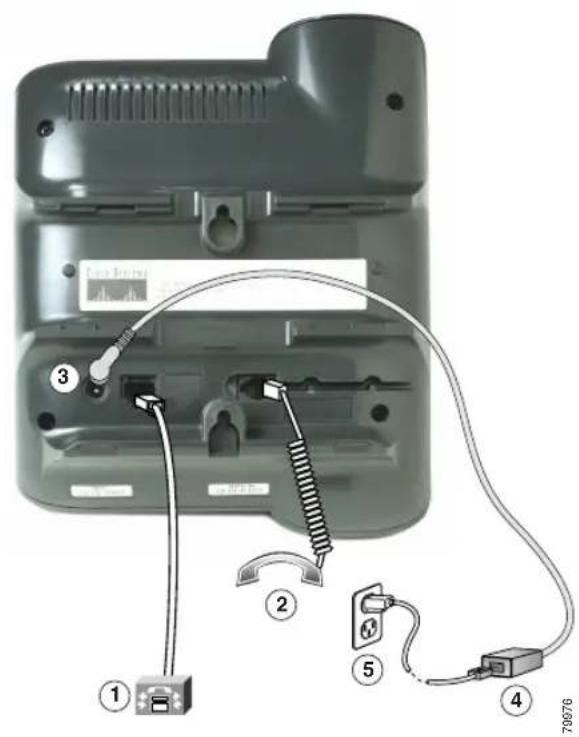
Your system administrator will likely connect your new Cisco IP Phone to the corporate IP telephony network. If that is not the case, refer to the graphic and table below to connect your phone.
text_image
Diagram of a device rear panel with labeled components including connectors and cable connections| 1 | Network (Ethernet) port (10 BASE T) | 2 | Handset port |
| 3 | DC adaptor port (DC48V) | 4 | Power supply with DC output connector (Optional. Required only if power is not supplied through an Ethernet connection.) |
| 5 | Power cable with wall AC plug.Provided if your phone uses external power |

Caution
If you plan to power your phone locally (instead of receiving power thorough the Ethernet connection), use only a Cisco 48 volt power supply designed to work with a Cisco I P P h o n e.
Adjusting the Handset Rest
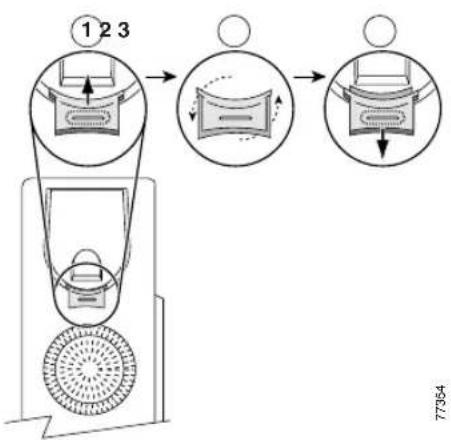
When you connect your phone, you might want to adjust the handset rest to ensure that the receiver will not slip out of the cradle. See the table below for instructions.
flowchart
graph TD
    A["Stage 1: Top Left"] --> B["Stage 2: Middle Right"]
    B --> C["Stage 3: Bottom Right"]
    style A fill:#f9f,stroke:#333
    style B fill:#ccf,stroke:#333
    style C fill:#cfc,stroke:#333
| 1 | Set the handset aside and pull the square plastic tab from the handset rest. |
| 2 | Rotate the tab 180 degrees. |
| 3 | Slide the tab back into the handset rest. An extension protrudes from the top of the rotated tab.Return the handset to the handset rest. |
Registering with TAPS
After your phone is connected to the network, your system administrator might ask you to auto-register your phone using TAPS (Tool for Auto-Registered Phones Support). TAPS might be used either for a new phone or to replace an existing phone.
To register with TAPS, pick up the handset, enter the TAPS extension provided by your system administrator, and follow the voice prompts. You might need to enter your entire extension, including the area code. After your phone displays a confirmation message, hang up. The phone will re-start.
An Overview of Your Phone
The Cisco IP Phone model 7902G is a basic telephone that provides the following features:
• Voice communication over a data network
• One phone line that can support up to two calls
• Familiar telephony features to handle calls easily
• Online control from your User Options web pages
Buttons and Hardware
text_image
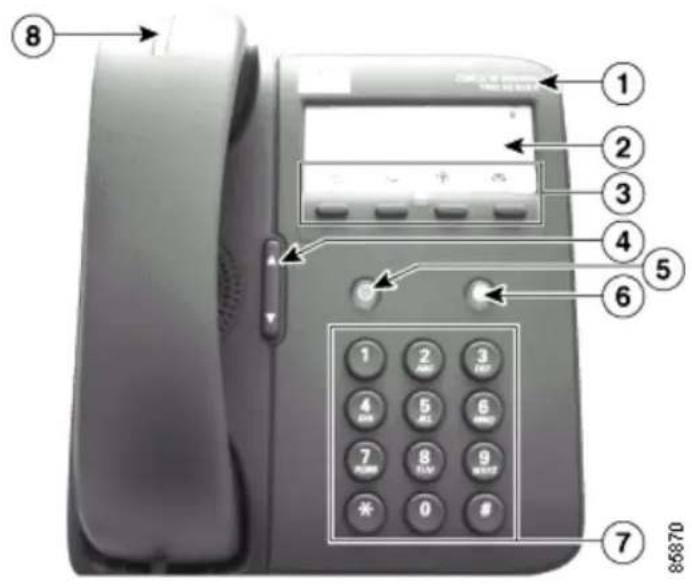
8 ① ② ③ ④ ⑤ ⑥ 1 2 3 4 5 6 7 8 9 * 0 # ⑦ 85870| 1 | Cisco IP Phone series type | Indicates the Cisco IP Phone model number |
| 2 | Label and plastic cover | Use the paper label, protected by a plastic cover, to indicate your phone number. You can also note your speed dial numbers on this label. |
| 3 | Feature buttonsRedial Dials the most recently dialed number. Transfer Transfers a call to another party.[DZZW]Conference Sets up a single call for 3 to 16 participants. Transfer Transfers a call to another party.[DZZW]Conference Sets up a single call for 3 to 16 participants. Messages Accesses voice messages left by callers. Messages Accesses voice messages left by callers. | |
| 4 | Volume button Increases or decreases volume for the handset. Also controls the ring volume (if on-hook).[A3BX] | |
| 5 | Hold button Places an active call on hold, for example, to place a new call; resumes a call on hold; and switches between an incoming call or an active call and a call on hold. | |
| 6 | Menu button Accesses the Interactive Voice Response (IVR) system for phone configuration. You should only use this button as directed by your system administrator. Note If you accidentally press this button and enter the IVR system, hang up the phone to exit. Note If you accidentally press this button and enter the IVR system, hang up the phone to exit. | |
| 7 | Dial pad Works exactly like the dial pad on a traditional telephone. | |
| 8 | Handset with indicators light | Functions like a traditional handset. The light strip at the top of the handset blinks when the phone rings and remains lit to indicate a new voice mail message (depending on your message system). |
Understanding Feature Availability
The operation of your Cisco IP Phone and the features available to you may vary, depending on the call processing agent used by your company and also on how your company's phone support team has configured your phone system. Therefore, some of the features included in this Phone Guide might not be available to you or might work differently on your phone system. Contact your support desk or system administrator if you have questions about feature operation or availability.
Going On-Hook and Off-Hook
Some phone tasks and instructions differ depending on whether the phone is on-hook or off-hook.
- On-Hook—The phone handset is resting in the cradle, no calls are active, and you do not have an active dial tone.
- Off-Hook—The phone handset is lifted from the cradle and you have dial tone.
Basic Call Handling
This section covers basic call-handling tasks such as placing, answering, transferring, and conferencing calls. The features you use to perform these tasks are standard and available on most phone systems.
Placing a Call
| If you want to... Then... | |
| Place a call Lift the hand | set and dial the number. |
| Redial the most recently dialed number | Lift the handset and press (Redial). |
| Speed dial a number Press | and hold (for about 2 seconds) the number on your keypad that you assigned as a speed dial number.For information on setting up speed dial buttons, see the “Setting Up Speed Dial Buttons” section on page 16. |
Answering a Call
| If you want to... Then... | |
| Answer a call Pick up the handset. | |
| Answer a priority call W | When you hear the special call waiting tone, answer the higher-priority call.For information on priority calls, see the “Prioritizing Critical Calls” section on page 14. |
| Answer a priority call when you are already on a call | When you hear the special call waiting tone, end an active call and answer the higher-priority call.For information on priority calls, see the “Prioritizing Critical Calls” section on page 14. |
Ending a Call
To end a call, hang up the handset.
Using Hold and Resume
Only one call can be active at any given time; all other calls must be placed on hold.
| If you want to... Then... | |
| Put a call on hold | Press (Hold). The Hold button lights red. A call on hold remains active even though you and the other party cannot hear each other. You can answer or place another call while a call is on hold. |
| Return to the held call Press | (lit Hold). |

Engaging the Hold feature typically generates music or a beeping tone. For this reason, avoid putting a conference call on hold.
Transferring a Connected Call
Use the Transfer button ↻ to redirect a connected call. The target is the number to which you want to transfer the call.
| If you want to... Then... | |
| Transfer a call without talking to the transfer recipient | During a connected call, press (Transfer) and enter the target number.When you hear the call ringing, press (Transfer) again. |
| Talk to the transfer recipient before transferring a call | During a connected call, press (Transfer) and enter the target number.Wait for the transfer recipient to answer.If the recipient accepts the transferred call, press (Transfer) again.To return to the original call, press (Hold). |
Making Conference Calls
Use the Conference button 📋 set up a standard conference. A standard conference allows from 3 to 16 people to participate in a single call. See the table below for details.

Note
Your phone line must be configured for two calls for you to use Hold with Conference as described here. Your system administrator can confirm whether your phone is configured to support one or two calls.
| If you want to... Then... | |
| Invite current callers to join a standard conference | During a conference call, you receive a new call. Press (Hold) to put the conference call on hold. Answer the new call.Press (Conference) to add the caller to the conference. |
| Start a conference call by calling participants | During a connected call, press (Conference) to add another party to the call. Doing so automatically activates a new line and puts the first party on hold. Place a call to another number. After the call connects and you have spoken to the conference participant, press (Conference) again to add this party to your call. Follow this procedure to add each participant. |
| Add a participant to an existing conference call | During a conference call, press (Hold). Doing so automatically activates a new line and puts the conference on hold. Place a call to another number.After the call connects and you have spoken to the person, press (Conference) to add this person to your call.Then press (Conference) again to rejoin the conference call. |
| Join a conference Answer the phone when it rings. You do not need to do anything special to join a standard conference call. | |
| End a conference Hang up the handset. | |

Note
You cannot drop a participant from a conference call even if you initiate the conference.
Forwarding Your Calls to Another Number
You can use Call Forward All to redirect your incoming calls from your Cisco IP Phone to another number.

Note
Enter the Call Forward All target number exactly as you would need to dial it from your desk phone. For example, enter an access code such as 9 or the area code, if necessary.
| If you want to... Then... | |
| Set up call forwarding from your phone | Lift the handset and press **1. You will hear a short confirmation tone. Enter the phone number to which you want to forward your calls. You will hear another short confirmation tone to indicate that call forwarding is in effect.After you have set up call forwarding, you will hear a different (starter) dial tone when you lift the handset. |
| Cancel call forwarding | Lift the handset and press **2. You will hear another short confirmation tone to indicate that call forwarding is cancelled.Note Be sure to cancel call forwarding before forwarding your phone again. If you try to forward your phone without cancelling the first call forward, you will receive a busy tone. |
| Set up or cancel call forwarding from your User Options web page | Log in to your User Options web pages, choose your device, then choose Forward all calls... from the main menu. Press Update to save the change.You can set up or cancel call forwarding for each line on your phone.See the “Logging In to the User Options Web Pages” section on page 17 for login instructions. |

Tip
You can forward your calls to a traditional analog phone or to another IP phone, although your system administrator might restrict the call forwarding feature to numbers within your company.
Using Voice Messaging
Use the Messages button ☑ to access your voice messages as outlined in the table below.

Your company determines the voice message service that your phone system uses. For the most accurate and detailed information about using the voice message service, see the documentation that came with it.
| If you want to... Then... | |
| Set up your voice message service | Press 📋 (Messages) and follow the voice instructions.Your system administrator will provide you with a default password for your voice message service. For security reasons, you should change your default password as soon as possible. |
| See if you have a new voice message | Look at your phone for a steady red light on the handset. |
| Listen to your voice messages | Press 📋 (Messages) and follow the voice instructions. |
Advanced call-handling tasks involve special (non-standard) features that your system administrator might configure for your phone depending on your call-handling needs and work environment. You typically will not have access to these features by default.
In some specialized environments, such as military or government offices, you might need to receive urgent or critical calls. These critical calls might require higher priority handling, such as being able to bypass other calls. If you have the need for this specialized call handling, your system administrator can add Multilevel Precedence and Preemption (MLPP) to your phone.
Keep these terms in mind:
• Precedence indicates the priority associated with a call.
- Preemption is the process of ending an existing, lower priority call while accepting a higher priority call that is sent to your phone.
| If you want to... Then... | |
| Choose a priority (precedence) level for an outgoing call | Contact your system administrator for a list of corresponding precedence numbers for calls (ranging from low to highest). |
| Make a priority (precedence) call Enter the MLPP access number (which is provided by your system administrator) followed by the phone number. | |
| Receive a priority (precedence) call While on an active call, you hear the special call waiting tone. | |
| Accept an higher-priority call When you hear the special call waiting tone, end an active call and answer the higher-priority call. | |
| Receive a preemption call While on an active call, you hear a continuous tone for about 10 seconds. The preemption call then overrides the active call. | |

When you make or receive an MLPP-enabled call, you will hear special ring tones and call waiting tones that differ from the standard tones.
Customizing Phone Settings
You can personalize your Cisco IP Phone 7902G by adjusting the settings, as described in the tables below.
Adjusting the Volume
The table below describes how to adjust and save volume levels on your phone.
| If you want to... Then... | |
| Adjust the volume level for a call | Press Volume when the handset is in use.The volume is saved automatically when you release the Volume button. |
| Adjust the volume level for the ringer | Press Volume while the handset is in the cradle. The new ringer volume is saved automatically when you release the Volume button. |
Setting Up Speed Dial Buttons
Speed dial numbers allow you to quickly dial phone numbers without requiring you to enter the phone number each time. You can create up to four speed dial numbers on your phone using the User Options web pages. (See the “Logging In to the User Options Web Pages” section on page 17 for more information about your User Options pages.)

Your system administrator can assign speed dial buttons to your phone; they can also restrict the number of speed dial numbers that you can configure.
| If you want to... Then... | |
| Add speed dial numbers Log | in to your User Options web pages, select your device, then choose Add/Update Speed Dials from the main menu. In the Speed Dial Settings on Phone section, enter a phone number and label for each available speed dial button. Enter the number exactly as you would dial it from your desk phone. For example, enter an access code such as 9 or the area code, if necessary. Enter the speed dial information on your phone label. |

For information about making a speed dial call, see the “Placing a Call” section on page 9.
Accessing Your User Options Web Pages
Because your Cisco IP Phone 7902G is a network device, it can share information with other network devices in your company, including your computer and web-based services accessible using a web browser on your computer.
Using the Cisco CallManager User Options web pages, you can control settings and features (such as call forward and speed dials) from your computer. Once you define these settings, you can access them from your phone. This section describes how to access the user options web pages for your phone. For more details about the features you can configure, see Customizing Your Cisco IP Phone on the Web at the following URL:
http://www.cisco.com/univercd/cc/td/doc/product/voice/c_ipphon/english/ipp7902/index.htm

If your company is not using the Cisco CallManager as the call processing agent for your phone system, you will not have a User Options page.
Logging In to the User Options Web Pages
Procedure
Step 1 Obtain a User Options URL, user ID, and default password from your system administrator.
Step 2 Open a web browser on your computer and enter the URL (provided by your system administrator) and log on.
Step 3 From the general menu, select your device type (phone model) in the “Select a device” drop-down list.
After you make your selection, a context-sensitive menu appears with options appropriate for your device type.
Tips for Navigating the User Options Web Pages
- Select your device from the menu page to see all of your options.
- Click Update to apply and save your changes.
- Click Return to the Menu to get back to the context-sensitive menu.
- Click Log Off to exit the User Options web pages.
Refer to the following table for some general troubleshooting information for your phone.
| Problem Explanation | |
| The phone Hold and Menu buttons are lit or flashing after the phone is connected to power | Your phone did not initialize correctly. Contact your system administrator who will help you troubleshoot the problem. |
| No dial tone Check that all the ca | ble connections are secure and that the phone is properly connected to power. See the “Connecting Your Phone” section on page 4.If necessary, contact your system administrator who will help you troubleshoot the problem. |
| The phone does not ring. Check | the ring volume setting. See the “Adjusting the Volume” section on page 15. |
| The Menu button was accidentally pressed and you entered the IVR system. | Hang up the phone to exit. This resets the phone. |
| The phone Hold button flashes red and the Menu button flashes green at the same time. | The phone’s firmware is being upgraded. After the upgrade, all LEDs on the phone should be off. |
Cisco One-Year Limited Hardware Warranty Terms
There are special terms applicable to your hardware warranty and various services that you can use during the warranty period. Your formal Warranty Statement, including the warranty applicable to Cisco software, is included on the CD that accompanies your Cisco product. Follow these steps to access and download the Cisco Information Packet and your warranty document from the CD or from Cisco.com.
Launch your browser, and go to this URL:
http://www.cisco.com/univercd/cc/td/doc/es_inpck/cetrans.htm
The Warranties and License Agreements page appears.
- To read the Cisco Information Packet, follow these steps:
a. Click the Information Packet Number field, and make sure that the part number 78-5235-03A0 is highlighted.
b. Select the language in which you would like to read the document.
c. Click Go.
The Cisco Limited Warranty and Software License page from the Information Packet appears.
d. Read the document online, or click the PDF icon to download and print the document in Adobe Portable Document Format (PDF).

Note You must have Adobe Acrobat Reader to view and print PDF files. You can download the reader from Adobe's website: http://www.adobe.com
- To read translated and localized warranty information about your product, follow these steps:
a. Enter this part number in the Warranty Document Number field: 78-10747-01C0
b. Select the language in which you would like to view the document.
c. Click Go.
The Cisco warranty page appears.
d. Read the document online, or click the PDF icon to download and print the document in Adobe Portable Document Format (PDF).
You can also contact the Cisco service and support website for assistance:
http://www.cisco.com/public/Support_root.shtml.
Duration of Hardware Warranty
One (1) Year
Replacement, Repair, or Refund Policy for Hardware
Cisco or its service center will use commercially reasonable efforts to ship a replacement part within ten (10) working days after receipt of a Return Materials Authorization (RMA) request. Actual delivery times can vary, depending on the customer location.
Cisco reserves the right to refund the purchase price as its exclusive warranty remedy.
To Receive a Return Materials Authorization (RMA) Number
Contact the company from whom you purchased the product. If you purchased the product directly from Cisco, contact your Cisco Sales and Service Representative.
Complete the information below, and keep it for reference.
| Company product purchased from | |
| Company telephone number | |
| Product model number | |
| Product serial number | |
| Maintenance contract number |
Cisco One-Year Limited Hardware Warranty Terms

Corporate Headquarters
Cisco Systems, Inc.
170 West Tasman Drive
San Jose, CA 95134-1706 USA
www.cisco.com
Tel: 408 526-4000
800 553-NETS (6387)
Fax: 408 526-4100
European Headquarters
Cisco Systems International BV
Haarlerbergpark
Haarlerbergweg 13-19
1101 CH Amsterdam
The Netherlands
www-europe.cisco.com
Tel: 31 0 20 357 1000
Fax: 31 0 20 357 1100
Americas Headquarters
Cisco Systems, Inc.
170 West Tasman Drive
San Jose, CA 95134-1706
USA
www.cisco.com
Tel: 408 526-7660
Fax: 408 527-0883
Asia Pacific Headquarters
Cisco Systems, Inc.
Capital Tower
168 Robinson Road
22-01 to #29-01
Singapore 068912
www.cisco.com
Tel: +65 6317 7777
Fax: +65 6317 7799
Cisco Systems has more than 200 offices in the following countries. Addresses, phone numbers, and fax numbers are listed on the Cisco Web site at www.cisco.com/go/offices
Argentina • Australia • Austria • Belgium • Brazil • Bulgaria • Canada • Chile • China PRC • Colombia • Costa Rica • Croatia • Czech Republic • Denmark • Dubai, UAE Finland • France • Germany • Greece • Hong Kong SAR • Hungary • India • Indonesia • Ireland • Israel • Italy • Japan • Korea • Luxembourg • Malaysia • Mexico The Netherlands • New Zealand • Norway • Peru • Philippines • Poland • Portugal • Puerto Rico • Romania • Russia • Saudi Arabia • Scotland • Singapore • Slovakia Slovenia • South Africa • Spain • Sweden • Switzerland • Taiwan • Thailand • Turkey • Ukraine • United Kingdom • United States • Venezuela • Vietnam • Zimbabwe
Copyright © 2004 Cisco Systems, Inc. All rights reserved. CCIP, CCSP, the Cisco Arrow logo, the Cisco Powered Network mark, Cisco Unity, Follow Me Browsing, FormShare, and StackWise are trademarks of Cisco Systems, Inc.; Changing the Way We Work, Live, Play, and Learn, and iQuick Study are service marks of Cisco Systems, Inc.; and Aironet, ASIST, BPX, Catalyst, CCDA, CCDP, CCIE, CCNA, CCNP, Cisco, the Cisco Certified Internetwork Expert logo, Cisco IOS, the Cisco IOS logo, Cisco Press, Cisco Systems, Cisco Systems Capital, the Cisco Systems logo, Empowering the Internet Generation, Enterprise/Solver, EtherChannel, EtherSwitch, Fast Step, GigaStack, Internet Quotient, IOS, IP/TV, iQ Expertise, the iQ logo, iQ Net Readiness Scorecard, LightStream, Linksys, MGX, MICA, the Networkers logo, Networking Academy, Network Registrar, Packet, PIX, Post-Routing, Pre-Routing, RateMUX, Registrar, ScriptShare, SlideCast, SMARTnet, StrataView Plus, Stratm, SwitchProbe, TeleRouter, The Fastest Way to Increase Your Internet Quotient, TransPath, and VCO are registered trademarks of Cisco Systems, Inc. and/or its affiliates in the United States and certain other countries.
All other trademarks mentioned in this document or Website are the property of their respective owners. The use of the word partner does not imply a partnership relationship between Cisco and any other company. (0402R)