E991018 - Tablet ELO - Free user manual and instructions
Find the device manual for free E991018 ELO in PDF.


| Product Type | Interactive Touchscreen Tablet |
| Model | E991018 |
| Brand | Elo |
| Display Size | 15.6 inches |
| Resolution | 1920 x 1080 |
| Touch Technology | Projected Capacitive (PCAP) |
| Dimensions (W x H x D) | 400 x 250 x 50 mm |
| Weight | 3.5 kg |
| Power Input | 100-240V AC, 50/60Hz |
| Power Consumption | 35 W typical |
| Operating Temperature | 0°C to 40°C |
| Storage Temperature | -20°C to 60°C |
| Connectivity | USB 3.0, HDMI, VGA, Audio, Ethernet RJ45 |
| Processor | Intel Celeron J1900 or equivalent |
| RAM | 4 GB DDR3L |
| Storage | 64 GB SSD |
| Operating System | Windows 10 IoT Enterprise |
| Mounting | VESA 75 x 75 mm compatible |
| Protection Rating | IP54 (front bezel) |
| Cleaning Instructions | Use mild soap and water on a soft cloth; avoid abrasive cleaners |
| Safety Precautions | Use a grounded outlet; do not expose to moisture or extreme temperatures |
| Spare Parts Availability | Available through Elo authorized distributors and service centers |
| Repairability | Modular design with field-replaceable components (e.g., backlight, touch controller) |
| General Information | Designed for commercial applications; supports 24/7 operation |
Frequently Asked Questions - E991018 ELO
User questions about E991018 ELO
0 question about this device. Answer the ones you know or ask your own.
Ask a new question about this device
Download the instructions for your Tablet in PDF format for free! Find your manual E991018 - ELO and take your electronic device back in hand. On this page are published all the documents necessary for the use of your device. E991018 by ELO.
USER MANUAL E991018 ELO
natural_image
Exterior view of a black server rack with ports and connectors (no visible text or symbols)USER GUIDE
Elo Touch Solutions
Interactive Digital Signage Computer Module
For
IDS 3201L / 4201L / 5501L / 5501LT / 7001L / 7001LT / 3202L / 4202L / 4602L
UM600040 Rev B
Copyright © 2015 Elo Touch Solutions, Inc. All Rights Reserved.
No part of this publication may be reproduced, transmitted, transcribed, stored in a retrieval system, or translated into any language or computer language, in any form or by any means, including, but not limited to, electronic, magnetic, optical, chemical, manual, or otherwise without prior written permission of Elo Touch Solutions, Inc.
Disclaimer
The information in this document is subject to change without notice. Elo Touch Solutions, Inc. and its affiliates (collectively "Elo") makes no representations or warranties with respect to the contents herein, and specifically disclaims any implied warranties of merchantability or fitness for a particular purpose. Elo reserves the right to revise this publication and to make changes from time to time in the content hereof without obligation of Elo to notify any person of such revisions or changes.
Trademark Acknowledgments
AccuTouch, CarrollTouch, Elo (logo), Elo Touch Solutions, Elo TouchSystems, IntelliTouch, iTouch are trademarks of Elo and its Affiliates. Windows is a trademark of Microsoft Corporation.
Table of Contents
Chapter 1: Introduction ......4
Chapter 2: Unpacking ....5
Chapter 3: Computer Module Installation ...... 6
Chapter 4: Technical Support....23
Chapter 5: Safety & Maintenance ....25
Chapter 6: Regulatory Information ...... 33
Chapter 7: Warranty Information ...... 37
Chapter 1: Introduction
Product Description
Interactive Digital Signage Computer Module Generation 2 (ECMG2) Refresh is designed to slide into the bay on the rear of the Interactive Digital Signage Generation 2 Refresh touchmonitors, without any effect on the monitor's form factor or requiring any extra cabling, turning your Interactive Digital Signage TouchMonitor into an Interactive Digital Signage All-In-One TouchComputer.
Precautions
Follow all warnings, precautions and maintenance as recommended in this user's manual to maximize the life of your unit and prevent risks to user safety.
This manual contains information that is important for the proper setup and maintenance of the Computer Module. Before setting up and powering on your new computer module, read through this manual, especially the Computer Module Installation chapter.
Chapter 2: Unpacking
Unpacking the Digital Signage Computer Module
Check that the following items are present and in good condition:
- ComputerModule
- Quick Install Guide
- PC Box Cable Cover
Chapter 3: Computer Module Installation
Installation
- Use a Phillips head screwdriver to remove the access cover plate on the back of the touchmonitor.
- Slide the Computer Module all the way into the bay until it snaps into place.
- Tighten the thumbscrews to secure the computer module inside the bay.
NOTE: If any cables are connected to the computer module, a cable security cover is included with the computer module kit. Install it by attaching the mounting clip and bracket as shown in the user guide for the computer module and then fastening the thumbscrews on the cover.

text_image
COMPUTER MODULE CABLE COVER
text_image
DisplayPort USB 3.0 LAN Caution: Do not remove computer until system is powered off. HDMI USB 2.0 Audio Line Out Microphone JackTouchmonitor & Computer Module Connections
- Once the Computer Module has been installed, connect the AC power cable between the touchmonitor's POWER IN connector and the AC power source.
NOTE: Computer Module can be installed when the AC power cable is connected (Hot pluggable). Do not remove the computer module unless it is completely shut off.
-
Make any desired connections to the Computer Module connector panel.
-
Press the touchmonitor's power button to turn on the Computer Module.
The initial setup of the operating system takes approximately 5 minutes. Additional time might be needed for different touchcomputer hardware and operating system configurations. You will need to plug in an external mouse and/or keyboard into the Computer Module connector panel to execute these steps.
To set up the Windows 7 OS for the Computer Module, turn on the touchcomputer and follow the instructions on the screen.
Selecting the Region and Language
English is the default language in Windows menus and dialog boxes. You can change this language to according to your preference.

text_image
Set Up Windows Windows® 7 Professional Country or region: United States Time and currency: English (United States) Keyboard layout: US Copyright © 2009 Microsoft Corporation. All rights reserved. NextChoosing the computer name
You will be prompted to enter the computer's name.

text_image
Set Up Windows Windows 7 Professional Choose a user name for your account and name your computer to distinguish it on the network. Type a user name (for example, John): I Type a computer name: PC Copyright © 2009 Microsoft Corporation. All rights reserved. NextCreate a password for the system
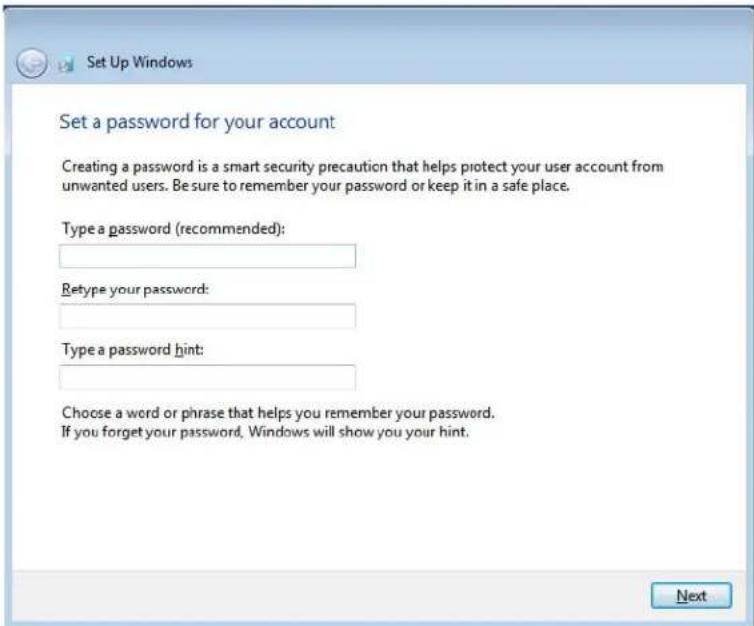
You will be prompted to create a password for the system. This is optional. If no password is desired, press the "Next" button.
text_image
Set Up Windows Set a password for your account Creating a password is a smart security precaution that helps protect your user account from unwanted users. Be sure to remember your password or keep it in a safe place. Type a password (recommended): Retype your password: Type a password hint: Choose a word or phrase that helps you remember your password. If you forget your password, Windows will show you your hint. NextAgreeing to Terms and Conditions
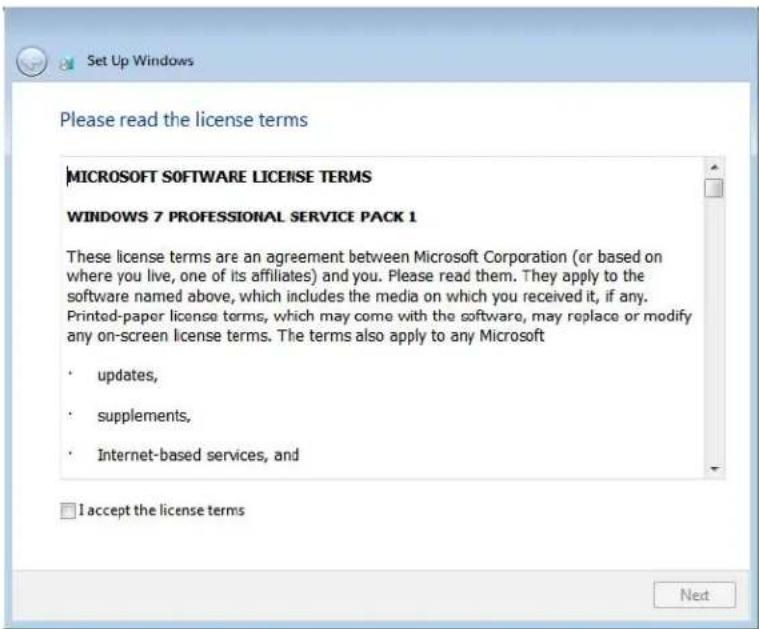
You will be prompted to agree to the Windows license terms. Click I Accept to continue
text_image
Set Up Windows Please read the license terms MICROSOFT SOFTWARE LICENSE TERMS WINDOWS 7 PROFESSIONAL SERVICE PACK 1 These license terms are an agreement between Microsoft Corporation (or based on where you live, one of its affiliates) and you. Please read them. They apply to the software named above, which includes the media on which you received it, if any. Printed-paper license terms, which may come with the software, may replace or modify any on-screen license terms. The terms also apply to any Microsoft • updates, • supplements, • Internet-based services, and I accept the license terms NextChoosing the Windows Update settings
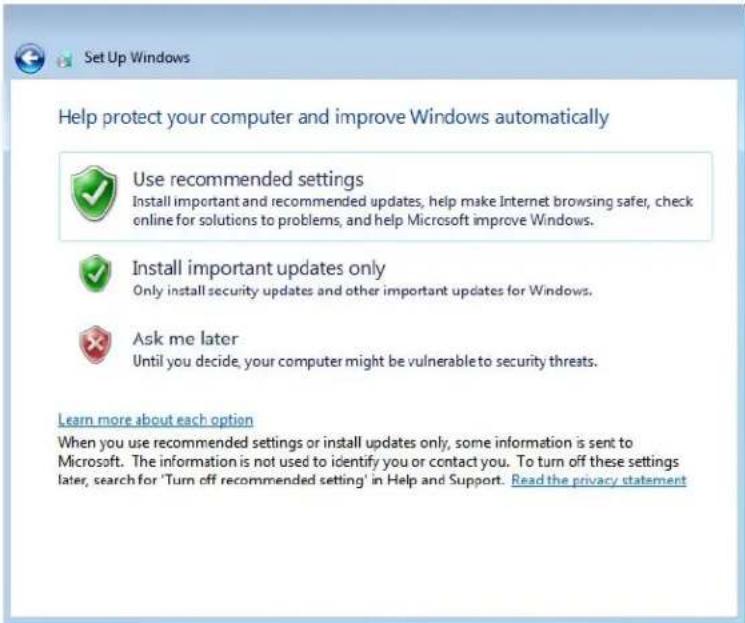
You will be prompted to select the Windows Update settings.
text_image
Set Up Windows Help protect your computer and improve Windows automatically Use recommended settings Install important and recommended updates, help make Internet browsing safer, check online for solutions to problems, and help Microsoft improve Windows. Install important updates only Only install security updates and other important updates for Windows. Ask me later Until you decide, your computer might be vulnerable to security threats. Learn more about each option When you use recommended settings or install updates only, some information is sent to Microsoft. The information is not used to identify you or contact you. To turn off these settings later, search for 'Turn off recommended setting' in Help and Support. Read the privacy statementSelecting the Time Zone
When the following window appears, you can set the Computer Module's time zone, date, and time. Click Next to finish. Windows Setup completes the OS installation.

text_image
Set Up Windows Review your time and date settings Time zone: (UTC-08:00) Pacific Time (US & Canada) ✓ Automatically adjust clock for Daylight Saving Time Date: May, 2015 Su Mo Tu We Th Fr Sa 26 27 28 29 30 1 2 3 4 5 6 7 8 9 10 11 12 13 14 15 16 17 18 19 20 21 22 23 24 25 26 27 28 29 30 31 1 2 3 4 5 6 Time: 5:48:44 PM NextInstalling Touchscreen Technology Software Drivers on Elo Computer Modules running Windows 7
Visit the Elo Touch Solutions website www.elotouch.com for:
- The latest touch driver version
• Additional touch driver information
• Detailed touch driver installation guides - Touch drivers for other operating systems
The Computer Module comes with Elo Touch Driver already installed.
Changing from Windows 7/8.1 64bit OS to 32bit OS
When the system is booting up, repeatedly press the down arrow “↓” key on an attached keyboard in order to access the OS version change.
Once this option has been chosen, follow the on-screen steps to change the OS from 64bit to 32bit.
Note: When installing the 32bit version, all files that were previously installed on the 64 bit version will be deleted.
Operating System Setup – Windows 8.1
Initial setup of the operating system takes approximately 5 minutes. Additional time may be needed for different Computer module hardware and operating system configurations. You will need to plug in an external keyboard and/or mouse into the Computer Module connector panel to execute these steps.
To set up the Windows 8.1 OS for the Computer Module, turn on the touchcomputer and follow the instructions on the screen.
Selecting the Language
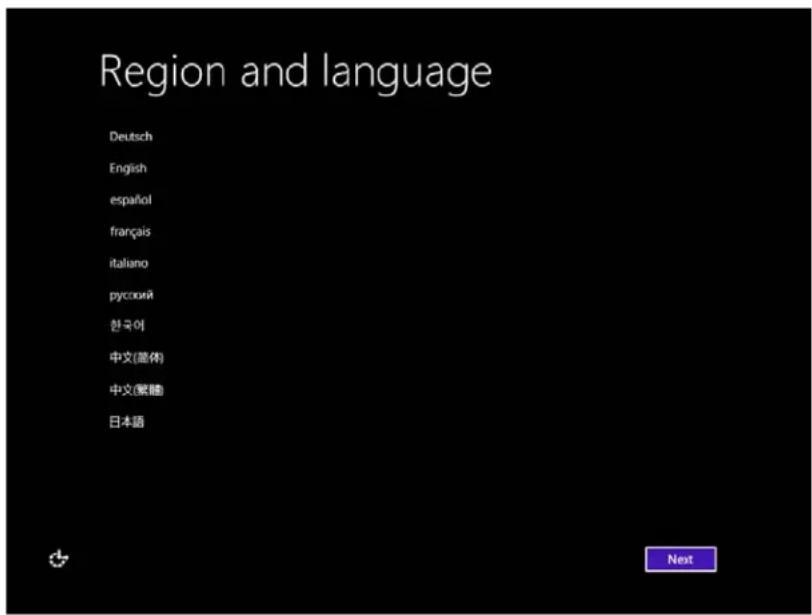
Windows will prompt you to select your language of preference. See reference image below.
text_image
Region and language Deutsch English español français italiano pycokii 한국어 中文(简体) 中文(繁體) 日本語 NextAgreeing to Terms and Conditions
You will be prompted to agree to the Windows license terms. Click I Accept to continue.
License terms
Please read this so you know what you're agreeing to.
MICROSOFT SOFTWARE LICENSE TERMS
WINDOWS EMBEDDED 8.1 INDUSTRY PRO
This is a license agreement between Microsoft Corporation (or based on where you live, one of its affiliates) and you that describes your rights to use Windows Embedded 8.1 Industry Pro.
For your convenience, we have organized this agreement into two parts. The first part includes introductory terms phrased in a question and answer format; the Additional Terms follow and contain greater detail. You should review the entire agreement, including any linked terms, because all of the terms are important and together create this contract that applies to you. You can review linked terms by pasting the forward link into your browser window once the software is running. The Additional Terms contain a binding arbitration clause and class action waiver. If you live in the United States, these affect your rights to resolve a dispute with Microsoft, so you should read them carefully.
By accepting this agreement or using the software, you agree to all of these terms and consent to the transmission of certain information during activation and for Internet-based features of the software. If you do not accept and comply with these terms, you may not use the software or its features. Contact Microsoft or the Microsoft affiliate serving your country for information about Microsoft's refund policies. See microsoft.com/worldwide. In the United States and Canada, call (800) MICROSOFT or see microsoft.com/info/nareturns.htm.
How can I use the software? We do not sell our software or your copy of it – we only license it. The software may require a key to install or access it. If it does, you are responsible for the use of keys assigned to you. You


Personalizing the Computer
Windows allows you to personalize your computer by selecting a theme color and giving your PC a name. Click Next to continue.

text_image
Personalize Pick a color you like and give your PC a name. You'll be able to personalize more later. PC name Example: Livingroom-pc NextChoosing the Windows Settings
You will be prompted to select the Windows settings

Settings
Express settings
We recommend these settings, which include occasionally sending info to Microsoft. You can customize these settings now or later.
• Automatically find and connect to devices and content on this network.
• Automatically install Windows updates, app updates, and device software.
• Turn on Do Not Track in Internet Explorer.
• Help protect your PC from unsafe files, apps, and websites, and check online for solutions to problems.
• Help improve Microsoft software, services, and location services by sending us info.
- Use Bing to get search suggestions and web results in Windows Search, and let Microsoft use your location and other info to personalize your experiences.
• In Internet Explorer, use page prediction to preload pages, which sends your browsing history to Microsoft.
- Let Windows and apps use your name, account picture, and advertising ID, and request your location from the Windows Location Platform.
Learn more about express settings
Privacy statement

Use express settings
Customize
Creating Your Account
You will be prompted to create a Username and Password. Once set up, click Finish to complete Setup. See reference image below.

text_image
Your account If you want a password, choose something that will be easy for you to remember but hard for others to guess. User name Example: John Password Reenter password Password hint FinishAccessing Windows 8.1 Charm Bars
In order to access the Windows 8.1 Charm Bars, Elo recommends that the Cursor Edge Acceleration (CEA) feature is turned on from the Elo Driver Settings. The acceleration from the monitor should be adjusted to ensure that the Charm Bars can be accessed. For more information, refer to the User Manual which can be found in the Program Files folder within the Elo Touch Solutions folder.
Operating System Setup – No OS
No Operating System (No OS) units will require an operating system to be installed on them.
Load your operating system of choice onto the Computer Module.
Cancel any attempts by your operating system to load drivers for the new USB device (the Elo touchscreen) it finds.
Once you have installed an OS image onto your computer, allow the system to automatically install all the available drivers. You can download the latest Elo Touch Driver from the website mentioned above and proceed to install that driver onto the computer.
Installing Touchscreen Technology Software Drivers on Elo Computer Modules with No OS
Visit the Elo Touch Solutions website www.elotouch.com for:
- The latest versions of our touch drivers
• Additional touch driver information
• Detailed touch driver installation guides - Touch drivers for other operating systems
Download and install the required touch driver from www.elotouch.com.
Setting Up the Operating System
Initial operating system setup takes approximately 5-10 minutes. Additional time may be needed depending on touchcomputer hardware configurations and devices connected to the touchcomputer.
To set up the Microsoft ^® Windows ^® Operating System for the touch system, turn on the touchmonitor by pressing the power button, and then follow the on-screen instructions.
Windows can only run one language at any given time. The Elo Touch Solutions language injection feature can be used to modify your language preference. English is set as the default language, but you can change this language according to your preferences. To use the language injection feature:
- Power off your system completely.
- Power on your system.
- After the Elo splash screen (shown below), press “↑” or “↓” repeatedly to pause on Windows Boot Manager.

natural_image
Blue abstract background with light streaks and a central logo featuring the word 'elo' (no additional text or symbols)- Select either Restore OS 32bit or Restore OS 64bit depending on your OS environment.
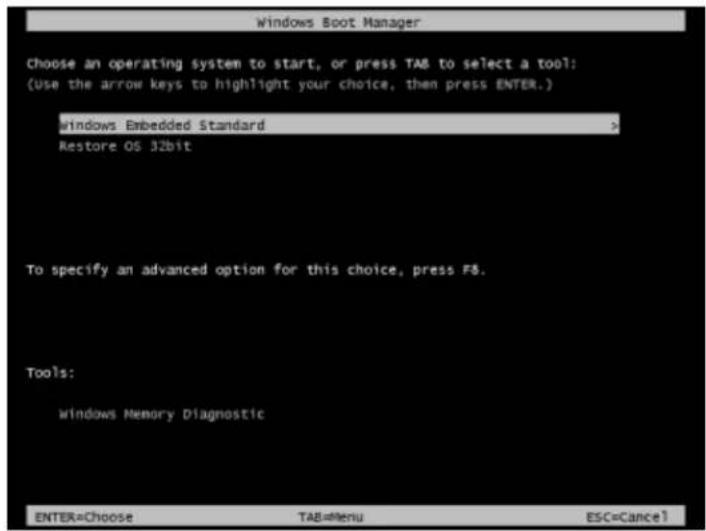
text_image
Windows Boot Manager Choose an operating system to start, or press TAB to select a tool: (Use the arrow keys to highlight your choice, then press ENTER.) windows Embedded Standard Restore OS 32bit To specify an advanced option for this choice, press F8. Tools: windows Memory Diagnostic ENTER=Choose TAB=Menu ESC=Cancel- The following User Interface (UI) will appear:
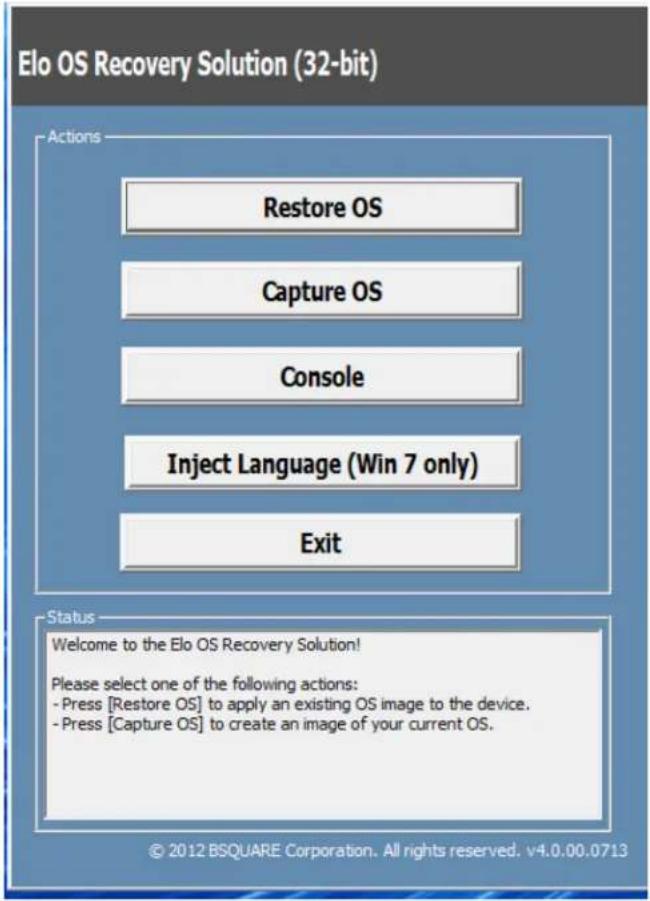
text_image
Elo OS Recovery Solution (32-bit) Actions Restore OS Capture OS Console Inject Language (Win 7 only) Exit Status Welcome to the Elo OS Recovery Solution! Please select one of the following actions: - Press [Restore OS] to apply an existing OS image to the device. - Press [Capture OS] to create an image of your current OS. © 2012 BSQUARE Corporation. All rights reserved. v4.0.00.0713- Select Inject Language and the following UI will appear.

text_image
OS Recovery Solution (32-bit) Inject Language Select Language to Inject Arabic (AR) Selected Language Arabic (AR) Injected Language Inject Selected Language Show Injected Languages Cancel- Click the drop-down list and select the preferred language.
- Click Inject Selected Language
- While the injecting process, DO NOT use your keyboard or mouse as this may cause an error in the language injection process.

text_image
A subdirectory or file D:\scratch already exists. Deployment Image Servicing and Management tool Version: 6.1.7600.16385 Image Version: 6.1.7600.16385 Processing 1 of 1 - Adding package Microsoft-Windows-Cli ~31bf3856ad364e35~x86~zh-TW~6.1.7600.16385 [==================== 33.3%- After successful installation of the language package, press any key to exit the window.
- You should see the newly injected language in both "Selected Language" and "Injected
Language".
- Click Cancel → Exit. The system will reboot and the new language UI should be presented when the system enters the Desktop.
Chapter 4: Technical Support
If you are experiencing trouble with your touchmonitor, refer to the following suggestions.
If the problem persists, please contact your local dealer or contact Elo Touch Solutions Customer Service.
Solutions to Common Problems
| Problem Suggested Troubleshooting | |
| The Computer Module does not turn on when the power button is pressed. | Disconnect the AC power cable and verify that the Computer Module is properly installed. Reconnect the AC power cable and turn on the system. |
| Monitor display is dim | Use the OSD to increase the touchmonitor brightness and/or contrast. |
| Monitor display is blank. | If the Power Status LED is blinking, the monitor or Computer Module may be in SLEEP mode. Press any key, move the mouse, and/or touch the touchscreen and verify that the monitor displays content. |
| Monitor displays an “Out Of Range” message | Adjust computer resolution/timing mode to be within the allowable timing ranges specified for the touchmonitor. Refer to www.elotouch.com for Elo touchmonitor specification. |
| Touch functionality doesn’t work | Verify that your Computer Module has the latest drivers installed. Refer to the Computer Module Installation herein for details. |
Visit www.elotouch.com/go/websupport for online self-help.
Visit www.elotouch.com/go/contactsupport for technical support.
See this user manual's last page for worldwide technical support phone numbers.
Technical assistance for Computer Modules running Windows OS are also available on the computer in the Support Information section of the Systems Properties menu. The Systems Properties menu can be accessed by:
- Right-clicking the My Computer icon and selecting Properties from the drop-down menu, or
- Clicking the Start button; go to the Settings -> Control Panel menu and selecting the System icon
Chapter 5: Safety & Maintenance
Safety
To avoid risk of electric shock, follow all safety notices and do not disassemble the touchmonitor or Computer Module. They are not user-serviceable.
The slots located on the sides and top of the touchmonitor case are for ventilation. Do not block or insert anything into the ventilation slots.
Ensure that the environmental conditions listed below are maintained for the computer module.
Environmental conditions for transportation and storage
Temperature:
Operating
0^ C to 40^ C
Storage/Transportation
-20°C to 60°C
Humidity (non-condensing) :
Operating
20% to 80%
Storage/Transportation
10% to 90%
Altitude:
Operating
0 to 3,000m
Storage/Transportation
0 to 12,192m
Caution
There is risk of explosion if battery is replaced by an incorrect type. Dispose of used batteries at the end of its useful life according to local laws and regulations.
Waste Electrical & Electronic Equipment Directive (WEEE)
This product should not be disposed of with household waste. It should be deposited at a facility that enables recovery and recycling. Ensure that product is disposed at the end of its useful life according to local laws and regulations.
Elo has put in place recycling arrangements in certain parts of the world. For more information on how you can access these arrangements, please visit http://www.elotouch.com/AboutElo/ewaste-program/.
Creating the Recovery Flash Drive
All Windows 7 and Windows 8.1 computer modules come with the built-in Elo Restore Utility on the Windows Desktop. The utility allows for creation of a recovery flash drive based on the purchased operating system. Please create your recovery flash drive immediately. In the event that the HDD/SSD recovery partition accidentally gets deleted or becomes inaccessible, you can use the recovery flash drive to recover your system.
The following procedures demonstrate how to create a recovery flash drive.
-
Right-click on the EloRestoreUtility icon on the Desktop and select "Run as administrator."
-
Click "Start" button to begin the process.
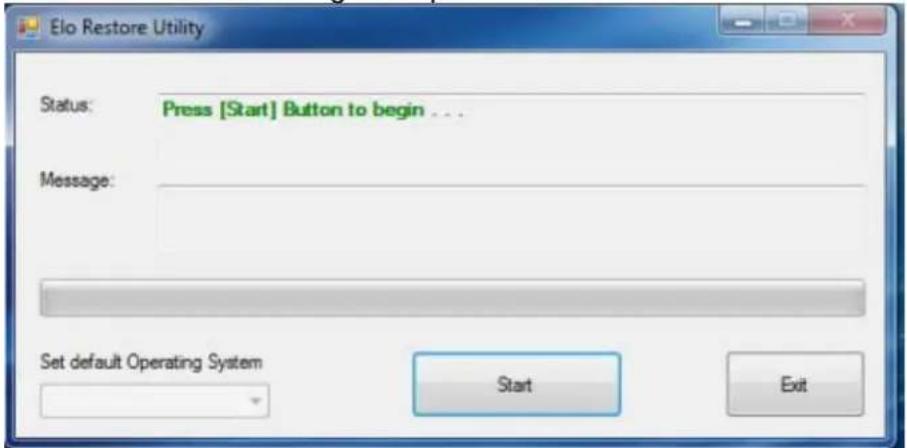
text_image
Elo Restore Utility Status: Press [Start] Button to begin ... Message: Set default Operating System Start Exit- Once completed, you will see a pop-up window that will prompt you to insert a blank flash drive to any of available USB ports on your system. (For Windows 7, use a flash drive with at least 64GB of space available. For Windows 8.1, use a flash drive with at least 16 GB of space available)

text_image
Elo Restore Utility Status: Initialization Information Message: Required Information: Please insert your flash drive at this moment! OK Set default Operating System Format Drive Exit- After the flash drive is plugged in, you will see the below window. Click "Format Drive" to continue the process. PLEASE NOTE THAT THIS WILL ERASE ALL DATA CONTAINED IN THE FLASH.

text_image
Elo Restore Utility Status: Found Drive - D:\ Message: Press [Format Drive] Button to start format process ... Set default Operating System Format Drive Exit- Click "Create Restore Media" to proceed. This step will take about 10-20 minutes, depending on your system configurations and flash drive performance.
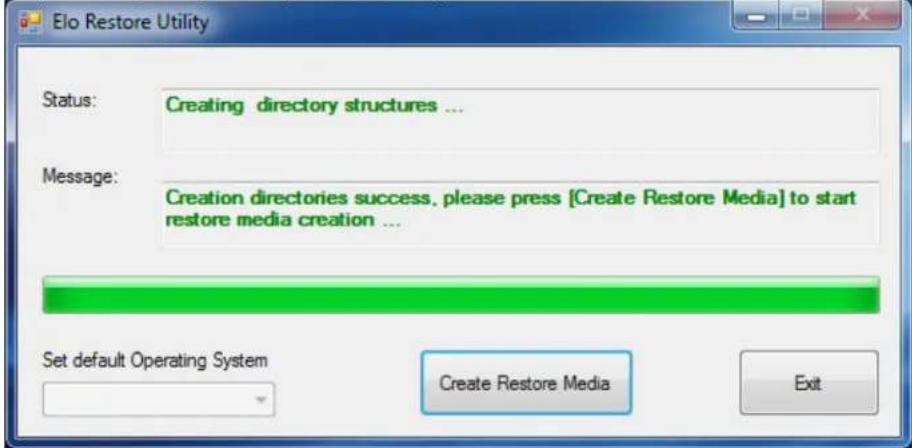
text_image
Elo Restore Utility Status: Creating directory structures ... Message: Creation directories success. please press [Create Restore Media] to start restore media creation ... Set default Operating System Create Restore Media Exit- Once the message "Creation Restore Media success..." appears, remove the flash drive and click "Exit" to exit the program.

text_image
Elo Restore Utility Status: Creation Restore Media finished. Please refer to manual for additional steps ... Message: Creation Restore Media success ... Set default Operating System Create Restore Media Exit-
In order to use the recovery flash drive in the case of a system crash, reboot the system and press F11 several times to enter Device Boot Menu. Subsequently, select to boot from flash drive.
-
When the following UI is presented, click "Install Recovery Solution" button.

text_image
Elo OS Recovery Solution (64-bit) Actions Install Recovery Solution Capture OS Console Inject Language (Win 7 only) Exit Status Welcome to the Elo OS Recovery Solution! If you previously captured an OS image file (*.win), press [Install Recovery Solution]. Otherwise, press [Capture OS] to create an image of your current operating system. © 2012 SQUANE Corporation. All rights reserved. v4.0.01.0713- Follow the on-screen instructions to complete the installation process and then exit the program.
Note: All data will be deleted during the recovery process. User should back up files when necessary. Elo Touch Solutions does not accept liability for lost data or software.
Note: The end user must adhere to Microsoft's Licensing Agreement
If for any reason the touchcomputer's operating system needs to be recovered TO FACTORY SETTINGS, you can recover your system by following procedures below. PLEASE NOTE THAT ALL CUSTOMER SETTINGS AND DATA WILL BE LOST DURING THIS PROCESS.
Please be sure to backup all data, settings, and customer-installed software before proceeding.
- Power off your system.
- Power on your system.
- After the Elo splash screen (shown below) appears, press “↑” or “↓” repeatedly to pause on Windows Boot Manager.
natural_image
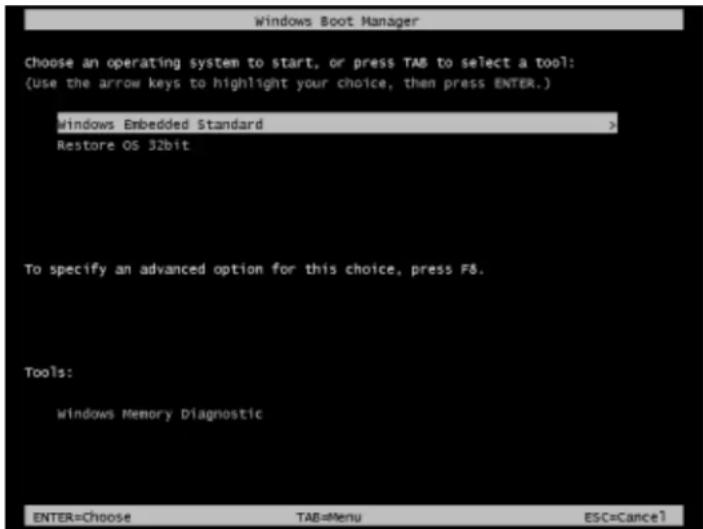
Blue abstract background with light streaks and a bright sunburst effect, featuring the word 'ēlo' in white at the center (no other text or symbols)- Select either to Restore OS 32bit or Restore OS 64bit depending on your OS environment.
text_image
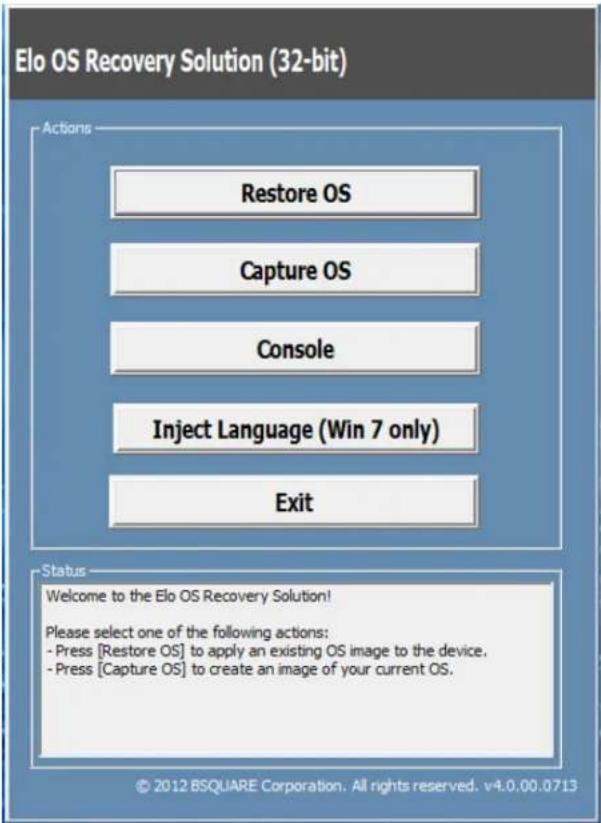
Windows Boot Manager Choose an operating system to start, or press TAB to select a tool: (use the arrow keys to highlight your choice, then press ENTER.) Windows Embedded Standard > Restore OS 32bit To specify an advanced option for this choice, press F8. Tools: Windows Memory Diagnostic ENTER=Choose TAB=Menu ESC=Cancel- The following User Interface (UI) will appear:
text_image
Elo OS Recovery Solution (32-bit) Actions Restore OS Capture OS Console Inject Language (Win 7 only) Exit Status Welcome to the Elo OS Recovery Solution! Please select one of the following actions: - Press [Restore OS] to apply an existing OS image to the device. - Press [Capture OS] to create an image of your current OS. © 2012 BSQUARE Corporation. All rights reserved. v4.0.00.0713- Select Restore OS. The system will automatically test your hardware. Once the process completes, click the Start button to perform the system recovery function.

text_image
OS Recovery Solution (32-bit) Restore OS Close Recovery Status Ready to Restore OS Current Progress: Overall Progress: Time Elapsed: Start Information This utility will restore the operating system. Please verify the Recovery OS Image file and press [Start] to restore the OS or press [Exit] to return to the main screen: OS Image File: aa32_boot.wim OS Family: Windows 7 WARNING! All data on the OS partition will be lost. © 2012 BSQUARE Corporation. All rights reserved, v3.1.00.0312- The following process will reformat the primary hard drive. Please back up your data before performing the recovery process.

text_image
Confirm Disk Format The OS Recovery Solution will reformat the primary hard drive, then apply the OS image to the clean drive. WARNING: All existing data on the primary drive and any of its partitions will be destroyed. Please ensure you have backed up your data before continuing. Are you sure you want to continue? Yes No- Once completed, click the Close button. The system will return to the main menu of the Elo Recovery Solution. Click the Exit button to restart your system.
All data is deleted during the recovery process. The user should back up files when necessary. Elo Touch Solutions does not accept liability for lost data or software.
The end user must adhere to Microsoft's Licensing Agreement.
Chapter 6: Regulatory Information
I. Electrical Safety Information:
Compliance is required with respect to the voltage, frequency, and current requirements indicated on the manufacturer's label. Connecting a device to a power source that does not meet requirements other than those specified herein may result in improper operation, damage to the equipment or pose a fire hazard.
There are no operator serviceable parts inside this equipment. There are hazardous voltages generated by this equipment which constitute a safety hazard. Service should be provided only by a qualified service technician.
Contact a qualified electrician or the manufacturer if there are questions about the installation prior to connecting the equipment to mains power.
II. Emissions and Immunity Information
Notice to Users in the United States: This equipment has been tested and found to comply with the limits for a Class A digital device, pursuant to Part 15 of FCC Rules. These limits are designed to provide reasonable protection against harmful interference in a residential installation. This equipment generates, uses, and can radiate radio frequency energy, and if not installed and used in accordance with the instructions, may cause harmful interference to radio communications.
Notice to Users in Canada: This equipment complies with the Class A limits for radio noise emissions from digital apparatus as established by the Radio Interference Regulations of Industrial Canada.
Notice to Users in the European Union: Use only the provided power cords and interconnecting cabling provided with the equipment. Substitution of provided cords and cabling may compromise electrical safety or CE Mark Certification for emissions or immunity as required by the following standards:
This Information Technology Equipment (ITE) is required to have a CE Mark on the Manufacturer's label which means that the equipment has been tested to the following Directives and Standards: This equipment has been tested to the requirements for the CE Mark
as required by EMC Directive 2014/30/EU as indicated in European Standard EN 55022 Class A and the Low Voltage Directive 2014/35/EU as indicated in European Standard EN 60950-1.
General Information to all Users: This equipment generates, uses, and can radiate radio frequency energy. If not installed and used according to this manual the equipment may cause interference with radio and television communications. There is, however, no guarantee that interference will not occur in any particular installation due to site-specific factors.
This device complies with part 15 of the FCC Rules. Operation is subject to the following two conditions: (1) This device may not cause harmful interference, and (2) this device must accept any interference received, including interference that may cause undesired operation.
1) In order to meet emission and immunity requirements, the user must observe the following:
a) Use only the provided I/O cables to connect this digital device with any computer.
b) To ensure compliance, use only the provided manufacturer's approved line cord.
c) The user is cautioned that changes or modifications to the equipment not expressly approved by the party responsible for compliance could void the user's authority to operate the equipment.
2) If this equipment appears to cause interference with radio or television reception, or any other device:
a) Verify as an emission source by turning the equipment off and on.
If you determine that this equipment is causing the interference, try to correct the interference by using one or more of the following measures:
i) Move the digital device away from the affected receiver.
ii) Reposition (turn) the digital device with respect to the affected receiver.
iii) Reorient the affected receiver's antenna.
iv) Plug the digital device into a different AC outlet so the digital device and the receiver are on
different branch circuits.
v) Disconnect and remove any I/O cables that the digital device does not use.(Unterminated I/O cables are a potential source of high RF emission levels.)
vi) Plug the digital device into only a grounded outlet receptacle. Do not use AC adapter plugs. (Removing or cutting the line cord ground may increase RF emission levels and may also present a lethal shock hazard to the user.)
If you need additional help, consult your dealer, manufacturer, or an experienced radio or television technician.
III. Agency Certifications
The following certifications and marks have been issued or declared for this monitor:
Europe CE Japan VCCI Taiwan BSMI
Australia RCM Canada CUL, IC United States FCC, UL
IV. China RoHS
In accordance to Chinese law (Management Methods for the Restriction of the Use of Hazardous Substances in Electrical and Electronic Products), the section below lists out the name and amount of the toxic and/or hazardous materials that this product may contain.
Explanation of Markings
(1). In accordance with the SJ/T11364 requirement, the electronic information products are marked with the following pollution control logo. The Environment-Friendly Use Period for this product is 10 years. The product will not leak or mutate under normal operating conditions listed below, so that the use of this electronic information product will not result in any severe environmental pollution, any bodily injury, or damage to any assets.
Operating Temperature:0-40 / Humidity:20%-80% (non-condensing).
Storage Temperature:-20\~60 / Humidity:10%\~90% (non-condensing).

(2). It is encouraged and recommended that this product be recycled and reused according to local laws. The product should not be thrown away casually.

Chapter 7: Warranty Information
For warranty information, go to http://www.elotouch.com/Support/warranty.asp
Get the latest...
- Product Information
- Specifications
- Upcoming events
- Press releases
- Software drivers
Getting in Touch with Us
To find out more about the extensive range of Elo touch solutions, visit our website at www.elotouch.com, or simply call the office nearest you:
North America
Elo Touch Solutions
1033 McCarthy Blvd
Milpitas, CA 95035
Tel 800-ELO-TOUCH
Tel 1-408-597-8000
Fax 1-408-597-8050
customerservice@elotouch.com
Europe
Tel +32 (0) 16 70 45 00
Fax +32 (0) 16 70 45 49
elosales@elotouch.com
Asia-Pacific
Tel +86 (21) 3329 1385
Fax +86 (21) 3329 1400
www.elotouch.com.cn
Latin America
Tel 786-923-0251
Fax 305-931-0124
www.elotouch.com
Copyright 2015 Elo Touch Solutions, Inc. All rights reserved