XA-HDCP - Audio/video switch CYP - Free user manual and instructions
Find the device manual for free XA-HDCP CYP in PDF.


User questions about XA-HDCP CYP
0 question about this device. Answer the ones you know or ask your own.
Ask a new question about this device
Download the instructions for your Audio/video switch in PDF format for free! Find your manual XA-HDCP - CYP and take your electronic device back in hand. On this page are published all the documents necessary for the use of your device. XA-HDCP by CYP.
USER MANUAL XA-HDCP CYP
natural_image
Black HDMI inverter device with ports and control buttons (no visible text or symbols on body)4K2K
HDCP22
Operation Manual
SAFETY PRECAUTIONS
Please read all instructions before attempting to unpack, install or operate this equipment and before connecting the power supply.
Please keep the following in mind as you unpack and install this equipment:
- Always follow basic safety precautions to reduce the risk of fire, electrical shock and injury to persons.
- To prevent fire or shock hazard, do not expose the unit to rain, moisture or install this product near water.
- Never spill liquid of any kind on or into this product.
- Never push an object of any kind into this product through any openings or empty slots in the unit, as you may damage parts inside the unit.
- Do not attach the power supply cabling to building surfaces.
- Use only the supplied power supply unit (PSU). Do not use the PSU if it is damaged.
- Do not allow anything to rest on the power cabling or allow any weight to be placed upon it or any person walk on it.
- To protect the unit from overheating, do not block any vents or openings in the unit housing that provide ventilation and allow for sufficient space for air to circulate around the unit.
REVISION HISTORY
| VERSION NO. DATE (DD/MM/YY) SUMMARY OF CHANGE | ||
| RDV1 17/08/15 | Preliminary release | |
| RDV2 28/12/15 | Add EDID Management | |
| RDV3 27/01/16 | Add User Mode's Default | |
| RDV4 28/01/16 | SYNC & HDCP LED Description | |
| RDV5 02/02/16 | HDCP LED Chart | |
CONTENTS
- Introduction......1
- Applications......1
- Package Contents .... 1
- System Requirements......1
- Features....2
- Operation Controls and Functions......3
6.1 Front and Rear Panels ....3
6.2 Top Panel 4
6.3 Side Panel 5
6.4 EDID Management Coming soon, please contact support@cypeurope.com for further details ....6
- Connection Diagram ...... 12
- Specifications 13
- Acronyms....14
1. INTRODUCTION
The 4K2K EDID Emulator & HDCP Converter is a handy device for your HDMI signal differentiate. With 6G bandwidth, HDCP analyzing, EDID and YUV420 selections this device allows you with fast and clear viewing on the HDMI signal status. Further, this device allows user to upload EDID for selection which create alternative EDID selection for specific usage. Moreover, with hot keys and LEDs design which allow fast switching on various selection and quick viewing on the status.
2. APPLICATIONS
• HDMI signal extension
• Source and display signal status display
- EDIDselection
- HDCP verification
• 4K2K@60 YUV444 down sampling to 4K2K@60 YUV420
3. PACKAGE CONTENTS
• 1×4K2K EDID Emulator
• 1×5V/2.6A Power Adaptor
• 1×OperationManual
4. SYSTEM REQUIREMENTS
Input HDMI source a signals with output HDMI display and connection cables.
5 FEATURES
• HDMI with 4K2K 6G supported, HDCP 2.2/1.4 and DVI compliant
• Supports video source and output display signal analysis up to 6G 4K2K
• Supports HDMI 2.0
• Supports HDCP v2.2 to v1.4 conversion
- Supports EDID selection from internal, external and user's EDID to be insert
• Supports application control via USB
• Supports LEDs display with fast viewing on current selection status
• Supports USB firmware update
• Supports 6G bandwidth down sampling to 3G
6. OPERATION CONTROLS AND FUNCTIONS
6.1 Front and Rear Panels

text_image
FrontRear HDMI IN DC 5V SERVICE HDMI OUT1 HDMI IN: Connect with HDMI source equipment such as Blue-ray/PS4 player with HDMI cable.
2 DC 5V: Plug the 5V DC power supply into the unit and connect the adaptor to an AC outlet.
3 SERVICE: This slot is for firmware update use and customer EDID file upload.
4 HDMI OUT: Connect with display/amplifier for both video and audio output with HDMI cable.
6.2 Top Panel

text_image
PWR SYNC 3G 6G HDCP 1.4 2.2 INT EDID EXT USER YUV 420 USB LINK 1 2 3 4 5 61 PWR LED: This LED will illuminate when the device is connected with power supply from the AC outlet.
2 SYNC LEDs: These LEDs will illuminate according to both HDMI input and output signal's current bandwidth. When input signal is 6G and YUV420 button is pressed to switch output signal to 3G YUV420, both LEDs will illuminate. When the LED is blinking it represent signal has issue occurred.
3 HDCP LEDs: These LEDs will illuminate according to both HDMI input and output's HDCP encrypted signal. When both input and output signal are HDCP 2.2 encrypted and when input signal is HDCP 2.2 encrypted and whether output display is with HDCP 1.4/2.2 both LEDs will illuminate. When the LED is blinking it represent HDCP has failed and when LED is not illuminating it represent no HDCP. Other LED illumination please refer to below chart.
| DS\LED\SS | Source | |||
| 1.4 2.2 Non-HDCP | ||||
| Display Signal | 1.4 1.4 1.4 & 2.2 - | |||
| 2.2 1.4 1.4 & 2.2 - | ||||
| Non-HDCP 1.4B 1.4B - | ||||
B: Blinking
4 EDID LEDs: These LEDs will illuminate according to the selected EDID setting.
5 YUV420 LED: This LED will illuminate according to YUV420's selection.
6 USB LINK LED: This LED will illuminate when the connected USB device is valid for PC control.
6.3 Side Panel

text_image
YUV420 EDID ACTIVE SRC 121 YUV420: Press this button to allows HDMI input 6G signal to be subsampling to YUV420 from YUV444.
2 EDID: Press this button to select EDID of INTernal/EXTernal or USER where internal EDID is 1080p at 2CH, external EDID is depending on the connected HDMI output display and USER is for user to upload with default setting on 4K2K@60_YUV420 2CH.
3 ACTIVE SRC: Press this button to force the connected HDMI output display to output image always.
Note: Output display must support CEC in order to perform this function.
6.4 EDID Management-Coming soon, please contact support@cypeurope.com for further details
text_image
CYP EDD doubleOnce the file has been downloaded successfully double click to open the application and EDID Manager's window will pop-up.

text_image
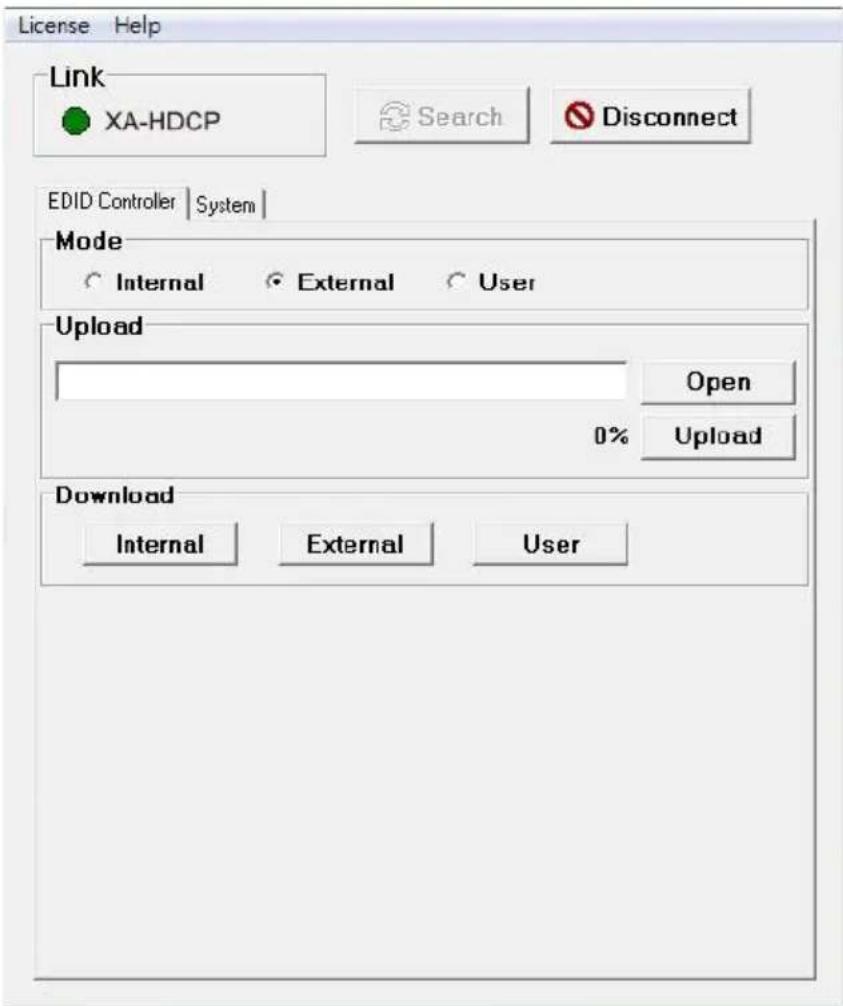
License Help Link Not Found. Search Disconnect EDID Controller | System | Mode Internal External User Upload Open 0% Upload Download Internal External UserConnect the unit under power ON status with USB cable from PC/Laptop. Click on Search to allow the unit to be lined up.
Under EDID Controller user may select EDID from Internal, External or User as a reference for input HDMI source, the selection will act correspondingly with the unit's LED light.
EDID may be uploaded, simply by open the EDID's *.bin file and click on Upload the unit will check EDID's Header and Checksum and proceed the upload. When the upload is successfully done EDID mode will switch to User.
EDID may also be downloaded, simply by a click on Internal, External or User and the unit will download current EDID with a pop up screen to save.
text_image
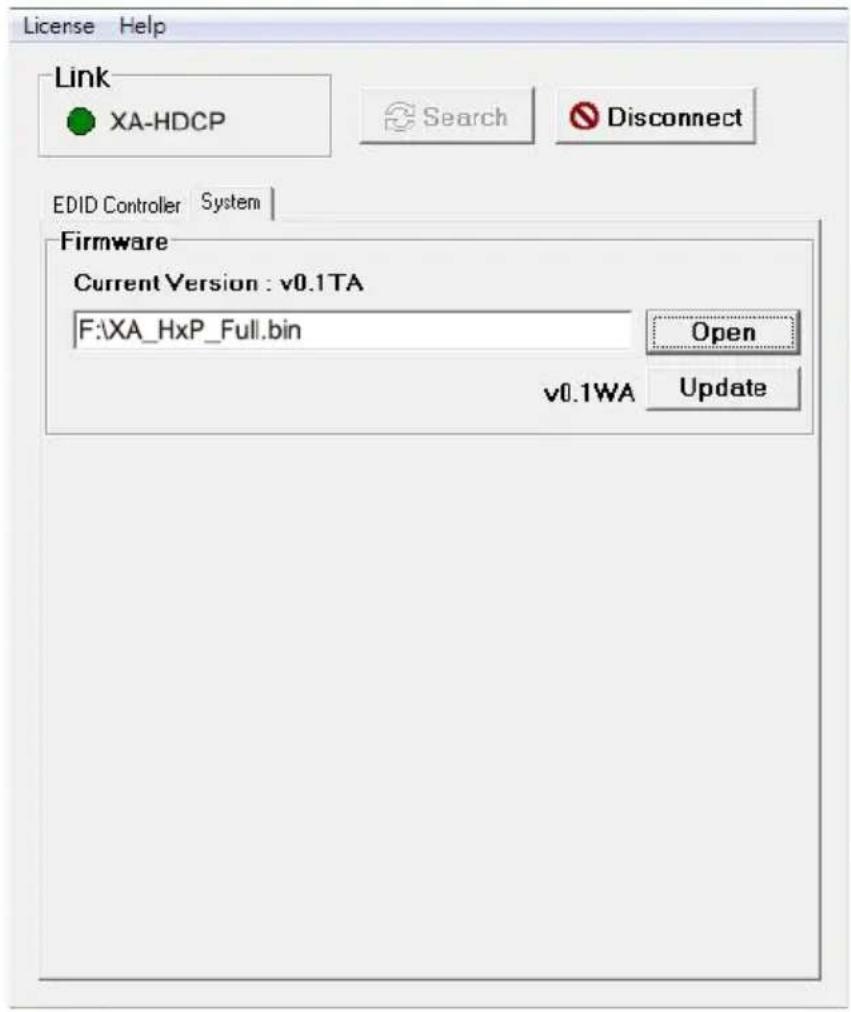
License Help Link XA-HDCP Search Disconnect EDID Controller | System | Mode Internal External User Upload Open 0% Upload Download Internal External UserClick on System to learn the unit's Current Firmware version. To update simply open the *.bin file and click on Update. Once the update is finished click on Disconnect and re-power on the unit will complete the update procedure.
text_image
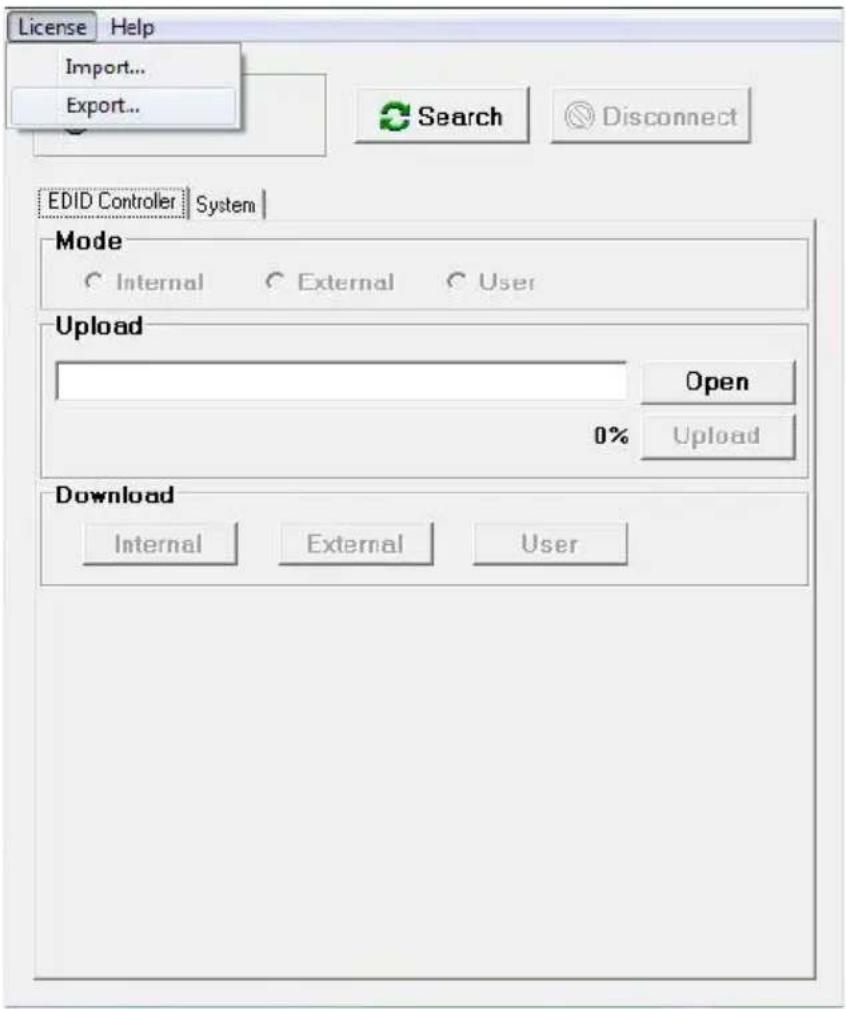
License Help Link XA-HDCP Search Disconnect EDID Controller System Firmware Current Version : v0.1TA F:\XA_HxP_Full.bin Open v0.1WA UpdateTo use the advance features like EDID Analyzer and Creator on the EDID Manager, requires registration and approval license. Click from License and select Export, the application will generate a License export file for user to save. Send this file to license@cypeurope.com to get an import license file.
text_image
License Help Import... Export... Search Disconnect EDID Controller System Mode Internal External User Upload Open 0% Upload Download Internal External UserIt may require one or two working days before you get your license approved. Once you get the license file please import back into EDID Manager and the advanced features will be available for use.
Click on EDID Analyzer to view current EDID details of Internal, External, User and even the EDID file created by user.

text_image
License Help Link XA-HDCP Search Disconnect EDID Controller EDID Analyzer | EDID Creator | System | Select Internal External User Bin File Informations EDID Header : Good EDID Checksum : Good Manufacturer Name : STD Monitor Name : ENHANCER Max Resolution : 1000p@60Hz Max Color Depth : 8bit Support 3D : No Support YUV420 : No Support SCDC : No Support 600MHz : No Audio Formats : 2PCM, Audio Max Channel : 2CH CEC Address : 0100Click on EDID Creator to design (Brand New) or redesign (Bin Modify) your EDID.
EDID may be designed with its Description, Timings, Audio, Color Space and Others such as 3D and CEC address with just few simple ticks. Once the design is done user may choose to save it or upload it as an User EDID.

text_image
License Help Link XA-HDCP Search Disconnect EDID Controller | EDID Analyzer | EDID Creator | System | Select Brand New Bin Modify Descriptor PC Timing SD/HD/UHD Audio1 Audio2 Color Space Others Manufacturer Name : NEW Monitor Name : BrandNewEdid Product Code : 0 Serial Number : 0 Manufacture Year : 2015 Manufacture Week : 44 Save Upload 0%7. CONNECTION DIAGRAM

text_image
DVD or Blu-ray Player HDMI Input (Up to 3m@4K) HDMI Output (Up to 3m@4K) Power Supply UHDTV8. SPECIFICATIONS
Video Bandwidth 600 MHz/6 Gbps
Input Ports 1×HDMI
Output Ports 1×HDMI
HDMI Resolutions VGA\~WUXGA (RB), 408i\~1080p@24/50/60,
4K@24/25/30, 4K@50/60 (YUV444)
HDMI Cable Distance 10m@1080p/8-bit, 10m@1080p/12-bit,
5m@4K/30, 3m@4K/60
Power Supply 5 V/2.6 A DC (US/EU standards, CE/FCC/UL
certified)
ESD Protection Human body model:
±8 kV (air-gap discharge)
±4 kV (contact discharge)
Dimensions 50 mm (W) × 85 mm (D) × 22.5 mm (H)/
Jack Excluded
51 mm (W) × 97 mm (D) × 22.5 mm (H)/
Jack Included
Weight 58g
Chassis Material Metal
Color Black
Operating Temperature 0°C\~40°C/32°F\~104°F
Storage Temperature -20^ 60^ / -4^ 140^
Relative Humidity 20\~90% RH (non-condensing)
Power Consumption 3.3 W
9. ACRONYMS
| ACRONYM COMPLETE TERM | |
| CEC Consumer | Electronics Control |
| DVI | Digital Visual Interface |
| EDID | Extended Display Identification Data |
| HDCP | High-bandwidth Digital Content Protection |
| HDMI High-Definition Multimedia Interface | |
| USB Universal Serial Bus | |
| VGA Video Graphics Array | |
| WUXGA (RB) Widescreen Ultra Extended Graphics Array (Reduce Blanking) | |